
HP Service Manager. Software Version: 9.40 For the supported Windows and Linux operating systems. Service Desk help topics for printing
|
|
|
- Emerald Williams
- 10 years ago
- Views:
Transcription

1 HP Service Manager Software Version: 9.40 For the supported Windows and Linux operating systems Service Desk help topics for printing Document Release Date: December 2014 Software Release Date: December 2014

2 Legal Notices Warranty The only warranties for HP products and services are set forth in the express warranty statements accompanying such products and services. Nothing herein should be construed as constituting an additional warranty. HP shall not be liable for technical or editorial errors or omissions contained herein. The information contained herein is subject to change without notice. Restricted Rights Legend Confidential computer software. Valid license from HP required for possession, use or copying. Consistent with FAR and , Commercial Computer Software, Computer Software Documentation, and Technical Data for Commercial Items are licensed to the U.S. Government under vendor's standard commercial license. Copyright Notice Hewlett-Packard Development Company, L.P. Trademark Notices Adobe is a trademark of Adobe Systems Incorporated. Microsoft and Windows are U.S. registered trademarks of Microsoft Corporation. Oracle and Java are registered trademarks of Oracle and/or its affiliates. UNIX is a registered trademark of The Open Group. Linux is the registered trademark of Linus Torvalds in the U.S. and other countries. For a complete list of open source and third party acknowledgements, visit the HP Software Support Online web site and search for the product manual called HP Service Manager Open Source and Third Party License Agreements. Documentation Updates The title page of this document contains the following identifying information: Software Version number, which indicates the software version. Document Release Date, which changes each time the document is updated. Software Release Date, which indicates the release date of this version of the software. To check for recent updates or to verify that you are using the most recent edition of a document, go to: This site requires that you register for an HP Passport and sign in. To register for an HP Passport ID, go to: Or click the New users - please register link on the HP Passport login page. You will also receive updated or new editions if you subscribe to the appropriate product support service. Contact your HP sales representative for details. Support Visit the HP Software Support Online website at: This website provides contact information and details about the products, services, and support that HP Software offers. HP Software online support provides customer self-solve capabilities. It provides a fast and efficient way to access interactive technical support tools needed to manage your business. As a valued support customer, you can benefit by using the support website to: Search for knowledge documents of interest Submit and track support cases and enhancement requests Download software patches Manage support contracts Look up HP support contacts Review information about available services Enter into discussions with other software customers Research and register for software training Most of the support areas require that you register as an HP Passport user and sign in. Many also require a support contract. To register for an HP Passport ID, go to: To find more information about access levels, go to: HP Software Solutions Now accesses the HPSW Solution and Integration Portal website. This site enables you to explore HP Product Solutions to meet your business needs, includes a full list of Integrations between HP Products, as well as a listing of ITIL Processes. The URL for this website is HP Service Manager (9.40) Page 2 of 62

3 About this PDF Version of Online Help This document is a PDF version of the online help. This PDF file is provided so you can easily print multiple topics from the help information or read the online help in PDF format. Because this content was originally created to be viewed as online help in a web browser, some topics may not be formatted properly. Some interactive topics may not be present in this PDF version. Those topics can be successfully printed from within the online help. HP Service Manager (9.40) Page 3 of 62

4 Contents Service Desk overview 6 User Interaction Management 6 What is a Service Desk interaction? 7 Service Desk interaction list 7 What is a category? 8 Out-of-box Service Desk categories 9 Notify By field 10 Affected CI field in Service Desk 10 Required actions 11 Working with Service Desk interaction records 11 Hover-over forms for interaction records 12 Related records in Service Desk 12 Activities section 13 Service Catalog requests 14 Approvals section 14 Catalog Items section 14 Associating a Service Desk interaction with another application record 15 Automatic updates of Service Desk records 15 Priority, impact, and urgency 16 Service Desk user roles 18 Service Desk workflows and user tasks 19 Access Interaction Management reports 21 Request a service catalog item or bundle 23 Create a self-service request 24 Close a self-service request 25 Resubmit a self-service request 26 Update a self-service request 27 View a self-service request 28 HP Service Manager (9.40) Page 4 of 62

5 Create a new Service Desk interaction 28 Update an interaction record 30 Cancel a new Service Desk interaction 31 Close a first-time resolved Service Desk interaction 31 Close an existing Service Desk interaction 33 Using mass update with Service Desk interaction record lists 34 Update multiple interaction records 35 Set a reminder for an interaction record 37 Service Catalog support 38 Order from Service Catalog 38 Callback mechanism 41 Example: Service Desk Workflow 42 Service Desk administration 45 Configure the Service Desk settings 45 Configure the Service Desk environment 46 Service Desk configuration 49 Create an interaction category 49 Add a new interaction subcategory 52 Add a new interaction area 53 Service Desk solution matching 53 Security 55 Setting rights to interactions 55 Service Desk security areas 55 Service Desk security roles and settings 58 Send Documentation Feedback 61 HP Service Manager (9.40) Page 5 of 62

6 Service Desk overview HP Service Manager Service Desk enables you to restore normal service to your users as quickly as possible by resolving interactions on first contact or by immediately escalating them for proper handling. Service Desk helps you manage all user interactions, whether reported by using Self-Service web or directly to your service desk. Service Desk enables you to achieve the following results: Control the relationship between Service Desk and other Service Manager applications Require Service Desk interactions to follow a set process Log and prioritize all calls to the service desk Categorize types of interactions and keep track of their resolution Provide first-line investigation and problem diagnosis, and quickly escalate incidents and service requests that cannot be resolved within agreed-on time limits Request a service, provide information, or track previous requests without the assistance of a Service Desk Agent Increase accessibility through a single point of contact and information Communicate with customers and users to keep them informed of progress, impending changes, agreed-on outages, and other notifications. User Interaction Management The HP Service Manager Service Desk application enables a Service Desk Agent to document and track calls. Service Desk provides one-click access to other Service Manager applications to automatically enter information received during the call. Information that is obtained during a call can be used to open an incident record if a reported issue requires further action. Information can also be added to a record in another Service Manager application, such as Change Management. User Interaction Management provides users with a single point of contact (the Service Desk) for all their IT Service related questions, requests, and issues, and provides resolutions to service requests within the agreed service level targets. HP Service Manager (9.40) Page 6 of 62

7 Service Desk overview User Interaction Management includes all direct interactions between a user and the Service Desk by phone or by . User Interaction Management also includes all user activities that occur by use of the self-service web portal (for example, searching the Knowledge base, checking for status updates, or logging an interaction). What is a Service Desk interaction? Each time a user contacts the Service Desk, the Service Desk Agent uses HP Service Manager to create an interaction record. The Service Desk Agent records the user name, the name of the component about which the user is calling, and a description of the service request. After the Service Desk Agent collects this information, the Service Desk Agent performs the actions that are required to resolve the service request. If the service request can be resolved without escalating it to an incident, the Service Desk Agent can close the interaction record. If the service request cannot be resolved without escalating it to an incident, the Service Desk Agent searches for existing incidents that affect the same component or one of the parent assets of that component. If an existing incident is found, the Service Desk Agent can associate the current interaction with the existing incident record. If an existing incident record is not found, the Service Desk Agent can register a new incident based on the Service Desk interaction. Service Manager copies information from the interaction record into the newly created incident record. For example, if a user cannot print to a network printer, the user contacts the Service Desk for assistance. The Service Desk Agent populates an interaction record with the relevant information. Because the issue cannot be resolved immediately, the Service Desk Agent opens an incident, and the incident is assigned to a technician. The technician discovers that the printer network connection is broken. The technician fixes the connection and closes the incident. The Service Desk Agent contacts the user and instructs the user to attempt printing to the network printer. If the user can successfully print, the Service Desk Agent can close the interaction. If the user still cannot print, the Service Desk Agent may reopen the related incident record. Service Desk interaction list The Service Desk interaction list provides general information about interaction records. HP Service Manager (9.40) Page 7 of 62

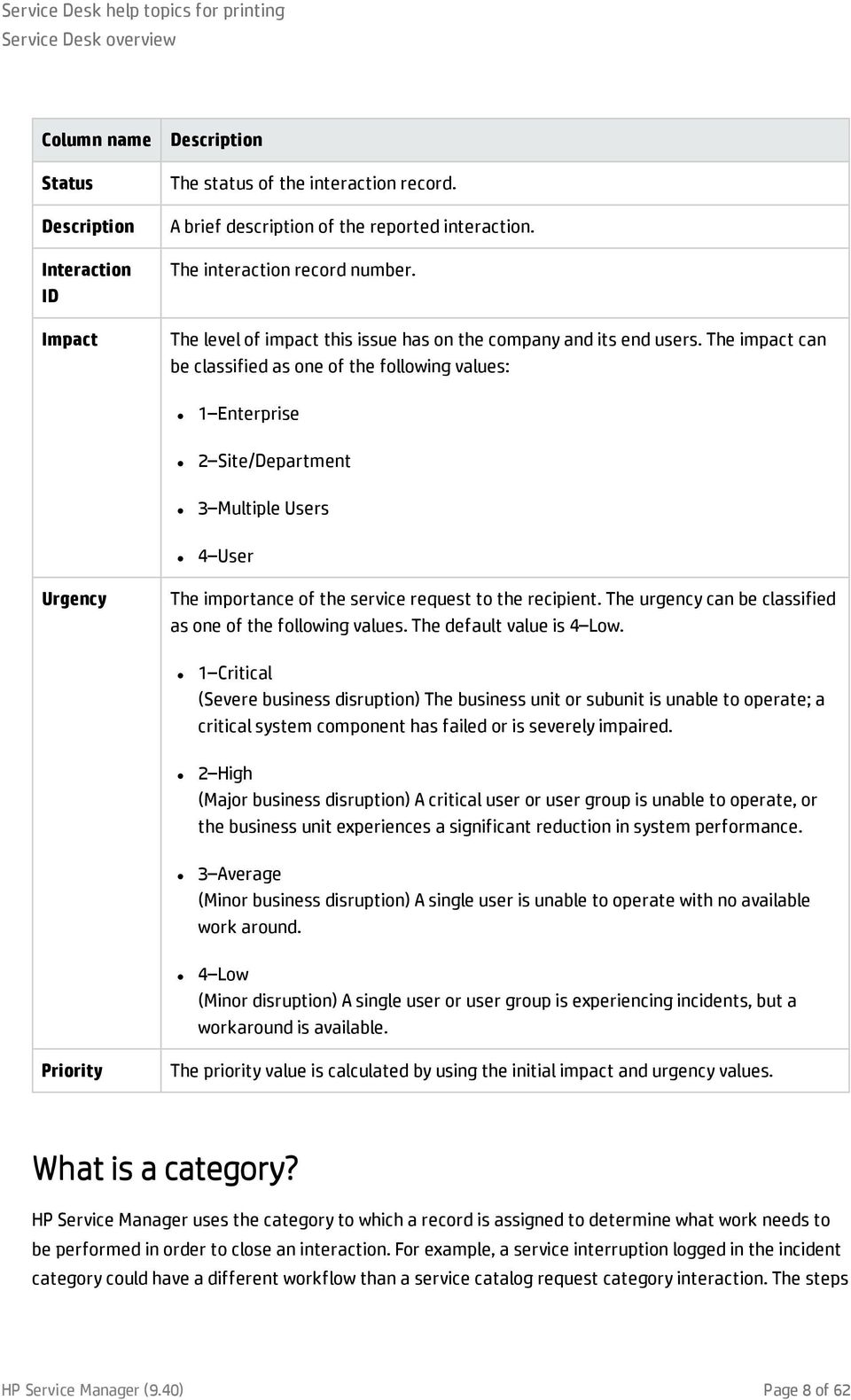
8 Service Desk overview Column name Status Description Interaction ID Impact Description The status of the interaction record. A brief description of the reported interaction. The interaction record number. The level of impact this issue has on the company and its end users. The impact can be classified as one of the following values: 1 Enterprise 2 Site/Department 3 Multiple Users 4 User Urgency The importance of the service request to the recipient. The urgency can be classified as one of the following values. The default value is 4 Low. 1 Critical (Severe business disruption) The business unit or subunit is unable to operate; a critical system component has failed or is severely impaired. 2 High (Major business disruption) A critical user or user group is unable to operate, or the business unit experiences a significant reduction in system performance. 3 Average (Minor business disruption) A single user is unable to operate with no available work around. 4 Low (Minor disruption) A single user or user group is experiencing incidents, but a workaround is available. Priority The priority value is calculated by using the initial impact and urgency values. What is a category? HP Service Manager uses the category to which a record is assigned to determine what work needs to be performed in order to close an interaction. For example, a service interruption logged in the incident category could have a different workflow than a service catalog request category interaction. The steps HP Service Manager (9.40) Page 8 of 62
9 Service Desk overview to manage and resolve the incident category interaction may differ from the steps for a service catalog request category interaction. The category of the interaction determines which Process Designer workflow the interaction uses, and the workflow determines which forms and required fields are displayed. In addition, the category of the interaction determines which Service Manager process is invoked when you escalate an interaction. Categories of the complaint or compliment type are handled entirely as interaction; You cannot escalate these interactions. Note: Your organization may have customized many workflows to handle the interaction, and may also have applied different service agreements to those workflows. Out-of-box Service Desk categories The following table lists the out-of-box Service Desk categories. Depending on the category that you select, HP Service Manager may require you to further categorize the interaction record by selecting an Area and Subarea. Category Complaint Compliment Incident Problem Request for Administration Request for Change Request for Information Service catalog Use Interactions that report less than satisfactory service or performance. Interactions that report exemplary service or performance. Interactions that are opened specifically to start the incident management process. Interactions that are opened specifically to start the problem management process. Interactions that are opened specifically to request assistance from a system administrator, such as a password resets or rights to access a specific area. Interactions that are opened specifically to start the change process. Call or incidents that request information only. Interactions that are requests for items from the service catalog. Categories can be created and revised by the System Administrator. Therefore, additional categories may be available to you. HP Service Manager (9.40) Page 9 of 62

10 Service Desk overview Notify By field The Notify By field specifies how to contact the person or customer who initiated an interaction. If the interaction record is associated with another record, the information in the Notify By field affects how the interaction record is closed. For example, if you associate an incident record to an interaction record, the related interaction record closes according to the information in the Notify By field when the incident record is closed. Notify By setting None Telephone Description The interaction record closes. HP Service Manager sends an to the contact who is listed in the interaction record to inform the contact that the related record is closed. HP Service Manager then closes the interaction record. Notification by telephone adds a required action to the interaction record. The required action explains why the customer needs to be called back. This setting also prevents the interaction record from being closed until all required actions are complete. Note: 1. An administrator can add page and fax notifications. 2. In Service Manager Codeless, you can configure HTML Rulesets from the workflow to send notifications as needed. Affected CI field in Service Desk The information that is available to populate the Affected CI field depends on the service recipient. For example, if the recipient has individual or departmental subscriptions, a list of CIs associated with those subscriptions opens. If the recipient does not have any subscriptions and is a self-service user, no list is generated. However, if a recipient does not have any subscriptions and is not a self-service user, the following behavior occurs: If an interaction recipient is specified, a list of the CIs assigned to that recipient opens. If a location is specified, a list of the CIs assigned to that location opens. HP Service Manager (9.40) Page 10 of 62

11 Service Desk overview If a company is specified in a multi-company system, a list of the CIs assigned to that company opens. If a device type is specified, a list of the CIs of that type opens. Note: The only way to obtain a list of all CIs is to click the Affected CI field before you enter any recipient information. Required actions The Required Actions function enables you to track the steps that are necessary to resolve an interaction record. You can view any required actions for an interaction record by opening the Required Actions section of the interaction form. The Required Actions section is available only for interaction records that have required actions. You can add a required action to existing interaction records that have related incident records only. You cannot close an interaction record that is associated to incomplete required actions. For example, if you use the Full Help Desk model to close an interaction and the Notify By field is set to "telephone" a required action is automatically created and must be closed before the interaction can be closed. Therefore, the Service Desk Agent is required to call the customer and verify the issue is fixed, close the required action, and then close the interaction. Working with Service Desk interaction records The Service Desk functions that are available to you depend on your user profile. You may be able to access all Service Desk functions, or you may be limited by the capability words that are assigned to you in your operator record. Depending on your user profile, the following Service Desk functions may be available to you. HP Service Manager (9.40) Page 11 of 62

12 Service Desk overview Function Create New Interaction Desccription From a blank Service Desk interaction form, you can log information about a service request, check for related interaction records, and add service request information to other HP Service Manager records, such as incident records. From this form, you can: Escalate the interaction to an incident, a problem, a change, or a request. Log a complaint or compliment. Request an item from the Service Catalog. Interaction Queue Search Interactions Search Knowledgebase View the Service Desk interaction queue. You can also view other queues, such as the queues for incidents, problems, requests, changes, and any associated tasks lists. Specify filtering information to locate a specific Service Desk interaction record or set of records. Access the HP Service Manager Knowledge Base search form. Hover-over forms for interaction records Service Desk interaction record forms include hover-over forms. A hover-over form is displayed when you move the mouse over a field that supports hover-over forms. Hover-over forms are only displayed when the field contains data. The data that is displayed in hover-over forms is read-only. Service Desk interaction record forms contain the following hover-over fields. Field Contact Service Recipient Affected CI Subform fields Full Name, Telephone, Full Name, Telephone, Critical CI, Pending Change Related records in Service Desk HP Service Manager lists all related records for an interaction record in the Related Records section. All information is read-only, but you can click a record ID to view the related record. The related records HP Service Manager (9.40) Page 12 of 62

13 Service Desk overview are listed in alphabetic order by the record file name: Change (cm3r), Request (request), Incident (probsummary). Within each module, the records are sorted by ID number, in ascending order. The Service Desk Related Records section contains the following fields. Field ID Type Description The related record number in the database. Identifies the related record as related to a change, request, or incident. Activities section The Activities section allows users to enter new updates for a record or to view journal updates and historic activities for a record. New update Field New Update Type Visible to Customer? New Update Description Specifies or categorizes the activity update (for example, communication with the customer) Makes the update visible to customers so they can view related interactions via self service Used to enter notes to explain and describe updates made for the record. If Journaling is enabled, the text entered here is displayed in Journal Updates. If Activities are enabled, the text entered in this field is displayed as an activity record for the selected activity type. Note: The System Administrator is responsible for enabling Journaling and Activities. Journal updates Journal updates displays text entered in the New Update field together with a timestamp for the update. This field displays information when Journaling is enabled. HP Service Manager (9.40) Page 13 of 62

14 Service Desk overview Activity type To filter the list by the type of activity, select an activity type, and then click Filter. Service Manager opens a new record list that displays the records of that activity type. The activities list displays activities for the current record. The activities are listed in order of occurrence, with the most recent activity displayed first. The following information is displayed for each activity: Date/Time Type Operator Description Service Catalog requests You can track your Service Catalog requests on the Service Desk update interaction form. When you submit a request by using the Service Catalog, you can view the request record in Service Desk. An interaction record for a Service Catalog request includes two additional sections, Approvals and Catalog Items. Approvals section The Approvals section contains the following subsections. Subsections Current Approvals Approval Log Description Displays a table that lists current catalog requests and the approval details Displays a log of the approval actions which have been performed regarding the catalog requests Catalog Items section The Catalog Items section contains the list of items for the catalog request and the details of the each item in the request. This section also includes the Edit Cart button, which links you to the Service HP Service Manager (9.40) Page 14 of 62

15 Service Desk overview Catalog so that you can change your catalog request. Associating a Service Desk interaction with another application record You can associate a Service Desk interaction record with an existing request or request for change. Before you associate an interaction record with another record, you must know the ID number of the other record. For example, if the ID number of an existing quote is Q1001, you need this number to create the association. Automatic updates of Service Desk records When a Service Desk interaction record is related to a change, incident, problem or request record, the status of the interaction record and certain activities in the activity log may be updated by the related change, incident, problem or request record. Activity logs are copied from the related record to an interaction only when the activity is customer visible. You can identify where an activity originated by the following designations in the activity log of the Service Desk interaction: Origins of activity logs Originating module: Incident Service Request Change Problem Logged as Incident change Request change RFC change Problem change The following tables describe the when the status updates occur. Note: The arrow indicates the direction of the change in status. During the initial instantiation of the related record, the Service Desk interaction record triggers the corresponding related change, incident, problem or request record and that record is set to the corresponding initial status. Thereafter, the direction is reversed. When you modify the related record, the Service Desk interaction is modified. For example, when you set a related incident to "Resolved," the status of the interaction also changes to "Resolved." HP Service Manager (9.40) Page 15 of 62

16 Service Desk overview Service Desk/Incident Management Interaction Direction Incident Dispatched -> Categorize (Initial status) Callback or Closed <- Closed Resolved <- Resolved Service Desk/Request Fulfillment Interaction Direction Request Dispatched -> Open (Initial status) Callback or Closed <- Closed Resolved <- Fulfilled Service Desk/Problem Management Interaction Direction Problem Dispatched -> Categorize (Initial status) Callback or Closed <- Closed Service Desk/Change Management Interaction Direction Change (phase based) Dispatched -> Registration and Categorization (initial phase) Resolved <- Post Implementation Review Callback or Closed <- Closure Priority, impact, and urgency Priority is how an individual service desk interaction, change request, incident, or problem fits into the ongoing sequence of tasks required to close the interaction, change request, incident, or problem. It also indicates how soon the work should begin. Determining the priority of a single service desk HP Service Manager (9.40) Page 16 of 62

17 Service Desk overview interaction, change request, incident, or problem depends on how many other defects need attention, the risk of delay, and the resources available to fix it. Impact is the potential business vulnerability. There is no global value; it is subjective and each business must set and modify its own impact value list. Urgency is a value that reflects how soon the defect must be resolved to avoid business consequences. It identifies how soon you must react to avert or reduce the impact of the defect on customers. Assigning values to impact and urgency is subjective. Priority is a HP Service Manager calculation based on the values you specify for impact and urgency. As you can experience assigning impact and urgency values, you will refine your decision criteria. A service desk interaction, change request, incident, or problem that is isolated can have a low impact initially, but a high urgency because of the potential for damage if the defect becomes widespread. For example, a new computer virus is a problem that can escalate quickly. HP Service Manager (9.40) Page 17 of 62

18 Service Desk user roles The following table describes the responsibilities of the Service Desk user roles. Service Desk user roles Role Service Desk User Responsibilities Report all IT-related requests to the service desk or use the self-service web pages Validate solutions and answers that are provided by the IT department to a registered service request Service Desk Agent Open interactions based on contact with the user Match user interaction to incidents, problems, known errors, or knowledge documents Solve and close interactions Provide status updates to users on request Register incidents based on user interactions and assign them to the correct support group Register requests for change, based on user interactions Register service requests, based on a user interactions Validate solutions provided by support groups Report and verify solution to users Monitor the Service Level Agreement (SLA) targets of all registered incidents and escalate the incidents if required Communicate service outages to all users HP Service Manager (9.40) Page 18 of 62

19 Service Desk workflows and user tasks Every user contact with the Service Desk is logged in an interaction record. User Interaction Management is the process for handling all interactions with the service desk that are received from self-service webpages or directly from service desk personnel. This process streamlines service desk activities, thereby decreasing the workload for second line support teams. Service Desk includes the following out-of-box workflows: Service Desk The Service Desk workflow is a sequence of connected steps in the life cycle of a support or service request. In the workflow, a Service Desk request goes through several phases to complete the life cycle. The Service Desk workflow consists of the following phases and tasks. Workflow phase Tasks User role Logging "Request a service catalog item or bundle" on page 23 "Create a self-service request" on page 24 "Close a self-service request" on page 25 Service Desk User "Resubmit a self-service request" on page 26 "Update a self-service request" on page 27 "View a self-service request" on page 28 HP Service Manager (9.40) Page 19 of 62

20 Service Desk workflows and user tasks Workflow phase Tasks User role Categorization "Create a new Service Desk interaction" "Update an interaction record" on page 30 Service Desk Agent "Cancel a new Service Desk interaction" on page 31 Work in progress Review Closure Withdrawal Close a first time Service Desk interaction "Close an existing Service Desk interaction" on page 33 Service Desk Agent Service Desk Agent Service Desk Agent Service Desk Agent Service Catalog When a user submits a Service Catalog request through the SRC or ESS portal, a Service Desk interaction is created and follows the Service Catalog workflow. The Service Desk workflow consists of the following phases and tasks. HP Service Manager (9.40) Page 20 of 62

21 Service Desk workflows and user tasks Workflow phase Tasks User role Logging "Request a service catalog item or bundle" on page 23 "Create a self-service request" on page 24 Service Desk User "Close a self-service request" on page 25 "Resubmit a self-service request" on page 26 "Update a self-service request" on page 27 "View a self-service request" on page 28 Categorization Register a complaint Register a request for change Service Desk Agent Register a service catalog request Register an incident Register a request for information "Update an interaction record" on page 30 "Cancel a new Service Desk interaction" on page 31 Work in progress Review Closure Withdrawal Close a first time Service Desk interaction "Close an existing Service Desk interaction" on page 33 Service Desk Agent Service Desk Agent Service Desk Agent Service Desk Agent To view more workflow diagrams and other information about this process, refer to the Process Designer Best Practices Guide that is linked to in the related topics. Access Interaction Management reports User Roles: Service Desk Agent HP Service Manager (9.40) Page 21 of 62
22 Service Desk workflows and user tasks The Reporting tool in HP Service Manager provides a number of out-of-box reports on the interaction data in your system. You can view these reports through a dashboard named Service Desk Overview (Global). You can also create your own dashboards to display other reports of your interest. To access Interaction Management reports, follow these steps: 1. Click Service Desk > Service Desk Overview. By default, the Service Desk Overview (Global) dashboard is displayed. 2. View the reports on the dashboard. For descriptions of these reports, see "Report descriptions and usage" on page If needed, click the New Dashboard button to add your own dashboards. For details, see "Create a dashboard" on page 1. Your custom dashboards are added to the dashboard list on the toolbar of the dashboard page. Tip: You can click Export to export the reports on a dashboard to PDF format. 4. Click the Open dashboard settings icon on a dashboard to set its properties, or click the Set as Default Dashboard button to set it as your default dashboard. HP Service Manager (9.40) Page 22 of 62
23 Request a service catalog item or bundle Applies to User Roles: User You can easily order products and services from Service Catalog without needing to contact the service desk. Items in the Service Catalog can include an item picture, description, attachments, and purchasing options. Some items in the Service Catalog are for information only, such as instructions on how to order items from an outside service. Information-only items only have an item picture, description, and attachments; they do not include purchasing options. Note: You may also order one or more products and related service tasks by choosing a bundle. To request an item or bundle from the Service Catalog: 1. Click Order from Catalog. 2. Select a category, and then click Search to view available products and services. 3. Click the item you want to request to view the Order Information for that item. Note: Some catalog items may be Information-only. You will not be able to add Information-only items to your cart. 4. In the Requested for field, select the Individual who will receive the good or service. 5. Select the quantity and any other item options, and then click Add to Cart to add the item you want to your cart. 6. From the Order from Catalog home page, click View Cart/Checkout. 7. Click Submit Request. 8. Type any required information justifying the request. 9. Click Submit. HP Service Manager (9.40) Page 23 of 62
24 Create a self-service request Applies to User Roles: User If you cannot find an existing solution to your incident or problem in the knowledge base, you can create a self-service request for a Service Desk Agent to resolve. To create a self-service request, follow these steps: 1. Click Submit a Request. 2. In the Submit a Request window, verify the Service Recipient and Primary Contact fields. 3. Select your notification preferences in the Notify By field. 4. Select the Urgency of your issue. 5. Type a title and a description for your issue. 6. Click Add File, and then follow these steps to add any relevant attachments: Click Browse to locate your attachment. Select the file to add. Click OK. 7. Click Submit. HP Service Manager (9.40) Page 24 of 62
25 Close a self-service request Applies to User Roles: User You can close a self-service request if you are no longer experiencing the problem or if you have another reason for closing the request. If you need to reopen the request, you can do so from your list of closed self-service requests. To close a self-service request, follow these steps: 1. Click View Open Requests. Service Desk displays a table of your open requests and the status of each request. 2. Select the Service Desk interaction record that you want to close. 3. Click Update, and then click Close Request. 4. Select a reason to close the request, and then click Submit. HP Service Manager (9.40) Page 25 of 62
26 Resubmit a self-service request Applies to User Roles: User If you disagree with a proposed solution to a closed request, you can resubmit the request and provide a reason why the resolution is unsatisfactory. When you reopen a closed interaction record, HP Service Manager assigns you a new interaction identification number to track the request. Service Manager automatically links the newly-created request to your closed interaction record and sends the new request to a Service Desk Agent for further diagnosis. To resubmit a self-service request, follow these steps: 1. Click View Closed Requests. 2. Select the Service Desk interaction record that you want to resubmit. 3. Click Resubmit. Service Desk creates a new interaction record with a different identification number. However, the new record displays the same field information as the original Service Desk interaction record. 4. Type the reason why you are resubmitting the request. 5. Click Save & Exit. HP Service Manager (9.40) Page 26 of 62
27 Update a self-service request Applies to User Roles: User You can update any of your open self-service requests with additional information to assist the Service Desk Agent. To update a self-service request, follow these steps: 1. Click View Open Requests to display a table of your open requests and the status of each request. 2. Select the Service Desk interaction record that you want to update. 3. Click Update, and then enter any new request details, additional descriptions, or add relevant attachments as needed. 4. Click Save & Exit. Note: If the Service Desk interaction record is linked to a request, an incident, or a change record, your updates are automatically copied to the Activities section in linked record. HP Service Manager (9.40) Page 27 of 62
28 View a self-service request Applies to User Roles: User You can view your service requests to view the status of any outstanding interactions or to view a list of all your past requests. To view a self-service request, follow these steps: 1. Click View Open Requests or View Closed Requests to display a table of open requests and the status of each request. 2. Select the Service Desk interaction record that you want to view. 3. Click Back to return to the list of service requests. Create a new Service Desk interaction User role: Service Desk Agent You can create a Service Desk interaction to collect information about a service or support request from a user such as a complaint, an incident, a request for change, a service catalog request, and so on. Categorize the service request, and then solve or escalate the request. To register a new Service Desk interaction: 1. Click Service Desk > Create New Interaction. Service Manager prompts you to choose a category after which a new blank interaction form is displayed. If the default category defined in Service Desk > Administration > Settings, the user will not be prompted and the category field is pre-populated. Tip: To change the category of an interaction, select More > Change Category. 2. Specify the Contact for the interaction. HP Service Manager (9.40) Page 28 of 62
29 Note: If you use the Fill function to replace the information in a field that already has data, clear the field before you click Fill. If the field contains data, the Fill function cannot operate. 3. In the Service Recipient field, select the service recipient. 4. In the Notify By field, select the user's preferred notification method. 5. In the Affected Service field, select the affected service. (Optional in Logging phase) 6. In the Affected CI field, select the affected CI. (Optional in Logging phase) Note: The Default Impact and Priority values of the affected CI are automatically populated (if those values are populated in the CI record) to the Impact and Urgency fields of the interaction record. You can manually change these auto-populated values if needed. 7. Select Subcategory and Area. (Optional in Logging phase) 8. Type a title and description for the interaction. 9. Determine if there is a known solution or workaround for the user's issue: a. Search available knowledgebases. Note: When you use the Search Knowledge option from the More menu in the Interaction form, Service Manager uses the interaction description text as the search query. b. If you find an existing solution or workaround in the knowledgebases, use the solution and then close the interaction. 10. If you are still unable to solve the issue, select the Impact and Urgency of the request, and then click Escalate. Service Manager creates both an interaction and an incident (or a problem, an RFC, and so on) and associates the interaction to the new record. When an interaction is escalated to other ITIL processes (such as Incident, Problem, RFC, and so on), the status of interaction will be changed to "Dispatched" automatically. Additionally, the Process Targets that are created to measure the process time from an interaction's Open status to Dispatched status will stop measuring when the interaction is escalated and has a Dispatched status. HP Service Manager (9.40) Page 29 of 62
30 Update an interaction record Applies to User Roles: Service Desk Agent You can update an interaction record with additional information to assist the applicable assignment group. To update an interaction record, follow these steps: 1. Locate the Service Desk interaction record by using one of the following methods: Select a record from your interaction queue. Use search or advanced search to find one or more records. 2. Update any fields that require revision. Note: If you are modifying a field that uses the Fill function, clear any existing data before using the function. 3. Click Save to update the Service Desk interaction record. HP Service Manager (9.40) Page 30 of 62
31 Cancel a new Service Desk interaction Applies to User Roles: Service Desk Agent You can cancel a new Service Desk interaction without saving it. For example, if the user no longer experiences the problem, you can cancel the interaction. To cancel a new Service Desk interaction, follow these steps: 1. Use search or advanced search to find one or more records. 2. While in the New Interaction form, click Cancel. 3. Click Yes to cancel the interaction without saving the changes. Close a first-time resolved Service Desk interaction Applies to User Roles: Service Desk Agent You can close a Service Desk interaction on first intake if you are able to resolve the interaction for the user in the Logging phase. To close a first time Service Desk interaction: 1. From the System Navigator, click Service Desk > Create New Interaction or search for an existing interaction. 2. Specify the information in the mandatory fields. 3. Type a solution for the interaction. 4. Click the Close Interaction button in the toolbar. Service Manager displays the Close Interaction page. 5. Select a Completion Code for the interaction from the drop-down list. 6. (Optional) Type any Completion Comments. HP Service Manager (9.40) Page 31 of 62
32 7. Click Finish. The status of the interaction changes to Closed. The interaction is removed from the Interaction To Do list. HP Service Manager (9.40) Page 32 of 62
33 Close an existing Service Desk interaction Applies to User Roles: Service Desk Agent You can close an existing Service Desk interaction record if the user accepts the proposed solution. If you or the user disagree with the proposed solution, do not close the interaction. Instead, resubmit the related incident for further investigation. Depending on your company policy, you may also need to document the interaction's solution in a knowledge base for future use. To close an existing Service Desk interaction record, follow these steps: 1. Click Service Desk > Interaction Queue. Service Manager displays the list of open interactions. 2. Locate the Service Desk interaction record that you want to close. 3. Use the contact for this interaction to determine which user to notify of the solution. 4. If the user accepts the solution, select a closure code, and then click Close Interaction. If the user rejects the solution, reopen the related incident or create a new incident, and then link the incident to the unsolved interaction. HP Service Manager (9.40) Page 33 of 62
34 Using mass update with Service Desk interaction record lists The mass update feature enables you to update the value of one or more fields in a list of records. The system provides a template form that displays the current field values and enables you to type or select a new value for the displayed fields. In compliance with the data policy of your organization (as recorded in the Data Policy form), the Mass Update template form does not display read-only fields in the records. The mass update option is available from both interaction and incident record lists. When you perform a mass update operation, make sure that the value you type or select for a particular field is the value you want in all the records that you selected. When you update incident records, you must also update the incident activity data. System Administrators can determine if a field is displayed in the Mass Update template form by directly editing the Data Policy record for the form. To remove a field from the Mass Update form, change the Usage Type column for the field to System. If a System Administrator wants to grant Template Mass Update permissions to other operators, the System Administrator must update the operator profile to include the Template Mass Update and Complex Mass Update capabilities. HP Service Manager (9.40) Page 34 of 62
35 Update multiple interaction records Applies to User Roles: Service Desk Manager You can use the mass update feature to update one or more values in multiple interaction records. Remember that the value you enter for a particular field becomes the value for all of the records you selected when you perform a mass update. To update multiple records, follow these steps: 1. Locate the records by using one of the following methods: Go to the Interaction Queue to display a list of records. Use search or advanced search to find one or more records. 2. Click More or the More Actions icon, and then select Mass Update. 3. Double-click the field that you want to update. 4. Type the value for the field or use the Find feature to display a list of potential values for the field. 5. Click Next, and then repeat steps 3 and 4 for additional fields as needed. 6. Update the Activity Action field for the updates you made in the Mass Update template, and then click Execute. To use complex update to update multiple records: 1. Locate the records by using one of the following methods: Go to the Interaction Queue to display a list of records. Use search or advanced search to find one or more records. 2. Select the records that you want to update. 3. Click Mass Update, and then click Complex Update. 4. Type the instructions (in RAD syntax) to be executed one time at the beginning of the mass add or mass update operation. HP Service Manager (9.40) Page 35 of 62
36 5. Type the instructions (in RAD syntax) for action on each record. 6. Click Execute. HP Service Manager (9.40) Page 36 of 62
37 Set a reminder for an interaction record Applies to User Roles: Service Desk Agent You can set a reminder to notify you if an existing interaction record meets certain conditions by a specified time. For example, you may want to be reminded if an interaction is still open or is not updated by a given date. To set a reminder, follow these steps: 1. Locate an existing interaction. 2. Click More or the More Actions menu, and then select Set Reminder. 3. Choose one of the following options to specify when the reminder occurs: Click Remind At to set a reminder for a particular date and time. Note: You can click Fill to display a calendar tool to select the date and time of the reminder. Click Remind In to set the reminder to occur after a particular time interval. If you choose this option, you must specify the time interval in hours, minutes, and seconds (use the 00:00:00 format), and then select a shift from the list. 4. In the Remind If field, select from the following options any conditions that you want the interaction record to meet before a notification occurs: Always (default)... has not been updated... is still open... is still assigned to me 5. In the Pop-up Message area of the form, select from the following options the type of notification that you want to receive: Pop-up Page (if paging is configured, and the paging information for the contact is available) HP Service Manager (9.40) Page 37 of 62
38 SM Mail (Service Manager Internal Mail) Note: If you select the Pop-up or Page notification methods, type the reminder message format in the Message field. If you select the or SM Mail notification methods, type the title you want the notification to display in the Title field, and then select Message Type. 6. Click OK. Service Catalog support When a user (the service recipient) submits a Service Catalog request through the SRC or ESS portal, a Service Desk interaction is created in the Service Catalog category to help you fulfill the Service Catalog request for the service recipient. A Service Desk agent can also submit a Service Catalog request on behalf of a user requesting the service. The request triggers Service Desk interaction. Order from Service Catalog Applies to User Roles: Service Desk Agent You can submit a Service Catalog request on behalf of a user requesting the service (the service recipient). The request triggers Service Desk interaction. To register a Service Catalog request on behalf of a service recipient: 1. Click Service Desk > Create New Interaction, and then select a category if no default category is configured. The Interaction Details screen is displayed. Note: If the interaction is initially registered in the "service catalog" category and you do not follow the steps in this section to order from catalog, a message will pop up to remind you HP Service Manager (9.40) Page 38 of 62
39 that you can order from catalog: The shopping cart is empty now. You may order enterprise products and services from service catalog via Order from Catalog in the more options list. 2. Click the cursor into the Service Recipient field. 3. Click the Fill Field button immediately to the right of the Service Recipient field. The Search Contact Information screen is displayed. 4. Click the cursor into the Contact Name field and click Search. 5. Click the name of the person whose request you will fill. That person s name appears as the service recipient. 6. Using the More drop-down list, select Order From Catalog. Note: The Order From Catalog option is only available for interactions in "Logging" or "Categorization" phase. For interactions in other phases that need order from catalog, if the interaction is not escalated and is not a service catalog request or support request, you can change the interaction category to "service catalog" or change the interaction status to "Categorize", then the interaction will move to the "Categorization" phase, where the Order From Catalog option is available. 7. Add items to your cart by doing one of the following: Search for the desired cart items: The items for which you search are filtered against the service recipient's capability words. Items that match the search criteria do not display in search results unless the service recipient has the required capability words. Select from Most Popular Requests: The Most Popular Requests list displays only the cart items that are allowed by the service recipient's capability words. HP Service Manager (9.40) Page 39 of 62
40 Browse the service catalog: The service catalog displays only the categories, items, and bundles that are allowed by the service recipient's capability words. 8. After you add the desired items to your cart, click View Cart. 9. If needed, click Remove to remove an item or click View Catalog to add more items to your cart, and then click View Cart again. Note: Be sure to click View Cart each time before you click Return to Request in the next step; otherwise Service Manager will ask if you wish to cancel. If you select Yes, your requested items will be canceled. 10. Click Return to Request. 11. Fill in the blank fields on the Interaction Details screen. Fields with asterisks require an entry. 12. Click Save. The catalog items you requested appear in the Catalog Items section of the interaction record. HP Service Manager (9.40) Page 40 of 62
41 Callback mechanism In the Full Service Desk Model, if you set the Notify By field to "Telephone" in an interaction and link the interaction to an incident, the interaction will automatically move to the Review phase and the Callback status once the related incident is closed and a Required Action record is associated with the interaction to track the customer callback activity prior to interaction closure. When the interaction is in the Callback status, the system will not close the interaction automatically. To close the interaction, go to the Required Action tab, click for action details, and select "The customer agrees that the incident is fixed" after you call and confirm with the customer. Tip: To enable the Full Service Desk Model, go to Service Desk > Administration > Environment, and then select Full Service Desk Model in the Service Desk Record Relationship Models section.
42 Example: Service Desk Workflow The following example demonstrates the minimum needed steps to resolve the out-of-box Service Desk workflow: Phase User Actions Options Logging 1. Specify the Contact for the interaction. 2. In the Service Recipient field, select the service recipient. 3. In the Notify By field, select the user's preferred notification method. 4. In the Affected Service field, select the affected service. This is the phase that is initiated when an end user register a new interaction (Service Desk > Create New Interaction). From the Logging phase, you can also move to any of the following: Closure 5. (Optional) In the Affected CI field, select the affected CI. 6. Enter a title in the Title field. 7. Provide a description of the interaction in the Description field. 8. Set the Impact and Urgency fields. 9. Click Save to save the interaction. Or, depending on the category, you may move on to close the interaction or escalate the interaction further.
43 Phase User Actions Options Categorization 1. Click the Fill button to specify the Subcategory. 2. Click the Fill button to specify the Area. 3. Set the Status field to Assign. 4. Click the Fill button for Assignment Group, and then select an appropriate assignment group. From the Categorization phase, you can also move to any of the following: Move to the Work In Progress phase. Jump directly to the Closure phase. 5. Click the Fill button for Assignee, and then select an appropriate assignee. 6. Set the Status field to Dispatched or In Progress. 7. Click Save. Work In Progress 1. Enter the Solution. 2. Set the Status field to Resolved. 3. Click Save. From the Work In Progress phase, you can also move to any of the following: Move to the Withdrawal phase. Return to the Categorization phase. Review 1. Review the data entered for the interaction. From the Review phase, you can also move to any of the following: Return to the Work In Progress phase. Withdrawal 1. From the Work In Progress phase, click the Withdraw button on the toolbar. Service Manger displays the Withdraw Interaction page. From the Withdrawal phase, you can also move to any of the following: Return to the Work In Progress phase. 2. Enter the Reason for Withdrawal and then click Finish. The interaction moves to the Withdrawal phase and the status changes to Withdraw Requested.
44 Phase User Actions Options Closure 1. Click the Close Interaction button. 2. Select the appropriate Completion Code. 3. (Optional) Enter the Completion Comments. 4. Click Finish. Note: With Process Designer, the Mass Close function in the QBE list is no longer available for the Help Desk modules.
45 Service Desk administration Service Desk administration consists of the following: Service Desk Environment: Service Desk application contains an environment record for interactions. This record contains options that defines the functionality of the Service Desk application for all Service Desk users. Settings: You can configure whether escalation is allowed for interactions, and you can set the default category for new interactions. Configure the Service Desk settings Applies to User Roles: System Administrator To configure Service Desk settings: 1. Click Service Desk > Administration > Settings in the System Navigator. 2. Configure the following settings for the Service Desk application: Setting Allow Escalation Description Whether or not you can escalate the interactions. In the out-of-box setting, escalation is allowed. Note: You can only escalate an interaction when the Allow Escalation option is selected both in the Settings menu here and in the category definition for the specific category assigned to the interaction. HP Service Manager (9.40) Page 45 of 62
46 Service Desk administration Setting Default Category Description The default category when you create a new interaction. The out-of-box value for this parameter is None. The default category is used when you click Create New Interaction: If no default category is defined, you are prompted to select a category before the interaction detail screen appears. If the default category is defined, the interaction detail screen is displayed directly and the Category field is populated with the default category. Note: The default category does not apply to the ESS requests. For support requests submitted through ESS, interactions are always created in the "incident" category. 3. Click Save. Configure the Service Desk environment Applies to User Roles: System Administrator To configure a Service Desk environment record: 1. Click Service Desk > Administration > Environment. 2. Configure the settings for your Service Desk environment. You can specify the Service Desk Record Relationship Model as follows: Full Service Desk Model: In this model, the state of a Service Desk interaction record changes when each related record closes. The closed state of an interaction record depends on the notification value chosen for the "Notify By" field in the interaction record. For example, if the notification value is "Telephone," the interaction record has a required action before it is closed. This action describes why the customer must be contacted. It also prevents the interaction record from closing until all required actions are complete. In this case, the interaction record goes into the Callback state before it is closed. For more information, see Full Service Desk HP Service Manager (9.40) Page 46 of 62
47 Service Desk administration model. All Records close Independently: In this model, all Service Desk interaction records close independently. The state of related records does not affect closing an interaction record, and closing the interaction record does not affect related records. Close Interactions when Related Record closes: In this model, when the last related record closes, the Service Desk interaction record closes. Cannot close Related Record until Interactions are closed: In this model, records related to a Service Desk interaction cannot close until the interaction record is closed. Cannot close Interactions until Related Records are closed: In this model, a Service Desk interaction record cannot close until all related Incident Management records, Change Management records, and Request Management records are closed. You can use the following table for more information on these fields: Check box Delay Assigning Interaction ID? User Operator Full Name? Return to Blank Interaction? Post resolution to Interactions? Copy Associations of Cloned Interactions? Description If selected (set to true), prevents HP Service Manager from assigning an identifier to the Interaction immediately. When this option is active, there is no unique identifier to tie an attachment within the file when you first open it. Therefore, you cannot save attachments when you open the ticket. You can add attachments when saving an update after the record has a unique identifier. If selected (set to true), uses the operator's Full Name instead of the login ID when time stamping reports (on open, update, and so on) for records in the application environment If selected (set to true), returns the user to a blank (new) Interaction screen after the creation of an Incident record. If cleared (set to false), the user will return to the Interaction they created the Incident from. If selected (set to true), posts the resolution of a closed ticket to the related Interaction report. Copies the associations of a cloned interaction. You can use the following table to specify information about the Post Back links: HP Service Manager (9.40) Page 47 of 62
48 Service Desk administration Post Back Link IM Post back Link: ChM Post back Link: RF Post back Link: PbMPost back Link: Copy/Open Link: Description The link record used to post information from a related Incident to the Interaction when the Incident is closed. The link record used to post information from a related Incident to the Interaction when the Change is closed The link record used to post information from a related Incident to the Interaction when the request is closed. The link record used to post information from a related Incident to the Interaction when the Problem is closed. The record from which to copy the data. When you copy a record, data from the record specified here is copied to the new record based on the link record. The following four fields specif information about the Service Desk Manager, Group, Phone Number and . These fields are used in notifications and for assigning the interaction to a default group. Tip: You can use the field help to view the description for each setting. To view the help on field: Web client: Select a field, and then press F1. Windows client: Select a field, and then press Ctrl+H. 3. Click Save. HP Service Manager (9.40) Page 48 of 62
49 Service Desk configuration Service Desk configuration enables you to configure alert, interaction categories, workflow, solution matching, and so on. Create an interaction category 49 Add a new interaction subcategory 52 Add a new interaction area 53 Service Desk solution matching 53 Create an interaction category Applies to User Roles: System Administrator If you are an HP Service Manager Administrator, you may want to create new interaction categories. You may want to create a category when you require a different worfklow that specifies unique forms and business rules. Note: If you do create a new category, you must also add corresponding subcategories and areas. HP Service Manager provides the following out-of-box category records that you can use or modify: complaint compliment incident problem request for administration request for change request for information HP Service Manager (9.40) Page 49 of 62
50 Service Desk configuration service catalog service request Note: When a category is set as the default category in Settings, do not delete it to avoid unpredictable issues. To create new category record: 1. Click Service Desk. 2. Click Configuration > Interaction Categories. 3. Click New. 4. Type the name of the category. 5. Specify the Apply To option to indicate the modules that can share this category. Note: The Apply To flag indicates whether the category is shared across different modules. For example, if the Apply To is set to "Interaction/Incident", this category will be created in both the interaction category table and the incident category table. Typical shared categories in the out-of-box system include: complaint incident problem request for information request for administration For an Interaction Category, the following rules apply: Once a value is specified in the Apply To field and the record is saved, the value cannot be modified. If Apply To is set to "Interaction" only, the Allow Escalation flag becomes read-only. HP Service Manager (9.40) Page 50 of 62
51 Service Desk configuration The following table describes the Allow Escalation settings for the out-of-box categories that only apply to Interaction. Category Allow Escalation Notes o o compliment service catalog Disabled (Readonly) This is because "Apply To Interaction" means the category is not shared among other modules, and interactions of this category do not need to trigger a record in another module. A compliment can be closed immediately or worked through the phases as a normal interaction. A service catalog interaction can be resolved by ordering items from the catalog. o o o complaint incident problem Enabled (Editable) Although the category is not shared among other modules, an interaction of one of these categories should be allowed to trigger a change request or a service request. o request for administratio n o request for change o Request for information The Apply To options that are used in Interaction Categories include: Interaction Interaction/Incident Interaction/Incident/Problem Interaction/Problem 6. Specify whether the category is active and whether escalation is allowed. HP Service Manager (9.40) Page 51 of 62
52 Service Desk configuration Note: If the Active check box is unchecked, you cannot use this category when creating a new record. 7. Type the category description. 8. Select a workflow for the category. 9. Click Save to view the Workflow tab and other associated tabs. 10. Click Subcategories tab to create subcategories for the interaction category. 11. Click Service Desk Approval tab to configure approval settings. Note: The settings in the Service Desk Approval tab are only for service catalog approval. That is, in the out-of-box system, they are only valid for the service catalog category. 12. Click Save. Note: The Interaction category name is read-only after the category is created. Add a new interaction subcategory Applies to User Roles: System Administrator Subcategories are a way to refine a Service Desk category into smaller groups. For example, the complaint category can have service delivery and support subcategories. To add a subcategory: 1. Click Service Desk. 2. Click Configuration > Interaction Categories. 3. Click New to create a new category or click Search to select an existing category. 4. In the Subcategories section, click the Link New Subcategories button. HP Service Manager (9.40) Page 52 of 62
53 Service Desk configuration 5. Type a subcategory name. 6. Type a description for the subcategory. 7. Click Save to add the new subcategory. Add a new interaction area Applies to User Roles: System Administrator Areas are a way to further refine a Service Desk subcategory. For example, the support subcategory in the complaint category can have availability, functionality, and performance areas. To add an area: 1. Click Service Desk. 2. Click Configuration > Interaction Categories. 3. Click New to create a new category or click Search to select an existing category. 4. In the Subcategories section, click the Link New Subcategories button to create a new subcategory or select an existing subcategory from the list. 5. In the Areas section, click the Link New Areas button. 6. Type a name for the area. 7. Type a description for the area. 8. Click Save to add the new area. Service Desk solution matching When you escalate an interaction record to incident, a list of incidents or problems appears based on the pre-defined solution matching configuration. You can then select the matched records and link them to the interaction. Alternatively, you can specify the ID of the existing incident or problem, and HP Service Manager (9.40) Page 53 of 62
54 Service Desk configuration then link it to the interaction. The linked records are shown in the Related Records section of the interaction. Note: When you escalate from interaction to incident, instead of selecting the assignment group through a wizard, the assignment group of the escalated incident is populated according to the following rules: 1. If an interaction is escalated to an incident of the incident category, the Config admin group field defined in affected service or affected CI of the interaction is used. 2. If an interaction is escalated to an incident of other categories, the Service Desk group in the Service Desk environment is used. You can also configure an auto-assignment rule depending on your organization's requirements. In an out-of-box system, the following configurations are provided for Service Desk interaction solution matching: Find an incident with a matching configuration item Find an incident with a matching service Find an incident with a matching title Find a problem with a matching configuration item Find a problem with a matching service Find a problem with a matching title To modify the out-of-box solution matching configurations, navigate to Service Desk > Configuration > Solution Matching. HP Service Manager (9.40) Page 54 of 62
55 Security The topics in this section explain the Service Desk security roles, security areas, and rights. Setting rights to interactions 55 Service Desk security areas 55 Service Desk security roles and settings 58 Setting rights to interactions Applies to User Roles: Service Desk Manager The Service Desk Manager can set rights to interactions using the role-based security. The Service Desk and Service Desk Configuration areas contain default security rights and settings. The rights are copied to new roles created for these areas. However, the settings are inherited only if there are no settings specified on the roles. Note: Whenever the roles in an operator record are updated, the operator must log out and then log in for the changes to take effect. Service Desk security areas Applies to User Roles: System Administrator The security areas for Service Desk are Service Desk and Service Desk Configuration. These areas contain the default security rights and settings for Interactions in the Service Desk module. The security right settings will be inherited by the new roles created in an area when no settings are specified in the security role. These security areas are used to set permissions to operators to provide access to particular area of Service Desk. For example, for the Service Desk Analyst security role, set rights as View for the Service Desk area. Then, an operator with this security role can only view the Service Desk items under Service HP Service Manager (9.40) Page 55 of 62
56 Security Desk module. The following table lists the areas and the relevant Service Desk menu items the operators can access. Area Service Desk System Navigator menu items for this area This area contains the default security rights and settings for Service Desk requests in the Service Desk module. For example, Create New Interaction, Interaction Queue, and Search Interactions. Service Desk Configuration This area contains the default security rights and settings for Service Desk administration and configuration, which are dedicatedly used by Service Desk module. For example, Settings and Interaction Categories. Note: When you set the security rights for a security role in the Service Desk Configuration area: The View right is to view the settings defined in the Administration menu and the Configuration menu. The Update right is to update the values of existing settings defined in the Administration menu and the Configuration menu. The New and Delete rights are to create and delete a setting in the Configuration menu, such as category. The Admin right is to add, edit, or delete the settings in the Administration > Settings menu. Default rights The default rights defined in areas will be inherited when you create new security roles. The following table shows the out-of-box default rights defined in the Service Desk and Service Desk Configuration areas. Area Name View New Update Delete/Close Expert Admin Service Desk TRUE FALSE Never Never FALSE FALSE Service Desk Configuration FALSE FALSE Never Never FALSE FALSE HP Service Manager (9.40) Page 56 of 62
57 Security Default settings The default settings defined in areas will be inherited when you create new security roles. In an out-ofbox system, none of the default settings is checked or set in the Service Desk and Service Desk Configuration areas. HP Service Manager (9.40) Page 57 of 62
58 Service Desk security roles and settings The out-of-box security roles for the Service Desk module include the following: service tech service desk agent service desk analyst service desk manager self service approver service desk process owner Mapping between previous security profiles and current PD security roles The following table lists the mapping relationship between previous Service Desk security profiles and current PD security roles in the Service Desk module. Security Profile DEFAULT approver helpdesk tech initiator self service service desk agent service desk manager sysadmin N/A Security Role/Area DEFAULT/Service Desk approver/service Desk helpdesk tech/service Desk initiator/service Desk self service/service Desk service desk agent/service Desk service desk manager/service Desk sysadmin/service Desk service desk analyst/service desk process owner/service Desk
59 Field mapping between security profiles and PD security rights/settings The following table lists the mapping of fields in legacy Service Desk security profiles and Process Designer security roles. Security profile settings New Close Update View Process Designer security rights and settings New Delete/Close Update View Can notify Alternate views Advanced Search Template Mass Update Expert Complex Mass Update Approval groups Allowed Statuses Can Create Personal Views Can Create System Views Lock on Display Modify Templates Delegate Approvals Initial view List Format Manage Format ESS initial format ESS edit format Approval Groups Allowed Statuses Can Create Personal Views Can Create System views Lock on Display Modify Templates Can Delegate Approvals Initial View List Format Manage Format ESS initial format ESS edit format
60 Security profile settings ESS search format ESS list format Default Template Append query New Thread: View -> Search New Thread: Search -> List New Thread: List -> Edit New Thread: View -> Edit Process Designer security rights and settings ESS search format ESS list format Default Template Append query New Thread: View -> Search New Thread: Search -> List New Thread: List -> Edit New Thread: View -> Edit Out-of-box role rights Based on the mapping rules, the rights and settings in previous security profiles are mapped to the rights and settings in the Service Desk area specified in the corresponding security roles. See the table below for the out-of-box security rights of the new security roles in the Service Desk area and the Service Desk Configuration area. This table only lists the new security roles that have different settings with the default rights. Area Name Role Name View New Update Delete/Close Modify Template Expert Admin Service Desk service desk analyst TRUE TRUE Always Always FALSE TRUE FALSE service desk manager TRUE TRUE Always Always TRUE TRUE FALSE service desk process owner TRUE TRUE Always Always TRUE TRUE TRUE system administrator TRUE TRUE Always Always TRUE TRUE TRUE Service Desk Configuration service desk manager TRUE TRUE Always Always FALSE FALSE FALSE service desk process owner TRUE FALSE Never Never FALSE FALSE FALSE system administrator TRUE TRUE Always Always TRUE TRUE TRUE For information about the out-of-box role rights in the Common Configuration area, see Out-of-box role rights in the Common Configuration area
61 Send Documentation Feedback If you have comments about this document, you can contact the documentation team by . If an client is configured on this system, click the link above and an window opens with the following information in the subject line: Feedback on Service Desk help topics for printing (Service Manager 9.40) Just add your feedback to the and click send. If no client is available, copy the information above to a new message in a web mail client, and send your feedback to [email protected]. We appreciate your feedback! HP Service Manager (9.40) Page 61 of 62
62
HP Service Manager. Software Version: 9.34 For the supported Windows and UNIX operating systems. Service Desk help topics for printing
 HP Service Manager Software Version: 9.34 For the supported Windows and UNIX operating systems Service Desk help topics for printing Document Release Date: July 2014 Software Release Date: July 2014 Legal
HP Service Manager. Service Desk help topics for printing. For the supported Windows and UNIX operating systems. Software Version: 9.
 HP Service Manager For the supported Windows and UNIX operating systems Software Version: 9.32 Service Desk help topics for printing Document Release Date: August 2013 Software Release Date: August 2013
HP Service Manager. Software Version: 9.40 For the supported Windows and Linux operating systems. Processes and Best Practices Guide (Codeless Mode)
 HP Service Manager Software Version: 9.40 For the supported Windows and Linux operating systems Processes and Best Practices Guide (Codeless Mode) Document Release Date: December, 2014 Software Release
HP Service Manager. Software Version: 9.34 For the supported Windows and UNIX operating systems. Incident Management help topics for printing
 HP Service Manager Software Version: 9.34 For the supported Windows and UNIX operating systems Incident Management help topics for printing Document Release Date: July 2014 Software Release Date: July
HP Service Manager. Software Version: 9.40 For the supported Windows and Linux operating systems. Incident Management help topics for printing
 HP Service Manager Software Version: 9.40 For the supported Windows and Linux operating systems Incident Management help topics for printing Document Release Date: December 2014 Software Release Date:
HP Service Manager. Software Version: 9.40 For the supported Windows and Linux operating systems. Request Management help topics for printing
 HP Service Manager Software Version: 9.40 For the supported Windows and Linux operating systems Request Management help topics for printing Document Release Date: December 2014 Software Release Date: December
HP Service Manager. Software Version: 9.40 For the supported Windows and Linux operating systems. Application Setup help topics for printing
 HP Service Manager Software Version: 9.40 For the supported Windows and Linux operating systems Application Setup help topics for printing Document Release Date: December 2014 Software Release Date: December
HP Service Manager. Software Version: 9.34 For the supported Windows and UNIX operating systems. Processes and Best Practices Guide
 HP Service Manager Software Version: 9.34 For the supported Windows and UNIX operating systems Processes and Best Practices Guide Document Release Date: July 2014 Software Release Date: July 2014 Legal
HP Service Manager. Software Version: 9.40 For the supported Windows and Linux operating systems. Problem Management help topics for printing
 HP Service Manager Software Version: 9.40 For the supported Windows and Linux operating systems Problem Management help topics for printing Document Release Date: December 2014 Software Release Date: December
HP Service Manager. Service catalog help topics for printing. For the supported Windows and UNIX operating systems Software Version: 9.
 HP Service Manager For the supported Windows and UNIX operating systems Software Version: 9.31 Service catalog help topics for printing Document Release Date: October 2012 Software Release Date: October
HP Service Manager. Software Version: 9.40 For the supported Windows and Linux operating systems. Collaboration Guide
 HP Service Manager Software Version: 9.40 For the supported Windows and Linux operating systems Collaboration Guide Document Release Date: December 2014 Software Release Date: December 2014 Legal Notices
HP Service Manager. Process Designer Content Pack 9.30.1. Processes and Best Practices Guide
 HP Service Manager Process Designer Content Pack 9.30.1 Processes and Best Practices Guide Document Release Date: June, 2012 Software Release Date: June, 2012 1 Legal Notices Warranty The only warranties
HP Service Manager. Software Version: 9.40 For the supported Windows and Linux operating systems. Change Management help topics for printing
 HP Service Manager Software Version: 9.40 For the supported Windows and Linux operating systems Change Management help topics for printing Document Release Date: December 2014 Software Release Date: December
HP Business Service Management
 HP Business Service Management For the Windows and Linux operating systems Software Version: 9.23 High Availability Fine Tuning - Best Practices Document Release Date: December 2013 Software Release Date:
HP Service Manager. Collaboration Guide. For the Supported Windows and UNIX operating systems. Software Version: 9.31
 HP Service Manager For the Supported Windows and UNIX operating systems Software Version: 9.31 Collaboration Guide Document Release Date: October 2012 Software Release Date: October 2012 Legal Notices
Introduction... 4. Purpose... 4 Scope... 4 Manitoba ehealth Change Management... 4 Icons... 4. RFC Procedures... 5
 Remedy Change Management Version 3.0 Modified: 10/27/2015 Table of Contents Introduction... 4 Purpose... 4 Scope... 4 Manitoba ehealth Change Management... 4 Icons... 4 RFC Procedures... 5 Process Flow
HP Service Manager. Software Version: 9.40 For the supported Windows and Linux operating systems. Knowledge Management help topics for printing
 HP Service Manager Software Version: 9.40 For the supported Windows and Linux operating systems Knowledge Management help topics for printing Document Release Date: December 2014 Software Release Date:
HP Quality Center. Software Version: 10.00. Microsoft Word Add-in Guide
 HP Quality Center Software Version: 10.00 Microsoft Word Add-in Guide Document Release Date: February 2012 Software Release Date: January 2009 Legal Notices Warranty The only warranties for HP products
HP Change Configuration and Release Management (CCRM) Solution
 HP Change Configuration and Release Management (CCRM) Solution HP Service Manager, HP Release Control, and HP Universal CMDB For the Windows Operating System Software Version: 9.30 Concept Guide Document
Table of Contents INTRODUCTION...2 HOME PAGE...3. Announcements... 6 Personalize... 7 Reminders... 9 Recent Items... 11 SERVICE CATALOG...
 Table of Contents INTRODUCTION...2 HOME PAGE...3 Announcements... 6 Personalize... 7 Reminders... 9 Recent Items... 11 SERVICE CATALOG...12 REQUEST...14 Request List View... 15 Creating a New Incident...
HP Application Lifecycle Management
 HP Application Lifecycle Management Software Version: 11.00 Microsoft Word Add-in Guide Document Release Date: November 2010 Software Release Date: October 2010 Legal Notices Warranty The only warranties
BMC Service Request Management 7.6.04 User s Guide
 BMC Service Request Management 7.6.04 User s Guide January 2011 www.bmc.com Contacting BMC Software You can access the BMC Software website at http://www.bmc.com. From this website, you can obtain information
Table of Contents INTRODUCTION... 2 HOME PAGE... 3. Announcements... 7 Personalize & Change Password... 8 Reminders... 9 SERVICE CATALOG...
 Table of Contents INTRODUCTION... 2 HOME PAGE... 3 Announcements... 7 Personalize & Change Password... 8 Reminders... 9 SERVICE CATALOG... 11 Raising a Service Request... 12 Edit the Service Request...
HP SiteScope. HP Vertica Solution Template Best Practices. For the Windows, Solaris, and Linux operating systems. Software Version: 11.
 HP SiteScope For the Windows, Solaris, and Linux operating systems Software Version: 11.23 HP Vertica Solution Template Best Practices Document Release Date: December 2013 Software Release Date: December
HP Business Service Management
 HP Business Service Management Software Version: 9.26 Windows operating system RUM for Citrix - Best Practices Document Release Date: September 2015 Software Release Date: September 2015 RUM for Citrix
Tailoring the ServiceCenter Service Catalog
 Tailoring the ServiceCenter Service Catalog Best Practices for Adding, Modifying and Removing Service Catalog Connectors HP Management Software IT Service Management Introduction... 2 Prerequisites...
How To Log On To The Help Desk On Manageengine Service Desk Plus On Pc Or Mac Or Macbook Or Ipad (For Pc Or Ipa) On Pc/ Mac Or Ipo (For Mac) On A Pc Or Pc Or Mp
 Service Desk Plus: User Guide Introduction ManageEngine ServiceDesk Plus is comprehensive help desk and asset management software that provides help desk agents and IT managers, an integrated console to
User Manual for Web. Help Desk Authority 9.0
 User Manual for Web Help Desk Authority 9.0 2011ScriptLogic Corporation ALL RIGHTS RESERVED. ScriptLogic, the ScriptLogic logo and Point,Click,Done! are trademarks and registered trademarks of ScriptLogic
HP Universal CMDB. Software Version: 10.22. Data Flow Management Best Practices
 HP Universal CMDB Software Version: 10.22 Data Flow Management Best Practices Document Release Date: December 2015 Software Release Date: December 2015 Legal Notices Warranty The only warranties for HP
HP Business Service Management
 HP Business Service Management For the Windows and Linux operating systems Software Version: 9.23 HP NNMi - HP BSM Topology Integration Best Practices Document Release Date: December 2013 Software Release
Easy Manage Helpdesk Guide version 5.4
 Easy Manage Helpdesk Guide version 5.4 Restricted Rights Legend COPYRIGHT Copyright 2011 by EZManage B.V. All rights reserved. No part of this publication or software may be reproduced, transmitted, stored
AdventNet ManageEngine SupportCenter Plus :: User Guide. Table Of Contents INTRODUCTION... 3 REQUEST... 4. Creating a New Request...
 Table Of Contents INTRODUCTION... 3 REQUEST... 4 Creating a New Request... 5 Quick Create...5 Contact Details...5 Classifying Request Category...5 Prioritizing Request...6 Describe Request...6 Add Attachments
Introduction... 4. Purpose... 4 Scope... 4 Manitoba ehealth Incident Management... 4 Icons... 4
 Remedy Incident Management Version 3.0 Modified: 08/20/2015 TABLE OF CONTENTS Introduction... 4 Purpose... 4 Scope... 4 Manitoba ehealth Incident Management... 4 Icons... 4 Incident Stages Overview...
CA Clarity PPM. Demand Management User Guide. v13.0.00
 CA Clarity PPM Demand Management User Guide v13.0.00 This documentation, which includes embedded help systems and electronically distributed materials, (hereinafter referred to as the Documentation ) is
HP Service Manager. Software Version: 9.40 For the supported Windows and Linux operating systems. Configuration Management help topics for printing
 HP Service Manager Software Version: 9.40 For the supported Windows and Linux operating systems Configuration Management help topics for printing Document Release Date: December 2014 Software Release Date:
Table of Contents INTRODUCTION... 2 HOME PAGE... 3. Announcements... 7. Personalize & Change Password... 8. Reminders... 10 SERVICE CATALOG...
 Table of Contents INTRODUCTION... 2 HOME PAGE... 3 Announcements... 7 Personalize & Change Password... 8 Reminders... 10 SERVICE CATALOG... 12 Raising a Service Request... 12 Edit the Service Request...
HP ALM. Software Version: 12.50. Tutorial
 HP ALM Software Version: 12.50 Tutorial Document Release Date: December 2015 Software Release Date: December 2015 Legal Notices Warranty The only warranties for HP products and services are set forth in
HP Business Process Monitor
 HP Business Process Monitor For the Windows operating system Software Version: 9.23 BPM Monitoring Solutions Best Practices Document Release Date: December 2013 Software Release Date: December 2013 Legal
BIG LOTS VENDOR COMPLIANCE WEB PORTAL USER GUIDE - VENDOR 300 PHILLIPI RD. COLUMBUS, OH 43228
 BIG LOTS VENDOR COMPLIANCE WEB PORTAL USER GUIDE - VENDOR 300 PHILLIPI RD. COLUMBUS, OH 43228 Contents Getting Started...4 Tips for Using Actionable Intelligence... 4 Logging into Actionable Intelligence...
User Guide BMC Remedy Support System
 United Arab Emirates Federal Authority For Government Human Resources User Guide BMC Remedy Support System User Guide BMC Remedy Support System Releases: Bayanati Self-Service User Guide Version 1.0 Bayanati
HP Service Manager software
 HP Service Manager software The HP next generation IT Service Management solution is the industry leading consolidated IT service desk. Brochure HP Service Manager: Setting the standard for IT Service
CA Nimsoft Service Desk
 CA Nimsoft Service Desk Rapid Workflow Implementation Guide 7.13.7 Legal Notices Copyright 2013, CA. All rights reserved. Warranty The material contained in this document is provided "as is," and is subject
HP Real User Monitor. Release Notes. For the Windows and Linux operating systems Software Version: 9.21. Document Release Date: November 2012
 HP Real User Monitor For the Windows and Linux operating systems Software Version: 9.21 Release Notes Document Release Date: November 2012 Software Release Date: November 2012 Legal Notices Warranty The
HP EMAIL ARCHIVING SOFTWARE FOR EXCHANGE
 You can read the recommendations in the user guide, the technical guide or the installation guide for HP EMAIL ARCHIVING SOFTWARE FOR EXCHANGE. You'll find the answers to all your questions on the HP EMAIL
Introduction... 2. Purpose... 2 Scope... 2 Icons... 2. Tasks and ehealth Processes... 3. Incident Management... 3 Change Management...
 Version 1.5 Modified: 01/21/2013 Table of Contents Remedy Tasks Introduction... 2 Purpose... 2 Scope... 2 Icons... 2 Tasks and ehealth Processes... 3 Incident Management... 3 Change Management... 3 Overview
HP Quality Center. Software Version: 9.20. Version Control Add-in Guide
 HP Quality Center Software Version: 9.20 Version Control Add-in Guide Document Number: QCGENVC9.2/01 Document Release Date: May 2007 Software Release Date: May 2007 Legal Notices Warranty The only warranties
Polar Help Desk 4.1. User s Guide
 Polar Help Desk 4.1 User s Guide Copyright (legal information) Copyright Polar 1995-2005. All rights reserved. The information contained in this document is proprietary to Polar and may not be used or
IT Service Desk Manual Ver. 2.0. Document Prepared By: IT Department. Page 1 of 12
 Document Prepared By: Page 1 of 12 INDEX 1. Introduction. 3 2. Home Page..... 4 2.1 My Request Summary..... 4 2.2 Announcement....... 5 2.3 Submit your Request...... 5 2.4 Report a Problem...... 6 2.5
HP Operations Orchestration Software
 HP Operations Orchestration Software Software Version: 9.00 Use Cases for Integrations with HP Applications Document Release Date: June 2010 Software Release Date: June 2010 Legal Notices Warranty The
HP LeftHand SAN Solutions
 HP LeftHand SAN Solutions Support Document Applications Notes Best Practices for Using SolarWinds' ORION to Monitor SANiQ Performance Legal Notices Warranty The only warranties for HP products and services
CA Service Desk Manager R12.6 Change Management User Guide Version 2.00
 .00 TABLE OF CONTENTS 1 PURPOSE OF DOCUMENT... 4 2 CERTIFIED BROWSERS... 5 3 DISCLAIMER... 6 3.1 Not all new features are listed in the What is new in SDM R12.6? section. Only the most commonly used features
HP Software-as-a-Service (SaaS) operations overview. Customer handbook
 HP Software-as-a-Service (SaaS) operations overview Customer handbook Table of contents Supported software............................................... 3 Knowledge base and forum........................................
Table of Contents INTRODUCTION... 2 HOME... 3. Dashboard... 5 Reminders... 8 Announcements... 12 Preferences... 13 Recent Items... 15 REQUESTS...
 Table of Contents INTRODUCTION... 2 HOME... 3 Dashboard... 5 Reminders... 8 Announcements... 12 Preferences... 13 Recent Items... 15 REQUESTS... 16 Request List View... 17 Requests based on Filters...
HP Enterprise Integration module for SAP applications
 HP Enterprise Integration module for SAP applications Software Version: 2.50 User Guide Document Release Date: May 2009 Software Release Date: May 2009 Legal Notices Warranty The only warranties for HP
Intellect Platform - The Workflow Engine Basic HelpDesk Troubleticket System - A102
 Intellect Platform - The Workflow Engine Basic HelpDesk Troubleticket System - A102 Interneer, Inc. Updated on 2/22/2012 Created by Erika Keresztyen Fahey 2 Workflow - A102 - Basic HelpDesk Ticketing System
BMC Remedy Service Desk: Incident Management 7.6.00 User s Guide
 BMC Remedy Service Desk: Incident Management 7.6.00 User s Guide October 2010 BMC Remedy Service Desk: Incident Management 7.6.00 1 Contents Chapter 1 Introducing BMC Remedy Incident Management... 3 Getting
HP SiteScope. Hadoop Cluster Monitoring Solution Template Best Practices. For the Windows, Solaris, and Linux operating systems
 HP SiteScope For the Windows, Solaris, and Linux operating systems Software Version: 11.23 Hadoop Cluster Monitoring Solution Template Best Practices Document Release Date: December 2013 Software Release
HP Service Manager. Service Request Catalog (SRC) Tips & Tricks Document
 HP Service Manager Service Request Catalog (SRC) Tips & Tricks Document (note: in process of updating to support v 9.32) 1 The HP Service Request Catalog (SRC) is a more robust and user- friendly version
HP Server Automation Enterprise Edition
 HP Server Automation Enterprise Edition Software Version: 10.0 User Guide: Server Patching Document Release Date: June 13, 2013 Software Release Date: June 2013 Legal Notices Warranty The only warranties
Document Services Online Customer Guide
 Document Services Online Customer Guide Logging in... 3 Registering an Account... 3 Navigating DSO... 4 Basic Orders... 5 Getting Started... 5 Attaching Files & Print Options... 7 Advanced Print Options
Help Desk Web User Guide
 Help Desk Web User Guide 1 P age Contents Create an Incident... 3 Classifying Category... 3 Describe Incident Request... 3 Add Attachments to the Request... 4 Requests... 4 Request List View... 5 Modes
HP Business Service Management
 HP Business Service Management Software Version: 9.25 BPM Monitoring Solutions - Best Practices Document Release Date: January 2015 Software Release Date: January 2015 Legal Notices Warranty The only warranties
Best Practices for Multi-Tenant Environments
 Best Practices for Multi-Tenant Environments How to Configure Service Manager 7 for Multi-Tenant Implementations. HP Software Service Management Introduction... 2 Techniques used in Multi-Tenant implementations...
Analyst Guide for Request Support -- Incident/Service Request
 Analyst Guide for Request Support -- Incident/Service Request Login... 3 Information Questions/Report Issues... 3 LANDesk Web Desk Toolbar... 3 Dashboard Information... 4 Ticket Statuses... 4 Search Functionality...
HP Operations Orchestration Software
 HP Operations Orchestration Software Software Version: 9.00 HP Business Availability Center Integration Document Release Date: June 2010 Software Release Date: June 2010 Legal Notices Warranty The only
Incident Management. ITSM ServiceNow User Guide. Version 0.6 May 8, 2013 Draft- Third Sky. May 2013
 1 Incident Management ITSM ServiceNow User Guide May 2013 Contact: [email protected] Version 0.6 May 8, 2013 Draft- Third Sky Document Change Control VERSION DATE AUTHOR(S) BRIEF DESCRIPTION 0.1 4/3/13
HP Quality Center. Software Version: 9.20. Microsoft Excel Add-in Guide
 HP Quality Center Software Version: 9.20 Microsoft Excel Add-in Guide Document Release Date: September 2008 Software Release Date: January 2008 Legal Notices Warranty The only warranties for HP products
LANDESK Service Desk Manual Support Analyst Role
 LANDESK Service Desk Manual Support Analyst Role Version 1.5 Last Updated 3/23/2015 Table of Contents Overview (p. 1) Getting Started (p. 2) How to access Service Desk Recommended browsers Service Desk
Big Lots Vendor Compliance Web Portal User Guide - Vendor
 Big Lots Vendor Compliance Web Portal User Guide - Vendor https://visibility.inovis.com/dataquality/xclient/biglots 1. To login to the system for the first time: Open the New User Notification Invite e-mail
HP AppPulse Active. Software Version: 2.2. Real Device Monitoring For AppPulse Active
 HP AppPulse Active Software Version: 2.2 For AppPulse Active Document Release Date: February 2015 Software Release Date: November 2014 Legal Notices Warranty The only warranties for HP products and services
ITSM Process Description
 ITSM Process Description Office of Information Technology Incident Management 1 Table of Contents Table of Contents 1. Introduction 2. Incident Management Goals, Objectives, CSFs and KPIs 3. Incident Management
IT HELP Desk Dashboard ManageEngine Service Desk Plus User Guide
 Create an Incident When you need to report a failure or problem of your system to the IT help desk team, then send a request to the team. There are different modes of placing a request, such as submitting
Radia Cloud. User Guide. For the Windows operating systems Software Version: 9.10. Document Release Date: June 2014
 Radia Cloud For the Windows operating systems Software Version: 9.10 User Guide Document Release Date: June 2014 Software Release Date: June 2014 Legal Notices Warranty The only warranties for products
CA Service Desk Manager R12.6 Call Management User Guide Version 3.00
 .00 TABLE OF CONTENTS 1 PURPOSE OF DOCUMENT... 4 2 CERTIFIED BROWSERS... 5 3 DISCLAIMER... 6 3.1 Not all new features are listed in the What is new in SDM R12.6? section. Only the most commonly used features
Version 10.3. End User Help Files. GroupLink Corporation 2014 GroupLink Corporation. All rights reserved
 Version 10.3 End User Help Files GroupLink Corporation 2014 GroupLink Corporation. All rights reserved GroupLink and everything HelpDesk are registered trademarks of GroupLink Corporation. The information
Version 11.0.1. End User Help Files. GroupLink Corporation 2015 GroupLink Corporation. All rights reserved
 Version 11.0.1 End User Help Files GroupLink Corporation 2015 GroupLink Corporation. All rights reserved GroupLink and everything HelpDesk are registered trademarks of GroupLink Corporation. The information
Siebel HelpDesk Guide. Version 8.0, Rev. C March 2010
 Siebel HelpDesk Guide Version 8.0, Rev. C March 2010 Copyright 2005, 2010 Oracle and/or its affiliates. All rights reserved. The Programs (which include both the software and documentation) contain proprietary
Configuration Information
 This chapter describes some basic Email Security Gateway configuration settings, some of which can be set in the first-time Configuration Wizard. Other topics covered include Email Security interface navigation,
Fixes for CrossTec ResQDesk
 Fixes for CrossTec ResQDesk Fixes in CrossTec ResQDesk 5.00.0006 December 2, 2014 Resolved issue where the list of Operators on Category was not saving correctly when adding multiple Operators. Fixed issue
How Service Manager 7 Licensing works
 How Service Manager 7 Licensing works HP Management Software Service Management Software Introduction to Service Manager Licensing...2 The Licensing Facts...3 The Named license...3 The Floating license...3
Using CRM. Quick Reference. August 4, 2009. CRM Use for Agents Page 1 of 31
 Quick Reference August 4, 2009 CRM Use for Agents Page 1 of 31 Table of Contents GETTING STARTED IN CRM...3 WHAT IS CRM?... 4 ACCESSING CRM... 5 CUSTOMIZE YOUR CASE VIEW... 6 SHOW MY CASES ON HOME PAGE...
Richmond Systems. Self Service Portal
 Richmond Systems Self Service Portal Contents Introduction... 4 Product Overview... 4 What s New... 4 Configuring the Self Service Portal... 6 Web Admin... 6 Launching the Web Admin Application... 6 Setup
Managing Submissions via ExpressO: A Guide for Law Review Editors
 : A Guide for Law Review Editors Table of Contents List of Figures... 3 Welcome to ExpressO... 4 Contacting bepress Consulting Services... 4 Accessing ExpressO... 5 Editorial Privileges... 5 Editor Tools:
HP Business Service Management
 HP Business Service Management for the Windows and Linux operating systems Software Version: 9.10 Business Process Insight Server Administration Guide Document Release Date: August 2011 Software Release
Enterprise Toolbar User s Guide. Revised March 2015
 Revised March 2015 Copyright Notice Trademarks Copyright 2007 DSCI, LLC All rights reserved. Any technical documentation that is made available by DSCI, LLC is proprietary and confidential and is considered
CUSTOMER PORTAL USER GUIDE FEBRUARY 2007
 CUSTOMER PORTAL USER GUIDE FEBRUARY 2007 CONTENTS INTRODUCTION 1. Access to the system 2. Case Management 2.1 Create a case 2.2 Review & Access existing cases 2.3 Update a Case 2.4 Resolve and Close a
Dell One Identity Manager 7.0. Help Desk Module Administration Guide
 Dell 2015 Dell Inc. ALL RIGHTS RESERVED. This guide contains proprietary information protected by copyright. The software described in this guide is furnished under a software license or nondisclosure
HP Project and Portfolio Management Center
 HP Project and Portfolio Management Center Software Version: 9.20 RESTful Web Services Guide Document Release Date: February 2013 Software Release Date: February 2013 Legal Notices Warranty The only warranties
1.1 What is FootPrints?... 1 1.2 FootPrints Application Support... 1 1. INTRODUCTION... 1
 Table of Contents 1. INTRODUCTION... 1 1.1 What is FootPrints?... 1 1.2 FootPrints Application Support... 1 2. GETTING STARTED WITH THE OIT FOOTPRINTS APPLICATION... 1 2.1 Logging In and Accessing FootPrints...
Oracle CRM Foundation
 Oracle CRM Foundation Concepts and Procedures Release 11i November 2000 Part No. A86099-02 Oracle CRM Foundation Concepts and Procedures, Release 11i Part No. A86099-02 Copyright 1996, 2000, Oracle Corporation.
HP Quality Center. Software Version: 10.00. Microsoft Excel Add-in Guide
 HP Quality Center Software Version: 10.00 Microsoft Excel Add-in Guide Document Release Date: February 2012 Software Release Date: January 2009 Legal Notices Warranty The only warranties for HP products
SapphireIMS Service Desk Feature Specification
 SapphireIMS Service Desk Feature Specification All rights reserved. COPYRIGHT NOTICE AND DISCLAIMER No parts of this document may be reproduced in any form without the express written permission of Tecknodreams
HP Software as a Service
 HP Software as a Service Software Version: 6.1 Federated SSO Document Release Date: August 2013 Legal Notices Warranty The only warranties for HP products and services are set forth in the express warranty
HP Service Manager software. The HP next-generation IT Service Management solution is the industry-leading consolidated IT service desk.
 software The HP next-generation IT Service solution is the industry-leading consolidated IT service desk. : setting the standard for IT service management solutions with a robust lifecycle approach to
BMC Remedy Incident Management Quick Start User Guide Training Manual. Version 3.0
 BMC Remedy Incident Management Quick Start User Guide Training Manual Version 3.0 2 Table Contents - Quick Start User Guide How to display Incident Console window... 3 How to set up your Profile... 3 How
IT Service Manager Agent Guide
 IT Service Manager Agent Guide Issue Training - Online Tutorials & Guides http://www.it.northwestern.edu/service-manager/ IT Service Manager Login Page https://itsm-fp.northwestern.edu/footprints/ Contents
Plug-In for Informatica Guide
 HP Vertica Analytic Database Software Version: 7.0.x Document Release Date: 2/20/2015 Legal Notices Warranty The only warranties for HP products and services are set forth in the express warranty statements
CA Spectrum and CA Service Desk
 CA Spectrum and CA Service Desk Integration Guide CA Spectrum 9.4 / CA Service Desk r12 and later This Documentation, which includes embedded help systems and electronically distributed materials, (hereinafter
CA Service Desk Manager (SDM) r12.6 SDM Basic Navigation and Functionality
 CA Service Desk Manager (SDM) r12.6 SDM Basic Navigation and Functionality Analyst Training Last Updated: February 4, 2013 Created by: Administrative Information Technology Services (AITS) University of