
Administration Guide. SUSE Linux Enterprise High Availability Extension 12 SP1
|
|
|
- Griffin McDonald
- 10 years ago
- Views:
Transcription
1 Administration Guide SUSE Linux Enterprise High Availability Extension 12 SP1
2 Administration Guide SUSE Linux Enterprise High Availability Extension 12 SP1 by Tanja Roth and Thomas Schraitle Publication Date: December 22, 2015 SUSE LLC 10 Canal Park Drive Suite 200 Cambridge MA USA Copyright SUSE LLC and contributors. All rights reserved. Permission is granted to copy, distribute and/or modify this document under the terms of the GNU Free Documentation License, Version 1.2 or (at your option) version 1.3; with the Invariant Section being this copyright notice and license. A copy of the license version 1.2 is included in the section entitled GNU Free Documentation License. For SUSE trademarks, see All other third party trademarks are the property of their respective owners. A trademark symbol (, etc.) denotes a SUSE or Novell trademark; an asterisk (*) denotes a third party trademark. All information found in this book has been compiled with utmost attention to detail. However, this does not guarantee complete accuracy. Neither SUSE LLC, its affiliates, the authors nor the translators shall be held liable for possible errors or the consequences thereof.

3 Contents About This Guide xiii I INSTALLATION, SETUP AND UPGRADE 1 Product Overview 2 Availability as Extension 2 Key Features 3 Wide Range of Clustering Scenarios 3 Flexibility 3 Storage and Data Replication 4 Support for Virtualized Environments 4 Support of Local, Metro, and Geo Clusters 4 Resource Agents 5 User-friendly Administration Tools Benefits Cluster Configurations: Storage Architecture 12 Architecture Layers 12 Process Flow Hardware Requirements Software Requirements Storage Requirements Other Requirements and Recommendations 19 3 iii System Requirements and Recommendations 17 Installation and Basic Setup Definition of Terms Overview 24 Administration Guide

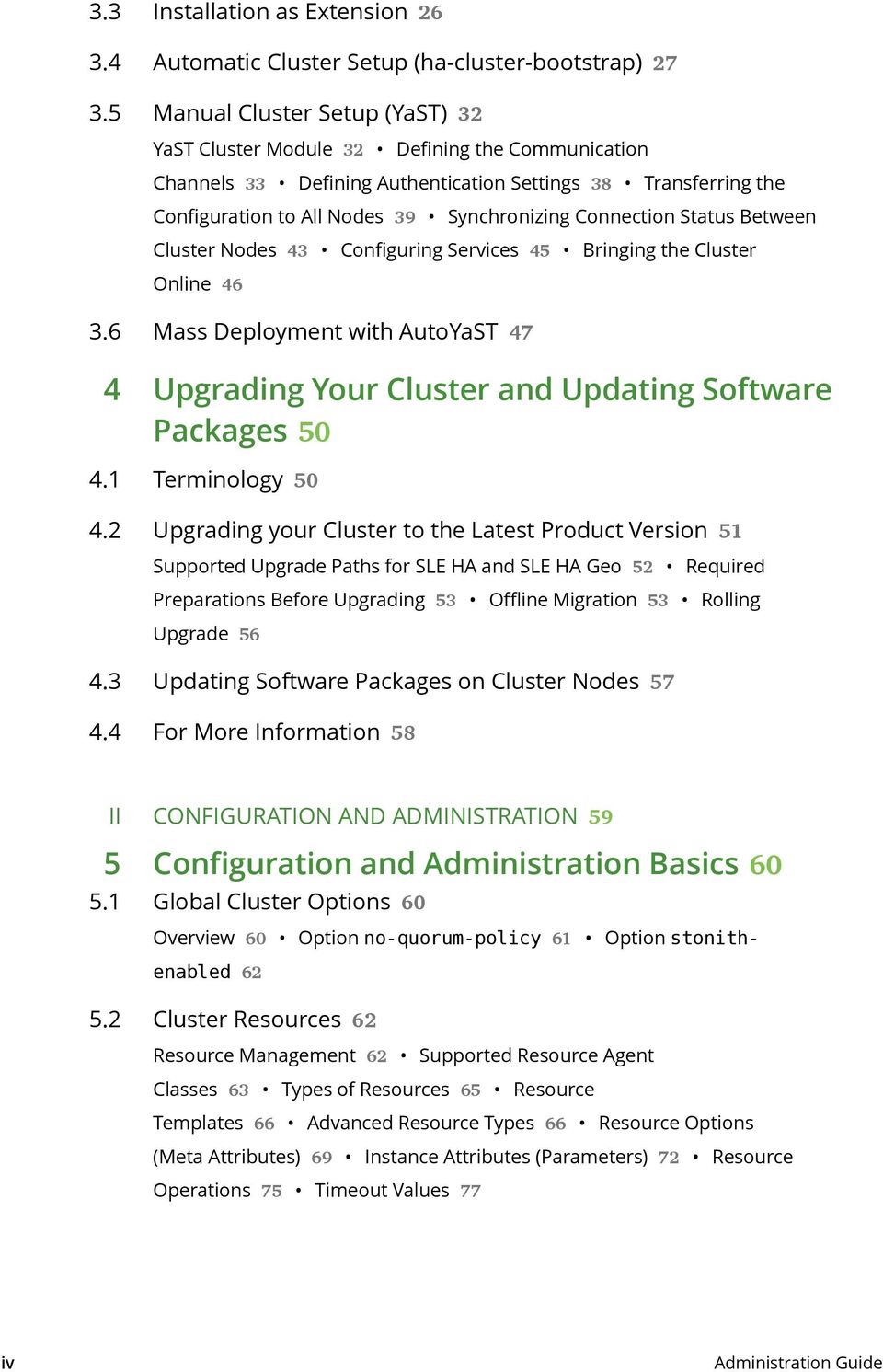
4 3.3 Installation as Extension Automatic Cluster Setup (ha-cluster-bootstrap) Manual Cluster Setup (YaST) 32 YaST Cluster Module 32 Defining the Communication Channels 33 Defining Authentication Settings 38 Transferring the Configuration to All Nodes 39 Synchronizing Connection Status Between Cluster Nodes 43 Configuring Services 45 Bringing the Cluster Online Mass Deployment with AutoYaST 47 Upgrading Your Cluster and Updating Software Packages Terminology Upgrading your Cluster to the Latest Product Version 51 Supported Upgrade Paths for SLE HA and SLE HA Geo 52 Required Preparations Before Upgrading 53 Offline Migration 53 Rolling Upgrade Updating Software Packages on Cluster Nodes For More Information 58 II CONFIGURATION AND ADMINISTRATION 59 5 Configuration and Administration Basics Global Cluster Options 60 Overview 60 Option no-quorum-policy 61 Option stonithenabled Cluster Resources 62 Resource Management 62 Supported Resource Agent Classes 63 Types of Resources 65 Resource Templates 66 Advanced Resource Types 66 Resource Options (Meta Attributes) 69 Instance Attributes (Parameters) 72 Resource Operations 75 Timeout Values 77 iv Administration Guide
5 5.3 Resource Monitoring Resource Constraints 79 Types of Constraints 80 Scores and Infinity 83 Resource Templates and Constraints 84 Failover Nodes 84 Failback Nodes 86 Placing Resources Based on Their Load Impact 86 Grouping Resources by Using Tags Managing Services on Remote Hosts 90 Monitoring Services on Remote Hosts with Monitoring Plug-ins 90 Managing Services on Remote Nodes with pacemaker_remote Monitoring System Health Maintenance Mode For More Information Configuring and Managing Cluster Resources (Web Interface) 97 Hawk Overview 97 Starting Hawk and Logging In 97 Main Screen: Cluster Status Configuring Global Cluster Options Configuring Cluster Resources 105 Configuring Resources with the Setup Wizard 106 Creating Simple Cluster Resources 110 Creating STONITH Resources 112 Using Resource Templates 113 Configuring Resource Constraints 115 Specifying Resource Failover Nodes 120 Specifying Resource Failback Nodes (Resource Stickiness) 121 Configuring Placement of Resources Based on Load Impact 121 Configuring Resource Monitoring 123 Configuring a Cluster Resource Group 124 Configuring a Clone Resource Managing Cluster Resources 127 Starting Resources 128 Cleaning Up Resources 129 Removing Cluster Resources 130 Migrating Cluster Resources 130 Using Maintenance Mode 132 Viewing the Cluster History 134 Exploring Potential Failure Scenarios 137 Generating a Cluster Report 140 v Administration Guide

6 6.5 Monitoring Multiple Clusters Hawk for Geo Clusters Troubleshooting Configuring and Managing Cluster Resources with Hawk Hawk2 Requirements Logging In Hawk Overview: Main Elements 148 Left Navigation Bar 149 Top-Level Navigation Configuring Global Cluster Options Configuring Cluster Resources 152 Adding Resources with the Wizard 153 Adding Simple Resources 154 Modifying Resources 156 Adding STONITH Resources 157 Adding Cluster Resource Groups 159 Adding Clone Resources 161 Adding Multi-state Resources 162 Grouping Resources by Using Tags 164 Configuring Resource Monitoring Configuring Constraints 166 Adding Location Constraints 167 Adding Colocation Constraints 168 Adding Order Constraints 170 Using Resource Sets for Constraints 172 For More Information 173 Specifying Resource Failover Nodes 174 Specifying Resource Failback Nodes (Resource Stickiness) Managing Cluster Resources 176 Starting Resources 176 Cleaning Up Resources 177 Removing Cluster Resources 178 Migrating Cluster Resources 179 Monitoring a Cluster 180 Monitoring Multiple Clusters 181 vi Administration Guide

7 8 8.1 Configuring and Managing Cluster Resources (Command Line) 184 crmsh Overview 184 Getting Help 185 Executing crmsh's Subcommands 186 Displaying Information about OCF Resource Agents 188 Using crmsh's Cluster Scripts 190 Using Configuration Templates 193 Testing with Shadow Configuration 196 Debugging Your Configuration Changes 197 Cluster Diagram Managing Corosync Configuration Configuring Global Cluster Options Configuring Cluster Resources 200 Creating Cluster Resources 200 Creating Resource Templates 201 Creating a STONITH Resource 202 Configuring Resource Constraints 204 Specifying Resource Failover Nodes 207 Specifying Resource Failback Nodes (Resource Stickiness) 207 Configuring Placement of Resources Based on Load Impact 207 Configuring Resource Monitoring 210 Configuring a Cluster Resource Group 211 Configuring a Clone Resource Managing Cluster Resources 213 Starting a New Cluster Resource 213 Cleaning Up Resources 214 Removing a Cluster Resource 214 Migrating a Cluster Resource 215 Grouping/Tagging Resources 215 Using Maintenance Mode 216 Getting Health Status Setting Passwords Independent of cib.xml Retrieving History Information For More Information vii Adding or Modifying Resource Agents STONITH Agents Writing OCF Resource Agents 221 Administration Guide

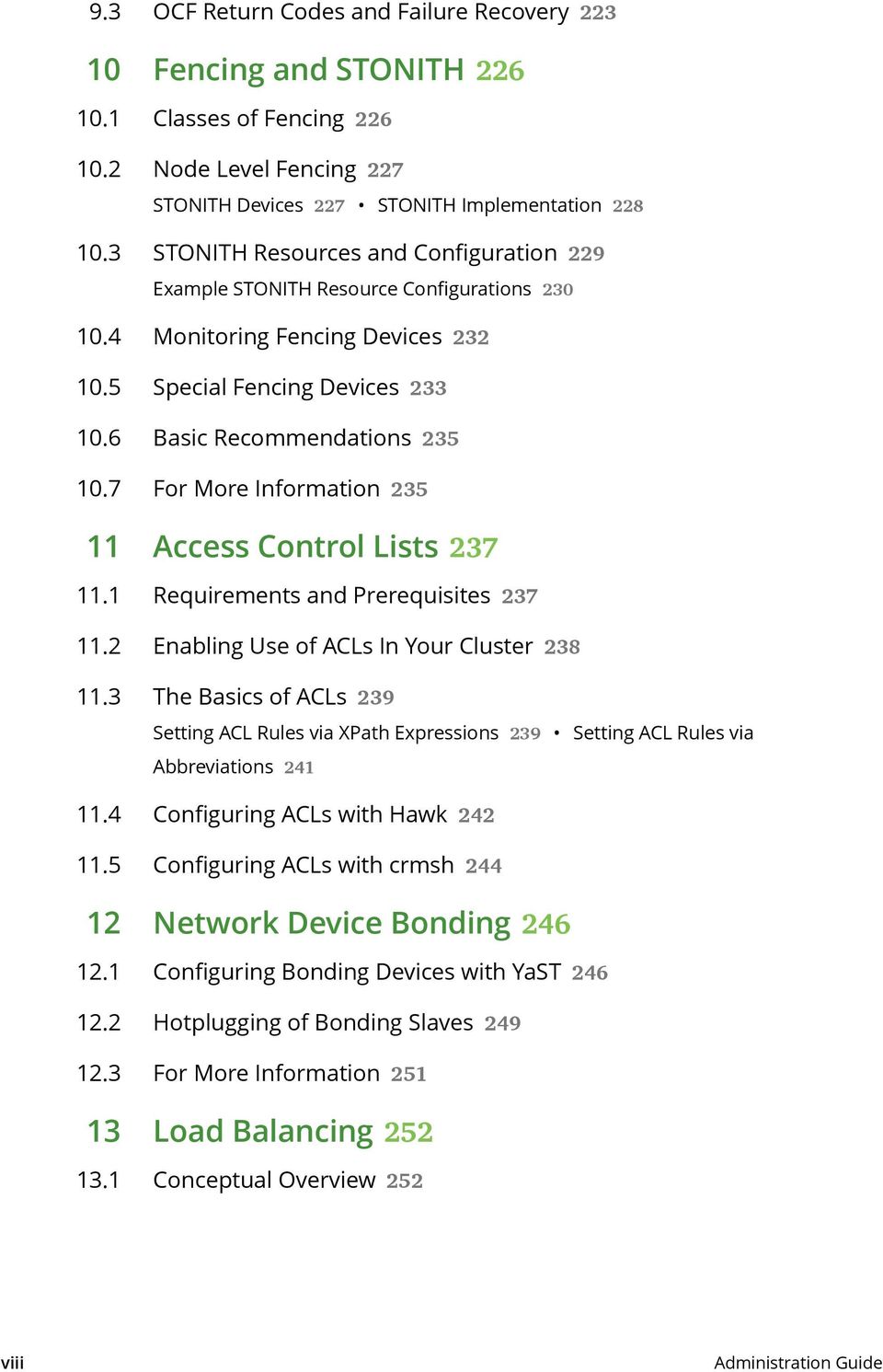
8 9.3 OCF Return Codes and Failure Recovery Fencing and STONITH Classes of Fencing Node Level Fencing 227 STONITH Devices 227 STONITH Implementation STONITH Resources and Configuration 229 Example STONITH Resource Configurations Monitoring Fencing Devices Special Fencing Devices Basic Recommendations For More Information Access Control Lists Requirements and Prerequisites Enabling Use of ACLs In Your Cluster The Basics of ACLs 239 Setting ACL Rules via XPath Expressions 239 Setting ACL Rules via Abbreviations Configuring ACLs with Hawk Configuring ACLs with crmsh viii Network Device Bonding Configuring Bonding Devices with YaST Hotplugging of Bonding Slaves For More Information Load Balancing Conceptual Overview 252 Administration Guide
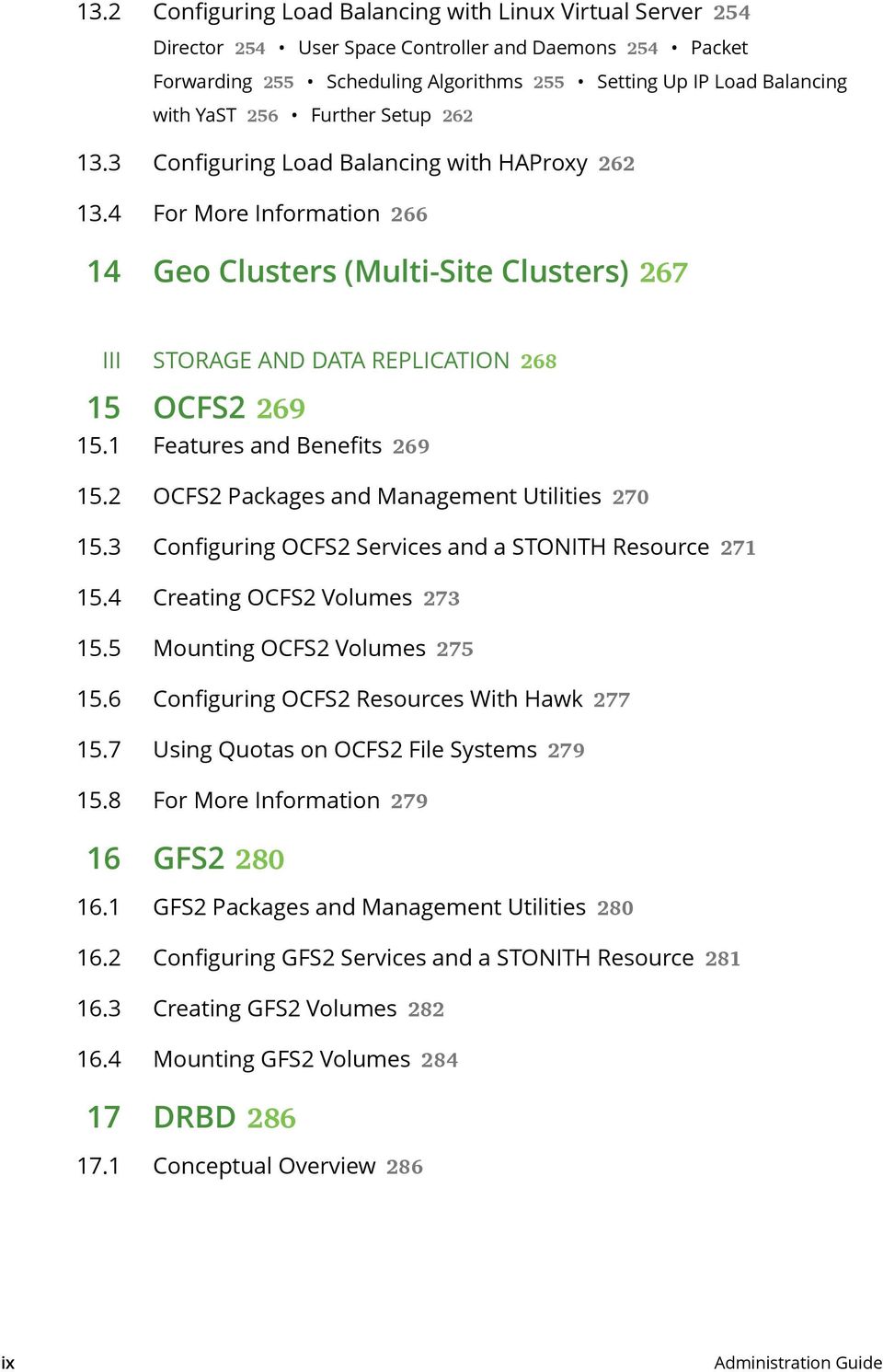
9 13.2 Configuring Load Balancing with Linux Virtual Server 254 Director 254 User Space Controller and Daemons 254 Packet Forwarding 255 Scheduling Algorithms 255 Setting Up IP Load Balancing with YaST 256 Further Setup Configuring Load Balancing with HAProxy For More Information III STORAGE AND DATA REPLICATION 268 OCFS2 269 Features and Benefits OCFS2 Packages and Management Utilities Configuring OCFS2 Services and a STONITH Resource Creating OCFS2 Volumes Mounting OCFS2 Volumes Configuring OCFS2 Resources With Hawk Using Quotas on OCFS2 File Systems For More Information GFS GFS2 Packages and Management Utilities Configuring GFS2 Services and a STONITH Resource Creating GFS2 Volumes Mounting GFS2 Volumes ix Geo Clusters (Multi-Site Clusters) 267 DRBD 286 Conceptual Overview 286 Administration Guide
10 17.2 Installing DRBD Services Setting Up DRBD Service 288 Configuring DRBD Manually 289 Configuring DRBD with YaST 291 Initializing and Formatting DRBD Resource Testing the DRBD Service Tuning DRBD Troubleshooting DRBD 297 Configuration 297 Host Names 298 TCP Port DRBD Devices Broken after Reboot For More Information 299 Cluster Logical Volume Manager (clvm) Conceptual Overview Configuration of clvm 300 Configuring Cmirrord 301 Creating the Cluster Resources 303 Scenario: clvm With iscsi on SANs 305 Scenario: clvm With DRBD Configuring Eligible LVM2 Devices Explicitly For More Information Storage Protection Conceptual Overview Storage-based Fencing 314 Overview 315 Requirements 315 Number of SBD Devices 316 Setting Up Storage-based Protection Ensuring Exclusive Storage Activation 327 Overview 327 Setup x For More Information 329 Samba Clustering 330 Conceptual Overview 330 Administration Guide

11 20.2 Basic Configuration Joining an Active Directory Domain Debugging and Testing Clustered Samba For More Information Disaster Recovery with Rear (Relax-andRecover) 340 Conceptual Overview 340 Creating a Disaster Recovery Plan 340 What Does Disaster Recovery Mean? 341 How Does Disaster Recovery With Rear Work? 341 Rear Requirements 341 Rear Version Updates 342 Limitations with Btrfs 342 Scenarios and Backup Tools 343 Basic Steps Setting Up Rear and Your Backup Solution Creating the Recovery Installation System Testing the Recovery Process Recovering from Disaster For More Information 347 IV APPENDIX 348 A Troubleshooting 349 A.1 xi Installation and First Steps 349 A.2 Logging 350 A.3 Resources 352 A.4 STONITH and Fencing 353 A.5 History 354 A.6 Miscellaneous 356 A.7 For More Information 358 Administration Guide

12 B Naming Conventions 359 C Cluster Management Tools (Command Line) 360 D Running Cluster Reports Without root Access 362 D.1 Creating a Local User Account 362 D.2 Configuring a Passwordless SSH Account 363 D.3 Configuring sudo 365 D.4 Generating a Cluster Report 367 E Documentation Updates 369 E.1 December 2015 (Maintenance Update of SUSE Linux Enterprise High Availability Extension 12 SP1) 369 E.2 December 2015 (Initial Release of SUSE Linux Enterprise High Availability Extension 12 SP1) 369 E.3 October 2014 (Initial Release of SUSE Linux Enterprise High Availability Extension 12) 374 Terminology 381 F F.1 xii GNU Licenses 388 GNU Free Documentation License 388 Administration Guide

13 About This Guide SUSE Linux Enterprise High Availability Extension is an integrated suite of open source clustering technologies that enables you to implement highly available physical and virtual Linux clusters. For your convenience, the High Availability Extension includes both graphical tools (like several YaST modules or the Web interface Hawk), and command line interfaces (CLI), such as the crm shell, for example. This guide is intended for administrators who need to set up, configure, and maintain High Availability (HA) clusters. For performing key tasks, both approaches (graphical Web interface and CLI) are covered in detail. Thus, administrators can choose the appropriate tool that matches their needs. This guide is divided into the following parts: Installation, Setup and Upgrade Before starting to install and configure your cluster, make yourself familiar with cluster fundamentals and architecture, get an overview of the key features and benefits. Learn which hardware and software requirements must be met and what preparations to take before executing the next steps. Perform the installation and basic setup of your HA cluster using YaST. Learn how to upgrade your cluster to the most recent release version or how to update individual packages. Configuration and Administration Add, configure and manage cluster resources with either the Web interface (Hawk), or the command line interface (crmsh). To avoid unauthorized access to the cluster configuration, define roles and assign them to certain users for fine-grained control. Learn how to use load balancing and fencing. If you consider writing your own resource agents or modifying existing ones, get some background information on how to create different types of resource agents. Storage and Data Replication SUSE Linux Enterprise High Availability Extension ships with the cluster-aware file systems OCFS2 and GFS2, and the clustered Logical Volume Manager (clvm). For replication of your data, use DRBD*. It lets you mirror the data of a High Availability service from the active node of a cluster to its standby node. Furthermore, a clustered Samba server also provides a High Availability solution for heterogeneous environments. xiii About This Guide

14 Appendix Contains an overview of common problems and their solution. Presents the naming conventions used in this documentation with regard to clusters, resources and constraints. Shows the published documentation updates including a detailed list of the content changes for each update. Contains a glossary with HA-specific terminology. Many chapters in this manual contain links to additional documentation resources. These include additional documentation that is available on the system as well as documentation available on the Internet. For an overview of the documentation available for your product and the latest documentation updates, refer to 1 Feedback Several feedback channels are available: Bugs and Enhancement Requests For services and support options available for your product, refer to support/. To report bugs for a product component, go to log in, and click Create New. User Comments We want to hear your comments about and suggestions for this manual and the other documentation included with this product. Use the User Comments feature at the bottom of each page in the online documentation or go to and enter your comments there. Mail For feedback on the documentation of this product, you can also send a mail to doc- [email protected]. Make sure to include the document title, the product version and the publication date of the documentation. To report errors or suggest enhancements, provide a concise description of the problem and refer to the respective section number and page (or URL). xiv Feedback

15 2 Documentation Conventions The following typographical conventions are used in this manual: /etc/passwd : directory names and file names placeholder : replace placeholder with the actual value PATH : the environment variable PATH ls, --help : commands, options, and parameters user : users or groups Alt, Alt F1 : a key to press or a key combination; keys are shown in uppercase as on a keyboard File, File Save As: menu items, buttons amd64, em64t, ipf This paragraph is only relevant for the architectures amd64, em64t, and ipf. The arrows mark the beginning and the end of the text block. Dancing Penguins (Chapter Penguins, Another Manual): This is a reference to a chapter in another manual. For an overview of naming conventions with regard to cluster nodes and names, resources, and constraints, see Appendix B, Naming Conventions. 3 About the Making of This Documentation This documentation is written in SUSEDoc, a subset of DocBook 5 [ The XML source files were validated by jing [ processed by xsltproc, and converted into XSL-FO using a customized version of Norman Walsh's stylesheets. The final PDF is formatted through FOP [ fop] from Apache Software Foundation. The open source tools and the environment used to build this documentation are provided by the DocBook Authoring and Publishing Suite (DAPS). The project's home page can be found at The XML source code of this documentation can be found at xv Documentation Conventions

16 I Installation, Setup and Upgrade 1 Product Overview 2 2 System Requirements and Recommendations 17 3 Installation and Basic Setup 22 4 Upgrading Your Cluster and Updating Software Packages 50
17 1 Product Overview SUSE Linux Enterprise High Availability Extension is an integrated suite of open source clustering technologies that enables you to implement highly available physical and virtual Linux clusters, and to eliminate single points of failure. It ensures the high availability and manageability of critical network resources including data, applications, and services. Thus, it helps you maintain business continuity, protect data integrity, and reduce unplanned downtime for your mission-critical Linux workloads. It ships with essential monitoring, messaging, and cluster resource management functionality (supporting failover, failback, and migration (load balancing) of individually managed cluster resources). This chapter introduces the main product features and benefits of the High Availability Extension. Inside you will find several example clusters and learn about the components making up a cluster. The last section provides an overview of the architecture, describing the individual architecture layers and processes within the cluster. For explanations of some common terms used in the context of High Availability clusters, refer to Terminology. 1.1 Availability as Extension The High Availability Extension is available as an extension to SUSE Linux Enterprise Server 12 SP1. Support for geographically dispersed clusters (Geo clusters) is available as a separate extension to the High Availability Extension, called Geo Clustering for SUSE Linux Enterprise High Availability Extension. 2 Product Overview
18 1.2 Key Features SUSE Linux Enterprise High Availability Extension helps you ensure and manage the availability of your network resources. The following sections highlight some of the key features: Wide Range of Clustering Scenarios The High Availability Extension supports the following scenarios: Active/active configurations Active/passive configurations: N+1, N+M, N to 1, N to M Hybrid physical and virtual clusters, allowing virtual servers to be clustered with physical servers. This improves service availability and resource usage. Local clusters Metro clusters ( stretched local clusters) Geo clusters (geographically dispersed clusters) Your cluster can contain up to 32 Linux servers. Any server in the cluster can restart resources (applications, services, IP addresses, and file systems) from a failed server in the cluster Flexibility The High Availability Extension ships with Corosync messaging and membership layer and Pacemaker Cluster Resource Manager. Using Pacemaker, administrators can continually monitor the health and status of their resources, manage dependencies, and automatically stop and start services based on highly configurable rules and policies. The High Availability Extension allows you to tailor a cluster to the specific applications and hardware infrastructure that fit your organization. Time-dependent configuration enables services to automatically migrate back to repaired nodes at specified times. 3 Key Features

19 1.2.3 Storage and Data Replication With the High Availability Extension you can dynamically assign and reassign server storage as needed. It supports Fibre Channel or iscsi storage area networks (SANs). Shared disk systems are also supported, but they are not a requirement. SUSE Linux Enterprise High Availability Extension also comes with a cluster-aware file system and volume manager (OCFS2) and the clustered Logical Volume Manager (clvm). For replication of your data, you can use DRBD* to mirror the data of a High Availability service from the active node of a cluster to its standby node. Furthermore, SUSE Linux Enterprise High Availability Extension also supports CTDB (Clustered Trivial Database), a technology for Samba clustering Support for Virtualized Environments SUSE Linux Enterprise High Availability Extension supports the mixed clustering of both physical and virtual Linux servers. SUSE Linux Enterprise Server 12 SP1 ships with Xen, an open source virtualization hypervisor and with KVM (Kernel-based Virtual Machine), a virtualization software for Linux which is based on hardware virtualization extensions. The cluster resource manager in the High Availability Extension can recognize, monitor, and manage services running within virtual servers, as well as services running in physical servers. Guest systems can be managed as services by the cluster Support of Local, Metro, and Geo Clusters SUSE Linux Enterprise High Availability Extension has been extended to support different geographical scenarios. Support for geographically dispersed clusters (Geo clusters) is available as a separate extension to High Availability Extension, called Geo Clustering for SUSE Linux Enterprise High Availability Extension. Local Clusters A single cluster in one location (for example, all nodes are located in one data center). The cluster uses multicast or unicast for communication between the nodes and manages failover internally. Network latency can be neglected. Storage is typically accessed synchronously by all nodes. 4 Storage and Data Replication

20 Metro Clusters A single cluster that can stretch over multiple buildings or data centers, with all sites connected by fibre channel. The cluster uses multicast or unicast for communication between the nodes and manages failover internally. Network latency is usually low (<5 ms for distances of approximately 20 miles). Storage is frequently replicated (mirroring or synchronous replication). Geo Clusters (Multi-Site Clusters) Multiple, geographically dispersed sites with a local cluster each. The sites communicate via IP. Failover across the sites is coordinated by a higher-level entity. Geo clusters need to cope with limited network bandwidth and high latency. Storage is replicated asynchronously. The greater the geographical distance between individual cluster nodes, the more factors may potentially disturb the high availability of services the cluster provides. Network latency, limited bandwidth and access to storage are the main challenges for long-distance clusters Resource Agents SUSE Linux Enterprise High Availability Extension includes a huge number of resource agents to manage resources such as Apache, IPv4, IPv6 and many more. It also ships with resource agents for popular third party applications such as IBM WebSphere Application Server. For an overview of Open Cluster Framework (OCF) resource agents included with your product, use the crm ra command as described in Section 8.1.3, Displaying Information about OCF Resource Agents. 5 Resource Agents

21 1.2.7 User-friendly Administration Tools The High Availability Extension ships with a set of powerful tools for basic installation and setup of your cluster as well as effective configuration and administration: YaST A graphical user interface for general system installation and administration. Use it to install the High Availability Extension on top of SUSE Linux Enterprise Server as described in Section 3.3, Installation as Extension. YaST also provides the following modules in the High Availability category to help configure your cluster or individual components: Cluster: Basic cluster setup. For details, refer to Section 3.5, Manual Cluster Setup (YaST). DRBD: Configuration of a Distributed Replicated Block Device. IP Load Balancing: Configuration of load balancing with Linux Virtual Server or HAProxy. For details, refer to Chapter 13, Load Balancing. HA Web Konsole (Hawk) A Web-based user interface with which you can administer your Linux cluster from non- Linux machines. It is also an ideal solution in case your system does not provide a graphical user interface. It guides you through the creation and configuration of resources and lets you execute management tasks like starting, stopping or migrating resources. For details, refer to Chapter 6, Configuring and Managing Cluster Resources (Web Interface). crm Shell A powerful unified command line interface to configure resources and execute all monitoring or administration tasks. For details, refer to Chapter 8, Configuring and Managing Cluster Resources (Command Line). 1.3 Benefits The High Availability Extension allows you to configure up to 32 Linux servers into a high- availability cluster (HA cluster), where resources can be dynamically switched or moved to any server in the cluster. Resources can be configured to automatically migrate if a server fails, or they can be moved manually to troubleshoot hardware or balance the workload. The High Availability Extension provides high availability from commodity components. Lower costs are obtained through the consolidation of applications and operations onto a cluster. The High Availability Extension also allows you to centrally manage the complete cluster and to 6 User-friendly Administration Tools
22 adjust resources to meet changing workload requirements (thus, manually load balance the cluster). Allowing clusters of more than two nodes also provides savings by allowing several nodes to share a hot spare. An equally important benefit is the potential reduction of unplanned service outages as well as planned outages for software and hardware maintenance and upgrades. Reasons that you would want to implement a cluster include: Increased availability Improved performance Low cost of operation Scalability Disaster recovery Data protection Server consolidation Storage consolidation Shared disk fault tolerance can be obtained by implementing RAID on the shared disk subsystem. The following scenario illustrates some benefits the High Availability Extension can provide. Example Cluster Scenario Suppose you have configured a three-server cluster, with a Web server installed on each of the three servers in the cluster. Each of the servers in the cluster hosts two Web sites. All the data, graphics, and Web page content for each Web site are stored on a shared disk subsystem connected to each of the servers in the cluster. The following figure depicts how this setup might look. 7 Example Cluster Scenario
23 FIGURE 1.1: THREE-SERVER CLUSTER During normal cluster operation, each server is in constant communication with the other servers in the cluster and performs periodic polling of all registered resources to detect failure. Suppose Web Server 1 experiences hardware or software problems and the users depending on Web Server 1 for Internet access, , and information lose their connections. The following figure shows how resources are moved when Web Server 1 fails. FIGURE 1.2: THREE-SERVER CLUSTER AFTER ONE SERVER FAILS 8 Example Cluster Scenario
24 Web Site A moves to Web Server 2 and Web Site B moves to Web Server 3. IP addresses and certificates also move to Web Server 2 and Web Server 3. When you configured the cluster, you decided where the Web sites hosted on each Web server would go should a failure occur. In the previous example, you configured Web Site A to move to Web Server 2 and Web Site B to move to Web Server 3. This way, the workload once handled by Web Server 1 continues to be available and is evenly distributed between any surviving cluster members. When Web Server 1 failed, the High Availability Extension software did the following: Detected a failure and verified with STONITH that Web Server 1 was really dead. STONITH is an acronym for Shoot The Other Node In The Head and is a means of bringing down misbehaving nodes to prevent them from causing trouble in the cluster. Remounted the shared data directories that were formerly mounted on Web server 1 on Web Server 2 and Web Server 3. Restarted applications that were running on Web Server 1 on Web Server 2 and Web Server 3. Transferred IP addresses to Web Server 2 and Web Server 3. In this example, the failover process happened quickly and users regained access to Web site information within seconds, usually without needing to log in again. Now suppose the problems with Web Server 1 are resolved, and Web Server 1 is returned to a normal operating state. Web Site A and Web Site B can either automatically fail back (move back) to Web Server 1, or they can stay where they are. This depends on how you configured the resources for them. Migrating the services back to Web Server 1 will incur some down-time, so the High Availability Extension also allows you to defer the migration until a period when it will cause little or no service interruption. There are advantages and disadvantages to both alternatives. The High Availability Extension also provides resource migration capabilities. You can move applications, Web sites, etc. to other servers in your cluster as required for system management. For example, you could have manually moved Web Site A or Web Site B from Web Server 1 to either of the other servers in the cluster. Use cases for this are upgrading or performing scheduled maintenance on Web Server 1, or increasing performance or accessibility of the Web sites. 9 Example Cluster Scenario
25 1.4 Cluster Configurations: Storage Cluster configurations with the High Availability Extension might or might not include a shared disk subsystem. The shared disk subsystem can be connected via high-speed Fibre Channel cards, cables, and switches, or it can be configured to use iscsi. If a server fails, another designated server in the cluster automatically mounts the shared disk directories that were previously mounted on the failed server. This gives network users continuous access to the directories on the shared disk subsystem. Important: Shared Disk Subsystem with clvm When using a shared disk subsystem with clvm, that subsystem must be connected to all servers in the cluster from which it needs to be accessed. Typical resources might include data, applications, and services. The following figure shows how a typical Fibre Channel cluster configuration might look. FIGURE 1.3: TYPICAL FIBRE CHANNEL CLUSTER CONFIGURATION 10 Cluster Configurations: Storage
26 Although Fibre Channel provides the best performance, you can also configure your cluster to use iscsi. iscsi is an alternative to Fibre Channel that can be used to create a low-cost Storage Area Network (SAN). The following figure shows how a typical iscsi cluster configuration might look. FIGURE 1.4: TYPICAL ISCSI CLUSTER CONFIGURATION Although most clusters include a shared disk subsystem, it is also possible to create a cluster without a shared disk subsystem. The following figure shows how a cluster without a shared disk subsystem might look. 11 Cluster Configurations: Storage
27 FIGURE 1.5: TYPICAL CLUSTER CONFIGURATION WITHOUT SHARED STORAGE 1.5 Architecture This section provides a brief overview of the High Availability Extension architecture. It identifies and provides information on the architectural components, and describes how those components interoperate Architecture Layers The High Availability Extension has a layered architecture. Figure 1.6, Architecture illustrates the different layers and their associated components. 12 Architecture
28 FIGURE 1.6: ARCHITECTURE Messaging and Infrastructure Layer The primary or first layer is the messaging/infrastructure layer, also known as the Corosync layer. This layer contains components that send out the messages containing I'm alive signals, as well as other information. 13 Architecture Layers
29 Resource Allocation Layer The next layer is the resource allocation layer. This layer is the most complex, and consists of the following components: Cluster Resource Manager (CRM) Every action taken in the resource allocation layer passes through the Cluster Resource Manager. If other components of the resource allocation layer (or components which are in a higher layer) need to communicate, they do so through the local CRM. On every node, the CRM maintains the Cluster Information Base (CIB). Cluster Information Base (CIB) The Cluster Information Base is an in-memory XML representation of the entire cluster configuration and current status. It contains definitions of all cluster options, nodes, resources, constraints and the relationship to each other. The CIB also synchronizes updates to all cluster nodes. There is one master CIB in the cluster, maintained by the Designated Coordinator (DC). All other nodes contain a CIB replica. Designated Coordinator (DC) One CRM in the cluster is elected as DC. The DC is the only entity in the cluster that can decide that a cluster-wide change needs to be performed, such as fencing a node or moving resources around. The DC is also the node where the master copy of the CIB is kept. All other nodes get their configuration and resource allocation information from the current DC. The DC is elected from all nodes in the cluster after a membership change. Policy Engine (PE) Whenever the Designated Coordinator needs to make a cluster-wide change (react to a new CIB), the Policy Engine calculates the next state of the cluster based on the current state and configuration. The PE also produces a transition graph containing a list of (resource) actions and dependencies to achieve the next cluster state. The PE always runs on the DC. Local Resource Manager (LRM) The LRM calls the local Resource Agents (see Section , Resource Layer ) on behalf of the CRM. It can thus perform start / stop / monitor operations and report the result to the CRM. The LRM is the authoritative source for all resource-related information on its local node. 14 Architecture Layers
30 Resource Layer The highest layer is the Resource Layer. The Resource Layer includes one or more Resource Agents (RA). Resource Agents are programs (usually shell scripts) that have been written to start, stop, and monitor a certain kind of service (a resource). Resource Agents are called only by the LRM. Third parties can include their own agents in a defined location in the file system and thus provide out-of-the-box cluster integration for their own software Process Flow SUSE Linux Enterprise High Availability Extension uses Pacemaker as CRM. The CRM is implemented as daemon ( crmd ) that has an instance on each cluster node. Pacemaker centralizes all cluster decision-making by electing one of the crmd instances to act as a master. Should the elected crmd process (or the node it is on) fail, a new one is established. A CIB, reflecting the cluster s configuration and current state of all resources in the cluster is kept on each node. The contents of the CIB are automatically kept synchronous across the entire cluster. Many actions performed in the cluster will cause a cluster-wide change. These actions can include things like adding or removing a cluster resource or changing resource constraints. It is important to understand what happens in the cluster when you perform such an action. For example, suppose you want to add a cluster IP address resource. To do this, you can use one of the command line tools or the Web interface to modify the CIB. It is not required to perform the actions on the DC, you can use either tool on any node in the cluster and they will be relayed to the DC. The DC will then replicate the CIB change to all cluster nodes. Based on the information in the CIB, the PE then computes the ideal state of the cluster and how it should be achieved and feeds a list of instructions to the DC. The DC sends commands via the messaging/infrastructure layer which are received by the crmd peers on other nodes. Each crmd uses its LRM (implemented as lrmd) to perform resource modifications. The lrmd is not cluster-aware and interacts directly with resource agents (scripts). All peer nodes report the results of their operations back to the DC. After the DC concludes that all necessary operations are successfully performed in the cluster, the cluster will go back to the idle state and wait for further events. If any operation was not carried out as planned, the PE is invoked again with the new information recorded in the CIB. 15 Process Flow
31 In some cases, it may be necessary to power off nodes to protect shared data or complete resource recovery. For this Pacemaker comes with a fencing subsystem, stonithd. STONITH is an acronym for Shoot The Other Node In The Head and is usually implemented with a remote power switch. In Pacemaker, STONITH devices are modeled as resources (and configured in the CIB) to enable them to be easily monitored for failure. However, stonithd takes care of understanding the STONITH topology such that its clients simply request a node be fenced and it does the rest. 16 Process Flow
32 2 System Requirements and Recommendations The following section informs you about system requirements, and some prerequisites for SUSE Linux Enterprise High Availability Extension. It also includes recommendations for cluster setup. 2.1 Hardware Requirements The following list specifies hardware requirements for a cluster based on SUSE Linux Enterprise High Availability Extension. These requirements represent the minimum hardware configuration. Additional hardware might be necessary, depending on how you intend to use your cluster. 1 to 32 Linux servers with software as specified in Section 2.2, Software Requirements. The servers do not require identical hardware (memory, disk space, etc.), but they must have the same architecture. Cross-platform clusters are not supported. At least two TCP/IP communication media per cluster node. Cluster nodes use multicast or unicast for communication so the network equipment must support the communication means you want to use. The communication media should support a data rate of 100 Mbit/s or higher. Preferably, the Ethernet channels should be bonded as described in Chapter 12, Network Device Bonding. Alternatively, use the second interface for a redundant communication channel in Corosync. See also Procedure 3.6, Defining a Redundant Communication Channel. Optional: A shared disk subsystem connected to all servers in the cluster from where it needs to be accessed. See Section 2.3, Storage Requirements. A STONITH mechanism. A STONITH mechanism can be either a physical device (a power switch which the cluster uses to reset nodes that are thought to be dead or behaving in a strange manner) or a mechanism like SBD watchdog. STONITH mechanisms are the only reliable way to ensure that no data corruption is performed by nodes that hang and only appear to be dead. 17 System Requirements and Recommendations
33 2.2 Software Requirements Ensure that the following software requirements are met: SUSE Linux Enterprise Server 12 SP1 (with all available online updates) is installed on all nodes that will be part of the cluster. SUSE Linux Enterprise High Availability Extension 12 SP1 (with all available online updates) is installed on all nodes that will be part of the cluster. If you want to use Geo clusters, make sure that Geo Clustering for SUSE Linux Enterprise High Availability Extension 12 SP1 (with all available online updates) is installed on all nodes that will be part of the cluster. 2.3 Storage Requirements To make data highly available, a shared disk system (Storage Area Network, or SAN) is recommended for your cluster. If a shared disk subsystem is used, ensure the following: The shared disk system is properly set up and functional according to the manufacturer s instructions. The disks contained in the shared disk system should be configured to use mirroring or RAID to add fault tolerance to the shared disk system. Hardware-based RAID is recommended. Host-based software RAID is not supported for all configurations. If you are using iscsi for shared disk system access, ensure that you have properly configured iscsi initiators and targets. When using DRBD* to implement a mirroring RAID system that distributes data across two machines, make sure to only access the device provided by DRBD never the backing device. Use the same (bonded) NICs that the rest of the cluster uses to leverage the redundancy provided there. 18 Software Requirements
34 2.4 Other Requirements and Recommendations For a supported and useful High Availability setup, consider the following recommendations: Number of Cluster Nodes Each cluster must consist of at least two cluster nodes. Important: Odd Number of Cluster Nodes It is strongly recommended to use an odd number of cluster nodes with a minimum of three nodes. A cluster needs quorum to keep services running. Therefore a three-node cluster can tolerate only failure of one node at a time, whereas a five-node cluster can tolerate failures of two nodes etc. STONITH Important: No Support Without STONITH A cluster without STONITH is not supported. For a supported High Availability setup, ensure the following: Each node in the High Availability cluster must have at least one STONITH device (usually a piece of hardware). We strongly recommend multiple STONITH devices per node, unless SBD is used. SBD provides a way to enable STONITH and fencing in clusters without external power switches, but it requires shared storage. The global cluster options stonith-enabled and startup-fencing must be set to true. As soon as you change them, you will lose support. Redundant Communication Paths For a supported High Availability setup, it is required to set up cluster communication via two or more redundant paths. This can be done via: Network Device Bonding. A second communication channel in Corosync. For details, see Procedure 3.6, Defining a Redundant Communication Channel. 19 Other Requirements and Recommendations
35 If possible, choose network device bonding. Time Synchronization Cluster nodes should synchronize to an NTP server outside the cluster. For more information, see the Administration Guide for SUSE Linux Enterprise Server 12 SP1, available at Refer to the chapter Time Synchronization with NTP. If nodes are not synchronized, log files and cluster reports are very hard to analyze. NIC Names Must be identical on all nodes. Host Name and IP Address Edit /etc/hosts on each server in the cluster and add the host names and IP addresses of all cluster nodes to the file. To ensure that cluster communication is not slowed down or tampered with by any DNS: Use static IP addresses. List all cluster nodes in this file with their fully qualified host name and short host name. It is essential that members of the cluster can find each other by name. If the names are not available, internal cluster communication will fail. For details on how Pacemaker gets the node names, see also doc/en-us/pacemaker/1.1/html/pacemaker_explained/s-node-name.html. For more information, see the Administration Guide for SUSE Linux Enterprise Server 12 SP1, available at Refer to chapter Basic Networking, section Configuring a Network Connection with YaST > Configuring Host Name and DNS. Storage Requirements Some services may require shared storage. For requirements, see Section 2.3, Storage Requirements. You can also use an external NFS share or DRBD. If using an external NFS share, it must be reliably accessible from all cluster nodes via redundant communication paths. See Redundant Communication Paths. When using SBD as STONITH device, additional requirements apply for the shared storage. For details, see section Requirements. SSH All cluster nodes must be able to access each other via SSH. Tools like crm report (for troubleshooting) and Hawk's History Explorer require passwordless SSH access between the nodes, otherwise they can only collect data from the current node. 20 Other Requirements and Recommendations
36 Note: Regulatory Requirements If passwordless SSH access does not comply with regulatory requirements, you can use the work-around described in Appendix D, Running Cluster Reports Without root Access for running crm report. For the History Explorer there is currently no alternative for passwordless login. 21 Other Requirements and Recommendations
37 3 Installation and Basic Setup This chapter describes how to install and set up SUSE Linux Enterprise High Availability Extension 12 SP1 from scratch. Choose between an automatic setup or a manual setup. The automatic setup enables you to have a cluster up and running within a few minutes (with the choice to adjust any options later on), whereas the manual setup allows you to set your individual options right at the beginning. Refer to chapter Chapter 4, Upgrading Your Cluster and Updating Software Packages if you want to migrate a cluster that runs an older version of SUSE Linux Enterprise High Availability Extension, or if you want to update software packages on nodes that belong to a running cluster. 3.1 Definition of Terms This chapter uses several terms that are defined below. Existing Cluster The term existing cluster is used to refer to any cluster that consists of at least one node. Existing clusters have a basic Corosync configuration that defines the communication channels, but they do not necessarily have resource configuration yet. Multicast A technology used for a one-to-many communication within a network that can be used for cluster communication. Corosync supports both multicast and unicast. If multicast does not comply with your corporate IT policy, use unicast instead. Note: Switches and Multicast If you want to use multicast for cluster communication, make sure your switches support multicast. Multicast Address ( mcastaddr ) IP address to be used for multicasting by the Corosync executive. The IP address can either be IPv4 or IPv6. If IPv6 networking is used, node IDs must be specified. You can use any multicast address in your private network. 22 Installation and Basic Setup
38 Multicast Port ( mcastport ) The port to use for cluster communication. Corosync uses two ports: the specified mcastport for receiving multicast, and mcastport -1 for sending multicast. Unicast A technology for sending messages to a single network destination. Corosync supports both multicast and unicast. In Corosync, unicast is implemented as UDP-unicast (UDPU). Bind Network Address ( bindnetaddr ) The network address the Corosync executive should bind to. To simplify sharing configuration files across the cluster, Corosync uses network interface netmask to mask only the address bits that are used for routing the network. For example, if the local interface is with netmask , set bindnetaddr to If the local interface is with netmask , set bindnetaddr to Note: Network Address for All Nodes As the same Corosync configuration will be used on all nodes, make sure to use a network address as bindnetaddr, not the address of a specific network interface. Redundant Ring Protocol (RRP) Allows the use of multiple redundant local area networks for resilience against partial or total network faults. This way, cluster communication can still be kept up as long as a single network is operational. Corosync supports the Totem Redundant Ring Protocol. A logical token-passing ring is imposed on all participating nodes to deliver messages in a reliable and sorted manner. A node is allowed to broadcast a message only if it holds the token. For more information, refer to When having defined redundant communication channels in Corosync, use RRP to tell the cluster how to use these interfaces. RRP can have three modes ( rrp_mode ): If set to active, Corosync uses both interfaces actively. If set to passive, Corosync sends messages alternatively over the available networks. If set to none, RRP is disabled. 23 Definition of Terms
39 Csync2 A synchronization tool that can be used to replicate configuration files across all nodes in the cluster, and even across Geo clusters. Csync2 can handle any number of hosts, sorted into synchronization groups. Each synchronization group has its own list of member hosts and its include/exclude patterns that define which files should be synchronized in the synchronization group. The groups, the host names belonging to each group, and the include/exclude rules for each group are specified in the Csync2 configuration file, /etc/ csync2/csync2.cfg. For authentication, Csync2 uses the IP addresses and pre-shared keys within a synchronization group. You need to generate one key file for each synchronization group and copy it to all group members. For more information about Csync2, refer to conntrack Tools Allow interaction with the in-kernel connection tracking system for enabling stateful packet inspection for iptables. Used by the High Availability Extension to synchronize the connection status between cluster nodes. For detailed information, refer to conntrack-tools.netfilter.org/. AutoYaST AutoYaST is a system for installing one or more SUSE Linux Enterprise systems automatically and without user intervention. On SUSE Linux Enterprise you can create an AutoYaST profile that contains installation and configuration data. The profile tells AutoYaST what to install and how to configure the installed system to get a ready-to-use system in the end. This profile can then be used for mass deployment in different ways (for example, to clone existing cluster nodes). For detailed instructions on how to use AutoYaST in various scenarios, see the SUSE Linux Enterprise 12 SP1 Deployment Guide, available at Refer to chapter Automated Installation. 3.2 Overview The following basic steps are needed for installation and initial cluster setup. 1. Installation as Extension: 24 Overview
40 Install the software packages with YaST. Alternatively, you can install them from the command line with zypper : root # zypper in -t pattern ha_sles 2. Initial Cluster Setup: After installing the software on all nodes that will be part of your cluster, the following steps are needed to initially configure the cluster. a. Defining the Communication Channels b. Optional: Defining Authentication Settings c. Transferring the Configuration to All Nodes. Whereas the configuration of Csync2 is done on one node only, the service Csync2 needs to be started on all nodes. d. Optional: Synchronizing Connection Status Between Cluster Nodes e. Configuring Services f. Bringing the Cluster Online. The Corosync service needs to be started on all nodes. The cluster setup steps can either be executed automatically (with bootstrap scripts) or manually (with the YaST cluster module or from command line). If you decide for an automatic cluster setup, refer to Section 3.4, Automatic Cluster Setup (hacluster-bootstrap). For a manual setup (or for adjusting any options after the automatic setup), refer to Section 3.5, Manual Cluster Setup (YaST). You can also use a combination of both setup methods, for example: set up one node with YaST cluster and then use ha-cluster-join to integrate more nodes. Existing nodes can also be cloned for mass deployment with AutoYaST. The cloned nodes will have the same packages installed and the same system configuration. For details, refer to Section 3.6, Mass Deployment with AutoYaST. 25 Overview
41 3.3 Installation as Extension The packages needed for configuring and managing a cluster with the High Availability Extension are included in the High Availability installation pattern. This pattern is only available after SUSE Linux Enterprise High Availability Extension has been installed as an extension to SUSE Linux Enterprise Server. For information on how to install extensions, see the SUSE Linux Enterprise 12 SP1 Deployment Guide, available at Refer to chapter Installing Modules, Extensions, and Third Party Add-On Products. PROCEDURE 3.1: INSTALLING THE HIGH AVAILABILITY PATTERN 1. Start YaST as root user and select Software Software Management. Alternatively, start the YaST module as root on a command line with yast2 sw_single. 2. From the Filter list, select Patterns and activate the High Availability pattern in the pattern list. 3. Click Accept to start installing the packages. Note: Installing Software Packages on All Parties The software packages needed for High Availability clusters are not automatically copied to the cluster nodes. 4. Install the High Availability pattern on all machines that will be part of your cluster. If you do not want to install SUSE Linux Enterprise Server 12 SP1 and SUSE Linux Enterprise High Availability Extension 12 SP1 manually on all nodes that will be part of your cluster, use AutoYaST to clone existing nodes. For more information, refer to Section 3.6, Mass Deployment with AutoYaST. 26 Installation as Extension
42 3.4 Automatic Cluster Setup (ha-clusterbootstrap) The ha-cluster-bootstrap package provides everything you need to get a one-node cluster up and running, to make other nodes join, and to remove nodes from an existing cluster: Automatically Setting Up the First Node With ha-cluster-init, define the basic parameters needed for cluster communication and (optionally) set up a STONITH mechanism to protect your shared storage. This leaves you with a running one-node cluster. Adding Nodes to an Existing Cluster With ha-cluster-join, add more nodes to your cluster. Removing Nodes From An Existing Cluster With ha-cluster-remove, remove nodes from your cluster. All commands execute bootstrap scripts that require only a minimum of time and manual intervention. The bootstrap scripts for initialization and joining automatically open the ports in the firewall that are needed for cluster communication. The configuration is written to / etc/sysconfig/susefirewall2.d/services/cluster. Any options set during the bootstrap process can be modified later with the YaST cluster module. Before starting the automatic setup, make sure that the following prerequisites are fulfilled on all nodes that will participate in the cluster: PREREQUISITES The requirements listed in Section 2.2, Software Requirements and Section 2.4, Other Requirements and Recommendations are fulfilled. The ha-cluster-bootstrap package is installed. The network is configured according to your needs. For example, a private network is available for cluster communication and network device bonding is configured. For information on bonding, refer to Chapter 12, Network Device Bonding. 27 Automatic Cluster Setup (ha-cluster-bootstrap)
43 If you want to use SBD for your shared storage, you need one shared block device for SBD. The block device need not be formatted. In addition, you will need a suitable hardware watchdog device. For more information, refer to Chapter 19, Storage Protection. All nodes must be able to see the shared storage via the same paths ( /dev/disk/bypath/... or /dev/disk/by-id/... ). PROCEDURE 3.2: AUTOMATICALLY SETTING UP THE FIRST NODE The ha-cluster-init command checks for configuration of NTP and guides you through configuration of the cluster communication layer (Corosync). Optionally, it lets you configure the following: SBD A fencing mechanism to protect your shared storage. For details on SBD, see Chapter 19, Storage Protection. Virtual IP A virtual IP address for Hawk. For details on Hawk, see Chapter 6, Configuring and Managing Cluster Resources (Web Interface). Shared Storage with OCFS2 When running the script with the -t option, it can perform additional cluster configuration based on templates. For example, ha-cluster-init -t ocfs2 will partition some shared storage into two pieces: 1 MB for SBD, and the remainder for OCFS2. For details about the script's range of functions, its options, and an overview of the files it can create and modify, refer to the ha-cluster-init man page. 1. Log in as root to the physical or virtual machine you want to use as cluster node. 2. Start the bootstrap script by executing root # ha-cluster-init If NTP has not been configured to start at boot time, a message appears. The script also checks for a hardware watchdog device (which is important in case you want to configure SBD) and warns you if none is present. If you decide to continue anyway, the script will automatically generate keys for SSH access and for the Csync2 synchronization tool and start the services needed for both. 28 Automatic Cluster Setup (ha-cluster-bootstrap)
44 3. To configure the cluster communication layer (Corosync): a. Enter a network address to bind to. By default, the script will propose the network address of eth0. Alternatively, enter a different network address, for example the address of bond0. b. Enter a multicast address. The script proposes a random address that you can use as default. c. Enter a multicast port. The script proposes 5405 as default. 4. To configure SBD (optional), enter a persistent path to the partition of your block device that you want to use for SBD. The path must be consistent across all nodes in the cluster. Finally, the script will start the Pacemaker service to bring the one-node cluster online and enable the Web management interface Hawk. The URL to use for Hawk is displayed on the screen. 5. To configure a virtual IP address for cluster administration, enter yes when prompted and enter an unused IP address that you want to use as administration IP for the cluster. Instead of logging in to an individual cluster node with Hawk, you can then connect to the virtual IP address. 6. For any details of the setup process, check /var/log/ha-cluster-bootstrap.log. You now have a running one-node cluster. Check the cluster status with crm status : root # crm status Last updated: Thu Jul Last change: Thu Jul 3 11:04: :58: Current DC: alice ( ) - partition with quorum 1 Nodes configured 0 Resources configured Online: [ alice ] 29 Automatic Cluster Setup (ha-cluster-bootstrap)
45 Important: Secure Password The bootstrap procedure creates a Linux user named hacluster with the password linux. You need it for logging in to Hawk. Replace the default password with a secure one as soon as possible: root # passwd hacluster PROCEDURE 3.3: ADDING NODES TO AN EXISTING CLUSTER If you have a cluster up and running (with one or more nodes), add more cluster nodes with the ha-cluster-join bootstrap script. The script only needs access to an existing cluster node and will complete the basic setup on the current machine automatically. Follow the steps below. For details, refer to the ha-cluster-join man page. If you have configured the existing cluster nodes with the YaST cluster module, make sure the following prerequisites are fulfilled before you run ha-cluster-join : The root user on the existing nodes has SSH keys in place for passwordless login. Csync2 is configured on the existing nodes. For details, refer to Procedure 3.8, Configuring Csync2 with YaST. If you are logged in to the first node via Hawk, you can follow the changes in cluster status and view the resources being activated in the Web interface. 1. Log in as root to the physical or virtual machine supposed to join the cluster. 2. Start the bootstrap script by executing: root # ha-cluster-join If NTP has not been configured to start at boot time, a message appears. The script also checks for a hardware watchdog device (which is important in case you want to configure SBD) and warns you if none is present. 3. If you decide to continue anyway, you will be prompted for the IP address of an existing node. Enter the IP address. 4. If you have not already configured a passwordless SSH access between both machines, you will also be prompted for the root password of the existing node. 30 Automatic Cluster Setup (ha-cluster-bootstrap)
46 After logging in to the specified node, the script will copy the Corosync configuration, configure SSH and Csync2, and will bring the current machine online as new cluster node. Apart from that, it will start the service needed for Hawk. If you have configured shared storage with OCFS2, it will also automatically create the mount point directory for the OCFS2 file system. 5. Repeat the steps above for all machines you want to add to the cluster. 6. For details of the process, check /var/log/ha-cluster-bootstrap.log. Check the cluster status with crm status. If you have successfully added a second node, the output will be similar to the following: root # crm status Last updated: Thu Jul Last change: Thu Jul 3 11:07: :58: Current DC: alice ( ) - partition with quorum 2 Nodes configured 0 Resources configured Online: [ alice bob ] Important: Check no-quorum-policy After adding all nodes, check if you need to adjust the no-quorum-policy in the global cluster options. This is especially important for two-node clusters. For more information, refer to Section 5.1.2, Option no-quorum-policy. PROCEDURE 3.4: REMOVING NODES FROM AN EXISTING CLUSTER If you have a cluster up and running (with at least two nodes), you can remove single nodes from the cluster with the ha-cluster-remove bootstrap script. You need to know the IP address or host name of the node you want to remove from the cluster. Follow the steps below. For details, refer to the ha-cluster-remove man page. 1. Log in as root to one of the cluster nodes. 2. Start the bootstrap script by executing: root # ha-cluster-remove -c IP_ADDR_OR_HOSTNAME 31 Automatic Cluster Setup (ha-cluster-bootstrap)
47 The script enables the sshd, stops the Pacemaker service on the specified node, and propagates the files to synchronize with Csync2 across the remaining nodes. If you specified a host name and the node to remove cannot be contacted (or the host name cannot be resolved), the script will inform you and ask whether to remove the node anyway. If you specified an IP address and the node cannot be contacted, you will be asked to enter the host name and to confirm whether to remove the node anyway. 3. To remove more nodes, repeat the step above. 4. For details of the process, check /var/log/ha-cluster-bootstrap.log. If you need to re-add the removed node at a later point in time, add it with ha-cluster-join. For details, refer to Procedure 3.3, Adding Nodes to an Existing Cluster. 3.5 Manual Cluster Setup (YaST) See Section 3.2, Overview for an overview of all steps for initial setup YaST Cluster Module The following sections guide you through each of the setup steps, using the YaST cluster module. To access it, start YaST as root and select High Availability Cluster. Alternatively, start the module from command line with yast2 cluster. If you start the cluster module for the first time, it appears as wizard, guiding you through all the steps necessary for basic setup. Otherwise, click the categories on the left panel to access the configuration options for each step. 32 Manual Cluster Setup (YaST)
48 FIGURE 3.1: YAST CLUSTER MODULE OVERVIEW Note that some options in the YaST cluster module apply only to the current node, whereas others may automatically be transferred to all nodes. Find detailed information about this in the following sections Defining the Communication Channels For successful communication between the cluster nodes, define at least one communication channel. 33 Defining the Communication Channels
49 Important: Redundant Communication Paths It is highly recommended to set up cluster communication via two or more redundant paths. This can be done via: Network Device Bonding. A second communication channel in Corosync. For details, see Procedure 3.6, Defining a Redundant Communication Channel. If possible, choose network device bonding. PROCEDURE 3.5: DEFINING THE FIRST COMMUNICATION CHANNEL For communication between the cluster nodes, use either multicast (UDP) or unicast (UDPU). 1. In the YaST cluster module, switch to the Communication Channels category. 2. To use multicast: a. Set the Transport protocol to Multicast. b. Define the Bind Network Address. Set the value to the subnet you will use for cluster multicast. c. Define the Multicast Address. d. Define the Multicast Port. With the values entered above, you have now defined one communication channel for the cluster. In multicast mode, the same bindnetaddr, mcastaddr, and mcastport will be used for all cluster nodes. All nodes in the cluster will know each other by using the same multicast address. For different clusters, use different multicast addresses. 34 Defining the Communication Channels
50 FIGURE 3.2: YAST CLUSTER MULTICAST CONFIGURATION 3. To use unicast: a. Set the Transport protocol to Unicast. b. Define the Bind Network Address. Set the value to the subnet you will use for cluster unicast. c. Define the Multicast Port. 35 Defining the Communication Channels
51 d. For unicast communication, Corosync needs to know the IP addresses of all nodes in the cluster. For each node that will be part of the cluster, click Add and enter the following details: IP Address Redundant IP Address (only required if you use a second communication channel in Corosync) Node ID (only required if the option Auto Generate Node ID is disabled) To modify or remove any addresses of cluster members, use the Edit or Del buttons. FIGURE 3.3: YAST CLUSTER UNICAST CONFIGURATION 36 Defining the Communication Channels
52 4. The option Auto Generate Node ID is enabled by default. If you are using IPv4 addresses, node IDs are optional but they are required when using IPv6 addresses. To automatically generate a unique ID for every cluster node (which is less error-prone than specifying IDs manually for each node), keep this option enabled. 5. Define a Cluster Name. 6. Enter the number of Expected Votes. This is important for Corosync to calculate quorum in case of a partitioned cluster. By default, each node has 1 vote. The number of Expected Votes must match the number of nodes in your cluster. 7. If you modified any options for an existing cluster, confirm your changes and close the cluster module. YaST writes the configuration to /etc/corosync/corosync.conf. 8. If needed, define a second communication channel as described below. Or click Next and proceed with Procedure 3.7, Enabling Secure Authentication. PROCEDURE 3.6: DEFINING A REDUNDANT COMMUNICATION CHANNEL If network device bonding cannot be used for any reason, the second best choice is to define a redundant communication channel (a second ring) in Corosync. That way, two physically separate networks can be used for communication. In case one network fails, the cluster nodes can still communicate via the other network. Important: Redundant Rings and /etc/hosts If multiple rings are configured, each node can have multiple IP addresses. This needs to be reflected in the /etc/hosts file of all nodes. 1. In the YaST cluster module, switch to the Communication Channels category. 2. Activate Redundant Channel. The redundant channel must use the same protocol as the first communication channel you defined. 3. If you use multicast, define the Bind Network Address, the Multicast Address and the Multicast Port for the redundant channel. If you use unicast, define the Bind Network Address, the Multicast Port and enter the IP addresses of all nodes that will be part of the cluster. 37 Defining the Communication Channels
53 Now you have defined an additional communication channel in Corosync that will form a second token-passing ring. In /etc/corosync/corosync.conf, the primary ring (the first channel you have configured) gets the ringnumber 0, the second ring (redundant channel) the ringnumber To tell Corosync how and when to use the different channels, select the rrp_mode you want to use ( active or passive ). For more information about the modes, refer to Redundant Ring Protocol (RRP) or click Help. As soon as RRP is used, the Stream Control Transmission Protocol (SCTP) is used for communication between the nodes (instead of TCP). The High Availability Extension monitors the status of the current rings and automatically re-enables redundant rings after faults. Alternatively, you can also check the ring status manually with corosync-cfgtool. View the available options with -h. If only one communication channel is defined, rrp_mode is automatically disabled (value none ). 5. If you modified any options for an existing cluster, confirm your changes and close the cluster module. YaST writes the configuration to /etc/corosync/corosync.conf. 6. For further cluster configuration, click Next and proceed with Section 3.5.3, Defining Authentication Settings. Find example files for a multicast and a unicast setup in /usr/share/doc/packages/ corosync/ Defining Authentication Settings The next step is to define the authentication settings for the cluster. You can use HMAC/SHA1 authentication that requires a shared secret used to protect and authenticate messages. The authentication key (password) you specify will be used on all nodes in the cluster. PROCEDURE 3.7: ENABLING SECURE AUTHENTICATION 1. In the YaST cluster module, switch to the Security category. 2. Activate Enable Security Auth. 3. For a newly created cluster, click Generate Auth Key File. An authentication key is created and written to /etc/corosync/authkey. 38 Defining Authentication Settings
54 FIGURE 3.4: YAST CLUSTER SECURITY If you want the current machine to join an existing cluster, do not generate a new key file. Instead, copy the /etc/corosync/authkey from one of the nodes to the current machine (either manually or with Csync2). 4. If you modified any options for an existing cluster, confirm your changes and close the cluster module. YaST writes the configuration to /etc/corosync/corosync.conf. 5. For further cluster configuration, click Next and proceed with Section 3.5.4, Transferring the Configuration to All Nodes Transferring the Configuration to All Nodes Instead of copying the resulting configuration files to all nodes manually, use the csync2 tool for replication across all nodes in the cluster. This requires the following basic steps: 1. Configuring Csync2 with YaST. 39 Transferring the Configuration to All Nodes
55 2. Synchronizing the Configuration Files with Csync2. Csync2 helps you to keep track of configuration changes and to keep files synchronized across the cluster nodes: You can define a list of files that are important for operation. You can show changes of these files (against the other cluster nodes). You can synchronize the configured files with a single command. With a simple shell script in ~/.bash_logout, you can be reminded about unsynchronized changes before logging out of the system. Find detailed information about Csync2 at and csync2/paper.pdf. PROCEDURE 3.8: CONFIGURING CSYNC2 WITH YAST 1. In the YaST cluster module, switch to the Csync2 category. 2. To specify the synchronization group, click Add in the Sync Host group and enter the local host names of all nodes in your cluster. For each node, you must use exactly the strings that are returned by the hostname command. Tip: Host Name Resolution In case host name resolution does not work properly in your network, you can also specify a combination of host name and IP address for each cluster node. To do so, use the string HOSTNAME@IP such as alice@ , for example. Csync2 will then use the IP addresses when connecting. 3. Click Generate Pre-Shared-Keys to create a key file for the synchronization group. The key file is written to /etc/csync2/key_hagroup. After it has been created, it must be copied manually to all members of the cluster. 4. To populate the Sync File list with the files that usually need to be synchronized among all nodes, click Add Suggested Files. 40 Transferring the Configuration to All Nodes
56 FIGURE 3.5: YAST CLUSTER CSYNC2 5. If you want to Edit, Add or Remove files from the list of files to be synchronized use the respective buttons. You must enter the absolute path name for each file. 6. Activate Csync2 by clicking Turn Csync2 ON. This will execute the following command to start Csync2 automatically at boot time: root # systemctl enable csync2.socket 7. If you modified any options for an existing cluster, confirm your changes and close the cluster module. YaST then writes the Csync2 configuration to /etc/csync2/csync2.cfg. To start the synchronization process now, proceed with Procedure 3.9, Synchronizing the Configuration Files with Csync2. 8. For further cluster configuration, click Next and proceed with Section 3.5.5, Synchronizing Connection Status Between Cluster Nodes. 41 Transferring the Configuration to All Nodes
57 PROCEDURE 3.9: SYNCHRONIZING THE CONFIGURATION FILES WITH CSYNC2 To successfully synchronize the files with Csync2, make sure that the following prerequisites are met: The same Csync2 configuration is available on all nodes. Copy the file /etc/csync2/ csync2.cfg manually to all nodes after you have configured it as described in Procedure 3.8, Configuring Csync2 with YaST. It is recommended to include this file in the list of files to be synchronized with Csync2. Copy the file /etc/csync2/key_hagroup you have generated on one node in Step 3 to all nodes in the cluster. It is needed for authentication by Csync2. However, do not regenerate the file on the other nodes as it needs to be the same file on all nodes. Csync2 must be running on all nodes. Note: Starting Services at Boot Time Execute the following command on all nodes to make the service start automatically at boot time: root # systemctl enable csync2.socket 1. On the node that you want to copy the configuration from, execute the following command: root # csync2 -xv This will synchronize all the files once by pushing them to the other nodes. If all files are synchronized successfully, Csync2 will finish with no errors. If one or several files that are to be synchronized have been modified on other nodes (not only on the current one), Csync2 will report a conflict. You will get an output similar to the one below: While syncing file /etc/corosync/corosync.conf: ERROR from peer hex-14: File is also marked dirty here! Finished with 1 errors. 42 Transferring the Configuration to All Nodes
58 2. If you are sure that the file version on the current node is the best one, you can resolve the conflict by forcing this file and resynchronizing: root # csync2 -f /etc/corosync/corosync.conf csync2 -x For more information on the Csync2 options, run csync2 -help. Note: Pushing Synchronization After Any Changes Csync2 only pushes changes. It does not continuously synchronize files between the nodes. Each time you update files that need to be synchronized, you need to push the changes to the other nodes: Run csync2 -xv on the node where you did the changes. If you run the command on any of the other nodes with unchanged files, nothing will happen Synchronizing Connection Status Between Cluster Nodes To enable stateful packet inspection for iptables, configure and use the conntrack tools. 1. Configuring the conntrackd with YaST. 2. Configuring a resource for conntrackd (class: ocf, provider: heartbeat ). If you use Hawk to add the resource, use the default values proposed by Hawk. After configuring the conntrack tools, you can use them for Linux Virtual Server, see Load Balancing. PROCEDURE 3.10: CONFIGURING THE conntrackd WITH YAST Use the YaST cluster module to configure the user-space conntrackd. It needs a dedicated network interface that is not used for other communication channels. The daemon can be started via a resource agent afterward. 1. In the YaST cluster module, switch to the Configure conntrackd category. 2. Select a Dedicated Interface for synchronizing the connection status. The IPv4 address of the selected interface is automatically detected and shown in YaST. It must already be configured and it must support multicast. 43 Synchronizing Connection Status Between Cluster Nodes
59 3. Define the Multicast Address to be used for synchronizing the connection status. 4. In Group Number, define a numeric ID for the group to synchronize the connection status to. 5. Click Generate /etc/conntrackd/conntrackd.conf to create the configuration file for conntrackd. 6. If you modified any options for an existing cluster, confirm your changes and close the cluster module. 7. For further cluster configuration, click Next and proceed with Section 3.5.6, Configuring Services. FIGURE 3.6: YAST CLUSTER conntrackd 44 Synchronizing Connection Status Between Cluster Nodes
60 3.5.6 Configuring Services In the YaST cluster module define whether to start certain services on a node at boot time. You can also use the module to start and stop the services manually. To bring the cluster nodes online and start the cluster resource manager, Pacemaker must be running as a service. PROCEDURE 3.11: ENABLING PACEMAKER 1. In the YaST cluster module, switch to the Service category. 2. To start Pacemaker each time this cluster node is booted, select the respective option in the Booting group. If you select Off in the Booting group, you must start Pacemaker manually each time this node is booted. To start Pacemaker manually, use the command: root # systemctl start pacemaker 3. To start or stop Pacemaker immediately, click the respective button. 4. To open the ports in the firewall that are needed for cluster communication on the current machine, activate Open Port in Firewall. The configuration is written to /etc/sysconfig/ SuSEfirewall2.d/services/cluster. 5. If you modified any options for an existing cluster node, confirm your changes and close the cluster module. Note that the configuration only applies to the current machine, not to all cluster nodes. If you have done the initial cluster setup exclusively with the YaST cluster module, you have now completed the basic configuration steps. Proceed with Section 3.5.7, Bringing the Cluster Online. 45 Configuring Services
61 FIGURE 3.7: YAST CLUSTER SERVICES Bringing the Cluster Online After the initial cluster configuration is done, start the Pacemaker service on each cluster node to bring the stack online: PROCEDURE 3.12: STARTING PACEMAKER AND CHECKING THE STATUS 1. Log in to an existing node. 2. Check if the service is already running: root # systemctl status pacemaker 46 Bringing the Cluster Online
62 If not, start Pacemaker now: root # systemctl start pacemaker 3. Repeat the steps above for each of the cluster nodes. 4. On one of the nodes, check the cluster status with the crm status command. If all nodes are online, the output should be similar to the following: root # crm status Last updated: Thu Jul Last change: Thu Jul 3 11:07: :58: Current DC: alice ( ) - partition with quorum 2 Nodes configured 0 Resources configured Online: [ alice bob ] This output indicates that the cluster resource manager is started and is ready to manage resources. After the basic configuration is done and the nodes are online, you can start to configure cluster resources. Use one of the cluster management tools like the crm shell (crmsh) or the HA Web Konsole. For more information, see Chapter 8, Configuring and Managing Cluster Resources (Command Line) or Chapter 6, Configuring and Managing Cluster Resources (Web Interface). 3.6 Mass Deployment with AutoYaST The following procedure is suitable for deploying cluster nodes which are clones of an already existing node. The cloned nodes will have the same packages installed and the same system configuration. PROCEDURE 3.13: CLONING A CLUSTER NODE WITH AUTOYAST Important: Identical Hardware This scenario assumes you are rolling out SUSE Linux Enterprise High Availability Extension 12 SP1 to a set of machines with identical hardware configurations. 47 Mass Deployment with AutoYaST
63 If you need to deploy cluster nodes on non-identical hardware, refer to chapter Automated Installation, section Rule-Based Autoinstallation in the SUSE Linux Enterprise 12 SP1 Deployment Guide, available at 1. Make sure the node you want to clone is correctly installed and configured. For details, refer to Section 3.3, Installation as Extension, and Section 3.4, Automatic Cluster Setup (hacluster-bootstrap) or Section 3.5, Manual Cluster Setup (YaST), respectively. 2. Follow the description outlined in the SUSE Linux Enterprise 12 SP1 Deployment Guide for simple mass installation. This includes the following basic steps: a. Creating an AutoYaST profile. Use the AutoYaST GUI to create and modify a profile based on the existing system configuration. In AutoYaST, choose the High Availability module and click the Clone button. If needed, adjust the configuration in the other modules and save the resulting control file as XML. If you have configured DRBD, you can select and clone this module in the AutoYaST GUI, too. b. Determining the source of the AutoYaST profile and the parameter to pass to the installation routines for the other nodes. c. Determining the source of the SUSE Linux Enterprise Server and SUSE Linux Enterprise High Availability Extension installation data. d. Determining and setting up the boot scenario for autoinstallation. e. Passing the command line to the installation routines, either by adding the parameters manually or by creating an info file. f. Starting and monitoring the autoinstallation process. After the clone has been successfully installed, execute the following steps to make the cloned node join the cluster: PROCEDURE 3.14: BRINGING THE CLONED NODE ONLINE 1. Transfer the key configuration files from the already configured nodes to the cloned node with Csync2 as described in Section 3.5.4, Transferring the Configuration to All Nodes. 2. To bring the node online, start the Pacemaker service on the cloned node as described in Section 3.5.7, Bringing the Cluster Online. 48 Mass Deployment with AutoYaST
64 The cloned node will now join the cluster because the /etc/corosync/corosync.conf file has been applied to the cloned node via Csync2. The CIB is automatically synchronized among the cluster nodes. 49 Mass Deployment with AutoYaST
65 4 Upgrading Your Cluster and Updating Software Packages This chapter covers two different scenarios: upgrading a cluster to another version of SUSE Linux Enterprise High Availability Extension (either a major release or a service pack) as opposed to updating individual packages on cluster nodes. See Section 4.2, Upgrading your Cluster to the Latest Product Version versus Section 4.3, Updating Software Packages on Cluster Nodes. If you want to upgrade your cluster, check Section 4.2.1, Supported Upgrade Paths for SLE HA and SLE HA Geo and Section 4.2.2, Required Preparations Before Upgrading before starting to upgrade. 4.1 Terminology In the following, find definitions of the most important terms used in this chapter: Major Release, General Availability (GA) Version The Major Release of SUSE Linux Enterprise (or any software product) is a new version that brings new features and tools, decommissions previously deprecated components and comes with backward incompatible changes. Offline Migration If a new product version includes major changes that are backward incompatible, the cluster needs to be upgraded by an offline migration: you need to take all nodes offline and upgrade the cluster as a whole, before you can bring all nodes back online. Rolling Upgrade In a rolling upgrade one cluster node at a time is upgraded while the rest of the cluster is still running: you take the first node offline, upgrade it and bring it back online to join the cluster. Then you continue one by one until all cluster nodes are upgraded to a major version. Service Pack (SP) Combines several patches into a form that is easy to install or deploy. Service packs are numbered and usually contain security fixes, updates, upgrades, or enhancements of programs. 50 Upgrading Your Cluster and Updating Software Packages
66 Update Installation of a newer minor version of a package. Upgrade Installation of a newer major version of a package or distribution, which brings new features. See also Offline Migration versus Rolling Upgrade. 4.2 Upgrading your Cluster to the Latest Product Version Which upgrade path is supported, and how to perform the upgrade depends both on the current product version and on the target version you want to migrate to. Rolling upgrades are only supported from the GA of a product version to the next service pack, and from one service pack to the next. Offline migrations are required to upgrade from one major version to the next major version (for example, from SLE HA 11 to SLE HA 12) or from a service pack belonging to one major version to the next major version (for example, from SLE HA 11 SP3 to SLE HA 12). For information regarding the upgrade of the base system (SUSE Linux Enterprise Server), see the SUSE Linux Enterprise Server Deployment Guide of the target version you want to upgrade to. The guide is available at Section gives an overview of the supported upgrade paths for SLE HA (Geo) and the additional documentation to refer to. Important: No Support for Mixed Clusters and Reversion After Upgrade Mixed clusters running on SUSE Linux Enterprise High Availability Extension 11/ SUSE Linux Enterprise High Availability Extension 12 are not supported. After the upgrade process to product version 12, reverting back to product version 11 is not supported. 51 Upgrading your Cluster to the Latest Product Version
67 4.2.1 Supported Upgrade Paths for SLE HA and SLE HA Geo Upgrade From... To Upgrade Path SLE HA 11 SP3 to SLE HA (Geo) 12 Offline Migration For Details See Base System: SUSE Linux Enterprise Server 12 Deployment Guide, part Updating and Upgrading SUSE Linux Enterprise SLE HA: Performing a Cluster-wide Offline Migration SLE HA Geo: Geo Clustering for SUSE Linux Enterprise High Availability Extension 12 Quick Start, section Upgrading from SLE HA (Geo) 11 SP3 to SLE HA Geo 12 SLE HA (Geo) 11 SP4 Offline Migration Base System: SUSE Linux Enterprise SLE HA (Geo) 12 SP1 Updating and Upgrading SUSE Linux to Server 12 SP1 Deployment Guide, part Enterprise SLE HA: Performing a Cluster-wide Offline Migration SLE HA Geo: Geo Clustering for SUSE Linux Enterprise High Availability Extension 12 SP1 Quick Start, section Upgrading to the Latest Product Version 52 Supported Upgrade Paths for SLE HA and SLE HA Geo
68 Upgrade From... To Upgrade Path SLE HA (Geo) 12 to SLE HA (Geo) 12 SP1 For Details See Base System: SUSE Linux Enterprise Rolling Upgrade Server 12 SP1 Deployment Guide, part Updating and Upgrading SUSE Linux Enterprise SLE HA: Performing a Cluster-wide Rolling Upgrade SLE HA Geo: Geo Clustering for SUSE Linux Enterprise High Availability Extension 12 SP1 Quick Start, section Upgrading to the Latest Product Version All documentation listed in the column For Details See is available from documentation/ Required Preparations Before Upgrading Backup Ensure that your system backup is up to date and restorable. Testing Test the upgrade procedure on a staging instance of your cluster setup first, before performing it in a production environment. This gives you an estimation of the time frame required for the maintenance window. It also helps to detect and solve any unexpected problems that might arise Offline Migration This section applies to the following scenarios: Upgrading from SLE HA 11 SP3 to SLE HA 12 Upgrading from SLE HA 11 SP4 to SLE HA 12 SP1 53 Required Preparations Before Upgrading
69 If your cluster is still based on an older product version than the ones listed above, first upgrade it to a version of SUSE Linux Enterprise Server and SUSE Linux Enterprise High Availability Extension that can be used as a source for upgrading to the desired target version. The High Availability Extension 12 cluster stack comes with major changes in various components (for example, /etc/corosync/corosync.conf, disk formats of OCFS2). Therefore, a rolling upgrade from any SUSE Linux Enterprise High Availability Extension 11 version is not supported. Instead, all cluster nodes must be offline and the cluster needs to be migrated as a whole as described in Procedure 4.1, Performing a Cluster-wide Offline Migration. PROCEDURE 4.1: PERFORMING A CLUSTER-WIDE OFFLINE MIGRATION 1. Log in to each cluster node and stop the cluster stack with: root # rcopenais stop 2. For each cluster node, perform an upgrade to the desired target version of SUSE Linux Enterprise Server and SUSE Linux Enterprise High Availability Extension. If you have an existing Geo cluster setup and want to upgrade it, see the additional instructions in the Geo Clustering for SUSE Linux Enterprise High Availability Extension Quick Start. To find the details for the individual upgrade processes, see Section 4.2.1, Supported Upgrade Paths for SLE HA and SLE HA Geo. 3. After the upgrade process has finished, reboot each node with the upgraded version of SUSE Linux Enterprise Server and SUSE Linux Enterprise High Availability Extension. 4. If you use OCFS2 in your cluster setup, update the on-device structure by executing the following command: root # tunefs.ocfs2 --update-cluster-stack PATH_TO_DEVICE It adds additional parameters to the disk which are needed for the updated OCFS2 version that is shipped with SUSE Linux Enterprise High Availability Extension 12 and 12 SPx. 5. To update /etc/corosync/corosync.conf for Corosync version 2: a. Log in to one node and start the YaST cluster module. b. Switch to the Communication Channels category and enter values for the following new parameters: Cluster Name and Expected Votes. For details, see Procedure 3.5, Defining the First Communication Channel. 54 Offline Migration
70 If YaST should detect any other options that are invalid or missing according to Corosync version 2, it will prompt you to change them. c. Confirm your changes in YaST. YaST will write them to /etc/corosync/ corosync.conf. d. If Csync2 is configured for your cluster, use the following command to push the updated Corosync configuration to the other cluster nodes: root # csync2 -xv For details on Csync2, see Section 3.5.4, Transferring the Configuration to All Nodes. Alternatively, synchronize the updated Corosync configuration by manually copying /etc/corosync/corosync.conf to all cluster nodes. 6. Log in to each node and start the cluster stack with: root # systemctl start pacemaker 7. Check the cluster status with crm status or with Hawk. Note: Upgrading the CIB Syntax Version Tags (for grouping resources) and some ACL features only work with the CIB syntax version pacemaker-2.0 or higher. (To check your version, use the cibadmin -Q grep validate-with command.) If you have upgraded from SUSE Linux Enterprise High Availability Extension 11 SPx, your CIB version will not be upgraded by default. To manually upgrade to the latest CIB version use one of the following commands: root # cibadmin --upgrade --force or root # crm configure upgrade force 55 Offline Migration
71 4.2.4 Rolling Upgrade This section applies to the following scenarios: Upgrading from SLE HA 12 to SLE HA 12 SP1 Warning: Active Cluster Stack Before starting an upgrade for a node, stop the cluster stack on that node. If the cluster resource manager on a node is active during the software update, this can lead to unpredictable results like fencing of active nodes. PROCEDURE 4.2: PERFORMING A CLUSTER-WIDE ROLLING UPGRADE 1. Log in as root on the node that you want to upgrade and stop the cluster stack: root # systemctl stop pacemaker 2. Perform an upgrade to the desired target version of SUSE Linux Enterprise Server and SUSE Linux Enterprise High Availability Extension. To find the details for the individual upgrade processes, see Section 4.2.1, Supported Upgrade Paths for SLE HA and SLE HA Geo. 3. Restart the cluster stack on the upgraded node to make the node rejoin the cluster: root # systemctl start pacemaker 4. Take the next node offline and repeat the procedure for that node. 5. Check the cluster status with crm status or with Hawk. Important: Time Limit for Rolling Upgrade The new features shipped with the latest product version will only be available after all cluster nodes have been upgraded to the latest product version. Mixed version clusters are only supported for a short time frame during the rolling upgrade. Complete the rolling upgrade within one week. 56 Rolling Upgrade
72 4.3 Updating Software Packages on Cluster Nodes Warning: Active Cluster Stack Before starting an update for a node, either stop the cluster stack on that node or put the cluster into maintenance mode (see Step 1 for details). If the cluster resource manager on a node is active during the software update, this can lead to unpredictable results like fencing of active nodes. 1. Before installing any package updates on a node, check the following: Does the update affect any packages belonging to SUSE Linux Enterprise High Availability Extension or the Geo clustering extension? If yes : Stop the cluster stack on the node before starting the software update: root # systemctl stop pacemaker Does the package update require a reboot? If yes : Stop the cluster stack on the node before starting the software update: root # systemctl stop pacemaker If none of the situations above apply, you do not need to stop the cluster stack. In that case, put the cluster into maintenance mode before starting the software update: root # crm configure property maintenance-mode=true For more details on maintenance mode, see Section 5.7, Maintenance Mode. 2. Install the package update using either YaST or Zypper. 57 Updating Software Packages on Cluster Nodes
73 3. After the update has been successfully installed: Either start the cluster stack on the respective node (if you stopped it in Step 1): root # systemctl start pacemaker or remove the cluster maintenance flag to bring the cluster back to normal mode: root # crm configure property maintenance-mode=false 4. Check the cluster status with crm status or with Hawk. 4.4 For More Information For detailed information about any changes and new features of the product you are upgrading to, refer to its release notes. They are available from 58 For More Information
74 II Configuration and Administration 5 Configuration and Administration Basics 60 6 Configuring and Managing Cluster Resources (Web Interface) 97 7 Configuring and Managing Cluster Resources with Hawk Configuring and Managing Cluster Resources (Command Line) Adding or Modifying Resource Agents Fencing and STONITH Access Control Lists Network Device Bonding Load Balancing Geo Clusters (Multi-Site Clusters) 267
75 5 Configuration and Administration Basics The main purpose of an HA cluster is to manage user services. Typical examples of user services are an Apache Web server or a database. From the user's point of view, the services do something specific when ordered to do so. To the cluster, however, they are only resources which may be started or stopped the nature of the service is irrelevant to the cluster. In this chapter, we will introduce some basic concepts you need to know when configuring resources and administering your cluster. The following chapters show you how to execute the main configuration and administration tasks with each of the management tools the High Availability Extension provides. 5.1 Global Cluster Options Global cluster options control how the cluster behaves when confronted with certain situations. They are grouped into sets and can be viewed and modified with the cluster management tools like Hawk and the crm shell Overview For an overview of all global cluster options and their default values, see Pacemaker Explained, available from Refer to section Available Cluster Options. The predefined values can usually be kept. However, to make key functions of your cluster work correctly, you need to adjust the following parameters after basic cluster setup: Option no-quorum-policy Option stonith-enabled Learn how to adjust those parameters with the cluster management tools of your choice: Hawk: Procedure 6.3, Modifying Global Cluster Options crmsh: Section 8.3, Configuring Global Cluster Options 60 Configuration and Administration Basics
76 5.1.2 Option no-quorum-policy This global option defines what to do when a cluster partition does not have quorum (no majority of nodes is part of the partition). Allowed values are: ignore The quorum state does not influence the cluster behavior; resource management is continued. This setting is useful for the following scenarios: Two-node clusters: Since a single node failure would always result in a loss of majority, usually you want the cluster to carry on regardless. Resource integrity is ensured using fencing, which also prevents split brain scenarios. Resource-driven clusters: For local clusters with redundant communication channels, a split brain scenario only has a certain probability. Thus, a loss of communication with a node most likely indicates that the node has crashed, and that the surviving nodes should recover and start serving the resources again. If no-quorum-policy is set to ignore, a 4-node cluster can sustain concurrent failure of three nodes before service is lost. With the other settings, it would lose quorum after concurrent failure of two nodes. freeze If quorum is lost, the cluster partition freezes. Resource management is continued: running resources are not stopped (but possibly restarted in response to monitor events), but no further resources are started within the affected partition. This setting is recommended for clusters where certain resources depend on communication with other nodes (for example, OCFS2 mounts). In this case, the default setting no-quorum-policy=stop is not useful, as it would lead to the following scenario: Stopping those resources would not be possible while the peer nodes are unreachable. Instead, an attempt to stop them would eventually time out and cause a stop failure, triggering escalated recovery and fencing. stop (default value) If quorum is lost, all resources in the affected cluster partition are stopped in an orderly fashion. suicide If quorum is lost, all nodes in the affected cluster partition are fenced. 61 Option no-quorum-policy
77 5.1.3 Option stonith-enabled This global option defines if to apply fencing, allowing STONITH devices to shoot failed nodes and nodes with resources that cannot be stopped. By default, this global option is set to true, because for normal cluster operation it is necessary to use STONITH devices. According to the default value, the cluster will refuse to start any resources if no STONITH resources have been defined. If you need to disable fencing for any reasons, set stonith-enabled to false, but be aware that this has impact on the support status for your product. Furthermore, with stonith- enabled="false", resources like the Distributed Lock Manager (DLM) and all services depending on DLM (such as clvm2, GFS2, and OCFS2) will fail to start. Important: No Support Without STONITH A cluster without STONITH is not supported. 5.2 Cluster Resources As a cluster administrator, you need to create cluster resources for every resource or application you run on servers in your cluster. Cluster resources can include Web sites, servers, databases, file systems, virtual machines, and any other server-based applications or services you want to make available to users at all times Resource Management Before you can use a resource in the cluster, it must be set up. For example, if you want to use an Apache server as a cluster resource, set up the Apache server first and complete the Apache configuration before starting the respective resource in your cluster. If a resource has specific environment requirements, make sure they are present and identical on all cluster nodes. This kind of configuration is not managed by the High Availability Extension. You must do this yourself. 62 Option stonith-enabled
78 Note: Do Not Touch Services Managed by the Cluster When managing a resource with the High Availability Extension, the same resource must not be started or stopped otherwise (outside of the cluster, for example manually or on boot or reboot). The High Availability Extension software is responsible for all service start or stop actions. If you need to execute testing or maintenance tasks after the services are already running under cluster control, make sure to put the resources, nodes, or the whole cluster into maintenance mode before you touch any of them manually. For details, see Section 5.7, Maintenance Mode. After having configured the resources in the cluster, use the cluster management tools to start, stop, clean up, remove or migrate any resources manually. For details how to do so with your preferred cluster management tool: Hawk: Chapter 6, Configuring and Managing Cluster Resources (Web Interface) crmsh: Chapter 8, Configuring and Managing Cluster Resources (Command Line) Supported Resource Agent Classes For each cluster resource you add, you need to define the standard that the resource agent conforms to. Resource agents abstract the services they provide and present an accurate status to the cluster, which allows the cluster to be non-committal about the resources it manages. The cluster relies on the resource agent to react appropriately when given a start, stop or monitor command. Typically, resource agents come in the form of shell scripts. The High Availability Extension supports the following classes of resource agents: Open Cluster Framework (OCF) Resource Agents OCF RA agents are best suited for use with High Availability, especially when agents you are need multi-state generally located resources in or special monitoring abilities. /usr/lib/ocf/resource.d/provider/. The Their functionality is similar to that of LSB scripts. However, the configuration is always done with environmental variables which allow them to accept and process parameters easily. The OCF specification (as it relates to resource agents) can be found at 63 Supported Resource Agent Classes
79 api.txt?rev=head&content-type=text/vnd.viewcvs-markup. OCF specifications have strict definitions of which exit codes must be returned by actions, see Section 9.3, OCF Return Codes and Failure Recovery. The cluster follows these specifications exactly. All OCF Resource Agents are required to have at least the actions start, stop, status, monitor, and meta-data. The meta-data action retrieves information about how to configure the agent. For example, if you want to know more about the IPaddr agent by the provider heartbeat, use the following command: OCF_ROOT=/usr/lib/ocf /usr/lib/ocf/resource.d/heartbeat/ipaddr meta-data The output is information in XML format, including several sections (general description, available parameters, available actions for the agent). Alternatively, use the crmsh to view information on OCF resource agents. For details, see Section 8.1.3, Displaying Information about OCF Resource Agents. Linux Standards Base (LSB) Scripts LSB resource agents are generally provided by the operating system/distribution and are found in /etc/init.d. To be used with the cluster, they must conform to the LSB init script specification. For example, they must have several actions implemented, which are, at minimum, start, stop, restart, reload, force-reload, and status. For more information, see The configuration of those services is not standardized. If you intend to use an LSB script with High Availability, make sure that you understand how the relevant script is configured. Often you can find information about this in the documentation of the relevant package in /usr/share/doc/packages/packagename. Systemd Starting with SUSE Linux Enterprise 12, systemd is a replacement for the popular System V init daemon. Pacemaker can manage systemd services if they are present. Instead of init scripts, systemd has unit files. Generally the services (or unit files) are provided by the operating system. In case you want to convert existing init scripts, find more information at Service There are currently many common types of system services that exist in parallel: LSB (belonging to System V init), systemd, and (in some distributions) upstart. Therefore, Pacemaker supports a special alias which intelligently figures out which one applies to a 64 Supported Resource Agent Classes
80 given cluster node. This is particularly useful when the cluster contains a mix of systemd, upstart, and LSB services. Pacemaker will try to find the named service in the following order: as an LSB (SYS-V) init script, a Systemd unit file, or an Upstart job. Nagios Monitoring plug-ins (formerly called Nagios plug-ins) allow to monitor services on remote hosts. Pacemaker can do remote monitoring with the monitoring plug-ins if they are present. For detailed information, see Section 5.5.1, Monitoring Services on Remote Hosts with Monitoring Plug-ins. STONITH (Fencing) Resource Agents This class is used exclusively for fencing related resources. For more information, see Chapter 10, Fencing and STONITH. The agents supplied with the High Availability Extension are written to OCF specifications Types of Resources The following types of resources can be created: Primitives A primitive resource, the most basic type of resource. Learn how to create primitive resources with your preferred cluster management tool: Hawk: Procedure 6.5, Adding Primitive Resources crmsh: Section 8.4.1, Creating Cluster Resources Groups Groups contain a set of resources that need to be located together, started sequentially and stopped in the reverse order. For more information, refer to Section , Groups. Clones Clones are resources that can be active on multiple hosts. Any resource can be cloned, provided the respective resource agent supports it. For more information, refer to Section , Clones. Multi-state Resources (formerly known as Master/Slave Resources) Multi-state resources are a special type of clone resources that can have multiple modes. For more information, refer to Section , Multi-state Resources. 65 Types of Resources
81 5.2.4 Resource Templates If you want to create lots of resources with similar configurations, defining a resource template is the easiest way. After having been defined, it can be referenced in primitives or in certain types of constraints, as described in Section 5.4.3, Resource Templates and Constraints. If a template is referenced in a primitive, the primitive will inherit all operations, instance attributes (parameters), meta attributes, and utilization attributes defined in the template. Additionally, you can define specific operations or attributes for your primitive. If any of these are defined in both the template and the primitive, the values defined in the primitive will take precedence over the ones defined in the template. Learn how to define resource templates with your preferred cluster configuration tool: Hawk: Section 6.3.4, Using Resource Templates crmsh: Section 8.4.2, Creating Resource Templates Advanced Resource Types Whereas primitives are the simplest kind of resources and therefore easy to configure, you will probably also need more advanced resource types for cluster configuration, such as groups, clones or multi-state resources Groups Some cluster resources depend on other components or resources. They require that each component or resource starts in a specific order and runs together on the same server with resources it depends on. To simplify this configuration, you can use cluster resource groups. EXAMPLE 5.1: RESOURCE GROUP FOR A WEB SERVER An example of a resource group would be a Web server that requires an IP address and a file system. In this case, each component is a separate resource that is combined into a cluster resource group. The resource group would run on one or more servers. In case of a software or hardware malfunction, the group would fail over to another server in the cluster, similar to an individual cluster resource. 66 Resource Templates
82 1 IP Address ( ) 2 File System (XFS) 3 Web Server Software (Apache) Individual Resource Load Order Web Server Group Resource FIGURE 5.1: GROUP RESOURCE Groups have the following properties: Starting and Stopping Resources are started in the order they appear in and stopped in the reverse order. Dependency If a resource in the group cannot run anywhere, then none of the resources located after that resource in the group is allowed to run. Contents Groups may only contain a collection of primitive cluster resources. Groups must contain at least one resource, otherwise the configuration is not valid. To refer to the child of a group resource, use the child s ID instead of the group s ID. Constraints Although it is possible to reference the group s children in constraints, it is usually preferable to use the group s name instead. 67 Advanced Resource Types
83 Stickiness Stickiness is additive in groups. Every active member of the group will contribute its stickiness value to the group s total. So if the default resource-stickiness is 100 and a group has seven members (five of which are active), the group as a whole will prefer its current location with a score of 500. Resource Monitoring To enable resource monitoring for a group, you must configure monitoring separately for each resource in the group that you want monitored. Learn how to create groups with your preferred cluster management tool: Hawk: Procedure 6.16, Adding a Resource Group crmsh: Section 8.4.9, Configuring a Cluster Resource Group Clones You may want certain resources to run simultaneously on multiple nodes in your cluster. To do this you must configure a resource as a clone. Examples of resources that might be configured as clones include cluster file systems like OCFS2. You can clone any resource provided. This is supported by the resource s Resource Agent. Clone resources may even be configured differently depending on which nodes they are hosted. There are three types of resource clones: Anonymous Clones These are the simplest type of clones. They behave identically anywhere they are running. Because of this, there can only be one instance of an anonymous clone active per machine. Globally Unique Clones These resources are distinct entities. An instance of the clone running on one node is not equivalent to another instance on another node; nor would any two instances on the same node be equivalent. Stateful Clones (Multi-state Resources) Active instances of these resources are divided into two states, active and passive. These are also sometimes called primary and secondary, or master and slave. Stateful clones can be either anonymous or globally unique. See also Section , Multi-state Resources. 68 Advanced Resource Types
84 Clones must contain exactly one group or one regular resource. When configuring resource monitoring or constraints, clones have different requirements than simple resources. For details, see Pacemaker Explained, available from doc/. Refer to section Clones - Resources That Get Active on Multiple Hosts. Learn how to create clones with your preferred cluster management tool: Hawk: Procedure 6.17, Adding or Modifying Clones crmsh: Section , Configuring a Clone Resource Multi-state Resources Multi-state resources are a specialization of clones. They allow the instances to be in one of two operating modes (called master or slave, but can mean whatever you want them to mean). Multi-state resources must contain exactly one group or one regular resource. When configuring resource monitoring or constraints, multi-state resources have different requirements than simple resources. For details, see Pacemaker Explained, available from Refer to section Multi-state - Resources That Have Multiple Modes Resource Options (Meta Attributes) For each resource you add, you can define options. Options are used by the cluster to decide how your resource should behave they tell the CRM how to treat a specific resource. Resource options can be set with the crm_resource --meta command or with Hawk as described in Procedure 6.5, Adding Primitive Resources. TABLE 5.1: OPTIONS FOR A PRIMITIVE RESOURCE Option Description Default priority If not all resources can be 0 active, the cluster will stop lower priority resources to keep higher priority ones active. 69 Resource Options (Meta Attributes)
85 Option Description Default target-role In what state should the started cluster attempt to keep this resource? Allowed values: stopped, started, master. is-managed Is the cluster allowed to start and stop the resource? true Allowed values: true, false. If the value is set to false, the status of the resource is still monitored and any failures are reported (which is different from setting a resource to maintenance="true" ). maintenance Can the resources be touched manually? Allowed values: false true, false. If set to true, all resources become unmanaged: the cluster will stop monitoring them and thus be oblivious about their status. You can stop or restart cluster resources at will, without the cluster attempting to restart them. resource-stickiness 70 How much does the resource prefer to stay where it is? calculated Resource Options (Meta Attributes)
86 Option Description Default migration-threshold How many failures should INFINITY (disabled) occur for this resource on a node before making the node ineligible to host this resource? multiple-active What should the cluster do if it ever finds the resource stop_start active on more than one node? Allowed values: block (mark the resource as unmanaged), stop_only, stop_start. failure-timeout How many seconds to wait before acting as if the failure 0 (disabled) had not occurred (and potentially allowing the resource back to the node on which it failed)? allow-migrate Allow resource migration for resources which support false migrate_to / migrate_from actions. remote-node The name of the remote node none (disabled) this resource defines. This both enables the resource as a remote node and defines the unique name used to identify the remote node. If no other parameters are set, this value will also be 71 Resource Options (Meta Attributes)
87 Option Description Default assumed as the host name to connect to at remoteport port. Warning: Use Unique IDs This value must not overlap with any existing resource or node IDs. remote-port Custom port for the guest connection to 3121 pacemaker_remote. remote-addr The IP address or host name to connect to if the remote node s name is not the host remote-node (value used as host name) name of the guest. remote-connect-timeout How long before a pending guest connection will time 60s out Instance Attributes (Parameters) The scripts of all resource classes can be given parameters which determine how they behave and which instance of a service they control. If your resource agent supports parameters, you can add them with the crm_resource command or with Hawk as described in Procedure 6.5, 72 Instance Attributes (Parameters)
88 Adding Primitive Resources. In the crm command line utility and in Hawk, instance attributes are called params or Parameter, respectively. The list of instance attributes supported by an OCF script can be found by executing the following command as root : root # crm ra info [class:[provider:]]resource_agent or (without the optional parts): root # crm ra info resource_agent The output lists all the supported attributes, their purpose and default values. For example, the command root # crm ra info IPaddr returns the following output: Manages virtual IPv4 addresses (portable version) (ocf:heartbeat:ipaddr) This script manages IP alias IP addresses It can add an IP alias, or remove one. Parameters (* denotes required, [] the default): ip* (string): IPv4 address The IPv4 address to be configured in dotted quad notation, for example " ". nic (string, [eth0]): Network interface The base network interface on which the IP address will be brought online. If left empty, the script will try and determine this from the routing table. Do NOT specify an alias interface in the form eth0:1 or anything here; rather, specify the base interface only. 73 Instance Attributes (Parameters)
89 cidr_netmask (string): Netmask The netmask for the interface in CIDR format. (ie, 24), or in dotted quad notation ). If unspecified, the script will also try to determine this from the routing table. broadcast (string): Broadcast address Broadcast address associated with the IP. If left empty, the script will determine this from the netmask. iflabel (string): Interface label You can specify an additional label for your IP address here. lvs_support (boolean, [false]): Enable support for LVS DR Enable support for LVS Direct Routing configurations. In case a IP address is stopped, only move it to the loopback device to allow the local node to continue to service requests, but no longer advertise it on the network. local_stop_script (string): Script called when the IP is released local_start_script (string): Script called when the IP is added ARP_INTERVAL_MS (integer, [500]): milliseconds between gratuitous ARPs milliseconds between ARPs ARP_REPEAT (integer, [10]): repeat count How many gratuitous ARPs to send out when bringing up a new address ARP_BACKGROUND (boolean, [yes]): run in background run in background (no longer any reason to do this) ARP_NETMASK (string, [ffffffffffff]): netmask for ARP 74 Instance Attributes (Parameters)
90 netmask for ARP - in nonstandard hexadecimal format. Operations' defaults (advisory minimum): start timeout=90 stop timeout=100 monitor_0 interval=5s timeout=20s Note: Instance Attributes for Groups, Clones or Multi-state Resources Note that groups, clones and multi-state resources do not have instance attributes. However, any instance attributes set will be inherited by the group's, clone's or multistate resource's children Resource Operations By default, the cluster will not ensure that your resources are still healthy. To instruct the cluster to do this, you need to add a monitor operation to the resource s definition. Monitor operations can be added for all classes or resource agents. For more information, refer to Section 5.3, Resource Monitoring. TABLE 5.2: RESOURCE OPERATION PROPERTIES Operation Description id Your name for the action. Must be unique. name The action to perform. Common values: interval How frequently to perform the operation. timeout How long to wait before declaring the action 75 (The ID is not shown). monitor, start, stop. Unit: seconds has failed. Resource Operations
91 Operation Description requires What conditions need to be satisfied before this action occurs. Allowed values: nothing, quorum, fencing. The default depends on whether fencing is enabled and if the resource s class is stonith. For STONITH resources, the default is nothing. on-fail The action to take if this action ever fails. Allowed values: ignore : Pretend the resource did not fail. block : Do not perform any further operations on the resource. stop : Stop the resource and do not start it elsewhere. restart : Stop the resource and start it again (possibly on a different node). fence : Bring down the node on which the resource failed (STONITH). standby : Move all resources away from the node on which the resource failed. enabled If false, the operation is treated as if it does not exist. Allowed values: true, false. role 76 Run the operation only if the resource has this role. Resource Operations
92 Operation Description record-pending Can be set either globally or for individual resources. Makes the CIB reflect the state of in-flight operations on resources. description Description of the operation. Timeout Values Timeouts values for resources can be influenced by the following parameters: op_defaults (global timeout for operations), a specific timeout value defined in a resource template, a specific timeout value defined for a resource. Note: Priority of Values If a specific value is defined for a resource, it takes precedence over the global default. A specific value for a resource also takes precedence over a value that is defined in a resource template. Getting timeout values right is very important. Setting them too low will result in a lot of (unnecessary) fencing operations for the following reasons: 1. If a resource runs into a timeout, it fails and the cluster will try to stop it. 2. If stopping the resource also fails (for example, because the timeout for stopping is set too low), the cluster will fence the node. It considers the node where this happens to be out of control. You can adjust the global default for operations and set any specific timeout values with both crmsh and Hawk. The best practice for determining and setting timeout values is as follows: PROCEDURE 5.1: DETERMINING TIMEOUT VALUES 1. Check how long it takes your resources to start and stop (under load). 77 Timeout Values
93 2. If needed, add the op_defaults parameter and set the (default) timeout value accordingly: a. For example, set op_defaults to 60 seconds: crm(live)configure# op_defaults timeout=60 b. For resources that need longer periods of time, define individual timeout values. 3. When configuring operations for a resource, add separate start and stop operations. When configuring operations with Hawk, it will provide useful timeout proposals for those operations. 5.3 Resource Monitoring If you want to ensure that a resource is running, you must configure resource monitoring for it. If the resource monitor detects a failure, the following takes place: Log file messages are generated, according to the configuration specified in the logging section of /etc/corosync/corosync.conf. The failure is reflected in the cluster management tools (Hawk, crm status ), and in the CIB status section. The cluster initiates noticeable recovery actions which may include stopping the resource to repair the failed state and restarting the resource locally or on another node. The resource also may not be restarted, depending on the configuration and state of the cluster. If you do not configure resource monitoring, resource failures after a successful start will not be communicated, and the cluster will always show the resource as healthy. Monitoring Stopped Resources Usually, resources are only monitored by the cluster as long as they are running. However, to detect concurrency violations, also configure monitoring for resources which are stopped. For example: primitive dummy1 ocf:heartbeat:dummy \ op monitor interval="300s" role="stopped" timeout="10s" \ 78 Resource Monitoring
94 op monitor interval="30s" timeout="10s" This configuration triggers a monitoring operation every 300 seconds for the resource dummy1 as soon as it is in role="stopped". When running, it will be monitored every 30 seconds. Probing The CRM executes an initial monitoring for each resource on every node, the so-called probe. A probe is also executed after the cleanup of a resource. If multiple monitoring operations are defined for a resource, the CRM will select the one with the smallest interval and will use its timeout value as default timeout for probing. If no monitor operation is configured, the cluster-wide default applies. The default is 20 seconds (if not specified otherwise by configuring the op_defaults parameter). If you do not want to rely on the automatic calculation or the op_defaults value, define a specific monitoring operation for the probing of this resource. Do so by adding a monitoring operation with the interval set to 0, for example: crm(live)configure# primitive rsc1 ocf:pacemaker:dummy \ op monitor interval="0" timeout="60" The probe of rsc1 will time out in 60s, independent of the global timeout defined in op_defaults, or any other operation timeouts configured. If you did not set interval="0" for specifying the probing of the respective resource, the CRM will automatically check for any other monitoring operations defined for that resource and will calculate the timeout value for probing as described above. Learn how to add monitor operations to resources with your preferred cluster management tool: Hawk: Procedure 6.15, Adding or Modifying Monitor Operations crmsh: Section 8.4.8, Configuring Resource Monitoring 5.4 Resource Constraints Having all the resources configured is only part of the job. Even if the cluster knows all needed resources, it might still not be able to handle them correctly. Resource constraints let you specify which cluster nodes resources can run on, what order resources will load, and what other resources a specific resource is dependent on. 79 Resource Constraints
95 5.4.1 Types of Constraints There are three different kinds of constraints available: Resource Location Locational constraints that define on which nodes a resource may be run, may not be run or is preferred to be run. Resource Colocation Colocational constraints that tell the cluster which resources may or may not run together on a node. Resource Order Ordering constraints to define the sequence of actions. Important: Restrictions for Constraints and Certain Types of Resources Do not create colocation constraints for members of a resource group. Create a colocation constraint pointing to the resource group as a whole instead. All other types of constraints are safe to use for members of a resource group. Do not use any constraints on a resource that has a clone resource or a multi- state resource applied to it. The constraints must apply to the clone or multi-state resource, not to the child resource Resource Sets Using Resource Sets for Defining Constraints As an alternative format for defining location, colocation or ordering constraints, you can use resource sets, where primitives are grouped together in one set. Previously this was possible either by defining a resource group (which could not always accurately express the design), or by defining each relationship as an individual constraint. The latter caused a constraint explosion 80 Types of Constraints
96 as the number of resources and combinations grew. The configuration via resource sets is not necessarily less verbose, but is easier to understand and maintain, as the following examples show. EXAMPLE 5.2: A RESOURCE SET FOR LOCATION CONSTRAINTS For example, you can use the following configuration of a resource set ( loc-alice ) in the crmsh to place two virtual IPs ( vip1 and vip2 ) on the same node, alice : crm(live)configure# primitive vip1 ocf:heartbeat:ipaddr2 params ip= crm(live)configure# primitive vip1 ocf:heartbeat:ipaddr2 params ip= crm(live)configure# location loc-alice { vip1 vip2 } inf: alice If you want to use resource sets to replace a configuration of colocation constraints, consider the following two examples: EXAMPLE 5.3: A CHAIN OF COLOCATED RESOURCES <constraints> <rsc_colocation id="coloc-1" rsc="b" with-rsc="a" score="infinity"/> <rsc_colocation id="coloc-2" rsc="c" with-rsc="b" score="infinity"/> <rsc_colocation id="coloc-3" rsc="d" with-rsc="c" score="infinity"/> </constraints> The same configuration expressed by a resource set: <constraints> <rsc_colocation id="coloc-1" score="infinity" > <resource_set id="colocated-set-example" sequential="true"> <resource_ref id="a"/> <resource_ref id="b"/> <resource_ref id="c"/> <resource_ref id="d"/> </resource_set> </rsc_colocation> </constraints> 81 Types of Constraints
97 If you want to use resource sets to replace a configuration of ordering constraints, consider the following two examples: EXAMPLE 5.4: A CHAIN OF ORDERED RESOURCES <constraints> <rsc_order id="order-1" first="a" then="b" /> <rsc_order id="order-2" first="b" then="c" /> <rsc_order id="order-3" first="c" then="d" /> </constraints> The same purpose can be achieved by using a resource set with ordered resources: EXAMPLE 5.5: A CHAIN OF ORDERED RESOURCES EXPRESSED AS RESOURCE SET <constraints> <rsc_order id="order-1"> <resource_set id="ordered-set-example" sequential="true"> <resource_ref id="a"/> <resource_ref id="b"/> <resource_ref id="c"/> <resource_ref id="d"/> </resource_set> </rsc_order> </constraints> Sets can be either ordered ( sequential=true ) or unordered ( sequential=false ). Furthermore, the require-all attribute can be used to switch between AND and OR logic Resource Sets for Colocation Constraints Without Dependencies Sometimes it is useful to place a group of resources on the same node (defining a colocation constraint), but without having hard dependencies between the resources. For example, you want two resources to be placed on the same node, but you do not want the cluster to restart the other one if one of them fails. This can be achieved on the crm shell by using the weak bond command. 82 Types of Constraints
98 Learn how to set these weak bonds with your preferred cluster management tool: crmsh: Section , Collocating Sets for Resources Without Dependency For More Information Learn how to add the various kinds of constraints with your preferred cluster management tool: Hawk: Section 6.3.5, Configuring Resource Constraints crmsh: Section 8.4.4, Configuring Resource Constraints For more information on configuring constraints and detailed background information about the basic concepts of ordering and colocation, refer to the following documents. They are available at Pacemaker Explained, chapter Resource Constraints Colocation Explained Ordering Explained Scores and Infinity When defining constraints, you also need to deal with scores. Scores of all kinds are integral to how the cluster works. Practically everything from migrating a resource to deciding which resource to stop in a degraded cluster is achieved by manipulating scores in some way. Scores are calculated on a per-resource basis and any node with a negative score for a resource cannot run that resource. After calculating the scores for a resource, the cluster then chooses the node with the highest score. INFINITY is currently defined as 1,000,000. Additions or subtractions with it stick to the following three basic rules: Any value + INFINITY = INFINITY Any value - INFINITY = -INFINITY INFINITY - INFINITY = -INFINITY 83 Scores and Infinity
99 When defining resource constraints, you specify a score for each constraint. The score indicates the value you are assigning to this resource constraint. Constraints with higher scores are applied before those with lower scores. By creating additional location constraints with different scores for a given resource, you can specify an order for the nodes that a resource will fail over to Resource Templates and Constraints If you have defined a resource template (see Section 5.2.4, Resource Templates ), it can be referenced in the following types of constraints: order constraints, colocation constraints, rsc_ticket constraints (for Geo clusters). However, colocation constraints must not contain more than one reference to a template. Resource sets must not contain a reference to a template. Resource templates referenced in constraints stand for all primitives which are derived from that template. This means, the constraint applies to all primitive resources referencing the resource template. Referencing resource templates in constraints is an alternative to resource sets and can simplify the cluster configuration considerably. For details about resource sets, refer to Procedure 6.11, Using Resource Sets for Constraints Failover Nodes A resource will be automatically restarted if it fails. If that cannot be achieved on the current node, or it fails N times on the current node, it will try to fail over to another node. Each time the resource fails, its failcount is raised. You can define a number of failures for resources (a migration-threshold ), after which they will migrate to a new node. If you have more than two nodes in your cluster, the node a particular resource fails over to is chosen by the High Availability software. However, you can specify the node a resource will fail over to by configuring one or several location constraints and a migration-threshold for that resource. 84 Resource Templates and Constraints
100 Learn how to specify failover nodes with your preferred cluster management tool: Hawk: Section 6.3.6, Specifying Resource Failover Nodes crmsh: Section 8.4.5, Specifying Resource Failover Nodes EXAMPLE 5.6: MIGRATION THRESHOLD PROCESS FLOW For example, let us assume you have configured a location constraint for resource rsc1 to preferably run on alice. If it fails there, migration-threshold is checked and compared to the failcount. If failcount >= migration-threshold then the resource is migrated to the node with the next best preference. After the threshold has been reached, the node will no longer be allowed to run the failed resource until the resource's failcount is reset. This can be done manually by the cluster administrator or by setting a failure-timeout option for the resource. For example, a setting of migration-threshold=2 and failure-timeout=60s would cause the resource to migrate to a new node after two failures. It would be allowed to move back (depending on the stickiness and constraint scores) after one minute. There are two exceptions to the migration threshold concept, occurring when a resource either fails to start or fails to stop: Start failures set the failcount to INFINITY and thus always cause an immediate migration. Stop failures cause fencing (when stonith-enabled is set to true which is the default). In case there is no STONITH resource defined (or stonith-enabled is set to false ), the resource will not migrate. For details on using migration thresholds and resetting failcounts with your preferred cluster management tool: Hawk: Section 6.3.6, Specifying Resource Failover Nodes crmsh: Section 8.4.5, Specifying Resource Failover Nodes 85 Failover Nodes
101 5.4.5 Failback Nodes A resource might fail back to its original node when that node is back online and in the cluster. If you want to prevent a resource from failing back to the node that it was running on, or if you want to specify a different node for the resource to fail back to, change its resource stickiness value. You can either specify resource stickiness when you are creating a resource, or afterwards. Consider the following implications when specifying resource stickiness values: Value is 0 : This is the default. The resource will be placed optimally in the system. This may mean that it is moved when a better or less loaded node becomes available. This option is almost equivalent to automatic failback, except that the resource may be moved to a node that is not the one it was previously active on. Value is greater than 0 : The resource will prefer to remain in its current location, but may be moved if a more suitable node is available. Higher values indicate a stronger preference for a resource to stay where it is. Value is less than 0 : The resource prefers to move away from its current location. Higher absolute values indicate a stronger preference for a resource to be moved. Value is INFINITY : The resource will always remain in its current location unless forced off because the node is no longer eligible to run the resource (node shutdown, node standby, reaching the migration-threshold, or configuration change). This option is almost equivalent to completely disabling automatic failback. Value is -INFINITY : The resource will always move away from its current location Placing Resources Based on Their Load Impact Not all resources are equal. Some, such as Xen guests, require that the node hosting them meets their capacity requirements. If resources are placed such that their combined need exceed the provided capacity, the resources diminish in performance (or even fail). 86 Failback Nodes
102 To take this into account, the High Availability Extension allows you to specify the following parameters: 1. The capacity a certain node provides. 2. The capacity a certain resource requires. 3. An overall strategy for placement of resources. Learn how to configure these settings with your preferred cluster management tool: crmsh: Section 8.4.7, Configuring Placement of Resources Based on Load Impact A node is considered eligible for a resource if it has sufficient free capacity to satisfy the resource's requirements. The nature of the capacities is completely irrelevant for the High Availability Extension; it only makes sure that all capacity requirements of a resource are satisfied before moving a resource to a node. To manually configure the resource's requirements and the capacity a node provides, use utilization attributes. You can name the utilization attributes according to your preferences and define as many name/value pairs as your configuration needs. However, the attribute's values must be integers. If multiple resources with utilization attributes are grouped or have colocation constraints, the High Availability Extension takes that into account. If possible, the resources will be placed on a node that can fulfill all capacity requirements. Note: Utilization Attributes for Groups It is impossible to set utilization attributes directly for a resource group. However, to simplify the configuration for a group, you can add a utilization attribute with the total capacity needed to any of the resources in the group. The High Availability Extension also provides means to detect and configure both node capacity and resource requirements automatically: The NodeUtilization resource agent checks the capacity of a node (regarding CPU and RAM). To configure automatic detection, create a clone resource of the following class, provider, and type: ocf:pacemaker:nodeutilization. One instance of the clone should be running on each node. After the instance has started, a utilization section will be added to the node's configuration in CIB. 87 Placing Resources Based on Their Load Impact
103 For automatic detection of a resource's minimal requirements (regarding RAM and CPU) the Xen resource agent has been improved. Upon start of a Xen resource, it will reflect the consumption of RAM and CPU. Utilization attributes will automatically be added to the resource configuration. Apart from detecting the minimal requirements, the High Availability Extension also allows to monitor the current utilization via the VirtualDomain resource agent. It detects CPU and RAM use of the virtual machine. To use this feature, configure a resource of the following class, provider and type: ocf:heartbeat:virtualdomain. The following instance attributes are available: autoset_utilization_cpu and autoset_utilization_hv_memory. Both default to true. This updates the utilization values in the CIB during each monitoring cycle. Independent of manually or automatically configuring capacity and requirements, the placement strategy must be specified with the placement-strategy property (in the global cluster options). The following values are available: default (default value) Utilization values are not considered. Resources are allocated according to location scoring. If scores are equal, resources are evenly distributed across nodes. utilization Utilization values are considered when deciding if a node has enough free capacity to satisfy a resource's requirements. However, load-balancing is still done based on the number of resources allocated to a node. minimal Utilization values are considered when deciding if a node has enough free capacity to satisfy a resource's requirements. An attempt is made to concentrate the resources on as few nodes as possible (to achieve power savings on the remaining nodes). balanced Utilization values are considered when deciding if a node has enough free capacity to satisfy a resource's requirements. An attempt is made to distribute the resources evenly, thus optimizing resource performance. Note: Configuring Resource Priorities The available placement strategies are best-effort they do not yet use complex heuristic solvers to always reach optimum allocation results. Ensure that resource priorities are properly set so that your most important resources are scheduled first. 88 Placing Resources Based on Their Load Impact
104 EXAMPLE 5.7: EXAMPLE CONFIGURATION FOR LOAD-BALANCED PLACING The following example demonstrates a three-node cluster of equal nodes, with four virtual machines. node alice utilization memory="4000" node bob utilization memory="4000" node charly utilization memory="4000" primitive xena ocf:heartbeat:xen utilization hv_memory="3500" \ params xmfile="/etc/xen/shared-vm/vm1" meta priority="10" primitive xenb ocf:heartbeat:xen utilization hv_memory="2000" \ params xmfile="/etc/xen/shared-vm/vm2" meta priority="1" primitive xenc ocf:heartbeat:xen utilization hv_memory="2000" \ params xmfile="/etc/xen/shared-vm/vm3" meta priority="1" primitive xend ocf:heartbeat:xen utilization hv_memory="1000" \ params xmfile="/etc/xen/shared-vm/vm4" meta priority="5" property placement-strategy="minimal" With all three nodes up, resource xena will be placed onto a node first, followed by xend. xenb and xenc would either be allocated together or one of them with xend. If one node failed, too little total memory would be available to host them all. xena would be ensured to be allocated, as would xend. However, only one of the remaining resources xenb or xenc could still be placed. Since their priority is equal, the result would still be open. To resolve this ambiguity as well, you would need to set a higher priority for either one Grouping Resources by Using Tags Tags are a new feature that has been added to Pacemaker recently. Tags are a way to refer to multiple resources at once, without creating any colocation or ordering relationship between them. This can be useful for grouping conceptually related resources. For example, if you have 89 Grouping Resources by Using Tags
105 several resources related to a database, create a tag called databases and add all resources related to the database to this tag. This allows you to stop or start them all with a single command. Tags can also be used in constraints. For example, the following location constraint loc-dbprefer applies to the set of resources tagged with databases : location loc-db-prefer databases 100: alice Learn how to create tags with your preferred cluster management tool: crmsh: Section 8.5.5, Grouping/Tagging Resources 5.5 Managing Services on Remote Hosts The possibilities for monitoring and managing services on remote hosts has become increasingly important during the last few years. SUSE Linux Enterprise High Availability Extension 11 SP3 offered fine-grained monitoring of services on remote hosts via monitoring plug-ins. The recent addition of the pacemaker_remote service now allows SUSE Linux Enterprise High Availability Extension 12 SP1 to fully manage and monitor resources on remote hosts just as if they were a real cluster node without the need to install the cluster stack on the remote machines Monitoring Services on Remote Hosts with Monitoring Plug-ins Monitoring of virtual machines can be done with the VM agent (which only checks if the guest shows up in the hypervisor), or by external scripts called from the VirtualDomain or Xen agent. Up to now, more fine-grained monitoring was only possible with a full setup of the High Availability stack within the virtual machines. By providing support for monitoring plug-ins (formerly named Nagios plug-ins), the High Availability Extension now also allows you to monitor services on remote hosts. You can collect external statuses on the guests without modifying the guest image. For example, VM guests might run Web services or simple network resources that need to be accessible. With the Nagios resource agents, you can now monitor the Web service or the network resource on the guest. In case these services are not reachable anymore, the High Availability Extension will trigger a restart or migration of the respective guest. 90 Managing Services on Remote Hosts
106 If your guests depend on a service (for example, an NFS server to be used by the guest), the service can either be an ordinary resource, managed by the cluster, or an external service that is monitored with Nagios resources instead. To configure the Nagios resources, the following packages must be installed on the host: monitoring-plugins monitoring-plugins-metadata YaST or Zypper will resolve any dependencies on further packages, if required. A typical use case is to configure the monitoring plug-ins as resources belonging to a resource container, which usually is a VM. The container will be restarted if any of its resources has failed. Refer to Example 5.8, Configuring Resources for Monitoring Plug-ins for a configuration example. Alternatively, Nagios resource agents can also be configured as ordinary resources if you want to use them for monitoring hosts or services via the network. EXAMPLE 5.8: CONFIGURING RESOURCES FOR MONITORING PLUG-INS primitive vm1 ocf:heartbeat:virtualdomain \ params hypervisor="qemu:///system" config="/etc/libvirt/qemu/vm1.xml" \ op start interval="0" timeout="90" \ op stop interval="0" timeout="90" \ op monitor interval="10" timeout="30" primitive vm1-sshd nagios:check_tcp \ params hostname="vm1" port="22" \ 1 op start interval="0" timeout="120" \ 2 op monitor interval="10" group g-vm1-and-services vm1 vm1-sshd \ meta container="vm1" 1 3 The supported parameters are the same as the long options of a monitoring plugin. Monitoring plug-ins connect to services with the parameter hostname. Therefore the attribute's value must be a resolvable host name or an IP address. 2 As it takes some time to get the guest operating system up and its services running, the start timeout of the monitoring resource must be long enough. 3 A cluster resource container of type ocf:heartbeat:xen, ocf:heartbeat:virtualdomain or ocf:heartbeat:lxc. It can either be a VM or a Linux Container. 91 Monitoring Services on Remote Hosts with Monitoring Plug-ins
107 The example above contains only one resource for the check_tcp plug-in, but multiple resources for different plug-in types can be configured (for example, check_http or check_udp ). If the host names of the services are the same, the hostname parameter can also be specified for the group, instead of adding it to the individual primitives. For example: group g-vm1-and-services vm1 vm1-sshd vm1-httpd \ meta container="vm1" \ params hostname="vm1" If any of the services monitored by the monitoring plug-ins fail within the VM, the cluster will detect that and restart the container resource (the VM). Which action to take in this case can be configured by specifying the on-fail attribute for the service's monitoring operation. It defaults to restart-container. Failure counts of services will be taken into account when considering the VM's migrationthreshold Managing Services on Remote Nodes with pacemaker_remote With the pacemaker_remote service, High Availability clusters can be extended to virtual nodes or remote bare-metal machines. They do not need to run the cluster stack to become members of the cluster. The High Availability Extension can now launch virtual environments (KVM and LXC), plus the resources that live within those virtual environments without requiring the virtual environments to run Pacemaker or Corosync. For the use case of managing both virtual machines as cluster resources plus the resources that live within the VMs, you can now use the following setup: The normal (bare-metal) cluster nodes run the High Availability Extension. The virtual machines run the pacemaker_remote service (almost no configuration required on the VM's side). The cluster stack on the normal cluster nodes launches the VMs and connects to the pacemaker_remote service running on the VMs to integrate them as remote nodes into the cluster. 92 Managing Services on Remote Nodes with pacemaker_remote
108 As the remote nodes do not have the cluster stack installed, this has the following implications: Remote nodes do not take part in quorum. Remote nodes cannot become the DC. Remote nodes are not bound by the scalability limits (Corosync has a member limit of 16 nodes). Find more information about the remote_pacemaker service, including multiple use cases with detailed setup instructions in Pacemaker Remote Extending High Availability into Virtual Nodes, available at Monitoring System Health To prevent a node from running out of disk space and thus being unable to manage any resources that have been assigned to it, the High Availability Extension provides a resource agent, ocf:pacemaker:sysinfo. Use it to monitor a node's health with regard to disk partitions. The SysInfo RA creates a node attribute named #health_disk which will be set to red if any of the monitored disks' free space is below a specified limit. To define how the CRM should react in case a node's health reaches a critical state, use the global cluster option node-health-strategy. PROCEDURE 5.2: CONFIGURING SYSTEM HEALTH MONITORING To automatically move resources away from a node in case the node runs out of disk space, proceed as follows: 1. Configure an ocf:pacemaker:sysinfo resource: primitive sysinfo ocf:pacemaker:sysinfo \ params disks="/tmp /var" 1 min_disk_free="100m" 2 disk_unit="m" 3 \ op monitor interval="15s" 1 Which disk partitions to monitor. For example, /tmp, /usr, /var, and /dev. To specify multiple partitions as attribute values, separate them with a blank. 93 Monitoring System Health
109 Note: / File System Always Monitored You do not need to specify the root partition ( / ) in disks. It is always monitored by default. 2 The minimum free disk space required for those partitions. Optionally, you can specify the unit to use for measurement (in the example above, M for megabytes is used). If not specified, min_disk_free defaults to the unit defined in the disk_unit parameter. 3 The unit in which to report the disk space. 2. To complete the resource configuration, create a clone of ocf:pacemaker:sysinfo and start it on each cluster node. 3. Set the node-health-strategy to migrate-on-red : property node-health-strategy="migrate-on-red" In case of a #health_disk attribute set to red, the policy engine adds -INF to the resources' score for that node. This will cause any resources to move away from this node. The STONITH resource will be the last one to be stopped but even if the STONITH resource is not running anymore, the node can still be fenced. Fencing has direct access to the CIB and will continue to work. After a node's health status has turned to red, solve the issue that led to the problem. Then clear the red status to make the node eligible again for running resources. Log in to the cluster node and use one of the following methods: Execute the following command: root # crm node status-attr NODE delete #health_disk Restart Pacemaker and Corosync on that node. Reboot the node. The node will be returned to service and can run resources again. 94 Monitoring System Health
110 5.7 Maintenance Mode Every now and then, you need to perform testing or maintenance tasks on individual cluster components or the whole cluster be it changing the cluster configuration, updating software packages for individual nodes, or upgrading the cluster to a higher product version. With regard to that, High Availability Extension provides maintenance options on several levels: for resources for nodes for the whole cluster Warning: Risk of Data Loss If you need to execute any testing or maintenance tasks while services are running under cluster control, make sure to follow this outline: 1. Before you start, set the individual resource, node or the whole cluster to maintenance mode. This helps to avoid unwanted side effects like resources not starting in an orderly fashion, the risk of unsynchronized CIBs across the cluster nodes or data loss. 2. Execute your maintenance task or tests. 3. After you have finished, remove the maintenance mode to start normal cluster operation. In maintenance mode, you can stop or restart cluster resources at will the High Availability Extension will not attempt to restart them. All resources automatically become unmanaged: The High Availability Extension will cease monitoring them and thus be oblivious to their status. You can even stop all Pacemaker services on a node, and all daemons and processes originally started as Pacemaker-managed cluster resources will continue to run. If you attempt to start Pacemaker services on a node while the cluster is in maintenance mode, Pacemaker will initiate a single one-shot monitor operation (a probe ) for every resource to evaluate which resources are currently running on that node. However, it will take no further action other than determining the resources' status. 95 Maintenance Mode
111 For details on setting or unsetting maintenance mode with your preferred cluster management tool: Hawk: Section 6.4.5, Using Maintenance Mode crmsh: Section 8.5.6, Using Maintenance Mode 5.8 For More Information Home page of the crm shell (crmsh), the advanced command line interface for High Availability cluster management. Holds several documents about the crm shell, including a Getting Started tutorial for basic cluster setup with crmsh and the comprehensive Manual for the crm shell. The latter is available at Find the tutorial at start-guide/. Home page of Pacemaker, the cluster resource manager shipped with the High Availability Extension. Holds several comprehensive manuals and some shorter documents explaining general concepts. For example: Pacemaker Explained: Contains comprehensive and very detailed information for reference. Configuring Fencing with crmsh: How to configure and use STONITH devices. Colocation Explained Ordering Explained Home page of the The High Availability Linux Project. 96 For More Information
112 6 Configuring and Managing Cluster Resources (Web Interface) To configure and manage cluster resources, either use HA Web Konsole (Hawk), a Web-based user interface, or the crm shell (crmsh) command line utility. Hawk allows you to monitor and administer your Linux cluster from non-linux machines as well. Furthermore, it is the ideal solution in case your system only provides a minimal graphical user interface. This chapter introduces Hawk and covers basic tasks for configuring and managing cluster resources: modifying global cluster options, creating basic and advanced types of resources (groups and clones), configuring constraints, specifying failover nodes and failback nodes, configuring resource monitoring, starting, cleaning up or removing resources, and migrating resources manually. For detailed analysis of the cluster status, Hawk generates a cluster report ( hb_report ). You can view the cluster history or explore potential failure scenarios with the simulator. 6.1 Hawk Overview Hawk's Web interface allows you to monitor and administer your Linux cluster from non-linux machines as well. Furthermore, it is the ideal solution in case your system only provides a minimal graphical user interface Starting Hawk and Logging In The Web interface is included in the hawk package. It must be installed on all cluster nodes you want to connect to with Hawk. On the machine from which you want to access a cluster node using Hawk, you only need a (graphical) Web browser with JavaScript and cookies enabled to establish the connection. To use Hawk, the respective Web service must be started on the node that you want to connect to via the Web interface. If you have set up your cluster with the scripts from the ha-cluster-bootstrap package, the Hawk service is already started. In that case, skip Procedure 6.1, Starting Hawk Services and proceed with Procedure 6.2, Logging In to the Hawk Web Interface. 97 Configuring and Managing Cluster Resources (Web Interface)
113 PROCEDURE 6.1: STARTING HAWK SERVICES 1. On the node you want to connect to, open a shell and log in as root. 2. Check the status of the service by entering root # systemctl status hawk 3. If the service is not running, start it with root # systemctl start hawk If you want Hawk to start automatically at boot time, execute the following command: root # systemctl enable hawk Note: User Authentication Hawk users must be members of the haclient group. The installation creates a Linux user named hacluster, who is added to the haclient group. When using the hacluster-init script for setup, a default password is set for the hacluster user. Before starting Hawk, set or change the password for the hacluster user. Alternatively, create a new user which is a member of the haclient group. Do this on every node you will connect to with Hawk. PROCEDURE 6.2: LOGGING IN TO THE HAWK WEB INTERFACE The Hawk Web interface uses the HTTPS protocol and port Note: Accessing Hawk Via a Virtual IP To access Hawk even in case the cluster node you usually connect to is down, a virtual IP address ( IPaddr or IPaddr2 ) can be configured for Hawk as cluster resource. It does not need any special configuration. 1. On any machine, start a Web browser and make sure that JavaScript and cookies are enabled. 98 Starting Hawk and Logging In
114 2. As URL, enter the IP address or host name of any cluster node running the Hawk Web service. Alternatively, enter the address of any IPaddr(2) resource that the cluster operator may have configured: Note: Certificate Warning If a certificate warning appears when you try to access the URL for the first time, a self-signed certificate is in use. Self-signed certificates are not considered trustworthy by default. Ask your cluster operator for the certificate details to verify the certificate. To proceed anyway, you can add an exception in the browser to bypass the warning. For information on how to replace the self-signed certificate with a certificate signed by an official Certificate Authority, refer to Replacing the Self-Signed Certificate. 3. On the Hawk login screen, enter the Username and Password of the hacluster user (or of any other user that is a member of the haclient group). 4. Click Log In. The Cluster Status screen appears, displaying the status of your cluster nodes and resources. The information shown is similar to the output of crm status in the crm shell Main Screen: Cluster Status After logging in, Hawk displays the Cluster Status screen. It shows a summary with the most important global cluster parameters and the status of your cluster nodes and resources. The following color code is used for status display of nodes and resources: HAWK COLOR CODE Green: OK. For example, the resource is running or the node is online. Red: Bad, unclean. For example, the resource has failed or the node was not shut down cleanly. 99 Main Screen: Cluster Status
115 Yellow: In transition. For example, the node is currently being shut down or a resource is currently being started or stopped. If you click a pending resource to view its details, Hawk also displays the state to which the resource is currently changing ( Starting, Stopping, Moving, Promoting, or Demoting ). Note: Displaying Transitional State for Resources The transitional state for resources is only shown if the operation property recordpending is set to true. If you have set up your cluster with the ha-cluster-init script, this property is turned on globally by default. To enable it manually, either use the Hawk Cluster Configuration screen to add and enable the property below Operation Defaults or use the following command: root # crm configure op_defaults record-pending=true Gray: Not running, but the cluster expects it to be running. For example, nodes that the administrator has stopped or put into standby mode. Also nodes that are offline are displayed in gray (if they have been shut down cleanly). In addition to the color code, Hawk also displays icons for the state of nodes, resources, tickets and for error messages in all views of the Cluster Status screen. If a resource has failed, an error message with the details is shown in red at the top of the screen. To analyze the causes for the failure, click the error message. This automatically takes you to Hawk's History Explorer and triggers the collection of data for a time span of 20 minutes (10 minutes before and 10 minutes after the failure occurred). For more details, refer to Procedure 6.27, Viewing Transitions with the History Explorer. 100 Main Screen: Cluster Status
116 FIGURE 6.1: HAWK CLUSTER STATUS (SUMMARY VIEW) The Cluster Status screen refreshes itself in near real-time. Choose between the following views, which you can access with the three icons in the upper right corner: HAWK CLUSTER STATUS VIEWS Summary View Shows the most important global cluster parameters and the status of your cluster nodes and resources at the same time. If your setup includes Geo clusters (multi-site clusters), the summary view also shows tickets. To view details about all elements belonging to a certain category (tickets, nodes, or resources), click the category title, which is marked as a link. Otherwise click the individual elements for details. Tree View Presents an expandable view of the most important global cluster parameters and the status of your cluster nodes and resources. If your setup includes Geo clusters (multi-site clusters), the tree view also shows tickets. Click the arrows to expand or collapse the elements belonging to the respective category. In contrast to the Summary View this view not only shows the IDs and status of resources but also the type (for example, primitive, clone, or group). For groups, it is also possible to switch to a view where resources of the same type (within a group) are presented together. Press the ab icon in the resources category to toggle between the normal view where the resources are displayed individually and a view 101 Main Screen: Cluster Status
117 where they are coalesced by type. For example, if you have three resources of the type ocf:pacemaker:dummy in one group, and only one of them is running, the view-by-type view would show 1/3 ocf:pacemaker:dummy NODENAME on a gray background. This indicates that only 1 of 3 resources has already started. Table View This view is especially useful for larger clusters, because it shows in a concise way which resources are currently running on which node. Inactive nodes or resources are also displayed. The top-level row of the main screen shows the user name with which you are logged in. It also allows you to Log Out of the Web interface, and to access the following Tools from the wrench icon next to the user name: Simulator. For details, refer to Section 6.4.7, Exploring Potential Failure Scenarios. Cluster Diagram. Select this entry for a graphical representation of the nodes and the resources configured in the CIB. The diagram also shows the ordering and colocation between resources and node assignments (scores). FIGURE 6.2: HAWK CLUSTER DIAGRAM Cluster Report ( hb_report ). For details, refer to Section 6.4.8, Generating a Cluster Report. 102 Main Screen: Cluster Status
118 To perform basic operator tasks on nodes and resources (like starting or stopping resources, bringing nodes online, or viewing details), click the wrench icon next to the node or resource. This will display a context menu. For any clone, group or multi-state child resource on any of the status screens, select the Parent menu item from the context menu. Clicking this will let you start, stop, etc. the top-level clone or group to which that primitive belongs. For more complex tasks like configuring resources, constraints, or global cluster options, use the navigation bar on the left hand side. From there, you can access the following screens: Cluster Status: See Section 6.1.2, Main Screen: Cluster Status for details. History Explorer: See Procedure 6.27, Viewing Transitions with the History Explorer for details. Setup Wizard: See Section 6.3.1, Configuring Resources with the Setup Wizard for details. Cluster Configuration: See Section 6.2, Configuring Global Cluster Options for details. Access Control Lists: See Chapter 11, Access Control Lists for details. Resources: See Section 6.3, Configuring Cluster Resources for details. Constraints: See Section 6.3, Configuring Cluster Resources for details. Note: Available Functions in Hawk By default, users logged in as root or hacluster have full read-write access to all cluster configuration tasks. However, Access Control Lists can be used to define fine-grained access permissions. If ACLs are enabled in the CRM, the available functions in Hawk depend on the user role and access permissions assigned to you. In addition, the following functions in Hawk can only be executed by the user hacluster : Generating an hb_report. Using the History Explorer. Viewing recent events for nodes or resources. 103 Main Screen: Cluster Status
119 6.2 Configuring Global Cluster Options Global cluster options control how the cluster behaves when confronted with certain situations. They are grouped into sets and can be viewed and modified with cluster management tools like Hawk, and crm shell. The predefined values can usually be kept. However, to make key functions of your cluster work correctly, you need to adjust the following parameters after basic cluster setup: Option no-quorum-policy Option stonith-enabled PROCEDURE 6.3: MODIFYING GLOBAL CLUSTER OPTIONS 1. Start a Web browser and log in to the cluster as described in Section 6.1.1, Starting Hawk and Logging In. 2. In the left navigation bar, select Cluster Properties to view the global cluster options and their current values. Hawk displays the most important parameters with regard to CRM Configuration, Resource Defaults, and Operation Defaults. FIGURE 6.3: HAWK CLUSTER CONFIGURATION 3. Depending on your cluster requirements, adjust the CRM Configuration: a. Set no-quorum-policy to the appropriate value. b. If you need to disable fencing for any reasons, deselect stonith-enabled. 104 Configuring Global Cluster Options
120 Important: No Support Without STONITH A cluster without STONITH is not supported. c. To remove a property from the CRM configuration, click the minus icon next to the property. If a property is deleted, the cluster will behave as if that property had the default value. For details of the default values, refer to Section 5.2.6, Resource Options (Meta Attributes). d. To add a new property for the CRM configuration, choose one from the drop-down box and click the plus icon. 4. If you need to change Resource Defaults or Operation Defaults, proceed as follows: a. To change the value of defaults that are already displayed, edit the value in the respective input field. b. To add a new resource default or operation default, choose one from the empty drop- down list, click the plus icon and enter a value. If there are default values defined, Hawk proposes them automatically. c. To remove a resource or operation default, click the minus icon next to the parameter. If no values are specified for Resource Defaults and Operation Defaults, the cluster uses the default values that are documented in Section 5.2.6, Resource Options (Meta Attributes) and Section 5.2.8, Resource Operations. 5. Confirm your changes. 6.3 Configuring Cluster Resources As a cluster administrator, you need to create cluster resources for every resource or application you run on servers in your cluster. Cluster resources can include Web sites, mail servers, databases, file systems, virtual machines, and any other server-based applications or services you want to make available to users at all times. 105 Configuring Cluster Resources
121 For an overview of the resource types you can create, refer to Section 5.2.3, Types of Resources. Apart from the basic specification of a resource (ID, class, provider, and type), you can add or modify the following parameters during or after creation of a resource: Instance attributes (parameters) determine which instance of a service the resource controls. For more information, refer to Section 5.2.7, Instance Attributes (Parameters). When creating a resource, Hawk automatically shows any required parameters. Edit them to get a valid resource configuration. Meta attributes tell the CRM how to treat a specific resource. For more information, refer to Section 5.2.6, Resource Options (Meta Attributes). When creating a resource, Hawk automatically lists the important meta attributes for that resource (for example, the target-role attribute that defines the initial state of a resource. By default, it is set to Stopped, so the resource will not start immediately). Operations are needed for resource monitoring. For more information, refer to Section 5.2.8, Resource Operations. When creating a resource, Hawk displays the most important resource operations ( monitor, start, and stop ) Configuring Resources with the Setup Wizard The High Availability Extension comes with a predefined set of templates for some frequently used cluster scenarios, for example, setting up a highly available NFS server. Find the predefined templates in the hawk-templates package. You can also define your own wizard templates. For detailed information, refer to PROCEDURE 6.4: USING THE SETUP WIZARD Hawk provides a wizard that guides you through all configuration steps of a selected template. Follow the instructions on the screen. If you need information about an option, click it to display a short help text in Hawk. Note: Availability of Templates Which templates are available to individual Hawk users may differ. The user's permissions to access templates can be regulated via ACL. See Chapter 11, Access Control Lists for details. 106 Configuring Resources with the Setup Wizard
122 In the following procedure, we will use the wizard to configure an NFS server as example, which can be used as an NFS(v4/v3) failover server. The wizard relies on the cluster having been set up using the bootstrap scripts, so that key-based SSH access between nodes has been configured. You will be prompted for the following information: The root password for the machine that you are logged in to via Hawk. It needs to be the same as on all cluster nodes that Hawk needs to touch to modify their file systems. The ID of the base file system resource. Details for the NFSv4 file system root. Details for an NFSv3 export. A directory exported by an NFS server, which clients can integrate into their system. A floating IP address. The resulting Pacemaker configuration will contain the following resources: NFS Kernel Server Manages the in-kernel Linux NFS daemon that serves locally mounted file systems to clients via the NFS network protocol. NFSv4 Virtual File System Root Manages the virtual NFS root export, needed for NFSv4 clients. This resource does not hold any actual NFS-exported data, merely the empty directory ( /srv/nfs ) that the other NFS export is mounted into. Non-root NFS Export Manages the NFSv3 export. Floating IP Address A virtual, floating cluster IP address, allowing NFS clients to connect to the service no matter which physical node it is running on. 1. Start a Web browser and log in to the cluster as described in Section 6.1.1, Starting Hawk and Logging In. 2. In the left navigation bar, select Setup Wizard. The Cluster Setup Wizard lists the available resource templates. If you click an entry, Hawk displays a short help text about the template. 107 Configuring Resources with the Setup Wizard
123 FIGURE 6.4: HAWK SETUP WIZARD 3. Select the template for the resource you want to configure (in our case: NFS Server ) and click Next. 4. To configure a highly available NFS server, proceed as follows: a. Enter the root password for the current machine and click Next. Without the root password, the configuration wizard is not able to do the necessary configuration changes. b. In the next screen, specify the Base Filesystem that is to be exported via NFS by entering its root ID. Click Next. c. In the next screen, enter the details for the virtual NFSv4 file system root (needed for NFSv4 clients). Specify the following parameters and click Next. Define a Resource ID to be used for this cluster resource. Enter a File System ID. Hawk proposes 0 by default, as the ID for the root file system must either be 0 or the string root. Specify a Mount Point, for example: /srv/nfs. 108 Configuring Resources with the Setup Wizard
124 Enter a Client Spec for client access. For example / If you keep the value *, which is proposed by Hawk, this would mean to allow all clients from everywhere. Specify the Mount Options. For the NFSv4 file system root, Hawk proposes rw,crossmnt. d. In the next screen, enter the details for the exported NFS mount point. Specify the following parameters and click Next. Define a Resource ID to be used for this cluster resource. Enter a File System ID. Hawk proposes 1 by default. The ID for NFS exports that do not represent an NFSv4 virtual file system root must be set to a unique positive integer, or a UUID string (32 hexadecimal digits with arbitrary punctuation). Specify a Mount Point, for example: /srv/nfs/example. Enter a Client Spec for client access. For example / If you keep the value *, which is proposed by Hawk, this would mean to allow all clients from everywhere. Specify the Mount Options. For the NFSv3 export, Hawk proposes rw,mountpoint. e. In the next screen, configure a virtual IP used to access the NFS mounts. Specify the following parameters: Define a Resource ID to be used for this cluster resource. Enter an IP Address in dotted quad notation. Optionally, enter a Netmask. If not specified, it will be determined automatically. For LVS Direct Routing configuration, enable LVS Support. Otherwise leave it disabled. f. Click Next. The wizard displays the configuration snippet that will be applied to the CIB. 109 Configuring Resources with the Setup Wizard
125 g. To apply it, click Next. You have successfully configured an NFS(v4/v3) failover server Creating Simple Cluster Resources To create the most basic type of resource, proceed as follows: PROCEDURE 6.5: ADDING PRIMITIVE RESOURCES 1. Start a Web browser and log in to the cluster as described in Section 6.1.1, Starting Hawk and Logging In. 2. In the left navigation bar, select Resources. The Resources screen shows categories for all types of resources. It lists any resources that are already defined. 3. Select the Primitive category and click the plus icon. 4. Specify the resource: a. Enter a unique Resource ID. b. From the Class list, select the resource agent class you want to use for the resource: lsb, ocf, service, or stonith. For more information, see Section 5.2.2, Supported Resource Agent Classes. c. If you selected ocf as class, specify the Provider of your OCF resource agent. The OCF specification allows multiple vendors to supply the same resource agent. 110 Creating Simple Cluster Resources
126 d. From the Type list, select the resource agent you want to use (for example, IPaddr or Filesystem). A short description for this resource agent is displayed. The selection you get in the Type list depends on the Class (and for OCF resources also on the Provider) you have chosen. 5. Hawk automatically shows any required parameters for the resource plus an empty drop- down box that you can use to specify an additional parameter. To define Parameters (instance attributes) for the resource: a. Enter values for each required parameter. A short help text is displayed as soon as you click the text box next to a parameter. b. To completely remove a parameter, click the minus icon next to the parameter. c. To add another parameter, click the empty drop-down list, select a parameter and enter a value for it. 6. Hawk automatically shows the most important resource Operations and proposes default values. If you do not modify any settings here, Hawk will add the proposed operations and their default values as soon as you confirm your changes. For details on how to modify, add or remove operations, refer to Procedure 6.15, Adding or Modifying Monitor Operations. 7. Hawk automatically lists the most important meta attributes for the resource, for example target-role. To modify or add Meta Attributes: a. To set a (different) value for an attribute, select one from the drop-down box next to the attribute or edit the value in the input field. b. To completely remove a meta attribute, click the minus icon next to it. c. To add another meta attribute, click the empty drop-down box and select an attribute. The default value for the attribute is displayed. If needed, change it as described above. 8. Click Create Resource to finish the configuration. A message at the top of the screen shows if the resource was successfully created or not. 111 Creating Simple Cluster Resources
127 FIGURE 6.5: HAWK PRIMITIVE RESOURCE Creating STONITH Resources Important: No Support Without STONITH A cluster without STONITH is not supported. By default, the global cluster option stonith-enabled is set to true : If no STONITH resources have been defined, the cluster will refuse to start any resources. Configure one or more STONITH resources to complete the STONITH setup. While they are configured similar to other resources, the behavior of STONITH resources is different in some respects. For details refer to Section 10.3, STONITH Resources and Configuration. PROCEDURE 6.6: ADDING A STONITH RESOURCE 1. Start a Web browser and log in to the cluster as described in Section 6.1.1, Starting Hawk and Logging In. 2. In the left navigation bar, select Resources. The Resources screen shows categories for all types of resources and lists all defined resources. 3. Select the Primitive category and click the plus icon. 112 Creating STONITH Resources
128 4. Specify the resource: a. Enter a unique Resource ID. b. From the Class list, select the resource agent class stonith. c. From the Type list, select the STONITH plug-in for controlling your STONITH device. A short description for this plug-in is displayed. 5. Hawk automatically shows the required Parameters for the resource. Enter values for each parameter. 6. Hawk displays the most important resource Operations and proposes default values. If you do not modify any settings here, Hawk will add the proposed operations and their default values as soon as you confirm. 7. Adopt the default Meta Attributes settings if there is no reason to change them. 8. Confirm your changes to create the STONITH resource. To complete your fencing configuration, add constraints, use clones or both. For more details, refer to Chapter 10, Fencing and STONITH Using Resource Templates If you want to create lots of resources with similar configurations, defining a resource template is the easiest way. After being defined, it can be referenced in primitives or in certain types of constraints. For detailed information about function and use of resource templates, refer to Section 5.4.3, Resource Templates and Constraints. PROCEDURE 6.7: CREATING RESOURCE TEMPLATES 1. Start a Web browser and log in to the cluster as described in Section 6.1.1, Starting Hawk and Logging In. 2. In the left navigation bar, select Resources. The Resources screen shows categories for all types of resources plus a Template category. 3. Select the Template category and click the plus icon. 4. Enter a Template ID. 113 Using Resource Templates
129 5. Specify the resource template as you would specify a primitive. Follow Procedure 6.5: Adding Primitive Resources, starting with Step 4.b. 6. Click Create Resource to finish the configuration. A message at the top of the screen shows if the resource template was successfully created. FIGURE 6.6: HAWK RESOURCE TEMPLATE PROCEDURE 6.8: REFERENCING RESOURCE TEMPLATES 1. Start a Web browser and log in to the cluster as described in Section 6.1.1, Starting Hawk and Logging In. 2. To reference the newly created resource template in a primitive, follow these steps: a. In the left navigation bar, select Resources. The Resources screen shows categories for all types of resources. It lists all defined resources. b. Select the Primitive category and click the plus icon. c. Enter a unique Resource ID. d. Activate Use Template and, from the drop-down list, select the template to reference. 114 Using Resource Templates
130 e. If needed, specify further Parameters, Operations, or Meta Attributes as described in Procedure 6.5, Adding Primitive Resources. 3. To reference the newly created resource template in colocational or order constraints, proceed as described in Procedure 6.10, Adding or Modifying Colocational or Order Constraints Configuring Resource Constraints After you have configured all resources, specify how the cluster should handle them correctly. Resource constraints let you specify on which cluster nodes resources can run, in which order resources will be loaded, and what other resources a specific resource depends on. For an overview of available types of constraints, refer to Section 5.4.1, Types of Constraints. When defining constraints, you also need to specify scores. For more information on scores and their implications in the cluster, see Section 5.4.2, Scores and Infinity. Learn how to create the different types of constraints in the following procedures. PROCEDURE 6.9: ADDING OR MODIFYING LOCATION CONSTRAINTS For location constraints, specify a constraint ID, resource, score and node: 1. Start a Web browser and log in to the cluster as described in Section 6.1.1, Starting Hawk and Logging In. 2. In the left navigation bar, select Constraints. The Constraints screen shows categories for all types of constraints. It lists all defined constraints. 3. To add a new Location constraint, click the plus icon in the respective category. To modify an existing constraint, click the wrench icon next to the constraint and select Edit Constraint. 4. Enter a unique Constraint ID. When modifying existing constraints, the ID is already defined. 5. Select the Resource for which to define the constraint. The list shows the IDs of all resources that have been configured for the cluster. 6. Set the Score for the constraint. Positive values indicate the resource can run on the Node you specify in the next step. Negative values mean it should not run on that node. Setting the score to INFINITY forces the resource to run on the node. Setting it to -INFINITY means the resources must not run on the node. 115 Configuring Resource Constraints
131 7. Select the Node for the constraint. 8. Click Create Constraint to finish the configuration. A message at the top of the screen shows if the constraint was successfully created. FIGURE 6.7: HAWK LOCATION CONSTRAINT PROCEDURE 6.10: ADDING OR MODIFYING COLOCATIONAL OR ORDER CONSTRAINTS For both types of constraints specify a constraint ID and a score, then add resources to a dependency chain: 1. Start a Web browser and log in to the cluster as described in Section 6.1.1, Starting Hawk and Logging In. 2. In the left navigation bar, select Constraints. The Constraints screen shows categories for all types of constraints and lists all defined constraints. 3. To add a new Colocation or Order constraint, click the plus icon in the respective category. To modify an existing constraint, click the wrench icon next to the constraint and select Edit Constraint. 4. Enter a unique Constraint ID. When modifying existing constraints, the ID is already defined. 5. Define a Score. 116 Configuring Resource Constraints
132 For colocation constraints, the score determines the location relationship between the resources. Positive values indicate the resources should run on the same node. Negative values indicate the resources should not run on the same node. Setting the score to INFINITY forces the resources to run on the same node. Setting it to -INFINITY means the resources must not run on the same node. The score will be combined with other factors to decide where to put the resource. For order constraints, the constraint is mandatory if the score is greater than zero, otherwise it is only a suggestion. The default value is INFINITY. 6. For order constraints, you can usually keep the option Symmetrical enabled. This specifies that resources are stopped in reverse order. 7. To define the resources for the constraint, follow these steps: a. Select a resource from the list Add resource to constraint. The list shows the IDs of all resources and all resource templates configured for the cluster. b. To add the selected resource, click the plus icon next to the list. A new list appears beneath. Select the next resource from the list. As both colocation and order constraints define a dependency between resources, you need at least two resources. c. Select one of the remaining resources from the list Add resource to constraint. Click the plus icon to add the resource. Now you have two resources in a dependency chain. If you have defined an order constraint, the topmost resource will start first, then the second etc. Usually the resources will be stopped in reverse order. However, if you have defined a colocation constraint, the arrow icons between the resources reflect their dependency, but not their start order. As the topmost resource depends on the next resource and so on, the cluster will first decide where to put the last resource, then place the depending ones based on that decision. If the constraint cannot be satisfied, the cluster may decide not to allow the dependent resource to run. d. Add as many resources as needed for your colocation or order constraint. e. If you want to swap the order of two resources, click the double arrow at the right hand side of the resources to swap the resources in the dependency chain. 8. If needed, specify further parameters for each resource, like the role ( Master, Slave, Started, or Stopped ). 117 Configuring Resource Constraints
133 9. Click Create Constraint to finish the configuration. A message at the top of the screen shows if the constraint was successfully created. FIGURE 6.8: HAWK COLOCATION CONSTRAINT As an alternative format for defining constraints, you can use resource sets. They have the same ordering semantics as groups. As of SUSE Linux Enterprise High Availability Extension 12, it is now also possible to use resource sets within location constraints. Formerly, they could only be used within colocation and ordering constraints. PROCEDURE 6.11: USING RESOURCE SETS FOR CONSTRAINTS 1. Start a Web browser and log in to the cluster as described in Section 6.1.1, Starting Hawk and Logging In. 2. To use a resource set within a location constraint: a. Proceed as outlined in Procedure 6.9, Adding or Modifying Location Constraints from Step 1 to Step 5. b. Instead of only selecting a single resource, you can select multiple resources by pressing Ctrl or Shift in addition to the mouse click. This creates a resource set within the location constraint. 118 Configuring Resource Constraints
134 c. Continue by entering a Score and by selecting a Node for the constraint. d. To remove a resource from the location constraint, press Ctrl and click the resource again to deselect it. If you are editing an existing location constraint, click Apply Changes to confirm your choice. 3. To use a resource set within a colocation or order constraint: a. Proceed as described in Procedure 6.10, Adding or Modifying Colocational or Order Constraints. b. When you have added the resources to the dependency chain, you can put them into a resource set by clicking the chain icon at the right hand side. A resource set is visualized by a frame around the resources belonging to a set. c. You can also add multiple resources to a resource set or create multiple resource sets. d. To extract a resource from a resource set, click the scissors icon above the respective resource. FIGURE 6.9: HAWK REMOVING A RESOURCE FROM A SET The resource will be removed from the set and put back into the dependency chain at its original place. 4. Confirm your changes to finish the constraint configuration. 119 Configuring Resource Constraints
135 For more information on configuring constraints and detailed background information about the basic concepts of ordering and colocation, refer to the documentation available at Pacemaker Explained, chapter Resource Constraints Colocation Explained Ordering Explained PROCEDURE 6.12: REMOVING CONSTRAINTS 1. Start a Web browser and log in to the cluster as described in Section 6.1.1, Starting Hawk and Logging In. 2. In the left navigation bar, select Constraints. The Constraints screen shows categories for all types of constraints and lists all defined constraints. 3. Click the wrench icon next to a constraint and select Remove Constraint Specifying Resource Failover Nodes A resource will be automatically restarted if it fails. If that cannot be achieved on the current node, or it fails N times on the current node, it will try to fail over to another node. You can define a number of failures for resources (a migration-threshold ), after which they will migrate to a new node. If you have more than two nodes in your cluster, the node to which a particular resource fails over is chosen by the High Availability software. You can specify a specific node to which a resource will fail over by proceeding as follows: 1. Start a Web browser and log in to the cluster as described in Section 6.1.1, Starting Hawk and Logging In. 2. Configure a location constraint for the resource as described in Procedure 6.9, Adding or Modifying Location Constraints. 3. Add the migration-threshold meta attribute to the resource as described in Procedure 6.5: Adding Primitive Resources, Step 7 and enter a Value for the migration- threshold. The value should be positive and less than INFINITY. 120 Specifying Resource Failover Nodes
136 4. If you want to automatically expire the failcount for a resource, add the failuretimeout meta attribute to the resource as described in Procedure 6.5: Adding Primitive Resources, Step 7 and enter a Value for the failure-timeout. 5. If you want to specify additional failover nodes with preferences for a resource, create additional location constraints. The process flow regarding migration thresholds and failcounts is demonstrated in Example 5.6, Migration Threshold Process Flow. Instead of letting the failcount for a resource expire automatically, you can also clean up failcounts for a resource manually at any time. Refer to Section 6.4.2, Cleaning Up Resources for details Specifying Resource Failback Nodes (Resource Stickiness) A resource may fail back to its original node when that node is back online and in the cluster. To prevent this or to specify a different node for the resource to fail back to, change the stickiness value of the resource. You can either specify the resource stickiness when creating it or afterwards. For the implications of different resource stickiness values, refer to Section 5.4.5, Failback Nodes. PROCEDURE 6.13: SPECIFYING RESOURCE STICKINESS 1. Start a Web browser and log in to the cluster as described in Section 6.1.1, Starting Hawk and Logging In. 2. Add the resource-stickiness meta attribute to the resource as described in Procedure 6.5: Adding Primitive Resources, Step Specify a value between -INFINITY and INFINITY for the resource-stickiness Configuring Placement of Resources Based on Load Impact Not all resources are equal. Some, such as Xen guests, require that the node hosting them meets their capacity requirements. If resources are placed so that their combined needs exceed the provided capacity, the performance of the resources diminishes or they fail. 121 Specifying Resource Failback Nodes (Resource Stickiness)
137 To take this into account, the High Availability Extension allows you to specify the following parameters: 1. The capacity a certain node provides. 2. The capacity a certain resource requires. 3. An overall strategy for placement of resources. Utilization attributes are used to configure both the resource's requirements and the capacity a node provides. The High Availability Extension now also provides means to detect and configure both node capacity and resource requirements automatically. For more details and a configuration example, refer to Section 5.4.6, Placing Resources Based on Their Load Impact. To display a node's capacity values (defined via utilization attributes) and the capacity currently consumed by resources running on the node, switch to the Cluster Status screen in Hawk. Select the node you are interested in, click the wrench icon next to the node and select Show Details. FIGURE 6.10: HAWK VIEWING A NODE'S CAPACITY VALUES After you have configured the capacities your nodes provide and the capacities your resources require, you need to set the placement strategy in the global cluster options. Otherwise the capacity configurations have no effect. Several strategies are available to schedule the load: for example, you can concentrate it on as few nodes as possible, or balance it evenly over all available nodes. For more information, refer to Section 5.4.6, Placing Resources Based on Their Load Impact. PROCEDURE 6.14: SETTING THE PLACEMENT STRATEGY 1. Start a Web browser and log in to the cluster as described in Section 6.1.1, Starting Hawk and Logging In. 122 Configuring Placement of Resources Based on Load Impact
138 2. In the left navigation bar, select Cluster Properties to view the global cluster options and their current values. 3. From the Add new property drop-down list, choose placement-strategy. 4. Depending on your requirements, set Placement Strategy to the appropriate value. 5. Click the plus icon to add the new cluster property including its value. 6. Confirm your changes Configuring Resource Monitoring The High Availability Extension cannot only detect a node failure, but also when an individual resource on a node has failed. If you want to ensure that a resource is running, configure resource monitoring for it. For resource monitoring, specify a timeout and/or start delay value, and an interval. The interval tells the CRM how often it should check the resource status. You can also set particular parameters, such as Timeout for start or stop operations. PROCEDURE 6.15: ADDING OR MODIFYING MONITOR OPERATIONS 1. Start a Web browser and log in to the cluster as described in Section 6.1.1, Starting Hawk and Logging In. 2. In the left navigation bar, select Resources. The Resources screen shows categories for all types of resources and lists all defined resources. 3. Select the resource to modify, click the wrench icon next to it and select Edit Resource. The resource definition is displayed. Hawk automatically shows the most important resource operations ( monitor, start, stop ) and proposes default values. 4. To change the values for an operation: a. Click the pen icon next to the operation. b. In the dialog that opens, specify the following values: Enter a timeout value in seconds. After the specified timeout period, the operation will be treated as failed. The PE will decide what to do or execute what you specified in the On Fail field of the monitor operation. For monitoring operations, define the monitoring interval in seconds. 123 Configuring Resource Monitoring
139 If needed, use the empty drop-down box at the bottom of the monitor dialog to add more parameters, like On Fail (what to do if this action fails?) or Requires (what conditions need to be fulfilled before this action occurs?). c. Confirm your changes to close the dialog and to return to the Edit Resource screen. 5. To completely remove an operation, click the minus icon next to it. 6. To add another operation, click the empty drop-down box and select an operation. A default value for the operation is displayed. If needed, change it by clicking the pen icon. 7. Click Apply Changes to finish the configuration. A message at the top of the screen shows if the resource was successfully updated or not. For the processes which take place if the resource monitor detects a failure, refer to Section 5.3, Resource Monitoring. To view resource failures, switch to the Cluster Status screen in Hawk and select the resource you are interested in. Click the wrench icon next to the resource and select Show Details Configuring a Cluster Resource Group Some cluster resources depend on other components or resources and require that each component or resource starts in a specific order and runs on the same server. To simplify this configuration we support the concept of groups. For an example of a resource group and more information about groups and their properties, refer to Section , Groups. 124 Configuring a Cluster Resource Group
140 Note: Empty Groups Groups must contain at least one resource, otherwise the configuration is not valid. In Hawk, primitives cannot be created or modified while creating a group. Before adding a group, create primitives and configure them as desired. For details, refer to Procedure 6.5, Adding Primitive Resources. PROCEDURE 6.16: ADDING A RESOURCE GROUP 1. Start a Web browser and log in to the cluster as described in Section 6.1.1, Starting Hawk and Logging In. 2. In the left navigation bar, select Resources. The Resources screen shows categories for all types of resources and lists all defined resources. 3. Select the Group category and click the plus icon. 4. Enter a unique Group ID. 5. To define the group members, select one or multiple entries in the list of Available Primitives and click the < icon to add them to the Group Children list. Any new group members are added to the bottom of the list. To define the order of the group members, you currently need to add and remove them in the order you desire. 6. If needed, modify or add Meta Attributes as described in Adding Primitive Resources, Step Click Create Group to finish the configuration. A message at the top of the screen shows if the group was successfully created. 125 Configuring a Cluster Resource Group
141 FIGURE 6.11: HAWK RESOURCE GROUP Configuring a Clone Resource If you want certain resources to run simultaneously on multiple nodes in your cluster, configure these resources as a clones. For example, cloning makes sense for resources like STONITH and cluster file systems like OCFS2. You can clone any resource provided. Cloning is supported by the resource s Resource Agent. Clone resources may be configured differently depending on which nodes they are running on. For an overview of the available types of resource clones, refer to Section , Clones. Note: Sub-resources for Clones Clones can either contain a primitive or a group as sub-resources. In Hawk, sub-resources cannot be created or modified while creating a clone. Before adding a clone, create subresources and configure them as desired. For details, refer to Procedure 6.5, Adding Primitive Resources or Procedure 6.16, Adding a Resource Group. PROCEDURE 6.17: ADDING OR MODIFYING CLONES 1. Start a Web browser and log in to the cluster as described in Section 6.1.1, Starting Hawk and Logging In. 126 Configuring a Clone Resource
142 2. In the left navigation bar, select Resources. The Resources screen shows categories for all types of resources and lists all defined resources. 3. Select the Clone category and click the plus icon. 4. Enter a unique Clone ID. 5. From the Child Resource list, select the primitive or group to use as a sub-resource for the clone. 6. If needed, modify or add Meta Attributes as described in Procedure 6.5: Adding Primitive Resources, Step Click Create Clone to finish the configuration. A message at the top of the screen shows if the clone was successfully created. FIGURE 6.12: HAWK CLONE RESOURCE 6.4 Managing Cluster Resources In addition to configuring your cluster resources, Hawk allows you to manage existing resources from the Cluster Status screen. For a general overview of the screen, its different views and the color code used for status information, refer to Section 6.1.2, Main Screen: Cluster Status. Basic resource operations can be executed from any cluster status view. Both Tree View and Table View let you access the individual resources directly. However, in the Summary View you need to click the links in the resources category first to display the resource details. The detailed 127 Managing Cluster Resources
143 view also shows any attributes set for that resource. For primitive resources (regular primitives, children of groups, clones, or multi-state resources), the following information will be shown additionally: the resource's failcount the last failure time stamp (if the failcount is > 0) operation history and timings (call id, operation, last run time stamp, execution time, queue time, return code and last change time stamp) FIGURE 6.13: VIEWING A RESOURCE'S DETAILS Starting Resources Before you start a cluster resource, make sure it is set up correctly. For example, if you want to use an Apache server as a cluster resource, set up the Apache server first. Complete the Apache configuration before starting the respective resource in your cluster. 128 Starting Resources
144 Note: Do Not Touch Services Managed by the Cluster When managing a resource via the High Availability Extension, the same resource must not be started or stopped otherwise (outside of the cluster, for example manually or on boot or reboot). The High Availability Extension software is responsible for all service start or stop actions. However, if you want to check if the service is configured properly, start it manually, but make sure that it is stopped again before High Availability takes over. For interventions in resources that are currently managed by the cluster, set the resource to maintenance mode first as described in Procedure 6.23, Applying Maintenance Mode to Resources. When creating a resource with Hawk, you can set its initial state with the target-role meta attribute. If you set its value to stopped, the resource does not start automatically after being created. PROCEDURE 6.18: STARTING A NEW RESOURCE 1. Start a Web browser and log in to the cluster as described in Section 6.1.1, Starting Hawk and Logging In. 2. In the left navigation bar, select Cluster Status. 3. In one of the individual resource views, click the wrench icon next to the resource and select Start. To continue, confirm the message that appears. As soon as the resource has started, Hawk changes the resource's color to green and shows on which node it is running Cleaning Up Resources A resource will be automatically restarted if it fails, but each failure increases the resource's failcount. If a migration-threshold has been set for the resource, the node will no longer run the resource when the number of failures reaches the migration threshold. A resource's failcount can either be reset automatically (by setting a failure-timeout option for the resource) or you can reset it manually as described below. PROCEDURE 6.19: CLEANING UP A RESOURCE 129 Cleaning Up Resources
145 1. Start a Web browser and log in to the cluster as described in Section 6.1.1, Starting Hawk and Logging In. 2. In the left navigation bar, select Cluster Status. 3. In one of the individual resource views, click the wrench icon next to the failed resource and select Clean Up. To continue, confirm the message that appears. This executes the commands crm_resource -C and crm_failcount specified resource on the specified node. -D for the For more information, see the man pages of crm_resource and crm_failcount Removing Cluster Resources If you need to remove a resource from the cluster, follow the procedure below to avoid configuration errors: PROCEDURE 6.20: REMOVING A CLUSTER RESOURCE 1. Start a Web browser and log in to the cluster as described in Section 6.1.1, Starting Hawk and Logging In. 2. In the left navigation bar, select Cluster Status. 3. Clean up the resource on all nodes as described in Procedure 6.19, Cleaning Up A Resource. 4. In one of the individual resource views, click the wrench icon next to the resource and select Stop. To continue, confirm the message that appears. 5. If the resource is stopped, click the wrench icon next to it and select Delete Resource Migrating Cluster Resources As mentioned in Section 6.3.6, Specifying Resource Failover Nodes, the cluster will fail over (migrate) resources automatically in case of software or hardware failures according to certain parameters you can define (for example, migration threshold or resource stickiness). Apart from that, you can manually migrate a resource to another node in the cluster. Or you decide to move it away from the current node and leave the decision about where to put it to the cluster. 130 Removing Cluster Resources
146 PROCEDURE 6.21: MANUALLY MIGRATING A RESOURCE 1. Start a Web browser and log in to the cluster as described in Section 6.1.1, Starting Hawk and Logging In. 2. In the left navigation bar, select Cluster Status. 3. In one of the individual resource views, click the wrench icon next to the resource and select Move. 4. In the new window, select the node to which to move the resource. This creates a location constraint with an INFINITY score for the destination node. 5. Alternatively, select to move the resource Away from current node. This creates a location constraint with a -INFINITY score for the current node. 6. Click OK to confirm the migration. To allow a resource to move back again, proceed as follows: PROCEDURE 6.22: CLEARING A MIGRATION CONSTRAINT 1. Start a Web browser and log in to the cluster as described in Section 6.1.1, Starting Hawk and Logging In. 2. In the left navigation bar, select Cluster Status. 3. In one of the individual resource views, click the wrench icon next to the resource and select Drop Relocation Rule. To continue, confirm the message that appears. This uses the crm_resource -U command. The resource can move back to its original location or it may stay where it is (depending on resource stickiness). 131 Migrating Cluster Resources
147 For more information, see the crm_resource man page or Pacemaker Explained, available from Refer to section Resource Migration Using Maintenance Mode Every now and then, you need to perform testing or maintenance tasks on individual cluster components or the whole cluster be it changing the cluster configuration, updating software packages for individual nodes, or upgrading the cluster to a higher product version. With regard to that, High Availability Extension provides maintenance options on several levels: Applying Maintenance Mode to Resources Applying Maintenance Mode to Nodes Applying Maintenance Mode to the Cluster Warning: Risk of Data Loss If you need to execute any testing or maintenance tasks while services are running under cluster control, make sure to follow this outline: 1. Before you start, set the individual resource, node or the whole cluster to maintenance mode. This helps to avoid unwanted side effects like resources not starting in an orderly fashion, the risk of unsynchronized CIBs across the cluster nodes or data loss. 2. Execute your maintenance task or tests. 3. After you have finished, remove the maintenance mode to start normal cluster operation. For more details on what happens to the resources and the cluster while in maintenance mode, see Section 5.7, Maintenance Mode. PROCEDURE 6.23: APPLYING MAINTENANCE MODE TO RESOURCES 1. Start a Web browser and log in to the cluster as described in Section 6.1.1, Starting Hawk and Logging In. 132 Using Maintenance Mode
148 2. In the left navigation bar, select Resources. Select the resource you want to put in maintenance mode or unmanaged mode, click the wrench icon next to the resource and select Edit Resource. 3. Open the Meta Attributes category. 4. From the empty drop-down list, select the maintenance attribute and click the plus icon to add it. 5. Activate the check box next to maintenance to set the maintenance attribute to yes. 6. Confirm your changes. 7. After you have finished the maintenance task for that resource, deactivate the check box next to the maintenance attribute for that resource. From this point on, the resource will be managed by the High Availability Extension software again. PROCEDURE 6.24: APPLYING MAINTENANCE MODE TO NODES Sometimes it is necessary to put single nodes into maintenance mode. 1. Start a Web browser and log in to the cluster as described in Section 6.1.1, Starting Hawk and Logging In. 2. In the left navigation bar, select Cluster Status. 3. In one of the individual nodes' views, click the wrench icon next to the node and select Maintenance. This will add the following instance attribute to the node: maintenance="true". The resources previously running on the maintenance-mode node will become unmanaged. No new resources will be allocated to the node until it leaves the maintenance mode. 4. To deactivate the maintenance mode, click the wrench icon next to the node and select Ready. PROCEDURE 6.25: APPLYING MAINTENANCE MODE TO THE CLUSTER For setting or unsetting the maintenance mode for the whole cluster, proceed as follows: 1. Start a Web browser and log in to the cluster as described in Section 6.1.1, Starting Hawk and Logging In. 133 Using Maintenance Mode
149 2. In the left navigation bar, select Cluster Configuration. 3. In the CRM Configuration group, select the maintenance-mode attribute from the empty drop-down box and click the plus icon to add it. 4. To set maintenance-mode=true, activate the check box next to maintenance-mode and confirm your changes. 5. After you have finished the maintenance task for the whole cluster, deactivate the check box next to the maintenance-mode attribute. From this point on, High Availability Extension will take over cluster management again Viewing the Cluster History Hawk provides the following possibilities to view past events on the cluster (on different levels and in varying detail). PROCEDURE 6.26: VIEWING RECENT EVENTS OF NODES OR RESOURCES 1. Start a Web browser and log in to the cluster as described in Section 6.1.1, Starting Hawk and Logging In. 2. In the left navigation bar, select Cluster Status. 3. In the Tree View or Table View, click the wrench icon next to the resource or node you are interested in and select View Recent Events. The dialog that opens shows the events of the last hour. PROCEDURE 6.27: VIEWING TRANSITIONS WITH THE HISTORY EXPLORER The History Explorer provides transition information for a time frame that you can define. It also lists its previous runs and allows you to Delete reports that you no longer need. The History Explorer uses the information provided by hb_report. You can also upload an hb_report archive that has been created offline (on a different cluster) and view the respective transitions with the History Explorer. See Procedure 6.28, Using the History Explorer Offline. 1. Start a Web browser and log in to the cluster as described in Section 6.1.1, Starting Hawk and Logging In. 2. In the left navigation bar, select History Explorer. 134 Viewing the Cluster History
150 3. By default, the period to explore is set to the last 24 hours. To modify this, set another Start Time and End Time. 4. Click Display to start collecting transition data. FIGURE 6.14: HAWK HISTORY REPORT The following information is displayed: HISTORY EXPLORER RESULTS Time The time line of all past transitions in the cluster. Information Icon In some cases, an information icon is displayed between the Time and PE Input columns. Hover the mouse pointer over the icon to display one of the following messages: Input created by different Pacemaker version. In that case, the transition graphs are only approximate since they have been generated by a different PE version. Pacemaker version not present in PE Input. This happens during cluster start, before a DC is elected. 135 Viewing the Cluster History
151 PE Input/Node The pe-input* file for each transition and the node on which it was generated. For each transition, the cluster saves a copy of the state which is provided to the policy engine as input. The path to this archive is logged. The pe-input* files are only generated on the Designated Coordinator (DC), but as the DC can change, there may be pe-input* files from several nodes. The files show what the Policy Engine (PE) planned to do. Details/Full Log Opens a pop-up window with snippets of logging data that belong to that particular transition. Different amounts of details are available: Clicking Details displays the output of crm history transition peinput (including the resource agents' log messages). Full Log also includes details from the pengine, crmd, and lrmd and is equivalent to crm history transition log peinput. Graph/XML A graph and an XML representation of each transition. If you choose to show the Graph, the PE is reinvoked (using the pe-input* files), and generates a graphical visualization of the transition. Alternatively, you can view the XML representation of the graph. FIGURE 6.15: HAWK HISTORY REPORT TRANSITION GRAPH Diff If two or more pe-inputs are listed, a Diff link will appear to the right of each pair of peinputs. Clicking it displays the difference of configuration and status. 136 Viewing the Cluster History
152 PROCEDURE 6.28: USING THE HISTORY EXPLORER OFFLINE If you have Hawk running on any machine, you can also use the History Explorer offline, that means to view and analyze the transitions of clusters that you are currently not connected to. All you need is a TAR archive with an hb_report generated on a SUSE Linux Enterprise High Availability Extension cluster. To upload and analyze it with the History Explorer proceed as follows: 1. Start a Web browser and log in to the Hawk Web interface as described in Section 6.1.1, Starting Hawk and Logging In. 2. In the left navigation bar, select History Explorer. It shows an entry Upload hb_report tarball. FIGURE 6.16: HAWK OFFLINE USE OF HISTORY EXPLORER 3. Click Browse and select the hb_report archive to upload from your file system. 4. Click Explore to start the analysis of the archive and to display the information listed in History Explorer Results Exploring Potential Failure Scenarios Hawk provides a Simulator that allows you to explore failure scenarios before they happen. After switching to the simulator mode, you can change the status of nodes, add or edit resources and constraints, change the cluster configuration, or execute multiple resource operations to see how the cluster would behave should these events occur. As long as the simulator mode is activated, 137 Exploring Potential Failure Scenarios
153 a control dialog will be displayed in the bottom right hand corner of the Cluster Status screen. The simulator will collect the changes from all screens and will add them to its internal queue of events. The simulation run with the queued events will not be executed unless it is manually triggered in the control dialog. After the simulation run, you can view and analyze the details of what would have happened (log snippets, transition graph, and CIB states). PROCEDURE 6.29: SWITCHING TO SIMULATOR MODE 1. Start a Web browser and log in to the cluster as described in Section 6.1.1, Starting Hawk and Logging In. 2. Activate the simulator mode by clicking the wrench icon in the top-level row (next to the user name), and by selecting Simulator. Hawk's background changes color to indicate the simulator is active. A simulator control dialog is displayed in the bottom right hand corner of the Cluster Status screen. Its title Simulator (initial state) indicates that no simulator run has occurred yet. 3. Fill the simulator's event queue: a. To simulate status change of a node: Click +Node in the simulator control dialog. Select the Node you want to manipulate and select its target State. Confirm your changes to add them to the queue of events listed in the controller dialog. b. To simulate a resource operation: Click +Op in the simulator control dialog. Select the Resource to manipulate and the Operation to simulate. If necessary, define an Interval. Select the Node on which to run the operation and the targeted Result. Confirm your changes to add them to the queue of events listed in the controller dialog. 4. Repeat the previous steps for any other node status changes or resource operations you want to simulate. 138 Exploring Potential Failure Scenarios
154 FIGURE 6.17: HAWK SIMULATOR WITH INJECTED EVENTS 5. To inject other changes that you want to simulate: a. Switch to one or more of the following Hawk screens: Cluster Status, Setup Wizard, Cluster Configuration, Resources, or Constraints. Note: History Explorer and Simulator Mode Clicking the History Explorer tab will deactivate simulator mode. b. Add or modify parameters on the screens as desired. The simulator will collect the changes from all screens and will add them to its internal queue of events. c. To return to the simulator control dialog, switch to the Cluster Status screen or click the wrench icon in the top-level row and click Simulator again. 6. If you want to remove an event listed in Injected State, select the respective entry and click the minus icon beneath the list. 7. Start the simulation run by clicking Run in the simulator control dialog. The Cluster Status screen displays the simulated events. For example, if you marked a node as unclean, it will now be shown offline, and all its resources will be stopped. The simulator control dialog changes to Simulator (final state). 139 Exploring Potential Failure Scenarios
155 FIGURE 6.18: HAWK SIMULATOR IN FINAL STATE 8. To view more detailed information about the simulation run: a. Click the Details link in the simulator dialog to see log snippets of what occurred. b. Click the Graph link to show the transition graph. c. Click CIB (in) to display the initial CIB state. To see what the CIB would look like after the transition, click CIB (out). 9. To start from scratch with a new simulation, use the Reset button. 10. To exit the simulation mode, close the simulator control dialog. The Cluster Status screen switches back to its normal color and displays the current cluster state Generating a Cluster Report For analysis and diagnosis of problems occurring on the cluster, Hawk can generate a cluster report that collects information from all nodes in the cluster. PROCEDURE 6.30: GENERATING AN hb_report 1. Start a Web browser and log in to the cluster as described in Section 6.1.1, Starting Hawk and Logging In. 140 Generating a Cluster Report
156 2. Click the wrench icon next to the user name in the top-level row, and select Generate hb_report. 3. By default, the period to examine is the last hour. To modify this, set another Start Time and End Time. 4. Click Generate. 5. After the report has been created, download the *.tar.bz2 file by clicking the respective link. For more information about the log files that the report covers, refer to How can I create a report with an analysis of all my cluster nodes?. 6.5 Monitoring Multiple Clusters You can use Hawk as a single point of administration for monitoring multiple clusters. Hawk's Cluster Dashboard allows you to view a summary of multiple clusters, with each summary listing the number of nodes, resources, tickets (if you use Geo clusters), and their state. The summary also shows whether any failures have appeared in the respective cluster. The cluster information displayed in the Cluster Dashboard is stored in a persistent cookie. This means you need to decide which Hawk instance you want to view the Cluster Dashboard on, and always use that one. The machine you are running Hawk on does not even need to be part of any cluster for that purpose it can be a separate, unrelated system. PROCEDURE 6.31: MONITORING MULTIPLE CLUSTERS WITH HAWK PREREQUISITES All clusters to be monitored from Hawk's Cluster Dashboard must be running SUSE Linux Enterprise High Availability Extension 12 SP1. It is not possible to monitor clusters that are running earlier versions of SUSE Linux Enterprise High Availability Extension. 141 Monitoring Multiple Clusters
157 If you did not replace the self-signed certificate for Hawk on every cluster node with your own certificate (or a certificate signed by an official Certificate Authority), log in to Hawk on every node in every cluster at least once. Verify the certificate (and add an exception in the browser to bypass the warning). If you are using Mozilla Firefox, you must change its preferences to Accept third-party cookies. Otherwise cookies from monitored clusters will not be set, thus preventing login to the clusters you are trying to monitor. 1. Start the Hawk Web service on a machine you want to use for monitoring multiple clusters. 2. Start a Web browser and as URL enter the IP address or host name of the machine that runs Hawk: 3. On the Hawk login screen, click the Dashboard link in the right upper corner. The Add Cluster dialog appears. 4. Enter a custom Cluster Name with which to identify the cluster in the Cluster Dashboard. 5. Enter the Host Name of one of the cluster nodes and confirm your changes. The Cluster Dashboard opens and shows a summary of the cluster you have added. 142 Monitoring Multiple Clusters
158 6. To add more clusters to the dashboard, click the plus icon and enter the details for the next cluster. FIGURE 6.19: HAWK CLUSTER DASHBOARD 7. To remove a cluster from the dashboard, click the x icon next to the cluster's summary. 8. To view more details about a cluster, click somewhere in the cluster's box on the dashboard. This opens a new browser window or new browser tab. If you are not currently logged in to the cluster, this takes you to the Hawk login screen. After having logged in, Hawk shows the Cluster Status of that cluster in the summary view. From here, you can administer the cluster with Hawk as usual. 9. As the Cluster Dashboard stays open in a separate browser window or tab, you can easily switch between the dashboard and the administration of individual clusters in Hawk. Any status changes for nodes or resources are reflected almost immediately within the Cluster Dashboard. 6.6 Hawk for Geo Clusters For more details on Hawk features that relate to geographically dispersed clusters (Geo clusters), see the Quick Start Geo Clustering for SUSE Linux Enterprise High Availability Extension. 143 Hawk for Geo Clusters
159 6.7 Troubleshooting Hawk Log Files Find the Hawk log files in /srv/www/hawk/log. Check these files in case you cannot access Hawk. If you have trouble starting or stopping a resource with Hawk, check the Pacemaker log messages. Where Pacemaker logs to is specified in the logging section of /etc/ corosync/corosync.conf. Authentication Fails If you cannot log in to Hawk with a new user that is a member of the haclient group (or if you experience delays until Hawk accepts logins from this user), stop the nscd daemon: systemctl stop nscd Try again. Replacing the Self-Signed Certificate To avoid the warning about the self-signed certificate on first Hawk start-up, replace the automatically created certificate with your own certificate or a certificate that was signed by an official Certificate Authority (CA). The certificate is stored in /etc/lighttpd/certs/hawk-combined.pem and contains both key and certificate. Change the permissions to make the file only accessible by root : chown root.root /etc/lighttpd/certs/hawk-combined.pem chmod 600 /etc/lighttpd/certs/hawk-combined.pem After you have created or received your new key and certificate, combine them by executing the following command: cat keyfile certificatefile > /etc/lighttpd/certs/hawk-combined.pem Login to Hawk Fails After Using History Explorer/hb_report Depending on the period of time you defined in the History Explorer or hb_report and the events that took place in the cluster during this time, Hawk might collect an extensive amount of information. It is stored in log files in the /tmp directory. This might consume 144 Troubleshooting
160 the remaining free disk space on your node. In case Hawk should not respond after using the History Explorer or hb_report, check the hard disk of your cluster node and remove the respective log files. Cluster Dashboard: Unable to connect to host If adding clusters to Hawk's dashboard fails, check the prerequisites listed in Procedure 6.31, Monitoring Multiple Clusters with Hawk. Cluster Dashboard: Node Not Accessible The Cluster Dashboard only polls one node in each cluster for status. If the node being polled goes down, the dashboard will cycle to poll another node. In that case, Hawk briefly displays a warning message about that node being inaccessible. The message will disappear after Hawk has found another node to contact to. 145 Troubleshooting
161 7 Configuring and Managing Cluster Resources with Hawk2 To configure and manage cluster resources, SUSE Linux Enterprise High Availability Extension either use HA Web Konsole (Hawk), or the crm shell (crmsh) command line utility. Hawk2's Web-based user-interface allows you to monitor and administer your Linux cluster from non-linux machines. Furthermore, it is the ideal solution in case your system only provides a minimal graphical user interface. Note: Hawk Versions SUSE Linux Enterprise High Availability Extension 12 SP1 ships with two Hawk versions in parallel: Hawk version 1 (included in RPM package: hawk ). For the documentation of this Hawk version, see Chapter 6, Configuring and Managing Cluster Resources (Web Interface). Hawk version 2 (included in RPM package hawk2 ). This version is documented in the current chapter. 7.1 Hawk2 Requirements Before users can log in to Hawk, the following requirements need to be fulfilled: The hawk2 package must be installed on all cluster nodes you want to connect to with Hawk2. On the machine from which you want to access a cluster node using Hawk2, you only need a (graphical) Web browser with JavaScript and cookies enabled to establish the connection. To use Hawk, the respective Web service must be started on the node that you want to connect to via the Web interface. See Procedure 7.1, Starting Hawk Services. 146 Configuring and Managing Cluster Resources with Hawk2
162 If you have set up your cluster with the scripts from the ha-cluster-bootstrap package, the Hawk2 service is already enabled. Hawk users must be members of the haclient group. The installation creates a Linux user named hacluster, who is added to the haclient group. When using the ha-clusterinit script for setup, a default password is set for the hacluster user. Before starting Hawk2, set or change the password for the hacluster user. Alternatively, create a new user which is a member of the haclient group. Do this on every node you will connect to with Hawk2. PROCEDURE 7.1: STARTING HAWK SERVICES 1. On the node you want to connect to, open a shell and log in as root. 2. Check the status of the service by entering root # systemctl status hawk 3. If the service is not running, start it with root # systemctl start hawk If you want Hawk to start automatically at boot time, execute the following command: root # systemctl enable hawk 7.2 Logging In The Hawk2 Web interface uses the HTTPS protocol and port Note: Accessing Hawk2 Via a Virtual IP To access Hawk2, even in case the cluster node you usually connect to is down, a virtual IP address ( IPaddr or IPaddr2 ) can be configured for Hawk2 as a cluster resource. It does not need any special configuration. PROCEDURE 7.2: LOGGING IN TO THE HAWK2 WEB INTERFACE 147 Logging In
163 1. On any machine, start a Web browser and make sure that JavaScript and cookies are enabled. 2. As URL, enter the IP address or host name of any cluster node running the Hawk Web service. Alternatively, enter the address of any IPaddr(2) resource that the cluster operator may have configured: Note: Certificate Warning If a certificate warning appears when you try to access the URL for the first time, a self-signed certificate is in use. Self-signed certificates are not considered trustworthy by default. Ask your cluster operator for the certificate details to verify the certificate. To proceed anyway, you can add an exception in the browser to bypass the warning. For information on how to replace the self-signed certificate with a certificate signed by an official Certificate Authority, refer to Replacing the Self-Signed Certificate. 3. On the Hawk2 login screen, enter the Username and Password of the hacluster user (or of any other user that is a member of the haclient group). 4. Click Log In. 7.3 Hawk Overview: Main Elements After logging in to Hawk2, you will see a navigation bar at the left-hand side and a top-level row with several links at the right-hand side. Note: Available Functions in Hawk2 By default, users logged in as root or hacluster have full read-write access to all cluster configuration tasks. However, Access Control Lists (ACLs) can be used to define finegrained access permissions. 148 Hawk Overview: Main Elements
164 If ACLs are enabled in the CRM, the available functions in Hawk2 depend on the user role and their assigned access permissions. In addition, the following function in Hawk2 can only be executed by the user hacluster : Using the History Explorer Left Navigation Bar Manage Status: Displays the current cluster status at a glance (similar to crm status on the crmsh). For details, see Section 7.7.5, Monitoring a Cluster. The screen refreshes in near real-time, any status changes for nodes or resources are reflected almost immediately. Dashboard: Allows you to monitor multiple clusters (also located on different sites, in case you have a Geo cluster setup). For details, see Section 7.7.6, Monitoring Multiple Clusters. The screen refreshes in near real-time, any status changes for nodes or resources are reflected almost immediately. History: Opens the History Explorer from which you can generate cluster reports. Configuration Add a resource: Opens the resource configuration screen. For details, see Section 7.5, Configuring Cluster Resources. Add a constraint: Opens the constraint configuration screen. For details, see Section 7.6, Configuring Constraints. Choose a wizard: Allows you to select from a number of wizards that will guide you through the creation of resources for a certain workload, for example, a DRBD block device. For details, see Section 7.5.1, Adding Resources with the Wizard. Edit: Allows you to edit node names and attributes, resources and constraints. Configuration: Opens the Cluster Configuration screen where you can modify global cluster options. For details, see Section 7.4, Configuring Global Cluster Options. Command Log: Lists the crmsh commands recently executed by Hawk Left Navigation Bar
165 Access Control Roles: Opens a screen where you can create roles for access control lists (a set of rules describing access rights to the CIB). Targets: Opens a screen where you can create targets (system users) for Access Control Lists and assign roles to them Top-Level Navigation Hawk's top-level row shows the following entries: Cluster Details: Click it to open a list of details that refresh in almost real-time any changes of epoch and status are reflected almost immediately. Simulator: Click it to enable or disable the simulator mode. Profile: Click it to change your language preferences for Hawk2. Help: Click it to access the HTML and PDF versions of the SUSE Linux Enterprise High Availability Extension manuals that are installed on the node that you are connected to with Hawk2. Logout: Click it to log out. 7.4 Configuring Global Cluster Options Global cluster options control how the cluster behaves when confronted with certain situations. They are grouped into sets and can be viewed and modified with cluster management tools like Hawk and crmsh. The predefined values can usually be kept. However, to ensure the key functions of your cluster work correctly, you need to adjust the following parameters after basic cluster setup: Option no-quorum-policy Option stonith-enabled PROCEDURE 7.3: MODIFYING GLOBAL CLUSTER OPTIONS 150 Top-Level Navigation
166 1. Log in to Hawk2: 2. In the left navigation bar, select Manage Configuration. The Cluster Configuration screen opens. It displays the global cluster options and their current values. To display a short description of the parameter on the right-hand side of the screen, hover your mouse over a parameter. FIGURE 7.1: HAWK CLUSTER CONFIGURATION 3. Check the values for no-quorum-policy and stonith-enabled and adjust them, if necessary: a. Set no-quorum-policy to the appropriate value. For two-node clusters, it must be set to ignore. See Section 5.1.2, Option no-quorum-policy for more details. b. If you need to disable fencing for any reason, set stonith-enabled to no. By default, this global option is set to true, because for normal cluster operation it is necessary to use STONITH devices. According to the default value, the cluster will refuse to start any resources if no STONITH resources have been defined. 151 Configuring Global Cluster Options
167 Important: No Support Without STONITH A cluster without STONITH is not supported. c. To remove a parameter from the cluster configuration, click the minus icon next to the parameter. If a parameter is deleted, the cluster will behave as if that parameter had the default value. d. To add a new parameter to the cluster configuration, choose one from the drop- down box and click the Plus icon. 4. If you need to change Resource Defaults or Operation Defaults, proceed as follows: a. To adjust a value, either select a different value from the drop-down box or edit the value directly. b. To add a new resource default or operation default, choose one from the empty drop- down list, click the Plus icon and enter a value. If there are default values, Hawk2 proposes them automatically. c. To remove a parameter, click the minus icon next to it. If no values are specified for Resource Defaults and Operation Defaults, the cluster uses the default values that are documented in Section 5.2.6, Resource Options (Meta Attributes) and Section 5.2.8, Resource Operations. 5. Confirm your changes. 7.5 Configuring Cluster Resources A cluster administrator needs to create cluster resources for every resource or application that runs on the servers in your cluster. Cluster resources can include Web sites, mail servers, databases, file systems, virtual machines, and any other server-based applications or services you want to make available to users at all times. 152 Configuring Cluster Resources
168 For an overview of the resource types you can create, refer to Section 5.2.3, Types of Resources. After you have specified the resource basics (ID, class, provider, and type), Hawk shows the following categories: Parameters (Instance Attributes) Determines which instance of a service the resource controls. For more information, refer to Section 5.2.7, Instance Attributes (Parameters). When creating a resource, Hawk automatically shows any required parameters. Edit them to get a valid resource configuration. Operations Needed for resource monitoring. For more information, refer to Section 5.2.8, Resource Operations. When creating a resource, Hawk displays the most important resource operations ( monitor, start, and stop ). Meta Attributes Tells the CRM how to treat a specific resource. For more information, refer to Section 5.2.6, Resource Options (Meta Attributes). When creating a resource, Hawk automatically lists the important meta attributes for that resource (for example, the target-role attribute that defines the initial state of a resource. By default, it is set to Stopped, so the resource will not start immediately). You can adjust the entries and values in those categories either during resource creation or later Adding Resources with the Wizard The Hawk wizard is a convenient way of setting up simple resources like a virtual IP address or an SDB STONITH resource, for example. However, it is most useful for more complex configurations that include multiple resources, like the resource configuration for a DRBD block device or an Apache Web server. The wizard guides you through all the configuration steps and provides information about the parameters you need to enter. PROCEDURE 7.4: USING THE RESOURCE WIZARD 1. Log in to Hawk2: Adding Resources with the Wizard
169 2. From the left navigation bar, select Configuration Choose a Wizard. 3. Expand the individual categories by clicking the arrow down icon next to them and select the desired wizard. 4. Follow the instructions on the screen. After the last configuration step, Verify the values you have entered. Hawk shows which actions it is going to perform and what the configuration looks like. Depending on the configuration, you might be prompted for the root password before you can Apply the configuration. FIGURE 7.2: HAWK2 WIZARD FOR APACHE WEB SERVER Adding Simple Resources To create the most basic type of resource, proceed as follows: PROCEDURE 7.5: ADDING A PRIMITIVE RESOURCE 1. Log in to Hawk2: Adding Simple Resources
170 2. From the left navigation bar, select Resources Add a resource Primitive. 3. Enter a unique Resource ID. 4. In case a resource template exists on which you want to base the resource configuration, select the respective Template. For details about configuring templates, see Procedure 7.6, Adding a Resource Template. 5. Select the resource agent Class you want to use: lsb, ocf, service, stonith, or systemd. For more information, see Section 5.2.2, Supported Resource Agent Classes. 6. If you selected ocf as class, specify the Provider of your OCF resource agent. The OCF specification allows multiple vendors to supply the same resource agent. 7. From the Type list, select the resource agent you want to use (for example, IPaddr or Filesystem). A short description for this resource agent is displayed. Note The selection you get in the Type list depends on the Class (and for OCF resources also on the Provider) you have chosen. With that, you have specified the resource basics. FIGURE 7.3: HAWK2 PRIMITIVE RESOURCE 155 Adding Simple Resources
171 8. If you want to keep the Parameters, Operations, and Meta Attributes as suggested by Hawk, click Create to finish the configuration. A message at the top of the screen shows if the action has been successful. If you want to adjust the parameters, operations, or meta attributes later, refer to Section 7.5.3, Modifying Resources. If you want to create lots of resources with similar configurations, defining a resource template is the easiest way. After being defined, it can be referenced in primitives or in certain types of constraints. For detailed information about function and use of resource templates, refer to Section 5.4.3, Resource Templates and Constraints. PROCEDURE 7.6: ADDING A RESOURCE TEMPLATE Resources templates are configured like primitive resources: 1. Log in to Hawk2: 2. From the left navigation bar, select Resources Add a resource Template. 3. Enter a unique Resource ID. 4. Follow the instructions in Procedure 7.5, Adding a Primitive Resource, starting from Step Modifying Resources If you have created a resource, you can edit its configuration at any time by adjusting parameters, operations, or meta attributes as needed. PROCEDURE 7.7: MODIFYING PARAMETERS, OPERATIONS, OR META ATTRIBUTES FOR A RESOURCE 1. Log in to Hawk2: 2. On the Hawk Status screen, go to the Resources list. 3. In the Operations column, click the Edit icon next to the resource you want to modify. The resource configuration screen opens. 156 Modifying Resources
172 FIGURE 7.4: HAWK2 EDITING A PRIMITIVE RESOURCE 4. To add a new parameter, operation, or meta attribute, select an entry from the empty drop-down box and click the Plus icon next to it to add the entry to the respective category. 5. To edit any values in the Operations category, click the Edit icon of the respective entry, enter a different value for the operation and click Apply. 6. When you are finished, click the Apply button in the resource configuration screen to confirm your changes to the parameters, operations, or meta attributes. A message at the top of the screen shows if the action has been successful Adding STONITH Resources Important: No Support Without STONITH A cluster without STONITH is not supported. 157 Adding STONITH Resources
173 By default, the global cluster option stonith-enabled is set to true. If no STONITH resources have been defined, the cluster will refuse to start any resources. Configure one or more STONITH resources to complete the STONITH setup. To add a STONITH resource for SBD or for libvirt (KVM/Xen), the easiest way is to use the Hawk wizard (see Section 7.5.1, Adding Resources with the Wizard ). While STONITH resources are configured similarly to other resources, their behavior is different in some respects. For details refer to Section 10.3, STONITH Resources and Configuration. PROCEDURE 7.8: ADDING A STONITH RESOURCE 1. Log in to Hawk2: 2. From the left navigation bar, select Resources Add a resource Primitive. 3. Enter a unique Resource ID. 4. From the Class list, select the resource agent class stonith. 5. From the Type list, select the STONITH plug-in to control your STONITH device. A short description for this plug-in is displayed. 6. Hawk automatically shows the required Parameters for the resource. Enter values for each parameter. 7. Hawk displays the most important resource Operations and proposes default values. If you do not modify any settings here, Hawk will add the proposed operations and their default values as soon as you confirm. 8. Adopt the default Meta Attributes settings if there is no reason to change them. 158 Adding STONITH Resources
174 FIGURE 7.5: HAWK2 STONITH RESOURCE 9. Confirm your changes to create the STONITH resource. A message at the top of the screen shows if the action has been successful. To complete your fencing configuration, add constraints. For more details, refer to Chapter 10, Fencing and STONITH Adding Cluster Resource Groups Some cluster resources depend on other components or resources and require that each component or resource starts in a specific order and runs on the same server. To simplify this configuration we support the concept of groups. 159 Adding Cluster Resource Groups
175 Resource groups contain a set of resources that need to be located together, be started sequentially and stopped in the reverse order. For an example of a resource group and more information about groups and their properties, refer to Section , Groups. Note: Empty Groups Groups must contain at least one resource, otherwise the configuration is not valid. In Hawk, primitives cannot be created or modified while creating a group. Before adding a group, create primitives, and configure them as desired. For details, refer to Section 7.5.2, Adding Simple Resources. PROCEDURE 7.9: ADDING A RESOURCE GROUP 1. Log in to Hawk2: 2. From the left navigation bar, select Resources Add a resource Group. 3. Enter a unique Group ID. 4. To define the group members, select one or multiple entries in the list of Children. Re- sort group members by dragging and dropping them into the order you want using the handle icon on the right. 5. If needed, modify or add Meta Attributes. 6. Click Create to finish the configuration. A message at the top of the screen shows if the action has been successful. 160 Adding Cluster Resource Groups
176 FIGURE 7.6: HAWK2 RESOURCE GROUP Adding Clone Resources If you want certain resources to run simultaneously on multiple nodes in your cluster, configure these resources as clones. An example of a resource that can be configured as a clone is ocf:pacemaker:controld for cluster file systems like OCFS2. that you want to use as clone. Any regular resources or resource groups can be cloned. Instances of cloned resources may behave identically. However, they may also be configured differently, depending on which node they are hosted on. For an overview of the available types of resource clones, refer to Section , Clones. Note: Sub-resources for Clones Clones can either contain a primitive or a group as sub-resources. In Hawk, sub-resources cannot be created or modified while creating a clone. Before adding a clone, create subresources and configure them as desired. For details, refer to Section 7.5.2, Adding Simple Resources or Section 7.5.5, Adding Cluster Resource Groups. PROCEDURE 7.10: ADDING A CLONE RESOURCE 161 Adding Clone Resources
177 1. Log in to Hawk2: 2. From the left navigation bar, select Resources Add a resource Clone. 3. Enter a unique Clone ID. 4. From the Child Resource list, select the primitive or group to use as a sub-resource for the clone. 5. If needed, modify or add Meta Attributes. 6. Click Create to finish the configuration. A message at the top of the screen shows if the action has been successful. FIGURE 7.7: HAWK2 CLONE RESOURCE Adding Multi-state Resources Multi-state resources are a specialization of clones. They allow the instances to be in one of two operating modes (called active/passive, primary/secondary, or master/slave ). Multistate resources must contain exactly one group or one regular resource. When configuring resource monitoring or constraints, multi-state resources have different requirements than simple resources. For details, see Pacemaker Explained, available from Refer to section Multi-state - Resources That Have Multiple Modes. 162 Adding Multi-state Resources
178 Note: Sub-resources for Multi-state Resources Multi-state resources can either contain a primitive or a group as sub-resources. In Hawk, sub-resources cannot be created or modified while creating a multi-state resource. Before adding a multi-state resource, create sub-resources and configure them as desired. For details, refer to Section 7.5.2, Adding Simple Resources or Section 7.5.5, Adding Cluster Resource Groups. PROCEDURE 7.11: ADDING A MULTI-STATE RESOURCE 1. Log in to Hawk2: 2. From the left navigation bar, select Resources Add a resource Multi-state. 3. Enter a unique Multi-state ID. 4. From the Child Resource list, select the primitive or group to use as a sub-resource for the multi-state resource. 5. If needed, modify or add Meta Attributes. 6. Click Create to finish the configuration. A message at the top of the screen shows if the action has been successful. FIGURE 7.8: HAWK2 MULTI-STATE RESOURCE 163 Adding Multi-state Resources
179 7.5.8 Grouping Resources by Using Tags Tags are a way to refer to multiple resources at once, without creating any colocation or ordering relationship between them. You can use tags for grouping conceptually related resources. For example, if you have several resources related to a database, you can add all related resources to a tag named database. All resources belonging to a tag can be started or stopped with a single command. PROCEDURE 7.12: ADDING A TAG 1. Log in to Hawk2: 2. From the left navigation bar, select Resources Add a resource Tag. 3. Enter a unique Tag ID. 4. From the Objects list, select the resources you want to refer to with the tag. 5. Click Create to finish the configuration. A message at the top of the screen shows if the action has been successful. FIGURE 7.9: HAWK2 TAG 164 Grouping Resources by Using Tags
180 7.5.9 Configuring Resource Monitoring The High Availability Extension does not only detect node failures, but also when an individual resource on a node has failed. If you want to ensure that a resource is running, configure resource monitoring for it. Usually, resources are only monitored by the cluster while they are running. However, to detect concurrency violations, also configure monitoring for resources which are stopped. For resource monitoring, specify a timeout and/or start delay value, and an interval. The interval tells the CRM how often it should check the resource status. You can also set particular parameters such as timeout for start or stop operations. PROCEDURE 7.13: ADDING AND MODIFYING AN OPERATION 1. Log in to Hawk2: 2. Add a resource as described in Procedure 7.5, Adding a Primitive Resource or select an existing primitive to edit. Hawk automatically shows the most important Operations ( start, stop, monitor ) and proposes default values. To see the attributes belonging to each proposed value, hover the mouse pointer over the respective value. 3. To change the suggested timeout values for the start or stop operation: a. Click the pen icon next to the operation. b. In the dialog that opens, enter a different value for the timeout parameter, for example 10, and confirm your change. 165 Configuring Resource Monitoring
181 4. To change the suggested interval value for the monitor operation: a. Click the pen icon next to the operation. b. In the dialog that opens, enter a different value for the monitoring interval. c. To configure resource monitoring in the case that the resource is stopped: i. Select the role entry from the empty drop-down box below, and click the Plus icon next to it to add the new parameter. ii. From the role drop-down box, select Stopped. iii. Click Apply to confirm your changes and to close the dialog for the operation. 5. Confirm your changes in the resource configuration screen. A message at the top of the screen shows if the action has been successful. For the processes which take place if the resource monitor detects a failure, refer to Section 5.3, Resource Monitoring. To view resource failures, switch to the Status screen in Hawk and select the resource you are interested in. In the Operations column click the arrow down icon and select Recent Events. The dialog that opens shows a list of recent actions performed for the resource. Failures are displayed in red. To view the resource details, click the magnifier icon in the Operations column. 7.6 Configuring Constraints After you have configured all resources, specify how the cluster should handle them correctly. Resource constraints let you specify on which cluster nodes resources can run, in which order resources will be loaded, and what other resources a specific resource depends on. For an overview of available types of constraints, refer to Section 5.4.1, Types of Constraints. When defining constraints, you also need to specify scores. For more information on scores and their implications in the cluster, see Section 5.4.2, Scores and Infinity. 166 Configuring Constraints
182 7.6.1 Adding Location Constraints A location constraint determines on which node a resource may be run, is preferably run, or may not be run. An example of a location constraint is to place all resources related to a certain database on the same node. PROCEDURE 7.14: ADDING A LOCATION CONSTRAINT 1. Log in to Hawk2: 2. From the left navigation bar, select Configuration Add a constraint Location. 3. Enter a unique Constraint ID. 4. From the list of Resources select the resource or resources for which to define the constraint. 5. Enter a Score. The score indicates the value you are assigning to this resource constraint. Positive values indicate the resource can run on the Node you specify in the next step. Negative values mean it should not run on that node. Constraints with higher scores are applied before those with lower scores. Some often-used values can also be set via the drop-down box: If you want to force the resources to run on the node, click the arrow icon and select Always. This sets the score to INFINITY. If you never want the resources to run on the node, click the arrow icon and select Never. This sets the score to -INFINITY, meaning that the resources must not run on the node. To set the score to 0, click the arrow icon and select Advisory. This basically disables the constraint. This is useful when you want to set resource discovery but do not want to constrain the resources. 6. Select a Node. 7. Click Create to finish the configuration. A message at the top of the screen shows if the action has been successful. 167 Adding Location Constraints
183 FIGURE 7.10: HAWK2 LOCATION CONSTRAINT Adding Colocation Constraints A colocational constraint tells the cluster which resources may or may not run together on a node. PROCEDURE 7.15: ADDING A COLOCATION CONSTRAINT 1. Log in to Hawk2: 2. From the left navigation bar, select Configuration Add a constraint Colocation. 3. Enter a unique Constraint ID. 4. Enter a Score. The score determines the location relationship between the resources. Positive values indicate that the resources should run on the same node. Negative values indicate that the resources should not run on the same node. The score will be combined with other factors to decide where to put the resource. 168 Adding Colocation Constraints
184 Some often-used values can also be set via the drop-down box: If you want to force the resources to run on the same node, click the arrow icon and select Always. This sets the score to INFINITY. If you never want the resources to run on the same node, click the arrow icon and select Never. This sets the score to -INFINITY, meaning that the resources must not run on the same node. 5. To define the resources for the constraint: a. From the drop-down box in the Resources category, select a resource (or a template) and click the Plus icon next to the list. The resource is added and a new empty drop-down box appears beneath. b. Repeat this step to add more resources. As a colocation constraint defines a dependency between resources, you need at least two resources. As the topmost resource depends on the next resource and so on, the cluster will first decide where to put the last resource, then place the depending ones based on that decision. If the constraint cannot be satisfied, the cluster may decide not to allow the dependent resource to run. c. To swap the order of resources within the colocation constraint, click the arrow up icon next to a resource to swap it with the entry above. 6. If needed, specify further parameters for each resource (such as Started, Stopped, Master, Slave, Promote, Demote ): Click the empty drop-down box next to the resource and select the desired entry. 7. Click Create to finish the configuration. A message at the top of the screen shows if the action has been successful. 169 Adding Colocation Constraints
185 FIGURE 7.11: HAWK2 COLOCATION CONSTRAINT Adding Order Constraints Order constraints define the order in which resources are started and stopped. PROCEDURE 7.16: ADDING AN ORDER CONSTRAINT 1. Log in to Hawk2: 2. From the left navigation bar, select Configuration Add a constraint Order. 3. Enter a unique Constraint ID. 4. Enter a Score. If the score is greater than zero, the order constraint is mandatory, otherwise it is optional. 170 Adding Order Constraints
186 Some often-used values can also be set via the drop-down box: If you want to make the order constraint mandatory, click the arrow icon and select Mandatory. If you want the order constraint to be a suggestion only, click the arrow icon and select Optional. Serialize : To ensure that no two stop/start actions occur concurrently for the resources, click the arrow icon and select Serialize. This makes sure that one resource must complete starting before the other can be started. A typical use case are resources that put a high load on the host during start-up. 5. For order constraints, you can usually keep the option Symmetrical enabled. This specifies that resources are stopped in reverse order. 6. To define the resources for the constraint: a. From the drop-down box in the Resources category, select a resource (or a template) and click the Plus icon next to the list. The resource is added and a new empty drop-down box appears beneath. b. Repeat this step to add more resources. As an order constraint defines a dependency between resources, you need at least two resources. The topmost resource will start first, then the second etc. Usually the resources will be stopped in reverse order. c. To swap the order of resources within the order constraint, click the arrow up icon next to a resource to swap it with the entry above. 7. If needed, specify further parameters for each resource (like Started, Stopped, Master, Slave, Promote, Demote ): Click the empty drop-down box next to the resource and select the desired entry. 8. Confirm your changes to finish the configuration. A message at the top of the screen shows if the action has been successful. 171 Adding Order Constraints
187 FIGURE 7.12: HAWK2 ORDER CONSTRAINT Using Resource Sets for Constraints As an alternative format for defining constraints, you can use Resource Sets. They have the same ordering semantics as Groups. PROCEDURE 7.17: USING A RESOURCE SET FOR CONSTRAINTS 1. To use a resource set within a location constraint: a. Proceed as outlined in Procedure 7.14, Adding a Location Constraint, apart from Step 4: Instead of selecting a single resource, select multiple resources by pressing Shift Ctrl or and mouse click. This creates a resource set within the location constraint. b. To remove a resource from the location constraint, press again to deselect it. Ctrl and click the resource 2. To use a resource set within a colocation or order constraint: a. Proceed as described in Procedure 7.15, Adding a Colocation Constraint or Procedure 7.16, Adding an Order Constraint, apart from the step where you define the resources for the constraint (Step 5.a or Step 6.a): b. Add multiple resources. 172 Using Resource Sets for Constraints
188 c. To create a resource set, click the chain icon next to a resource to link it to the resource above. A resource set is visualized by a frame around the resources belonging to a set. d. You can combine multiple resources in a resource set or create multiple resource sets. FIGURE 7.13: HAWK2 TWO RESOURCE SETS IN A COLOCATION CONSTRAINT e. To unlink a resource from the resource above, click the scissors icon next to the resource. 3. Confirm your changes to finish the constraint configuration For More Information For more information on configuring constraints and detailed background information about the basic concepts of ordering and colocation, refer to the documentation available at Pacemaker Explained, chapter Resource Constraints Colocation Explained Ordering Explained 173 For More Information
189 7.6.6 Specifying Resource Failover Nodes A resource will be automatically restarted if it fails. If that cannot be achieved on the current node, or it fails N times on the current node, it will try to fail over to another node. You can define a number of failures for resources (a migration-threshold ), after which they will migrate to a new node. If you have more than two nodes in your cluster, the node to which a particular resource fails over is chosen by the High Availability software. You can specify a specific node to which a resource will fail over by proceeding as follows: PROCEDURE 7.18: SPECIFYING A FAILOVER NODE 1. Log in to Hawk2: 2. Configure a location constraint for the resource as described in Procedure 7.14, Adding a Location Constraint. 3. Add the migration-threshold meta attribute to the resource as described in Procedure 7.7: Modifying Parameters, Operations, or Meta Attributes for a Resource, Step 4 and enter a value for the migration-threshold. The value should be positive and less than INFINITY. 4. If you want to automatically expire the failcount for a resource, add the failuretimeout meta attribute to the resource as described in Procedure 6.5: Adding Primitive Resources, Step 7 and enter a Value for the failure-timeout. 174 Specifying Resource Failover Nodes
190 5. If you want to specify additional failover nodes with preferences for a resource, create additional location constraints. The process flow regarding migration thresholds and failcounts is demonstrated in Example 5.6, Migration Threshold Process Flow. Instead of letting the failcount for a resource expire automatically, you can also clean up failcounts for a resource manually at any time. Refer to Section 7.7.2, Cleaning Up Resources for details Specifying Resource Failback Nodes (Resource Stickiness) A resource may fail back to its original node when that node is back online and in the cluster. To prevent this or to specify a different node for the resource to fail back to, change the stickiness value of the resource. You can either specify the resource stickiness when creating it or afterwards. For the implications of different resource stickiness values, refer to Section 5.4.5, Failback Nodes. PROCEDURE 7.19: SPECIFYING RESOURCE STICKINESS 175 Specifying Resource Failback Nodes (Resource Stickiness)
191 1. Log in to Hawk2: 2. Add the resource-stickiness meta attribute to the resource as described in Procedure 7.7: Modifying Parameters, Operations, or Meta Attributes for a Resource, Step Specify a value between -INFINITY and INFINITY for resource-stickiness. 7.7 Managing Cluster Resources In addition to configuring your cluster resources, Hawk allows you to manage existing resources from the Status screen. For a general overview of the screen refer to Section 7.7.5, Monitoring a Cluster Starting Resources Before you start a cluster resource, make sure it is set up correctly. For example, if you want to use an Apache server as a cluster resource, set up the Apache server first. Complete the Apache configuration before starting the respective resource in your cluster. 176 Managing Cluster Resources
192 Note: Do Not Touch Services Managed by the Cluster When managing a resource via the High Availability Extension, the resource must not be started or stopped otherwise (outside of the cluster, for example manually or on boot or reboot). The High Availability Extension software is responsible for all service start or stop actions. However, if you want to check if the service is configured properly, start it manually, but make sure that it is stopped again before High Availability takes over. For interventions in resources that are currently managed by the cluster, set the resource to maintenance mode first. When creating a resource with Hawk, you can set its initial state with the target-role meta attribute. If you set its value to stopped, the resource does not start automatically after being created. PROCEDURE 7.20: STARTING A NEW RESOURCE 1. Log in to Hawk2: 2. In the left navigation bar, select Status. The list of Resources also shows the Status. 3. Select the resource to start and in its Operations column click the Start icon. To continue, confirm the message that appears. As soon as the resource has started, Hawk changes the resource's Status to green and shows on which node it is running Cleaning Up Resources A resource will be automatically restarted if it fails, but each failure increases the resource's failcount. If a migration-threshold has been set for the resource, the node will no longer run the resource when the number of failures reaches the migration threshold. A resource's failcount can either be reset automatically (by setting a failure-timeout option for the resource) or it can be reset manually as described below. 177 Cleaning Up Resources
193 PROCEDURE 7.21: CLEANING UP A RESOURCE 1. Log in to Hawk2: 2. In the left navigation bar, select Status. The list of Resources also shows the Status. 3. Go to the resource to clean up. In the Operations column click the arrow down button and select Cleanup. To continue, confirm the message that appears. This executes the command crm resource cleanup and cleans up the resource on all nodes Removing Cluster Resources If you need to remove a resource from the cluster, follow the procedure below to avoid configuration errors: PROCEDURE 7.22: REMOVING A CLUSTER RESOURCE 1. Clean up the resource on all nodes as described in Procedure 7.21, Cleaning Up A Resource. 2. Stop the resource: a. In the left navigation bar, select Status. The list of Resources also shows the Status. b. In the Operations column click the Stop button next to the resource. c. To continue, confirm the message that appears. The Status column will reflect the change as soon as the resource is stopped. 3. Delete the resource: a. In the left navigation bar, select Edit. b. In the list of Resources, go to the respective resource. From the Operations column click the Delete icon next to the resource. c. To continue, confirm the message that appears. 178 Removing Cluster Resources
194 7.7.4 Migrating Cluster Resources As mentioned in Section 7.6.6, Specifying Resource Failover Nodes, the cluster will fail over (migrate) resources automatically in case of software or hardware failures according to certain parameters you can define (for example, migration threshold or resource stickiness). You can also manually migrate a resource to another node in the cluster. Or you decide to move the resource away from the current node and let the cluster decide where to put it. PROCEDURE 7.23: MANUALLY MIGRATING A RESOURCE 1. Log in to Hawk2: 2. In the left navigation bar, select Status. The list of Resources also shows the Status. 3. In the list of Resources, select the respective resource. 4. In the Operations column click the arrow down button and select Migrate. To continue, confirm the message that appears. To allow a resource to move back again, proceed as follows: PROCEDURE 7.24: UNMIGRATING A RESOURCE 1. Log in to Hawk2: 2. In the left navigation bar, select Status. The list of Resources also shows the Status. 3. In the list of Resources, go to the respective resource. 4. In the Operations column click the arrow down button and select Unmigrate. To continue, confirm the message that appears. This uses the crm_resource -U command. The resource can move back to its original location or it may stay where it is (depending on resource stickiness). For more information, see Pacemaker Explained, available from Refer to section Resource Migration. 179 Migrating Cluster Resources
195 7.7.5 Monitoring a Cluster After you have logged in, Hawk displays the Status screen by default. An icon in the upper right corner shows the cluster status at one glance. For further details, have a look at the following categories: Errors Only shown if errors have occurred. Resources Shows the configured resources including their Status, Name (ID), Location (node on which they are running), and resource agent Type. From the Operations column, you can trigger actions, edit the resource or view resource details like Meta Attributes, Operations, or Instances. Actions that can be triggered include start / stop, manage / unmanage, migrate / unmigrate or cleanup. Nodes Shows the nodes belonging to the cluster site you are logged in to, including the nodes' Status and Name. In the Maintenance and Standby columns, you can set or remove the maintenance or standby flag for a node. The Operations column allows you to view further details, for example, if a utilization, standby or maintenance attribute is set for the respective node. 180 Monitoring a Cluster
196 FIGURE 7.14: HAWK2 CLUSTER STATUS Monitoring Multiple Clusters The cluster information displayed in the Dashboard screen is stored on the server side and synchronized between the cluster nodes (if passwordless SSH access between the cluster nodes has been configured). For details, see Section D.2, Configuring a Passwordless SSH Account. However, the machine you are running Hawk2 on does not even need to be part of any cluster for that purpose it can be a separate, unrelated system. 181 Monitoring Multiple Clusters
197 PROCEDURE 7.25: MONITORING MULTIPLE CLUSTERS WITH HAWK2 In addition to the general Hawk2 Requirements, the following prerequisites need to be fulfilled to monitor multiple clusters with Hawk: PREREQUISITES All clusters to be monitored from Hawk's Dashboard must be running SUSE Linux Enterprise High Availability Extension 12 SP1. It is not possible to monitor clusters that are running earlier versions of SUSE Linux Enterprise High Availability Extension. If you did not replace the self-signed certificate for Hawk2 on every cluster node with your own certificate (or a certificate signed by an official Certificate Authority), log in to Hawk2 on every node in every cluster at least once. Verify the certificate (or add an exception in the browser to bypass the warning). 1. Log in to Hawk2: 2. From the left navigation bar, select Dashboard. 3. To add dashboards for multiple clusters, click Add Cluster. a. Enter a custom Cluster name with which to identify the cluster in the Dashboard. 182 Monitoring Multiple Clusters
198 b. Enter the Hostname of a node in the cluster. c. To specify further options such as the update interval for Hawk2, the port to connect to, or whether to use HTTPS (default), click Advanced and enter the details. d. Confirm your changes with Add. e. To add more clusters to the dashboard, click Add Cluster again and enter the details for the next cluster. FIGURE 7.15: HAWK2 DASHBOARD 4. To remove a cluster from the dashboard, click the x icon next to the cluster's name. 5. To view details about a cluster, enter a password and click Connect. Hawk2 will show you a summary with the status of the respective nodes, resources, and tickets. Clicking a cluster name will take you to the Status view for that cluster, from where you can administer it as usual. 183 Monitoring Multiple Clusters
199 8 Configuring and Managing Cluster Resources (Command Line) To configure and manage cluster resources, either use the crm shell (crmsh) command line utility or HA Web Konsole (Hawk), a Web-based user interface. This chapter introduces crm, the command line tool and covers an overview of this tool, how to use templates, and mainly configuring and managing cluster resources: creating basic and advanced types of resources (groups and clones), configuring constraints, specifying failover nodes and failback nodes, configuring resource monitoring, starting, cleaning up or removing resources, and migrating resources manually. Note: User Privileges Sufficient privileges are necessary to manage a cluster. The crm command and its subcommands need to be run either as root user or as the CRM owner user (typically the user hacluster ). However, the user option allows you to run crm and its subcommands as a regular (unprivileged) user and to change its ID using sudo whenever necessary. For example, with the following command crm will use hacluster as the privileged user ID: root # crm options user hacluster Note that you need to set up /etc/sudoers so that sudo does not ask for a password. 8.1 crmsh Overview The crm command has several subcommands which manage resources, CIBs, nodes, resource agents, and others. It offers a thorough help system with embedded examples. All examples follow a naming convention described in Appendix B. 184 Configuring and Managing Cluster Resources (Command Line)
200 Tip: Distinguish Between Shell Prompt and Interactive crm Prompt To make all the code and examples more readable, this chapter uses the following notations between shell prompts and the interactive crm prompt: Shell prompt for user root : root # Interactive crmsh prompt (displayed in green, if terminal supports colors): crm(live)# Getting Help Help can be accessed in several ways: To output the usage of crm and its command line options: root # crm --help To give a list of all available commands: root # crm help To access other help sections, not just the command reference: root # crm help topics To view the extensive help text of the configure subcommand: root # crm configure help To print the syntax, its usage, and examples of a subcommand of configure : root # crm configure help group 185 Getting Help
201 This is also possible: root # crm help configure group Almost all output of the help subcommand (do not mix it up with the --help option) opens a text viewer. This text viewer allows you to scroll up or down and read the help text more comfortably. To leave the text viewer, press the Q key. Tip: Use Tab Completion in Bash and Interactive Shell The crmsh supports full tab completion in Bash directly, not only for the interactive shell. For example, typing crm help config shell will complete the word like in the interactive Executing crmsh's Subcommands The crm command itself can be used in the following ways: Directly: Concatenate all subcommands to crm, press immediately. For example, enter crm help subcommand (resource agents). Enter and you see the output ra to get information about the ra It is possible to abbreviate subcommands as long as they are unique. For example, you can shorten status as st and crmsh will know what you have meant. Another feature is to shorten parameters. Usually, you add parameters through the params keyword. You can leave out the params section if it is the first and only section. For example, this line: root # crm primitive ipaddr ocf:heartbeat:ipaddr2 params ip= is equivalent to this line: root # crm primitive ipaddr ocf:heartbeat:ipaddr2 ip= As crm Shell Script: Use crm and its subcommands in a script. This can be done in two ways: root # crm -f example.cli 186 Executing crmsh's Subcommands
202 root # crm < example.cli The script can contain any subcommand from crm. For example: # A small example file with some crm subcommands status node list Any line starting with the hash symbol (#) is a comment and is ignored. If a line is too long, insert a backslash (\) at the end and continue in the next line. It is recommended to indent lines that belong to a certain subcommand to improve readability. As crmsh Cluster Scripts: These are a collection of metadata, references to RPM packages, configuration files, and crmsh subcommands bundled under a single, yet descriptive name. They are managed through the crm script command. Do not confuse them with crm shell scripts: although both share some common objectives, the crm shell scripts only contain subcommands whereas cluster scripts incorporate much more than a simple enumeration of commands. For more information, see Section 8.1.4, Using crmsh's Cluster Scripts. Interactive as Internal Shell: Type crm to enter the internal shell. The prompt changes to crm(live). With help you can get an overview of the available subcommands. As the internal shell has different levels of subcommands, you can enter one by typing this subcommand and press Enter. For example, if you type resource you enter the resource management level. Your prompt changes to crm(live)resource#. If you want to leave the internal shell, use the commands quit, bye, or exit. If you need to go one level back, use back, up, end, or cd. You can enter the level directly by typing crm and the respective subcommand(s) without any options and press Enter. The internal shell supports also tab completion for subcommands and resources. Type the beginning of a command, press and crm completes the respective object. In addition to previously explained methods, crmsh also supports synchronous command execution. Use the -w option to activate it. If you have started crm without -w, you can enable it later with the user preference's wait set to yes ( options wait yes ). If this option is 187 Executing crmsh's Subcommands
203 enabled, crm waits until the transition is finished. Whenever a transaction is started, dots are printed to indicate progress. Synchronous command execution is only applicable for commands like resource start. Note: Differentiate Between Management and Configuration Subcommands The crm tool has management capability (the subcommands resource and node ) and can be used for configuration ( cib, configure ). The following subsections give you an overview of some important aspects of the crm tool Displaying Information about OCF Resource Agents As you need to deal with resource agents in your cluster configuration all the time, the crm tool contains the ra command. Use it to show information about resource agents and to manage them (for additional information, see also Section 5.2.2, Supported Resource Agent Classes ): root # crm ra crm(live)ra# The command classes lists all classes and providers: crm(live)ra# classes lsb ocf / heartbeat linbit lvm2 ocfs2 pacemaker service stonith systemd To get an overview of all available resource agents for a class (and provider) use the list command: crm(live)ra# list ocf AoEtarget AudibleAlarm CTDB ClusterMon Delay Dummy EvmsSCC Evmsd 188 Displaying Information about OCF Resource Agents
204 Filesystem HealthCPU HealthSMART ICP IPaddr IPaddr2 IPsrcaddr IPv6addr LVM LinuxSCSI MailTo ManageRAID ManageVE Pure-FTPd Raid1 Route SAPDatabase SAPInstance SendArp ServeRAID... An overview of a resource agent can be viewed with info : crm(live)ra# info ocf:linbit:drbd This resource agent manages a DRBD* resource as a master/slave resource. DRBD is a shared-nothing replicated storage device. (ocf:linbit:drbd) Master/Slave OCF Resource Agent for DRBD Parameters (* denotes required, [] the default): drbd_resource* (string): drbd resource name The name of the drbd resource from the drbd.conf file. drbdconf (string, [/etc/drbd.conf]): Path to drbd.conf Full path to the drbd.conf file. Operations' defaults (advisory minimum): start timeout=240 promote timeout=90 demote timeout=90 notify timeout=90 stop timeout=100 monitor_slave_0 interval=20 timeout=20 start-delay=1m monitor_master_0 interval=10 timeout=20 start-delay=1m Leave the viewer by pressing 189 Q. Displaying Information about OCF Resource Agents
205 Tip: Use crm Directly In the former example we used the internal shell of the crm command. However, you do not necessarily need to use it. You get the same results if you add the respective subcommands to crm. For example, you can list all the OCF resource agents by entering crm ra list ocf in your shell Using crmsh's Cluster Scripts Collecting information from all cluster nodes and deploying any changes is a key cluster administration task. Instead of performing the same procedures manually on different nodes (which is error-prone), you can use the crmsh cluster scripts. The crmsh cluster scripts have the following objectives: Installing software that is required for a specific task. Creating or modifying any configuration files. Collecting information and reporting potential problems with the cluster. Deploying the changes to all nodes. crmsh cluster scripts do not replace other tools for managing clusters they provide an integrated way to perform the above tasks across the cluster. Find detailed information at crmsh.github.io/scripts/ Usage To get a list of all available cluster scripts, run: root # crm script list To view the components of a script, use the show command and the name of the cluster script, for example: root # crm script show mailto mailto (Basic) MailTo 190 Using crmsh's Cluster Scripts
206 This is a resource agent for MailTo. It sends to a sysadmin whenever a takeover occurs. 1. Notifies recipients by in the event of resource takeover id (required) (unique) Identifier for the cluster resource (required) address subject Subject The output of show contains a title, a short description, and a procedure. Each procedure is divided into a series of steps, performed in the given order. Each step contains a list of required and optional parameters, along with a short description and its default value. Each cluster script understands a set of common parameters. These parameters can be passed to any script: TABLE 8.1: COMMON PARAMETERS Parameter Argument Description action INDEX If set, only execute a single action (index, as returned by verify) dry_run BOOL If set, simulate execution nodes LIST List of nodes to execute the port NUMBER Port to connect to statefile FILE When single-stepping, the sudo BOOL If set, crm will prompt for a 191 only (default: no) script for state is saved in the given file sudo password and use sudo Using crmsh's Cluster Scripts
207 Parameter Argument Description where appropriate (default: no) timeout NUMBER Execution timeout in seconds user USER Run script as the given user (default: 600) Verifying and Running a Cluster Script Before running a cluster script, review the actions that it will perform and verify its parameters to avoid problems. A cluster script can potentially perform a series of actions and may fail for various reasons. Thus, verifying your parameters before running it helps to avoid problems. For example, the mailto resource agent requires a unique identifier and an address. To verify these parameters, run: root # crm verify mailto id=sysadmin [email protected] 1. Ensure mail package is installed mailx 2. Configure cluster resources primitive sysadmin ocf:heartbeat:mailto ="[email protected]" op start timeout="10" op stop timeout="10" op monitor interval="10" timeout="10" clone c-sysadmin sysadmin The verify prints the steps and replaces any placeholders with your given parameters. If verify finds any problems, it will report it. If everything is ok, replace the verify command with run : root # crm run mailto id=sysadmin [email protected] 192 Using crmsh's Cluster Scripts
208 INFO: MailTo INFO: Nodes: alice, bob OK: Ensure mail package is installed OK: Configure cluster resources Check whether your resource is integrated into your cluster with crm status : root # crm status [...] Clone Set: c-sysadmin [sysadmin] Started: [ alice bob ] Using Configuration Templates Note: Deprecation Notice The use of configuration templates is deprecated and will be removed in the future. Configuration templates will be replaced by cluster scripts, see Section 8.1.4, Using crmsh's Cluster Scripts. Configuration templates are ready-made cluster configurations for crmsh. Do not confuse them with the resource templates (as described in Section 8.4.2, Creating Resource Templates ). Those are templates for the cluster and not for the crm shell. Configuration templates require minimum effort to be tailored to the particular user's needs. Whenever a template creates a configuration, warning messages give hints which can be edited later for further customization. The following procedure shows how to create a simple yet functional Apache configuration: 1. Log in as root and start the crm interactive shell: root # crm configure 193 Using Configuration Templates
209 2. Create a new configuration from a configuration template: a. Switch to the template subcommand: crm(live)configure# template b. List the available configuration templates: crm(live)configure template# list templates gfs2-base filesystem virtual-ip apache clvm ocfs2 gfs2 c. Decide which configuration template you need. As we need an Apache configuration, we select the apache template and name it g-intranet : crm(live)configure template# new g-intranet apache INFO: pulling in template apache INFO: pulling in template virtual-ip 3. Define your parameters: a. List the configuration you have created: crm(live)configure template# list g-intranet b. Display the minimum required changes that need to be filled out by you: crm(live)configure template# show ERROR: 23: required parameter ip not set ERROR: 61: required parameter id not set ERROR: 65: required parameter configfile not set c. Invoke your preferred text editor and fill out all lines that have been displayed as errors in Step 3.b: crm(live)configure template# edit 194 Using Configuration Templates
210 4. Show the configuration and check whether it is valid (bold text depends on the configuration you have entered in Step 3.c): crm(live)configure template# show primitive virtual-ip ocf:heartbeat:ipaddr \ params ip=" " primitive apache ocf:heartbeat:apache \ params configfile="/etc/apache2/httpd.conf" monitor apache 120s:60s group g-intranet \ apache virtual-ip 5. Apply the configuration: crm(live)configure template# apply crm(live)configure# cd.. crm(live)configure# show 6. Submit your changes to the CIB: crm(live)configure# commit It is possible to simplify the commands even more, if you know the details. The above procedure can be summarized with the following command on the shell: root # crm configure template \ new g-intranet apache params \ configfile="/etc/apache2/httpd.conf" ip=" " If you are inside your internal crm shell, use the following command: crm(live)configure template# new intranet apache params \ configfile="/etc/apache2/httpd.conf" ip=" " However, the previous command only creates its configuration from the configuration template. It does not apply nor commit it to the CIB. 195 Using Configuration Templates
211 8.1.6 Testing with Shadow Configuration A shadow configuration is used to test different configuration scenarios. If you have created several shadow configurations, you can test them one by one to see the effects of your changes. The usual process looks like this: 1. Log in as root and start the crm interactive shell: root # crm configure 2. Create a new shadow configuration: crm(live)configure# cib new mynewconfig INFO: mynewconfig shadow CIB created If you omit the name of the shadow CIB, a temporary is created. 3. If you want to copy the current live configuration into your shadow configuration, use the following command, otherwise skip this step: crm(mynewconfig)# cib reset mynewconfig The previous command makes it easier to modify any existing resources later. 4. Make your changes as usual. After you have created the shadow configuration, all changes go there. To save all your changes, use the following command: crm(mynewconfig)# commit 5. If you need the live cluster configuration again, switch back with the following command: crm(mynewconfig)configure# cib use live crm(live)# 196 Testing with Shadow Configuration
212 8.1.7 Debugging Your Configuration Changes Before loading your configuration changes back into the cluster, it is recommended to review your changes with ptest. The ptest command can show a diagram of actions that will be induced by committing the changes. You need the graphviz package to display the diagrams. The following example is a transcript, adding a monitor operation: root # crm configure crm(live)configure# show fence-bob primitive fence-bob stonith:apcsmart \ params hostlist="bob" crm(live)configure# monitor fence-bob 120m:60s crm(live)configure# show changed primitive fence-bob stonith:apcsmart \ params hostlist="bob" \ op monitor interval="120m" timeout="60s" crm(live)configure# ptest crm(live)configure# commit Cluster Diagram To output a cluster diagram as shown in Figure 6.2, Hawk Cluster Diagram, use the command crm configure graph. It displays the current configuration on its current window, therefore requiring X11. If you prefer Scalable Vector Graphics (SVG), use the following command: root # crm configure graph dot config.svg svg 8.2 Managing Corosync Configuration Corosync is the underlying messaging layer for most HA clusters. The corosync subcommand provides commands for editing and managing the Corosync configuration. For example, to list the status of the cluster, use status : root # crm corosync status 197 Debugging Your Configuration Changes
213 Printing ring status. Local node ID RING ID 0 id = status = ring 0 active with no faults Quorum information Date: Thu May 8 16:41: Quorum provider: corosync_votequorum Nodes: 2 Node ID: Ring ID: 4032 Quorate: Yes Votequorum information Expected votes: 2 Highest expected: 2 Total votes: 2 Quorum: 2 Flags: Quorate Membership information Nodeid Votes Name alice.example.com (local) bob.example.com The diff command is very helpful: It compares the Corosync configuration on all nodes (if not stated otherwise) and prints the difference between: root # crm corosync diff --- bob , expected_votes: 2 Managing Corosync Configuration
214 - two_node: 1 + expected_votes: 1 + two_node: 0 For more details, see Configuring Global Cluster Options Global cluster options control how the cluster behaves when confronted with certain situations. The predefined values can usually be kept. However, to make key functions of your cluster work correctly, you need to adjust the following parameters after basic cluster setup: PROCEDURE 8.1: MODIFYING GLOBAL CLUSTER OPTIONS WITH crm 1. Log in as root and start the crm tool: root # crm configure 2. Use the following commands to set the options for two-node clusters only: crm(live)configure# property no-quorum-policy=ignore crm(live)configure# property stonith-enabled=true Important: No Support Without STONITH A cluster without STONITH is not supported. 3. Show your changes: crm(live)configure# show property $id="cib-bootstrap-options" \ dc-version=" add2a3721a0ecccb24660a97dbfdaa3e68f51" \ cluster-infrastructure="corosync" \ expected-quorum-votes="2" \ no-quorum-policy="ignore" \ stonith-enabled="true" 199 Configuring Global Cluster Options
215 4. Commit your changes and exit: crm(live)configure# commit crm(live)configure# exit 8.4 Configuring Cluster Resources As a cluster administrator, you need to create cluster resources for every resource or application you run on servers in your cluster. Cluster resources can include Web sites, servers, databases, file systems, virtual machines, and any other server-based applications or services you want to make available to users at all times. For an overview of resource types you can create, refer to Section 5.2.3, Types of Resources Creating Cluster Resources There are three types of RAs (Resource Agents) available with the cluster (for background information, see Section 5.2.2, Supported Resource Agent Classes ). To add a new resource to the cluster, proceed as follows: 1. Log in as root and start the crm tool: root # crm configure 2. Configure a primitive IP address: crm(live)configure# primitive myip ocf:heartbeat:ipaddr \ params ip= op monitor interval=60s The previous command configures a primitive with the name myip. You need to choose a class (here ocf ), provider ( heartbeat ), and type ( IPaddr ). Furthermore, this primitive expects other parameters like the IP address. Change the address to your setup. 3. Display and review the changes you have made: crm(live)configure# show 200 Configuring Cluster Resources
216 4. Commit your changes to take effect: crm(live)configure# commit Creating Resource Templates If you want to create several resources with similar configurations, a resource template simplifies the task. See also Section 5.4.3, Resource Templates and Constraints for some basic background information. Do not confuse them with the normal templates from Section 8.1.5, Using Configuration Templates. Use the rsc_template command to get familiar with the syntax: root # crm configure rsc_template usage: rsc_template <name> [<class>:[<provider>:]]<type> [params <param>=<value> [<param>=<value>...]] [meta <attribute>=<value> [<attribute>=<value>...]] [utilization <attribute>=<value> [<attribute>=<value>...]] [operations id_spec [op op_type [<attribute>=<value>...]...]] For example, the following command creates a new resource template with the name BigVM derived from the ocf:heartbeat:xen resource and some default values and operations: crm(live)configure# rsc_template BigVM ocf:heartbeat:xen \ params allow_mem_management="true" \ op monitor timeout=60s interval=15s \ op stop timeout=10m \ op start timeout=10m Once you defined the new resource template, you can use it in primitives or reference it in order, colocation, or rsc_ticket constraints. To reference the resource template, use sign: crm(live)configure# primitive \ params xmfile="/etc/xen/shared-vm/myvm1" name="myvm1" 201 Creating Resource Templates
217 The new primitive MyVM1 is going to inherit everything from the BigVM resource templates. For example, the equivalent of the above two would be: crm(live)configure# primitive MyVM1 ocf:heartbeat:xen \ params xmfile="/etc/xen/shared-vm/myvm1" name="myvm1" \ params allow_mem_management="true" \ op monitor timeout=60s interval=15s \ op stop timeout=10m \ op start timeout=10m If you want to overwrite some options or operations, add them to your (primitive) definition. For instance, the following new primitive MyVM2 doubles the timeout for monitor operations but leaves others untouched: crm(live)configure# primitive \ params xmfile="/etc/xen/shared-vm/myvm2" name="myvm2" \ op monitor timeout=120s interval=30s A resource template may be referenced in constraints to stand for all primitives which are derived from that template. This helps to produce a more concise and clear cluster configuration. Resource template references are allowed in all constraints except location constraints. Colocation constraints may not contain more than one template reference Creating a STONITH Resource From the crm perspective, a STONITH device is just another resource. To create a STONITH resource, proceed as follows: 1. Log in as root and start the crm interactive shell: root # crm configure 2. Get a list of all STONITH types with the following command: crm(live)# ra list stonith 202 apcmaster apcmastersnmp apcsmart baytech bladehpi cyclades Creating a STONITH Resource
218 drac3 external/drac5 external/dracmc-telnet external/hetzner external/hmchttp external/ibmrsa external/ibmrsa-telnet external/ipmi external/ippower9258 external/kdumpcheck external/libvirt external/nut external/rackpdu external/riloe external/sbd external/vcenter external/vmware external/xen0 external/xen0-ha fence_legacy ibmhmc ipmilan meatware nw_rpc100s rcd_serial rps10 suicide wti_mpc wti_nps 3. Choose a STONITH type from the above list and view the list of possible options. Use the following command: crm(live)# ra info stonith:external/ipmi IPMI STONITH external device (stonith:external/ipmi) ipmitool based power management. Apparently, the power off method of ipmitool is intercepted by ACPI which then makes a regular shutdown. If case of a split brain on a two-node it may happen that no node survives. For two-node clusters use only the reset method. Parameters (* denotes required, [] the default): hostname (string): Hostname The name of the host to be managed by this STONITH device Create the STONITH resource with the stonith class, the type you have chosen in Step 3, and the respective parameters if needed, for example: crm(live)# configure crm(live)configure# primitive my-stonith stonith:external/ipmi \ params hostname="alice" \ ipaddr=" " \ userid="admin" passwd="secret" \ 203 Creating a STONITH Resource
219 op monitor interval=60m timeout=120s Configuring Resource Constraints Having all the resources configured is only one part of the job. Even if the cluster knows all needed resources, it might still not be able to handle them correctly. For example, try not to mount the file system on the slave node of DRBD (in fact, this would fail with DRBD). Define constraints to make these kind of information available to the cluster. For more information about constraints, see Section 5.4, Resource Constraints Locational Constraints The location command defines on which nodes a resource may be run, may not be run or is preferred to be run. This type of constraint may be added multiple times for each resource. All location constraints are evaluated for a given resource. A simple example that expresses a preference to run the resource fs1 on the node with the name alice to 100 would be the following: crm(live)configure# location loc-fs1 fs1 100: alice Another example is a location with pingd: crm(live)configure# primitive pingd pingd \ params name=pingd dampen=5s multiplier=100 host_list="r1 r2" crm(live)configure# location loc-node_pref internal_www \ rule 50: #uname eq alice \ rule pingd: defined pingd Another use case for location constraints are grouping primitives as a resource set. This can be useful if several resources depend on, for example, a ping attribute for network connectivity. In former times, the -inf/ping rules needed to be duplicated several times in the configuration, making it unnecessarily complex. The following example creates a resource set loc-alice, referencing the virtual IP addresses vip1 and vip2 : crm(live)configure# primitive vip1 ocf:heartbeat:ipaddr2 params ip= Configuring Resource Constraints
220 crm(live)configure# primitive vip1 ocf:heartbeat:ipaddr2 params ip= crm(live)configure# location loc-alice { vip1 vip2 } inf: alice In some cases it is much more efficient and convenient to use resource patterns for your location command. A resource pattern is a regular expression between two slashes. For example, the above virtual IP addresses can be all matched with the following: crm(live)configure# location loc-alice /vip.*/ inf: alice Colocational Constraints The colocation command is used to define what resources should run on the same or on different hosts. It is only possible to set a score of either +inf or -inf, defining resources that must always or must never run on the same node. It is also possible to use non-infinite scores. In that case the colocation is called advisory and the cluster may decide not to follow them in favor of not stopping other resources if there is a conflict. For example, to run the resources with the IDs filesystem_resource and nfs_group always on the same host, use the following constraint: crm(live)configure# colocation nfs_on_filesystem inf: nfs_group filesystem_resource For a master slave configuration, it is necessary to know if the current node is a master in addition to running the resource locally Collocating Sets for Resources Without Dependency Sometimes it is useful to be able to place a group of resources on the same node (defining a colocation constraint), but without having hard dependencies between the resources. Use the command weak-bond if you want to place resources on the same node, but without any action if one of them fails. root # crm configure assist weak-bond RES1 RES2 The implementation of weak-bond creates a dummy resource and a colocation constraint with the given resources automatically. 205 Configuring Resource Constraints
221 Ordering Constraints The order command defines a sequence of action. Sometimes it is necessary to provide an order of resource actions or operations. For example, you cannot mount a file system before the device is available to a system. Ordering constraints can be used to start or stop a service right before or after a different resource meets a special condition, such as being started, stopped, or promoted to master. Use the following command in the crm shell to configure an ordering constraint: crm(live)configure# order nfs_after_filesystem mandatory: filesystem_resource nfs_group Constraints for the Example Configuration The example used for this section would not work without additional constraints. It is essential that all resources run on the same machine as the master of the DRBD resource. The DRBD resource must be master before any other resource starts. Trying to mount the DRBD device when it is not the master simply fails. The following constraints must be fulfilled: The file system must always be on the same node as the master of the DRBD resource. crm(live)configure# colocation filesystem_on_master inf: \ filesystem_resource drbd_resource:master The NFS server and the IP address must be on the same node as the file system. crm(live)configure# colocation nfs_with_fs inf: \ nfs_group filesystem_resource The NFS server and the IP address start after the file system is mounted: crm(live)configure# order nfs_second mandatory: \ filesystem_resource:start nfs_group The file system must be mounted on a node after the DRBD resource is promoted to master on this node. crm(live)configure# order drbd_first inf: \ 206 Configuring Resource Constraints
222 drbd_resource:promote filesystem_resource:start Specifying Resource Failover Nodes To determine a resource failover, use the meta attribute migration-threshold. In case failcount exceeds migration-threshold on all nodes, the resource will remain stopped. For example: crm(live)configure# location rsc1-alice rsc1 100: alice Normally, rsc1 prefers to run on alice. If it fails there, migration-threshold is checked and compared to the failcount. If failcount >= migration-threshold then it is migrated to the node with the next best preference. Start failures set the failcount to inf depend on the start-failure-is-fatal option. Stop failures cause fencing. If there is no STONITH defined, the resource will not migrate. For an overview, refer to Section 5.4.4, Failover Nodes Specifying Resource Failback Nodes (Resource Stickiness) A resource might fail back to its original node when that node is back online and in the cluster. If you want to prevent a resource from failing back to the node that it was running on, or if you want to specify a different node for the resource to fail back to, change its resource stickiness value. You can either specify resource stickiness when you are creating a resource, or afterwards. For an overview, refer to Section 5.4.5, Failback Nodes Configuring Placement of Resources Based on Load Impact Some resources may have specific capacity requirements such as minimum amount of memory. Otherwise, they may fail to start completely or run with degraded performance. 207 Specifying Resource Failover Nodes
223 To take this into account, the High Availability Extension allows you to specify the following parameters: 1. The capacity a certain node provides. 2. The capacity a certain resource requires. 3. An overall strategy for placement of resources. For detailed background information about the parameters and a configuration example, refer to Section 5.4.6, Placing Resources Based on Their Load Impact. To configure the resource's requirements and the capacity a node provides, use utilization attributes. You can name the utilization attributes according to your preferences and define as many name/value pairs as your configuration needs. In certain cases, some agents update the utilization themselves, for example the VirtualDomain. In the following example, we assume that you already have a basic configuration of cluster nodes and resources. You now additionally want to configure the capacities a certain node provides and the capacity a certain resource requires. PROCEDURE 8.2: ADDING OR MODIFYING UTILIZATION ATTRIBUTES WITH crm 1. Log in as root and start the crm interactive shell: root # crm configure 2. To specify the capacity a node provides, use the following command and replace the placeholder NODE_1 with the name of your node: crm(live)configure# node NODE_1 utilization memory=16384 cpu=8 With these values, NODE_1 would be assumed to provide 16GB of memory and 8 CPU cores to resources. 3. To specify the capacity a resource requires, use: crm(live)configure# primitive xen1 ocf:heartbeat:xen... \ utilization memory=4096 cpu=4 208 Configuring Placement of Resources Based on Load Impact
224 This would make the resource consume 4096 of those memory units from NODE_1, and 4 of the CPU units. 4. Configure the placement strategy with the property command: crm(live)configure# property... The following values are available: default (default value) Utilization values are not considered. Resources are allocated according to location scoring. If scores are equal, resources are evenly distributed across nodes. utilization Utilization values are considered when deciding if a node has enough free capacity to satisfy a resource's requirements. However, load-balancing is still done based on the number of resources allocated to a node. minimal Utilization values are considered when deciding if a node has enough free capacity to satisfy a resource's requirements. An attempt is made to concentrate the resources on as few nodes as possible (to achieve power savings on the remaining nodes). balanced Utilization values are considered when deciding if a node has enough free capacity to satisfy a resource's requirements. An attempt is made to distribute the resources evenly, thus optimizing resource performance. Note: Configuring Resource Priorities The available placement strategies are best-effort they do not yet use complex heuristic solvers to always reach optimum allocation results. Ensure that resource priorities are properly set so that your most important resources are scheduled first. 5. Commit your changes before leaving crmsh: crm(live)configure# commit 209 Configuring Placement of Resources Based on Load Impact
225 The following example demonstrates a three node cluster of equal nodes, with 4 virtual machines: crm(live)configure# node alice utilization memory="4000" crm(live)configure# node bob utilization memory="4000" crm(live)configure# node charly utilization memory="4000" crm(live)configure# primitive xena ocf:heartbeat:xen \ utilization hv_memory="3500" meta priority="10" \ params xmfile="/etc/xen/shared-vm/vm1" crm(live)configure# primitive xenb ocf:heartbeat:xen \ utilization hv_memory="2000" meta priority="1" \ params xmfile="/etc/xen/shared-vm/vm2" crm(live)configure# primitive xenc ocf:heartbeat:xen \ utilization hv_memory="2000" meta priority="1" \ params xmfile="/etc/xen/shared-vm/vm3" crm(live)configure# primitive xend ocf:heartbeat:xen \ utilization hv_memory="1000" meta priority="5" \ params xmfile="/etc/xen/shared-vm/vm4" crm(live)configure# property placement-strategy="minimal" With all three nodes up, xena will be placed onto a node first, followed by xend. xenb and xenc would either be allocated together or one of them with xend. If one node failed, too little total memory would be available to host them all. xena would be ensured to be allocated, as would xend. However, only one of xenb or xenc could still be placed, and since their priority is equal, the result is not defined yet. To resolve this ambiguity as well, you would need to set a higher priority for either one Configuring Resource Monitoring To monitor a resource, there are two possibilities: either define a monitor operation with the op keyword or use the monitor command. The following example configures an Apache resource and monitors it every 60 seconds with the op keyword: crm(live)configure# primitive apache apache \ params... \ op monitor interval=60s timeout=30s 210 Configuring Resource Monitoring
226 The same can be done with: crm(live)configure# primitive apache apache \ params... crm(live)configure# monitor apache 60s:30s For an overview, refer to Section 5.3, Resource Monitoring Configuring a Cluster Resource Group One of the most common elements of a cluster is a set of resources that needs to be located together. Start sequentially and stop in the reverse order. To simplify this configuration we support the concept of groups. The following example creates two primitives (an IP address and an resource): 1. Run the crm command as system administrator. The prompt changes to crm(live). 2. Configure the primitives: crm(live)# configure crm(live)configure# primitive Public-IP ocf:heartbeat:ipaddr \ params ip= id= Public-IP crm(live)configure# primitive systemd:postfix \ params id= 3. Group the primitives with their relevant identifiers in the correct order: crm(live)configure# group g-mailsvc Public-IP To change the order of a group member, use the modgroup command from the configure subcommand. Use the following commands to move the primitive before Public-IP. (This is just to demonstrate the feature): crm(live)configure# modgroup g-mailsvc add before Public-IP In case you want to remove a resource from a group (for example, ), use this command: crm(live)configure# modgroup g-mailsvc remove 211 Configuring a Cluster Resource Group
227 For an overview, refer to Section , Groups Configuring a Clone Resource Clones were initially conceived as a convenient way to start N instances of an IP resource and have them distributed throughout the cluster for load balancing. They have turned out to be useful for several other purposes, including integrating with DLM, the fencing subsystem and OCFS2. You can clone any resource, provided the resource agent supports it. Learn more about cloned resources in Section , Clones Creating Anonymous Clone Resources To create an anonymous clone resource, first create a primitive resource and then refer to it with the clone command. Do the following: 1. Log in as root and start the crm interactive shell: root # crm configure 2. Configure the primitive, for example: crm(live)configure# primitive Apache ocf:heartbeat:apache 3. Clone the primitive: crm(live)configure# clone cl-apache Apache Creating Stateful/Multi-State Clone Resources To create a stateful clone resource, first create a primitive resource and then the multi-state resource. The multi-state resource must support at least promote and demote operations. 1. Log in as root and start the crm interactive shell: root # crm configure 212 Configuring a Clone Resource
228 2. Configure the primitive. Change the intervals if needed: crm(live)configure# primitive my-rsc ocf:mycorp:myappl \ op monitor interval=60 \ op monitor interval=61 role=master 3. Create the multi-state resource: crm(live)configure# ms ms-rsc my-rsc 8.5 Managing Cluster Resources Apart from the possibility to configure your cluster resources, the crm tool also allows you to manage existing resources. The following subsections gives you an overview Starting a New Cluster Resource To start a new cluster resource you need the respective identifier. Proceed as follows: 1. Log in as root and start the crm interactive shell: root # crm 2. Switch to the resource level: crm(live)# resource 3. Start the resource with start and press the key to show all known resources: crm(live)resource# start ID 213 Managing Cluster Resources
229 8.5.2 Cleaning Up Resources A resource will be automatically restarted if it fails, but each failure raises the resource's failcount. If a migration-threshold has been set for that resource, the node will no longer be allowed to run the resource as soon as the number of failures has reached the migration threshold. 1. Open a shell and log in as user root. 2. Get a list of all your resources: root # crm resource list... Resource Group: dlm-clvm:1 dlm:1 (ocf::pacemaker:controld) Started clvm:1 (ocf::lvm2:clvmd) Started cmirrord:1 (ocf::lvm2:cmirrord) Started 3. To clean up the resource dlm, for example: root # crm resource cleanup dlm Removing a Cluster Resource Proceed as follows to remove a cluster resource: 1. Log in as root and start the crm interactive shell: root # crm configure 2. Run the following command to get a list of your resources: crm(live)# resource status For example, the output can look like this (whereas myip is the relevant identifier of your resource): myip 214 (ocf::ipaddr:heartbeat)... Cleaning Up Resources
230 3. Delete the resource with the relevant identifier (which implies a commit too): crm(live)# configure delete YOUR_ID 4. Commit the changes: crm(live)# configure commit Migrating a Cluster Resource Although resources are configured to automatically fail over (or migrate) to other nodes of the cluster if a hardware or software failure occurs, you can also manually move a resource to another node using either Hawk or the command line. Use the migrate command for this task. For example, to migrate the resource ipaddress1 to a cluster node named bob, use these commands: root # crm resource crm(live)resource# migrate ipaddress1 bob Grouping/Tagging Resources Tags are a way to refer to multiple resources at once, without creating any colocation or ordering relationship between them. This can be useful for grouping conceptually related resources. For example, if you have several resources related to a database, create a tag called databases and add all resources related to the database to this tag: root # crm configure databases: db1 db2 db3 This allows you to start them all with a single command: root # crm resource start databases Similarly, you can stop them all too: root # crm resource stop databases 215 Migrating a Cluster Resource
231 8.5.6 Using Maintenance Mode Every now and then, you need to perform testing or maintenance tasks on individual cluster components or the whole cluster be it changing the cluster configuration, updating software packages for individual nodes, or upgrading the cluster to a higher product version. With regard to that, High Availability Extension provides maintenance options on several levels: Applying Maintenance Mode to your Cluster In case you want to put the whole cluster in maintenance mode, use the following command: root # crm configure property maintenance-mode=true Applying Maintenance Mode to Nodes For example, to put the node alice into maintenance mode: root # crm node maintenance alice The crm status command will show the maintenance mode for alice and no more resources will be allocated to that node. To remove the maintenance flag from the node, use: root # crm node ready alice Applying Maintenance Mode to Resources If you need to set a specific resource into maintenance mode, use the meta command. For example, to put the resource ipaddress into maintenance mode, enter: root # crm meta ipaddress set maintenance true 216 Using Maintenance Mode
232 Warning: Risk of Data Loss If you need to execute any testing or maintenance tasks while services are running under cluster control, make sure to follow this outline: 1. Before you start, set the individual resource, node or the whole cluster to maintenance mode. This helps to avoid unwanted side effects like resources not starting in an orderly fashion, the risk of unsynchronized CIBs across the cluster nodes or data loss. 2. Execute your maintenance task or tests. 3. After you have finished, remove the maintenance mode to start normal cluster operation. For more details on what happens to the resources and the cluster while in maintenance mode, see Section 5.7, Maintenance Mode Getting Health Status The health status of a cluster or node can be displayed with so called scripts. A script can perform different tasks they are not targeted to health. However, for this subsection, we focus on how to get the health status. To get all the details about the health command, use describe : root # crm script describe health It shows a description and a list of all parameters and their default values. To execute a script, use run : root # crm script run health If you prefer to run only one step from the suite, the describe command lists all available steps in the Steps category. 217 Getting Health Status
233 For example, the following command executes the first step of the health command. The output is stored in the health.json file for further investigation: root # crm script run health statefile='health.json' For additional information regarding scripts, see Setting Passwords Independent of cib.xml In case your cluster configuration contains sensitive information, such as passwords, it should be stored in local files. That way, these parameters will never be logged or leaked in support reports. Before using secret, better run the show command first to get an overview of all your resources: root # crm configure show primitive mydb ocf:heartbeat:mysql \ params replication_user=admin... If you want to set a password for the above mydb resource, use the following commands: root # crm resource secret mydb set passwd linux INFO: syncing /var/lib/heartbeat/lrm/secrets/mydb/passwd to [your node list] You can get the saved password back with: root # crm resource secret mydb show passwd linux Note that the parameters need to be synchronized between nodes; the crm resource secret command will take care of that. We highly recommend to only use this command to manage secret parameters. 218 Setting Passwords Independent of cib.xml
234 8.7 Retrieving History Information Investigating the cluster history is a complex task. To simplify this task, crmsh contains the history command with its subcommands. It is assumed SSH is configured correctly. Each cluster moves states, migrates resources, or starts important processes. All these actions can be retrieved by subcommands of history. Alternatively, use Hawk as explained in Procedure 6.27, Viewing Transitions with the History Explorer. By default, all history commands look at the events of the last hour. To change this time frame, use the limit subcommand. The syntax is: root # crm history crm(live)history# limit FROM_TIME [TO_TIME] Some valid examples include: limit 4:00pm, limit 16:00 Both commands mean the same, today at 4pm. limit 2012/01/12 6pm January 12th 2012 at 6pm limit "Sun 5 20:46" In the current year of the current month at Sunday the 5th at 8:46pm Find more examples and how to create time frames at The info subcommand shows all the parameters which are covered by the crm report : crm(live)history# info Source: live Period: :10:56 - end Nodes: alice Groups: Resources: To limit crm report to certain parameters view the available options with the subcommand help. 219 Retrieving History Information
235 To narrow down the level of detail, use the subcommand detail with a level: crm(live)history# detail 2 The higher the number, the more detailed your report will be. Default is 0 (zero). After you have set above parameters, use log to show the log messages. To display the last transition, use the following command: crm(live)history# transition -1 INFO: fetching new logs, please wait... This command fetches the logs and runs dotty (from the graphviz package) to show the transition graph. The shell opens the log file which you can browse with the keys. and cursor If you do not want to open the transition graph, use the nograph option: crm(live)history# transition -1 nograph 8.8 For More Information The crm man page. Visit the upstream project documentation at See Article Highly Available NFS Storage with DRBD and Pacemaker for an exhaustive example. 220 For More Information
236 9 Adding or Modifying Resource Agents All tasks that need to be managed by a cluster must be available as a resource. There are two major groups here to consider: resource agents and STONITH agents. For both categories, you can add your own agents, extending the abilities of the cluster to your own needs. 9.1 STONITH Agents A cluster sometimes detects that one of the nodes is behaving strangely and needs to remove it. This is called fencing and is commonly done with a STONITH resource. Warning: External SSH/STONITH Are Not Supported It is impossible to know how SSH might react to other system problems. For this reason, external SSH/STONITH agents (like stonith:external/ssh ) are not supported for production environments. If you still want to use such agents for testing, install the libglue-devel package. To get a list of all currently available STONITH devices (from the software side), use the command crm ra list stonith. If you do not find your favorite agent, install the -devel package. For more information on STONITH devices and resource agents, see Chapter 10, Fencing and STONITH. As of yet there is no documentation about writing STONITH agents. If you want to write new STONITH agents, consult the examples available in the source of the cluster-glue package. 9.2 Writing OCF Resource Agents All OCF resource agents (RAs) are available in /usr/lib/ocf/resource.d/, see Section 5.2.2, Supported Resource Agent Classes for more information. Each resource agent must supported the following operations to control it: start start or enable the resource 221 Adding or Modifying Resource Agents
237 stop stop or disable the resource status returns the status of the resource monitor similar to status, but checks also for unexpected states validate validate the resource's configuration meta-data returns information about the resource agent in XML The general procedure of how to create an OCF RA is like the following: 1. Load the file /usr/lib/ocf/resource.d/pacemaker/dummy as a template. 2. Create a new subdirectory for each new resource agents to avoid naming contradictions. For example, if you have a resource group kitchen with the resource coffee_machine, add this resource to the directory /usr/lib/ocf/resource.d/kitchen/. To access this RA, execute the command crm : configureprimitive coffee_1 ocf:coffee_machine:kitchen Implement the different shell functions and save your file under a different name. More details about writing OCF resource agents can be found at Resource_Agents. Find special information about several concepts at Chapter 1, Product Overview. 222 Writing OCF Resource Agents
238 9.3 OCF Return Codes and Failure Recovery According to the OCF specification, there are strict definitions of the exit codes an action must return. The cluster always checks the return code against the expected result. If the result does not match the expected value, then the operation is considered to have failed and a recovery action is initiated. There are three types of failure recovery: TABLE 9.1: FAILURE RECOVERY TYPES Recovery Type Description Action Taken by the soft A transient error occurred. Restart the resource or move hard A non-transient error Move the resource elsewhere specific to the current node. retried on the current node. occurred. The error may be fatal Cluster it to a new location. and prevent it from being A non-transient error Stop the resource and common to all cluster on any cluster node. occurred that will be nodes. This means a bad prevent it from being started configuration was specified. Assuming an action is considered to have failed, the following table outlines the different OCF return codes. It also shows the type of recovery the cluster will initiate when the respective error code is received. TABLE 9.2: OCF RETURN CODES OCF Return OCF Alias Description Recovery OCF_SUCCESS Success. The command completed soft Code 0 successfully. This is the expected result Type for all start, stop, promote and demote commands. 223 OCF Return Codes and Failure Recovery
239 OCF Return OCF Alias Description Code Recovery Type 1 OCF_ERR_GENERIC Generic there was a problem error code. soft 2 OCF_ERR_ARGS hard The resource s configuration is not valid on this machine (for example, it refers to a location/tool not found on the node). 3 OCF_ERR_UN- The requested action is not implemented. hard 4 OCF_ERR_PERM The resource agent does not have sufficient hard 5 OCF_ERR_- The tools required by the resource are not hard 6 OCF_ERR_- The resource s configuration is invalid (for fatal 7 OCF_NOT_- The resource is not running. The cluster will N/A IMPLEMENTED INSTALLED CONFIGURED RUNNING privileges to complete the task. installed on this machine. example, required parameters are missing). not attempt to stop a resource that returns this for any action. This OCF return code may or may not require resource recovery it depends on what is the expected resource status. If unexpected, then soft recovery. 8 OCF_RUNNING_- The resource is running in Master mode. soft 9 OCF_FAILED_- The resource is in Master mode but has soft MASTER MASTER failed. The resource will be demoted, stopped and then started (and possibly promoted) again. 224 OCF Return Codes and Failure Recovery
240 OCF Return OCF Alias Description Recovery N/A Custom error code. soft Code other 225 OCF Return Codes and Failure Recovery Type
241 10 Fencing and STONITH Fencing is a very important concept in computer clusters for HA (High Availability). A cluster sometimes detects that one of the nodes is behaving strangely and needs to remove it. This is called fencing and is commonly done with a STONITH resource. Fencing may be defined as a method to bring an HA cluster to a known state. Every resource in a cluster has a state attached. For example: resource r1 is started on alice. In an HA cluster, such a state implies that resource r1 is stopped on all nodes except alice, because the cluster must make sure that every resource may be started on only one node. Every node must report every change that happens to a resource. The cluster state is thus a collection of resource states and node states. When the state of a node or resource cannot be established with certainty, fencing comes in. Even when the cluster is not aware of what is happening on a given node, fencing can ensure that the node does not run any important resources Classes of Fencing There are two classes of fencing: resource level and node level fencing. The latter is the primary subject of this chapter. Resource Level Fencing Using resource level fencing the cluster can ensure that a node cannot access one or more resources. One typical example is a SAN, where a fencing operation changes rules on a SAN switch to deny access from the node. Resource level fencing can be achieved by using normal resources on which the resource you want to protect depends. Such a resource would simply refuse to start on this node and therefore resources which depend on it will not run on the same node. Node Level Fencing Node level fencing ensures that a node does not run any resources. This is usually done in a simple if brutal way: reset or power off the node. 226 Fencing and STONITH
242 10.2 Node Level Fencing In SUSE Linux Enterprise High Availability Extension, the fencing implementation is STONITH (Shoot The Other Node in the Head). It provides node level fencing. The High Availability Extension includes the stonith command line tool, an extensible interface for remotely powering down a node in the cluster. For an overview of the available options, run stonith --help or refer to the man page of stonith for more information STONITH Devices To use node level fencing, you first need to have a fencing device. To get a list of STONITH devices which are supported by the High Availability Extension, run one of the following commands on any of the nodes: root # stonith -L or root # crm ra list stonith STONITH devices may be classified into the following categories: Power Distribution Units (PDU) Power Distribution Units are an essential element in managing power capacity and functionality for critical network, server and data center equipment. They can provide remote load monitoring of connected equipment and individual outlet power control for remote power recycling. Uninterruptible Power Supplies (UPS) A stable power supply provides emergency power to connected equipment by supplying power from a separate source if a utility power failure occurs. Blade Power Control Devices If you are running a cluster on a set of blades, then the power control device in the blade enclosure is the only candidate for fencing. Of course, this device must be capable of managing single blade computers. 227 Node Level Fencing
243 Lights-out Devices Lights-out devices (IBM RSA, HP ilo, Dell DRAC) are becoming increasingly popular and may even become standard in off-the-shelf computers. However, they are inferior to UPS devices, because they share a power supply with their host (a cluster node). If a node stays without power, the device supposed to control it would be useless. In that case, the CRM would continue its attempts to fence the node indefinitely while all other resource operations would wait for the fencing/stonith operation to complete. Testing Devices Testing devices are used exclusively for testing purposes. They are usually more gentle on the hardware. Before the cluster goes into production, they must be replaced with real fencing devices. The choice of the STONITH device depends mainly on your budget and the kind of hardware you use STONITH Implementation The STONITH implementation of SUSE Linux Enterprise High Availability Extension consists of two components: stonithd stonithd is a daemon which can be accessed by local processes or over the network. It accepts the commands which correspond to fencing operations: reset, power-off, and power-on. It can also check the status of the fencing device. The stonithd daemon runs on every node in the CRM HA cluster. The stonithd instance running on the DC node receives a fencing request from the CRM. It is up to this and other stonithd programs to carry out the desired fencing operation. STONITH Plug-ins For every supported fencing device there is a STONITH plug-in which is capable of controlling said device. A STONITH plug-in is the interface to the fencing device. The STONITH plug-ins contained in the cluster-glue package reside in /usr/lib64/ stonith/plugins on each node. (If you installed the fence-agents package, too, the plug-ins contained there are installed in /usr/sbin/fence_*.) All STONITH plug-ins look the same to stonithd, but are quite different on the other side reflecting the nature of the fencing device. 228 STONITH Implementation
244 Some plug-ins support more than one device. A typical example is ipmilan (or external/ ipmi ) which implements the IPMI protocol and can control any device which supports this protocol STONITH Resources and Configuration To set up fencing, you need to configure one or more STONITH resources the stonithd daemon requires no configuration. All configuration is stored in the CIB. A STONITH resource is a resource of class stonith (see Section 5.2.2, Supported Resource Agent Classes ). STONITH resources are a representation of STONITH plug-ins in the CIB. Apart from the fencing operations, the STONITH resources can be started, stopped and monitored, like any other resource. Starting or stopping STONITH resources means loading and unloading the STONITH device driver on a node. Starting and stopping are thus only administrative operations and do not translate to any operation on the fencing device itself. However, monitoring does translate to logging it to the device (to verify that the device will work in case it is needed). When a STONITH resource fails over to another node it enables the current node to talk to the STONITH device by loading the respective driver. STONITH resources can be configured like any other resource. For details how to do so with your preferred cluster management tool: Hawk: Section 6.3.3, Creating STONITH Resources crmsh: Section 8.4.3, Creating a STONITH Resource The list of parameters (attributes) depends on the respective STONITH type. To view a list of parameters for a specific device, use the stonith command: stonith -t stonith-device-type -n For example, to view the parameters for the ibmhmc device type, enter the following: stonith -t ibmhmc -n To get a short help text for the device, use the -h option: stonith -t stonith-device-type -h 229 STONITH Resources and Configuration
245 Example STONITH Resource Configurations In the following, find some example configurations written in the syntax of the crm command line tool. To apply them, put the sample in a text file (for example, sample.txt ) and run: root # crm < sample.txt For more information about configuring resources with the crm command line tool, refer to Chapter 8, Configuring and Managing Cluster Resources (Command Line). EXAMPLE 10.1: CONFIGURATION OF AN IBM RSA LIGHTS-OUT DEVICE An IBM RSA lights-out device might be configured like this: configure primitive st-ibmrsa-1 stonith:external/ibmrsa-telnet \ params nodename=alice ip_address= \ username=username password=passw0rd primitive st-ibmrsa-2 stonith:external/ibmrsa-telnet \ params nodename=bob ip_address= \ username=username password=passw0rd location l-st-alice st-ibmrsa-1 -inf: alice location l-st-bob st-ibmrsa-2 -inf: bob commit In this example, location constraints are used for the following reason: There is always a certain probability that the STONITH operation is going to fail. Therefore, a STONITH operation on the node which is the executioner as well is not reliable. If the node is reset, it cannot send the notification about the fencing operation outcome. The only way to do that is to assume that the operation is going to succeed and send the notification beforehand. But if the operation fails, problems could arise. Therefore, by convention, stonithd refuses to terminate its host. EXAMPLE 10.2: CONFIGURATION OF A UPS FENCING DEVICE The configuration of a UPS type fencing device is similar to the examples above. The details are not covered here. All UPS devices employ the same mechanics for fencing. How the device is accessed varies. Old UPS devices only had a serial port, usually connected at 1200baud using a special serial cable. Many new ones still have a serial port, but often they also use a USB or Ethernet interface. The kind of connection you can use depends on what the plug-in supports. 230 Example STONITH Resource Configurations
246 For example, compare the apcmaster with the apcsmart device by using the stonith -t stonith-device-type -n command: stonith -t apcmaster -h returns the following information: STONITH Device: apcmaster - APC MasterSwitch (via telnet) NOTE: The APC MasterSwitch accepts only one (telnet) connection/session a time. When one session is active, subsequent attempts to connect to the MasterSwitch will fail. For more information see List of valid parameter names for apcmaster STONITH device: ipaddr login password With stonith -t apcsmart -h you get the following output: STONITH Device: apcsmart - APC Smart UPS (via serial port - NOT USB!). Works with higher-end APC UPSes, like Back-UPS Pro, Smart-UPS, Matrix-UPS, etc. (Smart-UPS may have to be >= Smart-UPS 700?). See for protocol compatibility details. For more information see List of valid parameter names for apcsmart STONITH device: ttydev hostlist The first plug-in supports APC UPS with a network port and telnet protocol. The second plug-in uses the APC SMART protocol over the serial line, which is supported by many different APC UPS product lines. 231 Example STONITH Resource Configurations
247 EXAMPLE 10.3: CONFIGURATION OF A KDUMP DEVICE Use the stonith:fence_kdump resource agent (provided by the package fence-agents ) to monitor all nodes with the Kdump function enabled. Find a configuration example for the resource below: configure primitive st-kdump stonith:fence_kdump \ params nodename="alice "\ 1 params pcmk_host_check="dynamic-list" \ params pcmk_reboot_action="off" \ params pcmk_monitor_action="metadata" \ params pcmk_reboot_retries="1" \ params timeout="60" commit 1 Name of the node to be fenced. If you need to monitor more than one node, configure more STONITH resources. To prevent a specific node from using a fencing device, add location constraints. The fencing action will be started after the timeout of the resource. In /etc/sysconfig/kdump on each node, configure KDUMP_POSTSCRIPT to send a notification to all nodes when the Kdump process is finished. For example: /usr/lib64/fence_kdump_send -i INTERVAL -p PORT -c 1 alice bob charly [...] The node that does a Kdump will restart automatically after Kdump has finished. Do not forget to open a port in the firewall for the fence_kdump resource. The default port is Monitoring Fencing Devices Like any other resource, the STONITH class agents also support the monitoring operation for checking status. 232 Monitoring Fencing Devices
248 Note: Monitoring STONITH Resources Monitor STONITH resources regularly, yet sparingly. For most devices a monitoring interval of at least 1800 seconds (30 minutes) should suffice. Fencing devices are an indispensable part of an HA cluster, but the less you need to use them, the better. Power management equipment is often affected by too much broadcast traffic. Some devices cannot handle more than ten or so connections per minute. Some get confused if two clients try to connect at the same time. Most cannot handle more than one session at a time. Checking the status of fencing devices once every few hours should usually be enough. The probability that a fencing operation needs to be performed and the power switch fails is low. For detailed information on how to configure monitor operations, refer to Section 8.4.8, Configuring Resource Monitoring for the command line approach Special Fencing Devices In addition to plug-ins which handle real STONITH devices, there are special purpose STONITH plug-ins. Warning: For Testing Only Some STONITH plug-ins mentioned below are for demonstration and testing purposes only. Do not use any of the following devices in real-life scenarios because this may lead to data corruption and unpredictable results: external/ssh ssh fence_kdump This plug-in checks if a Kernel dump is in progress on a node. If so, it returns true, and acts as if the node has been fenced. The node cannot run any resources during the dump anyway. This avoids fencing a node that is already down but doing a dump, which takes some time. The plug-in must be used in concert with another, real STONITH device. For configuration details, see Example 10.3, Configuration of a Kdump Device. 233 Special Fencing Devices
249 external/sbd This is a self-fencing device. It reacts to a so-called poison pill which can be inserted into a shared disk. On shared-storage connection loss, it stops the node from operating. Learn how to use this STONITH agent to implement storage-based fencing in Chapter 19, Section , Configuring the Fencing Resource. See also SBD_Fencing for more details. Important: external/sbd and DRBD The external/sbd fencing mechanism requires that the SBD partition is readable directly from each node. Thus, a DRBD* device must not be used for an SBD partition. However, you can use the fencing mechanism for a DRBD cluster, provided the SBD partition is located on a shared disk that is not mirrored or replicated. external/ssh Another software-based fencing mechanism. The nodes must be able to log in to each other as root without passwords. It takes a single parameter, hostlist, specifying the nodes that it will target. As it is not able to reset a truly failed node, it must not be used for real-life clusters for testing and demonstration purposes only. Using it for shared storage would result in data corruption. meatware meatware requires help from the user to operate. Whenever invoked, meatware logs a CRIT severity message which shows up on the node's console. The operator then confirms that the node is down and issues a meatclient(8) command. This tells meatware to inform the cluster that the node should be considered dead. See /usr/share/doc/ packages/cluster-glue/readme.meatware for more information. suicide This is a software-only device, which can reboot a node it is running on, using the reboot command. This requires action by the node's operating system and can fail under certain circumstances. Therefore avoid using this device whenever possible. However, it is safe to use on one-node clusters. suicide is the only exception to the I do not shoot my host rule. 234 Special Fencing Devices
250 10.6 Basic Recommendations Check the following list of recommendations to avoid common mistakes: Do not configure several power switches in parallel. To test your STONITH devices and their configuration, pull the plug once from each node and verify that fencing the node does takes place. Test your resources under load and verify the timeout values are appropriate. Setting timeout values too low can trigger (unnecessary) fencing operations. For details, refer to Section 5.2.9, Timeout Values. Use appropriate fencing devices for your setup. For details, also refer to Section 10.5, Special Fencing Devices. Configure one ore more STONITH resources. By default, the global cluster option stonith-enabled is set to true. If no STONITH resources have been defined, the cluster will refuse to start any resources. Do not set the global cluster option stonith-enabled to false for the following reasons: Clusters without STONITH enabled are not supported. DLM/OCFS2 will block forever waiting for a fencing operation that will never happen. Do not set the global cluster option startup-fencing to false. By default, it is set to true for the following reason: If a node is in an unknown state during cluster start-up, the node will be fenced once to clarify its status For More Information /usr/share/doc/packages/cluster-glue In your installed system, this directory contains README files for many STONITH plugins and devices. Information about STONITH on the home page of the The High Availability Linux Project. 235 Basic Recommendations
251 Pacemaker Explained: Explains the concepts used to configure Pacemaker. Contains comprehensive and very detailed information for reference. Article explaining the concepts of split brain, quorum and fencing in HA clusters. 236 For More Information
252 11 Access Control Lists The cluster administration tools like crm shell (crmsh) or Hawk can be used by root or any user in the group haclient. By default, these users have full read/write access. To limit access or assign more fine-grained access rights, you can use Access control lists (ACLs). Access control lists consist of an ordered set of access rules. Each rule allows read or write access or denies access to a part of the cluster configuration. Rules are typically combined to produce a specific role, then users may be assigned to a role that matches their tasks. Note: CIB Syntax Validation Version and ACL Differences This ACL documentation only applies if your CIB is validated with the CIB syntax version pacemaker-2.0 or higher. For details on how to check this and upgrade the CIB version, see Note: Upgrading the CIB Syntax Version. If you have upgraded from SUSE Linux Enterprise High Availability Extension 11 SPx and kept your former CIB version, refer to the Access Control List chapter in the Administration Guide for SUSE Linux Enterprise High Availability Extension 11 SP3 or earlier. It is available from Requirements and Prerequisites Before you start using ACLs on your cluster, make sure the following conditions are fulfilled: Ensure you have the same users on all nodes in your cluster, either by using NIS, Active Directory, or by manually adding the same users to all nodes. All users for whom you want to modify access rights with ACLs must belong to the haclient group. All users need to run crmsh by its absolute path /usr/sbin/crm. If non-privileged users want to run crmsh, their PATH variable needs to be extended with /usr/sbin. 237 Access Control Lists
253 Important: Default Access Rights ACLs are an optional feature. By default, use of ACLs is disabled. If ACLs are not enabled, root and all users belonging to the haclient group have full read/write access to the cluster configuration. Even if ACLs are enabled and configured, both root and the default CRM owner hacluster always have full access to the cluster configuration. To use ACLs you need some knowledge about XPath. XPath is a language for selecting nodes in an XML document. Refer to or look into the specification at Enabling Use of ACLs In Your Cluster Before you can start configuring ACLs, you need to enable use of ACLs. To do so, use the following command in the crmsh: root # crm configure property enable-acl=true Alternatively, use Hawk as described in Procedure 11.1, Enabling Use of ACLs with Hawk. PROCEDURE 11.1: ENABLING USE OF ACLS WITH HAWK 1. Start a Web browser and log in to the cluster as described in Section 6.1.1, Starting Hawk and Logging In. 2. In the left navigation bar, select Cluster Properties. 3. In the CRM Configuration group, select the enable-acl attribute from the empty drop-down box and click the plus icon to add it. 4. To set enable-acl=true, activate the check box next to enable-acl and confirm your changes. 238 Enabling Use of ACLs In Your Cluster
254 11.3 The Basics of ACLs Access control lists consist of an ordered set of access rules. Each rule allows read or write access or denies access to a part of the cluster configuration. Rules are typically combined to produce a specific role, then users may be assigned to a role that matches their tasks. An ACL role is a set of rules which describe access rights to CIB. A rule consists of the following: an access right like read, write, or deny a specification where to apply the rule. This specification can be a type, an ID reference, or an XPath expression. Usually, it is convenient to bundle ACLs into roles and assign a specific role to system users (ACL targets). There are two methods to create ACL rules: Section , Setting ACL Rules via XPath Expressions. You need to know the structure of the underlying XML to create ACL rules. Section , Setting ACL Rules via Abbreviations. Create a shorthand syntax and ACL rules to apply to the matched objects Setting ACL Rules via XPath Expressions To manage ACL rules via XPath, you need to know the structure of the underlying XML. Retrieve the structure with the following command that shows your cluster configuration in XML (see Example 11.1): root # crm configure show xml EXAMPLE 11.1: EXCERPT OF A CLUSTER CONFIGURATION IN XML <num_updates="59" dc-uuid=" " crm_feature_set="3.0.9" validate-with="pacemaker-2.0" epoch="96" admin_epoch="0" cib-last-written="fri Aug :47: " The Basics of ACLs
255 have-quorum="1"> <configuration> <crm_config> <cluster_property_set id="cib-bootstrap-options"> <nvpair name="stonith-enabled" value="true" id="cib-bootstrap-optionsstonith-enabled"/> <nvpair name="no-quorum-policy" value="ignore" id="cib-bootstrap-options-noquorum-policy"/> [...] </cluster_property_set> </crm_config> <nodes> <node id=" " uname="alice"/> <node id=" " uname="bob"/> </nodes> <resources> [...] </resources> <constraints/> <rsc_defaults> [...] </rsc_defaults> <op_defaults> [...] </op_defaults> <configuration> </cib> With the XPath language you can locate nodes in this XML document. For example, to select the root node ( cib ) use the XPath expression /cib. To locate the global cluster configurations, use the XPath expression /cib/configuration/crm_config. As an example, Table 11.1, Operator Role Access Types and XPath Expressions shows the parameters (access type and XPath expression) to create an operator role. Users with this role can only execute the tasks mentioned in the second column they cannot reconfigure any resources (for example, change parameters or operations), nor change the configuration of colocation or ordering constraints. TABLE 11.1: OPERATOR ROLE ACCESS TYPES AND XPATH EXPRESSIONS Type Write XPath/Explanation //crm_config// nvpair[@name='maintenance-mode'] 240 Setting ACL Rules via XPath Expressions
256 Type XPath/Explanation Turn cluster maintenance mode on or off. Write Choose whether pending operations are recorded. Write Set node in online or standby mode. Write Start, stop, promote or demote any resource. Write //resources// Select if a resource should be put to maintenance mode or not. Write //constraints/rsc_location Migrate/move resources from one node to another. Read /cib View the status of the cluster Setting ACL Rules via Abbreviations For users who do not want to deal with the XML structure there is an easier method. 241 Setting ACL Rules via Abbreviations
257 For example, consider the following XPath: which locates all the XML nodes with the ID rsc1. The abbreviated syntax is written like this: ref:"rsc1" This also works for constraints. Here is the verbose XPath: //constraints/rsc_location The abbreviated syntax is written like this: type:"rsc_location" The abbreviated syntax can be used in crmsh and Hawk. The CIB daemon knows how to apply the ACL rules to the matching objects Configuring ACLs with Hawk The following procedure shows how to configure a read-only access to the cluster configuration by defining a monitor role and assigning it to a user. Alternatively, you can use crmsh to do so, as described in Procedure 11.3, Adding a Monitor Role and Assigning a User with crmsh. PROCEDURE 11.2: ADDING A MONITOR ROLE AND ASSIGNING A USER WITH HAWK 1. Start a Web browser and log in to the cluster as described in Section 6.1.1, Starting Hawk and Logging In. 2. In the left navigation bar, select Access Control Lists. The view shows the Roles and Users that are already defined. 3. To define your ACL role(s): a. Select the Roles category and click the plus icon. b. Enter a unique Role ID, for example, monitor. 242 Configuring ACLs with Hawk
258 c. For our example of defining a monitor role, select read from the Right drop-down box. d. In the Xpath text box, enter the Xpath expression /cib and click Create Role. This creates a new role with name monitor, sets the read rights and applies it to all elements in the CIB by using the XPath expression /cib. e. If necessary, you can add more access rights and XPath arguments by clicking the plus icon and specifying the respective parameters. Confirm your changes. 4. Assign the role to a user: a. Select the Users category and click the plus icon. The Create User view shows the available roles. It also contains an additional line for configuring individual ACL rules for that user. The view lets you either assign one or multiple roles to the user or define one or more individual rules for the user. Selecting a role will make the line for individual rules disappear and vice versa. Assigning a role plus individual rules is not possible. b. Enter a unique User ID, for example, tux. Make sure this user belongs to the haclient group. c. To assign a role to the user, select the respective entries from Roles. In our example, select the monitor role you have created. To deselect one or multiple roles, click the respective entries once more. If no role is selected, the line for defining individual rules will appear again. FIGURE 11.1: HAWK ASSIGNING A ROLE OR RULE TO A USER 243 Configuring ACLs with Hawk
259 d. If you want to define individual rules instead, select a Right and enter the respective Xpath parameters for your rule. Click the plus icon to define additional rules. e. Confirm your choice and assign the roles or rules to the user by clicking Create User. To configure access rights for resources or constraints, you can also use the abbreviated syntax as explained in Section , Setting ACL Rules via Abbreviations Configuring ACLs with crmsh The following procedure shows how to configure a read-only access to the cluster configuration by defining a monitor role and assigning it to a user. PROCEDURE 11.3: ADDING A MONITOR ROLE AND ASSIGNING A USER WITH CRMSH 1. Log in as root. 2. Start the interactive mode of crmsh: root # crm configure crm(live)configure# 3. Define your ACL role(s): a. Use the role command to define a new role: crm(live)configure# role monitor read xpath:"/cib" The previous command creates a new role with the name monitor, sets the read rights and applies it to all elements in the CIB by using the XPath expression /cib. If necessary, you can add more access rights and XPath arguments. b. Add additional roles as needed. 4. Assign your roles to one or multiple ACL targets, which are the corresponding system users. Make sure they belong to the haclient group. crm(live)configure# acl_target tux monitor 244 Configuring ACLs with crmsh
260 5. Check your changes: crm(live)configure# show 6. Commit your changes: crm(live)configure# commit To configure access rights for resources or constraints, you can also use the abbreviated syntax as explained in Section , Setting ACL Rules via Abbreviations. 245 Configuring ACLs with crmsh
261 12 Network Device Bonding For many systems, it is desirable to implement network connections that comply to more than the standard data security or availability requirements of a typical Ethernet device. In these cases, several Ethernet devices can be aggregated to a single bonding device. The configuration of the bonding device is done by means of bonding module options. The behavior is determined through the mode of the bonding device. By default, this is mode=active-backup, which means that a different slave device will become active if the active slave fails. When using Corosync, the bonding device is not managed by the cluster software. Therefore, the bonding device must be configured on each cluster node that might possibly need to access the bonding device Configuring Bonding Devices with YaST To configure a bonding device, you need to have multiple Ethernet devices that can be aggregated to a single bonding device. Proceed as follows: 1. Start YaST as root and select Network Devices Network Settings. 2. In the Network Settings, switch to the Overview tab, which shows the available devices. 3. Check if the Ethernet devices to be aggregate to a bonding device have an IP address assigned. If yes, change it: a. Select the device to change and click Edit. b. In the Address tab of the Network Card Setup dialog that opens, select the option No Link and IP Setup (Bonding Slaves). 246 Network Device Bonding
262 c. Click Next to return to the Overview tab in the Network Settings dialog. 4. To add a new bonding device: a. Click Add and set the Device Type to Bond. Proceed with Next. b. Select how to assign the IP address to the bonding device. Three methods are at your disposal: No Link and IP Setup (Bonding Slaves) Dynamic Address (with DHCP or Zeroconf) Statically assigned IP Address Use the method that is appropriate for your environment. If Corosync manages virtual IP addresses, select Statically assigned IP Address and assign an IP address to the interface. c. Switch to the Bond Slaves tab. d. It shows any Ethernet devices that have been configured as bonding slaves in Step 3.b. To select the Ethernet devices that you want to include into the bond, activate the check box in front of the relevant Bond Slave. 247 Configuring Bonding Devices with YaST
263 e. Edit the Bond Driver Options. The following modes are available: balance-rr Provides load balancing and fault tolerance, at the cost of out-of-order packet transmission. This may cause delays, for example, for TCP reassembly. active-backup Provides fault tolerance. balance-xor Provides load balancing and fault tolerance. broadcast Provides fault tolerance ad Provides dynamic link aggregation if supported by the connected switch. balance-tlb Provides load balancing for outgoing traffic. balance-alb Provides load balancing for incoming and outgoing traffic, if the network devices used allow the modifying of the network device's hardware address while in use. 248 Configuring Bonding Devices with YaST
264 f. Make sure to add the parameter miimon=100 to Bond Driver Options. Without this parameter, the link is not checked regularly, so the bonding driver might continue to lose packets on a faulty link. 5. Click Next and leave YaST with OK to finish the configuration of the bonding device. YaST writes the configuration to /etc/sysconfig/network/ifcfg-bonddevicenumber Hotplugging of Bonding Slaves Sometimes it is necessary to replace a bonding slave interface with another one, for example, if the respective network device constantly fails. The solution is to set up hotplugging bonding slaves. It is also necessary to change the udev rules to match the device by bus ID instead of by MAC address. This enables you to replace defective hardware (a network card in the same slot but with a different MAC address), if the hardware allows for that. PROCEDURE 12.1: CONFIGURING HOTPLUGGING OF BONDING SLAVES WITH YAST If you prefer manual configuration instead, refer to the SUSE Linux Enterprise Server 12 Administration Guide, chapter Basic Networking, section Hotplugging of Bonding Slaves. 1. Start YaST as root and select Network Devices Network Settings. 2. In the Network Settings, switch to the Overview tab, which shows the already configured devices. If bonding slaves are already configured, the Note column shows it. 249 Hotplugging of Bonding Slaves
265 3. For each of the Ethernet devices that have been aggregated to a bonding device, execute the following steps: a. Select the device to change and click Edit. The Network Card Setup dialog opens. b. Switch to the General tab and make sure that Activate device is set to On Hotplug. c. Switch to the Hardware tab. d. For the Udev rules, click Change and select the BusID option. e. Click OK and Next to return to the Overview tab in the Network Settings dialog. If you click the Ethernet device entry now, the bottom pane shows the device's details, including the bus ID. 4. Click OK to confirm your changes and leave the network settings. At boot time, the network setup does not wait for the hotplug slaves, but for the bond to become ready, which needs at least one available slave. When one of the slave interfaces is removed from the system (unbind from NIC driver, rmmod of the NIC driver or true PCI hotplug removal), the Kernel removes it from the bond automatically. When a new card is added to the system (replacement of the hardware in the slot), udev renames it by applying the bus-based persistent name rule and calls ifup for it. The ifup call automatically joins it into the bond. 250 Hotplugging of Bonding Slaves
266 12.3 For More Information All modes and many other options are explained in detail in the Linux Ethernet Bonding Driver HOWTO. The file can be found at /usr/src/linux/documentation/networking/ bonding.txt after you have installed the package kernel-source. For High Availability setups, the following options described therein are especially important: miimon and use_carrier. 251 For More Information
267 13 Load Balancing Load Balancing makes a cluster of servers appear as one large, fast server to outside clients. This apparent single server is called a virtual server. It consists of one or more load balancers dispatching incoming requests and several real servers running the actual services. With a load balancing setup of High Availability Extension, you can build highly scalable and highly available network services, such as Web, cache, mail, FTP, media and VoIP services. High Availability Extension supports two technologies for load balancing: Linux Virtual Server (LVS) and HAProxy. The key difference is Linux Virtual Server operates at OSI layer 4 (Transport), configuring the network layer of kernel, while HAProxy operates at layer 7 (Application), running in user space. Thus Linux Virtual Server needs fewer resources and can handle higher loads, while HAProxy can inspect the traffic, do SSL termination and make dispatching decisions based on the content of the traffic. On the other hand, Linux Virtual Server includes two different software: IPVS (IP Virtual Server) and KTCPVS (Kernel TCP Virtual Server). IPVS provides layer 4 load balancing whereas KTCPVS provides layer 7 load balancing. This section gives you a conceptual overview of load balancing in combination with high availability, then briefly introduces you to Linux Virtual Server and HAProxy. Finally, it points you to further reading Conceptual Overview The real servers and the load balancers may be interconnected by either high-speed LAN or by geographically dispersed WAN. The load balancers dispatch requests to the different servers. They make parallel services of the cluster appear as one virtual service on a single IP address (the virtual IP address or VIP). Request dispatching can use IP load balancing technologies or application-level load balancing technologies. Scalability of the system is achieved by transparently adding or removing nodes in the cluster. High availability is provided by detecting node or service failures and reconfiguring the whole virtual server system appropriately, as usual. 252 Load Balancing
268 There are several load balancing strategies. Here are some Layer 4 strategies, suitable for Linux Virtual Server: Round Robin. The simplest strategy is to direct each connection to a different address, taking turns. For example, a DNS server can have several entries for a given host name. With DNS roundrobin, the DNS server will return all of them in a rotating order. Thus different clients will see different addresses. Selecting the best server. Although this has several drawbacks, balancing could be implemented with an the first server who responds or the least loaded server approach. Balance number of connections per server. A load balancer between users and servers can divide the number of users across multiple servers. Geo Location. It is possible to direct clients to a server nearby. Here are some Layer 7 strategies, suitable for HAProxy: URI. Inspect the HTTP content and dispatch to a server most suitable for this specific URI. URL parameter, RDP cookie. Inspect the HTTP content for a session parameter, possibly in post parameters, or the RDP (remote desktop protocol) session cookie, and dispatch to the server serving this session. Although there is some overlap, HAProxy can be used in scenarios where LVS/ ipvsadm is not adequate and vice versa: SSL termination. The front-end load balancers can handle the SSL layer. Thus the cloud nodes do not need to have access to the SSL keys, or could take advantage of SSL accelerators in the load balancers. Application level. HAProxy operates at the application level, allowing the load balancing decisions to be influenced by the content stream. This allows for persistence based on cookies and other such filters. On the other hand, LVS/ ipvsadm cannot be fully replaced by HAProxy: LVS supports direct routing, where the load balancer is only in the inbound stream, whereas the outbound traffic is routed to the clients directly. This allows for potentially much higher throughput in asymmetric environments. LVS supports stateful connection table replication (via conntrackd ). This allows for load balancer failover that is transparent to the client and server. 253 Conceptual Overview
269 13.2 Configuring Load Balancing with Linux Virtual Server The following sections give an overview of the main LVS components and concepts. Then we explain how to set up Linux Virtual Server on High Availability Extension Director The main component of LVS is the ip_vs (or IPVS) Kernel code. It implements transport-layer load balancing inside the Linux Kernel (layer-4 switching). The node that runs a Linux Kernel including the IPVS code is called director. The IPVS code running on the director is the essential feature of LVS. When clients connect to the director, the incoming requests are load-balanced across all cluster nodes: The director forwards packets to the real servers, using a modified set of routing rules that make the LVS work. For example, connections do not originate or terminate on the director, it does not send acknowledgments. The director acts as a specialized router that forwards packets from end users to real servers (the hosts that run the applications that process the requests). By default, the Kernel does not need the IPVS module installed. The IPVS Kernel module is included in the cluster-network-kmp-default package User Space Controller and Daemons The ldirectord daemon is a user-space daemon for managing Linux Virtual Server and monitoring the real servers in an LVS cluster of load balanced virtual servers. A configuration file, /etc/ha.d/ldirectord.cf, specifies the virtual services and their associated real servers and tells ldirectord how to configure the server as an LVS redirector. When the daemon is initialized, it creates the virtual services for the cluster. By periodically requesting a known URL and checking the responses, the ldirectord daemon monitors the health of the real servers. If a real server fails, it will be removed from the list of available servers at the load balancer. When the service monitor detects that the dead server has recovered and is working again, it will add the server back to the list of available servers. In case that all real servers should be down, a fall-back server can be specified to which to redirect a Web service. Typically the fall-back server is localhost, presenting an emergency page about the Web service being temporarily unavailable. 254 Configuring Load Balancing with Linux Virtual Server
270 The ldirectord uses the ipvsadm tool (package ipvsadm ) to manipulate the virtual server table in the Linux Kernel Packet Forwarding There are three different methods of how the director can send packets from the client to the real servers: Network Address Translation (NAT) Incoming requests arrive at the virtual IP. They are forwarded to the real servers by changing the destination IP address and port to that of the chosen real server. The real server sends the response to the load balancer which in turn changes the destination IP address and forwards the response back to the client. Thus, the end user receives the replies from the expected source. As all traffic goes through the load balancer, it usually becomes a bottleneck for the cluster. IP Tunneling (IP-IP Encapsulation) IP tunneling enables packets addressed to an IP address to be redirected to another address, possibly on a different network. The LVS sends requests to real servers through an IP tunnel (redirecting to a different IP address) and the real servers reply directly to the client using their own routing tables. Cluster members can be in different subnets. Direct Routing Packets from end users are forwarded directly to the real server. The IP packet is not modified, so the real servers must be configured to accept traffic for the virtual server's IP address. The response from the real server is sent directly to the client. The real servers and load balancers need to be in the same physical network segment Scheduling Algorithms Deciding which real server to use for a new connection requested by a client is implemented using different algorithms. They are available as modules and can be adapted to specific needs. For an overview of available modules, refer to the ipvsadm(8) man page. Upon receiving a connect request from a client, the director assigns a real server to the client based on a schedule. The scheduler is the part of the IPVS Kernel code which decides which real server will get the next new connection. 255 Packet Forwarding
271 More detailed description about Linux Virtual Server scheduling algorithms can be found at Furthermore, search for --scheduler in the ipvsadm man page. Related load balancing strategies for HAProxy can be found at download/1.6/doc/configuration.txt Setting Up IP Load Balancing with YaST You can configure Kernel-based IP load balancing with the YaST IP Load Balancing module. It is a front-end for ldirectord. To access the IP Load Balancing dialog, start YaST as root and select High Availability IP Load Balancing. Alternatively, start the YaST cluster module as root on a command line with yast2 iplb. The YaST module writes its configuration to /etc/ha.d/ldirectord.cf. The tabs available in the YaST module correspond to the structure of the /etc/ha.d/ldirectord.cf configuration file, defining global options and defining the options for the virtual services. For an example configuration and the resulting processes between load balancers and real servers, refer to Example 13.1, Simple ldirectord Configuration. Note: Global Parameters and Virtual Server Parameters If a certain parameter is specified in both the virtual server section and in the global section, the value defined in the virtual server section overrides the value defined in the global section. PROCEDURE 13.1: CONFIGURING GLOBAL PARAMETERS The following procedure describes how to configure the most important global parameters. For more details about the individual parameters (and the parameters not covered here), click Help or refer to the ldirectord man page. 1. With Check Interval, define the interval in which ldirectord will connect to each of the real servers to check if they are still online. 2. With Check Timeout, set the time in which the real server should have responded after the last check. 256 Setting Up IP Load Balancing with YaST
272 3. With Failure Count you can define how many times ldirectord will attempt to request the real servers until the check is considered failed. 4. With Negotiate Timeout define a timeout in seconds for negotiate checks. 5. In Fallback, enter the host name or IP address of the Web server onto which to redirect a Web service in case all real servers are down. 6. If you want the system to send alerts in case the connection status to any real server changes, enter a valid address in Alert. 7. With Alert Frequency, define after how many seconds the alert should be repeated if any of the real servers remains inaccessible. 8. In Alert Status specify the server states for which alerts should be sent. If you want to define more than one state, use a comma-separated list. 9. With Auto Reload define, if ldirectord should continuously monitor the configuration file for modification. If set to yes, the configuration is automatically reloaded upon changes. 10. With the Quiescent switch, define if to remove failed real servers from the Kernel's LVS table or not. If set to Yes, failed servers are not removed. Instead their weight is set to 0 which means that no new connections will be accepted. Already established connections will persist until they time out. 11. If you want to use an alternative path for logging, specify a path for the log files in Log File. By default, ldirectord writes its log files to /var/log/ldirectord.log. 257 Setting Up IP Load Balancing with YaST
273 FIGURE 13.1: YAST IP LOAD BALANCING GLOBAL PARAMETERS PROCEDURE 13.2: CONFIGURING VIRTUAL SERVICES You can configure one or more virtual services by defining a couple of parameters for each. The following procedure describes how to configure the most important parameters for a virtual service. For more details about the individual parameters (and the parameters not covered here), click Help or refer to the ldirectord man page. 1. In the YaST IP Load Balancing module, switch to the Virtual Server Configuration tab. 2. Add a new virtual server or Edit an existing virtual server. A new dialog shows the available options. 3. In Virtual Server enter the shared virtual IP address (IPv4 or IPv6) and port under which the load balancers and the real servers are accessible as LVS. Instead of IP address and port number you can also specify a host name and a service. Alternatively, you can also use a firewall mark. A firewall mark is a way of aggregating an arbitrary collection of VIP:port services into one virtual service. 4. To specify the Real Servers, you need to enter the IP addresses (IPv4, IPv6, or host names) of the servers, the ports (or service names) and the forwarding method. The forwarding method must either be gate, ipip or masq, see Section , Packet Forwarding. Click the Add button and enter the required arguments for each real server. 5. As Check Type, select the type of check that should be performed to test if the real servers are still alive. For example, to send a request and check if the response contains an expected string, select Negotiate. 258 Setting Up IP Load Balancing with YaST
274 6. If you have set the Check Type to Negotiate, you also need to define the type of service to monitor. Select it from the Service drop-down box. 7. In Request, enter the URI to the object that is requested on each real server during the check intervals. 8. If you want to check if the response from the real servers contains a certain string ( I'm alive message), define a regular expression that needs to be matched. Enter the regular expression into Receive. If the response from a real server contains this expression, the real server is considered to be alive. 9. Depending on the type of Service you have selected in Step 6, you also need to specify further parameters for authentication. Switch to the Auth type tab and enter the details like Login, Password, Database, or Secret. For more information, refer to the YaST help text or to the ldirectord man page. 10. Switch to the Others tab. 11. Select the Scheduler to be used for load balancing. For information on the available schedulers, refer to the ipvsadm(8) man page. 12. Select the Protocol to be used. If the virtual service is specified as an IP address and port, it must be either tcp or udp. If the virtual service is specified as a firewall mark, the protocol must be fwm. 13. Define further parameters, if needed. Confirm your configuration with OK. YaST writes the configuration to /etc/ha.d/ldirectord.cf. 259 Setting Up IP Load Balancing with YaST
275 FIGURE 13.2: YAST IP LOAD BALANCING VIRTUAL SERVICES EXAMPLE 13.1: SIMPLE LDIRECTORD CONFIGURATION The values shown in Figure 13.1, YaST IP Load Balancing Global Parameters and Figure 13.2, YaST IP Load Balancing Virtual Services, would lead to the following configuration, defined in /etc/ha.d/ldirectord.cf : autoreload = yes 1 checkinterval = 5 checktimeout = 3 quiescent = yes virtual = :80 checktype = negotiate 6 fallback = :80 protocol = tcp 7 8 real = :80 gate 9 real = :80 gate 9 receive = "still alive" request = "test.html" scheduler = wlc Setting Up IP Load Balancing with YaST
276 service = http 1 13 Defines that ldirectord should continuously check the configuration file for modification. 2 Interval in which ldirectord will connect to each of the real servers to check if they are still online. 3 Time in which the real server should have responded after the last check. 4 Defines not to remove failed real servers from the Kernel's LVS table, but to set their weight to 0 instead. 5 Virtual IP address (VIP) of the LVS. The LVS is available at port Type of check that should be performed to test if the real servers are still alive. 7 Server onto which to redirect a Web service all real servers for this service are down. 8 Protocol to be used. 9 Two real servers defined, both available at port 80. The packet forwarding method is gate, meaning that direct routing is used. 10 Regular expression that needs to be matched in the response string from the real server. 11 URI to the object that is requested on each real server during the check intervals. 12 Selected scheduler to be used for load balancing. 13 Type of service to monitor. This configuration would lead to the following process flow: The ldirectord will connect to each real server once every 5 seconds ( 2 ) and request :80/test.html or :80/test.html as specified in expected still alive string ( 10 9 and 11. If it does not receive the ) from a real server within 3 seconds ( 3 ) of the last check, it will remove the real server from the available pool. However, because of the quiescent=yes setting ( 4 ), the real server will not be removed from the LVS table. Instead its weight will be set to 0 so that no new connections to this real server will be accepted. Already established connections will be persistent until they time out. 261 Setting Up IP Load Balancing with YaST
277 Further Setup Apart from the configuration of ldirectord with YaST, you need to make sure the following conditions are fulfilled to complete the LVS setup: The real servers are set up correctly to provide the needed services. The load balancing server (or servers) must be able to route traffic to the real servers using IP forwarding. The network configuration of the real servers depends on which packet forwarding method you have chosen. To prevent the load balancing server (or servers) from becoming a single point of failure for the whole system, you need to set up one or several backups of the load balancer. In the cluster configuration, configure a primitive resource for ldirectord, so that ldirectord can fail over to other servers in case of hardware failure. As the backup of the load balancer also needs the ldirectord configuration file to fulfill its task, make sure the /etc/ha.d/ldirectord.cf is available on all servers that you want to use as backup for the load balancer. You can synchronize the configuration file with Csync2 as described in Section 3.5.4, Transferring the Configuration to All Nodes Configuring Load Balancing with HAProxy The following section gives an overview of the HAProxy and how to set up on High Availability. The load balancer distributes all requests to its back-end servers. It is configured as active/ passive, meaning if one master fails, the slave becomes the master. In such a scenario, the user will not notice any interruption. In this section, we will use the following setup: Two load balancers, with the IP addresses alice (IP: ) and bob (IP: ) A virtual, floating IP address Our servers (usually for Web content) www1.example.com (IP: ) and www2.example.com (IP: ) To configure HAProxy, use the following procedure: 262 Further Setup
278 1. Install the haproxy package. 2. Create the file /etc/haproxy/haproxy.cfg with the following contents: global 1 maxconn 256 daemon defaults 2 log global mode http option httplog option dontlognull retries 3 option redispatch maxconn 2000 timeout connect timeout client 50s 4 timeout server bind :80 6 mode http stats enable stats uri /haproxy?stats stats auth someuser:somepassword balance leastconn cookie JSESSIONID prefix option httpclose option forwardfor option httpchk GET /robots.txt HTTP/1.0 server weba :80 cookie A check server webb :80 cookie B check 1 Section which contains process-wide and OS-specific options. maxconn Maximum per-process number of concurrent connections. 263 Configuring Load Balancing with HAProxy
279 daemon Recommended mode, HAProxy runs in the background. 2 Section which sets default parameters for all other sections following its declaration. Some important lines: redispatch Enables or disables session redistribution in case of connection failure. log Enables logging of events and traffic. mode http Operates in HTTP mode (recommended mode for HAProxy). In this mode, a request will be analyzed before a connection to any server is performed. Request that are not RFC-compliant will be rejected. option forwardfor Adds the HTTP X-Forwarded-For header into the request. You need this option if you want to preserve the client's IP address. 3 The maximum time to wait for a connection attempt to a server to succeed. 4 The maximum time of inactivity on the client side. 5 The maximum time of inactivity on the server side. 6 Section which combines front-end and back-end sections in one. balance leastconn Defines the load balancing algorithm, see stats enable, stats auth Enables statistics reporting (by stats enable ). The auth option logs statistics with authentication to a specific account. 3. Test your configuration file: root # haproxy -f /etc/haproxy/haproxy.cfg -c 264 Configuring Load Balancing with HAProxy
280 4. Add the following line to Csync2's configuration file /etc/csync2/csync2.cfg to make sure the HAProxy configuration file is included: include /etc/haproxy/haproxy.cfg 5. Synchronize it: root # csync2 -f /etc/haproxy/haproxy.cfg root # csync2 -xv Note The Csync2 configuration part assumes that the HA nodes were configured using ha-cluster-bootstrap. For details, see Section 3.4, Automatic Cluster Setup (ha- cluster-bootstrap). 6. Make sure HAProxy is disabled on both load balancers ( alice and bob ) as it is started by Pacemaker: root # systemctl disable haproxy 7. Configure a new CIB: root # crm configure crm(live)# cib new haproxy-config crm(haproxy-config)# primitive haproxy systemd:haproxy op monitor interval=10s crm(haproxy-config)# primitive vip-www1 IPaddr2 params ip= crm(haproxy-config)# primitive vip-www2 IPaddr2 params ip= crm(haproxy-config)# group g-haproxy vip-www1 vip-www2 haproxy 8. Verify the new CIB and correct any errors: crm(haproxy-config)# verify 9. Commit the new CIB: crm(haproxy-config)# cib use live crm(live)# cib commit haproxy-config 265 Configuring Load Balancing with HAProxy
281 13.4 For More Information Project home page at For more information about ldirectord, refer to its comprehensive man page. LVS Knowledge Base: For More Information
282 14 Geo Clusters (Multi-Site Clusters) Apart from local clusters and metro area clusters, SUSE Linux Enterprise High Availability Extension 12 SP1 also supports geographically dispersed clusters (Geo clusters, sometimes also called multi-site clusters). That means you can have multiple, geographically dispersed sites with a local cluster each. Failover between these clusters is coordinated by a higher level entity, the so-called booth. Support for Geo clusters is available as a separate extension to Geo Clustering for SUSE Linux Enterprise High Availability Extension. For details on how to use and set up Geo clusters, refer to the Quick Start Geo Clustering for SUSE Linux Enterprise High Availability Extension. It is available from or in your installed system under /usr/share/doc/manual/sle-ha-geo-manuals_en/. 267 Geo Clusters (Multi-Site Clusters)
283 III Storage and Data Replication 15 OCFS GFS DRBD Cluster Logical Volume Manager (clvm) Storage Protection Samba Clustering Disaster Recovery with Rear (Relax-and-Recover) 340
284 15 OCFS2 Oracle Cluster File System 2 (OCFS2) is a general-purpose journaling file system that has been fully integrated since the Linux 2.6 Kernel. OCFS2 allows you to store application binary files, data files, and databases on devices on shared storage. All nodes in a cluster have concurrent read and write access to the file system. A user-space control daemon, managed via a clone resource, provides the integration with the HA stack, in particular with Corosync and the Distributed Lock Manager (DLM) Features and Benefits OCFS2 can be used for the following storage solutions for example: General applications and workloads. Xen image store in a cluster. Xen virtual machines and virtual servers can be stored on OCFS2 volumes that are mounted by cluster servers. This provides quick and easy portability of Xen virtual machines between servers. LAMP (Linux, Apache, MySQL, and PHP Perl Python) stacks. As a high-performance, symmetric and parallel cluster file system, OCFS2 supports the following functions: An application's files are available to all nodes in the cluster. Users simply install it once on an OCFS2 volume in the cluster. All nodes can concurrently read and write directly to storage via the standard file system interface, enabling easy management of applications that run across the cluster. File access is coordinated through DLM. DLM control is good for most cases, but an application's design might limit scalability if it contends with the DLM to coordinate file access. Storage backup functionality is available on all back-end storage. An image of the shared application files can be easily created, which can help provide effective disaster recovery. 269 OCFS2
285 OCFS2 also provides the following capabilities: Metadata caching. Metadata journaling. Cross-node file data consistency. Support for multiple-block sizes up to 4 KB, cluster sizes up to 1 MB, for a maximum volume size of 4 PB (Petabyte). Support for up to 32 cluster nodes. Asynchronous and direct I/O support for database files for improved database performance OCFS2 Packages and Management Utilities The OCFS2 Kernel module ( ocfs2 ) is installed automatically in the High Availability Extension on SUSE Linux Enterprise Server 12 SP1. To use OCFS2, make sure the following packages are installed on each node in the cluster: ocfs2-tools and the matching ocfs2-kmp-* packages for your Kernel. The ocfs2-tools package provides the following utilities for management of OFS2 volumes. For syntax information, see their man pages. TABLE 15.1: OCFS2 UTILITIES OCFS2 Utility Description debugfs.ocfs2 Examines the state of the OCFS file system fsck.ocfs2 Checks the file system for errors and mkfs.ocfs2 Creates an OCFS2 file system on a device, for the purpose of debugging. optionally repairs errors. usually a partition on a shared physical or logical disk. 270 OCFS2 Packages and Management Utilities
286 OCFS2 Utility Description mounted.ocfs2 Detects and lists all OCFS2 volumes on a clustered system. Detects and lists all nodes on the system that have mounted an OCFS2 device or lists all OCFS2 devices. tunefs.ocfs2 Changes OCFS2 file system parameters, including the volume label, number of node slots, journal size for all node slots, and volume size Configuring OCFS2 Services and a STONITH Resource Before you can create OCFS2 volumes, you must configure the following resources as services in the cluster: DLM, and a STONITH resource. OCFS2 uses the cluster membership services from Pacemaker which run in user space. Therefore, DLM needs to be configured as clone resource that is present on each node in the cluster. The following procedure uses the crm shell to configure the cluster resources. Alternatively, you can also use Hawk to configure the resources as described in Section 15.6, Configuring OCFS2 Resources With Hawk. Note: DLM Resource for Both clvm and OCFS2 Both clvm and OCFS2 need a DLM resource that runs on all nodes in the cluster and therefore usually is configured as a clone. If you have a setup that includes both OCFS2 and clvm, configuring one DLM resource for both OCFS2 and clvm is enough. PROCEDURE 15.1: CONFIGURING A STONITH RESOURCE Note: STONITH Device Needed You need to configure a fencing device. Without a STONITH mechanism (like external/sbd ) in place the configuration will fail. 271 Configuring OCFS2 Services and a STONITH Resource
287 1. Start a shell and log in as root or equivalent. 2. Create an SBD partition as described in Section , Creating the SBD Partition. 3. Run crm configure. 4. Configure external/sbd as fencing device with /dev/sdb2 being a dedicated partition on the shared storage for heartbeating and fencing: crm(live)configure# primitive sbd_stonith stonith:external/sbd \ meta target-role="started" 5. Review your changes with show. 6. If everything is correct, submit your changes with commit and leave the crm live configuration with exit. PROCEDURE 15.2: CONFIGURING A DLM RESOURCE The configuration consists of a base group that includes several primitives and a base clone. Both base group and base clone can be used in various scenarios afterwards (for both OCFS2 and clvm, for example). You only need to extended the base group with the respective primitives as needed. As the base group has internal colocation and ordering, this simplifies the overall setup as you do not need to specify several individual groups, clones and their dependencies. Follow the steps below for one node in the cluster: 1. Start a shell and log in as root or equivalent. 2. Run crm configure. 3. Enter the following to create the primitive resource for DLM: crm(live)configure# primitive dlm ocf:pacemaker:controld \ op monitor interval="60" timeout="60" 4. Create a base-group for the DLM resource. As further cloned primitives are created, it will be added to this group. crm(live)configure# group base-group dlm 5. Clone the base-group so that it runs on all nodes. 272 Configuring OCFS2 Services and a STONITH Resource
288 crm(live)configure# clone base-clone base-group \ meta interleave=true target-role=started 6. Review your changes with show. 7. If everything is correct, submit your changes with commit and leave the crm live configuration with exit Creating OCFS2 Volumes After you have configured a DLM cluster resource as described in Section 15.3, Configuring OCFS2 Services and a STONITH Resource, configure your system to use OCFS2 and create OCFs2 volumes. Note: OCFS2 Volumes for Application and Data Files We recommend that you generally store application files and data files on different OCFS2 volumes. If your application volumes and data volumes have different requirements for mounting, it is mandatory to store them on different volumes. Before you begin, prepare the block devices you plan to use for your OCFS2 volumes. Leave the devices as free space. Then create and format the OCFS2 volume with the mkfs.ocfs2 as described in Procedure 15.3, Creating and Formatting an OCFS2 Volume. The most important parameters for the command are listed in Table 15.2, Important OCFS2 Parameters. For more information and the command syntax, refer to the mkfs.ocfs2 man page. TABLE 15.2: IMPORTANT OCFS2 PARAMETERS OCFS2 Parameter Description and Recommendation Volume Label ( -L ) A descriptive name for the volume to make it uniquely identifiable when it is mounted on different nodes. Use the tunefs.ocfs2 utility to modify the label as needed. 273 Creating OCFS2 Volumes
289 OCFS2 Parameter Description and Recommendation Cluster Size ( -C ) Cluster size is the smallest unit of space allocated to a file to hold the data. For the available options and recommendations, refer to the mkfs.ocfs2 man page. Number of Node Slots ( -N ) The maximum number of nodes that can concurrently mount a volume. For each of the nodes, OCFS2 creates separate system files, such as the journals. Nodes that access the volume can be a combination of littleendian architectures (such as x86_64) and big-endian architectures (such as s390x). Node-specific files are referred to as local files. A node slot number is appended to the local file. For example: journal:0000 belongs to whatever node is assigned to slot number 0. Set each volume's maximum number of node slots when you create it, according to how many nodes that you expect to concurrently mount the volume. Use the tunefs.ocfs2 utility to increase the number of node slots as needed. Note that the value cannot be decreased. In case the -N parameter is not specified, the number of slots is decided based on the size of the file system. Block Size ( -b ) The smallest unit of space addressable by the file system. Specify the block size when you create the volume. For the available options and recommendations, refer to the mkfs.ocfs2 man page. 274 Creating OCFS2 Volumes
290 OCFS2 Parameter Description and Recommendation Specific Features On/Off ( --fs-features ) A comma separated list of feature flags can be provided, and mkfs.ocfs2 will try to create the file system with those features set according to the list. To turn a feature on, include it in the list. To turn a feature off, prepend no to the name. For an overview of all available flags, refer to the mkfs.ocfs2 man page. Pre-Defined Features ( --fs-featurelevel ) Allows you to choose from a set of pre- determined file system features. For the available options, refer to the mkfs.ocfs2 man page. If you do not specify any features when creating and formatting the volume with mkfs.ocfs2, the following features are enabled by default: backup-super, sparse, inline-data, unwritten, metaecc, indexed-dirs, and xattr. PROCEDURE 15.3: CREATING AND FORMATTING AN OCFS2 VOLUME Execute the following steps only on one of the cluster nodes. 1. Open a terminal window and log in as root. 2. Check if the cluster is online with the command crm status. 3. Create and format the volume using the mkfs.ocfs2 utility. For information about the syntax for this command, refer to the mkfs.ocfs2 man page. For example, to create a new OCFS2 file system on /dev/sdb1 that supports up to 32 cluster nodes, enter the following commands: root # mkfs.ocfs2 -N 32 /dev/sdb Mounting OCFS2 Volumes You can either mount an OCFS2 volume manually or with the cluster manager, as described in Procedure 15.5, Mounting an OCFS2 Volume with the Cluster Resource Manager. 275 Mounting OCFS2 Volumes
291 PROCEDURE 15.4: MANUALLY MOUNTING AN OCFS2 VOLUME 1. Open a terminal window and log in as root. 2. Check if the cluster is online with the command crm status. 3. Mount the volume from the command line, using the mount command. Warning: Manually Mounted OCFS2 Devices If you mount the OCFS2 file system manually for testing purposes, make sure to unmount it again before starting to use it by means of cluster resources. PROCEDURE 15.5: MOUNTING AN OCFS2 VOLUME WITH THE CLUSTER RESOURCE MANAGER To mount an OCFS2 volume with the High Availability software, configure an ocfs2 file system resource in the cluster. The following procedure uses the crm shell to configure the cluster resources. Alternatively, you can also use Hawk to configure the resources as described in Section 15.6, Configuring OCFS2 Resources With Hawk. 1. Start a shell and log in as root or equivalent. 2. Run crm configure. 3. Configure Pacemaker to mount the OCFS2 file system on every node in the cluster: crm(live)configure# primitive ocfs2-1 ocf:heartbeat:filesystem \ params device="/dev/sdb1" directory="/mnt/shared" \ fstype="ocfs2" options="acl" \ op monitor interval="20" timeout="40" 4. Add the ocfs2-1 primitive to the base-group you created in Procedure 15.2, Configuring a DLM Resource. crm(live)configure# modgroup base-group add ocfs2-1 The add subcommand appends the new group member by default. Because of the base group's internal colocation and ordering, Pacemaker will only start the ocfs2-1 resource on nodes that also have a dlm resource already running. 5. Review your changes with show. 276 Mounting OCFS2 Volumes
292 6. If everything is correct, submit your changes with commit and leave the crm live configuration with exit Configuring OCFS2 Resources With Hawk Instead of configuring the DLM and the file system resource for OCFS2 manually with the crm shell, you can also use the OCFS2 template in Hawk's Setup Wizard. Important: Differences Between Manual Configuration and Hawk The OCFS2 template in the Setup Wizard does not include the configuration of a STONITH resource. If you use the wizard, you still need to create an SBD partition on the shared storage and configure a STONITH resource as described in Procedure 15.1, Configuring a STONITH Resource. Using the OCFS2 template in the Hawk Setup Wizard also leads to a slightly different resource configuration than the manual configuration described in Procedure 15.2, Configuring a DLM Resource and Procedure 15.5, Mounting an OCFS2 Volume with the Cluster Resource Manager. PROCEDURE 15.6: CONFIGURING OCFS2 RESOURCES WITH HAWK'S SETUP WIZARD 1. Start a Web browser and log in to the cluster as described in Section 6.1.1, Starting Hawk and Logging In. 2. In the left navigation bar, select Setup Wizard. 3. Select the OCFS2 Filesystem template and click Next. Hawk proposes values for the following parameters: Resource ID Block Device File System Type If you need information about an option, click it to display a short help text in Hawk. 4. Complete the information by entering the path to the Block Device for your file system and by entering additional Mount Options, if necessary. 277 Configuring OCFS2 Resources With Hawk
293 FIGURE 15.1: HAWK SETUP WIZARD OCFS2 TEMPLATE 5. Click Next. The wizard displays the configuration snippet that will be applied to the CIB. 6. To apply it, click Next. A message on the screen shows if the action has been successful. If everything is according to your wishes, leave the wizard. 278 Configuring OCFS2 Resources With Hawk
294 15.7 Using Quotas on OCFS2 File Systems To use quotas on an OCFS2 file system, create and mount the files system with the appropriate quota features or mount options, respectively: ursquota (quota for individual users) or grpquota (quota for groups). These features can also be enabled later on an unmounted file system using tunefs.ocfs2. When a file system has the appropriate quota feature enabled, it tracks in its metadata how much space and files each user (or group) uses. Since OCFS2 treats quota information as file system-internal metadata, you do not need to run the quotacheck (8) program. All functionality is built into fsck.ocfs2 and the file system driver itself. To enable enforcement of limits imposed on each user or group, run quotaon (8) like you would do for any other file system. For performance reasons each cluster node performs quota accounting locally and synchronizes this information with a common central storage once per 10 seconds. This interval is tunable with tunefs.ocfs2, options usrquota-sync-interval and grpquota-sync-interval. Therefore quota information may not be exact at all times and as a consequence users or groups can slightly exceed their quota limit when operating on several cluster nodes in parallel For More Information For more information about OCFS2, see the following links: OCFS2 project home page at Oracle. The project's documentation home page. 279 Using Quotas on OCFS2 File Systems
295 16 GFS2 Global File System 2 or GFS2 is a shared disk file system for Linux computer clusters. GFS2 allows all nodes to have direct concurrent access to the same shared block storage. GFS2 has no disconnected operating-mode, and no client or server roles. All nodes in a GFS2 cluster function as peers. GFS2 supports up to 32 cluster nodes. Using GFS2 in a cluster requires hardware to allow access to the shared storage, and a lock manager to control access to the storage. SUSE recommends OCFS2 over GFS2 for your cluster environments if performance is one of your major requirements. Our tests have revealed that OCFS2 performs better as compared to GFS2 in such settings GFS2 Packages and Management Utilities To use GFS2, make sure gfs2-utils and a matching gfs2-kmp-* package for your Kernel is installed on each node of the cluster. The gfs2-utils package provides the following utilities for management of GFS2 volumes. For syntax information, see their man pages. TABLE 16.1: GFS2 UTILITIES GFS2 Utility Description fsck.gfs2 Checks the file system for errors and gfs2_jadd Adds additional journals to a GFS2 file gfs2_grow Grow a GFS2 file system. mkfs.gfs2 Create a GFS2 file system on a device, tunegfs2 Allows viewing and manipulating the optionally repairs errors. system. usually a shared device or partition. GFS2 file system parameters such as UUID, label, lockproto and locktable. 280 GFS2
296 16.2 Configuring GFS2 Services and a STONITH Resource Before you can create GFS2 volumes, you must configure DLM and a STONITH resource. GFS2 uses the cluster membership services from Corosync which run in user space. Therefore, DLM needs to be configured as clone resources that are present on each node in the cluster. PROCEDURE 16.1: CONFIGURING A STONITH RESOURCE Note: STONITH Device Needed You need to configure a fencing device. Without a STONITH mechanism (like external/sbd ) in place the configuration will fail. 1. Start a shell and log in as root or equivalent. 2. Create an SBD partition as described in Section , Creating the SBD Partition. 3. Run crm configure. 4. Configure external/sbd as fencing device with /dev/sdb2 being a dedicated partition on the shared storage for heartbeating and fencing: crm(live)configure# primitive sbd_stonith stonith:external/sbd \ meta target-role="started" 5. Review your changes with show. 6. If everything is correct, submit your changes with commit and leave the crm live configuration with exit. PROCEDURE 16.2: CONFIGURING DLM RESOURCES The configuration consists of a base group that includes several primitives and a base clone. Both base group and base clone can be used in various scenarios afterwards (for both GFS2 and clvm, for example). You only need to extend the base group with the respective primitives as needed. As the base group has internal colocation and ordering, this facilitates the overall setup as you do not need to specify several individual groups, clones and their dependencies. 281 Configuring GFS2 Services and a STONITH Resource
297 Follow the steps below for one node in the cluster: 1. Start a shell and log in as root or equivalent. 2. Enter the following command to create the primitive resources for DLM: root # crm configure primitive dlm ocf:pacemaker:controld \ op monitor interval="60" timeout="60" The dlm clone resource controls the distributed lock manager service and makes sure this service is started on all nodes in the cluster. If everything is correct, answer y to submit your changes. 3. Review your changes with show : root # crm show 16.3 Creating GFS2 Volumes After you have configured DLM as cluster resources as described in Section 16.2, Configuring GFS2 Services and a STONITH Resource, configure your system to use GFS2 and create GFS2 volumes. Note: GFS2 Volumes for Application and Data Files We recommend that you generally store application files and data files on different GFS2 volumes. If your application volumes and data volumes have different requirements for mounting, it is mandatory to store them on different volumes. Before you begin, prepare the block devices you plan to use for your GFS2 volumes. Leave the devices as free space. Then create and format the GFS2 volume with the mkfs.gfs2 as described in Procedure 16.3, Creating and Formatting a GFS2 Volume. The most important parameters for the command are listed in Table 16.2, Important GFS2 Parameters. For more information and the command syntax, refer to the mkfs.gfs2 man page. 282 Creating GFS2 Volumes
298 TABLE 16.2: IMPORTANT GFS2 PARAMETERS GFS2 Parameter Description and Recommendation Lock Protocol Name The name of the locking protocol to use. Acceptable locking ( -p ) protocols are lock_dlm (for shared storage) or if you are using GFS2 as a local file system (1 node only), you can specify the lock_nolock protocol. If this option is not specified, lock_dlm protocol will be assumed. Lock Table Name ( t) The lock table field appropriate to the lock module you are using. It is clustername : fsname. clustername must match that in the cluster configuration file, /etc/corosync/corosync.conf. Only members of this cluster are permitted to use this file system. fsname is a unique file system name used to distinguish this GFS2 file system from others created (1 to 16 characters). Number of Journals ( -j ) The number of journals for gfs2_mkfs to create. You need at least one journal per machine that will mount the file system. If this option is not specified, one journal will be created. PROCEDURE 16.3: CREATING AND FORMATTING A GFS2 VOLUME Execute the following steps only on one of the cluster nodes. 1. Open a terminal window and log in as root. 2. Check if the cluster is online with the command crm status. 3. Create and format the volume using the mkfs.gfs2 utility. For information about the syntax for this command, refer to the mkfs.gfs2 man page. For example, to create a new GFS2 file system on /dev/sdb1 that supports up to 32 cluster nodes, use the following command: root # mkfs.gfs2 -t hacluster:mygfs2 -p lock_dlm -j 32 /dev/sdb1 The hacluster name relates to the entry cluster_name in the file /etc/corosync/ corosync.conf (this is the default). 283 Creating GFS2 Volumes
299 16.4 Mounting GFS2 Volumes You can either mount a GFS2 volume manually or with the cluster manager, as described in Procedure 16.5, Mounting a GFS2 Volume with the Cluster Manager. PROCEDURE 16.4: MANUALLY MOUNTING A GFS2 VOLUME 1. Open a terminal window and log in as root. 2. Check if the cluster is online with the command crm status. 3. Mount the volume from the command line, using the mount command. Warning: Manually Mounted GFS2 Devices If you mount the GFS2 file system manually for testing purposes, make sure to unmount it again before starting to use it by means of cluster resources. PROCEDURE 16.5: MOUNTING A GFS2 VOLUME WITH THE CLUSTER MANAGER To mount a GFS2 volume with the High Availability software, configure an ocf file system resource in the cluster. The following procedure uses the crm shell to configure the cluster resources. Alternatively, you can also use Hawk to configure the resources. 1. Start a shell and log in as root or equivalent. 2. Run crm configure. 3. Configure Pacemaker to mount the GFS2 file system on every node in the cluster: crm(live)configure# primitive gfs2-1 ocf:heartbeat:filesystem \ params device="/dev/sdb1" directory="/mnt/shared" fstype="gfs2" \ op monitor interval="20" timeout="40" 4. Create a base group that consists of the dlm primitive you created in Procedure 16.2, Configuring DLM Resources and the gfs2-1 primitive. Clone the group: crm(live)configure# group base-group dlm gfs2-1 clone base-clone base-group \ meta interleave="true" 284 Mounting GFS2 Volumes
300 Because of the base group's internal colocation and ordering, Pacemaker will only start the gfs2-1 resource on nodes that also have a dlm resource already running. 5. Review your changes with show. 6. If everything is correct, submit your changes with commit and leave the crm live configuration with exit. 285 Mounting GFS2 Volumes
301 17 DRBD The distributed replicated block device (DRBD*) allows you to create a mirror of two block devices that are located at two different sites across an IP network. When used with Corosync, DRBD supports distributed high-availability Linux clusters. This chapter shows you how to install and set up DRBD Conceptual Overview DRBD replicates data on the primary device to the secondary device in a way that ensures that both copies of the data remain identical. Think of it as a networked RAID 1. It mirrors data in real-time, so its replication occurs continuously. Applications do not need to know that in fact their data is stored on different disks. DRBD is a Linux Kernel module and sits between the I/O scheduler at the lower end and the file system at the upper end, see Figure 17.1, Position of DRBD within Linux. To communicate with DRBD, users use the high-level command drbdadm. For maximum flexibility DRBD comes with the low-level tool drbdsetup. Service Service Page Cache Page Cache Filesystem Filesystem DRBD Raw Device Raw Device Network Stack Network Stack I/O Scheduler I/O Scheduler Disk Driver DRBD NIC Driver NIC Driver Disk Driver FIGURE 17.1: POSITION OF DRBD WITHIN LINUX 286 DRBD
302 Important: Unencrypted Data The data traffic between mirrors is not encrypted. For secure data exchange, you should deploy a Virtual Private Network (VPN) solution for the connection. DRBD allows you to use any block device supported by Linux, usually: partition or complete hard disk software RAID Logical Volume Manager (LVM) Enterprise Volume Management System (EVMS) By default, DRBD uses the TCP ports 7788 and higher for communication between DRBD nodes. Make sure that your firewall does not prevent communication on the used ports. You must set up the DRBD devices before creating file systems on them. Everything pertaining to user data should be done solely via the /dev/drbd_n device and not on the raw device, as DRBD uses the last part of the raw device for metadata. Using the raw device will cause inconsistent data. With udev integration, you will also get symbolic links in the form /dev/drbd/by-res/ RESOURCES which are easier to use and provide safety against misremembering the devices' minor number. For example, if the raw device is 1024 MB in size, the DRBD device has only 1023 MB available for data, with about 70 KB hidden and reserved for the metadata. Any attempt to access the remaining kilobytes via raw disks fails because it is not available for user data Installing DRBD Services Install the High Availability Extension on both SUSE Linux Enterprise Server machines in your networked cluster as described in Part I, Installation, Setup and Upgrade. Installing High Availability Extension also installs the DRBD program files. If you do not need the complete cluster stack but only want to use DRBD, install the packages drbd-kmp-version, drbd-utils, and yast2-drbd. 287 Installing DRBD Services
303 To simplify the work with drbdadm, use the Bash completion support. If you want to enable it in your current shell session, insert the following command: root # source /etc/bash_completion.d/drbdadm.sh To use it permanently for root, create, or extend a file /root/.bashrc and insert the previous line Setting Up DRBD Service Note: Adjustments Needed The following procedure uses the server names alice and bob, and the cluster resource name r0. It sets up alice as the primary node and /dev/sda1 for storage. Make sure to modify the instructions to use your own nodes and file names. The following sections assumes you have two nodes, alice and bob, and that they should use the TCP port Make sure this port is open in your firewall. 1. Prepare your system: a. Make sure the block devices in your Linux nodes are ready and partitioned (if needed). b. If your disk already contains a file system that you do not need anymore, destroy the file system structure with the following command and repeat this step: root # dd if=/dev/zero of=your_device count=16 bs=1m c. If the cluster is already using DRBD, put your cluster in maintenance mode: root # crm configure property maintenance-mode=true If you skip this step when your cluster uses already DRBD, a syntax error in the live configuration will lead to a service shutdown. As an alternative, you can also use drbdadm -c FILE to test a configuration file. 288 Setting Up DRBD Service
304 2. Configure DRBD by choosing your method: Section , Configuring DRBD Manually Section , Configuring DRBD with YaST 3. If you have configured Csync2 (which should be the default), the DRBD configuration files are already included in the list of files need to be synchronized. To synchronize them, use: root # csync2 -xv /etc/drbd.d/ If you do not have Csync2 (or do not want to use it), copy the DRBD configuration files manually to the other node: root # scp /etc/drbd.conf bob:/etc/ root # scp /etc/drbd.d/* bob:/etc/drbd.d/ 4. Perform the initial synchronization (see Section , Initializing and Formatting DRBD Resource ). 5. Reset the cluster's maintenance mode flag: root # crm configure property maintenance-mode=false Configuring DRBD Manually To set up DRBD manually, proceed as follows: PROCEDURE 17.1: MANUALLY CONFIGURING DRBD Beginning with DRBD version 8.3, the former configuration file is split into separate files, located under the directory /etc/drbd.d/. 1. Open the file /etc/drbd.d/global_common.conf. It contains already some global, pre- defined values. Go to the startup section and insert these lines: startup { # wfc-timeout degr-wfc-timeout outdated-wfc-timeout # wait-after-sb; wfc-timeout 100; degr-wfc-timeout 120; 289 Configuring DRBD Manually
305 } These options are used to reduce the timeouts when booting, see users-guide-emb/re-drbdconf.html for more details. 2. Create the file /etc/drbd.d/r0.res. Change the lines according to your situation and save it: resource r0 { 1 device /dev/drbd0; disk /dev/sda1; 3 meta-disk internal; on alice { 2 4 address :7788; 6 } on bob { 5 address :7788; 6 } syncer { rate 7M; 7 } } 1 DRBD resource name that allows some association to the service that needs them. For example, nfs, http, mysql_0, postgres_wal, etc. 2 The device name for DRBD and its minor number. In the example above, the minor number 0 is used for DRBD. The udev integration scripts will give you a symbolic link /dev/drbd/by-res/nfs/0. Alternatively, omit the device node name in the configuration and use the following line instead: drbd0 minor 0 ( /dev/ is optional) or /dev/drbd0 3 The raw device that is replicated between nodes. Note, in this example the devices are the same on both nodes. If you need different devices, move the disk parameter into the on host. 4 The meta-disk parameter usually contains the value internal, but it is possible to specify an explicit device to hold the meta data. See for more information. 290 Configuring DRBD Manually
306 5 The on section states which host this configuration statement applies to. 6 The IP address and port number of the respective node. Each resource needs an individual port, usually starting with Both ports must be the same for a DRBD resource. 7 The synchronization rate. Set it to one third of the lower of the disk- and network bandwidth. It only limits the resynchronization, not the replication. 3. Check the syntax of your configuration file(s). If the following command returns an error, verify your files: root # drbdadm dump all 4. Continue with Section , Initializing and Formatting DRBD Resource Configuring DRBD with YaST YaST can be used to start with an initial setup of DRBD. After you have created your DRBD setup, you can fine-tune the generated files manually. However, as soon as you have changed the configuration files, do not use the YaST DRBD module anymore. The DRBD module supports only a limited set of basic configuration. If you use it again, it is very likely that the module will not show your changes. To set up DRBD with YaST, proceed as follows: PROCEDURE 17.2: USING YAST TO CONFIGURE DRBD 1. Start YaST and select the configuration module High Availability DRBD. If you already have a DRBD configuration, YaST warns you. YaST will change your configuration and will save your old DRBD configuration files as *.YaSTsave. 2. Leave the booting flag in Start-up Configuration Booting as it is (by default it is off ); do not change that as Pacemaker manages this service. 3. If you have a firewall running, enable Open Port in Firewall. 4. Go to the Resource Configuration entry. Press Add to create a new resource (see Figure 17.2, Resource Configuration ). 291 Configuring DRBD with YaST
307 FIGURE 17.2: RESOURCE CONFIGURATION The following parameters need to be set twice: Resource Name The name of the DRBD resource (mandatory) Name The host name of the relevant node Address:Port The IP address and port number (default 7788) for the respective node Device The block device path that is used to access the replicated data. If the device contains a minor number, the associated block device is usually named /dev/drbdx, where X is the device minor number. If the device does not contain a minor number, make sure to add minor 0 after the device name. 292 Configuring DRBD with YaST
308 Disk The raw device that is replicated between both nodes. If you use LVM, insert your LVM device name. Meta-disk The Meta-disk is either set to the value internal or specifies an explicit device extended by an index to hold the meta data needed by DRBD. A real device may also be used for multiple drbd resources. For example, if your Meta-Disk is /dev/sda6[0] for the first resource, you may use /dev/sda6[1] for the second resource. However, there must be at least 128 MB space for each resource available on this disk. The fixed metadata size limits the maximum data size that you can replicate. All of these options are explained in the examples in the /usr/share/doc/packages/ drbd/drbd.conf file and in the man page of drbd.conf(5). 5. Close the resource configuration with Ok. 6. If you use LVM with DRBD, it is necessary to change some options in the LVM configuration file (see the LVM Configuration entry). This change can be done by the YaST DRBD module automatically. The disk name of local host for the DRBD resource and the default filter will be rejected in the LVM filter. Only /dev/drbd can be scanned for an LVM device. For example, if /dev/sda1 is used as a DRBD disk, the device name will be inserted as the first entry in the LVM filter. If you want to change the filter manually, click the Modify LVM Device Filter Automatically check box. 7. Save your changes with Finish. 8. Continue with Section , Initializing and Formatting DRBD Resource Initializing and Formatting DRBD Resource After you have prepared your system and configured DRBD, initialize your disk for the first time: 1. Initialize and check your DRBD resource: 293 Initializing and Formatting DRBD Resource
309 2. Initialize the meta data storage on both systems on both nodes: root # drbdadm create-md r0 root # drbdadm up r0 3. Create a new UUID on alice to shorten the initial resynchronization of DRBD resource: root # drbdadm new-current-uuid --zeroout-devices r0 4. Switch to alice and make this side primary: root # drbdadm primary r0 5. View the DRBD status by entering the following on each node: root # systemctl status drbd You should get something like this: [... version string omitted...] m:res cs ro ds p Secondary/Secondary Inconsistent/Inconsistent C mounted fstype 0:r0 Connected 6. Start the resync process on your intended primary node (alice in this case): root # drbdadm -- --overwrite-data-of-peer primary r0 7. Check the status again with systemctl status drbd and after resynchronization, you get: m:res cs ro ds p 0:r0 Connected Primary/Secondary UpToDate/UpToDate C mounted fstype The status in the ds row (disk status) must be UpToDate on both nodes. 8. Create your file system on top of your DRBD device, for example: root # mkfs.ext3 /dev/drbd/by-res/r0/0 294 Initializing and Formatting DRBD Resource
310 9. Mount the file system and use it: root # mount /dev/drbd /mnt/ 17.4 Testing the DRBD Service If the install and configuration procedures worked as expected, you are ready to run a basic test of the DRBD functionality. This test also helps with understanding how the software works. 1. Test the DRBD service on alice. a. Open a terminal console, then log in as root. b. Create a mount point on alice, such as /srv/r0 : root # mkdir -p /srv/r0 c. Mount the drbd device: root # mount -o rw /dev/drbd0 /srv/r0 d. Create a file from the primary node: root # touch /srv/r0/from_alice e. Unmount the disk on alice: root # umount /srv/r0 f. Downgrade the DRBD service on alice by typing the following command on alice: root # drbdadm secondary 2. Test the DRBD service on bob. a. Open a terminal console, then log in as root on bob. 295 Testing the DRBD Service
311 b. On bob, promote the DRBD service to primary: root # drbdadm primary c. On bob, check to see if bob is primary: root # systemctl status drbd d. On bob, create a mount point such as /srv/r0mount : root # mkdir /srv/r0mount e. On bob, mount the DRBD device: root # mount -o rw /dev/drbd0 /srv/r0mount f. Verify that the file you created on alice exists: root # ls /srv/r0 The /srv/r0mount/from_alice file should be listed. 3. If the service is working on both nodes, the DRBD setup is complete. 4. Set up alice as the primary again. a. Dismount the disk on bob by typing the following command on bob: root # umount /srv/r0 b. Downgrade the DRBD service on bob by typing the following command on bob: root # drbdadm secondary c. On alice, promote the DRBD service to primary: root # drbdadm primary 296 Testing the DRBD Service
312 d. On alice, check to see if alice is primary: root # systemctl status drbd 5. To get the service to automatically start and fail over if the server has a problem, you can set up DRBD as a high availability service with Pacemaker/Corosync. For information about installing and configuring for SUSE Linux Enterprise 12 SP1 see Part II, Configuration and Administration Tuning DRBD There are several ways to tune DRBD: 1. Use an external disk for your metadata. This might help, at the cost of maintenance ease. 2. Tune your network connection, by changing the receive and send buffer settings via sysctl. 3. Change the max-buffers, max-epoch-size or both in the DRBD configuration. 4. Increase the al-extents value, depending on your IO patterns. 5. If you have a hardware RAID controller with a BBU (Battery Backup Unit), you might benefit from setting no-disk-flushes, no-disk-barrier and/or no-md-flushes. 6. Enable read-balancing depending on your workload. See for more details Troubleshooting DRBD The DRBD setup involves many different components and problems may arise from different sources. The following sections cover several common scenarios and recommend various solutions Configuration If the initial DRBD setup does not work as expected, there is probably something wrong with your configuration. 297 Tuning DRBD
313 To get information about the configuration: 1. Open a terminal console, then log in as root. 2. Test the configuration file by running drbdadm with the -d option. Enter the following command: root # drbdadm -d adjust r0 In a dry run of the adjust option, drbdadm compares the actual configuration of the DRBD resource with your DRBD configuration file, but it does not execute the calls. Review the output to make sure you know the source and cause of any errors. 3. If there are errors in the /etc/drbd.d/* and drbd.conf files, correct them before continuing. 4. If the partitions and settings are correct, run drbdadm again without the -d option. root # drbdadm adjust r0 This applies the configuration file to the DRBD resource Host Names For DRBD, host names are case-sensitive ( Node0 would be a different host than node0 ), and compared to the host name as stored in the Kernel (see the uname -n output). If you have several network devices and want to use a dedicated network device, the host name will likely not resolve to the used IP address. In this case, use the parameter disable-ipverification TCP Port 7788 If your system cannot connect to the peer, this might be a problem with your local firewall. By default, DRBD uses the TCP port 7788 to access the other node. Make sure that this port is accessible on both nodes. 298 Host Names
314 DRBD Devices Broken after Reboot In cases when DRBD does not know which of the real devices holds the latest data, it changes to a split brain condition. In this case, the respective DRBD subsystems come up as secondary and do not connect to each other. In this case, the following message can be found in the logging data: Split-Brain detected, dropping connection! To resolve this situation, enter the following commands on the node which has data to be discarded: root # drbdadm secondary r0 root # drbdadm -- --discard-my-data connect r0 On the node which has the latest data enter the following: root # drbdadm connect r0 That resolves the issue by overwriting one node's data with the peer's data, therefore getting a consistent view on both nodes For More Information The following open source resources are available for DRBD: The project home page See Article Highly Available NFS Storage with DRBD and Pacemaker. by the Linux Pacemaker Cluster Stack Project. The following man pages for DRBD are available in the distribution: drbd(8), drbddisk(8), drbdsetup(8), drbdadm(8), drbd.conf(5). Find a commented example configuration for DRBD at /usr/share/doc/packages/drbd/ drbd.conf. Furthermore, for easier storage administration across your cluster, see the recent announcement about the DRBD-Manager at DRBD Devices Broken after Reboot
315 18 Cluster Logical Volume Manager (clvm) When managing shared storage on a cluster, every node must be informed about changes that are done to the storage subsystem. The Linux Volume Manager 2 (LVM2), which is widely used to manage local storage, has been extended to support transparent management of volume groups across the whole cluster. Clustered volume groups can be managed using the same commands as local storage Conceptual Overview Clustered LVM is coordinated with different tools: Distributed Lock Manager (DLM) Coordinates disk access for clvm. Logical Volume Manager2 (LVM2) Enables flexible distribution of one file system over several disks. LVM provides a virtual pool of disk space. Clustered Logical Volume Manager (clvm) Coordinates access to the LVM2 metadata so every node knows about changes. clvm does not coordinate access to the shared data itself; to enable clvm to do so, you must configure OCFS2 or other cluster-aware applications on top of the clvm-managed storage Configuration of clvm Depending on your scenario it is possible to create a RAID 1 device with clvm with the following layers: LVM. This is a very flexible solution if you want to increase or decrease your file system size, add more physical storage, or create snapshots of your file systems. This method is described in Section , Scenario: clvm With iscsi on SANs. DRBD. This solution only provides RAID 0 (striping) and RAID 1 (mirroring). The last method is described in Section , Scenario: clvm With DRBD. 300 Cluster Logical Volume Manager (clvm)
316 Make sure you have fulfilled the following prerequisites: A shared storage device is available, such as provided by a Fibre Channel, FCoE, SCSI, iscsi SAN, or DRBD*. In case of DRBD, both nodes must be primary (as described in the following procedure). Check if the locking type of LVM2 is cluster-aware. The keyword locking_type in /etc/ lvm/lvm.conf must contain the value 3 (the default is 1 ). Copy the configuration to all nodes, if necessary. Note: Create Cluster Resources First First create your cluster resources as described in Section , Creating the Cluster Resources and then your LVM volumes. Otherwise it is impossible to remove the volumes later Configuring Cmirrord To track mirror log information in a cluster, the cmirrord daemon is used. Cluster mirrors are not possible without this daemon running. We assume that /dev/sda and /dev/sdb are the shared storage devices. Replace these with your own device name(s), if necessary. Proceed as follows: 1. Create a cluster with at least two nodes. 2. Configure your cluster to run dlm, clvmd, and STONITH: root # crm configure crm(live)configure# primitive clvmd ocf:lvm2:clvmd \ op stop interval="0" timeout="100" \ op start interval="0" timeout="90" \ op monitor interval="20" timeout="20" crm(live)configure# primitive dlm ocf:pacemaker:controld \ op start interval="0" timeout="90" \ op stop interval="0" timeout="100" \ op monitor interval="60" timeout="60" crm(live)configure# primitive sbd_stonith stonith:external/sbd 301 Configuring Cmirrord
317 crm(live)configure# group base-group dlm clvmd crm(live)configure# clone base-clone base-group \ meta interleave="true" 3. Leave crmsh with exit and commit your changes. 4. Create a clustered volume group (VG): root # pvcreate /dev/sda /dev/sdb root # vgcreate -cy vg /dev/sda /dev/sdb 5. Create a mirrored-log logical volume (LV) in your cluster: root # lvcreate -nlv -m1 -l10%vg vg --mirrorlog mirrored 6. Use lvs to show the progress. If the percentage number has reached 100%, the mirrored disk is successfully synchronized. 7. To test the clustered volume /dev/vg/lv, use the following steps: a. Read or write to /dev/vg/lv. b. Deactivate your LV with lvchange -an. c. Activate your LV with lvchange -ay. d. Use lvconvert to convert a mirrored log to a disk log. 8. Create a mirrored-log LV in another cluster VG. This is a different volume group from the previous one. The current clvm can only handle one physical volume (PV) per mirror side. If one mirror is actually made up of several PVs that need to be concatenated or striped, lvcreate does not understand this. For this reason, lvcreate and cmirrord metadata needs to understand grouping of PVs into one side, effectively supporting RAID10. To support RAID10 for cmirrord, use the following procedure (assuming that /dev/sda and /dev/sdb are the shared storage devices): 1. Create a volume group (VG): root # pvcreate /dev/sda /dev/sdb 302 Configuring Cmirrord
318 root # vgcreate vg /dev/sda /dev/sdb 2. Open the file /etc/lvm/lvm.conf and go to the section allocation. Set the following line and save the file: mirror_legs_require_separate_pvs = 1 3. Add your tags to your PVs: root # pvchange /dev/sda root # pvchange /dev/sdb A tag is an unordered keyword or term assigned to the metadata of a storage object. Tagging allows you to classify collections of LVM storage objects in ways that you find useful by attaching an unordered list of tags to their metadata. 4. List your tags: root # pvs -o pv_name,vg_name,pv_tags /dev/sd{a,b} You should receive this output: PV VG PV Tags /dev/sda vgtest a /dev/sdb vgtest b If you need further information regarding LVM, refer to the SUSE Linux Enterprise Server 12 SP1 Storage Administration Guide, chapter LVM Configuration. It is available from Creating the Cluster Resources Preparing the cluster for use of clvm includes the following basic steps: Creating a DLM Resource Creating LVM and clvm Resources 303 Creating the Cluster Resources
319 PROCEDURE 18.1: CREATING A DLM RESOURCE Note: DLM Resource for Both clvm and OCFS2 Both clvm and OCFS2 need a DLM resource that runs on all nodes in the cluster and therefore is usually configured as a clone. If you have a setup that includes both OCFS2 and clvm, configuring one DLM resource for both OCFS2 and clvm is enough. 1. Start a shell and log in as root. 2. Run crm configure. 3. Check the current configuration of the cluster resources with show. 4. If you have already configured a DLM resource (and a corresponding base group and base clone), continue with Procedure 18.2, Creating LVM and clvm Resources. Otherwise, configure a DLM resource and a corresponding base group and base clone as described in Procedure 15.2, Configuring a DLM Resource. 5. Leave the crm live configuration with exit. PROCEDURE 18.2: CREATING LVM AND CLVM RESOURCES 1. Start a shell and log in as root. 2. Run crm configure. 3. Configure a clvm resource as follows: crm(live)configure# primitive clvm ocf:lvm2:clvmd \ params daemon_timeout="30" 4. Configure an LVM resource for the volume group as follows: crm(live)configure# primitive vg1 ocf:heartbeat:lvm \ params volgrpname="cluster-vg" \ op monitor interval="60" timeout="60" 304 Creating the Cluster Resources
320 5. If you want the volume group to be activated exclusively on one node, configure the LVM resource as described below and omit Step 6: crm(live)configure# primitive vg1 ocf:heartbeat:lvm \ params volgrpname="cluster-vg" exclusive="yes" \ op monitor interval="60" timeout="60" In this case, clvm will protect all logical volumes within the VG from being activated on multiple nodes, as an additional measure of protection for non-clustered applications. 6. To ensure that the clvm and LVM resources are activated cluster-wide, add both primitives to the base group you have created in Procedure 15.2, Configuring a DLM Resource : a. Enter crm(live)configure# edit base-group b. In the vi editor that opens, modify the group as follows and save your changes: crm(live)configure# group base-group dlm clvm vg1 ocfs2-1 Important: Setup Without OCFS2 If your setup does not include OCFS2, omit the ocfs2-1 primitive from the base group. 7. Review your changes with show. 8. If everything is correct, submit your changes with commit and leave the crm live configuration with exit Scenario: clvm With iscsi on SANs The following scenario uses two SAN boxes which export their iscsi targets to several clients. The general idea is displayed in Figure 18.1, Setup of iscsi with clvm. 305 Scenario: clvm With iscsi on SANs
321 LV VG PV iscsi iscsi SAN 1 SAN 2 FIGURE 18.1: SETUP OF ISCSI WITH CLVM Warning: Data Loss The following procedures will destroy any data on your disks! Configure only one SAN box first. Each SAN box needs to export its own iscsi target. Proceed as follows: PROCEDURE 18.3: CONFIGURING ISCSI TARGETS (SAN) 1. Run YaST and click Network Services iscsi LIO Target to start the iscsi Server module. 2. If you want to start the iscsi target whenever your computer is booted, choose When Booting, otherwise choose Manually. 3. If you have a firewall running, enable Open Port in Firewall. 4. Switch to the Global tab. If you need authentication enable incoming or outgoing authentication or both. In this example, we select No Authentication. 306 Scenario: clvm With iscsi on SANs
322 5. Add a new iscsi target: a. Switch to the Targets tab. b. Click Add. c. Enter a target name. The name needs to be formatted like this: iqn.date.domain For more information about the format, refer to Section Type "iqn." (iscsi Qualified Name) at d. If you want a more descriptive name, you can change it as long as your identifier is unique for your different targets. e. Click Add. f. Enter the device name in Path and use a Scsiid. g. Click Next twice. 6. Confirm the warning box with Yes. 7. Open the configuration file /etc/iscsi/iscsid.conf and change the parameter node.startup to automatic. Now set up your iscsi initiators as follows: PROCEDURE 18.4: CONFIGURING ISCSI INITIATORS 1. Run YaST and click Network Services iscsi Initiator. 2. If you want to start the iscsi initiator whenever your computer is booted, choose When Booting, otherwise set Manually. 3. Change to the Discovery tab and click the Discovery button. 4. Add your IP address and your port of your iscsi target (see Procedure 18.3, Configuring iscsi Targets (SAN) ). Normally, you can leave the port as it is and use the default value. 5. If you use authentication, insert the incoming and outgoing user name and password, otherwise activate No Authentication. 6. Select Next. The found connections are displayed in the list. 307 Scenario: clvm With iscsi on SANs
323 7. Proceed with Finish. 8. Open a shell, log in as root. 9. Test if the iscsi initiator has been started successfully: root # iscsiadm -m discovery -t st -p :3260,1 iqn de.jupiter:san1 10. Establish a session: root # iscsiadm -m node -l -p T iqn de.jupiter:san1 Logging in to [iface: default, target: iqn de.jupiter:san1, portal: ,3260] Login to [iface: default, target: iqn de.jupiter:san1, portal: ,3260]: successful See the device names with lsscsi :... [4:0:0:2] disk IET... 0 /dev/sdd [5:0:0:1] disk IET... 0 /dev/sde Look for entries with IET in their third column. In this case, the devices are /dev/sdd and /dev/sde. PROCEDURE 18.5: CREATING THE LVM VOLUME GROUPS 1. Open a root shell on one of the nodes you have run the iscsi initiator from Procedure 18.4, Configuring iscsi Initiators. 2. Prepare the physical volume for LVM with the command pvcreate on the disks /dev/ sdd and /dev/sde : root # pvcreate /dev/sdd root # pvcreate /dev/sde 3. Create the cluster-aware volume group on both disks: root # vgcreate --clustered y clustervg /dev/sdd /dev/sde 308 Scenario: clvm With iscsi on SANs
324 4. Create logical volumes as needed: root # lvcreate --name clusterlv --size 500M clustervg 5. Check the physical volume with pvdisplay : --- Physical volume --PV Name /dev/sdd VG Name clustervg PV Size 509,88 MB / not usable 1,88 MB Allocatable yes PE Size (KByte) 4096 Total PE 127 Free PE 127 Allocated PE 0 PV UUID 52okH4-nv3z-2AUL-GhAN-8DAZ-GMtU-Xrn9Kh --- Physical volume --PV Name /dev/sde VG Name clustervg PV Size 509,84 MB / not usable 1,84 MB Allocatable yes PE Size (KByte) 4096 Total PE 127 Free PE 127 Allocated PE 0 PV UUID Ouj3Xm-AI58-lxB1-mWm2-xn51-agM2-0UuHFC 6. Check the volume group with vgdisplay : --- Volume group --VG Name clustervg System ID 309 Format lvm2 Metadata Areas 2 Metadata Sequence No 1 VG Access read/write Scenario: clvm With iscsi on SANs
325 VG Status resizable Clustered yes Shared no MAX LV 0 Cur LV 0 Open LV 0 Max PV 0 Cur PV 2 Act PV 2 VG Size 1016,00 MB PE Size 4,00 MB Total PE 254 Alloc PE / Size 0 / 0 Free 254 / 1016,00 MB PE / Size VG UUID UCyWw8-2jqV-enuT-KH4d-NXQI-JhH3-J24anD After you have created the volumes and started your resources you should have a new device named /dev/dm-*. It is recommended to use a clustered file system on top of your LVM resource, for example OCFS. For more information, see Chapter 15, OCFS Scenario: clvm With DRBD The following scenarios can be used if you have data centers located in different parts of your city, country, or continent. PROCEDURE 18.6: CREATING A CLUSTER-AWARE VOLUME GROUP WITH DRBD 1. Create a primary/primary DRBD resource: a. First, set up a DRBD device as primary/secondary as described in Procedure 17.1, Manually Configuring DRBD. Make sure the disk state is up-to-date on both nodes. Check this with cat /proc/drbd or with systemctl status drbd. b. Add the following options to your configuration file (usually something like /etc/ drbd.d/r0.res ): resource r0 { startup { 310 Scenario: clvm With DRBD
326 become-primary-on both; } net { allow-two-primaries; }... } c. Copy the changed configuration file to the other node, for example: root # scp /etc/drbd.d/r0.res venus:/etc/drbd.d/ d. Run the following commands on both nodes: root # drbdadm disconnect r0 root # drbdadm connect r0 root # drbdadm primary r0 e. Check the status of your nodes: root # cat /proc/drbd... 0: cs:connected ro:primary/primary ds:uptodate/uptodate C r Include the clvmd resource as a clone in the pacemaker configuration, and make it depend on the DLM clone resource. See Procedure 18.1, Creating a DLM Resource for detailed instructions. Before proceeding, confirm that these resources have started successfully on your cluster. You may use crm status or the Web interface to check the running services. 3. Prepare the physical volume for LVM with the command pvcreate. For example, on the device /dev/drbd_r0 the command would look like this: root # pvcreate /dev/drbd_r0 4. Create a cluster-aware volume group: root # vgcreate --clustered y myclusterfs /dev/drbd_r0 311 Scenario: clvm With DRBD
327 5. Create logical volumes as needed. You may probably want to change the size of the logical volume. For example, create a 4 GB logical volume with the following command: root # lvcreate --name testlv -L 4G myclusterfs 6. The logical volumes within the VG are now available as file system mounts or raw usage. Ensure that services using them have proper dependencies to collocate them with and order them after the VG has been activated. After finishing these configuration steps, the LVM2 configuration can be done like on any standalone workstation Configuring Eligible LVM2 Devices Explicitly When several devices seemingly share the same physical volume signature (as can be the case for multipath devices or DRBD), it is recommended to explicitly configure the devices which LVM2 scans for PVs. For example, if the command vgcreate uses the physical device instead of using the mirrored block device, DRBD will be confused which may result in a split brain condition for DRBD. To deactivate a single device for LVM2, do the following: 1. Edit the file /etc/lvm/lvm.conf and search for the line starting with filter. 2. The patterns there are handled as regular expressions. A leading a means to accept a device pattern to the scan, a leading r rejects the devices that follow the device pattern. 3. To remove a device named /dev/sdb1, add the following expression to the filter rule: "r ^/dev/sdb1$ " The complete filter line will look like the following: filter = [ "r ^/dev/sdb1$ ", "r /dev/.*/by-path/.* ", "r /dev/.*/by-id/.* ", "a/.*/" ] 312 Configuring Eligible LVM2 Devices Explicitly
328 A filter line, that accepts DRBD and MPIO devices but rejects all other devices would look like this: filter = [ "a /dev/drbd.* ", "a /dev/.*/by-id/dm-uuid-mpath-.* ", "r/.*/" ] 4. Write the configuration file and copy it to all cluster nodes For More Information Thorough information is available from the pacemaker mailing list, available at The official clvm FAQ can be found at For More Information
329 19 Storage Protection This chapter describes an IO fencing mechanism that leverages the storage itself, followed by the description of an additional layer of protection to ensure exclusive storage access. These two mechanisms can be combined for higher levels of protection Conceptual Overview SBD expands to Storage-Based Death or STONITH Block Device. The High Availability cluster stack's highest priority is protecting the integrity of data. This is achieved by preventing uncoordinated concurrent access to data storage: For example, Ext3 file systems are only mounted once in the cluster, OCFS2 volumes will not be mounted unless coordination with other cluster nodes is available. In a well-functioning cluster Pacemaker will detect if resources are active beyond their concurrency limits and initiate recovery. Furthermore, its policy engine will never exceed these limitations. However, network partitioning or software malfunction could potentially cause scenarios where several coordinators are elected. If this so-called split brain scenarios were allowed to unfold, data corruption might occur. Hence, several layers of protection have been added to the cluster stack to mitigate this. The primary component contributing to this goal is node fencing/stonith since it ensures that all other access prior to storage activation is terminated. Other mechanisms are clvm2 exclusive activation or OCFS2 file locking support to protect your system against administrative or application faults. Combined appropriately for your setup, these can reliably prevent split brain scenarios from causing harm Storage-based Fencing You can reliably avoid split brain scenarios by using one or more STONITH Block Devices (SBD), watchdog support and the external/sbd STONITH agent. 314 Storage Protection
330 Overview In an environment where all nodes have access to shared storage, a small partition of the device is formatted for use with SBD. The size of the partition depends on the block size of the used disk (1 MB for standard SCSI disks with 512 Byte block size; DASD disks with 4 kb block size need 4 MB). After the respective daemon is configured, it is brought online on each node before the rest of the cluster stack is started. It is terminated after all other cluster components have been shut down, thus ensuring that cluster resources are never activated without SBD supervision. The daemon automatically allocates one of the message slots on the partition to itself, and constantly monitors it for messages addressed to itself. Upon receipt of a message, the daemon immediately complies with the request, such as initiating a power-off or reboot cycle for fencing. The daemon constantly monitors connectivity to the storage device, and terminates itself in case the partition becomes unreachable. This guarantees that it is not disconnected from fencing messages. If the cluster data resides on the same logical unit in a different partition, this is not an additional point of failure: The work-load will terminate anyway if the storage connectivity has been lost. Increased protection is used by a combination of SBD through watchdog. Whenever SBD is used, a correct working watchdog is crucial. Modern systems support a hardware watchdog that needs to be tickled or fed by a software component. The software component (usually a daemon) regularly writes a service pulse to the watchdog if the daemon stops feeding the watchdog, the hardware will enforce a system restart. This protects against failures of the SBD process itself, such as dying, or becoming stuck on an IO error. If Pacemaker integration is activated, SBD will not self-fence if device majority is lost. For example, your cluster contains 3 nodes: A, B, and C. Because of a network split, A can only see itself while B and C can still communicate. In this case, there are two cluster partitions, one with quorum because of being the majority (B, C), and one without (A). If this happens while the majority of fencing devices are unreachable, node A would immediately commit suicide, but the nodes B and C would continue to run Requirements SBD requires a shared storage device. The following requirements needs to be taken into account: The environment must have shared storage reachable by all nodes. SBD can use one, two, or three devices (see also Section , Number of SBD Devices ). 315 Overview
331 The shared storage can be connected via Fibre Channel (FC), Fibre Channel over Ethernet (FCoE), or even iscsi. The shared storage segment must not use host-based RAID, clvm2, nor DRBD*. DRBD can be splitted which is problematic for SBD as there cannot be two states in SBD. However, using storage-based RAID and multipathing is recommended for increased reliability. An SBD device can be shared between different clusters, as long as no more than 255 nodes share the device Number of SBD Devices SBD supports the use of 1-3 devices: One Device The most simple implementation. It is appropriate for clusters where all of your data is on the same shared storage. Two Devices This configuration is primarily useful for environments that use host-based mirroring but where no third storage device is available. SBD will not terminate itself if it loses access to one mirror leg, allowing the cluster to continue. However, since SBD does not have enough knowledge to detect an asymmetric split of the storage, it will not fence the other side while only one mirror leg is available. Thus, it cannot automatically tolerate a second failure while one of the storage arrays is down. Three Devices The most reliable configuration. It is resilient against outages of one device be it because of failures or maintenance. SBD will only terminate itself if more than one device is lost. Fencing messages can be successfully be transmitted if at least two devices are still accessible. This configuration is suitable for more complex scenarios where storage is not restricted to a single array. Host-based mirroring solutions can have one SBD per mirror leg (not mirrored itself), and an additional tie-breaker on iscsi. 316 Number of SBD Devices
332 Setting Up Storage-based Protection The following steps are necessary to set up storage-based protection: 1. Setting Up the Watchdog 2. Creating the SBD Partition 3. Starting the SBD Daemon 4. Testing SBD 5. Configuring the Fencing Resource All of the following procedures must be executed as root. Before you start, make sure the following requirements are met: Setting Up the Watchdog In SUSE Linux Enterprise High Availability Extension, watchdog support in the kernel is enabled by default: It ships with several different kernel modules that provide hardware-specific watchdog drivers. The High Availability Extension uses the SBD daemon as software component that feeds the watchdog. If configured as described in Section , Starting the SBD Daemon, the SBD daemon will start automatically when the respective node is brought online with systemctl start pacemaker. Important: Accessing the Watchdog Timer No other software must access the watchdog timer. Some hardware vendors ship systems management software that uses the watchdog for system resets (for example, HP ASR daemon). Disable such software, if watchdog is used by SBD. Finding out the right kernel module for a given system is not exactly trivial. This causes automatic probing to fail very often. As a result, lots of modules are already loaded before the right one gets a chance. The following procedure is a proven solution to load the proper watchdog driver: 317 Setting Up Storage-based Protection
333 1. Determine the right watchdog module: a. Get the driver name from the following table: TABLE 19.1: ABRIDGED LIST OF COMMONLY USED WATCHDOG DRIVERS Hardware Driver HP hpwdt Dell, Fujitsu, Lenovo (Intel TCO) itco_wdt VM on z/vm on IBM mainframe vmwatchdog Xen VM (DomU) xen_xdt Generic softdog b. If your hardware is not listed in Table 19.1, Abridged List of Commonly Used Watchdog Drivers, look into the directory /lib/modules/kernel_version/kernel/drivers/ watchdog for a list of choices or ask your hardware vendor for the right name. Alternatively, list the drivers that have been installed with your kernel version with the following command: root # rpm -ql kernel-version grep watchdog c. List any loaded watchdog modules and unload them: root # lsmod egrep "(wd dog)" If you get a result, unload the wrong module: root # rmmod WRONG_MODULE 2. Load the right watchdog module: root # modprobe WATCHDOG_MODULE 3. Make watchdog module permanent with Dracut: a. Create a file /etc/dracut.conf.d/watchdog.conf. The.conf extension is required, but you can freely choose the base name. 318 Setting Up Storage-based Protection
334 b. Insert your watchdog driver without any.ko extension and save the file. For example: # Dracut configuration for Watchdog # add_drivers+="your_watchdog_driver" c. Build the initrd: root # mkinitrd d. Reboot. 4. Test the watchdog: a. Check if the module was added to initrd: root # xzcat /boot/initrd cpio -it 2>/dev/null egrep "(wd dog)" b. Check if the watchdog module has been loaded: root # lsmod egrep "(wd dog)" c. Check if the watchdog driver has created a device file for its communications: root # ls -l /dev/watchdog d. Check if the watchdog is already in use. Only one process may use the watchdog: root # lsof /dev/watchdog e. If you are testing it on a separate machine (not production!), force a hard reboot of the system. Usually it will take up to 60 seconds until the system gets a hard reboot. After this hard reboot, the file systems will get unclean. 319 Setting Up Storage-based Protection
335 Creating the SBD Partition It is recommended to create a 1MB partition at the start of the device. If your SBD device resides on a multipath group, you need to adjust the timeout settings SBD uses, as multipath I/O's (MPIO) path down detection can cause some latency. After the msgwait timeout, the message is assumed to have been delivered to the node. For multipath, this should be the time required for MPIO to detect a path failure and switch to the next path. You may need to test this in your environment. The node will terminate itself if the SBD daemon running on it has not updated the watchdog timer fast enough. Test your chosen timeouts in your specific environment. In case you use a multipath storage with just one SBD device, pay special attention to the failover delays incurred. Important: Overwriting Existing Data Make sure the device you want to use for SBD does not hold any important data. The sbd command will overwrite the device without further requests for confirmation. 1. Decide which block device will serve as the SBD device. This SBD device can be a logical unit, a partition, or a logical volume. Regardless of its block device, the SBD device must be accessible from all nodes. 2. Initialize the SBD device with the following command (replace /dev/sbd with your actual path name, for example: /dev/disk/by-id/scsi-st2000dm _wabcdefg ): root # sbd -d /dev/sbd create This will write a header to the device, and create slots for up to 255 nodes sharing this device with default timings. If you want to use more than one device for SBD, provide the devices by specifying the -d option multiple times, for example: root # sbd -d /dev/sbd1 -d /dev/sbd2 -d /dev/sbd3 create 3. If your SBD device resides on a multipath group, adjust the timeouts SBD uses. This can be specified when the SBD device is initialized (all timeouts are given in seconds): root # sbd -d /dev/sbd create Setting Up Storage-based Protection
336 1 The -4 option is used to specify the msgwait timeout. In the example above, it is set to 180 seconds. 2 The -1 option is used to specify the watchdog timeout. In the example above, it is set to 90 seconds. The minimum allowed value for the emulated watchdog is 15 seconds. 4. With the following command, check what has been written to the device: root # sbd -d /dev/sbd dump Header version : 2 Number of slots : 255 Sector size : 512 Timeout (watchdog) : 5 Timeout (allocate) : 2 Timeout (loop) : 1 Timeout (msgwait) : 10 As you can see, the timeouts are also stored in the header, to ensure that all participating nodes agree on them Setting Watchdog Timings The minimum allowed value for the emulated watchdog is 15 seconds. If you change the timeout for watchdog, the other two values ( msgwait and stonith-timeout ) must be changed as well. The watchdog timeout depends mostly on your storage latency. This value specifies that the majority of devices must successfully finish their read operation within this time frame. If not, the node will self-fence. The following formula expresses roughly this relationship between these three values: EXAMPLE 19.1: CLUSTER TIMINGS WITH SBD AS STONITH DEVICE Timeout (msgwait) = (Timeout (watchdog) * 2) stonith-timeout = Timeout (msgwait) + 20% For example, if you set the timeout watchdog to 120, you need to set the msgwait to 240 and the stonith-timeout to 288. You can check the output with sbd : root # sbd -d /dev/sbd dump 321 Setting Up Storage-based Protection
337 ==Dumping header on disk /dev/sdb Header version : 2.1 UUID : f4-0e06-434c-84a0-ea82036e144c Number of slots : 255 Sector size : 512 Timeout (watchdog) : 20 Timeout (allocate) : 2 Timeout (loop) : 1 Timeout (msgwait) : 40 ==Header on disk /dev/sdb is dumped If you set up a new cluster, the ha-cluster-init command takes the above considerations into account Setting Up the Softdog Watchdog It is highly recommended to use the hardware watchdog that best fits your hardware. If no watchdog matches your hardware, use the software watchdog driver ( softdog ). To enable the software watchdog, use the following steps: 1. Add the following line to /etc/init.d/boot.local : modprobe softdog 2. Open the file /etc/sysconfig/sbd : SBD_DEVICE="/dev/SBD" SBD_OPTS="-W -P -S" In case you have multiple devices, use the semicolon as a separator. 3. Test the SBD daemon: root # sbd -d /dev/sbd list The command will dump the node slots and their current messages. 322 Setting Up Storage-based Protection
338 4. Send a test message to one of your nodes: root # sbd -d /dev/sbd message alice test Sep 22 17:01:00 alice sbd: [13412]: info: Received command test from alice Starting the SBD Daemon The SBD daemon is a critical piece of the cluster stack. It needs to be running when the cluster stack is running, or even when part of it has crashed, so that a crashed node can be fenced. 1. Enable the SBD daemon to start at boot time with: root # systemctl enable sbd 2. Run ha-cluster-init. This script ensures that SBD is correctly configured and the configuration file /etc/sysconfig/sbd is added to the list of files that needs to be synchronized with Csync2. If you want to configure SBD manually, perform the following step: To make the Corosync init script start and stop SBD, edit the file /etc/sysconfig/sbd and search for the following line, replacing SBD with your SBD device: SBD_DEVICE="/dev/SBD" If you need to specify multiple devices in the first line, separate them by a semicolon (the order of the devices does not matter): SBD_DEVICE="/dev/SBD1; /dev/sbd2; /dev/sbd3" If the SBD device is not accessible, the daemon will fail to start and inhibit Corosync startup. 323 Setting Up Storage-based Protection
339 Note: Starting Services at Boot Time If the SBD device becomes inaccessible from a node, this could cause the node to enter an infinite reboot cycle. This is technically correct behavior, but depending on your administrative policies, most likely a nuisance. In such cases, better do not automatically start up Corosync and Pacemaker on boot. 3. Before proceeding, ensure that SBD has started on all nodes by executing systemctl restart pacemaker. This would trigger the start of the SBD daemon automatically Testing SBD 1. The following command will dump the node slots and their current messages from the SBD device: root # sbd -d /dev/sbd list Now you should see all cluster nodes that have ever been started with SBD listed here, the message slot should show clear. 2. Try sending a test message to one of the nodes: root # sbd -d /dev/sbd message alice test 3. The node will acknowledge the receipt of the message in the system log files: Aug 29 14:10:00 alice sbd: [13412]: info: Received command test from bob This confirms that SBD is indeed up and running on the node and that it is ready to receive messages. 324 Setting Up Storage-based Protection
340 Configuring the Fencing Resource Tip: STONITH Configuration for 2-Node Clusters In two-node clusters (and other clusters where no-quorum-policy is set to ignore ), mistimed fencing occurs quite frequently, because both nodes will try to fence each other in case of a split-brain situation. To avoid this double fencing, add the pcmk_delay_max parameter to the configuration of the STONITH resource. This gives servers with a working network card a better chance to survive. 1. To complete the SBD setup, activate SBD as a STONITH/fencing mechanism in the CIB as follows: root # crm configure crm(live)configure# property stonith-enabled="true" crm(live)configure# property stonith-timeout="40s" crm(live)configure# primitive stonith_sbd stonith:external/sbd \ op start interval="0" timeout="15" start-delay="10" crm(live)configure# commit crm(live)configure# quit The resource does not need to be cloned, as it would shut down the respective node anyway if there was a problem. Which value to set for stonith-timeout depends on the msgwait timeout. The msgwait timeout should be longer than the maximum allowed timeout for the underlying IO system. For example, this is 30 seconds for plain SCSI disks. Provided you set the msgwait timeout value to 30 seconds, setting stonith-timeout to 40 seconds is appropriate. Since node slots are allocated automatically, no manual host list needs to be defined. For more details, refer to 2. Disable any other fencing devices you might have configured before, since the SBD mechanism is used for this function now. After the resource has started, your cluster is successfully configured for shared-storage fencing and will use this method in case a node needs to be fenced. 325 Setting Up Storage-based Protection
341 Configuring an sg_persist Resource 1. Log in as root and start a shell. 2. Create the configuration file /etc/sg_persist.conf : sg_persist_resource_mdraid1() { devs="/dev/sdd /dev/sde" required_devs_nof=2 } 3. Run the following commands to create the primitive resources sg_persist : root # crm configure crm(live)configure# primitive sg ocf:heartbeat:sg_persist \ params config_file=/etc/sg_persist.conf \ sg_persist_resource=mdraid1 \ reservation_type=1 \ op monitor interval=60 timeout=60 4. Add the sg_persist primitive to a master-slave group: crm(live)configure# ms ms-sg sg \ meta master-max=1 notify=true 5. Set the master on the alice server and the slave on the bob node: crm(live)configure# location ms-sg-alice-loc ms-sg inf: alice crm(live)configure# location ms-sg-bob-loc ms-sg 100: bob 6. Do some tests. When the resource is in master/slave status, on the master server, you can mount and write on /dev/sdc1, while on the slave server you cannot write. Usually you should use the above resource with the Filesystem resource, for example, MD- RAID, LVM, and Ext2/3/4/XFS. OCFS2 and clvm do not need it. In this case, you need to perform the following steps: 326 Setting Up Storage-based Protection
342 1. Add an OCFS2 primitive: crm(live)configure# primitive ocfs2 ocf:heartbeat:filesystem \ params device="/dev/sdc1" directory="/mnt/ocfs2" fstype=ocfs2 2. Create a clone from the basegroup : crm(live)configure# clone cl-group basegroup 3. Add relationship between ms-sg and cl-group : crm(live)configure# colocation ocfs2-group-on-ms-sg inf: cl-group ms-sg:master crm(live)configure# order ms-sg-before-ocfs2-group inf: ms-sg:promote cl-group 4. Check all your changes with the edit command. 5. Commit your changes Ensuring Exclusive Storage Activation This section introduces sfex, an additional low-level mechanism to lock access to shared storage exclusively to one node. Note that sfex does not replace STONITH. Since sfex requires shared storage, it is recommended that the external/sbd fencing mechanism described above is used on another partition of the storage. By design, sfex cannot be used with workloads that require concurrency (such as OCFS2), but serves as a layer of protection for classic failover style workloads. This is similar to a SCSI-2 reservation in effect, but more general Overview In a shared storage environment, a small partition of the storage is set aside for storing one or more locks. Before acquiring protected resources, the node must first acquire the protecting lock. The ordering is enforced by Pacemaker, and the sfex component ensures that even if Pacemaker were subject to a split brain situation, the lock will never be granted more than once. 327 Ensuring Exclusive Storage Activation
343 These locks must also be refreshed periodically, so that a node's death does not permanently block the lock and other nodes can proceed Setup In the following, learn how to create a shared partition for use with sfex and how to configure a resource for the sfex lock in the CIB. A single sfex partition can hold any number of locks, and needs 1 KB of storage space allocated per lock. By default, sfex_init creates one lock on the partition. Important: Requirements The shared partition for sfex should be on the same logical unit as the data you want to protect. The shared sfex partition must not use host-based RAID, nor DRBD. Using a clvm2 logical volume is possible. PROCEDURE 19.1: CREATING AN SFEX PARTITION 1. Create a shared partition for use with sfex. Note the name of this partition and use it as a substitute for /dev/sfex below. 2. Create the sfex meta data with the following command: root # sfex_init -n 1 /dev/sfex 3. Verify that the meta data has been created correctly: root # sfex_stat -i 1 /dev/sfex ; echo $? This should return 2, since the lock is not currently held. PROCEDURE 19.2: CONFIGURING A RESOURCE FOR THE SFEX LOCK 1. The sfex lock is represented via a resource in the CIB, configured as follows: crm(live)configure# primitive sfex_1 ocf:heartbeat:sfex \ 328 Setup
344 # params device="/dev/sfex" index="1" collision_timeout="1" \ lock_timeout="70" monitor_interval="10" \ # op monitor interval="10s" timeout="30s" on-fail="fence" 2. To protect resources via an sfex lock, create mandatory ordering and placement constraints between the protectees and the sfex resource. If the resource to be protected has the id filesystem1 : crm(live)configure# order order-sfex-1 inf: sfex_1 filesystem1 crm(live)configure# colocation colo-sfex-1 inf: filesystem1 sfex_1 3. If using group syntax, add the sfex resource as the first resource to the group: crm(live)configure# group LAMP sfex_1 filesystem1 apache ipaddr 19.4 For More Information man sbd 329 For More Information
345 20 Samba Clustering A clustered Samba server provides a High Availability solution in your heterogeneous networks. This chapter explains some background information and how to set up a clustered Samba server Conceptual Overview Trivial Database (TDB) has been used by Samba for many years. It allows multiple applications to write simultaneously. To make sure all write operations are successfully performed and do not collide with each other, TDB uses an internal locking mechanism. Cluster Trivial Database (CTDB) is a small extension of the existing TDB. CTDB is described by the project as a cluster implementation of the TDB database used by Samba and other projects to store temporary data. Each cluster node runs a local CTDB daemon. Samba communicates with its local CTDB daemon instead of writing directly to its TDB. The daemons exchange metadata over the network, but actual write and read operations are done on a local copy with fast storage. The concept of CTDB is displayed in Figure 20.1, Structure of a CTDB Cluster. Note: CTDB For Samba Only The current implementation of the CTDB Resource Agent configures CTDB to only manage Samba. Everything else, including IP failover, should be configured with Pacemaker. CTDB is only supported for completely homogeneous clusters. For example, all nodes in the cluster need to have the same architecture. You cannot mix i586 with x86_ Samba Clustering
346 Clients (Public Network) SAMBA CTDB SAMBA Private Network CTDB SAMBA Private Network CTDB Cluster Filesystem FIGURE 20.1: STRUCTURE OF A CTDB CLUSTER A clustered Samba server must share certain data: Mapping table that associates Unix user and group IDs to Windows users and groups. The user database must be synchronized between all nodes. Join information for a member server in a Windows domain must be available on all nodes. Metadata needs to be available on all nodes, like active SMB sessions, share connections, and various locks. The goal is that a clustered Samba server with N+1 nodes is faster than with only N nodes. One node is not slower than an unclustered Samba server Basic Configuration Note: Changed Configuration Files The CTDB Resource Agent automatically changes /etc/sysconfig/ctdb. Use crm ra info CTDB to list all parameters that can be specified for the CTDB resource. 331 Basic Configuration
347 To set up a clustered Samba server, proceed as follows: PROCEDURE 20.1: SETTING UP A BASIC CLUSTERED SAMBA SERVER 1. Prepare your cluster: a. Make sure the following packages are installed before you proceed: ctdb, tdbtools, and samba (needed for smb and nmb resources). b. Configure your cluster (Pacemaker, OCFS2) as described in this guide in Part II, Configuration and Administration. c. Configure a shared file system, like OCFS2, and mount it, for example, on /shared. See Chapter 15, OCFS2 for more information. d. If you want to turn on POSIX ACLs, enable it: For a new OCFS2 file system use: root # mkfs.ocfs2 --fs-features=xattr... For an existing OCFS2 file system use: root # tunefs.ocfs2 --fs-feature=xattr DEVICE Make sure the acl option is specified in the file system resource. Use the crm shell as follows: crm(live)configure# primitive ocfs2-3 ocf:heartbeat:filesystem params options="acl"... e. Make sure the services ctdb, smb, and nmb are disabled: root # systemctl disable ctdb root # systemctl disable smb root # systemctl disable nmb f. Open port 4379 of your firewall on all nodes. This is needed for CTDB to communicate with other cluster nodes. 332 Basic Configuration
348 2. Create a directory for the CTDB lock on the shared file system: root # mkdir -p /shared/samba/ 3. In /etc/ctdb/nodes insert all nodes which contain all private IP addresses of each node in the cluster: Configure Samba. Add the following lines in the [global] section of /etc/samba/ smb.conf. Use the host name of your choice in place of "CTDB-SERVER" (all nodes in the cluster will appear as one big node with this name, effectively): [global] #... # settings applicable for all CTDB deployments netbios name = CTDB-SERVER clustering = yes idmap config * : backend = tdb2 passdb backend = tdbsam ctdbd socket = /var/lib/ctdb/ctdb.socket # settings necessary for CTDB on OCFS2 fileid:algorithm = fsid vfs objects = fileid # Copy the configuration file to all of your nodes by using csync2 : root # csync2 -xv For more information, see Procedure 3.9, Synchronizing the Configuration Files with Csync2. 6. Add a CTDB resource to the cluster: root # crm configure crm(live)configure# primitive ctdb ocf:heartbeat:ctdb params \ ctdb_manages_winbind="false" \ ctdb_manages_samba="false" \ 333 Basic Configuration
349 ctdb_recovery_lock="/shared/samba/ctdb.lock" \ ctdb_socket="/var/lib/ctdb/ctdb.socket" \ op monitor interval="10" timeout="20" \ op start interval="0" timeout="90" \ op stop interval="0" timeout="100" crm(live)configure# primitive nmb systemd:nmb \ op start timeout="60" interval="0" \ op stop timeout="60" interval="0" \ op monitor interval="60" timeout="60" crm(live)configure# primitive smb systemd:smb \ op start timeout="60" interval="0" \ op stop timeout="60" interval="0" \ op monitor interval="60" timeout="60" crm(live)configure# group ctdb-group ctdb nmb smb crm(live)configure# clone ctdb-clone ctdb-group meta interleave="true" crm(live)configure# colocation ctdb-with-clusterfs inf: ctdb-clone fs-clone crm(live)configure# order clusterfs-then-ctdb inf: fs-clone ctdb-clone crm(live)configure# commit 7. Add a clustered IP address: crm(live)configure# primitive ip ocf:heartbeat:ipaddr2 params ip= \ unique_clone_address="true" \ op monitor interval="60" \ meta resource-stickiness="0" crm(live)configure# clone ip-clone ip \ meta interleave="true" clone-node-max="2" globally-unique="true" crm(live)configure# colocation col-with-ctdb 0: ip-clone ctdb-clone crm(live)configure# order o-with-ctdb 0: ip-clone ctdb-clone crm(live)configure# commit If unique_clone_address is set to true, the IPaddr2 resource agent adds a clone ID to the specified address, leading to three different IP addresses. These are usually not needed, but help with load balancing. For further information about this topic, see Section 13.2, Configuring Load Balancing with Linux Virtual Server. 334 Basic Configuration
350 8. Commit your change: crm(live)configure# commit 9. Check the result: root # crm status Clone Set: base-clone [dlm] Started: [ factory-1 ] Stopped: [ factory-0 ] Clone Set: fs-clone [clusterfs] Started: [ factory-1 ] Stopped: [ factory-0 ] Clone Set: ctdb-clone [ctdb-group] Started: [ factory-1 ] Started: [ factory-0 ] Clone Set: ip-clone [ip] (unique) ip:0 (ocf::heartbeat:ipaddr2): Started factory-0 ip:1 (ocf::heartbeat:ipaddr2): Started factory Test from a client machine. On a Linux client, run the following command to see if you can copy files from and to the system: root # smbclient // /myshare 20.3 Joining an Active Directory Domain Active Directory (AD) is a directory service for Windows server systems. The following instructions outline how to join a CTDB cluster to an Active Directory domain: 1. Create a CTDB resource as described in Procedure 20.1, Setting Up a Basic Clustered Samba Server. 2. Install the samba-winbind package. 335 Joining an Active Directory Domain
351 3. Disable the winbind service: root # systemctl disable winbind 4. Define a winbind cluster resource: root # crm configure crm(live)configure# primitive winbind systemd:winbind \ op start timeout="60" interval="0" \ op stop timeout="60" interval="0" \ op monitor interval="60" timeout="60" crm(live)configure# commit 5. Edit the ctdb-group and insert winbind between the nmb and smb resources: crm(live)configure# edit ctdb-group Save and close the editor with : w ( vim ). 6. Consult your Windows Server documentation for instructions on how to set up an Active Directory domain. In this example, we use the following parameters: AD and DNS server win2k3.2k3test.example.com AD domain 2k3test.example.com Cluster AD member NetBIOS name CTDB-SERVER 7. Procedure 20.2, Joining Active Directory Finally, join your cluster to the Active Directory server: PROCEDURE 20.2: JOINING ACTIVE DIRECTORY 1. Make sure the following files are included in Csync2's configuration to become installed on all cluster hosts: /etc/samba/smb.conf /etc/security/pam_winbind.conf 336 Joining an Active Directory Domain
352 /etc/krb5.conf /etc/nsswitch.conf /etc/security/pam_mount.conf.xml /etc/pam.d/common-session You can also use YaST's Configure Csync2 module for this task, see Section 3.5.4, Transferring the Configuration to All Nodes. 2. Run YaST and open the Windows Domain Membership module from the Network Services entry. 3. Enter your domain or workgroup settings and finish with Ok Debugging and Testing Clustered Samba To debug your clustered Samba server, the following tools which operate on different levels are available: ctdb_diagnostics Run this tool to diagnose your clustered Samba server. Detailed debug messages should help you track down any problems you might have. The ctdb_diagnostics command searches for the following files which must be available on all nodes: /etc/krb5.conf /etc/hosts /etc/ctdb/nodes /etc/sysconfig/ctdb /etc/resolv.conf /etc/nsswitch.conf /etc/sysctl.conf /etc/samba/smb.conf /etc/fstab /etc/multipath.conf /etc/pam.d/system-auth /etc/sysconfig/nfs /etc/exports 337 Debugging and Testing Clustered Samba
353 /etc/vsftpd/vsftpd.conf If the files /etc/ctdb/public_addresses and /etc/ctdb/static-routes exist, they will be checked as well. ping_pong Check whether your file system is suitable for CTDB with ping_pong. It performs certain tests of your cluster file system like coherence and performance (see index.php/ping_pong) and gives some indication how your cluster may behave under high load. send_arp Tool and SendArp Resource Agent The SendArp resource agent is located in /usr/lib/heartbeat/send_arp (or /usr/ lib64/heartbeat/send_arp ). The send_arp tool sends out a gratuitous ARP (Address Resolution Protocol) packet and can be used for updating other machines' ARP tables. It can help to identify communication problems after a failover process. If you cannot connect to a node or ping it although it shows the clustered IP address for samba, use the send_arp command to test if the nodes only need an ARP table update. For more information, refer to To test certain aspects of your cluster file system proceed as follows: PROCEDURE 20.3: TEST COHERENCE AND PERFORMANCE OF YOUR CLUSTER FILE SYSTEM 1. Start the command ping_pong on one node and replace the placeholder N with the amount of nodes plus one. The file ABSPATH/data.txt is available in your shared storage and is therefore accessible on all nodes ( ABSPATH indicates an absolute path): ping_pong ABSPATH/data.txt N Expect a very high locking rate as you are running only one node. If the program does not print a locking rate, replace your cluster file system. 2. Start a second copy of ping_pong on another node with the same parameters. 338 Debugging and Testing Clustered Samba
354 Expect to see a dramatic drop in the locking rate. If any of the following applies to your cluster file system, replace it: ping_pong does not print a locking rate per second, the locking rates in the two instances are not almost equal, the locking rate did not drop after you started the second instance. 3. Start a third copy of ping_pong. Add another node and note how the locking rates change. 4. Kill the ping_pong commands one after the other. You should observe an increase of the locking rate until you get back to the single node case. If you did not get the expected behavior, find more information in Chapter 15, OCFS For More Information For More Information
355 21 Disaster Recovery with Rear (Relax-andRecover) Relax-and-Recover (formerly ReaR, in this chapter abbreviated as Rear) is a disaster recovery framework for use by system administrators. It is a collection of Bash scripts that need to be adjusted to the specific production environment that is to be protected in case of disaster. No disaster recovery solution will work out-of-the-box. Therefore it is essential to take preparations before any disaster happens Conceptual Overview The following sections describe the general disaster recovery concept and the basic steps you need to execute for successful recovery with Rear. They also provide some guidance on Rear requirements, some limitations to be aware of, and scenarios and backup tools Creating a Disaster Recovery Plan Before the worst scenario happens, take action: analyze your IT infrastructure for any substantial risks, evaluate your budget, and create a disaster recovery plan. If you do not already have a disaster recovery plan at hand, find some information on each step below: Risk Analysis. Conduct a solid risk analysis of your infrastructure. List all the possible threats and evaluate how serious they are. Determine how likely these threats are and prioritize them. It is recommended to use a simple categorization: probability and impact. Budget Planning. The outcome of the analysis is an overview, which risks can be tolerated and which are critical for your business. Ask yourself how you can minimize risks and how much will it cost. Depending on how big your company is, spend two to fifteen percent of the overall IT budget on disaster recovery. 340 Disaster Recovery with Rear (Relax-and-Recover)
356 Disaster Recovery Plan Development. Make checklists, test procedures, establish and assign priorities, and inventory your IT infrastructure. Define how to deal with a problem when some services in your infrastructure fail. Test. After defining an elaborate plan, test it. Test it at least once a year. Use the same testing hardware as your main IT infrastructure What Does Disaster Recovery Mean? If a system in a production environment has been destroyed (for whatever reasons be it broken hardware, a misconfiguration or software problems), you need to re-create the system. The recreation can be done either on the same hardware or on compatible replacement hardware. Re- creating a system means more than restoring files from a backup. It also includes preparing the system's storage (with regard to partitioning, file systems, and mount points), and reinstalling the boot loader How Does Disaster Recovery With Rear Work? While the system is up and running, create a backup of the files and create a recovery system on a recovery medium. The recovery system contains a recovery installer. In case the system has been destroyed, replace broken hardware (if needed), boot the recovery system from the recovery medium and launch the recovery installer. The recovery installer re- creates the system: First, it prepares the storage (partitioning, file systems, mount points), then it restores the files from the backup. Finally, it reinstalls the boot loader Rear Requirements To use Rear you need at least two identical systems: the machine that runs your production environment and an identical test machine. Identical in this context means that you can, for example, replace a network card with another one using the same Kernel driver. Warning: Identical Drivers Required If a hardware component does not use the same driver as the one in your production environment, it is not considered identical by Rear. 341 What Does Disaster Recovery Mean?
357 Rear Version Updates SUSE Linux Enterprise High Availability Extension 12 SP1 ships with Rear version 1.16 (included in RPM package rear116 ) and Rear version (included in RPM package rear1172a ), both with SUSE-specific extensions. If you have a tested and fully functional disaster recovery procedure with one Rear version, do not update Rear. Keep the Rear package and do not change your disaster recovery method! Version updates for Rear are provided as separate packages that intentionally conflict with each other to prevent your installed version getting accidentally replaced with another version. If you need to update Rear, you must do it manually. Afterward, you must carefully re-validate whether your particular disaster recovery procedure still works Limitations with Btrfs The following limitations apply if you use Btrfs. Your System Includes Subvolumes, but No Snapshots Subvolumes At least Rear version a is required. This version supports re-creating normal Btrfs subvolume structure (no snapshot subvolumes). Your System Includes Snapshot Subvolumes Warning Btrfs snapshot subvolumes cannot be backed up and restored as usual with file-based backup software. While recent snapshot subvolumes on Btrfs file systems need almost no disk space (because of Btrfs's copy-on-write functionality), those files would be backed up as complete files when using file-based backup software. They would end up twice in the backup with their original file size. Therefore, it is impossible to restore the snapshots as they have been before on the original system. 342 Rear Version Updates
358 Scenarios and Backup Tools Rear can create a disaster recovery system (including a system-specific recovery installer) that can be booted from a local medium (like a hard disk, a flash disk, a DVD/CD-R) or via PXE. The backup data can be stored on a network file system, for example NFS, as described in Example Rear does not replace a file backup, but complements it. By default, Rear supports the generic tar command, and several third-party backup tools (such as Tivoli Storage Manager, QNetix Galaxy, Symantec NetBackup, EMC NetWorker, or HP DataProtector). Refer to Example 21.2 for an example configuration of using Rear with EMC NetWorker as backup tool Basic Steps For a successful recovery with Rear in case of disaster, you need to execute the following basic steps: Setting Up Rear and Your Backup Solution This includes tasks like editing the Rear configuration file, adjusting the Bash scripts, and configuring the backup solution that you want to use. Creating the Recovery Installation System While the system to be protected is up and running use the rear mkbackup command to create a file backup and to generate a recovery system that contains a system-specific Rear recovery installer. Testing the Recovery Process Whenever you have created a disaster recovery medium with Rear, test the disaster recovery process thoroughly. It is essential to use a test machine that has identical hardware like the one that is part of your production environment. For details, refer to Section , Rear Requirements. Recovering from Disaster After a disaster has occurred, replace any broken hardware (if necessary). Then boot the Rear recovery system and start the recovery installer with the rear recover command. 343 Scenarios and Backup Tools
359 21.2 Setting Up Rear and Your Backup Solution To set up Rear, you need to edit at least the Rear configuration file /etc/rear/local.conf and, if needed, the Bash scripts that are part of the Rear framework. In particular, you need to define the following tasks that Rear should do: How to back up files and how to create and store the disaster recovery system. This needs to be configured in /etc/rear/local.conf. What to re-create exactly (partitioning, file systems, mount points, etc.). This can be defined in /etc/rear/local.conf (for example, what to exclude). To re-create nonstandard systems, you may need to enhance the Bash scripts. How the recovery process works. To change how Rear generates the recovery installer, or to adapt what the Rear recovery installer does, you have to edit the Bash scripts. To configure Rear, add your options to the /etc/rear/local.conf configuration file. (The former configuration file /etc/rear/sites.conf has been removed from the package. However, if you have such a file from your last setup, Rear will still use it.) A default Rear configuration for reference is available at /usr/share/rear/conf/ default.conf. Other example configurations ( *example.conf ) are available in the example subdirectory. Find more information in the Rear man page. After you have changed the Rear configuration file, run the following command and check its output: rear dump EXAMPLE 21.1: USING AN NFS SERVER TO STORE THE FILE BACKUP Rear can be used in different scenarios. The following example uses an NFS server as storage for the file backup. 1. Set up an NFS server with YaST as described in the SUSE Linux Enterprise Server 12 SP1 Administration Guide, chapter Sharing File Systems with NFS. It is available from Setting Up Rear and Your Backup Solution
360 2. Define the configuration for your NFS server in the /etc/exports file. Make sure the directory on the NFS server (where you want the backup data to be available), has the right mount options. For example: /srv/nfs *([...],rw,no_root_squash,[...]) Replace /srv/nfs with the path to your backup data on the NFS server and adjust the mount options. You will probably need no_root_squash to access the backup data as the rear mkbackup command runs as root. 3. Adjust the various BACKUP parameters in the configuration file /etc/rear/local.conf to make Rear store the file backup on the respective NFS server. Find examples in your installed system under /usr/share/rear/conf/examples/sle12-*-example.conf. EXAMPLE 21.2: USING THIRD-PARTY BACKUP TOOLS LIKE EMC NETWORKER Using third-party backup tools instead of tar requires appropriate settings in the Rear configuration file. The following is an example configuration for EMC NetWorker. Add this configuration snippet to /etc/rear/local.conf and adjust it according to your setup: BACKUP=NSR OUTPUT=ISO BACKUP_URL=nfs://host.example.com/path/to/rear/backup OUTPUT_URL=nfs://host.example.com/path/to/rear/backup NSRSERVER=backupserver.example.com RETENTION_TIME="Month" 21.3 Creating the Recovery Installation System After you have configured Rear as described in Section 21.2, create the recovery installation system (including the Rear recovery installer) plus the file backup with the following command: rear -d 345 -D mkbackup Creating the Recovery Installation System
361 It executes the following steps: 1. Analyzing the target system and gathering information, in particular about the disk layout (partitioning, file systems, mount points) and about the boot loader. 2. Creating a bootable recovery system with the information gathered in the first step. The resulting Rear recovery installer is specific to the system that you want to protect from disaster. It can only be used to re-create this specific system. 3. Calling the configured backup tool to back up system and user files Testing the Recovery Process After having created the recovery system, test the recovery process on a test machine with identical hardware. See also Section , Rear Requirements. Make sure the test machine is correctly set up and can serve as a replacement for your main machine. Warning: Extensive Testing on Identical Hardware Thorough testing of the disaster recovery process on machines is required. Test the recovery procedure on a regular basis to ensure everything works as expected. PROCEDURE 21.1: PERFORMING A DISASTER RECOVERY ON A TEST MACHINE 1. Create a recovery medium by burning the recovery system that you have created in Section 21.3 to a DVD or CD. Alternatively, you can use a network boot via PXE. 2. Boot the test machine from the recovery medium. 3. From the menu, select Recover. 4. Log in as root (no password needed). 5. Enter the following command to start the recovery installer: rear -d -D recover For details about the steps that Rear takes during the process, see Recovery Process. 346 Testing the Recovery Process
362 6. After the recovery process has finished, check whether the system has been successfully re-created and can serve as a replacement for your original system in the production environment Recovering from Disaster In case a disaster has occurred, replace any broken hardware if necessary. Then proceed as described in Procedure 21.1, using either the repaired machine (or a tested, identical machine that can serve as a replacement for your original system). The rear recover command will execute the following steps: RECOVERY PROCESS 1. Restoring the disk layout (partitions, file systems, and mount points). 2. Restoring the system and user files from the backup. 3. Restoring the boot loader For More Information rear man page /usr/share/doc/packages/rear/readme 347 Recovering from Disaster
363 IV Appendix A Troubleshooting 349 B Naming Conventions 359 C Cluster Management Tools (Command Line) 360 D Running Cluster Reports Without root Access 362 E Documentation Updates 369
364 A Troubleshooting Strange problems may occur that are not easy to understand, especially when starting to experiment with High Availability. However, there are several utilities that allow you to take a closer look at the High Availability internal processes. This chapter recommends various solutions. A.1 Installation and First Steps Troubleshooting difficulties when installing the packages or bringing the cluster online. Are the HA packages installed? The packages needed for configuring and managing a cluster are included in the High Availability installation pattern, available with the High Availability Extension. Check if High Availability Extension is installed as an extension to SUSE Linux Enterprise Server 12 SP1 on each of the cluster nodes and if the High Availability pattern is installed on each of the machines as described in Section 3.3, Installation as Extension. Is the initial configuration the same for all cluster nodes? To communicate with each other, all nodes belonging to the same cluster need to use the same bindnetaddr, mcastaddr and mcastport as described in Section 3.5, Manual Cluster Setup (YaST). Check if the communication channels and options configured in /etc/corosync/ corosync.conf are the same for all cluster nodes. In case you use encrypted communication, check if the /etc/corosync/authkey file is available on all cluster nodes. All corosync.conf settings except for nodeid must be the same; authkey files on all nodes must be identical. Does the Firewall allow communication via the mcastport? If the mcastport used for communication between the cluster nodes is blocked by the firewall, the nodes cannot see each other. When configuring the initial setup with YaST or the bootstrap scripts as described in Section 3.5, Manual Cluster Setup (YaST) and Section 3.4, Automatic Cluster Setup (ha-cluster-bootstrap), the firewall settings are usually automatically adjusted. 349 Troubleshooting
365 To make sure the mcastport is not blocked by the firewall, check the settings in /etc/ sysconfig/susefirewall2 on each node. Alternatively, start the YaST firewall module on each cluster node. After clicking Allowed Service Advanced, add the mcastport to the list of allowed UDP Ports and confirm your changes. Are Pacemaker and Corosync started on each cluster node? Usually, starting Pacemaker also starts the Corosync service. To check if both services are running: root # systemctl status pacemaker corosync In case they are not running, start them by executing the following command: root # systemctl start pacemaker A.2 Logging Where to find the log files? For the Pacemaker log files, see the settings configured in the logging section of / etc/corosync/corosync.conf. In case the log file specified there should be ignored by Pacemaker, check the logging settings in /etc/sysconfig/pacemaker, Pacemaker's own configuration file. In case PCMK_logfile is configured there, Pacemaker will use the path that is defined by this parameter. If you need a cluster-wide report showing all relevant log files, see How can I create a report with an analysis of all my cluster nodes? for more information. I enabled monitoring but there is no trace of monitoring operations in the log files? The lrmd daemon does not log recurring monitor operations unless an error occurred. Logging all recurring operations would produce too much noise. Therefore recurring monitor operations are logged only once an hour. I only get a failed message. Is it possible to get more information? Add the --verbose parameter to your commands. If you do that multiple times, the debug output becomes quite verbose. See the logging data ( sudo journalctl -n ) for useful hints. 350 Logging
366 How can I get an overview of all my nodes and resources? Use the crm_mon command. The following displays the resource operation history (option -o ) and inactive resources ( -r ): root # crm_mon -o -r The display is refreshed when the status changes (to cancel this press Ctrl example may look like: C ). An EXAMPLE A.1: STOPPED RESOURCES Last updated: Fri Aug 15 10:42: Last change: Fri Aug 15 10:32: Stack: corosync Current DC: bob ( ) - partition with quorum Version: ad083a8 2 Nodes configured 3 Resources configured Online: [ alice bob ] Full list of resources: my_ipaddress (ocf::heartbeat:dummy): Started barett-2 my_filesystem (ocf::heartbeat:dummy): Stopped my_webserver (ocf::heartbeat:dummy): Stopped Operations: * Node bob: my_ipaddress: migration-threshold=3 + (14) start: rc=0 (ok) + (15) monitor: interval=10000ms rc=0 (ok) * Node alice: The Pacemaker Explained PDF, available at covers three different recovery types in the How are OCF Return Codes Interpreted? section. 351 Logging
367 How to view logs? For a more detailed view of what is happening in your cluster, use the following command: root # crm history log [NODE] Replace NODE with the node you want to examine, or leave it empty. See Section A.5, History for further information. A.3 Resources How can I clean up my resources? Use the following commands: root # crm resource list crm resource cleanup rscid [node] If you leave out the node, the resource is cleaned on all nodes. More information can be found in Section 8.5.2, Cleaning Up Resources. How can I list my currently known resources? Use the command crm resource list to display your current resources. I configured a resource, but it always fails. Why? To check an OCF script use ocf-tester, for instance: ocf-tester -n ip1 -o ip=your_ip_address \ /usr/lib/ocf/resource.d/heartbeat/ipaddr Use -o multiple times for more parameters. The list of required and optional parameters can be obtained by running crm ra info AGENT, for example: root # crm ra info ocf:heartbeat:ipaddr Before running ocf-tester, make sure the resource is not managed by the cluster. 352 Resources
368 Why do resources not fail over and why are there no errors? If your cluster is a two node cluster, terminating one node will leave the remaining node without quorum. Unless you set the no-quorum-policy property to ignore, nothing happens. For two-node clusters you need: property no-quorum-policy="ignore" Another possibility is that the terminated node is considered unclean. Then it is necessary to fence it. If the STONITH resource is not operational or does not exist, the remaining node will waiting for the fencing to happen. The fencing timeouts are typically high, so it may take quite a while to see any obvious sign of problems (if ever). Yet another possible explanation is that a resource is simply not allowed to run on this node. That may be because of a failure which happened in the past and which was not cleaned. Or it may be because of an earlier administrative action, that is a location constraint with a negative score. Such a location constraint is for instance inserted by the crm resource migrate command. Why can I never tell where my resource will run? If there are no location constraints for a resource, its placement is subject to an (almost) random node choice. You are well advised to always express a preferred node for resources. That does not mean that you need to specify location preferences for all resources. One preference suffices for a set of related (colocated) resources. A node preference looks like this: location rsc-prefers-alice rsc 100: alice A.4 STONITH and Fencing Why does my STONITH resource not start? Start (or enable) operation includes checking the status of the device. If the device is not ready, the STONITH resource will fail to start. At the same time the STONITH plugin will be asked to produce a host list. If this list is empty, there is no point in running a STONITH resource which cannot shoot anything. The name of the host on which STONITH is running is filtered from the list, since the node cannot shoot itself. 353 STONITH and Fencing
369 If you want to use single-host management devices such as lights-out devices, make sure that the STONITH resource is not allowed to run on the node which it is supposed to fence. Use an infinitely negative location node preference (constraint). The cluster will move the STONITH resource to another place where it can start, but not before informing you. Why does fencing not happen, although I have the STONITH resource? Each STONITH resource must provide a host list. This list may be inserted by hand in the STONITH resource configuration or retrieved from the device itself, for instance from outlet names. That depends on the nature of the STONITH plugin. stonithd uses the list to find out which STONITH resource can fence the target node. Only if the node appears in the list can the STONITH resource shoot (fence) the node. If stonithd does not find the node in any of the host lists provided by running STONITH resources, it will ask stonithd instances on other nodes. If the target node does not show up in the host lists of other stonithd instances, the fencing request ends in a timeout at the originating node. Why does my STONITH resource fail occasionally? Power management devices may give up if there is too much broadcast traffic. Space out the monitor operations. Given that fencing is necessary only once in a while (and hopefully never), checking the device status once a few hours is more than enough. Also, some of these devices may refuse to talk to more than one party at the same time. This may be a problem if you keep a terminal or browser session open while the cluster tries to test the status. A.5 History How to retrieve status information or a log from a failed resource? Use the history command and its subcommand resource : root # crm history resource NAME1 This gives you a full transition log for the given resource only. However, it is possible to investigate more than one resource. Append the resource names after the first. 354 History
370 If you followed some naming conventions (see section ), the resource command makes it easier to investigate a group of resources. For example, this command investigates all primitives starting with db : root # crm history resource db* View the log file in /var/cache/crm/history/live/barett-1/ha-log.txt. How can I reduce the history output? There are two options for the history command: Use exclude Use timeframe The exclude command let you set an additive regular expression that excludes certain patterns from the log. For example, the following command excludes all SSH, systemd, and kernel messages: root # crm history exclude ssh systemd kernel. With the timeframe command you limit the output to a certain range. For example, the following command shows all the events on August 23rd from 12:00 to 12:30: root # crm history timeframe "Aug 23 12:00" "Aug 23 12:30" How can I store a session for later inspection? When you encounter a bug or an event that needs further examination, it is useful to store all the current settings. This file can be sent to support or viewed with bzless. For example: crm(live)history# timeframe "Oct 13 15:00" "Oct 13 16:00" crm(live)history# session save tux-test crm(live)history# session pack Report saved in '/root/tux-test.tar.bz2' 355 History
371 A.6 Miscellaneous How can I run commands on all cluster nodes? Use the command pssh for this task. If necessary, install pssh. Create a file (for example hosts.txt ) where you collect all your IP addresses or host names you want to visit. Make sure you can log in with ssh to each host listed in your hosts.txt file. If everything is correctly prepared, execute pssh and use the hosts.txt file (option -h ) and the interactive mode (option -i ) as shown in this example: pssh -i -h hosts.txt "ls -l /corosync/*.conf" [1] 08:28:32 [SUCCESS] [email protected] -rw-r--r-- 1 root root 1480 Nov 14 13:37 /etc/corosync/corosync.conf [2] 08:28:32 [SUCCESS] root@ rw-r--r-- 1 root root 1480 Nov 14 13:37 /etc/corosync/corosync.conf What is the state of my cluster? To check the current state of your cluster, use one of the programs crm_mon or crm status. This displays the current DC and all the nodes and resources known by the current node. Why can several nodes of my cluster not see each other? There could be several reasons: Look first in the configuration file /etc/corosync/corosync.conf. Check if the multicast or unicast address is the same for every node in the cluster (look in the interface section with the key mcastaddr ). Check your firewall settings. Check if your switch supports multicast or unicast addresses. Check if the connection between your nodes is broken. Most often, this is the result of a badly configured firewall. This also may be the reason for a split brain condition, where the cluster is partitioned. Why can an OCFS2 device not be mounted? Check the log messages ( sudo journalctl -n ) for the following line: Jan 12 09:58:55 alice lrmd: [3487]: info: RA output: [...] ERROR: Could not load ocfs2_stackglue 356 Miscellaneous
372 Jan 12 16:04:22 alice modprobe: FATAL: Module ocfs2_stackglue not found. In this case the Kernel module ocfs2_stackglue.ko is missing. Install the package ocfs2-kmp-default, ocfs2-kmp-pae or ocfs2-kmp-xen, depending on the installed Kernel. How can I create a report with an analysis of all my cluster nodes? On the crm shell, use crm report to create a report. This tool compiles: Cluster-wide log files, Package states, DLM/OCFS2 states, System information, CIB history, Parsing of core dump reports, if a debuginfo package is installed. Usually run crm report with the following command: root # crm report -f 0:00 -n alice -n bob The command extracts all information since 0am on the hosts alice and bob and creates a *.tar.bz2 archive named crm_report-date.tar.bz2 in the current directory, for example, crm_report-wed-03-mar If you are only interested in a specific time frame, add the end time with the -t option. Warning: Remove Sensitive Information The crm report tool tries to remove any sensitive information from the CIB and the peinput files, however, it cannot do everything. If you have more sensitive information, supply additional patterns. The log files and the crm_mon, ccm_tool, and crm_verify output are not sanitized. Before sharing your data in any way, check the archive and remove all information you do not want to expose. Customize the command execution with further options. For example, if you have a Pacemaker cluster, you certainly want to add the option -A. In case you have another user who has permissions to the cluster, use the -u option and specify this user (in addition to 357 Miscellaneous
373 root and hacluster ). In case you have a non-standard SSH port, use the -X option to add the port (for example, with the port 3479, use -X "-p 3479" ). Further options can be found in the man page of crm report. After crm report has analyzed all the relevant log files and created the directory (or archive), check the log files for an uppercase ERROR string. The most important files in the top level directory of the report are: analysis.txt Compares files that should be identical on all nodes. corosync.txt Contains a copy of the Corosync configuration file. crm_mon.txt Contains the output of the crm_mon command. description.txt Contains all cluster package versions on your nodes. There is also the sysinfo.txt file which is node specific. It is linked to the top directory. This file can be used as a template to describe the issue you encountered and post it to members.txt A list of all nodes sysinfo.txt Contains a list of all relevant package names and their versions. Additionally, there is also a list of configuration files which are different from the original RPM package. Node-specific files are stored in a subdirectory named by the node's name. It contains a copy of the directory /etc of the respective node. A.7 For More Information For additional information about high availability on Linux, including configuring cluster resources and managing and customizing a High Availability cluster, see wiki/documentation. 358 For More Information
374 B Naming Conventions This guide uses the following naming conventions for cluster nodes and names, cluster resources, and constraints. Cluster Nodes Cluster nodes use first names: alice, bob, charly, doro, and eris Cluster Site Names Clusters sites are named after cities: amsterdam, berlin, canberra, dublin, fukuoka, gizeh, hanoi, and istanbul Cluster Resources Primitives No prefix Groups Prefix g- Clones Prefix cl- Multi-state resources Prefix ms- Constraints 359 Ordering constraints Prefix o- Location constraints Prefix loc- Colocation constraints Prefix col- Naming Conventions
375 C Cluster Management Tools (Command Line) High Availability Extension ships with a comprehensive set of tools to assists you in managing your cluster from the command line. This chapter introduces the tools needed for managing the cluster configuration in the CIB and the cluster resources. Other command line tools for managing resource agents or tools used for debugging (and troubleshooting) your setup are covered in Appendix A, Troubleshooting. Note: Use crmsh This tool is for experts only. Usually the crm shell (crmsh) is the recommended way of managing your cluster. The following list presents several tasks related to cluster management and briefly introduces the tools to use to accomplish these tasks: Monitoring the Cluster's Status The crm_mon command allows you to monitor your cluster's status and configuration. Its output includes the number of nodes, uname, uuid, status, the resources configured in your cluster, and the current status of each. The output of crm_mon can be displayed at the console or printed into an HTML file. When provided with a cluster configuration file without the status section, crm_mon creates an overview of nodes and resources as specified in the file. See the crm_mon man page for a detailed introduction to this tool's usage and command syntax. Managing the CIB The cibadmin command is the low-level administrative command for manipulating the CIB. It can be used to dump all or part of the CIB, update all or part of it, modify all or part of it, delete the entire CIB, or perform miscellaneous CIB administrative operations. See the cibadmin man page for a detailed introduction to this tool's usage and command syntax. Managing Configuration Changes The crm_diff command assists you in creating and applying XML patches. This can be useful for visualizing the changes between two versions of the cluster configuration or saving changes so they can be applied at a later time using cibadmin. See the crm_diff man page for a detailed introduction to this tool's usage and command syntax. 360 Cluster Management Tools (Command Line)
376 Manipulating CIB Attributes The crm_attribute command lets you query and manipulate node attributes and cluster configuration options that are used in the CIB. See the crm_attribute man page for a detailed introduction to this tool's usage and command syntax. Validating the Cluster Configuration The crm_verify command checks the configuration database (CIB) for consistency and other problems. It can check a file containing the configuration or connect to a running cluster. It reports two classes of problems. Errors must be fixed before the High Availability Extension can work properly while warning resolution is up to the administrator. crm_verify assists in creating new or modified configurations. You can take a local copy of a CIB in the running cluster, edit it, validate it using crm_verify, then put the new configuration into effect using cibadmin. See the crm_verify man page for a detailed introduction to this tool's usage and command syntax. Managing Resource Configurations The crm_resource command performs various resource-related actions on the cluster. It lets you modify the definition of configured resources, start and stop resources, or delete and migrate resources between nodes. See the crm_resource man page for a detailed introduction to this tool's usage and command syntax. Managing Resource Fail Counts The crm_failcount command queries the number of failures per resource on a given node. This tool can also be used to reset the failcount, allowing the resource to again run on nodes where it had failed too often. See the crm_failcount man page for a detailed introduction to this tool's usage and command syntax. Managing a Node's Standby Status The crm_standby command can manipulate a node's standby attribute. Any node in standby mode is no longer eligible to host resources and any resources that are there must be moved. Standby mode can be useful for performing maintenance tasks, such as Kernel updates. Remove the standby attribute from the node for it to become a fully active member of the cluster again. See the crm_standby man page for a detailed introduction to this tool's usage and command syntax. 361 Cluster Management Tools (Command Line)
377 D Running Cluster Reports Without root Access All cluster nodes must be able to access each other via SSH. Tools like crm report (for troubleshooting) and Hawk's History Explorer require passwordless SSH access between the nodes, otherwise they can only collect data from the current node. If passwordless SSH root access does not comply with regulatory requirements, you can use a work-around for running cluster reports. It consists of the following basic steps: 1. Creating a dedicated local user account (for running crm report ). 2. Configuring passwordless SSH access for that user account, ideally by using a non-standard SSH port. 3. Configuring sudo for that user. 4. Running crm report as that user. By default when crm report is run, it attempts to log in to remote nodes first as root, then as user hacluster. However, if your local security policy prevents root login using SSH, the script execution will fail on all remote nodes. Even attempting to run the script as user hacluster will fail because this is a service account, and its shell is set to /bin/false, which prevents login. Creating a dedicated local user is the only option to successfully run the crm report script on all nodes in the High Availability cluster. D.1 Creating a Local User Account In the following example, we will create a local user named hareport from command line. The password can be anything that meets your security requirements. Alternatively, you can create the user account and set the password with YaST. PROCEDURE D.1: CREATING A DEDICATED USER ACCOUNT FOR RUNNING CLUSTER REPORTS 1. Start a shell and create a user hareport with a home directory /home/hareport : root # useradd -m -d /home/hareport -c "HA Report" hareport 2. Set a password for the user: root # passwd hareport 362 Running Cluster Reports Without root Access
378 3. When prompted, enter and re-enter a password for the user. Important: Same User Is Required On Each Cluster Node To create the same user account on all nodes, repeat the steps above on each cluster node. D.2 Configuring a Passwordless SSH Account PROCEDURE D.2: CONFIGURING THE SSH DAEMON FOR A NON-STANDARD PORT By default, the SSH daemon and the SSH client talk and listen on port 22. If your network security guidelines require the default SSH port to be changed to an alternate high numbered port, you need to modify the daemon's configuration file /etc/ssh/ sshd_config. 1. To modify the default port, search the file for the Port line, uncomment it and edit it according to your wishes. For example, set it to: Port If your organization does not permit the root user to access other servers, search the file for the PermitRootLogin entry, uncomment it and set it to no : PermitRootLogin no 3. Alternatively, add the respective lines to the end of the file by executing the following commands: root # echo PermitRootLogin no >> /etc/ssh/sshd_config root # echo Port 5022 >> /etc/ssh/sshd_config 4. After modifying /etc/ssh/sshd_config, restart the SSH daemon to make the new settings take effect: root # systemctl restart sshd 363 Configuring a Passwordless SSH Account
379 Important: Same Settings Are Required On Each Cluster Node Repeat the SSH daemon configuration above on each cluster node. PROCEDURE D.3: CONFIGURING THE SSH CLIENT FOR A NON-STANDARD PORT If the SSH port change is going to be made on all nodes in the cluster, it is useful to modify the SSH configuration file, /etc/ssh/sshd_config. 1. To modify the default port, search the file for the Port line, uncomment it and edit it according to your wishes. For example, set it to: Port Alternatively, add the respective line to the end of the file by executing the following commands: root # echo Port 5022 >> /etc/ssh/ssh_config Note: Settings Only Required on One Node The SSH client configuration above is only needed on the node on which you want to run the cluster report. Alternatively, you can use the -X option to run the crm report with a custom SSH port or even make crm report use your custom SSH port by default. For details, see Procedure D.5, Generating a Cluster Report Using a Custom SSH Port. PROCEDURE D.4: CONFIGURING SHARED SSH KEYS You can access other servers using SSH and not be asked for a password. While this may appear insecure at first sight, it is actually a very secure access method since the users can only access servers that their public key has been shared with. The shared key must be created as the user that will use the key. 1. Log in to one of the nodes with the user account that you have created for running cluster reports (in our example above, the user account was hareport ). 2. Generate a new key: hareport > ssh-keygen t rsa 364 Configuring a Passwordless SSH Account
380 This command will generate a 2048 bit key by default. The default location for the key is ~/.ssh/. You are asked to set a passphrase on the key. However, this is optional. To run the cluster report script there should be no passphrase on the key. 3. After the keys have been generated, copy the public key to each of the other nodes (including the node where you created the key): hareport > ssh-copy-id -i ~/.ssh/id_rsa.pub HOSTNAME_OR_IP In the command, you can either use the DNS name for each server, an alias, or the IP address. During the copy process you will be asked to accept the host key for each node, and you will need to provide the password for the hareport user account (this will be the only time you need to enter it). 4. After the key is shared to all cluster nodes, test if you can log in as user hareport to the other nodes by using passwordless SSH: hareport > ssh HOSTNAME_OR_IP You should be automatically connected to the remote server without being asked to accept a certificate or enter a password. Note: Settings Only Required on One Node If you intend to run the cluster report from the same node each time, it is sufficient to execute the procedure above on this node only. Otherwise repeat the procedure on each node. D.3 Configuring sudo The sudo command allows a regular user to quickly become root and issue a command, with or without providing a password. Sudo access can be given to all root-level commands or to specific commands only. Sudo typically uses aliases to define the entire command string. To configure sudo either use visudo (not vi) or YaST. 365 Configuring sudo
381 Warning: Do Not Use vi For sudo configuration from command line, you must edit the sudoers file as root with visudo. Using any other editor may result in syntax or file permission errors that prevent sudo from running. 1. Log in as root. 2. To open the /etc/sudoers file, enter visudo. 3. Look for the following categories: Host alias specification, User alias specification, Cmnd alias specification, and Runas alias specification. 4. Add the following entries to the respective categories in /etc/sudoers : Host_Alias CLUSTER = alice,bob,charly User_Alias HA = hareport 1 2 Cmnd_Alias HA_ALLOWED = /bin/su,/usr/sbin/crm report * Runas_Alias R = root The host alias defines on which server (or range of servers) the sudo user has rights to issue commands. In the host alias you can use DNS names, or IP addresses, or specify an entire network range (for example, /24 ). To limit the scope of access you should specify the host names for the cluster nodes only. 2 The user alias allows you to add multiple local user accounts to a single alias. However, in this case you could avoid creating an alias since only one account is being used. In the example above, we added the hareport user which we have created for running cluster reports. 3 The command alias defines which commands can be executed by the user. This is useful if you want to limit what the non-root user can access when using sudo. In this case the hareport user account will need access to the commands crm report and su. 4 The runas alias specifies the account that the command will be run as. In this case root. 5. Search for the following two lines: Defaults targetpw 366 Configuring sudo
382 ALL ALL=(ALL) ALL As they would conflict with the setup we want to create, disable them: #Defaults targetpw #ALL ALL=(ALL) ALL 6. Look for the User privilege category. 7. After having defined the aliases above, you can now add the following rule there: HA CLUSTER = (R) NOPASSWD:HA_ALLOWED The NOPASSWORD option ensures that the user hareport can execute the cluster report without providing a password. Important: Same sudo Configuration Is Required on Each Cluster Node This sudo configuration must be made on all nodes in the cluster. No other changes are needed for sudo and no services need to be restarted. D.4 Generating a Cluster Report To run cluster reports with the settings you have configured above, you need to be logged in to one of the nodes as user hareport. To start a cluster report, use the crm report command. For example: root # crm report -f 0:00 -n "alice bob charly" This command will extract all information since 0 am on the named nodes and create a *.tar.bz2 archive named pcmk-date.tar.bz2 in the current directory. PROCEDURE D.5: GENERATING A CLUSTER REPORT USING A CUSTOM SSH PORT 367 Generating a Cluster Report
383 1. When using a custom SSH port, use the -X with crm report to modify the client's SSH port. For example, if your custom SSH port is 5022, use the following command: root # crm report -X "-p 5022" [...] 2. To set your custom SSH port permanently for crm report, use the following configuration: a. Start the interactive crm shell with crm options. b. Enter the following: crm(live)options# set core.report_tool_options "-X -oport=5022" c. Review your changes with show. d. Submit your changes with commit and leave the crm live configuration with exit. 368 Generating a Cluster Report
384 E Documentation Updates This chapter lists content changes for this document. This manual was updated on the following dates: Section E.1, December 2015 (Maintenance Update of SUSE Linux Enterprise High Availability Extension 12 SP1) Section E.2, December 2015 (Initial Release of SUSE Linux Enterprise High Availability Extension 12 SP1) Section E.3, October 2014 (Initial Release of SUSE Linux Enterprise High Availability Extension 12) E.1 December 2015 (Maintenance Update of SUSE Linux Enterprise High Availability Extension 12 SP1) General Added a chapter for Hawk version 2: Chapter 7, Configuring and Managing Cluster Resources with Hawk2. E.2 December 2015 (Initial Release of SUSE Linux Enterprise High Availability Extension 12 SP1) General Updated some links to external documentation sources (doc comment #26851). Updated the screenshots. Add-ons provided by SUSE have been renamed to modules and extensions. The manuals have been updated to reflect this change. 369 Documentation Updates
385 crm_report and hb_report have been replaced with crm bugzilla.suse.com/show_bug.cgi?id=950483). report ( Adjusted the manuals accordingly ( Numerous small fixes and additions to the manual based on technical feedback. Chapter 2, System Requirements and Recommendations Rephrased sentence about STONITH devices to include not only physical devices but also STONITH mechanism like watchdog (doc comment #27070). Chapter 3, Installation and Basic Setup The example setup files for multicast and unicast setup have moved to /usr/share/ doc/packages/corosync ( Procedure 3.2, Automatically Setting Up the First Node mentions that ha-cluster-init lets you also configure a virtual IP address for Hawk (Fate#318549). Chapter 4, Upgrading Your Cluster and Updating Software Packages Moved chapter from appendix to Part I, Installation, Setup and Upgrade for better visibility. Completely revised Section 4.2, Upgrading your Cluster to the Latest Product Version. Added terms rolling Terminology. upgrade and offline migration to Section 4.1, Inserted overview of Supported Upgrade Paths for SLE HA and SLE HA Geo. Chapter 5, Configuration and Administration Basics Added note about restrictions for constraints and certain types of resources ( bugzilla.suse.com/show_bug.cgi?id=927423). Modified paragraph about calculating probing timeouts to make it more clear and moved it to section Section 5.3, Resource Monitoring. December 2015 (Initial Release of SUSE Linux Enterprise High Availability Extension SP1)
386 Chapter 6, Configuring and Managing Cluster Resources (Web Interface) Added note about accessing Hawk via a virtual IP (Fate#318183). Chapter 8, Configuring and Managing Cluster Resources (Command Line) Added new Section 8.1.4, Using crmsh's Cluster Scripts (Fate#318211). Chapter 10, Fencing and STONITH Removed cloning of STONITH resources from examples as this is no longer needed ( Removed some STONITH devices that are for testing purposes only ( bugzilla.suse.com/show_bug.cgi?id=921019). Removed external/kdumpcheck resource agent and added example configuration for the fence_kdump resource agent instead (Fate#317135). Mentioned available packages for STONITH resource agents: cluster-glue and fence-agents ( Added crm ra list stonith as another command to list supported STONITH devices. Chapter 11, Access Control Lists Added Section 11.4, Configuring ACLs with Hawk. Updated chapter according to the new ACL features that become available after upgrading the CIB validation version. For details, see Note: Upgrading the CIB Syntax Version. If you have upgraded from a former SUSE Linux Enterprise High Availability Extension version and kept your former CIB version, refer to the Access Control List chapter in the Administration Guide for SUSE Linux Enterprise High Availability Extension 11 SP3. It is available from December 2015 (Initial Release of SUSE Linux Enterprise High Availability Extension SP1)
387 Chapter 13, Load Balancing Added reference to load balancing strategies ( id=938345). Added additional paragraph about IPVS and KTCPVS. Added link to LVS Knowledge Base ( Removed deprecated show_bug.cgi?id=938357). parameter contimeout ( Chapter 15, OCFS2 Fixed logical error between Procedure 15.2, Configuring a DLM Resource and Procedure 15.5, Mounting an OCFS2 Volume with the Cluster Resource Manager ( bugzilla.suse.com/show_bug.cgi?id=938543). Chapter 17, DRBD Revised procedure in Section , Initializing and Formatting DRBD Resource to add information about how to speed up the initial synchronization (Fate#317940). Clarified sentence about automatic LVM filter adjustment in Procedure 17.2, Using YaST to Configure DRBD (Fate#317957). Mentioned how to remove stale cache entries with YaST's DRBD module (Fate#318555). Mentioned the Firewall port in YaST's DRBD module (Fate#318391). Reflected changes of DRBD packages (Fate#938292). Chapter 18, Cluster Logical Volume Manager (clvm) Fixed typo in configuration file name: /etc/iscsi/iscsid.conf instead of /etc/ iscsi/iscsi.conf ( Adjusted title of a YaST element in Procedure 18.3, Configuring iscsi Targets (SAN) ( Corrected step in Procedure 18.4, Configuring iscsi Initiators : Only establish a connection to the targets of the necessary portals, fixed typos in node names ( bugzilla.suse.com/show_bug.cgi?id=938681). December 2015 (Initial Release of SUSE Linux Enterprise High Availability Extension SP1)
388 Chapter 19, Storage Protection Restructured chapter and added new sections: Section 19.1, Conceptual Overview and Section , Requirements. Added note about STONITH configuration for 2-node clusters. Mentioned minimum allowed value for the emulated watchdog in Section , Creating the SBD Partition and Section , Setting Watchdog Timings. Added new procedure about how to determine the right watchdog module in Section , Setting Up the Watchdog. Added note about how to ensure SBD has started on all nodes ( bugzilla.suse.com/show_bug.cgi?id=938491). Chapter 20, Samba Clustering Added reference id=921265). to shared storage ( Chapter 21, Disaster Recovery with Rear (Relax-and-Recover) Completely revised and updated the chapter. Appendix A, Troubleshooting Added new Section A.5, History (Fate#318500). Appendix D, Running Cluster Reports Without root Access New appendix (Fate#314907). Bugfixes Fixed typos in commands ( bugzilla.suse.com/show_bug.cgi?id=921229, id=921234, bugzilla.suse.com/show_bug.cgi?id=938340, id=938334, bugzilla.suse.com/show_bug.cgi?id=938487, id=938490, Fixed three identically show_bug.cgi?id=868143). described hyperlinks in ( December 2015 (Initial Release of SUSE Linux Enterprise High Availability Extension SP1)
389 Fixed name for logical volume ( Fixed name of resource agent ( Mentioned YaST option to open a port in the firewall ( show_bug.cgi?id=921016). Adjusted the device names ( and Updated how to file service requests ( id=882059). Fixed example for Xen resource ( Fixed indentation in screen ( Fixed wording ( Removed duplicated entries ( show_bug.cgi?id=938536). Mentioned default value for keyword locking_type in /etc/lvm/lvm.conf ( Fixed errors in crm id=938358). script commands ( Fixed pathname for STONITH plug-ins ( id=952815). E.3 October 2014 (Initial Release of SUSE Linux Enterprise High Availability Extension 12) General Adjusted Section 3.4, Automatic Cluster Setup (ha-cluster-bootstrap) because of the renaming of the bootstrap scripts sleha-init, sleha-join, and sleha-remove to ha-cluster-init, ha-cluster-join, and ha-cluster-remove, respectively. October 2014 (Initial Release of SUSE Linux Enterprise High Availability Extension )
390 Also the location of the log file has changed from /var/log/sleha-bootstrap.log to /var/log/ha-cluster-bootstrap.log ( id=853772). Replaced any occurrence of chkconfig and rc* commands with systemd equivalents ( Introduced a consistent naming scheme for cluster names, node names, cluster resources, and constraints and applied it to the documentation. See Appendix B, Naming Conventions. (Fate#314938). Removed Pacemaker GUI and any references pointing to it (Fate#312948, bugzilla.suse.com/show_bug.cgi?id=853508). Replaced OpenAIS with Corosync ( Removed all occurrences of the following parameters as they are obsolete: defaultresource-stickiness, is-managed-default, and default-action-timeout. Removed any occurrences of o2cb resources as the respective resource agent is now obsolete. Improved the consistency of crm shell examples. Adjusted changed package names throughout the whole manual (Fate#314807). Removed list of resource agents from the appendix. Moved documentation for Geo Clustering for SUSE Linux Enterprise High Availability Extension into a separate document (Fate#316121). See the new Geo Clustering for SUSE Linux Enterprise High Availability Extension Quick Start, available from Removed Example of Setting Up a Simple Testing Resource from the appendix as this can be done now by the Hawk wizard. Changed terminology for master-slave resources, which are now called multistate resources in the upstream documentation. Updated the screenshots. October 2014 (Initial Release of SUSE Linux Enterprise High Availability Extension )
391 Mentioned both hb_report and crm_report as command line tools for creating detailed cluster reports. Numerous small fixes and additions to the manual based on technical feedback. Chapter 1, Product Overview Changed terminology from multi-site clusters to geographically dispersed (or Geo) clusters for consistency reasons. Added section about availability of SUSE Linux Enterprise High Availability Extension and Geo Clustering for SUSE Linux Enterprise High Availability Extension as extensions: Section 1.1, Availability as Extension. Chapter 2, System Requirements and Recommendations Restructured contents. Mentioned how to create a cluster report when using a non-standard SSH port (Fate#314906). See SSH. Chapter 3, Installation and Basic Setup Updated Section 3.5, Manual Cluster Setup (YaST) to reflect the software changes to the YaST Cluster Module. Csync2 also accepts a combination of host name and IP address for each cluster node. See Section 3.5.4, Transferring the Configuration to All Nodes (Fate#314956). Section 3.6, Mass Deployment with AutoYaST mentions the option to clone DRBD settings via AutoYaST (Fate#315128). Procedure 3.2, Automatically Setting Up the First Node mentions -t option for ha- cluster-init to perform additional cluster configurations based on templates ( Chapter 4, Upgrading Your Cluster and Updating Software Packages Added definition of terms: Section 4.1, Terminology. Added new subsection to Section 4.2, Upgrading your Cluster to the Latest Product Version. Added Section 4.3, Updating Software Packages on Cluster Nodes. October 2014 (Initial Release of SUSE Linux Enterprise High Availability Extension )
392 Chapter 5, Configuration and Administration Basics Section 5.1.3, Option stonith-enabled mentions policy change in DLM services when the global cluster option stonith-enabled is set to false (Fate#315195). Section 5.4.7, Grouping Resources by Using Tags describes a new option to group conceptually related resources, without creating any colocation or ordering relationship between them (Fate#315101). Section , Resource Sets explains the concept of resource sets as an alternative format for defining constraints. As of SUSE Linux Enterprise High Availability Extension 12, resource sets can now also be used within location constraints (whereas they could formerly only be used within colocation and ordering constraints). Restructured Section 5.7, Maintenance Mode to also cover the option of setting a whole cluster to maintenance mode ( Added attributes for pacemaker_remote service to Table 5.1, Options for a Primitive Resource and added new section: Section 5.5, Managing Services on Remote Hosts ( Added new resource agent classes to Section 5.2.2, Supported Resource Agent Classes : systemd, service, and nagios ( id=853520). Updated Section 5.5.1, Monitoring Services on Remote Hosts with Monitoring Plugins to reflect the package name changes from nagios-plugins and nagios-plugins-metadata to monitoring-plugins and monitoring-plugins- metadata, respectively (Fate#317780). Chapter 6, Configuring and Managing Cluster Resources (Web Interface) Updated Section 6.1.2, Main Screen: Cluster Status to reflect additional information that is now presented there (Fate#316303, id=883529). Updated the chapter to reflect the new features that have been described in Chapter 5, Configuration and Administration Basics. Procedure 6.28, Using the History Explorer Offline describes a new Hawk function to view and analyze the transitions of clusters that you are currently not connected to (Fate#313354). October 2014 (Initial Release of SUSE Linux Enterprise High Availability Extension )
393 Used example of setting up an NFS server to demonstrate use of Hawk Cluster Setup Wizard (Fate#315163). See Procedure 6.4, Using the Setup Wizard. The description of all Hawk functions that are related to Geo clusters has been moved to a separate document. See the new Geo Clustering for SUSE Linux Enterprise High Availability Extension Quick Start, available from documentation/. Chapter 8, Configuring and Managing Cluster Resources (Command Line) Added Section , Collocating Sets for Resources Without Dependency (Fate#314917). Added a section about the health status (Fate#316464): Section 8.5.7, Getting Health Status. Added a section about tagging resources (Fate#315101): Section 8.5.5, Grouping/ Tagging Resources. Updated overview section about tab completion and getting help ( bugzilla.suse.com/show_bug.cgi?id=853643). Chapter 11, Access Control Lists Restructured chapter. Added Section 11.4, Configuring ACLs with Hawk. Chapter 13, Load Balancing Restructured chapter and added Section 13.3, Configuring Load Balancing with HAProxy. Chapter 15, OCFS2 Added Section 15.6, Configuring OCFS2 Resources With Hawk (Fate#316322). Procedure 15.3, Creating and Formatting an OCFS2 Volume : bugzilla.suse.com/show_bug.cgi?id= Fixed Table 15.2, Important OCFS2 Parameters : Fixed id= Re-sorted some procedures and sections ( id=894158). October 2014 (Initial Release of SUSE Linux Enterprise High Availability Extension )
394 Chapter 16, GFS2 New chapter. Chapter 17, DRBD Removed table DRBD RPM packages from Section 17.2, Installing DRBD Services, as all former packages are now contained in the drbd package. Chapter 18, Cluster Logical Volume Manager (clvm) Described option mirrored in Section , Configuring Cmirrord. a clustered environment (Fate#314367): Chapter 19, Storage Protection Added Section , Configuring an sg_persist Resource (Fate#312345). Section , Setting Up the Watchdog : Added note about watchdog and other software that accesses the watchdog timer ( id=891340). Section , Setting Up the Watchdog : Added how to load the watchdog driver at boot time ( Section , Configuring the Fencing Resource : Added advice about length of stonith-timeout in relation to msgwait timeout ( show_bug.cgi?id=891346). Adjusted Section , Starting the SBD Daemon ( show_bug.cgi?id=891499). Chapter 20, Samba Clustering Documented separate Samba and Winbind resources (Fate#316336): Procedure 20.1, Setting Up a Basic Clustered Samba Server. Adjusted several sections and procedures according to show_bug.cgi?id= Procedure 20.1, Setting Up a Basic Clustered Samba Server : bugzilla.suse.com/show_bug.cgi?id= Fixed October 2014 (Initial Release of SUSE Linux Enterprise High Availability Extension )
395 Chapter 21, Disaster Recovery with Rear (Relax-and-Recover) Adjusted chapter to reflect update to latest stable Rear version (Fate#316508). Updated example screen of /etc/rear/local.conf ( show_bug.cgi?id=885881). Fixed minor problems ( Removed any occurrence of rear-suse and configuration file /etc/rear/ site.conf. Appendix A, Troubleshooting Mentioned how to create a cluster report when using a non-standard SSH port (Fate#314906). See How can I create a report with an analysis of all my cluster nodes?. HA OCF Agents This chapter has been removed. The latest information about the OCF resource agents can be viewed in the installed system as described in Section 8.1.3, Displaying Information about OCF Resource Agents. Appendix B, Naming Conventions New appendix explaining naming scheme. October 2014 (Initial Release of SUSE Linux Enterprise High Availability Extension )
396 Terminology active/active, active/passive A concept of how services are running on nodes. An active-passive scenario means that one or more services are running on the active node and the passive node waits for the active node to fail. Active-active means that each node is active and passive at the same time. For example, it has some services running, but can take over other services from the other node. Compare with primary/secondary and dual-primary in DRBD speak. arbitrator Additional instance in a Geo cluster that helps to reach consensus about decisions such as failover of resources across sites. Arbitrators are single machines that run one or more booth instances in a special mode. AutoYaST AutoYaST is a system for installing one or more SUSE Linux Enterprise systems automatically and without user intervention. bindnetaddr (bind network address) The network address the Corosync executive should bind to. booth The instance that manages the failover process between the sites of a Geo cluster. It aims to get multi-site resources active on one and only one site. This is achieved by using so- called tickets that are treated as failover domain between cluster sites, in case a site should be down. boothd (booth daemon) Each of the participating clusters and arbitrators in a Geo cluster runs a service, the boothd. It connects to the booth daemons running at the other sites and exchanges connectivity details. CCM (consensus cluster membership) The CCM determines which nodes make up the cluster and shares this information across the cluster. Any new addition and any loss of nodes or quorum is delivered by the CCM. A CCM module runs on each node of the cluster. 381 Terminology
397 CIB (cluster information base) A representation of the whole cluster configuration and status (cluster options, nodes, resources, constraints and the relationship to each other). It is written in XML and resides in memory. A master CIB is kept and maintained on the DC (designated coordinator) and replicated to the other nodes. Normal read and write operations on the CIB are serialized through the master CIB. cluster A high-performance cluster is a group of computers (real or virtual) sharing the application load to achieve faster results. A high-availability cluster is designed primarily to secure the highest possible availability of services. cluster partition Whenever communication fails between one or more nodes and the rest of the cluster, a cluster partition occurs. The nodes of a cluster are split into partitions but still active. They can only communicate with nodes in the same partition and are unaware of the separated nodes. As the loss of the nodes on the other partition cannot be confirmed, a split brain scenario develops (see also split brain). concurrency violation A resource that should be running on only one node in the cluster is running on several nodes. conntrack tools Allow interaction with the in-kernel connection tracking system for enabling stateful packet inspection for iptables. Used by the High Availability Extension to synchronize the connection status between cluster nodes. CRM (cluster resource manager) The main management entity responsible for coordinating all non-local interactions. The High Availability Extension uses Pacemaker as CRM. Each node of the cluster has its own CRM instance, but the one running on the DC is the one elected to relay decisions to the other non-local CRMs and process their input. A CRM interacts with several components: local resource managers, both on its own node and on the other nodes, non-local CRMs, administrative commands, the fencing functionality, the membership layer, and booth. 382 Terminology
398 crmd (cluster resource manager daemon) The CRM is implemented as daemon, crmd. It has an instance on each cluster node. All cluster decision-making is centralized by electing one of the crmd instances to act as a master. If the elected crmd process fails (or the node it ran on), a new one is established. crmsh The command line utility crmsh manages your cluster, nodes, and resources. See Chapter 8, Configuring and Managing Cluster Resources (Command Line) for more information. Csync2 A synchronization tool that can be used to replicate configuration files across all nodes in the cluster, and even across Geo clusters. DC (designated coordinator) One CRM in the cluster is elected as the Designated Coordinator (DC). The DC is the only entity in the cluster that can decide that a cluster-wide change needs to be performed, such as fencing a node or moving resources around. The DC is also the node where the master copy of the CIB is kept. All other nodes get their configuration and resource allocation information from the current DC. The DC is elected from all nodes in the cluster after a membership change. Disaster Unexpected interruption of critical infrastructure induced by nature, humans, hardware failure, or software bugs. Disaster Recover Plan A strategy to recover from a disaster with minimum impact on IT infrastructure. Disaster Recovery Disaster recovery is the process by which a business function is restored to the normal, steady state after a disaster. DLM (distributed lock manager) DLM coordinates disk access for clustered file systems and administers file locking to increase performance and availability. DRBD DRBD is a block device designed for building high availability clusters. The whole block device is mirrored via a dedicated network and is seen as a network RAID Terminology
399 existing cluster The term existing cluster is used to refer to any cluster that consists of at least one node. Existing clusters have a basic Corosync configuration that defines the communication channels, but they do not necessarily have resource configuration yet. failover Occurs when a resource or node fails on one machine and the affected resources are started on another node. failover domain A named subset of cluster nodes that are eligible to run a cluster service if a node fails. fencing Describes the concept of preventing access to a shared resource by isolated or failing cluster members. Should a cluster node fail, it will be shut down or reset to prevent it from causing trouble. This way, resources are locked out of a node whose status is uncertain. Geo cluster Consists of multiple, geographically dispersed sites with a local cluster each. The sites communicate via IP. Failover across the sites is coordinated by a higher-level entity, the booth. Geo clusters need to cope with limited network bandwidth and high latency. Storage is replicated asynchronously. geo cluster (geographically dispersed cluster) See Geo cluster. heartbeat A CCM, in version 3 an alternative to Corosync. Supports more than two communication paths, but not cluster file systems. load balancing The ability to make several servers participate in the same service and do the same work. local cluster A single cluster in one location (for example, all nodes are located in one data center). Network latency can be neglected. Storage is typically accessed synchronously by all nodes. 384 Terminology
400 LRM (local resource manager) Responsible for performing operations on resources. It uses the resource agent scripts to carry out these operations. The LRM is dumb in that it does not know of any policy. It needs the DC to tell it what to do. mcastaddr (multicast address) IP address to be used for multicasting by the Corosync executive. The IP address can either be IPv4 or IPv6. mcastport (multicast port) The port to use for cluster communication. metro cluster A single cluster that can stretch over multiple buildings or data centers, with all sites connected by fibre channel. Network latency is usually low (<5 ms for distances of approximately 20 miles). Storage is frequently replicated (mirroring or synchronous replication). multicast A technology used for a one-to-many communication within a network that can be used for cluster communication. Corosync supports both multicast and unicast. node Any computer (real or virtual) that is a member of a cluster and invisible to the user. PE (policy engine) The policy engine computes the actions that need to be taken to implement policy changes in the CIB. The PE also produces a transition graph containing a list of (resource) actions and dependencies to achieve the next cluster state. The PE always runs on the DC. quorum In a cluster, a cluster partition is defined to have quorum (is quorate ) if it has the majority of nodes (or votes). Quorum distinguishes exactly one partition. It is part of the algorithm to prevent several disconnected partitions or nodes from proceeding and causing data and service corruption (split brain). Quorum is a prerequisite for fencing, which then ensures that quorum is indeed unique. RA (resource agent) A script acting as a proxy to manage a resource (for example, to start, stop or monitor a resource). The High Availability Extension supports three different kinds of resource agents: 385 Terminology
401 OCF (Open Cluster Framework), LSB (Linux Standard Base init scripts), and Heartbeat resource agents. For more information, refer to Section 5.2.2, Supported Resource Agent Classes. Rear (Relax and Recover) An administrator tool set for creating disaster recovery images. resource Any type of service or application that is known to Pacemaker. Examples include an IP address, a file system, or a database. The term resource is also used for DRBD, where it names a set of block devices that are using a common connection for replication. RRP (redundant ring protocol) Allows the use of multiple redundant local area networks for resilience against partial or total network faults. This way, cluster communication can still be kept up as long as a single network is operational. Corosync supports the Totem Redundant Ring Protocol. SBD (STONITH by disk) In an environment where all nodes have access to shared storage, a small partition is used for disk-based fencing. Needs a hardware watchdog on each node to ensure that misbehaving nodes are really stopped. SFEX (shared disk file exclusiveness) SFEX provides storage protection over SAN. split brain A scenario in which the cluster nodes are divided into two or more groups that do not know of each other (either through a software or hardware failure). STONITH prevents a split brain situation from badly affecting the entire cluster. Also known as a partitioned cluster scenario. The term split brain is also used in DRBD but means that the two nodes contain different data. SPOF (single point of failure) Any component of a cluster that, should it fail, triggers the failure of the entire cluster. STONITH The acronym for Shoot the other node in the head. It refers to the fencing mechanism that shuts down a misbehaving node to prevent it from causing trouble in a cluster. 386 Terminology
402 switchover Planned, on-demand moving of services to other nodes in a cluster. See failover. ticket A component used in Geo clusters. A ticket grants the right to run certain resources on a specific cluster site. A ticket can only be owned by one site at a time. Resources can be bound to a certain ticket by dependencies. Only if the defined ticket is available at a site, the respective resources are started. Vice versa, if the ticket is removed, the resources depending on that ticket are automatically stopped. unicast A technology for sending messages to a single network destination. Corosync supports both multicast and unicast. In Corosync, unicast is implemented as UDP-unicast (UDPU). 387 Terminology
403 F GNU Licenses This appendix contains the GNU Documentation License version 1.2. Free GNU Free Documentation License Copyright (C) 2000, 2001, 2002 Free Software Foundation, Inc. 51 Franklin St, Fifth Floor, Boston, MA USA. Everyone is permitted to copy and distribute verbatim copies of this license document, but changing it is not allowed. 0. PREAMBLE The purpose of this License is to make a manual, textbook, or other functional and useful document "free" in the sense of freedom: to assure everyone the effective freedom to copy and redistribute it, with or without modifying it, either commercially or noncommercially. Secondarily, this License preserves for the author and publisher a way to get credit for their work, while not being considered responsible for modifications made by others. This License is a kind of "copyleft", which means that derivative works of the document must themselves be free in the same sense. It complements the GNU General Public License, which is a copyleft license designed for free software. We have designed this License in order to use it for manuals for free software, because free software needs free documentation: a free program should come with manuals providing the same freedoms that the software does. But this License is not limited to software manuals; it can be used for any textual work, regardless of subject matter or whether it is published as a printed book. We recommend this License principally for works whose purpose is instruction or reference. 1. APPLICABILITY AND DEFINITIONS This License applies to any manual or other work, in any medium, that contains a notice placed by the copyright holder saying it can be distributed under the terms of this License. Such a notice grants a world-wide, royalty-free license, unlimited in duration, to use that work under the conditions stated herein. The "Document", below, refers to any such manual or work. Any member of the public is a licensee, and is addressed as "you". You accept the license if you copy, modify or distribute the work in a way requiring permission under copyright law. A "Modified Version" of the Document means any work containing the Document or a portion of it, either copied verbatim, or with modifications and/or translated into another language. A "Secondary Section" is a named appendix or a front-matter section of the Document that deals exclusively with the relationship of the publishers or authors of the Document to the Document's overall subject (or to related matters) and contains nothing that could fall directly within that overall subject. (Thus, if the Document is in part a textbook of mathematics, a Secondary Section may not explain any mathematics.) The relationship could be a matter of historical connection with the subject or with related matters, or of legal, commercial, philosophical, ethical or political position regarding them. The "Invariant Sections" are certain Secondary Sections whose titles are designated, as being those of Invariant Sections, in the notice that says that the Document is released under this License. If a section does not fit the above definition of Secondary then it is not allowed to be designated as Invariant. The Document may contain zero Invariant Sections. If the Document does not identify any Invariant Sections then there are none. The "Cover Texts" are certain short passages of text that are listed, as Front-Cover Texts or Back-Cover Texts, in the notice that says that the Document is released under this License. A Front-Cover Text may be at most 5 words, and a Back-Cover Text may be at most 25 words. A "Transparent" copy of the Document means a machine-readable copy, represented in a format whose specification is available to the general public, that is suitable for revising the document straightforwardly with generic text editors or (for images composed of pixels) generic paint programs or (for drawings) some widely available 388 drawing editor, and that is suitable for input to text formatters or for automatic translation to a variety of formats suitable for input to text formatters. A copy made in an otherwise Transparent file format whose markup, or absence of markup, has been arranged to thwart or discourage subsequent modification by readers is not Transparent. An image format is not Transparent if used for any substantial amount of text. A copy that is not "Transparent" is called "Opaque". Examples of suitable formats for Transparent copies include plain ASCII without markup, Texinfo input format, LaTeX input format, SGML or XML using a publicly available DTD, and standard-conforming simple HTML, PostScript or PDF designed for human modification. Examples of transparent image formats include PNG, XCF and JPG. Opaque formats include proprietary formats that can be read and edited only by proprietary word processors, SGML or XML for which the DTD and/or processing tools are not generally available, and the machine-generated HTML, PostScript or PDF produced by some word processors for output purposes only. The "Title Page" means, for a printed book, the title page itself, plus such following pages as are needed to hold, legibly, the material this License requires to appear in the title page. For works in formats which do not have any title page as such, "Title Page" means the text near the most prominent appearance of the work's title, preceding the beginning of the body of the text. A section "Entitled XYZ" means a named subunit of the Document whose title either is precisely XYZ or contains XYZ in parentheses following text that translates XYZ in another language. (Here XYZ stands for a specific section name mentioned below, such as "Acknowledgements", "Dedications", "Endorsements", or "History".) To "Preserve the Title" of such a section when you modify the Document means that it remains a section "Entitled XYZ" according to this definition. The Document may include Warranty Disclaimers next to the notice which states that this License applies to the Document. These Warranty Disclaimers are considered to be included by reference in this License, but only as regards disclaiming warranties: any other implication that these Warranty Disclaimers may have is void and has no effect on the meaning of this License. 2. VERBATIM COPYING You may copy and distribute the Document in any medium, either commercially or noncommercially, provided that this License, the copyright notices, and the license notice saying this License applies to the Document are reproduced in all copies, and that you add no other conditions whatsoever to those of this License. You may not use technical measures to obstruct or control the reading or further copying of the copies you make or distribute. However, you may accept compensation in exchange for copies. If you distribute a large enough number of copies you must also follow the conditions in section 3. You may also lend copies, under the same conditions stated above, and you may publicly display copies. 3. COPYING IN QUANTITY If you publish printed copies (or copies in media that commonly have printed covers) of the Document, numbering more than 100, and the Document's license notice requires Cover Texts, you must enclose the copies in covers that carry, clearly and legibly, all these Cover Texts: Front-Cover Texts on the front cover, and Back-Cover Texts on the back cover. Both covers must also clearly and legibly identify you as the publisher of these copies. The front cover must present the full title with all words of the title equally prominent and visible. You may add other material on the covers in addition. Copying with changes limited to the covers, as long as they preserve the title of the Document and satisfy these conditions, can be treated as verbatim copying in other respects. If the required texts for either cover are too voluminous to fit legibly, you should put the first ones listed (as many as fit reasonably) on the actual cover, and continue the rest onto adjacent pages. If you publish or distribute Opaque copies of the Document numbering more than 100, you must either include a machine-readable Transparent copy along with each Opaque copy, or state in or with each Opaque copy a computer-network location from GNU Licenses
404 which the general network-using public has access to download using public-standard N. network protocols a complete Transparent copy of the Document, free of added conflict in title with any Invariant Section. material. If you use the latter option, you must take reasonably prudent steps, when O. you begin distribution of Opaque copies in quantity, to ensure that this Transparent copy will remain thus accessible at the stated location until at least one year after the last time you distribute an Opaque copy (directly or through your agents or retailers) of that edition to the public. It is requested, but not required, that you contact the authors of the Document well before redistributing any large number of copies, to give them a chance to provide you with an updated version of the Document. 4. MODIFICATIONS You may copy and distribute a Modified Version of the Document under the conditions of sections 2 and 3 above, provided that you release the Modified Version under precisely this License, with the Modified Version filling the role of the Document, thus licensing distribution and modification of the Modified Version to whoever possesses a copy of it. In addition, you must do these things in the Modified Version: A. B. peer review or that the text has been approved by an organization as the authoritative definition of a standard. You may add a passage of up to five words as a Front-Cover Text, and a passage of up to 25 words as a Back-Cover Text, to the end of the list of Cover Texts in the Modified Version. Only one passage of Front-Cover Text and one of Back-Cover Text may be added by (or through arrangements made by) any one entity. If the Document already includes a cover text for the same cover, previously added by you or by arrangement to use their names for publicity for or to assert or imply endorsement of any Modified The author(s) and publisher(s) of the Document do not by this License give permission List on the Title Page, as authors, one or more persons or entities responsible State on the Title page the name of the publisher of the Modified Version, Add an appropriate copyright notice for your modifications adjacent to the other copyright notices. Include, immediately after the copyright notices, a license notice giving the public permission to use the Modified Version under the terms of this License, in the form shown in the Addendum below. Preserve in that license notice the full lists of Invariant Sections and required Cover Texts given in the Document's license notice. Include an unaltered copy of this License. Preserve the section Entitled "History", Preserve its Title, and add to it an item stating at least the title, year, new authors, and publisher of the Modified Version as given on the Title Page. If there is no section Entitled "History" in the Document, create one stating the title, year, authors, and publisher of the Document as given on its Title Page, then add an item describing the Modified Version as stated in the previous sentence. Preserve the network location, if any, given in the Document for public access to a Transparent copy of the Document, and likewise the network locations given in the Document for previous versions it was based on. These may be placed in the "History" section. You may omit a network location for a work that was published at least four years before the Document itself, or if the original publisher of the version it refers to gives permission. For any section Entitled "Acknowledgements" or "Dedications", Preserve Version. 5. COMBINING DOCUMENTS You may combine the Document with other documents released under this License, under the terms defined in section 4 above for modified versions, provided that you include in the combination all of the Invariant Sections of all of the original documents, unmodified, and list them all as Invariant Sections of your combined work in its license notice, and that you preserve all their Warranty Disclaimers. The combined work need only contain one copy of this License, and multiple identical Invariant Sections may be replaced with a single copy. If there are multiple Invariant Sections with the same name but different contents, make the title of each such section unique by adding at the end of it, in parentheses, the name of the original author or publisher of that section if known, or else a unique number. Make the same adjustment to the section titles in the list of Invariant Sections in the license notice of the combined work. In the combination, you must combine any sections Entitled "History" in the various original documents, forming one section Entitled "History"; likewise combine any sections Entitled "Acknowledgements", and any sections Entitled "Dedications". You must delete all sections Entitled "Endorsements". 6. COLLECTIONS OF DOCUMENTS You may make a collection consisting of the Document and other documents released under this License, and replace the individual copies of this License in the various documents with a single copy that is included in the collection, provided that you follow the rules of this License for verbatim copying of each of the documents in all other respects. You may extract a single document from such a collection, and distribute it individually under this License, provided you insert a copy of this License into the extracted document, and follow this License in all other respects regarding verbatim copying of that document. the Title of the section, and preserve in the section all the substance and 7. AGGREGATION WITH INDEPENDENT WORKS therein. A compilation of the Document or its derivatives with other separate and independent Preserve all the Invariant Sections of the Document, unaltered in their text an "aggregate" if the copyright resulting from the compilation is not used to limit the tone of each of the contributor acknowledgements and/or dedications given and in their titles. Section numbers or the equivalent are not considered part of the section titles. M. endorsements of your Modified Version by various parties--for example, statements of gives permission. E. L. You may add a section Entitled "Endorsements", provided it contains nothing but added the old one. Preserve all the copyright notices of the Document. K. titles must be distinct from any other section titles. the same title as a previous version if the original publisher of that version D. J. titles to the list of Invariant Sections in the Modified Version's license notice. These you may replace the old one, on explicit permission from the previous publisher that as the publisher. I. your option designate some or all of these sections as invariant. To do this, add their were any, be listed in the History section of the Document). You may use requirement. H. as Secondary Sections and contain no material copied from the Document, you may at made by the same entity you are acting on behalf of, you may not add another; but authors, if it has fewer than five), unless they release you from this G. If the Modified Version includes new front-matter sections or appendices that qualify the Document, and from those of previous versions (which should, if there at least five of the principal authors of the Document (all of its principal F. Preserve any Warranty Disclaimers. Use in the Title Page (and on the covers, if any) a title distinct from that of for authorship of the modifications in the Modified Version, together with C. Do not retitle any existing section to be Entitled "Endorsements" or to Delete any section Entitled "Endorsements". Such a section may not be documents or works, in or on a volume of a storage or distribution medium, is called legal rights of the compilation's users beyond what the individual works permit. When the Document is included in an aggregate, this License does not apply to the other works in the aggregate which are not themselves derivative works of the Document. included in the Modified Version. 389 GNU Licenses
405 If the Cover Text requirement of section 3 is applicable to these copies of the Document, then if the Document is less than one half of the entire aggregate, the Document's Cover Texts may be placed on covers that bracket the Document within the aggregate, or the electronic equivalent of covers if the Document is in electronic form. Otherwise they must appear on printed covers that bracket the whole aggregate. If you have Invariant Sections, Front-Cover Texts and Back-Cover Texts, replace the with...texts. line with this: with the Invariant Sections being LIST THEIR TITLES, with the Front-Cover Texts being LIST, and with the Back-Cover Texts being 8. TRANSLATION LIST. Translation is considered a kind of modification, so you may distribute translations of the Document under the terms of section 4. Replacing Invariant Sections with translations requires special permission from their copyright holders, but you may include translations of some or all Invariant Sections in addition to the original If you have Invariant Sections without Cover Texts, or some other combination of the all the license notices in the Document, and any Warranty Disclaimers, provided that If your document contains nontrivial examples of program code, we recommend versions of these Invariant Sections. You may include a translation of this License, and you also include the original English version of this License and the original versions of those notices and disclaimers. In case of a disagreement between the translation and the original version of this License or a notice or disclaimer, the original version three, merge those two alternatives to suit the situation. releasing these examples in parallel under your choice of free software license, such as the GNU General Public License, to permit their use in free software. will prevail. If a section in the Document is Entitled "Acknowledgements", "Dedications", or "History", the requirement (section 4) to Preserve its Title (section 1) will typically require changing the actual title. 9. TERMINATION You may not copy, modify, sublicense, or distribute the Document except as expressly provided for under this License. Any other attempt to copy, modify, sublicense or distribute the Document is void, and will automatically terminate your rights under this License. However, parties who have received copies, or rights, from you under this License will not have their licenses terminated so long as such parties remain in full compliance. 10. FUTURE REVISIONS OF THIS LICENSE The Free Software Foundation may publish new, revised versions of the GNU Free Documentation License from time to time. Such new versions will be similar in spirit to the present version, but may differ in detail to address new problems or concerns. See Each version of the License is given a distinguishing version number. If the Document specifies that a particular numbered version of this License "or any later version" applies to it, you have the option of following the terms and conditions either of that specified version or of any later version that has been published (not as a draft) by the Free Software Foundation. If the Document does not specify a version number of this License, you may choose any version ever published (not as a draft) by the Free Software Foundation. ADDENDUM: How to use this License for your documents Copyright (c) YEAR YOUR NAME. Permission is granted to copy, distribute and/or modify this document under the terms of the GNU Free Documentation License, Version 1.2 or any later version published by the Free Software Foundation; with no Invariant Sections, no Front-Cover Texts, and no Back-Cover Texts. A copy of the license is included in the section entitled GNU Free Documentation License. 390 GNU Licenses
SUSE Linux Enterprise Server
 SUSE Linux Enterprise Server 10 SP3 October 06, 2010 Heartbeat www.novell.com Heartbeat All content is copyright Novell, Inc. Legal Notice This manual is protected under Novell intellectual property rights.
High Availability Storage
 High Availability Storage High Availability Extensions Goldwyn Rodrigues High Availability Storage Engineer SUSE High Availability Extensions Highly available services for mission critical systems Integrated
Implementing the SUSE Linux Enterprise High Availability Extension on System z
 Implementing the SUSE Linux Enterprise High Availability Extension on System z Mike Friesenegger Novell Monday, February 28, 2011 Session Number: 8474 Agenda What is a high availability (HA) cluster? What
Highly Available NFS Storage with DRBD and Pacemaker
 Highly Available NFS Storage with DRBD and Pacemaker SUSE Linux Enterprise High Availability Extension 12 Florian Haas, Tanja Roth, and Thomas Schraitle This document describes how to set up highly available
INUVIKA TECHNICAL GUIDE
 --------------------------------------------------------------------------------------------------- INUVIKA TECHNICAL GUIDE FILE SERVER HIGH AVAILABILITY OVD Enterprise External Document Version 1.0 Published
How To Use Suse Linux High Availability Extension 11 Sp3.11.2.2 (Suse Linux)
 Release Notes for SUSE Linux Enterprise High Availability Extension 11 SP3 Release Notes for SUSE Linux Enterprise High Availability Extension 11 SP3 Version 11.3.13 (2013-05-27) Abstract These release
Novell PlateSpin Orchestrate
 High Availability Configuration Guide AUTHORIZED DOCUMENTATION Novell PlateSpin Orchestrate 2.6 December 8, 2010 www.novell.com PlateSpin Orchestrate 2.6 High Availability Configuration Guide Legal Notices
OpenLDAP in High Availability Environments
 OpenLDAP in High Availability Environments Ralf Haferkamp, [email protected] September 2011 LDAP Directories are a central part in the IT infrastructure of a lot of organizations. Commonly many services
SUSE Linux Enterprise High Availability Extension. Piotr Szewczuk konsultant [email protected]
 SUSE Linux Enterprise High Availability Extension Piotr Szewczuk konsultant [email protected] SUSE Linux Enterprise Product Lines and Products Server Product Line SUSE Linux Enterprise Server SUSE Linux
Implementing and Managing Windows Server 2008 Clustering
 Implementing and Managing Windows Server 2008 Clustering Course Number: 6423A Course Length: 3 Days Course Overview This instructor-led course explores Windows Server 2008 clustering and provides students
OVERVIEW. CEP Cluster Server is Ideal For: First-time users who want to make applications highly available
 Phone: (603)883-7979 [email protected] Cepoint Cluster Server CEP Cluster Server turnkey system. ENTERPRISE HIGH AVAILABILITY, High performance and very reliable Super Computing Solution for heterogeneous
Windows Server Failover Clustering April 2010
 Windows Server Failover Clustering April 00 Windows Server Failover Clustering (WSFC) is the successor to Microsoft Cluster Service (MSCS). WSFC and its predecessor, MSCS, offer high availability for critical
HRG Assessment: Stratus everrun Enterprise
 HRG Assessment: Stratus everrun Enterprise Today IT executive decision makers and their technology recommenders are faced with escalating demands for more effective technology based solutions while at
Symantec Storage Foundation and High Availability Solutions Microsoft Clustering Solutions Guide for Microsoft SQL Server
 Symantec Storage Foundation and High Availability Solutions Microsoft Clustering Solutions Guide for Microsoft SQL Server Windows 6.1 February 2014 Symantec Storage Foundation and High Availability Solutions
Red Hat Cluster Suite
 Red Hat Cluster Suite HP User Society / DECUS 17. Mai 2006 Joachim Schröder Red Hat GmbH Two Key Industry Trends Clustering (scale-out) is happening 20% of all servers shipped will be clustered by 2006.
Develop a process for applying updates to systems, including verifying properties of the update. Create File Systems
 RH413 Manage Software Updates Develop a process for applying updates to systems, including verifying properties of the update. Create File Systems Allocate an advanced file system layout, and use file
High Availability Solutions for the MariaDB and MySQL Database
 High Availability Solutions for the MariaDB and MySQL Database 1 Introduction This paper introduces recommendations and some of the solutions used to create an availability or high availability environment
SanDisk ION Accelerator High Availability
 WHITE PAPER SanDisk ION Accelerator High Availability 951 SanDisk Drive, Milpitas, CA 95035 www.sandisk.com Table of Contents Introduction 3 Basics of SanDisk ION Accelerator High Availability 3 ALUA Multipathing
Microsoft File and Print Service Failover Using Microsoft Cluster Server
 Microsoft File and Print Service Failover Using Microsoft Cluster Server TechNote First Edition (March 1998) Part Number 309826-001 Compaq Computer Corporation Notice The information in this publication
High-Availability Using Open Source Software
 High-Availability Using Open Source Software Luka Perkov Iskon Internet, Zagreb, Croatia Nikola Pavković Ruđer Bošković Institute Bijenička cesta Zagreb, Croatia Juraj Petrović Faculty of Electrical Engineering
SAN Conceptual and Design Basics
 TECHNICAL NOTE VMware Infrastructure 3 SAN Conceptual and Design Basics VMware ESX Server can be used in conjunction with a SAN (storage area network), a specialized high speed network that connects computer
Novell Open Enterprise Server
 OES Novell Cluster Services 1.8.2 Administration Guide for Linux Novell Open Enterprise Server www.novell.com March 2006 NOVELL CLUSTER SERVICES TM 1.8.2 ADMINISTRATION GUIDE FOR LINUX* Legal Notices Novell,
Administering and Managing Failover Clustering
 24_0672329565_ch18.qxd 9/7/07 8:37 AM Page 647 CHAPTER 18 Administering and Managing Failover Clustering Failover clustering is one of four SQL Server 2005 highavailability alternatives. Other SQL Server
PVFS High Availability Clustering using Heartbeat 2.0
 PVFS High Availability Clustering using Heartbeat 2.0 2008 Contents 1 Introduction 2 2 Requirements 2 2.1 Hardware................................................. 2 2.1.1 Nodes...............................................
Oracle Fail Safe. Concepts and Administration Guide Release 3.4.2 for Microsoft Windows E14973-01
 Oracle Fail Safe Concepts and Administration Guide Release 3.4.2 for Microsoft Windows E14973-01 October 2009 Oracle Fail Safe Concepts and Administration Guide, Release 3.4.2 for Microsoft Windows E14973-01
Deploying Global Clusters for Site Disaster Recovery via Symantec Storage Foundation on Infortrend Systems
 Deploying Global Clusters for Site Disaster Recovery via Symantec Storage Foundation on Infortrend Systems Application Notes Abstract: This document describes how to apply global clusters in site disaster
Installation Quick Start SUSE Linux Enterprise Server 11 SP1
 Installation Quick Start SUSE Linux Enterprise Server 11 SP1 Installation Quick Start SUSE Linux Enterprise Server 11 SP1 NOVELL QUICK START CARD Use the following procedures to install a new version of
Implementing the SUSE Linux Enterprise High Availability Extension on System z Mike Friesenegger
 Implementing the SUSE Linux Enterprise High Availability Extension on System z Mike Friesenegger SUSE Technical Specialist [email protected] but soon to be [email protected] Agenda SUSE Linux Enterprise Server
Network Attached Storage. Jinfeng Yang Oct/19/2015
 Network Attached Storage Jinfeng Yang Oct/19/2015 Outline Part A 1. What is the Network Attached Storage (NAS)? 2. What are the applications of NAS? 3. The benefits of NAS. 4. NAS s performance (Reliability
Astaro Deployment Guide High Availability Options Clustering and Hot Standby
 Connect With Confidence Astaro Deployment Guide Clustering and Hot Standby Table of Contents Introduction... 2 Active/Passive HA (Hot Standby)... 2 Active/Active HA (Cluster)... 2 Astaro s HA Act as One...
Clustering ExtremeZ-IP 4.1
 Clustering ExtremeZ-IP 4.1 Installing and Configuring ExtremeZ-IP 4.x on a Cluster Version: 1.3 Date: 10/11/05 Product Version: 4.1 Introduction This document provides instructions and background information
Pacemaker. A Scalable Cluster Resource Manager for Highly Available Services. Owen Le Blanc. I T Services University of Manchester
 Pacemaker A Scalable Cluster Resource Manager for Highly Available Services Owen Le Blanc I T Services University of Manchester C V 1980, U of Manchester since 1985 CAI, CDC Cyber 170/730, Prime 9955 HP
Administrator Guide VMware vcenter Server Heartbeat 6.3 Update 1
 Administrator Guide VMware vcenter Server Heartbeat 6.3 Update 1 This document supports the version of each product listed and supports all subsequent versions until the document is replaced by a new edition.
Cisco Active Network Abstraction Gateway High Availability Solution
 . Cisco Active Network Abstraction Gateway High Availability Solution White Paper This white paper describes the Cisco Active Network Abstraction (ANA) Gateway High Availability solution developed and
Informix Dynamic Server May 2007. Availability Solutions with Informix Dynamic Server 11
 Informix Dynamic Server May 2007 Availability Solutions with Informix Dynamic Server 11 1 Availability Solutions with IBM Informix Dynamic Server 11.10 Madison Pruet Ajay Gupta The addition of Multi-node
vsphere Networking vsphere 6.0 ESXi 6.0 vcenter Server 6.0 EN-001391-01
 vsphere 6.0 ESXi 6.0 vcenter Server 6.0 This document supports the version of each product listed and supports all subsequent versions until the document is replaced by a new edition. To check for more
CA ARCserve Backup for Windows
 CA ARCserve Backup for Windows Agent for Microsoft SharePoint Server Guide r15 This documentation and any related computer software help programs (hereinafter referred to as the "Documentation") are for
RSA Authentication Manager 7.1 to 8.1 Migration Guide: Upgrading RSA SecurID Appliance 3.0 On Existing Hardware
 RSA Authentication Manager 7.1 to 8.1 Migration Guide: Upgrading RSA SecurID Appliance 3.0 On Existing Hardware Contact Information Go to the RSA corporate website for regional Customer Support telephone
High Availability with Windows Server 2012 Release Candidate
 High Availability with Windows Server 2012 Release Candidate Windows Server 2012 Release Candidate (RC) delivers innovative new capabilities that enable you to build dynamic storage and availability solutions
Migration and Building of Data Centers in IBM SoftLayer with the RackWare Management Module
 Migration and Building of Data Centers in IBM SoftLayer with the RackWare Management Module June, 2015 WHITE PAPER Contents Advantages of IBM SoftLayer and RackWare Together... 4 Relationship between
Setup for Failover Clustering and Microsoft Cluster Service
 Setup for Failover Clustering and Microsoft Cluster Service Update 1 ESXi 5.1 vcenter Server 5.1 This document supports the version of each product listed and supports all subsequent versions until the
High Availability & Disaster Recovery Development Project. Concepts, Design and Implementation
 High Availability & Disaster Recovery Development Project Concepts, Design and Implementation High Availability & Disaster Recovery Development Project CONCEPTS Who: Schmooze Com Inc, maintainers, core
A new Cluster Resource Manager for heartbeat
 A new Cluster Resource Manager for heartbeat Lars Marowsky-Brée [email protected] January 2004 1 Overview This paper outlines the key features and design of a clustered resource manager to be running on top
Preface... 1. Introduction... 1 High Availability... 2 Users... 4 Other Resources... 5 Conventions... 5
 Table of Contents Preface.................................................... 1 Introduction............................................................. 1 High Availability.........................................................
Getting Started with Endurance FTvirtual Server
 Getting Started with Endurance FTvirtual Server Marathon Technologies Corporation Fault and Disaster Tolerant Solutions for Windows Environments Release 6.1.1 June 2005 NOTICE Marathon Technologies Corporation
Deploying Exchange Server 2007 SP1 on Windows Server 2008
 Deploying Exchange Server 2007 SP1 on Windows Server 2008 Product Group - Enterprise Dell White Paper By Ananda Sankaran Andrew Bachler April 2008 Contents Introduction... 3 Deployment Considerations...
McAfee SMC Installation Guide 5.7. Security Management Center
 McAfee SMC Installation Guide 5.7 Security Management Center Legal Information The use of the products described in these materials is subject to the then current end-user license agreement, which can
System i and System p. Customer service, support, and troubleshooting
 System i and System p Customer service, support, and troubleshooting System i and System p Customer service, support, and troubleshooting Note Before using this information and the product it supports,
Intel Storage System Software User Manual
 Intel Storage System Software User Manual Intel Storage System SSR316MJ2 Intel Storage System SSR212MA Intel Order Number: D26451-003 Disclaimer Information in this document is provided in connection with
High Availability and Disaster Recovery for Exchange Servers Through a Mailbox Replication Approach
 High Availability and Disaster Recovery for Exchange Servers Through a Mailbox Replication Approach Introduction Email is becoming ubiquitous and has become the standard tool for communication in many
VERITAS NetBackup 6.0 High Availability
 VERITAS NetBackup 6.0 High Availability System Administrator s Guide for UNIX, Windows, and Linux N152848 September 2005 Disclaimer The information contained in this publication is subject to change without
Microsoft SharePoint 2010 on VMware Availability and Recovery Options. Microsoft SharePoint 2010 on VMware Availability and Recovery Options
 This product is protected by U.S. and international copyright and intellectual property laws. This product is covered by one or more patents listed at http://www.vmware.com/download/patents.html. VMware
Setup for Failover Clustering and Microsoft Cluster Service
 Setup for Failover Clustering and Microsoft Cluster Service ESX 4.0 ESXi 4.0 vcenter Server 4.0 This document supports the version of each product listed and supports all subsequent versions until the
Veritas InfoScale Availability
 Veritas InfoScale Availability Delivers high availability and disaster recovery for your critical applications Overview protects your most important applications from planned and unplanned downtime. InfoScale
SILVER PEAK ACCELERATION WITH EMC VSPEX PRIVATE CLOUD WITH RECOVERPOINT FOR VMWARE VSPHERE
 VSPEX IMPLEMENTATION GUIDE SILVER PEAK ACCELERATION WITH EMC VSPEX PRIVATE CLOUD WITH RECOVERPOINT FOR VMWARE VSPHERE Silver Peak Abstract This Implementation Guide describes the deployment of Silver Peak
Windows Server 2008 R2 Hyper-V Live Migration
 Windows Server 2008 R2 Hyper-V Live Migration White Paper Published: August 09 This is a preliminary document and may be changed substantially prior to final commercial release of the software described
Veritas Cluster Server from Symantec
 Delivers high availability and disaster recovery for your critical applications Data Sheet: High Availability Overview protects your most important applications from planned and unplanned downtime. Cluster
Veritas Cluster Server
 APPENDIXE This module provides basic guidelines for the (VCS) configuration in a Subscriber Manager (SM) cluster installation. It assumes basic knowledge of the VCS environment; it does not replace the
Chapter 1 - Web Server Management and Cluster Topology
 Objectives At the end of this chapter, participants will be able to understand: Web server management options provided by Network Deployment Clustered Application Servers Cluster creation and management
Whitepaper Continuous Availability Suite: Neverfail Solution Architecture
 Continuous Availability Suite: Neverfail s Continuous Availability Suite is at the core of every Neverfail solution. It provides a comprehensive software solution for High Availability (HA) and Disaster
Postgres Plus xdb Replication Server with Multi-Master User s Guide
 Postgres Plus xdb Replication Server with Multi-Master User s Guide Postgres Plus xdb Replication Server with Multi-Master build 57 August 22, 2012 , Version 5.0 by EnterpriseDB Corporation Copyright 2012
Migration and Building of Data Centers in IBM SoftLayer with the RackWare Management Module
 Migration and Building of Data Centers in IBM SoftLayer with the RackWare Management Module June, 2015 WHITE PAPER Contents Advantages of IBM SoftLayer and RackWare Together... 4 Relationship between
Introduction to Gluster. Versions 3.0.x
 Introduction to Gluster Versions 3.0.x Table of Contents Table of Contents... 2 Overview... 3 Gluster File System... 3 Gluster Storage Platform... 3 No metadata with the Elastic Hash Algorithm... 4 A Gluster
Open Source High Availability Writing Resource Agents for your own services. Lars Marowsky-Brée Team Lead SUSE Labs [email protected]
 Open Source High Availability Writing Resource Agents for your own services Lars Marowsky-Brée Team Lead SUSE Labs [email protected] Agenda Introduction Resource Agents in context Basic Resource Agents (+ code)
Feature Comparison. Windows Server 2008 R2 Hyper-V and Windows Server 2012 Hyper-V
 Comparison and Contents Introduction... 4 More Secure Multitenancy... 5 Flexible Infrastructure... 9 Scale, Performance, and Density... 13 High Availability... 18 Processor and Memory Support... 24 Network...
Veritas Storage Foundation and High Availability Solutions HA and Disaster Recovery Solutions Guide for Enterprise Vault
 Veritas Storage Foundation and High Availability Solutions HA and Disaster Recovery Solutions Guide for Enterprise Vault Windows Server 2003 Windows Server 2008 5.1 Service Pack 2 Veritas Storage Foundation
QuickStart Guide vcenter Server Heartbeat 5.5 Update 2
 vcenter Server Heartbeat 5.5 Update 2 This document supports the version of each product listed and supports all subsequent versions until the document is replaced by a new edition. To check for more recent
Parallels. Clustering in Virtuozzo-Based Systems
 Parallels Clustering in Virtuozzo-Based Systems (c) 1999-2008 2 C HAPTER 1 This document provides general information on clustering in Virtuozzo-based systems. You will learn what clustering scenarios
EMC NetWorker Module for Microsoft for Windows Bare Metal Recovery Solution
 EMC NetWorker Module for Microsoft for Windows Bare Metal Recovery Solution Release 3.0 User Guide P/N 300-999-671 REV 02 Copyright 2007-2013 EMC Corporation. All rights reserved. Published in the USA.
MCSE 2003. Core exams (Networking) One Client OS Exam. Core Exams (6 Exams Required)
 MCSE 2003 Microsoft Certified Systems Engineer (MCSE) candidates on the Microsoft Windows Server 2003 track are required to satisfy the following requirements: Core Exams (6 Exams Required) Four networking
Introduction. Acknowledgments Support & Feedback Preparing for the Exam. Chapter 1 Plan and deploy a server infrastructure 1
 Introduction Acknowledgments Support & Feedback Preparing for the Exam xv xvi xvii xviii Chapter 1 Plan and deploy a server infrastructure 1 Objective 1.1: Design an automated server installation strategy...1
Implementing Storage Concentrator FailOver Clusters
 Implementing Concentrator FailOver Clusters Technical Brief All trademark names are the property of their respective companies. This publication contains opinions of StoneFly, Inc. which are subject to
SuperLumin Nemesis. Administration Guide. February 2011
 SuperLumin Nemesis Administration Guide February 2011 SuperLumin Nemesis Legal Notices Information contained in this document is believed to be accurate and reliable. However, SuperLumin assumes no responsibility
vsphere Networking vsphere 5.5 ESXi 5.5 vcenter Server 5.5 EN-001074-02
 vsphere 5.5 ESXi 5.5 vcenter Server 5.5 This document supports the version of each product listed and supports all subsequent versions until the document is replaced by a new edition. To check for more
Solution Brief Availability and Recovery Options: Microsoft Exchange Solutions on VMware
 Introduction By leveraging the inherent benefits of a virtualization based platform, a Microsoft Exchange Server 2007 deployment on VMware Infrastructure 3 offers a variety of availability and recovery
RSA Authentication Manager 8.1 Setup and Configuration Guide. Revision 2
 RSA Authentication Manager 8.1 Setup and Configuration Guide Revision 2 Contact Information Go to the RSA corporate website for regional Customer Support telephone and fax numbers: www.emc.com/domains/rsa/index.htm
IBM Security QRadar SIEM Version 7.2.6. High Availability Guide IBM
 IBM Security QRadar SIEM Version 7.2.6 High Availability Guide IBM Note Before using this information and the product that it supports, read the information in Notices on page 35. Product information This
vsphere Replication for Disaster Recovery to Cloud
 vsphere Replication for Disaster Recovery to Cloud vsphere Replication 5.8 This document supports the version of each product listed and supports all subsequent versions until the document is replaced
CA ARCserve and CA XOsoft r12.5 Best Practices for protecting Microsoft SQL Server
 CA RECOVERY MANAGEMENT R12.5 BEST PRACTICE CA ARCserve and CA XOsoft r12.5 Best Practices for protecting Microsoft SQL Server Overview Benefits The CA Advantage The CA ARCserve Backup Support and Engineering
vsphere Replication for Disaster Recovery to Cloud
 vsphere Replication for Disaster Recovery to Cloud vsphere Replication 6.0 This document supports the version of each product listed and supports all subsequent versions until the document is replaced
ZEN LOAD BALANCER EE v3.04 DATASHEET The Load Balancing made easy
 ZEN LOAD BALANCER EE v3.04 DATASHEET The Load Balancing made easy OVERVIEW The global communication and the continuous growth of services provided through the Internet or local infrastructure require to
Microsoft Internet Information Server 3.0 Service Failover Using Microsoft Cluster Server
 Microsoft Internet Information Server 3.0 Service Failover Using Microsoft Cluster Server TechNote First Edition (March 1998) Part Number 309827-001 Compaq Computer Corporation Notice The information in
High Availability for Citrix XenApp
 WHITE PAPER Citrix XenApp High Availability for Citrix XenApp Enhancing XenApp Availability with NetScaler Reference Architecture www.citrix.com Contents Contents... 2 Introduction... 3 Desktop Availability...
AUTOMATED DISASTER RECOVERY SOLUTION USING AZURE SITE RECOVERY FOR FILE SHARES HOSTED ON STORSIMPLE
 AUTOMATED DISASTER RECOVERY SOLUTION USING AZURE SITE RECOVERY FOR FILE SHARES HOSTED ON STORSIMPLE Copyright This document is provided "as-is." Information and views expressed in this document, including
Implementing Microsoft Windows Server Failover Clustering (WSFC) and SQL Server 2012 AlwaysOn Availability Groups in the AWS Cloud
 Implementing Microsoft Windows Server Failover Clustering (WSFC) and SQL Server 2012 AlwaysOn Availability Groups in the AWS Cloud David Pae, Ulf Schoo June 2013 (Please consult http://aws.amazon.com/windows/
Application Discovery Manager User s Guide vcenter Application Discovery Manager 6.2.1
 Application Discovery Manager User s Guide vcenter Application Discovery Manager 6.2.1 This document supports the version of each product listed and supports all subsequent versions until the document
EMC Backup and Recovery for Microsoft SQL Server 2008 Enabled by EMC Celerra Unified Storage
 EMC Backup and Recovery for Microsoft SQL Server 2008 Enabled by EMC Celerra Unified Storage Applied Technology Abstract This white paper describes various backup and recovery solutions available for SQL
Windows Server 2008 Hyper-V Backup and Replication on EMC CLARiiON Storage. Applied Technology
 Windows Server 2008 Hyper-V Backup and Replication on EMC CLARiiON Storage Applied Technology Abstract This white paper provides an overview of the technologies that are used to perform backup and replication
Setup for Microsoft Cluster Service ESX Server 3.0.1 and VirtualCenter 2.0.1
 ESX Server 3.0.1 and VirtualCenter 2.0.1 Setup for Microsoft Cluster Service Revision: 20060818 Item: XXX-ENG-QNNN-NNN You can find the most up-to-date technical documentation on our Web site at http://www.vmware.com/support/
Introduction to Hyper-V High- Availability with Failover Clustering
 Introduction to Hyper-V High- Availability with Failover Clustering Lab Guide This lab is for anyone who wants to learn about Windows Server 2012 R2 Failover Clustering, focusing on configuration for Hyper-V
Achieving High Availability on Linux for System z with Linux-HA Release 2
 Front cover Achieving High Availability on Linux for System z with Linux-HA Release 2 Understand Linux-HA architecture, concepts, and terminology Learn what is new in Linux-HA Release 2 Experience a Linux-HA
Maximum Availability Architecture
 Disaster Recovery for Oracle Exalogic Elastic Cloud WITH ORACLE EXADATA DATABASE MACHINE Oracle Maximum Availability Architecture White Paper May 2011 Maximum Availability Architecture Oracle Best Practices
High Availability with Postgres Plus Advanced Server. An EnterpriseDB White Paper
 High Availability with Postgres Plus Advanced Server An EnterpriseDB White Paper For DBAs, Database Architects & IT Directors December 2013 Table of Contents Introduction 3 Active/Passive Clustering 4
Deploy App Orchestration 2.6 for High Availability and Disaster Recovery
 Deploy App Orchestration 2.6 for High Availability and Disaster Recovery Qiang Xu, Cloud Services Nanjing Team Last Updated: Mar 24, 2015 Contents Introduction... 2 Process Overview... 3 Before you begin...
Symantec Cluster Server powered by Veritas
 Delivers high availability and disaster recovery for your critical applications Data Sheet: High Availability Overview protects your most important applications from planned and unplanned downtime. Cluster
Windows Server 2012 Hyper-V Installation and Configuration Guide
 Brochure More information from http://www.researchandmarkets.com/reports/2329484/ Windows Server 2012 Hyper-V Installation and Configuration Guide Description: Go-to guide for using Microsoft's updated
Windows Host Utilities 6.0.2 Installation and Setup Guide
 Windows Host Utilities 6.0.2 Installation and Setup Guide NetApp, Inc. 495 East Java Drive Sunnyvale, CA 94089 U.S.A. Telephone: +1 (408) 822-6000 Fax: +1 (408) 822-4501 Support telephone: +1 (888) 463-8277
Veritas Storage Foundation High Availability for Windows by Symantec
 Veritas Storage Foundation High Availability for Windows by Symantec Simple-to-use solution for high availability and disaster recovery of businesscritical Windows applications Data Sheet: High Availability