
Periodontal Chart Manual Version 4.81
|
|
|
- Noel Gray
- 10 years ago
- Views:
Transcription
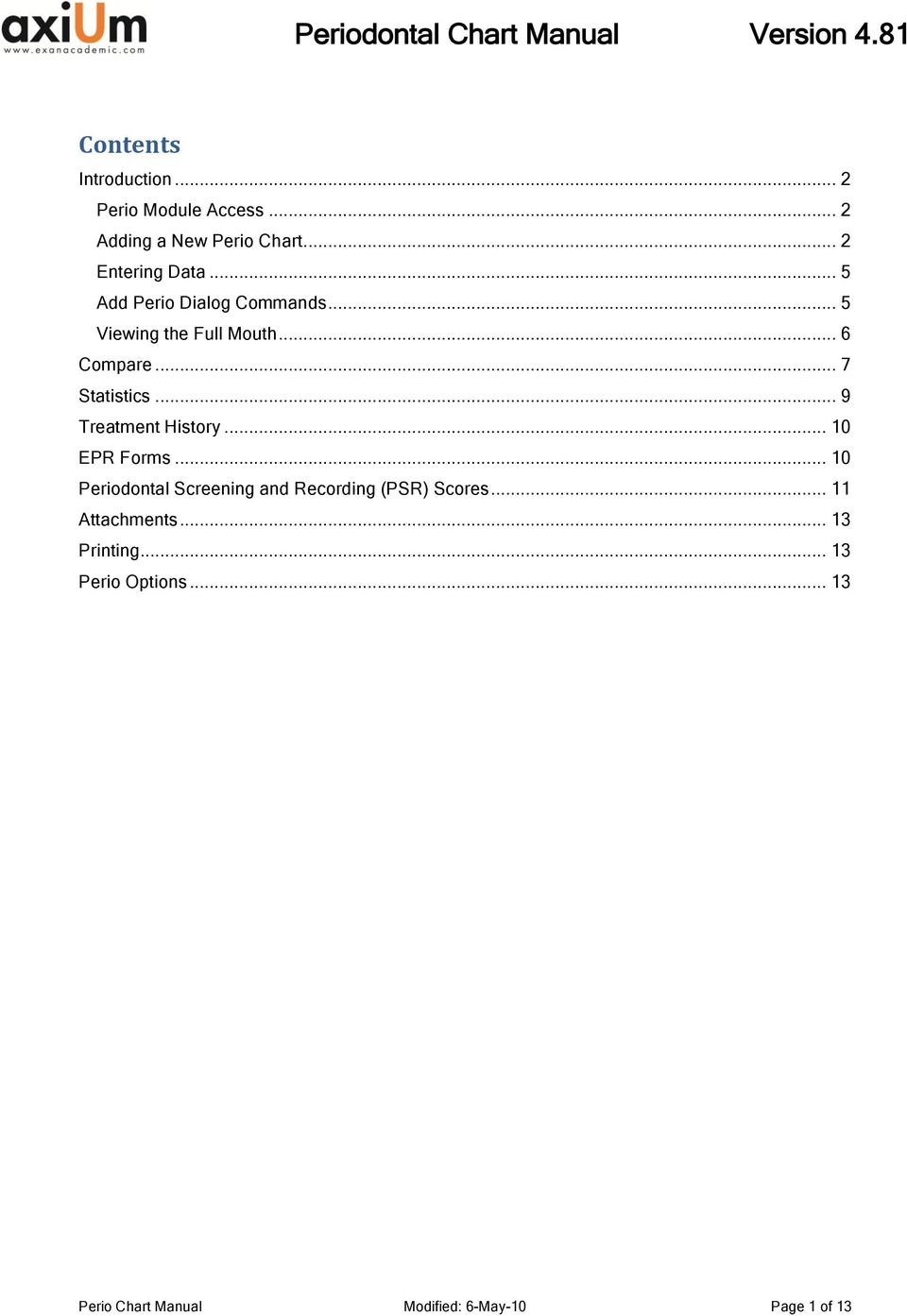
1 Periodontal Chart Manual Version 4.81 Contents Introduction... 2 Perio Module Access... 2 Adding a New Perio Chart... 2 Entering Data... 5 Add Perio Dialog Commands... 5 Viewing the Full Mouth... 6 Compare... 7 Statistics... 9 Treatment History EPR Forms Periodontal Screening and Recording (PSR) Scores Attachments Printing Perio Options Perio Chart Manual Modified: 6-May-10 Page 1 of 13
2 Introduction Periodontal (perio) conditions are cumulative or progressive conditions that require charting over an extended period of time. Using the axium Perio Chart Module to record the state of these conditions on a periodic basis allows the provider to monitor and take action if conditions deteriorate or determine the efficacy of treatment as they improve. Perio Module Access The main Perio module (as apposed to the Perio tab in the axium EHR module) is accessed via the Perio Chart icon on the left side of the desktop, from the Perio Chart icon in the EHR Perio Tab, or from the Actions menu Clinical - Perio Chart menu item. A patient must be selected before opening the perio chart. The main Perio window displays the most recent copy of the perio chart for the patient selected. The display defaults to Maxillary but can be switched to Mandibular by clicking on the up or down arrows. Adding a New Perio Chart Perio Chart Manual Modified: 6-May-10 Page 2 of 13

3 Click on the Add New Form icon at the top of the Perio Chart dialog to open the Add Perio dialog. If a chart had previously been entered and then saved as incomplete the following message will display: To enter a completely new chart select No, to resume an old chart click Yes. If you select Yes to resume an old chart the Select Perio Date dialog will be displayed. Highlight a perio chart in the list and select one of the following options: New To open the Add Perio window without resuming any of the items in the list. Resume To allow users to select an incomplete chart and resume it. This is only enabled if the selected chart is incomplete. This will display the Perio Add window with data filled in from the chart selected. Edit/Review To allow users to select an incomplete chart, review it and possibly make corrections. When selected, displays the Perio Add window for the selected date with the title Edit Perio, the Chart Date enabled and the data filled in like when in Resume mode. Close Off This closes off an incomplete chart so that they can no longer be edited. Perio Chart Manual Modified: 6-May-10 Page 3 of 13

4 Re-Open Undoes the closing off of a chart and allows it to be edited. Both Close Off and Re-Open will add another line in the list with today s date in the Audit Date column. Note: The difference between Edit and Resume is that Edit keeps the perio date as of the date it was first entered. Resume updates the perio date to today. The periodontal chart is divided into 4 views; each view represents a particular quadrant of the mouth. To change the quadrant, use the arrow keys on the upper right of the window. New or Resume opens the Add Perio window defaulting to the Maxillary Right quadrant view. Select the Exam Type from the dropdown list. Exam type is a field that allows the user to describe the significance of the Perio examination date (e.g.: Initial examination, post scaling, pre-surgery, post surgery, etc). This will have more meaning than merely a date. The Exam Type will display: In the title bar on the Perio Manager window. In the Perio Full Mouth View window. In the Select Perio Date accessed via the view form history icon on the Perio Manager as a column titled Exam Type. In the Perio Comparisons dialog accessed via the compare form icon on the Perio Manager in the text of selection combo boxes. In the Info Manager selection list for custom reports. Perio Chart Manual Modified: 6-May-10 Page 4 of 13

5 Select the Perio Charting Date using the drop down calendar control if the values were charted on a date prior to current date. Entering Data With the mouse or light pen select the block corresponding to the periodontal condition, and tooth that you wish to begin charting at. Enter the value of the current condition by clicking on the keypad located to the right of the Perio chart with the mouse or light pen. Or, alternatively type the entry using the keyboard. Each possible value that can be charted for the current condition line is displayed on the lower right of the screen with the Key board entry to chart it. These values will appear in the currently selected tooth section in the Perio chart. Continue entering values for the next selected periodontal location. The program will advance to the next periodontal location as predetermined in Settings. This is continued until all data has been entered. Upon completion, select OK. If your Perio window has been set up to allow this (an administrative setting in the database) the system will automatically calculate the attachment line based on entries made in the Free Gingival Margin and Pocket Depth fields. Alternatively the attachment must be manually calculated and entered. If your Perio window has been set up to allow this (an administrative setting in the database) the system will automatically jump to the bleeding line when you press the key that corresponds to bleeding. Once the bleeding point is recorded, the system will jump back to the condition that you previously charting and allow you to continue without having to select the previous condition. Add Perio Dialog Commands Save To save your work as you go along. Clear All To clear all entries since you last saved. Incomplete To save and close a chart that you wish to resume at a later date. Complete To save a completed chart. Cancel To close the window without saving any changes. Clear Perio Chart Manual Modified: 6-May-10 Page 5 of 13

6 Clears the current cell (but does not auto advance so that the user may re-enter the proper value). Clr Tooth To clear all 3 values for the tooth. For Yes/No conditions, resets them to their "No" value. Up To move up to the next Perio Condition line. Down To move down to the next Perio Condition line. Previous To move to the previous valid site for this condition. Next To move to the next valid site for this condition. Notes/Conditions To enter a condition or note about the currently selected tooth. First, highlight the tooth. Viewing the Full Mouth To view the full mouth, click on the Full View icon on the main Perio window. The following window will open: Select either Text Values or Graphic Values, depending on whether you wish to see the 3D images of the teeth or just the charted condition values. Perio Chart Manual Modified: 6-May-10 Page 6 of 13


7 In graphic mode, to view the chart details, place checkmarks in the box beside the condition in the conditions to display area. The window will refresh and draw the checked conditions on the 3d images of the teeth. Compare To view a Periodontic comparison, click on the Compare Form icon. The following window will open. Perio Chart Manual Modified: 6-May-10 Page 7 of 13


8 Select the condition you wish to compare from the condition drop down. Select the first date you would like to see, and the color you would like it to be charted with. Select the second and subsequent dates with corresponding colors and click accept. The following window will open. For each of the dates selected you will see a line of text displaying the value as it was on that date. The last row shows the amount of change between the dates, and the chart uses bar graphs to display the amount of change. Perio Chart Manual Modified: 6-May-10 Page 8 of 13

9 Statistics To view a perio statistics report click on the View Statistics icon. The following window will open. The Perio statistics report is a crystal report that can be customized by the University. Perio Chart Manual Modified: 6-May-10 Page 9 of 13

10 Treatment History To view the patient s treatment history, click on the Treatment History window will open: icon. The following Here the user can toggle between predefined views of the information. To add new treatment or case notes, open the toolbar by hovering with your mouse over the arrow key to the right, and click on the toolbar option needed. EPR Forms To view the perio EPR record, click on the EPR Forms open. icon. The following window will Perio Chart Manual Modified: 6-May-10 Page 10 of 13


11 The Perio Type and Perio Prognosis can be entered here. The system can calculate some Perio Statistics based on entries made in the Perio Examination and will display them in the middle of the upper section of the window. Periodontal Screening and Recording (PSR) Scores Periodontal Screening and Recording (PSR) is a diagnostic screening tool for the early detection of periodontal disease. To the right of the Perio statistics display in the Perio EPR Forms dialog are the PSR scores for the patient. PSR score values can be calculated by the system or can be manually entered by the provider. If auto-calculated the system will gray out the six PSR score edit boxes. If the user is to enter the Perio Chart Manual Modified: 6-May-10 Page 11 of 13

12 values manually the boxes will be enabled (the check boxes are always enabled - see below for their use). Each box represents an intraoral sextant. Intraoral sextants are designated S1-S6 beginning in the maxillary upper right sextant (S1), proceeding in a clockwise manner, and finishing in the mandibular lower right sextant (S6). PSR codes are based on the following system: Code 0 Pockets <3.5 mm with no calculus or bleeding. Colored area of probe remains completely visible in the deepest crevice in the sextant. No calculus or defective margins are detected. Gingival tissues are healthy with no bleeding after gentle probing. Code 1 Pockets <3.5 mm with bleeding. Colored area of probe remains completely visible in the deepest probing depth in the sextant. No calculus or margins are detected. There is bleeding after gentle probing. Code 2 Pockets <3.5 mm with calculus or overhang. Colored area of probe remains completely visible in the deepest probing depth in the sextant. Supra- or subgingival calculus and/or defective margins are detected. Code 3 Pockets >= 3.5 mm. Colored area of probe remains partly visible in the deepest probing depth in the sextant. Code 4 Pockets >=5.5 mm. Colored area of probe completely disappears, indicating probing depth of greater than 5.5 mm. Code * Denotes clinical abnormalities including but not limited to furcation invasion, mobility, mucogingival problems, or recession extending to the colored area of the probe (3.5 mm or greater). The checkbox is used to indicate a clinical abnormality in that sextant. Code X Denotes an edentulous (missing) sextant PSR scores are calculated on the worst score within a sextant. If pockets are charted and there are pockets of 3.2 mm on one site and 5.1 mm on another tooth site in the same sextant, the calculation will be based on the 5.0 mm pocket. PSR scores are based on the most recent exam performed with an I (in-process), C (complete), or closed status. Perio Chart Manual Modified: 6-May-10 Page 12 of 13


13 Attachments To view the Patient Attachments window (review consents / images / letters etc ) click on the Patient Attachments icon. Printing To Print the perio chart, click on the Print icon. Perio Options Selecting the Perio Options icon displays the Perio Options dialog. Graphing conditions on the teeth themselves can be turned off and on and can the display of condition symbols. The view can be set to user selectable, text only, or graphical only. Perio Chart Manual Modified: 6-May-10 Page 13 of 13

axium Reference Manual for Perio Chart
 axium Reference Manual for Perio Chart - Disclaimer: This manual is licensed under the axium software and maintenance agreement. You may not use this manual except in compliance with the license. The information
EHR Manual Version 4.81
 EHR Manual Version 4.81 Contents Target Audience... 3 Introduction... 3 Accessing the EHR... 4 Altering the EHR View... 4 Full view versus split view... 4 EHR Chart Pane Views... 6 EHR Sliding Toolbars...
axium User Guide University of Minnesota School of Dentistry axium User Guide Updated 9/20/2010 Page 1 of 61
 axium User Guide University of Minnesota School of Dentistry axium User Guide Updated 9/20/2010 Page 1 of 61 Table of Contents Searching for and Selecting Patient Records... 1 Rolodex Options... 2 Electronic
Periodontal Screening and Recording: Early Detection of Periodontal Diseases
 Periodontal Screening and Recording: Early Detection of Periodontal Diseases Tanya Villalpando Mitchell, RDH, MS Continuing Education Units: 1 hour Online Course: www.dentalcare.com/en-us/dental-education/continuing-education/ce53/ce53.aspx
Quick Lists and Macros for E.H.R. Charting
 Quick Lists and Macros for E.H.R. Charting Quick Lists A quick list is formulated so a provider can quickly chart using the procedure codes that are most frequently used, without having to choose from
Welcome to MaxMobile. Introduction. System Requirements. MaxMobile 10.5 for Windows Mobile Pocket PC
 MaxMobile 10.5 for Windows Mobile Pocket PC Welcome to MaxMobile Introduction MaxMobile 10.5 for Windows Mobile Pocket PC provides you with a way to take your customer information on the road. You can
SAP Business Intelligence (BI) Reporting Training for MM. General Navigation. Rick Heckman PASSHE 1/31/2012
 2012 SAP Business Intelligence (BI) Reporting Training for MM General Navigation Rick Heckman PASSHE 1/31/2012 Page 1 Contents Types of MM BI Reports... 4 Portal Access... 5 Variable Entry Screen... 5
Microsoft Access 2010 handout
 Microsoft Access 2010 handout Access 2010 is a relational database program you can use to create and manage large quantities of data. You can use Access to manage anything from a home inventory to a giant
Appointment Scheduler
 EZClaim Appointment Scheduler User Guide Last Update: 11/19/2008 Copyright 2008 EZClaim This page intentionally left blank Contents Contents... iii Getting Started... 5 System Requirements... 5 Installing
Workspaces Creating and Opening Pages Creating Ticker Lists Looking up Ticker Symbols Ticker Sync Groups Market Summary Snap Quote Key Statistics
 Getting Started Workspaces Creating and Opening Pages Creating Ticker Lists Looking up Ticker Symbols Ticker Sync Groups Market Summary Snap Quote Key Statistics Snap Report Price Charts Comparing Price
Basic Microsoft Excel 2007
 Basic Microsoft Excel 2007 The biggest difference between Excel 2007 and its predecessors is the new layout. All of the old functions are still there (with some new additions), but they are now located
Ohio University Computer Services Center August, 2002 Crystal Reports Introduction Quick Reference Guide
 Open Crystal Reports From the Windows Start menu choose Programs and then Crystal Reports. Creating a Blank Report Ohio University Computer Services Center August, 2002 Crystal Reports Introduction Quick
Decision Support AITS University Administration. Web Intelligence Rich Client 4.1 User Guide
 Decision Support AITS University Administration Web Intelligence Rich Client 4.1 User Guide 2 P age Web Intelligence 4.1 User Guide Web Intelligence 4.1 User Guide Contents Getting Started in Web Intelligence
6. If you want to enter specific formats, click the Format Tab to auto format the information that is entered into the field.
 Adobe Acrobat Professional X Part 3 - Creating Fillable Forms Preparing the Form Create the form in Word, including underlines, images and any other text you would like showing on the form. Convert the
What is OneDrive for Business at University of Greenwich? Accessing OneDrive from Office 365
 This guide explains how to access and use the OneDrive for Business cloud based storage system and Microsoft Office Online suite of products via a web browser. What is OneDrive for Business at University
Applying a circular load. Immediate and consolidation settlement. Deformed contours. Query points and query lines. Graph query.
 Quick Start Tutorial 1-1 Quick Start Tutorial This quick start tutorial will cover some of the basic features of Settle3D. A circular load is applied to a single soil layer and settlements are examined.
Kareo Quick Start Guide April 2012
 Kareo Quick Start Guide April 2012 Table of Contents 1. Get Started...1 1.1 Practice Setup... 1 1.2 Training, Help Guides and Support... 1 1.3 User Login... 1 1.4 Dashboard Navigation... 2 1.5 Record Search...
Copyright EPiServer AB
 Table of Contents 3 Table of Contents ABOUT THIS DOCUMENTATION 4 HOW TO ACCESS EPISERVER HELP SYSTEM 4 EXPECTED KNOWLEDGE 4 ONLINE COMMUNITY ON EPISERVER WORLD 4 COPYRIGHT NOTICE 4 EPISERVER ONLINECENTER
At the top of the page there are links and sub-links which allow you to perform tasks or view information in different display options.
 APPOINTMENTS TAB P r a c t i c e M a t e M a n u a l 38 OVERVIEW The Appointments Tab is used to set up appointments, reschedule or edit existing appointment information, check patients in and out, and
TOPS v3.2.1 Calendar/Scheduler User Guide. By TOPS Software, LLC Clearwater, Florida
 TOPS v3.2.1 Calendar/Scheduler User Guide By TOPS Software, LLC Clearwater, Florida Document History Version Edition Date Document Software Trademark Copyright First Edition Second Edition 02 2007 09-2007
Scanned image. If multiple scanner installed in the computer then click here to select desired scanner. Select Resolution, Color, and Scan Type.
 Objectives & Goals Scanning & Document Management Opening & Understanding Multi Scan/Select Scanning & Drag/Drop Documents Set Document Details Set Reminders, Actions and Links Create New Document From
Avaya Network Configuration Manager User Guide
 Avaya Network Configuration Manager User Guide May 2004 Avaya Network Configuration Manager User Guide Copyright Avaya Inc. 2004 ALL RIGHTS RESERVED The products, specifications, and other technical information
ICP Data Entry Module Training document. HHC Data Entry Module Training Document
 HHC Data Entry Module Training Document Contents 1. Introduction... 4 1.1 About this Guide... 4 1.2 Scope... 4 2. Step for testing HHC Data Entry Module.. Error! Bookmark not defined. STEP 1 : ICP HHC
Planning and Managing Projects with Microsoft Project Professional 2013
 Project management deliverables (e.g. reports); WBS deliverables can be used for report timing Steps to Create a Project from an Existing Template: 1. Click File then New. 2. Select any of the featured
Scheduling Document Creation
 Scheduling Document Creation What is a Schedule in epm? Schedules The epm Schedule application is an integral part of the Portfolio Management suite of applications. Start and end dates for each summary
Welcome to MaxMobile. Introduction. System Requirements
 MaxMobile 10.5 for Windows Mobile Smartphone Welcome to MaxMobile Introduction MaxMobile 10.5 for Windows Mobile Smartphone provides you with a way to take your customer information on the road. You can
WHAT S NEW IN WORD 2010 & HOW TO CUSTOMIZE IT
 WHAT S NEW IN WORD 2010 & HOW TO CUSTOMIZE IT The Ribbon... 2 Default Tabs... 2 Contextual Tabs... 2 Minimizing and Restoring the Ribbon... 3 Customizing the Ribbon... 3 A New Graphic Interface... 5 Live
VistaPoint Companion is a client program used within the VistaPoint Enterprise system. VistaPoint Companion is available in two versions:
 VistaPoint Companion Users Guide file:///c:/users/tdavis/appdata/local/temp/~hh2a10.htm Page 1 of 3 10/22/2012 VistaPoint Companion Users Guide For VistaPoint Console Companion and VistaPoint Desktop Companion
Microsoft Word 2007 Module 1
 Microsoft Word 2007 Module 1 http://pds.hccfl.edu/pds Microsoft Word 2007: Module 1 July, 2007 2007 Hillsborough Community College - Professional Development and Web Services Hillsborough Community College
TheFinancialEdge. Fast! Guide
 TheFinancialEdge Fast! Guide 101811 2011 Blackbaud, Inc. This publication, or any part thereof, may not be reproduced or transmitted in any form or by any means, electronic, or mechanical, including photocopying,
NorthClark Computing, Inc. Bill of Material and Parts Master Maintenance. Administrator s Guide
 ERP Consulting Web Development Custom Programming Solutions Desktop & Web Applications for Manfact NorthClark Computing, Inc. Bill of Material and Parts Master Maintenance Administrator s Guide Web and
INTRODUCTION 5 COLLABORATION RIBBON 5 SELECT THE UPDATING METHOD 6 MAKE YOUR PROJECT COLLABORATIVE 8 PROCESSING RECEIVED TASK UPDATES 9
 Contents Contents INTRODUCTION 5 COLLABORATION RIBBON 5 SELECT THE UPDATING METHOD 6 MAKE YOUR PROJECT COLLABORATIVE 8 PROCESSING RECEIVED TASK UPDATES 9 IMPORT UPDATES 12 CUSTOM TEXT FIELDS MAPPING 13
Creating and Viewing Task Dependencies between Multiple Projects using Microsoft Project
 Creating and Viewing Task Dependencies between Multiple Projects using Microsoft Project Preliminary 1. You must have Microsoft Project 2003 or higher installed to complete these procedures. 2. If necessary,
WinFlexOne Version 8 How To Guide. Claims Processing
 WinFlexOne Version 8 How To Guide Claims Processing A. How to Create a Manual Claim: 1. Under Processing and the Claims category, select Claims. 2. Select the Open New Claim Input Session option. 3. Enter
IBM SPSS Statistics 20 Part 1: Descriptive Statistics
 CALIFORNIA STATE UNIVERSITY, LOS ANGELES INFORMATION TECHNOLOGY SERVICES IBM SPSS Statistics 20 Part 1: Descriptive Statistics Summer 2013, Version 2.0 Table of Contents Introduction...2 Downloading the
Manual. Sealer Monitor Software. Version 0.10.7
 Manual Sealer Monitor Software Version 0.10.7 Contents 1 Introduction & symbols 1 2 Installation 2 2.1 Requirements 2 2.2 Installation process 2 3 Menu & Tooblar 5 3.1 File menu 5 3.2 Print menu 6 3.3
In this example, Mrs. Smith is looking to create graphs that represent the ethnic diversity of the 24 students in her 4 th grade class.
 Creating a Pie Graph Step-by-step directions In this example, Mrs. Smith is looking to create graphs that represent the ethnic diversity of the 24 students in her 4 th grade class. 1. Enter Data A. Open
TRAINING GUIDE. Timesheet Administration
 TRAINING GUIDE Timesheet Administration Timesheet Administration The Timesheet allows you to track the hours you work and edit hours worked by yourself and the employees you supervise. In addition, you
Excel 2007 Basic knowledge
 Ribbon menu The Ribbon menu system with tabs for various Excel commands. This Ribbon system replaces the traditional menus used with Excel 2003. Above the Ribbon in the upper-left corner is the Microsoft
In this session, we will explain some of the basics of word processing. 1. Start Microsoft Word 11. Edit the Document cut & move
 WORD PROCESSING In this session, we will explain some of the basics of word processing. The following are the outlines: 1. Start Microsoft Word 11. Edit the Document cut & move 2. Describe the Word Screen
Division of School Facilities OUTLOOK WEB ACCESS
 Division of School Facilities OUTLOOK WEB ACCESS New York City Department of Education Office of Enterprise Development and Support Applications Support Group 2011 HELPFUL HINTS OWA Helpful Hints was created
MS Project Tutorial for Senior Design Using Microsoft Project to manage projects
 MS Project Tutorial for Senior Design Using Microsoft Project to manage projects Overview: Project management is an important part of the senior design process. For the most part, teams manage projects
Smart Sync. Computer Classroom Management Software. What is SMART Sync? Table of Contents
 Smart Sync Computer Classroom Management Software What is SMART Sync? SMART Sync software helps instructors manage the computers in their classroom. SMART Sync keeps a student engaged and focused, and
JustClust User Manual
 JustClust User Manual Contents 1. Installing JustClust 2. Running JustClust 3. Basic Usage of JustClust 3.1. Creating a Network 3.2. Clustering a Network 3.3. Applying a Layout 3.4. Saving and Loading
Enterprise Interface User Guide
 Enterprise Interface User Guide http://www.scientia.com Email: [email protected] Ref: 3094 ISO 9001:2000 / TickIT certified Copyright Scientia Ltd 2010 This document is the exclusive property of Scientia
MS Word 2007 practical notes
 MS Word 2007 practical notes Contents Opening Microsoft Word 2007 in the practical room... 4 Screen Layout... 4 The Microsoft Office Button... 4 The Ribbon... 5 Quick Access Toolbar... 5 Moving in the
Welcome to the tutorial which will guide you step-by-step through some basic features of the Bridge-IT dental practice management system.
 Bridge-IT Tutorial Welcome to the tutorial which will guide you step-by-step through some basic features of the Bridge-IT dental practice management system. This tutorial will take you through:- Booking,
Introduction To Microsoft Office PowerPoint 2007. Bob Booth July 2008 AP-PPT5
 Introduction To Microsoft Office PowerPoint 2007. Bob Booth July 2008 AP-PPT5 University of Sheffield Contents 1. INTRODUCTION... 3 2. GETTING STARTED... 4 2.1 STARTING POWERPOINT... 4 3. THE USER INTERFACE...
Microsoft Migrating to Access 2010 from Access 2003
 In This Guide Microsoft Access 2010 looks very different, so we created this guide to help you minimize the learning curve. Read on to learn key parts of the new interface, discover free Access 2010 training,
Microsoft Access 2010 Part 1: Introduction to Access
 CALIFORNIA STATE UNIVERSITY, LOS ANGELES INFORMATION TECHNOLOGY SERVICES Microsoft Access 2010 Part 1: Introduction to Access Fall 2014, Version 1.2 Table of Contents Introduction...3 Starting Access...3
Inking in MS Office 2013
 VIRGINIA TECH Inking in MS Office 2013 Getting Started Guide Instructional Technology Team, College of Engineering Last Updated: Fall 2013 Email [email protected] if you need additional assistance after
MICROSOFT OFFICE ACCESS 2007 - NEW FEATURES
 MICROSOFT OFFICE 2007 MICROSOFT OFFICE ACCESS 2007 - NEW FEATURES Exploring Access Creating and Working with Tables Finding and Filtering Data Working with Queries and Recordsets Working with Forms Working
Macintosh System OSX #1
 Recipes4Success Macintosh System OSX #1 2007. All Rights Reserved. This Material is copyrighted under United States copyright laws. Tech4Learning, Inc. is the exclusive owner of the copyright. Distribution
The tool also provides an overview of date criteria set against all items within your module.
 Date Management Tool What does it do? This tool allows tutors to view in one screen when items are available and change dates attached to more than one content item within a module at the same time. For
MiVoice Integration for Salesforce
 MiVoice Integration for Salesforce USER GUIDE MiVoice Integration for Salesforce User Guide, Version 1, April 2014. Part number 58014124 Mitel is a registered trademark of Mitel Networks Corporation. Salesforce
CrossLoop Help. What would you like to do? Joining A Session
 1 of 13 10/10/2007 13:14 "This is outstanding. I can finally connect to other computers without having them forward any ports!" Home Download How It Works FAQs About Help CrossLoop > Help CrossLoop Help
Bank Reconciliation WalkThrough
 Bank Reconciliation WalkThrough Write-Up CS version 2008.x.x TL 18915 (04/25/08) Copyright Information Text copyright 1998-2008 by Thomson Tax & Accounting. All rights reserved. Video display images copyright
Adobe Acrobat: Creating Interactive Forms
 Adobe Acrobat: Creating Interactive Forms This document provides information regarding creating interactive forms in Adobe Acrobat. Please note that creating forms requires the professional version (not
Using SSH Secure Shell Client for FTP
 Using SSH Secure Shell Client for FTP The SSH Secure Shell for Workstations Windows client application features this secure file transfer protocol that s easy to use. Access the SSH Secure FTP by double-clicking
Build Your First Web-based Report Using the SAS 9.2 Business Intelligence Clients
 Technical Paper Build Your First Web-based Report Using the SAS 9.2 Business Intelligence Clients A practical introduction to SAS Information Map Studio and SAS Web Report Studio for new and experienced
for Sage 100 ERP Business Insights Overview Document
 for Sage 100 ERP Business Insights Document 2012 Sage Software, Inc. All rights reserved. Sage Software, Sage Software logos, and the Sage Software product and service names mentioned herein are registered
Software User's Guide
 Software User's Guide Brother QL-series The contents of this guide and the specifications of this product are subject to change without notice. Brother reserves the right to make changes without notice
Recruiter s Resource Guide
 Recruiter s Resource Guide First Edition 1.29.2015 Contents Section One Recruiting... 3 Accessing Team Georgia Careers... 4 My Setup Preferences... 5 Creating a Requisition... 6 Approving a Requisition...
IFAS Reports. Participant s Manual. Version 1.0
 IFAS Reports Participant s Manual Version 1.0 December, 2010 Table of Contents General Overview... 3 Reports... 4 CDD Reports... 5 Running the CDD Report... 9 Printing CDD Reports... 14 Exporting CDD Reports
Business Objects. Report Writing - CMS Net and CCS Claims
 Business Objects Report Writing - CMS Net and CCS Claims Updated 11/28/2012 1 Introduction/Background... 4 Report Writing (Ad-Hoc)... 4 Requesting Report Writing Access... 4 Java Version... 4 Create A
Using Spreadsheets, Selection Sets, and COGO Controls
 Using Spreadsheets, Selection Sets, and COGO Controls Contents About this tutorial... 3 Step 1. Open the project... 3 Step 2. View spreadsheets... 4 Step 3. Create a selection set... 10 Step 4. Work with
Creating Dashboards. Intellicus Enterprise Reporting and BI Platform. Intellicus Technologies [email protected] www.intellicus.
 Creating Dashboards Intellicus Enterprise Reporting and BI Platform Intellicus Technologies [email protected] www.intellicus.com Creating Dashboards i Copyright 2013 Intellicus Technologies This document
Business Objects Version 5 : Introduction
 Business Objects Version 5 : Introduction Page 1 TABLE OF CONTENTS Introduction About Business Objects Changing Your Password Retrieving Pre-Defined Reports Formatting Your Report Using the Slice and Dice
Contact Manager and Document Tracking. CampusVue Student User Guide
 Contact Manager and Document Tracking CampusVue Student User Guide Campus Management Corporation Web Site http://www.campusmanagement.com/ E-mail Information: Support: E-mail form on Web site [email protected]
TECHNICAL TRAINING LAB INSTRUCTIONS
 In this lab you will learn how to login to the TotalAgility Designer and navigate around it. You will also learn how to set common Server Settings, create a simple capture workflow business process, save,
Migrating to Excel 2010 from Excel 2003 - Excel - Microsoft Office 1 of 1
 Migrating to Excel 2010 - Excel - Microsoft Office 1 of 1 In This Guide Microsoft Excel 2010 looks very different, so we created this guide to help you minimize the learning curve. Read on to learn key
Using SSH Secure File Transfer to Upload Files to Banner
 Using SSH Secure File Transfer to Upload Files to Banner Several Banner processes, including GLP2LMP (Create PopSelect Using File), require you to upload files from your own computer to the computer system
Utilities. 2003... ComCash
 Utilities ComCash Utilities All rights reserved. No parts of this work may be reproduced in any form or by any means - graphic, electronic, or mechanical, including photocopying, recording, taping, or
Create a Poster Using Publisher
 Contents 1. Introduction 1. Starting Publisher 2. Create a Poster Template 5. Aligning your images and text 7. Apply a background 12. Add text to your poster 14. Add pictures to your poster 17. Add graphs
Creating a Database in Access
 Creating a Database in Access Microsoft Access is a database application. A database is collection of records and files organized for a particular purpose. For example, you could use a database to store
Excel Spreadsheet Activity Redo #1
 Excel Spreadsheet Activity Redo #1 Melissa Ebling 11/9/06 Directions: Please follow all directions in this packet. This assignment will consist of your tracking ten different stocks over a period of a
Reporting Tips and Tricks
 Chapter 16 Reporting Tips and Tricks Intuit Statement Writer New for 2009! Company Snapshot New for 2009! Using the Report Center Reporting Preferences Modifying Reports Report Groups Memorized Reports
Microsoft Office Access 2007 Basics
 Access(ing) A Database Project PRESENTED BY THE TECHNOLOGY TRAINERS OF THE MONROE COUNTY LIBRARY SYSTEM EMAIL: [email protected] MONROE COUNTY LIBRARY SYSTEM 734-241-5770 1 840 SOUTH ROESSLER
Module A2 Item Activities, Gantt Chart and Utilization Sheet. A2.1 Project item activities A2.2 Gantt chart A2.3 Utilization sheet
 Module A2 Item Activities, Gantt Chart and Utilization Sheet A2.1 Project item activities A2.2 Gantt chart A2.3 Utilization sheet 1 Assistance PSA: Advanced Functionalities Welcome to the Advanced Functionalities
User Guide for TeamDirection Dashboard
 User Guide for TeamDirection Dashboard Table Of Contents Introduction...1 Learning TeamDirection Dashboard...1 New in Dashboard...3 Getting Started...4 Dashboard Features...5 Folders...5 Projects View
SAP Business Intelligence ( BI ) Financial and Budget Reporting. 7.0 Edition. (Best Seller At Least 43 copies Sold)
 SAP Business Intelligence ( BI ) Financial and Budget Reporting 7.0 Edition (Best Seller At Least 43 copies Sold) November 2011 Table of Contents Log In... 3 Initial Variable Screen... 5 Multiple / Single
Table of Contents. Welcome... 2. Login... 3. Password Assistance... 4. Self Registration... 5. Secure Mail... 7. Compose... 8. Drafts...
 Table of Contents Welcome... 2 Login... 3 Password Assistance... 4 Self Registration... 5 Secure Mail... 7 Compose... 8 Drafts... 10 Outbox... 11 Sent Items... 12 View Package Details... 12 File Manager...
Making Visio Diagrams Come Alive with Data
 Making Visio Diagrams Come Alive with Data An Information Commons Workshop Making Visio Diagrams Come Alive with Data Page Workshop Why Add Data to A Diagram? Here are comparisons of a flow chart with
Creating a Distribution List from an Excel Spreadsheet
 Creating a Distribution List from an Excel Spreadsheet Create the list of information in Excel Create an excel spreadsheet. The following sample file has the person s first name, last name and email address
Microsoft PowerPoint 2010
 Microsoft PowerPoint 2010 Starting PowerPoint... 2 PowerPoint Window Properties... 2 The Ribbon... 3 Default Tabs... 3 Contextual Tabs... 3 Minimizing and Restoring the Ribbon... 4 The Backstage View...
Microsoft Excel 2013: Using a Data Entry Form
 Microsoft Excel 2013: Using a Data Entry Form Using Excel's built in data entry form is a quick and easy way to enter data into an Excel database. Using the form allows you to: start a new database table
Instructions on How to Access Online Resources in SATERN
 Instructions on How to Access Online Resources in SATERN 1. Types of Online Resources..2 2. Accessing and Launching Online Courses... 3 This job aid guides you through the steps to: a. Finding online courses:
Creating Reports with Smart View s Ad Hoc Analysis
 with Smart View s Ad Hoc Analysis Dartmouth College February 10, 2009 Table of Contents Overview... 3 Connecting to the Reporting Cube... 3 Setting Ad Hoc Options... 3 The Ad Hoc Grid... 4 Selecting Members
Kaseya 2. User Guide. Version 7.0. English
 Kaseya 2 Time Tracking User Guide Version 7.0 English September 3, 2014 Agreement The purchase and use of all Software and Services is subject to the Agreement as defined in Kaseya s Click-Accept EULATOS
Fleet Manager Quick Guide (Non Maintenance Mode)
 Fleet Manager Quick Guide (Non Maintenance Mode) Launch Fleet Manager: Open the Fleet Manager Application by: 1. Double clicking the icon located on the desktop - or 2. Via Start > Programs > MobileView
Chat-Related and Email-Related Tasks
 Chat and Email Control Gadget, page 1 Manage Chat and Email Gadget, page 3 Chat and Email Control Gadget The Chat and Email Control gadget provides the following functionality: Chat and Email state: The
SIMULATIONiQ Counseling Student Training Guide
 Education Management Solutions, LLC 436 Creamery Way, Suite 300 Exton, PA 19341 Phone: 877.EMS.5050 / (877) 367.5050 www.simulationiq.com SIMULATIONiQ Counseling Student Training Guide Contents Login...
D2L: An introduction to CONTENT University of Wisconsin-Parkside
 D2L: An introduction to CONTENT University of Wisconsin-Parkside FOR FACULTY: What is CONTENT? The Content and Course Builder tools both allow you to organize materials in D2L. Content lets you and your
Roth IRA Conversion Evaluator
 Roth IRA Conversion Evaluator Quick Start Guide 2009, WoltersKluwer. All Rights Reserved. Page 1 of 36 Table of Contents Roth IRA Conversion Evaluator Quick Start Guide Getting Started... 3 About the Roth
Microsoft Outlook 2007 Calendar Features
 Microsoft Outlook 2007 Calendar Features Participant Guide HR Training and Development For technical assistance, please call 257-1300 Copyright 2007 Microsoft Outlook 2007 Calendar Objectives After completing
Dell SonicWALL SRA 7.5 Secure Virtual Meeting and Secure Virtual Assist
 Dell SonicWALL SRA 7.5 Secure Virtual Meeting and Secure Virtual Assist Document Scope This document describes how to configure and use the Dell SonicWALL SRA Secure Virtual Meeting feature and the Dell
Mac Outlook Calendar/Scheduler and Tasks
 Introduction Schedule an event and/or meeting. Schedule all-day and recurring events. Assign tasks to another user and use special shortcut keys. Contents Introduction Contents Calendar View Edit an appointment
Virto SharePoint Gantt Chart App for Office 365 Release 1.0.3. User and Installation Guide
 Virto SharePoint Gantt Chart App for Office 365 Release 1.0.3 User and Installation Guide 2 Table of Contents OVERVIEW... 3 FEATURES LIST... 3 SYSTEM/DEVELOPER REQUIREMENTS... 3 OPERATING SYSTEM... 3 SERVER...
CRM Basic Guide. First, you must login to https://crm.oasis.asu.edu/. On the Menu at the left, find the Support menu item.
 CRM Basic Guide UTO Training First, you must login to https://crm.oasis.asu.edu/. On the Menu at the left, find the Support menu item. Search Cases Browsing Cases Click on Support > Search Cases from the