
Version 1.00 June 11, User Manual. AC1900 Wi-Fi USB 3.0 Adapter DWA-192
|
|
|
- Allison Phillips
- 10 years ago
- Views:
Transcription
1 Version 1.00 June 11, 2015 User Manual AC1900 Wi-Fi USB 3.0 Adapter DWA-192

2 Preface Preface D-Link reserves the right to revise this publication and to make changes in the content hereof without obligation to notify any person or organization of such revisions or changes. Manual Revisions Revision Date Description 1.00 June 11, 2015 Initial release for revision A1 Trademarks D-Link and the D-Link logo are trademarks or registered trademarks of D-Link Corporation or its subsidiaries in the United States or other countries. All other company or product names mentioned herein are trademarks or registered trademarks of their respective companies. Copyright 2015 by D-Link Systems, Inc. All rights reserved. This publication may not be reproduced, in whole or in part, without prior expressed written permission from D-Link Systems, Inc. 2

3 Table of Contents Preface... 2 Manual Revisions... 2 Trademarks... 2 Product Overview... 4 Package Contents... 4 System Requirements... 4 Introduction... 5 Features... 6 Hardware Overview... 7 Installation... 8 Getting Started... 8 Remove Existing Installations... 8 Disable Other Wireless Adapters... 9 Driver Installation...11 Wireless Installation Considerations...14 Connecting to a Wireless Network...15 Using Windows Using Windows Troubleshooting...19 Wireless Basics...22 Wireless Modes...26 Table of Contents Networking Basics...27 Check your IP address...27 Windows 8 Users...27 Windows 7 Users...27 Statically Assign an IP address...28 Windows 8 Users...28 Windows 7 Users...29 Technical Specifications...30 Warranty...31 Registration

4 Section 1 - Product Overview Product Overview Package Contents D-Link DWA-192 AC1900 Wi-Fi USB 3.0 Adapter Micro-USB 3.0 Cable Manual and Warranty on CD Quick Install Guide System Requirements A desktop or laptop computer with an available USB 3.0 port* Windows 8 or 7 (32/64-bit) CD-ROM drive 1.3GHz processor and at least 128 MB of RAM An ac or n wireless network * For best performance, connect to a USB 3.0 port. If you connect to a non-usb 3.0 port, performance will be severely reduced. 4

5 Section 1 - Product Overview Introduction The DWA-192 AC1900 Wi-Fi USB 3.0 Adapter is a convenient wireless connectivity solution for desktop or notebook PCs. Instead of stringing Ethernet cables to your PC or dismantling your desktop computer case, the DWA-192 can enable ac wireless connectivity by simply utilizing your desktop or notebook PC s USB port. Powered by Wireless AC technology, the DWA-192 provides a much faster wireless connection and superior reception than n*. The DWA-192 is designed for use in bigger homes and for those that demand higher bandwidth networking. Maximize wireless performance by connecting this USB adapter to a Wireless AC router and stay connected from virtually anywhere in the home. This USB adapter supports WPA and WPA2 encryption to prevent outside intrusion and protect your personal information from being exposed. Compact in size, robust in speed the DWA-192 AC1900 Wi-Fi USB 3.0 Adapter is a convenient solution for providing high performance wireless connectivity to your desktop or notebook PC. Enjoy the many benefits of Wireless AC connectivity today! * Maximum wireless signal rate derived from IEEE Standard ac and n specifications. Actual data throughput will vary. Network conditions and environmental factors, including volume of network traffic, building materials and construction, and network overhead, lower actual data throughput rate. Environmental conditions will adversely affect wireless signal range. 5

6 Section 1 - Product Overview Features Compact size for placement anywhere Convenience of Plug & Play installation Fully n/g/b/a compatible ac compliant Advanced AC SmartBeam technology for enhanced speed and range Powered by the USB port; no external power source required USB 3.0 standard * You can securely connect to a wireless network using WPA/WPA2 (Wi-Fi Protected Access) providing you a much higher level of security for your data and communication than has previously been available. Position the DWA-192 almost anywhere in your workspace to achieve the best reception possible * For best performance, connect to a USB 3.0 port. If you connect to a non-usb 3.0 port, performance will be severely reduced. 6

7 Section 1 - Product Overview Hardware Overview Status LED 2 LED On/Off Button Turns the Status LED on or off. A solid blue light indicates a proper connection to a wireless network. This LED will blink if it is not successfully connected to a wireless network. 3 USB 3.0 Connector Used to connect the DWA-192 to your computer via the included USB cable. 4 WPS Button Press to start the WPS process. You will need to press the WPS button on your wireless router within two minutes. The light will turn solid blue when successfully connected. 7

8 Section 2 - Installation Installation This section will walk you through the installation process. If you have a built-in wireless adapter, please disable it in device manager before installing your D-Link adapter. Also, if you have previously installed another wireless adapter, please make sure any software is uninstalled. Getting Started Before installing your new D-Link wireless adapter, please verify the following: Remove any previous installations of wireless adapters Disable any built-in wireless adapters Verify the settings such as the SSID and security settings of the network you want to connect to Remove Existing Installations If you ve installed a different manufacturer s adapter or a different model D-Link adapter, make sure the software is uninstalled before installing the new software. Some utilities may cause a conflict with the new software. If you plan to use multiple adapters at different times, make sure the utilities are not set to load when your computer boots up. To remove any old software: Windows 8 users: Press Windows Key + Q > Control Panel > Uninstall Programs. Windows 7 users: Click Start > Control Panel > Uninstall Programs. 8

9 Section 2 - Installation Disable Other Wireless Adapters Most newer laptops may include a built-in wireless adapter. To prevent any conflicts with the D-Link wireless adapter, it is recommended to disable the wireless adapter (as well as any unused Ethernet adapters). Windows 8 - Press the Windows key and X together and then click Device Manager. Windows 7 - Go to Start > Device Manager. Click the Hardware tab and then click Device Manager. Scroll down the list and click the + sign to the left of Network Adapters. Right-click the adapter you would like to disable and select Disable. 9


10 Section 2 - Installation Click Yes to disable the adapter. The adapter is now disabled. When disabled, a red X will be displayed. Disabling the adapter will not remove the drivers. If you would like to use the adapter, simply right-click it and select Enable. 10


11 Section 2 - Installation Driver Installation Before using the DWA-192 AC1900 Wi-Fi USB 3.0 Adapter, you must first install a device driver from the included D-Link CD. Warning: Do NOT connect the DWA-192 AC1900 Wi-Fi USB 3.0 Adapter to your computer s USB port before installing the driver software from the D-Link CD. Turn on the computer and insert the D-Link DWA-192 Driver CD in the CD-ROM drive. Note: If the CD Autorun function does not automatically start on your computer, go to Start > Run. In the run box type D:\ autorun.exe (where D: represents the drive letter of your CD-ROM drive). The D-Link DWA-192 InstallShield Wizard window will appear. Select the setup language from the list and click Next. 11


12 Section 2 - Installation The welcome window will appear. Click Next to continue. By default setup will install to the default location: C:\Program Files\D-Link\DWA-192, where C: represents the drive letter of your hard drive. To install to a different location click Browse and specify the location, then click Next. Insert the adapter into an available USB port on your computer. Click Next to continue. If the Found New Hardware Wizard appears, click Cancel. 12


13 Section 2 - Installation The drivers and software will now install. Please allow 1-2 minutes for this process to finish. The driver installation process is complete. Click Finish to exit setup. The DWA-192 s Status LED should be blinking blue (see Hardware Overview on page 7). To connect to your wireless network, see Connecting to a Wireless Network on page 15. Once a connection is established, the Status LED should be solid blue. 13

14 Section 2 - Installation Wireless Installation Considerations The D-Link wireless adapter lets you access your network using a wireless connection from virtually anywhere within the operating range of your wireless network. Keep in mind that the number, thickness and location of walls, ceilings, or other objects that the wireless signals must pass through, may limit the range. Typical ranges vary depending on the types of materials and background RF (radio frequency) noise in your home or business. The key to maximizing wireless range is to follow these basic guidelines: 1. Keep the number of walls and ceilings between the D-Link adapter and other network devices to a minimum - each wall or ceiling can reduce your adapter s range from 3-90 feet (1-30 meters.) Position your devices so that the number of walls or ceilings is minimized. 2. Be aware of the direct line between network devices. A wall that is 1.5 feet thick (.5 meters), at a 45-degree angle appears to be almost 3 feet (1 meter) thick. At a 2-degree angle it looks over 42 feet (14 meters) thick! Position devices so that the signal will travel straight through a wall or ceiling (instead of at an angle) for better reception. 3. A solid metal door or aluminum studs may have a negative effect on range. Try to position access points, wireless routers, and computers so that the signal passes through drywall or open doorways. Materials and objects such as glass, steel, metal, walls with insulation, water (fish tanks), mirrors, file cabinets, brick, and concrete will degrade your wireless signal. 4. Keep your product away (at least 3-6 feet or 1-2 meters) from electrical devices or appliances that generate RF noise. 5. If you are using 2.4 GHz cordless phones or X-10 (wireless products such as ceiling fans, lights, and home security systems), your wireless connection may degrade dramatically or drop completely. Make sure your 2.4 GHz phone base is as far away from your wireless devices as possible. The base transmits a signal even if the phone in not in use. 14

15 Section 3 - Connecting to a Wireless Network Connecting to a Wireless Network Using Windows 8 It is recommended to enable wireless security (WPA/WPA2) on your wireless router or access point before configuring your wireless adapter. If you are joining an existing network, you will need to know the security key (Wi-Fi password) being used. To join an existing network, locate the wireless network icon in the taskbar, next to the time display. Wireless Icon Clicking on this icon will display a list of wireless networks which are within connecting proximity of your computer. Select the desired network by clicking on the network name. 15

16 Section 3 - Connecting to a Wireless Network You will then be prompted to enter the network security key (Wi-Fi password) for the wireless network. Enter the password into the box and click Next. If you wish to use Wi-Fi Protected Setup (WPS) to connect to the router, you can also press the WPS button on your router at this point to enable the WPS function. When you have established a successful connection to a wireless network, the word Connected will appear next to the name of the network to which you are connected. 16


17 Section 3 - Connecting to a Wireless Network Using Windows 7 Windows 7 users may use the built-in wireless utility to connect to a wireless network. If you receive the Wireless Networks Detected bubble, click on the center of the bubble to access the utility. You can also click on the wireless icon in your system tray (lowerright corner). Wireless The utility will display any available wireless networks in your area. 17


18 Section 3 - Connecting to a Wireless Network Highlight the wireless network (SSID) you would like to connect to and click the Connect button. Enter the same security key or passphrase that is on your router and click Connect. It may take seconds to connect to the wireless network. If the connection fails, please verify that the security settings are correct. The key or passphrase must be exactly the same as on the wireless router. If you get a good signal but cannot access the Internet, check your TCP/IP settings for your wireless adapter. Refer to Networking Basics on page 27 for more information. 18


19 Section 4 - Troubleshooting 1. How do I know if my adapter is installed properly? Troubleshooting This chapter provides solutions to problems that can occur during the installation and operation of the DWA-192. Read the following descriptions if you are having problems. The examples below are illustrated in Windows 7. If you have a different operating system, the process on your computer will be similar. Go to Start > Computer (right-click) > Properties. This will bring up the System settings under the Windows Control Panel. Click Device Manager. 19

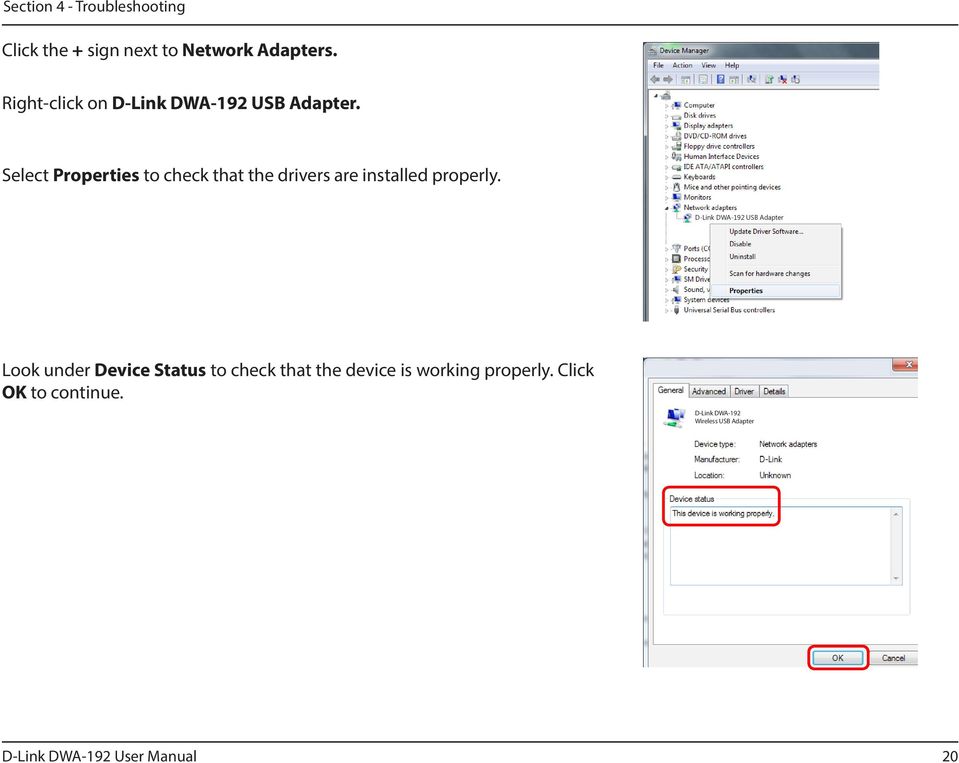
20 Section 4 - Troubleshooting Click the + sign next to Network Adapters. Right-click on D-Link DWA-192 USB Adapter. Select Properties to check that the drivers are installed properly. D-Link DWA-192 USB Adapter Look under Device Status to check that the device is working properly. Click OK to continue. D-Link DWA-192 Wireless USB Adapter 20
21 Section 4 - Troubleshooting 2. The computer does not recognize the DWA-192 AC1900 Wi-Fi USB 3.0 Adapter. Make sure that the DWA-192 AC1900 Wi-Fi USB 3.0 Adapter is properly seated in the computer s USB port. If Windows does not detect the hardware upon insertion of the adapter, make sure to completely remove drivers that were previously loaded and reinstall. 3. The computer with the DWA-192 installed is unable to connect to the wireless network and/or the Internet. Check that the LED indicators for the broadband modem are indicating normal activity. If not, there may be a problem with the broadband connection. Check that the LED indicators on the wireless router are functioning properly. If not, check that the AC power and Ethernet cables are firmly connected. Check that the IP address, subnet mask, gateway, and DNS settings are correctly entered for the network 21
22 Appendix A - Wireless Basics Wireless Basics D-Link wireless products are based on industry standards to provide easy-to-use and compatible high-speed wireless connectivity within your home, business or public access wireless networks. Strictly adhering to the IEEE standard, the D-Link wireless family of products will allow you to securely access the data you want, when and where you want it. You will be able to enjoy the freedom that wireless networking delivers. A wireless local area network (WLAN) is a cellular computer network that transmits and receives data with radio signals instead of wires. Wireless LANs are used increasingly in both home and office environments, and public areas such as airports, coffee shops and universities. Innovative ways to utilize WLAN technology are helping people to work and communicate more efficiently. Increased mobility and the absence of cabling and other fixed infrastructure have proven to be beneficial for many users. Wireless users can use the same applications they use on a wired network. Wireless adapter cards used on laptop and desktop systems support the same protocols as Ethernet adapter cards. Under many circumstances, it may be desirable for mobile network devices to link to a conventional Ethernet LAN in order to use servers, printers or an Internet connection supplied through the wired LAN. A wireless router is a device used to provide this link. 22
23 Appendix A - Wireless Basics What is Wireless? Wireless or Wi-Fi technology is another way of connecting your computer to the network without using wires. Wi-Fi uses radio frequency to connect wirelessly, so you have the freedom to connect computers anywhere in your home or office network. Why D-Link Wireless? D-Link is the worldwide leader and award winning designer, developer, and manufacturer of networking products. D-Link delivers the performance you need at a price you can afford. D-Link has all the products you need to build your network. How does wireless work? Wireless works similar to how cordless phone work, through radio signals to transmit data from one point A to point B. But wireless technology has restrictions as to how you can access the network. You must be within the wireless network range area to be able to connect your computer. There are two different types of wireless networks Wireless Local Area Network (WLAN), and Wireless Personal Area Network (WPAN). Wireless Local Area Network (WLAN) In a wireless local area network, a device called an Access Point (AP) connects computers to the network. The access point has a small antenna attached to it, which allows it to transmit data back and forth over radio signals. With an indoor access point as seen in the picture, the signal can travel up to 300 feet. With an outdoor access point the signal can reach out up to 30 miles to serve places like manufacturing plants, industrial locations, college and high school campuses, airports, golf courses, and many other outdoor venues. 23
24 Appendix A - Wireless Basics Wireless Personal Area Network (WPAN) Bluetooth is the industry standard wireless technology used for WPAN. Bluetooth devices in WPAN operate in a range up to 30 feet away. Compared to WLAN, the speed and wireless operation range are both less than WLAN, but in return it doesn t use nearly as much power which makes it ideal for personal devices, such as mobile phones, PDAs, headphones, laptops, speakers, and other devices that operate on batteries. Who uses wireless? Wireless technology as become so popular in recent years that almost everyone is using it, whether it s for home, office, business, D-Link has a wireless solution for it. Home Gives everyone at home broadband access Surf the web, check , instant message, and etc. Gets rid of the cables around the house Simple and easy to use Small Office and Home Office Stay on top of everything at home as you would at office Remotely access your office network from home Share Internet connection and printer with multiple computers No need to dedicate office space 24
25 Appendix A - Wireless Basics Where is wireless used? Wireless technology is expanding everywhere not just at home or office. People like the freedom of mobility and it s becoming so popular that more and more public facilities now provide wireless access to attract people. The wireless connection in public places is usually called hotspots. Using a D-Link USB adapter with your laptop, you can access the hotspot to connect to Internet from remote locations like: airports, hotels, coffee shops, libraries, restaurants, and convention centers. Wireless network is easy to setup, but if you re installing it for the first time it could be quite a task not knowing where to start. That s why we ve put together a few setup steps and tips to help you through the process of setting up a wireless network. Tips Here are a few things to keep in mind, when you install a wireless network. Centralize your router or access point Make sure you place the router/access point in a centralized location within your network for the best performance. Try to place the router/access point as high as possible in the room, so the signal gets dispersed throughout your home. If you have a two-story home, you may need a repeater to boost the signal to extend the range. Eliminate Interference Place home appliances such as cordless telephones, Nanowaves, and televisions as far away as possible from the router/access point. This would significantly reduce any interference that the appliances might cause since they operate on same frequency. Security Don t let your next-door neighbors or intruders connect to your wireless network. Secure your wireless network by turning on the WPA or WEP security feature on the router. Refer to product manual for detail information on how to set it up. 25
26 Appendix A - Wireless Basics Wireless Modes There are basically two modes of networking: Infrastructure All wireless clients will connect to an access point or wireless router. Ad hoc Directly connecting to another computer, for peer-to-peer communication, using wireless network adapters on each computer. An Infrastructure network contains an access point or wireless router. All the wireless devices, or clients, will connect to the wireless router or access point. An ad hoc network contains only clients, such as laptops with wireless USB adapters. All the adapters must be in ad hoc mode to communicate. 26

27 Appendix B - Networking Basics Check your IP address Networking Basics After you install your new D-Link wireless adapter and have established a wireless connection, by default, the TCP/IP settings should be set to obtain an IP address from a DHCP server (i.e., router) automatically. To verify your IP address, please follow the steps below. Windows 8 Users Press the Windows key and R together. Type cmd in the box and click OK. At the prompt, type ipconfig and press Enter. This will display the IP address, subnet mask, and default gateway of your adapter. Windows 7 Users Click Start, type cmd in the search box and then click OK. At the prompt, type ipconfig and press Enter. This will display the IP address, subnet mask, and default gateway of your adapter. 27
28 Appendix B - Networking Basics Statically Assign an IP address If you are not using a DHCP capable gateway/router, or you need to assign a static IP address, please follow the steps below: Windows 8 Users Press the Windows key and then type IP. Click Settings on the right side and then click View Network Connections. Right-click on the adapter which represents your D-Link wireless network adapter. Highlight Internet Protocol Version 4 (TCP /IPv4) and click Properties. Click Use the following IP address and enter an IP address that is on the same subnet as your network or LAN IP address on your router or network. Example: If the router s LAN IP address is , make your IP address X where X is a number between 2 and 99. Make sure that the number you choose is not in use on the network. Set Default Gateway the same as the LAN IP address of your router or gateway. Set Primary DNS the same as the LAN IP address of your router or gateway. The Secondary DNS is optional (you may enter a DNS server from your ISP). Click OK to save your settings. 28

29 Appendix B - Networking Basics Windows 7 Users Click on Start > Control Panel (make sure you are in Classic View). Double-click on the Network and Sharing Center icon. Click on Change adapter settings. Right-click on the Local Area Connection which represents your D-Link wireless network adapter which will be connected to your network. Highlight Internet Protocol Version 4 (TCP /IPv4) and click Properties. Click Use the following IP address and enter an IP address that is on the same subnet as your network or LAN IP address on your router or network. Example: If the router s LAN IP address is , make your IP address X where X is a number between 2 and 99. Make sure that the number you choose is not in use on the network. Set Default Gateway the same as the LAN IP address of your router or gateway. Set Primary DNS the same as the LAN IP address of your router or gateway. The Secondary DNS is optional (you may enter a DNS server from your ISP). Click OK to save your settings. 29
30 Appendix C - Technical Specifications Technical Specifications Standards IEEE ac IEEE n IEEE g IEEE b IEEE a Bus Type USB 3.0 (2.0, 1.1 compatible) Security Wi-Fi Protected Access (WPA & WPA2 ) Wi-Fi Protected Setup PBC Frequency Range 2.4 GHz to GHz GHz to GHz Operating Voltage 5V DC +/- 10% Operating Temperature 0 C to 40 C (32 F to 104 F) Operating Humidity 10% to 90% maximum (non-condensing) Dimensions x x 77 mm (3.15 x 3.15 x 3.03 inches) Weight 167 grams (5.89 ounces) Certifications FCC Class B IC CE RoHS Wi-Fi RCM Wi-Fi Protected Setup Current Consumption 880 ma 30
31 Appendix D - Warranty Warranty Subject to the terms and conditions set forth herein, D-Link Systems, Inc. ( D-Link ) provides this Limited Warranty: Only to the person or entity that originally purchased the product from D-Link or its authorized reseller or distributor, and Only for products purchased and delivered within the fifty states of the United States, the District of Columbia, U.S. Possessions or Protectorates, U.S. Military Installations, or addresses with an APO or FPO. Limited Warranty: D-Link warrants that the hardware portion of the D-Link product described below ( Hardware ) will be free from material defects in workmanship and materials under normal use from the date of original retail purchase of the product, for the period set forth below ( Warranty Period ), except as otherwise stated herein. Hardware: One (1) year The customer s sole and exclusive remedy and the entire liability of D-Link and its suppliers under this Limited Warranty will be, at D-Link s option, to repair or replace the defective Hardware during the Warranty Period at no charge to the original owner or to refund the actual purchase price paid. Any repair or replacement will be rendered by D-Link at an Authorized D-Link Service Office. The replacement hardware need not be new or have an identical make, model or part. D-Link may, at its option, replace the defective Hardware or any part thereof with any reconditioned product that D-Link reasonably determines is substantially equivalent (or superior) in all material respects to the defective Hardware. Repaired or replacement hardware will be warranted for the remainder of the original Warranty Period or ninety (90) days, whichever is longer, and is subject to the same limitations and exclusions. If a material defect is incapable of correction, or if D-Link determines that it is not practical to repair or replace the defective Hardware, the actual price paid by the original purchaser for the defective Hardware will be refunded by D-Link upon return to D-Link of the defective Hardware. All Hardware or part thereof that is replaced by D-Link, or for which the purchase price is refunded, shall become the property of D-Link upon replacement or refund. 31
32 Appendix D - Warranty Limited Software Warranty: D-Link warrants that the software portion of the product ( Software ) will substantially conform to D-Link s then current functional specifications for the Software, as set forth in the applicable documentation, from the date of original retail purchase of the Software for a period of ninety (90) days ( Software Warranty Period ), provided that the Software is properly installed on approved hardware and operated as contemplated in its documentation. D-Link further warrants that, during the Software Warranty Period, the magnetic media on which D-Link delivers the Software will be free of physical defects. The customer s sole and exclusive remedy and the entire liability of D-Link and its suppliers under this Limited Warranty will be, at D-Link s option, to replace the non-conforming Software (or defective media) with software that substantially conforms to D-Link s functional specifications for the Software or to refund the portion of the actual purchase price paid that is attributable to the Software. Except as otherwise agreed by D-Link in writing, the replacement Software is provided only to the original licensee, and is subject to the terms and conditions of the license granted by D-Link for the Software. Replacement Software will be warranted for the remainder of the original Warranty Period and is subject to the same limitations and exclusions. If a material non-conformance is incapable of correction, or if D-Link determines in its sole discretion that it is not practical to replace the non-conforming Software, the price paid by the original licensee for the non-conforming Software will be refunded by D-Link; provided that the non-conforming Software (and all copies thereof) is first returned to D-Link. The license granted respecting any Software for which a refund is given automatically terminates. Non-Applicability of Warranty: The Limited Warranty provided hereunder for Hardware and Software portions of D-Link s products will not be applied to and does not cover any refurbished product and any product purchased through the inventory clearance or liquidation sale or other sales in which D-Link, the sellers, or the liquidators expressly disclaim their warranty obligation pertaining to the product and in that case, the product is being sold As-Is without any warranty whatsoever including, without limitation, the Limited Warranty as described herein, notwithstanding anything stated herein to the contrary. Submitting A Claim: The customer shall return the product to the original purchase point based on its return policy. In case the return policy period has expired and the product is within warranty, the customer shall submit a claim to D-Link as outlined below: The customer must submit with the product as part of the claim a written description of the Hardware defect or Software nonconformance in sufficient detail to allow D-Link to confirm the same, along with proof of purchase of the product (such as a copy of the dated purchase invoice for the product) if the product is not registered. The customer must obtain a Case ID Number from D-Link Technical Support (USA , who will attempt to assist the customer in resolving any suspected defects with the product. If the product is considered defective, the customer must obtain a Return Material Authorization ( RMA ) number by completing the RMA form. Enter the assigned Case ID Number at (USA only). After an RMA number is issued, the defective product must be packaged securely in the original or other suitable shipping package to ensure that it will not be damaged in transit, and the RMA number must be prominently marked on the outside of the package. Do not include any manuals or accessories in the shipping package. D-Link will only replace the defective portion of the product and will not ship back any accessories. 32
33 Appendix D - Warranty The customer is responsible for all in-bound shipping charges to D-Link. No Cash on Delivery ( COD ) is allowed. Products sent COD will either be rejected by D-Link or become the property of D-Link. Products shall be fully insured by the customer and shipped to D-Link Systems, Inc. USA residents send to Mt. Herrmann, Fountain Valley, CA D-Link will not be held responsible for any packages that are lost in transit to D-Link. The repaired or replaced packages will be shipped to the customer via UPS Ground or any common carrier selected by D-Link. Return shipping charges shall be prepaid by D-Link if you use an address in the United States, otherwise we will ship the product to you freight collect. Expedited shipping is available upon request and provided shipping charges are prepaid by the customer. D-Link may reject or return any product that is not packaged and shipped in strict compliance with the foregoing requirements, or for which an RMA number is not visible from the outside of the package. The product owner agrees to pay D-Link s reasonable handling and return shipping charges for any product that is not packaged and shipped in accordance with the foregoing requirements, or that is determined by D-Link not to be defective or non-conforming. Canadian residents send to D-Link Networks, Inc., 2525 Meadowvale Boulevard Mississauga, Ontario, L5N 5S2 Canada. D-Link will not be held responsible for any packages that are lost in transit to D-Link. The repaired or replaced packages will be shipped to the customer via Purolator Canada or any common carrier selected by D-Link. Return shipping charges shall be prepaid by D-Link if you use an address in Canada, otherwise we will ship the product to you freight collect. Expedited shipping is available upon request and provided shipping charges are prepaid by the customer. D-Link may reject or return any product that is not packaged and shipped in strict compliance with the foregoing requirements, or for which an RMA number is not visible from the outside of the package. The product owner agrees to pay D-Link s reasonable handling and return shipping charges for any product that is not packaged and shipped in accordance with the foregoing requirements, or that is determined by D-Link not to be defective or non-conforming. RMA phone number: Hours of Operation: Monday-Friday, 9:00AM 9:00PM EST. What Is Not Covered: The Limited Warranty provided herein by D-Link does not cover: Products that, in D-Link s judgment, have been subjected to abuse, accident, alteration, modification, tampering, negligence, misuse, faulty installation, lack of reasonable care, repair or service in any way that is not contemplated in the documentation for the product, or if the model or serial number has been altered, tampered with, defaced or removed; Initial installation, installation and removal of the product for repair, and shipping costs; Operational adjustments covered in the operating manual for the product, and normal maintenance; Damage that occurs in shipment, due to act of God, failures due to power surge, and cosmetic damage; Any hardware, software, firmware or other products or services provided by anyone other than D-Link; and Products that have been purchased from inventory clearance or liquidation sales or other sales in which D-Link, the sellers, or the liquidators expressly disclaim their warranty obligation pertaining to the product. While necessary maintenance or repairs on your Product can be performed by any company, we recommend that you use only an Authorized D-Link Service Office. Improper or incorrectly performed maintenance or repair voids this Limited Warranty. 33
34 Appendix D - Warranty Disclaimer of Other Warranties: EXCEPT FOR THE LIMITED WARRANTY SPECIFIED HEREIN, THE PRODUCT IS PROVIDED AS-IS WITHOUT ANY WARRANTY OF ANY KIND WHATSOEVER INCLUDING, WITHOUT LIMITATION, ANY WARRANTY OF MERCHANTABILITY, FITNESS FOR A PARTICULAR PURPOSE AND NONINFRINGEMENT. IF ANY IMPLIED WARRANTY CANNOT BE DISCLAIMED IN ANY TERRITORY WHERE A PRODUCT IS SOLD, THE DURATION OF SUCH IMPLIED WARRANTY SHALL BE LIMITED TO THE DURATION OF THE APPLICABLE WARRANTY PERIOD SET FORTH ABOVE. EXCEPT AS EXPRESSLY COVERED UNDER THE LIMITED WARRANTY PROVIDED HEREIN, THE ENTIRE RISK AS TO THE QUALITY, SELECTION AND PERFORMANCE OF THE PRODUCT IS WITH THE PURCHASER OF THE PRODUCT. Limitation of Liability: TO THE MAXIMUM EXTENT PERMITTED BY LAW, D-LINK IS NOT LIABLE UNDER ANY CONTRACT, NEGLIGENCE, STRICT LIABILITY OR OTHER LEGAL OR EQUITABLE THEORY FOR ANY LOSS OF USE OF THE PRODUCT, INCONVENIENCE OR DAMAGES OF ANY CHARACTER, WHETHER DIRECT, SPECIAL, INCIDENTAL OR CONSEQUENTIAL (INCLUDING, BUT NOT LIMITED TO, DAMAGES FOR LOSS OF GOODWILL, LOSS OF REVENUE OR PROFIT, WORK STOPPAGE, COMPUTER FAILURE OR MALFUNCTION, FAILURE OF OTHER EQUIPMENT OR COMPUTER PROGRAMS TO WHICH D-LINK S PRODUCT IS CONNECTED WITH, LOSS OF INFORMATION OR DATA CONTAINED IN, STORED ON, OR INTEGRATED WITH ANY PRODUCT RETURNED TO D-LINK FOR WARRANTY SERVICE) RESULTING FROM THE USE OF THE PRODUCT, RELATING TO WARRANTY SERVICE, OR ARISING OUT OF ANY BREACH OF THIS LIMITED WARRANTY, EVEN IF D-LINK HAS BEEN ADVISED OF THE POSSIBILITY OF SUCH DAMAGES. THE SOLE REMEDY FOR A BREACH OF THE FOREGOING LIMITED WARRANTY IS REPAIR, REPLACEMENT OR REFUND OF THE DEFECTIVE OR NONCONFORMING PRODUCT. THE MAXIMUM LIABILITY OF D-LINK UNDER THIS WARRANTY IS LIMITED TO THE PURCHASE PRICE OF THE PRODUCT COVERED BY THE WARRANTY. THE FOREGOING EXPRESS WRITTEN WARRANTIES AND REMEDIES ARE EXCLUSIVE AND ARE IN LIEU OF ANY OTHER WARRANTIES OR REMEDIES, EXPRESS, IMPLIED OR STATUTORY. Governing Law: This Limited Warranty shall be governed by the laws of the State of California. Some states do not allow exclusion or limitation of incidental or consequential damages, or limitations on how long an implied warranty lasts, so the foregoing limitations and exclusions may not apply. This Limited Warranty provides specific legal rights and you may also have other rights which vary from state to state. Trademarks: D-Link is a registered trademark of D-Link Corporation/D-Link Systems, Inc. Other trademarks or registered trademarks are the property of their respective owners. Copyright Statement: No part of this publication or documentation accompanying this product may be reproduced in any form or by any means or used to make any derivative such as translation, transformation, or adaptation without permission from D-Link Corporation/D-Link Systems, Inc., as stipulated by the United States Copyright Act of 1976 and any amendments thereto. Contents are subject to change without prior notice. Copyright 2015 by D-Link Corporation/D-Link Systems, Inc. All rights reserved. 34
35 Appendix D - Warranty Federal Communication Commission Interference Statement: This equipment has been tested and found to comply with the limits for a Class B digital device, pursuant to Part 15 of the FCC Rules. These limits are designed to provide reasonable protection against harmful interference in a residential installation. This equipment generates, uses and can radiate radio frequency energy and, if not installed and used in accordance with the instructions, may cause harmful interference to radio communications. However, there is no guarantee that interference will not occur in a particular installation. If this equipment does cause harmful interference to radio or television reception, which can be determined by turning the equipment off and on, the user is encouraged to try to correct the interference by one of the following measures: Reorient or relocate the receiving antenna. Increase the separation between the equipment and receiver. Connect the equipment into an outlet on a circuit different from that to which the receiver is connected. Consult the dealer or an experienced radio/tv technician for help. FCC Caution: Any changes or modifications not expressly approved by the party responsible for compliance could void the user s authority to operate this equipment. For operation within 5.15 ~ 5.25GHz frequency range, it is restricted to indoor environment. IEEE b or g operation of this product in the U.S.A. is firmware-limited to channels 1 through 11. This device complies with Part 15 of the FCC Rules. Operation is subject to the following two conditions: (1) This device may not cause harmful interference, and (2) this device must accept any interference received, including interference that may cause undesired operation. IMPORTANT NOTE: FCC Radiation Exposure Statement: This equipment complies with FCC radiation exposure limits set forth for an uncontrolled environment. End users must follow the specific operating instructions for satisfying RF exposure compliance. To maintain compliance with FCC RF exposure compliance requirements, please follow operation instruction as documented in this manual. This transmitter must not be co-located or operating in conjunction with any other antenna or transmitter. SAR compliance has been established in typical laptop computer(s) with USB slot, and product could be used in typical laptop computer with USB slot. Other application like handheld PC or similar device has not been verified and may not compliance with related RF exposure rule an such use shall be prohibited. 35
36 Appendix D - Warranty Industry Canada Statement This device complies with RSS-210 of the Industry Canada Rules. Operation is subject to the following two conditions: 1) this device may not cause interference and 2) this device must accept any interference, including interference that may cause undesired operation of the device Caution: The device for the band MHz is only for indoor usage to reduce potential for harmful interference to co-channel mobile satellite systems. Because high power radars are allocated as primary users (meaning they have priority) in MHz and MHz, these radars could cause interference and/or damage to license exempt LAN devices. IMPORTANT NOTE: IC Radiation Exposure Statement: This equipment complies with IC radiation exposure limits set forth for an uncontrolled environment. End users must follow the specific operating instructions for satisfying RF exposure compliance. To maintain compliance with IC RF exposure compliance requirements, please follow operation instruction as documented in this manual. This Class B digital apparatus complies with Canadian ICES-003. Cet appareil numérique de la classe B est conforme à la norme NMB-003 du Canada. 36
37 Appendix E - Registration Registration Product registration is entirely voluntary and failure to complete or return this form will not diminish your warranty rights. Version 1.00 June 11,
Table of Contents. Product Overview...3. Wireless Security... 33. Installation...7. Troubleshooting... 44. Wireless Basics... 50. Configuration...
 Table of Contents Product Overview...3 Package Contents... 3 System Requirements... 3 Introduction... 4 Features... 5 Hardware Overview... 6 Installation...7 Getting Started... 7 Remove Existing Installations...
Wireless N 150 PCI Desktop Adapter
 Wireless N 150 PCI Desktop Adapter Table of Contents Product Overview... 3 Package Contents... 3 System Requirements... 3 Introduction... 4 Features... 5 Hardware Overview... 6 LEDs... 6 Installation...
Version 1.0 09/26/2012. User Manual. Wireless AC Dualband Adapter DWA-182
 Version 1.0 09/26/2012 User Manual Wireless AC Dualband Adapter DWA-182 Table of Contents Product Overview... 3 Package Contents... 3 System Requirements... 3 Introduction... 4 Features... 5 Hardware Overview...
Table of Contents. Product Overview...3 Package Contents...3 System Requirements... 3 Introduction...4 Features... 5 Hardware Overview...
 Table of Contents Product Overview...3 Package Contents...3 System Requirements... 3 Introduction...4 Features... 5 Hardware Overview...6 Installation...7 Getting Started...7 Remove Existing Installations...
Table of Contents. Product Overview...3 Package Contents...3 System Requirements...3 Introduction...4 Features...5 Hardware Overview...
 Table of Contents Table of Contents Product Overview...3 Package Contents...3 System Requirements...3 Introduction...4 Features...5 Hardware Overview...6 Installation...7 Getting Started...7 Remove Existing
Table of Contents. Product Overview...3 Package Contents...3 System Requirements...3 Introduction...4 Features...5 Hardware Overview...6 LEDs...
 Table of Contents Product Overview...3 Package Contents...3 System Requirements...3 Introduction...4 Features...5 Hardware Overview...6 LEDs... 6 Installation...7 Getting Started...7 Remove Existing Installations...7
Table of Contents. What is WEP?...33 What is WPA?...34 Configure WEP...35. Using the D-Link Wireless Connection Manager.. 50
 Table of Contents Product Overview...3 Package Contents...3 System Requirements...3 Introduction...4 Features...5 Hardware Overview...6 LEDs...6 Installation...7 Getting Started...7 Remove Existing Installations...
PCMCIA Wireless LAN Card User s Manual
 PCMCIA Wireless LAN Card User s Manual Rev 1.0 Regulatory compliance FCC Warning This equipment has been tested and found to comply with the limits for a Class B digital device, pursuant to part 15 of
Congratulations on your HomePortal purchase. To install your HomePortal and configure your home network, follow these steps.
 Notice to Users 2003 2Wire, Inc. All rights reserved. This manual in whole or in part, may not be reproduced, translated, or reduced to any machine-readable form without prior written approval. 2WIRE PROVIDES
Wireless 802.11g CF Card User Manual
 Wireless 802.11g CF Card User Manual Version 1.0 Copyright statement No part of this publication may be reproduced, stored in a retrieval system, or transmitted in any form or by any means, whether electronic,
WUA-0605 300Mbps Wireless USB Network Adapter
 WUA-0605 300Mbps Wireless USB Network Adapter User Manual V1.0 Certification FCC CE FCC Statement This equipment has been tested and found to comply with the limits for a Class B digital device, pursuant
IEEE 802.11b WLAN PC Card
 IEEE 802.11b WLAN PC Card User s Guide Version: 1.3 August 2001 Please install the Utility/Driver first before inserting the PCMCIA Card. FCC Class B Radio Frequency Interference Statement The manufacturer
LabelWriter. Print Server. User Guide
 LabelWriter Print Server User Guide Copyright 2010 Sanford, L.P. All rights reserved. 08/10 No part of this document or the software may be reproduced or transmitted in any form or by any means or translated
LevelOne User Manual WPC-0600 N_One Wireless CardBus Adapter
 LevelOne User Manual WPC-0600 N_One Wireless CardBus Adapter V2.0.0-0712 Safety FCC WARNING This equipment has been tested and found to comply with the limits for a Class B digital device, pursuant to
Creatix 802.11g Adapter CTX405 V.1/V.2 User Manual
 Creatix 802.11g Adapter CTX405 V.1/V.2 User Manual 1 Safety instructions for Creatix 802.11g Adapter This equipment has been designed and tested in accordance with the requirements of Standard EN60950.
HP-1000E v2. User s Manual. Powerline Ethernet Adapter. HP1000E v2 User s Manual
 HP-1000E v2 Powerline Ethernet Adapter User s Manual HP1000E v2 User s Manual Table of Contents Chapter 1: Introduction...1 Chapter 2: Planning your Powerline Network...1 Network Topology...1 Chapter 3:
Regulatory Compliance. IC Certification. FCC Certification. Declaration of Conformity
 VP6495 Regulatory Compliance This device complies with Part 15 of the FCC Rules. Operation is subject to the following two conditions: (1) This device may not cause harmful interference, and (2) This device
INSTALL GUIDE Making Your Mobile Life Easier.
 Targus USB Bluetooth Adapter Making Your Mobile Life Easier. Visit our Web site at: www.targus.com Features and specifications are subject to change without notice 2005 Targus Group International, Inc.
Wireless N 300 Mini USB Adapter. Model # AWLL6086 User s Manual. Rev. 1.0
 Wireless N 300 Mini USB Adapter Model # AWLL6086 User s Manual Rev. 1.0 Table of Contents 1. Introduction...2 1.1 Package Contents...2 1.2 Features...2 2. Install the Wireless Adapter...3 3. Install the
Installation Guide 1-port USB 2.0 Print Server 1 GPSU21
 Installation Guide 1-port USB 2.0 Print Server 1 GPSU21 2 Welcome Thank you for purchasing this 1-port USB 2.0 Print Server that allows any networked computer to share a USB printer. It complies with USB
User Manual. PePWave Surf / Surf AP Indoor Series: Surf 200, E200, AP 200, AP 400. PePWave Mesh Connector Indoor Series: MC 200, E200, 400
 User Manual PePWave Surf / Surf AP Indoor Series: Surf 200, E200, AP 200, AP 400 PePWave Mesh Connector Indoor Series: MC 200, E200, 400 PePWave Surf AP Series: Surf AP 200-X, E200-X, 400-X PePWave Surf
Networking. General networking. Networking overview. Common home network configurations. Wired network example. Wireless network examples
 Networking General networking Networking overview A network is a collection of devices such as computers, printers, Ethernet hubs, wireless access points, and routers connected together for communication
USB 2.0 to 10/100Mbps Ethernet Adapter UE-9521. User Manual
 USB 2.0 to 10/100Mbps Ethernet Adapter UE-9521 User Manual 1 Copyright Copyright 2004 by PLANET Technology Corp. All rights reserved. No part of this publication may be reproduced, transmitted, transcribed,
Golden N Wireless Mini USB Adapter. Model # AWLL6075 User s Manual. Rev. 1.2
 Golden N Wireless Mini USB Adapter Model # AWLL6075 User s Manual Rev. 1.2 Table of Contents 1. Introduction...2 1.1 Package Contents...2 1.2 Features...2 2. Install the Wireless Adapter...3 3. Connect
Wireless-N Wi-Fi Repeater/ Extender Quick Installation Guide
 Wireless-N Wi-Fi Repeater/ Extender Quick Installation Guide Introduction The Wireless-N Wi-Fi Repeater/Extender can extend and increase signal strength for 802.11n/g/b wireless networks. Features and
N600 WiFi USB Adapter
 Model WNDA3100v3 User Manual December 2014 202-11470-01 350 East Plumeria Drive San Jose, CA 95134 USA Support Thank you for selecting NETGEAR products. After installing your device, locate the serial
ATA User Manual. iinet ATA Telephone Adapter. Setting up for ADSL and VoIP. For model F1PG200ENau
 ATA User Manual Please insert your installation CD now and then follow the on screen instructions iinet ATA Telephone Adapter Setting up for ADSL and VoIP. For model F1PG200ENau F1PG200ENau Table of Contents
ARCHOS (www.archos.com/support).
 1 ! www.archos.com/register, ARCHOS.. ARCHOS, (www.archos.com/register).. ARCHOS (www.archos.com/support)., Windows, Windows Help Start ( ), Help and Support.. ARCHOS. 2 ,.! /, : ARCHOS 9,,,,,. -.,. ARCHOS
TL-PS310U Single USB 2.0 Port MFP and Storage Server
 TL-PS310U Single USB 2.0 Port MFP and Storage Server Rev: 2.0.0 1910010313 Contents Chapter 1 Introduction... 1 1.1 Product Overview...1 1.2 Network Management...1 1.3 Components and Features...1 1.4 Hardware
Version 1.01 28/08/2014. User Manual. DAP-1665 Wireless AC1200 Dual Band Access Point DAP-1665
 Version 1.01 28/08/2014 User Manual DAP-1665 Wireless AC1200 Dual Band Access Point DAP-1665 Preface D-Link reserves the right to revise this publication and to make changes in the content hereof without
safe, smart, protected
 safe, smart, protected en Safety, Regulatory, &Legal Charging Dock Operation Charging Dock Operation The charging dock is designed for tabletop use. To be compliant with RF exposure guidelines and to
Mini Speaker. Printed in China Part No. 480-919-P Version D. CWA BT300 Product Information Guide
 Mini Speaker Printed in China Part No. 480-919-P Version D CWA BT300 Product Information Guide IMPORTANT To get the full capability of your new Cobra Airwave Mini, please read this manual. It's more than
1.3 MEGAPIXEL WIRELESS NETWORK CAMERA SERIES
 1.3 MEGAPIXEL WIRELESS NETWORK CAMERA SERIES ADVANCED NETWORK SETUP Please read instructions thoroughly before operation and retain it for future reference. n812_813_network_v1.3 IMPORTANT SAFEGUARD All
Wireless N 150 USB Adapter with 10dBi High Gain Antenna. Model # AWLL5055 User s Manual. Rev. 1.0
 Wireless N 150 USB Adapter with 10dBi High Gain Antenna Model # AWLL5055 User s Manual Rev. 1.0 Table of Contents 1. Introduction...2 1.1 Package Contents...2 1.2 Features...2 2. Install Wireless USB Adapter...3
D-Link DSL-302G. ADSL Ethernet/USB Modem Manual. Building Networks for People. Version 100 Rev. 102202
 D-Link DSL-302G ADSL Ethernet/USB Modem Manual Version 100 Rev. 102202 Building Networks for People i TABLE OF CONTENTS ABOUT THIS USER S GUIDE... 1 INTRODUCTION... 2 MODEM DESCRIPTION AND OPERATION...
ZigBee Extender 3. Features. Supported Models and Requirements. Important Safety Instructions. What Is Included: Specifications
 ZigBee Extender 3 Features The Card Access ZigBee Extender 3 operates as a ZigBee (IEEE 802.15.4) router and mesh extender. The Extender is designed to improve ZigBee signal latency that can occur when
Wireless Keyboard and Optical Mouse Bundle
 Wireless Keyboard and Optical Mouse Bundle Enjoy the freedom of wireless optical precision User Manual F8E832-BNDL TABLE OF CONTENTS Introduction....................................1 Compatible Equipment............................2
2 Setting Up the Hardware for a Wired Ethernet Network... 13. 3 Setting Up the Software for an Ethernet Network... 21
 Contents 1 Networking Basics............................................... 1 Selecting a network connection........................................ 2 Wired Ethernet network...........................................
Contents. Section A Networking Basics... 1. 1 Learning the Basics... 3. Section B Wired Ethernet Networking... 17
 Contents Section A Networking Basics...................................... 1 1 Learning the Basics............................................. 3 Selecting a network connection........................................
NetComm Wireless NP920 Dual Band WiFi USB Adapter. User Guide
 NetComm Wireless NP920 Dual Band WiFi USB Adapter User Guide Contents Preface... 3 Important Safety Instructions... 3 Introduction... 4 Overview... 4 Features... 4 Package Contents... 5 Minimum System
WLAN600 Wireless IP Phone Administrator s Guide
 WLAN600 Wireless IP Phone Administrator s Guide Trademark Acknowledgement All brand names are trademarks or registered trademarks of their respective companies. Disclaimer This document is supplied by
300Mbps Wireless-N Access Point/Repeater
 300Mbps Wireless-N Access Point/Repeater WFREPEAT300N *actual product may vary from photos DE: Bedienungsanleitung - de.startech.com FR: Guide de l'utilisateur - fr.startech.com ES: Guía del usuario -
Wireless (Select Models Only) User Guide
 Wireless (Select Models Only) User Guide Copyright 2007, 2008 Hewlett-Packard Development Company, L.P. Windows is a U.S. registered trademark of Microsoft Corporation. Bluetooth is a trademark owned by
2GB MP3 Player USER GUIDE
 DO NOT FORMAT UNIT under FAT. 2GB MP3 Player USER GUIDE Jazwares, Inc. 2010 CONTENTS Please read the instructions along with the MP3 Player carefully before you use it, so that you can operate it conveniently.
WLAN660 Wireless IP Phone Administrator s Guide
 FEDERAL COMMUNICATIONS COMMISSION This device complies with Part 15 of the FCC Rules. Operation is subject to the following two conditions: (1) this device may not cause harmful interference, and (2) this
2Wire Gateway Installation Guide. For 1000 Series
 2Wire Gateway Installation Guide For 1000 Series Notice to Users 2005 2Wire, Inc. All rights reserved. This manual in whole or in part, may not be reproduced, translated, or reduced to any machinereadable
HLWLAN 802.11b/g/n Transceiver Kit
 092524 RevB HLWLAN 802.11b/g/n Transceiver Kit Wireless Communications for OmniLogic Owner s Manual Contents Introduction...1 Installation...2 Configuration...6 Operation...8 Troubleshooting...9 HLWLAN
Laser Wireless Rechargeable Mouse. User s Manual
 Laser Wireless Rechargeable Mouse Model #: LM8000WR User s Manual Rev. 060801 User s Record: To provide quality customer service and technical support, it is suggested that you keep the following information
User manual. Your best protection against theft and loss. (Android) Made for
 User manual Made for Your best protection against theft and loss (Android) Warranty SCOPE OF THE WARRANTY Subject to legal provisions, the responsibility of SECU4 under this warranty is limited to the
A Division of Cisco Systems, Inc. GHz 2.4 802.11g. Wireless-G. USB Network Adapter with RangeBooster. User Guide WIRELESS WUSB54GR. Model No.
 A Division of Cisco Systems, Inc. GHz 2.4 802.11g WIRELESS Wireless-G USB Network Adapter with RangeBooster User Guide Model No. WUSB54GR Copyright and Trademarks Specifications are subject to change without
Quick Start Guide. Version: 1.01 Date: 19/03/2010
 Vigor 2710e/ne ADSL2/2+ Router Quick Start Guide Version: 1.01 Date: 19/03/2010 Warranty We warrant to the original end user (purchaser) that the router will be free from any defects in workmanship or
Ethernet Radio Configuration Guide
 Ethernet Radio Configuration Guide for Gateway, Endpoint, and Repeater Radio Units April 20, 2015 Customer Service 1-866-294-5847 Baseline Inc. www.baselinesystems.com Phone 208-323-1634 FAX 208-323-1834
User s Manual. Bluetooth Calculator Keypad. Page
 User s Manual Bluetooth Calculator Keypad Page Regulatory Compliance This device complies with Part 15 of the FCC Rules. Operation is subject to the following two conditions: (1) This device may not cause
How To Use An Imclean Dad (Dvd) With A Car Or Car (Dcd) On A Computer Or Car
 IMclean Manual Note: Before you start, Please Fill out the enclosed disclosure form send to Drew Technologies LIMITED WARRANTY Drew Technologies, Inc. guarantees that every IMClean device as well as included
HANDS-FREE BLUETOOTH CONTROLLER for SMART READY TABLETS AND COMPUTERS
 HANDS-FREE BLUETOOTH CONTROLLER for SMART READY TABLETS AND COMPUTERS Operating Manual 2 CONTENTS Before Turning on Your PED... 4 Power... 5 ON... 5 OFF... 5 Modes... 6 Changing the MODE... 7 Connecting
MoCA Adapter MC1001 v2 Installation Guide
 Technical Support Thank you for selecting NETGEAR products. After installing your device, locate the serial number on the label of your product and use it to register your product at www.netgear.com/register.
C24-CAMANL Video Server/Encoder
 C24-CAMANL Video Server/Encoder User s Guide Table of Contents CHAPTER 1 INTRODUCTION... 1 Overview... 1 Physical Details - Video Server... 2 Package Contents... 3 CHAPTER 2 BASIC SETUP... 4 System Requirements...
iosafe Solo External Hard Drive
 Users Manual & Limited Warranty iosafe Solo External Hard Drive USB 2.0 Fireproof Waterproof FloSafe Cooling Technology Data Recovery Service 910-10841-00 REV 7.1 2 COPYRIGHTS Copyright iosafe, Inc. 2009.
Gateway Port Replicator User Guide
 Gateway Port Replicator User Guide Using the Port Replicator Identifying features Connecting and disconnecting the port replicator 1 Using the Port Replicator Top Power button Component Icon Description
Verbatim PowerBay Single USB and esata External Hard Drive Version 1.00
 Verbatim PowerBay Single USB and esata External Hard Drive Version 1.00 User Manual Table of Contents Introduction... 2 Controls, Connectors and Indicators... 2 About the Hard Drive... 2 Locating the Drive
Installation Guide Wireless 4-Port USB Sharing Station. GUWIP204 Part No. M1172-a
 Installation Guide Wireless 4-Port USB Sharing Station 1 GUWIP204 Part No. M1172-a 2011 IOGEAR. All Rights Reserved. PKG-M1172-a IOGEAR, the IOGEAR logo, MiniView, VSE are trademarks or registered trademarks
Linksys WAP300N. User Guide
 User Guide Contents Contents Overview Package contents 1 Back view 1 Bottom view 2 How to expand your home network 3 What is a network? 3 How to expand your home network 3 Where to find more help 3 Operating
D-Link AirPlus DWL-900AP+
 D-Link AirPlus DWL-900AP+ 2.4 GHz Wireless Access Point Manual Rev. 051002 Building Networks for People Contents 1. Package Contents... 3 2. Introduction... 4 3. Wireless Basics... 7 4. Getting Started...
Network Attached Storage Manual
 DNS-312H Network Attached Storage Manual Building Networks for People Ver.1.00 (12/02/2004) Contents Introduction...5 Specifications... 5 Package Contents... 8 LEDs... 9 Physical Connections... 10 Getting
Wireless Access Point AT-WA7400. Installation Guide. PN 613-000487 RevA
 Wireless Access Point AT-WA7400 Installation Guide PN 613-000487 RevA Copyright 2006 Allied Telesyn, Inc. All rights reserved. No part of this publication may be reproduced without prior written permission
Usage, Installation, Warranty and Service Information
 T13C Table Updater for Seating Management U S E R M A N UA L Usage, Installation, Warranty and Service Information Long Range Systems, LLC 4550 Excel Parkway, Suite 200 Addison, TX 75001 800.437.4996 www.lrsus.com
General Wireless Networking :: Connecting to Wireless Network
 General Wireless Networking :: Connecting to Wireless Network 1) If you are using a laptop or notebook with a built in wireless connection, make sure the Wireless Switch and/or Wireless Button on your
Dual-Cool Notebook Cooler Pad. User s Manual
 Dual-Cool Notebook Cooler Pad Model #: CF4500U User s Manual Rev. 060801 User s Record: To provide quality customer service and technical support, it is suggested that you keep the following information
Network Installation Guide
 Network Installation Guide Before You Begin Make sure you installed ink cartridges and loaded paper as described on the Start Here sheet. Then follow the instructions in this guide to set up the printer
Network Installation Guide. Artisan 810 Series
 Network Installation Guide Artisan 810 Series Before You Begin Make sure you installed ink cartridges and loaded paper as described on the Start Here sheet. Then follow the instructions in this guide to
GWA501 package contains: 1 Wireless-G Broadband Gateway 1 Power Adapter 1 Ethernet Cable 1 Manual CD 1 Quick Start Guide 1 Warranty/Registration Card
 Wireless-G Broadband Gateway GWA501 Quick Start Guide Read this guide thoroughly and follow the installation and operation procedures carefully to prevent any damage to the unit and/or any of the devices
Wireless (Select Models Only) User Guide
 Wireless (Select Models Only) User Guide Copyright 2008 Hewlett-Packard Development Company, L.P. Windows is a U.S. registered trademark of Microsoft Corporation. Bluetooth is a trademark owned by its
Targus Wireless RF Mouse USER S GUIDE. Making Your Mobile Life Easier.
 Targus Wireless RF Mouse Visit our Web site at: www.targus.com Features and specifications are subject to change without notice. 2004 Targus Group International and Targus, Inc.. 400-0111-001B USER S GUIDE
A6210 WiFi USB Adapter 802.11ac USB 3.0 Dual Band User Manual
 802.11ac USB 3.0 Dual Band User Manual August 2014 202-11373-01 350 East Plumeria Drive San Jose, CA 95134 USA Support Thank you for selecting NETGEAR products. After installing your device, locate the
USER GUIDE AC2400. DUAL BAND GIGABIT Wi Fi ROUTER. Model# E8350
 USER GUIDE AC2400 DUAL BAND GIGABIT Wi Fi ROUTER Model# E8350 Table of Contents Product overview E8350..................................... 1 Setting Up Your E-Series Router Where to find more help.........................
Cloud Traveler. Manual. Portable Wireless Router/Hotspot APP
 Manual FREE APP Tablet PC Portable Wireless Router/Hotspot 1. Extends the coverage of wireless networks 2. Wireless access to storage devices 3. High Power charger for Smartphones/Tablets 4. Can be controlled
AVerMedia AVerKey imicro User s Manual
 FCC NOTICE This device has been tested and found to comply with the limits for a Class B digital device, pursuant to Part 15 of the FCC Rules. These limits are designed to provide reasonable protection
EPSON USB/Parallel Adapter User s Guide
 EPSON USB/Parallel Adapter User s Guide EPSON Stylus COLOR 440 EPSON Stylus COLOR 800 EPSON Stylus COLOR 600 EPSON Stylus COLOR 850 EPSON Stylus COLOR 640 EPSON Stylus COLOR 1520 EPSON Stylus Photo EX
Alarm Clock USER GUIDE
 Alarm Clock USER GUIDE Jazwares, Inc. 2010 1 CONTENTS Please read the instructions along with the alarm clock carefully before you use it, so that you can operate it conveniently. WELCOME, Safety Tips
Network Installation Guide. WorkForce 610 Series Artisan 710 Series
 Network Installation Guide WorkForce 610 Series Artisan 710 Series Contents Before You Begin.......................................... 3 Choose Your Connection Type................................ 4 Wireless.............................................
Indoor/Outdoor Color Camera with Built-in 2.4 GHz Wireless Transmitter, plus X10 controlled power supply, and Video Receiver.
 Indoor/Outdoor Color Camera with Built-in 2.4 GHz Wireless Transmitter, plus X10 controlled power supply, and Video Receiver. OWNER'S MANUAL VR36A XC18A XM13A MODEL VK69A (INCLUDES XC18A CAMERA, XM13A
Alarm Clock USER GUIDE
 Alarm Clock USER GUIDE Jazwares, Inc. 2012 CONTENTS Please read the instructions along with the Alarm Clock carefully before you use it, so that you can operate it conveniently. WELCOME & Warnings Page
Disclaimers. Important Notice
 Disclaimers Disclaimers Important Notice Copyright SolarEdge Inc. All rights reserved. No part of this document may be reproduced, stored in a retrieval system, or transmitted, in any form or by any means,
User Guide. Guide d utilisation Guida dell'utente Benutzerhandbuch Guía del usuario Guia do Usuário WNA-100. Wireless Network Adapter
 WNA-100 Wireless Network Adapter User Guide Guide d utilisation Guida dell'utente Benutzerhandbuch Guía del usuario Guia do Usuário www.xerox.com/office/wna Copyright 2007 Xerox Corporation. All Rights
PIR-1 Owner s Manual
 PIR-1 Owner s Manual PIR-1 Owner s Manual 2010 Universal Remote Control, Inc. The information in this manual is copyright protected. No part of this manual may be copied or reproduced in any form without
Wireless Router Setup Manual
 Wireless Router Setup Manual NETGEAR, Inc. 4500 Great America Parkway Santa Clara, CA 95054 USA 208-10082-02 2006-04 2006 by NETGEAR, Inc. All rights reserved. Trademarks NETGEAR is a trademark of Netgear,
DELORME. Getting Started with. Earthmate GPS BT-20. Bluetooth
 DELORME Getting Started with GPS BT-20 Bluetooth Earthmate Table of Contents Overview... 2 Hardware Features... 2 Using the Earthmate GPS BT-20... 3 Charging the Battery... 4 Troubleshooting... 4 Hardware
Network Installation Guide. WorkForce 600 Series Artisan 700 Series Artisan 800 Series
 Network Installation Guide WorkForce 600 Series Artisan 700 Series Artisan 800 Series Before You Begin Make sure you installed ink cartridges and loaded paper as described on the Start Here poster. Then
Wireless Optical Travel Mouse
 Wireless Optical Travel Mouse User s Manual PLEASE READ THESE INSTRUCTIONS CAREFULLY BEFORE INSTALLING THIS DEVICE. Table of Contents FCC Statement Page 3 Introduction.. Page 6 Package Contents.. Page
HDMI or Component Standalone Capture Device 1080p
 HDMI or Component Standalone Capture Device 1080p USB2HDCAPS *actual product may vary from photos DE: Bedienungsanleitung - de.startech.com FR: Guide de l'utilisateur - fr.startech.com ES: Guía del usuario
TERMS AND CONDITIONS 1 CONTRACT INFORMATION
 SUMMARY These terms and conditions govern your purchase of SocketCare for the Covered Products and for the Contract Term as defined herein. SocketCare is a service program that provides for the repair