
WebAccelerator Administration Guide
|
|
|
- Hilary Reed
- 10 years ago
- Views:
Transcription
1 WebAccelerator version 5.1 MAN

2

3 Service and Support Information Product Version This manual applies to product version 5.1 of the WebAccelerator. Legal Notices Copyright Copyright 2005, F5 Networks, Inc. All rights reserved. F5 Networks, Inc. (F5) believes the information it furnishes to be accurate and reliable. However, F5 assumes no responsibility for the use of this information, nor any infringement of patents or other rights of third parties which may result from its use. No license is granted by implication or otherwise under any patent, copyright, or other intellectual property right of F5 except as specifically described by applicable icontrol user licenses. F5 reserves the right to change specifications at any time without notice. Trademarks F5, F5 Networks, the F5 logo, BIG-IP, 3-DNS, icontrol, GLOBAL-SITE, SEE- IT, EDGE-FX, FireGuard, Internet Control Architecture, IP Application Switch, irules, OneConnect, Packet Velocity, SYN Check, Control Your World, ZoneRunner, uroam, FirePass, TrafficShield, WANJet and WebAccelerator are registered trademarks or trademarks of F5 Networks, Inc. in the U.S. and certain other countries. All other trademarks mentioned in this document are the property of their respective owners. F5 Networks' trademarks may not be used in connection with any product or service except as permitted in writing by F5.

4 Patents This product protected by U.S. Patents 6,327,242; 6,505,230; 6,640,240; 6,772,203. Other patents pending.

5 Table of Contents Preface v Related Information vi Conventions Used in this Book vi Chapter 1 Introduction WebAccelerator Components The Management Console Accelerators WebAccelerator Processes Watchdog Daemon Communication Managers Installation Architecture Servicing HTTP Traffic Administration Tool Configuration Log Management Compile and Assembly Queues Chapter 2 Directories and Files The Manifest File General Directory Hierarchy WebAccelerator Directory Hierarchy Error and Status Reporting Files Communications Manager Log Files Watchdog Log Files Tomcat Log Files Intelligence Interface Log File Database Log File Log Collector Log File Log Pusher Log File Accelerator Log File HDS Prune Log File Log File Archiving Transforms File
6 ii Chapter 3 Configuration Files Changing pvsystem.conf Managing Log File Creation Managing the Compile Queues Tuning Tip Managing the Assembly Queue Tuning Tip Managing System TTL Parameters Managing Socket Tunnels Managing Cookie Encryption Managing Load Balancing Managing hds_prune Setting hds_prune Values Managing Standby Database Replication Changing globalfragment.xml Managing Object Types Managing URL Normalization Redirecting to Browsers Selectively Disabling Content-Based Identity Chapter 4 Startup and Shutdown Runlevels Verifying Execution Status Management Console Processes WebAccelerator Processes Chapter 5 Log Mover Transferring Change Log Files Processing Change Log Files Managing the Log Mover Configuring the Log Mover Chapter 6 Back Up and Recovery Backing Up the WebAccelerator The Backup Utility Manual File Backups Restore Utility Restoring your WebAccelerator Restoring the Configuration Files Restoring the Database Switching to Your Standby Management Console Converting a Primary Management Console to Standby Switching Over With No Failure

7 iii Chapter 7 Monitoring with SNMP MIB Overview Enabling SNMP Enabling and Disabling Monitoring Enabling And Disabling Monitoring for WebAccelerators SNMP Ports Suggested SNMP Objects Management Console Objects Monitoring the Database Monitoring the Log Collector WebAccelerator Objects Monitoring Connection Throughput Monitoring the Cache Hit Counts In-Memory Cache Size Monitoring the Compile Queue Monitoring the ESI Compile Queue Monitoring the Assembly Queue Monitoring the Log Pusher Monitoring Invalidation Objects Monitoring the Communications System Monitoring the Communications Channel Troubleshooting the Communications System Operating System Objects

8 iv

9 Preface The F5 WebAccelerator is a distributed system that is designed to improve your site s performance while off-loading traffic from your site s origin servers. This administration guide describes the administrative concepts and procedures surrounding the WebAccelerator. Its intended audience is the IT or operations professional responsible for the configuration and ongoing management of a WebAccelerator software installation. All tasks described in this book require that you access the WebAccelerator machine, either by attaching a console to it or by some form of remote login such as ssh. This guide provides information on: core concepts and features of interest to the WebAccelerator administrator log file management backup and recovery monitoring using SNMP

10 vi Related Information Related Information In addition to this administration guide, there are several other sources of information about the F5 WebAccelerator product: the Getting Started Guide, which provides information on the initial installation and configuration of the F5 WebAccelerator the Policy Management Guide, which provides information on creating and managing policies that influence WebAccelerator behavior, and on using the WebAccelerator Administration Tool the online help that is part of the Administration Tool user interface, which provides information on each screen that is part of the user interface the release notes, which provide information about known issues and workarounds and any information that was too late to be included in the product documentation Conventions Used in this Book This section explains the conventions used in this book. Monospaced font This font is used for examples, text that appears on the screen, command line utility names, and filenames. <bracketed text> or italic text represents elements in a path or example that are intended to be replaced with information specific to your installation or procedural requirements. Text of this color indicates a link in PDF or HTML that you can click on to navigate to a related section. Note: Notes mark important information. Make sure you read this information before continuing with the task.
11 Chapter 1 Introduction WebAccelerator Components WebAccelerator Processes Installation Architecture Servicing HTTP Traffic Administration Tool Log Management Compile and Assembly Queues The WebAccelerator is a distributed system for accelerating content served by your application servers. Using unique algorithms that describe the contents of a web page based on the information found in the HTTP request, the WebAccelerator is capable of efficiently caching, reassembling and serving the content most commonly requested from your website. Most sites are built on a collection of web servers, application servers, and database servers that we refer to collectively as origin servers. Unlike the F5 WebAccelerator, your origin servers can serve all possible permutations of the content offered by your site. The WebAccelerator only stores and serves page content combinations that were previously requested by visitors to your site. The first time that a request for a specific page is made, the WebAccelerator proxies the request to your origin server, and attempts to cache the response. The next time that page is requested, the WebAccelerator can serve the response instead of your origin servers. By serving the bulk of common requests, the WebAccelerator greatly reduces the load on your origin servers. By working together with your origin servers, it improves performance and distributes the load experienced by your site.

12 2 WebAccelerator Components WebAccelerator Components The WebAccelerator consists of two major parts: the Management Console The Management Console controls and manages the WebAccelerator. The Management Console also provides internal communications for the rest of the WebAccelerator. Every WebAccelerator installation has one active Management Console. You cannot have two Management Consoles actively running in a single WebAccelerator installation. Because the Management Console is the central point of control for the WebAccelerator, logging into the WebAccelerator means you log into the interface for the Management Console. The WebAccelerators receive most of their configuration from the Management Console. the WebAccelerator WebAccelerators provide core content serving abilities. Every WebAccelerator installation includes one or more WebAccelerators. The Swan Labs WebAccelerator Remote product is a type of WebAccelerator, specially designed to be installed at remote user or data locations and proxy for content to other WebAccelerators that are front-ending your web applications. WebAccelerators and WebAccelerator Remotes are grouped into clusters, to make them easier to manage. These components both run some key processes that help monitor and manage the system, including the Watchdog Daemon, Communication Managers, and Log Management processes. For single machine installations, one Management Console and one WebAccelerator are installed together on the same machine: Firewall Mgmt Console Accelerator Port 80 Internet Origin Servers For a multi-machine WebAccelerator installation, one machine has the Management Console and an Accelerator, and the other machines each have a single Accelerator or WebAccelerator Remote:
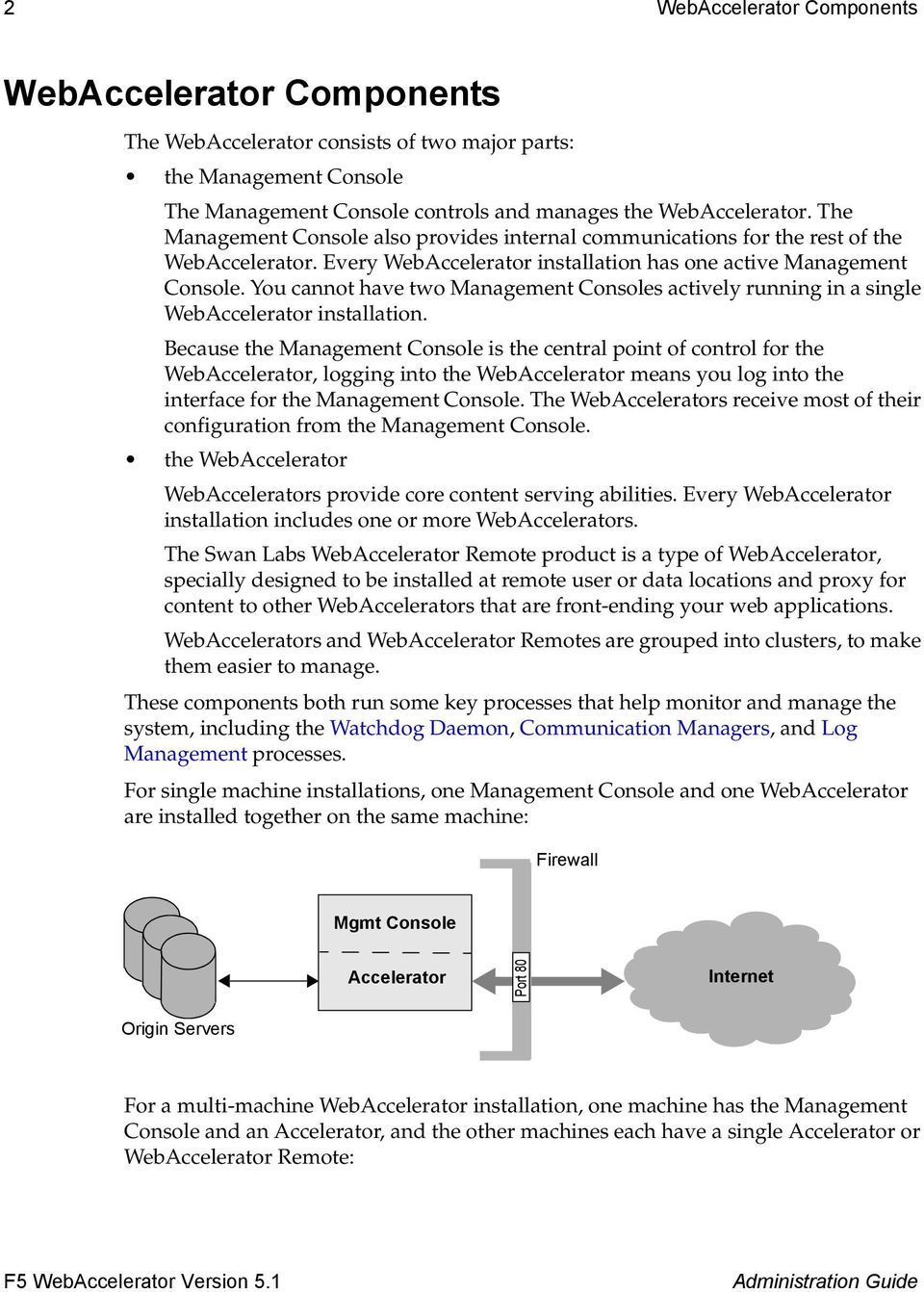
13 WebAccelerator Components 3 other HTTP requests Origin Servers Mgmt Console Accelerator Accelerator Accelerator Accelerator Load Balancer Port 80 Firewall Internet Remote Office NWA Remote User User User User The Management Console Accelerators The Management Console is responsible for: hosting the Administration Tool user interface, used to administer and manage the WebAccelerator providing a central point of control for the configuration of the WebAccelerators and WebAccelerator Remotes that are part of this WebAccelerator storing log files hosting a database that is used to store your cache policies, performance monitoring information, user and organization information, and a mechanism called invalidation rules. Cache policies and invalidation triggers are described in the Policy Management Guide. providing time synchronization for the WebAccelerator and WebAccelerator Remote machines running a communication manager process. This process is used as a communications channel between the Management Console and the rest of the WebAccelerator installation. Every WebAccelerator installation includes one or more WebAccelerators or WebAccelerator Remotes. Because you manage a WebAccelerator Remote just like a regular WebAccelerator, assume that unless WebAccelerator Remote is specifically

14 4 WebAccelerator Processes referred to, the term WebAccelerator can be referring to either an WebAccelerator or a WebAccelerator Remote. Each WebAccelerator machine is responsible for: responding to client HTTP requests compiling, assembling, and caching content pushing log files to the Management Console for processing and archiving synchronizing its time with the NTP server running on the Management Console WebAccelerator Processes Watchdog Daemon All machines participating in a WebAccelerator installation run the Watchdog daemon. This daemon is responsible for ensuring that all other WebAccelerator processes that should be running on the local machine are actually running on the local machine. In the event of a process failure, the Watchdog daemon restarts the process. Optionally, the Watchdog daemon can also you in the event of a failure. Finally, the Watchdog daemon is responsible for rotating the event and error message log files that are written by the local WebAccelerator processes. You can use the Watchdog daemon to interactively ensure that all the appropriate processes are running on the local machine. You do this through the use of the Watchdog client, which can be found here: /opt/pivia/dac/rc/watchdog_client Communication Managers The WebAccelerator uses a private message queueing system to transfer information between the various machines and processes that make up your WebAccelerator installation. This communications system is managed by a central communications manager that runs at the Management Console. By default, the local Accelerator uses this communications manager. Accelerators on their own machines can also use this communications manager, or they can have their own communications managers, controlled by the central communications manager. The communications managers run as separate processes from the rest of the WebAccelerator software. The communications traffic uses TCP/IP and by default is not encrypted. This generally works well for most sites, but if your WebAccelerator
15 Installation Architecture 5 installation has special security requirements, contact Swan Labs Customer Confidence group for help in setting an option to encrypt communications traffic. When a WebAccelerator process wants to send another process a message, that message is placed in an outgoing message queue. Messages on the outgoing queue are sent by the queue s communications manager to the receiving process. The messages are then moved from the outgoing queue to a retry message queue. When the receiving process gets a message, it checks to see if the message is valid. Expired or duplicated messages are ignored by the receiving process. If the message is valid, the receiving process sends back an acknowledgement. The communications manager continues to resend messages in the retry queue, at intervals determined by the message type, until it receives an acknowledgement for the message or until the message expires. Once the communications manager receives an acknowledgement or a message expires, that message is removed from the retry queue. Installation Architecture To use the WebAccelerator, you place a Management Console and one or more WebAccelerators (or a single machine running both the Management Console and an WebAccelerator) in advantageous locations around the network. The diagram shows how F5 web acceleration technologies fit into a simple enterprise network. The main WebAccelerator, located in the DMZ in front of the web and mail servers, accelerates responses to anyone requesting information from those servers, including information that is ultimately stored on the application servers and databases. This improves performance and productivity for any of the users shown. To further improve response times and data sharing with the remote office and the key suppliers and distributors, a Swan Labs WebAccelerator Remote (NWA Remote) is located at each office location.
16 6 Installation Architecture Remote Office Suppliers/Partners/Distributors User User User User User User NWA Remote NWA Remote Extranet Firewall Appliance VPN Firewall Appliance VPN HTTP Internet VPN Unauthenticated Web Browsers Securely Authenticated External Users (Employees, Consultants, etc.) SMTP Firewall Appliance Incoming s Load Balancer WebAccelerator DMZ User User User User Users on Internal Network Workstations Application Servers and Databases Mail and Web Servers In this case, all the WebAccelerator Remotes and WebAccelerators belong to one cluster, and this cluster is assigned to both the mail server and web server applications. A cluster can be assigned to more than one application, but an application can only have one cluster assigned to it.

17 Servicing HTTP Traffic 7 Servicing HTTP Traffic After the WebAccelerator is configured with caching policies appropriate for your site, you must configure DNS so that future HTTP and HTTPS queries for your site are routed to the WebAccelerators. For more information on configuring DNS, see the Getting Started Guide. For each request it receives, an WebAccelerator either: services the request from its cache proxies the request to your origin servers. Upon receiving a response from an origin server, the WebAccelerator decides whether the response is cacheable. If it is, the response is cached. Either way, the response is forwarded on to the originating client. redirects the request to your origin servers. Redirects occur for some pre-defined types of content such as requests for streaming video. tunnels the request to your origin servers. Tunneling can be used to handle encrypted traffic (HTTPS) whose content is not to be processed by the WebAccelerator. Note that the WebAccelerators are capable of responding to and caching SSL traffic without using tunneling. For each request it receives, a WebAccelerator Remote either: services the request from its cache proxies the request to the WebAccelerator front-ending the origin server. The WebAccelerator treats the request like any other request it receives (see above). Upon receiving a response from the Accelerator, the WebAccelerator Remote decides whether the response is cacheable. If it is, the response is cached. Either way, the response is forwarded on to the originating client. For a detailed description of how the WebAccelerator decides what requests it must proxy to your origin servers, how content is to be accelerated, and what responses it can cache, see the Policy Management Guide. Administration Tool Your Management Console is your central point of control for your entire WebAccelerator installation. All account management is performed through the user interface provided by the Administration Tool, also called the Admin Tool. The Admin Tool enables you to manage clusters, applications, caching policies, and monitor performance.

18 8 Configuration Its interface is web-based, and you access it by pointing your web browser to the host on which you installed your WebAccelerator Management Console. The Policy Management Guide and the online help for the Admin Tool provide all the information you need on using the tool to configure and administer the WebAccelerator. Initial configuration using the Admin Tool is described in the Getting Started Guide. Configuration Most of the configuration is performed through the Admin Tool, by changing your WebAccelerator clusters, your application profiles, and your policies. However, some tailoring and tuning of your WebAccelerator is done by changing option settings in one of two configuration files: pvsystem.conf, a configuration file part of each WebAccelerator that must be edited on each WebAccelerator machine. In general, any changes made to this file should be copied to every WebAccelerator in a single F5 WebAccelerator system. globalfragment.xml, a configuration file found on the Management Console machine that publishes its settings to all WebAccelerators that are part of the F5 WebAccelerator system For more information on these configuration files, see Chapter 3, Configuration Files. Log Management WebAccelerators generate two types of logs: change logs, which contain information on page requests seen by the WebAccelerators, the frequency of those requests, and how well the WebAccelerators serviced those requests from cache. This data forms the basis of the information displayed in the Performance Monitor. hit logs, which contain the same kind of information that you see in your web server log files. The exact content contained here is customizable. See the Policy Management Guide for information on how to customize your hit logs. Change logs are generated at the WebAccelerators and generally are moved to the Management Console for further processing. A special program called the Log Mover is responsible for transferring the information. The Log Mover is run at both the Management Console and the WebAccelerators. On the Management Console, it runs in collection mode, while on the WebAccelerators it runs in push mode.
19 Compile and Assembly Queues 9 Essentially, Log Mover on the WebAccelerators is responsible for periodically collecting the log files and pushing them to the Management Console. On the Management Console, Log Mover is responsible for accepting the logs, performing further processing on them, and then archiving them so that you can retrieve them for any additional processing required by your site. Note: The Log Mover does not operate on a WebAccelerator Remote. Because WebAccelerator Remotes are usually located far from the Management Console and their purpose is to reduce long-distance traffic, they do not send their logs to the Management Console. For more information on the Log Mover, see Chapter 5, Log Mover. Compile and Assembly Queues WebAccelerators make use of several queues when caching data and responding to HTTP requests. It is important for you to monitor these queues because their size can limit an Accelerator s performance. Compile Queues When an Accelerator proxies a request to your origin servers and receives a response to be accelerated, it compiles that response into an internal format. This compiled response is the object that is actually used by the WebAccelerators to assemble responses. For more information on compiled responses and requirements for content acceleration, see the Policy Management Guide. This compilation is performed using one of two queues: compile queue, used for compilation of non-esi responses ESI compile queue, used for compilation of responses that contain ESI (Edge-Side Include) data. An Accelerator assumes a response contains ESI data if the Accelerator sees the Surrogate-Control header in the response. Compilation is a very efficient process. However, it should be monitored to ensure objects are not backing up in the compile queues. For information on monitoring the compile queues, see Monitoring the Compile Queue on page 63, and Monitoring the ESI Compile Queue on page 63.

20 10 Compile and Assembly Queues Assembly Queues Whenever an WebAccelerator responds to a client request, it must assemble the compiled response. This assembly involves performing any required parameter substitution and executing any ESI statements embedded in the page. At the end of assembly, the WebAccelerator has the final web page it uses to respond to the client request. All HTTP requests that the WebAccelerator can service are placed on an assembly queue. If the assembly queue is large, then your site appears slow to its users. Always monitor the assembly queue to make sure that it is not growing too large. For more information, see Monitoring the Assembly Queue on page 64.

21 Chapter 2 Directories and Files The Manifest File General Directory Hierarchy WebAccelerator Directory Hierarchy Error and Status Reporting Files Transforms File Regardless of the directory location where you have installed WebAccelerator, you can always find its installation files under /opt/pivia. This is true of both Management Console and WebAccelerator installations. If you cause the software to be installed in a location other than /opt/pivia, then a symbolic link is created from /opt/pivia to your actual installation directory. You can always find the current release of the WebAccelerator software in the /opt/pivia/dac directory. The installation software creates symbolic links as required to ensure this path always takes you to the current version of the software.
22 12 The Manifest File The Manifest File The installation software always creates a manifest file in this location: /etc/pivia_xxx.manifest where xxx indicates the release level of the WebAccelerator software. This manifest file identifies all the choices that you made during the installation process in terms of physical installation locations. The manifest file also indicates the total number of bytes available on the file systems used for the installations. General Directory Hierarchy For both a Management Console and WebAccelerator installation, these directories are used: Directory /opt/pivia/dac /opt/pivia/dac/bin /opt/pivia/dac/conf /opt/pivia/dac/docs /opt/pivia/dac/mib /opt/pivia/dac/policies/conf /opt/pivia/dac/rc /opt/pivia/log Description Symbolic link to the software s installation files. Installation location of various tools used to manage the software. Location of configuration files used to manage the software, such as pvsystem.conf. Location of the product documentation, including this book and the release notes. Location of the F5 mib. This mib is used for SNMP monitoring of the WebAccelerator installation. See Chapter 7, Monitoring with SNMP for more information. Location of the global configuration fragment file which controls definitions of object types and redirect criteria. Contains software used to manage and monitor the WebAccelerator. For example, the Watchdog client is found here. Symbolic link to the directory where the hit and change log files are kept. For more information, see Chapter 5, Log Mover.
23 WebAccelerator Directory Hierarchy 13 Directory /opt/pivia/proc_log Description Location where process log files are kept. These log files receive informational, debug, and error messages related to the operation of the various processes comprising your WebAccelerator installation. WebAccelerator Directory Hierarchy In addition to the directories noted above, WebAccelerator uses this directory: /opt/pivia/hds as the directory location where the on-disk cache is kept. Error and Status Reporting Files Each of the processes in your WebAccelerator installation issues error and informational messages to a different file. When troubleshooting, you can look through the log files for each process to see if any error conditions are being reported. Note: Use these files for troubleshooting only. For day to day monitoring of your WebAccelerator installation, use SNMP. See Chapter 7, Monitoring with SNMP for more information. Communications Manager Log Files /opt/pivia/proc_log/ccm_pri_current.log If your communications system is not working correctly, this file contains messages indicating the source of the problem. In particular, this can contain messages related to problems with certificates, problems related to binding to ports, and problems related to connecting to remote hosts. Watchdog Log Files /opt/pivia/proc_log/watchdog_current.log Holds any messages regarding the execution status of your WebAccelerator processes as issued by the watchdog. In particular, this file contains process startup, shutdown, and abnormal exit status messages.
24 14 Error and Status Reporting Files Tomcat Log Files /opt/pivia/proc_log/tomcat_current.log This file exists only on the Management Console. Tomcat is used to host the Admin Tool user interface. If you are experiencing problems with your user interface, look in the Tomcat file to see if it is reporting any problems. Intelligence Interface Log File /opt/pivia/proc_log/ii_current.log This file is found only on the Management Console. The intelligence interface is used to publish policies from your Management Console to your WebAccelerators. If you are experiencing problems with publishing policies, examine these log files in this order for warnings or error messages: 1. /opt/pivia/proc_log/ccm_pri_current.log 2. /opt/pivia/proc_log/ii_current.log 3. /opt/pivia/proc_log/tomcat_current.log For multi-machine installs, the source of many problems is often clock drift. If you are experiencing unusual symptoms in your installation, check to make sure the clocks on all the machines in your installation are in sync. If they are more than a few seconds out of sync, use ntpdate on each of the machines in your installation to force their clocks into sync. Database Log File /opt/pivia/proc_log/db This file is found only on the Management Console. It reports informational and error messages related to the database used to store your policies, user and organization information, and performance data. If you see errors reported in this file, contact Swan Labs Customer Confidence group. Log Collector Log File /opt/pivia/proc_log/log_collector_current.log This file is found only on the Management Console. This file contains informational and error messages related to the log collector. As described in Processing Change Log Files on page 38, the log collector is responsible for accepting change and hit logs from your Accelerators, processing them, and then placing them to an archive location on your Management Console. If this process is not working correctly, look in this file to see if the log collector is reporting any problems.
25 Transforms File 15 Log Pusher Log File /opt/pivia/proc_log/log_pusher_current.log This file is found only on your WebAccelerators. This file contains informational and error messages related to the log pusher. As described in Transferring Change Log Files on page 38, the log pusher is responsible for sending change and hit logs to your Management Console for processing. If this process is not working correctly, look in this file to see if the log pusher is reporting any problems. Accelerator Log File /opt/pivia/proc_log/pvac_current.log This file is found only on your WebAccelerators. This file reports informational and error messages for Accelerator operations. Depending on the log level you set, this file can contain information on whether traffic is served from the in-memory or on-disk cache, or if requests are cache misses. During production use, set logging so that only error messages are logged. Otherwise, this log file grows large rapidly. HDS Prune Log File /opt/pivia/proc_log/hds_prune_current.log This file is found only on the WebAccelerators on which hds_prune is running. This script deletes old compiled responses from your on-disk cache. If hds_prune does not run, your on-disk cache partition eventually fills up. This file reports informational and error messages related to the hds_prune. If your on-disk cache is filling up, make sure hds_prune is running. Check this file to see if hds_prune has reported any error conditions. Log File Archiving /opt/pivia/proc_log/proc_archive Old versions of your log files can be found in this directory. Monitor this directory to make sure that it is not filling up with too many files. Transforms File The WebAccelerator Rewrite Engine provides a procedural language used to manipulate HTTP responses received from your origin servers. This manipulation occurs before the response is processed by the WebAccelerator, so it is the
26 16 Transforms File manipulated response that the WebAccelerator manages, not the actual response as sent by your origin servers. You can use predefined procedures or create your own. These procedures, including any created or customized by you or other WebAccelerator users, are zipped and stored in /opt/pivia/dac/transforms on the machine where the Management Console resides. Backup: You are responsible for backing up a copy of these procedures to another machine or to media like a floppy or CD, so that you can restore them in the event your Management Console machine crashes.
27 Chapter 3 Configuration Files Changing pvsystem.conf Managing Log File Creation Managing the Compile Queues Managing the Assembly Queue Managing System TTL Parameters Managing Socket Tunnels Managing Cookie Encryption Managing Load Balancing Managing hds_prune Managing Standby Database Replication Changing globalfragment.xml Managing Object Types Managing URL Normalization Once you have your WebAccelerator installed and running, you can configure your WebAccelerators to change them from the default settings. Most of their configuration is based on the policies and host mappings you configure in the Management Console, and these apply to all the WebAccelerators in the WebAccelerator installation. However, there are some configuration options specific to each WebAccelerator, set in their local pvsystem.conf configuration file. There is also a global configuration fragment file, which contains configuration options for response object types and URL normalization that are published to all the WebAccelerators. This is a global file that you edit on the Management Console machine. Swan Labs WebAccelerator Version 5.0
28 18 Changing pvsystem.conf Changing pvsystem.conf On each WebAccelerator machine, you can find the file as: /opt/pivia/dac/conf/pvsystem.conf To make a configuration change to an WebAccelerator installation: 1. Log in as root to the local machine on which the WebAccelerator is running. 2. Edit pvsystem.conf 3. Restart your WebAccelerator installation using: /etc/init.d/pivia restart Backup: Whenever you change your pvsystem.conf file, create a backup copy of it on another machine or on media like a floppy disk or CD. If you ever need to restore this WebAccelerator, or if this machine crashes and you need to recreate the system on another machine, you must have a backup of this file to use. Managing Log File Creation Change logs and hit logs are described in Chapter 5, Log Mover. Accelerators buffer change and hit log information in memory until a threshold is reached. Once the threshold is reached, the information is written to disk. Later, the Log Mover moves the change logs to the Management Console for processing and archiving. Note: The default values for log file creation work well for the recommended hardware. Do not change these values unless instructed to by Swan Labs Customer Confidence group. The threshold for when hit and change data is written to disk is based on a size limit and a time limit. Use these pvsystem.conf parameters to set the limits: Parameter changelogfilesize hitlogfilesize Description Change log data is written to disk if the amount of change log data buffered in memory meets the threshold defined by this parameter. Default is (1MB). Hit log data is written to disk if the amount of hit log data buffered in memory meets the threshold defined by this parameter. Default is (1MB). Swan Labs WebAccelerator Version 5.0
29 Changing pvsystem.conf 19 Parameter changelogfilettl hitlogfilettl Description Change log data is written to disk on the interval specified by this parameter regardless of how much change data is buffered in memory. Default is 5 minutes. Hit log data is written to disk on the interval specified by this parameter regardless of how much hit log data is buffered in memory. Default is 5 minutes. Note: The TTL values identified here are reset each time the change or hit log is written to disk. So if the change log is written because of file size at 3 minutes, the TTL counter is reset to 0 on that event and the hit log is not written again until either 5 minutes has elapsed or 1MB of data is collected, whichever comes first. Managing the Compile Queues All responses cached by the WebAccelerator are compiled. These compiled responses are the objects that are cached by the Accelerators. Compilation involves placing responses on one of two compile queues: a queue for normal responses a queue for compiling responses that use ESI for content assembly Once on a compile queue, responses are parsed by threads dedicated to this task. Use these pvsystem.conf parameters to control the maximum number of responses allowed on a compile queue and to manage the number of threads used to parse these responses. Parameter maxparserthreads maxparsertasks maxesiparserthreads Description Number of threads used to parse responses found in the normal compile queue. Default is 1. Maximum number of responses allowed in the normal compile queue. Default is Number of threads used to parse responses found in the ESI compile queue. Default is 1. Swan Labs WebAccelerator Version 5.0
30 20 Changing pvsystem.conf Parameter maxesiparsertasks Description Maximum number of responses allowed in the ESI compile queue at any given time. Default is This number should be set to be 2 times the number of front-end connections allowed for the WebAccelerator. ESI and content assembly is described in detail in the Policy Management Guide. The process that the WebAccelerator uses to compile and cache responses is also described in that manual. Tuning Tip The WebAccelerator ships with default values for the compile queues that work well for the recommended hardware. Do not change these values unless your monitoring suggests that some tuning is needed (see Monitoring the Compile Queue on page 63 for more information). Even then, make only small changes to these parameters to see if they help your overall Accelerator performance. Be aware that adding threads and tasks to the compile queues can actually hurt overall Accelerator performance. Managing the Assembly Queue The process of executing a compiled response in order to respond to an HTTP request is called assembly. When an Accelerator receives an HTTP request that it can service from its cache, it places that request on an assembly queue. Special threads are used to run the compiled response and any related ESI compiled responses in order to assemble the content required to respond to the request. Use these pvsystem.conf parameters to control content assembly: Parameter maxassemblethreads maxassembletasks maxnuminclude Description Number of threads used to assemble compiled responses. Default is 1. Maximum number of requests allowed in the assembly queue. Default is This number should be set to be 2 times the number of front-end connections allowed for the WebAccelerator. Maximum number of esi:include statements the Accelerator will process before giving up. If this limit is reached, the Accelerator returns HTTP status 404 (Page not found) to the requesting client. Default is 50. Swan Labs WebAccelerator Version 5.0
31 Changing pvsystem.conf 21 ESI and content assembly is described in detail in the Policy Management Guide. The process that the WebAccelerator uses to respond to HTTP requests is also described in that manual. Tuning Tip The WebAccelerator ships with default values for the assembly queues that work well for the recommended hardware. Do not change these values unless your monitoring suggests that some tuning is needed (see Monitoring the Assembly Queue on page 64 for more information). Even then, make only small changes to these parameters to see if they help your overall Accelerator performance. Be aware that adding threads and tasks to the assembly queues can actually hurt overall Accelerator performance. Managing System TTL Parameters Every compiled response cached by the WebAccelerator has a Time-To-Live (TTL) value set for it. This value identifies how much time is allowed to elapse before the WebAccelerator expires the compiled response and proxies to your origin servers for fresh content. For the most part, compiled response TTLs are set using caching policies. TTLs can also be adjusted using various lifetime mechanisms available in the HTTP and ESI protocols. However, these values cannot be set to values that exceed system limits controlled using pvsystem.conf parameters. Use these pvsystem.conf parameters to control the system limits for compiled response TTLs: Parameter staticminttl staticmaxttl staticlastmodfactor dynamicminttl Description The system-wide minimum value that can be set for TTLs for static content like images. Default is 0 seconds. The system-wide maximum value that can be set for TTLs. Default is seconds (24 hours). Provides a system-wide default value for the HTTP last mod factor. This value is used in an equation that determines TTL values based on information found in HTTP headers. Note that this default value can be overridden using caching policies. The system-wide minimum value that can be set for TTLs for dynamic page content. Default is 2 seconds. Swan Labs WebAccelerator Version 5.0
32 22 Changing pvsystem.conf Content lifetime and TTL values are described in detail in the Policy Management Guide. Managing Socket Tunnels Socket tunnels are a mechanism by which you can identify traffic that the Accelerator should pass on to an identified host and port. These tunnels allow you to configure your Accelerators to handle traffic such as SSL or FTP sessions that a cache can not or should not manage. You create socket tunnels by adding one or more sockettunnel parameters to pvsystem.conf. The format of this parameter is: <sockettunnel listenport= port remotehost= host:port /> where: port is the value for listenport, is the port on the Accelerator that receives the traffic you want tunneled host:port identifies the hostname and port to which you want this traffic tunneled For example: <sockettunnel listenport= 444 remotehost= secure1.somesite.com:443 /> Managing Cookie Encryption WebAccelerators are capable of encrypting cookies that they set on a client. When the cookie is presented back to the WebAccelerator, it is decrypted and the WebAccelerator uses it normally. Further, if the WebAccelerator must proxy the request to your origin servers, the cookie is decrypted before that proxy is returned. By using encrypted cookies, you ensure the information contained in the cookie cannot be examined by the client. For example, this can prevent malicious users from gaining knowledge on how your site works by examining the contents of your cookies. Use these pvsystem.conf parameters to manage cookie encryption: Parameter encryptcookienames encryptcookievalues Description If set to true, then cookie names encrypted. If set to true, then cookie values encrypted. Swan Labs WebAccelerator Version 5.0
33 Changing pvsystem.conf 23 Parameter encryptcookieverifyip encryptcookiematching If set to true, then the IP of the client presenting the cookie is examined before the cookie is decrypted. Use of this feature slows down the WebAccelerator to a bit, but it does ensure that a cookie is decrypted only if it is presented by the client to which the cookie was originally set. Only cookies whose name match the provided regular expression are encrypted. Note that, the start of line (^) and end of line ($) expressions are not assumed. If you want to encrypt all cookies that begin with mydomain, use: ^mydomain.*$ Description Managing Load Balancing The WebAccelerator is capable of performing load balancing for the connections that it receives for your site. Especially useful is the WebAccelerator s ability to maintain session state by ensuring that all requests for a specific client are routed to the same server. For more information on how to identify the origin hosts that the WebAccelerator should use for load balancing, see the Policy Management Guide. Use these pvsystem.conf parameters to tune the WebAccelerator s load balancing capabilities: Parameter defaultroutingtype usecookieconnpersistence persistentcookiename Description Defines the type of routing to use when Default Load Balancing is selected in the Connection Mapping pages. Values may be either CLIENT_IP_HASH or ROUND_ROBIN. Unless requested to do so by Swan Labs Customer Service personnel, leave this value set to CLIENT_IP_HASH. Use a cookie to improve the guarantee that a client s connection always goes to the same origin server. Default value is true. If persistent connections are not important to you, set this to false. If usecookieconnpersistence is true, then use the name identified on this parameter for the cookie name. Default is pv_ows_id. This parameter has no meaning if usecookieconnpersistence is false. Swan Labs WebAccelerator Version 5.0
34 24 Changing pvsystem.conf Parameter encryptpersistentcookie useinmemorytableconnpersistence Description If set to true, the cookie set to ensure persistent connections is encrypted. Default is true. This parameter has no meaning if usecookieconnpersistence is false. Use an in-memory table based on the client s IP to get clients back to the same origin server. This is useful for clients that do not support cookies. Note that if the WebAccelerator is stopped for any reason, the persistence of any client managed by the WebAccelerator is not guaranteed. Default value is false. Managing hds_prune hds_prune is a shell script that is responsible for clearing old and unneeded compiled responses out of your on-disk cache. This script works by periodically checking to see how full your on-disk cache is. You specify the minimum and maximum amounts of free space allowed. If the amount of free space available in the on-disk cache is less than or equal to the minimum amount you specified, the script prunes your cache. The script removes enough data from your on-disk cache to satisfy the maximum amount you specified. That is, when the script is done, the amount of free space in your on-disk cache partition is at least as big as the maximum you set. This script is automatically configured and started for you by the WebAccelerator s installation and configuration utilities. However, if you do not want to use the default values, you can use these command line arguments: Argument Definition -d Specifies how long the script sleeps before checking the current amount of free space available in the on-disk cache partition. Default is 300 seconds (5 minutes). -s Specifies the smallest amount of free space allowed in the on-disk cache partition. If hds_prune finds that the on-disk cache partition has a free space value that is less than or equal to this value, then it prunes your on-disk cache. Values are expressed as a percentage of free space. The default is to start pruning when there is less than 20% of the disk free. -e Specifies the amount of free space that must be available in the partition when hds_prune is finished pruning your on-disk cache. Values are expressed as a percentage of free space. The default is to stop pruning when there is at least 40% of the disk free. Swan Labs WebAccelerator Version 5.0
35 Changing pvsystem.conf 25 Argument Definition -c Identifies the location of the on-disk cache. Default is /opt/pivia/hds. Setting hds_prune Values To change hds_prune values: 1. Log into the WebAccelerator machine as root. 2. Edit /etc/init.d/pivia 3. Locate and modify the variables DAC_CACHE_FREE_START and DAC_CACHE_FREE_END if you want to change the -s or -e options. Otherwise, locate the variable PROG_HDS_PRUNE_OPTIONS and change the command line arguments presented there to the values that you want. Note that you should at least provide the -c, -s, and -e options. 4. Close and save the file. 5. Restart the WebAccelerator: /etc/init.d/pivia restart Managing Standby Database Replication A standby Management Console is installed on a machine with an WebAccelerator, and can be configured using the pvsystem.conf configuration file on that machine. The main task of a standby Management Console is to replicate the database of the primary Management Console. This ensures that when you want to switch over from the primary Management Console to the standby Management Console, the standby Management Console has a reasonably current version of the database. This allows you to smoothly switch over to the standby Management Console even if there was a hardware failure on the primary Management Console machine and the database is no longer accessible. The standby Management Console replicates the database at intervals. The default interval is 4 hours, meaning the standby Management Console replicates the database from the primary Management Console every 4 hours. This default should work for most WebAccelerator installations. You can change the interval to optimize it for your site. The smaller the interval, the more current the database is in the event that you must switch over to the standby Management Console. However, the database is large and replicating it more often uses more system resources and bandwidth. Increasing the interval so the database is replicated less often frees up system resources but means the database might be more out-of-date at the time the primary Management Console fails and you need to switch to the standby Management Console. Swan Labs WebAccelerator Version 5.0
36 26 Changing globalfragment.xml To change the interval, the value is set in the pvsystem.conf file. Specify the value for the interval in minutes: 1. Log in as root to the local machine on which the standby Management Console is running. 2. Edit pvsystem.conf to change the immondbsyncperiod parameter. The default setting is 240 for 240 minutes or 4 hours. 3. Restart your standby Management Console using: /etc/init.d/pivia restart Changing globalfragment.xml On the Management Console machine, you can find the file as: /opt/pivia/dac/policies/conf/globalfragment.xml To edit the file and change the options: 1. Log in as root to the local machine on which the Management Console is running. 2. Edit globalfragment.xml and save it. 3. Log out as root. 4. Force the changed file to be republished to all the WebAccelerators: a. Log in to the Admin Tool. See the Policy Management Guide for instructions on using the Admin Tool. b. Go to the Applications screen and click on the Edit link for any existing application. c. Click the Save button. This causes all global configuration settings for all applications, not just the selected one, to be saved and republished to all WebAccelerators. Backup: Whenever you change your globalfragment.xml file, create a backup copy of it on another machine or on media like a floppy disk or CD. If you ever need to restore this Management Console, or if this machine crashes and you need to recreate the system on another machine, you must have a backup of this file to use. Managing Object Types Every response the WebAccelerator receives from your origin servers is classified by object type. This classification can be more accurate than deriving a type based on the Swan Labs WebAccelerator Version 5.0
37 Changing globalfragment.xml 27 request. The WebAccelerator looks at the response headers and classifies the response based on the first information it finds, in this order: 1. the file extension from the filename field in the Content-Disposition header 2. the file extension from the extension field in the Content-Disposition header 3. the Content-Type header in the response, unless it is an ambiguous MIME type 4. the extension of the path in the request For example, if the extension in the filename field in the Content-Disposition header is empty, the WebAccelerator looks at the file extension in the extension field of the header. If that has an extension, the WebAccelerator attempts to match it to an object type in the globalfragment.xml file. If there is no match, the WebAccelerator assigns an object type of other and uses the settings for other. The WebAccelerator only looks at the information in the Content-Type header if there is no extension in the filename or extension fields of the Content-Disposition header. There are a set of predefined object types in the globalfragment.xml file that shipped with your WebAccelerator. You can modify the options for these types, or add new types of your own. The options you specify for each object type are: type group category displayname ext is a short name for the type, that can be used to identify the object type and is displayed in the X-PvInfo header for each response. This option is required. is an arbitrary group name, also short, which is displayed in the X-PvInfo header for the response. This allows you to organize object types into groups. This option is required. is an arbitrary category name that allows you to create a superset of groups. A value for this option is required. You might want to set a value for category that helps you differentiate between the predefined object types and the custom types you create. is a longer, more descriptive name for the object type. This option is required. are the values for extension that define this object type. When the WebAccelerator finds a file extension in the filename or extension field in the Content-Disposition header of the response, it attempts to match that to one of the values you specify here. If there is a match, it classifies the response as this object type. Specify as a single value or as a comma-separated list: ext= jpg, jpeg This option is required. Swan Labs WebAccelerator Version 5.0
38 28 Changing globalfragment.xml mimetype are the values for MIME type that define this object type. If the WebAccelerator does not find an extension in the filename or extension fields of the Content-Disposition header, it looks in the Content-Type header of the response to attempt to match that to one of the MIME types you specify here. If there is a match, it classifies the response as this object type. Specify as a single MIME type or as a comma-separated list of MIME types: mimetype= application/excel, application/msexcel, application/ms-excel compresstoclientspecifies in which cases to gzip the response. This option is required. The values you can specify are: none, specifies never to compress the response transformfile pivia, specifies to compress the response only if the client is another WebAccelerator policycontrolled, specifies to use the compression setting of the assembly policy in effect for this response Setting this option to none or pivia overrides any compression settings in the assembly policy for the node to which the response matched. specifies the name of the rewrite script to run against the response. This option is optional and is only used for very unusual cases, because it overrides any rewrite settings in the assembly policy for the node to which the response matched. Set this option only when you want a particular rewrite script to be run against responses of this content type no matter what policies are set. For most cases, you use the Admin Tool to create a node and define the matching policy so that any response with this content type matches to it. Then create an assembly policy for this node that specifies the rewrite script you want to run. Use caution when you use an object type definition to control compression (set to none or pivia) or run rewrite scripts: an object type definition applies across the entire WebAccelerator, regardless of application or policy set the object type setting overrides any setting in all assembly policies Only use object type for compression or rewriting if you want to ensure your setting is used for any response matching that object type across your entire system, and you do not want an assembly policy to ever affect this setting. Swan Labs WebAccelerator Version 5.0
39 Changing globalfragment.xml 29 To see which object type a response was classified as, you can look in the X-PvInfo header in the response, for a string that begins with OT/ and this displays the type. For more information, see the Response Header appendix in the Policy Management Guide. Here is a sample object type, as it appears in the globalfragment.xml file: <objtype type= mspowerpoint group= documents category= common displayname= Microsoft Powerpoint ext= ppt mimetype= application/powerpoint, application/mspowerpoint, application/ms-powerpoint, application/x-powerpoint, application/x-mspowerpoint, application/vnd.powerpoint, application/vnd.mspowerpoint, application/vnd.ms-powerpoint compresstoclient= pivia /> Managing URL Normalization Some systems use different URLs to access the same content, sometimes by randomizing the URL. To better identify content, the WebAccelerator analyses the contents of a response and creates an object ID based on that specific content. This enables the WebAccelerator to recognize content independent of the URL. The object ID is inserted into the response that the WebAccelerator returns to the client. The WebAccelerator can use this object ID to create a normalized URL. The normalized URL can be sent in a redirect to the browser client or WebAccelerator Remote that sent the request. The browser or WebAccelerator Remote can use the normalized URL to search its own cache in case it has a copy of the content that it could not recognize based on the request URL. If the content is found in the cache of the WebAccelerator Remote or browser, it does not have to be sent from the WebAccelerator, reducing bandwidth usage and speeding up the response time for the end user. You can control whether the WebAccelerator uses redirects, and for what types of content. The contentbasedidentity section of the globalfragment.xml file contains the settings for managing URL normalization. The default settings that ship with the WebAccelerator specify that normalization should occur when the WebAccelerator is responding to a WebAccelerator Remote, but not to a client browser. The default setting also specifies that it should only occur for responses that were classified in the Swan Labs WebAccelerator Version 5.0
40 30 Changing globalfragment.xml documents group, which consists of Microsoft Word, Excel, and Powerpoint objects and PDF files, and are 20KB or larger in size: <contentbasedidentity enablenormalization= true enablenormalizationtobrowsers= false types= groups= documents sizethresholdkb= 20 basepath= pv_obj_cache normalizationmethod= redirect requireauth= false authmethod= cookie adddefaultext= true /> Also by default, the security feature (authorization and authentication) is disabled and the virtual base path, where the normalized objects should appear to come from, is /pv_obj_cache. Some of the options currently support only one value, and cannot be changed. The options you can change are: enablenormalization enablenormalizationtobrowsers types groups can be true or false. true enables normalization for this WebAccelerator system. false disables normalization. can be true or false. true enables normalization to browser clients if enablenormalization is also true. false disables normalization to browser clients. Before setting this to true, read Redirecting to Browsers on page 31. specifies the object types for which normalization can occur, in addition to the object types that are part of any groups specified in groups. See Managing Object Types on page 26. Specify the values in a comma-separated list: types= jpeg, pdf, text specifies the object groups for which normalization can occur, in addition to the object types specified in types. See Managing Object Types on page 26. Specify the values in a comma-separated list: groups= documents, images sizethresholdkb specifies the minimum size in kilobytes the object must be before it can be normalized. Swan Labs WebAccelerator Version 5.0
41 Changing globalfragment.xml 31 basepath requireauth specifies the virtual path underneath your website where normalized objects appear to come from. You might need to change this value to work with portal gateways or to appear to be better integrated with the application. can be true or false. true enables authorization and authentication. The object ID is combined with an Accelerator-generated user identifier and encrypted before being used on the redirect. The user and requested document must match before the document can be retrieved using the redirect. false disables this feature. Redirecting to Browsers If you plan to set enablenormalizationtobrowsers to true, enabling redirects to client browsers, there are some restrictions and security considerations you should understand: if your website contains framesets imbedded using JavaScript, it is possible that when you are redirecting to a browser, the redirect could fail. This is not common for documents, if that is the only object group you specify for redirects, but it could happen. if bookmarks are being set at the browser, only the original URL should be bookmarked. If the final, normalized URL is bookmarked, the bookmark is not valid. if you enable redirects to browsers and you normally restrict access to some or all of your documents, you should enable the security feature by setting requireauth to true. This prevents other users from finding and using the normalized URL to access content they normally would not be able to access. Selectively Disabling Content-Based Identity You can enable content-based identity and normalization for your WebAccelerator system, and then disable it for particular nodes in the Request Type Hierarchy. Any request or response that matches to a node with content-based identity disabled is not normalized for redirects and no content-based cache routines are performed. To disable content-based identity for a node, go to the Policy Editor and select the node. Go to the Assembly screen. In the Advanced Assembly text box, enter this string: disablecontentbasedidentity=true By default, disablecontentbasedidentity is set to false, meaning that this setting does not override any other content-based identity system-wide options. The setting Swan Labs WebAccelerator Version 5.0
42 32 Changing globalfragment.xml for disablecontentbasedidentity can never enable content-based identity. It can only disable it when content-based identity is turned on for your system. Content-based identity is enabled by setting enablenormalization to true in your globalfragment.xml file. Swan Labs WebAccelerator Version 5.0
43 Chapter 4 Startup and Shutdown Runlevels Verifying Execution Status Startup and shutdown are controlled by scripts placed in this location: /etc/init.d/pivia To start the F5 WebAccelerator software on the current machine: /etc/init.d/pivia start To stop the F5 WebAccelerator software on the current machine: /etc/init.d/pivia stop To restart: /etc/init.d/pivia restart Runlevels All WebAccelerator processes are started when the machine boots into runlevels 3, 4, and 5.
44 34 Verifying Execution Status Verifying Execution Status For the most part, you should monitor the activities of your WebAccelerator installation, including whether critical processes are running, using your SNMP-based network monitoring software. For more information, see Chapter 7, Monitoring with SNMP. However, you can manually check whether WebAccelerator processes are running using the Watchdog client script. This script shows you the status of every WebAccelerator process on the local machine. To run Watchdog client: 1. Log in as root to the local machine whose WebAccelerator processes you want to check. 2. Run the command: /opt/pivia/dac/rc/watchdog_client The script shows you each of the WebAccelerator processes that is current running on this local machine. To see the status of every WebAccelerator process regardless of whether it is currently running, enter T. To quit the Watchdog client script, enter Q. Management Console Processes The Watchdog client script shows you the status of these Management Console processes: Check ccm_pri ii tomcat log_collector Description Indicates whether the central communications manager is running. This process is responsible for coordinating communication between all of the processes that comprise your WebAccelerator installation, both local and remote. Indicates whether the intelligence interface is running. The intelligence interface is used to publish caching policies from your Management Console to your WebAccelerators. Indicates whether Tomcat (the WebAccelerator s application server) is running. Indicates whether the log collector is running. See Processing Change Log Files on page 38 for more information on the log collector.
45 Verifying Execution Status 35 WebAccelerator Processes The Watchdog client script shows you the status of these WebAccelerator processes: Check log_pusher pvac hds_prune Description Indicates whether the log pusher is running. See Transferring Change Log Files on page 38 for more information on the log pusher. Indicates whether the WebAccelerator software is running. Indicates whether the hds_prune script is running. This script is responsible for cleaning out old and unused data from your on-disk cache. For more information, see Managing hds_prune on page 24.
46 36 Verifying Execution Status
47 Chapter 5 Log Mover Transferring Change Log Files Processing Change Log Files Managing the Log Mover Configuring the Log Mover The Log Mover transfers log files from Accelerators on their own machines to the Management Console. It is not used if an Accelerator and Management Console are on the same machine or if the Accelerator is a WebAccelerator Remote. Ignore this chapter if: you are using a WebAccelerator installation with just one machine, or except for the Accelerator on your Management Console machine, all your Accelerators are WebAccelerator Remotes Every WebAccelerator creates two kinds of log files: change logs, which contain the data that is displayed in the WebAccelerator performance monitor. See the Policy Management Guide for information on accessing the performance monitor. hit logs, which contain the information that is normally found in web server log files. Many sites perform some kind of an analysis on this data. You can tailor the information that appears in these log files using the WebAccelerator Admin Tool. See the Policy Management Guide for more information. The rate at which an WebAccelerator creates log files is a function of how much traffic the WebAccelerator is experiencing and thresholds set by several pvsystem.conf parameters. For information on managing these parameters, see Managing Log File Creation on page 18. The WebAccelerator must move the change logs to the machine running the Management Console so that they can be viewed using the performance monitor. Note: Clean out your WebAccelerator hit logs on a regular basis. By default, the WebAccelerator does not rotate logs. You can specify that your log files be rotated by using the log rotation facility built into Linux. See the Getting Started Guide for more information.
48 38 Transferring Change Log Files Transferring Change Log Files Each WebAccelerator in your installation runs a part of the Log Mover called the log pusher. The log pusher is responsible for transferring change log files to your Management Console, and also performs some other functions. The log pusher does these tasks: 1. Periodically the log pusher checks for any Accelerator log files it needs to transfer, at intervals set by the pvsystem.conf <wakeup_interval> parameter. By default, this interval is 30 seconds. See Configuring the Log Mover on page 40 for information on how to change this interval. 2. If the pusher finds log files to transfer, it moves them to the directory /opt/pivia/log/push on the Accelerator. 3. The log files are pushed to the log collector running on the Management Console using an HTTP or HTTPS connection. The host and port to which the log files are pushed is defined in pvsystem.conf in the <collector> section. If a <secure_port> parameter is defined in that section, then HTTPS is used. Otherwise, HTTP is used. HTTP is used by default. See Configuring the Log Mover on page 40 for details on how to configuring to use HTTPS. 4. After a log file is pushed to the collector, that log file is moved to /opt/pivia/log/archive on the Accelerator. 5. When the log collector finishes processing the log files it receives, it notifies the pusher of this event. Upon receipt of this notification, the pusher deletes the log file from the Accelerator s archive directory. Each WebAccelerator also has a directory called /opt/pivia/log/bad_files. This directory is used to store log files that are corrupted. If you ever see a log file placed in this directory, contact Swan Labs Customer Confidence group. Processing Change Log Files Your Management Console runs a part of the Log Mover called the log collector. The log collector is responsible for accepting log files from the log pushers, processing them, and archiving them. As the Log Mover receives the change log files, it places them in: /opt/pivia/log/collect Change logs contain information that is displayed in the WebAccelerator s performance monitor. When the log collector receives a change log from an WebAccelerator, it handles the log in this way:
49 Managing the Log Mover While the log file is being transmitted, it is placed on the Management Console in: /opt/pivia/log/put/change 2. Once the log file has been completely transferred to the Management Console, it is placed on the Management Console in: /opt/pivia/log/collect/change 3. The log collector loads the contents of the log file into the database. This can take several minutes. 4. The log file is archived to a location on the Management Console under: /opt/pivia/log/archive/change These archived files have a filename that includes the time and date stamp when the log was created. 5. Once the log collector has finished processing the change log, the log collector signals this event to the WebAccelerator that generated the change log. The WebAccelerator then deletes the change log from its archive directory. Managing the Log Mover Generally, you do not need to configure the Log Mover, but it does require ongoing management because the logs can contain a large amount of data. Be sure to do these important tasks: 1. After the log collector has finished processing a log file, it is your responsibility to make sure the log file is moved off the Management Console for whatever archival or data analysis is needed by your site. On the Management Console, frequently clear out the gzipped files stored in: /opt/pivia/log/collect/complete/archive Either delete, or backup and then delete, these files. Once your change logs have been loaded into your database and you have retrieved your hit logs for analysis, it is unlikely that you ever need these files again. 2. For both the Management Console and your WebAccelerators, use SNMP to monitor the free space in the directory where you are placing your logs. See Chapter 7, Monitoring with SNMP for more information. If this directory is filling up on any of the machines in your installation, examine the machine to see if: the log pusher is successfully moving logs to the log collector running on the Management Console the log collector on the Management Console is successfully processing the logs
50 40 Configuring the Log Mover Configuring the Log Mover Default configuration of the Log Mover is performed automatically when you install the WebAccelerator. However, by default the Log Mover transfers files using encryption (SSL). If your WebAccelerator installation is very busy, this might create an unacceptable load on your Accelerators and Management Console. In this case, you might want to configure the Log Mover to use unencrypted transfers if security is not a problem. If you are transferring your log files over a local area network, or if your site s security policy is such that it is acceptable to transfer log data in the clear, follow these steps to turn off encrypted transfers: 1. Log on to your Management Console machine. 2. cd to /opt/pivia/dac/conf 3. Edit pvsystem.conf and find this section of the file: <logmover> <pusher>... </pusher> <collector>... </collector> </logmover> In the <collector> section, uncomment the <port> parameter and comment out the <secure_port> parameter. That is, change this: <collector> <!-- <port>12003</port> --> <secure_port>12004</secure_port>... </collector> to: <collector> <port>12003</port> <!-- <secure_port>12004</secure_port> -->... </collector> 4. Close and save this file. 5. Edit pvsystem.conf.global and make the exact same change as you made in step 3.. Note: While you are in this file, make sure the port number identified here is identical to the port identified in step 3.
51 Configuring the Log Mover Run these commands in this order: # /opt/pivia/dac/bin/confmgr -A DISTRIBUTE # /etc/init.d/pivia stop_log_collector # /etc/init.d/pivia start_log_collector # /opt/pivia/dac/bin/confmgr -a -A RESTART_ACCELERATOR Your Log Mover now transfers log files without using SSL.
52 42 Configuring the Log Mover
53 Chapter 6 Back Up and Recovery Backing Up the WebAccelerator Restore Utility Restoring your WebAccelerator Switching to Your Standby Management Console The F5 WebAccelerator provides a backup and restore utility, which: backs up and restores the Accelerator configurations you created backs up and restores the WebAccelerator s database backs up and restores configuration files needed by the WebAccelerator The F5 WebAccelerator also allows you to install a secondary Management Console that runs in warm standby mode, to make it easier and faster to recover if the machine running the primary Management Console crashes. There are several steps you need to follow to transfer control to this standby Management Console. This chapter describe these topics in detail.
54 44 Backing Up the WebAccelerator Backing Up the WebAccelerator You should perform back ups of your WebAccelerator on a regular basis, regardless of whether you are running a standby Management Console. When you perform a backup, you must identify: the parts of the WebAccelerator that you want backed up the directory where you want the backup placed The Backup Utility You perform backups using the /opt/pivia/dac/bin/backup utility. This backs up your Management Console. When the backup is completed, it places either one or two files in the directory that you specify. The files that it creates are: pivia_conf_data-<timestamp>.tar.gz This is an archive containing Accelerator configurations created by the Admin Tool. This archive also contains the.ssh directory for the root account and the pvssl.pem file. Admin Tool relies on the contents of the.ssh directory to function. The pvssl.pem file contains the certificate used by the communications system. pivia_database_data-<timestamp>.tar.gz This is an archive containing all your database data. This includes your organization and user accounts, your policies, and any invalidation objects that might exist in the system at the time of the backup. The time stamp placed on each file is used by the restore program to identify what file you want to restore from. The backup.sh utility offers these command line arguments: Option Description -l Directory where you want the backup placed. -d Backup just the database -c Backup just the Admin Tool and other configuration files. -a Backup everything. Note that if you not specify -d, -c, or this option, then this option is used. Note that you do not have to shutdown or otherwise suspend operations in order to perform your backup.
55 Restore Utility 45 Manual File Backups Not all WebAccelerator system files are backed up by the backup.sh utility. You also need to back up any changes made to transforms and configuration files. The transforms are procedures used by the Rewrite Engine to manipulate responses. If you or other users have customized or created their own procedures, you must back up the transforms file. If your users are creating their own rewrite procedures, make sure they are backing up the appropriate files and that you know where the backups are located. You also need to back up the global fragments configuration file and the WebAccelerator configuration files. If the machine running the primary Management Console crashes, and you want to switch to the standby Management Console, you cannot access the transforms file or global fragments configuration file if they are located only on the failed Management Console machine. To back them up, you can manually copy the files to a different machine or onto media. An WebAccelerator configuration file is found on each WebAccelerator machine. Unless every WebAccelerator is using an identical configuration file, it is useful to back up this file in case one of the WebAccelerator machines crashes. The file is needed on the Management Console machine because that machine includes an WebAccelerator. The files you need to back up are: on the Management Console machine, the global fragments file: /opt/pivia/dac/policies/conf/globalfragment.xml and the transforms file (back up the zip file you find in this directory): /opt/pivia/dac/transforms on each WebAccelerator machine, the configuration file: /opt/pivia/dac/conf/pvsystem.conf Restore Utility You restore your WebAccelerator from one of your backups by using the restore utility found in /opt/pivia/dac/bin/. When you perform a restore, you must identify: the type of restore: only the database only the configuration files everything the directory where you placed your backup archives
56 46 Restoring your WebAccelerator the time stamp that appears on the archives from which you want to perform the restore The time stamp that you specify is used as part of the filename for the backup archive you are using. The restore utility offers these command line arguments: Option Description -l Directory where the backup archives are located. -d Restore just the database. -c Restore just the Admin Tool and other configuration files. -a Restore everything. Note that if you not specify -d, -c, or this option, then this option is used. -t The time stamp used for the archive that you want to use for the restore. This should be provided in the same format as it appears in the archive file name. For example, if the archive filename is: pivia_database_data _17_57_11.tar.gz then the value you provide for this option is: _17_57_11 You do not have to shutdown the Management Console or any of the WebAccelerators. However, while the restore is running, your WebAccelerator is placed in proxy mode. While in this mode, all HTTP requests received by the WebAccelerator are proxied to your origin servers. Once the restore is complete, the WebAccelerator is automatically taken out of proxy mode and normal operations are resumed. Restoring your WebAccelerator The procedure that you use to restore your WebAccelerator from a backup differs depending on what you want to restore: to restore just your WebAccelerator configuration files, see Restoring the Configuration Files to restore your database, see Restoring the Database on page 47. Note that this procedure results in everything being restored.
57 Restoring your WebAccelerator 47 Restoring the Configuration Files To restore all of your configuration files including the configuration database, follow these steps: 1. Log into the Management Console. 2. Locate the configuration backup file you want use for the restore. 3. Note the time stamp on the configuration backup file that you want to use. For example, if you want to restore your configuration from: /backups/pivia_conf_data _16_21_43.tar.gz then the timestamp you want to use is: _16_21_43 4. Issue the command: /opt/pivia/dac/bin/restore -l /backups -c -t _16_21_43 5. Copy the files you backed up manually ( Manual File Backups on page 45) back into their original locations. 6. If you have a single machine configuration, with a Management Console and Accelerator on a single machine, restart your WebAccelerator using: # /etc/init.d/pivia restart If you have a multi-machine configuration, with multiple Accelerators, redistribute your Accelerator configurations and then restart the Accelerators and your Management Console. On the Management Console, issue these commands: # /etc/init.d/pivia restart # /opt/pivia/dac/bin/confmgr -A DISTRIBUTE # /opt/pivia/dac/bin/confmgr -A RESTART_ACCELERATOR Restoring the Database You should never need to restore your database unless you have experienced some form of hardware failure that has corrupted your database. If this occurs, you must reinstall your Management Console and then perform a full restore: 1. If necessary, stop your Management Console: /etc/init.d/pivia stop 2. Uninstall the Management Console: /opt/pivia/uninstall Note that entering yes for each of the prompts causes any hit and change logs currently in existence on your Management Console to be deleted. You may want to enter No for that prompt. 3. Install the Management Console as described in the installation guide. Allow the Management Console to start at the end of the installation. 4. Locate the configuration backup files you want to use for the restore.
58 48 Switching to Your Standby Management Console 5. Note the time stamp on the configuration backup files that you want to use. For example, if you want to restore your configuration from: /backups/pivia_conf_data _16_21_43.tar.gz /backup/pivia_database_data _16_21_43.tar.gz then the timestamp you want to use is: _16_21_43 6. Issue this command: /opt/pivia/dac/bin/restore -l -a -t _16_21_43 7. Copy the transforms zip file and global fragments configuration file that you backed up manually into the correct locations on the Management Console machine: /opt/pivia/dac/transforms /opt/pivia/dac/policies/conf/globalfragment.xml Your Management Console is now in the same state as it was in when you ran the backup from which you performed the restore. Switching to Your Standby Management Console You can switch operations over from your primary Management Console to the standby Management Console if you are having problems with the primary Management Console or if there is a hardware or network failure on the primary Management Console machine. You must have previously installed the standby Management Console. While the primary Management Console was operating, the standby Management Console was replicating its database so that it has its own copy. The replication occurs at intervals determined by the value set in the pvsystem.conf file. The default value for this replication is 4 hours. It can be useful to have a separate backup of certain files, such as the policy sets, the transforms zip file, and the WebAccelerator configuration file, and the global fragments configuration file. In the Admin Tool, from the Policies screen, you can export the policy sets and transforms, which creates a single file for each. Then you can back up those files to a different machine. For information on exporting, see the Managing Policies chapter in the Policy Management Guide. For information on backing up the files, see Manual File Backups on page 45. The failover to your standby Management Console is not automatic. You must complete these steps to get your system running with the standby Management Console: 1. You must stop any Management Console processes that are still running on the primary Management Console before you can switch to the standby Management
59 Switching to Your Standby Management Console 49 Console. If the machine is up, log onto the machine as root and run the stop script: /etc/init.d/pivia stop If there are severe hardware or network problems that prevent you from running the script, removing the machine from the network prevents the primary Management Console from interfering with the standby Management Console. Disconnect the network cable from the machine. 2. The network administrator must update the DNS server with the IP address of the standby Management Console. It needs to replace the address of the previous Management Console. If a static host is configured for the primary Management Console, the network administrator must change that also. 3. Log in as root to the machine on which the standby Management Console is running. 4. Copy the backup of the transforms file into the directory /opt/pivia/dac/transforms. This backup was described in Manual File Backups on page 45. This ensures the new primary Management Console has any custom changes to the rewrite procedures. 5. Copy the most current backup of the global fragment configuration file, globalfragment.xml, that was backed up from the primary Management Console machine, into the /opt/pivia/dac/policies/conf/ directory on the new Management Console machine. 6. Next, copy the most current backup of the WebAccelerator configuration file, pvsystem.conf, that was backed up from the primary Management Console machine, into the /opt/pivia/dac/conf/ directory on the new Management Console machine. 7. Run the shell script: /etc/init.d/pivia set_pim This script tells the standby Management Console that it is now the primary Management Console. It stops replicating the database and begins operating as the primary Management Console. When the Management Console processes on the primary Management Console are no longer accessible, WebAccelerator processes on other machines automatically attempt to switch over to the standby Management Console. Now that the standby Management Console is running as primary, the processes begin connecting and working with it. 8. You must ensure the WebAccelerators are synchronized with the new standby Management Console. The standby Management Console is as current as the last database replication it performed, so it is not as current as the WebAccelerators.
60 50 Switching to Your Standby Management Console To synchronize the WebAccelerators, you must clear their caches, each cache on each WebAccelerator machine: a. Log into the WebAccelerator machine as root. b. Run the shell script: /etc/init.d/pivia clear_cache This script stops the WebAccelerator, clears the cache, and restarts the WebAccelerator. This causes the WebAccelerator to refresh everything from the standby Management Console, synchronizing it with the Management Console. Note: If the cache (/opt/pivia/hds) is large, 25G or more, the script can take some time to complete, up to half an hour. c. Repeat these steps on every machine that is running an WebAccelerator. Converting a Primary Management Console to Standby If you had a problem on your primary Management Console and completed the process of changing your standby Management Console into a primary Management Console, you might now have no standby Management Console. If you diagnosed and repaired the problems with your original primary Management Console or its machine, you can now make that Management Console your standby: 1. Log in as root to the machine with the Management Console that you want to make your standby Management Console. This Management Console should not be running currently or it would interfere with the working primary Management Console. 2. Run this shell script: /etc/init.d/pivia set_sim This starts the Management Console in standby mode, replicating the database from the primary Management Console. Switching Over With No Failure You can switch over from a running primary Management Console to a standby Management Console. There might be several reasons for this: you want to perform maintenance on the primary Management Console machine and need to shut the machine down or temporarily remove it from the network you want to upgrade or replace the machine the primary Management Console is running on
61 Switching to Your Standby Management Console 51 you had a failover, and fixed all the problems on the original Management Console machine, and are running it as the standby. You now want to make it the primary Management Console again. If you need to shut down the primary Management Console machine for some reason, minimize disruption to your WebAccelerator system by planning to switch over to the standby Management Console as soon as possible after it has completed a database replication This means the database on the standby Management Console is current as possible. To avoid confusion as we step through the process of switching from primary to standby and back again to primary, we name the machines Fred and Ginger. For these examples, Fred is the machine currently running your primary Management Console, and Ginger is the machine running the standby Management Console. Follow this general process: 1. Begin by switching over to the standby Management Console that is running on Ginger. 2. Shut down Fred, the machine that had been running the primary Management Console and do any needed tasks on Fred (maintenance, upgrades, replacements). 3. If you replaced Fred with a new machine, install a standby Management Console on the new Fred. See the Getting Started Guide for information on installing a standby Management Console. 4. Start the Management Console on Fred as the standby Management Console. 5. Let Fred run as the standby Management Console long enough to have replicated the database at least once. As soon as possible after the database has been replicated, begin converting Fred to the primary Management Console. 6. Switch over to make Fred the primary Management Console, and change Ginger back to a standby Management Console. The actual steps for switching a working primary Management Console to a standby are: 1. Log in as root on Fred, the primary Management Console machine. 2. Copy the transforms file and configuration files to Ginger from Fred. The transforms are stored as a zip archive. The files are stored in: /opt/pivia/dac/transforms /opt/pivia/dac/conf/pvsystem.conf /opt/pivia/dac/policies/conf/globalfragment.xml Copy them into the directories with the same names on Ginger. This ensures the new primary Management Console on Ginger has any custom changes to the rewrite procedures and any other customizations that were made on Fred.
62 52 Switching to Your Standby Management Console 3. Update the DNS server so that the Management Console IP address which currently points to Fred s IP address now points to Ginger s IP address. 4. On Fred, convert the primary Management Console to a standby Management Console by running: /etc/init.d/pivia set_sim You always need to stop or change the primary Management Console before you start a new Management Console. 5. Log in to Ginger as root. 6. On Ginger, convert the standby Management Console to a primary Management Console by running: /etc/init.d/pivia set_pim 7. Synchronize the WebAccelerators with the new primary Management Console on Ginger by clearing the cache on each WebAccelerator machine: a. Log into the WebAccelerator machine as root. b. Run the shell script: /etc/init.d/pivia clear_cache c. Repeat these steps on every machine that is running an WebAccelerator. At this point, Ginger is running the primary Management Console for your system and the WebAccelerators are running with this Management Console. You can safely bring down Fred for any maintenance or changes. Stop the standby Management Console on Fred by logging in as root and using: /etc/init.d/pivia stop When you are done with any work on Fred, restart the standby Management Console using: /etc/init.d/pivia start Later, you can switch the Management Console on Fred back to primary by repeating Step 1 through Step 7.
63 Chapter 7 Monitoring with SNMP MIB Overview Enabling SNMP SNMP Ports Suggested SNMP Objects Management Console Objects WebAccelerator Objects Monitoring Invalidation Objects Monitoring the Communications System Operating System Objects The WebAccelerator s operations can be monitored using the Simple Network Management Protocol (SNMP). This includes process activities, memory usage, disk usage, and any critical errors that might arise. This chapter identifies the MIBs that you use to monitor the WebAccelerator and its environment, and the objects in those MIBs that Swan Labs recommends you monitor. This chapter assumes that you are already familiar with SNMP and that you already have a network management system (NMS) in place for your site s infrastructure. Due to the wide range of NMS products on the market today, this guide cannot describe how to integrate the MIBs into your particular NMS. For information on that, see the documentation that came with your NMS. All the WebAccelerator software is SNMP version 2c compliant.
64 54 MIB Overview MIB Overview There are several MIBs you use to monitor the WebAccelerator: MIB /opt/pivia/dac/mib/pivia.mib ucd-snmp if Description Identifies the objects used to monitor the various WebAccelerator processes. This same MIB is used regardless of whether you are monitoring processes at the Management Console or the WebAccelerators Identifies the objects used to monitor the Linux operating environments. You can obtain this MIB by downloading and installing the NET-SNMP (also known as the UCD-SNMP) distribution. See Enabling SNMP on page 54 for more information Identifies objects used to monitor network interfaces. You can obtain this MIB by downloading and installing the NET-SNMP (also known as the UCD-SNMP) distribution. See Enabling SNMP on page 54 for more information. Enabling SNMP Before using SNMP, you must install an SNMP distribution and run the snmpd daemon that comes with the distribution. Swan Labs recommends the UCD-SNMP distribution, also known as the NET-SNMP distribution. If you do not already have an SNMP distribution, you can obtain both information and downloadable packages for the Linux platform here: Beyond installing SNMP on each of the platforms comprising your WebAccelerator installation, you must also tell each of your WebAccelerator processes to enable monitoring. Enabling and Disabling Monitoring SNMP is turned on by default in the WebAccelerator. However, you can turn SNMP on and off for the Management Console (or for the entire WebAccelerator in the case of a single-machine installation) by following these steps: 1. Log in as root to the machine that hosts your Management Console. 2. Edit /opt/pivia/dac/conf/pvsystem.conf
65 Enabling SNMP Find the enablemonitor parameter and change it to true if you want SNMP enabled, and set it to false if you want it disabled. 4. If you are enabling SNMP, you can optionally find the monitorcommunity parameter and change its value to whatever your site requires. By default this value is set to Public. 5. Restart the Management Console (see Chapter 4, Startup and Shutdown for more information) or the entire WebAccelerator. Enabling And Disabling Monitoring for WebAccelerators If you have a multi-machine installation, your Accelerators are separate from your Management Console and you can enable or disable SNMP just for your Accelerators. SNMP is turned on by default in the WebAccelerator, for both the Management Console and any Accelerators. However, if it has been turned off, you can turn SNMP back on for your WebAccelerators by following these steps: 1. Log in as root to the Management Console machine. 2. Optionally edit: /opt/pivia/dac/conf/fragments/monitorenable.xml and set the monitorcommunity parameter to the value required by your site. 3. Toggle the SNMP monitor flag to true in your WebAccelerator s configuration database: cd /opt/pivia/dac/bin./confmgr -a -U /opt/pivia/dac/conf/fragments/monitorenable.xml 4. Distribute the change to your Accelerators:./confmgr -a -A DISTRIBUTE 5. Restart your Accelerators:./confmgr -a -A RESTART_ACCELERATOR To disable SNMP for your WebAccelerators: 1. Log in as root to the Management Console machine. 2. Toggle the SNMP monitor flag to true in your WebAccelerator s configuration database: cd /opt/pivia/dac/bin./confmgr -a -U /opt/pivia/dac/conf/fragments/monitordisable.xml 3. Distribute the change to your Accelerators:./confmgr -a -A DISTRIBUTE 4. Restart your Accelerators:./confmgr -a -A RESTART_ACCELERATOR
66 56 SNMP Ports SNMP Ports Every process in the WebAccelerator uses a different port for SNMP monitoring. This table identifies these processes, the ports that they use for SNMP monitoring, and what you should be monitoring for each specific process: Process SNMP Port Monitor Management Console communications manager Watch the various communications queues as described in Monitoring the Communications System on page 67. Administration Server Watch the various communications queues as described in Monitoring the Communications System on page 67. Intelligence Interface Watch the database as described in Monitoring the Database on page 59. Monitor invalidation objects as described in Monitoring Invalidation Objects on page 66. Watch the various communications queues as described in Monitoring the Communications System on page 67. Acceleration Server communications manager (both primary and secondary) Watch the various communications queues as described in Monitoring the Communications System on page 67. Acceleration Server Monitor connection throughput ( Monitoring Connection Throughput on page 60) and the various compile and assembly queues ( Monitoring the Compile Queue on page 63, Monitoring the ESI Compile Queue on page 63, and Monitoring the Assembly Queue on page 64). Watch the various communications queues as described in Monitoring the Communications System on page 67. Log Mover (pusher) Monitor the Log Mover at the WebAccelerator as described in Monitoring the Log Pusher on page 65. Log Mover (collector) Monitor the Log Mover at the Management Console as described in Monitoring the Log Collector on page 59.
67 Suggested SNMP Objects 57 Suggested SNMP Objects The MIBs described in this chapter offer more information than you need to monitor. This section highlights the MIB objects that we recommend you monitor when running the WebAccelerator in a production environment. Note that the names begin with Pivia, which was the company that created the WebAccelerator product originally. This table summarizes the objects we recommend you monitor: SNMP Object Pivia::dbStatus Pivia::dbFreespace Pivia::dbLogfileStatus Pivia::dbControlfileStatus Pivia::dbJobStatus Pivia::numReqRejected Pivia::numPendingReq Pivia::imcHitCount Pivia::hdsHitCount Pivia::lruLength Pivia::lruItemBulk Pivia::lruPops Pivia::sizeCompileQueue Pivia::sizeESICompileQueue Pivia::sizeAssembleQueue Pivia::invHashTable Description Used to monitor the status and health of the database. For more information, see Monitoring the Database on page 59. Used to monitor connection throughput on an acceleration server. For more information, see Monitoring Connection Throughput on page 60. Used to monitor the size and usage of the on-disk and in-memory caches. For more information, see Monitoring the Cache on page 61. Used to monitor the size of the Accelerator s compile queue. For more information, see Monitoring the Compile Queue on page 63. Used to monitor the size of the Accelerator s ESI compile queue. For more information, see Monitoring the ESI Compile Queue on page 63. Used to monitor the size of the Accelerator s assembly queue. For more information, see Monitoring the Assembly Queue on page 64. Used to monitor the number of invalidation objects known to the WebAccelerator. For more information, see Monitoring Invalidation Objects on page 66.
68 58 Management Console Objects SNMP Object Pivia::msgQueueDepth Pivia::postQueueDepth Pivia::numDupRecv Pivia::numExpired Pivia::numFilesQueue Pivia::numFilesInPutDirectory Pivia::numIncompleteHitLogs if::ifoutoctets ucd-snmp::memavailreal ucd-snmp::memavailswap ucd-snmp::laloadint ucd-snmp::dskavail ucd-snmp::dskpercent ucd-snmp::prerrorflag Description Used to monitor the size and health of the WebAccelerator s communications channels. For more information, see Monitoring the Communications System on page 67. Used to monitor the number of log files (both change and hit) that an Accelerator has queued for transfer. For more information, see Monitoring the Log Pusher on page 65. Used to monitor the log collector. For more information, see Monitoring the Log Collector on page 59. Used to monitor the status and health of the Linux operating environments. For more information, see Operating System Objects on page 69. Management Console Objects Monitoring the Management Console involves watching: the database the log collector process communications the number of invalidation objects known to exist in the Management Console
69 Management Console Objects 59 Monitoring the Database Monitoring the database involves ensuring that it is up, that it has adequate space, and that all database jobs and files have a normal status. Use these SNMP objects: Object Description Pivia::dbStatus Identifies the current state of the database. A value of 1 indicates that it is up, a value of 2 indicates that it is down. If your Management Console is otherwise running and the dbstatus is reporting 2, then contact Swan Labs Customer Confidence group. Pivia::dbFreespace Pivia::dbLogfileStatus Lists all database tablespaces, its datafiles, and the percentage of freespace available to each datafile.if dbfreespace is identifying any datafiles whose freespace is under 10%, contact Swan Labs Customer Confidence group. Provides a list of all the redo log files and their status. A status of 1 indicates normal or in use status. Status 2 indicates the file is invalid. Status 3 indicates the file is stale or deleted. If any of these files are reporting a status of 2 or 3, contact Swan Labs Customer Confidence group. Pivia::dbControlfileStatus Provides a list of all the control files and their status. A status of 1 indicates normal status. Status 2 indicates the file is invalid. If status 2 is reported for any of the control files, contact Swan Labs Customer Confidence group. Pivia::dbJobStatus Provides a list of all scheduled database jobs and their status. A status of 1 indicates normal status. Status 2 indicates the job has failed or is broken. If any scheduled jobs are reporting status 2, contact Swan Labs Customer Confidence group. Monitoring the Log Collector When monitoring the log collector, which was described in Processing Change Log Files on page 38, ensure the log files are moving out of the put directory. There should never be more than one or two log files in the put directory at any given time. However, if the log collector is unable to keep up with the amount of data it is receiving, log files begin to stack up in the put directory. When monitoring the log collector, check that the log files are moving out of the /opt/pivia/log/collect/put directory. Ideally, there should never be more than one or two log files in this directory at any given time. However, if the log collector is unable to keep up with the amount of data that it is receiving, then log files stack up. You can monitor the number of logs stored in the put directory using the Pivia::numFilesInPutDirectory SNMP object. If the log collector is chronically falling
70 60 WebAccelerator Objects behind, contact Swan Labs Customer Confidence group for help in spreading this load across multiple collectors. WebAccelerator Objects Monitoring WebAccelerators involves watching: connection throughput the size and state of the cache the size and state of the compile queues the size and state of the assembly queue the log pusher process communications (see Monitoring the Communications System on page 67 for more information) the number of invalidation objects known to exist in the Management Console. See Monitoring Invalidation Objects on page 66 for this discussion. Monitoring Connection Throughput There are two SNMP objects to watch for monitoring an Accelerator s connection load: Pivia::numReqRejected Pivia::numPendingReq Pivia::numReqRejected identifies the number of connection requests rejected by the WebAccelerator because the Accelerator has reached the maximum number of connections it can service. If you see a high number of rejected requests reported by every Accelerator in your installation, consider adding more Accelerators to your installation. If you see this problem reported for only a few Accelerators, examine your traffic load balancing to see if you can more evenly spread requests across all Accelerators. Pivia::numPendingReq identifies the number of requests that have been accepted by the Accelerator but are not currently being processed. A high number of pending requests indicates that your Accelerator is not keeping up with the traffic that it is being asked to process. This can be caused by: disk access performance, if you are using NFS to access your on-disk cache (hds) and your NFS server is too slow to keep up with the Accelerator s disk reads.
71 WebAccelerator Objects 61 large numbers of assembly events not caused by ESI includes, caused by parameter substitution policies, parameter value randomizers, and ESI operations that do not use ESI include statements. Any request for an object that uses ESI includes is given to a separate thread pool for processing. If you see many pending requests and you can not improve your system throughput by tuning NFS performance or by decreasing the number of assembly events, add more Accelerators to your installation to improve your overall site response time. Monitoring the Cache Monitoring the cache involves watching both the in-memory and on-disk cache to see how effectively they are being used. Use these SNMP objects to monitor your cache: Pivia::imcHitCount Pivia::hdsHitCount Pivia::lruLength Pivia::lruItemBulk Pivia::lruPops Hit Counts Pivia::imcHitCount identifies the number of cache hits counted against the in-memory cache. Similarly, Pivia::hdsHitCount identifies the number of cache hits counted against the on-disk cache. Expect these numbers to fluctuate over time as the WebAccelerator expires content and is forced to proxy for fresh content. Also, cache invalidation events can cause these numbers to be lower than normal for your site. Serious conditions to monitor for hit counts are: If both counts are zero, no content is being serviced from cache. Assuming normal traffic loads against your site, this is usually caused by broken caching policies. This condition can also be caused by file permissions set for the hds such that the Accelerator can not write to that disk location. Make sure the effective UID and GID that the Accelerator runs as (Pivia.Pivia by default) has write access to /opt/pivia/hds. If the Pivia::hdsHitCount is zero and the Pivia::imcHitCount is non-zero, this represents an internal error condition. Contact Swan Labs Customer Confidence group.
72 62 WebAccelerator Objects In-Memory Cache Size Pivia::lruLength, Pivia::lruItemBulk, and Pivia::lruPops are all related to the size of the in-memory cache. You limit how large your in-memory cache can be by using the pvsystem.conf imcmaxfootprint parameter. The acceleration software continuously puts new objects into the in-memory cache until it either has no more unique objects to cache there, or it reaches the size limit set by imcmaxfootprint. If the acceleration software hits the maximum footprint limit, it removes, or pops, cached objects out of the in-memory cache. The objects removed are the ones that have not been accessed for the longest amount of time. Every time the acceleration software pops an object off the in-memory cache, it potentially has to visit the on-disk cache to service future requests for that object. Obtaining data from disk is much slower than obtaining it from memory. If you are seeing a large number of pops as reported by Pivia::lruPops, increase the size of your in-memory cache (if local system resources allow it) to improve performance. For information on increasing your in-memory cache footprint, contact Swan Labs Customer Confidence group. If you can not increase the size of your in-memory cache footprint, you might still be able to reduce the number of pops by reducing the number of unique objects that the WebAccelerator is caching. You do this through content variation policies. Examine your site to see if there are any legacy query parameters or query parameter values that do not affect content. If so, identify these through the content variation policies. Examine your current content variation policies to see if they have identified any parameters, such as cookies or user agent values, that do actually affect content. If so, eliminate them from your policy set. For more information on content variation policies, see the Policy Management Guide. Pivia::lruItemBulk represents the current footprint size of the in-memory cache. It should never be larger than the value set using the pvsystem.conf imcmaxfootprint parameter. If this value does grow larger than imcmaxfootprint, contact Swan Labs Customer Confidence group. Pivia::lruLength represents the number of objects stored in your in-memory cache. Assuming that you are not exceeding the memory available to the in-memory cache, you should see this value fluctuate as objects are expired from the cache due to TTLs or invalidation objects. If you perform a reasonably large cache invalidation and this number does not drop, begin analyzing your communications system to ensure information is moving from the Management Console to the Accelerators appropriately.
73 WebAccelerator Objects 63 Monitoring the Compile Queue Each response that is compiled is first placed on the compile queue. You can monitor the number of objects on the compile queue using the Pivia::sizeCompileQueue SNMP object. Compilation is a very efficient process. You should expect the compile queue to be small. In fact, most sites normally see a compile queue size of 0 or 1. If your compile queue is consistently large (greater than 5), this indicates your Accelerator is not keeping up with its workload. Try reducing the size of the compile queue by changing the number of threads assigned to the compile queue to 2 (by default, only 1 thread is used). You do this using the pvsystem.conf maxparserthreads parameter. See Managing the Compile Queues on page 19 for more information. If you increase maxparserthreads and your compile queue still does not decrease in size, consider adding additional Accelerators to your installation. Note that a sudden spike in the size of the compile queue can indicate a problem with the code that generates your site. The compile queue is affected by the size of the pages that must be compiled. If a site responds to a request with an erroneously large page, the compile queue grows as it attempts to handle the larger pages. Therefore, if you experience unexpected spikes in the compile queue, examine your site s code to see if it is building pages in an appropriate manner. Note: The maximum number of responses that can be in the compile queue is defined by the pvsystem.conf maxparsertasks parameter. By default, this parameter is set to If your compile queue is pegged at this limit, the Accelerator is failing to cache some number of responses. The result can be a greater than anticipated load on your origin servers. In this situation, taking steps to reduce the size of the queue also reduces the load on your origin servers. Monitoring the ESI Compile Queue When an Accelerator proxies a request to your origin servers and receives a response that uses the surrogate-control header, it assumes that response uses ESI markup. In this situation, the response is placed on the ESI compile queue for compilation into a compiled response. See the previous section, Monitoring the Compile Queue, for more information on compile queues. You can monitor the number of objects on the ESI compile queue using the Pivia::sizeESICompileQueue SNMP object. The size of this queue differs from site to site depending on the size of the templates and fragments that you are compiling. The
74 64 WebAccelerator Objects number of fragments (that is, the number of ESI includes) you are processing also affects the size of this queue. To reduce the size of your ESI compile queue: 1. Examine your site s code to see if it is generating recursive includes. This represents an error situation that should be corrected. 2. Examine your site s code to see if you can reduce the size or number of fragments you are processing. 3. Try increasing the number of threads used to process the ESI compile queue to 2 (by default, only 1 thread is used). You do this using the pvsystem.conf maxesiparserthreads parameter. See Managing the Compile Queues on page 19 for more information. 4. Add additional Accelerators to your installation. As with your compile queue, a sudden spike in the size of the ESI compile queue can indicate a problem with the code that generates your site. Therefore, if you experience unexpected spikes in the ESI compile queue, examine your site s code to see if it is building pages in an appropriate manner. Note: The maximum number of responses that can be in the ESI compile queue is defined by the pvsystem.conf maxesiparsertasks parameter. By default, this parameter is set to If your ESI compile queue is pegged at this limit, the Accelerator is failing to cache some number of responses. The result can be a greater than anticipated load on your origin servers. In this situation, taking steps to reduce the size of the queue also reduces the load on your origin servers. Monitoring the Assembly Queue You can monitor the size of the assembly queue using the Pivia::sizeAssembleQueue SNMP object. Assembly is a very efficient process. For sites that are not using ESI you should expect the assembly queue to be small. In fact, most sites normally see a queue size of 0 or 1. Sites that use ESI can see their assembly queue grow large, depending on how complex their ESI instructions are. If your assembly queue grows too large, your site s users perceive a slow-down in your site s responsiveness. For this reason, it is a good idea to keep your assembly queue as small as possible. You can gauge how small the assembly queue should be by monitoring your site s response time. If your site seems to be responding too slowly and your assembly queue is persistently large, take steps to reduce the size of the queue.
75 WebAccelerator Objects 65 To reduce the size of your assembly queue: 1. Examine your site s code to see if it is generating recursive ESI includes. This represents an error situation that should be corrected. 2. Examine your site s code to see if you can reduce the size or number of ESI fragments that you are processing. 3. Try increasing the number of threads used to process the assembly queue to 2 (by default, only 1 thread is used). You do this using the pvsystem.conf maxassemblethreads parameter. See Managing the Assembly Queue on page 20 for more information. 4. Add additional Accelerators to your installation. Note: The maximum number of requests that can be in the assembly queue is defined by the pvsystem.conf maxassembletasks parameter. By default, this parameter is set to If your assembly queue is pegged at this limit, your clients are receiving HTTP service not responding errors. In this situation, you must take steps to reduce the size of your assembly queue. Monitoring the Log Pusher When monitoring the log pusher, which was described in Transferring Change Log Files on page 38, watch for these conditions: log files not being sent to the log collector running on the Management Console Network outages and firewall issues can prevent your log files from being transferred to the Management Console. Also, if the log collector running on the Management Console is very busy, that creates a large number of unsent log files on your WebAccelerator. In either case, monitor the number of log files that need to be sent to your Management Console using the Pivia::numFilesQueue SNMP object. The value that is reported by this object during normal operations differs from site to site, but in general it should be less than 20. If you see this number growing larger, examine the network connectivity and the load on your Management Console to see what the problem might be. log files not being deleted from the archive directory on the WebAccelerator Whenever the log collector on the Management Console has finished processing a log file, it sends a message to the originating WebAccelerator and tells the log pusher on that machine to delete the corresponding log file from its archive directory. This deletion might not occur if the log pusher is unable to perform the
76 66 Monitoring Invalidation Objects transfer to the log collector, or if the log collector cannot finish processing the log file. To ensure that log files are being deleted from your WebAccelerators, monitor the available disk space on your servers. If the partition that contains your log files is filling up, investigate to ensure the Log Mover is working correctly. You can use either ucd-snmp::dskavail or ucd-snmp::dskpercent SNMP objects to monitor your disk space. Note: If the log partition on your WebAccelerators is growing critically short of space during the busiest parts of the day for your site, but the Log Mover catches up during your off-peak hours, consider writing logs to a larger disk partition. These log files are written to a directory under /opt/pivia/log, which is a symbolic link to the logging partition that you identified during Accelerator installation. To reset this link, shut down the Accelerator, reset the symbolic link to the new location, and then copy the contents of the old log to the new partition before restarting the Accelerator. Monitoring Invalidation Objects Monitoring invalidation objects involves ensuring the same number of invalidation objects is known to each system in your WebAccelerator installation. By watching these numbers, you can ensure that invalidation objects are propagating through the WebAccelerator appropriately. Note: Different sites rely on cache invalidation to a greater or lesser extent. Sites that are using manual invalidation as an occasional mechanism to clear portions of the cache probably do not need to monitor their invalidation objects as closely as sites that are making heavy use of invalidation triggers or ESI cache invalidation. You monitor the number of invalidations using the Pivia::invHashTable object. This object provides a table of hashes that represents all the invalidation requests in the system at the moment that each time bucket is captured. The table has one row and 10 columns. All but the last (rightmost) column represents a 10-second bucket. The rightmost column represents the fraction of a bucket when you requested the table. For example, if you requested the table at 10:50:43, then the last column represents a 3-second bucket.
77 Monitoring the Communications System 67 Each system in your WebAccelerator installation should show the same hash value for some number of columns (time buckets), starting from the left. Depending on how quickly invalidation objects propagate through your system, the rightmost columns might not show the same hash values system-wide. Pivia expects that the first 5 to 7 columns are identical system-wide but this is dependent on local conditions such as network latency, the number of Accelerators in the installation, and the number of invalidation objects that are being created for your system. If every column in this table shows a different hash value than the value reported for other systems in your installation, the creation and propagation of invalidation objects is probably broken in some way. In particular, examine your network and firewall configurations to make sure everything is functioning correctly. Note: A failure to propagate invalidation objects can point to problems in the communications system. See Monitoring the Communications System on page 67 for more information. Monitoring the Communications System Every Pivia process running in your WebAccelerator communicates using the communications managers. It is critical that these inter-process communications are working correctly. Any failure here can mean Accelerators do not receive caching policies when they are published on the Management Console. A failure in the inter-process communications can also mean that invalidation objects do not arrive at the Accelerators. A misconfigured communications system can cause hit and change log files to build up in the archive directory on your Accelerators. The communications system is described in Communication Managers on page 4. Monitoring the Communications Channel When monitoring the communications channel for a Pivia process, watch for: a message queue that is always increasing This indicates messages are not leaving the process. The message queue depth can be monitored using the Pivia::msgQueueDepth SNMP object. a retry queue depth that is more than 10 or 20 messages in size This can indicate a failure to receive acknowledgements. The retry queue depth can be monitored using the Pivia::postQueueDepth SNMP object. the number of duplicate messages received by a process is more than 10 or 12
78 68 Monitoring the Communications System This can indicate a failure to send acknowledgements. The number of duplicate messages can be monitored using the Pivia::numDupRecv SNMP object. whether there are any expired messages noted This indicates a very high network latency, or of system clocks being out of sync. The number of expired messages that have been processed can be monitored using the Pivia::numExpired SNMP object. Note: The normal size of these queues differs from installation to installation. Some queues, especially the message queue, can grow larger than is indicated here if your site matches any of these criteria: there is high network latency between systems in your installation you have a large (greater than 2) number of clusters or a large (greater than 8) number of Accelerators in your installation you make heavy use of invalidation objects Under these circumstances, some experience with your installation is required before you can be certain when the messaging system is not operating correctly. Troubleshooting the Communications System For the most part, failures in the communications system are usually caused by: a process was unable to obtain the port that is defined for it in pvsystem.conf. This almost always happens because the process was not shut down properly in the past. In any case, use the netstat(8) command to see what process already has the port. Note that the process logs warnings or errors in: /opt/pivia/proc_log/comm_svr if it cannot obtain the port it needs for the communications system. a process was unable to connect to its upstream (parent) process. This usually happens when the upstream process is on a remote host. Possible reasons for the failure are: the upstream process is not running. In this case, starting it should correct the problem. the upstream process is not using the expected port. In this case, you must correct pvsystem.conf on either the upstream or downstream systems. network misconfigurations. Make sure the two systems can ping each other. Make sure the hostnames identified in pvsystem.conf are configured in DNS and that they resolve to the correct IP addresses. firewall misconfigurations. Make sure that your firewall is open for TCP/IP traffic, both incoming and outgoing, for all relevant hosts and ports.
79 Operating System Objects 69 You see complaints in /opt/pivia/proc_log/comm_svr if a process is not able to start up and correctly connect to its upstream communications manager. SSL certificate issues. By default, the communications system uses certificate-based encrypted traffic (SSL v3). If the certificates in use are corrupted or expired, or not yet valid in certain pathological cases, then communications can not be established. Examine /opt/pivia/proc_log/comm_srv for any indication of the processes having a problem with a certificate. If you suspect a corrupted or invalid certificate, you can check the validity of the certificate in use by doing this on both the upstream and downstream systems: openssl verify /opt/pivia/dac/ssl/pvssl.pem If the last line of output is not: OK there is a problem with the certificate. Note that Error 18 (self signed certificate) is reported for all default WebAccelerator installations. This is considered an acceptable error and openssl still reports OK in this situation. Time is not synchronized. The communications system is very sensitive to time synchronization issues. For this reason, the WebAccelerator uses NTP to keep all your system clocks in sync. However, under some circumstances your clocks might be too far out of sync for NTP to be able to correct the differential The limit is 1000 seconds. This limit can be exceeded if there is a hardware clock failure on a host. This limit can also be exceeded for fresh installations where the host s clock has not yet been set to a time that is within 1000 seconds of the time set for the Management Console. In any case, always check the time set for the hosts in your WebAccelerator installation whenever you see communication problems. If they are out of sync, make sure that NTP is running on each host in question. See if NTP is reporting any error conditions by looking in /var/log/messages on Linux. Operating System Objects In addition to watching the various WebAccelerator processes, you should also monitor the hosts on which those processes are running. This involves watching CPU, memory, and disk utilization to ensure you are not overloading your systems. Pivia recommends you use the ucd-snmp MIB for this purpose. Again, you can obtain this MIB and the necessary supporting software from this URL:
80 70 Operating System Objects Within the ucd-snmp MIB, Pivia recommends you monitor these objects: Object if::ifoutoctets ucd-snmp::dskavail ucd-snmp::dskpercent ucd-snmp::laloadint Description Identifies the amount of data transmitted out of the network interface. If this value stops growing, there is either a problem with your WebAccelerator processes (especially on the Accelerators), or there is a problem with your network in general. Identifies the available space on disk. For your Accelerators, your available disk space can become too low because (1) your on-disk cache is filling up its partition, or (2) your log files are filling up their partition. If your on-disk cache is growing too large for its partition, this can mean that you are caching more objects than you planned disk space for. In this case, increase the size of your partition for your on-disk cache. However, it is also possible that your on-disk cache is not being pruned correctly. If it appears that your HDS partition is not being pruned (that is, objects are not every being deleted from disk), check to make sure that the hds_prune script is operating correctly. See HDS Prune Log File on page 15 for more information. If the partition where you are putting your log files is growing small, this means that your log files are not being moved to the Management Console in a timely fashion. Make sure the Log Mover is running and that the Accelerator is able to connect to the Management Console using HTTP or HTTPS (depending on how you have your Log Mover configured). Also look in the Log Mover activity log files for any clues as to the problem. See Log Collector Log File on page 14 and Log Pusher Log File on page 15 for more information. On the Management Console, available disk space can run short because (1) your database files are filling up its partition, or (2) your log files are filling up their partition. If the database files partition is running short on space, check to make sure you are not storing large amounts of data there other than what is being generated for the database files. If your log file partition is filling up, this means that you are failing to delete log files from this partition. The Log Mover never deletes log files it has transferred to the Management Console. It is your responsibility to make sure your log files are moved off the Management Console for whatever archival or data analysis is required by your site. Identifies the amount of space used on disk as a percentage of the total size of the disk. This is another way of identifying the same problems described for ucd-snmp::dskavail, above. Identifies CPU load. If you see the CPU load on your Accelerators consistently near the 70 the 80 percent mark, consider adding additional Accelerators to your installation.
81 Operating System Objects 71 Object ucd-snmp::memavailreal ucd-snmp::memavailswap ucd-snmp::prerrorflag Description Amount of unused memory available on the host. It is especially important to make sure that Accelerators are not swapping because this slows them down. If you see your available memory approaching 0, consider reducing the size of your in-memory cache. Note that for Linux systems, available real memory is almost always identified as 0. For this reason, it is better to monitor the amount of available swap space (see the next object) to see if Linux systems are swapping. Amount of unused swap space available on the host. Identifies if a process is reporting an error. Use this object to make sure that the various WebAccelerator processes are operating without problems. If any process on the machines in your WebAccelerator installation are reporting an a prerrorflag value other than 0, investigate that process on that machine to see if there is a problem that requires your attention.
82 72 Operating System Objects
83 Index A Accelerator configuration 17 configuration backup 44 directories 13 duties 4 execution status 35 introduction 2 log files, partition full 70 monitoring 60 cache 61 connection throughput 60 monitoring disk partitions 70 physical location 5 proxy mode 46 restore 45 restore steps 47 SNMP enabling 55 ports 56 startup and shutdown 33 assembly queue 10 ESI and 64 managing 20 monitoring 64 authentication, redirects 31 authorization, redirects 31 B backup 44 basepath field 31 bookmarks, redirect issues 31 browsers enabling redirects 30 redirect considerations 31 redirects 29 C caching policies 7 ccm execution status 34 log file 13 change logs creation 18 description 8 log mover 37 processing 38 changelogfilesize 18 changelogfilettl 19 classifying responses 26 communication manager 3 execution status 34 expiration time 5 log file 13 monitoring 67 process 4 troubleshooting 68 compile queue description 9 managing 19 monitoring 63 compile response executing 20 compiled response description 9 lifetime 21 compressing responses 28 compresstoclient field 28 configuration files
84 74 Index backing up 45 globalfragment.xml 26 pvsystem.conf 18 restoring 49 connections 60 content variation policies 62 content-based identification 29 default settings 30 disabling 31 cpu load, monitoring 70 CRC and content-based identification 29 D database 3 log files 14 defaultroutingtype 22, 23 directories Accelerator 13 common 12 disk partitions, monitoring 70 disk reads 60 displayname field 27 DNS 7 dynamicminttl 21 E Edge-Side Include, see ESI 9 enablenormalization field 30 enablenormalizationtobrowser field 30 encrypting log files 40 encryption object ID 31 WebAccelerator communications 4 encryptpersistentcookie 24 error files 13 ESI compile queue description 9 monitoring 63 reducing size of 64 examples contentbasedidentity 30 object type 29 expiration time 5 ext field 27 F failover to standby Management Console 48 files error 13 general directories 12 globalfragment.xml 26 log archives 15 communications manager 13 database 14 hds prune 15 intelligence interface 14 log collector 14 log pusher 15 Tomcat 14 watchdog 13 manifest 12 on-disk cache 13 pvsystem.conf 18 status 13 transforms 15 firewall 68 framesets, redirect issues 31 G globalfragment.xml configuration file 26 groups field 30 gzipping responses 28 H hardware failures restoring the database 47 switching to standby 48 tuning queues 20 hds prune execution status 35 log file 15 managing 24 setting options 25
85 Index 75 SNMP monitoring on-disk cache 70 hit logs creation 18 description 8 log mover 37 hitlogfilesize 18 hitlogfilettl 19 HTTP traffic proxy 7 redirect 7 tunnel 7 I identity based on content 29 if MIB 54 if::ifoutoctets 58, 70 ii, the intelligence interface 14 imcmaxfootprint 62 in-memory cache hit count 61 monitoring 61 number of objects 62 popping objects off of 62 size of 62 installation directory 11 Accelerator 13 common 12 intelligence interface execution status 34 log file 14 invalidation objects monitoring 66 J JavaScript, redirect issues 31 L Linux downloading SNMP 54 memory monitoring 71 monitoring operating environments 54 SNMP objects 69 log collector 38 execution status 34 log file 14 monitoring 59 processing logs 38 log files archiving 15, 38 change logs 37 processing 38 communication manager 13 error and status 13 hds prune 15 hit logs 37 intelligence interface 14 log collector 14, 38 log pusher 15, 38 management 8 moving 38 Oracle 14 Tomcat 14 watchdog 13 log mover configuring SSL 40 description 8 managing 39 log pusher 38 configuring SSL 40 execution status 35 log file 15 monitoring 65 push directory 38 M Management Console backup 44 checking execution status 34 duties 3 introduction 2 monitoring disk partitions 70 physical location 5 restore 45 procedure 46 time stamp 46 SNMP 58
86 76 Index enabling 54 ports 56 switching to standby 48 manifest file 12 maxassembletasks 20, 65 maxassemblethreads 20, 65 maxesiparsertasks 64 maxesiparsertasks 20 maxesiparserthreads 19, 64 maxnuminclude 20 maxparsertasks 19, 63 maxparserthreads 19, 63 memory, monitoring 71 message queue 5 monitoring 67 MIBs 54 mimetype field 28 monitorcommunity 55 monitoring Accelerator 60 cache 61 connection throughput 60 assembly queue 64 communications system 67 compile queue 63 cpu load 70 disk partitions 70 ESI compile queue 63 invalidation objects 66 log collector 59 log pusher 65 memory 71 message queue 67 network interface 70 Oracle 59 process status 71 swap space 71 using SNMP 53 N netstat 68 network interface, monitoring 70 NFS 60 normalized URLs content-based identity 29 disabling 31 NTP max differential 69 O object category field 27 object group field 27 object ID, authorizing redirects 31 object type classification 26 file extension 27 MIME types 28 sample 29 object type field 27 on-disk cache filling up 70 monitoring 61 pruning 24 Oracle backup 44 log file 14 monitoring 59 restore 45 procedure 47 P persistent connections 23 persistentcookiename 23 Pivia object ID 29 Pivia, defined 57 pivia.mib 54 Pivia::dbControlfileStatus 57, 59 Pivia::dbFreespace 57, 59 Pivia::dbJobStatus 57, 59 Pivia::dbLogfileStatus 57, 59 Pivia::dbStatus 57, 59 Pivia::hdsHitCount 57, 61 Pivia::imcHitCount 57, 61 Pivia::invHashTable 57, 66 Pivia::lruItemBulk 57, 62 Pivia::lruLength 57, 62 Pivia::lruPops 57, 62 Pivia::msgQueueDepth 58, 67
87 Index 77 Pivia::numDupRecv 58, 68 Pivia::numExpired 58, 68 Pivia::numFilesInPutDirectory 58, 59 Pivia::numFilesQueue 58, 65 Pivia::numIncompleteHitLogs 58 Pivia::numPendingReq 57, 60 Pivia::numReqRejected 57, 60 Pivia::postQueueDepth 58, 67 Pivia::sizeAssembleQueue 64 Pivia::sizeAssemblyQueue 57 Pivia::sizeCompileQueue 57, 63 Pivia::sizeESICompileQueue 57, 63 postponed queue, see retry queue 67 post-processing responses 28 proc_log 13 process status, monitoring 71 proxy mode 46 proxy requests 7 push directory 38 pvsystem.conf file 18 pvsystem.conf.global file 40 Q queue assembly 10 ESI and 64 managing 20 monitoring 64 compile 9 managing 19 monitoring 63 ESI compile 9 managing 19 monitoring 63 reducing size of 64 message 5 monitoring 67 retry monitoring 67 R randomized URLs 29 recovering to standby Management Console 48 redirect requests 7 redirects 29 considerations for browsers 31 enabling 30 enabling to browsers 30 requests rejected 60 requireauth field 31 responses object type 26 rewriting 28 restore 45 procedure 46 time stamp 46 rewriting responses 28 run-levels 33 S security encrypting communications 4 log mover encryption 40 redirect implications 31 shutdown 33 Simple Network Management Protocol see SNMP 53 sizethresholdkb field 30 SNMP Accelerator 60 cache 61 connection throughput 60 assembly queue 64 communication manager 67 compile queue 63 cpu load 70 disk partitions 70 enable monitoring 54 ESI compile queue 63 invalidation objects 66 log collector 59 log pusher 65 memory 71 message queue 67 MIBs 54 monitoring log collection 39 network interface 70 objects, recommended 57
88 78 Index Oracle 59 ports 56 process status 71 retry queue 67 swap space 71 version compliance 53 socket tunnels 22 SSL certificate verification 69 standby Management Console database replication 25 startup and shutdown 33 starting standby Management Console 49 startup 33 staticlastmodfactor 21 staticmaxttl 21 staticminttl 21 status files 13 Surrogate-Control response header 9 swap space, monitoring 71 T time stamp 46 time synchronization 3, 69 Time To Live 21 Tomcat execution status 34 log file 14 transformfile field 28 transforms file 15 backing up 45 transfer to new machine 49 TTL, see also Time To Live 21 tunnel requests 7 managing 22 types field 30 ucd-snmp::prerrorflag 58, 71 URLs normalized 29 randomized 29 usecookieconnpersistence 23 useinmemorytableconnpersistence 24 user interface 3, 7 accessing 7 W watchdog_client Accelerator, status of 35 how to run 34 log file 13 Management Console, status of 34 WebAccelerator installation architecture 5 redirects to browsers 29 SNMP monitoring 53 startup and shutdown 33 WebAccelerator Remote duties 3 redirects 29 U ucd-snmp 54 ucd-snmp::dskavail 58, 66, 70 ucd-snmp::dskpercent 58, 66, 70 ucd-snmp::laloadint 58, 70 ucd-snmp::memavailreal 58, 71 ucd-snmp::memavailswap 58, 71
FirePass SSLVPN Client Software Deployment Guide For Windows Mobile 5 and 6 Devices MAN 0263 01
 FirePass SSLVPN Client Software Deployment Guide For Windows Mobile 5 and 6 Devices MAN 0263 01 Product Version This manual applies to the F5 SSLV client software provided as part of the FirePass 6.0.2,
DEPLOYMENT GUIDE Version 1.1. Deploying F5 with IBM WebSphere 7
 DEPLOYMENT GUIDE Version 1.1 Deploying F5 with IBM WebSphere 7 Table of Contents Table of Contents Deploying the BIG-IP LTM system and IBM WebSphere Servers Prerequisites and configuration notes...1-1
DEPLOYMENT GUIDE Version 1.2. Deploying F5 with Oracle E-Business Suite 12
 DEPLOYMENT GUIDE Version 1.2 Deploying F5 with Oracle E-Business Suite 12 Table of Contents Table of Contents Introducing the BIG-IP LTM Oracle E-Business Suite 12 configuration Prerequisites and configuration
DEPLOYMENT GUIDE CONFIGURING THE BIG-IP LTM SYSTEM WITH FIREPASS CONTROLLERS FOR LOAD BALANCING AND SSL OFFLOAD
 DEPLOYMENT GUIDE CONFIGURING THE BIG-IP LTM SYSTEM WITH FIREPASS CONTROLLERS FOR LOAD BALANCING AND SSL OFFLOAD Configuring the BIG-IP LTM system for use with FirePass controllers Welcome to the Configuring
Copyright 2012 Trend Micro Incorporated. All rights reserved.
 Trend Micro Incorporated reserves the right to make changes to this document and to the products described herein without notice. Before installing and using the software, please review the readme files,
DEPLOYMENT GUIDE DEPLOYING F5 WITH MICROSOFT WINDOWS SERVER 2008
 DEPLOYMENT GUIDE DEPLOYING F5 WITH MICROSOFT WINDOWS SERVER 2008 Table of Contents Table of Contents Deploying F5 with Microsoft Windows Server 2008 Prerequisites and configuration notes...1-1 Deploying
DEPLOYMENT GUIDE Version 1.1. Deploying F5 with Oracle Application Server 10g
 DEPLOYMENT GUIDE Version 1.1 Deploying F5 with Oracle Application Server 10g Table of Contents Table of Contents Introducing the F5 and Oracle 10g configuration Prerequisites and configuration notes...1-1
DEPLOYMENT GUIDE Version 1.2. Deploying the BIG-IP System v10 with Microsoft IIS 7.0 and 7.5
 DEPLOYMENT GUIDE Version 1.2 Deploying the BIG-IP System v10 with Microsoft IIS 7.0 and 7.5 Table of Contents Table of Contents Deploying the BIG-IP system v10 with Microsoft IIS Prerequisites and configuration
2 Downloading Access Manager 3.1 SP4 IR1
 Novell Access Manager 3.1 SP4 IR1 Readme May 2012 Novell This Readme describes the Novell Access Manager 3.1 SP4 IR1 release. Section 1, Documentation, on page 1 Section 2, Downloading Access Manager 3.1
DEPLOYMENT GUIDE. Deploying F5 for High Availability and Scalability of Microsoft Dynamics 4.0
 DEPLOYMENT GUIDE Deploying F5 for High Availability and Scalability of Microsoft Dynamics 4.0 Introducing the F5 and Microsoft Dynamics CRM configuration Microsoft Dynamics CRM is a full customer relationship
DEPLOYMENT GUIDE Version 2.1. Deploying F5 with Microsoft SharePoint 2010
 DEPLOYMENT GUIDE Version 2.1 Deploying F5 with Microsoft SharePoint 2010 Table of Contents Table of Contents Introducing the F5 Deployment Guide for Microsoft SharePoint 2010 Prerequisites and configuration
McAfee Web Gateway 7.4.1
 Release Notes Revision B McAfee Web Gateway 7.4.1 Contents About this release New features and enhancements Resolved issues Installation instructions Known issues Find product documentation About this
Tivoli Access Manager Agent for Windows Installation Guide
 IBM Tivoli Identity Manager Tivoli Access Manager Agent for Windows Installation Guide Version 4.5.0 SC32-1165-03 IBM Tivoli Identity Manager Tivoli Access Manager Agent for Windows Installation Guide
BlackBerry Enterprise Service 10. Secure Work Space for ios and Android Version: 10.1.1. Security Note
 BlackBerry Enterprise Service 10 Secure Work Space for ios and Android Version: 10.1.1 Security Note Published: 2013-06-21 SWD-20130621110651069 Contents 1 About this guide...4 2 What is BlackBerry Enterprise
SuperLumin Nemesis. Administration Guide. February 2011
 SuperLumin Nemesis Administration Guide February 2011 SuperLumin Nemesis Legal Notices Information contained in this document is believed to be accurate and reliable. However, SuperLumin assumes no responsibility
Deploying Microsoft Operations Manager with the BIG-IP system and icontrol
 Deployment Guide Deploying Microsoft Operations Manager with the BIG-IP system and icontrol Deploying Microsoft Operations Manager with the BIG-IP system and icontrol Welcome to the BIG-IP LTM system -
DEPLOYMENT GUIDE Version 1.2. Deploying the BIG-IP System v9.x with Microsoft IIS 7.0 and 7.5
 DEPLOYMENT GUIDE Version 1.2 Deploying the BIG-IP System v9.x with Microsoft IIS 7.0 and 7.5 Deploying F5 with Microsoft IIS 7.0 and 7.5 F5's BIG-IP system can increase the existing benefits of deploying
VMware vcenter Log Insight Getting Started Guide
 VMware vcenter Log Insight Getting Started Guide vcenter Log Insight 1.5 This document supports the version of each product listed and supports all subsequent versions until the document is replaced by
Configuring the BIG-IP system for FirePass controllers
 Deployment Guide Configuring the BIG-IP System with FirePass Controllers for Load Balancing and SSL Offload Configuring the BIG-IP system for FirePass controllers Welcome to the Configuring the BIG-IP
DEPLOYMENT GUIDE DEPLOYING THE BIG-IP SYSTEM WITH MICROSOFT INTERNET INFORMATION SERVICES (IIS) 7.0
 DEPLOYMENT GUIDE DEPLOYING THE BIG-IP SYSTEM WITH MICROSOFT INTERNET INFORMATION SERVICES (IIS) 7.0 Deploying F5 with Microsoft IIS 7.0 F5's BIG-IP system can increase the existing benefits of deploying
Deploying the BIG-IP System v10 with Oracle Application Server 10g R2
 DEPLOYMENT GUIDE Deploying the BIG-IP System v10 with Oracle Application Server 10g R2 Version 1.1 Table of Contents Table of Contents Deploying the BIG-IP system v10 with Oracle s Application Server 10g
FileMaker Server 7. Administrator s Guide. For Windows and Mac OS
 FileMaker Server 7 Administrator s Guide For Windows and Mac OS 1994-2004, FileMaker, Inc. All Rights Reserved. FileMaker, Inc. 5201 Patrick Henry Drive Santa Clara, California 95054 FileMaker is a trademark
Architecture and Data Flow Overview. BlackBerry Enterprise Service 10 721-08877-123 Version: 10.2. Quick Reference
 Architecture and Data Flow Overview BlackBerry Enterprise Service 10 721-08877-123 Version: Quick Reference Published: 2013-11-28 SWD-20131128130321045 Contents Key components of BlackBerry Enterprise
StreamServe Persuasion SP5 StreamStudio
 StreamServe Persuasion SP5 StreamStudio Administrator s Guide Rev B StreamServe Persuasion SP5 StreamStudio Administrator s Guide Rev B OPEN TEXT CORPORATION ALL RIGHTS RESERVED United States and other
F-Secure Messaging Security Gateway. Deployment Guide
 F-Secure Messaging Security Gateway Deployment Guide TOC F-Secure Messaging Security Gateway Contents Chapter 1: Deploying F-Secure Messaging Security Gateway...3 1.1 The typical product deployment model...4
Deployment Guide Microsoft IIS 7.0
 Deployment Guide Microsoft IIS 7.0 DG_IIS_022012.1 TABLE OF CONTENTS 1 Introduction... 4 2 Deployment Guide Overview... 4 3 Deployment Guide Prerequisites... 4 4 Accessing the AX Series Load Balancer...
SteelEye Protection Suite for Windows Microsoft Internet Information Services Recovery Kit. Administration Guide
 SteelEye Protection Suite for Windows Microsoft Internet Information Services Recovery Kit Administration Guide October 2013 This document and the information herein is the property of SIOS Technology
DEPLOYMENT GUIDE Version 1.2. Deploying the BIG-IP system v10 with Microsoft Exchange Outlook Web Access 2007
 DEPLOYMENT GUIDE Version 1.2 Deploying the BIG-IP system v10 with Microsoft Exchange Outlook Web Access 2007 Table of Contents Table of Contents Deploying the BIG-IP system v10 with Microsoft Outlook Web
CYAN SECURE WEB APPLIANCE. User interface manual
 CYAN SECURE WEB APPLIANCE User interface manual Jun. 13, 2008 Applies to: CYAN Secure Web 1.4 and above Contents 1 Log in...3 2 Status...3 2.1 Status / System...3 2.2 Status / Network...4 Status / Network
NETASQ MIGRATING FROM V8 TO V9
 UTM Firewall version 9 NETASQ MIGRATING FROM V8 TO V9 Document version: 1.1 Reference: naentno_migration-v8-to-v9 INTRODUCTION 3 Upgrading on a production site... 3 Compatibility... 3 Requirements... 4
Setup Guide Access Manager 3.2 SP3
 Setup Guide Access Manager 3.2 SP3 August 2014 www.netiq.com/documentation Legal Notice THIS DOCUMENT AND THE SOFTWARE DESCRIBED IN THIS DOCUMENT ARE FURNISHED UNDER AND ARE SUBJECT TO THE TERMS OF A LICENSE
User Manual. Onsight Management Suite Version 5.1. Another Innovation by Librestream
 User Manual Onsight Management Suite Version 5.1 Another Innovation by Librestream Doc #: 400075-06 May 2012 Information in this document is subject to change without notice. Reproduction in any manner
Configuring Nex-Gen Web Load Balancer
 Configuring Nex-Gen Web Load Balancer Table of Contents Load Balancing Scenarios & Concepts Creating Load Balancer Node using Administration Service Creating Load Balancer Node using NodeCreator Connecting
Symantec Database Security and Audit 3100 Series Appliance. Getting Started Guide
 Symantec Database Security and Audit 3100 Series Appliance Getting Started Guide Symantec Database Security and Audit 3100 Series Getting Started Guide The software described in this book is furnished
Installing and Configuring vcloud Connector
 Installing and Configuring vcloud Connector vcloud Connector 2.7.0 This document supports the version of each product listed and supports all subsequent versions until the document is replaced by a new
Testing and Restoring the Nasuni Filer in a Disaster Recovery Scenario
 Testing and Restoring the Nasuni Filer in a Disaster Recovery Scenario Version 7.0 July 2015 2015 Nasuni Corporation All Rights Reserved Document Information Testing Disaster Recovery Version 7.0 July
http://docs.trendmicro.com/en-us/smb/hosted-email-security.aspx
 Trend Micro Incorporated reserves the right to make changes to this document and to the product described herein without notice. Before installing and using the product, review the readme files, release
DEPLOYMENT GUIDE DEPLOYING F5 WITH SAP NETWEAVER AND ENTERPRISE SOA
 DEPLOYMENT GUIDE DEPLOYING F5 WITH SAP NETWEAVER AND ENTERPRISE SOA Table of Contents Table of Contents Introducing the F5 Deployment Guide for SAP NetWeaver and Enterprise SOA Prerequisites and configuration
BlackBerry Enterprise Service 10. Version: 10.2. Configuration Guide
 BlackBerry Enterprise Service 10 Version: 10.2 Configuration Guide Published: 2015-02-27 SWD-20150227164548686 Contents 1 Introduction...7 About this guide...8 What is BlackBerry Enterprise Service 10?...9
Chapter 6 Virtual Private Networking Using SSL Connections
 Chapter 6 Virtual Private Networking Using SSL Connections The FVS336G ProSafe Dual WAN Gigabit Firewall with SSL & IPsec VPN provides a hardwarebased SSL VPN solution designed specifically to provide
GlobalSCAPE DMZ Gateway, v1. User Guide
 GlobalSCAPE DMZ Gateway, v1 User Guide GlobalSCAPE, Inc. (GSB) Address: 4500 Lockhill-Selma Road, Suite 150 San Antonio, TX (USA) 78249 Sales: (210) 308-8267 Sales (Toll Free): (800) 290-5054 Technical
Trend Micro Incorporated reserves the right to make changes to this document and to the products described herein without notice.
 Trend Micro Incorporated reserves the right to make changes to this document and to the products described herein without notice. Before installing and using the software, please review the readme files,
Deploying the BIG-IP System v10 with SAP NetWeaver and Enterprise SOA: ERP Central Component (ECC)
 DEPLOYMENT GUIDE Deploying the BIG-IP System v10 with SAP NetWeaver and Enterprise SOA: ERP Central Component (ECC) Version 1.1 Table of Contents Table of Contents Deploying the BIG-IP system v10 with
Implementing, Managing, and Maintaining a Microsoft Windows Server 2003 Network Infrastructure
 Question Number (ID) : 1 (wmpmsp_mngnwi-121) You are an administrator for an organization that provides Internet connectivity to users from the corporate network. Several users complain that they cannot
Chapter 8 Router and Network Management
 Chapter 8 Router and Network Management This chapter describes how to use the network management features of your ProSafe Dual WAN Gigabit Firewall with SSL & IPsec VPN. These features can be found by
Testing and Restoring the Nasuni Filer in a Disaster Recovery Scenario
 Testing and Restoring the Nasuni Filer in a Disaster Recovery Scenario Version 7.2 November 2015 Last modified: November 3, 2015 2015 Nasuni Corporation All Rights Reserved Document Information Testing
Virtual Web Appliance Setup Guide
 Virtual Web Appliance Setup Guide 2 Sophos Installing a Virtual Appliance Installing a Virtual Appliance This guide describes the procedures for installing a Virtual Web Appliance. If you are installing
DEPLOYMENT GUIDE Version 1.2. Deploying F5 with Microsoft Exchange Server 2007
 DEPLOYMENT GUIDE Version 1.2 Deploying F5 with Microsoft Exchange Server 2007 Table of Contents Table of Contents Deploying F5 devices with Microsoft Exchange Server 2007 Client Access Servers Prerequisites
Virtual Managment Appliance Setup Guide
 Virtual Managment Appliance Setup Guide 2 Sophos Installing a Virtual Appliance Installing a Virtual Appliance As an alternative to the hardware-based version of the Sophos Web Appliance, you can deploy
ELIXIR LOAD BALANCER 2
 ELIXIR LOAD BALANCER 2 Overview Elixir Load Balancer for Elixir Repertoire Server 7.2.2 or greater provides software solution for load balancing of Elixir Repertoire Servers. As a pure Java based software
Deploying the BIG-IP System with Oracle E-Business Suite 11i
 Deploying the BIG-IP System with Oracle E-Business Suite 11i Introducing the BIG-IP and Oracle 11i configuration Configuring the BIG-IP system for deployment with Oracle 11i Configuring the BIG-IP system
Deployment Guide AX Series with Citrix XenApp 6.5
 Deployment Guide AX Series with Citrix XenApp 6.5 DG_XenApp_052012.1 TABLE OF CONTENTS 1 Introduction... 4 1 Deployment Guide Overview... 4 2 Deployment Guide Prerequisites... 4 3 Accessing the AX Series
SOA Software: Troubleshooting Guide for Agents
 SOA Software: Troubleshooting Guide for Agents SOA Software Troubleshooting Guide for Agents 1.1 October, 2013 Copyright Copyright 2013 SOA Software, Inc. All rights reserved. Trademarks SOA Software,
Installing, Uninstalling, and Upgrading Service Monitor
 CHAPTER 2 Installing, Uninstalling, and Upgrading Service Monitor This section contains the following topics: Preparing to Install Service Monitor, page 2-1 Installing Cisco Unified Service Monitor, page
GRAVITYZONE HERE. Deployment Guide VLE Environment
 GRAVITYZONE HERE Deployment Guide VLE Environment LEGAL NOTICE All rights reserved. No part of this document may be reproduced or transmitted in any form or by any means, electronic or mechanical, including
BIG-IP Virtual Edition Setup Guide for Linux KVM. Version 11.4
 BIG-IP Virtual Edition Setup Guide for Linux KVM Version 11.4 Table of Contents Table of Contents Legal Notices...5 Chapter 1: Getting Started with BIG-IP Virtual Edition...7 What is BIG-IP Virtual Edition?...8
Novell Access Manager
 Access Gateway Guide AUTHORIZED DOCUMENTATION Novell Access Manager 3.1 SP2 November 16, 2010 www.novell.com Novell Access Manager 3.1 SP2 Access Gateway Guide Legal Notices Novell, Inc., makes no representations
DEPLOYMENT GUIDE. Deploying the BIG-IP LTM v9.x with Microsoft Windows Server 2008 Terminal Services
 DEPLOYMENT GUIDE Deploying the BIG-IP LTM v9.x with Microsoft Windows Server 2008 Terminal Services Deploying the BIG-IP LTM system and Microsoft Windows Server 2008 Terminal Services Welcome to the BIG-IP
Setting Up Scan to SMB on TaskALFA series MFP s.
 Setting Up Scan to SMB on TaskALFA series MFP s. There are three steps necessary to set up a new Scan to SMB function button on the TaskALFA series color MFP. 1. A folder must be created on the PC and
Trend Micro Email Encryption Gateway 5
 Trend Micro Email Encryption Gateway 5 Secured by Private Post Quick Installation Guide m Messaging Security Trend Micro Incorporated reserves the right to make changes to this document and to the products
SAM Server Utility User s Guide
 SAM Server Utility User s Guide Updated May 2012 Copyright 2010, 2012 by Scholastic Inc. All rights reserved. Published by Scholastic Inc. PDF0157 (PDF) SCHOLASTIC, READ 180, SYSTEM 44, SCHOLASTIC EXPERT
Deployment Guide AX Series with Active Directory Federation Services 2.0 and Office 365
 Deployment Guide AX Series with Active Directory Federation Services 2.0 and Office 365 DG_ADFS20_120907.1 TABLE OF CONTENTS 1 Overview... 4 2 Deployment Guide Overview... 4 3 Deployment Guide Prerequisites...
SiteCelerate white paper
 SiteCelerate white paper Arahe Solutions SITECELERATE OVERVIEW As enterprises increases their investment in Web applications, Portal and websites and as usage of these applications increase, performance
1Y0-250 Implementing Citrix NetScaler 10 for App and Desktop Solutions Practice Exam
 1Y0-250 Implementing Citrix NetScaler 10 for App and Desktop Solutions Practice Exam Section 1: Assessing infrastructure needs for the NetScaler implementation 1.1 Task Description: Verify the objectives
Using Symantec NetBackup with Symantec Security Information Manager 4.5
 Using Symantec NetBackup with Symantec Security Information Manager 4.5 Using Symantec NetBackup with Symantec Security Information Manager Legal Notice Copyright 2007 Symantec Corporation. All rights
10972-Administering the Web Server (IIS) Role of Windows Server
 Course Outline 10972-Administering the Web Server (IIS) Role of Windows Server Duration: 5 days (30 hours) Target Audience: This course is intended for IT Professionals already experienced in general Windows
CA Performance Center
 CA Performance Center Single Sign-On User Guide 2.4 This Documentation, which includes embedded help systems and electronically distributed materials, (hereinafter referred to as the Documentation ) is
WhatsUp Gold v11 Features Overview
 WhatsUp Gold v11 Features Overview This guide provides an overview of the core functionality of WhatsUp Gold v11, and introduces interesting features and processes that help users maximize productivity
http://www.trendmicro.com/download
 Trend Micro Incorporated reserves the right to make changes to this document and to the products described herein without notice. Before installing and using the software, please review the readme files,
Server Manager. Open Text Web Solutions Management Server 10.0
 Server Manager Open Text Web Solutions Management Server 10.0 Copyright 2009 Open Text Corporation. All rights reserved. Documentation 01/2009 - Management Server 10.0 This documentation contains information
IBM Security QRadar Version 7.2.0. Common Ports Guide
 IBM Security QRadar Version 7.2.0 Common Ports Guide Note: Before using this information and the product that it supports, read the information in Notices and Trademarks on page 11. Copyright IBM Corp.
www.novell.com/documentation SSL VPN Server Guide Access Manager 3.1 SP5 January 2013
 www.novell.com/documentation SSL VPN Server Guide Access Manager 3.1 SP5 January 2013 Legal Notices Novell, Inc., makes no representations or warranties with respect to the contents or use of this documentation,
FileMaker Server 11. FileMaker Server Help
 FileMaker Server 11 FileMaker Server Help 2010 FileMaker, Inc. All Rights Reserved. FileMaker, Inc. 5201 Patrick Henry Drive Santa Clara, California 95054 FileMaker is a trademark of FileMaker, Inc. registered
Firewall Server 7.2. Release Notes. What's New in Firewall Server 7.2
 Firewall Server 7.2 Release Notes BorderWare Technologies is pleased to announce the release of version 7.2 of the Firewall Server. This release includes the following new features and improvements. What's
Understanding Slow Start
 Chapter 1 Load Balancing 57 Understanding Slow Start When you configure a NetScaler to use a metric-based LB method such as Least Connections, Least Response Time, Least Bandwidth, Least Packets, or Custom
DEPLOYMENT GUIDE Version 1.0. Deploying the BIG-IP LTM with Apache Tomcat and Apache HTTP Server
 DEPLOYMENT GUIDE Version 1.0 Deploying the BIG-IP LTM with Apache Tomcat and Apache HTTP Server Table of Contents Table of Contents Deploying the BIG-IP LTM with Tomcat application servers and Apache web
Enterprise Vault Installing and Configuring
 Enterprise Vault Installing and Configuring Enterprise Vault 6.0 Legal Notice Copyright 2005 Symantec Corporation. All rights reserved. Symantec, the Symantec Logo, VERITAS, the VERITAS Logo, and Enterprise
VMware vcenter Log Insight Getting Started Guide
 VMware vcenter Log Insight Getting Started Guide vcenter Log Insight 2.0 This document supports the version of each product listed and supports all subsequent versions until the document is replaced by
11.1. Performance Monitoring
 11.1. Performance Monitoring Windows Reliability and Performance Monitor combines the functionality of the following tools that were previously only available as stand alone: Performance Logs and Alerts
Network Agent Quick Start
 Network Agent Quick Start Topic 50500 Network Agent Quick Start Updated 17-Sep-2013 Applies To: Web Filter, Web Security, Web Security Gateway, and Web Security Gateway Anywhere, v7.7 and 7.8 Websense
Agency Pre Migration Tasks
 Agency Pre Migration Tasks This document is to be provided to the agency and will be reviewed during the Migration Technical Kickoff meeting between the ICS Technical Team and the agency. Network: Required
http://docs.trendmicro.com
 Trend Micro Incorporated reserves the right to make changes to this document and to the products described herein without notice. Before installing and using the product, please review the readme files,
Parallels Plesk Panel
 Parallels Plesk Panel Copyright Notice ISBN: N/A Parallels 660 SW 39th Street Suite 205 Renton, Washington 98057 USA Phone: +1 (425) 282 6400 Fax: +1 (425) 282 6444 Copyright 1999-2009, Parallels, Inc.
Configuration Guide BES12. Version 12.1
 Configuration Guide BES12 Version 12.1 Published: 2015-04-22 SWD-20150422113638568 Contents Introduction... 7 About this guide...7 What is BES12?...7 Key features of BES12... 8 Product documentation...
DEPLOYMENT GUIDE Version 1.0. Deploying the BIG-IP LTM with the Zimbra Open Source Email and Collaboration Suite
 DEPLOYMENT GUIDE Version 1.0 Deploying the BIG-IP LTM with the Zimbra Open Source Email and Collaboration Suite Table of Contents Table of Contents Deploying the BIG-IP LTM with the Zimbra Open Source
Online Backup Client User Manual Linux
 Online Backup Client User Manual Linux 1. Product Information Product: Online Backup Client for Linux Version: 4.1.7 1.1 System Requirements Operating System Linux (RedHat, SuSE, Debian and Debian based
Copyright 2013 Trend Micro Incorporated. All rights reserved.
 Trend Micro Incorporated reserves the right to make changes to this document and to the products described herein without notice. Before installing and using the software, please review the readme files,
Basic & Advanced Administration for Citrix NetScaler 9.2
 Basic & Advanced Administration for Citrix NetScaler 9.2 Day One Introducing and deploying Citrix NetScaler Key - Brief Introduction to the NetScaler system Planning a NetScaler deployment Deployment scenarios
FileMaker Server 8. Administrator s Guide
 FileMaker Server 8 Administrator s Guide 1994-2005 FileMaker, Inc. All Rights Reserved. FileMaker, Inc. 5201 Patrick Henry Drive Santa Clara, California 95054 FileMaker is a trademark of FileMaker, Inc.,
Gigabyte Content Management System Console User s Guide. Version: 0.1
 Gigabyte Content Management System Console User s Guide Version: 0.1 Table of Contents Using Your Gigabyte Content Management System Console... 2 Gigabyte Content Management System Key Features and Functions...
How To Configure Apa Web Server For High Performance
 DEPLOYMENT GUIDE Version 1.0 Deploying F5 with Apache Web Servers Table of Contents Table of Contents Deploying the BIG-IP LTM with the Apache web server Prerequisites and configuration notes... 1 Product
LogLogic Microsoft Domain Name System (DNS) Log Configuration Guide
 LogLogic Microsoft Domain Name System (DNS) Log Configuration Guide Document Release: September 2011 Part Number: LL600027-00ELS090000 This manual supports LogLogic Microsoft DNS Release 1.0 and later,
Installing and Configuring vcenter Support Assistant
 Installing and Configuring vcenter Support Assistant vcenter Support Assistant 5.5 This document supports the version of each product listed and supports all subsequent versions until the document is replaced
http://docs.trendmicro.com/en-us/enterprise/trend-micro-endpoint-applicationcontrol.aspx
 Trend Micro Incorporated reserves the right to make changes to this document and to the product described herein without notice. Before installing and using the product, review the readme files, release
Step-by-Step Configuration
 Step-by-Step Configuration Kerio Technologies Kerio Technologies. All Rights Reserved. Printing Date: August 15, 2007 This guide provides detailed description on configuration of the local network which
Click Studios. Passwordstate. Installation Instructions
 Passwordstate Installation Instructions This document and the information controlled therein is the property of Click Studios. It must not be reproduced in whole/part, or otherwise disclosed, without prior
DEPLOYMENT GUIDE Version 1.3. Deploying F5 with VMware ESX Server
 DEPLOYMENT GUIDE Version 1.3 Deploying F5 with VMware ESX Server Table of Contents Table of Contents Deploying F5 with VMware ESX Server Prerequisites and configuration notes...1-1 Revision history...1-2
VMware vcenter Configuration Manager Backup and Disaster Recovery Guide vcenter Configuration Manager 5.4.1
 VMware vcenter Configuration Manager Backup and Disaster Recovery Guide vcenter Configuration Manager 5.4.1 This document supports the version of each product listed and supports all subsequent versions
ez Agent Administrator s Guide
 ez Agent Administrator s Guide Copyright This document is protected by the United States copyright laws, and is proprietary to Zscaler Inc. Copying, reproducing, integrating, translating, modifying, enhancing,
Secure Web Appliance. SSL Intercept
 Secure Web Appliance SSL Intercept Table of Contents 1. Introduction... 1 1.1. About CYAN Secure Web Appliance... 1 1.2. About SSL Intercept... 1 1.3. About this Manual... 1 1.3.1. Document Conventions...