
Getting Started with UVProbe
|
|
|
- Howard O’Neal’
- 10 years ago
- Views:
Transcription
1 C Getting Started with UVProbe Tutorial Version 1.1 Read the instruction manual thoroughly before you use the product. Save this instruction manual with care so that you can use it any time you need it.

2 Getting Started with A Tutorial for the Spectrum, Photometric, Kinetics, and Report Generator Modules

3 P/N Getting Started with UV Probe Tutorial Version 1.0 Shimadzu Scientific Instruments, Inc Riverwood Drive Columbia, MD U.S.A /

4 First Edition: September 1999 Copyright Shimadzu Corporation, All rights are reserved, including those to reproduce this publication or parts thereof in any form, without the express written permission of Shimadzu Corporation. Shimadzu Corporation Provides this publication "As Is" without warranty of any kind, either express or implied, including, but not limited to, the implied warranties of merchantability or fitness for a particular purpose. Some states do not allow disclaimer of express or implied warranties in certain transactions, therefore this statement may not apply to you. Any technical inaccuracies, omissions, or typographical errors in this publication will be corrected as soon as feasible. Changes are periodically made to the information herein and incorporated into new editions of the publication. Shimadzu may make improvements and/or changes in the product(s) and/or the program(s) described in this publication at any time. It is possible that this publication may contain reference to, or information about, Shimadzu products (instruments and programs), programming, or services that are not announced in your country. Such references or information must not be construed to mean that Shimadzu intends to announce such products, programming, or services in your country. This document and the software described in it are furnished under license from Shimadzu Corporation and may be copied only in accordance with the terms of such license. Shimadzu may use or distribute any of the information which you supply in any way it believes appropriate without incurring any obligations whatsoever. The following registered trademarks are used throughout this document: IBM, PC DOS and PS/2 are registered trademarks of International Business Machines, Inc. Microsoft and MS-DOS are registered trademarks and Microsoft Windows is a trademark of Microsoft Corporation.

5 Table of Contents Table of Contents CHAPTER 1 INTRODUCTION INTRODUCING UVPROBE ABOUT THIS MANUAL UVPROBE INSTALLATION REQUIREMENTS Minimum Computer Hardware Requirements Minimum Software Requirements Installing UVPROBE Step 1 Installing Shimadzu User Authentication Tool Step 2 Installing UVPROBE Uninstalling UVPROBE APPLICATION MODE ABOUT UVPROBE STARTING UVPROBE UVPROBE THE BASIC INTERFACE Output Window Instrument Bar Photometer Status Bar Standard Toolbar SYSTEM ADMINISTRATION Assign user's rights Rights Add a group Assign group rights Remove a group Add a user Edit a user Enabling / disabling user Change a password USING THE MODULES Panes that vary between modules Unique menus and toolbars UVPROBE FUNCTIONS Communicating with the Spectrophotometer Shortcut Menus and Properties Pages Graph Modes File Properties, Storages, and Data Sets Precision of Internal Data Processing THE UVPROBE TUTORIAL Lesson 1 The Spectrum Module Lesson 2 The Photometric Module Lesson 3 The Kinetics Module Lesson 4 The Report Generator CHAPTER 2 THE SPECTRUM MODULE, LESSON SPECTRUM WINDOW SPECTRUM TOOLBAR EXERCISE 1 BASIC MEASUREMENTS Step 1 Perform a Baseline Correction Step 2 Create a Data Collection Method Step 3 Save a Data Collection Method Step 4 Collect the Data Step 5 Save the Data EXERCISE 2 BASIC SPECTRUM OPERATIONS Step 1 Adjust the Parameters of a Peak Pick Table Step 2 Create a Peak Area Table Step 3 Manipulate a Peak Area Table and Graph Step 4 Create a New Region Step 5 Manipulate a Data Set UV Probe Manual i

6 Table of Contents EXERCISE 3 ADVANCED TECHNIQUES Part 1 Acquire Data with a Cell Positioner Step 1 Load and Modify a Saved Data Collection Method Step 2 Configure the Positioner Step 3 Remove Data from Memory Step 4 Collect the Data Part 2 Use UVProbe with Windows WordPad Step 1 Copy and Paste a Bitmap to WordPad Step 2 Copy and Paste a Table to WordPad CHAPTER 3 THE PHOTOMETRIC MODULE, LESSON PHOTOMETRIC WINDOW PHOTOMETRIC TOOLBAR SET AND EDITO PHOTOMETRICB METHOD EXERCISE 1 BASIC MEASUREMENTS Part 1 Create a Standard Curve Step 1 Create a Data Collection Method Step 2 Save a Data Collection Method Part 2 Measure Standard Samples Step 1 Entering File Information Step 2 Populate a Standard Table Step 3 Read the Standard Samples Step 4 View the Standard Curve Step 5 Save the Standard Table Part 2 Read Unknown Samples Step 1 Create a Sample Table Step 2 Read the Unknown Sample Step 3 Manually Enter Sample Table Data Step 4 View the Sample Graph Step 5 Save the Data EXERCISE 2 BASIC PHOTOMETRIC OPERATIONS Step 1 Use Auto Fill to Build a Standard Table Step 2 Use Repetition to Populate a Standard Table Step 3 Use Various Standard Curves to Calculate Unknown Concentrations Step 4 Show Statistics Step 5 Perform a Reciprocal Transformation on the Data EXERCISE 3 ADVANCED PHOTOMETRIC TECHNIQUES Part 1 Custom Equations Step 1 Create a Data Collection Method using Custom Equations Step 2 Save a Data Collection Method Step 3 Populate the Sample Table Step 4 Verify the Calculation Results Step 5 Display Necessary Columns Part 2 Use a Sipper to Collect Data Step 1 Install a Sipper Attachment Step 2 Modify a Data Collection Method to Use the Sipper Step 3 Collect the Unknown Data CHAPTER 4 THE KINETICS MODULE, LESSON KINETICS WINDOW KINETICS TOOLBAR EXERCISE 1 BASIC MEASUREMENTS Step 1 Create a Data Collection Method Step 2 Prepare a Powder Sample Step 3 Perform a Time Course Reading EXERCISE 2 BASIC KINETICS OPERATIONS Step 1 Perform a Point Pick Step 2 Save the Point Pick Table as a Template ii UV Probe Manual

7 Table of Contents Step 3 Perform a Cell Blank Operation Step 4 Collect a Second Set of Data Step 5 Open a Previously Saved Point Pick Template Step 6 Modify the Main Table EXERCISE 3 ADVANCED KINETICS TECHNIQUES Step 1 Perform a Michaelis-Menten Calculation Step 2 Configure a Custom Kinetics Graph Step 3 Create and Populate an Inhibitor Table CHAPTER 5 THE REPORT GENERATOR, LESSON OBJECT MODES OF OPERATION (SELECTING OBJECTS) Edit Mode Selected Mode Unselected Mode EMBEDDED VS. LINKED OBJECTS Embedded Objects Linked Objects REPORT GENERATOR MAIN WINDOW REPORT GENERATOR TOOLBAR REPORT GENERATOR OBJECT TOOLBAR Text Objects Kinetics Objects Photometric Objects Spectrum Objects EXERCISE 1 CREATE A BASIC REPORT WITH EMBEDDED OBJECTS Step 1 Configure the Grid and Set Page Margins Step 2 Embed a Graph Step 3 Create a Report Title Step 4 Print and Save a Report EXERCISE 2 CREATE A BASIC REPORT WITH LINKED OBJECTS Step 1 Link a Graph to the Active Spectrum Step 2 Link a Peak Pick Table to the Active Spectrum Step 3 Create a Title and Print a Report EXERCISE 3 ADVANCED REPORTING TECHNIQUES Step 1 Insert Text Object and Repeat on Each Page Step 2 Configure the Quick Print Function UV Probe Manual iii

8

9 Introduction Chapter 1 Introduction Introducing UVProbe Welcome to the UVProbe personal software package. UVProbe s modular approach to data collection, analysis, and reporting provides a rare combination of simplicity and power. UVProbe includes four basic components. A Spectrum module for wavelength scanning and analysis. A Kinetics module for Time Course measurement and Michaelis-Menten calculations. A Photometric module for quantitative data analysis. A powerful and flexible Report Generator that is used to create and print custom reports with linked or embedded data, which can be instantly printed from within any module. Other features include: An intuitive screen layout that can be customized for simple layouts with just a graph and Photometer control buttons to more complex layouts with Instrument History and status displays, as well as multiple graphs and tables. Instant machine control with real-time feedback, including onscreen readings of absorbance, transmittance, energy, or reflectance values. Flexible output to files and printers. Various tables used to display, collect, and control data. Three graph modes to display data while being collected or after it is collected. Numerous other post-processing procedures, such as Point Pick, Peak Pick, and Peak Area. Import and export features used to share data with other Windows applications. Comprehensive Online Help, including context-sensitive Help for each dialog box. About this Manual The purpose of this manual is to help the user become familiar with UVProbe. It briefly introduces key concepts, explains the layout of the software, then guides you through the basics with a four lesson tutorial. The tutorial contains important basic procedures for each module and some advanced techniques. Before beginning the tutorial, read the preliminary information contained in the following sections. For more detailed explanations of features or procedures, refer to Online Help. UVProbe Installation Requirements This section describes the minimum hardware and software necessary to run UVProbe, as well as how to install and remove the software from the system. Minimum Computer Hardware Requirements An IBM PC or PC compatible with a Pentium (200MHz) processor; a Pentium II (300MHz) is recommended. UVProbe Manual 1-1

10 Introduction Approximately 128 MB RAM. Approximately 35 MB free hard disk space. SVGA video adapter and monitor: 800x600 resolution required, 1024x768 recommended. Parallel and serial adapters. Graphic printer or plotter (recommended for printing data). Mouse or a similar pointing device. CD ROM. Minimum Software Requirements Microsoft Windows XP/NT4.0/2000 operating system Installing UVProbe Install UVProbe as follows: Install Shimadzu Authentication Tool and UVProbe following the procedures from Step 1 to Step 2. If you install the optional software, UVPC Validation Software, you are required to click Help button and follow the viewed procedure to install Support files for UVPC validation. Step 1 Installing Shimadzu User Authentication Tool 1 Click Shimadzu User Authentication Tool. 2 Welcome dialog box appears. Read the description well and click the Next button. 3 When installation starts, the next window will appear. If it is the first installation, click Yes. In the case of reinstallation or ADO has been already installed by Office and the equivalent, click No. 4 When installation is complete, Setup Complete dialog box appears. If you restart the PC immediately, click Finish. If you restart the PC later, click No, I will restart the PC later first, and then click Finish. Step 2 Installing UVProbe 1 Start up the setup file from the CD-ROM. Then click the [UVProbe] button. NOTE : The install program can be started using the Run command in MS-Windows/NT/2000/XP. Choose [Start] -> [Run] to open the Run dialog box. Click the [Browse] button and choose the SETUP.EXE program from the root folder on the CDROM. Click the [OK] button to run the setup program. 2 Please read the information in the Welcome box and click Next. 3 Please read the software license agreement and click Yes to accept. 1-2 UVProbe Manual

11 Introduction 4 Enter your Name, Company, and Product ID Number in the User Information Box. Click Next. (The Product ID number is on the front cover of this tutorial.) 5 In the Choose Destination Location dialog box, use the Browse key to choose a folder for UVProbe, or accept the default folder (Program Files Shimadzu UVProbe). Click Next. 6 In the Option Selection dialog box, select the application mode of the UVProbe you wish to install and click Next. For the details of each mode, see Application Mode in this document, UVProbe Help. 7 In the Create Shortcut box, click the check box to place an icon on the desktop, then click Next. 8 When the software has finished loading, click in the box to view the ReadMe file. Click Finish to complete the setup. 9 Restart the computer. The Shimadzu icon should appear on the Windows desktop. Uninstalling UVProbe 1 Select Windows Start > Settings > Control Panel. 2 Double-click Add/Remove Programs. 3 Select UVProbe from the list of programs, then click the Add/Remove button. 4 Click Yes to confirm deletion of the program. NOTE: When UVProbe is uninstalled, all sample data files are removed with the program. However, uninstalling does not remove any files that have been created and saved to disk. 5 Click OK when the process has finished. Application mode Application modes are provided in three types: Normal, Security, and GLP. The available functions differ depending on each mode. Function Normal Security GLP function Security function Disabled Enabled Enabled GLP function Disabled Disabled Enabled Security function When security function is disabled, entering User Name and Password is necessary at the time of log-in to the system, and this will limit access to the system. Assigning rights to each user limits the available UVProbe functions. Also, the user name of the log-in user is automatically used as analyst name. The analyst name cannot be changed. For the details, see UVProbe Functions and System Administration in the Introduction chapter. NOTE : When security function is valid, the right to overwrite the files in photometric module does not exist in the default state. UVProbe Manual 1-3

12 Introduction GLP function GLP function supports the system to cope with GXP (GLP: Good Laboratory Practices, GMP: Good Manufacturing Practices, etc ) When the GLP function is enabled, the following limitations apply in the operation of each module. Common UVProbe system can be locked using Windows > Lock command. Information of Instrument History can be transmitted to the database. The unsaved file is automatically saved in the disk at the exit of UVProbe or at the printing. Kinetics / Spectrum module Newly measured and created by data calculation data sets are automatically saved to disk. The Sewing Box feature is disabled. Renaming of data files, storage names, and data set names is prohibited, except for Enzyme files. Deletion of storages and data sets contained in data files is prohibited, except for Enzyme files. Saving at the existing file name is prohibited. Photometric module Deletion of samples rows and standards rows is prohibited, only excluded. Deletion of samples columns and standards columns is prohibited. A User Entry cannot be chosen as a data acquisition method of a sample table. Saving at the existing file name is prohibited. After Saved file, it cannot change the factor on a standard table and a sample table. Verification and changing the application mode The installed UVProbe application mode cannot be verified in Option of the Edit menu. It is also possible to toggle the Normal mode and the Security mode. Switching over from the Normal mode to the Security mode 1 Select Option from the Edit menu of UVProbe. 2 Click the Security Mode button and give a checkmark. 3 Click the OK button to close the dialog box. 4 A message telling mode selection is displayed from the next start-up. 5 When UVProbe is restarted after it is closed once, a log-in dialog box is displayed and it is requested to enter the user ID and the password. 6 Administrator that owns every right is already registered as User ID. Password is not set. Enter admin for User ID and click the OK button. NOTE: It is not possible to change from the other mode to the GLP mode and vice versa. In this case, UVProbe must be reinstalled after it is uninstalled once. 1-4 UVProbe Manual

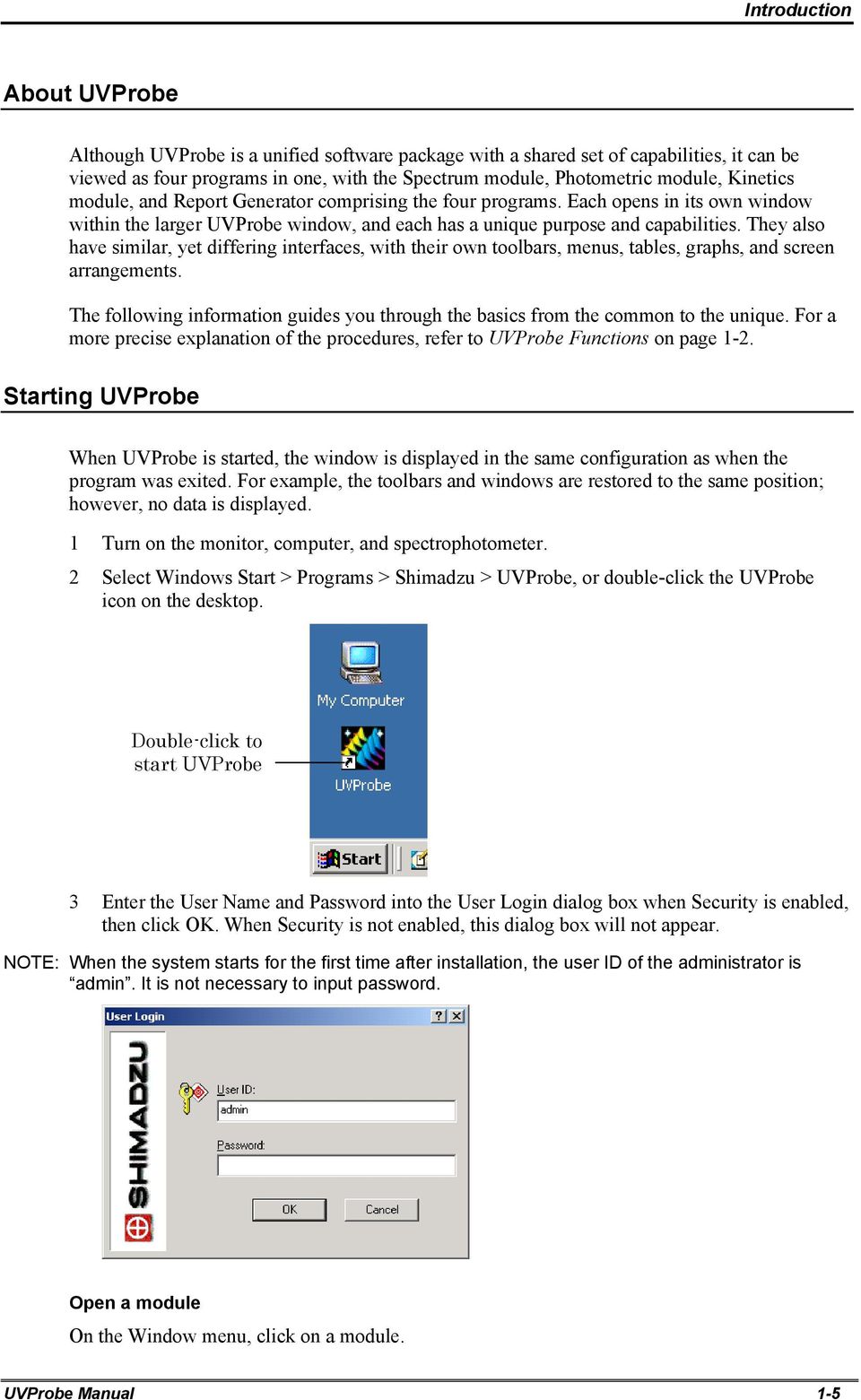
13 Introduction About UVProbe Although UVProbe is a unified software package with a shared set of capabilities, it can be viewed as four programs in one, with the Spectrum module, Photometric module, Kinetics module, and Report Generator comprising the four programs. Each opens in its own window within the larger UVProbe window, and each has a unique purpose and capabilities. They also have similar, yet differing interfaces, with their own toolbars, menus, tables, graphs, and screen arrangements. The following information guides you through the basics from the common to the unique. For a more precise explanation of the procedures, refer to UVProbe Functions on page 1-2. Starting UVProbe When UVProbe is started, the window is displayed in the same configuration as when the program was exited. For example, the toolbars and windows are restored to the same position; however, no data is displayed. 1 Turn on the monitor, computer, and spectrophotometer. 2 Select Windows Start > Programs > Shimadzu > UVProbe, or double-click the UVProbe icon on the desktop. Double-click to start UVProbe 3 Enter the User Name and Password into the User Login dialog box when Security is enabled, then click OK. When Security is not enabled, this dialog box will not appear. NOTE: When the system starts for the first time after installation, the user ID of the administrator is admin. It is not necessary to input password. Open a module On the Window menu, click on a module. UVProbe Manual 1-5
14 Introduction All modules can be open at the same time. Use the Window menu to quickly switch from module to module, or to arrange multiple modules using the Cascade and Tile choices. Modules can also be dragged and sized. UVProbe The Basic Interface Menu Bar Standard Toolbar Photometer Status Bar Instrument Bar Output Window This is an example of the basic UVProbe window with no open modules. Notice that it includes a Menu bar, a Standard toolbar, an Output window, an Instrument bar, and a Photometer Status bar. The following capabilities are available before either a module or the Report Generator is opened. Set options Perform system administration functions Add, configure, and remove instruments Add custom tools to the Tools menu For details on performing the above procedures, refer to Online Help. 1-6 UVProbe Manual

15 Introduction Output Window The Output window is dockable and can be positioned anywhere within the UVProbe workspace. It displays useful system information at the bottom of the UVProbe window and contains two tabs Output and Instrument History. Output displays general messages while the software is running. This is temporary information that will be cleared the next time the system is started. Instrument History displays information related to the currently active instrument, such as initialization time, baseline information, etc. The information changes when switching between instruments to display information specific to the currently active instrument. Neither Output nor Instrument History information can be printed or saved. Instrument Bar The Instrument bar is a dockable toolbar that can be positioned anywhere within the UVProbe workspace. It displays a button for each available instrument. To switch between the instruments, click the desired instrument. Photometer Status Bar The Photometer Status bar is a dockable status and control bar that can be positioned anywhere within the UVProbe workspace. Using the Photometer Status bar, any number of machine manipulation functions can be performed. The appearance of the Photometer Status bar can be configured to control the font style, size, and color, and the background color for the status display. Right-click the Photometer Status bar and choose Properties. See UVProbe Help for more details. Standard Toolbar New Tool Print Tool Spectrum Module Open File Tool Save File Tool Print Preview Tool Undo Tool Redo Tool Cut Tool Copy Tool Paste Tool Report Generator Kinetics Module Photometric Module UVProbe Manual 1-7

16 Introduction System Administration This section explains basic system administration. When security is disabled, and will not be used, skip to Communicating with the Spectrophotometer on page Basically, security enables a system administrator to determine the access privileges of everyone authorized to use the system. There are three procedures to master: adding groups, assigning group privileges, and adding users. When UVProbe is first installed, there are only four groups Administrator,Developer,Operator and Guest. The Administrator group controls all access privileges, i.e., when a user is added to this group, that user receives unrestricted access to UVProbe. To effectively control system access, create groups for each level of access that is to be granted, then assign users to the appropriate groups. For example, a group can be restricted from using the Peak Area table or the Report Generator. Groups cannot be restricted from individual modules. Use security to control access to the system, track users, and the operations that are performed by individual users. When security is enabled, the User Name is automatically entered into the analyst field that is saved with the data (in the New Data Set Information dialog box). View user and operation information on the Instrument History tab in the Output window, or in the File Properties dialog box History tab. In the Report Generator, the logged-in user can be printed on the report. Click Security in the Edit menu to display the Administrative dialog box. System control is performed using this dialog box. The tabs (pages) other than Change Password tab are available for the users registered in the Administrator group. Assign user s rights For convenience and ease of administration,every user must belong to a group. Group users carefully to control their rights within the system. The following rules apply to users and groups. A group is a collection of users. Each user must belong to a group,and cannot belong to more than one group. Groups have rights. All members of a group acquire the rights of the group. 1-8 UVProbe Manual

17 Introduction Rights Clipboard Operations Access Generator Edit Options Modify Menu Clipboard Operations Clipboard Operations Modify The rights that can limit the operation are divided in 18 components. The rights contained in each components and the ones already made available in UVProbe are described as follows: Also, no operation right of the UVProbe is given to the Guest group. Shimadzu Activity table Control (Kinetics Module) Right Description Administrator Developer Operator A function to copy the rows or columns of the activity table to the clipboard. Shimadzu Command Container Right Description Administrator Developer Operator Report Tools A right to use report generator module. It is a function to create/save/read the report files and report template in which objects are arbitrary lay out. A right to use Option in the Edit menu. It is the function to toggle UVProbe s application modes (Normal mode and Security mode only). A right to use the Tools menu. It is a function to add the other application software in the UVProbe menu command Adding a program in the Tools menu. Shimadzu Data print Control (Spectrum/Kinetics Module) Right Description Administrator Developer Operator A right to copy the rows or columns of the Data Print table to the clipboard. Shimadzu Kinetics Main Table Control Right Description Administrator Developer Operator A right to copy the rows or columns of the main table to the clipboard. A right to enter Edit, Coefficient/Comment to the main table. The right to toggle display/non-display of the columns on the table is also included. Shimadzu Kinetics Module Right Description Administrator Developer Operator Acquire Data A right to perform measurement Activity Table A right to create activity table. Cell Blank A right to use cell blank function Data Print A right to use data print function Edit Method A right to use the Method function in the Edit menu. It is the function to create/edit the measurement method. UVProbe Manual 1-9

18 Introduction Edit Settings Right Description Administrator Developer Operator A right to use the Settings function in the View menu. It is the function to set the number of digits of the data to be displayed, link setting of the report and template, whether message is displayed or not, display format of the dataset names, setting of the delimiters used at the time of saving text, etc Enzyme Table A right to create Enzyme file. File Properties A right to use File Property. File Property is a function to confirm the file loaded on RAM and to change the names such as file names, storage names, and dataset names. Go to Wavelength A right to perform wavelength transfer Load File A right to use the Open function in the File menu. It is a function to read Kinetics files, Enzyme files, Measurement Methods, and various templates. Main Table A right to create Main Table Manipulation A right to use data manipulation. Peak Area A right to create the Peak Area table. Peak Pick Perform Zero Auto A right to use the Peak Pick function of the Operation menu. A right to use auto-zero function Perform Baseline A right to use baseline correction function. Point Pick A right to use Point Pick function. Print Report Properties Save File A right to use Print Preview and Print functions in the File menu. They are the functions to perform printing using the report template linked to each pane. A right to use the Properties function in the View menu. It is the function to edit or set the display of graphs and tables in each pane. A right to use the Open function in the File menu. It is a function to open Kinetics files, Enzyme files, Method files, and various templates. Sewing Box A right to use the sewing box function. NOTE : The data operation function is disabled in the GLP mode. NOTE : File names, Storage names, and Dataset names cannot be changed in the GLP mode. Arithmetic Shimadzu Manipulation Control (Spectrum/Kinetics Module) Right Description Administrator Developer Operator Blank Subtract A right to use the Blank Subtract function that is one of Manipulate in the Operations menu. It is a function to create a new dataset by performing four operations of calculation of the constant number to the specified data sets. A right to use the Blank Subtract function that is one of Manipulate in the Operations menu. It is a function to create a new dataset by performing blank corrections on the specified data set UVProbe Manual

19 Introduction Right Description Administrator Developer Operator Ensemble Average Data Set Interpolation Normalization Transformations A right to use the Ensemble Average function that is one of Manipulate in the Operations menu. It is a function to create one dataset using the average value per point with regard to the specified two or more data sets. A right to use the Data Set function that is one of Manipulate in the Operations menu. It is a function to create a new dataset using four operations of calculation among data sets. A right to use the Interpolation function that is one of Manipulate in the Operations menu. It is a function to interpolate datasets in arbitrary pitch and to create a new data set. A right to use the Normalization function that is one of Manipulate in the Operations menu. This function enables easier view of the datasets with different kinds of measurement values on the overlay graph. A right to use the Transformation function that is one of Manipulate in the Operations menu. It is a function to create a new dataset using differential transformation, reciprocal transformation, and Abs/T% transformation. Clipboard Operations Shimadzu Michaelis-Menten Control (Kinetics Module) Right Description Administrator Developer Operator Create New Data Delete Row(s) Edit A right to copy the rows and columns of Michaelis-Menten Table to the clipboard. A right to newly create of Michaelis-Menten Table. A right to delete (cut out) the columns of Michaelis-Menten Table. A right to change the numerical value in Michaelis-Menten Table. Clipboard Operations Edit Shimadzu Peak Area Control (Spectrum/Kinetics Module) Right Description Administrator Developer Operator A right to copy the rows and columns of the Peak Area table. A right to change the numerical values and comments in the Peak Area table. Delete Region A right to delete the areas in the Peak Area table. Clipboard Operations Edit Shimadzu Peak Pick Control (Spectrum/Kinetics Module) Right Description Administrator Developer Operator A right to copy the rows or the columns of the peak pick table. A right to change the comment of the peak pick table. UVProbe Manual 1-11

20 Introduction Shimadzu Photometric Module Right Description Administrator Developer Operator Acquire data A right to perform measurement. Cell Blank A right to use the Cell Blank function. Edit Method Edit Settings A right to use the Method function in the Edit menu. It is a function to create/edit the measurement method. A right to use the Settings function in the View menu. It is a function to perform settings such as link settings of report template, whether to display messages, dataset name display format, and delimiters used at the time of text saving. Go to Wavelength A right to perform wavelength movement. Load File Make Standard Manipulation Overwrite File Perform Zero Auto A right to use the Open function in the File menu. It is a function to load the photometric files, standard files, method files, etc A right to use the Make Standard function of the Operation menu. It is a function to move the data on the table to the standard sample table. A right to use the Manipulate function in the Operations menu. A right to use the Save function in the File menu. A right to use Auto-Zero function Perform Baseline A right to use baseline correction function. Print Report Properties Save File Statistical Analysis A right to use the Print Preview and Print functions in the File menu. It is the function to perform printing using the report template linked to each pane. A right to use the Properties function in the View menu. It is a function to perform edit/display setting of the graphs and table on each pane. A right to use Save and Save as functions in the File menu. It is a function to save/overwrite the photometric files, standard files, ASCII files, method files, etc A right to use the Statistical Analysis function in the Operations menu. It is a function to add the column to display the calculation results of the statistical analysis (standard deviation and average) on the sample table. Shimadzu Point Pick Control (Spectrum/Kinetics Module) Right Description Administrator Developer Operator Clipboard Operations Edit Remove Points A right to copy the rows or columns of the Point Pick table to the clipboard. A right to change the wavelength and comment of the Point Pick table. A right to delete the rows within the Point Pick table UVProbe Manual

21 Introduction Modify Print Save File Shimadzu Report Generator Right Description Administrator Developer Operator A right to create/edit the report files. It is a function to insert objects onto the report or change the positions of objects. A right to use Print Preview and Print functions in the File menu. They are functions to print reports from the report generator. A right to use Save and Save as functions in the File menu. It is a function to save the created report files. Clipboard Operations Shimadzu Sample Table Control (Photometric Module) Right Description Administrator Developer Operator A right to copy the rows or columns of the Sample table to the clipboard. Delete rows A right to delete the rows within the Sample table. NOTE : The rows of the Sample table cannot be deleted in the GLP mode. Clipboard Operations Shimadzu SEP Table Control (Photometric Module) Right Description Administrator Developer Operator Right to copy the rows or columns of S.E.P table to the clipboard. Delete rows A right to delete the rows within the S.E.P table. NOTE : The rows of the S.E.P table cannot be deleted in the GLP mode. Shear Stitch Shimadzu Sewing Box Control (Spectrum/Kinetics Module) Right Description Administrator Developer Operator A right to use the Shear function that is one of Sewing Box in the Operations menu. It is a function to cut out a part of the selected data set. A right to use the Stitch function that is one of Sewing Box in the Operations menu. It is the function to connect two data sets to create a new data set. Shimadzu Spectroscopy Instrument Bar Right Description Administrator Developer Operator Add Instrument Configure Instrument Remove Instrument A right to use the Add function in the Instrument menu. It is a function to add instruments to be used for the system. A right to use the Configure function in the Instrument menu. It is the function to perform the COM port change and instrument baseline correction (with UV-1600/1700 series only) of the registered instruments. A right to use the Configure function in the Instrument menu. It is the function to perform the COM port change and instrument baseline correction (with UV-1600/1700 series only) of the registered instruments. UVProbe Manual 1-13
22 Introduction Shimadzu Spectrum Module Right Description Administrator Developer Operator Acquire Data A right to perform measurement. Data Print A right to use data print function Edit Method Edit Settings File Properties A right to use the Method function in the Edit menu. It is the function to create/edit the measurement method. A right to use the Settings function in the View menu. It is the function to set the number of digits of the data to be displayed, link setting of the report and template, whether message is displayed or not, display format of the dataset names, setting of the delimiters used at the time of saving text, etc A right to use File Property. File Property is a function to confirm the file loaded on RAM and to change the names such as file names, storage names, and dataset names. Go to Wavelength A right to perform wavelength transfer Load File A right to use the Open function in the File menu. It is a function to read ASCII files, Measurement Methods, and various templates. Manipulation A right to use data manipulation function. Peak Area Peak Pick Perform Zero Auto A right to create the Peak Area table on the Spectrum module. A right to use the Peak Pick function of the Operation menu. A right to use auto-zero function Perform Baseline A right to use baseline correction function. Point Pick A right to use Point Pick function. Print Report Properties Save File A right to use Print Preview and Print functions in the File menu. They are the functions to perform printing using the report template linked to each pane. A right to use the Properties function in the View menu. It is the function to edit or set the display of graphs and tables in each pane. A right to use Save, Save All, and Save as functions in the file menu. It is a function to save/overwrite Spectrum files, Measurement Methods, various templates, and various files. Sewing Box A right to use the Sewing Box function. NOTE : The data operation function is disabled in the GLP mode. NOTE : File names, Storage names, and Dataset names cannot be changed in the GLP mode UVProbe Manual
23 Introduction Clipboard Operations Shimadzu Standard Table Control (Photometoric module) Right Description Administrator Developer Operator A right to copy the rows and columns of the standard table. Delete Rows A right to delete the rows of the standard table. NOTE : In the GLP mode, the rows of the standard sample table cannot be deleted. Add a group Groups are added in the Group page of the Administrative dialog box. Groups can be added in addition to the existing user group. Two methods to add groups are available: one that creates new groups and the other that refers to the rights of the existing groups. Creating a new group: 1 Click the Add button of the Group page to open the Edit Group dialog box. 2 Enter the group name you wish to add in the Group dialog box and the group s description in the Description edit box. 3 (To Procedure 3 in Group right setting? Using Edit Group dialog box.)[tm3] Referring to the right of the existing groups 1 Click the group to refer to in the group list in the Group page. 2 Click the Copy button to view the Edit Group dialog box. 3 Enter the group name you wish to add in the Group dialog box and the group s description in the Description edit box. 4 (To Procedure 3 in Group right setting? Using Edit Group dialog box.) UVProbe Manual 1-15
24 Introduction Assign group rights Rights of the group are set in the Group page of the Administrative dialog box. Two methods to set group rights are available: one that uses the dialog box and the other that uses the Current Right list. Using the Edit Group dialog box 1 Click the group you wish to set rights in the group list in the Group page. 2 Click the Properties button to open the Edit Group dialog box. 3 Select the target component from the Object combo box. 4 Click the target right, and then click the arrow button to transfer the right between the Available Functions list and the Selected Functions list. 5 Repeat steps 3 and 4 to set the rights. 6 When setting of the right is complete, click the Close button to confirm the setting. Using the Administrative dialog box 1 Click the group you wish to set rights in the group list in the Group page. 2 Click the + mark next to the target module or object in the Current Rights list. 3 Give check marks to the boxes next to the each right and assign the right as shown in the figure. 4 Repeat steps 2 and 3 to set the rights. 5 When setting of the right is complete, click the Close button to confirm the setting UVProbe Manual
25 Introduction Remove a group A group is deleted in the Group page of the Administrative dialog box. 1 Click the group you wish to delete in the group list of the Group page. 2 Click the Remove button and confirm that the target group is deleted from the group list. 3 Click the Close button to confirm that it has been deleted. NOTE : When users exist within the group, that group cannot be deleted. The registered groups cannot be deleted. Administrator group cannot be deleted. UVProbe Manual 1-17
26 Introduction Add a user A user can be added in the User page of the Administrative dialog box. You can add a new user in addition to the existing user. 1 Click the Add button in the above User page to view the Add a User dialog box. 2 Enter User ID, User Name, and Password of the user you wish to register now. 3 Select the group into which the new user is registered from the Group Combo Box. 4 Click the OK button to close the dialog box. 5 Click the Close button to confirm that the user has been added. NOTE : Once registered, the user cannot be deleted UVProbe Manual
27 Introduction Edit user User can be edited in the Users page in the Administrative dialog box. The group to register the user and the password can be changed here. 1 In the user list of the Users page, click the user whose contents you wish to edit. 2 Click the Properties button to open the Edit User dialog box. 3 Edit the items you wish to change. Select the group to register the user into from the Group Combo box. To change the user password, enter a new password. 4 Click the OK button. 5 Click the Close button to close the Administrative dialog box. NOTE : User Name and Full Name cannot be changed when UVProbe is set to the GLP mode. Only a system administrator can use this function. The same user cannot be registered in two or more groups. Enabling/disabling user To enable/disable user is toggled in the Users page of the Administrative dialog box. Here, the registered users can be disabled or the disabled users can be enabled. NOTE : The registered users cannot be deleted. To toggle user enabled/disabled, it is necessary to enter the reason. 1 Click the user you wish to disable/enable in the user list of the User page. 2 Click the Enable (Disable) button to open the Input a Reason dialog box. 3 Enter the reason to enable or disable the user in the Edit Dialog box. 4 Click the OK button to close the dialog box. 5 Confirm that the target user is enabled or disabled, and then click the Close button to confirm the change. UVProbe Manual 1-19
28 Introduction Changing a password Password is changed in the Change Password page in the Administrative dialog box. 1 Enter the current password that the user is using. 2 Enter a new password. 3 Enter the password that has been entered in 2 in the Confirm edit box. 4 Click the Change button to confirm the password change. NOTE : The minimum number of lower-case letters for a password is set by Shimadzu authentication tool. A password requires combination of numbers and alphabetical letters. A password differentiates upper-case letters and lower-case letters UVProbe Manual
29 Introduction Using the Modules Peak Pick Table in Operation Pane Spectrum Toolbar Method Pane Photometer Button Bar Graph Pane This is a graphic of the UVProbe window with an open Spectrum module. The Spectrum module is in its own window within the larger UVProbe window, and includes a Menu bar, a Standard toolbar, a Spectrum toolbar, an Instrument bar, a Photometer Button bar, and a Photometer Status bar. Use the View menu to enable/disable any of the toolbars or display elements. Panes that vary between modules The Spectrum window is divided into panes, with the Operation pane in the upper left, the Graph pane to the right, and the Method pane in the bottom left. The Kinetics and Photometric modules also contain panes. Each pane has a specific function or set of functions. For example, the Spectrum module Graph pane displays three different types of graphs. The Method pane displays the data collection method information for the current data set, and the Operation pane displays data collected or manipulated by various operations, such as Peak Pick or Peak Area. Use the View menu to enable/disable the panes. Resize panes by dragging the horizontal and vertical splitter bars. UVProbe Manual 1-21
30 Introduction Unique menus and toolbars Although the modules share some menus, the available menus change from module to module and the choices within the menus also change. For example, the Spectrum and Kinetics modules each have a Graph menu, while the Photometric module does not. However, the Graph menu provides different choices depending on whether the Spectrum or Kinetics module is active. The modules also have their own toolbars, once again with both shared and unique capabilities. For a detailed depiction of a module and a description of its purpose, see the introduction to the lesson for that module. UVProbe Functions This section describes some of the functions that must be understood before starting the tutorial, including: Communicating with the spectrophotometer Shortcut menus and Properties pages Graph modes Communicating with the Spectrophotometer Once the PC is physically connected to the spectrophotometer (refer to the Instrument Installation Manual), and UVProbe had been installed and started, the software is almost ready to take measurements. The final step is to add and configure the instrument to work with UVProbe. Add and configure an instrument 1 Select View > Instrument Bar. 2 Select Instrument > Add to initiate the Add Instrument Wizard. 3 Click Next to view a list of instruments UVProbe Manual
31 Introduction 4 Click the instrument model, then click Next. 5 In the Instrument name box, enter a name for the instrument. This will appear on the Instrument bar button. 6 Click Configure, then select the communications port for the instrument, usually COM1 or COM2. (When uncertain, look at the back of the computer. When the communication ports are not labeled, refer to the PC hardware manual.) Click OK. 7 Click Next. 8 Enter the model name and the serial number of the instrument. Be sure to enter them as each is recorded as one piece of data set information (summary). NOTE: The serial number cannot be changed after it has been entered. When the serial number is incorrect, remove the instrument and add it again. Some instruments contain internal serial numbers. When this is the case, UVProbe will automatically enter this information. 9 Click Finish to display a button on the Instrument Bar with the name of the installed spectrophotometer will display. The screen should resemble the following. Instrument Name NOTE: Move the mouse along the button on the Instrument bar to display a ToolTip to identify the type of the instrument. Connect to the spectrophotometer 1 Select Window > Spectrum, Kinetics, or Photometric. A module must be active before the spectrophotometer can be connected. 2 On the Instrument bar, select the instrument button. When only one instrument is installed, it is automatically selected. 3 Ensure that the spectrophotometer is on, then click the Connect button. When connected to the instrument, the Connect button changes to Start and the Photometer buttons become active, as shown in the next figure. Now create a data collection method for any module and begin taking readings. If instrument initialization has not yet completed when connecting to the spectrophotometer, a window similar to the following may appear. UVProbe Manual 1-23
32 Introduction NOTE: On some instruments, initialization is performed when the power is turned on. If the initialization has completed before the software is connected to the instrument, this screen will not display, and Instrument History is not stored. To ensure that instrument history is stored, connect to the instrument immediately after turning it on. When necessary, click OK when initialization is complete. UVProbe stores the initialization information in the Instrument History for future use. Shortcut Menus and Properties Pages A Shortcut menu is a context-sensitive menu that can be accessed by right-clicking the mouse. A Properties page is a pane-specific dialog box used to set features or perform actions specific to the current pane and the current situation. For example, right-click the Spectrum graph to display a Shortcut menu with options specific to the Spectrum graph. Or, right-click a Spectrum Operation pane containing an active Peak Pick table to display a Shortcut menu with options unique to Peak Pick, and select Properties to display the Peak Pick Properties page. Manipulating a Properties page The Properties page can be pinned so that it is always visible. Click in the upper left corner of the page to pin it. When moving from pane to pane, or module to module, the Properties page remains visible and dynamically updates with new choices and new information, depending on the contents of the active pane. The Properties page can be moved like any other window or dialog box. Close the Properties page by clicking, or, when it is not pinned, click outside the box to close it. When data is entered into a Properties page, the entry takes effect when either the Return or Tab key is pressed or the mouse is clicked outside the Properties page UVProbe Manual
33 Introduction Graph Modes Each module contains graphs for tracking data. There are three graph modes for the Spectrum and Kinetics modules: Active, Overlay, and Stacked. In the Kinetics module there is also a Custom graph mode. The Photometric module has only two graphs: the Standard Curve and the Sample Graph. Active Graph Mode The Active graph mode displays a single line of data that represents the currently active data set. The data does not show in this mode until after it has been collected. To watch the graph update as UVProbe collects data, switch to the Overlay or Stacked mode. The Active mode is for viewing or manipulating data that is already in memory. Overlay Graph Mode The Overlay graph mode simultaneously displays all of the data sets in memory. For example, when there are three data sets in memory, this graph will display a line for each. It may be necessary to use the Auto Scale function on the Shortcut menu to fit all of the data into the graph. The Overlay mode also includes a graph legend to help distinguish between different lines on the graph. The legend can be hidden when not in use and is accessed on the Shortcut menu. Whenever data is collected with the spectrophotometer, UVProbe automatically switches to Overlay mode and displays the data in real-time as it is collected. Stacked Graph Mode The Stacked graph mode displays a separate graph for each data set in memory. The graphs are stacked on top of one another. As more data sets are loaded into memory, each graph becomes smaller, until a scroll bar appears to the right. At that time, it becomes necessary to scroll to see the graphs. This scrolling option may be disabled to compress the graphs to fit within the plotting area. The X-axis labels disappear to conserve space. See Online Help for more information. Custom Graph Mode The Custom graph mode displays a custom graph arrangement only in the Enzyme graph pane of the Kinetics module. Its basic purpose is to simultaneously view Michaelis-Menten data acquired with several linear transform types. Standard Curve The Standard Curve is based on data in the Standard table. UVProbe uses points from the Standard table to calculate the curve and then uses the curve to determine the concentration value of the unknown samples in the Sample table. The Y-axis displays absorbance values and the X-axis displays concentration values. The Y-axis can also display transmittance, energy, or reflectance values, depending on the Measuring Mode set in Photometric > Method > Instrument Parameters. Sample Graph The Sample graph displays a point for each entry in the Sample table. The X-axis contains one point for each value in the table, and the Y-axis displays concentration values for each point. From the Graph menu, the graph can be changed to display absorbance values for each point on the Y-axis. UVProbe Manual 1-25
34 Introduction File Properties, Storages, and Data Sets Data is saved into a file that is divided into collection units called storages. Each storage contains one or more data sets. The data sets contain the actual data as well as all Method, History, and Summary information. The basic data container is a file, and all data is stored in files that are subdivided into collection units called storages, and storages are further subdivided into data sets. Each file contains at least one storage, and each storage contains at least one data set. For better understanding, see the following example which shows the File Properties dialog box displaying one file with multiple storages and multiple data sets. File Storage Data Set File Properties On the File menu, Properties refers to the File Properties dialog box. (This is different from a Properties page.) Refer to Online Help for more information. From this dialog box: Determine which Spectrum files are loaded. List each storage and data set in a file. View method, history, and summary information. Rename a storage or data set. Hide a data set. Show a hidden data set. Store all data in a single file. Delete files, storages, or data sets from memory UVProbe Manual
35 Introduction Storage A storage is a data unit contained within a file. There is one storage for each scan, and each storage contains one or more data sets, including the RawData set (the data collected in the scan) and any data sets created when manipulating the data. Data Set A data set is that part of a file that contains data collected in a scan or created in some other way, such as manipulating the scanned data. Data sets are grouped into storages. Advantages The advantages of the File, Storage, Data Set architecture becomes apparent when the Store All Data in a Single File feature is enabled. When this feature is enabled several options are possible: Measurements taken using a cell positioner can be stored together. Every measurement for a given day can be stored in a single file under a different storage thus reducing the total number of files that reside on disk. Measurements of similar samples can be stored together in one disk file. Precision of Internal Data Processing Calculations in UVProbe are performed using double-precision floating-point values. The data stored in a file also retains the same precision. The data, either shown on-screen or printed, is rounded to either the user-specified or the default number of digits. This rounding process applies only to the on-screen or printed image and does not affect the precision of the stored data or any subsequent calculations. For example, a manually calculated calibration curve that is based upon on-screen or printed tabular data and the curve that is calculated by UVProbe using double-precision floating-point values may appear to be different. NOTE: Double-precision Floating Point: Compliant to IEEE. Mantissa: 53bit, Exponent: 11bit. Equivalent decimal system: 16 digit * 10 ±308 Rounding Process: The number is rounded up when it is five and above and any number under five is rounded down. UVProbe Manual 1-27
36 Introduction The UVProbe Tutorial After the software is installed, you are ready to begin the tutorial which includes four lessons, one each for the Spectrum, Photometric, and Kinetics modules, and one for the Report Generator. We recommend that lessons be completed in order; however, you can also skip to the lesson for a specific module. It is important to note that Lesson 4 on the Report Generator makes use of files created in Lesson 1; therefore, Lesson 4 cannot be completed without Lesson 1. It is also important that the UVProbe Functions section be read and understood (see page 22), as certain procedures are explained that must be understood to successfully complete the tutorial. All data files required by the tutorial can be located in the data subdirectory from which UVProbe was installed, e.g., C: Program Files Shimadzu UVProbe Data NOTE: All procedures in this tutorial are performed with GLP and security disabled. Lesson 1 The Spectrum Module Basic Measurements In Exercise 1, perform a Baseline Correction, create and save a data collection method, and collect and save spectral data. Basic Spectrum Operations Exercise 2 contains basic Spectrum operations, including how to display and configure a Peak Pick table, how to create and manipulate a Peak Area table, and how to perform basic arithmetic operations on Spectrum data sets. Advanced Spectrum Techniques In Exercise 3, data is acquired with a cell positioner. Also, bitmap graphics are copied from the Spectrum module and pasted into WordPad. Lesson 2 The Photometric Module Basic Measurements In Exercise 1, create a Standard table and a Standard Curve by taking readings with the spectrophotometer or by manually entering data into a Standard table. Basic Photometric Operations In Exercise 2, calculate unknown concentrations using various Standard Curves. Also, use Auto Fill to build a Standard table and perform a reciprocal operation on the data. Advanced Photometric Techniques In Exercise 3, create custom equations by performing a Hops Acid analysis, and use the sipper attachment to measure unknown samples UVProbe Manual
37 Introduction Lesson 3 The Kinetics Module Basic Measurements In Exercise 1, create a Kinetics data collection method and collect Time Course data with the Kinetics module. Basic Kinetics Operations In Exercise 2, create a Point Pick table, save the Point Pick data as a template, then open the template. Also, perform a cell blank operation, and interpret and control both the Activity and Main Kinetics tables. Advanced Kinetics Techniques In Exercise 3, create a Michaelis-Menten table to calculate Km and Vmax, create an Inhibitor table based on the calculated Km and Vmax values, and create a custom Kinetics graph configuration. Lesson 4 The Report Generator Create a Basic Report with Embedded Objects In Exercise 1, create a report using embedded objects. The report will include an Overlay graph from the Spectrum module and a report title. Also save and print reports. Create a Basic Report with Linked Objects In Exercise 2, create a report using linked objects. The report will include a graph object and a Peak Pick table object linked to the active spectrum. Advanced Reporting Techniques In Exercise 3, add a linked object with custom settings, and insert various text objects into a report. Also, configure Quick Print in the Spectrum module. UVProbe Manual 1-29
38
39 Spectrum Chapter 2 The Spectrum Module, Lesson 1 The basic purpose of the Spectrum module is to control the spectrophotometer and scan through a range of wavelengths, while recording absorbance, transmittance, reflectance, or energy readings at each wavelength in the scanned range. The module is easy to use and flexible, allowing design of simple or complex methods for collecting data. The instrument and attachment types can be configured for data collection. The user can save collection parameters, view collected data on graphs in various ways, manipulate the data with features such as Data Print and Peak Pick, save the data, and print it directly from within the module. The module includes three panes: Operation, Method, and Graph. The Operation pane is positioned in the upper left and contains all the data viewing and manipulation functions, such as Data Print, Peak Area, and Peak Pick. The Method pane is positioned below the Operation pane and displays the data collection method information for the active data set. The Graph pane is positioned on the right and contains the Active, Overlay, and Stacked graphs. This lesson includes the following exercises: Basic Measurements Basic Spectrum Operations Advanced Spectrum Techniques UVProbe Manual 2-1
40 Spectrum Spectrum Window Operation Pane Spectrum Toolbar Method Pane Graph Pane Spectrum Toolbar View Graph Tool Edit Method Tool Sewing Box Tool View Operation Tool View Method Tool Data Print Tool Manipulation Tool File Properties Tool Settings Tool Properties Tool Peak Pick Tool Point Pick Tool Peak Area Tool 2-2 UVProbe Manual
41 Spectrum Exercise 1 Basic Measurements In this exercise: Perform a Baseline Correction Create a data collection method Save a data collection method Collect the data Save the data Before beginning, maximize the UVProbe window and ensure that the Photometer Status bar, Photometer buttons, Instrument bar, and Output window are displayed. When necessary, select these items on the View menu. NOTE: If an instrument was not added and configured as described in the Introduction, please do so now. See page 1-15, Communicating with the Spectrophotometer. Step 1 Perform a Baseline Correction Baseline Correction sets the background to zero over the currently selected wavelength range and affects all subsequent readings within that range. This ensures a good reference point before collecting data. NOTE: Perform a Baseline Correction periodically to compensate for drift. After a Baseline Correction completes, UVProbe stores information about the Baseline Correction in the Instrument History, including the analyst, date and time. NOTE: Before starting the Baseline Correction, ensure that neither the sample nor the reference beam is obstructed and that there are no samples in the sample compartment. Refer to the instrument manual for help in identifying the sample or reference beam. Perform a Baseline Correction and view instrument history 1 Select Window > Spectrum to open the Spectrum module. NOTE: When more than one instrument is installed, click the button on the Instrument bar that represents the desired instrument. 2 Click Connect on the Photometer Button bar to connect to the instrument. 3 Click Baseline on the Photometer Button bar to initiate the baseline operation. 4 When the Baseline Parameters dialog box appears, enter 700 as the Start and 300 as the End baseline parameters. 5 Click OK. Notice the reading in the Photometer Status window as it performs the baseline procedure. 6 When the scan is completed, click the Instrument History tab on the Output Window and notice that the Baseline Correction is listed. Baseline Correction Listing UVProbe Manual 2-3
42 Spectrum Step 2 Create a Data Collection Method A data collection method will be created using a wavelength range of 600 to 450, a medium scan speed, and a sampling interval of 1.0 nm. The absorbance of a didymium filter will be measured. (Any available filter or sample may be used as a substitute.) 1 Select Edit > Method, or click the Method icon to display the Spectrum Method dialog box. 2 To set the Wavelength Range, enter 600 in the Start box and 450 in the End box. 3 Select Medium in the Scan Speed list. 4 Select 1.0 in the Sampling Interval list. This will set the machine to take a reading every 1.0 nm. 5 Click Single under Scan mode to take a single reading across the selected Wavelength Range. 6 Click the Instrument Parameters tab. 2-4 UVProbe Manual
43 Spectrum 7 Select Absorbance in the Measuring Mode list. 8 Click OK to send the parameters to the instrument. Notice the Photometer Setup message in the Photometer Status display. (This displays very briefly.) Leave all other method settings in their default state. Please refer to Online Help for more information about these settings. To access context-sensitive Help, right-click an item on the dialog box, then click What s This? Step 3 Save a Data Collection Method Sometimes it is useful to save a data collection method so that it can be used later to collect new data. Save the current method as an.smd file to be used in Exercise 3 of this lesson. 1 Select File > Save As. 2 In the File Name box, enter SpecMeth. 3 In the Save As Type list, click Method File (*.smd) and then click Save. Step 4 Collect the Data The absorbance of the didymium filter will now be measured using the method above. First, configure the Y-axis of the Overlay graph to display the data as it is collected. Whenever a reading is initiated, UVProbe automatically switches to the Overlay graph and sets the X-axis to the wavelength range in the method. However, the Y-axis may have to be manually set to properly display data. Configure the Overlay graph 1 Click the Overlay tab to place the graph in Overlay mode. 2 Click the minimum absorbance value on the Y-axis, and change it to Click the maximum absorbance value on the Y-axis, and change it to 3. UVProbe Manual 2-5
44 Spectrum Click on the Abs.values to change the range NOTE: Either of the following techniques can be used after a scan completes. To ensure that all the collected data displays properly on the graph, use the Auto Scale function. After the scan completes, right-click and select Auto Scale on the Shortcut menu to adjust the graph coordinates to fit the data. To zoom in on a region of the graph, hold down the left mouse button and drag it to form a box around the area to be viewed. The graph will adjust immediately when the mouse key is released. Perform a spectral scan 1 Place the didymium filter into the sample compartment of the spectrophotometer. For additional information, refer to the instrument manual. 2 Click the Start button on the Instrument bar to initiate the scan. 3 When the scan is complete, enter Didymium as the file name in the New Data Set dialog box that appears onscreen. 4 Enter Data1 as the name of the data storage and click OK. 2-6 UVProbe Manual
45 Spectrum Step 5 Save the Data At this point, data has been collected and named, but the data is stored in memory only; it is not saved to disk. If UVProbe is closed at this point, the data would be lost. To preserve the data, save it in a file. When saving a Spectrum file, UVProbe stores the following for each data set in the file: Peak Area table Point Pick table Peak Pick table Method information Summary information History information Save the data 1 Select File > Save As. 2 Select the appropriate data directory in the Save In box at the top of the dialog box. 3 Enter Didymium for the file name. 4 Select.spc in the Save As Type list. 5 Click Save. NOTE: Select File > Save to save the file; however, Save As must be used to save the file to a specific data directory. NOTE: We have two ways to show parameter of the data set. 1. Open File Property dialog box and select Data Set Icon. Parameter will be displayed in the Method tab. 2. On the Legend Window, double click on the data set. Parameter will be displayed in the Method pane. UVProbe Manual 2-7
46 Spectrum Exercise 2 Basic Spectrum Operations In this exercise: Open a Peak Pick table, adjust the threshold, and modify the table to annotate the graph. Create a Peak Area table. Manipulate a data set using Arithmetic and Transformations manipulation types to create two new data sets. Step 1 Adjust the Parameters of a Peak Pick Table Peak Pick is displayed in the Operation pane and is used to display all of the peaks and valleys in a data set, as well as the wavelength, absorbance, transmittance, or reflectance of the data at each peak and valley. In this exercise, a Peak Pick table is viewed, the threshold value is adjusted, and the graph labeling is enabled and disabled to annotate a graph using the Peak Pick table Properties page. Open the file and display it in the Active graph 1 Click the Active graph tab in the graph pane. 2 Select File > Open. 3 Double-click the file Holm_ox.spc located in the Data directory. 4 Right-click on the graph and choose Auto Scale to set the graph to display all of the data. Notice that each peak and valley on the graph is numbered. 2-8 UVProbe Manual
47 Spectrum Display a Peak Pick table 1 Select Operations > Peak Pick. When necessary, use the View menu to hide the Method pane and Output window to create more room onscreen for the Peak Pick table. The screen should resemble the following. 2 Right-click on the Peak Pick table and select Mark Peaks on the Shortcut menu. Repeat the above step and select Mark Valleys. Notice that the peaks and valleys are no longer labeled on the graph, as in the following figure. UVProbe Manual 2-9
48 Spectrum Change the Peak Pick threshold value 1 Right-click on the Peak Pick table and select Properties on the Shortcut menu. 2 Click on the Properties page to pin it. 3 Enter 10 into the Threshold box and press Enter. Observe the change in the Peak Pick table. The table should resemble the following. 4 Enter 20 into the Threshold box and press Enter. Notice that the number of entries in the table decreases as the threshold value is increased. This is because the higher the threshold value, the fewer the number of peaks and valleys detected. For additional explanation of the Peak Pick threshold algorithm, see Online Help UVProbe Manual
49 Spectrum Label each peak and valley on the graph 1 Drag the Properties page beneath the Peak Pick table to view the table. 2 In the Description column of the Peak Pick table, enter the following information. When Mark Peaks and Mark Valleys are enabled, these entries will appear on the graph. No. Peaks No. Valleys Peak A Peak B Peak C Peak D Peak E Peak F Peak G Peak H Peak I Peak J Peak K Peak L Valley A Valley B Valley C Valley D Valley E Valley F Valley G Valley H Valley I Valley J 3 Click the Peaks tab on the Peak Pick Properties page. 4 Click in the Description check box. Notice that the entered descriptions are displayed on the graph peaks. 5 Click in the Number check box. Notice that the number above each peak is no longer displayed on the graph. UVProbe Manual 2-11
50 Spectrum 6 Click the Valleys tab on the Peak Pick Properties page. 7 Click in the Description check box. Notice that the entered descriptions are displayed on the graph valleys. 8 Click in the Number check box. Notice that the number below each valley is no longer displayed on the graph. The screen should now resemble the following figure. Notice that on the Active graph, each peak and valley is labeled with the descriptions entered in the Peak Pick table UVProbe Manual
51 Spectrum Step 2 Create a Peak Area Table Peak Area is used to calculate the area under a curve. A Peak Area table is a collection of one or more regions, wherein a region equals a row in the table and includes starting and ending wavelengths that define an area. Enter a start and end wavelength value to define a region and Peak Area will return an area value for that region. An unlimited number of regions can be defined for each open data set. Now, change the X-axis of the graph to a range of 300 to 400 nm. See page 2-6 for information on changing the range of a graph. Define a Region on a Peak Area table 1 Select Operations > Peak Area, then adjust the size of the graph to display each column in the Peak Area table. (The last column is the Description column.) 2 Select Peak Area table, click the Start column for Region 1. 3 Enter 350 for the starting wavelength value, press Tab or Enter, then enter 365 for the ending wavelength value. 4 Press Enter to define the Peak Area region. The screen should resemble the following. Notice that reader bars indicate the beginning and ending wavelength values and that the area under the curve is indicated by a color and fill pattern. The color and fill pattern correspond to the color and fill pattern indicated in the Color column for Region 1. UVProbe Manual 2-13
52 Spectrum Step 3 Manipulate a Peak Area Table and Graph Both the Peak Area table and the Peak Area graph can be manipulated. In this part of the exercise, change the divisor on the table to see how it affects the results as indicated in the Result column. Then set the Baseline to Zero on the graph. Change the divisor 1 In the Divisor column of the Peak Area table, change the divisor to 2. 2 Press Enter. Notice how changing the divisor affects the result as indicated on the Peak Area table Result column. Dividing the area by 2, the result is now half of the area. Change the baseline to zero 1 Change the Y-axis minimum to -10 to see the results of the operation. 2 Click on the Peak Area table to update the pinned Properties page. 3 On the Peak Area Properties page, click the Baseline to Zero check box. Notice that the calculated area and result are updated, and that the baseline of the Peak Area region on the graph is now set to zero UVProbe Manual
53 Spectrum Step 4 Create a New Region A region can be defined using the reader bars on the graph rather than manually typing start and end values into the Peak Area table. Use reader bars to create a region 1 Click the Baseline to Zero box to change the baseline to the previous value. 2 Click Region 2 in the Peak Area table. 3 On the graph, drag the left reader bar to the left until the wavelength value reads Drag the right reader bar until the value reads 340. There is now a second defined region on the graph. Define a color and fill style 1 For Region 2 in the Peak Area table, click either the Color button or the down arrow next to the Color button in the Color column. 2 Select a color and fill style that contrasts with the color and fill style in the previous region. Click OK. 3 Click on the Baseline to Zero check box. Notice that the color and fill style for Region 2 changes on the graph and resembles the figure below. NOTE: A custom color is defined by clicking the C (custom) button on the Color menu. This is useful when using a large number of regions. Save the data 1 Select File > Save As. 2 Enter Peaks as the file name. 3 Select.spc as the Save As Type, and click the Save button. UVProbe Manual 2-15
54 Spectrum Step 5 Manipulate a Data Set Two new data sets will be created by applying manipulation functions to the raw data set in the file anthracene.spc. Display the data sets in the Stacked graph. First, however, remove the files that are currently open in memory, so that the Stacked graph displays the data sets in anthracene.spc only. Remove files from memory 1 Select File > Properties. 2 Select File Properties dialog box, click each file in turn, then click Delete. 3 When the dialog box appears, to inform that the last data set is being removed with the last file, click Yes. 4 Click Close after removing all of the files from memory. Open a new file and perform an Arithmetic manipulation 1 Select File > Open. 2 From the Data directory, open anthracene.spc. 3 Select Operations > Manipulate. 4 Verify that Arithmetic is the Type in the Operation pane. 5 In the Data Set list, verify that RawData is the selected data set. 6 In the Operation list, select Subtraction. 7 In the Constant box, enter 2 and click Calculate. 8 In the New Data Set dialog box, enter SubTwo for the Data Set. Click OK. 9 Click the Stacked tab in the Graph pane to display all of the open data sets. Notice that two graphs now display in the Graph pane. One graph displays the raw data. The other displays the manipulated data with absorbance values that are two absorbance units lower than the values for the raw data across the entire wavelength range UVProbe Manual
55 Spectrum Create a data set using a Reciprocal transformation 1 In the Type list, select Transformations. 2 In the Source list, choose RawData. 3 Select Reciprocal in the Transformation list. 4 Click the Calculate button. 5 In the New Data Set dialog box, enter Reciprocal for the Data Set, then click OK. 6 The screen should resemble the following. Notice that there are now three graphs, one for each data set. Save the data to a different file 1 Select File > Save As. 2 Enter Manipulate as the file name. 3 Click the Save button. The file is saved with three data sets. UVProbe Manual 2-17
56 Spectrum Exercise 3 Advanced Techniques In this exercise: Acquire data with a cell positioner using Auto Scan. Use UVProbe to copy and paste bitmaps and tables into WordPad (Word processor included with Windows 9x/NT). Part 1 Acquire Data with a Cell Positioner Use the data collection method saved in Exercise 1 to collect data with a cell positioner using the Auto Scan feature. When no cell positioner attachment is available, skip this part of the exercise. Prepare three samples with similar spectral characteristics. Step 1 Load and Modify a Saved Data Collection Method The data collection method file saved earlier in this tutorial will be opened and the method will be modified to collect data with a multi-cell positioner using the Auto Scan feature. When Auto Scan is enabled, a file name is entered and UVProbe automatically appends a number to the file and stores the data set for each scan in that file. Load a data collection method 1 Select File > Open. 2 In the Files of Type list, click Method File (*.smd). 3 Choose the file SpecMeth.smd. 4 Click Open. Modify the method 1 Click the Connect button (when not already connected to the instrument). 2 Select Edit > Method UVProbe Manual
57 Spectrum 3 Select the Measurement tab and verify the following: Start wavelength: 600 End wavelength: 450 Scan speed; Medium Sampling interval: Under Scan Mode, click Auto to switch to the Auto Scan mode. 5 In the File Name box, enter AutoCell to designate a base file for the scanned data. 6 Click the Instrument Parameters tab. 7 Verify that the Measuring Mode is Absorbance. UVProbe Manual 2-19
58 Spectrum Step 2 Configure the Positioner Now the cell positioner will be configured with the number of cells to be used and the attachment will be initialized. Initialization aligns and moves the positioner into the correct position for data collection. 1 Click the Attachments tab of the Spectrum Method dialog box. 2 Select the positioner from the list of attachments. 3 Enter 3 for the Number of Cells. 4 Click Initialize, and note that the spectrophotometer is moving the positioner into place. 5 When the cell positioner is in place, click OK and notice that the Photometer Button bar now contains two buttons for repositioning the cells. Step 3 Remove Data from Memory The file anthracene.spc will be removed from memory so that the only remaining data sets will be those collected using the cell positioner. 1 Select File > Properties. 2 In the Loaded Data box of the File Properties dialog box, expand the data tree, click each file in turn, and click Delete for each file. 3 When a dialog box appears stating that the last data set is being removed with the last file, click Yes. 4 Click Close after removing all the files from memory UVProbe Manual
59 Spectrum Step 4 Collect the Data Now the cell positioner will be used to collect data for the three samples. Collect data with the positioner 1 Place the three samples in the first three compartments of the cell positioner. These are located closest to the front of the machine. For additional information, see the spectrophotometer instrument manual. 2 Click the Start button on the Photometer Button bar to initiate the scan. When the scan is completed, the cell positioner will move forward by one cell. The New Data Set dialog box will not display because the mode is not Single scan. 3 Repeat the preceding step for the remaining samples. 4 After all scans are complete, right-click the Overlay graph, then choose Auto Scale to display all of the data. 5 Select File > Properties. Notice that three files exist in the Loaded Data List. Each file name includes the base name and a time stamp. 6 Click Close. Save all data Select File > Save All. UVProbe Manual 2-21
60 Spectrum Part 2 Use UVProbe with Windows WordPad In this section, data is exported from the Spectrum module to WordPad. WordPad is a general purpose word processor included with Windows 9x/NT operating systems. The techniques used with WordPad should work equally well with most word processing software. Step 1 Copy and Paste a Bitmap to WordPad The Overlay graph will now be copied into WordPad. When a graph is copied in UVProbe for pasting into another document, UVProbe converts the graph to a bitmap (.bmp) file. A.bmp file is a standard file type that represents graphical information as a bitmap a file format used for pictures, clip art, or other types of online art. 1 Select Windows Start > Programs > Accessories > WordPad. 2 Type Overlay Spectrum Graph into the blank WordPad document, and press the Return key. 3 Return to the Spectrum module and click the Overlay graph. 4 Select Edit > Copy to copy the graph. 5 Return to WordPad. Select Edit > Paste to paste a bitmap picture of the Spectrum Overlay graph into the WordPad document. The screen should resemble the following UVProbe Manual
61 Spectrum Step 2 Copy and Paste a Table to WordPad Now the Peak Pick table will be copied into WordPad. In UVProbe, when a table is copied to be pasted into another document, UVProbe converts the table to text. 1 Return to the Spectrum module. 2 Select Operations > Peak Pick. 3 Click the right-mouse button over the table to display the Shortcut menu and choose Select All to select the Peak Pick table. 4 Select Edit > Copy, or use the Shortcut menu. 5 Return to WordPad, and paste the table beneath the graph. NOTE: The data may have to be manipulated so that it aligns with the proper column headings. You have completed the Spectrum lesson. UVProbe Manual 2-23
62
63 Photometric Chapter 3 The Photometric Module, Lesson 2 The basic purpose of the Photometric module is to determine the concentration of a substance in a sample; take measurements with a spectrophotometer to create Standard Curves and use the curves to calculate the concentration value of unknown samples; and derive values based on equations that can be created and customized. The module includes four panes Standard table, Standard Curve, Sample/S.E.P. table, and Sample graph. Each pane has only one function, with the exception of the Sample/S.E.P. table pane, which can display either a Sample table or a Standard Error of Prediction table (see Online Help for information on toggling between these tables). This lesson consists of three exercises: Basic Measurements Basic Photometric Operations Advanced Photometric Techniques UVProbe Manual 3-1
64 Photometric Photometric Window Standard Table Photometric Toolbar Standard Curve Repetition Number Sample Table Photometric Toolbar File Name Sample Graph Cell Positioner Window View Standard Table Tool Settings Tool Make Standard Tool View Sample Table Tool View S.E.P. Table Tool Properties Tool Method Tool View Standard Curve Tool View Sample Graph Tool File Properties Tool Manipulate Tool Statistical Analysis Tool Blank Subtraction Tool Standard Error of Prediction (S.E.P.) Tool 3-2 UVProbe Manual
65 Photometric Set and Edit Photometric Method When a new Photometric Method is created, Photometric Method Wizard starts. Complete the Method according to the instructions of Wizard. If Photometric Method has been already created or if Method File is open, Wizard does not start, instead Photometric Method Property Sheet opens. The created measurement method can be edited here. However, there are parameters that prohibit editing if sample measurement has already started. Newly creating measurement method Editing measurement method Create new measurement method When a new Photometric Method is created, Photometric Method Wizard starts. Complete the measurement Method according to the instructions of Wizard. 1 When the photometric window is not open, select Photometric in the Window menu to enable the photometric module. 2 Select File > New. 3 Select Edit >Method. 4 Photometric Method Wizard starts. Set Wavelengths This window sets wavelength and wavelength range to be measured. The wavelength or wavelength range set here are added as a column in the table. The measured value is indicated in each wavelength column or wavelength range column. 1 Select either Point or Range in the Wavelength Type box. 2 If you have selected Point, please see the following: Add point wavelength. (measurement wavelength) 3 If you have selected Range, please see the following: Add range wavelength. (measurement wavelength range) 4 Click the Next button. UVProbe Manual 3-3
66 Photometric Exercise 1- Part1- Step 1 Start the Photometric Method Wizard Photometric Method Wizard - [Wavelength] Page Photometric Method Wizard - [Calibration] Page Select [Multi point] or [Single Point] Select [K-Factor] or [Raw Data] Photometric Method Wizard - [Measurement Parameter(Standard)] Page Photometric Method Wizard - [Measurement Parameter(Sample)] Page Photometric Method Wizard - [File Properties] Page Complete the Photometric Method Wizard Photometric Method Dialog - Set the other Parameter Exercise 1-Part1-Step 2 Save a Data Collection Method Photometric Method File(*.pmd) Populate a Standard or Sample Table (Next page *) 3-4 UVProbe Manual
67 Photometric Exercise 1- Part2 - Step 1 * Create a Data Collection Method Photometric Method File(*.pmd) File Open [K-Factor] or [Raw Data] [File Properties] Window [Multi point] or [Single Point] Exercise 1-Part2 - Step 2 Populate a Standard Table Exercise 1-Part2 - Step 3 Read the Standard Sample Exercise 1-Part1-Step 5 Save the Standard Table Standard Table File(*.std) Exercise 1-Part 3 - Step 1 Create a Sample Table Exercise 1-Part 3 - Step 2 Read the Unknown Sample Exercise 1-Part 3 - Step 4 Save the Data Save the Data Photometric File (*.pho) Unknown File (*.unk) NOTE: Photometric Files contain both Standard and Sample table information. NOTE: Unknown Files contain Sample table information. UVProbe Manual 3-5
68 Photometric Exercise 1 Basic Measurements In this exercise: Create a Standard Curve Read unknown samples Part 1 Create a Standard Curve Before beginning: Select Window > Photometric to open the Photometric module. Ensure that the instrument is connected. Perform a Baseline Correction (see Lesson 1, page 2-2). To create and view a Standard Curve: Create a data collection method Step 1 Create a Data Collection Method Create a data collection method to perform a multi-point Standard Curve. The method will measure the absorbance at 530 and 550 nm, and calculate the absorbance ratio between the two wavelengths. 1 Select File > New, or click the New icon on the toolbar. 2 Select Edit > Method, or click the Method icon on the toolbar. 3 Start the Photometoric Method Wizard. 4 In the Wavelength(nm) box, enter 530 and click Add to specify the wavelength where the data will be collected. Then, enter 550 and click Add. 5 Click Next, leave all other settings at default. 3-6 UVProbe Manual
69 Photometric 6 In the Type box, select Multi Point to base the Standard Curve on multiple data points. 7 In the Formula box, select Ratio. 8 In the WL1 box, select WL In the WL2 box, select WL Verify that the Column Name is Result to create a Result column in the table. For each sample that is read, the result will indicate the absorbance reading at 530 nm divided by the absorbance reading at 550 nm. 11 In the Order of Curve box, select 3rd. 12 Click Next. 13 Measurement parameter page for standard sample table will appear. In this page, data acquisition method (manual or by instrument) to the standard sample table can be set, but do not make any change and click the Next button. 14 Measurement parameter page for unknown sample table will appear. In this page, data acquisition method (manual or by instrument) to the unknown sample table can be set, but do not make any change and click the Next button. 15 File Property page will appear. Do not change anything and click Finish button. NOTE : This page sets the file information of the data to be measured. When measurement is executed following creation of measurement method, enter file names and the like in this page. This section describes procedure to create and save the measurement method, and so the page settings are not described. 16 Photometric measurement method window opens. Click Instrument Parameter tab. UVProbe Manual 3-7
70 Photometric 17 Select Absorbance as the Measuring Mode. 18 In the Slit Width (nm) box, select 2.0. (When the instrument has a fixed slit width, skip this step.) Leave all other settings at the default. 19 Click Close. Verify that both the Standard and Sample tables now include columns labeled WL530.0, WL550.0, and Result. Step 2 Save a Data Collection Method Sometimes it is useful to save a data collection method which can be used later to collect new data. The current method will be saved as a.pmd file and used in the following exercises. 1 Select File > Save As, then verify that Data (directory) is in the Save In box. 2 In the File Name box, enter PhotoMeth. 3 In the Save As Type list, click Methods (*.pmd), and click Save. Part 2 Measure Standard Samples Perform the following operation to create and view the calibration curve using the measurement method created and saved in Part 1. Enter file information Create standard sample table Measure standard sample View calibration curve Before starting, prepare five standard samples with different concentration values. NOTE : It is not necessary to prepare standard samples if you enter the data manually. In such a case as well, learn the operation following the procedures below. When entering data, enter the same values indicated as the manual results. 3-8 UVProbe Manual
71 Photometric Step 1 Entering File Information Set the information such as file name of the data to be measured. If the existing measurement method is used,.it needs to be entered before measurement. NOTE : To create measurement method and then perform measurement, enter the file information in the measurement method wizard. This section describes the procedure to perform measurement using the saved measurement method. 1 Select File > New to clear the existing measurement method. 2 Select File > Open. Verify that the Data directory data is listed. 3 Select File Type > Measurement Method File (*.pmd). Double-click PhotoMeth.std of the file list to open it. 4 File Property window opens. Enter Photo 1 in the File Name dialog box. It is not necessary to enter extension. 5 When adding title or comment to the measurement data as information, enter them in the Title and Comment dialog box respectively. Here, however, leave them blank. 6 Click the Close button. Step 2 Populate a Standard Table A Standard table is a table of results (absorbance, transmittance, energy, or reflectance) acquired for known concentrations of a substance at a specific wavelength or wavelengths. The WL530.0, WL550.0, and Results columns have been added to the table. The sample IDs and concentration values will now be added to create a Standard table. Enter standard table sample IDs and concentration 1 Click anywhere in the Standard table to activate it. (Active) will display in the header. 2 Enter the following sample ID and concentration values into the table. Sample ID Concentration DyeA 0.0 DyeB 25.0 DyeC 50.0 DyeD 75.0 DyeE The table should resemble the following. UVProbe Manual 3-9
72 Photometric Step 3 Read the Standard Samples The spectrophotometer will be used to measure each standard sample. UVProbe will then use the acquired data to create a Standard Curve. NOTE: To enter the values into the table manually instead of taking instrument readings, proceed to Manually Enter Standard Curve Data on the following page. Read the samples 1 Click the Connect button on the Photometer Button bar. The bar should now resemble the following. 2 Place the first standard into the sample compartment. Click the Read Std. Button, or push the F9 key. (NOTE: When the following message displays, click Yes. There is no associated blank for this standard. Do you wish to continue? ) The spectrophotometer will slew to each wavelength, measure the absorbance, and UVProbe will enter the WL530.0, WL550.0, and Result values into the Standard table. 3 Place each of the five samples into the sample compartment after slewing is complete to take a reading. NOTE: When setting the method (wavelength, slit width etc.) is finished, enter Sample ID and Concentration in the Standard Table. This operation will make <ReadStd..> button active and you can read standard data. Manually enter Standard Curve data (optional step) NOTE: Skip this step when reading concentrations with the spectrophotometer. 1 Select Edit > Method > Measurement Parmeters (Standard) tab, and verify that the data will be acquired by User Entry which allows the wavelength values to be entered directly into the table. 2 Click Close. Enter the following values into the Standard table: Sample ID Concentration WL530.0 WL550.0 DyeA DyeB DyeC DyeD DyeE After UVProbe calculates the result, the table should resemble the following UVProbe Manual
73 Photometric Step 4 View the Standard Curve Now the curve created from the Standard table will be viewed and the order of the curve will be changed. Observe how this affects the graph. 1 Select View > Standard Curve to display a curve similar to the following: Notice that a point is displayed for each sample ID. 2 To change the order of the curve, select Edit > Method, or click the Method icon. Click the Calibration tab. Change the Order of Curve to 2 nd, then click Close to display the following: 3 Repeat the preceding steps, and change the Order of Curve to 1 st. As shown, the 3 rd order curve most closely matches the data points, while the 1 st order curve (not shown) creates a straight line. 4 Change the Order of Curve back to 3 rd. Step 5 Save the Standard Table The Standard table will now be saved for use later in this lesson. 1 Select File > Save As and verify that Data (directory) is in the Save In box. 2 Enter Standard1 into the File Name box, then select Standard Files (*.std) for the Save As type. 3 Click Save. UVProbe Manual 3-11
74 Photometric Part 2 Read Unknown Samples Now, the Standard Curve will be used to calculate the concentration of unknown samples and to: Populate a Sample table Read the unknown samples View the Sample graph Before beginning, prepare five unknown samples of similar nature. Step 1 Create a Sample Table A Sample table is a table of values (absorbance, transmittance, energy, or reflectance) for unknown concentrations of a substance. UVProbe uses the Standard Curve to calculate the concentration of each entry in the Sample table. The data collection method is the same for both tables except for the measurement parameter information. Enter sample IDs for each of the prepared unknown samples. 1 Click anywhere in the Sample table to activate it. (Active) should display in the header. 2 Enter the following values into the Sample ID column of the Sample table: DyeF, DyeG, DyeH, DyeI, DyeJ. The table should resemble the following. Step 2 Read the Unknown Sample Now take a reading of the unknown samples, unless the data is manually entered. To enter the values in the Sample table manually instead of taking instrument readings, proceed to Manually Enter Sample Table Data below. NOTE: Perform collection of the standard sample table by manually entering the data. In the sample table, set the data acquisition method to Manual in the Measurement Parameter (Standard Sample) of the Photometric Measurement Method. 1 Place an unknown sample into the sample compartment of the spectrophotometer. 2 Click the Read Unk button. The instrument will take a reading at each wavelength, then determine the concentration of the sample by comparing the calculated result to the Standard Curve. 3 Repeat this process for the remaining four unknown samples. Notice the results. The concentration values are based on the Standard Curve. NOTE: Save the samples for use in Exercise 2. NOTE: When setting the method (wavelength, slit width etc.) is finished, enter Sample ID in the Sample Table. This operation will make <ReadUnk..> button active and you can read unknown data UVProbe Manual
75 Photometric Step 3 Manually Enter Sample Table Data When readings have been taken for the prepared samples, skip below to View the Sample Graph. 1 Select Edit > Method. 2 On the Measurement Parameters (Sample) tab, select User Entry to enable manual entry of wavelength values directly into the table. 3 Click Close. 4 Enter the following values into the Sample table: Sample ID WL530.0 WL550.0 DyeF DyeG DyeH DyeI DyeJ The table should resemble the following. NOTE: When the Order of Curve is not 3 rd, the results will be different. Step 4 View the Sample Graph The Order of Curve will now be changed to view the effects on the Sample table and Sample graph. Change the Order of Curve 1 Select Edit > Method. 2 Click the Calibration tab, then change the Order of Curve to 1 st. 3 Click Close and notice the change in the concentrations. 4 Repeat the above process and change the Order of Curve to 2 nd. Notice that the fifth point cannot be plotted. The concentration could not be determined since the result for Dye J is not located on the 2 nd order Standard Curve. UVProbe Manual 3-13
76 Photometric 5 Change the Order of Curve to 3 rd. Step 5 Save the Data The data from the Standard and Sample tables will now be saved. Photometric files contain both Standard and Sample table information. As the file name is set when the measurement method was loaded, save it as overwritten. 1 Select File > Save 3-14 UVProbe Manual
77 Photometric Exercise 2 Basic Photometric Operations In this exercise: Use Auto Fill and repeat scan to build a Standard table Use repetitions to build a Standard table Calculate unknown concentrations using various Standard Curves Show statistics Perform a reciprocal operation on the data NOTE: Use the samples created in Exercise 1 for this exercise. Step 1 Use Auto Fill to Build a Standard Table A previously saved method will be opened and the Auto Fill feature will be used to populate a Standard table, which will be saved and used later in this exercise. Open a saved method 1 Select File > New. 2 Select File > Open. Verify that the appropriate Data directory is open. 3 In the Files of Type box, select Methods (*.pmd), and double-click PhotoMeth. File Property window opens. In this step, file is not saved. Do not change anything and click the Close button. Use Auto Fill to name sample IDs 1 Click the Method icon. 2 In the Data Acquired By section, click the Instrument button, and click Close. 3 Right-click on the Standard table, and select Properties on the Shortcut menu. 4 Click the Auto Fill check box. Notice that Sample ID Name and Step Value are enabled. 5 Enter Batch into the Sample ID Name, then click the Standard Table to close the Properties page. 6 For the sample ID Batch, enter 1.0 in the Conc. (concentration) column of the Standard table. 7 Insert a standard sample into the sample compartment of the instrument. UVProbe Manual 3-15
78 Photometric 8 Click Read Std. (NOTE: When the following message displays, click Yes. There is no associated blank for this standard. Do you wish to continue? ) Notice that a sample ID name is automatically entered for the next sample when the reading is complete. 9 Repeat the above steps for the other four samples using concentration values of 2 through 5. Save the Standard table 1 Select File > Save As. Verify that Data (directory) is in the Save In box. 2 In the File name box, enter Auto Fill, then select Standard Files (*.std) for the Save as Type. 3 Click Save. Step 2 Use Repetition to Populate a Standard Table Another Standard table will be created using PhotoMeth.pmd and repetitions will be used to take the measurements. Open a saved method 1 Select File > New. 2 Select File > Open. Verify that the Data directory is open. 3 In the Files of type box, select Methods (*.pmd), and double-click PhotoMeth. File Property window opens. In this step, file is not saved. Do not change anything and click the Close button. Use repetitions to take a measurement 1 Select Edit > Method. Verify that Instrument is selected for Data Acquired By. 2 Click on the Measurement Parameters tab, change the Sample Repetitions to 3, and click Close. NOTE: To display a message after each reading and enable the option to change samples, place a checkmark in the Prompt Before Repeat box on the Measurement Parameters tab. 3 Enter the following sample IDs and concentrations into the Standard table. Sample ID Concentration BatchA 1 BatchB 3 BatchC 4 BatchD 6 4 Place a standard sample into the sample compartment of the spectrophotometer. 5 Click the Read Std button. (NOTE: When the following message displays, click Yes. There is no associated blank for this standard. Do you wish to continue? ) Notice that the instrument takes three readings and the sample IDs automatically update UVProbe Manual
79 Photometric 6 Repeat steps 4 and 5 for the other 3 sample IDs. NOTE: To set repetition count of the unknown sample, and set number in the Sample Repetitions in Measurement Parameter (Sample) of the Photometric Method Property Sheet. Hide repetitions 1 Right-click the Standard table. 2 Click Show Repeats and notice that, in the Type column, only the averages from each set of repetitions are displayed. Save the Standard table 1 Select File > Save As. Verify that Data (directory) is in the Save box. 2 In the File name box, enter Repetition, then select Standard Files (*.std) for the Save as Type. 3 Click Save. Step 3 Use Various Standard Curves to Calculate Unknown Concentrations The concentrations of the unknown samples are calculated based on a Standard Curve. When using a different Standard Curve, the concentration calculations will change. Observe how the calculated concentrations of the samples change when various Standard Curves are used. NOTE: Use the unknown samples created in Exercise 1 for this step. Open a Standard table 1 Select File > New to clear the existing Standard table. 2 Select File > Open. 3 On the Files of Type list, select Standard Files (.std) and double-click the file Standard1.std. 4 File Property window opens. Enter Concentration in the File name box. It is not necessary to enter extension. 5 When adding title or comment to the measurement data as information, enter them in the Title and Comment dialog box respectively. Here, however, leave them blank. 6 Click the Finish button. UVProbe Manual 3-17
80 Photometric Read an unknown sample NOTE: To manually enter the data into the Sample table, review Exercise 1, Manually Enter the Sample Table Data on page 3-2, before continuing. 1 Place an unknown sample into the sample compartment of the spectrophotometer. 2 Enter SampleA for the first sample ID, SampleB for the second, SampleC for the third, and SampleD for the fourth. 3 Click the Read Unk button. The instrument will take a reading at each wavelength, and determine the concentration of the sample by comparing the calculated result to the Standard Curve. 4 Repeat the above steps until each sample has been read. Save a file NOTE : As the file name was set when the standard sample table was loaded, overwrite and save it. 1 Select File > Overwrite Compare concentrations with different Standard tables 1 Select File > Open. 2 Select Standard Sample File (*.std) from File Type list and double-click AutoFill.std to open it. 3 File Property window opens. File is not saved in this step. Do not change anything and click Close button. 4 Notice the different values in the Concentration column of the Sample table. 5 Select File > Open. 6 Select Standard Sample File (*.std) from File Type list and double-click AutoFill.std to open it. 7 File Property window opens. File is not saved in this step. Do not change anything and click Close button. 8 Notice the different values in the Concentration column of the Sample table UVProbe Manual
81 Photometric Step 4 Show Statistics Numeric equations and graph statistics (95% Confidence Level and Standard Error of Prediction) can be displayed on the Standard Curve graph using the Properties page. The 95% Confidence Level (also termed 95% confidence band) defines the concentration range within which 95 out of 100 replicate samples would be expected to lie. The Standard Error of Prediction (S.E.P.) is a measure of the differences between actual (wet chemical values) and the predicted values for samples outside of the calibration set when using a specific calibration curve. Display numeric equations on the Standard Curve 1 Select File > Open. 2 In the Data directory, double-click Photo1.pho. 3 Select View > Properties. 4 Pin the Properties page, then click on the Standard Curve to display the Standard Curve Properties dialog box shown below. 5 Click in the check boxes next to Equation, Correlation Coefficient, and Residual Standard Deviation. Notice that the statistics are displayed at the bottom left of the Standard Curve. UVProbe Manual 3-19
82 Photometric Display graph statistics on the Standard Curve 1 Change the order of calibration curve to 1 st 2 On the Properties page, click in the check boxes next to 95% Confidence Level and Standard Error of Prediction. 3 Right-click on the Standard Curve and select Auto Scale on the Shortcut menu. Notice that four more lines appear on the graph as shown below. Step 5 Perform a Reciprocal Transformation on the Data The Manipulate operation will now be applied to the Photo1.pho file used in the previous step to create a new column in the Sample table. 1 Click on the Sample table to activate it. 2 Select Operations > Manipulate. 3 Click the Transforms tab. 4 In the Source Column box, select WL Select 1/Y in the Operators box, then click Add UVProbe Manual
83 Photometric 6 Click Close. Notice that the result is calculated and placed in the TRANSFORM_1 column of the Sample table. 7 Select File > Save. NOTE: When the entire column name is not visable, expand the column header. See Online Help for details. UVProbe Manual 3-21
84 Photometric Exercise 3 Advanced Photometric Techniques In this exercise: Create custom equations Perform data acquisition with a sipper attachment Part 1 Custom Equations A Hops Acid Analysis will now be performed on a sample of CO 2 extract to analyze the hops acid components in beer and other related beverages, i.e., alpha acids. This procedure is used to gain a good understanding of creating custom equations using a data collection method. When custom equations will not be used, skip this step. NOTE: For this part of the exercise, data is manually entered instead of using an instrument. The custom equations and factors used in this exercise are based on the following: Dilution Factor (Dil) = vol dil A(L) vol dil B(mL) vol dil C(mL) sample weight(mg) aliquot dil A(mL) aliquot dil B(mL) where A [VA] = Total volume of initial sample B [VB] = Total volume of first dilution C [VC] = Total volume of second dilution Sample Weight [SW] mg = Weight of the sample in mg Aliquot dila [ALQA] ml = Aliquot of A in ml Aliquot dilb [ALQB] ml = Aliquot of B in ml The mg/l alpha, mg/l beta, and mg/l backgrounds use the following equations. Alpha Acids (mg/l) [Aacids] = ((-51.56*WL1)+(73.79*WL2) (19.07*WL3)) Beta Acids (mg/l) [Bacids] = ((55.57*WL1) (47.59*WL2)+(5.10*WL3)) Background (mg/l) [Bkg] = ((8.34*WL1) (15.74*WL2)+(37.19*WL3)) Calculate the final concentration as follows: %Alpha Acids (mg/l) [%Aacids] = Aacids*Dil*100 %Beta Acids (mg/l) [%Bacids] = Bacids*Dil*100 %Background (mg/l) [%Bkg] = Bkg*Dil*100 Hops Storage Index [HIS] = WL3/WL UVProbe Manual
85 Photometric Step 1 Create a Data Collection Method using Custom Equations 1 Select File > New to clear the existing Sample table. 2 Use the View menu to hide the Standard table, Standard Curve, and Sample graph as they will not be used in this exercise. The screen should resemble the following. 3 Select Edit > Method, or click the Method icon. 4 Enter 350 into the Wavelength (nm) box. 5 Change WL350 in the Column Name box to WL1, then click Add. This adds a column named WL1 to the Entries list. (The name of the column is changed to reduce the column width, since the table will have many columns.) 6 Enter 325 into the Wavelength box, then change the Column Name to WL2. Click Add. 7 Enter 275 into the Wavelength box, then change the Column Name to WL3. Click Add. The screen should resemble the following. 8 Click the Next button to open the Calibration Curve page. 9 Select Photometric Measurement in Calibration Method box. UVProbe Manual 3-23
86 Photometric 10 Click Next button and open Measurement Parameter (Unknown sample) for sample table. 11 Select Manual in Data Acquisition Method. 12 Click Next button to open the File Property page. 13 Input HopsAcid in the File Name box. It is not necessary to input extension. 14 When adding title or comment to the measurement data as information, enter them in the Tile and Comment dialog box respectively. Here, however, leave them blank. 15 Click the Finish button. Add a Factor 1 Click the Equations tab, then click the Factors button. 2 Enter VA for the Column name and click Add. As column names are case-sensitive, please enter uppercase letters. 3 Repeat step 2 with the following column names: VB, VC, SW, ALQA, ALQB. The screen should resemble the following. 4 Click Close and leave the Equation tab active. Create a custom equation 1 In the Type list on the Equations page, select Custom to enter a custom equation. 2 Enter Dil for the Column Name. 3 In the Equation box, enter: ((VA*VB*VC)/(SW*ALQA*ALQB)). Ensure that there are no spaces in the equation. Spaces are not allowed between characters in equations. NOTE: Alternatively, double-click on the column names and operators to build an equation. 4 Click Add to add the Dil column to the table. 5 Enter the following equations using the preceding procedure. Name Aacids Bacids Bkg %Aacids %Bacids %Bkg Equation ((-51.56*WL1)+(73.79*WL2) (19.07*WL3)) ((55.57*WL1) (47.59*WL2)+(5.10*WL3)) ((8.34*WL1) (15.74*WL2)+(37.19*WL3)) Aacids*Dil*100 Bacids*Dil*100 Bkg*Dil* UVProbe Manual
87 Photometric The screen should resemble the following. 6 In the Type list, select Ratio. 7 Enter HSI for Column Name. 8 In the Column box, double-click WL3. 9 In the Column box, double-click WL2. 10 Click Add, then click Close. UVProbe Manual 3-25
88 Photometric Step 2 Save a Data Collection Method 1 Select File > Save As. 2 In the File Name box, enter HopsAcid. 3 In the Save As Type list, click Methods (*.pmd). 4 Click Save. Step 3 Populate the Sample Table Now that the table has been created and all of its columns defined, populate the table with factor values. 1 Enter Example1 for the first Sample ID in the Sample table. 2 Enter the following factors into the Sample table: Column Value VA 0.01 VB 50 VC 25 SW ALQA 1 ALQB 2 3 Enter the following values into the Wavelength columns. Normally, the results of an instrument reading would appear in these columns. Column Value WL WL WL Save the file NOTE : As the file name was set when the standard sample table was loaded, perform overwrite save. 1 Select File > Overwrite UVProbe Manual
89 Photometric Step 4 Verify the Calculation Results 1 Compare the results listed below with those in the Sample table to verify the results. Column Result Value Dil Aacids Bacids 7.64 Bkg 1.09 %Aacids %Bacids %Bkg 4.09 HSI When the results are different, double-check the entered data and verify that the equations are entered correctly. NOTE: Results may differ due to different decimal place settings. See Online Help for more information. Step 5 Display Necessary Columns Now, unnecessary columns will be hidden. Some calculations are intermediate steps; therefore, those columns do not need to be viewed. Hide columns 1 Right-click the Sample table, and select Properties on the Shortcut menu. 2 Pin the Properties page, and click the Columns tab. 3 In the Columns list, click Aacids, then click Hide. Notice that the Aacids column is now hidden, as shown in the table below. 4 Hide the Bacids and Bkg columns using the above step. NOTE: The column name can be double-clicked to Show or Hide the column. UVProbe Manual 3-27
90 Photometric Part 2 Use a Sipper to Collect Data Now, a sipper will be installed and used to collect unknown data. When a sipper is not available, skip this section. Before beginning, prepare three unknown samples to measure. In this exercise: Install a sipper attachment Load a Photometric file Modify the data collection method Collect unknown data Step 1 Install a Sipper Attachment 1 Select File > New. 2 Install the sipper in the sample compartment by removing the standard sample compartment and carefully snapping the sipper in place. For detailed instructions, see the instruction manual. 3 Select Edit > Method. 4 Photometric measurement method wizard starts. Click the Next button to have the wizard proceed and click Finish button. It is not necessary to change any setting. 5 Click the Instrument Parameters tab, then select the highest value for the slit width. The larger the slit width, the wider the light path. 6 Cover the detectors using business cards or thick paper. 7 Select Instrument > Configure > Maintenance tab. NOTE: The Maintenance tab is enabled only when connected to an instrument. 8 Click the Set Zero Order Light check box. 9 Click OK if the detectors are covered. NOTE: The Set Zero Order Light function is not available on all instruments. This is indicated by a dimmed appearance. When this feature is not available, set the wavelength to 540 nm using the GoToWL button as a substitute for steps 7, 8, and 9 above. 10 Check that the light beam comes through centered on the opening to the sipper cell UVProbe Manual
91 Photometric 11 Click OK when the alignment is finished. Notice that Zero Order Light is not maintained when the dialog box is closed. NOTE: When the sipper cell needs alignment, adjust the large screws in front of the cell. Slide the cell around until the beam strikes the opening evenly. Step 2 Modify a Data Collection Method to Use the Sipper 1 From the File > Open. Select Photometric for the Files of Type. 2 Open the file Photo1.pho. 3 Click Connect on the Photometer Button bar if the instrument is not connected. 4 Select Edit > Method, or click the Method icon. 5 Click the Attachments tab. 6 Select Sipper/TSU or Syringe Sipper from the list of attachments. 7 Leave the settings in their default state, then click Close. Step 3 Collect the Unknown Data Auto Zero the sipper 1 Using water, check the Sip and Dwell times by clicking Sip on the Photometer Button bar. Make sure there are no bubbles. 2 Click the Auto Zero button to Auto Zero the instrument using the water in the flow cell. 3 Click the Sample table to activate it. 4 Enter three sample IDs into the table: Sample1, Sample2, Sample3. 5 Hold the container of an unknown sample up to the sipper tube. Press the sipper lever to take a reading. (Clicking on Read Unk does not activate the sipper.) Repeat step 5 for the last two samples. NOTE: When the Method Properties dialog box is closed, the Photometrics method does not change the wavelength setting of the monochromator. Please use the λ Go to WL button to move the monochromator to a specific wavelength that is to be used for the Auto Zero setting. You have completed the Photometric Lesson. UVProbe Manual 3-29
92
93 Kinetics Chapter 4 The Kinetics Module, Lesson 3 This lesson introduces the Kinetics module that controls the spectrophotometer unit to observe time-dependent changes of samples in absorbance, transmittance, reflectance, or energy. The module is flexible and easily used to: Design simple or complex methods for collecting data. Configure various instrument and attachment types for data collection. Save collection parameters, and view collected data on graphs and tables of various types, including Michaelis-Menten. Manipulate the data with features such as Data Print and Peak Pick, save the data, and print it directly from within the module. The module includes four panes: Operation, Information, Time Course graph, and Enzyme graph. The Operation pane displays in the upper left and contains all of the data viewing and manipulation functions, such as Data Print, Peak Area, and Peak Pick. The Operation pane also displays the Main table and Activity table. The Information pane is positioned below the Operation pane and displays the data collection method information, or the Event table or a Michaelis-Menten table. The Time Course graph is positioned in the upper right and displays the change in value (absorbance, transmittance, reflectance, or energy) of the sample over time. The X-axis displays Time. The Y-axis displays Value. The Enzyme graph is positioned under the Time Course graph and displays Michaelis-Menten, Hill, or Inhibitor relationships. This lesson includes three exercises: Basic Measurements Basic Kinetics Operations Advanced Kinetics Techniques UVProbe Manual 4-1
94 Kinetics Kinetics Window Operation Pane Kinetics Toolbar Time Course Graph Pane Information Pane Enzyme Graph Pane 4-2 UVProbe Manual
95 Kinetics Kinetics Toolbar View Time Course Graph Tool View Operation Tool View Information Tool View Kinetics Graph Tool File Properties Tool Settings Tool Properties Tool Method Tool Data Print Tool Manipulate Tool Peak Pick Tool Main Table Tool Activity Table Tool Method Pane Tool Point Pick Tool Peak Area Tool Event Table Tool Enzyme Tool Sewing Box Tool UVProbe Manual 4-3
96 Kinetics Exercise 1 Basic Measurements In this exercise: Create a data collection method Prepare a powder sample of EDTA with a base solution of deionized water Perform a Time Course Reading Ensure that the instrument is connected. See page 1-15 in the Introduction, Communicating with the Spectrophotometer, when an instrument was not added and configured as described in Part 1. Step 1 Create a Data Collection Method A data collection method will be created to measure the powder sample for absorbance at a wavelength of 550 nm using the Auto Timing mode. 1 Select Window > Kinetics to open the Kinetics module. 2 Select Edit > Method, or click the Method icon to display the Method dialog box. 3 Select Manual for the Timing Mode to automatically calculate the Total time when a Cycle Time and Number of Readings are entered. Notice that the Total time box is no longer active; the Cycle Time and Number of Readings boxes are now active. 4 Click Auto Timing Mode to set the total measurement time and automatically calculate the Cycle Time and Number of Readings. Use the Auto mode for this exercise. 5 Enter 120 for the Total Time. 6 In the Type box under Wavelengths (nm), verify that Single wavelength is the selected wavelength type. This means that UVProbe will take readings at one wavelength only. 7 Enter 550 in the WL1 box to measure the sample at 550 nm. Leave all other settings at the default. 8 Click the Instrument Parameters tab. 4-4 UVProbe Manual
97 Kinetics 9 Select Absorbance as the Measuring Mode. 10 Click OK. The Photometer Status bar will display Slewing and then the current wavelength value of 550 nm. Step 2 Prepare a Powder Sample Next, a small amount of EDTA will be mixed with deionized water to prepare a powder sample. As part of this procedure, perform an Auto Zero to zero the Photometer unit at a designated wavelength and correct small changes, such as drift due to thermal effects. In this case, Auto Zero the instrument at 550 nm with the deionized water in the sample compartment. 1 Place a cuvette of deionized water into the sample compartment of the spectrophotometer. 2 Verify that the wavelength is set to 550 nm (the λ Go to WL button can be used for this action). Click Auto Zero on the Photometer Button bar or press the F6 key. 3 After the Auto Zero completes, the absorbance reading in the Photometer Status bar should be zero. Remove the cuvette from the sample compartment. 4 Add a small amount of EDTA to the cuvette that contains the deionized water. 5 Shake or stir the sample and place it into the sample compartment of the spectrophotometer. 6 Ensure that the initial absorbance value is close to 1.5 on the Photometer Status bar. When the absorbance value is too low, add more EDTA. When too high, dilute with deionized water. Step 3 Perform a Time Course Reading The absorbance of the powder sample will be measured according to the current method, and the data will be saved in a Time Course file. 1 On the Y-axis, click the minimum absorbance value, then change the value to 0.0. Click the maximum absorbance value, and change it to 4.0. UVProbe Manual 4-5
98 Kinetics 2 Shake or stir the powder sample and place it into the sample compartment of the spectrophotometer. 3 Click Start on the Photometer Button bar (or the F9 key) to initiate the Time Course measurement. The Photometer Status will display the measured absorbance at each time interval, and the real-time data will display on the Overlay Time Course graph. 4 When the measurement is completed, the New Data Set dialog box appears. Enter EDTA as the File name. 5 Enter Test as the Storage name. 6 Click Finish. The graph will automatically default to the Active mode. Save the Time Course data 1 Select File > Save. 2 Select Time Course (*.kin) as the data type in the Select Active File dialog box. 3 Click OK. Exercise 2 Basic Kinetics Operations In this exercise: Perform a Point Pick and save the Point Pick template Perform a cell blank operation Collect a second set of data to observe the effects of the cell blank operation 4-6 UVProbe Manual
99 Kinetics Open a previously saved Point Pick template Modify the Main table to recalculate the activity of a data set Step 1 Perform a Point Pick Now, a Point Pick at 30-second intervals is used to build a Point Pick table that supplies data values for selected times. Reopen the EDTA file if it was closed from the previous exercise. 1 Select Operations > Point Pick and enter the following values into the table. Time (Seconds) Description 10 A 30 B 60 C 90 D 120 E 2 Right-click the Point Pick table and select Properties on the Shortcut menu. 3 In the Labels list, click Description. (A check mark indicates that the option is selected.) 4 In the Mark Style list, choose a style. 5 Right-click the Point Pick table again, click Mark Points and observe the appearance of the marks on the graph. Step 2 Save the Point Pick Table as a Template Now the Point Pick table will be saved as a template for use later in this lesson. A Point Pick template saves the time and description entries in the table without the absorbance values. When the template is opened, UVProbe calculates new values based on the active data set. 1 Select File > Save As. 2 Verify that Data is in the Save in box. 3 Enter Point1 as the File name, select Point Pick template (*.kpt) as the File type, and click Save. UVProbe Manual 4-7
100 Kinetics Step 3 Perform a Cell Blank Operation A cell blank operation will now be performed. When Cell Blank is clicked on the Photometer Button bar, the spectrophotometer takes a reading and subtracts this reading from all subsequent readings during data acquisition. The purpose of the cell blank operation is to eliminate the effect of the cuvette from the results. The cell blank reading remains valid until another Cell Blank or an Auto Zero is performed. NOTE: Ensure that the spectrophotometer is connected and that the Photometer Button bar is displayed. A cell blank must be performed before collecting the data. 1 Place an empty cuvette into the sample compartment of the spectrophotometer. 2 Click the Cell Blank button or the F5 key to display a dialog box with the Cell Blank data. Click OK to complete the Cell Blank operation. Step 4 Collect a Second Set of Data A second set of data will now be collected and saved using the data collection method and information from Exercise 1 of this lesson. Because the Cell Blank operation eliminates the effect of the cuvette on the readings, a difference in absorbance should be noticed even though the same data collection method is used on the same sample. NOTE: If the data collection method was changed since completing Exercise 1 of this lesson, please reset the method to the settings used in Exercise 1. Collect the data 1 Shake or stir the powder sample and place it into the sample compartment of the spectrophotometer. 2 Click Start on the Photometer Button bar to begin measuring. Real-time data results will appear on the Overlay Time Course graph. 3 Enter EDTA2 as the File name in the Save Data dialog box. 4 Enter Test2 as the Data Storage name. 5 Click Finish. Notice the difference in graph readings between this reading and the first. This is due to the cell blank operation. Save the data 1 Select File > Save. 2 Select Time Course (*.kin) as the data type in the Select Active File dialog box, then click OK. 4-8 UVProbe Manual
101 Kinetics Step 5 Open a Previously Saved Point Pick Template Now, the Point Pick template saved in Exercise 1 will be opened for use with the file EDTA2. 1 Select Operations > Point Pick to display a blank table. 2 Select File > Open. 3 For Files of Type, select Point Pick template (*.kpt). 4 Double-click Point1.kpt. NOTE: The mouse can be hovered over the number on the index tabs below the Point Pick table to display the name of the data set. Notice that the Point Pick table is now populated with the saved Time and Description values and that the absorbance column contains new data extracted from the active data set. Step 6 Modify the Main Table Files that will not be used will now be removed from memory, and the Main table will be modified by hiding columns to provide more space on the screen. Then the Start and End values will be changed, and the Factor will be changed to recalculate the activity of a data set. Remove files from memory 1 Select File > Properties. 2 In the File Properties dialog box, click each file in turn, then click Delete. 3 Click Close after removing all the files from memory. Hide columns on the Main table 1 Select File > Open. 2 In the Files of Type box, click Time Course files. 3 In the Data directory, select Achn00.tmc, Achn01.tmc, Achn02.tmc, and Achn03.tmc. (Hold down the Shift key and click on the files to select all.) Click Open. 4 Select Operations > Main Table. 5 Right-click the Main table, and select Properties on the Shortcut menu. 6 On the Properties page, double-click on the following columns to hide them: Sample ID, Wavelength, Initial Reading, SD, mabs/min, Comments. Verify that the following columns are showing: G, R, Activity, Start, End, Factor, and Correction Factor. 7 Click off the Properties page. Do not click Reset or the settings will revert to the original settings. Recalculate the activity value of a data set 1 Click the check boxes in the R column to view the activity region for a data set, displayed as a dotted line on the graph. 2 In the table, change the Start value to 200 and the End value to 600 for the four data files. Notice that the Activity value is recalculated and the region on the graph is updated. The Start and End values can also be modified using the reader bars when in the Active graph pane. 3 Change the factors to 1, 4.5, 9 and 11 and press Enter. Notice the changes in the Activity values in the table. UVProbe Manual 4-9
102 Kinetics Save the data 1 Select File > Save As to display the Save Kinetics File dialog box. 2 Click the Select button to display the Data Set Selection dialog box and select a file. (Only one file can be selected each time. The names appear in alphabetical order and the order may change as files are named. Be sure to read the file names.) 3 Enter Kinetics1 for the File Name and click Save. 4 Using Steps 1-3, save the other files using file names Kinetics2, Kinetics3, Kinetics4, respectively. NOTE: We have two ways to show parameter of the data set. 1. Open File Property dialog box and select Data Set Icon. Parameter will be displayed in the Method tab. 2. On the Legend Window, double click on the data set. Parameter will be displayed in the Information pane UVProbe Manual
103 Kinetics Exercise 3 Advanced Kinetics Techniques In this exercise: Perform a Michaelis-Menten calculation Configure the custom Kinetics graph Create an Inhibitor table using values from the Michaelis-Menten table Acquire data with a cell positioner Step 1 Perform a Michaelis-Menten Calculation Now, a Michaelis-Menten table will be created and populated to calculate Km and Vmax using four sample Time Course files. Before beginning, ensure that the files Kinetics1, Kinetics2, Kinetics3, and Kinetics4 are open. The Michaelis-Menten table contains the substrate concentration and velocity values necessary to calculate the Km and Vmax for a particular experiment using the Michaelis-Menten equation. The Michaelis-Menten calculation solves for the values of Km (the Michaelis constant) and Vmax based on the transformation type selected. Km is the concentration of substrate where the initial velocity is half the maximum rate possible under the conditions of the experiment. Vmax is the maximum initial velocity. The value of Km reflects the stability of the enzyme substrate interaction. However, more accuracy is achieved when using a linear form of the Michaelis-Menten equation, such as Lineweaver-Burk or Hanes, to calculate Km. Use the Michaelis-Menten table to quickly switch between the four transformation types and observe the change in Km and Vmax. Create a Michaelis-Menten table NOTE: When no files are open, the Main table is not available on the menu. 1 Select Operations > Main Table. 2 Select Operations > Enzyme Table to display Michaelis-Menten information in the Information pane. 3 Right-click the Information pane, then click New on the Shortcut menu to display the New Dataset Information dialog box to begin creating a new Michaelis-Menten table. 4 Enter MM1 for the File name, Kinetics for the Storage, and Dataset1 for the Dataset. 5 Click Finish to create the empty Michaelis-Menten table. UVProbe Manual 4-11
104 Kinetics NOTE: To display a different type of Enzyme table, select either Inhibitor or Hill from the Shortcut menu to change the currently active table type. Populate the Michaelis-Menten table using the Load button 1 On the Michaelis-Menten table, click the Load button in the File column. NOTE: Data files can also be dragged and dropped from the Main table into the Michaelis-Menten table. Refer to Online Help for instructions. 2 In the Select Activity Data Set dialog box, expand the tree of the Kinetics1 file to the RawData Set. NOTE: When the entire file name is not displayed, use the size gripper in the bottom right corner of the dialog box to enlarge it. 3 Click the RawData set associated with Kinetics1 and click OK. 4 Load the data sets associated with the Kinetics2, Kinetics3, and Kinetics4 files in the same way. 5 Change the substrate concentration ([S] column) of the Michaelis-Menten table, using the values 0.3, 3.0, 15.0, and 45.0, respectively. NOTE: The Concentration of Substrate can also be entered in the Select Activity Data dialog box shown above. 6 Note the calculated Km and Vmax values at the bottom of the table UVProbe Manual
105 Kinetics Step 2 Configure a Custom Kinetics Graph Now, the Enzyme graph pane will be custom configured to display the current table data with each of the linear transform types: Lineweaver Burk, Hanes, Woolf, and Eadie-Hofstee. 1 Click the Custom tab of the Enzyme graph pane. 2 Right-click the graph, then choose Customize on the Shortcut menu. 3 Click the Custom graph tab in the Graph Properties dialog box. 4 Verify that the Type of Data is Michaelis-Menten. 5 In the Type of Transformation list, click Hanes, then click Add. Repeat the process using Woolf and Eadie-Hofstee from the Transformation list. 6 Verify that the Orientation is Tiled, and click OK. 7 Select each graph in turn on the Enzyme graph pane, right-click and select Auto Scale on the Shortcut menu to display a graph pane resembling the following figure with one graph for each Transformation type. UVProbe Manual 4-13
106 Kinetics Axis Transformation in Michaelis-Menten Graph 1. Right-click a pane of the enzyme activity graph to display the shortcut menu. Select Customize on the menu. 2. Click the Axis tab on the Customize Graph dialog box. 3. Select Original in the Type of axis list. Click the check box Show Enzyme Information on the graph. to attach the check mark. Click the [OK] button. 4. The X and Y axes of the graph pane are converted from 1/V to V and from 1/[S] to [S] respectively. Double click on the graph or right-click on the graph to display the shortcut menu. Then select Auto Scale to adjust the graph scale. The Vmax value is displayed. The Km value is displayed UVProbe Manual
107 Kinetics Step 3 Create and Populate an Inhibitor Table Now, an Inhibitor table will be created using the Km and Vmax values from the Michaelis-Menten table. An Inhibitor table resembles a Michaelis-Menten table and contains an Inhibitor [I] column instead of a Substrate [S] column. A different substrate concentration can be applied to change the Ki value. Create an Inhibitor table 1 Right-click the Michaelis-Menten table, and select Inhibitor on the Shortcut menu. 2 Right-click the Michaelis-Menten table again, select New to display the New Data Set Information dialog box and begin creating an empty Inhibitor table. 3 Enter MM2 for the file name, Kinetic for the storage, and Dataset2 for the data set and click Next. 4 To select the Km and Vmax values from the Michaelis-Menten table. Click the beside MM1 and Kinetic, then click Dataset1. NOTE: To manually enter the Km and Vmax values, select Edit Km and Vmax in the Source list box at the top of the dialog box. 5 Click Hanes under Transformation, then click Next. When the Set Common Substrate Concentration dialog box appears, click Finish to accept the default and display an empty Inhibitor table, as shown below. 6 Click the Overlay tab in the Enzyme graph pane to display the Dixon graph. UVProbe Manual 4-15
108 Kinetics Populate an Inhibitor table 1 On the Inhibitor table, click the Load button. NOTE: Data files can also be dragged and dropped from the Main table into the Inhibitor table. Refer to Online Help for instructions. 2 In the Select Activity Data Set dialog box, expand the Kinetics1 file to the RawData Set. 3 Click the RawData set associated with Kinetics1. 4 Click OK. 5 Load the data sets associated with the Kinetics2, Kinetics3, and Kinetics4 files in the same way. 6 Change the Inhibitor concentration ([I] column) for each data set using values 0.3, 3.0, 13.0, and The table should resemble the following. 7 In the Method box, change the method to Hanes. Notice the change in the KI value UVProbe Manual
109 Kinetics 8 In the substrate [S] box, enter 3, then click the Apply button. Notice the change in the KI value. You have completed the Kinetics Lesson. UVProbe Manual 4-17
110
111 Report Generator Chapter 5 The Report Generator, Lesson 4 The Report Generator is a report formatting tool that is used to create, format, save, and print customized reports. Reports can include graphics, text, and embedded objects, as well as links to data from the UVProbe modules. This lesson includes the following exercises: Creating a Basic Report with Embedded Objects Creating a Basic Report with Linked Objects Advanced Reporting Techniques Object Modes of Operation (selecting objects) To create a report in the Report Generator, insert an object (graph, table, text object) on the page. An object in Report Generator has three modes of operation: Edit, Selected, and Unselected. Edit Mode When an object is inserted on the page, it automatically goes into Edit mode. The border is hashed and contains handles at the corners and the middle of each side and the content of the object can be edited, e.g., change the text in a text object, or change parameters or appearance in a graph object. To place an object into Edit mode, double-click the object. When an object is already selected, clicking once will not place it into Edit mode. The object must still be double-clicked. (It is not necessary to cancel the selection first.) To take an object out of Edit mode, click anywhere on the report page or on another object. In Edit mode, when the cursor changes to can be moved. as it approaches the object s side, the object Selected Mode To select an object, click outside the object to take it out of Edit mode, then click the Unselected object. The border is a solid line and contains handles at the corners and the middle of each side. In this mode, the content of the object cannot be edited; however, it can be cut or copied, and a Properties menu can be accessed to perform actions specific to the object. In the case of a Shimadzu control, this is how active data is linked. A different cursor, which signals that the object can be moved, also distinguishes the Selected mode from other modes. UVProbe Manual 5-1
112 Report Generator Unselected Mode To deselect an object, click anywhere on the report page or on another object. The border is a solid line rectangle. Embedded vs. Linked Objects Before beginning this lesson, the meaning of embedding and linking objects must be understood. Basically, these are different ways of placing objects on reports and determining how the objects obtain their data. Embedded Objects When an object is embedded in a report, the object is copied into the report and no longer maintains any connection to the module from which it was copied. When the object in a module is modified, the copy of the object that exists in the report is not affected, and when the report is saved, the object is saved with its original data. The embedded object is an independent entity with its own data. Linked Objects When an object is linked in a report, the object is dependent upon the module to which it is linked. It has no data of its own and displays no data until printed or viewed in Print Preview, at which time it retrieves data from the module. When the report is saved, no actual object data is saved in the report file. Instead, the information that is saved describes the object and how it is linked. For example, when Spectrum graph object is placed on a report and the graph object linked to the active data set, the linked graph will update whenever the data is updated in the original graph in the Spectrum module. When printing, UVProbe acquires the linked data from the Spectrum module and enters the data into the graph, i.e., the same report can be printed with different data each time. 5-2 UVProbe Manual
113 Report Generator Report Generator Main Window Text Objects Kinetics Objects Report Generator Toolbar Horizontal Ruler Spectrum Objects Photometric Objects Page Number Cursor Position Grid Margin Report Generator Toolbar New Page Tool Detail List Page Size List Previous Page Tool Next Page Tool File Properties Settings Properties UVProbe Manual 5-3
114 Report Generator Report Generator Object Toolbar Text Objects Text Tool Linked Text Tool Line Tool Rectangle Tool Rounded Rectangle Tool Circle Tool Picture Tool Kinetics Objects Kinetics Graph Tool Kinetics Graph Legend Tool Kinetics Summary Tool Kinetics Peak Pick Tool Kinetics Point Pick Tool Kinetics Main Table Tool Kinetics Method Tool Kinetics History Tool Kinetics Peak Area Tool Kinetics Data Print Tool Kinetics Event Table Tool Michaelis-Menten Tool Kinetics Activity Table Tool 5-4 UVProbe Manual
115 Report Generator Photometric Objects Photometric Standard Table Tool Photometric Sample Table Tool Photometric Standard Error of Prediction Tool Photometric Summary Tool Photometric Method Tool Photometric History Tool Photometric Graph Tool Spectrum Objects Spectrum Graph Tool Spectrum Graph Legend Tool Spectrum Summary Tool Spectrum Peak Pick Tool Spectrum Point Pick Tool Spectrum Method Tool Spectrum History Tool Spectrum Peak Area Tool Spectrum Data Print Tool UVProbe Manual 5-5
116 Report Generator Exercise 1 Create a Basic Report with Embedded Objects The data collected in Exercise 1 of the Spectrum lesson will now be used to create a report with embedded data. Close the Instrument bar, Photometer Status bar, and the Output window. Ensure that all toolbars are displayed by checking the View menu. In this exercise: Configure the blank report page to display a grid with.5 inch spacing Copy the Overlay graph from the Spectrum module, and embed it on the report Create a report title Print a report Step 1 Configure the Grid and Set Page Margins First, the Report Generator will be configured to display a.5 inch grid and a.5 inch margin. Configure a grid 1 Select View > Settings. 2 Verify that the Measurement units are Inches. 3 Enter.5 into the Spacing box and click OK. Set page margins 1 Select File > Page Setup. 2 In the Margins section, change all of the margins (Left, Right, Top, Bottom) to.5 and click OK. NOTE: The markers on the horizontal ruler can also be used to change the margins. Step 2 Embed a Graph The file Didymium.spc that was saved in the Spectrum module tutorial will be opened, and the Overlay graph will be copied and embedded on the report. Open a Spectrum file and copy the Overlay graph 1 Select Window > Spectrum. 2 Select File > Open. 3 Click Didymium in the Data directory, and click Open. 4 In the Graph pane, click the Overlay tab. 5 Right-click the graph, then select Auto Scale on the Shortcut menu. 6 Select Edit > Copy. NOTE: Alternatively, when both the Spectrum and Report Generator windows are displayed, the Spectrum graph can be dragged and dropped onto the report. See Online Help for more information. 5-6 UVProbe Manual
117 Report Generator Paste the graph onto a report 1 Select Window > Report Generator, or click the toolbar icon. 2 Select Edit > Paste to embed the Overlay graph on the report. Notice that the graph resembles the graph in the Spectrum module with the Edit mode border. The graph is embedded on the report and no longer maintains a connection to the Spectrum module. 3 Click outside the graph once to place it in Unselected mode, then click once on the graph to place it in Selected mode. Hold down the Shift key, place the cursor on the bottom right corner of the graph and drag the cursor to enlarge the graph to 10 grid blocks in width. Left align the graph and move the graph down two grid blocks to leave space for the title. NOTE: Hold down the Shift key while enlarging the graph in Selected mode to size proportionally. (The graph must be in Selected mode to do this.) Step 3 Create a Report Title The Text button on the Report Generator Object toolbar will be used to create a text box for the title. 1 Click the Text Object icon. 2 Enter the report title Spectrum Overlay Graph for Sample 1, in the text box. 3 Left-align the text box above the graph and enlarge the box to display all of the text above the graph. The screen should resemble the following. NOTE: To create a text box that repeats on the top of every page, click Insert > Header. 4 Right-click the text object and select Properties from the Shortcut menu. 5 Click the Fonts tab. Choose a font style and size, then click on the report. The screen should resemble the following. UVProbe Manual 5-7
118 Report Generator 6 Select File > Print Preview to view the report as it will appear when printed. 7 Click Close to return to the Report Generator. 5-8 UVProbe Manual
119 Report Generator Step 4 Print and Save a Report Now the report will be printed and saved for later use. Print the report Select File > Print or click the Print icon. NOTE: When the Print icon is selected, the Report Generator immediately prints one copy without displaying the Print dialog box and a page range or number of copies cannot be selected. Save the report 1 Select File > Save As. 2 Enter Report1 as the File name. 3 Click the Save button. UVProbe Manual 5-9
120 Report Generator Exercise 2 Create a Basic Report with Linked Objects Next, use the data collected in Exercise 1 of the Spectrum Lesson to create a report using linked data. In this exercise: Link a graph object to the Spectrum module Link a Peak Pick table object to the Spectrum module Create a report title Print a report Step 1 Link a Graph to the Active Spectrum When a graph is linked to the Active Spectrum, a permanent connection is established between the graph and the Spectrum module. Whenever the report that contains the graph is open, the graph will acquire its data from the Active Spectrum when printing or through Print Preview. 1 Select File > New. 2 Click the Spectrum graph icon on the Object toolbar to place an empty graph object on the report. The graph will contain no data because it has not yet been linked to a data source. Even after it has been linked, the graph will appear empty until printed or viewed in Print Preview, at which time it will acquire the active data from the Spectrum module. 3 Right-click the Selected mode object and select Properties on the Shortcut menu. 4 Click on the upper left corner of the Properties page to pin it. NOTE: Keep the Properties page pinned for the three exercises which follow. 5 Verify that the Data tab is active UVProbe Manual
121 Report Generator 6 Click the Active Spectrum check box. The graph is now linked to the Active Spectrum. Select File > Print Preview to view the appearance of the graph when printed. Notice that the graph displays data in the preview because it is now linked to the Active Spectrum. When the report is printed, the Report Generator will update the graph with data from the Active Spectrum and print data with the graph. Close the Print Preview to return to the module. NOTE: The previous action will only work when a file is open in the Spectrum module. When no file is open, there is no data to which to link. 7 Click once on the graph to place it into Selected mode, then grab the border and move the graph down two grid squares and align it to the left margin. Step 2 Link a Peak Pick Table to the Active Spectrum A Peak Pick table, which displays all of the detected peaks and valleys for a selected data set, will be added to the report and linked to the Active Spectrum. See Online Help for more information on the Peak Pick table. Link a Peak Pick table 1 Scroll to the bottom of the page. 2 Click the Spectrum Peak Pick icon on the Object toolbar to place an empty Peak Pick object on the report. Notice that it contains no data. 3 Move the Peak Pick table object below the graph and drag the right side of the object until the Peak Pick table is 13 grid blocks across. The page should resemble the following. Notice that neither the graph nor the table includes any data until Print or Print Preview is selected. 4 On the Properties page Data tab, click Active Spectrum. The table is now linked to the Active Spectrum. Select File > Print Preview to view the appearance of the graph when printed. Notice that the table now contains peak data from the Active Spectrum. Click Close on the Print Preview toolbar to leave the Print Preview mode. UVProbe Manual 5-11
122 Report Generator Step 3 Create a Title and Print a Report The Text icon on the Report Generator Object toolbar will now be used to create a title, and then the report will be printed. Both the graph and the Peak Pick table should include data when printed. Create a title 1 Scroll to the top of the page, then click the Text button. 2 Click the text box, then enter the report title Linked Active Graph and Peak Pick Table in the text box. 3 Enlarge the box to display all of the text and left-align the text box above the graph. NOTE: The exact location and size of the text box can also be entered on the Printing Options tab of the Properties page. Print the report Select File > Print or use the Print icon. Save the report 1 Select File > Save. 2 Enter Report2 as the File name. 3 Click the Save button UVProbe Manual
123 Report Generator Exercise 3 Advanced Reporting Techniques In this exercise: Add pages, numbers, and linked text objects to a report Configure Quick Print in the Spectrum module to use a saved report Quick Print a report from the Spectrum module Step 1 Insert Text Object and Repeat on Each Page First, insert a page number and the date on each page of the report. Then add a Text object that identifies the instrument type. Insert a page number 1 Scroll to the bottom of the page. 2 Select Insert > Page Number. 3 On the Properties page, click the Printing Options tab and verify that Print on Every Page is checked. 4 Move the Text box to the bottom left of the page. The number will appear in this position on every page of the report. Insert a date 1 Select Insert > Date. 2 On the Properties page, click the Printing Options tab, then click Print on Every Page. 3 Move the text box to the bottom right of the page. The date will appear in this position on every page of the report. (The Properties page may have to be moved.) Insert the instrument type 1 Scroll back to the top of the page and click the Linked Text tool on the Object toolbar. 2 On the Properties page, click the Text Links tab. 3 In the Categories list box, click Active Instrument Information. 4 In the Field Names list box, double-click Instrument Type. Notice that the instrument type appears in the text box. 5 Enlarge the box to fit the text and move the box to the upper right of the page. The screen should resemble the following. UVProbe Manual 5-13
124 Report Generator NOTE: Other types of text links, such as Logged in User and Registered Company, are supported. For more information, see Linked Text Field Object in Online Help. Save the report 1 Select File > Save As. 2 Enter Report4 as the File name. 3 Click the Save button. Step 2 Configure the Quick Print Function Now, the Spectrum module Quick Print function will be configured to use Report2. Quick Print can be used to immediately print from the module without returning to the Report Generator to select the report. UVProbe is equipped with a set of pre-defined reports that print when File > Print is chosen from a module. The reports are assigned to specific objects, e.g., for the Spectrum graph, for Peak Pick in the Kinetics module, or for a Standard table in the Photometric module. Customized reports can be created and associated with specific objects rather than using the Shimadzu default reports. This lesson associates a customized report with the Spectrum module graph pane. Configure Quick Print for the Spectrum graph pane 1 Select Windows > Spectrum. 2 Select View > Settings and click the Quick Print tab UVProbe Manual
125 Report Generator 3 In the Printable Item box, click the Spectrum graph icon. 4 Click Browse and select Report2, then click Open. 5 Click OK. 6 Click the Graph pane, then click the Print icon. 7 Retrieve the report from the printer. Report2 will print when the Graph pane is active and File > Print is selected from a module. Congratulations! You have completed the UVProbe Tutorial. UVProbe Manual 5-15
126
127 Index INDEX Symbols 95% Confidence Level, 3-15 A Absorbance value, 2-6, 4-5 Activity value, 4-9 Arithmetic manipulation, 2-18 Auto Fill, 3-12 Auto Save, 2-8 Auto Scale, 2-7 B Baseline Correction, 2-3 Baseline to Zero, 2-16 Bitmap copying and pasting to WordPad, 2-24 C Calculation results, 3-25 Cell blank operation, 4-7 Cell positioner, 2-20 collect data, 2-22 configure, 2-21 Color menu, 2-17 Columns show/hide, 3-25 Custom equations, 3-18, 3-21 D Data collect, 2-6 save, 2-8 Data Acquired by, 3-4 Data sets, 1-19, 1-20 activity value. See Activity value manipulate, 2-17 Date insert on report, 5-14 Divisor, 2-16 E Embedded objects, 5-2, 5-7 Enzyme graph pane, 4-1, 4-14 Enzyme table, 4-12 Equation type, 3-22 F Factor, 3-21 File properties, 1-19, 1-20 remove files from memory, 2-18, 4-9 Fonts, 5-8 G GLP, 1-2 Graph embedded, 5-7 linked, 5-10 pane, 2-1 properties, 4-14 Graph Mode, 1-18 Active, 1-18 Custom, 1-18 Overlay, 1-18 Sample graph, 1-18 Stacked, 1-18 Standard Curve, 1-18 Groups, 1-11 add, 1-12 administrator, 1-11 guest, 1-11 privileges/rights, 1-12 H Hardware requirements, 1-1 Header, 5-8 Hops acid analysis, 3-18 I Information pane, 4-1, 4-12 Inhibitor concentration, 4-17 Inhibitor table, 4-16 create, 4-16 populate, 4-17 Initialization. See Instrument Installing UV Probe, 1-1 Instrument add, 1-15 bar, 1-5, 1-15 configure, 1-15 history, 1-4, 2-3 initialization, 1-16 serial numbers, 1-15 Instrument parameters, 2-5, 3-5, 4-4 Instrument type insert on report, 5-14 K Ki value, 4-17 Kinetics collect data, 4-8 window, 4-1 Kinetics method instrument parameters, 4-4 Km value, 4-11, 4-13, 4-16 UV Probe Manual
128 Index L Linked graph, 5-10 objects, 5-2 Peak Pick table, 5-11 Load button, 4-13, 4-17 Login dialog box, 1-9 M Main table, 4-9 show/hide columns, 4-9 Manipulate, 3-16 data sets, 2-17 operators, 3-16 source column, 3-16 Transforms tab, 3-16 Measuring mode, 2-6 Menus, 1-7 color, 2-17 shortcut, 1-17 Method Kinetics, 4-4 pane, 2-1 Photometric, 3-3 save, 2-6 Spectrum, 2-5 Michaelis-Menten calculation, 4-11 Hanes, 4-11, 4-14 Lineweaver-Burk, 4-11 Michaelis-Menten table, 4-12 populate, 4-13 Modes of operation, 5-1 Edit mode, 5-1 Selected mode, 5-1 Unselected mode, 5-2 Modules, 1-7 open, 1-9 Multiple data points, 3-4 O Objects embedded, 5-2 linked, 5-2 Operation pane, 2-1, 4-1 Operators, 3-16 Order of Curve, 3-4, 3-8, 3-11 Orientation, 4-14 Output Window, 1-4 Overlay graph configure, 2-6 P Page number insert on report, 5-13 Panes, 1-7, 2-1, 4-1 graph, 2-1 method, 2-1 operation, 2-1 Password, 1-9 Peak Area table, 2-14 define a region, 2-14 define color and fill style, 2-17 divisor, 2-16 manipulating, 2-16 Peak Pick table, 2-9 adjust parameters, 2-9 label peaks and valleys, 2-12 linked to report, 5-11 threshold value, 2-10 Photometer Button bar, 3-6 buttons, 1-16 status, 2-6 Status bar, 1-5 Photometric save a file, 3-14 window, 3-2 Photometric method Calibration tab, 3-4 create, 3-3 custom equations, 3-21 Data Acquired by, 3-4 equation type, 3-22 equations, 3-21 factor, 3-21 formula, 3-4 instrument parameters, 3-5 open a saved method, 3-12 Order of Curve, 3-4 sipper attachment, 3-27 slit width, 3-5 Wavelengths tab, 3-4 Point Pick save table as template, 4-7 table, 4-7 Powder sample, 4-5 Print Preview, 5-11, 5-12 Properties pages, 1-17, 3-12 pinned, 1-17, 2-10, 5-10 Print Option tab, 5-13 Q Quick Print configure, 5-15 R Reader bars, 2-14, 2-17 Reciprocal Transformation, 2-18, 3-16 Region. see Peak Area table Remove files from memory. See File properties Repetition, 3-13 hide repeats, 3-13 Report configure grid, 5-7 copy graph, 5-7 insert date, 5-14 insert instrument type, 5-14 insert page number, 5-13 page margins, 5-7 paste graph, 5-8 print, 5-13 printing, 5-9 save, 5-10, 5-13 title, 5-8, 5-12 S Sample IDs, 3-5, 3-9, 3-13 UV Probe Manual
129 Index Auto Fill, 3-12 Sample table, 3-9 Concentration column, 3-14 populating, 3-24 Sample/S.E.P. table, 3-1 Sampling interval, 2-5 Scan mode, 2-5 Scan speed, 2-5 Security, 1-2 Shortcut menus, 1-17 Sipper, 3-26 Auto Zero, 3-28 installation, 3-27 Slit width, 3-5 Software requirements, 1-2 Spectral scan, 2-7 Spectrophotometer communicate with, 1-15 connect to, 1-16 Spectrum method create, 2-5 instrument parameters, 2-5 loading a saved method, 2-20 measuring mode, 2-6 modify, 2-20 sampling interval, 2-5 scan mode, 2-5 scan speed, 2-5 wavelength range, 2-5 Standard read samples, 3-6 Standard Curve, 3-1, 3-8 graph statistics, 3-16 numeric equations, 3-15 statistics, 3-15 Standard Error of Prediction (S.E.P.), 3-15 Standard table, 3-1 concentration, 3-5 open, 3-14 populating, 3-13 Sample ID, 3-5 save, 3-12, 3-14 Start UV Probe, 1-9 Statistics correlation coefficient, 3-15 equation, 3-15 Residual Standard Deviation, 3-15 Storages, 1-19, 1-20 Substrate concentration, 4-13, 4-18 System Administration, 1-11 T Time Course graph pane, 4-1 reading, 4-5 Timing mode auto, 4-4 manual, 4-4 Toolbars, 1-7 Kinetics, 4-3 Photometric, 3-3 Report Generator, 5-3, 5-4 Report Generator Kinetics objects, 5-5 Report Generator Objects, 5-4 Report Generator Photometric objects, 5-5 Report Generator Spectrum objects, 5-6 Report Generator text objects, 5-4 Spectrum, 2-3 Standard, 1-6 Transformation, 4-14 Transforms tab, 3-16 U Uninstall UV Probe, 1-3 Unknown concentrations, 3-14 calculate, 3-14 compare in Standard tables, 3-14 Unknown samples, 3-8, 3-9 read, 3-14 User add, 1-14 UV Probe Functions, 1-9 V Vmax value, 4-11, 4-13, 4-16 W Wavelength Range, 2-5 Windows WordPad, 2-24 UV Probe Manual
NDA-30141 ISSUE 1 STOCK # 200893. CallCenterWorX-Enterprise IMX MAT Quick Reference Guide MAY, 2000. NEC America, Inc.
 NDA-30141 ISSUE 1 STOCK # 200893 CallCenterWorX-Enterprise IMX MAT Quick Reference Guide MAY, 2000 NEC America, Inc. LIABILITY DISCLAIMER NEC America, Inc. reserves the right to change the specifications,
13 Managing Devices. Your computer is an assembly of many components from different manufacturers. LESSON OBJECTIVES
 LESSON 13 Managing Devices OBJECTIVES After completing this lesson, you will be able to: 1. Open System Properties. 2. Use Device Manager. 3. Understand hardware profiles. 4. Set performance options. Estimated
VERITAS Backup Exec 9.1 for Windows Servers Quick Installation Guide
 VERITAS Backup Exec 9.1 for Windows Servers Quick Installation Guide N109548 Disclaimer The information contained in this publication is subject to change without notice. VERITAS Software Corporation makes
VERITAS Backup Exec TM 10.0 for Windows Servers
 VERITAS Backup Exec TM 10.0 for Windows Servers Quick Installation Guide N134418 July 2004 Disclaimer The information contained in this publication is subject to change without notice. VERITAS Software
After going through this lesson you would be able to:
 18 :: Data Entry Operations 2 Operating System 2.1 INTRODUCTION The operating system in these days uses a graphical user interface (GUI). Here you do not have to remember all the commands by heart. The
Shimadzu UV-1700 UV/Vis Spectrometer Updated July 13, 2010
 Shimadzu UV-1700 UV/Vis Spectrometer Updated July 13, 2010 Instrument instructions can be found at: http://academic.bowdoin.edu/chemistry/resources/instructions.shtml If you have any problems with the
Legal Notes. Regarding Trademarks. 2012 KYOCERA Document Solutions Inc.
 Legal Notes Unauthorized reproduction of all or part of this guide is prohibited. The information in this guide is subject to change without notice. We cannot be held liable for any problems arising from
 FaxTalk FaxCenter Pro Because your faxes are important! Version 8 Send. Receive. Manage. FaxTalk FaxCenter Pro Version 8 Because your faxes are important! Copyright 1992-2010 Thought Communications, Inc.
SA-9600 Surface Area Software Manual
 SA-9600 Surface Area Software Manual Version 4.0 Introduction The operation and data Presentation of the SA-9600 Surface Area analyzer is performed using a Microsoft Windows based software package. The
Shimadzu UV-VIS User s Guide
 Shimadzu UV-VIS User s Guide 1) Push the F4 button on the UV-VIS instrument keypad. This will enable PC control. Push the F4 Button 2) Log into the UV-VIS software with your username and password. 3) After
Getting Started with Vision 6
 Getting Started with Vision 6 Version 6.9 Notice Copyright 1981-2009 Netop Business Solutions A/S. All Rights Reserved. Portions used under license from third parties. Please send any comments to: Netop
NETWORK PRINT MONITOR User Guide
 NETWORK PRINT MONITOR User Guide Legal Notes Unauthorized reproduction of all or part of this guide is prohibited. The information in this guide is subject to change without notice. We cannot be held liable
Embroidery Fonts Plus ( EFP ) Tutorial Guide Version 1.0505
 Embroidery Fonts Plus ( EFP ) Tutorial Guide Version 1.0505 1 Contents Chapter 1 System Requirements.................. 3 Chapter 2 Quick Start Installation.................. 4 System Requirements................
Event Record Monitoring and Analysis Software. Software Rev. 3.0 and Up. User s Guide
 Event Record Monitoring and Analysis Software Software Rev. 3.0 and Up User s Guide 2 Contents Contents Chapter 1: About ERMAWin 4 Chapter 2: Overview 5 About this Manual 5 System Requirements 5 Installing
Introduction to MS WINDOWS XP
 Introduction to MS WINDOWS XP Mouse Desktop Windows Applications File handling Introduction to MS Windows XP 2 Table of Contents What is Windows XP?... 3 Windows within Windows... 3 The Desktop... 3 The
Power Log PC Application Software
 Power Log PC Application Software Users Manual May 2007 Rev. 1, 5/08 2007-2008 Fluke Corporation. All rights reserved. Specifications are subject to change without notice. All product names are trademarks
Quickstart Tutorial. Bradford Technologies, Inc. 302 Piercy Road, San Jose, California 95138 800-622-8727 fax 408-360-8529 www.bradfordsoftware.
 Quickstart Tutorial A ClickFORMS Tutorial Page 2 Bradford Technologies. All Rights Reserved. No part of this document may be reproduced in any form or by any means without the written permission of Bradford
WebEx Remote Access User s Guide
 About This Guide This guide introduces you to WebEx Remote Access and its features. This guide assumes that you have a user account for your Remote Access service. Note To obtain a user account, contact
Network Scanner Tool R3.1. User s Guide Version 3.0.04
 Network Scanner Tool R3.1 User s Guide Version 3.0.04 Copyright 2000-2004 by Sharp Corporation. All rights reserved. Reproduction, adaptation or translation without prior written permission is prohibited,
HP LaserJet MFP Analog Fax Accessory 300 Send Fax Driver Guide
 HP LaserJet MFP Analog Fax Accessory 300 Send Fax Driver Guide Copyright and License 2008 Copyright Hewlett-Packard Development Company, L.P. Reproduction, adaptation, or translation without prior written
Intro to Excel spreadsheets
 Intro to Excel spreadsheets What are the objectives of this document? The objectives of document are: 1. Familiarize you with what a spreadsheet is, how it works, and what its capabilities are; 2. Using
Microsoft Access 2010 Part 1: Introduction to Access
 CALIFORNIA STATE UNIVERSITY, LOS ANGELES INFORMATION TECHNOLOGY SERVICES Microsoft Access 2010 Part 1: Introduction to Access Fall 2014, Version 1.2 Table of Contents Introduction...3 Starting Access...3
BIGPOND ONLINE STORAGE USER GUIDE Issue 1.1.0-18 August 2005
 BIGPOND ONLINE STORAGE USER GUIDE Issue 1.1.0-18 August 2005 PLEASE NOTE: The contents of this publication, and any associated documentation provided to you, must not be disclosed to any third party without
Instructions for Use. CyAn ADP. High-speed Analyzer. Summit 4.3. 0000050G June 2008. Beckman Coulter, Inc. 4300 N. Harbor Blvd. Fullerton, CA 92835
 Instructions for Use CyAn ADP High-speed Analyzer Summit 4.3 0000050G June 2008 Beckman Coulter, Inc. 4300 N. Harbor Blvd. Fullerton, CA 92835 Overview Summit software is a Windows based application that
IT Quick Reference Guides Using Windows 7
 IT Quick Reference Guides Using Windows 7 Windows Guides This sheet covers many of the basic commands for using the Windows 7 operating system. WELCOME TO WINDOWS 7 After you log into your machine, the
version 3.2 purchaseexpress quick step guide
 version 3.2 purchaseexpress quick step guide Copyright 2009 by American Express. All rights are reserved. No part of this document may be reproduced in any form or by any electronic or mechanical means,
Microsoft Access 2010 handout
 Microsoft Access 2010 handout Access 2010 is a relational database program you can use to create and manage large quantities of data. You can use Access to manage anything from a home inventory to a giant
6 USING WINDOWS XP 6.1 INTRODUCTION
 6 USING WINDOWS XP 6.1 INTRODUCTION The windows operating system started with the introduction of Windows OS and Windows for work group for networking. Since then it has come a long way and Windows 95,
Personal Call Manager User Guide. BCM Business Communications Manager
 Personal Call Manager User Guide BCM Business Communications Manager Document Status: Standard Document Version: 04.01 Document Number: NN40010-104 Date: August 2008 Copyright Nortel Networks 2005 2008
SharpdeskTM R3.1. Installation Guide Version 3.1.01
 SharpdeskTM R3.1 Installation Guide Version 3.1.01 1 Copyright 2000-2004 by Sharp Corporation. All rights reserved. Reproduction, adaptation or translation without prior written permission is prohibited,
Avaya Network Configuration Manager User Guide
 Avaya Network Configuration Manager User Guide May 2004 Avaya Network Configuration Manager User Guide Copyright Avaya Inc. 2004 ALL RIGHTS RESERVED The products, specifications, and other technical information
Parallels Desktop for Mac
 Parallels Software International, Inc. Parallels Desktop for Mac Quick Start Guide 3.0 (c) 2005-2007 Copyright 2006-2007 by Parallels Software International, Inc. All rights reserved. Parallels and Parallels
Infor ERP BaanIV / Baan 5.0 / LN 6.1. User's Guide for Worktop 2.4
 Infor ERP BaanIV / Baan 5.0 / LN 6.1 User's Guide for Worktop 2.4 Copyright 2008 Infor All rights reserved. The word and design marks set forth herein are trademarks and/or registered trademarks of Infor
Windows 10: A Beginner s Guide
 Windows 10: A Beginner s Guide Copyright 2014 Conceptual Kings. All are rights reserved. This book or any portion thereof may not be reproduced or used in any manner whatsoever without the express written
Horizon Debt Collect. User s and Administrator s Guide
 Horizon Debt Collect User s and Administrator s Guide Microsoft, Windows, Windows NT, Windows 2000, Windows XP, and SQL Server are registered trademarks of Microsoft Corporation. Sybase is a registered
Comodo LoginPro Software Version 1.5
 Comodo LoginPro Software Version 1.5 User Guide Guide Version 1.5.030513 Comodo Security Solutions 1255 Broad Street STE 100 Clifton, NJ 07013 Table of Contents 1.Introduction to Comodo LoginPro... 3 1.1.System
Korosi Monitoring System (KMS) Software Manual
 PT. KOROSI SPECINDO Corrosion Monitoring System Eng. Doc. No.: KS-MNL-KMS Korosi Monitoring System (KMS) Software Manual Revision Date Prepared Approved Description 0 23/05/2008 ES JH Issued for approval
Moxa Device Manager 2.0 User s Guide
 First Edition, March 2009 www.moxa.com/product 2009 Moxa Inc. All rights reserved. Reproduction without permission is prohibited. Moxa Device Manager 2.0 User Guide The software described in this manual
STATISTICA VERSION 9 STATISTICA ENTERPRISE INSTALLATION INSTRUCTIONS FOR USE WITH TERMINAL SERVER
 Notes: STATISTICA VERSION 9 STATISTICA ENTERPRISE INSTALLATION INSTRUCTIONS FOR USE WITH TERMINAL SERVER 1. These instructions focus on installation on Windows Terminal Server (WTS), but are applicable
FaxFinder Fax Servers
 FaxFinder Fax Servers Models: FF130 FF230 FF430 FF830 Client User Guide FaxFinder Client User Guide Fax Client Software for FaxFinder Series PN S000460B, Version B Copyright This publication may not be
Cyberex BCM-SFCM Configurator/Monitor User's Manual
 BRANCH/SUBFEED CIRCUIT MANAGEMENT Cyberex BCM-SFCM Configurator/Monitor User's Manual Updated: 04/01/13 Thomas & Betts Power Solutions 5900 Eastport Boulevard Richmond, VA 23231-4453 Tel: 800-238-5000
Welcome to MaxMobile. Introduction. System Requirements. MaxMobile 10.5 for Windows Mobile Pocket PC
 MaxMobile 10.5 for Windows Mobile Pocket PC Welcome to MaxMobile Introduction MaxMobile 10.5 for Windows Mobile Pocket PC provides you with a way to take your customer information on the road. You can
Topaz Installation Sheet
 Topaz Installation Sheet P/N 460924001E ISS 08FEB12 Content Introduction... 3 Recommended minimum requirements... 3 Setup for Internet Explorer:... 4 Topaz installation... 10 Technical support... 14 Copyright
Sample- for evaluation purposes only! Introductory OneNote. teachucomp, inc. A publication of TeachUcomp Incorporated. Copyright TeachUcomp, Inc.
 A publication of TeachUcomp Incorporated. Copyright TeachUcomp, Inc. 2015 Introductory OneNote teachucomp, inc. it s all about you Copyright: Copyright 2015 by TeachUcomp, Inc. All rights reserved. This
ChromQuest 5.0 Chromatography Data System
 ChromQuest 5.0 Chromatography Data System User Guide CHROM-97252 Revision A March 2008 2008 Thermo Fisher Scientific Inc. All rights reserved. Surveyor is a registered trademark of Thermo Fisher Scientific
Backup Assistant. User Guide. NEC NEC Unified Solutions, Inc. March 2008 NDA-30282, Revision 6
 Backup Assistant User Guide NEC NEC Unified Solutions, Inc. March 2008 NDA-30282, Revision 6 Liability Disclaimer NEC Unified Solutions, Inc. reserves the right to change the specifications, functions,
Getting Started with WebEx Access Anywhere
 Getting Started with WebEx Access Anywhere This guide provides basic instructions to help you start using WebEx Access Anywhere quickly. This guide assumes that you have a user account on your meeting
Invoice Quotation and Purchase Orders Maker
 Invoice Quotation and Purchase Orders Maker Professional Edition Version 2.0.0.0 Help File By: Khaled Aljundi Software developer 1 P a g e Table of Contents 1.0 License Agreement... 3 2.0 About This Software...
Presentations and PowerPoint
 V-1.1 PART V Presentations and PowerPoint V-1.2 Computer Fundamentals V-1.3 LESSON 1 Creating a Presentation After completing this lesson, you will be able to: Start Microsoft PowerPoint. Explore the PowerPoint
email-lead Grabber Business 2010 User Guide
 email-lead Grabber Business 2010 User Guide Copyright and Trademark Information in this documentation is subject to change without notice. The software described in this manual is furnished under a license
Creating Interactive PDF Forms
 Creating Interactive PDF Forms Using Adobe Acrobat X Pro Information Technology Services Outreach and Distance Learning Technologies Copyright 2012 KSU Department of Information Technology Services This
Welcome to MaxMobile. Introduction. System Requirements
 MaxMobile 10.5 for Windows Mobile Smartphone Welcome to MaxMobile Introduction MaxMobile 10.5 for Windows Mobile Smartphone provides you with a way to take your customer information on the road. You can
Writer Guide. Chapter 15 Using Forms in Writer
 Writer Guide Chapter 15 Using Forms in Writer Copyright This document is Copyright 2005 2008 by its contributors as listed in the section titled Authors. You may distribute it and/or modify it under the
Kaspersky Password Manager
 Kaspersky Password Manager User Guide Dear User, Thank you for choosing our product. We hope that you will find this documentation useful and that it will provide answers to most questions that may arise.
Ansur Test Executive. Users Manual
 Ansur Test Executive Users Manual April 2008 2008 Fluke Corporation, All rights reserved. All product names are trademarks of their respective companies Table of Contents 1 Introducing Ansur... 4 1.1 About
Administrators Help Manual
 Administrators Help Manual Lepide Active Directory Self Service Lepide Software Private Limited Page 1 Administrators Help Manual for Active Directory Self-Service Lepide Active Directory Self Service
File Management Utility. T u t o r i a l
 File Management Utility T u t o r i a l Contents System Requirements... 2 Preparing Files for Transfer to GlobalMark... 2 Application Launch... 2 Printer Setup... 2 Communication Status... 4 Communication
Table of Contents. Part I Welcome. Part II Introduction. Part III Getting Started. Part IV The User Interface. Part V Quick Start Tutorials
 Contents I Table of Contents Part I Welcome 5 Part II Introduction 5 1 Overview... 5 2 Product... Levels 5 3 Technical... Support 6 4 Copyright... 7 Part III Getting Started 7 1 Installation... 7 2 Register...
ivms-4200 Client Software Quick Start Guide
 ivms-4200 Client Software Quick Start Guide Notices The information in this documentation is subject to change without notice and does not represent any commitment on behalf of HIKVISION. HIKVISION disclaims
Guest PC. for Mac OS X. User Guide. Version 1.6. Copyright 1996-2005 Lismore Software Systems, Ltd. All rights reserved.
 Guest PC for Mac OS X Version 1.6 User Guide Copyright 1996-2005 Lismore Software Systems, Ltd. All rights reserved. Table of Contents About Guest PC... 1 About your Virtual Computer... 1 Creating a Virtual
Device configurator DRC200
 Operating manual 42/49-27 EN Engineer IT Device configurator DRC200 R&C Process Data Management Software Impressum Device configurator DRC200 Operating manual Document No. 42/49-27 EN Date of issue: 11.02
Excel 2007 Basic knowledge
 Ribbon menu The Ribbon menu system with tabs for various Excel commands. This Ribbon system replaces the traditional menus used with Excel 2003. Above the Ribbon in the upper-left corner is the Microsoft
Getting Started with Ascent Xtrata 1.7
 Getting Started with Ascent Xtrata 1.7 10300582-000 Revision A Copyright Copyright 2006 Kofax Image Products, Inc. All Rights Reserved. Printed in USA. The information contained in this document is the
ZebraDesigner Pro. User Guide. 13857L-003 Rev. A
 ZebraDesigner Pro User Guide 13857L-003 Rev. A 2 2011 ZIH Corp. The copyrights in this manual and the software and/or firmware in the printer described therein are owned by ZIH Corp. and Zebra s licensors.
Trace600 OTDR Test Management Software User s guide
 Trace600 OTDR Test Management Software User s guide T e s t & I n s p e c t i o n A Trace600 OTDR Test Management Software User s guide T e s t & I n s p e c t i o n 2002, AFL Telecommunications, all rights
StrikeRisk v6.0 IEC/EN 62305-2 Risk Management Software Getting Started
 StrikeRisk v6.0 IEC/EN 62305-2 Risk Management Software Getting Started Contents StrikeRisk v6.0 Introduction 1/1 1 Installing StrikeRisk System requirements Installing StrikeRisk Installation troubleshooting
Nortel Networks Call Center Reporting Set Up and Operation Guide
 Nortel Networks Call Center Reporting Set Up and Operation Guide www.nortelnetworks.com 2001 Nortel Networks P0919439 Issue 07 (24) Table of contents How to use this guide... 5 Introduction...5 How this
Javelina Software, LLC 3524 South River Terrace Edgewater, MD 21037 USA
 User's Guide Copyright 2002-2009 Javelina Software, LLC All rights reserved. No part of this document may be reproduced in any form or by any means without the express written permission of Javelina Software,
InfoPrint 4247 Serial Matrix Printers. Remote Printer Management Utility For InfoPrint Serial Matrix Printers
 InfoPrint 4247 Serial Matrix Printers Remote Printer Management Utility For InfoPrint Serial Matrix Printers Note: Before using this information and the product it supports, read the information in Notices
Using the Remote Desktop Connection for Mac
 Using the Remote Desktop Connection for Mac In order to use the RDC Client for Macs, you first need to download the client http://www.microsoft.com/mac/remote-desktop-client. Run the installation package,
Microsoft PowerPoint 2010
 Microsoft PowerPoint 2010 Starting PowerPoint... 2 PowerPoint Window Properties... 2 The Ribbon... 3 Default Tabs... 3 Contextual Tabs... 3 Minimizing and Restoring the Ribbon... 4 The Backstage View...
UFR II Driver Guide. UFR II Driver Ver. 2.20 ENG
 UFR II Driver Guide UFR II Driver Ver. 2.20 Please read this guide before operating this product. After you finish reading this guide, store it in a safe place for future reference. ENG 0 Ot UFR II Driver
Installation Instruction STATISTICA Enterprise Small Business
 Installation Instruction STATISTICA Enterprise Small Business Notes: ❶ The installation of STATISTICA Enterprise Small Business entails two parts: a) a server installation, and b) workstation installations
Trace.Net OTDR Test Management Software User s guide
 Trace.Net OTDR Test Management Software User s guide 2007-2009, AFL Telecommunications, all rights reserved. TRAC-01-1000 Revision B, 2009-06-10 Specifications are subject to change without notice. I Contents
All Rights Reserved. Copyright 2006
 All Rights Reserved Copyright 2006 The use, disclosure, modification, transfer, or transmittal of this work for any purpose, in any form, or by any means, without the written permission of the copyright
Access 2007 Creating Forms Table of Contents
 Access 2007 Creating Forms Table of Contents CREATING FORMS IN ACCESS 2007... 3 UNDERSTAND LAYOUT VIEW AND DESIGN VIEW... 3 LAYOUT VIEW... 3 DESIGN VIEW... 3 UNDERSTAND CONTROLS... 4 BOUND CONTROL... 4
QUICK START GUIDE. Draft twice the documents in half the time starting now.
 QUICK START GUIDE Draft twice the documents in half the time starting now. WELCOME TO PRODOC Thank you for choosing ProDoc, your forms solution to save time and money, reduce errors, and better serve your
AXIS Camera Station Quick Installation Guide
 AXIS Camera Station Quick Installation Guide Copyright Axis Communications AB April 2005 Rev. 3.5 Part Number 23997 1 Table of Contents Regulatory Information.................................. 3 AXIS Camera
Sample- for evaluation purposes only! Introductory OneNote. teachucomp, inc. A publication of TeachUcomp Incorporated. Copyright TeachUcomp, Inc.
 A publication of TeachUcomp Incorporated. Copyright TeachUcomp, Inc. 2013 Introductory OneNote teachucomp, inc. it s all about you Copyright: Copyright 2013 by TeachUcomp, Inc. All rights reserved. This
OPERATION MANUAL. MV-410RGB Layout Editor. Version 2.1- higher
 OPERATION MANUAL MV-410RGB Layout Editor Version 2.1- higher Table of Contents 1. Setup... 1 1-1. Overview... 1 1-2. System Requirements... 1 1-3. Operation Flow... 1 1-4. Installing MV-410RGB Layout
FileMaker Pro and Microsoft Office Integration
 FileMaker Pro and Microsoft Office Integration page Table of Contents Executive Summary...3 Introduction...3 Top Reasons to Read This Guide...3 Before You Get Started...4 Downloading the FileMaker Trial
Initial Installation and Configuration
 Windows Terminal Server with EbixONE Windows 2000 and Windows 2003 Server Initial Installation and Configuration IMPORTANT: The use of this document is intended to be a quick reference for a certified
Version 4.1 USER S MANUAL Technical Support (800) 870-1101
 ESSENTIAL FORMS Version 4.1 USER S MANUAL Technical Support (800) 870-1101 401 Francisco St., San Francisco, CA 94133 (800) 286-0111 www.essentialpublishers.com (c) Copyright 2004 Essential Publishers,
File and Printer Sharing with Microsoft Windows
 Operating System File and Printer Sharing with Microsoft Windows Microsoft Corporation Published: November 2003 Abstract File and printer sharing in Microsoft Windows allows you to share the contents of
Table of Contents. INTRODUCTION...v. How to Use This Manual...v Terms Used in this Manual...v Fonts Used in this Manual...v
 Table of Contents INTRODUCTION...v How to Use This Manual...v Terms Used in this Manual...v Fonts Used in this Manual...v PC Hardware Requirements...vi Software Installation...vii Installing DataWorker
INSTALL AND CONFIGURATION GUIDE. Atlas 5.1 for Microsoft Dynamics AX
 INSTALL AND CONFIGURATION GUIDE Atlas 5.1 for Microsoft Dynamics AX COPYRIGHT NOTICE Copyright 2012, Globe Software Pty Ltd, All rights reserved. Trademarks Dynamics AX, IntelliMorph, and X++ have been
Introduction To Microsoft Office PowerPoint 2007. Bob Booth July 2008 AP-PPT5
 Introduction To Microsoft Office PowerPoint 2007. Bob Booth July 2008 AP-PPT5 University of Sheffield Contents 1. INTRODUCTION... 3 2. GETTING STARTED... 4 2.1 STARTING POWERPOINT... 4 3. THE USER INTERFACE...
Adept DeskTop Online User Guide
 Adept DeskTop 4.3 Online User Guide June 2007 Adept DeskTop Online User Guide Welcome to the Adept DeskTop 4.3 Online User Guide. To help get you started, use links below to selected topics. What would
Windows XP Pro: Basics 1
 NORTHWEST MISSOURI STATE UNIVERSITY ONLINE USER S GUIDE 2004 Windows XP Pro: Basics 1 Getting on the Northwest Network Getting on the Northwest network is easy with a university-provided PC, which has
User Manual. Onsight Management Suite Version 5.1. Another Innovation by Librestream
 User Manual Onsight Management Suite Version 5.1 Another Innovation by Librestream Doc #: 400075-06 May 2012 Information in this document is subject to change without notice. Reproduction in any manner
Lepide Event Log Manager. Users Help Manual. Lepide Event Log Manager. Lepide Software Private Limited. Page 1
 Users Help Manual Lepide Event Log Manager Lepide Software Private Limited. Page 1 Users Help Manual for Lepide Event Log Manager Lepide Software Private Limited, All Rights Reserved This User Guide and
Meridian 1 Meridian 1 Attendant PC LAN Interface Installation Guide
 Meridian 1 Meridian 1 Attendant PC LAN Interface Installation Guide Document Number: P0874391 Document Release: Standard 1.00 Date: November 1997 Year Publish FCC TM 1997 All rights reserved Printed in
HP Classroom Manager. Software Installation and Setup Quick Start Guide. HP Part Number: NW281AA
 HP Classroom Manager Software Installation and Setup Quick Start Guide HP Part Number: NW281AA Legal Notices This manual and any examples contained herein are provided "as is" and are subject to change
Chapter 15 Using Forms in Writer
 Writer Guide Chapter 15 Using Forms in Writer OpenOffice.org Copyright This document is Copyright 2005 2006 by its contributors as listed in the section titled Authors. You can distribute it and/or modify
Microsoft Dynamics GP. Audit Trails
 Microsoft Dynamics GP Audit Trails Copyright Copyright 2007 Microsoft Corporation. All rights reserved. Complying with all applicable copyright laws is the responsibility of the user. Without limiting
Installation Instruction STATISTICA Enterprise Server
 Installation Instruction STATISTICA Enterprise Server Notes: ❶ The installation of STATISTICA Enterprise Server entails two parts: a) a server installation, and b) workstation installations on each of
Microsoft Dynamics GP. Engineering Data Management Integration Administrator s Guide
 Microsoft Dynamics GP Engineering Data Management Integration Administrator s Guide Copyright Copyright 2007 Microsoft Corporation. All rights reserved. Complying with all applicable copyright laws is
Module B. Key Applications Using Microsoft Office 2010
 Module B Key Applications Using Microsoft Office 2010 Unit 3: Common Elements Key Applications The Key Applications exam includes questions covering three applications (word processing, spreadsheet and
Intel Unite Solution. Standalone User Guide
 Intel Unite Solution Standalone User Guide Legal Disclaimers & Copyrights All information provided here is subject to change without notice. Contact your Intel representative to obtain the latest Intel
Magaya Software Installation Guide
 Magaya Software Installation Guide MAGAYA SOFTWARE INSTALLATION GUIDE INTRODUCTION Introduction This installation guide explains the system requirements for installing any Magaya software, the steps to