
Introduction To Version Control With Mercurial
|
|
|
- Jodie Patrick
- 10 years ago
- Views:
Transcription
1 Introduction To Version Control With Mercurial How To Manage Changes To Your Files Author: Daniel Rocco, Date: Version: TortoiseHG 0.8.x Copyright: c 2009 Daniel Rocco License: Creative Commons BY-NC-SA 3.0 US License In this module, you will learn the purpose of version control systems version control concepts and terms how to version control your files with Mercurial What Is Version Control Have you ever wished life had an UNDO button? Boy I wish I could undo that speeding ticket... If only I hadn t said that to her... Have you ever gotten lost trying to find someplace you knew how to get to just a few weeks earlier? Or forgotten how to work a math problem on a test even though you could do it on the homework the week before? While no computer program will get you out of that ticket or help you figure out why you forgot that math problem, we can solve similar kinds of problems affecting the documents and files we create and use. A version control system keeps track of the history of the changes you make to your files along with summary comments describing each change. version control system: a software system for tracking and managing file changes 1

2 Why Version Control? Why do we need version control? Our documents and files live in a dangerous world. While viruses and spyware are the sensational, newsworthy dangers, their dubious glamour belies the reality that they are far less likely to pose a significant threat to your files then simple, mundane user error. Have you ever lost work by clicking the wrong menu item or dialog button, deleting a file you thought you no longer needed, or overwriting old, obsolete changes only to later discover they weren t so obsolete after all? A version control system can help to mitigate all of these dangers. While it won t eliminate the possibility of losing files or data, version control allows you to undo changes if you mess something up, even if you have already saved, closed the program, or even rebooted view a complete history of your changes with annotations describing the process collaborate with others safely without the danger of one person s changes overwriting another s In this module we will focus on the first two of these features. We ll be using the TortoiseHG * version of Mercurial, a powerful yet easy to use modern version control system. * Hg is the chemical symbol for the element mercury. 2
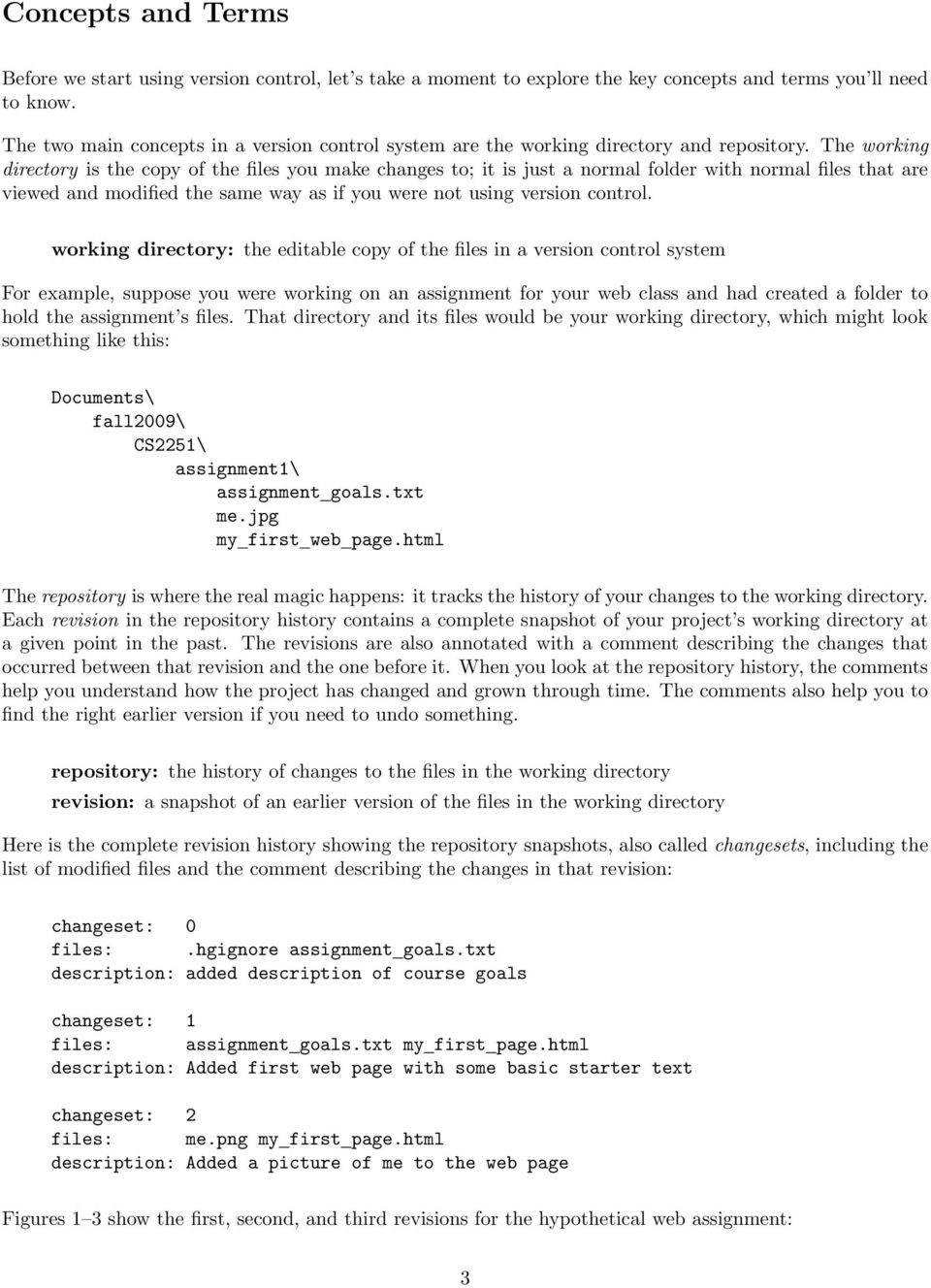
3 Concepts and Terms Before we start using version control, let s take a moment to explore the key concepts and terms you ll need to know. The two main concepts in a version control system are the working directory and repository. The working directory is the copy of the files you make changes to; it is just a normal folder with normal files that are viewed and modified the same way as if you were not using version control. working directory: the editable copy of the files in a version control system For example, suppose you were working on an assignment for your web class and had created a folder to hold the assignment s files. That directory and its files would be your working directory, which might look something like this: / Documents fall2009 CS2251 assignment1 assignment goals.txt me.jpg my first web page.html / / / The repository is where the real magic happens: it tracks the history of your changes to the working directory. Each revision in the repository history contains a complete snapshot of your project s working directory at a given point in the past. The revisions are also annotated with a comment describing the changes that occurred between that revision and the one before it. When you look at the repository history, the comments help you understand how the project has changed and grown through time. The comments also help you to find the right earlier version if you need to undo something. repository: the history of changes to the files in the working directory revision: a snapshot of an earlier version of the files in the working directory Here is the complete revision history showing the repository snapshots, also called changesets, including the list of modified files and the comment describing the changes in that revision: changeset: 0 files:.hgignore assignment goals.txt description: added description of course goals changeset: 1 files: assignment goals.txt my first page.html description: Added first web page with some basic starter text changeset: 2 files: me.png my first page.html description: Added a picture of me to the web page Figures 1 3 show the first, second, and third revisions for the hypothetical web assignment: 3
4 Figure 1: First revision: adding initial files to the repository. Figure 2: Second revision: Added first web page with some basic starter text and updated goals description Figure 3: Third revision: Added image to the webpage 4

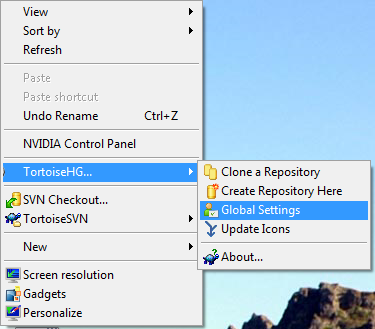
5 Who Are You? Mercurial insists that you identify yourself when committing your work and sharing changes with others. Before you get started using version control, you will need to set your username in Mercurial s global settings. To set your username: 1. On the desktop, Right-click TortoiseHG Global Settings 2. Click the Commit tab 3. In the Username box, enter your full name followed by your address in angle brackets, like this: Your Name <you@ .com> You can leave the other settings <unspecified> 5

6 4. Click Apply, then click Close. You should only have to do this once for each new machine you use Mercurial on, e.g. your home PC and the lab machines. After you set it up once, your preferences are saved with your user account files, so Mercurial will know who you are when you login. 6

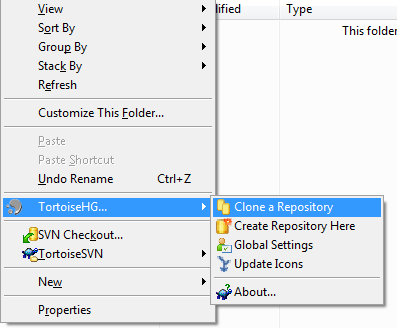
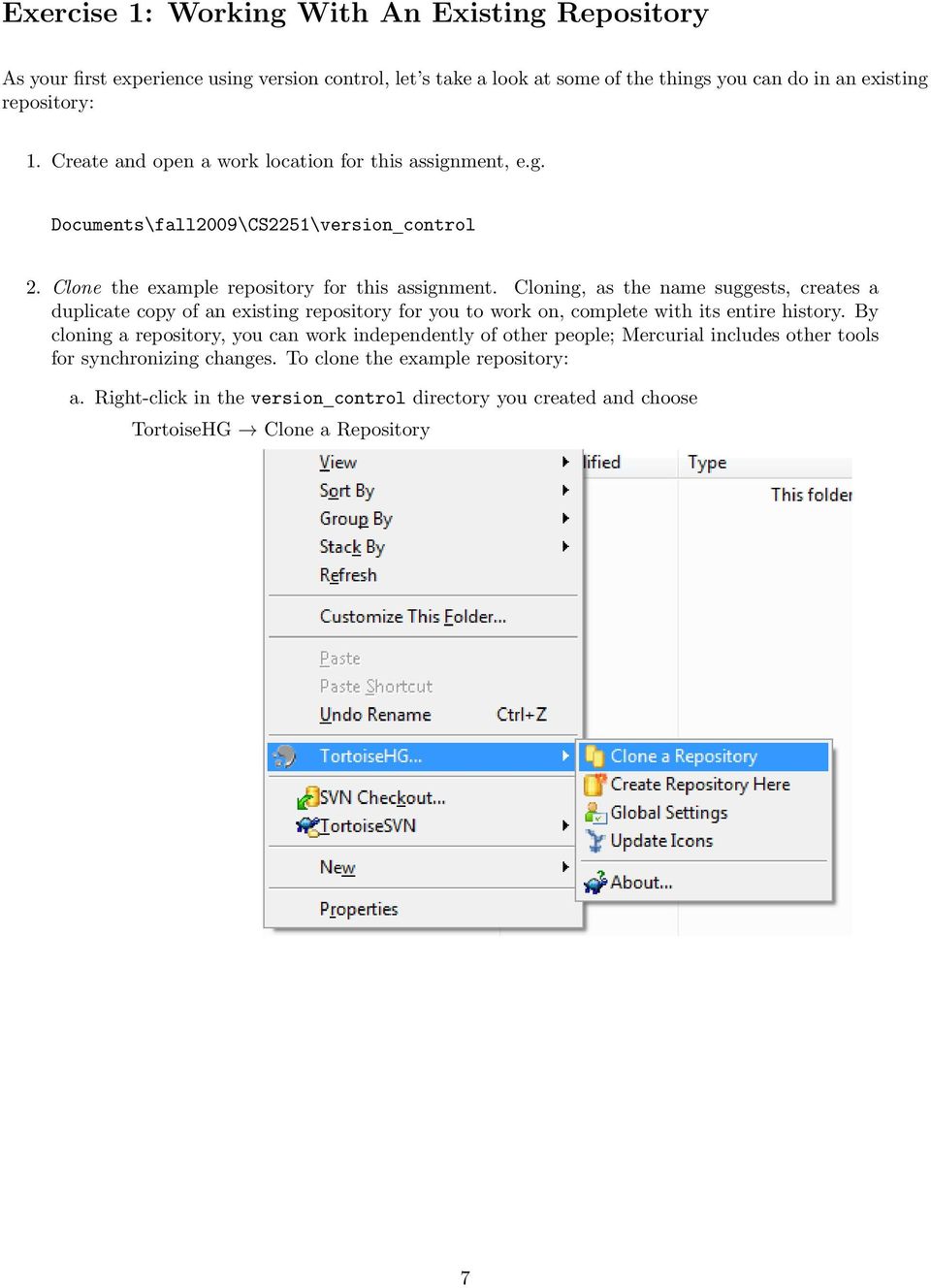
7 Exercise 1: Working With An Existing Repository As your first experience using version control, let s take a look at some of the things you can do in an existing repository: 1. Create and open a work location for this assignment, e.g. Documents / fall2009 / CS2251 / version control 2. Clone the example repository for this assignment. Cloning, as the name suggests, creates a duplicate copy of an existing repository for you to work on, complete with its entire history. By cloning a repository, you can work independently of other people; Mercurial includes other tools for synchronizing changes. To clone the example repository: a. Right-click in the version control directory you created and choose TortoiseHG Clone a Repository 7
8 b. The clone dialog appears; while there are quite a few buttons and knobs in the dialog, the only one you are concerned with right now is Source Path, which is the location of the repository you want to copy: In the Source Path text box, paste in the repository URL : example/ c. Click Clone; a dialog box appears showing the progress of the clone. Look for the last line: [command completed successfully] You can dismiss the clone dialog and examine the files in the new repository you made. Some versions of Adobe Acrobat may incorrectly replace the in the example URL with a space. If this happens, you will get an error, so if you copy-and-paste the URL, double check to make sure that there is an underscore between mercurial and example. 8
![Look for the last line: [command completed successfully] You can dismiss the clone dialog and examine the files in the new repository you made.](/docs-images/45/10657743/images/page_8.jpg "Some versions of Adobe Acrobat may incorrectly replace the in the example URL with a space.")
9 3. The revision history is a version control system s most powerful tool. Let s examine the history of this repository: a. Right-click in the folder and choose TortoiseHG View Changelog Mercurial displays the revision history for the project: b. Click on Revision 1 to see the changes that were made between it and the initial revision. When you click on a particular revision, Mercurial shows you the differences between the highlighted revision and the one before it. 9

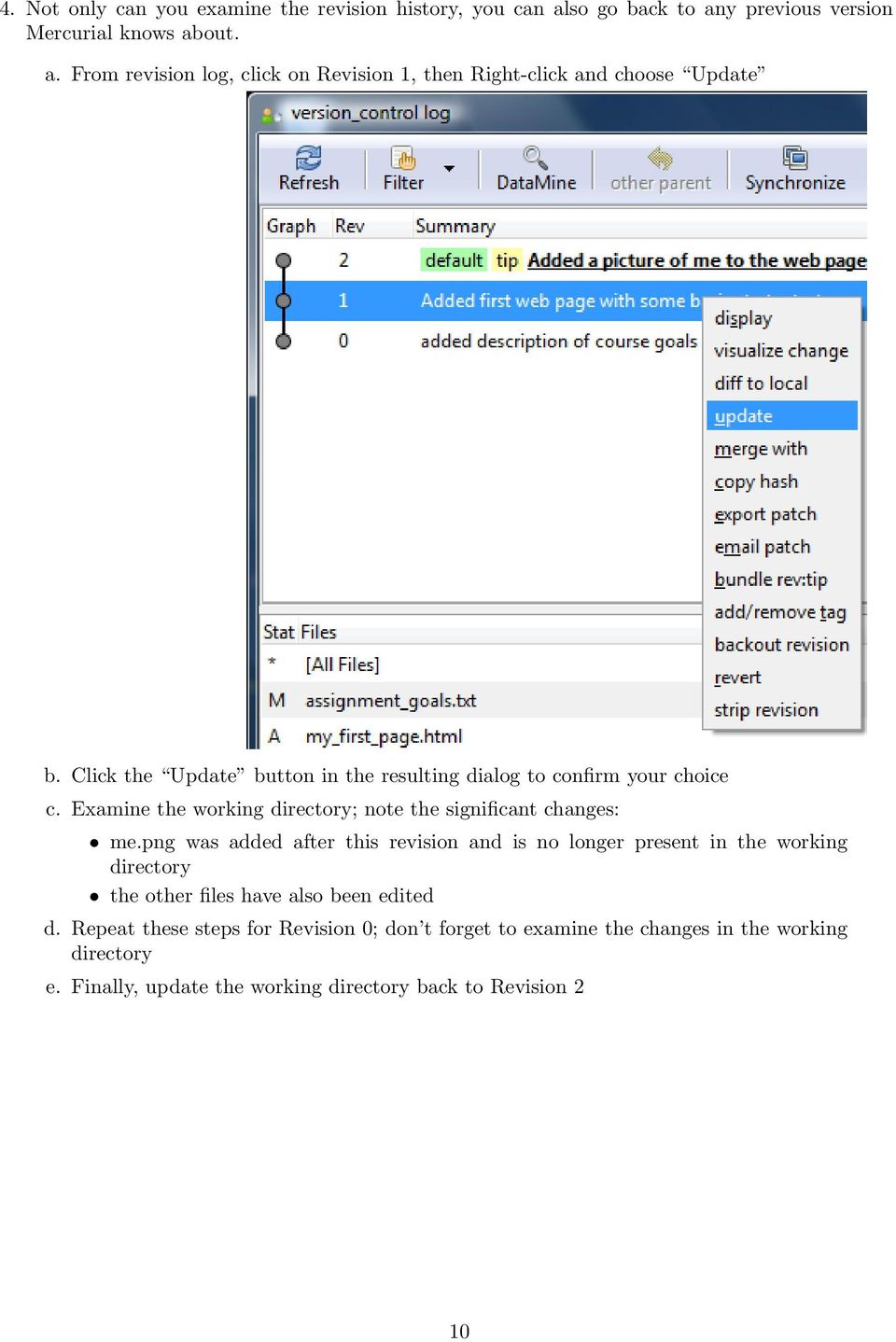
10 4. Not only can you examine the revision history, you can also go back to any previous version Mercurial knows about. a. From revision log, click on Revision 1, then Right-click and choose Update b. Click the Update button in the resulting dialog to confirm your choice c. Examine the working directory; note the significant changes: me.png was added after this revision and is no longer present in the working directory the other files have also been edited d. Repeat these steps for Revision 0; don t forget to examine the changes in the working directory e. Finally, update the working directory back to Revision 2 10
11 Making Changes Now that we ve seen Mercurial s tools for examining the history of a working directory, it is time to get to the core of version control: making changes. Exercise 2: Making Changes 1. In your working directory, open the text file assignment goals.txt using Notepad++ or your favorite text editor. 2. Edit the file: add a new paragraph at the end: This is my first edit. I m excited about learning to manage changes to my files with Mercurial! 3. When you are satisfied with your changes, save your work by clicking File Save 4. View the revision log for the project: Right-click in the folder and choose TortoiseHG View Changelog Ummmm, nothing happened! Our changes aren t there! What s going on?!?! 11

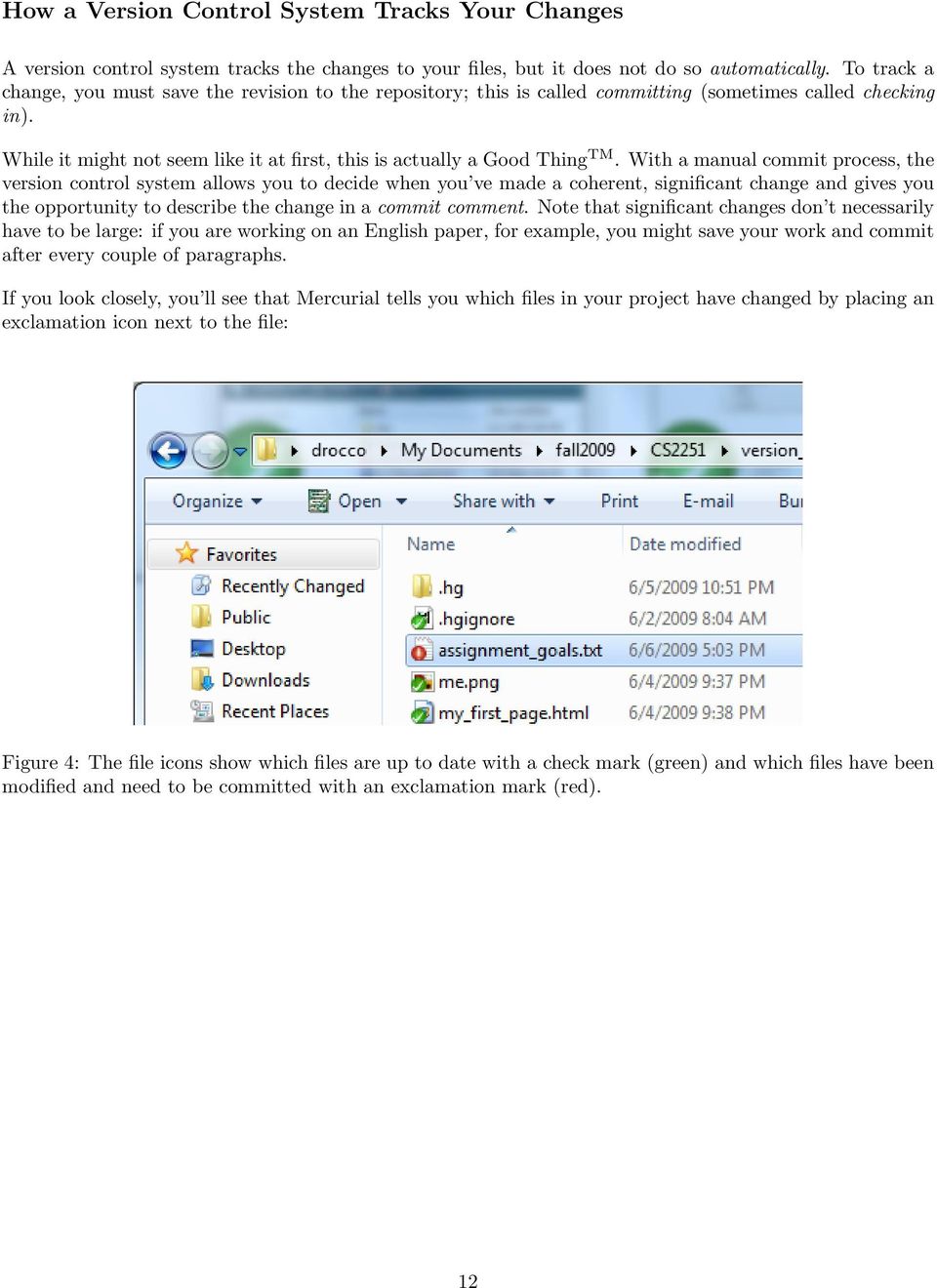
12 How a Version Control System Tracks Your Changes A version control system tracks the changes to your files, but it does not do so automatically. To track a change, you must save the revision to the repository; this is called committing (sometimes called checking in). While it might not seem like it at first, this is actually a Good Thing TM. With a manual commit process, the version control system allows you to decide when you ve made a coherent, significant change and gives you the opportunity to describe the change in a commit comment. Note that significant changes don t necessarily have to be large: if you are working on an English paper, for example, you might save your work and commit after every couple of paragraphs. If you look closely, you ll see that Mercurial tells you which files in your project have changed by placing an exclamation icon next to the file: Figure 4: The file icons show which files are up to date with a check mark (green) and which files have been modified and need to be committed with an exclamation mark (red). 12
13 Exercise 3: Committing Your Change To commit your change as the latest revision in the repository: 1. Right-click in your working directory and choose HG Commit to bring up the commit dialog 2. Enter a commit comment. The comment should contain a brief summary of the change that is being committed. Good commit comments are a vital part of effective version control. Without them, it is much more difficult to understand the revision history and find earlier versions of your projects. Commit comments don t need to be long, but do take the time to write a descriptive summary of all your changes. 3. When you are satisfied with your comment, click Commit to save your changes as a new revision in the repository. 4. Close the commit dialog, then bring up the change log (Right-click TortoiseHG View Changelog) to see your changes. Click on the revision you just committed to see its changes. Take note of your new commit comment and the diff pane that shows all the changes that were part of the commit. 13

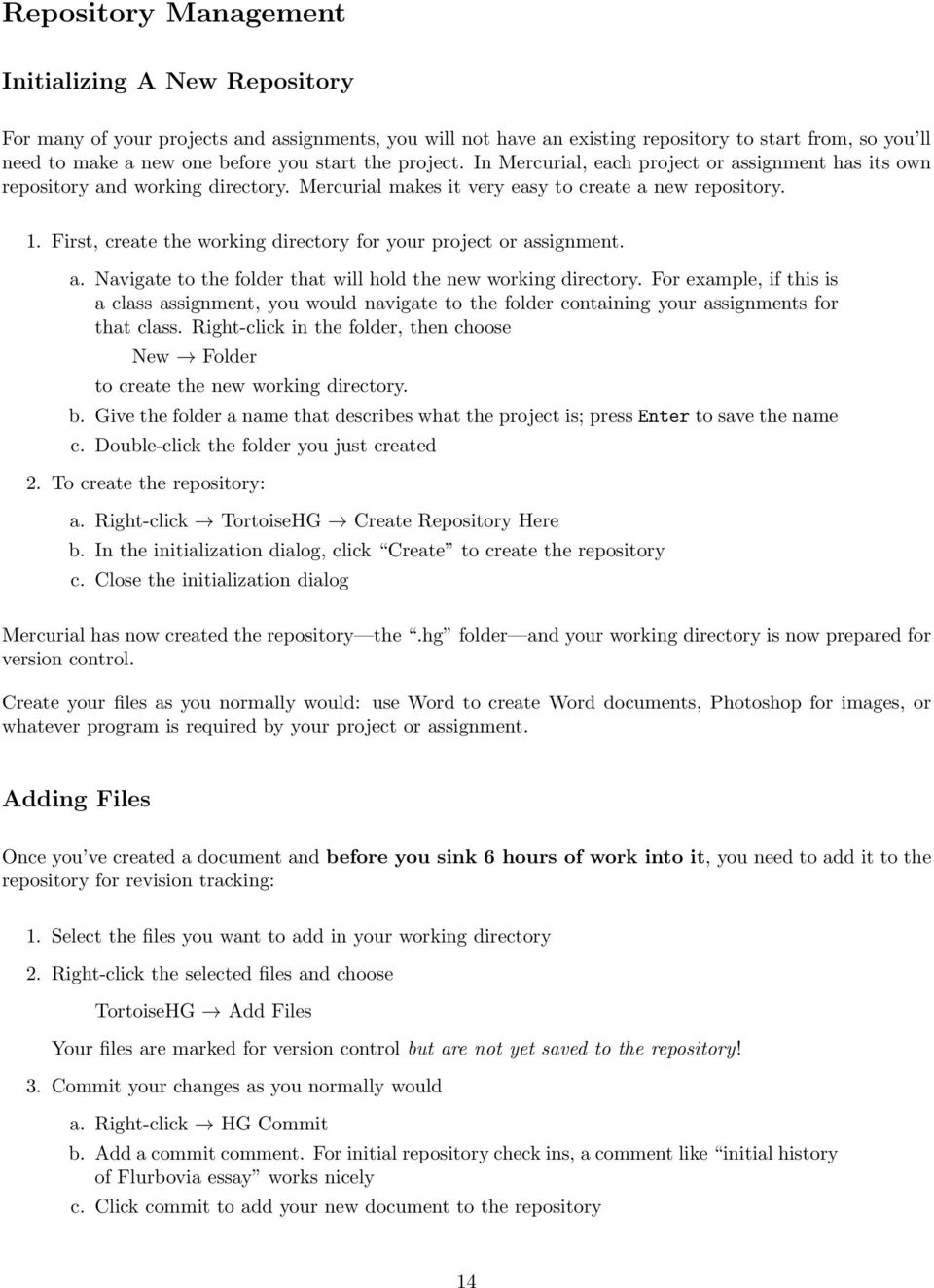
14 Repository Management Initializing A New Repository For many of your projects and assignments, you will not have an existing repository to start from, so you ll need to make a new one before you start the project. In Mercurial, each project or assignment has its own repository and working directory. Mercurial makes it very easy to create a new repository. 1. First, create the working directory for your project or assignment. a. Navigate to the folder that will hold the new working directory. For example, if this is a class assignment, you would navigate to the folder containing your assignments for that class. Right-click in the folder, then choose New Folder to create the new working directory. b. Give the folder a name that describes what the project is; press Enter to save the name c. Double-click the folder you just created 2. To create the repository: a. Right-click TortoiseHG Create Repository Here b. In the initialization dialog, click Create to create the repository c. Close the initialization dialog Mercurial has now created the repository the.hg folder and your working directory is now prepared for version control. Create your files as you normally would: use Word to create Word documents, Photoshop for images, or whatever program is required by your project or assignment. Adding Files Once you ve created a document and before you sink 6 hours of work into it, you need to add it to the repository for revision tracking: 1. Select the files you want to add in your working directory 2. Right-click the selected files and choose TortoiseHG Add Files Your files are marked for version control but are not yet saved to the repository! 3. Commit your changes as you normally would a. Right-click HG Commit b. Add a commit comment. For initial repository check ins, a comment like initial history of Flurbovia essay works nicely c. Click commit to add your new document to the repository 14
15 Summary Congratulations! You ve learned the basics of version control and a good working set of Mercurial s commands, including: the motivation for version control systems main ideas in version control how to use Mercurial and TortoiseHG to manage changes to your projects and files Key Points the working directory contains the editable copy of the files for a project the repository holds the history of changes to the files in the working directory a revision or changeset is a snapshot of an earlier version of the project stored in the repository the changelog shows the detailed history of the revisions to the project commit changes to save them as a new revision in the repository history; include a descriptive commit comment to record the purpose and scope of the changes Additional Resources Mercurial is a powerful version control system; while you ve learned enough to perform many critical version control tasks, there are plenty of other features and tools for you to explore and learn. These resources are great places to look if you have questions or want to learn more: Mercurial Home Page: TortoiseHG Gentle introduction: Mercurial: The Definitive Guide: Source Control HOWTO: control.html 15
Changing Your Cameleon Server IP
 1.1 Overview Technical Note Cameleon requires that you have a static IP address defined for the server PC the Cameleon server application runs on. Even if the server PC has a static IP address, you may
Mapping ITS s File Server Folder to Mosaic Windows to Publish a Website
 Mapping ITS s File Server Folder to Mosaic Windows to Publish a Website April 16 2012 The following instructions are to show you how to map your Home drive using ITS s Network in order to publish a website
https://weboffice.edu.pe.ca/
 NETSTORAGE MANUAL INTRODUCTION Virtual Office will provide you with access to NetStorage, a simple and convenient way to access your network drives through a Web browser. You can access the files on your
PC Agent Quick Start. Open the Agent. Autonomy Connected Backup. Version 8.8. Revision 0
 T E C H N I C A L N O T E Autonomy Connected Backup Version 8.8 PC Agent Quick Start Revision 0 Use this document as a quick reference for common Connected Backup PC Agent tasks. If the Agent is not on
CEFNS Web Hosting a Guide for CS212
 CEFNS Web Hosting a Guide for CS212 INTRODUCTION: TOOLS: In CS212, you will be learning the basics of web development. Therefore, you want to keep your tools to a minimum so that you understand how things
Xythos on Demand Quick Start Guide For Xythos Drive
 Xythos on Demand Quick Start Guide For Xythos Drive What is Xythos on Demand? Xythos on Demand is not your ordinary online storage or file sharing web site. Instead, it is an enterprise-class document
Introduction to Source Control ---
 Introduction to Source Control --- Overview Whether your software project is large or small, it is highly recommended that you use source control as early as possible in the lifecycle of your project.
Using Microsoft SyncToy to Automate Backups
 Using Microsoft SyncToy to Automate Backups Downloading and Installing Microsoft SyncToy SyncToy is one of the many PowerToys offered by Microsoft for Windows XP. You can find a list of these utilities
Install FileZilla Client. Connecting to an FTP server
 Install FileZilla Client Secure FTP is Middle Georgia State College s supported sftp client for accessing your Web folder on Webdav howeve you may use FileZilla or other FTP clients so long as they support
Introduction to MS WINDOWS XP
 Introduction to MS WINDOWS XP Mouse Desktop Windows Applications File handling Introduction to MS Windows XP 2 Table of Contents What is Windows XP?... 3 Windows within Windows... 3 The Desktop... 3 The
Supplement I.B: Installing and Configuring JDK 1.6
 Supplement I.B: Installing and Configuring JDK 1.6 For Introduction to Java Programming Y. Daniel Liang This supplement covers the following topics: Downloading JDK 1.6 ( 1.2) Installing JDK 1.6 ( 1.3)
You must have at least Editor access to your own mail database to run archiving.
 Archiving An archive is a copy of a database you can create to store information no longer in use. Like a replica, an archive contains all documents and design elements in the original database, but unlike
Version Control with Subversion and Xcode
 Version Control with Subversion and Xcode Author: Mark Szymczyk Last Update: June 21, 2006 This article shows you how to place your source code files under version control using Subversion and Xcode. By
ADOBE DRIVE CC USER GUIDE
 ADOBE DRIVE CC USER GUIDE 2 2013 Adobe Systems Incorporated. All rights reserved. Adobe Drive CC User Guide Adobe, the Adobe logo, Creative Cloud, Creative Suite, Illustrator, InCopy, InDesign, and Photoshop
Virtual Office Remote Installation Guide
 Virtual Office Remote Installation Guide Table of Contents VIRTUAL OFFICE REMOTE INSTALLATION GUIDE... 3 UNIVERSAL PRINTER CONFIGURATION INSTRUCTIONS... 12 CHANGING DEFAULT PRINTERS ON LOCAL SYSTEM...
VIVIDESK Desktops can be accessed with a Macintosh Computer by one of two methods:
 VIVIDESK Desktops can be accessed with a Macintosh Computer by one of two methods: 1. If you have Macintosh OS version IX, then VIVIDESK is best viewed using Windows emulation software. 2. If you have
AppLoader7. Windows Server 2008 Injector Optimization. Protocol Independent Load Testing
 AppLoader7 Windows Server 2008 Injector Optimization Protocol Independent Load Testing CONTENTS PREREQUISITES... 3 INTRODUCTION... 3 INJECTOR OPTIMIZATIONS... 3 GROUP POLICY CONFIGURATIONS... 3 Internet
Sophos SafeGuard Native Device Encryption for Mac quick startup guide. Product version: 7
 Sophos SafeGuard Native Device Encryption for Mac quick startup guide Product version: 7 Document date: December 2014 Contents 1 About SafeGuard Native Device Encryption for Mac...3 2 Working with SafeGuard
NEC CLOUD STORAGE. Demo Guide
 NEC CLOUD STORAGE Demo Guide 2014 1 INTRODUCTION... 4 1.1 GOALS OF THIS DOCUMENT... 4 1.2 TERMS, ACRONYMS AND ABBREVIATIONS... 4 2 INTRODUCTION TO NEC CLOUD STORAGE... 5 2.1 WHAT IS NEEDED TO USE CLOUD
Installing LearningBay Enterprise Part 2
 Installing LearningBay Enterprise Part 2 Support Document Copyright 2012 Axiom. All Rights Reserved. Page 1 Please note that this document is one of three that details the process for installing LearningBay
Microsoft Dynamics CRM Clients
 Microsoft Dynamics CRM Clients A user can work with Microsoft Dynamics CRM in two ways: By accessing the Microsoft Dynamics CRM application using Microsoft Internet Explorer, Google Chrome, FireFox, and
Offline Files & Sync Center
 bonus appendix Offline Files & Sync Center The offline files feature is designed for laptop lovers. It lets you carry off files that gerally live on your office network, so you can get some work done while
Remote Storage Area (RSA) Basics
 Remote Storage Area (RSA) Basics Table of Contents Remote Storage Area Overview... 3 What is Remote Storage Area?... 3 Who has access to RSA?... 3 How much space is available?... 3 Basic RSA Use... 4 How
Disabling Microsoft SharePoint in order to install the OneDrive for Business Client
 Disabling Microsoft SharePoint in order to install the OneDrive for Business Client If you try to setup and sync your OneDrive online documents with the client software and Microsoft SharePoint opens,
TM Online Storage: StorageSync
 TM Online Storage: StorageSync 1 Part A: Backup Your Profile 1: How to download and install StorageSync? Where to download StorageSync? You may download StorageSync from your e-storage account. Please
How to install and set up the WinSCP software for Secure File Transfer
 How to install and set up the WinSCP software for Secure File Transfer WinSCP FTP client is free and easy to use. If you have another secure FTP client you may use it and simply configure it to match the
Hosting Users Guide 2011
 Hosting Users Guide 2011 eofficemgr technology support for small business Celebrating a decade of providing innovative cloud computing services to small business. Table of Contents Overview... 3 Configure
SURPASS HOSTING SERVICE GETTING STARTED AND OPERATIONS GUIDE
 SURPASS HOSTING SERVICE GETTING STARTED AND OPERATIONS GUIDE Welcome To Surpass Hosting Service. This document contains instructions to help you get up and running with your new service. The instructions
How to Configure Windows 8.1 to run ereports on IE11
 How to Configure Windows 8.1 to run ereports on IE11 Description: Windows 8.1 ships with IE10, but can be updated to IE11. There is a special mode in IE11 called Enterprise Mode that can be used to emulate
Zoom Plug-ins for Adobe
 = Zoom Plug-ins for Adobe User Guide Copyright 2010 Evolphin Software. All rights reserved. Table of Contents Table of Contents Chapter 1 Preface... 4 1.1 Document Revision... 4 1.2 Audience... 4 1.3 Pre-requisite...
Connecting to the Hospira FTP Server
 Connecting to Hospira s FTP Server To transfer files to and from Hospira s FTP Server requires a connection to ftp.hospira-transfer.com. Several commercial and shareware File Transfer Protocol (FTP) software
Using SSH Secure FTP Client INFORMATION TECHNOLOGY SERVICES California State University, Los Angeles Version 2.0 Fall 2008.
 Using SSH Secure FTP Client INFORMATION TECHNOLOGY SERVICES California State University, Los Angeles Version 2.0 Fall 2008 Contents Starting SSH Secure FTP Client... 2 Exploring SSH Secure FTP Client...
Your Buckalew RWD Website (April 2008; updated Feb. 2010)
 Your Buckalew RWD Website (April 2008; updated Feb. 2010) How do I get started using my new RWD website? 2 How do I add a page to my website? 3 How do I keep everything "lined up" on my web page? 5 How
Test Note Phone Manager Deployment Windows Group Policy Sever 2003 and XP SPII Clients
 Test Note Phone Manager Deployment Windows Group Policy Sever 2003 and XP SPII Clients Note: I have only tested these procedures on Server 2003 SP1 (DC) and XP SPII client, in a controlled lab environment,
Supplement I.B: Installing and Configuring JDK 1.6
 Supplement I.B: Installing and Configuring JDK 1.6 For Introduction to Java Programming Y. Daniel Liang This supplement covers the following topics: Downloading JDK 1.6 ( 1.2) Installing JDK 1.6 ( 1.3)
Working with SQL Server Integration Services
 SQL Server Integration Services (SSIS) is a set of tools that let you transfer data to and from SQL Server 2005. In this lab, you ll work with the SQL Server Business Intelligence Development Studio to
Server Installation: ServerTools
 Server Installation: ServerTools ServerTools Page 1 Table of Contents To Install ServerTools...3 Backup and Restore...6 Purpose...6 Background...6 Requirements...6 Creating a Backup Schedule using the
Remote Desktop Services - Multimedia. 1. On a PC, open Internet Explorer and type in this URL: https://apps.msjc.edu
 Remote Desktop Services - Multimedia 1. On a PC, open Internet Explorer and type in this URL: https://apps.msjc.edu To use the Remote Desktop Services on a Mac computer or with other browsers, Firefox
Business Objects InfoView Quick-start Guide
 Business Objects InfoView Quick-start Guide Last Modified: 10/28/2015 The latest PDF version of this document can be found at: http://www.calpolycorporation.com/docs/finance/boeinfoviewquickstart.pdf What
Kallidus User Guide. Step-by-step instructions for users of the Eversheds Learning Management System (LMS)
 Kallidus User Guide Step-by-step instructions for users of the Eversheds Learning Management System (LMS) 1 Signing into the Learning Management System (LMS)... 3 Forgotten your password?... 3 Amending
Why should I back up my certificate? How do I create a backup copy of my certificate?
 Why should I back up my certificate? You should always keep a backup copy of your ACES Business Certificate on a location external to your computer. Since it s stored locally on your computer, in the Windows
HP Quality Center. Software Version: 9.20. Version Control Add-in Guide
 HP Quality Center Software Version: 9.20 Version Control Add-in Guide Document Number: QCGENVC9.2/01 Document Release Date: May 2007 Software Release Date: May 2007 Legal Notices Warranty The only warranties
Basic Web Development @ Fullerton College
 Basic Web Development @ Fullerton College Introduction FC Net Accounts Obtaining Web Space Accessing your web space using MS FrontPage Accessing your web space using Macromedia Dreamweaver Accessing your
Introducing Xcode Source Control
 APPENDIX A Introducing Xcode Source Control What You ll Learn in This Appendix: u The source control features offered in Xcode u The language of source control systems u How to connect to remote Subversion
Using SSH Secure Shell Client for FTP
 Using SSH Secure Shell Client for FTP The SSH Secure Shell for Workstations Windows client application features this secure file transfer protocol that s easy to use. Access the SSH Secure FTP by double-clicking
Copyright 2010 Evolphin Software. All rights reserved. Zoom Version Control. Essentials: Working With Versioning
 Copyright 2010 Evolphin Software. All rights reserved. Zoom Version Control Essentials: Working With Versioning Table of Contents Chapter 1 Introduction... 5 1.1 About This Guide... 5 1.2 About Zoom...
Networking Lab - Vista Public Network Sharing
 Networking Lab - Vista Public Network Sharing After completing the lab activity, you will be able to: Explain the differences between Windows XP and Windows Vista network sharing. Explain the purpose of
WORKING IN TEAMS WITH CASECOMPLETE AND MICROSOFT VISUAL SOURCE SAFE. Contents
 WORKING IN TEAMS WITH CASECOMPLETE AND MICROSOFT VISUAL SOURCE SAFE Contents Working in Teams with CaseComplete... 2 Need an introduction to how version control works?... 2 Exclusive Checkout... 3 Multiple
POLARIS INSTALLATION
 POLARIS INSTALLATION BELS runs the Polaris 4.1 Integrated Library System (ILS)- the same system as BCCLS. BELS users will connect to Polaris via a terminal server using Remote Desktop Connection (RDC).
Installing Windows Server Update Services (WSUS) on Windows Server 2012 R2 Essentials
 Installing Windows Server Update Services (WSUS) on Windows Server 2012 R2 Essentials With Windows Server 2012 R2 Essentials in your business, it is important to centrally manage your workstations to ensure
Using Bitlocker to Encrypt your Flash Drive Information Technology Services July 27, 2012
 Using Bitlocker to Encrypt your Flash Drive Information Technology Services July 27, 2012 Contact the ITS Helpdesk at 402-559-7700 or [email protected] with questions. How it works Basically, BitLocker
Towson University s VPN Virtual Private Network
 Towson University s VPN Virtual Private Network OTS PUBLICATION: VPN01 REVISED 11-25-2008 [email protected] OFFICE OF TECHNOLOGY SERVICES =Shortcut =Advice =Caution Introduction When connecting through
Sophos SafeGuard Native Device Encryption for Mac Administrator help. Product version: 7
 Sophos SafeGuard Native Device Encryption for Mac Administrator help Product version: 7 Document date: December 2014 Contents 1 About SafeGuard Native Device Encryption for Mac...3 1.1 About this document...3
How to get the most out of Windows 10 File Explorer
 How to get the most out of Windows 10 File Explorer 2 Contents 04 The File Explorer Ribbon: A handy tool (once you get used to it) 08 Gain a new perspective with the Group By command 13 Zero in on the
OnDemand. Getting Started Guide
 OnDemand Getting Started Guide Copyright Copyright 2009 ACS Technologies Group, Inc. All rights reserved. Reproduction of any part of this publication by mechanical or electronic means, including facsimile
Visual Studio.NET Database Projects
 Visual Studio.NET Database Projects CHAPTER 8 IN THIS CHAPTER Creating a Database Project 294 Database References 296 Scripts 297 Queries 312 293 294 Visual Studio.NET Database Projects The database project
How to Give Admin Rights to Students on the ADGRM Domain
 How to Give Admin Rights to Students on the ADGRM Domain Contents Active Directory User and Computer... 2 Directory Tree Navigation... 3 The Computer folder... 3 The People Folder... 4 Creating a User
Symantec PGP Whole Disk Encryption Hands-On Lab V 3.7
 Symantec PGP Whole Disk Encryption Hands-On Lab V 3.7 Description This hands-on lab session covers the hard drive encryption technologies from PGP. Students will administer a typical Whole Disk Encryption
Apple Mac Fundamentals: A Tutorial. Updated 24/4/2013 By Mac Thing [email protected] http://www.macthing.co.uk. Table of Contents:
 Apple Mac Fundamentals: A Tutorial. Updated 24/4/2013 By Mac Thing [email protected] http://www.macthing.co.uk Table of Contents: 1) The Macintosh HD 2) Your Home Directory 3) The Finder 4) The
Entrust Certificate Services for Adobe CDS
 Entrust Certificate Services Entrust Certificate Services for Adobe CDS Getting Started Guide Entrust SafeNet Authentication Client: 8.3 Date of issue: July 2015 Document issue: 3.0 Revisions Issue and
FILE RECOVERY WITH VSS
 FILE RECOVERY WITH VSS Cabrini ITR is proud to announce a new feature for shared network drives, such as your G, H or S drives: VSS! Volume Shadow Copy Service (VSS) allows users to recover previous versions
USING STUFFIT DELUXE THE STUFFIT START PAGE CREATING ARCHIVES (COMPRESSED FILES)
 USING STUFFIT DELUXE StuffIt Deluxe provides many ways for you to create zipped file or archives. The benefit of using the New Archive Wizard is that it provides a way to access some of the more powerful
1. Set Daylight Savings Time... 3. 2. Create Migrator Account... 3. 3. Assign Migrator Account to Administrator group... 4
 1. Set Daylight Savings Time... 3 a. Have client log into Novell/Local Machine with Administrator Account...3 b. Access Adjust Date/Time...3 c. Make sure the time zone is set to Central Time...3 2. Create
10.3.1.8 Lab - Configure a Windows 7 Firewall
 5.0 10.3.1.8 Lab - Configure a Windows 7 Firewall Print and complete this lab. In this lab, you will explore the Windows 7 Firewall and configure some advanced settings. Recommended Equipment Step 1 Two
How To Use Ticket Validation Software On A Pc Or Mac Or Macbook Or Ipad (For Acedo) On A Computer Or Ipa (For An Ipa) On An Ipad Or Macintosh (For Macintosh) On Pc
 Ticket Validation Application System User s Guide Created by: 12-21-2011 Table of Contents Ticket Validation Application System Desktop Icon... 3 Prerequisites... 4 Ticket Validation Reporting... 5 Merchant
A. BACK UP YOUR CURRENT DATA. QuickBooks Business Accounting Software 2006 2009 for Windows Account Conversion Instructions
 QuickBooks Business Accounting Software 2006 2009 for Windows Account Conversion Instructions As your financial institution completes its system conversion, you will need to modify your QuickBooks settings
Beginning with SubclipseSVN
 Version 2 July 2007 Beginning with SubclipseSVN A user guide to begin using the Subclipse for source code management on the CropForge collaborative software development site. Copyright International Rice
Online Backup Client 3.9 Manual
 HelpAndManual_unregistered_evaluation_copy by BackupAgent BV Index Online Backup Client 3.9 1 1. Benefits 2 2. Features 3 3. System Requirements 4 4. Setup 5 5. Client 8 5.1 Registration Wizard... 9 5.2
1) Important browser information New 2) Why is my browser so slow? 3) How can I view more than one screen without the other disappearing?
 Known/Unresolved issues: Browser Scan to e-mail Creating Help Desk tickets for the scan-to-email issue is no longer necessary. A member of MIS will follow up with each office to determine scan-to-email
Creating Forms With Adobe LiveCycle Designer 8.2
 Creating Forms With Adobe LiveCycle Designer 8.2 Instructional Media Center HCC Version 2 Modified Date 1/20/10 Learning Objectives: At the end of this training session the student will be able to use
Egnyte Single Sign-On (SSO) Installation for Okta
 w w w. e g n y t e. c o m Egnyte Single Sign-On (SSO) Installation for Okta To set up Egnyte so employees can log in using SSO, follow the steps below to configure Okta and Egnyte to work with each other.
Interworks. Interworks Cloud Platform Installation Guide
 Interworks Interworks Cloud Platform Installation Guide Published: March, 2014 This document contains information proprietary to Interworks and its receipt or possession does not convey any rights to reproduce,
Training module 2 Installing VMware View
 Training module 2 Installing VMware View In this second module we ll install VMware View for an End User Computing environment. We ll install all necessary parts such as VMware View Connection Server and
Develop Education Business Partnership
 Develop Education Business Partnership Veryan WebView On-line work experience software Student Instructions Getting Started 3 Finding your own placement 5 Using WebView to search for placements 7 Placement
OET Cloud Services Getting Started Guide
 OET Cloud Services Getting Started Guide Introduction OET Cloud Services uses Google Drive to let you store and access OET files anywhere -- on the web, and access them on your PC, or on any device connected
VP-ASP Shopping Cart Quick Start (Free Version) Guide Version 6.50 March 21 2007
 VP-ASP Shopping Cart Quick Start (Free Version) Guide Version 6.50 March 21 2007 Rocksalt International Pty Ltd [email protected] www.vpasp.com Table of Contents 1 INTRODUCTION... 3 2 FEATURES... 4 3 WHAT
Online File Folder. Getting Started Guide. Become an Expert at Managing Your Files Online. wind. Online File Folder // Getting Started Guide
 Getting Started Guide Online File Folder Become an Expert at Managing Your Files Online Getting Started Guide Page 1 Getting Started Guide: Online File Folder Version 2.1 (2.22.11) Copyright 2010. All
The Reprographics Online E-Copy Process is used to submit print jobs to the RUSD Reprographics department.
 The Reprographics E-Copy Process The Reprographics Online E-Copy Process is used to submit print jobs to the RUSD Reprographics department. FTP Site Submission For Print Job Files FTP Print Job Submissions
Chapter 3 ADDRESS BOOK, CONTACTS, AND DISTRIBUTION LISTS
 Chapter 3 ADDRESS BOOK, CONTACTS, AND DISTRIBUTION LISTS 03Archer.indd 71 8/4/05 9:13:59 AM Address Book 3.1 What Is the Address Book The Address Book in Outlook is actually a collection of address books
Using WS_FTP. This tutorial explains how to use WS_FTP, a File Transfer Program for Microsoft Windows. INFORMATION SYSTEMS SERVICES.
 INFORMATION SYSTEMS SERVICES Using WS_FTP This tutorial explains how to use WS_FTP, a File Transfer Program for Microsoft Windows. AUTHOR: Information Systems Services DATE: July 2003 EDITION: 1.1 TUT
Password Manager Windows Desktop Client
 Password Manager Windows Desktop Client EmpowerID provides an extension that allows organizations to plug into Password Manager to customize the Windows logon experience beyond that supplied by the standard
Charter Business Desktop Security Administrator's Guide
 Charter Business Desktop Security Administrator's Guide Table of Contents Chapter 1: Introduction... 4 Chapter 2: Getting Started... 5 Creating a new user... 6 Recovering and changing your password...
WHAT'S NEW WITH SALESFORCE FOR OUTLOOK
 WHAT'S NEW WITH SALESFORCE FOR OUTLOOK Salesforce for Outlook v2.8.1 Salesforce for Outlook v2.8.1, we ve improved syncing and fixed issues with the side panel and error log. Sync Side Panel Error Log
Introduction. Installation of SE S AM E BARCODE virtual machine distribution. (Windows / Mac / Linux)
 Installation of SE S AM E BARCODE virtual machine distribution (Windows / Mac / Linux) Introduction A "virtual machine" is a fake computer within a true one. An underlying software (here VirtualBox) is
As your financial institution completes its system conversion, you
 QuickBooks Business Accounting Software 2007 2009 for Windows Account Conversion Instructions Converting from Direct Connect to Web Connect As your financial institution completes its system conversion,
1. Click on the Start Menu and select Computer from the right hand panel (Fig 1, 1). Figure 1
 Managing Your Network Drives An overview Introduction Network drives are extra storage containers located on another computer called a server where you can store data. Network drives are easily accessible
CMS Training. Prepared for the Nature Conservancy. March 2012
 CMS Training Prepared for the Nature Conservancy March 2012 Session Objectives... 3 Structure and General Functionality... 4 Section Objectives... 4 Six Advantages of using CMS... 4 Basic navigation...
Student ANGEL FAQs. General Issues: System Requirements:
 Student ANGEL FAQs General Issues: What is ANGEL? How do I log in? What is my username and password? How do I activate my account? I forgot my C number/password, what do I do? I registered after the first
Lenovo Online Data Backup User Guide Version 1.8.14
 Lenovo Online Data Backup User Guide Version 1.8.14 Contents Chapter 1: Installing Lenovo Online Data Backup...5 Downloading the Lenovo Online Data Backup Client...5 Installing the Lenovo Online Data
WatchDox for Windows User Guide. Version 3.9.0
 Version 3.9.0 Notice Confidentiality This document contains confidential material that is proprietary WatchDox. The information and ideas herein may not be disclosed to any unauthorized individuals or
Magaya Software Installation Guide
 Magaya Software Installation Guide MAGAYA SOFTWARE INSTALLATION GUIDE INTRODUCTION Introduction This installation guide explains the system requirements for installing any Magaya software, the steps to
Smart Sync. Computer Classroom Management Software. What is SMART Sync? Table of Contents
 Smart Sync Computer Classroom Management Software What is SMART Sync? SMART Sync software helps instructors manage the computers in their classroom. SMART Sync keeps a student engaged and focused, and
Raptor K30 Gaming Software
 Raptor K30 Gaming Software User Guide Revision 1.0 Copyright 2013, Corsair Components, Inc. All Rights Reserved. Corsair, the Sails logo, and Vengeance are registered trademarks of Corsair in the United
Content Management System (CMS) Training
 Content Management System (CMS) Training System Requirements Operating System: Mac, PC, Linux and most Internet connected devices Browser: Recent version of Firefox as you cannot use Chrome or Safari Recent
On your desktop double-click the Qqest Time and Attendance Systems icon:
 - 1 - On your desktop double-click the Qqest Time and Attendance Systems icon: You will be prompted for your Username, Password, and Company Code: Enter your information, then click the Login button. Passwords
Check current version of Remote Desktop Connection for Mac.. Page 2. Remove Old Version Remote Desktop Connection..Page 8
 CONTENTS SECTION 1 Check current version of Remote Desktop Connection for Mac.. Page 2 SECTION 2 Remove Old Version Remote Desktop Connection..Page 8 SECTION 3 Download and Install Remote Desktop Connection
Getting started with Mendeley. Guide by ITC library
 Getting started with Mendeley Guide by ITC library January 2015 Table of Contents 1 Mendeley in not even 10 steps... 3 1.1 Go to www.mendeley.com and register... 3 1.2 Download Mendeley desktop... 3 1.3
How to use SURA in three simple steps:
 How to use SURA in three simple steps: Most of SURA s functionality can be accessed through these three steps. 1) Download SURA to your computer Go to the SU Downloads page to obtain the SURA utility.