
MEDICAL RECORD TRACKING, RETIREMENT AND RETRIEVAL (MRTR 2 ) USER GUIDE
|
|
|
- Ariel Atkins
- 10 years ago
- Views:
Transcription
1 MEDICAL RECORD TRACKING, RETIREMENT AND RETRIEVAL (MRTR 2 ) USER GUIDE A TRICARE Management Activity Integrated Project Charter Deliverable Produced by the Electronic Medical Records Tracking and Retirement (EMRTAR) Integrated Program Team 6 May 2005 Change 2

2 CHANGE SUMMARY RECORD Changes and Date Change 1, 9 July 04 Change 2, 6 May 05 Change Description Actions Required Updated NPRC information Air Force Manual rescinded Added Disposition Authority for Navy/Air Force Change Page 99, Paragraph #4 Changed Change Page 107, Paragraph Note Changed Change Page 112, Paragraph Note Changed MRTR2 Guide ii

3 EXECUTIVE SUMMARY Until CY 2003, inpatient and non-active duty outpatient treatment records were manually retired by Military Treatment Facilities (MTFs) to the National Personnel Records Center (NPRC) using guidance in CFR , as implemented by DoD and Services directives. Only one retirement year was to be included in each medical record shipment and the medical record retirement processes were manual. Over several years, the Department of Defense, the military services (U.S. Army, U.S. Air Force, and U.S. Navy) and the National Personnel Records Center (NPRC) (St. Louis, MO) participated in a partnership to improve medical records retirement and retrieval procedures. Starting in CY 2002, proposed new rules were published in the Federal Register providing guidance on the electronic indexing of medical records eligible for retirement. Services are adopting the new rules in Service regulations. Under the new rules, a shipment may contain multiple retirement years but only one type of record, inpatient or outpatient. Inpatient records include three types of records: Inpatient, Extended Ambulatory, and Fetal Monitoring Strips. To adapt to the new rules, automated tracking tools were made available to augment MTF manual medical records retirement functions. Existing manual records retirement documentation will be eliminated. An automated tool will supplement current MTF medical records retrieval activities. The Composite Health Care System (CHCS) Medical Records Tracking functionality was revised with Medical Record Retirement and Retrieval Enhancements (MRRRE) to augment existing manual medical record retirement activities. When the record room staff requests the record index, they enter a date of last patient activity as the cutoff for the medical records to be selected for retirement. CHCS will examine the medical records information for a patient in its database including inpatient, outpatient, procedures, and ancillary care, and will prepare an index of records that are eligible for retirement based on the patient's date of last activity. MTF medical records personnel will use the index to retrieve, review, and inventory retirement eligible medical records. Additional CHCS features include the ability for the record room staff to edit the automated list, to regenerate the corrected list, and to transmit an electronic index of records eligible for retirement (with shipment data) to the National Personnel Records Center (NPRC) in St. Louis, Missouri. Use of the enhanced CHCS Medical Records Tracking, Retirement, and Retrieval (MRRRE) functionality will provide an automated audit trail for the CHCS patient demographics, type of record, and date of last patient activity, as well as the location of the retired paper medical record within the boxes stored at the NPRC. The SF 135 (Records Transmittal and Receipt), requesting records accession numbers from NPRC, will no longer be used for inpatient and outpatient record retirement The MTF CHCS transmitted electronic records data will initiate NPRC s accession approval process. Once the accession is approved and received at NPRC, the records data CHCS electronic index will populate the NPRC s new Medical Registry System (MRS). Worldwide, MTFs will be able to retrieve records on file at the NPRC using a Web-enabled MRS record query and order tool. This query capability will reduce the future need for MTFs to prepare the DD Form (Request for Medical/Dental Records) from the National Personnel Records Center (NPRC). (St. Louis, MO)). MRTR2 Guide iii

4 Discussion in this guide will be limited to the essential CHCS processes and special business rules utilized while accomplishing the medical records initialization, tracking, retirement, and retrieval processes. Some discussion is provided for assigning essential functions, setting up security keys, establishing records rooms, initializing records, and batch moving records to and between records rooms. The guide is organized into sections to provide step-by-step instructions and business rules for creating and retiring medical records using the Medical Records Tracking (MRT) functions in CHCS. CHCS and MRS screen layouts are included. Organization of the Guide MRTR2 Guide iv

5 TABLE OF CONTENTS SECTION PAGE DRAFT CHANGE SUMMARY RECORD EXECUTIVE SUMMARY TABLE OF CONTENTS II III V 1.0 INTRODUCTION Background Overview of the CHCS and the Medical Records Tracking, Retirement and Retrieval (MRTR 2 ) Business Process Change Scope Applicability Terms and Acronyms Volume Patient Activity CHCS Standard Record Types Retirement Eligibility Months of Inactivity Functions Medical Records Management Medical Records Tracking and Retirement Operations Shipping Validation Shipping Warehouse Management System Operations Records Retrieval General SF 135 (Records Transmittal and Receipt) No Longer Used CHCS Keystrokes and Screen Displays Each Record is Unique Records File Rooms Local Coordination to Prevent Records Shipment Delay Records Shipment Addresses Registration to Transmit Electronic Files and to Accomplish MRS Inquiries and Orders 6 MRTR2 Guide v

6 1.8 Technical and Functional Assistance Technical Assistance Functional Assistance References TRANSITION AND IMPLEMENTATION Security Keys Security Keys For CHCS MRTR2 Processes Security Key Notes Create A Medical Records Room Defining the Record Room Set Up Records Room Creating and Defining the Record Types Setting Up Medical Record Tracking Establishing Borrower Set Up and Privileges Establish Record Label Default Formats Defining Months of Inactivity Cleaning the CHCS MRT of Records Manually Retired to NPRC OP Records IP Records Initializing Records Not in CHCS Step By Step Guide for Record Initialization Step-By-Step Volume Initialization Move Records From One File Room to Another Printing a Record Index MEDICAL RECORDS TRACKING Overview of the CHCS MRT Functionality Inactivate/Re-Activate Records Inactivating and Re-Activating Records Adding a New Borrower-Files Area Into the File MEDICAL RECORDS RETIREMENT STEPS 69 MRTR2 Guide vi

7 4.1 Creation of the Records (Retirement) Index File Printing the Record (Retirement) Index Pull Records from Shelves Editing the Retirement Index Removing Records From the Retirement Index Adding Records To The Record Index Retention of CHCS Records Index Reconcile the CHCS Records Index Boxing the Records Identify Box Numbers in CHCS Reprint Index Complete the Shipment File Complete the Shipment Data File Formatting the Record Index for Shipment to NPRC (System Manager/Site Specialist Responsibility) MTF Transmits Electronic Files to NPRC Procedures for Saving MRRS File NPRC Accession Notification Actions and MTF Corrections MTF Actions to Ship Records NPRC Records Shipment Receipt and Accession Activities Shipment Receipt and Acknowledgement NPRC Assessment of Records Shipment Physical Condition NPRC Assessment of the Physical Records Received Against the Electronic Index NPRC Labeling, Assessment and Storage Actions MTF Actions to Correct the Records Index After the NPRC Processes and Accepts the Shipment for long-term storage Finalizing the record retirement index RETRIEVING RECORDS FROM NPRC NPRC General Information Medical Registry System (MRS) On-Line Records Retrieval System Inquiry Access to the Medical Registry System (MRS) Through the Web Basic Requirements Accessing the MRS File Index Through the Web Interface 115 MRTR2 Guide vii

8 5.2.4 MRS Login Processes MRS On-Line Records Retrieval System Inquiry Screen Ordering Records Order Confirmation Error Messages Exiting the MRS Application When the MRS On-Line Records Retrieval System Is Not Available Support and Contact Information Records not indexed under the MRS System MTF knows Accession Number of shipment holding needed record MTF DOES NOT know Accession Number of shipment holding needed record MRS and CIPS 126 APPENDIX A 1 References 1 United States Codes (USC) and Code of Federal Regulations (CFR) 1 National Personnel Records Center, National Archives and Records Administration (NARA) 1 Department of Defense 1 Department of Defense (Health Affairs) 2 TRICARE Management Activity 2 Composite Health Care System Documentation 2 Army 2 Navy 3 Air Force 3 Forms 3 APPENDIX B 1 REGISTRATION and Security REQUIREMENTS FOR NPRC s MEDICAL REGISTRY SYSTEM (MRS) General Sending Electronic Indices to NPRC Submitting On-line Record Inquiries and Orders VA Form 9957, ACRS Time Sharing Request Form Open a User Account Cancel a User Account User ID and Password Information Technical Note Questions. 3 Figure 1 4 VA Form Figure 2 5 VA Form MRTR2 Guide viii

9 APPENDIX C 1 Transition and Implementation Steps 1 APPENDIX D 1 LABELING RECORDS 1 1. General Requirements 1 2. Outpatient Records Inpatient Records. 1 APPENDIX E 1 HOW TO DELETE A RECORD FROM THE SYSTEM 1 APPENDIX F 1 CHCS ASCII File Requirements 1 1. Requirements for Files 1 2. Requirements for Data Records 1 Table D-3. Record Index File Record 1 2 Table D-4. Shipment Data File Record 1 3 Table D-5. Shipment Data File - Record 2 3 Table D-6. Shipment Data File Record 3 4 Table D-7. Shipment Data File Record 4 4 Table D-8. Shipment Data File - Record 5 5 Table D-9. Shipment Data File Record Requirements for Data Types 5 4. File Naming Requirements 5 APPENDIX G 1 ACRONYM GLOSSARY 1 MRTR2 Guide ix

10 1.0 INTRODUCTION 1.1 Background Over several years, the Department of Defense, the military services (U.S. Army, U.S. Air Force, and U.S. Navy) and the National Personnel Records Center (NPRC) (St. Louis, MO) participated in a partnership to improve medical records retirement and retrieval procedures. The primary results of this effort are Medical Record Retirement and Retrieval Enhancements (MRRRE) to the Composite Health Care System (CHCS) Medical Records Tracking (MRT) functionality. The MRRRE allows use of CHCS to electronically select eligible inpatient and outpatient records to retire to NPRC. Secondary results include changes in business process and file disposition instructions. 1.2 Overview of the CHCS and the Medical Records Tracking, Retirement and Retrieval (MRTR 2 ) Business Process Change The enhanced CHCS will generate an electronic index of retirement eligible records, based on user selection criteria entered into the CHCS MRT. Retirement eligibility is determined from the clinical data stored in CHCS about each patient. When printed in hardcopy, that Record Index will serve as a pull list to gather eligible records from treatment facility file rooms. The Record Index will then be sent to NPRC via the CHCS system electronic transfer utility (SY-ETU) as part of the records retirement process. It will be used at NPRC to plan for the accession and receipt of the records shipment, to verify the proposed contents of the shipment upon receipt, and to build the Medical Registry System (MRS) database that will identify those records electronically indexed and physically retired to NPRC. Users at Military Treatment Facilities (MTFs) will have on-line access to the MRS to submit inquiries and record orders on-line for expeditious retrieval of records electronically retired. The MTF s CHCS maintains a list of the retired records for local reference. 1.3 Scope This user guide is designed to be a basic step-by-step guide to describe the setup of medical record file rooms and their record types, initializing medical records in the file rooms, creating an electronic Record Index (retirement list) of retirement eligible records, and converting the index to an ASCII file that is securely transmitted to NPRC as documentation of each inpatient or outpatient medical record in the shipment. This user manual is not a comprehensive guide to all the options and functions of the MRT. In this guide, some shortcuts have been added to speed the process along. However, as each MTF may have some unique practices on file storage, the MTF may need to make some minor adjustments to the guide. Non-fixed MTFs will follow their Service s guidance for electronically retiring inpatient and outpatient records. 1.4 Applicability The Guide will be applicable to all Military Health System (MHS) facilities and will be recommended by a Department of Defense or TRICARE Management Activity directive. It will MRTR2 Guide 1 28 April 2003

11 apply only to inpatient and outpatient records for retirement. Although the CHCS can be used to track active duty health records and civilian employee medical files, the retirement of these records will continue through servicing personnel offices and will not be covered in this guide. 1.5 Terms and Acronyms Most terms used in this guide are common to MTFs and their medical records departments. The exceptions and additional vital definitions are discussed below: Volume A volume entry in CHCS is a virtual representation of a physical medical records outpatient folder in a record room or an inpatient episode of care. An episode is an inpatient admission, fetal monitoring strip, or extended ambulatory record. An encounter is an outpatient service (e.g. visits, telephone consultation, prescription, lab test, x-ray, etc.). In this guide and in the CHCS functionality, the term volume can refer to: Outpatient (OP) Volume: A volume number for an outpatient record identifies a medical records jacket or folder. It is the sequential number assigned to each jacket/folder and may contain one or multiple outpatient encounters on an individual patient. Each jacket/folder has a related entry in the CHCS MRT function. Inpatient (IP)/Extended Ambulatory Record (EAR)/Fetal Monitor Strip (FMS) Volume: When an inpatient, EAR, or FMS episode is entered into CHCS, CHCS automatically assigns an incremental sequential volume number to the record by record type, i.e. inpatient episode V1, inpatient episode V2, etc., and EAR episode V1, EAR episode V2, etc Patient Activity A care event, such as a patient visit, the disposition date of an inpatient or extended ambulatory episode, or the date of occurrence of the fetal monitoring strip. An outpatient activity date is recorded with a patient visit, telephone consultation, or an x-ray exam at the MTF.. CHCS records the patient activity date for Carded for Record Only records as the date the record is created CHCS Standard Record Types. The CHCS was modified to accommodate medical records tracking and retirement of the following standard records types: OP, IP, EAR and FMS. Other record types that are in CHCS such as Dental (DN), Mental Health (MH), Family Advocacy (FA), Substance Abuse (SA), and Social Work (SW) are not retired using this guide. They will follow current guidance on disposition. The name of the Record Type of Ambulatory Patient Visit (APV) has been changed to Extended Ambulatory Record. Extended Ambulatory Records also include Observation, Sub Acute Care, Home Health, Partial Hospitalization, and Skilled Nursing Facility records. The Inpatient records retirement series now includes IP, FMS and EAR. If all three exist for a patient and are all retirement eligible, they will be listed in the following order on the index: IP, FMS, EAR. MRTR2 Guide 2

12 1.5.4 Retirement Eligibility The date of last patient activity and is the date used for computing records retirement eligibility. A record qualifies for retirement if the date of last patient activity is a user defined number of months of patient inactivity from the following dates: Outpatient Record the date of the latest incident of care, e.g. telephone consult, x-ray, emergency room visit, or patient visit to a provider Carded for Record Only creation date of the record Inpatient Record the date the patient is discharged for the episode Extended Ambulatory Record the date the patient is discharged for the episode Fetal Monitor Strip the date the FMS record is created in CHCS Months of Inactivity Applies the Service Record Disposition policy on the earliest date that a record can be considered for retirement, i.e., for inpatient records, 1 year for a non-teaching facility or 5 years for a teaching facility; for outpatient records, 2 years for all facilities. The earliest possible retirement date for a record is computed as the last day of last year minus the months of inactivity. Acronyms are defined in Appendix G. 1.6 Functions Medical records tracking, retirement and retrieval will require staff to fill the following roles in order to complete various required processes. Descriptions of the staff responsibilities are included with the role. Sites may create their own staffing models Medical Records Management Functions include staffing the record room for medical records tracking, retirement, and retrieval processes, managing the process, reporting and resolving problems, filing customer trouble reports, and other management duties Medical Records Tracking and Retirement Operations This function includes daily activities of accessing, labeling, accounting for, charging out to borrowers, retrieving from borrowers, and maintaining records. Annual retirement activities include printing pull lists, examining records, updating pull lists, boxing records, entering box numbers into CHCS, maintaining accuracy of pull list until boxes are shipped, and labeling boxes. MRTR2 Guide 3

13 1.6.3 Shipping Validation This function includes validating folders in the boxes against the corrected record index Shipping In this function, transportation arrangements and shipment oversight is required Warehouse Management Individuals performing this function will keep the pull list up to date if records are added or removed from boxes prior to shipment System Operations MTF Systems Specialists ordinarily configure ASCII file in SY-ETU (System Electronic Transfer Utility), create two ASCII files for each MTF (Record Index file and Shipment Data file), encrypt the files, and transmit the resulting file to the NPRC contractor, the Veterans Affairs Austin Automation Center (AAC-VA) Records Retrieval Oversight and accomplishment of this function includes requests and inactivation of MRS user accounts, query of the NPRC Medical Registry System (MRS) On-Line Records Retrieval, entering retrieval requests into NPRC system or completing manual DD Form (Request for Medical/Dental Records from the National Personnel Records Center (NPRC) (St. Louis, MO)). 1.7 General SF 135 (Records Transmittal and Receipt) No Longer Used When using the automated CHCS MRRRE system to retire records, do not prepare a SF 135 for the IP, EAR, FMS, and OP records.. Consult your Service record s disposition schedules for the proper disposition of other record types CHCS Keystrokes and Screen Displays This manual provides step-by-step instructions for the establishment of medical records tracking and retirement functions at MTFs. Descriptive information in Sections 2.0 through 4.0 contains the following information representing CHCS keystrokes and screen displays: Items that are <Inside> in this guide represent keystrokes. Shaded items represent what the screen display will look like; the exceptions are the actual screen inserts in the guide. Type <??> (Double question mark) to display the pick list or help text for that question/request. MRTR2 Guide 4

14 Type <???> (Triple question mark) to display the definitions for the terms shown on the screen. The Select key will be marked Select or End on the keyboard Each Record is Unique There must be a separate CHCS record entry on the Record (Retirement) Index identifying each outpatient volume (folder) and identifying each inpatient volume (episode) retired to NPRC. Only records on the index may be included in the shipment. Records from the Automated Quality of Care Support System (AQCESS) or earlier episodes that are eligible for retirement must appear on the CHCS record index. If records do not appear on the index, they must be created in MRT to be added (as described in Section 2.9.1) to the end of the index and boxed in index order Records File Rooms Make sure that the records file rooms have the months of inactivity block filled out. This block should reflect the Service policy on the number of months that the facility retains the medical records. Sites should create 'retirement ready' medical records and index only in the records rooms that the records are to be retired from (Inpatient or Outpatient). Currently, only one record room may be retired per shipment, unless records from other records rooms are merged into a single records room for the purposes of retirement Local Coordination to Prevent Records Shipment Delay Pre-coordination with the MTF/installation records manager and the MTF/installation transportation services could prevent records shipment delays to the NPRC. Frequently, the transportation coordination occurs between the MTF medical records personnel and the MTF s Logistics Division. The one-time transmission of the electronic Retirement Index and the delay until shipment increases potential for manual changes to the Retirement Index. While there are processes to manage manual changes, MTFs should try to reduce time from transmission of the index to records shipment to the NPRC Records Shipment Addresses All inpatient and outpatient records eligible for retirement to NPRC are to be shipped as follows: Air Force records are now sent to NPRC (CPR) at 111 Winnebago, St. Louis, MO Army and Navy records are sent to NPRC (MPR) at 9700 Page Avenue, St. Louis, MO MRTR2 Guide 5

15 1.7.7 Registration to Send MRS Inquiries and Record Orders. MTF Managers must provide oversight to ensure MTF users of MRS obtain customer identification and passwords and cancel them when no longer needed: Initial Registration. NPRC requires a one-time registration for each MTF user who will send MRS inquiries and records orders. Complete VA Form 9957, ACRS Time Sharing Request Form, to open an account and return it to NPRC. A Customer ID will be sent to registered users. Additional VA Forms 9957 may be obtained from NPRC, Management Systems Staff (MRS Project Manager), 9700 Page Ave., St. Louis, MO and from the NARA website: em.html NOTE: Refer to Appendix B for a blank VA Form 9957 and completion instructions. Notification When Registration is No Longer Needed. A VA Form 9957, ACRS Time Sharing Request Form, must be prepared for any user who no longer requires access to the MRS. MTFs must turn off access when the account is no longer needed in compliance with NPRC and HIPAA security regulations. Send completed forms to NPRC, Management Systems Staff (see address above). NOTE: Refer to Appendix B for instructions for filling out the VA Form 9957 to cancel a user account and for a blank form. 1.8 Technical and Functional Assistance Technical Assistance Follow local MTF Help Desk policies. Consult with your Information Management Division. CHCS Technical Assistance is available from the Military Health System (MHS) Help Desk. The telephone number is (800) Ask for assistance with Medical Records Tracking and Retirement Functional Assistance Functional (business process) assistance on Medical Records Tracking and Retirement is available from Services Medical Records Administrators: Service Telephone Army Navy Air Force References Appendix A provides a list of regulatory and document references. MRTR2 Guide 6

16 2.0 TRANSITION AND IMPLEMENTATION This section provides file and table build instructions for those MTFs that have not created inpatient and outpatient electronic medical records rooms in CHCS and have not created CHCS medical records types. A checklist of MTF transition and implementation steps is provided at Appendix C. This section will guide you through the step-by-step process to make sure you will be able to track, and subsequently retire, your non-active duty records properly to NPRC. Using these steps, you will: Assign Security Keys Create CHCS medical records rooms Define records types to be used in each record room in your MTF Set up medical records tracking Establish borrower privileges Establish record label default formats Set the months of inactivity for each record type at each MTF Clean the CHCS MRT of records already manually retired to NPRC Initialize batches of records or volumes not in CHCS Move Records Between Records Rooms The names of record rooms shown are examples and are for illustration purposes only. Patient names, Sponsor Social Security Numbers (SSNs) and Patient SSNs were masked to protect private information. 2.1 Security Keys The first step in the process of setting up the CHCS MRT functionality for MRT and medical records retirement is to determine what individual(s) should have the necessary security keys to perform various activities, such as building the record rooms. Extra care must be taken to limit the number of individual(s) that have this access. The chain of command in each facility will determine the most qualified person(s) to be responsible for the set-up and daily CHCS MRT processes. Some options are locked with security keys and unless the user has the required key the option is inaccessible to the user. Users must be given security key authority consistent with their assigned responsibilities. Contact your CHCS site personnel for assistance. A reference listing of applicable security keys to accomplish CHCS MRT processes and notes follow below Security Keys For CHCS MRTR2 Processes The following keys are needed to accomplish CHCS MRT processes: MRTR2 Guide 7

17 SECURITY KEY NAME SD APV RT SITEMGR RT SYS RT DELETE RT MRT-FR-SUPER RT MRT-FR-STAFF RT INIT RT TRANS-RETIRE RTFR1-25 DIOUT DESCRIPTION Accesses the APV menu. Assigned to PAS or PAD users who create APV records. This key should be assigned to one MRT POC. This key controls the MRT Recompile Templates (COM), Initialization Menu (INI), and the Record Tracking System Parameters (OVR) options. These options are only used during the initial file and table build process. This key should be assigned to the MRT POC(s) allowed to edit MRT system parameters. This key controls the MRT System Definition Menu (SD). This key should be assigned to all users allowed to delete MRT records. This Key controls the MRT Delete a Record (DR) option. Holder automatically receives RT RECORD DELETION bulletin. This key should be assigned to all File Room Supervisors, and perhaps one or two backups. This key controls the ability to cancel and edit record requests, flag records as "missing", and remove "missing" flags (if the parameters are set so that only fileroom supervisors may remove missing flags). Holder automatically receives RT ATTEMPT- ON-MISSING-REC bulletin. This key should be assigned to all MRT staff, including supervisors. This key should be assigned to all fileroom users who will need the OR Record Initialization option. This option is not used at new sites. This key locks the Transfer/Retire Menu and should only be given to fileroom personnel who will be responsible for transferring or retiring records to holding areas or other archive facilities. The key that is assigned to the records room, i.e. RTFR#, is also required. These keys are for the filerooms to use in securing access to their fileroom. These 25 keys are shared with Radiology Image Tracking. This key locks the user's ability to print, search, or inquire to file entries and to list file attributes through FileMan or Ad Hoc report menu paths Security Key Notes MRTR2 Guide 8

18 The Security Key of RT SYS is required for the individual who sets the Months of Inactivity in the system. Make sure those individuals who are going to retire records have the Security Key of RT SYS and the MRM menu options. Make sure those individuals who are using Record Initialization Menu have the Security key to do that process: RT INIT. The RT MTRR ASCII (FRI) option allows you to create the MTRR ASCII File. The FRI menu option is included under the Site Manager (SM) menu that is locked by the XUSITEMGR key Create A Medical Records Room This section will be used to establish record rooms in CHCS where IP, FMS, EAR, and OP records will be electronically tracked until retirement to CPR or MPR Defining the Record Room The first step in creating a record room is defining it. The user enters information such as the record room name, its hospital location, and other descriptive data. The example, PAM RECORD ROOM, will be used throughout the following instructions. MTFs should substitute their own record room title for this title, for example, Inpatient Room or Outpatient Room. 1. Log on to CHCS using your ACCESS CODE. 2. Press <Enter>. 3. Enter your VERIFY CODE. 4. Press <Enter>. Select <PAD> and the following primary menu will display. CHCS will display the user's primary menu titled the PAD MODULE SUPERUSER MENU with the options shown below. MRTR2 Guide 9

19 1. At the Select PAD MODULE SUPERUSER MENU option, select the Common Files and Tables Management Menu by entering the number <12> or the option <CFM>. Note: If the user does not see the CFM option on the Primary menu, then enter <??> The Secondary menu options will display. Also, the user can use ^(Shift 6) and then enter 12 or CFM to move to the option faster. A new menu will display, the Common Files and Tables Maintenance Menu, listing options that allow the user to update system tables and parameters. MRTR2 Guide 10

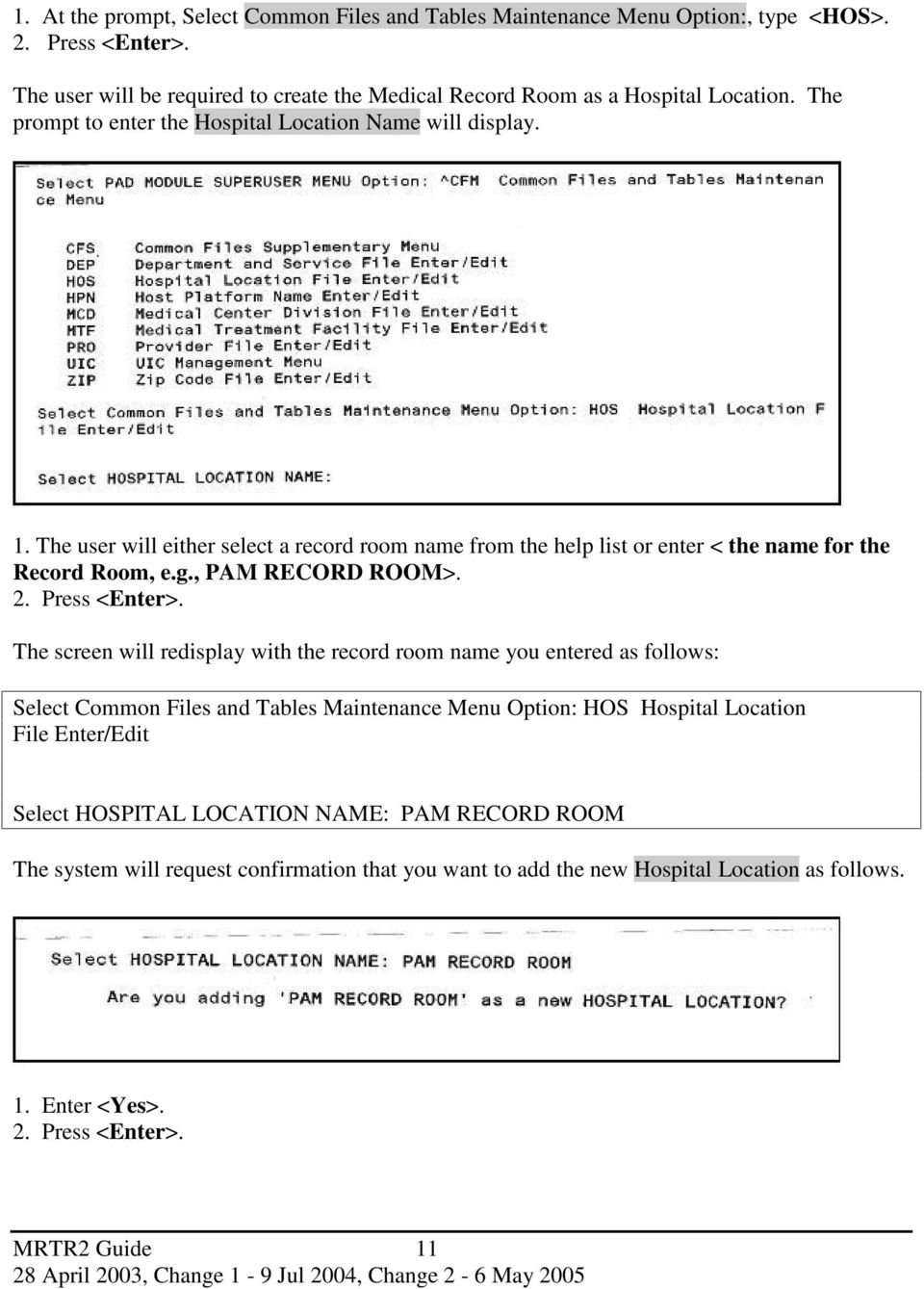
20 1. At the prompt, Select Common Files and Tables Maintenance Menu Option:, type <HOS>. 2. Press <Enter>. The user will be required to create the Medical Record Room as a Hospital Location. The prompt to enter the Hospital Location Name will display. 1. The user will either select a record room name from the help list or enter < the name for the Record Room, e.g., PAM RECORD ROOM>. 2. Press <Enter>. The screen will redisplay with the record room name you entered as follows: Select Common Files and Tables Maintenance Menu Option: HOS Hospital Location File Enter/Edit Select HOSPITAL LOCATION NAME: PAM RECORD ROOM The system will request confirmation that you want to add the new Hospital Location as follows. 1. Enter <Yes>. 2. Press <Enter>. MRTR2 Guide 11
21 When the user answers Yes, the system will display NAME: PAM RECORD ROOM// as shown in the screen below. Press <Enter> to confirm that the record room name is correct or change the name if incorrect. The next two screens contain data about the HOSPITAL LOCATION: PAM RECORD ROOM. Hospital Location Screen One: Hospital Location Screen One (with sample data entered below) MRTR2 Guide 12
22 1. Complete the Hospital Location data on this first screen for the record room you are defining (see example above). The data prompts are generally self-explanatory. Enter data that is correct for your record room. 2. At the Default Device prompt, enter the name of the default printer for the record room. 3. Press <Enter> after each field. Hospital Location Screen Two (with data entered below) 1. Complete the fields on this second screen (see example above). Enter data that is correct for your record room. MRTR2 Guide 13
23 2. At the MEPRS Code prompt, enter a MEPRS code for each record room, e.g., usually EKAA for Ambulatory Care Administration and EJAA for Inpatient Care Administration. 3. Press <Enter> after each field. 4. After all data has been entered on both screens, the File/Exit will appear and be highlighted. 5. Press <Enter> while cursor is over File/exit to File the data. 6. Or position the cursor over the Abort to abort and return to the main menu without storing any data, or over the Edit to return to the screen to make additional changes to the data, then press <Enter> to initiate the action. 7. Press <Enter> again until you get to the MAIN MENU. Note: Do not HALT. The Main Menu, PAD MODULE SUPERUSER MENU, will display as follows: Set Up Records Room The following sections will help you set up the CHCS Records Room (Section 2.2.2), assign CHCS standard records types to each room (Section 2.3), set up Medical Record Tracking (Section 2.4), and allow records to be borrowed from the record room (Section 2.5). Begin by making sure you are at the Main Menu Option, PAD MODULE SUPERUSER MENU, as shown below. MRTR2 Guide 14
24 1. Select the System Definition Menu by entering <8> or <^SD>. 2. The system will display the prompt, Select Record Tracking File Room. 3. Enter <the name of the new record room, e.g. PAM RECORD ROOM> at the prompt. 4. Press <Enter>. The following screen will display. The options that the user will have to complete in this and subsequent sections are: FSU (File Room Set-Up), TYS (Type of Record Set-Up), APP (Application Set-Up), and BSU (Borrower Set-Up).. MRTR2 Guide 15
25 You are tracking MEDICAL RECORDS TRACKING records from the SAMPLE RECORD ROOM file area COM FSU LFM TYS APP BSU SPL AMF OVR INI RES MTS WER PUR Re-Compile Templates File Room Set-up Label Functions Menu Type of Record Set-up Application Set-up Borrower Set-up Locations Specific to Record Tracking Additional MTF Facilities Add/Edit Record Tracking System Overall Parameters Initialization Menu Reason File Set-up Movement Type Setup Print Borrower Barcode Queue Purge Background Job Select System Definition Menu Option: FSU 1. At the prompt, Select System Definition Menu Option:, enter <FSU> for File Room Set-up. 2. Press <Enter>. The following screens will set up the records processing characteristics for the record room. 1. At the prompt, Select File Area:, enter <the name of your record room, e.g., PAM RECORD ROOM>. 2. Press <Enter>. Four Borrowers File Areas screens will display to permit the user to update data that will prescribe how Medical Records are processed in the record room when they are borrowed. MRTR2 Guide 16
26 Borrowers File Area Screen One Inpatient Record Room Outpatient Record Room BORROWERS-FILE AREA: SAMPLE OPR RECORD ROOM RT FILE ROOM SET-UP Phone Number: Location/Room Number: 1H130 Record Sort: TERMINAL DIGITS Action if Home Is Different: QUESTION USER ABOUT CHANGE Default Record Master Type: OUTPATIENT Volumes Required: ALL VOLUMES Record Barcode Printer: Request Notice Printer: Management Report Printer: Charge Card Printer: Pull List Printer: Which Security Key Is Needed?: RTFR2 *Printers Assigned to this File Room* *Security Key Needed to Select File Room* Press <Enter> after completing each of the following fields. 1. At the Phone Number prompt, enter the Phone Number for the record room. 2. At the Location/Room Number prompt, enter the Building and Room Number of the record room. 3. At the Record Sort prompt, enter the desired sort order for pull/batch lists, requests, etc. Suggested entry: Terminal Digits. 4. At the Action if Home is Different prompt, enter the action that should be taken by the file room when a record is being checked into a location different from the 'HOME LOCATION' of the record. Suggested entry: 'q' for QUESTION USER ABOUT. Codes are: n for NO ACTION a for AUTOMATICALLY CHANGE MRTR2 Guide 17
27 q for QUESTION USER ABOUT CHANGE d for DISPLAY WARNING ONLY 5. At the Default Master Record Type prompt, enter the default Record Master Type for this record room. 6. The Volumes Required prompt indicates which volume(s) to pull when initializing the pull and batch lists. Enter <ALL VOLUMES>. Codes are: 1 - ALL VOLUMES, and 0 - LAST VOLUME. 7. The Record Barcode Printer prompt is the default printer on which record labels are to be printed for this file room. The field may be left blank, and the system will prompt the user for a printer. The user may choose not to use file room default devices when accessing MRT. If the printer is defined in CHCS, the printer name may be selected from the device list. 8. The Request Notice Printer prompt is the default printer on which Request Notices/Cards are to be printed for this file room. The field may be left blank, and the system will prompt the user for a printer. The user may choose not to use file room default devices when accessing MRT. If the printer is defined in CHCS, the printer name may be selected from the device list. It is suggested that a default request notice printer be defined, because clinic users may not know the name of the device to which these notices should print. 9. The Management Report Printer prompt is the default printer on which Management Reports should be printed. The field may be left blank, and the system will prompt the user for a printer. The user may choose not to use default printers when accessing MRT. If the printer is defined in CHCS, the printer name may be selected from the device list. 10. The Charge Card Printer prompt is the printer from the Device File on which Charge/Routing Cards should be printed for this file room. The field may be left blank and the system will prompt the user for a printer. The user may choose not to use default printers when accessing MRT. If the printer is defined in CHCS, the printer name may be selected from the device list. 11. The Pull List Printer prompt is the default printer on which Pull Lists should be printed for this file room. The field may be left blank and the system will prompt the user for a printer. The user may choose not to use may choose not to use default printers when accessing MRT. If the printer is defined in CHCS, the printer name may be selected from the device list. 12. The Which Security Key is Needed prompt allows the user to describe the required security key. It must be one of the 'RT' security keys. Completing this prompt secures the file room so that only holders of the designated key may enter this file room to perform transactions on a record. Records may not be checked into, transferred to, or recharged to the file room unless the user holds the security key. If a file room is not 'secured', there is no restriction and any user with the PAD menu can go into the file room. Each file room should be assigned one of the 25 security keys, RTFR 1, RTFR 2, RTFR 25. Borrowers File Area Screen Two The next screen allows the user to define Synonym(s) for the name of the record room. Synonyms may be used to save data entry time. MRTR2 Guide 18
28 1. Synonyms are alternate name(s) for the file area. The first synonym should be the same as the file room name, as listed in the Hospital Location File. The system automatically stuffs this as the first synonym, and the user must not remove it. 2. Press <Enter> after each synonym is entered. The screen will redisplay with the capability to file the data as follows. 1. Press <Enter> while cursor is over File/exit to File the data. 2. Or position the cursor over the Abort to abort and return to the main menu without storing any data, or over the Edit to return to the screen to make additional changes to the data, then press <Enter> to initiate the action. Borrowers File Area Screen Three A screen will display requesting whether borrower's labels will be printed for this record room. Print Borrower Label? Yes//?? Enter one of the following: Yes to print Borrowers Labels No to don t print Borrower Labels ^ to stop. Print Borrower Label? Yes// MRTR2 Guide 19
29 1. At the Print Borrower Label? Yes// prompt, enter <Yes> or <No>. Answer <No> if you do not wish to print the labels. 2. Press <Enter>. Borrowers File Area Screen Four If you have entered <Yes> to the Print Borrower Label prompt, the following optional screen will appear requesting additional data needed to print the labels. 1. Press <Enter> at the Select File Area prompt. 2. At the Select Label Device prompt, enter the name of the printer that will print the Borrower's Labels. You may see a list of available printers by entering <??> at the Select Label Device prompt. Once these steps are completed, the Borrower Set Up steps are complete. Return to the Systems Definition Menu 2.3 Creating and Defining the Record Types These steps create the various medical record types and define their parameters. The system comes with two standard record types, OUTPATIENT and INPATIENT for medical records. If this is a multi-divisional site, only one form per medical record type needs to be completed. All divisions must agree with the parameters for all record types with the exception of overdue cutoff days, which is definable by each record room for that record type. In a later section, the guide will explain how locally defined record types will be linked to the standard record types and to specific record rooms. Record rooms may have a subset of some of the standard record types. MRTR2 Guide 20
30 1. At the System Definition Menu Option prompt, enter <TYS> for Type of Record Set-up. 2. Press <Enter>. 3. The system will display TYS Type of Record Set-up. 4. The Select Record Type prompt will appear. Enter the <Record Type, e.g., INPATIENT> you wish to define. 5. Press <Enter>. Three Record Type Set-up screens will display. The user will define the processing parameters for the record type. Record Type Screen One RECORD TYPES: OUTPATIENT OUTPATIENT RECORD RT TYPE SET-UP Name: OUTPATIENT Standard Record Type: OUTPATIENT Retirement Record Types: OUTPATIENT Abbreviation: OPR Can Record be Requested?: YES Ask for Content Descriptor?: YES Master Folder: Multiple Volumes Allowed?: YES Description: OUTPATIENT MEDICAL RECORD Inquiry Display Order: 1 Is Record Temporary?: NO Inactivation Date: *Label Format Specifications* Record Label Format: OUTPATIENT STANDARD LABEL Request Notice Format: CHART REQUEST NOTICE Help = HELP Exit = F10 File/Exit = DO MRTR2 Guide 21
31 RECORD TYPES: INPATIENT Name: INPATIENT Standard Record Type: INPATIENT Retirement Record Types: INPATIENT INPATIENT RECORD Abbreviation: INP RT TYPE SET-UP Can Record be Requested?: YES Ask for Content Descriptor?: YES Master Folder: Multiple Volumes Allowed?: YES Description: Inpatient Record Type Inquiry Display Order: 2 Is Record Temporary?: NO Inactivation Date: *Label Format Specifications* Record Label Format: INPATIENT RECORD LABEL RACH (see note 12 below) Request Notice Format: CHART REQUEST NOTICE Help = HELP Exit = F10 File/Exit = DO FETAL MONITORING STRIPS RECORD TYPES: FETAL MONITORING STRIPS RT TYPE SET-UP Name: FETAL MONITORING STRIPS Standard Record Type: FETAL MONITORING STRIPS Retirement Record Types: INPATIENT FETAL MONITORING STRIPS Abbreviation: FMS Can Record be Requested?: YES Ask for Content Descriptor?: NO Master Folder: Multiple Volumes Allowed?: YES Description: Is Record Temporary?: NO Inquiry Display Order: 99 Inactivation Date: *Label Format Specifications* Record Label Format: FETAL MONITORING STRIPS STANDARD RECORD LABEL (see note 12 below) Request Notice Format: CHART REQUEST NOTICE Help = HELP Exit = F10 File/Exit = DO MRTR2 Guide 22
32 EXTENDED AMBULATORY RECORD RECORD TYPES: EXTENDED AMBULATORY RECORD RT TYPE SET-UP Name: EXTENDED AMBULATORY RECORD Standard Record Type: EXTENDED AMBULATORY RECORD Retirement Record Types: INPATIENT EXTENDED AMBULATORY RECORD Abbreviation: EAR Can Record be Requested?: YES Ask for Content Descriptor?: YES Master Folder: Multiple Volumes Allowed?: YES Description: SAME DAY SURGICAL WITH NO ADMITTANCE Inquiry Display Order: 100 Is Record Temporary?: NO Inactivation Date: *Label Format Specifications* Record Label Format: EAR LABEL (see note 12 below) Request Notice Format: CHART REQUEST NOTICE Help = HELP Exit = F10 File/Exit = DO Press <Enter> after entering data in each of the following fields. 1. At the Name prompt, enter <the MTF record room's local name for this record type>. 2. At the Standard Record Type prompt, enter <the Standard Record Type name for the site defined record type>. The user may now assign a single Standard Record Type to several site defined record types. These Standard Record Types are used to tie all site records to a standard name. The retirement list will then pull all site records associated with the standard record name selected for retirement. As an example, obstetrical records would be considered an INPATIENT record and would then be included on a retirement list with INPATIENT record as the selection criteria. 3. At the Retirement Record Types prompt, enter <the name of the standard record type for the site defined record type that will be retired>. At this point the standard record types are also linked to the record rooms that store this record type. Input the appropriate Retirement Record Type in the Type of Record Setup file for all site-defined record types which would be eligible for retirement. Fetal Monitor Strips and Extended Ambulatory Records are considered inpatient type records and should have INPATIENT as the Retirement Record Type. To ensure that Inpatient, FMS, and EAR records are retired appropriately, the following file/table build needs to be in place MRTR2 Guide 23
33 Name: <site-defined name for Inpatient records> Standard Record Type: INPATIENT Retirement Record Types: INPATIENT Name: <site-defined name for FMS records> Standard Record Type: INPATIENT Retirement Record Types: INPATIENT FETAL MONITORING STRIPS Name: <site-defined name for EAR records> Standard Record Type: INPATIENT Retirement Record Types: INPATIENT EXTENDED AMBULATORY RECORD Abbreviation: Abbreviation: Abbreviation: An INPATIENT index would contain the following record types: INPATIENT EXTENDED AMBULATORY RECORD FETAL MONITOR STRIPS A FETAL MONITORING STRIPS index would contain the following record type: FETAL MONITOR STRIPS An EXTENDED AMBULATORY RECORD index would contain the following record type: EXTENDED AMBULATORY RECORD 1. The Can Record Be Requested prompt indicates whether this record type may be requested by a user or by pull list functions. If <No>, this record type will not appear on a pull list. Enter <Yes>. This only applies if the record room is using the Medical Records Tracking (MRT) function. Sites are not required to use MRT in order to retire records. 2. The Is Record Temporary prompt indicates whether this is a temporary record. The user may need to create a temporary record for a patient if the OUTPATIENT record is missing. Enter <No>. 3. At the Ask for Content Descriptor prompt, if a 'YES' response is entered for this parameter, users will be prompted to enter an optional description of the contents of a record when a new record is created using the Create a Label/Record/Volume option. The content descriptor is also displayed in Record Inquiry. Enter <Yes>. 4. At the Master Folder prompt, leave blank. Press <Enter>. (Used by Imaging only) 5. The Multiple Volumes Allowed prompt indicates whether or not there can be more than one volume per patient of this Record Type. Both inpatient, outpatient and most other record types will have more than one volume. Enter <Yes>. 6. At the Description prompt, enter the optional description of this record type. MRTR2 Guide 24
34 7. The Inquiry Display Order prompt indicates the order in which the record type will appear on the Record Inquiry: Enter <sequence number, e.g., Outpatient 1, Inpatient 2>. 8. At the Inactivation Date prompt, press <Enter>. DO NOT USE during initial data collection and data entry. 9. At the Record Label Format prompt, enter <the site specific name defined for the label format in CHCS for this type of record>. Indicates the label format that should be printed when a new record is created. Only record label formats associated with the MRT application are allowed. 10. At the Request Notice Format prompt, enter <the name assigned to the request notice format in CHCS for this type of record>. The label format that should print when this record type is requested. Only request notice formats associated with the MRT application are allowed. Record Type Screen Two The second screen of the Record Type processing parameters is displayed. Press <Enter> after entering data in each of the following fields. 1. The Pending Request Cutoff (Days) asks for <the number of days> an unfilled request for the record type may remain in 'PENDING' status before it reverts to a status of 'UNFILLED' and the request is purged by the RT purge process. Try to keep the number as low as possible in order to prevent a 'build-up' in the REQUESTED RECORDS file. NOTE: Does not apply to pull lists. A pull list in a requested status will only be purged after 30 days. Enter the number of days for your facility. 2. The Current Borrower Future Request Time Minimum (minutes) prompt prescribes <the earliest future date/time, in minutes>, that the current borrower of a record may request that same record after he/she has returned it. This field may also be left blank, thereby not restricting the borrowing of a record by the same borrower consecutively. Press <Enter> or enter the number of minutes. 3. The # Previous Movements to Retain prompt is <the number of previous movements of a record (e.g., charge-out, check-in)> which should be retained online for this record type specific to the individual record. For example, if you set the outpatient record type to retain 25 movements and a patient has 3 volumes of their outpatient record, 3 times 25 or up to 75 movements will print/display for this patient's outpatient records. Try to keep the number of MRTR2 Guide 25
35 previous movements as low as possible. Enter the number of record movements to keep on file. 4. The Request Purge Cutoff (Days) prompt is <the number of days> requests, (filled and pending), should be retained in the system before being purged. Try to keep the number as low as possible. Enter the number of days to retain requests. 5. At the OK to Purge Data prompt, enter <Yes>. When set to yes, old pull list requests, previous movements, etc. are purged. If set to No, this data is not purged. 6. The Control of Finding Records prompt defines which users are able to remove 'missing' record flags from the record type. Enter <one of the two following values>: If set to FILE ROOM SUPERVISOR ONLY, only users who hold the RT MRT-FR- SUPER security key will be able to remove the missing flag from the record. If set to ANY USER, any user, including PAS users can remove the 'missing' flag and process the record. A bulletin is generated and sent to all members of the mail group set up for MRT missing records bulletins and to all holders of the RT MRT-FR-SUPER security key. Record Type Screen Three The third screen of the Record Type processing parameters is displayed. RECORD TYPES: Linked Records: *Other Records to Create When* *Initializing the * RT TYPE SET-UP - - CONTINUATION Allowable File Rooms: INPATIENT RECORD ROOM RISK MANAGEMENT RECORD ROOM SAMPLE RECORD ROOM *File Rooms Allowed to Store * Press <Enter> after entering data in each of the following fields. 1. At the Linked Records prompt, press enter without entering any data. 2. The Allowable File Rooms prompt defines all the file rooms that may store this record type. Enter <the file rooms that can store this record type>. The system will only allow file rooms associated with the MRT application to be entered here. At a multi-division site, ALL division file rooms that have this record type MUST be entered here. If the file rooms are not identified here, they will not be able to create these records in their CHCS file room. If you wish to see a list of valid file rooms, enter <??>. MRTR2 Guide 26
36 2.4 Setting Up Medical Record Tracking This section describes procedures for setting up medical records tracking parameters. Select PAD > MRM > (Default Record Room versus the other Record Room) SD (System Definition Menu). 1. At the Select System Definition Menu Option: prompt, enter <APP>. 2. Press <Enter>. Four Medical Records Tracking (MRT) screens will display and are used to define MRT application parameters for an MTF. Medical Record Tracking Screen One RECORD TRACKING APPLICATION: MEDICAL RECORDS TR RT APPL SET-UP - - CONTINUATION Service: ADMIN SERVICE Synonyms: MAS MRT *Application Parameter Set-Up for MEDICAL RECORDS TRACKING* Division: PINE BLUFF ARSENAL AHC REYNOLDS ACH FT SILL OK SGT BLEAK TROOP MEDICAL CLINIC USADC ALLEN FT. SILL USADC COWAN FT. SILL USADC 2 FT. SILL *Division Parameters* MRTR2 Guide 27
37 Press <Enter> after entering data in a field. 1. The Service prompt defines the Department/Service responsible for the application. Example: Patient Administration or Department of Administration. 2. The Synonyms prompt defines alternate names or codes for the application. At least one synonym MUST be entered. Example: MRT or RT. 3. At the Division prompt, enter ALL divisions that will use MRT. Medical Record Tracking Screen Two The following screen collects primarily retirement defaults for each division entered above. Press <Enter> after entering data in each of the following fields. 1. The Central File Area is the central file room for this MRT application and division. Enter <the file room that will be displayed as the default when signing into the MRT application in that division>. Also patients who were registered in a given division will appear on the batch list for that division's central file area. 2. At the Default Pull List Sort prompt, enter <one of the codes listed below>. This field defines the default method by which pull lists are generally sorted for the MRT application in this division. The user can change the pull list sort selection when pull lists are run. Set of Codes: <t> for TERMINAL DIGITS <c> for CLINIC NAME THEN TERMINAL DIGITS <a> for APPOINTMENT TIME <p> for CLINIC NAME THEN PATIENT NAME 3. The Folder Pull Method prompt requires a code for this MRT application and division: <0> for PULL SUB-FOLDER or <1> for PULL MASTER FOLDER. 4. The Print Pull Notice prompt requires a code for this MRT application and division: <0> for Print only if request not charged or <1> for Always print pull notice. Medical Record Tracking Screen Three The following screen lists the standard record types. The user will select the record types that are valid for the facility. MRTR2 Guide 28
38 1. The Type of Records prompt defines each record type that will be stored and associated with the MRT application for this division. Cautiously press the <Down Arrow> until the cursor is positioned on the record type to be defined for the MTF. In this example, the user will place the cursor on Inpatient. 2. Press <Select> on the desired record type. An asterisk will appear next to the selection. 3. Press <Enter>. Medical Record Tracking Screen Four You will enter parameters about the processing for this record type in the selected division. Press <Enter> after entering data in each of the following fields. 1. At the Default Home Location prompt enter <the record room associated with the division and MRT application for that record type>. This is the home location the system should assign to this type of record when initially created in this division, although the user has the option to enter any home location to which they have access. This must be a record room 2. At the Months of Inactivity prompt, enter <the number of months back the system will search a record when creating a retire/transfer list>. A record will be included in this list if the date of last activity, which is entered when the list is requested, is prior to the number of months entered in this field. 3. At the Default Initial Borrower prompt, enter <the borrower the record will be charged to upon creation>. Usually this is the same as the default home location or record room. Enter the name of the record room. 4. At the Charge Tag Format prompt, enter <the name of the Charge Tag (charge-out card) format to be used when charging out records>. A new label format, 3-30 characters can also be entered at this time, but the user would then have to go into Label Format functions and define the parameters of that label. MRTR2 Guide 29
39 5. At the Routing Tag Format prompt, enter <the name of the Routing Tag (routing card) format to be used when charging out records>. A new label format, 3-30 characters can also be entered at this time, although this is generally the same as the charge-out card. Medical Record Tracking Screen Five Air Force: Notify NPRC(CPR) at [email protected] and notify the VA-AAC at [email protected] Army and Navy: Notify NPRC(MPR) at [email protected] and notify the VA-AAC at [email protected] Press <Enter> after entering data in each of the following fields. 1. At the Profile/Report Header prompt, enter the heading that will appear on the 'Record Inquiry' and 'Trace Movement History' reports. 2. At the Entity Select Prompt enter <the prompt that will appear on the screen for 'Select' prompts> which point to the PATIENT file. Use both upper and lower case letters. 3. At the Entity Display Header prompt, enter <the title for the patient name list>. This title will be used in the 'Records Charged to a Borrower' report and any report columns that feature the NAME field from the PATIENT file. Use both upper and lower case letters. 4. At the Record Prompt, enter <the prompt to be used in all options in the Transaction Menu, in the Request A Record option and at any point in which the system is looking at the RECORDS file>. Use both upper and lower case letters. 5. At the Default Record Creation Type prompt, enter <the type of record the system should initially create for a patient in this application>. If any linked records have been defined, these will be created at the same time 6. At the Borrower Barcode Format prompt, enter <the name of the label format to be printed for borrowers associated with the MRT application>. Either a standard format or a site-defined format may be used. All divisions must use the same Borrower Barcode Format. 7. At the File Room Supervisor Key prompt, enter <the appropriate RT supervisor security key for this MRT application>. Must be agreed upon by all divisions. Each MRTR2 Guide 30
40 file room may have an additional security key, unique to their fileroom that is entered in File Room Set-Up. Holders of this key will receive all RT mail bulletins. 8. At the File Room Staff Key prompt, enter <the appropriate RT staff security key for this MRT application>. May also be utilized to lock file rooms. 9. At the Deleted Record Mail Group prompt, enter <the mail group to receive bulletins each time an MRT record is deleted from the system>. This mail group must be setup initially through the Manage MailMan menu. Holders of the RT DELETE key will also receive these bulletins. 10. At the Missing Record Mail Group prompt, enter <the mail group that is to receive bulletins when a record is flagged as missing or has a missing flag removed>. 11. At the ASCII File Mail Group prompt, enter <the name of the mail group that will receive notices about transmission of the ASCII file to NPRC>. Make sure you include the addresses of the NPRC and VA points of contact in this Mail Group so they are notified to expect the files from the MTF. 12. The File/exit option will display to allow the data to be stored. Press <Enter> while cursor is over File/exit to File the data. 13. Or position the cursor over the Abort to abort and return to the main menu without storing any data, or over the Edit to return to the screen to make additional changes to the data, then press <Enter> to initiate the action. 2.5 Establishing Borrower Set Up and Privileges This section describes the selection of parameters to permit records to be borrowed from the various records rooms and records types stored at the MTF. This group of parameters allows definition of the different entities that may be defined as borrowers. Entities from the following files may be used: a. HOSPITAL LOCATION b. MEDICAL CENTER DIVISION c. MEDICAL TREATMENT FACILITY d. ADDITIONAL MEDICAL TREATMENT FACILITY e. PROVIDER f. RT FILEROOM SPECIFIC LOCATIONS MRTR2 Guide 31
41 1. At the System Definition Menu Option prompt, enter <BSU> for Borrower Set-up. 2. Press <Enter>. 3. The system will display BSU Borrower Set-up. 4. The system will display the Select Borrower prompt. Enter <the name of a record room that is permitted to borrow records from other record rooms, e.g., PAM RECORD ROOM>. 5. Press <Enter>. The following RT Borrower Set-Up screen will display to define the borrowing record room and its processing parameters when borrowing records: Press <Enter> after entering data in each of the following fields. MRTR2 Guide 32
42 1. At the Location/Room Number prompt, enter <the building and room number of the borrower>. 2. At the Borrowing Privileges prompt, enter <the code below for the borrower's privileges>. The system will default to 'NORMAL' when the borrower is entered. 3. Codes: <n> for NORMAL 4. <i> for INACTIVATED 5. <r> for REVOKED 6. At the Synonyms prompt, enter <one or several synonyms for the borrowing record room>. 7. At the Barcode Printer prompt, press <Enter>. This is used for Radiology only. 8. At the Record Type Needed prompt, enter <the names of ALL the valid standard record types that may be requested when making an appointment or registering a patient>. NOTE: This is another field that is OFTEN overlooked. 9. The File/exit option will display to allow the data to be stored. Press <Enter> while cursor is over File/exit to file the data. 10. Or position the cursor over the Abort to abort and return to the main menu without storing any data, or over the Edit to return to the screen to make additional changes to the data, then press <Enter> to initiate the action. 2.6 Establish Record Label Default Formats Each record must be labeled to reflect its record type. See more on the business rules for labeling records at Appendix D. This section provides user information to establish record label default formats. 1. At the Main Menu prompt for System Definition, go into LFM. As in the screen below: MRTR2 Guide 33
43 2. Press <Enter>. The File Room Set-up Screen will appear: 1. LFM Label Functions Menu will appear. 2. Select <LF Label Formatter> for the Select Label Functions Menu Option. 3. Select Borrower will appear. Enter on the Select Borrower. <EX: SAMPLE RECORD ROOM> 4. Press <Enter> The following screen will appear and the user will have to complete the entries: MRTR2 Guide 34
44 Press <Enter>. The RT Label Edit Label Formatter screen will appear. The user will have to complete the field entry screens selected from this screen. Refer to Appendix D for required fields. For ADMISSION DATE the following screen will appear: Press <Enter>. The following screen will appear for BARCODE FOR RECORD: Press <Enter>. The following screen will appear for DATE OF BIRTH: MRTR2 Guide 35
45 Press <Enter>. Screens will continue to appear for fields shown on the RT Label Edit Label Formatter Screen. Complete all required and locally desired field screens. Once finished with the screens, test the labels by answering YES to the prompt Test this format?, and return to the File Room Set-up Screen. 2.7 Defining Months of Inactivity This section describes the steps required to determine whether a record qualifies for retirement and explains the importance of the months of inactivity field. Step 1: Set up the months of patient inactivity for each record type. The months of inactivity reflects the Service Record Disposition policy on the earliest date that a record can be considered for retirement, i.e., for inpatient records, 1 year for a non-teaching facility and 5 years for a teaching facility; for outpatient records, 2 years for all facilities. Step 2: Compute the earliest possible retirement date for the shipment. (1) the Service policy retirement date computed by CHCS (the last day of last year minus the months of inactivity) or (2) the Date of Last Patient Activity entered by the user when creating the index. The Date of Last Patient Activity may never be later than the Service Policy date. Step 3: Compute the date of last patient activity for a record as follows: the date of discharge for inpatient and EAR records, the creation date for FMS records, and the latest date of patient activity (ie: telephone consult, radiology results, etc) for outpatient records. Step 4: To qualify for retirement, records must have a date of last patient activity on or before the date computed in Step The Security Key of RT SYS is required for the individual that sets the Months of Inactivity in the system. CAUTION: Facilities must set the Months of Inactivity parameter for the type of facility and each type of record to be retired. If this parameter is set to 0, all records entered into the system will print out on the index. Once retiring records using MRRRE the months of inactivity should be reset to your Service Record Disposition Schedule. 2. To set up the parameter, the following pathway is used: PAD > MRM > (Default Record Room versus the other Record Room) > SD (System Definition Menu)-> APP (Application Set-up). Refer to Section 2.3 Setting Up Medical Record Tracking for more information on this field. 2.8 Cleaning the CHCS MRT of Records Manually Retired to NPRC OP Records MRTR2 Guide 36
46 This section of the guide provides instruction on how to retire in CHCS all old OP records that were previously physically retired to NPRC. OPTION: The recommendation is for the user to retire in the system one record year at a time. The user will be able to print a record index of each year, and if retiring records manually, be able to attach the index to the SF 135 that had been previously sent to NPRC. To process the retirement of records in the system, the user must use the information provided in this guide to complete the process. This includes creating the ASCII file that allows the system to change the record status from Pending Retirement to CPR" or "MPR to indicate the final disposition of the record. The user must be aware of the Date of Last Patient Activity. This entry is the cutoff date of the records you wish to retire. For example, if you wish to retire records with no patient activity after calendar 1995, enter 31 Dec The Date of Last Patient Activity is set at each facility for each type of record retired to NPRC. Each individual Service has established record disposition regulations in its records maintenance regulations or directives including the number of months of inactivity for each type of facility and each record type. These directives can be found in Appendix A and at the Web sites below. Army: Air Force: Navy: Regardless of the facility size or teaching mission, the months of inactivity must be put in the system. If the months are left blank or set to 0, all records in CHCS will may be reflected on the Retirement Index IP Records For information contact you Service medical Records Administrator 2.9 Initializing Records Not in CHCS This section is for the user who has never entered records into CHCS Medical Records Tracking but has the records still stored in their facility/storage area and now needs to retire those records to NPRC, for example, records from the AQCESS system. Things to be aware of: Make sure those individuals who are going to retire records have the Security Key of RT SYS and the MRM menu options. Make sure those individuals who are using Record Initialization Menu have the Security key to do that process: RT INIT. MRTR2 Guide 37
47 The Record Initialization option helps to create and process batch lists, which are records that have been grouped together to make retrieval easier, e.g., enter records from storage areas. This feature allows you to create multiple records quickly for a specific selected record room and record type combination. (This option also allows a user to backdate records). When a record has No history online in the CHCS Medical Record Report, there are several ways to create the record in CHCS. One way is to use the Record Initialization option (recommended if creating many records), another way is to use the Create Volumes option (recommended if creating few records). Both methods will be discussed below Step By Step Guide for Record Initialization. The MAIN MENU, titled the PAD MODULE SUPER USER MENU or your Main Menu, appears. 1. At the Select PAD MODULE SUPERUSER MENU option prompt, enter <7> or <MRM> for Medical Record Menu. 2. At the Select Record Tracking File Room: Outpatient Record // prompt, enter <INPATIENT RECORD ROOM>. MRTR2 Guide 38
48 NOTE: Remember to change record rooms here if the default room is not where you wish to process the records. 3. At the prompt, Do you want to use the file room s default devices? Yes//, press <Enter> to accept the default of Yes or type <No>. The system will display the next menu as follows. At the prompt, Select Medical Record Menu Option:, enter <TM> for Transaction Menu. Press <Enter>. The Transaction Menu will display as follows: OT IN MR CV FR PC PR RE DR AC TR UR UV OR Charge-Out Record Check-in Record Move Records to Other File Room Create a Label/Record/Volume Flag Record As Missing Patient Check-out Print Routing/Charge Cards Re-Charge Records Delete a Record Inactivate/Re-Activate Records Facility Transfer Update Record s Attributes Update Record Volume Record Initialization 1. At the prompt, Select Transaction Menu Option:, type <OR> to select the Record Initialization function. 2. Press <Enter>. The Record Initialization Menu will display with the following options. The CB option has been modified to include direct access to all options in the Record Initialization Menu through actions on an action bar. MRTR2 Guide 39
49 1. At the prompt, Select Record Initialization Option:, enter <CB> for Create/Edit Batch Lists. 2. Press <Enter>. 3. The system will display the Select Record Batch: prompt. Give the Batch a name any name. 4. At the name confirmation prompt, Are you adding the name as a new RECORD INITIALIZATION?, enter <YES>. 5. The system will display the Select RECORD Type: prompt. This will be the record type you are going to create, i.e. INPATIENT, OUTPATIENT, EXTENDED AMBULATORY RECORD, FETAL MONITOR STRIPS, etc. The CREATE/EDIT BATCH LISTS AND VOLUMES will display as follows with the assigned batch name displayed. **** CREATE/EDIT BATCH LISTS AND VOLUMES **** Personal Data - Privacy Act of 1974 (PL ) ======================================================================= BATCH NAME: TEST1 Record Type: INPATIENT Home Location : INPATIENT RECORDS PNH ======================================================================= Patients on Batch Number of Volumes ====================================== ================ Batch is empty. Edit List Create Volume edit Delete exit Help Select Edit A new option bar is displayed defaulting to add. **** CREATE/EDIT BATCH LISTS AND VOLUMES **** Personal Data - Privacy Act of 1974 (PL ) ======================================================================= BATCH NAME: TEST1 Record Type: INPATIENT Home Location : INPATIENT RECORDS PNH ======================================================================= Patients on Batch Number of Volumes ====================================== ================ Batch is empty. add Volumes remove Return Abort Help Select add. MRTR2 Guide 40
50 The prompt Select PATIENT NAME: displays. Enter the name of the patient that records are being created for. The prompt Enter number of volumes to create: 1// displays. Enter the number of volumes to be created. Remember this function will add the inputted number of volumes to any volumes already existing for the patient, up to 99 new volumes. Note: If creating inpatient records and no admissions exist for the patient in CHCS a reminder message will appear stating this fact, just hit return to continue. This message will not stop the process. Record Batch : TEST1 Home Location: INPATIENT RECORDS PNH Patient Name : MITCH,TEST 3 Record Type : INPATIENT Number of Volumes: 6 Volume Date of Creation Register Number(s) Jan 2003@ Jan 2003@ Jan 2003@ Jan 2003@ Jan 2003@ Jan 2003@0828 File/exit Abort Edit The Date of Creation will default to the current date and time for all volumes. The cursor will be beside the first volume to be created, under the Volume column. (Note: In the CB option, the volumes on the batch list will always begin with volume #1, regardless of existing volumes for the record type selected. When the volumes are actually created through the Create action, the volume numbers may change from that assigned on the batch list if there are existing volumes for the record type and record room.) Hit return and the cursor will move over to the Date of Creation column, where you can accept the default date or edit to enter the actual creation date for this volume. For creating Inpatient records when the patient has admissions within the CHCS system, a drop down pick list of inpatient admissions will appear. You can either select one of these or just hit return to get to the Date of Creation column. After finishing input of the necessary information, you will be directed to either File/exit, Abort, or Edit the new changes. Selecting the File/Exit option will return you to the CREATE/EDIT BATCH LISTS AND VOLUMES where you can continue to add more patients. **** CREATE/EDIT BATCH LISTS AND VOLUMES **** Personal Data - Privacy Act of 1974 (PL ) ======================================================================= BATCH NAME: TEST1 Record Type: INPATIENT Home Location : INPATIENT RECORDS PNH ======================================================================= MRTR2 Guide 41
51 Patients on Batch ====================================== Number of Volumes ================ MITCH,TEST 3 6 add Volumes remove Return Abort Help Use the Volumes button if more/less volumes are needed for a selected patient already on the batch list. The number of volumes can only be changed if the records on the list have not yet been created. Use the remove button to remove a patient already on the batch list. Use the Return button to move to the previous menu. Use the Abort to abandon all changes previously made and exit to the Select Record Batch: prompt. After all patients are entered into the batch and the creation dates are acceptable, select the Return button to go back to the previous action bar. **** CREATE/EDIT BATCH LISTS AND VOLUMES **** Personal Data - Privacy Act of 1974 (PL ) ======================================================================= BATCH NAME: TEST1 Record Type: INPATIENT Home Location : INPATIENT RECORDS PNH ======================================================================= Patients on Batch Number of Volumes ====================================== ================ MITCH,TEST 3 6 Edit List Create Volume edit Delete exit Help Use the List button to view patients listing on the batch, the number of volumes per patient, and whether or not the volumes have been created. Use the Create button to create all of the volumes listed on the current batch list. Use the Volume edit button to make any necessary changes to volumes for selected patients after the volumes have been created. Use the Delete button to delete the current batch list. Use the exit button to exit from the batch list option. MRTR2 Guide 42
52 Note: The system uses the Date of Last Patient Activity as the basis for search criteria to determine retirement eligibility. The date of patient activity is based on the information listed below for each record type: Standard Record Type OUTPATIENT Date of Last Patient Activity Last outpatient visit completed, not just scheduled Last telephone consultation completed Last radiology exam verified INPATIENT FETAL MONITORING STRIPS EXTENDED AMBULATORY RECORD Date of Last Disposition Date recorded as, "Carded for Record Only" Date of Occurrence Date of Last Disposition for: Ambulatory Procedure Visit, Observation, Partial Hospitalization, and/or Sub Acute Care episode.. When the system encounters the first instance of patient activity, the system will stop the search for that patient and record type and move on to the next entry. When a patient has no patient activity, the system will use the DATE OF CREATION of record to determine retirement eligibility When all the patient's names have been entered and data entry on the screen is completed, select the Create action from the action bar. Alternatively, exit the CB option and the system will display the following sub-menu for Batch Record Initialization. The Record Initialization Menu will redisplay with the following options. 1. At the prompt, Select Record Initialization Option: enter <NR> for Create New Records/Print Labels. 2. At the prompt, Select Batch to Process: enter <the name you gave your batch>. 3. At the confirmation prompt, Are you sure you want to continue? Yes//, press <Enter>. MRTR2 Guide 43
53 4. At the prompt, Select Label Printer: enter <the name of the default printer for your record room> Step-By-Step Volume Initialization. The MAIN MENU, titled the PAD MODULE SUPER USER MENU or your Main Menu, appears. 1. At the Select PAD MODULE SUPERUSER MENU option prompt, enter <7> or <MRM> for Medical Record Menu. 2. At the Select Record Tracking File Room: Outpatient Record // prompt, enter <INPATIENT RECORD ROOM>. NOTE: Remember to change record rooms here if the default room is not where you wish to process the records. At the prompt, Do you want to use the file room s default devices? Yes//, press <Enter> to accept the default of Yes or type <No>. The system will display the next menu as follows. MRTR2 Guide 44
54 At the prompt, Select Medical Record Menu Option:, enter <TM> for Transaction Menu. Press <Enter>. The Transaction Menu will display as follows: OT IN MR CV FR PC PR RE DR AC TR UR UV OR Charge-Out Record Check-in Record Move Records to Other File Room Create a Label/Record/Volume Flag Record As Missing Patient Check-out Print Routing/Charge Cards Re-Charge Records Delete a Record Inactivate/Re-Activate Records Facility Transfer Update Record s Attributes Update Record Volume Record Initialization 3. At the prompt, Select Transaction Menu Option:, type <UV> to select the Update Record Volume function. Press <Enter>. Note: access to the UV option is also available through the CB option via the Volume edit action. 4. At SELECT PATIENT: prompt enter the patient whose volumes need to be updated. 5. At Select Record Type: prompt enter the appropriate record type being edited, i.e. INPATIENT, OUTPATIENT, EXTENDED AMBULATORY RECORD, etc. 6. The RECORD VOLUME MAINTENANCE screen will appear with the cursor next to the first volume to be edited. **** RECORD VOLUME MAINTENANCE **** Personal Data - Privacy Act of 1974 (PL ) ======================================================================= NAME: MITCH,TEST 1 (20/ ) Birth Date: 03 May 1978 Record Room: INPATIENT RECORDS PNH Run Date: 17 Jan 2003@1041 ======================================================================= Date of Creation Vol # Jan 2003@ Jan 2002@ MRTR2 Guide 45
55 17 Jan 17 Jan Jan 2003@ Jan 2003@ Edit Consolidate exit pgdn Help Select the Edit action to go the EDIT RECORD VOLUMES screen. *** EDIT RECORD VOLUMES *** Personal Data - Privacy Act of 1974 (PL ) ======================================================================= NAME: MITCH,TEST 3 20/ Birth Date: 04 Sep 1980 Record Room: INPATIENT RECORDS PNH Run Date: 17 Jan 2003@1057 ======================================================================= Vol # Date of Creation Edit Volume # Edit Date of Creation Jan 2000@ Jan 2000@ Jan 2003@ Jan 2003@ Jan 2003@ Jan 2003@1056 Change File/exit discard Help Select the Change action to start the editing process on the volumes. The cursor will be at the first volume listed. Move the cursor to the volume needing editing. Press the return key and the cursor moves over to Edit Volume # column. If the volume number is to be changed, input the new volume number in this column and press enter. (Note: once done editing, there cannot be two volumes with the same volume number) If a volume number change is not needed, just press the enter key without entering anything into this column. *** EDIT RECORD VOLUMES *** Personal Data - Privacy Act of 1974 (PL ) ======================================================================= NAME: MITCH,TEST 3 20/ Birth Date: 04 Sep 1980 Record Room: INPATIENT RECORDS PNH Run Date: 17 Jan 2003@1057 ======================================================================= Vol # Date of Creation Edit Volume # Edit Date of Creation Jan 2000@ Jan 2000@ Jan 2003@ Jan 2003@ Jan 2003@ Jan 2003@1056 MRTR2 Guide 46
56 Help = HELP Exit = F10 File/exit = DO The cursor will move to the Edit Date of Creation column, for inputting changes to the date of creation. Again, if no changes are necessary, press the enter key to continue. *** EDIT RECORD VOLUMES *** Personal Data - Privacy Act of 1974 (PL ) ======================================================================= NAME: MITCH,TEST 3 20/ Birth Date: 04 Sep 1980 Record Room: INPATIENT RECORDS PNH Run Date: 17 Jan 2003@1057 ======================================================================= Vol # Date of Creation Edit Volume # Edit Date of Creation Jan 2000@ Sep Jan 2000@ Jan 1994@ Jan 2003@ Jan 2003@ Jan 2003@ Jan 2003@1056 Help = HELP Exit = F10 File/exit = DO Once all of the edits have been accomplished, press the F10 key (Note: if cursor is on the last field on the list, pressing <ENTER> will accomplish the aforementioned task), select File/Exit button, and press <RETURN>. The EDIT RECORD VOLUMES screen will reappear, showing the new changes on the left hand side of the screen. **** EDIT RECORD VOLUMES **** Personal Data - Privacy Act of 1974 (PL ) ======================================================================= NAME: MITCH,TEST 3 (20/ ) Birth Date: 04 Sep 1980 Record Room: INPATIENT RECORDS PNH Run Date: 17 Jan 2003@1058 ======================================================================= Date of Creation Vol # Edit Date of Creation Edit Volume # Jan 2000@ Sep Jan 2000@ Jan 1994@ Jan 2003@ Jan 2003@ Jan 2003@ Jan 2003@ Jan 2003@ Jan 2003@ Jan 2003@ Jan 2003@ Change File/exit Preview discard Help Select the File/exit action and press enter to complete the transaction and exit. MRTR2 Guide 47
57 At the prompt Do you want to print labels? YES//, enter either YES or NO depending if you want the labels for the volumes with the new changes to print right now. (NOTE: Only the labels for the volumes with changes will print). Further information on the EDIT RECORD VOLUMES action bar: Use the Preview button to view the intended order of the record volumes before processing the changes. **** PREVIEW RECORD VOLUME EDITS **** Personal Data - Privacy Act of 1974 (PL ) ======================================================================= NAME: MITCH,TEST 1 (20/ ) Birth Date: 03 May 1978 Record Room: INPATIENT RECORDS PNH Run Date: 17 Jan 2003@1041 ======================================================================= Date of Creation Vol # Jan 1994@ Sep 1994@ Jan 2003@ Jan 2003@ Jan 2003@ Jan 2003@ File Help Use the discard button to remove any changes made during this session and return to previous menu. Editing Restrictions Volumes can be edited through the UV option if they reside within the facility and within the same record room and if all records have a movement type of Initial Creation, Check-In, Pending Retirement, Pending NPRC Approval, Missing Record, Found Record, Re-Active Record, Re- Charge, or Transfer Back From Other MTF. However, the UV option restricts editing of volumes for a record type within the user s record room for certain movement types: If the volumes reside within the facility, but some volumes for a record type are charged out to other clinics within the facility and have the Charge-Out movement type, no volumes of any movement type can be edited. If some of the volumes are transferred out of the facility permanently and have the movement type of Retire Records, Transferred to Other MTF, Inactive, or Charge-Out (to a patient), but the rest of the volumes reside in the record room, the remaining volumes can be edited. The volumes that no longer reside in the facility display in order to facilitate editing and to MRTR2 Guide 48
58 prevent duplicate volume numbers from being assigned, but the cursor bypasses the volumes that cannot be edited. If some volumes are transferred out of the facility permanently and have the movement type of Retire Records, Transferred to Other MTF, Inactive, or Charge-Out (to a patient), and some of the volumes are charged out within the facility, none of the remaining volumes within the facility can be edited. If ALL of the volumes for a record type in a record room have the movement type of Retire Record, Transferred to Another MTF, or Charge-Out (to a patient), none of the volumes can be edited through the UV option Move Records From One File Room to Another This option allows the user to move records from one file room to another. This option might be used when a number of decentralized file rooms are in an MTF (Air Force only) and a single accession for the MTF is contemplated. The decision is made to consolidate all the records in a single record room. The process to move records from one file area to another is almost a mirror image of the Creation of Retirement Index. The instructions to Remove and Add records to the index are identical to the instructions for the Creation of the Retirement Index. MRTR2 Guide 49
59 The following pathway is used to move records to a different file area. 1. PAD > MRM > (Enter the name of the Record Room to retire the records from) -> press <Enter>. 2. The system will redisplay the name of the record room with the MTF name where it is located. 3. At the prompt, Do you want to use the file room s default devices? Yes//, press <Enter> or answer <No>. 4. The system displays You are tracking Medical Records Tracking records from <name of the retirement record room selected> file area. The following Medical Records Menu displays and will vary according to the keys assigned to your user account. 1. At the prompt, Medical Records Menu Option, select <FE> for the Transfer/Retire Menu option. 2. Press <Enter>. 3. The system will display another menu with the following three options as shown in the screen above. When moving records from one file room to another, use the CRI option. MRTR2 Guide 50
60 CRI Create Record Index EPR Edit/Process Record Index DEL Delete Record Index 1. At the prompt, Transfer/Retire Menu Option, type <CRI> for Create Record Index. Press <Enter>. 2. The system will display the prompt, Select Record Movement Types Name, so the user can specify the type of movement for the records. The user needs to move records to another File Area. At the prompt, Select Record Movement Types Name, enter <MOVE TO ANOTHER FILE AREA> (as in the screen shot above) or enter <??> to see the valid options. As noted in the screen shot, the user has a minimum of two choices. 3. Press <Enter>. The Movement Activity screen will display as follows. The other movement activities can be filled out by following the same procedures below for each of the remaining records to be moved. MRTR2 Guide 51
61 Press <Enter> after data entry on each field on the screen. 1. At the prompt, Type of Record, enter <the standard record type or other facility generated record type> from the pick list. The Standard Record Types listed are: DENTAL, EXTENDED AMBULATORY RECORD, FAMILY ADVOCACY, FETAL MONITORING STRIP, INPATIENT, MENTAL HEALTH, OUTPATIENT, SOCIAL WORK, and SUBSTANCE ABUSE. Select, for example, <Inpatient>. 2. At the prompt, Destination, type <??> to view the list of valid values as shown below. MRTR2 Guide 52
62 At the prompt, Destination, enter <the name of the destination record room> from the help list. You can use the Select key with the up and down arrows to select a value. 3. At the prompt, Date Of Last Record Activity, enter <the cutoff date of the records that you wish to move to another file area>. For example, if you wish to move all records dated calendar year 1999 and prior, enter 31 Dec At the prompt, Patient Category, type <??> to see the list of valid Patient Categories. 5. Use the Select key on your keyboard to mark each patient category group you wish to select. IMPORTANT: Refer to the Patient Category table in Section 4 for instructions on the Patient Categories to select. 6. Press <Enter> to save the selected patient categories. 7. At the prompt, Search Criteria, enter <the code for the desired record sequence>. Type <0> for Terminal Digit or type <1> for Alphabetical order. This will search the database to find records that match the alphabetic or terminal digit range selected in the next two fields on the screen. 8. MTFs may decide if they want to select all records for movement to another file room or a subset by specifying a From and To range of identifiers. 9. At the FROM prompt, enter <the low value of the range, e.g. numeric for terminal digit sequence and alphabetic for Alphabetical sequence>. 10. At the TO prompt, enter <the high value of the range, e.g. numeric for terminal digit sequence and alphabetic for Alphabetical sequence>. 11. When the screen is completed, the cursor will position itself on the File/Exit item. MRTR2 Guide 53
63 12. Select this by pressing <Enter>. 13. The screen will show a default output device (this will be a printer). Accept the default or specify another printer at this prompt. After all the above information is filled in the screen should look like the example below. A message will print indicating that the Transfer/Retire process is complete Printing a Record Index The approximate processing time required to print this report varies according to the range of Search Criteria established in the Index. For one range of 00-09, the time frame was approximately 25 minutes. The user must be aware that when the report is sent to a CHCS printer, that device has the potential to be tied up for several minutes, depending on the size of the report as determined by the Search Criteria. The user can set the process to run the report after duty hours so that the report does not tie up a printer. Use the CHCS Spool feature to do this. The user can send the Record Index to the Bit Bucket by entering the following at the prompt for DEVICE: <NL>. The Record Index will be created but the report will not print. MRTR2 Guide 54
64 The options on the following screen allow the user to make changes to the working copy of the Record Index. 1. The Print option will print the Record Index as a working copy. 2. The Remove option will remove records from the Record Index. Refer to Section 4 in this guide for instructions on the Remove option. 3. The Add option will add records to the record Index. Refer to Section 4 in this guide for instructions on the Add option. (NOTE: The response is case sensitive use Upper Case Y until fixed). 4. The Process option will build the Record Index. 1. Arrow across to Process option as shown in the example above. The word Process is hilighted. 2. Press <Enter> and the next screen will appear. 3. Upon final completion of the Process option, the user should print out a final copy of the index. The next screen collects the information it needs to build the Record Index. MRTR2 Guide 55
65 a) The word Send is hi-lighted. Press <Enter> to select Send. b) At the prompt, Enter the date the records on this index were shipped?, accept the default by pressing <Enter>. c) The system will display the question, Update record status as retired or transferred? Enter <Yes>. d) Press <Enter>. The following Medical Records Transfer and Retire screen will then appear to exit the data entry. MRTR2 Guide 56
66 1. The cursor will move to Exit. Press <Enter> to terminate the data entry. 3.0 MEDICAL RECORDS TRACKING 3.1 Overview of the CHCS MRT Functionality The purpose of the CHCS MRT is to electronically track patient records, medical or dental, their location and availability to be charged out. The tracking is achieved through the creation of an electronic record and printed labels that identify records by patient name or identification number (ID#). These labels are human- and machine-readable through barcodes. Medical Record tracking (MRT) functions provide: - Loan control of records. - Record Transfer and Retirement - Data and statistics necessary for record management - Create records and print labels, both automatically and manually. MRTR2 Guide 57
67 - Generate pull lists. - Check-in and charge-out records. - Track individual record statuses, locations, and pending requests. - Flag records that are missing, or are inactivated for various reasons. - Generate lists of those records eligible for transfer and/or retirement. - Generate the reports necessary to manage department activities. - Generate electronic messages to notify tracking system users of information concerning specific patient records. The Medical Record Tracking (MRT) system responds to a series of triggers generated by any or all of the Patient Administration Division (PAD), Patient Appointment and Scheduling (PAS), and Radiology (RAD) subsystems. Records for tracking patient medical records may be created when: - A patient is registered through PAD registration options. - A patient is admitted to the hospital. - An appointment is scheduled for a registered patient who does not have a record in the MRT system. - Batch List and Pull List entries are available to be initialized when a patient appointment is scheduled. - Record request notices are generated when patients check-in for unscheduled appointments. - Mail messages are generated when patient records are identified as missing, found or deleted. This is an optional feature on the system. - An entry is generated on the pending request list when a requested record is currently charged out. - Entries are generated on the overdue list when a current borrower has not returned a record within an MTF-specified time. The creation of the records and record labels is a function of the CHCS Record Tracking System. A Medical Record Tracking (MRT) record consists of the following: - Patient identifier name or family member prefix (FMP)/Social Security number (SSN) - Record Type - Volume Number - Record Number - Current Location - Home Location - Status. Data is collected and entered into the system which defines the record tracking applications: - Patient Administration Medical Record Tracking (Inpatient and Outpatient Records) - Radiology Image Tracking MRTR2 Guide 58
68 This data collection defines the file rooms, record types, and the parameters under which record tracking applications are operated, such as number of days after which a borrowed record is tagged as overdue. Borrowers are established in the system set up for record tracking and establish the entities that may borrow records. The borrower may be a provider, a hospital location such as a clinic, ward, or file room, a medical treatment facility, NON-DOD MTF, or other specific locations. For example, a record can be charged to the Cardiology clinic with the associated borrower being Dr. Caldwell. MINI-REGISTRATION The Mini-Registration option allows you to add new patient records to the database or edit an existing record. A Mini-Registration provides minimum amount of data necessary to process a patient s registration. The Mini-Registration option includes a DEERS check of the patient s eligibility for care. The Mini-Registration option can be accessed from several subsystem menus. - To add a new patient you must have the & FileMan access code. You can edit an existing patient registration without that code. - When you select the Mini-Registration option, you are prompted for a patient name and a sponsor name. IMPORTANT!! It is critical to identify the patient and sponsor correctly. Small differences in entry of a name, even just including a following space, can create a duplicate patient entry. PLEASE BE CAREFUL!! Adding a duplicate patient to the database can have a significant impact on patient safety. - At the prompt for patient and sponsor, there are a variety of ways to search for patient information. Follow local procedures for searching patient information. 3.2 Inactivate/Re-Activate Records Inactivating and Re-Activating Records This option allows the user to inactivate or re-activate a specified record. Once a record is inactivated, the system does not allow you to carry out any other transactions on it until it is reactivated. The option for Inactivate/Re-Activate Records is located by first entering the Medical Records Menu (MRM) at the Main Menu. Either accept the default record room or enter another record room. Enter <7 or MRM> at the Select PAD MODULE SUPERUSER MENU OPTION: prompt. MRTR2 Guide 59
69 Select the desired record room from the available rooms shown at the Select Record Tracking File Room: prompt. After pressing <ENTER>, the user will see the following MEDICAL RECORDS TRACKING screen: MRTR2 Guide 60
70 Enter <TM> to access the Transaction Menu and Press <Enter>. (The above screen shows the tm in lower case, the system will accept the lower case and bring up the option). The following screen for Transaction Menu screen will appear: Enter <AC> for Inactivate/Re-Activate Records and press <Enter>. The following screen will appear with the two Select Movement Type options of INACTIVATE RECORD MEDICAL RECORDS TRACKING and RE-ACTIVATE RECORDS MEDICAL RECORDS TRACKING, which show when <??> are entered in the Select Movement Type: prompt. MRTR2 Guide 61
71 Complete the Select Movement TYPE: prompt with <Inactivate Record> or <Re-Activate Record> and press <Enter>. When the INACTIVATE RECORDS option is selected, the following INACTIVATE RECORD OPTION screen appears. The entry at this point is either a borrower or file area. If the user puts in a new borrower, the following INACTIVATE RECORD OPTION screen will be used to show how the system enters the New Borrower-Files Area into the file Adding a New Borrower-Files Area Into the File MRTR2 Guide 62
72 Answer <Yes> to the question and press <Enter>. The system will ask if you are adding Inpatient Records or in the above screen example of ARIZONA as a new BORROWERS-FILE AREA. Answer <Yes> and the BORROWERS- FILE AREA NUMBER: will appear. Press <Enter> and the following Records selected to be Inactivated to INPATIENT RECORDS screen will appear: Private Information MRTR2 Guide 63
73 Enter the patient s name and the patient s identifying information will appear at the bottom of the screen. Answer <Yes> and the following MEDICAL RECORDS TRACKING Profile screen appears: Private Information The system brings up a pick list of all records. Use the <Select> key and the asterisk (*) will appear by the record. NOTE: Only record maintained in the appropriate record room will be eligible for selection. The user may <Select> more than one record at a time in this screen. Press <Enter>. The following Records to be Inactivated to Inpatient Records screen shows the record selected to be inactivated. MRTR2 Guide 64
74 The TRANSFER COMMENT screen will appear. The entry of <??> describes the use of the screen as follows: Enter the information at the TRANSFER COMMENT prompt and <Enter>. The transaction will take a few short minutes and will state that the inactivation has been completed. The following screen will show that the record has been inactivated: Private Information MRTR2 Guide 65
75 To Re-Activate a record, the user will have to return to the Transaction Menu. Enter <ac> to obtain the Inactivate and Re-Activate menu option and the screen will appear as follows: At the Select Movement Type: prompt, the user will enter <re>, <RE>, or <Re-Activate> and a Records Selected to be Re-Activated to Inpatient Records Room screen will appear Enter <the patient s name> and the private information will appear at the bottom of the screen: Private Information MRTR2 Guide 66
76 Press <Enter> at the default and the Medical Records Tracking Profile screen will appear. Private Information The user must use the <Select key> to select the record that will be re-activated. NOTE: An asterisk (*) will appear when the <Select key> is used. Also, the user can select more than one record at a time, as noted in the example. Press <Enter> and the following Records Selected to be Re-Activated to Inpatient Records Room screen will appear: MRTR2 Guide 67
77 This screen shows the records that will be Re-Activated to Inpatient Record Room. Press <Enter> and the following Transfer Comment screen will appear: The screen reflects that the records have been Re-Activated. Private Information MRTR2 Guide 68
78 This screen reflects that the records have been Re-Activated into the record room. The (^) shows that the record has been Re-Activated. 4.0 MEDICAL RECORDS RETIREMENT STEPS This section will discuss the process for retiring medical records. The record retirement flow process is illustrated here for reference. Create Index Print Index Pull Records Edit Index List Reconcile CHCS List and Box Records Identify Box # In CHCS Reprint Index Complete Shipment File MTF CHCS Transmits to NPRC NPRC Sends Accession Number Notification to MTF, and/or Problems Noted MTFs Make Corrections (If Needed) Prepare Boxes For Shipment Ship To NPRC NPRC Receives Records NPRC Sends Shipment Receipt Notification, and/or Problems Noted sent to MTF NPRC Shelves Records MRTR2 Guide 69
79 4.1 Creation of the Records (Retirement) Index File Only records from one record room may be retired in a single shipment index to NPRC. MTF personnel prepare to generate a Records (Retirement) List by using CHCS to enter record selection criteria including record room, record type, and retirement year. A CHCS batch job selects the records, and downloads the electronic list to a subfile for use specifically for the record retirement processes. The subfile is the Records Retirement Index File. This section describes the steps necessary to create the file. You will enter the Medical Records Menu as illustrated in the following screen, and identify the record room from which you wish to enter or retire records. 1. From the Main Menu prompt in CHCS, select <MRM> for Medical Record Menu. 2. The screen will show the default room, e.g., INPATIENT RECORD ROOM//. There will be two slashes (//) after the default record room. If this is not the record room from which you wish to retire the records, then move to the proper record room. After //, type in the <the name of the record room> you wish to retire the records from. 3. Press <Enter>. 4. At the prompt, Do you want to use the file rooms default devices? Yes//. Press <Enter> to accept the default. MRTR2 Guide 70
80 The following Select Medical Records Menu Option: screen will appear. Its exact appearance may vary depending on the keys assigned to your user account. TM PL RR IN MA FE SD Transaction Menu Pull List Functions Menu Request Record Menu Record Information Menu Management Reports Menu Transfer/Retire Menu System Definition Menu Select Medical Records Menu Option: FE Transfer/Retire Menu 1. Type in <FE> to select the Transfer/Retire Menu. 2. Press <Enter>. A sub-menu will display with the following three options: (as seen above) CRI Create Record Index EPR Edit/Process Record Index DEL Delete Record Index Select Transfer/Retire Menu Option: CRI Create Record Index Select RECORD MOVEMENT TYPES NAME: MRTR2 Guide 71
81 3. When first creating a Record Index, use the Create Record Index option by typing <CRI> at the prompt. 4. Press <Enter>. 5. At the prompt, Select Record Movement Types Name:, if you type <??> to view the list of valid values, the following list will display. The list may vary depending on the keys assigned to your user account. MOVE TO ANOTHER FILE AREA MEDICAL RECORDS TRACKING RETIRE RECORDS 6. You are retiring records, so select <Retire Records>. The other selection Move to Another File Area is for transferring records. 7. Press <Enter>. The Record Index Create screen will display as follows. You will fill out the parameters required to create a Record Index for your record room (shown in the screen header). 1. At the RETIREMENT RECORD TYPE: prompt, type only <INPATIENT> or <OUTPATIENT>. No other record types are valid for retirement to NPRC and will cause errors. NOTE: The Inpatient selection will pull related Fetal Monitoring Strips and Extended Ambulatory Records because all three record types have recently been consolidated by policy into one series for a patient for retirement purposes. Refer to Section 2.3 for recommended file/table build to facilitate inpatient record retirement. MRTR2 Guide 72
82 2. Press <Enter>. 3. At the DESTINATION: prompt, type <??>. The following screen appears listing three records retirement destinations: CPR, MPR and RMC (RMC is not used for inpatient and outpatient records). The options are as follows. CPR (NPRC-Civilian Personnel Records) Air Force MTFs select <CPR> MPR (NPRC-Medical Personnel Records) Army and Navy MTFs select <MPR> RMC (Department of Veterans Affairs Records Management Center) Do not select this option. After determining the record type, decide where the records are to be sent for retiring records to NPRC according to the Service affiliation of the MTF. Select either <CPR> or <MPR>, as appropriate. You can also use the Select key with the <Up> and <Down> arrows or position the cursor over the correct item and press <Enter>. 4. At the DATE OF LAST PATIENT ACTIVITY: prompt, enter <the cutoff date of the records you wish to retire>. For example, if you wish to retire all records dated calendar MRTR2 Guide 73
83 year 1999 and prior, enter 31 Dec NOTE: Ensure that the months of inactivity field is set. See Setting Months of Inactivity in Section Press <Enter>. 6. At the PATIENT CATEGORY prompt, type <??> to see the list of records. Many former records series have been merged recently as part of the Consolidated Medical Records Schedule effort. Therefore, certain patient categories must now be combined when preparing inpatient and outpatient records for retirement to NPRC. The patient categories that are to be combined for inpatient and outpatient retirements are marked on the chart below. Records are no longer required to be sorted by patient category. For inpatient and outpatient retirements, select all of the patient categories that are check marked on the chart below to ensure that all eligible records from these categories are combined on one Record Index. Use the Select key on your keyboard to mark each category. 7. Press <Enter> to select the marked entries. Patient Category Patient Category Inpatient Outpatient Code Active Duty AD Select Don t Select Civilian CV Select Don t Select Civilian emergency CE Select Select Coast Guard CG Select Don t Select Dependent/Retiree DR Select Select NATO For Natl NF Don t Select Don t Select Non-NATO For Natl NN Select Select Other OT Select Select Red Cross RC Don t Select Don t Select VA Beneficiaries VA Select Select 8. At the SEARCH CRITERIA: prompt, you will select one record sequence for the records on the Record Index (retirement list). Type <0> for terminal digit order or type <1> for alphabetical order. 9. Press <Enter>. 10. At the FROM & TO: prompt, MTFs may decide if they want to select all records eligible for retirement or just a subset. To select a subset specify the range from and to for the identifiers as shown in the examples below. All records in terminal digit sequence: Enter <00> to <99> A subset of records in terminal digit sequence: Enter <00> to <40> All records in alphabetical order: Enter <A> to <Z> A subset of records in alphabetical order: Enter <A> to <G> MRTR2 Guide 74
84 After the above information is completed, the screen will appear as follows (Air Force example). FILE ROOM: INPATIENT RECORD ROOM RECORD INDEX CREATE Record Index Parameters Date: 07 Dec ===================================================================================== Movement Activity : RETIRE RECORDS Retirement Record Type : INPATIENT Destination : CPR Date of Last Patient Activity : 31 Dec 1996 Patient Category: ACTIVE DUTY ALL CATEGORIES CIVILIAN + CIVILIAN EMERGENCY Search Criteria : TERMINAL DIGIT From : 00 To : 99 Help = HELP Exit = F10 File/Exit = DO 1. The Cursor will be positioned on the File/Exit option. Press <Enter> to store the data entered. 2. The screen will show an output device (this will be a printer). Accept the default or specify another printer at this prompt. If the user selects a CHCS printer, the following message will display/print indicating that the Transfer/Retire List process is complete. The approximate time to print the message above is dependent on the range of Search Criteria established in the Index. In a preliminary test, for a range of 00-09, the time frame was approximately 25 minutes with 75 entries that appeared on the index for that range. The user must be aware that when this message is sent to a CHCS printer, that device has the potential to be tied up for several minutes or even hours, depending on the Search Criteria. The initial record MRTR2 Guide 75
85 index creation takes the longest to execute, as it will search all entries and build data to make subsequent searches more efficient. 1. The user can send the report to the Bit Bucket by entering the following at the prompt for DEVICE: <NL>: The system will not print the report if the Bit Bucket option is used. 2. The user can also set the process to run after duty hours to have the message run, and, thus, not tie up any printers by using the Spool feature of CHCS. 3. After the message prints to show the Record (Retirement) Index is ready, it can be printed for use as a pull list for processing, and after processing, a final list of records to be retired. 4.2 Printing the Record (Retirement) Index After the Transfer/Retire List Generation process is complete, the next step in the process is to print the Record Index (retirement list) and use it to pull records in the record room. This section describes how to print a pull list in the order desired; usually in the order the records are stored on the shelves. The user must return to the following menu: Menu Path PAD->MRM->{name of record room}->fe->epr (for Edit/Process Record Index). The following sub-menu will display. CRI - Create Record Index EPR - Edit/Process Record Index DEL - Delete Record Index 1. At the sub-menu prompt, select <EPR>, the option to edit the Record Index. 2 All of the available Record Indices (retirement lists) that were created by the MTF (in selected Record Room) will be displayed as shown: Do you want the entire RECORD TRANSFER-RETIRE LIST? YES// (Yes) Medical Records Transfer and Retire MEDICAL RECORDS TRACKING User : BECHMAN,JEFFREY OUTPATIENT RECORD ROOM Date/Time: 13 Feb 2003@0736 Record Room Index Date NPRC Accn # User Type Sort Entries OUTPATIENT RECO 11Feb03@0655 *********** JKB OUTP TERM 470 OUTPATIENT RECO 06Feb03@1041 *********** JKB OUTP TERM 2130 OUTPATIENT RECO 04Feb03@1611 *********** JKB OUTP TERM 4614 OUTPATIENT RECO 03Feb03@1041 *********** JKB OUTP TERM 189 OUTPATIENT RECO 12Feb02@0919 *********** JKB OUTP TERM 1 Mark Continue exit Help Select an index. MRTR2 Guide 76
86 3. Select <the index you want to work with>. 4. Position the Cursor on the Continue option. Press <Enter>. The following statement will display. YOU MAY MODIFY THE RANGE OF THE INDEX BY ENTERING A DIFFERENT FROM/TO RANGE. THIS WILL ALLOW YOU TO WORK WITH A SHORTER LIST OF RECORDS AT A TIME. THE SYSTEM WILL MAINTAIN THE LIST IN ORIGINAL ORDER. 1. If necessary, modify the From/To range. This will allow you to work with fewer records, e.g. 00 to When you are satisfied with the From/To range shown, press <Enter>. Note: It may take several minutes to process and compile the list. The next screen will show a summary of all of the selection criteria that was entered to create the Records Index (retirement list). The screen display is identical to the CREATE RECORD INDEX screen, but with several options listed at the bottom of the screen. These options are available to complete the retirement process. At this point, the user should print a copy of the Record Index (retirement list) and review it to ensure that all data fields are populated except the Patient SSN. The Patient SSN may not be available in some instances. Corrections should be made before the print process including the generation of a revised index, if needed. INPATIENT SCREEN Medical Records Transfer and Retire MEDICAL RECORDS TRACKING User : BURNETT,PAMELA K. INPATIENT RECORDS ROOM Created: 07 Feb 2002@0921 Movement Activity : RETIRE RECORDS Type of Record : INPATIENT Destination : MPR Last Activity Date : 31 Dec 1999 NPRC Accession # : NPRC Shelving Date : Patient Category : Active Duty, Civilian, Civilian emergency, Coast Guard, Dependent/Retiree,Non-NATO for Natl, Other,VA Beneficiaries Search Criteria : TERMINAL DIGIT From: 00 To : 05 Alpha(A) or Terminal Digit(T) Order: TERMINAL DIGIT From : 00 To : 05 Print Remove Box Add Ship process NPRC Help exit MRTR2 Guide 77
87 Print or display the record index OUTPATIENT SCREEN Medical Records Transfer and Retire MEDICAL RECORDS TRACKING User : BECHMAN,JEFFREY OUTPATIENT RECORD ROOM Created: 06 Feb 2003@1041 Movement Activity : RETIRE RECORDS Type of Record : OUTPATIENT Destination : CPR Last Activity Date : 31 Dec 2000 NPRC Accession # : NPRC Shelving Date : Patient Category : DEPENDENT/RETIREE, CIVILIAN EMERGENCY : NON-NATO FOR NATL, VA BENEFICIARIES : OTHER Search Criteria : TERMINAL DIGIT From : 00 To : 09 Alpha(A) or Terminal Digit(T) Order: TERMINAL DIGIT From : 00 To : 09 Print Remove Box Add Ship process NPRC Help exit Print or display the record indexselect the <Print> function at the bottom of the screen. 2. Press <Enter>. The printed Record Index will have the following information: * * Transfer/Retire * * TERMINAL DIGIT From: 00 To: 09 =============================================================================================== FMP/SSN Patient Name Record Record PAT Last Pat Box Patient SSN DOB Type Vol CAT Activity /***-**-**** NAME,ERASED OUTPATIENT V1 F48 21 Jul Sep /***-**-**** GARRETT,SIERRA M OUTPATIENT V1 A41 04 Feb Sep /***-**-**** MINTON,JAMES OUTPATIENT V1 A41 28 Jan Mar /***-**-**** PERKINS,CHARLES OUTPATIENT V1 F41 03 Dec 1993 ***-**-**** 21 Oct /***-**-**** HUTCHINS,RYAN OUTPATIENT V1 F41 20 May Apr /***-**-**** HUTCHINS,SHARON OUTPATIENT V1 F41 19 Jul Jan /***-**-**** AGLIDJAN,KURT A OUTPATIENT V1 F43 15 Jun 1995 ***-**-**** 08 Nov /***-**-**** AGLIDJAN,KATHLEEN R OUTPATIENT V1 F43 07 Jun 1996 ***-**-**** 10 Nov /***-**-**** WASHINGTON,STANLEY OUTPATIENT V1 A31 24 Dec 1995 ***-**-**** 15 Sep /***-**-**** HYDE,LAFAYETTE OUTPATIENT V1 K99 14 Feb 1996 ***-**-**** 31 Mar /***-**-**** KRAMER,SHAWN OUTPATIENT V1 N41 17 Jan 1999 ***-**-**** 01 Oct /***-**-**** CUNNINGHAM,FRANCES R OUTPATIENT V1 N43 25 Jun 1999 ***-**-**** 05 May /***-**-**** CUNNINGHAM,FRANCES R OUTPATIENT V2 N43 25 Jun 1999 ***-**-**** 05 May /***-**-**** CUNNINGHAM,FRANCES R OUTPATIENT V3 N43 25 Jun 1999 ***-**-**** 05 May /***-**-**** CUNNINGHAM,FRANCES R OUTPATIENT V4 N43 25 Jun 1999 ***-**-**** 05 May /***-**-**** GALVIN,BONITA G OUTPATIENT V1 F43 05 Sep 1995 ***-**-**** 12 Jan 1958 Press RETURN to continue or "^" to quit. Note: The index displays the SSNs and names even though they do not display for privacy purposes in this example. MRTR2 Guide 78
88 The index lists each record eligible for retirement and prints a total record count at the end of the report (RECORD COUNT: 17). 4.3 Pull Records from Shelves The user will then use the printed Record Index as a pull list to retrieve the records eligible for retirement. If the user sees that a record is on the list, but is missing from the shelf, the user will cross off the entry for that record on the retirement list and note the unavailability status. The record must also be removed from the electronic index. If the record is actually on the shelf, the records personnel check inside the jacket to see if a recent treatment or any other selection criteria disqualifies the record from retirement. If so, the records personnel cross off the entry for that record on the pull list and note the cause. The record must also be removed from the electronic index. If the record is on the shelf and is qualified for retirement, but the record is not on the pull list, the personnel place the record into an add-in stack or box. These records will be added to the end of the index using the Add function in 4.4.2, When the records are pulled each record must have a label or labels. See Appendix D, LABELING RECORDS for labeling requirements and instructions. Patient and record data on the index must match the patient and record data on the label including sponsor SSN, date of birth, and patient name. Sites may encounter problems with dual eligible patients where the patient's identification or sponsor has changed since the medical record was created in CHCS. These records may have to be kept on hold until the application is corrected to handle this or sites can try to change the patient's registration data in CHCS. Before retiring a medical record, print the CHCS laboratory and X-ray reports and file these reports in the patient's record jacket as required by Services directives, if the documents have not already been filed. 4.4 Editing the Retirement Index After the Records Index is annotated as discussed in Section 4.3, changes to the contents of the Record Index can be input into the CHCS MRT. This section will discuss removing and adding records from/to the Records Index (Retirement Index) Removing Records From the Retirement Index Use the Remove function when the physical record could not been found at the MTF, the record is not among the records going to the NPRC, or an entry does not meet retirement eligibility criteria, but has been placed on the index. The Remove option allows the file room users to MRTR2 Guide 79
89 identify and select records for removal from the Record Index. The medical record will be retained in the CHCS medical record database as not retired. NOTE: Do not delete records that are on the index but not physically on hand using the Delete Record function in MRT. This will cause an error and render the index null and void. These records need to be removed from the index first by using the Remove option in MRTR2, then if so desired they can be deleted. Medical Records Transfer and Retire MEDICAL RECORDS TRACKING User : BECHMAN,JEFFREY OUTPATIENT RECORD ROOM Created: 06 Feb 2003@1041 Movement Activity : RETIRE RECORDS Type of Record : OUTPATIENT Destination : CPR Last Activity Date : 31 Dec 2000 NPRC Accession # : NPRC Shelving Date : Patient Category : DEPENDENT/RETIREE, CIVILIAN EMERGENCY : NON-NATO FOR NATL, VA BENEFICIARIES : OTHER Search Criteria : TERMINAL DIGIT From : 00 To : 09 Alpha(A) or Terminal Digit(T) Order: TERMINAL DIGIT From : 00 To : 09 Print Remove Box Add Ship process NPRC Help exit Print or display the record index 1. Select <Remove> on the Edit/Process display screen. 2. Press <Enter>. The following options will display on the Record Index list and the user may choose one of these options: Find Mark Update Pg Dn Help Exit. Find - allows a user to find an entry on the Transfer/Retire list of records. Identifies a record on the Record Index to be removed by entering the patient's name and selecting from a list of similar names, entering the record number, or scanning the record bar code. Mark - allows users to mark or select a record on the Transfer/Retire list for processing. Update - Once a record or records have been selected using the MARK action, the Update action will process the record for deletion from the Record Index. Also updates the Record Index. PG Dn/PG Up - Allows users to navigate down/up through a list of records one page at a time. These actions will only appear if there are entries on a next or previous page respectively. MRTR2 Guide 80
90 Find and Mark are the two options that will assist in the removal of records from the Index. The Find option will be discussed first below. The Find option allows the user to locate a specific record within the retirement list. You have already selected the record index and the range of records that you wish to remove records from. Medical Records Transfer and Retire Record Record PAT Last Pat FMP/SSN Patient Name Type Vol CAT Activity Box# 30/***-**-**** NAME,ERASED OUTPATI V1 F48 21 Jul /***-**-**** GARRETT,SIERRA M OUTPATI V1 A41 04 Feb /***-**-**** MINTON,JAMES OUTPATI V1 A41 28 Jan /***-**-**** PERKINS,CHARLES OUTPATI V1 F41 03 Dec /***-**-**** HUTCHINS,RYAN OUTPATI V1 F41 20 May /***-**-**** HUTCHINS,SHARON OUTPATI V1 F41 19 Jul /***-**-**** AGLIDJAN,KURT A OUTPATI V1 F43 15 Jun /***-**-**** AGLIDJAN,KATHLEEN R OUTPATI V1 F43 07 Jun /***-**-**** WASHINGTON,STANLEY OUTPATI V1 A31 24 Dec /***-**-**** HYDE,LAFAYETTE OUTPATI V1 K99 14 Feb /***-**-**** KRAMER,SHAWN OUTPATI V1 N41 17 Jan /***-**-**** CUNNINGHAM,FRANCES R OUTPATI V1 N43 25 Jun /***-**-**** CUNNINGHAM,FRANCES R OUTPATI V2 N43 25 Jun /***-**-**** CUNNINGHAM,FRANCES R OUTPATI V3 N43 25 Jun /***-**-**** CUNNINGHAM,FRANCES R OUTPATI V4 N43 25 Jun 1999 Find Mark pgdn update Help exit Find a record on the index Note: The actual printed document will display the names and SSNs. 1. Since the word Find is already highlighted, the user will Press <Enter>. 2. The Retirement Index will appear with the cursor blinking at the extreme left of the first FMP/SSN. 3. That will bring up a prompt, Select Record:, that asks for input. The user may enter the record number from the Record Index, (i.e. #25601), scan the record bar code, or enter any of the standard lookups. The standard lookups will require either a first initial of the last name with the last four digits of the social security number, the full social security number, or the last name. 4. Press <Enter> to begin the search for the entry. The system will find the record and display it at the top of the index. 5. The next screen will show a Medical Records Tracking Profile. The cursor will be blinking beside the type of records that are being retired. The words PENDING RETIREMENT will be printed under the type of record. 6. Or using the Select key, <select the record> from the Record Index. MRTR2 Guide 81
91 7. The Retirement Index will return to the screen and an asterisk (*) will appear to the extreme left of the name to be removed. 8. This process will be continued until all records to be removed have been selected and an asterisk (*) will appear by each record. 9. The cursor will be at the bottom of the screen. 10. <Arrow the cursor> across to the word Update. 11. Press <Enter>. 12. A confirmation prompt will appear, Do you want to remove ineligible records from the record index? N//. Answer <Yes> and the records will be removed from the index. The other option is Mark which is used to select an item to process. The user will follow the same process as Find. Privacy Act Information Protected Medical Records Transfer and Retire Record Record PAT Last Pat FMP/SSN Patient Name Type Vol CAT Activity Box# 30/***-**-**** NAME,ERASED OUTPATI V1 F48 21 Jul /***-**-**** GARRETT,SIERRA M OUTPATI V1 A41 04 Feb /***-**-**** MINTON,JAMES OUTPATI V1 A41 28 Jan /***-**-**** PERKINS,CHARLES OUTPATI V1 F41 03 Dec /***-**-**** HUTCHINS,RYAN OUTPATI V1 F41 20 May 1994 MRTR2 Guide 82
92 30/***-**-**** 30/***-**-**** HUTCHINS,SHARON CUNNINGHAM,FRANCES R OUTPATI OUTPATI V1 V2 F41 N43 19 Jul Jun /***-**-**** CUNNINGHAM,FRANCES R OUTPATI V3 N43 25 Jun /***-**-**** CUNNINGHAM,FRANCES R OUTPATI V4 N43 25 Jun 1999 Find Mark pgdn update Help exit Select an item to process. Note: The printed document shows the names and SSNs. 1. <Arrow across> to Mark. 2. Press <Enter>. 3. The user can select a single or group of records from the Record Index at one time. Scroll through the list using the arrows or next screen or previous screen keys. When the cursor is next to the record you want to delete, just press <Enter> to select the record. 4. To deselect a previously selected record, <arrow up> to the record (will have an asterisk alongside) and press the <Select key> or select the Mark action again. The asterisk will disappear. The cursor will be located at the top of the list of records. If you use the Select Key here and then press <Enter>on the MARK action, it will deselect the record. Once all records are selected with the MARK action, you must then select the update action to process the removal from the Record Index. <Arrow across> to update and press <Enter>. The confirmation prompt will appear Do you want to remove ineligible records from the record index? N//. Answer <Yes> and the records will be removed from the list Adding Records To The Record Index This section provides instructions for adding records to the Record Index. A user may desire to add records to the Record Index when a record has been found and is eligible for retirement, but is not on the initial Record Index. Caution: You can only add records to the list if the record is entered in the MRT function of CHCS. If the record is not in MRT, follow steps in Section 2.8 Initializing Records Not in CHCS. New records cannot be added to the record index if the terminal digit of the sponsor SSN is not within the terminal digit range entered when creating the index. If there are records that need to be added to the index, use the Add menu path (PAD->MRM- >{file room}->fe->epr->add) function. This function allows file room users to add one or more records to the Record Index. When the ADD ACTION is selected from the menu, users will be presented with the Records Selected to be added to Candidate Record Index screen (screen is similar to the screen displayed when checking records in or charging records out). MRTR2 Guide 83
93 Refer to Section 2.9, Initializing Records not in CHCS, for information on initializing new medical records. 1. When the ADD ACTION is selected, users will be presented with the Select RECORD: prompt. 2. The Standard CHCS record look-ups may be used, i.e., the bar code scan, enter the record number, patient name, first initial of last name plus last 4 digits of sponsor SSN, or select from a pick list of records for the patient. 3. The patient record will appear on the screen. 4. The user then gets the following prompt. Enter date of last patient activity:, the user will enter <the date of last activity for the selected patient>. 5. The user can select other patient records if desired. Records will appear in the order selected. 6. Press <Enter> to end the selection function. 7. The following two prompts will appear requesting confirmation of the additions. 8. Add Selected Records to Index? N// Answer <Y>. 9. Press <Enter>. 10. Are you sure you want to add records? Y//, Answer <Y>. 11. Press < Enter>. 12. When the user presses this last <Enter>, all the selected records will be added to the bottom of the Record Index. Placing them on the end of the list will distinguish them from the MRTR2 Guide 84
94 original entries on the Record Index so that they can be easily inserted into the last box of the shipment. After the records have been added to the Record Index, the user will be returned to the Record Index Parameters display screen with the default ACTION set to BOX Retention of CHCS Records Index Record indexes are retained on CHCS indefinitely once they are finalized with an NPRC accession number and shelving date. Until that occurs record rooms may delete indexes at their own discretion. Sites may query these indexes at any time. 4.5 Reconcile the CHCS Records Index When records are added to the Record Index, they are added to the bottom of the list. The related medical treatment records must be placed in the shipping cartons at the end of the shipment in the same sequence as shown on the index. There must be one entry added to the appropriate index related to each outpatient folder, OR to each inpatient episode, each fetal monitor strip report (episode), and /or each episode of extended ambulatory care. Note: If records have been added to the end of the index and a subset of the records is selected for printing, e.g., 00 to 40, the newly added records will not print on the index. The range 00 to 99 should always be selected in this instance. 4.6 Boxing the Records Identify Box Numbers in CHCS The next step is to box the records. The user must use the Records Index (retirement list) as a pull list to retrieve the eligible records from the file room. The records must be placed in the boxes in the exact order as they are listed on the Record Index. There must be a medical treatment record in the shipment corresponding exactly to each entry on the Record Index, i.e., the patient last name and first name, sponsor SSN, patient date of birth, and volume number must match. For outpatient records, each folder must have an index entry. For inpatient records, each episode of inpatient care, each report for fetal heart monitoring (fetal monitor strip), and each episode of extended ambulatory care (extended ambulatory record) must have an index entry. For inpatient records for a single patient, any related FMS or EAR that are eligible for retirement for the same patient must be packed back-to-back in the following sequence: Inpatient, FMS, EAR. This sequence will also appear on the index. 1. Ensure that each record packed in the boxes contains a CHCS label that matches the patient last name and first name, sponsor SSN, patient date of birth, and volume number on the index. MRTR2 Guide 85
95 2. Ensure that all Fetal Monitor Strip envelopes or bags are placed in letter size folders or terminal digit file folders and are fastened to the folder by staples or metal prongs. It is recommended that the envelope or bag inside the folder contain the following information: baby s name, FMP, mother s name and sponsor s SSN, and register number if applicable. 3. Do not retire boxes that are partially full. Fill boxes with records leaving no more than one inch of available space for expansion to accommodate interfiles. Do not retire folders that contain no documents for medical care. The minimum shipment size is one box. This reduces wasted storage space at NPRC. 4. Write the from and to identifiers from the first and last record in the box on the front end of each box. Use the last four (terminal) digits of the sponsor s SSN as the identifier, e.g., Write the sequential box number on the front end of each box in the upper right corner. (Later include the total number of boxes after the sequential number, e.g. 1 of 3, 2 of 3, and 3 of 3). 6. The user may write each sequential box number only (without the total number) on the record pull list next to the first record of each box. When all records have been retrieved and placed in the boxes, the user adds the box numbers to the electronic Records Index as follows. Select the <Box> function from the Edit/Process display screen. (Menu Path PAD->MRM-> {enter file room}->fe->epr->box). When the <Box> option is selected from the Edit/Process display screen, the Record Index list will display the following options: Find - allows user to find a record on the index by entering the record number or name. Mark mark or selects one or more items to be processed. Box assigns, to records on the records index, the box number in which records are packaged for retirement. Update allows user to update a records index with the number of the box in which the record is packaged. Follow the sequence of steps below to identify the first and last records in each box (as noted on the paper pull list). MRTR2 Guide 86
96 INPATIENT SCREEN Medical Records Transfer and Retire MEDICAL RECORDS TRACKING User : BURNETT,PAMELA K. INPATIENT RECORDS ROOM Created: 07 Feb 2002@0921 Movement Activity : RETIRE RECORDS Type of Record : INPATIENT Destination : MPR Last Activity Date : 31 Dec 1999 NPRC Accession # : NPRC Shelving Date : Patient Category : Active Duty, Civilian, Civilian emergency, Coast Guard, Dependent/Retiree,Non-NATO for Natl, Other,VA Beneficiaries Search Criteria : TERMINAL DIGIT From: 00 To : 05 Alpha(A) or Terminal Digit(T) Order: TERMINAL DIGIT From : 00 To : 05 Print Remove Box Add Ship process NPRC Help exit Print or display the record index OUTPATIENT SCREEN Medical Records Transfer and Retire MEDICAL RECORDS TRACKING User : BECHMAN,JEFFREY OUTPATIENT RECORD ROOM Created: 06 Feb 2003@1041 Movement Activity : RETIRE RECORDS Type of Record : OUTPATIENT Destination : CPR Last Activity Date : 31 Dec 2000 NPRC Accession # : NPRC Shelving Date : Patient Category : DEPENDENT/RETIREE, CIVILIAN EMERGENCY : NON-NATO FOR NATL, VA BENEFICIARIES : OTHER Search Criteria : TERMINAL DIGIT From : 00 To : 09 Alpha(A) or Terminal Digit(T) Order: TERMINAL DIGIT From : 00 To : 09 Print Remove Box Add Ship process NPRC Help exit Print or display the record index 1. <Arrow across> to Box. 2. Press <Enter>. 3. <Arrow across> to Mark a record. Press <Enter>. MRTR2 Guide 87
97 4. <Arrow down> to the first record in the first box and press <Select>. 5. An * will appear. 6. <Arrow down> to the last record in the box. Press <Select>. 7. An * will appear. 8. At the last record to be placed in that particular box, <Arrow across> to Box. 9. Press <Enter>. 10. At the prompt, Box Number: enter <the sequential box number> for the selected records as written on the retirement list. The selected records have already been packed into this box for shipment to NPRC. 11. The cursor will position at the next record that is not in the previous box. The process is the same as above for each box. The screen at this point will resemble the screen below. Medical Records Transfer and Retire Record Record PAT Last Pat FMP/SSN Patient Name Type Vol CAT Activity Box# 30/***-**-**** NAME,ERASED OUTPATI V1 F48 21 Jul /***-**-**** GARRETT,SIERRA M OUTPATI V1 A41 04 Feb /***-**-**** MINTON,JAMES OUTPATI V1 A41 28 Jan /***-**-**** PERKINS,CHARLES OUTPATI V1 F41 03 Dec /***-**-**** HUTCHINS,RYAN OUTPATI V1 F41 20 May /***-**-**** HUTCHINS,SHARON OUTPATI V1 F41 19 Jul /***-**-**** AGLIDJAN,KURT A OUTPATI V1 F43 15 Jun /***-**-**** AGLIDJAN,KATHLEEN R OUTPATI V1 F43 07 Jun /***-**-**** WASHINGTON,STANLEY OUTPATI V1 A31 24 Dec /***-**-**** HYDE,LAFAYETTE OUTPATI V1 K99 14 Feb /***-**-**** KRAMER,SHAWN OUTPATI V1 N41 17 Jan /***-**-**** CUNNINGHAM,FRANCES R OUTPATI V1 N43 25 Jun /***-**-**** CUNNINGHAM,FRANCES R OUTPATI V2 N43 25 Jun /***-**-**** CUNNINGHAM,FRANCES R OUTPATI V3 N43 25 Jun /***-**-**** CUNNINGHAM,FRANCES R OUTPATI V4 N43 25 Jun Find Mark pgdn update Help exit Select an item to process. 1. Upon completion of boxing records, <arrow across> to Update. (Update will copy the correct box numbers on all unmarked records between each first and last record in a box on the list.). 2. Press <Enter>. 3. A message will appear that states UPDATING BOX NUMBERS ON INDEX. PLEASE WAIT. The user should wait until the message disappears. MRTR2 Guide 88
98 4. The user will be able to <arrow across> to Exit. 5. Press <Enter>. USER BEWARE: If the user elects to <arrow across> to Exit and doesn t <Update>, a Message will appear that states: EXITING THIS SCREEN PRIOR TO UPDATING THE BOX NUMBERS WILL CAUSE YOUR CHANGES TO BE LOST. DO YOU WANT TO EXIT THIS SCREEN? N//. The default response is No. If <Yes> is entered, then the user will lose both all changes and the box number entries. Always select <No> if you do not want to lose the changes. If your session times out, all box numbers entered will be lost. The current Box functionality requires that box numbers be assigned to all entries on the index prior to selecting the Update action. If box number assignment is incomplete and the Update action is selected, the last box number assigned will be assigned to all remaining unassigned entries. If this should occur, the incorrect box numbers can be removed by selecting the erroneously marked entries (the F11 key can be used to mark all entries displayed on a screen). Select the Box action and enter character to remove the box number from the marked entries, then proceed to reassigning the correct box numbers. 4.7 Reprint Index After entering box numbers in CHCS, print out the Record Index to be put in the first box of the shipment. Also print copies to be retained at the facility and one for the Records Room supervisor. 4.8 Complete the Shipment File The next part of the process is preparing the shipment data. Shipment data includes two files: the Record Index and the Shipment Data File. This section explains the procedure to prepare and format these two files in ASCII so that they can be transmitted electronically by FTP to NPRC where they will be verified. If the Records Index and Shipment Data File have been properly prepared and transmitted with correct data, NPRC will return an accession number and shipping instructions. At this point, it might also be useful to coordinate with the MTF/installation records manager and the MTF/installation transportation services. Frequently, the transportation coordination occurs between the MTF medical records personnel and the MTF s Logistics Division. This precoordination could assist in expediting the shipment to the NPRC once the accession number is received from NPRC Complete the Shipment Data File The user must complete the Shipment Data File screen, which contains general information for NPRC about the records being prepared for retirement. MRTR2 Guide 89
99 INPATIENT SCREEN Medical Records Transfer and Retire MEDICAL RECORDS TRACKING User : BURNETT,PAMELA K. INPATIENT RECORDS ROOM Created: 07 Feb 2002@0921 Movement Activity : RETIRE RECORDS Type of Record : INPATIENT Destination : MPR Last Activity Date : 31 Dec 1999 NPRC Accession # : NPRC Shelving Date : Patient Category : Active Duty, Civilian, Civilian emergency, Coast Guard, Dependent/Retiree,Non-NATO for Natl, Other,VA Beneficiaries Search Criteria : TERMINAL DIGIT From: 00 To : 05 Alpha(A) or Terminal Digit(T) Order: TERMINAL DIGIT From : 00 To : 05 Print Remove Box Add Ship process NPRC Help exit Print or display the record index OUTPATIENT SCREEN Medical Records Transfer and Retire MEDICAL RECORDS TRACKING User : BECHMAN,JEFFREY OUTPATIENT RECORD ROOM Created: 06 Feb 2003@1041 Movement Activity : RETIRE RECORDS Type of Record : OUTPATIENT Destination : CPR Last Activity Date : 31 Dec 2000 NPRC Accession # : NPRC Shelving Date : Patient Category : DEPENDENT/RETIREE, CIVILIAN EMERGENCY : NON-NATO FOR NATL, VA BENEFICIARIES : OTHER Search Criteria : TERMINAL DIGIT From : 00 To : 09 Alpha(A) or Terminal Digit(T) Order: TERMINAL DIGIT From : 00 To : 09 Print Remove Box Add Ship process NPRC Help exit Print or display the record index 1. <Arrow over> to Ship function on the Medical Records Transfer and Retire screen. 2. Press <Enter>. The first time the SHIP ACTION is selected, the software creates the Shipment Data File. The Record Index and Shipment Data File become LINKED to each other at this point. This means MRTR2 Guide 90
100 that if a particular Record Index is selected, and the SHIP action is selected, it will bring up the appropriate Shipment Data File. Two screens must be completed to create the Shipment Data File. The first screen contains the source of the shipment, including POC, phone numbers, and address and data formerly included on the SF 135. The second screen contains configuration information about the shipment. NPRC may not authorize records shipment if the information in the Shipment Data File is incomplete. Enter all requested information as directed below. Shipment Data File First Screen Press <Enter> after each of the following fields. 1. MTF POC data: <Enter the name, address, commercial phone #, DSN phone #, and commercial Fax # of the shipment POC at the MTF>. 2. At the User Authorizing Transfer prompt, enter <person name, last name first> of the person authorizing shipment of the retire records. 3. At the Transfer Authorization Date: prompt, enter <authorization date> or the date the authorizing person signed the transfer authorization. 4. At the Shipping MTF address: prompt, enter <complete address>. The cursor stops at the Zip. When the zip code is entered, the city and state are automatically filled in. This is the address of the MTF Records Retirement Processing Area (the file room not the record holding area) from which the shipment is sent. This should be the medical office last responsible for the records, not the shipping office. MRTR2 Guide 91
101 5. At the Date of Last Patient Activity: prompt, the system automatically fills in this date as the latest date of activity of all the records on the Record Index. 6. Medical Record Type: This field will display the record type for the index. 7. At the Disposal Authority: prompt, enter the <Appropriate Disposition Authority from the listing below> as the disposition instructions for the medical record series being retired. This field is equivalent to the Disposal Authority field on the formerly used SF135, Record Transmittal and Receipt. Disposal Authorities: Series Army Air Force Navy Outpatient AR /40/66ccc N N /2a Inpatient (teaching AR /40/66ddda N N /4a facility) Inpatient (MTF) AR /40/66dddb N N /4b Inpatient (non-fixed facility) AR /40/66dddc N N /4c 8. At the Type Description: prompt, enter <Inpatient> or <Outpatient>. 9. At the Disposal Date: prompt, enter <date computed from retention period>. Enter the date this series of medical records will reach the end of its retention period at the NPRC. This is usually 50 years plus 1 day from the last activity date entered by the user when creating the index, e.g., records whose last activity date is the year 2000 will have a disposal date of 1 January (Equivalent to the Disposal Date field on formerly used SF 135 Records Transmittal and Receipt.) Shipment Date File Second Screen Press <Enter> after each of the following fields. MRTR2 Guide 92
102 1. At the Shipment Volume/Total: prompt, enter <the total number of boxes being shipped for this series of records>. Reflects the total volume in cubic feet of the record shipment being retired (one box is equivalent to one cubic foot). 2. At the Important Information/Remarks: prompt, enter <information regarding base history, base closure or accelerated retirement> (with a reference to the related letter of exception) or any other pertinent information that should be communicated to NPRC. 3. Date Created: This field will be blank. The system will skip over the field. After the completion of the retirement process, the system will populate the field. 4. Shipment Data Filename and Record Index Filename: These two fields will be blank. The system will skip over these fields. After the completion of the retirement process, the system will populate these fields. 5. The screen will redisplay with the File/Exit action bar at the bottom. 6. Cursor will be on File/Exit. Press <Enter>. The cursor goes back to the Medical Records Transfer and Retire screen for shipment. You will now tell the system to process the shipment data. INPATIENT SCREEN Medical Records Transfer and Retire MEDICAL RECORDS TRACKING User : BURNETT,PAMELA K. INPATIENT RECORDS ROOM Created: 07 Feb 2002@0921 Movement Activity : RETIRE RECORDS Type of Record : INPATIENT Destination : MPR Last Activity Date : 31 Dec 1999 NPRC Accession # : NPRC Shelving Date : Patient Category : Active Duty, Civilian, Civilian emergency, Coast Guard, Dependent/Retiree,Non-NATO for Natl, Other,VA Beneficiaries Search Criteria : TERMINAL DIGIT From: 00 To : 05 Alpha(A) or Terminal Digit(T) Order: TERMINAL DIGIT From : 00 To : 05 Print Remove Box Add Ship process NPRC Help exit Print or display the record index OUTPATIENT SCREEN Medical Records Transfer and Retire MEDICAL RECORDS TRACKING User : BECHMAN,JEFFREY OUTPATIENT RECORD ROOM Created: 06 Feb 2003@1041 MRTR2 Guide 93
103 Movement Activity : RETIRE RECORDS Type of Record : OUTPATIENT Destination : CPR Last Activity Date : 31 Dec 2000 NPRC Accession # : NPRC Shelving Date : Patient Category : DEPENDENT/RETIREE, CIVILIAN EMERGENCY : NON-NATO FOR NATL, VA BENEFICIARIES : OTHER Search Criteria : TERMINAL DIGIT From : 00 To : 09 Alpha(A) or Terminal Digit(T) Order: TERMINAL DIGIT From : 00 To : 09 Print Remove Box Add Ship process NPRC Help exit Print or display the record index 1. <Arrow over> to the Process function. 2. Press <Enter>. After PROCESS is selected, the Print Shipment Data File screen is displayed and a sub action bar displays with the following: Print - Print a Shipment Data File Edit - the Shipment Data File, Notify - Mail Group Members that the shipment file is ready to send Send - changes the status of records on the Record Index from PENDING RETIREMENT to PENDING NPRC APPROVAL. Notify would be performed after records are boxed and ready to ship. SEND and NOTIFY will not be available if the Shipment Data file does not exist. If you need to EDIT the shipment screen, <arrow across> to Edit to make the necessary changes. A sample completed Shipment Data File screen is shown below with the option to Print or Send the files. Note: The layout for the Shipment Data File is shown in Appendix F. MRTR2 Guide 94
104 Missing disposal auth & additional data 1. Cursor goes to Print. 2. Press <Enter>. 3. Print three copies of the Shipment Data Files: a copy for inclusion in Box #1, a copy for the facility, and a copy for the local installation record manager. The following screen displays data from the Shipment Data File., MRTR2 Guide 95
105 1. Press <Enter> to continue. At this point, you must notify the members on the mailing list of the shipment. The following screen will appear. 1. <Arrow over> to Notify and press <Enter>. The following screen is an example of a notification bulletin. The bulletin will display the following information: NUMBER OF RECORDS FILEROOM FILEROOM POC POC PHONE # MRTR2 Guide 96
106 1. At the prompt, OKAY TO SEND NOTIFICATION? NO//, enter <Y> for Yes. The default is No. 2. Press <Enter>. 3. The message Notification bulletin is being sent appears on the screen. The following screen displays. 1. Cursor is on Exit. 2. <Arrow over> to Send. 3. Press <Enter>. The next screen displays the following shipping information and requests confirmation that this is the correct index. MRTR2 Guide 97
107 1. At the prompt, Is this the correct index? No//, enter <Y>. 2. Press <Enter>. 3. <Arrow over> to Send. 4. Press <Enter>. The next screen will display initial shipment data. Verify that the data are correct. 1. At the Send option, press <Enter>. The following screen displays the ASCII file names that will be used when both files are transmitted to NPRC. The FM should be IN or OP. MRTR2 Guide 98
108 1. At the Okay to Send Notification? NO//. prompt, enter <Y> or <Yes> for the notification to be sent. If no notification is to be sent, simply press <Enter> to accept the default of No. 2. Press <Enter>. 3. The following message appears: Tasking updating the index. 4. At this point, follow-up with the System Manager/Site Specialist to ensure that the files are converted to ASCII and transferred to NPRC. Obtain the filename of the transmitted files for reference if transmission problems occur Formatting the Record Index for Shipment to NPRC (System Manager/Site Specialist Responsibility) To convert the Records Index and Shipment Data Files to ASCII, select the following Menu Path: SM>AMM>FRI for Format Record Index. This option will allow the user to format the Record Index and Shipment Data Files into ASCII and has been added as a menu option to Application Manager Menu on the Site Manage Menu. The screen lists all the Record Indices that are ready to be formatted. The user will select the index they are working on. The following screen will perform this function. Medical Records Transfer and Retire MEDICAL RECORDS TRACKING User : BECHMAN,JEFFREY OUTPATIENT RECORD ROOM Date/Time: 13 Feb 2003@1124 Record Room Index Date NPRC Accn # User Type Sort Entries OUTPATIENT RECO 12Feb02@0919 *********** JKB OUTP TERM 1 OUTPATIENT RECO 03Feb03@1041 *********** JKB OUTP TERM 189 OUTPATIENT RECO 11Feb03@0655 *********** JKB OUTP TERM 470 Mark pgup pgdn Ascii Help exit Select an item to process. 1. <Arrow down> to select the Record Index you wish to format. 2. Press <Enter> on the selected Record Index. MRTR2 Guide 99
109 3. An * will appear beside the entry. 4. Place the cursor over ASCII and press <Select>. A pop-up window will next display with a message requesting confirmation that you want to convert this Record Index. 1. At the prompt, Are you sure you want to format the selected index into ASCII? NO//, enter <Y>. 2. Press <Enter>. 3. The message displays, Please wait while selection is formatted The user should allow enough time to send the two files (at least two weeks) before the anticipated shipment date. The ASCII file layout for the Record Index file is available in Appendix F. 4.9 MTF Transmits Electronic Files to NPRC The MTF s CHCS Site Specialist uses the System Electronic Transfer Utility (SY-ETU) for the transfer of the Record and Shipment Index files for medical records retirement. The ASCII file and communications interface requirements are shown in Appendix F. The SY-ETU utility will send an notice to a site defined mail group informing them that the files were or were not successfully transmitted. Please make sure that this mail group includes the appropriate POCs from both NPRC and the VA. These POCs must be informed that the files have been transmitted so they are prepared to process the data. Firewalls may prevent files from reaching the VA. Please coordinate acceptance of these files by your local firewall in MRTR2 Guide 100
110 advance so that they pass through. Otherwise you may have to regenerate the files in order to send them Procedures for Saving MRRS File It is suggested that the Records Index and Shipment Data ASCII files be saved for future reference, printing, or other suitable local MTF use. To be able to save the file, you will need to have a VMS account. Ordinarily, MTF CHCS Personnel may be the only persons with a VMS account. Medical Records personnel should make advance arrangements with the MTF s CHCS System Administrator for the files to be saved. The System site personnel will perform the file saving function discussed in this section. To save the a file to a VMS account do the following: 1. At the prompt Username:, type <your VMS Account Name> e.g., GP_RICHMOND. 2. Press <Enter>. 3. At the prompt Password:, type <your VMS password>. 4. Press <Enter>. 5. The $ prompt will be displayed. MRTR2 Guide 101
111 Select one of the two following commands, according to the instructions below. A. IF THE FILE IS SAVED ON THE DAY IT WAS CREATED THE FILE WILL BE IN THE IMPORT DIRECTORY, THEN ENTER THE FOLLOWING COMMAND. 1. At the prompt $, type <COPY DISK$LOG:[CHCS.APPL.IMPORT] MRRS0038OP2002.S01 *.SO1>. 2. Press <Enter> OR B. IF THE FILE IS NOT SAVED UNTIL THE NEXT DAY, THE FILE MOVES TO THE DELETE DIRECTORY, THEN THE FOLLOWING COMMAND WILL BE USED: 1. At the prompt $ Type <COPY DISK$LOG:[CHCS.APPL.DELETE] MRRS0038OP2002.S01 *.S01>. 2. Press <Enter>. Copying the File to a Hard Drive After copying the file to your VMS account you can then copy it down to your hard drive. 1. <Double click> on the shuttle folder above. The following screen will be displayed: MRTR2 Guide 102
112 1. <Double click> on the Connect. The following screen will be displayed to define the connection parameters.. The following fields will need to be completed before you can connect to your VMS Account. MRTR2 Guide 103
113 1. At the Host prompt, enter <your IP address>. 2. At the UserId prompt, enter <your VMS Account name>. 3. At the Password prompt, enter <your VMS password>. 4. <Click> on OK. The following screen will be displayed: Scroll through the Host Files until the MRRS file is displayed. 1. Find the MRRS file in the Host Files directory and <double click> on the file name. The CHCS file Naming Convention is MRRS0038OP2002.S01 Your DMIS ID When the file is sent to the VA, the MRRS is omitted. The following table describes the format of both file names. MRTR2 Guide 104
114 Index Filename: MRRS<DMIS ID><Rec Type code><ship year>.r01 Ship Filename: MRRS<DMIS ID><Rec Type code><ship year>.s01 DMIS ID = 4 chr, e.g., 0124 Rec Type = OP for Outpatient and IP for Inpatient (are the only abbreviations allowed for this test) Year would be 2002 for the test (the year the file is created). The following screen will be displayed: MMRS0038OP2002.S01 [RICHMOND] Notice the file name is now in the Transfer block. 1. <Double click> on the Transfer Button. The file has now been transferred from the VMS Account to the PC hard drive. MRTR2 Guide 105
115 The following screen will complete your activities and exit. 1. <Double click> on Disconnect 2. <Double click> on Exit 3. At the $ prompt, type <LO > for log out. 4. Press <Enter> 4.11 NPRC Accession Notification Actions and MTF Corrections NPRC personnel review the Shipment Data File and the Records Index File in the shipment processing area when the files are received. The application software and NPRC personnel verify the record index file for correct format, required fields, etc. If the files are in the proper format, the personnel store the files and will send an message along with an attached file containing NPRC shipping instructions to the MTF POC designated in the Shipment Data File. The message states that the shipment has been approved. NPRC personnel complete the MRTR2 Guide 106
116 necessary internal information system entries related to the anticipated shipment. The NPRC will apply the criteria and quality standards to their assessment of the electronic files. Based upon NPRC s assessment, the NPRC and MTF may need to take actions. Assessment of MTF Electronic Files Criteria Quality NPRC Action MTF Action SDF and RI files readable and complete. Request new SDF, RI or SDF/RI set. SDF and RI files must have the prescribed format for filenames and record layouts. Required SDF and RI fields must be populated. Totally readable upon receipt. Files are complete (no partial or truncated files). Files must be prepared in accordance with prescribed filename format and record layouts. 100% of required fields must be filled and show acceptable (not corrupted) data. Make corrections and submit new SDF, RI or SDF/RI set to NPRC. If only one file of the set requires corrective action, call the VA-AAC when it is sent. If the file is not in the proper format or missing information in required fields, the NPRC personnel will send an notice of the deficiency back to the MTF POC. The NPRC Deficient Index Notice includes an explanation of the deficiency, further guidance, and other pertinent information. The MTF will correct the data and regenerate a corrected index to send to NPRC. Note: If there are file formatting/transmission problems, direct questions to the appropriate POC listed below: Formatting problems: Resolve with your MTF Site Specialist. Transmission issues: Prior to transmission: Resolve with your MTF Site Specialist. After transmission: Contact the VA-AAC Help Desk* at (or [email protected]), state that you are a Medical Registry System (MRS) user, describe your file transmission problem and provide the complete filename. Sending corrected files: If you are sending corrected files (Record Index and Shipment Data Files), call the VA-AAC Help Desk* at (or [email protected]), state that you are a Medical Registry System (MRS) user and that you are sending corrected files. Povide the filenames of the corrected files. The filenames of the corrected files must be MRTR2 Guide 107
117 different from the erroneous files. The Help Desk will inform the MRS application manager that the receipt of the corrected files is pending. *NPRC contracts with the VA Austin Automation Center (VA-AAC) for computing services related to the Medical Registry System MTF Actions to Ship Records Once NPRC has approved the files and ed the accession number for the index, the user must return to the following menu: Menu Path PAD->MRM->{name of record room}->fe- >EPR (for Edit/Process Record Index). Select the <NPRC> function from the Edit/Process display screen. (Menu Path PAD->MRM- >{enter file room}->fe->epr->nprc). Medical Records Transfer and Retire MEDICAL RECORDS TRACKING User : BECHMAN,JEFFREY OUTPATIENT RECORD ROOM Created: 06 Feb 2003@1041 Movement Activity : RETIRE RECORDS Type of Record : OUTPATIENT Destination : CPR Last Activity Date : 31 Dec 2000 NPRC Accession # : NPRC Shelving Date : Patient Category : DEPENDENT/RETIREE, CIVILIAN EMERGENCY : NON-NATO FOR NATL, VA BENEFICIARIES : OTHER Search Criteria : TERMINAL DIGIT From : 00 To : 09 Alpha(A) or Terminal Digit(T) Order: TERMINAL DIGIT From : 00 To : 09 Help = HELP Exit = F10 File/Exit = DO The cursor will be blinking on the NPRC Accession #: Enter the accession number given by NPRC. Press <Enter> twice (This will skip over the NPRC Shelving Date: and file the changes) With the physical records, the MTF writes the accession number on the front upper-left corner of each box in the shipment. MRTR2 Guide 108
118 The MTF verifies that all records on the Record Index printout (placed in box 1) are in the boxes. If any records have been retained since preparation of the index, those must be crossed off the index printout and annotated Removed prior to shipment with the date removed. Also place a charge out card in place of the record. If more than 1% of the records have been removed, please contact NPRC prior to submission as a new index file may be required. The MTF should also electronically return the record to MRT to keep CHCS internal records straight and permit the record to be retired in a later shipment. No records may be added to the shipment after the Shipment Data File and Records Index are transmitted to NPRC. It is recommended that the MTF make a copy of the annotated Record Index printout for its information in finalizing the accession s acceptance at NPRC and for file as directed in applicable Services regulations. The MTF places the Records Index and a Shipment Receipt Acknowledgement form in box 1. This form is a self-addressed post card showing the MTF s mailing address and POC information. Write in: The (NPRC Accession Number) consisting of (Number of) boxes was received. Provide blank signature and date blocks below the receipt statement. The MTF medical records personnel make final arrangements for shipping the records, including sealing the boxes, transferring the records to the MTF s shipment area, and shipping the records. It is strongly recommended that the MTF ship records promptly to NPRC to avoid cancellation of the accession number. To avoid cancellation, stateside shipments must be received within 90 days of accession number assignment; overseas shipments must be received within 120 days NPRC Records Shipment Receipt and Accession Activities Shipment Receipt and Acknowledgement Upon receipt of the shipment at NPRC, NPRC personnel unload the boxes from the carrier, move them to the processing area, open the boxes, and prepare them for review. The NPRC personnel sign and date the receipt form (Shipment Receipt Acknowledgement) and mail it back to the POC at the MTF NPRC Assessment of Records Shipment Physical Condition An assessment of the physical condition of the records is accomplished using the criteria shown in the table below. Based upon NPRC s assessment, the NPRC and MTF may need to take actions. NPRC Assessment of Records Shipment Physical Condition Error Condition Quality NPRC Action MTF Action MRTR2 Guide 109
119 Error Condition Quality NPRC Action MTF Action No wet or damaged records Hardcopy index not present in box 1. More than 1% of the records have been removed from a shipment between index creation and shipment date. Loose documents in record jackets or loose Fetal Monitoring Strips Required identifying information missing from the front of boxes. NPRC assessment upon receipt Printed copy of the index must be present in the first box 100% of the time. Index files must match records in shipments with a minimum of corrections (target level is 1% max) related to retained records. Papers firmly clasped, clipped, or stapled in the record NPRC assessment upon receipt. If damaged in transit, NPRC coordinates correction with the MTF, as necessary. Single records or boxes may be returned. Reprint index from the ASCII file. Note the problem in the deficiency notice. Shipment is not returned. NPRC will possibly reject shipments if more than 1% have been retained between index creation and shipment date. All interfiles will be rejected and sent back. NPRC will reject the shipment if the envelopes containing fetal monitoring strips are not fastened inside letter-sized folders. NPRC will call and coordinate with MTF if 1 or 2 boxes are incorrect. If a large number of boxes lack identifiers, correction/return of the shipment will be coordinated with the MTF. Correct if possible. Respond to deficiency notice by reprinting the index and forwarding to NPRC. Provide a new index file with retained records removed. Resubmit shipment, as needed. Correct deficiencies and add to the next accession. Correct deficiencies to identify boxes properly. MRTR2 Guide 110
120 Error Condition Quality NPRC Action MTF Action Records shipped in non-standard boxes and without approval to send non-standard boxes. Use prescribed boxes or obtain an authorization from NPRC to use others. NPRC informs Service Records Manager. MTF sends personnel to NPRC with the appropriate boxes. Or the records are shipped to the MACOM/MAJCOM facility for corrective action. Service/MTF pays TDY to St Louis for personnel to bring correct boxes. If the physical condition of the records is not acceptable, the NPRC personnel a Deficiency Notice to the POC at the MTF. The NPRC personnel return the shipment to the MTF at MTF expense NPRC Assessment of the Physical Records Received Against the Electronic Index. NPRC personnel retrieve the electronic files from storage. NPRC personnel visually spot check records contained in the boxes received against the pending electronic index file. If necessary, the NPRC personnel compare the electronic index against the hard copy of the index sent along with the shipment. In general, if the physical records in the boxes do not match the index or were not prepared in accordance with the retirement instructions, the NPRC personnel send an message to that effect to the POC at the MTF. If necessary, the NPRC returns the shipment at MTF expense. The assessment of the physical records against the electronic index is accomplished using the criteria shown in the table below. Based upon NPRC s assessment, the NPRC and MTF may need to take actions. NPRC Assessment of the Physical Records Received Against the Electronic Index Criteria Quality NPRC Action MTF Action Hard copy list annotated with additional records. MTF adds returned record(s) to the next shipment. Records are not boxed in index order. No additional records may be handwritten on list. Each record in the boxes must have an entry on the index file. NPRC performs random spot check/labeling audit. NPRC returns records not indexed electronically to MTF. Entire shipment may be rejected if records are not in index order. MRTR2 Guide 111 MTF receives returned shipment and/or deficiency information. MTF makes corrections. Mixed standard NPRC performs Entire shipment MTF receives
121 record types (series). Records are not eligible for retirement. random spot check/labeling audit. NPRC performs random spot check/labeling audit. may be rejected if records are not the same type (series). Entire shipment is rejected. returned shipment and/or deficiency information. MTF makes corrections MTF receives returned shipment and deficiency information. MTF makes corrections MTFs should not send a replacement index file unless requested by NPRC to do so. Replacement files are to be sent only when the original file cannot be processed. NPRC will require that a new index file be sent according to the following criteria. Original file never arrived at the VA-AAC. Corrupted (unreadable) file arrives at VA-AAC/NPRC. NPRC cannot process the file due to incorrect format/missing data, etc. Records are not eligible for retirement (index shows that selection criteria was inaccurate).. MTF should not send a new replacement files to correct the following conditions: Facility removes records before sending a shipment. NPRC will delete the entries from the working index (target no more than 1% of shipment). Facility finds additional records to retire after the original file has been sent. Facility must retain these records for inclusion in a subsequent shipment. The new system allows records of mixed years to be retired. NPRC finds records in the shipment that are not on the index. These are returned to the MTF. NPRC finds index entries but no records in file. These are deleted from the NPRC database. Note: If there are file formatting/transmission problems, direct questions to the appropriate POC listed below: Formatting problems: Resolve with your MTF Site Specialist. Transmission issues: Prior to transmission: Resolve with your MTF Site Specialist. After transmission: Contact the VA-AAC Help Desk* at (or [email protected]), state that you are a Medical Registry System (MRS) user, describe your file transmission problem and provide the complete filename. Sending corrected files: If you are sending corrected files (Record Index and Shipment Data Files), call the VA-AAC Help Desk* at (or [email protected]), state that MRTR2 Guide 112
122 you are a Medical Registry System (MRS) user and that you are sending corrected files. Povide the filenames of the corrected files. The filenames of the corrected files must be different from the erroneous files. The Help Desk will inform the MRS application manager that the receipt of the corrected files is pending. *NPRC contracts with the VA Austin Automation Center (VA-AAC) for computing services related to the Medical Registry System NPRC Labeling, Assessment and Storage Actions If the shipment is otherwise in order, NPRC personnel accomplish a number of steps culminating with NPRC storage labels being generated from the MTF Record Index file to identify the record with its planned storage location. The personnel then perform the following actions based upon the criteria shown below and in the accompanying table: 1. If a NPRC label does not correspond to a physical record, the NPRC personnel note the error and enter a delete transaction from the file. 2. If information on the physical record differs from what was contained on the NPRC label, the NPRC personnel note the error and enter a delete transaction. The personnel also set the record aside for return to the MTF. 3. If a NPRC label was not generated for a record, the record is set aside for return to the MTF. 4. The NPRC personnel rebox the approved and NPRC labeled records for storage. 5. The NPRC personnel prepare either a deficiency message, which is a report that describes shipment errors and/or lists label errors, or a message stating that no deficiencies were found. The NPRC personnel , fax or mail the deficiency message and deficient records, as appropriate, to the POC at the MTF. If the shipment contained no deficiencies, the NPRC personnel , fax, or mail the message indicating that no deficiencies are found NPRC Labeling, Assessment, and Storage Actions Criteria Quality NPRC Action MTF Action Record received without an index entry (no NPRC label). Identified in the labeling audit for quality control/data integrity. NPRC double checks that the record was not on the index. If not on index, NPRC returns the record to MTF re-enters the record(s) into MRT and retires the physical record(s) in the next accession.. NPRC label information (generated from Identified in the labeling audit for quality the MTF. NPRC deletes entry from MRS database. NPRC returns the MTF updates the "working index" to delete the record from MRTR2 Guide 113
123 MTF index) does not match information on record. Index entry (and NPRC label) but no related record. Box number on Record Index does not match that on index (and NPRC labels). control/data integrity. Identified in the labeling audit for quality control/data integrity. (Name, DOB, Sp SSN and Vol must match) Records must be identified to the proper box. record to the MTF. NPRC deletes entry from MRS database and notifies MTF. NPRC rejects shipment. NPRC returns or retains it for corrections by service/mtf. the accession. Record is refiled. MTF sends the record in the next accession MTF takes necessary action to adjust CHCS. MTF corrects entire shipment and regenerates index and forwards the index and boxes to NPRC 4.14 MTF Actions to Correct the Records Index After the NPRC Processes and Accepts the Shipment for long-term storage. The MTF personnel use the Index Discrepancy Notification generated by NPRC to enter corrections (additions and deletions) to the MTF CHCS MRT or Records Index file Finalizing the record retirement index. 1.. The NPRC personnel will , fax, or mail a Shipment Receipt message indicating no deficiencies are found or including the discrepancy notification on minor errors. This message will also include a date.that indicates that the shipment has been processed and shelved in the storage area. 2. Once NPRC has approved the files and ed the shipment receipt for the index, the user must return to the following menu: Menu Path PAD->MRM->{name of record room}- >FE->EPR (for Edit/Process Record Index). 3. Select the <NPRC> function from the Edit/Process display screen. (Menu Path PAD- >MRM->{enter file room}->fe->epr->nprc). Medical Records Transfer and Retire MEDICAL RECORDS TRACKING User : BECHMAN,JEFFREY OUTPATIENT RECORD ROOM Created: 06 Feb 2003@1041 Movement Activity : RETIRE RECORDS Type of Record : OUTPATIENT Destination : CPR Last Activity Date : 31 Dec 2000 NPRC Accession # : MRTR2 Guide 114
124 NPRC Shelving Date : Patient Category : DEPENDENT/RETIREE, CIVILIAN EMERGENCY : NON-NATO FOR NATL, VA BENEFICIARIES : OTHER Search Criteria : TERMINAL DIGIT From : 00 To : 09 Alpha(A) or Terminal Digit(T) Order: TERMINAL DIGIT From : 00 To : 09 Help = HELP Exit = F10 File/Exit = DO 2. The cursor will be blinking on the NPRC Accession #: Without changing the accession, press <Enter> to move the curser down to the NPRC Shelving Date. 3. Enter the shelving date given by the NPRC, press <Enter> 4. Cursor will be on File/Exit. Press <Enter>. USER BEWARE: Once File/Exit has been accomplished the retirement index will be finalized and no more editing of the index is possible. Furthermore, the individual records on the index, will have the movement type RETIRE RECORDS and no further movement will be allowed. NOTE: Currently, the CHCS MRRRE does not have a functional ability to correct the Record Index errors. A Systems Change is in process. 5.0 RETRIEVING RECORDS FROM NPRC This section provides instructions, points of contact and Web sites to facilitate retrieval of medical records stored at the NPRC through the MRS inquiry and record ordering functionality. The last part of this section contains a brief instruction for requesting records not covered by MRS that are stored in pre-existing accessions. 5.1 NPRC General Information The NPRC, St. Louis is comprised of two centers, the Military Personnel Records (MPR) Center and the Civilian Personnel Records (CPR) Center. Nearly all inpatient records and non-active duty outpatient medical records are retired to one of these two sites, as determined by the Service MRTR2 Guide 115
125 affiliation of the sending MTF. MTFs may use MRS to request inpatient and outpatient records retired by any service branch after system implementation in More information about NPRC is available at Medical Registry System (MRS) On-Line Records Retrieval System Inquiry and Record Ordering Access to the Medical Registry System (MRS) through the Web The National Personnel Records Center (NPRC) provides access to the Medical Registry System (MRS) through a Web interface. The MRS is the locator index for inpatient [to include fetal monitoring strips (FMS), extended ambulatory records (EAR), and outpatient records (OP) that have been retired to NPRC and are under automated controls]. MRS contains only those IP, FMS, EAR and OP records retired to NPRC beginning in CY 2003 and after. Users who have registered with NPRC, and have a valid Customer ID may use the system through the Web to submit inquiries and record orders. If problems or error messages are encountered during system login or use, call the Help Desk at or send an to [email protected] for assistance. State that you are a DoD/National Archives and Records Administration (NARA) user working with Web access to the MRS Basic Requirements 1. Internet Browser. Java-Enabled Internet Explorer 5.x is highly recommended to ensure proper functionality of the application. Java-Enabled Netscape 4.x may also be used. For optimal viewing, please set your screen resolution to 1024 x Active Customer ID Issued By NPRC. Submit a completed VA Form 9957 (ACRS Time Sharing Request Form) to NPRC to obtain a Customer Identification (ID). A blank form and completion instructions are included in appendices B-1 and B-2. Obtain supervisory signatures on the form to certify that the user is authorized. If the user does not change passwords as required, the Customer ID will be suspended or inactivated. If inactivated, a new VA Form 9957 request will be required. 3. User Created Password. Upon receipt of the Customer ID from NPRC, the user creates a password during the first login session in accordance with the instructions provided. 4. Additional Requirements Information. Please see Appendix B for additional information and requirements for Customer ID and password security Accessing the MRS File Index Through the Web Interface 1. Web Site Address Entry. Log on to your Web browser. In the address box, type: and press <Enter>. MRTR2 Guide 116
126 If the system acknowledges that your access is from a.mil or.gov domain, either the Security Alert Screen or the blue Privacy Act/Login screen appears. If the system is unable to approve your access attempt and denies entry to the MRS application, you will correctly receive an Access Denied message. When you receive this message, the system then uses a special routine to determine if you are an authorized user. If you are, the system sets up access for you. Log out after the error message and wait at least one hour before accessing the system again. Detailed instructions are included below. If you have trouble logging on, contact the Help Desk at Tell the Help Desk that you are a NARA user trying to access the MRS. 2. Security Alert. If the security alert screen appears. Click on the OK button MRS Login Processes. The Privacy Act/Login Screen appears. 1. Initial Login. If this is the very first time that you are using the MRS, follow the instructions in this paragraph to create a new password. (If you have already created a new password, skip to the Routine Login instructions in paragraph 2 below.) For your initial login, enter your <Customer ID> in the Customer ID box. In the Password box, enter the <last six digits of your Social Security Number (SSN)>. Click on the Change Password box. 1. Enter Customer ID 2. Enter Password, 3. Click Change Password box 4. Click the Login button MRTR2 Guide 117
127 1. Enter Customer ID 2. Enter Password 3. Click Change Password box 4. Click the Login button The screen for creating new passwords then appears. In the first Password: box, enter a <new password> according to the instructions on the screen. In the second Password: box, <re-enter the password> for verification purposes. Then click on the Login button. MRTR2 Guide 118
128 2. Routine Login. If you have established your new password, enter your <Customer ID> and <your password> in the appropriate boxes and click on the Login button. (If this is your very first login session, return to and continue with paragraph 1 above.) 1. Enter User ID 2. Enter Password 3. Click the Login button 3. Login Processing Messages. The following message appears. Wait as your login request is processed. Login Successful Please Standby The Inquiry Screen for entering data and submitting system inquiries appears MRS On-Line Records Retrieval System Inquiry Screen NOTICE Once into the Ordering part of the MRS, there are certain areas where use of the browser s BACK button will disrupt the synchronization of the program flow. Please pay attention to the notes in this document about such areas. MRTR2 Guide 119
129 The Inquiry Screen is the user interface for the MRS On-Line Records Retrieval System. Search the MRS Patient Database by entering one of the following at the screen prompts: (NOTE: A=Alphabetic, 9=Numeric) Sponsor SSN (Format: < > (No hyphens)) Patient SSN (Format: < > (No hyphens)) Patient Name (Format: <SMITH JOHN D> No commas, no periods. You may also enter just the last name or even part of the last name.) Accession Number (Format: <999-YY-9999>) Registry Number (Format: <AA9999> (No leadings 0 s)) Shelf Location (Format: <A or > (no hyphens)) Patient DOB (Format: <MMDDYYYY>) Valid only with the Patient Name search. If entered with any other search, the DOB will be ignored. Displays only those records that match entered name AND DOB. After inputting your search criteria, simply press the ENTER key or Click the Search for Records button to begin your search. MRTR2 Guide 120
130 5.2.6 Search Results A successful search will result in a Select Record screen display as shown below: Number of records found. Input (Your search criteria.) Date & Time of search. Chargeout Entry (optional user data input message related to a record order) A listing all of the records matching your search criteria. MRTR2 Guide 121
131 5.2.7 Ordering Records To order record(s): Enter your Chargeout Entry information (optional). Click the Select Record checkbox below each record you would like to order. Click the Order Records button. After selecting the record(s) you want to order, a Finding Aid Report (FAR) screen (as shown below) will appear for each record selected. To complete the record ordering process, enter the Chargeout Entry information (optional) and click the Send Record Order button. To move to the next record without ordering the record being displayed, click the Delete Record Order button. NOTE 1: If you just want to print the screen but do not want to order the record, click on the Print This Page button and then click on the Delete Record Order button. MRTR2 Guide 122
132 NOTE 2: Once you begin the ordering process, please refrain from using the browser s BACK button. Using the browser s BACK button may cause errors! Order Confirmation DO NOT USE THE BROWSER S BACK BUTTON! If you selected the Send Record Order option on the preceding Finding Aid Report (FAR) MRTR2 Guide 123
133 screen, you will see a confirmation screen as shown below. If there are more records to order, you will also see the Complete Next Record Order button. If all records have been ordered, you will see the note All Records Have Been Processed with a Do a New Inquiry button. In this example, all orders have been processed Error Messages The following error message screens appear under the common error or search circumstances described below: 1. No Data Entered. Error Text: You must enter data in the Selection Criteria Field. You must enter search criteria on the Inquiry Screen before clicking the Search for Records button: 2. No Records Were Found. Error Text: No records were found. If no records matching your search criteria are found, this informational message is displayed along with a New Inquiry button. 3. NPRC Registry Number Too Long. Error Text: The Registry Number you entered (NNNNNNNNNNNNNN) is too long. If you enter a Registry Number in the search input field that is too long, this error message is displayed along with a Go Back button. 4. More Than 500 Records Found. Error Text: Your search returned over 500 matches. Only the first 500 are being displayed. If you do not find the record you are looking for, please refine your search and try again. If over 500 records matching your search criteria are found, the informational message is displayed along with an OK button. The first 500 records will be displayed on the Search Results screen. Refine your inquiry to generate a smaller list to locate a record. 5. Failing to Select a Record to Order. Error Text: You did not select any records to order. If you click the Order Records button without selecting any records to order, the error message is displayed along with the Go Back button Exiting the MRS Application Please use the Exit MRS button on the left side of the screen to exit the MRS application. You will be presented with the screen with a link to send feedback information to the Austin Automation Center When the MRS On-Line Records Retrieval System Is Not Available If the MRS is down more than 24 hours, then the user could send a DD Form However, system downtimes are expected to be of short duration and without a significant impact upon MRTR2 Guide 124
134 operations. Given mail time and processing time for manually completed DD Form 877-1s and written records retrieval requests, waiting for resumption of MRS On-Line Services may be more effective and timely. Consult the Help Desks shown in the paragraph below before sending in mailed DD Forms Support and Contact Information Austin Automation Center AUSTIN HELP DESK DEPARTMENT OF VETERANS AFFAIRS, AUSTIN AUTOMATION CENTER (512) Records not indexed under the MRS System. The majority of non-active duty records retired to NPRC prior to Calendar Year 2002 are not available through the Web enabled MRS Inquiry and Ordering. There are legacy systems in place to retrieve those records MTF knows Accession Number of shipment holding needed record If you know the accession number of the record that you wish to retrieve and the record was retired by your service branch, use the Centers Information Processing System (CIPS) to request it. See If you obtained the accession number of a record retired by another service branch, see for instructions. MTFs should make every attempt to obtain the accession number (and NPRC shelf location and box number) of the requested record to expedite a search. That information is available on the SF 135 receipt sent back to an MTF by NPRC to confirm a shipment Centers Information Processing System (CIPS). Federal agencies/military services can request the return of their records, excluding official personnel folders and employee medical folders, from the National Personnel Records Center (and Regional Records Services facilities and from the Washington National Records Center (WNRC), Suitland, Maryland), via the World Wide Web or dial-out modem, using CIPS. Records are normally mailed within 24 hours of receipt of an agency's request. Overnight service, at agency expense, can be arranged. This service is not available to the public. More information about CIPS including a Users Manual is available at MRTR2 Guide 125
135 Federal agencies/military services may secure a user ID from their CIPS administrator. If you registered for MRS and have a user ID, you have the necessary user ID. Please read the rules for creating and changing passwords. 2. The CIPS Web page provides a link to instructions for the web version of the CIPS system to request records from storage at NARA Records Centers. 3. The CIPS Users Manual also includes set up instructions for access by computer modem to request records. If you obtained the shipment accession number for a record retired by another service branch, prepare a DD Form Include the accession number (and the box number and NPRC location number) on the request form. It is advised that MTFs obtain the accession number and locator information from other MTFs when requesting medical records retired by those other facilities. DD requests lacking this information require considerable research at NPRC that increases turnaround time and delays your receipt of the requested record MTF DOES NOT know Accession Number of shipment holding needed record. If MTF has made every effort to locate an accession number and was unable to identify it or requires a record retired by a different service branch, prepare DD Form and submit it to NPRC. Fill out the form as completely as possible. DD 877-1s lacking good identifying information require considerable research at NPRC and result in a delay in the receipt of a record. MRS and CIPS should always be used as the primary options to expedite the receipt of a record Other Requesters MRS, CIPS and DD Form may only be used by authorized users at MTFs. Direct other requesters according to the following guidelines and to the websites listed at the end of this paragraph. Family Members. Family members may request information from their medical records if a written request is submitted. Retirees and Veterans. These individuals may send an electronic request for information from their health records ( prepare an SF 180, Request Pertaining to Military Records or send a written request. Please see the websites listed below for health records in NPRC's holdings and those that are now stored at the VA (beginning approximately ). Researchers. Researchers must contact NPRC (MPR) in writing concerning their projects. Researchers planning to conduct projects involving a large number of records must have the authorization of the respective branches of service. This is a prerequisite before NPRC (MPR) MRTR2 Guide 126
136 will grant access to military records. NPRC (MPR) will provide the points of contact within the military services for obtaining authorizations Websites: Public Services at the NPRC (CPR) Public Services at the NPRC (MPR) html MRTR2 Guide 127
137 APPENDIX A References United States Codes (USC) and Code of Federal Regulations (CFR) 44 U.S.C, Chapters 29, 31, 33, and 35 Public Printing of Documents (See search 36 CFR Chapter XII National Archives and Records Administration, Part 1228 Disposition of Federal Records, Subpart B, and Disposition of Federal Records, Implementing Schedules 41 CFR, Subtitle E, Part Federal Information Resources Management Regulations System National Personnel Records Center, National Archives and Records Administration (NARA) NARA Field Bulletin 97-1, Subject: Services Provided by the National Personnel Records Center (NPRC), St. Louis, MO. Medical Registry System (MRS) On-Line em.html GENERAL NPRC information about older manually accessed medical records collections NOT IN MRS. There are medical records stored at each location. AT NPRC (MPR), 9700 PAGE AVE, see Overview of Our Records at the following site: html or AT NPRC (CPR), 111 WINNEBAGO ST, see Federal Agencies at the following site: Department of Defense DoD Directive , Records Management Program DoD Instruction , Ambulatory Procedure Visit DoD R, Department of Defense Privacy Program MRTR2 Guide A-1 28 April 2003
138 Department of Defense (Health Affairs) Assistant Secretary of Defense (Health Affairs) Memorandum, dated 31 January 2000, Subject: Custody and Control of Outpatient Treatment Records TRICARE Management Activity Policy Number 99-08, Establishing the Extended Ambulatory Record (E.A.R.) Policy Number 00- (Unnumbered) Policy for Discontinued Daily Filing of Laboratory and Radiology Results, Composite Health Care System Documentation SAIC D/ SIDDOMS Doc. D2-SP99A-1001A, 28 September 2001, Composite Health Care System and Medical Record Retrieval System Interface Control Document, Revision A. SAIC D/SIDDOMS Doc. D2-SISO-5011, Final: 10April 2001, Implementation Update Guide, Medical Records Retirement and Retrieval Enhancements Updates From CHCS S/W Version 4.6 to CHCS S/W Version CPET For Medical Record Tracking SAIC D/ SIDDOMS Doc. DS-IM , 8 July 1998, Implementation Update Guide For CHCS S/W Version 4.51 to Version 4.6 For MRT SAIC/CHCS Doc. TC , 27 Sep 1995, Student Guide, PAD: Record Tracking SAIC/CHCS Doc. TC , 27 Sep 1995, Presenter s Guide, PAD: Record Tracking SAIC D/SIDDOMS Doc. TC , 18 Sep 1995, (Training Material Supplement) Implementation Guide MRT Army AR , The Modern Army Record Keeping System (MARKS) AR 40-66, Medical Record Administration and Health Care Documentation AR , Patient Administration Memorandum, Deputy Chief of Staff for Operations, Health Policy and Services, MEDCOM, undated, Policy for the Discontinued Daily Filing of Laboratory and Radiology Results MRTR2 Guide A-2 28 April 2003
139 Memorandum, Chief of Staff, MEDCOM, dated 22 February 2000, Subject: Consolidated Civilian Employee Medical Record (CEMR) Management Navy Navy Medical Manual, Chapter 16 Medical Records SECNAVINST D Navy and Marine Corps Disposition Manual Memorandum, Chief, Bureau of Medicine and Surgery, dated 21 January 1999, Subject: Filing of Computer Generated Laboratory and Radiology Studies Memorandum, Chief Bureau of Medicine and Surgery, 6000Ser 31/00U , Subject: Custody and Control of Health and Outpatient Medical Records anagement.htm Air Force AFI Patient Administration Instructions Air Force Records Disposition Schedule (RDS) Forms DD (Request for Medical/Dental Records from the National Personnel Records Center (NPRC) (St. Louis, MO)) MRTR2 Guide A-3 28 April 2003
140 APPENDIX B REGISTRATION and Security REQUIREMENTS FOR NPRC s MEDICAL REGISTRY SYSTEM (MRS) 1.0 General. Security registration is required for all users who will be tasked with sending on-line inquiries and record orders using the MRS. All users must complete and submit a VA Form 9957, ACRS Time Sharing Request Form, to NPRC. Organizations should review their MRS users at least quarterly and submit a VA Form 9957 to inactivate any accounts for those who no longer require access to the MRS. 1.1 Identify patient administration/records management personnel who will be responsible for these tasks. 1.2 For each person identified, complete the VA Form 9957, ACRS Time Sharing request form, as described below. A blank form and specific instructions are included in figures at the end of this appendix. 2.0 (Reserved) 3.0 Submitting On-line Record Inquiries and Orders. Personnel who have an official need to identify (look up) the whereabouts of medical records or to order them on-line need access to the MRS. Identify those patient administration and records management personnel and obtain MRS accounts for them. 3.1 Record Inquiries (look-ups). Users are generally authorized employees who are tasked with determining if desired records have been retired to NPRC. 3.2 Record Ordering. Users are generally authorized employees tasked with release of information responsibilities. 4.0 VA Form 9957, ACRS Time Sharing Request Form. A blank copy of the form is included in figure B-1. Copy it as needed. Complete sections 1, 2, 3 and 4 of the form as shown in the instruction form in figure B-2. Return completed forms to: National Personnel Records Center Attn: Management Systems Staff, Room 2076 (MRS Project Manager) 9700 Page Ave. MRTR2 Guide B-1 28 April 2003
141 St. Louis, MO Open a User Account. The NPRC and its contractor, the Department of Veterans Affairs, will process the registration forms and issue Customer IDs and initial passwords. 6.0 Cancel a Customer Account. When a user no longer requires system access, submit a completed VA Form 9957 to NPRC at the above address checking DELETE EXISTING CUSTOMER in section Customer Account and Password Information 7.1 Customer ID Your 7-character Customer ID for access to the Medical Registry System (MRS) will be mailed after the VA 9957 is received and processed at NPRC. Users may not share Customer IDs and passwords. Users are not allowed to reveal their Customer ID and password to others. NPRC security system administrators create new Customer IDs for each requester. Violators may have their Customer ID suspended or revoked. Users who have not received personal Customer IDs should submit a VA Form 9957 to NPRC. 7.2 Password. Your initial password is the last 6 digits of your Social Security Number (SSN). During your first access session, you must create a new password. See paragraph 3 below for password details. Once your new password is successfully created, use it for subsequent routine access until prompted for a new password. 7.3 Password Format. The password must be eight characters long must use a combination of alphabetic characters, numbers and special characters (@, $, #) without consecutive repeating characters (bb, Dd, 33, $$). The last three passwords and common names or abbreviations cannot be used with the password. The first time a User ID is keyed, and every three months thereafter, the program automatically prompts for a new unique password. For all subsequent sessions, enter the unique password when prompted. 7.4 Password Expiration. Passwords expire after 90 days. We strongly recommend that you sign-on and change your password at least every 85 days. Users are notified on-screen for 7 days prior to expiration of MRTR2 Guide B-2 28 April 2003
142 their password and re suspended from access to the system after reaching 90 days without changing their password even if they have not logged on during the 90 days. The Austin Help Desk can reinstate a user for only 7 days after being suspended. See paragraph 5 below. After a user has been suspended for 7 days, the user is automatically deleted from the entire system and must fill out and mail a new VA Form 9957 to re-register as a new user. 7.5 Austin Help Desk. Forgotten or suspended passwords must be reset by calling the Austin HELP DESK at , Fax , or [email protected]. First identify yourself as a NARA customer, give your User ID, and then state your problem. 8.0 Technical Note. The user s Internet infrastructure must allow connectivity using SSL (HTTPS, port 443). This port must be open on all firewalls in both directions. Web access to MRS does not require/use HTTP (port 80). 9.0 Questions. Questions may be directed to the National Personnel Records Center Point of Contact: VA-AAC Help Desk [email protected] MRTR2 Guide B-3 28 April 2003
143 B-4 Department of Veterans Affairs ACRS TIME SHARING REQUEST FORM PRIVACY ACT STATEMENT: The information is solicited under authority of Title 38, United States Code and Executive Order 9397 and is necessary to accomplish the action requested by the requester, including establishing, modifying or deleting a Time Sharing Customer Account. Furnishing the information on this for, including your Social Security Number, is voluntary; however, if the information is not furnished, we will be unable to take further action on your request. NOTE: Information from this form is used to establish a Time Sharing Account. 1. ACTION REQUESTED (Check only one of the three items) CREATE NEW CUSTOMER MODIFY EXISTING CUSTOMER DELETE EXISTING CUSTOMER 2. CUSTOMER INFORMATION A. NAME B. TIME SHARING CUSTOMER ID C. SOCIAL SECURITY NUMBER D. TELEPHONE NUMBER (Include Area Code) E. FACILITY (STATION) NUMBER/SUFFIX OGA F. MAIL ROUTING SYMBOL OR STOP CODE G. JOB TITLE H. SUBSYSTEM APPLICATION FUNCTION CODE (SAFC) 26D2 I. IF FOR CONTRACTOR, OR IF TEMPORARY ACCESS, SHOW EXPIRATION DATE (Month, day, year) J. EMPLOYER (For Contractor or Other Government Organization) K. OFFICE ADDRESS (Street, City, State, Zip Code, for Contractor or Other Government Organization) address: NOTE: See reverse for instructions. CHECK APPROPRIATE BOX ADD DELETE FUNCTIONAL TASK CODES 3. FUNCTIONAL TASKS Proxy Server Address: CONCURRING SYSTEM MANAGER OF RECORD (SMR) DESIGNEE SIGNATURE & TITLE (If required) 1NARA85 MRS Record Order 1NARA86 MRS Look-up only REQUESTING OFFICIAL & TITLE 4. SIGNATURES DATE APPROVING OFFICIAL & TITLE DATE SECOND APPROVING OFFICIAL & TITLE (If required) DATE FACILITY POINT OF CONTACT DATE VA FORM JUL 1997(R) 9957
144 B-5 Department of Veterans Affairs ACRS TIME SHARING REQUEST FORM PRIVACY ACT STATEMENT: The information is solicited under authority of Title 38, United States Code and Executive Order 9397 and is necessary to accomplish the action requested by the requester, including establishing, modifying or deleting a Time Sharing Customer Account. Furnishing the information on this for, including your Social Security Number, is voluntary; however, if the information is not furnished, we will be unable to take further action on your request. NOTE: Information from this form is used to establish a Time Sharing Account. 1. ACTION REQUESTED (Check only one of the three items) A. NAME CREATE NEW CUSTOMER MODIFY EXISTING CUSTOMER DELETE EXISTING CUSTOMER Enter your name 2. CUSTOMER INFORMATION B. TIME SHARING CUSTOMER ID Leave this blank C. SOCIAL SECURITY NUMBER Enter your SSN D. TELEPHONE NUMBER (Include Area Code) Enter your office telephone G. JOB TITLE Enter your job title E. FACILITY (STATION) NUMBER/SUFFIX OGA F. MAIL ROUTING SYMBOL OR STOP CODE AF users enter: 061 AR and Navy users enter: 062 H. SUBSYSTEM APPLICATION FUNCTION CODE (SAFC) 26D2 I. IF FOR CONTRACTOR, OR IF TEMPORARY ACCESS, SHOW EXPIRATION DATE (Month, day, year) Leave this blank (unless a contractor) J. EMPLOYER (For Contractor or Other Government Organization) Enter Army, Navy or Air Force K. OFFICE ADDRESS (Street, City, State, Zip Code, for Contractor or Other Government Organization) Enter Your Office Address (Include Room Number and Office Symbol) address: NOTE: See reverse for instructions. CHECK APPROPRIATE BOX ADD DELETE FUNCTIONAL TASK CODES 1NARA85--MRS Record Order 1NARA86--MRS Look-up only 3. FUNCTIONAL TASKS Proxy Server Address: If you look up or order records, you must enter your Proxy server address here. Contact your System Administrator for the Proxy Server address through which your Internet traffic flows. If there is none at your MTF, enter the IP address of your worksite computer.) CONCURRING SYSTEM MANAGER OF RECORD (SMR) DESIGNEE SIGNATURE & TITLE (If required) Check the ADD box if the user is authorized to look up and to ORDER records from the MRS Check the ADD box if the user is only authorized to LOOK UP records on the MRS but may not submit record orders Send the completed form to: National Personnel Records Center Attn: NRPS-Rademacher 9700 Page Ave., Room 2076 St. Louis, MO REQUESTING OFFICIAL & TITLE Obtain your boss's signature/title APPROVING OFFICIAL & TITLE Obtain approving official's signature/title SECOND APPROVING OFFICIAL & TITLE (If required) 4. SIGNATURES DATE Enter date DATE Enter date DATE FACILITY POINT OF CONTACT DATE VA FORM JUL 1997(R) 9957 For additional copies:
145 APPENDIX C Transition and Implementation Steps Some of the items that will need to be taken into consideration during the planning meetings and decision-making process are listed below: a. What is the current workflow? How can it be improved/enhanced with the use of MRT? b. Who will be responsible for putting the new or revised policies into place? c. What record rooms were identified to be activated? Remember that only one record room may be retired per shipment index using CHCS. d. Some record rooms may be at remote sites. When will connectivity to these areas be established? This will have a direct impact on the activation schedule. e. What Label Formats (borrower, charge out/routing card, chart request, inpatient, outpatient) will be used? (MTF and all divisions must agree on certain labels such as Outpatient standard label and Borrower standard label). f. Patient Record Pull/Radiology Record Pull parameters must be set according to whether clinic wishes records to appear on a record room pull list. NOTE: Radiology parameter should be set to 'YES' so that other record types, such as Occupational Health, will appear on pull lists in the appropriate record room. Clinic and record room POCs must agree on pulling records for the clinic. Clinics should decide how far in advance they need the record pulled, taking into consideration the overdue days parameter that the record room will set. g. Set the target completion date for the Common File Build. h. Are there any borrowers or borrower types that will not be allowed (such as Medical Center Divisions) to borrower MRT records? The following list is designed as a checklist for your MTF to implement the Composite Health Care System Medical Records Tracking (MRT) functionality, if not already in use. Your MTF may tailor this list to the MTF's specific requirements. Generally the items are listed in the approximate sequence in which they should occur. You may certainly change the order being careful to keep critical items in the proper sequence. The information in the table's columns is described below and are numbered for your reference. Action List: Each activity that should be completed to ensure a smooth implementation of Medical Records Tracking, Retirement, and Retrieval (MRTR 2 ) business processes. MRTR 2 Guide C-1 28 April, 2003
146 Action Authority: The individual or organization responsible for execution or management of the activity. Where fields are left blank, the action authority is determined locally. User Guide Section for Reference: The section in the MRTR2 User Guide where CHCS data entry for this function is described. Recommended Due Date: The date that the activity must be completed so that your facility may be ready and may retire medical records on a timely basis. Date Action Completed: For MTF use: the actual date that the activity is completed at your MTF. NBR ACTION Establish an Implementation Team. Suggest Branch Clinic Supervisor, Inpatient Record supervisor, Outpatient Record supervisor, Pad POC, MRT Department POC, File/Table POC, and Site Specialist (who will configure the ASCII file to send to NPRC). Coordinate shared system parameters with all the Services involved. Evaluate medical records rooms CHCS equipment. Are there sufficient CHCS compatible CRTs? Bar Code Printers? Bar Code Scanners? Printers? Take the necessary steps to procure CHCS compatible needed equipment. Plan for assignment of record room specific security keys, RTFR1 - RTFR25 and other security keys. Develop an implementation plan and discuss with site personnel. Include training and activation schedules. Develop a policy and plan for problem reporting and resolution including POCs and phone numbers. May include a Mail Group. ACTION AUTHORTY User Guide Section DATE ACTION COMPL ETED MRTR2 Guide C-2 28 April 2003
147 NBR ACTION Site Specialists should receive instructions from SAIC to ensure they configure SY-ETU correctly for transmission of the Record Index/Shipment Data ASCII file to NPRC. Obtain and install CRTs, CHCS compatible bar code printers and bar code readers, in all records rooms in each facility for each Parent or Child DMIS ID. Install text printers appropriate to each facility s needs. Prepare delivery orders as required. Order adequate supplies for MRT devices. Refer to User Guide for instructions on record compliance to NPRC guidelines. All divisions, hospital locations (and record rooms), clinics, and providers must be entered before the first activation. Record rooms for each division need to be defined as hospital locations attached to the division. Make sure all record rooms are identified and created before activation. The system may have problems with record rooms created after activation. Record rooms must be listed as an outpatient or inpatient home location when the system creates these during registration for an admission or visit, e.g., in the OP RECORD HOME LOCATION field. Plan for creation of APV records. Use Create APV Menu option to create APV records to ensure the APV record is linked in CHCS to the ambulatory procedure performed. If created in PAD, they will not be linked and the tracking number will not be created. APV can be assigned to PAD as a secondary menu. ACTION AUTHORTY Site Administrator/ Medical Records Administrator User Guide Section DATE ACTION COMPL ETED MRTR2 Guide C-3 28 April 2003
148 NBR ACTION Review the local file and table builds to ensure they are customized to each Parent and Child DMIS ID. Create a CHCS record room for each physical record room in the Parent or Child DMIS ID, particularly for rooms that will retire records. Record Rooms and Clinics must be defined as Hospital Locations. Review current record types in the Type of Record Set Up. Decide if any new record types need to be created. ACTION AUTHORTY Systems Specialist Systems Specialist, Medical Records Super User or Supervisor Medical Records Administrator or Supervisor User Guide Section Section 2 Section 2. Section 2 Create and define the records types. Section 2.1 Set up Medical Records Tracking. Refer to Section 3 of the User Guide for additional information on MRT. Section 3 Establish Borrower Set up. Section 2.4 Establish Record Label Default Formats. Section 2.6 Clean the CHCS MRT of records manually retired to NPRC. Assign CHCS user access, security keys, file manager access codes and modify menu options as appropriate Activate Record Rooms. Formulate MRT local training and activation schedules Train local MRT end users Create a Mail Group to communicate problems and/or ideas during activation. This group can be used post activation to communicate with MRT/MRRRE users. Make arrangements for printing/pick up of reports that are scheduled to print overnight or large reports that print in the computer room. DATE ACTION COMPL ETED MRTR2 Guide C-4 28 April 2003
149 NBR ACTION Initialize records not in CHCS, excepting inpatient records pre-dating CHCS. Register and hold any small collections of retirement eligible records that include various dates of last activity for retirement after 1 January Small collections are considered to be less than 1 box (1 cubic foot) for each retirement year. Enter all medical records into the MRT functionality. Initialize all new records received by transfer or local initiation for the first episode of care. Adapt local business practices to provide for electronic medical records tracking, retirement, and retrieval. Check your service Medical Records Home Page for new information on electronic retirement and retrieval of medical records. Plan to retire records by Parent and Child DMIS IDs. Plan for merging records in decentralized file rooms under a DMIS ID or for requesting separate accessions. If not requested, request Medical Registry System (MRS) On-line access by submitting VA Form 9957 (See Appendix B) to NPRC. Estimate the number of boxes to be retired in outpatient and inpatient record accessions. Forecast the budget for the cost of shipping boxes, materials, and shipping and make local arrangements for funding. Input data in the new field Retire Record Type contained in the sitespecific records type file/table. ACTION AUTHORTY and MRT Users MRT Users MRT Users Medical Records Administrator and Supervisors File/Table POC User Guide Section DATE ACTION COMPL ETED MRTR2 Guide C-5 28 April 2003
150 NBR ACTION Input Standard Record Types in Type of Record Setup File Create an ASCII Notification Mailgroup Add ASCII Mailgroup name to MRT Application Setup Set the Allow Batch Processing field for the New Movement Type of Retire Records to Yes Input the appropriate Retirement Record Type in the Type of Record Setup file for all site-defined records types, which would be eligible for retirement. Fetal Monitor Strips and Extended Ambulatory Records are considered inpatient type records and should have INPATIENT as the Retirement Record Type. Review release notes and set up the SY_ETU parameters for the ASCII files to be sent to NPRC. Enter any medical record stored in the file room that does not have a corresponding electronic entry on CHCS. Arrange to save the ASCII files for each records index and shipment data file. Coordinate records retirement with NPRC IAW TMA Policy Guidance, Services directives, NARA Field Bulletins, and the MRTR 2 User Guide. Report CHCS problems to the Trouble Desk. Report problems with the User s Guide to the Service Medical records Administrators. ACTION AUTHORTY System Mail Manager System Mail Manager Medical Records Supervisor System Administrator or System Specialist MRT Users Medical Records Administrator Medical Records Administrator MRT Users Medical Records Administrator or Supervisor User Guide Section DATE ACTION COMPL ETED MRTR2 Guide C-6 28 April 2003
151 APPENDIX D LABELING RECORDS 1. General Requirements The CHCS label on the medical record jacket must include: The patient s full name (last, first and if applicable, middle initial). The patient s FMP. The sponsor s SSN. Volume number of the medical record. Date of birth MTF DMIS ID or MTF code, name and location Additional information and the format is at the discretion of the MTF. 2. Outpatient Records. The NPRC requirement is: One CHCS label must be pasted on the front of each outpatient record folder. The CHCS label must show the incremental volume number related to the outpatient folder number for that patient. Identifying information on the index must match the identifiers on the label. MTFs must make any needed corrections to the label and/or the index. Either by legibly handwriting the changes or by printing a new label Additional data may be added at the discretion of the MTF. 3. Inpatient Records. The CHCS volume number for Inpatient Records identify each unique inpatient or extended ambulatory episode or admission and each fetal monitor strip. For inpatient records, the NPRC requirement is: One CHCS label for each episode/admission filed in a folder must be pasted on the front of the inpatient record folder. No labels may be placed on the back of the folder. Each label must show the incremental volume # that is related to each admission/episode filed in the folder. (A review of CHCS labels attached to inpatient records indicate that the term volume actually means admission/episode.) If there is more than one folder of documents for any one episode/admission, each folder must contain a CHCS label showing the same Volume # but there should be a written notation on the label folder indicating the parts, for example, 1 of 2, 2 of 2. When boxing the records for retirement, MTF personnel must flag multiple folders for one episode/admission by placing a sheet of paper in the first of multiple folders that says, for example Episode 4 = 2 folders. Admissions (episodes) that span more than one folder must always start in a separate folder. MRTR 2 Guide D-1 28 April 2003
152 The inpatient index includes retirement eligible records of each episode of inpatient care including each fetal monitor strip and each extended ambulatory record. For inpatient records, each episode of inpatient care, each report for fetal heart monitoring (fetal monitor strip), and each episode of extended ambulatory care (extended ambulatory record) must have its own entry on the index. In an inpatient shipment, make sure that inpatient records, fetal monitor strips and extended ambulatory records are all filed in separate folders but boxed in index order. Do not combine the three record types into one folder. Example of folder labeling can be seen below: Episode 4 = 2 folders Tinker AFB IP 2 of 2 Day Randy L 01/ P: Vol 4 syxsysycs Tinker AFB IP 1of 2 Day Randy L 01/ P: Vol 4 syxsyxycx Tinker AFB IP Day Randy L 01/ P: Vol 2 zxsyxycx Tinker AFB IP Day Randy L 01/ P: Vol 3 syxsyxycx Tinker AFB IP Day Randy L 01/ P: Vol 1 syxxysycx MRTR2 Guide D-2 28 April 2003
153 APPENDIX E HOW TO DELETE A RECORD FROM THE SYSTEM This CHCS option allows you to delete a record from the system. It should be used to delete records that have been created erroneously or to consolidate a multivolume set. It should not be used to delete records that should be retired/transferred or inactivated. Retiring, transferring, and inactivating records can be accomplished through the Transfer/Retire (FE) Menu or the Inactivate/re-activate records (AC) Menu 1. Make ABSOLUTELY SURE the record(s) must be deleted before deleting any record(s) from the system. Once the deletion process is completed, the record no longer exists in the system. 2. From the MAIN MENU prompt in CHCS A. Go into the Medical Record Menu (MRM). B. There will be a // after the default record room. If this is not the record room where the record(s) are located, ENTER <that record room> at this point and press <ENTER>. C. The response for using the default record room devices, YES is the default response. 3. At this point, there is a SELECTION MENU: Select the <TM> option for Transaction Menu. TM PL RR IN MA FE SD TRANSACTION MENU PULL LIST FUNCTION MENU REQUEST RECORD MENU RECORD INFORMATION MENU MANAGEMENT REPORTS MENU TRANSFER/RETIRE MENU SYSTEM DEFINITION MENU 4. This will bring up another menu: OT IN MR CV FR PC PR RE DR AC TR UR CHARGE-OUT RECORD CHECK-IN RECORD MOVE RECORDS TO OTHER FILEROOM CREATE A LABEL/RECORD/VOLUME FLAG RECORD AS MISSING PATIENT CHECK-OUT PRINT ROUTING/CHARGE CARDS RE-CHARGE RECORDS DELETE A RECORD INACTIVATE/RE-ACTIVATE RECORD FACILITY TRANSFER UPDATE RECORD S ATTRIBUTES MRTR 2 Guide E-1 28 April 2003
154 OR RECORD INITIALIZATION A. SELECT THE <DR> option for DELETE A RECORD. B. This will give the following prompt: SELECT RECORD: Note: What if the prompt is set in the parameters to Select Patient? C. At this prompt, enter <the name of the patient> (i.e., Doe, Jane) and press <Enter>. D. The system will retrieve all records for the patient. MAKE SURE THAT YOU ARE IN THE RECORD ROOM FOR THE TYPE OF RECORD THAT YOU WANT DELETED. The record room was selected above immediately after selecting the MRM Menu option. <Select the record> and press <Enter>. E. When you select the record, the following information will be generated: Deletion of this record will also cause the following to be deleted: Any requests for the record Any missing record log entries All movement history log entries Are you sure you want to delete this record? No// i. If you answer <Yes>, the system will ask a reason for deletion. ii. The system will indicate that the Deletion process beginning deletion complete. F. At this point, the record has been deleted for the system and can t be retrieved. See Section 2 and Section 3 to recreate or initialize the record deleted erroneously. MRTR2 Guide D-2 28 April 2003
155 APPENDIX F CHCS ASCII File Requirements 1. Requirements for Files The MRS Interface file is the atomic unit of data transferred from CHCS to the MRS Systems. Neither the Record Index File nor the Shipment Data File has a header record. The Record Index File consists of multiple homogeneous, fixed-length data records. The Shipment Data File consists of 6 different records, the 6 th record can repeat multiple times. Table D-1. MRS Interface Files Number Name 1. Record Index Record 1 Occurs Multiple Times Table D-3 2. Shipment Data Record 1 Occurs once in each Shipment Data file: Table D-4 Record 2 Occurs once in each Shipment Data file: Table D-5 Record 3 Occurs once in each Shipment Data file: Table D-6 Record 4 Occurs once in each Shipment Data file: Table D-7 Record 5 Occurs once in each Shipment Data file: Table D-8 Record 6 Occurs multiple times in Shipment Data file: Table D-9 2. Requirements for Data Records Table D-2 gives the characteristics for usage of the data fields in each record. Table D-2. Record Attribute Table Format Seq Field Name Length Data Type Field Description 1 2 Sequence (SEQ) Field Name Length Data Type Field Description Ordinal position (sequence) of the data field within the record. Globally unique descriptive name for the field. Fixed Field Length. Restrictions on the contents of the data field. Data Types are defined in paragraph 0. Brief description of the field contents. Tables D-3 through D-9 use the Record Attribute Tables to specify the data fields in each record. MRTR 2 Guide F-1 28 April 2003
156 Table D-3. Record Index File Record 1 Seq Field Name Length Data Type Field Description 1 Sponsor SSN 9 Numeric No - 2 Patient Family Member 2 Text 99 Prefix (FMP) 3 Last Date of Treatment 8 Text YYYYMMDD 4 Patient Name 30 Text LastName,FirstName MI 5 Patient Birth Date 8 Text YYYYMMDD 6 Record Type 30 Text INPATIENT : IN OUTPATIENT: OP FETAL MONITORING STRIPS: FM EXTENDED AMBULATORY RECORDS: EA 7 DMIS ID 4 Text DOD Standard DMIS ID Table 8 Division 30 Text Site Specific 9 Branch of Service 45 Text DOD Standard Table 10 Patient Category 35 Text DOD Standard Table 11 Patient SSN 9 Numeric No - 12 Record Internal Entry 9 Numeric Unique record identifier at each site 13 Volume Number 2 Numeric Number of folders for this patient 14 Box Number 7 Numeric Number of boxes in this shipment 15 Space 29 Text Place holder 16 Filename 14 Text Record Index File Name 17 Create Date 8 Text YYYYMMDD 18 Line Feed character 1 Control The ASCII character 10 MRTR2 Guide F-2 28 April 2003
157 Table D-4. Shipment Data File Record 1 Seq Field Name Length Data Type Field Description 1 MTF POC Name 30 Text Designated CHCS User 2 MTF POC Phone 18 Text Phone of Designated CHCS User Number 3 MTF POC DSN Phone Number 18 Text DSN phone of Designated CHCS User 4 MTF POC DSN FAX 18 Text FAX of Designated CHCS User Number 5 MTF address 70 Text of Designated CHCS User 6 Line Feed character 1 Control The ASCII character 10 Table D-5. Shipment Data File - Record 2 Seq Field Name Length Data Type Field Description 1 MTF Name 45 Text Name of facility where CHCS host system located. 2 MTF Address #1 60 Text Address line 1 3 MTF Address #2 60 Text Address line 2 4 MTF State 2 Text DOD Standard Geographic Location 5 MTF City 40 Text From USPS Zip Code Table 6 MTF Modified City 40 Text Site defined 7 MTF Zip Code 10 Text From USPS Zip Code Table 89 Line Feed character 1 Control The ASCII character 10 MRTR2 Guide F-3 28 April 2003
158 Table D-6. Shipment Data File Record 3 Seq Field Name Length Data Type Field Description 1 User Authorizing Transfer 30 Text Designated CHCS User for file generation. 2 Transfer Authorization 8 Date Entered at file generation time. date 3 Date of last Patient 8 Date Highest date in records generated. Activity 4 Record Disposal 17 Text Equivalent to code used in SF135 Authority 5 Record Type Description 60 Text Equivalent to the Series Description field on the SF 135, Records Transmittal and Receipt 6 Record Disposal Date 8 Date The date this series of medical records will reach the end of its retention period at the NPRC. Equivalent of the Disposal Date field on the SF Shipment Volume 7 Numeric Number of boxes (cu ft) 8 Date Record Index 8 Date System generated Created 9 Line Feed character 1 Control The ASCII character 10 Table D-7. Shipment Data File Record 4 Seq Field Name Length Data Type Field Description 1 Remarks 250 Text Remarks entered by user. 2 Line Feed character 1 Control The ASCII character 10 MRTR2 Guide F-4 28 April 2003
159 Table D-8. Shipment Data File - Record 5 Seq Field Name Length Data Type Field Description 1 Shipment Data Filename 14 Text Name of Shipment data File. Format: This filename format has been superseded. See the SAIC ICD document for the new format. 2 Line Feed character 1 Control The ASCII character 10 Table D-9. Shipment Data File Record 6 Seq Field Name Length Data Type Field Description 1 Record Index Filename 14 Text Names of Record Index files in this shipment of data Format: This filename format has been superseded. See the SAIC ICD document for the new format. 2 Line Feed character 1 Control The ASCII character Requirements for Data Types The following Data Types are defined within this interface: Text displayable characters may take any allowable ASCII values greater than 31 decimal. Date is in the 8-character format YYYYMMDD, where MM is the month (01-12), DD is the day of the month (01-31), YYYY is the year Numeric may not include any alphabetic or special characters. Allowable values are numeric digits 0-9. Control ASCII values between 0 and 31 inclusive. 4. File Naming Requirements CHCS shall name each file in accordance with the following naming convention: This filename format has been superseded. See the SAIC ICD document for the new format.. MRTR2 Guide F-5 28 April 2003
160 APPENDIX G ACRONYM GLOSSARY Note: A number of acronyms are shown and defined in CHCS screen shots in this guide. They are not repeated here, as they are commonly described within the screen shots. ACRONYM AD APV AQCESS ASD ASCII CBT CHCS CIPS CITPO CPR DEERS DES DMIS DoD DSN EAR ER DESCRIPTION Active Duty Ambulatory Procedure Visit Automated Quality of Care Evaluation Support System Assistant Secretary of Defense American Standard Code for Information Interchange Computer-Based Training COMPOSITE HEALTH CARE SYSTEM Centers Information Processing System Clinical Information Technology Program Office Civilian Personnel Records Defense Eligibility Enrollment Reporting System Data Encryption Standard Defense Medical Information System Department of Defense Defense Switched Network (DoD telephone system) Extended Ambulatory Record Emergency Room MRTR2 Guide G April 2003
161 ACRONYM FMS FMP FTP IAW IPT IT MHS MPR MRS MTF MRT MRRRE NATO NPRC PM PO POC RMC SSN SY-ETU TBD DESCRIPTION Fetal Monitor Strips Family Member Prefix File Transfer Protocol In Accordance With Integrated Program Team Information Technology Military Health System Military Personnel Records Medical Registry System - a NPRC system run by the VA Military Treatment Facility Medical Records Tracking Medical Records Retirement and Retrieval Enhancements North Atlantic Treaty Organization National Personnel Records Center Program Manager Program Office Point of Contact Department of Veterans Affairs Records Management Center Social Security Number System Electronic Transfer Utility (a CHCS Utility) To Be Determined MRTR2 Guide G April 2003
162 ACRONYM TCON TMA TOC TRICARE DESCRIPTION Telephone Consult Fixed Appointment Type TRICARE Management Activity TRICARE Operations Center Tri-Service Health Care MRTR2 Guide G April 2003
ARCIS/MRS MTF Customer WEB Portal MTF User Guide. Version: 20141011
 ARCIS/MRS MTF Customer WEB Portal MTF User Guide Version: 20141011 Table of Contents Overview:... - 3 - Chapter 1: Creating the SDF and RI ASCII Files in CHCS (Performed by Medical Records Technicians)..
Department of Defense INSTRUCTION. SUBJECT: Medical Encounter and Coding at Military Treatment Facilities
 Department of Defense INSTRUCTION NUMBER 6040.42 June 10, 2004 SUBJECT: Medical Encounter and Coding at Military Treatment Facilities ASD(HA) References: (a) DoD Instruction 6040.40, "Military Health System
Blackbaud FundWare Accounts Receivable Guide VOLUME 1 SETTING UP ACCOUNTS RECEIVABLE
 Blackbaud FundWare Accounts Receivable Guide VOLUME 1 SETTING UP ACCOUNTS RECEIVABLE VERSION 7.50, JULY 2008 Blackbaud FundWare Accounts Receivable Guide Volume 1 USER GUIDE HISTORY Date Changes June 2000
Department of State Privacy Impact Assessment Electronic Medical Record System Updated July 2008
 Department of State Privacy Impact Assessment Electronic Medical Record System Updated July 2008 A. CONTACT INFORMATION: Who is the Agency Privacy Coordinator who is conducting this assessment? (Name,
Juris Year-End Checklist 2009
 Juris Year-End Checklist 2009 Table of Contents Checklist for 2009... 1 Make a Backup!... 1 Performing the Year-end... 1 Before you begin... 1 Closing the Accounting Year... 3 Juris Disbursements... 8
HTTPS://WWW.CPARS.CSD.DISA.MIL
 User Manual for Contractor Performance Assessment Reporting System (CPARS) February 2010 Current Version 3.3.0 HTTPS://WWW.CPARS.CSD.DISA.MIL Foreword The purpose of this manual is to provide working-level
eopf Release E Administrator Training Manual
 eopf Release E Administrator Training Manual i The United States Office Of Personnel Management eopf Administrator Training Manual for eopf v5 eopf Version 4.1, July 2007, March 2008, March 2009; eopf
Advancing Technology: Enhancing the Current EHR
 COL Michael Greenly, PM EHR Core Solution Delivery Division 2015 Defense Health Information Technology Symposium Advancing Technology: Enhancing the Current EHR 1 DHA Vision A joint, integrated, premier
Now part of ALLSCRIPTS. HealthMatics EMR Input Manager
 Now part of ALLSCRIPTS HealthMatics EMR Input Manager May 9, 2006 Statement of Confidentiality The information contained herein is proprietary and confidential to A 4 HEALTH SYSTEMS. No part of this document
EMR DOCUMENTATION LYNX. Instructor Script
 EMR DOCUMENTATION LYNX Instructor Script Table of Contents TABLE OF CONTENTS INFORMATION SECURITY AND CONFIDENTIALITY... 4 OVERVIEW... 5 LEARNING OBJECTIVES... 5 TIPS AND TRICKS... 5 SOLUTION ICONS...
TheFinancialEdge. Administration Guide
 TheFinancialEdge Administration Guide 102011 2011 Blackbaud, Inc. This publication, or any part thereof, may not be reproduced or transmitted in any form or by any means, electronic, or mechanical, including
for Sage 100 ERP Work Order Overview Document
 for Sage 100 ERP Work Order Document 2012 Sage Software, Inc. All rights reserved. Sage Software, Sage Software logos, and the Sage Software product and service names mentioned herein are registered trademarks
PRIVACY IMPACT ASSESSMENT (PIA) For the
 PRIVACY IMPACT ASSESSMENT (PIA) For the Pharmacy Refill Request and Appointment Reminder Solution (RxRefill) Defense Health Agency/Pharmaceutical Operations Directorate SECTION 1: IS A PIA REQUIRED? a.
PIMS V. 5.3 Scheduling Module User Manual Ambulatory Care Reporting Menu
 PIMS V. 5.3 Scheduling Module User Manual Ambulatory Care Reporting Menu ACRP Reports Menu ACRP Ad Hoc Report Menu ACRP Ad Hoc Report Delete an Ad Hoc Report Template Display Ad Hoc Report Template Parameters
Vendor Configuration, Ordering, and Receiving. Kroll 9.1. Kroll 9.1
 Vendor Configuration, Ordering, and Receiving Kroll 9.1 Kroll 9.1 Contents Vendor Configuration... 1 Catalog Tab... 3 Ordering Tab... 6 Receiving Tab... 7 General Tab... 9 Preventing OTC Inventory Adjustments...
DoD Financial Management Regulation Volume 10, Chapter 11 February 1996 CHAPTER 11 PAYMENT AS REIMBURSEMENT FOR PERSONAL EXPENDITURES
 CHAPTER 11 PAYMENT AS REIMBURSEMENT FOR PERSONAL EXPENDITURES 1101 PERSONAL EXPENSES 110101. General A. Military and civilian personnel should avoid using their own funds to pay for the government's obligations.
Inform Upgrade Version 20.0.77.77. New Features Improved Google Calendar Synchronization
 **The latest Inform upgrade includes features and fixes from all previous upgrades. Please review the upgrade notes for any additional versions that fall between your current version and this upgrade.**
Provider Electronic Solutions Software User s Guide
 Vermont Title XIX Provider Electronic Solutions Software User s Guide HP ENTERPRISE SERVICES 312 HURRICANE LANE, STE 101 PO BOX 888 WILLISTON VT 05495 Table of Contents 1 Introduction... 2 1.1 Provider
Pharmacy Auto Refill System
 RESOURCE AND PATIENT MANAGEMENT SYSTEM Pharmacy Auto Refill System (BEX) Version 1.0 Information Technology Support Center Division of Information Resources Albuquerque, New Mexico Preface This document
How To Protect Your Privacy In The United States Coast Guard Composite Health Care System
 for the United States Coast Guard Composite Health Care System DHS/USCG/PIA-017 July 25, 2011 Contact Point LT Mark Williams United States Coast Guard CG-1123 Medical Information Systems Division (202)
TheFinancialEdge. Administration Guide
 TheFinancialEdge Administration Guide 110309 2009 Blackbaud, Inc. This publication, or any part thereof, may not be reproduced or transmitted in any form or by any means, electronic, or mechanical, including
Chapter 28. Poi nt of Sale But. FrontDesk v4.1.25. Point of Sale Menus. Voiding Invoices. Redeeming Gift Certificates. Revised on: 06/10/2009
 Chapter 28 Point of Sale FrontDesk v4.1.25 Point of Sale Poi nt of Sale But tons Point of Sale Menus Opening and Closing Register Drawers Making a Sale Voiding Invoices Reprinting Receipts Selling Gift
. NOTE: See Chapter 5 - Medical Management System for conditions that must be met in CHAPTER 6. ELECTRONIC CLAIMS PROCESSING MODULE
 Electronic Claims Processing Module 6-1 CHAPTER 6. ELECTRONIC CLAIMS PROCESSING MODULE Processing claims electronically is an option that may be selected in place of or in conjunction with the processing
GP REPORTS VIEWER USER GUIDE
 GP Reports Viewer Dynamics GP Reporting Made Easy GP REPORTS VIEWER USER GUIDE For Dynamics GP Version 2015 (Build 5) Dynamics GP Version 2013 (Build 14) Dynamics GP Version 2010 (Build 65) Last updated
How To Set Up Total Recall Web On A Microsoft Memorybook 2.5.2.2 (For A Microtron)
 Total Recall Web Web Module Manual and Customer Quick Reference Guides COPYRIGHT NOTICE Copyright 1994-2009 by DHS Associates, Inc. All Rights Reserved. All TOTAL RECALL, TOTAL RECALL SQL, TOTAL RECALL
Postage Accounting Module User Guide
 Postage Accounting Module User Guide Table Of Contents INTRODUCTION...1 ACCOUNTING PRINCIPLES...1 Access Postage Accounting...2 LOGGING IN AND SECURITY...2 SETTING THE INTERACTION BETWEEN POSTAGE ACCOUNTING
Audit of the Transfer of DoD Service Treatment Records to the Department of Veterans Affairs
 Inspector General U.S. Department of Defense Report No. DODIG-2014-097 JULY 31, 2014 Audit of the Transfer of DoD Service Treatment Records to the Department of Veterans Affairs INTEGRITY EFFICIENCY ACCOUNTABILITY
Blue Moon Industries. Warehouse Management Integration. for Microsoft Dynamics GP Manhattan Associates' ILS.Net Release 10.0
 Blue Moon Industries Warehouse Management Integration for Microsoft Dynamics GP Manhattan Associates' ILS.Net Release 10.0 Copyright Manual copyright 2008 Blue Moon Industries. All rights reserved. Your
COREFlex software QUICK START. COREFlex Pro Inventory / WMS / LITE INDUSTRIAL User Guide. LOGGING ONTO COREFlex software
 Pro Inventory / WMS / LITE INDUSTRIAL User Guide This User Guide can be used in conjunction with the Program Manual Before you start reading this User Guide, you should have successfully installed Pro
Personal Training. Chapter 27. FrontDesk v4.1.25. PT Specific Program Options. Contract Templates. Set Member s Secure Check In Password
 Chapter 27 Personal Training FrontDesk v4.1.25 PT Specific Program Options Empl oyees Contract Templates Personal Training Window in Contract Wizard Contract Manager / Personal Training Information Clear
for Sage 100 ERP Accounts Payable Overview Document
 for Sage 100 ERP Accounts Payable Document 2012 Sage Software, Inc. All rights reserved. Sage Software, Sage Software logos, and the Sage Software product and service names mentioned herein are registered
CRMS Quick Training Guide
 CRMS Quick Training Guide What is CRMS? CRMS stands for Corporate Records Management System. It is used to help manage your physical paper folders effectively for in-office use, offsite storage, and destruction.
CASE MATTER MANAGEMENT TRACKING SYSTEM
 for the CASE MATTER MANAGEMENT TRACKING SYSTEM September 25, 2009 Contact Point Mr. Donald A. Pedersen Commandant (CG-0948) (202) 372-3818 Reviewing Official Mary Ellen Callahan Chief Privacy Officer Department
UNITED STATES ARMY RESERVE COMMAND. User Guide for ARAMP
 UNITED STATES ARMY RESERVE COMMAND User Guide for ARAMP (Army Reserve Account Maintenance and Provisioning) Document: User Guide for ARAMP Nov. 13 2008 Date: Nov 13, 2006 Table 1: Version History Version
Credit Card Processing
 Microsoft Dynamics AX 2009 Credit Card Processing Technical White Paper This white paper is intended for professionals who are involved in the implementation and support of the Credit Card Processing functionality
Release 392. Exact Globe Inventory
 Release 392 Exact Globe Inventory release 392 Exact Globe Inventory EXACT GLOBE INVENTORY The information provided in this manual is intended for internal use by or within the organization of the customer
for Sage 100 ERP Bill of Materials Overview Document
 for Sage 100 ERP Bill of Materials Document 2012 Sage Software, Inc. All rights reserved. Sage Software, Sage Software logos, and the Sage Software product and service names mentioned herein are registered
020112 2008 Blackbaud, Inc. This publication, or any part thereof, may not be reproduced or transmitted in any form or by any means, electronic, or
 Point of Sale Guide 020112 2008 Blackbaud, Inc. This publication, or any part thereof, may not be reproduced or transmitted in any form or by any means, electronic, or mechanical, including photocopying,
Horizon Physician Portal Training Guide 13.3.2 (November 2013)
 Horizon Physician Portal Training Guide 13.3.2 (November 2013) For assistance please call the Help Desk at 561-955-4037 Telephone support is available during normal business hours, to resolve access questions,
Need help? The Accounts Payable Help Documentation is designed to make your Accounts Payable experience as efficient as possible.
 Need help? The Accounts Payable Help Documentation is designed to make your Accounts Payable experience as efficient as possible. All you have to do to navigate through this document is simply use the
SUMMARY: The Defense Health Agency proposes to alter an. existing system of records, EDTMA 02, entitled "Medical/Dental
 This document is scheduled to be published in the Federal Register on 10/27/2015 and available online at http://federalregister.gov/a/2015-27229, and on FDsys.gov Billing Code: 5001-06 DEPARTMENT OF DEFENSE
Expense Module Security
 Expense Module Security This document provides an overview of Expense security including workflow and notifications. State of Vermont Department of Finance & Management VISION 8.8 Revised: March 2013 TABLE
PLEASE NOTE: The client data used in these manuals is purely fictional.
 Welcome! CAREWare Quick Start guides will walk you through the basics of setting up, managing and using the main CAREWare functions. It is intended for non-technical users who just need to get basic information
Appendix A How to create a data-sharing lab
 Appendix A How to create a data-sharing lab Creating a lab involves completing five major steps: creating lists, then graphs, then the page for lab instructions, then adding forms to the lab instructions,
The United States Office Of Personnel Management eopf Human Resources Specialist Training Manual for eopf Version 4.0.
 The United States Office Of Personnel Management eopf Human Resources Specialist Training Manual for eopf Version 4.0. Copyright 1994-2007 by Northrop Grumman. All rights reserved. Northrop Grumman, the
Automated Inventory System
 Automated Inventory System User Manual Developed by USDA Food and Nutrition Service June 2009 (Incomplete) Table of Contents Welcome Menu Client Services Report System Inventory System Operations Tailgate
Access Control and Audit Trail Software
 Varian, Inc. 2700 Mitchell Drive Walnut Creek, CA 94598-1675/USA Access Control and Audit Trail Software Operation Manual Varian, Inc. 2002 03-914941-00:3 Table of Contents Introduction... 1 Access Control
APPENDIX H VISTA BLOOD BANK USER MANUAL SOFTWARE REQUIREMENTS SPECIFICATIONS
 APPENDIX H VISTA BLOOD BANK USER MANUAL SOFTWARE REQUIREMENTS SPECIFICATIONS August 1998 Laboratory V. 5.2 Appendix H-1 Appendix H-2 Laboratory V. 5.2 August 1998 Table of Contents VISTA Blood Bank Software
IHS Pharmacy-Automated Dispensing Interface System (BOP)
 RESOURCE AND PATIENT MANAGEMENT SYSTEM IHS Pharmacy-Automated Dispensing Interface System (BOP) User Manual Version 1.0 July 2005 Office of Information Technology Albuquerque, New Mexico User Manual i
CareTracker PDF - Administration Module
 CareTracker PDF - Administration Module Table Of Contents Administration Module...1 Overview...1 Messages and Knowledgebase...10 System Messages...11 Company Details Report...14 Insurance Lookup...15
Retail User Training. IT Retail, Inc. 2010. Inventory Training Retail 7
 Retail User Training IT Retail, Inc. 2010 Inventory Training Retail 7 RETAIL 7 User Training: Inventory Using RETAIL 7 ITRetail, Inc. RETAIL User Training TABLE OF CONTENTS Inventory MANAGE INVENTORY...
Partner. Sage Pastel. Accounting. Installation Guide
 Sage Pastel Accounting Partner Installation Guide Sage Pastel: +27 11 304 3000 Sage Pastel Intl: +27 11 304 3400 www.pastel.co.za www.sagepastel.com [email protected] [email protected] Sage Pastel Accounting
Accounts Receivable System Administration Manual
 Accounts Receivable System Administration Manual Confidential Information This document contains proprietary and valuable, confidential trade secret information of APPX Software, Inc., Richmond, Virginia
for Sage 100 ERP Purchase Order Overview Document
 for Sage 100 ERP Purchase Order Document 2012 Sage Software, Inc. All rights reserved. Sage Software, Sage Software logos, and the Sage Software product and service names mentioned herein are registered
Electronic Prescribing of Controlled Substances
 Electronic Prescribing of Controlled Substances (EPCS) This document, as well as the software described in it, is provided under a software license agreement with STI Computer Services, Inc. Use of this
ADP Workforce Now Security Guide. Version 2.0-1
 ADP Workforce Now Security Guide Version 2.0-1 ADP Trademarks The ADP logo, ADP, and ADP Workforce Now are registered trademarks of ADP, Inc. Third-Party Trademarks Microsoft, Windows, and Windows NT are
1 P a g e. User Guide. 0845 456 3103 support.keytime.co.uk
 1 P a g e User Guide 2 P a g e Contents Introduction to Client Manager... 4 Configuring Client Manager... 4 Register your Software... 4 Manage Software Updates... 5 Maintain Staff Grades and Charge-out
INPS Remote Vision MIQUEST Training Manual
 INPS Remote Vision MIQUEST Training Manual DEVELOPED BY: DHARMESH PATEL DATE: SEPTEMBER 2008 Page 1 of 24 MIQUEST Miquest stands for Morbidity Query Information Export Syntax. It is a tool recommended
Novell ZENworks Asset Management
 Novell ZENworks Asset Management Administrative Best Practices and Troubleshooting www.novell.com APRIL 19, 2005 2 GETTING THE MOST OUT OF NOVELL ZENWORKS ASSET MANAGEMENT The award-winning asset tracking
User s Guide. Table of Contents
 09/2009 User s Guide Table of Contents Getting Started 01. Logging In 1.1 Changing Login Name and Password 02. Entering Upgrade Codes Setting Up Your System Establishing Communication 03. Adding Clock
Eclipse Palm Sales Force Automation. Release 8.6.2 (Eterm)
 Eclipse Palm Sales Force Automation Release 8.6.2 (Eterm) Legal Notices 2007 Activant Solutions Inc. All rights reserved. Unauthorized reproduction is a violation of applicable laws. Activant and the Activant
EMR DOCUMENTATION LYNX. Instructor Script
 EMR DOCUMENTATION LYNX Instructor Script 1 Table of Contents Table of Contents INFORMATION SECURITY AND CONFIDENTIALITY... 4 OVERVIEW... 5 LEARNING OBJECTIVES... 5 AUDIENCE... 5 SIGNING ON... 6 KH ED
Skipjack VPOS User Guide
 Skipjack VPOS User Guide Skipjack 2230 Park Avenue Cincinnati, OH 45206 www.skipjack.com User Guide Table of Contents Click on a topic below to view its contents. Logging in to Your Account p. 3 Launch
Navy Drug Screening Program Client Collection Software (NDSP-CCS)
 Navy Drug Screening Program Client Collection Software (NDSP-CCS) NDSP was previously known as the Drug Testing Program (DTP) Users Guide VERSION 5.2 OCTOBER 2002 PREPARED BY: NDSP PROGRAMMING SUPPORT
384 PastPerfect Museum Software User s Guide THE CONTACTS SCREEN
 20 CONTACTS In this chapter, we will show you how PastPerfect can help you manage your patrons and memberships. PastPerfect s contact management features automate tracking donors, potential donors, current
TheFinancialEdge. Configuration Guide for Accounts Payable
 TheFinancialEdge Configuration Guide for Accounts Payable 102312 2012 Blackbaud, Inc. This publication, or any part thereof, may not be reproduced or transmitted in any form or by any means, electronic,
How To Test On Dtp
 DOD Drug Testing Program Client Collection Software (DTP-CCS) Users Guide VERSION 5.4 June 2015 PREPARED BY: FORENSIC TOXICOLOGY DRUG TESTING LABORATORY (FTDTL) DTP PROGRAMMING SUPPORT USAMITC, JB SAN
Vital Records Electronic Registration System (ERS-II) Technical Resource Guide and Support Procedures
 Vital Records Electronic Registration System (ERS-II) Technical Resource Guide and Support Procedures Vital Records Support Line: (402) 471-8275 Frequently Asked Questions Problem: User cannot access the
NYS OCFS CMS Contractor Manual
 NYS OCFS CMS Contractor Manual C O N T E N T S CHAPTER 1... 1-1 Chapter 1: Introduction to the Contract Management System... 1-2 CHAPTER 2... 2-1 Accessing the Contract Management System... 2-2 Shortcuts
Guidance for Industry Computerized Systems Used in Clinical Investigations
 Guidance for Industry Computerized Systems Used in Clinical Investigations U.S. Department of Health and Human Services Food and Drug Administration (FDA) Office of the Commissioner (OC) May 2007 Guidance
MS InfoPath 2003 MS InfoPath 2007 Microsoft Office InfoPath 2003 minimally runs on the following operating systems:
 8. PREPARING AND TRANSMITTING EDGARLITE SUBMISSIONS 8.1 Purpose EDGARLite is an application that uses intelligent forms to aid in the construction of filings to be submitted to EDGAR. Each EDGARLite form
SKYLINE FACILITIES MAINTENANCE. Quick Start Training
 SKYLINE FACILITIES MAINTENANCE Quick Start Training Copyright 2008 SS&C Technologies, Inc. All Rights Reserved. SKYLINE Facilities Maintenance Quick Start Training This document contains confidential and
DCA. Document Control & Archiving USER S GUIDE
 DCA Document Control & Archiving USER S GUIDE Decision Management International, Inc. 1111 Third Street West Suite 250 Bradenton, FL 34205 Phone 800-530-0803 FAX 941-744-0314 www.dmius.com Copyright 2002,
Medtech32 Australia. Version 9.3.0 Build 4620. ECLIPSE Release Notes
 Medtech32 Australia Version 9.3.0 Build 4620 ECLIPSE Release Notes This Release Notes document contains important information for all Medtech32 users. Please ensure that they are circulated amongst all
Department of Defense INSTRUCTION. DoD and Department of Veterans Affairs (VA) Health Care Resource Sharing Program
 Department of Defense INSTRUCTION NUMBER 6010.23 January 23, 2012 Incorporating Change 1, Effective October 3, 2013 USD(P&R) SUBJECT: DoD and Department of Veterans Affairs (VA) Health Care Resource Sharing
Results CRM 2012 User Manual
 Results CRM 2012 User Manual A Guide to Using Results CRM Standard, Results CRM Plus, & Results CRM Business Suite Table of Contents Installation Instructions... 1 Single User & Evaluation Installation
User Manual for Web. Help Desk Authority 9.0
 User Manual for Web Help Desk Authority 9.0 2011ScriptLogic Corporation ALL RIGHTS RESERVED. ScriptLogic, the ScriptLogic logo and Point,Click,Done! are trademarks and registered trademarks of ScriptLogic
Asset Track Getting Started Guide. An Introduction to Asset Track
 Asset Track Getting Started Guide An Introduction to Asset Track Contents Introducing Asset Track... 3 Overview... 3 A Quick Start... 6 Quick Start Option 1... 6 Getting to Configuration... 7 Changing
SuccessFactors Learning: Learning Needs Management
 SuccessFactors Learning: Learning Needs Management Classroom Guide v 6.4 For SuccessFactors Learning v 6.4 Last Modified 08/04/2011 2011 SuccessFactors, Inc. All rights reserved. Execution is the Difference
A&D srl Consulting & Logistic Systems Galleria Spagna, 35-35127 Padova (PD) - Italy - Telefono +39.049.8792400 - Fax +39.049.8792408 Sede Legale:
 INTEGRATED DOCUMENT MANAGEMENT GENERAL DIAGRAM 1 GENERAL CONCEPTS The integrated document management of a company is due to two trends: 1. electronic processing (scanning) of documents used within the
PRT-CTRL-SE. Protege System Controller Reference Manual
 PRT-CTRL-SE Protege System Controller Reference Manual The specifications and descriptions of products and services contained in this document were correct at the time of printing. Integrated Control Technology
MCCG PowerChart. Message Center Complete Manual. Hold the Ctrl key down & then left click on a link below to navigate to it:
 Hold the Ctrl key down & then left click on a link below to navigate to it: Table of Contents Overview of the Message Center Message Center Basics Working with the Message Journal Working with Documents
Department of Defense INSTRUCTION
 Department of Defense INSTRUCTION NUMBER 1300.24 December 1, 2009 USD(P&R) SUBJECT: Recovery Coordination Program (RCP) References: See Enclosure 1 1. PURPOSE. In accordance with the authority in DoD Directive
Practice Partner. M e d ical Billing for Windows w i t h Patient Records & A p p ointment Scheduler 8.2. Installation Guide
 Practice Partner M e d ical Billing for Windows w i t h Patient Records & A p p ointment Scheduler 8.2 Installation Guide Oracle and SQL Server sites should also refer to the Oracle/SQL Server Installation
[email protected] 866-269-8151 Greater Giving 2014 Cashiering Entering Payments Banking the Event During
 Please return this guide with the rest of the equipment. Before the Event During the Event After the Event Return Equipment Equipment Setup Training Check-in Cashiering Entering Payments Banking Posting
MODULE 2: SMARTLIST, REPORTS AND INQUIRIES
 MODULE 2: SMARTLIST, REPORTS AND INQUIRIES Module Overview SmartLists are used to access accounting data. Information, such as customer and vendor records can be accessed from key tables. The SmartList
TheFinancialEdge. Conversion Guide
 TheFinancialEdge Conversion Guide 102313 2013 Blackbaud, Inc. This publication, or any part thereof, may not be reproduced or transmitted in any form or by any means, electronic, or mechanical, including
Eloquent Librarian Planning Guide
 ELOQUENT SYSTEMS INC Eloquent Librarian Planning Guide Volume 3 Circulation, Booking, Inventory & Fines Published 9/22/2010 This manual is designed to guide you in planning the implementation of the Eloquent
Department of Veterans Affairs VHA DIRECTIVE 2010-027 Veterans Health Administration Washington, DC 20420 June 9, 2010
 Department of Veterans Affairs VHA DIRECTIVE 2010-027 Veterans Health Administration Washington, DC 20420 VHA OUTPATIENT SCHEDULING PROCESSES AND PROCEDURES 1. PURPOSE: This Veterans Health Administration
Cornerstone Practice Explorer User s Guide
 IDEXX Cornerstone Practice Management System Cornerstone Practice Explorer User s Guide Powered by SmartLink Technology Proprietary Rights Notice Information in this document is subject to change without
CALCASIEU PARISH SCHOOL BOARD SCHOOL ACTIVITY FUNDS EPES ACCOUNTING PROCEDURES MANUAL
 CALCASIEU PARISH SCHOOL BOARD SCHOOL ACTIVITY FUNDS EPES ACCOUNTING PROCEDURES MANUAL TABLE OF CONTENTS CPSB SAF EPES Procedures Manual START UP 4 Log in 4 Main Screen 5 Exit 5 UTILITIES 5 Preferences
AR Collections Manager for Microsoft Dynamics SL
 AR Collections Manager for Microsoft Dynamics SL Installation and User s Guide 2009 Stanley Stuart Yoffee & Hendrix, Inc. All Rights Reserved Table of Contents AR COLLECTIONS MANAGER OVERVIEW... 3 Product
AIR FORCE SPECIALTY CODE: 4P0X1 PHARMACY TECHNICIAN
 AIR FORCE SPECIALTY CODE: 4P0X1 PHARMACY TECHNICIAN 4P0X1 Qualification Training Package (QTP) 8.4. Controlled Substances Management QTP 4P0X1-8.4 Oct 2007 OPR: CMSgt Maurial/TSgt Rueckert AIR FORCE SPECIALTY
Forms Printer User Guide
 Forms Printer User Guide Version 10.51 for Dynamics GP 10 Forms Printer Build Version: 10.51.102 System Requirements Microsoft Dynamics GP 10 SP2 or greater Microsoft SQL Server 2005 or Higher Reporting
February 2010 Version 6.1
 HansaWorld University Point Of Sales (POS) Training Material HansaWorld Ltd. February 2010 Version 6.1 Table Of Contents INTRODUCTION...5 What is Point Of Sales?...5 THE 4 DIFFERENT WAYS OF USING POS...6
IHS Emergency Department Dashboard
 RESOURCE AND PATIENT MANAGEMENT SYSTEM IHS Emergency Department Dashboard (BEDD) Version 1.0 Office of Information Technology Division of Information Resource Management Albuquerque, New Mexico Table of
DiskPulse DISK CHANGE MONITOR
 DiskPulse DISK CHANGE MONITOR User Manual Version 7.9 Oct 2015 www.diskpulse.com [email protected] 1 1 DiskPulse Overview...3 2 DiskPulse Product Versions...5 3 Using Desktop Product Version...6 3.1 Product