
RE:Anywhere for Remote Access Installation Guide
|
|
|
- Maximillian Hamilton
- 10 years ago
- Views:
Transcription
1 RE:Anywhere for Remote Access Installation Guide

2 Blackbaud, Inc. This publication, or any part thereof, may not be reproduced or transmitted in any form or by any means, electronic, or mechanical, including photocopying, recording, storage in an information retrieval system, or otherwise, without the prior written permission of Blackbaud, Inc. The information in this manual has been carefully checked and is believed to be accurate. Blackbaud, Inc., assumes no responsibility for any inaccuracies, errors, or omissions in this manual. In no event will Blackbaud, Inc., be liable for direct, indirect, special, incidental, or consequential damages resulting from any defect or omission in this manual, even if advised of the possibility of damages. In the interest of continuing product development, Blackbaud, Inc., reserves the right to make improvements in this manual and the products it describes at any time, without notice or obligation. All Blackbaud product names appearing herein are trademarks or registered trademarks of Blackbaud, Inc. All other products and company names mentioned herein are trademarks of their respective holder. RE7Enterprise-WebInstall-2012
3 Contents WHAT IS IN THIS GUIDE? III INSTALLATION Frequently Used Terms Overview Considerations RE:Anywhere and Network Security Installing RE:Anywhere Additional Installation Steps for Windows Server POST-INSTALLATION Setting Up Correct Security Privileges Accessing and Logging into RE:Anywhere Navigating in RE:Anywhere RE:Anywhere and Installing ActiveX Controls Differences between The Raiser s Edge and RE:Anywhere Troubleshooting INDEX

4 chapter 3 What Is In This Guide? In the RE:Anywhere for Remote Access Installation Guide, you learn how to install and establish security for the Web version of The Raiser s Edge. Considerations on page 4 Installing RE:Anywhere on page 7 Setting Up Correct Security Privileges on page 28 Accessing and Logging into RE:Anywhere on page 38 RE:Anywhere and Installing ActiveX Controls on page 39 Troubleshooting on page 40 How Do I Use These Guides? The Raiser s Edge user guides contain examples, scenarios, procedures, graphics, and conceptual information. Side margins contain notes, tips, warnings, and space for you to write your own notes. To find help quickly and easily, you can access the Raiser s Edge documentation from several places. User Guides. You can access PDF versions of the guides by selecting Help, User Guides from the shell menu bar or by clicking Help on the Raiser s Edge bar in the program. You can also access the guides on our Web site at From the menu bar, select Support, User Guides. In a PDF, page numbers in the Table of Contents, Index, and all cross-references are hyperlinks. For example, click the page number by any heading or procedure on a Table of Contents page to go directly to that page. Help File. In addition to user guides, you can learn about The Raiser s Edge by accessing the help file in the program. Select Help, The Raiser s Edge Help Topics from the shell menu bar or press F1 on your keyboard from anywhere in the program. Narrow your search in the help file by enclosing your search in quotation marks on the Search tab. For example, instead of entering Load Defaults, enter Load Defaults. The help file searches for the complete phrase in quotes instead of individual words.

5 chapter 1 Installation Frequently Used Terms Overview Considerations Pre-Installation Installation Post-Installation RE:Anywhere and Network Security Accessing The Raiser s Edge for the Web Internet Intranet Firewall Issues Examples of Security Options RE:Anywhere and The Raiser s Edge Security Installing RE:Anywhere Additional Installation Steps for Windows Server Procedure Installing RE:Anywhere with a SQL Server database Installing RE:Anywhere with an Oracle database
6 2 C HAPTER RE:Anywhere for Remote Access expands your office beyond the boundaries of a building or campus. This powerful program gives you the ability to access your database from anywhere in the world hotel rooms, conference centers, or even your home. RE:Anywhere contains many of the features available in The Raiser s Edge. The information you can view and edit is structured similarly in both programs. We have taken advantage of recent advances in Web development tools, and the Web environment itself, to bring you a robust Web version of The Raiser s Edge. RE:Anywhere brings the power of the Internet to your organization. Frequently Used Terms These terms are used throughout this Installation Guide. Understanding some Internet terminology can be difficult; this section can help you decipher some of the terms. ASP. Short for Active Server Page, a specification for a dynamically created Web page with an.asp extension that contains either Visual Basic or JavaScript code. When a browser requests an ASP page, the Web server generates a page with HTML code and sends it back to the browser. ASP pages are similar to CGI scripts, but they enable Visual Basic programmers to work with familiar tools. ActiveX. ActiveX is a set of technologies enabling software components to communicate with each other in a networked environment, regardless of the programming language in which the components were created. It is used primarily to develop interactive content for the World Wide Web. Cache. Cache is computer memory with a very short access time. A computer uses it to store frequently used instructions or data. Most Web browsers have a cache setting that stores recently used objects (such as Web pages) for quick viewing. This cache is used primarily for your browser s Back button or on Web sites with the same images on multiple pages. Domain. A group of computers and devices on a network. Domain name. A name that identifies one or more computers on the network. Domain names are also used in Web addresses (see URL). For example, blackbaud.com is the domain name of our Web server located at Encrypted. The translation of data into a secret code. Encryption is the most effective way to achieve data security. FAT. Short for File Allocation Table. An operating system uses this table to locate files on a disk. Firewall. A system designed to prevent unauthorized access to or from a private network. Firewalls can be implemented in both hardware and software, or a combination of both. Firewalls are frequently used to prevent unauthorized Internet users from accessing private networks, especially Intranets, connected to the Internet. All messages entering or leaving the Intranet pass through the firewall, which examines each message and blocks those that do not meet the specified security criteria. FTP. Short for File Transfer Protocol, the protocol used on the Internet for sending files. HTML. Short for Hyper Text Markup Language, the authoring language used to create documents on the World Wide Web. IE. Short for Internet Explorer, Microsoft s Web browser that enables you to view Web pages. IIS. Short for Internet Information Server, Microsoft s software that turns regular Windows servers into Web servers. Internet. A global network connecting millions of computers. As of the year 2002, the Internet has almost 500 million users worldwide, and that number is growing rapidly. More than 100 countries are linked into exchanges of data, news, and opinions. Internet Service Provider. See ISP.

7 I NSTALLATION 3 InterNIC. A collaborative project between AT&T and Network Solutions, Inc. (NSI), supported by the National Science Foundation. The project currently offers the following four services to users of the Internet. InterNIC Directory and Database Services online white pages directory and directory of publicly accessible databases managed by AT&T. Registration Services domain name and IP address assignment managed by NSI. Support Services outreach, education, and information services for the Internet community managed by NSI. Net Scout Services online publications managed by NSI that summarize recent happenings of interest to Internet users. Intranet. A network within an organization accessible only by the organization's members, employees, or others with authorization. IP address. An identifier for a computer or device on a TCP/IP network. Networks using the TCP/IP protocol route messages based on the IP address of the destination. The format of an IP address is a 32-bit numeric address written as four numbers separated by periods. Each number can be zero to 255. For instance, could be an example of an IP address. IPX. Short for Internetwork Packet exchange, a networking protocol used by the Novell NetWare operating systems. ISP. Short for Internet Service Provider, a company that provides access to the Internet. NetBIOS. Short for Network Basic Input Output System, an application programming interface (API) that augments the DOS BIOS by adding special functions for local area networks (LANs). Almost all LANs for PCs are based on the NetBIOS. Some LAN manufacturers have even extended the NetBIOS, adding additional network capabilities. NTFS. Short for NT File System. Windows NT and Windows 2000 can use this system to help keep track of the files on the computer. NTFS provides more security control for the file system than FAT. Protocol. An agreed-upon format for transmitting data between two devices. The protocol determines the following: the type of error checking used data compression method (if any) how the sending device indicates it has finished sending a message how the receiving device indicates it has received a message TCP/IP. Short for Transmission Control Protocol/Internet Protocol, the suite of communications protocols used to connect hosts on the Internet. TCP/IP uses several protocols, the two main ones being TCP and IP. TCP/IP is the de facto standard for transmitting data over networks. Even network operation systems with their own protocols, such as NetWare, support TCP/IP. URL. Short for Uniform Resource Locator, the global address of documents and other resources on the World Wide Web. For example, the URL of Blackbaud s Web site is Username. A name used to gain access to a computer system. Usernames, and often passwords, are required in multi-user systems. In most such systems, users can choose their own usernames and passwords. Virtual directory. A directory name used in an address that corresponds to a physical directory on a Web server. Web browser. A software application used to locate and display Web pages. Microsoft Internet Explorer is a Web browser. Web server. A computer that delivers (serves up) Web pages. Every Web server has an IP address and possibly a domain name. Any computer can be turned into a Web server by installing Web server software and connecting the machine to the Internet.

8 4 C HAPTER WWW. Short for World Wide Web, a system of Internet servers that support specially formatted documents. The documents are formatted in a language called HTML (Hyper Text Markup Language) that supports links to other documents, as well as graphics, audio, and video files. This means you can jump from one document to another simply by clicking on hot spots. Not all Internet servers are part of the World Wide Web. Overview RE:Anywhere is designed to give you the power of The Raiser s Edge on the Web. It delivers data from your Raiser s Edge database to your users through a Web server. The data is then presented to a Web browser (Internet Explorer 5.x or 6) using Web pages and forms. Changes to data can be made on the forms and sent back to the Web server where the information is processed, stored, and saved in the database. A network connection ensures data is transferred successfully between the database, Web server, and browser. When using RE:Anywhere on the Internet, you should set up proper security to limit access to your database. Blackbaud does not accept any responsibility for incursion into your system. You should use knowledgeable technical staff or consulting services to determine your organization s security needs. For more information about security, see RE:Anywhere and Network Security on page 5 and chapter two, Post-Installation. Considerations Please read this entire guide before beginning the RE:Anywhere installation. When installing RE:Anywhere you should consider the following: Pre-Installation Warning: Hardware requirements are subject to change and updated as necessary. We recommend visiting for the most recent hardware requirements. Make sure your hardware meets the minimum processing speed and memory requirements. For more information about system requirements, see the hardware specifications document on our Web site at Additionally, RE:Anywhere requires a mouse to navigate some fields and screens and should be viewed on monitors with an 800 x 600 or higher resolution. Make sure you have a CD-ROM drive you can access from the Web server. Set up your Web server s Internet connection if you want to use RE:Anywhere to access your database from the Web. To set up your Internet connection, contact your local Internet Service Provider (ISP). Your ISP can also register your domain name. For the Web server, RE:Anywhere is developed to run on Microsoft s Internet Information Server (IIS), version 5 or 6. IIS 5 is included in Windows Windows Server 2003 includes IIS 6. If you are using Windows Server 2003, you must specify some additional settings in IIS after installation. For more information, see Additional Installation Steps for Windows Server 2003 on page 20. Set up a permanent connection between your Web server and Raiser s Edge database. Please read RE:Anywhere and Network Security on page 5 of this guide for important information in setting up and maintaining your Web environment. You must use separate database and Web servers. Install The Raiser s Edge 7 workstation components on your Web server and log into your Raiser s Edge database at least once before you install RE:Anywhere. For security reasons, we strongly recommend you install both The Raiser s Edge 7 and RE:Anywhere to directories on local drives formatted with the NTFS file system. This will allow you to tightly control secure access to the files on your Web server. FAT formatted hard disks are not secure.

9 I NSTALLATION 5 Install Microsoft Internet Explorer version 5.x or 6 on your Web server (if not already installed). For the workstation, Microsoft s Internet Explorer (IE), version 5.x or 6 is also required. IE version 5.x installs automatically with The Raiser s Edge 7. IE versions 5.x and 6 have been tested and certified by Blackbaud to work reliably with RE:Anywhere. Other browsers are not supported and may not display or operate correctly with RE:Anywhere. Plan your Web and network security. For more information about security, see RE:Anywhere and Network Security on page 5. If you want to preview reports on RE:Anywhere, you must install a printer driver to your Web server before you install RE:Anywhere. A printer does not have to be connected to the server, but the driver must be installed and designated as the default printer. This action must be performed under the Administrator account. Reports will still print at the user s computer, not at the Web server. If you use NTFS formatted drives, you should specify that the printer be shared. Installation Log in as Administrator. If you are performing a manual installation, know the names of your Raiser s Edge database and the server where it is located, or the name of your Oracle Service. If you do not know this information, contact your system administrator. You can also find this information in the Blackbaud Management Console. If you select the Use Deployment Information option during installation, the RE:Anywhere setup program automatically obtains this information from the Blackbaud Management Console. Know what server protocol you want to use to connect the Web server and the database server. We strongly recommend TCP/IP; however, the protocol you use depends on the protocol specified on the Raiser s Edge database server. If you do not know which protocol you are using, contact your system administrator. This information is also available on the Blackbaud Management Console when you click the Databases option. Post-Installation Change the Supervisor password in RE:Anywhere. Set up security. For more information about configuring security, see chapter two, Post-Installation. To create letters or directly from a constituent record you must specify some Internet Explorer security settings on client machines. Additionally, on client machines with Office XP, service pack 3 or greater must be installed. For more information, see Browser Settings for Creating Letters and from Constituent Records on page 36. RE:Anywhere and Network Security Note: For more information on SSL installation and configuration, consult your IIS documentation and the Microsoft and VeriSign Web sites. One of the most important decisions you have to make when planning the configuration of RE:Anywhere is how to allow secure access to your database from your Web server. With the variety of possible network configurations available, this becomes a complex issue with many solutions. No matter which security configuration you select, you should enable your IIS server to run Secure Socket Layer (SSL). SSL provides a level of encryption to all incoming and outgoing HTTP requests equal to that of an online banking or secure e-commerce site. SSL affords a level of safety while the information travels on the Internet. This section outlines basic issues to provide you with information you need to make decisions for your organization. We recommend you discuss these options with your Network Administrator, Firewall Vendor, or Internet Service Provider.

10 6 C HAPTER Accessing RE:Anywhere There are two possible options for accessing RE:Anywhere based on whether your users are physically located outside the organization and accessing the database through the Internet, or whether they are located inside it and accessing the database through an intranet. Intranet RE:Anywhere can run on a Web server within your organization accessible only to those logged onto your internal network. This method is secure, since all users have to be authenticated as valid users of your internal network before gaining access to RE:Anywhere, but it does not allow access to the program directly from your Web site. This solution requires users located outside your organization to dial into your network. This may not be feasible for a large number of simultaneous users, depending on your hardware available for such access. Internet RE:Anywhere can run on a Web server visible on the Internet through your ISP, allowing you to access the Web site from a browser through an Internet connection provided by an ISP (such as Earthlink or America Online). However, the Web server must be physically located on the same network as the Raiser s Edge database, it cannot be hosted by your ISP. With this method, others may be able to see your Web site but will be unable to log in without a Raiser s Edge for the Web login name and password. You should have a firewall in place to prohibit unauthorized access to your internal network through your organization s Internet connection. If such a firewall exists between the Web server and your internal network, then you must consider how you will allow access to your Raiser s Edge database from your Web server. This is discussed further in the following section, Firewall Issues. Firewall Issues If you plan to install RE:Anywhere on an Internet server, you need to consider where to place the database. Users within your organization probably access The Raiser s Edge database through The Raiser s Edge 7 desktop application. For this reason, your database most likely needs to be on your organization s network, behind the firewall. This is the safest place for your database and reduces the chances of unauthorized access. How do you allow the Web server to access the database through the firewall? You have more than one option or combination of options to accomplish this; you should consider all of them carefully. Your options depend on the make and model of your firewall software. Work with knowledgeable technical staff or consultants to determine your organization s needs. A Firewall vendor and Internet Service Provider may also have good suggestions. Listed below are a few possible options. Blackbaud does not accept any responsibility for incursion into your system. It is your organization s responsibility to ensure your system is secure. Work with a firewall security consultant to decide the best way to set up your system. Examples of Security Options Open a pinhole in your firewall. A pinhole is created by allowing access only through a particular port in your firewall. In the case of RE:Anywhere, you can allow database transactions to pass through the port assigned only to your database. Warning: If your Web server is communicating with your database through a firewall, be sure you do not configure your firewall to filter UDP packets. Adaptive Server Anywhere TCP/IP uses UDP packets to communicate. UDP is the default filter on most firewalls.
11 I NSTALLATION 7 Some firewalls have a feature known as packet filtering. This option permits specific IP addresses to have access through your firewall. All your internal computers have IP addresses within a pre-defined InterNIC range. Packet filtering allows computers with these pre-defined IP addresses to access internal machines (in our case, the database server) from the Web server through the firewall. A filter is added between the Web server and the Internet to prohibit access to the Web server unless a pre-defined address is used. Additionally, you can use Secure Socket Layer (SSL). SSL is a data security method available as part of your IIS program. SSL encrypts all data passing between the Web browser and the client. The data is secure while in transit through the firewall and decrypted once the client accesses it. RE:Anywhere and The Raiser s Edge Security RE:Anywhere is designed to respect the security settings you specify in Administration in The Raiser s Edge. Users of RE:Anywhere are granted or denied access to information based on your security settings in The Raiser s Edge. In The Raiser s Edge Enterprise, you can integrate Windows authentication so that users are able to access The Raiser s Edge through their Windows log in information without the need to enter a Raiser s Edge user name or password. To enable the use of integrated Windows authentication logins in RE:Anywhere, the IIS Virtual Directory containing the RE:Anywhere application must be configured to support a non-anonymous authentication mode. This enables the connecting user to be authenticated to an existing Windows domain account instead of through the anonymous account. Consult your IIS documentation for information about how to configure your virtual directory appropriately, and see the following Microsoft knowledgebase articles for additional information. Windows 2000: Windows Server 2003: Installing RE:Anywhere Warning: You should shut down your Web server before you begin installing RE:Anywhere. You must stop your Web server service when you install RE:Anywhere. If you do not, a screen appears during the installation process informing you that the installation program will shut down the Web server. If it shuts down the Web server service, the installation program automatically restarts it when RE:Anywhere installation is complete. When you install RE:Anywhere, the setup program performs several functions, including: Creating the directory of your choice on your hard drive in which to place RE:Anywhere files. Locating your pre-installed The Raiser s Edge 7 client program and adding additional program files to its subdirectories. Creating a number of subdirectories under RE:Anywhere installation directory. Creating a Virtual Directory (REWeb70) to RE:Anywhere installation directory and granting the anonymous user rights to read and execute the contents of the directory and the contents of all its subdirectories. Configuring the Virtual Directory to be an IIS Web Application Directory and marking it to run In-Process with IIS. Installing the Seagate Crystal Reports ActiveX and Java Smartviewers in a subdirectory of RE:Anywhere installation and creating a Virtual Directory (REWeb70Viewers) for them. Separate procedures are included for installing RE:Anywhere with SQL Server and Oracle databases. If you are using a SQL Server database, see Installing RE:Anywhere with a SQL Server database on page 8. If you are using an Oracle database, see Installing RE:Anywhere with an Oracle database on page 14.
12 8 C HAPTER Also, a few additional steps must be taken after you install RE:Anywhere on a Windows 2003 server. For more information about these steps, see Additional Installation Steps for Windows Server 2003 on page 20. Installing RE:Anywhere with a SQL Server database If you want to preview reports and mailings, you must install a local shared printer driver on your Web server before you install RE:Anywhere. 1. From your Web server, insert the Blackbaud CD into the CD-ROM drive. 2. From Windows, select Run from the Start button on the taskbar and type D:\REWEB\SETUP.EXE, where D is the location of (or complete path to) the CD-ROM drive. Setup begins. If you do not have any printer drivers installed on your Web server, a message appears. Warning: To preview reports and mailings, you must have a printer driver installed on your Web server before installing RE:Anywhere. If you use NTFS formatted drives, you must specify that the printer is shared. 3. To preview reports and mailings, you must have a local printer driver installed onto the Web server before you install RE:Anywhere. Click Yes to cancel the RE:Anywhere installation so you can install a printer driver on your Web server. The driver must be installed on the Administrator user name profile (the same user name you log in under to install RE:Anywhere). You must specify that the printer be shared. If you do not want to install a printer driver at this time, click No to continue. However, we strongly recommend you install a printer driver on your Web server before you install RE:Anywhere so you will be able to preview reports and mailings.

13 I NSTALLATION 9 The InstallShield Wizard screen appears. 4. Click Next. A screen with The Raiser s Edge for the Web license agreement appears. 5. If you accept the terms of the license agreement, click Yes. A status screen appears.

14 10 C HAPTER If the setup program determines that you have the proper Internet Server components installed on your Web server, a screen appears where you can select a configuration method. 6. To continue the installation, the RE:Anywhere setup program needs the server and database name of your Raiser s Edge 7 database server. If you want the setup program to access the Blackbaud Management Console and obtain this information, mark the Use Deployment Information option and proceed to the next step in this procedure. Warning: Certain security and firewall settings may prevent the RE:Anywhere setup program from accessing the Blackbaud Management Console. In these cases, you must use the Manually Enter Database Information configuration option. If you want to enter your server and database name manually, mark the Manually Enter Database Information option and proceed to step Click Next. The Deployment Output Location screen appears.

15 I NSTALLATION Browse to the directory on your network in which you created your deployment package with the Deployment Wizard in the Blackbaud Management Console. Proceed to step 11 of this procedure. 9. Click Next. If you selected the Manually Enter Database Information option, a screen appears where you can enter your server and database information. 10. Enter the name of the Server on which your database is located. Enter the name of your Database. The database name is assigned in the Blackbaud Management Console. If you are unsure of your Server or Database names, you can find them in the Blackbaud Management Console, or check with your database administrator. 11. Click Next. If the setup program detects more than one virtual Web site on your Web server, a screen appears so you can select the site to which you want to install the virtual directories for RE:Anywhere. If you have only one virtual Web site on your server, the installation defaults to that site and this screen does not appear. 12. In the Web Sites field, select the Web site to which you want to install the program.

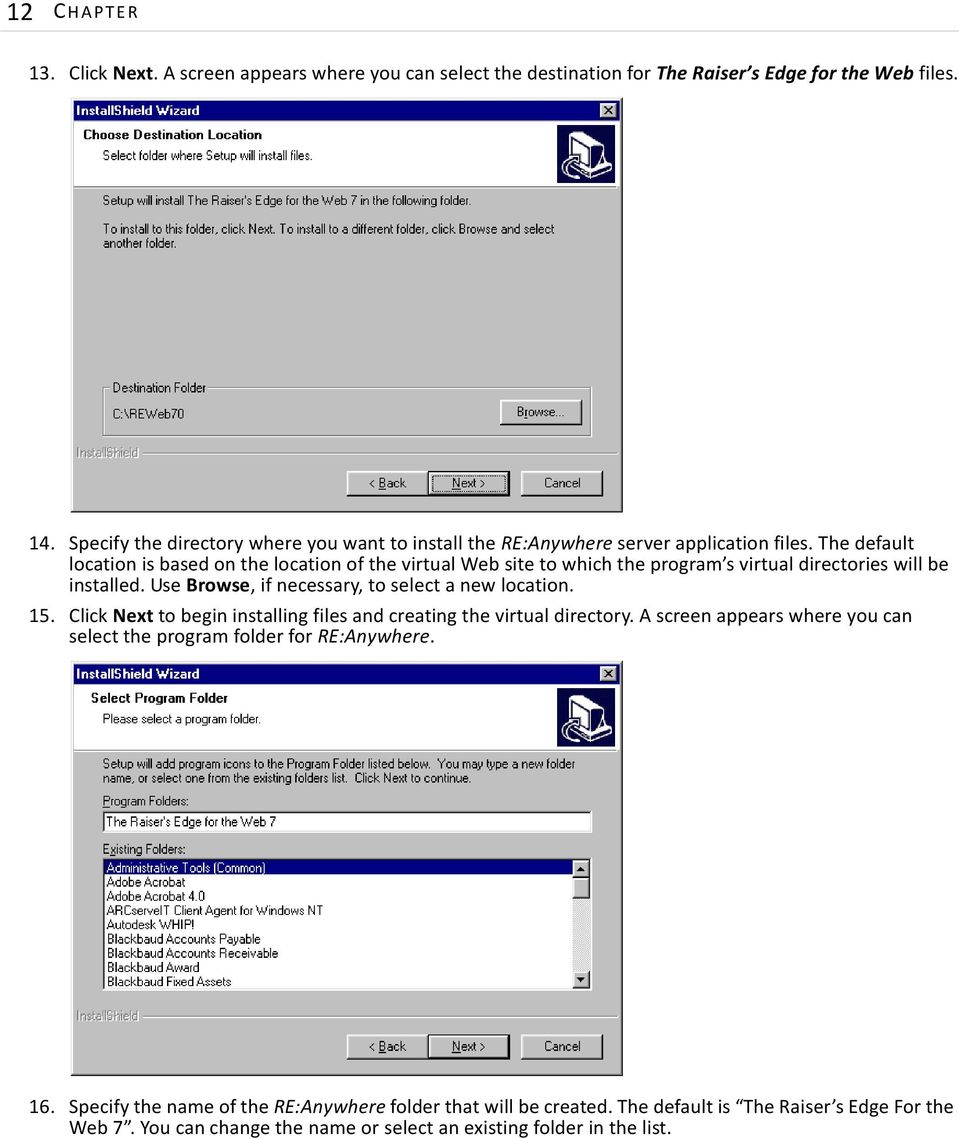
16 12 C HAPTER 13. Click Next. A screen appears where you can select the destination for The Raiser s Edge for the Web files. 14. Specify the directory where you want to install the RE:Anywhere server application files. The default location is based on the location of the virtual Web site to which the program s virtual directories will be installed. Use Browse, if necessary, to select a new location. 15. Click Next to begin installing files and creating the virtual directory. A screen appears where you can select the program folder for RE:Anywhere. 16. Specify the name of the RE:Anywhere folder that will be created. The default is The Raiser s Edge For the Web 7. You can change the name or select an existing folder in the list.
17 I NSTALLATION Click Next. A status screen displays information about the installation process. When the installation is finished, the Setup Complete screen appears. 18. Before you can log into RE:Anywhere, you must restart your computer. Mark an option to indicate whether you want to restart your computer now or later. 19. Click Finish. Warning: We strongly recommend you set up security privileges for RE:Anywhere as soon as you finish the installation process. Follow the instructions in the Accessing and Logging into section of the Installation Guide to begin using RE:Anywhere. We strongly recommend setting up security privileges for RE:Anywhere as soon as you finish the installation process. See the following chapter of this book for more information about setting up security.

18 14 C HAPTER Installing RE:Anywhere with an Oracle database If you want to preview reports and mailings, you must install a local shared printer driver on your Web server before you install RE:Anywhere. 1. From your Web server, insert the Blackbaud CD into the CD-ROM drive. 2. From Windows, select Run from the Start button on the taskbar and type D:\REWEB\SETUP.EXE, where D is the location of (or complete path to) the CD-ROM drive. Setup begins. If you do not have any printer drivers installed on your Web server, a message appears. Warning: To preview reports and mailings, you must have a printer driver installed on your Web server before installing RE:Anywhere. If you use NTFS formatted drives, you must specify that the printer is shared. 3. To preview reports and mailings, you must have a local printer driver installed onto the Web server before you install RE:Anywhere. Click Yes to cancel the RE:Anywhere installation so you can install a printer driver on your Web server. The driver must be installed on the Administrator user name profile (the same user name you log in under to install RE:Anywhere). You must specify that the printer be shared. If you do not want to install a printer driver at this time, click No to continue. However, we strongly recommend you install a printer driver on your Web server before you install RE:Anywhere so you will be able to preview reports and mailings.

19 I NSTALLATION 15 The InstallShield Wizard screen appears. 4. Click Next. A screen with The Raiser s Edge for the Web license agreement appears. 5. If you accept the terms of the license agreement, click Yes. A status screen appears.

20 16 C HAPTER If the setup program determines that you have the proper Internet Server components installed on your Web server, a screen appears where you can select a configuration method. 6. To continue the installation, the RE:Anywhere setup program needs the Oracle Service name of your Raiser s Edge 7 database server. If you want the setup program to access the Blackbaud Management Console and obtain this information, mark the Use Deployment Information option. Warning: Certain security and firewall settings may prevent RE:Anywhere setup program from accessing the Blackbaud Management Console. In these cases, you must use the Manually Enter Database Information configuration option. If you want to enter the service name manually, mark the Manually Enter Database Information option and proceed to step Click Next. The Deployment Output Location screen appears.
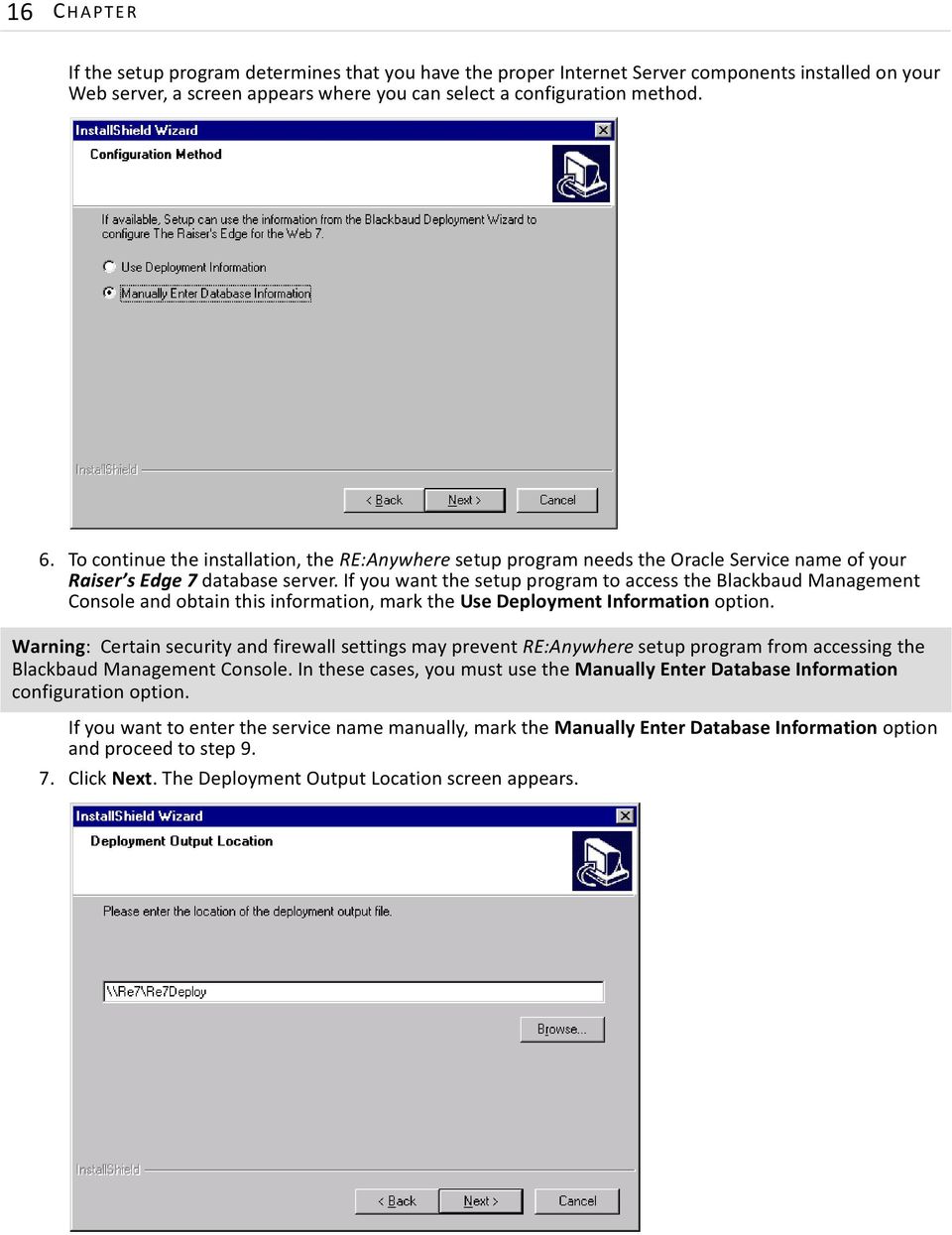
21 I NSTALLATION Browse to the directory on your network in which you created your deployment package with the Deployment Wizard in the Blackbaud Management Console. Proceed to step 11 of this procedure. 9. Click Next. The Raiser s Edge 7 Database screen appears. 10. Enter your Oracle Service name. If you do not know your Oracle Service name, contact your system administrator. You can also find this information in the Blackbaud Management Console. From the console, click the Databases link. 11. Click Next. A screen appears where you can enter Server Protocol Options. 12. Select your server protocol: TCP/IP, NetBIOS, SPX, or IPX. This should be the same protocol used on your Raiser s Edge database server. 13. Click Next. If the setup program detects more than one virtual Web site on your Web server, a screen appears so you can select the site to which you want to install the virtual directories for The Raiser s Edge for the Web.
22 18 C HAPTER If you have only one virtual Web site on your server, this screen does not appear. 14. In the Web Sites field, select the Web site to which you want to install the program. 15. Click Next. A screen appears where you can select the destination for The Raiser s Edge for the Web files. 16. Specify the directory where you want to install the RE:Anywhere server application files. The default location is based on the location of the virtual Web site to which the program s virtual directories will be installed. Use Browse, if necessary, to select a new location.
23 I NSTALLATION Click Next to begin installing files and creating the virtual directory. A screen appears where you can select the program folder for RE:Anywhere. 18. Specify the name of the RE:Anywhere folder that will be created. The default is The Raiser s Edge For the Web 7. You can change the name or select an existing folder in the list. 19. Click Next. A status screen displays information about the installation process.
24 20 C HAPTER When the installation is finished, the Setup Complete screen appears. 20. Before you can log into RE:Anywhere, you must restart your computer. Mark an option to indicate whether you want to restart your computer now or later. 21. Click Finish. Warning: We strongly recommend you set up security privileges for RE:Anywhere as soon as you finish the installation process. Follow the instructions in the Accessing and Logging into section of the Installation Guide to begin using RE:Anywhere. We strongly recommend setting up security privileges for RE:Anywhere as soon as you finish the installation process. See the following chapter of this book for more information about setting up security. Additional Installation Steps for Windows Server 2003 To run RE:Anywhere on Windows Server 2003, you must perform several additional steps after the installation completes. You need to enable sub-authentication in IIS. Windows Server 2003 includes IIS 6. In earlier versions of IIS, by default you could use sub-authentication to manage passwords on anonymous accounts. IIS 6 does not enable sub-authentication by default. However, you can enable sub-authentication to manage passwords for anonymous accounts using the following steps: Register IISSubA.dll. Click Start, Run and enter the following command: rundll32.exe c:\windows\system32\iissuba.dll,registeriissuba Note that c:\windows is the default path for the Windows folder in Windows Server If your installation uses a different path, you must adjust the command accordingly.
25 I NSTALLATION 21 In IIS 6, run all worker processes using Anonymous authentication as LocalSystem. This means that on the Identity tab of the Application Pool used by RE:Anywhere, the LocalSystem setting must be selected.
26 22 C HAPTER In IIS 6, set the status of the Web Service Extension for Server Side Includes and Active Server Pages to Allowed. You must map the.fun file extension to the MIME type of application/x-javascript. This enables files containing client-side JavaScript functions to be downloaded and cached for better performance. Open My Computer and select Manage. Expand Services and Applications on the Computer Management tree view.
27 I NSTALLATION 23 Right-click on Internet Information Services (IIS) Manager and select Properties from the menu. Click MIME Types. A screen appears listing file extensions in alphabetical order.
28 24 C HAPTER Scroll through the list of extensions and look for the.fun extension. If it is in the list and mapped to the application/x-javascript MIME type, you need not do anything more. If the.fun extension does not appear in the list, click New. Enter.fun as the extension and application/x-javascript as the MIME type, and click OK. To preview reports and mailings, a new Application Pool needs to be added to IIS (based on the default pool). The Report Viewer application then needs to be set to use this pool. Open My Computer. Select Manage, Internet Information Services. Right-click on Application Pools and select New Pool.
29 I NSTALLATION 25 Specify a name and select to use existing pool as a template and choose DefaultAppPool. The identity of the new pool can be left at Network Service as long as DefaultAppPool is set to Local System. Under Web Sites, select ReWebRepView70, right-click and select Properties. Under Virtual Directory, Application Pool, select the new application pool created above. During installation the setup program automatically performs these functions: Sets the application-level metabase property AnonymousPasswordSync to True. Sets the application-level metabase property AspEnableParentPaths to True. Creates a script mapping for the.fun extension (client-side JavaScript include files). After enabling sub-authentication, adding the.fun extension, and adding a new application pool in IIS 6, you must specify security settings for RE:Anywhere. Establish the same settings detailed in Security Rights for Anonymous Users on page 33. Then, for Windows Server 2003 you must create an additional setting. If The Raiser s Edge is a network server installation, the BBREWeb7Group may need to be given read and write permissions for \Program Files\Common Files\Blackbaud (or its equivalent if you installed to another directory).
30 26 C HAPTER
31 chapter 2 Post-Installation Setting Up Correct Security Privileges Anonymous User Security Security Rights for Anonymous Users Additional Security Settings for RE:Anywhere Dashboards Setting Up a More Secure Site Without Anonymous Access Additional Security Settings for Oracle Databases Browser Settings for Creating Letters and from Constituent Records Accessing and Logging into RE:Anywhere Navigating in RE:Anywhere RE:Anywhere and Installing ActiveX Controls Differences between The Raiser s Edge 7 and RE:Anywhere Troubleshooting Procedures Setting anonymous user access permissions Specifying additional security settings for Oracle databases Setting up a more secure site without anonymous access Accessing and logging into RE:Anywhere Loading ActiveX features into RE:Anywhere Determining which account is used when a user logs into the Web server as an Anonymous user
32 28 C HAPTER Setting Up Correct Security Privileges Note: For information about how Raiser s Edge security settings affect RE:Anywhere, see RE:Anywhere and The Raiser s Edge Security on page 7. After installing RE:Anywhere, you need to set access privileges to some files from Windows Explorer. During installation, the setup program creates a user group called BBReweb7Group. The anonymous user is automatically added to this group. If you want to change the anonymous user, you can add the new user to BBReweb7Group and that user inherits all the security rights of the group. RE:Anywhere setup program defaults the Anonymous User to the same Anonymous User account used by IIS. Some additional security settings are needed to enable functions such as previewing reports and viewing query results with an Oracle database. For more information about these settings, see Additional Security Settings for Oracle Databases on page 36. In Windows 2000 and 2003, you can set up security for anonymous users, or you can set up a more secure site that does not use anonymous access. If you do not want to use anonymous access, you can disable it after the RE:Anywhere install. If you do so, make sure you follow the instructions in Setting up a more secure site without anonymous access on page 34 to grant appropriate privileges to users accessing RE:Anywhere. Anonymous User Security The following instructions assume you are operating your Web server with an Anonymous User account. The RE:Anywhere setup program automatically assigns the Anonymous User account to the BBReweb7Group user group. Therefore, by setting security privileges for this group, you set access rights for your anonymous users. The Anonymous User account is used by all Web browsers when accessing files on the Web server. File and directory security rights you grant to this account will be the rights for all individuals accessing your Web server while browsing RE:Anywhere. The Anonymous User account is created by the IIS installation. The account is typically a local Windows account on the server with the name IUSR_<machine name>. If you are not sure which user account is your anonymous user and you want to find out, see Determining which account is used when a user logs into the Web server as an Anonymous user on page 42.
33 POST-INSTALLATION 29 Setting anonymous user access permissions During installation, the BBReweb7Group is created and the Anonymous user account is automatically added to this user group. Therefore, you can set access permissions for anonymous users by establishing settings for the BBReweb7Group. You must establish security for several directories. This procedure shows how to establish access permissions for the REWeb70 directory, but you can apply similar steps for other directories. See the table on page 33 for a full list of the directories and corresponding security settings you need to establish. 1. Open Windows Explorer or My Computer and locate the directory where you installed RE:Anywhere. The default directory is based on the location of the virtual Web site to which you installed RE:Anywhere s virtual directories. 2. Select the REWeb70 folder. 3. Right-click and a shortcut menu appears. Select Properties.
34 30 C HAPTER 4. Select the Security tab on the REWeb70 Properties screen. 5. To add the Reweb7Group to this list and give the group read and execute rights to the REWeb70 directory, click Add. The Select Users, Computers, or Groups screen appears. 6. Select your Web server in the Look in field. The BBReweb7Group should list in the Name column. 7. Select the BBReweb7Group and click Add.
35 POST-INSTALLATION Click OK. The REWeb70 Properties screen appears. The BBReweb7Group appears in the Name box. Note: When you do not want a directory to inherit permissions from a parent folder, do one of two things. Either unmark the Allow inheritable permissions from parent to propagate this object checkbox or mark the opposite permission (Allow or Deny) to override the inherited permission. 9. To set permissions for the REWeb70 directory, mark the Allow checkbox in the Read & Execute and Read rows. The settings you establish here will vary according to the directory for which you are establishing security. Some subdirectories require you to set more advanced rights (such as Delete). See the table on page 33 for a full list of the directories and corresponding security settings you need to establish.
36 32 C HAPTER 10. To set advanced access rights for a directory, click Advanced. The Access Control Settings screen appears. When setting rights for the RE7 SysDB, RE7 DLL, RE7 RPT, and RE7 TLB directories, you must mark the Reset permissions on all child objects and enable propagation of inheritable permissions checkbox. See the table on page 33 for a full list of the directories and corresponding security settings you need to establish. 11. In the Permission Entries box, select the BBReweb7Group and click View/Edit. The Permission Entry screen appears. On the Permission Entry screen, you can mark checkboxes to allow other rights such as Delete.
37 POST-INSTALLATION 33 Note: Mark the Apply these permissions to objects and/or containers within this container only checkbox only when you set security for the RE7 and REWeb70 directories. When setting security for the REWeb70 and RE7 directories only, mark the Apply these permissions to objects and/or containers within this container only checkbox. For the other directories, leave the checkbox unmarked. 12. When you finish setting advanced rights, click OK. You return to the Access Control Settings screen. 13. Click OK. You return to the Properties screen. 14. Click OK. Repeat this procedure using the table on page 33 to assign appropriate rights to subdirectories for the BBReweb7Group. If you are using an Oracle database, also see Additional Security Settings for Oracle Databases on page 36. Security Rights for Anonymous Users Note: To run reports, the IWAM_<machine name> account must also have RWXD privileges in the REWeb70 subdirectory. IWAM_<machine name> is automatically added to the BBReweb7Group during installation. The following table shows the permissions you must set in various directories on the Web server for the BBReweb7Group. The permissions include Read (R), Read and Execute (X), and FULL rights. Set the permissions so that they propagate down to all subdirectories and files within the specified directory. Directory or File Directory Permission s File Permissio ns Example Description RE7 Directory RX RX C:\Program Files\Blackbaud\The Raiser's Edge Raiser s Edge 7 install. This setting is necessary to enable Dashboards RE7 SysDB Directory Program Files\Common Files\ System directory Program Files\Common Files\ Blackbaud directory FULL FULL C:\Program Files\Blackbaud\The Raiser's Edge\SYSDB RX RX C:\Program Files\ Common Files\ System RX RX C:\Program Files\ Common Files\ Blackbaud Subdirectory of The Raiser s Edge 7 install Contains ADO, MSADC, and OLE DB components Every directory above the REWeb70 install directory R R C:\ Needed to support FTP Exports from The Raiser s Edge 7 REWeb70 Directory and subdirectories FULL FULL C:\Inetpub\wwwroot\ REWEB70 Directory to which you installed RE:Anywhere
38 34 C HAPTER Directory or File Directory Permission s File Permissio ns Example Description Windows Temp directory FULL FULL C:\Windows\temp Windows system temp directory. This is not defined by default, you must add it in the Windows Control Panel. System32 directory RX RX C:\Windows\ System32 msvcp60.dll needed to support previewing reports. Additional Security Settings for RE:Anywhere Dashboards In order to use Dashboards, you must give the BBReweb70Group Full Control on the REWeb70 Temp subdirectory. Also, the BBReweb70Group should include the local user starting with IWAM_ (as long as such a user exists it does by default). The local user SYSTEM must also have Full Control over the REWeb70 Temp subdirectory. Setting Up a More Secure Site Without Anonymous Access A more secure alternative to the default setup of RE:Anywhere is to not use anonymous access. You can disable anonymous access to the RE:Anywhere Virtual Directory (REWeb70) using the Property menu command in the Internet Service Manager. Setting up a more secure site without anonymous access 1. From your Windows taskbar, click Start. Select Settings, Control Panel. From the Control Panel, select the Administrative Tools folder. Select Internet Services Manager. The Internet Information Services screen appears. 2. In the treeview on the left, click the plus sign beside Default Web Site. Select the REWeb70 folder. 3. Right-click and select Properties.
39 POST-INSTALLATION The REWeb70 Properties screen appears. Select the Directory Security tab. 5. Click Edit in the Anonymous access and authentication control frame. The Authentication Methods screen appears. 6. Unmark the Anonymous access checkbox. Not allowing anonymous access provides a higher level of security for your data by limiting users who can access your system. 7. In the Authenticated access frame, select the method of security you want to enable. Consult your IIS documentation for information about how to configure your virtual directory appropriately, and see the following Microsoft knowledgebase articles for additional information. For Windows 2000: For Windows Server 2003:
40 36 C HAPTER 8. Click OK. You return to the REWeb70 Properties screen. Additional Security Settings for Oracle Databases In addition to the security settings for the directories on page 33, with Oracle databases, you must establish additional security settings to enable functions such as report previewing and printing, and viewing query results. Specifying additional security settings for Oracle databases 1. Stop and start the Oracle MTS Recovery service. For more information about this service, see the Oracle documentation at 2. Reset your installation of Internet Information Server (IIS). You can reset IIS from the command line using the iisreset command. For information about resetting IIS, see your IIS documentation. 3. Using Windows Explorer, locate your Ora92 directory. 4. Right-click on the Ora92 directory and select Properties. The Properties screen appears. 5. Select the Security tab. 6. In the Name box, select the BBReweb7Group. In the Allow column, mark the Full Control checkbox. 7. Click OK to save your changes. Browser Settings for Creating Letters and from Constituent Records To create letters and s directly from constituent records in RE:Anywhere, you need to specify several settings in Internet Explorer on client workstations. These settings do not need to be established on the server (unless you also plan to use the server as a client). Additionally, if you have Office XP, you must install service pack 3 or later.
41 POST-INSTALLATION 37 You must first include the RE:Anywhere server in an Internet Explorer Security Zone for which you feel safe manipulating the settings. For information about Security Zones and how to configure them, see the Internet Explorer help file. Then you must specify several settings for the Security Zone in which you included the RE:Anywhere server. From the Internet Explorer Tools menu, select Internet Options. Select the Security tab. Select the zone in which you placed the RE:Anywhere server and click Custom Level. The Security Settings screen appears. Under ActiveX controls and plug-ins, Download signed ActiveX controls, select either Enable or Prompt.
42 38 C HAPTER Under ActiveX controls and plug-ins, Run ActiveX controls and plug-ins, select either Enable or Prompt. Under ActiveX controls and plug-ins, Script ActiveX controls marked safe for scripting, select either Enable or Prompt. Under Miscellaneous, Access data sources across domains, select either Enable or Prompt. If you select Prompt, when you save a document or as an action from Office, you must first return to your browser and click Yes on a message that states This page is accessing a data source on another domain. Do you want to allow this? before the item can save. If you have Microsoft Office XP installed, you need to install service pack 3 or later. To do so, go to locate the Office Update link, and follow the instructions. Accessing and Logging into RE:Anywhere During installation, RE:Anywhere is added to the Program menu on your Web server (it appears as The Raiser s Edge for the Web by default). You can access RE:Anywhere from this menu or from Internet Explorer. Accessing and logging into RE:Anywhere Warning: We recommend you log off RE:Anywhere as soon as you finish working in it to prevent the program from locking your user name. This would prevent you from being able to log into The Raiser s Edge 7. Clicking in the The Raiser s Edge title bar does not log you off RE:Anywhere. 1. From your Web server, select Programs, The Raiser s Edge for the Web from the Start menu. Select REWeb7 to go to the Log in screen for RE:Anywhere. 2. To access RE:Anywhere from a workstation using Internet Explorer, type in the URL Address box. 3. Replace webservername with the name of the machine where you installed RE:Anywhere. The Log in screen appears in your browser. Warning: We strongly recommend you change your User name and Password as soon as possible. 4. Enter your Raiser s Edge User Name and Password. The program ships with a default user name of supervisor and a password of admin. The user name and password are not case sensitive.
43 POST-INSTALLATION 39 All our programs are sent with the same user name and password. If you install RE:Anywhere to be accessible via the internet, your database is accessible from the internet. For this reason, it is very important that you change your user name and password as soon as possible. 5. If you want to view larger fonts on your browser, mark the Download support for large fonts checkbox. In order to support large fonts, an ActiveX control must be loaded onto your machine. For more information about loading ActiveX controls, see RE:Anywhere and Installing ActiveX Controls on page Click Login to enter RE:Anywhere. Navigating in RE:Anywhere RE:Anywhere provides you with a wide variety of tools to make navigating in the program quick and easy. RE:Anywhere contains many of the same navigation devices used in The Raiser s Edge 7. By default, RE:Anywhere opens to the Home page. The Raiser s Edge bar on the left side of the screen contains links to all main areas of the program. The menu bar at the top of the browser window also provides quick and easy access to all areas of the program. RE:Anywhere and Installing ActiveX Controls ActiveX is a set of technologies enabling software components to communicate with each other in a networked environment, regardless of the programming language in which the components were created. It is used primarily to develop interactive content for the World Wide Web, although it can be used in desktop applications and other programs. In RE:Anywhere, four functions require an ActiveX control to be loaded onto your machine: supporting large fonts, editing a notepad, creating Quick Letters, and previewing a report. Loading ActiveX features into RE:Anywhere Warning: You must also have a local printer driver installed to your Web server before you can preview a report. The printer does not actually have to be connected to the server, but the driver must be installed and designated as the default printer. If you use NTFS formatted drives, you should specify that the printer be shared.
44 40 C HAPTER The first time you select a feature requiring an ActiveX control, a warning screen appears informing you that it must be loaded. For example, previewing reports requires you to load the Crystal ActiveX Report Viewer. 1. The first time you select Preview for a report, the following screen appears. 2. Click Yes to load the Crystal ActiveX Report Viewer. When installation of the viewer is complete, you can preview reports. Differences between The Raiser s Edge and RE:Anywhere RE:Anywhere allows you to view and change information in The Raiser's Edge database using an interface similar to the shell. Knowledge of the shell will help you navigate and use RE:Anywhere. When you use RE:Anywhere, keep in mind this module is actually a Web site, not a Windows application. Some functionality you are familiar with in The Raiser s Edge operates differently in RE:Anywhere due to the differences between the Web site and desktop environments. Troubleshooting When I try to log into RE:Anywhere, I get a message stating ReWeb was unable to establish a connection with the database. Verify that the database is running. If you selected the Manually Enter Database Information installation option, make sure you entered the correct Raiser s Edge server name and database name for a SQL Server database, or Oracle Service name for an Oracle database. If you do not know this information, contact your system administrator. You can also find this information in the Blackbaud Management Console. To see the engine name, click the Server option in the console. To see the database name or Oracle Service name, click the Databases option. I cannot preview reports or mailings.
45 POST-INSTALLATION 41 You need to install a printer driver on your Web server. Install the driver (you do not need to install the actual printer) on the Administrator user name profile (the same user name you log in under to install RE:Anywhere). You must specify that the printer be shared. After installing the printer driver, re-install RE:Anywhere. When running an extremely large report, the following message appears: If you try to run a very large report in RE:Anywhere, the report may time out due to your default settings in Internet Explorer. We recommend you either narrow the report parameters or run the report using The Raiser s Edge 7 desktop application. Increasing the default time setting for Internet Explorer by editing your registry keys will also enable you to run large reports in RE:Anywhere. However, we recommend you avoid doing this. Increasing the default time setting may enable a large report to run, but the performance of your Web server will be slowed and no other users will be able to run reports while a large report is processing. A message appears stating a file is in use, file is locked, access denied, or any message including the word authentication. These messages are usually the result of a problem with security rights on an NTFS formatted Web server. Check the security settings. For more information about security settings, see Setting Up Correct Security Privileges on page 28 of this guide. Errors on page messages appear in my Microsoft Internet Explorer status bar when loading pages or forms, and pages do not function properly. You must access RE:Anywhere with Microsoft Internet Explorer (IE) version 5.x or 6. Only specific versions are supported. Microsoft frequently releases beta versions of IE; RE:Anywhere generally does not support these beta versions. To determine which version of IE you are using: From the IE menu bar, select Help, About Internet Explorer. The About Internet Explorer screen appears. In the Version line, you will see an eleven digit number. The first three digits are the major number and the remaining digits are the minor number. If you are using IE version 5.0 (major number 5.00), the minor number must be equal to or greater than IE version is also known as the release version of IE If you are using IE version 5.5 (major number 5.50), the minor number must be equal to or greater than IE version is also known as the release version of IE 5.5. If you are using IE version 6.0 (major number 6.00), the minor number must be equal to or greater than IE version is also known as the release version of IE 6.0. If your IE 5.0, 5.5, or 6.0 version number is less than above, you should upgrade your browser. I cannot download any of the ActiveX controls. This may be a result of your firewall security. Check with your security consultant or system administrator. When I try to preview or print reports from The Raiser s Edge on my Web server (machine on which RE:Anywhere is installed) I get error messages. The version of the Crystal Report engine installed by RE:Anywhere differs from the version used by The Raiser s Edge. Because of this, it is not possible to print or preview reports in The Raiser s Edge from the Web server (the machine on which RE:Anywhere is physically installed). This affects only the Web server, not workstations. When I open a file exported in Crystal Reports format on my workstation, the report opens in the Design format and I cannot preview or print it. If I try to preview the report, a message appears telling me I need the appropriate DSN to connect to the database.
46 42 C HAPTER The machine on which the exported file is being opened (i.e. the Web browser machine) must have the same DSN (Data Source Name) as the Web server. If that DSN does not exist on the browser machine, a message appears asking for the appropriate DSN when you try to preview the report. Use the ODBC Data Source Administrator (found in the Windows Control Panel) to add or edit the DSN so it matches that on the Web server. For more information about the ODBC Data Source Administrator, see your Windows documentation. The Anonymous user does not appear in the BBReweb7 security group. The Anonymous user may have been changed or deleted. Use the following procedure to determine your current anonymous user account. Then add the user to the BBReweb7Group. Determining which account is used when a user logs into the Web server as an Anonymous user 1. From your Windows taskbar, click Start. Select Settings, Control Panel. From the Control Panel, select the Administrative Tools folder. Select Internet Services Manager. The Internet Information Services screen appears. 2. In the treeview on the left, click the plus sign beside Default Web Site. Select the REWeb70 folder. 3. Right-click and select Properties.
47 POST-INSTALLATION Select the Directory Security tab on the REWeb70 Properties screen. 5. Click Edit in the Anonymous access and authentication control frame. The Authentication Methods screen appears. Depending on how you have configured security on your Web server, one or more of these options will be marked. If you wish to allow Anonymous access, make sure the Anonymous Access checkbox is marked (The RE:Anywhere setup marks this by default).
48 44 C HAPTER 6. Click Edit in the Anonymous access frame. The Anonymous User Account screen appears. Note: By default, IIS sets the anonymous user account to IUSR_<machinename>. The Windows User Account currently selected as the Anonymous User is shown in the Username field. By default, IIS sets the anonymous user account to IUSR_<machinename>.
49 Index A accessing RE:Anywhere 6 accounts Windows, determining 42 active server page, defined 2 activex defined 2 installing controls 40 adding anonymous users 29 anonymous user security 28 ASP, defined 2 B browser settings for creating letters and 36 C cache, defined 2 controls, activex 40 D directory, virtual 3 domain name, defined 2 domain, defined 2 E encrypted, defined 2 F FAT, defined 2 file allocation table, defined 2 file transfer protocol, defined 2 finishing the install 5 firewall accessing database through 6 defined 2 FTP, defined 2 G getting started 4 H HTML, defined 2 hyper text markup language, defined 2 I IE, defined 2 IIS, defined 2 installation checklist 5 instructions 7 instructions, installation 7 Internet accessing RE:Anywhere 6 defined 2 Internet Explorer, defined 2 Internet Information Server, defined 2 Internet service provider, see ISP internetwork packet exchange, defined 3 internic, defined 3 intranet accessing RE:Anywhere 6 defined 3 IP address, defined 3 IPX, defined 3 ISP, defined 3 L letters, browser settings 36 N NetBIOS, defined 3 network basic input output system 3 network security 5 NT file system, defined 3 NTFS, defined 3
50 46 O opening RE:Anywhere 6 P post-installation checklist 5 security privileges 28 anonymous users 28 without anonymous users 34 pre-installation 4 preparing for installation 4 protocol, defined 3 W Web browser, defined 3 server, defined 3 without anonymous access, security 34 WWW, defined 4 R Raiser s Edge bar 39 RAM cache, defined 2 S security additional settings for Oracle databases 36 network 5 options 6 privileges, setting up 28 anonymous users 28 without anonymous 34 setting anonymous user access permissions 29 T TCP/IP, defined 3 The Raiser s Edge for Windows, comparison 40 transmission control protocol/internet protocol, defined 3 troubleshooting 40 U uniform resource locator, defined 3 URL, defined 3 username, defined 3 V virtual directory, defined 3
092413 2013 Blackbaud, Inc. This publication, or any part thereof, may not be reproduced or transmitted in any form or by any means, electronic, or
 7.93 Update Guide 092413 2013 Blackbaud, Inc. This publication, or any part thereof, may not be reproduced or transmitted in any form or by any means, electronic, or mechanical, including photocopying,
The Raiser s Edge Mobile Application Guide
 The Raiser s Edge Mobile Application Guide 040313 2013 Blackbaud, Inc. This publication, or any part thereof, may not be reproduced or transmitted in any form or by any means, electronic, or mechanical,
The Raiser s Edge Mobile Event Management Application Guide
 The Raiser s Edge Mobile Event Management Application Guide 072613 2013 Blackbaud, Inc. This publication, or any part thereof, may not be reproduced or transmitted in any form or by any means, electronic,
TheEducationEdge. Administration Guide for NetClassroom
 TheEducationEdge Administration Guide for NetClassroom 102111 2011 Blackbaud, Inc. This publication, or any part thereof, may not be reproduced or transmitted in any form or by any means, electronic, or
TheFinancialEdge. Conversion Guide
 TheFinancialEdge Conversion Guide 102313 2013 Blackbaud, Inc. This publication, or any part thereof, may not be reproduced or transmitted in any form or by any means, electronic, or mechanical, including
7.92 Installation Guide
 7.92 Installation Guide 042412 2012 Blackbaud, Inc. This publication, or any part thereof, may not be reproduced or transmitted in any form or by any means, electronic, or mechanical, including photocopying,
020112 2008 Blackbaud, Inc. This publication, or any part thereof, may not be reproduced or transmitted in any form or by any means, electronic, or
 Point of Sale Guide 020112 2008 Blackbaud, Inc. This publication, or any part thereof, may not be reproduced or transmitted in any form or by any means, electronic, or mechanical, including photocopying,
RE7Enterprise-Update-063008
 7.85 Update Guide 063008 2008 Blackbaud, Inc. This publication, or any part thereof, may not be reproduced or transmitted in any form or by any means, electronic, or mechanical, including photocopying,
Database Administration Guide
 Database Administration Guide 013008 2008 Blackbaud, Inc. This publication, or any part thereof, may not be reproduced or transmitted in any form or by any means, electronic, or mechanical, including photocopying,
Database Administration Guide
 Database Administration Guide 092211 2011 Blackbaud, Inc. This publication, or any part thereof, may not be reproduced or transmitted in any form or by any means, electronic, or mechanical, including photocopying,
The Raiser s Edge & Microsoft Office Integration Guide
 The Raiser s Edge & Microsoft Office Integration Guide 013112 2012 Blackbaud, Inc. This publication, or any part thereof, may not be reproduced or transmitted in any form or by any means, electronic, or
Blackbaud Sphere & The Raiser s Edge Integration Guide
 Blackbaud Sphere & The Raiser s Edge Integration Guide 101311 Blackbaud Sphere 2011 Blackbaud, Inc. This publication, or any part thereof, may not be reproduced or transmitted in any form or by any means,
Query and Export Guide
 Query and Export Guide 011712 2012 Blackbaud, Inc. This publication, or any part thereof, may not be reproduced or transmitted in any form or by any means, electronic, or mechanical, including photocopying,
Data Enrichment Services Guide for Canada
 Data Enrichment Services Guide for Canada 032708 2008 Blackbaud, Inc. This publication, or any part thereof, may not be reproduced or transmitted in any form or by any means, electronic, or mechanical,
Single Sign-On Guide for Blackbaud NetCommunity and The Patron Edge Online
 Single Sign-On Guide for Blackbaud NetCommunity and The Patron Edge Online 062212 2012 Blackbaud, Inc. This publication, or any part thereof, may not be reproduced or transmitted in any form or by any
PostalSaver Guide for Australia
 PostalSaver Guide for Australia 022608 2008 Blackbaud, Inc. This publication, or any part thereof, may not be reproduced or transmitted in any form or by any means, electronic, or mechanical, including
Creating Custom Crystal Reports Tutorial
 Creating Custom Crystal Reports Tutorial 020812 2012 Blackbaud, Inc. This publication, or any part thereof, may not be reproduced or transmitted in any form or by any means, electronic, or mechanical,
Security Guidelines for MapInfo Discovery 1.1
 Security Guidelines for MapInfo Discovery 1.1 This paper provides guidelines and detailed instructions for improving the security of your Mapinfo Discovery deployment. In this document: Overview.........................................
WhatsUp Gold v16.3 Installation and Configuration Guide
 WhatsUp Gold v16.3 Installation and Configuration Guide Contents Installing and Configuring WhatsUp Gold using WhatsUp Setup Installation Overview... 1 Overview... 1 Security considerations... 2 Standard
Electronic Funds Transfer (EFT) Guide
 Electronic Funds Transfer (EFT) Guide 112614 2009 Blackbaud, Inc. This publication, or any part thereof, may not be reproduced or transmitted in any form or by any means, electronic, or mechanical, including
Installation Guide for Pulse on Windows Server 2012
 MadCap Software Installation Guide for Pulse on Windows Server 2012 Pulse Copyright 2014 MadCap Software. All rights reserved. Information in this document is subject to change without notice. The software
How To Import A File Into The Raise S Edge
 Import Guide 021312 2009 Blackbaud, Inc. This publication, or any part thereof, may not be reproduced or transmitted in any form or by any means, electronic, or mechanical, including photocopying, recording,
TheFinancialEdge. Administration Guide
 TheFinancialEdge Administration Guide 102011 2011 Blackbaud, Inc. This publication, or any part thereof, may not be reproduced or transmitted in any form or by any means, electronic, or mechanical, including
Update Guide for The Patron Edge Online 3.41
 Update Guide 061410 2010 Blackbaud, Inc. This publication, or any part thereof, may not be reproduced or transmitted in any form or by any means, electronic, or mechanical, including photocopying, recording,
Reporting for Contact Center Setup and Operations Guide. BCM Contact Center
 Reporting for Contact Center Setup and Operations Guide BCM Contact Center Document Number: NN40040-302 Document Status: Standard Document Version: 04.00 Part Code: N0060637 Date: June 2006 Copyright 2005
Installation Instruction STATISTICA Enterprise Server
 Installation Instruction STATISTICA Enterprise Server Notes: ❶ The installation of STATISTICA Enterprise Server entails two parts: a) a server installation, and b) workstation installations on each of
2X ApplicationServer & LoadBalancer Manual
 2X ApplicationServer & LoadBalancer Manual 2X ApplicationServer & LoadBalancer Contents 1 URL: www.2x.com E-mail: [email protected] Information in this document is subject to change without notice. Companies,
Configuration & Security Guide
 Configuration & Security Guide 042512 2012 Blackbaud, Inc. This publication, or any part thereof, may not be reproduced or transmitted in any form or by any means, electronic, or mechanical, including
How To Create An Easybelle History Database On A Microsoft Powerbook 2.5.2 (Windows)
 Introduction EASYLABEL 6 has several new features for saving the history of label formats. This history can include information about when label formats were edited and printed. In order to save this history,
Networking Best Practices Guide. Version 6.5
 Networking Best Practices Guide Version 6.5 Summer 2010 Copyright: 2010, CCH, a Wolters Kluwer business. All rights reserved. Material in this publication may not be reproduced or transmitted in any form
Getting Started with. Ascent Capture Internet Server 5. 10300260-000 Revision A
 Ascent Capture Internet Server 5 Getting Started with Ascent Capture Internet Server 5 10300260-000 Revision A Copyright Copyright 2001 Kofax Image Products. All Rights Reserved. Printed in USA. The information
Version 3.8. Installation Guide
 Version 3.8 Installation Guide Copyright 2007 Jetro Platforms, Ltd. All rights reserved. This document is being furnished by Jetro Platforms for information purposes only to licensed users of the Jetro
User Manual. Onsight Management Suite Version 5.1. Another Innovation by Librestream
 User Manual Onsight Management Suite Version 5.1 Another Innovation by Librestream Doc #: 400075-06 May 2012 Information in this document is subject to change without notice. Reproduction in any manner
MAS 90. Installation and System Administrator's Guide 4WIN1010-02/04
 MAS 90 Installation and System Administrator's Guide 4WIN1010-02/04 Copyright 1998-2004 Best Software, Inc. All rights reserved. Rev 02 Contents Chapter 1 Introduction 1 How to Use This Manual 1 Graphic
Important. Please read this User s Manual carefully to familiarize yourself with safe and effective usage.
 Important Please read this User s Manual carefully to familiarize yourself with safe and effective usage. About This Manual This manual describes how to install and configure RadiNET Pro Gateway and RadiCS
Sage ERP MAS 90 Sage ERP MAS 200 Sage ERP MAS 200 SQL. Installation and System Administrator's Guide 4MASIN450-08
 Sage ERP MAS 90 Sage ERP MAS 200 Sage ERP MAS 200 SQL Installation and System Administrator's Guide 4MASIN450-08 2011 Sage Software, Inc. All rights reserved. Sage, the Sage logos and the Sage product
Installation Guide for Pulse on Windows Server 2008R2
 MadCap Software Installation Guide for Pulse on Windows Server 2008R2 Pulse Copyright 2014 MadCap Software. All rights reserved. Information in this document is subject to change without notice. The software
NSi Mobile Installation Guide. Version 6.2
 NSi Mobile Installation Guide Version 6.2 Revision History Version Date 1.0 October 2, 2012 2.0 September 18, 2013 2 CONTENTS TABLE OF CONTENTS PREFACE... 5 Purpose of this Document... 5 Version Compatibility...
TheFinancialEdge. Administration Guide
 TheFinancialEdge Administration Guide 110309 2009 Blackbaud, Inc. This publication, or any part thereof, may not be reproduced or transmitted in any form or by any means, electronic, or mechanical, including
Microsoft SQL Server 2014. Installation Guide
 Microsoft SQL Server 2014 Installation Guide Notices 2015 XMPie Inc. All rights reserved. U.S. Patents 6948115, 7406194, 7548338, 7757169 and pending patents. JP Patent 4406364B and pending patents. Microsoft
Sharp Remote Device Manager (SRDM) Server Software Setup Guide
 Sharp Remote Device Manager (SRDM) Server Software Setup Guide This Guide explains how to install the software which is required in order to use Sharp Remote Device Manager (SRDM). SRDM is a web-based
TheFinancialEdge. Consolidation Management Guide
 TheFinancialEdge Consolidation Management Guide 102011 2011 Blackbaud, Inc. This publication, or any part thereof, may not be reproduced or transmitted in any form or by any means, electronic, or mechanical,
WhatsUp Gold v16.2 Installation and Configuration Guide
 WhatsUp Gold v16.2 Installation and Configuration Guide Contents Installing and Configuring Ipswitch WhatsUp Gold v16.2 using WhatsUp Setup Installing WhatsUp Gold using WhatsUp Setup... 1 Security guidelines
TheEducationEdge. Export Guide
 TheEducationEdge Export Guide 102111 2011 Blackbaud, Inc. This publication, or any part thereof, may not be reproduced or transmitted in any form or by any means, electronic, or mechanical, including photocopying,
Xerox Multifunction Devices. Verify Device Settings via the Configuration Report
 Xerox Multifunction Devices Customer Tips March 15, 2007 This document applies to these Xerox products: X WC 4150 X WCP 32/40 X WCP 35/45/55 X WCP 65/75/90 X WCP 165/175 X WCP 232/238 X WCP 245/255 X WCP
ilaw Installation Procedure
 ilaw Installation Procedure This guide will provide a reference for a full installation of ilaw Case Management Software. Contents ilaw Overview How ilaw works Installing ilaw Server on a PC Installing
User Guide. CTERA Agent. August 2011 Version 3.0
 User Guide CTERA Agent August 2011 Version 3.0 Copyright 2009-2011 CTERA Networks Ltd. All rights reserved. No part of this document may be reproduced in any form or by any means without written permission
for Networks Installation Guide for the application on the server July 2014 (GUIDE 2) Lucid Rapid Version 6.05-N and later
 for Networks Installation Guide for the application on the server July 2014 (GUIDE 2) Lucid Rapid Version 6.05-N and later Copyright 2014, Lucid Innovations Limited. All Rights Reserved Lucid Research
Setup and Configuration Guide for Pathways Mobile Estimating
 Setup and Configuration Guide for Pathways Mobile Estimating Setup and Configuration Guide for Pathways Mobile Estimating Copyright 2008 by CCC Information Services Inc. All rights reserved. No part of
CTERA Agent for Windows
 User Guide CTERA Agent for Windows May 2012 Version 3.1 Copyright 2009-2012 CTERA Networks Ltd. All rights reserved. No part of this document may be reproduced in any form or by any means without written
Electronic Funds Transfer (EFT) Guide
 Electronic Funds Transfer (EFT) Guide 012612 2009 Blackbaud, Inc. This publication, or any part thereof, may not be reproduced or transmitted in any form or by any means, electronic, or mechanical, including
MGC WebCommander Web Server Manager
 MGC WebCommander Web Server Manager Installation and Configuration Guide Version 8.0 Copyright 2006 Polycom, Inc. All Rights Reserved Catalog No. DOC2138B Version 8.0 Proprietary and Confidential The information
CTERA Agent for Windows
 User Guide CTERA Agent for Windows September 2013 Version 4.0 Copyright 2009-2013 CTERA Networks Ltd. All rights reserved. No part of this document may be reproduced in any form or by any means without
Portions of this product were created using LEADTOOLS 1991-2009 LEAD Technologies, Inc. ALL RIGHTS RESERVED.
 Installation Guide Lenel OnGuard 2009 Installation Guide, product version 6.3. This guide is item number DOC-110, revision 1.038, May 2009 Copyright 1992-2009 Lenel Systems International, Inc. Information
LifeSize Control Installation Guide
 LifeSize Control Installation Guide April 2005 Part Number 132-00001-001, Version 1.0 Copyright Notice Copyright 2005 LifeSize Communications. All rights reserved. LifeSize Communications has made every
Step-by-Step Guide for Creating and Testing Connection Manager Profiles in a Test Lab
 Step-by-Step Guide for Creating and Testing Connection Manager Profiles in a Test Lab Microsoft Corporation Published: May, 2005 Author: Microsoft Corporation Abstract This guide describes how to create
Sage 300 ERP 2014. Sage CRM 7.2 Integration Guide
 Sage 300 ERP 2014 Sage CRM 7.2 Integration Guide This is a publication of Sage Software, Inc. Version 2014 Copyright 2013. Sage Software, Inc. All rights reserved. Sage, the Sage logos, and the Sage product
Target Analytics Guide
 Target Analytics Guide 020212 2007 Blackbaud, Inc. This publication, or any part thereof, may not be reproduced or transmitted in any form or by any means, electronic, or mechanical, including photocopying,
StruxureWare Power Monitoring 7.0.1
 StruxureWare Power Monitoring 7.0.1 Installation Guide 7EN02-0308-01 07/2012 Contents Safety information 5 Introduction 7 Summary of topics in this guide 7 Supported operating systems and SQL Server editions
Internet Applications
 Internet Applications Sage MAS 500 ERP 2000-2009 Sage Software, Inc. All rights reserved. Sage, the Sage logos, and the Sage product and service names mentioned herein are registered trademarks or trademarks
TheFinancialEdge. Fast! Guide
 TheFinancialEdge Fast! Guide 101811 2011 Blackbaud, Inc. This publication, or any part thereof, may not be reproduced or transmitted in any form or by any means, electronic, or mechanical, including photocopying,
http://docs.trendmicro.com
 Trend Micro Incorporated reserves the right to make changes to this document and to the products described herein without notice. Before installing and using the product, please review the readme files,
Troubleshooting File and Printer Sharing in Microsoft Windows XP
 Operating System Troubleshooting File and Printer Sharing in Microsoft Windows XP Microsoft Corporation Published: November 2003 Updated: August 2004 Abstract File and printer sharing for Microsoft Windows
Installation Guide for Workstations
 Installation Guide for Workstations Copyright 1998-2005, E-Z Data, Inc. All Rights Reserved. No part of this documentation may be copied, reproduced, or translated in any form without the prior written
Crystal Reports Installation Guide
 Crystal Reports Installation Guide Version XI Infor Global Solutions, Inc. Copyright 2006 Infor IP Holdings C.V. and/or its affiliates or licensors. All rights reserved. The Infor word and design marks
TOSHIBA GA-1310. Printing from Windows
 TOSHIBA GA-1310 Printing from Windows 2009 Electronics for Imaging, Inc. The information in this publication is covered under Legal Notices for this product. 45081979 04 February 2009 CONTENTS 3 CONTENTS
Workplace Giving Guide
 Workplace Giving Guide 042612 2012 Blackbaud, Inc. This publication, or any part thereof, may not be reproduced or transmitted in any form or by any means, electronic, or mechanical, including photocopying,
Getting Started. Symantec Client Security. About Symantec Client Security. How to get started
 Getting Started Symantec Client Security About Security Security provides scalable, cross-platform firewall, intrusion prevention, and antivirus protection for workstations and antivirus protection for
Contents PAYMENTS...1 PAYMENT TABLES...67
 Payments Guide 062212 2012 Blackbaud, Inc. This publication, or any part thereof, may not be reproduced or transmitted in any form or by any means, electronic, or mechanical, including photocopying, recording,
Server & Workstation Installation of Client Profiles for Windows
 C ase Manag e m e n t by C l i e n t P rofiles Server & Workstation Installation of Client Profiles for Windows T E C H N O L O G Y F O R T H E B U S I N E S S O F L A W General Notes to Prepare for Installing
TANDBERG MANAGEMENT SUITE 10.0
 TANDBERG MANAGEMENT SUITE 10.0 Installation Manual Getting Started D12786 Rev.16 This document is not to be reproduced in whole or in part without permission in writing from: Contents INTRODUCTION 3 REQUIREMENTS
STATISTICA VERSION 10 STATISTICA ENTERPRISE SERVER INSTALLATION INSTRUCTIONS
 Notes: STATISTICA VERSION 10 STATISTICA ENTERPRISE SERVER INSTALLATION INSTRUCTIONS 1. The installation of the STATISTICA Enterprise Server entails two parts: a) a server installation, and b) workstation
Blackbaud StudentInformationSystem. Reports Guide for Admissions Office
 Blackbaud StudentInformationSystem Reports Guide for Admissions Office 102811 2011 Blackbaud, Inc. This publication, or any part thereof, may not be reproduced or transmitted in any form or by any means,
Ajera 7 Installation Guide
 Ajera 7 Installation Guide Ajera 7 Installation Guide NOTICE This documentation and the Axium software programs may only be used in accordance with the accompanying Axium Software License and Services
BillQuick Web i Time and Expense User Guide
 BillQuick Web i Time and Expense User Guide BQE Software Inc. 1852 Lomita Boulevard Lomita, California 90717 USA http://www.bqe.com Table of Contents INTRODUCTION TO BILLQUICK... 3 INTRODUCTION TO BILLQUICK
Advanced Event Viewer Manual
 Advanced Event Viewer Manual Document version: 2.2944.01 Download Advanced Event Viewer at: http://www.advancedeventviewer.com Page 1 Introduction Advanced Event Viewer is an award winning application
WhatsUp Gold v16.1 Installation and Configuration Guide
 WhatsUp Gold v16.1 Installation and Configuration Guide Contents Installing and Configuring Ipswitch WhatsUp Gold v16.1 using WhatsUp Setup Installing WhatsUp Gold using WhatsUp Setup... 1 Security guidelines
Quick Scan Features Setup Guide. Scan to E-mail Setup. See also: System Administration Guide: Contains details about E-mail setup.
 Quick Scan Features Setup Guide XE3024EN0-2 This guide includes instructions for: Scan to E-mail Setup on page 1 Scan to Mailbox Setup on page 6 Network Scanning Setup on page 9 Scan to PC Setup on page
Reference and Troubleshooting: FTP, IIS, and Firewall Information
 APPENDIXC Reference and Troubleshooting: FTP, IIS, and Firewall Information Although Cisco VXC Manager automatically installs and configures everything you need for use with respect to FTP, IIS, and the
Bosch ReadykeyPRO Unlimited Installation Guide, product version 6.5. This guide is item number DOC-110-2-029, revision 2.029, May 2012.
 Bosch ReadykeyPRO Unlimited Installation Guide, product version 6.5. This guide is item number DOC-110-2-029, revision 2.029, May 2012. Copyright 1995-2012 Lenel Systems International, Inc. Information
Universal Management Service 2015
 Universal Management Service 2015 UMS 2015 Help All rights reserved. No parts of this work may be reproduced in any form or by any means - graphic, electronic, or mechanical, including photocopying, recording,
Sophos for Microsoft SharePoint startup guide
 Sophos for Microsoft SharePoint startup guide Product version: 2.0 Document date: March 2011 Contents 1 About this guide...3 2 About Sophos for Microsoft SharePoint...3 3 System requirements...3 4 Planning
HELP DOCUMENTATION SSRPM WEB INTERFACE GUIDE
 HELP DOCUMENTATION SSRPM WEB INTERFACE GUIDE Copyright 1998-2013 Tools4ever B.V. All rights reserved. No part of the contents of this user guide may be reproduced or transmitted in any form or by any means
How to Secure a Groove Manager Web Site
 How to Secure a Groove Manager Web Site Information in this document, including URL and other Internet Web site references, is subject to change without notice. Unless otherwise noted, the companies, organizations,
User Guide. Version 3.2. Copyright 2002-2009 Snow Software AB. All rights reserved.
 Version 3.2 User Guide Copyright 2002-2009 Snow Software AB. All rights reserved. This manual and computer program is protected by copyright law and international treaties. Unauthorized reproduction or
Archive Attender Version 3.5
 Archive Attender Version 3.5 Getting Started Guide Sherpa Software (800) 255-5155 www.sherpasoftware.com Page 1 Under the copyright laws, neither the documentation nor the software can be copied, photocopied,
TheFinancialEdge. Reports Guide for Accounts Receivable
 TheFinancialEdge Reports Guide for Accounts Receivable 041813 2013 Blackbaud, Inc. This publication, or any part thereof, may not be reproduced or transmitted in any form or by any means, electronic, or
USER GUIDE WEB-BASED SYSTEM CONTROL APPLICATION. www.pesa.com August 2014 Phone: 256.726.9200. Publication: 81-9059-0703-0, Rev. C
 USER GUIDE WEB-BASED SYSTEM CONTROL APPLICATION Publication: 81-9059-0703-0, Rev. C www.pesa.com Phone: 256.726.9200 Thank You for Choosing PESA!! We appreciate your confidence in our products. PESA produces
Installing and Configuring WhatsUp Gold
 Installing and Configuring WhatsUp Gold This guide provides information about installing and configuring WhatsUp Gold v14.2, including instructions on how to run the WhatsUp web interface through an Internet
Nexio Connectus with Nexio G-Scribe
 Nexio Connectus with Nexio G-Scribe 2.1.2 3/20/2014 Edition: A 2.1.2 Publication Information 2014 Imagine Communications. Proprietary and Confidential. Imagine Communications considers this document and
Table of Contents. Introduction...9. Installation...17. Program Tour...31. The Program Components...10 Main Program Features...11
 2011 AdRem Software, Inc. This document is written by AdRem Software and represents the views and opinions of AdRem Software regarding its content, as of the date the document was issued. The information
Sage 100 ERP. Installation and System Administrator s Guide
 Sage 100 ERP Installation and System Administrator s Guide This is a publication of Sage Software, Inc. Version 2014 Copyright 2013 Sage Software, Inc. All rights reserved. Sage, the Sage logos, and the
SQL Server 2008 R2 Express Installation for Windows 7 Professional, Vista Business Edition and XP Professional.
 SQL Server 2008 R2 Express Installation for Windows 7 Professional, Vista Business Edition and XP Professional. 33-40006-001 REV: B PCSC 3541 Challenger Street Torrance, CA 90503 Phone: (310) 303-3600