
SafeNet Authentication Client (Windows)
|
|
|
- Jessie Mosley
- 10 years ago
- Views:
Transcription
1 SafeNet Authentication Client (Windows) Version 8.2 Revision A Administrator s Guide

2 Copyright 2012 SafeNet, Inc. All rights reserved. All attempts have been made to make the information in this document complete and accurate. SafeNet, Inc. is not responsible for any direct or indirect damages or loss of business resulting from inaccuracies or omissions. The specifications contained in this document are subject to change without notice. SafeNet and SafeNet Authentication Manager are either registered with the U.S. Patent and Trademark Office or are trademarks of SafeNet, Inc., and its subsidiaries and affiliates, in the United States and other countries. All other trademarks referenced in this Manual are trademarks of their respective owners. SafeNet Hardware and/or Software products described in this document may be protected by one or more U.S. Patents, foreign patents, or pending patent applications. Please contact SafeNet Support for details of FCC Compliance, CE Compliance, and UL Notification. Date of publication: November 2012 Last update: Thursday, November 15, :18 pm 2

3 Support We work closely with our reseller partners to offer the best worldwide technical support services. Your reseller is the first line of support when you have questions about products and services. However, if you require additional assistance you can contact us directly at: Telephone You can call our help-desk 24 hours a day, seven days a week: USA: International: You can send a question to the technical support team at the following address: [email protected] Website You can submit a question through the SafeNet Support portal: Additional Documentation The following SafeNet publications are available: SafeNet Authentication Client 8.2 User s Guide SafeNet Authentication Client 8.2 ReadMe 3

4 Table of Contents Chapter 1: Introduction Overview SafeNet Authentication Client Main Features Supported Tokens Supported Localizations What s New SafeNet Authentication Client Architecture License Activation Chapter 2: System Requirements System Requirements Compatibility with SafeNet Applications Compatibility with Third Party Applications Chapter 3: Installation Files and Administrator Tasks Installation Files Checklist of Administrator Tasks KSP Cryptographic Provider SafeNet Authentication Client Administrator s Guide, Revision A, 2012 SafeNet, Inc. 4

5 Chapter 4: Customization Customization Overview Installing the SafeNet Authentication Client Customization Tool Using the SafeNet Authentication Client Customization Tool Generating a Customized MSI Installation File Installing the Customized Application Chapter 5: Upgrade Simplified Upgrade Upgrading Using MSI Upgrading from etoken PKI Client Upgrading from Versions Earlier than etoken PKI Client 5.1 SP Upgrading from SafeNet Borderless Security (BSec) Automatic Upgrade Manual Upgrade of BSec Policies and Registry Settings Policy Migration Tool Parameters Chapter 6: Installation Installation Configurations Upgrading Simplified Installation Installing a Customized Application SafeNet Authentication Client Administrator s Guide, Revision A, 2012 SafeNet, Inc. 5

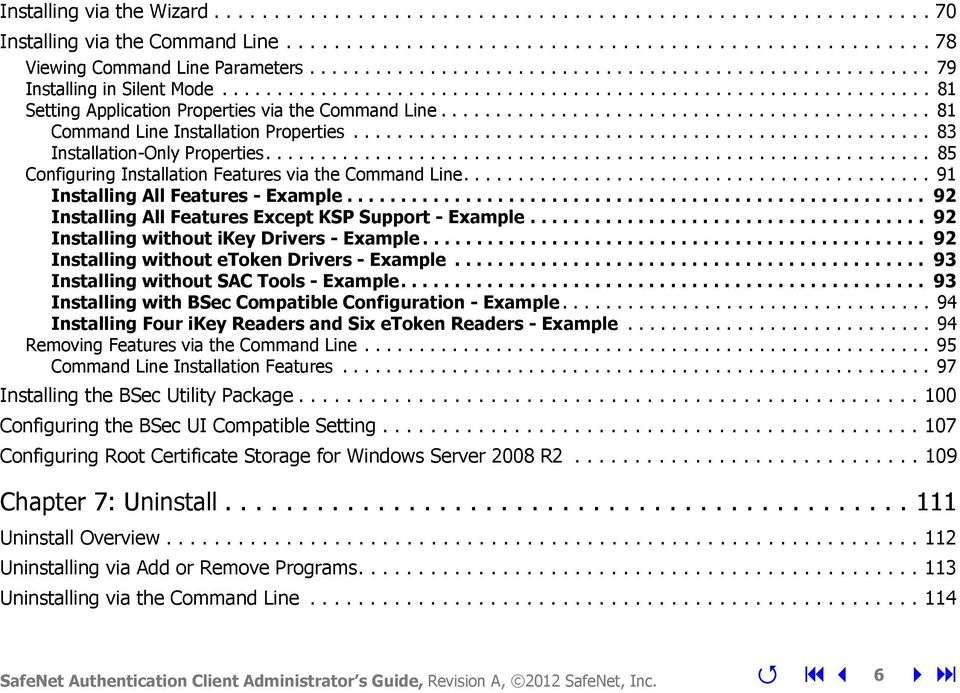
6 Installing via the Wizard Installing via the Command Line Viewing Command Line Parameters Installing in Silent Mode Setting Application Properties via the Command Line Command Line Installation Properties Installation-Only Properties Configuring Installation Features via the Command Line Installing All Features - Example Installing All Features Except KSP Support - Example Installing without ikey Drivers - Example Installing without etoken Drivers - Example Installing without SAC Tools - Example Installing with BSec Compatible Configuration - Example Installing Four ikey Readers and Six etoken Readers - Example Removing Features via the Command Line Command Line Installation Features Installing the BSec Utility Package Configuring the BSec UI Compatible Setting Configuring Root Certificate Storage for Windows Server 2008 R Chapter 7: Uninstall Uninstall Overview Uninstalling via Add or Remove Programs Uninstalling via the Command Line SafeNet Authentication Client Administrator s Guide, Revision A, 2012 SafeNet, Inc. 6
7 Clearing Legacy Registry Settings Chapter 8: SafeNet Authentication Client Settings SafeNet Authentication Client Settings Overview Adding SafeNet Authentication Client Settings Adding an ADM file to Windows Server 2003 / R Adding an ADM file to Windows Server 2008 / R Adding an ADMX file to Windows Server 2008 / R Adding an ADM file to a Client Computer Editing SafeNet Authentication Client Settings Editing Settings in Windows Server 2003 / R Editing Settings in Windows Server 2008 / R Editing Settings on a Client Computer Deploying SafeNet Authentication Client Settings Chapter 9: Configuration Properties Setting SafeNet Authentication Client Properties Application Properties Hierarchy Hierarchy List Hierarchy Implications Setting Registry Keys Manually Defining a Per Process Property General Settings SafeNet Authentication Client Administrator s Guide, Revision A, 2012 SafeNet, Inc. 7

8 Token-Domain Password Settings License Settings Initialization Settings SafeNet Authentication Client Tools UI Initialization Settings SafeNet Authentication Client Tools UI Settings CAPI Settings Internet Explorer Settings Certificate Store Settings CNG Key Storage Provider Settings Token Password Quality Settings SafeNet Authentication Client Tools UI Access Control List SafeNet Authentication Client - BSec Compatible Settings PKI Enrollment - Token Manager Utility (TMU) Settings CIP Utilities and Token Utilities Settings Security Settings SafeNet Authentication Client Security Enhancements IdenTrust Settings SafeNet Authentication Client Administrator s Guide, Revision A, 2012 SafeNet, Inc. 8

9 1 Introduction SafeNet Authentication Client enables token operations and the implementation of token PKI-based solutions. In this chapter: Overview SafeNet Authentication Client Main Features Supported Tokens Supported Localizations What s New SafeNet Authentication Client Architecture License Activation 1. Introduction / SafeNet Authentication Client Administrator s Guide, Revision A, 2012 SafeNet, Inc. 9

10 Overview SafeNet Authentication Client is Public Key Infrastructure (PKI) middleware that provides a secure method for exchanging information based on public key cryptography, enabling trusted third-party verification of user identities. It utilizes a system of digital certificates, Certificate Authorities, and other registration authorities that verify and authenticate the validity of each party involved in an internet transaction. SafeNet Authentication Client enables the implementation of strong two-factor authentication using standard certificates as well as encryption and digital signing of data. Generic integration with CAPI, CNG, and PKCS#11 security interfaces enables out-of-the-box interoperability with a variety of security applications offering secure web access, secure network logon, PC and data security, and secure . PKI keys and certificates can be created, stored, and used securely from within hardware or software tokens. 1. Introduction / Overview SafeNet Authentication Client Administrator s Guide, Revision A, 2012 SafeNet, Inc. 10

11 Cryptography API: Next Generation (CNG) CNG is the long-term replacement for the CryptoAPI. CNG is designed to be extensible at many levels and is cryptography agnostic in behavior. CNG includes support for Suite B algorithms, enabling the selection of SHA-2 algorithms for tokens used with SafeNet Authentication Client. CNG currently supports the storage of asymmetric private keys by using the Microsoft software Key Storage Provider (KSP) that is included with Windows Server 2008 and Windows Vista and installed by default. Key Storage Provider (KSP) A KSP is a software library that implements the standard CNG key storage provider plug-in interfaces, and is registered with the CNG system. This enables applications to choose different mechanisms for key storage, such as software, smartcards, or hardware security. SafeNet Authentication Client can be deployed and updated using any standard software distribution system, such as Windows Group Policy Objects (GPO) or Microsoft System Management Server (SMS). The SafeNet Authentication Client Tools application and the SafeNet Authentication Client tray icon application are installed with SafeNet Authentication Client, providing easy-to-use configuration tools for users and administrators. 1. Introduction / Overview SafeNet Authentication Client Administrator s Guide, Revision A, 2012 SafeNet, Inc. 11

12 SafeNet Authentication Client Main Features SafeNet Authentication Client incorporates features that were supported by previous releases of etoken PKI Client and SafeNet Borderless Security (BSec). It provides a unified middleware client for a variety of SafeNet smartcards, SafeNet ikey tokens, and SafeNet etoken devices. Full backward compatibility means that customers who have been using etoken PKI Client or SafeNet Borderless Security Client (BSec) can continue to use deployed etoken and ikey devices. SafeNet Authentication Client includes the following features: Token usage, such as: Digitally signing sensitive data Remote data access SafeNet etoken Virtual use Management of certificates on the token 1. Introduction / SafeNet Authentication Client Main Features SafeNet Authentication Client Administrator s Guide, Revision A, 2012 SafeNet, Inc. 12

13 Token management operations, such as: Token initialization Token Password changes Token unlock Configuration of token settings and Token Password quality Token renaming Logging SafeNet Authentication Client settings configuration SafeNet Authentication Client Customization Tool 1. Introduction / SafeNet Authentication Client Main Features SafeNet Authentication Client Administrator s Guide, Revision A, 2012 SafeNet, Inc. 13

14 Supported Tokens SafeNet Authentication Client 8.2 supports the following tokens: SafeNet etoken 5100/5105 SafeNet etoken 5200/5205 SafeNet etoken 4100 SafeNet etoken 7300 SafeNet etoken PRO SafeNet etoken PRO Anywhere SafeNet etoken PRO Smartcard SafeNet etoken NG-OTP SafeNet etoken NG-Flash SafeNet etoken NG-Flash Anywhere SafeNet etoken Virtual Family SafeNet ikey: 2032, 2032u, 2032i SafeNet Smartcard: SC330, SC330u, SC330i SafeNet Smartcard SC400 SafeNet ikey Introduction / Supported Tokens SafeNet Authentication Client Administrator s Guide, Revision A, 2012 SafeNet, Inc. 14

15 Supported Localizations NOTE Localizations are not supported in the BSec utility applications. SafeNet Authentication Client 8.2 supports the following languages: Chinese (Simplified) Chinese (Traditional) Czech English French (European) French (Canadian) German Hungarian Italian Japanese Korean Lithuanian Polish Portuguese (Brazilian) Romanian 1. Introduction / Supported Localizations SafeNet Authentication Client Administrator s Guide, Revision A, 2012 SafeNet, Inc. 15
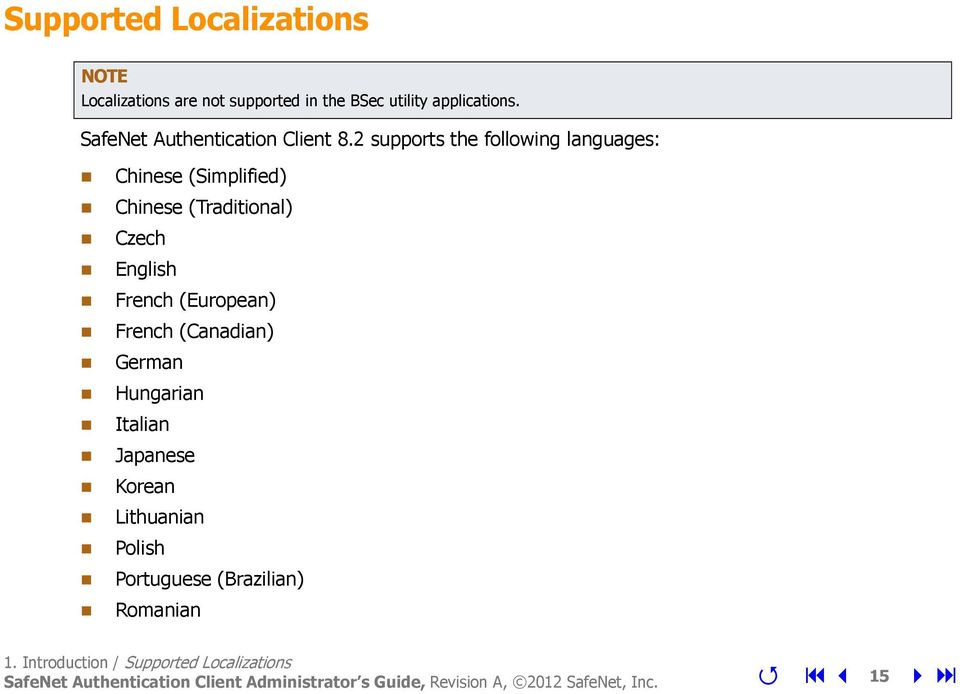
16 Russian Spanish Thai Vietnamese 1. Introduction / Supported Localizations SafeNet Authentication Client Administrator s Guide, Revision A, 2012 SafeNet, Inc. 16

17 What s New SafeNet Authentication Client 8.2 offers the following new features: Support for Elliptic Curve Cryptography (ECC)- a PKI encryption technique based on elliptic curve theory that can be used to create faster, smaller, and more efficient cryptographic keys. The following Elliptic Curves are supported: ECC_CURVE_P256 " " ECC_CURVE_P384 " " NOTE etoken Virtual does not support Elliptic Curve Cryptography. Use of Microsoft cryptographic libraries- all off board cryptographic operations are performed using the latest or available Microsoft Cryptographic API's. Virtual Keyboard- The Virtual Keyboard enables you to enter passwords without using the physical keyboard, providing protection against kernel level key loggers. The Virtual Keyboard is activated via the ADM Policy. See the SafeNet Authentication Client User s Guide. Windows 7 & 8 - SAC is certified by Microsoft for Windows 7 and Windows Introduction / What s New SafeNet Authentication Client Administrator s Guide, Revision A, 2012 SafeNet, Inc. 17

18 Support for SafeNet etoken SafeNet etoken 7300 is a certificate-based authentication solution that conveniently stores data and applications on up to 64GB of encrypted flash memory. See the SafeNet Authentication Client User s Guide. NOTE If SafeNet 7300 is partitioned without selecting the Burn SafeNet default ISO file option, and the token is connected into a computer without SAC installed, it is not possible to log on and use the Flash Drive. Security Enhancements- were introduced to allow organizations to apply policies to SafeNet Authentication Clien that prevent the use of less secure cryptographic algorithms and mechanisms. Using the new security policies, customers using SafeNet Authentication Client can now block certain operations and cryptographic algorithms, based on their risk management and compliance requirements. See SafeNet Authentication Client Security Enhancements on page 248 Maintain Token s Manufacturing Settings - a new capability, which allows administrators to initialize a FIPS compliant, and other token settings using PKCS#11, and still maintain the token s original manufacturing settings. Previously when using PKCS#11, there was no way in which to maintain the token s original factory settings, as earlier versions only supported minimum settings. To maintain a token s original factory settings, two new parameters called Keep Token Settings and Certification, were added to the Registry keys, see Chapter 9 Initialization Settings on page 174. When the Keep Token Settings parameter is set to True, a snapshot is taken of the token s original settings, and when initialized, the original settings are maintained. 1. Introduction / What s New SafeNet Authentication Client Administrator s Guide, Revision A, 2012 SafeNet, Inc. 18

19 SafeNet Authentication Client Architecture 1. Introduction / SafeNet Authentication Client Architecture SafeNet Authentication Client Administrator s Guide, Revision A, 2012 SafeNet, Inc. 19

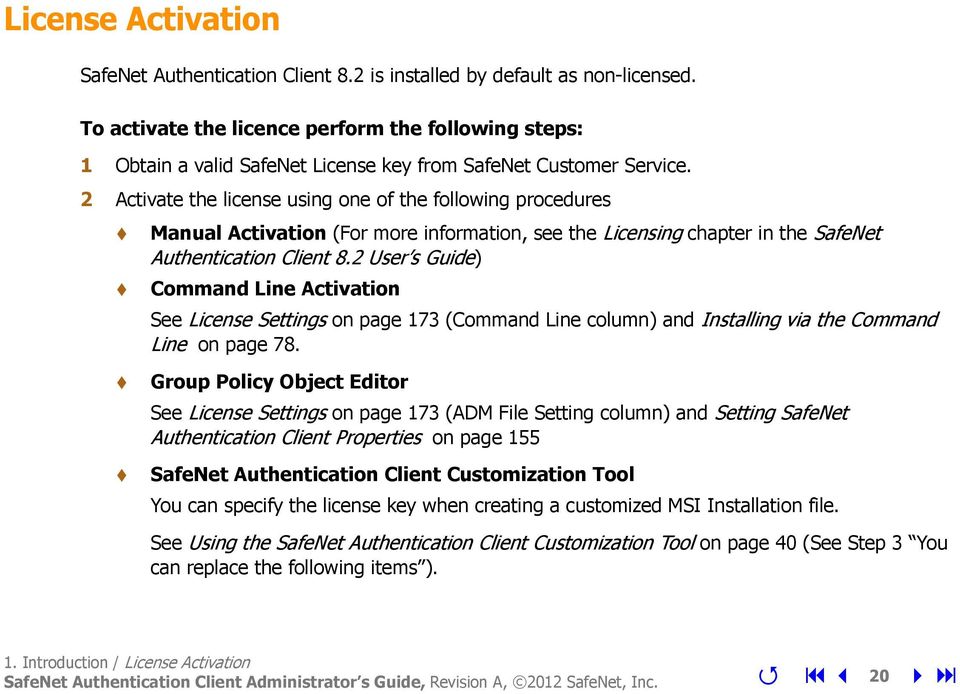
20 License Activation SafeNet Authentication Client 8.2 is installed by default as non-licensed. To activate the licence perform the following steps: 1 Obtain a valid SafeNet License key from SafeNet Customer Service. 2 Activate the license using one of the following procedures Manual Activation (For more information, see the Licensing chapter in the SafeNet Authentication Client 8.2 User s Guide) Command Line Activation See License Settings on page 173 (Command Line column) and Installing via the Command Line on page 78. Group Policy Object Editor See License Settings on page 173 (ADM File Setting column) and Setting SafeNet Authentication Client Properties on page 155 SafeNet Authentication Client Customization Tool You can specify the license key when creating a customized MSI Installation file. See Using the SafeNet Authentication Client Customization Tool on page 40 (See Step 3 You can replace the following items ). 1. Introduction / License Activation SafeNet Authentication Client Administrator s Guide, Revision A, 2012 SafeNet, Inc. 20
21 2 System Requirements Before installing SafeNet Authentication Client, ensure that your system meets the minimum requirements. In this chapter: System Requirements Compatibility with SafeNet Applications Compatibility with Third Party Applications 2. System Requirements / SafeNet Authentication Client Administrator s Guide, Revision A, 2012 SafeNet, Inc. 21
22 System Requirements Windows XP SP2, SP3 (32-bit, 64-bit) Windows Server 2003 SP2, R2 (32 bit, 64-bit) Windows Vista SP2 (32 bit, 64-bit) Supported Operating Systems Windows 7 SP1 (32-bit, 64-bit) Windows 8 (32-bit, 64-bit) Windows Server 2008 SP2 (32-bit, 64-bit), R2 SP1 (64-bit) Windows Server 2012 RC1 Firefox 5 and later Supported Browsers Internet Explorer 7, 8, 9 and 10 Chrome Version 14 and later, for authentication only (Does not support enrollment) Required Hardware Recommended Screen Resolution USB port (for physical token devices) 1024 x 768 pixels and higher (for SafeNet Authentication Client Tools) 2. System Requirements / System Requirements SafeNet Authentication Client Administrator s Guide, Revision A, 2012 SafeNet, Inc. 22
23 NOTE SAC 8.2 is certified by Microsoft for Windows 7 and Windows System Requirements / System Requirements SafeNet Authentication Client Administrator s Guide, Revision A, 2012 SafeNet, Inc. 23
24 Compatibility with SafeNet Applications SafeNet Authentication Client 8.2 works with the following SafeNet products. etoken and ikey Devices (ikey 4000 not supported): SafeNet Protect Drive 8.4 and later SafeNet VPN Client etoken Only: etoken Network Logon 5.1 SafeNet Network Logon 8.0 TMS 5.1 SP1 SafeNet Authentication Manager 8.0 and later etoken SSO 5.1 etoken WSO 5.2 and later etoken Minidriver 5.1 (Java cards only) 2. System Requirements / Compatibility with SafeNet Applications SafeNet Authentication Client Administrator s Guide, Revision A, 2012 SafeNet, Inc. 24
25 Compatibility with Third Party Applications SafeNet Authentication Client 8.2 works with the following products: RDP Windows Logon Entrust ESP 9.0 and later (Entrust EDS and ESP applicable to ikey 2032i, SC330i, ikey 4000) Citrix XenApp 5.0, XenApp 6.0, XenApp 6.5 Cisco AnyConnect, Cisco ASA, Cisco VPN Client IdenTrust MS Office 2007, 2010 Adobe Acrobat 9, X VMware Workstation Certificate Authorities: Microsoft CA 2003 / R2 Microsoft CA 2008 / R2 VeriSign CA Entrust Authority Security Manager 8.1 Microsoft FIM/ILM 2. System Requirements / Compatibility with Third Party Applications SafeNet Authentication Client Administrator s Guide, Revision A, 2012 SafeNet, Inc. 25
26 VPNs: Microsoft VPN Cisco VPN Check Point VPN MyID (Intercede) - for ikey devices only 2. System Requirements / Compatibility with Third Party Applications SafeNet Authentication Client Administrator s Guide, Revision A, 2012 SafeNet, Inc. 26
27 3 Installation Files and Administrator Tasks The software package provided by SafeNet includes files for installing or upgrading to SafeNet Authentication Client 8.2. In this chapter: Installation Files Checklist of Administrator Tasks 3. Installation Files and Administrator Tasks / SafeNet Authentication Client Administrator s Guide, Revision A, 2012 SafeNet, Inc. 27
28 Installation Files The following installation, migration, and documentation files are provided: File Description Environ ment Use SafeNetAuthenticationClient-x32- x exe Installs SafeNet Authentication Client 8.2 and upgrades from SafeNet Authentication Client 8.0, 8.0 SP1, 8.0 SP2, 8.1 SP1, 8.1 SP2, etoken PKI Client, and BSec 32-bit 64-bit Use to install SafeNet Authentication Client 8.2 and to upgrade from: SafeNet Authentication Client 8.0, 8.1 SP1, and 8.1 SP2 SafeNet Authentication Client 8.0 BSec-compatible mode etoken PKI Client 5.1 SP1 BSec and later SafeNetAuthenticationClient-x msi Installs SafeNet Authentication Client 8.2 and upgrades from SafeNet Authentication Client 8.0, 8.0 SP1, 8.0 SP2, 8.1 SP1, 8.1 SP2, and etoken PKI Client 5.1 SP1 32-bit Use to install SafeNet Authentication Client 8.2, or to upgrade from SafeNet Authentication Client 8.0, 8.0 SP1, 8.0 SP2, 8.1 SP1, 8.1 SP2, and etoken PKI Client 5.1 SP1. 3. Installation Files and Administrator Tasks / Installation Files SafeNet Authentication Client Administrator s Guide, Revision A, 2012 SafeNet, Inc. 28
29 File Description Environ ment Use SafeNetAuthenticationClient-x msi Installs SafeNet Authentication Client 8.2 and upgrades from SafeNet Authentication Client 8.0, 8.0 SP1, 8.0 SP2, 8.1 SP1, 8.1 SP2, and etoken PKI Client 5.1 SP1 64-bit Use to install SafeNet Authentication Client 8.1 SP2, or to upgrade from SafeNet Authentication Client 8.0, 8.0 SP1, 8.0 SP2, 8.1 SP1, 8.1 SP2, and etoken PKI Client 5.1 SP1 SafeNetAuthenticationClienteToken-x msi Installs SafeNet Authentication Client 8.2 for etoken devices only (without BSec components), and upgrades from etoken PKI Client 5.1 SP1 or SafeNet Authentication Client 8.0, 8.0 SP1, 8.0 SP2, 8.1 SP1, and 8.1 SP2 for etoken devise only 32-bit Installs SafeNet Authentication Client 8.2 for etoken devices only (without BSec components), and upgrades from etoken PKI Client 5.1 SP1 or SafeNet Authentication Client 8.0 for etoken devices only 3. Installation Files and Administrator Tasks / Installation Files SafeNet Authentication Client Administrator s Guide, Revision A, 2012 SafeNet, Inc. 29
30 File Description Environ ment Use SafeNetAuthenticationClienteToken-x msi Installs SafeNet Authentication Client 8.2 for etoken devices only (without BSec components), and upgrades from etoken PKI Client 5.1 SP1 or SafeNet Authentication Client 8.0, 8.1 SP1, and 8.1 SP2 for etoken devices only 64-bit Use to install SafeNet Authentication Client for etoken devices only (without BSec components), and to upgrade from etoken PKI Client 5.1 SP1 or SafeNet Authentication Client 8.0 for etoken devices only SACCustomizationPackage-8.2.exe Installs SafeNet Authentication Client 8.2 Customization Package, or upgrades SafeNet Authentication Client 8.1, 8.1 SP1, 8.1 SP2 Customization Package 32-bit 64-bit Use to customize SafeNet Authentication Client installation with non default settings. SafeNetAuthenticationClient- BSecUtilities-8.2.msi Installs legacy BSec utilities 32-bit 64-bit Use to install BSec legacy utilities, if required. Use only if SafeNet Authentication Client was installed in BSec-compatible mode 3. Installation Files and Administrator Tasks / Installation Files SafeNet Authentication Client Administrator s Guide, Revision A, 2012 SafeNet, Inc. 30
31 File Description Environ ment Use PolicyMigrationTool.exe Migrates policy configurations and registry key settings from BSec to SafeNet Authentication Client 32-bit Use to import existing settings from a previous BSec installation following upgrade to SafeNet Authentication Client SAC_ReadMe_8_2_Rev_A.pdf SafeNet Authentication Client 8.2 ReadMe Read before installation, for last minute updates that may affect installation. Contains important information including troubleshooting, resolved and known issues. SAC_User_Guide_8_2_Rev_A.pdf SafeNet Authentication Client 8.2 User s Guide Provides detailed information for the user and system administrator regarding the use of SafeNet Authentication Client SAC_Admin_Guide_8_2_Rev_A.pdf SafeNet Authentication Client 8.2 Administrator s Guide (this document) Provides detailed information for the system administrator regarding the installation, configuration, maintenance, and management of SafeNet Authentication Client 3. Installation Files and Administrator Tasks / Installation Files SafeNet Authentication Client Administrator s Guide, Revision A, 2012 SafeNet, Inc. 31
32 Checklist of Administrator Tasks If upgrading from etoken PKI Client or BSec, determine if the registry keys are to be cleared before installing SafeNet Authentication Client. For upgrading from etoken PKI Client, see Upgrading from etoken PKI Client on page 57. For upgrading from BSec, see Upgrading from SafeNet Borderless Security (BSec) on page 59. Customize the SafeNet Authentication Client default installation features, if required, to create a customized SafeNet Authentication Client 8.2 installation. Then install SafeNet Authentication Client on each computer on which a token is to be used. See Customization on page 34. If a previous version of SafeNet Authentication Client is already installed: For upgrading with the msi file, see Upgrading on page 67. If customization is not required, see Simplified Upgrade on page 55. For upgrading BSec utilities, see Upgrading from SafeNet Borderless Security (BSec) on page 59. If not upgrading, install SafeNet Authentication Client on each computer on which a token is to be used. For installing via the installation wizard, see Installing via the Wizard on page 70. For installing via the command line, see Installing via the Command Line on page 78. Customize the SafeNet Authentication Client settings, if required, and update all client computers. 3. Installation Files and Administrator Tasks / Checklist of Administrator Tasks SafeNet Authentication Client Administrator s Guide, Revision A, 2012 SafeNet, Inc. 32
33 See SafeNet Authentication Client Settings on page 116. Initialize and manage tokens. See the Token Management and Token Initialization chapters in the SafeNet Authentication Client User s Guide. KSP Cryptographic Provider To use a KSP cryptographic provider, Windows Vista or higher is required. 3. Installation Files and Administrator Tasks / Checklist of Administrator Tasks SafeNet Authentication Client Administrator s Guide, Revision A, 2012 SafeNet, Inc. 33
34 4 Customization The installation features and the graphic user interface provided by SafeNet can be customized for your installation. NOTE.Net Framework 2.0 or higher is required when running all operating systems on SafeNet Authentication Client Customization Tool. In this chapter: Customization Overview Installing the SafeNet Authentication Client Customization Tool Using the SafeNet Authentication Client Customization Tool Generating a Customized MSI Installation File Installing the Customized Application 4. Customization / SafeNet Authentication Client Administrator s Guide, Revision A, 2012 SafeNet, Inc. 34
35 Customization Overview SafeNet Authentication Client 8.2 supports customizing the following features: Product name, as it appears in the installation wizard, the Add/Remove program and in the About window Destination folder URL of the support link in the Add/Remove program License string SafeNet Authentication Client features to be installed Policy settings MSI Signing settings Window banners 4. Customization / Customization Overview SafeNet Authentication Client Administrator s Guide, Revision A, 2012 SafeNet, Inc. 35

36 Installing the SafeNet Authentication Client Customization Tool Before installing SafeNet Authentication Client, install the SafeNet Authentication Client Customization Tool. To install the SafeNet Authentication Client Customization Tool: 1 Double-click SACCustomizationPackage-8.2.exe. The SafeNet Authentication Client Customization Package Installation Wizard opens. 4. Customization / Installing the SafeNet Authentication Client Customization Tool SafeNet Authentication Client Administrator s Guide, Revision A, 2012 SafeNet, Inc. 36
37 2 Click Next. The License Agreement is displayed. 3 Read the license agreement, and select the option, I accept the license agreement. 4 Click Next. The Destination Folder window opens, displaying the default installation folder. 4. Customization / Installing the SafeNet Authentication Client Customization Tool SafeNet Authentication Client Administrator s Guide, Revision A, 2012 SafeNet, Inc. 37
38 NOTE If SafeNet products are already installed, the browse button will be disabled. 5 You can click Browse to select a different destination folder, or install the Customization Tool into the default folder: C:\Program Files\SafeNet\Authentication\SACAdmin. 6 Click Next to start the installation. When the installation is complete, the SafeNet Authentication Client Customization Package has been successfully installed window opens. 4. Customization / Installing the SafeNet Authentication Client Customization Tool SafeNet Authentication Client Administrator s Guide, Revision A, 2012 SafeNet, Inc. 38

39 7 Click Finish to exit the wizard. 4. Customization / Installing the SafeNet Authentication Client Customization Tool SafeNet Authentication Client Administrator s Guide, Revision A, 2012 SafeNet, Inc. 39
40 Using the SafeNet Authentication Client Customization Tool After installing the SafeNet Authentication Client Customization Package, customize the appropriate features. To use the Customization Tool: 1 From the Windows Start menu, select Programs>SafeNet>SACAdmin>SAC Customization Tool. The SafeNet Authentication Client Customization Tool opens to the General Settings tab. 4. Customization / Using the SafeNet Authentication Client Customization Tool SafeNet Authentication Client Administrator s Guide, Revision A, 2012 SafeNet, Inc. 40
41 2 To open a project you already saved, select File > Open, and browse to the xml file of an existing project. 4. Customization / Using the SafeNet Authentication Client Customization Tool SafeNet Authentication Client Administrator s Guide, Revision A, 2012 SafeNet, Inc. 41
42 3 You can replace the following items: Destination folder path to be used by the SafeNet Authentication Client Customization Tool when no other SafeNet product has been installed on the client computer URL to be displayed in the Windows Add/Remove Programs support link License string to be installed: either paste to the box, or click Load from File, and browse to the file containing the SafeNet Authentication Client license 4 Select the Features to Install icon. The Features to Install window opens. 4. Customization / Using the SafeNet Authentication Client Customization Tool SafeNet Authentication Client Administrator s Guide, Revision A, 2012 SafeNet, Inc. 42
43 5 You can select which features will be installed when the SafeNet Authentication Client Customization Tool is run: etoken Drivers BSec Drivers etoken CAPI 4. Customization / Using the SafeNet Authentication Client Customization Tool SafeNet Authentication Client Administrator s Guide, Revision A, 2012 SafeNet, Inc. 43
44 NOTE Ensure that the etoken CAPI feature is selected. etoken SAPI etoken FSFeature SAC Tools Entrust Support BSec PKCS#11 BSec CAPI IdenTrust Support See Command Line Installation Features on page Select the Policy Settings icon. The Policy Settings window opens. 4. Customization / Using the SafeNet Authentication Client Customization Tool SafeNet Authentication Client Administrator s Guide, Revision A, 2012 SafeNet, Inc. 44
45 7 You can override the application s default values by changing the configuration properties to be written to the registry keys. These new values are saved in HKEY_LOCAL_MACHINE/SOFTWARE/Policies/SafeNet/Authentication/SAC. For more information, see Chapter 9: Configuration Properties, on page Customization / Using the SafeNet Authentication Client Customization Tool SafeNet Authentication Client Administrator s Guide, Revision A, 2012 SafeNet, Inc. 45
46 For each setting to be changed, expand the appropriate node, select the setting, and change its value. 8 Select the MSI Signing icon. The MSI Signing window opens. 4. Customization / Using the SafeNet Authentication Client Customization Tool SafeNet Authentication Client Administrator s Guide, Revision A, 2012 SafeNet, Inc. 46
47 4. Customization / Using the SafeNet Authentication Client Customization Tool SafeNet Authentication Client Administrator s Guide, Revision A, 2012 SafeNet, Inc. 47
48 9 To sign the installation file, select Sign MSI, and complete the enabled fields. These may include: Signing Method (P12, Smartcard or HSM) Certificate Path NOTE Ensure that a Code Signing certificate is used when using the MSI signing feature. Provider Name Key Container Name 10 To Change the graphics click the Graphics icon. The Graphics window opens. 4. Customization / Using the SafeNet Authentication Client Customization Tool SafeNet Authentication Client Administrator s Guide, Revision A, 2012 SafeNet, Inc. 48
49 4. Customization / Using the SafeNet Authentication Client Customization Tool SafeNet Authentication Client Administrator s Guide, Revision A, 2012 SafeNet, Inc. 49
50 The following graphics can be replaced: Upper Banner for SAC Tools - (Properties: Dimensions - 764X142 pixels, Horizontal/Vertical Resolution - 96/96 dpi, Bit Depth - 24, Frame Count - 1) Lower Banner for SAC Tools - (Properties: Dimensions - 764X76 pixels, Horizontal/Vertical Resolution - 72/72 dpi, Bit Depth - 24, Frame Count - 1) Upper Banner for small SAC windows - (Properties: Dimensions - 506X65 pixels, Horizontal/Vertical Resolution - 96/96 dpi, Bit Depth - 32, Frame Count - 1) Upper Banner for large SAC windows - (Properties: Dimensions - 760X65 pixels, Horizontal/Vertical Resolution - 96/96 dpi, Bit Depth - 32, Frame Count - 1) NOTE The file format for the upper and lower banner of SAC Tools must be in JPG format, and the upper banners for small and large SAC windows must be in PNG format. 11 To change a banner, click the Browse button and select the graphic file required. 12 To save the customized settings, select File > Save As, and enter a name for the project. NOTE The customized settings are saved as an xml file. By default, the xml file is saved in the following location: My Documents\SafeNet\Authentication\SAC 4. Customization / Using the SafeNet Authentication Client Customization Tool SafeNet Authentication Client Administrator s Guide, Revision A, 2012 SafeNet, Inc. 50
51 Generating a Customized MSI Installation File After the appropriate features are customized, generate an installation file. To generate a customized installation file: 1 Open the SAC Customization Tool. See Using the SafeNet Authentication Client Customization Tool on page Select File > Open, and browse to the xml file of an existing project. 4. Customization / Generating a Customized MSI Installation File SafeNet Authentication Client Administrator s Guide, Revision A, 2012 SafeNet, Inc. 51
52 The project opens. 3 Select Actions > Generate MSI. An information window is displayed, informing you that the MSI installation files have been generated. 4 Click OK to close the window. 5 To see the generated.msi installation files, browse to the folder containing the project. One customized MSI is for 32-bit installations and one is for 64-bit installations. 4. Customization / Generating a Customized MSI Installation File SafeNet Authentication Client Administrator s Guide, Revision A, 2012 SafeNet, Inc. 52
53 Installing the Customized Application After the.msi installation file is generated, use it to install the application with its customized properties and features. NOTE Ensure that all legacy etoken Properties or SafeNet Authentication Client Tools applications are closed before upgrading, installing, or uninstalling SafeNet Authentication Client. To install the customized application: 1 Log on as an administrator. 2 Close all applications. 3 Double-click the appropriate file generated in step 3 on page 52: <Project Name>-x msi(32-bit) <Project Name>-x msi(64-bit) where <Project Name> is the name of the appropriate customized project. The Installation Wizard runs. 4 Follow the wizard until the installation is complete, and a confirmation message is displayed. 5 Click Finish to complete the installation. 4. Customization / Installing the Customized Application SafeNet Authentication Client Administrator s Guide, Revision A, 2012 SafeNet, Inc. 53
54 5 Upgrade It is recommended that etoken PKI Client, SafeNet Authentication Client 8.0, 8.1, and BSec are upgraded on each computer that uses a SafeNet etoken, ikey token, or SafeNet smartcard. Local administrator rights are required to upgrade SafeNet Authentication Client. NOTE You must restart your computer when the upgrade procedure completes. When upgrading via the command line using the /qn parameter, your computer is restarted automatically. In this chapter: Simplified Upgrade Upgrading from etoken PKI Client Upgrading from SafeNet Borderless Security (BSec) 5. Upgrade / SafeNet Authentication Client Administrator s Guide, Revision A, 2012 SafeNet, Inc. 54
55 Simplified Upgrade The simplest way to upgrade to SafeNet Authentication Client 8.2 is to use the.exe installer file. The installer file does not support customization. The.exe installer file installs SafeNet Authentication Client 8.2 properly on 32-bit and 64-bit environments in all of the following situations: No middleware is yet installed SafeNet Authentication Client 8.0, 8.0 SP1, 8.0 SP2 or SafeNet Authentication Client 8.1, 8.1 SP1, or 8.1 SP2 is installed, with or without BSec compatibility BSec or later is installed etoken PKI Client 5.1 SP1 is installed NOTE Ensure that all legacy etoken Properties or SafeNet Authentication Client Tools applications are closed before upgrading, installing, or uninstalling SafeNet Authentication Client. SafeNet Authentication Client 8.0, etoken PKI Client 5.1 SP1, and BSec or later are automatically upgraded during the SafeNet Authentication Client 8.2 installation. To run the installer: Run the following file: SafeNetAuthenticationClient-x32-x exe After the installer file is run, SafeNet Authentication Client 8.2 is installed. No other installation or upgrade file need be run. 5. Upgrade / Simplified Upgrade SafeNet Authentication Client Administrator s Guide, Revision A, 2012 SafeNet, Inc. 55
56 Upgrading Using MSI To upgrade from SafeNet Authentication Client 8.0, 8.0 SP1, 8.0 SP2, 8.1, 8.1 SP1, or 8.1 SP2 run the following: SafeNetAuthenticationClient-x msi SafeNetAuthenticationClient-x msi 5. Upgrade / Upgrading Using MSI SafeNet Authentication Client Administrator s Guide, Revision A, 2012 SafeNet, Inc. 56
57 Upgrading from etoken PKI Client Computer and user registry settings from legacy installations are not cleared when SafeNet Authentication Client is installed. To manage the registry settings from etoken PKI Client installations not earlier than 4.55: 1 Install SafeNet Authentication Client 8.2 using the wizard. See Installing via the Wizard on page 70. If computer and user registry settings from the earlier installation are detected, a Use the existing configuration settings option appears on the Select interface language window. See step 6 of Installing via the Wizard on page Do one of the following: To maintain the registry settings from the earlier installation, select the Use the existing configuration settings option. To clear the registry settings from the earlier installation, clear the Use the existing configuration settings option. 3 Continue the installation. 5. Upgrade / Upgrading from etoken PKI Client SafeNet Authentication Client Administrator s Guide, Revision A, 2012 SafeNet, Inc. 57
58 Upgrading from Versions Earlier than etoken PKI Client 5.1 SP1 Legacy versions of etoken PKI Client earlier than 5.1 SP1, must be uninstalled before installing SafeNet Authentication Client Upgrade / Upgrading from etoken PKI Client SafeNet Authentication Client Administrator s Guide, Revision A, 2012 SafeNet, Inc. 58
59 Upgrading from SafeNet Borderless Security (BSec) You can upgrade from BSec to SafeNet Authentication Client 8.0 SP2 using an automatic or manual upgrade. The automatic upgrade does not support command line configuration. If command line configuration is required, the manual upgrade procedure must be used. Automatic Upgrade Use the automatic upgrade to retain current BSec settings, uninstall BSec, and install SafeNet Authentication Client. Automatic upgrade is supported for BSec and later. For earlier versions of BSec, use the manual upgrade process. To upgrade automatically from BSec and later to SafeNet Authentication Client: Run the following file: SafeNetAuthenticationClient-x32-x exe NOTE Automatic upgrade does not support command line configuration. 5. Upgrade / Upgrading from SafeNet Borderless Security (BSec) SafeNet Authentication Client Administrator s Guide, Revision A, 2012 SafeNet, Inc. 59
60 Manual Upgrade of BSec Policies and Registry Settings When upgrading manually from BSec to SafeNet Authentication Client, first run the Policy Migration Tool to migrate BSec settings from the BSec Client or from the BSec policies created by the AMC on the management station. A registry file is created that replicates the BSec configuration in the SafeNet Authentication Client, enabling the user to use SafeNet Authentication Client with the current BSec configuration. Then uninstall BSec, install SafeNet Authentication Client, and ensure that the file of registry keys is run. The registry values are appended to the subfolders of the registry location defined when the Policy Migration Tool was run in step 3 on page 60. To determine the registry location, see Policy Migration Tool Parameters on page 62. To upgrade and manually migrate policies and registry settings: 1 Locate the PolicyMigrationTool.exe file in installation package s Tools folder. 2 Copy the PolicyMigrationTool.exe file to the AMC management station, or to the folder in which you want the new registry file of BSec policies to be written. 3 From the command line, run PolicyMigrationTool.exe [Mod [Options]] For a description of the Mod and Options parameters, see Policy Migration Tool Parameters on page Upgrade / Upgrading from SafeNet Borderless Security (BSec) SafeNet Authentication Client Administrator s Guide, Revision A, 2012 SafeNet, Inc. 60
61 If no command line parameters are included: The BSec policies are written to a migration file named PolicyMigrationTool.reg in the folder from which the PolicyMigrationTool.exe was run. The policies are set to be imported from that file to: HKEY_LOCAL_MACHINE\SOFTWARE\SafeNet\Authentication\SAC. 4 Uninstall BSec. 5 Install SafeNet Authentication Client, optionally importing the migration file created in step 3 on page 60 to the appropriate registry keys. For example, if the Policy Migration Tool was run from the C:\ folder, and migration file was saved using the default file name, run the following command: msiexec /i SafeNetAuthenticationClient-x msi PROP_REG_FILE="C:\PolicyMigrationTool.reg" /qb 6 If you did not include the PROP_REG_FILE property during the installation in step 5, import the migration file to the appropriate registry keys by double-clicking the file created in step 3 on page Configure SafeNet Authentication Client as required. (See SafeNet Authentication Client Settings on page 116.) 5. Upgrade / Upgrading from SafeNet Borderless Security (BSec) SafeNet Authentication Client Administrator s Guide, Revision A, 2012 SafeNet, Inc. 61
62 Policy Migration Tool Parameters If no command line parameters are included when running PolicyMigrationTool.exe: The BSec policies are written to a migration file named PolicyMigrationTool.reg in the folder from which the PolicyMigrationTool.exe was run. The policies are set to be imported from the migration file to: HKEY_LOCAL_MACHINE\SOFTWARE\SafeNet\Authentication\SAC. Parameter none Description The Policy Migration Tool reads the BSec client database files whose location is defined in the registry key HKEY_LOCAL_MACHINE\SOFTWARE\SafeNet\BSecClient\InstallLocation and creates a.reg file named PolicyMigrationTool.reg in the folder from which the Policy Migration Tool was run. When the.reg file is included in the PROP_REG_FILE property during SafeNet Authentication Client installation, or when the file is double-clicked, its registry keys are imported to: HKEY_LOCAL_MACHINE\SOFTWARE\SafeNet\Authentication\SAC. AMC -i [policy client name] Same as option none, but the name of the appropriate BSec policy client configuration is defined in the parameter. If no policy client name is defined and there are multiple configurations, the application displays the configuration names and prompts for a selection. -u Same as option none, but the.reg file s registry keys are set to be imported to: HKEY_CURRENT_USER\SOFTWARE\SafeNet\Authentication\SAC, and not to the HKEY_LOCAL_MACHINE registry 5. Upgrade / Upgrading from SafeNet Borderless Security (BSec) SafeNet Authentication Client Administrator s Guide, Revision A, 2012 SafeNet, Inc. 62
63 Parameter Description -p Same as option none, but the registry keys are set to be imported to the registry s Policies section. If option -u is present, this is: HKEY_CURRENT_USER\SOFTWARE\Policies\SafeNet\Authentication\SAC If option -u is not present, this is: HKEY_LOCAL_MACHINE\SOFTWARE\Policies\SafeNet\Authentication\SAC -o [output file path and name] Same as option none, but the name and path of the new.reg file is defined in the parameter. Client Installation Examples PolicyMigrationTool.exe -p -u -o c:\mybsecconfiguration.reg Reads the client installation, and creates a file named: c:\mybsecconfiguration.reg The file is set to import the registry keys to: HKEY_CURRENT_USER\SOFTWARE\Policies\SafeNet\Authentication\SAC. PolicyMigrationTool.exe AMC -i My_AMC_Configuration Reads the My_AMC_Configuration package, and creates a PolicyMigrationTool.reg file in the folder from which the Policy Migration Tool was run. The file is set to import the registry keys to: HKEY_LOCAL_MACHINE\SOFTWARE\SafeNet\Authentication\SAC. 5. Upgrade / Upgrading from SafeNet Borderless Security (BSec) SafeNet Authentication Client Administrator s Guide, Revision A, 2012 SafeNet, Inc. 63
64 6 Installation SafeNet Authentication Client must be installed on each computer on which a SafeNet etoken, ikey token, or SafeNet smartcard is to be used. Local administrator rights are required to install or uninstall SafeNet Authentication Client. NOTE When installing with an MSI file on Windows 7, do not run the installation from the Desktop folder. To ensure a successful installation, run the installation from another location on your computer. For Windows Vista and above, the maximum number of readers (ikey, etoken and Software) supported is 10. To customize the user interface and the features to be installed, see Chapter 4: Customization, on page 34. In this chapter: Installation Configurations Upgrading Simplified Installation Installing a Customized Application 6. Installation / SafeNet Authentication Client Administrator s Guide, Revision A, 2012 SafeNet, Inc. 64
65 Installing via the Wizard Installing via the Command Line Installing the BSec Utility Package Configuring the BSec UI Compatible Setting Configuring Root Certificate Storage for Windows Server 2008 R2 6. Installation / SafeNet Authentication Client Administrator s Guide, Revision A, 2012 SafeNet, Inc. 65
66 Installation Configurations SafeNet Authentication Client can be installed with the following configurations: Configuration Description Installation Steps Standard SafeNet Authentication Client Installation BSec API Compatible BSec UI Compatible with BSec Utilities installed Standard SafeNet Authentication Client features and user interface. Support for etoken and ikey tokens. Same as Standard SafeNet Authentication Client Installation with the addition of compatibility with third party applications using the BSec API. Same as BSec API Compatible with the addition of the following legacy BSec functions: Enrollment, Enrollment Update, and Certificate Information (accessible from the tray icon). Install SafeNet Authentication Client. When using the installation wizard, select the Standard Configuration option. Install SafeNet Authentication Client using the installation wizard, and select the BSec Compatible option. Install SafeNet Authentication Client using the installation wizard, and select the BSec Compatible option. Configure for BSec support (see Configuring the BSec UI Compatible Setting on page 107). Install BSec Utilities. 6. Installation / Installation Configurations SafeNet Authentication Client Administrator s Guide, Revision A, 2012 SafeNet, Inc. 66
67 Upgrading SafeNet Authentication Client 8.0, 8.1 etoken PKI Client, or BSec is already installed, see Chapter 5: Upgrade on page Installation / Upgrading SafeNet Authentication Client Administrator s Guide, Revision A, 2012 SafeNet, Inc. 67
68 Simplified Installation The simplest way to install SafeNet Authentication Client 8.2 is to use the.exe installer file. The installer file does not support customization. The.exe installer file installs SafeNet Authentication Client 8.2 properly on both 32-bit and 64-bit in all of the following situations: No middleware is yet installed SafeNet Authentication Client 8.0, 8.0 SP1, 8.0 SP2, 8.1, 8.1 SP1, and 8.1 SP2 is installed, with or without BSec compatibility etoken PKI Client 5.1 SP1 is installed NOTE Ensure that all legacy etoken Properties or SafeNet Authentication Client Tools applications are closed before upgrading, installing, or uninstalling SafeNet Authentication Client. To run the installer: Run the following file: SafeNetAuthenticationClient-x32-x exe After the installer file is run, SafeNet Authentication Client 8.2 is installed. No other installation or upgrade file need to be run. 6. Installation / Simplified Installation SafeNet Authentication Client Administrator s Guide, Revision A, 2012 SafeNet, Inc. 68
69 Installing a Customized Application SafeNet Authentication Client can be installed with customized properties and features. SeeSee Customization on page 34 Chapter 4: Customization (page 34). 6. Installation / Installing a Customized Application SafeNet Authentication Client Administrator s Guide, Revision A, 2012 SafeNet, Inc. 69
70 Installing via the Wizard Use the SafeNet Authentication Client Installation Wizard to install the application with its default properties and features. The properties that can be set using the wizard are: Interface language: the language in which the SafeNet Authentication Client user interface is displayed. Destination folder: the installation library for this and all future SafeNet authentication product applications. If an application from the SafeNet Authentication product line, or an etoken legacy product, were previously installed on the computer, the destination folder cannot be changed. NOTE Ensure that all legacy etoken Properties or SafeNet Authentication Client Tools applications are closed before upgrading, installing, or uninstalling SafeNet Authentication Client. To install via the installation wizard: 1 Log on as an administrator. 2 Close all applications. 6. Installation / Installing via the Wizard SafeNet Authentication Client Administrator s Guide, Revision A, 2012 SafeNet, Inc. 70

71 3 Double-click the appropriate file: SafeNetAuthenticationClient-x msi(32-bit) SafeNetAuthenticationClient-x msi(64-bit) The SafeNet Authentication Client Installation Wizard opens. 4 Click Next. The Interface Language window is displayed. 6. Installation / Installing via the Wizard SafeNet Authentication Client Administrator s Guide, Revision A, 2012 SafeNet, Inc. 71
72 5 From the dropdown list, select the language in which the SafeNet Authentication Client screens will appear. 6 If configuration settings are detected from a previous version, you can select Use the existing configuration settings. 7 Click Next. The End-User License Agreement is displayed. 6. Installation / Installing via the Wizard SafeNet Authentication Client Administrator s Guide, Revision A, 2012 SafeNet, Inc. 72
73 8 Read the license agreement, and select the option, I accept the license agreement. 9 Click Next. The Installation Type window opens. 6. Installation / Installing via the Wizard SafeNet Authentication Client Administrator s Guide, Revision A, 2012 SafeNet, Inc. 73
74 10 Select one of the following: Standard - Supports all etoken and ikey tokens. BSec-compatible - Supports all etokens and ikey tokens. This option should be selected to support third-party applications developed with the BSec SDK. 11 Click Next. The Destination Folder window opens, displaying the default installation folder. 6. Installation / Installing via the Wizard SafeNet Authentication Client Administrator s Guide, Revision A, 2012 SafeNet, Inc. 74
75 12 If there are no other SafeNet Authentication applications or etoken legacy products, you can click Browse to select a different destination folder. This folder will be used as the installation library for all future SafeNet Authentication applications. NOTE If there has been no previous installation of an application from the SafeNet Authentication line of products, or an etoken legacy product, the default installation path is: C:\Program Files\SafeNet\Authentication\SAC. If an application from the SafeNet Authentication line of products, or an etoken legacy product, is already installed, the destination folder cannot be changed 13 Click Next. The installation proceeds. 6. Installation / Installing via the Wizard SafeNet Authentication Client Administrator s Guide, Revision A, 2012 SafeNet, Inc. 75
76 6. Installation / Installing via the Wizard SafeNet Authentication Client Administrator s Guide, Revision A, 2012 SafeNet, Inc. 76
77 When the installation is complete, a confirmation message is displayed. 14 Click Finish to complete the installation. 6. Installation / Installing via the Wizard SafeNet Authentication Client Administrator s Guide, Revision A, 2012 SafeNet, Inc. 77
78 Installing via the Command Line Command line installation gives the administrator full control of installation properties and features. The SafeNet Authentication Client command line installation uses the standard Windows Installer msiexec syntax: for 32-bit systems: msiexec /i SafeNetAuthenticationClient-x msi for 64-bit systems: msiexec /i SafeNetAuthenticationClient-x msi NOTE Ensure that all legacy etoken Properties or SafeNet Authentication Client Tools applications are closed before upgrading, installing, or uninstalling SafeNet Authentication Client. To install via the command line: 1 Log on as an administrator. 2 Close all applications. 3 From the Windows taskbar, select Start > Programs > Accessories > Command Prompt. When running on Windows 7 or Windows Vista, right-click Command Prompt and select Run as. Set the user to administrator. 6. Installation / Installing via the Command Line SafeNet Authentication Client Administrator s Guide, Revision A, 2012 SafeNet, Inc. 78
79 4 Type the msiexec command with the appropriate parameters, properties, and feature settings, as described in this chapter. Viewing Command Line Parameters To view optional parameters for the msiexec command: 1 From the Windows taskbar, select Start > Run. 2 In the Run dialog box, enter msiexec, and click OK. 6. Installation / Installing via the Command Line SafeNet Authentication Client Administrator s Guide, Revision A, 2012 SafeNet, Inc. 79

80 The Windows Installer opens, displaying the available parameters and their explanations. 6. Installation / Installing via the Command Line SafeNet Authentication Client Administrator s Guide, Revision A, 2012 SafeNet, Inc. 80
81 Installing in Silent Mode Installing via the command line enables the administrator to define a silent mode installation in addition to optional property settings. To run the installation in silent mode, add /q to the end of the msiexec command: for 32-bit systems: msiexec /i SafeNetAuthenticationClient-x msi /qn for 64-bit systems: msiexec /i SafeNetAuthenticationClient-x msi /qn NOTE To display a basic installation user interface, use the /qb parameter. Setting Application Properties via the Command Line During command line installation, the administrator can override the application s default values by including specific properties, and assigning each a value. These new values are saved in HKEY_LOCAL_MACHINE\SOFTWARE\SafeNet\Authentication\SAC. For more information, see Chapter 9: Application Properties Hierarchy, on page 156. NOTE The registry location of the PROP_REG_FILE property, described on page 91, is determined by the parameters set when the Policy Migration Tool was run, and may be written to a different registry location. 6. Installation / Installing via the Command Line SafeNet Authentication Client Administrator s Guide, Revision A, 2012 SafeNet, Inc. 81
82 Properties can be set only during installation, and not during repair. To set properties during installation, use the following command format: for 32-bit systems: msiexec /i SafeNetAuthenticationClient-x msi PROPERTY=VALUE PROPERTY=VALUE /qb for 64-bit systems: msiexec /i SafeNetAuthenticationClient-x msi PROPERTY=VALUE PROPERTY=VALUE /qb where PROPERTY is the name of a configurable property, often identified by the prefix PROP_ VALUE is the value assigned to the property See the Command Line Installation Properties table on page 83 for the list of properties that can be set during installation. Some properties are stored as registry values and can be set or modified after installation. These properties are described in the General Settings section on page Installation / Installing via the Command Line SafeNet Authentication Client Administrator s Guide, Revision A, 2012 SafeNet, Inc. 82
83 Some properties can be set during command line installation only, and cannot be modified afterward. These properties are described in the Installation-Only Properties section on page 85. Example: To install the Spanish version of SafeNet Authentication Client in a 32-bit system, with the Advanced Mode setting disabled, all registry keys to be cleared automatically upon uninstall, and all other properties assigned their default values, type the following command: msiexec /i SafeNetAuthenticationClient-x msi ET_LANG_NAME=Spanish PROP_ADVANCED_VIEW=0 PROP_CLEAR_REG=1 /qb Command Line Installation Properties Property Description ET_LANG_NAME on page 85 KSP_ENABLED on page 86 PROP_ADVANCED_VIEW on page 185 PROP_CLEAR_REG on page 87 PROP_ETOKENREADERCOUNT on page 87 PROP_EXPLORER_DEFENROL on page Installation / Installing via the Command Line SafeNet Authentication Client Administrator s Guide, Revision A, 2012 SafeNet, Inc. 83
84 Property Description PROP_FAKEREADER on page 87 PROP_IKEYREADERCOUNT on page 88 PROP_LICENSE_FILE on page 88 PROP_PCSCSLOTS on page 165 PROP_PQ_HISTORYSIZE on page 219 PROP_PQ_MAXAGE on page 218 PROP_PQ_MINAGE on page 218 PROP_PQ_MINLEN on page 217 PROP_PQ_MIXCHARS on page 221 PROP_PQ_WARNPERIOD on page 219 PROP_PROPAGATECACER on page 210 PROP_PROPAGATEUSERCER on page 209 PROP_REG_FILE on page 89 PROP_SINGLELOGON on page 162 PROP_SINGLELOGONTO on page 163 PROP_SOFTWARESLOTS on page 164 PROP_UPD_INFPATH on page Installation / Installing via the Command Line SafeNet Authentication Client Administrator s Guide, Revision A, 2012 SafeNet, Inc. 84
85 Property Description TARGETDIR on page 90 Installation-Only Properties The following properties, unless stated otherwise, can be set during command line installation only, and may not be modified afterwards: ET_LANG_NAME Property Property Name Description ET_LANG_NAME Determines the language in which the GUI is displayed Value Traditional Chinese / Chinese / Czech / English / French (Canada) / German / Hungarian / Italian / Japanese / Korean / Lithuanian / Polish / Portuguese / Romanian / Russian / Spanish / Thai/ Vietnamese Note: Values that consist of two words (e.g. Traditional Chinese and French (Canada), must appear in double quotes. Default English 6. Installation / Installing via the Command Line SafeNet Authentication Client Administrator s Guide, Revision A, 2012 SafeNet, Inc. 85
86 KSP_ENABLED Property NOTE This feature can also be set using SafeNet Authentication Client Tools, Property Settings (ADM), or registry key. Property Name Description Value KSP_ENABLED Determines if KSP is installed 0 - KSP is not installed 1 - KSP is installed and used as the default cryptographic provider on Windows Vista or higher 2 - KSP is installed but the certificate s provider details stored on the token are used. These are the details displayed when the certificate is selected in SAC Tools. Default 2 PROP_CLEAR_REG Property Property Name Description Value Default PROP_CLEAR_REG Determines if all registry settings are automatically cleared upon uninstall 1 (True) - Registry settings are cleared upon uninstall 0 (False)- Registry settings are not cleared upon uninstall 0 (False) 6. Installation / Installing via the Command Line SafeNet Authentication Client Administrator s Guide, Revision A, 2012 SafeNet, Inc. 86
87 PROP_ETOKENREADERCOUNT Property NOTE This feature can also be set using SafeNet Authentication Client Tools. Property Name Description Value PROP_ETOKENREADERCOUNT Determines the number of virtual readers for physical etoken devices only. This determines the number of etoken devices that can be connected concurrently. Note: On Windows Vista 64-bit, Windows 7 32-bit and 64-bit, Windows 8 32-bit and 64-bit, and Windows 2008 R2, no more than 10 readers can be installed (This applies to the following readers: ikey, etoken and Software). 0 - No virtual readers installed Number of virtual readers installed Default 2 PROP_FAKEREADER Property Property Name Description Value Default PROP_FAKEREADER Determines if the emulation of a smartcard reader is installed, enabling SafeNet etoken VIrtual tokens to be used with applications requiring a smartcard reader, such as smartcard logon and VPN. 1 (True) - Emulation of a smartcard reader is installed 0 (False)- Emulation of a smartcard reader is not installed 1 (True) 6. Installation / Installing via the Command Line SafeNet Authentication Client Administrator s Guide, Revision A, 2012 SafeNet, Inc. 87
88 PROP_IKEYREADERCOUNT Property NOTE This feature can be set using the command line only. Property Name Description Value PROP_IKEYREADERCOUNT Determines the number of virtual readers for physical ikey devices only. This determines the number of ikey devices that can be connected concurrently. Note: On Windows Vista 64-bit, Windows 7 32-bit and 64-bit, Windows 8 32-bit and 64-bit, and Windows 2008 R2, no more than 10 readers can be installed (This applies to the following readers: ikey, etoken and Software). 0 - No virtual readers are installed Number of virtual readers installed Default 2 PROP_LICENSE_FILE Property Property Name Description Value Default PROP_LICENSE_FILE Defines the location of the SAC license file The path to a file containing the SafeNet Authentication Client license Note: The full path must be used. none 6. Installation / Installing via the Command Line SafeNet Authentication Client Administrator s Guide, Revision A, 2012 SafeNet, Inc. 88
89 PROP_REG_FILE Property Property Name Description Value Default PROP_REG_FILE Defines the BSec settings.reg file, created by the Policy Migration Tool, that is imported to the computer s registry folder during the installation The default registry folder is HKEY_LOCAL_MACHINE\SOFTWARE\SafeNet\Authentication\SACSee Manual Upgrade of BSec Policies and Registry Settings on page 60. The path to a saved registry file Note: The full path must be used. none NOTE While other command line installation properties set values only in HKEY_LOCAL_MACHINE\SOFTWARE\SafeNet\Authentication\SAC, values set in the PROP_REG_FILE file are appended to the subfolders of the registry location defined when the Policy Migration Tool was run.see Manual Upgrade of BSec Policies and Registry Settings on page Installation / Installing via the Command Line SafeNet Authentication Client Administrator s Guide, Revision A, 2012 SafeNet, Inc. 89
90 PROP_UPD_INFPATH Property Property Name Description Value Default PROP_UPD_INFPATH Determines the update driver search path on install/uninstall The update driver search path on install/uninstall none TARGETDIR Property Property Name Description Value Default TARGETDIR If there are no other SafeNet authentication or legacy etoken applications installed, this value determines which installation folder to use as the installation library for this and all future SafeNet authentication application installations. The path to the installation library. None - the application is installed in the default SafeNet Authentication installation folder. NOTE Important! Only include the TARGETDIR property if there are no other SafeNet authentication applications or legacy etoken applications installed on the computer. 6. Installation / Installing via the Command Line SafeNet Authentication Client Administrator s Guide, Revision A, 2012 SafeNet, Inc. 90
91 Configuring Installation Features via the Command Line To exclude specific features from the SafeNet Authentication Client installation, use the ADDDEFAULT parameter to install only those features required. The excluded features can be added afterwards to the installed application. To install only specific features, use the following command format: msiexec /i SafeNetAuthenticationClient-x msi ADDDEFAULT=F1,F2 Fn INSTALLLEVEL=n PROP_IKEYREADERCOUNT=n /qb where SafeNetAuthenticationClient-x is the 32-bit SafeNet Authentication Client installation file. For 64-bit systems, use SafeNetAuthenticationClient-x msi. ADDDEFAULT indicates that only the following features are included in the installation, or added to the installed application Fx is the name of each feature to be included INSTALLLEVEL, n indicates the installation level as follows: 3: standard installation (default) 5: BSec-compatible installation PROP_IKEYREADERCOUNT=n indicates the number of virtual ikey readers that are installed (default is 2) See the table: SafeNet Authentication Client Features to Add or Remove on page 97 for the list of features that can be included during installation. 6. Installation / Installing via the Command Line SafeNet Authentication Client Administrator s Guide, Revision A, 2012 SafeNet, Inc. 91
92 NOTE The number of ikey readers can be set from the command line only. Installing All Features - Example To install SafeNet Authentication Client on a 32-bit system with all features, including etoken and ikey support, type the following command: msiexec /i SafeNetAuthenticationClient-x msi /qb Installing All Features Except KSP Support - Example To install SafeNet Authentication Client on a 32-bit system with all features except support for KSP, type the following command: msiexec /i SafeNetAuthenticationClient-x msi KSP_Enabled=0 /qb Installing without ikey Drivers - Example To install SafeNet Authentication Client on a 32-bit system, without support for ikey, type the following command: msiexec /i SafeNetAuthenticationClient-x msi ADDDEFAULT= 6. Installation / Installing via the Command Line SafeNet Authentication Client Administrator s Guide, Revision A, 2012 SafeNet, Inc. 92
93 etokendrivers,etfsfeature,etokensapi,etokenpkcs11,etokencapi,ksp,sacui,sacmonitor,sac Service,SACTools/qb Any of the optional features in this example can be excluded. Installing without etoken Drivers - Example To install SafeNet Authentication Client on a 32-bit system, without support for etoken devices, type the following command: msiexec /i SafeNetAuthenticationClient-x msi ADDDEFAULT= BsecDrivers,etFSFeature,eTokenSAPI,eTokenPKCS11,eTokenCAPI,SACUI,SACMonitor,SACServic e,sactools /qb Any of the optional features in this example can be excluded. Installing without SAC Tools - Example To install SafeNet Authentication Client on a 32-bit system, with many standard features, but without the SafeNet Authentication Client Tools application, type the following command: msiexec /i SafeNetAuthenticationClient-x msi ADDDEFAULT= etokendrivers,bsecdrivers,etfsfeature,etokensapi,etokenpkcs11,etokencapi,ksp,sacui,sa CMonitor,SACService /qb 6. Installation / Installing via the Command Line SafeNet Authentication Client Administrator s Guide, Revision A, 2012 SafeNet, Inc. 93
94 To add the SafeNet Authentication Client Tools application to SafeNet Authentication Client on a 32-bit system after installation, type the following command: msiexec /i SafeNetAuthenticationClient-x msi ADDDEFAULT=SACTools /qb Installing with BSec Compatible Configuration - Example To install SafeNet Authentication Client with CAPI and PKCS#11 for both etoken and BSec on a 32-bit system, type the following command: msiexec /i SafeNetAuthenticationClient-x msi INSTALLLEVEL=5 /qb Where: INSTALLLEVEL=5 indicates that the installation is BSec compatible. The standard interface is installed by default. For the BSec user interface, configure the BSec UI Compatible setting. (See Configuring the BSec UI Compatible Setting on page 107.) To install the BSec utility applications (SafeNet CIP Utility, SafeNet Token Utility, and SafeNet Token Manager Utility) use SafeNetAuthenticationClient-BSecUtilities-8.2.msi Installing Four ikey Readers and Six etoken Readers - Example To install SafeNet Authentication Client with four ikey readers and six etoken readers, type the following command: 6. Installation / Installing via the Command Line SafeNet Authentication Client Administrator s Guide, Revision A, 2012 SafeNet, Inc. 94
95 msiexec /i SafeNetAuthenticationClient-x msi PROP_PCSCSLOTS=10 PROP_ETOKENREADERCOUNT=6 PROP_IKEYREADERCOUNT=4 PROP_SOFTWARESLOTS=0 /qb Removing Features via the Command Line Installed features can be removed from the SafeNet Authentication Client installation. To remove features, use the following format: msiexec /x SafeNetAuthenticationClient-x msi REMOVE=F1,F2,Fn /qb where SafeNetAuthenticationClient-x msi is the 32-bit SafeNet Authentication Client installation file. For 64-bit systems, use SafeNetAuthenticationClient-x msi REMOVE indicates that the following features are to be removed Fx is the name of each feature to be removed See the table: SafeNet Authentication Client Features to Add or Remove on page 97 for the list of features. NOTE Only optional features can be removed. 6. Installation / Installing via the Command Line SafeNet Authentication Client Administrator s Guide, Revision A, 2012 SafeNet, Inc. 95
96 Example: To remove the SafeNet Authentication Client Tools application after it was installed with SafeNet Authentication Client on a 32-bit system, type the following command: msiexec /x SafeNetAuthenticationClient-x msi REMOVE=SACTools /qb 6. Installation / Installing via the Command Line SafeNet Authentication Client Administrator s Guide, Revision A, 2012 SafeNet, Inc. 96
97 Command Line Installation Features SafeNet Authentication Client Features to Add or Remove Feature Parent Feature Installs Comment DriverFeature etokendrivers etoken drivers Required for etoken and ikey physical devices. BsecDrivers ikey token drivers CoreFeature etfsfeature Proprietary file system API Required. etokensapi etokenpkcs11 etokencapi Proprietary supplementary API Standard PKCS#11 implementation API for etoken and ikey tokens Standard CAPI implementation for etoken and ikey tokens; requires the etokenpkcs11 feature to be included Installs functionality for full operation of SafeNet Authentication Client. Can be installed without DriverFeature (to work with SafeNet etoken Virtual or other readers). KSP BsecCAPI BsecPKCS#11 Support for Smart Card KSP provider; requires the etokencapi feature to be included Support for legacy ikey CAPI applications Support for legacy ikey PKCS#11 applications 6. Installation / Installing via the Command Line SafeNet Authentication Client Administrator s Guide, Revision A, 2012 SafeNet, Inc. 97
98 SafeNet Authentication Client Features to Add or Remove (Cont.) Feature Parent Feature Installs Comment SACUI (Use both SACUI and SACTools in command line) SACTools User interface applications Optional, but required for SafeNet Authentication Client Tools and SafeNet Authentication Client tray icon application features. Services SACMonitor SafeNet Authentication Client tray icon application (Monitor) for etoken and ikey token support Required. SACService SACService for etoken and ikey token support Extensions Identrust IdenTrust support Optional. Installs IdenTrust software required for ikey device support. Entrust SafeNet Authentication Client PKCS#11 provider to the Entrust configuration Optional. Applicable to Entrust ESP Clients only. 6. Installation / Installing via the Command Line SafeNet Authentication Client Administrator s Guide, Revision A, 2012 SafeNet, Inc. 98
99 SafeNet Authentication Client Features to Add or Remove (Cont.) Feature Parent Feature Installs Comment UI_BSEC x32 SafeNet Common Utilities SafeNetTokenMa nagerutility SafeNet Common Utilities SafeNet Token Manager Utility application for ikey token support BSec-compatible features. UI_BSEC features are installed via SafeNetAuthenticationClient- BSecUtilities-8.1-SP2.msi SafeNetTokenUtil ities SafeNet Token Utilities application for ikey token support SafeNetCIPUtiliti es SafeNet CIP Utilities application for ikey token support NOTE To enable SafeNet token support without installing SafeNet Authentication Client Tools, use the SafeNet Authentication Client command line installation with etokendrivers and/or BsecDrivers only. 6. Installation / Installing via the Command Line SafeNet Authentication Client Administrator s Guide, Revision A, 2012 SafeNet, Inc. 99
100 Installing the BSec Utility Package If required, legacy BSec utilities can be installed. See Installation Configurations on page 66. The BSec Utilities package includes the following components: SafeNet CIP Utilities SafeNet Token Utilities SafeNet Token Manager Utility To install the BSec Utilities package: 1 Install SafeNet Authentication Client, with the BSec-compatible configuration. (See Installation Configurations on page 66.) 2 In the software package provided by SafeNet, double-click SafeNetAuthenticationClient- BSecUtilities-8.2.msi. The BSec Compatibility Utilities Package Setup Installation Wizard opens. 6. Installation / Installing the BSec Utility Package SafeNet Authentication Client Administrator s Guide, Revision A, 2012 SafeNet, Inc. 100

101 3 Click Next. The End-User License Agreement window opens. 6. Installation / Installing the BSec Utility Package SafeNet Authentication Client Administrator s Guide, Revision A, 2012 SafeNet, Inc. 101
102 4 Select I accept the license agreement and click Next. The Destination Folder window opens, displaying the default installation folder. 6. Installation / Installing the BSec Utility Package SafeNet Authentication Client Administrator s Guide, Revision A, 2012 SafeNet, Inc. 102
103 5 Click Next. The Select Installation Type window opens. 6. Installation / Installing the BSec Utility Package SafeNet Authentication Client Administrator s Guide, Revision A, 2012 SafeNet, Inc. 103
104 6 Select the required installation type and click Next: Typical - installs SafeNet Token Manager Utility only Complete - installs all components Custom - select which components to install The Ready to Install the Application window opens. 6. Installation / Installing the BSec Utility Package SafeNet Authentication Client Administrator s Guide, Revision A, 2012 SafeNet, Inc. 104
105 7 Click Next to start the installation. When the installation is complete, a confirmation message is displayed. 6. Installation / Installing the BSec Utility Package SafeNet Authentication Client Administrator s Guide, Revision A, 2012 SafeNet, Inc. 105
106 8 Click Finish to exit the wizard. 6. Installation / Installing the BSec Utility Package SafeNet Authentication Client Administrator s Guide, Revision A, 2012 SafeNet, Inc. 106
107 Configuring the BSec UI Compatible Setting To enable BSec UI compatible configurations, a registry key must be configured, and SafeNet Authentication Client must be restarted. For details about the available configurations, on page 66. To set the BSec UI Compatible registry key: 1 From the Windows taskbar, select Start > Run. 2 In the Run dialog box, enter regedit, and click OK. 3 The Registry Editor opens, displaying the registry folders tree in the left pane. 4 Expand the registry tree to HKEY_LOCAL_MACHINE\SOFTWARE\SafeNet\Authentication\SAC\UI\BsecCompatUI NOTE If the BsecCompatUI registry value does not exist, create it. For more information about creating and editing registry keys, Setting Registry Keys Manually on page Set the value of BsecCompatUI to 1. 6 To close SafeNet Authentication Client, right-click the SafeNet Authentication Client tray icon, and select Exit. 7 To restart SafeNet Authentication Client, from the Windows taskbar, select Start > Programs > SafeNet > SafeNet Authentication Client > SafeNet Authentication Client. After SafeNet Authentication Client is restarted, the BSec icon appears in the taskbar. 6. Installation / Configuring the BSec UI Compatible Setting SafeNet Authentication Client Administrator s Guide, Revision A, 2012 SafeNet, Inc. 107
108 8 Right-click the BSec icon to select the appropriate menu item. 6. Installation / Configuring the BSec UI Compatible Setting SafeNet Authentication Client Administrator s Guide, Revision A, 2012 SafeNet, Inc. 108
109 Configuring Root Certificate Storage for Windows Server 2008 R2 In most environments, no special configuration is required to store a root certificate on a token. In a Windows Server 2008 R2 environment, the Active Directory Certificate Service registry value, CertSvc, must be manually configured to enable a root certificate to be stored on a token. If it is not configured properly, the following message is displayed when an attempt is made to store a root certificate on a token: Could not load or verify the current CA certificate. The system cannot find the file specified. To configure the registry to store a root certificate on a token in Windows Server 2008 R2: 1 In the Windows Registry Editor, create a registry value named RequiredPrivileges, in the Multi- String Value format, in the following location: HKEY_LOCAL_MACHINE\SYSTEM\CurrentControlSet\Services\CertSvc NOTE For more information about creating and editing registry keys, see Setting Registry Keys Manually on page Installation / Configuring Root Certificate Storage for Windows Server 2008 R2 SafeNet Authentication Client Administrator s Guide, Revision A, 2012 SafeNet, Inc. 109
110 2 In the Registry Edito right column, right-click RequiredPrivileges, select Modify, and add the following lines to the value data: SeTcbPrivilege SeIncreaseQuotaPrivilege SeAssignPrimaryTokenPrivilege CertSvc is now configured to open the Token Logon window whenever access is required to the private key. 6. Installation / Configuring Root Certificate Storage for Windows Server 2008 R2 SafeNet Authentication Client Administrator s Guide, Revision A, 2012 SafeNet, Inc. 110
111 7 Uninstall After SafeNet Authentication Client has been installed, it may be uninstalled. Local administrator rights are required to uninstall SafeNet Authentication Client. In this chapter: Uninstall Overview Uninstalling via Add or Remove Programs Uninstalling via the Command Line Clearing Legacy Registry Settings 7. Uninstall / SafeNet Authentication Client Administrator s Guide, Revision A, 2012 SafeNet, Inc. 111
112 Uninstall Overview If ikey tokens remain connected while SafeNet Authentication Client is being uninstalled, you will be prompted to remove the ikey tokens before uninstalling the SafeNet ikey driver. Use the Windows Control Panel Add and Remove Programs feature to uninstall the driver. To remove SafeNet Authentication Client, use one of the following methods: Uninstalling via Add or Remove Programs on page 113 Uninstalling via the Command Line on page 114 NOTE Ensure that all legacy etoken Properties or SafeNet Authentication Client Tools applications are closed before upgrading, installing, or uninstalling SafeNet Authentication Client. If the PROP_CLEAR_REG property was enabled when SafeNet Authentication Client was installed, all machine and user registry settings are automatically cleared during the uninstall. NOTE If a DLL is in use by another application, a Files in Use dialog box is displayed. Click Ignore to continue the uninstall, and when the uninstall completes, restart the computer. 7. Uninstall / Uninstall Overview SafeNet Authentication Client Administrator s Guide, Revision A, 2012 SafeNet, Inc. 112
113 Uninstalling via Add or Remove Programs To uninstall via Add or Remove Programs: 1 From the Windows taskbar, select Start > Settings > Control Panel. 2 Double-click Add or Remove Programs. 3 Select SafeNet Authentication Client 8.2, and click Remove. 4 Follow the instructions to remove the application. If the PROP_CLEAR_REG property was not enabled during installation, a Save settings window is displayed. 5 Click Yes to save the machine and user registry settings, or No to delete them. The uninstall process proceeds. 7. Uninstall / Uninstalling via Add or Remove Programs SafeNet Authentication Client Administrator s Guide, Revision A, 2012 SafeNet, Inc. 113
114 Uninstalling via the Command Line If the PROP_CLEAR_REG property is not enabled, the registry settings are not cleared during uninstall via the command line. To uninstall via the command line: 1 Log on as an administrator. 2 Close all applications. 3 From the Windows taskbar, select Start > Programs > Accessories > Command Prompt. When running on Windows Vista, right-click Command Prompt and select Run as. Set the user to administrator. 4 Type the command line utility: msiexec /x SafeNetAuthenticationClient-x msi where 5 SafeNetAuthenticationClient-x msi is the 32-bit SafeNet Authentication Client installation file. For 64-bit systems, use SafeNetAuthenticationClient-x msi 6 To uninstall in silent mode, add /qn to the end of the command. 7 When the uninstall completes, restart the computer. 7. Uninstall / Uninstalling via the Command Line SafeNet Authentication Client Administrator s Guide, Revision A, 2012 SafeNet, Inc. 114
115 Clearing Legacy Registry Settings If the registry settings set by an etoken PKI Client or SafeNet Authentication Client installation were not cleared during the uninstall, you can clear them later. To clear all registry settings set by etoken PKI Client or SafeNet Authentication Client: 1 Install SafeNet Authentication Client using the wizard. See Installing via the Wizard on page If computer and user registry settings from the earlier installation are detected, a Use the existing configuration settings option appears on the Select interface language window. See step 6 of Installing via the Wizard on page Clear the Use the existing configuration settings option, and continue the installation. 4 Uninstall SafeNet Authentication Client. 7. Uninstall / Clearing Legacy Registry Settings SafeNet Authentication Client Administrator s Guide, Revision A, 2012 SafeNet, Inc. 115
116 8 SafeNet Authentication Client Settings SafeNet Authentication Client settings are policy settings that are stored in a Windows Administrative Template (adm or admx) file, and can be edited using Windows tools. When edited on the server, the settings can be propagated to client computers. In this chapter: SafeNet Authentication Client Settings Overview Adding SafeNet Authentication Client Settings Editing SafeNet Authentication Client Settings Deploying SafeNet Authentication Client Settings 8. SafeNet Authentication Client Settings / SafeNet Authentication Client Administrator s Guide, Revision A, 2012 SafeNet, Inc. 116
117 SafeNet Authentication Client Settings Overview Administrative Template files are used to display registry-based SafeNet Authentication Client policy settings for editing by the administrator. Sample Administrative Template files are provided by SafeNet in the SafeNet Authentication Client software package. Sample Administrative Template files provided by SafeNet: Sample File SAC_8_2.adm SAC_8_2.admx SAC_8_2.adml SAC_BSec_Compatible_8_2.adm SAC_BSec_Compatible_8_2.admx SAC_BSec_Compatible_8_2.adml Configuration SafeNet Authentication Client settings SafeNet Authentication Client settings File of English strings Legacy BSec settings Legacy BSec settings File of English strings Use the Active Directory Group Policy Object Editor (GPO) to configure the Administrative Template adm and admx files. When configured on a client, such as Windows XP or Vista, SafeNet Authentication Client settings apply to the local computer only. 8. SafeNet Authentication Client Settings / SafeNet Authentication Client Settings Overview SafeNet Authentication Client Administrator s Guide, Revision A, 2012 SafeNet, Inc. 117
118 When configured on a server, SafeNet Authentication Client settings can be set to be propagated to the entire domain, or to apply to the domain controllers only. The sample Administrative Template files provided by SafeNet are configured to write registry settings to: HKEY_LOCAL_MACHINE\SOFTWARE\Policies\SafeNet\Authentication\SAC The values in this folder have a higher priority than values in any other registry folder. See Application Properties Hierarchy on page 156 for an explanation of the registry folders. To write settings to a different registry folder, modify the Administrative Template file. 8. SafeNet Authentication Client Settings / SafeNet Authentication Client Settings Overview SafeNet Authentication Client Administrator s Guide, Revision A, 2012 SafeNet, Inc. 118
119 Adding SafeNet Authentication Client Settings Add the Administrative Templates snap-in to enable you to modify the SafeNet Authentication Client settings. To add the Administrative Templates to Windows Server 2003 or Windows Server 2003 R2, see Adding an ADM file to Windows Server 2003 / R2 on page 120. To add the Administrative Templates to Windows Server 2008 or Windows Server 2008 R2, do one of the following: Add a standard adm Administrative Template file. See Adding an ADM file to Windows Server 2008 / R2 on page 126. Add an XML-based admx Administrative Template file. See Adding an ADMX file to Windows Server 2008 / R2 on page 132. To add the Administrative Templates to a client computer, see Adding an ADM file to a Client Computer on page SafeNet Authentication Client Settings / Adding SafeNet Authentication Client Settings SafeNet Authentication Client Administrator s Guide, Revision A, 2012 SafeNet, Inc. 119
120 Adding an ADM file to Windows Server 2003 / R2 When configured on a server, SafeNet Authentication Client settings can be set to be propagated to the entire domain, or to apply to the domain controllers only. To add SafeNet Authentication Client settings: 1 From the Windows taskbar, select Start > Programs > Administrative Tools > Active Directory Users and Computers. The Active Directory Users and Computers window opens. 2 In the left pane, right-click the domain node, and select Properties. The Properties window opens. 8. SafeNet Authentication Client Settings / Adding SafeNet Authentication Client Settings SafeNet Authentication Client Administrator s Guide, Revision A, 2012 SafeNet, Inc. 120
121 3 Select the Group Policy tab. 8. SafeNet Authentication Client Settings / Adding SafeNet Authentication Client Settings SafeNet Authentication Client Administrator s Guide, Revision A, 2012 SafeNet, Inc. 121
122 4 Do one of the following: To propagate the settings to all clients in the domain, select Default Domain Policy. To apply the settings to the local machine and any other domain controllers in this domain, select Default Domain Controllers Policy. 5 Click Edit. The Group Policy Object Editor opens. 8. SafeNet Authentication Client Settings / Adding SafeNet Authentication Client Settings SafeNet Authentication Client Administrator s Guide, Revision A, 2012 SafeNet, Inc. 122
123 6 Under the Computer Configuration node, right-click Administrative Templates, and select Add/Remove Templates. The Add/Remove Templates window opens. 7 Click Add, and browse to the appropriate adm file. 8. SafeNet Authentication Client Settings / Adding SafeNet Authentication Client Settings SafeNet Authentication Client Administrator s Guide, Revision A, 2012 SafeNet, Inc. 123
124 Sample files are included in the SafeNet Authentication Client software package provided by SafeNet. 8 Select the file, and click Open. The selected template file is displayed in the Add/Remove Templates window. 8. SafeNet Authentication Client Settings / Adding SafeNet Authentication Client Settings SafeNet Authentication Client Administrator s Guide, Revision A, 2012 SafeNet, Inc. 124
125 9 Click Close. In the Group Policy Object Editor window, the Settings node is added under Administrative Templates. 8. SafeNet Authentication Client Settings / Adding SafeNet Authentication Client Settings SafeNet Authentication Client Administrator s Guide, Revision A, 2012 SafeNet, Inc. 125
126 Adding an ADM file to Windows Server 2008 / R2 When configured on a server, SafeNet Authentication Client settings can be set to be propagated to the entire domain, or to apply to the domain controllers only. To add SafeNet Authentication Client settings: 1 From the Windows taskbar, select Start > Run. 2 In the Run dialog box, enter gpmc.msc, and click OK. The Group Policy Management window opens. 8. SafeNet Authentication Client Settings / Adding SafeNet Authentication Client Settings SafeNet Authentication Client Administrator s Guide, Revision A, 2012 SafeNet, Inc. 126
127 3 Do one of the following: To propagate the settings to all clients in the domain, right-click Default Domain Policy under the domain node. To apply the settings to the local machine and any other domain controllers in this domain, right-click Default Domain Controllers Policy under the domain node. 4 From the dropdown menu, select Edit. The Group Policy Management Editor opens. 8. SafeNet Authentication Client Settings / Adding SafeNet Authentication Client Settings SafeNet Authentication Client Administrator s Guide, Revision A, 2012 SafeNet, Inc. 127
128 5 Under Computer Configuration > Policies, right-click Administrative Templates: Policy definitions (ADMX files), and select Add/Remove Templates. The Add/Remove Templates window opens. 8. SafeNet Authentication Client Settings / Adding SafeNet Authentication Client Settings SafeNet Authentication Client Administrator s Guide, Revision A, 2012 SafeNet, Inc. 128
129 6 Click Add, and browse to the appropriate adm file. Sample files are included in the SafeNet Authentication Client software package provided by SafeNet. 8. SafeNet Authentication Client Settings / Adding SafeNet Authentication Client Settings SafeNet Authentication Client Administrator s Guide, Revision A, 2012 SafeNet, Inc. 129
130 7 Select the file, and click Open. The selected template file is displayed in the Add/Remove Templates window. [ 8. SafeNet Authentication Client Settings / Adding SafeNet Authentication Client Settings SafeNet Authentication Client Administrator s Guide, Revision A, 2012 SafeNet, Inc. 130
131 8 Click Close. In the Group Policy Management Editor window, the Settings node is added under Administrative Templates: Policy definitions (ADMX files). 8. SafeNet Authentication Client Settings / Adding SafeNet Authentication Client Settings SafeNet Authentication Client Administrator s Guide, Revision A, 2012 SafeNet, Inc. 131
132 Adding an ADMX file to Windows Server 2008 / R2 When using an admx file, you can decide in which language to display the settings. The sample admx folder provided by SafeNet includes English language adml files. 8. SafeNet Authentication Client Settings / Adding SafeNet Authentication Client Settings SafeNet Authentication Client Administrator s Guide, Revision A, 2012 SafeNet, Inc. 132
133 To add SafeNet Authentication Client settings: 1 Copy the appropriate admx file (SAC_8_2.admx or SAC_BSec_Compatible_8_2.admx) included in the SafeNet Authentication Client software package provided by SafeNet to the following location: C:\Windows\PolicyDefinitions 2 Copy the appropriate adml language file (SAC_8_2.adml or SAC_BSec_Compatible_8_2.adml) to a language folder in the following location: C:\Windows\PolicyDefinitions\ NOTE The English language file provided by SafeNet should be written to: C:\Windows\PolicyDefinitions\en-US. Adding an ADM file to a Client Computer You can add adm files to Windows 7, Vista, and Windows XP. When configured on a client, SafeNet Authentication Client settings apply to the local computer only. To add SafeNet Authentication Client settings: 1 From the Windows taskbar, select Start > Run. 2 In the Run dialog box, enter gpedit.msc, and click OK. The Local Group Policy Editor opens. 8. SafeNet Authentication Client Settings / Adding SafeNet Authentication Client Settings SafeNet Authentication Client Administrator s Guide, Revision A, 2012 SafeNet, Inc. 133
134 3 Under the Computer Configuration node, right-click Administrative Templates, and select Add/Remove Templates. The Add/Remove Templates window opens. 4 Click Add, and browse to the appropriate adm file. 8. SafeNet Authentication Client Settings / Adding SafeNet Authentication Client Settings SafeNet Authentication Client Administrator s Guide, Revision A, 2012 SafeNet, Inc. 134
135 Sample files are included in the SafeNet Authentication Client software package provided by SafeNet. 5 Select the file, and click Open. The selected template file is displayed in the Add/Remove Templates window. 8. SafeNet Authentication Client Settings / Adding SafeNet Authentication Client Settings SafeNet Authentication Client Administrator s Guide, Revision A, 2012 SafeNet, Inc. 135
136 6 Click Close. In the Local Group Policy Editor window, the Settings node is added under Administrative Templates > Classic Administrative Templates (ADM). NOTE In Windows XP, the Settings node is added under Administrative Templates. 8. SafeNet Authentication Client Settings / Adding SafeNet Authentication Client Settings SafeNet Authentication Client Administrator s Guide, Revision A, 2012 SafeNet, Inc. 136
137 8. SafeNet Authentication Client Settings / Adding SafeNet Authentication Client Settings SafeNet Authentication Client Administrator s Guide, Revision A, 2012 SafeNet, Inc. 137
138 Editing SafeNet Authentication Client Settings Each SafeNet Authentication Client Settings folder contains settings that can be configured to have priority over the SafeNet Authentication Client application defaults. When you edit the settings, values in the registry key are changed. For more information, see Chapter 9: Configuration Properties (page 153). To edit the policy settings on Windows Server 2003 or Windows Server 2003 R2, see Editing Settings in Windows Server 2003 / R2 on page 138. To edit the policy settings on Windows Server 2008 or Windows Server 2008 R2, see Editing Settings in Windows Server 2008 / R2 on page 146. To edit the policy settings on a client computer, see Editing Settings on a Client Computer on page 150. Editing Settings in Windows Server 2003 / R2 To edit SafeNet Authentication Client settings: 1 From the Windows taskbar, select Start > Programs > Administrative Tools > Active Directory Users and Computers. The Active Directory Users and Computers window opens. 8. SafeNet Authentication Client Settings / Editing SafeNet Authentication Client Settings SafeNet Authentication Client Administrator s Guide, Revision A, 2012 SafeNet, Inc. 138
139 2 In the left pane, right-click the domain node, and select Properties. The Properties window opens. 8. SafeNet Authentication Client Settings / Editing SafeNet Authentication Client Settings SafeNet Authentication Client Administrator s Guide, Revision A, 2012 SafeNet, Inc. 139
140 3 Select the Group Policy tab. 8. SafeNet Authentication Client Settings / Editing SafeNet Authentication Client Settings SafeNet Authentication Client Administrator s Guide, Revision A, 2012 SafeNet, Inc. 140
141 4 Do one of the following: To propagate the settings to all clients in the domain, select Default Domain Policy. To apply the settings to the local machine and any other domain controllers in this domain, select Default Domain Controllers Policy. 5 Click Edit. The Group Policy Object Editor opens. 8. SafeNet Authentication Client Settings / Editing SafeNet Authentication Client Settings SafeNet Authentication Client Administrator s Guide, Revision A, 2012 SafeNet, Inc. 141
142 6 In the left pane, navigate to Computer Configuration > Administrative Templates, and select one of the SafeNet Authentication Client Settings nodes. 7 The Settings folders are displayed in the right pane. 8. SafeNet Authentication Client Settings / Editing SafeNet Authentication Client Settings SafeNet Authentication Client Administrator s Guide, Revision A, 2012 SafeNet, Inc. 142
143 8 Select the settings folder to edit. The settings are displayed in the right pane. 8. SafeNet Authentication Client Settings / Editing SafeNet Authentication Client Settings SafeNet Authentication Client Administrator s Guide, Revision A, 2012 SafeNet, Inc. 143
144 9 Double-click the setting to edit. In this example, the PCSC Slots setting is selected. 8. SafeNet Authentication Client Settings / Editing SafeNet Authentication Client Settings SafeNet Authentication Client Administrator s Guide, Revision A, 2012 SafeNet, Inc. 144
145 10 Select the Explain tab for an explanation of the setting and its values. For more information on each setting, see Chapter 9: Configuration Properties, on page SafeNet Authentication Client Settings / Editing SafeNet Authentication Client Settings SafeNet Authentication Client Administrator s Guide, Revision A, 2012 SafeNet, Inc. 145
146 11 In the Setting tab, select one of the following: Not Configured no change is made to the registry for this setting Enabled the registry indicates that the policy applies to users or computers that are subject to this GPO Disabled the registry indicates that the policy does not apply to users or computers that are subject to this GPO. NOTE For more information on these options, see Microsoft documentation. 12 If Enabled is selected, complete the values in the box. 13 Click Previous Setting or Next Setting to progress through the settings in the same folder, or click OK to return to the list of settings. The registry is updated. Editing Settings in Windows Server 2008 / R2 To edit SafeNet Authentication Client settings: 1 From the Windows taskbar, select Start > Run. 2 In the Run dialog box, enter gpmc.msc, and click OK. 8. SafeNet Authentication Client Settings / Editing SafeNet Authentication Client Settings SafeNet Authentication Client Administrator s Guide, Revision A, 2012 SafeNet, Inc. 146
147 The Group Policy Management window opens. 3 Do one of the following: To propagate the settings to all clients in the domain, right-click Default Domain Policy under the domain node. To apply the settings to the local machine and any other domain controllers in this domain, right-click Default Domain Controllers Policy under the domain node. 4 From the dropdown menu, select Edit. The Group Policy Management Editor opens. 8. SafeNet Authentication Client Settings / Editing SafeNet Authentication Client Settings SafeNet Authentication Client Administrator s Guide, Revision A, 2012 SafeNet, Inc. 147
148 5 In the left pane, expand Computer Configuration > Policies > Administrative Templates: Policy definitions (ADMX files). 8. SafeNet Authentication Client Settings / Editing SafeNet Authentication Client Settings SafeNet Authentication Client Administrator s Guide, Revision A, 2012 SafeNet, Inc. 148
149 6 Select one of the SafeNet Authentication Client Settings nodes. The settings are displayed in the right pane. 7 Continue from Editing Settings in Windows Server 2003 / R2 step 8, on page SafeNet Authentication Client Settings / Editing SafeNet Authentication Client Settings SafeNet Authentication Client Administrator s Guide, Revision A, 2012 SafeNet, Inc. 149
150 Editing Settings on a Client Computer To edit SafeNet Authentication Client settings: 1 From the Windows taskbar, select Start > Run. 2 In the Run dialog box, enter gpedit.msc, and click OK. The Local Group Policy Editor opens. 3 In the left pane, navigate to Computer Configuration > Administrative Settings > Classic Administrative Templates. NOTE In Windows XP, navigate to Administrative Templates. 8. SafeNet Authentication Client Settings / Editing SafeNet Authentication Client Settings SafeNet Authentication Client Administrator s Guide, Revision A, 2012 SafeNet, Inc. 150
151 4 Select one of the SafeNet Authentication Client Settings nodes. The settings are displayed in the right pane. 5 Continue from Editing Settings in Windows Server 2003 / R2 step 8, on page SafeNet Authentication Client Settings / Editing SafeNet Authentication Client Settings SafeNet Authentication Client Administrator s Guide, Revision A, 2012 SafeNet, Inc. 151
152 Deploying SafeNet Authentication Client Settings After editing the SafeNet Authentication Client settings on the server, update the registry settings on the server and on all client computers on which SafeNet Authentication Client is installed. To apply SafeNet Authentication Client settings: 1 From the Windows taskbar, select Start > Run. 2 In the Run dialog box, enter gpupdate, and click OK. The registry values on the server are updated to the SafeNet Authentication Client Settings values. 3 On each client computer s Windows taskbar, select Start > Run. 4 In the Run dialog box, enter gpupdate, and click OK. The registry values are copied from the server to the client computer. 8. SafeNet Authentication Client Settings / Deploying SafeNet Authentication Client Settings SafeNet Authentication Client Administrator s Guide, Revision A, 2012 SafeNet, Inc. 152
153 9 Configuration Properties SafeNet Authentication Client properties are stored on the computer as registry key values which can be added and changed to determine SafeNet Authentication Client behavior. Depending on where a registry key value is written, it will apply globally, or be limited to a specific user or application. In this chapter: Setting SafeNet Authentication Client Properties Application Properties Hierarchy Setting Registry Keys Manually Defining a Per Process Property General Settings Token-Domain Password Settings License Settings Initialization Settings SafeNet Authentication Client Tools UI Initialization Settings 9. Configuration Properties / SafeNet Authentication Client Administrator s Guide, Revision A, 2012 SafeNet, Inc. 153
154 SafeNet Authentication Client Tools UI Settings CAPI Settings Certificate Store Settings CNG Key Storage Provider Settings Token Password Quality Settings SafeNet Authentication Client Tools UI Access Control List SafeNet Authentication Client - BSec Compatible Settings Security Settings SafeNet Authentication Client Security Enhancements 9. Configuration Properties / SafeNet Authentication Client Administrator s Guide, Revision A, 2012 SafeNet, Inc. 154
155 Setting SafeNet Authentication Client Properties Depending on the property, registry key values can be set using at least one of the following methods: Define the property during command line installation of SafeNet Authentication Client (but not during repair).see Installing via the Command Line on page 78. The property name, and not the registry value name, is used when setting the value during command line installation. Set a value using the SafeNet Authentication Client Tools application. See the SafeNet Authentication Client User s Guide. Neither the registry value name, nor the property name, is needed. NOTE Values set using the SafeNet Authentication Client Tools application are saved on a per user basis in HKEY_CURRENT_USER, and not in HKEY_LOCAL_MACHINE. Set a value using the Administrator Templates (ADM/ADMX) SafeNet Authentication Client Settings application. See Chapter 8: SafeNet Authentication Client Settings, on page 116. The registry value name, and not the property name, is used when setting the value. Manually edit the registry setting. See Setting Registry Keys Manually on page 158. The registry value name, and not the property name, is used when setting the value. NOTE All properties can be manually set and edited. 9. Configuration Properties / Setting SafeNet Authentication Client Properties SafeNet Authentication Client Administrator s Guide, Revision A, 2012 SafeNet, Inc. 155
156 Application Properties Hierarchy Each property can be defined in up to four registry key folders. For each property, the setting found in the highest level of the hierarchy determines the application s behavior. If a property is set in a folder which requires administrator permissions, that setting overrides any other settings for that property. Hierarchy List SafeNet Authentication Client uses the following hierarchy to determine the application s behavior: 1 HKEY_LOCAL_MACHINE\SOFTWARE\Policies\SafeNet\Authentication\SAC Requires administrator permissions. 2 HKEY_CURRENT_USER\SOFTWARE\Policies\SafeNet\Authentication\SAC Requires administrator permissions. 3 HKEY_CURRENT_USER\SOFTWARE\SafeNet\Authentication\SAC Does not require administrator permissions. 4 HKEY_LOCAL_MACHINE\SOFTWARE\SafeNet\Authentication\SAC Does not require administrator permissions. 5 SafeNet Authentication Client default value 9. Configuration Properties / Application Properties Hierarchy SafeNet Authentication Client Administrator s Guide, Revision A, 2012 SafeNet, Inc. 156
157 Hierarchy Implications The applications properties hierarchy has the following implications: When you use the sample Administrative Template (ADM/ADMX) files supplied by SafeNet to edit SafeNet Authentication Client Settings, the edited properties are written to: HKEY_LOCAL_MACHINE\SOFTWARE\Policies\SafeNet\Authentication\SAC. These values override values set by any other method. When you set properties using SafeNet Authentication Client Tools, the edited properties are written to: HKEY_CURRENT_USER\SOFTWARE\SafeNet\Authentication\SAC. These values override values set during command line installation. Since Tools settings apply per user only after the user is authenticated, the user must first log on to Windows before these settings take effect. When you set properties during command line installation, the properties (except for PROP_REG_FILE) are written to: HKEY_LOCAL_MACHINE\SOFTWARE\SafeNet\Authentication\SAC. When you set properties manually, write them to their appropriate registry keys in any of the registry folders listed in the Hierarchy List on page 156. Unless the properties must override other settings, we recommend writing them to: HKEY_LOCAL_MACHINE\SOFTWARE\SafeNet\Authentication\SAC. 9. Configuration Properties / Application Properties Hierarchy SafeNet Authentication Client Administrator s Guide, Revision A, 2012 SafeNet, Inc. 157
158 Setting Registry Keys Manually To set a registry key value: 1 From the Windows taskbar, select Start > Run. 2 In the Run dialog box, enter regedit, and click OK. The Registry Editor opens, displaying the registry folders tree in the left pane. 3 Expand the tree, and select the folder of the required registry key. Unless the properties must override other settings, we recommend writing them to: HKEY_LOCAL_MACHINE\SOFTWARE\SafeNet\Authentication\SAC. 4 If a property s folder does not exist in the Registry Editor tree, create it. The names and settings of the values in the registry key are displayed in the right pane. The registry value name, and not the property name, is used when setting the value manually. 5 To rename or delete a value, or to modify its data, right-click its Name. 6 Registry settings that are not displayed in the right pane can be added. To add a value to the registry key, or to add a new registry key in the tree, right-click the white space in the right pane. 9. Configuration Properties / Setting Registry Keys Manually SafeNet Authentication Client Administrator s Guide, Revision A, 2012 SafeNet, Inc. 158
159 Defining a Per Process Property You can set properties to be limited to specific applications. To do this, open the registry key in which the property belongs, create a registry folder within it, and assign the new folder the full name of the process. Then define the appropriate settings within the process s folder. In the following example, the Single Logon feature is defined for the Internet Explorer process only. It will not apply to any other process. To define a per process property, such as Single Logon for IE only: 1 From the Windows taskbar, select Start > Run. 2 In the Run dialog box, enter regedit, and click OK. The Registry Editor opens, displaying the registry folders tree in the left pane. 3 Expand the appropriate registry tree. In this example, the tree is HKEY_LOCAL_MACHINE\SOFTWARE\SafeNet\Authentication\SAC\ 4 Ensure that a folder exists in which the property belongs. In this example, the property must be written to the General folder. If the General folder does not exist, right-click SAC, select New > Key, and assign it the name General. 5 Right-click the folder in which the property belongs. In this example, right-click the General folder. 9. Configuration Properties / Defining a Per Process Property SafeNet Authentication Client Administrator s Guide, Revision A, 2012 SafeNet, Inc. 159
160 6 If a new registry key is required, select New > Key, and assign it the name of the process. In this example, IEXPLORE.EXE. 7 Right-click the key in which the value belongs, and select the type of value to be assigned. In this example, select New > DWORD value. 8 Assign the appropriate setting name and value to the new key. In this example, assign it the name SingleLogon, and to enable the feature, set the DWORD value to Configuration Properties / Defining a Per Process Property SafeNet Authentication Client Administrator s Guide, Revision A, 2012 SafeNet, Inc. 160
161 General Settings The following settings are written to the appropriate registry s: 9. Configuration Properties / General Settings SafeNet Authentication Client Administrator s Guide, Revision A, 2012 SafeNet, Inc. 161
162 SafeNet\Authentication\SAC\General registry key. Description ADM File Setting Registry Value Command Line Single Logon Determines if the user s Token Password is requested only once for applications using MS cryptography. Note: Does not apply to applications that do not use MS cryptography. Can be set in SafeNet Authentication Client Tools, but since Tools settings apply per user only after the user is authenticated, the user must first log on to Windows, and only the next Token Password entry will be saved. To force Single Logon to start from Windows Logon, define this setting in HKEY_LOCAL_MACHINE Setting name: Single Logon Selected - Token Password is requested only once Not Selected- Token Password is requested as needed Default: Not selected Single Logon Timeout >= 0 (0 = no timeout) Default: 0 Registry Value Name: SingleLogon 1 (True) - Token Password is requested only once 0 (False) - Token Password is requested as needed Default: 0 (False) Property name: PROP_SINGLELOGON 9. Configuration Properties / General Settings SafeNet Authentication Client Administrator s Guide, Revision A, 2012 SafeNet, Inc. 162
163 Description (Cont.) ADM File Setting (Cont.) Registry Value (Cont.) Command Line Single Logon Timeout Determines the timeout, in seconds, of a single logon. Note: Applies only when Single Logon is True. Applies to all connected tokens and affects all applications using these tokens. Single Logon Timeout is set in the Single Logon setting (See Single Logon row above). Registry Value Name: SingleLogonTimeout Value: >=0 Default: 0 (no timeout) Property name: PROP_SINGLELOGONTO 9. Configuration Properties / General Settings SafeNet Authentication Client Administrator s Guide, Revision A, 2012 SafeNet, Inc. 163
164 Description (Cont.) ADM File Setting (Cont.) Registry Value (Cont.) Command Line Software Slots Defines the number of virtual readers for SafeNet etoken Virtual tokens. Note: Can be modified in Reader Settings in SafeNet Authentication Client Tools also. On Windows Vista 64-bit, Windows 7 32-bit and 64-bit, Windows 8 32-bit and 64-bit, and Windows 2008 R2, no more than 10 readers can be installed (This applies to the following readers: ikey, etoken and Software). Setting name: Software Slots >=0 (0 = SafeNet etoken Virtual is disabled; only physical tokens are enabled). Default: 2 Registry Value Name: SoftwareSlots >=0 (0 = SafeNet etoken Virtual is disabled; only physical tokens are enabled). Default: 2 Property name: PROP_SOFTWARESLOTS 9. Configuration Properties / General Settings SafeNet Authentication Client Administrator s Guide, Revision A, 2012 SafeNet, Inc. 164
165 Description (Cont.) ADM File Setting (Cont.) Registry Value (Cont.) Command Line PCSC Slots Defines the total number of PC/SC slots for all USB tokens and smartcards. Included in this total: the maximum number of drivers for non-safenet tokens the maximum number of ikey drivers, which is defined during installation and cannot be changed the maximum number of drivers for other SafeNet physical tokens, which can be modified in Reader Settings in SafeNet Authentication Client Tools only Note: On Windows Vista 64- bit, Windows 7 32-bit and 64- bit, Windows 8 32-bit and 64- bit, and Window 2008 R2, no more than 10 readers can be installed (This applies to the following readers: ikey, etoken and Software). Setting name: PCSC Slots >=0 (0 = Physical tokens are disabled; only SafeNet etoken Virtual is enabled) Default: 8 Registry Value Name: PcscSlots >=0 (0 = Physical tokens are disabled; only SafeNet etoken Virtual is enabled) Default: 8 Property name: PROP_PCSCSLOTS 9. Configuration Properties / General Settings SafeNet Authentication Client Administrator s Guide, Revision A, 2012 SafeNet, Inc. 165
166 Description (Cont.) ADM File Setting (Cont.) Registry Value (Cont.) Command Line Legacy Manufacturer Name Determines if 'Aladdin Knowledge Systems Ltd.' is written as the manufacturer name in token and token slot descriptions Use for legacy compatibility only Setting name: Legacy Manufacturer Name Selected - The legacy manufacturer name is written Not selected - The new manufacturer name is written Registry Value Name: LegacyManufacturerName 1 - The legacy manufacturer name is written 0 - The new manufacturer name is written Default: 0 Cannot be set by command line installation. Default: Not selected Enable Private Cache Determines if SafeNet Authentication Client allows the token s private data to be cached Applies only to tokens that were initialized with the private data cache setting. The private data is cached in per process memory. Note: Can be set in SafeNet Authentication Client Tools Setting name: Enable Private Cache Selected - Private data caching is enabled Not selected - Private data caching is disabled Default: Selected Registry Value Name: EnablePrvCache 1 (True) - Private data caching is enabled 0 (False) - Private data caching is disabled Default:1 (True) Cannot be set by command line installation. 9. Configuration Properties / General Settings SafeNet Authentication Client Administrator s Guide, Revision A, 2012 SafeNet, Inc. 166
167 Description (Cont.) ADM File Setting (Cont.) Registry Value (Cont.) Command Line Tolerate Finalize Determines if C_Finalize can be called by DllMain Note: Define this property per process Select this setting when using Novell Modular Authentication Service (NMAS) applications only Setting name: Tolerate Finalize Selected - C_Finalize can be called by DllMain Not selected - C_Finalize cannot be called by DllMain Default: Not selected Registry Value Name: TolerantFinalize 1 (True) - C_Finalize can be called by DllMain 0 (False) - C_Finalize cannot be called by DllMain Default: 0 (False) Cannot be set by command line installation 9. Configuration Properties / General Settings SafeNet Authentication Client Administrator s Guide, Revision A, 2012 SafeNet, Inc. 167
168 Description (Cont.) ADM File Setting (Cont.) Registry Value (Cont.) Command Line Tolerate X509 Attributes Determines if CKA_SERIAL_NUMBER, CKA_SUBJECT, and CKA_ISSUER attributes can differ from those in CKA_VALUE during certificate creation Note: Enable TolerantX509Attributes when using certificates created in a non- DER encoded binary x.509 format. In some versions of PKI Client, this setting was not selected by default. Setting name: Tolerate X509 Attributes Selected - The attributes can differ Not selected- Check that the values match Default: Not selected Registry Value Name: TolerantX509Attributes 1 (True) - The attributes can differ 0 (False) - Check that the values match Default: 0 (False) Cannot be set by command line installation 9. Configuration Properties / General Settings SafeNet Authentication Client Administrator s Guide, Revision A, 2012 SafeNet, Inc. 168
169 Description (Cont.) ADM File Setting (Cont.) Registry Value (Cont.) Command Line Tolerate Find Templates Determines if PKCS#11 tolerates a Find function with an invalid template, returning an empty list instead of an error Setting name: Tolerate Find Templates Selected - A Find function with an invalid template is tolerated and returns an empty list Not Selected - A Find function with an invalid template is not tolerated and returns an error Registry Value Name: TolerantFindObjects 1 (True) - A Find function with an invalid template is tolerated and returns an empty list 0 (False) - A Find function with an invalid template is not tolerated and returns an error Cannot be set by command line installation Default: Not selected Default: 0 (False) Disconnect etoken Virtual on Logoff Determines if SafeNet etoken Virtual tokens are disconnected when the user logs off. Setting name: Disconnect etoken Virtual on Logoff Selected - Disconnect etoken Virtual when logging off Not selected - Do not disconnect etoken Virtual when logging off Registry Value Name: EtvLogoffUnplug 1 (True) - Disconnect etoken Virtual when logging off 0 (False) - Do not disconnect etoken Virtual when logging off Cannot be set by command line installation. Default: Not selected Default: 0 (False) 9. Configuration Properties / General Settings SafeNet Authentication Client Administrator s Guide, Revision A, 2012 SafeNet, Inc. 169
170 Description (Cont.) ADM File Setting (Cont.) Registry Value (Cont.) Command Line Protect Symmetric Keys Determines if symmetric keys are protected Note: If selected, even nonsensitive symmetric keys cannot be extracted Setting name: Protect Symmetric Keys Selected - Symmetric keys cannot be extricated Not selected - Symmetric keys can be extricated Default: Not selected Registry Value Name: SensitiveSecret 1 - Symmetric keys cannot be extracted 0 - Symmetric keys can be extracted Default: 0 Cannot be set by command line installation. Cache Marker Timeout Determines if SAC Service periodically inspects the cache markers of connected tokens for an indication that token content has changed Note: If tokens were initialized as "etoken PKI Client 3.65 compatible" in SafeNet Authentication Client 8.0 and later, set this value to 0 to improve performance. Setting name: Cache Marker Timeout Selected - Connected tokens' cache markers are periodically inspected Not selected - Connected tokens' cache markers are never inspected Default: Selected Registry Value Name: CacheMarkerTimeout 1 - Connected tokens' cache markers are periodically inspected 0 - Connected tokens' cache markers are never inspected Default: 1 Cannot be set by command line installation. 9. Configuration Properties / General Settings SafeNet Authentication Client Administrator s Guide, Revision A, 2012 SafeNet, Inc. 170
171 Description (Cont.) ADM File Setting (Cont.) Registry Value (Cont.) Command Line Override Non-Repudiation OIDs Overrides SAC's list of standard certificate OIDs that require a high level of security Note: Users must log on to their tokens whenever signing with a certificate defined as nonrepudiation. Setting name: Override Non-Repudiation OIDs Value: All OID values of nonrepudiation certificates, separated by commas Default: No override Registry Value Name: NonRepudiationOID Value: All OID values of nonrepudiation certificates, separated by commas Default: No override Cannot be set by command line installation. To avoid having to authenticate every time a cryptographic operation is required, remove the default registration key value. 9. Configuration Properties / General Settings SafeNet Authentication Client Administrator s Guide, Revision A, 2012 SafeNet, Inc. 171
172 Token-Domain Password Settings The following settings are written to the appropriate registry s SafeNet\Authentication\SAC\SyncPin registry key. Description ADM File Setting Registry Value Command Line Synchronize with Domain Password Determines if synchronization is enabled between the etoken password and the domain password. Setting name: Synchronize with Domain Password Name of the domain (written without a suffix) whose password is synchronized with the Token Password Registry Value Name: Domain Name of the domain (written without a suffix) whose password is synchronized with the Token Password Cannot be set by command line installation. None - Password synchronization is not enabled None - Password synchronization is not enabled Default: None Default: None 9. Configuration Properties / Token-Domain Password Settings SafeNet Authentication Client Administrator s Guide, Revision A, 2012 SafeNet, Inc. 172
173 License Settings The following settings are written to the appropriate registry s SafeNet\Authentication\SAC\License registry key. Description ADM File Setting Registry Value Command Line SAC License String Defines the license string issued by SafeNet for product registration Setting name: SAC License String License string provided by SafeNet Default: None Registry Value Name: License License string provided by SafeNet Default: None Name of related property: PROP_LICENSE_FILE contains the path to the license string, but not the string itself. See PROP_LICENSE_FILE on page Configuration Properties / License Settings SafeNet Authentication Client Administrator s Guide, Revision A, 2012 SafeNet, Inc. 173
174 Initialization Settings The following settings are written to the appropriate registry s SafeNet\Authentication\SAC\INIT registry key. Description ADM File Setting Registry Value Command Line Maximum Token Password Retries Defines the default number of consecutive failed logon attempts that lock the token. Setting name: Maximum Token Password Retries 0-15 (0 = no retries) Default: 15 Registry Value Name: UserMaxRetry 0-15 (0 = no retries) Default: 15 Cannot be set by command line installation. Maximum Administrator Password Retries Defines the default number of consecutive failed administrator logon attempts that lock the token. Setting name: Maximum Administrator Password Retries 0-15 (0 = no retries) Default: 15 Registry Value Name: AdminMaxRetry 0-15 (0 = no retries) Default: 15 Cannot be set by command line installation. 9. Configuration Properties / Initialization Settings SafeNet Authentication Client Administrator s Guide, Revision A, 2012 SafeNet, Inc. 174
175 Description ADM File Setting (Cont.) Registry Value (Cont.) Command Line (Cont.) Legacy Format Version Defines the default token format. Setting name: Legacy Format Version 0 - Tokens are formatted as backwardly compatible to etoken PKI Client 3.65 (CardOS tokens only) 4 - Tokens are not formatted as backwardly compatible, and password quality settings can be saved on the token (CardOS tokens only) 5 - Format includes new RSA behavior that is not controlled by key size; each key is created in a separate directory (CardOS 4.20B FIPS or Java Cardbased tokens only) Default: 4, for CardOS tokens 5, for 4.20B FIPS and Java Card - based tokens Registry Value Name: Legacy-Format-Version 0 - Tokens are formatted as backwardly compatible to etoken PKI Client 3.65 (CardOS tokens only) 4 - Tokens are not formatted as backwardly compatible, and password quality settings can be saved on the token (CardOS tokens only) 5 - Format includes new RSA behavior that is not controlled by key size; each key is created in a separate directory (CardOS 4.20B FIPS or Java Card-based tokens only) Default: 4, for CardOS tokens 5, for 4.20B FIPS and Java Card -based tokens Cannot be set by command line installation 9. Configuration Properties / Initialization Settings SafeNet Authentication Client Administrator s Guide, Revision A, 2012 SafeNet, Inc. 175
176 Description ADM File Setting (Cont.) Registry Value (Cont.) Command Line (Cont.) RSA-2048 Determines if the token support 2048-bit RSA keys by default. Note: Can be set in SafeNet Authentication Client Tools. Setting Name: RSA-2048 Selected bit RSA keys are supported Not selected bit RSA keys are not supported Default: Not selected Registry Value Name: RSA (True) bit RSA keys are supported 0 (False) bit RSA keys are not supported Default: 0 (False) Cannot be set by command line installation OTP Support Determines if the token supports OTP generation by default. This setting enables HMAC-SHA1 support, required by OTP tokens. Note: Can be set in SafeNet Authentication Client Tools. Setting Name: OTP Support Selected - OTP generation is supported Not selected - OTP generation is not supported Default: Selected, for OTP tokens. Not selected, for other tokens Registry Value Name: HMAC-SHA1 1 (True) - OTP generation is supported 0 (False) - OTP generation is not supported Default: 1 (True), for OTP tokens. 0 (False), for other tokens Cannot be set by command line installation 9. Configuration Properties / Initialization Settings SafeNet Authentication Client Administrator s Guide, Revision A, 2012 SafeNet, Inc. 176
177 Description ADM File Setting (Cont.) Registry Value (Cont.) Command Line (Cont.) RSA Area Size For CardOS-based tokens, defines the default size, in bytes, of the area to reserve for RSA keys. The size of the area allocated on the token is determined during token initialization, and cannot be modified without initializing the token. RSA-Area-Size is not relevant when Legacy- Format-Version is set to 5. Note: Can be set in SafeNet Authentication Client Tools. Setting Name: RSA Area Size >=0 (0 =RSA keys may not be created on a token) Default: depends on the token size: For 16 K tokens, enough bytes for three 1024-bit keys For 32 K tokens, enough bytes for five 1024-bit keys For larger tokens, enough bytes for seven 1024-bit keys Registry Value Name: RSA- Area-Size Default: depends on the token size: For 16 K tokens, enough bytes for three 1024-bit keys For 32 K tokens, enough bytes for five 1024-bit keys For larger tokens, enough bytes for seven 1024-bit keys Cannot be set by command line installation. 9. Configuration Properties / Initialization Settings SafeNet Authentication Client Administrator s Guide, Revision A, 2012 SafeNet, Inc. 177
178 Description ADM File Setting (Cont.) Registry Value (Cont.) Command Line (Cont.) Default Token Name Defines the default Token Name written to tokens during initialization. Setting Name: Default Token Name Value: String Default: My Token Registry Value Name: DefaultLabel Value: String Default: My Token Cannot be set by command line installation. API: Keep Token Settings When initializing the token using the SDK, determines if the token is automatically reinitialized with its current settings. Setting Name: API: Keep Token Settings Selected - Use current token settings Not selected - Override current token settings Registry Value Name: KeepTokenInit 1 (True) - Use current token settings 0 (False) - Override current token settings Cannot be set by command line installation. Note: If selected, this setting overrides all other initialization settings. Default: Not selected Default: 0 (False) 9. Configuration Properties / Initialization Settings SafeNet Authentication Client Administrator s Guide, Revision A, 2012 SafeNet, Inc. 178
179 Description ADM File Setting (Cont.) Registry Value (Cont.) Command Line (Cont.) Automatic Certification When initializing the token using the SDK. If the token has FIPS or Common Criteria certification, the token is automatically initialized with the original certification. Setting Name: Automatic Certification Selected - initialize the token with the original certification Not selected - initialize the token without the certification Default: initialize the token without the certification. Registry Value Name: Certification 1(True) - initialize the token with the original certification. 0 (False) - initialize the token without the certification Default: 0 (False) Cannot be set by command line installation. 9. Configuration Properties / Initialization Settings SafeNet Authentication Client Administrator s Guide, Revision A, 2012 SafeNet, Inc. 179
180 Description ADM File Setting (Cont.) Registry Value (Cont.) Command Line (Cont.) API: Private Data Caching If using an independent API for initialization, and if 'Enable Private Cache' is selected, determines the token s private data cache default behavior. Setting Name: API: Private Data Caching 0 - Always (fastest); private data is cached when used by an application while the user is logged on to the token, and erased when the token is disconnected. Registry Value Name: PrvCachingMode 0 - Always 1 - While user is logged on 2 - Never Default: 0 (Always) Cannot be set by command line installation. 1 - While user is logged on; private data is cached when used by an application while the user is logged on to the token, and erased when the user logs off or the token is disconnected. 2 - Never; private data is not cached. Default: 0 (Always) 9. Configuration Properties / Initialization Settings SafeNet Authentication Client Administrator s Guide, Revision A, 2012 SafeNet, Inc. 180
181 Description ADM File Setting (Cont.) Registry Value (Cont.) Command Line (Cont.) Enable Private Data Caching Modification Determines if the token s Private Data Caching mode can be modified after initialization. Setting Name: Enable Private Data Caching Modification Selected -Can be modified Not selected -Cannot be modified Registry Value Name: PrvCachingModify 1 (True) - Can be modified 0 (False) - Cannot be modified Cannot be set by command line installation. Default: Not selected Default: 0 (False) Private Data Caching Mode If Enable Private Data Caching Modification' is selected, determines who has rights to modify the token s Private Data Caching mode. Setting Name: Private Data Caching Mode Admin -Only the administrator has rights User -Only the user has rights Default: Admin Registry Value Name: PrvCachingOwner 0 - Admin 1 - User Default: 0 (Admin) Cannot be set by command line installation. 9. Configuration Properties / Initialization Settings SafeNet Authentication Client Administrator s Guide, Revision A, 2012 SafeNet, Inc. 181
182 Description ADM File Setting (Cont.) Registry Value (Cont.) Command Line (Cont.) API: RSA Secondary Authentication Mode If using an independent API for initialization, determines the default behavior for protecting RSA private keys on the token. Setting Name: API: RSA Secondary Authentication Mode Never -New RSA private keys are not protected with an additional password. Prompt on application request -If the key generation application requires key passwords to be created for strong private key protection, new RSA private keys must be protected with an additional password. Registry Value Name: 2ndAuthMode 0 - Never 1 - Prompt on application request 2 - Always prompt user 3- Always 4 - Token authentication on application request Default: 0 -(Never) Cannot be set by command line installation. If the key generation application does not require strong private key protection, new RSA private keys are not protected with an additional password. 9. Configuration Properties / Initialization Settings SafeNet Authentication Client Administrator s Guide, Revision A, 2012 SafeNet, Inc. 182
183 Description ADM File Setting (Cont.) Registry Value (Cont.) Command Line (Cont.) Always prompt user - A prompt appears asking if a new RSA private key is to be protected with an additional password. Always - New RSA private keys must be protected with an additional password. Token authentication on application request - If the key generation application requires key passwords to be created for strong private key protection, new RSA private keys are protected with the Token Password. Default: Never 9. Configuration Properties / Initialization Settings SafeNet Authentication Client Administrator s Guide, Revision A, 2012 SafeNet, Inc. 183
184 Description ADM File Setting (Cont.) Registry Value (Cont.) Command Line (Cont.) Enable RSA Secondary Authentication Modified Determines if the token s RSA secondary authentication can be modified after initialization. Setting Name: Enable RSA Secondary Authentication Modified Selected -Can be modified Not selected -Cannot be modified Registry Value Name: 2ndAuthModify 1 (True) - Can modify 0 (False) - Cannot modify Default: 0 (False) Cannot be set by command line installation. Default: Not selected 9. Configuration Properties / Initialization Settings SafeNet Authentication Client Administrator s Guide, Revision A, 2012 SafeNet, Inc. 184
185 SafeNet Authentication Client Tools UI Initialization Settings The following settings are written to the appropriate registry s SafeNet\Authentication\SAC\AccessControl registry key Description ADM File Setting Registry Value Command Line Enable Advanced View Button Setting Name: Enable Advanced View Button Registry Value Name: AdvancedView PROP_ADVANCED_V IEW Determines if the Advanced View icon is enabled in SAC Tools Selected - Enabled Not selected -Disabled 1 - Selected 0 - Not selected Default: Selected Default: 1 The following settings are written to the appropriate registry s SafeNet\Authentication\SAC\InitApp registry key. Description ADM File Setting Registry Value Command Line Default Token Password Defines the default Token Password Setting Name: Default Token Password Value: String Registry Value Name: DefaultUserPassword String Cannot be set by command line installation. Default: Default: Configuration Properties / SafeNet Authentication Client Tools UI Initialization Settings SafeNet Authentication Client Administrator s Guide, Revision A, 2012 SafeNet, Inc. 185
186 Description (Cont.) ADM File Setting (Cont.) Registry Value (Cont.) Command Line Enable Change Password on First Logon Determines if the Token Password must be changed on first logon option can be changed by the user in the Token Initialization window. Note: This option is selected by default. If the option is deselected, it can be selected again only by setting the registry key. Setting Name: Enable Change Password on First Logon Selected - Enabled Not selected -Disabled Default: Selected Registry Value Name: MustChangePasswordEnabled 1 - Selected 0 - Not selected Default: 1 Cannot be set by command line installation. Change Password on First Logon Determines if the Token Password must be changed on first logon option is selected by default in the Token Initialization window. Setting Name: Change Password on First Logon Selected Not selected Default: Selected Registry Value Name: MustChangePassword Value: 1 - Selected 0 - Not selected Default: 1 Cannot be set by command line installation. Note: This option is not supported by ikey. 9. Configuration Properties / SafeNet Authentication Client Tools UI Initialization Settings SafeNet Authentication Client Administrator s Guide, Revision A, 2012 SafeNet, Inc. 186
187 Description (Cont.) ADM File Setting (Cont.) Registry Value (Cont.) Command Line Private Data Caching If Enable Private Cache is selected, determines the token s private data cache default behavior. Note: Can be set in SafeNet Authentication Client Tools. Setting Name: Private Data Caching Always - (fastest) private data is cached when used by an application while the user is logged on to the token, and erased only when the token is disconnected While user is logged on - private data is cached when used by an application while the user is logged on to the token, and erased when the user logs off or the token is disconnected Never - private data is not cached Registry Value Name: PrivateDataCaching 0 - (fastest) private data is cached when used by an application while the user is logged on to the token, and erased only when the token is disconnected 1 - private data is cached when used by an application while the user is logged on to the token, and erased when the user logs off or the token is disconnected 2 - private data is not cached Default: 0 Cannot be set by command line installation. Default: Always 9. Configuration Properties / SafeNet Authentication Client Tools UI Initialization Settings SafeNet Authentication Client Administrator s Guide, Revision A, 2012 SafeNet, Inc. 187
188 Description (Cont.) ADM File Setting (Cont.) Registry Value (Cont.) Command Line RSA Secondary Authentication Mode Defines the default behavior for protecting RSA private keys on the token Note: Can be set in SafeNet Authentication Client Tools. Setting Name: RSA Secondary Authentication Mode Never - New RSA private keys are not protected with an additional password. Prompt user on application request - If the key generation application requires key passwords to be created for strong private key protection, new RSA private keys must be protected with an additional password. If the key generation application does not require strong private key protection, new RSA private keys are not protected with an additional password. Always prompt user - A prompt appears asking if a new RSA private key is to be protected with an additional password. Always - New RSA private keys must be protected with an additional password. Registry Value Name: RSASecondaryAuthentication Mode 0 - Never 1 - Prompt user on application request 2 - Always prompt user 3 - Always 4 - Token authentication on application request Default: 0 Cannot be set by command line installation 9. Configuration Properties / SafeNet Authentication Client Tools UI Initialization Settings SafeNet Authentication Client Administrator s Guide, Revision A, 2012 SafeNet, Inc. 188
189 Description (Cont.) ADM File Setting (Cont.) Registry Value (Cont.) Command Line RSA Secondary Authentication Mode (continued) Token authentication on application request - If the key generation application requires key passwords to be created for strong private key protection, new RSA private keys are protected with the Token Password. If the key generation application does not require strong private key protection, new RSA private keys are not protected with any password. Default: Never Reuse Current Token Name Determines if the token s current Token Name is displayed as the default Token Name when the token is re initialized. Setting Name: Reuse Current Token Name Selected -The current Token Name is displayed Not selected -The current Token Name is ignored Registry Value Name: ReadLabelFromToken 1 -The current Token Name is displayed 0 -The current Token Name is ignored Cannot be set by command line installation. Default: Selected Default: 1 9. Configuration Properties / SafeNet Authentication Client Tools UI Initialization Settings SafeNet Authentication Client Administrator s Guide, Revision A, 2012 SafeNet, Inc. 189
190 Description (Cont.) ADM File Setting (Cont.) Registry Value (Cont.) Command Line Maximum number of bit RSA keys Defines the amount of space to reserve on the token for Common Criteria certificates that use bit RSA keys. Setting Name: Maximum number of 1024-bit RSA keys 0-16 certificates Default: 0 NumOfCertificatesWith1024Ke ys_help 0-16 certificates Default: 0 Cannot be set by command line installation. Maximum number of bit RSA keys Defines the amount of space to reserve on the token for Common Criteria certificates that use 2048-bit RSA keys. Setting Name: Maximum number of 2048-bit RSA keys 1-16 certificates (For example, 1 = One bit RSA key certificate can be written) NumOfCertificatesWith2048Ke ys_help 1-16 certificates Default: 4 Cannot be set by command line installation. Default: 4 Default Common Criteria Import PIN Default: Defines the default Common Criteria Import PIN 9. Configuration Properties / SafeNet Authentication Client Tools UI Initialization Settings SafeNet Authentication Client Administrator s Guide, Revision A, 2012 SafeNet, Inc. 190
191 SafeNet Authentication Client Tools UI Settings The following settings are written to the appropriate registry s SafeNet\Authentication\SAC\UI registry key. Description ADM File Setting Registry Value Command Line Use Default Password Determines if the Change Password on First Logon process assumes the current Token Password is the default (defined in the Default Token Password), and does not prompt the user to supply it. Setting Name: Use Default Password Selected - The default Token Password is automatically entered in the password field Not selected -The default Token Password is not automatically entered in the password field Default: Not selected Registry Value Name: UseDefaultPassword 1 (True) - The default Token Password is automatically entered in the password field 0 (False) -The default Token Password is not automatically entered in the password field Default: o (False) Cannot be set by command line installation. 9. Configuration Properties / SafeNet Authentication Client Tools UI Initialization Settings SafeNet Authentication Client Administrator s Guide, Revision A, 2012 SafeNet, Inc. 191
192 Description (Cont.) ADM File Setting (Cont.) Registry Value (Cont.) Command Line Password Term Defines the term used for the token's user password. Setting Name: Password Term Password PIN Passcode Passphrase Registry Value Name: PasswordTerm Values (String): Password PIN Passcode Passphrase Cannot be set by command line installation. Default: Password Default: Password Decimal Serial Number Determines if the Token Information window displays the token serial number in hexadecimal or in decimal format. Setting Name: Decimal Serial Number Selected -Displays the serial number in decimal format Not selected -Displays the serial number in hexadecimal format Registry Value Name: ShowDecimalSerial 1 (True) -Displays the serial number in decimal format 0 (False) -Displays the serial number in hexadecimal format Cannot be set by command line installation. Default: Not selected Default: 0 9. Configuration Properties / SafeNet Authentication Client Tools UI Initialization Settings SafeNet Authentication Client Administrator s Guide, Revision A, 2012 SafeNet, Inc. 192
193 Description (Cont.) ADM File Setting (Cont.) Registry Value (Cont.) Command Line Enable Tray Icon Determines if the application tray icon is displayed when SafeNet Authentication Client is started. Setting Name: Enable Tray Icon Never show Always show Registry Value Name: ShowInTray 0 - Never Show 1 - Always Show Cannot be set by command line installation. Default: Always show Default: Always show Enable Connection Notification Determines if a notification balloon is displayed when a token is connected or disconnected. Setting Name: Enable Connection Notification Selected - Displayed Not selected- Not displayed Default: Not selected Registry Value Name: ShowBalloonEvents 0 - Not Displayed 1 - Displayed Default: 0 Cannot be set by command line installation. 9. Configuration Properties / SafeNet Authentication Client Tools UI Initialization Settings SafeNet Authentication Client Administrator s Guide, Revision A, 2012 SafeNet, Inc. 193
194 Description (Cont.) ADM File Setting (Cont.) Registry Value (Cont.) Command Line ikey LED On Determines when the connected ikey LED is on. Note: When working with applications related to Citrix, set this value to 0. Setting Name: ikey LED On Selected - The ikey LED is always on when SAC Monitor is running Not selected -The ikey LED is on when the token has open connections only Registry Value Name: IKeyLEDOn 1 - The ikey LED is always on when SAC Monitor is running 0 -The ikey LED is on when the token has open connections only Cannot be set by command line installation. Default: Selected Default:1 Enable Logging Control Determines if the Enable Logging /Disable Logging button is enabled in the Client Settings Advanced tab Setting Name: Enable Logging Control Selected -Enabled Not selected -Disabled Registry Value Name: AllowLogsControl 1 -Enabled 0 -Disabled Cannot be set by command line installation. Default: Selected Default: 1 Home URL Overwrites the SafeNet home URL in SafeNet Authentication Client Tools Setting Name: Home URL Valid URL Default: SafeNet s home URL Registry Value Name: HomeUrl Values (String): Valid URL Default: SafeNet s home URL Cannot be set by command line installation. 9. Configuration Properties / SafeNet Authentication Client Tools UI Initialization Settings SafeNet Authentication Client Administrator s Guide, Revision A, 2012 SafeNet, Inc. 194
195 Description (Cont.) ADM File Setting (Cont.) Registry Value (Cont.) Command Line etoken Anywhere Determines if etoken Anywhere features are supported Setting Name: etoken Anywhere Selected -Supported Not selected -Not supported Registry Value Name: AnywhereExtendedMode 1 -Supported 0 -Not supported Cannot be set by command line installation. Default: Selected Default: 1 Enable Certificate Expiration Warning Determines if a warning message is displayed when certificates on the token are about to expire. Setting Name: Enable Certificate Expiration Warning Selected - A message is displayed Not selected - A message is not displayed Registry Value Name: CertificateExpiryAlert 1 (True) - Notify the user 0 (False) - Do not notify the user Default: 1 (True) Cannot be set by command line installation. Default: Selected 9. Configuration Properties / SafeNet Authentication Client Tools UI Initialization Settings SafeNet Authentication Client Administrator s Guide, Revision A, 2012 SafeNet, Inc. 195
196 Description (Cont.) ADM File Setting (Cont.) Registry Value (Cont.) Command Line Ignore Expired Certificates Determines if expired certificates are ignored, and no warning message is displayed for expired certificates Setting Name: Ignore Expired Certificates Selected -Expired certificates are ignored Not selected- A warning message is displayed if the token contains expired certificates Default: Not selected Registry Value Name: IgnoreExpiredCertificates 1 - Expired certificates are ignored 0 - A warning message is displayed if the token contains expired certificates Default: 0 Cannot be set by command line installation. Certificate Expiration Verification Frequency Defines the minimum interval, in days, between certificate expiration date verifications Setting Name: Certificate Expiration Verification Frequency > 0 Default: 14 days Registry Value Name: UpdateAlertMinInterval > 0 Default: 14 days Cannot be set by command line installation. 9. Configuration Properties / SafeNet Authentication Client Tools UI Initialization Settings SafeNet Authentication Client Administrator s Guide, Revision A, 2012 SafeNet, Inc. 196
197 Description (Cont.) ADM File Setting (Cont.) Registry Value (Cont.) Command Line Certificate Expiration Warning Period Defines the number of days before a certificate's expiration date during which a warning message is displayed. Setting Name: Certificate Expiration Warning Period > =0 (0 = No warning) Default: 30 days Registry Value Name: ExpiryAlertPeriodStart > =0 (0 = No warning) Default: 30 days Cannot be set by command line installation. Warning Message Title Defines the title to display in certificate expiration warning messages Setting Name: Warning Message Title String Registry Value Name: AlertTitle String Cannot be set by command line installation. Default: SafeNet Authentication Client Default: SafeNet Authentication Client 9. Configuration Properties / SafeNet Authentication Client Tools UI Initialization Settings SafeNet Authentication Client Administrator s Guide, Revision A, 2012 SafeNet, Inc. 197
198 Description (Cont.) ADM File Setting (Cont.) Registry Value (Cont.) Command Line Certificate Will Expire Warning Message Defines the warning message to display in a balloon during a certificate s Certificate Expiration Warning Period. Setting Name: Certificate Will Expire Warning Message The message can include the following keywords $EXPIRY_DATE - the certificate expiration date $EXPIRE_IN_DAYS - the number of days until expiration Registry Value Name: FutureAlertMessage String Default: A certificate on your token expires in $EXPIRE_IN_DAYS days. Cannot be set by command line installation. Default: A certificate on your token expires in $EXPIRE_IN_DAYS days. Certificate Expired Warning Message Defines the warning message to display in a balloon if a certificate's expiration date has passed. Setting Name: Certificate Expired Warning Message String Default: Update your token now. Registry Value Name: PastAlertMessage String Default: Update your token now. Cannot be set by command line installation. 9. Configuration Properties / SafeNet Authentication Client Tools UI Initialization Settings SafeNet Authentication Client Administrator s Guide, Revision A, 2012 SafeNet, Inc. 198
199 Description (Cont.) ADM File Setting (Cont.) Registry Value (Cont.) Command Line Warning Message Click Action Defines what happens when the user clicks the message balloon. Setting Name: Warning Message Click Action n No action n Show detailed message n Open website Registry Value Name: AlertMessageClickAction 0 - No action 1 - Show detailed message 2 - Open website Cannot be set by command line installation. Default: No action Default: 0 Detailed Message If Show detailed message is selected in Warning Message Click Action setting, defines the detailed message to display. Setting Name: Detailed Message String No default Registry Value Name: ActionDetailedMessage String No default Cannot be set by command line installation. Website URL If Open website is selected in the Warning Message Click Action setting, defines the URL to display Setting Name: Website URL Website address No default Registry Value Name: ActionWebSiteURL Values (string): Website address No default Cannot be set by command line installation. 9. Configuration Properties / SafeNet Authentication Client Tools UI Initialization Settings SafeNet Authentication Client Administrator s Guide, Revision A, 2012 SafeNet, Inc. 199
200 Description (Cont.) ADM File Setting (Cont.) Registry Value (Cont.) Command Line Enable Password Expiration Notification Determines if a pop-up message is displayed in the system when the Token Password is about to expire. Setting Name: Enable Password Expiration Notification Selected - A message is displayed Not selected - A message is not displayed Default: Selected Registry Value Name: NotifyPasswordExpiration 1 (True)- A message is displayed 0 (False) - A message is not displayed Default: 1 (True) Cannot be set by command line installation. Display Virtual Keyboard Determines if SafeNet s keystroke-secure Virtual Keyboard replaces standard keyboard entry in password fields. Setting Name: Display Virtual Keyboard Selected - Enabled Not selected -Disabled Registry Value Name: VirtualKeyboardOn 1 (True)- Virtual keyboard on 0 (False) - Virtual keyboard off Cannot be set by command line installation. Default: Disabled Default: 0 (False) 9. Configuration Properties / SafeNet Authentication Client Tools UI Initialization Settings SafeNet Authentication Client Administrator s Guide, Revision A, 2012 SafeNet, Inc. 200
201 Description (Cont.) ADM File Setting (Cont.) Registry Value (Cont.) Command Line Password Policy Instructions If not empty, defines a string that replaces the default password policy description displayed in the Unlock and Change Password windows. Setting Name: Password Policy Instructions If key does not exist, the default value is used. If key exists, the value entered is displayed Registry Value Name: PasswordPolicyInstructions String Cannot be set by command line installation. 9. Configuration Properties / SafeNet Authentication Client Tools UI Initialization Settings SafeNet Authentication Client Administrator s Guide, Revision A, 2012 SafeNet, Inc. 201
202 CAPI Settings NOTE These settings also apply to the Key Storage Provider (KSP). 9. Configuration Properties / CAPI Settings SafeNet Authentication Client Administrator s Guide, Revision A, 2012 SafeNet, Inc. 202
203 The following settings are written to the appropriate registry SafeNet\Authentication\SAC\CAPI registry key. Description ADM File Setting Registry Value Command Line Password Timeout Defines the number of minutes the CAPI-required password is valid following the last logon activity Setting Name: Password Timeout >=0 (0= No timeout) Registry Value Name: PasswordTimeout >=0 (0= No timeout) Cannot be set by command line installation. Note: Default: 0 Default: 0 For ikey tokens - Configured per token, and per process (when a few processes are running, each process is affected separately). This attribute is kept on the physical token For Java, Cardos, ETV tokens - no token/process specificity. The attribute is taken from the systems registry keys. 9. Configuration Properties / CAPI Settings SafeNet Authentication Client Administrator s Guide, Revision A, 2012 SafeNet, Inc. 203
204 Description (Cont.) ADM File Setting (Cont.) Registry Value (Cont.) Command Line (Cont.) Logout Mode Determines if the user is prompted to enter a password for each operation requiring the user to be logged on. Setting Name: Logout Mode Selected - A password prompt is displayed for each operation Not selected - The user remains logged on after the first logon Registry Value Name: LogoutMode 1 (True) - A password prompt is displayed for each operation 0 (False)- The user remains logged on after the first logon Cannot be set by command line installation. Default: Not Selected Default: 0 ASCII Password Determines if non-ascii characters are supported in Token Passwords, enabling a string containing non- ASCII characters to be used as a smart card logon password. Setting Name: ASCII Password Selected - Non ASCII character are supported Not selected -Only ASCII characters are supported Default: Not selected Registry Value Name: AsciiPassword 1 (True) - Non ASCII character are supported 0 (False)- Non ASCII characters are not supported Default: 0(False) Cannot be set by command line installation. 9. Configuration Properties / CAPI Settings SafeNet Authentication Client Administrator s Guide, Revision A, 2012 SafeNet, Inc. 204
205 Description (Cont.) ADM File Setting (Cont.) Registry Value (Cont.) Command Line (Cont.) Overwrite Default Certificate Determines if the default certificate selection can be reset after being explicitly set in legacy etoken PKI Client 3.65 Setting Name: Overwrite Default Certificate Selected -Default certificate can be reset Not selected - Default certificate cannot be reset Registry Value Name: OverwriteDefaultCertificate 1 - Default certificate can be reset 0 - Default certificate cannot be reset Cannot be set by command line installation. Default: Not selected Default: 0 Import Certificate Chain Determines if the certificate chain is imported to the token Setting Name: Import Certificate Chain Do not import Import User selects import behavior Registry Value Name: ImportCertChain 0 - Do not import certificate chain 1 - Import certificate chain 2- User selects import behavior Cannot be set by command line installation. Default: Do not import Default: 0 9. Configuration Properties / CAPI Settings SafeNet Authentication Client Administrator s Guide, Revision A, 2012 SafeNet, Inc. 205
206 Description (Cont.) ADM File Setting (Cont.) Registry Value (Cont.) Command Line (Cont.) Sign Padding On-Board Determines if sign padding is performed on-board supported devices for added security. Sign padding is supported by Java tokens. Note: To use this feature, SafeNet Authentication Client 8.1 or later must be installed. Setting Name: Sign Padding On-Board Not supported - Sign padding is always performed on the host computer Supported (backwardly compatible) - Sign padding is performed on-board supported devices when running SafeNet Authentication Client 8.1 or later; Sign padding is performed on the host computer when running SafeNet Authentication Client versions earlier than 8.1 Required - Sign padding is always performed on-board supported devices; Not backwardly compatible with SafeNet Authentication Client versions earlier than 8.1 Default: Not supported Registry Value Name: SignPaddingOnBoard 0 - Not supported: Sign padding is always performed on the host computer 1 - Supported: Sign padding is performed onboard supported devices when running SafeNet Authentication Client 8.1 or later; Sign padding is performed on the host computer when running SafeNet Authentication Client versions earlier than Required: Sign padding is always performed on-board supported devices; Not backwardly compatible with SafeNet Authentication Client versions earlier than 8.1 Default: 0 Cannot be set by command line installation. 9. Configuration Properties / CAPI Settings SafeNet Authentication Client Administrator s Guide, Revision A, 2012 SafeNet, Inc. 206
207 Internet Explorer Settings If applicable, The following settings are written to the appropriate registry s SafeNet\Authentication\SAC\CAPI\IEXPLORE.EXE registry key. They apply when using Internet Explorer only. The values are set per process on a per machine basis. Description ADM File Setting Registry Value Command Line No Default Key Container Determines if the latest Default Key Container certificate on the user's token is ignored when a new certificate is enrolled on the token. This feature relates to the scrdenrl.dll ActiveX control used by the Microsoft CA web site and the SafeNet Authentication Manager. Note: If the "Enrollment on Behalf" certificate used for enrollment is stored on an administrator token and not on a computer, this value must be 0. Setting Name: No Default Key Container Selected - The latest Default Key Container certificate on the user's token is ignored when a new certificate is enrolled on the token Not selected - The latest Default Key Container certificate on the user's token is deleted when a new certificate is enrolled on the token Default: Selected, for the IEXPLORE.EXE process only Registry Value Name: NoDefaultKeyContainer 1 (True)- The latest Default Key Container certificate on the user's token is ignored when a new certificate is enrolled on the token 0 (False) - The latest Default Key Container certificate on the user's token is deleted when a new certificate is enrolled on the token Default: 1 (True), for the IEXPLORE.EXE process only PROP_EXPLORER_D EFENROL 9. Configuration Properties / CAPI Settings SafeNet Authentication Client Administrator s Guide, Revision A, 2012 SafeNet, Inc. 207
208 Description (Cont.) ADM File Setting (Cont.) Registry Value (Cont.) Command Line Default Enrollment Type Determines if the administrator token's latest Enrollment Agent certificate must be the certificate used to enroll a new certificate on the user's token. This feature applies when "Enrollment on Behalf" uses a certificate on an administrator token and not on a computer. Note: To enable the token containing the "Enrollment on Behalf" certificate to contain Smartcard Logon certificates also, this value must be 1. This feature cannot be set in the GPO Editor or MMC Registry Value Name: DefEnrollType 1 (True) - The administrator token's latest Enrollment Agent certificate is used, even if the token's Default Key Container contains a different type of certificate, such as Smartcard Logon 0 (False) - Regardless of its certificate type, the administrator token's Default Key Container certificate is used Default: 0 (False), for the IEXPLORE.EXE process only Cannot be set by command line installation, so must be added manually 9. Configuration Properties / CAPI Settings SafeNet Authentication Client Administrator s Guide, Revision A, 2012 SafeNet, Inc. 208
209 Certificate Store Settings Microsoft Certificate Propagation Service Windows Vista and later include the Microsoft Certificate Propagation Service. This duplicates some of the features of the SafeNet Authentication Client propagation functionality. To avoid a lack of synchronization between these different propagation processes, we strongly recommend closing the Microsoft Certificate Propagation Service and using only SafeNet Authentication Client for certificate propagation. The following settings are written to the appropriate registry s SafeNet\Authentication\SAC\CertStore registry key. Description ADM File Setting Registry Value Command Line Propagate User Certificates Determines if all user certificates on the token are exported to the user store. Note: Can be set in SafeNet Authentication Client Tools. Setting Name: Propagate User Certificates Selected -User certificates are exported Not selected - User certificates are not exported Default: Selected Registry Value Name: PropagateUserCertificates 1 (True) - User certificates are exported 0 (False) - User certificates are not exported Default: 1 (True) PROP_PROPAGATEU SERCER 9. Configuration Properties / Certificate Store Settings SafeNet Authentication Client Administrator s Guide, Revision A, 2012 SafeNet, Inc. 209
210 Description (Cont.) ADM File Setting (Cont.) Registry Value (Cont.) Command Line Propagate CA Certificates Determines if all CA certificates on the token are exported to the Trusted CA store. Note: Can be set in SafeNet Authentication Client Tools. Setting Name: Propagate CA Certificates Selected - CA certificates are exported Not selected - CA certificates are not exported Default: Selected Registry Value Name: PropagateCACertificates 1 (True)- CA certificates are exported 0 (False)- CA certificates are not exported Default: 1 (True) PROP_PROPAGATEC ACER Synchronize Store Determines if store synchronization is enabled. The synchronize store is part of the SAC Monitor application. It synchronizes between the contents of the token and the SAC application. For example, if so configured, when the token is connected the token certificate is propagated to the certificate store, and removed when the token is dissconnected. Setting Name: Synchronize Store Selected -Enabled Not selected -Disabled Default: Selected Registry Value Name: SynchronizeStore 1 (True)-Enabled 0 (False) -Disabled Default: 1 (True) Cannot be set by command line installation. 9. Configuration Properties / Certificate Store Settings SafeNet Authentication Client Administrator s Guide, Revision A, 2012 SafeNet, Inc. 210
211 Description (Cont.) ADM File Setting (Cont.) Registry Value (Cont.) Command Line Add New Certificates to Token When a certificate with exportable keys is added to the user store, determines if an option is displayed to import that certificate to the selected token. Setting Name: Add New Certificates to Token Selected - An option is displayed to import the new certificate Not selected - An option is not displayed to import the new certificate Registry Value Name: AddToTokenOnNewCertInStore 1 (True) - An option is displayed to import the new certificate 0 (False) - An option is not displayed to import the new certificate Cannot be set by command line installation. Default: Selected Default: 1 (True) Remove User Certificates upon Token Disconnect When a token is disconnected, determines if the user certificates that were exported from it are removed from the user store. Setting Name: Remove User Certificates upon Token Disconnect Selected - User certificates are removed from the user store Not selected - User certificates are not removed from the user store Default: Selected Registry Value Name: RemoveUserCertsOnTokenRem ove 1 (True) - User certificates are removed from the user store 0 (False) - User certificates are not removed from the user store Default: 1 (True) Cannot be set by command line installation. 9. Configuration Properties / Certificate Store Settings SafeNet Authentication Client Administrator s Guide, Revision A, 2012 SafeNet, Inc. 211
212 Description (Cont.) ADM File Setting (Cont.) Registry Value (Cont.) Command Line Remove Certificates from Store upon Token Disconnect When an exported certificate is removed from the token, determines if that certificate is removed from the user store. Setting Name: Remove Certificates upon Removal from Token Selected - The certificate is removed from the user store Not selected - The certificate is not removed from the user store Registry Value Name: RemoveFromStoreOnRemoveFr omtoken 1 (True) - The certificate is removed from the user store 0 (False) - The certificate is not removed from the user store Cannot be set by command line installation. Default: Selected Default: 1 (True) 9. Configuration Properties / Certificate Store Settings SafeNet Authentication Client Administrator s Guide, Revision A, 2012 SafeNet, Inc. 212
213 Description (Cont.) ADM File Setting (Cont.) Registry Value (Cont.) Command Line Remove Certificates from Token upon Removal from Store When an exported certificate is removed from the user store, determines if an option is displayed to remove that certificate from the token. Setting Name: Remove Certificates from Token upon Removal from Store Never - an option is not displayed to remove the certificate Always - an option is displayed to remove the certificate Template dependent - an option is displayed to remove only those certificates whose templates are listed in Certificate Templates to Remove from Token setting. Default: Never Registry Value Name: RemoveFromTokenOnRemoveF romstore 0 - Never; an option is not displayed to remove the certificate 1 - Always; an option is displayed to remove the certificate 2 - An option is displayed to remove only those certificates whose templates are listed in the registry setting RemoveFromStoreOnRemoveFr omtoken Templates. Default: 0 Cannot be set by command line installation. 9. Configuration Properties / Certificate Store Settings SafeNet Authentication Client Administrator s Guide, Revision A, 2012 SafeNet, Inc. 213
214 Description (Cont.) ADM File Setting (Cont.) Registry Value (Cont.) Command Line Certificate Templates to Remove from Token Lists templates of the certificates that can be removed from a token when the exported certificates are removed from the user store. Setting Name: Certificate Templates to Remove from Token Template names, separated by commas Default: None Registry Value Name: RemoveFromTokenOnRemoveF romstoretemplates Template names, separated by commas Default: None Cannot be set by command line installation. Applies only when the Remove Certificates from Token upon Removal from Store setting is set to Template dependent. Applies only when the registry setting RemoveFromTokenOnRemoveF romstore is set to Configuration Properties / Certificate Store Settings SafeNet Authentication Client Administrator s Guide, Revision A, 2012 SafeNet, Inc. 214
215 Description (Cont.) ADM File Setting (Cont.) Registry Value (Cont.) Command Line Certificate Removal Period When an exported certificate is removed from the user store, defines the number of days to attempt to remove that certificate from a token that is not connected Setting Name: Certificate Removal Period. >=0 Default: 7 Registry Value Name: CertsToRemoveStorePeriod >=0 Default: 7 Cannot be set by command line installation. Relevant only when the setting Remove Certificates from Token upon Removal from Store (RemoveFromTokenOnRemo vefromstore) is set to Always or Template dependent. 9. Configuration Properties / Certificate Store Settings SafeNet Authentication Client Administrator s Guide, Revision A, 2012 SafeNet, Inc. 215
216 CNG Key Storage Provider Settings NOTE These settings apply to the Key Storage Provider (KSP) only. The following settings are written to the appropriate registry s SafeNet\Authentication\SAC\CNG registry key. Description Settings in GPO Editor or MMC Registry Key Command Line Cryptographic Provider Determines which cryptographic provider to use for certificate propagation. Note: Can be set in SafeNet Authentication Client Tools. Note: After changing the cryptographic provider setting, reconnect the token to ensure that the properties are updated to the token. Setting Name: Cryptographic Provider 0 = CSP 1 = KSP (if supported by the OS) 2 = The Provider that enrolled the certificate (This information is stored on the token) Default: 2 Registry Value Name: KspPropagationMode 0 = CSP 1 = KSP (if supported by the OS) 2 = The Provider that enrolled the certificate (This information is stored on the token) Default: 2 KSP_ENABLED Enables you to prevent KSP from being installed. See KSP_ENABLED on page Configuration Properties / CNG Key Storage Provider Settings SafeNet Authentication Client Administrator s Guide, Revision A, 2012 SafeNet, Inc. 216
217 Token Password Quality Settings The following settings are written to the appropriate registry s SafeNet\Authentication\SAC\PQ registry key. Description Settings in GPO Editor or MMC Registry Key Command Line Password - Minimum Length Defines the minimum password length. Note: Can be set in SafeNet Authentication Client Tools. Setting Name: Password -Minimum Length >=4 Default: 6 Registry Key Name: pqminlen >=4 Default: 6 PROP_PQ_MINLEN Password - Maximum Length Defines the maximum password length. Note: Can be set in SafeNet Authentication Client Tools. Setting Name: Password -Maximum Length Cannot be less than the Password Minimum Length Registry Key Name: pqmaxlen Cannot be less than the Password Minimum Length Default: 16 Cannot be set by command line installation. Default: Configuration Properties / Token Password Quality Settings SafeNet Authentication Client Administrator s Guide, Revision A, 2012 SafeNet, Inc. 217
218 Description (Cont.) Settings in GPO Editor or MMC (Cont.) Registry Key (Cont.) Command Line (Cont.) Password - Maximum Usage Period Defines the maximum number of days a password is valid. Note: Can be set in SafeNet Authentication Client Tools. Setting Name: Password -Maximum Usage Period >=0 (0 =No expiration) Default: 0 Registry Key Name: pqmaxage >=0 (0 =No expiration) Default: 0 PROP_PQ_MAXAGE Password - Minimum Usage Period Defines the minimum number of days between password changes. Note: Can be set in SafeNet Authentication Client Tools. Note: Does not apply to ikey devices. Setting Name: Password - Minimum Usage Period >=0 (0 = No minimum) Default: 0 Registry Key Name: pqminage >=0 (0 = No minimum) Default: 0 PROP_PQ_MINAGE 9. Configuration Properties / Token Password Quality Settings SafeNet Authentication Client Administrator s Guide, Revision A, 2012 SafeNet, Inc. 218
219 Description (Cont.) Settings in GPO Editor or MMC (Cont.) Registry Key (Cont.) Command Line (Cont.) Password - Expiration Warning Period Defines the number of days before expiration during which a warning is displayed. Note: Can be set in SafeNet Authentication Client Tools. Setting Name: Password - Expiration Warning Period >=0 (0 = No warning) Default: 0 Registry Key Name: pqwarnperiod >=0 (0 = No warning) Default: 0 PROP_PQ_WARNPERIOD Password - History Size Defines the number of recent passwords that may not be repeated. Note: Can be set in SafeNet Authentication Client Tools. Setting Name: Password - History Size >= 0 (0 = No minimum) Default: 10 Registry Key Name: pqhistorysize >= 0 (0 = No minimum) Default: 10 (ikey device history is limited to 6) PROP_PQ_HISTORYSIZE 9. Configuration Properties / Token Password Quality Settings SafeNet Authentication Client Administrator s Guide, Revision A, 2012 SafeNet, Inc. 219
220 Description (Cont.) Settings in GPO Editor or MMC (Cont.) Registry Key (Cont.) Command Line (Cont.) Password - Maximum Consecutive Repetitions Defines the maximum number of consecutive times a character can be used in a password. Note: Can be set in SafeNet Authentication Client Tools. Note: Does not apply to ikey devices. Setting Name: Password - Maximum Consecutive Repetitions 0-16 (0 = No maximum) Default: 3 Registry Key Name: pqmaxrepeated 0-16 (0 = No maximum) Default: 3 Cannot be set by command line installation. 9. Configuration Properties / Token Password Quality Settings SafeNet Authentication Client Administrator s Guide, Revision A, 2012 SafeNet, Inc. 220
221 Description (Cont.) Settings in GPO Editor or MMC (Cont.) Registry Key (Cont.) Command Line (Cont.) Password - Complexity Determines if there is a minimum number of character types that must be included in a new Token Password The character types are: upper-case letters, lowercase letters, numerals, and special characters. Note: Can be set in SafeNet Authentication Client Tools. Setting Name: Password - Complexity Standard complexity - A minimum of 2 or 3 types must be included, as defined in the Password- Minimum Mixed Character Types setting Manual complexity - The rule for each character type is defined in the character type's Include setting Registry Key Name: pqmixchars 1 - A minimum of 2 or 3 types must be included, as defined in the Password- Minimum Mixed Character Types setting 0 -The rule for each character type is defined in the character type's Include setting Default: 1 PROP_PQ_MIXCHARS Default: Standard complexity 9. Configuration Properties / Token Password Quality Settings SafeNet Authentication Client Administrator s Guide, Revision A, 2012 SafeNet, Inc. 221
222 Description (Cont.) Settings in GPO Editor or MMC (Cont.) Registry Key (Cont.) Command Line (Cont.) Password - Minimum Mixed Character Types Defines the minimum number of character types that must be included in a new Token Password. The character types are: upper-case letters, lowercase letters, numerals, and special characters. Note: Applies only when the Password - Complexity setting is set to Standard complexity. Can be set in SafeNet Authentication Client Tools. Setting Name: Password - Minimum Mixed Character Types At least 3 character types At least 2 character types Default: At least 3 character types Registry Key Name: pqmixlevel 0 - At least 3 character types 1 - At least 2 character types Default:0 Cannot be set by command line installation 9. Configuration Properties / Token Password Quality Settings SafeNet Authentication Client Administrator s Guide, Revision A, 2012 SafeNet, Inc. 222
223 Description (Cont.) Settings in GPO Editor or MMC (Cont.) Registry Key (Cont.) Command Line (Cont.) Password - Include Numerals Determines if the password may include numerals. Note: Applies only when the Password - Complexity setting is set to Manual complexity. Can be set in SafeNet Authentication Client Tools. Setting Name: Password - Include Numerals Permitted Forbidden Mandatory Default: Permitted Note: Forbidden is not supported by ikey devices. Registry Key Name: pqnumbers 0 -Permitted 1 - Forbidden 2 - Mandatory Default: 0 Cannot be set by command line installation 9. Configuration Properties / Token Password Quality Settings SafeNet Authentication Client Administrator s Guide, Revision A, 2012 SafeNet, Inc. 223
224 Description (Cont.) Settings in GPO Editor or MMC (Cont.) Registry Key (Cont.) Command Line (Cont.) Password - Include Upper- Case Determines if the password may include upper-case letters. Note: Applies only when the Password - Complexity setting is set to Manual complexity. Can be set in SafeNet Authentication Client Tools. Setting Name: Password - Include Upper-Case Permitted Forbidden Mandatory Default: Permitted Registry Key Name: pquppercase 0 - Permitted 1 - Forbidden 2 - Mandatory Default: 0 Cannot be set by command line installation. 9. Configuration Properties / Token Password Quality Settings SafeNet Authentication Client Administrator s Guide, Revision A, 2012 SafeNet, Inc. 224
225 Description (Cont.) Settings in GPO Editor or MMC (Cont.) Registry Key (Cont.) Command Line (Cont.) Password - Include Lower- Case Determines if the password may include lower-case letters. Note: Applies only when the Password - Complexity setting is set to Manual complexity. Can be set in SafeNet Authentication Client Tools. Setting Name: Password - Include Lower - Case Permitted Forbidden Mandatory Default: Permitted Registry Key Name: pqlowercase 0 - Permitted 1 - Forbidden 2 - Mandatory Default: 0 Cannot be set by command line installation. 9. Configuration Properties / Token Password Quality Settings SafeNet Authentication Client Administrator s Guide, Revision A, 2012 SafeNet, Inc. 225
226 Description (Cont.) Settings in GPO Editor or MMC (Cont.) Registry Key (Cont.) Command Line (Cont.) Password - Include Special Characters Determines if the password may include special characters, such &. Note: Applies only when the Password - Complexity setting is set to Manual complexity. Can be set in SafeNet Authentication Client Tools. Setting Name: Password - Include Special Characters Permitted Forbidden Mandatory Default: Permitted Registry Key Name: pqspecial 0 - Permitted 1 - Forbidden 2 - Mandatory Default: 0 Cannot be set by command line installation. 9. Configuration Properties / Token Password Quality Settings SafeNet Authentication Client Administrator s Guide, Revision A, 2012 SafeNet, Inc. 226
227 Description (Cont.) Settings in GPO Editor or MMC (Cont.) Registry Key (Cont.) Command Line (Cont.) Password Quality Check on Initialization Determines if the password quality settings are checked and enforced when a token is initialized Note: We recommend that this policy not be set when tokens are enrolled using TMS or SafeNet Authentication Manager. Setting Name: Password Quality Check on Initialization Selected -The password quality is enforced Not selected - The password quality is not enforced Default: Not selected Registry Key Name: pqcheckinit 1 (True) -The password quality is enforced 0 (False) - The password quality is not enforced Default: 0 Cannot be set by command line installation. 9. Configuration Properties / Token Password Quality Settings SafeNet Authentication Client Administrator s Guide, Revision A, 2012 SafeNet, Inc. 227
228 Description (Cont.) Settings in GPO Editor or MMC (Cont.) Registry Key (Cont.) Command Line (Cont.) Password Quality Owner Defines the owner of the password quality settings on a re initialized token, and defines the default of the Password Quality Modifiable setting. Setting Name: Password Quality Owner Administrator User Default: Administrator, for tokens with an Administrator Password. User, for tokens without an Administrator Password. Registry Key Name: pqowner 0 - Administrator 1 - User Default: 0, for tokens with an Administrator Password. 1, for tokens without an Administrator Password. Cannot be set by command line installation. 9. Configuration Properties / Token Password Quality Settings SafeNet Authentication Client Administrator s Guide, Revision A, 2012 SafeNet, Inc. 228
229 Description (Cont.) Settings in GPO Editor or MMC (Cont.) Registry Key (Cont.) Command Line (Cont.) Enable Password Quality Modification Determines if the password quality settings on a newly initialized token can be modified by the owner. See the Password Quality Owner setting. Setting Name: Enable Password Quality Modification. Selected - The password quality can be modified by the owner Not selected - The password quality cannot be modified by the owner Default: Selected, for administrator-owned tokens Not selected, for user owned tokens. Registry Key Name: pqmodifiable 1 (True)- The password quality can be modified by the owner 0 (False) - The password quality cannot be modified by the owner Default: 1 (True), for administratorowned tokens 0 (False), for user owned tokens. Cannot be set by command line installation. 9. Configuration Properties / Token Password Quality Settings SafeNet Authentication Client Administrator s Guide, Revision A, 2012 SafeNet, Inc. 229
230 SafeNet Authentication Client Tools UI Access Control List The Access Control Properties window contains a list of settings that determine which features are enabled in the SafeNet Authentication Client Tools and Tray Menu. 9. Configuration Properties / SafeNet Authentication Client Tools UI Access Control List SafeNet Authentication Client Administrator s Guide, Revision A, 2012 SafeNet, Inc. 230
231 The following settings are written to the appropriate registry s SafeNet\Authentication\SAC\AccessControl registry key. Access Control Feature ADM File Setting Registry Key Command Line All access control features listed below Selected - The feature is enabled Not selected - The feature is disabled. 1 (True) - The feature is enabled. 0 (False) - The feature is disabled. Cannot be set by command line installation. Default: Selected, except where indicated in the table Default: 1(True), except where indicated in the table In the following table, the Access Control Feature column displays the name in the Access Control Properties window. NOTE All access control features are enabled by default, except where indicated in the table. Access Control Feature Registry Value Name Description Rename Token RenameToken Enables/Disables the Rename Token feature in SafeNet Authentication Client Tools. 9. Configuration Properties / SafeNet Authentication Client Tools UI Access Control List SafeNet Authentication Client Administrator s Guide, Revision A, 2012 SafeNet, Inc. 231
232 Access Control Feature (Cont.) Registry Value Name (Cont.) Description (Cont.) Change Token Password ChangePassword Enables/Disables the Change Token Password feature in SafeNet Authentication Client Tools. Unlock Token UnlockEtoken Enables/Disables the Unlock Token feature in SafeNet Authentication Client Tools. Delete Token Content ClearEToken Enables/Disables the Delete Token Content feature in SafeNet Authentication Client Tools. View Token Information ViewTokenInfo Enables/Disables the View Token Information feature in SafeNet Authentication Client Tools. Disconnect SafeNet etoken Virtual DisconnectVirtual Enables/Disables the Disconnect SafeNet etoken Virtual feature in SafeNet Authentication Client Tools. Help ShowHelp Determines if the user can open the Help file in SafeNet Authentication Client Tools. Advanced View OpenAdvancedView Determines if the user can open the Advanced View in SafeNet Authentication Client Tools. Reader Settings ManageReaders Enables/Disables the Reader Settings s feature in SafeNet Authentication Client Tools. Connect SafeNet etoken Virtual AddeTokenVirtual Enables/Disables the Connect SafeNet etoken Virtual feature in SafeNet Authentication Client Tools. Initialize Token InitializeEToken Enables/Disables the Initialize Token feature in SafeNet Authentication Client Tools. 9. Configuration Properties / SafeNet Authentication Client Tools UI Access Control List SafeNet Authentication Client Administrator s Guide, Revision A, 2012 SafeNet, Inc. 232
233 Access Control Feature (Cont.) Registry Value Name (Cont.) Description (Cont.) Import Certificate ImportCertificate Enables/Disables the Import Certificate feature in SafeNet Authentication Client Tools. Reset Default Certificate Selection ClearDefaultCert Enables/Disables the Reset Default Certificate Selection feature in SafeNet Authentication Client Tools. Delete Certificate DeleteCertificate Enables/Disables the Delete Certificate feature in SafeNet Authentication ClientTools. Export Certificate ExportCertificate Enables/Disables the Export Certificate feature in SafeNet Authentication Client Tools. Copy Certificate Data to Clipboard CopyCertificateData Enables/Disables the Copy Certificate Data to Clipboard feature in SafeNet Authentication Client Tools. Set Certificate as Default SetCertificateAsDefault Enables/Disables the Set Certificate as Default feature in SafeNet Authentication Client Tools. Set Certificate as Auxiliary SetCertificateAsAuxilary Enables/Disables the Set Certificate as Auxiliary feature in SafeNet Authentication Client Tools. Log On as Administrator LoginAsAdministrator Enables/Disables the Log On as Administrator feature in SafeNet Authentication Client Tools. Change Administrator Password ChangeAdministratorPassword Enables/Disables the Change Administrator Password feature in SafeNet Authentication Client Tools. Set Token Password SetUserPassword Enables/Disables the Set Token Password feature in SafeNet Authentication Client Tools. 9. Configuration Properties / SafeNet Authentication Client Tools UI Access Control List SafeNet Authentication Client Administrator s Guide, Revision A, 2012 SafeNet, Inc. 233
234 Access Control Feature (Cont.) Registry Value Name (Cont.) Description (Cont.) Token Password Retries AllowChangeUserMaxRetry Enables/Disables the Logon retries before token is locked feature (for the Token Password) in SafeNet Authentication Client Tools. Administrator Password Retries Advanced Initialization Settings Change Initialization Key during Initialization Common Criteria Settings System Tray - Generate OTP System Tray - Delete Token Content System Tray -Change Token Password AllowChangeAdminMaxRetry OpenAdvancedModeOfInitialize ChangeInitializationKeyDuringI nitialize CommonCriteriaPasswordSetti ng GenerateOTP TrayIconClearEToken TrayIconChangePassword Enables/Disables the Logon retries before token is locked feature (for the Administrator Password) in SafeNet Authentication Client Tools. Enables/Disables the Advanced button in the Token Initialization window in SafeNet Authentication Client Tools. Enables/Disables the Change Initialization key button in the Advanced Token Initialization Settings window in SafeNet Authentication Client Tools Enables\Disables the Common Criteria option in the Certification combo box. Enables/Disables the Generate OTP feature in the SafeNet Authentication Client Tray Menu Enables/Disables the Delete Token Content feature in the SafeNet Authentication Client Tray Menu. Note: By default, this feature is Disabled Enables/Disables the Change Token Password feature in the SafeNet Authentication Client Tray Menu. 9. Configuration Properties / SafeNet Authentication Client Tools UI Access Control List SafeNet Authentication Client Administrator s Guide, Revision A, 2012 SafeNet, Inc. 234
235 Access Control Feature (Cont.) System Tray - Select Token System Tray -Synchronize Domain Token Passwords Registry Value Name (Cont.) SwitcheToken SyncDomainAndTokenPass Description (Cont.) Enables/Disables the Select Token feature in the SafeNet Authentication Client Tray Menu. Enables/Disables the Synchronize Domain Token Passwords feature in the SafeNet Authentication Client Tray Menu. System Tray - Tools OpeneTokenProperties Enables/Disables the Tools menu item (open SafeNet Authentication Client Tools) in the SafeNet Authentication Client Tray Menu. System Tray - About About Enables/Disables the About menu item in the SafeNet Authentication Client Tray Menu. Enable Change IdenTrust Identity IdentrusChangePassword Enables/Disables the Change IdenTrust PIN feature in SafeNet Authentication Client Tools. Enable Unlock IdenTrust IdentrusUnlock Enables/Disables the Unlock IdenTrust feature in SafeNet Authentication Client Tools. Note: This property cannot be set in the Access Control Properties window. It must be set in the registry key. VerisignClearEToken Enables/Disables the Verisign Clear Token feature in SafeNet Authentication Client Tools. 9. Configuration Properties / SafeNet Authentication Client Tools UI Access Control List SafeNet Authentication Client Administrator s Guide, Revision A, 2012 SafeNet, Inc. 235
236 Access Control Feature (Cont.) Note: This property cannot be set in the Access Control Properties window. It must be set in the registry key. Registry Value Name (Cont.) VerisignSerialNumber Description (Cont.) Enables/Disables the Verisign Serial number feature in SafeNet Authentication Client Tools. 9. Configuration Properties / SafeNet Authentication Client Tools UI Access Control List SafeNet Authentication Client Administrator s Guide, Revision A, 2012 SafeNet, Inc. 236
237 SafeNet Authentication Client - BSec Compatible Settings The settings in this section are relevant for SafeNet Authentication Client BSec-compatible configuration. PKI Enrollment - Token Manager Utility (TMU) Settings Description ADM File Setting Registry Value Command Line Enable Token Enrollment Determines if the token enrollment option is enabled in the Token Manager Utility. Setting Name: Enable Token Enrollment Selected -Enabled Not selected -Disabled Registry Value Name: EnrollEnabled 1 (True) - Enabled 0 (False) - Disabled Cannot be set by command line installation. Default: Selected Default: 1 9. Configuration Properties / SafeNet Authentication Client - BSec Compatible Settings SafeNet Authentication Client Administrator s Guide, Revision A, 2012 SafeNet, Inc. 237
238 Description (Cont.) ADM File Setting (Cont.) Registry Value (Cont.) Command Line Enroll Token Containing Data Determines how to proceed when data is detected on the token during token enrollment. Setting Name: Enroll Token Containing Data Always Initialize the token Prompt user for action Redirect to enrollment update Default: Always Initialize the token Registry Value Name: PKIEnrollCheck 1 - Continue initializing the token 2 - Redirect to enrollment update 3 - Prompt user for action Default: 1 Cannot be set by command line installation. Enable Enrollment Update Determines if the option to update after enrollment is enabled in the Token Manager Utility. Setting Name: Enable Enrollment Update Selected -Enabled Not selected -Disabled Registry Value Name: PKIEnrollUpdateEnabled 1 (True) - Enabled 0 (False) - Disabled Cannot be set by command line installation. Default: Selected Default: 1 Enable P12 Import Determines if the option to import a PKC12 file is enabled in the Token Manager Utility. Setting Name: Enable P12 Import Selected -Enabled Not selected -Disabled Registry Value Name: PKIEnrollP12Enabled 1 (True) - Enabled 0 (False) - Disabled Cannot be set by command line installation. Default: Selected Default: 1 9. Configuration Properties / SafeNet Authentication Client - BSec Compatible Settings SafeNet Authentication Client Administrator s Guide, Revision A, 2012 SafeNet, Inc. 238
239 Description (Cont.) ADM File Setting (Cont.) Registry Value (Cont.) Command Line Enable PKI Certificate Enrollment Determines if the certificate enrollment option is enabled in the Token Manager Utility. Setting Name: Enable PKI Certificate Enrollment Selected - Enabled Not selected - Disabled Registry Value Name: PKIEnrollEnabled 1 (True) - Enabled 0 (False) - Disabled Cannot be set by command line installation. Note: Default: Selected Default: 1 Certificates can be enrolled to a token only if appropriate values are defined in the following settings: Enrollment Certificate Key Size Enrollment CA Name Enrollment CA Certificate Template 9. Configuration Properties / SafeNet Authentication Client - BSec Compatible Settings SafeNet Authentication Client Administrator s Guide, Revision A, 2012 SafeNet, Inc. 239
240 Description (Cont.) ADM File Setting (Cont.) Registry Value (Cont.) Command Line Enrollment Certificate Key Size Defines the size of the enrollment certificate key. Setting Name: Enrollment Certificate Key Size bits bits bits bits bits bits bits Registry Value Name: EnrollmentCertificateKeySize bits bits bits bits bits bits bits Cannot be set by command line installation. Default: 3 (1024 bit) Default: 3 (1024 bit) Enrollment CA Name Defines the distinguished name of the Certificate Authority for certificate enrollment. Setting Name: Enrollment CA Name String Default: None Registry Value Name: EnrollmentCAName String Default: None Cannot be set by command line installation. Enrollment CA Certificate Template Defines the CA certificate template for certificate enrollment Setting Name: Enrollment CA Certificate Template String Default: SmartcardUser Registry Value Name: EnrollmentCertificateTemplate String Default: SmartcardUser Cannot be set by command line installation. 9. Configuration Properties / SafeNet Authentication Client - BSec Compatible Settings SafeNet Authentication Client Administrator s Guide, Revision A, 2012 SafeNet, Inc. 240
241 Description (Cont.) ADM File Setting (Cont.) Registry Value (Cont.) Command Line Enable PKI Certificate Reenrollment Determines if the certificate re-enrollment option is enabled in the Token Manager Utility. Setting Name: Enable PKI Certificate Reenrollment Selected - Enabled Not selected - Disabled Default: Selected Registry Value Name: PKIReEnrollEnabled 1 (True) - Enabled 0 (False) - Disabled Default: 1 Cannot be set by command line installation. CIP Utilities and Token Utilities Settings Description ADM File Setting Registry Value Command Line Enable Login Determines if the Login option is enabled. Setting Name: Enable Login Selected - Enabled Not selected - Disabled Default: Selected Registry Value Name: Adminlogin 1 (True) - Enabled 0 (False) - Disabled Default: 1 Cannot be set by command line installation. 9. Configuration Properties / SafeNet Authentication Client - BSec Compatible Settings SafeNet Authentication Client Administrator s Guide, Revision A, 2012 SafeNet, Inc. 241
242 Description (Cont.) ADM File Setting (Cont.) Registry Value (Cont.) Command Line Enable Change Password Determines if the Change Password option is enabled. Setting Name: Enable Change Password Selected - Enabled Not selected - Disabled Registry Value Name: AdminchangePassPhrase 1 (True) - Enabled 0 (False) - Disabled Cannot be set by command line installation. Default: Selected Default: 1 Enable Initialize Token Determines if the Initialize Token option is enabled. Setting Name: Enable Initialize Token Selected - Enabled Not selected - Disabled Registry Value Name: AdmininitializeToken 1 (True) - Enabled 0 (False) - Disabled Cannot be set by command line installation. Default: Selected Default: 1 Enable Test Token Determines if the Test Token option is enabled. Setting Name: Enable Test Token Selected - Enabled Not selected - Disabled Registry Value Name: AdmintestToken 1 (True) - Enabled 0 (False) - Disabled Cannot be set by command line installation. Default: Selected Default: 1 9. Configuration Properties / SafeNet Authentication Client - BSec Compatible Settings SafeNet Authentication Client Administrator s Guide, Revision A, 2012 SafeNet, Inc. 242
243 Description (Cont.) ADM File Setting (Cont.) Registry Value (Cont.) Command Line Enable Change Inactivity Timer Determines if the Change Inactivity Timer option is enabled. Setting Name: Enable Change Inactivity Timer Selected - Enabled Not selected - Disabled Registry Value Name: AdmineditInactivityTimer 1 (True) - Enabled 0 (False) - Disabled Cannot be set by command line installation. Default: Selected Default: 1 Enable Detailed Display Determines if the Detailed Display option is enabled. Setting Name: Enable Detailed Display Selected - Enabled Not selected - Disabled Registry Value Name: AdmindisplayObjects 1 (True) - Enabled 0 (False) - Disabled Cannot be set by command line installation. Default: Selected Default: 1 Enable Delete from Token Determines if the Delete from Token option is enabled Setting Name: Enable Delete from Token Selected - Enabled Not selected - Disabled Registry Value Name: AdmindeleteObjects 1 (True) - Enabled 0 (False) - Disabled Cannot be set by command line installation. Default: Selected Default: 1 9. Configuration Properties / SafeNet Authentication Client - BSec Compatible Settings SafeNet Authentication Client Administrator s Guide, Revision A, 2012 SafeNet, Inc. 243
244 Description (Cont.) ADM File Setting (Cont.) Registry Value (Cont.) Command Line Enable Export to File Determines if the Export to File option is enabled. Setting Name: Enable Export to File Selected - Enabled Not selected - Disabled Registry Value Name: AdminsaveObjectsToFile 1 (True) - Enabled 0 (False) - Disabled Cannot be set by command line installation. Default: Selected Default: 1 Enable Edit Object Determines if the Edit Object option is enabled. Setting Name: Enable Edit Object Selected - Enabled Not selected - Disabled Registry Value Name: AdmineditObjectAttributes 1 (True) - Enabled 0 (False) - Disabled Cannot be set by command line installation. Default: Selected Default: 1 Enable Set Default Container Determines if the Set to Default Container option is enabled. Setting Name: Enable Set Default Container Selected - Enabled Not selected - Disabled Registry Value Name: Adminsetdefaultcontainer 1 (True) - Enabled 0 (False) - Disabled Cannot be set by command line installation. Default: Selected Default: 1 9. Configuration Properties / SafeNet Authentication Client - BSec Compatible Settings SafeNet Authentication Client Administrator s Guide, Revision A, 2012 SafeNet, Inc. 244
245 Description (Cont.) ADM File Setting (Cont.) Registry Value (Cont.) Command Line Enable Import P12 Determines if the Import PKCS# 12 File option is enabled. Setting Name: Enable Import P12 Selected - Enabled Not selected - Disabled Registry Value Name: AdminimportP12 1 (True) - Enabled 0 (False) - Disabled Cannot be set by command line installation. Default: Selected Default: 1 Enable Change Label Determines if the Change Label option is enabled. Setting Name: Enable Change Label Selected - Enabled Not selected - Disabled Registry Value Name: AdminRFU9 1 (True) - Enabled 0 (False) - Disabled Cannot be set by command line installation. Default: Selected Default: 1 Hide Unblocking Password Determines if the unblocking password characters are displayed as asterisks as they are typed. Setting Name: Selected - Password characters are displayed as asterisks Not selected The actual password characters are displayed Registry Value Name: AdminRFU8 1 (True) - Enabled 0 (False) - Disabled Default: 1 Cannot be set by command line installation. Default: Selected 9. Configuration Properties / SafeNet Authentication Client - BSec Compatible Settings SafeNet Authentication Client Administrator s Guide, Revision A, 2012 SafeNet, Inc. 245
246 Security Settings The following settings are written to the appropriate registry SafeNet\Authentication\SAC\Crypto registry key. Description ADM File Setting Registry Value Command Line Key Management Defines key creation, export, unwrap, and offboard crypto policies. Setting Name: Key Management Compatible maintain a non restrictive policy that is compatible with previous releases of SAC, and allows the use of exportable keys and legacy unwrap operations. Optimized - Applies a restrictive policy that prevents generation and use of exportable keys, and blocks legacy unwrap operations. Registry Value Name: Key-Management-Security (String) Compatible - has no effect, current behavior is kept Optimized - do not generate exportable keys, do not allow keys to be exported, regardless of how they were generated, do not allow Unwrap-PKCS1.5 or Unwrap-AES-CBC Default: Compatible Cannot be set by command line installation. Default: Legacy 9. Configuration Properties / Security Settings SafeNet Authentication Client Administrator s Guide, Revision A, 2012 SafeNet, Inc. 246
247 Description (Cont.) ADM File Setting (Cont.) Registry Value (Cont.) Command Line (Cont.) Unsupported Cryptographic Algorithms and Features The following list of cryptographic algorithms will not be supported by SAC: MD5, RC2, RSA<1024, DES, GenericSecret<80, RC4<80, ECC<160, ECB, RSA-RAW. Setting Name: Unsupported Cryptographic Algorithms and Features None All SAC cryptographic algorithms and features are supported. Obsolete algorithms SAC blocks the use of: MD5, RC2, RSA<1024, DES, GenericSecret<80, RC4<80, ECC<160, ECB, RSA-RAW. Registry Value Name: Disable-Crypto (String) None Obsolete Default: None Cannot be set by command line installation. Default: None 9. Configuration Properties / Security Settings SafeNet Authentication Client Administrator s Guide, Revision A, 2012 SafeNet, Inc. 247
248 SafeNet Authentication Client Security Enhancements To allow organizations to enforce restrictive cryptographic policies when using SafeNet smartcard and USB tokens, the following enchantments were made: Key Management Policy Cryptographic Algorithms Policy The motivation behind these enhancements: Legacy cryptographic schemes may expose organizations to fail current compliance requirements or expose cryptographic weakness associated with obsolete algorithms and mechanisms. The following enhancements were made to SafeNet Authentication Client to allow organizations to block the use of such schemes, according to organizational policies. Enabling symmetric keys wrapping with other symmetric keys using GCM and CCM modes of operation. Preventing legacy algorithms from being used by adding a key wrapping policy that enforces the usage of only GCM and CCM modes of operation for symmetric encryption, and PKCS#1 v2.1 padding for RSA encryption. SafeNet introduced a new mechanism that allows administrators to prevent the use of legacy or obsolete algorithms by 3rd party applications. These cryptographic algorithms conform to the National Institute of Standards and Technology (NIST), preventing 3rd party applications from using legacy or obsolete algorithms. By following NIST recommendations, the following algorithms have been excluded and are considered as weak: 9. Configuration Properties / SafeNet Authentication Client Security Enhancements SafeNet Authentication Client Administrator s Guide, Revision A, 2012 SafeNet, Inc. 248
249 Algorithms: RSA, ECC, AES, DES, 3DES, RC2, RC4, SHA2, SHA1, MD5, HMAC, GenericSecret. Once a restrictive policy has been set, the use of SafeNet Authentication Client with the above algorithms will be blocked. This might have implications on the way in which the 3rd party s applications currently work. NOTE Administrators must make sure that the third party applications used by the organization are configured accordingly and do no use one of the algorithms listed above, as they will be blocked. 9. Configuration Properties / SafeNet Authentication Client Security Enhancements SafeNet Authentication Client Administrator s Guide, Revision A, 2012 SafeNet, Inc. 249
250 IdenTrust Settings The following settings are written to the appropriate registry SafeNet\Authentication\SAC\Identrust registry key. Description ADM File Setting Registry Value Command Line Override IdenTrust OIDs Overrides SAC's list of IdenTrust OIDs Note: Users must log on to their tokens whenever signing with a certificate defined as IdenTrust. Setting name: Override IdenTrust OIDs Value: All OID values of nonrepudiation certificates, separated by commas Default: No override Registry Value Name: IdentrusIdentity Value: All OID values of nonrepudiation certificates, separated by commas Default: No override Cannot be set by command line installation. To avoid having to authenticate every time a cryptographic operation is required, remove the default registration key value. 9. Configuration Properties / IdenTrust Settings SafeNet Authentication Client Administrator s Guide, Revision A, 2012 SafeNet, Inc. 250
SafeNet Authentication Client (Windows)
 SafeNet Authentication Client (Windows) Version 8.0 SP2 Revision A Administrator s Guide Copyright 2010 SafeNet, Inc. All rights reserved. All attempts have been made to make the information in this document
SafeNet Authentication Client (Windows)
 SafeNet Authentication Client (Windows) Version 8.1 SP1 Revision A User s Guide Copyright 2011 SafeNet, Inc. All rights reserved. All attempts have been made to make the information in this document complete
SafeNet Authentication Client
 SafeNet Authentication Client (Windows-Linux-Mac) Version 9.0 (GA) Administrator s Guide Copyright 2015 SafeNet, Inc. All rights reserved. All attempts have been made to make the information in this document
etoken PKI Client (Windows) Administrator s Guide Version 5.1 SP1 Rev A
 etoken PKI Client (Windows) Administrator s Guide Version 5.1 SP1 Rev A All attempts have been made to make the information in this document complete and accurate. Aladdin is not responsible for any direct
SafeNet Authentication Client (Mac)
 SafeNet Authentication Client (Mac) Version 8.2 SP2 Revision A Administrator s Guide 1 Copyright 2014 SafeNet, Inc. All rights reserved. All attempts have been made to make the information in this document
How To Run A Password Manager On A 32 Bit Computer (For 64 Bit) On A 64 Bit Computer With A Password Logger (For 32 Bit) (For Linux) ( For 64 Bit (Foramd64) (Amd64 (For Pc
 SafeNet Authentication Client (Linux) Administrator s Guide Version 8.1 Revision A Copyright 2011, SafeNet, Inc. All rights reserved. All attempts have been made to make the information in this document
etoken Single Sign-On ReadMe Version 5.1 Rev A Release Date: May 2010 ======================================================
 etoken Single Sign-On 5.1 Read Me 1 etoken Single Sign-On ReadMe Version 5.1 Rev A Release Date: May 2010 ====================================================== This document contains last minute information
etoken PKI Client Version 4.5 Reference Guide
 etoken PKI Client Version 4.5 Reference Guide June 2007 Contact Information Support If you have any questions regarding this package, its documentation and content or how to obtain a valid software license
etoken Single Sign-On
 etoken Single Sign-On Version 5.1 Rev A User s Guide All attempts have been made to make the information in this document complete and accurate. Aladdin is not responsible for any direct or indirect damages
Gemalto SafeNet Minidriver 9.0
 SafeNet Authentication Client Gemalto SafeNet Minidriver 9.0 Technical Manual Template Release 1.0, PN: 000-000000-000, Rev. A, March 2013, Copyright 2013 SafeNet, Inc. All rights reserved. 1 Document
Shakambaree Technologies Pvt. Ltd.
 Welcome to Support Express by Shakambaree Technologies Pvt. Ltd. Introduction: This document is our sincere effort to put in some regular issues faced by a Digital Signature and USB Token user doing on
VeriSign PKI Client Government Edition v 1.5. VeriSign PKI Client Government. VeriSign PKI Client VeriSign, Inc. Government.
 END USER S GUIDE VeriSign PKI Client Government Edition v 1.5 End User s Guide VeriSign PKI Client Government Version 1.5 Administrator s Guide VeriSign PKI Client VeriSign, Inc. Government Copyright 2010
4cast Client Specification and Installation
 4cast Client Specification and Installation Version 2015.00 10 November 2014 Innovative Solutions for Education Management www.drakelane.co.uk System requirements The client requires Administrative rights
SMART Meeting Pro System Administrator s Guide
 PLEASE THINK BEFORE YOU PRINT SMART Meeting Pro System Administrator s Guide Windows Operating Systems Product Registration If you register your SMART product, we ll notify you of new features and software
Protecting Juniper SA using Certificate-Based Authentication. Quick Start Guide
 Protecting Juniper SA using Certificate-Based Authentication Copyright 2013 SafeNet, Inc. All rights reserved. All attempts have been made to make the information in this document complete and accurate.
Integration Guide. SafeNet Authentication Client. Using SAC CBA for Check Point Security Gateway
 SafeNet Authentication Client Integration Guide Technical Manual Template Release 1.0, PN: 000-000000-000, Rev. A, March 2013, Copyright 2013 SafeNet, Inc. All rights reserved. 1 Document Information Document
SMART Meeting Pro Premium 2.3
 SMART Meeting Pro Premium 2.3 Windows operating systems System administrator s guide Trademark notice SMART Meeting Pro, the SMART logo, SMART Board, SMART Bridgit, SMART Document Camera, smarttech and
PUBLIC Secure Login for SAP Single Sign-On Implementation Guide
 SAP Single Sign-On 2.0 SP04 Document Version: 1.0-2014-10-28 PUBLIC Secure Login for SAP Single Sign-On Implementation Guide Table of Contents 1 What Is Secure Login?....8 1.1 System Overview.... 8 1.1.1
SAS Token Validator Proxy Agent Configuration Guide
 SAS Token Validator Proxy Agent Configuration Guide Powerful Authentication Management for Service Providers and Enterprises Authentication Service Delivery Made EASY Copyright 2014 SafeNet, Inc. All rights
SAM Backup and Restore Guide. SafeNet Integration Guide
 SAM Backup and Restore Guide SafeNet Integration Guide April 2011 Introduction Copyright 2011 SafeNet, Inc. All rights reserved. All attempts have been made to make the information in this document complete
SAM 8.0 Backup and Restore Guide. SafeNet Integration Guide
 SAM 8.0 Backup and Restore Guide SafeNet Integration Guide Revision A November 2012 SAM 8.0 Backup and Restore Guide - SafeNet Integration Guide Introduction Copyright 2012 SafeNet, Inc. All rights reserved.
Sharp Remote Device Manager (SRDM) Server Software Setup Guide
 Sharp Remote Device Manager (SRDM) Server Software Setup Guide This Guide explains how to install the software which is required in order to use Sharp Remote Device Manager (SRDM). SRDM is a web-based
SafeNet Authentication Manager 8.2 and Windows Azure. Quick Start Guide
 SafeNet Authentication Manager 8.2 and Windows Azure Copyright 2013 SafeNet, Inc. All rights reserved. All attempts have been made to make the information in this document complete and accurate. SafeNet,
Cisco ASA Authentication QUICKStart Guide
 Cisco ASA Authentication QUICKStart Guide Powerful Authentication Management for Service Providers and Enterprises Authentication Service Delivery Made EASY Copyright 2012 SafeNet, Inc. All rights reserved.
Downloading and Mass Deploying Applications
 Downloading and Mass Deploying Applications Use of this product requires additional applications that must be downloaded to your users' computers. You can download and mass deploy these applications using
Microsoft IAS and NPS Agent Configuration Guide
 Microsoft IAS and NPS Agent Configuration Guide Powerful Authentication Management for Service Providers and Enterprises Authentication Service Delivery Made EASY Agent IAS and NPS (Microsoft) Configuration
Agent Configuration Guide for Microsoft Windows Logon
 Agent Configuration Guide for Microsoft Windows Logon Powerful Authentication Management for Service Providers and Enterprises Authentication Service Delivery Made EASY Copyright 2013 SafeNet, Inc. All
Microsoft Office 365 Using SAML Integration Guide
 Microsoft Office 365 Using SAML Integration Guide Revision A Copyright 2013 SafeNet, Inc. All rights reserved. All attempts have been made to make the information in this document complete and accurate.
Cloud Authentication. Getting Started Guide. Version 2.1.0.06
 Cloud Authentication Getting Started Guide Version 2.1.0.06 ii Copyright 2011 SafeNet, Inc. All rights reserved. All attempts have been made to make the information in this document complete and accurate.
Remote Logging Agent Configuration Guide
 Remote Logging Agent Configuration Guide Powerful Authentication Management for Service Providers and Enterprises Authentication Service Delivery Made EASY Synchronization Agent Configuration Guide Copyright
SMART Notebook System Administrator s Guide. Windows Operating Systems
 SMART Notebook System Administrator s Guide Windows Operating Systems Product Registration If you register your SMART product, we ll notify you of new features and software upgrades. Register online at
PrivateServer HSM Integration with Microsoft IIS
 PrivateServer HSM Integration with Microsoft IIS January 2014 Document Version 1.1 Notice The information provided in this document is the sole property of Algorithmic Research Ltd. No part of this document
ABBYY FineReader 11 Corporate Edition
 ABBYY FineReader 11 Corporate Edition 2012 ABBYY. All rights reserved. Information in this document is subject to change without notice and does not bear any commitment on the part of ABBYY. The software
Education Software Installer 2011
 Education Software Installer 2011 Windows operating systems System administrator s guide Trademark notice SMART Notebook, SMART Document Camera, SMART Response, SMART Sync, SMART Classroom Suite, Senteo,
Welcome Guide for MP-1 Token for Microsoft Windows
 Welcome Guide for MP-1 Token for Microsoft Windows Protecting Your On-line Identity Authentication Service Delivery Made EASY Copyright 2012 SafeNet, Inc. All rights reserved. All attempts have been made
Juniper SSL VPN Authentication QUICKStart Guide
 Juniper SSL VPN Authentication QUICKStart Guide Powerful Authentication Management for Service Providers and Enterprises Authentication Service Delivery Made EASY Copyright 2012 SafeNet, Inc. All rights
Adobe Acrobat 9 Deployment on Microsoft Systems Management
 Adobe Acrobat 9 Deployment on Microsoft Systems Management Server white paper TABLE OF CONTENTS 1. Document overview......... 1 2. References............. 1 3. Product overview.......... 1 4. Installing
Adobe Acrobat 9 Deployment on Microsoft Windows Group Policy and the Active Directory service
 Adobe Acrobat 9 Deployment on Microsoft Windows Group Policy and the Active Directory service white paper TABLE OF CONTENTS 1. Document overview......... 1 2. References............. 1 3. Product overview..........
Foxit Reader Deployment and Configuration
 Copyright 2004-2015 Foxit Software Incorporated. All Rights Reserved. No part of this document can be reproduced, transferred, distributed or stored in any format without the prior written permission of
NetWrix Password Manager. Quick Start Guide
 NetWrix Password Manager Quick Start Guide Contents Overview... 3 Setup... 3 Deploying the Core Components... 3 System Requirements... 3 Installation... 4 Windows Server 2008 Notes... 4 Upgrade Path...
DataSuite Installation and Activation Guide
 DataSuite Installation and Activation Guide This document provides a detailed overview of the installation and activation procedure for the DataSuite v2.4.0.0 software. DataSuite allows you to configure
VERITAS Backup Exec 9.1 for Windows Servers Quick Installation Guide
 VERITAS Backup Exec 9.1 for Windows Servers Quick Installation Guide N109548 Disclaimer The information contained in this publication is subject to change without notice. VERITAS Software Corporation makes
epass2003 User Guide V1.0 Feitian Technologies Co., Ltd. Website: www.ftsafe.com
 epass2003 User Guide V1.0 Feitian Technologies Co., Ltd. Revision History: Date Revision Description June 2013 V1.0 Release of the first version i Software Developer s Agreement All Products of Feitian
Yale Software Library
 Yale Software Library http://www.yale.edu/its/software/ For assistance contact the ITS Help Desk 203-432-9000, [email protected] Two-factor authentication: Installation and configuration instructions for
Legal Notes. Regarding Trademarks. 2013 KYOCERA Document Solutions Inc.
 Legal Notes Unauthorized reproduction of all or part of this guide is prohibited. The information in this guide is subject to change without notice. We cannot be held liable for any problems arising from
Check Point FDE integration with Digipass Key devices
 INTEGRATION GUIDE Check Point FDE integration with Digipass Key devices 1 VASCO Data Security Disclaimer Disclaimer of Warranties and Limitation of Liabilities All information contained in this document
Backup Exec 15. Quick Installation Guide
 Backup Exec 15 Quick Installation Guide 21344987 Documentation version: 15 PN: 21344987 Legal Notice Copyright 2015 Symantec Corporation. All rights reserved. Symantec, the Symantec Logo, the Checkmark
Introduction 1-1 Installing FAS 500 Asset Accounting the First Time 2-1 Installing FAS 500 Asset Accounting: Upgrading from a Prior Version 3-1
 Contents 1. Introduction 1-1 Supported Operating Environments................ 1-1 System Requirements............................. 1-2 Security Requirements........................ 1-3 Installing Server
Entrust Certificate Services for Adobe CDS
 Entrust Certificate Services Entrust Certificate Services for Adobe CDS Getting Started Guide Entrust SafeNet Authentication Client: 8.3 Date of issue: July 2015 Document issue: 3.0 Revisions Issue and
FAS Asset Accounting FAS CIP Accounting FAS Asset Inventory SQL Server Installation & Administration Guide Version 2011.1
 FAS Asset Accounting FAS CIP Accounting FAS Asset Inventory SQL Server Installation & Administration Guide Version 2011.1 2011 Sage Software, Inc. All rights reserved. Published by Sage 2325 Dulles Corner
Receiver Updater for Windows 4.0 and 3.x
 Receiver Updater for Windows 4.0 and 3.x 2015-04-12 05:29:34 UTC 2015 Citrix Systems, Inc. All rights reserved. Terms of Use Trademarks Privacy Statement Contents Receiver Updater for Windows 4.0 and 3.x...
VERITAS Backup Exec TM 10.0 for Windows Servers
 VERITAS Backup Exec TM 10.0 for Windows Servers Quick Installation Guide N134418 July 2004 Disclaimer The information contained in this publication is subject to change without notice. VERITAS Software
Operating Instructions Driver Installation Guide
 Operating Instructions Driver Installation Guide For safe and correct use, be sure to read the Safety Information in "Read This First" before using the machine. TABLE OF CONTENTS 1. Introduction Before
ShareFile On-Demand Sync can be installed via EXE or MSI. Both installation types can be downloaded from http://www.citrix.com/downloads/sharefile.
 New in this release: Send Logs As of the Windows Sync 2.14 release you can now send logs to ShareFile support via the Send Logs control panel link. This is available in Control Panel > System and Security
SC-T35/SC-T45/SC-T46/SC-T47 ViewSonic Device Manager User Guide
 SC-T35/SC-T45/SC-T46/SC-T47 ViewSonic Device Manager User Guide Copyright and Trademark Statements 2014 ViewSonic Computer Corp. All rights reserved. This document contains proprietary information that
DriveLock Quick Start Guide
 Be secure in less than 4 hours CenterTools Software GmbH 2012 Copyright Information in this document, including URL and other Internet Web site references, is subject to change without notice. Unless otherwise
Citrix Access Gateway Plug-in for Windows User Guide
 Citrix Access Gateway Plug-in for Windows User Guide Access Gateway 9.2, Enterprise Edition Copyright and Trademark Notice Use of the product documented in this guide is subject to your prior acceptance
Endpoint Security VPN for Windows 32-bit/64-bit
 Endpoint Security VPN for Windows 32-bit/64-bit E75.20 User Guide 13 September 2011 2011 Check Point Software Technologies Ltd. All rights reserved. This product and related documentation are protected
Trademark Notice. Copyright Notice
 User s Guide Trademark Notice LinQ, SMART Board, Sympodium, Notebook, Bridgit, smarttech and the SMART logo are trademarks or registered trademarks of SMART Technologies Inc. in the U.S. and/or other countries.
Novell Filr. Windows Client
 Novell Filr Windows Client 0 Table of Contents Supported Environments 2 Supported Languages 2 Getting Started 3 Which Folders Are Synchronized 3 What Actions Are Supported 4 Configuring Folders to Synchronize
Administration Guide ActivClient for Windows 6.2
 Administration Guide ActivClient for Windows 6.2 ActivClient for Windows Administration Guide P 2 Table of Contents Chapter 1: Introduction....................................................................12
Password Manager Windows Desktop Client
 Password Manager Windows Desktop Client EmpowerID provides an extension that allows organizations to plug into Password Manager to customize the Windows logon experience beyond that supplied by the standard
DigitalPersona Pro Server for Active Directory v4.x Quick Start Installation Guide
 DigitalPersona Pro Server for Active Directory v4.x Quick Start Installation Guide 1 of 7 DigitalPersona Pro Server for Active Directory v4.x Quick Start Installation Guide Process Overview Step Description
TrustKey Tool User Manual
 TrustKey Tool User Manual 1 Table of Contents 1 Introduction... 5 2 TrustKey Product...6 2.1 TrustKey Tool... 6 2.2 TrustKey function modules...7 2.3 TrustKey using environment...7 3 TrustKey Tool Installation...
DIGIPASS CertiID. Getting Started 3.1.0
 DIGIPASS CertiID Getting Started 3.1.0 Disclaimer Disclaimer of Warranties and Limitations of Liabilities The Product is provided on an 'as is' basis, without any other warranties, or conditions, express
Symantec Backup Exec TM 11d for Windows Servers. Quick Installation Guide
 Symantec Backup Exec TM 11d for Windows Servers Quick Installation Guide September 2006 Symantec Legal Notice Copyright 2006 Symantec Corporation. All rights reserved. Symantec, Backup Exec, and the Symantec
SMART Notebook 10 System Administrator s Guide
 PLEASE THINK BEFORE YOU PRINT SMART Notebook 10 System Administrator s Guide Windows Operating Systems Product Registration If you register your SMART product, we ll notify you of new features and software
Managed Services PKI 60-day Trial Quick Start Guide
 Entrust Managed Services PKI Managed Services PKI 60-day Trial Quick Start Guide Document issue: 3.0 Date of issue: Nov 2011 Copyright 2011 Entrust. All rights reserved. Entrust is a trademark or a registered
SafeNet Authentication Client
 SafeNet Authentication Client CUSTOMER RELEASE NOTES Version: 9.0 (GA) - Windows, Linux, and Mac Build 43 Issue Date: 31 January 2015 Document Part Number: 007-012829-001, Revision A Contents Product Description...
http://docs.trendmicro.com
 Trend Micro Incorporated reserves the right to make changes to this document and to the products described herein without notice. Before installing and using the product, please review the readme files,
Enterprise Remote Control 5.6 Manual
 Enterprise Remote Control 5.6 Manual Solutions for Network Administrators Copyright 2015, IntelliAdmin, LLC Revision 3/26/2015 http://www.intelliadmin.com Page 1 Table of Contents What is Enterprise Remote
Setting Up a Unisphere Management Station for the VNX Series P/N 300-011-796 Revision A01 January 5, 2010
 Setting Up a Unisphere Management Station for the VNX Series P/N 300-011-796 Revision A01 January 5, 2010 This document describes the different types of Unisphere management stations and tells how to install
etoken Enterprise For: SSL SSL with etoken
 etoken Enterprise For: SSL SSL with etoken System Requirements Windows 2000 Internet Explorer 5.0 and above Netscape 4.6 and above etoken R2 or Pro key Install etoken RTE Certificates from: (click on the
DIGIPASS KEY series and smart card series for Juniper SSL VPN Authentication
 DIGIPASS KEY series and smart card series for Juniper SSL VPN Authentication Certificate Based 2010 Integration VASCO Data Security. Guideline All rights reserved. Page 1 of 31 Disclaimer Disclaimer of
http://docs.trendmicro.com
 Trend Micro Incorporated reserves the right to make changes to this document and to the products described herein without notice. Before installing and using the product, please review the readme files,
Topaz Installation Sheet
 Topaz Installation Sheet P/N 460924001E ISS 08FEB12 Content Introduction... 3 Recommended minimum requirements... 3 Setup for Internet Explorer:... 4 Topaz installation... 10 Technical support... 14 Copyright
IBM Client Security Solutions. Client Security User's Guide
 IBM Client Security Solutions Client Security User's Guide December 1999 1 Before using this information and the product it supports, be sure to read Appendix B - Notices and Trademarks, on page 22. First
Education Software Installer 2014
 Education Software Installer 2014 SYSTEM ADMINISTRATOR S GUIDE FOR MAC OS X OPERATING SYSTEM SOFTWARE Product registration If you register your SMART product, we ll notify you of new features and software
Application Note Gemalto.NET 2.0 Smart Card Certificate Enrollment using Microsoft Certificate Services on Windows 2008
 7 Application Note Gemalto.NET 2.0 Smart Card Certificate Enrollment using Microsoft Certificate Services on Windows 2008 All information herein is either public information or is the property of and owned
7.92 Installation Guide
 7.92 Installation Guide 042412 2012 Blackbaud, Inc. This publication, or any part thereof, may not be reproduced or transmitted in any form or by any means, electronic, or mechanical, including photocopying,
Cluster Guide. Version: 9.0 Released: March 2015. Companion Guides:
 Cluster Guide Version: 9.0 Released: March 2015 Companion Guides: UniPrint Infinity Companion Guides can be found online for your convenience and are intended to assist Administrators with the operation
Network Install Guide for the enterprise version of Nuance PDF Products
 Network Install Guide for the enterprise version of Nuance PDF Products Product version: 8 Last update: May 11, 2012 Nuance Communications, Inc. All rights reserved. Subject to change without prior notice.
Issue Tracking Anywhere Installation Guide
 TM Issue Tracking Anywhere Installation Guide The leading developer of version control and issue tracking software Table of Contents Introduction...3 Installation Guide...3 Installation Prerequisites...3
Important. Please read this User s Manual carefully to familiarize yourself with safe and effective usage.
 Important Please read this User s Manual carefully to familiarize yourself with safe and effective usage. About This Manual This manual describes how to install and configure RadiNET Pro Gateway and RadiCS
Installation Instructions Release Version 15.0 January 30 th, 2011
 Release Version 15.0 January 30 th, 2011 ARGUS Software: ARGUS Valuation - DCF The contents of this document are considered proprietary by ARGUS Software, the information enclosed and any portion thereof
Foxit Reader Deployment and Configuration
 Copyright 2004-2016 Foxit Software Incorporated. All Rights Reserved. No part of this document can be reproduced, transferred, distributed or stored in any format without the prior written permission of
How To Configure An Activcard Smart Card With An Hp Powerbook On A Pc Or Ipa (Powerbook) On A Powerbook 2 (Powercard) On An Hpla 2 (Ahemos) Or Powerbook (Power Card
 Implementing ActivIdentity Smart Cards for Use with HP Compaq t5720 Thin Clients and HP Blade PCs Introduction............................................................ 2 Prerequisites............................................................
IBM SPSS Statistics Version 22. Concurrent License Administrator s Guide
 IBM SPSS Statistics Version 22 Concurrent License Administrator s Guide Contents Administrator's guide......... 1 Before you start............. 1 Ghosting............... 1 Citrix and Terminal Services........
Toad for Oracle 12.5.1. Installation Guide
 Toad for Oracle 12.5.1 Installation Guide Contents Installation Requirements 3 System Requirements 3 Required Windows Privileges 7 Install Toad 8 Install or Upgrade Toad 8 Install Toad on Citrix or Remote
FileMaker Pro 12. Using a Remote Desktop Connection with FileMaker Pro 12
 FileMaker Pro 12 Using a Remote Desktop Connection with FileMaker Pro 12 2007 2012 FileMaker, Inc. All Rights Reserved. FileMaker, Inc. 5201 Patrick Henry Drive Santa Clara, California 95054 FileMaker
Remote Filtering Software
 Remote Filtering Software Websense Web Security Solutions v7.7-7.8 1996 2013, Websense, Inc. All rights reserved. 10240 Sorrento Valley Rd., San Diego, CA 92121, USA Published 2013 The products and/or
Poliscript Installation Guide
 Poliscript Installation Guide Version 4.0 Current Poliscript Build: Version 2.7 Build 23 Please note this document is correct up to 27 th July 2010 Important Information: - Please note that Poliscript
INSTALLATION AND ACTIVATION GUIDE
 INSTALLATION AND ACTIVATION GUIDE memoq 2015 2004-2015 Kilgray Translation Technologies. All rights reserved. www.memoq.com Contents Contents... 2 1. System Requirements... 3 2. Downloading... 3 3. Installation...
Fireware XTM v11.6.8 is a maintenance release for XTM 21, XTM 22, and XTM 23 wired and wireless devices.
 Fireware XTM v11.6.8 Release Notes Supported Devices Fireware XTM OS Build WatchGuard System Manager Build XTM 21, 22, and 23 XTM 21-W, 22-W, and 23-W 451352 N/A WatchGuard recommends you use WSM v11.9.x
`````````````````SIRE QUICK START GUIDE
 `````````````````SIRE QUICK START GUIDE Table of Contents Table of Contents 2 Introduction 3 Set-up 4 Getting Started 5 Set-up Your Backup Profile 6 Custom Backup 7 Launch Your Backup 9 Main Screen 10
User Guide. CTERA Agent. August 2011 Version 3.0
 User Guide CTERA Agent August 2011 Version 3.0 Copyright 2009-2011 CTERA Networks Ltd. All rights reserved. No part of this document may be reproduced in any form or by any means without written permission
UNICORN 7.0. Administration and Technical Manual
 UNICORN 7.0 Administration and Technical Manual Page intentionally left blank Table of Contents Table of Contents 1 Introduction... 1.1 Administrator functions overview... 1.2 Network terms and concepts...
Application Note. Gemalto Smart Cards with Citrix XenApp 5.0
 Application Note Gemalto Smart Cards with Citrix XenApp 5.0 ii Preface All information herein is either public information or is the property of and owned solely by Gemalto NV. and/or its subsidiaries
safend a w a v e s y s t e m s c o m p a n y
 safend a w a v e s y s t e m s c o m p a n y SAFEND Data Protection Suite Installation Guide Version 3.4.5 Important Notice This guide is delivered subject to the following conditions and restrictions:
Oracle Enterprise Single Sign-on Logon Manager. Installation and Setup Guide Release 11.1.1.2.0 E15720-02
 Oracle Enterprise Single Sign-on Logon Manager Installation and Setup Guide Release 11.1.1.2.0 E15720-02 November 2010 Oracle Enterprise Single Sign-on Logon Manager, Installation and Setup Guide, Release