
COMP150: Practical Programming (in Python) Jeffrey Elkner Allen B. Downey Chris Meyers Brendan McCane Iain Hewson Nick Meek
|
|
|
- Candace Long
- 10 years ago
- Views:
Transcription
1 COMP150: Practical Programming (in Python) Jeffrey Elkner Allen B. Downey Chris Meyers Brendan McCane Iain Hewson Nick Meek June 22, 2009

2 ii

3 Contents 1 The way of the program The Python programming language What is a program? What is debugging? Experimental debugging Formal and natural languages The first program Glossary The COMP150 lab Logging-on The OSX desktop Menus The dock The Finder window Your home directory Applications IDLE Getting help Coursework files Terms requirements Blackboard Laboratory exercises Variables, expressions and statements Values and types Variables Variable names and keywords Statements Evaluating expressions iii

4 2.6 Operators and operands The modulus operator Order of operations Operations on strings Glossary Laboratory exercises Python built-ins (batteries included) Function calls Type conversion Input Methods Examining things More types Strings and lists Glossary Laboratory exercises Functions: part Composing expressions Function definitions and use Flow of execution Parameters and arguments Function composition Glossary Laboratory exercises Functions: part Variables and parameters are local Stack diagrams Comments Glossary Laboratory exercises Conditionals Boolean values and expressions Logical operators Conditional execution Alternative execution Chained conditionals iv

5 6.6 Nested conditionals Booleans and type conversion Glossary Laboratory exercises Fruitful functions The return statement Return values Program development Composition Boolean functions The function type Glossary Laboratory exercises Test driven development Modules, files and the import statement Programming with style Triple quoted strings Unit testing with doctest Test-driven development demonstrated Glossary Laboratory exercises Files and modules Files Processing things from a file Directories Modules Creating modules Namespaces Attributes and the dot operator Glossary Laboratory Test Iteration: part Multiple assignment Updating variables The while statement Tracing a program v

6 10.5 Counting digits Abbreviated assignment Tables Glossary Laboratory exercises Iteration: part Two-dimensional tables Encapsulation and generalization More encapsulation Local variables More generalization Functions Newton s method Algorithms Glossary Laboratory exercises In-class test Graphical user interface programming Event driven programming TkInter introduction Introducing callbacks User input Mini-case study Glossary Laboratory exercises Case study: Catch Graphics Moving the ball Adding randomness Glossary Laboratory exercises Case study: Catch continued Keyboard input Checking for collisions Keeping score vi
7 15.4 Glossary Laboratory exercises Optional extension project: pong.py Strings part A compound data type Length Traversal and the for loop String slices String comparison Strings are immutable The in operator A find function Looping and counting Optional parameters Glossary Laboratory exercises Strings part str Methods Character classification String formatting Glossary Laboratory exercises Lists part List values Accessing elements List length List membership List operations List slices The range function Lists are mutable List deletion Objects and values Aliasing Cloning lists Glossary vii
8 18.14Laboratory exercises Lists part Lists and for loops List parameters Pure functions and modifiers Which is better? Nested lists Matrices Strings and lists Glossary Laboratory exercises Tuples Tuples and mutability Tuple assignment Tuples as return values Why tuples? When should you use tuples? Sets Glossary Laboratory Test Dictionaries Dictionary operations Dictionary methods Aliasing and copying Sparse matrices Counting letters Glossary Laboratory exercises System programming The sys module and argv The os and glob module A mini-case study ImageMagick Scripting ImageMagick Glossary Laboratory exercises viii
9 23 Classes and objects Object-oriented programming User-defined compound types The init Method and self Attributes Methods Sameness Rectangles Instances as return values Objects are mutable Copying Glossary Laboratory exercises Case study Program Design The Initial Program Opening a File Saving to a File Encrypting the Contents Putting it All Together Glossary Laboratory Exercises The last lecture Stuff we haven t covered What you can expect from COMP160 and Computer Science Extra Extension Exercises from Part GNU Free Documentation License APPLICABILITY AND DEFINITIONS VERBATIM COPYING COPYING IN QUANTITY MODIFICATIONS COMBINING DOCUMENTS COLLECTIONS OF DOCUMENTS AGGREGATION WITH INDEPENDENT WORKS TRANSLATION TERMINATION ix

10 10. FUTURE REVISIONS OF THIS LICENSE ADDENDUM: How to use this License for your documents x

11 Lecture 1 The way of the program The goal of this paper is twofold: to teach you how to program in Python; and to teach you to think like a computer scientist. It is almost impossible to become a competent programmer without also learning how to think like a computer scientist. This way of thinking combines some of the best features of mathematics, engineering, and natural science. Like mathematicians, computer scientists use formal languages to denote ideas (specifically computations). Like engineers, they design things, assembling components into systems and evaluating trade-offs among alternatives. Like scientists, they observe the behaviour of complex systems, form hypotheses, and test predictions. If you aren t interested in becoming a computer scientist, but just want to gain some programming skills, then this is the perfect paper for you. In this paper we are going to focus on practical programming skills suitable for solving smallish programming problems. Problems that you will often encounter if you use a computer regularly. The single most important skill for a computer scientist is problem solving. Problem solving means the ability to formulate problems, think creatively about solutions, and express a solution clearly and accurately. As it turns out, the process of learning to program is an excellent opportunity to practice problemsolving skills. That s why this chapter is called, The way of the program. On one level, you will be learning to program, a useful skill by itself. On another level, you will use programming as a means to an end. As we go along, that end will become clearer. 1.1 The Python programming language The programming language you will be learning is Python. Python is an example of a high-level language; other high-level languages you might have heard of are C++, PHP, and Java. As you might infer from the name high-level language, there are also low-level languages, sometimes referred to as machine languages or assembly languages. Loosely speaking, computers can only execute programs written in low-level languages. Thus, programs written in a high-level language have to be processed before they can run. This extra processing takes some time, which is a small disadvantage of high-level languages. But the advantages are enormous. First, it is much easier to program in a high-level language. Programs written in a high-level language take less time to write, they are shorter and easier to read, and they are more likely to be correct. Second, high-level languages are portable, meaning that they can run on different kinds of computers with few or no modifications. Low-level programs can run on only one kind of computer and have to be rewritten to run on another. 1

12 Due to these advantages, almost all programs are written in high-level languages. Low-level languages are used only for a few specialized applications. Two kinds of applications process high-level languages into low-level languages: interpreters and compilers. An interpreter reads a high-level program and executes it, meaning that it does what the program says. It processes the program a little at a time, alternately reading lines and performing computations. SOURCE CODE INTERPRETER OUTPUT A compiler reads the program and translates it into a low-level program, which can then be run. In this case, the high-level program is called the source code, and the translated program is called the object code or the executable. Once a program is compiled, you can execute it repeatedly without further translation. SOURCE CODE COMPILER OBJECT CODE EXECUTOR OUTPUT Many modern languages use both processes. They are first compiled into a lower level language, called byte code, and then interpreted by a program called a virtual machine. Python uses both processes, but because of the way programmers interact with it, it is usually considered an interpreted language. There are two ways to use the Python interpreter: shell mode and script mode. In shell mode, you type Python statements into the Python shell and the interpreter immediately prints the result. In this course we will be using an IDE (Integrated Development Environment) called IDLE. When you first start IDLE it will open an interpreter window. 1 Python (r251:54863, Apr , 22:57:26) [GCC (Apple Inc. build 5465)] on darwin Type "copyright", "credits" or "license()" for more information. **************************************************************** Personal firewall software may warn about the connection IDLE makes to its subprocess using this computer s internal loopback interface. This connection is not visible on any external interface and no data is sent to or received from the Internet. **************************************************************** IDLE >>> The first few lines identify the version of Python being used as well as a few other messages; you can safely ignore the lines about the firewall. Next there is a line identifying the version of IDLE. The last line starts with >>>, which is the Python prompt. The interpreter uses the prompt to indicate that it is ready for instructions. If we type print the interpreter will reply 2 and give us another prompt. 2 1 You can also run the python interpreter by just entering the command python in a terminal. To exit from the interpreter type exit() and hit return, or press Ctrl-D on a new line. 2 The print statement is one of the changes between Python 2.x and Python In Python 3000, the correct statement is 2

13 >>> print >>> Alternatively, you can write a program in a file and use the interpreter to execute the contents of the file. Such a file is called a script. For example, we used the text editor in IDLE (but we could have used any text editor) to create a file named firstprogram.py with the following contents: print By convention, files that contain Python programs have names that end with.py. To execute the program we have to invoke the interpreter and tell it the name of the script: $ python firstprogram.py 2 This example shows Python being run from a terminal (with $ representing the Unix prompt). In other development environments, the details of executing programs may differ. IDLE simplifies the whole process by presenting interpreter windows and a text editor within the same application. You can run a script in IDLE by either choosing Run Run Module or pressing F5. Most programs are more interesting than this one. The examples in this book use both the Python interpreter and scripts. You will be able to tell which is intended since shell mode examples (i.e. entering lines directly into the interpreter) will always start with the Python prompt, >>>. Working in shell mode is convenient for testing short bits of code because you get immediate feedback. Think of it as scratch paper used to help you work out problems. Anything longer than a few lines should be put into a script so it can be saved for future use. 1.2 What is a program? A program is a sequence of instructions that specifies how to perform a computation. The computation might be something mathematical, such as solving a system of equations or finding the roots of a polynomial, but it can also be a symbolic computation, such as searching and replacing text in a document or (strangely enough) compiling a program. The details look different in different languages, but a few basic instructions appear in just about every language: input: Get data from the keyboard, a file, or some other device. output: Display data on the screen or send data to a file or other device. math: Perform basic mathematical operations like addition and multiplication. conditional execution: Check for certain conditions and execute the appropriate sequence of statements. repetition: Perform some action repeatedly, usually with some variation. Believe it or not, that s pretty much all there is to it. Every program you ve ever used, no matter how complicated, is made up of instructions that look more or less like these. Thus, we can describe programming as the process of breaking a large, complex task into smaller and smaller subtasks until the subtasks are simple enough to be performed with one of these basic instructions. That may be a little vague, but we will come back to this topic later when we talk about algorithms. print(1+1) 3

14 1.3 What is debugging? Programming is a complex process, and because it is done by human beings, programs often contain errors. For whimsical reasons, programming errors are called bugs and the process of tracking them down and correcting them is called debugging. Three kinds of errors can occur in a program: syntax errors, runtime errors, and semantic errors. It is useful to distinguish between them in order to track them down more quickly. Syntax errors Python can only execute a program if the program is syntactically correct; otherwise, the process fails and returns an error message. Syntax refers to the structure of a program and the rules about that structure. For example, in English, a sentence must begin with a capital letter and end with a period. this sentence contains a syntax error. So does this one For most readers, a few syntax errors are not a significant problem, which is why we can read the poetry of e. e. cummings without spewing error messages. Python is not so forgiving. If there is a single syntax error anywhere in your program, Python will print an error message and quit, and you will not be able to run your program. During the first few weeks of your programming career, you will probably spend a lot of time tracking down syntax errors. As you gain experience, though, you will make fewer syntax errors and find them faster. Runtime errors The second type of error is a runtime error, so called because the error does not appear until you run the program. These errors are also called exceptions because they usually indicate that something exceptional (and bad) has happened. Runtime errors are rare in the simple programs you will see in the first few chapters, so it might be a while before you encounter one. Semantic errors The third type of error is the semantic error. If there is a semantic error in your program, it will run successfully, in the sense that the computer will not generate any error messages, but it will not do the right thing. It will do something else. Specifically, it will do what you told it to do. The problem is that the program you wrote is not the program you wanted to write. The meaning of the program (its semantics) is wrong. Identifying semantic errors can be tricky because it requires you to work backward by looking at the output of the program and trying to figure out what it is doing. 1.4 Experimental debugging One of the most important skills you will acquire is debugging. Although it can be frustrating, debugging is one of the most intellectually rich, challenging, and interesting parts of programming. In some ways, debugging is like detective work. You are confronted with clues, and you have to infer the processes and events that led to the results you see. Debugging is usually a trial and error process. Once you have an idea what is going wrong, you modify your program and try again. If your hypothesis was correct, then you can predict the result of the modification, and you take a step closer to a working program. If your hypothesis was wrong, you have to come up with a new one. As Sherlock Holmes pointed out, When you have eliminated the impossible, whatever remains, however improbable, must be the truth. (A. Conan Doyle, The Sign of Four ) For some people, programming and debugging are the same thing. That is, programming is the process of gradually debugging a program until it does what you want. The idea is that you should start with a program that does something and make small modifications, debugging them as you go, so that you always have a working program. For example, Linux is an operating system that contains thousands of lines of code, but it started out as a simple program Linus Torvalds used to explore the Intel chip. According to Larry Greenfield, one 4

15 of Linus s earlier projects was a program that would switch between printing AAAA and BBBB. This later evolved into Linux (The Linux Users Guide Beta Version 1). Later chapters will make more suggestions about debugging and other programming practices. 1.5 Formal and natural languages Natural languages are the languages that people speak, such as English, Spanish, and French. They were not designed by people (although people try to impose some order on them); they evolved naturally. Formal languages are languages that are designed by people for specific applications. For example, the notation that mathematicians use is a formal language that is particularly good at denoting relationships among numbers and symbols. Chemists use a formal language to represent the chemical structure of molecules. And most importantly: Programming languages are formal languages that have been designed to express computations. Formal languages tend to have strict rules about syntax. For example, 3+3=6 is a syntactically correct mathematical statement, but 3=+6$ is not. H 2 O is a syntactically correct chemical name, but 2 Zz is not. Syntax rules come in two flavors, pertaining to tokens and structure. Tokens are the basic elements of the language, such as words, numbers, and chemical elements. One of the problems with 3=+6$ is that $ is not a legal token in mathematics (at least as far as we know). Similarly, 2 Zz is not legal because there is no element with the abbreviation Zz. The second type of syntax rule pertains to the structure of a statement that is, the way the tokens are arranged. The statement 3=+6$ is structurally illegal because you can t place a plus sign immediately after an equal sign. Similarly, molecular formulas have to have subscripts after the element name, not before. When you read a sentence in English or a statement in a formal language, you have to figure out what the structure of the sentence is (although in a natural language you do this subconsciously). This process is called parsing. For example, when you hear the sentence, The brown dog barked, you understand that the brown dog is the subject and barked is the verb. Once you have parsed a sentence, you can figure out what it means, or the semantics of the sentence. Assuming that you know what a dog is and what it means to bark, you will understand the general implication of this sentence. Although formal and natural languages have many features in common tokens, structure, syntax, and semantics there are many differences: ambiguity: Natural languages are full of ambiguity, which people deal with by using contextual clues and other information. Formal languages are designed to be nearly or completely unambiguous, which means that any statement has exactly one meaning, regardless of context. redundancy: In order to make up for ambiguity and reduce misunderstandings, natural languages employ lots of redundancy. As a result, they are often verbose. Formal languages are less redundant and more concise. literalness: Natural languages are full of idiom and metaphor. If someone says, The penny dropped, there is probably no penny and nothing dropped. Formal languages mean exactly what they say. People who grow up speaking a natural language everyone often have a hard time adjusting to formal languages. In some ways, the difference between formal and natural language is like the difference between poetry and prose, but more so: Poetry: Words are used for their sounds as well as for their meaning, and the whole poem together creates an effect or emotional response. Ambiguity is not only common but often deliberate. 5

16 Prose: The literal meaning of words is more important, and the structure contributes more meaning. Prose is more amenable to analysis than poetry but still often ambiguous. Programs: The meaning of a computer program is unambiguous and literal, and can be understood entirely by analysis of the tokens and structure. Here are some suggestions for reading programs (and other formal languages). First, remember that formal languages are much more dense than natural languages, so it takes longer to read them. Also, the structure is very important, so it is usually not a good idea to read from top to bottom, left to right. Instead, learn to parse the program in your head, identifying the tokens and interpreting the structure. Finally, the details matter. Little things like spelling errors and bad punctuation, which you can get away with in natural languages, can make a big difference in a formal language. 1.6 The first program Traditionally, the first program written in a new language is called Hello, World! because all it does is display the words, Hello, World! In Python, it looks like this: print "Hello, World!" This is an example of a print statement, which doesn t actually print anything on paper. It displays a value on the screen. In this case, the result is the words Hello, World! The quotation marks in the program mark the beginning and end of the value; they don t appear in the result. Some people judge the quality of a programming language by the simplicity of the Hello, World! program. By this standard, Python does about as well as is possible. 1.7 Glossary algorithm: A general process for solving a category of problems. bug: An error in a program. byte code: An intermediate language between source code and object code. Many modern languages first compile source code into byte code and then interpret the byte code with a program called a virtual machine. compile: To translate a program written in a high-level language into a low-level language all at once, in preparation for later execution. debugging: The process of finding and removing any of the three kinds of programming errors. exception: Another name for a runtime error. executable: Another name for object code that is ready to be executed. formal language: Any one of the languages that people have designed for specific purposes, such as representing mathematical ideas or computer programs; all programming languages are formal languages. 6

17 high-level language: A programming language like Python that is designed to be easy for humans to read and write. interpret: To execute a program in a high-level language by translating it one line at a time. low-level language: A programming language that is designed to be easy for a computer to execute; also called machine language or assembly language. natural language: Any one of the languages that people speak that evolved naturally. object code: The output of the compiler after it translates the program. parse: To examine a program and analyze the syntactic structure. portability: A property of a program that can run on more than one kind of computer. print statement: An instruction that causes the Python interpreter to display a value on the screen. problem solving: The process of formulating a problem, finding a solution, and expressing the solution. program: a sequence of instructions that specifies to a computer actions and computations to be performed. Python shell: An interactive user interface to the Python interpreter. The user of a Python shell types commands at the prompt (>>>), and presses the return key to send these commands immediately to the interpreter for processing. runtime error: An error that does not occur until the program has started to execute but that prevents the program from continuing. script: A program stored in a file (usually one that will be interpreted). semantic error: An error in a program that makes it do something other than what the programmer intended. semantics: The meaning of a program. source code: A program in a high-level language before being compiled. syntax: The structure of a program. syntax error: An error in a program that makes it impossible to parse (and therefore impossible to interpret). token: One of the basic elements of the syntactic structure of a program, analogous to a word in a natural language. 1.8 The COMP150 lab The COMP150 lab is in Rm.209 on the top floor of Science 1. It currently houses 34 imac computers running the latest version of Mac OSX. You will be streamed to two two-hour labs per week, you are expected to attend at those times and your attendance will be recorded for Terms requirements. During your streamed times lab demonstrators will be available to assist you. You should also feel free to attend the lab at other times as well, if there is a spare seat you are most welcome to it. Check the noticeboard outside the lab for more details. Also check the whiteboard in the lab each time you attend, we will put notices and hints for completing lab work there. Computer Science operates its own authentication and Home directory system. This means that your username and password in labs operated by Computer Science are different from your ITS ones. It also means 7
18 that the contents of your Home directories will be different from your ITS Home directory, after all it is a different directory on a completely different and separate system. Files saved in the COMP150 lab will not be available to you in the ITS labs and vice versa. You may however transfer files between the systems by using either a USB flash drive or by visiting Logging-on If this is your first time you have used a Computer Science laboratory your username will usually 3 be your first initial followed by up to 7 letters of your last name. For example Billie Blogs has the username bblogs, and Edwin Heisenberg has the username eheisenb. Your password will be your id number as shown on your student id card. You will be asked to change your password as soon as you log-on. Your new password must follow the following convention: Include an upper-case letter. Include a lower-case letter. Include a digit. Not be an English word When you leave the lab remember to log-out. To do this click on the Apple menu (top-left of the Desktop) and choose Log-out <your username> In the rest of this book, the action of selecting menu items will be denoted Apple Log Out The OSX desktop If you are used to a Microsoft Windows environment you will find the Mac OS X environment sort of the same, but different. Pointing, selecting, dragging-and-dropping, left- and right-clicking with the mouse are all much the same. There are still menus and they are in a familiar order; File, Edit, View etc.. There is now a Dock instead of a Taskbar, but it operates in much the same fashion - all those icons on the Dock are links to applications and folders. There are however some differences between the Mac way of doing things and the Microsoft way. The following will help you use the Mac environment Menus An application s menus are always displayed in the Menu bar at the top of the Desktop. The default set of menus, as shown, are the Finder s menus. In addition to the familiar sounding menus, there is an Apple menu and a Finder menu. The Apple menu is always there and always has the same contents; explore the contents of the Apple menu, especially the About This Mac, System Preferences and the Dock options. The next menu is the Finder menu. Finder is actually an application, it is the one which manages your Desktop. The options on the Finder menu and in fact all the rest of the menus are currently specific to the Finder application. When a different application is active the menus in the Menu bar will be specific to that application The dock The Dock is similar in nature to Windows Taskbar. 3 if the name is not unique, a slightly different one will be created ask Nick to check. 8

19 Figure 1.1: The Mac OS X Desktop 9

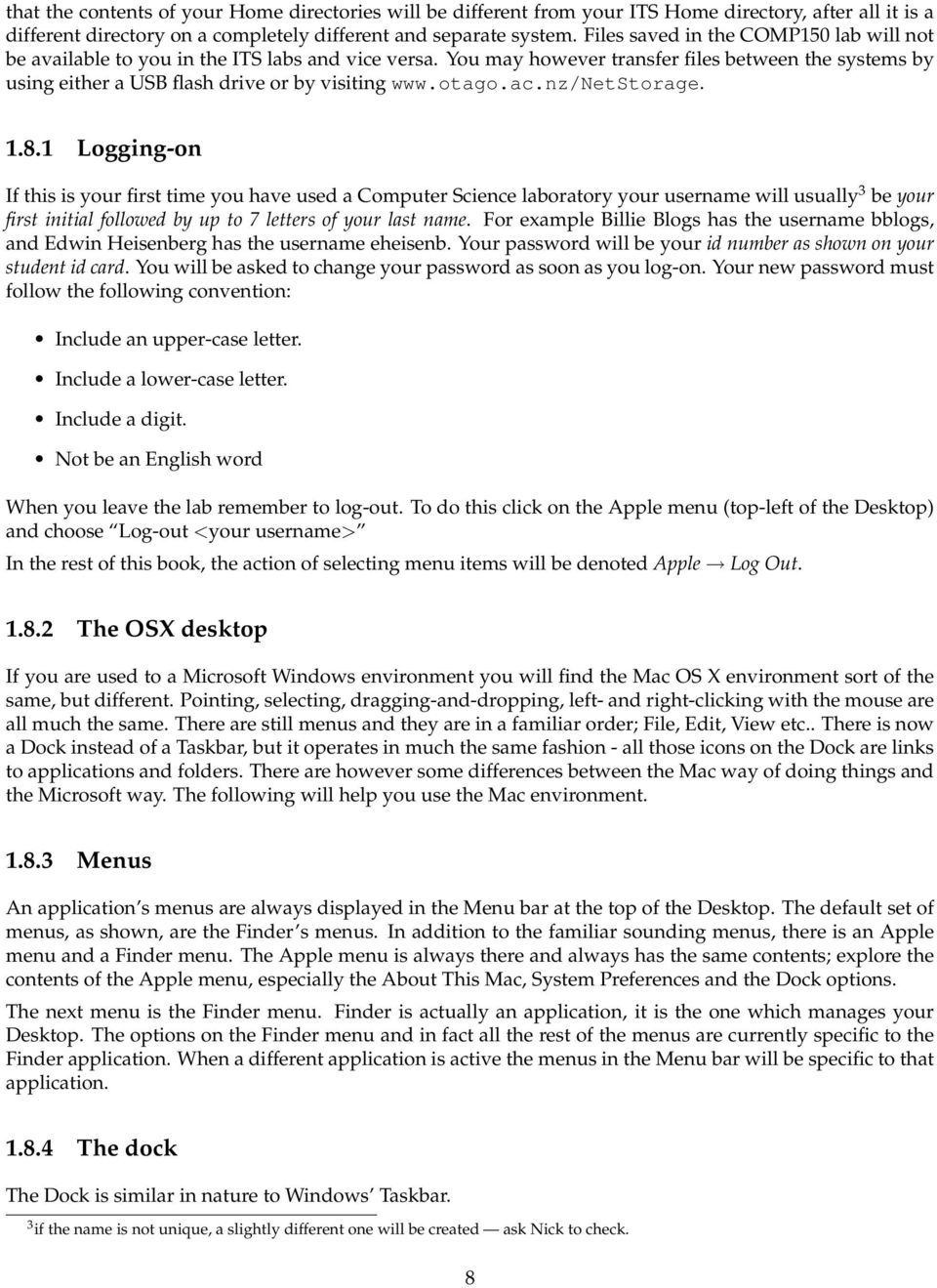
20 The left part of the Dock contains shortcuts (aliases in Mac-talk) to applications. You can remove application aliases from the Dock by simply dragging them to the Desktop and releasing them. To add an application to the Dock drag its icon from the Application folder to the Dock, see below. An application that is running has a small blue/white dot beneath it. Any application that is running will appear in the Dock, even if it doesn t usually have an alias there. The right-hand side of the Dock contains the Trash and any windows or documents you have collapsed (minimised) and aliases to folders. Clicking once on an item in the Dock will do one of a number of things: If the item is an application that is not already running it will start the application. If the item is an application that is already running it will become the active application. Note that an application window may not be displayed in which case you will need to select File New or similar. If the application was hidden it will be unhidden. If the application had been collapsed it will be restored The Finder window A Finder window is similar to a Windows Explorer window, it allows you to navigate folders and drives and see and manipulate their contents. Open a new Finder window by clicking the Finder icon in the Dock, it is the left-most one, or by clicking the Desktop (to make Finder the active program) then choosing File New Finder Window. The buttons along the top (from the left) allow you to: navigate back and forth (like in a web browser), modify the view options, burn folders and files to CD and make new folders. The left column lists place, drives and locations you can navigate to and explore. The most useful locations for you will be your Home drive, the Applications folder and the LabFiles folder Your home directory Your Home directory is in fact an amount of space of the department s shared RAID array. This is where you should save your lab work, We recommend that you make folders called Lab1, Lab2 (or similar) so that you can keep your work organised. You are going to be creating a lot of files during this course, keeping them organised will make working with them much easier. Click on your Home directory in the Places list and create folders for the first few labs by making sure the Finder window is active (click on it once) and then File New Folder or by clicking the New Folder button on the Finder window or by using the shortcut Applications On a Mac, most of the GUI (Graphical User Interface) applications are installed in the Applications folder. Open a Finder window and click on the Applications folder, it is also in the Places group. A list of all the applications installed on your machine is displayed. 10

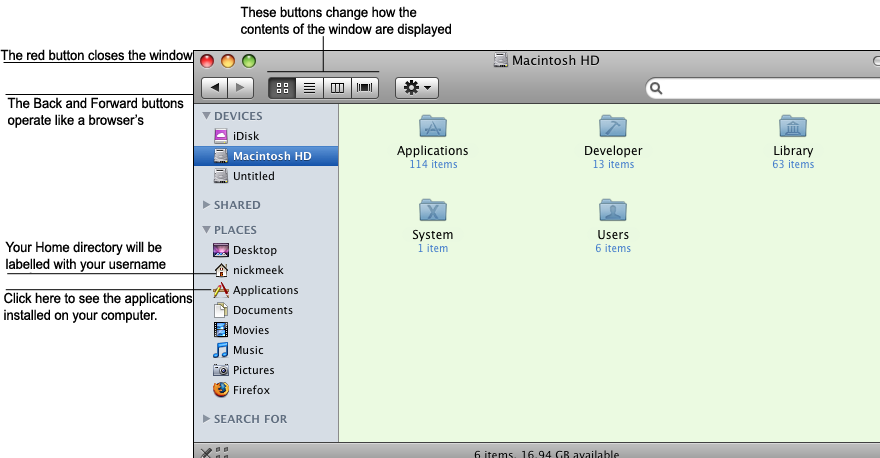
21 Figure 1.2: A Finder Window Scroll down the list until you find the Firefox application icon, drag the icon to the Dock to create an alias to the Firefox application. Scroll down further until you find the Utilities folder. Click the little triangle to expand the list. Scroll down the list until you find Terminal. Drag Terminal to the Dock to create an alias for it as well. Terminal starts a shell session. Create a shortcut to IDLE as well, it is also in the Applications folder. Remember, you can remove unwanted items from the Dock by simply dragging them to the Desktop and releasing them IDLE In COMP150 you will be using a development environment (also called an IDE - Integrated Development Environment) called IDLE. IDLE is a very simple IDE and is ideal for our purposes. Start IDLE by clicking on the IDLE shortcut icon in your Dock you created moments ago. You should see a window that looks like Figure 1.3 on page 12. By default IDLE starts with an interpreter window open. Click on the window to give it focus. Notice the menu bar changes and now contains (perversely) Python menus; this is because IDLE is a Python application. To open an editor window for writing scripts either choose File New Window or use the Command-N shortcut. Open an editor window now Getting help Demonstrators will be available to help you in the lab. However, before you call a demonstrator stop and think; is the answer to your question written in the lab book or your lecture notes? Have you tried a number 11
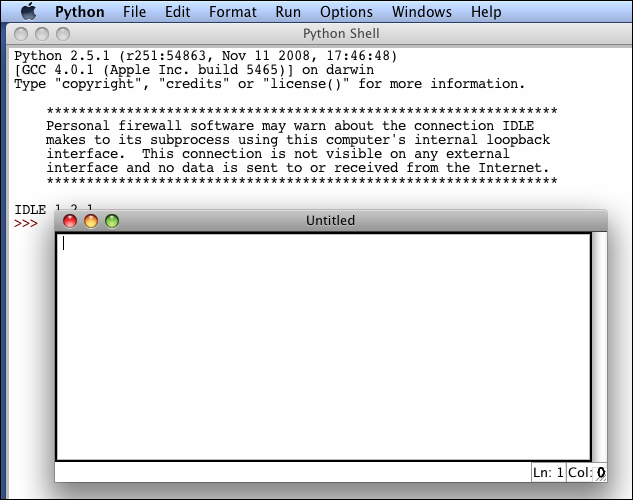
22 Figure 1.3: IDLE starts with an interpreter window open. Figure 1.4: IDLE with both interpreter and editor windows. 12
23 of different approaches? Do you know exactly what the problem is? Have you looked on the Internet?! One of the skills we want you to develop this semester is that of finding solutions yourself. However if you get really stuck please feel free to ask. On your Mac OS Desktop you will see a? icon labeled DemoCall, double-clicking on it will start the DemoCall application. Clicking on Call will place you in the queue and a demonstrator will be along shortly. While you wait continue working on the problem; if you solve it you can dequeue yourself by clicking Cancel Coursework files For some exercises in this course we will supply you with files to work with. These files can be found in coursework/comp150/coursefiles150. There should be a link to coursework on your Desktop, double click it to open the remote drive. At the start of each lab copy the appropriate folder to your Desktop or Home drive by simply clicking and dragging the appropriate folder. There is a folder for this lab. Try dragging the Lab1 folder from coursework/comp150/coursefiles150 to your Desktop now Terms requirements To establish you were at a lab, which is necessary for Terms requirements, you will need to submit at least 1 file during each lab you attend. To make this easier (and to keep the files you create during this course organised) we suggest that you create a new folder in your home directory at the start of each lab. To do this: Open a Finder window and then click on your Home directory link. Create a new folder by File New Folder. Re-name the folder with a sensible name (Lab01 for instance) by selecting it (left-click once) and then hitting Return on the keyboard and typing in the new name. Save all the files you create in this lab to that folder. When you have finished the lab exercises: Duplicate the folder by right-clicking on it and choosing Duplicate. Rename the duplicate folder with your initials and the lab number e.g. NBM Lab01 Drag the renamed folder to coursework/comp150/submit150. You might find it easier to open a new Finder window first (File New Finder Window), navigating to coursework/comp150 and then drag your <your initials> Lab01 folder to submit150. To verify that your folder arrived safely open the folder SubmissionReceipts, it is in your Home directory. Copies of files successfully submitted will appear in this folder within a few (15-20) seconds of a successful submission. If after 30 seconds the file hasn t appeared try submitting again. Ideally at the end of each lab you should submit a folder containing all the files you created during that lab. These submissions are used to establish your presence in the lab and are necessary to gain Terms. The files will not be marked or assessed but should you need to apply for special consideration due to impairment or similar during the course they will give us an indication of your progress in and commitment to the course and assist us in coming to a fair and reasonable decision. 13
24 1.9 Blackboard Many papers at Otago make use of Blackboard, an online course management tool that provides staff and students with communication and file sharing tools as well as a host of other features. COMP150 will use blackboard for making class announcements and for the discussion boards. You should check Blackboard every time you come to the lab. To log-on to Blackboard: Start a browser and navigate to Log-on (using your University username and password). Locate the MyPapers group of links and click on the COMP150 link. You will be taken to the Announcements page. This is where all important course-related messages will be posted. Read the announcements. Examine the options you have on the left. Click on the Discussion Board link. We have created two Discussion Boards, one for questions about Python or any other part of the course, the other for any suggestions or requests you have for COMP150. There is at least one posting on each board, read them and reply as appropriate. When you have finished log out from Blackboard Laboratory exercises Remember: you should submit all files you create during a lab at the end of that lab 1. Write an English sentence with understandable semantics but incorrect syntax. zend 2. Write another sentence which has correct syntax but has semantic errors. zend 14
25 3. If you haven t already done so, start IDLE. Type at the prompt and then hit return. The symbols + and - stand for plus and minus as they do in mathematics. The asterisk (*) is the symbol for multiplication, and ** is the symbol for exponentiation (so 5**2 means 5 to the power of 2). Python evaluates any expression you type in, prints the result, and then prints another prompt. Experiment by entering different expressions and recording what is printed by the Python interpreter. zend What happens if you use / (the division operator)? Are the results what you expect? Explain. 4 zend 4. Type print hello at the prompt. Python executes this statement, which has the effect of printing the letters h-e-l-l-o. Notice that the quotation marks that you used to enclose the string are not part of the output. Now type print "hello" and describe and explain your result. zend 4 This is another thing that has changed with Python The / operator returns a float (a number with a fractional part) in Python Floats will be explained in more detail later in the course 15
26 5. Start an editor in IDLE (File New Window, or Command-N) and type print hello into the editor window, which is currently called Untitled. Save your script (File Save, or Command-S) by first changing to your home directory in the Save Dialog Box, then creating a New Folder called Lab1, and finally changing the name untitled to hello.py before clicking Save. Once you have done this run it by either pushing F5 or clicking Run Run Module. Write down and explain what happens in the prompt window below: zend 6. Type print cheese without the quotation marks into the interpreter. The output will look something like this: Traceback (most recent call last): File "<pyshell#7>", line 1, in <module> cheese NameError: name cheese is not defined This is a run-time error; specifically, it is a NameError, and even more specifically, it is an error because the name cheese is not defined. If you don t know what that means yet, you will soon. 7. Still in the interpreter, type 1 2 (with a space in between) and then hit return. Python tries to evaluate the expression, but it can t because the expression is not syntactically legal. Instead, it prints the error message: SyntaxError: invalid syntax In many cases, Python indicates where the syntax error occurred, but it is not always right, and it doesn t give you much information about what is wrong. So, for the most part, the burden is on you to learn the syntax rules. In this case, Python is complaining because there is no operator between the numbers. Write down three more examples of statements that will produce error messages when you enter them at the Python prompt. Explain why each example is not valid Python syntax. 1) 2) 3) zend 16
27 8. Type This is a test... at the prompt and hit enter. Record what happens. zend 9. Now open a new file (File New Window, or Command-N) and type This is a test... into the Untitled document. Save your file in the Lab1 folder (you can quickly change to it using the drop down list) as test.py. What happens when you run this script (Run Run Module, or F5)? zend Now change the contents to: print 'This is a test...' save and run it again. What happened this time? zend Whenever an expression is typed at the Python prompt, it is evaluated and the result is printed on the line below. This is a test... is an expression, which evaluates to This is a test... (just like the expression 42 evaluates to 42). In a script, however, evaluations of expressions are not sent to the program output, so it is necessary to explicitly print it. Remember to submit a folder containing the files you created during this lab. 17
28 18
29 Lecture 2 Variables, expressions and statements 2.1 Values and types A value is one of the fundamental things like a letter or a number that a program manipulates. The values we have seen so far are 2 (the result when we added 1 + 1), and Hello, World!. These values belong to different types: 2 is an integer, and Hello, World! is a string. You (and the interpreter) can identify strings because they are enclosed in quotation marks. The print statement also works for integers. >>> print 4 4 If you are not sure what type a value has, the interpreter can tell you. >>> type("hello, World!") <type str > >>> type(17) <type int > Strings belong to the type str and integers belong to the type int. Less obviously, numbers with a decimal point belong to a type called float, because these numbers are represented in a format called floating-point. >>> type(3.2) <type float > What about values like 17 and 3.2? They look like numbers, but they are in quotation marks like strings. >>> type("17") <type str > >>> type("3.2") <type str > 19
30 They re strings. Strings in Python can be enclosed in either single quotes ( ) or double quotes ( ): >>> type( This is a string. ) <type str > >>> type("and so is this.") <type str > Double quoted strings can contain single quotes inside them, as in "What s your name?", and single quoted strings can have double quotes inside them, as in The cat said "Meow!". When you type a large integer, you might be tempted to use commas between groups of three digits, as in 1,000,000. This is not a legal integer in Python, but it is legal: >>> print 1,000, Well, that s not what we expected at all! Python interprets 1,000,000 as a list of three items to be printed. So remember not to put commas in your integers. 2.2 Variables One of the most powerful features of a programming language is the ability to manipulate variables. A variable is a name that refers to a value. The assignment statement creates new variables and assigns them values: >>> message = "What s your name?" >>> n = 17 >>> pi = This example makes three assignments. The first assigns the string "What s your name?" to a new variable named message. The second assigns the integer 17 to n, and the third assigns the floating-point number to pi. The assignment operator, =, should not be confused with an equals sign (even though it uses the same character). Assignment operators link a name, on the left hand side of the operator, with a value, on the right hand side. This is why you will get an error if you enter: >>> 17 = n A common way to represent variables on paper is to write the name with an arrow pointing to the variable s value. This kind of figure is called a state diagram because it shows what state each of the variables is in (think of it as the variable s state of mind). This diagram shows the result of the assignment statements: message n pi "What s your name?"
31 The print statement also works with variables. >>> print message What s your name? >>> print n 17 >>> print pi In each case the result is the value of the variable. Variables also have types; again, we can ask the interpreter what they are. >>> type(message) <type str > >>> type(n) <type int > >>> type(pi) <type float > The type of a variable is the type (or kind) of value it refers to. 2.3 Variable names and keywords Programmers generally choose names for their variables that are meaningful they document what the variable is used for. Variable names can be arbitrarily long. They can contain both letters and numbers, but they have to begin with a letter. Although it is legal to use uppercase letters, by convention we don t. If you do, remember that case matters. Bruce and bruce are different variables. The underscore character ( ) can appear in a name. It is often used in names with multiple words, such as my name or price of tea in china. If you give a variable an illegal name, you get a syntax error: >>> 76trombones = "big parade" SyntaxError: invalid syntax >>> more$ = SyntaxError: invalid syntax >>> class = "COMP150" SyntaxError: invalid syntax 76trombones is illegal because it does not begin with a letter. more$ is illegal because it contains an illegal character, the dollar sign. But what s wrong with class? It turns out that class is one of the Python keywords. Keywords define the language s rules and structure, and they cannot be used as variable names. Python has thirty-one keywords: and del from not while as elif global or with assert else if pass yield break except import print class exec in raise continue finally is return def for lambda try You might want to keep this list handy. If the interpreter complains about one of your variable names and you don t know why, see if it is on this list. 21
32 2.4 Statements A statement is an instruction that the Python interpreter can execute. We have seen two kinds of statements: print and assignment. When you type a statement on the command line, Python executes it and displays the result, if there is one. The result of a print statement is a value. Assignment statements don t produce a visible result. A script usually contains a sequence of statements. If there is more than one statement, the results appear one at a time as the statements execute. For example, the script print 1 x = 2 print x produces the output 1 2 Again, the assignment statement produces no output. 2.5 Evaluating expressions An expression is a combination of values, variables, and operators. If you type an expression on the command line, the interpreter evaluates it and displays the result: >>> The evaluation of an expression produces a value, which is why expressions can appear on the right hand side of assignment statements. A value all by itself is a simple expression, and so is a variable. >>> >>> x 2 Confusingly, evaluating an expression is not quite the same thing as printing a value. >>> message = "What s your name?" >>> message "What s your name?" >>> print message What s your name? When the Python shell displays the value of an expression, it uses the same format you would use to enter a value. In the case of strings, that means that it includes the quotation marks. But the print statement prints the value of the expression, which in this case is the contents of the string. In a script, an expression all by itself is a legal statement, but it doesn t do anything. The script "Hello, World!"
33 produces no output at all. How would you change the script to display the values of these four expressions? 2.6 Operators and operands Operators are special symbols that represent computations like addition and multiplication. The values the operator uses are called operands. The following are all legal Python expressions whose meaning is more or less clear: hour - 1 hour * 60 + minute minute / 60 5 ** 2 (5 + 9) * (15-7) The symbols +, -, *, /, have the usual mathematical meanings. The symbol, **, is the exponentiation operator. The statement, 5 ** 2, means 5 to the power of 2, or 5 squared in this case. Python also uses parentheses for grouping, so we can force operations to be done in a certain order just like we can in mathematics. When a variable name appears in the place of an operand, it is replaced with its value before the operation is performed. Addition, subtraction, multiplication, and exponentiation all do what you expect, but you might be surprised by division. The following operation has an unexpected result: >>> minute = 59 >>> minute / 60 0 The value of minute is 59, and 59 divided by 60 is , not 0. The reason for the discrepancy is that Python is performing integer division 1. When both of the operands are integers, the result must also be an integer, and by convention, integer division always rounds down, even in cases like this where the next integer is very close. A possible solution to this problem is to calculate a percentage rather than a fraction: >>> minute * 100 / Again the result is rounded down, but at least now the answer is approximately correct. Another alternative is to use floating-point division. We ll see in Lecture 3.2 how to convert integer values and variables to floating-point values. 2.7 The modulus operator The modulus operator works on integers (and integer expressions) and floats and yields the remainder when the first operand is divided by the second. In Python, the modulus operator is a percent sign (%). The syntax is the same as for other operators: 1 In Python 3000, floating point division is used 23
34 >>> quotient = 7 / 3 >>> print quotient 2 >>> remainder = 7 % 3 >>> print remainder 1 So 7 divided by 3 is 2 with 1 left over. The modulus operator turns out to be surprisingly useful. For example, you can check whether one number is divisible by another if x % y is zero, then x is divisible by y. Also, you can extract the right-most digit or digits from a number. For example, x % 10 yields the right-most digit of x (in base 10). Similarly x % 100 yields the last two digits. 2.8 Order of operations When more than one operator appears in an expression, the order of evaluation depends on the rules of precedence. Python follows the same precedence rules for its mathematical operators that mathematics does. The acronym PEMDAS is a useful way to remember the order of operations: 1. Parentheses have the highest precedence and can be used to force an expression to evaluate in the order you want. Since expressions in parentheses are evaluated first, 2*(3-1) is 4, and (1+1)**(5-2) is 8. You can also use parentheses to make an expression easier to read, as in (minute*100)/60, even though it doesn t change the result. 2. Exponentiation has the next highest precedence, so 2**1+1 is 3 and not 4, and 3*1**3 is 3 and not Multiplication and Division have the same precedence, which is higher than Addition and Subtraction, which also have the same precedence. So 2*3-1 yields 5 rather than 4, and 2/3-1 is -1, not 1 (remember that in integer division, 2/3=0). 4. Operators with the same precedence are evaluated from left to right. So in the expression minute*100/60, the multiplication happens first, yielding 5900/60, which in turn yields 98. If the operations had been evaluated from right to left, the result would have been 59*1, which is 59, which is wrong. If in doubt, use parentheses. 2.9 Operations on strings In general, you cannot perform mathematical operations on strings, even if the strings look like numbers. The following are illegal (assuming that message has type string): message - 1 "Hello" / 123 message * "Hello" "15" + 2 Interestingly, the + operator does work with strings, although it does not do exactly what you might expect. For strings, the + operator represents concatenation, which means joining the two operands by linking them end-to-end. For example: 24
35 fruit = "banana" baked_good = " nut bread" print fruit + baked_good The output of this program is banana nut bread. The space before the word nut is part of the string, and is necessary to produce the space between the concatenated strings. The * operator also works on strings; it performs repetition. For example, Fun *3 is FunFunFun. One of the operands has to be a string; the other has to be an integer. On one hand, this interpretation of + and * makes sense by analogy with addition and multiplication. Just as 4*3 is equivalent to 4+4+4, we expect Fun *3 to be the same as Fun + Fun + Fun, and it is. On the other hand, there is a significant way in which string concatenation and repetition are different from integer addition and multiplication. Can you think of a property that addition and multiplication have that string concatenation and repetition do not? 2.10 Glossary value: A number or string (or other thing to be named later) that can be stored in a variable or computed in an expression. type: A set of values. The type of a value determines how it can be used in expressions. So far, the types you have seen are integers (type int), floating-point numbers (type float), and strings (type string). type function: A function which returns the type of the given argument, for example: >>> type("hello, world!") <type 'str'> >>> type(17) <type 'int'> int: A Python data type that holds positive and negative whole numbers. str: A Python data type that holds a string of characters. float: A Python data type which stores floating-point numbers. Floating-point numbers are stored internally in two parts: a base and an exponent. When printed in the standard format, they look like decimal numbers. Beware of rounding errors when you use floats, and remember that they are only approximate values. variable: A name that refers to a value. assignment statement: A statement that assigns a value to a name (variable). To the left of the assignment operator, =, is a name. To the right of the assignment operator is an expression which is evaluated by the Python interpreter and then assigned to the name. The difference between the left and right hand sides of the assignment statement is often confusing to new programmers. In the following assignment: n = n + 1 n plays a very different role on each side of the =. On the right it is a value and makes up part of the expression which will be evaluated by the Python interpreter before assigning it to the name on the left. 25
36 assignment operator: = is Python s assignment operator, which should not be confused with the mathematical comparison operator using the same symbol. state diagram: A graphical representation of a set of variables and the values to which they refer. variable name: A name given to a variable. Variable names in Python consist of a sequence of letters (a..z, A..Z, and ) and digits (0..9) that begins with a letter. In best programming practice, variable names should be chosen so that they describe their use in the program, making the program self documenting. keyword: A reserved word that is used by the compiler to parse a program; you cannot use keywords like if, def, and while as variable names. statement: An instruction that the Python interpreter can execute. Examples of statements include the assignment statement and the print statement. expression: A combination of variables, operators, and values that represents a single result value. evaluate: To simplify an expression by performing the operations in order to yield a single value. operator: A special symbol that represents a simple computation like addition, multiplication, or string concatenation. operand: One of the values on which an operator operates. modulus operator: An operator, denoted with a percent sign (%), that works on integers and floats and yields the remainder when one number is divided by another. integer division: An operation that divides one integer by another and yields an integer. Integer division yields only the whole number of times that the numerator is divisible by the denominator and discards any remainder. rules of precedence: The set of rules governing the order in which expressions involving multiple operators and operands are evaluated. concatenate: To join two operands end-to-end. composition: The ability to combine simple expressions and statements into compound statements and expressions in order to represent complex computations concisely Laboratory exercises 1. Create a Folder in your Home Directory called Lab2 to store the files you create during this lab. 2. Record what happens when you print an assignment statement: >>> print n = 7 zend How about this? >>> print
37 zend Or this? >>> print 5.2, "this", 4-2, "that", 5/2.0 zend Can you think a general rule for what can follow the print statement? zend 3. Take the sentence: All work and no play makes Jack a dull boy. Show how you would use the interpreter to store each word in a separate variable, then print out the sentence on one line using print. zend Check that your answer is correct by entering it into the interpreter. 4. Repeat exercise 3, this time using a script. 5. Add parentheses to the expression 6*1-2 to change its value from 4 to -6. zend 6. Try to evaluate the following numerical expressions in your head, and put the answer beside each one, then use the Python interpreter to check your results: 27
38 >>> 5 % 2 >>> 9 % 5 >>> 15 % 12 >>> 12 % 15 >>> 6 % 6 >>> 0 % 7 >>> 7 % 0 What happened with the last example? Why? If you were able to correctly anticipate the computer s response in all but the last one, it is time to move on. If not, take time now to make up examples of your own. Explore the modulus operator until you are confident you understand how it works. 7. Start the Python interpreter and enter bruce + 4 at the prompt. This will give you an error: NameError: name bruce is not defined Assign a value to bruce so that bruce + 4 evaluates to Since this lab is reasonably short we have provided you with a little game to play that can help you practice thinking in a problem solving way. Look on the whiteboard for instructions on how to begin the game. Work your way through the first three levels. Remember to submit a folder containing the files you created during this lab. 28
39 Lecture 3 Python built-ins (batteries included) Many common tasks come up time and time again when programming. Instead of requiring you to constantly reinvent the wheel, Python has a number of built-in features which you can use. Including so much ready to use code in Python is sometimes referred to as a batteries included philosophy. Python comes with just under fifty predefined functions (of which we ll be using only about a dozen) and the simplest way to use this prewritten code is via function calls Function calls The syntax of a function call is simply FUNCTIONNAME(ARGUMENTS) Not all functions take an argument, and some take more than one (in which case they are separated by commas). You have already seen an example of a function call: >>> type("hello, World!") <type str > >>> type(17) <type int > The name of the function is type, and it displays the type of a value or variable. The value or variable, which is called the argument of the function, has to be enclosed in parentheses. It is common to say that a function takes an argument and returns a result. The result is called the return value. Instead of printing the return value we could assign it to a variable: >>> result = type(17) >>> print result <type int > Another useful function is len. It takes a sequence as an argument and returns its length. For a string this is the number of characters it contains. 1 Not everything that appears to be a function call actually is, but you don t need to worry about that in this course. For the sake of simplicity we ll say that everything that looks like a function is a function. 29
40 >>> my_str = Hello world >>> len(my_str) 11 The len function can only be used on sequences. Trying to use it on a number, for example, results in an error. >>> len(3) TypeError: object of type int has no len() 3.2 Type conversion Each Python type comes with a built-in function that attempts to convert values of another type into that type. The int(argument) function, for example, takes any value and converts it to an integer, if possible, or complains otherwise: >>> int("32") 32 >>> int("hello") ValueError: invalid literal for int() with base 10: Hello The int function can also convert floating-point values to integers, but note that it truncates the fractional part: >>> int(-2.3) -2 >>> int( ) 3 >>> int("42") 42 >>> int(1.0) 1 The float(argument) function converts integers and strings to floating-point numbers: >>> float(32) 32.0 >>> float(" ") >>> float(1) 1.0 It may seem odd that Python distinguishes the integer value 1 from the floating-point value 1.0. They may represent the same number, but they belong to different types. The reason is that they are represented differently inside the computer. 30
41 The str(argument) function converts any argument given to it to type string: >>> str(32) 32 >>> str( ) >>> str(true) True >>> str(true) NameError: name true is not defined The str(argument) function will work with any value and convert it into a string. Note: True is a predefined value in Python; true is not. We will see more of True in lecture Input Remember at the start of the course we said that programs are made up of instructions which only perform a handful of operations 2. The first two of these operations were input and output. Input involves getting data from the keyboard, a file, or some other device. Output is concerned with displaying data on the screen or sending data to a file or other device. So we have done quite a bit of displaying data on the screen using the print command, which fits into the category of output. We are now going to look at one of the most basic input tasks: getting keyboard input. There are two built-in functions in Python for getting keyboard input, input and raw input: name = raw_input("please enter your name: ") print name num = input("enter a numerical expression: ") print num A sample run of this script would look something like this: $ python tryinput.py Please enter your name: Arthur, King of the Britons Arthur, King of the Britons Enter a numerical expression: 7 * 3 21 Each of these functions allows a prompt to be given as an argument to the function between the parentheses. The result returned by raw input is always a string. But the result returned from input can be any valid Python type. 2 See the list back on page 3 to refresh your memory. 31
42 >>> n = raw_input() hello >>> n hello >>> type(n) <type str > >>> n = input() >>> n 3.5 >>> type(n) <type float > 3.4 Methods In addition to the functions which we have seen so far there is also a special type of function which we call a method. You can think of a method as a function which is attached to a certain type of variable (e.g. a string). When calling a function you just need the name of the function followed by parentheses (possibly with some arguments inside). In contrast a method also needs a variable (also called an object) to be called upon. The syntax that is used is the variable (or object) name followed by a dot followed by the name of the method along with possibly some arguments in parentheses like this: VARIABLE.METHODNAME(ARGUMENTS) You can see that it looks just like a function call except for the variable name and the dot at the start. Compare how the len function and the upper method are used below. >>> my_str = hello world >>> len(my_str) 11 >>> my_str.upper() HELLO WORLD The len function returns the length of the sequence which is given as an argument. The upper method returns a new string which is the same as the string that it is called upon except that each character has been converted to uppercase. In each case the original string remains unchanged. An example of a method which needs an argument to operate on is the count method. >>> my_str = the quick brown fox jumps over the lazy dog. >>> my_str.count( the ) 2 >>> my_str.count( hello ) 0 >>> my_str.count( e ) 3 32
43 The count method returns the number of times the string given as an argument occurs within the string that it is called upon. But what about the following: >>> ms = "ahaha" >>> ms.count("aha") 3.5 Examining things A good way to examine a type, to see what methods are available, is by using the dir function. Here we use dir on str (the string type). >>> dir(str) [ add, class, contains, delattr, doc, eq, ge, getattribute, getitem, getnewargs, getslice, gt, hash, init, le, len, lt, mod, mul, ne, new, reduce, reduce_ex, repr, rmod, rmul, setattr, str, capitalize, center, count, decode, encode, endswith, expandtabs, find, index, isalnum, isalpha, isdigit, islower, isspace, istitle, isupper, join, ljust, lower, lstrip, partition, replace, rfind, rindex, rjust, rpartition, rsplit, rstrip, split, splitlines, startswith, strip, swapcase, title, translate, upper, zfill ] This returns a list containing the names of all of the methods that can be called on a given type of object. A list starts with an opening bracket, ends with a closing bracket, and contains items which are separated by commas. Each item in the above list is a string. Don t worry about all of the ones at the start which begin and end with two underscores, we will touch on some of them later in the course. For now just look at the other method names which are in this list. The two string methods which we have used so far, count and upper, are both there. You can get more detailed information about all of these methods using the help function. >>> help(str) Try entering the above command which will open the online help system to examine the string type. You can scroll up and down with the arrow keys or space bar. Press q to exit the help screen. You can just get help on a particular method, e.g. upper, like so: >>> help(str.upper) You can enter the online help utility, which contains all sorts of information, by using the help function without giving it any arguments. >>> help() 3.6 More types Python has a number of built-in types, in addition to those which you have already seen, which are simple to create and manipulate. Table 3.1 lists Python s most commonly used built-in types. 33
44 Type Examples Boolean passed = True, finished = False Dictionary extns = { Brendan : 8588, Nick : 5242, Iain : 8584} File somefile = open( input.txt ) Float pi = 3.14, average = Int age = 21, height = 167 List oddnums = [1, 3, 5, seven, 9] String breakfast = "weetbix", lunch = filled roll Tuple even_nums = (2, four, 6, 8) Table 3.1: Built-in types Each of these types will be covered in more depth in later chapters, but they are so useful that we will introduce some of their features earlier on. They make it possible to write simple programs fast. 3.7 Strings and lists One of the most useful methods that you can use with strings is called split. It returns a list which is made by splitting the string into individual words. By default, any block of consecutive whitespace characters (space, tab or newline) is considered a word boundary. >>> line = the large black cat sat on a large red mat >>> mylist = line.split() >>> mylist [ the, large, black, cat, sat, on, a, large, red, mat ] That was pretty easy. Now that we have a list containing each individual word there are a number of things we might like to do with it. For example, we might like to count the number of times a given word occurs in the list. This is obviously trivial to do with a list this small, but if our original string contained the entire contents of a book having an automated way of doing it would save a lot of time. It turns out that lists have a count method which will give us the number of times a given item is found in it. >>> mylist.count( cat ) 1 >>> mylist.count( large ) 2 >>> mylist.count( dog ) 0 Another useful method which lists have is sort >>> mylist [ the, large, black, cat, sat, on, a, large, red, mat ] >>> mylist.sort() >>> mylist [ a, black, cat, large, large, mat, on, red, sat, the ] 34
45 3.8 Glossary function call: A statement that executes a function. It consists of the name of the function followed by a list of arguments enclosed in parentheses. arguments: A comma separated list of values or variables which are placed between the parentheses of a function being called. len function: A function which returns the number of items in the sequence given as an argument. >>> len([2, 3, 5, 7]) 4 type conversion: An explicit statement that takes a value of one type and computes a corresponding value of another type. int function: Converts a string or number to an integer, if possible. >>> int("12") 12 float function: Converts a string or number to a floating point number, if possible. str function: Returns a string representation of the given argument. raw input function: Reads a string from standard input. Takes an optional prompt argument. input function: Reads a string from standard input, and attempts to evaluate it as python code. method: A kind of function that uses a slightly different syntax and is called on an object. dir function: Returns a list of the attributes (such as methods) of a given object. help function: Shows information about the given argument. upper method: Returns a copy of the string argument converted to uppercase. >>> my_str = "hello" >>> my_str.upper() 'HELLO' count method: A list method which returns the number of occurrences of the given argument. split method: A method which returns a list of the words in the given string. sort method: A method which sorts items contained in a list. 3.9 Laboratory exercises 1. Can any type of variable be converted to any other type of variable in Python? Explain why or why not. 35
46 zend 2. The difference between input and raw input is that input evaluates the input string and raw input does not. Try the following in the interpreter and record what happens: >>> x = input() 3.14 >>> type(x) zend >>> x = raw_input() 3.14 >>> type(x) zend >>> x = input() The cat said "Meow!" >>> x zend What happens if you try the example above without the quotation marks? >>> x = input() The cat said "Meow!" >>> x zend >>> x = raw_input() The cat said "Meow!" >>> x 36
47 zend Describe and explain each result. 3. What is the difference between calling a function and a method? zend 4. What function returns a list of methods belonging to a given type? zend 5. What do the following string methods do? lower zend count zend replace zend 6. What function do you use to get information about individual methods or all of the methods belonging to a type? zend 7. Extension Exercise: Write instructions to perform each of the steps below in the space provided. (a) Create a string containing at least five words and store it in a variable. 37
48 (b) Print out the string. (c) Convert the string to a list of words using the string split method. (d) Sort the list into reverse alphabetical order using some of the list methods (you might need to use dir(list) or help(list) to find appropriate methods). (e) Print out the sorted, reversed list of words. zend Once you have written the statements in the space above, then type them into a script and run it to check that it works. 8. If you have time, try to complete up to level five on the game you played during the previous lab. Remember to submit a folder containing the files you created during this lab. 38
49 Lecture 4 Functions: part Composing expressions So far, we have looked at the elements of a program variables, expressions, and statements in isolation, without talking about how to combine them. One of the most useful features of programming languages is their ability to take small building blocks and compose them. For example, we know how to add numbers and we know how to print; it turns out we can do both at the same time: >>> print In reality, the addition has to happen before the printing, so the actions aren t actually happening at the same time. The point is that any expression involving numbers, strings, and variables can be used inside a print statement. You ve already seen an example of this: print "Number of minutes since midnight: ", hour * 60 + minute You can also put arbitrary expressions on the right-hand side of an assignment statement: percentage = (minute * 100) / 60 This ability may not seem impressive now, but you will see other examples where composition makes it possible to express complex computations neatly and concisely. Warning: There are limits on where you can use certain expressions. For example, the left-hand side of an assignment statement has to be a variable name, not an expression. So, the following is illegal: minute+1 = hour. 4.2 Function definitions and use In the context of programming, a function is a named sequence of statements that performs a desired operation. This operation is specified in a function definition. In Python, the syntax for a function definition is: def NAME( LIST OF PARAMETERS ): STATEMENTS 39
50 You can make up any names you want for the functions you create, except that you can t use a name that is a Python keyword. The list of parameters specifies what information, if any, you have to provide in order to use the new function. There can be any number of statements inside the function, but they have to be indented from the def. In the examples in this book, we will use the standard indentation of four spaces. IDLE automatically indents compound statements for you. Function definitions are the first of several compound statements we will see, all of which have the same pattern: 1. A header, which begins with a keyword and ends with a colon. 2. A body consisting of one or more Python statements, each indented the same amount 4 spaces is the Python standard from the header. In a function definition, the keyword in the header is def, which is followed by the name of the function and a list of parameters enclosed in parentheses. The parameter list may be empty, or it may contain any number of parameters. In either case, the parentheses are required. The first couple of functions we are going to write have no parameters, so the syntax looks like this: def new_line(): print This function is named new line. The empty parentheses indicate that it has no parameters. Its body contains only a single statement, which outputs a newline character. (That s what happens when you use a print command without any arguments.) Defining a new function does not make the function run. To do that we need a function call. Function calls contain the name of the function being executed followed by a list of values, called arguments, which are assigned to the parameters in the function definition. Our first examples have an empty parameter list, so the function calls do not take any arguments. Notice, however, that the parentheses are required in the function call : print "First Line." new_line() print "Second Line." The output of this program is: First line. Second line. The extra space between the two lines is a result of the new line() function call. What if we wanted more space between the lines? We could call the same function repeatedly: print "First Line." new_line() new_line() new_line() print "Second Line." Or we could write a new function named three lines that prints three new lines: 40
51 def three_lines(): new_line() new_line() new_line() print "First Line." three_lines() print "Second Line." This function contains three statements, all of which are indented by four spaces. Since the next statement is not indented, Python knows that it is not part of the function. You should notice a few things about this program: You can call the same procedure repeatedly. In fact, it is quite common and useful to do so. You can have one function call another function; in this case three lines calls new line. So far, it may not be clear why it is worth the trouble to create all of these new functions. Actually, there are a lot of reasons, but this example demonstrates two: 1. Creating a new function gives you an opportunity to name a group of statements. Functions can simplify a program by hiding a complex computation behind a single command and by using English words in place of arcane code. 2. Creating a new function can make a program smaller by eliminating repetitive code. For example, a short way to print nine consecutive new lines is to call three lines three times. Pulling together the code fragments from the previous section into a script named functions.py, the whole program looks like this: def new_line(): print def three_lines(): new_line() new_line() new_line() print "First Line." three_lines() print "Second Line." This program contains two function definitions: new line and three lines. Function definitions get executed just like other statements, but the effect is to create the new function. The statements inside the function do not get executed until the function is called, and the function definition generates no output. As you might expect, you have to create a function before you can execute it. In other words, the function definition has to be executed before the first time it is called. 4.3 Flow of execution In order to ensure that a function is defined before its first use, you have to know the order in which statements are executed, which is called the flow of execution. Execution always begins at the first statement 41
52 of the program. Statements are executed one at a time, in order from top to bottom. Function definitions do not alter the flow of execution of the program, but remember that statements inside the function are not executed until the function is called. Although it is not common, you can define one function inside another. In this case, the inner definition isn t executed until the outer function is called. Function calls are like a detour in the flow of execution. Instead of going to the next statement, the flow jumps to the first line of the called function, executes all the statements there, and then comes back to pick up where it left off. That sounds simple enough, until you remember that one function can call another. While in the middle of one function, the program might have to execute the statements in another function. But while executing that new function, the program might have to execute yet another function! Fortunately, Python is adept at keeping track of where it is, so each time a function completes, the program picks up where it left off in the function that called it. When it gets to the end of the program, it terminates. What s the moral of this sordid tale? When you read a program, don t read from top to bottom. Instead, follow the flow of execution. 4.4 Parameters and arguments Most functions require arguments, values that control how the function does its job. For example, if you want to find the absolute value of a number, you have to indicate what the number is. Python has a built-in function for computing the absolute value: >>> abs(5) 5 >>> abs(-5) 5 In this example, the arguments to the abs function are 5 and -5. Some functions take more than one argument. For example the built-in function pow takes two arguments, the base and the exponent. Inside the function, the values that are passed get assigned to variables called parameters. >>> pow(2, 3) 8 >>> pow(7, 4) 2401 Another built-in function that takes more than one argument is max. >>> max(7, 11) 11 >>> max(4, 1, 17, 2, 12) 17 >>> max(3*11, 5**3, 512-9, 1024**0) 503 The function max can be sent any number of arguments, separated by commas, and will return the maximum value sent. The arguments can be either simple values or expressions. In the last example, 503 is returned, since it is larger than 33, 125, and 1. 42
53 Here is an example of a user-defined function that has a parameter: def print_twice(bruce): print bruce, bruce This function takes a single argument and assigns it to the parameter named bruce. The value of the parameter (at this point we have no idea what it will be) is printed twice, followed by a newline. The name bruce was chosen to suggest that the name you give a parameter is up to you, but in general, you want to choose something more illustrative than bruce. In a function call, the value of the argument is assigned to the corresponding parameter in the function definition. In effect, it is as if bruce = Spam is executed when print twice( Spam ) is called; bruce = 5 is executed when print twice(5) is called; and bruce = is executed when print twice( ) is called. Any type of argument that can be printed can be sent to print twice. In the first function call, the argument is a string. In the second, it s an integer. In the third, it s a float. As with built-in functions, we can use an expression as an argument for print twice: >>> print_twice('spam'*4) SpamSpamSpamSpam SpamSpamSpamSpam Spam *4 is first evaluated to SpamSpamSpamSpam, which is then passed as an argument to print twice. 4.5 Function composition Just as with mathematical functions, Python functions can be composed, meaning that you use the result of one function as the input to another. >>> print_twice(abs(-7)) 7 7 >>> print_twice(max(3, 1, abs(-11), 7)) In the first example, abs(-7) evaluates to 7, which then becomes the argument to print twice. In the second example we have two levels of composition, since abs(-11) is first evaluated to 11 before max(3, 1, 11, 7) is evaluated to 11 and print twice(11) then displays the result. We can also use a variable as an argument: >>> michael = 'Eric, the half a bee.' >>> print_twice(michael) Eric, the half a bee. Eric, the half a bee. Notice something very important here. The name of the variable we pass as an argument (michael) has nothing to do with the name of the parameter (bruce). It doesn t matter what the value was called back home (in the caller); here in print twice, we call everybody bruce. 4.6 Glossary function: A named sequence of statements that performs some useful operation. Functions may or may not take parameters and may or may not produce a result. 43
54 function definition: A statement that creates a new function, specifying its name, parameters, and the statements it executes. compound statement: A statement that consists of two parts: 1. header - which begins with a keyword determining the statement type, and ends with a colon. 2. body - containing one or more statements indented the same amount from the header. The syntax of a compound statement looks like this: keyword expression : statement statement... header: The first part of a compound statement. Headers begin with a keyword and end with a colon (:) body: The second part of a compound statement. The body consists of a sequence of statements all indented the same amount from the beginning of the header. The standard amount of indentation used within the Python community is 4 spaces. flow of execution: The order in which statements are executed during a program run. parameter: A name used inside a function to refer to the value passed as an argument. argument: A value provided to a function when the function is called. This value is assigned to the corresponding parameter in the function. abs function: Returns the absolute value of the argument. pow function: Returns the first argument raised to the power of the second one, equivalent to x**y. max function: Returns the largest argument (if given more than one), or the largest item in a sequence (if given a single sequence). >>> max(3, 8, 2, 1) 8 >>> max([2, 0, 9, 4]) 9 function composition: Using the output from one function call as the input to another. 4.7 Laboratory exercises 1. Using IDLE, create a Python script named functions.py. Type the definition of the function new line from the lecture at the top of the file, and then add the definition of the function three lines below it. Run the program (it won t seem to do anything), and then change to the interpreter window and call three lines to check that it works as expected. 2. Add a function to the file called nine lines that uses three lines to print nine blank lines. Now add a function named clear screen that prints out forty blank lines. The last line of your program should be a call to clear screen. 3. Move the last line of functions.py to the top of the program, so the function call to clear screen appears before the function definition. Run the program and record the error message you get. 44
55 zend 4. State a rule about function definitions and function calls which describes where they can appear relative to each other in a program? zend 5. Starting with a working version of functions.py, move the definition of new line after the definition of three lines. Record what happens when you run this program. Now move the definition of new line below a call to three lines(). Explain how this is an example of the rule you stated in the previous exercise. zend 6. One of the reasons functions are useful is that they help to avoid needless repetition. Instead of using copy and paste to duplicate the same lines of code many times in a program, we wrap the lines we want in a function and then call that function whenever we need to. Avoiding repetition also means we don t have to type the same commands over and over again. Let s say we have a list of numbers and we want to print out some information about it. >>> nums = [4, 9, 3, 17, 21, 6, 14] >>> min(nums) 3 >>> max(nums) 21 >>> sum(nums) 74 >>> float(sum(nums))/len(nums) The only new function here is sum which (not surprisingly) returns the sum of a list of numbers. If we were regularly printing out this information for different lists of numbers it would be sensible to define a function which printed out a summary of what we wanted to know. Write a function which when called like this info(nums) prints out something like this: Min: 3, Max: 21, Sum: 74, Average: Try to complete up to level seven on the game you played in the previous labs. Remember to submit a folder containing the files you created during this lab. 45
56 46
57 Lecture 5 Functions: part 2 Remember the print twice function from the previous lecture? We are going to use it again, but we will change the parameter name to something a bit more sensible. def print_twice(phrase): print phrase, phrase 5.1 Variables and parameters are local When you create a local variable inside a function, it only exists inside the function, and you cannot use it outside. For example: def print_joined_twice(part1, part2): joined = part1 + part2 print_twice(joined) This function takes two arguments, concatenates them, and then prints the result twice. We can call the function with two strings: >>> line1 = "Happy birthday, " >>> line2 = "to you." >>> print_joined_twice(line1, line2) Happy birthday, to you. Happy birthday, to you. When print joined twice terminates, the variable joined is destroyed. If we try to print it, we get an error: >>> print joined NameError: name 'joined' is not defined Parameters are also local. For example, outside the function print twice, there is no such thing as phrase. If you try to use it, Python will complain. 47
58 5.2 Stack diagrams To keep track of which variables can be used where, it is sometimes useful to draw a stack diagram. Like state diagrams, stack diagrams show the value of each variable, but they also show the function to which each variable belongs. Each function is represented by a frame. A frame is a box with the name of a function beside it and the parameters and variables of the function inside it. The stack diagram for the previous example looks like this: print_twice phrase "Happy birthday, to you." print_joined_twice part1 "Happy birthday, " part2 "to you." joined "Happy birthday, to you." main line1 line2 "Happy birthday, " "to you." The order of the stack shows the flow of execution. print twice was called by print joined twice, and print joined twice was called by main, which is a special name for the topmost function. When you create a variable outside of any function, it belongs to main. Each parameter refers to the same value as its corresponding argument. So, part1 has the same value as line1, part2 has the same value as line2, and phrase has the same value as joined. If an error occurs during a function call, Python prints the name of the function, and the name of the function that called it, and the name of the function that called that, all the way back to the top most function. To see how this works, we create a Python script named stacktrace.py that looks like this: def print_twice(phrase): print phrase, phrase print joined def print_joined_twice(part1, part2): joined = part1 + part2 print_twice(joined) line1 = "Happy birthday, " line2 = "to you." print_joined_twice(line1, line2) We ve added the statement, print joined inside the print twice function, but joined is not defined there. Running this script will produce an error message like this: Traceback (most recent call last): File "stack-example.py", line 11, in <module> print_joined_twice(line1, line2) File "stack-example.py", line 7, in print_joined_twice print_twice(joined) File "stack-example.py", line 3, in print_twice print joined NameError: global name joined is not defined 48
59 This list of functions is called a traceback. It tells you what program file the error occurred in, and what line, and what functions were executing at the time. It also shows the line of code that caused the error. Notice the similarity between the traceback and the stack diagram. It s not a coincidence. In fact, another common name for a traceback is a stack trace. 5.3 Comments As programs get bigger and more complicated, they get more difficult to read. Formal languages are dense, and it is often difficult to look at a piece of code and figure out what it is doing, or why. For this reason, it is a good idea to add notes to your programs to explain in natural language what the program is doing. These notes are called comments, and they are marked with the # symbol: # compute the percentage of the hour that has elapsed percentage = (minute * 100) / 60 In this case, the comment appears on a line by itself. You can also put comments at the end of a line: percentage = (minute * 100) / 60 # caution: integer division Everything from the # to the end of the line is ignored it has no effect on the program. The message is intended for the programmer or for future programmers who might use this code. In this case, it reminds the reader about the ever-surprising behaviour of integer division. 5.4 Glossary local variable: A variable defined inside a function. A local variable can only be used inside its function. stack diagram: A graphical representation of a stack of functions, their variables, and the values to which they refer. frame: A box in a stack diagram that represents a function call. It contains the local variables and parameters of the function. traceback: A list of the functions that are executing, printed when a runtime error occurs. A traceback is also commonly referred to as a stack trace, since it lists the functions in the order in which they are stored in the runtime stack. comment: Information in a program that is meant for other programmers (or anyone reading the source code) and has no effect on the execution of the program. 5.5 Laboratory exercises 1. Create a script named params.py with the following contents: def print_param(x): print x x = "Hello" print_param("goodbye") print x 49
60 Record the output of the program here: zend Explain the output in terms of what s happening to the variable x and the parameter x: zend 2. Create a script called changeparam.py with the following contents: def change_param(x): x = "Goodbye" x = "Hello" change_param(x) print x Record the output of the program here: zend Explain how the output comes about: zend 3. Place a comment character at the start of the last line (the one containing print x) in either of the last two programs and record what happens when you rerun it. zend 4. Try to figure out what the output of the program below will be. 50
61 def print_all(first, second, third): print first, second, third def print_reverse(first, second, third): print third, second, first def print_add(first, second, third): print first + second + third def print_add_reverse(first, second, third): print third + second + first one = 'fish' two = 'and' three = 'chips' print_all(one, two, three) print_reverse(one, two, three) print_add(one, two, three) print_add_reverse(one, two, three) print_all(1, 2, 3) print_reverse(1, 2, 3) print_add(1, 2, 3) print_add_reverse(1, 2, 3) Put your answer in the space below, and then type in and run the code to check that you are right. zend 5. Type the following code into a file called input fun.py: print "Enter some text:" text = raw_input() print "You entered: " + text print "Enter some text:" text = raw_input() print "You entered: " + text print "Enter some text:" text = raw_input() print "You entered: " + text Run the script to see what it does. Simplify the script by encapsulating some of the code in a function. 51
62 6. Create a script called convert.py which uses the function raw input to read a string from the keyboard. Attempt to convert the string to a float using float(x) and also to an integer using int(x). Print out the resulting float and integer. Test the script with the following input: e blah Explain the output produced: zend 7. Try to complete up to level nine on the game you played in the previous labs. Remember to submit a folder containing the files you created during this lab. 52
63 Lecture 6 Conditionals 6.1 Boolean values and expressions The Python type for storing true and false values is called bool, named after the British mathematician, George Boole. George Boole created Boolean algebra, which is the basis of all modern computer arithmetic. There are only two boolean values : True and False. Capitalization is important, since true and false are not boolean values. >>> type(true) <type bool > >>> type(true) Traceback (most recent call last): File "<stdin>", line 1, in <module> NameError: name true is not defined A boolean expression is an expression that evaluates to a boolean value. The operator == compares two values and produces a boolean value: >>> 5 == 5 True >>> 5 == 6 False In the first statement, the two operands are equal, so the expression evaluates to True; in the second statement, 5 is not equal to 6, so we get False. The == operator is one of the comparison operators; the others are: x!= y x > y x < y x >= y x <= y # x is not equal to y # x is greater than y # x is less than y # x is greater than or equal to y # x is less than or equal to y Although these operations are probably familiar to you, the Python symbols are different from the mathematical symbols. A common error is to use a single equal sign (=) instead of a double equal sign (==). Remember that = is an assignment operator and == is a comparison operator. Also, there is no such thing as =< or =>. 53
64 6.2 Logical operators There are three logical operators : and, or, and not. The semantics (meaning) of these operators is similar to their meaning in English. For example, x > 0 and x < 10 is true only if x is greater than 0 and less than 10. n % 2 == 0 or n % 3 == 0 is true if either (or both) of the conditions is true, that is, if the number is divisible by 2 or 3. Finally, the not operator negates a boolean expression, so not(x > y) is true if (x > y) is false, that is, if x is less than or equal to y. x y z Boolean Expression Value True - - x True True - x or y True False - x and y True False True x and (y or z) (x<y) or (y<z) (x<y) and (y<z) (x<y) and (y<x) (x<y) or (y<z) (x<y) or (y<z) ((x<y) or (y<z)) and ((x<20) and (y>5)) Figure 6.1: Test your knowledge of Boolean expressions 6.3 Conditional execution In order to write useful programs, we almost always need the ability to check conditions and change the behaviour of the program accordingly. Conditional statements give us this ability. The simplest form is the if statement : if x > 0: print "x is positive" The boolean expression after the if statement is called the condition. If it is true, then the indented statement gets executed. If not, nothing happens. The syntax for an if statement looks like this: if BOOLEAN EXPRESSION: STATEMENTS As with the function definition from Lecture 4 and other compound statements, the if statement consists of a header and a body. The header begins with the keyword if followed by a boolean expression and ends with a colon (:). The indented statements that follow are called a block. The first unindented statement marks the end of the block. A statement block inside a compound statement is called the body of the statement. Each of the statements inside the body are executed in order if the boolean expression evaluates to True. The entire block is skipped if the boolean expression evaluates to False. There is no limit on the number of statements that can appear in the body of an if statement, but there has to be at least one. 6.4 Alternative execution A second form of the if statement is alternative execution, in which there are two possibilities and the condition determines which one gets executed. The syntax looks like this: 54
65 if x % 2 == 0: print x, "is even" else: print x, "is odd" If the remainder when x is divided by 2 is 0, then we know that x is even, and the program displays a message to that effect. If the condition is false, the second set of statements is executed. Since the condition must be true or false, exactly one of the alternatives will be executed. The alternatives are called branches, because they are branches in the flow of execution. As an aside, if you need to check the parity (evenness or oddness) of numbers often, you might wrap this code in a function: def print_parity(x): if x % 2 == 0: print x, "is even" else: print x, "is odd" For any value of x, print parity displays an appropriate message. When you call it, you can provide any integer expression as an argument. >>> print_parity(17) 17 is odd. >>> y = 41 >>> print_parity(y+1) 42 is even. 6.5 Chained conditionals Sometimes there are more than two possibilities and we need more than two branches. One way to express a computation like that is a chained conditional: if x < y: print x, "is less than", y elif x > y: print x, "is greater than", y else: print x, "and", y, "are equal" elif is an abbreviation of else if. Again, exactly one branch will be executed. There is no limit to the number of elif statements but only a single (and optional) else statement is allowed and it must be the last branch in the statement: if choice == 'a': function_a() elif choice == 'b': function_b() elif choice == 'c': function_c() else: print "Invalid choice." 55
66 Each condition is checked in order. If the first is false, the next is checked, and so on. If one of them is true, the corresponding branch executes, and the statement ends. Even if more than one condition is true, only the first true branch executes. 6.6 Nested conditionals One conditional can also be nested within another. Consider the following example: if x == y: print x, "and", y, "are equal" else: if x < y: print x, "is less than", y else: print x, "is greater than", y The outer conditional contains two branches. The first branch contains a simple output statement. The second branch contains another if statement, which has two branches of its own. Those two branches are both output statements, although they could have been conditional statements as well. Although the indentation of the statements makes the structure apparent, nested conditionals become difficult to read very quickly. A nested conditional can always be rewritten as a chained conditional and vice versa. What to use is partly a matter of choice, but in general you should use the structure that is easiest to understand. Logical operators often provide a way to simplify nested conditional statements. For example, we can rewrite the following code using a single conditional: if 0 < x: if x < 10: print "x is a positive single digit." The print statement is executed only if we make it past both the conditionals, so we can use the and operator: if 0 < x and x < 10: print "x is a positive single digit." These kinds of conditions are common, so Python provides an alternative syntax that is similar to mathematical notation: if 0 < x < 10: print "x is a positive single digit." This condition is semantically the same as the compound boolean expression and the nested conditional. 56
67 6.7 Booleans and type conversion For boolean values, type conversion is especially interesting: >>> str(true) True >>> str(true) Traceback (most recent call last): File "<stdin>", line 1, in <module> NameError: name true is not defined >>> bool(1) True >>> bool(0) False >>> bool("false") True >>> bool("") False >>> bool( ) True >>> bool(0.0) False Python assigns boolean values to values of other types. For numerical types like integers and floatingpoints, zero values are false and non-zero values are true. For strings, empty strings are false and nonempty strings are true. 6.8 Glossary boolean value: There are exactly two boolean values: True and False. Boolean values result when a boolean expression is evaluated by the Python interpreter. They have type bool. boolean expression: An expression that is either true or false. bool function: Converts the argument to a boolean. comparison operator: One of the operators that compares two values: ==,!=, >, <, >=, and <=. logical operator: One of the operators that combines boolean expressions: and, or, and not. conditional statement: A statement that controls the flow of execution depending on some condition. In Python the keywords if, elif, and else are used for conditional statements. condition: The boolean expression in a conditional statement that determines which branch is executed. block: A group of consecutive statements with the same indentation. body: The block of statements in a compound statement that follows the header. branch: One of the possible paths of the flow of execution determined by conditional execution. chained conditional: A conditional branch with more than two possible flows of execution. In Python chained conditionals are written with if... elif... else statements. nesting: One program structure within another, such as a conditional statement inside a branch of another conditional statement. 57
68 6.9 Laboratory exercises 1. if x < y: print x, "is less than", y elif x > y: print x, "is greater than", y else: print x, "and", y, "are equal" Wrap this code in a function called compare(x, y). Call compare three times: one each where the first argument is less than, greater than, and equal to the second argument. 2. To better understand boolean expressions, it is helpful to construct truth tables. Two boolean expressions are logically equivalent if they have the same truth table. The following Python script prints out the truth table for any boolean expression in two variables p and q: expression = raw_input("enter a boolean expression in 2 variables, p and q: ") print "p q " + expression length = len("p q " + expression) + 2 print length * "-" p = True q = True print str(p) + "\t" + str(q) + "\t" + str(eval(expression)) p = True q = False print str(p) + "\t" + str(q) + "\t" + str(eval(expression)) p = False q = True print str(p) + "\t" + str(q) + "\t" + str(eval(expression)) p = False q = False print str(p) + "\t" + str(q) + "\t" + str(eval(expression)) There is a new function in the above script: eval evaluates its argument as a python expression. You can use eval to evaluate arbitrary strings. Let s find out more about boolean expressions. Copy this program to a file named boolean ex.py, then run it and give it: p or q, when prompted for a boolean expression. You should get the following output: Enter a boolean expression in 2 variables, p and q: p or q p q p or q True True True True False True False True True False False False 58
69 Now that we see how it works, let s wrap it in a function to make it easier to use (save the altered code as a new file called boolean fun.py): def show_boolean_expression(p, q, expression): print str(p) + "\t" + str(q) + "\t" + str(eval(expression)) def show_truth_table(expression): print " p q " + expression length = len(" p q " + expression) print length * "-" show_boolean_expression(true, True, expression) show_boolean_expression(true, False, expression) show_boolean_expression(false, True, expression) show_boolean_expression(false, False, expression) We can import it into a Python shell and call show truth table with a string containing our boolean expression in p and q as an argument: >>> from boolean_fun import * >>> show_truth_table("p or q") p q p or q True True True True False True False True True False False False >>> Use the show truth table functions with the following boolean expressions, recording the truth table produced each time: (a) not(p or q) zend (b) p and q zend 59
70 (c) not(p and q) zend (d) not(p) or not(q) zend (e) not(p) and not(q) zend Which of these are logically equivalent? 3. Look at the following expressions. What do you think the results would be? Enter the expressions in to the Python interpreter to check your predictions. True or False True and False not(false) and True What do you think will be returned by these expressions? Again check using the interpreter. Do you understand why you are getting the results you are? True or 7 False or 7 True and 0 False or 8 Finally what will be returned by these expressions? The results may surprise you. "happy" and "sad" "happy" or "sad" "" and "sad" "happy" and "" Analyze these results. What observations can you make about values of different types and logical operators? Can you write these observations in the form of simple rules about and and or expressions? 60
71 zend 4. if choice == 'a': function_a() elif choice == 'b': function_b() elif choice == 'c': function_c() else: print "Invalid choice." Wrap this code in a function called dispatch(choice). Then define function a, function b, and function c so that they print out a message saying they were called. For example: def function_a(): print "function_a was called..." Put the four functions (dispatch, function a, function b, and function c) into a script named choice.py. At the bottom of this script add a call to dispatch( b ). Your output should be: function_b was called... Finally, modify the script so that user can enter a, b, or c. Test it by importing your script into the Python shell. 5. Write a function named is divisible by 3 that takes a single integer as an argument and prints This number is divisible by three. if the argument is evenly divisible by 3 and This number is not divisible by three. otherwise. Now write a similar function named is divisible by Generalize the functions you wrote in the previous exercise into a function named is divisible by n(x, n) that takes two integer arguments and prints out whether the first is divisible by the second. Save this in a file named is divisible.py. Import it into a shell and try it out. A sample session might look like this: >>> from is_divisible import * >>> is_divisible_by_n(20, 4) Yes, 20 is divisible by 4 >>> is_divisible_by_n(21, 8) No, 21 is not divisible by 8 61
72 7. What will be the output of the following? if "Ni!": print 'We are the Knights who say, "Ni!"' else: print "Stop it! No more of this!" if 0: print "And now for something completely different..." else: print "What's all this, then?" Explain what happened and why it happened. zend 8. Try to finish the game (there are twelve levels) that you have been playing in previous labs. Remember to submit a folder containing the files you created during this lab. 62
73 Lecture 7 Fruitful functions 7.1 The return statement The return statement allows you to terminate the execution of a function before you reach the end. One reason to use it is if you detect an error condition: def print_square_root(x): if x < 0: print "Warning: cannot take square root of a negative number." return result = x**0.5 print "The square root of x is", result The function print square root has a parameter named x. The first thing it does is check whether x is less than 0, in which case it displays an error message and then uses return to exit the function. The flow of execution immediately returns to the caller, and the remaining lines of the function are not executed. 7.2 Return values The built-in functions we have used, such as abs, pow, and max, have produced results. Calling each of these functions generates a value, which we usually assign to a variable or use as part of an expression. biggest = max(3, 7, 2, 5) x = abs(3-11) + 10 But so far, none of the functions we have written has returned a value. In this lecture, we are going to write functions that return values, which we will call fruitful functions, for want of a better name. The first example is area of circle, which returns the area of a circle with the given radius: 63
74 def area_of_circle(radius): if radius < 0: print "Warning: radius must be non-negative" return temp = * radius**2 return temp We have seen the return statement before, but in a fruitful function the return statement includes a return value. This statement means: Return immediately from this function and use the following expression as a return value. The expression provided can be arbitrarily complicated, so we could have written this function more concisely: def area_of_circle(radius): if radius < 0: print "Warning: radius must be non-negative" return return * radius**2 On the other hand, temporary variables like temp often make debugging easier. Sometimes it is useful to have multiple return statements, one in each branch of a conditional. We have already seen the built-in abs, now we see how to write our own: def absolute_value(x): if x < 0: return -x else: return x Since these return statements are in an alternative conditional, only one will be executed. As soon as one is executed, the function terminates without executing any subsequent statements. Another way to write the above function is to leave out the else and just follow the if condition by the second return statement. def absolute_value(x): if x < 0: return -x return x Think about this version and convince yourself it works the same as the first one. Code that appears any place the flow of execution can never reach, is called dead code. In a fruitful function, it is a good idea to ensure that every possible path through the program hits a return statement. The following version of absolute value fails to do this: def absolute_value(x): if x < 0: return -x elif x > 0: return x This version is not correct because if x happens to be 0, neither condition is true, and the function ends without hitting a return statement. In this case, the return value is a special value called None: 64
75 >>> print absolute_value(0) None None is the unique value of a type called the NoneType: >>> type(none) <type NoneType > All Python functions return None whenever they do not return another value. 7.3 Program development At this point, you should be able to look at complete functions and tell what they do. Also, while completing the laboratory exercises given so far, you will have written some small functions. As you write larger functions, you might start to have more difficulty, especially with runtime and semantic errors. To deal with increasingly complex programs, we are going to suggest a technique called incremental development. The goal of incremental development is to avoid long debugging sessions by adding and testing only a small amount of code at a time. As an example, suppose you want to find the distance between two points, given by the coordinates (x 1, y 1 ) and (x 2, y 2 ). By the Pythagorean theorem, the distance is: distance = (x 2 x 1 ) 2 + (y 2 y 1 ) 2 The first step is to consider what a distance function should look like in Python. In other words, what are the inputs (parameters) and what is the output (return value)? In this case, the two points are the inputs, which we can represent using four parameters. The return value is the distance, which is a floating-point value. Already we can write an outline of the function: def distance(x1, y1, x2, y2): return 0.0 Obviously, this version of the function doesn t compute distances; it always returns zero. But it is syntactically correct, and it will run, which means that we can test it before we make it more complicated. To test the new function, we call it with sample values: >>> distance(1, 2, 4, 6) 0.0 We chose these values so that the horizontal distance equals 3 and the vertical distance equals 4; that way, the result is 5 (the hypotenuse of a triangle). When testing a function, it is useful to know the right answer. At this point we have confirmed that the function is syntactically correct, and we can start adding lines of code. After each incremental change, we test the function again. If an error occurs at any point, we know where it must be in the last line we added. A logical first step in the computation is to find the differences x 2 x 1 and y 2 y 1. We will store those values in temporary variables named dx and dy and print them. 65
76 def distance(x1, y1, x2, y2): dx = x2 - x1 dy = y2 - y1 print "dx is", dx print "dy is", dy return 0.0 If the function is working, the outputs should be 3 and 4. If so, we know that the function is getting the right parameters and performing the first computation correctly. If not, there are only a few lines to check. Next we compute the sum of squares of dx and dy: def distance(x1, y1, x2, y2): dx = x2 - x1 dy = y2 - y1 dsquared = dx**2 + dy**2 print "dsquared is: ", dsquared return 0.0 Notice that we removed the print statements we wrote in the previous step. Code like that is called scaffolding because it is helpful for building the program but is not part of the final product. Again, we would run the program at this stage and check the output (which should be 25). Finally, using the fractional exponent 0.5 to find the square root, we compute and return the result: def distance(x1, y1, x2, y2): dx = x2 - x1 dy = y2 - y1 dsquared = dx**2 + dy**2 result = dsquared**0.5 return result If that works correctly, you are done. Otherwise, you might want to print the value of result before the return statement. When you start out, you should add only a line or two of code at a time. As you gain more experience, you might find yourself writing and debugging bigger chunks. Either way, the incremental development process can save you a lot of debugging time. The key aspects of the process are: 1. Start with a working program and make small incremental changes. At any point, if there is an error, you will know exactly where it is. 2. Use temporary variables to hold intermediate values so you can output and check them. 3. Once the program is working, you might want to remove some of the scaffolding or consolidate multiple statements into compound expressions, but only if it does not make the program difficult to read. 7.4 Composition As you should expect by now, you can call one function from within another. This ability is called composition. As an example, we ll write a function that takes two points, the center of the circle and a point on the perimeter, and computes the area of the circle. Assume that the center point is stored in the variables xc and yc, and the perimeter point is in xp and yp. The first step is to find the radius of the circle, which 66
77 is the distance between the two points. Fortunately, we ve just written a function, distance, that does just that, so now all we have to do is use it: radius = distance(xc, yc, xp, yp) The second step is to find the area of a circle with that radius and return it. Again we will use one of our earlier functions: result = area_of_circle(radius) Wrapping that up in a function, we get: def area_of_circle_two_points(xc, yc, xp, yp): radius = distance(xc, yc, xp, yp) result = area_of_circle(radius) return result We called this function area of circle two points to distinguish it from the area of circle function defined earlier. There can only be one function with a given name within a given module. The temporary variables radius and result are useful for development and debugging, but once the program is working, we can make it more concise by composing the function calls: def area_of_circle_two_points(xc, yc, xp, yp): return area_of_circle(distance(xc, yc, xp, yp)) 7.5 Boolean functions Functions can return boolean values, which is often convenient for hiding complicated tests inside functions. For example: def is_divisible(x, y): if x % y == 0: return True else: return False The name of this function is is divisible. It is common to give boolean functions names that sound like yes/no questions. is divisible returns either True or False to indicate whether the x is or is not divisible by y. We can make the function more concise by taking advantage of the fact that the condition of the if statement is itself a boolean expression. We can return it directly, avoiding the if statement altogether: def is_divisible(x, y): return x % y == 0 This session shows the new function in action: >>> is_divisible(6, 4) False >>> is_divisible(6, 3) True 67
78 Boolean functions are often used in conditional statements: if is_divisible(x, y): print "x is divisible by y" else: print "x is not divisible by y" It might be tempting to write something like: if is_divisible(x, y) == True: print "x is divisible by y" else: print "x is not divisible by y" But the extra comparison is unnecessary. 7.6 The function type A function is another type in Python, joining int, float, str, bool, and NoneType. >>> def func():... return "function func was called..."... >>> type(func) <type function > >>> Just like the other types, functions can be passed as arguments to other functions: def f(n): return 3*n - 6 def g(n): return 5*n + 2 def h(n): return -2*n + 17 def doto(value, func): return func(value) print doto(7, f) print doto(7, g) print doto(7, h) doto is called three times. 7 is the argument for value each time, and the functions f, g, and h are passed in for func in turn. The output of this script is: This example is a bit contrived, but we will see situations later where it is quite useful to pass a function to a function. 68
79 7.7 Glossary fruitful function: A function that yields a return value. return value: The value provided as the result of a function call. temporary variable: A variable used to store an intermediate value in a complex calculation. dead code: Part of a program that can never be executed, often because it appears after a return statement. None: A special Python value returned by functions that have no return statement, or a return statement without an argument. None is the only value of the type, NoneType. incremental development: A program development plan intended to simplify debugging by adding and testing only a small amount of code at a time. scaffolding: Code that is used during program development but is not part of the final version. boolean function: A function that returns a boolean value. composition (of functions): Calling one function from within the body of another, or using the return value of one function as an argument to the call of another. 69
80 7.8 Laboratory exercises 1. Write a function called is even(n) that takes an integer as an argument and returns True if the argument is an even number and False if it is odd. 2. Now write the function is odd(n) that returns True when n is odd and False otherwise. Finally, modify it so that it uses a call to is even to determine if its argument is an odd integer. 3. Write a function called is factor which returns True if the first argument is a factor of the second. That is, is factor(3, 12) is True whereas is factor(5, 12) is False. 4. Write a function called hypotenuse that returns the length of the hypotenuse of a right angled triangle given the length of the other two sides as parameters. Here s an initial definition: def hypotenuse(a,b): return Extension Exercise: Recall that the equation for a line can be written as y = mx+c, where m is the slope of the line and c is the y-intercept. For a line that passes through two points, (x 1, y 1 ) and (x 2, y 2 ), we have the following identities: m = y 2 y 1 x 2 x 1 c = y 1 mx 1 (a) Write a function slope(x1, y1, x2, y2) that returns the slope of the line through the points (x1, y1) and (x2, y2). (b) Write a function intercept(x1, y1, x2, y2) that returns the y-intercept of the line through the points (x1, y1) and (x2, y2). 6. If you didn t complete all the levels of the game in the previous lab try to finish it this time. Remember to submit a folder containing the files you created during this lab. 70
81 Lecture 8 Test driven development 8.1 Modules, files and the import statement You have already used (without explanation) an import statement. What does an import statement do? Well it imports all or part of a Python module. And what is a module, I hear you ask? A module is simply a Python file that contains definitions (usually function definitions). As programs get large, it makes sense to separate the program into different modules. This allows the programmer to minimize the complexity of the programming task. Typically, similar functionality or related functions are grouped into a single module and separate modules are as independent of each other as possible. Creating your own modules is as easy as creating a Python script with definitions in it. The Python standard library contains a very large number of modules for many different tasks. It is worthwhile browsing the library just to get a feel for all the useful things it can do. The current documentation can be accessed at: or by choosing Help Python Docs... in IDLE. We will look at the doctest module later in this lecture, and throughout the course, several other modules will be introduced. There are three ways of using import to import a module and subsequently use what was imported. We will use the math module to illuminate: 1. import math print math.cos(math.pi/2.0) 2. This method imports everything from the math module, and members of the module are accessed using dot notation. from math import cos print cos( /2.0) 3. This method imports only the definition of cos from the math library. Nothing else is imported. from math import cos, pi print cos(pi/2.0) This method imports only the definitions of cos and pi from the math library. Nothing else is imported. 71
82 4. from math import * print cos(pi/2.0) This method also imports everything from the math module, the difference being that dot notation is not needed to access module members. It is more common to use the first or second method than the last. The first method has the advantage of avoiding naming conflicts (two different modules defining cos for example), at the cost of lengthier function invocations. The second method has the opposite advantages and disadvantages. 8.2 Programming with style Readability is very important to programmers, since in practice programs are read and modified far more often then they are written. All the code examples in this book will be consistent with the Python Enhancement Proposal 8 (PEP 8), a style guide developed by the Python community. We ll have more to say about style as our programs become more complex, but a few pointers will be helpful already: use 4 spaces for indentation imports should go at the top of the file separate function definitions with two blank lines keep function definitions together keep top level statements, including function calls, together at the bottom of the program 8.3 Triple quoted strings In addition to the single and double quoted strings we first saw in Lecture 2, Python also has triple quoted strings : >>> type("""this is a triple quoted string using 3 double quotes.""") <type str > >>> type( This triple quoted strings uses 3 single quotes. ) <type str > >>> Triple quoted strings can contain both single and double quotes inside them: >>> print "Oh no", she exclaimed, "Ben s bike is broken!" "Oh no", she exclaimed, "Ben s bike is broken!" >>> Finally, triple quoted strings can span multiple lines: 72
83 >>> message = """This message will... span several... lines.""" >>> print message This message will span several lines. >>> 8.4 Unit testing with doctest It is a common best practice in software development these days to include automatic unit testing of source code. Unit testing provides a way to automatically verify that individual pieces of code, such as functions, are working properly. This makes it possible to change the implementation of a function at a later time and quickly test that it still does what it was intended to do. Python has a built-in doctest module for easy unit testing. Doctests can be written within a triple quoted string on the first line of the body of a function or script. They consist of sample interpreter sessions with a series of inputs to a Python prompt followed by the expected output from the Python interpreter. The doctest module automatically runs any statement beginning with >>> (followed by a space) and compares the following line with the output from the interpreter. To see how this works, put the following in a script named first doctest.py: def is_divisible_by_2_or_5(n): """ >>> is_divisible_by_2_or_5(8) True """ if name == ' main ': import doctest doctest.testmod() The last three lines are what make doctest run. Put them at the bottom of any file that includes doctests. Running the script will produce the following output: ********************************************************************** File "myfunctions.py", line 3, in main.is_divisible_by_2_or_5 Failed example: is_divisible_by_2_or_5(8) Expected: True Got nothing ********************************************************************** 1 items had failures: 1 of 1 in main.is_divisible_by_2_or_5 ***Test Failed*** 1 failures. This is an example of a failing test. The test says: if you call is divisible by 2 or 5(8) the result should be True. Since is divisible by 2 or 5 as written doesn t return anything at all, the test fails, and doctest tells us that it expected True but got nothing. We can make this test pass by returning True: 73
84 def is_divisible_by_2_or_5(n): """ >>> is_divisible_by_2_or_5(8) True """ return True if name == ' main ': import doctest doctest.testmod() If we run it now, there will be no output, which indicates that the test passed. Note again that the doctest string must be placed immediately after the function definition header in order to run. To see more detailed output, add the keyword argument verbose=true to the testmod method call doctest.testmod(verbose=true) and run the module again. This will produce output showing the result of running the tests and whether they pass or not. Trying: is_divisible_by_2_or_5(8) Expecting: True ok 1 items had no tests: main 1 items passed all tests: 1 tests in main.is_divisible_by_2_or_5 1 tests in 2 items. 1 passed and 0 failed. Test passed. While the test passed, our test suite is clearly inadequate, since is divisible by 2 or 5 will now return True no matter what argument is passed to it. Here is a completed version with a more complete test suite and code that makes the tests pass: 74
85 def is_divisible_by_2_or_5(n): """ >>> is_divisible_by_2_or_5(8) True >>> is_divisible_by_2_or_5(7) False >>> is_divisible_by_2_or_5(5) True >>> is_divisible_by_2_or_5(9) False """ return n % 2 == 0 or n % 5 == 0 if name == ' main ': import doctest doctest.testmod() Run the module again and see what you get. 8.5 Test-driven development demonstrated At this point in the lecture, the lecturer will demonstrate how test-driven development should be used. We will use the extension exercise from Lecture 7 as our example. 8.6 Glossary module: A python file that contains definitions. import: The keyword that allows modules to be used within a particular Python session or file. unit testing: An automatic procedure used to validate that individual units of code are working properly. Python has doctest built in for this purpose. 75
86 8.7 Laboratory exercises All of the exercises below should be added to a file named doctest ex.py that contains the following at the bottom: if name == ' main ': import doctest doctest.testmod(verbose=true) After completing each exercise in turn, run the program to confirm that the doctests for your new function pass. 1. Write a compare function that returns 1 if a > b, 0 if a == b, and -1 if a < b. def compare(a, b): """ >>> compare(5, 4) 1 >>> compare(7, 7) 0 >>> compare(2, 3) -1 >>> compare(42, 1) 1 """ # Your function body should begin here. Fill in the body of the function so the doctests pass. 2. Use incremental development to write a function called hypotenuse that returns the length of the hypotenuse of a right triangle given the lengths of the other two sides as parameters. Record each stage of the incremental development process as you go. def hypotenuse(a, b): """ >>> hypotenuse(3, 4) 5.0 >>> hypotenuse(12, 5) 13.0 >>> hypotenuse(7, 24) 25.0 >>> hypotenuse(9, 12) 15.0 """ When you are finished add your completed function with the doctests to doctest ex.py and confirm that the doctests pass. 3. Write a body for the function definition of fahrenheit to celsius designed to return the integer value of the nearest degree Celsius for a given temperature in Fahrenheit. Use your favourite web search engine to find the equation for doing the conversion if you don t already know it. (hint: you may want to make use of the built-in function, round. Try typing help(round) in a Python shell and experimenting with round until you are comfortable with how it works.) 76
87 def fahrenheit_to_celsius(t): """ >>> fahrenheit_to_celsius(212) 100 >>> fahrenheit_to_celsius(32) 0 >>> fahrenheit_to_celsius(-40) -40 >>> fahrenheit_to_celsius(36) 2 >>> fahrenheit_to_celsius(37) 3 >>> fahrenheit_to_celsius(38) 3 >>> fahrenheit_to_celsius(39) 4 """ 4. Add a function body for celsius to fahrenheit to convert from Celsius to Fahrenheit. def celsius_to_fahrenheit(t): """ >>> celsius_to_fahrenheit(0) 32 >>> celsius_to_fahrenheit(100) 212 >>> celsius_to_fahrenheit(-40) -40 >>> celsius_to_fahrenheit(12) 54 >>> celsius_to_fahrenheit(18) 64 >>> celsius_to_fahrenheit(-48) -54 """ Remember to submit a folder containing the files you created during this lab. 77
88 78
89 Lecture 9 Files and modules Remember at the start of the course we said that programs are made up of instructions which only perform a handful of operations 1. The first two of these operations were input and output. Input involves getting data from the keyboard, a file, or some other device. Output is concerned with displaying data on the screen or sending data to a file or other device. We have already seen how to generate output to the screen and get input from the keyboard, in this lecture we are going to look at getting input from a file and generating output to a file. 9.1 Files While a program is running, its data is stored in random access memory (RAM). RAM is fast and inexpensive, but it is also volatile, which means that when the program ends, or the computer shuts down, data in RAM disappears. To make data available the next time you turn on your computer and start your program, you have to write it to a non-volatile storage medium, such as a hard drive, USB drive, or optical disk. Data on non-volatile storage media is stored in named locations called files. By reading and writing files, programs can save information between program runs. Working with files is a lot like working with a notebook. To use a notebook, you have to open it. When you re done, you have to close it. While the notebook is open, you can either write in it or read from it. In either case, you know where you are in the notebook. You can read the whole notebook in its natural order or you can skip around. All of this applies to files as well. To open a file, you specify its name and indicate whether you want to read or write. Opening a file creates a file object. In this example, the variable myfile refers to the new file object. >>> myfile = open( test.txt, w ) >>> print myfile <open file test.txt, mode w at 0x87bb608> The open function takes two arguments. The first is the name of the file, and the second is the mode. Mode w means that we are opening the file for writing. If there is no file named test.txt, it will be created. If there already is one, it will be replaced by the file we are writing. When we print the file object, we see the name of the file, the mode, and the location of the object in memory. To put data in the file we invoke the write method on the file object: 1 See the list back on page 3 to refresh your memory. 79
90 >>> myfile.write("now is the time") >>> myfile.write("to close the file") Closing the file tells the system that we are done writing and makes sure that everything actually gets written to disk. >>> myfile.close() Now we can open the file again, this time for reading, and read the contents into a string. This time, the mode argument is r for reading: >>> myfile = open( test.txt, r ) Actually the second argument is optional, since the default mode when opening a file is r. So we could have just done: >>> myfile = open( test.txt ) If we try to open a file for reading that doesn t exist, we get an error: >>> myfile = open( toast.txt ) IOError: [Errno 2] No such file or directory: toast.txt Not surprisingly, the read method of a file reads data from the file. With no arguments, it reads the entire contents of the file into a single string: >>> text = myfile.read() >>> print text Now is the timeto close the file There is no space between time and to because we did not write a space between the strings. The read method can also take an argument that indicates how many characters to read: >>> myfile = open( test.txt ) >>> print myfile.read(5) Now i If not enough characters are left in the file, read returns the remaining characters. When we get to the end of the file, read returns the empty string: >>> print myfile.read( ) s the timeto close the file >>> print myfile.read() >>> 9.2 Processing things from a file You would normally read information from a file in a Python program because you want to do something with it. Let s try counting the number of words in a file. Here is a short file for us to work with. 80
91 Mary had a little lamb little lamb little lamb Mary had a little lamb its fleece was white as snow and everywhere that Mary went Mary went Mary went everywhere that Mary went the lamb was sure to go We can start be opening the file and reading its contents into a string. >>> myfile = open( mary.txt ) >>> text_string = myfile.read() >>> text_string Mary had a little lamb\nlittle lamb little lamb\nmary had a little lamb\nits fleece was white as snow\nand everywhere that Mary went\nmary went Mary went\neverywhere that Mary went\nthe lamb was sure to go\n Those funny little \n characters which you can see in text string represent newlines in the file. Now that we have the entire file in text string we can use split to get a list of words from the string. Then we can use the len function to tell us how many items are in the list. The number of items in the list will be exactly the same as the number of words in the file. >>> word_list = text_string.split() >>> word_list [ Mary, had, a, little, lamb, little, lamb, little, lamb, Mary, had, a, little, lamb, its, fleece, was, white, as, snow, and, everywhere, that, Mary, went, Mary, went, Mary, went, everywhere, that, Mary, went, the, lamb, was, sure, to, go ] >>> len(word_list) 39 What if we wanted to create a new file which contained a poem about John instead of Mary? We already have the poem about Mary in text string so all we need to do is change every occurrence of Mary to John and then write the new poem to a file. >>> new_poem = text_string.replace( Mary, John ) >>> new_poem John had a little lamb\nlittle lamb little lamb\njohn had a little lamb\nits fleece was white as snow\nand everywhere that John went\njohn went John went\neverywhere that John went\nthe lamb was sure to go\n >>> myfile = open( john.txt, w ) >>> myfile.write(new_poem) >>> myfile.close() 81
92 9.3 Directories Files on non-volatile storage media are organized by a set of rules known as a file system. File systems are made up of files and directories, which are containers for both files and other directories. When you create a new file by opening it and writing, the new file goes in the current directory (wherever you were when you ran the program). Similarly, when you open a file for reading, Python looks for it in the current directory. If you open a python interpreter with IDLE, the current working directory may not be where you think. To find out what directory we re currently in, we need to use the os module. Here is what happens on my Linux machine: >>> import os >>> os.getcwd() /home/cshome/m/mccane/ /home/cshome/m/mccane/ is Brendan s home directory and happens to be where I started IDLE from. If you want to open a file somewhere else, you have to specify the path to the file, which is the name of the directory (or folder) where the file is located: >>> wordsfile = open( /usr/share/dict/words, r ) >>> wordlist = wordsfile.readlines() >>> print wordlist[:5] [ \n, A\n, "A s\n", AOL\n, "AOL s\n", Aachen\n ] This example opens a file named words that resides in a directory named dict, which resides in share, which resides in usr, which resides in the top-level directory of the system, called /. It then reads in each line into a list using readlines, and prints out the first 5 elements from that list. You cannot use / as part of a filename; it is reserved as a delimiter between directory and filenames. The file /usr/share/dict/words should exist on unix based systems, and contains a list of words in alphabetical order. Alternatively, you can change the current working directory using the method os.chdir(directoryname), where DIRECTORYNAME is a string indicating the new directory. For example, to change the current working directory to your home directory, try the following: >>> import os >>> os.chdir(os.path.expanduser(" ")) /home/cshome/m/mccane >>> os.getcwd() /home/cshome/m/mccane The method os.path.expanduser(" ") returns a string representing your home directory. 9.4 Modules A module is a file containing Python definitions and statements intended for use in other Python programs. There are many Python modules that come with Python as part of the standard library. We have seen two of these already, the doctest module and the math module. We can use the help function to see the functions and data contained within modules. The keyword module contains a single function, iskeyword, which as its name suggests is a boolean function that returns True if a string passed to it is a keyword: 82
93 >>> from keyword import * >>> iskeyword( for ) True >>> iskeyword( all ) False >>> The data item, kwlist contains a list of all the current keywords in Python: >>> from keyword import * >>> print kwlist [ and, as, assert, break, class, continue, def, del, elif, else, except, exec, finally, for, from, global, if, import, in, is, lambda, not, or, pass, print, raise, return, try, while, with, yield ] >>> We encourage you to check out to explore the extensive libraries that come with Python. There are so many treasures to discover! 9.5 Creating modules All we need to create a module is a text file with a.py extension on the filename: # mymodule.py # def greet(name): return 'Hello ' + name + ', how are you?' We can now use our module in both scripts and the Python shell. To do so, we must first import the module. There are three ways to do this: >>> from mymodule import greet >>> greet( Bob ) Hello Bob, how are you? or: >>> import mymodule >>> mymodule.greet( Bob ) Hello Bob, how are you? or: >>> from mymodule import * >>> greet( Bob ) Hello Bob, how are you? In the first example, greet is called just like the functions we have seen previously. In the second example the name of the module and a dot (.) are written before the function name. Notice that in either case we do not include the.py file extension when importing. Python expects the file names of Python modules to end 83
94 in.py, so the file extension is not included in the import statement. The use of modules makes it possible to break up very large programs into manageable sized parts, and to keep related parts together. Note: the naming convention for python modules allows only alphanumeric characters plus the underscore. 9.6 Namespaces A namespace is a syntactic container which permits the same name to be used in different modules or functions. Each module determines its own namespace, so we can use the same name in multiple modules without causing an identification problem. # module1.py question = "What is the meaning of life, the Universe, and everything?" answer = 42 # module2.py question = "What is your goal?" answer = "To get an A+." We can now import both modules and access question and answer in each: >>> import module1 >>> import module2 >>> print module1.question What is the meaning of life, the Universe, and everything? >>> print module2.question What is your goal? >>> print module1.answer 42 >>> print module2.answer To get an A+. >>> If we had used from module1 import * and from module2 import * instead, we would have a naming collision and would not be able to access question and answer from module1. Functions also have their own namespace. 9.7 Attributes and the dot operator Variables defined inside a module are called attributes of the module. They are accessed by using the dot operator (.). The question attribute of module1 and module2 are accessed using module1.question and module2.question. Modules contain functions as well as attributes, and the dot operator is used to access them in the same way. seqtools.remove at refers to the remove at function in the seqtools module. 9.8 Glossary volatile memory: Memory which requires an electrical current to maintain state. The main memory or RAM of a computer is volatile. Information stored in RAM is lost when the computer is turned off. 84
95 non-volatile memory: Memory that can maintain its state without power. Hard drives, flash drives, and optical disks (CD or DVD) are each examples of non-volatile memory. file: A named entity, usually stored on a hard drive, floppy disk, or CD-ROM, that contains a stream of characters. mode: A distinct method of operation within a computer program. Files in Python can be opened in one of three modes: read ( r ), write ( w ), and append ( a ). path: A sequence of directory names that specifies the exact location of a file. text file: A file that contains printable characters organized into lines separated by newline characters. module: A file containing Python definitions and statements intended for use in other Python programs. The contents of a module are made available to the other program by using the import statement. standard library: A library is a collection of software used as tools in the development of other software. The standard library of a programming language is the set of such tools that are distributed with the core programming language. Python comes with an extensive standard library. import statement: A statement which makes the objects contained in a module available for use. There are three forms for the import statement. Using a hypothetical module named mymod containing functions f1 and f2, and variables v1 and v2, examples of these three forms include: import mymod and: from mymod import f1, f2, v1, v2 and: from mymod import * namespace: A syntactic container providing a context for names so that the same name can reside in different namespaces without ambiguity. In Python, modules, classes, functions and methods all form namespaces. naming collision: A situation in which two or more names in a given namespace cannot be unambiguously resolved. Using import mymodule instead of from mymodule import * prevents naming collisions. attribute: A variable defined inside a module. Module attributes are accessed by using the dot operator (.). dot operator: The dot operator (.) permits access to attributes and functions of a module. 85
96 9.9 Laboratory Test This lab is the first mastery test lab. Note: Please make sure you bring your Student ID Card with you. There are no new exercises corresponding to the lecture associated with this lab. Assessment There are four parts to complete for this lab. Each part is worth 2.5% giving a total of 10% for the entire lab. On your Desktop you will find a folder called Lab-Test-1 which contains a file for each part of the test. You must add code to make the doctests pass for each of the four files. Please do each of the parts in order. A demonstrator will mark off each part as you complete it. If you are unable to complete one of the parts you may still continue on and attempt to complete the later parts. If you have any questions about this test and the way in which it will be assessed please come and see Nick Meek. Writing code unaided In the previous labs you could complete the work using whatever resources you wished to, including help from demonstrators, lecture notes, previous work, on-line resources. In this lab you must complete the task during a 90-minute time slot, with minimal resources at your disposal. Using only IDLE and the four provided files, you must write all of the code needed to pass the given tests without any other help. At first you might think this sounds a bit daunting; however we are not asking you to write all of the code for the first time during your allocated lab. We encourage you to write these functions initially using whatever resources you need. Once you have done this, and are sure that your code is working correctly, try to write it again without using any resources (you might need to peek occasionally). Keep doing this until you can write it all completely unaided. If you prepare well for this lab then you will find it pretty straightforward. Solving problems like this, without any outside assistance, will build your confidence to tackle more demanding programming tasks. Note: You are not permitted to access your home directory, or any other files or computers, nor may you use the Internet during this lab. Listings of the files which you will be provided with in the Lab-Test-1 folder are given on pages 87 to 90 so that you can prepare for the lab test. Note that some of the functions require only one line of code and wouldn t normally be wrapped in a function, but in this case it is convenient for testing purposes. 86
97 # Mastery test 1 - part 1 def hello(): """ >>> hello() Hello, world! """ def is_divisible(a, b): """ >>> is_divisible(12, 4) True >>> is_divisible(2, 5) False """ def maximum(a, b, c): """ >>> maximum(3, 12, 7) 12 >>> maximum(-9, -33, -7) -7 """ def my_add(a, b): """ >>> my_add(2, 3) 5 >>> my_add('jim', 'Bob') JimBob """ def what_am_i(something): """ >>> what_am_i('bob') <type 'str'> >>> what_am_i(3) <type 'int'> >>> what_am_i(str) <type 'type'> """ if name == ' main ': import doctest doctest.testmod(verbose=true) 87
98 # Mastery test 1 - part 2 def compare(a, b): """ >>> compare(3, 1) 1 >>> compare(2, 5) -1 >>> compare(4, 4) 0 """ def count_vowels(sentence): """ count the number of vowels (a,e,i,o,u) in a sentence >>> count_vowels("hello, world!") 3 >>> count_vowels("baa baa do baa baa") 9 >>> count_vowels("zzz") 0 """ def count_words(sentence): """ >>> count_words("the quick brown fox jumps over the lazy dog") 9 >>> count_words("hello") 1 >>> count_words("") 0 """ def emphasise(sentence): """ >>> emphasise("come here please") 'COME HERE PLEASE!' >>> emphasise("leave me alone") 'LEAVE ME ALONE!' """ if name == ' main ': import doctest doctest.testmod(verbose=true) 88
99 # Mastery test 1 - part 3 def add_nums(numlist): """ >>> add_nums([2, 7, 9, 10, 13, 1, 5, 12]) 59 >>> add_nums([3, 7, 2.5, -4]) 8.5 """ def compare(a, b): """ >>> compare(3, 1) '3 is greater than 1' >>> compare(2, 5) '2 is less than 5' >>> compare(4, 4) '4 and 4 are equal' """ def hypotenuse(a, b): """ Get the hypotenuse (longest side) of a right angled triangle with other sides of length a and b. It is the square root of a squared plus b squared. >>> hypotenuse(3, 4) 5.0 >>> hypotenuse(7, 5) """ def sortstuff(mylist): """ >>> sortstuff([3, 5, 1, 9, 13, 2]) [1, 2, 3, 5, 9, 13] >>> sortstuff(["one", "two", "three", "four"]) ['four', 'one', 'three', 'two'] """ def sortstuff_reverse(mylist): """ >>> sortstuff_reverse([3, 5, 1, 9, 13, 2]) [13, 9, 5, 3, 2, 1] >>> sortstuff_reverse(["one", "two", "three", "four"]) ['two', 'three', 'one', 'four'] """ if name == ' main ': import doctest doctest.testmod(verbose=true) 89
100 # Mastery test 1 - part 4 def average(numbers): """ >>> average([4, 5, 1, 9, 13, 2, -6]) 4.0 >>> average([9, 17, -5, 8]) 7.25 """ # remember that f = c * 9/ def convert_c_to_f(celsius): """ >>> convert_c_to_f(0) 32 >>> convert_c_to_f(100) 212 >>> convert_c_to_f(-40) -40 >>> convert_c_to_f(12) 54 >>> convert_c_to_f(18) 64 >>> convert_c_to_f(-48) -54 """ def is_divisible(x, y): """ >>> is_divisible(12, 4) 'Yes, 12 is divisible by 4' >>> is_divisible(7, 3) 'No, 7 is not divisible by 3' """ def score(numbers): """ give the average of the numbers excluding the biggest and smallest one >>> score([2, 7, 9, 10, 13, 1, 5, 12]) 7.5 >>> score([3, 7, 2.5, -4]) 2.75 """ if name == ' main ': import doctest doctest.testmod(verbose=true) 90
101 Lecture 10 Iteration: part Multiple assignment As you may have discovered, it is legal to make more than one assignment to the same variable. A new assignment makes an existing variable refer to a new value (and stop referring to the old value). bruce = 5 print bruce, bruce = 7 print bruce The output of this program is 5 7, because the first time bruce is printed, his value is 5, and the second time, his value is 7. The comma at the end of the first print statement suppresses the newline after the output, which is why both outputs appear on the same line. Here is what multiple assignment looks like in a state diagram: bruce 5 7 With multiple assignment it is especially important to distinguish between an assignment operation and a statement of equality. Because Python uses the equal sign (=) for assignment, it is tempting to interpret a statement like a = b as a statement of equality. It is not! First, equality is symmetric and assignment is not. For example, in mathematics, if a = 7 then 7 = a. But in Python, the statement a = 7 is legal and 7 = a is not. Furthermore, in mathematics, a statement of equality is always true. If a = b now, then a will always equal b. In Python, an assignment statement can make two variables equal, but they don t have to stay that way: a = 5 b = a a = 3 # a and b are now equal # a and b are no longer equal The third line changes the value of a but does not change the value of b, so they are no longer equal. (In some programming languages, a different symbol is used for assignment, such as <- or :=, to avoid confusion.) 91
102 10.2 Updating variables One of the most common forms of multiple assignment is an update, where the new value of the variable depends on the old. x = x + 1 This means get the current value of x, add one, and then update x with the new value. If you try to update a variable that doesn t exist, you get an error, because Python evaluates the expression on the right side of the assignment operator before it assigns the resulting value to the name on the left: >>> x = x + 1 Traceback (most recent call last): File "<stdin>", line 1, in <module> NameError: name x is not defined Before you can update a variable, you have to initialize it, usually with a simple assignment: >>> x = 0 >>> x = x + 1 >>> Updating a variable by adding 1 is called an increment; subtracting 1 is called a decrement The while statement Computers are often used to automate repetitive tasks. Repeating identical or similar tasks without making errors is something that computers do well and people do poorly. Repeated execution of a set of statements is called iteration. Because iteration is so common, Python provides several language features to make it easier. The first feature we are going to look at is the while statement. Here is a function called countdown that demonstrates the use of the while statement: def countdown(n): while n > 0: print n n = n-1 print "Blastoff!" You can almost read the while statement as if it were English. It means, while n is greater than 0, continue displaying the value of n and then reducing the value of n by 1. When you get to 0, display the word Blastoff! More formally, here is the flow of execution for a while statement: 1. Evaluate the condition, yielding False or True. 2. If the condition is false, exit the while statement and continue execution at the next statement. 3. If the condition is true, execute each of the statements in the body and then go back to step 1. The body consists of all of the statements below the header with the same indentation. This type of flow is called a loop because the third step loops back around to the top. Notice that if the condition is false the first time through the loop, the statements inside the loop are never executed. The 92
103 body of the loop should change the value of one or more variables so that eventually the condition becomes false and the loop terminates. Otherwise the loop will repeat forever, which is called an infinite loop. An endless source of amusement for computer scientists is the observation that the directions on shampoo, Lather, rinse, repeat, are an infinite loop. In the case of countdown, we can prove that the loop terminates because we know that the value of n is finite, and we can see that the value of n gets smaller each time through the loop, so eventually we have to get to 0. In other cases, it is not so easy to tell: def collatz_sequence(n): while n!= 1: print n, if n % 2 == 0: n = n / 2 else: n = n * # n is even # n is odd The condition for this loop is n!= 1, so the loop will continue until n is 1, which will make the condition false. Each time through the loop, the program outputs the value of n and then checks whether it is even or odd. If it is even, the value of n is divided by 2. If it is odd, the value is replaced by n * For example, if the starting value (the argument passed to collatz sequence) is 3, the resulting sequence is 3, 10, 5, 16, 8, 4, 2, 1. Since n sometimes increases and sometimes decreases, there is no obvious proof that n will ever reach 1, or that the program terminates. For some particular values of n, we can prove termination. For example, if the starting value is a power of two, then the value of n will be even each time through the loop until it reaches 1. The previous example ends with such a sequence, starting with 16. Particular values aside, the interesting question is whether we can prove that this program terminates for all values of n. So far, no one has been able to prove it or disprove it! 10.4 Tracing a program To write effective computer programs a programmer needs to develop the ability to trace the execution of a computer program. Tracing involves simulating the computer and following the flow of execution through a sample program run, recording the state of all variables and any output the program generates after each instruction is executed. To understand this process, let s trace the call to collatz sequence(3) from the previous section. At the start of the trace, we have a local variable, n (the parameter), with an initial value of 3. Since 3 is not equal to 1, the while loop body is executed. 3 is printed and 3 % 2 == 0 is evaluated. Since it evaluates to False, the else branch is executed and 3 * is evaluated and assigned to n. To keep track of all this as you hand trace a program, make a column heading on a piece of paper for each variable created as the program runs and another one for output. Our trace so far would look something like this: n output Since 10!= 1 evaluates to True, the loop body is again executed, and 10 is printed. 10 % 2 == 0 is true, so the if branch is executed and n becomes 5. By the end of the trace we have: 93
104 n output Tracing can be a bit tedious and error prone (that s why we get computers to do this stuff in the first place!), but it is an essential skill for a programmer to have. From this trace we can learn a lot about the way our code works. We can observe that as soon as n becomes a power of 2, for example, the program will require log 2 (n) executions of the loop body to complete. We can also see that the final 1 will not be printed as output Counting digits The following function counts the number of decimal digits in a positive integer expressed in decimal format: def num_digits(n): count = 0 while n > 0: count = count + 1 n = n / 10 return count A call to num digits(710) will return 3. Trace the execution of this function call to convince yourself that it works. This function demonstrates another pattern of computation called a counter. The variable count is initialized to 0 and then incremented each time the loop body is executed. When the loop exits, count contains the result the total number of times the loop body was executed, which is the same as the number of digits. If we wanted to only count digits that are either 0 or 5, adding a conditional before incrementing the counter will do the trick: def num_zero_and_five_digits(n): count = 0 while n > 0: digit = n % 10 if digit == 0 or digit == 5: count = count + 1 n = n / 10 return count Confirm that num zero and five digits( ) returns Abbreviated assignment Incrementing a variable is so common that Python provides an abbreviated syntax for it: 94
105 >>> count = 0 >>> count += 1 >>> count 1 >>> count += 1 >>> count 2 >>> count += 1 is an abbreviation for count = count + 1. The increment value does not have to be 1: >>> n = 2 >>> n += 5 >>> n 7 >>> Python also allows the abbreviations -=, *=, /=, and %=: >>> n = 2 >>> n *= 5 >>> n 10 >>> n -= 4 >>> n 6 >>> n /= 2 >>> n 3 >>> n %= 2 >>> n Tables One of the things loops are good for is generating tabular data. Before computers were readily available, people had to calculate logarithms, sines and cosines, and other mathematical functions by hand. To make that easier, mathematics books contained long tables listing the values of these functions. Creating the tables was slow and boring, and they tended to be full of errors. When computers appeared on the scene, one of the initial reactions was, This is great! We can use the computers to generate the tables, so there will be no errors. That turned out to be true (mostly) but shortsighted. Soon thereafter, computers and calculators were so pervasive that the tables became obsolete. Well, almost. For some operations, computers use tables of values to get an approximate answer and then perform computations to improve the approximation. In some cases, there have been errors in the underlying tables, most famously in the table the Intel Pentium used to perform floating-point division. Although a log table is not as useful as it once was, it still makes a good example of iteration. The following program outputs a sequence of values in the left column and 2 raised to the power of that value in the right column: 95
106 x = 1 while x < 13: print x, '\t', 2**x x += 1 The string \t represents a tab character. The backslash character in \t indicates the beginning of an escape sequence. Escape sequences are used to represent invisible characters like tabs and newlines. The sequence \n represents a newline. An escape sequence can appear anywhere in a string; in this example, the tab escape sequence is the only thing in the string. How do you think you represent a backslash in a string? As characters and strings are displayed on the screen, an invisible marker called the cursor keeps track of where the next character will go. After a print statement, the cursor normally goes to the beginning of the next line. The tab character shifts the cursor to the right until it reaches one of the tab stops. Tabs are useful for making columns of text line up, as in the output of the previous program: Because of the tab characters between the columns, the position of the second column does not depend on the number of digits in the first column Glossary multiple assignment: Making more than one assignment to the same variable during the execution of a program. initialization (of a variable): To initialize a variable is to give it an initial value, usually in the context of multiple assignment. Since in Python variables don t exist until they are assigned values, they are initialized when they are created. In other programming languages this is not the case, and variables can be created without being initialized, in which case they have either default or garbage values. increment Both as a noun and as a verb, increment means to increase by 1. decrement Decrease by 1. iteration: Repeated execution of a set of programming statements. loop: A statement or group of statements that execute repeatedly until a terminating condition is satisfied. infinite loop: A loop in which the terminating condition is never satisfied. trace: To follow the flow of execution of a program by hand, recording the change of state of the variables and any output produced. 96
107 counter A variable used to count something, usually initialized to zero and incremented in the body of a loop. body: The statements inside a loop. loop variable: A variable used as part of the terminating condition of a loop Laboratory exercises When starting to write loops it can be easy to make a mistake and end up in an infinite loop. If you find yourself in this situation you can exit from it by pressing Ctrl-C. 1. Recall num digits from the lecture. What will num digits(0) return? Modify it to return 1 for this case. Why does a call to num digits(-24) result in an infinite loop? (Hint: -1/10 evaluates to -1) Modify num digits so that it works correctly with any integer value. Type the following into a script. def num_digits(n): """ >>> num_digits(12345) 5 >>> num_digits(0) 1 >>> num_digits(-12345) 5 """ if name == ' main ': import doctest doctest.testmod(verbose=true) Add your function body to num digits and confirm that it passes the doctests, by running it. 2. Add the following to your script. def num_even_digits(n): """ >>> num_even_digits(123456) 3 >>> num_even_digits(2468) 4 >>> num_even_digits(1357) 0 >>> num_even_digits(2) 1 >>> num_even_digits(20) 2 """ Write a body for num even digits and run it to check that it works as expected. 3. Add the following to your program: 97
108 def print_digits(n): """ >>> print_digits(13789) >>> print_digits( ) >>> print_digits(213141) """ Write a body for print digits so that it passes the given doctests. 4. Comment out the last two lines in your script and then add lines which read data from a file to work on: if name == ' main ' # import doctest # doctest.testmod(verbose=true) numfile = open('numbers.txt') line = numfile.readline() while line: print line, line = numfile.readline() numfile.close() Unlike in the last chapter, when we read an entire file in at once using read or readlines, here we are reading one line at a time using the readline method. When we reach the end of the file then while line: will evaluate to False and our loop will finish. Also notice the, at the end of the print statement to prevent an extra newline from being added after each line. Make the changes above to your script and run it to confirm that it prints out the contents of the file that gets read. Note that the file (numbers.txt) should be in the same directory that your script file is saved in. 5. Add code to your script to call num digits on each line of numbers.txt so that instead of printing each line of the file it prints out the number of digits found on each line of the file. 6. Extension Exercise: Open a new script file and add the following: if name == ' main ': import doctest doctest.testmod(verbose=true) Write a function, is prime, which takes a single integral argument and returns True when the argument is a prime number and False otherwise. Add doctests to your function as you develop it. Remember to submit a folder containing the files you created during this lab. 98
109 Lecture 11 Iteration: part Two-dimensional tables A two-dimensional table is a table where you read the value at the intersection of a row and a column. A multiplication table is a good example. Let s say you want to print a multiplication table for the values from 1 to 6. A good way to start is to write a loop that prints the multiples of 2, all on one line: i = 1 while i <= 6: print 2*i, ' i += 1 print ', The first line initializes a variable named i, which acts as a counter or loop variable. As the loop executes, the value of i increases from 1 to 6. When i is 7, the loop terminates. Each time through the loop, it displays the value of 2*i, followed by three spaces. Again, the comma in the print statement suppresses the newline. After the loop completes, the second print statement starts a new line. The output of the program is: So far, so good. The next step is to encapsulate and generalize Encapsulation and generalization Encapsulation is the process of wrapping a piece of code in a function, allowing you to take advantage of all the things functions are good for. You have already seen two examples of encapsulation: print parity in lecture 6; and is divisible in chapter 7. Generalization means taking something specific, such as printing the multiples of 2, and making it more general, such as printing the multiples of any integer. This function encapsulates the previous loop and generalizes it to print multiples of n: 99
110 def print_multiples(n): i = 1 while i <= 6: print n*i, '\t', i += 1 print To encapsulate, all we had to do was add the first line, which declares the name of the function and the parameter list. To generalize, all we had to do was replace the value 2 with the parameter n. If we call this function with the argument 2, we get the same output as before. With the argument 3, the output is: With the argument 4, the output is: By now you can probably guess how to print a multiplication table by calling print multiples repeatedly with different arguments. In fact, we can use another loop: i = 1 while i <= 6: print_multiples(i) i += 1 Notice how similar this loop is to the one inside print multiples. All we did was replace the print statement with a function call. The output of this program is a multiplication table: More encapsulation To demonstrate encapsulation again, let s take the code from the last section and wrap it up in a function: def print_mult_table(): i = 1 while i <= 6: print_multiples(i) i += 1 This process is a common development plan. We develop code by writing lines of code outside any function, or typing them in to the interpreter. When we get the code working, we extract it and wrap it up in a function. This development plan is particularly useful if you don t know how to divide the program into functions when you start writing. This approach lets you design as you go along. 100
111 11.4 Local variables You might be wondering how we can use the same variable, i, in both print multiples and print mult table. Doesn t it cause problems when one of the functions changes the value of the variable? The answer is no, because the i in print multiples and the i in print mult table are not the same variable. Variables created inside a function definition are local; you can t access a local variable from outside its home function. That means you are free to have multiple variables with the same name as long as they are not in the same function. The stack diagram for this program shows that the two variables named i are not the same variable. They can refer to different values, and changing one does not affect the other. The value of i in print mult table goes from 1 to 6. In the diagram it happens to be 3. The next time through the loop it will be 4. Each time through the loop, print mult table calls print multiples with the current value of i as an argument. That value gets assigned to the parameter n. Inside print multiples, the value of i goes from 1 to 6. In the diagram, it happens to be 2. Changing this variable has no effect on the value of i in print mult table. It is common and perfectly legal to have different local variables with the same name. In particular, names like i and j are used frequently as loop variables. If you avoid using them in one function just because you used them somewhere else, you will probably make the program harder to read More generalization As another example of generalization, imagine you wanted a program that would print a multiplication table of any size, not just the six-by-six table. You could add a parameter to print mult table: def print_mult_table(high): i = 1 while i <= high: print_multiples(i) i += 1 We replaced the value 6 with the parameter high. If we call print mult table with the argument 7, it displays:
112 This is fine, except that we probably want the table to be square with the same number of rows and columns. To do that, we add another parameter to print multiples to specify how many columns the table should have. Just to be annoying, we call this parameter high, demonstrating that different functions can have parameters with the same name (just like local variables). Here s the whole program: def print_multiples(n, high): i = 1 while i <= high: print n*i, '\t', i += 1 print def print_mult_table(high): i = 1 while i <= high: print_multiples(i, high) i += 1 Notice that when we added a new parameter, we had to change the first line of the function (the function heading), and we also had to change the place where the function is called in print mult table. As expected, this program generates a square seven-by-seven table: When you generalize a function appropriately, you often get a program with capabilities you didn t plan. For example, you might notice that, because ab = ba, all the entries in the table appear twice. You could save ink by printing only half the table. To do that, you only have to change one line of print mult table. Change print_multiples(i, high) to print_multiples(i, i) and you get
113 11.6 Functions A few times now, we have mentioned all the things functions are good for. By now, you might be wondering what exactly those things are. Here are some of them: 1. Giving a name to a sequence of statements makes your program easier to read and debug. 2. Dividing a long program into functions allows you to separate parts of the program, debug them in isolation, and then compose them into a whole. 3. Facilitating the use of iteration. 4. Producing reusable code; as well defined functions are often useful in many different situations Newton s method Loops are often used in programs that compute numerical results by starting with an approximate answer and iteratively improving it. For example, one way of computing square roots is Newton s method. Suppose that you want to know the square root of n. If you start with almost any approximation, you can compute a better approximation with the following formula 1 : better = (approx + n/approx)/2 By repeatedly applying this formula until the better approximation is equal to the previous one, we can write a function for computing the square root: def sqrt_newton(n): eps = 1e-8 approx = n/2.0 better = (approx + n/approx)/2.0 while abs(better-approx) > eps: approx = better better = (approx + n/approx)/2.0 return approx Try calling this function with 25 as an argument to confirm that it returns Algorithms Newton s method is an example of an algorithm : it is a mechanical process for solving a category of problems (in this case, computing square roots). It is not easy to define an algorithm. It might help to start with something that is not an algorithm. When you learned to multiply single-digit numbers, you probably memorized the multiplication table. In effect, you memorized 100 specific solutions. That kind of knowledge is not algorithmic. But if you were lazy, you probably cheated by learning a few tricks. For example, to find the product of n and 9, you can write n 1 as the first digit and 10 n as the second digit. This trick is a general solution for multiplying any single-digit number by 9. That s an algorithm! Similarly, the techniques you learned for addition with carrying, subtraction with borrowing, and long division are all algorithms. One of the characteristics of algorithms is that they do not require any intelligence to carry 1 If s is the square root of n, then s and n/s are the same, so even for a number x which isn t the square root, the average of x and n/x might well be a better approximation. 103
114 out. They are mechanical processes in which each step follows from the last according to a simple set of rules. In our opinion, it is embarrassing that humans spend so much time in school learning to execute algorithms that, quite literally, require no intelligence. On the other hand, the process of designing algorithms is interesting, intellectually challenging, and a central part of what we call programming. Some of the things that people do naturally, without difficulty or conscious thought, are the hardest to express algorithmically. Understanding natural language is a good example. We all do it, but so far no one has been able to explain how we do it, at least not in the form of an algorithm Glossary tab: A special character that causes the cursor to move to the next tab stop on the current line. newline: A special character that causes the cursor to move to the beginning of the next line. cursor: An invisible marker that keeps track of where the next character will be printed. escape sequence: An escape character, \, followed by one or more printable characters used to designate a non-printable character. encapsulate: To divide a large complex program into components (like functions) and isolate the components from each other (by using local variables, for example). generalize: To replace something unnecessarily specific (like a constant value) with something appropriately general (like a variable or parameter). Generalization makes code more versatile, more likely to be reused, and sometimes even easier to write. development plan: A process for developing a program. In this chapter, we demonstrated a style of development based on developing code to do simple, specific things and then encapsulating and generalizing. algorithm: A step-by-step process for solving a category of problems Laboratory exercises 1. Write a single Python statement that produces this output. 2. Write a script that allows users to choose from a number of menu options. --- Menu = Option 1 2 = Option 2 3 = Option 3 0 = Quit Enter your choice : 104
115 To start with just have an option print out its name when it is selected and then return to the menu. For example: --- Menu = Option 1 2 = Option 2 3 = Option 3 0 = Quit Enter your choice : 1 Option 1 selected. --- Menu = Option 1 2 = Option 2 3 = Option 3 0 = Quit Enter your choice : Entering 0 (zero) should exit the script with a suitable quit message. 3. Add a print statement to the sqrt function defined in section 11.7 that prints out better each time it is calculated. Call your modified function with 25 as an argument and record the results. zend 4. Modify your menu script so that the sqrt function is Option Trace the execution of the last version of print mult table and figure out how it works. zend 6. Write a function count apluses(filename) which reads lines from a file of numbers and returns how many were in the range 90 to 100. You can use the provided files marks.txt and big-marks.txt to test your function. 7. Modify your menu script so that the count apluses(filename) function is Option
116 8. Extension Exercise: Write a function sum of squares of digits that computes the sum of the squares of the digits of an integer passed to it. For example, sum of squares of digits(987) should return 194, since 9**2 + 8**2 + 7**2 == == 194. def sum_of_squares_of_digits(n): """ >>> sum_of_squares_of_digits(1) 1 >>> sum_of_squares_of_digits(9) 81 >>> sum_of_squares_of_digits(11) 2 >>> sum_of_squares_of_digits(121) 6 >>> sum_of_squares_of_digits(987) 194 """ Check your solution against the doctests above. 9. Modify your menu script so that the sum of squares of digits function is Option 3. Remember to submit a folder containing the files you created during this lab. 106
117 Lecture 12 In-class test In this lecture, we will be doing the in-class test. The test is worth 20% of your mark for COMP
118 108
119 Lecture 13 Graphical user interface programming 13.1 Event driven programming Graphical User Interface (GUI) programming is very different from the kind of programming we ve been discussing so far. We might call the programming we ve done so far Sequence Driven Programming. In this style of program, the computer does something, then does something else, perhaps waiting for the user to type something in, or getting input from somewhere else, but essentially it proceeds in a sequential fashion. GUI programs are different because they are usually Event Driven. In this sort of program, there is usually a lot more user interaction, and the program almost always has to do something (redrawing itself on the screen if nothing else). Before looking at actual GUI programs, it s worthwhile seeing how we might simulate event driven programming using sequence driven programming. After all, underneath the hood, at the system level, it really is sequence driven programming that is happening. Consider the Python program displayed in Figure The program in Figure 13.1 contains all the elements of an event-driven program. It has an event loop that runs forever, a way of getting events from the user, a function that processes events, and a function that redraws the screen. It also has two other features that you should note. Firstly, it makes use of global variables. The keyword global indicates that the variable is defined in the global scope of the program, and not the local scope of the function. Generally, this is considered bad programming practice, but is almost unavoidable with procedural event-driven programming. Object-oriented event-driven programming and functional programming can be used to overcome this shortcoming, but for now, using global variables is simpler. Python does include object-oriented concepts and functional programming concepts, but we touch on them only lightly in COMP150 we ll look briefly at object-oriented programming in Lecture TkInter introduction Tkinter (Tk interface) is Python s default GUI toolkit, although there are many others. It is reasonably simple and lightweight and should be perfectly adequate for GUI programs of small to medium complexity. Let s have a look at a simple Tkinter program: 109
120 def draw_screen(): global text for i in range(20): print print text def get_event(): return raw_input() def process_event(event): global text if event == "quit": quit() elif event == "hello": text = "Hello to you too" elif event == "goodbye": text = "Goodbye" draw_screen() process_event("quit") else: print "I don't know that event" # set up a global variable text = "" # start the event loop while True: event = get_event() process_event(event) draw_screen() Figure 13.1: A simulated event loop. 110
121 from Tkinter import * # create the root window root = Tk() # add a label label = Label(root, text="hello World") label.grid(column=0,row=0) # enter the main loop root.mainloop() If you run 1 the above program, you should see a window which looks like Figure Figure 13.2: Tkinter Hello World. The structure of the program above is typical of a Tkinter program and has the following general steps: 1. create the root window (root = Tk()), 2. add user interface elements (in this case a label), 3. specify where in the interface the elements should go (by calling the grid method), 4. enter the main loop. An astute reader may be asking what sort of variables are root and label? These are special types of variables defined by the Tkinter toolkit. Such variables are called objects, and are the subject of objectoriented programming. Python is a multi-paradigm language, and we ve focused mostly on the procedural paradigm in this book. Object-oriented programming is a different sort of paradigm - something you will learn much more of in COMP160. For now, let s treat these objects just like other variables, except that we access functions associated with the objects using the dot-notation as above (e.g. label.grid(...)). You may also have noticed the special form of some of the function calls like Label(root, text= Hello World ). The parameter text= Hello World is an example of a named parameter. Named parameters are extremely useful when combined with default parameter values. Here s an example: line. 1 In general, Tkinter programs should not be run from within Idle. The easiest way is to use a terminal and run from the command 111
122 def read_value_type(prompt='enter a value> ', convert=float): val = input(prompt) return convert(val) print read_value_type() print read_value_type(prompt='enter a float> ') print read_value_type(convert=int) print read_value_type(prompt='enter a boolean> ', convert=bool) The only limitation on default parameters is that they must come after non-default parameters in the function definition. One other piece of notation you should be familiar with is the term widget. A widget is a GUI element. Every GUI element can be called a widget. Tkinter has several different types of widgets. The most useful ones are: Tk: the root widget, Label: a widget containing fixed text, Button: a button widget, Entry: a widget for entry of single lines of text, Canvas: a widget for drawing shapes onto the screen Introducing callbacks To do anything really useful with GUI programming, we need some way of associating an action with a widget. Usually, when the user presses a button on a GUI she expects something to happen as a result. Let s make our Hello World program a bit more complex, by adding two buttons: from Tkinter import * def say_hi(): print "hi there" root = Tk() b1 = Button(root, text="quit", fg="red", command=root.quit) b1.grid(column=1,row=0) b2 = Button(root, text="hello", command=say_hi) b2.grid(column=0,row=0) root.mainloop() If we run the above program, we will get a window that looks like Figure In both calls to the function Button, there is a parameter called command. The value of the command parameter is the callback or function associated with the action of pressing the button. So, if we press the Hello button, it should print hi there to the system console because that s what the function say hi does. If we press the Quit button, then the special function root.quit will be called which, unsurprisingly, causes the application to terminate. 112
123 Figure 13.3: Tkinter Buttons. Since we re writing a GUI program, it would be very unusual (and quite disconcerting) to make use of the console at all. When we want to give a message to the user, it is more usual to use a dialog widget. The module tkmessagebox includes numerous useful dialogs. The above program can be modified to use a showinfo dialog box instead: from Tkinter import * from tkmessagebox import * def say_hi(): showinfo(message="hi there") root = Tk() b1 = Button(root, text="hello", command=say_hi) b1.grid(column=0,row=0) b2 = Button(root, text="quit", fg="red", command=root.quit) b2.grid(column=1,row=0) root.mainloop() Now when we press the Hello button, we should see something similar to Figure Figure 13.4: Tkinter Hello World Dialog. 113
124 13.4 User input Tkinter has several widgets available for getting input from the user. Dialog boxes allow one sort of input, but most interfaces have some form of input on the main window. There are two main widgets for doing this: Entry and Text. We will use the Entry widget for our simple application. To make use of user input widgets, we need a mechanism for getting information back out of the widget. The easiest way to do that is to associate a variable with the widget when the widget is created. Tkinter has special types that you can use for this purpose. They are: StringVar, IntVar, DoubleVar, and BooleanVar, which hold a string, integer, double value or boolean value respectively. Let s have a look at an example of how to use an Entry widget: from Tkinter import * from tkmessagebox import * def say_hi(): global inval showinfo(message="hi there "+inval.get()) root = Tk() b1 = Button(root, text="hello", command=say_hi) b1.grid(column=2,row=0) b2 = Button(root, text="quit", fg="red", command=root.quit) b2.grid(column=3,row=0) inval = StringVar() input = Entry(root, textvar=inval) input.grid(column=1,row=0) label = Label(root, text="enter your name: ") label.grid(column=0,row=0) root.mainloop() The most important thing to notice about this program, is that we have created a variable called inval which we have associated with the input variable. When the callback say hi is called, the string representation of inval is retrieved and included as part of the dialog message. The main window for this program can be seen in Figure Figure 13.5: Tkinter Entry Example. 114
125 13.5 Mini-case study Let s write a simple GUI program that can convert from Fahrenheit to Celsius. The conversion equation is quite simple: c = 5 (f 32), (13.1) 9 where f is the temperature in Fahrenheit and c is the temperature in Celsius. For this program, we ll need an Entry widget, an output Label widget, a Button widget to do the conversion and a Button widget to quit the application. For our Entry widget, we want to input numbers and not text, and since we need real numbers, a DoubleVar is the appropriate type to use. The program, tk converter1.py, is shown below: from Tkinter import * def convert(): global inval global outputlabel dval = inval.get() dval = (dval-32)*5.0/9.0 outputlabel.configure(text = str(dval)) root = Tk() inval = DoubleVar() outputlabel = Label(root, text="0.0", width=20) outputlabel.grid(column=1,row=1) outputname = Label(root, text="fahrenheit", width=20) outputname.grid(column=1, row=0) inputentry = Entry(root, textvariable=inval) inputentry.grid(column=0,row=1) inputname = Label(root, text="celsius") inputname.grid(column=0, row=0) convertbutton = Button(root, text="convert", command=convert) convertbutton.grid(row=2, column=0) quitbutton = Button(root, text="quit", command=root.quit) quitbutton.grid(row=2, column=1) root.mainloop() The function convert does the conversion. Notice how it first gets the value of inval which is what the user entered into the entry field. Then it does the conversion, and finally, it changes the text on the output field by calling the configure method. If you type in and run the above program, you should get an application that looks like Figure
126 Figure 13.6: Fahrenheit to Celsius Converter Glossary Graphical User Interface (GUI): a program interface using graphical output and input is often taken directly from the keyboard and mouse. Event Driven: A programming style where the flow of control of the program is determined by external events such as mouse-clicks, keyboard presses, etc. Global variables: Variables that can be accessed from anywhere within a program. The use of global variables should be limited as much as possible. Objects: A special type of compound variable that has specific functions (called methods) associated with that variable type. Object-Oriented Programming: Programming in a language that supports objects. Named Parameter: When making a function call it is possible to explicitly name the parameters as in read value type(prompt= Enter a float> ). Default Parameter: A parameter which is assigned a default value in a function definition. Widget: A GUI element such as a window, button, label, etc. Dialog: A transient widget often used for alerting the user or getting information from the user. 116
127 13.7 Laboratory exercises 1. Add a function called convert f to c to tk converter1.py. convert f to c should take the temperature in Fahrenheit as input and return the temperature in Celsius. It should pass the following doctests: def convert_f_to_c(f): """ >>> c = convert_f_to_c(-40) >>> abs(c+40.0)<1e-8 True >>> c = convert_f_to_c(100) >>> abs(c )<1e-8 True """ Note that this is the correct way to test equality of real numbers, you should never use a direct comparison. You can have the doctests tested each time you run the program by including the following code just before the call to root.mainloop: import doctest doctest.testmod() 2. Modify the function convert so that it makes use of the new function convert f to c. 3. Create a new function called convert c to f and devise appropriate doctests to test it. 4. In the convert function, create a variable called forwardconvert which can be either True or False. Modify convert to use an if-else statement to call convert f to c if forwardconvert is True and convert c to f if forwardconvert is False. 5. Add a Checkbutton button to your interface with the following code: do_f_to_c = BooleanVar() do_f_to_c.set(true) check = Checkbutton(root, text="do forward conversion", variable=do_f_to_c) check.grid(column=0,row=3) 6. Finally, modify the convert function by adding the following line: forwardconvert = do_f_to_c.get() Verify that selecting or unselecting the check box allows you to convert from Fahrenheit to Celsius or from Celsius to Fahrenheit. 7. Extension Exercise: Using the code from section 13.4 as a starting point write a program which reads mathematical expressions from the user and displays a message box containing the result. 117
128 118
129 Lecture 14 Case study: Catch 14.1 Graphics The Tkinter canvas widget can be used to draw shapes to a window. We are going to spend the next two lectures building a simple computer game. The game is called catch the game tosses the ball across the screen, and the player has to catch the ball with their mitt. The game is just for a bit of fun, but it will make use of several important concepts we ve introduced so far in the course. Let s start by creating a canvas in a file called circle.py and drawing a circle onto it: from Tkinter import * root = Tk() gamecanvas = Canvas(root, width=800, height=600) gamecanvas.grid(column=0,row=0) circle = gamecanvas.create_oval(400, 300, 425, 325, fill="blue") root.mainloop() If you run the above program, you should get output similar to Figure The important line in circle.py is the call to gamecanvas.create oval which can produce an ellipse shape (circles are a type of ellipse). The gamecanvas.create oval function returns a variable which we can use later to modify various aspects of the display Moving the ball To change the coordinates of a shape on the canvas, we can use the coords function. However, if we want to move a shape whilst the canvas is displayed, then we need to use some form of callback. In tk move circle.py below, we add a callback called move which is called after 1 second by using the function after: 119
130 Figure 14.1: Tkinter Canvas Program. from Tkinter import * def move(): global ball global gamecanvas gamecanvas.coords(ball, 150, 150, 170, 170) root = Tk() gamecanvas = Canvas(root, width=200, height=200) gamecanvas.grid(column=0,row=0) ball = gamecanvas.create_oval(90, 90, 110, 110, fill="blue") gamecanvas.after(1000, move) root.mainloop() The gamecanvas.after(1000, move) function call does some magic under the hood of Tkinter and causes the function move to be called after 1000 milliseconds (or 1 second). That s all well and good, but a little limiting. For a catch game, we really need the ball to be moving continuously across the screen. Before having a look at the solution below, it is worthwhile spending some time to see if you can figure out how to do this yourself. The solution is quite simple and rather ingenious. All we need to do is call the gamecanvas.after function at the end of every move function. Well, not quite, we also need to do some housekeeping to keep track of the current coordinates of the ball, and change them at each call to move. Type in the following code into a file called tk move circle2.py and see what happens: 120
131 from Tkinter import * def move(): global ball global gamecanvas global x, y, dx, dy x = x+dx y = y+dy gamecanvas.coords(ball, x, y, x+20, y+20) gamecanvas.after(100, move) root = Tk() gamecanvas = Canvas(root, width=200, height=200) gamecanvas.grid(column=0,row=0) x=10 y=10 dx=2 dy=1 ball = gamecanvas.create_oval(x, y, x+20, y+20, fill="blue") gamecanvas.after(100, move) root.mainloop() When running the program you should see the ball move from the top left of the canvas towards the bottom right and then off the screen forever Adding randomness A game that has the ball starting in the same position is going to be pretty boring, so let s add some randomness to the start position and direction. We can do that by using the random module. Here is tk move circle2.py where I ve shown only the modified lines. from Tkinter import * import random... x = 10 y = random.randint(10,190) dx = 2 dy = random.randint(-5,5) Now we have a ball that s a bit more interesting it starts on the left hand side of the window, and heads off in a random direction. Unfortunately, it often quickly disappears from the window, never to return. What we really need is to have the ball bounce off the top and bottom of the window. This is another situation where it s worth spending some time thinking about how to make the ball bounce. So before you look on ahead, see if you can come up with a reasonable scheme. The solution is actually quite simple. A perfect bounce that loses no energy in the collision should leave the bounce at the same angle as it entered. If the ball is bouncing off a horizontal surface, its velocity in the x direction will stay the same, and it s velocity in the y direction will be opposite to what it was before. This can be achieved fairly easily with an if-elif statement. The move function becomes: 121
132 from Tkinter import * import random def move(): global ball global gamecanvas global x, y, dx, dy x = x+dx y = y+dy if y<0: y = 0 dy = -dy elif y>180: y = 180 dy = -dy gamecanvas.coords(ball, x, y, x+20, y+20) gamecanvas.after(100, move) root = Tk() gamecanvas = Canvas(root, width=200, height=200) gamecanvas.grid(column=0,row=0) x=10 y=random.randint(10,190) dx=2 dy=random.randint(-5,5) ball = gamecanvas.create_oval(x, y, x+20, y+20, fill="blue") gamecanvas.after(100, move) root.mainloop() The ball should now bounce off the top and the bottom of the screen. I m a little concerned though that there are a lot of magic numbers (0, 180, 100, 20 etc) creeping into the code. All these numbers make the code a bit hard to read, and can make code hard to modify. Generally, if you find that you use the same number in more than one place, it is good practice to put it in a constant variable that way you can modify the constants in your program at a later date by just changing one number and not several. Also, with GUI widgets, we can often discover their state (such as their width and height), by using the widget s query method. To discover the width of a widget in Tkinter, we can use the winfo width() method. Why do you think that s preferable than specifying a program constant? If we make those changes, our bouncing ball program eventually looks like bounce.py: 122
133 from Tkinter import * import random def move(): global ball global gamecanvas global x, y, dx, dy global BALL_SIZE global WAIT_TIME x = x+dx y = y+dy if y<0: y = 0 dy = -dy elif y>gamecanvas.winfo_height()-ball_size: y = gamecanvas.winfo_height()-ball_size dy = -dy gamecanvas.coords(ball, x, y, x+ball_size, y+ball_size) gamecanvas.after(wait_time, move) # constants are usually written all in upper case BALL_SIZE = 20 WAIT_TIME = 100 root = Tk() gamecanvas = Canvas(root, width=400, height=400) gamecanvas.grid(column=0,row=0) gamecanvas.wait_visibility() x=0 y=random.randint(0,gamecanvas.winfo_height()-ball_size) dx=2 dy=random.randint(-5,5) ball = gamecanvas.create_oval(x, y, x+ball_size, y+ball_size, fill="blue") gamecanvas.after(wait_time, move) root.mainloop() I added one extra function call to the above program: gamecanvas.wait visibility(). This was because I wanted to make sure the canvas was created before asking for its size when generating a random y position Glossary random: Having no specific pattern. Unpredictable. Computers are designed to be predictable, and it is not possible to get a truly random value from a computer. Certain functions produce sequences of values that appear as if they are random, and it is these pseudo-random values that we get from Python. 123
134 14.5 Laboratory exercises 1. The following Tkinter script draws a simple house on a Tkinter canvas: from Tkinter import * root = Tk() housecanvas = Canvas(root, width=400, height=400) housecanvas.grid(row=0, column=0) housecanvas.create_rectangle(20, 380, 120, 280) # the house housecanvas.create_rectangle(55, 380, 85, 330) # the door housecanvas.create_rectangle(40, 320, 60, 300) # left window housecanvas.create_rectangle(80, 320, 100, 300) # right window housecanvas.create_line(20, 280, 70, 240, 120, 280) # the roof root.mainloop() Create a file called, house.py, and type in the above code. Run this script and confirm that you get a window that looks like this: Wrap the house code in a function named draw house(). Run the script now. Do you see a house? Why not? Add a call to draw house() at the bottom of the script so that the house returns to the screen. Parameterize the function with x and y parameters the header should then become def draw house(x, y):, so that you can pass in the location of the house on the canvas. Use draw house to place five houses on the canvas in different locations. 2. Modify the code in bounce.py, to make the ball go faster. 3. Modify the code in bounce.py so that the bounce is a little bit random. This should make the catch game we develop in the next lecture a bit more interesting. 124
135 Lecture 15 Case study: Catch continued 15.1 Keyboard input To be able to respond to input from the user, Tkinter and most GUI toolkits use the notion of an event. To get a program to respond to events, we need to bind an event to a callback function. Here is how we can implement a mitt for the catch game that moves the mitt up or down depending on the key pressed: from Tkinter import * def move_mitt(event): global mitt global gamecanvas global mittx, mitty global MITT_SIZE if event.char=="j": mitty = mitty+10 elif event.char=="k": mitty = mitty-10 gamecanvas.coords(mitt, mittx, mitty, mittx+mitt_size, mitty+mitt_size) MITT_SIZE = 20 root = Tk() gamecanvas = Canvas(root, width=400, height=400) gamecanvas.grid(column=0,row=0) gamecanvas.wait_visibility() mittx = gamecanvas.winfo_width()-30 mitty = gamecanvas.winfo_height()/2 mitt = gamecanvas.create_oval(mittx, mitty, mittx+mitt_size, mitty+mitt_size, fill="blue") root.bind("k", move_mitt) root.bind("j", move_mitt) root.mainloop() 125
136 The callback function, move mitt takes the variable event as a parameter. This variable is of type Event. Each event we want the program to respond to must be bound with a bind call. You can bind as many events as you like, and they can also be bound to different callbacks if desired. In move mitt, the particular event is checked by testing the char attribute of the Event type. Type in help(event) at the python prompt to find out what other attributes an Event variable has Checking for collisions We can merge the code from move mitt.py and bounce.py, from Lecture 14, into a new program called bounce and mitt.py to produce an almost functioning game: from Tkinter import * import random def move(): global ball global gamecanvas global x, y, dx, dy global BALL_SIZE global WAIT_TIME x = x+dx y = y+dy if y < 0: y = 0 dy = -dy elif y > gamecanvas.winfo_height()-ball_size: y = gamecanvas.winfo_height()-ball_size dy = -dy gamecanvas.coords(ball, x, y, x+ball_size, y+ball_size) gamecanvas.after(wait_time, move) def move_mitt(event): global mitt global gamecanvas global mittx, mitty global MITT_SIZE if event.char == "j": mitty = mitty+10 elif event.char == "k": mitty = mitty-10 gamecanvas.coords(mitt, mittx, mitty, mittx+mitt_size, mitty+mitt_size) MITT_SIZE = 20 BALL_SIZE = 10 WAIT_TIME = 100 root = Tk() gamecanvas = Canvas(root, width=400, height=400) gamecanvas.grid(column=0,row=0) gamecanvas.wait_visibility() 126
137 x = 0 y = random.randint(0,gamecanvas.winfo_height()-ball_size) dx = 2 dy = random.randint(-5,5) ball = gamecanvas.create_oval(x, y, x+ball_size, y+ball_size, fill="blue") gamecanvas.after(wait_time, move) mittx = gamecanvas.winfo_width()-30 mitty = gamecanvas.winfo_height()/2 mitt = gamecanvas.create_oval(mittx, mitty, mittx+mitt_size, mitty+mitt_size, fill="red") root.bind("k", move_mitt) root.bind("j", move_mitt) root.mainloop() Which is all very nice, but since the ball and mitt don t interact, it doesn t make for much of a game. What we need to do is check for collisions between the ball and the mitt. Take a bit of time to think about how that might be achieved before looking at the answer below. What we need to do is check if the ball is located near the mitt. With circles, this is fairly easy we just need to check if the distance between the circle centres is smaller than the sum of the two radii (draw a few pictures to convince yourself of the correctness of that statement). I m sure you will remember from basic geometry that d(p 1, p 2 ) = (x 1 x 2 ) 2 + (y 1 y 2 ) 2, where p 1 = (x 1, y 1 ) and p 2 = (x 2, y 2 ) are two points, and d(p 1, p 2 ) is the distance between them. That function would be easy enough to implement, but we have a slight hiccup since create oval uses the top-left corner of a bounding box, rather than the circle centre to represent a circle, so we need to calculate the centre coordinates of the ball and mitt first. We can add catch functionality to the game by replacing the line gamecanvas.after(wait TIME, move) in the move function with the following code: 127
138 # check if we've caught the ball ball_centre_x = x + BALL_SIZE/2.0 ball_centre_y = y + BALL_SIZE/2.0 mitt_centre_x = mittx + MITT_SIZE/2.0 mitt_centre_y = mitty + MITT_SIZE/2.0 distance = sqrt((ball_centre_x-mitt_centre_x)**2+ (ball_centre_y-mitt_centre_y)**2) # did we catch the ball? if distance <= (BALL_SIZE+MITT_SIZE)/2.0: print "Good Catch" x = 0 y = random.randint(0,gamecanvas.winfo_height()-ball_size) dy = random.randint(-5,5) gamecanvas.after(wait_time*10, move) # or have we totally missed it elif x > gamecanvas.winfo_width(): print "You missed" x = 0 y = random.randint(0,gamecanvas.winfo_height()-ball_size) dy = random.randint(-5,5) gamecanvas.after(wait_time*10, move) # or hasn't it got to us yet else: # make sure we're called again gamecanvas.after(wait_time, move) Note the structure of the new code. There are three mutually exclusive options: we caught the ball; we missed the ball (and it s gone off screen); or the ball hasn t reached us yet. The perfect structure for an if-elif-else statement. But even this code is getting a bit complex. Can you see an easy way to simplify it? Well, we have essentially the same code as part of the statements for the if part as well as the elif part. In fact, we have very similar code at the start of the program as well. It makes sense to abstract that code away into a function. We might define the restart function as follows: def restart(): global gamecanvas global BALL_SIZE global WAIT_TIME x = 0 dx = 4 y=random.randint(0,gamecanvas.winfo_height()-ball_size) dy=random.randint(-5,5) gamecanvas.after(wait_time*10, move); return x, dx, y, dy There are several things to notice about this definition. First, the variables x, dx, y, dy are local to the function in this case and are different to the global variables of the same name. Secondly, the function returns a tuple of variables. Tuples are a very convenient way of returning more than one value as the result of a function. To call restart, we simply use the following code: x, dx, y, dy = restart() 128
139 That s pretty cool, but why would I bother going to all that trouble? There s no particular good reason for the current task at hand, but at sometime in the future I might want to add a second ball to the game (or a third), and I d rather not have to create two distinct restart methods if I can help it. With this scheme, I can call restart multiple times and assign the results to different variables if I wanted Keeping score The last thing to do for our game is keep track of who is winning. We can do that fairly easily by adding a Label widget and updating the scores after each round. This results in the following completed game, catch final.py: from Tkinter import * import random from math import sqrt def restart(): global gamecanvas global BALL_SIZE global WAIT_TIME x = 0 dx = 4 y=random.randint(0,gamecanvas.winfo_height()-ball_size) dy=random.randint(-5,5) gamecanvas.after(wait_time*10, move); return x, dx, y, dy def move(): global ball global gamecanvas global x, y, dx, dy global BALL_SIZE global WAIT_TIME global mittx, mitty global MITT_SIZE global player_score global computer_score global scores x = x+dx y = y+dy # check if we've gone off the screen if y<0: y = 0 dy = -dy elif y>gamecanvas.winfo_height()-ball_size: y = gamecanvas.winfo_height()-ball_size dy = -dy # draw the ball gamecanvas.coords(ball, x, y, x+ball_size, y+ball_size) # check if we've caught the ball 1 Almost, we d probably have to move the call to gamecanvas.after somewhere else too 129
140 ball_centre_x = x + BALL_SIZE/2.0 ball_centre_y = y + BALL_SIZE/2.0 mitt_centre_x = mittx + MITT_SIZE/2.0 mitt_centre_y = mitty + MITT_SIZE/2.0 distance = sqrt((ball_centre_x-mitt_centre_x)**2+ (ball_centre_y-mitt_centre_y)**2) # did we catch the ball? if distance<=(ball_size+mitt_size)/2.0: player_score += 1 scores.configure(text="computer " + str(computer_score) + ": Player " + str(player_score)) x, dx, y, dy = restart() # or have we totally missed it elif x>gamecanvas.winfo_width(): computer_score += 1 scores.configure(text="computer " + str(computer_score) + ": Player " + str(player_score)) x, dx, y, dy = restart() # or hasn't it got to us yet else: # make sure we're called again gamecanvas.after(wait_time, move) def move_mitt(event): global mitt global gamecanvas global mittx, mitty global MITT_SIZE if event.char=="j": mitty = mitty+10 elif event.char=="k": mitty = mitty-10 gamecanvas.coords(mitt, mittx, mitty, mittx+mitt_size, mitty+mitt_size) MITT_SIZE = 20 BALL_SIZE = 10 WAIT_TIME = 100 root = Tk() gamecanvas = Canvas(root, width=400, height=400) gamecanvas.grid(column=0,row=0) scores = Label(root, text="computer 0: Player 0") scores.grid(column=0,row=1) gamecanvas.wait_visibility() player_score=0 computer_score=0 x, dx, y, dy = restart() ball = gamecanvas.create_oval(x, y, x+ball_size, y+ball_size, fill="blue") # gamecanvas.after(wait_time, move) mittx = gamecanvas.winfo_width()-30 mitty = gamecanvas.winfo_height()/2 mitt = gamecanvas.create_oval(mittx, mitty, 130
141 mittx+mitt_size, mitty+mitt_size, fill="red") root.bind("k", move_mitt) root.bind("j", move_mitt) root.mainloop() This is a reasonable sized program, and minimising the complexity of programs of this size and bigger can be quite difficult. There are several techniques you can use to make this easier: Use symbolic constants, Wrap code segments into functions, Don t use global variables unless you have to, and if you do, explicitly flag them using the global keyword, Whenever you see how to simplify your code, do it. Simplify as often as possible. This is called refactoring. If the problem seems too big to know where to start, break it up into smaller milestones and build the program bit-by-bit Glossary abstraction: Generalization by reducing the information content of a concept. Functions in Python can be used to group a number of program statements with a single name, abstracting out the details and making the program easier to understand. bind: The process of associating a widget event with a function. constant: A numerical value that does not change during the execution of a program. It is conventional to use names with all uppercase letters to represent constants, though Python programs rely on the discipline of the programmers to enforce this, since there is no language mechanism to to support true constants in Python. refactoring: The process of reorganising code to make it easier to understand, read and maintain. tuple: A python data structure useful for returning multiple values from a function. 131
142 15.5 Laboratory exercises 1. Type in catch final.py and run it to make sure it works. 2. Move the code that calculates the distance from the ball to the mitt into a function called distance circles. Do not use any global variables in the function. Include several doctest tests to ensure the function is correct. 3. At the moment, the program will keep going forever, or until you close the window. Add code that will stop the program when either the player or computer score reaches 10. Announce the winner using a tkmessagebox. 4. Modify catch final.py so that after a player catches the ball, the computer pitches faster, and after a player misses, the computer pitches slower Optional extension project: pong.py Pong was one of the first commercial video games. With a capital P it is a registered trademark, but pong is used to refer any of the table tennis like paddle and ball video games. catch.py already contains all the programming tools we need to develop our own version of pong. Incrementally changing catch.py into pong.py is the goal of this project, which you will accomplish by completing the following series of exercises: 1. Copy catch.py to pong1.py and change the ball into a paddle by using create rectangle instead of the create oval. Make the adjustments needed to keep the paddle on the screen. 2. Copy pong1.py to pong2.py. Replace the distance function with a boolean function hit(bx, by, r, px, py, h) that returns True when the vertical coordinate of the ball (by) is between the bottom and top of the paddle, and the horizontal location of the ball (bx) is less than or equal to the radius (r) away from the front of the paddle. Use hit to determine when the ball hits the paddle, and make the ball bounce back in the opposite horizontal direction when hit returns True. Your completed function should pass these doctests: def hit(bx, by, r, px, py, h): """ >>> hit(760, 100, 10, 780, 100, 100) False >>> hit(770, 100, 10, 780, 100, 100) True >>> hit(770, 200, 10, 780, 100, 100) True >>> hit(770, 210, 10, 780, 100, 100) False """ Finally, change the scoring logic to give the player a point when the ball goes off the screen on the left. 3. Copy pong2.py to pong3.py. Add a new paddle on the left side of the screen which moves up when a is pressed and down when s is pressed. Change the starting point for the ball to the center of the screen, (400, 300), and make it randomly move to the left or right at the start of each round. 132
143 Lecture 16 Strings part A compound data type So far we have seen a number of types, including: int, float, bool, NoneType and str. Strings are qualitatively different from the first four because they are made up of smaller pieces characters. Types that comprise smaller pieces are called compound data types. Depending on what we are doing, we may want to treat a compound data type as a single thing, or we may want to access its parts. This ambiguity is useful. The bracket operator selects a single character from a string: >>> fruit = "banana" >>> letter = fruit[1] >>> print letter The expression fruit[1] selects character number 1 from fruit. The variable letter refers to the result. When we display letter, we get a surprise: a The first letter of banana is not a, unless you are a computer scientist. For perverse reasons, computer scientists always start counting from zero. The 0 th letter of banana is b. The first letter is a, and the second letter is n. If you want the 0 th letter of a string, you just put 0, or any expression with the value 0, in the brackets: >>> letter = fruit[0] >>> print letter b The expression in brackets is called an index. An index specifies a member of an ordered set, in this case the set of characters in the string. The index indicates which one you want, hence the name. It can be any integer expression Length The len function returns the number of characters in a string: 133
144 >>> fruit = "banana" >>> len(fruit) 6 To get the last letter of a string, you might be tempted to try something like this: length = len(fruit) last = fruit[length] # ERROR! That won t work. It causes the runtime error IndexError: string index out of range. The reason is that there is no 6th letter in banana. Since we started counting at zero, the six letters are numbered 0 to 5. To get the last character, we have to subtract 1 from length: length = len(fruit) last = fruit[length-1] Alternatively, we can use negative indices, which count backward from the end of the string. The expression fruit[-1] yields the last letter, fruit[-2] yields the second to last, and so on Traversal and the for loop A lot of computations involve processing a string one character at a time. Often they start at the beginning, select each character in turn, do something to it, and continue until the end. This pattern of processing is called a traversal. One way to encode a traversal is with a while statement: index = 0 while index < len(fruit): letter = fruit[index] print letter index += 1 This loop traverses the string and displays each letter on a line by itself. The loop condition is index < len(fruit), so when index is equal to the length of the string, the condition is false, and the body of the loop is not executed. The last character accessed is the one with the index len(fruit)-1, which is the last character in the string. Using an index to traverse a set of values is so common that Python provides an alternative, simpler syntax the for loop: for char in fruit: print char Each time through the loop, the next character in the string is assigned to the variable char. The loop continues until no characters are left. The following example shows how to use concatenation and a for loop to generate an abecedarian series. Abecedarian refers to a series or list in which the elements appear in alphabetical order. For example, in Robert McCloskey s book Make Way for Ducklings, the names of the ducklings are Jack, Kack, Lack, Mack, Nack, Ouack, Pack, and Quack. This loop outputs these names in order: prefixes = "JKLMNOPQ" suffix = "ack" for letter in prefixes: print letter + suffix 134
145 The output of this program is: Jack Kack Lack Mack Nack Oack Pack Qack Of course, that s not quite right because Ouack and Quack are misspelled. You ll fix this as an exercise below String slices A substring of a string is called a slice. Selecting a slice is similar to selecting a character: >>> s = "Peter, Paul, and Mary" >>> print s[0:5] Peter >>> print s[7:11] Paul >>> print s[17:21] Mary The operator [n:m] returns the part of the string from the n th character to the m th character, including the first but excluding the last. This behaviour is counterintuitive; it makes more sense if you imagine the indices pointing between the characters, as in the following diagram: fruit b a n a n a index If you omit the first index (before the colon), the slice starts at the beginning of the string. If you omit the second index, the slice goes to the end of the string. Thus: >>> fruit = "banana" >>> fruit[:3] ban >>> fruit[3:] ana What do you think s[:] means? 135
146 16.5 String comparison The comparison operators work on strings. To see if two strings are equal: if word == "banana": print "Yes, we have no bananas!" Other comparison operations are useful for putting words in alphabetical order: if word < "banana": print "Your word," + word + ", comes before banana." elif word > "banana": print "Your word," + word + ", comes after banana." else: print "Yes, we have no bananas!" You should be aware, though, that Python does not handle upper- and lowercase letters the same way that people do. All the uppercase letters come before all the lowercase letters. As a result: Your word, Zebra, comes before banana. A common way to address this problem is to convert strings to a standard format, such as all lowercase, before performing the comparison. A more difficult problem is making the program realize that zebras are not fruit Strings are immutable It is tempting to use the [] operator on the left side of an assignment, with the intention of changing a character in a string. For example: greeting = "Hello, world!" greeting[0] = 'J' print greeting # ERROR! Instead of producing the output Jello, world!, this code produces the runtime error TypeError: str object doesn t support item assignment. Strings are immutable, which means you can t change an existing string. The best you can do is create a new string that is a variation on the original: greeting = "Hello, world!" newgreeting = 'J' + greeting[1:] print newgreeting The solution here is to concatenate a new first letter onto a slice of greeting. This operation has no effect on the original string The in operator The in operator tests if one string is a substring of another: 136
147 >>> p in apple True >>> i in apple False >>> ap in apple True >>> pa in apple False Note that a string is a substring of itself: >>> a in a True >>> apple in apple True Combining the in operator with string concatenation using +, we can write a function that removes all the vowels from a string: def remove_vowels(s): vowels = "aeiouaeiou" s_without_vowels = "" for letter in s: if letter not in vowels: s_without_vowels += letter return s_without_vowels Test this function to confirm that it does what we wanted it to do A find function What does the following function do? def find(strng, ch): index = 0 while index < len(strng): if strng[index] == ch: return index index += 1 return -1 In a sense, find is the opposite of the [] operator. Instead of taking an index and extracting the corresponding character, it takes a character and finds the index where that character appears. If the character is not found, the function returns -1. This is the first example we have seen of a return statement inside a loop. If strng[index] == ch, the function returns immediately, breaking out of the loop prematurely. If the character doesn t appear in the string, then the program exits the loop normally and returns -1. This pattern of computation is sometimes called a eureka traversal because as soon as we find what we are looking for, we can cry Eureka! and stop looking. 137
148 16.9 Looping and counting The following program counts the number of times the letter a appears in a string, and is another example of the counter pattern introduced in Lecture 10: fruit = "banana" count = 0 for char in fruit: if char == 'a': count += 1 print count Optional parameters To find the locations of the second or third occurrence of a character in a string, we can modify the find function, adding a third parameter for the starting position in the search string: def find2(strng, ch, start): index = start while index < len(strng): if strng[index] == ch: return index index += 1 return -1 The call find2( banana, a, 2) now returns 3, the index of the second a in banana. Better still, we can combine find and find2 using an optional parameter: def find(strng, ch, start=0): index = start while index < len(strng): if strng[index] == ch: return index index += 1 return -1 The call find( banana, a, 2) to this version of find behaves just like find2, while in the call find( banana, a ), start will be set to the default value of 0. Adding another optional parameter to find makes it search both forward and backward: def find(strng, ch, start=0, step=1): index = start while 0 <= index < len(strng): if strng[index] == ch: return index index += step return -1 Passing in a value of -1 for step will make it search toward the beginning of the string instead of the end. Note that we needed to check for a lower bound for index in the while loop as well as an upper bound to accommodate this change. 138
149 16.11 Glossary compound data type: A data type in which the values are made up of components, or elements, that are themselves values. index: A variable or value used to select a member of an ordered set, such as a character from a string. traverse: To iterate through the elements of a set, performing a similar operation on each. slice: A part of a string (substring) specified by a range of indices. More generally, a subsequence of any sequence type in Python can be created using the slice operator (sequence [start:stop]). immutable: A compound data types whose elements can not be assigned new values. optional parameter: A parameter written in a function header with an assignment to a default value which it will receive if no corresponding argument is given for it in the function call. default value: The value given to an optional parameter if no argument for it is provided in the function call. 139
150 16.12 Laboratory exercises 1. Modify: prefixes = "JKLMNOPQ" suffix = "ack" for letter in prefixes: print letter + suffix so that Ouack and Quack are spelled correctly. 2. Encapsulate fruit = "banana" count = 0 for char in fruit: if char == 'a': count += 1 print count in a function named count letters, and generalize it so that it accepts the string and the letter as arguments. 3. Now rewrite the count letters function so that instead of traversing the string, it repeatedly calls find (the version from section 16.10), with the optional third parameter to locate new occurrences of the letter being counted. 4. Create a file named stringtools.py and put the following in it: def reverse(s): """ >>> reverse('happy') 'yppah' >>> reverse('python') 'nohtyp' >>> reverse("") '' >>> reverse("p") 'P' """ if name == ' main ': import doctest doctest.testmod(verbose=true) Add a function body to reverse to make the doctests pass. 5. Add mirror to stringtools.py. 140
151 def mirror(s): """ >>> mirror("good") 'gooddoog' >>> mirror("yes") 'yessey' >>> mirror('python') 'PythonnohtyP' >>> mirror("") '' >>> mirror("a") 'aa' """ Write a function body for it that will make it work as indicated by the doctests. 6. Include remove letter in stringtools.py. def remove_letter(letter, strng): """ >>> remove_letter('a', 'apple') 'pple' >>> remove_letter('a', 'banana') 'bnn' >>> remove_letter('z', 'banana') 'banana' >>> remove_letter('i', 'Mississippi') 'Msssspp' """ Write a function body for it that will make it work as indicated by the doctests. 7. Extension Exercise: Write a function remove duplicates which takes a string argument and returns a string which is the same as the argument except only the first occurrence of each letter is present. Make your function case sensitive, and ensure that it passes the doctests below. def remove_duplicates(strng): """ >>> remove_duplicates('apple') 'aple' >>> remove_duplicates('mississippi') 'Misp' >>> remove_duplicates('the quick brown fox jumps over the lazy dog') 'The quick brown fx jmps v t lazy dg' """ 141
152 142
153 Lecture 17 Strings part str Methods The str type contains useful methods that manipulate strings. To see what methods are available, use the dir function with str as an argument. >>> dir(str) which will return the list of items inside the string module: [ add, class, contains, delattr, doc, eq, ge, getattribute, getitem, getnewargs, getslice, gt, hash, init, le, len, lt, mod, mul, ne, new, reduce, reduce_ex, repr, rmod, rmul, setattr, str, capitalize, center, count, decode, encode, endswith, expandtabs, find, index, isalnum, isalpha, isdigit, islower, isspace, istitle, isupper, join, ljust, lower, lstrip, partition, replace, rfind, rindex, rjust, rpartition, rsplit, rstrip, split, splitlines, startswith, strip, swapcase, title, translate, upper, zfill ] To find out more about an item in this list, we can use the help command: >>> help(str.capitalize) Help on method_descriptor: capitalize(...) S.capitalize() -> string Return a copy of the string S with only its first character capitalized. We can call any of these methods using dot notation: 143
154 >>> s = "brendan" >>> s.capitalize() Brendan str.find is a method which does much the same thing as the function we wrote in the last lecture. To find out more about it, we can print out its docstring, doc, which contains documentation on the function: >>> print str.find. doc S.find(sub [,start [,end]]) -> int Return the lowest index in S where substring sub is found, such that sub is contained within s[start,end]. Optional arguments start and end are interpreted as in slice notation. Return -1 on failure. Calling the help function also prints out the docstring: >>> help(str.find) Help on method_descriptor: find(...) S.find(sub [,start [,end]]) -> int Return the lowest index in S where substring sub is found, such that sub is contained within s[start,end]. Optional arguments start and end are interpreted as in slice notation. Return -1 on failure. The parameters in square brackets are optional parameters. We can use str.find much as we did our own find: >>> fruit = "banana" >>> index = fruit.find("a") >>> print index 1 This example demonstrates one of the benefits of modules they help avoid collisions between the names of built-in functions and user-defined functions. By using dot notation we can specify which version of find we want. Actually, str.find is more general than our version. It can find substrings, not just characters: >>> fruit.find("na") 2 Like ours, it takes an additional argument that specifies the index at which it should start: >>> fruit.find("na", 3) 4 Unlike ours, its second optional parameter specifies the index at which the search should end: 144
155 >>> "bob".find("b", 1, 2) -1 In this example, the search fails because the letter b does not appear in the index range from 1 to 2 (not including 2) Character classification It is often helpful to examine a character or string and test whether it is upper- or lowercase, or whether it is a character or a digit. The str type includes several methods for this functionality: >>> "3".isalnum() % alphabetical or numeral True >>> "3".isalpha() % alphabetical False >>> "hello".isalpha() True >>> "342".isdigit() % numeral True >>> "hello".islower() % lower case True >>> "hello".isupper() % upper case False >>> " ".isspace() % whitespace True >>> "Hello".istitle() % capitalised True >>> "hello".istitle() False >>> 17.3 String formatting The most concise and powerful way to format a string in Python is to use the string formatting operator, %, together with Python s string formatting operations. To see how this works, let s start with a few examples: >>> "His name is %s." % "Arthur" His name is Arthur. >>> name = "Alice" >>> age = 10 >>> "I am %s and I am %d years old." % (name, age) I am Alice and I am 10 years old. >>> n1 = 4 >>> n2 = 5 >>> "2**10 = %d and %d * %d = %f" % (2**10, n1, n2, n1*n2) 2**10 = 1024 and 4 * 5 = >>> The syntax for the string formatting operation looks like this: 145
156 "<FORMAT>" % (<VALUES>) It begins with a format which contains a sequence of characters and conversion specifications. Conversion specifications start with a % operator. Following the format string is a single % and then a sequence of values, one per conversion specification, separated by commas and enclosed in parentheses. The parentheses are optional if there is only a single value. In the first example above, there is a single conversion specification, %s, which indicates a string. The single value, Arthur, maps to it, and is not enclosed in parentheses. In the second example, name has string value, Alice, and age has integer value, 10. These map to the two conversion specifications, %s and %d. The d in the second conversion specification indicates that the value is a decimal integer. In the third example variables n1 and n2 have integer values 4 and 5 respectively. There are four conversion specifications in the format string: three %d s and a %f. The f indicates that the value should be represented as a floating point number. The four values that map to the four conversion specifications are: 2**10, n1, n2, and n1*n2. s, d, and f are all the conversion types we will need for this book. To see a complete list, see the String Formatting Operations section of the Python Library Reference. The following example illustrates the real utility of string formatting: i = 1 print "i\ti**2\ti**3\ti**5\ti**10\ti**20" while i <= 10: print i, '\t', i**2, '\t', i**3, '\t', i**5, '\t', i**10, '\t', i**20 i += 1 This program prints out a table of various powers of the numbers from 1 to 10. In its current form it relies on the tab character (\t) to align the columns of values, but this breaks down when the values in the table get larger than the 8 character tab width: i i**2 i**3 i**5 i**10 i** One possible solution would be to change the tab width, but the first column already has more space than it needs. The best solution would be to set the width of each column independently. As you may have guessed by now, string formatting provides the solution: i = 1 print "%-4s%-5s%-6s%-8s%-13s%-15s" % ('i', 'i**2', 'i**3', 'i**5', 'i**10', 'i**20') while i <= 10: print "%-4d%-5d%-6d%-8d%-13d%-15d" % (i, i**2, i**3, i**5, i**10, i**20) i += 1 Running this version produces the following output: 146
157 i i**2 i**3 i**5 i**10 i** The - after each % in the conversion specifications indicates left justification. The numerical values specify the minimum length, so %-13d is a left justified number at least 13 characters wide Glossary dot notation Use of the dot operator,., to access functions inside a module. docstring A string constant on the first line of a function or module definition (and as we will see later, in class and method definitions as well). Docstrings provide a convenient way to associate documentation with code. Docstrings are also used by the doctest module for automated testing. whitespace: Any of the characters that move the cursor without printing visible characters. The constant string.whitespace contains all the white-space characters. 147
158 17.5 Laboratory exercises 1. Try each of the following formatted string operations in a Python shell and record the results: (a) %s %d %f % (5, 5, 5) zend (b) %-.2f % 3 zend (c) %-10.2f%-10.2f % (7, 1.0/2) zend (d) print $%5.2f\n $%5.2f\n $%5.2f % (3, 4.5, 11.2) zend 2. The following formatted strings have errors. Fix them: (a) %s %s %s %s % ( this, that, something ) zend (b) %s %s %s % ( yes, no, up, down ) zend (c) %d %f %f % (3, 3, three ) zend 3. Add the following functions to the file stringtools.py. 148
159 def count(sub, s): """ >>> count('is', 'Mississippi') 2 >>> count('an', 'banana') 2 >>> count('ana', 'banana') 2 >>> count('nana', 'banana') 1 >>> count('nanan', 'banana') 0 """ def remove(sub, s): """ >>> remove('an', 'banana') 'bana' >>> remove('cyc', 'bicycle') 'bile' >>> remove('iss', 'Mississippi') 'Missippi' >>> remove('egg', 'bicycle') 'bicycle' """ def remove_all(sub, s): """ >>> remove_all('an', 'banana') 'ba' >>> remove_all('cyc', 'bicycle') 'bile' >>> remove_all('iss', 'Mississippi') 'Mippi' >>> remove_all('eggs', 'bicycle') 'bicycle' """ def is_palindrome(s): """ >>> is_palindrome('abba') True >>> is_palindrome('abab') False >>> is_palindrome('tenet') True >>> is_palindrome('banana') False >>> is_palindrome('straw warts') True """ Add bodies to each of the functions, one at a time until all the doctests pass. 149
160 150
161 Lecture 18 Lists part 1 A list is an ordered set of values, where each value is identified by an index. The values that make up a list are called its elements. Lists are similar to strings, which are ordered sets of characters, except that the elements of a list can have any type. Lists and strings and other things that behave like ordered sets are called sequences List values There are several ways to create a new list; the simplest is to enclose the elements in square brackets ([ and ]): [10, 20, 30, 40] ["spam", "bungee", "swallow"] The first example is a list of four integers. The second is a list of three strings. The elements of a list don t have to be the same type. The following list contains a string, a float, an integer, and another list: ["hello", 2.0, 5, [10, 20]] A list within another list is said to be nested. Finally, there is a special list that contains no elements. It is called the empty list, and is denoted []. Like numeric 0 values and the empty string, the empty list is false in a boolean expression: >>> if []:... print This is true."... else:... print This is false."... This is false. >>> With all these ways to create lists, it would be disappointing if we couldn t assign list values to variables or pass lists as parameters to functions. We can: 151
162 >>> vocabulary = ["ameliorate", "castigate", "defenestrate"] >>> numbers = [17, 123] >>> empty = [] >>> print vocabulary, numbers, empty [ ameliorate, castigate, defenestrate ] [17, 123] [] 18.2 Accessing elements The syntax for accessing the elements of a list is the same as the syntax for accessing the characters of a string the bracket operator ([] not to be confused with an empty list). The expression inside the brackets specifies the index. Remember that the indices start at 0: >>> print numbers[0] 17 Any integer expression can be used as an index: >>> numbers[9-8] 5 >>> numbers[1.0] Traceback (most recent call last): File "<stdin>", line 1, in <module> TypeError: list indices must be integers If you try to read or write an element that does not exist, you get a runtime error: >>> numbers[2] Traceback (most recent call last): File "<stdin>", line 1, in <module> IndexError: list index out of range If an index has a negative value, it counts backward from the end of the list: >>> numbers[-1] 5 >>> numbers[-2] 17 >>> numbers[-3] Traceback (most recent call last): File "<stdin>", line 1, in <module> IndexError: list index out of range numbers[-1] is the last element of the list, numbers[-2] is the second to last, and numbers[-3] doesn t exist. It is common to use a loop variable as a list index. 152
163 horsemen = ["war", "famine", "pestilence", "death"] i = 0 while i < 4: print horsemen[i] i += 1 This while loop counts from 0 to 4. When the loop variable i is 4, the condition fails and the loop terminates. So the body of the loop is only executed when i is 0, 1, 2, and 3. Each time through the loop, the variable i is used as an index into the list, printing the i th element. This pattern of computation is called a list traversal List length The function len returns the length of a list, which is equal to the number of its elements. It is a good idea to use this value as the upper bound of a loop instead of a constant. That way, if the size of the list changes, you won t have to go through the program changing all the loops; they will work correctly for any size list: horsemen = ["war", "famine", "pestilence", "death"] i = 0 num = len(horsemen) while i < num: print horsemen[i] i += 1 The last time the body of the loop is executed, i is len(horsemen) - 1, which is the index of the last element. When i is equal to len(horsemen), the condition fails and the body is not executed, which is a good thing, because len(horsemen) is not a legal index. Although a list can contain another list, the nested list still counts as a single element. The length of this list is 4: ['spam!', 1, ['Brie', 'Roquefort', 'Pol le Veq'], [1, 2, 3]] 18.4 List membership in is a boolean operator that tests membership in a sequence. We used it previously with strings, but it also works with lists and other sequences: >>> horsemen = [ war, famine, pestilence, death ] >>> pestilence in horsemen True >>> debauchery in horsemen False Since pestilence is a member of the horsemen list, the in operator returns True. Since debauchery is not in the list, in returns False. We can use not in combination with in to test whether an element is not a member of a list: 153
164 >>> debauchery not in horsemen True 18.5 List operations The + operator concatenates lists: >>> a = [1, 2, 3] >>> b = [4, 5, 6] >>> c = a + b >>> print c [1, 2, 3, 4, 5, 6] Similarly, the * operator repeats a list a given number of times: >>> [0] * 4 [0, 0, 0, 0] >>> [1, 2, 3] * 3 [1, 2, 3, 1, 2, 3, 1, 2, 3] The first example repeats [0] four times. The second example repeats the list [1, 2, 3] three times List slices The slice operations we saw with strings also work on lists: >>> a_list = [ a, b, c, d, e, f ] >>> a_list[1:3] [ b, c ] >>> a_list[:4] [ a, b, c, d ] >>> a_list[3:] [ d, e, f ] >>> a_list[:] [ a, b, c, d, e, f ] 18.7 The range function Lists that contain consecutive integers are common, so Python provides a simple way to create them: >>> range(1, 5) [1, 2, 3, 4] The range function takes two arguments and returns a list that contains all the integers from the first to the second, including the first but not the second. There are two other forms of range. With a single argument, it creates a list that starts at 0: 154
165 >>> range(10) [0, 1, 2, 3, 4, 5, 6, 7, 8, 9] If there is a third argument, it specifies the space between successive values, which is called the step size. This example counts from 1 to 10 by steps of 2: >>> range(1, 10, 2) [1, 3, 5, 7, 9] If the step size is negative, then start must be greater than stop >>> range(20, 4, -5) [20, 15, 10, 5] or the result will be an empty list. >>> range(10, 20, -5) [] 18.8 Lists are mutable Unlike strings, lists are mutable, which means we can change their elements. Using the bracket operator on the left side of an assignment, we can update one of the elements: >>> fruit = ["banana", "apple", "quince"] >>> fruit[0] = "pear" >>> fruit[-1] = "orange" >>> print fruit [ pear, apple, orange ] The bracket operator applied to a list can appear anywhere in an expression. When it appears on the left side of an assignment, it changes one of the elements in the list, so the first element of fruit has been changed from banana to pear, and the last from quince to orange. An assignment to an element of a list is called item assignment. Item assignment does not work for strings: >>> my_string = TEST >>> my_string[2] = X Traceback (most recent call last): File "<stdin>", line 1, in <module> TypeError: str object does not support item assignment but it does for lists: >>> my_list = [ T, E, S, T ] >>> my_list[2] = X >>> my_list [ T, E, X, T ] With the slice operator we can update several elements at once: 155
166 >>> a_list = [ a, b, c, d, e, f ] >>> a_list[1:3] = [ x, y ] >>> print a_list [ a, x, y, d, e, f ] We can also remove elements from a list by assigning the empty list to them: >>> a_list = [ a, b, c, d, e, f ] >>> a_list[1:3] = [] >>> print a_list [ a, d, e, f ] And we can add elements to a list by squeezing them into an empty slice at the desired location: >>> a_list = [ a, d, f ] >>> a_list[1:1] = [ b, c ] >>> print a_list [ a, b, c, d, f ] >>> a_list[4:4] = [ e ] >>> print a_list [ a, b, c, d, e, f ] 18.9 List deletion Using slices to delete list elements can be awkward, and therefore error-prone. Python provides an alternative that is more readable. del removes an element from a list: >>> a = [ one, two, three ] >>> del a[1] >>> a [ one, three ] As you might expect, del handles negative indices and causes a runtime error if the index is out of range. You can use a slice as an index for del: >>> a_list = [ a, b, c, d, e, f ] >>> del a_list[1:5] >>> print a_list [ a, f ] As usual, slices select all the elements up to, but not including, the second index Objects and values If we execute these assignment statements, a = "banana" b = "banana" we know that a and b will refer to a string with the letters banana. But we can t tell whether they point to the same string. There are two possible states: 156
167 a b "banana" "banana" a b "banana" In one case, a and b refer to two different things that have the same value. In the second case, they refer to the same thing. These things have names they are called objects. An object is something a variable can refer to. Every object has a unique identifier, which we can obtain with the id function. By printing the identifier of a and b, we can tell whether they refer to the same object. >>> id(a) >>> id(b) In fact, we get the same identifier twice, which means that Python only created one string, and both a and b refer to it. Your actual id value will be probably be different. Interestingly, lists behave differently. When we create two lists, we get two objects: >>> a = [1, 2, 3] >>> b = [1, 2, 3] >>> id(a) >>> id(b) So the state diagram looks like this: a b [ 1, 2, 3 ] [ 1, 2, 3 ] a and b have the same value but do not refer to the same object Aliasing Since variables refer to objects, if we assign one variable to another, both variables refer to the same object: >>> a = [1, 2, 3] >>> b = a >>> id(a) == id(b) True In this case, the state diagram looks like this: a b [ 1, 2, 3 ] Because the same list has two different names, a and b, we say that it is aliased. Changes made with one alias affect the other: 157
168 >>> b[0] = 5 >>> print a [5, 2, 3] Although this behaviour can be useful, it is sometimes unexpected or undesirable. In general, it is safer to avoid aliasing when you are working with mutable objects. Of course, for immutable objects, there s no problem. That s why Python is free to alias strings when it sees an opportunity to economize Cloning lists If we want to modify a list and also keep a copy of the original, we need to be able to make a copy of the list itself, not just the reference. This process is sometimes called cloning, to avoid the ambiguity of the word copy. The easiest way to clone a list is to use the slice operator: >>> a = [1, 2, 3] >>> b = a[:] >>> print b [1, 2, 3] Taking any slice of a creates a new list. In this case the slice happens to consist of the whole list. Now we are free to make changes to b without worrying about a: >>> b[0] = 5 >>> print a [1, 2, 3] Glossary list: A named collection of objects, where each object is identified by an index. index: An integer variable or value that indicates an element of a list. element: One of the values in a list (or other sequence). The bracket operator selects elements of a list. sequence: Any of the data types that consist of an ordered set of elements, with each element identified by an index. nested list: A list that is an element of another list. step size: The interval between successive elements of a linear sequence. The third (and optional argument) to the range function is called the step size. If not specified, it defaults to 1. list traversal: The sequential accessing of each element in a list. mutable type: A data type in which the elements can be modified. All mutable types are compound types. Lists are mutable data types; strings are not. object: A thing to which a variable can refer. aliases: Multiple variables that contain references to the same object. clone: To create a new object that has the same value as an existing object. Copying a reference to an object creates an alias but doesn t clone the object. 158
169 18.14 Laboratory exercises 1. Write a loop that traverses: ['spam!', 1, ['Brie', 'Roquefort', 'Pol le Veq'], [1, 2, 3]] and prints the length of each element. What happens if you send an integer to len? Change 1 to one and run your solution again. 2. What is the Python interpreter s response to the following? >>> range(10, 0, -2) The three arguments to the range function are start, stop, and step, respectively. In this example, start is greater than stop. What happens if start < stop and step < 0? Write a rule for the relationships among start, stop, and step. zend 3. Consider the following code: a = [1, 2, 3] b = a[:] b[0] = 5 Draw a state diagram for a and b before and after the third line is executed. zend 4. What will be the output of the following program? this = ['I', 'am', 'not', 'a', 'crook'] that = ['I', 'am', 'not', 'a', 'crook'] print "Test 1: %s" % (id(this) == id(that)) that = this print "Test 2: %s" % (id(this) == id(that)) Provide a detailed explanation of the results. zend 159
170 5. Write a function add lists(a, b) that takes two lists of numbers of the same length, and returns a new list containing the sums of the corresponding elements of each. def add_lists(a, b): """ >>> add_lists([1, 1], [1, 1]) [2, 2] >>> add_lists([1, 2], [1, 4]) [2, 6] >>> add_lists([1, 2, 1], [1, 4, 3]) [2, 6, 4] """ add lists should pass the doctests above. 6. Write a function mult lists(a, b) that takes two lists of numbers of the same length, and returns the sum of the products of the corresponding elements of each. def mult_lists(a, b): """ >>> mult_lists([1, 1], [1, 1]) 2 >>> mult_lists([1, 2], [1, 4]) 9 >>> mult_lists([1, 2, 1], [1, 4, 3]) 12 """ Verify that mult lists passes the doctests above. 7. Extension Exercise: Write a function called flatten list that takes as input a list which may be nested, and returns a non-nested list with all the elements of the input list. def flatten_list(alist): ''' >>> flatten_list([1,2,3]) [1, 2, 3] >>> flatten_list([1, [2,3], [4, 5], 6]) [1, 2, 3, 4, 5, 6] ''' Is your solution general enough to allow any level of nesting? If not, can you make it so? 160
171 Lecture 19 Lists part Lists and for loops The for loop also works with lists. The generalized syntax of a for loop is: for VARIABLE in LIST: BODY This statement is equivalent to: i = 0 while i < len(list): VARIABLE = LIST[i] BODY i += 1 The for loop is more concise because we can eliminate the loop variable, i. Here is the horsemen while loop written with a for loop. for horseman in horsemen: print horseman It almost reads like English: For (every) horseman in (the list of) horsemen, print (the name of the) horseman. Any list expression can be used in a for loop: for number in range(20): if number % 3 == 0: print number for fruit in ["banana", "apple", "quince"]: print "I like to eat " + fruit + "s!" The first example prints all the multiples of 3 between 0 and 19. The second example expresses enthusiasm for various fruits. Since lists are mutable, it is often desirable to traverse a list, modifying each of its elements. The following squares all the numbers from 1 to 5: 161
172 numbers = [1, 2, 3, 4, 5] for index in range(len(numbers)): numbers[index] = numbers[index]**2 Take a moment to think about range(len(numbers)) until you understand how it works. We are interested here in both the value and its index within the list, so that we can assign a new value to it. This pattern is common enough that Python provides a nicer way to implement it: numbers = [1, 2, 3, 4, 5] for index, value in enumerate(numbers): numbers[index] = value**2 enumerate generates both the index and the value associated with it during the list traversal. Try this next example to see more clearly how enumerate works: >>> for index, value in enumerate([ banana, apple, pear, quince ]):... print index, value... 0 banana 1 apple 2 pear 3 quince >>> 19.2 List parameters Passing a list as an argument actually passes a reference to the list, not a copy of the list. Since lists are mutable changes made to the parameter change the argument as well. For example, the function below takes a list as an argument and multiplies each element in the list by 2: def double_stuff(a_list): for index, value in enumerate(a_list): a_list[index] = 2 * value If we put double stuff in a file named double stuff.py, we can test it out like this: >>> from double_stuff import double_stuff >>> things = [2, 5, Spam, 9.5] >>> double_stuff(things) >>> things [4, 10, SpamSpam, 19.0] >>> The parameter a list and the variable things are aliases for the same object. The state diagram looks like this: 162
173 double_stuff main a_list things [2, 5, Spam, 9.5] Since the list object is shared by two frames, we drew it between them. If a function modifies a list parameter, the caller sees the change Pure functions and modifiers Functions which take lists as arguments and change them during execution are called modifiers and the changes they make are called side effects. A pure function does not produce side effects. It communicates with the calling program only through parameters, which it does not modify, and a return value. Here is double stuff written as a pure function: def double_stuff(a_list): new_list = [] for value in a_list: new_list += [2 * value] return new_list This version of double stuff does not change its arguments: >>> from double_stuff import double_stuff >>> things = [2, 5, Spam, 9.5] >>> double_stuff(things) [4, 10, SpamSpam, 19.0] >>> things [2, 5, Spam, 9.5] >>> To use the pure function version of double stuff to modify things, you would assign the return value back to things: >>> things = double_stuff(things) >>> things [4, 10, SpamSpam, 19.0] >>> 19.4 Which is better? Anything that can be done with modifiers can also be done with pure functions. In fact, some programming languages only allow pure functions. There is some evidence that programs that use pure functions are faster to develop and less error-prone than programs that use modifiers. Nevertheless, modifiers are convenient at times, and in some cases, functional programs are less efficient. In general, we recommend that you write pure functions whenever it is reasonable to do so and resort to modifiers only if there is a compelling advantage. This approach might be called a functional programming style. 163
174 19.5 Nested lists A nested list is a list that appears as an element in another list. In this list, the element with index 3 is a nested list: >>> nested = ["hello", 2.0, 5, [10, 20]] If we print nested[3], we get [10, 20]. To extract an element from the nested list, we can proceed in two steps: >>> elem = nested[3] >>> elem[0] 10 Or we can combine them: >>> nested[3][1] 20 Bracket operators evaluate from left to right, so this expression gets the third element of nested and extracts the first element from it Matrices Nested lists are often used to represent matrices. For example, the matrix: might be represented as: >>> matrix = [[1, 2, 3], [4, 5, 6], [7, 8, 9]] matrix is a list with three elements, where each element is a row of the matrix. We can select an entire row from the matrix in the usual way: >>> matrix[1] [4, 5, 6] Or we can extract a single element from the matrix using the double-index form: >>> matrix[1][1] 5 The first index selects the row, and the second index selects the column. Although this way of representing matrices is common, it is not the only possibility. A small variation is to use a list of columns instead of a list of rows. Later we will see a more radical alternative using a dictionary. 164
175 19.7 Strings and lists Python has a command called list that takes a sequence type as an argument and creates a list out of its elements. >>> list("crunchy Frog") [ C, r, u, n, c, h, y,, F, r, o, g ] There is also a str command that takes any Python value as an argument and returns a string representation of it. >>> str(5) 5 >>> str(none) None >>> str(list("nope")) "[ n, o, p, e ]" As we can see from the last example, str can t be used to join a list of characters together. To do this we could use the string method join: >>> char_list = list("frog") >>> char_list [ F, r, o, g ] >>>.join(char_list) Frog To go in the opposite direction, the split method breaks a string into a list of words. By default, any number of whitespace characters is considered a word boundary: >>> song = "The rain in Spain..." >>> song.split() [ The, rain, in, Spain... ] An optional argument called a delimiter can be used to specify which characters to use as word boundaries. The following example uses the string ai as the delimiter (which doesn t appear in the result): >>> song.split( ai ) [ The r, n in Sp, n... ] 19.8 Glossary modifier: A function which changes its arguments inside the function body. Only mutable types can be changed by modifiers. side effect: A change in the state of a program made by calling a function that is not a result of reading the return value from the function. Side effects can only be produced by modifiers. pure function: A function which has no side effects. Pure functions only make changes to the calling program through their return values. delimiter: A character or string used to indicate where a string should be split. 165
176 19.9 Laboratory exercises 1. song = "The rain in Spain..." Describe the relationship between.join(song.split()) and song. Are they the same for all strings? When would they be different? zend 2. Write a function replace(s, old, new) that replaces all occurrences of old with new in a string s. def myreplace(s, old, new): """ >>> myreplace('mississippi', 'i', 'I') 'MIssIssIppI' >>> s = 'I love spom! Spom is my favorite food. Spom, spom, spom, yum!' >>> myreplace(s, 'om', 'am') 'I love spam! Spam is my favorite food. Spam, spam, spam, yum!' >>> myreplace(s, 'o', 'a') 'I lave spam! Spam is my favarite faad. Spam, spam, spam, yum!' """ Your solution should pass the doctests above, but don t use the existing string replace method. 3. Complete the body of the matrix multiply function below so that it passes the doctests. You will need three nested loops. def matrix_multiply(amatrix, bmatrix): """ Return a matrix which is the result of multiplying amatrix and bmatrix. Assume that amatrix is an NxM matrix and bmatrix is an MxP matrix (this means amatrix has N rows and M columns, while bmatrix has M rows and P columns). The resulting matrix will be an NxP matrix. A matrix is represented as a list of lists as shown below. [1 4] The matrix [2 5] is represented by this list [[1,4],[2,5],[3,6]] [3 6] >>> matrix_multiply([[1,2]],[[3],[4]]) [[11]] >>> matrix_multiply([[1],[2]], [[3,4]]) [[3, 6], [4, 8]] >>> matrix_multiply([[1,2,3],[4,5,6]], [[1,4],[2,5],[3,6]]) [[14, 32], [32, 77]] >>> matrix_multiply([[1,2,3],[4,5,6]], [[1,4,7,10],[2,5,8,11],[3,6,9,12]]) [[14, 32], [32, 77], [50, 122], [68, 167]] """ 166
177 Lecture 20 Tuples 20.1 Tuples and mutability So far, you have seen two compound types: strings, which are made up of characters; and lists, which are made up of elements of any type. One of the differences we noted is that the elements of a list can be modified, but the characters in a string cannot. In other words, strings are immutable and lists are mutable. A tuple, like a list, is a sequence of items of any type. Unlike lists, however, tuples are immutable. Syntactically, a tuple is a comma-separated sequence of values: >>> tup = 2, 4, 6, 8, 10 Although it is not necessary, it is conventional to enclose tuples in parentheses: >>> tup = (2, 4, 6, 8, 10) To create a tuple with a single element, we have to include the final comma: >>> tup = (5,) >>> type(tup) <type tuple > Without the comma, Python treats (5) as an integer in parentheses: >>> tup = (5) >>> type(tup) <type int > Syntax issues aside, tuples support the same sequence operations as strings and lists. The index operator selects an element from a tuple. >>> tup = ( a, b, c, d, e ) >>> tup[0] a And the slice operator selects a range of elements. 167
178 >>> tup[1:3] ( b, c ) But if we try to use item assignment to modify one of the elements of the tuple, we get an error: >>> tup[0] = 'X' TypeError: 'tuple' object does not support item assignment Of course, even if we can t modify the elements of a tuple, we can replace it with a different tuple: >>> tup = ( X,) + tup[1:] >>> tup ( X, b, c, d, e ) Alternatively, we could first convert it to a list, modify it, and convert it back into a tuple: >>> tup = ( X, b, c, d, e ) >>> tup = list(tup) >>> tup [ X, b, c, d, e ] >>> tup[0] = a >>> tup = tuple(tup) >>> tup ( a, b, c, d, e ) 20.2 Tuple assignment Once in a while, it is useful to swap the values of two variables. With conventional assignment statements, we have to use a temporary variable. For example, to swap a and b: temp = a a = b b = temp If we have to do this often, this approach becomes cumbersome. Python provides a form of tuple assignment that solves this problem neatly: a, b = b, a The left side is a tuple of variables; the right side is a tuple of values. Each value is assigned to its respective variable. All the expressions on the right side are evaluated before any of the assignments. This feature makes tuple assignment quite versatile. Naturally, the number of variables on the left and the number of values on the right have to be the same: >>> a, b, c, d = 1, 2, 3 ValueError: need more than 3 values to unpack 168
179 20.3 Tuples as return values Functions can return tuples as return values. parameters: For example, we could write a function that swaps two def swap(x, y): return y, x Then we can assign the return value to a tuple with two variables: a, b = swap(a, b) In this case, there is no great advantage in making swap a function. In fact, there is a danger in trying to encapsulate swap, which is the following tempting mistake: def swap(x, y): x, y = y, x # incorrect version If we call swap like this: swap(a, b) then a and x are aliases for the same value. Changing x inside swap makes x refer to a different value, but it has no effect on a in main. Similarly, changing y has no effect on b. This function runs without producing an error message, but it doesn t do what we intended. This is an example of a semantic error Why tuples? There is considerable debate (and some confusion) about why Python has tuples at all. It hardly seems worth having a type with very similar functionality to lists, without some of the advantages. So why have tuples at all? The answer to that question is rather subtle and requires some not insignificant programming experience to fully understand. Here are some reasons why tuples are useful: Tuples are more efficient to use than lists. Admittedly, the difference is likely to be small for most applications, but in some cases can be significant. Tuple assignment is just cool, since many programming languages won t allow you to do this (note the swap syntax above). In some situations, tuples can be used as dictionary keys (more on dictionaries in lecture 21) When should you use tuples? You should use tuples in preference to lists when: the tuple represents a value. For example, if you want to represent a point in two-dimensions, then a tuple is probably what you want. The tuple (2,5) represents the point (2, 5) and that point will never change its value (it s a constant). This is similar to the notion of integers you wouldn t want to change the value of the integer 2 to represent anything other than the number 2; 169
180 you want a sequence that won t change; you want to return multiple values from a pure function Sets Another useful builtin type is the set. A set is an unordered collection of items with no duplication. Set objects also support basic mathematical set operations such as union, intersection and difference. Sets can be constructed from any sequence type (string, list, tuple). Following is a quick demonstration of sets: >>> a = set("hello there") >>> b = set("goodbye") >>> a set([, e, h, l, o, r, t ]) >>> b set([ b, e, d, g, o, y ]) >>> b in a % set membership False >>> b in b True >>> a - b % characters in a that aren t in b set([, t, r, l, h ]) >>> a b % characters in either a or b set([, b, e, d, g, h, l, o, r, t, y ]) >>> a & b % characters in both a and b set([ e, o ]) >>> a ˆ b % characters in a or b but not in both set([, b, d, g, h, l, r, t, y ]) 20.7 Glossary immutable A value that cannot be changed. mutable A value that can be changed. tuple An immutable sequence data structure. tuple assignment An extremely cool way of assigning multiple values to multiple variables: x, y = 1, 2 170
181 20.8 Laboratory Test This lab is the second mastery test lab. Note: Please make sure you bring your Student ID Card with you. There are no new exercises corresponding to the lecture associated with this lab. Assessment There are four parts to complete for this lab. Each part is worth 2.5% giving a total of 10% for the entire lab. In the File Recent Files of IDLE you will find a file for each part of the test. You must add code to make the doctests pass for the first three files. The last file contains a description of a GUI program that you must write. A demonstrator will mark off each part as you complete it. If you are unable to complete one of the parts you may still continue on and attempt to complete the later parts. If you have any questions about this test and the way in which it will be assessed please come and see Nick Meek. Writing code unaided In the previous labs you could complete the work using whatever resources you wished to, including help from demonstrators, lecture notes, previous work, on-line resources. In this lab you must complete the task during a 90-minute time slot, with minimal resources at your disposal. Using only IDLE and the four provided files, you must write all of the code needed to pass the given tests without any other help. At first you might think this sounds a bit daunting; however we are not asking you to write all of the code for the first time during your allocated lab. We encourage you to write these functions initially using whatever resources you need. Once you have done this, and are sure that your code is working correctly, try to write it again without using any resources (you might need to peek occasionally). Keep doing this until you can write it all completely unaided. If you prepare well for this lab then you will find it pretty straightforward. Solving problems like this, without any outside assistance, will build your confidence to tackle more demanding programming tasks. Note: You are not permitted to access your home directory, or any other files or computers, nor may you use the Internet during this lab. Listings of the files which you will be provided with during the test are given on pages 172 to 175 so that you can be well prepared. Note that some of the functions require only one line of code and wouldn t normally be wrapped in a function, but in this case it is convenient for testing purposes. 171
182 # Mastery test 2 - part 1 def contains(alist, item): """ Return True if alist contains item, otherwise False >>> contains([3,5,7,9], 7) True >>> contains([3,5,7,9], 8) False """ def make_sentence(list_of_words): """ Return a string made up of each item in list_of_words concatenated with a space in between each item >>> make_sentence(['here','are','some','words']) 'Here are some words' """ def mirror(word): """ Return a string made up of word concatenated to a reversed copy of itself >>> mirror("good") 'gooddoog' >>> mirror('python') 'PythonnohtyP' >>> mirror("") '' >>> mirror("a") 'aa' """ def remove_duplicates(strng): """ Returns a string which is the same as the argument except only the first occurrence of each letter is present. Upper and lower case letters are treated as different. Only duplicate letters are removed, other characters such as spaces or numbers are not changed. >>> remove_duplicates('apple') 'aple' >>> remove_duplicates('mississippi') 'Misp' >>> remove_duplicates('the quick brown fox jumps over the lazy dog') 'The quick brown fx jmps v t lazy dg' >>> remove_duplicates('121 balloons 2 u') '121 balons 2 u' """ if name == ' main ': import doctest doctest.testmod(verbose=true) 172
183 # Mastery test 2 - part 2 def make_numberlist(first, last): """ Return a list containing all of the numbers from first to last inclusive. >>> make_numberlist(0,3) [0, 1, 2, 3] >>> make_numberlist(2,10) [2, 3, 4, 5, 6, 7, 8, 9, 10] """ def common_elements(list1, list2): """ Return a list containing the elements which are in both list1 and list2 >>> common_elements([1,2,3,4,5,6], [3,5,7,9]) [3, 5] >>> common_elements(['this','this','n','that'],['this','not','that','that']) ['this', 'that'] """ def remove_section(alist, start, end): """ Return a copy of alist removing the section from start to end inclusive >>> remove_section([8,7,6,5,4,3,2,1], 2, 5) [8, 7, 2, 1] >>> remove_section(['bob','sue','jim','mary','tony'], 0,1) ['jim', 'mary', 'tony'] """ def add_lists(lista, listb): """ Returns a new list containing the sum of each corresponding pair of items >>> add_lists([1, 1], [1, 1]) [2, 2] >>> add_lists([1, 2], [1, 4]) [2, 6] >>> add_lists([1, 2, 1], [1, 4, 3]) [2, 6, 4] """ if name == ' main ': import doctest doctest.testmod(verbose=true) 173
184 # Mastery test 2 - part 3 # write whole function definition for make_numberlist """ Return a list of the numbers from first to last exclusive with an optional step. >>> make_numberlist(3,9,2) [3, 5, 7] >>> make_numberlist(-3,2) [-3, -2, -1, 0, 1] >>> make_numberlist(5,1,-1) [5, 4, 3, 2] """ def reverse_section(alist, start, end): """ Reverse the order of the items in alist between start and end inclusive >>> reverse_section([1,2,3,4,5,6,7], 1, 3) [1, 4, 3, 2, 5, 6, 7] >>> reverse_section(['bob','sue','mary','jim','lucy'], 3,4) ['bob', 'sue', 'mary', 'lucy', 'jim'] """ def print_function_table(): """ Prints a table of values for i to the power of 1,2,5 and 10 from 1 to 10 left aligned in columns of width 4,5,8 and 13 >>> print_function_table() i i**2 i**5 i** """ def count_words_in_file(filename): """ Return the number of whitespace separated words in the given file >>> count_words_in_file('mary.txt') 39 """ def sum_numbers_in_file(filename): """ Return the sum of the numbers in the given file (which only contains integers separated by whitespace). >>> sum_numbers_in_file('numbers.txt') """ 174
185 if name == ' main ': import doctest doctest.testmod(verbose=true) # Mastery test 2 - part 4 # Create a program like the one in section 4 of lecture 13. # NOTE: When you want to run this program follow these three steps # 1. Save the program from within IDLE # 2. Double click on the source file (test_2_4.py) in a finder window # 3. Double click on the application file (test_2_4) that is created # # # The finished program should look like this: # # # # Enter your name: Hello QUIT # # # # When someone types their name (e.g. Brendan) into the text field and # presses the Hello button then another window should pop up saying # 'Hi there Brendan' like this: # # # # Hi there Brendan OK # # # # The program should exit if the QUIT button is pressed. # from Tkinter import * from tkmessagebox import * 175
186 176
187 Lecture 21 Dictionaries All of the compound data types we have studied in detail so far strings, lists, and tuples are sequence types, which use integers as indices to access the multiple values they contain. Dictionaries are a different kind of compound type. They are Python s mapping type. They map keys which can be of any immutable type to values which can be of any type, just like the values of a list or tuple. As an example, we will create a dictionary to translate English words into Spanish. For this dictionary, the keys are strings. One way to create a dictionary is to start with the empty dictionary and add key-value pairs. The empty dictionary is denoted {}: >>> eng2sp = {} >>> eng2sp[ one ] = uno >>> eng2sp[ two ] = dos The first assignment creates a dictionary named eng2sp; the other assignments add new key-value pairs to the dictionary. We can print the current value of the dictionary in the usual way: >>> print eng2sp { two : dos, one : uno } The key-value pairs of the dictionary are separated by commas. Each pair contains a key and a value separated by a colon. The order of the pairs may not be what you expected. Python uses complex algorithms to determine where the key-value pairs are stored in a dictionary. For our purposes we can think of this ordering as unpredictable. Another way to create a dictionary is to provide a list of key-value pairs using the same syntax as the previous output: >>> eng2sp = { one : uno, two : dos, three : tres } It doesn t matter what order we write the pairs. The values in a dictionary are accessed with keys, not with indices, so there is no need to care about ordering. Here is how we use a key to look up the corresponding value: >>> print eng2sp[ two ] dos The key two yields the value dos. 177
188 21.1 Dictionary operations The del statement removes a key-value pair from a dictionary. For example, the following dictionary contains the names of various fruits and the number of each fruit in stock: >>> inventory = { apples : 430, bananas : 312, oranges : 525, pears : 217} >>> print inventory { oranges : 525, apples : 430, pears : 217, bananas : 312} If someone buys all of the pears, we can remove the entry from the dictionary: >>> del inventory[ pears ] >>> print inventory { oranges : 525, apples : 430, bananas : 312} Or if we re expecting more pears soon, we might just change the value associated with pears: >>> inventory[ pears ] = 0 >>> print inventory { oranges : 525, apples : 430, pears : 0, bananas : 312} The len function also works on dictionaries; it returns the number of key-value pairs: >>> len(inventory) Dictionary methods Dictionaries have a number of useful built-in methods The keys method takes a dictionary and returns a list of the keys that appear, but instead of the function syntax keys(eng2sp), we use the method syntax eng2sp.keys(). >>> eng2sp.keys() [ one, three, two ] This form of dot notation specifies the name of the method, keys, and the name of the object on which to apply the method, eng2sp. The parentheses indicate that this method takes no parameters. A method call is called an invocation; in this case, we would say that we are invoking the keys method on the object eng2sp. The values method is similar; it returns a list of the values in the dictionary: >>> eng2sp.values() [ uno, tres, dos ] The items method returns both, in the form of a list of tuples one for each key-value pair: >>> eng2sp.items() [( one, uno ), ( three, tres ), ( two, dos )] The syntax provides useful type information. The square brackets indicate that this is a list. The parentheses indicate that the elements of the list are tuples. 178
189 If a method takes an argument, it uses the same syntax as a function call. For example, the method has key takes a key and returns true if the key appears in the dictionary: >>> eng2sp.has_key( one ) True >>> eng2sp.has_key( deux ) False If you try to call a method without specifying an object, you get an error. In this case, the error message is not very helpful: >>> has_key( one ) NameError: name has_key is not defined 21.3 Aliasing and copying Because dictionaries are mutable, you need to be aware of aliasing. Whenever two variables refer to the same object, changes to one affect the other. If you want to modify a dictionary and keep a copy of the original, use the copy method. For example, opposites is a dictionary that contains pairs of opposites: >>> opposites = { up : down, right : wrong, true : false } >>> alias = opposites >>> copy = opposites.copy() alias and opposites refer to the same object; copy refers to a fresh copy of the same dictionary. If we modify alias, opposites is also changed: >>> alias[ right ] = left >>> opposites[ right ] left If we modify copy, opposites is unchanged: >>> copy['right'] = 'privilege' >>> opposites['right'] 'left' 21.4 Sparse matrices We previously used a list of lists to represent a matrix. That is a good choice for a matrix with mostly nonzero values, but consider a sparse matrix like this one: The list representation contains a lot of zeroes: 179
190 matrix = [ [0,0,0,1,0], [0,0,0,0,0], [0,2,0,0,0], [0,0,0,0,0], [0,0,0,3,0] ] An alternative is to use a dictionary. For the keys, we can use tuples that contain the row and column numbers. Here is the dictionary representation of the same matrix: matrix = {(0,3): 1, (2, 1): 2, (4, 3): 3} We only need three key-value pairs, one for each nonzero element of the matrix. Each key is a tuple, and each value is an integer. To access an element of the matrix, we could use the [] operator: >>> matrix[(0, 3)] 1 Notice that the syntax for the dictionary representation is not the same as the syntax for the nested list representation. Instead of two integer indices, we use one index, which is a tuple of integers. There is one problem. If we specify an element that is zero, we get an error, because there is no entry in the dictionary with that key: >>> matrix[(1, 3)] KeyError: (1, 3) The get method solves this problem: >>> matrix.get((0, 3), 0) 1 The first argument is the key; the second argument is the value get should return if the key is not in the dictionary: >>> matrix.get((1, 3), 0) 0 get definitely improves the semantics of accessing a sparse matrix. Shame about the syntax Counting letters In Lecture 16, we wrote a function that counted the number of occurrences of a letter in a string. A more general version of this problem is to form a histogram of the letters in the string, that is, how many times each letter appears. Such a histogram might be useful for compressing a text file. Because different letters appear with different frequencies, we can compress a file by using shorter codes for common letters and longer codes for letters that appear less frequently. Dictionaries provide an elegant way to generate a histogram: 180
191 >>> letter_counts = {} >>> for letter in "Mississippi":... letter_counts[letter] = letter_counts.get(letter, 0) >>> letter_counts { M : 1, s : 4, p : 2, i : 4} We start with an empty dictionary. For each letter in the string, we find the current count (possibly zero) and increment it using the get method. At the end, the dictionary contains pairs of letters and their frequencies. It might be more appealing to display the histogram in alphabetical order. We can do that with the items and sort methods: >>> letter_items = letter_counts.items() >>> letter_items.sort() >>> print letter_items [( M, 1), ( i, 4), ( p, 2), ( s, 4)] The sort method is one of several that can be applied to lists, others include append, extend, and reverse. Consult the Python documentation for details Glossary dictionary: A collection of key-value pairs that maps from keys to values. The keys can be any immutable type, and the values can be any type. key: A value that is used to look up an entry in a dictionary. Keys must be of an immutable type (e.g. integer, float, string, tuple). key-value pair: One of the items in a dictionary. invoke: To call a method. hint: Temporary storage of a precomputed value to avoid redundant computation. 181
192 21.7 Laboratory exercises 1. Write a program that reads in a string and returns a table of the letters of the alphabet in alphabetical order which occur in the string together with the number of times each letter occurs. Case should be ignored. A sample run of the program would look this this: Enter a string: > ThiS is String with Upper and lower case Letters. a 2 c 1 d 1 e 5 g 1 h 2 i 4 l 2 n 2 o 1 p 2 r 4 s 5 t 5 u 1 w 2 2. Write another program that reads from a file and produces a similar output to that in question Write a function called matrix to sparse that takes a matrix represented as a nested list as specified in Section 19.6 as input, and returns a sparse matrix represented as a dictionary. 4. Write a function called sparse to matrix, that takes a sparse matrix represented as a dictionary, and returns a matrix represented as a nested list as in Section In Exercise 3 in Lecture 19 you wrote a function to multiply two matrices that were represented as nested lists. Write another function called matrix mult sparse, that takes two sparse matrices, represented using dictionaries, and returns a sparse matrix which is the product of the two input matrices. 182
193 Lecture 22 System programming 22.1 The sys module and argv The sys module contains functions and variables which provide access to the environment in which the python interpreter runs. The following example shows the values of a few of these variables on one of our systems: >>> import sys >>> sys.platform darwin >>> sys.path [ /, /System/Library/Frameworks/Python.framework/Versions/2.5/lib/python25.zip, /System/Library/Frameworks/Python.framework/Versions/2.5/lib/python2.5, /System/Library/Frameworks/Python.framework/Versions/2.5/lib/python2.5/plat-darwin, /System/Library/Frameworks/Python.framework/Versions/2.5/lib/python2.5/plat-mac, /System/Library/Frameworks/Python.framework/Versions/2.5/Extras/lib/python, /System/Library/Frameworks/Python.framework/Versions/2.5/lib/python2.5/lib-tk, /System/Library/Frameworks/Python.framework/Versions/2.5/lib/python2.5/lib-dynload, /Library/Python/2.5/site-packages, /System/Library/Frameworks/Python.framework/Versions/2.5/Extras/lib/python/PyObjC ] >>> sys.version (r251:54863, Jan , 10:26:13) \n[gcc (Apple Inc. build 5465)] Starting Jython on vex produces different values for the same variables: >>> import sys >>> sys.platform java1.6.0_04 >>> sys.path [,., /usr/share/jython/lib, classpath ] >>> sys.version 2.2b1 The results will be different on your machine of course. The argv variable holds a list of strings read in from the command line when a Python script is run. These command line arguments can be used to pass information into a program at the same time it is invoked. 183
194 # # demo_argv.py # import sys print sys.argv Running this program from the unix command prompt demonstrates how sys.argv works: $ python demo_argv.py this and that [ demo_argv.py, this, and, that, 1, 2, 3 ] $ argv is a list of strings. Notice that the first element is the name of the program. Arguments are separated by white space, and separated into a list in the same way that string.split operates. If you want an argument with white space in it, use quotes: $ python demo_argv.py "this and" that "1 2" 3 [ demo_argv.py, this and, that, 1 2, 3 ] $ With argv we can write useful programs that take their input directly from the command line. For example, here is a program that finds the sum of a series of numbers: # # sum.py # from sys import argv nums = argv[1:] for index, value in enumerate(nums): nums[index] = float(value) print sum(nums) In this program we use the from <module> import <attribute> style of importing, so argv is brought into the module s main namespace. We can now run the program from the command prompt like this: $ python sum.py $ python sum.py You are asked to write similar programs as exercises The os and glob module The os module contains functions for interacting with the underlying operating system. It includes many standard operating system functions including, but not limited to: directory listings (os.listdir) 184
195 moving to a different directory (os.chdir) executing other processes (os.execv and os.system) moving files (os.rename) deleting files (os.remove) getting information about a file (os.stat) Let s have a look at a simple example: >>> import os >>> photos = os.listdir( /home/cshome/coursework/comp150/coursefiles150/photos/ ) >>> photos [ 112_1286.jpg, 112_1287.jpg, 112_1284.jpg, 112_1285.jpg, 112_1282.jpg, 112_1283.jpg, 112_1280.jpg, 112_1281.jpg, 112_1288.jpg, 112_1276.jpg, 112_1277.jpg, 112_1274.jpg, 112_1275.jpg, 112_1272.jpg, 112_1273.jpg, 112_1271.jpg, 112_1278.jpg, 112_1279.jpg ] >>> os.stat( /home/cshome/coursework/comp150/coursefiles150/photos/ + photos[0]) (33216, L, L, 1, 15391, 1026, L, , , ) The os.stat command returns several pieces of information about the file in question, including its size ( L). The glob module is another useful module that contains several functions, but the most important one is the glob function. Globbing is a term for converting a generic name which includes wildcard characters, into specific names of files or directories that match the generic name. Here are some simple examples: >>> import glob >>> glob.glob("/home/cshome/coursework/comp150/coursefiles150/photos/*.jpg") [ /home/cshome/coursework/comp150/coursefiles150/photos/112_1272.jpg, /home/cshome/coursework/comp150/coursefiles150/photos/112_1286.jpg, /home/cshome/coursework/comp150/coursefiles150/photos/112_1280.jpg, /home/cshome/coursework/comp150/coursefiles150/photos/112_1274.jpg, /home/cshome/coursework/comp150/coursefiles150/photos/112_1275.jpg, /home/cshome/coursework/comp150/coursefiles150/photos/112_1281.jpg, /home/cshome/coursework/comp150/coursefiles150/photos/112_1287.jpg, /home/cshome/coursework/comp150/coursefiles150/photos/112_1288.jpg, /home/cshome/coursework/comp150/coursefiles150/photos/112_1273.jpg, /home/cshome/coursework/comp150/coursefiles150/photos/112_1285.jpg, /home/cshome/coursework/comp150/coursefiles150/photos/112_1271.jpg, /home/cshome/coursework/comp150/coursefiles150/photos/112_1277.jpg, /home/cshome/coursework/comp150/coursefiles150/photos/112_1278.jpg, /home/cshome/coursework/comp150/coursefiles150/photos/112_1283.jpg, /home/cshome/coursework/comp150/coursefiles150/photos/112_1282.jpg, /home/cshome/coursework/comp150/coursefiles150/photos/112_1276.jpg, /home/cshome/coursework/comp150/coursefiles150/photos/112_1279.jpg, /home/cshome/coursework/comp150/coursefiles150/photos/112_1284.jpg ] >>> glob.glob("/home/cshome/coursework/comp150/coursefiles150/photos/*2.jpg") [ /home/cshome/coursework/comp150/coursefiles150/photos/112_1272.jpg, /home/cshome/coursework/comp150/coursefiles150/photos/112_1282.jpg ] 185
196 Figure 22.1: A charcoaled image The combination of a little bit of programming knowledge, plus the os and glob modules really allows us to remove the drudgery from a lot of mundane and laborious computer tasks A mini-case study In this mini-case study, we are going to look at using os and glob and the external ImageMagick program called convert to do some useful work. Our original photos are rather large, and I d like to convert them to smaller versions and thumbnails so I can make a visual directory to put on the web. First, let s have a look at some of the capabilities of ImageMagick ImageMagick ImageMagick is a suite of stand-alone programs that are often run from the command line which makes them ideal for scripting or batch processing. The most useful of the programs is the utility called convert. If you open a terminal shell and type convert at the prompt, you will be greeted with a dizzying array of options (not reproduced here for space reasons). There are lots of things you can do with images using convert. Let s try out a few simple ones. To convert one of our pictures to a charcoal drawing, try the following command: $ convert \\ /home/cshome/coursework/comp150/coursefiles150/photos/112_1286.jpg \\ -charcoal 5 charcoal.jpg In a finder window, double-click on charcoal.jpg to see the result. The result should look similar to Figure How about adding a little swirl to a picture: $ convert \\ /home/cshome/coursework/comp150/coursefiles150/photos/112_1271.jpg \\ -swirl 90 swirl.jpg 186
197 Figure 22.2: A swirled image The result should look similar to Figure Too much to drink perhaps? A bad trip maybe? Try out a few other operations if you feel so inclined. However, enough frivolity, on to the real work Scripting ImageMagick First, create a file called magick.py. Let s start with listing all the photos in the shared Photos folder. Add the following code to magick.py and execute it. import os, glob photos = glob.glob("/home/cshome/coursework/comp150/coursefiles150/photos/*.jpg") for p in photos: print(p) print("done") The output should look something like the following: 187
198 /home/cshome/coursework/comp150/coursefiles150/photos/112_1272.jpg /home/cshome/coursework/comp150/coursefiles150/photos/112_1286.jpg /home/cshome/coursework/comp150/coursefiles150/photos/112_1280.jpg /home/cshome/coursework/comp150/coursefiles150/photos/112_1274.jpg /home/cshome/coursework/comp150/coursefiles150/photos/112_1275.jpg /home/cshome/coursework/comp150/coursefiles150/photos/112_1281.jpg /home/cshome/coursework/comp150/coursefiles150/photos/112_1287.jpg /home/cshome/coursework/comp150/coursefiles150/photos/112_1288.jpg /home/cshome/coursework/comp150/coursefiles150/photos/112_1273.jpg /home/cshome/coursework/comp150/coursefiles150/photos/112_1285.jpg /home/cshome/coursework/comp150/coursefiles150/photos/112_1271.jpg /home/cshome/coursework/comp150/coursefiles150/photos/112_1277.jpg /home/cshome/coursework/comp150/coursefiles150/photos/112_1278.jpg /home/cshome/coursework/comp150/coursefiles150/photos/112_1283.jpg /home/cshome/coursework/comp150/coursefiles150/photos/112_1282.jpg /home/cshome/coursework/comp150/coursefiles150/photos/112_1276.jpg /home/cshome/coursework/comp150/coursefiles150/photos/112_1279.jpg /home/cshome/coursework/comp150/coursefiles150/photos/112_1284.jpg Done That s a good start because now we know we can specify the input filenames. What about the output files? Well, we can t just use the input filenames as the output filenames for two reasons: we don t want to overwrite the original files; and you don t have write access to the above directory/folder. So, we need to do some processing on the filenames. To do this, the re (for regular expressions) package is useful. We could spend several lectures on regular expressions, but we won t. We ll try to give you a little taste of them here if you don t fully understand what s going on, don t panic, the most important thing is that you recognise that regular expressions are an incredibly powerful way of manipulating strings. Regular expressions are a bit like globbing, except the rules are a bit different. Have a close look at the format of the filenames listed above. What we would like to do is maintain the filename part of the output file so it s easy to associate the input and output, but save the file in the current directory. To do that, we need to chop out all the leading directory names and structure. To do that, we use the re.sub command. Here s how: import os, glob, re photos = glob.glob("/home/cshome/coursework/comp150/coursefiles150/photos/*.jpg") for p in photos: newp = re.sub('.*/([a-z_0-9]+)\.jpg', r'\1', p) print("input name: " + p + ", output name: " + newp) print("done") The re.sub command (sub is short for substitute) is performing a bit of regular expression magic. Let s have a quick look at what all those parts are doing. The first parameter is a regular expression (RE), the second a replacement string, and the third, the string to do the matching and replacing on. The RE in this case is.*/([a-z_0-9]+)\.jpg. Let s look at different parts of the RE: jpg: Characters that occur unadorned are simply matched directly to the input string. So in this case, the characters jpg will only match to the end of the input strings (the file type). \.: A. is a special character (described below). When we actually want to match with a. in the input string, we need to precede it with a \. So the final part of the RE, \.jpg, matches the end of the filenames. 188
199 [a-z_0-9]: Square braces indicate that the RE should match any of the characters inside the braces. Rather than typing out all the characters in the alphabet and all the numerals, we can abbreviate those with the range operator -. So a-z matches all lowercase characters, 0-9 matches all numerals, and _ matches the underscore character. The sub-expression [a-z_0-9] therefore matches any single lower case character, underscore or numeral. If we add a + to the end, then we can match any sequence of one or more of those characters. ([a-z_0-9]+): The round brackets around this sub-expression, essentially saves the matched part to a variable for later use. In this case, the first part of the filename is saved to the special variable \1..*/: In the first part of the RE, the. is a special character that matches any character, and the * is a special character that says to match 0 or more instances of the previous matched character. So,.* matches any sequence of characters. If we add a /, then.*/ matches any sequence of characters followed by a /. In other words, all the leading directory information. The final result of the RE is that we ll match the complete filename (including the directory structure) of each file, and more importantly, the filename, minus the directory structure and file type, will be saved in the special variable \1. We then use the special variable in the replacement parameter (in this case, r \1 of the function. The final result is that we replace the entire name, with just the important part of the filename. Now that we have useful input and output names, it is a simple matter to create a customised command to pass to the os.system function: import os, glob, re photos = glob.glob("/home/cshome/coursework/comp150/coursefiles150/photos/*.jpg") for p in photos: newp = re.sub('.*/([a-z_0-9]+)\.jpg', r'\1', p) print("input name: " + p + ", output name: " + newp) command = "convert " + p + " -resize 50x50 " + newp + "_50.jpg" print("doing: " + command) os.system(command) print("done") Which should produce output that looks similar to: 189
200 input name: /home/cshome/coursework/comp150/coursefiles150/photos/112_1272.jpg, output name: 112_1272 doing: convert /home/cshome/coursework/comp150/coursefiles150/photos/112_1272.jpg -resize 50x50 112_1272_50.jpg input name: /home/cshome/coursework/comp150/coursefiles150/photos/112_1286.jpg, output name: 112_1286 doing: convert /home/cshome/coursework/comp150/coursefiles150/photos/112_1286.jpg -resize 50x50 112_1286_50.jpg input name: /home/cshome/coursework/comp150/coursefiles150/photos/112_1280.jpg, output name: 112_ Done For this particular problem, application programs, such as PhotoShop, offer a batch processing alternative within the application. However, the power of such approaches is limited to what the application provides which depends on what the programmer thinks the user might need. The power of the scripting approach is that it is limited only by the users skill and imagination all command line driven programs can be scripted and many GUI programs too Glossary environment: The operating context in which a program runs. This would include things such as the file system, current working directory, network environment etc. Jython: An implementation of Python for the Java Virtual Machine. command line: Many programs can be executed by typing in a command in a system interpreter rather than by double clicking. Such a system interpreter is a command line system. The command line then is the text you type in to execute a command. command line arguments: Any arguments passed to a program from the command line. glob: A common method for selecting multiple files from the command line. regular expression: A special type of expression that is used for string matching. 190
201 22.5 Laboratory exercises 1. Write a program named mean.py that takes a sequence of numbers on the command line and returns the mean of their values. $ python mean.py $ python mean.py $ python mean.py A session of your program running on the same input should produce the same output as the sample session above. 2. Write a program named median.py that takes a sequence of numbers on the command line and returns the median of their values. $ python median.py $ python median.py $ python median.py A session of your program running on the same input should produce the same output as the sample session above. 3. Modify the program you wrote for Exercise 2 in Section 21.7 so that it takes the file to open as a command line argument. 4. Extension Exercise: Modify the final version of magick.py, so that it first resizes each input image to 200x200, then produces a morph sequence between each pair of input images. To morph between two input images you can use the convert program as follows: $ convert -morph 5 image1.jpg image2.jpg out.jpg The parameter 5 indicates how many in between frames to use. 191
202 192
203 Lecture 23 Classes and objects 23.1 Object-oriented programming Python is an object-oriented programming language, which means that it provides features that support object-oriented programming (OOP). Object-oriented programming has its roots in the 1960s, but it wasn t until the mid 1990s that it became the main programming paradigm used in the creation of new software. It was developed as a way to handle the rapidly increasing size and complexity of software systems, and to make it easier to modify these large and complex systems over time. Up to this point we have been writing programs using a procedural programming paradigm. In procedural programming the focus is on writing functions or procedures which operate on data. In object-oriented programming the focus is on the creation of objects which contain both data and functionality together. This lecture is just a very brief introduction to object-oriented programming and many of the issues are skipped over or touched on only very lightly. If you want to know more about object-oriented programming (and it is the dominant form of programming today), then you should do COMP160 in semester User-defined compound types A class in essence defines a new data type. We have been using several of Python s built-in types throughout this book (Integers, Reals, Strings, Lists, Dictionaries etc), but we can also define new types if we wish to. Defining a new type in Python is very easy: class CLASSNAME: <statement 1> <statement 2>... <statement n> Class definitions can appear anywhere in a program, but they are usually near the beginning (after the import statements). The syntax rules for a class definition are the same as for other compound statements. There is a header which begins with the keyword, class, followed by the name of the class, and ending with a colon. In most cases, the statements inside a class definition should be function definitions. Functions defined inside a class have a special name they are called methods of the class. Although not required by Python, <statement 1> should be a docstring describing the class and <statement 2> should be an initialization method. The init method is a special method that is called just after a variable of the class type is constructed or instantiated. Variables of the class type are also called instances or objects of 193
204 that type. We are now ready to create our own user-defined type: the Point. Consider the concept of a mathematical point. In two dimensions, a point is two numbers (coordinates) that are treated collectively as a single object. In mathematical notation, points are often written in parentheses with a comma separating the coordinates. For example, (0, 0) represents the origin, and (x, y) represents the point x units to the right and y units up from the origin. A natural way to represent a point in Python is with two numeric values. The question, then, is how to group these two values into a compound object. The quick and dirty solution is to use a list or tuple, and for some applications that might be the best choice. An alternative is to define a new user-defined compound type, also called a class. This approach involves a bit more effort, but it has advantages that will become apparent soon. Here s a simple definition of Point which we can put into a file called Point.py: class Point: """A class to represent a two-dimensional point""" def init (self): self.x = 0 self.y = The init Method and self You will see from the class definition above the special method called init. This method is called when a Point object is instantiated. To instantiate a Point object, we call a function named (you guessed it) Point: >>> type(point) <type classobj > >>> p = Point() >>> type(p) <type instance > The function Point() is called the class constructor. The variable p is assigned a reference to a new Point object. When calling the function Point(), Python performs some magic behind the scenes and calls the init method from within the class constructor. The init method has a parameter called self. Every class method must have one parameter and that parameter should be called self. The self parameter is a reference to the object on which the method is being called (more on this below) Attributes The init method above contains the definition of two object variables x and y. Object variables are also called attributes of the object. Once a Point object has been instantiated, it is now valid to refer to its attributes: 194
205 >>> p = Point() >>> print p.x, p.y 0 0 >>> p.x = 3 >>> p.y = 4 >>> print p.x, p.y 3 4 This syntax is similar to the syntax for selecting a variable from a module, such as math.pi or string.uppercase. Both modules and instances create their own namespaces, and the syntax for accessing names contained in each, called attributes, is the same. In this case the attribute we are selecting is a data item from an instance. The following state diagram shows the result of these assignments: p Point x y 3 4 The variable p refers to a Point object, which contains two attributes. Each attribute refers to a number. The expression p.x means, Go to the object p refers to and get the value of x. The purpose of dot notation is to identify which variable you are referring to unambiguously. You can use dot notation as part of any expression, so the following statements are legal: print '(%d, %d)' % (p.x, p.y) distancesquared = p.x * p.x + p.y * p.y The first line outputs (3, 4); the second line calculates the value Methods init is an example of a class function or method. We can add as many methods as we like to a class, and this is one of the reasons OOP is so powerful. It s quite a different way of thinking about programming. Rather than having functions that act on any old data, in OOP, the data carries the required functionality around with it. Let s add a few methods to our Point class: 195
206 import math class Point: """A class to represent a two-dimensional point""" def init (self): self.x = 0 self.y = 0 def move(self, dx, dy): self.x += dx self.y += dy def distance(self, p2): dx = self.x - p2.x dy = self.y - p2.y return math.sqrt(dx*dx+dy*dy) p1 = Point() p1.move(2,3) p2 = Point() p2.move(5,7) print p1.distance(p2) If we run the above program, we should get 5.0 as the output Sameness The meaning of the word same seems perfectly clear until you give it some thought, and then you realize there is more to it than you expected. For example, if you say, Chris and I have the same car, you mean that his car and yours are the same make and model, but that they are two different cars. If you say, Chris and I have the same mother, you mean that his mother and yours are the same person. When you talk about objects, there is a similar ambiguity. For example, if two Points are the same, does that mean they contain the same data (coordinates) or that they are actually the same object? To find out if two references refer to the same object, use the == operator. For example: >>> p1 = Point() >>> p1.x = 3 >>> p1.y = 4 >>> p2 = Point() >>> p2.x = 3 >>> p2.y = 4 >>> p1 == p2 False Even though p1 and p2 contain the same coordinates, they are not the same object. If we assign p1 to p2, then the two variables are aliases of the same object: 196
207 >>> p2 = p1 >>> p1 == p2 True This type of equality is called shallow equality because it compares only the references, not the contents of the objects. To compare the contents of the objects deep equality we can add a method called equals to our class definition: import math class Point: """A class to represent a two-dimensional point""" def init (self): self.x = 0 self.y = 0 def move(self, dx, dy): self.x += dx self.y += dy def distance(self, p2): dx = self.x - p2.x dy = self.y - p2.y return math.sqrt(dx*dx+dy*dy) def equals(self, p2): return (self.x == p2.x) and (self.y == p2.y) p1 = Point() p1.move(2,3) p2 = Point() p2.move(2,3) print p1 == p2 print p1.equals(p2) The output of the above program is: False True Of course, if the two variables refer to the same object, they have both shallow and deep equality Rectangles Let s say that we want a class to represent a rectangle. The question is, what information do we have to provide in order to specify a rectangle? To keep things simple, assume that the rectangle is oriented either vertically or horizontally, never at an angle. There are a few possibilities: we could specify the center of the rectangle (two coordinates) and its size (width and height); or we could specify one of the corners and the size; or we could specify two opposing corners. A conventional choice is to specify the upper-left corner of the rectangle and the size. Again, we ll define a new class called Rectangle in a new file called Rectangle.py: 197
208 from Point import * class Rectangle: def init (self): self.corner = Point() self.width = 100 self.height = 100 box = Rectangle() print box.corner.x, box.corner.y, box.width, box.height Which, when run, produces the following output: Note that within a Rectangle we have created a member attribute which is itself an object in this case a Point. The dot operator composes. The expression box.corner.x means, Go to the object box refers to and select the attribute named corner; then go to that object and select the attribute named x. The figure shows the state of this object: box Rectangle width height corner Point x y 0 0 Classes (and hence objects) can be made as complex as we like, and as programs become larger, hiding this data complexity becomes increasingly important. This is the notion of abstraction and information hiding. The power of using classes and objects arises because the objects can be viewed abstractly with little thought to how the class is actually implemented. Just like we have been using strings, lists and dictionaries without thinking about how they have been implemented, we can also create our own types for later use, without worrying about their internals Instances as return values Functions and methods can also return instances. For example, we may want to calculate the centre of the rectangle. We can do that by adding a centre method to our class definition: 198
209 from Point import * class Rectangle: def init (self): self.corner = Point() self.width = 100 self.height = 100 def centre(self): c = Point() c.x = self.corner.x + self.width/2.0 c.y = self.corner.y + self.height/2.0 return c box = Rectangle() print box.corner.x, box.corner.y, box.width, box.height c = box.centre() print c.x, c.y If we execute this program, we get: Objects are mutable We can change the state of an object by making an assignment to one of its attributes. For example, to change the size of a rectangle without changing its position, we could modify the values of width and height: box.width = box.width + 50 box.height = box.height Copying Aliasing can make a program difficult to read because changes made in one place might have unexpected effects in another place. It is hard to keep track of all the variables that might refer to a given object. Copying an object is often an alternative to aliasing. The copy module contains a function called copy that can duplicate any object: >>> import copy >>> p1 = Point() >>> p1.x = 3 >>> p1.y = 4 >>> p2 = copy.copy(p1) >>> p1 == p2 False >>> p1.equals(p2) True 199
210 Once we import the copy module, we can use the copy method to make a new Point. p1 and p2 are not the same point, but they contain the same data. To copy a simple object like a Point, which doesn t contain any embedded objects, copy is sufficient. This is called shallow copying. For something like a Rectangle, which contains a reference to a Point, copy doesn t do quite the right thing. It copies the reference to the Point object, so both the old Rectangle and the new one refer to a single Point. If we create a box, b1, in the usual way and then make a copy, b2, using copy, the resulting state diagram looks like this: b1 width width b2 height corner 100 x y height corner This is almost certainly not what we want. Can you think why? zend Fortunately, the copy module contains a method named deepcopy that copies not only the object but also any embedded objects. You will not be surprised to learn that this operation is called a deep copy. >>> b2 = copy.deepcopy(b1) Now b1 and b2 are completely separate objects Glossary abstraction: Hiding details of implementation behind a programming structure such as a class. Essentially abstracting away the details. attribute: One of the named data items that makes up an instance. class: A user-defined compound type. A class can also be thought of as a template for the objects that are instances of it. constructor: A method used to create new objects. deep copy: To copy the contents of an object as well as any embedded objects, and any objects embedded in them, and so on; implemented by the deepcopy function in the copy module. deep equality: Equality of values, or two references that point to objects that have the same value. information hiding: See abstraction. initialization: The init method is used to initialize an object when it is created. instantiate: To create an instance of a class. instance: An object that belongs to a class. 200
211 method: A function that is belongs to a class. object: A variable whose type is defined by its class. object oriented programming: Programming by defining classes and instantiating objects. Classes contain data and functions. procedural programming: Programming where functions and data are represented separately. This book (but not this chapter) has been concerned mostly with procedural programming. shallow copy: To copy the contents of an object, including any references to embedded objects; implemented by the copy function in the copy module. shallow equality: Equality of references, or two references that point to the same object. 201
212 23.12 Laboratory exercises 1. Add an equals method to the Rectangle class. The method should do a deep equality check. 2. A str object can be constructed by passing any object to str constructor. (a) Write code that calls str on a Point object and a Rectangle object. Record the output below: zend (b) The answer to the previous question is generally not what we want. To get str to produce something sensible, we can define a str method that returns any string we like. Add a str method to Point that returns for example, (5, 3) for a Point whose x value is 5 and y value is 3. (c) Add a str method to Rectangle so that it returns something sensible. 3. Add a method called move to Rectangle. 4. Using classes and objects is actually a very nice way of developing GUI programs. For example, we can rewrite tk move circle2.py, from Section 14.2 using classes like this: from Tkinter import * import random class MovingBallApp(): def init (self, master): self.w = Canvas(master, width=200, height=200) self.w.grid(column=0,row=0) self.x = 5 self.y = random.randint(0,200) self.dx = 2 self.dy = random.randint(-5,5) self.ball = self.w.create_oval(self.x, self.y, self.x+20, self.y+20, fill="blue") self.w.after(100, self.move) def move(self): self.x += self.dx self.y += self.dy self.w.coords(self.ball, self.x, self.y, self.x+20, self.y+20) self.w.after(100, self.move) root = Tk() app = MovingBallApp(root) root.mainloop() Which has the major advantage of doing away with all those global variables. (a) Create a new class called Ball that contains all the parameters needed to draw and move the ball. Hint: x, y, dx, and dy, are more properly attributes of a Ball rather than a MovingBallApp. 202
213 (b) Add a method to MovingBallApp called add ball(self, ball), that adds a ball to the application so that multiple balls appear on the screen. Try adding several balls to the application. 5. Extension Exercise: Modify the code from Exercise 4 so the balls bounce off all the walls. 6. Double Extension Exercise: Modify the code from Exercise 5 so the balls bounce of all the walls and each other. 203
214 204
215 Lecture 24 Case study 2 To wrap-up this course, we are going to look at a case study in which we implement a simple cryptography encoder and editor for text files. This case study will bring together several aspects of the topics you have been learning over the past several weeks including: files, strings, GUI programming, and dictionaries. And, along the way, we re going to see what it s like to really think like a computer scientist Program Design Whenever we come across a new programming task, the first decision to be made is always to decide on the design methodology in other words, how are you going to design the program. There are many different methodologies, but I am fond of following the open source mantra: Release Early, Release Often. In this methodology, you start with a working program, continuously make small changes, all the while maintaining a working program. This sort of method is good for small projects, but can be hopeless for very large projects. One of the limitations is that the complexity of the program often spirals out of control and the design degenerates into a hopeless mess. For this reason, it is also important that you refactor the code often. Refactoring means reorganising the code so that it is easier to understand and maintain. Even given a design methodology, there are at least two ways of approaching the solution strategy: userdriven or programmer-driven. In a user-driven solution, the programmer is always thinking about what the user wants and not necessarily what s easiest for the programmer. Programmer-driven is the reverse, focusing on what is easiest for the programmer, rather than what is most useful for the user. Generally, userdriven solutions produce useful programs for users, and programmer-driven solutions produce a program that only the programmer can use. So, let s think about the sort of things a user would want from a program for encrypting and editing text files: open a file encrypt or decrypt a file edit a file save the file to disk quit the program Is there anything else a user might be concerned about? 205
216 zend That s pretty much it for a bare-bones text editor and encryptor. Let s get coding The Initial Program Before actually starting to code, there is another decision to be made. Should we develop the GUI first and add the functionality later, or the functionality first and the GUI later? There s no hard and fast rule for this question, and in many cases it depends on the task at hand. For this problem it probably makes sense to develop in a GUI first manner. First, let s get a basic text window up and running. Tkinter has a text widget called Text which we could use. But with larger documents we will need to be able to scroll the text and the Text widget doesn t supply that functionality. Luckily, there is a slightly more advanced widget in the ScrolledText module. Following is code for creating a basic scrolled text window. import Tkinter import ScrolledText if name == " main ": root = Tkinter.Tk() textwidget = ScrolledText.ScrolledText(root, width=80, height=50) textwidget.pack() root.mainloop() Notice how we re using the Release Early, Release Often method. We already have a working program! 24.3 Opening a File The next step is to add an option for opening and loading in a file. The usual way of providing file opening operations is via a menu bar. We haven t met menu bars in Tkinter as yet, but they are quite straightforward. In the following code we add a menu bar with a file option. 206
217 import Tkinter import ScrolledText def open_command(): print "hello" if name == " main ": root = Tkinter.Tk() textwidget = ScrolledText.ScrolledText(root, width=80, height=50) textwidget.pack() menubar = Tkinter.Menu(root, tearoff=0) filemenu = Tkinter.Menu(menuBar, tearoff=0) filemenu.add_command(label="open", command=open_command) menubar.add_cascade(label="file", menu=filemenu) root.config(menu=menubar) root.mainloop() You will notice several things about the above program. First, a top-level menu bar (called menubar) is created. This is followed by the creation of a second level menu bar (called filemenu). We can add as many menus as we like, but in this application, only one is needed. To filemenu we added a command which is simply a Python function. So far, the command doesn t do anything very interesting, but we still have a working program. To open a file, we can use a tkfiledialog: import tkfiledialog def open_command(): global textwidget file = tkfiledialog.askopenfile() if file!= None: contents = file.read() textwidget.delete("1.0", ScrolledText.END) textwidget.insert(scrolledtext.end, contents) This function now does several things. It gets a file via the tkfiledialog.askopenfile() method, reads the contents of the file into a string, deletes any text currently in the main window and then inserts the text from the file into the window. The textwidget.delete and textwidget.insert methods deserve some extra attention. The textwidget.delete method takes two indexes and deletes all the text between the first index and up to but not including the last index. The string "1.0" is a specially formatted index string of the form LINE NUMBER.CHARACTER. So, "1.0" refers to line 1, character 0 1. The constant ScrolledText.END refers to the end of the text. The textwidget.insert method takes just one index and inserts its second parameter just before the character specified by the first parameter. The result of the whole function is to read all the text in from a file and replace the text in textwidget with the file contents. 1 Curiously, line numbers start at 1 and character numbers start at 0 207
218 24.4 Saving to a File To save to a file, we essentially reverse the process, again using the tkfiledialog: def save_command(): global textwidget file = tkfiledialog.asksaveasfile() if file!= None: # slice off the last character from get, as an extra return is added contents = textwidget.get("1.0", ScrolledText.END)[:-1] file.write(contents) file.close() At this point, we have a quite usable text editor. You could even use it to write Python programs if you wanted to. The full listing is given in Figure (I ve added a Quit menu option as well): 24.5 Encrypting the Contents Our next task is to encrypt the contents and to do this we are going to use a very simple encryption algorithm called a Vigenere cipher 2. A Vigenere cipher is a variant of a Caesar cipher, so let s look at the Caesar cipher first. As you might have guessed, the Caesar cipher was invented by Julius Caesar to communicate with his generals. The Caesar cipher is very simple and involves replacing any given character by a different character using a substitution. The most common substitution is a rotation where each character is replaced by a character n characters away in the alphabet. For example, if I apply a rotation of 1 or 2 characters to all upper case characters, I get the following substitution table: Rotate A B C D E F G H I J K L M N O P Q R S T U V W X Y Z 1 B C D E F G H I J K L M N O P Q R S T U V W X Y Z A 2 C D E F G H I J K L M N O P Q R S T U V W X Y Z A B The top row of the table indicates the input character, and the subsequent rows indicates the output character based on a rotation of 1 or 2 characters. Can you see why we call it a rotation? What is the maximum rotation we can perform? How can we represent the rotation in Python? Well, we could use a dictionary which has a character as the key and another character as the value like so: caesar = dict() caesar["a"] = "B" caesar["b"] = "C" caesar["c"] = "D" caesar["d"] = "E" caesar["e"] = "F"... And then when we wanted to encrypt a character we could simply say: newchar = caesar[oldchar] or something similar. However, there is a simpler way involving the use of the functions ord and chr. The ord function returns the integer representation of a character: 2 Cipher is another word for encryption algorithm. 208
219 import Tkinter import ScrolledText import tkfiledialog def open_command(): global textwidget file = tkfiledialog.askopenfile() if file!= None: contents = file.read() textwidget.delete("1.0", ScrolledText.END) textwidget.insert(scrolledtext.end, contents) def save_command(): global textwidget file = tkfiledialog.asksaveasfile() if file!= None: contents = textwidget.get("1.0", ScrolledText.END)[:-1] file.write(contents) file.close() def exit_program(): global root root.destroy() if name == " main ": root = Tkinter.Tk() textwidget = ScrolledText.ScrolledText(root, width=80, height=50) textwidget.pack() menubar = Tkinter.Menu(root, tearoff=0) filemenu = Tkinter.Menu(menuBar, tearoff=0) filemenu.add_command(label="open", command=open_command) filemenu.add_command(label="save", command=save_command) filemenu.add_separator() filemenu.add_command(label="quit", command=exit_program) menubar.add_cascade(label="file", menu=filemenu) root.config(menu=menubar) root.mainloop() Figure 24.1: A program for loading, editing and saving a file. 209
220 >>> ord('a') 97 >>> ord('a') 65 >>> This example explains why Apple < apple evaluates to True. The problem of using numbers to encode alphabets is a fairly complex one. The ord function uses a character set called ASCII (American Standard Code for Information Interchange) which is a simple and commonly used character set, but is neither universal nor particularly versatile. It is often used to encode English text, but is hopeless for other languages (including Latin languages such as French). The Unicode character set is rather more versatile and is a global standard, but due to its complexity, we won t use it here. ASCII uses the numbers from 32 to 126 to represent printable characters, and some of the numbers from 0 to 31 for various control codes (such as end of line). The chr function is the inverse of the ord function. If you pass it a number between 32 and 126, it will return a printable character: >>> chr(35) # >>> chr(90) Z Now we can convert characters into numbers and vice versa, so we might be tempted to implement a Caesar cipher like this: def caesarencrypt(char, rotateby): return chr(ord(char)+rotateby) What is wrong with that function? zend What we really want to do is limit the results of ord(char)+rotateby to be between 0 and 126 which we can do by using modulo arithmetic. We ve seen the modulus operator in Lecture 2. A more correct Caesar cipher can be written as: def caesarencrypt(char, rotateby): return chr((ord(char)+rotateby)%127) Actually, there is a technical issue with chr(0) and the ScrolledText widget that is singularly uninteresting. Suffice to say that we need to use a modified version to get the Caesar cipher to work with the ScrolledText widget: def caesarencrypt(char, rotateby): return chr((ord(char)+rotateby)%126+1) Can you tell what the difference between the two functions is? 210
221 zend To decrypt, we can simply invert the Caesar cipher function: def caesardecrypt(char, rotateby): return chr((ord(char)-rotateby-1)%126) We could, if we wished, use caesarencrypt and caesardecrypt to encrypt our files, but such an encryption algorithm is trivially easy to break (see the laboratory exercises below). A Vigenere cipher makes use of a Caesar cipher but is much more difficult to break (although not impossible, except in very limiting circumstances). The Vigenere cipher simply encrypts each character in the input string with a potentially different rotateby value. Since rotateby values are limited to between 0 and 126 anyway, it makes sense to use a string representation of the rotateby values. In other words, a password: def encrypt(instring, password): outstring = "" index = 0 for ch in instring: ch = caesarencrypt(ch, ord(password[index])) outstring = outstring + ch index = (index+1)%len(password) return outstring def decrypt(instring, password): outstring = "" index = 0 for ch in instring: ch = caesardecrypt(ch, ord(password[index])) outstring = outstring + ch index = (index+1)%len(password) return outstring Take some time to look at these functions and make sure you understand what is going on Putting it All Together It s now a fairly simple matter to put the encryption algorithm into our program. We simply add another drop-down menu which includes the encryption options, and make use of the tksimpledialog.askstring method which can get a string from the user, resulting in the following completed program: import Tkinter import ScrolledText import tkfiledialog import tksimpledialog def open_command(): global textwidget 211
222 file = tkfiledialog.askopenfile() if file!= None: contents = file.read() textwidget.delete("1.0", ScrolledText.END) textwidget.insert(scrolledtext.end, contents) def save_command(): global textwidget file = tkfiledialog.asksaveasfile() if file!= None: contents = textwidget.get("1.0", ScrolledText.END)[:-1] file.write(contents) file.close() def exit_program(): global root root.destroy() def caesarencrypt(char, rotateby): return chr((ord(char)+rotateby)%126+1) def caesardecrypt(char, rotateby): return chr((ord(char)-rotateby-1)%126) def encrypt(instring, password): outstring = "" index = 0 for ch in instring: ch = caesarencrypt(ch, ord(password[index])) outstring = outstring + ch index = (index+1)%len(password) return outstring def decrypt(instring, password): outstring = "" index = 0 for ch in instring: ch = caesardecrypt(ch, ord(password[index])) outstring = outstring + ch index = (index+1)%len(password) return outstring def encrypt_command(): global textwidget password = tksimpledialog.askstring("password", "Please Enter your Password") if password!= None: contents = textwidget.get("1.0", ScrolledText.END)[:-1] encrypted = encrypt(contents, password) textwidget.delete("1.0", ScrolledText.END) textwidget.insert(scrolledtext.end, encrypted) def decrypt_command(): global textwidget password = tksimpledialog.askstring("password", "Please Enter your Password") if password!= None: contents = textwidget.get("1.0", ScrolledText.END)[:-1] 212
223 encrypted = decrypt(contents, password) textwidget.delete("1.0", ScrolledText.END) textwidget.insert(scrolledtext.end, encrypted) if name == " main ": root = Tkinter.Tk() textwidget = ScrolledText.ScrolledText(root, width=80, height=50) textwidget.pack() menubar = Tkinter.Menu(root, tearoff=0) filemenu = Tkinter.Menu(menuBar, tearoff=0) filemenu.add_command(label="open", command=open_command) filemenu.add_command(label="save", command=save_command) filemenu.add_separator() filemenu.add_command(label="quit", command=exit_program) menubar.add_cascade(label="file", menu=filemenu) encryptmenu = Tkinter.Menu(menuBar, tearoff=0) encryptmenu.add_command(label="encrypt", command=encrypt_command) encryptmenu.add_command(label="decrypt", command=decrypt_command) menubar.add_cascade(label="encrypt", menu=encryptmenu) root.config(menu=menubar) root.mainloop() 24.7 Glossary cipher: An encryption algorithm. ASCII: American Standard Code for Information Interchange. A common representation of text characters. Unicode: A more modern representation of text characters that allows for a much larger range of characters and includes characters from many different languages. modulo arithmetic: arithmetic performed on a limited range of numbers. 213
224 24.8 Laboratory Exercises 1. A Caesar cipher is trivially easy to break as there are only N different ways of encrypting a given text, where N is the number of characters in the alphabet. From the Blackboard page, download caesar crypt.txt and save it to your home directory. caesar crypt.txt has been encrypted using the caesarencrypt function. Using the program above as a starting point, write a function that tests each possible rotateby value to decrypt the text. 2. A Caesar cipher is the simplest of substitution ciphers. A more general substitution cipher allows any mapping from input character to output character, not just a rotation. The number of different possible mappings is N (N 1) (N 2)...1. You can see this is true by noting that there are N possible substitutions for the first character, N 1 for the second character and so on. As you probably know, this function is called factorial. Implement a factorial function and work out the number of different possible mappings when N = 126. Make sure you remember to include doctests to test your function. Do you think the method you used in Question 1 will work for this case? 3. One way of implementing a substitution cipher is to use a dictionary that maps from an input character randomly to an output character. The following code can be used to construct the dictionary: import random keys = range(1,127) values = range(1,127) random.seed("somepassword") random.shuffle(values) encrypt = dict() decrypt = dict() for (i,j) in zip(keys,values): encrypt[chr(i)] = chr(j) decrypt[chr(j)] = chr(i) Using the above code, or code of your own design, incorporate a random substitution cipher into the encryption program. 4. The statement random.seed("somepassword") seeds the random number generator so that random.shuffle produces the same shuffle each time the program is run. I have used a string constant as a seed in the code for the previous question, but this means that all documents encrypted with a substitution cipher will use the same substitution. Modify your answer to the previous question to allow the user to enter a password for specifying the seed value. Extension Exercises 1. Substitution ciphers can be broken using frequency analysis. Frequency analysis examines the number of times each character occurs in the encrypted text and makes guesses regarding the identity of the character based on its relative frequency. For example, e is the most common letter in English prose, therefore we would guess that the most common character in the encrypted text is e. For more details about frequency analysis, have a look at: Frequency_analysis. From the Blackboard page, download the cipher text substitution encrypt.txt and see if you can decrypt it using frequency analysis. 214
225 Lecture 25 The last lecture In this lecture, I will be giving a summary of the course, outlining various aspects of the exam, and giving you an idea of some typical sort of exam questions Stuff we haven t covered There is a lot of general programming concepts and Python programming concepts in particular that we haven t had time to cover in this paper. Some things that are very useful to know include: recursion exceptions lambda functions list comprehensions heaps of stuff from the standard library I would encourage all of you to find out as much about those things as you can What you can expect from COMP160 and Computer Science If you enjoyed COMP150 then I would encourage you to continue on to COMP160 and even a major or minor in Computer Science. There has been a shortage of skilled computer scientists in the work-force for some time now, and that seems unlikely to change in the foreseeable future. There are plenty of jobs, and let s face it, programming is just fun! I m often amazed that people get paid doing this stuff. COMP160 has quite a different focus to COMP150. For a start, it uses the very popular programming language, Java. Java is currently the most popular programming language in use according to the TIOBE Programming Community Index, and has been for some time. Aside from learning how to program in Java, COMP160 focuses less on using high level language tools (such as lists and dictionaries), and more on fundamental problem solving in an Object-Oriented language. This process continues into second and third year with the focus on fundamental concepts of computing. So if you want to know how to implement a list or a dictionary efficiently, or how artificial intelligence, computer graphics or databases work, then Computer Science is a good option for you. 215
226 216
227 Extra Extension Exercises from Part 1 These are the extra extension exercises from the first part of the paper, as posted on Blackboard. Some of these are quite challenging and others are reasonably straightforward. Either way, you will gain many skills trying to nut out how to solve these problems. Lab 3 1. Convert a date read from the user, given in DD/MM/YYYY format into written format. For example, here s a run of how the program might work: Enter a date in DD/MM/YY format: 16/7/2003 Output: 16th July, 2003 There are two problems to solve here: converting a numeric month into the name for the month, and getting the correct suffix to the day (st, nd, rd, th). Both problems can be solved with judicious use of lists. 2. A palindrome is a word that looks the same forwards and backwards. E.G. mum is a palindrome, but mummy is not. Write a program that gets input from the user and prints 1 if the input is a palindrome and 0 if it isn t. Hint: You can solve this problem using strings and lists and their respective methods. Lab 4 1. Write a function that prints the 4th largest number in a list of numbers For example: >>> fourth_largest([1,2,3,4,5,6]) 4 >>> fourth_largest([6,5,4,3,2,1]) 4 2. Write a function that prints out the absolute values for all elements in a list of numbers. E.g.: >>> abs_list([-1,2,-3,4]) [1,2,3,4] Hint: check out the builtin function map. 3. Write a function that prints out a list with a number x being added to each element. E.g.: 217
228 >>> add_list([1,2,3,4], 5) [6,7,8,9] Hint 1: again check out the builtin function map. Hint 2: check out dir(int) and dir(float) to see if there are any functions to help. 4. In question 6, lab 4, you were asked to write a function info that worked on a list of numbers. Extend that solution so that you read in the list of numbers from the user. There should be no fixed limit to the size of the list. E.g.: Enter your list: Min: 1, Max: 11, Sum: 66, Average: 6 Hint: you ll need to convert all elements of a list to numbers. Lab 5 and 6 1. Write a function that takes 3 parameters and prints them out in order. For example: >>> print_in_order(5, 6, 4) In order: 4, 5, 6 2. Write a function that takes 3 parameters and prints the middle one. For example: >>> print_middle(5, 6, 4) The middle value is 5 3. This really is quite an advanced question. Type in and call the following function. Then try to come up with a sensible description of what is going on. def adams(): answer = 42 guess = input("what is the answer to the ultimate question? ") if guess < answer: print "No silly, that's too small." adams() elif guess > answer: print "You dope, that's too big." adams() else: print "Well done. Wonder what the question is?" Lab 7 and 8 1. Given a list of numbers, find all numbers in the list divisible by a given number. For example: >>> is_divisible([2, 3, 4], 2)
229 2. Given two lists of numbers, find all numbers in the first list divisible by all numbers in the second list. For example: >>> is_divisible([2,3,4,5,6], [2,3]) 6 3. Write a function that will sort a list of numbers with the odd numbers coming first and the even numbers coming second. You can use the list.sort function, but you will have to provide it with a compare function. For example: >>> sort_odd_even([1,2,3,4,5,6,7,8]) Lab Write a function that finds all the prime numbers less than a given number. E.g.: >>> prime_numbers(10) Write a spell-checking program that reads in a text file, scans through every word in the file and checks that it is spelled correctly. To do this you will probably also want to read in the system dictionary: /usr/share/dict/words. Lab You have seen Newton s algorithm for calculating the square root. Modify that algorithm so that it calculates the cube root. You might like to make use of the following identity: given that c is the cube root of n, we have: n/(c**2) = c. 2. Generalise the cube root algorithm to calculate the n-th root where n is any positive integer. 3. Write a function to add together the digits of a number (this is simpler than the extension exercise printed in the book where you add the squared digits), so: >>> add_digits( ) 45 Use this function to reduce a number to a single digit keep adding the digits until the result is a single digit >>> reduce_number_to_single_digit( ) 9 >>> reduce_number_to_single_digit(784) 1 219
230 220
231 GNU Free Documentation License Version 1.2, November 2002 Copyright 2000,2001,2002 Free Software Foundation, Inc. 51 Franklin St, Fifth Floor, Boston, MA USA Everyone is permitted to copy and distribute verbatim copies of this license document, but changing it is not allowed. Preamble The purpose of this License is to make a manual, textbook, or other functional and useful document free in the sense of freedom: to assure everyone the effective freedom to copy and redistribute it, with or without modifying it, either commercially or noncommercially. Secondarily, this License preserves for the author and publisher a way to get credit for their work, while not being considered responsible for modifications made by others. This License is a kind of copyleft, which means that derivative works of the document must themselves be free in the same sense. It complements the GNU General Public License, which is a copyleft license designed for free software. We have designed this License in order to use it for manuals for free software, because free software needs free documentation: a free program should come with manuals providing the same freedoms that the software does. But this License is not limited to software manuals; it can be used for any textual work, regardless of subject matter or whether it is published as a printed book. We recommend this License principally for works whose purpose is instruction or reference. 1. APPLICABILITY AND DEFINITIONS This License applies to any manual or other work, in any medium, that contains a notice placed by the copyright holder saying it can be distributed under the terms of this License. Such a notice grants a worldwide, royalty-free license, unlimited in duration, to use that work under the conditions stated herein. The Document, below, refers to any such manual or work. Any member of the public is a licensee, and is addressed as you. You accept the license if you copy, modify or distribute the work in a way requiring permission under copyright law. A Modified Version of the Document means any work containing the Document or a portion of it, either copied verbatim, or with modifications and/or translated into another language. A Secondary Section is a named appendix or a front-matter section of the Document that deals exclusively with the relationship of the publishers or authors of the Document to the Document s overall subject (or to related matters) and contains nothing that could fall directly within that overall subject. (Thus, if the 221
232 Document is in part a textbook of mathematics, a Secondary Section may not explain any mathematics.) The relationship could be a matter of historical connection with the subject or with related matters, or of legal, commercial, philosophical, ethical or political position regarding them. The Invariant Sections are certain Secondary Sections whose titles are designated, as being those of Invariant Sections, in the notice that says that the Document is released under this License. If a section does not fit the above definition of Secondary then it is not allowed to be designated as Invariant. The Document may contain zero Invariant Sections. If the Document does not identify any Invariant Sections then there are none. The Cover Texts are certain short passages of text that are listed, as Front-Cover Texts or Back-Cover Texts, in the notice that says that the Document is released under this License. A Front-Cover Text may be at most 5 words, and a Back-Cover Text may be at most 25 words. A Transparent copy of the Document means a machine-readable copy, represented in a format whose specification is available to the general public, that is suitable for revising the document straightforwardly with generic text editors or (for images composed of pixels) generic paint programs or (for drawings) some widely available drawing editor, and that is suitable for input to text formatters or for automatic translation to a variety of formats suitable for input to text formatters. A copy made in an otherwise Transparent file format whose markup, or absence of markup, has been arranged to thwart or discourage subsequent modification by readers is not Transparent. An image format is not Transparent if used for any substantial amount of text. A copy that is not Transparent is called Opaque. Examples of suitable formats for Transparent copies include plain ASCII without markup, Texinfo input format, LaTeX input format, SGML or XML using a publicly available DTD, and standard-conforming simple HTML, PostScript or PDF designed for human modification. Examples of transparent image formats include PNG, XCF and JPG. Opaque formats include proprietary formats that can be read and edited only by proprietary word processors, SGML or XML for which the DTD and/or processing tools are not generally available, and the machine-generated HTML, PostScript or PDF produced by some word processors for output purposes only. The Title Page means, for a printed book, the title page itself, plus such following pages as are needed to hold, legibly, the material this License requires to appear in the title page. For works in formats which do not have any title page as such, Title Page means the text near the most prominent appearance of the work s title, preceding the beginning of the body of the text. A section Entitled XYZ means a named subunit of the Document whose title either is precisely XYZ or contains XYZ in parentheses following text that translates XYZ in another language. (Here XYZ stands for a specific section name mentioned below, such as Acknowledgements, Dedications, Endorsements, or History.) To Preserve the Title of such a section when you modify the Document means that it remains a section Entitled XYZ according to this definition. The Document may include Warranty Disclaimers next to the notice which states that this License applies to the Document. These Warranty Disclaimers are considered to be included by reference in this License, but only as regards disclaiming warranties: any other implication that these Warranty Disclaimers may have is void and has no effect on the meaning of this License. 2. VERBATIM COPYING You may copy and distribute the Document in any medium, either commercially or noncommercially, provided that this License, the copyright notices, and the license notice saying this License applies to the Document are reproduced in all copies, and that you add no other conditions whatsoever to those of this License. You may not use technical measures to obstruct or control the reading or further copying of the copies you make or distribute. However, you may accept compensation in exchange for copies. If you distribute a large enough number of copies you must also follow the conditions in section 3. You may also lend copies, under the same conditions stated above, and you may publicly display copies. 222
233 3. COPYING IN QUANTITY If you publish printed copies (or copies in media that commonly have printed covers) of the Document, numbering more than 100, and the Document s license notice requires Cover Texts, you must enclose the copies in covers that carry, clearly and legibly, all these Cover Texts: Front-Cover Texts on the front cover, and Back-Cover Texts on the back cover. Both covers must also clearly and legibly identify you as the publisher of these copies. The front cover must present the full title with all words of the title equally prominent and visible. You may add other material on the covers in addition. Copying with changes limited to the covers, as long as they preserve the title of the Document and satisfy these conditions, can be treated as verbatim copying in other respects. If the required texts for either cover are too voluminous to fit legibly, you should put the first ones listed (as many as fit reasonably) on the actual cover, and continue the rest onto adjacent pages. If you publish or distribute Opaque copies of the Document numbering more than 100, you must either include a machine-readable Transparent copy along with each Opaque copy, or state in or with each Opaque copy a computer-network location from which the general network-using public has access to download using public-standard network protocols a complete Transparent copy of the Document, free of added material. If you use the latter option, you must take reasonably prudent steps, when you begin distribution of Opaque copies in quantity, to ensure that this Transparent copy will remain thus accessible at the stated location until at least one year after the last time you distribute an Opaque copy (directly or through your agents or retailers) of that edition to the public. It is requested, but not required, that you contact the authors of the Document well before redistributing any large number of copies, to give them a chance to provide you with an updated version of the Document. 4. MODIFICATIONS You may copy and distribute a Modified Version of the Document under the conditions of sections 2 and 3 above, provided that you release the Modified Version under precisely this License, with the Modified Version filling the role of the Document, thus licensing distribution and modification of the Modified Version to whoever possesses a copy of it. In addition, you must do these things in the Modified Version: A. Use in the Title Page (and on the covers, if any) a title distinct from that of the Document, and from those of previous versions (which should, if there were any, be listed in the History section of the Document). You may use the same title as a previous version if the original publisher of that version gives permission. B. List on the Title Page, as authors, one or more persons or entities responsible for authorship of the modifications in the Modified Version, together with at least five of the principal authors of the Document (all of its principal authors, if it has fewer than five), unless they release you from this requirement. C. State on the Title page the name of the publisher of the Modified Version, as the publisher. D. Preserve all the copyright notices of the Document. E. Add an appropriate copyright notice for your modifications adjacent to the other copyright notices. F. Include, immediately after the copyright notices, a license notice giving the public permission to use the Modified Version under the terms of this License, in the form shown in the Addendum below. G. Preserve in that license notice the full lists of Invariant Sections and required Cover Texts given in the Document s license notice. H. Include an unaltered copy of this License. 223
234 I. Preserve the section Entitled History, Preserve its Title, and add to it an item stating at least the title, year, new authors, and publisher of the Modified Version as given on the Title Page. If there is no section Entitled History in the Document, create one stating the title, year, authors, and publisher of the Document as given on its Title Page, then add an item describing the Modified Version as stated in the previous sentence. J. Preserve the network location, if any, given in the Document for public access to a Transparent copy of the Document, and likewise the network locations given in the Document for previous versions it was based on. These may be placed in the History section. You may omit a network location for a work that was published at least four years before the Document itself, or if the original publisher of the version it refers to gives permission. K. For any section Entitled Acknowledgements or Dedications, Preserve the Title of the section, and preserve in the section all the substance and tone of each of the contributor acknowledgements and/or dedications given therein. L. Preserve all the Invariant Sections of the Document, unaltered in their text and in their titles. Section numbers or the equivalent are not considered part of the section titles. M. Delete any section Entitled Endorsements. Such a section may not be included in the Modified Version. N. Do not retitle any existing section to be Entitled Endorsements or to conflict in title with any Invariant Section. O. Preserve any Warranty Disclaimers. If the Modified Version includes new front-matter sections or appendices that qualify as Secondary Sections and contain no material copied from the Document, you may at your option designate some or all of these sections as invariant. To do this, add their titles to the list of Invariant Sections in the Modified Version s license notice. These titles must be distinct from any other section titles. You may add a section Entitled Endorsements, provided it contains nothing but endorsements of your Modified Version by various parties for example, statements of peer review or that the text has been approved by an organization as the authoritative definition of a standard. You may add a passage of up to five words as a Front-Cover Text, and a passage of up to 25 words as a Back- Cover Text, to the end of the list of Cover Texts in the Modified Version. Only one passage of Front-Cover Text and one of Back-Cover Text may be added by (or through arrangements made by) any one entity. If the Document already includes a cover text for the same cover, previously added by you or by arrangement made by the same entity you are acting on behalf of, you may not add another; but you may replace the old one, on explicit permission from the previous publisher that added the old one. The author(s) and publisher(s) of the Document do not by this License give permission to use their names for publicity for or to assert or imply endorsement of any Modified Version. 5. COMBINING DOCUMENTS You may combine the Document with other documents released under this License, under the terms defined in section 4 above for modified versions, provided that you include in the combination all of the Invariant Sections of all of the original documents, unmodified, and list them all as Invariant Sections of your combined work in its license notice, and that you preserve all their Warranty Disclaimers. The combined work need only contain one copy of this License, and multiple identical Invariant Sections may be replaced with a single copy. If there are multiple Invariant Sections with the same name but different contents, make the title of each such section unique by adding at the end of it, in parentheses, the name 224
235 of the original author or publisher of that section if known, or else a unique number. Make the same adjustment to the section titles in the list of Invariant Sections in the license notice of the combined work. In the combination, you must combine any sections Entitled History in the various original documents, forming one section Entitled History ; likewise combine any sections Entitled Acknowledgements, and any sections Entitled Dedications. You must delete all sections Entitled Endorsements. 6. COLLECTIONS OF DOCUMENTS You may make a collection consisting of the Document and other documents released under this License, and replace the individual copies of this License in the various documents with a single copy that is included in the collection, provided that you follow the rules of this License for verbatim copying of each of the documents in all other respects. You may extract a single document from such a collection, and distribute it individually under this License, provided you insert a copy of this License into the extracted document, and follow this License in all other respects regarding verbatim copying of that document. 7. AGGREGATION WITH INDEPENDENT WORKS A compilation of the Document or its derivatives with other separate and independent documents or works, in or on a volume of a storage or distribution medium, is called an aggregate if the copyright resulting from the compilation is not used to limit the legal rights of the compilation s users beyond what the individual works permit. When the Document is included in an aggregate, this License does not apply to the other works in the aggregate which are not themselves derivative works of the Document. If the Cover Text requirement of section 3 is applicable to these copies of the Document, then if the Document is less than one half of the entire aggregate, the Document s Cover Texts may be placed on covers that bracket the Document within the aggregate, or the electronic equivalent of covers if the Document is in electronic form. Otherwise they must appear on printed covers that bracket the whole aggregate. 8. TRANSLATION Translation is considered a kind of modification, so you may distribute translations of the Document under the terms of section 4. Replacing Invariant Sections with translations requires special permission from their copyright holders, but you may include translations of some or all Invariant Sections in addition to the original versions of these Invariant Sections. You may include a translation of this License, and all the license notices in the Document, and any Warranty Disclaimers, provided that you also include the original English version of this License and the original versions of those notices and disclaimers. In case of a disagreement between the translation and the original version of this License or a notice or disclaimer, the original version will prevail. If a section in the Document is Entitled Acknowledgements, Dedications, or History, the requirement (section 4) to Preserve its Title (section 1) will typically require changing the actual title. 9. TERMINATION You may not copy, modify, sublicense, or distribute the Document except as expressly provided for under this License. Any other attempt to copy, modify, sublicense or distribute the Document is void, and will automatically terminate your rights under this License. However, parties who have received copies, or rights, from you under this License will not have their licenses terminated so long as such parties remain in full compliance. 225
236 10. FUTURE REVISIONS OF THIS LICENSE The Free Software Foundation may publish new, revised versions of the GNU Free Documentation License from time to time. Such new versions will be similar in spirit to the present version, but may differ in detail to address new problems or concerns. See Each version of the License is given a distinguishing version number. If the Document specifies that a particular numbered version of this License or any later version applies to it, you have the option of following the terms and conditions either of that specified version or of any later version that has been published (not as a draft) by the Free Software Foundation. If the Document does not specify a version number of this License, you may choose any version ever published (not as a draft) by the Free Software Foundation. ADDENDUM: How to use this License for your documents To use this License in a document you have written, include a copy of the License in the document and put the following copyright and license notices just after the title page: Copyright YEAR YOUR NAME. Permission is granted to copy, distribute and/or modify this document under the terms of the GNU Free Documentation License, Version 1.2 or any later version published by the Free Software Foundation; with no Invariant Sections, no Front-Cover Texts, and no Back-Cover Texts. A copy of the license is included in the section entitled GNU Free Documentation License. If you have Invariant Sections, Front-Cover Texts and Back-Cover Texts, replace the with... Texts. line with this: with the Invariant Sections being LIST THEIR TITLES, with the Front-Cover Texts being LIST, and with the Back-Cover Texts being LIST. If you have Invariant Sections without Cover Texts, or some other combination of the three, merge those two alternatives to suit the situation. If your document contains nontrivial examples of program code, we recommend releasing these examples in parallel under your choice of free software license, such as the GNU General Public License, to permit their use in free software. 226
237 Index for, 161 abstraction, 198 algorithm, 103 algorithms, 3 aliased, 157 argument, 29, 43 ASCII, 210 assignment operator, 20 assignment statement, 20 attributes, 84, 194, 195 bind, 125 block, 54 body, 40, 54 boolean expression, 53 boolean functions, 67 boolean values, 53 branches, 55 bugs, 4 byte code, 2 chained conditional, 55 cipher, 208 class, 194 cloning, 158 command line, 183 command line arguments, 183 comments, 49 comparison operators, 53 compilers, 2 compose, 39 composed, 43 composition, 66 compound statements, 40 compound data types, 133 computer scientist, 1 concatenation, 24 condition, 54 Conditional statements, 54 constructed, 193 constructor, 194 conversion specifications, 146 counter, 94 cursor, 96 data type, 193 dead code, 64 debugging, 4 decrement, 92 deep copy, 200 deep equality, 197 default parameter values, 111 default value, 138 delimiter, 82, 165 development plan, 100 dialog, 113 Dictionaries, 177 directories, 82 docstring, 144 dot operator, 84, 85, 147 dot notation, 143 elements, 151 encapsulate, 99 environment, 183 escape sequence, 96 evaluates, 22 even number, 70 Event Driven, 109 exceptions, 4 executable, 2 expression, 22 file system, 82 files, 79 float, 19 flow of execution, 41 Formal languages, 5 format, 146 frame, 48 fruitful functions, 63 function, 39 function call, 29, 40 function definition, 39 functional programming style, 163 generalize,
238 glob, 185 global variables, 109 Graphical User Interface (GUI), 109 header, 40 high-level language, 1 IDE, 11 identifier, 157 IDLE, 11 if statement, 54 immutable, 136, 167 import, 59 import statement, 84 increment, 92 incremental development, 65 index, 133 infinite loop, 93 information hiding, 198 initialization, 193 initialize, 92 instances, 193 instantiated, 193 int, 19 integer, 19 integer division, 23 interpreters, 2 invocation, 178 item assignment, 155 iteration, 92 Jython, 183 key-value pairs, 177 keys, 177 keywords, 21 len, 29 list, 151 list traversal, 153 local, 101 local variable, 47 logical operators, 54 loop, 92 loop variable, 99 low-level languages, 1 mapping type, 177 method, 195 methods, 193 mode, 79 modifiers, 163 module, 71, 82 modulo arithmetic, 210 modulus operator, 23 multiple assignment, 91 mutable, 155, 167 named parameter, 111 namespace, 84 naming collision, 84 Natural languages, 5 nested, 56, 151 newline, 96 non-volatile, 79 None, 64 object code, 2 object-oriented programming, 193 object-oriented programming language, 193 object-oriented programming, 111 objects, 111, 157, 193 odd, 70 OOP, 193 operands, 23 Operators, 23 optional parameter, 138 parameters, 42 parsing, 5 path, 82 portable, 1 prime number, 98 print statement, 6 problem solving, 1 procedural programming, 193 program, 3 programming paradigm, 193 pure function, 163 Python prompt, 2 Python shell, 2 RAM, 79 refactoring, 131 regular expressions, 188 Remember: you should submit all files you create during a lab at the end of that lab, 14 return value, 29, 64 rules of precedence, 24 scaffolding, 66 script, 3 semantic error, 4 sequences, 151 shallow equality, 197 shallow copying,
239 side effects, 163 slice, 135 source code, 2 stack diagram, 48 standard library, 82 state diagram, 20 statement, 22 step size, 155 str, 19 string, 19 Syntax, 4 syntax error, 4 tab, 96 temporary variables, 64 tokens, 5 trace, 93 traceback, 49 traversal, 134 tuple, 128, 167 tuple assignment, 168 types, 19 Unicode, 210 unit testing, 73 value, 19 Variable names, 21 variables, 20 virtual machine, 2 volatile, 79 widget,
Computer Programming. Course Details An Introduction to Computational Tools. Prof. Mauro Gaspari: [email protected]
 Computer Programming Course Details An Introduction to Computational Tools Prof. Mauro Gaspari: [email protected] Road map for today The skills that we would like you to acquire: to think like a computer
A Crash Course in OS X D. Riley and M. Allen
 Objectives A Crash Course in OS X D. Riley and M. Allen To learn some of the basics of the OS X operating system - including the use of the login panel, system menus, the file browser, the desktop, and
Hypercosm. Studio. www.hypercosm.com
 Hypercosm Studio www.hypercosm.com Hypercosm Studio Guide 3 Revision: November 2005 Copyright 2005 Hypercosm LLC All rights reserved. Hypercosm, OMAR, Hypercosm 3D Player, and Hypercosm Studio are trademarks
University of Hull Department of Computer Science. Wrestling with Python Week 01 Playing with Python
 Introduction Welcome to our Python sessions. University of Hull Department of Computer Science Wrestling with Python Week 01 Playing with Python Vsn. 1.0 Rob Miles 2013 Please follow the instructions carefully.
Introduction to Python
 WEEK ONE Introduction to Python Python is such a simple language to learn that we can throw away the manual and start with an example. Traditionally, the first program to write in any programming language
Objectives. Python Programming: An Introduction to Computer Science. Lab 01. What we ll learn in this class
 Python Programming: An Introduction to Computer Science Chapter 1 Computers and Programs Objectives Introduction to the class Why we program and what that means Introduction to the Python programming language
NASA Workflow Tool. User Guide. September 29, 2010
 NASA Workflow Tool User Guide September 29, 2010 NASA Workflow Tool User Guide 1. Overview 2. Getting Started Preparing the Environment 3. Using the NED Client Common Terminology Workflow Configuration
As you look at an imac you will notice that there are no buttons on the front of the machine as shown in figure 1.
 Apple imac When you first sit down to use an Apple Macintosh Computer, or Mac for short, you may seem intimidated by using something other than Microsoft Windows, but once you use a Mac, you might find
University of Toronto
 1 University of Toronto APS 105 Computer Fundamentals A Tutorial about UNIX Basics Fall 2011 I. INTRODUCTION This document serves as your introduction to the computers we will be using in this course.
Programming in Access VBA
 PART I Programming in Access VBA In this part, you will learn all about how Visual Basic for Applications (VBA) works for Access 2010. A number of new VBA features have been incorporated into the 2010
Outline. hardware components programming environments. installing Python executing Python code. decimal and binary notations running Sage
 Outline 1 Computer Architecture hardware components programming environments 2 Getting Started with Python installing Python executing Python code 3 Number Systems decimal and binary notations running
PuTTY/Cygwin Tutorial. By Ben Meister Written for CS 23, Winter 2007
 PuTTY/Cygwin Tutorial By Ben Meister Written for CS 23, Winter 2007 This tutorial will show you how to set up and use PuTTY to connect to CS Department computers using SSH, and how to install and use the
Linux Overview. Local facilities. Linux commands. The vi (gvim) editor
 Linux Overview Local facilities Linux commands The vi (gvim) editor MobiLan This system consists of a number of laptop computers (Windows) connected to a wireless Local Area Network. You need to be careful
Introduction to MS WINDOWS XP
 Introduction to MS WINDOWS XP Mouse Desktop Windows Applications File handling Introduction to MS Windows XP 2 Table of Contents What is Windows XP?... 3 Windows within Windows... 3 The Desktop... 3 The
How to Think Like a Computer Scientist
 How to Think Like a Computer Scientist C Version Allen B. Downey C-Version by Thomas Scheffler Version 1.08 November 25th, 2012 2 Copyright (C) 1999 Allen B. Downey This book is an Open Source Textbook
Think Java. How to Think Like a Computer Scientist. Allen B. Downey 5.1.2
 Think Java How to Think Like a Computer Scientist Allen B. Downey 5.1.2 Copyright 2012 Allen Downey. Permission is granted to copy, distribute, transmit and adapt this work under a Creative Commons Attribution-NonCommercial-ShareAlike
Code::Blocks Student Manual
 Code::Blocks Student Manual Lawrence Goetz, Network Administrator Yedidyah Langsam, Professor and Theodore Raphan, Distinguished Professor Dept. of Computer and Information Science Brooklyn College of
CS3600 SYSTEMS AND NETWORKS
 CS3600 SYSTEMS AND NETWORKS NORTHEASTERN UNIVERSITY Lecture 2: Operating System Structures Prof. Alan Mislove ([email protected]) Operating System Services Operating systems provide an environment for
Tutorial Guide to the IS Unix Service
 Tutorial Guide to the IS Unix Service The aim of this guide is to help people to start using the facilities available on the Unix and Linux servers managed by Information Services. It refers in particular
Objectives. Chapter 2: Operating-System Structures. Operating System Services (Cont.) Operating System Services. Operating System Services (Cont.
 Objectives To describe the services an operating system provides to users, processes, and other systems To discuss the various ways of structuring an operating system Chapter 2: Operating-System Structures
How to test and debug an ASP.NET application
 Chapter 4 How to test and debug an ASP.NET application 113 4 How to test and debug an ASP.NET application If you ve done much programming, you know that testing and debugging are often the most difficult
Before you can use the Duke Ambient environment to start working on your projects or
 Using Ambient by Duke Curious 2004 preparing the environment Before you can use the Duke Ambient environment to start working on your projects or labs, you need to make sure that all configuration settings
Exercise 4 Learning Python language fundamentals
 Exercise 4 Learning Python language fundamentals Work with numbers Python can be used as a powerful calculator. Practicing math calculations in Python will help you not only perform these tasks, but also
SimpleFTP. User s Guide. On-Core Software, LLC. 893 Sycamore Ave. Tinton Falls, NJ 07724 United States of America
 SimpleFTP User s Guide On-Core Software, LLC. 893 Sycamore Ave. Tinton Falls, NJ 07724 United States of America Website: http://www.on-core.com Technical Support: [email protected] Information: [email protected]
Communicating with Skype for Business
 Communicating with Skype for Business Information Services Communicating with Skype for Business This guide is for people who are new to Skype for Business, and provides information on how to begin using
QUIT MACSCHOOL AND DRAG YOUR SERVER ICONS TO THE TRASH OR HIT THE DISCONNECT BUTTON BESIDE THE SERVER ICON IN THE TOP SIDEBAR
 Macintosh Operating System OSX 10.3.x STARTING YOUR COMPUTER Logging in Whenever you start your computer, you will need to enter your computer password at the log in screen. When the log in screen appears,
Finding and Opening Documents
 In this chapter Learn how to get around in the Open File dialog box. See how to navigate through drives and folders and display the files in other folders. Learn how to search for a file when you can t
AES Crypt User Guide
 AES Crypt User Guide Publication Date: 2013-12-26 Original Author: Gary C. Kessler ([email protected]) Revision History Date Contributor Changes 2012-01-17 Gary C. Kessler First version 2013-03-03 Doug
SIMIAN systems. Sitellite Desktop User Manual. Sitellite Professional Edition
 Sitellite Desktop User Manual Sitellite Professional Edition Introduction The Sitellite Desktop is a cross-platform desktop application that can manage one or more Sitellite 5-powered websites in a more
For Introduction to Java Programming, 5E By Y. Daniel Liang
 Supplement H: NetBeans Tutorial For Introduction to Java Programming, 5E By Y. Daniel Liang This supplement covers the following topics: Getting Started with NetBeans Creating a Project Creating, Mounting,
Horizon Debt Collect. User s and Administrator s Guide
 Horizon Debt Collect User s and Administrator s Guide Microsoft, Windows, Windows NT, Windows 2000, Windows XP, and SQL Server are registered trademarks of Microsoft Corporation. Sybase is a registered
http://www.webcartoonmaker.com
 http://www.webcartoonmaker.com Copyright Information This book is an Open Source Textbook (OST). Permission is granted to reproduce, store or transmit the text of this book by any means, electrical, mechanical,
Boot Camp Installation & Setup Guide
 Boot Camp Installation & Setup Guide Contents 3 Introduction 3 What You Need 4 Installation Overview 4 Step 1: Check for updates 4 Step 2: Prepare your Mac for Windows 4 Step 3: Install Windows 4 Step
Getting Started Guide
 Getting Started Guide Mulberry IMAP Internet Mail Client Versions 3.0 & 3.1 Cyrusoft International, Inc. Suite 780 The Design Center 5001 Baum Blvd. Pittsburgh PA 15213 USA Tel: +1 412 605 0499 Fax: +1
Table of Contents. Welcome... 2. Login... 3. Password Assistance... 4. Self Registration... 5. Secure Mail... 7. Compose... 8. Drafts...
 Table of Contents Welcome... 2 Login... 3 Password Assistance... 4 Self Registration... 5 Secure Mail... 7 Compose... 8 Drafts... 10 Outbox... 11 Sent Items... 12 View Package Details... 12 File Manager...
Cloud Server powered by Mac OS X. Getting Started Guide. Cloud Server. powered by Mac OS X. AKJZNAzsqknsxxkjnsjx Getting Started Guide Page 1
 Getting Started Guide Cloud Server powered by Mac OS X Getting Started Guide Page 1 Getting Started Guide: Cloud Server powered by Mac OS X Version 1.0 (02.16.10) Copyright 2010 GoDaddy.com Software, Inc.
Module One: Getting Started... 6. Opening Outlook... 6. Setting Up Outlook for the First Time... 7. Understanding the Interface...
 2 CONTENTS Module One: Getting Started... 6 Opening Outlook... 6 Setting Up Outlook for the First Time... 7 Understanding the Interface...12 Using Backstage View...14 Viewing Your Inbox...15 Closing Outlook...17
Macintosh System OSX #1
 Recipes4Success Macintosh System OSX #1 2007. All Rights Reserved. This Material is copyrighted under United States copyright laws. Tech4Learning, Inc. is the exclusive owner of the copyright. Distribution
SonicWALL SSL VPN 3.5: Virtual Assist
 SonicWALL SSL VPN 3.5: Virtual Assist Document Scope This document describes how to use the SonicWALL Virtual Assist add-on for SonicWALL SSL VPN security appliances. This document contains the following
How To Use An Apple Macbook With A Dock On Itunes Macbook V.Xo (Mac) And The Powerbar On A Pc Or Macbook (Apple) With A Powerbar (Apple Mac) On A Macbook
 QNS OSX instructions. CONTENTS 1 The Apple and Finder 2 The Dock 3 Navigating OS X 4 System Preferences 1 OS X tutorial: the apple The apple menu The apple menu is hidden under the apple at the top left
ThinPoint Quick Start Guide
 ThinPoint Quick Start Guide 2 ThinPoint Quick Start Guide Table of Contents Part 1 Introduction 3 Part 2 ThinPoint Windows Host Installation 3 1 Compatibility... list 3 2 Pre-requisites... 3 3 Installation...
Discussion Board Guide For Instructors
 Discussion Board Guide For Instructors Developed by Crystal Nielsen, M.A. Northwest Nazarene University E-Learning Services Updated March 2008 Updated March 2009 for CSUStan Blackboard Learning System
Getting Started with Microsoft Office Live Meeting. Published October 2007 Last Update: August 2009
 Getting Started with Microsoft Office Live Meeting Published October 2007 Last Update: August 2009 Information in this document, including URL and other Internet Web site references, is subject to change
Desktop, Web and Mobile Testing Tutorials
 Desktop, Web and Mobile Testing Tutorials * Windows and the Windows logo are trademarks of the Microsoft group of companies. 2 About the Tutorial With TestComplete, you can test applications of three major
Polycom Converged Management Application (CMA ) Desktop for Mac OS X. Help Book. Version 5.1.0
 Polycom Converged Management Application (CMA ) Desktop for Mac OS X Help Book Version 5.1.0 Copyright 2010 Polycom, Inc. Polycom and the Polycom logo are registered trademarks and Polycom CMA Desktop
Getting Started with Microsoft Office Live Meeting. Published October 2007
 Getting Started with Microsoft Office Live Meeting Published October 2007 Information in this document, including URL and other Internet Web site references, is subject to change without notice. Unless
13 Managing Devices. Your computer is an assembly of many components from different manufacturers. LESSON OBJECTIVES
 LESSON 13 Managing Devices OBJECTIVES After completing this lesson, you will be able to: 1. Open System Properties. 2. Use Device Manager. 3. Understand hardware profiles. 4. Set performance options. Estimated
Mac OS X (Leopard) The Basics
 Mac OS X (Leopard) The Basics Howard County Public School System OIT Training Document ID No.: MAC02 Revision Date: 10/14/2008 =Warning =Timesaver =Suggestion Navigating Your New Computer This section
Unix Guide. Logo Reproduction. School of Computing & Information Systems. Colours red and black on white backgroun
 Logo Reproduction Colours red and black on white backgroun School of Computing & Information Systems Unix Guide Mono positive black on white background 2013 Mono negative white only out of any colou 2
DiskPulse DISK CHANGE MONITOR
 DiskPulse DISK CHANGE MONITOR User Manual Version 7.9 Oct 2015 www.diskpulse.com [email protected] 1 1 DiskPulse Overview...3 2 DiskPulse Product Versions...5 3 Using Desktop Product Version...6 3.1 Product
Operating System Structures
 COP 4610: Introduction to Operating Systems (Spring 2015) Operating System Structures Zhi Wang Florida State University Content Operating system services User interface System calls System programs Operating
RingCentral Office@Hand from AT&T Desktop App for Windows & Mac. User Guide
 RingCentral Office@Hand from AT&T Desktop App for Windows & Mac User Guide RingCentral Office@Hand from AT&T User Guide Table of Contents 2 Table of Contents 3 Welcome 4 Download and install the app 5
Attix5 Pro Server Edition
 Attix5 Pro Server Edition V7.0.3 User Manual for Linux and Unix operating systems Your guide to protecting data with Attix5 Pro Server Edition. Copyright notice and proprietary information All rights reserved.
CEFNS Web Hosting a Guide for CS212
 CEFNS Web Hosting a Guide for CS212 INTRODUCTION: TOOLS: In CS212, you will be learning the basics of web development. Therefore, you want to keep your tools to a minimum so that you understand how things
Backup Buddy. Welcome to Backup Buddy! The simplest, friendliest backup application for the Mac.
 Backup Buddy Welcome to Backup Buddy! The simplest, friendliest backup application for the Mac. Just like Apple s Time Machine, Backup Buddy will create a chronological archive of your data. But unlike
PUBLIC Password Manager for SAP Single Sign-On Implementation Guide
 SAP Single Sign-On 2.0 SP1 Document Version: 1.0 2015-10-02 PUBLIC Password Manager for SAP Single Sign-On Implementation Guide Content 1 Password Manager....4 2 Password Manager Installation Guide....5
Cisco Networking Academy Program Curriculum Scope & Sequence. Fundamentals of UNIX version 2.0 (July, 2002)
 Cisco Networking Academy Program Curriculum Scope & Sequence Fundamentals of UNIX version 2.0 (July, 2002) Course Description: Fundamentals of UNIX teaches you how to use the UNIX operating system and
Xcode Project Management Guide. (Legacy)
 Xcode Project Management Guide (Legacy) Contents Introduction 10 Organization of This Document 10 See Also 11 Part I: Project Organization 12 Overview of an Xcode Project 13 Components of an Xcode Project
Lab 0 (Setting up your Development Environment) Week 1
 ECE155: Engineering Design with Embedded Systems Winter 2013 Lab 0 (Setting up your Development Environment) Week 1 Prepared by Kirill Morozov version 1.2 1 Objectives In this lab, you ll familiarize yourself
Week 2 Practical Objects and Turtles
 Week 2 Practical Objects and Turtles Aims and Objectives Your aim in this practical is: to practise the creation and use of objects in Java By the end of this practical you should be able to: create objects
Most of your tasks in Windows XP will involve working with information
 OFFICE 1 File Management Files and Folders Most of your tasks in Windows XP will involve working with information stored on your computer. This material briefly explains how information is stored in Windows
EVALUATION ONLY. WA2088 WebSphere Application Server 8.5 Administration on Windows. Student Labs. Web Age Solutions Inc.
 WA2088 WebSphere Application Server 8.5 Administration on Windows Student Labs Web Age Solutions Inc. Copyright 2013 Web Age Solutions Inc. 1 Table of Contents Directory Paths Used in Labs...3 Lab Notes...4
LYNC 2010 USER GUIDE
 LYNC 2010 USER GUIDE D O C U M E N T R E V I S O N H I S T O R Y DOCUMENT REVISION HISTORY Version Date Description 1.0 6/25/2013 Introduction of the Lync 2010 to product line. 2 Lync 2010 User Guide 401
Kaspersky Password Manager USER GUIDE
 Kaspersky Password Manager USER GUIDE Dear User! Thank you for choosing our product. We hope that this documentation helps you in your work and provides answers you may need. Any type of reproduction or
Accessing vlabs using the VMware Horizon View Client for OSX
 Accessing vlabs using the VMware Horizon View Client for OSX This document will demonstrate how to download, install, and connect to a virtual lab desktop from a personal Mac OSX computer using the VMware
Hosting Users Guide 2011
 Hosting Users Guide 2011 eofficemgr technology support for small business Celebrating a decade of providing innovative cloud computing services to small business. Table of Contents Overview... 3 Configure
Parallels Desktop for Mac
 Parallels Software International, Inc. Parallels Desktop for Mac Quick Start Guide 3.0 (c) 2005-2007 Copyright 2006-2007 by Parallels Software International, Inc. All rights reserved. Parallels and Parallels
A computer running Windows Vista or Mac OS X
 lab File Management Objectives: Upon successful completion of Lab 2, you will be able to Define the terms file and folder Understand file and memory storage capacity concepts including byte, kilobyte,
Outlook XP Email Only
 Outlook XP Email Only Table of Contents OUTLOOK XP EMAIL 5 HOW EMAIL WORKS: 5 POP AND SMTP: 5 TO SET UP THE POP AND SMTP ADDRESSES: 6 TO SET THE DELIVERY PROPERTY: 8 STARTING OUTLOOK: 10 THE OUTLOOK BAR:
Chapter 3 ADDRESS BOOK, CONTACTS, AND DISTRIBUTION LISTS
 Chapter 3 ADDRESS BOOK, CONTACTS, AND DISTRIBUTION LISTS 03Archer.indd 71 8/4/05 9:13:59 AM Address Book 3.1 What Is the Address Book The Address Book in Outlook is actually a collection of address books
File Management Where did it go? Teachers College Summer Workshop
 File Management Where did it go? Teachers College Summer Workshop Barbara Wills University Computing Services Summer 2003 To Think About The Beginning of Wisdom is to Call Things by the Right Names --
Mercy s Remote Access Instructions
 Mercy s Remote Access Instructions ~~~~~~~~~~~~~~ Section A Windows 2000 / XP ~~~~~~~~~~~~~~ I. Install Meditech............................... A1 II. Install VPN Client............................. A3
Python Programming: An Introduction to Computer Science
 Python Programming: An Introduction to Computer Science Chapter 1 Computers and Programs 1 The Universal Machine n A computer -- a machine that stores and manipulates information under the control of a
File Management With Windows Explorer
 File Management With Windows Explorer Preamble: After you have created and saved numerous files using various programs, file management, the process of organizing and keeping track of all your files, can
Command Line - Part 1
 Command Line - Part 1 STAT 133 Gaston Sanchez Department of Statistics, UC Berkeley gastonsanchez.com github.com/gastonstat Course web: gastonsanchez.com/teaching/stat133 GUIs 2 Graphical User Interfaces
Boot Camp Installation & Setup Guide
 Boot Camp Installation & Setup Guide Contents 3 Introduction 4 Installation overview 4 Step 1: Check for updates 4 Step 2: Prepare your Mac for Windows 4 Step 3: Install Windows on your Mac 4 Step 4: Install
Python Programming: An Introduction to Computer Science
 Python Programming: An Introduction to Computer Science Chapter 1 Computers and Programs 1 Objectives To understand the respective roles of hardware and software in a computing system. To learn what computer
Using SSH Secure File Transfer to Upload Files to Banner
 Using SSH Secure File Transfer to Upload Files to Banner Several Banner processes, including GLP2LMP (Create PopSelect Using File), require you to upload files from your own computer to the computer system
Kaspersky Password Manager
 Kaspersky Password Manager User Guide Dear User, Thank you for choosing our product. We hope that you will find this documentation useful and that it will provide answers to most questions that may arise.
MULTI-FIND/CHANGE. Automatication VERSION 1.02
 MULTI-FIND/CHANGE Automatication VERSION 1.02 Automatication 2010 Automatication Limited The information in this document is furnished for informational use only, is subject to change without notice, and
WS_FTP Professional 12
 WS_FTP Professional 12 Tools Guide Contents CHAPTER 1 Introduction Ways to Automate Regular File Transfers...5 Check Transfer Status and Logs...6 Building a List of Files for Transfer...6 Transfer Files
Using the Query Analyzer
 Using the Query Analyzer Using the Query Analyzer Objectives Explore the Query Analyzer user interface. Learn how to use the menu items and toolbars to work with SQL Server data and objects. Use object
Security. The user and group account information for LookoutDirect 4 is kept in the Lookout.sec file, installed in your Windows SYSTEM directory.
 6 This chapter describes the two types of LookoutDirect operational security: network security and control security. Viewing security is primarily based in control security. You can use either or both
How To Set Up Total Recall Web On A Microsoft Memorybook 2.5.2.2 (For A Microtron)
 Total Recall Web Web Module Manual and Customer Quick Reference Guides COPYRIGHT NOTICE Copyright 1994-2009 by DHS Associates, Inc. All Rights Reserved. All TOTAL RECALL, TOTAL RECALL SQL, TOTAL RECALL
WHAT'S NEW WITH SALESFORCE FOR OUTLOOK
 WHAT'S NEW WITH SALESFORCE FOR OUTLOOK Salesforce for Outlook v2.8.1 Salesforce for Outlook v2.8.1, we ve improved syncing and fixed issues with the side panel and error log. Sync Side Panel Error Log
Part 1 Foundations of object orientation
 OFWJ_C01.QXD 2/3/06 2:14 pm Page 1 Part 1 Foundations of object orientation OFWJ_C01.QXD 2/3/06 2:14 pm Page 2 1 OFWJ_C01.QXD 2/3/06 2:14 pm Page 3 CHAPTER 1 Objects and classes Main concepts discussed
WINDOWS 7 & HOMEGROUP
 WINDOWS 7 & HOMEGROUP SHARING WITH WINDOWS XP, WINDOWS VISTA & OTHER OPERATING SYSTEMS Abstract The purpose of this white paper is to explain how your computers that are running previous versions of Windows
Personal Call Manager User Guide. BCM Business Communications Manager
 Personal Call Manager User Guide BCM Business Communications Manager Document Status: Standard Document Version: 04.01 Document Number: NN40010-104 Date: August 2008 Copyright Nortel Networks 2005 2008
USER GUIDE MANTRA WEB EXTRACTOR. www.altiliagroup.com
 USER GUIDE MANTRA WEB EXTRACTOR www.altiliagroup.com Page 1 of 57 MANTRA WEB EXTRACTOR USER GUIDE TABLE OF CONTENTS CONVENTIONS... 2 CHAPTER 2 BASICS... 6 CHAPTER 3 - WORKSPACE... 7 Menu bar 7 Toolbar
Reading Management Software. Software Manual. Motivate Your Students to Read More and Better Books!
 Reading Management Software Software Manual Motivate Your Students to Read More and Better Books! Renaissance Learning P. O. Box 8036 Wisconsin Rapids, WI 54495-8036 Phone: (866) 846-7323* Fax: (715) 424-4242
NJCU WEBSITE TRAINING MANUAL
 NJCU WEBSITE TRAINING MANUAL Submit Support Requests to: http://web.njcu.edu/its/websupport/ (Login with your GothicNet Username and Password.) Table of Contents NJCU WEBSITE TRAINING: Content Contributors...
MAC SWITCH 101. Elements of the Mac OS X desktop and Finder, and their Windows Explorer equivalents
 MAC SWITCH 101 Although it may feel like you're entering a brand new world with your Mac, you'll be happy to know that Finder has some familiar similarities to Windows Explorer. For example, you still
IBM Operational Decision Manager Version 8 Release 5. Getting Started with Business Rules
 IBM Operational Decision Manager Version 8 Release 5 Getting Started with Business Rules Note Before using this information and the product it supports, read the information in Notices on page 43. This
The Basics - Macintosh OS X
 The Basics - Macintosh OS X ~ About this document ~ Prepared by Bruce Carruthers for Central vic Apple Users Inc. http://cvau.net The Menu Bar Menu Bar [lefthand end] This is always along the top of the
Using Karel with Eclipse
 Mehran Sahami Handout #6 CS 106A September 23, 2015 Using Karel with Eclipse Based on a handout by Eric Roberts Once you have downloaded a copy of Eclipse as described in Handout #5, your next task is
Creating Carbon Menus. (Legacy)
 Creating Carbon Menus (Legacy) Contents Carbon Menus Concepts 4 Components of a Carbon Menu 4 Carbon Menu Tasks 6 Creating a Menu Using Nibs 6 The Nib File 7 The Menus Palette 11 Creating a Simple Menu