
Cognos 8 Business Intelligence
|
|
|
- Melanie Parker
- 10 years ago
- Views:
Transcription
1 Cognos 8 Business Intelligence REPORT STUDIO EXPRESS AUTHORING USER GUIDE

2 Product Information This document applies to Cognos 8 Version 8.3 and may also apply to subsequent releases. To check for newer versions of this document, visit the Cognos Global Customer Services Web site ( Copyright Copyright 2007 Cognos Incorporated. Portions of Cognos software products are protected by one or more of the following U.S. Patents: 6,609,123 B1; 6,611,838 B1; 6,662,188 B1; 6,728,697 B2; 6,741,982 B2; 6,763,520 B1; 6,768,995 B2; 6,782,378 B2; 6,847,973 B2; 6,907,428 B2; 6,853,375 B2; 6,986,135 B2; 6,995,768 B2; 7,062,479 B2; 7,072,822 B2; 7,111,007 B2; 7,130,822 B1; 7,155,398 B2; 7,171,425 B2; 7,185,016 B1;7,213,199 B2. Cognos and the Cognos logo are trademarks of Cognos Incorporated in the United States and/or other countries. All other names are trademarks or registered trademarks of their respective companies. While every attempt has been made to ensure that the information in this document is accurate and complete, some typographical errors or technical inaccuracies may exist. Cognos does not accept responsibility for any kind of loss resulting from the use of information contained in this document. This document shows the publication date. The information contained in this document is subject to change without notice. Any improvements or changes to either the product or the document will be documented in subsequent editions. U.S. Government Restricted Rights. The software and accompanying materials are provided with Restricted Rights. Use, duplication, or disclosure by the Government is subject to the restrictions in subparagraph (C)(1)(ii) of the Rights in Technical Data and Computer Software clause at DFARS , or subparagraphs (C)(1) and (2) of the Commercial Computer Software - Restricted Rights at 48CFR , as applicable. The Contractor is Cognos Corporation, 15 Wayside Road, Burlington, MA This software/documentation contains proprietary information of Cognos Incorporated. All rights are reserved. Reverse engineering of this software is prohibited. No part of this software/documentation may be copied, photocopied, reproduced, stored in a retrieval system, transmitted in any form or by any means, or translated into another language without the prior written consent of Cognos Incorporated.

3 Table of Contents Introduction 7 Chapter 1: Report Studio 9 Planning Reports 9 Working in Report Studio 9 The User Interface 9 Basic Report Layout 11 Work in Preview or Design Mode 12 Set Options 13 Web Browser Settings 14 Authoring Modes 15 Chapter 2: Creating a Report 17 Recommendation - Creating a Financial Report 17 Specify the Package 18 Refresh the Package 18 Choose a Report Template 18 Add Data to a Report 19 Working with Crosstab Reports 20 Save a Report 23 Run a Report 23 Running a Report Against a Dimensional Data Source 24 Producing a Report in CSV Format 25 Producing a Report in Excel Format 26 Producing a Report in XML Format 26 Set PDF Page Options 27 Techniques for Creating Accessible Reports 27 Techniques for Creating Reports for Cognos 8 Go! Office 28 Managing Your Reports 30 The Cognos 8 SDK 30 Chapter 3: Working with Data 31 Customize Your Source Tree 33 Insert Members from the Tree 33 Insert a Member Property 34 Search for Members 34 Create a Set of Members 35 Nest Members 35 Filter Values Using Context 36 Define Prompts Using Context Filters 37 Create Page Layers 37 Sort Data 38 Perform Advanced Sorting 39 Create a Calculation 40 Express Authoring User Guide 3

4 Table of Contents Calculation Solve Order 41 Insert a Calculated Member or Measure 41 Create an Intersection (Tuple) 42 Format Data 43 Specifying the Number of Decimals 44 Locale-sensitive Properties 44 Chapter 4: Formatting a Report 47 Add a Header or Footer 47 Add Borders 48 Add Text 48 Specify the Font 49 Add Color 49 Copy and Reuse Formatting 50 Insert an Image 50 Insert a Background Image 50 Insert Page Numbers 51 Insert Other Objects 51 Align an Object 53 Use Tables to Control Where Objects Appear 53 Apply a Table Style 54 Apply Padding 54 Set Margins 54 Reorder Rows and Columns 55 Rename a Row or Column 55 Swap Columns and Rows 56 Specify Text Properties 56 Specify Text Flow 57 Specify the Height and Width 57 Control How Objects Flow Around Other Objects 58 Specify Borders and Cell Size in Tables 59 Apply Style Classes 60 Modifying the Default Layout Style Sheet 60 Highlight Data Using Conditional Styles 60 Chapter 5: Working with Existing Reports 65 Open and Save a Report Locally 65 Open a Report from the Clipboard 66 Managing Changes in the Package 66 Chapter 6: Exploring Data 67 Analyze with Analysis Studio 67 Chapter 7: Samples 69 Samples in the GO Data Warehouse (analysis) Package 69 Great Outdoors Company Balance Sheet as at Dec 31, Great Outdoors Samples 69 Appendix A: Troubleshooting 71 Auto Correct Errors in Your Reports 71 4 Report Studio

5 Table of Contents Appendix B: Producing Reports in Microsoft Excel Format 73 Unable to Load Images from the Cognos 8 Content Store in a Report 73 A Blank Worksheet is Opened 73 A Warning Message Appears When Excel Opens a Cognos 8 Report 73 Spreadsheet Content Not Saved for Reports Saved in XLS Format 74 Unable to Load Excel Report in Netscape Unsupported Cognos 8 Formatting 74 Cell Contains Series of # 75 Reports with More Than 256 Columns Cannot Be Rendered in Excel 75 Table and Column Width 75 Secure Socket Layer (SSL) Is Not Supported in Some Excel Formats and Versions 76 Number Format Becomes Currency Format in Japanese Excel 76 Report Shows Data in Wrong Columns 76 Unable to Access a Report on a Remote Server 76 Unsupported Excel Formatting 77 Hyperlink Buttons Are Not Supported 77 Unable to View Reports in Excel Format Sent as Attachments 77 Appendix C: Using the Expression Editor 79 Using Quotation Marks in Literal Strings 79 Operators 79 ( 79 ) 79 * 79, 80 / Summaries 80 aggregate 80 average 81 count 81 maximum 81 minimum 81 total 82 Common Functions 82 tuple 82 value 82 Glossary 83 Index 89 Express Authoring User Guide 5

6 Table of Contents 6 Report Studio

7 Introduction This document is intended for use with Report Studio. It provides step-by-step procedures and background information to help you create statement-style reports. Report Studio is a Web product for creating reports that analyze corporate data according to specific information needs. Audience To use this guide, you should have knowledge of your business requirements experience using a Web browser and writing reports Related Documentation Our documentation includes user guides, getting started guides, new features guides, readmes, and other materials to meet the needs of our varied audience. The following documents contain related information and may be referred to in this document. Note: For online users of this document, a Web page such as The page cannot be found may appear when clicking individual links in the following table. Documents are made available for your particular installation and translation configuration. If a link is unavailable, you can access the document on the Cognos Global Customer Services Web site ( Logon credentials are available either from your administrator or by request from support.america@cognos. com. Document Description Cognos 8 Getting Started Teaching new users how to use Cognos 8 Cognos Connection User Guide Using Cognos Connection to publish, find, manage, organize, and view Cognos content, such as scorecards, reports, analyses, and agents Cognos 8 Administration and Security Guide Managing servers, security, reports, and portal services; setting up Cognos samples; troubleshooting; and customizing Cognos 8 Report Studio Professional Authoring User Guide Authoring reports that analyze corporate data according to specific needs Analysis Studio User Guide Exploring, analyzing, and comparing dimensional data Query Studio User Guide Creating self-service business intelligence reports Express Authoring User Guide 7

8 Introduction Finding Information To find the most current product documentation, including all localized documentation, access the Cognos Global Customer Services Web site ( Click the Documentation link to access documentation guides. Click the Knowledge Base link to access all documentation, technical papers, and multimedia materials. Product documentation is available in online help from the Help menu or button in Cognos products. You can also download documentation in PDF format from the Cognos Global Customer Services Web site. You can also read PDF versions of the product readme files and installation guides directly from Cognos product CDs. Using Quick Tours Quick tours are short online tutorials that illustrate key features in Cognos product components. To view a quick tour, start Cognos Connection and click the Quick Tour link in the lower-right corner of the Welcome page. Getting Help For more information about using this product or for technical assistance, visit the Cognos Global Customer Services Web site ( This site provides product information, services, user forums, and a knowledge base of documentation and multimedia materials. To create a case, contact a support person, or to provide feedback, click the Contact Us link. For information about education and training, click the Training link. Printing Copyright Material You can print selected pages, a section, or the whole book. Cognos grants you a non-exclusive, non-transferable license to use, copy, and reproduce the copyright materials, in printed or electronic format, solely for the purpose of operating, maintaining, and providing internal training on Cognos software. 8 Report Studio
9 Chapter 1: Report Studio Report Studio is a Web-based tool used to create statement-style reports that deliver timely and accurate information required for performance management. Planning Reports Before you use Report Studio to design and create a financial report, some information is required. For each report, answer the following questions: What business question do you want to answer? Which type of report will best answer the business question? Who is the target audience? Which type of report is required? What are the data sources, and where are they? Which data items and calculations are needed? What are the security needs? How will the report be distributed? Answering some of these questions involves working with other Cognos 8 components. For example, Framework Manager is the metadata tool used to model your enterprise data. Models created in Framework Manager provide the data items that you use in reports. Working in Report Studio To create reports in Report Studio, you must become familiar with the Report Studio environment. To work effectively in Report Studio, do the following: Familiarize yourself with the user interface. Learn about basic report layout. Set the options you want. The User Interface The Report Studio user interface has a work area, an insertable objects pane, a page layers, and a context filter area to help you create reports. Express Authoring User Guide 9

10 Chapter 1: Report Studio Page layers area Context filter area Source tree Page navigation Work area The Work Area The work area contains the crosstab that you use to create your report. By default, you see live data as you create your report. You can switch to design mode where you see only placeholder data. For more information, see "Work in Preview or Design Mode" (p. 12). Insertable Objects Pane The Insertable Objects pane contains objects that you can add to a report. You add objects to a report by dragging them to the work area. The Source Tab The Source tab of the Insertable Objects pane contains items from the package selected for your report, such as data items and calculations. The source tree presents a dimensional view of your 10 Report Studio
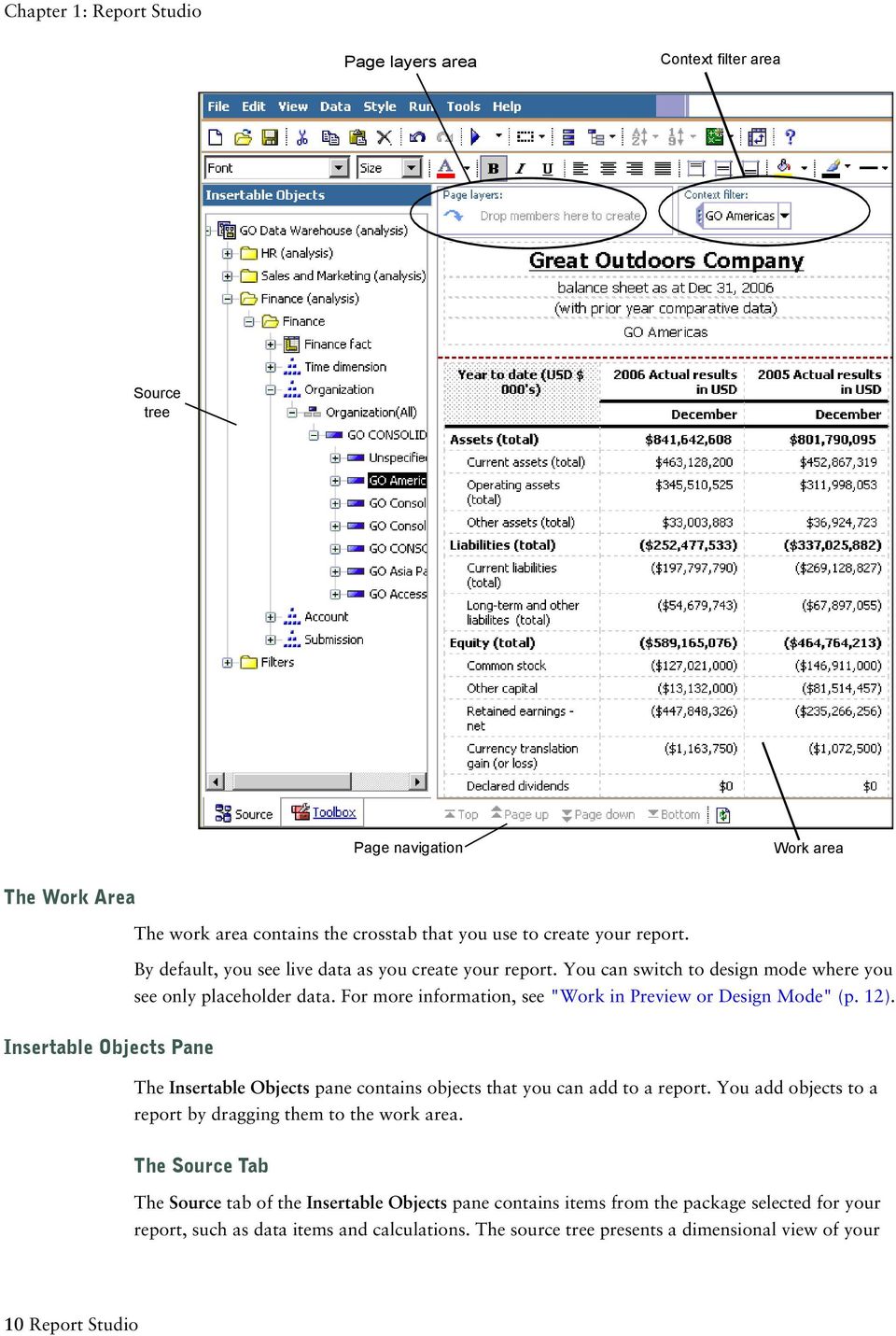
11 Chapter 1: Report Studio data, organized into dimensions, hierarchies, levels, and measures. For more information, see "Working with Data" (p. 31). By default, the maximum number of items shown in the source tree is 50. Your administrator may set a different value for optimum performance, depending on the size of the data source. For more information about inserting items from the source tree into your report, see "Add Data to a Report" (p. 19). The Toolbox Tab The Toolbox tab contains a variety of objects, such as text and graphics, that you can add to your report. For more information about inserting objects from the Toolbox tab into your report, see "Insert Other Objects" (p. 51). The Search Tab The Search tab contains the results when you perform a search for members. You can insert the members found in a search directly into a report. For more information, see "Search for Members" (p. 34). Page Layers Area Use the Page layers area to create sections, or page breaks, in a report to show values for each member on a separate page. For example, you can drag Northern Europe sales territory from the Insertable Objects pane to the Page layers area. The report is broken into a separate page for each territory within northern Europe. Each page s context appears in the report header. For more information, see "Create Page Layers" (p. 37). Context Filter Area Use the Context filter area to filter your report to show values, or context, only for a specific data item. This technique is also known as a slicer filter. For example, you can drag Sales Territory from the Insertable Objects pane to the Context filter area. When you click a specific territory from the list, the values in the crosstab change to represent data for that territory. For more information, see "Filter Values Using Context" (p. 36). Basic Report Layout A layout is a set of pages that defines the appearance and formatting of a report. When you design the layout of a report, you present the data in a meaningful way give the report the appearance you want by adding formatting, such as borders, color, and page numbers specify how the data flows from one page to the next Express Authoring User Guide 11
12 Chapter 1: Report Studio Pages Pages are containers for the layout objects that you use to build a report. A page is made up of the following mandatory and optional components: page header (optional) page body (mandatory) page footer (optional) When you run a report, the amount of data queried often exceeds one page. As a result, pages are added until all the data is shown. You have control over how data flows from one page to the next. Objects You add layout objects to a page when you create a report. Below are objects that you will use often when building reports in Report Studio: text block Add a block to hold text or other information. Blocks are often used to lay out horizontal bands of information. table For information about other layout objects you can add to a report, see "Insert Other Objects" (p. 51). Use Visual Aids to Design Your Report Layout Visual aids in the work area help you when you are designing your report layout. Visual aids include boundary lines, header and footer lines, and drag and drop padding. Drag and drop padding shows a drag-and-drop zone when the Padding property for an object is set to 0. If the Padding property is set to a value that is greater than the minimum padding that Report Studio uses to show drag-and-drop zones, only the minimum padding is shown. Steps 1. From the View menu, click Visual Aids. 2. Select the options that you want. Work in Preview or Design Mode By default, when working in the Report Studio Express authoring mode, you see live data as you create your report. However, to see data, you must add enough information in your report to resolve 12 Report Studio

13 Chapter 1: Report Studio the multi-dimensional query. You can also switch to only see placeholder data, using the Page Design mode. Steps 1. From the View menu, click Page Design or Page Preview. 2. If you want to specify how many rows of data to show per page when working in Page Preview mode, from the View menu, click Preview Options and type a new value. Set Options Set the options you want when working in Report Studio. Option Description Use Windows skin Replaces the current appearance of the interface with the display scheme specified by the Windows settings. Show startup dialog Shows the Welcome dialog box at startup. Reuse Cognos Viewer window Reuses the same Cognos Viewer window when you rerun a report without first closing the window. Resize Cognos Viewer window Maximizes the Cognos Viewer window when you run a report. Window startup size Specifies the size of the Report Studio window at startup. Double click insertion location When working with dimensional data, specifies where the child members are inserted when you double-click the member data item. By default, items are inserted after the item that you double-click. Limit on inserted members When working with a dimensional data source, limits the number of child members that are inserted. For example, you specify 3 for this option and in the toolbar you specify the option to insert children when you drag a member to a data container (p. 33). You then drag the Camping Equipment member to the rows of a crosstab. What you see as rows are the child members Cooking Gear, Tents, and Sleeping Bags, and a row named Others(Camping Equipment) for the remaining child members of Camping Equipment. Express Authoring User Guide 13

14 Chapter 1: Report Studio Option Description Use operating system clipboard If Report Studio is running in Internet Explorer, uses the Windows clipboard instead of the internal application clipboard. Tip: If Report Studio is running in Firefox, the internal application clipboard is always used. Allow local file access Enables the opening and saving of reports on your computer (p. 65). Member display count limit (in source tree) When working with dimensional data, specifies the maximum number of members that can appear in the Insertable Objects pane when performing a search (p. 34). Steps 1. From the Tools menu, click Options. 2. On the General, View, and Edit tabs, set the options you want. 3. Click OK. Web Browser Settings Cognos 8 uses the default browser configurations provided by Microsoft, Netscape, and Firefox. For all browsers, you must ensure that settings are enabled for cookies and Java scripts. Additional required settings are specific to the browser. Browser Setting Internet Explorer Allow Cookies Active Scripting Allow META REFRESH Run ActiveX controls and plug-ins Script ActiveX controls marked safe for scripting Binary and Script Behaviours Allow programmatic clipboard access Note: Report Studio uses the native Microsoft Internet Explorer XML support, which is a component of the browser. ActiveX support must be enabled because Microsoft implements XML using ActiveX. Cognos 8 does not provide or download ActiveX controls. Only the ActiveX controls that are installed as part of Internet Explorer are enabled through this configuration. 14 Report Studio

15 Chapter 1: Report Studio For more information about browser configuration and cookies used by Cognos 8, see the Installation and Configuration Guide. Authoring Modes To meet the needs of both regular report authors and financial report authors, Report Studio provides distinct custom user interfaces that contain reporting features relevant to these roles. Access to each authoring mode is determined by the permissions you have to secured functions and features. For more information, see the Administration and Security Guide. Professional Authoring Mode The Professional authoring mode gives users access to the full range of Report Studio functionality. In this mode, you can create any report type, including charts, maps, lists, and repeaters, using any data source (relational or multi-dimensional). It contains a superset of the features available in the Express authoring mode. However, you cannot view live data. Express Authoring Mode The Express authoring mode provides a simplified and focused Report Studio interface. It is designed for non-technical users to create traditional financial and management statement reports. It only allows access to dimensionally-modeled data and uses a member-oriented data tree. This authoring mode allows you to see live data and supports only crosstab reports. It contains a subset of the features available in the Professional authoring mode. When you are in the Express authoring mode, if you open a report that was authored in the Professional authoring mode, you can see but cannot modify objects that can be inserted only in the Professional authoring mode, such as charts, maps, and lists. Express Authoring User Guide 15

16 Chapter 1: Report Studio 16 Report Studio

17 Chapter 2: Creating a Report When you create a report, you are actually creating a report specification. The report specification defines the queries and prompts that are used to retrieve data, as well as the layouts and styles used to present the data. For simplicity, the report specification is named the report. Before creating a report, ensure that you have the planning information (p. 9) you need. Creating a new report involves specifying the package choosing a report template adding data items saving the report running the report You can then format the report (p. 47) and manipulate the data that will appear in the report (p. 31). Recommendation - Creating a Financial Report When creating a statement-style or financial report, we recommend that you follow these steps: Open the Financial report template. This template (p. 18) offers a simple crosstab report, with a header and a footer that includes the date, page number, and time. You can edit the content of the report by adding and removing objects (p. 51). Insert data to the rows. A typical statement-style report includes accounts in the rows. Insert data to the columns. A typical statement-style report includes a time dimension in the columns. Insert a measure. Insert calculations (p. 40) and format data (p. 43). Add page layers (p. 37) or context filters (p. 36) to focus your report. Apply formatting. You can add colors, lines, images, conditional formatting, blank rows or columns, headings, and so on to improve the appearance of your report (p. 47). Express Authoring User Guide 17

18 Chapter 2: Creating a Report Specify the Package Specify the package that will provide items for the report. A package contains a set of related objects, such as members, dimensions, filters, and calculations. When you open a package in Cognos 8, these objects are visible in the Source tab of the Insertable Objects pane. The package must be previously created and published to the Cognos Connection portal. For more information, see the Framework Manager User Guide. Steps 1. In the portal, from the Launch menu, click Report Studio. If there is more than one package available, the Select a package page appears. Otherwise, Report Studio starts. 2. If more than one package exists, click the one you want to use. 3. In the Welcome dialog box, choose whether to open a new or existing report or template: To create a new report, click Create a new report and choose a report template. To open an existing report or template, click Open an existing report and select a report. Refresh the Package If the package that a report is using has changed, refresh it to ensure that you are working with the latest version. Steps 1. In the Insertable Objects pane, click the Source tab. 2. Right-click its background and click Refresh. Tip: You can also close and reopen the report to upgrade it to the latest version of the package. Choose a Report Template When creating a new report, choose a report template to get you started quickly. You can select a predefined template that is formatted, or you can open an existing report as a template. Steps 1. From the File menu, click New. 2. If you want to change the package, click the ellipsis (...) button and click a different package. 3. Choose a report template: 18 Report Studio

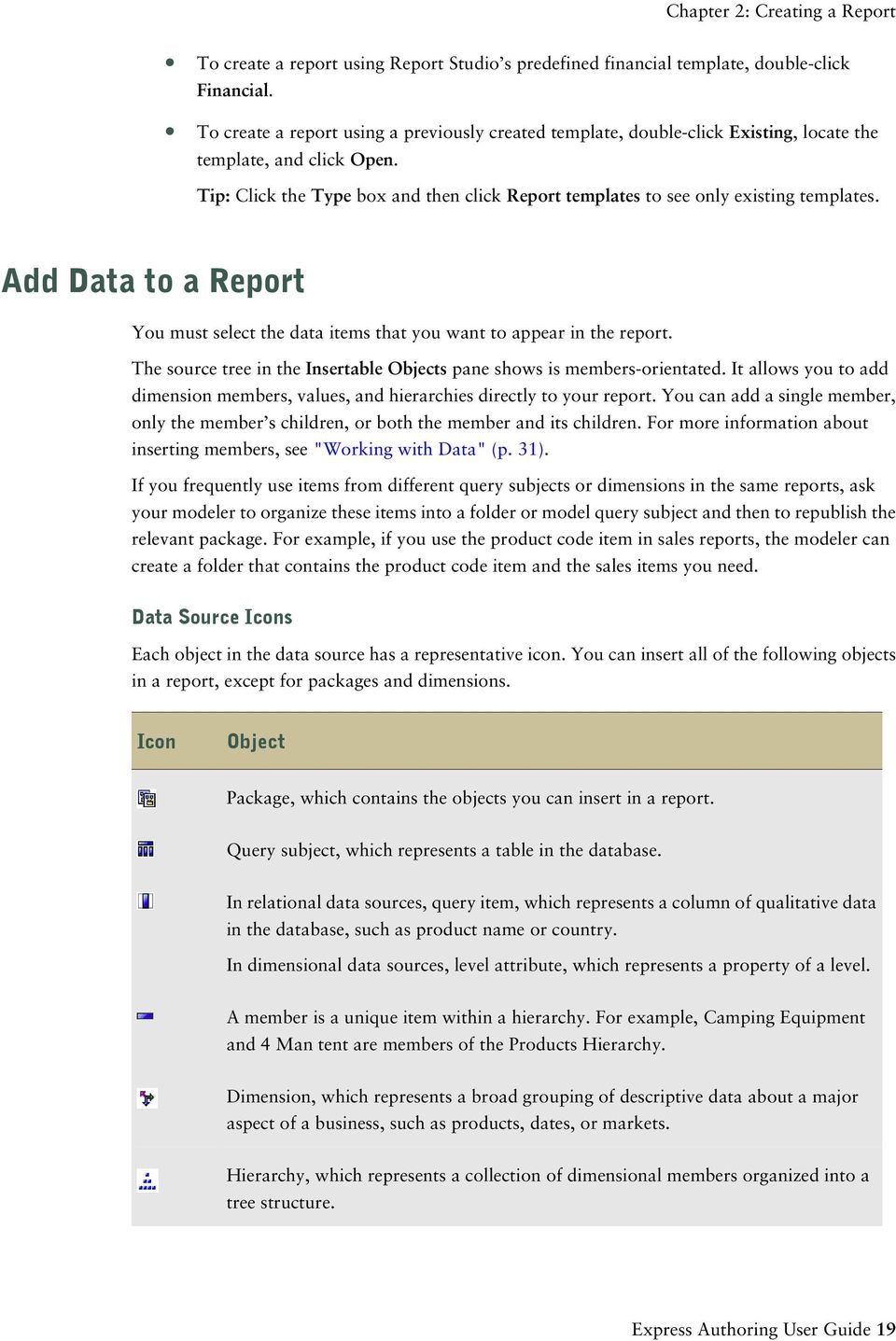
19 Chapter 2: Creating a Report To create a report using Report Studio s predefined financial template, double-click Financial. To create a report using a previously created template, double-click Existing, locate the template, and click Open. Tip: Click the Type box and then click Report templates to see only existing templates. Add Data to a Report You must select the data items that you want to appear in the report. The source tree in the Insertable Objects pane shows is members-orientated. It allows you to add dimension members, values, and hierarchies directly to your report. You can add a single member, only the member s children, or both the member and its children. For more information about inserting members, see "Working with Data" (p. 31). If you frequently use items from different query subjects or dimensions in the same reports, ask your modeler to organize these items into a folder or model query subject and then to republish the relevant package. For example, if you use the product code item in sales reports, the modeler can create a folder that contains the product code item and the sales items you need. Data Source Icons Each object in the data source has a representative icon. You can insert all of the following objects in a report, except for packages and dimensions. Icon Object Package, which contains the objects you can insert in a report. Query subject, which represents a table in the database. In relational data sources, query item, which represents a column of qualitative data in the database, such as product name or country. In dimensional data sources, level attribute, which represents a property of a level. A member is a unique item within a hierarchy. For example, Camping Equipment and 4 Man tent are members of the Products Hierarchy. Dimension, which represents a broad grouping of descriptive data about a major aspect of a business, such as products, dates, or markets. Hierarchy, which represents a collection of dimensional members organized into a tree structure. Express Authoring User Guide 19
20 Chapter 2: Creating a Report Icon Object Level, which is a set of members that have common attributes. For example, a geographical dimension might contain levels for country, region, and city. Multiple levels can exist within a level hierarchy, beginning with the root level. The root level is the parent and rollup of all members in the first level. It is used to obtain a rollup of all values across the hierarchy and to provide a convenient point to start drilling. For example, a Years level hierarchy may contain the following levels: Root level Years First level Year Second level Quarter Third level Month Measure or fact, a query item that represents a column of quantitative data in the database, such as revenue or quantity. Measures folder, which contains hierarchical measures. Model filter. A folder is used to organize data items. You cannot import a folder into your report. Step In the Insertable Objects pane, on the Source tab, drag each data item to the location where you want it to appear. A flashing black bar indicates where you can drop an item. Another way to insert a data item is to right-click each item and click Insert. Tips: For more information about a data item, right-click the item and click Properties.. If you want to remove a data item from the report, select it and click the delete button. Working with Crosstab Reports When you add data items to a crosstab, you create crosstab nodes and crosstab node members. These objects allow you to easily create crosstabs, using drag-and-drop operations. Crosstabs are dimensional objects that have row edges and column edges. Each edge is composed of a set of crosstab nodes. Each crosstab node contains the following: One or more crosstab node members. Zero or one nested crosstab node, which contains one or more crosstab node members or nested crosstab nodes. 20 Report Studio

21 Chapter 2: Creating a Report Each crosstab node member refers to a data item that contains an expression that defines the members that appear in the crosstab. The following crosstab contains four crosstab nodes. (4) (1) (2) (3) Crosstab node 1 contains a single node member for the total. This node refers to the data item Total(Product line). Crosstab node 2 contains a crosstab node member that refers to the data item Product line. This member has a nested crosstab node containing a crosstab node member that refers to the data item Product type. Crosstab nodes can be placed anywhere in the crosstab. For example, in the previous diagram, you can drag Order month under Average(Product line) to create a row edge. Create a Nested Crosstab Report Nest data in a crosstab report to compare information by using more than one data item in a column or row. For example, a report shows the number of sales by product line for the past fiscal year. You decide to add a data item to further break down the number of sales by quarter. When nesting columns in a crosstab report, there are four distinct drop zones where you can insert a new data item. The drop zone you choose will define the relationship between the data item and the column. Rows The following relationships are created when you insert a data item as a row: Inserting a data item to the left or right of a column creates a parent-child relationship between them. When you insert a data item to the left of a column, the data item becomes a parent to the column. When you insert a data item to the right of a column, the data item becomes a child of the column. Inserting a data item above or below a column creates a union relationship between them. Columns The following relationships are created when you insert a data item as a column: Inserting a data item to the left or to the right of a column creates a union relationship between the data item and the column. Express Authoring User Guide 21
22 Chapter 2: Creating a Report Inserting a data item above or below a column creates a parent-child relationship between them. When you insert a data item above a column, the data item becomes a parent to the column. When you insert a data item below a column, the data item becomes a child of the column. For example, you have a crosstab with Product line as rows and Quantity and Revenue as nested rows. For columns, you have Order method with Country as a nested column. Product line is a parent to Quantity and Revenue. Quantity and Revenue are peers. Order method is a parent to Country. Steps 1. In the Insertable Objects pane, on the Source tab, click the data item you want to add to the report. 2. Drag the data item to the location in which you want it to appear as a nested column or nested row. A black bar indicates where you can drop the data item. 3. Repeat steps 2 to 3 to add other nested columns or rows. Tip: If you add more than one measure to a crosstab, all measures appear as columns. You cannot have one measure appear as a row and another as a column. To make all measures appear as rows, swap columns and rows (p. 56). Create a Single-Edge Crosstab Report Create a single-edge crosstab report to show data in a list-like form. For example, you want a report that shows the quantity of products sold for each year and for each order method. Create a crosstab with Order Year and Order Method as rows and Quantity as the measure. Steps 1. From the File menu, click New. 2. Click Crosstab and click OK. 3. In the Insertable Objects pane, on the Source tab, click the data item you want to add to the crosstab and drag it to Rows or Columns. A black bar indicates where you can drop the data item. 4. Repeat step 3 to insert additional data items. If you dragged the data item in step 3 to Rows, drag the additional items above or below the first item. If you dragged the data item in step 3 to Columns, drag the additional items to the left or right of the first item. 22 Report Studio
23 Chapter 2: Creating a Report 5. To add measures to the crosstab, drag the measures you want to Measures. When you run the report, a crosstab is produced that has only one edge. Save a Report Save your report to preserve the modifications you made. Reports are saved to the Cognos 8 server. You can also save your report on your computer (p. 65). Steps 1. From the File menu, click Save, or click Save As to save a copy of the report under a different name. 2. If you are saving the report for the first time, specify where you want to save the report and type a file name. For information about setting up folders in Cognos Connection for your reports, see the Cognos Connection User Guide. 3. Click Save. Run a Report Run your report to see how the report will appear to report consumers. You can also run a report or a group of reports in Cognos Connection. For more information, see the Cognos Connection User Guide. Steps 1. Open the report that you want. 2. If you want to set run options, from the Run menu, click Run Options. The default value is the value of the selected corresponding run option in Cognos Connection. The run options you set apply only to the current session. When you close Report Studio, the options return to the default settings. 3. Change any values you want for the current session and click OK. Option Notes Format None. Paper size Specify only if the output format is PDF. Paper orientation Specify only if the output format is PDF. Express Authoring User Guide 23
24 Chapter 2: Creating a Report Option Notes Data mode Specify how much data is returned. All Data returns all data. Limited Data limits the amount of data returned based on design mode filters defined in the package. No Data returns artificial data instead of actual data from the data source. For more information about design mode filters, see the Framework Manager User Guide. Language The content language sets the preferred language for the data, Cognos Viewer, dates, and so on. Rows per page Specifies the number of rows to appear on each page. Prompt Select to be prompted for each prompt defined, unless the prompt is defined in a report page. If you clear the check box, you are prompted only if the report cannot run without user intervention. For example, if a report has a single parameterized filter that is optional, you are not prompted when you run the report. 4. From the Run menu, click one of the options to produce the report in the format you want. You can produce a report in HTML, PDF, CSV, various Excel formats, and XML. The report runs in Cognos Viewer. Once the report has finished running, you can run the report again in the same format or in a different format. If you run the report again in CSV or XLS format, the report will appear in a new browser window. The options available in Cognos Viewer depend on the capabilities set by the administrator for each user. For more information, see the Administration and Security Guide. Running a Report Against a Dimensional Data Source You can cancel a report that is running against Microsoft SQL Server Analysis Services only during the initial portion of its execution. After this time, the report runs to completion. The same behavior applies to SAP BW data sources. In Framework Manager, you can also control the number of levels within a hierarchy from which members, or values, are extracted from the hierarchy to populate a tree prompt. For SAP BW, you can reduce the number of hierarchy levels to limit the number of nodes by setting the SAP BW variable property trimhierarchylevels to 1. This removes the lowest level from the hierarchy prior to creating the list of nodes. 24 Report Studio
25 Chapter 2: Creating a Report Units of Measure Notation When running a report against an SAP BW data source, units of measure are included in the same column as the data values, separated by one space. For example, Celsius and Fahrenheit notations are appended to the end of the value. If you see an asterisk character (*), one of the following was detected: an unknown currency a value of unknown or questionable unit of measure, such as a mixed currency calculation or rollup Mixed currency values occur when you calculate values with different currencies. This behavior occurs when you are using a Cognos cube as a data source. This behavior also occurs for SAP BW data sources. Unsupported SAP Variable Properties Some SAP variable properties are not supported. Exclusionary ranges appear as an inclusionary prompt. Mandatory not initial appear as a mandatory prompt. When using BEx to define variables in your SAP data source, avoid using exclusionary ranges and the mandatory not initial property. Producing a Report in CSV Format Cognos 8 can produce reports in CSV format so you can open them in other applications, such as Microsoft Excel. Reports saved in CSV format are designed to support Unicode data across many client operating systems are UTF-16 Little Endian data encoded include a BOM (Byte Order Mark) at the beginning of the file are tab-delimited do not enclose strings in quotation marks use a new line character to delimit rows You can open reports saved in CSV format using Microsoft Excel, Microsoft Windows Wordpad, and Star Office. By default, reports produced in CSV format will appear in the application associated with the.csv file type. In Cognos Connection, you can configure the CSV output to suit your environment. For example, you can specify the character used to delimit fields. For more information, see the Administration and Security Guide. Express Authoring User Guide 25
26 Chapter 2: Creating a Report Producing a Report in Excel Format Cognos 8 can produce reports in Excel format. Three options are available: Excel 2000 Single Sheet will produce reports on one sheet that you can view in Microsoft Excel versions earlier than Excel 2002 will produce reports that you can view in Microsoft Excel versions earlier than Excel 2007 will produce reports that you can view in Microsoft Excel version The Excel 2000 format can be viewed with versions of Excel 2000 and later. It supports up to 65,536 rows and multiple sheets. The Excel 2000 format is only available in Cognos 8 when Cognos Application Firewall validation is disabled. Excel 2000 single sheet format offers improved security. Excel 2000 may have cookies in the URLs to spreadsheets, which could be used to illegally impersonate a user. Excel 2000 single sheet format does not use outgoing URLs. However, there is a limit of 65,536 rows, and page breaks for multiple-author pages are ignored. Excel 2002 format and Excel 2000 single sheet format also offer the following benefits: Both work with SSL protocol. Both work with a single signon. Secure reports can be accessed without subsequent signons because the system automatically identifies users and provides security information. Both work with Netscape Spreadsheets are contained in a single file for reliable spreadsheet navigation. The Cognos 8 full date format does not always appear correctly in Microsoft Excel 2000 if it is on a system with a regional setting other than English. This does not occur with Microsoft Excel 2002 or 2003 versions. To fix this, reapply the proper format in Excel. Excel 2007 format renders report output in native Excel XML format, also known as XLSX, that provides a fast way to deliver native Excel spreadsheets to Microsoft Excel XP, Microsoft Excel 2003, and Microsoft Excel Users of Microsoft Excel XP and Microsoft Excel 2003 must install the Microsoft Office Compatibility Pack, which provides file open and save capabilities for the new format. The output is similar to other Excel formats, with the following exceptions: Charts are rendered as static images. Row height can change in the rendered report to achieve greater fidelity. Limitations exist when producing reports in XLS format. For more information, see "Producing Reports in Microsoft Excel Format" (p. 73). Producing a Report in XML Format XML report outputs save the report data in a format that conforms to an internal schema, xmldata. xsd. You can find this schema file in c8_location/bin. 26 Report Studio
27 Chapter 2: Creating a Report This format consists of a dataset element, which contains a metadata element and a data element. The metadata element contains the data item information in item elements. The data element contains all the row and value elements. You can create models from reports and other data that conform to the xmldata.xsd schema. This is useful if you want to use a report as a data source for another report, or if you use a database that cannot be read by Framework Manager. In this case, export the data from the data source to an XML file, in conformance with the xmldata schema, and then open the XML file in Framework Manager. For more information, see the Framework Manager User Guide. You cannot produce the following in XML format: maps charts that do not have at least one category or series reports that have more than one query defined in the report, unless the additional queries are used for prompts. Set PDF Page Options Set PDF page options to control how report pages appear in PDF. You can also set PDF page options in Cognos Connection. For more information, see the Cognos Connection User Guide. Step From the File menu, click PDF Page Setup, set the page options that you want, and then click OK. Techniques for Creating Accessible Reports Creating accessible reports ensures access of information to all users, with all levels of ability. For example, blind users may use screen reading technology to access the information in a report. The following are some design considerations for creating accessible reports: Avoid using visual cues, such as text bolding or color, to convey important information. Avoid using pictures and OLE Objects in PDF documents, as these items are tagged as artifacts and ignored by the screen reader. Avoid using conditional formatting to convey important information. Because chart types are rendered as images, which the screen reader ignores, ensure that there is a corresponding table with the same information. Deliver reports through HTML, as it is the most supported output format for most screen readers. Express Authoring User Guide 27
28 Chapter 2: Creating a Report Always ensure there is a title on the report. Gain an understanding for screen reading technology. Avoid spelling and grammar errors, as they cause the screen reading software to misinterpret the information. Although using prompts is fine, such as check boxes, radio buttons, combo boxes, and multi-select boxes, avoid using features like calendar boxes and up and down selections on time controls. When choosing to use embedded Web applications or drill-through paths, ensure the target application is also accessible. Avoid using large, complex list or crosstab reports. Displaying the information in multiple simple lists or crosstab reports is more manageable for users of Assistive Technology. Techniques for Creating Reports for Cognos 8 Go! Office Cognos 8 Go! Office provides an integrated environment for Cognos products and Microsoft Office. You can use Cognos 8 Go! Office to select pieces of reports to embed in Microsoft Excel workbooks, Microsoft Word documents, or Microsoft PowerPoint presentations, including data, metadata, headers, footers, and charts. You can use predefined reports or you can create new content using PowerPlay Web, Query Studio, or Report Studio. Note that to access PowerPlay content, your administrator must configure PowerPlay to work with Cognos 8. PowerPlay content that is published only to Upfront is not available to Cognos 8 Go! Office. Because Cognos 8 Go! Office cannot fully convert highly formatted reports into Excel or other Microsoft document output types, you may not get the results that you want. To create effective reports for Cognos 8 Go! Office, follow these recommendations: Create content to meet specific Microsoft Office integration needs. For example, in Cognos 8, many options are available to format data. Use less formatting to make data more accessible to Office applications. Organize reports. You can publish workbooks to Cognos Connection and organize them with your reports in Public Folders or My Folders. For more information, see the Cognos Connection User Guide. By organizing your content, you can quickly retrieve the information that you want. Tip: Workbooks, documents, and presentations that are enabled for Cognos 8 Go! Office are identified by their own unique icons, helping you to distinguish them from other types of files. Optimize report templates for Microsoft Office. If you rely on IT personnel or other report authors to create content, request report templates that are optimized for your Microsoft Office integration needs. You may want to request only 28 Report Studio
29 Chapter 2: Creating a Report the data elements or queries that you need and request minimal formatting so that you can more easily use Microsoft Office formatting capabilities with the Cognos content. For example, reports authored in Report Studio can contain list objects embedded within list objects with specific formatting applied. When converted to the tabular representation available in Excel, these reports may not be rendered in the same way in which they appear in Cognos 8. Format elements in the Office application. Instead of formatting objects in Cognos 8, add the formatting that you want in the Office application. By applying less formatting in Cognos 8, more data can be imported into the desired locations. Label report elements using descriptive names. This practice makes them more easier to find after you import them. Examples of report elements include lists, crosstabs, and charts. Do not nest report objects. If you nested report objects, some objects may not appear in the correct location, or they may not appear at all. In addition, nesting report objects may cause the following error message to appear: RDS-ERR-1000 Report Data Service could not process from the content provider. For example, this error occurs if a repeater or repeater table is inside a block or table. It also appears layout objects, such as lists, crosstabs, and charts, are in a conditional block that is inside another block or table. Keep table sizes small. For example, because of the size of slides, the maximum number of rows and columns that you can have in PowerPoint tables is 25. Although Word and Excel permit larger tables, it takes more time to download and render them. Use images with transparent backgrounds. The background will show through the image in the Office application, making the image look like part of the presentation. If you want, you can then supply your own background color. If you have an image in a list, specify its height and width. This practice ensures that the image appears in the correct size in the Office application. Remember that graphs and charts are imported as images. Images in Cognos 8 have image maps associated with them to enable tooltips and hotspots. Cognos 8 Go! Office cannot import tooltips and hotspots into Office applications. Consider the additional limitations that exist when producing reports in Excel format (p. 73). Express Authoring User Guide 29
30 Chapter 2: Creating a Report Managing Your Reports After you create one or more reports, you can manage them for yourself and others. You can perform the following tasks in Cognos Connection: Schedule a report or a group of reports to run at a specific time. Distribute reports to other users. Print a report. Select the language used when a report is run. Set prompt values. Maintain the history of a report. Maintain different versions of a report. Create report views. For information about how to perform these tasks, see the Cognos Connection User Guide. The Cognos 8 SDK When you create a report in Report Studio, you are creating a report specification. A report specification is an XML file that you can view (Tools menu, Show Specification ). In addition, you can view the specification for a selected object with the Show Specification (Selection) menu option. Tip: When you are viewing the report specification in Report Studio, you cannot modify or copy parts of it. Instead of using Report Studio, you can programmatically create or modify reports by using an editing tool to work with report specifications. You then use the Cognos 8 software development kit (SDK) to implement the reports in your Cognos 8 environment. This is useful if, for example, you must make the same modification in many reports. Rather than opening each report in Report Studio and making the change, you can automate the process using the SDK, thereby saving you time. For more information about the Cognos 8 SDK, contact your local Cognos sales office. Tip: You can also modify the XML code in a report specification by saving the report specification on your computer (p. 65). 30 Report Studio
31 Chapter 3: Working with Data Make a report easier to read and easier to understand by specifying what data appears in the report and how the data looks. In Report Studio, you can customize the source tree insert members insert member properties search for data create sets of members nest members filter values using context create page layers sort data create a calculation insert a calculated member create an intersection of members format data Working with Dimensional Data Dimensional data sources include OLAP and Dimensionally Modeled Relational (DMR) data sources. The Source tab data. in the Insertable Objects pane shows a member-oriented view of the Express Authoring User Guide 31
32 Chapter 3: Working with Data (1) (2) (3) (4) (5) (6) Note: The names of levels and members in a dimension come from the model. It is the responsibility of the modeler to provide meaningful names. 1. Package Packages are subsets of a model, containing items that you can insert in a report. 2. Dimension Dimensions are broad groupings of descriptive data about a major aspect of a business, such as products, dates, or markets. 3. Level hierarchy Level hierarchies are more specific groupings within a dimension. For example, for the Years dimension, data can be organized into smaller groups, such as Years, Current Month, and Last Month. 4. Members folder Members folders contain the available members for a hierarchy or level. For example, the Members folder for the Years level hierarchy contains everything found in the Year, Quarter, and Month levels. 5. Level Levels are positions within the dimensional hierarchy that contain information at the same order of detail and have attributes in common. Multiple levels can exist within a level hierarchy, beginning with a root level. For example, the Years level hierarchy has the following related levels. Level Level name Description Root Years The root level. First Year Years in the Years root level. For example, 2004, 2003, and Second Quarter Quarters for each year in the Year level. For example, 2004 Q1, 2004 Q2, and 2004 Q3. Third Month Months for each quarter in the Quarter level. For example, Jan., Feb., and Mar. Tip: The Measures dimension contains the measures available in the data source. 6. Member property 32 Report Studio
33 Chapter 3: Working with Data Member properties are attributes that each member possesses. For example, gender could be a property for all employee members. For more information, see (p. 34). Customize Your Source Tree When using dimensional data, you can customize how you see data in the source tree. You can select a metadata view with dimensions, hierarchies, levels, an optional members folder, and member properties. Or you can select a members-oriented tree view, such as the one in Analysis Studio. This view allows you to add only members in your report. Steps 1. In the Insertable Objects pane, click the Source tab. 2. Right-click anywhere in the pane and click Package Tree Settings. 3. Select the options that you want and click OK. Insert Members from the Tree By default, when you insert members from the source tree into your report, single members are inserted without any details or children. You can change how members are inserted. For example, you may want to insert a member along with all its children, or insert only its children. When you double-click a member that you already inserted in your report, by default its children are inserted after the parent member. You can control whether the children are inserted before or after, nested, or not inserted at all (Tools, Options, Edit tab). After you insert members, you may want to apply indentation to make the report easier to read. Steps 1. From the toolbar, click the insert single member button and select how you want to insert members. 2. In the Insertable Objects pane, from the Source tab, drag the members that you want to the work area. If you want to insert a member above or below another member, move your cursor above or below a call until a flashing black bar appears. If you want to replace a member, move your cursor over a cell in the report until a flashing black box appears. Express Authoring User Guide 33
34 Chapter 3: Working with Data Insert a Member Property You can insert member properties in a report. For example, an employee level may have a property named gender. Steps 1. In the Insertable Objects pane, on the Source tab, drag the member property that you want to the report. 2. If the Insert Member Property dialog box appears, choose whether to repeat or group the property: To repeat the property in the rows or columns of the crosstab, click Insert property only. To insert the property and have it grouped, click Insert property and group it. The property will appear once in the rows or columns of the crosstab. Search for Members You can perform a member search to quickly find the data you want. You can control the number of members that are returned in a search by specifying a value for the Member display count limit (in source tree) option (p. 13). Steps 1. In the Insertable Objects pane, on the Source tab, right-click a dimension, hierarchy, or level, and click Search. 2. In the Words box, type the words or characters you want to search for. 3. Click the search parameter you want to use. 4. If you want to search all descendents instead of just the immediate children, select the Search all descendents check box. For example, when performing a search in a hierarchy, selecting this check box returns members found in all the levels of the hierarchy. 5. Click Search. Report Studio searches for all members for the object selected in step 1. The results appear in a hierarchical structure on the Search tab in the Insertable Objects pane. You can browse the hierarchy to explore members at lower levels. 34 Report Studio
35 Chapter 3: Working with Data Tip: You can insert members directly into a report. This can save you time, because you do not have to define a filter. For example, instead of inserting Product line from the Source tab and adding a filter for Camping Equipment, you can insert Camping Equipment from the Search tab. Create a Set of Members Sets are used to group members that are logically related for various actions, such as formatting, nesting, and sorting. Creating sets is also useful when members may be dynamic over time, such as the child accounts of a total assets account, which may change from year to year. By creating a set, you do not have to modify the report each time accounts are added or removed. When you create a set of members, you can insert other members before or after the set, but not within the set. Steps 1. On the toolbar, click the set selection button to toggle between adding individual members and creating sets for members. 2. In the Insertable Objects pane, select the items that you want to include in the set and drag them to the work area. Nest Members When you insert members in your report, you may want to nest them in another row or column to make your report easier to use. You can nest members from different dimensions. For example, in the following report, the quarters (Q1 to Q4) were selected from the Time dimension and nested only for the GO Americas member, which is from a different dimension. You can also double-click nested members to insert their children, or expand them (p. 33). Step In the Insertable Objects pane, from the Source tab, drag the members that you want to the work area. A flashing black bar indicates where you can drop an item Express Authoring User Guide 35
36 Chapter 3: Working with Data Filter Values Using Context When working with dimensional data, you can use context filters, also known as slicer filters, to quickly focus your report on a particular view of the data. For example, you create a crosstab with accounts in the rows, years in the columns, and expenses as the measure. To change the context to Asia, you drag Asia from the source tree to the Context filter section of the overview area. The crosstab then shows only the values for Asia. Changing context changes the values that appear. It does not limit or change the items in the rows or columns. The data items that are used as the context filter appear in the report header when you run the report. You can create multiple context filters or slicers if you want to filter across two or more dimensions. You cannot create multiple context filters against the same dimension. Slicer filters are different from other filters. When you filter data, members that do not meet the filter criteria are removed from the report. A slicer does not remove members from a report. Instead, their values are removed, and you see blank cells. For example, if you have a crosstab with Years and Quarters as rows and Revenue as columns and you define a slicer member set that consists of the first two quarters in 2006, you get the following result: In addition, any summary values in the report are recomputed to reflect the results returned by the slicer. You can also use context filters as prompts when the report is run (p. 37). Steps to Create a Simple Context Filter 1. In the Insertable Objects pane, from the Source tab, select or search for one or more items to filter on. 2. Drag the item that you want to filter on into the Context filter section of the overview area. 36 Report Studio
37 Chapter 3: Working with Data 3. To change context, select a new item from the drop-down list under Context filter. Define Prompts Using Context Filters If context filters (or slicers) are defined, you can use these filters to create prompts in the report. Prompts provide questions that help users to customize the information in a report to suit their own needs. For example, you create a prompt so that users can select a region. Only data for the specified region is retrieved and shown in the report. Before you define a prompt, you must create context filters (p. 36). Steps 1. In the Context filter section of the overview area, click the down arrow next to the filter that you want to use as a prompt. 2. Click Prompt. 3. Do one of the following: To remove the prompt, click No Prompt. To allow users who run the report to select any member from a tree of the hierarchy, click Prompt on Hierarchy. To allow users who run the report to select from a list of members from the current level, click Prompt on Level. Create Page Layers When working with dimensional data, you can create page layers in a report to show values on a separate page for each member. For example, your report contains payroll information for the entire company. You want to filter your report so that values for each department appear on a separate page. After you create page layers, a caption appears in the header to indicate the contents of each page. You can navigate between the different pages using links below the report. Creating page layers is similar to filtering using context (p. 36). However, with context filters, values are filtered according to the member you add to the Context filter area. With page layers, the report is split into a separate page for each child of the member you add to the Page layers area. Steps 1. In the source tree, select or search for one or more items to filter on. 2. Drag the item that you want to filter on into the Page layers section of the overview area. The crosstab shows the results for the children of the selected item on separate pages and a drop-down list appears under Page layers. Express Authoring User Guide 37
38 Chapter 3: Working with Data Tip: To navigate between pages, click the Page down and Page up links below the report. 3. If you want to replace the page breaks with items from the same dimension, select an item from the drop-down list. If you want to delete the page breaks, from the drop-down list, click Delete. If you want to delete all the page breaks, right-click the Page layers area and click Delete All. Sort Data By default, Report Studio retrieves items in the order defined in the data source. You can sort items to quickly view the most important data. Report Studio provides different sorting options depending on what type of data item you select. Set Sorting You can sort a set of members based on a caption (heading label). You can also perform advanced sorting (p. 39) to sort sets using an intersection (tuple) or using a member property. By default, when you select Sort Set - Ascending or Sort Set - Descending, sets are sorted based on captions. For example, a set contains regions and you sort the regions within the set in descending alphabetical order. Only extended data items that represent sets support set sorting. This type of sorting is performed in the query. Before you can perform this sorting, you must create sets for the members in your report (p. 35). You cannot sort data items from different dimensions that are intermixed. For example, you cannot sort on Data_Item1_Dimension1, Data_Item1_Dimension2, Data_Item2_Dimension1. Sorting by Value If you use dimensional data, you can sort members in the sets on the opposite axis based on the value of a member or measure that you select. For example, a crosstab contains years inserted as individual members in the columns, product lines inserted as a member set in the rows, and revenue as the measure. You select 2004 and click the sort by value button and select to sort in descending order. The values in the 2004 column are sorted. This type of sorting is performed in the query. Before you can perform this sorting, you must create sets for the members in your report (p. 35). In nested crosstabs, items are sorted based on the values of the innermost nested row or column of the opposite axis. For example, a crosstab contains years in the columns and retailers nested within product line in the rows. Select 2004, sort in descending order, and you see retailers listed from the largest value to the smallest value for each product line. 38 Report Studio
39 Chapter 3: Working with Data Layout Sorting You can also perform sorting in the report layout and not in the query. Sorting in the layout is useful when working with lists, when your report includes relational data, and when working with expression-based data items. You can also perform advanced sorting to sort columns within groups or to sort a row or column using another data item. Steps to Sort Sets by Caption 1. In a crosstab, select a set to sort. 2. Click the sort button on the toolbar and click Sort Set - Ascending or Sort Set - Descending. Tip: To remove a sort order, click Don t Sort. Steps to Sort Sets in the Opposite Axis by Value 1. In a crosstab, a member or measure to sort. For example, to sort a set in the row axis, select a member or measure in the column axis. 2. Click the sort opposite axis sets by value button on the toolbar. Tip: To remove a sort order, click Don t Sort. Steps to Sort in the Layout 1. Click the data item on which you want to sort. 2. Click the sort button on the toolbar, click Layout, and click Sort Ascending or Sort Descending. Tip: To remove a sort order, click Don t Sort. Perform Advanced Sorting You can perform advanced sorting in a report to sort a row or column by an item that does not appear in the report. You can sort using the property of a member. For example, your report includes employee names and you want to sort the employees using the gender property. You can also sort using an intersection of members, also know as a tuple. For example, you want to sort the employees using the value of sick days taken for the year 2006 (p. 42). Before you can sort, you must create sets for the members in your report (p. 35). Steps 1. Select a set, member, or measure to sort. Express Authoring User Guide 39
40 Chapter 3: Working with Data 2. Click the sorting button on the toolbar and click Advanced Set Sorting or Layout, Advanced Sorting. 3. Specify the sorting options that you want. 4. If you are sorting members from different levels and want to preserve the hierarchy, select the Hierarchized sorting check box. 5. If you want to sort items using a member property, under Sort by, click Property and click the ellipsis (...) button. Then, navigate the tree and select the member property you want to use. 6. If you want to sort items using an intersection of members, or tuple, under Sort by, click Intersection (tuple) and click the ellipsis (...) button. Then, from Available members and measures, select the items you want to use and click the right arrow to move them to the Intersection members and measures list. Create a Calculation Insert a calculation to make your report more meaningful by deriving additional information from the data source. For example, you create an invoice report, and you want to see the total sale amount for each product ordered. Create a calculated column that multiplies the product price by the quantity ordered. If an expression is used in multiple reports, or by different report authors, ask your modeler to create the expression as a standalone object in the model and include it in the relevant package. In addition to simple arithmetic calculations, you can perform the following calculations: Calculation Description Rollup Summarizes, or rolls up, all the values in a hierarchy. % Calculates the value of a selected item as a percentage of another item. % Growth Calculates the difference between two items as a percentage. % Of Base This calculation is only available if you select two members from different hierarchies, each from a different edge. This calculation takes the first selected member from edge A and the second selected member from edge B. The calculation result of a percent of base should be such that all the values for member A will compare itself to the intersect value of member A and B. 40 Report Studio
41 Chapter 3: Working with Data Calculation Description Custom Allows you to specify your own value when performing a simple arithmetic calculation. Also allows you to change the order of operands or type a custom name for the new calculated row or column. If you want to perform a more complex calculation, using expressions and functions, insert a calculated member (p. 41). Steps 1. Select the items in your report that you want to calculate. 2. Click the insert calculation button and select the calculation that you want to perform. Tip: Calculations that are not applicable to the items you selected are greyed out. 3. If you want change the order of the operands or the name of the calculated item added to the report, click Custom. Calculation Solve Order When calculations in the rows and columns of a report intersect, calculations are performed in the following order: addition or subtraction multiplication or division aggregation (rollup) remaining arithmetic functions: absolute, round, round down, average, minimum, maximum, medium, count percentage, % difference (growth) or % of total rank, quartile, quantile, or percentile If both calculations have the same precedence, for example, if they are both business functions, then the row calculation takes precedence. If you have the necessary permissions, you can open your report in Report Studio Professional Authoring mode and override the order of precedence by changing the solve order property. For more information, see the Report Studio Professional Authoring User Guide. Insert a Calculated Member or Measure When working with dimensional data, insert a calculated member or measure into your report to add a new row or column with values based on a calculation. Express Authoring User Guide 41
42 Chapter 3: Working with Data You use the expression editor to define the calculation. You can also create a calculation that uses an intersection (tuple) that you already defined (p. 42). Steps 1. In the Insertable Objects pane, click the Toolbox tab. 2. Drag Calculated Member or Calculated Measure to the report. 3. In the Name box, type a name for the calculation. 4. In the Calculation hierarchy box, select the hierarchy within which this calculated member or measure is to be created and click OK. The Data Item Expression dialog box appears 5. In the Available Components box, define the calculation: If you want to include data items not shown in the report, on the Source tab, double-click the data items. If you want to include data items that are in the report but not necessarily in the model, such as calculations, on the Data Items tab, double-click the data items. If you want to add functions, summaries, and operators to the filter expression, on the Functions tab, double-click them. 6. Click the validate expression button and click OK. Create an Intersection (Tuple) When working with dimensional data, an intersection, also known as a tuple, is useful for obtaining a value from the combination of two or more members that you specify. Each member must be from a different dimension. You can insert an intersection to create a complex calculation without using expressions. You can isolate the intersection of dimensional selections to a single row or column, and then use the intersection in other calculations (p. 41). An intersection appears as a single unified member instead of its component members. By combining members with measures or with time-related members, you can create an intersection that reveals important information about your business. You can also use intersections to sort reports. By default, when you add an intersection in your report, its label is a collection of its members, such as 2004, Web, and Cooking Gear. You can change the name of the label. Steps 1. In the Insertable Objects pane, click the Toolbox tab. 42 Report Studio
43 Chapter 3: Working with Data 2. Drag the Intersection (Tuple) object to the report. 3. From Available members and measures, select the items you want to use and click the right arrow to move them to the Intersection members and measures list. Format Data Format data in a report to improve readability. For example, you can show all date values in the order year, month, and day. If you do not specify any formatting, data is formatted according to the properties set in the model. If the properties were not set in the model, data is formatted according to the International Components for Unicode (ICU) formats. You can also format data based on a condition (p. 60). When using a Cognos cube as a data source, mixed currency values use the asterisk character (*) as the unit of measure. Mixed currency values occur when you calculate values with different currencies. The same behavior occurs for SAP BW data sources. Steps 1. Right-click a data item and click Style, Data Format. Tip: You can also use the button in the toolbar. 2. In the Format type box, click a format type. The properties that you can set for the selected format type appear in the Properties box. 3. If you clicked the Currency format type and require different currencies in the report, click the add button. In the Currencies dialog box, select the currencies you want and click OK. For example, you may have one column whose values are in euros and another column whose values are in US dollars. 4. Set the properties that you want. For properties in which you type meta-characters that represent certain types of information, such as YYYY-MM-DD for dates, the meta-characters required depend on the authoring language specified for the report. If you specify a value for the Pattern property, all other formatting properties are ignored, with the following exceptions: Missing Value Characters Zero Value Characters Negative Pattern Some properties are locale-sensitive and should only be changed with caution. 5. Click OK. Express Authoring User Guide 43
44 Chapter 3: Working with Data The data formatting properties you set are applied. If a data item contains values in multiple currencies, but only a subset of those currencies have defined formats, the default format for the locale you are working in is applied to values for which no format is specified. Specifying the Number of Decimals When specifying the number of decimals, Cognos 8 uses the IEEE 754 default rounding mode known as half even. With half even rounding, numbers are rounded toward the nearest truncated value, unless both truncated values are equidistant, in which case the value ending in an even digit is chosen, as follows: if the digit immediately after the precision to be shown is greater than 5, the number is rounded up. if the digit immediately after the precision to be shown is less than 5, the number is rounded down. if the digit immediately after the precision is a 5, the number is rounded down when the preceding digit is even and rounded up when the preceding digit is odd. For example, if you specify no decimals, the number 78.5 is rounded to 78, while the number is rounded to 74. In addition, if the maximum number of decimals is lower than the actual number of decimals in the number, the number is rounded to the maximum number of decimals. Locale-sensitive Properties Report Studio contains an extensive library of customized properties adapted to users from different regions who speak different languages. If, for example, a modeler specifies that a given data item is a currency, only the proper currency symbol must be specified. When reports are created, Report Studio automatically adapts the format of the currency numbers to each user according to the content language specified in Cognos Connection. When modelers or report authors specify properties, these properties override user preferences and risk creating inconsistent formatting for users of other cultures. It is usually much easier and safer to let Report Studio take care of formatting. For example, for the date format type, different regions use different characters to represent the date separator. If you specify a date separator, you may confuse users in other regions. The following data formatting properties are locale-sensitive. Currency Symbol Position Date Separator Date Ordering Calendar Type Time Separator Display AM/PM Symbols 44 Report Studio
45 Chapter 3: Working with Data Clock Decimal Symbol Negative Sign Position Thousands Separator Group Size (digits) Secondary Group Size (digits) Missing Value Characters Zero Value Characters Pattern Negative Pattern Express Authoring User Guide 45
46 Chapter 3: Working with Data 46 Report Studio
47 Chapter 4: Formatting a Report Format your report to make it more readable and to reflect company standards. When you format a report in Report Studio, the formatting is stored in a layout. You can also format a report based on conditions (p. 60). When formatting a report, you can add a header or footer add borders add text specify the font add color copy and reuse a style insert an image insert page numbers insert other objects align an object use tables to control where objects appear apply padding and indentation set margins reorder rows and columns rename a row or column swap columns and rows apply style classes highlight data using conditional styles Add a Header or Footer Add a header or footer to make a report easier to read. Headers and footers are containers in which you can add objects like text, images, and report expressions such as the current date and page numbers. Express Authoring User Guide 47
48 Chapter 4: Formatting a Report When you create a new report, a header and footer is included by default. You can insert a table in the header or footer to split it into multiple cells. To see the headers and footers, ensure that the visual aids are turned on (p. 12). Steps 1. From the toolbar, click the page header & footer button, select the appropriate check boxes, and click OK. 2. If you want to add objects to a header or footer, drag the object that you want from the Insertable Objects pane to the appropriate location. Add Borders You can add borders to objects in a report such as a cell, a column, a row, a header, a footer, or to the whole report. Once you define a style for an object, you can copy and reuse it on another object (p. 50). Steps 1. Click the object to which you want to add a border. 2. From the toolbar, specify the border properties that you want. Add Text You can add text to a report. You can insert text in other objects, such as a block or table cell, or directly in the report page. You can also add multilingual text to a report. Steps 1. In the Insertable Objects pane, click the Toolbox tab. 2. Drag the Text Item object to the report. The Text dialog box appears. 3. Type the text that you want. Tip: You can also paste text from another part of the report. 4. Click OK. If you click OK without typing any text, Report Studio inserts the string Double click to edit text. You can now format the text by changing the font, color, size, and so on. 48 Report Studio
49 Chapter 4: Formatting a Report Specify the Font Specify the font in which you want text in a report to appear. Once you define a style for an object, you can copy and reuse it for another object (p. 50). Steps 1. Click the object for which you want to specify the font. Tip: To specify the default font for the report, click the page body. 2. From the toolbar, specify the font properties that you want. You can also right-click the object, and click Style and Font. Tip: Type a list of fonts if you are not sure whether a specific font is installed on a user s computer. For example, if you type 'Times New Roman', Arial, monospace, Report Studio checks to see if Times New Roman is installed. If it is not, Report Studio checks for Arial. If Arial is not installed, the monospace font used by the computer is used. If you clicked (Default) for any of the font properties, the default value for the property is used. Default values are stored in a style sheet that is used across all Cognos 8 tools. You can modify default values by applying different style classes (p. 60). Add Color You can add background and foreground color to objects in the report. Steps 1. Select the object to which you want to add color. Tip: To quickly select the parent of an object, click the object, and then click the select ancestor button in the toolbar. 2. From the Style menu, click Style. 3. Click Background Color or Foreground Color. 4. To apply an existing color, click the Web Safe Colors tab or Named Colors tab and choose one of the available colors. Use a named color to select a color from a small set of colors. Use Web safe colors to select from 216 available colors. 5. To apply a custom color, click the Custom Color tab and type values in the Red, Green, and Blue boxes. The values must be hexadecimal. 6. Click OK. Express Authoring User Guide 49
50 Chapter 4: Formatting a Report Copy and Reuse Formatting You can quickly copy the formatting of items in your report, such as fonts, colors, borders, and number formats and apply that formatting to other items. Steps 1. Click an item that has the formatting that you want to copy. 2. Do one of the following: To copy all the formatting applied to the item, click the pick up style button, click the item that you want to format, and then click the apply style button. To copy only one of the formatting styles, click the down arrow to the right of the pick up style button and click the style that you want to copy. Then, click the item that you want to format and click the apply style button. 3. If you want to make changes to a style that you copied, click the down arrow to the right of the pick up style button and click Edit Dropper Style. In the Style dialog box, specify basic and advanced style characteristics, and then click OK. Insert an Image You can insert an image in a report. You can insert images in other objects, such as a block or table cell, directly in the report page, or as the background image of another object. Steps 1. In the Insertable Objects pane, click the Toolbox tab. 2. Drag the Image object to the report and then double-click it. 3. In the Image URL dialog box, type the URL of the image you want to insert or click the Browse button to go to the location containing the image. To browse images on a Web server, you must enable Web-based Distributed Authoring and Versioning (WebDAV) on your Web server. For more information, see "Troubleshooting" (p. 71). 4. Click OK. Insert a Background Image You can insert a background image for objects in a report. For example, use a background image to add a watermark to a page. Steps 1. Select the object for which you want to add a background image. 50 Report Studio
51 Chapter 4: Formatting a Report 2. In the Properties pane, double-click the Background Image property. 3. In the Image URL box, type the URL of the image you want to insert or click the Browse button to go to the location containing the image. The image appears in the Preview box. 4. In the Position box, choose how you want to align the image in the object. 5. In the Tiling box, click the tiling option you want. 6. Click OK. Insert Page Numbers You can insert page numbers in a report and specify the number style to use. You can select a predefined page numbering scheme or create a custom scheme. You can easily insert page numbers using the Page Number object. Steps 1. In the Insertable Objects pane, on the Toolbox tab, drag Page Number to the location where you want page numbers to appear. Tip: When you create a new report using one of the existing report templates, Page Number is already inserted in the page footer. 2. Right-click the page number symbol and click Edit Number Style. 3. Choose the style that you want to use. The first three choices apply only to vertical page numbers. The remaining choices specify how vertical and horizontal page values appear. 4. If you want to customize the choice that you made in the previous step, click the edit button, make the changes that you want, and click OK. A custom number style is created. If you later choose a different number style, the custom style is removed from the list. Tip: In the Custom Number Style dialog box, when you pause the pointer over a box, a tooltip describes how that box affects page numbers. For example, the Separator Text box contains the text, such as a hyphen, that separates page values for both vertical and horizontal pages. Insert Other Objects In addition to text and images, the Toolbox tab in the Insertable Objects pane contains other objects that you can add to the report layout. Express Authoring User Guide 51
52 Chapter 4: Formatting a Report Object Description Text item Inserts text (p. 48). Block Inserts an empty block, a container in which you can insert other objects. This is useful for controlling where objects appear. Tip: You can use blocks to add space between objects. However, empty blocks are not rendered. You must insert an object or specify the height and width. Table Inserts a table, a container in which you can insert other objects. This is useful for controlling where objects appear (p. 53). Calculated Member Inserts a calculated member (p. 41). Intersection (Tuple) Inserts an intersection (tuple) (p. 42). Image Inserts an image (p. 50). Crosstab Space Inserts an empty cell on a crosstab edge. Allows for the insertion of non-data cells on an edge. Blank cells appear for the edge when the report is run. Insert this object when a crosstab edge does not produce useful data and you want blanks to appear in the cells instead. Crosstab Space (with fact cells) Inserts an empty cell on a crosstab edge. Allows for the insertion of non-data cells on an edge. The contents of the fact cells for the edge are rendered when a measure is added or the default measure is specified. If the crosstab space is nested, the scope of the fact cells is the scope of the item that is at the level before the space. If the crosstab space is not nested and there are no items nested below it, the scope of the fact cells is the default measure. Crosstab Inserts a crosstab. You can insert multiple crosstabs in your report layout. Hyperlink Inserts a hyperlink so that users can jump to another place, such as a Web site. Date Inserts the date when the report runs. Time Inserts the time when the report runs. 52 Report Studio
53 Chapter 4: Formatting a Report Object Description Page Number Inserts page numbers that you can customize (p. 51). You can also add your own objects to the toolbox, such as a company logo that you use often. For more information, see the Administration and Security Guide. Before you can add a hyperlink, HTML item, or hyperlink button, you must have the HTML Items in Report capability. For more information, see the Administration and Security Guide. Step To add an object, drag or double-click it from the Toolbox tab. Align an Object You can specify an alignment for an object in a report to determine where it appears. Tables can also be used to determine where objects appear in a report. Steps 1. Select the object that you want to align. 2. From the toolbar, click one of the available horizontal or vertical alignment buttons. Use Tables to Control Where Objects Appear You can use tables in your report to control where objects appear. Tables can be inserted anywhere in a report, such as a header, a footer, or the page body. After you create a table, insert the objects you want in the cells. You can also apply a predefined table style to tables. The alignment button can also be used to determine where objects appear in a report. Steps 1. In the Insertable Objects pane, click the Toolbox tab. 2. Drag Table to the report. The Insert Table dialog box appears. 3. In the Number of columns and Number of rows boxes, type the number of columns and rows you want the table to have. 4. If you want to have the table span the width of the report page, select the Maximize width check box. Express Authoring User Guide 53
54 Chapter 4: Formatting a Report 5. If you want to add borders to the table, select the Show borders check box. 6. Click OK. Apply a Table Style Apply a table style to quickly format tables. You can also apply a table style to crosstabs. Steps 1. Click the table, list, or crosstab to which you want to apply a table style. 2. From the Style menu, click Apply Table Style. 3. In the Table styles box, click the table style that you want. Tip: Some styles are unique to tables or crosstabs. 4. If you are applying a table style to a crosstab, select the Set this style as the default for this report check box to set the style as the default for all crosstabs. 5. Click OK. Apply Padding Apply padding to an object to add white space between the object and its margin or, if there is a border, between the object and its border. Steps 1. Select the object to which you want to apply padding. 2. From the Style menu, click Style. 3. Under Padding, click the edit button. 4. Specify top, bottom, left, and right padding by typing values in the corresponding boxes and choosing the unit of measure you want. 5. Click OK twice. Tip: You can quickly apply left or right padding by either pressing Tab and Shift+Tab or by clicking the increase indent and the decrease indent buttons in the toolbar. When using the toolbar buttons, you can indent an object by up to nine times the indentation length. You can specify the indentation length to use by clicking the arrow beside either button and clicking Set Default Indent Length. Set Margins Set the margins for objects in a report to add white space around them. 54 Report Studio
55 Chapter 4: Formatting a Report For Date, Time, Row Number, and Page Number objects, you can only set the left and right margins. If you want to set the top or bottom margins for these objects, place them in a table or a block. Then set the margin or padding properties on the table or block object. Steps 1. Select the object for which you want to set margins. 2. From the Style menu, click Style. 3. Under Margin, click the edit button. 4. Specify the top, bottom, left, and right margins by typing values in the corresponding boxes and choosing the unit of measure you want. 5. Click OK twice Reorder Rows and Columns Change the order of rows and columns in a report to rearrange information. Steps 1. Click the column you want to reorder in the report. You can click the column heading or a column. 2. Drag the column to a new location. A black bar indicates where you can drop the column. Rename a Row or Column Change the row or column title to provide a more meaningful name. By default, when you run a report, the column title is taken from one of the following: if defined, the Label property of the data item if defined, the label of the data item in the model the Name property of the data item Consequently, the column title you see in the layout may not be the column title you see when you run the report. For example, if you modify the Name property of the data item, the column title in the layout will change to the new name. However, when you run the report, the column title that appears will be, if defined, the data item label in the report or the data item label in the model. If neither of these are defined, only then will the modified name be used as the column title. Steps 1. Right-click the row or column heading you want to change and click Override Default Text. Express Authoring User Guide 55
56 Chapter 4: Formatting a Report 2. Type the new name and click OK. Swap Columns and Rows Swap columns and rows to look at information from a different perspective. This may help you discover high and low points in the data that you hadn t previously noted. You can only swap columns and rows in a crosstab or chart. Step From the toolbar, click the swap rows and columns button. In the report, the rows become the columns and the columns become the rows. Specify Text Properties You can specify text properties by choosing any of these options. Option Description Line Height Sets the distance between lines of text in an object. Letter Spacing Sets the amount of additional space between letters in an object. Text Indent Sets the indentation of the first line of text in an object. Note: This property works with HTML output but does not apply to PDF output. Word Break Sets line-breaking behavior within words. Break Words when Necessary Sets whether to break words when the content exceeds the boundaries of an object. Enforce Stricter Line-Breaking Rules for Japanese Text Sets line-breaking rules for Japanese text. Steps 1. Click the object you want. 2. From the Style menu, click Style and click the Advanced tab. 3. Under Spacing & breaking, click the edit button. 56 Report Studio
57 Chapter 4: Formatting a Report 4. Specify the text properties that you want. Specify Text Flow You can specify text flow properties by choosing any of these options. Option Description Direction Sets the reading order of an object, such as right to left. Writing mode Sets the direction and flow of content in an object. Bi-directional Sets the level of embedding in an object. Type Sets the type of alignment used to justify text in an object. Kashida space Sets the ratio of kashida expansion to white space expansion when justifying lines of text in the object. This property is used in Arabic writing systems. Note: All the text flow properties work with HTML output but do not apply to PDF output. Steps 1. Click the object you want. 2. From the Style menu, click Style and click the Advanced tab. 3. Under Text Flow & Justification, click the edit button. 4. Choose how you want text to flow by specifying the options that you want. Specify the Height and Width You can specify the height and width of objects using various units of measurement. In addition, if the object is a block (p. 51), you can specify how to handle content overflow. Specify the height and width by choosing any of these options. Option Description Height Sets the height of the object. Width Sets the width of the object. Express Authoring User Guide 57
58 Chapter 4: Formatting a Report Option Description Content is not clipped If the contents of the block exceed the height or width of the block, the block automatically resizes to fit the contents. Content is clipped If the contents of the block exceed the height or width of the block, the content is clipped. Note: The clipped content still exists. It is just not visible in the block. Use scrollbars only when necessary If the contents of the block exceed the height or width of the block, scrollbars are added to the block. Always use scrollbars Scrollbars are added to the block. When you use a percentage to specify the size of an object, the percentage is relative to the object's parent. In some cases, setting the size of an object using percentages will not give you the results that you want unless you also specify the size of the parent container. Steps 1. Click the object you want. 2. From the Style menu, click Style and click the Advanced tab. 3. Under Size & Overflow, click the edit button. 4. Specify the options that you want. Control How Objects Flow Around Other Objects You can control how objects flow around other objects by choosing any of the following options. Option Description Float Sets how other objects flow around the object. Allow floating objects on both sides Allows other objects to flow on both sides. The Float property must be set. Move below any floating object on the left side If there are other objects to the left of the object, the object moves below those objects. The Float property must be set. 58 Report Studio
59 Chapter 4: Formatting a Report Option Description Move below any floating object on the right side If there are other objects to the right of the object, the object moves under those objects. The Float property must be set. Move below any floating object Moves the object under any other object in which the Float property was set. Steps 1. Click the object you want. 2. From the Style menu, click Style and click the Advanced tab. 3. Under Floating, click the edit button. 4. Specify how you want other objects to flow around the object by specifying the options that you want. Specify Borders and Cell Size in Tables You can specify the borders and cell size in crosstabs and tables by choosing any of these options. Option Description Collapse borders Collapses adjacent cell borders into a single border. Cell spacing If borders are not collapsed, sets the amount of space between cell borders. Show empty cell borders If borders are not collapsed, shows borders of cells that are empty. Note: This property works with HTML output but does not apply to PDF output. Fixed size Makes all cells the same fixed, size. Steps 1. Click the object you want. 2. From the Style menu, click Style and click the Advanced tab. 3. Under Table Properties, click the edit button. Express Authoring User Guide 59
60 Chapter 4: Formatting a Report 4. Specify the borders and cell size by specifying the options that you want. Apply Style Classes In Report Studio, objects in reports are assigned a Cascading Style Sheet (CSS) class that provides a default style for the object. For example, when you create a new report, the report title has the class property Report title text assigned to it. In addition, objects inherit the classes set on their parent objects. You can apply a different class to an object to change its appearance. You can also use classes to highlight data using conditional styles (p. 60). Steps 1. Click the object to which you want to apply a class. 2. From the Style menu, click Style and click the Advanced tab. 3. Under Classes, click the edit button. 4. Click the classes that you want to apply from the Local classes and Global classes panes and then click the right arrow button. 5. If you applied more than one class, in the Selected classes pane, specify the order in which the classes are applied by clicking each class and clicking the up or down arrow button. Classes in the Selected classes pane are applied from top to bottom. The style properties from all classes are merged together when they are applied. However, if the classes have style properties in common, the properties from the last class applied override those from previous classes. Modifying the Default Layout Style Sheet In addition to modifying classes in a report, you can create and modify classes that will apply to all reports. Default styles are stored in a style sheet named GlobalReportStyles.css. For information about modifying the style sheet, see the Administration and Security Guide. Highlight Data Using Conditional Styles Add conditional styles to your report to better identify exceptional or unexpected results. A conditional style is a format, including such things as cell shading or font color, that is applied to objects if a specified condition is true. For example, you want to automatically highlight in green departments in your organization that meet their budget quotas and highlight in red the departments that go over budget. Creating conditional styles quickly and easily color-codes information in your reports so that you can find areas that need attention. 60 Report Studio
61 Chapter 4: Formatting a Report You can apply multiple conditional styles to objects. For example, you can apply one style for data formats in specific cells and another style for the overall report. If multiple styles set the same property, such as font color, the last style in the list is applied. You can also create a conditional style once and reuse it on multiple objects in your report. And you can specify the order in which styles are applied. In addition, you can use existing local classes as your conditional styles. You can create the following types of conditional styles. Type Description Numeric Range Highlights straight numerical data, such as revenues and losses. Date/Time Range Highlights data from specific dates and times. Date Range Highlights data from specific dates. For example, you can highlight sales data for specific periods of a fiscal year. Time Range Highlights data from specific times. Interval Highlights data falling between set intervals. String Highlights specific alphanumeric items in a report. For example, you may want to highlight all instances of a specific word or phrase, such as Equipment. String criteria are case-sensitive. If multiple string conditions are met, only the style of the first condition is applied. Advanced Creates conditional styles that use calculations or expressions. If multiple advanced conditions are met, only the style of the first condition is applied. Steps to Create a New Conditional Style 1. Click the object for which you want to define a conditional style, and then click the conditional styles button. Tip: You can also right-click the object and click Style, Conditional Styles, or in the Properties pane, double-click the Conditional Styles property. 2. Click the add button and click New Conditional Style. 3. Select the data item that you want to use to determine the condition. Depending on the type of data item you select, Report Studio selects the type of conditional style that you can use. 4. Type a name for the conditional style. Express Authoring User Guide 61
62 Chapter 4: Formatting a Report 5. If you want to define a value, date/time, date, time, or interval condition, do the following: Click the new button and type or select a value to define a threshold. The value appears under the Range column, and two ranges are created. For each range, under Style, click one of the predefined styles that you want to apply to the range, or click the edit style button and create a new style. Tip: You can also define a style for the cells in your report that have missing values. Repeat to add other values. Tip: Under Style, pause the pointer over each range each range. to see the condition produced for If you want to move a value above or below a threshold, click the arrow button next to the value. For example, you insert a threshold value of five million. By default, the ranges are less than or equal to five million and greater than file million. Moving the five million value above the threshold changes the ranges to less than five million and greater than or equal to five million. 6. If you want to define a string condition, do the following: Click the new button and select how to define the condition. If you want to select one or more individual values, click Select multiple values and click the values you want. If you want to type specific values, click Enter values and type the values you want. If you want to specify your own criteria, such as begins with the letter A, click Enter string criteria and specify your condition. For each condition, under Style, click one of the predefined styles that you want to apply, or click the edit style button and create a new style. Specify the style to apply to remaining values by clicking one of the predefined styles beside Remaining values (including future values). Specify the order in which to evaluate the conditions. Conditions are evaluated from top to bottom and the first condition that is met is applied. Steps to Reuse an Existing Conditional Style 1. Click the data item for which you want to define a conditional style, and then click the conditional styles button. Tip: You can also right-click the item and click Style, Conditional Styles, or in the Properties pane, double-click the Conditional Styles property. 62 Report Studio
63 Chapter 4: Formatting a Report 2. Click the add button, click Use Existing Conditional Style, and select the style you want to use. Steps to Create an Advanced Conditional Style 1. Click the data item for which you want to define a conditional style, and then click the conditional styles button. Tip: You can also right-click the item and click Style, Conditional Styles, or in the Properties pane, double-click the Conditional Styles property. 2. Click the add button and click Advanced Conditional Style. 3. Type a name for the conditional style. 4. Click the new button and specify the expression that defines the condition. 5. For each condition, under Style, click one of the predefined styles that you want to apply, or click the edit style button and create a new style. Specify the style to apply to remaining values by clicking one of the predefined styles beside Remaining values (including future values). 6. Specify the order in which to evaluate the conditions. Conditions are evaluated from top to bottom and the first condition that is met is applied. Express Authoring User Guide 63
64 Chapter 4: Formatting a Report 64 Report Studio
65 Chapter 5: Working with Existing Reports After you created a report, you can open and save a report locally open a report from the clipboard manage changes in the package Open and Save a Report Locally By default, the reports you create are stored on the Cognos 8 server. You can, however, open and save reports on your computer. This is useful if you want to send a report to a report author that is working in a different environment, or you want to save the report to a source code controlled directory on a local network or drive. Steps 1. Obtain the LFA.dll from your Cognos 8 administrator. The DLL is located in the bin directory where Cognos 8 is installed. 2. Open a command prompt window. 3. Register the LFA.dll file by typing regsvr32 LFA.dll 4. In Internet Explorer, set your computer and the Cognos 8 server as trusted sites: From the Tools menu, click Internet Options. On the Security tab, click Trusted sites. Click the Sites button. In the Add this Web site to the zone box, type and click Add. Tip: If the Cognos 8 server is not on the same computer as the browser, type <computer name> instead. Repeat the above step for 8 servername>. Clear the Require server verification ( for all sites in this zone check box. Click OK twice. 5. In Report Studio, from the Tools menu, click Options. 6. Select the Allow local file access check box and click OK. Express Authoring User Guide 65
66 Chapter 5: Working with Existing Reports The menu items (Local) Open and (Local) Save As appear in the File menu. 7. Close and restart Report Studio. You can now open and save reports on your computer. The first time you try to open or save a report locally, Internet Explorer asks you whether you want to allow an ActiveX control on the page to interact with other parts of the page. Click Yes to continue. Open a Report from the Clipboard You can open a report specification (p. 30) that was previously copied to the clipboard (Tools menu, Copy To Clipboard). This is useful for importing an XML report specification from outside the Cognos 8 environment. Although Report Studio attempts to validate the report specification, it is your responsibility to ensure that it is correct. For more information, see the Cognos 8 SDK Developer Guide. Step From the Tools menu, click Open Report From Clipboard. Managing Changes in the Package If changes were made to the package used to create a report, the report must be updated. When you open a report, Report Studio automatically checks to see if the package has changed. If it has, a message appears indicating that the report will be updated to the latest version of the package. 66 Report Studio
67 Chapter 6: Exploring Data Once you created and saved a report, you can view, print, or schedule it using the portal. For more information, see the Cognos Connection User Guide. You can further enhance the report using the Professional authoring mode in Report Studio. For more information, see the Report Studio Professional Authoring User Guide. You can also analyze data in your report with Analysis Studio (p. 67). Analyze with Analysis Studio You can drill-down on a cell in your report and analyze it using Analysis Studio. This allows you to use the powerful analytic capabilities of Analysis Studio to find problematic accounts and to pinpoint actions that you need to take to improve your business performance. Analysis Studio is opened with a default starting analysis that shows the analyzed value in the bottom right hand corner of the crosstab. The rows and columns of the crosstab contain the children of the rows and columns of the original crosstab in Report Studio. If your report is nested, only the outer members are included in the analysis, and not their children. For example, your crosstab in Report Studio shows revenue with Product Line in the rows and Years in the columns. You choose to analyze the cell for Camping Equipment and 2004, the resulting Analysis Studio report will show revenue and the children members of 2004 in the columns and the children members of Camping Equipment in the rows. If your report includes items in the Page layers area in Report Studio, the member for the correct page is added as the context filter in Analysis Studio. To use this feature, you must have permissions to use Analysis Studio and you must be working in data preview mode (p. 12). Steps 1. Select the cell that you want to analyze in Analysis Studio. 2. From the Tools menu, click Analyze. Analysis Studio opens with the same context as the cell you selected. Express Authoring User Guide 67
68 Chapter 6: Exploring Data 68 Report Studio
69 Chapter 7: Samples Sample reports are included with Cognos 8. When installed, you can find them in the Public Folders tab in Cognos Connection. Samples in the GO Data Warehouse (analysis) Package The following reports are some of the reports found in the GO Data Warehouse (analysis) package. Great Outdoors Company Balance Sheet as at Dec 31, 2006 This report shows a simple balance sheet with assets, liabilities, and equity for 2006 with a 2005 comparative. It uses the Report Studio Express authoring mode. The Getting Started guide provides a step-by-step example of how to create this report. Great Outdoors Samples The Great Outdoors samples illustrate product features and technical and business best practices. You can also use them for experimenting with and sharing report design techniques, and for troubleshooting. For examples related to different kinds of businesses, see the product blueprints on the Cognos Web site ( For information about specific installation choices and environments, see the Architecture and Deployment Guide, or the Proven Practices and the Cognos Implementation Roadmaps on the Cognos Global Customer Services Web site ( cognos.com). For information about audit samples, see the Administration and Security Guide. Where to Find the Samples The samples are included with the product and the samples for each studio are described in the related user guide and online help. To use the samples, you must set up and configure them, or contact your administrator to find out where they are installed. For instructions on how to set up and configure samples, see the Installation and Configuration Guide or the Administration and Security Guide. What Samples Exist The samples consist of two databases that contain all corporate data, the related sample models for query and analysis, and sample cubes, reports, queries, query templates, and dashboards a metrics database and the associated metrics, including a strategy map for the consolidated company Express Authoring User Guide 69
70 Chapter 7: Samples Note: You must have Metric Studio installed to use these samples. reports that contain extended tips to explain how and why they were created Note: These reports are stored in a folder labeled Practical Examples in the samples folder of the Cognos 8 installation. Security You can add security to the samples using an employee list included with the product. The list is in the form of an LDIF file that can be imported into any directory server, such as the Sun Java System Directory Server. Note: You can download a version of the Sun Java System Directory Server from the Sun Web site ( For more information, see the Installation and Configuration Guide. For information about conformance, see the Cognos Global Customer Services Web site ( 70 Report Studio
71 Appendix A: Troubleshooting This section describes some common problems you may encounter. For more information about troubleshooting, see the Troubleshooting Guide. Auto Correct Errors in Your Reports When you are in Page Preview mode, Report Studio shows you data as you are creating your report. However, if an error occurs and the application cannot retrieve the data, you can use the auto-correct feature to determine if there are any incorrect items in your report. Report Studio provides a list of such items, each of which you can then remove to successfully view your report. For example, if your report refers to member unique names (MUNs) that are either no longer present in the model or inaccessible due to security restrictions, you cannot view your report in Page Preview mode. If the auto-correct feature cannot identify any incorrect items in your report, you can switch to Page Design mode and manually remove or edit incorrect items, or contact your administrator. To access the auto-correct feature, from the Tools menu, click Auto Correct. Express Authoring User Guide 71
72 Appendix A: Troubleshooting 72 Report Studio
73 Appendix B: Producing Reports in Microsoft Excel Format There are limitations when producing reports in Microsoft Excel format, some of them originating with Microsoft Excel and some of them with Cognos 8. Unable to Load Images from the Cognos 8 Content Store in a Report If a report contains an image whose URL points to the Cognos 8 content store, Microsoft Excel generates an access violation error and shuts down. This problem is a known issue in the Microsoft knowledge base, and Microsoft is currently investigating the problem. This problem occurs only in Excel 2000 and A Blank Worksheet is Opened If Microsoft Excel cannot download a worksheet within a timeout period, Excel may instead open a blank worksheet. A Warning Message Appears When Excel Opens a Cognos 8 Report Each time Microsoft Excel opens a Cognos 8 report, the following message appears: Some of the files in this Web page aren t in the expected location. Do you want to download them anyway? If you re sure the Web page is from a trusted source, click Yes. The Excel workbook in HTML/XML format requires the presence of the file filelist.xml. Cognos 8 does not allow the creation of local files on the client side. In addition, a local file that contains URLs introduces a security issue. Consequently, this message will appear whenever you open a Cognos 8 report in Excel. Express Authoring User Guide 73
74 Appendix B: Producing Reports in Microsoft Excel Format Spreadsheet Content Not Saved for Reports Saved in XLS Format If you open a report that was saved in XLS format or run a report in XLS format, and security settings in your browser are set so that you are prompted to open or save the report, do not click Save. If you save the report, the spreadsheet content will not be saved. This is because Excel reports in Office 2000 HTML format use relative paths to the spreadsheets. The relative URL paths are no longer available when you open a saved XLS report. Instead, click Open first and then choose to save the report. Unable to Load Excel Report in Netscape 7.01 This version of Cognos 8 does not support loading Microsoft Excel reports in Netscape Unsupported Cognos 8 Formatting About 30% of the formatting functions available in Cognos 8 are not supported in Microsoft Excel. In particular, Excel does not allow changing locale-dependent formatting attributes, such as the following: Decimal Separator Exponential Symbol Group Separator Monetary Decimal Separator AM String Day Name Day Short Name Decimal Delimiter Symbol Month Name Month Short Name PM String In addition, Excel does not support the following Format Width International Currency Symbol List Separator Percent Symbol (Excel does not support percent symbols for charts.) 74 Report Studio
75 Appendix B: Producing Reports in Microsoft Excel Format Multiplier Overline Text Format PerMill Symbol Plus Sign Scale (Excel has a different scaling formula than Cognos 8.) Calendar (Excel does not allow changing the calendar.) Era Name First Day Of Week Show Era Cell Contains Series of # Cells in Microsoft Excel have a limit of 255 characters. If your report contains text strings that are longer than 255 characters, they will be formatted as text and appear as ######. To resolve this problem, use fewer characters. Reports with More Than 256 Columns Cannot Be Rendered in Excel Microsoft Excel limits the size of a worksheet size to rows by 256 columns. If your report contains more than rows, it is split into multiple worksheets. The number of worksheets that your report can contain is limited by the physical memory of your computer. If your report contains more than 256 columns, the following error occurs: Reports with more than 256 columns cannot be rendered in Excel. Table and Column Width Microsoft Excel does not support using percentages to determine the width of tables. If the report contains only one table, the value of the width attribute for the Table element in the report specification determines the width of the table in the Excel worksheet. If the report contains more than one table, Excel determines the width of all the tables in the worksheet. If the tables are nested, the width specified for the outer table is used and, if necessary, the width is adjusted to accommodate data in the nested tables. The columns and rows around the table are merged to preserve the appearance of the nested table. When the workbook is saved, only a single table is saved per worksheet. Express Authoring User Guide 75
76 Appendix B: Producing Reports in Microsoft Excel Format Secure Socket Layer (SSL) Is Not Supported in Some Excel Formats and Versions SSL is supported for only the following formats and Microsoft Excel versions. Format Version Excel 2000 single sheet Microsoft Excel 2000, 2002, XP, 2003 Excel 2000 Microsoft Excel 2003 Excel 2002 Microsoft Excel 2002, XP, 2003 Number Format Becomes Currency Format in Japanese Excel A report uses the Number data format and you save it as Microsoft Excel output. When you open the report in the Japanese version of Microsoft Excel, the data format is listed as Currency rather than Number. This occurs because Japanese Excel interprets the standard Number data format slightly differently than other versions of Excel. The value appears correctly in Number format. For example, if you specified five digits as your number format, five digits still appear. In Excel, click the Custom number format to see the exact format string being used. Report Shows Data in Wrong Columns A report contains a large amount of data that is presented using a large number of nested report objects, such as tables and blocks. When the report is produced in Excel format, some of the data appears in the wrong columns. This occurs because Excel has a 64K limit on how many nested cell objects can appear in a single spreadsheet. Avoid exceeding the Excel limit by redesigning the report to present the data using non-nested structures. Unable to Access a Report on a Remote Server You cannot access a report in Excel format on a remote server. To resolve this problem, you must change the hostname portion of the gateway URI from localhost to either the IP address of the computer or the computer name. You do this using Cognos Configuration. 76 Report Studio
77 Appendix B: Producing Reports in Microsoft Excel Format Unsupported Excel Formatting Cognos 8 does not support the following formatting functions available in Excel: background images in table cells Excel-specific headers and footers text flow and justification floating text objects white space, normal, and wrap text formatting maximum characters Some layouts do not show exactly in HTML and PDF due to Microsoft Excel limitations. Hyperlink Buttons Are Not Supported Microsoft Excel does not support hyperlink buttons. Unable to View Reports in Excel Format Sent as Attachments Cognos 8 can send Excel reports in HTML and XML format by . However, you cannot open them directly from the message. Save the Excel attachments to your computer and view them from there. Express Authoring User Guide 77
78 Appendix B: Producing Reports in Microsoft Excel Format 78 Report Studio
79 Appendix C: Using the Expression Editor An expression is any combination of operators, constants, functions, and other components that evaluates to a single value. You build expressions to create calculations. A calculation is an expression that you use to create a new value from existing values contained within a data item. If you are using a DB2 data source, note that the subtract operator is invalid if you combine the datatypes timestamp2 and packed decimal. When creating an expression that will be used in a double-byte environment, such as Japanese, the only special characters that will work are ASCII-7 and ~ -- - $. Using Quotation Marks in Literal Strings When inserting literal strings in an expression, you must enclose the string in single quotation marks. If the string contains a quotation mark, it must be escaped. For example, if you want to insert the string ab'c, you must type 'ab''c'. Operators Operators specify what happens to the values on either side of the operator. Operators are similar to functions, in that they manipulate data items and return a result. ( Inserts an open parenthesis in your expression. Syntax (expression) ) Inserts a close parenthesis in your expression. Syntax (expression) * Multiplies two numeric values. Syntax value1 * value2 Express Authoring User Guide 79
80 Appendix C: Using the Expression Editor, Separates expression components. Syntax expression(param1, param2) / Divides two numeric values. Syntax value1 / value2 + Adds two values. Syntax value1 + value2 - Subtracts two numeric values or negates a numeric value. Syntax value1 - value2 or - value Summaries This list contains predefined functions that return either a single summary value for a group of related values or a different summary value for each instance of a group of related values. aggregate Returns a calculated value using the appropriate aggregation function, based on the aggregation type of the expression. Syntax aggregate ( expr [ auto ] ) aggregate ( expr for [ all any ] expr {, expr } ) aggregate ( expr for report ) 80 Report Studio
81 Appendix C: Using the Expression Editor average Returns the average value of selected data items. The keyword distinct is available for backward compatibility of expressions used in previous versions of the product. Syntax average ( [ distinct ] expr [ auto ] ) average ( [ distinct ] expr for [ all any ] expr {, expr } ) average ( [ distinct ] expr for report ) Example average ( Sales ) Result: The average of all Sales values. count Returns the number of selected data items excluding NULL values. The keyword distinct is available for backward compatibility of expressions used in previous versions of the product. Syntax count ( [ distinct ] expr [ auto ] ) count ( [ distinct ] expr for [ all any ] expr {, expr } ) count ( [ distinct ] expr for report ) Example count ( Sales ) Result: The total number of entries under Sales. maximum Returns the maximum value of selected data items. The keyword distinct is available for backward compatibility of expressions used in previous versions of the product. Syntax maximum ( [ distinct ] expr [ auto ] ) maximum ( [ distinct ] expr for [ all any ] expr {, expr } ) maximum ( [ distinct ] expr for report ) Example maximum ( Sales ) Result: The maximum value of all Sales values. minimum Returns the minimum value of selected data items. The keyword distinct is available for backward compatibility of expressions used in previous versions of the product. Express Authoring User Guide 81
82 Appendix C: Using the Expression Editor Syntax minimum ( [ distinct ] expr [ auto ] ) minimum ( [ distinct ] expr for [ all any ] expr {, expr } ) minimum ( [ distinct ] expr for report ) Example minimum ( Sales ) Result: The minimum value of all Sales values. total Returns the total value of selected data items. The keyword distinct is available for backward compatibility of expressions used in previous versions of the product. Syntax total ( [ distinct ] expr [ auto ] ) total ( [ distinct ] expr for [ all any ] expr {, expr } ) total ( [ distinct ] expr for report ) Example total ( Sales ) Result: The total value of all Sales values. Common Functions tuple Identifies a cell location (intersection) based on the specified members, each of which must be from a different dimension. Implicitly includes the current member from all dimensions not otherwise specified in the arguments. The current member of any dimension not specified in the evaluating context is assumed to be the default member of that dimension. The value of this cell can be obtained with the "value" function. Syntax tuple ( member {, member } ) value Returns the value of the cell identified by a tuple. Note that the default member of the Measures dimension is the Default Measure. Syntax value ( tuple ) 82 Report Studio
83 Glossary calculated member A member of a dimension whose measure values are not stored but are calculated at run time using an expression. cardinality For OLAP data sources, cardinality is the number of members in a hierarchy. The cardinality property for a hierarchy is used to assign solve orders to expressions. For relational data sources, cardinality indicates the nature of the relationship between two query subjects, query items, or other model objects. class style A combination of formatting characteristics, such as font, font size, and border, that you name and store as a set. When you apply a style, all of the formatting instructions in that style are applied at one time. condition An expression that yields a boolean value. Conditions are used in query expressions, query filters, and boolean report variables that can be used for conditional formatting, styles, data sources, layouts and blocks. Content Manager The Cognos 8 service that manages the storage of customer applications, including application-specific security, configuration data, models, metrics, reports, and report output. Content Manager is needed to publish models, retrieve or store report specifications, manage scheduling information, and manage the Cognos namespace. cube A physical data source containing a multidimensional representation of data. A cube contains information organized into dimensions and optimized to provide faster retrieval and navigation in reports. In Cognos Planning, a cube (see also D-Cube) corresponds to a tab on Contributor client user interface. data source A relational database, dimensional cube, file, or other physical data store that can be accessed though Cognos 8. Express Authoring User Guide 83
84 Glossary data tree Within a studio, contains objects such as query subjects, query items, dimensions, levels, and members. A data tree is used as a palette of the available data that can be inserted into calculations, filters, display areas, and other authoring gestures. dimension In Cognos Planning, the rows, columns, and pages of a cube are created from dimensions. Dimensions are lists of related items such as Profit and Loss items, months, products, customers, and cost centers. Dimensions also contain all the calculations. One dimension can be used by many cubes. In Cognos 8 BI a dimension is a broad grouping of descriptive data about a major aspect of a business, such as products, dates, or markets. Each dimension includes different levels of members in one or more hierarchies and an optional set of calculated members. drill down In Cognos Planning, drill down is a technique used to analyze D-Cube data that was imported by a D-Link. You can drill down on any single cell in a D-Cube. If the cell contains data transferred by a D-Link, drill down opens a view of the source data. If the data was imported from another D-Cube, drill down opens the appropriate selection from the source D-Cube. If the data was imported from an external source (a mapped ASCII file or an ODBC database), drill down extracts the relevant data from the source file and displays it in a special drill-down results dialog box. In Cognos 8 BI, drill down refers to the act of navigating from one level of data to a more detailed level. The levels are set by the structure of the data. See also drill up. drill up The act of navigating from one level of data to a less detailed level. The levels are set by the structure of the data. See also drill down. group In security, a list of users or other groups that can be used to assign access permissions and capabilities. Groups can be referenced from third-party authentication sources or can be local to Cognos 8. Local groups are managed from the administration portal. The list of groups that an authentication user is a member of is part of the user's passport for a Cognos 8 session. In reporting, grouping is the action of organizing common values of query item together and only displaying the value once. Headers and footers often appear after each instance of a common value in a grouped column hierarchy A hierarchy represents a collection of dimensional members organized into a tree structure, with each member having one or more parent members and an arbitrary number of child members. The root of a hierarchy has no parent, and leaf members of a hierarchy have no children. 84 Report Studio
85 Glossary layout In reporting, layout defines the appearance of the report, including formatting, style, and design. In report specifications, layout is the portion of the specification that defines how the data returned by queries is presented. level A level is a set of members that have common attributes. For example, a geographical dimension might contain levels for country, region, and city. Levels are used to define the structure of hierarchies in a dimension. locale A code that is used to set the language or dialect used for browsers, report text, and so on; and the regional preferences, such as formats for time, date, money, and money expressions. For Cognos products, you can specify a locale for the product interface (product locale) and for the data in the report (content locale). measure A performance indicator that is quantifiable and used to determine how well a business is operating. For most business purposes, the aggregate values of a measure are more useful than individual values. For example, measures can be Revenue, Revenue/Employee, and Profit Margin %. In relational modeling, this is also called a "fact." member A member is a unique item within a hierarchy. For example, Camping Equipment and 4 Man tent are members of the Products hierarchy. See also member unique name. model A physical or business representation of the structure of the data from one or more data sources. A model describes data objects, structure, and grouping, as well as relationships and security. In Cognos 8 BI, a design model is created and maintained in Framework Manager. The design model or a subset of the design model must be published to the Cognos 8 server as a package for users to create and run reports. In Cognos Planning, a model is a group of D-Cubes, D-Lists, D-Links, and other objects stored in a library. A model may reside in one or more libraries, with a maximum of two for Contributor. package A subset of a model, which can be the whole model, to be made available to the Cognos 8 server. For Metric Studio users, see metric package. Express Authoring User Guide 85
86 Glossary prompt A report element that asks for parameter values before the report is run. query A specification for a set of data to retrieve from a data source. A report specification can contain one or more queries. The type of object created and edited by Query Studio. A query is a subtype of report. query item A representation of a column of data in a data source. It contains a reference to a database column, a reference to another query item, or a calculation. Query items may appear in a model or in a report. query subject One of the types of objects inside a model. A query subject can be defined as a collection of references to items of other query subjects, or expressed as an SQL expression that represents selected query items. These query items will be retrieved from objects such as tables, synonyms, views, and so on. Query subjects contain query items. report A set of data deliberately laid out to communicate business information. Depending on the context, "report" may refer to report specification or report output. Report (more precisely, report specification) is the generic term for the objects created or edited by Query Studio, Report Studio, and Analysis Studio. report output Report output combines data at the point in time when the report was run with a report specification. It is a document that can be displayed, printed, or ed. Cognos 8 can produce report outputs in HTML, PDF, Excel, or CSV formats. report specification The definition of queries, prompts, layouts, and styles that make up a report. A report specification is combined with data by a run operation to create report outputs. You create report specifications by using Report Studio, Query Studio, Analysis Studio, or through the Software Development Kit. style sheet A file that defines the formatting and appearance of data or a document. In XML, style sheets may be extensible style sheet language (XSL) files or extensible style sheet language transformation (XSLT) files. In HTML, style sheets are cascading style sheet (CSS) files. 86 Report Studio
87 Glossary XSL and CSS style sheets can be embedded inside any XML document or referenced as an external, separate file. summary In reporting and analysis, summaries are aggregate values that are calculated for all the values of a particular level or dimension. Examples of summaries include total, minimum, maximum, average, and count. template A reusable report layout or style that can be used to set the presentation of a query or report. work area The area within a studio that contains the report, analysis, query or agent currently being used. Express Authoring User Guide 87
88 Glossary 88 Report Studio
89 Index Symbols * units of measure, 43 % calculations, 40 A adding borders, 48 calculations, 40 data, 19 footers, 47 headers, 47 text, 48 aggregation modes, 13 aligning objects, 53 Analysis Studio, 67 analyzing data with Analysis Studio, 67 authoring modes, 15 automating Cognos 8 using the SDK, 30 B background colors, 49 background images, 50 blocks inserting, 51 borders adding, 48 formatting, 48 boundary lines showing or hiding, 12 breaking creating page breaks, 37 breaking text, 56 C calculated measures, 41 calculated members, 41 definition, 83 calculations adding, 40, 41 cardinality definition, 83 cascading style sheets classes, 60 choosing templates, 18 class styles definition, 83 Clear Parameter Values, 23 clipboards copying reports, 66 opening reports, 66 Cognos 8 Go! Office creating reports for, 28 Cognos 8 Software Development Kit, 30 colors adding, 49 columns, 19 calculated, 40 changing order, 55 renaming, 55 swapping, 56 column widths Microsoft Excel limitations, 75 conditions definition, 83 configuring Web browsers, 14 Content Manager definition, 83 context filtering, 36 copyright material printing, 8 creating accessible reports, 27 member sets, 35 reports, 17 reports for Cognos 8 Go! Office, 28 Express Authoring User Guide 89
90 Index report specifications, 17 single-edge crosstabs, 22 crosstab reports, 20 crosstabs aggregation modes, 13 applying table styles, 54 creating single-edge, 22 inserting, 51 nesting data, 21 CSV format producing reports, 25 cubes definition, 83 currencies formatting, 43 currency data format Microsoft Excel limitations, 76 D data adding, 19 formatting, 43 sorting, 38 data formats Microsoft Excel limitations, 76 data items adding, 19 data sources definition, 83 dimensionally modeled relational, 31 OLAP, 31 data trees customizing, 33 definition, 83 dates formatting, 43 inserting, 51 dimensional data sources running a report against, 24 dimensionally modeled relational data sources, 31 dimensions, 19, 31 definition, 84 working with, 31 DMR, See dimensionally modeled relational data sources drill down definition, 84 drilling with Analysis Studio, 67 drill up definition, 84 E ing reports Microsoft Excel format reports, 77 escape character, 79 Express authoring mode, 15 expression editor creating calculations, 40 Operators, 79 quotation marks in literal strings, 79 Summaries, 80 expressions calculations, 41 quotation marks in literal strings, 79 F facts, 19 filtering data, 36 finding information, 8 Floating, 58 fonts specifying, 49 footers adding, 47 formatting, 47 footers and headers showing or hiding, 12 foreground colors, 49 formats not supported for Microsoft Excel, 77 reports, 23 formatting borders, 48 changing default classes, 60 colors, 49 currencies, 43 data, 43 dates, 43 footers, 47 headers, 47 limitations for Microsoft Excel outputs, Report Studio
91 Index tables, 54 text, 48 G Global Customer Services Web site, 8 Great Outdoors samples, 69 groups definition, 84 H headers adding, 47 formatting, 47 headers and footers showing or hiding, 12 help getting, 8 hierarchies, 19 definition, 84 horizontal pagination specifying the number style, 51 HTML format producing a report, 23 hyperlink buttons inserting, 51 not supported for Microsoft Excel, 77 I icons, 19 images inserting, 50 inserting in the background, 50 Microsoft Excel limitations, 73 indenting objects, 54 information finding, 8 Insertable Objects pane, 10, 11 inserting background images, 50 blocks, 51 crosstabs, 51 dates, 51 hyperlink buttons, 51 images, 50 member properties, 34 page numbers, 51 row numbers, 51 tables, 53 times, 51 intersection of members, 42 J Japanese Microsoft Excel limitations, 76 justification, 57 L laying out reports, 17 layouts definition, 84 description, 11 pages, 12 report objects, 12 level hierarchies, 31 levels, 19, 31 definition, 85 LFA.dll file, 65 limitations Microsoft Excel output, 73 lists single-edge crosstabs, 22 literal strings in expressions, 79 live data, 15 locales definition, 85 locale-sensitive properties, 44 M managing changes in packages, 66 reports, 30 margins setting, 54 measures, 19 creating calculations, 41 definition, 85 member intersections, 42 Express Authoring User Guide 91
92 Index member properties, 31 inserting, 34 members, 19 creating calculations, 41 definition, 85 inserting properties, 34 member sets creating, 35 members folders, 31 Microsoft Excel report limitations, 73 Microsoft Excel format producing a report, 26 Microsoft Excel limitations nested report objects, 76 models, 19 definition, 85 using design filters, 23 N nested report objects Microsoft Excel limitations, 76 nesting data in crosstabs, 21 number data format Microsoft Excel limitations, 76 number of decimals rounding mode used by Cognos 8, 44 O objects adding, 12 aligning, 53 indenting, 54 inserting, 51 OLAP data sources, 31 opening reports locally, 65 options setting, 13 overflow, 57 P packages, 19, 31 definition, 85 managing changes, 66 refreshing, 18 specifying, 18 padding applying, 54 page design, 12 page layers creating, 37 page numbers inserting, 51 specifying the number style, 51 page preview, 12 pages, 12 pagination, 51 PDF page options setting, 27 PDFs producing a report, 23 percent calculations, 40 planning reports, 9 previewing data, 12 printing copyright material, 8 Professional authoring mode, 15 prompting, 37 prompts definition, 85 properties locale-sensitive, 44 Q queries definition, 86 query items definition, 86 query subjects definition, 86 quick tours using, 8 quotation marks in literal strings, Report Studio
93 Index R refreshing packages, 18 related documentation, 7 renaming rows and columns, 55 reordering rows and columns, 55 report outputs definition, 86 reports accessible, 27 adding colors, 49 basic structure, 11 copying to the clipboard, 66 creating, 17 creating for Cognos 8 Go! Office, 28 creating sections for dimensional data, 37 definition, 86 formats, 23 laying out, 17 managing, 30 opening and saving locally, 65 opening from the clipboard, 66 pages, 12 planning, 9 producing in CSV format, 25 producing in Microsoft Excel format, 26 producing in XML format, 26 reusing styles, 50 running, 23 running against dimensional data sources, 24 running against SAP BW, 24 running in Report Studio, 23 saving in Report Studio, 23 setting PDF page options, 27 validating, 23 report samples, 69 report specifications creating, 17 definition, 86 showing for a selected object, 30 viewing, 30 Report Studio Insertable Objects pane, 11 planning reports, 9 saving reports, 23 setting options, 13 user interface, 9 visual aids, 12 report types crosstab, 20 resizing objects, 57 reusing styles, 50 rollup calculations, 40 rounding mode used by Cognos 8 for number of decimals, 44 row numbers inserting, 51 rows changing order, 55 renaming, 55 swapping, 56 Rows Per Page, 23 running reports, 23 against dimensional data sources, 24 against SAP BW, 24 run options setting, 23 S samples, 69 Great Outdoors, 69 SAP BW data sources running reports against, 24 SAP variable properties unsupported, 25 saving reports, 23 reports locally, 65 SDK, See Cognos 8 Software Development Kit Search tab, 10 sections creating for dimensional data, 37 Secure Socket Layer Microsoft Excel limitations, 76 sets creating, 35 setting margins, 54 Express Authoring User Guide 93
94 Index run options, 23 showing the report specification, 30 single-edge crosstabs creating, 22 sizes of objects, 57 slicer filters, 36 prompting, 37 sorting data, 38 Source tab, 10 source trees, 10 customizing, 33 spacing between objects, 54 spacing text, 56 specifying fonts, 49 packages, 18 SSL, See Secure Socket Layer, 76 styles changing default classes, 60 reusing, 50 tables, 54 style sheets definition, 86 summaries definition, 87 swapping columns and rows, 56 T tables applying styles, 54 inserting, 53 setting properties, 59 table widths Microsoft Excel limitations, 75 tabular data viewing, 23 templates choosing, 18 definition, 87 text adding, 48 formatting, 48 text flow, 57 text justification, 57 text spacing and breaking, 56 times inserting, 51 Toolbox tab, 10 trees customizing, 33 tuples, 42 U units of measure notation, 25 unsupported SAP variable properties, 25 user profiles, 15 using model design filters, 23 V validating reports, 23 viewing tabular data, 23 the report specification, 30 visual aids, 12 W Web browsers configuring, 14 Web-safe color palettes, 49 widths Microsoft Excel limitations, 75 work areas, 10 definition, 87 working with dimensions, 31 X XLS format limitations, 73 XML producing a report, Report Studio
COGNOS 8 Business Intelligence
 COGNOS 8 Business Intelligence QUERY STUDIO USER GUIDE Query Studio is the reporting tool for creating simple queries and reports in Cognos 8, the Web-based reporting solution. In Query Studio, you can
COGNOS (R) 8 Business Intelligence
 COGNOS (R) 8 Business Intelligence QUERY STUDIO USER GUIDE Query Studio Quick Tour Cognos(R) 8 Business Intelligence Readme Query Studio User Guide USER GUIDE THE NEXT LEVEL OF PERFORMANCE TM Product Information
COGNOS Query Studio Ad Hoc Reporting
 COGNOS Query Studio Ad Hoc Reporting Copyright 2008, the California Institute of Technology. All rights reserved. This documentation contains proprietary information of the California Institute of Technology
Version 10.1.0 Getting Started
 IBM Cognos Business Intelligence Version 10.1.0 Getting Started Product Information This document applies to IBM Cognos Version 10.1.0 and may also apply to subsequent releases. To check for newer versions
IBM Cognos Query Studio Version 10.2.0. User Guide
 IBM Cognos Query Studio Version 10.2.0 User Guide Note Before using this information and the product it supports, read the information in Notices on page 107. Product Information This document applies
Version 8.4.1 User Guide
 IBM Cognos 8 Business Intelligence PowerPlay Studio Version 8.4.1 User Guide Product Information This document applies to IBM Cognos 8 Business Intelligence Version 8.4.1 and may also apply to subsequent
SAS BI Dashboard 4.3. User's Guide. SAS Documentation
 SAS BI Dashboard 4.3 User's Guide SAS Documentation The correct bibliographic citation for this manual is as follows: SAS Institute Inc. 2010. SAS BI Dashboard 4.3: User s Guide. Cary, NC: SAS Institute
Business Insight Report Authoring Getting Started Guide
 Business Insight Report Authoring Getting Started Guide Version: 6.6 Written by: Product Documentation, R&D Date: February 2011 ImageNow and CaptureNow are registered trademarks of Perceptive Software,
COGNOS (R) 8 Business Intelligence
 COGNOS (R) 8 Business Intelligence REPORT STUDIO USER GUIDE Report Studio Tour Cognos(R) 8 Business Intelligence Readme Report Studio User Guide USER GUIDE THE NEXT LEVEL OF PERFORMANCE TM Product Information
IBM Cognos Business Intelligence Version 10.2.0. Getting Started Guide
 IBM Cognos Business Intelligence Version 10.2.0 Getting Started Guide Note Before using this information and the product it supports, read the information in Notices on page 51. Product Information This
Cognos (R) 8 Analytic Applications
 Cognos(R) 8 Analytic Applications Installation and Configuration Guide INSTALLATION AND CONFIGURATION GUIDE Cognos (R) 8 Analytic Applications INSTALLATION AND CONFIGURATION GUIDE Product Information This
Multiple Aligned Column Headers in Lists and Crosstabs
 Tip or Technique Multiple Aligned Column Headers in Lists and Crosstabs Product(s): IBM Cognos 8 Area of Interest: Report Design Multiple Aligned Column Headers in Lists and Crosstabs 2 Copyright Copyright
Decision Support AITS University Administration. Web Intelligence Rich Client 4.1 User Guide
 Decision Support AITS University Administration Web Intelligence Rich Client 4.1 User Guide 2 P age Web Intelligence 4.1 User Guide Web Intelligence 4.1 User Guide Contents Getting Started in Web Intelligence
SAP BusinessObjects Business Intelligence Platform Document Version: 4.1 Support Package 5-2014-11-06. Business Intelligence Launch Pad User Guide
 SAP BusinessObjects Business Intelligence Platform Document Version: 4.1 Support Package 5-2014-11-06 Business Intelligence Launch Pad User Guide Table of Contents 1 Document history....7 2 Getting started
Release 2.1 of SAS Add-In for Microsoft Office Bringing Microsoft PowerPoint into the Mix ABSTRACT INTRODUCTION Data Access
 Release 2.1 of SAS Add-In for Microsoft Office Bringing Microsoft PowerPoint into the Mix Jennifer Clegg, SAS Institute Inc., Cary, NC Eric Hill, SAS Institute Inc., Cary, NC ABSTRACT Release 2.1 of SAS
Taleo Enterprise. Taleo Reporting Getting Started with Business Objects XI3.1 - User Guide
 Taleo Enterprise Taleo Reporting XI3.1 - User Guide Feature Pack 12A January 27, 2012 Confidential Information and Notices Confidential Information The recipient of this document (hereafter referred to
Custom Reporting System User Guide
 Citibank Custom Reporting System User Guide April 2012 Version 8.1.1 Transaction Services Citibank Custom Reporting System User Guide Table of Contents Table of Contents User Guide Overview...2 Subscribe
Table of Contents. 4 General Ledger Analytics for Oracle E-Business Suite
 IBM Cognos 8 Financial Performance General Ledger Analytics for Oracle E-Business Suite USER GUIDE Product Information This document applies to IBM Cognos 8 Financial Performance Version 8.3 and may also
Introduction to Business Reporting Using IBM Cognos
 Introduction to Business Reporting Using IBM Cognos Table of Contents Introducing Reporting... 1 Objectives... 1 Terminology... 2 Cognos Users... 2 Frequently Used Terms... 3 Getting Started... 4 Gaining
BusinessObjects Enterprise InfoView User's Guide
 BusinessObjects Enterprise InfoView User's Guide BusinessObjects Enterprise XI 3.1 Copyright 2009 SAP BusinessObjects. All rights reserved. SAP BusinessObjects and its logos, BusinessObjects, Crystal Reports,
How To Use Ibo Cognos Workspace Advanced On A Computer Or Computer (For Free)
 IBM Cognos Workspace Advanced Version 10.2.0 User Guide Note Before using this information and the product it supports, read the information in Notices on page 229. Product Information This document applies
FileMaker Pro and Microsoft Office Integration
 FileMaker Pro and Microsoft Office Integration page Table of Contents Executive Summary...3 Introduction...3 Top Reasons to Read This Guide...3 Before You Get Started...4 Downloading the FileMaker Trial
DataPA OpenAnalytics End User Training
 DataPA OpenAnalytics End User Training DataPA End User Training Lesson 1 Course Overview DataPA Chapter 1 Course Overview Introduction This course covers the skills required to use DataPA OpenAnalytics
Build Your First Web-based Report Using the SAS 9.2 Business Intelligence Clients
 Technical Paper Build Your First Web-based Report Using the SAS 9.2 Business Intelligence Clients A practical introduction to SAS Information Map Studio and SAS Web Report Studio for new and experienced
IBM Cognos Workspace Advanced Version 10.2.1. User Guide
 IBM Cognos Workspace Advanced Version 10.2.1 User Guide Note Before using this information and the product it supports, read the information in Notices on page 235. Product Information This document applies
Web Intelligence User Guide
 Web Intelligence User Guide Office of Financial Management - Enterprise Reporting Services 4/11/2011 Table of Contents Chapter 1 - Overview... 1 Purpose... 1 Chapter 2 Logon Procedure... 3 Web Intelligence
Jet Data Manager 2012 User Guide
 Jet Data Manager 2012 User Guide Welcome This documentation provides descriptions of the concepts and features of the Jet Data Manager and how to use with them. With the Jet Data Manager you can transform
Participant Guide RP301: Ad Hoc Business Intelligence Reporting
 RP301: Ad Hoc Business Intelligence Reporting State of Kansas As of April 28, 2010 Final TABLE OF CONTENTS Course Overview... 4 Course Objectives... 4 Agenda... 4 Lesson 1: Reviewing the Data Warehouse...
Table of Contents. 4 Receivables Analytics for Oracle E-Business Suite
 IBM Cognos 8 Financial Performance Receivables Analytics for Oracle E-Business Suite USER GUIDE Product Information This document applies to IBM Cognos 8 Financial Performance Version 8.3 and may also
Creating Custom Crystal Reports Tutorial
 Creating Custom Crystal Reports Tutorial 020812 2012 Blackbaud, Inc. This publication, or any part thereof, may not be reproduced or transmitted in any form or by any means, electronic, or mechanical,
Microsoft Access 2010 handout
 Microsoft Access 2010 handout Access 2010 is a relational database program you can use to create and manage large quantities of data. You can use Access to manage anything from a home inventory to a giant
InfoView User s Guide. BusinessObjects Enterprise XI Release 2
 BusinessObjects Enterprise XI Release 2 InfoView User s Guide BusinessObjects Enterprise XI Release 2 Patents Trademarks Copyright Third-party contributors Business Objects owns the following U.S. patents,
SAS BI Dashboard 4.4. User's Guide Second Edition. SAS Documentation
 SAS BI Dashboard 4.4 User's Guide Second Edition SAS Documentation The correct bibliographic citation for this manual is as follows: SAS Institute Inc. 2013. SAS BI Dashboard 4.4: User's Guide, Second
Release Document Version: 1.4-2013-05-30. User Guide: SAP BusinessObjects Analysis, edition for Microsoft Office
 Release Document Version: 1.4-2013-05-30 User Guide: SAP BusinessObjects Analysis, edition for Microsoft Office Table of Contents 1 About this guide....6 1.1 Who should read this guide?....6 1.2 User profiles....6
Create an Excel BI report and share on SharePoint 2013
 2013 Create an Excel BI report and share on SharePoint 2013 Hands-On Lab Lab Manual This document is provided as-is. Information and views expressed in this document, including URL and other Internet Web
Oracle Fusion Middleware
 Oracle Fusion Middleware Getting Started with Oracle Business Intelligence Publisher 11g Release 1 (11.1.1) E28374-02 September 2013 Welcome to Getting Started with Oracle Business Intelligence Publisher.
Reporting and Analysis with SAP BusinessObjects
 Ingo Hilgefort Reporting and Analysis with SAP BusinessObjects Bonn Boston Contents at a Glance 1 Introduction to the SAP BusinessObjects Reporting and Analysis Tools... 19 2 Customer Requirements and
How To Create A Powerpoint Intelligence Report In A Pivot Table In A Powerpoints.Com
 Sage 500 ERP Intelligence Reporting Getting Started Guide 27.11.2012 Table of Contents 1.0 Getting started 3 2.0 Managing your reports 10 3.0 Defining report properties 18 4.0 Creating a simple PivotTable
REUTERS/TIM WIMBORNE SCHOLARONE MANUSCRIPTS COGNOS REPORTS
 REUTERS/TIM WIMBORNE SCHOLARONE MANUSCRIPTS COGNOS REPORTS 28-APRIL-2015 TABLE OF CONTENTS Select an item in the table of contents to go to that topic in the document. USE GET HELP NOW & FAQS... 1 SYSTEM
3 What s New in Excel 2007
 3 What s New in Excel 2007 3.1 Overview of Excel 2007 Microsoft Office Excel 2007 is a spreadsheet program that enables you to enter, manipulate, calculate, and chart data. An Excel file is referred to
SQL Server 2005 Reporting Services (SSRS)
 SQL Server 2005 Reporting Services (SSRS) Author: Alex Payne and Brian Welcker Published: May 2005 Summary: SQL Server 2005 Reporting Services is a key component of SQL Server 2005. Reporting Services
OCFS Data Warehouse Reporting: PowerPlay Table of Contents
 OCFS Data Warehouse Reporting: PowerPlay Table of Contents Module 1: Introduction... 1 Participant Information... 1 What is Cognos?... 2 What is the OCFS data warehouse?... 2 The Content of This Guide...
USER GUIDE. Unit 2: Synergy. Chapter 2: Using Schoolwires Synergy
 USER GUIDE Unit 2: Synergy Chapter 2: Using Schoolwires Synergy Schoolwires Synergy & Assist Version 2.0 TABLE OF CONTENTS Introductions... 1 Audience... 1 Objectives... 1 Before You Begin... 1 Getting
Business Objects Version 5 : Introduction
 Business Objects Version 5 : Introduction Page 1 TABLE OF CONTENTS Introduction About Business Objects Changing Your Password Retrieving Pre-Defined Reports Formatting Your Report Using the Slice and Dice
Access 2007 Creating Forms Table of Contents
 Access 2007 Creating Forms Table of Contents CREATING FORMS IN ACCESS 2007... 3 UNDERSTAND LAYOUT VIEW AND DESIGN VIEW... 3 LAYOUT VIEW... 3 DESIGN VIEW... 3 UNDERSTAND CONTROLS... 4 BOUND CONTROL... 4
University of Rochester
 University of Rochester User s Guide to URGEMS Ad Hoc Reporting Guide Using IBM Cognos Workspace Advanced, Version 10.2.1 Version 1.0 April, 2016 1 P age Table of Contents Table of Contents... Error! Bookmark
Frequently Asked Questions Sage Pastel Intelligence Reporting
 Frequently Asked Questions Sage Pastel Intelligence Reporting The software described in this document is protected by copyright, and may not be copied on any medium except as specifically authorized in
Visualization with Excel Tools and Microsoft Azure
 Visualization with Excel Tools and Microsoft Azure Introduction Power Query and Power Map are add-ins that are available as free downloads from Microsoft to enhance the data access and data visualization
Password Memory 6 User s Guide
 C O D E : A E R O T E C H N O L O G I E S Password Memory 6 User s Guide 2007-2015 by code:aero technologies Phone: +1 (321) 285.7447 E-mail: [email protected] Table of Contents Password Memory 6... 1
Microsoft Access 2010 Part 1: Introduction to Access
 CALIFORNIA STATE UNIVERSITY, LOS ANGELES INFORMATION TECHNOLOGY SERVICES Microsoft Access 2010 Part 1: Introduction to Access Fall 2014, Version 1.2 Table of Contents Introduction...3 Starting Access...3
HP Storage Essentials Storage Resource Management Report Optimizer Software 6.0. Building Reports Using the Web Intelligence Java Report Panel
 HP Storage Essentials Storage Resource Management Report Optimizer Software 6.0 Building Reports Using the Web Intelligence Java Report Panel First edition: July 2008 Legal and notice information Copyright
BID2WIN Workshop. Advanced Report Writing
 BID2WIN Workshop Advanced Report Writing Please Note: Please feel free to take this workbook home with you! Electronic copies of all lab documentation are available for download at http://www.bid2win.com/userconf/2011/labs/
Using SQL Reporting Services with Amicus
 Using SQL Reporting Services with Amicus Applies to: Amicus Attorney Premium Edition 2011 SP1 Amicus Premium Billing 2011 Contents About SQL Server Reporting Services...2 What you need 2 Setting up SQL
BLUECIELO MERIDIAN ASSET MANAGEMENT MODULE 2014
 BLUECIELO MERIDIAN ASSET MANAGEMENT MODULE 2014 User's Guide Manual BlueCielo ECM Solutions bluecieloecm.com December 09 2014 LEGAL NOTICE 2014 BlueCielo ECM Solutions B. V. Polarisavenue 1 2132 JH Hoofddorp
Change Management for Rational DOORS User s Guide
 Change Management for Rational DOORS User s Guide Before using this information, read the general information under Appendix: Notices on page 58. This edition applies to Change Management for Rational
MICROSOFT OFFICE ACCESS 2007 - NEW FEATURES
 MICROSOFT OFFICE 2007 MICROSOFT OFFICE ACCESS 2007 - NEW FEATURES Exploring Access Creating and Working with Tables Finding and Filtering Data Working with Queries and Recordsets Working with Forms Working
ACCESS 2007. Importing and Exporting Data Files. Information Technology. MS Access 2007 Users Guide. IT Training & Development (818) 677-1700
 Information Technology MS Access 2007 Users Guide ACCESS 2007 Importing and Exporting Data Files IT Training & Development (818) 677-1700 [email protected] TABLE OF CONTENTS Introduction... 1 Import Excel
Business Objects 4.1 Quick User Guide
 Business Objects 4.1 Quick User Guide Log into SCEIS Business Objects (BOBJ) 1. https://sceisreporting.sc.gov 2. Choose Windows AD for Authentication. 3. Enter your SCEIS User Name and Password: Home Screen
Information Server Documentation SIMATIC. Information Server V8.0 Update 1 Information Server Documentation. Introduction 1. Web application basics 2
 Introduction 1 Web application basics 2 SIMATIC Information Server V8.0 Update 1 System Manual Office add-ins basics 3 Time specifications 4 Report templates 5 Working with the Web application 6 Working
Creating Interactive PDF Forms
 Creating Interactive PDF Forms Using Adobe Acrobat X Pro Information Technology Services Outreach and Distance Learning Technologies Copyright 2012 KSU Department of Information Technology Services This
ADOBE DREAMWEAVER CS3 TUTORIAL
 ADOBE DREAMWEAVER CS3 TUTORIAL 1 TABLE OF CONTENTS I. GETTING S TARTED... 2 II. CREATING A WEBPAGE... 2 III. DESIGN AND LAYOUT... 3 IV. INSERTING AND USING TABLES... 4 A. WHY USE TABLES... 4 B. HOW TO
Creating Mailing Lables in IBM Cognos 8 Report Studio
 Tip or Technique Creating Mailing Lables in IBM Cognos 8 Report Studio Product(s): IBM Cognos 8.4 Area of Interest: Reporting Creating Mailing Lables in IBM Cognos 8 Report Studio 2 Copyright and Trademarks
Pastel Evolution BIC. Getting Started Guide
 Pastel Evolution BIC Getting Started Guide Table of Contents System Requirements... 4 How it Works... 5 Getting Started Guide... 6 Standard Reports Available... 6 Accessing the Pastel Evolution (BIC) Reports...
WebFOCUS BI Portal: S.I.M.P.L.E. as can be
 WebFOCUS BI Portal: S.I.M.P.L.E. as can be Author: Matthew Lerner Company: Information Builders Presentation Abstract: This hands-on session will introduce attendees to the new WebFOCUS BI Portal. We will
Hummingbird BI BI Query Queries User s Guide
 Hummingbird BI BI Query Queries User s Guide BI Query Queries User s Guide Version: 9.0.1 Part Number: 8697-2M February 2006 Hummingbird Ltd. 1 Sparks Avenue, Toronto, Ontario, Canada M2H 2W1 Tel: +1 416
Migrating to Excel 2010 from Excel 2003 - Excel - Microsoft Office 1 of 1
 Migrating to Excel 2010 - Excel - Microsoft Office 1 of 1 In This Guide Microsoft Excel 2010 looks very different, so we created this guide to help you minimize the learning curve. Read on to learn key
MicroStrategy Desktop
 MicroStrategy Desktop Quick Start Guide MicroStrategy Desktop is designed to enable business professionals like you to explore data, simply and without needing direct support from IT. 1 Import data from
SAS BI Dashboard 3.1. User s Guide
 SAS BI Dashboard 3.1 User s Guide The correct bibliographic citation for this manual is as follows: SAS Institute Inc. 2007. SAS BI Dashboard 3.1: User s Guide. Cary, NC: SAS Institute Inc. SAS BI Dashboard
Microsoft Excel 2010 Tutorial
 1 Microsoft Excel 2010 Tutorial Excel is a spreadsheet program in the Microsoft Office system. You can use Excel to create and format workbooks (a collection of spreadsheets) in order to analyze data and
Data Tool Platform SQL Development Tools
 Data Tool Platform SQL Development Tools ekapner Contents Setting SQL Development Preferences...5 Execution Plan View Options Preferences...5 General Preferences...5 Label Decorations Preferences...6
MODULE 2: SMARTLIST, REPORTS AND INQUIRIES
 MODULE 2: SMARTLIST, REPORTS AND INQUIRIES Module Overview SmartLists are used to access accounting data. Information, such as customer and vendor records can be accessed from key tables. The SmartList
Search help. More on Office.com: images templates
 Page 1 of 14 Access 2010 Home > Access 2010 Help and How-to > Getting started Search help More on Office.com: images templates Access 2010: database tasks Here are some basic database tasks that you can
Ohio University Computer Services Center August, 2002 Crystal Reports Introduction Quick Reference Guide
 Open Crystal Reports From the Windows Start menu choose Programs and then Crystal Reports. Creating a Blank Report Ohio University Computer Services Center August, 2002 Crystal Reports Introduction Quick
Adobe Dreamweaver CC 14 Tutorial
 Adobe Dreamweaver CC 14 Tutorial GETTING STARTED This tutorial focuses on the basic steps involved in creating an attractive, functional website. In using this tutorial you will learn to design a site
Abstract. For notes detailing the changes in each release, see the MySQL for Excel Release Notes. For legal information, see the Legal Notices.
 MySQL for Excel Abstract This is the MySQL for Excel Reference Manual. It documents MySQL for Excel 1.3 through 1.3.6. Much of the documentation also applies to the previous 1.2 series. For notes detailing
Using Microsoft Word. Working With Objects
 Using Microsoft Word Many Word documents will require elements that were created in programs other than Word, such as the picture to the right. Nontext elements in a document are referred to as Objects
Sample- for evaluation purposes only! Advanced Excel. TeachUcomp, Inc. A Presentation of TeachUcomp Incorporated. Copyright TeachUcomp, Inc.
 A Presentation of TeachUcomp Incorporated. Copyright TeachUcomp, Inc. 2012 Advanced Excel TeachUcomp, Inc. it s all about you Copyright: Copyright 2012 by TeachUcomp, Inc. All rights reserved. This publication,
Creating Reports with Microsoft Dynamics AX SQL Reporting Services
 Creating Reports with Microsoft Dynamics AX SQL Reporting Services. Table of Contents Lab 1: Building a Report... 1 Lab Objective... 1 Pre-Lab Setup... 1 Exercise 1: Familiarize Yourself with the Setup...
Intro to Excel spreadsheets
 Intro to Excel spreadsheets What are the objectives of this document? The objectives of document are: 1. Familiarize you with what a spreadsheet is, how it works, and what its capabilities are; 2. Using
Timeless Time and Expense Version 3.0. Copyright 1997-2009 MAG Softwrx, Inc.
 Timeless Time and Expense Version 3.0 Timeless Time and Expense All rights reserved. No parts of this work may be reproduced in any form or by any means - graphic, electronic, or mechanical, including
Decision Support AITS University Administration. Web Intelligence 4.1 Reporting Basics
 Decision Support AITS University Administration Web Intelligence 4.1 Reporting Basics 2 Web Intelligence 4.1: Reporting Basics Appropriate Use and Security of Confidential and Sensitive Information Due
ENTERPRISE DATA WAREHOUSE PRODUCT PERFORMANCE REPORTS USER GUIDE EXTERNAL. Version: 1.0
 ENTERPRISE DATA WAREHOUSE PRODUCT PERFORMANCE REPORTS USER GUIDE EXTERNAL Version: 1.0 September 2004 Table of Contents 1.0 OVERVIEW...1 1.1 Product Performance Overview... 1 1.2 Enterprise Data Warehouse
SAS Business Data Network 3.1
 SAS Business Data Network 3.1 User s Guide SAS Documentation The correct bibliographic citation for this manual is as follows: SAS Institute Inc. 2014. SAS Business Data Network 3.1: User's Guide. Cary,
Student Data Reporting I Cognos
 Confidential Business Information This documentation is proprietary information of New Mexico State University (NMSU) and is not to be copied, reproduced, lent or disposed of, nor used for any purpose
Working together with Word, Excel and PowerPoint
 Working together with Word, Excel and PowerPoint Have you ever wanted your Word document to include data from an Excel spreadsheet, or diagrams you ve created in PowerPoint? This note shows you how to
Introduction to Microsoft Access 2013
 Introduction to Microsoft Access 2013 A database is a collection of information that is related. Access allows you to manage your information in one database file. Within Access there are four major objects:
SAP BusinessObjects Web Intelligence Users Guide SAP BusinessObjects Business Intelligence Suite 4.0 Feature Pack 3
 SAP BusinessObjects Web Intelligence Users Guide SAP BusinessObjects Business Intelligence Suite 4.0 Feature Pack 3 Copyright 2011 SAP AG. All rights reserved.sap, R/3, SAP NetWeaver, Duet, PartnerEdge,
Teradata SQL Assistant Version 13.0 (.Net) Enhancements and Differences. Mike Dempsey
 Teradata SQL Assistant Version 13.0 (.Net) Enhancements and Differences by Mike Dempsey Overview SQL Assistant 13.0 is an entirely new application that has been re-designed from the ground up. It has been
Google Docs Basics Website: http://etc.usf.edu/te/
 Website: http://etc.usf.edu/te/ Google Docs is a free web-based office suite that allows you to store documents online so you can access them from any computer with an internet connection. With Google
Dreamweaver and Fireworks MX Integration Brian Hogan
 Dreamweaver and Fireworks MX Integration Brian Hogan This tutorial will take you through the necessary steps to create a template-based web site using Macromedia Dreamweaver and Macromedia Fireworks. The
Microsoft Office System Tip Sheet
 Experience the 2007 Microsoft Office System The 2007 Microsoft Office system includes programs, servers, services, and solutions designed to work together to help you succeed. New features in the 2007
ThirtySix Software WRITE ONCE. APPROVE ONCE. USE EVERYWHERE. www.thirtysix.net SMARTDOCS 2014.1 SHAREPOINT CONFIGURATION GUIDE THIRTYSIX SOFTWARE
 ThirtySix Software WRITE ONCE. APPROVE ONCE. USE EVERYWHERE. www.thirtysix.net SMARTDOCS 2014.1 SHAREPOINT CONFIGURATION GUIDE THIRTYSIX SOFTWARE UPDATED MAY 2014 Table of Contents Table of Contents...
TheFinancialEdge. Reports Guide for Accounts Receivable
 TheFinancialEdge Reports Guide for Accounts Receivable 041813 2013 Blackbaud, Inc. This publication, or any part thereof, may not be reproduced or transmitted in any form or by any means, electronic, or
Hypercosm. Studio. www.hypercosm.com
 Hypercosm Studio www.hypercosm.com Hypercosm Studio Guide 3 Revision: November 2005 Copyright 2005 Hypercosm LLC All rights reserved. Hypercosm, OMAR, Hypercosm 3D Player, and Hypercosm Studio are trademarks
SDL Tridion 2013 Content Manager Explorer User Manual. Content Management Technologies Division of SDL
 SDL Tridion 2013 Content Manager Explorer User Manual Content Management Technologies Division of SDL SDL Tridion 2013 Content Manager Explorer User Manual Copyright 1999-2013 SDL Tridion Development Lab
BusinessObjects User s Guide: Reporting Techniques and Formatting
 BusinessObjects User s Guide: Reporting Techniques and Formatting BusinessObjects 6.5 Windows 2 BusinessObjects User s Guide: Reporting Techniques and Formatting Copyright Trademarks Use restrictions Patents
JD Edwards EnterpriseOne Tools. 1 Understanding JD Edwards EnterpriseOne Business Intelligence Integration. 1.1 Oracle Business Intelligence
 JD Edwards EnterpriseOne Tools Embedded Business Intelligence for JD Edwards EnterpriseOne Release 8.98 Update 4 E21426-02 March 2011 This document provides instructions for using Form Design Aid to create
ICIS Reporting User Manual for Business Intelligence 4.1. May 2014
 ICIS Reporting User Manual for Business Intelligence 4.1 May 2014 Table of Contents Business Objects Environment User Guide 1 What s New in BI 4.1?... 1 2 BI Launch Pad... 2 2.1 Access ICIS BI Launch Pad...
IBM Unica emessage Version 8 Release 6 February 13, 2015. User's Guide
 IBM Unica emessage Version 8 Release 6 February 13, 2015 User's Guide Note Before using this information and the product it supports, read the information in Notices on page 403. This edition applies to