
Managing an Active Directory Infrastructure O BJECTIVES
|
|
|
- Lora Lawrence
- 10 years ago
- Views:
Transcription
1 O BJECTIVES This chapter covers the following Microsoft-specified objectives for the Planning and Implementing an Active Directory Infrastructure and Managing and Maintaining an Active Directory Infrastructure sections of the Windows Server 2003 Active Directory Infrastructure exam: Implement an Active Directory directory service forest and domain structure. Establish trust relationships. Types of trust relationships might include external trusts, shortcut trusts, and crossforest trusts.. Business requirements may dictate the need to use more than one forest in your enterprise. You need to understand how to create trust relationships with external forests and when to use external trusts or forest trusts. You should also understand when to use shortcut trusts within multiple-domain forests. Manage an Active Directory forest and domain structure. Manage trust relationships. Manage schema modifications. Add or remove a UPN suffix.. This objective is intended to make sure you can manage several components of the Active Directory forest and domain structure. You should be aware of the different types of trust relationships you can configure within and between forests. You should also understand how to work with the Active Directory schema and how to use UPN suffixes to facilitate management and user logon in multipledomain enterprises. C H A P T E R 3 Managing an Active Directory Infrastructure
2 O BJECTIVES O UTLINE Implement an Active Directory site topology. Configure site links. Configure preferred bridgehead servers.. This objective evaluates your knowledge of how Active Directory handles networks that are distributed among different physical locations separated by low-speed WAN links. You need to understand how to create and configure sites, site link bridges, and bridgehead servers, and how the Inter-site Topology Generator and Knowledge Consistency Checker operate. Manage an Active Directory site. Configure replication schedules. Configure site link costs. Configure site boundaries.. This objective is intended to make sure you know how to manage several components of the links between Active Directory sites. You should understand the factors that affect intrasite and intersite replication and when to modify replication schedules and site link costs. Introduction 130 Active Directory Trust Relationships 130 Trust Relationships Within an Active Directory Forest 131 Interforest Trust Relationships 133 Establishing Trust Relationships 134 Creating an External Trust 135 Creating a Forest Trust 139 Creating a Shortcut Trust 141 Managing Trust Relationships 144 Validating Trust Relationships 144 Changing the Authentication Scope 145 Configuring Name Suffix Routing 145 Removing a Crossforest Trust Relationship 147 Understanding Trust Relationships 148 Active Directory Forest and Domain Structure 149 Managing Schema Modifications 149 Installing the Schema Snap-In 150 Using the Schema Snap-In 153 Deactivating Schema Objects 156 Adding or Removing a UPN Suffix 159 Understanding the Directory Forest and Domain Structure 161 Active Directory Site Topology 162 Creating Sites 163 Configuring Sites 164 Adding Domain Controllers 165 Specifying a Licensing Server 166

3 O UTLINE S TUDY S TRATEGIES Configuring Site Boundaries 167 Configuring Site Links 169 Site Link Bridges 170 Knowledge Consistency Checker 172 Inter-Site Topology Generator 173 Preferred Bridgehead Servers 173 Configuring Replication Schedules 174 What Does Active Directory Replicate? 175 How Does Active Directory Replication Work? 176 Intrasite Replication 177 Intersite Replication 178 Manually Forcing Replication 184 Configuring Site Link Costs 186 Chapter Summary 190 Exercises 192 Review Questions 197 Exam Questions 197 Answers to Exercises 204 Answers to Review Questions 204 Answers to Exam Questions 205 This chapter builds on the foundations of the preceding chapter by covering the administration of forests and sites, as well as the Active Directory schema. As you work your way through the chapter, you should pay attention to the following:. Understand the different types of trust relationships available and when you should use them. In addition, you should know the differences between incoming and outgoing trust directions.. Understand the importance of schema modifications and the potential consequences of making such modifications.. Understand the ways you can create sites, site links, and site link bridges, and the importance of the Knowledge Consistency Checker and the Inter-Site Topology Generator.. Understand the way Active Directory replication works and its importance in keeping all domain controllers up to date.. Know the differences between intrasite and intersite replication and the way site topology affects replication.
4 130 Part I EXAM PREPARATION INTRODUCTION Now that you have created an Active Directory forest with a child domain and configured global catalog servers and operations masters, it is time to examine several issues related to multisided and multiforest Active Directory deployments. In this chapter, we cover several issues related to management of trust relationships among Active Directory forests, as well as schema modifications. We then turn our attention to creating, configuring, and managing sites, including replication and site links. ACTIVE DIRECTORY TRUST RELATIONSHIPS Implement an Active Directory directory service forest and domain structure. Establish trust relationships. Types of trust relationships might include external trusts, shortcut trusts, and crossforest trusts. Prospects of globalization and international commerce have increased the possibility of companies operating multiforest network enterprise structures. Before we look at the intricacies of interforest trusts, we briefly review trust relationships as they exist within a single forest. Before we look at the intricacies of Windows 2000 and interforest trusts, we will briefly review trust relationships as they existed within NT 4.0. Those of you who are upgrading from Windows NT 4.0 will be familiar with the trust relationships used to allow users in one domain to access resources in another domain. Basically, you could configure one domain to trust another one so that users in the second domain could access resources in the first one. Windows NT 4.0 did not create any trust relationships by itself; administrators in both the trusting and trusted domains had to configure every trust relationship. The domain where the resources are located is referred to as the trusting or resource domain, and the domain where the accounts are kept is referred to as the trusted or accounts domain.

5 Chapter 3 MANAGING AN ACTIVE DIRECTORY INFRASTRUCTURE 131 Some characteristics of trust relationships in Windows NT 4.0 follow:. In a one-way trust relationship, the trusting domain makes its resources available to the trusted domain (see Figure 3.1). With the appropriate permissions, a user from the trusted domain can access resources on the trusting domain. However, users in the trusting domain are unable to access resources in the trusted domain, unless a two-way trust is set up. FIGURE 3.1 In a one-way trust relationship, the trusting domain holds the resources that users in the trusted domain need to access. Trusting domain Trusted domain. A trust relationship exists between only two domains. Each trust relationship has just one trusting domain and just one trusted domain.. A two-way trust relationship between domains is simply the existence of two one-way trusts in opposite directions between the domains.. In Windows NT 4.0, trust relationships were not transitive; that is, if Domain A trusts Domain B and Domain B trusts Domain C, these relationships do not mean that Domain A automatically trusts Domain C. To have such a relationship, a third trust relationship must be set up whereby Domain A trusts Domain C (see Figure 3.2). Trust Relationships Within an Active Directory Forest Active Directory in Windows 2000 introduced the concept of twoway transitive trusts that flow upward through the domain hierarchy
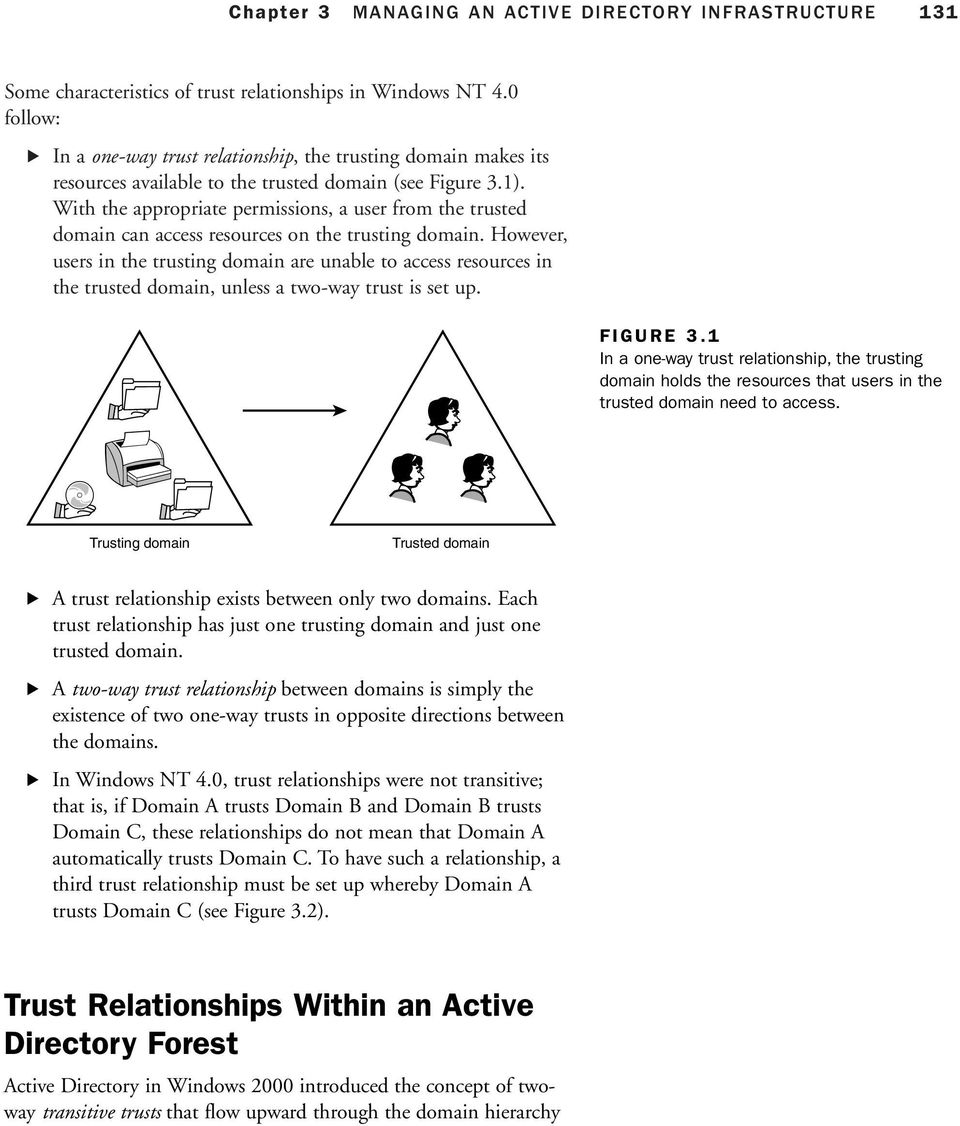
6 132 Part I EXAM PREPARATION NOTE Managing Trust Relationships You should be aware that only members of the Domain Admins group can manage trusts. toward the tree root domain and across root domains of different trees in the same forest. This includes parent-child trusts between parent and child domains of the same tree and tree root trusts between the root domains of different trees in the same forest. Because of this arrangement, administrators in general no longer need to configure trust relationships between domains in a single forest. FIGURE 3.2 If Domain A trusts Domain B and Domain B trusts Domain C in a nontransitive trust, Domain A does not trust Domain C. In a transitive trust relationship, Domain A automatically trusts Domain C through Domain B when the other two trusts are created. B B A C A C Nontransitive Transitive In addition, Windows Server 2003 provides for another trust relationship called a shortcut trust. It is an additional trust relationship between two domains in the same forest, which optimizes the authentication process when a large number of users need to access resources in a different domain in the same forest. This capability is especially useful if the normal authentication path needs to cross several domains. Consider Figure 3.3 as an example. FIGURE 3.3 Shortcut trusts are useful if the authentication path to another domain in the forest has to cross several domain boundaries. A.com B.com A.A.com B.A.com B.B.com C.A.A.com C.B.B.com

7 Chapter 3 MANAGING AN ACTIVE DIRECTORY INFRASTRUCTURE 133 Suppose that users in the C.A.A.com domain need to log on to the C.B.B.com domain, which is located in the second tree of the same forest. The authentication path must cross five domain boundaries to reach the C.B.B.com domain. If an administrator establishes a shortcut trust between the C.A.A.com and C.B.B.com domains, the logon process is speeded up considerably. This is also true for shorter possible authentication paths such as C.A.A.com to B.A.com or B.A.com to B.B.com. This also facilitates the use of Kerberos when accessing resources located in another domain. Interforest Trust Relationships Whenever there is need for accessing resources in a different forest, administrators have to configure trust relationships manually. Windows 2000 offers the capability to configure one-way, nontransitive trusts with similar properties to those mentioned previously, between domains in different forests. You have to explicitly configure every trust relationship between each domain in the different forests. If you need a two-way trust relationship, you have to manually configure each half of the trust separately. Windows Server 2003 makes it easier to configure interforest trust relationships. In this section, we study these trust relationships. In a nutshell, for forests that are operating at the Windows Server 2003 forest functional level, you can configure trusts that enable two-way transitive trust relationships between all domains in the relevant forests. If the forest is operating at any other functional level, you still need to configure explicit trusts as in Windows Windows Server 2003 introduces the following types of interforest trusts:. External trusts These one-way trusts are individual trust relationships set up between two domains in different forests, as can be done in Windows The forests involved may be operating at any forest functional level. You can use this type of trust if you need to enable resource sharing only between specific domains in different forests. You can also use this type of trust relationship between an Active Directory domain and a Windows NT 4.0 domain.

8 134 Part I EXAM PREPARATION. Forest trusts As already mentioned, these trusts include complete trust relationships between all domains in the relevant forests, thereby enabling resource sharing among all domains in the forests. The trust relationship can be either one-way or two-way. Both forests must be operating at the Windows Server 2003 forest functional level. The use of forest trusts offers several benefits: They simplify resource management between forests by reducing the number of external trusts needed for resource sharing. They provide a wider scope of UPN authentications, which can be used across the trusting forests. They provide increased administrative flexibility by enabling administrators to split collaborative delegation efforts with administrators in other forests. Directory replication is isolated within each forest. Forestwide configuration modifications such as adding new domains or modifying the schema affect only the forest to which they apply, and not trusting forests. They provide greater trustworthiness of authorization data. Administrators can use both the Kerberos and NTLM authentication protocols when authorization data is transferred between forests.. Realm trusts These are one-way nontransitive trusts that you can set up between an Active Directory domain and a Kerberos V5 realm such as found in Unix and MIT implementations. Establishing Trust Relationships This section examines creating two types of trust relationships with external forests: external trusts and forest trusts. We then look at the shortcut trust, which is the only configurable type of trust relationship between two domains in the same forest. Before you begin to create trust relationships, you need to be aware of several prerequisites:

9 Chapter 3 MANAGING AN ACTIVE DIRECTORY INFRASTRUCTURE 135. You must be a member of the Enterprise Admins group or the Domain Admins group in the forest root domain. New to Windows Server 2003, you can also be a member of the Incoming Forest Trust Builders group on the forest root domain. This group has the rights to create one-way, incoming forest trusts to the forest root domain. If you hold this level of membership in both forests, you can set up both sides of an interforest trust at the same time.. You must ensure that DNS is properly configured so that the forests can recognize each other.. In the case of a forest trust, both forests must be operating at the Windows Server 2003 forest functional level. TIP EXAM Trust Creation Can Be Tricky! Know the variations of the procedures so that you can answer questions about the troubleshooting of problems related to interforest access as they relate to the options available when creating trusts. In particular, be aware of the differences between the incoming and outgoing trust directions. Windows Server 2003 provides the New Trust Wizard to simplify the creation of all types of trust relationships. The following sections show you how to create these trust relationships. Creating an External Trust Follow Step by Step 3.1 to create an external trust with a domain in another forest or a Windows NT 4.0 domain. STEP BY STEP 3.1 Creating an External Trust 1. Click Start, Administrative Tools, Active Directory Domains and Trusts to open the Active Directory Domains and Trusts snap-in. 2. In the console tree, right-click your domain name and choose Properties to display the Properties dialog box for the domain. 3. Select the Trusts tab. This tab contains fields listing domains trusted by this domain and domains that trust this domain. Initially these fields are blank, as in Figure 3.4. continues

10 136 Part I EXAM PREPARATION continued 4. Click New Trust to start the New Trust Wizard, as shown in Figure 3.5. FIGURE 3.4 You can manage trusts from the Trusts tab of a domain s Properties dialog box. FIGURE 3.5. You can create new trust relationships by using the New Trust Wizard. FIGURE 3.6 On the Trust Name page, you can enter the DNS or NetBIOS name of the domain with which you want to create a trust. 5. Click Next, and on the Trust Name page, type the name of the domain with which you want to create a trust relationship (see Figure 3.6). Then click Next. 6. The Trust Type page, shown in Figure 3.7, offers you a choice between an external trust and a forest trust. Select External Trust and then click Next. 7. The Direction of Trust page, shown in Figure 3.8, offers you a choice of the following three types of trusts: Two-way Creates a two-way trust. This type of trust allows users in both domains to be authenticated in each other s domain. One-way: incoming Creates a one-way trust in which users in your (trusted) domain can be authenticated in the other (trusting) domain. Users in the other domain cannot be authenticated in your domain.
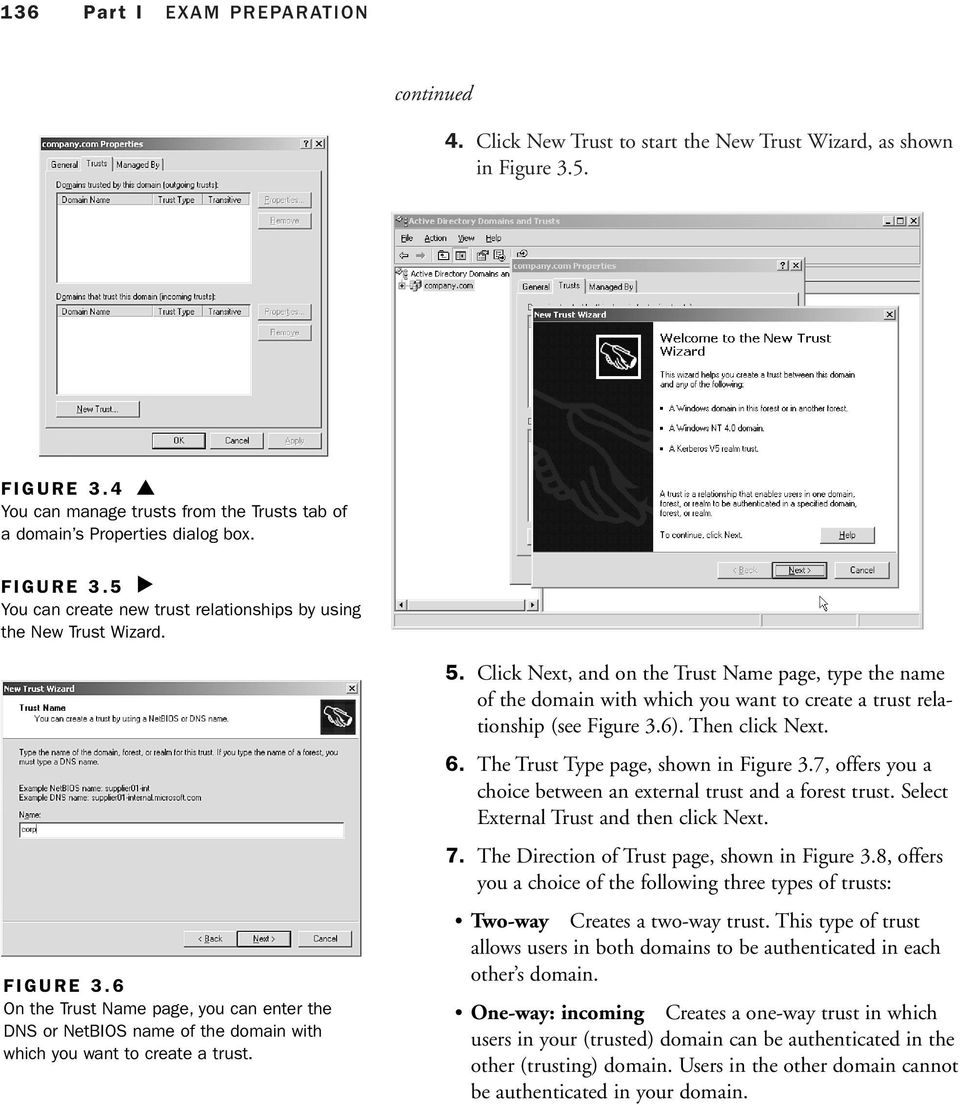
11 Chapter 3 MANAGING AN ACTIVE DIRECTORY INFRASTRUCTURE 137 One-way: outgoing Creates a one-way trust that users in the other (trusted) domain can be authenticated in your (trusting) domain. Users in your domain cannot be authenticated in the other domain. 8. Select a choice according to your network requirements and then click Next. 9. The Sides of Trust page, shown in Figure 3.9, allows you to complete both sides of the trust if you have the appropriate permissions in both domains. If this is so, select Both This Domain and the Specified Domain. Otherwise, select This Domain Only and then click Next. 10. If you selected This Domain Only on the Sides of Trust page, the Trust Password page appears, asking for a password for the trust. You must specify the same password when creating the trust in the other domain. Type and confirm a password that conforms to password security guidelines, click Next, and then skip to step 13. Ensure that you remember this password. 11. If you selected Both This Domain and the Specified Domain on the Sides of Trust page, the Outgoing Trust Properties Local Domain page, shown in Figure 3.10, offers the following two choices in the scope of authentication for users in the trusted domain: Domain-Wide Authentication This option authenticates users from the trusted domain for all resources in the local domain. Microsoft recommends this option only for trusts within the same organization. Selective Authentication This option does not create any default authentication. You must grant access to each server that users need to access. Microsoft recommends this option for trusts that involve separate organizations, such as contractor relationships. continues FIGURE 3.7 You can select the trust type required from the Trust Type page. FIGURE 3.8 The Direction of Trust page offers you options for creating one-way or two-way trusts. FIGURE 3.9 The Sides of Trust page enables you to complete both sides of the trust if you have the appropriate permissions.
12 138 Part I EXAM PREPARATION continued FIGURE 3.10 The Outgoing Trust Authentication Level-Local Domain page provides two choices of authentication scope for users in the trusted domain. FIGURE 3.11 The Trust Selections Complete page displays a review of the trust settings you have specified. 12. Select the appropriate type of authentication and then click Next. 13. The Trust Selections Complete page displays a list of the options that you have configured (see Figure 3.11). Review these settings to ensure that you have made the correct selections. If any settings are incorrect, click Back and correct them. Then click Next. 14. The Trust Creation Complete page informs you that the trust relationship was successfully created. Click Next to finish the process. 15. The Confirm Outgoing Trust page asks whether you want to confirm the outgoing trust (see Figure 3.12). If you have configured the trust from the other side, click Yes, Confirm the Outgoing Trust. Otherwise, click No, Do Not Confirm the Outgoing Trust. Then click Next. 16. The Confirm Incoming Trust page asks whether you want to confirm the incoming trust. Choices are the same as on the previous page. If you want to confirm this trust, enter a username and password for an administrator account in the other domain. 17. The Completing the New Trust Wizard page verifies the confirmation of the trust from the other side. Click Finish. 18. You are returned to the Trusts tab of the domain s Properties dialog box (see Figure 3.13). The name of the domain with which you configured the trust now appears in one or both of the fields according to the trust type you created. Click OK to close this dialog box.

13 Chapter 3 MANAGING AN ACTIVE DIRECTORY INFRASTRUCTURE 139 FIGURE 3.12 The Confirm Outgoing Trust page provides a chance to confirm the other side of the trust. FIGURE 3.13 After you have created the trust relationship, the Trusts tab of the domain s Properties dialog box shows the name of the trusted domain together with the trust type and transitivity. Creating a Forest Trust Recall that this type of trust can be created only between two Active Directory forests that are both operating at the Windows Server 2003 forest functional level. Follow Step by Step 3.2 to create a forest trust.

14 140 Part I EXAM PREPARATION STEP BY STEP 3.2 Creating a Forest Trust 1. Make sure that the forest functional level of both forests is set to Windows See Chapter 2, Planning and Implementing an Active Directory Infrastructure, for details. 2. Follow steps 1 5 of Step by Step 3.1 to access the Trust Name page of the New Trust Wizard. 3. Type the name of the forest root domain with which you want to create a trust and then click Next. 4. On the Trust Type page, select Forest Trust and then click Next. 5. On the Direction of Trust page, select the appropriate direction for the trust and then click Next. 6. On the Sides of Trust page, specify whether you want to create the trust for this domain only or for both this domain and the specified domain, and then click Next. 7. If you are creating the trust for both forests, specify a username and password for the specified forest and then click Next. If you are creating the trust for this forest only, specify a trust password, which the administrator in the other forest will need to specify to complete the creation of the trust for her forest. Then click Next. 8. The Outgoing Trust Authentication Level Local Forest page, shown in Figure 3.14, provides two choices that are similar to those provided by the Outgoing Trust Authentication Level Local Domain page. Make a choice and then click Next. 9. The Trust Selections Complete page displays a list of the options that you have configured (refer to Figure 3.11). Review these settings to ensure that you have made the correct selections. If any settings are incorrect, click Back and correct them. Then click Next.

15 Chapter 3 MANAGING AN ACTIVE DIRECTORY INFRASTRUCTURE The Trust Creation Complete page informs you that the trust relationship was successfully created. Click Next to finish the process. 11. The Confirm Outgoing Trust page asks whether you want to confirm the outgoing trust (refer to Figure 3.12). If you have configured the trust from the other side, click Yes, Confirm the Outgoing Trust. Otherwise, click No, Do Not Confirm the Outgoing Trust. Then click Next. 12. The Confirm Incoming Trust page asks whether you want to confirm the incoming trust. Choices are the same as on the previous page. If you want to confirm this trust, enter a username and password for an administrator account in the other forest. 13. The Completing the New Trust Wizard page verifies the confirmation of the trust from the other side. Click Finish. FIGURE 3.14 The Outgoing Trust Authentication Level Local Forest page provides two choices of authentication scope for users in the trusted forest. 14. You are returned to the Trusts tab of the domain s Properties dialog box (refer to Figure 3.13). The name of the domain with which you configured the trust now appears in one or both of the fields according to the trust type you created. Click OK to close this dialog box. Creating a Shortcut Trust Recall that this type of trust can be created between child domains in the same forest to expedite crossdomain authentication or resource access. Follow Step by Step 3.3 to create a shortcut trust relationship. STEP BY STEP 3.3 Creating a Shortcut Trust 1. In Active Directory Domains and Trusts, right-click your domain and choose Properties. continues

16 142 Part I EXAM PREPARATION continued 2. On the domain s Properties dialog box, select the Trusts tab and click New Trust to start the New Trust Wizard. 3. Click Next, and on the Trust Name and Password page, type the DNS name or NetBIOS name of the domain with which you want to establish a shortcut trust and then click Next. 4. On the Direction of Trust page (refer to Figure 3.8), choose the appropriate option (two-way, one-way incoming, or one-way outgoing) and then click Next. 5. On the Sides of Trust page, specify whether you want to create the trust for this domain only or for both this domain and the specified domain, and then click Next. 6. If you are creating the trust for both domains, specify a username and password for an administrator account in the specified domain. If you are creating the trust for this domain only, specify a trust password, which the administrator in the other domain will need to specify to complete the creation of the trust for her domain. Then click Next. 7. The Trust Selections Complete page displays a summary of the settings you have entered (refer to Figure 3.11). Click Back if you need to make any changes to these settings. Then click Next to create the trust. 8. The Trust Creation Complete page informs you that the trust relationship was successfully created. Click Next to configure the trust. 9. The Confirm Outgoing Trust page asks whether you want to confirm the other side of the trust. If you have created both sides of the trust, click Yes. Otherwise, click No and then click Next. 10. The Confirm Incoming Trust page asks whether you want to confirm the incoming trust. Choices are the same as on the previous page. If you want to confirm this trust, enter a username and password for an administrator account in the other domain.

17 Chapter 3 MANAGING AN ACTIVE DIRECTORY INFRASTRUCTURE The Completing the New Trust Wizard page informs you that you have created the trust. Click Finish to return to the Trusts tab of the domain s Properties dialog box (refer to Figure 3.13). The name of the domain with which you configured the trust now appears in one or both of the fields according to the trust type you created. Click OK to close this dialog box. If you have created only one side of the trust, an administrator in the other domain needs to repeat this procedure to create the trust from her end. She will need to enter the trust password you specified in this procedure. IN THE FIELD A SEPARATE RESEARCH FOREST A major aircraft manufacturer landed a contract with NASA to design one module of a prototype spacecraft for a manned Mars mission. Realizing that the research necessary to complete this project successfully required a high level of security, management asked the senior network administrator to set up a separate forest in the organization s Windows Server 2003 Active Directory design. For the project to succeed, researchers needed access to certain data stored in the organization s existing forest. Their user accounts would be in the new forest. Users in the existing forest did not need to access data in the research forest. The administrator had to choose a trust model that would enable the appropriate levels of access. With these needs in mind, the administrator decided to implement a one-way external trust relationship in which the existing forest trusted the research forest. It was then possible to place the researchers who needed access into a group that could be granted access to the appropriate resources in the existing forest. Because the trust relationship was one-way, no access in the opposite direction was possible. We take a further look at the use of groups to grant crossforest access in Chapter 6, Implementing User, Computer, and Group Strategies.

18 144 Part I EXAM PREPARATION Managing Trust Relationships After you have created a crossforest trust, the following limited set of configuration options is available from the trust s Properties dialog box:. Validate trust relationships This option enables you to verify that a trust has been properly created and that the forests can communicate with each other.. Change the authentication scope This option enables you to change the selection of domainwide authentication or selective authentication that you made during creation of the trust, should you need to modify access control to the trusting forest s resources.. Configure name suffix routing This option provides a mechanism that you can use to specify how authentication requests are routed across Windows Server 2003 forests. It is available only when forest trusts are used. Validating Trust Relationships To access the trust s Properties dialog box and validate a trust relationship, follow Step by Step 3.4. STEP BY STEP 3.4 Validating a Trust Relationship 1. In Active Directory Domains and Trusts, right-click your domain name and choose Properties. 2. On the Trusts tab of the domain s Properties dialog box, select the name of the other domain or forest and click Properties. 3. This action displays the trust s Properties dialog box, as shown in Figure FIGURE 3.15 The General tab of the Properties dialog box of the other domain provides information on the trust s properties. 4. To validate the trust relationship, click Validate.

19 Chapter 3 MANAGING AN ACTIVE DIRECTORY INFRASTRUCTURE If the trust is in place and active, you receive a confirmation message box, as shown in Figure Otherwise, you receive an error message, such as the one in Figure Changing the Authentication Scope Follow Step by Step 3.5 to change the authentication scope that you set when you create the trust. FIGURE 3.16 This message box informs you that the trust is valid. STEP BY STEP 3.5 Changing the Authentication Scope of a Trust Relationship FIGURE 3.17 If the trust cannot be validated, an error message such as this informs you of the problem. 1. Select the Authentication tab of the trust s Properties dialog box, as shown in Figure Select either Domain-Wide Authentication or Selective Authentication (as already described in Step by Step 3.1) and then click OK. Configuring Name Suffix Routing When you initially create a forest trust, all unique name suffixes are routed by default. A unique name suffix is a name suffix within a forest, such as a User Principal Name (UPN) suffix, Service Principal Name (SPN) suffix, or domain name system (DNS) forest or tree name that is not subordinate to any other name suffix. For example, the DNS forest name quepublishing.com is a unique name suffix within the quepublishing.com forest. Consequently, name suffixes in one forest do not exist in another forest. FIGURE 3.18 The Authentication tab of a trust s Properties dialog box allows you to change the trust s authentication scope. Name suffix routing is a mechanism that can manage the routing of authentication requests across Windows Server 2003 forests that are connected by forest trust relationships. It enables name suffixes that do not exist in one forest to be used to route authentication requests to another forest. This includes child name suffixes. As a result,

20 146 Part I EXAM PREPARATION FIGURE 3.19 The Name Suffix Routing tab of a trust s Properties dialog box allows you to enable or disable name suffix routing between forests. when you view name suffixes in the Name Suffix Routing tab of the domain s Properties dialog box, as shown in Figure 3.19, they are prefixed by * to indicate that they refer to the parent domain and all child domains. If you add new child domains to either forest, they automatically inherit the name suffix routing properties of other domains in the forest. After you add a new name suffix and validate the trust, it appears on the Name Suffixes tab with a status (shown on the Routing column) of Disabled. The Status column indicates New for a newly created name suffix. You may need to disable name suffix routing to prevent certain authentication requests from flowing across the forest trust. You may also need to enable name suffix routing for additional name suffixes you have created or to exclude a child name suffix from routing. Follow Step by Step 3.6 to configure these name suffix routing options. FIGURE 3.20 You can exclude a name suffix that does not exist in the specified forest from routing by specifying it on the Edit domain name dialog box. STEP BY STEP 3.6 Configuring Name Suffix Routing 1. On the Name Suffix Routing tab of the trust s Properties dialog box, select the suffix whose routing status is to be changed and then click Enable or Disable as required. 2. The routing status in the Routing column changes. In the case of enabling a new name suffix routing, the New entry disappears from the Status column. 3. To exclude a child name suffix from routing, select the parent suffix and click Edit to display the Edit domain name dialog box (see Figure 3.20). 4. To exclude the name suffix, click Add. On the Add Excluded Name Suffix dialog box, type the name of the suffix and then click OK (see Figure 3.21).

21 Chapter 3 MANAGING AN ACTIVE DIRECTORY INFRASTRUCTURE The excluded name suffix appears on the Edit domain name dialog box. Click OK. FIGURE 3.21 The Add Excluded Name Suffix dialog box allows you to exclude a name suffix from routing to the specified forest. Removing a Crossforest Trust Relationship Sometimes you might need to remove a trust relationship between two forests. For example, a contract may have completed or been terminated, an acquisition of one company by another may have fallen through, and so on. You may need to remove and re-create a trust relationship if you have incorrectly specified properties such as an incorrect trust type or direction. You can remove a trust relationship from the Active Directory Domains and Trusts snap-in by following Step by Step 3.7. NOTE Name Conflicts Can Occur If the same unique name suffix is used in two forests connected by a forest trust, a conflict (or collision) might occur. In such situations, the Status column on the Name Suffix Routing tab lists the conflict in the indicated domain. You cannot enable this suffix for name routing until you have removed the conflicting name suffix for the indicated domain. STEP BY STEP 3.7 Removing a Trust Relationship 1. In Active Directory Domains and Trusts, right-click your domain name and choose Properties. 2. On the Trusts tab of the domain s Properties dialog box, select the trust to be removed and click Remove. 3. You are asked whether you want to remove the trust from the local domain only or from the local domain and the other domain (see Figure 3.22). If you want to remove the trust from both domains, select Yes, Remove the Trust from Both the Local Domain and the Other Domain, continues
22 148 Part I EXAM PREPARATION continued FIGURE 3.22 You are asked whether you want to remove the trust from the local domain only or from the local domain and the other domain. type the username and password for an account with administrative privileges in the other domain, and then click OK. 4. Click Yes on the next dialog box to confirm removing the trust. 5. You are returned to the Trust tab of the domain s Properties dialog box. Notice that the name of the other domain has been removed. W ARNING Removing the Trust If you remove the trust from the local domain only, it still appears from the other domain but generates an error if you attempt to validate it. An administrator from the other domain must remove the trust from that domain as well. Understanding Trust Relationships Following are points to remember regarding trust relationships:. In a one-way trust relationship, the trusting domain makes its resources available to users in the trusted domain. A two-way trust relationship consists of two one-way trusts in opposite directions.. By default in Active Directory, all domains in a forest trust each other with two-way transitive trust relationships. You can also create shortcut trusts between child domains to facilitate rapid authentication and resource access.. You need to explicitly set up all trust relationships between different forests. You can set up either external one- or two-way trusts between specific domains in the two forests or a forest trust in which all domains in the two forests trust each other with two way trusts.. A one-way incoming trust allows users in your (trusted) domain to be authenticated in the other (trusting) domain, whereas a one-way outgoing trust allows users in the other (trusted) domain to be authenticated in your (trusting) domain.. Two authentication scopes are available: Domainwide authentication allows users from the trusted domain to access all resources in the local domain. Selective authentication does
23 Chapter 3 MANAGING AN ACTIVE DIRECTORY INFRASTRUCTURE 149 not create any default authentication; you must grant access to each server that users need to access. You can change the authentication scope after trusts are set up, if necessary.. You can enable name suffix routing that simplifies authentication requests being routed to another forest. New child domains added to either forest automatically inherit these name suffix routing properties; however, you can disable name suffix routing when required or exclude a child name suffix from routing. ACTIVE DIRECTORY FOREST AND DOMAIN STRUCTURE Now that you know about creating and administering trust relationships, we are ready to look at two additional aspects of forest and domain management: schema modifications and UPN suffixes. Managing Schema Modifications Manage an Active Directory forest and domain structure. Manage schema modifications. As discussed in Chapter 1, Concepts of Windows Server 2003 Active Directory, the schema is a set of rules that define the classes of objects and their attributes that can be created in an Active Directory forest. All domains in a forest share a common schema, which is replicated to all domain controllers in the forest. However, only the schema master contains a writable copy of the schema; all other domain controllers contain a read-only replica of the schema. Active Directory stores information on the classes and attributes as instances of the classschema and attributeschema classes, respectively. The schema defines the attributes that can be held by objects of various types, the various classes that can exist, and the object class that can be a parent of the current object class. When you first install Active Directory, a default schema is created; it includes definitions for the common classes of objects, such as user, computer,
24 150 Part I EXAM PREPARATION W ARNING Take Great Care in Modifying the Schema Improper modifications can cause irreparable harm to Active Directory. For this reason, Microsoft created a global group called Schema Admins, and only members of this group can perform such modifications. As a best practice to avoid unauthorized modifications, you should remove all users from this group and add a user only when it is necessary to modify the schema. In addition, it is strongly advisable to create a test forest in a lab environment and test schema modifications here before deploying them to a production forest. and organizationalunit. It also includes attribute definitions, such as lastname, userprincipalname, telephonenumber, and objectsid. Microsoft designed the schema to be extensible; in other words, you can add classes and attributes, together with their definitions, as required. In addition, you can remove classes and attributes that you no longer require, provided the forest is operating at the Windows Server 2003 functional level. Following are the characteristics of these classes:. Active Directory uses an instance of the classschema class to define every object class supported. For example, the maycontain and mustcontain attributes describe attributes that an object class may and must contain.. You can use instances of the attributeschema class to define every attribute that Active Directory supports. For example, the attributesyntax and issinglevalued attributes describe an attribute in a similar manner to the way in which attributes of a user object describe the user.. Active Directory uses a well-defined Schema container as a location in the directory to store the instances of the attributeschema and classschema classes. This container has a distinguished name (DN) of the form CN=Schema, CN=Configuration,DC=quepublishing,DC=Com, where the DC items refer to the forest root domain name, using quepublishing.com as an example. For further information on object classes, their characteristics, and a description of the key attributes of a classschema object, see Characteristics of Object Classes at the following address: en-us/netdir/ad/characteristics_of_object_classes.asp For similar information for attributes, see Characteristics of Attributes at this address: en-us/netdir/ad/characteristics_of_attributes.asp Installing the Schema Snap-In You can perform schema modifications from any computer running Windows Server 2003 or Windows XP Professional by installing the
25 Chapter 3 MANAGING AN ACTIVE DIRECTORY INFRASTRUCTURE 151 Active Directory Schema snap-in on a server or installing the Windows Server 2003 Administration Tools Pack on a Windows XP Professional computer. If the computer is not the schema master, it creates a connection to the schema master when you start the snap-in. The Active Directory schema snap-in is not present by default when you first install Active Directory. Installation of this snap-in is a twostep process: registration and snap-in installation. Follow Step by Step 3.8 to register the snap-in. STEP BY STEP 3.8 Registering the Active Directory Schema Snap-In 1. Ensure that you are logged on as a member of the Schema Admins group. 2. Click Start, Command Prompt. 3. Type regsvr32 schmmgmt.dll. 4. A message box informs you that the registration succeeded. See Figure FIGURE 3.23 Windows informs you when you have successfully registered the Active Directory Schema snap-in. After you have registered the Active Directory Schema snap-in, you can add this snap-in to an empty Microsoft Management Console (MMC). Follow Step by Step 3.9 to install the Active Directory Schema snap-in. STEP BY STEP 3.9 Installing the Active Directory Schema Snap-in to a New MMC Console 1. Click Start, Run. 2. Type mmc to open an empty MMC console. continues
26 152 Part I EXAM PREPARATION continued 3. Click File, Add/Remove Snap-In to open the Add/Remove Snap-In dialog box (see Figure 3.24). 4. Click Add to display the Add Standalone Snap-In dialog box. 5. Select Active Directory Schema, as shown in Figure 3.25, and then click Add. 6. Click Close to return to the Add/Remove Snap-In dialog box. 7. Click OK. The Active Directory Schema snap-in is added to the MMC console (see Figure 3.26). FIGURE 3.24 Using the Add/Remove Snap-In dialog box, you can add a snap-in to a new or existing MMC console. FIGURE 3.25 Using the Add Standalone Snap-In dialog box, you can select one or more snap-ins to add to the MMC console. FIGURE 3.26 Upon completion of this procedure, you have an MMC console containing the Active Directory Schema snap-in. 8. Click File, Save, and on the Save As dialog box, type a descriptive name for the console, such as Schema.msc. Then click Save.
27 Chapter 3 MANAGING AN ACTIVE DIRECTORY INFRASTRUCTURE 153 The Schema snap-in is now available, and you can locate it from the Administrative Tools folder. Using the Schema Snap-In After you have installed the Schema snap-in, you can make any required modifications. Step by Step 3.10 shows you how to create a new attribute. TIP EXAM Remember the Prerequisites for Installing and Using the Schema Snap-In! First, you must be a member of the Schema Admins group. Then you must register the Active Directory Schema snap-in to make it available in the Add Standalone Snap-In dialog box. STEP BY STEP 3.10 Creating a New Schema Attribute 1. Click Start, Administrative Tools, Schema.msc. If you installed the Schema snap-in according to Step by Step 3.9, this selection opens the Schema snap-in. 2. Expand the Active Directory Schema container in the console tree. You see two containers: Classes and Attributes. 3. Expand the Attributes container. As you can see in Figure 3.27, a long list of attributes is available. FIGURE 3.27 By default, the Active Directory Schema snap-in contains a large number of attributes. 4. Right-click Attributes and select Create Attribute. You are warned that creating schema objects in the directory is a permanent operation (see Figure 3.28). continues
28 154 Part I EXAM PREPARATION continued FIGURE 3.28 This warning message informs you that creating schema objects is a permanent operation. FIGURE 3.29 You use the Create New Attribute dialog box to create attributes. NOTE Object Identifiers An OID is not randomly generated; standards organizations such as the International Telecommunications Union issue these identifiers to ensure that they are not duplicated. To obtain a unique OID for a class or attribute that you want to create, you should contact one of these standards organizations. 5. Click Continue. This action displays the Create New Attribute dialog box (see Figure 3.29). 6. Enter information in the following text boxes to describe the attribute you are creating:. Common Name A unique name that is related to the Lightweight Directory Access Protocol (LDAP) display name.. LDAP Display Name A unique display name that programmers and system administrators can use to programmatically reference the object.. Unique X.500 Object ID A unique X.500 Object ID (OID) is a unique identifier associated with all object classes or attributes in the directory. This identifier is required.. Description An optional description for the attribute.. Syntax Type of information stored by this attribute, such as a case-insensitive string, distinguished name, integer, numerical string, and so on.. Minimum and maximum Depending on the syntax, can be an optional string length, minimum and maximum values of integers, and so on. 7. Click OK. The attribute is created and displayed in the attributes list. If you have difficulty finding it, click the Name header to arrange the attributes in alphabetical order. You can also create new classes by right-clicking the Classes container and choosing Create New Schema Class. The procedure is similar to that of Step by Step After you have created new attributes and classes, you can easily add attributes to classes, as Step by Step 3.11 shows.
29 Chapter 3 MANAGING AN ACTIVE DIRECTORY INFRASTRUCTURE 155 STEP BY STEP 3.11 Adding an Attribute to a Class 1. In the console tree of the Active Directory Schema snapin, double-click Classes to expand it. This action displays a long list of available classes (see Figure 3.30). FIGURE 3.30 By default, the Active Directory Schema snap-in contains a large number of classes. 2. Right-click the class to which you want to add an attribute and select Properties. This action displays the Properties dialog box for the selected class, as shown in Figure Select the Attributes tab and then click Add to display the Select Schema Object dialog box, as shown in Figure FIGURE 3.31 In the Properties dialog box for a schema class, you make all modifications to the class. FIGURE 3.32 You use the Select Schema Object dialog box to select the desired attribute. continues
30 156 Part I EXAM PREPARATION continued 4. Scroll down to locate the attribute and then click OK. You return to the Attributes tab of the user Properties dialog box, with the new attribute highlighted. 5. Click OK. 6. Close the Active Directory Schema console. Deactivating Schema Objects After you have added an object (class or attribute) to the schema, you cannot simply delete it. However, you can deactivate an unneeded schema object by following the procedure outlined in Step by Step STEP BY STEP 3.12 Deactivating a Schema Object 1. Open the Active Directory Schema snap-in. 2. In the console tree, select either Classes or Attributes, depending on the type of object you want to deactivate. FIGURE 3.33 You receive a warning when you attempt to deactivate a schema object. 3. In the details pane, scroll to locate the class or attribute you want to deactivate, right-click it, and choose Properties. 4. Clear the check box labeled Attribute is Active. You receive a message, like the one in Figure 3.33, warning you that if you make the schema object defunct, you will be unable to make further changes to it. 5. Click Yes to deactivate the object. The step-by-step procedures given here provide you with a small example of the possible schema modifications. Other procedures are available to perform such tasks as creating new classes, adding values to a series of attributes, adding attribute display names, conducting
31 Chapter 3 MANAGING AN ACTIVE DIRECTORY INFRASTRUCTURE 157 searches based on the new attributes, and so on. Many of these procedures involve the use of scripts created using Microsoft Visual Basic for Scripting and are beyond the scope of the exam. For additional details, see the first reference in the Suggested Readings and Resources section at the end of this chapter. Information is also available from the Windows Server 2003 Help and Support Center. GUIDED PRACTICE EXERCISE 3.1 Active Directory Schema Attributes and Classes The widgets.com organization you worked with in Chapter 2 needs to store employees Social Security numbers in their Properties dialog boxes in Active Directory Users and Computers. Although the Properties dialog box enables you to store a large number of attributes for each user, the Social Security number is not among them. The object of this exercise is to understand how to add an attribute to the schema and associate this attribute with a schema class. After you have done this, you should be able to create a custom VB script or application that modifies a user s Properties dialog box in Active Directory Users and Computers, thereby enabling you to store employees Social Security numbers in Active Directory. Note that the unique X.500 Object ID given here was issued to Microsoft and is suitable for the use described in this exercise. You should try working through this problem on your own first. If you are stuck or need guidance, follow these steps and look back at the Step by Step procedures for more detailed information. 1. Working from server01.widgets.com, open Active Directory Schema. 2. Expand the console tree to locate the Classes and Attributes folders, right-click Attributes, and then select Create Attribute. 3. Click Continue to accept the warning that appears and display the Create New Attribute dialog box. continues TIP EXAM You Can Only Deactivate, Not Delete, Improper Schema Objects The exam may present you with a scenario in which an application has created incorrect schema attributes or classes. After objects have been created in the schema, you cannot delete them except by completely reinstalling Active Directory. The proper solution to this problem is to deactivate these objects. This is also another reason to test new applications in a lab network before deploying them to the production network.
32 158 Part I EXAM PREPARATION continued 4. In the Create New Attribute dialog box, type in the information provided in the following table: Identifier Common Name LDAP Display Name Enter the Following SocialSecurityNumber SocialSecurityNumber Unique X.500 Object ID Description Syntax Employee Social Security Number Select Case Insensitive String from the dropdown list. Minimum 0 Maximum 11 FIGURE 3.34 After you have added the new attribute, it appears in the Attributes tab of the user Properties dialog box. 5. Click OK to create the attribute and add it to the list in the details pane. 6. In the console tree, select Classes to display the list of classes in the details pane. 7. Scroll down to locate the user class, right-click it, and choose Properties. 8. On the Attributes tab of the user Properties dialog box, click Add to display the Select Schema Object dialog box. 9. Scroll down to select the SocialSecurityNumber attribute and then click OK. This action adds this attribute to the Optional field of the Attributes tab, as shown in Figure Click OK to exit the user Properties dialog box. 11. Use any available scripting tools to create a VB script that enables you to enter employees Social Security numbers and display them in the Properties dialog box in Active Directory Users and Computers. This action is beyond the scope of the exam and will not be further described here.
33 Chapter 3 MANAGING AN ACTIVE DIRECTORY INFRASTRUCTURE 159 Adding or Removing a UPN Suffix As described in Chapter 1, a User Principal Name (UPN) is a logon name specified in the format of an address such as [email protected]. It is a convenient means of logging on to a domain from a computer located in another domain in the forest or a trusted forest. Two types of UPNs are available:. Implicit UPN This UPN is always in the form user@domain, such as [email protected]. It is defined on the Account tab of a user s Properties dialog box in Active Directory Users and Computers.. Explicit UPN This UPN is in the form string1@string2, where an administrator can define values for both strings. For example, a user named Mary in the accounts.quepublishing. com domain could have an explicit UPN in the form mary@accts. Using explicit UPNs is practical when a company does not want to reveal its internal domain structure. New to Windows Server 2003 is the concept of UPN suffix. This is the portion of the UPN to the right of the at (@) character. By default, the UPN suffix is the DNS domain name of the domain that holds the user account. You can add an additional UPN suffix to simplify administration and user logon processes. Doing so provides the following advantages:. A common UPN suffix simplifies logon procedures for all users in the forest. This is especially true for users who have long child domain names. For example, a user with a default UPN of [email protected] could be provided with a simpler UPN such as Karen@quepublishing.. You can use the UPN suffix to hide the domain structure of the forest from users in external forests and to configure remote access servers for visitor access.. You can use the UPN suffix in a case where a company has more than one division that operates under different company names with separate domains (for example, quepublishing.com or examcram.com) but are all located in a single Active Directory domain. Using an additional UPN suffix, these users can log on using their addresses.
34 160 Part I EXAM PREPARATION. The UPN suffix is also used in mapping a.net Passport account to an Active Directory user account when setting up Microsoft.NET Passport authentication on a Web site hosted by Internet Information Services (IIS) 6.0. You can also use the UPN suffix to log on to a domain in a trusting forest, except in the following situations:. If more than one forest uses the same UPN suffix, you can use it only to log on to a domain in the same forest.. If you are using explicit UPNs and external trusts, you cannot log on to trusting domains in another forest. See the section Managing Trust Relationships earlier in this chapter for information on external trusts. You can use the Active Directory Domains and Trusts MMC console to add or remove UPN suffixes. Follow Step by Step 3.13 to add a UPN suffix. STEP BY STEP 3.13 Adding a UPN Suffix 1. Click Start, Administrative Tools, Active Directory Domains and Trusts. 2. In the console tree, right-click Active Directory Domains and Trusts and choose Properties. The Active Directory Domains and Trusts Properties dialog box opens, as shown in Figure Type the name of the desired UPN suffix (for example, corporation) in the text box and click Add. 4. The name of the UPN suffix is added to the large field in this dialog box. Click OK. FIGURE 3.35 You can use the Active Directory Domains and Trusts Properties dialog box to add or remove UPN suffixes. After you have added the UPN suffix, it is available for use when you are adding a new user account (see Figure 3.36) or configuring the properties of an existing user account from the Account tab of its Properties dialog box.
35 Chapter 3 MANAGING AN ACTIVE DIRECTORY INFRASTRUCTURE 161 If you no longer need an added UPN suffix, you can follow a similar procedure to remove it. See Step by Step STEP BY STEP 3.14 Removing a UPN Suffix 1. At the top of the Active Directory Domains and Trusts snap-in, right-click Active Directory Domains and Trusts and choose Properties. The Active Directory Domains and Trusts Properties dialog box opens (refer to Figure 3.35). 2. Select the UPN suffix to be removed and click Remove. 3. You are warned that users who use this UPN suffix will no longer be able to log on with this UPN suffix (see Figure 3.37). 4. Click OK. FIGURE 3.36 After you have added a UPN suffix, you can assign this suffix to a new user from the New Object User dialog box. If you remove a UPN suffix, you should open the Active Directory Users and Computers console, select any users whose user accounts refer to the removed UPN suffix, and change the suffix in use from the Accounts tab of their Properties dialog box. FIGURE 3.37 This message box warns you that user accounts referring to the UPN suffix will be unable to log on to the network if you delete the suffix. Understanding the Directory Forest and Domain Structure Following are points you should remember about the directory forest and domain structure:. All domains in the Active Directory forest share a common schema. Although it is replicated to all domain controllers in the forest, only the schema operations master contains a writable copy of the schema.. The schema contains classes of objects and a series of attributes that can be held by objects of various types. It also defines the various classes that can exist and the attributes that can be defined for each specific object.
36 162 Part I EXAM PREPARATION. Because improper schema modifications can cause irreparable damage to Active Directory, the following conditions must be met before you can modify the schema: You must be a member of the Schema Admins group, and you must register the Active Directory Schema snap-in before you can install it.. A UPN suffix is the portion of the UPN to the right of the at (@) character. You can add an additional UPN suffix to simplify logon procedures for all users in the forest and hide the domain structure of the forest. ACTIVE DIRECTORY SITE TOPOLOGY Implement an Active Directory site topology. Recall from Chapter 1 the nature of sites in Active Directory. A site is a grouping of computers and other objects that is connected by high-speed LAN connections and contains one or more Internet Protocol (IP) subnets. A site consists of one or more IP subnets that share a fast, reliable connection such as a local area network (LAN) connection. Because wide area network (WAN) connections are slower and may not be continuously available, network segments located across a WAN should be configured as separate sites. Configuring network segments this way is especially important if your company needs to pay for the WAN link by the number of minutes it is active or the amount of data sent across it. When planning sites, you should assess the needs of various offices and divisions within your company, as well as the speed and utilization of the links between the offices. When assessing the needs, you should do the following:. Assess the physical environment. You should look at the locations in which your company is conducting business and the nature of the internal and external network connections. Be sure to check factors such as the placement of domain controllers and the need to access resources at different offices. Even if locations are on different subnets, if they are connected by a reliable, fast, high-bandwidth link such as a T3 line, you may be able to include them in a single site.
37 Chapter 3 MANAGING AN ACTIVE DIRECTORY INFRASTRUCTURE 163. Assess the need for frequent replication versus bandwidth usage. If a location needs the most recent Active Directory information and is connected with a fast link, it does not need to be in a different site.. Identify the types of physical links between sites. The type, speed, and utilization of the connection between locations are important factors. Active Directory provides the concept of site link objects that can be used to determine the replication schedule between sites that it links. A cost value also can be associated with it; this value determines when and how often replication can occur.. Configure site link bridges. The site link bridge is an Active Directory mechanism that provides for fault tolerance in replication. Creating Sites When you first install Active Directory, all domain controllers are located in a single site with the rather ostentatious name of Default- First-Site-Name. If you want, you can rename this site in the same way you would rename a file or folder. After you have assessed the need for additional sites, creating a new site is simple. See Step by Step STEP BY STEP 3.15 Creating a New Site 1. Click Start, Administrative Tools, Active Directory Sites and Services. 2. Right-click the Sites folder and choose New Site. 3. In the New Object Site dialog box, type the name of the site. Select a site link object from the list provided, as shown in Figure 3.38, and then click OK. continues
38 164 Part I EXAM PREPARATION continued FIGURE 3.38 You use the New Object Site dialog box to create a new site. 4. You receive a message box listing other tasks you should perform, as shown in Figure Click OK. FIGURE 3.39 Windows reminds you of several tasks to be completed after creating a site. 5. The site you created appears in the console tree of Active Directory Sites and Services, and several default containers appear in the details pane. Configuring Sites You should perform several tasks after you have created a site. These tasks include adding domain controllers to a site, specifying licensing
39 Chapter 3 MANAGING AN ACTIVE DIRECTORY INFRASTRUCTURE 165 servers, and configuring site boundaries. We describe these tasks in the sections that follow. Adding Domain Controllers The first task you should complete is adding domain controllers to the site. Follow Step by Step 3.16 to perform the first task: adding a domain controller to the site you just created. STEP BY STEP 3.16 Adding Domain Controllers to a Site 1. In Active Directory Sites and Services, expand the site containing the domain controller you want to move, to reveal a Servers folder. 2. Click this folder. The details pane lists the domain controllers that are located in this site. 3. Right-click the server to be moved and select Move. 4. In the Move Server dialog box, shown in Figure 3.40, select the site for the server and then click OK. FIGURE 3.40 Moving a domain controller to a new site. 5. The moved server appears under its site in Active Directory Sites and Services.
40 166 Part I EXAM PREPARATION Specifying a Licensing Server A licensing computer collects information from within the site for use by the Windows Server 2003 licensing administration tool. It need not be a domain controller, but it should be located within its site. Follow Step by Step 3.17 to select a licensing computer for a site. STEP BY STEP 3.17 Selecting a Licensing Server 1. In the console tree of Active Directory Sites and Services, click the site to which you want to assign a licensing server. This action displays, among others, a Licensing Site Settings container in the details pane. 2. Right-click this container and choose Properties. 3. On the Licensing Site Settings Properties dialog box, click Change. 4. In the Select Computer dialog box that appears, type or browse to the name of the desired server, as shown in Figure Then click OK. FIGURE 3.41 Selecting a licensing site server. 5. Click OK to close the Licensing Site Settings Properties dialog box.
41 Chapter 3 MANAGING AN ACTIVE DIRECTORY INFRASTRUCTURE 167 Configuring Site Boundaries Manage an Active Directory site. Configure site boundaries. As we have emphasized, the purpose of using sites is to control replication of Active Directory information over slow links between geographically distinct locations. By itself, Active Directory has no knowledge of an organization s physical network topology. Administrators must model the enterprise s site topology to mirror the physical network. You can accomplish this by configuring each site to represent one or more IP subnets that are connected by highspeed links, as described in Step by Step STEP BY STEP 3.18 Assigning a Subnet to a Site 1. Click Start, Administrative Tools, Active Directory Sites and Services. 2. In the console tree, right-click the Subnets folder and choose New Subnet. 3. In the New Object Subnet dialog box, type the subnet IP address and subnet mask, as shown in Figure FIGURE 3.42 You can assign a subnet to a site from the New Object Subnet dialog box. continues
42 168 Part I EXAM PREPARATION NOTE Site Naming Conventions Subnet locations specified on the Location tab should follow a specific naming convention for your organization. These locations link to printer tracking in Active Directory. Refer to Establishing a Naming Convention for Printer Locations in Windows Server 2003 Help and Support Center for more information. continued 4. The information is shown on the New Object Subnet dialog box in the form of a network address/bits masked. Click OK. 5. In the Site Name field, select the site to which the subnet should belong and then click OK. 6. You return to the Active Directory Sites and Services snapin. The subnet you created appears under the Subnets folder. You can configure a limited set of properties for each subnet you have assigned. Follow Step by Step 3.19 to configure subnet properties. FIGURE 3.43 The Subnet Properties dialog box enables you to specify a description and location for the subnet and change the site with which it is associated. STEP BY STEP 3.19 Configuring Subnet Properties 1. In the console tree, right-click the subnet and choose Properties. 2. On the General tab of the Properties dialog box, type a description for the subnet, as shown in Figure This description is for information purposes only. 3. If you need to change the site to which the subnet is assigned, you can do so from the Site drop-down list box. 4. On the Location tab, you can type the location for the subnet. This location is also for information purposes only. 5. The Object and Security tabs function in a similar manner to those on other Properties dialog boxes.
43 Chapter 3 MANAGING AN ACTIVE DIRECTORY INFRASTRUCTURE 169 Configuring Site Links Implement an Active Directory site topology. Configure site links. A site link is a path that Active Directory uses to replicate information between sites. Replication cannot take place between sites unless site links have been created. Because of the limited bandwidth that usually exists between sites, Active Directory handles intersite replication differently than intrasite. In a nutshell, intersite replication is compressed, whereas intrasite replication is not compressed. Intersite replication takes place at a lower, configurable frequency. We discuss intersite replication and its configuration later in this chapter. Site links can use either of two intersite transport protocols for replicating data: Remote Procedure Call (RPC) over IP and Simple Mail Transfer Protocol (SMTP).. RPC over IP This protocol is the default replication method and the only one that supports replication within a domain. It enables low-speed, synchronous replication of all directory partitions using remote procedure calls.. SMTP This protocol is asynchronous based replication that can be used to replicate the schema and configuration partitions of Active Directory and the global catalog between domains. You should use this protocol if the reliability of the link is not good. You need to install an enterprise certification authority (CA) if you are using this transport protocol. It signs the SMTP messages that are sent over this protocol. SMTP also needs to be installed on domain controllers using this site link. Site links are not created automatically. As outlined in Step by Step 3.20, you can create site links by using Active Directory Sites and Services.
44 170 Part I EXAM PREPARATION STEP BY STEP 3.20 Creating Site Links 1. In the console tree of Active Directory Sites and Services, expand the Inter-Site Transports folder to reveal the IP and SMTP subfolders. 2. Right-click the folder corresponding to the transport protocol that is to be used and choose New Site Link. 3. In the New Object Site Link dialog box, type a name for the site link (see Figure 3.44). Then make sure the sites to be linked appear in the Sites in This Site Link field and click OK. FIGURE 3.44 Creating a site link. TIP EXAM Site Links You should be aware of the differences between IP and SMTP and know when you should use SMTP rather than IP for configuring a site link. Site Link Bridges By default, Active Directory bridges all site links. In other words, Active Directory creates a chain of site links that allow any two domain controllers to communicate directly with each other, whether or not they are directly linked with a site link. Implicitly, all
45 Chapter 3 MANAGING AN ACTIVE DIRECTORY INFRASTRUCTURE 171 site links for a single transport (IP or SMTP) are contained in one site link bridge for that transport. By default, all site links are bridged automatically. These links are also known as transitive site links. In some cases, you may need to disable automatic site link bridging and create your own site link bridges, such as in the following situations:. Your network is not completely routed. In other words, not all domain controllers can communicate with one another.. A security policy prevents all domain controllers from communicating directly with one another.. In some situations, the enterprise contains a large number of sites that are not well connected. Follow the procedure in Step by Step 3.21 to disable automatic site link bridging and create your own site link bridges. STEP BY STEP 3.21 Configuring Site Link Bridges 1. In the console tree of Active Directory Sites and Services, expand the Inter-Site Transports folder to reveal the IP and SMTP subfolders. 2. Right-click the transport (IP or SMTP) whose site link bridges you want to configure and choose Properties. 3. In the Properties dialog box for the transport (see Figure 3.45), clear the check box labeled Bridge All Site Links and then click OK. 4. Right-click the transport again and choose New Site Link Bridge. 5. In the New Object Site Link Bridge dialog box (see Figure 3.46), type a name for the site link bridge, ensure that the site links you want bridged appear in the Site Links in This Site Link Bridge field, and then click OK. FIGURE 3.45 Disabling automatic site link bridging. continues
46 172 Part I EXAM PREPARATION continued FIGURE 3.46 Creating a site link bridge. NOTE Different Topologies for Different Purposes The KCC generates separate topologies for each of the schema, configuration, application, and domain partitions, and the global catalog, according to their individual requirements. Knowledge Consistency Checker The Knowledge Consistency Checker (KCC) is a process that runs automatically on all domain controllers and creates Active Directory replication topologies, both intrasite and intersite. It creates optimum topologies at 15-minute intervals according to the conditions that exist at that time. As new sites and domain controllers are added, the KCC adjusts the replication topology to accommodate these changes. It uses a bidirectional ring topology that provides at least two paths between each domain controller for fault tolerance, and no more than three hops between any two domain controllers to reduce replication latency. It automatically adjusts the intrasite replication topology without administrator intervention. For intersite replication, the KCC works from a single domain controller called the Inter-Site Topology Generator (ISTG) in each site and uses the information you have configured in Active Directory Sites and Services. It designates one or more servers, known as bridgehead servers, for each site to ensure that changes to Active Directory are replicated only once across any given site link. Although the KCC
47 Chapter 3 MANAGING AN ACTIVE DIRECTORY INFRASTRUCTURE 173 usually designates its own bridgehead servers, you can manually designate bridgehead servers from Active Directory Sites and Services. The KCC normally runs in the background without the need for any type of configuration. If you need to force the KCC to run at a given time, you can run the repadmin command-line utility or the replmon GUI-based utility. These tools are both located in the Support\Tools folder of the Windows Server 2003 CD-ROM. We discuss the use of this tool in Chapter 4, Maintaining an Active Directory Infrastructure. Inter-Site Topology Generator As we have already noted, the ISTG is the domain controller used by the KCC to create the intersite replication topology. The ISTG considers the cost of intersite connections and checks whether any domain controllers have been added to or removed from the site; the ISTG provides this information to the KCC, which then adds or removes connection objects to optimize replication as required. Only one domain controller per site acts as the ISTG. If the forest is operating at the Windows Server 2003 forest functional level, the KCC uses an improved, randomized process to determine the site s bridgehead servers. It distributes the bridgehead replication workload more evenly among a site s domain controllers, resulting in improved replication efficiency. The algorithm used allows a domain to contain as many as 3,000 sites. You can use the dcdiag tool from the Support\Tools folder of the Windows Server 2003 CD-ROM to identify the ISTG computer in each site. Preferred Bridgehead Servers Implement an Active Directory site topology. Configure preferred bridgehead servers. The bridgehead server is the domain controller designated by each site s KCC to take charge of intersite replication. This server receives information replicated from other sites and then replicates it to the site s other domain controllers. It ensures that the greatest portion of replication takes place within sites rather than between them.
48 174 Part I EXAM PREPARATION W ARNING Be Cautious About Choosing Bridgehead Servers Manually If you allow the KCC to select a bridgehead server and this server fails, the KCC will select another one. However, if you select a bridgehead server yourself and it fails, the KCC will not choose another bridgehead server. Usually, the KCC automatically decides which domain controller will act as the bridgehead server. If necessary, you can designate a specific domain controller to be the bridgehead server to specify the best conditions for intersite replication. Follow Step by Step 3.22 to designate a preferred bridgehead server. STEP BY STEP 3.22 Designating a Preferred Bridgehead Server 1. In the console tree of Active Directory Sites and Services, expand the site where you need to designate a bridgehead server and then expand the Servers folder to locate the available servers. 2. Right-click the desired domain controller and choose Properties. 3. On the General tab of the server s Properties dialog box, select the transport protocol(s) for which this domain controller should be a bridgehead server and then click Add, as shown in Figure Click OK. FIGURE 3.47 Designating a bridgehead server for the IP transport protocol. Configuring Replication Schedules Manage an Active Directory site. Configure replication schedules. We have already mentioned that all domain controllers act as peers and that most changes to Active Directory can be made at any domain controller. Active Directory uses the process of multimaster replication to propagate these changes to other domain controllers in the domain. In addition, the global catalog is replicated to all other global catalog servers in the forest. Application partitions are replicated to a subset of domain controllers in the forest, and the schema and configuration partitions of Active Directory are also replicated to all domain controllers in the forest. You can see that replication is an important process that must take place in a timely manner so
49 Chapter 3 MANAGING AN ACTIVE DIRECTORY INFRASTRUCTURE 175 that updates to Active Directory are synchronized properly among all domain controllers in the forest. The amount of replication that is necessary to maintain Active Directory could easily overwhelm network bandwidth, especially on slow-speed WAN links. In this section you learn how to manage replication in Active Directory by configuring replication schedules within and between sites. But before we look at managing replication, we provide an overview of how it operates. What Does Active Directory Replicate? The following is an overview of the types of information that Active Directory must replicate on a timely basis. These types are based on the Active Directory partitions you learned about in Chapter 1.. Schema data We discussed schema modification earlier in this chapter. Recall that this information contains definitions for all objects and their attributes in the Active Directory forest and is common to all domain controllers in the forest. It must be kept up to date so that Active Directory can function properly.. Configuration data This data includes information related to the design of the Active Directory forest, including sites, trees, and domains, and their organization within the hierarchy. All domain controllers in the forest require this information to function properly.. Application data This data includes application-specific data and DNS information for Active Directory integrated DNS zones that need to be replicated throughout the forest. Some of this information may need to be replicated to only a subset of the domain controllers in the forest.. Domain data This data includes information about all objects in an individual domain, such as users, groups, computers, printers, shared folders, and so on. Active Directory replicates all this information to every domain controller in the domain. In addition, a read-only subset of this information is contained in the global catalog and replicated to all global catalog servers in the forest.
50 176 Part I EXAM PREPARATION How Does Active Directory Replication Work? Active Directory replicates data between domain controllers using the following two standard networking protocols:. Remote Procedure Call (RPC) over Internet Protocol (IP) Used for both intrasite and intersite replication, RPC over IP uses remote procedure calls for replication. It employs both Kerberos-based authentication and data encryption to keep data secure.. Simple Mail Transfer Protocol (SMTP) This protocol is used only for intersite replication when a direct or reliable IP-based path is unavailable. It is used for replication only between two domain controllers that are located in different domains as well as different sites. It requires an enterprise certification authority (CA) to operate. This CA signs SMTP messages as they are exchanged between domain controllers, ensuring their authenticity. SMTP does not replicate the domain partition of Active Directory; it replicates only the schema, configuration, and application partitions. In addition, SMTP replication ignores schedules. Active Directory uses a numerical sequencing method called the update sequence number (USN) to keep track of replicated updates. This method is more reliable than using time stamps because the latter method depends on exact synchronization of the clocks on all domain controllers, which is hard to maintain. However, Active Directory also uses a time stamp to resolve conflicting changes. The USN is a 64-bit number that is maintained at each domain controller in the forest. Whenever an update is initiated, the originating domain controller issues what is known as an originating update, which determines the kind of update being made to the Active Directory database. At the same time, the domain controller increments the USN by one and associates the updated USN with the originating update. Other domain controllers use the USN to determine what updates they need to receive. We discuss the use of the USN to track replication and troubleshoot problems in Chapter 4.
51 Chapter 3 MANAGING AN ACTIVE DIRECTORY INFRASTRUCTURE 177 Active Directory replication works by a pull process. In other words, individual domain controllers request updates from their replication partners at a known interval, which is five minutes by default. It checks the USNs for each replication partner and uses them to request any required updates. If a domain controller is offline for any reason, it can use the USN to get up to date properly. This process is in contrast to a push process, in which domain controllers send updates immediately to their replication partners rather than wait for requests. An offline domain controller would miss pushed updates and not be up to date. In addition, a domain controller may receive the same update from more than one source, which translates to a waste of bandwidth. In the event that two different administrators happen to modify the same attribute of the same object at the same time on different domain controllers, a conflict could occur. In this case, Active Directory uses the time stamp to resolve the conflict, and the latest update wins. If the changes take place at the exact same millisecond, the change with the higher globally unique ID wins. Intrasite Replication We previously discussed how the KCC automatically creates and adjusts the intrasite replication topology. The KCC ensures that each domain controller replicates with at least two others, so that if one is temporarily unavailable, no domain controller will miss an update. KCC uses a default bidirectional ring topology, with additional connections as needed to keep the number of hops between replication partners to three or fewer. Replication to the first replication partner takes place automatically on the basis of change notification after the administrator has configured an update. After waiting for 15 seconds, the source domain controller sends an update notification to its closest replication partner and sends additional notifications to other partners at 3-second intervals. After receiving the notification, the replication partners send update requests to the source domain controller, which then replicates the change to the partners. However, some updates such as password changes and account lockouts are replicated immediately. Because it is assumed that high LAN bandwidth is available for intrasite replication, data is not compressed during the replication process. NOTE Multiple Replication Topologies Active Directory uses one topology for the schema and configuration partitions and another one for the domain partition. In some cases, a third replication topology may exist for the application partition because data stored in this partition may not need to be replicated to all domain controllers. An administrator can explicitly route application partition data to selected domain controllers within a forest or to all domain controllers in a domain.
52 178 Part I EXAM PREPARATION Intrasite replication is completely automatic and requires no additional configuration after you have created and validated your sites. However, intersite replication can be configured and managed; we now turn our attention to managing intersite replication schedules. Intersite Replication One important use of sites is to control replication traffic between network segments located across WAN links. The high frequency of intrasite replication requires a high-speed LAN link (10Mbps or faster) to work properly. Table 3.1 compares several characteristics of intersite versus intrasite replication. NOTE Intersite Replication Is Compressed To further conserve bandwidth, Active Directory compresses all updates to Active Directory above 50KB in size when they are replicated. Because the compression ratio can be as high as 10:1, this can save a lot of bandwidth. Should you have bandwidth to spare but are limited in processing power, you can configure Active Directory to shut off compression. In addition, you may be able to increase replication latency to use less bandwidth in the long run. This is true because compression takes place only above 50KB. TABLE 3.1 C OMPARISON OF I NTERSITE AND I NTRASITE R EPLICATION Characteristic Intersite Intrasite Compression Compressed Uncompressed Interval Scheduled, configured Frequent, automatic Transport Protocol SMTP, RPC over IP RPC over IP Connection Type According to site link cost Between all DCs in ring topology Active Directory allows you to schedule intersite replication so that you can control how much bandwidth it consumes. This capability is important because bandwidth affects the efficiency of replication. Replication frequency is a trade-off between keeping Active Directory on remote domain controllers up to date and using a high amount of bandwidth on a slow link. By default, replication takes place every 180 minutes (3 hours), and can take place 24 hours a day, 7 days a week. You can configure the replication process to take place at times of low bandwidth usage, such as late at night. Step by Step 3.23 shows you how to configure intersite replication.
53 Chapter 3 MANAGING AN ACTIVE DIRECTORY INFRASTRUCTURE 179 STEP BY STEP 3.23 Configuring Intersite Replication Intervals 1. Click Start, Administrative Tools, Active Directory Sites and Services. 2. If necessary, expand the Sites folder in the console tree to locate the Inter-Site Transports folder. 3. Expand this folder and click either IP or SMTP, whichever contains the site link whose replication schedule you want to modify (see Figure 3.48). FIGURE 3.48 You can configure site link properties from the IP or SMTP folder of Inter-Site Transports in Active Directory Sites and Services. 4. In the details pane, right-click the site link and choose Properties to display the General tab of the Properties dialog box for the site link (see Figure 3.49). 5. In the text box labeled Replicate Every, type the number of minutes between replications and then click OK. continues
54 180 Part I EXAM PREPARATION continued FIGURE 3.49 You can modify the intersite replication schedule in the Properties dialog box for the site link of concern. Active Directory processes the interval you enter as the nearest multiple of 15 minutes, up to a maximum of 10,080 minutes (one week). Notice that the Properties dialog box for the site link contains two additional tabs: Object and Security. These tabs also exist for the Properties dialog box of most objects in the Active Directory Sites and Services snap-in. These tabs have the following functions:. Object tab Displays information about the site link, including its LDAP canonical name, the creation and modification dates, and USNs. This tab does not contain configurable items.. Security tab Enables you to configure permissions for users or groups. See Chapter 5, Planning User, Computer, and Group Strategies.
55 Chapter 3 MANAGING AN ACTIVE DIRECTORY INFRASTRUCTURE 181 If you need to specify that replication not take place during certain times of the day (such as business hours when other WAN traffic must be able to proceed without delay), you can restrict the times that replication takes place. To do so, follow Step by Step STEP BY STEP 3.24 Restricting Intersite Replication Times 1. Follow steps 1 4 of Step by Step 3.23 to access the Properties dialog box for the site link whose replication times you want to modify. 2. Click Change Schedule, and in the Schedule for link name dialog box, select the time block for which you want to deny replication, as shown in Figure FIGURE 3.50 You can configure a time when replication is not available in the Schedule for link name dialog box. 3. Select Replication Not Available and then click OK twice to return to Active Directory Sites and Services. You may need to ignore the replication schedule so that replication can take place at any time of day or night. This is useful if you need to force replication of a large number of changes. To ignore replication schedules, follow Step by Step NOTE Shortcut Link If you have recently accessed Active Directory Sites and Services (as in performing Step by Step 3.23), a shortcut link will appear on the left side of the Windows Server 2003 Start menu.
56 182 Part I EXAM PREPARATION STEP BY STEP 3.25 Ignoring Replication Schedules 1. Follow steps 1 3 of Step by Step 3.23 to access the IP or SMTP folders in the Inter-Site Transports folder. 2. In the console tree, right-click the replication method you want to modify and choose Properties. 3. In the Properties dialog box for the replication method, select the Ignore Schedules check box, as shown in Figure 3.51, and then click OK. FIGURE 3.51 You can choose to ignore replication schedules from the IP or SMTP Properties dialog box. Performing this procedure causes Active Directory to ignore availability schedules and replicate changes to Active Directory at the configured interval. Site links are always available for replication. Clear the Ignore Schedules check box to re-enable the replication schedules. Notice that this is the same dialog box from which you can choose whether to bridge all site links, as we discussed in the Active Directory Site Topology section of this chapter. TIP EXAM Remember the Different Options Available for Scheduling Replication If you need replication to occur more or less frequently than the default 3-hour interval, specify the desired interval. This interval should not be less than the 15-minute maximum intrasite replication interval. If you do not want replication to occur at certain times of the day, specify the appropriate replication schedule. If you need replication to take place when it is not scheduled, select the Ignore Schedules option. GUIDED PRACTICE EXERCISE 3.2 Creating and Configuring Sites The Widgets company you have been working with has a head office and a factory location connected by a T-1 with 1.544Mbps bandwidth line. The server that was the Windows NT PDC (Server01) is located at the head office, whereas the former BDC (Server02) is located at the factory. There is also a warehouse that does not currently have a domain controller, and is connected to the head office with an ISDN line. There is no direct connection between the factory and the warehouse. This exercise requires you to create and configure sites for the three locations. You also need to create the appropriate site links and
57 Chapter 3 MANAGING AN ACTIVE DIRECTORY INFRASTRUCTURE 183 bridges. The head office site is on the subnet with a subnet mask of , the factory site is on the network with the same subnet mask, and the warehouse site is on the network with the same subnet mask. After you have created the site links and bridges, you need to configure replication between the sites. The company wants replication to take place between the head office and the factory every four hours, day and night. Between the head office and the warehouse, the company wants replication to take place every six hours outside the 8 a.m. to 5 p.m. business day only. Try to work through the steps on your own, working from the two domain controllers. If you need to see a possible solution, follow these steps, and refer to the Step by Step exercises for more details: 1. Open Active Directory Sites and Services at the Server01 computer. 2. Select the Default-First-Site-Name and rename this site Office. 3. Create a new site named Factory and a third site named Warehouse. Use the default site link. 4. Expand the Office site to locate the two servers and move Server02 to the Factory site. 5. To add a subnet, right-click the Subnets container and choose New Subnet. Type as the subnet and as the mask, select the Office site, and then click OK. 6. Repeat step 5 to add subnets for the factory and the warehouse. 7. Expand the Inter-Site Transports folder and click IP. 8. Rename the default site link Office to Factory. 9. Right-click this link and choose Properties. On the Properties dialog box, remove the Warehouse site from this link. 10. Create a new site link named Office to Warehouse. For this link, include the Office and Warehouse sites. continues
58 184 Part I EXAM PREPARATION continued 11. Right-click the IP transport and select Properties; then clear the Bridge All Site Links check box. 12. Right-click the IP transport and select New Site Link Bridge. Name this bridge Factory to Warehouse, ensure that the two site links you have configured are in this site link bridge, and then click OK. 13. Right-click the Office to Factory site link and choose Properties. In the Replicate Every spin box, type 240 and then click OK. 14. Right-click the Office to Warehouse site link and choose Properties. In the Replicate Every spin box, type 360. Click Change Schedule, and in the Schedule for Office to Warehouse dialog box, specify that replication is not available between 8 a.m. and 5 p.m. (white areas). Manually Forcing Replication Sometimes you may need to have Active Directory replication occur immediately, such as after the addition of new users or groups for a branch office. You can easily force replication from Active Directory Sites and Services. Step by Step 3.26 shows you how. STEP BY STEP 3.26 Manually Forcing Replication 1. In the console tree of Active Directory Sites and Services, expand the server to which you want to force replication, to locate the NTDS Settings folder. 2. Select this folder to display the connection objects in the details pane. 3. Right-click the desired connection object and choose Replicate Now (see Figure 3.52).
59 Chapter 3 MANAGING AN ACTIVE DIRECTORY INFRASTRUCTURE 185 FIGURE 3.52 You can force replication from the NTDS Settings folder in Active Directory Sites and Services. IN THE FIELD NOTE Forced Replication Is One Way Only When you manually force replication using this procedure, this forces replication to occur to the selected object only. To ensure that the replication occurs immediately, you should perform this procedure on both sides of the link. Use the Connect To option to connect to the other domain controller and initiate a manually forced replication in the other direction. KEEPING REPLICATION AT BAY A few months ago, a major newspaper with branch offices across the country was covering a breaking news story. A couple of photographers using digital cameras were trying to upload photos to the newspaper s main office several hundred miles away. However, transmitting a single photo over the paper s dedicated ISDN connection was taking almost an hour. Consequently, only a few photos were transmitted before the deadline, and the paper went to press without the desired coverage. The resulting news story was inferior to that provided by a competing paper. Management contacted the network administration staff to determine what went wrong and ensure this situation did not happen again. At first, the administrators were puzzled that it had taken place. They had prided themselves on setting up Active Directory to keep information at the branch office domain controllers current, but had not taken into consideration the amount of traffic that could be generated. In addition, a lot of other network traffic is transmitted over the ISDN line in the course of everyday business. Analyzing traffic when branch office staff uploaded a few more photos, the administrators discovered the line was 100% utilized for a period of time every 30 minutes. The administrators then remembered that they had configured a 30-minute intersite replication interval in Active Directory. Changing this interval to 3 hours resulted in reduced utilization of the line and much improved capability to transmit photos and other important data.
60 186 Part I EXAM PREPARATION Configuring Site Link Costs Manage an Active Directory site. Configure site link costs. In some cases, you may have more than one physical link between two sites. For example, you might have a dedicated T1 line connecting your head office to the branch office. Because of occasional downtime on the T1 link, you may also have set up a dial-up link over regular phone lines to the branch office. Obviously, you want replication to use the T1 link at all times when it is available. Active Directory allows you to provide additional information about the cost of the various site links. The KCC uses this information to determine the optimum link to be used during replication. KCC will use the other link (in this case, the dial-up link) when the optimum one is unavailable. Although the site link cost factor can include the monetary cost, it is much more than just a monetary cost; it includes variables such as bandwidth, reliability, and availability of a given line. When available, the KCC always chooses the lowest cost link for replication. By default, when you first create a site link, it is assigned a cost of 100. In the example used here, you might want to set the cost of the T1 link at 50 and keep the cost of the dial-up link at 100. You can extend this example to cover more complex networks. Consider the five-site network shown in Figure This network provides two replication paths between domain controllers located in sites A and E. As shown in Figure 3.53, you should configure site link costs according to bandwidth, availability, and reliability. For replication between sites A and E, the total site link cost is the sum of the costs of all links crossed by packets transmitted between the sites. Going by way of sites B and C, the cost is ( ) = 350, whereas going by way of site D, the cost is ( ) = 300. Consequently, the preferred replication path is through site D. If it is not acceptable for the replication path to utilize two dialup links, you should adjust the costs so that the path using two dedicated plus one dial-up link becomes the preferred one.
61 Chapter 3 MANAGING AN ACTIVE DIRECTORY INFRASTRUCTURE 187 A - B T1 cost = 50 B B - C ISDN cost = 100 C C - E 33 K Dialup cost = 200 FIGURE 3.53 An example of site links and costs in a multisite network. A A - D 56 K Dialup cost = 150 D As Step by Step 3.27 shows, modifying the site link cost is a simple procedure. E D - E 56 K Dialup cost = 150 NOTE Site Link Bridge Costs You can extend the principle of site link costs to site link bridges. The cost of a site link bridge is merely the sum of the costs of all site links contained within the bridge. STEP BY STEP 3.27 Configuring the Site Link Cost 1. Follow steps 1 3 of Step by Step 3.23 to access the IP or SMTP folder in the Inter-Site Transports folder. 2. Open the folder containing the site link whose cost you want to modify. The details pane displays information about the site link (refer to Figure 3.48). 3. Right-click the link and choose Properties. This opens the Properties dialog box for the site link (refer to Figure 3.49). 4. Type a new value in the Cost box or use the up/down arrows to select the desired value. Then click OK.
62 188 Part I EXAM PREPARATION C ASE S TUDY: A CONTRACT WITH A M AJOR M ANUFACTURER ESSENCE OF THE CASE This case involves establishing a trust relationship that will provide the appropriate level of access, and no more, between the forests of the two companies. You need to note carefully several issues as you study this case:. Employees of On The Go Ltd. need to access only certain resources of Bluebonnet and not the entire enterprise. In addition, not all geographical regions of On The Go Ltd. need access.. Employees of Bluebonnet have no need to access any resources of On The Go Ltd.. Because both companies are involved in creation of the trusts, communication between IT staff, as well as management, at both companies is essential to the success of the project. SCENARIO In the preceding chapter, you looked at how the administrators at On The Go Ltd. built their Active Directory infrastructure from the head office root domain to the four child domains. Then they created a site for each distribution center and moved the appropriate domain controllers and member servers to each site. Last month, executives at On The Go Ltd. signed a multimillion dollar contract with Dallas, Texas based Bluebonnet Snacks and Notions Ltd. to distribute its products throughout its chain of client truck stops. Currently, the company s contract covers only distribution centers located in the United States; however, it may expand the contract to include first Canada, and later Mexico, in the near future. Bluebonnet Snacks and Notions operates a three-domain Active Directory forest with the domain names bluebonnet.local, operations.bluebonnet.local, and distribution.bluebonnet.local. The domains have the following functions: bluebonnet.local The forest root domain contains all resources related to company management, IT, human resources, and so on. operations.bluebonnet.local This domain is related to acquisitions of ingredients and manufacturing of the company s products. distribution.bluebonnet.local This domain contains all resources related to the distribution of the company s products through contracts it has signed with several distributors, including On The Go Ltd.
63 Chapter 3 MANAGING AN ACTIVE DIRECTORY INFRASTRUCTURE 189 C ASE S TUDY: A CONTRACT WITH A M AJOR M ANUFACTURER On The Go Ltd. is faced with providing a capacity to deal with Bluebonnet in its day-today operations. On The Go would like its sales associates to have the ability to contact Bluebonnet directly when they are on the road. In this manner, they can place orders directly with Bluebonnet for products in its line and need to deal with their own distribution centers only for products in other lines. With this in mind, think about what the IT staff at On The Go need to accomplish. ANALYSIS We have a scenario in which employees at On The Go Ltd. need frequent access to another Active Directory forest, namely Bluebonnet Ltd. Obviously, some sort of trust relationship needs to be set up between the two forests. Think about the various trust relationships we studied in this chapter. What kind of trust relationship would you implement? Would you implement a forest trust? As you learned, this type of trust enables complete trust relationships between all domains in the relevant forests. It is simple to set up and configure from each end. But employees of On The Go Ltd. do not need to access Bluebonnet s administrative resources; indeed, Bluebonnet wants to protect these resources from external access. What about a shortcut trust? The answer is simple. This type of trust is between child domains of the same forest, and not between different forests. We are left with the obvious choice: external trusts. As you recall, these individual trust relationships are set up between two domains in different forests. Employees of On The Go Ltd. need to access only one domain in the Bluebonnet forest: distribution.bluebonnet.local. In addition, the current contract is for U.S. distribution centers only. Consequently, we need to set up the trust only from the east.onthego.local and west.onthego.local domains. Is this totally correct? Recall from the geographic information outlined in Chapter 2 that the Fairbanks, Alaska, distribution center is connected only to the Calgary distribution center, and for this reason, this distribution center was included in the Canada.onthego.local domain. Consequently, you need to set up another external trust relationship with that domain. What about the direction of these trusts? Think of what has to be done. Do employees of Bluebonnet need access to On The Go s resources? No. So you do not want a two-way trust relationship. Think carefully about the choice between a one-way incoming and a oneway outgoing trust, from On The Go s perspective. An outgoing trust enables users in the Bluebonnet domain to access resources in On The Go. This is not correct. You want to configure a one-way incoming trust, which enables users in the On The Go domains (the sales associates and their managers) to access resources (product information, inventories, and so on) at Bluebonnet. This trust enables On The Go s users to be authenticated to Bluebonnet. You also need to consider the type of authentication: Recall that you can choose between continues
64 190 Part I EXAM PREPARATION C ASE S TUDY: A CONTRACT WITH A M AJOR M ANUFACTURER continued domainwide and selective authentication. This choice should be simple: On conferring with Bluebonnet s management and IT staff, you learn that On The Go employees should not have access to some resources in the distribution.bluebonnet.local domain. So you choose selective authentication. Having made these decisions, you can go ahead and use the New Trust Wizard to create the trust from On The Go s side. An administrator in the Bluebonnet domain needs to either grant you the appropriate permission to create both sides of the trust or he needs to create Bluebonnet s side to have the trust fully implemented. After the trusts are created and validated from both ends, this stage of the project is complete. Later, we will look at assigning the appropriate permissions so that sales associates and their managers can access only the appropriate resources in the distribution.bluebonnet.local domain. C HAPTER S UMMARY KEY TERMS attribute authentication scope class crossforest trust external trust Inter-Site Topology Generator Knowledge Consistency Checker name suffix object identifier (OID) one-way trust Remote Procedure Call (RPC) replication In this chapter, you continued to build on the basics of Active Directory that you learned about in Chapter 2. You began by exploring the various types of trust relationships available in Active Directory. Should your organization employ a multiple forest design, you need to manually create trust relationships so that users in one forest can access resources in other forests. Two types of crossforest trust relationships are available: external trusts, which are trusts that are set up between two specific domains, and forest trusts, which are trusts that involve complete two-way trust relationships between all domains in the forests involved. In addition, you can set up shortcut trusts, which are specific trusts between two subdomains in the same forest. This type of trust relationship speeds up authentication and data access by allowing the trust path to proceed directly between the domains rather than through the parent domains. Having set up these trust relationships, you can now manage them in several ways. We showed you how to validate trust relationships to ensure that the trusts have been properly created, change the
65 Chapter 3 MANAGING AN ACTIVE DIRECTORY INFRASTRUCTURE 191 C HAPTER S UMMARY authentication scope of a trust, and configure name suffix routing in forest trusts. Finally, you learned how to remove a crossforest trust. Next, you learned about the classes of objects and their attributes that make up the Active Directory schema. Because the schema is vital to the function of Active Directory, Microsoft has implemented safeguards to help ensure only authorized schema modifications are performed. These safeguards include registering and installing the Schema snap-in before it can be used and being a member of the Schema Admins group. Microsoft recommends that you add users to this group only when schema modifications are required and remove them after they are completed. You also learned what a UPN suffix is and how to add or remove one. The UPN suffix is an additional suffix that can be used to facilitate user logons throughout a forest and to conceal the true domain structure of the enterprise. It is especially useful for users who have long child domain names. You also learned about creating and configuring sites in Active Directory. You learned about adding domain controllers to sites, configuring site links and site link bridges, and designating preferred bridgehead servers. You also learned what the ISTG and KCC do. We will cover additional aspects of configuring sites, including replication, site link costs, and site link boundaries, in the next chapter. Finally, you learned about Active Directory replication. Whereas intrasite replication is essentially automatic, being determined by the KCC, you can configure intersite replication according to the bandwidth and availability of WAN links connecting the sites. You can modify replication intervals and restrict replication to certain times of the day when other WAN traffic is low. You can also specify cost values for site links that determine which link is given priority during replication. KEY TERMS Schema Admins group shortcut trust Simple Mail Transfer Protocol (SMTP) site site link site link bridge site link cost SMTP subnet transitive trust trust relationship two-way trust update sequence number (USN) UPN suffix
66 192 Part I EXAM PREPARATION A PPLY Y OUR K NOWLEDGE Exercises To perform these exercises, you should have at least three computers, on two of which you have installed the root domain of an Active Directory forest named domain1.com, and a third domain controller on which you have installed the root domain of a second forest named domain2.com. If you have only two computers available, you can complete exercises and first and then demote the domain2.com domain controller and reinstall Active Directory on this computer as a second domain controller in the domain1.com domain. Then create a second site and place this domain controller in this site, according to the exercises in Chapter 2. You can then complete exercise Registering and Installing the Schema Snap-In The first two exercises involve modifying the Active Directory Schema. This exercise shows you how to register and install the Active Directory Schema snap-in. You can do this from either forest root domain controller. By default, these computers hold the role of schema master for their respective forests. Estimated Time: 5 minutes 1. Click Start, Command Prompt. 2. Type regsvr32 schmmgmt.dll and press Enter. 3. You should receive a message informing you that the registration succeeded. Click OK and close the command prompt window. 4. Click Start, Run, type mmc, and then click OK. 5. Click File, Add/Remove Snap-In. 6. In the Add/Remove Snap-In dialog box, click Add. 7. In the Add Standalone Snap-In dialog box, select Active Directory Schema and then click Add. 8. Click Close to return to the Add/Remove Snap- In dialog box. 9. Click OK to add the Active Directory Schema snap-in to the blank MMC. 10. Click File, Save, and on the Save As dialog box, type Schema.msc. Click Save to save the Active Directory Schema MMC in the Administrative Tools folder. 3.2 Creating Classes and Attributes In this exercise, you create a new attribute named Salary Level. Then you create a new class named Human Resources and add the Salary Level attribute to the Human Resources class. Estimated Time: 10 minutes 1. The Active Directory Schema snap-in should still be open from Exercise 3.1. If not, click Start, Administrative Tools, Schema.msc. 2. In the console tree, expand Active Directory Schema to reveal the Classes and Attributes folders. 3. Right-click Attributes and select Create Attribute. 4. The Schema Object Creation dialog box warns you that creating schema objects is a permanent operation. Click Continue to create the attribute. 5. In the Create New Attribute dialog box, type the information in the following table:
67 Chapter 3 MANAGING AN ACTIVE DIRECTORY INFRASTRUCTURE 193 A PPLY Y OUR K NOWLEDGE In This Field Common Name LDAP Display Name Type the Following SalaryLevel SalaryLevel Unique X.500 Object ID Description Syntax Minimum and Maximum 6. Click OK. Salary Level (select Integer) (leave blank) 7. Right-click Classes and select Create Class. 8. The Schema Object Creation dialog box warns you that creating schema objects is a permanent operation. Click Continue to create the class. 9. In the Create New Schema Class dialog box, type the information in the following table: In This Field Common Name LDAP Display Name Type the Following HumanResources HumanResources Unique X.500 Object ID Description Parent Class Class Type 10. Click Next. Human Resources (leave blank) (select Auxiliary) 11. In the next page of the Create New Schema Class dialog box, click Add under Optional. 12. In the Select Schema Object dialog box, scroll down to the SalaryLevel attribute you just created and then click OK. 13. This attribute is displayed in the Optional field of the Create New Schema Object dialog box. Click Finish. 14. To verify creation of this class and attribute, expand Classes in the details pane of the Active Directory Schema console and scroll down to locate the HumanResources class. The SalaryLevel attribute should be displayed at the top of the details pane, along with several other attributes that were automatically assigned to this class when it was created. 15. Close the Active Directory Schema console. 3.3 Creating a Forest Trust This exercise demonstrates how to create a two-way forest trust between the two domains. It assumes both forests are operating at the Windows Server 2003 forest functional level. You should perform this exercise from the domain1.com root domain controller. Estimated Time: 10 minutes 1. Click Start, Administrative Tools, Active Directory Domains and Trusts. 2. In the console tree of Active Directory Domains and Trusts, right-click domain1.com and choose Properties. 3. Select the Trusts tab of the Domain1.com Properties dialog box and then click New Trust to start the New Trust Wizard. 4. On the Welcome to the New Trust Wizard page, click Next. 5. On the Trust Name page, type domain2.com and then click Next. 6. On the Trust Type page, select Forest Trust and then click Next.
68 194 Part I EXAM PREPARATION A PPLY Y OUR K NOWLEDGE 7. On the Direction of Trust page, select Two-Way and then click Next. 8. On the Sides of Trust page, select Both This Domain and the Specified Domain and then click Next. 9. On the User Name and Password page, type the name and password of an account that is a member of the Domain Admins group in the domain2.com forest. Unless you have changed it, this is the original administrator account created when installing Active Directory. 10. On the Outgoing Trust Authentication Level Local Domain page, choose Selective Authentication and then click Next. 11. On the Outgoing Trust Authentication Level Specified Domain page, choose Selective Authentication and then click Next. 12. On the Trust Selections Complete page, review the choices you have made to make sure they are correct. If necessary, click Back and make any needed corrections. When the choices are correct, click Next to create the trust. 13. On the Trust Creation Complete Page, click Next. 14. On the Confirm Outgoing Trust page, click Yes, Confirm the Outgoing Trust and then click Next. 15. On the Confirm Incoming Trust page, click Yes, Confirm the Incoming Trust and then click Next. 16. When the Completing the New Trust Wizard page appears, click Finish to return to the Trusts tab of the domain1.com domain s Properties dialog box. The trust with the domain2.com domain should appear as both outgoing and incoming, with a trust type of External and a transitivity of No. 3.4 Validating a Forest Trust In this exercise, you validate the trust you just completed in Exercise 3.3. You should perform this exercise from the domain2.com root domain controller. Estimated Time: 5 minutes 1. Click Start, Administrative Tools, Active Directory Domains and Trusts. 2. In the console tree, right-click domain2.com and choose Properties. 3. Select the Trusts tab of the Domain2.com Properties dialog box. domain1.com should appear in the two fields of this dialog box. 4. Under Domains Trusted By This Domain (Outgoing Trusts), select domain1.com and click Properties. 5. On the Domain1.com Properties dialog box, click Validate. 6. You are asked whether you want to validate the incoming direction of trust. Click Yes, Validate the Incoming Trust, type the username and password of an account that is a member of the Domain Admins group for domain1.com, and then click OK. 7. You should receive a confirmation message. Click OK. 8. Click OK to close the Domain1.com Properties dialog box. 9. Back in the Domain2.com Properties dialog box, select domain1.com under Domains That Trust This Domain (Incoming Trusts). 10. Repeat steps 5 8 to validate the incoming trust.
69 Chapter 3 MANAGING AN ACTIVE DIRECTORY INFRASTRUCTURE 195 A PPLY Y OUR K NOWLEDGE 3.5 Testing a Forest Trust In this exercise, you attempt to access the domain2.com forest from the domain1.com forest. You should perform this exercise from the domain1.com root domain controller. Estimated Time: 5 minutes 1. Click Start, Run, type \\server (where server is the name of the domain2.com domain controller), and press Enter. 2. Were you able to reach the other server? Why or why not? 3. Click OK to close the message box. 3.6 Changing the Authentication Scope In this exercise, you change the authentication scope of the trust relationship you just created. You can perform this exercise from either domain controller. Estimated Time: 5 minutes 1. If the Properties dialog box for your domain is not visible, right-click the domain name in the console tree of Active Directory Domains and Trusts and choose Properties. 2. In the Domains Trusted by This Domain (Outgoing Trusts) field, select the name of the other domain and click Properties. 3. Select the Authentication tab of the Properties dialog box. 4. Select Domain-Wide Authentication and then click OK. 5. Repeat steps 2 and 3 for the Domains That Trust This Domain (Incoming Trusts) field. Note that the authentication level has already changed to domainwide. 6. Click OK to close the domain s Properties dialog box. 3.7 Testing a Forest Trust In this exercise, you repeat exercise 3.6 to attempt access to the other forest. You should perform this exercise from the domain1.com root domain controller. Estimated Time: 5 minutes 1. Click Start, Run, type \\server (where server is the name of the domain2.com domain controller), and press Enter. 2. Were you able to reach the other server? Why or why not? 3. Click OK to close the message box. 3.8 Creating and Configuring Sites In this exercise, you rename the default site and create a second site. You then move a domain controller and add subnets to the site. Estimated Time: 15 minutes 1. Log on as an administrator. 2. Click Start, Administrative Tools, Active Directory Sites and Services.
70 196 Part I EXAM PREPARATION A PPLY Y OUR K NOWLEDGE 3. In the console tree, expand the Sites folder. 4. Right-click Default-First-Site-Name and click Rename. 5. Type Head Office as the name of this site. 6. Right-click Sites and choose New Site. 7. Type Factory as the name of this site, select the default site link, and then click OK. 8. Repeat steps 6 and 7, specifying Branch Office as the name of this site. 9. Expand the Inter-Site Transports folder, rightclick IP, and choose New Site Link. 10. Type Remote as the name of this site link, add Head Office and Branch Office to this link, and then click OK. 11. Expand the Head Office site and then expand the Servers folder. 12. Right-click the Server2 server and choose Move. 13. In the Move Server dialog box, select the Branch Office site and then click OK. 14. Right-click the Subnets folder and choose New Subnet. 15. In the New Object Subnet dialog box, type in the Address box and in the Mask box. Select Head Office as the site object for the subnet and then click OK. 16. Repeat step 15, specifying an address and subnet mask of and for the Factory site. 17. Repeat step 15 again, this time specifying an address and mask of and for the Branch Office site. 18. In the Inter-Site Transports folder, right-click IP and choose Properties. 19. In the IP Properties dialog box, clear the Bridge All Site Links check box and then click OK. 20. Back in the Inter-Site Transports folder, rightclick IP and choose New Site Link Bridge. 21. In the New Site Link Bridge dialog box, type Branch Office as the name of the site link bridge. Select the default link and the Remote link and then click OK. 22. In the console tree, right-click Server1 and choose Properties. 23. In the Server1 Properties dialog box, click IP, click Add, and then click OK. This makes Server1 a preferred bridgehead server for the IP transport protocol. 24. Repeat steps 22 and 23 with the Server2 server. 25. Close Active Directory Sites and Services. 3.9 Configuring Intersite Replication Properties Because intersite replication can take up a large fraction of bandwidth on a slow link, you can modify certain properties of intersite replication. In this exercise, you configure a two-hour interval for IP intersite replication and then specify that intersite replication will not take place during daytime (8 a.m. to 6 p.m.) hours. You also set the site link cost to 25. Estimated Time: 5 minutes
71 Chapter 3 MANAGING AN ACTIVE DIRECTORY INFRASTRUCTURE 197 A PPLY Y OUR K NOWLEDGE 1. Click Start, Administrative Tools, Active Directory Sites and Services. 2. If necessary, expand the Sites folder in the console tree to locate the Inter-Site Transports folder. 3. Expand this folder and click IP. The details pane displays a site link named DEFAULTIPSITELINK. 4. Right-click this link and choose Properties. 5. On the General tab of the site link s Properties dialog box, type 120 in the text box labeled Replicate Every and then click Apply. 6. Click Change Schedule to display the Schedule for DEFAULTIPSITELINK dialog box. 7. Select the time interval of Monday 8:00 a.m. to Friday 6:00 p.m., select Replication Not Available, and then click OK. 8. Back on the General tab of the site link s Properties dialog box, type 25 in the Cost text box and then click OK. 9. The cost and replication values you configured are displayed in the details pane of the Active Directory Sites and Services snap-in. Close this snap-in. Review Questions 1. What kinds of trusts can you create between two different Active Directory forests, and how do they differ? 2. What is the purpose of a shortcut trust? 3. What is the difference between a one-way incoming trust and a one-way outgoing trust? 4. What is the purpose of name suffix routing? 5. To add a new object and its attributes to the schema, what do you need to do first? 6. What are explicit UPNs and UPN suffixes, and why would you want to use them? 7. You are creating site link bridges manually and want to ensure the KCC uses your site link bridges. What should you do? 8. What is the difference between the Inter-Site Topology Generator (ISTG) and the Knowledge Consistency Checker (KCC)? 9. What are some differences between intersite and intrasite Active Directory replication? What is the major reason for these differences? 10. How do you configure Active Directory to optimize the choice of multiple links between two sites, such as T1 and dial-up? 11. Why do you need to specify IP subnets when configuring sites? Exam Questions 1. Evan has upgraded his company s Windows NT 4.0 domains to Windows Server 2003 and has consolidated two previous domains into a single domain that contains all 900 users and their computers. The previous domains represented two offices that have an ISDN link between them. Evan sets up two sites, one for each office, and configures a site link to use SMTP for replicating between the offices. However, the domain controllers in the two offices are unable to replicate with each other. What does Evan need to do?
72 198 Part I EXAM PREPARATION A PPLY Y OUR K NOWLEDGE A. Install Internet Information Services (IIS) on a domain controller at each site, and configure IIS as an SMTP server. B. Install an enterprise certification authority (CA). C. Install a faster link such as a T1. D. Use IP replication rather than SMTP replication. 2. Dorothy is a domain administrator for a large engineering company that operates a Windows Server 2003 forest with three domains. Her company has just acquired a Canadian subsidiary, which operates a single domain Windows 2000 forest. The two companies will be working together on future projects involving continentwide locations, so she recommended to management that a forest trust be created between the companies forests. Working from a domain controller in her company, Dorothy accesses the New Trust Wizard and enters the name of the Canadian company s domain. She discovers that the option to create a forest trust is unavailable. What needs to be done so that she can create a forest trust? A. Ask an administrator of the Canadian company to provide her with a user account in that company s domain. B. Ask an administrator of the Canadian company to add her domain user account to that company s Enterprise Admins group. C. Ask an administrator of the Canadian company to upgrade its domain to the Windows Server 2003 functional level. D. Dorothy should create a shortcut trust instead. 3. John is creating a new site in his company s network; this site represents a branch office that the company is setting up. He opens the Active Directory Sites and Services console and accesses the New Object Site dialog box. What additional piece of information does he need to specify? A. He needs to specify one or more subnets in the site. B. He needs to specify the name of a domain controller to be placed in the site. C. He needs to specify the licensing computer for the site. D. He needs to specify the site link to which the site will belong. 4. Peter is configuring replication for his company, which operates two offices, one in Dallas and the other in Atlanta. The company has a 1.5Mbps T1 link, a 128Kbps ISDN link, and a 56Kbps dial-up link between the two sites. Which of the following site link cost values should he configure for the three links? A. 50 for the T1 link, 100 for the ISDN link, and 200 for the dial-up link. B. 50 for the T1 link, 100 for the dial-up link, and 200 for the ISDN link. C. 50 for the dial-up link, 100 for the ISDN link, and 200 for the T1 link. D. 50 for the ISDN link, 100 for the dial-up link, and 200 for the T1 link. 5. Paul works for a state department of transportation that has just awarded a contract to a construction company to build a new highway linking the two largest cities in the state. The
73 Chapter 3 MANAGING AN ACTIVE DIRECTORY INFRASTRUCTURE 199 A PPLY Y OUR K NOWLEDGE state government operates an Active Directory forest, within which the department of transportation operates a single child domain. The construction company operates a single domain Windows 2000 network. To build the highway, engineers at the construction company need access to resources at the department of transportation. What should Paul do to grant this access? A. Create a one-way external trust in which the department of transportation domain trusts the construction company domain. B. Create a one-way external trust in which the construction company domain trusts the department of transportation domain. C. Create a two-way external trust in which the two domains involved trust each other. D. Create a forest trust in which the construction company domain trusts the department of transportation domain. 6. Kristin is a domain administrator for a company that has a Manhattan head office and two upstate remote offices. Users in the remote offices are complaining that the links are slow, so she checks the utilization of the links and discovers that they are running at 100% capacity. Checking further, Kristin discovers that nearly all the traffic on the links is Active Directory replication. On checking the replication schedule, Kristin discovers that replication should be taking place only once every six hours. What else should she be checking? A. The Ignore Schedule option. B. The Replication Not Available option. C. The Force Replication option. D. How many new users have been added at the various sites in the past few days. 7. Mark is the senior network administrator of a high-tech company whose head office is in Boston. The company also operates branch offices in Dallas, Rio de Janeiro, Paris, and Winnipeg. Previously, the company operated five separate domains, one for each city in which it has an office. When Mark upgraded the network to Windows Server 2003, he consolidated the entire network into a single domain and created sites for each city. Each office has its own domain controllers and separate subnet configurations. After receiving several complaints about slow data transfer rates, Mark realized there was an extreme amount of replication traffic, so he checked Active Directory Sites and Services. Which of the following is the most likely reason for this amount of replication traffic? A. The branch office sites are missing bridgehead servers. B. All domain controllers are located in the Default-First-Site-Name site. Mark needs to move them to their respective sites. C. The site links are using RPC over IP for replication. Mark needs to reconfigure them to use SMTP. D. The replication topology is improperly configured. Mark needs to run the Knowledge Consistency Checker to alleviate this problem.
74 200 Part I EXAM PREPARATION A PPLY Y OUR K NOWLEDGE 8. Fred is a network administrator for a large company that has just acquired a smaller company. Both companies have operated their own Active Directory domains. Senior management has decided that they want to combine the two domains into a single domain with a series of OUs and several sites. The Active Directory schema in the smaller company contains several definitions that are not present in the schema of the large company, and Fred needs to extend the schema to include attributes taken from the old schema. Which of the following needs must Fred define for attributes being added to the schema? A. He can add new attributes only at installation time. An attribute definition includes a name, a unique object identifier (OID), a unique security ID (SID), a syntax that defines the type of data the attribute can hold, and optional range limits. B. He can add new attributes only during replication. An attribute definition includes a name, a unique OID, a syntax that defines the type of data the attribute can hold, and optional range limits. C. He can add new attributes at any time. An attribute definition includes a name, a unique OID, a syntax that defines the type of data the attribute can hold, and optional range limits. D. He can add new attributes at any time. An attribute definition includes a name, a nonunique OID, a unique SID, a syntax that defines the type of data the attribute can hold, and optional range limits. 9. Maria is an enterprise administrator for an East Coast manufacturing company that has just merged with a similar company operating on the West Coast. She has configured external trusts between several domains in each forest, for which employees need access. These trusts all used domainwide authentication. Because management in her company wanted to keep the domain structure confidential, she had configured a UPN suffix of corp and configured all user accounts to use this suffix. An administrator in the other forest also configured a UPN suffix of corp for users in that forest. However, users were unable to access resources in the other forest, although they could access other domains in their own forest. Which two of the following would enable users to access resources to both forests? A. Maria needs to re-create the trust relationship as a forest trust. B. Maria needs to change the domainwide authentication scope to selective authentication. C. Users need to specify the domain in the other forest to which they want to log on. D. Maria should change the UPN suffix in use in her forest. 10. Gwen s company has just merged operations with a former competitor. Both companies operate Windows Server 2003 Active Directory forests, each of which has three domains in a single tree. Managers at the second company would like to keep their operations as separate as possible; however, employees whose user accounts are in various domains of both forests need access to resources in
75 Chapter 3 MANAGING AN ACTIVE DIRECTORY INFRASTRUCTURE 201 A PPLY Y OUR K NOWLEDGE all domains. What should Gwen do to enable access to the other forest with the least amount of effort? A. She should create a shortcut trust between child domains of the two forests. B. She should create a forest trust between the two forests. C. She should create an external trust between child domains of the two forests. D. She should inform her manager that the other company s forest should be reconfigured as a second tree in her company s forest. 11. Roberta works for a company that has just opened a branch office in a neighboring city that is connected with a 128Kbps ISDN link. Her manager has requested that replication take place at least once a day during the daytime. However, the line is expected to be close to 90% utilized during the day, but only about 40% utilized during night hours. She needs to ensure that replication does not use too much bandwidth during the day, but that at night it will provide sufficient bandwidth to complete any synchronization. Which of the following should Roberta do to complete this request with the least amount of effort? A. Create two site links: one available only at night with the default replication interval and the other available only during the day with a replication interval of 6 hours. B. Create two site links: one available only at night with the default replication interval and the other available only from noon to 1 p.m. also with the default replication interval. C. Create two site links: one available only at night with the default cost and replication interval and one available only during the day with a site link cost of 500. D. Create one site link, available only at night with the default cost and replication interval. Once a day, force replication manually. E. Create one site link with the default cost and replication interval. Configure this link to be available from noon to 1 p.m. and also during the nighttime hours. 12. Nancy is the network administrator for a company that operates a single domain Active Directory network encompassing three sites located in Cleveland, Nashville, and Columbus. The Cleveland and Nashville sites have three domain controllers, and Columbus has one domain controller. If the domain controller at Columbus were to fail, Nancy would like Active Directory traffic from this site to be processed at the Cleveland site rather than the Nashville site. Which of the following is the best method for Nancy to accomplish this task? A. She should eliminate the site link between Columbus and Nashville. B. She should create a site link bridge between Columbus and Cleveland. C. She should place the domain controller at Columbus in the same site as the Cleveland domain controllers. D. She should configure the site link cost of the link between Columbus and Cleveland to be lower than that of the link between Columbus and Nashville.
76 202 Part I EXAM PREPARATION A PPLY Y OUR K NOWLEDGE 13. A junior administrator in your company named Rick has just created a new one-way outgoing trust relationship between your company s domain and a supplier s domain. The purpose of this trust is to enable sales associates to place orders online with the suppliers so that they do not have to fax the orders. However, sales associates complain that they cannot access the supplier s domain. What should you do to enable access, while keeping resources in your company s domain secure? A. In the trust s Properties dialog box, change the authentication scope of the trust from selective authentication to domainwide. B. In the trust s Properties dialog box, change the direction of the trust from outgoing to incoming. C. Remove the trust relationship and create a new one-way incoming trust relationship. D. Remove the trust relationship and create a new two-way trust relationship. 14. Linda works for a company that has just set up new offices in two neighboring cities. She has configured the site links and site link bridges for the network and ensured that replication is proceeding. When she describes this work to a coworker named Jason, he informs her that she didn t need to create the site link bridges. Why didn t she need to create the site link bridges? A. The sites will be automatically bridged. B. The infrastructure master will create the site link bridges. C. The global catalog server will create the site link bridges. D. Jason is misinformed; what Linda did was needed. 15. In the past few weeks, your company s help desk has been receiving complaints from users whose accounts are in the USA.marketing. quepublishing.com domain; they complain that it is difficult to remember the appropriate domain name when logging on. In response to this problem, you create a new UPN suffix named quepublishing so that users should be able to log on with a name like user@quepublishing. However, users complain that they are unable to log on with this type of name. What do you need to do? A. Enable name suffix routing for the USA. marketing.quepublishing.com domain. B. In the properties of each affected user account, specify quepublishing as the UPN suffix in use. C. In the properties of each affected user account, to the user s logon name. D. Delete and re-create each user s account, specifying quepublishing as the UPN suffix to be used. 16. Phil s company has just merged with a competitor. Both companies operate Windows Server 2003 forests, each consisting of a single domain. Phil configures a two-way external trust relationship between the two domains so that users in each domain can access shared folders in the other domain, which is managed by Gertrude.
77 Chapter 3 MANAGING AN ACTIVE DIRECTORY INFRASTRUCTURE 203 A PPLY Y OUR K NOWLEDGE He creates a group in his domain and adds users who need access to Gertrude s domain to this group. Gertrude also creates a group in her domain and adds users who need access to Phil s domain to this group. Both administrators configure the appropriate NTFS permissions for files and folders that need to be accessed. The next week, users in Phil s domain start calling the help desk, wondering why they cannot access the shared information in Gertrude s domain. Users in Gertrude s domain have no problems accessing resources in Phil s domain. Which of the following is the most likely reason for this access failure? A. The authentication scope of Phil s domain is set to domainwide authentication. Phil should set the scope to selective authentication. B. The authentication scope of Phil s domain is set to selective authentication. Phil should set the scope to domainwide authentication. C. The authentication scope of Gertrude s domain is set to domainwide authentication. Gertrude should set the scope to selective authentication. D. The authentication scope of Gertrude s domain is set to selective authentication. Gertrude should set the scope to domainwide authentication. 17. Barry s company is expanding its North American operations to Europe. To accommodate the new operations, he needs to add several objects and attributes to the schema. His manager has added his user account to the Schema Admins group for this purpose. Working from a branch office domain controller, Barry attempts to locate the Active Directory Schema snap-in. He calls the help desk and asks to be given the appropriate permission to access this snap-in, but is told that this is not a permissions issue. Which two of the following does Barry need to do to access this snap-in? A. He must first register the Schema snap-in by using the regsvr32 command from the Run dialog box. B. He should contact the help desk manager because he has received incorrect advice from the support technician. He needs to belong to both the Schema Admins and Enterprise Admins groups to access this snap-in. C. He needs to install the Active Directory Schema snap-in to a new MMC console. D. He needs to go to the schema master computer to modify the schema. Because the domain controller he is working from does not have this snap-in, it must not be the schema master. 18. In the process of upgrading their network from Windows NT 4.0 to Windows Server 2003, administrators at a western clothing outfitters company consolidated two domains representing office locations in Denver and Billings into a single domain. The two locations are connected with a dedicated ISDN line. Joanne, a junior administrator, created sites for both locations and assigned the domain controllers to their respective sites while working from the Denver location. The next week, users at Billings started complaining about slow logon and resource access. What should Joanne do to speed up access?
78 204 Part I EXAM PREPARATION A PPLY Y OUR K NOWLEDGE A. Configure replication between Denver and Billings to take place only at off-peak times. B. Assign the subnet containing computers located in Billings to the Billings site. C. Add an explicit UPN suffix for the users in the Billings site. D. Obtain approval from management to upgrade the ISDN line to a T1 line. Answers to Exercises 3.5 Testing a Forest Trust 2. No. You cannot reach the other server because you configured the authentication scope as selective authentication. This setting requires a specific granting of access to the required server, which you did not configure. 3.7 Testing a Forest Trust 2. Yes. You are now able to reach the other server because the authentication scope is now set to domainwide. This setting allows access to all resources according to NTFS permissions that may have been configured for specific files and folders. Answers to Review Questions 1. The two kinds of trust relationships between Active Directory forests are external trusts and forest trusts. External trusts exist between two specific domains in different forests. Forest trusts create transitive trust relationships between all domains in the forests involved. See the section Interforest Trust Relationships. 2. A shortcut trust is an additional trust relationship between two domains in the same forest that expedites the authentication process in a case where the normal authentication path would need to cross several domains. See the section Trust Relationships Within an Active Directory Forest. 3. A one-way incoming trust creates a one-way trust in which users in your (trusted) domain can be authenticated in the other (trusting) domain. Users in the other domain cannot be authenticated in your domain. A one-way outgoing trust creates a one-way trust in which users in the other (trusted) domain can be authenticated in your (trusting) domain. Users in your domain cannot be authenticated in the other domain. See the section Establishing Trust Relationships. 4. Name suffix routing is a mechanism that you can use to manage the routing of authentication requests across forests that are connected by forest trust relationships. It enables name suffixes that do not exist in one forest to be used to route authentication requests to another forest. See the section Managing Trust Relationships. 5. Before you can modify the schema, you need to first register the Active Directory Schema snap-in and then install it to a new MMC console. You use the regsvr32 command to register the snapin. In addition, you need to be a member of the Schema Admins group to modify the schema. You also need to ensure that the schema master is online. See the section Managing Schema Modifications.
79 Chapter 3 MANAGING AN ACTIVE DIRECTORY INFRASTRUCTURE 205 A PPLY Y OUR K NOWLEDGE 6. An explicit UPN is a name in the form of string1@string2, where an administrator can define values for both strings. The UPN suffix is the part of the UPN after the at (@) sign. You can define a UPN suffix to simplify logon procedures for users in a multidomain forest. This facilitates the logon procedure for users in domains with long domain names. It also can be used to hide the domain structure of the forest from users in external forests. See the section Adding or Removing a UPN Suffix. 7. By default, all site links are bridged. If you do not want to use default site link bridging, you need to disable the automatic site link bridging in the IP or SMTP properties. See the section Site Link Bridges. 8. The ISTG is a domain controller that creates the intersite replication topology. It considers the cost of intersite connections, checks whether any domain controllers have been added or removed, and provides this information to the KCC. The KCC is a process that runs automatically on all domain controllers and creates intrasite and intersite replication topologies. See the sections Knowledge Consistency Checker and Inter- Site Topology Generator. 9. Several of the differences between intersite and intrasite Active Directory replication are as follows: Intersite replication is compressed, whereas intrasite replication is not compressed; intersite replication can be configured to take place at certain times and intervals, whereas intrasite replication takes place automatically and frequently; intersite replication can use either RPC over IP or SMTP, whereas intrasite replication always uses RPC; and intersite replication takes place over WAN links according to site link costs that the administrator can configure, whereas intrasite replication takes place over all DCs according to a ring topology automatically created by the KCC. These differences exist because of the low bandwidth of slow-speed WAN connections between sites, and administrators can configure intersite replication so that it optimizes use of the slow link when other intersite traffic is minimal. See the section Configuring Replication Schedules. 10. You can optimize which of several types of links Active Directory prefers for intersite replication by specifying the site link cost parameter. This way, you can account for variables such as the monetary cost of an on-demand connection and the relative bandwidths and availability of different connection types. See the section Configuring Site Link Costs. 11. Active Directory has no means of associating IP subnets with different sites unless you tell it what subnet corresponds to which site. See the section Configuring Site Links. Answers to Exam Questions 1. D. The problem with SMTP replication in this instance is that it does not replicate the domain partition of Active Directory, only the schema, configuration, and application partitions. To replicate the domain partition, Evan must configure replication to use RPC over IP. It is true that SMTP replication requires an enterprise CA to work; however, just installing the CA would not allow replication of the domain partition. Therefore, answer B is incorrect (however, it
80 206 Part I EXAM PREPARATION A PPLY Y OUR K NOWLEDGE would be correct if the two sites were in different domains). The SMTP packets can be sent directly between the domain controllers without the need for mail servers; therefore, answer A is incorrect. Installing a faster link such as a T1 will not help; therefore, answer C is incorrect. See the section Configuring Replication Schedules. 2. C. To create a forest trust, both forests must be operating at the Windows Server 2003 functional level. Therefore, the Canadian company needs to upgrade its domain controllers to Windows Server 2003 and then raise the domain and forest functional levels. This is not an issue of domain accounts or membership in the Enterprise Admins group. Therefore, answers A and B are wrong. A shortcut trust connects two child domains in the same forest, not different forests. Therefore, answer D is wrong. Note that Dorothy could instead create external trusts between the domains involved; however, this option was not offered. See the section Establishing Trust Relationships. 3. D. The New Object Site dialog box asks for the name of the site and the site link object. John should perform all the other tasks later; however, he cannot specify these tasks from this dialog box. Therefore, answers A, B, and C are wrong. See the section Creating Sites. 4. A. The site link cost is a value that determines which link will be given priority in replication. The KCC uses this information to determine the optimum link to be used during replication. When available, it uses the link with the lowest cost. Therefore, Peter should assign the lowest cost to the T1 line, the next higher cost to the ISDN line, and the highest cost to the dial-up link. Consequently answers, B, C, and D are incorrect. See the section Configuring Site Link Costs. 5. A. In this scenario, engineers at the construction company need access to resources at the department of transportation domain. Therefore, the department of transportation domain needs to trust the construction company domain. Employees of the department of transportation do not need access to the construction company domain. Therefore, the construction company domain does not need to trust the department of transportation domain, and answers B and C are wrong. Other domains in the government do not need to participate in the trust relationship; therefore, answer D is wrong. See the section Interforest Trust Relationships. 6. A. If the Ignore Schedules check box is selected, replication can take place at any time of the day or night, and the configured schedule is ignored. Kristin needs to clear this check box so that the schedule is followed. She can use the Replication Not Available option if she does not want replication to take place at certain times. Because she does want replication to take place at six-hour intervals, she does not need this option, and answer B is incorrect. There is no Force Replication option. Therefore, answer C is incorrect. Even if a large number of users have been added recently, the replication traffic should not tie up the link to that extent. Therefore, answer D is incorrect. See the section Configuring Replication Schedules. 7. B. By default, the domain controllers are all placed in the Default-First-Site-Name site, and Mark needs to move them to the proper sites. The process of merely creating the sites and assigning the subnets to the sites is insufficient.
81 Chapter 3 MANAGING AN ACTIVE DIRECTORY INFRASTRUCTURE 207 A PPLY Y OUR K NOWLEDGE When new sites are established, the Inter-site Topology Generator (ISTG) automatically creates bridgehead servers, so answer A is wrong. SMTP is used to replicate schema and configuration partitions only between domains, and is not used within domains, so answer C is wrong. The Knowledge Consistency Checker (KCC) automatically creates and manages the intersite replication topology and does not need to be manually run, so answer D is wrong. See the section Active Directory Site Topology. 8. C. After registering and installing the Schema snap-in, a member of the Schema Admins group can add new attributes to the schema at any time, not just when it is installed or during replication. Therefore, answers A and B are wrong. Attributes are used to define the properties of objects for example, the last name property of a user object. The attribute requires a unique OID, a descriptive name, a syntax that defines the type of data the attribute can hold including a minimum and maximum value, and optional range limits. The attribute definition does not include a unique SID. Therefore, answer D is wrong. See the section Managing Schema Modifications. 9. C, D. When more than one forest uses the same UPN suffix, users can use it only to log on to a domain in the same forest. Therefore, they were unable to log on to a domain in the other forest. As it stands, users can log on to the other forest if the domain name is selected in the Log On to Windows dialog box. Alternately, one of the administrators can change the UPN suffix in use. It does not matter whether an external or forest trust relationship is in use if the UPN suffix is the same; therefore, answer A is incorrect. This is not a matter of authentication scope; domainwide authentication should work here. Therefore, answer B is incorrect. See the section Adding or Removing a UPN Suffix. 10. B. The purpose of a forest trust is to create transitive trust relationships between all domains of the forests involved. In this scenario, because employees need access to more than one domain in the other company s forest, it is best to create a forest trust. Gwen could create external trusts between various child domains; however, this approach would take far more administrative effort. Therefore, answer C is wrong. A shortcut trust is a shortened path between two child domains in the same forest and is not used between domains in different forests. Therefore, answer A is wrong. There is no need to reconfigure the other company s forest as a second tree in her company s forest. Therefore, answer D is wrong. See the section Interforest Trust Relationships. 11. E. Roberta needs only to configure one site link. She should click the Change Schedule button on the Properties dialog box, and specify that replication be available from noon to 1 p.m. and also during nighttime hours. This enables her to meet both the requirement for at least one replication during the day and the need for complete overnight synchronization. By allowing the daytime link to replicate only between noon and 1 p.m., she has selected a time when traffic would likely be lower. If she were to set a six-hour daytime replication interval, replication would take place some time during the day; however, she does not need more than one daytime replication. Therefore, answer A is wrong. Roberta could also configure two site links with two distinct replication schedules. However, this would
82 208 Part I EXAM PREPARATION A PPLY Y OUR K NOWLEDGE take more effort than creating a single link, so answer B is wrong. Site link costs do not influence replication intervals; they only enable the KCC to select the optimum link. Therefore, answer C is wrong. Roberta could manually force replication once a day; however, doing so takes daily effort. Therefore, answer D is wrong. See the section Configuring Replication Schedules. 12. D. The site link cost determines the preferential replication path (in this case, Columbus to Cleveland). Replication traffic proceeds over this link if at all possible, and over the higher cost link (in this case, Nashville) if a server at the other link cannot satisfy the request that has been made. It is important for intersite replication traffic to have all possible links available so that any queries or other traffic can proceed optimally. Therefore, answer A is wrong. A site link bridge consists of two or more links with one site in common, across which intersite replication traffic can take place. The cost of the site link bridge is equal to the sum of the costs of the individual links in the bridge. This would not help with the current scenario. Therefore, answer B is wrong. Placing the Columbus domain controller in the same site as the Cleveland domain controller would direct preferential replication between these two cities, but unless a very high speed link were available, the high replication frequency could overwhelm the link. Therefore, answer C is wrong. See the section Configuring Site Link Costs. 13. C. In this scenario, Rick created a trust relationship in the wrong direction. You have to delete and re-create the trust because it is not possible to reverse the direction of the trust relationship from the Properties dialog box of the trust. Therefore, answer B is wrong. Changing the authentication scope of the trust does not help. Therefore, answer A is wrong. Creating a twoway trust is not necessary; doing so reduces security because employees of the supplier company could then access your domain. Therefore, answer D is wrong. For more information, see the section Managing Trust Relationships. 14. A. Active Directory automatically creates the site link bridges. A site link bridge is a chain of site links that allows any two domain controllers to communicate directly with each other. Infrastructure masters and global catalog servers have nothing to do with site link bridges, so answers B and C are wrong. Because the site link bridges are automatically created, answer D is wrong. See the section Site Link Bridges. 15. B. By adding a UPN suffix, you can simplify logon procedures for all users in the forest. It is helpful for users with long child domain names, such as in this example. However, for the users to log on with the added UPN suffix, you need to specify the UPN suffix in the Account tab of the user s Properties dialog box in Active Directory Users and Computers. Name suffix routing is used in routing authentication requests between forests connected by a forest trust. Therefore, answer A is wrong. You cannot simply add the UPN suffix to the user s logon name; therefore, answer C is wrong. You do not need to delete and re-create any user accounts. Therefore, answer D is wrong. See the section Adding or Removing a UPN Suffix. 16. D. The authentication scope controls how access is granted to resources in the trusting domain. Domainwide authentication allows users from the
83 Chapter 3 MANAGING AN ACTIVE DIRECTORY INFRASTRUCTURE 209 A PPLY Y OUR K NOWLEDGE trusted domain to access all resources in the local domain. Selective authentication does not create any default access to resources; you must grant access to each server that users need to access. In this case, Gertrude s domain is the trusting domain, and because its authentication scope was set to selective, users from Phil s domain were unable to reach her domain. She needs either to grant specific access to required resources or to reset the authentication scope to domainwide. If Phil s domain were set to selective authentication, users in Gertrude s domain would be unable to access resources in Phil s domain. Therefore, answer B is incorrect. Because domainwide authentication allows users to access all resources, answers A and C are incorrect. See the section Managing Trust Relationships. 17. A, C. By default, the Active Directory Schema snap-in is not present when a domain controller is installed, so Barry needs to install it. First, he needs to register the Schema snap-in by using the regsvr32 command from the Run dialog box. He cannot install this snap-in until he performs this step. This extra step is an additional security measure because of the importance of schema modifications. Barry does not need to belong to the Enterprise Admins group to access the Schema snap-in. Therefore, answer B is wrong. He does not need to be at the schema master because he can connect to it from another computer. Therefore, answer D is wrong. See the section Managing Schema Modifications. 18. B. When Joanne upgraded the domains to Windows Server 2003 and Active Directory, creating a single domain from the two domains that previously existed, initially all objects in the directory from both locations were assigned to the first site. When she created a site for the Billings location, by default no subnets were assigned to it; consequently, client computers and member servers in Billings thought they were in the Denver site, and all authentication and resource access traffic went across the ISDN link to Denver. If Joanne assigns the Billings subnet to its site, this traffic is handled locally for all resources in its site. This is not a replication issue; therefore, answer A is incorrect. Explicit UPNs are used to simplify logon procedures in a multidomain forest. They are not needed in a single-domain operation; therefore, answer C is incorrect. Because this is an issue of traffic unnecessarily routed over the slow link, there is no need for a faster link such as a T1. Therefore, answer D is incorrect. See the section Configuring Site Boundaries.
84 210 Part I EXAM PREPARATION A PPLY Y OUR K NOWLEDGE Suggested Readings and Resources 1. Multiple Forest Considerations from Microsoft s Web site at technet/treeview/default.asp?url=/technet/ prodtechnol/windowsserver2003/plan/ mtfstwp.asp. 2. Step-by-Step Guide to Using Active Directory Schema and Display Specifiers from Microsoft s Web site at technet/treeview/default.asp?url=/technet/ prodtechnol/ad/windows2000/howto/ adschema.asp. 3. Trust Types from Microsoft s Web site at treeview/default.asp?url=/technet/ prodtechnol/windowsserver2003/proddocs/ entserver/domadmin_concepts_trusts.asp. 4. Microsoft Windows Server 2003 Resource Kit, Directory Services Guide, Microsoft Press, 2003.
Managing an Active Directory Infrastructure
 3 CHAPTER 3 Managing an Active Directory Infrastructure Objectives This chapter covers the following Microsoft-specified objectives for the Planning and Implementing an Active Directory Infrastructure
Module 4: Implementing User, Group, and Computer Accounts
 Module 4: Implementing User, Group, and Computer Accounts Contents Overview 1 Lesson: Introduction to Accounts 2 Lesson: Creating and Managing Multiple Accounts 8 Lesson: Implementing User Principal Name
Module 1: Introduction to Active Directory Infrastructure
 Module 1: Introduction to Active Directory Infrastructure Contents Overview 1 Lesson: The Architecture of Active Directory 2 Lesson: How Active Directory Works 10 Lesson: Examining Active Directory 19
How to install Small Business Server 2003 in an existing Active
 Page 1 of 6 How to install Small Business Server 2003 in an existing Active Directory domain INTRODUCTION This article describes how to install a Microsoft Windows Small Business Server (SBS) 2003-based
Lesson Plans LabSim for Microsoft s Implementing a Server 2003 Active Directory Infrastructure
 Lesson Plans LabSim for Microsoft s Implementing a Server 2003 Active Directory Infrastructure (Exam 70-294) Table of Contents Course Overview... 2 Section 1.1: Introduction to Active Directory... 3 Section
LDAP Server Configuration Example
 ATEN Help File LDAP Server Configuration Example Introduction The KVM Over the NET switch allows log in authentication and authorization through external programs. This chapter provides an example of how
Chapter 3: Building Your Active Directory Structure Objectives
 Chapter 3: Building Your Active Directory Structure Page 1 of 46 Chapter 3: Building Your Active Directory Structure Objectives Now that you have had an introduction to the concepts of Active Directory
Ultimus and Microsoft Active Directory
 Ultimus and Microsoft Active Directory May 2004 Ultimus, Incorporated 15200 Weston Parkway, Suite 106 Cary, North Carolina 27513 Phone: (919) 678-0900 Fax: (919) 678-0901 E-mail: [email protected]
Forests, trees, and domains
 Active Directory is a directory service used to store information about the network resources across a. An Active Directory (AD) structure is a hierarchical framework of objects. The objects fall into
LAB 1: Installing Active Directory Federation Services
 LAB 1: Installing Active Directory Federation Services Contents Lab: Installing and Configuring Active Directory Federation Services... 2 Exercise 1: installing and configuring Active Directory Federation
Installing Active Directory
 Installing Active Directory 119 Installing Active Directory Installing Active Directory is an easy and straightforward process as long as you planned adequately and made the necessary decisions beforehand.
DigitalPersona Pro Server for Active Directory v4.x Quick Start Installation Guide
 DigitalPersona Pro Server for Active Directory v4.x Quick Start Installation Guide 1 of 7 DigitalPersona Pro Server for Active Directory v4.x Quick Start Installation Guide Process Overview Step Description
Windows Server 2003 Active Directory MST 887. Course Outline
 Content and/or textbook subject to change without notice. Pennsylvania College of Technology Workforce Development & Continuing Education Windows Server 2003 Active Directory MST 887 Course Outline Course
Module 3: Implementing an Organizational Unit Structure
 Module 3: Implementing an Organizational Unit Structure Contents Overview 1 Lesson: Creating and Managing Organizational Units 2 Lesson: Delegating Administrative Control of Organizational Units 13 Lesson
Microsoft Virtual Labs. Active Directory New User Interface
 Microsoft Virtual Labs Active Directory New User Interface 2 Active Directory New User Interface Table of Contents Active Directory New User Interface... 3 Exercise 1 User Management and Saved Queries...4
Chapter. Managing Group Policy MICROSOFT EXAM OBJECTIVES COVERED IN THIS CHAPTER:
 Chapter 10 Managing Group Policy MICROSOFT EXAM OBJECTIVES COVERED IN THIS CHAPTER: Implement and troubleshoot Group Policy. Create a Group Policy object (GPO). Link an existing GPO. Delegate administrative
CHAPTER THREE. Managing Groups
 3 CHAPTER THREE Managing Groups Objectives This chapter covers the following Microsoft-specified objectives for the Managing Users, Computers, and Groups section of the Managing and Maintaining a Microsoft
RSA Authentication Manager 7.1 Microsoft Active Directory Integration Guide
 RSA Authentication Manager 7.1 Microsoft Active Directory Integration Guide Contact Information Go to the RSA corporate web site for regional Customer Support telephone and fax numbers: www.rsa.com Trademarks
Windows.NET Beta 3 Active Directory New Features
 Windows.NET Beta 3 Active Directory New Features Wolfgang Werner Compaq Decus Bonn 2002 Agenda Install Replica from Media Domain Controller Rename Domain Rename Universal Group Membership Caching Linked
Installing Windows Rights Management Services with Service Pack 2 Step-by- Step Guide
 Installing Windows Rights Management Services with Service Pack 2 Step-by- Step Guide Microsoft Corporation Published: October 2006 Author: Brian Lich Editor: Carolyn Eller Abstract This step-by-step guide
Integrating idrac7 With Microsoft Active Directory
 Integrating idrac7 With Microsoft Active Directory Whitepaper Author: Jim Slaughter This document is for informational purposes only and may contain typographical errors and technical inaccuracies. The
How To Install Ctera Agent On A Pc Or Macbook With Acedo (Windows) On A Macbook Or Macintosh (Windows Xp) On An Ubuntu 7.5.2 (Windows 7) On Pc Or Ipad
 Deploying CTERA Agent via Microsoft Active Directory and Single Sign On Cloud Attached Storage September 2015 Version 5.0 Copyright 2009-2015 CTERA Networks Ltd. All rights reserved. No part of this document
Create, Link, or Edit a GPO with Active Directory Users and Computers
 How to Edit Local Computer Policy Settings To edit the local computer policy settings, you must be a local computer administrator or a member of the Domain Admins or Enterprise Admins groups. 1. Add the
Troubleshooting Active Directory Server
 Proven Practice Troubleshooting Active Directory Server Product(s): IBM Cognos Series 7 Area of Interest: Security Troubleshooting Active Directory Server 2 Copyright Copyright 2008 Cognos ULC (formerly
The Windows Server 2003 Environment. Introduction. Computer Roles. Introduction to Administering Accounts and Resources. Lab 2
 Islamic University of Gaza College of Engineering Computer Department Computer Networks Lab Introduction to Administering Accounts and Resources Prepared By: Eng.Ola M. Abd El-Latif Mar. /2010 0 :D Objectives
Deploying Remote Desktop Connection Broker with High Availability Step-by-Step Guide
 Deploying Remote Desktop Connection Broker with High Availability Step-by-Step Guide Microsoft Corporation Published: May 2010 Abstract This guide describes the steps for configuring Remote Desktop Connection
Administering Group Policy with Group Policy Management Console
 Administering Group Policy with Group Policy Management Console By Jim Lundy Microsoft Corporation Published: April 2003 Abstract In conjunction with Windows Server 2003, Microsoft has released a new Group
Deploying System Center 2012 R2 Configuration Manager
 Deploying System Center 2012 R2 Configuration Manager This document is for informational purposes only. MICROSOFT MAKES NO WARRANTIES, EXPRESS, IMPLIED, OR STATUTORY, AS TO THE INFORMATION IN THIS DOCUMENT.
In the Active Directory Domain Services Window, click Active Directory Domain Services.
 Installing the Active Directory Domain Services Role Press the Ctrl-Alt-Del on the xxrwdc computer. Log in as the default administrator of the local computer with the username Administrator and cisisthebest!
Configuring and Troubleshooting Windows Server 2008 Active Directory Domain Services
 Configuring and Troubleshooting Windows Server 2008 Active Directory Domain Services Course Number: 6425C Course Length: 5 Days Course Overview This five-day course provides in-depth training on implementing,
Integrating idrac 7 with Microsoft Active Directory
 Integrating idrac 7 with Microsoft Active Directory Whitepaper Author: Jim Slaughter This document is for informational purposes only and may contain typographical errors and technical inaccuracies. The
Test Note Phone Manager Deployment Windows Group Policy Sever 2003 and XP SPII Clients
 Test Note Phone Manager Deployment Windows Group Policy Sever 2003 and XP SPII Clients Note: I have only tested these procedures on Server 2003 SP1 (DC) and XP SPII client, in a controlled lab environment,
Active Directory integration with CloudByte ElastiStor
 Active Directory integration with CloudByte ElastiStor Prerequisite Change the time and the time zone of the Active Directory Server to the VSM time and time zone. Enabling Active Directory at VSM level
AD RMS Step-by-Step Guide
 AD RMS Step-by-Step Guide Microsoft Corporation Published: March 2008 Author: Brian Lich Editor: Carolyn Eller Abstract This step-by-step guide provides instructions for setting up a test environment to
Designing the Active Directory Structure
 253 CHAPTER 9 Designing the Active Directory Structure Microsoft Windows 2000 Server includes a directory service called Active Directory. The Active Directory concepts, architectural elements, and features
Study Guide Preview Cert-83-640 MSCert Microsoft Cert-1Z0-050 DBCert Oracle Cert-220-601 CompCert CompTIA
 Study Guide Preview Cert-83-640 MSCert Microsoft Cert-1Z0-050 DBCert Oracle Cert-220-601 CompCert CompTIA Study Guide Preview Cert-83-640 MSCert Microsoft Cert-1Z0-050 DBCert Oracle Cert-220-601 CompCert
AD Schema Update IPBrick iportalmais
 AD Schema Update IPBrick iportalmais October 2006 2 Copyright c iportalmais All rights reserved. October 2006. The information in this document can be changed without further notice. The declarations,
Configuring Microsoft Active Directory for Integration with NextPage NXT 3 Access Control
 Configuring Microsoft Active Directory for Integration with NextPage NXT 3 Access Control This document explains how to configure Microsoft Active Directory for integration with NXT 3 access control. Step
Active Directory Change Notifier Quick Start Guide
 Active Directory Change Notifier Quick Start Guide Software version 3.0 Mar 2014 Copyright 2014 CionSystems Inc., All Rights Reserved Page 1 2014 CionSystems Inc. ALL RIGHTS RESERVED. This guide may not
DeviceLock Management via Group Policy
 User Manual DeviceLock Management via Group Policy SmartLine Inc 1 Contents Using this Manual...3 1. General Information...4 1.1 Overview...4 1.2 Applying Group Policy...5 1.3 Standard GPO Inheritance
How To Enable A Websphere To Communicate With Ssl On An Ipad From Aaya One X Portal 1.1.3 On A Pc Or Macbook Or Ipad (For Acedo) On A Network With A Password Protected (
 Avaya one X Portal 1.1.3 Lightweight Directory Access Protocol (LDAP) over Secure Socket Layer (SSL) Configuration This document provides configuration steps for Avaya one X Portal s 1.1.3 communication
Digipass Plug-In for IAS. IAS Plug-In IAS. Microsoft's Internet Authentication Service. Installation Guide
 Digipass Plug-In for IAS IAS Plug-In IAS Microsoft's Internet Authentication Service Installation Guide Disclaimer of Warranties and Limitations of Liabilities Disclaimer of Warranties and Limitations
Deploying ModusGate with Exchange Server. (Version 4.0+)
 Deploying ModusGate with Exchange Server (Version 4.0+) Active Directory and LDAP: Overview... 3 ModusGate/Exchange Server Deployment Strategies... 4 Basic Requirements for ModusGate & Exchange Server
Step-by-Step Guide for Creating and Testing Connection Manager Profiles in a Test Lab
 Step-by-Step Guide for Creating and Testing Connection Manager Profiles in a Test Lab Microsoft Corporation Published: May, 2005 Author: Microsoft Corporation Abstract This guide describes how to create
Use 802.1x EAP-TLS or PEAP-MS-CHAP v2 with Microsoft Windows Server 2003 to Make a Secure Network
 How To Use 802.1x EAP-TLS or PEAP-MS-CHAP v2 with Microsoft Windows Server 2003 to Make a Secure Network Introduction This document describes how to create a secure LAN, using two servers and an 802.1xcompatible
ILTA 2013 - HAND 6B. Upgrading and Deploying. Windows Server 2012. In the Legal Environment
 ILTA 2013 - HAND 6B Upgrading and Deploying Windows Server 2012 In the Legal Environment Table of Contents Purpose of This Lab... 3 Lab Environment... 3 Presenter... 3 Exercise 1 Add Roles and Features...
Installation Guide. Novell Storage Manager 3.1.1 for Active Directory. Novell Storage Manager 3.1.1 for Active Directory Installation Guide
 Novell Storage Manager 3.1.1 for Active Directory Installation Guide www.novell.com/documentation Installation Guide Novell Storage Manager 3.1.1 for Active Directory October 17, 2013 Legal Notices Condrey
Domain Controller Failover When Using Active Directory
 Domain Controller Failover When Using Active Directory Domain Controller Failover When Using Active Directory published January 2002 NSI and Double-Take are registered trademarks of Network Specialists,
Wavecrest Certificate
 Wavecrest InstallationGuide Wavecrest Certificate www.wavecrest.net Copyright Copyright 1996-2015, Wavecrest Computing, Inc. All rights reserved. Use of this product and this manual is subject to license.
Configuring HP Integrated Lights-Out 3 with Microsoft Active Directory
 Configuring HP Integrated Lights-Out 3 with Microsoft Active Directory HOWTO, 2 nd edition Introduction... 2 Integration using the Lights-Out Migration Utility... 2 Integration using the ilo web interface...
Integrating LANGuardian with Active Directory
 Integrating LANGuardian with Active Directory 01 February 2012 This document describes how to integrate LANGuardian with Microsoft Windows Server and Active Directory. Overview With the optional Identity
econtrol 3.5 for Active Directory & Exchange Administrator Guide
 econtrol 3.5 for Active Directory & Exchange Administrator Guide This Guide Welcome to the econtrol 3.5 for Active Directory and Exchange Administrator Guide. This guide is for system administrators and
ADMT v3 Migration Guide
 ADMT v3 Migration Guide Microsoft Corporation Published: November 2006 Abstract This guide explains how to use the Active Directory Migration Tool version 3 (ADMT v3) to restructure your operating environment.
How To Take Advantage Of Active Directory Support In Groupwise 2014
 White Paper Collaboration Taking Advantage of Active Directory Support in GroupWise 2014 Flexibility and interoperability have always been hallmarks for Novell. That s why it should be no surprise that
Module 7: Implementing Sites to Manage Active Directory Replication
 Module 7: Implementing Sites to Manage Active Directory Replication Contents Overview 1 Lesson: Introduction to Active Directory Replication 2 Lesson: Creating and Configuring Sites 14 Lesson: Managing
NSi Mobile Installation Guide. Version 6.2
 NSi Mobile Installation Guide Version 6.2 Revision History Version Date 1.0 October 2, 2012 2.0 September 18, 2013 2 CONTENTS TABLE OF CONTENTS PREFACE... 5 Purpose of this Document... 5 Version Compatibility...
Windows Server 2008 Active Directory Resource Kit
 Windows Server 2008 Active Directory Resource Kit Stan Reimer, Conan Kezema, Mike Mulcare, and Byron Wright with the Microsoft Active Directory Team To learn more about this book, visit Microsoft Learning
How To Create An Easybelle History Database On A Microsoft Powerbook 2.5.2 (Windows)
 Introduction EASYLABEL 6 has several new features for saving the history of label formats. This history can include information about when label formats were edited and printed. In order to save this history,
Step-by-Step Guide for Setting Up VPN-based Remote Access in a
 Page 1 of 41 TechNet Home > Products & Technologies > Server Operating Systems > Windows Server 2003 > Networking and Communications Step-by-Step Guide for Setting Up VPN-based Remote Access in a Test
800-782-3762 www.stbernard.com. Active Directory 2008 Implementation. Version 6.410
 800-782-3762 www.stbernard.com Active Directory 2008 Implementation Version 6.410 Contents 1 INTRODUCTION...2 1.1 Scope... 2 1.2 Definition of Terms... 2 2 SERVER CONFIGURATION...3 2.1 Supported Deployment
Configuring Sponsor Authentication
 CHAPTER 4 Sponsors are the people who use Cisco NAC Guest Server to create guest accounts. Sponsor authentication authenticates sponsor users to the Sponsor interface of the Guest Server. There are five
Managing User Accounts
 Managing User Accounts This chapter includes the following sections: Active Directory, page 1 Configuring Local Users, page 3 Viewing User Sessions, page 5 Active Directory Active Directory is a technology
VMware Identity Manager Administration
 VMware Identity Manager Administration VMware Identity Manager 2.4 This document supports the version of each product listed and supports all subsequent versions until the document is replaced by a new
Setting Up Exchange. In this chapter, you do the following tasks in the order listed:
 CHAPTER 6 In this chapter, you do the following tasks in the order listed: 1. Determine the Exchange server that Cisco Unity will connect with, known as the partner Exchange server. See the Determining
Windows Server 2003 Logon Scripts Paul Flynn
 Creating logon scripts You can use logon scripts to assign tasks that will be performed when a user logs on to a particular computer. The scripts can carry out operating system commands, set system environment
Administering Active Directory. Administering Active Directory. Reading. Review: Organizational Units. Review: Domains. Review: Domain Trees
 Reading Read over the Active Directory material in your Network+ Guide I will be providing important materials Administering Active Directory If you don t understand certain concepts, please ask for help!
Configuring and Troubleshooting Windows Server 2008 Active Directory Domain Services
 Configuring and Troubleshooting Windows Server 2008 Active Directory Domain Services Course Number: 6425B Course Length: 5 Days Course Overview This five-day course provides to teach Active Directory Technology
Installation Guide for Pulse on Windows Server 2008R2
 MadCap Software Installation Guide for Pulse on Windows Server 2008R2 Pulse Copyright 2014 MadCap Software. All rights reserved. Information in this document is subject to change without notice. The software
How the Active Directory Installation Wizard Works
 How the Active Directory Installation Wizard Works - Directory Services: Windows Serv... Page 1 of 18 How the Active Directory Installation Wizard Works In this section Active Directory Installation Wizard
LDAP Server Configuration Example
 ATEN Help File LDAP Server Configuration Example Introduction KVM Over the NET switches allow log in authentication and authorization through external programs. This help file provides an example of how
DC Agent Troubleshooting
 DC Agent Troubleshooting Topic 50320 DC Agent Troubleshooting Web Security Solutions v7.7.x, 7.8.x 27-Mar-2013 This collection includes the following articles to help you troubleshoot DC Agent installation
Managing User Accounts
 Managing User Accounts This chapter includes the following sections: Configuring Local Users, page 1 Active Directory, page 2 Viewing User Sessions, page 6 Configuring Local Users Before You Begin You
Installation Guide for Pulse on Windows Server 2012
 MadCap Software Installation Guide for Pulse on Windows Server 2012 Pulse Copyright 2014 MadCap Software. All rights reserved. Information in this document is subject to change without notice. The software
RSA Security Analytics
 RSA Security Analytics Event Source Log Configuration Guide Microsoft Windows using Eventing Collection Last Modified: Thursday, July 30, 2015 Event Source Product Information: Vendor: Microsoft Event
Prepared By Imanami Technical Communications Team
 Installation Guide Published By Imanami Corporation 2301 Armstrong St. Suite 211 Livermore, CA 94551, United States Copyright 2010 by Imanami Corporation. All rights reserved. No part of this document
Cisco TelePresence Management Suite Extension for Microsoft Exchange
 Cisco TelePresence Management Suite Extension for Microsoft Exchange Installation Guide D14846.01 June 2011 Software version 2.3 Contents Introduction 5 End user guidance 5 Server requirements 6 Exchange
Core Active Directory Administration
 Chapter 7 Core Active Directory Administration In this chapter: Tools for Managing Active Directory............................157 Using the Active Directory Users And Computers Tool............162 Managing
5 Configuring a DNS Infrastructure
 5 Configuring a DNS Infrastructure Exam Objectives in this Chapter: Configure a DNS server. Configure DNS zone options. Configure DNS forwarding. Manage DNS zone settings. Manage DNS server options. Why
Step-by-step installation guide for monitoring untrusted servers using Operations Manager ( Part 3 of 3)
 Step-by-step installation guide for monitoring untrusted servers using Operations Manager ( Part 3 of 3) Manual installation of agents and importing the SCOM certificate to the servers to be monitored:
IT ACADEMY LESSON PLAN. Microsoft Windows Server Active Directory
 2008 IT ACADEMY LESSON PLAN Microsoft Windows Server Active Directory Microsoft Windows Server 2008 Active Directory: Lesson Plans Introduction Preparing to teach a course on Microsoft Windows Server 2008
Joining. Domain. Windows XP Pro
 Joining a Domain in Windows XP Pro Table of Content HOW DO I CHANGE A COMPUTER'S DESCRIPTION, NAME, OR JOIN A DOMAIN IN WINDOWS XP PRO?... 1 TO ADD A COMPUTER DESCRIPTION... 1 TO CHANGE A COMPUTER NAME...
Step-By-Step Guide to Deploying Lync Server 2010 Enterprise Edition
 Step-By-Step Guide to Deploying Lync Server 2010 Enterprise Edition The installation of Lync Server 2010 is a fairly task-intensive process. In this article, I will walk you through each of the tasks,
Active Directory Adapter with 64-bit Support Installation and Configuration Guide
 IBM Security Identity Manager Version 6.0 Active Directory Adapter with 64-bit Support Installation and Configuration Guide SC27-4384-02 IBM Security Identity Manager Version 6.0 Active Directory Adapter
Planning and Implementing an OU Structure
 3 CHAPTER THREE Planning and Implementing an OU Structure Terms you ll need to understand: Organizational unit (OU) Delegation of control Group Policy Security group Linked policies Techniques/concepts
Skyward LDAP Launch Kit Table of Contents
 04.30.2015 Table of Contents What is LDAP and what is it used for?... 3 Can Cloud Hosted (ISCorp) Customers use LDAP?... 3 What is Advanced LDAP?... 3 Does LDAP support single sign-on?... 4 How do I know
SafeGuard Enterprise Administrator help
 SafeGuard Enterprise Administrator help Product version: 5.60 Document date: April 2011 Contents 1 The SafeGuard Management Center...4 2 Log on to the SafeGuard Management Center...5 3 Operating steps
Installing Exchange and Extending the Active Directory Schema for Cisco Unity 8.x
 CHAPTER 6 Installing Exchange and Extending the Active Directory Schema for Cisco Unity 8.x In this chapter, you do the following tasks in the order listed: 1. Install Exchange on the Cisco Unity server,
PingFederate. IWA Integration Kit. User Guide. Version 3.0
 PingFederate IWA Integration Kit Version 3.0 User Guide 2012 Ping Identity Corporation. All rights reserved. PingFederate IWA Integration Kit User Guide Version 3.0 April, 2012 Ping Identity Corporation
Active Directory Restoration
 Active Directory Restoration This document outlines the steps required to recover an Active Directory Infrastructure, running on Windows 2003 R2 Server Standard. The scope of this document covers the scenario
AVG Business SSO Connecting to Active Directory
 AVG Business SSO Connecting to Active Directory Contents AVG Business SSO Connecting to Active Directory... 1 Selecting an identity repository and using Active Directory... 3 Installing Business SSO cloud
Dell Compellent Storage Center
 Dell Compellent Storage Center Active Directory Integration Best Practices Guide Dell Compellent Technical Solutions Group January, 2013 THIS BEST PRACTICES GUIDE IS FOR INFORMATIONAL PURPOSES ONLY, AND
Technical Reference: Deploying the SofTrack MSI Installer
 Technical Reference: Page 1 of 20 Table of Contents Overview...3 Prerequisites...3 Component Descriptions...3 Deploying the MSI...3 Script Method...3 Defining Public Properties... 4 Public Property Tables...
Migrating Active Directory to Windows Server 2012 R2
 Migrating Active Directory to Windows Server 2012 R2 Windows Server 2012 R2 Hands-on lab In this lab, you will complete a migration of a Windows Server 2008 R2 domain environment to Windows Server 2012
Installing Policy Patrol on a separate machine
 Policy Patrol 3.0 technical documentation July 23, 2004 Installing Policy Patrol on a separate machine If you have Microsoft Exchange Server 2000 or 2003 it is recommended to install Policy Patrol on the
70-640 R4: Configuring Windows Server 2008 Active Directory
 70-640 R4: Configuring Windows Server 2008 Active Directory Course Introduction Course Introduction Chapter 01 - Installing the Active Directory Role Lesson: What is IDA? What is Active Directory Identity
Distributing EmailSMS v2.0
 Distributing EmailSMS v2.0 1) Requirements Windows 2000/XP and Outlook 2000, 2002 or 2003, Microsoft.NET Framework v 2).NET Framework V 1 Rollout Microsoft.NET Framework v1 needed to run EmailSMS v2.0.
LifeSize Control Installation Guide
 LifeSize Control Installation Guide April 2005 Part Number 132-00001-001, Version 1.0 Copyright Notice Copyright 2005 LifeSize Communications. All rights reserved. LifeSize Communications has made every