
VMware vrealize Log Insight User's Guide
|
|
|
- Derrick Harrington
- 10 years ago
- Views:
Transcription
1 VMware vrealize Log Insight User's Guide vrealize Log Insight 2.5 This document supports the version of each product listed and supports all subsequent versions until the document is replaced by a new edition. To check for more recent editions of this document, see EN
2 VMware vrealize Log Insight User's Guide You can find the most up-to-date technical documentation on the VMware Web site at: The VMware Web site also provides the latest product updates. If you have comments about this documentation, submit your feedback to: Copyright 2014 VMware, Inc. All rights reserved. Copyright and trademark information. VMware, Inc Hillview Ave. Palo Alto, CA VMware, Inc.

3 Contents About VMware vrealize Log Insight User's Guide 5 1 Using vrealize Log Insight 7 Overview of the vrealize Log Insight Web User Interface 9 Searching and Filtering Log Events 9 Using the Interactive Analytics Chart to Analyze Logs 18 Dynamic Field Extraction 21 Managing Search Queries 24 Working with Dashboards 27 Working with Content Packs 30 Creating Content Packs 34 Alert Queries in vrealize Log Insight 44 Index 53 VMware, Inc. 3
4 VMware vrealize Log Insight User's Guide 4 VMware, Inc.

5 About VMware vrealize Log Insight User's Guide The VMware vrealize Log Insight User's Guide provides information about using the Web user interface of VMware vrealize Log Insight, including procedures about filtering and searching log messages, performing analysis and visualizing the search results, and dynamically extracting fields from log messages based on customized queries. Intended Audience This information is intended for anyone who wants to use vrealize Log Insight. VMware, Inc. 5
6 VMware vrealize Log Insight User's Guide 6 VMware, Inc.

7 Using vrealize Log Insight 1 vrealize Log Insight provides scalable log aggregation and indexing for the vcloud Suite, including all editions of vsphere, with near real-time search and analytics capabilities. vrealize Log Insight collects, imports, and analyzes logs to provide real-time answers to problems related to systems, services, and applications, and derive important insights. High Performance Ingestion vrealize Log Insight can process any type of log or machine generated data. vrealize Log Insight supports very high throughput rates and low latency. vrealize Log Insight accepts data through syslog. Scalability vrealize Log Insight can scale out by using multiple virtual appliance instances. This enables linear scaling of the ingestion throughput, increases query performance and allows for ingestion high availability. In cluster mode, vrealize Log Insight provides master and worker nodes. Both master and worker nodes are responsible for a subset of data. Master nodes can query all subsets of data and aggregate the results. Near Real-Time Search Data ingested by vrealize Log Insight is available for search within seconds. Also, historical data can be searched from the same interface with the same low latency. vrealize Log Insight supports complete keyword queries. Keywords are defined as any alpha-numeric, hyphen, or underscore characters. In addition to the complete keyword queries, vrealize Log Insight supports glob queries (for example, erro?, vm*) and field based filtering (for example, hostname does NOT match test*, IP contains "10.64"). Furthermore, log message fields that contain numeric values can be used to define selection filters (for example, CPU>80, 10<threads<100, and so on). Search results are presented as individual events. Each event comes from a single source, but search results may come from multiple sources. You can use vrealize Log Insight to correlate the data on one or multiple dimensions (for example, time and request identifiers) providing a coherent view across the stack. This way, root cause analysis becomes much easier. Windows Collection Agent vrealize Log Insight uses a native Windows agent to gather log data from Windows servers and desktops. You can collect events from Windows event channels and log files, and forward them to the vrealize Log Insight server. VMware, Inc. 7
8 VMware vrealize Log Insight User's Guide Intelligent Grouping vrealize Log Insight uses a new machine learning technology. Intelligent Grouping scans incoming unstructured data and quickly groups messages together by problem type in order to give you the ability to rapidly understand issues that may span your physical, virtual, and hybrid cloud environments. Aggregation Fields that are extracted from log data can be used for aggregation. This is similar to the functionality that GROUP-BY queries provide in a relational database or pivot-tables in Microsoft Excel. The difference is that there is no need for extract, transform, and load (ETL) processes and vrealize Log Insight scales to any size of data. You can generate aggregate views of the data and identify specific events or errors without having to to access multiple systems an applications between systems and applications. For example, while viewing an important system metric, for example the number of errors per minute, you can drill down to a specific time-range of events and examine the errors that occurred in the environment. Runtime Field Extraction Raw log data is not always easy to understand, and you might need to process some data to identify the fields that are important for searching and aggregation. vrealize Log Insight provides runtime field extraction to address this problem. You can dynamically extract any field from the data by providing a regular expression. The extracted fields can be used for selection, projection, and aggregation, similar to how the fields that are extracted at parse time are used. Dashboards You can create dashboards of useful metrics that you want to monitor closely. Any query can be turned into a dashboard widget and summarized for any range in time. You can check the performance of your system for the last five minutes, hour, or day. You can view a breakdown of errors by hour and observe the trends in log events. Security Considerations IT decision makers, architects, administrators, and others who must familiarize themselves with the security components of vrealize Log Insight must read the VMware vrealize Log Insight Security Guide. The Security Guide contains concise references to the security features of vrealize Log Insight. Topics include the product external interfaces, ports, authentication mechanisms, and options for configuration and management of security features. This chapter includes the following topics: Overview of the vrealize Log Insight Web User Interface, on page 9 Searching and Filtering Log Events, on page 9 Using the Interactive Analytics Chart to Analyze Logs, on page 18 Dynamic Field Extraction, on page 21 Managing Search Queries, on page 24 Working with Dashboards, on page 27 Working with Content Packs, on page 30 Creating Content Packs, on page 34 8 VMware, Inc.

9 Chapter 1 Using vrealize Log Insight Alert Queries in vrealize Log Insight, on page 44 Overview of the vrealize Log Insight Web User Interface The functionality that you can access depends on the user account that you use to log in to the vrealize Log Insight Web user interface. The Dashboards Tab The Dashboards tab contains custom dashboards and content pack dashboards. On the Dashboards tab, you can view graphs of log events in your environment, or create your custom sets of widgets to access the information that matters most to you. The Interactive Analytics Tab On the Interactive Analytics tab, you can search and filter log events, and create queries to extract events based on timestamp, text, source, and fields in log events. vrealize Log Insight presents charts of the query results. You can save these charts to look them up later on the Dashboards tab. Content Packs Content packs contain dashboards, extracted fields, saved queries, and alerts that are related to a specific product or set of logs. You access the content packs from the drop-down menu at the upper right of the vrealize Log Insight Web user interface. Content packs can be imported or created by vrealize Log Insight users. See Working with Content Packs, on page 30. The Administration User Interface vrealize Log Insight administrators can manage user accounts, configure storage location and archiving, configure an outgoing SMTP server for notifications, and change several other parameters. The URL format of the Administration UI is where log_insight-host is the IP address or host name of the vrealize Log Insight Searching and Filtering Log Events You can search and filter log events on the Interactive Analytics tab. You can type any complete keywords, globs, or phrases in the search text box and click Search to find only events that contain the specified keywords. You can specify the time range on either the Dashboards or Interactive Analytics pages in the Web user interface. Time ranges are inclusive when filtering. You can search for log events that match certain values of specific fields. Using quoted text in the main search field will match exact phrases. Entering space in the main search field is a logical AND operator. Search uses only full tokens: searching for "err" will not find "error" as a match. You can specify the field search criteria, or filters, by using the drop-down menus and the text box above the list of log events. Within a single-row filter, you can use comma-separated values to list OR filters. For example, select hostname contains and type , The search returns events with the host name or NOTE The text contains filter treats each comma separated value as a complete keyword. VMware, Inc. 9

10 VMware vrealize Log Insight User's Guide You can combine multiple field filters by creating a new filter row for each field. You can toggle the operator that is applied to multiple-row filters. Select all to apply the AND operator. Select any to apply the OR operator. NOTE Regardless of the toggle value, the operator for comma-separated values within a single filter row is always OR. You can use globs in search terms. For example, vm* or vmw?re. Use * for 0 or more characters Use? for one character. NOTE Globs cannot be used as the first character of a search term. For example, you can use *, but you cannot use * in your filtering queries. Information in Log Events You can ingest logs in vrealize Log Insight by using syslog. Each event contains the following information. Type Timestamp Source Text Fields Description The time when the event occurred Where the event came from. This could be the originator of the syslog messages such as an ESXi host, or a forwarder such as a syslog aggregator. The raw text of the event A name-value pair extracted from the event NOTE vrealize Log Insight is not responsible for the content of the log messages from other VMware products. If you have a question about the log contents, contact the product team that generated the log message. Event Types Grouping Log Insight uses machine learning to group together similar events. Event Types grouping makes troubleshooting and root cause analysis easier. When you run queries in Log Insight, the number of results depends the query and the time range. Often queries return a large number of results. Machine learning dynamically learns and adjusts patterns from events coming to Log Insight. The Event Types tab is located on the Interactive Analytics page, under the search bar. When you click the Event Types tab you see a list of similar events that are grouped together. Machine learning analyzes events and discovers the types of fields that similar log messages contain. For example, the types may be timestamp, string, int, hex and others. The discovered types appear as hyperlinks within the Event Types list. 10 VMware, Inc.

11 Chapter 1 Using vrealize Log Insight Each type that machine learning discovers represents a new type of field called smart field. The default name of a smart field follows the format smart field - type number [event_type]. You can change the default name of a smart field. After you name a smart field, it appears under the Fields section just like other fields. You can rename or delete a smart field but you cannot modify its definition. Machine learning introduces a new static field called event_type. You can use the event_type as a filter to include or exclude certain event types from queries. Filter Log Events by Time Range You can filter log events to view only the events for a certain period. You can specify the time range on either the Dashboards or Interactive Analytics pages in the Web user interface. Time ranges are inclusive when filtering. Verify that you are logged in to the vrealize Log Insight Web user interface. The URL format is 1 From the drop-down menu on the left of the Search button, select one of the predefined periods. 2 (Optional) To set the initial and final point of the time range, select Custom time range. Search for Log Events that Contain a Complete Keyword You can search for log events that contain a complete keyword. Keywords contain alpha-numeric, hyphen, and underscore characters. Verify that you are logged in to the vrealize Log Insight Web user interface. The URL format is 1 Navigate to the Interactive Analytics tab. 2 In the search text box, type the complete keyword that you want to search for in the log events, and click the Search button. Log events that contain the specified complete keyword appear in the list. The string that you searched for is highlighted in yellow. What to do next You can save the current query to load it at a later stage. Search Log Events by Field Operations You can use the list of existing fields to search log events with specific values for a field. IMPORTANT vrealize Log Insight indexes complete, alphanumeric, hyphen, and underscore characters. VMware, Inc. 11
12 VMware vrealize Log Insight User's Guide Verify that you are logged in to the vrealize Log Insight Web user interface. The URL format is 1 Navigate to the Interactive Analytics tab. 2 Click Add Filter. 3 In the filter row under the search text box, use the first drop-down menu to select any field defined within vrealize Log Insight. For example, hostname. The list contains all defined fields that are available statically, in content packs, and in custom content. Fields are sorted by name, except for the text field. Because text is a special field that refers to the message text, text appears at the top of the list, and is selected by default. NOTE Numeric fields contain additional operators that string fields do not: =, >, <, >=, <=. These operators perform numeric comparisons and using them yields different results than using string operators. For example, the filter response_time = 02 will match an event that contains a response_time field with a value 2. The filter response_time contains 02 will not have the same match. 4 In the filter row under the search text box, use the second drop-down menu to select the operation to apply to the field selected in the first drop-down menu. For example, select contains. The contains filter matches full tokens: searching for "err" will not find "error" as a match. 5 In the text box to the right of the filter drop-down menu, type the value that you want to use as a filter. You can list multiple values separated by comma. The operator between these values is OR. NOTE The text box is not available if you select the exists operator in the second drop-down menu. 6 (Optional) To add more filters, click Add Filter. A toggle button appears above the filter rows. 7 (Optional) For multiple filter rows, select the operator between filters. Option all any Description Select to apply the AND operation between filter rows Select to apply the OR operation between filter rows By default, all is selected. 8 Click the Search button. Example: Search for a Group of Hosts that Have a Common String in Their Names Assume that you have several hosts that have a host with the following name: w1-stvc-205-prod3, and another host that is called w1-stvc-206-prod5. To find all logs for both hosts, create the following query Leave the search text box empty. 2 Define the filter. a Select hostname from the field drop-down menu. 12 VMware, Inc.
13 Chapter 1 Using vrealize Log Insight b c Select starts with from the operator drop-down menu. Type w1-stvc in the value text box. Alternatively, you can use the contains operator, but then you must use a glob in the search value. In this example, you must type w1-stvc-* in the value text box. 3 Click the Search button. What to do next You can save the current query to load it at a later stage. Search for Events that Occurred Before, After, or Around an Event You can search the list of log events for events that occurred before, after, and around an event in the list. If you want to know more about the status of your environment before and after an event, you can check the surrounding events. Verify that you are logged in to the vrealize Log Insight Web user interface. The URL format is 1 On the Interactive Analytics tab, locate the event in the list. 2 At the left of the event row, click and select Set Time Range From This Event. 3 In the Set Time Range From Event dialog box, use the drop-down menus to select the period and direction of the time range. You can select from a list of predefined periods from 1 second to 10 minutes. 4 Click Set Range. The events that surround the selected event appear in the list. NOTE This operation clears all search parameters and filters that you have specified previously. View Event in Context You can view the context of a log event and browse the log events that arrived before and after it. If you want to know more about the status of your environment before and after an event, you can check the surrounding events. Verify that you are logged in to the vrealize Log Insight Web user interface. The URL format is 1 On the Interactive Analytics tab, locate the event in the list. 2 At the left of the event row, click and select View Event In Context. 3 (Optional) Scroll up or down to the edge of the window to load more events. VMware, Inc. 13
14 VMware vrealize Log Insight User's Guide 4 (Optional) Click the purple timestamp to scroll back to the highlighted message. 5 (Optional) To add filters, click Add filter at the top, or click a field inside the highlighted event. 6 (Optional) Add or remove specific event types by pointing to an event and clicking. Analyze Event Trends You can analyze log events for trends and anomalies. Verify that you are logged in to the vrealize Log Insight Web user interface. The URL format is 1 Navigate to the Interactive Analytics tab. 2 Construct and run your query by using the search text box and applying filters. 3 In the Set Time Range From Event dialog box, use the drop-down menus to select the period and direction of the time range. 4 Click the Event Trends tab. vrealize Log Insight compares your query to the same time period immediately before and displays the results. Clear All Filtering Rules You can clear filtering and search results to view the list of all log events. After you perform a search on the events list, the search results remain on the screen until you clear all queries. Verify that you are logged in to the vrealize Log Insight Web user interface. The URL format is 1 On the Interactive Analytics tab, remove all filters. 2 If text appears in the search text box, delete it. 3 Click the Search button. Examples of Search Queries You can use these examples when building your queries on the Interactive Analytics tab of vrealize Log Insight. Example: Query for all heartbeat events reported by the ESX/ESXi hostd process yesterday between 9-10am IMPORTANT vrealize Log Insight indexes complete, alphanumeric, hyphen, and underscore characters. 14 VMware, Inc.

15 Chapter 1 Using vrealize Log Insight To query for all heartbeat events reported by the ESX/ESXi hostd process: 1 In the search text box, type heartbeat*. 2 Define a filter. a b c Select appname from the first drop-down menu. Select contains from the second drop-down menu. Type hostd in the value text box. 3 Define the time range. a b c In the Time Range drop-down menu select Custom. In the first text box, enter yesterday's date and 9am. In the second text box, enter yesterday's date and 10am. 4 Click the Search button. Example: Search for a Group of Hosts that Have a Common String in Their Names Assume that you have several hosts that have a host with the following name: w1-stvc-205-prod3, and another host that is called w1-stvc-206-prod5. To find all logs for both hosts, create the following query Leave the search text box empty. 2 Define the filter. a b c Select hostname from the field drop-down menu. Select starts with from the operator drop-down menu. Type w1-stvc in the value text box. Alternatively, you can use the contains operator, but then you must use a glob in the search value. In this example, you must type w1-stvc-* in the value text box. 3 Click the Search button. Example: Query for all errors reported by vcenter Server tasks, events, and alarms To query for all errors reported by vcenter Server tasks, events, and alarms: 1 In the search text box, type error. 2 Define a filter. a b Select vc_event_type from the first drop-down menu. Select the exists operator from the second drop-down menu. 3 Click the Search button. Example: Query for SCSI latency over one second as reported by ESX/ESXi To query for SCSI latency over one second as reported by ESX/ESXi: 1 In the search text box, type scsi latency "performance has". 2 Define a filter. a b Select vmw_vob_component from the first drop-down menu. Select the contains operator from the second drop-down menu. VMware, Inc. 15

16 VMware vrealize Log Insight User's Guide c Type scsicorrelator in the text box. 3 Define a second filter. a b c Select vmw_latency_in_micros from the first drop-down menu. Select the > operator from the second drop-down menu. Type in the text box. 4 Click the Search button. Examples of Regular Expressions You can type regular expressions in text boxes for field values to extract fields from log events. The expressions you type must use the Java regular expressions syntax. Table 1 1. Characters operators Regular Expression Description \ Escapes a special character \b Word boundary \B Not a word boundary \d One digit \D One non-digit \n New line \r Return character \s One space \S Any character except white space \t Tab \w One alphanumeric or underscore character \W One non alphanumeric or underscore character For example, if you have the string and apply the following regular expressions Regular Expression Result \d 1 \d \w \S Table 1 2. Quantifiers operators Regular Expression Description. Any character except new line * Zero or more characters as long as possible? Zero or one character OR as short as possible + One or more {<n>} {<n>,<m>} Exactly <n> times <n> to <m> times 16 VMware, Inc.

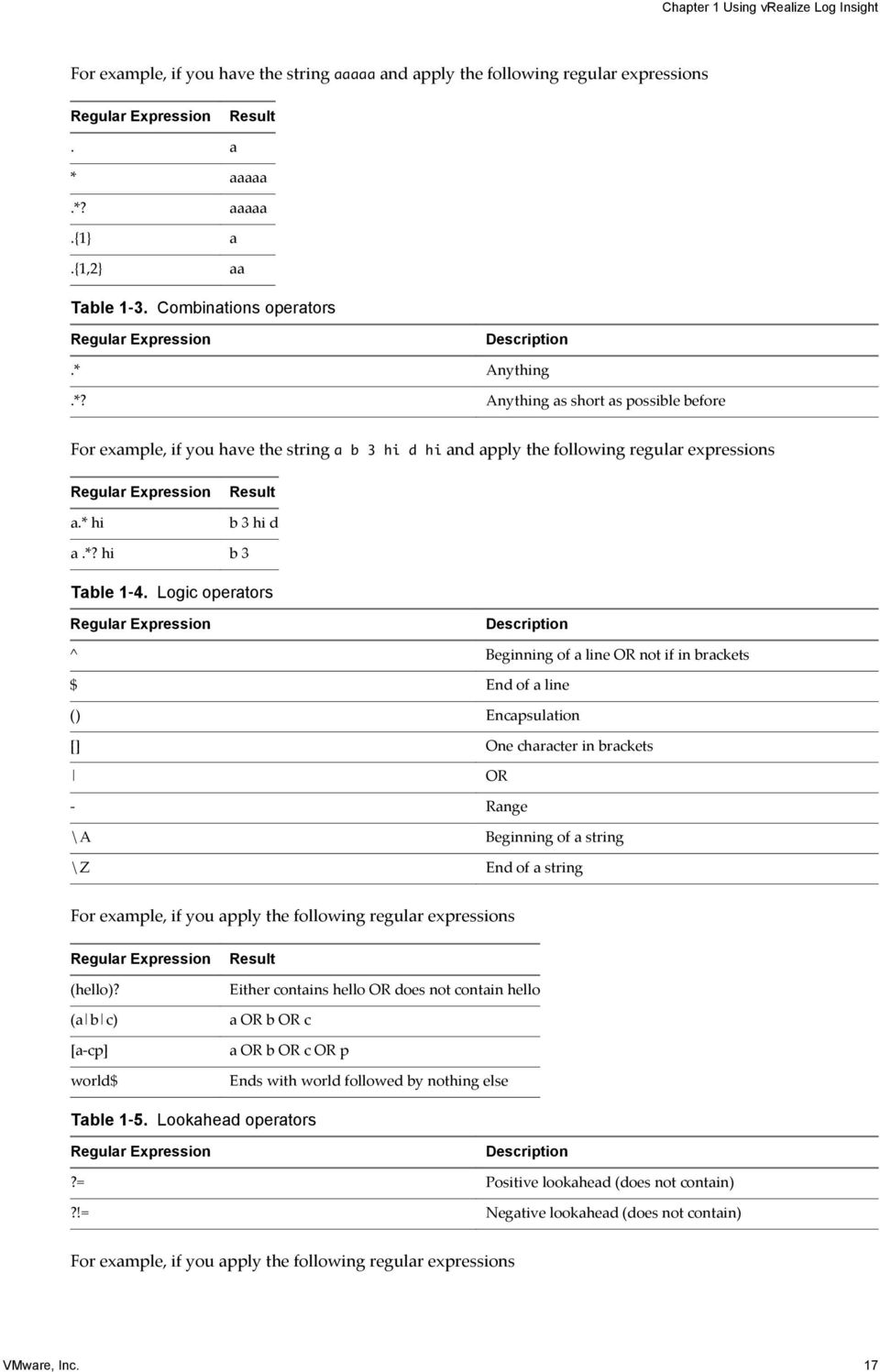
17 Chapter 1 Using vrealize Log Insight For example, if you have the string aaaaa and apply the following regular expressions Regular Expression Result. a * aaaaa.*? aaaaa.{1} a.{1,2} aa Table 1 3. Combinations operators Regular Expression Description.* Anything.*? Anything as short as possible before For example, if you have the string a b 3 hi d hi and apply the following regular expressions Regular Expression a.* hi Result b 3 hi d a.*? hi b 3 Table 1 4. Logic operators Regular Expression ^ Description Beginning of a line OR not if in brackets $ End of a line () Encapsulation [] One character in brackets OR - Range \A Beginning of a string \Z End of a string For example, if you apply the following regular expressions Regular Expression (hello)? (a b c) [a-cp] world$ Result Either contains hello OR does not contain hello a OR b OR c a OR b OR c OR p Ends with world followed by nothing else Table 1 5. Lookahead operators Regular Expression Description?= Positive lookahead (does not contain)?!= Negative lookahead (does not contain) For example, if you apply the following regular expressions VMware, Inc. 17
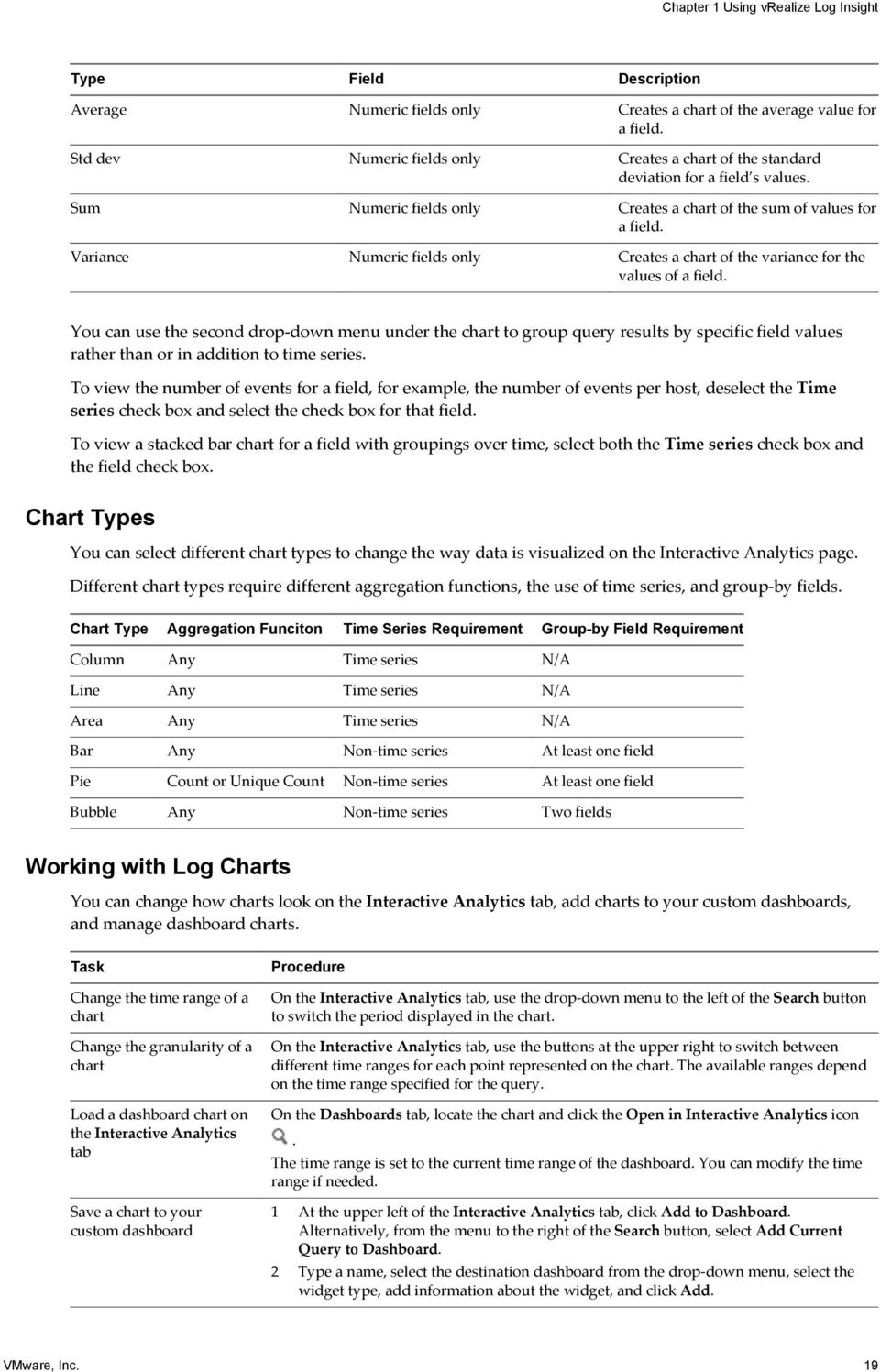
18 VMware vrealize Log Insight User's Guide Regular Expression is (?=\w+)\w{2} primary opid=(?!wfu-1fecf8f9)\s+ Result is FT primary? false WFU-3c9bb994 Table 1 6. Additional Examples of Regular Expressions Regular Expression [xyz] (info warn error) [a-z] [^a-z] [a-z]+ [a-z]* [a-z]? [a-z] {3} [\d] \d+$ Description x, y, or z info, warn, or error A lowercase letter Not a lowercase letter One or more lowercase letters Zero or more lowercase letters Zero or one lowercase letter Exactly three lowercase letters A digit One or more digits followed by end of message [0-5] A number from 0 to 5 \w A word character (letter, digit, or underscore) \s White space \S Any character except white space [a-za-z0-9]+ ([a-z] {2,} [0-9] {3,5}) One or more alphanumeric characters Two or more letters followed by three to five numbers Using the Interactive Analytics Chart to Analyze Logs The chart at the top of the Interactive Analytics page lets you perform visual analysis on the results of your query. Charts represent graphical snapshots of log search queries. You can use the drop-down menus under the chart to change the chart type. You can use the first drop-down menu to the left to control the aggregation level of the chart. The Count function is selected by default. Aggregation Functions vrealize Log Insight provides several aggregation functions. Type Field Description Count Events only Creates a chart of the number of events for a specific query. Unique count Any field Creates a chart of the number of unique values for a field. Minimum Numeric fields only Creates a chart of the minimum value for a field. Maximum Numeric fields only Creates a chart of the maximum value for a field. 18 VMware, Inc.
![[a-z] {3} [\d] \d+$ Description x, y, or z info, warn, or error A lowercase letter Not a lowercase letter One or more lowercase letters Zero or more lowercase letters Zero or one lowercase letter](/docs-images/41/5369478/images/page_18.jpg "Exactly three lowercase letters A digit One or more digits followed by end of message [0-5] A number from 0 to 5 \w A word character (letter, digit, or underscore) \s White space \S Any character")
19 Chapter 1 Using vrealize Log Insight Type Field Description Average Numeric fields only Creates a chart of the average value for a field. Std dev Numeric fields only Creates a chart of the standard deviation for a field s values. Sum Numeric fields only Creates a chart of the sum of values for a field. Variance Numeric fields only Creates a chart of the variance for the values of a field. You can use the second drop-down menu under the chart to group query results by specific field values rather than or in addition to time series. To view the number of events for a field, for example, the number of events per host, deselect the Time series check box and select the check box for that field. To view a stacked bar chart for a field with groupings over time, select both the Time series check box and the field check box. Chart Types You can select different chart types to change the way data is visualized on the Interactive Analytics page. Different chart types require different aggregation functions, the use of time series, and group-by fields. Chart Type Aggregation Funciton Time Series Requirement Group-by Field Requirement Column Any Time series N/A Line Any Time series N/A Area Any Time series N/A Bar Any Non-time series At least one field Pie Count or Unique Count Non-time series At least one field Bubble Any Non-time series Two fields Working with Log Charts You can change how charts look on the Interactive Analytics tab, add charts to your custom dashboards, and manage dashboard charts. Task Change the time range of a chart Change the granularity of a chart Load a dashboard chart on the Interactive Analytics tab Save a chart to your custom dashboard On the Interactive Analytics tab, use the drop-down menu to the left of the Search button to switch the period displayed in the chart. On the Interactive Analytics tab, use the buttons at the upper right to switch between different time ranges for each point represented on the chart. The available ranges depend on the time range specified for the query. On the Dashboards tab, locate the chart and click the Open in Interactive Analytics icon. The time range is set to the current time range of the dashboard. You can modify the time range if needed. 1 At the upper left of the Interactive Analytics tab, click Add to Dashboard. Alternatively, from the menu to the right of the Search button, select Add Current Query to Dashboard. 2 Type a name, select the destination dashboard from the drop-down menu, select the widget type, add information about the widget, and click Add. VMware, Inc. 19
20 VMware vrealize Log Insight User's Guide Task Save a query as a chart to your custom dashboard Save a query as a field table to your custom dashboard Delete a widget from your custom dashboard 1 Click Add Current Query to Dashboard next to the Search button. 2 Type a name, select the destination dashboard from the drop-down menu, make sure the widget type is set to Chart, add information about the widget, and click Add. 1 Click Add Current Query to Dashboard next to the Search button. 2 Type a name, select the destination dashboard from the drop-down menu, make sure the widget type is set to Field Table, add information about the widget, and click Add. 1 On the Dashboards tab, select the custom dashboard that contains the widget that you want to delete. 2 In the upper right corner of the widget, click the Other Actions icon Delete. 3 In the Delete Widget dialog box, click Delete to confirm., and select Change the Type of the Interactive Analytics Chart You can change the aggregation and grouping of query results displayed in the chart to graphically analyse log events. The number of drop-down menus that you see under the chart depends on the selected aggregation function. Verify that you are logged in to the vrealize Log Insight Web user interface. The URL format is 1 Use the drop-down menus under the Interactive Analytics chart to change the aggregation function and grouping type. To view the number of events over time, select the Time series check box. To view only event values, select the Non-time series check box and select at least one field. 2 Click Update. Example: Aggregation and Grouping in the Interactive Analytics Chart The following table contains examples to illustrate aggregation and grouping in vrealize Log Insight charts. Table 1 7. Example Aggregation and Grouping in the Interactive Analytics Chart Selection in the First Drop-Down Menu Selection in the Second Drop-Down Menu Time series selection Text Displayed on the Screen Result Count Time series Time series Count of events over time The chart displays a bar chart with the number of events for the current query over time. Average vmw_op_latency (VMware - vsphere) Time series Average of vmw_op_latency (VMware - vsphere) over time The chart displays a line chart with average value of operations latency over time. 20 VMware, Inc.

21 Chapter 1 Using vrealize Log Insight Table 1 7. Example Aggregation and Grouping in the Interactive Analytics Chart (Continued) Selection in the First Drop-Down Menu Selection in the Second Drop-Down Menu Time series selection Text Displayed on the Screen Result Count vmw_esx_problem NOTE Thevmw_esx_problem field does not appear by default. You must extract the vmw_esx_problem field and save the query so that vmw_esx_problem appears in the drop-down menu. Non-time series Count of events grouped by vmw_esx_problem The chart displays a bar chart of the number of events for containing the vmw_esx_problem field. Count Time series, vmw_esx_problem Time series Count of events over time grouped by vmw_esx_problem The chart displays a stacked bar chart grouped by vmw_esx_problem over time. Dynamic Field Extraction In a large environment with numerous log events, you cannot always locate the data fields that are important to you. vrealize Log Insight provides runtime field extraction to address this problem. You can extract any field dynamically from the data by providing a regular expression. See Examples of Regular Expressions, on page 16. NOTE Generic queries might be very slow. For example, if you attempt to extract a field by using the \(\d +\) expression, the query returns all log events that contain numbers in parenthesis. Verify that your queries contain as much textual context as possible. For example, a better field extraction query would be Event for vm\(\d+\). You can use the extracted fields to search and filter the list of log events, or to aggregate events in the Interactive Analytics chart. Extract Fields by Using One-Click Extract Instead of typing context values for extracting fields dynamically, you can use the one-click extract function. The one-click extract populates all context values that correspond to the field that you select in a log event. NOTE The one-click extract option is available only in Events tab. Verify that you are logged in to the vrealize Log Insight Web user interface. The URL format is 1 Navigate to the Interactive Analytics tab. 2 In the list of log events, highlight the text that represents the field that you want to extract. An action menu appears above the set of field names present in that event. VMware, Inc. 21
22 VMware vrealize Log Insight User's Guide 3 Click Extract Field. The pre and post context values in the Fields pane are populated automatically with the context needed to extract the highlighted field. 4 (Optional) Modify the Extracted value regular expression in the Fields pane. 5 (Optional) Modify the Pre and post context regular expressions in the Fields pane. 6 (Optional) Click Add additional context to add more keywords and filters. You can add one or more keywords and use a single static field as a filter. 7 If you are an administrator user, select which users can access the field from the drop down menu. Option All users Me only Description All users will see the field in their events and in the filter drop-down menu. Only the creator of the field will see the field in their events and filter drop down menu. 8 Click Save. What to do next You can use the extracted field to search and filter the list of log events, or to aggregate events in the Interactive Analytics chart. You can modify saved field definitions or delete them if you no longer need them. Modify an Extracted Field You can modify the definitions of extracted fields. vrealize Log Insight creates copies of the fields that you use when you create charts, queries, or alerts. If you modify a field definition, all charts, queries, and alerts that use the modified field are updated to reflect the new definition. Normal users can modify only their own content. Administrator users can modify their own content and their shared content. Content pack fields are read-only. Verify that you are logged in to the vrealize Log Insight Web user interface. The URL format is 1 Navigate to the Interactive Analytics tab. 2 At the top of the Fields pane, click Manage extracted fields list. and select an extracted field from the 3 Modify the values and click Update. A dialog box displays a list of content that will be affected by the updated field. If the field is shared between multiple users, the dialog box also displays a list of affected users. 4 Click Update to confirm your changes. 22 VMware, Inc.
23 Chapter 1 Using vrealize Log Insight vrealize Log Insight updates all queries, alerts, and charts that use the field that you modified. Duplicate an Extracted Filed You can duplicate an extracted field. You use the Duplicate option when you want to extract more than one field from an event and both fields appear in a similar context. After you extract a field and save it, open the extracted field definition and use the Duplicate option. The duplicated field has the exact same definition as the original extracted field. You can modify the definition of the duplicated field to match another value in the event that interests you. Normal users can duplicate only their own content. Administrator users can modify their own content and their shared content. Verify that you are logged in to the vrealize Log Insight Web user interface. The URL format is 1 Navigate to the Interactive Analytics tab. 2 At the top of the Fields pane, click Manage extracted fields list. and select an extracted field from the 3 Click Duplicate to create a copy of the field. 4 (Optional) Modify the Extracted value regular expression in the Fields pane. 5 (Optional) Modify the Pre and post context regular expressions in the Fields pane. 6 (Optional) Click Add additional context to add more keywords and filters. You can add one or more keywords and use a single static field as a filter. 7 If you are an administrator user, select which users can access the field from the drop down menu. Option All users Me only Description All users will see the field in their events and in the filter drop-down menu. Only the creator of the field will see the field in their events and filter drop down menu. 8 Click Save. What to do next You can use the extracted field to search and filter the list of log events, or to aggregate events in the Interactive Analytics chart. You can modify saved field definitions or delete them if you no longer need them. Delete an Extracted Field You can delete extracted fields that are no longer needed. vrealize Log Insight creates copies of the fields that you use when you create widgets, queries, or alerts. If you delete a field that is used in widgets, queries, or alerts, vrealize Log Insight creates a temporary copy of the deleted field for each widget, query, or alert that uses that field. VMware, Inc. 23
24 VMware vrealize Log Insight User's Guide You can delete only fields that have the Edit this field icon next to their names. Normal users can delete only their own content. Administrator users can delete their own content and their shared content. Content pack fields are read-only. Verify that you are logged in to the vrealize Log Insight Web user interface. The URL format is 1 Navigate to the Interactive Analytics tab. 2 3 At the top of the Fields pane, click Manage extracted fields the list. Click. and hover over an extracted field from A dialog box displays a list of content that uses the field that you want to delete. If you are an administrator user, and the field is shared by multiple users, the dialog box also displays a list of affected users. 4 Click Delete to confirm. If a deleted field is used in existing queries, vrealize Log Insight creates a temporary copy of the field and displays it when you load a query that uses the deleted field. If you export content that contains temporary fields, vrealize Log Insight creates the fields in the exported content pack to avoid temporary fields. Managing Search Queries You can export query results, share your queries with other users, and can save, delete, rename, and load existing queries. Save a Query in vrealize Log Insight You can save your current query and time range in vrealize Log Insight to view it later. Saved queries can only be loaded from the Interactive Analytics page. Verify that you are logged in to the vrealize Log Insight Web user interface. The URL format is 1 On the Interactive Analytics tab, perform the query that you want to save. 2 Click, select Add current query to favorites icon. 3 Type a name and click Save. NOTE Saved queries include a fixed time range and are not updated. By saving a query, you take a snapshot of log messages available within the time range at the moment when you save. 24 VMware, Inc.
25 Chapter 1 Using vrealize Log Insight The query is added to the Favorite queries list. All users, including administrators, have an individual list of saved queries. Rename a Query in vrealize Log Insight You can change the name of a query that you saved in vrealize Log Insight. Verify that you are logged in to the vrealize Log Insight Web user interface. The URL format is 1 Navigate to the Interactive Analytics tab. 2 3 Click the Favorite queries icon Point to the query that you want to rename, and click the Edit this saved query icon. 4 Type a new name and click Save. Load a Query in vrealize Log Insight You can load queries from content packs or queries that you saved to view them on the Interactive Analytics tab. Saved queries are separate from dashboard items. They do not appear on any custom dashboard. If you want to view a saved query, you have to load it. All users, including administrators, have an individual list of saved queries. Verify that you are logged in to the vrealize Log Insight Web user interface. The URL format is 1 Navigate to the Interactive Analytics tab. 2 Click the Favorite queries icon 3 In the Favorite Queries list, click the query that you want to view on the Interactive Analytics tab. The query is loaded on the Interactive Analytics tab. The time range of the query is displayed above the list of events. What to do next You can add the query to a dashboard, change the granularity of the chart, or apply additional filtering to the query results. VMware, Inc. 25
26 VMware vrealize Log Insight User's Guide Delete a Query from vrealize Log Insight You can delete saved queries from vrealize Log Insight. Verify that you are logged in to the vrealize Log Insight Web user interface. The URL format is 1 Navigate to the Interactive Analytics tab. 2 From the drop-down menu on the right of the Search button, select Load Query. 3 4 Click the Favorite queries icon In the Favorite Queries list, click next to the query you want to delete. 5 Click Delete to confirm. Share the Current Query You can send your peers a link to the current query. Verify that you are logged in to the vrealize Log Insight Web user interface. The URL format is 1 On the Interactive Analytics tab, perform the query that you want to share. 2 Click and select Share Query. vrealize Log Insight displays the URL to the query. 3 Copy the URL and send it to the person that you want to share with. Export the Current Query You can export the results of a log query to share them with other systems, or forward them to your support contact. Verify that you are logged in to the vrealize Log Insight Web user interface. The URL format is 1 On the Interactive Analytics tab, perform the query that you want to export. 2 Click and select Export Event Results. 26 VMware, Inc.
27 Chapter 1 Using vrealize Log Insight 3 Select the format to save the query to, and click Export. Option Raw Events JSON XML Description Select to save the results in TXT format Select to save the results in JSON format Select to save the results in XML format Working with Dashboards Dashboards in vrealize Log Insight are collections of chart, field table and query list widgets. Custom Dashboards Custom dashboards are created by users of the current instance of vrealize Log Insight. Custom dashboards are organized in two categories, My Dashboards and Shared Dashboards. Shared dashboards are visible to all users of the vrealize Log Insight instance. My Dashboards are user-specific. Normal users can modify only the dashboards in the My Dashboard section. Admin users can modify the dashboards in the My Dashboards section, and the dashboards that they created in the Shared Dashboards section. Content Pack Dashboards Content pack dashboards are imported with content packs and are visible to all users of the vrealize Log Insight instance. NOTE Content pack dashboards are read-only. You cannot delete or rename them. However, you can clone content pack dashboards to your custom dashboard. You can clone whole dashboards or individual widgets. To view the dashboards that are available in your instance of vrealize Log Insight, click Dashboards in the upper left corner of the vrealize Log Insight user interface. You can switch between dashboard categories by using the drop-down menu at the upper left. To view the contents of a dashboard, click the dashboard name in the list on the left. Managing Dashboards You can add, modify, and delete dashboards in your Custom Dashboards space. Content Pack dashboards cannot be modified, but you can clone these dashboards to your Custom Dashboards space and modify the clones. IMPORTANT vrealize Log Insight does not perform checks for duplicate names of the dashboards, queries, and alerts that you save or clone. The display name is not a unique identifier when vrealize Log Insight saves queries. Therefore, you can save multiple charts, alerts, and dashboards with the same name. To ease data retrievability, do not duplicate names when you save charts, alerts, or dashboards. VMware, Inc. 27
28 VMware vrealize Log Insight User's Guide Table 1 8. Working with Custom Dashboards Task Create a new custom dashboard Edit the name of a custom dashboard Delete a custom dashboard Clone a dashboard from a content pack to your custom dashboard On the Dashboards tab, select My Dashboards, and click New Dashboard in the lower left. On the Dashboards tab, hover over the dashboard name, click the menu icon name and click Save. and select Reame. Enter a new On the Dashboards tab, hover over the dashboard name, click the menu icon and select Delete. In the confirmation dialog box select Delete. 1 On the Dashboards tab, select a content pack and hover over the dashboard that you want to clone. 2 Click the menu icon drop-down menu. 3 Type a name and click Save. and select Clone from the If you are an administrator user, you can select whether to share your dashboard with other users. Add a chart widget to a dashboard 1 At the upper left of the Interactive Analytics tab, click Add to Dashboard. Alternatively, from the menu to the right of the Search button, select Add Current Query to Dashboard. 2 Type a name, select the destination dashboard from the drop-down menu, select the widget type, add information about the widget, and click Add. Add a query list widget to the dashboard Add a query to a query list widget in a dashboard Add a query to a field table widget in a dashboard See Add a Query List Widget to the Dashboard, on page 28. See Add a Query to a Query List Widget in a Dashboard, on page 29. See Add a Field Table Widget to a Dashboard, on page 29 Delete a widget from a dashboard 1 On the Dashboards tab, select the custom dashboard that contains the widget that you want to delete. 2 In the upper right corner of the widget, click the Other Actions icon, and select Delete. 3 In the Delete Widget dialog box, click Delete to confirm. Add a Query List Widget to the Dashboard You can save lists of search queries to your custom dashboards by creating query list widgets. Verify that you are logged in to the vrealize Log Insight Web user interface. The URL format is 1 On the Interactive Analytics tab, run the query that you want to add to the dashboard. 2 Click the Add current query to dashbord icon. 3 From the Dashboard drop-down menu, select the dashboard to which you want to add the query. 28 VMware, Inc.
29 Chapter 1 Using vrealize Log Insight 4 From the Widget Type drop-down menu, select Query List. 5 From the Query List drop-down menu, select New Query List, type a name for the list, and click Save. 6 Click Add. The query list widget appears on the dashboard that you specified. What to do next You can add queries to the query list widget that you created. See Add a Query to a Query List Widget in a Dashboard, on page 29. Add a Query to a Query List Widget in a Dashboard Query list widgets provide quick access to one or more saved queries from the dashboard. You can modify your custom query list widgets to add new queries. Verify that you are logged in to the vrealize Log Insight Web user interface. The URL format is 1 On the Interactive Analytics tab, run the query that you want to add to the query list widget. 2 Click the Add current query to dashbord icon. 3 From the Dashboard drop-down menu, select the dashboard that contains the query list widget. 4 From the Widget Type drop-down menu, select Query List. 5 From the Query List drop-down menu, select the name of the widget to which you want to add the query, and click Save. 6 Click Add. vrealize Log Insight adds the query to the widget that you selected. NOTE Query list widgets use message queries. If you use the same message query in a Chart widget and choose a group-by field that does not exist in any of the messages, the chart will display no results. Add a Field Table Widget to a Dashboard Field table widgets provide quick access to one or more saved fields from the dashboard. Verify that you are logged in to the vrealize Log Insight Web user interface. The URL format is 1 On the Interactive Analytics tab, run the query that you want to add to the field table widget. 2 Click the Add current query to dashbord icon. 3 From the Dashboard drop-down menu, select the dashboard to which you want to add the field table. 4 From the Widget Type drop-down menu, select Field Table. VMware, Inc. 29
30 VMware vrealize Log Insight User's Guide 5 Select the fields you want to include in the field table. 6 Click Add. The filed table widget appears on the dashboard that you specified. Filter Using Field Values from Charts You can use a field value in a chart as filter on the dashboard that contains the chart, on a different dashboard that uses the field, and in Interactive Analytics. If you see a problem with a field value in a chart, you can quickly use the field value as an input and jump to another dashboard that uses that field. If no other dashboard uses this field, you can use the field value as a filter on the same dashboard or run it in Interactive Analytics. Verify that you are logged in to the vrealize Log Insight Web user interface. The URL format is 1 From the Dashboard drop-down menu, select the dashboard that contains a chart widget. 2 In the chart widget, hover over the chart data and view field values that appear as tooltips. 3 Click the field value that you want to use as a filter. The Add Value as Filter menu appears. 4 Select where you want to use the field value as a filter. Option Interactive Analytics This Dashboard Other Dashboard Action The Interactive Analytics page opens and displays the results of the chart query. The field value you selected in Step 3 is used as a filter. The field value you selected in Step 3 is used as a filter on the same dashboard. The field value you selected in Step 3 is used as a filter on another dashboard that contains the field. Working with Content Packs Content packs contain dashboards, extracted fields, saved queries, and alerts that are related to a specific product or set of logs. To view the content packs that are loaded on your system, select Content Packs from the drop-down menu in the upper right corner of the vrealize Log Insight user interface. To view the contents of a content pack, click the content pack in the list on the left. Content Packs The Content Packs category contains imported sets of dashboards, extracted fields, queries, and alerts. The General and VMware - vsphere content packs are imported by default. NOTE Content pack dashboards are read-only. You cannot delete or rename them. However, you can clone content pack dashboards to your custom dashboard. You can clone whole dashboards or individual widgets. 30 VMware, Inc.
31 Chapter 1 Using vrealize Log Insight Custom Content The Custom Content category contains dashboards, extracted fields, and queries created in the current instance of vrealize Log Insight. The My Content section contains the custom content of the user that is currently logged in. The Shared Content section contains content that is shared among all users of vrealize Log Insight. Only Admin users can share content with other users. Only Admin users can manage shared content. NOTE You cannot uninstall content from the Custom Content section. If you want to remove saved information from the Custom Content section, you have to delete individual elements, such as dashboards, queries, alerts, and fields. Export a Content Pack You can export your custom dashboards, saved queries, alerts, and extracted fields as a content pack, to share content between vrealize Log Insight instances or with vrealize Log Insight users on the community. Content packs are saved as vcenter vrealize Log Insight Content Pack (VLCP) files. All fields that are used in queries, charts, and alerts that you export are included in the exported content pack. If you export content that contains temporary fields, vrealize Log Insight creates these fields within the content pack during the export. Verify that you are logged in to the vrealize Log Insight Web user interface as a user with the Edit Admin permission. The URL format is where log-insight-host is the IP address or host name of the vrealize Log Insight 1 From the drop-down menu on the upper right, select Content Packs. 2 Click the content pack that you want to export and select Export from the drop-down menu the name of the content pack. next to 3 (Optional) Select the content that you want to include in the content pack. NOTE You cannot deselect fields that are used in dashboards, queries, or alerts selected for export. 4 In the text fields to the right, fill in the metadata for your content pack. Option Name Version Namespace Author Website Description The name is displayed when you import the pack into a vrealize Log Insight instance. The content pack file name is derived from the Name text box. The recommended format is Vendor - Product For example, VMware - vsphere. If you plan to upgrade this content pack, type a version. vrealize Log Insight displays the version when you try to install a content pack that already exists in the Content Packs list. The namespace is a unique identifier for the content pack. Use reverse DNS naming, for example com.companyname.contentpackname. Optionally, you can type your name or the name of your company. Optionally, you can provide a link to the Web site that is associated with the content pack. All users that can view the content pack can see the Web site link as well. VMware, Inc. 31
32 VMware vrealize Log Insight User's Guide Option Description Icon Description Optionally, you can provide information about the contents and purpose of the pack. Optionally, you can browse for an icon to be displayed next to the content pack name. NOTE The icon file format must be PNG or JPG, and will be scaled to 144 by 144 pixels in size. NOTE This data is visible only if you import the content pack by using the Install as content pack option. You cannot view this information if you choose to import the content pack as custom content. 5 Click Export, browse to the location where you want to save the file, and click Save. The exported VLCP file is downloaded to the selected location. Install a Content Pack from the Content Pack Marketplace You can install content packs from the Content Pack Marketplace without leaving the vrealize Log Insight UI. Verify that you are logged in to the vrealize Log Insight Web user interface. The URL format is Verify that you are logged in as a user with the Edit Shared permission. 1 From the drop-down menu on the upper right, select Content Packs. 2 From the menu on the left, select Marketplace. 3 Select the content pack you want to install and click Install. The installed content pack appears in the Installed Content Packs list on the left. Update an Installed Content Pack from the Content Pack Marketplace You can update the content packs that are already installed from the Content Pack Marketplace without leaving the vrealize Log Insight UI. Verify that you are logged in to the vrealize Log Insight Web user interface. The URL format is Verify that you are logged in as a user with the Edit Shared permission. 1 From the drop-down menu on the upper right, select Content Packs. 2 From the menu on the left, select Updates. 3 If any updates are available, select the content pack you want to update and click Update. 4 (Optional) Click Update All to apply all available content pack updates. The updated content pack appears in the Installed Content Packs list on the left. 32 VMware, Inc.
33 Chapter 1 Using vrealize Log Insight Import a Content Pack You can import content packs to exchange user-defined information with other instances of vrealize Log Insight, or to upgrade your old content packs with later versions. You can import only vcenter vrealize Log Insight Content Pack (VLCP) files. NOTE If you import a new version of an already existing content pack, and the new version contains modified field definitions, all queries, alerts, and charts that use the modified field are updated to reflect the new definition. If fields that exist in the current content pack version are missing in the new version that you import, vrealize Log Insight creates temporary copies of the fields for each query, chart, or alert that uses a deleted field. Verify that you are logged in to the vrealize Log Insight Web user interface as a user with the Edit Admin permission. The URL format is where log-insight-host is the IP address or host name of the vrealize Log Insight 1 From the drop-down menu on the upper right, select Content Packs. 2 In the lower left corner, click Import Content Pack. 3 If you are an administrator user, select the import method. Option Install as content pack Import into My Content Description The content is imported as a read-only content pack that is visible to all users of the vrealize Log Insight instance. NOTE Content pack dashboards are read-only. You cannot delete or rename them. However, you can clone content pack dashboards to your custom dashboard. You can clone whole dashboards or individual widgets. The content is imported as custom content to your user space, and is visible only to you. You can edit the imported content without having to clone it. NOTE Content pack metadata, such as name, author, icon, and so on, are not displayed in this mode. Once imported in My Content, the content pack cannot be uninstalled as a pack. If you want to remove a content pack from My Content, you have to individually remove each of its elements, such as dashboards, queries, alerts, and fields. Normal users can import content packs only in their own user spaces. 4 Browse for the content pack that you want to import, and click Open. 5 Click Import. If you selected the option to import as custom content, a dialog box appears for you to select what content to import. 6 (Optional) If you selected to import as custom content, use the check-boxes to select which items to import, and click Import again. NOTE Fields that are used in imported queries, charts, and alerts are also imported. VMware, Inc. 33
34 VMware vrealize Log Insight User's Guide The imported content appears in the Content Packs or the Custom Content list to the left. NOTE Imported Alerts are disabled by default. See Enable an Alert Query, on page 50. View Details About Content Pack Elements You can open the queries that build up dashboards, or open the definitions of fields, queries, and alerts, directly from the Content Packs view. You might want to use the definitions of content pack elements as templates for your custom definitions. Verify that you are logged in to the vrealize Log Insight Web user interface. The URL format is 1 From the drop-down menu on the upper right, select Content Packs. 2 Select the content pack that contains the element that you want to review. 3 Click the button that corresponds to the element type you want to review. For example, click Alerts to view all alerts that the content pack contains. 4 In the list of elements, click the name of the element that you want to review. The Interactive Analytics page opens and displays the query that corresponds to the selected element. What to do next You can modify the query or definition of the content pack element and save it to your custom content. Creating Content Packs Any Log Insight user can create a content pack for private or public usage. Content packs are immutable or read-only plug-ins to vrealize Log Insight, that provide predefined knowledge about specific types of events, such as log messages. The goal of a content pack is to provide knowledge about a specific set of events in a format that is easily understandable by administrators, engineers, monitoring teams, and executives. Content packs give information about the health status of a product or application. In addition, a content pack helps you understand how a product or an application works. You can save the information from a content pack by using either the Dashboards or Interactive Analytics pages in vrealize Log Insight. The information in a content pack includes: Queries - usually a content pack contains at least three queries and three chart widgets for each dashboard, which means more than nine queries in total Fields - a content pack should have at least twenty extracted fields Aggregations Alerts - each content pack contains at least five alerts Dashboards - there are at least three dashboards in each content pack Dashboard filters - see Searching and Filtering Log Events, on page 9 34 VMware, Inc.
35 Chapter 1 Using vrealize Log Insight Visualizations - see Using the Interactive Analytics Chart to Analyze Logs, on page 18 By default, vrealize Log Insight ships with the VMware - vsphere content pack. You can import additional content packs if needed. Content Packs Terms The content pack creation workflow is based on several concepts and terms. You should get familiar with them in order to create and maintain content packs effectively. Instance Only vrealize Log Insight administrators can import a content pack file as a content pack. If a content pack is imported as a content pack it cannot be edited. All users can import a content pack file into a user space. If you import a content pack file into a user space, the operation selectively imports the objects under My Content. When you import a content pack into a user space, you can edit the content packs in a vrealize Log Insight instance. If you want to publish or modify a content pack you need an exported content pack. User Content packs are created in part from the content saved under Custom Dashboards, also known as user space, or more specifically either My Dashboards or Shared Dashboards on the Dashboards page. While objects from a custom dashboard can be selectively exported, it is recommended that every individual content pack be authored by a separate user entity in vrealize Log Insight to ensure a clean user space per content pack. For information on creating users in vrealize Log Insight, see the VMware vcenter Log Insight Administration Guide. Use a separate content pack author user in vrealize Log Insight for every content pack you create. Events It is essential to collect relevant events before attempting to create a content pack to ensure that a content pack covers all relevant events for a product or an application. One common way to collect relevant events is to ask quality assurance and support teams as these teams usually have access to, and knowledge about common events. Attempts to generate events while you create a content pack are time consuming and results in missing important events. If QA and support teams are unable to supply events, you may simulate events and use them instead if product or application events are known and documented. Once you collect the appropriate logs, they must be ingested into vrealize Log Insight. Authors The authors of a content pack need to have the following qualifications: Experience using VMware vrealize Log Insight. Real world operating knowledge of the product or application. Understanding and ability to generate optimized regular expressions. Experience debugging multiple problems with product or application using logs. Support background, with exposure to a myriad of problems. System administrator background with previous syslog experience. VMware, Inc. 35
36 VMware vrealize Log Insight User's Guide Workflow The recommended approach for content pack creation is to start on the Interactive Analytics page and begin querying for specific types of events such as error or warning. Look at the results of the queries and analyze and extract potential field candidates as appropriate. With some understanding of the types of events and useful pieces of information available in the events, construct and save relevant queries as appropriate. For queries that highlight an issue that needs a quick action, create and save alerts. As you save queries, remove them from the results list using a filter to show other events that may be potential candidates for new saved queries. Once you save all relevant queries, organize and display them in a logical manner on the Dashboards page. Queries Queries in vrealize Log Insight can retrieve and summarize events. You can create and save queries from the Interactive Analysis page. A query consists of one or more of the following: Keywords Globs Regular expressions Field operations Aggregations Complete, or full-text, alphanumeric, hyphen, and/or underscore matches. Complete, or full-text, alphanumeric, hyphen, and/or underscore matches. Sophisticated string pattern matching based on Java regular expressions. Keyword, regular expression, and pattern matches applied to extracted fields. Functions that are applied to one or more subgroups of the results. vrealize Log Insight supports the following types of queries: Message. A query made up of keywords, regular expressions and/or field operations. Regular expression or field. A query made up of keywords and/or regular expressions. Aggregation. A query made up of a function, one or more groupings, and any number of fields. You can define custom alerts in vrealize Log Insight and trigger them from scheduled queries of any type. Best Practices for Creating Message Queries Basic concepts for creating message queries. You can enter message queries by using the Search bar, or by entering filters. Use the search bar to refine the results for events in a vrealize Log Insight instance. While you can use a filter instead of the search bar, it is often easier to understand a query that leverages the search bar over an equivalent filter. The best practice is to use the search bar instead of an equivalent filter when possible. A filter allows you to create queries by using a regular expression, a field, logical OR operation, or a combination of search bar and filter queries. When you create queries by using the search bar and filters, the following best practices apply: Ensure queries are not environment specific. Public content packs need to be generic to any environment and as such need not to rely on environment specific information. Examples of environment specific information include source, hostname, and potentially facility if the facility uses local*. When constructing a query, use keywords when possible, when keywords are not sufficient use globs, and when globs are not sufficient use regular expressions. Keyword queries are the least resource intensive type of query. Globs are a simplified version of regular expression and are the next least resource intensive type of query. Regular expressions are the most expensive type of query. 36 VMware, Inc.
37 Chapter 1 Using vrealize Log Insight Provide as many keywords as possible when using regular expressions or fields. If a regular expression includes a logical OR, for example this that, do not include keywords. vrealize Log Insight is optimized to perform keyword queries prior to regular expressions to minimize regular expression overhead. Field Queries Fields are a powerful way to add structure to unstructured events and allow the manipulation of both the textual and visual representation of data. Fields are one of the most important items in a content pack as they can be used in different ways including aggregations and filters. Aggregations allow you to apply functions and groupings to fields. Filters allow you to perform operations over fields. You must extract any part of a log message that might be applicable to a query or aggregation. Fields are a type of regular expression query and are useful for complex pattern matching so you do not need to know, remember, or learn complicated regular expressions. Field Context Value Regex before value Regex after value Name Keyword Search Terms Filter Information ("i" button) Definition Include as many keywords as possible. If this field is empty or only contains special characters, then the Regex after value must include keywords. Include as many keywords as possible. If this field is empty or only contains special characters, then the Regex before value must include keywords. Only use alphanumeric characters. Ensure all characters are lower case and use underscores instead of spaces as this makes fields easier to view. Keep in mind that names for content pack fields and user fields can be the same, though content pack fields will have a namespace in parenthesis to the right of the field name. Prefix content pack fields with an abbreviation, for example vmw_, to avoid confusion. One or more keywords, separated by space, that appear within events containing the field. A static field, operator, and potentially value that appear within events containing the field. It is common to use this in conjunction with the vrealize Log Insight agent and tags for events that do not contain keywords. Used to provide information about the field including what it means, what potential values could be returned, and possibly a user-friendly mapping of values to human-understandable information. Best Practices In addition to the various components that make up a field, several best practices apply. Only create fields for regular expression patterns. If a field can be queried using keyword queries, or will only ever return a single value, then use keyword queries instead of a pre-defined field. If a field will only return two values then consider constructing individual queries instead of extracting a field. Fields are meant to add structure to unstructured data as well as provide a way to query over specific parts of an event. Only create fields for regular expression patterns that return a fraction of the total events. Fields that will match most events and/or return a very large number of results are not a good candidate for field extraction. The regular expression will need to be applied to a large quantity of events resulting in a resource intensive operation. If possible add additional keywords to reduce the number of results returned and optimize the query. If a field contains keywords within regular expression syntax, then add such keywords as a filter without regular expression syntax. For example, if the value or the context of a field contains keywords within regular expression syntax such as this that, then add the keywords as a text filter to optimize the query like text contains this, that. VMware, Inc. 37
38 VMware vrealize Log Insight User's Guide Use of the addition context with one or more keywords is recommended over complex regular expressions in the before or after context. Add additional context to all extracted fields in order to optimize query performance. Temporary Fields A temporary field is a field that exists as part of a query, but is not saved globally within a vrealize Log Insight instance or as part of an installed content pack. vrealize Log Insight reduces the chances of creating a temporary field by automatically updating the query that relies on a field being modified. NOTE If you delete a field that a saved query relies on, the saved query contains a temporary field. You can see temporary fields when you run a saved query in the Interactive Analysis page and a field used in the saved query contains the namespace Temporary to the right of the field name. Queries to contain one or more fields. For saved queries in vrealize Log Insight the field definition used when a query is saved will be modified if the field is modified. Field modifications include Changing the field value Changing the regex before value and the regex after field value Changing the name of the field Deleting the field When you export a content pack vrealize Log Insight converts all temporary fields to content pack fields. If you see a temporary field in a content pack, you might be looking at a content pack from a previous product version that is exported with temporary fields, or the content pack is manually edited. If a temporary field exists with the same name as an existing extracted field, the temporary field displays ending in {n}. For example, if you have a field called product_test_field, product_test_field {2} might also be visible during export. If you see this behavior, a temporary field exists. To address the issue, choose the Select None option at the bottom of the export dialog box and select each dashboard and/or alert until the extract field(s) with the {n} ending are checked. Go to those dashboards and/or alerts and edit each query. When you find a query using the extracted field, change the filter or aggregation to use the field without the {n} ending, run the query, and save the query. After you complete these steps for all queries using a field ending in {n}, the field no longer displays during export. Aggregation Queries vrealize Log Insight lets you manipulate the visual representation of events by using aggregation queries. Aggregation queries consist of two district attributes Functions Groupings An aggregation query requires one function and at least one grouping. Groupings are an important part of the content packs. Functions and groupings impact the way charts are displayed. Bar Charts By default, the overview chart in the Interactive Analysis page of vrealize Log Insight displays a count of events over time. If you use the count function in conjunction with the time series grouping, vrealize Log Insight creates a bar chart. If you use the count function in conjunction with a single field grouping instead of time series, vrealize Log Insight creates bar charts with quantities listed from greatest to least. 38 VMware, Inc.
39 Chapter 1 Using vrealize Log Insight Line Charts All functions, except the count function, are mathematical. They require a field, against which you apply the equation. When performing a mathematical function on a field and grouping by time series, vrealize Log Insight creates a line chart. Stacked Charts By default, the overview chart on the Interactive Analytics page of vrealize Log Insight is a count of events over time. If you add one field to the time series grouping, then vrealize Log Insight creates a stacked chart. If you use grouping by time series, plus a field, and you use any function except count, vrealize Log Insight creates stacked line chart. Stacked charts are powerful when attempting to find anomalies for an object. You must decide which type of stacked chart to use, based on the number of object that the aggregation query might return. Displaying more objects require more resources, that are needed to parse and display information. In addition, the number of colors is fixed, and distinguishing between objects might become challenging, depending on the number of returned objects. In general the following best practices apply If the number of returned objects in each bar is less than ten, then you might want to use stacked charts. If the number of returned objects in each bar is or could be between ten and twenty, then stacked charts could be good. You must consider the way to visually represent the chart in a content pack. If the number of returned objects in each bar is or could be greater than twenty, then stacked charts are discouraged. Multi-Colored Charts If you create a grouping by using more than one field and time series, then vrealize Log Insight creates a multi-colored chart. The chart consists of two colors that interchange. Each interchange represents a new time range. Multi-colored charts can be hard to interpret so consider the value of such a chart before including it in a content pack. When you make a grouping by multiple fields, consider using non-time series. Removing time series makes the bar chart easier to understand. If multiple fields are important in a given time range, then you can create multiple charts for each field individually over the time range. You can then display the charts in the same column of a dashboard group in a content pack. Other Charts Several other chart types are available, including pie and bubble. To use these charts, a specific query type is required. If the option for these charts are available, then you already have the correct query. If the option for these charts is not available, hover over the chart name you want to use. A pop-up message describes the type of query required for the chart type. Message Queries When constructing an aggregation query, the message query should only return results relevant to the aggregation query. This makes analyzing easier and ensures that only results only show relevant fields. To ensure the message query returns the same results as the aggregation query, you must add filters using the exists operator for each field that is used in the aggregation query. Changing Chart Type If you want to change the chart type of a widget on a dashboard, click the gear icon on the widget and select Edit Chart Type. If you want to change a widget type, save a new widget and delete the old widget. VMware, Inc. 39
40 VMware vrealize Log Insight User's Guide Alerts Alerts provide a way to trigger a reaction when a certain type of event occurs. vrealize Log Insight supports two types of alerts vrealize Operations Manager You can save alerts only in a user space. By default all content pack alerts are disabled. If you create an enabled alert and export it as a part of a content pack, the alert will be disabled in the content pack. Content packs do not contain and vrealize Operations Manager settings. And you cannot add these settings to a content pack. Thresholds Thresholds set a limit to the number of triggered alerts. It is important to understand how thresholds work to ensure that, if enabled, a content pack alert does not unintentionally spam a user. When considering the usage of a threshold, there are two questions you must keep in mind How frequently to trigger the alert? Log Insight comes with pre-defined frequencies. Alerts will only trigger once for a given threshold window. How often to check if an alert state has occurred? An alert is triggered by a query. Alerts, like queries, are not real-time in the current version. For each threshold window, a pre-determined query frequency is allocated. Changing the threshold changes the query time. Groupings When you create an alert it is important to group by a field that identifies the source of the alert. The that the alert sends contains a table of results for a particular aggregation query. You can see the visual representation of the query on the Interactive Analytics page. Without a unique identifier to group by you will not know if the result is relevant for one or multiple systems in your environment. You should group by hostname field and not by source field. You can also add any field that uniquely identifies where the event comes from. Dashboards Best Practices Dashboards are part of the content packs. There are some best practices that apply when creating dashboards. When creating dashboards, the following best practices apply Content packs usually contain a minimum of three dashboards. The best practice is to start with an overview dashboards to provide high-level information about the events for a particular product or application. In addition to the overview dashboards, dashboards should be created based on logical groupings of events. The logical groupings are product-specific or application-specific, but some common approaches are performance, faults, and auditing. It is also common to create dashboards for a component, like disk and controller. With the component approach, it is important to note that it is only effective if queries can be constructed to return results from specific components. If this is not possible, then the logical approach is recommended. When you name dashboards, make the title generic and avoid adding product-specific or applicationspecific names unless being used in a component specific fashion. For example, in the VMware - vsphere content pack, there is a dashboard groups called ESX/ESXi instead of VMware ESX/ESXi. 40 VMware, Inc.
41 Chapter 1 Using vrealize Log Insight Dashboards must contain a minimum of three dashboard widgets and a maximum of six dashboard widgets. With any less than three dashboard widgets the amount of knowledge that can be attained by dashboards is minimal. In addition, having a lot of dashboards with only a limited amount of dashboard widgets requires a user to switch between different pages and does not provide information in a coherent way. Conversely, any more than six dashboard widgets for dashboards can have negative impact. You might get too much information that might be confusing. Too many widgets require intense usage of your system resources, as each widget is a query that must be run against the system. When you include more than six dashboard widgets in dashboards, you must separate the information and create multiple dashboards. If a dashboard widget is applicable to one or more dashboards, create the widget in each applicable dashboards. Dashboard Filters Dashboard filters can be used to drill down to specific events. The filters function similar to the filters on the Interactive Analytics page and leverage fields to drill down. Every dashboard should have at least one dashboard filter, typically with the hostname field, but up to five fields can be added to each dashboard. The field added should be used by the majority of widgets on a given dashboard so that if the dashboard filter is used, most of the widgets return results. Examples of dashboard filters could include a severity field, a user field, or even a component field. NOTE The field and the operator used by the dashboard filter will be saved in an exported content pack. Any value used by a dashboard filter will not be saved during export as the value is likely to be specific to an environment and not generic to all environments. Dashboard Widgets Dashboard widgets help you visualize information. There are three different types of dashboard widgets in vrealize Log Insight: A Chart widget that contains a visual representation of events with a link to a saved query. A Query List that contains title links to saved queries. A Field Table that contains events where each field represents a column. Chart A dashboard chart widget contains a visual representation of events. You can represent a chart as a bar or line chart and either can be displayed as a stack. There are several ways to represent charts: Charts can contain a lot of information. Avoid having more than two chart widgets in a single row. In some rare cases, three chart widgets can be used effectively, but more than three is strongly discouraged. When determining whether chart widgets are readable or not, be sure to use the minimum resolution supported by vrealize Log Insight, which is 1024 x 768 pixels. If any row except the last row has a single chart widget, then make that widget full-width When naming a chart widget, use a descriptive title and avoid cryptic field names. For example, an extracted field is called vmw_error_message. Instead of calling a chart Count of vmw_error_message, call it Count of error messages You can save similar charts and stack them in the same column of a dashboard group for visual comparison. For example: Average X of events over time + Maximum X of events over time. Given the different functions used, the Y-axis of the charts might have a different scale. VMware, Inc. 41
42 VMware vrealize Log Insight User's Guide Count of events over time grouped by X + Count of events over time grouped by Y. Query List A dashboard query list widget contains one or more links to pre-defined queries. You can use Query list widgets for the following reasons When a chart widget does not provide significant value, but the underlying query does. To save complex queries such as those using regular expressions. To use different aggregations on the same underlying query within a dashboard group. Field Table A Field Table that contains events where each field represents a column. A dashboard field table widget contains the latest events for the given query in a table format where each field represents a column. You can use a field table widget for the following reasons. To see the latest events for the given query. This can be useful for change management or for security reasons. To see only the fields you care about for a given query. This can be useful to limit event output. Content Pack Import Errors When you import a content pack, you might get some warnings or error messages. Upgrade You might get an upgrade message. It means that another content pack is installed in the system that has the same namespace. In this case you can either upgrade, and replace the existing content pack, or cancel the upgrade process and keep the existing content pack. Invalid Format You might get a message stating the format is invalid. This means that the VLCP file is manually edited and contains syntax errors. The syntax errors must be fixed before you import the content pack. Newer Version This type of message implies that the content pack is created and is supported only oin a newer version of Log Insight. On product versions, later than Log Insight 1.5 seeing this type of message means that the VLCP file is manually edited. Unrecognized Version When the VLCP file is manually edited and contains syntax errors you might see this type of message. You must fix the syntax errors before you attempt to import the content pack. NOTE You should not edit VLCP files manually. As a result, it is hard to locate and fix syntax errors. Requirements for Publishing Content Packs When you create and want to publish a content pack, make sure the content packs meet the basic publishing requirements. You must check both the content pack requirements and the publishing requirements. 42 VMware, Inc.
43 Chapter 1 Using vrealize Log Insight Content Pack Requirements Content packs must meet some requirements for the content, quality and standards. The content requirements include Minimum of three dashboards Minimum of one, ideally three, and up to five dashboard filters per dashboard Minimum of three dashboard widgets per dashboards Maximum of six dashboard widgets per dashboards Maximum of three dashboard widgets per row Minimum of five alerts Minimum of twenty extracted fields The quality requirements for a content pack are the following Every query has at least one full-text keyword and ideally three or more keywords Queries are not based on environment specific attributes like source, hostname, or facility* Every field has at least one full-text keyword and ideally three or more keywords Fields are specific to product/application and will not return results for other product/application logs Every dashboard widget must contain information/links on what the chart shows and why it is important The standards for creating content packs follow these rules Content pack part Content pack name format Content pack namespace format (content pack must be exported with namespace) Extracted field format Format Company - Product Ext.Domain.Product Prefix_Field_Name Where Prefix is the company name or company abbreviation. Publishing Requirements Before you publish a content pack, check if it meets the publishing requirements. Use the content pack publisher on the Developer Center for content pack recommendations and to upload a version for review to VMware. Publishing Requirement Content Pack file format Events Overview Highlights Description Tech Specs Screenshots Description A VLCP file. The appropriate events necessary to validate content pack. A one to two paragraph overview of the content pack. Three highlights, demonstrating the value of the content pack. A two to three paragraph description of the content pack and its value. Describe the minimum system requirements including Product versions and configuration and Log Insight version and configuration. In addition, provide all directions require to configure the product to log to Log Insight and populate the content pack. Three or more screenshots showing the content pack with real data. VMware, Inc. 43
44 VMware vrealize Log Insight User's Guide Publishing Requirement Video (Optional) White Paper (Optional) Description Example of how the content pack brings value. How to configure the product or application to forwards logs to vrealize Log Insight. Submit Content Pack Submit the content pack you created on VMware Solutions Exchange. Verify that your content pack meets the Requirements for Publishing Content Packs, on page 42. If you do not have an account on click the Register and select Partner. Fill out the Partner Registration Request form and submit. You will receive a notification if your login request is approved. 1 Go to and click Log In Now in the top right corner of the page. 2 Enter your username and password and click Log In Now. 3 Click the Administration and choose Manage Solutions to add or edit a solution. 4 Click Add Solution and fill out the required information. Use the Save Draft button frequently to make sure that you do not lose any of your work. 5 Click Submit for Approval. Your solution is sent to the VMware Solution Exchange Alliance Team for review and approval. You will receive an regarding the approval status of your solution. What to do next For more information about completing a solution listing click the Partner Corner link at the top of the page. If you do not find the information you need, contact [email protected] with any questions. Alert Queries in vrealize Log Insight You can configure vrealize Log Insight to run specific queries at scheduled intervals. If the number of events that match the query exceeds the thresholds that you have set, vrealize Log Insight can send notifications and trigger notification events in vrealize Operations Manager. To view the list of available alerts, navigate to the Interactive Analytics page and select Manage Alerts from the drop-down menu next to the Search button. The status of each alert appears under the alert name. NOTE Alert queries are user specific. You can manage only your own alerts. 44 VMware, Inc.
45 Chapter 1 Using vrealize Log Insight Types of Alerts that You Can Create in vrealize Log Insight You can control the intervals at which alert queries run, and the conditions when vrealize Log Insight sends alert notifications by selecting one of the alert types. Alert for Any Match Alert Based on Number of Events Within a Custom Period of Time Alert Based on Chart Values The alert query runs automatically every five minutes. A notification is triggered when at least one event within the last 5 minutes matches the query. Alert query intervals depend on your settings. A notification is triggered according to your settings, when more or less than X matching events occur in the last Y minutes. If this type of alert is triggered, it is snoozed for the duration of its time period to prevent duplicate alerts from being raised for the same set of events. If you want to enable an alert while it is snoozing, you can disable and then re-enable it. The alert query triggers a notification if at least one bar in the chart is above or below the threshold that you have set, within the period that you specified. This alert type can be set for charts that do not visualize Count of events over time. Content Pack Alerts Content packs can contain alert queries. The vsphere content pack that is included in vrealize Log Insight by default contains several predefined alert queries. They can trigger alerts if an ESXi host stops sending syslog data, if vrealize Log Insight can no longer collect events, tasks, and alarms data from a vcenter Server, or when an alarm status changes to red. You can use these alert queries as templates to create alerts that are specific to your environment. All content pack alerts are disabled by default. Enabling the vcenter Server: ESX/ESXi stopped logging alert is a good practice, because certain versions of ESXi hosts might stop sending syslog data when you restart vrealize Log Insight. This alert monitors for the vcenter Server event esx.problem.vmsyslogd.remote.failure to detect whether there is an ESXi host that has stopped sending syslog feeds. For details about syslog problems and solutions, see VMware ESXi 5.x host stops sending syslogs to remote server ( ). You can add the following filter to the alert query and save it as a new alert to detect only ESXi hosts that stop sending feeds to your instance of vrealize Log Insight: vc_remote_host (VMware - vsphere) contains log-insight-hostname. Content pack alert queries are read-only. To save changes to a content pack alert, you have to save the alert to your custom content. Add an Alert Query in vrealize Log Insight to Send Notifications on page 46 You can configure alert queries in vrealize Log Insight to send notifications when specific data appears in the logs. Add an Alert Query in vrealize Log Insight to Send Notification Events to vrealize Operations Manager on page 47 You can configure alert queries in vrealize Log Insight to send notification events to vrealize Operations Manager when specific vrealize Log Insight queries return results above a given threshold. VMware, Inc. 45
46 VMware vrealize Log Insight User's Guide View Existing Alert Queries on page 49 You can view the alert queries that you have created and check whether the notifications for these queries are enabled. Modify an Alert Query on page 49 You can change the trigger of a saved alert query, and enable or disable the notifications that the query sends. Enable an Alert Query on page 50 When an alert query is disabled, vrealize Log Insight does not send notification s and does not trigger vrealize Operations Manager notification events. Delete an Alert Query on page 52 You can delete alert queries when you no longer need them. Add an Alert Query in vrealize Log Insight to Send Notifications You can configure alert queries in vrealize Log Insight to send notifications when specific data appears in the logs. Verify that you are logged in to the vrealize Log Insight Web user interface. The URL format is Verify that an administrator has configured SMTP to enable notifications. See topic Configure the SMTP Server for vrealize Log Insight in the vrealize Log Insight Administration Guide. 1 On the Interactive Analytics tab, run the query for which you want notifications to be sent. 2 From the menu on the right of the Search button, click and select Create Alert from Query... 3 In the Add Alert dialog box, type a name for the alert, and provide a short meaningful description of the event that triggers the alert. The alert name and description are included in the that vrealize Log Insight sends. 4 Select the check-box and type the address to which you want vrealize Log Insight to send the notifications. Use commas to separate multiple addresses. 5 Set the alert threshold. Alert Type Any Match Based on number of events within a period of time Based on chart values Selection Select the on any match option. Queries run every 5 minutes. Select the second option and use the drop-down menus to set the parameters. Queries run based on your selection in the second drop-down menu. Select the third radio button and use the drop-down menus to configure the parameters. NOTE This alert type is available only if you select to group events according to at least one field. You cannot create this alert type for charts that visualize only time series. Queries run based on your selection in the second drop-down menu. The orange line in the preview chart shows the current threshold. 46 VMware, Inc.
47 Chapter 1 Using vrealize Log Insight 6 Click Save. What to do next You can enable, disable, or delete your saved alerts. NOTE Alert queries are user specific. You can manage only your own alerts. Add an Alert Query in vrealize Log Insight to Send Notification Events to vrealize Operations Manager You can configure alert queries in vrealize Log Insight to send notification events to vrealize Operations Manager when specific vrealize Log Insight queries return results above a given threshold. Notification events that vrealize Log Insight generates are associated with resources in vrealize Operations Manager. You can read more about resources in the vrealize Operations Manager Getting Started Guide (Custom UI) NOTE Several minutes are required for notification events to appear in the vrealize Operations Manager user interface. Verify that you are logged in to the vrealize Log Insight Web user interface. The URL format is Verify that an administrator has configured the connection between vrealize Log Insight and vrealize Operations Manager to enable alert integration. See topic Configure vrealize Log Insight to Send Notification Events to vrealize Operations Manager in the vrealize Log Insight Administration Guide. 1 On the Interactive Analytics tab, run the query for which you want notifications to be sent. 2 From the menu on the right of the Search button, click and select Create Alert from Query... 3 In the Add Alert dialog box, type a name for the alert, and provide a short and meaningful description of the event that triggers the alert. The alert name and description are included in the notification event that vrealize Log Insight sends. NOTE The description of the alert is only visible in the message that vrealize Log Insight sends. 4 Deselect the check box or provide at least one address to receive the notification events. Use commas to separate multiple addresses. 5 Select Send to vrealize Operations Manager. 6 Click Select to choose a vrealize Operations Manager resource to be associated with the notification events that vrealize Log Insight sends. When integrated with vrealize Operations Manager 6.0 and above, alerts will be sent as notifications to all of the Virtual Machine, ESX Hosts or vcenter server objects that caused the alert. Alerts raised by other entities will be sent to the selected resource. VMware, Inc. 47
48 VMware vrealize Log Insight User's Guide 7 In the Select vrealize Operations Manager Resource to Receive Alert dialog box, type a resource name or browse for an object in the list. You can use the drop-down menu to filter resources by power state. Option Active VMs All Resources Description Select to view only resources that are powered on. Select to view all resources, regardless of their power state. 8 From the Criticality drop-down menu, select the criticality level for the notification events that appear in vrealize Operations Manager Custom user interface. 9 Set the alert threshold. Alert Type Any Match Based on number of events within a period of time Based on chart values Selection Select the on any match option. Queries run every 5 minutes. Select the second option and use the drop-down menus to set the parameters. Queries run based on your selection in the second drop-down menu. Select the third radio button and use the drop-down menus to configure the parameters. NOTE This alert type is available only if you select to group events according to at least one field. You cannot create this alert type for charts that visualize only time series. Queries run based on your selection in the second drop-down menu. The orange line in the preview chart shows the current threshold. 10 Click Save. When the alert query returns results that match the alert criteria, a notification event is sent to vrealize Operations Manager. Alert queries run on a predefined schedule and are triggered only once for a given threshold time range. The locations where notification events appear depend on the vrealize Operations Manager user interface that you use. Example: Configure a Notification Alert to vrealize Operations Manager Assume that in vrealize Operations Manager you have a virtual machine resource named vm-abc. You have configured vrealize Log Insight to pull events from the vcenter Server system where the virtual machine vm-abc runs. You want to receive a notification in vrealize Operations Manager each time the vm-abc virtual machine is powered off. Here is how to configure vrealize Log Insight to send these notification events to vrealize Operations Manager. 1 In the search text box, type Power Off virtual machine. 2 Click Add a Filter, select vc_vm_name and type vm-abc. 3 Click Search. If the vm-abc virtual machine has been powered off during the selected time range, the search returns all instances that occurred. 4 From the drop-down menu on the right of the Search button, select Add Alert. 48 VMware, Inc.
49 Chapter 1 Using vrealize Log Insight 5 In the Add Alert dialog box, type a name and description for the alert, unselect the checkbox, and select Send to vrealize Operations Manager. 6 Click Select, type vm-abc, and click Search to find the vm-abc resource in the list. 7 Click the vm-abc resource in the list to add it. 8 (Optional) Modify the criticality level that is displayed in the vrealize Operations Manager Custom user interface. 9 Under Raise an alert, select on any match. 10 Click Save. vrealize Log Insight polls the vcenter Server system at five-minute intervals. If the query returns a new Power Off virtual machine task from VM vm-abc, vrealize Log Insight sends a notification event that is associated with the vm-abc resource in vrealize Operations Manager. What to do next You can enable, disable, or delete your saved alerts. NOTE Alert queries are user specific. You can manage only your own alerts. View Existing Alert Queries You can view the alert queries that you have created and check whether the notifications for these queries are enabled. NOTE Alert queries are user specific. You can manage only your own alerts. Verify that you are logged in to the vrealize Log Insight Web user interface. The URL format is 1 Navigate to the Interactive Analytics tab. 2 From the menu on the right of the Search button, click and select Manage Alerts. You see a list of all your alert queries. The status of alert notifications is displayed under the name of the alert. What to do next You can click alert queries in the list to modify their parameters, or delete the queries that you no longer need. Content pack alert queries are read-only. To save changes to a content pack alert, you have to save the alert to your custom content. Modify an Alert Query You can change the trigger of a saved alert query, and enable or disable the notifications that the query sends. NOTE Alert queries are user specific. You can manage only your own alerts. VMware, Inc. 49
50 VMware vrealize Log Insight User's Guide Content pack alert queries are read-only. To save changes to a content pack alert, you have to save the alert to your custom content. Verify that you are logged in to the vrealize Log Insight Web user interface. The URL format is Verify that an administrator has configured SMTP to enable notifications. See topic Configure the SMTP Server for vrealize Log Insight in the vrealize Log Insight Administration Guide. Verify that an administrator has configured the connection between vrealize Log Insight and vrealize Operations Manager to enable alert integration. See topic Configure vrealize Log Insight to Send Notification Events to vrealize Operations Manager in the vrealize Log Insight Administration Guide. 1 Navigate to the Interactive Analytics tab. 2 From the menu on the right of the Search button, click and select Manage Alerts. 3 In the Alerts list, click the alert query that you want to modify, and change the query parameters as needed. NOTE If you deselect both notification options, the alert query is disabled. 4 Save your changes. Option Save Save to My Alerts Description This button appears when you modify your own alerts. This button appears when you modify a shared alert or a content pack alert. The original alert remains unchanged, but you save a copy of the alert to your custom content. Enable an Alert Query When an alert query is disabled, vrealize Log Insight does not send notification s and does not trigger vrealize Operations Manager notification events. NOTE Alert queries are user specific. You can manage only your own alerts. An alert query is disabled under the following conditions. If you disable both notification options in the Edit Alert dialog box. If the alert is part of a content pack. Content pack alert queries are read-only. To save changes to a content pack alert, you have to save the alert to your custom content. Verify that you are logged in to the vrealize Log Insight Web user interface. The URL format is Verify that an administrator has configured SMTP to enable notifications. See topic Configure the SMTP Server for vrealize Log Insight in the vrealize Log Insight Administration Guide. 50 VMware, Inc.
51 Chapter 1 Using vrealize Log Insight Verify that an administrator has configured the connection between vrealize Log Insight and vrealize Operations Manager to enable alert integration. See topic Configure vrealize Log Insight to Send Notification Events to vrealize Operations Manager in the vrealize Log Insight Administration Guide. 1 Navigate to the Interactive Analytics tab. 2 From the menu on the right of the Search button, click and select Manage Alerts. 3 In the Alerts list, click the alert query that you want to enable. 4 Select the notification options that you want to enable, and provide the required parameters. Option Send to vrealize Operations Manager Description Type at least one address in the text box. Use commas to separate multiple addresses. Select a vrealize Operations Manager resource to associate with the notifications events, and select the criticality level of the events. 5 Save your changes. Option Save Save to My Alerts Description This button appears when you modify your own alerts. This button appears when you modify a shared alert or a content pack alert. The original alert remains unchanged, but you save a copy of the alert to your custom content. When the alert query returns results that match the alerting criteria, vrealize Log Insight sends notifications according to your configuration. Example: Enable an Alert from the VMware - vsphere Content Pack The VMware - vsphere content pack contains several predefined alert queries, including the vcenter Server: ESX/ESXi stopped logging alert. Enabling the vcenter Server: ESX/ESXi stopped logging alert is a good practice, because certain versions of ESXi hosts might stop sending syslog data when you restart vrealize Log Insight. This alert monitors for the vcenter Server event esx.problem.vmsyslogd.remote.failure to detect if there is an ESXi host that has stopped sending syslog feeds. 1 On the Interactive Analytics tab, expand the drop-down menu on the right of the Search button, and select Manage Alerts. 2 Under VMware - vsphere Content Pack, click vcenter Server: ESX/ESXi stopped logging. 3 Enable notifications or vrealize Operations Manager notification events. 4 Click Save to My Alerts. To detect only ESXi hosts that stop sending feeds to your instance of vrealize Log Insight, you can add the following filter to the alert query: vc_remote_host (VMware - vsphere) contains <log-insight-hostname>, and save the new query to your alerts. For details about syslog problems and solutions, see VMware ESXi 5.0 host stops sending syslogs to remote server ( ). VMware, Inc. 51
52 VMware vrealize Log Insight User's Guide Delete an Alert Query You can delete alert queries when you no longer need them. NOTE Alert queries are user specific. You can manage only your own alerts. Verify that you are logged in to the vrealize Log Insight Web user interface. The URL format is 1 Navigate to the Interactive Analytics tab. 2 From the menu on the right of the Search button, click and select Manage Alerts. 3 Select the name of the alert that you want to delete and click the Delete icon. 4 In the Delete Alert dialog box select Delete. 52 VMware, Inc.
53 Index A administration UI 9 aggregation functions 18 alarms thresholds 40 alert groupings 40 alerts adding queries 46, 47 defined 44 deleting 52 disabled 50 disabling enabling 50 list 49 modifying queries 49, 50 notification events 47 viewing 49 analyze event trends 14 B bar charts 38 C chart aggregation 20 chart menus 20 chart creation tips 41 compare queries 14 content pack alerts 40 content pack concepts 35 content pack errors 42 content pack marketplace 32 content pack submit 44 content pack terms 35 content pack workflow 35 content packs alert queries 34 custom 30 dashboards 27, 34 exporting 31 field definitions 34 icons 31 importing 33 queries 25, 34 sharing 30 temporary fields 31 uninstalling 30 versions 31 viewing 30 content packs introduction 34 content packs publishing 42 count 18 D dashboard charts deleting 18 saving 18 dashboard widgets 41 dashboard groups 40 dashboards creating 27 editing 27 field table widgets 29 query lists 29 query widgets 28, 29 deleting fields 23 disabled alerts 50 disabling alerts 49 duplicating fields 23 dynamic extraction 9 E alerts 40, 46 notifications 46 enabling alerts 50 event context 13 event types 10 event trends 14 extended regex 16 extracted fields delete 23 modify 22, 23 extracting fields 21 F features 7 field extraction 21 field queries 37 field table 29 field value, as a filter 30 VMware, Inc. 53
54 VMware vrealize Log Insight User's Guide field queries best practices 37 field table creation tips 42 fields deleting 23 modifying 22, 23 temporary 23 G group by field 40 guided dashboard navigation 30 I icon format 31 icon size 31 import errors 42 importing content packs 33 install content pack 32 interactive analytics 9, 18 L line charts 38 log graphs adding 27 deleting 27 editing 27 Log Insight, features 7 log filtering AND operator 11 by events info 11 by fields 11 by time range 11 OR operator 11 log structure 10 M machine learning 10 managing queries 24 message queries 38 message queries best practices 36 modifying fields 22 multi-colored charts 38 my dashboards 27 loading 25 renaming 25 saving 24 sharing 26 query widgets 28, 29 query concepts, query contents 36 query examples 14 query list 42 R regex 16 regular expressions 16 resetting search 14 result grouping 20 runtime extraction 21 S search examples 14 removing filters 14 resetting 14 searching by string 11 shared dashboards 27 simple search 11 stacked charts 38 standard deviation 18 surrounding events 13 T temporary fields 23 temporary fields in content packs 31, 38 U update content pack 32 V view event context 13 viewing alerts 49 VMware Solutions Exchange 44 vrealize Operations Manager notifications 47 N notification events 47 O one-click extract 21 Q queries, exporting 26 query deleting VMware, Inc.
VMware vcenter Log Insight User's Guide
 VMware vcenter Log Insight User's Guide vcenter Log Insight 1.5 This document supports the version of each product listed and supports all subsequent versions until the document is replaced by a new edition.
VMware vcenter Log Insight User's Guide
 VMware vcenter Log Insight User's Guide vcenter Log Insight 1.0 This document supports the version of each product listed and supports all subsequent versions until the document is replaced by a new edition.
vrealize Operations Manager Customization and Administration Guide
 vrealize Operations Manager Customization and Administration Guide vrealize Operations Manager 6.0.1 This document supports the version of each product listed and supports all subsequent versions until
vrealize Operations Manager User Guide
 vrealize Operations Manager User Guide vrealize Operations Manager 6.0.1 This document supports the version of each product listed and supports all subsequent versions until the document is replaced by
VMware vrealize Operations for Horizon Administration
 VMware vrealize Operations for Horizon Administration vrealize Operations for Horizon 6.1 This document supports the version of each product listed and supports all subsequent versions until the document
Management Pack for vrealize Infrastructure Navigator
 Management Pack for vrealize Infrastructure Navigator This document supports the version of each product listed and supports all subsequent versions until the document is replaced by a new edition. To
VMware vcenter Log Insight Getting Started Guide
 VMware vcenter Log Insight Getting Started Guide vcenter Log Insight 1.5 This document supports the version of each product listed and supports all subsequent versions until the document is replaced by
vrealize Operations Management Pack for vcloud Air 2.0
 vrealize Operations Management Pack for vcloud Air 2.0 This document supports the version of each product listed and supports all subsequent versions until the document is replaced by a new edition. To
vcenter Operations Manager for Horizon Supplement
 vcenter Operations Manager for Horizon Supplement vcenter Operations Manager for Horizon 1.6 This document supports the version of each product listed and supports all subsequent versions until the document
VMware vcenter Log Insight Getting Started Guide
 VMware vcenter Log Insight Getting Started Guide vcenter Log Insight 2.0 This document supports the version of each product listed and supports all subsequent versions until the document is replaced by
VMware vcenter Operations Manager Administration Guide
 VMware vcenter Operations Manager Administration Guide Custom User Interface vcenter Operations Manager 5.6 This document supports the version of each product listed and supports all subsequent versions
VMware vcenter Log Insight Administration Guide
 VMware vcenter Log Insight Administration Guide vcenter Log Insight 1.5 This document supports the version of each product listed and supports all subsequent versions until the document is replaced by
vsphere Replication for Disaster Recovery to Cloud
 vsphere Replication for Disaster Recovery to Cloud vsphere Replication 5.8 This document supports the version of each product listed and supports all subsequent versions until the document is replaced
EMC Smarts Integration Guide
 vcenter Operations Manager Enterprise 1.0 This document supports the version of each product listed and supports all subsequent versions until the document is replaced by a new edition. To check for more
Installing and Configuring vcloud Connector
 Installing and Configuring vcloud Connector vcloud Connector 2.7.0 This document supports the version of each product listed and supports all subsequent versions until the document is replaced by a new
VMware vcenter Operations Manager Enterprise Administration Guide
 VMware vcenter Operations Manager Enterprise Administration Guide vcenter Operations Manager Enterprise 5.0 This document supports the version of each product listed and supports all subsequent versions
vsphere Replication for Disaster Recovery to Cloud
 vsphere Replication for Disaster Recovery to Cloud vsphere Replication 6.0 This document supports the version of each product listed and supports all subsequent versions until the document is replaced
Novell ZENworks Asset Management 7.5
 Novell ZENworks Asset Management 7.5 w w w. n o v e l l. c o m October 2006 USING THE WEB CONSOLE Table Of Contents Getting Started with ZENworks Asset Management Web Console... 1 How to Get Started...
IaaS Configuration for Cloud Platforms
 vrealize Automation 6.2.3 This document supports the version of each product listed and supports all subsequent versions until the document is replaced by a new edition. To check for more recent editions
SNMP Adapter Installation and Configuration Guide
 SNMP Adapter Installation and Configuration Guide vcenter Operations Manager 1.0 This document supports the version of each product listed and supports all subsequent versions until the document is replaced
Juniper Networks Management Pack Documentation
 Juniper Networks Management Pack Documentation Juniper Networks Data Center Switching Management Pack for VMware vrealize Operations (vrops) Release 2.5 Modified: 2015-10-12 Juniper Networks, Inc. 1133
Active Directory Solution 1.0 Guide
 This document supports the version of each product listed and supports all subsequent versions until the document is replaced by a new edition. To check for more recent editions of this document, see http://www.vmware.com/support/pubs.
Advanced Service Design
 vcloud Automation Center 6.0 This document supports the version of each product listed and supports all subsequent versions until the document is replaced by a new edition. To check for more recent editions
VMware vcenter Operations Manager for Horizon Supplement
 VMware vcenter Operations Manager for Horizon Supplement vcenter Operations Manager for Horizon 1.7 This document supports the version of each product listed and supports all subsequent versions until
vcenter Operations Management Pack for SAP HANA Installation and Configuration Guide
 vcenter Operations Management Pack for SAP HANA Installation and Configuration Guide This document supports the version of each product listed and supports all subsequent versions until a new edition replaces
Installing and Administering VMware vsphere Update Manager
 Installing and Administering VMware vsphere Update Manager Update 1 vsphere Update Manager 5.1 This document supports the version of each product listed and supports all subsequent versions until the document
Application Discovery Manager User s Guide vcenter Application Discovery Manager 6.2.1
 Application Discovery Manager User s Guide vcenter Application Discovery Manager 6.2.1 This document supports the version of each product listed and supports all subsequent versions until the document
Offline Data Transfer to VMWare vcloud Hybrid Service
 Offline Data Transfer to VMWare vcloud Hybrid Service vcloud Connector 2.5.0 This document supports the version of each product listed and supports all subsequent versions until the document is replaced
VMware vcenter Operations Standard Installation and Administration Guide
 VMware vcenter Operations Standard Installation and Administration Guide vcenter Operations Standard 1.0 This document supports the version of each product listed and supports all subsequent versions until
Migrating to vcloud Automation Center 6.1
 Migrating to vcloud Automation Center 6.1 vcloud Automation Center 6.1 This document supports the version of each product listed and supports all subsequent versions until the document is replaced by a
Installing and Configuring vcenter Support Assistant
 Installing and Configuring vcenter Support Assistant vcenter Support Assistant 5.5 This document supports the version of each product listed and supports all subsequent versions until the document is replaced
VMware vcenter Discovered Machines Import Tool User's Guide Version 5.3.0.25 for vcenter Configuration Manager 5.3
 VMware vcenter Discovered Machines Import Tool User's Guide Version 5.3.0.25 for vcenter Configuration Manager 5.3 This document supports the version of each product listed and supports all subsequent
VMware vcenter Log Insight Security Guide
 VMware vcenter Log Insight Security Guide vcenter Log Insight 2.0 This document supports the version of each product listed and supports all subsequent versions until the document is replaced by a new
vcloud Suite Licensing
 vcloud Suite 5.5 This document supports the version of each product listed and supports all subsequent versions until the document is replaced by a new edition. To check for more recent editions of this
Deployment and Configuration Guide
 vcenter Operations Manager 5 This document supports the version of each product listed and supports all subsequent versions until the document is replaced by a new edition. To check for more recent editions
Installing and Configuring vcloud Connector
 Installing and Configuring vcloud Connector vcloud Connector 2.0.0 This document supports the version of each product listed and supports all subsequent versions until the document is replaced by a new
VMware vrealize Operations for Horizon Installation
 VMware vrealize Operations for Horizon Installation vrealize Operations for Horizon 6.0 This document supports the version of each product listed and supports all subsequent versions until the document
EMC Smarts Network Configuration Manager
 EMC Smarts Network Configuration Manager Version 9.4.1 Advisors User Guide P/N 302-002-279 REV 01 Copyright 2013-2015 EMC Corporation. All rights reserved. Published in the USA. Published October, 2015
vcenter Support Assistant User's Guide
 vcenter Support Assistant 5.5 This document supports the version of each product listed and supports all subsequent versions until the document is replaced by a new edition. To check for more recent editions
ELOQUA INSIGHT Reporter User Guide
 ELOQUA INSIGHT Reporter User Guide Copyright 2012 Eloqua Corporation. All rights reserved. July 2012 revision. Table of Contents Preface... 5 Introduction toeloqua Insight Business Intelligence... 6 Introduction
Transaction Monitoring Version 8.1.3 for AIX, Linux, and Windows. Reference IBM
 Transaction Monitoring Version 8.1.3 for AIX, Linux, and Windows Reference IBM Note Before using this information and the product it supports, read the information in Notices. This edition applies to V8.1.3
WebSphere Business Monitor V6.2 KPI history and prediction lab
 Copyright IBM Corporation 2009 All rights reserved IBM WEBSPHERE BUSINESS MONITOR 6.2 LAB EXERCISE WebSphere Business Monitor V6.2 KPI history and prediction lab What this exercise is about... 1 Lab requirements...
SonicWALL GMS Custom Reports
 SonicWALL GMS Custom Reports Document Scope This document describes how to configure and use the SonicWALL GMS 6.0 Custom Reports feature. This document contains the following sections: Feature Overview
SAS BI Dashboard 4.3. User's Guide. SAS Documentation
 SAS BI Dashboard 4.3 User's Guide SAS Documentation The correct bibliographic citation for this manual is as follows: SAS Institute Inc. 2010. SAS BI Dashboard 4.3: User s Guide. Cary, NC: SAS Institute
vsphere Host Profiles
 ESXi 5.1 vcenter Server 5.1 This document supports the version of each product listed and supports all subsequent versions until the document is replaced by a new edition. To check for more recent editions
VMware Software Manager - Download Service User's Guide
 VMware Software Manager - Download Service User's Guide VMware Software Manager 1.1 This document supports the version of each product listed and supports all subsequent versions until the document is
VMware vcloud Air Networking Guide
 vcloud Air This document supports the version of each product listed and supports all subsequent versions until the document is replaced by a new edition. To check for more recent editions of this document,
XpoLog Center Suite Log Management & Analysis platform
 XpoLog Center Suite Log Management & Analysis platform Summary: 1. End to End data management collects and indexes data in any format from any machine / device in the environment. 2. Logs Monitoring -
Data Center Connector for vsphere 3.0.0
 Product Guide Data Center Connector for vsphere 3.0.0 For use with epolicy Orchestrator 4.6.0, 5.0.0 Software COPYRIGHT Copyright 2013 McAfee, Inc. Do not copy without permission. TRADEMARK ATTRIBUTIONS
How To Use Query Console
 Query Console User Guide 1 MarkLogic 8 February, 2015 Last Revised: 8.0-1, February, 2015 Copyright 2015 MarkLogic Corporation. All rights reserved. Table of Contents Table of Contents Query Console User
VMware vcloud Director for Service Providers
 Architecture Overview TECHNICAL WHITE PAPER Table of Contents Scope of Document....3 About VMware vcloud Director....3 Platform for Infrastructure Cloud...3 Architecture Overview....3 Constructs of vcloud
BusinessObjects Enterprise InfoView User's Guide
 BusinessObjects Enterprise InfoView User's Guide BusinessObjects Enterprise XI 3.1 Copyright 2009 SAP BusinessObjects. All rights reserved. SAP BusinessObjects and its logos, BusinessObjects, Crystal Reports,
The Reporting Console
 Chapter 1 The Reporting Console This chapter provides a tour of the WebTrends Reporting Console and describes how you can use it to view WebTrends reports. It also provides information about how to customize
WebSphere Business Monitor
 WebSphere Business Monitor Dashboards 2010 IBM Corporation This presentation should provide an overview of the dashboard widgets for use with WebSphere Business Monitor. WBPM_Monitor_Dashboards.ppt Page
End Your Data Center Logging Chaos with VMware vcenter Log Insight
 End Your Data Center Logging Chaos with VMware vcenter Log Insight By David Davis, vexpert WHITE PAPER Table of Contents Deploying vcenter Log Insight... 4 vcenter Log Insight Usage Model.... 5 How vcenter
Integrated Virtual Debugger for Visual Studio Developer s Guide VMware Workstation 8.0
 Integrated Virtual Debugger for Visual Studio Developer s Guide VMware Workstation 8.0 This document supports the version of each product listed and supports all subsequent versions until the document
Business Insight Report Authoring Getting Started Guide
 Business Insight Report Authoring Getting Started Guide Version: 6.6 Written by: Product Documentation, R&D Date: February 2011 ImageNow and CaptureNow are registered trademarks of Perceptive Software,
VMware vrealize Operations for Horizon Installation
 VMware vrealize Operations for Horizon Installation vrealize Operations for Horizon 6.3 This document supports the version of each product listed and supports all subsequent versions until the document
Information Server Documentation SIMATIC. Information Server V8.0 Update 1 Information Server Documentation. Introduction 1. Web application basics 2
 Introduction 1 Web application basics 2 SIMATIC Information Server V8.0 Update 1 System Manual Office add-ins basics 3 Time specifications 4 Report templates 5 Working with the Web application 6 Working
Dashboard Admin Guide
 MadCap Software Dashboard Admin Guide Pulse Copyright 2014 MadCap Software. All rights reserved. Information in this document is subject to change without notice. The software described in this document
VMware vcenter Log Insight Security Guide
 VMware vcenter Log Insight Security Guide vcenter Log Insight 1.5 This document supports the version of each product listed and supports all subsequent versions until the document is replaced by a new
NETWORK PRINT MONITOR User Guide
 NETWORK PRINT MONITOR User Guide Legal Notes Unauthorized reproduction of all or part of this guide is prohibited. The information in this guide is subject to change without notice. We cannot be held liable
vcloud Director User's Guide
 vcloud Director 5.5 This document supports the version of each product listed and supports all subsequent versions until the document is replaced by a new edition. To check for more recent editions of
VMware Identity Manager Connector Installation and Configuration
 VMware Identity Manager Connector Installation and Configuration VMware Identity Manager This document supports the version of each product listed and supports all subsequent versions until the document
Managing Multi-Hypervisor Environments with vcenter Server
 Managing Multi-Hypervisor Environments with vcenter Server vcenter Server 5.1 vcenter Multi-Hypervisor Manager 1.0 This document supports the version of each product listed and supports all subsequent
Installing and Configuring vcenter Multi-Hypervisor Manager
 Installing and Configuring vcenter Multi-Hypervisor Manager vcenter Server 5.1 vcenter Multi-Hypervisor Manager 1.1 This document supports the version of each product listed and supports all subsequent
Basic System Administration ESX Server 3.0.1 and Virtual Center 2.0.1
 Basic System Administration ESX Server 3.0.1 and Virtual Center 2.0.1 This document supports the version of each product listed and supports all subsequent versions until the document is replaced by a
Managing Identities and Admin Access
 CHAPTER 4 This chapter describes how Cisco Identity Services Engine (ISE) manages its network identities and access to its resources using role-based access control policies, permissions, and settings.
Setting Up Resources in VMware Identity Manager
 Setting Up Resources in VMware Identity Manager VMware Identity Manager 2.4 This document supports the version of each product listed and supports all subsequent versions until the document is replaced
Reconfiguring VMware vsphere Update Manager
 Reconfiguring VMware vsphere Update Manager vsphere Update Manager 6.0 This document supports the version of each product listed and supports all subsequent versions until the document is replaced by a
vsphere App HA Installation and Configuration Guide
 vsphere App HA Installation and Configuration Guide VMware vsphere App HA 1.0 This document supports the version of each product listed and supports all subsequent versions until the document is replaced
VMware Mirage Web Manager Guide
 Mirage 5.1 This document supports the version of each product listed and supports all subsequent versions until the document is replaced by a new edition. To check for more recent editions of this document,
Acronis Backup & Recovery 10 Advanced Server Virtual Edition. Quick Start Guide
 Acronis Backup & Recovery 10 Advanced Server Virtual Edition Quick Start Guide Table of contents 1 Main components...3 2 License server...3 3 Supported operating systems...3 3.1 Agents... 3 3.2 License
vrealize Operations Management Pack for OpenStack
 vrealize Operations Management Pack for This document supports the version of each product listed and supports all subsequent versions until the document is replaced by a new edition. To check for more
Web Intelligence User Guide
 Web Intelligence User Guide Office of Financial Management - Enterprise Reporting Services 4/11/2011 Table of Contents Chapter 1 - Overview... 1 Purpose... 1 Chapter 2 Logon Procedure... 3 Web Intelligence
Monitoring Replication
 Monitoring Replication Article 1130112-02 Contents Summary... 3 Monitor Replicator Page... 3 Summary... 3 Status... 3 System Health... 4 Replicator Configuration... 5 Replicator Health... 6 Local Package
vcloud Air - Virtual Private Cloud OnDemand Networking Guide
 vcloud Air - Virtual Private Cloud OnDemand Networking Guide vcloud Air This document supports the version of each product listed and supports all subsequent versions until the document is replaced by
Veeam Backup Enterprise Manager. Version 7.0
 Veeam Backup Enterprise Manager Version 7.0 User Guide August, 2013 2013 Veeam Software. All rights reserved. All trademarks are the property of their respective owners. No part of this publication may
HelpSystems Web Server User Guide
 HelpSystems Web Server User Guide Copyright Copyright HelpSystems, LLC. Robot is a division of HelpSystems. HelpSystems Web Server, OPAL, OPerator Assistance Language, Robot ALERT, Robot AUTOTUNE, Robot
vrealize Air Compliance OVA Installation and Deployment Guide
 vrealize Air Compliance OVA Installation and Deployment Guide 14 July 2015 vrealize Air Compliance This document supports the version of each product listed and supports all subsequent versions until the
VMware vcenter Log Insight Developer's Guide
 VMware vcenter Log Insight Developer's Guide vcenter Log Insight 2.0 This document supports the version of each product listed and supports all subsequent versions until the document is replaced by a new
EMC ViPR SRM. Alerting Guide. Version 3.7.1.0 302-002-455 01
 EMC ViPR SRM Version 3.7.1.0 Alerting Guide 302-002-455 01 Copyright 2015-2016 EMC Corporation. All rights reserved. Published in the USA. Published February, 2016 EMC believes the information in this
Using the vcenter Orchestrator Plug-In for vsphere Auto Deploy 1.0
 Using the vcenter Orchestrator Plug-In for vsphere Auto Deploy 1.0 vcenter Orchestrator 4.2 This document supports the version of each product listed and supports all subsequent versions until the document
System Administrator Guide
 System Administrator Guide Webroot Software, Inc. PO Box 19816 Boulder, CO 80308 www.webroot.com Version 3.5 Webroot AntiSpyware Corporate Edition System Administrator Guide Version 3.5 2007 Webroot Software,
Legal Notes. Regarding Trademarks. 2012 KYOCERA Document Solutions Inc.
 Legal Notes Unauthorized reproduction of all or part of this guide is prohibited. The information in this guide is subject to change without notice. We cannot be held liable for any problems arising from
Microsoft Project Server 2010 Project Manager s Guide for Project Web App
 Microsoft Project Server 2010 Project Manager s Guide for Project Web App Copyright This document is provided as-is. Information and views expressed in this document, including URL and other Internet Web
Enterprise Reporting Advanced Web Intelligence Training. Enterprise Reporting Services
 Enterprise Reporting Advanced Web Intelligence Training Enterprise Reporting Services Table of Contents Chapter Page 1 Overview 4 2 Web Intelligence Access 8 3 BI Launch Pad Navigation 12 4 Nested Query
DocAve 6 Service Pack 1 Job Monitor
 DocAve 6 Service Pack 1 Job Monitor Reference Guide Revision C Issued September 2012 1 Table of Contents About Job Monitor... 4 Submitting Documentation Feedback to AvePoint... 4 Before You Begin... 5
isupport 15 Release Notes
 isupport 15 Release Notes This document includes new features, changes, and fixes in isupport v15. The Readme.txt file included with the download includes a list of known issues. New Features in isupport
InfoView User s Guide. BusinessObjects Enterprise XI Release 2
 BusinessObjects Enterprise XI Release 2 InfoView User s Guide BusinessObjects Enterprise XI Release 2 Patents Trademarks Copyright Third-party contributors Business Objects owns the following U.S. patents,
VMware vcloud Air - Disaster Recovery User's Guide
 VMware vcloud Air - Disaster Recovery User's Guide vcloud Air This document supports the version of each product listed and supports all subsequent versions until the document is replaced by a new edition.
System Monitoring and Reporting
 This chapter contains the following sections: Dashboard, page 1 Summary, page 2 Inventory Management, page 3 Resource Pools, page 4 Clusters, page 4 Images, page 4 Host Nodes, page 6 Virtual Machines (VMs),
VMware vcenter Log Insight Installation and Administration Guide
 VMware vcenter Log Insight Installation and Administration Guide vcenter Log Insight 1.0 This document supports the version of each product listed and supports all subsequent versions until the document
MicroStrategy Desktop
 MicroStrategy Desktop Quick Start Guide MicroStrategy Desktop is designed to enable business professionals like you to explore data, simply and without needing direct support from IT. 1 Import data from
VMware vrealize Operations for Horizon Security
 VMware vrealize Operations for Horizon Security vrealize Operations for Horizon 6.2 This document supports the version of each product listed and supports all subsequent versions until the document is