
Server Manager. Open Text Web Solutions Management Server 10.0
|
|
|
- Piers Caldwell
- 10 years ago
- Views:
Transcription
1 Server Manager Open Text Web Solutions Management Server 10.0
2 Copyright 2009 Open Text Corporation. All rights reserved. Documentation 01/ Management Server 10.0 This documentation contains information protected by copyright. Without prior written permission, any part of this documentation may only be reproduced, translated, stored or analyzed in dp-systems by Open Text Corporation. The information in this documentation is subject to change without notice. Open Text Corporation shall not be responsible for technical or editorial errors or omissions contained in this documentation. Open Text Corporation will not be liable for incidental or consequential damages resulting from the furnishing, performance or use of this documentation. Trademarks RedDot is a trademark of Open Text Corporation. All other product and service names are trademarks or registered trademarks of their respective owner. General Information Visit our home page at for more information about Open Text products and services.
3 Contents Contents 3 About This Documentation... 8 Handbooks, Online Documentation, and Help... 8 Breakdown of Topics... 9 Conventions... 9 Activity Flow Chart... 9 Symbols Syntax About the Server Manager Accessing the Server Manager User Interface Tree Action Menu Clipboard Editing Clipboard Content Administering Application Servers Application Servers Administering Asynchronous Processes Administering Publication and Scheduled Processes Process Properties Backing Up Administration Restoring Administration Showing Licenses in Use Creating Support Information Editing Connections Editing Connections Editing Settings Clearing the Language Resource Cache Deactivating Servers Activating Servers Projects Creating Projects
4 Contents Classes List of Classes Log Files Clearing Log Directories Viewing Log Files Deleting Log Files Downloading Log Files Viewing Log Files (Accountsystem) Viewing Log Files (ApplicationImport) Viewing Log Files (AsyncQueue) Viewing Log Files (ChangeLicense) Viewing Log Files (Common) Viewing Log Files (Converter) Viewing Log Files (ConvertFolder) Viewing Log Files (CopyProject) Viewing Log Files (Export) Viewing Log Files (Import) Viewing Log Files (Install) Viewing Log Files (Login) Viewing Log Files (Publishing) Viewing Log Files (Report) Viewing Log Files (Serverjobs) Viewing Log Files (Shared) Viewing Log Files (TreeExport) Viewing Log Files (TreeImport) Viewing Log Files (UpdateDatabase) Viewing Log Files (User) Viewing Log Files (WebCompliance) Administering Users and Groups Directory Services Adding/Editing Directory Services Users Configuration File for LDAP Directory Services Deleting Directory Services Importing User Accounts

5 Contents Selecting Projects Selecting Groups Deleting Imported Users Users/Groups by Projects Creating Groups Connecting to Groups in Clipboard Editing Groups Creating Shortcuts in Clipboard Deleting Groups Disconnecting Groups from Projects Connecting to Users in Clipboard Sending s to All Active Users of a Group Sending s to All Users of a Group Users Creating and Editing User Data Finding Users Sending s to All Active Users Showing Active Users Showing All Users Editing Module Assignments Editing Project Assignments Deleting Users Editing Group Assignments Creating Shortcuts in Clipboard Groups Showing All Groups Administering Projects Editing Projects Creating Projects Importing Projects Checking Database Servers Selecting Directories Renaming Projects Showing Project Information Deleting Projects
6 Contents Copying Projects Exporting Projects Extended Information Concerning XML Project Exports Updating Project Databases Activating Versioning Deactivating Versioning Shrinking the Versioning Database Activating Archiving Deactivating Archiving Displaying Active Users in Project Editing Project Locks Assigning Publishing Servers Assigning Database Servers Administering Database Servers Administering Server Connections Creating Server Connections Showing Usage Editing Server Connections Testing Database Connections Deleting Server Connections Administering Database Access Modes Creating/Editing Access Modes Creating Provider Templates Deleting Access Modes Administering User-defined Jobs Editing User-defined Jobs Creating/Editing User-defined Jobs Editing Scheduling Editing Pending Actions Editing Notifications Showing Job References Starting Jobs Deleting Jobs Viewing Log Files Administering Plug-ins

7 Contents Plug-ins Importing Plug-ins Plug-in Import Report Creating/Editing Plug-ins Editing Project Assignments Deleting Plug-ins Administering Delivery Server Delivery Server Creating/Editing Delivery Server Connections Deleting Delivery Server Connections Widget Configurations Creating/Editing Widget Configurations Deleting Widget Configurations Index

8 About This Documentation This section provides an overview of the content and layout of the documentation. The handbooks and Help have been created and designed in a uniform way. The structure of the content is based on the structure of the software. Topics covered in this chapter include: Handbooks, Online Documentation, and Help (Page 8) Breakdown of Topics (Page 9) Conventions (Page 9) Handbooks, Online Documentation, and Help The Management Server documentation consists of the following sections: Installation Open Text Web Solutions Server Manager SmartTree Content Classes SmartEdit Asset Manager Online Documentation Context-sensitive Help The handbooks contain the following information: The Installation handbook informs the reader how to install, update, and uninstall Management Server. It also describes how to install and update the application servers in a cluster. The Open Text Web Solutions handbook explains the Web Solutions user interface. It also describes the functions of the Homepage, Tasks, and Search modules. The SmartTree handbook contains reference documentation for SmartTree. The Server Manager handbook contains reference documentation for the Server Manager. The Content Classes handbook contains an overview of content classes, elements, and templates. It also has a reference section that describes the individual functions available for working with content classes. The SmartEdit handbook describes all functions available for working with SmartEdit. The Asset Manager handbook describes all functions available for working with Asset Manager folders. 8
9 About This Documentation Breakdown of Topics You can access the online documentation from any component via the Help menu item in the global menu. Its content reflects the sections in the following handbooks: Open Text Web Solutions, Server Manager, SmartTree, Content Classes, SmartEdit, and Asset Manager. The context-sensitive Help is available in every dialog window. Click the Help button in the bottom left corner of a dialog window. This opens the Help, which provides information about the current dialog. Breakdown of Topics The documentation consists of three levels of headings: chapter, topic, and section. At chapter and topic level, the user obtains an overview of the contents of the chapters and topics. For SmartTree and Server Manager, the level headings correspond to the tree items described. The dialog windows are described on the section level. A section consists of heading, activity flow chart, introduction, and operating procedure. In certain sections, a list of related topics will be included at the bottom of the page. The heading corresponds to the respective menu item. The activity flow charts and descriptions of the dialog windows follow a specific documentation syntax. See also: Activity Flow Chart (Page 9) Symbols (Page 11) Syntax (Page 11) Conventions The better your orientation within the documentation, the quicker you will be able to obtain the knowledge/information you need to carry out your work with Management Server. For this reason, the following conventions have been set up for this documentation: Defined symbols Defined syntax At the beginning of every section, an activity flow chart depicts how to navigate to the individual dialog windows in Management Server. Activity Flow Chart Navigation in Management Server is explained at the beginning of each section within a gray box (activity flow chart). The dialog windows can be opened in various ways. Many dialog windows have multiple activity flow charts defined for them. In the printed documentation, you can find these activity flow charts wherever this type of information is necessary. 9
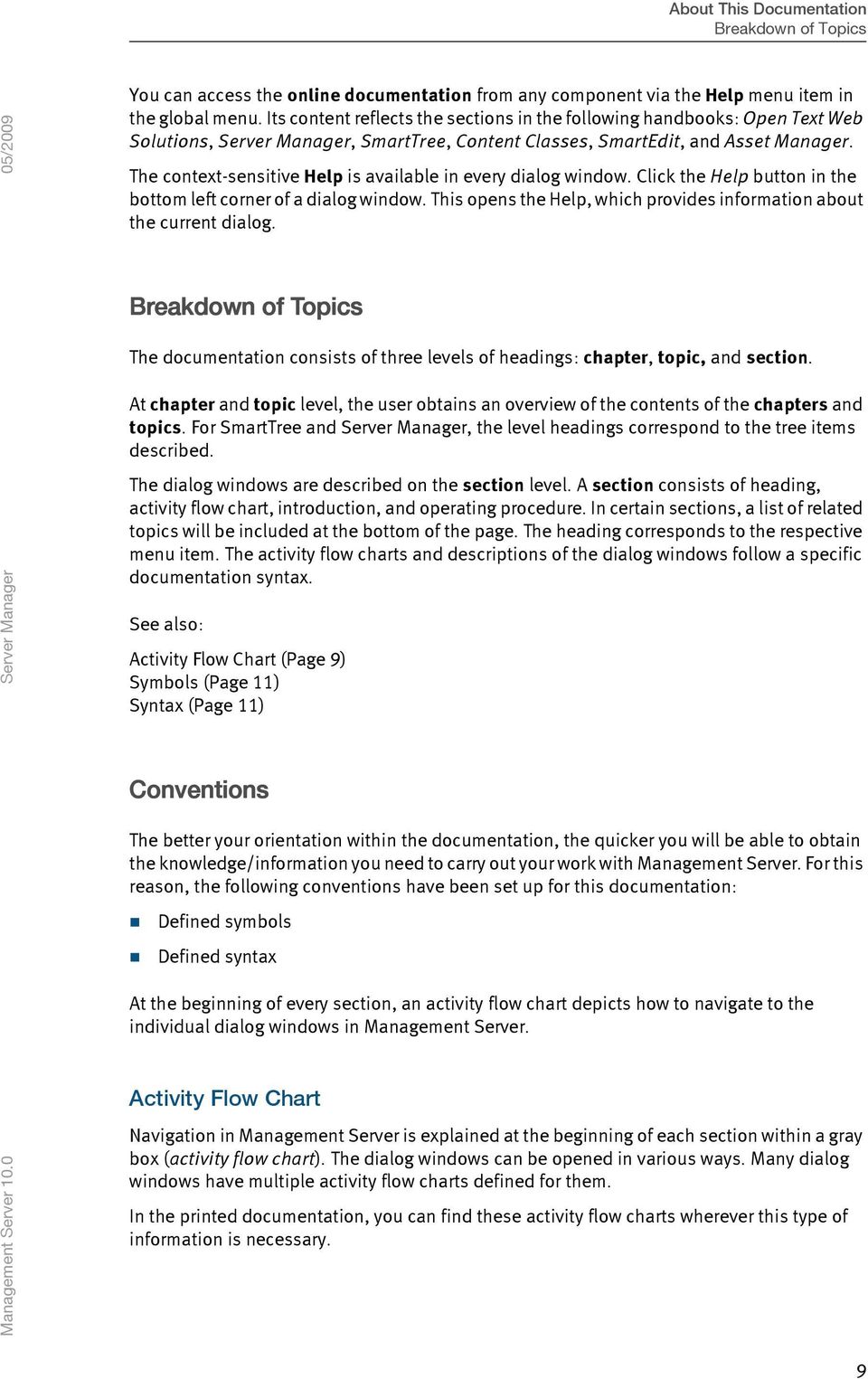
10 About This Documentation Conventions The activity flow chart is not initially displayed in the online documentation. A page that has an activity flow chart has a symbol. Click the symbol to display or hide the activity flow chart. In the following examples, the actual names have been replaced by generic terms. Module Menu item/tree item Select tree item Menu item in Action Menu Title of dialog window Module might refer to SmartTree, for example, the program component (module) from which further navigation steps are taken. In some cases, alternative paths are possible. The alternative paths are preceded by the word or in italics. The symbols used have the following meanings: Symbol Meaning The arrow symbol appears in combination with a menu item or tree item. It represents the beginning of the next navigation step or navigation event. A dialog window opening is one example of a navigation event. The pointer symbol appears in combination with a user-specific item in a tree view. Meaning: Select the desired item in the tree view. This pointer symbol is used for right-clicks. Right-clicking lets you open a shortcut menu that offers you different actions. This is the symbol for the Action Menu. The Action menu lists all menu items available for a tree item you have selected. Meaning: Click the Action Menu item described after the symbol. This symbol is used for Server Manager, SmartTree, and Workflow Designer. This is the symbol for the global menu. It is located in the area on the upper right of the Web Solutions user interface. This symbol represents the Clipboard. Next to the symbol is the name of the objects that are in the Clipboard and that you have to select. This symbol is used for the Server Manager and SmartTree activity flow charts. This is the symbol for an open dialog window. The name of the open dialog window is given after the symbol. This symbol represents the work area in SmartEdit. This is the symbol for the edit area in the Template Editor and text editor. This symbol stands for the work area within the Workflow Designer. 10
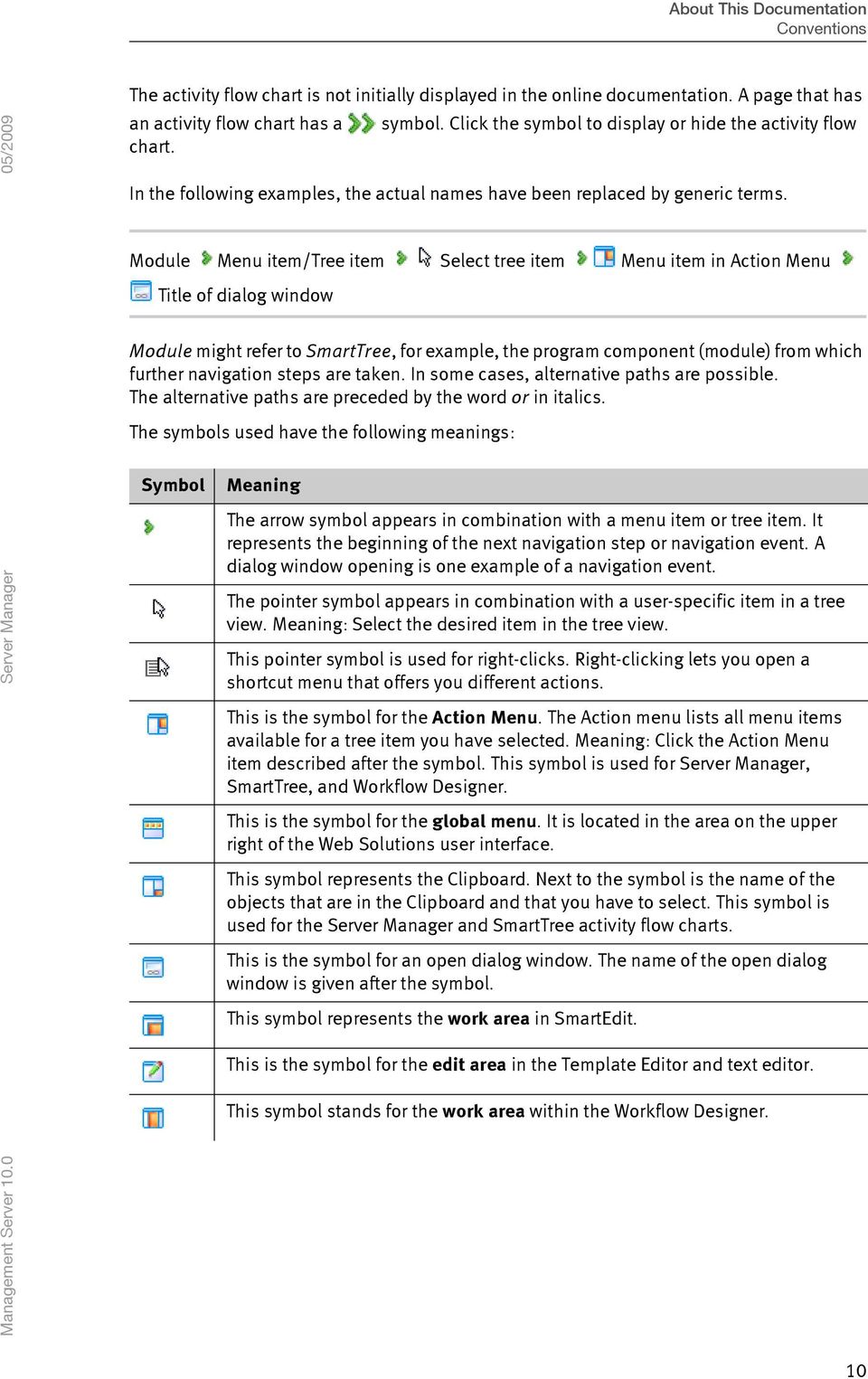
11 About This Documentation Conventions Symbols The following symbols will be used in the documentation text. Syntax Example This symbol alerts you to examples of the described functions. Tip This symbol indicates tips on how to make better use of certain functions. Information This symbol indicates useful background information. Warning This symbol indicates a warning that must be taken note of. The documentation uses the following syntax: Steps are numbered. Software elements are identified in process steps by bold formatting (for example, buttons or drop-down lists). Dialog window titles are formatted in italics. Program code and source code (for example, XML, XSL, and HTML) are printed in Courier to differentiate them from the rest of the text. Directory names are separated by a slash (/) or backslash (\). 11
12 About the Server Manager In the Server Manager, you administer and edit settings for all projects, servers, and users. The following tree items are available for use with the individual settings: Administer Application Servers - Here, you administer the connections to one or more application servers. You can combine several application servers in a cluster. Administer Users and Groups - This is where you administer the general project settings for users and groups. You can also import users from other directory services. Administer Projects - Here, you administer projects on this and other application servers. Administer Database Servers - Here, you administer the various databases of your projects. Administer User-defined Jobs - This is where you create and edit user-defined jobs. User-defined jobs make it possible to execute periodic Administrator or Management Server tasks. Administer Plug-ins - Create and administer any external scripts with the help of the plug-in interface. Administer Delivery Server - Create and administer the connection to a Delivery Server. Management Server is installed on one server. Throughout the following documentation this server will be referred to as the application server. You can only work in the Server Manager when you have been assigned the Server Manager module. Topics covered in this chapter include: Accessing the Server Manager (Page 12) User Interface (Page 13) Accessing the Server Manager To be able to work with the Server Manager, the module Server Manager must be assigned to you. The user set up during the installation automatically has access to the Server Manager module. All other users are created in the user administration of the Server Manager. All of the user settings for, for example, modules, roles, project assignments, etc., can be modified at any time. See also: Users/Groups by Projects (Page 68) Users (Page 74) Groups (Page 89) 12

13 About the Server Manager User Interface User Interface The Server Manager user interface is divided into the following sections: The Tree View lets you administer the project structure using the Action Menu. The Action Menu provides specific options for editing the individual tree items. Tree items can be connected via the Clipboard. See also: Tree (Page 13) Action Menu (Page 14) Clipboard (Page 14) Editing Clipboard Content (Page 15) For information about the Web Solutions user interface, see the Open Text Web Solutions documentation. Tree Server Manager The tree displays the essential editing area in Server Manager. The first item in the tree is called Start. The Server Manager tree lets you edit all administrative components of your projects. Start Administer Application Servers Administer Users and Groups Administer Projects Administer Database Servers Administer User-defined Jobs Administer Plug-ins Administer Delivery Server How to work with the tree items: Opening tree items - To open tree items, click the in front of the corresponding tree item. Closing tree items - To close tree items, click in front of the corresponding tree item. 13
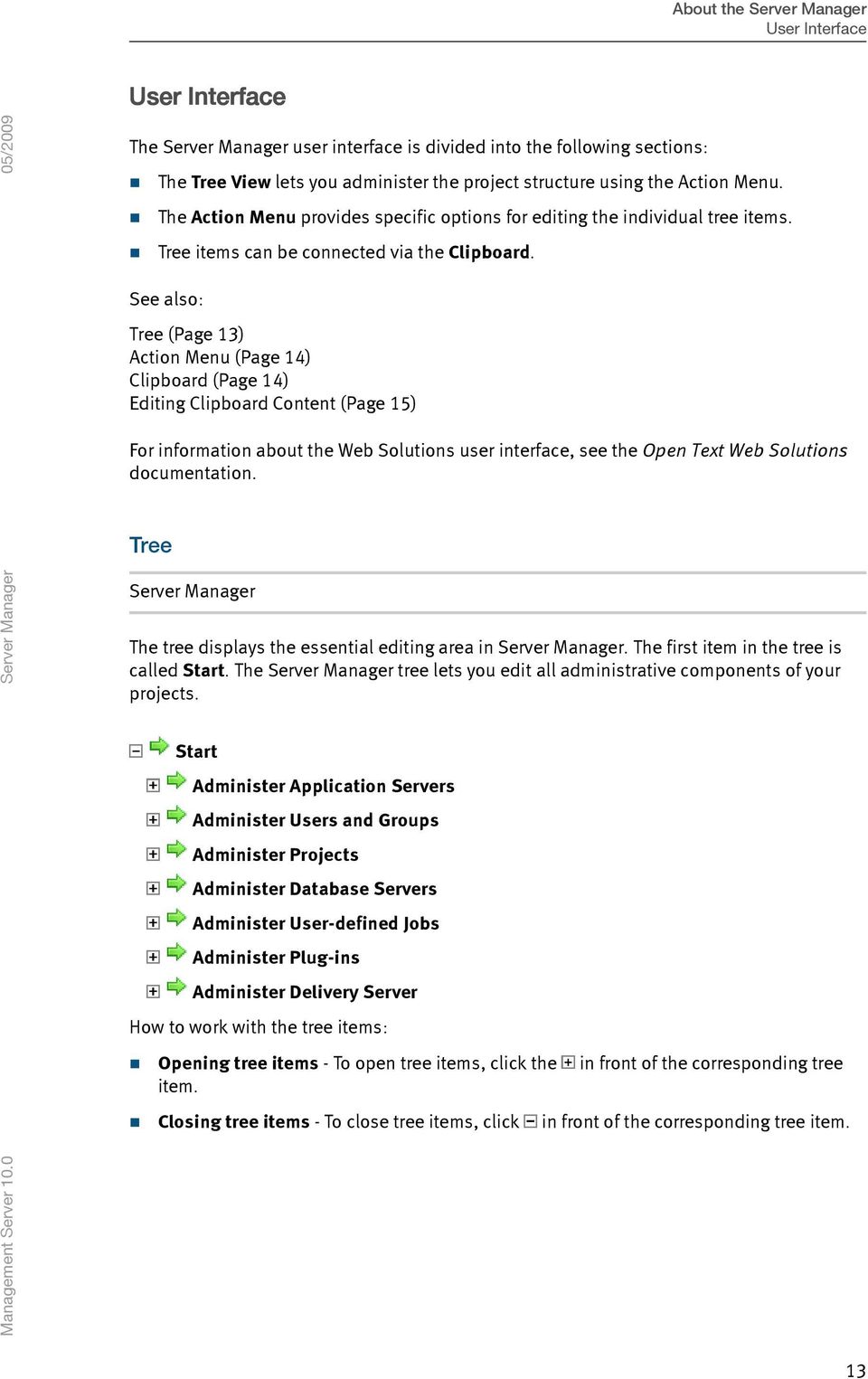
14 About the Server Manager User Interface Action Menu Server Manager The Action Menu of the Server Manager is located at the top right-hand side. In the Action Menu, all editing options for the selected tree item will be displayed. Action Menu In the screen shot below, the Projects tree item has been selected. In the Action Menu, you can see all the menu items that are available for the Projects tree item: The Action Menu items, Create Project, Import Project, and Check Database Server, are available for the Projects tree item. If you click the icon in the Action Menu, you will get support-relevant information about the tree item selected in the Element Info window. Clipboard Server Manager The Clipboard is located at the right bottom of the Server Manager. You can create shortcuts for tree items in the Clipboard by double-clicking the corresponding tree item. The Create Shortcut in Clipboard menu item in the Action Menu is available with some tree items. Tree items in the Clipboard can be connected to other tree items. In the image below, a shortcut for a group, a user and a project has been created in the Clipboard. 14
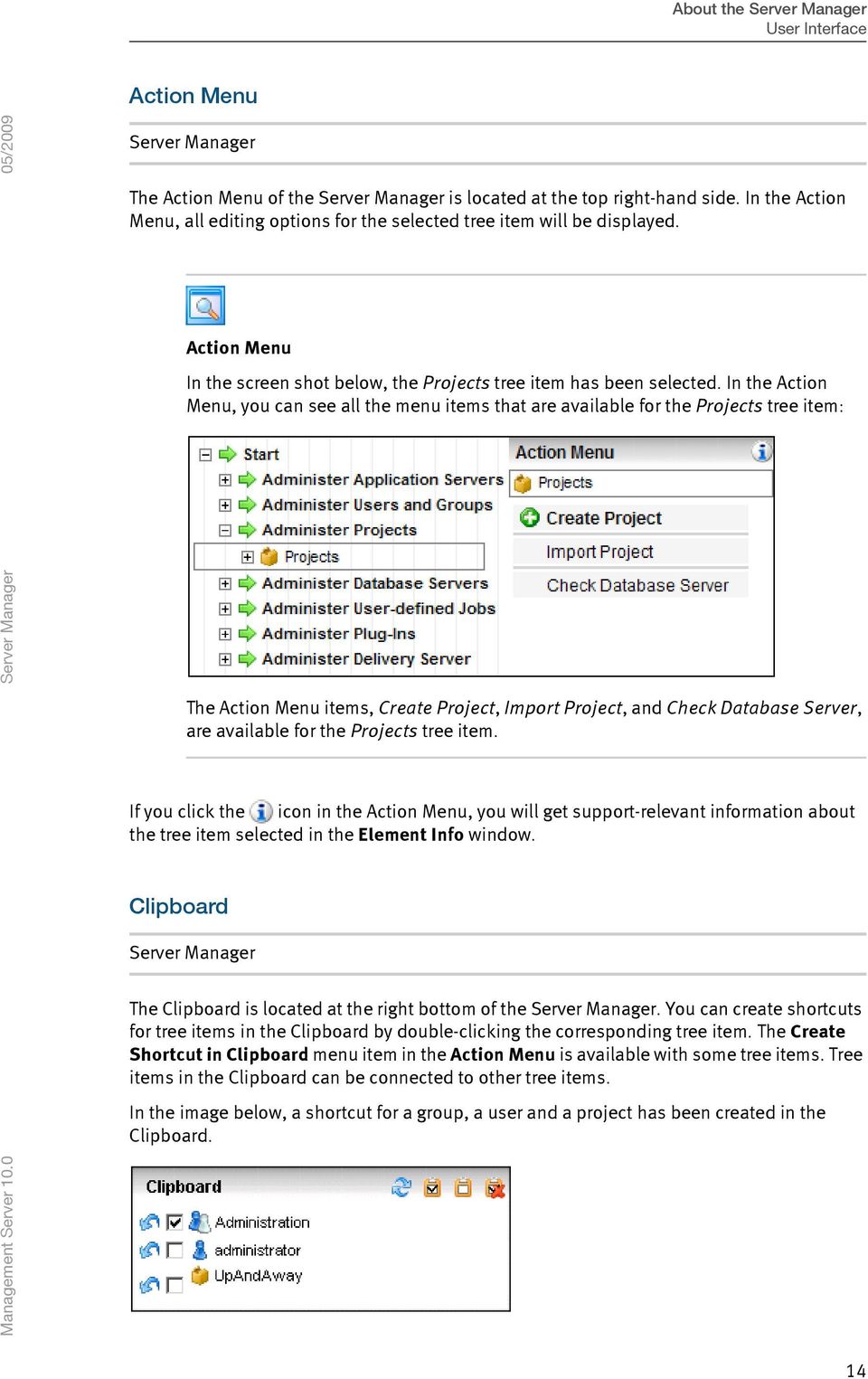
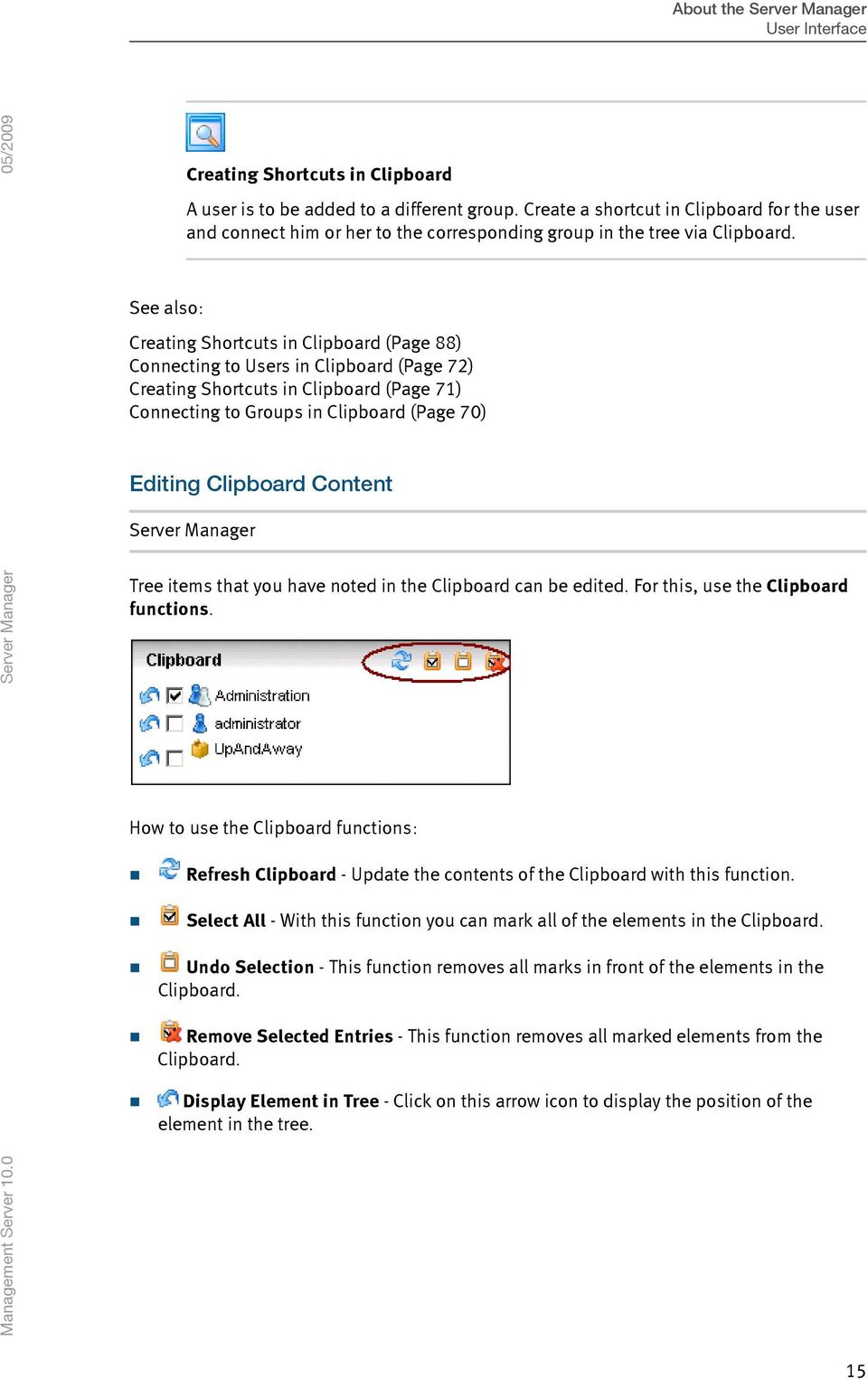
15 About the Server Manager User Interface See also: Creating Shortcuts in Clipboard A user is to be added to a different group. Create a shortcut in Clipboard for the user and connect him or her to the corresponding group in the tree via Clipboard. Creating Shortcuts in Clipboard (Page 88) Connecting to Users in Clipboard (Page 72) Creating Shortcuts in Clipboard (Page 71) Connecting to Groups in Clipboard (Page 70) Editing Clipboard Content Server Manager Tree items that you have noted in the Clipboard can be edited. For this, use the Clipboard functions. How to use the Clipboard functions: Refresh Clipboard - Update the contents of the Clipboard with this function. Select All - With this function you can mark all of the elements in the Clipboard. Undo Selection - This function removes all marks in front of the elements in the Clipboard. Remove Selected Entries - This function removes all marked elements from the Clipboard. Display Element in Tree - Click on this arrow icon to display the position of the element in the tree. 15
16 Administering Application Servers The application server is the server on which the Management Server software is installed. All data and objects are stored on the application server. This means that all project user data, files, content classes, for example, are stored and administered here. You can operate several application servers in a cluster. Topics covered in this chapter include: Application Servers (Page 16) Editing Connections (Page 28) Projects (Page 38) Classes (Page 41) Log Files (Page 42) Application Servers For each application server, you can view and edit the asynchronous processes and back up and restore the Administrative Notes of the administration database. Administration data comprises all the data administered using the Server Manager, for example, users and groups, projects, or global releases. You can view and edit asynchronous processes located on application servers. You need both of the following dialog windows if you intend to administer multiple application servers in a cluster. A cluster consists of multiple application servers that access the same administration database (ioadministration) of a database server. Not all asynchronous processes can be managed in clusters. You can use and administer the following processes in the cluster: Automatic and manual publishing jobs Escalation routines for the workflow For more information on installing clusters, see the Installation documentation. You can back up and restore the administration data of the ioadministration administration database with the Server Manager. 16

17 Administering Application Servers Application Servers Asynchronous Processes Management Server is a Web-based application. Whereas other client applications can wait for a server response, this is hardly possible for a browser-based client. For this reason, time-consuming program functions, like page publication, are initiated without requiring the client to wait for execution. The client merely receives confirmation that a function has been started. These special independent program functions, known as asynchronous processes, can be executed concurrently on a server. When an asynchronous process is complete, this is logged in a log file. If notification has been preset, the user is notified via that the process is complete. Administering Asynchronous Processes Server Manager Start Administer Application Servers Application Servers Administer Asynchronous Processes Administer Asynchronous Processes Time-consuming functions are executed asynchronously in Management Server so that users can continue working optimally, even during complex processes. These program components are identified as asynchronous processes. These include more complex program components, for example, publications and project imports/exports, as well as less complex components such as sending or deleting pages. In total, around 60 different types of asynchronous processes occur in Management Server. Because users usually trigger these asynchronous processes unknowingly, it can lead to performance problems if multiple processes are triggered simultaneously. The Process Manager component controls these asynchronous processes. Process Manager ensures that not too many processes are started at once. The asynchronous processes form a queue before they are processed. This avoids a system overload. Process Manager is configured with useful default values after installation or updates so that you do not have to modify the configuration. Modifications to the configuration are sometimes useful when the server is not very busy and there are too many processes waiting. This is also the case when the server is overloaded because too many processes have been started. Only in cases such as these should you consider modifying the configuration. To do this, contact Support or Professional Services for guidance. The Administer Asynchronous Processes dialog window gives you an overview of the processes that run in a cluster on all application servers or that are waiting to be executed. You can stop, end, or change the priority of processes. This dialog window is divided into two areas. The area on the left shows the respective application servers with the corresponding queues. If you select an application server or queue in this area, the area on the right shows the processes that are already running or are waiting to be executed. 17

18 Administering Application Servers Application Servers The shortcut menu that opens when you right-click provides different actions for the individual items: Application Server Actions Shut Down Process Manager - Process Manager is shut down on this application server; asynchronous processes are no longer executed on this application server. Here you can select: End Processes - All running processes are ended and Process Manager is shut down. Wait Until Processes Are Completed - All running processes are completed before Process Manager is shut down. Refresh - Refreshes the dialog window display. Queue Actions Pause - No new processes are started in this queue. All active processes continue running. You can restart a queue that has been paused by clicking Resume in the shortcut menu. Refresh - Refreshes the dialog window display. Active Process Actions Stop - The process is given the signal to stop. This function is not supported by all processes. End - The process is ended. Set Priority - The priority is changed to the selected setting. Actions for Executing Pending Processes Remove - The process is removed from the queue. Position - The process is moved to the queue according to the selected setting. Dialog Window Keyboard Shortcuts You can use the following keyboard shortcuts in the Administer Asynchronous Processes dialog window: R - Refreshes the selected item in the left of the dialog window. F8 - Refreshes the entire dialog window. Operating System Processes for Asynchronous Processes Asynchronous processes were previously executed in Management Server in the form of operating system processes with the name RDCMSDllHost.exe. These operating system processes no longer exist. Management Server 10 and later versions have a 18

19 Administering Application Servers Application Servers Windows service with the name RedDot.CMS.ProcessServer.Service. Process Manager runs within this service. In the Task Manager, the process is called RedDot.CMS.ProcessServer.Service.exe. All asynchronous processes are executed in threads within this operating system process. Assigning Processes to Queues There are six queues in Process Manager with the following assignment of functions: Default Manager All asynchronous functions that are not triggered by the following Instant Manager Clear page cache Refresh page caches in the cluster Refresh image caches in the cluster Save version information for a page if it has been changed Asynchronous Queue Update Asset Manager Export assets to a directory Import files into Asset Manager Move assets Delete assets Shrink the versioning database Send Publication Workflow reaction: Publish Page Export instances of content classes Notification when the application server cannot be accessed in the cluster Check all external URLs in a project Check all references in other projects Workflow reaction: Automatic Expiration and Resubmission of Pages Inherit publication package to following levels Disconnect publication package from structural element and following levels Create project reports Page forwarding User-defined jobs 19
20 Administering Application Servers Application Servers Check spelling in page(s) using Web Compliance Manager Find and replace Start applications before/after publication Check database servers Publishing Supporter FTP transfer, transfer to Delivery Server, delete files from the live server Delete files from the live server Live Server Cleaning Clean up live server WebCompliance Check pages for Web compliance Administering Publication and Scheduled Processes Server Manager Start Administer Application Servers Application Servers Administer Publication and Scheduled Processes Administer Publication and Scheduled Processes or SmartTree Start Administer Project Structure Project Administer Publication and Scheduled Processes Administer Publication and Scheduled Processes You can view the properties of all publications and scheduled processes that run on the application server. You can start, deactivate, activate, and delete processes. When you open this dialog window in SmartTree, only the processes of the current project are displayed. Using the Process List Use the process list to do the following: Which processes and how many are currently running or waiting to be run on the selected application server To distribute, stop, delete, or deactivate processes. 20
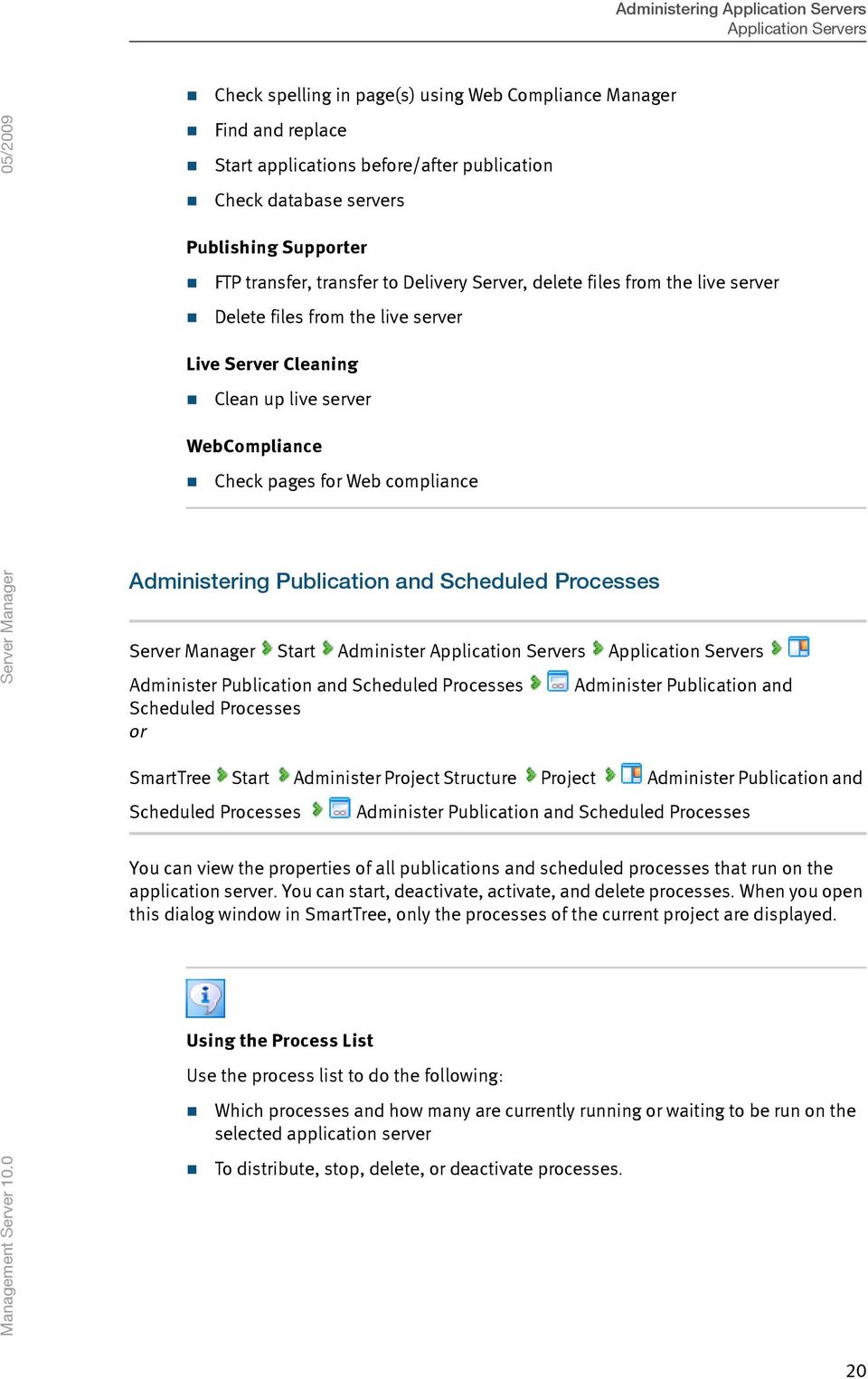
21 Administering Application Servers Application Servers The process list is ordered according to when a process is scheduled to begin on a specific application server. The active process is listed first, followed by the next scheduled process, while the lowest priority processes and those scheduled to run last are listed at the bottom. If you open the process list in SmartTree, only the processes corresponding to the current project will be displayed. The process list contains the following information for each process: Status The first column informs you about the process status. The process status is indicated by symbols. Black symbols indicate active processes and grey symbols indicate deactivated processes. The actions determine the display of a status. Symbol Priority This column indicates the priority with which a process is handled. There are three levels of priority for a process. These are: low, normal, and high. All processes have the normal priority by default, except for publishing processes, which can have a different priority. A publishing job can have a different priority. You can set this priority already in the publishing job. To create a publishing job, go to the Administer Publication tree item in SmartTree. The following symbols are used: Symbol Meaning The process is currently being executed. The process has been stopped. The process is waiting to be executed. The process is still being executed and will be deleted afterwards. The process is still being executed and will be stopped afterwards. The process has been stopped and will be deleted immediately. The process has been stopped and will be started immediately. The process is waiting to be executed and will be deleted immediately. The process is waiting to be executed and will be started immediately. The process is waiting to be executed and will be stopped immediately. Meaning Low priority. Processes with higher priority are performed first. High priority. This process will be performed as soon as possible. 21
22 Administering Application Servers Application Servers Processes with normal priority do not have symbols. You can set the priority of a process in the process properties area. Click the process name to change the priority of a process in the Process Properties dialog window. Process name The Process name informs you about the process. To get more information, click the process name to display its properties. For more information, see the Process Properties section. Category The Category tells you what type of process is performed. Possible categories include, for example, publication and escalation procedure. Next execution With processes that are waiting to be executed, the Next execution field displays the date scheduled for its next execution. With processes that are currently being executed, it displays when the process actually started. Application server Application server displays the application server assigned for this process (processes waiting to be executed). If the process has not started yet, you can use the process properties to change the assigned application server manually. If a process is currently being executed, the active application server is displayed here. Actions You can use Actions to make changes to the processes. The following actions are available: Stop process Use this function to stop an active process ( ) or one waiting to be executed ( ). This function does not immediately stop an active process but waits until the current steps in the publication process have been completed. The process remains stopped until it is deleted or restarted. If a process has been deactivated, nothing happens until the process has been reactivated. Start process Use this function to restart a process that had been stopped ( ). You can also use it to jump the queue and immediately start a process that is waiting to be executed ( ). This only takes place if no other process is waiting on the application server with a higher priority. If this is not the case, the process waits to be executed and the following symbol is displayed:. In general, you can never start a deactivated process using this symbol. If a process with an automatic - that is, periodic - publishing job is completed, the new execution date is displayed and the process receives the Wait status ( ). The same applies for escalation procedures. The name of a manual publishing job is removed from the list upon completion. Delete/cancel process You can cancel any recurring process (automatic publishing jobs, escalation procedures) that is currently active. If it is canceled, the next execution date is entered automatically. If this is an automatic publishing job, the new publication date is entered. To prevent the execution of a recurring process, you need to deactivate it. The appropriate symbol is then displayed in the process list. Other processes currently being executed can be canceled and deleted at the same time. The process will then no longer appear in the process list. 22
23 Administering Application Servers Application Servers Deactivate process To cancel not only the current process but also any future execution of an automatically running process, you have to deactivate the process. A process that has been deactivated is displayed with light gray status symbols in the first column. You can only undo the Deactivate action by executing the Activate action. For example, if you want to start a deactivated process, you first need to activate it. Activate process A deactivated process can be executed again using the Activate action. If the next execution date has already passed in the deactivated period, the process will be executed as soon as possible. In the case of recurring processes (automatic publishing jobs, escalation procedures), these are only executed once rather than in the scheduled frequency. Afterwards, a new execution time is determined. See also: Process Properties (Page 23) Process Properties Server Manager Start Administer Application Servers Application Servers Administer Publication and Scheduled Processes Administer Publication and Scheduled Processes Select process name Process Properties or Server Manager Start Administer Application Servers Application Servers Administer Publication and Scheduled Processes Administer Publication and Scheduled Processes Select process name Process Properties You can view process properties and edit processes. The Process Properties dialog window contains all important process information. You can specify the application server where you want the process to be executed and define the priority. Process Properties You can only alter process properties as long as the process has not been started. A process contains the following information: Process name Specifies the process name. This can be the name of a publishing job or a project name to which an escalation belongs. 23
24 Administering Application Servers Application Servers Status This column informs you about the process status. The process status is indicated by symbols. Black symbols indicate active processes and grey symbols indicate deactivated processes. The actions determine the display of a status. Symbol Meaning The process is currently being executed. The process has been stopped. The process is waiting to be executed. The process is still being executed and will be deleted afterwards. The process is still being executed and will be stopped afterwards. The process has been stopped and will be deleted immediately. The process has been stopped and will be started immediately. The process is waiting to be executed and will be deleted immediately. The process is waiting to be executed and will be started immediately. The process is waiting to be executed and will be stopped immediately. Executing application server If the process has been started, this drop-down list is deactivated. It contains a note about the application server where this process is being performed. If the drop-down list is available, you can determine the executing application server. An individual alteration is only applied for the current process execution. If it is a repeated process, the preset application server is used for each repetition. You can select the preset application server below the Application server entry (at the bottom of the dialog window). Category Informs you about the running process job, for example, publication or escalation. Application server Specifies which server is responsible for the process. If the process has not been started yet, this entry can be overwritten by the Executing application server entry (at top of the dialog window). Project Specifies the project for which the process is being executed. You can select a different priority from the drop-down list. You have the following options: low, normal, and high. Last execution Specifies the time (date and time) of the last execution of the recurring process. Last execution by Specifies the name of the user who initiated the last execution of the current process. If (SYSTEM) is shown instead of a user name, the process was automatically started by the system. 24
25 Administering Application Servers Application Servers Next execution Specifies the time (date and time) of the next planned process execution. Next execution by Specifies the name of the user who initiated the current process for the next execution. There may be a certain amount of time between the initiation and the actual execution of a process. If (SYSTEM) is entered instead of a user name, the process will be started by the system for the next execution. Priority Specifies the priority with which the process is executed. This entry can be changed if the process has not started yet. Created on Specifies the time (date and time) when this process was created. Created by - Specifies the name of the user who created the process. If (SYSTEM) is shown instead of a user name, then the process was created automatically by the system. Process ID Specifies the process GUID. Actions You can use Actions to make changes to the processes. The following actions are available: Start process Use this function to restart a process that had been stopped ( ). You can also use it to jump the queue and immediately start a process that is waiting to be executed ( ). This only takes place if no other process is waiting on the application server with a higher priority. If this is not the case, the process waits to be executed and the following symbol is displayed:. In general, you can never start a deactivated process using this symbol. If a process with an automatic - that is, periodic - publishing job is completed, the new execution date will be displayed and the process receives the Wait status ( ). The same applies for escalation procedures. The name of a manual publishing job is removed from the list upon completion. Delete/cancel process You can cancel any recurring process (automatic publishing jobs, escalation procedures) that is currently active. If it is canceled, the next execution date is entered automatically. If this is an automatic publishing job, the new publication date is entered. To prevent the execution of a recurring process, you need to deactivate it. The appropriate symbol is then displayed in the process list. Other processes currently being executed can be canceled and deleted at the same time. The process will then no longer appear in the process list. Deactivate process To cancel not only the current process but also any future execution of an automatically running process, you have to deactivate the process. A process that has been deactivated is displayed with light gray status symbols in the first column. You can only undo the Deactivate action by executing the Activate action. For example, if you want to start a deactivated process, you first need to activate it. Activate process A deactivated process can be executed again using the Activate action. 25
26 Administering Application Servers Application Servers If the next execution date has already passed in the deactivated period, the process will be executed as soon as possible. In the case of recurring processes (automatic publishing jobs, escalation procedures), they are executed only once rather than in the scheduled frequency. Afterwards, a new execution time is determined. See also: Administering Publication and Scheduled Processes (Page 20) Backing Up Administration Server Manager Start Administer Application Servers Application Servers Back Up Administration Back Up Administration When you back up the ioadministration administration database, the information is saved to a file in XML format. Administration data comprises all the data administered using the Server Manager, for example, users and groups, projects, or global releases. 1. Make the following backup settings: Path - In the Path box, enter the path and administration database directory whose administration data should be saved, or click Search to select a directory. You can use the Check link to see if the information you entered for the path is correct. File name - Enter a file name of the administration database. confirmation - You can be informed of the completion of the backup process via Confirm with OK and a backup of the administration database will be made. Restoring Administration Server Manager Start Administer Application Servers Application Servers Restore Administration Restore Administration The settings of the Administration database are saved in a file in XML format. When you restore these settings, they are imported to the existing Administration database of the application server. The settings in the existing Administration database are overwritten. 1. Edit the following settings: File name - Enter the file name of the administration database you want to restore. confirmation - Enter an address to be notified when restoration is complete. 2. Click OK to confirm. The administration data in the database is restored. 26
27 Administering Application Servers Application Servers Showing Licenses in Use Server Manager Start Administer Application Servers Application Servers Show Licenses in Use Management Server You can display the licenses used for the individual modules. 1. This dialog window provides the following information: It shows the number of available licenses for the SmartTree and SmartEdit modules, and the number of licenses in use. For all other modules, you can see whether a license is available. You cannot edit this dialog window. For more information, contact your sales representative. 2. Click Close to close the dialog window. Creating Support Information Server Manager Start Administer Application Servers Application Servers Create Support Information Create Support Information Support information includes all technically relevant information for your system, which is sent as to a specific recipient. This data makes all information about your support queries quickly and readily available, thereby supporting your work. The contains a ZIP file attachment, which itself contains a server report as well as configuration and log files. You can open and view all files in a text editor. 1. You have the following options: Level - Select a level from the drop-down list to apply to the support information. The levels differ in the amount of detail that is provided in the server report. The report for the Standard level contains all information relevant to the system and the servers used. The report for the Extended level contains additional information on content classes for all projects. recipient - Enter the address where you want to send the support information. Subject - Enter text for the subject of the . Message - Enter text for the message. 2. Click OK to confirm. The files relevant for support are compiled and sent as a ZIP file to the specified address. 27
28 Administering Application Servers Editing Connections Editing Connections Via the central application server, it is possible to co-administer connections to other application servers and also have direct access to their projects. Editing Connections Server Manager Start Administer Application Servers Application Servers Select Application Server Edit Connection Edit Connection You can edit the connection to an application server. 1. Edit the connection. Connection name - Enter a unique and meaningful name for the connection in the box. The connection will be displayed in the tree under this name. IP address - Enter the IP address or host name of the application server that you want to connect (for example, ). Host header - Enter the name of the host header (for example, name>/cms) that addresses the virtual Web site and under which Management Server has been installed. The host header name is used for internal IIS calls with RDExecute and PreExecute constructions. You enter it, for example, if you want to use a Web site other than the default Web site as the virtual Web site, or if a different server name has to be used for internal calls due to the network configuration. You can usually leave this box blank. DNS name (cluster) - Enter the name of the DNS cluster in this box. This name is used for the in which a link is provided to the page preview. In this way, the preview link calls the page via the official cluster URL and not via the application server from which the was sent. Note: If you want to make use of the HTTPS protocol for the preview links, you need to enter the server name with the protocol (for example, name>/<web directory>) in this box. 2. Click OK to confirm. Modifying the Server Connection After the server connection has been edited, all users must log on again so that the changes can be applied. 28
29 Administering Application Servers Editing Connections Editing Settings Server Manager Start Administer Application Servers Application Servers Select Application Server Edit Settings Edit Application Server Settings In the Edit Application Server Settings dialog window, you define essential settings for log files, notification processing, and asynchronous processes, such as SSL encryption, HTTP port, escalation procedure, and session time-out. If you received a new license key, it can be entered here. You can also obtain additional information about the number of licenses. If your Internet connection is set up through a proxy, the proxy server area allows you to enter the required settings. This allows you to check the URLs defined in the project that refer to external links. 1. Edit the settings. notification Use default virtual SMTP server - Select this check box if you want to use the default server. Name/IP of mail server - Enter the IP address or host name of the mail server that you want to use for the notification. From - In this box, enter your name as it should appear with outgoing messages. It can take the form of an address or server name. For example: @company.com or company.com. User name, Password - Enter the account name and the password that your Internet service provider has given to you for accessing the SMTP. Port - Enter the port of your mail server. License License key - This shows the license key that was entered during installation. If you have a new license key, follow the steps below: 1. Enter your License key. 2. Click OK to confirm. Check - Click this link to open a dialog window that will inform you about available licenses and their validity. If the current application server is part of a cluster, this link is available for one application server only. Asynchronous processes Query interval - Here you can enter the interval (in seconds) of how often the application server should search the database server for new asynchronous processes waiting to be completed. The default setting is 60 seconds. Number of simultaneous processes - Here you can define how many simultaneous asynchronous processes this application server should accept. Select one of the following settings: -1 = The application server is allowed to start any number of processes. 29
30 Administering Application Servers Editing Connections 0 = The application server is not allowed to start any processes = Insert the number of processes (max. 500) that may be performed simultaneously on the application server. Log file settings - Decide here which events should be logged and where the log files are to be saved. Home directory - Enter the path for the home directory of the log files. In this home directory, subfolders are automatically created for the individual log files when the first log file is written. You can enter a path on the application server or the UNC path of another accessible computer. If you do not enter a path, the log files are written to the default log directory, <Installation directory>\open Text\WS\MS\ASP\LOG. Changes to the directory path become effective as soon as you close the dialog window. Note: In a cluster installation, different physical directories must be entered for each server. Because the installation log files are created before Management Server is started, they are always found in the default log directory. The same applies to the dberror.log log file in the Common subdirectory. User name - Enter the user name that you use to log on to the server where the log files are to be saved. Password - Enter the password for the user name. No logging - Select this option if you do not want any events to be logged. Full logging - Select this option if you want to log all events. Other settings Permit ActiveX controls - Select this check box to allow ActiveX controls. You also need to enable ActiveX controls in Internet Explorer under Tools -> Internet Options -> Security. ActiveX controls are used for the following functions: The drag-and-drop operation in the text editor For more information, see the Text Editor section in the SmartTree documentation or Help. The drag-and-drop operation in SmartEdit For more information, see the Editing Content Elements chapter in the SmartEdit documentation. Using Microsoft Word as the text editor For more information, see the Editing Content Elements chapter in the SmartEdit documentation. Refresh task alert - Use the drop-down list to define whether the task alert should be refreshed, Never, Only the current language variant, or in All language variants. By default, the task alert is refreshed every four minutes. Every time the task alert is refreshed, the system searches the database for tasks that are assigned to the particular user. This process generates a load on the application server and the database server. This load increases with the number of users and the number of language variants that have been set up. The administrator can reduce this load by completely eliminating the process or limiting the search to only tasks in the current language variant of the user. 30
31 Administering Application Servers Editing Connections Do not allow profile changes - Select this check box to prohibit users from changing their profiles during the logon procedure. If selected, the logon menu will not display the Edit profile after logon check box. For application servers in a cluster, this setting only applies to the current application server. This allows you to selectively activate this function for specific application servers in a cluster. Only permit logon using SSL encryption - Select this option to specify that logon to the application server must use SSL encryption. Stop SSL encoding after logon - The virtual directory can be secured completely or partially by the SSL (Secure Sockets Layer). SSL is not provided with Management Server. It can be purchased from an appropriate supplier. Determine whether or not SSL encoding is applied only during logon to the application server. HTTP port - Management Server requires this port specification in order to find the correct port when changing from HTTPS to HTTP. The default port is 80. If this port cannot be accessed, you will not be able to change to HTTPS. HTTPS port - HTTPS is a secure version of the generally applied HTTP. The default port is 443. Checking interval for asynchronous workflow reactions - Here you can define the interval for checking workflow reactions such as the escalation interval or automatic page expiration. The default setting is 30 minutes. Session-Timeout - Enter the number of minutes that should elapse before a session times out. The default setting is 70 minutes. If several application servers are organized into a cluster, this value applies to the entire cluster. RDExecute-Timeout - Enter an interval in seconds. The timeout takes effect in the execution of server-side script code. The default setting is 10 seconds. If you enter a value lower than 10 seconds, the value of 10 is saved automatically. PreExecute-Timeout - Enter an interval in seconds. The timeout takes effect in the execution of active templates. The default setting is 10 seconds. If you enter a value lower than 10 seconds, the value of 10 is saved automatically. Private digest element - Enter the private section of a digest which was created with the MD5 algorithm. This is only necessary if, for example, you want to enable authentication for a portal integration using a digest. For more information, see the information box below. Validity of digests - Enter a validity for the digest in minutes. For more information, see the information box below. HTTP Proxy server - Select this check box if you intend to use a proxy server. Proxy server - Enter the name of the proxy server you intend to use. Proxy server port - Enter the designated port of the proxy server. Use external PDF converter - Select this check box if you intend to use an external PDF converter for Word, Excel, and PowerPoint files. If Use external PDF converter is selected, the Insert into page as HTML option will no longer be available for Convert selected documents item in the element properties of a Media Element dialog window. The files to be converted are added to the preconversion directory and then 31
32 Administering Application Servers Editing Connections converted by the external converter. Once the converted file lands in the Conversion directory, the PDF file is adopted in Management Server. Depending on your settings, the source file is deleted from the preconversion directory and the converted file is deleted from the conversion directory. Conversion input directory - Enter the path to the preconversion folder. Conversion output directory - Enter the path to the conversion folder. After converting file delete it from preconversion folder - Select this check box if you want to delete the files contained in this directory after they have been converted. After converting file delete it from conversion folder - Select this check box if you want to delete the files contained in this directory after they have been converted. Automatic user log on. IIS authentication - Select this option to allow user logon with IIS authentication. For more information, see the information box below. Activate logon via a saved cookie - You can control user logon by using saved cookies. Length of validity of cookies in hours - Enter the length of time that a cookie should be valid (in hours). Cookie name - Enter the name of the cookie. 2. Click OK to confirm. Notes on IIS Authentication Management Server can also make use of the logon information provided for a Windows user, which means that no additional logon is required. Setting Up IIS Authentication Configure the following settings: 1. Open Internet Information Services on your application server. 2. Open the CMS folder under Default Web Site. 3. Open the shortcut menu for the WinAuth subfolder and select Properties. 4. Select the Directory Security tab and click Edit in the Control anonymous access and authentication area. 5. Clear the Anonymous logon check box and, depending on the situation in your network, select one of the check boxes for Authenticated Access. If default settings are valid for this directory during installation, the modification is executed by the installation routine. 32
33 Administering Application Servers Editing Connections Access Violations on RDCMS_XMLServer COM+ Component Access violations may occur when accessing the COM+ component RDCMS_XMLServer because once authentication via IIS is complete, all ASP pages are authenticated using the authenticated user's identity. You have the following options to correct this situation: Deactivate Windows authentication in IIS for the CMS directory You can clear all of the check boxes for the virtual IIS directory CMS in the Authenticated Access area and just allow anonymous access. This means that the user (after authentication against IIS) makes use of the anonymous user identity. If default settings are valid for this directory during installation, the modification is executed by the installation routine. Extend access authorizations Add users or groups to the RedDotRole for the components. Add the users/ groups that are able to log on using IIS authentication. Deactivate the access test for this COM+ component To deactivate the access test for this component, call up the component properties, select the Security tab, and clear the Enforce access check for this application check box in the Authorization area. Notes on Configuration in Management Server Select IIS authentication in the application server settings in Server Manager. Authentication also works for users from the internal account system. When importing users from other directory services, you can determine whether you want to allow IIS authentication for them. IIS authentication is permitted by default. Circumventing IIS Authentication IIS authentication can be deactivated by adding the DisableAutologin=1 parameter to the URL. The logon dialog URL would then look like this: iord.asp?action=showloginmask&disableautologin=1 Notes on Integrations Because this method of authentication does not use passwords, it is not recommended. Otherwise, care must be taken when integrations, for example, require user name and password authentication. Identical Users in Different Domains Management Server cannot differentiate between users with the same names in different domains. This means, for example, that two users could log on to Management Server with the same user name. In such a case, you need to deactivate the logon authentication via IIS for both users. Using IIS Authentication from Outside the Domain If domain users use Windows sessions outside the domain to log on and authenticate against IIS, their Internet Explorer session will become a domain session. If the computer is left on after working with Management Server without closing Internet Explorer, other users can use the logon information of the first user by calling up the Management Server URL. Users who have identified themselves in this manner need to ensure that no unauthorized access is initiated. If this is not possible or this is 33
34 Administering Application Servers Editing Connections perceived as a security risk, IIS authentication logon from outside the domain should not be used. In this case, the simpler direct Management Server logon should be used instead. User Authentication Using a Digest It is possible to identify and authenticate a user in Management Server using a digest that was created with the MD5 algorithm. This authentication method can be used for portal integrations. Authentication requires three steps: The portal integration sends a digest to Management Server as part of a URL. Management Server checks the authenticity of the digest. If the digest is correct and valid, the user is logged on to Management Server. Step 1: The portal integration sends a digest to Management Server as part of a URL The portal has to include the digest in the URL that opens the required page in Management Server. In the following example of a URL for editing a page in SmartEdit, the Digest parameter is required for authentication: server>/cms/iord.asp?action=showloginmask&lngid=en& LanguageVariantGuid=B54519BEE72247AF923E93B0C4FB34B7& ProjectGuid=673C95D9F64B4620AA1A7356C31A107F& PageGuid=CF8EF604980A4090A0C6B5C0146AF737& LinkFromGuid=BDB85B530F204137A8DA58E0509CBB9A& Digest=username%7C4F1B7D2C6ADE48F3B5CE B7C%7C %7C%2B02%3A00%7C7F87E067072DE6355A81B976CE9AC32A Structure of the body of the digest The digest body comprises several elements, which have to be separated by pipe ( ) characters. The body of the digest contains the digest created by the portal integration, as well as three significant elements. These are the user name (Loginname), the time stamp (Timestamp), and the GMT time bias (TimeBias). There may be any number of elements between the logon name and the time stamp, to increase the variance of the digest. The digest does not transmit any passwords. Because the pipe character is used as a separator for the various digest elements, the digest elements must not contain this character. An overview of the body of the digest: Loginname... Timestamp TimeBias Digest Loginname No particular formatting rules apply to the logon name. The only rule is that the pipe character ( ) is not allowed. Timestamp Format: yyyymmddhhnnss (YearMonthDayHourMinuteSecond). The year must be entered as a four-digit number, all other values as two-digit numbers. The time must be entered in 24 hour format. Example: to obtain the time stamp :55:01 34
35 Administering Application Servers Editing Connections TimeBias Format:[+/-]HH:nn (SignHour:Minute). The plus or minus sign must be entered. All numeric values must have two digits. The time must be entered in 24 hour format. Example: +13:00 Digest The digest must be entered as a hexadecimal number. All letters must be upper case, and all numeric values must have two digits. Example: 7C072DE6355A81B976CE9AC32A Step 2: Management Server checks the authenticity of the digest To check the authenticity of the digest, Management Server creates another digest. It uses all characters in the digest body transmitted, except for the digest from the portal and the pipe that precedes it. Management Server adds the pipe character and the private section of the digest to determine the digest. You enter the private section of the digest in the application server settings, in the Private digest element box. If the digest determined matches the digest from the portal, the time stamp is used to check the age of the digest. The digest is valid if the age is less than the value specified in the Validity of digests box. Step 3: If the digest is correct and valid, the user is logged on to Management Server If a valid digest and a valid Management Server logon name are transmitted, the user is logged on and directed to the page specified. No further authentication in Management Server is required (logon dialog, cookie authentication etc.). If there is no free user session, the user session that has been inactive for the longest time is used. Changing the License Key When you change the Management Server license key, all the modules and roles assigned to users are checked and updated. If the number of licenses has been reduced for a specific module, the module assignment is adapted accordingly. Example: Ten users have been assigned the SmartTree module. The new license key contains only four SmartTree licenses. Thus, six of the ten users will no longer be able to use the SmartTree module. Their project roles will be adjusted accordingly. Management Server checks each user ID to determine whether a user is allowed to keep his or her module, starting with the user who has the lowest level user ID. Administrators with the Server Manager option can change this automatic assignment. 35
36 Administering Application Servers Editing Connections Escalation Requirements To ensure that the escalation will work properly, the following requirements must be met: An (one or more) must be set up as the escalation reaction to the release level in the workflow. A time must be set in the workflow reaction of the respective release level that applies to the escalation reaction. In the Task Manager, check whether the GenDispatcher has started. If you now create or edit a page and submit it to the workflow, the page will be submitted for release according to the usual workflow. If the page is not released within the set time limit (escalation time in hours), the escalation reaction is triggered and is sent out. The procedure is repeated in accordance with the specified escalation interval. The escalation procedure depends on the value that was configured in Server Manager under Checking interval for asynchronous workflow reactions. When the escalation procedure is set to one hour for the workflow reaction and the checking interval for the server is 120 minutes, it results in a query as to whether the escalation procedure should be set to 120 minutes. If necessary, change the server settings according to the desired escalation procedure. Configuring ActiveX Controls in the Internet Explorer To configure ActiveX Controls in the Internet Explorer, select Extras -> Internet Options -> Security -> Custom Level for the Local intranet. 1. Edit the following settings for ActiveX controls and plug-ins: 1. Enable the option Script ActiveX controls marked safe for scripting. 2. Enable the option Initialize and script ActiveX controls not marked as safe. 3. Enable the option Run ActiveX controls and plug-ins. 4. Enable the option Download signed ActiveX controls. 5. Enable the option Download unsigned ActiveX controls. 2. Click OK to confirm. To save the new settings, restart your PC. 36
37 Administering Application Servers Editing Connections Clearing the Language Resource Cache Server Manager Start Administer Application Servers Application Servers Select Application Server Clear Language Resource Cache Management Server The language resource cache is used for displaying the user interface. Clear the cache if this is recommended, for example, by support. 1. Click OK to confirm. The language resource cache is cleared. Deactivating Servers Server Manager Start Administer Application Servers Application Servers Select Application Server Deactivate Server Management Server Use this Action Menu item when you have server clustering. 1. Confirm with Yes. The server is deactivated and the Activate Server menu item appears in the Action Menu. Activating Servers Server Manager Start Administer Application Servers Application Servers Select Application Server Activate Server Management Server This menu item is only displayed for application servers that have been deactivated. 1. Confirm with Yes. The application server is activated and the Deactivate Server menu item appears in the Action Menu. 37
38 Administering Application Servers Projects Projects Using this tree item, you can administer projects that are available on the individual application servers and you can create new projects. Creating Projects Server Manager Start Administer Projects Projects Create Project Create Project or Server Manager Start Administer Database Servers Server Connections Select Server Connection Projects Create Project Create Project You can create new projects in Server Manager. Management Server differentiates between live and test projects. When a project is created, it is created as a test project in accordance with the default settings. Live projects are projects with all of the functions and opportunities for export, backup, import, and publication. The number of live projects that may be created is limited by the license. If the number of live projects has been exceeded, the next project will be created automatically as a test project. Once a project has been designated as a live project, it cannot be changed. Test projects cannot be published. The number of simultaneous users is limited to 5. A test project can be transformed into a live project only once-if there is a project license available. Naming Conventions for Projects Do not use special characters or umlauts when creating new projects or changing the names of existing projects. Here is an example of a project name that would cause errors because of the hyphen: Project HAMPDEN-SYDNEY. When you rename a project, you are actually creating a new name. The original database name remains intact. If you try to create a project with a database name that already exists, an error message will appear. In this case give the database of the new project a different name. 1. Configure the following Project registration settings: 1. Test project - Clear this check box to create the project as a live project. 2. Project name - Enter a unique and meaningful name for the project. The project will be displayed in the tree under this name. Activate versioning - Select this check box to version project content. Activate archiving - Select this check box to allow the archiving of pages in your project. 38
39 Administering Application Servers Projects 3. Select the application server on which you want to administer the project from the Application server drop-down list. 4. Use the Database server drop-down list to select the database in which you want to store the project data. If you select an Oracle database, the following boxes appear: Schema - Enter the schema for the project. For more information, contact your administrator or see the corresponding chapter in the Installation documentation. Password - Enter the password for the project schema. For more information, contact your administrator or see the corresponding chapter in the Installation documentation. If you select a server connection that you do not have authorization for, the following warning appears: Note: The project database must be prepared and set up for the creation of a project. For more information, see the Installation handbook. If you select an SQL database, the following box appears: Database name - Initially, the name you specified in the Project name box is automatically displayed in this box. You can change this name. 2. Configure the following in the Project settings area: 1. Language variant - Use the drop-down list to select the language variant in which the project will be created. The language variant you choose will be defined as the project's main language. You can change this setting again later. You can define additional language variants for the project. 2. Select the check boxes for the folders you want to create along with the project. The default names can be changed directly in the boxes. The following folders are available: Content Classes - Folder for saving the content classes of your project. Images - Folder for saving the images of your project Files - Folder for saving other files of your project ftp://localhost - Publishing target for your project (modify this setting in accordance with your FTP server). 3. Click OK to confirm. The project is created. Creating Full-text Indexes for the Page Search (MS SQL Server) For projects on a Microsoft SQL server, you can create a full-text index for page searches. This makes page searches more efficient. The search then returns only pages containing the exact words specified, not pages containing variants of the words specified. Example: The search word work will not return pages containing the 39
40 Administering Application Servers Projects words workload or overworked. Search results also depend on the update interval your administrator has set for the full-text index. The search result may therefore not include new pages. Requirement for setting up a full-text index: the Windows service Microsoft Search must have been started on the database server. You need to create a separate full-text index for every language variant of your project. You can do this at any time. Proceed as follows: 1. Launch the MS SQL Enterprise Manager. 2. Under Databases, select the project database for the project you require. 3. Under Tables, select the table IO_VAL_<LanguageVariant> of the language variant you require (for example, IO_VAL_ENU). 4. Right-click to open the shortcut menu and choose Full-text Index Table/Define Full-text Indexing for a Table. The Full-text Indexing Wizard starts. 5. Click Next to confirm the Start dialog window. 6. A unique index is shown, for example IX_IO_VAL_DEU11. Click Next to confirm. 7. Select the check boxes for the VAL4 and VAL5 columns and click Next to confirm. 8. Specify a Name for the full-text index and choose a Location. Click Next to confirm your entries. 9. Create population schedules specifying update intervals for the full-text index. Depending on the change frequency of your project, a new full-text index should be created daily or weekly. Click Next to confirm your entries. 10.Click Finish to confirm all settings you have configured. 11.A message informs you that the full-text index has been created but not yet populated. 12.If there are already pages in your project, you should now populate the full-text index, so it is ready for use. Under Full-text Catalog, select the full-text index and choose Start Full Population in the shortcut menu. You have now created a full-text index for one project and one language variant. Repeat this procedure for all projects and all language variants for which you require full-text indexes. More information on creating and maintaining a full-text index can be found here: cm_fullad_3bs2.asp A full-text index is not available for MSDE. For Oracle, a full-text index is automatically created during installation. Oracle Schema for Projects 40
41 Administering Application Servers Classes Classes Before you can create a project that will be connected to an Oracle database, the administrator must create a schema for the project. For more information, contact your administrator or see the Oracle as Database of Management Server section in the Installation manual. Restoring Projects that Have Been Visually Deleted If a project was only visually deleted, the project can be restored by creating a new project. For this new project, enter the database name of the deleted project in Database name box. The new project is now connected with the database of the deleted project and you can start working in the project as you did before. Management Server automatically creates a file on the server. This file contains an overview of all classes registered on the server. You can download this file. The classes have the file name extension DLL. Information about classes may be important when you submit a support request. List of Classes Server Manager Start Administer Application Servers Application Servers Select Application Server Classes List of Classes Class Check You can view a list of all classes on the application server. In the Class Check dialog window, there is a list of all classes. Support may ask you for this list. 41
42 Administering Application Servers Log Files Log Files In this area you can view the structure and contents of the administered log files. The log files can be found in following folders: Log Files Accountsystem ApplicationImport AsyncQueue ChangeLicense Common Converter ConvertFolder CopyProject Export Import Install Login Publishing Report Serverjobs Shared TreeExport TreeImport UpdateDatabase User WebCompliance In the application server settings, you can determine whether log files should be created and where they should be saved. For more information, see: Editing Settings (Page 29) Clearing Log Directories Server Manager Start Administer Application Servers Application Servers Select Application Server Log Files Select Directory Clear Directory Management Server 42
43 Administering Application Servers Log Files You can delete all log files in a log directory. 1. Click Yes at the prompt. The log files in the directory are deleted. Viewing Log Files Server Manager Start Administer Application Servers Application Servers Select Application Server Log Files Select Directory Select Log File View Log File Log File You can view log files. 1. When you have completed the steps outlined above, you will be able to view the log file. The log file contents are displayed in XML format. 2. Close the dialog window with Close. See also: Viewing Log Files (Accountsystem) (Page 44) Viewing Log Files (ApplicationImport) (Page 45) Viewing Log Files (AsyncQueue) (Page 45) Viewing Log Files (ChangeLicense) (Page 46) Viewing Log Files (Common) (Page 46) Viewing Log Files (Converter) (Page 46) Viewing Log Files (ConvertFolder) (Page 47) Viewing Log Files (CopyProject) (Page 47) Viewing Log Files (Export) (Page 47) Viewing Log Files (Import) (Page 48) Viewing Log Files (Install) (Page 48) Viewing Log Files (Login) (Page 49) Viewing Log Files (Publishing) (Page 49) Viewing Log Files (Report) (Page 50) Viewing Log Files (Serverjobs) (Page 50) Viewing Log Files (Shared) (Page 51) Viewing Log Files (TreeExport) (Page 51) Viewing Log Files (TreeImport) (Page 51) Viewing Log Files (UpdateDatabase) (Page 52) Viewing Log Files (User) (Page 52) Viewing Log Files (WebCompliance) (Page 52) 43
44 Administering Application Servers Log Files Deleting Log Files Server Manager Start Administer Application Servers Application Servers Select Application Server Log Files Select Directory Select Log File Delete Log File Management Server You can delete log files. 1. Confirm with Yes, if you want to delete the file; click No, if you do not want to delete it. Downloading Log Files Server Manager Start Administer Application Servers Application Servers Select Application Server Log Files Select Directory Select Log File Download Log File File Download You can download log files and save them locally on your computer. The minimum requirement for the download is Internet Explorer 6.0. Use the same procedure for saving or opening files to your local computer. Viewing Log Files (Accountsystem) Server Manager Start Administer Application Servers Application Servers Select Application Server Log Files Select Accountsystem Select Log File View Log File Log File You can view the log files for user account imports. Users are synchronized asynchronously with an external directory service. Every time the Import User Accounts action is run, a log file is written. The log file records the start time and the end time of the user account import. Immediately after the start, it shows the name of the directory service used in Management Server. This is followed by the sections Remove, Update, and Import, provided the following check boxes have been selected in the Import User Accounts dialog window: Delete users, Update user information, Import users. The sections list users that have been deleted, updated, or added during import of the user accounts. The name of each log file has this syntax: <date>_<time>_account system_<guid of directory service>.log You can extend the error handling to have the log file include LDAP attributes that cannot be read. To achieve this, add the debuglevel="1" entry to the rdaccountsystem.xml configuration file. If it is set to 0 or if it is not configured, the respective error messages are not logged. 44
45 Administering Application Servers Log Files Example: <CMS> <ACS name="myaccountsystem1" debuglevel="1">... </ACS>... </CMS> See also: Configuration File for LDAP Directory Services (Page 58) Viewing Log Files (ApplicationImport) Server Manager Start Administer Application Servers Application Servers Select Application Server Log Files Select ApplicationImport Select Log File View Log File Log File You can view the log files of application imports. Below the ApplicationImport tree item, you will find the log files for the import of the language database that contains the user interface text. The application import always takes place as part of the software installation or with a software update of Management Server. During this process, data is taken from the cms/asp/inittables files and written to the ioapplication database. Every log file written for the application import has this syntax: <Date>_<Time>_ApplicationImport_.log Viewing Log Files (AsyncQueue) Server Manager Start Administer Application Servers Application Servers Select Application Server Log Files Select AsynchQueue Select Log File View Log File Log File You can view the log files of asynchronous processes. Below the tree item AsyncQueue, you find all log files for the asynchronous processes that are started via the queue (RD5GenDispatcher). Additionally, you get information about processes that stopped. These log files use this syntax: <Date>_<Time>_RDAsynchQueue.xml 45
46 Administering Application Servers Log Files Viewing Log Files (ChangeLicense) Server Manager Start Administer Application Servers Application Servers Select Application Server Log Files Select ChangeLicense Select Log File View Log File Log File You can view the log files of license key updates. Whenever there is a change to the license key in the Edit Application Server Settings dialog window, a log file is created below the ChangeLicense tree item in Server Manager. The name of the log file follows this syntax: <date>_<time>_changelicense_reddot.xml Among other information, the log file records the following details: The old and new license keys The modules that are no longer available with the new license key Changes in the assignment of modules to users that result from the new license key Errors that occurred during the license key update Viewing Log Files (Common) Server Manager Start Administer Application Servers Application Servers Select Application Server Log Files Select Common Select Log File View Log File Log File You can view the log files of user actions and processes. You find all log files that have been created for user actions and processes under the tree item Common. Viewing Log Files (Converter) Server Manager Start Administer Application Servers Application Servers Select Application Server Log Files Select Converter Select Log File View Log File Log File You can view the log files of PDF conversions. The Converter tree item lists all log files that have been created for Convert to PDF actions. The term Converter refers to the activity of the Converterspooler component. This is Management Server's own PDF conversion process. External conversions are not logged. 46
47 Administering Application Servers Log Files Viewing Log Files (ConvertFolder) Server Manager Start Administer Application Servers Application Servers Select Application Server Log Files Select ConvertFolder Select Log File View Log File Log File You can view the log files of changes to the data storage of a file folder or Asset Manager folder. Whenever the Transfer Data Storage action is run for a file folder or Asset Manager folder in SmartTree, a log file is created below the ConvertFolder tree item. With this action, the files in a file folder or Asset Manager folder will be saved to the file system and not to the database. The name of the log file has this syntax: <date>_<time>_convertfolder_folder.log Viewing Log Files (CopyProject) Server Manager Start Administer Application Servers Application Servers Select Application Server Log Files Select CopyProject Select Log File View Log File Log File You can view the log files of Copy Project actions. A log file is created under the CopyProject tree item when the Copy Project action is run in Server Manager. The name of the log file has this syntax: <Date>_<Time>_CopyProject_<Project name>.log Viewing Log Files (Export) Server Manager Start Administer Application Servers Application Servers Select Application Server Log Files Select Export Select Log File View Log File Log File You can view the log files of project exports. A log file is created under the Export tree item when the Export Project action is run in Server Manager. The name of the log file has this syntax: <Date>_<Time>_Export_<Project name>.log 47
48 Administering Application Servers Log Files Viewing Log Files (Import) Server Manager Start Administer Application Servers Application Servers Select Application Server Log Files Select Import Select Log File View Log File Log File You can view the log files of project imports. A log file is created under the Import tree item when the Import Project action is run in Server Manager. The name of the log file follows this syntax: <Date>_<Time>_Import_<Project name>.log Viewing Log Files (Install) Server Manager Start Administer Application Servers Application Servers Select Application Server Log Files Select Install Select Log File View Log File Log File You can view the log files of installations. You find all log files documenting installation processes under the tree item Install. There may be any of the log file types listed here: <Date>_INSTALL.log Log files from installing or updating Management Server. One log file is created per calendar day. This also happens when a first installation and an update are carried out on the same day. <Date>_INSTALL_Error.log Log files on errors that occurred during a Management Server installation or update. These log files document all errors that have occurred during an installation or update. These errors are also logged in the log files containing general installation and update information. MSDEInstall.log Log files for the MSDE installation. This log file has the name: MSDEInstall.log. This log file contains information about the Microsoft MSDE installation. <Date>_WCM_Pre_INSTALL.log Log files for the Web Compliance Manager Pre installation. These log files only exist if you have installed Web Compliance Manager Pre on the current application server. 48
49 Administering Application Servers Log Files Viewing Log Files (Login) Server Manager Start Administer Application Servers Application Servers Select Application Server Log Files Select Login Select Log File View Log File Log File You can view the log files of user logons and logoffs. On each day that users log on, a log file is created under the tree item Login. The log file records all logons and logoffs to Management Server of all users. The name of the log file follows this syntax: <Date>_Login.log Viewing Log Files (Publishing) Server Manager Start Administer Application Servers Application Servers Select Application Server Log Files Select Publishing Select Log File View Log File Log File You can view the log files of publishing processes. You can find all log files that have been created for each publishing process under the Publishing tree item. Publication log files Every time you start a publishing job, a log file is created for each language variant/ project variant combination. This log file documents the publishing process. The names of these log files have this syntax: <Date>_<Time>_RDPublishingJob_<Project name>_<language variant> _<Project variant>.xml FTP log files When a Delivery Server or an FTP server has been defined as the publishing target, one log file each will be created in the event of at least one file being transferred to Delivery Server or via FTP. The names of these log files have this syntax: <Date>_<Time>_RDPublishingJob_<Project name>_<language variant> _<Project variant>_ftp.xml Cleaner log files Every time you start a publishing job, a log file is created for each language variant/ project variant combination. The Cleaner log file documents the files that have been deleted from the live server if you have specified a cleanup of the live server. The Cleaner log file is also created if the Clean up live server check box was not selected or if no files were deleted in the live server. If an notification has been sent or an external application has been started, this is also documented unless this information is already part of the FTP log file. 49
50 Administering Application Servers Log Files The names of these log files have this syntax: <Date>_<Time>_RDPublishingJob_<Project name>_<language variant> _<Project variant>_cleaner.xml Should any errors occur during the live server cleanup, they are logged in an additional file. The names of these log files have this syntax: RDCMSCleaner_<Project name>.log Configuration files A configuration file is created for each publication started. It contains server names, IP addresses, path names, and file names of all publishing log files that were created for this publishing process. This information can be used for asynchronous processes to determine which files were transferred in a total publication process, for example. The names of these configuration files have this syntax: <Date>_<Time>_RDPublishing_<Project name>.conf Viewing Log Files (Report) Server Manager Start Administer Application Servers Application Servers Select Application Server Log Files Select Report Select Log File View Log File Log File You can view the log files of project reports. Whenever the Create Project Report action is run in SmartTree, a log file is created below the Report tree item to document the creation of the project report. In addition, an XML file with the project report data is created. The names of the log file and the XML file have this syntax: <date>_<time>_<serial number>_report_<project name>.log <date>_<time>_<serial number>_report_<project name>.xml Viewing Log Files (Serverjobs) Server Manager Start Administer Application Servers Application Servers Select Application Server Log Files Select Serverjobs Select Log File View Log File Log File You can view the log files of user-defined jobs on the application server. A log file is created under the Serverjobs tree item when a user-defined job is executed on the application server. These files log, for example, any RQLs sent or the launching of external applications. 50
51 Administering Application Servers Log Files Viewing Log Files (Shared) Server Manager Start Administer Application Servers Application Servers Select Application Server Log Files Select Shared Select Log File View Log File Log File You can view the log files of updating content class folders in external projects. Whenever content class folders in external projects are updated using the Update Connected Projects action or via RQL, a log file is created under the Shared tree item. The name of the log file has this syntax: <Date>_<Time>_Shared_<Project name>.log Among other information, the log file records the following details: Starting date and time and ending date and time of the update Settings for this update Number of projects and content classes to be updated Connections to the projects Number of the updated content classes and elements Errors Viewing Log Files (TreeExport) Server Manager Start Administer Application Servers Application Servers Select Application Server Log Files Select TreeExport Select Log File View Log File Log File You can view the log files of page exports. A log file is created under the TreeExport tree item when the Export Page action is run in SmartTree. The name of the log file has this syntax: date>_<time>_treeexport_<project name>.log Viewing Log Files (TreeImport) Server Manager Start Administer Application Servers Application Servers Select Application Server Log Files Select TreeImport Select Log File View Log File Log File You can view the log files of exported page connections. 51
52 Administering Application Servers Log Files A log file is created under the TreeImport tree item when the Connect Exported Pages action is run in SmartTree. The name of the log file follows this syntax: <date>_<time>_treeimport_<project name>.log Viewing Log Files (UpdateDatabase) Server Manager Start Administer Application Servers Application Servers Select Application Server Log Files Select UpdateDatabase Select Log File View Log File Log File You can view the log files of database updates. A log file is created under the UpdateDatabase tree item when the ioadministration database, ioapplication database, or a project database is updated. ioadministration and ioapplication are updated together with the software update. The project databases are updated in Server Manager after an update using the Action Menu item Update Database. The name of the log file has this syntax: <Date>_<Time>_UpdateDatabase_<Project name>.log Viewing Log Files (User) Server Manager Start Administer Application Servers Application Servers Select Application Server Log Files Select User Select Log File View Log File Log File You can view the log files of user actions. A log file is created under the User tree item as soon as a user logs on to Management Server for the first time. The log file documents the user's actions. The name of the log file has this syntax: <User name>_<rdcms>.log Viewing Log Files (WebCompliance) Server Manager Start Administer Application Servers Application Servers Select Application Server Log Files Select WebCompliance Select Log File View Log File Log File You can view the log files that record the spelling check and the validation with Web Compliance Manager (WCM). 52
53 Administering Application Servers Log Files Whenever a page is validated or spell checked in SmartTree or SmartEdit or via the Web Compliance Manager workflow reaction, a log file is created below the WebCompliance tree item. The spell check in the RedDot Text Editor is not logged. The name of the log file has this syntax: <date>_<time>_<serial number>_webcompliance_<project name>.log 53
54 Administering Users and Groups User administrations enable central management of all user data on the application server. This data can be edited for each project or centrally. All changes to a project are also saved centrally. Only users with the Server Manager module can administer user data. Every user is assigned a user name and one or more projects. A user's role depends on his or her module assignment. You can combine several users into groups. A group can have any number of users, and a user can be a member of several groups. User administration allows authentication against external directory services and the import of such external directory services. Following import, users can be assigned additional properties. Topics covered in this chapter include: Directory Services (Page 54) Users/Groups by Projects (Page 68) Users (Page 74) Groups (Page 89) Directory Services Users must log on to Management Server and identify themselves with a password. You can also connect to external directory services for identification purposes. Windows NT and LDAP directory services are currently supported. ADS (Active Directory Services) can be administered as LDAP directory services. Once the user data has been imported to Management Server, the user name and password are authenticated against the external directory system during logon. If the user password is changed in the external directory service, this password will be valid for logon to Management Server as well. The various error messages that may occur are written to a log file. When a user fails to log on correctly, the following error message will appear: Unknown user or incorrect password During import, all user data except the password is transferred to the internal directory service automatically. If the server containing the external directory service fails, users can temporarily log on to the internal directory service and continue working. You cannot reverse this setting. See also: Log Files (Page 42) 54
55 Administering Users and Groups Directory Services Adding/Editing Directory Services Server Manager Start Administer Users and Groups Directory Services Add Directory Service Add Directory Service or Server Manager Start Administer Users and Groups Directory Services Select Directory Service Edit Directory Service Add Directory Service You can authenticate users with an external directory service. To enable this function, you have to import users from an NT domain or a directory server with LDAP connection (LDAP server) to the Management Server user administration. When a user logs on, the password is not verified with the internal directory service, but with the NT domain or the LDAP server. Choose the directory service you want to connect to Management Server and edit the settings. 1. Enter a unique and meaningful name for the directory service in the Name of directory service box. The directory service will be displayed in the tree under this name. 2. Select a directory service and enter the necessary data in the respective boxes. You can choose between Windows NT and LDAP. When connecting to LDAP, you need the information for the LDAP search on an LDAP server and general administration knowledge concerning LDAP servers. Windows NT - For this directory service, you need a user with access rights to the directory service of the corresponding NT domain. Note: Users that are imported from a Windows NT directory service must not use any umlauts (ä, ö, ü) in their password as this causes an error when logging on to Management Server. Domain - Specify the name of the domain where the user data is located. This information is mandatory. Group - Specify a domain group. This entry is optional. If you do not specify a group, all users from the domain specified are imported. User name - Enter the user name of a user who has authorized access to the domain specified. This information is necessary if the application server is not located within the domain. Password - Enter a password for the user specified in user name. This information is necessary if the application server is not located within the domain. LDAP - For this connection, you can choose between anonymous logon and user/ password logon (Bind DN). To select users, run an LDAP search or specify a group. Server - Enter the connection string to a computer with LDAP service. You can enter a URL, an IP address, or a computer name. Port - Enter the port. The default port is 389. Anonymous logon - Select this option to enable authentication with the server using anonymous logon. 55
56 Administering Users and Groups Directory Services Bind DN - Select this option to enable authentication with the server using user ID and password when user accounts are imported. Specify the full name of a user node on a directory server that provides authentication. Example: "cn=directory Manager" or "uid=kurt, ou=people, dc=openldap, dc=org". Enter the Bind DN that has authorization to search a directory server (DS); we recommend the Bind DN of the directory manager. This will be used when an authentication is required. Password - Specify the password for Bind DN. Search - Select this option to import users found through an LDAP search. Search base - Specify the name of the LDAP node to be used for the search. Filter - Specify a filter. If this box is left blank, Management Server will interpret it as (uid=*). Scope - Select the scope to be searched from the drop-down list. The default value is BASE. The following values are available: BASE (LDAP node), ONELEVEL (first level below the LDAP node), and SUBTREE (all levels below the LDAP node). Group - Select this option to import all users of a group. Group DN - Specify the full name of a group node on a directory server. Example: "cn=team1,ou=department2,dc=en" 3. Click Next to confirm and view a list of all users to be imported in the Users dialog window. Or click OK to confirm and save the directory service connection. Windows NT Configuration Configuration 1: Domain: namexy configuration 2: Domain: namexy Group: Users Configuration 3: Domain: namexy User: Administrator Password: ****** Configuration 4: Domain: namexy Group: Users 56
57 Administering Users and Groups Directory Services User: Administrator Password: ****** Anonymous Authentication with LDAP To ensure secure user authentication with the LDAP service in Management Server, appropriate security policies (such as Access Control Information (ACI) rules and access permissions) are required for the LDAP service. If you allow anonymous authentication, these security policies are not applied. Anonymous authentication could therefore become a security risk. LDAP Attributes Management Server evaluates the attributes uid, sn, givenname, and mail. Specifications for a typical user profile in LDAP might look like this: dn: uid=mcurie, ou=people, dc=openldap, dc=org mail: [email protected] uid: MCurie userpassword: ******** objectclass: top objectclass: person objectclass: organizationalperson objectclass: inetorgperson givenname: Marie sn: Curie cn: Marie Curie You can configure a wide range of settings for LDAP directory services in the rdaccountsystem.xml configuration file. For more information, see: Configuration File for LDAP Directory Services (Page 58) 57
58 Administering Users and Groups Directory Services Users Server Manager Start Administer Users and Groups Directory Services Add Directory Service or Edit Directory Service Add Directory Service Next Users You can see an overview of all users of the previously selected group of the external directory service that you connected to Management Server. A maximum of 100 users are displayed in the overview. However, if you import the user accounts, all users will be imported including those that were not displayed in the dialog window. The purpose of the overview is to check whether the settings for the directory service produce the desired result. 1. Click OK to confirm. The overview of users closes and the directory service is added or the changes are applied. See also: Importing User Accounts (Page 65) Configuration File for LDAP Directory Services In the rdaccountsystem.xml configuration file, you can make settings for assigned LDAP directory services. The user-defined entries in rdaccountsystem.xml are applied to the imported users when the user accounts are imported. This gives you the chance to make more sophisticated settings and assignments for the imported users than you can in the Import User Accounts dialog window. For example, in the dialog window, you can only assign all imported users the same language interface or the same projects. You can use the userdefined entries in rdaccountsystem.xml to define exactly which users are to be assigned which language interface and which projects. If you add a new LDAP directory service in Server Manager, an entry with default values is created in the rdaccountsystem.xml file, unless an entry with the same name (name of directory service) already exists. If an entry with the same name already exists, all necessary attributes that are not already available are added to it. If you delete an LDAP directory service in Server Manager, the corresponding entry in the rdaccountsystem.xml file is deleted. The settings from the OPTIONS, PROJECTS, and GROUPS sections in the XML file are only taken into consideration when the user accounts are imported if the check box Define import settings has been cleared in the Import User Accounts dialog window. If the check box is selected, the settings in the dialog window are applied to the imported users. The entries in the ATTRIBUTES and LDAPGROUP sections are taken into account every time user accounts are imported. All the settings in all the sections are only added to the users. This means that the next time user accounts are imported, no project assignments or group assignments can be removed. An exception is module assignment (LEVEL section). The correct level is always set; this means that the SmartTree or SmartEdit modules are assigned to the user, or the assignment is canceled. In the XML file, you can create one section for each directory service. This section controls the import of user accounts. 58
59 Administering Users and Groups Directory Services Example: <CMS> <ACS name="myaccountsystem1" >... </ACS> <ACS name="myaccountsystem2" >... </ACS>... </CMS> Additional subsections within an ACS section control a variety of functions. ATTRIBUTES Section In the ATTRIBUTES section, you have the option of assigning LDAP attributes to values in Management Server. The value of name corresponds to fields in the Management Server database. For all attributes, an LDAP attribute is specified through the value of key, which is checked or read. Example: <ACS name="" <ATTRIBUTES> <ATTRIBUTE name="" key="" />... </ATTRIBUTES> </ACS> You have the following options: objectclass Using this entry, you can determine which classes of objects are to be imported. key refers to the name of an LDAP attribute and check to one or more values that the LDAP node must have in order to recognize the user as a user. Example: <ATTRIBUTE name="objectclass" key="objectclass" check="person" /> <ATTRIBUTE name="objectclass" key="objectclass" check="person;inetorgperson" /> uniqueidentifier Using this entry, you can determine the unique LDAP attribute for identifying the user, other than name. An attribute such as a GUID or a personnel number is often used, as this does not change even if the user's name changes (for example, through marriage). The content of the unique attribute specified by key is used for checking against directory services. You can use an LDAP text or a binary attribute. Example: <ATTRIBUTE name="uniqueidentifier" key="objectguid" /> uid With this entry, you determine the user's logon name. Example: <ATTRIBUTE name="uid" key="uid" /> (Open LDAP) <ATTRIBUTE name="uid" key="samaccountname" /> (NT domain) givenname With this entry, you determine the user's first name. Example: <ATTRIBUTE name="givenname" key="givenname" /> 59
60 Administering Users and Groups Directory Services sn With this entry, you determine the user's last name. Example: <ATTRIBUTE name="sn" key="sn" /> mail With this entry, you determine the user's address. Example: <ATTRIBUTE name="mail" key="mail" /> description With this entry, you determine the description of the user. Example: <ATTRIBUTE name="description" key="title" /> Example of an ATTRIBUTES section: <ATTRIBUTES> <ATTRIBUTE name="objectclass" key="objectclass" check="person" /> <ATTRIBUTE name="uniqueidentifier" key="objectguid" /> <ATTRIBUTE name="uid" key="samaccountname" /> <ATTRIBUTE name="givenname" key="givenname" /> <ATTRIBUTE name="sn" key="sn" /> <ATTRIBUTE name="mail" key="mail" /> <ATTRIBUTE name="description" key="title" /> </ATTRIBUTES> LDAPGROUP Section The settings in this section are evaluated if you have selected the option Group in the Add Directory Service dialog window for the directory service. In this case, the Group DN is pointing to an LDAP node that contains references (DNs) to users in the attribute values. The references are resolved, and the corresponding users are imported. Example: <ACS name="..." >... <LDAPGROUP> <ATTRIBUTE name="" key="" check="" />... </LDAPGROUP> </ACS> You have the following options: objectclass With this entry, you can determine which classes of objects are to be recognized as a group. key refers to the name of an LDAP attribute and check to one or more values that the LDAP node must have for the node to be recognized as a group. Example: <ATTRIBUTE name="objectclass" key="objectclass" check="group" /> 60
61 Administering Users and Groups Directory Services member Reference to users is read from this entry. Example: <ATTRIBUTE name="member" key="member" /> isads The ADS directory service works differently when it comes to querying multivalued attributes. The values of the multivalued attribute are returned in pages (range) with a maximum of 1000 entries, for example. If a group with a member attribute has more than 1000 values, the attribute must be queried with the option range0-999, range etc. You can select this in the attribute "isads" and the size of the range as value. If the attribute is missing or it is 0, the option is not activated and the result set can be incomplete under ADS. Example: <ATTRIBUTE name="isads" value="1000" /> Example of a complete LDAPGROUP section: <LDAPGROUP> <ATTRIBUTE name="objectclass" key="objectclass" check="group" /> <ATTRIBUTE name="member" key="member" /> <ATTRIBUTE name="isads" value="1000" /> </LDAPGROUP> Section for Further Options You can specify further options for importing user accounts. These are the same as the options that you can select for each user in the Edit User Data dialog window in Server Manager (except for NOIMPORT and PREFIX). You have three choices for how to assign an option. Only one of the three choices is available for each option. Fixed assignment All imported users are assigned the option. Example: <OPTION value="" /> Reading an LDAP attribute The LDAP attribute key is read, and the value of the attribute is assigned to the imported user. If no value can be determined from the LDAP attribute, the default value is assigned. Example: <OPTION key="" default="" /> Conditional assignment The LDAP attribute key is read. If the LDAP attribute has the value check, the imported user is assigned value. You can add multiple constraints. If none of the constraints shows a response, the default value will be assigned. Example: <OPTION default="" > <CONDITION value="" key="" check="" />... </OPTION> 61
62 Administering Users and Groups Directory Services You have the following options: NOIMPORT Value range: 1: User is not imported All other values: User is imported USERLANGUAGE You can enter the usual abbreviation for the user's interface language (DEU, ENG, etc.). LEVEL Value range: 1: The user becomes the administrator in all projects assigned (SmartTree and SmartEdit modules) 3: The user becomes an editor in all projects assigned (SmartEdit module) 5: The user becomes a visitor in all projects assigned USERLIMITS You can define which settings users are not allowed to change in their own user profile. The settings are assigned using flag values. If several settings are to be assigned, the flag values are added. The following flag values are possible: 1 = Full name/description 2 = address 4 = Connected to directory service 8 = Password 16 = Language of user interface/locale 64 = Preferred text editor 128 = DirectEdit A flag value is added bit by bit. Add up the values of the different flags to get a total flag value. Example: The user is not allowed to change the following items of the user's own user profile data: address, password, and the preferred text editor. This means that the flag values 2, 8, and 64 are used and added. The resulting flag value is 74. SSO Value range: 1: IIS authentication is activated All other values: IIS authentication is not activated PREFIX All imported users get a prefix in front of their user names, for example, prefix: mydomain\<loginname> would give adam.meyer the new user name: mydomain\adam.meyer Value range: any string Examples for setting the USERLANGUAGE option: All imported users are assigned the English language interface: <ACS name="">... <USERLANGUAGE value="eng" />... </ACS> 62
63 Administering Users and Groups Directory Services The language interface is determined by the LDAP attribute cmslanguage. This attribute must contain exactly the value that can be processed by Management Server, for example, DEU or ENG. If the attribute contains no value, English is assigned. <ACS name="">... <USERLANGUAGE key="cmslanguage" default="eng" />... </ACS> An imported user is assigned a language interface depending on the co attribute. If none of the constraints has a value, then English is assigned: <ACS name="">... <USERLANGUAGE default="eng"> <CONDITION value="deu" key="co" check="germany" /> <CONDITION value="deu" key="co" check="germany" /> <CONDITION value="eng" key="co" check="..." /> <CONDITION value="eng" key="co" check="..." /> </USERLANGUAGE>... </ACS> Examples for setting the LEVEL option: All imported users are assigned the SmartEdit module: <ACS name="">... <LEVEL value="3" />... </ACS> The level is determined by the LDAP attribute cmslevel. This attribute must contain exactly the value that can be processed by Management Server, for example, 1, 3 or 5. If the attribute contains no value, 5 is assigned. <ACS name="">... <LEVEL key="cmslevel" default="5" />... </ACS> An imported user is assigned a level depending on the title attribute. If none of the constraints has a value, then Visitor is assigned: <ACS name="">... <LEVEL default="5"> <CONDITION value="1" key="title" check="administrator" /> <CONDITION value="3" key="title" check="editor" /> <CONDITION value="5" key="title" check="visitor" /> </LEVEL>... </ACS> The other options follow the same pattern. 63
64 Administering Users and Groups Directory Services PROJECTS Section You can assign as many projects as you want to the imported users. The project must already exist in Management Server and can be specified by name or GUID. Example: <ACS name="">... <PROJECTS> <PROJECT name="" guid="" value="" key="" />... </PROJECTS>... </ACS> Like in the Section for Further Options, you have three choices for making assignments, but no default values are available: Fixed assignment All imported users are assigned the specified project. Example: <PROJECT name="myproject" /> <PROJECT guid="..." /> Reading an LDAP attribute The project name or the project GUID is read from an LDAP attribute. Example: <PROJECT key="myldapattribute" /> Conditional assignment An imported user is assigned a project depending on the LDAP attribute key. If the key attribute does not have the value value, the project is not assigned. Example: <PROJECT name="myproject" key="myldapattribute" key="..." /> <PROJECT guid="..." key="myldapattribute" key="..." /> GROUPS Section Any number of groups can be assigned to the imported users. Note that the groups in Management Server always relate to a project, and an assignment to a group only makes sense if you have also assigned the corresponding project to the user. The assignment is carried out in the same way that projects are assigned. The groups must already exist in Management Server and can be specified by name or GUID. Example: <ACS name="">... <GROUPS> <GROUP name="" guid="" value="" key="" />... </GROUPS>... </ACS> 64
65 Administering Users and Groups Directory Services Deleting Directory Services Server Manager Start Administer Users and Groups Directory Services Select Directory Service Delete Directory Service Delete Directory Service When you delete the connection to an external directory service, all the users of this directory service must be connected to the internal directory service, otherwise a future logon will not be possible. When the user logs on again this time via the internal directory service, the user will need a new password. The user can be assigned a new password when the user logs on to the internal directory service or prior to this time via the user settings. You cannot delete a directory service to which you are connected. 1. Confirm with Yes. The directory service connection is irretrievably deleted. Importing User Accounts Server Manager Start Administer Users and Groups Directory Services Select Directory Service Import User Accounts Import User Accounts You can import user accounts from external directory services. If you import users from an external directory service, only those users who do not already exist in Management Server will be imported. The user information for existing users can be compared and those users that are no longer in the directory service can be deleted in Management Server. The check for those users who already exist will be based on the user name. To be excluded, the name must be identical throughout the entire system, including all directory services connected to Management Server. For directory services that are connected by LDAP, you can specify in the rdaccountsystem.xml configuration file that users are identified using a different data field. During import, the imported users can be assigned settings such as project assignment or user roles. For an import from an LDAP directory service, you can specify that the settings defined in the rdaccountsystem.xml configuration file are used for the imported users. 1. You have the following options: Import user - Select this check box to import new users from the selected account system. Synchronize user information - Select this check box to synchronize the user information of the external directory service with that of the Management Server user accounts. Delete user - Select this check box when you want to delete users from the Management Server account system who are no longer available in the external directory service. 65
66 Administering Users and Groups Directory Services Define import settings - If you select this check box, the following settings are applied to the imported users. You can also clear the check box for directory services that are connected by LDAP. The settings from the rdaccountsystem.xml configuration file are then read on import and used for the imported user. The following settings are then hidden in the dialog window. Language of user interface - From the drop-down list, select the language that users will work with in Management Server. No IIS authentication - If you select this check box, IIS authentication is not possible for the users. The check box can only be selected if IIS authentication has been selected as the automatic user logon in the application server settings. Import user as - From the drop-down list, select the role that the user is to have after import. You can choose between administrator, editor, and visitor. The user is assigned various modules on import, depending on the role selected: Administrator: SmartTree and SmartEdit Editor: SmartEdit Visitor: No modules Do not allow the user to make the following profile changes - Lets you restrict a user's options for editing his or her own user profile. Select the check box for each profile setting the user should not be allowed to edit. Full name/description address Connected to directory service Password Language of user interface/locale Preferred text editor DirectEdit 2. Click Next to assign projects and groups to the user accounts you want to import. If you have cleared the Define import settings check box and want to use the settings from the configuration file, click OK to start the import. Imported User Accounts In the Management Server user administration, imported user data is not connected to the external directory service. Alterations made to the imported user account in Management Server have no effect on the external account and vice versa. If, for example, the user name in the external account is altered, this will have no effect on the user account in Management Server. Imports should be regularly executed for synchronization purposes. 66
67 Administering Users and Groups Directory Services See also: Configuration File for LDAP Directory Services (Page 58) Selecting Projects (Page 67) Creating and Editing User Data (Page 74) User accounts are imported asynchronously. You will be informed by when the import is finished. The contains a log file where you can find information on the import process. For more information, see: Viewing Log Files (Accountsystem) (Page 44) Selecting Projects Server Manager Start Administer Users and Groups Directory Services Select Directory Service Import User Accounts Import User Accounts Next Select Project Users must be assigned to at least one project in order to be imported. 1. Select the check box for each project that the user is to edit. You have to assign at least one project. 2. Click Next to assign a group to the user accounts or click OK to start the import. See also: Selecting Groups (Page 67) Selecting Groups Server Manager Start Administer Users and Groups Directory Services Select Directory Service Import User Accounts Import User Accounts Next Select Project Next Select Group You can connect the imported users to groups. 1. For the individual projects, select the check boxes of the groups to which the user should be assigned. 2. Click OK to confirm. The import is started and the data is transferred to the internal user administration. 67
68 Administering Users and Groups Users/Groups by Projects Deleting Imported Users Server Manager Start Administer User and Groups Directory Services Select Directory Service Delete Imported Users Delete Imported Users You can delete all users who are connected to this directory service. 1. Confirm with Yes, and all users connected to this directory service will be irretrievably deleted. Users/Groups by Projects User and group data are centrally administered on the application server. User data can be created and edited by server and by project. The data is saved centrally even if it is edited by project. You can gather users together in groups for sharing the editing and creation of pages. Group members, for example, can view pages, links, and elements that have been assigned to the group. For more information, see the corresponding sections concerning authorizations. The Action Menu items available for users below the Users/Groups by Projects tree item are described in other sections of this documentation. See also: Creating Shortcuts in Clipboard (Page 88) Deleting Users (Page 86) Editing Module Assignments (Page 81) Creating and Editing User Data (Page 74) Editing Project Assignments (Page 84) Editing Group Assignments (Page 87) Creating Groups Server Manager Start Administer Users and Groups Users/Groups by Projects Select Project Groups Create Group Edit Group You can combine users into groups. A group can contain any number of users. Each user can be a member of several groups. You can only create groups by projects. 68
69 Administering Users and Groups Users/Groups by Projects Creating Groups You can only create a group once for each application server. This means that it is not possible to create a second group with an identical name, for example, Editors, on the same application server - even if it is for two different projects. Each group requires a unique name and this applies for all the projects on an application server. If you try to create a group twice, a message will appear. Naming Conventions for Projects Do not use special characters or umlauts when creating new projects or changing the names of existing projects. Here is an example of a project name that would cause errors because of the hyphen: Project HAMPDEN-SYDNEY. When you rename a project, you are actually creating a new name. The original database name remains intact. If you try to create a project with a database name that already exists, an error message will appear. In this case give the database of the new project a different name. 1. Enter a unique and meaningful group name in the Name of group box. The group will be displayed under this name in the tree. 2. Enter a valid address for the group in the address box. This address is required for notifications during publication, for example. If no address has been entered, notifications are sent to the addresses of the corresponding users. 3. Confirm with OK. The group has been created and can be found under the project's tree item Groups. See also: Administer Users and Groups Directory Services Users/Groups by Projects Website Project Groups Management Users Connecting to Groups in Clipboard (Page 70) 69
70 Administering Users and Groups Users/Groups by Projects Connecting to Groups in Clipboard Server Manager Administer Users and Groups Users/Groups by Project Select Project Groups Select Groups Connect to Groups in Clipboard Via the Clipboard, you can connect a group from one project to another. Before the group data can be connected using the Clipboard function, a shortcut must already have been created in the Clipboard. After having completed the action described above, the groups will be displayed under the selected projects in the tree. See also: Creating Shortcuts in Clipboard (Page 71) Clipboard (Page 14) Editing Clipboard Content (Page 15) Editing Groups By Project: Server Manager Start Administer Users and Groups Users/Groups by Projects Select Project Groups Select Group Edit Group Edit Group or Global: Server Manager Start Administer Users and Groups Groups Select Group Edit Group Edit Group You can change a group name and address. You can create groups via the project administration only. See also: Creating Groups (Page 68) 1. Edit group properties in the Edit Group dialog window. Name of group - Enter a unique and meaningful name for the group. The group will be displayed in the tree under this name. address - Enter an address for the group. This address is required, for example, for the notifications during publication. If no address has been entered, the notifications will automatically be sent to the addresses of the corresponding users. 2. Confirm with OK. You can edit the number of group members. 70
71 Administering Users and Groups Users/Groups by Projects See also: Creating Shortcuts in Clipboard (Page 88) Connecting to Users in Clipboard (Page 72) Editing Group Assignments (Page 87) Creating Shortcuts in Clipboard By Project: Server Manager Start Administer Users and Groups Users/Groups by Projects Select Project Groups Select Group Create Shortcut in Clipboard or Global: Server Manager Start Administer Users and Groups Groups Select Group Create Shortcut in Clipboard Use the Clipboard to connect a project group with a different project. Before you can connect the group data via Clipboard, a shortcut must have been created there before. After completion of the action described above, the group will be displayed in the Clipboard. See also: Creating Shortcuts in Clipboard In the tree, double-click the object you want to create a shortcut for in the Clipboard. Connecting to Groups in Clipboard (Page 70) Clipboard (Page 14) Editing Clipboard Content (Page 15) Deleting Groups By Project: Server Manager Start Administer Users and Groups Users/Groups by Projects Select Project Groups Select Group Delete Group Delete Group or Global: Server Manager Start Administer Users and Groups Groups Select Group Delete Group Delete Group 71
72 Administering Users and Groups Users/Groups by Projects You can remove a group from all projects and delete it centrally in the user administration. This will have no effect on the user data. To disconnect a group from a certain project only, select the group under the Disconnect Group from Project Action Menu item. To do this, you need to have selected the group from the Users/Groups by Projects tree item. 1. Confirm with Yes. The content group is irretrievably deleted. Disconnecting Groups from Projects Server Manager Start Administer Users and Groups Users/Groups by Projects Select Project Groups Select Group Disconnect Group from Projects Disconnect Group from Projects If a group is disconnected from a project, it is still left in all other projects it has been assigned to. 1. Select the check box to the project containing the group you intend to remove. 2. Confirm with OK, and the selected group is removed from the project. Groups must be allocated to at least one project. To disconnect a group from all projects, you have to delete the group. You can delete a group globally via the Delete Group Action Menu item. See also: Deleting Groups (Page 71) Connecting to Users in Clipboard Server Manager Start Administer Users and Groups Users/Groups by Projects Select Project Groups Select Group Select Users Connect to Users in Clipboard or Server Manager Start Administer User and Groups Users/Groups by Projects Select Project Users Select Users Connect to Users in Clipboard Via the Clipboard you can add users to projects and their groups. Groups to which you want to connect users to via the Clipboard have to be assigned to a project. Before you can connect user data via the Clipboard function, you must have created a shortcut in the Clipboard. After completion of the action described above, users will be displayed for the selected project in the tree. 72
73 Administering Users and Groups Users/Groups by Projects See also: Creating Shortcuts in Clipboard (Page 88) Sending s to All Active Users of a Group By Project: Server Manager Start Administer Users and Groups Users/Groups by Projects Select Project Groups Select Group Send to All Active Users of Group Send Notification or Global: Server Manager Start Administer Users and Groups Groups Select Group Send to All Active Users of Group Send Notification You can send an to all users of a group who are logged on to the current project. Use this function, for instance, if you have to restart the server due to maintenance work or updates. 1. You have the following options: From - The address of the sending user will automatically be displayed in this box. Changes can be made directly in the box. To - The mail addresses of all active users will be displayed in this box. Changes can be made directly in the box. Subject - In this box you can enter a subject for the . Message - In this box you can enter a message for the recipients. 2. Confirm with OK. Sending s to All Users of a Group By Project: Server Manager Start Administer Users and Groups Users/Groups by Projects Select Project Groups Select Group Send to all Users of Group Send Notification or Global: Server Manager Start Administer Users and Groups Groups Select Group Send to all Users of Group You can send an to all users of a group. Send Notification 73
74 Administering Users and Groups Users 1. You have the following options: From - The address of the sending user will automatically be displayed in this box. Changes can be made directly in the box. To - The mail addresses of all active users will be displayed in this box. Changes can be made directly in the box. Subject - In this box you can enter a subject for the . Message - In this box you can enter a message for the recipients. 2. Confirm with OK. Users You can administer the user data of all projects under the Users tree item. Users are listed alphabetically. In addition, there are two categories: Others and All. All users are displayed under All. Users whose names begin with a number are displayed under Others. You can use the Connect to Users in Clipboard function only with projects. See also: Connecting to Users in Clipboard (Page 72) Creating and Editing User Data Global - Creating Users: Server Manager Start Administer Users and Groups Users Create User Edit User Data or By Projects - Editing User Data: Server Manager Start Administer Users and Groups Users/Groups by Projects Select Project Groups Select Group Select User Edit User Data Edit User Data or Server Manager Start Administer Users and Groups Users/Groups by Projects Select Project Users Select User Edit User Data Edit User Data or Global - Editing User Data: Server Manager Start Administer Users and Groups Users Edit User Find User Select User OK Edit User Data or 74
75 Administering Users and Groups Users Server Manager Start Administer Users and Groups Users Select Select User Edit User Data Edit User Data You can create users and edit the user data. All users you create for a project are automatically registered in the central user administration. When you edit user data through the Users tree item, you can search for and select the users whose data you want to edit in the Edit User dialog window. See also: Finding Users (Page 77) For defining group membership, see also: Editing Group Assignments (Page 87) 1. You have the following options: User name - Enter a unique and meaningful name for the user name in this box. This is the name that will be displayed, for instance, in the tree. The user name can only be changed for users from an internal directory service and not for users that have been imported from an external directory service. Full name - Enter the user's full name in this box. Description - Enter a description of the user in this box. address - Enter the user's address in this box. Management Server requires the address for certain notification functions. You can thus be notified of the progress of particular actions, such as publications. No IIS authentication - If you select this check box, automatic logon using IIS authentication is not possible for the user. The check box can only be selected if IIS authentication has been selected as the automatic user logon in the application server settings. Assigned to account system - The default setting is the assignment to the internal account system. If the user account has been imported into a different directory service, that directory service will be displayed. Use the drop-down list to select the internal directory service. Note that from now on the previous directory service is no longer available in the drop-down list. To assign a user account to a different directory service, use the Import User Accounts Action Menu item. Password and Confirm password - Enter a password for the internal account system. You can enter a password of your choice. This password can be changed by the user when he/she logs on to Management Server later. Use alphanumeric characters. White spaces and special characters are not permitted. The password can only be changed for users from an internal account system. It cannot be changed for users that have been imported from an external directory service. Language of user interface - From the drop-down list, select the language that the user will work with in Management Server. Users can change this setting later. Locale - Select a locale from the drop-down list. The selected locale determines the date format. 75
76 Administering Users and Groups Users Preferred text editor - Select the preferred text editor from the drop-down list. You have the following options: Project default Telerik RadEditor RedDot Text Editor FCKeditor Microsoft Word, if permitted DirectEdit - Select one of the two options to determine how users should open elements in DirectEdit mode. Depending on your selection, the text editor is available using a different combination. You have the following options: Mouse button CTRL and mouse button Max. number of sessions - Enter the number of sessions a user can be logged on to simultaneously. Note that users who are logged on to several sessions use the corresponding number of licenses. Do not allow the user to make the following profile changes - Lets you restrict a user's options for editing his or her own user profile. Select the check box for each profile setting the user should not be allowed to edit. Full name/description address Password Language of user interface/locale Preferred text editor DirectEdit 2. Click OK to confirm, or click Next to edit the module and group memberships and the user's role assignments in projects. Creating Users You can only create a user once for each application server. This means that it is not possible to create a second user with an identical name, for example EmployeeA, on the same application server - even if it is for two different projects. 76
77 Administering Users and Groups Users See also: Description A user name is sometimes not specific. This is the case, when a user account is set up for no one in particular. This non-specific user is set up solely to provide access to a certain area. In this case, the user Description box must contain explanatory text. For example, the user first receives a descriptive name: External. Then in the Description box, the explanatory text might read as follows: account for external access to sports area. Editing Project Assignments (Page 84) Finding Users The Find Users dialog window is used for a variety of actions. The options in the dialog window can differ slightly depending on the action. 1. You have the following options: Attribute Search criteria - Lets you customize your search with up to four search criteria. Operator - Select up to four search criteria from the drop-down menus. You have the following options: User name Full name Description address Module name Language of user interface Project name Account system Group name - Choose like or not like from the drop-down list. If you select like, the search returns all users matching the value in the next field. If you select not like, the search returns only users not matching the value in the next field. 77
78 Administering Users and Groups Users Value - Specify a value for the search criterion you have selected. You can also use the "*" wildcard. For instance, if you enter "a*", the search returns all users whose name starts with "a". If you enter "*a", the search returns all users whose name ends in "a". If you enter "*a*", the search returns all users whose name contains "a". Reset - Click this link to reset the form. Search - Click this link to start the search. Result - Lists your search results. You can sort the displayed users according to the criteria listed (user name, complete name, description, address) by clicking the respective criterion. Users are initially listed in ascending order. If you click the same criterion again, users will be listed in descending order. The (ascending) and (descending) arrows indicate the order in which criteria are listed. - Select the check box(es) for the user(s) you want to select. If only one user is available for selection, an option field is shown instead of a check box. User name - Shows the logon name of a user. Full name - Shows a user's full name. Description - Shows a description of a user. address - Shows a user's address. Select all - Select this check box to select all users. << - Click this symbol to browse to the first page of the result list. < - Click this symbol to browse to the previous page of the result list. Page 1 / 10 - Shows which page within the result list you are looking at. > - Click this symbol to browse to the next page of the result list. >> - Click this symbol to browse to the last page of the result list. 2. Click OK to edit the selected users. Select Cancel to terminate the procedure. Licenses When you assign projects to several users, users who do not have the appropriate licenses are assigned the highest possible role. 78
79 Administering Users and Groups Users Sending s to All Active Users Server Manager Start Administer Users and Groups Users to all Active Users Send Notification You can send an to all active users via the menu item Show Active Users. 1. You have the following options: From - The address of the sending user will automatically be displayed in this box. Changes can be made directly in the box. To - The mail addresses of all active users will be displayed in this box. Changes can be made directly in the box. Subject - In this box you can enter a subject for the . Message - In this box you can enter a message for the recipients. 2. Confirm with OK. Showing Active Users Server Manager Start Administer Users and Groups Users Show Active Users Active Users The Show Active Users menu item lets you display all users who are logged on. You can log off active users and send them an . You also see the following information: The project and module each active user is working on, when they logged on, and when they carried out the last action. 1. The following information is shown: User name 2. Click Show Details next to a user name to display the following details: Logon date - Date and time the user last logged on. Last action - Date and time the user was last active. Module - Module for which the user has a license. Project - Project the user is currently working on. 3. The following actions are available: - Click the address to send the user an . Action - Click Log Off to terminate the user's session. 4. Click OK to confirm. 79
80 Administering Users and Groups Users Showing All Users Server Manager Start Administer Users and Groups Users Show All Users List of Users You can display a list of all the users. This list contains all users, those logged on and as well as those that are not. 1. The following information is provided: ID - This column lists all user IDs. Management Server License - This column lists only the licenses used by users in the SmartTree or SmartEdit modules. Logon - This column lists the logon names of all users. User name - This column lists all user names. Language - This column shows which language each user works with. - This column lists the addresses for all users. The addresses are entered in the user accounts. Last logon - This column shows when each user last logged on to Management Server. 2. You have the following options: - Click an address to send an to the relevant user. - Click this symbol to delete the relevant user. You can delete all users except the System Administrator. Select all users (except administrators) - Select this check box to select all users in the list for deletion, except users with the Administrator role. Once you have selected users for deletion, the Delete all selected users action appears in the dialog window. This action lets you delete all selected users in one step. The allocation of users to the individual modules is shown beneath the list. 3. Click Close to close the dialog window. 80
81 Administering Users and Groups Users Sort Order Settings on an Oracle Server If Management Server is installed on an Oracle server, all sort order settings on the Management Server interface are adjusted to the settings on the Oracle server. This affects, for example, the sort order in the user and project administration, as well as the sort order of the pages on a List or Container element if Ascending or Descending has been selected as the sort mode in the sort order settings. You have the option of setting the sort order settings for Management Server independently from the Oracle server in the oracle_nls_sort entry in the rdserver.ini configuration file. Example: [Defaults] oracle_nls_sort=german The example shows the setting for sorting according to the German alphabet. This setting then applies to all Management Server projects and for all language variants. Editing Module Assignments Global - Creating Users: Server Manager Start Administer Users and Groups Users Create User Edit User Data Next Edit Module Assignment or Server Manager Start Administer Users and Groups Users Select User Edit Module Assignment Edit Module Assignment By Projects - Editing Users: Server Manager Start Administer Users and Groups Users/Groups by Projects Select Project Groups Select Group Select User Edit User Data Edit User Data Next Edit Module Assignment or Server Manager Start Administer Users and Groups Users/Groups by Projects Select Project Users Select User Edit User Data Edit User Data Next Edit Module Assignment or Server Manager Start Administer Users and Groups Users/Groups by Projects Select Project Groups Select Group Select User Edit Module Assignment Edit Module Assignment or 81
82 Administering Users and Groups Users Server Manager Start Administer Users and Groups Users/Groups by Projects Select Project Users Select User Edit Module Assignment Edit Module Assignment or Global - Editing Users: Server Manager Start Administer Users and Groups Users Edit Module Assignment Edit Module Assignment Find Users Select User OK Edit Module Assignment or Server Manager Start Administer Users and Groups Users Select Select User Edit User Data Edit User Data Next Edit Module Assignment or Server Manager Start Administer Users and Groups Users Select Select User Edit Module Assignment Edit Module Assignment You can assign each user the modules that he or she is authorized to work with. The number of modules available varies depending on the license that you purchased. When you go via the Users tree item to edit user data, you can search for users and select the users to whom you wish to assign specific modules in the Edit Module Assignment dialog window. In the Search dialog, you can also assign modules to multiple users simultaneously. See also: Finding Users (Page 77) 1. Select or clear the check boxes for the modules available. Smart Tree - If you select this check box, the check box for SmartEdit is also selected. The check box for SmartEdit is grayed out. You cannot clear the SmartEdit module for SmartTree. If you have restricted the number of users for SmartEdit, no user is counted for the SmartTree assignment. The SmartTree module allows you to assign users the Administrator, Site Builder, Editor, Author or Visitor role for a project. SmartEdit - If you select this check box, you can assign users the Editor, Author or Visitor role for a project. Template Editor - You can only select this check box when the check box for SmartEdit is also selected. Allows you to assign users the Template Editor role for a project. Translation Editor - You can only select this check box when the check box for SmartEdit is also selected. Allows you to assign users the Translation Editor role for a project. Server Manager - If you select this check box, the current user is allowed to work with the Server Manager. 1. Click Show Details to assign the desired authorizations to the user. The Hide Details list opens. You can hide the following details: Create users 82
83 Administering Users and Groups Users Edit users Delete users Create groups Delete groups Assign users to groups Administer user-defined jobs Administer plug-ins Administer database servers Administer application servers Administer directory services Administer projects If all authorizations are selected, the user will have full access rights in the Server Manager. If just one of these rights is denied, the user will only have limited options in the Server Manager. In the Server Manager, a user may only administer the projects assigned to him or her. These authorizations are logical dependencies. Asset Manager - You can only select this check box when the check box for SmartEdit is also selected. When selected, a user is allowed to work with the Asset Manager. 2. Confirm with OK. The Next button lets you assign the user to one or several groups, and to edit the user's project assignments. Users with Limited Rights in Server Manager If a user has been assigned the Server Manager module and all authorizations have been granted, the user has full access rights in Server Manager. If just one of these rights is denied, the user will only have limited options in Server Manager. This user may only administer the projects assigned to him or her. Users who have been assigned at least one right in the user administration always have access to some actions, regardless of which rights they have been assigned. These actions include all those that do not affect user data, for example, notification to all users, Show all users, and Log off active users in project. Users who require access to the user administration must be assigned at least the SmartTree module. They may administer (with respect to user administration rather than project administration) only those projects in which they were assigned SiteBuilder authorization. In particular, these users cannot assign other users to projects or change existing user assignments to projects if they are not assigned to the respective projects or have not been assigned at least the site builder role. Users with limited rights in Server Manager can never change the rights of other users in Server Manager. 83
84 Administering Users and Groups Users A user with limited rights in Server Manager cannot change the module assignments of other users if the other users need the module for a project that the user with limited rights in the Server Manager is not allowed to administer. A user with limited rights in Server Manager cannot take away rights to the SmartTree module from another user, if the other user has a higher role than the user with limited rights in the Server Manager. This also applies in projects that the user with limited rights in the Server Manager is allowed to administer If, for example, a user with limited rights in Server Manager has the role of site builder and the other user has the administrator role, the user with limited rights in Server Manager cannot take away the rights of the other user for the SmartTree module or the assignment of the other user to the project. If the other user has been assigned the Administrator role and the Template Editor and/or Translation Editor modules, the user with limited rights in the Server Manager cannot take away the other user's rights to the project or remove any of the editors. However, if the user was only assigned the site builder role in the respective project that the user with limited rights in Server Manager also has the right to administer, this user may assign the other user the roles Editor, Author, or Visitor-or even remove the user from the project entirely. A user with limited rights in Server Manager does not need to be assigned the modules Translation Manager or Template Editor in order to assign these to other users in a project that the user with limited rights in the Server Manager administers. Users with limited rights in Server Manager will only see the projects that they are authorized to administer when importing accounts. If the license model is set up in such a way that there may be concurrent administrators, the user with limited rights in Server Manager can import users as administrators. However, these users are automatically assigned the same roles in the project as the user with limited rights in Server Manager. Users with limited rights in Server Manager therefore cannot assign the role administrator if they are themselves only assigned the site builder role. Users with limited rights in Server Manager only have access to all groups if they were at least assigned the right to create groups. If they have the right to delete groups, they can also delete all groups. Without the right to create groups, they are limited to deleting or assigning groups that they themselves have been assigned to. Editing Project Assignments Global - Create Users: Server Manager Start Administer Users and Groups Users Create User Edit User Data Next Edit Module Assignment Next Edit Project Assignment or By Projects - Edit Users: Server Manager Start Administer Users and Groups Users/Groups by Projects Select Project Users Select User Edit User Data Edit User Data Next Edit Module Assignment Next Edit Project Assignment or 84
85 Administering Users and Groups Users Server Manager Start Administer Users and Groups Users/Groups by Projects Select Project Users Select User Edit User Data Edit User Data Next Edit Module Assignment Next Edit Project Assignment or Server Manager Start Administer Users and Groups Users/Groups by Projects Select Project Groups Select Group Select User Edit Project Assignment Edit Project Assignment or Server Manager Start Administer Users and Groups Users/Groups by Projects Select Project Users Select User Edit Project Assignment Edit Project Assignment or Global - Edit Users: Server Manager Start Administer Users and Groups Users Edit Project Assignment Edit Project Assignment Find Users Select User OK Edit Project Assignment or Server Manager Start Administer Users and Groups Users Select Select User Edit User Data Edit User Data Next Edit Module Assignment Next Edit Project Assignment or Server Manager Start Administer Users and Groups Users Select Select User Edit Project Assignment Edit Project Assignment You can assign each user projects and roles. When you go via the Users tree item to edit user data, you can search for and select the users to whom you wish to assign specific projects in the Edit Project Assignment dialog window. See also: Finding Users (Page 77) 1. Select the check boxes for any of the projects listed to assign them to the user. The projects are then available to the user for selection. 2. Select the check boxes for the roles you want to assign to the user for each project. You can only choose roles available to the user on the basis of the user's module assignments. The following roles are available: Ad - Abbreviation for the Administrator role. This role is available for the SmartTree module assignment. The user can edit Action Menu items for the Project tree item in SmartTree and create a start page. 85
86 Administering Users and Groups Users Si - Abbreviation for the Site Builder role. This role is available for the SmartTree module assignment. The user can work in SmartTree but has no Action Menu items available for the Project tree item and cannot create a start page. Ed - Abbreviation for the Editor role. This role is available for the SmartEdit module assignment. The user can link and activate pages, create and update content, and release other users' content in SmartEdit. Au - Abbreviation for the Author role. This role is available for the SmartEdit module assignment. The user can create and update content, and release their own content. Vi - Abbreviation for the Visitor role. This role is available for the SmartEdit module assignment. The user can view but not edit a project in SmartEdit. The user can also view content that is enclosed in SmartEdit Mode block marks. TP - Abbreviation for the Template Editor role. This role is available for the Template Editor module assignment in conjunction with either the SmartEdit or SmartTree module. The user can create and edit content classes in SmartTree. These content classes are used in Management Server as a basis for creating pages. In conjunction with the SmartEdit module, this role authorizes a user to edit templates using the shortcut menu in SmartEdit. The user cannot create content classes. In conjunction with the SmartTree module, this role authorizes a user to create, edit, and delete content classes in SmartTree under Administer Content Classes. TL - Abbreviation for the Translation Editor role. This role is available for the Translation Editor module assignment in conjunction with either the SmartEdit or the SmartTree module. The user can translate pages in Tasks. 3. Click OK to confirm. See also: Editing Group Assignments (Page 87) Deleting Users By Project Server Manager Start Administer Users and Groups Users/Groups by Projects Select Project Groups Select Group Select User Delete User Delete User or Server Manager Start Administer Users and Groups Users/Groups by Projects Select Project Users Select User Delete User Delete User or Global: Server Manager Start Administer Users and Groups Users Delete User Delete User Find Users Select User OK Delete User or 86
87 Administering Users and Groups Users Server Manager Start Administer Users and Groups Users Select User Delete User Delete User You can delete user data globally or for individual projects. Users that you delete from a project are also deleted globally. To remove a user from a certain group or project, select the Disconnect User from Projects or the Disconnect User from Groups menu item in the Action Menu. When you go via the Users tree item to edit user data, you can search for and select the users you wish to delete in the Delete User dialog window. See also: Finding Users (Page 77) 1. Confirm with Yes, and the selected user will be irretrievably deleted. You can disconnect users from projects. The users are not deleted. For more information, see: Editing Project Assignments (Page 84) Editing Group Assignments By Project - Edit Users: Server Manager Start Administer Users and Groups Users/Groups by Projects Select Project Groups Select Group Select User Edit Group Assignment Edit Group Assignment or Server Manager Start Administer Users and Groups Users/Groups by Projects Select Project Users Select User Edit Group Assignment Edit Group Assignment or Global - Edit Users: Server Manager Start Administer Users and Groups Users Select Select User Edit Group Assignment Edit Group Assignment If groups are a part of the selected projects, these groups will be displayed under the corresponding project name. You can assign a user to one or more of the groups listed. 1. For the individual projects, select the check boxes of the groups to which the user should be assigned. 2. Click OK to confirm. The user is assigned to the group. 87
88 Administering Users and Groups Users Creating Shortcuts in Clipboard By Projects: Server Manager Start Administer Users and Groups Users/Groups by Project Select Project Groups Select Group Select User Create Shortcut in Clipboard or Server Manager Start Administer Users and Groups User/Groups by Project Select Project Users Select User Create Shortcut in Clipboard or Global: Server Manager Start Administer Users and Groups Users Select Users Create Shortcut in Clipboard The Clipboard is used, for instance, to connect a user of one project to a different one. Prior to connecting user data via the Clipboard function, you have to create a shortcut in the Clipboard. After completion of the action described above, the user will be displayed in the Clipboard. See also: Connecting to Users in Clipboard (Page 72) 88
89 Administering Users and Groups Groups Groups The tree item, Groups, lists the available groups and also allows you to edit groups. The groups are listed in alphabetical order. There are two other folders available: All and Others. All contains all of the groups, and Others contains the groups whose names begin with numbers. Groups A-B C-D E-F G-H I-J K-L M-N O-P Q-R S-T U-V W-X Y-Z Others All Groups cannot be used to create new groups. You can only create groups in connection with a project. See also: Creating Groups (Page 68) With the exception of the Show All Groups item in the Action Menu, all other available action menu items have been explained. See also: Editing Groups (Page 70) Creating Shortcuts in Clipboard (Page 71) Deleting Groups (Page 71) Connecting to Users in Clipboard (Page 72) Sending s to All Active Users of a Group (Page 73) Sending s to All Users of a Group (Page 73) 89
90 Administering Users and Groups Groups Showing All Groups Server Manager Start Administer Users and Groups Groups Show all Groups List of Groups You can display all available groups, send s to the users within a group, edit group information, and delete groups. 1. The following information is available: Group name - The group names are listed in this column. - The addresses of the individual groups are listed in this column. 2. You have the following options: - Click here if you want to send an to a member of a group. - - Click this icon if you want to edit the respective group information. - Click this icon if you want to delete the respective group. 3. Confirm with OK. 90
91 Administering Projects This tree item lets you administer the projects of this or other application servers centrally. Topics covered in this chapter include: Editing Projects (Page 91) Editing Projects Server Manager lets you create new projects, export projects, import projects, rename projects, delete and copy projects, and activate or deactivate versioning and archiving for projects. Creating Projects Server Manager Start Administer Projects Projects Create Project Create Project or Server Manager Start Administer Database Servers Server Connections Select Server Connection Projects Create Project Create Project You can create new projects in Server Manager. Management Server differentiates between live and test projects. When a project is created, it is created as a test project in accordance with the default settings. Live projects are projects with all of the functions and opportunities for export, backup, import, and publication. The number of live projects that may be created is limited by the license. If the number of live projects has been exceeded, the next project will be created automatically as a test project. Once a project has been designated as a live project, it cannot be changed. Test projects cannot be published. The number of simultaneous users is limited to 5. A test project can be transformed into a live project only once-if there is a project license available. Naming Conventions for Projects Do not use special characters or umlauts when creating new projects or changing the names of existing projects. Here is an example of a project name that would cause errors because of the hyphen: Project HAMPDEN-SYDNEY. When you rename a project, you are actually creating a new name. The original database name remains intact. If you try to create a project with a database name that already exists, an error message will appear. In this case give the database of the new project a different name. 91
92 Administering Projects Editing Projects 1. Configure the following Project registration settings: 1. Test project - Clear this check box to create the project as a live project. 2. Project name - Enter a unique and meaningful name for the project. The project will be displayed in the tree under this name. Activate versioning - Select this check box to version project content. Activate archiving - Select this check box to allow the archiving of pages in your project. 3. Select the application server on which you want to administer the project from the Application server drop-down list. 4. Use the Database server drop-down list to select the database in which you want to store the project data. If you select an Oracle database, the following boxes appear: Schema - Enter the schema for the project. For more information, contact your administrator or see the corresponding chapter in the Installation documentation. Password - Enter the password for the project schema. For more information, contact your administrator or see the corresponding chapter in the Installation documentation. If you select a server connection that you do not have authorization for, the following warning appears: Note: The project database must be prepared and set up for the creation of a project. For more information, see the Installation handbook. If you select an SQL database, the following box appears: Database name - Initially, the name you specified in the Project name box is automatically displayed in this box. You can change this name. 2. Configure the following in the Project settings area: 1. Language variant - Use the drop-down list to select the language variant in which the project will be created. The language variant you choose will be defined as the project's main language. You can change this setting again later. You can define additional language variants for the project. 2. Select the check boxes for the folders you want to create along with the project. The default names can be changed directly in the boxes. The following folders are available: Content Classes - Folder for saving the content classes of your project. Images - Folder for saving the images of your project Files - Folder for saving other files of your project ftp://localhost - Publishing target for your project (modify this setting in accordance with your FTP server). 3. Click OK to confirm. The project is created. 92
93 Administering Projects Editing Projects Creating Full-text Indexes for the Page Search (MS SQL Server) For projects on a Microsoft SQL server, you can create a full-text index for page searches. This makes page searches more efficient. The search then returns only pages containing the exact words specified, not pages containing variants of the words specified. Example: The search word work will not return pages containing the words workload or overworked. Search results also depend on the update interval your administrator has set for the full-text index. The search result may therefore not include new pages. Requirement for setting up a full-text index: the Windows service Microsoft Search must have been started on the database server. You need to create a separate full-text index for every language variant of your project. You can do this at any time. Proceed as follows: 1. Launch the MS SQL Enterprise Manager. 2. Under Databases, select the project database for the project you require. 3. Under Tables, select the table IO_VAL_<LanguageVariant> of the language variant you require (for example, IO_VAL_ENU). 4. Right-click to open the shortcut menu and choose Full-text Index Table/Define Full-text Indexing for a Table. The Full-text Indexing Wizard starts. 5. Click Next to confirm the Start dialog window. 6. A unique index is shown, for example IX_IO_VAL_DEU11. Click Next to confirm. 7. Select the check boxes for the VAL4 and VAL5 columns and click Next to confirm. 8. Specify a Name for the full-text index and choose a Location. Click Next to confirm your entries. 9. Create population schedules specifying update intervals for the full-text index. Depending on the change frequency of your project, a new full-text index should be created daily or weekly. Click Next to confirm your entries. 10.Click Finish to confirm all settings you have configured. 11.A message informs you that the full-text index has been created but not yet populated. 12.If there are already pages in your project, you should now populate the full-text index, so it is ready for use. Under Full-text Catalog, select the full-text index and choose Start Full Population in the shortcut menu. You have now created a full-text index for one project and one language variant. Repeat this procedure for all projects and all language variants for which you require full-text indexes. More information on creating and maintaining a full-text index can be found here: cm_fullad_3bs2.asp A full-text index is not available for MSDE. For Oracle, a full-text index is automatically created during installation. 93
94 Administering Projects Editing Projects Oracle Schema for Projects Before you can create a project that will be connected to an Oracle database, the administrator must create a schema for the project. For more information, contact your administrator or see the Oracle as Database of Management Server section in the Installation manual. Restoring Projects that Have Been Visually Deleted If a project was only visually deleted, the project can be restored by creating a new project. For this new project, enter the database name of the deleted project in Database name box. The new project is now connected with the database of the deleted project and you can start working in the project as you did before. Importing Projects Server Manager Start Administer Projects Projects Import Project Import Project Projects can be imported as live projects or as test projects. For more information on live and test projects, see the Creating Projects chapter. 1. Configure the following Project registration settings: 1. Test project - Clear this check box if the project is to be imported as a live project. 2. Enter the name of the project you intend to import in the Project name box. 3. Select an application server from the Application server drop-down list. 4. Database server - Select the database server from the drop-down list. If you select an Oracle database server, the following additional boxes appear: Schema - Enter the schema for the project. For more information, contact your administrator or see the corresponding chapter in the Installation documentation. Password - Enter the password for the project schema. For more information, contact your administrator or see the corresponding chapter in the Installation documentation. If you are not authorized to administer the server connection, the following warning appears: Note: To be able to create a project, a database must be set up. For more information, see the Installation documentation. 94
95 Administering Projects Editing Projects 5. Database name - In this box, enter the name of the database located on the previously selected database server. This box will not be displayed if you selected an Oracle database server. 2. Configure the following in the Import settings: 1. In the Source box, click Search to select a directory containing the XML files of the exported project. If, however, you entered a UNC path manually in the box, use the Check path link below the box to see whether the path exists and whether Management Server has the necessary read access to this path. You cannot search for a UNC path using the Search button. Enter the UNC path directly in the box. Import archive - Select this check box if the archive containing the various page versions should also be imported. Clear the check box if you only want to import the current project page version. Include administration settings - If you select this check box, all of the administration data belonging to the project will be imported. The imported project's administration data includes data on users, groups, user group project assignments, licenses, elements stored on the Clipboard, user language variant assignments, and the project's released folders. The following data will not be imported: Application server database, product database, directory services, plug-ins, plug-in authorizations, scheduled jobs, and the user data from external directory services. Import users, groups, and assignments - Select this check box if you want to import users, groups, and assignments. Clear this check box if you want to import the project without users, groups, and assignments. Replace existing users - If you select this check box, the data of users or groups who already exist in the ioadministration database of the current application server will be replaced, as long as the user name or the group name and the respective GUID match. If this data does not match, the users and groups are not imported and the existing users or groups are not replaced. The log file of this import contains information on users and groups that could not be imported (Server Manager -> Administer Application Servers -> Application Server -> Log Files -> Import). Import releases - Select this check box if you want to import releases for the entire project. 2. Using the Import server drop-down list, select the server that you want to use to make your import. 3. You can set up automatic notification for the import process. The contains a log file that records the import process. For more information about log files, see the respective chapter in the Server Manager documentation. Configure the following settings in notification: 1. Send when import has been completed - Clear this check box if you do not want to receive notification. 2. address - If required, select a different address from the drop-down list. 3. Subject - Use this check box to change the subject line of the notification, if necessary. 4. Message - Use this check box to change the text of the notification, if necessary. 95
96 Administering Projects Editing Projects 4. Click OK to confirm. The project is imported. See also: Importing Projects with User and Group Data To import a project with user and group data, you need to select at least one of these two check boxes: Import users, groups, and assignments, or Import releases. In addition, the IO_ADM.xml file must be located in the import directory. After the project has been imported, the licenses are checked. If the number of users you created exceeds the number of licenses available, the users without licenses are assigned the status Visitor. Selecting Directories (Page 96) Viewing Log Files (Import) (Page 48) Checking Database Servers Server Manager Start Administer Projects Projects Check Database Server If there are several databases addressed in Management Server, the existing connection will be interrupted and the system will restart. During the logon procedure, a one-time check of all database connections is carried out. Databases that cannot be accessed will be marked and will no longer be checked automatically. These databases can only be checked if the user clicks the Action Menu item Check Database Server. This procedure may take some time. Selecting Directories Server Manager Start Administer Projects Projects Import Project Import Project Search Select Directory or Server Manager Start Administer Projects Projects Select Project Export Project Export Project Search Select Directory An exported project consists of XML files, an INI file, and binary files such as IO_BIN_XX. Images and documents are stored by means of binary files that will be reintegrated to Management Server when importing When importing a project, select the directory containing these files. The directory must be located on the application server. If the directory is located on a different computer, specify the corresponding UNC path. 96
97 Administering Projects Editing Projects When importing a project, select the directory containing these files. You can also create a new directory. 1. Next to Drives, click the drive with the desired directory. The directories will be displayed. Drive "C" is selected by default. 2. Create a new directory, if necessary. Enter a meaningful name for the new directory in the Create directory box below the directory list. Click Create directory, and the directory will be created and recorded in the list. 3. Activate the option of the desired directory. 4. Confirm with OK. Renaming Projects Server Manager Start Administer Projects Projects Select Project Rename Project Rename Project You can rename a project. Naming Conventions for Projects Do not use special characters or umlauts when creating new projects or changing the names of existing projects. Here is an example of a project name that would cause errors because of the hyphen: Project HAMPDEN-SYDNEY. When you rename a project, you are actually creating a new name. The original database name remains intact. If you try to create a project with a database name that already exists, an error message will appear. In this case give the database of the new project a different name. Renaming Projects A project name can be altered, but the database name of the project on the SQL server remains unaltered. 1. Enter a unique and meaningful name for the project in the Project name box. 2. Confirm with OK. 97
98 Administering Projects Editing Projects Showing Project Information Server Manager Start Administer Projects Projects Select Project Show Project Information Show Project Information You can view certain project information. 1. The following information is available: General information Project name - Displays the name of the project Versioned - Yes or No Last change - Displays the date when the project was last changed Database server Database server name - Displays the name of the database server where the project database is located Machine name - Displays the name of the computer being used as the database server Server name - Displays the name that the server has in the network Database server type - Displays the product being used as database server. Currently the following products are available: Microsoft SQL Server, Access Databases, Oracle Database and ODBC. Project database Database name - Displays the name of the project database Database file names - Displays the names of the database files Database size - Displays the size of the project database Free memory space - Displays the free memory available for the project database Version - Displays the project database version Archive database Database name - Displays the name of the archive database Database file names - Displays the names of the database files of the archive database Database size - Displays the size of the archive database Free memory space - Displays the free memory available for the archive database 2. Close the dialog window via Close. 98
99 Administering Projects Editing Projects Project Information The full scope of the information contained in this dialog window will only be displayed when applicable. The information that will be displayed will depend on the status of your project. If, for example, you create a project without versioning, then a database archive will not be required for the purposes of versioning your project. In this case no information pertaining to the archive database will be displayed, which otherwise would be used to store versions of your project. Deleting Projects Server Manager Start Administer Projects Projects Select Project Delete Project Delete Project You can delete a project. There are two ways to delete a project: You can visually delete a project. The project's database remains unchanged. Only the project's entry in the project administration is deleted. You can delete a project completely. In this case, you delete everything including the project's database and so the name of the deleted project is once again available for other projects. Projects using an Oracle server to store their data will only have the connection information deleted from the administration database. The rule when deleting a project database on an Oracle server is that it must be done manually. See also: Editing Server Connections (Page 115) 1. In the Delete Project dialog window, you see the following information: In the Project information area, you have the following information: Project - Name of the project. Database name - Name of the project's database. 2. You have the following options: If you only want to visually delete the project, confirm the settings with OK. The project will only be visually deleted. 99
100 Administering Projects Editing Projects If you want to irretrievably delete the project, select the Delete database file check box in the Project information area. Confirm with OK and the selected project will be irretrievably deleted. A check box is available with which you can activate User name and Password text boxes for an SQL server database connection with Windows authentication (MSSQL WinAut). Here, you enter the user name and password if a specific (database) user should be used to delete the project database. Restoring Projects that Have Been Visually Deleted If a project was only visually deleted, the project can be restored by creating a new project. For this new project, enter the database name of the deleted project in Database name box. The new project is now connected with the database of the deleted project and you can start working in the project as you did before. Deleting Projects The database administrator needs to configure the following settings to allow a user to delete the project database: The Management Server database user must be assigned the Database_creator role and either the server roles sysadmin or processadmin to be able to delete projects. The user must have access to the SQL Server master database. The public role is sufficient to provide the user access to the master database. Read access is required for the SQL Server model database. Without it, it is not possible to delete projects including their databases (option: Project information/delete database file). (DB roles: db_datareader or just public) Deleting Projects with Oracle Databases or Without Authorization If you want to delete a project located on an Oracle server or one for which you do not have administration rights for the server connection, a message is displayed. This message informs you that the database was not deleted and that you should inform the database administrator. 100
101 Administering Projects Editing Projects Copying Projects Server Manager Start Administer Projects Projects Select Project Copy Project Copy Project You can copy a project and then save it under a new name. This Action Menu item is not available for a project that has been deactivated. Project copies can be saved as live or as test projects. For more information on live and test projects, see the Creating Projects chapter. You can monitor and further edit the copying process via the list of asynchronous processes. See also: Administering Publication and Scheduled Processes (Page 20) See also: Active Users in Project We strongly advise against copying a project in which users are still actively working. In the Copy Project dialog window, you can specify that all logged-on users be logged off. This ensures that the copy process is not disrupted by the actions of logged on users. Copying Projects (Oracle Database) Management Server supports copying projects within an Oracle database or from one Oracle database to another. If you want to copy a project within an Oracle database, you first need to create a schema. For more information, contact your administrator or see the corresponding chapters in the Installation documentation. If you want to copy a project from one Oracle database to another, you first need to make the target database accessible using a TNS name and a database server entry. For more information, contact your administrator or see the corresponding chapters in the Installation documentation. Editing Project Locks (Page 109) 101
102 Administering Projects Editing Projects 1. Configure the following Project registration settings: 1. Clear the Test project check box if you want to copy the project as a live project. 2. Project name - Enter a unique and meaningful name for the project copy. The project copy will be displayed in the tree with this name. 3. Use the Application server drop-down list to select the application server where you want the copy of the project to be created. You have access to multiple application servers if you have combined multiple application servers in a cluster on your system. 4. Using the Database server drop-down list, select the database server that you intend to use for the project copy. If you select an Oracle database, the following additional boxes appear: Schema - Enter the schema for the project. For more information, contact your administrator or see the corresponding chapter in the Installation documentation. Password - Enter the password for the project schema. For more information, contact your administrator or see the corresponding chapter in the Installation documentation. If you select a server connection that you are not allowed to administer, the following warning appears: Note: The project database must be prepared and set up for the creation of a project. For more information, see the installation handbook. 5. The name entered in the Project name box will automatically be adopted in the Database name box. Change this entry as required. This may be necessary, for instance, if you intend to administer the project using an Oracle database. Oracle database names are restricted to a maximum of eight characters. 2. Configure the following settings in Copy procedure settings: 1. Use the Copy server drop-down list to select the application server that you want to use to make the copy. If you select the (arbitrary) option, an application server will be selected with the lowest load level. You have access to multiple application servers if you have combined multiple application servers in a cluster on your system. Copy archive - Select this check box if you want to copy the archive containing the various page versions as well. Clear the check box if you only want to export the current version of the project pages. Log off active users in project - Clear this check box if you do not want to log off the active users in the project immediately. However, we recommend logging off active users in the project because their work could interfere with the copy procedure. 3. You can set up automatic notification following the copy procedure. The contains a log file that documents the copy procedure. For more information about log files, see the respective chapter in the Server Manager documentation. Configure the following settings in notification: 1. Clear the Send notification after copying check box, if you do not want notifications to be sent once the copy has been created. We recommend allowing e- mail notification. 2. If required, change the subject line of the notification in the Subject box. 102
103 Administering Projects Editing Projects 3. If required, change the text of the notification in the Message box. 4. Click OK to confirm. Copying begins and the name of the copied project is displayed in the tree. See also: Copying Projects The copying process has been finished as soon as you have received an notification. All editing that is made on the project prior to notification interrupts the copying process and hence can lead to errors. Viewing Log Files (CopyProject) (Page 47) Activating Versioning (Page 107) Exporting Projects Server Manager Start Administer Projects Projects Select Project Export Project Export Project You can export an existing project. This will export the project database in the form of XML files. The exported XML files can then be imported into another Management Server. We recommend you back up and archive your projects using the export function: The exported data is only 10 to 20% that of the original database size. You can use RQL scripts to automate the export process. Network Drive Path Information Network drive paths only function if a user who has access to these drives is logged on to Management Server. It is better to use UNC paths. They function even when there are no users currently logged on to Management Server. 1. Configure the following settings in the Project export settings: 1. Export target - Use this box to enter the path and directory where you want to export your XML project files or click Search to select a directory. If you are exporting from an application server that is part of a cluster, the target path you enter must conform to the UNC format. UNC (Uniform Naming Convention) uses the following syntax: \\server\release\directory\filename.extension. You cannot search for a UNC path using the Search function. Enter the path in the Export target box. Use the Check path link to check whether the path is available. Assign the export directory a unique name. This will help you find your projects faster. It also makes future project imports much easier. If you do not enter an export target, the project export files are exported 103
104 Administering Projects Editing Projects to the default subdirectory XMLExport and stored there in a subdirectory under the <date_time_project name>. If the directory does not exist, it is automatically created. You can also define a default export directory in the RDServer.ini file if the directory differs from the default XMLExport subdirectory. If you enter a string that is not a valid directory path, the files are exported to a newly created subdirectory with this string as its name in the XMLExport default subdirectory. Export archive - Select this check box if the archive containing the various page versions should also be exported. Clear the check box if you only want to export the current version of the project pages. Include administration settings - If you select this check box, all of the administration data belonging to the project will be exported. The administration data of the exported project includes users, groups, user-group project assignments, licenses, elements saved to the Clipboard, user language variant assignments, and project folders. The following data will not be exported: Management Server database, product database, directory services, plug-ins, plug-in authorizations, scheduled jobs, and the user data from external directory services. Log off active users in project - Select this check box to log off active users in the project before proceeding with the export. Clear the check box if you do not want to do this. 2. Use the Export server drop-down list to select the server that you want to export the project to. 2. You can set up automatic notification for the export process. The contains a log file that protocols the export process. For more information about log files, see the respective chapter in the Server Manager documentation. Configure the following settings in notification: 1. Send when export has been completed - Clear this check box if you do not want to receive notification. 2. address - If required, select a different address from the drop-down list. 3. Subject - Use this check box to change the subject line of the notification, if necessary. 4. Message - Use this check box to change the text of the notification, if necessary. 3. Click OK. The project is exported. Exporting Projects Folder contents that are stored in the file system instead of databases will not be exported in the directory. You must transfer these files and directories. 104
105 Administering Projects Editing Projects See also: Viewing Log Files (Export) (Page 47) Selecting Directories (Page 96) Extended Information Concerning XML Project Exports (Page 105) Extended Information Concerning XML Project Exports Every project that is exported from the Server Manager includes an ie.ini file. This file contains important information pertaining to the exported project. This information makes it possible to quickly identify a particular project export. It also contains relevant support data. The following information is available: Date: Export date Clusternodes: Number of computers in the cluster (if > 1) CMSServer: Content server that processes the export (computer name) CMSServername: Content server that processes the export (name on the Management Server ) CMSServertype: Winnt/2000 SP CMSServer OS localisation: Localization CMSServer User localisation: Localization Databaseserver: Database server (computer name for MSSQL/TNSNAME for Oracle) Databaseservername: Name of the database server connection on the Management Server Databaseservertype: Oracle/MSSQL Duration of export (sec): The duration of the export process in seconds Size of export files (bytes): The size of the export folder to which the export processed in bytes If external folders are available in the file system, they are also listed. If you do not enter an export target, the project export files will be exported to the default subdirectory XMLExport and stored there in a subdirectory under the <date_time_project name> subdirectory. If the directory does not exist, it is automatically created. If you enter a string that is not a valid directory path, the files are exported to a newly created subdirectory with this string as its name in the XMLExport default subdirectory. You can specify a default path for the project export in the RDServer.ini file. Go to the RDServer.ini file, find the XMLExport term, and enter the desired target path. The path might look like this, for example: [Defaults] XMLExport=d:\xmlexport When an export path is defined in the RDServer.ini file, it is used in cases where no target export path is specified in the Export Project dialog window. See also: Exporting Projects (Page 103) 105
106 Administering Projects Editing Projects Updating Project Databases Server Manager Start Administer Projects Projects Select Project Update Project Database Update Project Database You must update the database for a project if you see the following notice attached to the project in the Project Selection or the tree of the Server Manager: (Database Must Be Updated). 1. You have the following options: Notification - Use to send an to inform users that the project database has been updated. The contains a log file that protocols the update process. For more information on log files, refer to the respective chapter in the "Server Manager" handbook. Activate the check box to send notifications. Otherwise deactivate the check box. To - Choose a recipient for the notification from the drop-down list. Subject - Edit the subject line text of the notification. Message - Edit the message text of the Confirm with OK to update the project database. To reopen the project, use the Project Selection dialog window. See also: Viewing Log Files (UpdateDatabase) (Page 52) Updating Project Databases After Management Server is updated, project databases are not updated automatically. Each project can be called and updated individually in Server Manager. In this way, you can determine which existing project should be updated. Projects that are no longer in use will not be updated and so drastically reduce update times. The projects cannot be opened as long as the respective project database has not been updated. They will be identified in the project selection by the following text: database must be updated. In the Server Manager tree view, you will recognize these projects by the following text: database must be updated. 106
107 Administering Projects Editing Projects Activating Versioning Server Manager Start Administer Projects Projects Select Project Activate Versioning Management Server You can version a project. Versions of pages can be viewed in SmartTree and in SmartEdit and can be restored. You can define the authorization for this function in the authorization package. Versions are stored in the archive database. When exporting, importing, or copying projects, you can determine whether the archive database is exported, imported, or copied, too. In projects where pages need to be available for translation in the Translation Editor, versioning must be activated. 1. Confirm with Yes, and the project will be versioned. Deactivating Versioning Once you have deactivated versioning in the Server Manager, the Show Versions Action Menu item is first displayed in SmartTree and in the shortcut menu of the project page in SmartEdit. This menu item is no longer displayed once you log on to the project again. Deactivating Versioning Server Manager Start Administer Projects Projects Select Project Deactivate Versioning Management Server You can deactivate the versioning of a project. Once versioning has been deactivated, the individual versions of the project page are no longer saved and are lost. Once versioning has been activated, the page versions are saved and displayed again. 1. Confirm with Yes and versioning will be deactivated for the project. Deactivating Versioning Once you have deactivated versioning in the Server Manager, the Show Versions Action Menu item is first displayed in SmartTree and in the shortcut menu of the project page in SmartEdit. This menu item is no longer displayed once you log on to the project again. 107
108 Administering Projects Editing Projects Shrinking the Versioning Database Server Manager Start Administer Projects Projects Select Project Shrink the Versioning Database Shrink the Versioning Database You can shrink the versioning database by deleting unnecessary versions from the archive. You can delete an archive completely or specify that only those versions older than a specified date will be deleted. 1. You have the following options: Delete completely - Select this check box if you want to delete the entire archive. Delete archive data older than... days - Select this check box and then enter the number of days that a version can stay in the archive before it will be deleted. 2. Confirm with OK. Activating Archiving Server Manager Start Administer Projects Projects Select Project Activate Archiving Management Server Version 7.0 introduces the ability to archive pages. This allows you to archive pages in the project: For example, you can store them in an external file system. The archived pages are saved in SmartTree under: Administer Project Structure -> Project -> Edit Special Pages -> Archived Pages. 1. Click Yes at the prompt. Page archiving will be set up for the project. Deactivating Archiving Server Manager Start Administer Projects Projects Select Project Deactivate Archiving Management Server The Deactivate Archiving item in the Action Menu is only available if archiving has been activated for a project. When you deactivate archiving for a project, the Archived Pages tree item is no longer available in SmartTree and you can no longer move pages to the archive, either manually or through a workflow. 1. Click Yes at the prompt. Page archiving will be deactivated for the project. 108
109 Administering Projects Editing Projects Displaying Active Users in Project Server Manager Start Administer Projects Projects Select Project Display Active Users in Project Active Users in Project You can display the active users of the current project. You can send the respective users an You have the following options: To send s to users, click their address. Click Log Off to log off individual users. 2. Click Close to close the dialog window. Editing Project Locks Server Manager Start Administer Projects Projects Select Project Edit Project Lock Edit Project Lock There are two project locking options: locking the publisher for specific projects and the user lock for preventing specific users from accessing the project. Locking the publisher has no effect on opening and editing a project in SmartEdit or SmartTree. Because the project's pages cannot be published, you are informed after the Publish Pages dialog window that the project has not been released for publication. User locks are based on user roles. While a project is locked for a user, this user cannot log on to the project, and logged on users are logged off. When you import or copy a project and when you update, projects are automatically locked. You cannot publish the pages of a locked project. Locked projects are identified in Project Selection by the symbol. Click the symbol to open a dialog window that provides information about the project lock. The project lock allows administrators to check the project status and make any changes necessary (such as changing the publishing target after a project has been copied), to prevent automatic publishing jobs from generating unwanted results. Only administrators can remove project locks in Server Manager. 1. Configure the following settings: Lock - You have the following options: Unrestricted release of project - Select this option to allow all users to log on to the project and to allow publication of the project pages. Lock entire project - Select this option if you do not want any user to be able to log on to the project, regardless of the role or option assigned. Partially lock project - Select this option if you want to define criteria for locking the project. 109
110 Administering Projects Editing Projects Publisher: Select this check box to lock publication of the current project. The project pages can no longer be published. Clear the check box to remove the lock. Users: Select this check box to prevent users from logging on to the project. Clear the check box to remove the lock. Beginning with role: Use the drop-down list to select a role. Logon to the current project will be locked for all roles beginning with the one selected and all roles below it. If you select the Administrator role, for example, only the Administrator with the Server Manager module will be able to log on to the current project. If you select the Author role, users with the Author or Visitor roles will not be able to log on to the current project as long as the project is locked. Info text - Enter a short message about the project lock. Users who want to log on to the project using the Project Selection or a URL can call up this message. 2. Click OK to confirm. Effects of Locking Projects In the Server Manager: The locked project will be displayed in the tree with the following entry: Locked Starting With: <Role>. This indicates starting with which role the lock applies. For example, Locked Starting With: Administrator indicates that you want to lock the project for all roles below and including Administrators. In this case, only an administrator with the Server Manager role can unlock the project again. In the Project Selection: The locked projects are displayed in gray for all those users who are affected by the lock. The locked projects can also contain an Info link with a message box in which helpful information is provided to users. You can create info text through the Edit Project Lock dialog window. This message box is visible to all users, i.e. also to those who are not affected by the lock. With Logon via URL: If a user affected by the lock tries to call the project using the URL, a message box with the same info text as mentioned above will appear. Project Locks for Server Processes It is also possible to lock a project for specific server processes (project import and copy). These locks cannot be unlocked until the respective server process is completed. 110
111 Administering Projects Editing Projects Assigning Publishing Servers Server Manager Start Administer Projects Projects Select Project Assign Publishing Server Assign Publishing Server You can assign a project one or more publishing servers. 1. You have the following options: Use any server - Select this option if you want all servers to be available for publishing this project. Assign server - Select this option if you want to limit the choice of possible publishing servers for the project. A list of all available servers will appear. Select the check boxes for the servers that should be available for publishing in the project. In the publishing dialog windows users will then only be offered the selected servers. In case this server is not available, use any other server - Select this check box so that other servers can also be used if the selected servers are not available. 2. Click OK to confirm. Assigning Database Servers Server Manager Start Administer Projects Projects Select Project Assign Database Servers Assign Database Servers You can assign a project one or more database servers. They are then available in the project for database connections which, in turn, can be used for database content elements. Thus the content from the database can be integrated into the project page directly. 1. In the Connection name column, select the check boxes for the database servers that you want to be available in the project. You are shown the database servers that were created under the Administer Database Servers tree item and for which the Allow use in projects setting had been set to Yes. If No is set for a previously activated database connection, the Assign Database Servers dialog window shows To be removed. The connection is only made unavailable for new database connections when the database connection for the project has been deactivated here. Existing connections remain available in the project. 2. Click OK to confirm. Update from RedDot CMS Version 7.5 or Older Following an update from older versions, the Allow use in projects settings are set to No for all database connections. 111
112 Administering Projects Editing Projects For more information, see: Editing Server Connections (Page 115) 112
113 Administering Database Servers The information required for the operation of Management Server can be saved on the following databases: MS SQL and Oracle. This information includes the ioadministration and ioapplication databases as well as the databases of the individual projects. These databases can be located on the application server or on any other database server that is connected to the application server via a database connection. It is also possible to set up external database connections to the Microsoft SQL Server (MS SQL), the Microsoft SQL Server with Windows authentication (MS SQL WinAut), as well as Oracle, Access, and ODBC databases. For example, you might want to use the content of an Access database for Database Content elements. You can connect this database to Management Server. Topics covered in this chapter include: Administering Database Access Modes (Page 119) Administering Server Connections (Page 113) See also: Copying Databases If you want to copy databases from one SQL server to another, use the following functions in Server Manager: Export Project, Import Project, Copy Project. Exporting Projects (Page 103) Copying Projects (Page 101) Importing Projects (Page 94) Administering Server Connections To define and edit a server connection, you need the following information: The IP address or name given to the database server in the network The type of database: Access, SQL, Oracle, or ODBC The user name and password of an Administrator account The name of the directory where the project databases are to be stored Whether only the database administrator will be allowed to change the structure 113
114 Administering Database Servers Administering Server Connections Creating Server Connections Server Manager Start Administer Database Servers Server Connections Create Server Connection Create Server Connection You can create a connection between the application server and a database server to enable direct access to the data of a database. 1. Select an access mode from the Select access mode drop-down list. You have the following options: Access, MSSQL, MSSQL WinAut, ODBC, and Oracle. Depending on the access mode you select, the user interface of the Edit Server Connection dialog window varies. 2. Click Next to proceed to the next dialog window. In this dialog window, you can make changes to the server connection settings. See also: Editing Server Connections (Page 115) Showing Usage Server Manager Start Administer Database Servers Server Connections Show Usage Show Usage In the dialog window, you see an overview of all the database servers that have been connected. The following information is shown for each database server: Connection name, Server, Type - Connection data that was specified in the Edit Server Connection dialog window. Project database for - Displays a list of projects for which the project database is located on the specified database server. If no project databases have been created on the database server, this section will not be displayed. Use in projects - Specifies whether the Allow use in projects setting in the Edit Server Connection dialog window was set to Yes (allowed) or No (not allowed). Assigned for the following projects - Shows a list of the projects for which the database server was assigned in the Assign Database Servers dialog window. In addition, you are also shown whether the database server in the project is already being used for a database connection. The project name is marked in red when there are inconsistencies in the project settings. There are several possible causes. 114
115 Administering Database Servers Administering Server Connections A project is no longer assigned a database server but the database server is still used in the project as a database connection. The Allow use in projects setting has been set to No for a database server but the server is still being used in a project as a database connection. This information helps administrators to identify inconsistent settings and to correct them. This check is necessary because database connections are not removed from projects automatically when the use of database servers is no longer allowed, which can cause inconsistencies in the project. For more information, see: Editing Server Connections (Page 115) Assigning Database Servers (Page 111) Editing Server Connections Server Manager Start Administer Database Servers Server Connections Create Server Connection Create Server Connection Next Edit Server Connection or Server Manager Start Administer Database Servers Server Connections Select Server Connection Edit Server Connection Edit Server Connection You can edit the settings of the database server connection. The Edit Server Connection dialog window contains fixed as well as dynamic elements: Fixed elements - Below you see a list of fixed elements belonging to the Edit Server Connection dialog window: Connection name Database access mode Allow administration Allow use in projects Dynamic elements - In addition to the fixed elements, dynamic variables are shown. They are read from the information contained in the Database Access Modes. For more information on how to edit the dynamic components of the dialog window, contact your administrator. Here is a list of the dynamic components that may appear: Server Database User name and password 115
116 Administering Database Servers Administering Server Connections DNS (MySQL, ODBC) TNS name and schema (Oracle) Note: Leave the schema and password box empty. The appropriate information will be added when a project is created. 1. Edit the server connection. Connection name - Enter a unique and meaningful name for the server connection. The connection will be displayed in the tree under this name. Database access mode - Shows the name of the database that you selected in the Create Server Connection dialog window. You cannot edit this. Allow administration - Here you define if Management Server should be allowed to alter the structure of the database while the program is running, or if only the database administrator can make changes to the structure. If you select No in the drop-down list, Management Server no longer carries out alterations. This option affects the way projects are created, imported, deleted, and copied, how language variants are created and deleted, and how versioning is conducted. Allow use in projects - Use the drop-down list to define if the database connection is to be available in projects. If you click Yes, the database connection is available in Server Manager for the projects through the Assign Database Servers dialog window. The database connection check box must be selected for the database connection to be available in the project in SmartTree for creating database connections. 2. Click OK to confirm. See also: Update from RedDot CMS Version 7.5 or Older Following an update from older versions, the Allow use in projects settings are set to No for all database connections. Creating/Editing Access Modes (Page 119) Deleting Access Modes (Page 121) Assigning Database Servers (Page 111) 116
117 Administering Database Servers Administering Server Connections Changing Passwords of SQL Database Users You can change a database user's password quickly and easily. You do not need to shut down the SQL server. Be careful to execute the steps in the following order: 1. Before changing the password, make sure that no users are currently working in Management Server. The SQL server connection is temporarily interrupted when the password is changed. 2. First, change the password in the Edit Server Connection dialog window. The SQL server connection is then interrupted and the following message appears: The dialog windows are empty. 3. Do not log off from Management Server. Instead, change the password of the SQL database user. 4. You can now continue your work in Management Server. Before conducting any administrative work, you can lock out users from the project. While a project is locked, users cannot log on to the project. You can define that users with certain roles cannot log on to the project. Go to the Action Menu to view a list of the users that are logged on to the project that you want to lock. To send s to the affected users informing them of your action, go to the Display Active Users in Project dialog window. For more information, see: Editing Project Locks (Page 109) Displaying Active Users in Project (Page 109) 117
118 Administering Database Servers Administering Server Connections Testing Database Connections Server Manager Start Administer Database Servers Server Connections Select Database Server Test Database Connection Management Server or SmartTree Start Administer Project Settings Project Database Connections Select Database Test Database Connection Management Server You can test the connection between application servers and database servers. Testing the Connection with an Oracle Database Server To test the connection with an Oracle database server, you have to enter a valid user name (schema) and the matching password in the Create Server Connection dialog window even if different credentials are used for the project database. Without this data, even correct server connections will return an error message. 1. A message is shown. Either it notifies you that a server connection has been established, or it is an error message that provides details about the problems that have occurred during the test. With connections to Oracle database servers, an error message is also shown if no user name and password have been specified for the connection (see above). 2. Click OK to confirm. Deleting Server Connections Server Manager Start Administer Database Servers Server Connections Select Server Connection Delete Server Connection Management Server You can delete the connection between the application server and a database server. Because only the connection is deleted, no data is lost and you can re-establish the connection at any time. 1. Confirm with Yes. The server connection is deleted. 118
119 Administering Database Servers Administering Database Access Modes Administering Database Access Modes Database access modes determine how Management Server accesses the databases of different providers. Management Server currently supports Microsoft SQL, Microsoft SQL WinAut, Access, Oracle, and ODBC as external database systems. It is necessary to define the corresponding access mode for every database. Creating/Editing Access Modes Server Manager Start Administer Database Servers Database Access Modes Add Access Mode or Edit Access Mode Create/Edit Access Mode Access modes let you define how Management Server accesses the databases of certain manufacturers. Management Server supports Microsoft SQL Server, Microsoft SQL WinAut, Access databases, Oracle databases, and ODBC. 1. You have the following options: Name - Enter in this box a unique and meaningful name for the access mode or edit an existing one. You might select, for example, for an SQL database MSSQL, for an SQL database with Windows authentication MSSQL WinAut, for an Access database Access, for an Oracle database Oracle, and ODBC for ODBC. The access mode is displayed under this name in the tree. Description - Enter in this box any description for the access mode or edit an existing one. Provider Template - Enter in this box the Provider Template for the desired database access mode. Via the Provider Template you specify the content later displayed in the dialog window Edit Server Connection. The Provider Templates for SQL and Oracle servers are defined by default in the installation procedure. These Provider Templates cannot be changed. The dialog window contains the note This access mode cannot be edited. But for other products, you can replace the placeholders in the angle brackets to facilitate access to multiple databases via the database access mode. Category - Use the drop-down list to select one of the following providers: Jet 3 Jet 4 MS SQL Server Microsoft Oracle OLEDB Provider ODBC Microsoft Oracle OLEDB Provider 2. Confirm with OK. See also: Creating Provider Templates (Page 120) 119
120 Administering Database Servers Administering Database Access Modes Creating Provider Templates To create the Provider Template for a new database access mode, use the appropriate ADO connection string of the database for which you wish to create a database access mode. This allows you to create database access modes for any type of database. The Provider Template is structured based on simple syntax rules. The Provider Template thus contains an ADO connection string and the relevant database placeholders, as well as fixed and variable tokens. Placeholders Placeholders are enclosed in pointed brackets. They are replaced at a later point. This allows you to access several databases using one database access type. Example 1 (Access): Provider="Microsoft.Jet.OLEDB.4.0";Data Source="<%AccessDB database.mdb%>"; Example 2 (MSSQL WinAut): Provider="SQLOLEDB";Data Source="<%Server text%>"; Initial Catalog="<%Database database%>";trusted_connection=yes; Example 3 (Oracle Provider by Microsoft): Provider="MSDAORA";Data Source="<%database database%>";user Id="<%user%>"; Password="<%password password%>";prompt="noprompt"; Example 4 (ODBC): Provider=MSDASQL;DSN=<%DSN database odbc%>;uid=<%user text%>; PWD=<%password password%>; Tokens The Provider Template may contain any number of fixed and variable tokens. All variable tokens are structured as shown below. text="<%description type extension%>"; or text=<%description type extension%>; The use of inverted commas is optional, since inverted commas are not supported by some databases, e.g., ODBC. The placeholders for variable tokens are used as shown here. Description - The description lets you determine display in the dialog window. Type - This can be database, password or text. Extension - The extension of a database token specifies whether a dialog window for file or ODBC selection is opened. Possible extensions: odbc (all ODBC data sources are shown), or any other file name extension, e.g. mdb (the relevant file selection dialog opens). The most important variable token is the database token. Every template must contain one such token. Data Source="<%database%>"; Data Source="<%DatabaseName database%>"; DSN="<%DatabaseName database odbc%>"; Initial Catalog="<%DatabaseName database *.mdb%>"; 120
121 Administering Database Servers Administering Database Access Modes Another important token is the password token. If a password is part of a connection string, this token must be selected to ensure processing of the password in encrypted. Password="<%password%>" Password="<%password password%>" If a variable token does not contain the keyword database or password, it is assumed that it is a simple text field. The variable parts of a connection string are completed when a server connection is established. If you specify Data Source="<%DatabaseName database%>"; in the Provider Template, the label DatabaseName is shown in the dialog window form for editing the server connection instead of database. See also: Creating/Editing Access Modes (Page 119) Deleting Access Modes Server Manager Start Administer Database Servers Database Access Modes Select Database Access Mode Delete Access Mode Management Server You can delete all the connection settings of a database access mode. Before you can delete a database access mode, the connections to project databases or external databases have to be removed. 1. Confirm with Yes. The access mode is irretrievably deleted. Deleting Access Modes You cannot delete access modes for the MSSQL, MSSQL WinAut and Oracle databases. 121
122 Administering User-defined Jobs User-defined jobs help you to execute recurring tasks that you would otherwise have to perform manually, requiring far more work. You use the Start Job workflow reaction to determine that a specific workflow action triggers a user-defined job. For more information on this workflow reaction, see the SmartTree documentation. Practical Examples Use user-defined jobs for the following tasks: Periodically comparing external directory services with user administration in order to synchronize users with an RQL statement. Periodically exporting projects to create backups. When transferring pages to a live server, you should always use a protocol that is safe, for instance, scp or sftp. You can let an external application transfer the pages. Topics covered in this chapter include: Editing User-defined Jobs (Page 122) Editing User-defined Jobs You can create, edit, start, and delete user-defined jobs and view their log files. A log file will be created for every job. The log data will be deleted as soon as the files reach a certain size. Creating/Editing User-defined Jobs Server Manager Start Administer User-defined Jobs Jobs Create User-defined Job Edit User-defined Job or Server Manager Start Administer User-defined Jobs Jobs Select Job Edit User-defined Job Edit User-defined Job You can create and edit a user-defined job. 1. Name - Give the job you want to create a unique and meaningful name. 2. Executing application server - Use the drop-down list to select the application server where the job should be executed. 122
123 Administering User-defined Jobs Editing User-defined Jobs 3. Active - Select the check box if you want to execute the job; clear it if you do not want to execute the job. 4. Click OK to confirm or click Next to configure additional settings. See also: Editing Scheduling (Page 123) Editing Scheduling Server Manager Start Administer User-defined Jobs Jobs Create User-defined Job Edit User-defined Job Next Edit Scheduling or Server Manager Start Administer User-defined Jobs Jobs Select Job Edit User-defined Job Edit User-defined Job Next Edit Scheduling You can determine how often jobs are executed. 1. Select the type of job. You have the following options: Call event controlled - Select this check box to start a job using a workflow event. The job is then offered as an option for the Start Job workflow reaction. Call periodically - Select this check box to start the job following a time schedule. If you clear this check box, a job can only be started using the Start Job workflow reaction. 2. The settings options described below are only available if you selected the Call periodically check box. You can determine how often a job is to be executed. Once you select one of the following options, additional options for interval control are available. Day - Select this option to execute the job daily. Select Every... day(s) from the dropdown list to determine the interval at which the job will be executed. To execute a job daily, select 1. To execute it every other week, select 14. Week - Select this option to execute the job on a weekly basis. Select Every... week(s) from the drop-down list to determine the interval at which the job will be executed. Select the check boxes for the days of the week on which the job should be executed. Month - Select this option to execute the job on a monthly basis. Select Every... month(s) from the drop-down list to determine the interval at which the job will be executed. Day... - Select the day of the month on which the job should be executed. Select a day from the drop-down list. on... - Use this option to select the first or last day of the month for execution. From the drop-down list, select First or Last and then use the next drop-down list to select the specific day of the week. 123
124 Administering User-defined Jobs Editing User-defined Jobs 3. Under Frequency per day, you can determine how often per day a job should be executed. Once at - Select this option to execute the job only once per day. Use the drop-down list to select the time when the job should be executed. Every... hours - Select this option to execute the job several times per day. Use the drop-down list to determine the interval at which the job should be executed. Starts at - Use the drop-down list to select the time you want the job to be executed for the first time. Ends at - Use the drop-down list to select the time after which the job should no longer be executed. 4. Click OK to confirm, or click Next to configure additional settings. See also: Editing Pending Actions (Page 124) Editing Pending Actions Server Manager Start Administer User-defined Jobs Jobs Create User-defined Job Edit User-defined Job Next Edit Scheduling Next Edit Pending Action or Server Manager Start Administer User-defined Jobs Jobs Select Job Edit User-defined Job Edit User-defined Job Next Edit Scheduling Next Edit Pending Action You can define which action should be executed for a user-defined job. The following actions are available: Execute a RedDot Query Language command (RQL) Launch an external application Call a URL RQL Documentation The latest version of the RQL online documentation is available in the customer area of our Web site. 124
125 Administering User-defined Jobs Editing User-defined Jobs 1. Configure the following settings: RedDot Query Language command - Select this option to execute a RedDot Query Language command. User name/password - Enter the user name and password of the user under whose account the actions should be carried out. For security reasons, you should select a user with an internal account as this user's password will be stored in the database. This also applies to accounts that were imported from directory services, whose passwords would otherwise not be stored in the database. If the user is logged on at the time of execution, the job will be terminated and an error message is created. This message will be stored in the log file and sent out in an . RQL statement - Enter the RQL statement to be executed. Enter only one RQL statement in each box. For an example, see the section below, Example: Sending Task Mails to Users. External application - Select this option to launch an external application. The physical path must be correct. A UNC path is required in a cluster. If you intend to use a UNC path, you have to enter the application in the same directory for every possible application server. You can add parameters to the path, which are passed on to external applications. For more information, see the Example: Transferring Parameters to an External Application section below. Path - Enter the path of the external application. XML for error messages in notification - Enter the XML code to be used in the error messages sent by . Open URL - Select this option to execute a URL. The URL must be available when it is called. This function is useful when calling longer scripts of your own with this URL. The URL execution result - the Web site - is displayed in the #result# placeholder. URL - Enter the URL you want to call, starting with http. Include SSO digest as a parameter in the URL - Select the check box to transfer an SSO digest with the specified URL, too. You can use this function for authentication with Content Deployer, for example. For more information on the structure of the digest, see the information box below. The following boxes are displayed: Parameter name - Enter a parameter name that was defined in the system to which you want to authenticate. This input is mandatory. User name - Specify a user name. This input is not necessarily required. If nothing is specified, no user name is included in the creation of the digest. Private Key - Enter a private key that was defined in the system to which you want to authenticate. This input is mandatory. 2. Click OK to confirm or click Next to configure additional settings. See also: Editing Notifications (Page 129) 125
126 Administering User-defined Jobs Editing User-defined Jobs Structure of the SSO Digest You can transmit an SSO digest together with a URL call using the following structure: Parametername=LoginName Timestamp TimeBias MD5Hash Example: sso=testuser : F482DA1536FA66B8DED56E1F21C6 The digest comprises several elements, which have to be separated by pipe ( ) characters. Parametername: The parameter name that was entered in the Edit Pending Action dialog window. LoginName: The user name that was entered in the Edit Pending Action dialog window. Timestamp: Format: yyyymmddhhmmss (YearMonthDayHourMinuteSecond). The year is entered as a four-digit number, all other values as two-digit numbers. Hours are specified in 24-hour format. Example: to obtain the time stamp :55:01 TimeBias: Indicates the difference to GMT0. Format:[+/-]HH:mm (SignHour:Minute). Example: +13:00 MD5Hash: Value generated to verify the information, specified in hexadecimal form. Example: 7C072DE6355A81B976CE9AC32A The MD5Hash is created from the following elements: LoginName Timestamp TimeBias Private Key The Private Key placeholder is replaced by the key that was entered in the Edit Pending Action dialog window. 126
127 Administering User-defined Jobs Editing User-defined Jobs Transferring Parameters to an External Application You can transfer parameters for the external application after entering the path. Enter this as a space. The parameters are transferred in the order in which they are entered. You can control your external application through freely definable parameters, depending on the programming. This means, for example, that an application can be used for a variety of purposes. Depending on the context, the application can then be addressed with various parameters and therefore perform a variety of actions. Defined Parameter %LOG% The parameter %LOG% transfers the path and file name of the configuration file of the publication job if the user-defined job was automatically started after a publication. This setting can be made in SmartTree (Administer Publication -> Project -> Start User-defined Job). The configuration file also contains the path to the publication log files. This can be used by the external application, for example to read log files and therefore determine the file names of the published files. Example: Sending Task Mails to Users User-defined jobs let you automatically notify users by of the tasks waiting for them in the project (these are tasks in the content workflow). Enter the following RQL statement: <IODATA loginguid="[!guid_login!]"> <ADMINISTRATION action="validate" guid="[!guid_login!]"> <PROJECT guid="[!guid_project!]"/> </ADMINISTRATION> </IODATA> <IODATA loginguid="[!guid_login!]" sessionkey="[!key!]"> <PROJECT> <TASKMAIL action="send" projectguid="[!guid_project!]"> <USERS> <USER guid="[!guid_user!]" /> </USERS> </TASKMAIL> </PROJECT> </IODATA> Customize the statement as follows: 1. In the guid attribute of the <PROJECT> element, and in the projectguid attribute of the <TASKMAIL> element, enter the project GUID of the project you require. To find the project GUID, go to Administer Projects in the Server Manager and select a project. Then click the symbol in the top right-hand corner of the Action Menu to open the information section. 2. In the guid attribute of the <USER> element, enter the user GUID of the user to receive the task mails. To find the user GUID, follow the same steps as for the project GUID. 127
128 Administering User-defined Jobs Editing User-defined Jobs To send task mails to additional users, add more <USER> elements with the respective user GUIDs. To send task mails to all users of a project, add the users="all" attribute to the <TASKMAIL> element. In this case, you do not need to include the <USERS>... </USERS> section or the closing </TASKMAIL> tag. You can also run a user search to identify the user to whom you wish to send task mails. To determine the appropriate RQL statement, open the Server Manager and run a user search (under Administer Users and Groups -> Users -> Edit User). The RQL statement for the search query will be recorded in the Common log file. Example: <USERS action="search"> <SEARCHITEMS> <SEARCHITEM key="name" value="a*" operator="like" /> <SEARCHITEM key="fullname" value="a*" operator="like" /> <SEARCHITEM key="description" value="a*" operator="like" /> <SEARCHITEM key=" " value="a*" operator="like" /> </SEARCHITEMS> </USERS> In this example, task s are sent to all users who are assigned to the project and whose user names, full names, addresses, and descriptions start with the letter a. 3. Click OK to confirm, or click Next to configure additional settings. User-defined Jobs - RQL User-defined jobs may only have the same user if they are not scheduled to be executed simultaneously. One user cannot execute several user-defined jobs simultaneously. We therefore recommend creating a user specifically for user-defined jobs. This user must be authorized to execute the functions contained in the RQL statement, which means that he or she must have the appropriate roles and authorizations. User-defined Jobs One example of a user-defined job is a user-defined project export. You use this type of user-defined job to back up your projects. 128
129 Administering User-defined Jobs Editing User-defined Jobs Editing Notifications Server Manager Start Administer User-defined Jobs Jobs Create User-defined Job Edit User-defined Job Next Edit Scheduling Next Edit Pending Action Next Edit Notification or Server Manager Start Administer User-defined Jobs Jobs Select Job Edit User-defined Job Edit User-defined Job Next Edit Scheduling Next Edit Pending Action Next Edit Notification You can set up notification for user-defined jobs. 1. Notification - Clear this option if you do not want to send an notification, or select it to send an notification. 2. Click Search. The Select Recipient dialog window opens, allowing you to set different search criteria to find a user to be set as recipient. For more information, see the Find Users section. 3. Subject - Enter text as required for your subject line. 4. If necessary, change the text of the notification in the Message field. 5. Click OK to confirm, select Back to edit previous settings, or select Cancel to discard your changes. See also: Finding Users (Page 77) Showing Job References Server Manager Start Administer User-defined Jobs Jobs Select Job Show Job References Show Job References You can display the references of a job. The Show Job References dialog window lists all referenced jobs grouped by project. 129
130 Administering User-defined Jobs Editing User-defined Jobs Starting Jobs Server Manager Start Administer User-defined Jobs Jobs Select Job Start Job You can start a job manually at any time. You can start a task via the Action Menu item Start Job immediately, regardless of any start time settings. Deleting Jobs Server Manager Start Administer User-defined Jobs Jobs Select Job Delete Job Management Server You can delete a job. 1. Click Yes at the prompt. The job is irretrievably deleted. Viewing Log Files Server Manager Start Administer User-defined Jobs Jobs Select Job View Log File Log File You can view the log file of any job. 1. To open a log file, go to the Action Menu item View Log File. The contents of the log file are displayed in XML format. 2. To exit the dialog window, click OK. 130
131 Administering Plug-ins The plug-in interface lets you make available any external script via the Action Menu. These include e.g. scripts using RQL for batch processing. You administer plug-ins in Server Manager. The Sample.xml file in the <Installation directory>\asp\plugins contains a sample definition file. Use this to declare new plug-ins to Management Server. Plug-ins may consist of several files (such as scripts, CSS, or images). The scripts can call other scripts located in other directories that are not part of the installation directory. For cluster operation, you need to copy all plug-ins (executable files) to every server in the cluster. Copying is not initiated automatically by Management Server; you need to start it manually. For more information, see the RedDot Query Language documentation. Plug-ins You have several administration options for plug-ins. You can Import and create plug-in administration entries from Management Server using a definition file Import plug-in administration entries from earlier Management Server versions Edit plug-in administration entries Assign plug-ins to a project Delete plug-in administration entries. For more information, see the RedDot Query Language documentation. Importing Plug-ins Server Manager Start Administer Plug-ins Plug-ins Import Plug-in Import Plug-in You can import the following plug-in files: Import a plug-in file from an earlier version Import a plug-in definition file with information pertaining to plug-in creations. 1. Click Select to choose a plug-in definition file in the Select File dialog window. Confirm with OK. The file you selected is displayed in the Import Plug-in dialog window. 2. Click Next. The next dialog window, Plug-in Import Report, gives you a report on the import. 131
132 Administering Plug-ins Plug-ins See also: Plug-in Import Report (Page 132) Creating/Editing Plug-ins (Page 132) Editing Project Assignments (Page 134) Plug-in Import Report Server Manager Start Administer Plug-ins Plug-ins Import Plug-in Import Plug-in Next Plug-in Import Report Refer to the import reports for all import details including any errors that may have occurred. 1. Close the dialog window via Close. To make a plug-in available, you must assign it to a project. Creating/Editing Plug-ins Server Manager Start Administer Plug-ins Plug-ins Select Plug-in Edit Plugin Create/Edit Plug-in You can enable or disable plug-ins and edit plug-in settings. 1. Configure the following settings: General Settings Plug-in name - Internal name for the plug-in that is used for display in the tree. This name is also used for assigning authorizations. You can change the name of the plug-in. URL - Path and start file for the plug-in, relative to the plug-in directory (<Installation directory>\asp\plugins\). This refers to the script file used to run a plug-in, for example an ASP, PHP, HTM, or similar executable file. The file must be located in the <Installation directory>\asp\plugins directory or in one of the plugin folders. Active - Select this check box to activate a plug-in. When this check box is cleared, the plug-in is inactive. Plug-in settings Icon - Here you define details for the symbol shown in front of a plug-in item in the Action Menu. You can change the icon. 132
133 Administering Plug-ins Plug-ins Window properties - Plug-ins are always opened in a separate browser window. You can change the display settings for the new browser window, such as determining the height and width of the window or whether scroll bars or toolbars should be displayed. For more information, see the RedDot Query Language documentation. Plug-in target - Name of the plug-in target. A plug-in target is an Action Menu in SmartTree or in SmartEdit. You specify a plug-in target to determine in which Action Menu the plug-in should be shown. To display the plug-in target, click the symbol in the top right-hand corner of an Action Menu. For instance, the plugin target for the Administer Plug-ins menu item is in the iotreeadmin3400 Action Menu. There may be several plug-in targets, for example, if you want to show a plug-in in several Action Menus. Plug-ins appear in the Action Menus for all tree items in SmartTree; they also appear in the Action Menus for the Edit Link Element, Edit Image Link, and Edit Image Element dialog windows in SmartEdit. Plug-in description Compatibility - Lets you specify details about the compatibility. We recommend entering the number of the release used to test the plug-in. Manufacturer - Name of the company that created the plug-in. Contact - Information about a contact person for the plug-in. Phone - Telephone number of the contact person for this plug-in. Web site - URL of the Web site of the company or person that created the plug-in. - address of the contact person for this plug-in. Settings for user interface language Here you can see for which user interface languages the plug-in is available. At least English and German must be defined as interface languages. The other languages specified are optional. 2. Click OK to confirm. Project Assignments and Authorizations To be able to use a plug-in in a project, you first have to assign it to the project. In the project, you determine who has access to the plug-in using the global authorization package. For more information, see the corresponding section in the SmartTree documentation. 133
134 Administering Plug-ins Plug-ins See also: Refreshing the Basic Page After Calling a Plug-in in SmartEdit You can trigger a refresh of the open basic page from plug-ins called in SmartEdit using the shortcut menu. To do so, call the following method in the plug-in: top.frames.iomain.opener.reloadeditedpage() Example: <html> <body> <form name="test"> <input type=button name="action" value="refresh And Close" onclick="top.opener.reloadeditedpage(); top.frames.iomain.close()"> </form> </body> </html> Editing Project Assignments (Page 134) Editing Project Assignments Server Manager Start Administer Plug-ins Plug-ins Select Plug-in Edit Project Assignment Edit Project Assignment To make a plug-in available in SmartTree and SmartEdit, you must assign it to a project first. 1. In the Project list, select the check boxes of the projects you want to assign to the plugin. 2. Confirm with OK. Plug-in Authorizations Before a plug-in is visible in the Action Menu, it must be assigned the respective authorizations in the global authorization package. For more information, see the section Plug-in Authorizations in the SmartTree documentation. 134
135 Administering Plug-ins Plug-ins Deleting Plug-ins Server Manager Start Administer Plug-ins Plug-ins Select Plug-in Delete Plug-in Delete Plug-in You can delete a plug-in. 1. Confirm with Yes, and the plug-in will be irretrievably deleted. 135
136 Administering Delivery Server This tree item lets you create and administer connections to a Delivery Server. For more information, see: Delivery Server (Page 136) Delivery Server You use Delivery Server to personalize and deliver dynamic content. This tree item lets you create a connection to a Delivery Server, or edit an existing connection. If you have several connections, go to SmartTree/General Settings to specify a default connection for your project. Creating/Editing Delivery Server Connections Server Manager Start Administer Delivery Server Delivery Server Create Delivery Server Connection Create Delivery Server Connection or Server Manager Start Administer Delivery Server Delivery Server Delivery Server Connection Edit Delivery Server Connection Edit Delivery Server Connection This dialog window lets you create connections to a Delivery Server. Using a Delivery Server publishing target, you can publish files directly to Delivery Server via these connections and import them. 1. Define or edit the following settings: General Settings Name - Enter a unique and meaningful name for the Delivery Server connection. Delivery Server Web service URL - Enter the URL for the Web service you are using. The URL consists of the Delivery Server address with port number and the name of the virtual directory that contains the WSDL files. This is made up of the context under which Delivery Server was deployed when it was installed and the services subdirectory (for example: Web service URL for Delivery Server elements - Enter the URL for the Web service that is used for Delivery Server elements. This is compiled as described above, but the subdirectory is ws (for example: 136
137 Administering Delivery Server Delivery Server Authentication Log on - Enter the user name required for logging on to Delivery Server. The authentication is used when published files from Management Server are imported to Delivery Server. Note: The user entered here must have the WebServiceUser role in Delivery Server. Password - Enter the password required for logging on to Delivery Server. Confirm password - Reenter the password. Settings for the Management Server single sign-on connector in Delivery Server - Enter the settings for the Management Server single sign-on connector that must be created in Delivery Server. This connector controls authentication on Delivery Server for editing the Delivery Server elements and the Delivery Server page preview. A connection to Delivery Server is established and no additional logon is required. Name of the request parameter - Enter the name of the request parameter defined in the Management Server single sign-on connector for Delivery Server. Value for [#Key#] placeholder - Enter the value of the placeholder [#Key#] that was defined in the Management Server single sign-on connector for Delivery Server. Confirm value for [#Key#] placeholder - Enter the placeholder again for security reasons. 2. Click OK to confirm. Deleting Delivery Server Connections Server Manager Start Administer Delivery Server Delivery Server Select Delivery Server Delete Delivery Server Connection Management Server You can delete individual Delivery Server connections. 1. Confirm with Yes. The Delivery Server connection is deleted. 137
138 Administering Delivery Server Widget Configurations Widget Configurations Using the Delivery Server widget, you can have Delivery Server content displayed on your Homepage. A widget configuration is defined in Server Manager containing the content call so that you do not have to enter a complex URL. The URL is defined in a widget configuration by specifying Delivery Server, the project, content, and style sheet. Various parameter keys can be added to this URL. These keys are also saved in the widget configuration and can be selected by users in the widget on the Homepage. If single sign-on has been set up for the connection to Delivery Server that is used, the system attempts to log on the current user to Delivery Server when content is called in the widget. If the user exists in Delivery Server, the personalized view of the content is displayed. If the user does not exist in Delivery Server, the view of the anonymous user is displayed. Creating/Editing Widget Configurations Server Manager Start Administer Delivery Server Widget Configurations Create Widget Configuration Create/Edit Widget Configuration or Server Manager Start Administer Delivery Server Widget Configurations Widget Configuration Edit Widget Configuration Create/Edit Widget Configuration Configure the settings for a widget configuration in the dialog window. The settings define the call of a content item from a Delivery Server. Other users can then integrate this predefined call into their Homepage using the Delivery Server widget. 1. You have the following options: Name - Enter a meaningful name for the widget configuration. Delivery Server - Select a Delivery Server from the drop-down list. All Delivery Servers for which a connection has already been set up are displayed. Project - Select a project from the drop-down list. All projects on the selected Delivery Server are displayed. Style sheet - Specify a style sheet that you want to use in the widget configuration. Content - Specify the content that you want to use in the widget configuration. Parameter key - Define one ore more parameter keys (optional). You can select one of the parameter keys to be used in the widget. The value assigned to the parameter key is appended to the calling URL of the Delivery Server content. In this way, you can see the structure of even more complex calls that are required, for example, for the Web Components. For more information, see the relevant example. You can use the dropdown list to call parameter keys that have already been set up and edit them. - In the next dialog, you can create a new parameter key with the corresponding parameter value. 138
139 Administering Delivery Server Widget Configurations - In the next dialog, you can edit the parameter key that you selected in the drop-down list. - The parameter key that you selected in the drop-down list is deleted. Parameter value - Enter a value for the parameter key that you selected in the dropdown list and confirm your entry with. The value you enter is appended to the calling URL of the Delivery Server content. 2. Click OK to confirm. Defining Different Parameter Keys You want to give users the option of integrating two different displays of an intranet forum into their Homepage. The forum is called via a Delivery Server content item. This content call is specified in a widget configuration. The different forum displays, that is, two different Web modules of Web Component Forum, are called using two different parameter keys. The entries in the dialog window could look like this: Name: Intranet Forum Delivery Server: My Intranet Project: Intranet Style sheet: hs.xsl Content: forum.htm The values define the Web Component Forum URL. You can also define two more parameter keys that users can use to choose between two forum displays in the widget: Parameter key Messages Most popular posts Parameter value?forumid=2&hits=20?topiclist&rating=top10 If a user sets up the Delivery Server widget on his or her Homepage and selects the Intranet Forum configuration and the Messages parameter key, the following URL is called in the widget, for example: Intranet/hs.xsl/forum.htm?ForumID=2&hits=20 For information about how to configure widgets on your Homepage, see the Open Text Web Solutions documentation. 139
140 Administering Delivery Server Widget Configurations Deleting Widget Configurations Server Manager Start Administer Delivery Server Widget Configurations Widget Configuration Delete Widget Configuration Management Server You can delete a widget configuration. Widgets on the Homepage that use this configuration remain in place. However, their content is no longer displayed. To continue using these widgets, you have to assign a different widget configuration. 1. Confirm with Yes. The widget configuration is deleted. 140
141 Index A Accountsystem viewing log files Action Menu activity flow charts showing and hiding... 9 administration saving administration database backing up restoring... 16, 26 ADO connection strings application servers activating connections editing deactivating editing settings ApplicationImport viewing log files archiving activating deactivating AsynchQueue viewing log files asynchronous processes defining query intervals description determining number displaying editing properties authorizations users C caches for language resources clearing ChangeLicense viewing log files classes class check clearing language resource cache Clipboard connecting groups via Clipboard creating group shortcuts using clusters description Common viewing log files Converter viewing log files ConvertFolder viewing log files CopyProject viewing log files D database access modes adding deleting database servers administering assigning connections creating deleting editing testing selecting... 38, 91 usage showing databases testing server connections deleting directory services groups log files projects users Delivery Server creating connections
142 Index Delivery Server (continued) deleting connections deleting widget configurations editing connections widget configurations creating editing dialog languages creating users directory services adding creating users deleting deleting users editing LDAP users documentation activity flow charts... 9 breakdown of topics... 9 symbols syntax E element information Action Menu to groups addresses creating for users notification editing groups editing settings to all active users to all active users of group to all users of group user-defined jobs escalation procedures defining checking intervals Export viewing log files exports projects external applications having an application launched F finding users G groups adding users assigning users connecting to in Clipboard creating creating shortcuts in Clipboard defining for users deleting disconnecting from projects editing... 70, 89 showing all H Help using... 8 I Import viewing log files information for support creating Install viewing log files ioadministration restoring L LDAP adding directory services license keys entering licenses displaying editing settings live projects creating... 38, 91 log directories clearing log files checking project exports deleting... 42,
143 Index log files (continued) downloading viewing logging on viewing log files Login viewing log files M mail servers entering module assignments editing N naming conventions projects... 38, 91 O online documentation described dialog windows finding... 9 using... 8 P passwords creating users plug-ins administering assigning to projects creating deleting editing import reports importing process lists using processes asynchronous scheduled project reports viewing log files projects administering in Server Manager assigning plug-ins copying viewing log files projects (continued) creating... 38, 91 database servers assigning deleting disconnecting groups editing locks export targets selecting exporting selecting directories importing selecting directories publishing servers assigning renaming restoring selecting for users showing information showing users updating Provider Template creating using Publishing viewing log files publishing servers assigning R Report viewing log files roles Server Manager RQL having a command executed S scheduled processes displaying editing scheduling editing searching users server connections administering
144 Index Server Manager authorizations creating users Serverjobs viewing log files Shared viewing log files support information creating symbols in activity flow charts... 9 used in documentation T test projects creating... 38, 91 tree items editing in Server Manager tree view Server Manager TreeExport viewing log files TreeImport viewing log files U UpdateDatabase viewing log files User viewing log files user accounts importing selecting groups selecting projects log files user interface Server Manager user-defined jobs administering calling a URL creating deleting notification executing RQL commands launching external applications log files showing references starting users assigning modules assigning projects creating creating shortcut in Clipboard deleting deleting all deleting from project disconnecting from group disconnecting from project editing finding in Clipboard connecting to searching showing active users showing all V versioning... 38, 91 activating deactivating shrinking the database W WebCompliance viewing log files widget configurations creating deleting editing introduction Windows NT adding directory services
Asset Manager. Open Text Web Solutions Management Server 10.0
 Asset Manager Open Text Web Solutions Management Server 10.0 Copyright 2009 Open Text Cpation. All rights reserved. Documentation 06/2009 - Management Server 10.0 This documentation contains infmation
Copyright 2012 Trend Micro Incorporated. All rights reserved.
 Trend Micro Incorporated reserves the right to make changes to this document and to the products described herein without notice. Before installing and using the software, please review the readme files,
Training Manual Version 1.0
 State of Indiana Content Management System Open Text v.11.2 Training Manual Version 1.0 Developed by Table of Contents 1. Getting Started... 4 1.1 Logging In... 4 1.2 OpenText Menu...5 1.3 Selecting a
Copyright 2013 Trend Micro Incorporated. All rights reserved.
 Trend Micro Incorporated reserves the right to make changes to this document and to the products described herein without notice. Before installing and using the software, please review the readme files,
WatchDox for Windows User Guide. Version 3.9.0
 Version 3.9.0 Notice Confidentiality This document contains confidential material that is proprietary WatchDox. The information and ideas herein may not be disclosed to any unauthorized individuals or
FileMaker Server 14. FileMaker Server Help
 FileMaker Server 14 FileMaker Server Help 2007 2015 FileMaker, Inc. All Rights Reserved. FileMaker, Inc. 5201 Patrick Henry Drive Santa Clara, California 95054 FileMaker and FileMaker Go are trademarks
SonicWALL SSL VPN 3.5: Virtual Assist
 SonicWALL SSL VPN 3.5: Virtual Assist Document Scope This document describes how to use the SonicWALL Virtual Assist add-on for SonicWALL SSL VPN security appliances. This document contains the following
WatchDox for Windows. User Guide. Version 3.9.5
 WatchDox for Windows User Guide Version 3.9.5 Notice Confidentiality This document contains confidential material that is proprietary WatchDox. The information and ideas herein may not be disclosed to
Dell SonicWALL SRA 7.5 Secure Virtual Meeting and Secure Virtual Assist
 Dell SonicWALL SRA 7.5 Secure Virtual Meeting and Secure Virtual Assist Document Scope This document describes how to configure and use the Dell SonicWALL SRA Secure Virtual Meeting feature and the Dell
Manual Password Depot Server 8
 Manual Password Depot Server 8 Table of Contents Introduction 4 Installation and running 6 Installation as Windows service or as Windows application... 6 Control Panel... 6 Control Panel 8 Control Panel...
FileMaker Server 11. FileMaker Server Help
 FileMaker Server 11 FileMaker Server Help 2010 FileMaker, Inc. All Rights Reserved. FileMaker, Inc. 5201 Patrick Henry Drive Santa Clara, California 95054 FileMaker is a trademark of FileMaker, Inc. registered
FileMaker Server 13. FileMaker Server Help
 FileMaker Server 13 FileMaker Server Help 2010-2013 FileMaker, Inc. All Rights Reserved. FileMaker, Inc. 5201 Patrick Henry Drive Santa Clara, California 95054 FileMaker and Bento are trademarks of FileMaker,
ChromQuest 5.0 Chromatography Data System
 ChromQuest 5.0 Chromatography Data System Administrator Guide CHROM-97251 Revision A March 2008 2008 Thermo Fisher Scientific Inc. All rights reserved. Surveyor is a registered trademark of Thermo Fisher
CTERA Agent for Mac OS-X
 User Guide CTERA Agent for Mac OS-X September 2013 Version 4.0 Copyright 2009-2013 CTERA Networks Ltd. All rights reserved. No part of this document may be reproduced in any form or by any means without
http://docs.trendmicro.com/en-us/smb/hosted-email-security.aspx
 Trend Micro Incorporated reserves the right to make changes to this document and to the product described herein without notice. Before installing and using the product, review the readme files, release
FileMaker Server 12. FileMaker Server Help
 FileMaker Server 12 FileMaker Server Help 2010-2012 FileMaker, Inc. All Rights Reserved. FileMaker, Inc. 5201 Patrick Henry Drive Santa Clara, California 95054 FileMaker is a trademark of FileMaker, Inc.
ChangeAuditor 6.0. Web Client User Guide
 ChangeAuditor 6.0 Web Client User Guide 2013 Quest Software, Inc. ALL RIGHTS RESERVED This guide contains proprietary information protected by copyright. The software described in this guide is furnished
FileCruiser. User Portal Guide
 FileCruiser User Portal Guide FileCruiser Product Manual Contents Contents Getting Started with FileCruiser 1 Using the FileCruiser Agent 2 Desktop Shortcut 2 Log in to FileCruiser Agent 3 Using the FileCruiser
CTERA Agent for Linux
 User Guide CTERA Agent for Linux September 2013 Version 4.0 Copyright 2009-2013 CTERA Networks Ltd. All rights reserved. No part of this document may be reproduced in any form or by any means without written
CTERA Agent for Mac OS-X
 User Guide CTERA Agent for Mac OS-X June 2014 Version 4.1 Copyright 2009-2014 CTERA Networks Ltd. All rights reserved. No part of this document may be reproduced in any form or by any means without written
How to Schedule Report Execution and Mailing
 SAP Business One How-To Guide PUBLIC How to Schedule Report Execution and Mailing Release Family 8.8 Applicable Releases: SAP Business One 8.81 PL10 and PL11 SAP Business One 8.82 PL01 and later All Countries
Personal Call Manager User Guide. BCM Business Communications Manager
 Personal Call Manager User Guide BCM Business Communications Manager Document Status: Standard Document Version: 04.01 Document Number: NN40010-104 Date: August 2008 Copyright Nortel Networks 2005 2008
DCA. Document Control & Archiving USER S GUIDE
 DCA Document Control & Archiving USER S GUIDE Decision Management International, Inc. 1111 Third Street West Suite 250 Bradenton, FL 34205 Phone 800-530-0803 FAX 941-744-0314 www.dmius.com Copyright 2002,
DiskPulse DISK CHANGE MONITOR
 DiskPulse DISK CHANGE MONITOR User Manual Version 7.9 Oct 2015 www.diskpulse.com [email protected] 1 1 DiskPulse Overview...3 2 DiskPulse Product Versions...5 3 Using Desktop Product Version...6 3.1 Product
Novell ZENworks Asset Management 7.5
 Novell ZENworks Asset Management 7.5 w w w. n o v e l l. c o m October 2006 USING THE WEB CONSOLE Table Of Contents Getting Started with ZENworks Asset Management Web Console... 1 How to Get Started...
HP IMC Firewall Manager
 HP IMC Firewall Manager Configuration Guide Part number: 5998-2267 Document version: 6PW102-20120420 Legal and notice information Copyright 2012 Hewlett-Packard Development Company, L.P. No part of this
Corporate Telephony Toolbar User Guide
 Corporate Telephony Toolbar User Guide 1 Table of Contents 1 Introduction...6 1.1 About Corporate Telephony Toolbar... 6 1.2 About This Guide... 6 1.3 Accessing The Toolbar... 6 1.4 First Time Login...
Secure Web Gateway Version 11.0 User Guide
 Secure Web Gateway Version 11.0 User Guide Legal Notice Copyright 2013 Trustwave Holdings, Inc. All rights reserved. This document is protected by copyright and any distribution, reproduction, copying,
Security Explorer 9.5. User Guide
 2014 Dell Inc. ALL RIGHTS RESERVED. This guide contains proprietary information protected by copyright. The software described in this guide is furnished under a software license or nondisclosure agreement.
MadCap Software. Upgrading Guide. Pulse
 MadCap Software Upgrading Guide Pulse Copyright 2014 MadCap Software. All rights reserved. Information in this document is subject to change without notice. The software described in this document is furnished
DigiDelivery Client Quick Start
 DigiDelivery Client Quick Start Installing the DigiDelivery Client To download and install the DigiDelivery client software: 1 Launch your Web browser and navigate to www.digidesign.com/digidelivery/clients.
Table of Contents 1. RedDot CMS Project Builder Training Beginning Concepts. 2008 RedDot
 Table of Contents 1 RedDot CMS Project Builder Training Beginning Concepts 2008 RedDot Privacy Policy Confidential & Proprietary This information is intended for the use of the individual or entity to
Quadro Configuration Console User's Guide. Table of Contents. Table of Contents
 Epygi Technologies Table of Contents Table of Contents About This User s Guide... 3 Introducing the Quadro Configuration Console... 4 Technical Specification... 6 Requirements... 6 System Requirements...
User Guide. CTERA Agent. August 2011 Version 3.0
 User Guide CTERA Agent August 2011 Version 3.0 Copyright 2009-2011 CTERA Networks Ltd. All rights reserved. No part of this document may be reproduced in any form or by any means without written permission
CTERA Agent for Windows
 User Guide CTERA Agent for Windows May 2012 Version 3.1 Copyright 2009-2012 CTERA Networks Ltd. All rights reserved. No part of this document may be reproduced in any form or by any means without written
Parallels Panel. Parallels Small Business Panel 10.2: User's Guide. Revision 1.0
 Parallels Panel Parallels Small Business Panel 10.2: User's Guide Revision 1.0 Copyright Notice ISBN: N/A Parallels 660 SW 39 th Street Suite 205 Renton, Washington 98057 USA Phone: +1 (425) 282 6400 Fax:
NYS OCFS CMS Contractor Manual
 NYS OCFS CMS Contractor Manual C O N T E N T S CHAPTER 1... 1-1 Chapter 1: Introduction to the Contract Management System... 1-2 CHAPTER 2... 2-1 Accessing the Contract Management System... 2-2 Shortcuts
NYS OCFS CMS Manual CHAPTER 1...1-1 CHAPTER 2...2-1 CHAPTER 3...3-1 CHAPTER 4...4-1. Contract Management System
 NYS OCFS CMS Manual C O N T E N T S CHAPTER 1...1-1 Chapter 1: Introduction to the Contract Management System...1-2 Using the Contract Management System... 1-2 Accessing the Contract Management System...
User Guide. Version 3.2. Copyright 2002-2009 Snow Software AB. All rights reserved.
 Version 3.2 User Guide Copyright 2002-2009 Snow Software AB. All rights reserved. This manual and computer program is protected by copyright law and international treaties. Unauthorized reproduction or
Assistant Enterprise. User Guide. www.lumosnetworks.com 3-27-08
 Assistant Enterprise User Guide www.lumosnetworks.com 3-27-08 Assistant Enterprise (Toolbar) Guide Copyright Notice Trademarks Copyright 2007 BroadSoft, Inc. All rights reserved. Any technical documentation
Telephony Toolbar Corporate. User Guide
 Telephony Toolbar Corporate User Guide Release 7.1 March 2011 Table of Contents 1 About This Guide...7 1.1 Open Telephony Toolbar - Corporate... 7 1.2 First Time Login... 8 1.3 Subsequent Use... 11 2 Using
HP A-IMC Firewall Manager
 HP A-IMC Firewall Manager Configuration Guide Part number: 5998-2267 Document version: 6PW101-20110805 Legal and notice information Copyright 2011 Hewlett-Packard Development Company, L.P. No part of this
www.novell.com/documentation Policy Guide Access Manager 3.1 SP5 January 2013
 www.novell.com/documentation Policy Guide Access Manager 3.1 SP5 January 2013 Legal Notices Novell, Inc., makes no representations or warranties with respect to the contents or use of this documentation,
FileMaker Server 10 Help
 FileMaker Server 10 Help 2007-2009 FileMaker, Inc. All Rights Reserved. FileMaker, Inc. 5201 Patrick Henry Drive Santa Clara, California 95054 FileMaker, the file folder logo, Bento and the Bento logo
Enterprise Toolbar User s Guide. Revised March 2015
 Revised March 2015 Copyright Notice Trademarks Copyright 2007 DSCI, LLC All rights reserved. Any technical documentation that is made available by DSCI, LLC is proprietary and confidential and is considered
Hamline University Administrative Computing Page 1
 User Guide Banner Handout: BUSINESS OBJECTS ENTERPRISE (InfoView) Document: boxi31sp3-infoview.docx Created: 5/11/2011 1:24 PM by Chris Berry; Last Modified: 8/31/2011 1:53 PM Purpose:... 2 Introduction:...
Administrator Operations Guide
 Administrator Operations Guide 1 What You Can Do with Remote Communication Gate S 2 Login and Logout 3 Settings 4 Printer Management 5 Log Management 6 Firmware Management 7 Installation Support 8 Maintenance
Configuration Information
 This chapter describes some basic Email Security Gateway configuration settings, some of which can be set in the first-time Configuration Wizard. Other topics covered include Email Security interface navigation,
Enterprise Vault Installing and Configuring
 Enterprise Vault Installing and Configuring Enterprise Vault 6.0 Legal Notice Copyright 2005 Symantec Corporation. All rights reserved. Symantec, the Symantec Logo, VERITAS, the VERITAS Logo, and Enterprise
MultiSite Manager. User Guide
 MultiSite Manager User Guide Contents 1. Getting Started... 2 Opening the MultiSite Manager... 2 Navigating MultiSite Manager... 2 2. The All Sites tabs... 3 All Sites... 3 Reports... 4 Licenses... 5 3.
Retention Policy Module Admin and User Guide
 Retention Policy Module Admin and User Guide For Document Manager 24 June 2013 Trademarks Document Manager and Document Manager Administration are trademarks of Document Logistix Ltd. TokOpen, TokAdmin,
IBM Information Server
 IBM Information Server Version 8 Release 1 IBM Information Server Administration Guide SC18-9929-01 IBM Information Server Version 8 Release 1 IBM Information Server Administration Guide SC18-9929-01
Vyapin Office 365 Management Suite
 Vyapin Office 365 Management Suite Last Updated: May 2015 Copyright 2015 Vyapin Software Systems Private Limited. All rights reserved. This document is being furnished by Vyapin Software Systems Private
USER MANUAL APPLICATION MONITOR. Version 1.5 - March 2015
 USER MANUAL APPLICATION MONITOR Version 1.5 - March 2015 USER MANUAL IP2Archive 1.5 Application Monitor Disclaimer This manual and the information contained herein are the sole property of EVS Broadcast
CONFIGURATION MANUAL FILE TRANSFER DAEMON. Version 3.7 - June 2014
 CONFIGURATION MANUAL FILE TRANSFER DAEMON Version 3.7 - June 2014 CONFIGURATION MANUAL IP2Archive 1.4 File Transfer Daemon 3.7 Copyright EVS Broadcast Equipment SA Copyright 2003-2014. All rights reserved.
User's Guide. Product Version: 2.5.0 Publication Date: 7/25/2011
 User's Guide Product Version: 2.5.0 Publication Date: 7/25/2011 Copyright 2009-2011, LINOMA SOFTWARE LINOMA SOFTWARE is a division of LINOMA GROUP, Inc. Contents GoAnywhere Services Welcome 6 Getting Started
Documentum Content Distribution Services TM Administration Guide
 Documentum Content Distribution Services TM Administration Guide Version 5.3 SP5 August 2007 Copyright 1994-2007 EMC Corporation. All rights reserved. Table of Contents Preface... 7 Chapter 1 Introducing
Sophos for Microsoft SharePoint startup guide
 Sophos for Microsoft SharePoint startup guide Product version: 2.0 Document date: March 2011 Contents 1 About this guide...3 2 About Sophos for Microsoft SharePoint...3 3 System requirements...3 4 Planning
Microsoft Dynamics GP. Business Analyzer
 Microsoft Dynamics GP Business Analyzer April 5, 2013 Copyright Copyright 2013 Microsoft. All rights reserved. Limitation of liability This document is provided as-is. Information and views expressed in
NETWORK PRINT MONITOR User Guide
 NETWORK PRINT MONITOR User Guide Legal Notes Unauthorized reproduction of all or part of this guide is prohibited. The information in this guide is subject to change without notice. We cannot be held liable
Decision Support AITS University Administration. EDDIE 4.1 User Guide
 Decision Support AITS University Administration EDDIE 4.1 User Guide 2 P a g e EDDIE (BI Launch Pad) 4.1 User Guide Contents Introduction to EDDIE... 4 Log into EDDIE... 4 Overview of EDDIE Homepage...
ServerView Inventory Manager
 User Guide - English FUJITSU Software ServerView Suite ServerView Inventory Manager ServerView Operations Manager V6.21 Edition October 2013 Comments Suggestions Corrections The User Documentation Department
Entrust Managed Services PKI. Configuring secure LDAP with Domain Controller digital certificates
 Entrust Managed Services Entrust Managed Services PKI Configuring secure LDAP with Domain Controller digital certificates Document issue: 1.0 Date of issue: October 2009 Copyright 2009 Entrust. All rights
Symantec Enterprise Vault
 Symantec Enterprise Vault Guide for Microsoft Outlook 2010/2013 Users 10.0 Full Outlook Add-In Symantec Enterprise Vault: Guide for Microsoft Outlook 2010/2013 Users The software described in this book
Snapshot Reports for 800xA User Guide
 Snapshot Reports for 800xA User Guide System Version 5.1 Power and productivity for a better world TM Snapshot Reports for 800xA User Guide System Version 5.1 NOTICE This document contains information
Microsoft Dynamics GP. Workflow Installation Guide Release 10.0
 Microsoft Dynamics GP Workflow Installation Guide Release 10.0 Copyright Copyright 2008 Microsoft Corporation. All rights reserved. Complying with all applicable copyright laws is the responsibility of
Symantec Enterprise Vault
 Symantec Enterprise Vault Guide for Microsoft Outlook 2010/2013 Users 10.0 Full Outlook Add-In Symantec Enterprise Vault: Guide for Microsoft Outlook 2010/2013 Users The software described in this book
Avira Update Manager User Manual
 Avira Update Manager User Manual Table of contents Table of contents 1. Product information........................................... 4 1.1 Functionality................................................................
Version 1.0 January 2011. Xerox Phaser 3635MFP Extensible Interface Platform
 Version 1.0 January 2011 Xerox Phaser 3635MFP 2011 Xerox Corporation. XEROX and XEROX and Design are trademarks of Xerox Corporation in the United States and/or other countries. Changes are periodically
CTERA Agent for Windows
 User Guide CTERA Agent for Windows September 2013 Version 4.0 Copyright 2009-2013 CTERA Networks Ltd. All rights reserved. No part of this document may be reproduced in any form or by any means without
Legal Notes. Regarding Trademarks. 2012 KYOCERA Document Solutions Inc.
 Legal Notes Unauthorized reproduction of all or part of this guide is prohibited. The information in this guide is subject to change without notice. We cannot be held liable for any problems arising from
Installing SQL Express. For CribMaster 9.2 and Later
 Installing SQL Express For CribMaster 9.2 and Later CRIBMASTER USER GUIDE Installing SQL Express Document ID: CM9-031-03012012 Copyright CribMaster. 1996, 1997, 1998, 1999, 2000, 2001, 2002, 2003, 2004,
Manual POLICY PATROL SIGNATURES FOR OUTLOOK, GOOGLE APPS & OFFICE 365
 Manual POLICY PATROL SIGNATURES FOR OUTLOOK, GOOGLE APPS & OFFICE 365 MANUAL Policy Patrol Signatures This manual, and the software described in this manual, are copyrighted. No part of this manual or
Novell Filr 1.0.x Mobile App Quick Start
 Novell Filr 1.0.x Mobile App Quick Start February 2014 Novell Quick Start Novell Filr allows you to easily access all your files and folders from your desktop, browser, or a mobile device. In addition,
RoboMail Mass Mail Software
 RoboMail Mass Mail Software RoboMail is a comprehensive mass mail software, which has a built-in e-mail server to send out e-mail without using ISP's server. You can prepare personalized e-mail easily.
TestDirector Version Control Add-in Installation Guide
 TestDirector Version Control Add-in Installation Guide Borland Software Corporation 100 Enterprise Way Scotts Valley, California 95066-3249 www.borland.com Borland Software Corporation may have patents
Wavelink Avalanche Mobility Center Java Console User Guide. Version 5.3
 Wavelink Avalanche Mobility Center Java Console User Guide Version 5.3 Revised 17/04/2012 ii Copyright 2012 by Wavelink Corporation. All rights reserved. Wavelink Corporation 10808 South River Front Parkway,
Trustwave SEG Cloud Customer Guide
 Trustwave SEG Cloud Customer Guide Legal Notice Copyright 2015 Trustwave Holdings, Inc. All rights reserved. This document is protected by copyright and any distribution, reproduction, copying, or decompilation
TIBCO Spotfire Automation Services 6.5. User s Manual
 TIBCO Spotfire Automation Services 6.5 User s Manual Revision date: 17 April 2014 Important Information SOME TIBCO SOFTWARE EMBEDS OR BUNDLES OTHER TIBCO SOFTWARE. USE OF SUCH EMBEDDED OR BUNDLED TIBCO
Server Installation Guide ZENworks Patch Management 6.4 SP2
 Server Installation Guide ZENworks Patch Management 6.4 SP2 02_016N 6.4SP2 Server Installation Guide - 2 - Notices Version Information ZENworks Patch Management Server Installation Guide - ZENworks Patch
How To Use The Policy Patrol Archiver Server
 POLICY PATROL ARCHIVER FOR ADMINISTRATORS Manual MANUAL Policy Patrol Archiver For Administrators This manual, and the software described in this manual, are copyrighted. No part of this manual or the
Datasharp Optimum Connect Toolbar
 Datasharp Optimum Connect Toolbar User Guide Release 17 Document Version 1 WWW.DATASHARP.CO.UK Table of Contents 1 About This Guide...6 1.1 Open Datasharp Optimum Connect Toolbar... 6 1.2 First Time Login...
Using SQL Reporting Services with Amicus
 Using SQL Reporting Services with Amicus Applies to: Amicus Attorney Premium Edition 2011 SP1 Amicus Premium Billing 2011 Contents About SQL Server Reporting Services...2 What you need 2 Setting up SQL
v6.1 Websense Enterprise Reporting Administrator s Guide
 v6.1 Websense Enterprise Reporting Administrator s Guide Websense Enterprise Reporting Administrator s Guide 1996 2005, Websense, Inc. All rights reserved. 10240 Sorrento Valley Rd., San Diego, CA 92121,
Ross Video Limited. DashBoard Server and User Rights Management User Manual
 Ross Video Limited DashBoard Server and User Rights Management User Manual DashBoard Server and User Rights Management User Manual Ross Part Number: 8351DR-004A-01 Release Date: March 22, 2011. Printed
Welcome to MaxMobile. Introduction. System Requirements. MaxMobile 10.5 for Windows Mobile Pocket PC
 MaxMobile 10.5 for Windows Mobile Pocket PC Welcome to MaxMobile Introduction MaxMobile 10.5 for Windows Mobile Pocket PC provides you with a way to take your customer information on the road. You can
Dell KACE K1000 System Management Appliance Version 5.4. Service Desk Administrator Guide
 Dell KACE K1000 System Management Appliance Version 5.4 Service Desk Administrator Guide October 2012 2004-2012 Dell Inc. All rights reserved. Reproduction of these materials in any manner whatsoever without
Veeam Backup Enterprise Manager. Version 7.0
 Veeam Backup Enterprise Manager Version 7.0 User Guide August, 2013 2013 Veeam Software. All rights reserved. All trademarks are the property of their respective owners. No part of this publication may
email-lead Grabber Business 2010 User Guide
 email-lead Grabber Business 2010 User Guide Copyright and Trademark Information in this documentation is subject to change without notice. The software described in this manual is furnished under a license
User Manual for Web. Help Desk Authority 9.0
 User Manual for Web Help Desk Authority 9.0 2011ScriptLogic Corporation ALL RIGHTS RESERVED. ScriptLogic, the ScriptLogic logo and Point,Click,Done! are trademarks and registered trademarks of ScriptLogic
NTP Software VFM Administration Web Site for EMC Atmos
 NTP Software VFM Administration Web Site for EMC Atmos User Manual Revision 1.1 - July 2015 This guide details the method for using NTP Software VFM Administration Web Site, from an administrator s perspective.
Cloud Director User's Guide
 Cloud Director 1.0 This document supports the version of each product listed and supports all subsequent versions until the document is replaced by a new edition. To check for more recent editions of this
Virtual Data Centre. User Guide
 Virtual Data Centre User Guide 2 P age Table of Contents Getting Started with vcloud Director... 8 1. Understanding vcloud Director... 8 2. Log In to the Web Console... 9 3. Using vcloud Director... 10
WS_FTP Professional 12
 WS_FTP Professional 12 Tools Guide Contents CHAPTER 1 Introduction Ways to Automate Regular File Transfers...5 Check Transfer Status and Logs...6 Building a List of Files for Transfer...6 Transfer Files
Symantec Enterprise Vault
 Symantec Enterprise Vault Guide for Microsoft Outlook 2010/2013 Users 10.0 Light Outlook Add-In Symantec Enterprise Vault: Guide for Microsoft Outlook 2010/2013 Users The software described in this book
DSI File Server Client Documentation
 Updated 11/23/2009 Page 1 of 10 Table Of Contents 1.0 OVERVIEW... 3 1.0.1 CONNECTING USING AN FTP CLIENT... 3 1.0.2 CONNECTING USING THE WEB INTERFACE... 3 1.0.3 GETTING AN ACCOUNT... 3 2.0 TRANSFERRING
QIAsymphony Management Console User Manual
 April 2012 QIAsymphony Management Console User Manual For use with software version 4.0 Sample & Assay Technologies Trademarks QIAGEN, QIAsymphony, Rotor-Gene (QIAGEN Group). InstallShield (Informer Technologies,
Symantec Enterprise Vault
 Symantec Enterprise Vault Guide for Microsoft Outlook 2003/2007 Users 10.0 Full Outlook Add-In Symantec Enterprise Vault: Guide for Microsoft Outlook 2003/2007 Users The software described in this book
Configuring your email client to connect to your Exchange mailbox
 Configuring your email client to connect to your Exchange mailbox Contents Use Outlook Web Access (OWA) to access your Exchange mailbox... 2 Use Outlook 2003 to connect to your Exchange mailbox... 3 Add
Configuration Information
 Configuration Information Email Security Gateway Version 7.7 This chapter describes some basic Email Security Gateway configuration settings, some of which can be set in the first-time Configuration Wizard.