
Operating Manual. Thin Client FUTRO A300
|
|
|
- Reynard Watson
- 10 years ago
- Views:
Transcription
1 Operating Manual Thin Client FUTRO A300

2 Congratulations, you have decided to buy an innovative Fujitsu product. The latest information about our products, useful tips, updates etc. is available on our website: " For automatic driver updates, go to:" Should you have any technical questions, please contact: our Hotline/Service Desk (see the Service Desk list or visit: " Your sales partner Your sales office We hope you really enjoy using your new Fujitsu system.

3

4 Copyright Fujitsu Technology Solutions 01/12 Published by Fujitsu Technology Solutions GmbH Mies-van-der-Rohe-Straße Munich, Germany Contact All rights reserved, including intellectual property rights. Technical data subject to modifications and delivery subject to availability. Any liability that the data and illustrations are complete, actual or correct is excluded. Designations may be trademarks and/or copyrights of the respective manufacturer, the use of which by third parties for their own purposes may infringe the rights of such owner. You will find more information at " Order No. Fujitsu Technology Solutions GmbH: A26361-K1077-Z , edition 2

5 FUTRO A300 Operating Manual Your FUTRO... 5 Important notes 6 Getting started 9 Operation 17 System expansions 18 Technical specification 23 Index 24

6 FUTRO is a registered trademark of Fujitsu Technology Solutions GmbH. Windows 7, Windows Vista and Windows XP are registered trademarks of Microsoft Corporation. PS/2 is a registered trademark of International Business Machines Corporation (IBM). Kensington is a registered trademark of ACCO World Corporation. All other trademarks referenced are trademarks or registered trademarks of their respective owners, whose protected rights are acknowledged. Copyright Fujitsu Technology Solutions GmbH 2012 All rights, including rights of translation, reproduction by printing, copying or similar methods, of the whole document or parts thereof, are reserved. Offenders will be liable to prosecution and payment of damages. All rights reserved, including rights created by patent grant or registration of a utility model or design. Delivery subject to availability. We reserve the right to make technical modifications to the product.

7 Contents Contents YourFUTRO Notational conventions... 5 Importantnotes... 6 Safetynotes... 6 Transporting the device... 6 Cleaningthedevice... 7 Energy saving, disposalandrecycling... 7 FCC Class B Compliance Statement... 8 CEmarking... 8 Gettingstarted... 9 Ports and operating elements... 9 Frontview... 9 Rearview Settingupthedevice Vertical operating position Horizontal operating position (optional) Connecting external devices Connecting the cables Disconnecting the cables Portsonthedevice Connecting a monitor Connecting the mouse Connecting the keyboard Connecting external devices to the USB ports Connecting microphone, headphones, line-out and line-in devices Connecting the mains adapter Connecting the device to the network (LAN) Operation Switch the deviceon Switching offthedevice Open BIOS Setup PXE system boot Systemexpansions Information about boards Openingthecasing Closingthecasing Replacingthelithiumbattery Technical specification Index Fujitsu Technology Solutions 3

8 Contents 4 Fujitsu Technology Solutions

9 Your FUTRO... Your FUTRO is a universal network client. The intelligent and flexible terminal is reliable and easy to maintain. The thin client requires no fan and no hard disk. It therefore runs very quietly. The operating system is installed on a flash memory. Notational conventions Pay particular attention to text marked with this symbol. Failure to observe these warnings could pose a risk to health, damage the device or lead to loss of data. The warranty will be invalidated if the device becomes defective through failure to observe these warnings. Indicates important information for the proper use of the device. Indicates instructions displayed on the device. Failure to observe them will endanger your health or lead to physical damage. This font This font This font Indicates an activity that must be performed Indicates a result indicates data entered using the keyboard in a program dialogue or at the command line, e.g. your password (Name123) oracommandusedto start a program (start.exe) indicates information that is displayed on the screen by a program, e.g.: Installation is complete. indicates terms and texts used in a software interface, e.g.: Click on Save names of programs or files, e.g. Windows or setup.exe. "This font" indicates cross-references to another section, e.g. "Safety information" cross-references to an external source, e.g. a web address: For more information, go to " Names of CDs, DVDs and titles or designations for other materials, e.g.: "CD/DVD Drivers & Utilities" or "Safety/Regulations" manual Key indicates a key on the keyboard, e.g: F10 This font indicates terms and texts that are emphasised or highlighted, e.g.: Do not switch off the device Fujitsu Technology Solutions 5

10 Safetynotes Note Device, Transportation Retransportation Important notes Important notes Importantnotes Notes In this chapter you will find information regarding safety which it is essential to take note of when working with your device. Safety notes Please follow the safety notes provided in the "Safety/Regulations" manual as well as the safety notes given below. When installing and operating the device, please observe the notes on ambient conditions in "Technical specification ", Page 23 and the instructions in "Getting started", Page 9. Replace the lithium battery on the mainboard exactly in accordance with the instructions in the "Replacing the lithium battery", Page 22 chapter. Caution, components in the system can get very hot. The activities described in these instructions must always be performed with the greatest care. Repairs to the device must only be carried out by qualified technicians. Incorrect repairs could put the user at great risk (electric shock, hazardous energy emissions, risk of fire) or cause serious damage to the equipment. Power cable and mains adapter: The supplied power cable conforms to the requirements of the country in which you purchased your device. Make sure that the power cable is approved for use in the country in which you intend to use it. The mains adapter s power cable should only be connected to a mains socket if the device is connected. Do not use the mains adapter for other devices. Use only the mains adapter which is intended for use with the device, see chapter "Technical specification ", Page 23. Make sure that the rated current of the mains adapter is not higher than that of the power system to which you connect the mains adapter. ON/OFF switches do not disconnect the device from the mains voltage. To completely disconnect the mains voltage, remove the power plug from the power socket. Transporting the device Transport all parts separately in their original packaging or in a packaging which protects them from knocks and jolts, to the new site. Do not unpack them until all transportation manoeuvres are completed. If the device is brought from a cold environment into the room where it will be used, condensation may occur. Before operating the device, wait until it is absolutely dry and has reached approximately the same temperature as the installation site. 6 Fujitsu Technology Solutions

11 Device, Transportation Retransportation Systemunit,see Device Disposal Energysaving Recycling Drivers&UtilitiesDVD UserDocumentationDVD Important notes Cleaning the device Turn off all power and equipment switches and disconnect the power plug from the mains outlet. Do not clean any interior parts yourself, leave this job to a service technician. Do not use any cleaning agents that contain abrasives or may corrode plastic (alcohol, thinner or acetone). Never clean the device with water! Water entering into the device could present a serious risk to users (e.g. electric shock). Ensure that no liquid enters the system. Thesurfacecanbecleaned with a dry cloth. If particularly dirty, use a cloth that has been moistened in mild domestic detergent and then carefully wrung out. Use disinfectant wipes to clean the keyboard and the mouse. Energy saving, disposal and recycling Further information can be found on the "Drivers & Utilities" DVD. Fujitsu Technology Solutions 7

12 Important notes FCC Class B Compliance Statement The following statement applies to the products covered in this manual, unless otherwise specified herein. The statement for other products will appear in the accompanying documentation. NOTE: This equipment has been tested and found to comply with the limits for a "Class B" digital device, pursuant to Part 15 of the FCC rules and meets all requirements of the Canadian Interference-Causing Equipment Standard ICES-003 for digital apparatus. These limits are designed to provide reasonable protection against harmful interference in a residential installation. This equipment generates, uses and can radiate radio frequency energy and, if not installed and used in strict accordance with the instructions, may cause harmful interference to radio communications. However, there is no guarantee that interference will not occur in a particular installation. If this equipment does cause harmful interference to radio or television reception, which can be determined by turning the equipment off and on, the user is encouraged to try to correct the interference by one or more of the following measures: Reorient or relocate the receiving antenna. Increase the separation between equipment and the receiver. Connect the equipment into an outlet on a circuit different from that to which the receiver is connected. Consult the dealer or an experienced radio/tv technician for help. Fujitsu Technology Solutions GmbH is not responsible for any radio or television interference caused by unauthorized modifications of this equipment or the substitution or attachment of connecting cables and equipment other than those specified by Fujitsu Technology Solutions GmbH. The correction of interferences caused by such unauthorized modification, substitution or attachment will be the responsibility of the user. The use of shielded I/O cables is required when connecting this equipment to any and all optional peripheral or host devices. Failure to do so may violate FCC and ICES rules. CE marking The shipped version of this device complies with the requirements of the EC directives 2004/108/EC "Electromagnetic compatibility", 2006/95/EC "Low voltage directive" and 2009/125/EC "Ecodesign Directive". 8 Fujitsu Technology Solutions

13 Gettingstarted Onswitch Offswitch Power-onindicator USBports Getting started Getting started Please observe the safety information in the "Important notes", Page 6 chapter. Ports and operating elements Ports This chapter presents the individual hardware components of your device. This will provide you with an overview of the ports and operating elements on the device. Please familiarise yourself with these components before starting to work with your device. Front view = ON/OFF switch 2 = USB ports Fujitsu Technology Solutions 9

14 Getting started Rear view = LAN port 2 = PS/2 mouse port 3 = Kensington Lock 4 = Headphones / Line-out port 5 = Microphone / Line in port 6 = USB ports 7 = PS/2 keyboard port 8 = DVI-I monitor port 9 = DC input connector (DC IN) Setting up the device To ensure that the casing is sufficiently ventilated and to prevent overheating, the device must be operated with the base foot attached and with the unit free-standing. If the device is to be built-in, adequate ventilation must be assured. Fit the base feet for horizontal or vertical operation (see "Vertical operating position", Page 11 and "Horizontal operating position (optional)", Page 12). Base feet for horizontal operation are available as an option. 10 Fujitsu Technology Solutions

15 Verticaloperatingposition Operatingposition,vertical Basefeet Sidecover Getting started Vertical operating position Use the supplied foot when the device is to be used in a vertical position. Proceed as follows to operate the device in the vertical operating position: Disconnect the cables if required. Push the device onto the foot in the direction of the arrow. If necessary, reconnect any cables that were previously disconnected. Fujitsu Technology Solutions 11

16 Getting started Horizontal operating position (optional) Proceed as follows to operate the device in the horizontal operating position: Horizontaloperatingposition Operatingposition,horizontal Basefeet Disconnect the cables if required. Place the device on its upper side on a sturdy, flat and clean surface Affix the adhesive feet (1) as shown over the drilled holes on the underside of the device. If necessary, reconnect any cables that were previously disconnected. 12 Fujitsu Technology Solutions

17 Cord Cable, Getting started Connecting external devices Read the documentation on the external device before connecting it. With the exception of USB devices, always remove all power plugs before connecting external devices! Do not connect or disconnect cables during a thunderstorm. Always take hold of the actual plug. Never unplug a cable by pulling the cable itself. Connect and disconnect the cables in the order described below. Connecting the cables Turn off all power and equipment switches. Remove all power plugs from the grounded mains outlets. Connect all the cables to the device and the external devices. Please make sure that you always observe the safety notes provided in "Important notes", Page 6. Plug all data communication cables into the appropriate sockets. Plug all power cables into the grounded mains outlets. USB devices are hot-pluggable. This means you can connect and disconnect USB cables while your device is switched on. Additional information can be found in "Connecting external devices to the USB ports", Page 15 and in the documentation for the USB devices. Disconnecting the cables Switch off all affected devices. Cable, Remove all power plugs from the grounded mains outlets. Unplug all data communication cables from the appropriate sockets. Disconnect all of the cables from the device and from the external devices. Fujitsu Technology Solutions 13

18 Monitor, Monitorport UniversalSerialBus Mouseport Keyboardport Headphones LANport Getting started Ports on the device Interfaces Externaldevices Device The ports are located on the front and back of the device. The ports available on your device depend on the configuration level you have selected. The standard ports are marked with the symbols shown below (or similar). Detailed information on the location of the connections is provided in the manual for the mainboard. DVI-I monitor port, white Microphone / Line in port, pink USB - Universal Serial Bus, black Headphones / line-out port, light green PS/2 mouse port, green LAN port PS/2 keyboard port, purple Some of the connected devices require special software (e.g. drivers) (refer to the documentation for the connected device and operating system). Connecting a monitor Follow the instructions contained in the monitor manual to prepare the monitor for operation (e.g. connecting cables). Connect the data cable to the required monitor port on your device. Plug the monitor power cable into the grounded mains outlet. 14 Fujitsu Technology Solutions

19 USBdevices, USBport, Externaldevices, Devices, Getting started Connecting the mouse You can connect a USB mouse or a PS/2 mouse to your device. Mouse, Connecting, Connecting a USB mouse Connect the USB mouse to one of the USB ports on the device. USBport, Connecting a PS/2 mouse Connect the PS/2 mouse to the PS/2 mouse port of the device. Connecting, PS/2mouse, Connecting the keyboard You can connect a USB keyboard or a PS/2 keyboard to your device. Keyboard, Connecting, Connecting a USB keyboard Use the supplied keyboard cable only. USBport, Connecting, Plug the rectangular connector of the keyboard cable into the rectangular socket on the underside or on the rear of the keyboard. Plug the flat rectangular USB connector of the keyboard cable into a USB port of the device. USBport Connecting a PS/2 keyboard Use the supplied keyboard cable only. ConnectingaPS/2keyboard Connecting, Plug the rectangular connector of the keyboard cable into the rectangular socket on the underside or on the rear of the keyboard. Plug the round plug of the keyboard cable into the PS/2 keyboard port on the device. Keyboard, Connecting external devices to the USB ports You can connect a wide range of external devices to the USB ports (e.g. printer, scanner, modem or keyboard). USB devices are hot-pluggable. This means you can connect and disconnect USB cables while your device is switched on. Additional information can be found in the documentation for the USB devices. Connect the data cable to the external device. Connect the data cable to one of the USB ports on your device. Device drivers The external USB devices you connect to the USB ports usually require no driver of their own, as the required software is already included in the operating system. However, if the external USB device requires its own software, please install it from the data carrier provided with the USB device. To ensure the transmission capacity of USB 2.0, the cable from the external USB device to the USB port of your device must not be longer than 3 m. Fujitsu Technology Solutions 15

20 Getting started Connecting microphone, headphones, line-out and line-in devices Microphone Headphones Line-outdevices Connect the microphone to the microphone port. Connect the headphones to the headphones port. Connect line-out devices to the audio output. Connect the external line-in devices to the audio input. Connecting the mains adapter Mainsadapter Connect the mains adapter cable to the device. Connect the power cable to the mains adapter. Plug the power cable into a grounded mains outlet. Connecting the device to the network (LAN) LAN Connect the 10/100/1000 Base T network cable to the RJ45 LAN port. 16 Fujitsu Technology Solutions

21 Device, Monitor, Device, Monitor, Operation Operation Switch the device on If necessary, switch the monitor on (see the operating manual for the monitor). Press the ON/OFF switch on the front of the device. Switching off the device Shut down the operating system in a defined manner. In Windows: via the Start menu and the Turn Off Computer function. If the operating system does not automatically switch the device into energy-saving mode or switch it off, press the ON/OFF switch. Warning, this could lead to a loss of data! If the device is switched off, it consumes a minimum of energy. Switch the device off at the main switch (if present). The device no longer uses any power. The main switch and the ON/OFF switch do not disconnect the device from the mains voltage. To completely disconnect from the mains voltage, remove the power plug from the power socket. If necessary, switch the monitor off (see the operating manual for the monitor). Open BIOS Setup BIOS-Setup When the system starts, press the F2 key (several times if necessary). BIOS Setup will be started. Select one of the tabs to access other setting options in BIOS Setup. PXE system boot PXEsystemboot SwitchthedeviceonwiththeON/OFFswitch. When starting the system, press the F12 key several times. The boot menu is displayed. Select the desired boot option. Fujitsu Technology Solutions 17
22 Upgrades, Device, Systemexpansion Components Servicing System expansions System expansions Repairs to the device must only be performed by qualified technicians. Incorrect repairs may greatly endanger the user (electric shock, fire risk) and will invalidate your warranty. After consulting the Hotline/Help Desk, you may remove and install the components described in this manual yourself. As the device has to be shut down in order to install/deinstall system hardware components, it is a good idea to print out the relevant sections of this chapter beforehand. The following illustrations may differ slightly from your device, depending on its configuration level. If further documentation was delivered with your device, please also read this through carefully. In addition, before removing or installing system components, please pay attention to the following: The device must be switched off when installing/removing the system expansions and may not be in energy-saving mode. Remove the power plug before opening the device. Be careful that no wires become trapped when removing or installing components. When installing components that become very hot, make sure that the maximum permissible temperature of the components in operation is not exceeded. An update of the BIOS may be required for a system expansion or hardware upgrade. Further information can be found in the BIOS help section or if necessary in the Technical Manual for the mainboard. 18 Fujitsu Technology Solutions
23 System expansions Information about boards Take care with the locking mechanisms (catches and centring pins) when you are replacing boards or components on boards. Note that some components on the mainboard may be very hot if the device was in use shortly before the casing was removed. To prevent damage to the board or the components and conductors on it, please take care when you insert or remove boards. Make sure expansion boards are inserted straightly. Never use sharp objects (screwdrivers) for leverage. Boards with electrostatic sensitive devices (ESD) are identifiable by the label shown. When handling boards fitted with ESDs, you must always observe the following points: You must always discharge static build up (e.g. by touching a grounded object) before working. The equipment and tools you use must be free of static charges. Only touch or hold the boards by the edge or, if present, at the areas marked green (Touch Points). Never touch pins or conductors on boards fitted with ESDs. Fujitsu Technology Solutions 19
24 System expansions Opening the casing Casing, Device, Switch the device off. The device must not be in power-saving mode. Please observe the safety information in "Important notes", Page 6. Disconnect the mains plug from the mains outlet. Only insert the power plug after you have closed the casing. Remove any connected wires which are in the way Loosen the screws at the rear (1). Slide the casing cover in the direction of the arrow (2). Lift off the casing cover (3). 20 Fujitsu Technology Solutions
25 System expansions Closing the casing Casing cover Replace the casing cover on the device and push it backwards. Secure the casing cover with the two screws on the rear of the device. Make sure that the cables are not trapped between the casing and the components. Connect all the cables removed before. Fujitsu Technology Solutions 21
26 Lithiumbattery, Replacing,lithiumbattery Battery System expansions Replacing the lithium battery In order to permanently save the system information, a lithium battery is installed to provide the CMOS-memory with a current. A corresponding error message notifies the user when the charge is too low or the battery is empty. The lithium battery must then be replaced. Incorrect replacement of the lithium battery may lead to a risk of explosion! The lithium battery may be replaced only with an identical battery or with a type recommended by the manufacturer. Do not dispose of lithium batteries with household waste. They must be disposed of in accordance with local regulations concerning special waste. Ensure that you observe the correct polarity when replacing the lithium battery! The lithium battery holder exists in different designs that function in the same way Press the catch in the direction of the arrow (1). The battery jumps out of the holder slightly. Remove the battery (2). Push the new lithium battery of the identical type into the holder (3) and press it down until it engages. Fasten the catch (4). 22 Fujitsu Technology Solutions
27 Technicalspecification Technical specification Technical specification Do not stack several devices on top of each other. Thin Client Electrical data Processor: Rated voltage range: Max. rated current: Dimensions Width/depth/height (with base foot): Width/depth/height (without base foot): Weight in basic configuration: Ambient conditions Temperature: Operation Transportation VIA EDEN ULV 1 GHz DC 12V 3.0 A 70 mm x 181 mm x 195 mm 42 mm x 185 mm x 185 mm approx. 1 kg 15 C C -25 C C The formation of condensation is not permitted while the device is in operation! Mains adapter Electrical data Rated voltage: Max. rated current: Rated frequency: V AC 1.5 A Hz Only the DSA-42D adapter with Limited Power Source may be used. Fujitsu Technology Solutions 23
28 Index Index B Base feet Battery 22 BIOS-Setup opening 17 C Cable, connecting 13 disconnecting 13 Casing closing 21 Casing cover 21 Casing, opening 20 Components installing/removing 18 Connecting a PS/2 keyboard 15 Connecting, keyboard 15 mouse 15 PS/2 keyboard 15 PS/2 mouse 15 USB keyboard 15 Cord see Cable 13 D Device Connections 14 Device, opening 20 switching off 17 switching on 17 transporting 6 7 upgrades 18 Devices, connecting 15 Disposal 7 Drivers & Utilities DVD 7 E Energy saving 7 External devices Ports 14 External devices, connecting 15 G Getting started 9 H Headphones 14 connecting 16 Horizontal operating position 12 I Important notes 6 Interfaces 14 K Keyboard port 14 Keyboard, connecting 15 port 15 L LAN 16 LAN port 14 Line-out devices connecting 16 Lithium battery, replacing 22 M Mains adapter connecting 16 Microphone connecting 16 Monitor port 14 Monitor, Connecting 14 switching off 17 switching on 17 Mouse port 14 Mouse, connecting 15 N Note safety 6 Notes important 6 24 Fujitsu Technology Solutions
29 Index O Off switch 9 On switch 9 Operating position, horizontal 12 Operating position, vertical 11 P Ports 9 Power-on indicator 9 PS/2 mouse, connecting 15 port 15 PXE system boot 17 R Recycling 7 Replacing, lithium battery 22 Replacing, lithium battery 22 Retransportation 6 7 S Safety notes 6 Servicing 18 Side cover 11 System expansion 18 System unit, see Device 7 T Technical specification 23 Transportation 6 7 U Universal Serial Bus 14 Upgrades, device 18 USB devices, connecting 15 USB port 15 USB port, connecting devices 15 connecting keyboard 15 connecting the mouse 15 USB ports 9 User Documentation DVD 7 V Vertical operating position 11 Fujitsu Technology Solutions 25
Operating Manual. Professional PC. ESPRIMO C7xx
 Operating Manual Professional PC ESPRIMO C7xx Congratulations, you have decided to buy an innovative Fujitsu product. The latest information about our products, useful tips, updates etc. is available on
CELSIUS M720 CELSIUS M730
 Operating Manual System CELSIUS M720 CELSIUS M730 Thank you for buying an innovative product from Fujitsu. Latest information about our products, useful tips, updates etc. is available on our website:
FUJITSU Workstation CELSIUS M740 CELSIUS M740power
 Operating Manual System FUJITSU Workstation CELSIUS M740 CELSIUS M740power Thank you for buying an innovative product from Fujitsu. Latest information about our products, useful tips, updates etc. is available
AXIS 291 1U Video Server Rack Installation Guide
 AXIS 291 1U Video Server Rack Installation Guide About This Document This document describes how to install Axis blade video servers in the AXIS 291 1U Video Server Rack. Updated versions of this document
Operating Manual. LCD Monitor
 Operating Manual LCD Monitor Copyright Fujitsu Technology Solutions GmbH 2011 VESA, DDC and DPMS are registered trademarks of Video Electronics Standards Association. All other trademarks used in this
Mercury Helios 2 ASSEMBLY MANUAL & USER GUIDE
 Mercury Helios 2 ASSEMBLY MANUAL & USER GUIDE TABLE OF CONTENTS INTRODUCTION...1 1.1 MINIMUM SYSTEM REQUIREMENTS 1.1.1 Apple Mac Requirements 1.1.2 PC Requirements 1.1.3 Supported PCIe Cards 1.2 PACKAGE
HP SuperSpeed USB 3.0 PCIe x1 Card. User Guide
 HP SuperSpeed USB 3.0 PCIe x1 Card User Guide Copyright 2010 Hewlett-Packard Development Company, L.P. The information contained herein is subject to change without notice. Microsoft, Windows, and Windows
CAUTION RISK OF ELECTRIC SHOCK DO NOT OPEN
 BeoLab 7-6 Guide CAUTION RISK OF ELECTRIC SHOCK DO NOT OPEN CAUTION: To reduce the risk of electric shock, do not remove cover (or back). No User-serviceable parts inside. Refer servicing to qualified
reflecta Super 8 Scanner
 reflecta Super 8 Scanner User Manual 1 FEDERAL COMMUNICATIONS COMMISSION (FCC) STATEMENT This Equipment has been tested and found to comply with the limits for a class B digital device, pursuant to Part
Installation Guide. Wyse VX0L and VX0LE Thin Clients 1-GB RAM Upgrade Option Kit. Issue: 022808 PN: 883884-07L Rev. A
 Installation Guide Wyse VX0L and VX0LE Thin Clients 1-GB RAM Upgrade Option Kit Issue: 022808 PN: 883884-07L Rev. A ii Copyright Notice 2008, Wyse Technology Inc. All rights reserved. This manual and the
IMPORTANT SAFETY INSTRUCTIONS
 IMPORTANT SAFETY INSTRUCTIONS Before you install or use the apparatus, you must read and understand these Important Safety Instructions. At all times when using the apparatus you must follow these Important
User Manual. RK-2d / RK-2t. dedicated KVM switch and rackmount screen technology. Designed and manufactured by Austin Hughes
 dedicated KVM switch and rackmount screen technology User Manual RK-2d / RK-2t 1U Short Depth Keyboard Drawer Designed and manufactured by Austin Hughes 751 Legal Information First English printing, October
2100 POS System. 2100 User Guide
 2100 POS System 2100 User Guide Thank you for selecting UTC RETAIL s innovative Model 2100 Point of Sale solution! This guide is designed to acquaint you with the features and functionality of the 2100
BroadBand PowerShield. User Manual
 BroadBand PowerShield User Manual 990-0375G 12/2006 Chapter 1 General Information The PowerShield provides a power source for broadband telephony and other DC applications. Safety This Safety Guide contains
Business Audio System: Music & Messaging MP3 Player. by Grace Digital Audio. User Guide. Model No. GDI-USBM10
 Business Audio System: Music & Messaging MP3 Player by Grace Digital Audio User Guide Model No. GDI-USBM10 User Guide Contents Introduction 2 Safety & General Use Information 2 Features 3 Set Up & Operation
Alarm Clock USER GUIDE
 Alarm Clock USER GUIDE Jazwares, Inc. 2012 CONTENTS Please read the instructions along with the Alarm Clock carefully before you use it, so that you can operate it conveniently. WELCOME & Warnings Page
Cisco TelePresence MCU 4500 Series safety and compliance information
 Cisco TelePresence MCU 4500 Series safety and compliance information On this page: Safety information symbols Operating guidelines Safety warnings Technical specifications Compliance information WEEE information
Express5800/120Ed. Rack Mount Kit Installation Procedures PN: 455-01607-001
 Express5800/120Ed Rack Mount Kit Installation Procedures PN: 455-01607-001 Proprietary Notice and Liability Disclaimer The information disclosed in this document, including all designs and related materials,
StorTrends 3400 Hardware Guide for Onsite Support
 StorTrends 3400 Hardware Guide for Onsite Support MAN-3400-SS 11/21/2012 Copyright 1985-2012 American Megatrends, Inc. All rights reserved. American Megatrends, Inc. 5555 Oakbrook Parkway, Building 200
Datasheet. The cost-optimized all-rounder
 Datasheet Fujitsu Thin Client The cost-optimized all-rounder The compact and cost-efficient is your perfect entry thin client for Server-Based Computing and Virtual Workplace solutions. High energy-efficiency
User Guide Nokia Portable Wireless Charging Plate DC-50
 User Guide Nokia Portable Wireless Charging Plate DC-50 Issue 1.1 EN User Guide Nokia Portable Wireless Charging Plate DC-50 Contents For your safety 3 About your accessory 4 Keys and parts 5 Top up your
SATA PCI Express Adapter PEXSATA22I
 SATA PCI Express Adapter PEXSATA22I FCC Compliance Statement This equipment has been tested and found to comply with the limits for a Class B digital device, pursuant to part 15 of the FCC Rules. These
Owner s Manual. Not suitable for mobile applications. Important Safety Instructions 2. Quick Installation 3. Basic Operation 4. Storage & Service 7
 Register online today for a chance to win a FREE Tripp Lite product! www.tripplite.com/warranty Owner s Manual Internet Office & BC Personal UPS Systems Not suitable for mobile applications. Important
When you switch off your system, or mute the sound, the red indicator light appears immediately, indicating that the subwoofer is not in use.
 BeoLab 11 Guide WARNING: To reduce the risk of fire or electric shock, do not expose this appliance to rain or moisture. Do not expose this equip ment to dripping or splashing and ensure that no objects
www.iconnectivity.com
 www.iconnectivity.com USER GUIDE WARRANTY INFORMATION iconnectivity warrants to the original purchaser that this unit is free of defects in materials and workmanship under normal use and maintenance for
dedicated KVM switch and rackmount screen technology User Manual IP-S101 Combo KVM Extender Designed and manufactured by Austin Hughes
 dedicated KVM switch and rackmount screen technology User Manual IP-S101 Combo KVM Extender Designed and manufactured by Austin Hughes 751 Legal Information First English printing, October 2002 Information
Wave/PC Interactive System USB Adapter Kit. Installation Guide
 Wave/PC Interactive System USB Adapter Kit Installation Guide Safety Information 1. Read these instructions for all components before using this product. 2. Keep these instructions for future reference.
Gateway Port Replicator User Guide
 Gateway Port Replicator User Guide Using the Port Replicator Identifying features Connecting and disconnecting the port replicator 1 Using the Port Replicator Top Power button Component Icon Description
User s Manual. Bluetooth Calculator Keypad. Page
 User s Manual Bluetooth Calculator Keypad Page Regulatory Compliance This device complies with Part 15 of the FCC Rules. Operation is subject to the following two conditions: (1) This device may not cause
Wireless Travel Mouse with 5-Buttons User Manual
 Wireless Travel Mouse with 5-Buttons User Manual Product Features 1. Radio frequency 27MHz wireless transmission 2. Use of 256 ID codes to prevent interference between several wireless mice being used
BeoLab 7-1 BeoLab 7-2. Guide
 BeoLab 7-1 BeoLab 7-2 Guide CAUTION: To reduce the risk of electric shock, do not remove cover (or back). No User-serviceable parts inside. Refer servicing to qualified service personnel. WARNING: To prevent
USB 2.0 Peripheral Switch USER MANUAL US221A / US421A
 USB 2.0 Peripheral Switch USER MANUAL US221A / US421A FCC Information This equipment has been tested and found to comply with the limits for a Class B digital device, pursuant to Part 15 of the FCC Rules.
2013 VTech Printed in China 91-009656-000 US
 Rechargeable Power Pack User s Manual 2013 VTech Printed in China 91-009656-000 US INTRODUCTION The Rechargeable Power Pack makes it easier than ever to keep the InnoTab 3 or InnoTab 3S charged and ready
Gigabit Ethernet Switch 10/100/1000 Mbps GS605 / GS608. Installation Guide
 Gigabit Ethernet Switch 10/100/1000 Mbps GS605 / GS608 Installation Guide Introduction The NETGEAR 5/8-Port Gigabit Ethernet Switch Model GS605 / GS608 provides you with a high-speed, reliable, easy-to-use
The Third Rail System User Manual
 The Third Rail System User Manual System Contents: Slim Case and Smart Battery for iphone 4 Slim Case for iphone 4 Smart Battery micro-usb Cable USB Adapter Cable User Manual Smart Battery only Smart Battery
HP POS Keyboard with MSR for Point of Sale System. User Guide
 HP POS Keyboard with MSR for Point of Sale System User Guide Copyright 2008 2010 Hewlett-Packard Development Company, L.P. The information contained herein is subject to change without notice. Microsoft,
Daily use. Never use alcohol or other solvents to clean any part of the loudspeakers!
 BeoLab 6002 Guide WARNING: To reduce the risk of fire or electric shock, do not expose this appliance to rain or moisture. Do not expose this equip ment to dripping or splashing and ensure that no objects
Verbatim PowerBay Single USB and esata External Hard Drive Version 1.00
 Verbatim PowerBay Single USB and esata External Hard Drive Version 1.00 User Manual Table of Contents Introduction... 2 Controls, Connectors and Indicators... 2 About the Hard Drive... 2 Locating the Drive
4 Port PCI Express Gigabit Ethernet PoE PSE Network Card
 4 Port PCI Express Gigabit Ethernet PoE PSE Network Card ST4000PEXPSE *actual product may vary from photos DE: Bedienungsanleitung - de.startech.com FR: Guide de l'utilisateur - fr.startech.com ES: Guía
2 Bay USB 3.0 RAID 3.5in HDD Enclosure
 2 Bay USB 3.0 RAID 3.5in HDD Enclosure SAT3520U3SR *actual product may vary from photos DE: Bedienungsanleitung - de.startech.com FR: Guide de l'utilisateur - fr.startech.com ES: Guía del usuario - es.startech.com
4.3-inch Back-Up Camera
 TM 4.-inch Back-Up Camera Model No.: PKC0BU4 Owner s Manual and Warranty Information Read these instructions completely before using this product. Retain this Owner s Manual for future reference. INTRODUCTION
User Guide USB 2.0 LAPTOP DOCKING STATION WITH VIDEO N2953
 USB 2.0 LAPTOP DOCKING STATION WITH VIDEO 410-1864-001B / ACP51US 1 YEAR LIMITED WARRANTY: We pride ourselves on the quality of our products. For complete warranty details and a list of our worldwide offices,
INSTALLATION GUIDE ConnectLine TV Adapter Getting started
 INSTALLATION GUIDE ConnectLine TV Adapter Getting started PURPOSE OF THIS GUIDE READ THIS FIRST Before your hearing instruments can receive sound from the TV, the adapter must be connected to the TV and
Data Sheet FUJITSU Thin Client FUTRO A300
 Data Sheet FUJITSU Thin Client FUTRO A300 Data Sheet FUJITSU Thin Client FUTRO A300 Convincing Simplicity The FUJITSU FUTRO A300 is your easy-to-use thin client for highly secure server-based computing
esata External Storage
 esata External Storage Operation Manual DA-ES110 Before reading this manual This operation manual contains basic instruction on installing and using esata External Storage, an IDIS product. Users who are
External Hard Drive esata & USB 2.0 Combo. User Guide English
 External Hard Drive esata & USB 2.0 Combo User Guide English Contents Introduction 3 Controls, Connectors and Indicators 3 Front Panel Area 3 Rear Panel Area 3 About the Hard Drive 4 Locating the Drive
PCI Express USB 2.0 Adapter Card
 PEXUSB400 Instruction Manual PCI Express USB 2.0 Adapter Card 4-Port (Independent) PCI Express to High Speed USB 2.0 Adapter Card FCC Compliance Statement This equipment has been tested and found to comply
Wireless Mouse USER GUIDE. for Mac. www.targus.com/us/formac ONE YEAR LIMITED WARRANTY N2953
 AMW43US / 410-1514-001C N2953 www.targus.com/us/formac 2008 Manufactured or imported by Targus Group International, Inc. (for U.S. sales: 1211 North Miller Street, Anaheim, CA 92806 USA, for Australia
user s manual Battery Case model #: SPB3200 Battery Case Charger for Samsung Galaxy S 4
 user s manual model #: SPB3200 Charger for Samsung Galaxy S 4 What s Included Unpack the battery case and make sure all accessories are put aside so they will not be lost. hello. USB to Micro USB Cable
Data Sheet Fujitsu FUTRO A300 Thin Client
 Data Sheet Fujitsu FUTRO A300 Thin Client Convincing Simplicity Fujitsu s FUTRO A300 is your easy-to-use thin client for highly secure server-based computing or desktop virtualization. It reduces your
NOTE: Additional user information for your printer may be available in the "Manuals" section at support.dell.com.
 CAUTION: General Safety Instructions Use the following safety guidelines to help ensure your own personal safety and to help protect your equipment and working environment from potential damage. NOTE:
Square D Clipsal DIN-Rail Four-Channel Auxiliary Input Unit
 Square D Clipsal DIN-Rail Four-Channel Auxiliary Input Unit SLCLE5504AUX for Use with Wired C-Bus Networks Instruction Bulletin Retain for future use. Square D Clipsal DIN-Rail Four-Channel Auxiliary Input
HP SATA/SAS hard drive and Solid State Drive installation
 HP SATA/SAS hard drive and Solid State Drive installation This document describes how to install Serial ATA (SATA) and Serial Attached SCSI (SAS) hard drives or Solid State Drives (SSD) in an internal
A. FEDERAL COMMUNICATIONS COMMISSION (FCC) STATEMENT
 A. FEDERAL COMMUNICATIONS COMMISSION (FCC) STATEMENT This equipment has been tested and found to comply with the limits for a Class B digital device, Pursuant to Part 15 the FCC rules. These limits are
Ingenico. User Guide 5100M. Secure transaction and payment solutions
 User Guide Ingenico 5100M Secure transaction and payment solutions Ingenico 5100 M Contents 1 Presentation... 5 1.1 Overview of Ingenico 5100... 6 1.2 Keyboard details and functionality... 7 2 Use...
ScreenLogic Wireless Connection Kit. Installation Guide. pool/spa control system
 pool/spa control system ScreenLogic Wireless Connection Kit Installation Guide P/N 520663 - Rev B 8 Technical Support Contact Technical Support at: Sanford, North Carolina (8 A.M. to 5 P.M.) Phone: (800)
Wireless Optical Travel Mouse
 Wireless Optical Travel Mouse User s Manual PLEASE READ THESE INSTRUCTIONS CAREFULLY BEFORE INSTALLING THIS DEVICE. Table of Contents FCC Statement Page 3 Introduction.. Page 6 Package Contents.. Page
User Guide for the Wireless Headset (HS-11W) 9235346 Issue 1
 User Guide for the Wireless Headset (HS-11W) 9235346 Issue 1 DECLARATION OF CONFORMITY We, NOKIA CORPORATION declare under our sole responsibility that the product HS-11W is in conformity with the provisions
Getting Started. rp5800, rp5700 and rp3000 Models
 Getting Started rp5800, rp5700 and rp3000 Models Copyright 2011 Hewlett-Packard Development Company, L.P. The information contained herein is subject to change without notice. Microsoft, Windows, and Windows
PCI Express USB 3.0 Controller Adapter Card
 PEXUSB3S2 Instruction Manual PCI Express USB 3.0 Controller Adapter Card 2-Port PCI Express SuperSpeed USB 3.0 Controller Adapter Card FCC Compliance Statement This equipment has been tested and found
ASUS GX900 Gaming Mouse
 ASUS GX900 Gaming Mouse User Manual 15G06S002000 E5887 First Edition (V1) July 20 Copyright 20 ASUSTeK Computer Inc. All Rights Reserved. No part of this manual, including the products and software described
Compaq Presario Desktop Products. Upgrading and Servicing Guide
 Compaq Presario Desktop Products Upgrading and Servicing Guide The information in this document is subject to change without notice. Hewlett-Packard Company makes no warranty of any kind with regard to
MADRIX NEO Quick Start Guide & User Manual
 MADRIX NEO Quick Start Guide & User Manual 4 th Edition, Last Update: March 2011 Thank You for Purchasing MADRIX NEO Please read this manual carefully and thoroughly before using the MADRIX NEO. Make sure
iosafe Solo External Hard Drive
 Users Manual & Limited Warranty iosafe Solo External Hard Drive USB 2.0 Fireproof Waterproof FloSafe Cooling Technology Data Recovery Service 910-10841-00 REV 7.1 2 COPYRIGHTS Copyright iosafe, Inc. 2009.
Evolution Digital HD Set-Top Box Important Safety Instructions
 Evolution Digital HD Set-Top Box Important Safety Instructions 1. Read these instructions. 2. Keep these instructions. 3. Heed all warnings. 4. Follow all instructions. 5. Do not use this apparatus near
CAUTION RISK OF ELECTRIC SHOCK NO NOT OPEN
 Evolution Digital HD Set-Top Box Important Safety Instructions 1. Read these instructions. 2. Keep these instructions. 3. Heed all warnings. 4. Follow all instructions. 5. Do not use this apparatus near
CAUTION RISK OF ELECTRIC SHOCK DO NOT OPEN
 BeoLab 4000 Guide CAUTION RISK OF ELECTRIC SHOCK DO NOT OPEN CAUTION: To reduce the risk of electric shock, do not remove cover (or back). No User-serviceable parts inside. Refer servicing to qualified
4 Port PCI Express Low Profile High Speed USB Card
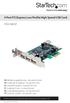 4 Port PCI Express Low Profile High Speed USB Card PEXUSB4DP DE: Bedienungsanleitung - de.startech.com FR: Guide de l'utilisateur - fr.startech.com ES: Guía del usuario - es.startech.com IT: Guida per
2 Port PCI SuperSpeed USB 3.0 Card
 2 Port PCI SuperSpeed USB 3.0 Card PCIUSB3S2 *actual product may vary from photos DE: Bedienungsanleitung - de.startech.com FR: Guide de l'utilisateur - fr.startech.com ES: Guía del usuario - es.startech.com
Wireless Internet Keyboard and Laser Mouse
 Wireless Internet Keyboard and Laser Mouse User s Manual Model KB1045LSR FCC STATEMENT KB1045LSR This device complies with part 15 of FCC Rules. Operation is subject to the following two conditions: (1)
CAUTION RISK OF ELECTRIC SHOCK DO NOT OPEN
 BeoLab 4 Guide CAUTION RISK OF ELECTRIC SHOCK DO NOT OPEN CAUTION: To reduce the risk of electric shock, do not remove cover (or back). No User-serviceable parts inside. Refer servicing to qualified service
How To Set Up An Ecm Display On A D210 (D210) (D2) (Ecm) (Emc) (Mcd) (Power Supply) (Mm) (Camellom) (Ios)
 English Customer Display DM-D210 Installation Manual 401285101 CAUTIONS This document shall apply only to the product(s) identified herein. No part of this document may be reproduced, stored in a retrieval
User s Manual Model KB990W
 Wireless Internet Keyboard & Optical Mouse User s Manual Model KB990W FCC Statement This device complies with part 15 of FCC Rules. Operation is subject to the following two conditions: (1) this device
Conference Phone UserÕs Manual. Part No. 54-2070-01R1 Printed in Korea. 2002 Bogen Communications, Inc.
 Part No. 54-2070-01R1 Printed in Korea. 2002 Bogen Communications, Inc. UserÕs Manual Notice Every effort was made to ensure that the information in this guide was complete and accurate at the time of
Technical Support. Support Information
 Technical Support Please refer to the Support Information card that shipped with your product. By registering your product at www.netgear.com/register, we can provide you with faster expert technical support
If anything is damaged or missing, contact your dealer.
 User Manual CS-62 Read this guide thoroughly and follow the installation and operation procedures carefully in order to prevent any damage to the units and/or any devices that connect to them. This package
Quick Start Turning on the Tablet PC for the First Time
 User s Manual DL46 Getting Started Congratulations on your purchase of a Tablet PC. The Tablet PC is a fully functional PC with built-in LAN, and wireless connectivity. With your Tablet PC you will be
In-Site Motion Webcam
 In-Site Motion Webcam User s Manual Model IC825C FCC STATEMENT IC825C This device complies with part 15 of FCC Rules. Operation is subject to the following two conditions: (1) this device may not cause
USB Mini Print Server PS121. Installation Guide
 USB Mini Print Server PS121 Installation Guide Introduction Thank you for purchasing a NETGEAR PS121 USB Mini Print Server. With this print server you can share your printer with all the computers in your
PCI Express USB Card. PCI Express 4 Port USB 2.0 card PEX400USB2. Instruction Manual. Actual product may vary from photo
 PCI Express USB Card PCI Express 4 Port USB 2.0 card PEX400USB2 Actual product may vary from photo FCC Compliance Statement This equipment has been tested and found to comply with the limits for a Class
PCI Express FireWire & USB 2.0 card
 PCI Express FireWire & USB 2.0 card PCI Express Firewire 800 and USB 2.0 card PEX3U3F800 Actual product may vary from photo FCC Compliance Statement This equipment has been tested and found to comply with
USB 2.0 USB 2.0 ETHERNET AUDIO JACK AND RCA VIDEO HDMI MICRO SD CARD MICRO USB POWER
 3 USB 2.0 USB 2.0 ETHERNET 4 1 MICRO SD CARD HDMI MICRO USB POWER AUDIO JACK AND RCA VIDEO 2 TO SET UP YOUR RASPBERRY PI YOU WILL NEED: ITEM MINIMUM RECOMMENDED SPECIFICATION & NOTES 1 microsd card Minimum
DMX USB PRO. User Manual. www.enttec.com
 DMX USB PRO User Manual www.enttec.com Firmware V1.43 February 2007 Package Contents Your DMX USB PRO package should contain these items: DMX USB PRO (Part No. 70304) Driver for Windows software on the
READ FIRST! Universal Car/Air Adapter User Manual
 AutoAir Manual 1/9/03 2:03 PM Page 1 READ FIRST! Universal Car/Air Adapter User Manual Congratulations! Your new Kensington Universal Car/Air Adapter is a highly efficient Universal Car/Air Adapter for
Targus Bluetooth Keyboard for Tablets
 1 BLUETOOTH KEYBOARD for Tablets 410-2153-001B / AKB33US 1 YEAR LIMITED WARRANTY: We pride ourselves on the quality of our products. For complete warranty details and a list of our worldwide offices, please
ARCHOS (www.archos.com/support).
 1 ! www.archos.com/register, ARCHOS.. ARCHOS, (www.archos.com/register).. ARCHOS (www.archos.com/support)., Windows, Windows Help Start ( ), Help and Support.. ARCHOS. 2 ,.! /, : ARCHOS 9,,,,,. -.,. ARCHOS
16-port Gigabit Switch 10/100/1000 Mbps GS116. Installation Guide
 16-port Gigabit Switch 10/100/1000 Mbps GS116 Installation Guide Introduction The NETGEAR 16-port Gigabit Switch Model GS116 provides you with a low-cost, reliable, high-performance switch to connect up
Aura SSD. for the 2013 Apple Mac Pro INSTALLATION GUIDE
 Aura SSD for the 2013 Apple Mac Pro INSTALLATION GUIDE TABLE OF CONTENTS 1. INTRODUCTION...1 1.1 SYSTEM REQUIREMENTS 1.2 PACKAGE CONTENTS 1.3 ABOUT THIS MANUAL 2. INSTALLATION...2 2.1 PREPARING THE MAC
ADSL Modem Installation Guide. Model # 36R515 Part # 030-300108 Rev. D Revision Date 12/2000. ADSL Modem Installation Guide
 ADSL Modem Installation Guide Model # 36R515 Part # 030-300108 Rev. D Revision Date 12/2000 ADSL Modem Installation Guide Installation Instructions Westell ADSL Modem 1. Package Inspection and Contents...2
Regulatory Compliance. IC Certification. FCC Certification. Declaration of Conformity
 VP6495 Regulatory Compliance This device complies with Part 15 of the FCC Rules. Operation is subject to the following two conditions: (1) This device may not cause harmful interference, and (2) This device
PCI Superspeed USB 3.0 Cards
 PCI Superspeed USB 3.0 Cards PCIUSB3S22 PCIUSB3S4 *PCIUSB3S22 Shown DE: Bedienungsanleitung - de.startech.com FR: Guide de l'utilisateur - fr.startech.com ES: Guía del usuario - es.startech.com IT: Guida
StructureScan HD Module. Installation Guide ENGLISH. www.bandg.com www.simrad-yachting.com www.lowrance.com
 StructureScan HD Module Installation Guide ENGLISH www.bandg.com www.simrad-yachting.com www.lowrance.com Disclaimer As Navico is continuously improving this product, we retain the right to make changes
Removable 2.5 SATA HDD Backup System
 Removable 2.5 SATA HDD Backup System SAT2510U3REM SAT2510U3S *actual product may vary from photos DE: Bedienungsanleitung - de.startech.com FR: Guide de l'utilisateur - fr.startech.com ES: Guía del usuario
3.5in Black USB 2.0 IDE SATA External Hard Drive Enclosure
 3.5in Black USB 2.0 IDE SATA External Hard Drive Enclosure UNI3510U2 UNI3510U2EB UNI3510U2EB UNI3510UEBGB *actual product may vary from photos DE: Bedienungsanleitung - de.startech.com FR: Guide de l'utilisateur
ES-CAM2AU IP Camera. www.etiger.com
 ES-CAM2AU IP Camera www.etiger.com EN Box content Connect your smartphone to the camera - ES-CAM2AU x1 - Mounting bracket x1 - AC Adaptor x1 - User Manual x1 and apps Before using the ES-CAM2AU, download
7 High-Resolution Digital Photo Frame
 TM 16-1003 User s Guide 7 High-Resolution Digital Photo Frame One demo photo included, as illustrated Please read this user s guide before using your new photo frame. Package contents Photo Frame AC Adapter
aseries A13B Mini Bullet Camera User Manual
 aseries A13B Mini Bullet Camera User Manual Thank you for purchasing our product. If there are any questions, or requests, please do not hesitate to contact the dealer. This manual applies to the MicroView
SB9011D All-in-one Touch POS Terminal USER MANUAL
 SB9011D All-in-one Touch POS Terminal USER MANUAL Table of Contents 1 Overview... 2 1.1 Safety Information... 2 1.2 Electromagnetic compatibility statement... 3 2 Installation Guide... 4 2.1 Appearances...
Key. ➍ Micro USB Port ➎ Operating System Toggle Keys ➏ Foam Screen Protectors. ➊ On/Off switch ➋ Bluetooth Connect Button (flashes when searching)
 INSTRUCTION MANUAL ➏ ➋ ➊ Product Features ➎ ➍ ➌ Built-in wireless Bluetooth 3.0 keyboard Compatible across ios, Android, and Windows, enabling you to mix and match with devices Ultra-thin, lightweight
HANDS-FREE BLUETOOTH CONTROLLER for SMART READY TABLETS AND COMPUTERS
 HANDS-FREE BLUETOOTH CONTROLLER for SMART READY TABLETS AND COMPUTERS Operating Manual 2 CONTENTS Before Turning on Your PED... 4 Power... 5 ON... 5 OFF... 5 Modes... 6 Changing the MODE... 7 Connecting