
e-automate 8.1 Installation Guide
|
|
|
- Patrick Baldwin
- 9 years ago
- Views:
Transcription
1 e-automate 8.1 Installation Guide Revised: 05/17/ Digital Gateway, Inc. - All Rights Reserved Page 1
2 Table of Contents New Installation Introduction... 3 Installing Full Microsoft SQL Server... 5 Installing Microsoft SQL Express... 6 Downloading e-admin and e-automate Downloading a Sample Database Installing e-admin Initializing e-admin Updating e-automate Databases Installing e-automate Logging into e-automate Sample Revised: 05/17/ Digital Gateway, Inc. - All Rights Reserved Page 2
3 New Installation Introduction Congratulations in selecting Digital Gateway as your business management solutions provider. You have chosen a company devoted to helping you and your business succeed. The purpose of this document is to assist you in getting your e-automate system installed. Getting Started walks you through the installation of Microsoft Server Desktop Engine or SQL Express, e- admin, and e-automate, the main components to your e-automate system. You will also install a license key and create and restore a sample database. You use the sample database to get acquainted with the software by looking at sample customers, vendors, inventory items, equipment, et cetera. You can also use the sample database to begin testing e-automate transactions in a safe environment. Before beginning this process, ensure that the minimum system requirements for hardware and software have been met. To view the system requirements see e-automate System Requirements 8.1 on the website. Successful implementation of your system depends upon meeting the minimum system requirements. e-automate is a client-server application. This means that your company data is stored on a server and accessed via a computer network using client computers. The data is stored in a Microsoft SQL database on the server. The server is connected via a network to other computers called workstations or clients. Your users work on these workstations to accomplish their day-to-day tasks. Revised: 05/17/ Digital Gateway, Inc. - All Rights Reserved Page 3
4 In order for this configuration to work, certain software programs must be installed on the server and other programs on the workstations. The main software programs that are installed on the server are Microsoft SQL Server and e-admin often called e-automate Server. Not all companies who purchase e-automate purchase and install the full version of Microsoft SQL Server. Smaller dealers with five or fewer employees often go with Microsoft SQL Express. SQL Express is a version of SQL that comfortably supports up to five users. SQL Express offers the SQL Server Management Studio which offers valuable tools for running scripts and troubleshooting problems. Only Microsoft SQL Server and Microsoft SQL Express 2005 and above are supported in the 8.1 version of e-automate. Because SQL offers additional tools for database support, Digital Gateway no longer recommends MSDE. Installing SQL Server and e-automate on a domain controller is not supported or recommended. There are specific security restrictions when running SQL Server in this configuration and given the resource demands of a domain controller, SQL Server performance may be degraded. Furthermore, SQL Server is not supported on a read-only domain controller. Setup will normally fail. Even if you find methods to work around the problem with setup, SQL Server is not supported on a read-only domain controller. In addition, SQL Server failover clustering is not supported to install on a domain controller. e-admin is the server program that manages your company s database, security, licensing, connections and database maintenance. Once the server is installed and configured, you install the e-automate client software on your workstations. Based on your selection of products, follow the instructions appropriate for your configuration to get your e-automate system up and running. Revised: 05/17/ Digital Gateway, Inc. - All Rights Reserved Page 4
5 Installing Full Microsoft SQL Server If you intend to use the full version of Microsoft SQL Server you should have it installed by a qualified computer professional. Only Microsoft SQL Server 2005 and above is supported in the 8.1 version of e-automate. Once SQL Server is installed you should follow the instructions labeled, Downloading e-admin and e-automate. Installing SQL Server and e-automate on a domain controller is not supported or recommended. There are specific security restrictions when running SQL Server in this configuration and given the resource demands of a domain controller, SQL Server performance may be degraded. Furthermore, SQL Server is not supported on a read-only domain controller. Setup will normally fail. Even if you find methods to work around the problem with setup, SQL Server is not supported on a read-only domain controller. In addition, SQL Server failover clustering is not supported to install on a domain controller. Revised: 05/17/ Digital Gateway, Inc. - All Rights Reserved Page 5
6 Installing Microsoft SQL Express Follow these instructions if you intend to use the SQL Express and the associated SQL Server Management Studio Express SQL Express. Before you can install SQL Express you must download the installation files from the Microsoft website. Only Microsoft SQL Express 2005 and above are supported in the 8.1 version of e-automate. Installing SQL Server and e-automate on a domain controller is not supported or recommended. There are specific security restrictions when running SQL Server in this configuration and given the resource demands of a domain controller, SQL Server performance may be degraded. Furthermore, SQL Server is not supported on a read-only domain controller. Setup will normally fail. Even if you find methods to work around the problem with setup, SQL Server is not supported on a read-only domain controller. In addition, SQL Server failover clustering is not supported to install on a domain controller. The following instructions outline the installation of the standard 32-bit version of SQL Express, but the 64-bit version is also available for download, if appropriate. If you need assistance, contact a qualified computer professional for assistance. 1 Go to and click on Downloads>Download Center. 2 Perform a search for SQL Server 2008 R2 RTM - Express with Management Tools. Click on the Application arrow to go to the Registration Suggested page. 3 Click Continue to go to the Registration Suggested for This Download page. 4 Choose either Yes, I want to register and receive the download, or No, I do not want to register. Take me to the download, and click Continue. 5 Click the Download button for either the 64-bit install (SQLEXPRWT_x64_ENU.exe) or the 32-bit install (SQLEXPRWT_x86_ENU). Note: Be sure to download the appropriate version for your business needs. 6 Click Run when asked Do you want to run or save the.exe file from download.microsoft.com? The SQL Server Installation Center window displays. Revised: 05/17/ Digital Gateway, Inc. - All Rights Reserved Page 6


7 7 8 Click New installation or add features to an existing installation. The License Terms window displays. Review the license terms and click the I accept the license terms checkbox. Optionally, you can click the Send feature usage data to Microsoft checkbox, if desired. Click [Next >]. The Feature Selection window displays. Revised: 05/17/ Digital Gateway, Inc. - All Rights Reserved Page 7
![9 Confirm each feature is selected and click [Next >]. The Instance Configuration window displays.](/docs-images/59/43608593/images/8-0.png "Note: Throughout the installation, unless explicitly directed to do so, do not change the default settings specified by the installer.")

8 9 Confirm each feature is selected and click [Next >]. The Instance Configuration window displays. Note: Throughout the installation, unless explicitly directed to do so, do not change the default settings specified by the installer. If you want a customized installation, contact a qualified computer profession to install your SQL software. 10 An instance of SQL Server named SQLEXPRESS will install by default. If you are not running any other instances of SQL, Digital Gateway recommends you change this to be the Default instance. If you are running other instances of SQL, consult with your network administrator on how you want to proceed. When you run SQL as the default instance, typically you use the server name to identify it. Select Default instance and click [Next >]. The Server Configuration window displays. Revised: 05/17/ Digital Gateway, Inc. - All Rights Reserved Page 8
![11 Confirm that the SQL Server Database Engine Startup Type and the SQL Server Browser Startup Type are both set to Automatic. Click [Next >]. The Database Engine Configuration window displays.](/docs-images/59/43608593/images/9-0.png "Note: Do not change the default settings on the Collation tab. If you want a customized installation, contact a qualified computer profession to install your SQL software.")
9 11 Confirm that the SQL Server Database Engine Startup Type and the SQL Server Browser Startup Type are both set to Automatic. Click [Next >]. The Database Engine Configuration window displays. Note: Do not change the default settings on the Collation tab. If you want a customized installation, contact a qualified computer profession to install your SQL software. Revised: 05/17/ Digital Gateway, Inc. - All Rights Reserved Page 9

10 12 To guarantee access to e-admin, you will need to add the local administrators group. This ensures that any Windows user that is included in the local administrators group, whether they are a domain or local user, will have access to SQL. Select Mixed Mode (Windows Authentication and SQL Server Authentication). Enter a password of your choosing in the Enter password field. Enter the password again in the Confirm password field. Click [Add] in the Specify SQL Server administrators field. Click [Object Types] and confirm that Users, Groups, and Built-in Security Principals are checked. Click [Locations] and select the local machine name. Type Administrators in the Enter the object names to select field and click [Check Names]. The ServerName\Administrators group will automatically populate. Click [OK] to return to the Database Engine Configuration window. Click [Next >]. The Error Reporting window displays. Note: Do not change the default settings on the Data Directories tab. If you want a customized installation, contact a qualified computer profession to install your SQL software. Revised: 05/17/ Digital Gateway, Inc. - All Rights Reserved Page 10
![13 Click the Send Windows and SQL Server Error Reports to Microsoft checkbox if desired. This setting is optional. Click [Next >]. The Installation Progress window displays.](/docs-images/59/43608593/images/11-0.png "14 This window shows the progress of the install. When the entire installation has taken place, the Complete window displays. Revised: 05/17/2013 2013 Digital Gateway, Inc.")
11 13 Click the Send Windows and SQL Server Error Reports to Microsoft checkbox if desired. This setting is optional. Click [Next >]. The Installation Progress window displays. 14 This window shows the progress of the install. When the entire installation has taken place, the Complete window displays. Revised: 05/17/ Digital Gateway, Inc. - All Rights Reserved Page 11
![15 Click [Close] to exit out of the installation.](/docs-images/59/43608593/images/12-0.png "16 Once installation is complete, you will need to run the SQL Server Configuration Manager to")

12 15 Click [Close] to exit out of the installation. 16 Once installation is complete, you will need to run the SQL Server Configuration Manager to change some specific protocols for SQLExpress. From the Start menu select All Programs > Microsoft SQL Server 2008 R2 > Configuration Tools > SQL Server Configuration Manager. Revised: 05/17/ Digital Gateway, Inc. - All Rights Reserved Page 12

13 17 18 Locate and expand the SQL Server Network Configuration by clicking on the arrow. Click on Protocols for SQLEXPRESS. The SQL Server Configuration window displays the protocols in the right window. Right-click on Named Pipes and select Enable. Click [OK] to acknowledge the restart server warning. Revised: 05/17/ Digital Gateway, Inc. - All Rights Reserved Page 13


14 19 20 Right-click on TCP/IP and select Enable. Click [OK] to acknowledge the restart server warning. Select SQL Server Services in the left-hand window. Locate your instance in the right-hand window, right-click and select Restart. Revised: 05/17/ Digital Gateway, Inc. - All Rights Reserved Page 14

15 Downloading e-admin and e-automate Before you can begin the installation of e-admin or e-automate, you must first download the software. You can access the software by going to and logging in with the appropriate credentials. If you need assistance with this process, please contact Digital Gateway s Customer Care who can route you to your account manager or provide you with the instructions to obtain the software. Downloading a Sample Database When initializing e-admin, you will be offered the option to create and restore a sample database which provides you with the ability to get acquainted with the software by looking at sample customers, vendors, inventory items, equipment, et cetera. You can choose to download a sample database which allows you to test e-automate transactions in a safe environment using the training exercises provided, or you can download just the sample database with no exercises supplied. You will need to download this database prior to installing and initializing e-admin. Follow these steps to obtain a sample database. 1 Navigate to and log in with the appropriate credentials. The Customer Resource Center page displays. Note: If you need assistance to obtain your login credentials, please contact your account manager. 2 Click on Training Downloads in the menu bar. The Training Downloads page displays. Revised: 05/17/ Digital Gateway, Inc. - All Rights Reserved Page 15
16 3 Click on the appropriate sample database link for your needs under the Training Downloads section. The Windows Internet Explorer window displays. Revised: 05/17/ Digital Gateway, Inc. - All Rights Reserved Page 16

17 4 Click Save as and place this file in a location of your choice that will allow you to access it when creating a company database. Note: This is downloaded as a.zip file so you will need to locate the file and unzip it to make it functional prior to creating your sample company database. Revised: 05/17/ Digital Gateway, Inc. - All Rights Reserved Page 17
18 Installing e-admin Before installing e-admin, be sure you have completed the installation of Microsoft SQL server or SQL Express version 2005 or newer. Digital Gateway does not distribute the e-automate software on a CD/DVD. All versions of e-automate are downloaded from the Digital Gateway website. 1 Secure the download files from Digital Gateway s Customer Care. Customer Care can route you to your account manager or provide you with the instructions to obtain the software. 2 Double-click the e-automateserversetup.exe file to begin installation. 3 Ensure that Server components and e-agent server components are both checked. Ensure that All users (requires admin rights) is selected. Note: Because you are installing e-admin to your server (host) machine, it is not recommended to select This user only. Click [Next]. Revised: 05/17/ Digital Gateway, Inc. - All Rights Reserved Page 18
![4 5 Specify your Install Path and click [Next].](/docs-images/59/43608593/images/19-0.png "Note: It is recommended that you install e-admin to the default directory; to choose a different location click [ ] and select your desired location.")
19 4 5 Specify your Install Path and click [Next]. Note: It is recommended that you install e-admin to the default directory; to choose a different location click [ ] and select your desired location. Choose the shortcuts you wish to add by clicking the corresponding checkbox and click [Next]. Revised: 05/17/ Digital Gateway, Inc. - All Rights Reserved Page 19
![6 7 Click [Finish] to perform the listed actions. The End User License Agreement window displays.](/docs-images/59/43608593/images/20-0.png "Note: At any time during the installation you can click [Back] to return to a previous screen and modify the parameters. Read the License Agreement and click [Accept].")
20 6 7 Click [Finish] to perform the listed actions. The End User License Agreement window displays. Note: At any time during the installation you can click [Back] to return to a previous screen and modify the parameters. Read the License Agreement and click [Accept]. If you click [Cancel] in the License Agreement window, the Install Wizard stops the installation. Revised: 05/17/ Digital Gateway, Inc. - All Rights Reserved Page 20

21 8 The installer completes the installation and launches the e-admin login window. Click [Close] to exit out of the installation wizard. Revised: 05/17/ Digital Gateway, Inc. - All Rights Reserved Page 21


22 Initializing e-admin With Microsoft SQL Server, or SQL Express installed, a sample database downloaded, and e-admin installed you are ready to initialize your server. Initialization prepares e-admin to work with either SQL Server or SQL Express. The first time you run e-admin, you will automatically begin the initialization procedure. 1 Before you log in to e-admin for the first time, you must know the name of your server. You can determine the name of your server by locating the My Computer icon located on your server s desktop. Right-click on the My Computer icon and select Properties. The View basic information about your computer window displays. 2 Locate the full computer name. In the above example, the full computer name is carrie-pc.ecisolutions.com. You only need to use the portion of the name before the first period, in this example, carrie-pc. Be sure you remember the exact name of the server. Revised: 05/17/ Digital Gateway, Inc. - All Rights Reserved Page 22

![4 Click the [Edit] button (pencil) to open the Manage Logon Profiles window. 5 Click [Add] to add an e-admin profile. The Edit Logon Profile window displays.](/docs-images/59/43608593/images/23-1.png "Enter the name of your SQL Server in the SQL server field. Typically this is the name of your server determined in steps 1 and 2. The DGServer name automatically populates.")
23 3 If you have just installed e-admin, the e-admin login window was launched at the completion of the installation. If you are launching e-admin for the first time, go to Start>All Programs> Digital Gateway>e-admin to open the e-admin login window. 4 Click the [Edit] button (pencil) to open the Manage Logon Profiles window. 5 Click [Add] to add an e-admin profile. The Edit Logon Profile window displays. Enter the name of your SQL Server in the SQL server field. Typically this is the name of your server determined in steps 1 and 2. The DGServer name automatically populates. Note: If you need to specify an alternate SQL server port, you must use the cliconfig utility from Microsoft to specify the port. Note: You can specify an alternate port to your DGServer using the server:port syntax. Click [Next ] to continue. Revised: 05/17/ Digital Gateway, Inc. - All Rights Reserved Page 23
24 6 In the Profile name field, enter a name by which this combination of SQL server and DGserver can be identified, or accept the suggestion provided and click [Finish] to return to the Manage Logon Profiles window. Click [OK] to close the window and return to the e-admin login window. 7 When you return to the e-admin login window, the profile you created will be selected in the Profile field. Click [OK] to log into e-admin. Revised: 05/17/ Digital Gateway, Inc. - All Rights Reserved Page 24

![9 Click [OK] to begin the initialization process. The e-admin window displays.](/docs-images/59/43608593/images/25-1.png "Note: Click [Cancel] to exit the wizard and perform a manual setup at a later time.")
25 8 During login, e-admin examines the database to determine if the database is initialized. The first time you run e- admin, if the database is not initialized, the system will automatically begin the initialization process. 9 Click [OK] to begin the initialization process. The e-admin window displays. Note: Click [Cancel] to exit the wizard and perform a manual setup at a later time. Click [OK] to acknowledge that e-automate was successfully initialized. The e-automate Website Setup window displays. Revised: 05/17/ Digital Gateway, Inc. - All Rights Reserved Page 25


26 10 You should have received the Web Login, Web Admin Password, and Web User Password in an shortly after your software purchase. If you do not have this information, contact Digital Gateway at DGATEWAY. e- automate uses this information when you log into the online e-automate Customer Resource Center website. If you have entered the login and passwords here, the system will automatically log you in and you will not have to enter your login and password when accessing the Digital Gateway online Customer Care website. Enter your web login in the Web Login field. Enter your admin password in the Web Admin Password field. Enter the user password in the Web User Password field. Click [Next]. The Configure DG Server window displays. 11 Note: The web login information is not critical to the installation of e-admin. If you choose to not set up your website with e-automate, simply click [Cancel] and you will move to the next step of initializing e-admin without any negative impact on the installation. You will have to manually secure your License Key if you choose to skip this step. Enter a password of your choosing in the Full access password field. Note: If your password isn t strong enough to meet the requirements, a warning dialog will appear with the required parameters. Enter a password of your choosing in the Read-only password field. Note: If your password isn t strong enough to meet the requirements, a warning dialog will appear with the required parameters. Click [OK]. The Create Company window displays. Revised: 05/17/ Digital Gateway, Inc. - All Rights Reserved Page 26

27 12 You use this window to create a company in e-admin. The company is where you store all of your company information. Digital Gateway recommends that all customers create a sample company that you can use for experimenting and testing prior to creating your usable company database. Enter a name in the Company ID field. The Database field will automatically populate. Click on the dropdown in the Database Type field and select Test. Select the Restore to New Company radio button to create a sample company. Note: To create a new company, please refer to e-admin Online Help for the New company option details. Revised: 05/17/ Digital Gateway, Inc. - All Rights Reserved Page 27


28 13 Once the radio button is selected, e-admin changes the Create Company window. You use this window to create and restore a sample database all in one step. 14 Click the browse button ( ) beside the File name field. The Browse for Backup File window displays. Use the (+) or the (-) beside the folders to navigate to the sample database in the location you specified in the Downloading a Sample Database section. Once you locate the previously downloaded sample database, select the 01Sample_Start database and click [OK]. e-admin returns you to the Create Company window. Revised: 05/17/ Digital Gateway, Inc. - All Rights Reserved Page 28
![15 To create the company and restore the 01Sample_Start database click [OK].](/docs-images/59/43608593/images/29-0.png "16 e-admin begins the company create and restore process.")

29 15 To create the company and restore the 01Sample_Start database click [OK]. 16 e-admin begins the company create and restore process. Once the company has been created and the database has been restored, the e-admin window is displayed. 17 Click [OK] and the Enter Settings window displays. Click [OK] to acknowledge the warning. The DGServer Settings window displays. Revised: 05/17/ Digital Gateway, Inc. - All Rights Reserved Page 29

30 18 You use the DGServer window to configure e-admin to send reminders about your database backup status. The following is the reminder and schedule associated with e-admin backups. If you have not backed up your database for: 1 day, e-admin does nothing 2 days, e-admin sends an reminder 3 days, e-admin sends an reminder 4 day, e-admin sends an reminder and displays a reminder to admin users at e-automate login 5 days, e-admin sends an reminder and displays a reminder to admin users at e-automate login 6 days, e-admin sends an reminder and displays a reminder to all e-automate users at login Enter your SMTP server address in the SMTP Server field. Enter your mail port in the SMTP Port field. e-admin automatically enters port 25 which is the typical mail port, but you may change it as necessary. Check the This server requires an encrypted connection (SSL) checkbox if your server requires encryption. Check the Use SMTP authentication checkbox to activate the User name and Password field if your server requires authentication. Enter your mail user name in the User name field if necessary. Enter the password associated with your User name in the Password field, if necessary. Check the Use secure password authentication checkbox if your mail server uses secure password authentication. Enter the address from which the backup reminder s are sent in the Sender Address field. Enter the address you want notified in the event that the e-automate databases are not backed up in the Backup failure notification address field. Click [Send Test ] to send a test . Click [OK] to acknowledge the test in the Test window. Click [Cancel] to cancel your settings. Click [OK] to save your settings. The e-admin main window displays. Revised: 05/17/ Digital Gateway, Inc. - All Rights Reserved Page 30

31 19 You will need to obtain your License Keys. Click File>Licenses from the e-admin main window. The Manage Users and Licenses window displays. 20 If you have set up your e-automate website login, you can download your license key from the internet in this window. If you have not set up your website login, the Download key from internet button will be grayed out and you will need to contact Customer Care to request a license key. Click Download key from internet. The Retrieving License Key window displays. Revised: 05/17/ Digital Gateway, Inc. - All Rights Reserved Page 31
![21 22 Click [OK] when the e-admin window displays letting you know the key was downloaded successfully.](/docs-images/59/43608593/images/32-0.png "The Manage Users and Licenses window displays.")

32 21 22 Click [OK] when the e-admin window displays letting you know the key was downloaded successfully. The Manage Users and Licenses window displays. Ensure that the correct number of licenses you purchased is reflected in the User connections tab. If there is a discrepency, contact your Digital Gateway Account Manager. Click [Close] or [X] out of the Manage Users and Licenses window. Revised: 05/17/ Digital Gateway, Inc. - All Rights Reserved Page 32

33 23 If your database needs to be upgraded, you will see YES in the Needs upgrade column. Please refer to the steps in the following section, Updating e-automate Databases for this process. Revised: 05/17/ Digital Gateway, Inc. - All Rights Reserved Page 33


34 Updating e-automate Databases There is no sample database shipped with e-automate. When you download the sample database from the website, you will be required to update it after initializing e-admin. You use the Update Database activity to update e-automate databases. The database must be updated to the current version before you can log into the e-automate client. The version of the e-automate database is listed in the e-admin window in the Version column. If your database needs to be upgraded, you will see YES in the Needs upgrade column in the e-admin window. 1 2 Select the company database you want to update in the e-admin main window. Select Company>Maintenance > Update Database. The e-admin window displays reminding of the time it could take to update the database. Click [Yes]. The Backup Database Location window displays. Revised: 05/17/ Digital Gateway, Inc. - All Rights Reserved Page 34


![Click [OK].](/docs-images/59/43608593/images/35-2.png "Note: If the file already exists, e-admin displays the Attention Required window stating you must enter a unique")
35 3 Before any update is run, e-admin backs up the database in case some unforeseen error occurs. Enter a name for your backup file in the File name field. Note: The backup file is stored in the Backup Location specified. If you want the backup stored in a different location, click the browse button ( ) to specify a different location. Click [OK]. Note: If the file already exists, e-admin displays the Attention Required window stating you must enter a unique backup name. Select [OK] and enter a unique name. 4 e-admin then backs up the database. Once the backup is complete, e-admin displays the Backup Complete window. Click [OK]. Revised: 05/17/ Digital Gateway, Inc. - All Rights Reserved Page 35
36 5 e-admin begins updating the database by running update scripts. e-admin runs each necessary script in succession until the database is completely updated to the current version you have installed. Click [OK] and the database is updated. Revised: 05/17/ Digital Gateway, Inc. - All Rights Reserved Page 36
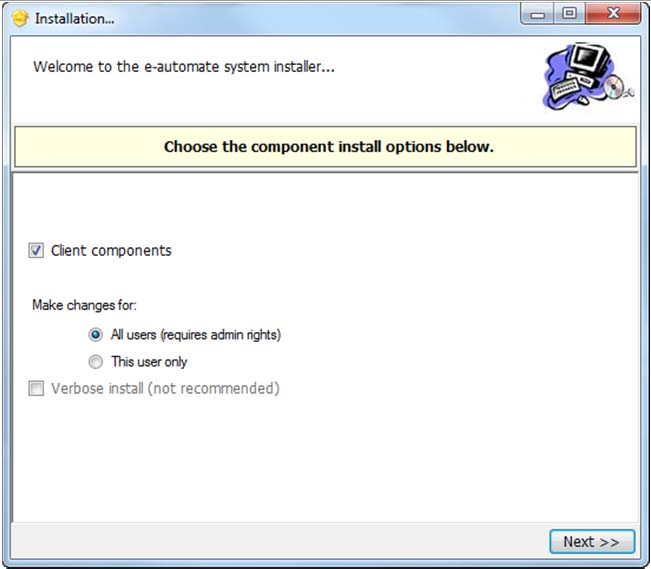
37 Installing e-automate Once you have configured the server and e-admin, you can then install the e-automate client on your various workstations. You can install e-automate on as many workstations as you like; e- admin and the DG Server will manage how many users can be connected to the database at one time. Be sure you install the e-automate client on your workstations and not the server. 1 Secure the download file from Digital Gateway s Customer Care. Customer Care can route you to your account manager or provide you with the instructions to obtain the software. 2 Locate the e-automateclientsetup.exe file to begin installation. To make this file available on other computers, you can: Share this directory and make it accessible from other computers on your network. Copy the client installation file, e-automateclientsetup.exe to a CD of flash drive that you take from client to client. Copy the client install file, e-automateclientsetup.exe to a shared company network drive accessible from all intended client computers. 3 From the client machines, use one of the above methods to access e-automateclientsetup.exe. Double-click on the file to begin the installation. The Welcome window displays. 4 Ensure that Client components is checked. Ensure that All users (requires admin rights) is selected. Note: This is the default setting. You can change it to This user only according to your company policies. Click [Next]. Revised: 05/17/ Digital Gateway, Inc. - All Rights Reserved Page 37
38 5 6 Specify your Install Path and click [Next]. Note: It is recommended that you install e-admin to the default directory; to choose a different location click [ ] and select your desired location. Choose the shortcuts you wish to add by clicking the corresponding checkbox and click [Next]. Revised: 05/17/ Digital Gateway, Inc. - All Rights Reserved Page 38
39 7 8 Click [Finish] to perform the listed actions. The End User License Agreement window displays. Note: At any time during the installation you can click [Back] to return to a previous screen and modify the parameters. Read the License Agreement and click [Accept]. If you click [Cancel] in the License Agreement window, the Install Wizard stops the installation. Revised: 05/17/ Digital Gateway, Inc. - All Rights Reserved Page 39
40 9 Click [Close] to exit out of the installation wizard. Revised: 05/17/ Digital Gateway, Inc. - All Rights Reserved Page 40

41 Logging into e-automate Sample Once you have installed SQL Server or SQL Express, e-admin, a sample database, license key, and e-automate client, you can log into the sample database and take a look around. 1 Select Start > All Programs > e-automate from the client workstation start menu. The e-automate logon window displays. 2 e-automate uses logon profiles to manage login information. The first time you log into e-automate you need to create a logon profile. You should consider creating two, one for the sample database or testing database and one when you get your live company database running. You can create as many as necessary. Before you can create a logon profile you must enter the user name. 3 Enter Admin in the User ID field. Leave the Password field blank. Click the Edit icon (Pencil). The Manage Logon Profiles window displays. Click [Add]. The Edit Logon Profile window displays. Revised: 05/17/ Digital Gateway, Inc. - All Rights Reserved Page 41
![4 5 Enter the name of the SQL Server on which you installed e-admin in the SQL server field. The DGServer name automatically populates. Click [Next ] to continue.](/docs-images/59/43608593/images/42-0.png "6 In the Company field, use the down arrow to select Sample if not the default. Click [Next] to continue.")
42 4 5 Enter the name of the SQL Server on which you installed e-admin in the SQL server field. The DGServer name automatically populates. Click [Next ] to continue. 6 In the Company field, use the down arrow to select Sample if not the default. Click [Next] to continue. In the Profile name field, accept the name suggested or enter a new name to describe this profile. Click [Finish] to complete the profile. Click [OK] to close the Manage Logon Profiles window and add your new profile to the e-automate login window. Revised: 05/17/ Digital Gateway, Inc. - All Rights Reserved Page 42

![change as necessary. Click [OK] to login to e-automate.](/docs-images/59/43608593/images/43-1.png "8 e-automate displays the e-automate window.")
43 7 In the User ID field, enter Admin. Leave the Password field blank. In the Profile field, verify your created profile is displayed, use down arrow to change as necessary. Click [OK] to login to e-automate. 8 e-automate displays the e-automate window. Revised: 05/17/ Digital Gateway, Inc. - All Rights Reserved Page 43
44 9 Below are a few areas you can explore. To see Customers, click the Customers button. To see Vendors, click the Vendors button. To See the Accounts Receivable Console, click the Receivables button To see the Dispatch Console, click the button. Revised: 05/17/ Digital Gateway, Inc. - All Rights Reserved Page 44
How To Create An Easybelle History Database On A Microsoft Powerbook 2.5.2 (Windows)
 Introduction EASYLABEL 6 has several new features for saving the history of label formats. This history can include information about when label formats were edited and printed. In order to save this history,
Upgrading from MSDE to SQL Server 2005 Express Edition with Advanced Services SP2
 Upgrading from MSDE to SQL Server 2005 Express Edition with Advanced Services SP2 Installation and Configuration Introduction This document will walk you step by step in removing MSDE and the setup and
QUANTIFY INSTALLATION GUIDE
 QUANTIFY INSTALLATION GUIDE Thank you for putting your trust in Avontus! This guide reviews the process of installing Quantify software. For Quantify system requirement information, please refer to the
Install SQL Server 2014 Express Edition
 How To Install SQL Server 2014 Express Edition Updated: 2/4/2016 2016 Shelby Systems, Inc. All Rights Reserved Other brand and product names are trademarks or registered trademarks of the respective holders.
Installing LearningBay Enterprise Part 2
 Installing LearningBay Enterprise Part 2 Support Document Copyright 2012 Axiom. All Rights Reserved. Page 1 Please note that this document is one of three that details the process for installing LearningBay
Introduction and Overview
 Inmagic Content Server Workgroup 10.00 Microsoft SQL Server 2005 Express Edition Installation Notes Introduction and Overview These installation notes are intended for the following scenarios: 1) New installations
Immotec Systems, Inc. SQL Server 2005 Installation Document
 SQL Server Installation Guide 1. From the Visor 360 installation CD\USB Key, open the Access folder and install the Access Database Engine. 2. Open Visor 360 V2.0 folder and double click on Setup. Visor
Migrating MSDE to Microsoft SQL 2008 R2 Express
 How To Updated: 11/11/2011 2011 Shelby Systems, Inc. All Rights Reserved Other brand and product names are trademarks or registered trademarks of the respective holders. If you are still on MSDE 2000,
Portions of this product were created using LEADTOOLS 1991-2009 LEAD Technologies, Inc. ALL RIGHTS RESERVED.
 Installation Guide Lenel OnGuard 2009 Installation Guide, product version 6.3. This guide is item number DOC-110, revision 1.038, May 2009 Copyright 1992-2009 Lenel Systems International, Inc. Information
NovaBACKUP xsp Version 15.0 Upgrade Guide
 NovaBACKUP xsp Version 15.0 Upgrade Guide NovaStor / November 2013 2013 NovaStor, all rights reserved. All trademarks are the property of their respective owners. Features and specifications are subject
How To Upgrade Your Microsoft SQL Server for Accounting CS Version 2012.1
 How To Upgrade Your Microsoft SQL Server for Version 2012.1 The first step is to gather important information about your existing configuration. Identify The Database Server and SQL Server Version The
STATISTICA VERSION 10 STATISTICA ENTERPRISE SERVER INSTALLATION INSTRUCTIONS
 Notes: STATISTICA VERSION 10 STATISTICA ENTERPRISE SERVER INSTALLATION INSTRUCTIONS 1. The installation of the STATISTICA Enterprise Server entails two parts: a) a server installation, and b) workstation
Table of Contents. CHAPTER 1 About This Guide... 9. CHAPTER 2 Introduction... 11. CHAPTER 3 Database Backup and Restoration... 15
 Table of Contents CHAPTER 1 About This Guide......................... 9 The Installation Guides....................................... 10 CHAPTER 2 Introduction............................ 11 Required
NovaBACKUP xsp Version 12.2 Upgrade Guide
 NovaBACKUP xsp Version 12.2 Upgrade Guide NovaStor / August 2011 Rev 20110815 2011 NovaStor, all rights reserved. All trademarks are the property of their respective owners. Features and specifications
Installation Guide for Microsoft SQL Server 2008 R2 Express. October 2011 (GUIDE 1)
 Installation Guide for Microsoft SQL Server 2008 R2 Express October 2011 (GUIDE 1) Copyright 2011 Lucid Innovations Limited. All Rights Reserved This guide only covers the installation and configuration
Cloud Services ADM. Agent Deployment Guide
 Cloud Services ADM Agent Deployment Guide 10/15/2014 CONTENTS System Requirements... 1 Hardware Requirements... 1 Installation... 2 SQL Connection... 4 AD Mgmt Agent... 5 MMC... 7 Service... 8 License
Migrating MSDE to Microsoft SQL 2005 Express SP4
 How To Updated: 10/28/2011 2011 Shelby Systems, Inc. All Rights Reserved Other brand and product names are trademarks or registered trademarks of the respective holders. If you are still on MSDE 2000 and
SQL Server 2008 R2 Express Edition Installation Guide
 Hardware, Software & System Requirements for SQL Server 2008 R2 Express Edition To get the overview of SQL Server 2008 R2 Express Edition, click here. Please refer links given below for all the details
BillQuick Installation Guide for Microsoft SQL Server 2005 Express Edition
 Time Billing and Project Management Software Built With Your Industry Knowledge BillQuick Installation Guide for Microsoft SQL Server 2005 Express Edition BQE Software, Inc. 2601 Airport Drive Suite 380
MadCap Software. Upgrading Guide. Pulse
 MadCap Software Upgrading Guide Pulse Copyright 2014 MadCap Software. All rights reserved. Information in this document is subject to change without notice. The software described in this document is furnished
Introduction 1-1 Installing FAS 500 Asset Accounting the First Time 2-1 Installing FAS 500 Asset Accounting: Upgrading from a Prior Version 3-1
 Contents 1. Introduction 1-1 Supported Operating Environments................ 1-1 System Requirements............................. 1-2 Security Requirements........................ 1-3 Installing Server
Exchange 2010. Outlook Profile/POP/IMAP/SMTP Setup Guide
 Exchange 2010 Outlook Profile/POP/IMAP/SMTP Setup Guide Document Revision Date: Nov. 13, 2013 Exchange 2010 Outlook Profile/POP/IMAP/SMTP Setup Guide i Contents Introduction... 1 Exchange 2010 Outlook
ProSystem fx Document
 ProSystem fx Document Server Upgrade from Version 3.7 to Version 3.8 1 This Document will guide you through the upgrade of Document Version 3.7 to Version 3.8. Do not attempt to upgrade from any other
SQL EXPRESS INSTALLATION...
 Contents SQL EXPRESS INSTALLATION... 1 INSTALLING SQL 2012 EXPRESS... 1 SQL EXPRESS CONFIGURATION... 7 BILLQUICK DATABASE... 9 SQL Express Installation The Microsoft SQL Server 2012 Express software is
Active Directory Management. Agent Deployment Guide
 Active Directory Management Agent Deployment Guide Document Revision Date: June 12, 2014 Active Directory Management Deployment Guide i Contents System Requirements...1 Hardware Requirements...1 Installation...3
Installing SQL Express. For CribMaster 9.2 and Later
 Installing SQL Express For CribMaster 9.2 and Later CRIBMASTER USER GUIDE Installing SQL Express Document ID: CM9-031-03012012 Copyright CribMaster. 1996, 1997, 1998, 1999, 2000, 2001, 2002, 2003, 2004,
CHARTER BUSINESS custom hosting faqs 2010 INTERNET. Q. How do I access my email? Q. How do I change or reset a password for an email account?
 Contents Page Q. How do I access my email? Q. How do I change or reset a password for an email account? Q. How do I forward or redirect my messages to a different email address? Q. How do I set up an auto-reply
Installation Manual Version 8.5 (w/sql Server 2005)
 C ase Manag e m e n t by C l i e n t P rofiles Installation Manual Version 8.5 (w/sql Server 2005) T E C H N O L O G Y F O R T H E B U S I N E S S O F L A W Table of Contents - 2 - Table of Contents SERVER
Exchange 2010. Outlook Profile/POP/IMAP/SMTP Setup Guide
 Exchange 2010 Outlook Profile/POP/IMAP/SMTP Setup Guide September, 2013 Exchange 2010 Outlook Profile/POP/IMAP/SMTP Setup Guide i Contents Exchange 2010 Outlook Profile Configuration... 1 Outlook Profile
How to install and use the File Sharing Outlook Plugin
 How to install and use the File Sharing Outlook Plugin Thank you for purchasing Green House Data File Sharing. This guide will show you how to install and configure the Outlook Plugin on your desktop.
Bosch ReadykeyPRO Unlimited Installation Guide, product version 6.5. This guide is item number DOC-110-2-029, revision 2.029, May 2012.
 Bosch ReadykeyPRO Unlimited Installation Guide, product version 6.5. This guide is item number DOC-110-2-029, revision 2.029, May 2012. Copyright 1995-2012 Lenel Systems International, Inc. Information
Premier Installation 2013.1 Guide for SQL Server Administrators
 for Depreciation, Tracking, Planning, and Reporting Premier Installation 2013.1 Guide for SQL Server Administrators Premier Installation Guide Version 2013.1 Contents Chapter 1. Introduction Supported
InventoryControl for use with QuoteWerks Quick Start Guide
 InventoryControl for use with QuoteWerks Quick Start Guide Copyright 2013 Wasp Barcode Technologies 1400 10 th St. Plano, TX 75074 All Rights Reserved STATEMENTS IN THIS DOCUMENT REGARDING THIRD PARTY
Outlook Profile Setup Guide Exchange 2010 Quick Start and Detailed Instructions
 HOSTING Administrator Control Panel / Quick Reference Guide Page 1 of 9 Outlook Profile Setup Guide Exchange 2010 Quick Start and Detailed Instructions Exchange 2010 Outlook Profile Setup Page 2 of 9 Exchange
Use of Commercial Backup Software with Juris (Juris 2.x w/msde)
 Use of Commercial Backup Software with Juris (Juris 2.x w/msde) Juris databases hosted on a Microsoft SQL Server 2000 Desktop Engine (MSDE) instance can be backed up manually through the Juris Management
NetSupport DNA Configuration of Microsoft SQL Server Express
 NetSupport DNA Configuration of Microsoft SQL Server Express Copyright 2016 NetSupport Ltd All rights reserved Configuration of Microsoft SQL Server Express and NetSupport DNA Installation Requirements
Moving the TRITON Reporting Databases
 Moving the TRITON Reporting Databases Topic 50530 Web, Data, and Email Security Versions 7.7.x, 7.8.x Updated 06-Nov-2013 If you need to move your Microsoft SQL Server database to a new location (directory,
Portions of this product were created using LEADTOOLS 1991-2010 LEAD Technologies, Inc. ALL RIGHTS RESERVED.
 Installation Guide Lenel OnGuard 2010 Installation Guide, product version 6.4. This guide is item number DOC-110, revision 1.045, May 2010 Copyright 1995-2010 Lenel Systems International, Inc. Information
Stellar Phoenix Exchange Server Backup
 Stellar Phoenix Exchange Server Backup Version 1.0 Installation Guide Introduction This is the first release of Stellar Phoenix Exchange Server Backup tool documentation. The contents will be updated periodically
Introduction. Before you begin. Installing efax from our CD-ROM. Installing efax after downloading from the internet
 Introduction Before you begin Before you begin installing efax, please check the following: You have received confirmation that your application for the efax service has been processed. The confirmation
TecLocal 4.0 MultiUser Database
 Tec Local 4.0 - Installation Manual: Byer Mode & Multi-User (Server) TecLocal 4.0 MultiUser Database Installation Manual: Buyer Mode & Multi-User (Part I - Server) Version: 1.0 Author: TecCom Solution
Print Audit 6 - SQL Server 2005 Express Edition
 Print Audit 6 - SQL Server 2005 Express Edition Summary This is a step-by-step guide to install SQL Server 2005 Express Edition to use as a database for Print Audit 6. Pre-Requisites There are a few pre-requisites
Release 2.0. Cox Business Online Backup Quick Start Guide
 Cox Business Online Backup Quick Start Guide Release 2.0 Cox Business Online Backup Quick Start Guide i IMPORTANT: You must notify Cox in advance if you would like to move or relocate your telephone Service.
Active Directory Management. Agent Deployment Guide
 Active Directory Management Agent Deployment Guide Document Revision Date: April 26, 2013 Active Directory Management Deployment Guide i Contents System Requirements... 1 Hardware Requirements... 2 Agent
ilaw Installation Procedure
 ilaw Installation Procedure This guide will provide a reference for a full installation of ilaw Case Management Software. Contents ilaw Overview How ilaw works Installing ilaw Server on a PC Installing
PigCHAMP Knowledge Software. Enterprise Edition Installation Guide
 PigCHAMP Knowledge Software Enterprise Edition Installation Guide Enterprise Edition Installation Guide MARCH 2012 EDITION PigCHAMP Knowledge Software 1531 Airport Rd Suite 101 Ames, IA 50010 Phone (515)
NSi Mobile Installation Guide. Version 6.2
 NSi Mobile Installation Guide Version 6.2 Revision History Version Date 1.0 October 2, 2012 2.0 September 18, 2013 2 CONTENTS TABLE OF CONTENTS PREFACE... 5 Purpose of this Document... 5 Version Compatibility...
NetSupport DNA Configuration of Microsoft SQL Server Express
 NetSupport DNA Configuration of Microsoft SQL Server Express Configuration of Microsoft SQL Server Express and NetSupport DNA Installation Requirements If installing Microsoft SQL Server Express on Windows
Preparing to Install SQL Server 2005
 Preparing to Install SQL Server 2005 Depending on your requirements, Microsoft SQL Server 2005 Setup installs a new instance of SQL Server. The following topics address important considerations for the
Table of Contents. FleetSoft Installation Guide
 FleetSoft Installation Guide Table of Contents FleetSoft Installation Guide... 1 Minimum System Requirements... 2 Installation Notes... 3 Frequently Asked Questions... 4 Deployment Overview... 6 Automating
Simple Disaster Recovery
 Simple Disaster Recovery OVERVIEW NetHelpDesk is unlike most products in the market in so many ways. One of the most notable is the simple disaster recovery (DR) procedure that you can follow, to ensure
HELIX MEDIA LIBRARY INSTALL GUIDE FOR WINDOWS SERVER 2003 Helix Media Library Version 1.1. Revision Date: July 2011
 HELIX MEDIA LIBRARY INSTALL GUIDE FOR WINDOWS SERVER 2003 Helix Media Library Version 1.1 Revision Date: July 2011 Summary of Contents Summary of Contents... 2 Pre Installation Checklist... 4 Prerequisites...
Advantage for Windows Copyright 2012 by The Advantage Software Company, Inc. All rights reserved. Client Portal blue Installation Guide v1.
 Advantage for Windows Copyright 2012 by The Advantage Software Company, Inc. All rights reserved Client Portal blue Installation Guide v1.1 Overview This document will walk you through the process of installing
Deposit Direct. Getting Started Guide
 Deposit Direct Getting Started Guide Table of Contents Before You Start... 3 Installing the Deposit Direct application for use with Microsoft Windows Vista... 4 Running Programs in Microsoft Windows Vista...
Installation Guide for Pulse on Windows Server 2012
 MadCap Software Installation Guide for Pulse on Windows Server 2012 Pulse Copyright 2014 MadCap Software. All rights reserved. Information in this document is subject to change without notice. The software
Nexio Connectus with Nexio G-Scribe
 Nexio Connectus with Nexio G-Scribe 2.1.2 3/20/2014 Edition: A 2.1.2 Publication Information 2014 Imagine Communications. Proprietary and Confidential. Imagine Communications considers this document and
Team Foundation Server 2013 Installation Guide
 Team Foundation Server 2013 Installation Guide Page 1 of 164 Team Foundation Server 2013 Installation Guide Benjamin Day [email protected] v1.1.0 May 28, 2014 Team Foundation Server 2013 Installation Guide
STATISTICA VERSION 9 STATISTICA ENTERPRISE INSTALLATION INSTRUCTIONS FOR USE WITH TERMINAL SERVER
 Notes: STATISTICA VERSION 9 STATISTICA ENTERPRISE INSTALLATION INSTRUCTIONS FOR USE WITH TERMINAL SERVER 1. These instructions focus on installation on Windows Terminal Server (WTS), but are applicable
Crystal Reports Installation Guide
 Crystal Reports Installation Guide Version XI Infor Global Solutions, Inc. Copyright 2006 Infor IP Holdings C.V. and/or its affiliates or licensors. All rights reserved. The Infor word and design marks
026-1010 Rev 7 06-OCT-2011. Site Manager Installation Guide
 026-1010 Rev 7 06-OCT-2011 Site Manager Installation Guide Retail Solutions 3240 Town Point Drive NW, Suite 100 Kennesaw, GA 30144, USA Phone: 770-425-2724 Fax: 770-425-9319 Table of Contents 1 SERVER
How To Set Up Dataprotect
 How To Set Up Dataprotect This document will show you how to install and configure your computer for a Typical installation. If you have questions about configuring a Custom installation please contact
Installation Instruction STATISTICA Enterprise Small Business
 Installation Instruction STATISTICA Enterprise Small Business Notes: ❶ The installation of STATISTICA Enterprise Small Business entails two parts: a) a server installation, and b) workstation installations
Launch Create Store. Import Orders Enter Orders Manually Process Orders. Note: Ctrl+click on a number to jump to that topic.
 Order Manager Version 5 QUICK START GUIDE Updated 1/6/11 About the Quick Start Guide This Quick Start Guide is designed to help users get started with the Order Manager as rapidly as possible. Although
Server Software Installation Guide
 Server Software Installation Guide This guide provides information on...... The architecture model for GO!Enterprise MDM system setup... Hardware and supporting software requirements for GO!Enterprise
Avalanche Site Edition
 Avalanche Site Edition Version 4.8 avse ug 48 20090325 Revised 03/20/2009 ii Copyright 2008 by Wavelink Corporation All rights reserved. Wavelink Corporation 6985 South Union Park Avenue, Suite 335 Midvale,
Network Installation Guide
 Network Installation Guide 2011-2013 by Xactware. All rights reserved. Xactware, Xactimate, Xactimate Online, XactNet, and/or other Xactware products referenced herein are either trademarks or registered
Releasing blocked email in Data Security
 Releasing blocked email in Data Security IN-TopicInfo:Topic 41101/ Updated: 02-May-2011 Applies To: Websense Data Security v7.1.x Websense Data Security v7.5.x Websense Data Security v7.6.x - v7.8x SMTP
Installation instructions for MERLIN Dashboard
 Installation instructions for MERLIN Dashboard Contents Installation Prerequisites:... 2 Procedure to manually backup and restore Views and Settings in AxOEE Manager... 3 For XP users go to:... 3 For Vista
Diamond II v2.3 Service Pack 4 Installation Manual
 Diamond II v2.3 Service Pack 4 Installation Manual P/N 460987001B ISS 26APR11 Copyright Disclaimer Trademarks and patents Intended use Software license agreement FCC compliance Certification and compliance
TIGERPAW EXCHANGE INTEGRATOR SETUP GUIDE V3.6.0 August 26, 2015
 TIGERPAW EXCHANGE INTEGRATOR SETUP GUIDE V3.6.0 August 26, 2015 2201 Thurston Circle Bellevue, NE 68005 www.tigerpawsoftware.com Contents Tigerpaw Exchange Integrator Setup Guide v3.6.0... 1 Contents...
BushSoft Accounts - Installation manual
 BushSoft Accounts - Installation manual You should have received a license file from BushSoft to be able to complete the installation. You will be prompted for this file at the end of the installation
Connecticut Hazardous Waste Manifests Database
 Connecticut Hazardous Waste Manifests Database Due to limitations inherent to Microsoft Access, the Department has migrated this database to Microsoft SQL Server. The user interface will remain the same.
TSM for Windows Installation Instructions: Download the latest TSM Client Using the following link:
 TSM for Windows Installation Instructions: Download the latest TSM Client Using the following link: ftp://ftp.software.ibm.com/storage/tivoli-storagemanagement/maintenance/client/v6r2/windows/x32/v623/
FieldIT Limited www.fieldit-limited.com. FieldIT CRM. Installation Manual v1.3.i3 (Enterprise Install)
 FieldIT Limited www.fieldit-limited.com FieldIT CRM Installation Manual v1.3.i3 (Enterprise Install) Oliver Field FieldIT Limited 2013 13 Introduction The FieldIT CRM software can be installed in several
STATISTICA VERSION 12 STATISTICA ENTERPRISE SMALL BUSINESS INSTALLATION INSTRUCTIONS
 STATISTICA VERSION 12 STATISTICA ENTERPRISE SMALL BUSINESS INSTALLATION INSTRUCTIONS Notes 1. The installation of STATISTICA Enterprise Small Business entails two parts: a) a server installation, and b)
User s Manual. Management Software for ATS
 ATS Monitor User s Manual Management Software for ATS Table of Contents 1. ATS Monitor Overview... 2 2. ATS Monitor Install and Uninstall... 2 2.1. System Requirement... 2 2.2. Software Install... 2 2.3.
Installation Guide for Pulse on Windows Server 2008R2
 MadCap Software Installation Guide for Pulse on Windows Server 2008R2 Pulse Copyright 2014 MadCap Software. All rights reserved. Information in this document is subject to change without notice. The software
Team Foundation Server 2012 Installation Guide
 Team Foundation Server 2012 Installation Guide Page 1 of 143 Team Foundation Server 2012 Installation Guide Benjamin Day [email protected] v1.0.0 November 15, 2012 Team Foundation Server 2012 Installation
PROJECTIONS SUITE. Database Setup Utility (and Prerequisites) Installation and General Instructions. v0.9 draft prepared by David Weinstein
 PROJECTIONS SUITE Database Setup Utility (and Prerequisites) Installation and General Instructions v0.9 draft prepared by David Weinstein Introduction These are the instructions for installing, updating,
Instructions for Configuring a SAS Metadata Server for Use with JMP Clinical
 Instructions for Configuring a SAS Metadata Server for Use with JMP Clinical These instructions describe the process for configuring a SAS Metadata server to work with JMP Clinical. Before You Configure
User guide. Business Email
 User guide Business Email June 2013 Contents Introduction 3 Logging on to the UC Management Centre User Interface 3 Exchange User Summary 4 Downloading Outlook 5 Outlook Configuration 6 Configuring Outlook
Server Installation, Administration and Integration Guide
 Server Installation, Administration and Integration Guide Version 1.1 Last updated October 2015 2015 sitehelpdesk.com, all rights reserved TABLE OF CONTENTS 1 Introduction to WMI... 2 About Windows Management
Desktop Deployment Guide ARGUS Enterprise 10.6. 5/29/2015 ARGUS Software An Altus Group Company
 ARGUS Enterprise 10.6 5/29/2015 ARGUS Software An Altus Group Company for ARGUS Enterprise Version 10.6 5/29/2015 Published by: ARGUS Software, Inc. 3050 Post Oak Boulevard Suite 900 Houston, Texas 77056
Email Client Configuration Guide
 Email Client Configuration Guide Table of Contents Email Configuration...3 Email settings...3 IMAP...3 POP...3 SMTP...3 Process Overview...5 Account set up wizards...5 Anatomy of an email address...5 Why
Sitecore Ecommerce Enterprise Edition Installation Guide Installation guide for administrators and developers
 Installation guide for administrators and developers Table of Contents Chapter 1 Introduction... 2 1.1 Preparing to Install Sitecore Ecommerce Enterprise Edition... 2 1.2 Required Installation Components...
Installation and Setup Guide
 Installation and Setup Guide Contents 1. Introduction... 1 2. Before You Install... 3 3. Server Installation... 6 4. Configuring Print Audit Secure... 11 5. Licensing... 16 6. Printer Manager... 17 7.
Installation / Backup \ Restore of a Coffalyser.Net server database using SQL management studio
 Installation / Backup \ Restore of a Coffalyser.Net server database using SQL management studio This document contains instructions how you can obtain a free copy of Microsoft SQL 2008 R2 and perform the
Sophos Mobile Control Installation guide. Product version: 3
 Sophos Mobile Control Installation guide Product version: 3 Document date: January 2013 Contents 1 Introduction...3 2 The Sophos Mobile Control server...4 3 Set up Sophos Mobile Control...16 4 External
TANDBERG MANAGEMENT SUITE 10.0
 TANDBERG MANAGEMENT SUITE 10.0 Installation Manual Getting Started D12786 Rev.16 This document is not to be reproduced in whole or in part without permission in writing from: Contents INTRODUCTION 3 REQUIREMENTS
TRBOnet Watch. User Guide. Copyright 2011 Neocom Software, Ltd.
 TRBOnet Watch User Guide TRBOnet Watch User Guide 2 Contents: Architecture Overview 4 Architecture Overview 4 Installing and Configuring TRBOnet Watch Server 5 Installing Prerequisite software 5 To install
VERITAS Backup Exec 9.1 for Windows Servers Quick Installation Guide
 VERITAS Backup Exec 9.1 for Windows Servers Quick Installation Guide N109548 Disclaimer The information contained in this publication is subject to change without notice. VERITAS Software Corporation makes
WhatsUp Gold v16.2 Installation and Configuration Guide
 WhatsUp Gold v16.2 Installation and Configuration Guide Contents Installing and Configuring Ipswitch WhatsUp Gold v16.2 using WhatsUp Setup Installing WhatsUp Gold using WhatsUp Setup... 1 Security guidelines
Install MS SQL Server 2012 Express Edition
 Install MS SQL Server 2012 Express Edition Sohodox now works with SQL Server Express Edition. Earlier versions of Sohodox created and used a MS Access based database for storing indexing data and other
WhatsUp Gold v16.2 Database Migration and Management Guide
 WhatsUp Gold v16.2 Database Migration and Management Guide Contents CHAPTER 1 How to use this guide CHAPTER 2 Migrating the WhatsUp Gold Microsoft SQL Server 2008 R2 Express Edition database to Microsoft
WhatsUp Gold v16.1 Installation and Configuration Guide
 WhatsUp Gold v16.1 Installation and Configuration Guide Contents Installing and Configuring Ipswitch WhatsUp Gold v16.1 using WhatsUp Setup Installing WhatsUp Gold using WhatsUp Setup... 1 Security guidelines
aims sql server installation guide
 aims sql server installation guide Document Version: 4000 February 2015 CONTENTS AIMS Installation Guide... 3 Installing the AIMS Software... 4 Pre-Requisites... 4 Installation... 4 Shortcuts... 4 Directory
How To Install Database Oasis On A Computer Or Computer (For Free)
 INSTALLATION INSTRUCTIONS Table of Contents Installation Instructions 1 Table of Contents 1 System Requirements 2 Installation 3 Selecting where to Install the Professional Server 3 Installing Prerequisites
GUARD1 PLUS SE Administrator's Manual
 GUARD1 PLUS SE Administrator's Manual Version 4.4 30700 Bainbridge Road Solon, Ohio 44139 Phone 216-595-0890 Fax 216-595-0991 [email protected] www.guard1.com i 2010 TimeKeeping Systems, Inc. GUARD1 PLUS
How To Configure CU*BASE Encryption
 How To Configure CU*BASE Encryption Configuring encryption on an existing CU*BASE installation INTRODUCTION This booklet was created to assist CU*Answers clients with the configuration of encrypted CU*BASE
VERITAS Backup Exec TM 10.0 for Windows Servers
 VERITAS Backup Exec TM 10.0 for Windows Servers Quick Installation Guide N134418 July 2004 Disclaimer The information contained in this publication is subject to change without notice. VERITAS Software