
DC3 Standard Installation Guide
|
|
|
- Duane Hart
- 10 years ago
- Views:
Transcription
1 DRC 303 B / July DC3 Standard Installation Guide How to install the DC3 Video Event Recorder (VER) using the Standard Power Cable with no additional components. Start Here... 3 Mounting Information... 4 Electrical Connections... 6 VER Testing Procedures... 7 Finishing Up... 8 Additional Information... 8 Hardware (provided): DC3 Kit DC3 Video Event Recorder Windshield Mounting Bracket Torx Screws (2); Torx Wrench; Alcohol Wipe Hardware (ordered separately): Alternate Mounting Brackets Extended Bracket Contact DriveCam for assistance with any issues related to how or where VERs should be mounted. Standard Power Cable Kit DC3 Standard Power Cable (14 ft.) Additional items you may need (not provided): Felt tip marker Voltmeter Wire cutter / crimper Wire connectors & extra wire (18 gauge) Flat blade screwdriver or panel removal tool Installation & How To Guides: Available online at: DriveCam Mounting Guidelines (DRC 340) DC3 Standard Installation Guide (DRC 303) * This Document DC3 5 Port HUB Installation Guide (DRC 304) DC3 5 Port HUB Installation with Universal Module (DRC 305) Additional information: product photos, descriptions, part numbers & ordering information. Copyright 2009 DriveCam Inc.

2 Safety Instructions Read and follow the instructions and precautions in this book when installing components. Refer to the vehicle service manual for proper installation and wiring of aftermarket devices. Failure to do so may result in property damage and/or personal injury. This equipment is suitable for use in Class I, Division 2, Groups A, B, C and D or non hazardous locations only. WARNING EXPLOSION HAZARD: Do not disconnect equipment unless power has been removed or the area is known to be non hazardous. WARNING EXPLOSION HAZARD: Substitution of components may impair suitability for Class I, Division 2. Regulatory Information Adherence to Applicable Local, State and Federal Laws & Regulations Some jurisdictions have adopted, or may in the future adopt, laws that prohibit objects from being mounted on a vehicle s windshield. For example, California, Minnesota, New Jersey and Florida currently prohibit or limit the mounting of objects, including DriveCam event recorders, on windshields. You are responsible for complying with any such laws, and DriveCam does not accept responsibility for your failure to do so. If you plan to operate your vehicle in a jurisdiction where windshield mounting is prohibited, contact DriveCam for assistance with any issues related to how or where VERs should be mounted. USA Federal Communications Commission (FCC) Notice This device complies with part 15 of the FCC Rules. Operation is subject to the following two conditions: (1) This device may not cause harmful interference, and (2) this device must accept any interference received, including interference that may cause undesired operation. Caution: Changes or modifications to this product not expressly approved by DriveCam Inc. could void the user's authority to operate this equipment. Note: This equipment has been tested and found to comply with the limits for a Class B digital device, pursuant to part 15 of the FCC Rules. These limits are designed to provide reasonable protection against harmful interference in a residential installation. This equipment generates, uses, and can radiate radio frequency energy and, if not installed and used in accordance with the instructions, may cause harmful interference to radio communications. However, there is no guarantee that interference will not occur in a particular installation. The FCC with its action in ET Docket 96 8 has adopted a safety standard for human exposure to radio frequency (RF) electromagnetic energy emitted by FCC certified equipment. This device meets the Human Exposure limits found in OET Bulletin 65, 2001, and ANSI/IEEE C95.1, Proper operation of this radio according to the instructions found in this manual will result in exposure substantially below the FCC s recommended limits. To comply with the FCC and ANSI C95.1 RF exposure limits, this device has been evaluated for compliance with FCC RF Exposure limits in the typical configuration. It is recommended that the antenna must not be co located or operating in conjunction with any other antenna or radio transmitter. During operation, the transmitter shall be separated at least 20cm (8 inches) from any human contact. Note: The radiated output power of this wireless device is far below the FCC radio frequency exposure limits. Nevertheless, this device should be used in such a manner that the potential for human contact during normal operation is minimized. Canada Industry Canada Notice This device complies with Industry Canada RSS 210 regulations. Operation is subject to the following two conditions: (1) This device may not cause harmful interference, and (2) this device must accept any interference received, including interference that may cause undesired operation. To prevent radio interference to the licensed service, this device must be operated indoors only and should be kept away from windows to provide maximum shielding. This Class B digital apparatus complies with Canadian ICES 003. Cet appareil numérique de la classe B est conforme à la norme NMB 003 du Canada. Exposure of Humans to RF Fields The installer of this radio equipment must ensure that the antenna is located or pointed such that it does not emit RF field in excess of Health Canada limits for the general population; consult Safety Code 6, obtainable from Health Canada s website: sc.gc.ca/rpb Declaration of Conformity: English Hereby, DriveCam, Inc., declares that this DriveCamIII is in compliance with the essential requirements and other relevant provisions of Directive 1999/5/EC. The declaration of conformance is below. Finnish DriveCam, Inc. vakuuttaa täten että DriveCamIII tyyppinen laite on direktiivin 1999/5/EY oleellisten vaatimusten ja sitä koskevien direktiivin muiden ehtojen mukainen. Dutch Hierbij verklaart DriveCam, Inc. dat het toestel DriveCamIII in overeenstemming is met de essentiële eisen en de andere relevante bepalingen van richtlijn 1999/5/EG Bij deze verklaart DriveCam, Inc. dat deze DriveCamIII voldoet aan de essentiële eisen en aan de overige relevante bepalingen van Richtlijn 1999/5/EC. French Par la présente DriveCam, Inc. déclare que l'appareil DriveCamIII est conforme aux exigences essentielles et aux autres dispositions pertinentes de la directive 1999/5/CE Par la présente, DriveCam, Inc. déclare que ce DriveCamIII est conforme aux exigences essentielles et aux autres dispositions de la directive 1999/5/CE qui lui sont applicables Swedish Härmed intygar DriveCam, Inc. att denna DriveCamIII står I överensstämmelse med de väsentliga egenskapskrav och övriga relevanta bestämmelser som framgår av direktiv 1999/5/EG. Danish Undertegnede DriveCam, Inc. erklærer herved, at følgende udstyr DriveCamIII overholder de væsentlige krav og øvrige relevante krav i direktiv 1999/5/EF German Hiermit erklärt DriveCam, Inc., dass sich dieser/diese/dieses DriveCamIII in Übereinstimmung mit den grundlegenden Anforderungen und den anderen relevanten Vorschriften der Richtlinie 1999/5/EG befindet". (BMWi) Hiermit erklärt DriveCam, Inc. die Übereinstimmung des Gerätes DriveCamIII mit den grundlegenden Anforderungen und den anderen relevanten Festlegungen der Richtlinie 1999/5/EG. (Wien) Greek ΜΕ ΤΗΝ ΠΑΡΟΥΣΑ DriveCam, Inc. ΔΗΛΩΝΕΙ ΟΤΙ DriveCamIII ΣΥΜΜΟΡΦΩΝΕΤΑΙ ΠΡΟΣ ΤΙΣ ΟΥΣΙΩΔΕΙΣ ΑΠΑΙΤΗΣΕΙΣ ΚΑΙ ΤΙΣ ΛΟΙΠΕΣ ΣΧΕΤΙΚΕΣ ΔΙΑΤΑΞΕΙΣ ΤΗΣ ΟΔΗΓΙΑΣ 1999/5/ΕΚ Italian Con la presente DriveCam, Inc. dichiara che questo DriveCamIII è conforme ai requisiti essenziali ed alle altre disposizioni pertinenti stabilite dalla direttiva 1999/5/CE. Spanish Por medio de la presente DriveCam, Inc. declara que el DriveCamIII cumple con los requisitos esenciales y cualesquiera otras disposiciones aplicables o exigibles de la Directiva 1999/5/CE Portuguese DriveCam, Inc. declara que este DriveCamIII está conforme com os requisitos essenciais e outras disposições da Directiva 1999/5/CE. Suppliers Declaration of Conformity We DriveCam hereby declare that the product listed below, to which this Declaration of Conformity relates, is in conformity with the Standards and other Normative Documents listed below: Manufacturer s Name & Address: DriveCam Inc Balboa Ave., San Diego, CA USA Declares that the following product: Product Name: Video Event Recorder Product Model: DCIII The product specified above carries the marking, by complying with the essential requirements and provisions. Conformity is based upon the following standards Manufacturer s Contact: DriveCam Inc Balboa Ave. San Diego, CA USA Phone Number: (858) Fax Number: (858) Safety: IEC :2001; EN :2001 Low Voltage Directive 73/23/EEC EMC & Radio: CFR Title 47 FCC Part 15, Subpart B and C, Class B Industry Canada ICES 003 Issue 4 (2004), Class B Industry Canada RSS Gen Issue 1 (2005) Industry Canada RSS 210 Issue 6 (2005) EN v1.4.1 ( ), RTTE Directive 1999/5/EC) EN v ( ), RTTE Directive 1999/5/EC) EN v1.6.1 ( ), RTTE Directive 1999/5/EC) EN55022: A1: A2: 2003 EN55024: A1: A2: 2003 EN : A2: 2005 EN : A1: 2001 Australia/New Zealand AS/NZS CISPR 22 (2006), Class B Australia/New Zealand AS/NZS 4771 ( A1:2003) DriveCam strives to provide the most up to date information, however, products and their applicability may change periodically and, therefore, DriveCam makes no representation as to the accuracy of the information provided herein and assumes no obligation to update such information. DC3 Standard Installation (303 B) 2

3 1. Thoroughly clean and dry the glass The following steps describe installation using the Windshield Mounting Bracket. This is the most common installation method and applies to most sedans and light vehicles with sloped windshields and standard rear view mirrors. See note below for available options. CAUTION: This step is critical to prevent the bracket from falling off. Select a location on the windshield behind the rear view mirror on the passenger side of the vehicle. A) Using the alcohol wipe provided, thoroughly clean the mounting area. B) Using a clean, dry cloth, thoroughly dry the mounting area. 2. Carefully select a mounting location The VER needs to be mounted in a location that provides an unobstructed view of the interior and exterior (front) of the vehicle. Ideally, the interior facing lens should capture a view from the outside shoulder of the driver to the outside shoulder of a front seat passenger. The exterior facing lens should capture a clear view of everything in front of the vehicle, beginning as close to the front of the vehicle as possible without cutting off the horizon. CAUTION: An improperly positioned VER can significantly reduce the effectiveness of the DriveCam Program. Loosen the Torx screws so the VER can rotate in the bracket. A) Adjust or move the mirror down to its lowest position. B) Temporarily position the assembly (VER + bracket) behind the mirror, about one inch to the right of the post, providing access to the Torx screw and power connection. Mounting Options: Refer to the DriveCam Mounting Guidelines (DRC 340) if you re installing in a vehicle without a standard rear view mirror. The document provides additional details and diagrams about VER mounting in various vehicle types, including instructions for using the Extended Bracket. Government restrictions regarding the mounting of objects on the vehicle windshield and U.S. Department of Transportation exemptions are also covered. DC3 Standard Installation (303 B) 3

4 3. Mark the mounting location on the glass CAUTION: Do not peel the backing from the adhesive strips until the next step. A) Hold the assembly in place and trace the outline of the bracket on the windshield with a marker. B) Remove the VER from the mounting bracket. C) Check the fit of the bracket against the windshield. If the windshield is curved, you may gently bend the bracket so it will lie flush against the glass. Final Location Check: Before attaching the bracket in the next step, take a moment to verify that you have selected a good mounting location. Hold the assembly in place and sit in the driver s seat. Make sure the VER does not block the driver s view of the road. Rotate mirrors, sun visors, wipers, and other objects near the VER to make sure those items do not block or interfere with either lens. 4. Attach the bracket to the windshield CAUTION: The adhesive is very sticky. Once the bracket is attached, it will not easily come off. A) Make sure the glass is clean and dry and the air temperature is at least 50 F (10 C). B) Remove the backing from the adhesive side of the bracket. C) Make sure the large plastic washer is on the left side of the bracket (see image below or next page). D) Start by placing the top edge of the bracket against the windshield, aligned with the marks, and make sure it s level. E) Press the bracket firmly against the windshield starting at the top and pressing the sides downward. Do not apply excessive pressure as it may cause the windshield to break. F) Check from outside the vehicle to make sure there are no large air bubbles under the bracket. You may need to (carefully) apply additional pressure to the bracket and remove any large air bubbles. Use a small pin to create an escape path for the air if the problem is persistent. DC3 Standard Installation (303 B) 4

5 5. Mount the VER in the bracket A) Plug the DC3 Power Cable (14 ft.) into the VER. B) Place the VER in the bracket. C) Adjust the VER so that it hangs vertically (plumb). D) Secure the VER in the bracket using the two Torx screws and Torx wrench (provided). Washer Placement: The large plastic washer on the left side of the bracket is designed to partially cover the cable connector so that it cannot be unplugged. The plastic washers can be easily removed from the metal bracket if you need to switch sides after mounting. Make sure the larger of the two washers is on the left side of the bracket. 6. Route the DC3 Power Cable You may need to remove the window and door trim to route the cable underneath. These typically snap on and off using special clips. In vehicles with side and curtain airbags, these clips are often one time use and may need to be replaced after removal. Please refer to the vehicle service manual for information. WARNING: When installing the cable in a vehicle with SIDE OR CURTAIN AIRBAGS, be certain that neither the cable nor your installation activities interferes with any airbag related mechanisms or otherwise risks affecting airbag deployment. A) Starting just above the rear view mirror, route the cable under the trim or headliner across to the door pillar. B) Route the cable down the door pillar underneath the vertical door/window trim then out under the lower part of the dashboard to the location where the 5 Port HUB will be mounted and the electrical connections will be made. Secure the Cable: Make sure the cable is secured and cannot come loose. We recommend using cable ties every few inches along the route to secure it in place. Keep the cable clear of any sharp edges, moving parts and cannot get pinched in the door jam. Be very careful working around vehicle airbags. DC3 Standard Installation (303 B) 5

6 7. Electrical connections The black, red and brown wires are the three required connections for the VER to function. The red wire provides primary power and must be connected to a continuous power source. The brown wire is an ignition sense, used by the VER to activate the IR Illuminator (page 8) when the vehicle ignition is switched on. The black wire is ground. A) Find a suitable location to make electrical connections (usually under the dashboard or vehicle electrical panel). B) Connect the power cable to the vehicle as described below. C) Test the connections in steps 8 and 9 before finalizing the connections. Connecting the RED WIRE to a 12V 24V power source that is ALWAYS ON The VER requires a power source that is not controlled by the key nor any other device or switch. This connection is usually made just after the fuse box on the battery side of any vehicle control modules. Use a voltmeter to make sure the circuit provides continuous 12V or 24V power when the key is removed from the ignition and all lights, devices and switches are off. Test this connection in Step 9. Current Draw: If you re tapping into an existing vehicle wire, make sure it can handle the additional current draw of the VER. A wire that reads 12V on a voltmeter may not necessarily be able to supply enough current to the existing circuit and the VER. The gauge of wire being tapped into provides a good indication. A larger gauge wire is often the best choice, but make sure to test it with a load. Connecting the BROWN WIRE to a 12V 24V power source that is IGNITION SWITCHED This connection senses when the ignition is switched on. This requires a power source that is on only when the key is turned all the way forward to the on position and when the engine is running. It s very important that this is connected properly. Test this connection in Step 10. Common Error: This connection is often (mistakenly) made to a modulated circuit one that comes out of a computer control module running some subsystem in the vehicle which can give false ignition on/off signals. To avoid this, make sure to connect this wire to a circuit that is on the battery side of any modules. Consult the vehicle wiring schematics or a local authorized dealership to obtain this information. Extending Wires If wires need to be extended, extend the ground wire first. If you must extend the red or brown wires, keep them as short as possible. If the extended length exceeds 16 inches, place an inline fuse (1 3 Amp) between the extended wire and the power connection. You may cut the Inline Fuses (shown above) and move them to the end to the extension if needed. The gauge of wire used for the extension must be the same gauge as the power cable wires or larger. DC3 Standard Installation (303 B) 6

7 8. Test the RED WIRE connection (continuous power) Once the power and ground connections are made and the vehicle ignition is switched on, the status light to the right of the interior facing lens should be lit (either a red or green light). Note: VERs are configured for hibernation mode, meaning it will automatically switch off (status lights will go dark) after the vehicle ignition has been off for a certain amount of time (15 minutes several hours). Switch on the vehicle ignition or press one of the VER buttons to wake up the VER from hibernation. See page 8 for more information. A) Wait about 30 seconds after connecting power (red) and ground (black). B) Turn the key to the Ignition / Switched On position. The status light to the left of the lens will light solid green for about 30 seconds after power is first applied and then switch OFF. The status light to the right of the lens should then switch ON and stay on (see note above). Other status light behaviors that are commonly seen: Left light blinking green: Searching for a wireless signal. Right light blinking red: Data transfer in progress. Right light blinking red & green: Event recording in progress. Both lights blinking red & green: Firmware upgrade in progress. C) These behaviors may continue for several minutes. All of them indicate that the VER is properly powered. Go to step 9. Errors: If the status lights did not light at all, check the wiring and fuses. If you see any other status light behaviors, contact DriveCam Technical Support at (866) Test the BROWN WIRE connection (ignition switched power) Underneath the translucent cover surrounding the interior facing lens are six small, infrared lights. These are the VER s Infrared (IR) Illuminators, providing infrared light for recording video in low light situations. These lights can only be seen when they are lit, and they are only lit when power is being sensed through the brown wire (i.e. when the engine is running or when the key is turned all the way forward to the ignition ON position). A) Turn the key to the Ignition / Switched On position. B) Look closely for the six red lights underneath the translucent cover. C) Turn the key to the OFF position. The six red lights should go out. D) If the test worked as described, the brown wire has been connected properly. Go to the next page. If the test did not work as described, try it again in a darker area or cup your hands around the cover; the lights can be difficult to see. Next, check the wiring and fuses. It may have been connected to a modulated circuit (page 6). DC3 Standard Installation (303 B) 7

8 10. Finishing up DC3 Standard Installation is complete. Follow these steps to finish up: A) Make sure the cable is tucked safely under the trim and cannot get pinched in the door jam or any moving parts. B) Reaffirm that you have taken the appropriate safety precautions while working around vehicle airbags. C) Finalize all electrical connections. Use cable ties to bundle and secure all wires so they don t come loose. D) Make a note of the VER serial number and the vehicle in which it is installed. Provide this to management. E) Keep the Torx wrench and this guide in a safe place for future use. The DriveCam equipped vehicle is ready to be placed in service with the DriveCam Program. Additional Information DriveCam Technical Support is available 24 hours / 7 days at (866) For international assistance please call (858) Or, questions to [email protected] Installation & How To Guides: Available online at: A) Mounting Options: There are alternate mounting options available for the VER. The Standard Windshield Mounting Bracket positioned behind the rear view mirror (as described in this guide) is the most commonly used and typically provides the best solution. However, the Extended Bracket provides a wide variety of mounting locations, particularly in larger vehicles or vehicles without a standard rear view mirror. Refer to the DriveCam Mounting Guidelines (DRC 340) document for detailed information and mounting information. B) Electrical Wiring Connectors: Due to the variety of preferred wiring methods (ring terminals, splice connectors, fuse taps, poke n wrap), electrical connectors are not included in the hardware kit. Refer to the vehicle service manual for information about installation and wiring of aftermarket devices. We highly recommend this installation be completed by a qualified automotive electrician. C) Hibernation Mode: A feature of the VER which allows it to enter a low power state in order to conserve vehicle battery power. The VER will hibernate if it does not sense an ignition for a certain amount of time. Hibernation settings are chosen by the client and range from 15 minutes after ignition cut off to 4, 8, 12, 18, 60 hours or never hibernate. All status lights will go dark during hibernation. To wake up a VER from hibernation, switch on the vehicle ignition or press one of the buttons on the bottom of the VER. D) Infrared (IR) Illuminator: Lights the interior of the vehicle with infrared light (invisible to the eye), enabling the VER to record clearly lit images in low light situations. This draws additional power from the vehicle, which is why it switches on and off with the vehicle ignition. The brown wire on the power cable provides this switch and must be connected to an ignition switched power source. E) Serial Number: Each VER is labeled with a unique 8 digit serial number, used to identify the VER and the vehicle in which it is installed. The serial number (SN:) is printed on a small label on the back or side, just above the bar code. Example: SN: ER00092D F) Operating Specifications: The input voltage is 12V to 24V DC (9V min to 30V max). The operating temperature is 40 to 185 F ( 40 to 85 C). A full list of specifications is available from DriveCam. G) Other Installation Options: The DC3 Standard Installation covered in this guide is the most basic setup of the DC3 Video Event Recorder, using the Standard Power Cable to connect the VER directly to vehicle power and ground. No other components may be added to this installation. DriveCam has other installation options, however, all of which connect through a central 5 Port HUB. For these installations types, the Standard Power Cable is not used. Instead, a cable connects the VER to the HUB and then a separate power cable connects the HUB to vehicle power and ground. All other components (GPS Antenna, Remote Trigger, Universal Module) plug into the 5 Port HUB. DC3 Standard Installation (303 B) 8

Plug n Play Wireless 10/100 Ethernet Cable
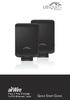 Plug n Play Wireless 10/100 Ethernet Cable Plug n Play Wireless 10/100 Ethernet Cable Package Contents Package Contents AirWire (Qty. 2) Power Adapter (Qty. 2) Ethernet Cable (Qty. 2) Quick Start Guide
GSM-EXT Cable Assembly Installation Guide
 GSM-EXT Cable Assembly Installation Guide For Documentation and Online Support: http://www.security.honeywell.com/hsc/resources/mywebtech General Information The GSM-EXT cable assembly is used to connect
Cabling and Connectors
 Cabling and Connectors Contents Contents Overview.... 1 Installation Requirements... 1 Wiring the Cable (Level 1 Shielding)... 2 Wiring the Cable (Level 2 Shielding)... 8 Cable Wiring Specification (T568B)...
User Manual for the NETGEAR 54 Mbps Wireless USB 2.0 Adapter WG121. NETGEAR, Inc. 4500 Great America Parkway Santa Clara, CA 95054 USA
 User Manual for the NETGEAR 54 Mbps Wireless USB 2.0 Adapter WG121 NETGEAR, Inc. 4500 Great America Parkway Santa Clara, CA 95054 USA Version v1.0 September 2003 Technical Support Please refer to the support
TRENDnet User s Guide. Cover Page
 Cover Page Contents Product Overview... 2 Package Contents... 2 Overview... 2 Interface... 3 Setting up... 4 WPS Setup... 4 Web Browser Setup... 4 ios Setup... 4 Android Setup... 7 Managing the App...
DriveCam Installation
 www.lytx.com DriveCam Installation DriveCam VER Mounting Guidelines This document provides detailed instructions for mounting the DriveCam DC3/DC3P Video Event Recorder (VER) in a variety of vehicle types
Networkfleet 3500 Product Line Installation Guide
 Networkfleet 3500 Product Line Installation Guide Light/Medium Duty (L3500) Heavy Duty (H3500) Universal (U3500) www.networkcar.com/fleet Customer Care: (866) 227-7323 [email protected] Table
Preface. FCC Statement. Warranty
 1 Preface FCC Statement Warranty This equipment has been tested and complies with the limits for a Class B digital device, pursuant to Part 15 of the FCC Rules. These limits are designed to provide reasonable
WIRELESS STATUS MONITOR
 INSTALLATION INSTRUCTIONS WIRELESS STATUS MONITOR (WSM or AUWSM) The most current version of this document is available for download at: http://www.ir-swa.com P/N: M053-032-D Schlage 245 W. Roosevelt Road,
GENUINE PARTS INSTALLATION INSTRUCTIONS
 GENUINE PARTS INSTALLATION INSTRUCTIONS 1. DESCRIPTION: Auto-Dimming Mirror Kit with Compass and HomeLink 2. APPLICATION: Titan 3. PART NUMBER: 999L1 WS000 4. KIT CONTENTS: Item Qty Description Service
4.3-inch Back-Up Camera
 TM 4.-inch Back-Up Camera Model No.: PKC0BU4 Owner s Manual and Warranty Information Read these instructions completely before using this product. Retain this Owner s Manual for future reference. INTRODUCTION
Power Supply Guide Version 1.0 for D-Show
 Power Supply Guide Version 1.0 for D-Show Digidesign 2001 Junipero Serra Boulevard Daly City, CA 94014-3886 USA tel: 650 731 6300 fax: 650 731 6399 Technical Support (USA) tel: 650 731 6100 fax: 650 731
C24-CAMANL Video Server/Encoder
 C24-CAMANL Video Server/Encoder User s Guide Table of Contents CHAPTER 1 INTRODUCTION... 1 Overview... 1 Physical Details - Video Server... 2 Package Contents... 3 CHAPTER 2 BASIC SETUP... 4 System Requirements...
Triple Expansion Chassis
 Triple Expansion Chassis AP9604 Installation Manual Contents Introduction............................. 1 Installation.............................. 2 Power Considerations...................... 5 Operations..............................
Zebra RW 420 Mobile Battery Eliminator Kits
 Zebra Technologies Corporation 475 Half Day Road, Suite 500 Lincolnshire, IL 60069 USA Zebra RW 420 Mobile Battery Eliminator Kits Installation Instructions September, 2010 RW 420 Mobile Battery Eliminator
Meraki Outdoor Hardware Installation Guide
 Meraki Outdoor Hardware Installation Guide Trademarks Meraki, Meraki Outdoor, Meraki Cloud Controller, and Meraki Mesh are trademarks of Meraki, Inc. Other brand and product names are registered trademarks
Overview. Installation Requirements. TOUGHCable Ethernet Connectors
 Overview Overview Thank you for purchasing Ubiquiti Networks TOUGHCable CARRIER cabling. This Quick Start Guide is designed to provide wiring instructions and includes the warranty terms. Ubiquiti offers
Tablet Management Rack 16
 Tablet Management Rack 16 User's Guide Table of Contents Hazard Symbols Review... 2 Components... 2 Charging Set-up... 3-4 LED and Syncing... 4-5 Cleaning and Maintenance... 6 Specifications... 6 Service
Regulatory Compliance Statement
 Regulatory Compliance Statement 0560 EU Declaration of Conformity The declaration of conformity may be consulted at www.kobo.com/userguides SAR Limits The exposure standard for wireless devices employs
Energy Smart Electric Water Heater Controller
 Installation, Operation and Troubleshooting Instructions Energy Smart Electric Water Heater Controller Table of Contents Installation and Setup, 2 Operation, 5 Troubleshooting, 7 Regulatory Notices, 11
musical auto mirror day & night light Control Panel Features Mirror Features Front View Mirror Features Rear View B C Remote Receiver C
 Control Panel Features A Power, Low/High Volume Switch Note: The dual-mode night light and music can only be activated by pressing the buttons on the remote. A Mirror Features Front View B Dual-Mode Night
ATA User Manual. iinet ATA Telephone Adapter. Setting up for ADSL and VoIP. For model F1PG200ENau
 ATA User Manual Please insert your installation CD now and then follow the on screen instructions iinet ATA Telephone Adapter Setting up for ADSL and VoIP. For model F1PG200ENau F1PG200ENau Table of Contents
Gateway Port Replicator User Guide
 Gateway Port Replicator User Guide Using the Port Replicator Identifying features Connecting and disconnecting the port replicator 1 Using the Port Replicator Top Power button Component Icon Description
Wireless Internet Keyboard and Laser Mouse
 Wireless Internet Keyboard and Laser Mouse User s Manual Model KB1045LSR FCC STATEMENT KB1045LSR This device complies with part 15 of FCC Rules. Operation is subject to the following two conditions: (1)
RC8021 Indoor Camera Installation Guide
 RC8021 Indoor Camera Installation Guide P/N: 957YL502GJ Document Version: 1.0 Copyright 2011. All Rights Reserved. All trademarks and trade names are the properties of their respective owners i Package
OC821 Iris Outdoor Camera Set-Up Guide. RC8221 Iris. Camera Set-Up Guide
 Outdoor Camera Set-Up Guide RC8221 Iris Camera Set-Up Guide 2 2 A B Package Contents Basic A. Outdoor Setup Camera This B. chapter Power provides Adapter details on how to setup and mount the camera. C.
Operator's Manual for Wireless LAN Module
 MULTIFUNCTIONAL DIGITAL SYSTEMS Operator's Manual for Wireless LAN Module GN-1060 2011-2012 TOSHIBA TEC CORPORATION All rights reserved Under the copyright laws, this manual cannot be reproduced in any
IMPORTANT SAFETY INSTRUCTIONS
 IMPORTANT SAFETY INSTRUCTIONS Before you install or use the apparatus, you must read and understand these Important Safety Instructions. At all times when using the apparatus you must follow these Important
MoCA Adapter MC1001 v2 Installation Guide
 Technical Support Thank you for selecting NETGEAR products. After installing your device, locate the serial number on the label of your product and use it to register your product at www.netgear.com/register.
AXIS 291 1U Video Server Rack Installation Guide
 AXIS 291 1U Video Server Rack Installation Guide About This Document This document describes how to install Axis blade video servers in the AXIS 291 1U Video Server Rack. Updated versions of this document
INSTALLATION INSTRUCTIONS
 Rear Vision System Tailgate Handle Camera Mirror Display 2004-2014 Ford F-150 and 2008-2015 Ford Super Duty (Kit part numbers 9002-9521) Kit Contents: Mirror Tailgate Handle with camera and harness Interior
User Manual for the NETGEAR 54 Mbps Wireless USB 2.0 Adapter WG111
 User Manual for the NETGEAR 54 Mbps Wireless USB 2.0 Adapter WG111 NETGEAR, Inc. 4500 Great America Parkway Santa Clara, CA 95054 USA Version v1.0 February 2004 Technical Support Please refer to the support
Targus Wireless RF Mouse USER S GUIDE. Making Your Mobile Life Easier.
 Targus Wireless RF Mouse Visit our Web site at: www.targus.com Features and specifications are subject to change without notice. 2004 Targus Group International and Targus, Inc.. 400-0111-001B USER S GUIDE
OC810 Outdoor Camera Setup Guide
 OC810 Outdoor Camera Setup Guide P/N: 957YU60001 Document Version: 1.0 Copyright 2010. All Rights Reserved. All trademarks and trade names are the properties of their respective owner i Package Contents
HLWLAN 802.11b/g/n Transceiver Kit
 092524 RevB HLWLAN 802.11b/g/n Transceiver Kit Wireless Communications for OmniLogic Owner s Manual Contents Introduction...1 Installation...2 Configuration...6 Operation...8 Troubleshooting...9 HLWLAN
ScreenLogic Wireless Connection Kit. Installation Guide. pool/spa control system
 pool/spa control system ScreenLogic Wireless Connection Kit Installation Guide P/N 520663 - Rev B 8 Technical Support Contact Technical Support at: Sanford, North Carolina (8 A.M. to 5 P.M.) Phone: (800)
TM Advanced Tracking Technologies, Inc. 2003 ATTI All rights reserved
 TM Advanced Tracking Technologies, Inc. 2003 ATTI All rights reserved Copyright 2003, Advanced Tracking Technologies, Inc. All rights reserved. No part of this publication may be reproduced or transmitted
Installation Guide. Wyse VX0L and VX0LE Thin Clients 1-GB RAM Upgrade Option Kit. Issue: 022808 PN: 883884-07L Rev. A
 Installation Guide Wyse VX0L and VX0LE Thin Clients 1-GB RAM Upgrade Option Kit Issue: 022808 PN: 883884-07L Rev. A ii Copyright Notice 2008, Wyse Technology Inc. All rights reserved. This manual and the
Conference Phone UserÕs Manual. Part No. 54-2070-01R1 Printed in Korea. 2002 Bogen Communications, Inc.
 Part No. 54-2070-01R1 Printed in Korea. 2002 Bogen Communications, Inc. UserÕs Manual Notice Every effort was made to ensure that the information in this guide was complete and accurate at the time of
User Manual for the NETGEAR 11 Mbps Wireless USB Adapter MA111. NETGEAR, Inc. 4500 Great America Parkway Santa Clara, CA 95054 USA
 User Manual for the NETGEAR 11 Mbps Wireless USB Adapter MA111 NETGEAR, Inc. 4500 Great America Parkway Santa Clara, CA 95054 USA Version v1.0 June 2004 Technical Support Please refer to the support information
Cisco TelePresence MCU 4500 Series safety and compliance information
 Cisco TelePresence MCU 4500 Series safety and compliance information On this page: Safety information symbols Operating guidelines Safety warnings Technical specifications Compliance information WEEE information
EVOLUTION Thermal Imaging Camera Remote Wireless Video Receiver System
 EVOLUTION Thermal Imaging Camera Remote Wireless Video Receiver System Instruction Manual DELUXE AND MINI RECEIVER KIT (RX) INSTRUCTIONS " WARNING THIS MANUAL MUST BE READ CAREFULLY BY ALL INDIVIDUALS
StructureScan HD Module. Installation Guide ENGLISH. www.bandg.com www.simrad-yachting.com www.lowrance.com
 StructureScan HD Module Installation Guide ENGLISH www.bandg.com www.simrad-yachting.com www.lowrance.com Disclaimer As Navico is continuously improving this product, we retain the right to make changes
About the HotWire 7900 10-Slot Standalone Shelf
 TM HotWire Model 7900 10-Slot Standalone Shelf Installation Instructions Document Number 7900-A2-GN10-10 About the HotWire 7900 10-Slot Standalone Shelf The HotWire 7900 10-Slot Standalone Shelf is designed
No. S8351. S8351 External Bluetooth module for mz series transmitter OPERATING INSTRUCTION
 No. S8351 S8351 External Bluetooth module for mz series transmitter OPERATING INSTRUCTION Prior to use, please read this manual thoroughly. Keep this manual in a convenient place for quick and easy reference.
InnoMedia ESBC 9580-4B. Quick Install Guide. www.innomedia.com 1
 InnoMedia ESBC 9580-4B Quick Install Guide www.innomedia.com 1 Table of Contents Introduction 2 Package Contents 2 CAUTION 2 Installation 3 Wall-Mounting Instructions 5 Troubleshooting 6 Appendix A. LED
SoundStation2 USER GUIDE. User Guide
 SoundStation2 USER GUIDE User Guide IMPORTANT SAFETY INSTRUCTIONS When using your telephone equipment, the following safety precautions should always be followed to reduce the risk of fire, electric shock,
Mercury Helios 2 ASSEMBLY MANUAL & USER GUIDE
 Mercury Helios 2 ASSEMBLY MANUAL & USER GUIDE TABLE OF CONTENTS INTRODUCTION...1 1.1 MINIMUM SYSTEM REQUIREMENTS 1.1.1 Apple Mac Requirements 1.1.2 PC Requirements 1.1.3 Supported PCIe Cards 1.2 PACKAGE
PRO 5000 CPE 1D Quick Installation Guide
 PRO 5000 CPE 1D Quick Installation Guide Introduction This Quick Installation Guide covers the basic installation of the PRO 5000 CPE. For more information, refer to the relevant sections in the Product
Manual. Simrad StructureScan LSS-1 Sonar Module. English
 Manual Simrad StructureScan LSS-1 Sonar Module English www.simrad-yachting.com A brand by Navico - Leader in Marine Electronics Disclaimer As Navico is continuously improving this product, we retain the
PEARL Portable Reading Camera
 PEARL Portable Reading Camera Quick Start Guide Freedom Scientific, Inc. 440528-001 Rev. D Freedom Scientific, Inc., 11800 31 st Court North, St. Petersburg, Florida 33716-1805, USA www.freedomscientific.com
EVOLUTION Thermal Imaging Camera Remote Wireless Video Receiver System
 EVOLUTION Thermal Imaging Camera Remote Wireless Video Receiver System Instruction Manual DELUXE AND MINI RECEIVER KIT (RX) INSTRUCTIONS " WARNING THIS MANUAL MUST BE READ CAREFULLY BY ALL INDIVIDUALS
MCR1900 Media Converter 19-Slot Chassis
 MCR1900 Media Converter 19-Slot Chassis Installation Guide Part #5500304-11 Copyright Statement This document must not be reproduced in any way whatsoever, either printed or electronically, without the
Installation & Operation Manual
 GET CONNECTED Installation & Operation Manual DEVICE INTEGRATION AND CHARGING KIT TranzIt USB IS32 Note to Readers, The information contained within the following documentation is subject to change without
Gigabit Ethernet Switch 10/100/1000 Mbps GS605 / GS608. Installation Guide
 Gigabit Ethernet Switch 10/100/1000 Mbps GS605 / GS608 Installation Guide Introduction The NETGEAR 5/8-Port Gigabit Ethernet Switch Model GS605 / GS608 provides you with a high-speed, reliable, easy-to-use
KEYLESS ENTRY UPGRADE SECURITY SYSTEM for 2004 TOYOTA HIGHLANDER
 KEYLESS ENTRY UPGRADE SECURITY SYSTEM for 2004 TOYOTA HIGHLANDER DEALER SERVICE AND INSTALLATION MANUAL KIT NO. 00016-30915 Contents PARTS LIST... 2 PARTS ILLUSTRATIONS... 2 VEHICLE PREPARATION... 3 INSTALLING
Installation & Operation Manual HANDS-FREE BLUETOOTH MEDIA INTEGRATION KIT. Perfect for ANDROID TM
 GET CONNECTED Installation & Operation Manual HANDS-FREE BLUETOOTH MEDIA INTEGRATION KIT TranzIt BLU HF ISFM2351 Perfect for ANDROID TM Note to Readers, The information contained within the following documentation
InnoMedia ESBC 9380-4B. Quick Install Guide. www.innomedia.com 1
 InnoMedia ESBC 9380-4B Quick Install Guide www.innomedia.com 1 Table of Contents Introduction 2 Package Contents 2 CAUTION 2 Installation 3 Wall-Mounting Instructions 5 Troubleshooting 6 Appendix A. LED
OC810 Outdoor Camera Installation Guide
 OC810 Outdoor Camera Installation Guide P/N: 957YU601GJ Document Version: 1.0 Copyright 2011. All Rights Reserved. All trademarks and trade names are the properties of their respective owner i Package
SNQ-60x0-320 Series Data Center Switch. Quick Installation Guide
 Introduction This guide is to assist the reader with the most basic form of installation and connection to switches in this series. As there is more than one switch in this series, the diagrams might slightly
This equipment has been tested and found to comply with the limits for a Class B digital device, pursuant to part 15 of the FCC Rules.
 Power Max Level 2 Charging Station en Installation and Operating Instructions This equipment has been tested and found to comply with the limits for a Class B digital device, pursuant to part 15 of the
Dome Security Camera with IR night vision
 Dome Security Camera with IR night vision EN INSTRUCTION MANUAL 1 Before you begin Limited Warranty Terms & Conditions Swann Communications warrants this product against defects in workmanship and material
UIM-2T1 T1 Loop Bonding Uplink Interface Module
 Installation Instructions UIM-2T1 T1 Loop Bonding Uplink Interface Module CAUTION Net to Net Technologies strongly recommends the use of proper electrostatic discharge (ESD) precautions when handling this
In-Site Motion Webcam
 In-Site Motion Webcam User s Manual Model IC825C FCC STATEMENT IC825C This device complies with part 15 of FCC Rules. Operation is subject to the following two conditions: (1) this device may not cause
PT-6000 Power Tower INSTALLATION MANUAL SPECIFICATIONS
 PT-6000 Power Tower INSTALLATION MANUAL 10.5 9.75 12 22.75 10.75 MAXIMUM SOIL HEIGHT: DO NOT ALLOW FILL TO EXCEED THIS LEVEL! 11.5 4 4 13 Optional PT-BASE for new installations or when previous 2000/6000
BPM Series. Metered Rack Mount PDUs. Quick Start Guide. Models Covered:
 WTI Part No.: 13963 Rev.: PM Series Metered Rack Mount PDUs Models Covered: PM-8HS20-1 PM-16VS30-1 PM-24VS30-1 PM-24VS30-D PM-8HS20-2 PM-16VS30-2 PM-24VS30-2 PM-24VS30-Y PM-16VS20-1 PM-24VS20-1 PM-24VS20-D
WF720 Wireless Home Phone User Manual
 WF720 Wireless Home Phone User Manual Content Getting to Know Your Device... 3 Appearance...3 LED Indicator...4 Device Installation... 5 Before You Begin...5 Installing the SIM Card and the Battery...5
Wiser Panel Meter, Model Number WISERCTPM200 Installer s Guide
 Instruction Bulletin EAV85226 08/2014 Wiser Panel Meter, Model Number WISERCTPM200 Installer s Guide Retain for future use. Product Description Kit Contents The Wiser Panel Meter is for use in energy management
OPERATOR S Manual All specifications are subject to change without notice
 OPERATOR S Manual All specifications are subject to change without notice Warning - U.S. This equipment has been tested and founded to comply with the limits for a Class A digital device pursuant to Part
ES-3305P V2 / ES-3308P V2. Quick Installation Guide. 09-2013 / v1.0
 ES-3305P V2 / ES-3308P V2 Quick Installation Guide 09-2013 / v1.0 1 COPYRIGHT Copyright Edimax Technology Co., Ltd. all rights reserved. No part of this publication may be reproduced, transmitted, transcribed,
Wireless Optical Mouse
 Wireless Optical Mouse User s Manual Model PD950P FCC STATEMENT PD950P This device complies with part 15 of FCC Rules. Operation is subject to the following two conditions: (1) this device may not cause
SCREENLOGIC INTERFACE WIRELESS CONNECTION KIT
 SCREENLOGIC INTERFACE WIRELESS CONNECTION KIT FOR INTELLITOUCH AND EASYTOUCH CONTROL SYSTEMS INSTALLATION GUIDE IMPORTANT SAFETY INSTRUCTIONS READ AND FOLLOW ALL INSTRUCTIONS SAVE THESE INSTRUCTIONS Technical
Broadband Telecommunications Drop Amplifier
 INSTALL SHEET BDA Broadband Telecommunications Drop Amplifier Introduction The Broadband Telecommunications Drop Amplifier (BDA) is a two-way, 1 GHz amplifier designed for customer-premise amplification
CR /Fusion. BEETLE /FUSION Side Combo. Operating Manual
 CR /Fusion BEETLE /FUSION Side Combo Operating Manual The reproduction, transmission or use of this document or its contents is not permitted without express authority. Offenders will be liable for damages.
Mazda CX7 2007-09 99-7508
 INSTALLATION INSTRUCTIONS FOR PART 99-7508 APPLICATIONS Mazda CX7 2007-09 99-7508 KIT FEATURES DIN Radio Provision with Pocket ISO Mount Radio Provision with Pocket Double DIN Mount Radio Provision Stacked
INSTALLATION GUIDE ConnectLine TV Adapter Getting started
 INSTALLATION GUIDE ConnectLine TV Adapter Getting started PURPOSE OF THIS GUIDE READ THIS FIRST Before your hearing instruments can receive sound from the TV, the adapter must be connected to the TV and
I Click on a link tab to jump to that page. Cover Page
 & nstall Publication, Duplication, or Retransmission Of This Document Not Expressly Authorized n Writing By The nstall Doctor s Prohibited. Protected By U.S. Copyright Laws. 1997,1998,1999,2000. Factory
User guide. Miracast Wireless Display IM10
 User guide Miracast Wireless Display IM10 Contents Miracast Wireless Display User guide...3 Setting up the Miracast Wireless Display...4 Hardware overview...4 Turning on and connecting the Miracast Wireless
SmartCard On-Board Reader (# 8105) SmartCard Desktop Reader (# 8108) SmartCards, Pack of 10 (# 8112) Starter Interrupter Kit (# 8116)
 athena Includes: SmartCard On-Board Reader (# 8105) SmartCard Desktop Reader (# 8108) SmartCards, Pack of 10 (# 8112) Starter Interrupter Kit (# 8116) Davis Instruments, 3465 Diablo Avenue, Hayward, CA
Power Over Ethernet Adapters POE101
 Power Over Ethernet Adapters POE101 Installation Guide Introduction NETGEAR POE101 Power over Ethernet adapters are designed to supply operational power to devices through an Ethernet cable. These adapters
INSTALLATION INSTRUCTIONS
 INSTALLATION INSTRUCTIONS Accessory Application Publications No. AII 26327 2004 S2000 Issue Date OCT 2004 PARTS LIST Security System: P/N 08E51-S84-100 Attachment Kit: P/N 08E55-S2A-101 2 Remote controls
aseries A13B Mini Bullet Camera User Manual
 aseries A13B Mini Bullet Camera User Manual Thank you for purchasing our product. If there are any questions, or requests, please do not hesitate to contact the dealer. This manual applies to the MicroView
LED Security Spotlight User Manual
 MOT ION-TR ACKING LED Security Spotlight User Manual www.jascoproducts.com 1-800-654-8483 2 TABLE OF CONTENTS Parts List 3 Questions? Missing Parts? 4 Installation (Wall mount) 6-9 Installation (Eave mount)
Universal WiFi Internet Adapter (WNCE2001)
 Universal WiFi Internet Adapter (WNCE2001) User Manual 350 East Plumeria Drive San Jose, CA 95134 USA September 2010 202-10598-01 v1.0 2010 NETGEAR, Inc. All rights reserved. No part of this publication
Installation Instructions. Wireless Adapter/Repeater. Introduction. 30-3001-887 Rev C
 /Repeater Installation Instructions 30-3001-887 Rev C Workstation Ethernet bcx Controller Repeater Repeater Introduction Schneider Electric has designed a device that allows Andover Continuum controllers
User guide. Stereo Bluetooth Headset SBH70
 User guide Stereo Bluetooth Headset SBH70 Contents Introduction...3 Function overview...3 Hardware overview...3 Basics...5 Charging the battery...5 Battery and power management...5 Turning the headset
HP UPS R1500 Generation 3
 HP UPS R1500 Generation 3 Installation Instructions Part Number 650952-001 NOTE: The rating label on the device provides the class (A or B) of the equipment. Class B devices have a Federal Communications
Solar Weather Station Model: BAR806 / BAR806A
 Solar Weather Station Model: BAR806 / BAR806A EN CONTENTS USER MANUAL Overview... 2 Front view... 2 Back view... 3 Remote sensor... 3 Getting started... 3 Solar panel... 3 Insert batteries... 4 Remote
BroadBand PowerShield. User Manual
 BroadBand PowerShield User Manual 990-0375G 12/2006 Chapter 1 General Information The PowerShield provides a power source for broadband telephony and other DC applications. Safety This Safety Guide contains
T855 Day & Night Security Camera
 T855 Day & Night Security Camera For use with Swann 4500 DVR EN INSTRUCTION MANUAL MT855_091014E Swann 2014 Before you begin Introduction Congratulations on your purchase of this T850 Day & Night Security
u-traq autopro GPS Vehicle Tracking System Product # 1020-PRO User s Guide Installation and Operating Instructions
 u-traq autopro GPS Vehicle Tracking System Product # 1020-PRO User s Guide Installation and Operating Instructions Table of Contents Before Installing 2 GPS Fundamentals 3 Checking the Contents of the
ARCHOS (www.archos.com/support).
 1 ! www.archos.com/register, ARCHOS.. ARCHOS, (www.archos.com/register).. ARCHOS (www.archos.com/support)., Windows, Windows Help Start ( ), Help and Support.. ARCHOS. 2 ,.! /, : ARCHOS 9,,,,,. -.,. ARCHOS
Square D Clipsal DIN-Rail Four-Channel Auxiliary Input Unit
 Square D Clipsal DIN-Rail Four-Channel Auxiliary Input Unit SLCLE5504AUX for Use with Wired C-Bus Networks Instruction Bulletin Retain for future use. Square D Clipsal DIN-Rail Four-Channel Auxiliary Input
SVC400P/SVC800P. 4/8 Camera Live Tracking Vehicle DVR Installation Manual. Version 1.0
 SVC400P/SVC800P 4/8 Camera Live Tracking Vehicle DVR Installation Manual Version 1.0 1. MAIN FEATURES... 2 2. PRODUCT OVERVIEW... 2 3. DIMENSIONS... 4 4. PACKAGE CONTENTS... 5 5. MOUNTING AND ENVORNMENTAL
u-traq autopro GPS Vehicle Tracking System Product # 1020-PRO User s Guide Installation and Operating Instructions
 u-traq autopro GPS Vehicle Tracking System Product # 1020-PRO User s Guide Installation and Operating Instructions Before Installing Table of Contents Before Installing 2 GPS Fundamentals 3 Checking the
GENUINE PARTS INSTALLATION INSTRUCTIONS
 GENUINE PARTS INSTALLATION INSTRUCTIONS DESCRIPTION: Illuminated Kick Plate APPLICATION: Rogue (2011) PART NUMBER: 999G6 GX010 KIT CONTENTS: Item A B C G H QTY 1 1 1 D 1 E 1 F 3 15 6 Description Kick Plate,
How To Set Up An Ecm Display On A D210 (D210) (D2) (Ecm) (Emc) (Mcd) (Power Supply) (Mm) (Camellom) (Ios)
 English Customer Display DM-D210 Installation Manual 401285101 CAUTIONS This document shall apply only to the product(s) identified herein. No part of this document may be reproduced, stored in a retrieval
AirVideo-2000. User s Manual. 802.11g Wireless Video Presenter. AirVideo-2000 User s Manual
 AirVideo-2000 802.11g Wireless Video Presenter User s Manual 0 Clause Declaration of Conformity We, Manufacturer/Importer OvisLink Corp. 5F., NO.6, Lane 130, Min-Chuan Rd., Hsin-Tien City, Taipei County,
Antenna Splitter ASA 1. Instruction manual
 Antenna Splitter ASA 1 Instruction manual Contents Important safety instructions... 2 The ASA 1 active antenna splitter... 4 Delivery includes... 4 Operating elements... 5 Putting the ASA 1 into operation...