
Installing Wibu Network Dongles
|
|
|
- Virgil Stevens
- 10 years ago
- Views:
Transcription

1 12d Model Installing Wibu Network Dongles July D SOLUTIONS PTY LTD ACN PO Box 351 Narrabeen NSW Australia 2101 Australia Telephone (02) Fax (02) International Telephone Fax [email protected] web page

2 12d Model Installing Wibu Network Dongles Disclaimer 12d Model is supplied without any express or implied warranties whatsoever. No warranty of fitness for a particular purpose is offered. No liabilities in respect of engineering details and quantities produced by 12d Model are accepted. Every effort has been taken to ensure that the advice given in this manual and the program 12d MODEL is correct, however, no warranty is expressed or implied by 12D SOLUTIONS PTY LTD. Copyright This manual is copyrighted and all rights reserved. This manual may not, in whole or part, be copied or reproduced without the prior consent in writing from 12D Solutions Pty Ltd. Copies of 12d Model software must not be released to any party, or used for bureau applications without the written permission of 12D Solutions Pty Ltd. Copyright (c) by 12d Solutions Pty Ltd Sydney, New South Wales, Australia. ACN All rights reserved. 2

3 Table of Contents Installing Wibu Network Dongles... 5 A Guide to the Notes... 5 Definitions... 6 Installing the Wibu Network Software... 7 Starting the Wibu Network Server Drivers for Client Computers Running 12d Model Updating nodes.4d and env.4d Updating nodes.4d Updating env.4d Mixtures of Wibu Dongles and Hardlock Dongles The Wibu Network Server Monitoring Software Monitoring Network Dongles from Other Computers Wibu Client and Wibu Server in Different Subnets Can t See the Network Dongle Default Port address Updating the Number of Licenses Step 1: Generating the Wibu Context File (.rtc) Step 2a: Automatically Updating the Licenses with the.rtu File Step 2b: Manually Updating the Licenses with the.rtu File Errors Updating the Wibu Network Dongle Replacing an Existing Network Dongle Windows XP SP2 Problems

4 12d Model Installing Wibu Network Dongles 4

5 Installing Wibu Network Dongles WARNING Do not attach the network dongle to your computer until after you have installed the Wibu dongle drivers. A Guide to the Notes By default 12d Model uses a Wibu single user dongle that allows 12d Model to be run on any computer with the Wibu single user dongle attached to it. To run 12d Model on another computer, the Wibu single user dongle must be moved to the new computer. And 12d Model will stop running on the computer that no longer has the Wibu single user dongle attached to it. 12d Model can also use a Wibu network dongle for controlling three or more copies of 12d Model that are then available to any user on any computer on the computer network. These notes are for installing a new USB Wibu network dongle, for swapping Wibu network dongles or for monitoring Wibu network dongles. To install/swap the network dongle you will need the 12d Model 10 Installation DVD and the network dongle supplied by 12d Solutions Pty Ltd. An Adobe Acrobat (PDF) copy of these notes is on the 12d Model 9 Installation DVD in the folder Documentation\Installing wibu network dongle WARNING If the computers accessing the Wibu network dongle are in a different subnet (behind a router) to the Wibu network dongle then 12d Model needs to be given the IP address or the computer names of the servers with the Wibu network dongles. This will be explained later in the notes. This will also apply to computers connected by Wireless or DHCP. Please continue to the next section if your are installing a Wibu network dongle on the computer for the first time. If you already have a network dongle and are replacing it by a new network dongle, please go the section Step 2a: Automatically Updating the Licenses with the.rtu File on page 42. A Guide to the Notes 5

6 12d Model Installing Wibu Network Dongles Definitions By default 12d Model uses a Wibu single user dongle that allows 12d Model to be run on any computer with the Wibu single user dongle attached to it. To run 12d Model on another computer, the Wibu single user dongle must be moved to the new computer. And 12d Model will stop running on the computer that no longer has the Wibu single user dongle attached to it. 12d Model can also use a Wibu network dongle for controlling three or more copies of 12d Model that are then available to any user on any computer on the computer network. Wibu single-user dongle - a Wibu dongle that is attached to a computer and allows 12d Model to be run on that computer only. This is the default installation for 12d Model. Wibu single user dongles are a translucent green colour and are labelled with a number starting with 572d Wibu network dongle - a Wibu dongle that controls a set number of 12d Model licenses. The Wibu network dongle can be accessed by any other computer on the network and allows copies of 12d Model to be run on those computers. Each running copy of 12d Model requires a license from the Wibu network dongle. Wibu network dongles are a solid colour and are labelled with a number starting with e151. Wibu Server - a computer with a Wibu network dongle attached to it. Note that this can be any computer, it does not have to be a server. Wibu Client - a computer that gets its 12d Model licenses from a Wibu server. The Wibu Client computer does not have a Wibu network dongle attached to it. Wibu Client Wibu Client Wibu Client Wibu Client Wibu Server computer with a network dongle Wibu Server computer with a network dongle Wibu Client Wibu Client Wibu Client Wibu Client Wibu Client Wibu Client Wibu Client Computers Networked to One or More Wibu Server Computers Wibu Servers must have the Wibu dongle drivers and the Wibu Network Server software installed. This is described in Installing the Wibu Network Software on page 7. Wibu Clients only need to have the Wibu dongle drivers installed. This is described in Drivers for Client Computers Running 12d Model on page 21. Both Wibu Servers and Wibu Clients can have the Wibu Network Server Monitoring software installed. This software allows the computer to interactively monitor the use of the Wibu Servers. This is described in Monitoring Network Dongles from Other Computers on page 31 6 Definitions

7 Chapter Installing Wibu Network Dongles Installing the Wibu Network Software WARNING - Do not attach the Wibu network dongle to your computer until after you have installed the Wibu dongle drivers. This section is for installing a Wibu network dongle onto the computer for the first time. It covers the installation of the Wibu dongle drivers, the Wibu Network Server software and the Wibu Network Monitoring software. If you already have a Wibu network dongle and are upgrading the number of licenses on the Wibu network dongle, please go the section Step 2a: Automatically Updating the Licenses with the.rtu File on page 42. If you already have a Wibu network dongle and are replacing it by a new Wibu network dongle, please go the section Step 2a: Automatically Updating the Licenses with the.rtu File on page 42. The first step is to install the Wibu dongle drivers, the Wibu Network Server and the Wibu Network Server Monitoring software on the computer that the Wibu network dongle will be attached to. The Wibu dongle drivers, Network Server and Network Monitoring software are all installed from the 12d Model 9 Installation DVD You need to have System Administrator rights to install the Wibu dongle drivers. Installing the Wibu Network Software 7


8 12d Model Installing Wibu Network Dongles Step 1.Install the Wibu Dongle Drivers, Server and Monitoring Software Insert the 12d Model 10 Installation DVD into the DVD drive. On inserting the DVD, the 12d Model 10 Installation program automatically begins. If it doesn t, simply double click on the program Launch.exe from the DVD. The 12d Model Release screen will appear. Click on Drivers On the 12d Model Release screen, under Install Dongle Drivers, click on Drivers to bring up the Dongle Drivers panel: 8 Installing the Wibu Network Software


9 Chapter Installing Wibu Network Dongles Click on Wibu Tick on Wibu and then click Next: The script to install the Wibu dongle drivers begins. Under Windows XP you may get an Open File - Security Warning select Run to continue Installing the Wibu Network Software 9


10 12d Model Installing Wibu Network Dongles WIBU-KEY Setup Welcome to WIBU-KEY Software Setup select Next to continue WIBU-KEY Setup Language Selection tick language and then select Next to continue 10 Installing the Wibu Network Software

11 Chapter Installing Wibu Network Dongles WIBU-KEY Setup Installation folder select Next to continue WIBU-KEY Setup Installation folder doesn t exist click Yes to continue WIBU-KEY Setup Component Selection Tick on "32 bit WkNet/WkLAN Network Server" Installing the Wibu Network Software 11


12 12d Model Installing Wibu Network Dongles Tick on "Install as NT service with autostart" Tick on "WkLAN/WkNet Network Monitor (32 bit)" select Next to continue to the Tasks to be Performed screen. NOTE: The "32 bit WkNet/WkLAN Network Server" and "Install as NT service with autostart" are required on the Wibu Server (i.e. the computer with the Wibu network dongle attached). It is not required on any other computer. The "WkLAN/WkNet Network Monitor (32 bit)" installs the Wibu network dongle monitoring software. FOR MONITORING ONLY The Wibu network dongle can be interactively monitored from any computer, not just from the computer with the Wibu network dongle attached to it. When monitoring from a computer without the network dongle attached, only the Wibu Network Monitor software needs to be installed and the Network Server software is not needed. So for monitoring only: Don t tick "32 bit WkNet/WkLAN Network Server" Don t tick "Install as NT service with autostart" Tick on "WkLAN/WkNet Network Monitor (32 bit)" WIBU-KEY Setup Tasks to be Performed select Next to continue 12 Installing the Wibu Network Software


13 Chapter Installing Wibu Network Dongles WIBU-KEY Setup Tasks done select Next to continue WIBU-KEY Setup Setup Complete Un-tick "Yes, I want to view the Readme text now" select Finish Installing the Wibu Network Software 13


14 12d Model Installing Wibu Network Dongles Setup Setup OK click OK The Wibu dongle drivers and the Network Server and Network Monitor software have now been installed. The Install 12d Model Release screen will then re-appear. 14 Installing the Wibu Network Software


15 Chapter Installing Wibu Network Dongles Step 2.Attach the Dongle Attaching the Dongle: The 12d Model Wibu network dongle can now be attached to the USB port on the computer. Warning: you must have System Administrations rights the first time you attach a USB dongle to any USB port: When a USB dongle is attached for the first time to any USB port, Windows will detect that it is new hardware and needs to load the dongle drivers for that USB port - this will require System Administration rights. Since the dongle drivers have already been loaded onto your computer, when the USB dongle is attached to a new USB port, it will be recognised as new hardware and Windows should automatically install the correct dongle driver. IMPORTANT NOTE IF THE WIBU DONGLE IS NOT RECOGNISED: If the WIBU dongle is not recognised and you get the "Found New Hardware" screen Installing the Wibu Network Software 15
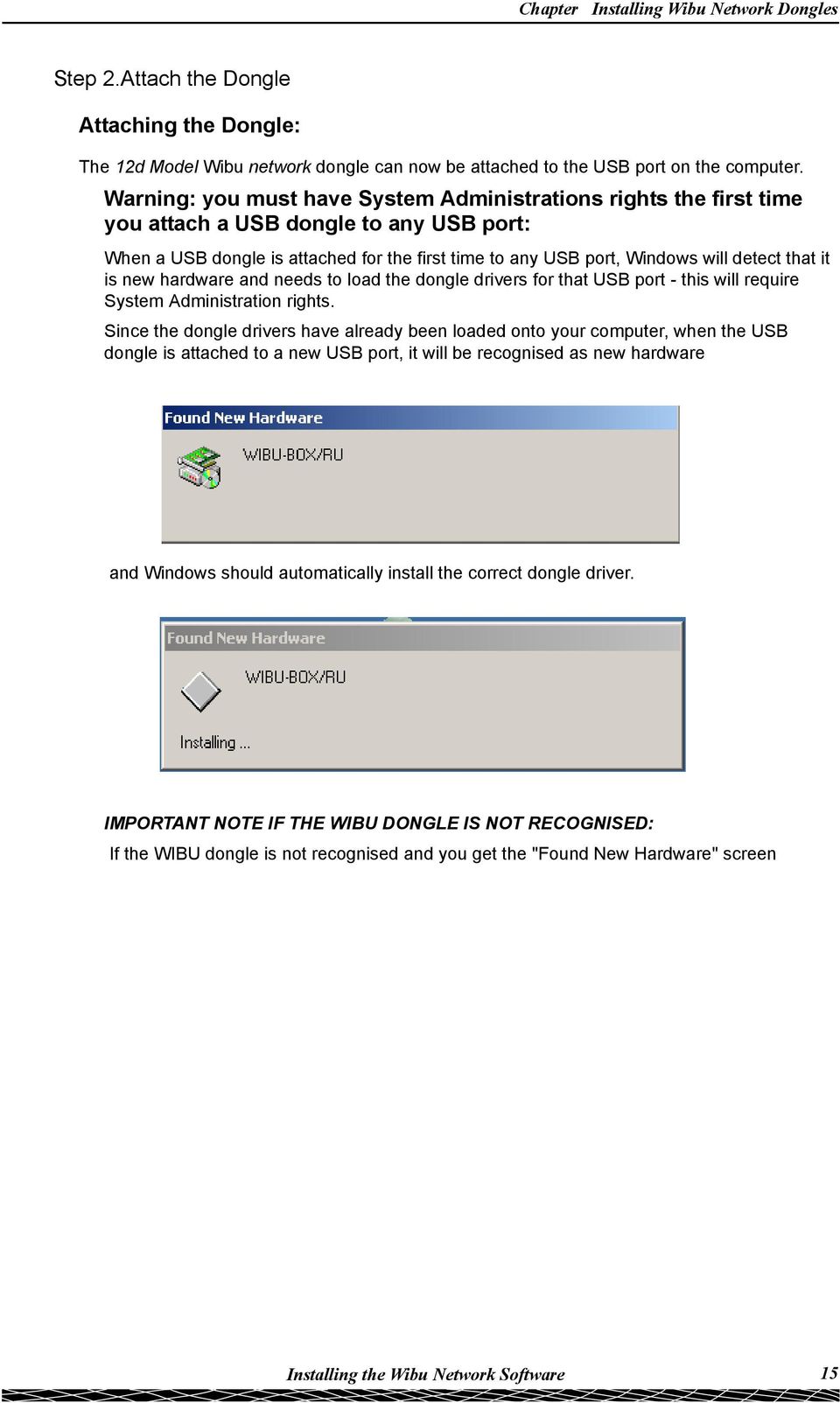
16 12d Model Installing Wibu Network Dongles please go to the section Windows XP SP2 Problems on page 49 on how to find the Wibu drivers NOTE - even though your dongle is working on one USB port and then you no longer need System Administration rights to attach the dongle to that USB port, if you try and attach the dongle to a new USB port, you will need System Administration rights to install the dongle drivers on the new USB port. The dongle must be attached to the USB port at all times, otherwise 12d Model will stop running. Step 3.Reboot the Computer After installing the Wibu dongle drivers, reboot the computer. 16 Installing the Wibu Network Software


17 Chapter Installing Wibu Network Dongles Step 4.Checking the Wibu Network Dongle After the computer has rebooted, insert the 12d Model 9 Installation DVD again. Click on Check On the 12d Model Release screen, click on Check: The dongle checking program begins. Installing the Wibu Network Software 17


18 12d Model Installing Wibu Network Dongles Installation Installation message Tick "Network" and "Local" and select Next The computer/network will be checked for dongles. NOTE - this only finds Wibu Servers on the same subnet. If the Wibu Server resides in a different subnet (behind a router), the Wibu Client must be given the IP address or computer name of the Wibu Server. For more information, go to the section Can t See the Network Dongle. 18 Installing the Wibu Network Software


19 Chapter Installing Wibu Network Dongles Check Report The correct network dongle number should be displayed and also a check on the date in the computer is correct. select Finish This completes the dongle Check. The 12d Model Release screen will then appear. Click on Exit to exit the Installation DVD. Installing the Wibu Network Software 19

20 12d Model Installing Wibu Network Dongles Starting the Wibu Network Server The Wibu Network Services should now start and an icon will be visible on the toolbar: Wibu Network Services Icon If the Wibu Network Service is not running, start it by selecting Start =>Programs =>WIBU-KEY =>Network Server The Wibu Network Services must be running on the computer with the Wibu network dongle attached to it. NOTE: The Wibu Network Services is only installed and run on the Wibu Server (i.e. the computer that has the Wibu network dongle attached to it). 20 Starting the Wibu Network Server


21 Chapter Installing Wibu Network Dongles Drivers for Client Computers Running 12d Model The Wibu Network Services should only be installed on the computers with Wibu network dongles attached (the Wibu Server computers). On all other computers that will run 12d Model but do not have any Wibu network dongles attached (i.e. Wibu Clients), only the Wibu dongle drivers need to be installed. The Wibu dongle drivers are installed by following the installation instructions given in the section Installing the Wibu Network Software on page 7 except neither the "32 bit WkNet/WkLAN Network Server", the "Install as NT service with autostart" or the "WkLAN/WkNet Network Monitor (32 bit)" are ticked on. That is: WIBU-KEY Setup Component Selection Leave unticked NOTE FOR WIBU CLIENTS: This is exactly the same Wibu dongle driver installation that is required when using a Wibu single-user dongle. So if the computer has already been using a Wibu single-user dongle with 12d Model, then the Wibu dongle drivers have already been installed and will not have to be installed again. So if a Wibu network dongle is introduced, all the computers that are currently running 12d Model with a Wibu single-user dongle will not need Wibu drivers installed. However, such Wibu Client computers will need a modification to their env.4d file to tell the computer that 112d Model licenses can be obtained from a Wibu network dongle rather than a Wibu single-user dongle (see Updating nodes.4d and env.4d on page 22). Drivers for Client Computers Running 12d Model 21
22 12d Model Installing Wibu Network Dongles Updating nodes.4d and env.4d When 12d Model is installed on a computer from the 12d Model 9 Installation DVD, it assumes that only a single-user Wibu dongle is being used. Hence the default env.4d needs to be modified to tell 12d Model to access licenses from Wibu network dongles (Wibu Servers). Also the nodes.4d file must contain the authorization information for the Wibu network dongles. Updating nodes.4d For each computer that accesses Wibu network dongles, the authorization information for the Wibu network dongle must be added to the nodes.4d file accessed by 12d Model on the computer. The default folder for the nodes.4d file is c:\12d\10.00 or, the environment variable AUTHORIZATION_4D in the env.4d used by 12d Model on that computer can be set to point to a nodes.4d file with the network dongle authorization information in it. Note that nodes.4d can contain the authorization information for more than one dongle (many single user and/or network dongles). Updating env.4d For each computer that needs to access the Wibu network dongle, a modification has to be made to the env.4d file for that computer to tell it to search for a Wibu network dongle. In the initial 12d Model installation, the env.4d file is installed in the folder Program files\12d\12dmodel\10.00\set_ups Files in Set_ups are supplied by 12D Solutions and should not be modified. However 12d Model looks for an env.4d in the folder User from c:\12d\10.00 before looking in the folder Set_ups. So copy the env.4d file from Set_ups into the folder c:\12d\10.00\user and edit the env.4d file in User. Now in the env.4d file add the lines: WIBU_4D 1 // says there are Wibu dongles HARDLOCK_4D 0 // says there are no Hardlock dongles WIBU_DONGLE_4D parameters // where each parameter is separated by // at least one space where the parameters for WIBU_DONGLE_4D include: -network_first -network_last -no_network look for a network dongle first look for a local dongle first and then network dongle last don t look for a network dongle -local look for a single-user (local) dongle -no_local don t look for a single-user (local) dongle -login_retires number_of_retries which defines how many retries 22 Updating nodes.4d and env.4d
23 Chapter Installing Wibu Network Dongles -login_wait seconds_to_wait For example, are made to see the dongle number of seconds to wait between retries. WIBU_DONGLE_4D -local -network_last // look for single-user dongle first, then a network dongle WIBU_DONGLE_4D -network_first dongle // look for a network dongle first and then a local or WIBU_DONGLE_4D -network_last // look for a local dongle first and then a network dongle or WIBU_DONGLE_4D -network_first -no_local // looks for network dongle only, no local Note in the above examples that it is possible to set env.4d up so that if there is a single-user local dongle on the computer then it will be used by 12d Model but if no single-user local dongle exists, then 12d Model uses the Wibu network dongle. For make searching for the Wibu network dongle faster on large network, the IP address of the computer with the Wibu network dongle can be included in the env.4d file. Simply add the line WIBU_IPADDR or WIBU_IPADDR For example, WIBU_DONGLE_4D -network_last WIBU_IPADDR IP address for the machine with the network dongle Name of the computer with the network dongle or WIBU_IPADDR Lithium // the name of the computer with the network dongle. Also there can be more than one Wibu Server. That is, there can be more than one computer with a Wibu network dongle attached. If you wish to search for more than one Wibu network dongle, simply add the additional IP addresses or computer names to the WIBU_IPADDR command with each one separated by commas. The computers will be searched for free licenses on the Wibu Servers in the order that they appear in the WIBU_APADDR list. For example, WIBU_IPADDR Lithium, Anna will search for free licenses on the computer Lithium and if none are available, will then search for free licenses on the computer Anna. If no licenses are available then 12d Model will not be authorised to run. The WIBU_IPADDR command can also be used to limit access to only certain Wibu Servers. For example, there maybe a specific 12d Model Wibu network dongle with special modules authorised. The WIBU_IPADDR command could then be set to only look at that Wibu Server. All the environment variables defined above can be typed into the env.4d file or they can be set from a running 12d Model by using the Projects =>env.4d option. WARNINGS 1. If you repeat an environment variable in a file, the last occurrence is the one that is used. Updating nodes.4d and env.4d 23
24 12d Model Installing Wibu Network Dongles 2. Projects can have a local env.4d file and when the project is selected, the local env.4d is used. If the local file does not have the correct network information in it (e.g. WIBU_DONGLE_4D 1 etc.) then the authorisation will fail because 12d Model is no longer being instructed to use the network dongle. 24 Updating nodes.4d and env.4d
25 Chapter Installing Wibu Network Dongles Mixtures of Wibu Dongles and Hardlock Dongles The above setting allow the order for access to a Wibu single-user dongle or a Wibu network dongle to be easily controlled. However prior to 12d Model 7, 12d Solutions were using Hardlock single-user and Hardlock network dongles. So as a 12d Model user, it is possible to have various combinations of Hardlock and Wibu dongles. Note that 12d Solutions do not support access to both Hardlock network dongles and Wibu network dongles at the same time. But you can have a Hardlock network dongle and Wibu and Hardlock single-user dongles and access a local Wibu or Hardlock single-user dongle first and if no single-user dongle is found, then use the Hardlock network dongle. or You can have a Wibu network dongle and Wibu and Hardlock single-user dongles and access a local Wibu or Hardlock single-user dongle first and if no single-user dongle is found, then use the Wibu network dongle. For these mixed situations, from 12d Model V71g onwards, there is another environment variable DONGLE_ORDER_4D which control what brand of dongle is searched for first DONGLE_ORDER_4D w // search for Wibu dongles first or DONGLE_ORDER_4D h // search for Hardlock dongles first Case 1: Wibu network dongle; access Wibu or Hardlock single-user dongles first. HARDLOCK_4D 1 // there are Hardlock dongles WIBU_4D 1 // there are Wibu dongles WIBU_DONGLE_4D -local -network_last // look for single-user first then Wibu network DONGLE_4D -no_network // don t look for Hardlock network dongles DONGLE_ORDER_4D h // search for Hardlock dongles first Case 2:Hardlock network dongle; access Wibu or Hardlock single-user dongles first HARDLOCK_4D 1 // there are Hardlock dongles WIBU_4D 1 // there are Wibu dongles DONGLE_4D -local -network_last // look for single-user first then Hardlock network WIBU_DONGLE_4D -no_network // don t look for Wibu network dongles DONGLE_ORDER_4D w // search for Wibu dongles first All the environment variables defined above can be typed into the env.4d file or they can be set from 12d Model by using the Projects =>env.4d option. IMPORTANT NOTE: Mixtures of Hardlock network dongles and Wibu network dongles are not support. All the network dongles must be of the same type. Updating nodes.4d and env.4d 25

26 12d Model Installing Wibu Network Dongles The Wibu Network Server Monitoring Software The Wibu Network Server Monitor software is used to interactively monitor the 12d Model usage of the Wibu network dongle. It can be run from any computer as long as the Wibu Network Monitor software has been installed. The Wibu Network Server Monitor software is started by selecting Start =>Programs =>WIBU-KEY =>Server Monitor This will bring up the WkSvMon panel. WkSvMon can be set to automatically scan the local IP subnet on startup looking for Wibu network dongles and/or automatically check the network dongles at a regular interval and update the list of users on each network dongle. If subnet scanning has not been set to automatically happen, the network can be browsed by clicking on the Browse icon or on the menu item View =>Browse Network. Browse Network icon The network will then be scanned for all computers with the Wibu network services running, and any Wibu network dongles and users of the dongles. The results are displayed in the WIBU-KEY Server list. 26 The Wibu Network Server Monitoring Software
27 Chapter Installing Wibu Network Dongles List of Wibu Servers - i.e. computers running the Wibu Network Server service In this case it has found just the one Wibu Server (computer running the Wibu Network Server service) - the computer Lithium. The network scan accesses all the Wibu network dongles collecting information on how many licenses are available on each Wibu network dongle and what users are connected to them. Clicking on the word Network lists in the right hand box, all the Wibu network dongles available, together with the maximum number of 12d Model licenses available and how may are still available (free). There is a 3272-n (n not equal to 13) entry for each Wibu network dongle where n-13 is the maximum number of 12d Model licenses available for that network dongle (3272 indicates it is a 12d Model Wibu network dongle). There is also an additional entry which lists the total (Max) number of 12d Model licenses on all the listed network dongles and the number of licenses not being used (Free). Network dongle with a total of 5 licenses Total number of 12d Model licenses Number of 12d Model licenses free The Wibu Network Server Monitoring Software 27

28 12d Model Installing Wibu Network Dongles So in the above example, there is only one Wibu network dongle on the network and five (5) licenses available. Clicking on a Wibu Server name, lists those Wibu network dongles attached to that computer. Again the entry lists the total number of 12d Model licenses available on that particular computer. Wibu server Lithium Total number of 12d Model licenses on Lithium Number of 12d Model licenses free on Lithium SETTING AUTOMATIC BROWSE: To set the Wibu Server Monitor to browse the network on start up and/or automatically check and update the list of users on each network dongle at a regular interval, select Options =>General Settings to bring up the General Settings panel. Tick on "Browse network at startup" and tick on "Enable autorefresh" and sent the "Refresh time" to a non-zero value, say 10 seconds. Then select OK. This sets the parameters for the Wibu Server Monitor so that it scans the network when the software is started and will refresh the activity for those dongles is found. So when automatically scanning is set, the Wibu Server Monitor regularly checks the Wibu network dongles at the regular interval and updates the computer names of the all computers running the Wibu network server, lists all Wibu network dongles on the computers and updates all the users on each Wibu network dongle. IMPORTANT NOTE - Do not use a Refresh time of The Wibu Network Server Monitoring Software
29 Chapter Installing Wibu Network Dongles Back to the Server Monitor: A + appearing to the left of a computer name indicates that there are users on the Wibu network dongles attached to that Wibu Server. Clicking on the + besides the Wibu Server name (e.g. Lithium) displays the names of all the users on the network dongles on that Wibu Server. In the case below there is only one user and it is also from the computer Lithium. So Lithium is a Wibu Server and also has a 12d Model user on it. Clicking on the user name, displays information about the user. Computer name of user Information on this user of the dongle When there is more than Wibu Server (i.e. more than one computer with a Wibu network dongle), the Wibu Server Monitor shows each of the computers, and by clicking on the + beside each computer, the users on that computer can be displayed. Two computers (Lithium, WWW) with Wibu network dongles attached to them Two Wibu network dongles are on the network: one with 20 licenses one with 5 licenses Total number of 25 licenses on the network Twenty-two licenses still free The Wibu Network Server Monitoring Software 29

30 12d Model Installing Wibu Network Dongles Clicking on each Wibu Server gives the information about the network dongles on that computer. Total number of licenses on www Licenses free on www And clicking on each user on each Wibu Server gives more information on that user. 30 The Wibu Network Server Monitoring Software
31 Chapter Installing Wibu Network Dongles Monitoring Network Dongles from Other Computers As discussed in the section The Wibu Network Server Monitoring Software on page 26, the Wibu Network Server Monitoring software can be used to monitor all the Wibu network dongles on the network. It displays how many licenses are available for each network dongle, how many licenses are being used on each Wibu Server and the IP address of the users on a network dongle. The Wibu Network Server Monitoring software can be run on any computer in the network, not just those with Wibu network dongles attached. If the Wibu Network Server Monitoring software is not installed on the computer, simply follow the installation instructions for installing the Wibu Dongle Drivers given in the section Installing the Wibu Network Software on page 7 except only select the component "WkLAN/WkNet Network Monitor (32 bit)". That is: Tick on The Wibu Network Server Monitor software is started by selecting Start =>Programs =>WIBU-KEY =>Server Monitor Monitoring Network Dongles from Other Computers 31

32 12d Model Installing Wibu Network Dongles Wibu Client and Wibu Server in Different Subnets Can t See the Network Dongle If the Wibu Client and the Wibu Server are on the same subnet, then the Wibu Monitoring software or 12d Model on the Wibu Client can automatically find the Wibu Server by issuing a search broadcast in the local IP subnet. If the Wibu Server resides in a different subnet (behind a router) or the Wibu Server is programmed not respond to the broadcast messages, the Wibu Client must be given the IP address or computer name of the Wibu Server. Then the Wibu Client will not have to broadcast to find a Wibu Server but can send messages directly to the Wibu Server. The Wibu Client can be given the IP address (or the computer name) of the Wibu Server by typing the IP address into the WkLAN Server Search List in the Wibu Control panel or by specifying the Wibu Server in the WIBU_IPADDR command in the 12d Model env.4d file. Both these methods will now be described. The Wibu Control panel is accessed by either clicking on the Control panel icon on the Wibu Monitoring software running on the Wibu Client, Control Panel icon on the Wibu Server Monitoring software or if the Wibu Network Server Monitoring software is not running, by simply selecting Start =>Settings =>Control Panel =>WIBU-KEY In either case, the WIBU-KEY Software Protection: Test and Settings dialogue is displayed: 32 Wibu Client and Wibu Server in Different Subnets

33 Chapter Installing Wibu Network Dongles To set the IP address of the Wibu Sever, click on the Network tab and then type in the IP address (or computer name) of the Wibu Server and click on Add type in IP address or computer name and then click on Add If more than one computer is given in the WkLan Server Search List, 12d Model will search the list from the top down until a valid Wibu Server is found. Wibu Client and Wibu Server in Different Subnets 33
34 12d Model Installing Wibu Network Dongles To check if the Wibu Server is now visible, click on the Contents tab, then double click on Network to scan the entire network. The Wibu Server should now appear in the list. Clicking on the + beside the computer name and then + beside USB should display the Wibu network dongle. 34 Wibu Client and Wibu Server in Different Subnets
35 Chapter Installing Wibu Network Dongles Rather than having to set the WkLAN Server Search List on each Wibu Client, all computers running 12d Model can be supplied with the IP addresses (or computer names) of the Wibu Servers by specifying the IP addresses of the Wibu Servers in the env.4d file: WIBU_IPADDR IP address for the machine with the network dongle or WIBU_IPADDR Name of the computer with the network dongle To search for more than one Wibu network dongle, simply add the additional IP addresses or computer names to the WIBU_IPADDR command with each one separated by commas. For example, WIBU_IPADDR Lithium, Anna The computers will be searched for free licenses in the order that they appear in the WIBU_APADDR list. Please go to the section Updating env.4d for more information on setting the IP address for one or more servers. Default Port address The default port used by the Wibu network dongle for communication is port Wibu Client and Wibu Server in Different Subnets 35
36 12d Model Installing Wibu Network Dongles Updating the Number of Licenses The number of licenses on a Wibu network dongle can be changed electronically without having to remove the dongle from the computer or returning the dongle to your local 12d Model Distributor. Updating the number of licenses is a two step process: Step 1 Generating the Wibu network dongle context file (.rtc) The context (.rtc) file holds information about the current settings in the Wibu network dongle. 12d Solutions usually know the setting of the network dongle and this step is normally not required. However in the case of a problem, you may be asked to generate the.rtc file and it to your local 12d Model Distributor. If you need to generate the.rtc file, please go to Step 1: Generating the Wibu Context File (.rtc) on page 37. Step 2 Updating the number of licenses with the.rtu file You will be sent a special file (ending in.rtu) which is used to update the number of licenses on the Wibu network dongle. If you have the.rtu file, please go to Step 2a: Automatically Updating the Licenses with the.rtu File on page Updating the Number of Licenses
37 Chapter Installing Wibu Network Dongles Step 1: Generating the Wibu Context File (.rtc) The follow steps will generate a new context file for a Wibu network dongle. To generate the context file, the Wibu Control panel is required and it can be accessed by either clicking on the Control panel icon on the Wibu Monitoring software, Control Panel icon on the Wibu Server Monitoring software or if the Wibu Network Server Monitoring software is not running, by simply selecting Start =>Settings =>Control Panel =>WIBU-KEY In either case, the WIBU-KEY Software Protection: Test and Settings dialogue is displayed: Double click on Network to scan for all Wibu network dongles When starting up, the software scans the local computer and reports on any attached Wibu dongles. Double click on Network to scan the entire network and display all the attached Wibu network dongles. Updating the Number of Licenses 37
38 12d Model Installing Wibu Network Dongles 38 Updating the Number of Licenses

39 Chapter Installing Wibu Network Dongles NOTE: if the dialogue has only four tabs instead of twelve tabs then click on the Green icon on the top left hand corner next to the words WIBU-KEY and then select Advance Mode The extra tabs will then appear Now Click on the WIBU-BOX Context tab: All the found Wibu dongles will be displayed in the Selected WIBU-BOXes: area. Use the <-- to removed all the dongles except the one to be updated. In this case we want to update the Local dongle but it could have been a dongle on another computer in the network Updating the Number of Licenses 39

40 12d Model Installing Wibu Network Dongles Use the Browse button to select an folder to write the file to and then type in a file name ending in.rtc (the default name wibuykey.rtc will do). 40 Updating the Number of Licenses

41 Chapter Installing Wibu Network Dongles Click on Apply and then OK for the dialogue that says the.rtc file has been written. Click on OK to finish the option and remove the dialogue the.rtc file to your 12d Model Distributor and you will be sent back a.rtu file to update the Wibu network dongle. Updating the Number of Licenses 41

42 12d Model Installing Wibu Network Dongles Step 2a: Automatically Updating the Licenses with the.rtu File The number of licenses on a Wibu network dongle can be changed electronically without having to remove the dongle from the computer or return the dongle to 12D Solutions. To update the number of licenses, you will be sent a file of with the same name as the 12d Model Wibu network dongle number but ending in ".rtu". For example, if the 12d Model Wibu network dongle number being modified is e e9, the update file will be called e e9.rtu. The steps below will show how to use the.rtu file to update the number of licenses on your Wibu network dongle. You need to have System Administrator rights to update the Wibu network dongle. Before updating a Wibu network dongle, run the Wibu Network Server Monitoring software (See The Wibu Network Server Monitoring Software on page 26.) to check that no one is using the network dongle. The Wibu Network Monitor displays network dongle activity and it can also remove users from the network dongle. Once all the users are off the network dongle, double click on the file dongle_name.rtu and the following dialogue will appear: Click Yes and the dialogue to say the Wibu dongle has been updated should appear. Click on OK. The number of licenses in the Wibu network dongle should now be updated. The Wibu Network Monitor can be used to check the number of licenses now available. Sometimes the Wibu Network Server service needs to be stopped and restarted on the Wibu Server for the new number of licenses to take effect. If this does not work, try a reboot of the computer with the Wibu network dongle attached to it. If there was a problem with the update an error dialogue will appear instead of the dialogue stating that the WIBU-BOX has been updated. If this is the case, please go to section Errors Updating the Wibu Network Dongle on page 47 WARNING: If there is no association with the.rtu file, double clicking on the.rtu file won t work. In that case go to Step 2b: Manually Updating the Licenses with the.rtu File on page 43. NOTE: Because the 12d dongle number for the Wibu network dongle has not changed, a new nodes.4d file is not required. 42 Updating the Number of Licenses
43 Chapter Installing Wibu Network Dongles Step 2b: Manually Updating the Licenses with the.rtu File If there is no association with the.rtu file then double clicking on the.rtu file won t automatically run the Wibu network dongle update program. So instead, the update will have to be done manually using the Wibu Control Panel (the WIBU-KEY Software Protection: Test and Settings dialogue). The Wibu Control panel can be accessed by either clicking on the Control panel icon on the Wibu Monitoring software, Control Panel icon on the Wibu Server Monitoring software or if the Wibu Network Server Monitoring software is not running, by selecting Start =>Settings =>Control Panel =>WIBU-KEY In either case, the WIBU-KEY Software Protection: Test and Settings dialogue is displayed: Local dongle has 9 licenses (22 minus 13) Click on Network if you need to scan the network for the Wibu dongle. NOTE: if the dialogue has only four tabs instead of twelve, click on the Green icon on the top left hand corner next to the words WIBU-KEY and then select Advance Mode. The extra tabs will appear When starting up, the software scans the local computer and reports on any attached Wibu dongles. In the above example, there is a Wibu network dongle with 9 licenses attached to the USB port of the local computer and that is the one we wish to update. If the Wibu dongle is not locally but is on the network, clicking on Network will scan the entire network and all attached Wibu dongles are displayed and can be interrogated. Updating the Number of Licenses 43

44 12d Model Installing Wibu Network Dongles Click on the WIBU-BOX Update tab: Use the <-- to removed all the dongles except the one to be updated. In this case it is the Local dongle Then click on Browse to select the file for updating the Wibu network dongle In this example the update file is "C:\tmp\ e e9.rtu" Click on Apply to run the update file. 44 Updating the Number of Licenses

45 Chapter Installing Wibu Network Dongles Click OK to remove the dialogue that says the WIBU-BOX has been updated The number of licenses in the Wibu network dongle should now be updated. To check the number of licenses: click on the Contents tab and on the updated dongle. Looking at the contents for this dongle shows that it now has 11 licenses (24 minus 13) Click on OK to finish the option and remove the dialogue Updating the Number of Licenses 45
46 12d Model Installing Wibu Network Dongles If there was a problem an error dialogue will appear instead of the dialogue stating that the WIBU-BOX has been updated. If this is the case, please go to section Errors Updating the Wibu Network Dongle on page 47 NOTE: Because the 12d dongle number for the Wibu network dongle has not changed, a new nodes.4d file is not required. 46 Updating the Number of Licenses

47 Chapter Installing Wibu Network Dongles Errors Updating the Wibu Network Dongle If there was a problem, instead of the dialogue stating that the WIBU-BOX has been updated, an error dialogue will appear. For example: Please record the message on the error dialogue. Doing a Print Screen and saving the bmp file is the best way to record details of the error. Click on OK and a final dialogue will appear Record this error message as well (again use Print Screen and save the bmp file) and click on OK to terminate the update procedure. Contact your 12d Model Distributor with the error messages for help. Updating the Number of Licenses 47
48 12d Model Installing Wibu Network Dongles Replacing an Existing Network Dongle Before removing a network dongle, run the Wibu Network Server Monitoring software (See The Wibu Network Server Monitoring Software on page 26.) to check that no one is using the network dongle. If the dongle is not in use, the existing dongle can be removed from the computer and the new network dongle attached. The new Wibu network dongle should now be ready to use. If the Wibu Network Server Monitoring software is on automatic browse, the new dongle should appear after a few minutes. If the Wibu Network Server Monitoring software is not on automatic browse, do a Browse to rescan the network and the new dongle should appear. If there is a problem. stop and then restart the Wibu Network Server software on the Wibu Server. Check that the new Wibu network dongle then appears in the Wibu Network Server Monitoring software. NOTE - a new nodes file will be required for the new network dongle 48 Replacing an Existing Network Dongle
49 Windows XP SP2 Problems After the WIBU drivers have been successfully installed, the WIBU USB dongle is attached to the USB port. Windows XP realises that new hardware has been attached to the USB port and the Found New Hardware (WIBU-BOX/RU) message is displayed Unfortunately, XP SP2 does not find the WIBU-BOX/RU drivers and install them automatically and consequently the Found New Hardware Wizard appears: Windows XP SP2 Problems Page 49

50 12d Model Click on "No, not this time" and select Next to continue try "Install the software automatically" and select Next to continue Page 50 Windows XP SP2 Problems

51 Chapter the second line occurs because the 12d Model Installation DVD was still in the DVD drive NOTE: XP now finds "C:\windows\inf" but for some reason can t when it first detects the new hardware (as it used to do in earlier XP s and Win 2000). choose either location and select Next to continue Windows XP SP2 Problems Page 51

52 12d Model select Finish The New hardware has now been installed Page 52 Windows XP SP2 Problems
Installing Wibu Network Dongles
 Installing Wibu Network Dongles June 2015 12D SOLUTIONS PTY LTD ACN 101 351 991 PO Box 351 Narrabeen NSW Australia 2101 Australia Telephone (02) 9970 7117 Fax (02) 9970 7118 International Telephone 61
12d Model. Installing Network Dongles
 12d Model Installing Network Dongles January 2007 12D SOLUTIONS PTY LTD ACN 101 351 991 PO Box 351 Narrabeen NSW Australia 2101 Australia Telephone (02) 9970 7117 Fax (02) 9970 7118 International Telephone
BioWin Network Installation
 BioWin Network Installation Introduction This document outlines the procedures for installing the network version of BioWin. There are three parts to the network version installation: 1. The installation
FAR 23 LOADS 6.0 Network Floating License Installation
 FAR 23 LOADS 6.0 Network Floating License Installation 1 Introduction DARcorporation uses the WIBU-Systems WIBU-KEY Copy Protection concept for the FAR 23 LOADS network licensing. The WIBU-KEY concept
APP 6.0 Network Installation Manual
 APP 6.0 Network Installation Manual Information in this document is subject to change without notice. No part of this document may be reproduced or transmitted in any form or by any means, electronic or
LPR for Windows 95/98/Me/2000/XP TCP/IP Printing User s Guide. Rev. 03 (November, 2001)
 LPR for Windows 95/98/Me/2000/XP TCP/IP Printing User s Guide Rev. 03 (November, 2001) Copyright Statement Trademarks Copyright 1997 No part of this publication may be reproduced in any form or by any
Advanced Aircraft Analysis 3.6 Network Floating License Installation
 Advanced Aircraft Analysis 3.6 Network Floating License Installation 1 Introduction DARcorporation uses the WIBU-Systems WIBU-KEY Copy Protection concept for the AAA network licensing. The WIBU-KEY concept
e-dpp 4.0.2 May 2013 Quick Installation Guide Microsoft Windows 2003 Server, XP, Vista, 7 Access Database
 e-dpp 4.0.2 May 2013 Microsoft Windows 2003 Server, XP, Vista, 7 Access Database ELTECHS Engineering and Consulting Co., Ltd., Japan www.eltechs.co.jp Tel No. +81 (47) 490-1010 Fax No. +81 (47) 490-1011
DP-313 Wireless Print Server
 DP-313 Wireless Print Server Quick Installation Guide TCP/IP Printing (LPR for Windows 95/98/Me/2000) Rev. 03 (August, 2001) Copyright Statement Trademarks Copyright 1997 No part of this publication may
Network DK2 DESkey Installation Guide
 VenturiOne Getting Started Network DK2 DESkey Installation Guide PD-056-306 DESkey Network Server Manual Applied Cytometry CONTENTS 1 DK2 Network Server Overview... 2 2 DK2 Network Server Installation...
BioWin Network Installation
 BioWin Network Installation Introduction This document outlines procedures and options for installing the network version of BioWin. There are two parts to the network version installation: 1. The installation
NCD ThinPATH Load Balancing Startup Guide
 NCD ThinPATH Load Balancing Startup Guide Copyright Copyright 1999 by Network Computing Devices, Inc. (NCD).The information contained in this document is subject to change without notice. Network Computing
Option nv, Gaston Geenslaan 14, B-3001 Leuven Tel +32 16 317 411 Fax +32 16 207 164 http://www.option.com Page 1 of 14
 Page 1 of 14 ! " #!"#$ % &&' Page 2 of 14 1 INTRODUCTION One of the highly desirable features of the GlobeSurfer III device is the ability to network together Printers and External Hard Disk drives (aka
Diamond II v2.3 Service Pack 4 Installation Manual
 Diamond II v2.3 Service Pack 4 Installation Manual P/N 460987001B ISS 26APR11 Copyright Disclaimer Trademarks and patents Intended use Software license agreement FCC compliance Certification and compliance
The FlexiSchools Online Order Management System Installation Guide
 The FlexiSchools Online Order Management System Installation Guide FlexiSchools May 2012 Page 1 of 18 Installation Pack Welcome to the FlexiSchools system. You will have received a disc containing: Sato
Elo 1725L 17 Touch Screen Monitor Installation Guide. Product Name: Elo 1725L 17- inch Monitor
 Elo 1725L 17 Touch Screen Monitor Installation Guide Product Name: Elo 1725L 17- inch Monitor 0621407 Copyright 2007 McKesson Corporation. All rights reserved. This documentation is an unpublished work
Network Server for Windows. Overview of the Sequencher Network Page 2. Installing Sequencher Server for the First Time Page 3
 Network Server for Windows Installation Instructions Overview of the Sequencher Network Page 2 Installing Sequencher Server for the First Time Page 3 Adding Sequencher licenses to KeyServer Page 4 Updating
CODESOFT Installation Scenarios
 CODESOFT Installation Scenarios NOTES: CODESOFT is a separate install from existing versions of CODESOFT. You will need to make note of your current settings (default directories, etc.) so you can duplicate
The FlexiSchools Online Order Management System Installation Guide
 The FlexiSchools Online Order Management System Installation Guide Installation Pack Welcome to the FlexiSchools system. You will have received a disc containing: Zebra Drivers FlexiSchools Online Order
Network Printing In Windows 95/98/ME
 Network Printing In Windows 95/98/ME If you are using Windows 2000/ XP: To install a printer on your network using D-Link Print Server or DI-series router with built-in print server you do not need to
Omni 56K USB Lite Quick Start Guide
 Omni 56K USB Lite Quick Start Guide ZyXEL TOTAL INTERNET ACCESS SOLUTION 1. Hardware Installation Connect your modem to your analog phone or fax. Use the phone cord included to connect to the phone jack
InventoryControl for use with QuoteWerks Quick Start Guide
 InventoryControl for use with QuoteWerks Quick Start Guide Copyright 2013 Wasp Barcode Technologies 1400 10 th St. Plano, TX 75074 All Rights Reserved STATEMENTS IN THIS DOCUMENT REGARDING THIRD PARTY
Dell Statistica 13.0. Statistica Enterprise Installation Instructions
 Dell Statistica 13.0 2015 Dell Inc. ALL RIGHTS RESERVED. This guide contains proprietary information protected by copyright. The software described in this guide is furnished under a software license or
STATISTICA VERSION 11 CONCURRENT NETWORK LICENSE WITH BORROWING INSTALLATION INSTRUCTIONS
 data analysis data mining quality improvement web-based analytics Notes STATISTICA VERSION 11 CONCURRENT NETWORK LICENSE WITH BORROWING INSTALLATION INSTRUCTIONS 1. The installation of the Concurrent network
Remote Console Installation & Setup Guide. November 2009
 Remote Console Installation & Setup Guide November 2009 Legal Information All rights reserved. No part of this document shall be reproduced or transmitted by any means or otherwise, without written permission
Quick Installation Guide. Install the Wireless PCI Adapter
 Ver. 1.1 Quick Installation Guide 802.11g Wireless PCI Adapter Model # AWLH3028v2 Package Contents: 802.11g Wireless PCI Adapter Antenna Low Profile Bracket Driver & Utility CD Quick Installation Guide
User Manual. Onsight Management Suite Version 5.1. Another Innovation by Librestream
 User Manual Onsight Management Suite Version 5.1 Another Innovation by Librestream Doc #: 400075-06 May 2012 Information in this document is subject to change without notice. Reproduction in any manner
Front Desk Web Appointment Book Installation
 Front Desk Web Appointment Book Installation 1996-2013 Smartsoft (Australia) Pty Ltd. December 2013 Copyright Smartsoft (Australia) Pty Ltd. 1996-2013 All rights reserved. No part of this publication may
Installing S500 Power Monitor Software and LabVIEW Run-time Engine
 EigenLight S500 Power Monitor Software Manual Software Installation... 1 Installing S500 Power Monitor Software and LabVIEW Run-time Engine... 1 Install Drivers for Windows XP... 4 Install VISA run-time...
Virtual Appliance for VMware Server. Getting Started Guide. Revision 2.0.2. Warning and Disclaimer
 Virtual Appliance for VMware Server Getting Started Guide Revision 2.0.2 Warning and Disclaimer This document is designed to provide information about the configuration and installation of the CensorNet
Wireless USB Adapter
 Wireless USB Adapter User s Manual 1 Table of Contents USER S MANUAL... 1 WELCOME... 3 PACKAGE CONTENTS... 3 WIRELESS USB ADAPTER OVERVIEW... 4 INTERFACE... 4 LED DESCRIPTION... 4 WPS BUTTON... 4 WIRELESS
Royal Mail Despatch Manager Online Printer Installation Guide
 Royal Mail Despatch Manager Online Printer Installation Guide Getting you started Thank you for opting to use Royal Mail s Despatch Manager Online (DMO) system. To help get you started successfully please
TECHNICAL SUPPORT GUIDE
 TECHNICAL SUPPORT GUIDE INTRODUCTION This document has been developed to provide a guideline for assisting our clients and their technicians with a standard Console Gateway Live configuration. IS THIS
CMP-102U. Quick Installation Guide
 CMP-102U Quick Installation Guide V1.0 http://www.cnet.com.tw 1 CMP-102U Supports One High-speed USB2.0 Port MFP Server Supports 10/100Mbps Fast Ethernet Network Quick Installation Guide 1 Package Contents:
EASE Scan Tool Customers. SECTION I - Installation
 Please Install Your EASE Scan Tool DVD Before Installing Any Other Software That Came With Your Package. SECTION I - Installation ATTENTION: Do NOT connect an EASE Vehicle Interface Device to your Computer
LPR for Windows 95 TCP/IP Printing User s Guide
 LPR for Windows 95 TCP/IP Printing User s Guide First Edition Printed in Taiwan, R.O.C. RECYCLABLE Copyright Statement Trademarks Limited Warranty Copyright 1997 D-Link Corporation No part of this publication
The FlexiSchools Online Order Management System Installation Guide
 The FlexiSchools Online Order Management System Installation Guide FlexiSchools May 2012 Page 1 of 16 Installation Pack Welcome to the FlexiSchools system. You will have received a disc containing: Sato
UltraBac Documentation. UBDR Gold. Administrator Guide UBDR Gold v8.0
 UltraBac Documentation UBDR Gold Bare Metal Disaster Recovery Administrator Guide UBDR Gold v8.0 UBDR Administrator Guide UBDR Gold v8.0 The software described in this guide is furnished under a license
Long-Range 500mW IEEE 802.11g Wireless USB Adapter. User's Guide
 Long-Range 500mW IEEE 802.11g Wireless USB Adapter User's Guide TABLE OF CONTENTS OVERVIEW... 4 UNPACKING INFORMATION... 4 INTRODUCTION TO THE IEEE 802.11G WIRELESS USB ADAPTER... 5 Key Features...5 INSTALLATION
Moxa Device Manager 2.0 User s Guide
 First Edition, March 2009 www.moxa.com/product 2009 Moxa Inc. All rights reserved. Reproduction without permission is prohibited. Moxa Device Manager 2.0 User Guide The software described in this manual
TL-PS310U Single USB 2.0 Port MFP and Storage Server
 TL-PS310U Single USB 2.0 Port MFP and Storage Server Rev: 2.0.0 1910010313 Contents Chapter 1 Introduction... 1 1.1 Product Overview...1 1.2 Network Management...1 1.3 Components and Features...1 1.4 Hardware
Setup and Configuration Guide for Pathways Mobile Estimating
 Setup and Configuration Guide for Pathways Mobile Estimating Setup and Configuration Guide for Pathways Mobile Estimating Copyright 2008 by CCC Information Services Inc. All rights reserved. No part of
EPSON Scan Server & EPSON TWAIN Pro Network
 EPSON Scan Server & EPSON TWAIN Pro Network EPSON Scan Server & EPSON TWAIN Pro Network SCANNER UTILITY PROGRAMS All rights reserved. No part of this publication may be reproduced, stored in a retrieval
Topaz Installation Sheet
 Topaz Installation Sheet P/N 460924001E ISS 08FEB12 Content Introduction... 3 Recommended minimum requirements... 3 Setup for Internet Explorer:... 4 Topaz installation... 10 Technical support... 14 Copyright
USB Drivers Getting Started Guide
 USB Drivers Getting Started Guide PC version US Edition TP-1522-US Issue 2 All rights reserved All information contained in this document is subject to change without notice. Any use of the contents of
Installation Instruction STATISTICA Enterprise Small Business
 Installation Instruction STATISTICA Enterprise Small Business Notes: ❶ The installation of STATISTICA Enterprise Small Business entails two parts: a) a server installation, and b) workstation installations
MyNetFone Virtual Fax. Virtual Fax Installation
 Table of Contents MyNetFone Virtual Fax MyNetFone Virtual Fax Installation... 1 Changing the SIP endpoint details for the fax driver... 11 Uninstalling Virtual Fax... 13 Virtual Fax Installation Follow
Fiery E100 Color Server. Welcome
 Fiery E100 Color Server Welcome 2011 Electronics For Imaging, Inc. The information in this publication is covered under Legal Notices for this product. 45098226 27 June 2011 WELCOME 3 WELCOME This Welcome
Moxa Device Manager 2.3 User s Manual
 User s Manual Third Edition, March 2011 www.moxa.com/product 2011 Moxa Inc. All rights reserved. User s Manual The software described in this manual is furnished under a license agreement and may be used
Upgrading from Call Center Reporting to Reporting for Contact Center. BCM Contact Center
 Upgrading from Call Center Reporting to Reporting for Contact Center BCM Contact Center Document Number: NN40010-400 Document Status: Standard Document Version: 02.00 Date: June 2006 Copyright Nortel Networks
Ethernet Interface Manual Thermal / Label Printer. Rev. 1.01 Metapace T-1. Metapace T-2 Metapace L-1 Metapace L-2
 Ethernet Interface Manual Thermal / Label Printer Rev. 1.01 Metapace T-1 Metapace T-2 Metapace L-1 Metapace L-2 Table of contents 1. Interface setting Guiding...3 2. Manual Information...4 3. Interface
Quick Installation Guide
 Quick Installation Guide (For Windows & Mac OS) Outdoor Wireless IP Camera Package Contents V1.1 IP Camera Power Adapter Resource CD Ethernet Cable Mounting Bracket(except FI8919) Wi-Fi Antenna Quick Installation
How to install FlexiCAD 3
 How to install FlexiCAD 3 This document explains how to install FlexiCAD 3 in four situations, using the master CD: 1. On a stand-alone computer 2. On a network using Group Policy 3. On a ghost station
SOFTWARE SETUP GUIDE DIGITAL MULTIFUNCTIONAL SYSTEM
 SOFTWARE SETUP GUIDE DIGITAL MULTIFUNCTIONAL SYSTEM INTRODUCTION CONTENTS INSTALLING THE SOFTWARE (THAT ACCOMPANIES THE MACHINE) INSTALLING THE SOFTWARE (FOR OPTIONS) TROUBLESHOOTING AND USEFUL INFORMATION
PRACTICAL VIDEO SOLUTIONS. ipulse Manager Software. Installation Guide. Software Version 1.0
 PRACTICAL VIDEO SOLUTIONS ipulse Manager Software Installation Guide Software Version 1.0 2007 VideogeniX Corp. ipulse Software Installation Guide P/N: 040-00004-001 NOTICE TO USERS 2007 VideogeniX Corporation.
USB Driver. Installation Manual
 USB Driver Installation Manual Issue 1.00 Detailed guide for the installation of Actisense USB Drivers under the following operating systems: Windows XP / 2000 Windows Vista USB Driver Installation Manual
Super Pro Net TM Network Key Installation and Operation
 March 4, 2015 Super Pro Net TM Network Key Installation and Operation Installation Overview RoadEng software can be protected against unlicensed use on a network with SafeNet s Super Pro Net TM hardware
SOFTWARE SETUP GUIDE DIGITAL MULTIFUNCTIONAL SYSTEM
 SOFTWARE SETUP GUIDE DIGITAL MULTIFUNCTIONAL SYSTEM INTRODUCTION CONTENTS INSTALLING THE SOFTWARE (THAT ACCOMPANIES THE MACHINE) INSTALLING THE SOFTWARE (FOR OPTIONS) TROUBLESHOOTING AND USEFUL INFORMATION
1 Installation. Note: In Windows operating systems, you must be logged in with administrator rights to install the printer driver.
 Installation A printer driver is an application that manages communication between a printer and your computer. Once installed, the printer driver settings must be configured in the printer Properties
File Management Utility. T u t o r i a l
 File Management Utility T u t o r i a l Contents System Requirements... 2 Preparing Files for Transfer to GlobalMark... 2 Application Launch... 2 Printer Setup... 2 Communication Status... 4 Communication
Operating Instructions
 Operating Instructions (For Setting up the Printer Driver and the Panasonic Document Management System) Digital Imaging Systems Model No. DP-800P / 800E / 806P Installation Table of Contents Installation
NCD ThinPATH Load Balancing Startup Guide versions 2.0.7 and 2.8.1
 NCD ThinPATH Load Balancing Startup Guide versions 2.0.7 and 2.8.1 Copyright Copyright 2003 by Network Computing Devices, Inc. (NCD).The information contained in this document is subject to change without
LifeCyclePlus Version 1
 LifeCyclePlus Version 1 Last updated: 2014-04-25 Information in this document is subject to change without notice. Companies, names and data used in examples herein are fictitious unless otherwise noted.
How do I configure the wireless printer using a USB or Ethernet cable and install the printer driver in Windows?
 How do I configure the wireless printer using a USB or Ethernet cable and install the printer driver in Windows? STEP I: Gather the wireless network settings of your wireless access point or wireless router
10.3.1.6 Lab - Data Backup and Recovery in Windows XP
 5.0 10.3.1.6 Lab - Data Backup and Recovery in Windows XP Introduction Print and complete this lab. In this lab, you will back up data. You will also perform a recovery of the data. Recommended Equipment
Print Server Application Guide. This guide applies to the following models.
 Print Server Application Guide This guide applies to the following models. TL-WR842ND TL-WR1042ND TL-WR1043ND TL-WR2543ND TL-WDR4300 CONTENTS Chapter 1. Overview... 1 Chapter 2. Before Installation...
LockView 4.2 CompX Database & Network Configuration & Installation Manual
 LockView 4.2 CompX Database & Network Configuration & Installation Manual Table of Contents CompX Database & Network Configuration & Installation Manual Introduction... 4 Installation Requirements... 5
Portions of this product were created using LEADTOOLS 1991-2009 LEAD Technologies, Inc. ALL RIGHTS RESERVED.
 Installation Guide Lenel OnGuard 2009 Installation Guide, product version 6.3. This guide is item number DOC-110, revision 1.038, May 2009 Copyright 1992-2009 Lenel Systems International, Inc. Information
VERITAS Backup Exec 9.1 for Windows Servers Quick Installation Guide
 VERITAS Backup Exec 9.1 for Windows Servers Quick Installation Guide N109548 Disclaimer The information contained in this publication is subject to change without notice. VERITAS Software Corporation makes
Section 5: Connecting the Laser to Your Computer
 Section 5: Connecting the Laser to Your Computer In This Section Connecting the Laser to your Computer USB Port Ethernet Port Connecting the Laser to Your Computer All Epilog systems are designed to be
TOPAZ. Using Windows XP with service pack 2. GE Security. Supplement Revision A January 15, 2005
 Supplement Revision A January 15, 2005 TOPAZ Using Windows XP with service pack 2 12345 SW Leveton Drive Tualatin Oregon 97062 888.437.3287 www.gesecurity.com TOPAZ Using Windows XP with service pack 2
Networking Best Practices Guide. Version 6.5
 Networking Best Practices Guide Version 6.5 Summer 2010 Copyright: 2010, CCH, a Wolters Kluwer business. All rights reserved. Material in this publication may not be reproduced or transmitted in any form
Network/Floating License Installation Instructions
 Network/Floating License Installation Instructions Installation steps: On the Windows PC that will act as License Manager (SERVER): 1. Install HASP Run-time environment, SERVER 2. Plug in the red USB hardware
PIGCHAMP MOBILE. PigCHAMP Knowledge Software. Installation Guide for Mobile Units
 PIGCHAMP MOBILE PigCHAMP Knowledge Software Installation Guide for Mobile Units Table of Contents: Important Note:... 4 Chapter 1: PC Setup... 5 A. Install PigCHAMP Mobile Manager on Windows XP...5 B.
Installation Assistance... 3. Windows/Microsoft Updates... 3. Updating from Spectra 7.0.1 or 7.1... 4. Upgrading from Spectra 6.x...
 Spectra 7.1.1/Access 2010 Windows Upgrade Installation Instructions Installation Assistance... 3 Windows/Microsoft Updates... 3 Updating from Spectra 7.0.1 or 7.1... 4 Important Notices... 4 Downloading
1 Warrior Software Installation
 1 Warrior Software Installation 1.1 Distribution Media The Warrior Data Acquisition Software version 8.0 (XXXXXX) or latest is distributed on one DVD. A USB drive is installed in the panel that contains
Configuring Windows & Installing the Melco Software
 Configuring Windows & Installing the Melco Software Table of Contents Configuring the Windows Environment... Error! Bookmark not defined. Configuring the Windows Environment... 1 Configuring the Windows
LockView 4.3.1 CompX Database & Network Configuration & Installation Manual
 LockView 4.3.1 CompX Database & Network Configuration & Installation Manual Table of Contents CompX Database & Network Configuration & Installation Manual Introduction... 4 Installation Requirements...
Upgrading from Call Center Reporting to Reporting for Call Center
 Upgrading from Call Center Reporting to Reporting for Call Center www.nortelnetworks.com 2003 Nortel Networks i Table of Contents Table of Contents Change History...1 How to use this guide...2 Introduction...
OPTAC Fleet Viewer. Instruction Manual
 OPTAC Fleet Viewer Instruction Manual Stoneridge Limited Claverhouse Industrial Park Dundee DD4 9UB Help-line Telephone Number: 0870 887 9256 E-Mail: [email protected] Document version 3.0 Part Number:
ENPS-MF1. 1 USB Port. Multifunctional Print Server. Quick Installation Guide V1.0
 ENPS-MF1 1 USB Port Multifunctional Print Server V1.0 Specifications or features are subject to change without prior notice. All brand names or trademarks are the property of their respective owners. Packing
Using the Control Panel for Wireless Network Installation. WorkForce 600 Series Artisan 700 Series
 Using the Control Panel for Wireless Network Installation WorkForce 600 Series Artisan 700 Series Before You Begin Make sure you installed ink cartridges and loaded paper in the printer as described on
Installation Instructions for 9555 USB Driver
 Prior to using the data modem features of your 9555 handset; you must first install the VCOMPORT 9555 USB Driver. This driver is compatible with: Windows XP Service Pack 2, Windows 2000 Service Pack 4,
How to setup a network printer using HP Universal Printer Driver
 How to setup a network printer using HP Universal Printer Driver This patch is only usable on HP T5730 Thin Client and up. The Printer also has to be networked and be PCL6 driver compatible in order to
Wireless N 300 Mini USB Adapter. Model # AWLL6086 User s Manual. Rev. 1.0
 Wireless N 300 Mini USB Adapter Model # AWLL6086 User s Manual Rev. 1.0 Table of Contents 1. Introduction...2 1.1 Package Contents...2 1.2 Features...2 2. Install the Wireless Adapter...3 3. Install the
User Manual. Thermo Scientific Orion
 User Manual Thermo Scientific Orion Orion Star Com Software Program 68X637901 Revision A April 2013 Contents Chapter 1... 4 Introduction... 4 Star Com Functions... 5 Chapter 2... 6 Software Installation
OPTAC Fleet Viewer. Instruction Manual
 OPTAC Fleet Viewer Instruction Manual Stoneridge Limited Claverhouse Industrial Park Dundee DD4 9UB Help-line Telephone Number: 0870 887 9256 E-Mail: [email protected] Document version 4.0 Part Number:
Installation Notes for Outpost Network Security (ONS) version 3.2
 Outpost Network Security Installation Notes version 3.2 Page 1 Installation Notes for Outpost Network Security (ONS) version 3.2 Contents Installation Notes for Outpost Network Security (ONS) version 3.2...
Guide to Installing BBL Crystal MIND on Windows 7
 Guide to Installing BBL Crystal MIND on Windows 7 Introduction The BBL Crystal MIND software can not be directly installed on the Microsoft Windows 7 platform, however it can be installed and run via XP
Team Foundation Server 2010, Visual Studio Ultimate 2010, Team Build 2010, & Lab Management Beta 2 Installation Guide
 Page 1 of 243 Team Foundation Server 2010, Visual Studio Ultimate 2010, Team Build 2010, & Lab Management Beta 2 Installation Guide (This is an alpha version of Benjamin Day Consulting, Inc. s installation
Networking. General networking. Networking overview. Common home network configurations. Wired network example. Wireless network examples
 Networking General networking Networking overview A network is a collection of devices such as computers, printers, Ethernet hubs, wireless access points, and routers connected together for communication
Set-Up Instructions. for Networking and Printing
 Set-Up Instructions for Networking and Printing READ the Set-Up Instructions for the Machine FIRST, then read this document for Networking and Printing set-up. Thank you for purchasing Canon Color imageclass
Contents. Hardware Configuration... 27 Uninstalling Shortcuts Black...29
 Contents Getting Started...1 Check your Computer meets the Minimum Requirements... 1 Ensure your Computer is Running in Normal Sized Fonts... 7 Ensure your Regional Settings are Correct... 9 Reboot your
NTI Backup Now EZ v2 User s Guide
 NTI Backup Now EZ v2 User s Guide GMAA00423010 11/12 2 Copyright statement This guide is copyrighted by Toshiba Corporation with all rights reserved. Under the copyright laws, this guide cannot be reproduced
Copyright. Disclaimer. Introduction 1. System Requirements... 3. Installing the software 4
 Digital Signatures User Guide Revision 1.2 build 1, Document Revision 1.12 Published 31. Octover 2011 ii Contents Copyright Disclaimer iii iii Introduction 1 System Requirements... 3 Installing the software
STATISTICA VERSION 12 STATISTICA ENTERPRISE SMALL BUSINESS INSTALLATION INSTRUCTIONS
 STATISTICA VERSION 12 STATISTICA ENTERPRISE SMALL BUSINESS INSTALLATION INSTRUCTIONS Notes 1. The installation of STATISTICA Enterprise Small Business entails two parts: a) a server installation, and b)
PePWave Surf Series PePWave Surf Indoor Series: Surf 200, AP 200, AP 400
 PePWave Surf Series PePWave Surf Indoor Series: Surf 200, AP 200, AP 400 PePWave Surf Outdoor Series: Surf AP 200/400-X, PolePoint 400-X, Surf 400-DX User Manual Document Rev. 1.2 July 07 COPYRIGHT & TRADEMARKS
Driver Installation (USB 2.0) and Software configuration manuals for Sopro Imaging, EagleSoft, and Dentrix Image 4.5
 Driver Installation (USB 2.0) and Software configuration manuals for Sopro Imaging, EagleSoft, and Dentrix Image 4.5 124 Gaither Drive - Suite 140 - Mount Laurel, NJ 08054 USA Tel: 800-289-6367 Fax: 856-222-4726
Emonitor INSTALLATION MANUAL INSTALLING EMONITOR SOFTWARE WITH A GUPTA SINGLE USER DATABASE
 Emonitor INSTALLATION MANUAL INSTALLING EMONITOR SOFTWARE WITH A GUPTA SINGLE USER DATABASE PUBLICATION EMONTR-IN001G-EN-E December, 2013 Supersedes Publication EMONTR-IN001F-EN-E Contact Rockwell Customer
Wireless Presentation Adaptor User s Manual
 Wireless Presentation Adaptor User s Manual (Model Name: WPS-Dongle 2) Version: 2.0 Date: Apr. 28, 2011 1 Table of Contents 1. Overview... 4 2. Quick Start... 6 3. Windows Client Utility... 9 3.1 Starting