
Universal WiFi Range Extender WN3000RP Installation Guide
|
|
|
- Trevor Mosley
- 9 years ago
- Views:
Transcription
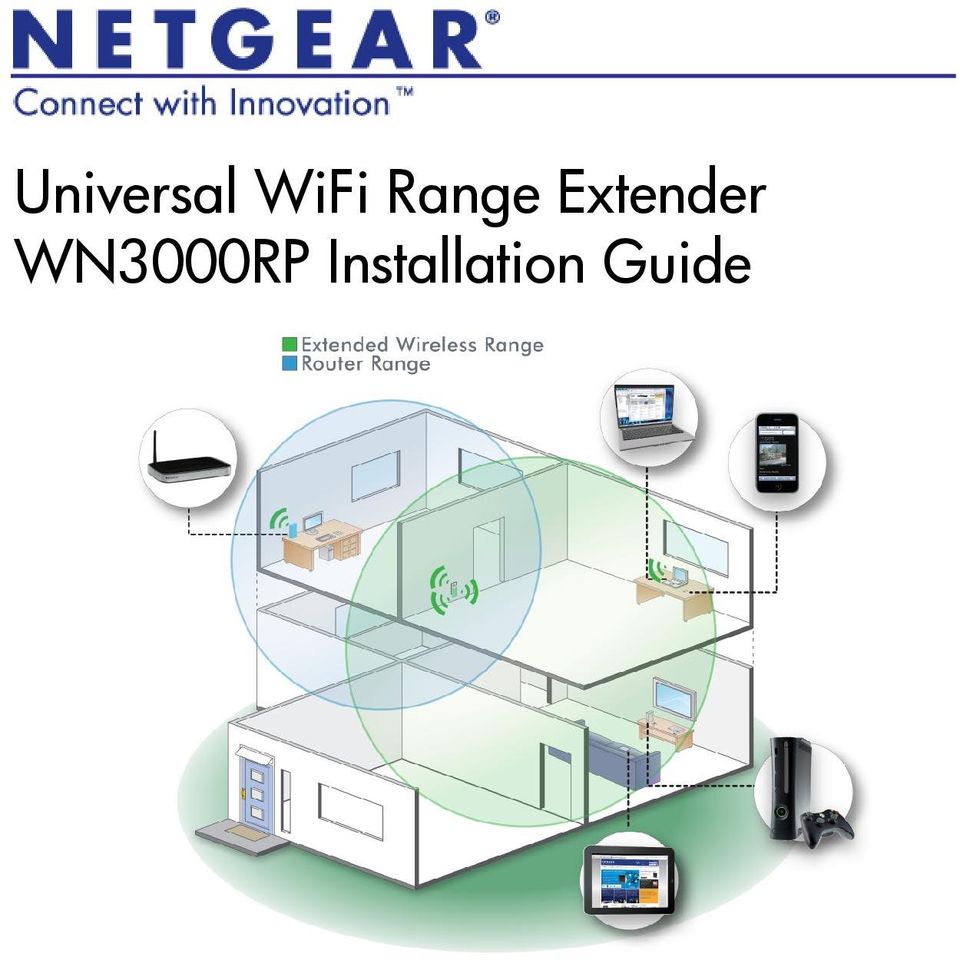
1 Universal WiFi Range Extender WN3000RP Installation Guide
2 2011 NETGEAR, Inc. All rights reserved. No part of this publication may be reproduced, transmitted, transcribed, stored in a retrieval system, or translated into any language in any form or by any means without the written permission of NETGEAR, Inc. DO NOT stack equipment, or place equipment in tight spaces or in drawers. Be sure your equipment is surrounded by at least 2 inches of air space. Technical Support Thank you for choosing NETGEAR. To register your product, get the latest product updates, or get support online, visit us at Phone (US & Canada only): NETGEAR Phone (Other Countries): See Trademarks NETGEAR, the NETGEAR logo, and Connect with Innovation are trademarks and/or registered trademarks of NETGEAR, Inc. and/or its subsidiaries in the United States and/or other countries. Information is subject to change without notice. Other brand and product names are trademarks or registered trademarks of their respective holders NETGEAR, Inc. All rights reserved. Statement of Conditions In the interest of improving internal design, operational function, and/or reliability, NETGEAR reserves the right to make changes to the products described in this document without notice. NETGEAR does not assume any liability that may occur due to the use or application of the product(s) or circuit layout(s) described herein.

3 Hardware Features The LEDs on the front show how the Extender is working. WPS. The LED indicates a wireless connection. PC to Extender. The LED is lit when the Extender is connected to a PC. Status. This LED is lit when the Extender is powered on. Link Rate. This LED indicates a wireless connection between the Extender and the router. - Green is best. - Amber is good. - Red is poor. Note: For best performance, position antennas pointing up. On/Off button WPS button Factory Reset button WPS Ethernet port PC to Link Rate Extender Status 3

4 The side panel has the following features: On/Off button. Turns the device on and off. WPS button. Press the WPS button to wirelessly connect the Extender to your router or wireless adapter. Factory Reset button. To use this button, stick a paper clip into the reset hole and hold it until the Status LED flashes. Ethernet port. You can connect a computer or other device to this port as described in the User Manual. 4

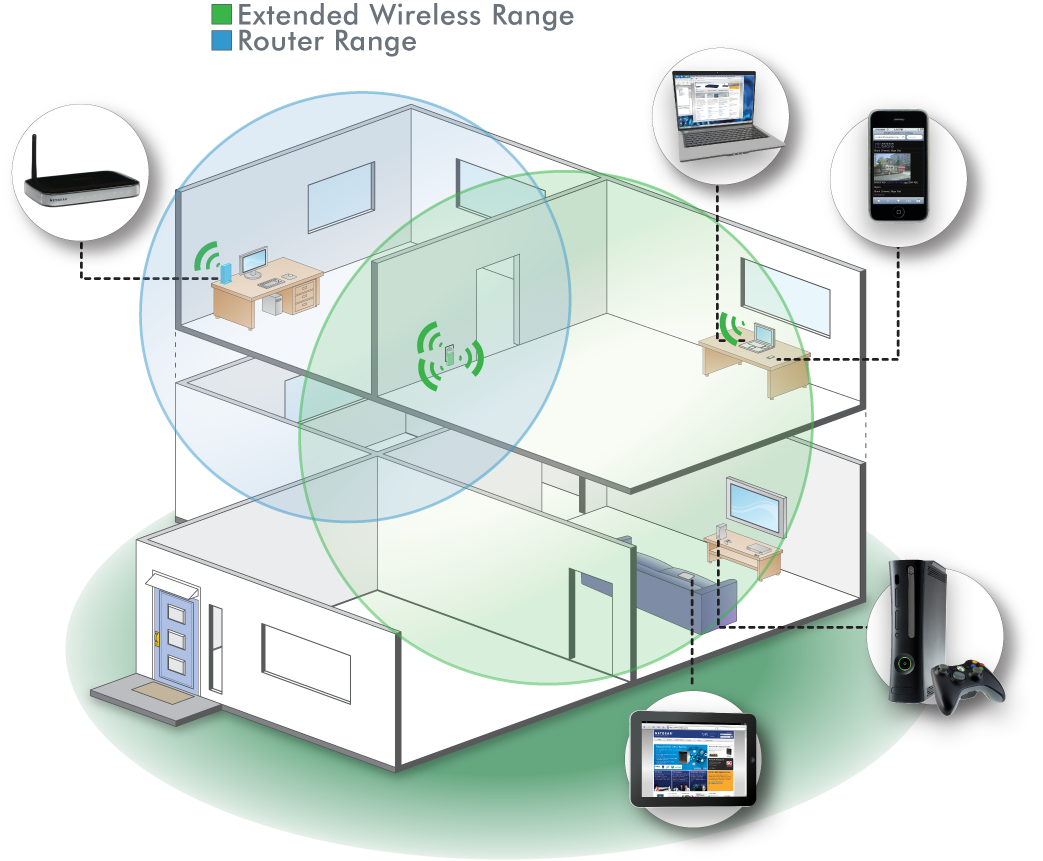
5 Getting Started The WiFi Range Extender extends the wireless network to include the area outside the range of your existing Wi-Fi network. Follow these steps to correctly set up the Extender. Place the Extender and Apply Power 1. Place the Extender an equal distance between your router and the wireless device located outside the range of your router. DO DON T Tip: If you have to use a different location, move the Extender closer to the device, but still within the wireless range of the router. 2. Plug the Extender into an electrical outlet, and wait 1 minute until the Extender starts. The Status LED turns green. 5

6 Connecting the Extender to an Existing Wi-Fi Network To extend the range of your Wi-Fi network, you will need to connect the Extender to your existing Wi-Fi network. You have two options to connect the Extender to your network. Option 1: Connecting with WPS (Wi-Fi Protected Setup) WPS lets you easily join a secure Wi-Fi network without typing the network name and password. The WPS button is a physical button on the Wi-Fi router, gateway, or access point. If your router supports WPS (Wi-Fi Protected Setup ), NETGEAR recommends that you use Option 1; otherwise, go to Option 2. Tip: WPS does not support WEP network security. If you are using WEP security, use Option 2 to connect. Option 2: Connecting without WPS, using web browser setup guide The web browser setup guide walks you through the necessary steps to connect your Extender to an existing Wi-Fi network. 6

7 Option 1: Connecting with WPS (Wi-Fi Protected Setup) 1. Press the WPS button on the Extender. 2. Within 2 minutes, press the WPS button on your wireless router, gateway, or access point. At this point, the Extender should be connected to your existing Wi-Fi network, and the Link Rate LED on your Extender lights up. 3. The Extender s wireless network name (SSID) changes to your existing Wi-Fi network name, with _EXT at the end of the name. For example: Existing Wi-Fi network name: New Extender network name: MyNetworkName MyNetworkName_EXT 4. To connect additional Wi-Fi devices to your Extender network, use the same network security key (passphrase) as is set on your existing wireless network/wireless router. 7
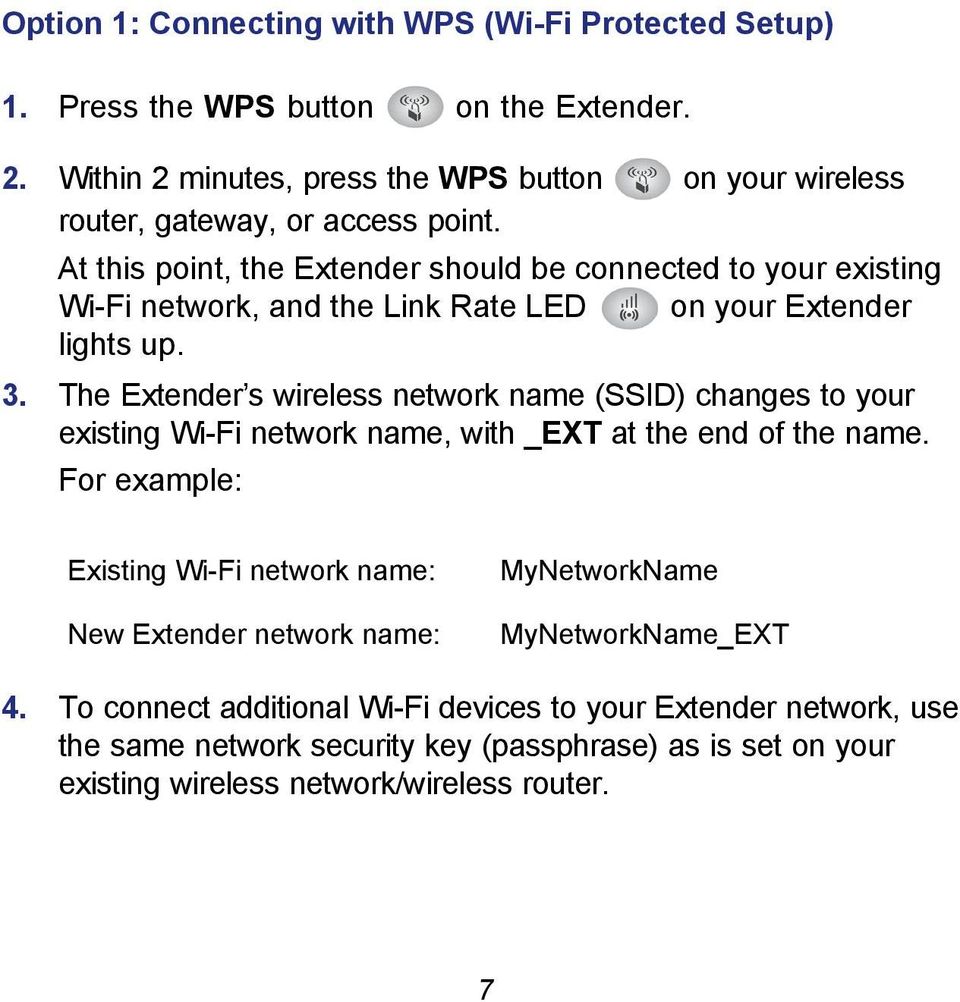
8 Option 2: Connecting with web browser setup guide 1. Once the Extender is powered on and the Status LED is green, use a wireless network manager on a PC to find and connect to NETGEAR_EXT (SSID) wireless network. Tip: You can use any wireless network manager utility on a PC or tablet to find and connect to the Extender wireless network. After the connection with the PC is established, the PC to Extender LED turns green. Next, you need to connect the Extender to your existing Wi-Fi network. 8
9 2. Open a web browser window from the same PC, and the browser should take you directly to the on-screen setup guide. Tip: You can always access the Extender settings again by typing in your browser URL bar. 9
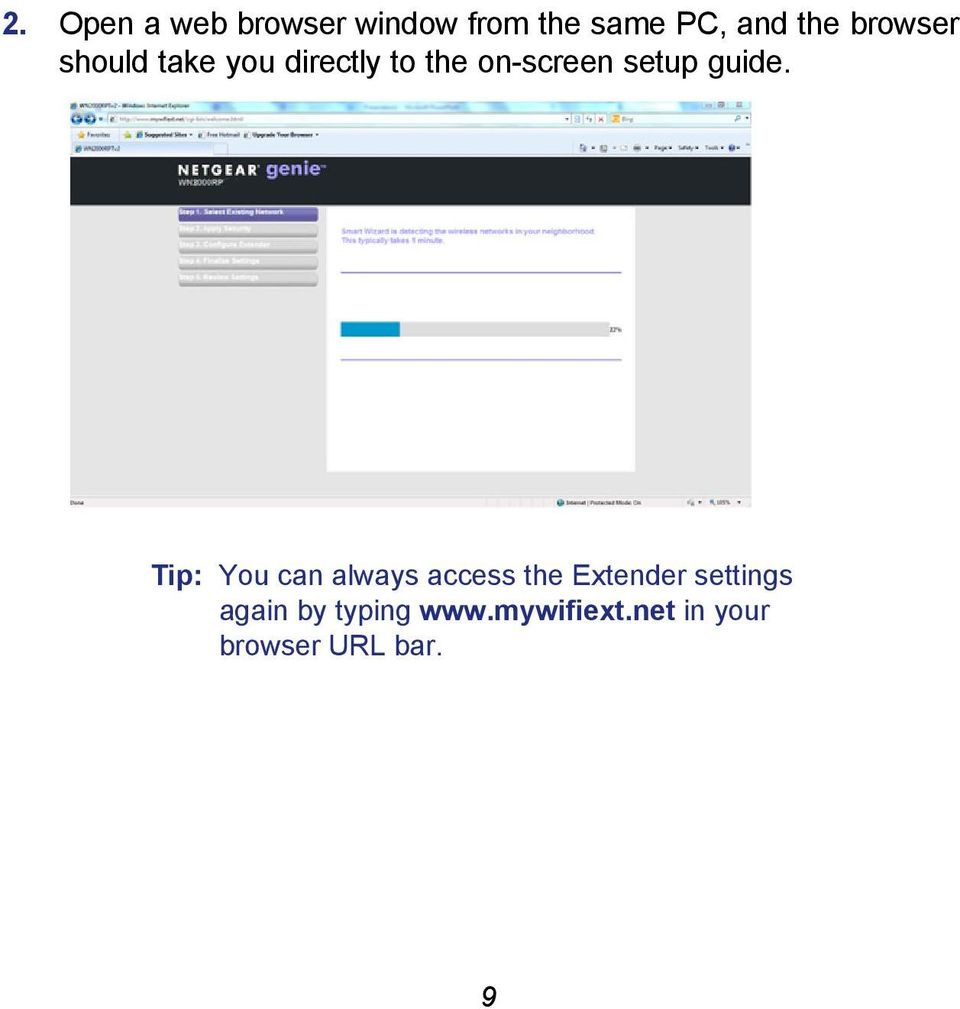
10 3. The web browser setup guide walks you through the following steps: Selecting the Wi-Fi network you would like to extend. Entering the security passphrase for the existing network. Choosing the name for your new Extender network. Connecting your wireless devices to your new Extender network. 4. If you want to make changes after using the web browser setup guide or you wish to run the setup guide again, use your browser to go to If prompted, log in as admin with password as the password. 10

11 Extender Performance The Link Rate LED indicates performance. The best performance is delivered when the Link Rate LED is green. A workable performance is delivered when the Link Rate LED is amber. A red Link Rate LED indicates a poor connection or no connection. If the Link Rate LED is off, there is no connection between the Extender and the router. Tip: Make sure your PC to Extender LED is green before you check the Link Rate LED for performance. To improve the Extender performance: 1. Move the Extender closer to the router or to a different location with a better line of sight. 2. As you move the Extender, check the Link Rate and the PC to Extender connection LEDs on the front panel until you find a good location. 11

12 When to Use the Extender Wireless Network NETGEAR recommends that you connect to the Extender wireless network only when a PC or wireless device is in a dead zone where the network connection to your existing router is very poor or nonexistent. This is because data traffic routed through the Extender wireless network is slower than traffic directly from the original wireless router network. If you cannot connect from your wireless device to the Extender, move the Extender to a different location halfway between the device and the router. If, after you try several locations, the device cannot connect to the Extender, move the Extender closer to the device. 12

13 1-Port Wi-Fi Adapter Once the Extender is connected to your existing Wi-Fi network, you can use the Ethernet port on the Extender to connect a device wirelessly to your network. Simply plug the Ethernet cable from any Ethernet-enabled device (such as a connected TV, Blu-ray player, or gaming console) to the Ethernet port of the Extender, and enjoy wireless connectivity on the connected device. Blu-ray player WN3000RP Extender Wireless router 13

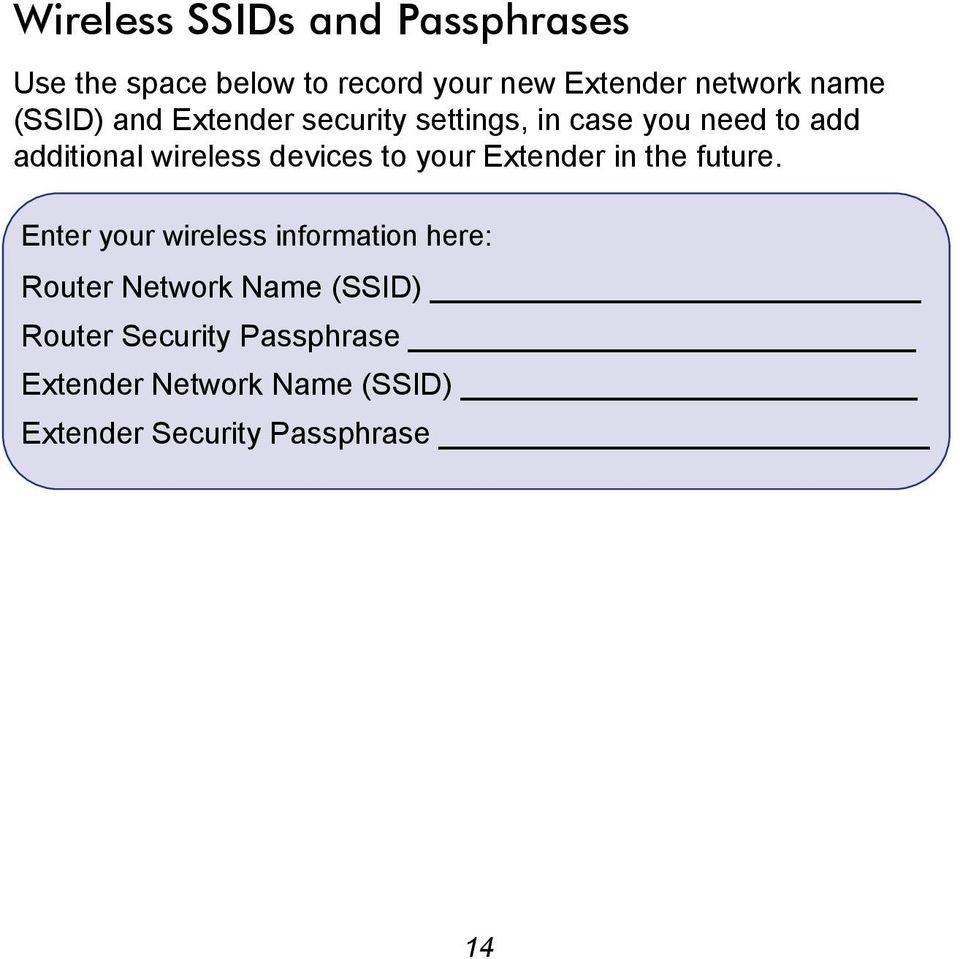
14 Wireless SSIDs and Passphrases Use the space below to record your new Extender network name (SSID) and Extender security settings, in case you need to add additional wireless devices to your Extender in the future. Enter your wireless information here: Router Network Name (SSID) Router Security Passphrase Extender Network Name (SSID) Extender Security Passphrase 14
15 Frequently Asked Questions You can find more information about your product in the User Manual available at 1. The Smart Wizard keeps asking me for my passphrase, and I am sure I have entered the correct passphrase. What can I do? It is very likely that the Extender is placed at the borderline of the range covered by the router. Follow the instructions in the previous section to resolve this. If you are using WEP security, make sure that you are typing the wireless key in the correct field. 2. I connected to NETGEAR_EXT and launched a browser. Why can t I see the Smart Wizard? First, make sure your computer is set up to use DHCP (most are). Second, make sure the PC to Extender status LED is green and you have a valid IP address. Finally, re-launch the browser and enter 3. Will the Extender work if I connect it to the router with an Ethernet cable? No. The Extender is designed to connect wirelessly to the router. 4. What are the user name and password to log in to the Extender? The user name is admin and the default password is password. Both are case-sensitive 15

16 Compliance Declarations of Conformity For complete DoC please visit the NETGEAR EU Declarations of Conformity website at: For GNU General Public License (GPL) related information, please visit This symbol is placed in accordance with the European Union Directive 2002/96 on the Waste Electrical and Electronic Equipment (the WEEE Directive). If disposed of within the European Union, this product should be treated and recycled in accordance with the laws of your jurisdiction implementing the WEEE Directive. NETGEAR, Inc. 350 East Plumeria Drive San Jose, CA USA September 2011

Universal WiFi Range Extender WN2000RPT Installation Guide
 Universal WiFi Range Extender WN2000RPT Installation Guide CONNECT WIRED DEVICES WIRELESSLY WIRELESS EXTENSION Extended Wireless Range Existing Router Range EXISTING ROUTER 2011 NETGEAR, Inc. All rights
WiFi Booster for Mobile WN1000RP Installation Guide
 WiFi Booster for Mobile WN1000RP Installation Guide 2012 NETGEAR, Inc. All rights reserved. No part of this publication may be reproduced, transmitted, transcribed, stored in a retrieval system, or translated
WiFi Booster for Mobile WN1000RP Installation Guide. Extended Wireless Range Router Range
 WiFi Booster for Mobile WN1000RP Installation Guide Extended Wireless Range Router Range Contents Hardware Features..................................... 3 Getting Started.........................................
WN1000RP WiFi Booster for Mobile Installation Guide
 WN1000RP WiFi Booster for Mobile Installation Guide Contents Getting Started......................................... 3 Meet Your WiFi Booster.................................. 4 Front Panel and Side Panel...........................
N600 WiFi Range Extender
 Installation Guide N600 WiFi Range Extender Model WN2500RP Contents Getting Started......................................... 3 Meet Your Extender..................................... 4 Front Panel........................................
Installation. N300 WiFi Range Extender Model WN3100RP
 Installation N300 WiFi Range Extender Model WN3100RP Getting Started The NETGEAR WiFi Range Extender increases the distance of a WiFi network by boosting the existing WiFi signal and enhancing the overall
EX6100 WiFi Range Extender Installation Guide
 EX6100 WiFi Range Extender Installation Guide Getting Started The NETGEAR WiFi Range Extender increases the distance of a WiFi network by boosting the existing WiFi signal and enhancing the overall signal
N300 WiFi Range Extender WN2000RPT User Manual
 N300 WiFi Range Extender WN2000RPT User Manual December 2013 202-11333-01 350 East Plumeria Drive San Jose, CA 95134 USA Support Thank you for selecting NETGEAR products. After installing your device,
Powerline 500 WiFi Access Point (XWN5001) Installation Guide
 Powerline 500 WiFi Access Point (XWN5001) Installation Guide Support Thank you for selecting NETGEAR products. After installing your device, locate the serial number on the label of your product and use
Powerline 500 WiFi Access Point (XWNB5201) Installation Guide
 Powerline 500 WiFi Access Point (XWNB5201) Installation Guide Support Thank you for selecting NETGEAR products. After installing your device, locate the serial number on the label of your product and use
Powerline 500 WiFi Access Point XWN5001 Installation Guide
 Powerline 500 WiFi Access Point XWN5001 Installation Guide Technical Support Thank you for selecting NETGEAR products. After installing your device, locate the serial number on the label of your product
Technical Support. Package Contents. D6300 WiFi ADSL Modem Router Installation Guide
 Technical Support Thank you for selecting NETGEAR products. After installing your device, locate the serial number on the label of your product and use it to register your product at NETGEAR.com/register.
N300 WiFi Range Extender
 Model EX2700 User Manual July 2014 202-11395-01 350 East Plumeria Drive San Jose, CA 95134 USA Support Thank you for selecting NETGEAR products. After installing your device, locate the serial number on
N300 WiFi Range Extender
 Model WN3000RP User Manual September 2014 202-11409-01 350 East Plumeria Drive San Jose, CA 95134 USA Support Thank you for selecting NETGEAR products. After installing your device, locate the serial number
Experience Next-Generation WiFi
 Do More Experience Next-Generation WiFi Your new WiFi extender supports the 802.11ac networking standard. This new standard offers better speed, improved reliability, and more range than older WiFi networking
AC1200 WiFi Range Extender
 Model EX6200 User Manual February 2014 202-11298-01 350 East Plumeria Drive San Jose, CA 95134 USA Support Thank you for selecting NETGEAR products. After installing your device, locate the serial number
Quick Start. PowerLINE WiFi 1000 Models PL1000 and PLW1000
 Quick Start PowerLINE WiFi 1000 Models PL1000 and PLW1000 Package Contents In some regions, a resource CD is included with your product. 2 Get Started PowerLINE adapters give you an alternative way to
NETGEAR Trek N300 Travel Router and Range Extender
 NETGEAR Trek N300 Travel Router and Range Extender PR2000 Installation Guide NETGEAR Reset /LAN LAN Contents Get Started........................................... 3 Connect on the Go..................................
N150 Wireless Micro USB Adapter WNA1000M Installation Guide
 N150 Wireless Micro USB Adapter WNA1000M Installation Guide This guide explains Express installation with the NETGEAR Smart Wizard and the Standalone Windows Driver installation. Note: For help with custom
AC750 WiF Range Extender
 Model EX3700 User Manual May 2015 202-11487-01 350 East Plumeria Drive San Jose, CA 95134 USA Support Thank you for selecting NETGEAR products. After installing your device, locate the serial number on
Desktop NETGEAR Genie
 User Manual 350 East Plumeria Drive San Jose, CA 95134 USA August 2011 202-10806-01 v1.0 2011 NETGEAR, Inc. All rights reserved No part of this publication may be reproduced, transmitted, transcribed,
AC750 WiFi Range Extender
 Model EX6100 User Manual April 2014 202-11307-03 350 East Plumeria Drive San Jose, CA 95134 USA Support Thank you for selecting NETGEAR products. After installing your device, locate the serial number
Support. Package Contents. D6200 WiFi DSL Modem Router Installation Guide
 Support Thank you for selecting NETGEAR products. After installing your device, locate the serial number on the label of your product and use it to register your product at https://my.netgear.com. You
Universal Push2TV HD Adapter PTVU1000 Installation Guide
 Universal Push2TV HD Adapter PTVU1000 Installation Guide 2011 NETGEAR, Inc. All rights reserved. No part of this publication may be reproduced, transmitted, transcribed, stored in a retrieval system, or
NeoTV Streaming Player (NTV300) Installation Guide
 NeoTV Streaming Player (NTV300) Installation Guide Technical Support Thank you for selecting NETGEAR products. After installing your device, locate the serial number on the label of your product and use
AC1200 Smart WiFi Router
 Trademarks NETGEAR, the NETGEAR logo, and Connect with Innovation are trademarks and/or registered trademarks of NETGEAR, Inc. and/or its subsidiaries in the United States and/or other countries. Information
Technical Support. Trademarks
 Getting Started Technical Support Thank you for selecting NETGEAR products. After installing your device, locate the serial number on the label of your product and use it to register your product at https://my.netgear.com.
AC1600 Smart WiFi Router
 Trademarks NETGEAR, the NETGEAR logo, and Connect with Innovation are trademarks and/or registered trademarks of NETGEAR, Inc. and/or its subsidiaries in the United States and/or other countries. Information
Nighthawk AC1900 WiF Range Extender
 Nighthawk AC1900 WiF Range Extender Model EX7000 User Manual December 2014 202-11469-01 350 East Plumeria Drive San Jose, CA 95134 USA Nighthawk AC1900 WiF Range Extender Support Thank you for selecting
ReadySHARE Printer. Easy to Set Up: Instructions. 350 East Plumeria Drive San Jose, CA 95134 USA
 Easy to Set Up: Instructions 350 East Plumeria Drive San Jose, CA 95134 USA October 2011 2011 NETGEAR, Inc. All rights reserved No part of this publication may be reproduced, transmitted, transcribed,
Technical Support. Package Contents. CENTRIA WNDR4700/WNDR4720 Installation Guide
 Technical Support After installing your device, locate the serial number on the label of your product and use it to register your product at https://my.netgear.com. You must register your product before
genie app and genie mobile app
 genie app and genie mobile app User Manual 350 East Plumeria Drive San Jose, CA 95134 USA June 2012 202-10933-02 v1.0 2012 NETGEAR, Inc. All rights reserved No part of this publication may be reproduced,
Support Package Contents AC1600 WiFi VDSL/ADSL Ethernet cable Trademarks Modem Router Compliance Phone cable Modem router
 Support Thank you for purchasing this NETGEAR product. After installing your device, locate the serial number on the label of your product and use it to register your product at https://my.netgear.com.
NETGEAR genie Apps. User Manual. 350 East Plumeria Drive San Jose, CA 95134 USA. August 2012 202-10933-04 v1.0
 User Manual 350 East Plumeria Drive San Jose, CA 95134 USA August 2012 202-10933-04 v1.0 Support Thank you for choosing NETGEAR. To register your product, get the latest product updates, get support online,
N750 WiFi DSL Modem Router Premium Edition
 Support Thank you for purchasing this NETGEAR product. After installing your device, locate the serial number on the label of your product and use it to register your product at https://my.netgear.com.
1. 2. 3. Push2TV 4. http://192.168.3.1 5.
 Getting Started Update Your Push2TV NETGEAR recommends that you update Push2TV as new updates may support even more wireless display devices. 1. Use your laptop or mobile device to visit www.netgear.com/ptv
NeoTV 350 HD Media Player (NTV350) Installation Guide
 NeoTV 350 HD Media Player (NTV350) Installation Guide 2010 NETGEAR, Inc. All rights reserved. Technical Support Thank you for selecting NETGEAR products. Locate the serial number on the label of your product
WNDR4500 User Guide. A Guide for Using ReadySHARE Printer ReadySHARE Access Desktop NETGEAR Genie Time Machine with your WNDR4500 Router
 WNDR4500 User Guide A Guide for Using ReadySHARE Printer ReadySHARE Access Desktop NETGEAR Genie Time Machine with your WNDR4500 Router 2012 NETGEAR, Inc. All rights reserved. Technical Support Thank you
WNDR4500 User Guide. A Guide for Using ReadySHARE Printer ReadySHARE Access Desktop NETGEAR Genie with your WNDR4500 Router
 WNDR4500 User Guide A Guide for Using ReadySHARE Printer ReadySHARE Access Desktop NETGEAR Genie with your WNDR4500 Router 2011 NETGEAR, Inc. All rights reserved. Technical Support Thank you for selecting
Manufactured under license from Dolby laboratories. Dolby and the double-d symbol are trademarks of Dolby Laboratories.
 Getting Started Thank you for selecting NETGEAR products. After installing your device, locate the serial number on the label and use it to register your product at https://my.netgear.com. You must register
Smart Control Center. User Guide. 350 East Plumeria Drive San Jose, CA 95134 USA. November 2010 202-10685-01 v1.0
 Smart Control Center User Guide 350 East Plumeria Drive San Jose, CA 95134 USA November 2010 202-10685-01 v1.0 2010 NETGEAR, Inc. All rights reserved. No part of this publication may be reproduced, transmitted,
Universal Pass Through WiFi Range Extender WN3100RP
 Universal Pass Through WiFi Range Extender WN3100RP User Manual August 2013 202-11242-01 350 East Plumeria Drive San Jose, CA 95134 USA Support Thank you for selecting NETGEAR products. After installing
Quick Start. Nighthawk X8 AC5300 Tri-Band WiFi Router Model R8500. Package Contents. NETGEAR, Inc. 350 East Plumeria Drive San Jose, CA 95134 USA
 Support Thank you for purchasing this NETGEAR product. You can visit www.netgear.com/support to register your product, get help, access the latest downloads and user manuals, and join our community. We
Full_IG.book Page 1 Monday, January 9, 2012 6:11 PM. ProSafe 24 Port Gigabit Switch Installation Guide
 Full_IG.book Page 1 Monday, January 9, 2012 6:11 PM ProSafe 24 Port Gigabit Switch Installation Guide Full_IG.book Page 2 Monday, January 9, 2012 6:11 PM 2011 NETGEAR, Inc. All rights reserved. No part
WiFi DSL Modem Router
 Support Thank you for purchasing this NETGEAR product. After installing your device, locate the serial number on the label of your product and use it to register your product at https://my.netgear.com.
Installation. Powerline 500 Model XAVB5221
 Installation Powerline 500 Model XAVB5221 Package Contents In some regions, a resource CD is included with your product. 2 Getting Started Powerline networking solutions give you an alternative to Ethernet-only
Chapter 1 Installing the Gateway
 Chapter 1 Installing the Gateway This chapter describes how to set up the wireless voice gateway on your Local Area Network (LAN), connect to the Internet, and perform basic configuration. For information
Wireless Router Setup Manual
 Wireless Router Setup Manual NETGEAR, Inc. 4500 Great America Parkway Santa Clara, CA 95054 USA 208-10082-02 2006-04 2006 by NETGEAR, Inc. All rights reserved. Trademarks NETGEAR is a trademark of Netgear,
A6210 WiFi USB Adapter 802.11ac USB 3.0 Dual Band User Manual
 802.11ac USB 3.0 Dual Band User Manual August 2014 202-11373-01 350 East Plumeria Drive San Jose, CA 95134 USA Support Thank you for selecting NETGEAR products. After installing your device, locate the
NETGEAR Trek N300 Travel Router and Range Extender
 NETGEAR Trek N300 Travel Router and Range Extender Model PR2000 User Manual NETGEAR Reset Internet/LAN LAN USB WiFi Internet Power USB April 2014 202-11343-02 350 East Plumeria Drive San Jose, CA 95134
Router Setup Manual. NETGEAR, Inc. 4500 Great America Parkway Santa Clara, CA 95054 USA 208-10060-01 2006-03-17
 NETGEAR, Inc. 4500 Great America Parkway Santa Clara, CA 95054 USA 208-10060-01 2006-03-17 2006 by NETGEAR, Inc. All rights reserved. Trademarks NETGEAR is a trademark of Netgear, Inc. Microsoft, Windows,
801.11n Wireless Broadband Router
 801.11n Wireless Broadband Router WNRT-626 Quick Installation Guide Table of Contents Hardware Installation... 4 Web Configuration... 6 Further Configuration... 8 Thank you for purchasing PLANET 801.11n
How to setup EW-7438RPn with a Windows computer to extend an existing Wi-Fi network
 2 How to setup EW-7438RPn with a Windows computer to extend an existing Wi-Fi network Note: 1. This instruction use pictures from EW-7438RPn firmware v1.13. 2. If you need to restore to the default settings,
N600 WiFi USB Adapter
 Model WNDA3100v3 User Manual December 2014 202-11470-01 350 East Plumeria Drive San Jose, CA 95134 USA Support Thank you for selecting NETGEAR products. After installing your device, locate the serial
AC1600 WiFi VDSL/ADSL Modem Router
 AC1600 WiFi VDSL/ADSL Modem Router Model D6400 User Manual May 2015 202-11485-03 350 East Plumeria Drive San Jose, CA 95134 USA Support Thank you for selecting NETGEAR products. After installing your device,
N300 Wireless Gigabit Router Setup Manual
 N300 Wireless Gigabit Router Setup Manual NETGEAR, Inc. 350 E. Plumeria Drive San Jose, CA 95134 USA June 2010 208-10443-03 v1.0 2010 by NETGEAR, Inc. All rights reserved. Trademarks NETGEAR and the NETGEAR
Quick Start Guide. RV 120W Wireless-N VPN Firewall. Cisco Small Business
 Quick Start Guide Cisco Small Business RV 120W Wireless-N VPN Firewall Package Contents Wireless-N VPN Firewall Ethernet Cable Power Adapter Quick Start Guide Documentation and Software on CD-ROM Welcome
Home Wi-Fi Gateway Instructions
 Home Wi-Fi Gateway Instructions 1. Connect the gateway. Use the coaxial cable provided by BendBroadband to connect the cable port (A) to your cable outlet. 2. Connect your computer to the cable modem gateway
CM500 High Speed Cable Modem User Manual
 User Manual February 2015 202-11472-04 350 East Plumeria Drive San Jose, CA 95134 USA Support Thank you for selecting NETGEAR products. After installing your device, locate the serial number on the label
802.11n Wireless Broadband Router WNRT-625
 802.11n Wireless Broadband Router WNRT-625 Quick Installation Guide Table of Contents Introduction... 3 Package Content... 4 Hardware Installation... 5 Web Configuration... 8 Further Configuration...11
ReadyNAS Remote. Add-on Manual. 350 East Plumeria Drive San Jose, CA 95134 USA. May 2012 202-10958-01
 Add-on Manual 350 East Plumeria Drive San Jose, CA 95134 USA May 2012 202-10958-01 2012 All rights reserved No part of this publication may be reproduced, transmitted, transcribed, stored in a retrieval
c. Securely insert the Ethernet cable from your cable or DSL modem into the Internet port (B) on the WGT634U. Broadband modem
 Start Here Follow these instructions to set up your router. Verify That Basic Requirements Are Met Assure that the following requirements are met: You have your broadband Internet service settings handy.
Quick Start Guide. WRV210 Wireless-G VPN Router with RangeBooster. Cisco Small Business
 Quick Start Guide Cisco Small Business WRV210 Wireless-G VPN Router with RangeBooster Package Contents WRV210 Router Ethernet Cable Power Adapter Product CD-ROM Quick Start Guide Welcome Thank you for
CM400 High Speed Cable Modem User Manual
 User Manual July 2015 202-11412-02 350 East Plumeria Drive San Jose, CA 95134 USA Support Thank you for selecting NETGEAR products. After installing your device, locate the serial number on the label of
N600 Wireless Dual Band Router WNDR3400 Setup Manual
 N600 Wireless Dual Band Router WNDR3400 Setup Manual NETGEAR, Inc. 350 E. Plumeria Drive San Jose, CA 95134 USA March 2010 208-10532-03 v1.0 Trademarks NETGEAR and the NETGEAR logo are registered trademarks,
Getting started guide Turbo Hub
 Getting started guide Turbo Hub NETGEAR MBR1210 Welcome and thanks for choosing Bell. Your new Turbo Hub will enable you to connect to the Internet. This guide will provide you with an overview of your
N600 WiFi DSL Modem Router. AC750 WiFi DSL Modem Router. User Manual. Model D3600. Model D6000. March 2015 202-11386-01
 N600 WiFi DSL Modem Router Model D3600 AC750 WiFi DSL Modem Router Model D6000 User Manual March 2015 202-11386-01 350 East Plumeria Drive San Jose, CA 95134 USA Support Thank you for selecting NETGEAR
Dual-Band Wireless Network Extender. Model #: WCB3000N. User Manual. Ver 1.0
 Dual-Band Wireless Network Extender Model #: WCB3000N User Manual Ver 1.0 Table of Contents Table of Contents 1 Introduction 3 Features 4 Getting to Know the WCB3000N 5 Front Panel 5 Back Panel 5 Accessing
PePWave Surf Series PePWave Surf Indoor Series: Surf 200, AP 200, AP 400
 PePWave Surf Series PePWave Surf Indoor Series: Surf 200, AP 200, AP 400 PePWave Surf Outdoor Series: Surf AP 200/400-X, PolePoint 400-X, Surf 400-DX User Manual Document Rev. 1.2 July 07 COPYRIGHT & TRADEMARKS
N150 Wireless Router WNR1000 Setup Manual
 N150 Wireless Router WNR1000 Setup Manual NETGEAR, Inc. 350 E. Plumeria Drive Santa Jose, CA 95134 USA January 2009 208-10430-01 v1.0 2009 by NETGEAR, Inc. All rights reserved. Trademarks NETGEAR and the
AC1900, N900, and N450 WiFi Cable Data Gateways
 AC1900, N900, and N450 WiFi Cable Data Gateways Models C6300BD, CG4500BD, and CG3000Dv2 User Manual March 2015 202-11434-03 350 East Plumeria Drive San Jose, CA 95134 USA Support Thank you for selecting
SBG3300-N Series. Wireless N VDSL2 Combo WAN Small Business Security Gateway DEFAULT LOGIN DETAILS. Firmware Version 1.20 Edition 3, 3/2015
 1. 20 SBG3300-N Series Wireless N VDSL2 Combo WAN Small Business Security Gateway Firmware Version 1.20 Edition 3, 3/2015 DEFAULT LOGIN DETAILS IP Address: http://192.168.1.1 User Name: admin Password:
Wireless-N Range Extender. User Manual
 Wireless-N Range Extender User Manual Version A1.0, June 19, 2012 Preface This manual provides information related to the installation and operation of this Wireless-N Range Extender. The individual reading
Quick Start Guide. RV0xx Series Routers
 Quick Start Guide RV0xx Series Routers RV042 Dual WAN VPN Router RV042G Gigabit Dual WAN VPN Router RV082 Dual WAN VPN Router RV016 Multi-WAN VPN Router Package Contents VPN Router Power Adapter (Cisco
Wi-Fi EOC Slave Quick Start Guide
 Wi-Fi EOC Slave Quick Start Guide Catalog 1. Hardware Setup... 3 1.1 Unpack Your EOC salve... 3 1.2 Hardware Features... 3 1.3 Position Your EOC Slave... 5 1.4 Cable Your EOC Slave... 5 2. Getting Started...
N600 Wireless Dual Band Gigabit Router WNDR3700v2 Setup Manual
 N600 Wireless Dual Band Gigabit Router WNDR3700v2 Setup Manual 2010 by NETGEAR, Inc. All rights reserved. NETGEAR, Inc. 350 E. Plumeria Drive San Jose, CA 95134 USA October 2010 208-10737-01 v1.0 Trademarks
N300 Wireless Router WNR2200 Setup Manual
 N300 Wireless Router WNR2200 Setup Manual NETGEAR, Inc. 350 E. Plumeria Drive San Jose, CA 95134 USA July 2010 208-10641-01 v1.0 Trademarks NETGEAR and the NETGEAR logo are registered trademarks, and Smart
Powerline 1200 User Manual
 User Manual Models PL1200 PLP1200 January 2016 202-11566-01 350 E. Plumeria Drive San Jose, CA 95134 USA Support Thank you for purchasing this NETGEAR product.you can visit www.netgear.com/support to register
Chapter 1 Connecting the Router to the Internet
 Chapter 1 Connecting the Router to the Internet This chapter describes how to set up the router on your Local Area Network (LAN) and connect to the Internet. It describes how to set up your wireless ADSL
AC1600 WiFi Cable Modem Router
 Model C6250 User Manual WiFi On/Off WPS February 2016 202-11533-01 350 East Plumeria Drive San Jose, CA 95134 USA Support Thank you for selecting NETGEAR products. After installing your device, locate
N150 and N300 Wireless Routers User Manual
 User Manual Models: JNR1010v2 JWNR2000v5 JWNR2010v5 WNR614 WNR618 WNR1000v4 WNR2010 WNR2020 WNR2050 October 2014 202-11392-03 350 East Plumeria Drive San Jose, CA 95134 USA Support Thank you for selecting
Wireless-G Router WGR614v10 Setup Manual
 Wireless-G Router WGR614v10 Setup Manual NETGEAR, Inc. 350 E. Plumeria Drive San Jose, CA 95134 USA December 2009 208-10540-01 v1.1 2009 by NETGEAR, Inc. All rights reserved. Trademarks NETGEAR and the
Get to Know Your Device 4G LTE BROADBAND ROUTER WITH VOICE
 Get to Know Your Device 4G LTE BROADBAND ROUTER WITH VOICE FRONT VIEW The Verizon 4G LTE Broadband Router with Voice is a wireless device that delivers Internet connectivity and telephone service. You
Installation Guide. Wireless N Access Point EAP110/EAP120/EAP220
 Installation Guide Wireless N Access Point EAP110/EAP120/EAP220 CONTENTS Network Topology 01 Hardware Overview 02 Hardware Installation 05 1. Installation Requirements... 05 2. Mounting Bracket... 05
AC1750 Smart WiFi Router
 Model R6400 User Manual June 2015 202-11508-01 350 East Plumeria Drive San Jose, CA 95134 USA Support Thank you for selecting NETGEAR products. After installing your device, locate the serial number on
Wireless Router Setup Manual
 Wireless Router Setup Manual NETGEAR, Inc. 4500 Great America Parkway August 2007 208-10147-01 v1.0 Trademarks NETGEAR and the NETGEAR logo are registered trademarks, and RangeMax and Smart Wizard are
AC1200 Smart WiFi Router with External Antennas
 AC1200 Smart WiFi Router with External Antennas Model R6220 User Manual November 2014 202-11443-01 350 East Plumeria Drive San Jose, CA 95134 USA Support Thank you for selecting NETGEAR products. After
N450 Wireless Router WNR2500
 User Manual September 2013 202-11311-01 350 East Plumeria Drive San Jose, CA 95134 USA Support Thank you for purchasing this NETGEAR product. After installing your device, locate the serial number on the
Epson Stylus CX9475Fax. Start Here
 Epson Stylus CX9475Fax Start Here Unpack Caution: Do not open ink cartridge packages until you are ready to install the ink. Cartridges are vacuum packed to maintain reliability. If anything is missing,
ProSAFE 8-Port and 16-Port Gigabit Click Switch
 ProSAFE 8-Port and 16-Port Gigabit Click Switch Model GSS108E and GSS116E User Manual March 2015 202-11520-01 350 East Plumeria Drive San Jose, CA 95134 USA Support Thank you for selecting NETGEAR products.
WiFi DSL Modem Router
 WiFi DSL Modem Router Model D6300 User Manual December 2015 202-11039-06 350 East Plumeria Drive San Jose, CA 95134 USA Support Thank you for purchasing this NETGEAR product. You can visit www.netgear.com/support
Getting started guide Turbo Hub
 Getting started guide Turbo Hub NETGEAR MVBR1210C Welcome and thanks for choosing Bell. Your new Turbo Hub will enable you to connect to the Internet and make voice calls using a landline phone. This guide
WiFi DSL Modem Router
 WiFi DSL Modem Router Model D6300 User Manual September 2014 202-11039-05 350 East Plumeria Drive San Jose, CA 95134 USA Support Thank you for selecting NETGEAR products. After installing your device,
Chapter 6 Using Network Monitoring Tools
 Chapter 6 Using Network Monitoring Tools This chapter describes how to use the maintenance features of your Wireless-G Router Model WGR614v9. You can access these features by selecting the items under
Setting up the Wireless-N Pocket Wi-Fi Repeater Using a Wireless Device
 Setting up the Wireless-N Pocket Wi-Fi Repeater Using a Wireless Device Thank you for purchasing the Wireless Pocket Repeater. There are two models, the white MP01 and the black MP02. They are identical
N600 Wireless Dual Band Gigabit ADSL2+ Modem Router DGND3700v2 User Manual
 N600 Wireless Dual Band Gigabit ADSL2+ Modem Router DGND3700v2 User Manual June 2014 202-10918-05 350 East Plumeria Drive San Jose, CA 95134 USA Support Thank you for selecting NETGEAR products. After
N900 WiFi Router. Model WNDR4500v3 User Manual. January 2015 202-11400-01. 350 East Plumeria Drive San Jose, CA 95134 USA
 Model WNDR4500v3 User Manual January 2015 202-11400-01 350 East Plumeria Drive San Jose, CA 95134 USA Support Thank you for selecting NETGEAR products. After installing your device, locate the serial number
N300 Wireless Router WNR2000v4 User Manual
 User Manual March 2014 202-11229-03 350 East Plumeria Drive San Jose, CA 95134 USA Support Thank you for selecting NETGEAR products. After installing your device, locate the serial number on the label
10/2011 - English Edition 1. Quick Start Guide. NWA1100N-CE CloudEnabled Business N Wireless Access Point
 10/2011 - English Edition 1 Quick Start Guide NWA1100N-CE CloudEnabled Business N Wireless Access Point Package Contents - 1 x ZyXEL NWA1100N-CE Access Point - 2 x Detachable Antennas - 1 x Power Adapter
NETVIGATOR Wireless Modem Setup Guide. (TG789Pvn)
 NETVIGATOR Wireless Modem Setup Guide (TG789Pvn) Configure the NETVIGATOR Wireless Modem Make sure that system meets the following requirement prior to NETVIGATOR Wireless Modem usage: - Subscribers who