
HP UPS R/T3000 User Guide
|
|
|
- Linda Norton
- 9 years ago
- Views:
Transcription
1 HP UPS R/T3000 User Guide Part Number December 2009 (Second Edition)

2 Copyright 2009 Hewlett-Packard Development Company, L.P. The information contained herein is subject to change without notice. The only warranties for HP products and services are set forth in the express warranty statements accompanying such products and services. Nothing herein should be construed as constituting an additional warranty. HP shall not be liable for technical or editorial errors or omissions contained herein. Microsoft, Windows, and Windows Server are U.S. registered trademarks of Microsoft Corporation. Intended audience This guide is for the person who operates, configures, maintains, and troubleshoots UPSs. HP assumes you are qualified in the servicing of high-voltage equipment and trained in recognizing hazards in products with hazardous energy levels.

3 Contents Component identification... 7 UPS R/T3000 overview... 7 UPS front panel... 7 UPS front panel controls... 8 UPS front panel LED indicators... 8 HP UPS R/T3000 models... 9 R/T3000 NA and R/T3000j JPN rear panel... 9 R/T3000h NA and R/T3000h JPN rear panel R/T3000 INT rear panel REPO port ERM rear panel Installation Precautions Preparing to install the hardware Tools and materials Selecting a site Readying the equipment Installing the mounting rails Installing the UPS in a rack Connecting the battery leads Attaching the UPS front bezel Connecting the serial communications port Connecting the USB communications port Connecting the REPO port Connecting the ground bonding cable Connecting the UPS to utility power Connecting devices to the UPS Connecting the UPS cord retention clips Charging the UPS batteries Starting power to the load Installing the UPS as a tower Connecting the battery leads Rotating the logo badge Attaching the UPS front bezel Attaching the tower conversion stands Continuing the installation Installing the extension bars (if included) Connecting and securing the power cords Installing the ERM in a rack Connecting the battery leads Attaching the ERM front bezel Connecting the ERM to the UPS Switching on the ERM circuit breaker Charging the ERM batteries Installing the ERM as a tower Rotating the logo badge... 35
4 Attaching the ERM front bezel Attaching the tower conversion stands Continuing the installation UPS operations Modes of operation Standby mode Operate mode Configure mode Battery mode Auto-Bypass mode Operating the UPS front panel controls Configuring the UPS Initiating a self-test Silencing an audible alarm Verifying the REPO port connection Powering down the UPS Maintenance Removing the UPS front bezel Removing the ERM front bezel Replacing the UPS option card Replacing the batteries Important battery safety information Battery care and storage guidelines Determining when to replace batteries Obtaining new batteries UPS battery replacement procedure Testing the new battery module Replacing the UPS Replacing the ERM Updating the UPS firmware Configuring a USB to serial converter Reassigning the USB COM ports Power management Power management software Troubleshooting LED troubleshooting UPS is in Auto-Bypass mode UPS is in Converter Off mode General alarm condition Bypass is out of range Battery condition UPS is on battery Input voltage is out of range Overtemperature condition Internal UPS fault condition REPO condition Site wiring condition Overload condition Checksum failure error UPS does not start Low battery shutdowns... 57

5 UPS does not provide the expected backup time UPS frequently switches between utility and battery power Specifications UPS physical specifications ERM physical specifications UPS input specifications UPS output specifications Power protection specifications Output tolerance specifications Output feature specifications Battery specifications High-voltage UPS battery runtimes Low-voltage UPS battery runtimes Environmental specifications REPO port specifications Spares Ordering spares UPS spare parts list ERM spare parts list Hardware options Technical support Before you contact HP HP contact information Warranty information Limited warranty $250,000 Computer Load Protection Guarantee Pre-Failure Battery Warranty Recommended duration of use Regulatory compliance notices Regulatory compliance identification numbers Federal Communications Commission notice FCC rating label Class A equipment Class B equipment Declaration of conformity for products marked with the FCC logo, United States only Modifications Cables Canadian notice (Avis Canadien) European Union regulatory notice Disposal of waste equipment by users in private households in the European Union Japanese notice BSMI notice Korean notice Chinese notice Battery replacement notice Taiwan battery recycling notice Power cord statement for Japan Electrostatic discharge Preventing electrostatic discharge... 74

6 Grounding methods to prevent electrostatic discharge Acronyms and abbreviations Index... 77

7 Component identification UPS R/T3000 overview The HP UPS R/T3000 features a 2U rack-mount with convertible tower design and offers power protection for loads up to a maximum of 3300 VA/3000 W (these numbers might vary by model). To benefit from the latest product enhancements, update to the latest versions of UPS firmware and software. NOTE: To download the latest versions of UPS firmware and software, see the HP website ( UPS front panel Item Description 1 Battery compartment 2 Front panel display Component identification 7

8 UPS front panel controls Item Description Function 1 Test/Alarm Reset button Silences UPS alarms ("Silencing an audible alarm" on page 42) 2 Off button Places the UPS in Standby mode (on page 38) 3 On button Powers up the UPS ("Starting power to the load" on page 26) 4 Battery Start button Starts the UPS on battery power when pressed with the On button UPS front panel LED indicators Component identification 8

9 The front panel is shown with the bezel removed. Item LED description Load level 1 Self Test On The load level is greater than 10%. 2 Battery Fault On The load level is greater than 25%. 3 Site Wiring Fault On The load level is greater than 50%. 4 Overtemperature On The load level is greater than 75%. 5 Overload On The load level is greater than 100%. 6 On Bypass 7 On Battery 8 Utility For more information, see "LED troubleshooting (on page 52)". HP UPS R/T3000 models UPS model R/T3000 NA and R/T3000j JPN R/T3000h NA and R/T3000h JPN Description Domestic/Japanese Low-voltage Nondetachable NEMA L5-30 plug Domestic High-voltage Nondetachable NEMA L6-20 plug R/T3000 INT International High-voltage Detachable country-specific plug R/T3000 NA and R/T3000j JPN rear panel Component identification 9

10 Item Description 1 REPO port 2 Ground bonding screw 3 USB communications port 4 Serial communications port 5 Load segment 1 (two NEMA 5-20T receptacles) 6 Load segment 2 (two NEMA 5-20T receptacles) 7 PDU output (NEMA L5-30R) receptacle (load segment 1) 8 ERM connector 9 Cord retention clip attachment locations 10 Load segment circuit breakers 11 Power cord with L5-30 plug 12 Option slot R/T3000h NA and R/T3000h JPN rear panel Item Description 1 Option slot 2 USB port 3 Serial communications port 4 Load segment 1 (one IEC-320-C19 receptacle) 5 Load segment 2 (one IEC-320-C19 receptacle) 6 Load segment 1 (three IEC-320-C13 receptacles) 7 Load segment 2 (three IEC-320-C13 receptacles) 8 PDU output (L6-20) receptacle (load segment 1) 9 ERM connector Component identification 10

11 Item Description 10 Cord retention clip attachment locations 11 Ground bonding screw 12 REPO port 13 Power cord with L6-20 plug R/T3000 INT rear panel Item Description 1 Option slot 2 USB port 3 Serial communications port 4 Load segment 1 (one IEC-320-C19 receptacle) 5 Load segment 2 (one IEC-320-C19 receptacle) 6 Load segment 1 (three IEC-320-C13 receptacles) 7 Load segment 2 (three IEC-320-C13 receptacles) 8 ERM connector 9 Cord retention clip attachment locations 10 Ground bonding screw 11 REPO port 12 Input power receptacle (IEC-320-C19) for country-specific plug attachment REPO port The UPS includes an isolated REPO port. When properly wired, the REPO feature enables the power at the UPS output receptacles to be switched off from a remote location. To use this feature, the REPO port Component identification 11

12 must be connected to a remote, normally-open switch (not supplied). The REPO switch is used in conjunction with a main disconnect device that removes the AC source from the input of the UPS. When the switch is closed: The REPO feature immediately powers down protected devices and does not utilize the orderly shutdown procedure initiated by power management software. The REPO feature shuts down UPS units operating under either utility or battery power. NOTE: If the UPS was operating on battery power when the remote switch was closed, no power is available to the load devices until utility power is restored and the UPS has been manually powered up. To restore power to the load devices after the REPO feature is activated, press the On button after the AC source is reconnected to the UPS. IMPORTANT: Pressing and holding the On button without utility present normally initiates a battery start and the UPS assumes the load. However, if the On button is pressed and a REPO is detected, battery start is inhibited and the UPS is not able to assume the load. The electronics module fan spins, and the Self Test, Battery Fault, Site Wiring Fault, and Overtemperature LEDs and an audible alarm are active as long as the On button is held. To power down the entire network in the event of an emergency, the REPO ports of multiple UPS units can be connected to a single switch. ERM rear panel Item Description 1 Circuit breaker 2 ERM output connector cable (to the UPS) 3 ERM input connector (from another ERM) Component identification 12

13 Installation Precautions Save these instructions. This document contains important safety instructions that should be followed during installation, operation, and maintenance of the UPS and batteries. WARNING: A risk of personal injury from electric shock and hazardous energy levels exists. The installation of options and routine maintenance and service of this product must be performed by individuals who are knowledgeable about the procedures, precautions, and hazards associated with AC power products. 37 kg 82 lb 55 kg 122 lb This symbol indicates that the UPS exceeds the recommended weight for one individual to handle safely. WARNING: To reduce the risk of personal injury or damage to the equipment, observe local occupational health and safety requirements and guidelines for manual material handling. This symbol indicates that the ERM exceeds the recommended weight for one individual to handle safely. WARNING: To reduce the risk of personal injury or damage to the equipment, observe local occupational health and safety requirements and guidelines for manual material handling. WARNING: To prevent personal injury from earth conductor leakage current: Do not operate the UPS while disconnected from the utility power source. Disconnect load devices before disconnecting the UPS from the utility power source. Preparing to install the hardware Before installing the hardware: 1. Be sure the necessary tools and materials (on page 13) are available. 2. Select an installation site ("Selecting a site" on page 14). 3. Prepare the equipment ("Readying the equipment" on page 14) for installation in the rack. Tools and materials The following tools are required for installation: Phillips screwdriver 10-mm hex-nut driver The following items are supplied with the rack: Screws Installation 13

14 Hex nuts Cage nuts Cage nut-fitting tool Selecting a site WARNING: To prevent fire or electric shock, install the unit in a temperature- and humiditycontrolled indoor environment, free of conductive contaminants. When selecting a site, consider the following factors: Elevated operating ambient temperature If the equipment is installed in a closed or multi-unit rack assembly, the operating ambient temperature of the rack environment might be greater than room ambient temperature. Install the equipment in an environment compatible with the operating temperature ("Environmental specifications" on page 61). Reduced air flow In the rack, the rate of air flow required for safe operation of the equipment must not be compromised. Circuit overloading Consideration should be given to the connection of the equipment to the supply circuit and the effect that overloading of the circuits might have on overcurrent protection and supply wiring. Appropriate consideration of equipment nameplate ratings should be used when addressing this concern. Reliable earthing Reliable earthing of rack-mounted equipment should be maintained. Particular attention should be given to supply connections other than direct connections to the branch circuit, such as the use of power strips. Electrical requirements All models require a dedicated (unshared) branch circuit, suitably rated for the specific UPS as stated in "Input specifications ("UPS input specifications" on page 59)". Readying the equipment 1. Check the battery recharge date specified on the label that is affixed to the shipping carton. IMPORTANT: Do not use the battery if the recharge date has passed. If the date on the battery recharge date label has passed without the battery being recharged, contact an HP authorized service representative for directions. 2. Transport the packaged unit to its installation location. 3. Unpack the equipment near the rack where the unit will be assembled. CAUTION: Always plan the rack installation so that the heaviest item is on the bottom of the rack. Install the heaviest item first, and continue to populate the rack from the bottom to the top. Installing the mounting rails Installation 14

15 WARNING: To reduce the risk of personal injury or damage to the equipment, be sure that: The leveling feet are extended to the floor. The full weight of the rack rests on the leveling feet. The stabilizing feet are attached to the rack if it is a single-rack installation. The racks are coupled together in multiple-rack installations. Only one component is extended at a time. A rack may become unstable if more than one component is extended for any reason. NOTE: If preparing the rails for integrated shipping, follow the same instructions as in "Installing the UPS ("Installing the UPS as a tower" on page 26, "Installing the UPS in a rack" on page 18)." NOTE: Mounting hardware for square- and round-holed racks is included in the UPS kit. 1. Loosen the wing nuts or hex nuts, and then extend the brackets to the desired length. Installation 15
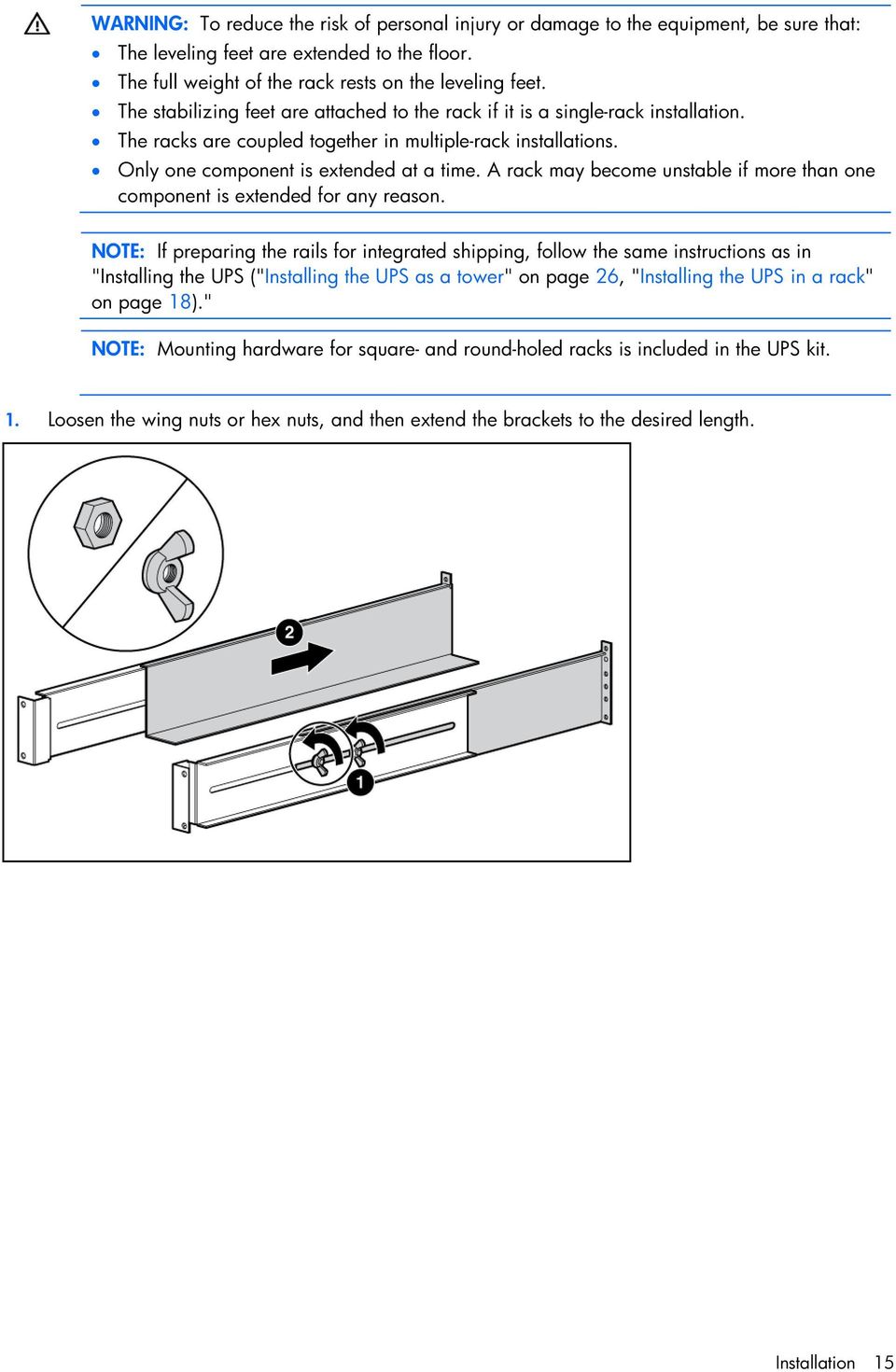
16 2. Insert screws through the rack into the mounting rail and the front of each mounting bracket. 3. Install cage nuts or clip nuts into the rear of the rack. Installation 16

17 4. Insert screws through the mounting rail into the cage nuts or clip nuts. 5. Tighten the wing nuts or hex nuts. Installation 17
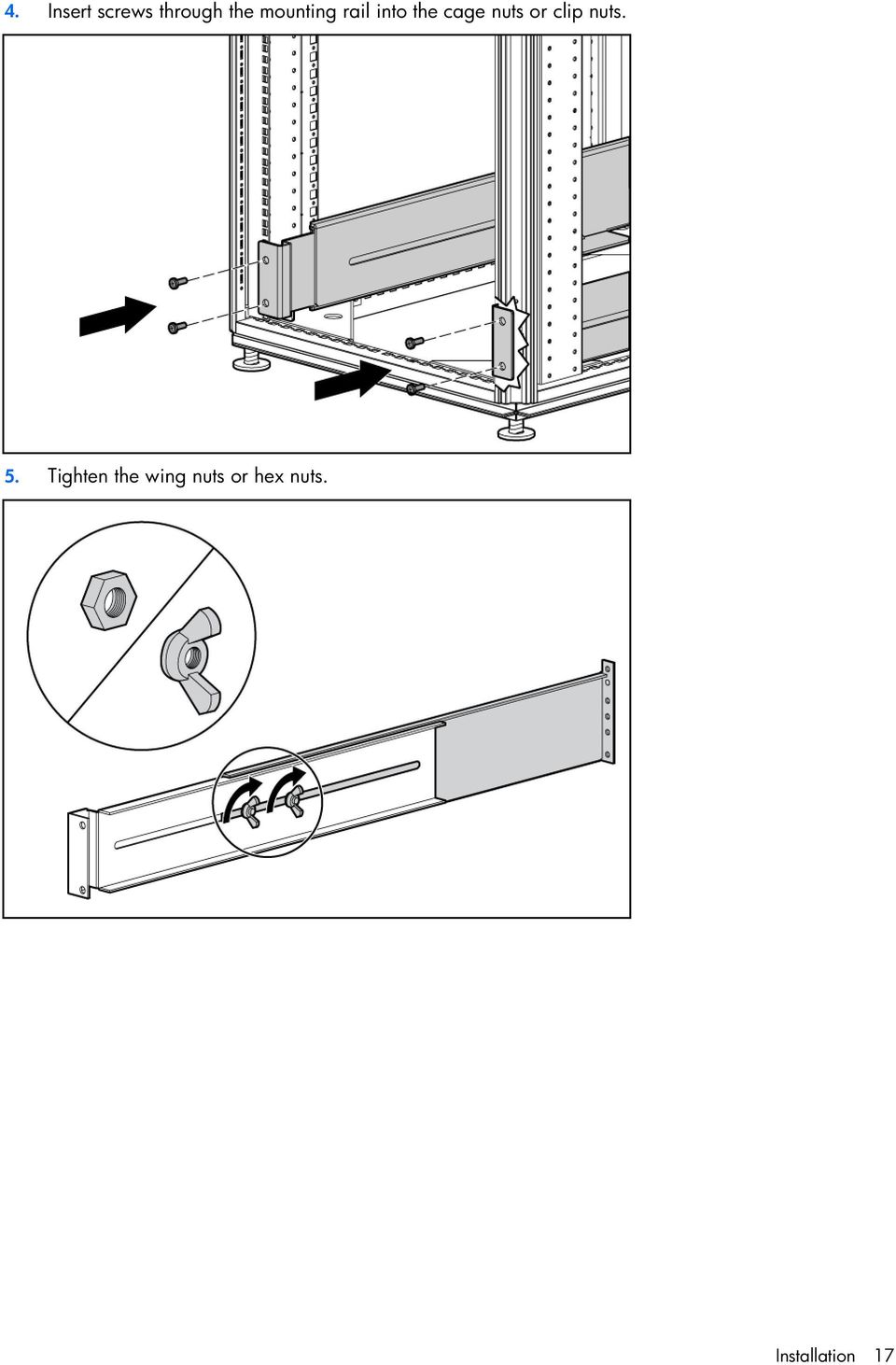
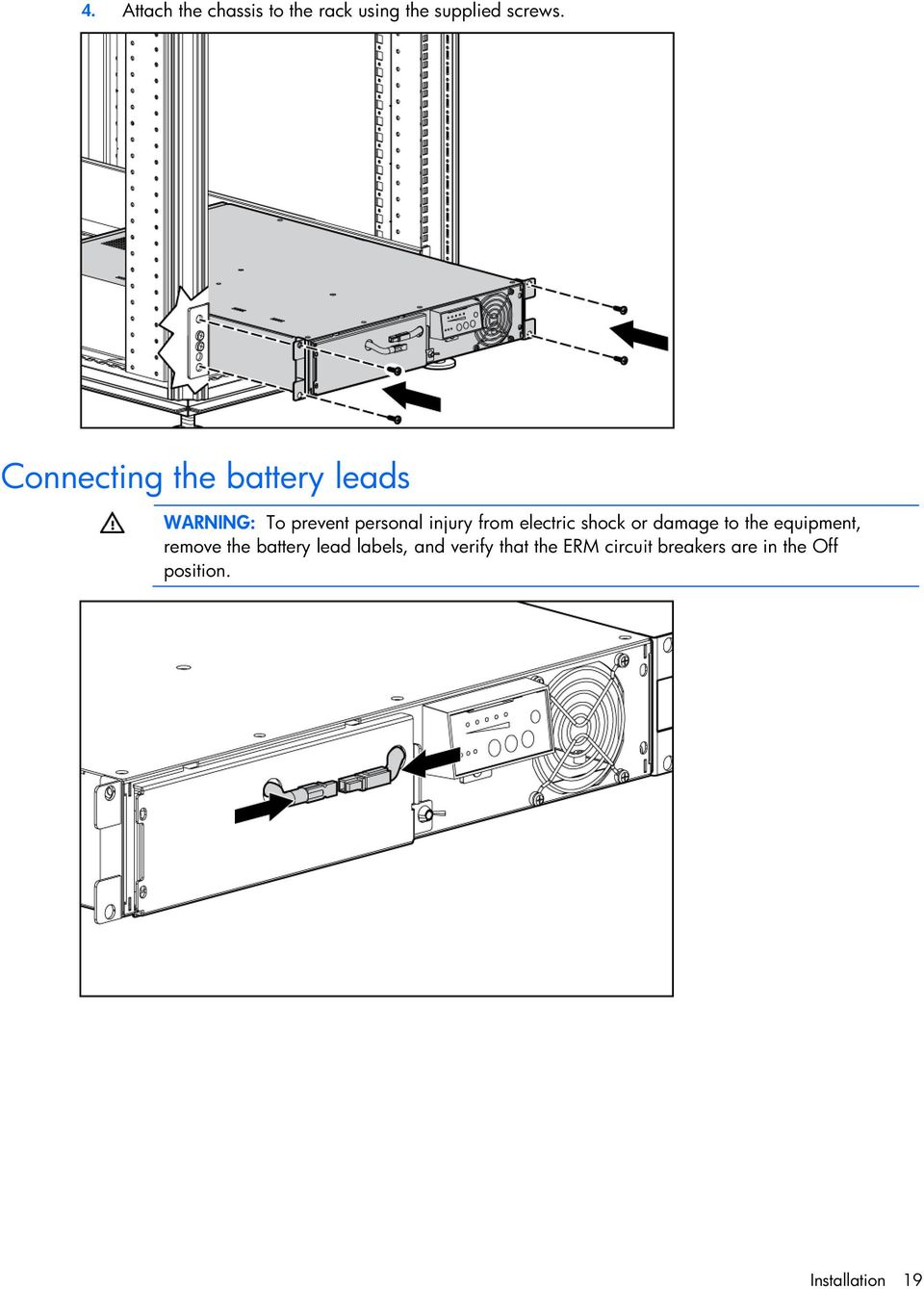
18 6. Install the rear stabilization bracket using wing nuts. Wait until the unit is installed and the brackets are adjusted before tightening the nuts. Installing the UPS in a rack Before installing the unit, review and adhere to all warnings provided in "Precautions (on page 13)." WARNING: A risk of personal injury or damage to the equipment exists. Uneven loading of equipment in the rack might cause the rack to become unstable. Install the heavier components first, and then continue to populate the rack from the bottom to the top. 1. Install the mounting rails ("Installing the mounting rails" on page 14). 2. Install the mounting ears on the chassis using the screws provided. 3. With one person on each side, lift the chassis to rail level and slide the chassis on the mounting rails. Installation 18

19 4. Attach the chassis to the rack using the supplied screws. Connecting the battery leads WARNING: To prevent personal injury from electric shock or damage to the equipment, remove the battery lead labels, and verify that the ERM circuit breakers are in the Off position. Installation 19
20 Attaching the UPS front bezel Connecting the serial communications port CAUTION: Use only the computer interface cable supplied with the UPS to connect the communications port to the host computer. IMPORTANT: Power management software requires the communications port to be appropriately cabled to the host computer. Installation 20

21 Connecting the USB communications port Connecting the REPO port Installation 21
22 WARNING: The pins on the REPO port are polarity sensitive. Be sure to verify polarity while connecting the REPO port. WARNING: To meet the requirements stated in NEC (NFPA 70) Articles and , a UPS installed in a computer equipment room must be connected to a REPO circuit. IMPORTANT: The remote switch must be in the Off (open) position to enable power to the output receptacles. NOTE: Wire the connector block using stranded, nonshielded wire (AWG #22 - #18, or equivalent). Separate wire pairs are attached to a single, normally-open contact in a parallel connection. HP recommends using different colors for the positive and negative wires. If a connector becomes disconnected and is reconnected with reversed polarity, a REPO is initiated. To avoid REPO port disconnect: Installation 22
23 Minimize wire strain while connecting the REPO port. Avoid allowing the wires to hang in the rear of the UPS. Use tie wraps and tie wrap blocks to secure the wires tightly to the rack and the rear of the UPS. For more information about the REPO port, see "REPO port (on page 11)". For information about verifying the REPO connection, see "Verifying the REPO port connection (on page 42)". Connecting the ground bonding cable NOTE: UPS appearance might vary depending on the specific unit installed. The ground bonding screw is provided as an attachment point for conductors. Use a ground bonding cable if the rack contains any conductors for the purpose of functional grounding or bonding of ungrounded metal parts. Installation 23
24 The ground bonding cable is not included. Connecting the UPS to utility power WARNING: To prevent injury from electric shock or damage to the equipment: Plug the input line cord into a grounded (earthed) electrical outlet that is installed near the equipment and is easily accessible. Do not disable the grounding plug on the input line cord. The grounding plug is an important safety feature. Do not use extension cords. Connect the UPS to a grounded utility power outlet. When the UPS is plugged in, it automatically enters Standby mode and begins charging the batteries. Connecting devices to the UPS Installation 24
25 CAUTION: Do not plug laser printers into the UPS output receptacles. The instantaneous current drawn by this type of printer can overload the UPS. Before connecting devices, verify that the UPS will not overload by checking that the ratings of the devices do not exceed the UPS capacity. If the equipment rating is listed in amps, multiply the number of amps by the selected output voltage to determine the VA. After verifying that the UPS will not overload (depending on your model): Connect the device power cords to the output receptacles on the rear panel of the UPS. -or- Connect devices to the output receptacles on the rear panel of the UPS using the IEC-to-IEC power cords included with the UPS. To provide additional receptacles: Plug a PDU into the PDU output receptacle. The PDU output receptacle is part of load segment 1 and can be turned off and on using power management software (on page 51). Plug an extension bar into any IEC-320-C19 receptacle to yield eight additional IEC-320-C13 receptacles. Connecting the UPS cord retention clips NOTE: UPS appearance might vary depending on the specific unit installed. Charging the UPS batteries With the UPS in Standby mode, allow the batteries to charge before putting the UPS into service. Installation 25
26 IMPORTANT: Charge the batteries for at least 24 hours before supplying backup power to devices. The batteries charge to: 80 percent of their capacity within 3 hours 100 percent of their capacity within 48 hours Starting power to the load Start power to the load by placing the UPS in Operate mode (on page 38). IMPORTANT: AC power must be available the first time the UPS is started. Installing the UPS as a tower Before installing the unit, review and adhere to all warnings provided in "Precautions (on page 13)." Connecting the battery leads WARNING: To prevent personal injury from electric shock or damage to the equipment, remove the battery lead labels, and verify that the ERM circuit breakers are in the Off position. Installation 26
27 Rotating the logo badge Gently pull out the logo badge, rotate it 90 degrees, and then replace it in the bezel. Attaching the UPS front bezel Attaching the tower conversion stands WARNING: To reduce the risk of personal injury or damage to the equipment, the tower conversion stands must be properly attached when the unit is installed as a tower. Installation 27
28 Using the preinstalled screws, attach the tower conversion stands to the unit. Continuing the installation To continue the UPS installation, follow the instructions starting with "Connecting the serial communications port (on page 20)." Installation 28
29 Installing the extension bars (if included) Installation 29
30 Connecting and securing the power cords Installing the ERM in a rack Before installing the unit, review and adhere to all warnings provided in "Precautions (on page 13)." WARNING: A risk of personal injury or damage to the equipment exists. Uneven loading of equipment in the rack might cause the rack to become unstable. Install the heavier components first, and then continue to populate the rack from the bottom to the top. 1. Install the mounting rails ("Installing the mounting rails" on page 14). 2. Install the mounting ears on the chassis using the screws provided. 3. With one person on each side, lift the chassis to rail level and slide the chassis on the mounting rails. Installation 30
31 4. Attach the chassis to the rack using the supplied screws. Connecting the battery leads Installation 31
32 Attaching the ERM front bezel Installation 32
33 Connecting the ERM to the UPS 1. Remove the ERM connector bracket from the UPS. 2. Plug the ERM cable (2) in the socket (1) at the rear of the UPS. Installation 33
34 3. Attach the ERM connector bracket to the UPS as a cord retention bracket for the ERM cable. 4. To install a second ERM: a. Remove the ERM connector bracket from the first ERM. b. Plug the cable from the second ERM into the socket at the rear of the first ERM. Up to two ERM units can be connected. c. Attach the ERM connector bracket to the first ERM as a cord retention bracket for the ERM cable. Switching on the ERM circuit breaker Charging the ERM batteries Connect the UPS to a grounded utility power outlet. When the UPS is plugged in, the unit automatically enters Standby mode and begins charging the ERM batteries. Allow 48 hours for the ERM to fully charge. Installation 34
35 Installing the ERM as a tower Before installing the unit, review and adhere to all warnings provided in "Precautions (on page 13)." The tower stands and associated hardware ship with the UPS. Rotating the logo badge Gently pull out the logo badge, rotate it 90 degrees, and then replace it in the bezel. Attaching the ERM front bezel Attaching the tower conversion stands Installation 35
36 WARNING: To reduce the risk of personal injury or damage to the equipment, the tower conversion stands must be properly attached when the unit is installed as a tower. 1. Using the preinstalled screws, attach the tower conversion stands to the unit. 2. Remove a screw from the inner-most, rear corner of the UPS and ERM. 3. To attach the tower brackets: o For the front bracket, use the mounting ear screws. Installation 36
37 o For the rear bracket, use the screws removed from the chassis. Continuing the installation To continue the ERM installation, follow the instructions starting with "Connecting the ERM to the UPS (on page 33)." Installation 37
38 UPS operations Modes of operation The UPS has five modes of operation: Standby mode (on page 38) Operate mode (on page 38) Configure mode (on page 39) Battery mode (on page 39) Auto-Bypass mode (on page 39) Standby mode In Standby mode: No power is available at the UPS output receptacles. The UPS charges the batteries as necessary. The UPS can be placed in Standby mode when the UPS is in Operate mode (on page 38). To place the UPS in Standby mode, press and hold the Off button until the audible alarm sounds and the Utility LED flashes. Power to the load ceases. When fault conditions occur in Standby mode, the UPS enters Converter Off mode ("UPS is in Converter Off mode" on page 54). IMPORTANT: While in Standby mode, the UPS maintains the charge on the batteries, but no power is available at the output receptacles. The UPS remains in Standby mode until an alternate mode is selected or until utility power is removed. For the location of buttons, see "UPS front panel controls (on page 8)." For the location of LEDs, see "UPS front panel LED indicators (on page 8)." Operate mode In Operate mode: Power is available at the UPS receptacles. The UPS charges the batteries as necessary. The UPS can be placed in Operate mode if the UPS is powered up and in Standby mode (on page 38). To place the UPS in Operate mode, press the On button. The Utility LED illuminates, indicating that power is available at the UPS output receptacles. The UPS acknowledges compliance with a short beep. If the UPS is off (no LEDs are illuminated), press the On and Battery Start buttons simultaneously to start the UPS on battery power. UPS operations 38
39 For the location of buttons, see "UPS front panel controls (on page 8)." For the location of LEDs, see "UPS front panel LED indicators (on page 8)." Configure mode The UPS can be placed in Configure mode while in Operate mode (on page 38), Battery mode (on page 39) or Standby mode (on page 38). In Configure mode: Power is available at the UPS receptacles when entered from Operate mode. Power is not available at the receptacles when entered from Standby mode. The UPS charges the batteries as necessary. The UPS configuration can be updated. To place the UPS in Configure mode, press and hold the On and Test/Alarm Reset buttons simultaneously for 3 seconds. The Load Level indicators flash briefly, and then display the enabled options. For the location of buttons, see "UPS front panel controls (on page 8)." For the location of LEDs, see "UPS front panel LED indicators (on page 8)." Battery mode When utility power is lost, the UPS automatically transfers from Operate mode (on page 38) to Battery mode. In Battery mode, the UPS supplies power without being connected to utility power. When utility power becomes available, the UPS returns to Operate mode. After the UPS is initially connected to utility power, it can be started on battery power thereafter. To start the UPS in Battery mode (no utility power present), press and hold the On and Battery Start buttons simultaneously for three seconds. Auto-Bypass mode The UPS automatically enters Auto-Bypass mode when one of the following conditions occurs: The power from the UPS reaches a percentage greater than 110 percent for more than 10 cycles or between 103 percent and 110 percent for more than 30 seconds. The UPS detects an overtemperature condition (on page 56). The UPS detects a fan failure. There is an internal UPS failure while in Operate mode (on page 38). All internal faults transfer the UPS to either Auto-Bypass or Converter Off mode ("UPS is in Converter Off mode" on page 54), depending on whether the load is being powered at the time the fault is detected. The UPS can be forced to Converter Off mode from Auto-Bypass mode by pressing the Off button, and can be sent back to Auto-Bypass mode by pressing the On button. Operating the UPS front panel controls UPS operations 39
40 NOTE: If the On and Off buttons are simultaneously pressed, the Off button has priority over the On button. Button Assertion time On 0.5 seconds Audible alarm Every 0.5 seconds until the button is released Off 3 seconds Every 0.5 seconds until the button is released Mode before assertion Utility present? Action Standby Yes Energizes the load and resets the bypass entry count to 0 Operate Yes Resets the bypass entry count to 0 Auto-Bypass Yes Clears the UPS On audible alarms, resets the bypass entry count to 0, and attempts to transfer to Operate mode Converter Off Yes Clears the UPS On audible alarms, resets the bypass entry count to 0, and attempts to transfer to Operate mode Operate Yes Transfers to Standby mode, and power to the load ceases Standby Yes No action Self Test 0.5 seconds Battery No Powers down the UPS, and power to the load ceases Auto-bypass Yes or No Transfers to Standby mode or Converter Off mode, and power to the load ceases Any Yes or No Silences audible alarms after 0.5 seconds 3 seconds Continuously Any Yes or No Initiates a self-test Battery Start Battery Start and On On and Self Test 0.5 seconds Any Yes or No No action 3 seconds Continuously UPS off No Transfers to battery power, and begins powering the load 3 seconds Continuously Any Yes or No Enters or exits Configuration mode Configuring the UPS The UPS automatically detects the number of ERMs connected. UPS operations 40
41 In Configure mode, the LED front panel display changes function to enable modification of the UPS parameters. Each LED is associated with a different parameter. Available settings Parameter Associated LED Explanation (when LED is illuminated) Nominal voltage setting 100/204 Nom Self Test Nominal output voltage is 100 V for a low voltage model and 204 V for a high voltage model 110/220 Nom Battery Fault Nominal output voltage is 110 V for a low voltage model and 220 V for a high voltage model 120/230 Nom Site Wiring Fault Nominal output voltage is 120 V for a low voltage model and 230 V for a high voltage model 127/240 Nom Overtemperature Nominal output voltage is 127 V for a low voltage model and 240 V for a high voltage model Wiring fault setting Wiring fault Overload Audible alarm will sound when ground is missing or line and neutral connections are reversed NOTE: For high voltage UPSs, the Site Wiring Fault function is disabled by default, but can be manually enabled. To change the UPS configuration parameters: 1. Place the UPS in Configure mode (on page 39). The LEDs associated with the currently configured parameters illuminate. A flashing cursor indicates where you are in the configuration process as you scroll through the available settings. 2. Press the On button to scroll through the options. Each time the On button is pressed, the audible alarm sounds. 3. If the On button is pressed and the UPS does not respond, the UPS is in Operate mode (on page 38). Start over with step Press the Off button once to toggle the selected option on or off. 5. Repeat steps 2 and 3 for each option. 6. To save the configuration settings and exit Configure mode, press and hold the Test/Alarm Reset button for 3 seconds. NOTE: Configure mode times out after 2 minutes of inactivity. If the Test/Alarm Reset button has not been pressed, any new selections are not saved. For the location of buttons, see "UPS front panel controls (on page 8)." For the location of LEDs, see "UPS front panel LED indicators (on page 8)." Initiating a self-test To initiate a self-test, press and hold the Test/Alarm Reset button ("UPS front panel controls" on page 8) for three seconds. If the UPS detects a problem, the appropriate LED ("UPS front panel LED indicators" on page 8) illuminates and an audible alarm may sound. UPS operations 41
42 For information on what to do if the self-test detects a problem, see "Troubleshooting (on page 52)." Silencing an audible alarm To silence an alarm, press the Test/Alarm Reset button ("UPS front panel controls" on page 8). IMPORTANT: Although the audible alarm silences, the condition that caused the alarm to sound may still exist. If a utility power failure caused the alarm, the alarm silences after power is restored. For information about audible alarm conditions, see "LED and audible alarm troubleshooting ("LED troubleshooting" on page 52)." Verifying the REPO port connection NOTE: While testing, operate connected equipment in a safe test mode so the effects do not disrupt critical operations. After connecting the REPO port (on page 21): 1. Initiate a REPO by closing the REPO contact. The Self Test, Battery Fault, Site Wiring Fault, Overtemperature, Overload, and Utility LEDs flash. CAUTION: If the polarity is reversed while connecting the REPO port, the UPS powers up normally. 2. Verify proper connection of the REPO port: a. Power up the UPS ("Starting power to the load" on page 26). b. Disconnect the REPO port. c. Reconnect the REPO port. If the polarity is correct, the REPO connectors can be disconnected, and then reconnected, without initiating a REPO. d. Verify that the UPS remains in Operate mode (on page 38). e. If a REPO is initiated, the polarity is reversed. Check and correct the connections. Powering down the UPS 1. Shut down all load devices. 2. Press the Off button to take the UPS out of Operate mode. Power to the load receptacles ceases. The On Battery LED and Load Level indicator flash. 3. Disconnect the UPS from utility power. 4. Wait at least 60 seconds for the UPS internal circuitry to discharge. UPS operations 42
43 Maintenance Removing the UPS front bezel Removing the ERM front bezel Replacing the UPS option card This component is hot-swappable and can be replaced without powering down the UPS. Maintenance 43
44 1. (optional) To replace the component with the UPS powered down, refer to "Powering down the UPS (on page 42)." 2. Disconnect the communications cable from the option card. 3. Remove the two screws securing the option card and slide the card out. To replace the component, reverse the removal procedure. NOTE: Replacing the option card might require power management software to be restarted or reconfigured. Replacing the batteries To replace the batteries: 1. Read and observe the requirements in "Important battery safety information (on page 44)" and "Battery care and storage guidelines (on page 45)." 2. Follow the instructions in "UPS battery replacement procedure (on page 46)." Important battery safety information WARNING: The unit contains sealed lead-acid battery modules. To prevent fire or chemical burns: Do not attempt to recharge batteries after removal from the unit. Do not disassemble, crush, or puncture the batteries. Do not short the external contacts of the batteries. Do not immerse the batteries in water. Do not expose to temperatures higher than 60 C (140 F). Maintenance 44
45 WARNING: To prevent personal injury from hazardous energy: Remove watches, rings, or other metal objects. Use tools with insulated handles. Do not place tools or metal parts on top of batteries. WARNING: To prevent personal injury, prepare the area and observe all materials-handling procedures when transporting a battery module. Battery modules weigh 20 kg (44.1 lb). NOTE: Replace all battery modules at the same time. Battery care and storage guidelines Minimize the amount of time the UPS uses battery power by matching the UPS configuration with the utility voltage. Refer to "Configuring the UPS (on page 40)." Keep the area around the UPS clean and dust-free. If the environment is very dusty, clean the outside of the UPS regularly with a vacuum cleaner. Maintain the ambient temperature at 25 C (77 F). If storing a UPS for an extended period, recharge the batteries every 6 months: CAUTION: Because of the short shelf life of the batteries, avoid storing a battery spare as a backup. Do not maintain an inventory of spare batteries on site unless a procedure to keep these batteries charged while in storage is implemented. a. Connect the UPS to utility power. b. Allow the UPS to remain in Standby mode. c. Allow the UPS to charge the batteries for at least 24 hours. d. Update the battery recharge date label. Determining when to replace batteries When the Battery Fault LED illuminates, batteries might need to be replaced within 30 to 60 days. When a battery alarm sounds, initiate a UPS battery self-test to verify that battery replacement is required. If the Battery Fault LED remains illuminated, replace the batteries as soon as possible. For more information on initiating a self-test, see "Initiating a self-test (on page 41)." For the location of LEDs, see "UPS front panel LED indicators (on page 8)." Obtaining new batteries New batteries might be required within 30 to 60 days when the Battery Fault LED illuminates red. Obtain spare batteries for the UPS when this occurs. Spare battery modules are available for this UPS. The UPS spare battery kit part number is Maintenance 45
46 CAUTION: Because of the short shelf life of the batteries, avoid storing a battery spare as a backup. Do not maintain an inventory of spare batteries on site unless a procedure to keep these batteries charged while in storage is implemented. UPS battery replacement procedure WARNING: To prevent personal injury from electric shock or damage to the equipment, remove the battery lead labels, and verify that the ERM circuit breakers are in the Off position. This component is hot-swappable and can be replaced without powering down the UPS. 1. (optional) To replace the component with the UPS powered down, refer to "Powering down the UPS (on page 42)." CAUTION: When hot-swapping batteries, the UPS is not protected in the event of a utility power failure. 2. Remove the UPS front bezel ("Removing the UPS front bezel" on page 43). 3. Disconnect the battery leads. 4. Remove the UPS battery bracket. 5. Remove the UPS battery modules. IMPORTANT: Do not pull the battery leads when removing or installing the batteries. Maintenance 46
47 To replace the components, reverse the removal procedure. IMPORTANT: Charge the batteries for at least 24 hours before supplying backup power to devices. The batteries charge to: 80 percent of their capacity within 3 hours 100 percent of their capacity within 48 hours Testing the new battery module After installing the new battery module, press the Test/Alarm Reset button to initiate a self-test ("Initiating a self-test" on page 41). IMPORTANT: The UPS does not execute a self-test until the batteries are 90 percent charged. IMPORTANT: Charge the batteries for at least 24 hours before supplying backup power to devices. The batteries charge to: 80 percent of their capacity within 3 hours 100 percent of their capacity within 48 hours If the installation has been successful, the Battery Fault LED is not illuminated. If the installation has not been successful, the Battery Fault LED illuminates. If this occurs, repeat the UPS battery replacement procedure (on page 46), and check the battery terminal connections. If the Battery Fault LED is still illuminated, see "LED and audible alarm troubleshooting ("LED troubleshooting" on page 52)." For the location of buttons, see "UPS front panel controls (on page 8)." For the location of LEDs, see "UPS front panel LED indicators (on page 8)." Replacing the UPS To remove the UPS: 1. Power down all attached load devices. Maintenance 47
48 2. Power down the UPS ("Powering down the UPS" on page 42). 3. Switch the circuit breaker for any attached ERMs to the Off position. 4. Unplug the UPS power cord. 5. Disconnect the communications cable from the option card. 6. Disconnect the ground bonding cable. 7. Disconnect the REPO port. 8. Unplug the load devices. 9. Unplug the ERM connected to the UPS. 10. Remove the UPS front bezel ("Removing the UPS front bezel" on page 43). 11. Disconnect the battery leads. 12. Remove the UPS battery bracket. 13. Remove the UPS battery modules. 14. Remove the screws securing the UPS to the rack. 15. Remove the UPS from the rack. To replace the component, reverse the removal procedure. Replacing the ERM To remove the ERM: 1. Switch the circuit breaker for any attached ERMs to the Off position. 2. Unplug the ERM from the back of the UPS. 3. Unplug the ERM from a second connected ERM. 4. Remove the front bezel ("Removing the ERM front bezel" on page 43) on the ERM that is being replaced. 5. Disconnect the battery leads. 6. Remove the screws securing the ERM to the rack. 7. Remove the ERM from the rack. To replace the component, reverse the removal procedure. Updating the UPS firmware To update the UPS firmware, see the HP website ( Configuring a USB to serial converter NOTE: This procedure was tested on the Windows XP Professional and Windows Server 2003 operating systems using the HP USB to serial converter (part number ). Depending on your system configuration, a driver download might be required to successfully install the converter. The driver can be downloaded from the USB-Drivers website ( To configure a USB port to the COM 1 port on systems that do not have available serial ports: Maintenance 48
49 1. Connect the USB to serial converter to the USB port on your system. 2. Click Start, select Control Panel, and then double-click System. The System Properties screen appears. 3. Click the Hardware tab. 4. Click Device Manager. The Device Manager screen appears. 5. In the tree displayed in the left panel, click the Ports (COM & LPT) branch to expand. 6. Double-click the port that is assigned to your USB to serial converter device. This port is usually named with the device manufacturer's name followed by "USB to Serial Bridge (com 4)." The Port Properties screen appears. 7. Click the Port Settings tab. The Port Settings screen appears. 8. Click Restore Defaults. The following default settings appear: o Bits per second: 9600 o Data Bits: 8 o Parity: None o Stop bits: 1 o Flow control: None 9. Click Advanced. The Advanced Settings screen appears. 10. From the COM Port Number drop down menu, select Com 1 for the USB port number. If COM 1 is being used by another USB port, the following message appears: This COM name is being used by another device. Using duplicate names can lead to inaccessible devices and changed settings. Do you want to continue? a. Click YES. b. Reassign the COM ports so that the USB to serial converter is using COM 1. See "Reassigning the USB COM ports." 11. Reduce the Receive Buffer and Transmit Buffer to the low setting by scrolling down to select low (1). 12. Be sure that the Use FIFO buffers (requires compatible UART) checkbox is selected. Depending on your operating system, the USB settings might be different. Choose the lowest, most dependable Receive and Transmit buffers by using the drop down menus, radio buttons, or other selection methods. 13. Click OK to close the Advanced screen. 14. Click OK to close the Device Manager screen. 15. Run the firmware Flash batch file program. Follow the instructions provided with the program. Reassigning the USB COM ports To reassign a device from COM 1 to another port: Maintenance 49
50 1. From the open Device Manager screen, locate the USB device that is assigned to COM Double-click the port name. The Port Properties screen appears. 3. Click the Port Settings tab. The Port Settings screen appears. 4. Click Advanced. The Advanced Settings screen appears. 5. Select an available USB port number from the COM Port Number drop down menu. 6. Click OK to close the Advanced screen. 7. Click OK to close the Port Settings screen. 8. Verify that the Device Manager screen shows that the USB to serial converter is assigned to COM 1, and that the other USB device is assigned to a different port. If the Device Manager screen does not automatically refresh to show the change: a. Click Action. The Action Menu appears. b. Click Scan for hardware changes to refresh the screen and display the changes. Maintenance 50
51 Power management Power management software HP Power Manager software ensures maximum power reliability of computer systems through comprehensive control of UPSs. The easy-to-use browser interface enables novice users to configure and manage power protection settings. To download the latest version of HP Power Manager software, see the HP website ( NOTE: To install and configure the software, see the software user guide. The software user guide is available for download from the HP website ( HP Power Manager: Does not require complex management systems, which simplifies deployment, configuration, and management of UPS-protected environments. Manages a graceful shutdown of attached devices during utility power failures. Prioritizes the timing of attached load device shutdowns. Shuts down and reboots any UPS and attached load devices based on a user-specified schedule. Customizes alert generation with modifiable dialog boxes, command execution, and and broadcast messages. Monitors the status of the UPS and reports alarms. Displays a power log for analysis. Manages independent UPS load segments to provide separate power control of attached load devices. Delays reboot by load segment after a power outage to sequence the startup of system components. Power management 51
52 Troubleshooting LED troubleshooting Utility LED On Batter y LED On Bypas s LED Self Test LED Battery Fault LED Site Wiring Fault LED Over Temp LED Overloa d LED Condition On Load <10% Off Off On Load >10% On Load >25% On Load >50% On Load >75% Off UPS is in Operate mode (on page 38) Flashin g Off Off Off * * * Off UPS is in Standby mode (on page 38) Off Off On On Load >10% On Load >25% On Load >50% On Load >75% Off UPS is in Auto-Bypass mode (on page 39) Flashin g Flashin g Flashin g Off Off Off Off Off UPS is in Converter Off mode (on page 54) Off Off Off Off Off Off Flashing Flashing General alarm condition (on page 54) UPS is in Auto- Bypass mode On Off Flashin g * * * * * Bypass is out of range (on page 55) * Off * Off Flashing * * * Battery condition (on page 55) Batteries are disconnected or battery test failure Off Flashin g Off Off Off Off Off Off Low battery (no utility power) ("UPS is on battery" on page 55) Troubleshooting 52
53 Off On Off On Battery capacity <25% On Battery capacity >25% On Battery capacity >50% On Battery capacity >75% Off UPS is on battery (on page 55) No utility power * * * Off * * Flashing * Overtemperature condition (on page 56) Off Off On Flashing Flashing Flashing Flashing Flashing Internal UPS fault condition (on page 56) Flashin g Off Off Flashing Flashing Flashing Flashing Flashing REPO condition (on page 56) * Off * Off * Flashing * * Site wiring condition (on page 56) * Off * On On On On Flashing Overload condition (on page 57) UPS power capacity is exceeded with no other faults * Off * Off * * * Flashing Overload condition (on page 57) UPS power capacity is exceeded while other faults exist Off On Off On Battery capacity <25% On Battery capacity >25% On Battery capacity >50% On Battery capacity >75% Flashing Overload condition (on page 57) UPS power capacity is exceeded while on battery with no other faults Off On Off Off Off Off Flashing Flashing Overload condition (on page 57) UPS power capacity is exceeded while on battery with overtemperature fault Off Flashin g Flashin g Flashin g Off Flashing Flashing Flashing Flashing Flashing Unit is powering down Flashin g * This LED can be in any state. Flashing Flashing Flashing Flashing Flashing Checksum failure error (on page 57) For the location of individual LEDs, see "UPS front panel LED indicators (on page 8)." UPS is in Auto-Bypass mode The UPS transfers from Operate mode (on page 38) to Auto-Bypass when one of the following fault conditions is detected: Inverter AC over voltage Inverter AC under voltage Rectifier input over current Inverter output over current Inverter fault Heat sink over temperature Fan failure Troubleshooting 53
54 Overload The load is supported, but not protected while in Auto-Bypass mode. Action: 1. If power management software is being used, check the log files to obtain specific error information to help identify the problem. For more information about the causes of a general fault condition, see the HP Power Manager user guide available for download from the HP website ( 2. Verify that no blockage of airflow to the front bezel and rear panel exists. UPS is in Converter Off mode Fault conditions cause the UPS to transfer to Converter Off mode from Standby mode (on page 38) only. If the UPS is powering the load, fault conditions cause the UPS to transfer to Auto-Bypass mode instead. If a fault condition exist and the UPS is running in Auto-Bypass mode (on page 39), press the Off button to transfer the UPS to Converter Off mode. The load is not supported while in Converter Off mode. The following fault conditions trigger Converter Off mode: Inverter AC over voltage Inverter AC under voltage Rectifier input over current Inverter output over current Inverter fault Heat sink over temperature Action: 1. If power management software is being used, check the log files to obtain specific error information to help identify the problem. For more information about the causes of a general fault condition, see the HP Power Manager user guide available for download from the HP website ( 2. Verify that no blockage of airflow to the front bezel and rear panel exists. General alarm condition Action: 1. If power management software is being used, check the log files to obtain specific error information to help identify the problem. For more information about the causes of a general alarm condition, see the HP Power Manager user guide available for download from the HP website ( 2. Check the batteries: a. Allow the UPS batteries to charge for 24 hours. Troubleshooting 54
55 b. If the Battery Fault LED is red, replace the batteries ("UPS battery replacement procedure" on page 46). 3. Reduce the load: a. Power down the UPS ("Powering down the UPS" on page 42). b. Remove one or more load devices to reduce the power requirements. c. Wait at least 5 seconds and restart the UPS. d. If the condition persists, verify that the load devices are not defective. 4. Allow the UPS to cool: a. Power down the UPS ("Powering down the UPS" on page 42). b. Clear vents and remove any heat sources. c. Verify that the airflow around the UPS is not restricted. 5. Wait at least 5 minutes and restart the UPS. 6. If the condition persists, contact an HP authorized service representative. Bypass is out of range The input voltage is not within ±12 percent of nominal voltage. The UPS is receiving utility power that might be unstable or in brownout conditions. The UPS continues to supply power to the connected equipment. If conditions worsen, the UPS might switch to battery power. Bypass out of range is only a status and does not keep the UPS from transferring to Auto-Bypass mode (on page 39). Action: 1. Check the input voltage and reconfigure the UPS ("Configuring the UPS" on page 40). 2. Contact a qualified electrician to verify that the utility power is suitable for the UPS. Battery condition Action: 1. Install the battery module. If the battery module is already installed, remove and reinsert the module. 2. Allow the UPS batteries to charge for 24 hours. 3. If the LED does not turn off, replace the batteries ("UPS battery replacement procedure" on page 46). 4. If the condition persists, contact an HP authorized service representative. UPS is on battery Action: 1. Save files and shut down connected equipment. 2. Allow the UPS batteries to charge for 24 hours. Troubleshooting 55
56 Input voltage is out of range Action: 1. Check the input voltage and reconfigure the UPS ("Configuring the UPS" on page 40). 2. Contact a qualified electrician to verify that the utility power is suitable for the UPS. Overtemperature condition Possible cause: The UPS internal temperature is too high, or a fan has failed. Action: 1. Power down the UPS ("Powering down the UPS" on page 42). 2. Allow the UPS to cool: a. Clear vents and remove any heat sources. b. Be sure that the that the airflow around the UPS is not restricted. 3. Wait at least 5 minutes, and then restart the UPS. 4. If the condition persists, contact an HP authorized service representative. Internal UPS fault condition Action: 1. Power down the UPS ("Powering down the UPS" on page 42). 2. If the condition persists, contact an HP authorized service representative. REPO condition Action: If the remote switch is closed, then open the switch to enable power to the output receptacles. If the condition occurred while reconnecting a disconnected REPO port, then verify the polarity of the REPO connector pins. For more information about REPO ports, see "Connecting the REPO port (on page 21)." Site wiring condition Action: Contact a qualified electrician to be sure that: The utility power receptacle is grounded. There is a ground wire in the UPS power cord. The line and neutral wires are not reversed in the wall outlet. Troubleshooting 56
57 Overload condition All the load LEDs are illuminated. Action: 1. Power down the UPS ("Powering down the UPS" on page 42). 2. Remove one or more load devices to reduce the power requirements. 3. Wait at least 5 seconds and restart the UPS. 4. If the condition persists, verify that the load devices are not defective. Checksum failure error A Checksum failure error occurs when executing a bad load sequence, or having an incorrect EEPROM map while loading software through the serial or USB port. Action: 1. Rerun the firmware upgrade. 2. If the condition persists, contact an HP authorized service representative. UPS does not start Action: 1. Be sure that the power cord is plugged in to a utility power receptacle. 2. Check the power source at the utility power receptacle. Low battery shutdowns Ungraceful shutdown of attached servers occurs when the UPS is in a low battery condition. Action: 1. Verify that the power management software is not delaying the shutdown of attached servers when the UPS is in a low battery condition. 2. Allow the UPS batteries to charge for 24 hours. 3. If the Battery Fault LED is red, replace the batteries ("UPS battery replacement procedure" on page 46). UPS does not provide the expected backup time Action: 1. If the Overload LED ("UPS front panel controls" on page 8) is illuminated, remove one or more load devices to reduce the power requirements. 2. Power down the UPS ("Powering down the UPS" on page 42). 3. Allow the UPS batteries to charge for 24 hours. 4. Initiate a self-test ("Initiating a self-test" on page 41). Troubleshooting 57
58 5. During extended power outages, save your work, power down the load devices, and then power down the UPS ("Powering down the UPS" on page 42) to conserve battery power. UPS frequently switches between utility and battery power Action: 1. Check the input voltage and reconfigure the UPS ("Configuring the UPS" on page 40). 2. Contact a qualified electrician to verify that the utility power is suitable for the UPS. Troubleshooting 58
59 Specifications UPS physical specifications Parameter Height Depth Width Weight Value 8.9 cm (3.5 in) 63.5 cm (25 in) 44.5 cm (17.5 in) 37 kg (82 lb) ERM physical specifications Parameter Height Depth Width Weight Value 8.9 cm (3.5 in) 63.5 cm (25 in) 44.5 cm (17.5 in) 55 kg (122 lb) UPS input specifications UPS model R/T3000 NA/JPN R/T3000h NA/JPN Utility voltage frequency (Hz) Available settings utility voltage (VAC) Branch circuit rating (A) Line cord 50/60 100, 110, 120, Nondetachable power cord with NEMA L5-30 plug 50/60 200/208 1, 220, 230, 240 R/T3000 INTL 50/60 200/208, 220, 230, The output voltage is 204 for this setting. 20 Nondetachable power cord with NEMA L6-20 plug 16 Detachable power cord with country-specific plug UPS output specifications UPS model Load segment Output receptacles R/T3000 NA/JPN 1 2 x 5-20T 1 x L5-30R Specifications 59
60 UPS model Load segment Output receptacles 2 2 x 5-20T R/T3000h NA/JPN 1 3 x IEC-320-C13 1 x IEC-320-C19 1 x L6-20R 2 3 x IEC-320-C13 1 x IEC-320-C19 R/T3000 INTL 1 3 x IEC-320-C13 1 x IEC-320-C x IEC-320-C13 1 x IEC-320-C19 Power protection specifications UPS model VA Nominal power rating (W) R/T3000 NA/JPN R/T3000h NA/JPN Nominal voltage setting , 110, 120, , 220, 230, 240 R/T3000 INTL , 220, 230, 240 Output tolerance specifications Source of power Utility power (nominal range) Battery power Regulation -10% to +6% of nominal output voltage rating (within the guidelines of the Computer Business Equipment Manufacturers Association) ±5% of nominal output voltage rating Output feature specifications Feature Online efficiency Voltage wave shape Surge suppression Noise filtering Specification 94% nominal input voltage Sine wave; 5% THD with typical PFC load 300J via MOVs EN line filter for normal and common mode use Specifications 60
61 Battery specifications Feature Type Specification 12 V, 5 AH, sealed, maintenance-free, rechargeable, valve regulated lead-acid batteries with a 3-5 year service life at 25 C (77 F). Voltage The battery modules have a battery string voltage of 120 V. Charging Complete charge takes no more than 48 hours. After approximately 3 hours, the batteries reach 80% charge at default nominal utility voltage and no load. High-voltage UPS battery runtimes Load, percent Estimated battery runtime Runtime with one ERM minutes 125 minutes 225 minutes minutes 50 minutes 89 minutes 80 6 minutes 30 minutes 54 minutes minutes 24 minutes 43 minutes Runtime with two ERMs Low-voltage UPS battery runtimes Load, percent Estimated battery runtime Runtime with one ERM minutes 142 minutes 256 minutes minutes 55 minutes 99 minutes 80 7 minutes 34 minutes 60 minutes minutes 26 minutes 47 minutes Runtime with two ERMs Environmental specifications Feature Specification Operating temperature 10 C to 40 C (50 F to 104 F); UL-tested at 25 C (77 F) Nonoperating temperature Relative humidity Operating altitude Nonoperating altitude Audible noise -20 C to 50 C (-4 F to 122 F) 20% to 80%; noncondensing Up to 2,000 m (6,600 ft) above sea level 15,000 m (49,212 ft) above sea level Less than 45 dba, normal operation Less than 50 dba, on battery power Specifications 61
62 REPO port specifications The REPO port meets the requirements of NFPA Articles and for a Disconnecting Means. Specifications 62
63 Spares Ordering spares To order a spare, visit the HP website ( To replace parts under warranty, contact an HP authorized service representative. UPS spare parts list Item Description Spare part number 1 UPS unit NA/JPN * UPS unit HV NA/JPN * UPS unit INTL X-slot serial card Battery module * Mounting rails with screws * UPS/ERM mounting brackets * Cord retention clips * Serial download cable * not shown Spares 63
64 ERM spare parts list Item Description Spare part number 1 ERM unit * UPS/ERM mounting brackets * Mounting rails with screws * not shown Hardware options For information on the supported hardware options, see the HP website ( Spares 64
65 Technical support Before you contact HP Be sure to have the following information available before you call HP: Technical support registration number (if applicable) Product serial number Product model name and number Product identification number Applicable error messages Add-on boards or hardware Third-party hardware or software Operating system type and revision level HP contact information For the name of the nearest HP authorized reseller: See the Contact HP worldwide (in English) webpage ( For HP technical support: In the United States, for contact options see the Contact HP United States webpage ( To contact HP by phone: o o Call HP-INVENT ( ). This service is available 24 hours a day, 7 days a week. For continuous quality improvement, calls may be recorded or monitored. If you have purchased a Care Pack (service upgrade), call For more information about Care Packs, refer to the HP website ( In other locations, see the Contact HP worldwide (in English) webpage ( Technical support 65
66 Warranty information Limited warranty To back up the wide range of features offered with the UPS, a 3-year limited warranty is provided. $250,000 Computer Load Protection Guarantee In addition to the limited warranty, a $250,000 Computer Load Protection Guarantee (provided by the original equipment manufacturer) is offered. IMPORTANT: The $250,000 Computer Load Protection Guarantee is offered only in The United States and Canada. The $250,000 Computer Load Protection Guarantee only applies if: The UPS is plugged into a suitably grounded and wired outlet using no extension cords, adapters, other ground wires, or other electrical connections. The UPS installation complies with all applicable electrical and safety codes specified by the NEC. The UPS is used under normal operating conditions and users comply with all instructions and labels. The UPS is not damaged by accident (other than a utility power transient), misuse, or abuse. o The Guarantee applies only to the original end-user and is non-transferable. o The Guarantee does not include reimbursement for or restoration of any data loss. The UPS is either connected directly to an enterprise class PDU, which is then connected directly to a server, workstation, or personal computer, or the UPS is connected directly to a server, workstation, or personal computer. Pre-Failure Battery Warranty The Pre-Failure Battery Warranty, standard on all UPS units, extends the advantage of a 3-year limited warranty by applying it to the battery before it actually fails. The Pre-Failure Battery Warranty ensures that the battery is replaced free of charge when a notification that the battery might fail is received from power management software. The battery warranty coverage is 3 years for parts. The warranty for the first year of ownership includes parts and labor. If battery spares are not available for a particular UPS model, the entire UPS, including its battery, is replaced. A Pre-Failure Battery warning is given 30 days before a battery failure. The warning is indicated in one or both of the following ways: An LED showing the battery is low Notification from power management software Warranty information 66
67 Recommended duration of use Although tests and a multitude of customer experiences have shown no noticeable performance issues with UPSs for significant time periods after expiration of the 3-year limited warranty, we strongly recommend considering replacing UPSs after a maximum of 5 to 6 years of use to assure full functionality and a safe operating environment. This recommendation does not extend or in any way alter the warranty for UPSs which is limited to a time period of 3 years and a coverage as stated in the applicable warranty statement. Warranty information 67
68 Regulatory compliance notices Regulatory compliance identification numbers For the purpose of regulatory compliance certifications and identification, this product has been assigned a unique regulatory model number. The regulatory model number can be found on the product nameplate label, along with all required approval markings and information. When requesting compliance information for this product, always refer to this regulatory model number. The regulatory model number is not the marketing name or model number of the product. Federal Communications Commission notice Part 15 of the Federal Communications Commission (FCC) Rules and Regulations has established Radio Frequency (RF) emission limits to provide an interference-free radio frequency spectrum. Many electronic devices, including computers, generate RF energy incidental to their intended function and are, therefore, covered by these rules. These rules place computers and related peripheral devices into two classes, A and B, depending upon their intended installation. Class A devices are those that may reasonably be expected to be installed in a business or commercial environment. Class B devices are those that may reasonably be expected to be installed in a residential environment (for example, personal computers). The FCC requires devices in both classes to bear a label indicating the interference potential of the device as well as additional operating instructions for the user. FCC rating label The FCC rating label on the device shows the classification (A or B) of the equipment. Class B devices have an FCC logo or ID on the label. Class A devices do not have an FCC logo or ID on the label. After you determine the class of the device, refer to the corresponding statement. Class A equipment This equipment has been tested and found to comply with the limits for a Class A digital device, pursuant to Part 15 of the FCC Rules. These limits are designed to provide reasonable protection against harmful interference when the equipment is operated in a commercial environment. This equipment generates, uses, and can radiate radio frequency energy and, if not installed and used in accordance with the instructions, may cause harmful interference to radio communications. Operation of this equipment in a residential area is likely to cause harmful interference, in which case the user will be required to correct the interference at personal expense. Class B equipment This equipment has been tested and found to comply with the limits for a Class B digital device, pursuant to Part 15 of the FCC Rules. These limits are designed to provide reasonable protection against harmful interference in a residential installation. This equipment generates, uses, and can radiate radio frequency energy and, if not installed and used in accordance with the instructions, may cause harmful interference Regulatory compliance notices 68
69 to radio communications. However, there is no guarantee that interference will not occur in a particular installation. If this equipment does cause harmful interference to radio or television reception, which can be determined by turning the equipment off and on, the user is encouraged to try to correct the interference by one or more of the following measures: Reorient or relocate the receiving antenna. Increase the separation between the equipment and receiver. Connect the equipment into an outlet on a circuit that is different from that to which the receiver is connected. Consult the dealer or an experienced radio or television technician for help. Declaration of conformity for products marked with the FCC logo, United States only This device complies with Part 15 of the FCC Rules. Operation is subject to the following two conditions: (1) this device may not cause harmful interference, and (2) this device must accept any interference received, including interference that may cause undesired operation. For questions regarding this product, contact us by mail or telephone: Hewlett-Packard Company P. O. Box , Mail Stop Houston, Texas HP-INVENT ( ). (For continuous quality improvement, calls may be recorded or monitored.) For questions regarding this FCC declaration, contact us by mail or telephone: Hewlett-Packard Company P. O. Box , Mail Stop Houston, Texas To identify this product, refer to the part, series, or model number found on the product. Modifications Cables The FCC requires the user to be notified that any changes or modifications made to this device that are not expressly approved by Hewlett-Packard Company may void the user s authority to operate the equipment. Connections to this device must be made with shielded cables with metallic RFI/EMI connector hoods in order to maintain compliance with FCC Rules and Regulations. Regulatory compliance notices 69
70 Canadian notice (Avis Canadien) Class A equipment This Class A digital apparatus meets all requirements of the Canadian Interference-Causing Equipment Regulations. Cet appareil numérique de la classe A respecte toutes les exigences du Règlement sur le matériel brouilleur du Canada. Class B equipment This Class B digital apparatus meets all requirements of the Canadian Interference-Causing Equipment Regulations. Cet appareil numérique de la classe B respecte toutes les exigences du Règlement sur le matériel brouilleur du Canada. European Union regulatory notice This product complies with the following EU Directives: Low Voltage Directive 2006/95/EC EMC Directive 2004/108/EC Compliance with these directives implies conformity to applicable harmonized European standards (European Norms) which are listed on the EU Declaration of Conformity issued by Hewlett-Packard for this product or product family. This compliance is indicated by the following conformity marking placed on the product: This marking is valid for non-telecom products and EU harmonized Telecom products (e.g. Bluetooth). This marking is valid for EU non-harmonized Telecom products. *Notified body number (used only if applicable refer to the product label) Hewlett-Packard GmbH, HQ-TRE, Herrenberger Strasse 140, Boeblingen, Germany The official EU CE declaration of conformity for this device can be found on the HP website ( Disposal of waste equipment by users in private households in the European Union Regulatory compliance notices 70
71 This symbol on the product or on its packaging indicates that this product must not be disposed of with your other household waste. Instead, it is your responsibility to dispose of your waste equipment by handing it over to a designated collection point for the recycling of waste electrical and electronic equipment. The separate collection and recycling of your waste equipment at the time of disposal will help to conserve natural resources and ensure that it is recycled in a manner that protects human health and the environment. For more information about where you can drop off your waste equipment for recycling, please contact your local city office, your household waste disposal service or the shop where you purchased the product. Japanese notice Regulatory compliance notices 71
72 BSMI notice Korean notice Class A equipment Class B equipment Chinese notice Class A equipment Battery replacement notice WARNING: Power products contain sealed lead-acid battery modules. A risk of fire and burns exists if the battery is not properly handled. To reduce the risk of personal injury: Do not attempt to recharge the battery. Do not expose the battery to temperatures higher than 60 C (140 F). Do not disassemble, crush, puncture, short external contacts, or dispose of in fire or water. The battery might explode. Regulatory compliance notices 72
73 Batteries, battery packs, and accumulators should not be disposed of together with the general household waste. To forward them to recycling or proper disposal, use the public collection system or return them to HP, an authorized HP Partner, or their agents. For more information about battery replacement or proper disposal, contact an authorized reseller or an authorized service provider. Taiwan battery recycling notice The Taiwan EPA requires dry battery manufacturing or importing firms in accordance with Article 15 of the Waste Disposal Act to indicate the recovery marks on the batteries used in sales, giveaway or promotion. Contact a qualified Taiwanese recycler for proper battery disposal. Power cord statement for Japan Regulatory compliance notices 73
74 Electrostatic discharge Preventing electrostatic discharge To prevent damaging the system, be aware of the precautions you need to follow when setting up the system or handling parts. A discharge of static electricity from a finger or other conductor may damage system boards or other static-sensitive devices. This type of damage may reduce the life expectancy of the device. To prevent electrostatic damage: Avoid hand contact by transporting and storing products in static-safe containers. Keep electrostatic-sensitive parts in their containers until they arrive at static-free workstations. Place parts on a grounded surface before removing them from their containers. Avoid touching pins, leads, or circuitry. Always be properly grounded when touching a static-sensitive component or assembly. Grounding methods to prevent electrostatic discharge Several methods are used for grounding. Use one or more of the following methods when handling or installing electrostatic-sensitive parts: Use a wrist strap connected by a ground cord to a grounded workstation or computer chassis. Wrist straps are flexible straps with a minimum of 1 megohm ±10 percent resistance in the ground cords. To provide proper ground, wear the strap snug against the skin. Use heel straps, toe straps, or boot straps at standing workstations. Wear the straps on both feet when standing on conductive floors or dissipating floor mats. Use conductive field service tools. Use a portable field service kit with a folding static-dissipating work mat. If you do not have any of the suggested equipment for proper grounding, have an authorized reseller install the part. For more information on static electricity or assistance with product installation, contact an authorized reseller. Electrostatic discharge 74
75 Acronyms and abbreviations EEPROM electrical erasable programmable read only memory ERM extended runtime module IEC International Electrotechnical Commission LED light-emitting diode MOV metal oxide varistor NEC National Electrical Code NEMA National Electrical Manufacturers Association NFPA National Fire Protection Association PDU power distribution unit PFC power factor corrected REPO remote emergency power off THD total harmonic distortion Acronyms and abbreviations 75
76 UPS uninterruptible power system USB universal serial bus Acronyms and abbreviations 76
77 Index A alarm cannot be silenced 52 alarms, silencing 42 authorized reseller 65 Auto-Bypass mode 39, 53 B backup time, insufficient 57 batteries, care and storage 45 batteries, charging 25, 34 batteries, connecting 19, 31 batteries, obtaining 45 batteries, replacing 44, 45, 46 batteries, runtime 61 batteries, specifications 61 batteries, testing 47 battery bracket 46 battery cables, connecting 19, 31 battery condition 55 Battery Fault LED, location 8 Battery Fault LED, troubleshooting 52 Battery mode 39 battery replacement notice 72 battery warranty 66 bezel, attaching 20, 27, 32, 35 bezel, removing 43 bracket, battery 46 BSMI notice 72 buttons 7, 8 bypass is out of range 55 C cables 69 cables, battery 19, 31 Canadian notice 70 charging batteries 25, 34 checksum failure error 57 circuit breakers, location 11 circuit breakers, switching on 34 class A equipment 68 class B equipment 68 communications port, connecting 20 communications port, reassigning 27 components, identification 7, 8, 9, 10, 11 configuration of system 40 Configure button, location 8 Configure mode 39 Configure Mode On LED, location 8 connecting batteries 19, 31 connecting devices to UPS 24 contacting HP 65 Converter Off mode 54 cord retention clip locations 9, 10, 11 cord retention clips, connecting 25 D Declaration of Conformity 69 devices, connecting 24, 30 diagnostics 41 dimensions, ERM 59 dimensions, UPS 59 disposal, battery 70, 72 duration of use 67 E electrical requirements 14 electrostatic discharge 74 environmental specifications 61 ERM circuit breaker, turning on 34 ERM, configuring 40 ERM, connecting 33 ERM, identifying components 12 ERM, installing 30, 35 ERM, replacing 48 European Union notice 70 extension bars, connecting devices 30 extension bars, installing 29 F FCC rating label 68 Federal Communications Commission (FCC) notice 68, 69 firmware, updating 48 frequent switching between battery and utility power 58 Index 77
78 front panel buttons 8 front panel components 7, 8 front panel LEDs 8 front panel, 39 G general alarm condition 54 ground bonding cable, connecting 23 grounding methods 74 H hardware options 64 hardware, preparing to install 13 high-current output receptacle, connecting 24 high-current output receptacle, location 9, 10, 11 high-current output receptacle, specifications 59 HP Power Manager 51 HP technical support 65 I input specifications 59 input voltage is out of range 56 installation instructions 13, 18, 26, 30, 35 installing the batteries 46 installing the ERM 30, 35 installing the rails 14 installing the UPS 18, 26 internal UPS fault condition 56 International model 11 J Japanese notice 71 K Korean notices 72 L LEDs, testing 41 LEDs, troubleshooting 52 LEDs, unit identification (UID) 8 limited warranty 66 load protection guarantee 66 load segments, controlling 51 load segments, location 9, 10, 11 load segments, specifications 59 low battery shutdowns 57 low battery warning, insufficient 57 M maintenance 43 modes of operation 38, 54 modifications, FCC notice 69 mounting rails 14 N nominal voltage, configuring 40 O obtaining new batteries 45 On Battery LED, location 8 On Battery LED, troubleshooting 52 On button, location 8 On Bypass LED, location 8 On Bypass LED, troubleshooting 52 Operate mode 38 operating front panel controls 39 operations, UPS 38 option card, replacing 43 optional items 64 ordering spares 63 output feature specifications 60 output specifications 59 output tolerance specifications 60 overload condition 57 Overload LED, location 8 Overload LED, troubleshooting 52 Overtemperature LED, location 8 Overtemperature LED, troubleshooting 52 overview, HP Power Manager 51 overview, power management software 51 overview, REPO port 11 overview, UPS 7 P phone numbers 65 physical specifications 59 power cord 73 power management 51 power protection specifications 60 powering down 42 powering up 26 preparation procedures 13 problem diagnosis 52 R R/T3000 ERM 12 Index 78
79 R/T3000 INTL 11 R/T3000 models 9 R/T3000 NA 9 R/T3000h JPN 10 R/T3000h NA 10 R/T3000j JPN 9 rack-to-tower conversion 26, 35 rails, installing 14 rear panel connectors 9, 10, 11, 12 recommended duration of use 67 regulatory compliance identification numbers 68 regulatory compliance notices 68, 70, 73 replacing the batteries 44, 46 replacing the ERM 48 replacing the option card 43 replacing the UPS 47 REPO condition 56 REPO port, connecting 21 REPO port, location 9, 10, 11 REPO port, overview 11 REPO port, specifications 62 REPO port, verifying connection 42 required information 65 required tools 13 Reset button, location 8 runtime specifications 61 S safety considerations 13, 44 selecting a site 14 serial port 20 series number 68 shipping the UPS 14 site requirements 14 site wiring condition 56 Site Wiring Fault LED, location 8 Site Wiring Fault LED, troubleshooting 52 software 51 spare part numbers 63, 64 spares 63 specifications 59 Standby button, location 8 Standby mode 38 static electricity 74 storing batteries 45 support 65 supported hardware 64 supported software 51 system configuration settings 40 T Taiwan battery recycling notice 73 technical support 65 telephone numbers 65 temperature ranges (environmental) 61 Test/Alarm Reset button, location 8 testing batteries 47 testing LEDs 41 tools 13 tower bezel, installing 27, 35 tower conversion stands 27, 35 troubleshooting 52 U unpacking the components 14 updating the firmware 48 UPS does not start 57 UPS firmware, updating 48 UPS is on battery 55 UPS operations 38 UPS, configuring 40 UPS, installing 13, 18, 26 UPS, replacing 47 USB connectors 21 Utility LED, location 8 Utility LED, troubleshooting 52 utility power, connecting 24 V voltage, configuring 40 W warranties 66 weight, battery 44 weight, ERM 59 weight, UPS 59 Index 79
HP UPS R1500 Generation 3
 HP UPS R1500 Generation 3 Installation Instructions Part Number 650952-001 NOTE: The rating label on the device provides the class (A or B) of the equipment. Class B devices have a Federal Communications
HP R12000 and R18000 DirectFlow UPS User Guide
 HP R12000 and R18000 DirectFlow UPS User Guide Abstract This document includes installation, configuration, and operation information for the HP R12000 and R18000 DirectFlow UPS. This document is for the
HP UPS R1500 Generation 2 User Guide
 HP UPS R1500 Generation 2 User Guide Part Number 419178-002 December 2009 (Second Edition) Copyright 2006, 2009 Hewlett-Packard Development Company, L.P. The information contained herein is subject to
HP UPS T1000/1500 User Guide
 HP UPS T1000/1500 User Guide April 2006 (First Edition) Part Number 404317-001a Copyright 2006 Hewlett-Packard Development Company, L.P. The information contained herein is subject to change without notice.
HP ProLiant DL380 G6 Carrier-Grade Server Read Before Install
 HP ProLiant DL380 G6 Carrier-Grade Server Read Before Install Carrier-Grade Instructions HP Part Number: AM275-9001A Published: July 2012 Edition: 3 Copyright 2009, 2012 Hewlett-Packard Development Company,
User Manual. English. APC Smart-UPS SC. 1000/1500 VA 110/120/230 Vac. 2U Tower/Rack-Mount Uninterruptible Power Supply
 User Manual English APC Smart-UPS SC 1000/1500 VA 110/120/230 Vac 2U Tower/Rack-Mount Uninterruptible Power Supply 990-1851C, 10/2005 Introduction The APC Uninterruptible Power Supply (UPS) is designed
Installation and Operation Back-UPS 1250, 1300, 1500
 Installation and Operation Back-UPS 1250, 1300, 1500 Inventory bu001a Safety and General Information This unit is intended for indoor use only. Do not operate this unit in direct sunlight, in contact with
Daker DK 1, 2, 3 kva. Manuel d installation Installation manual. Part. LE05334AC-07/13-01 GF
 Daker DK 1, 2, 3 kva Manuel d installation Installation manual Part. LE05334AC-07/13-01 GF Daker DK 1, 2, 3 kva Index 1 Introduction 24 2 Conditions of use 24 3 LCD Panel 25 4 Installation 28 5 UPS communicator
User Manual. English. APC Smart-UPS 500 VA 100 VAC 750 VA 100/120/230 VAC. Tower Uninterruptible Power Supply
 User Manual English APC Smart-UPS 500 VA 100 VAC 750 VA 100/120/230 VAC Tower Uninterruptible Power Supply 990-1587A 12/2005 Introduction The APC Uninterruptible Power Supply (UPS) is designed to prevent
Installation and Operation Manual Back-UPS BX800CI-AS/BX1100CI-AS
 + Installation and Operation Manual Back-UPS BX800CI-AS/BX1100CI-AS Inventory Safety and General Information bu001c This unit is intended for indoor use only. Do not operate this unit in direct sunlight,
How To Install A Power Supply (Uplast) With A Battery Pack
 APC Smart-UPS RT SURTA48XLBP/SURTA48XLBPJ External Battery Pack User Manual Introduction/Before Installation About this Manual The APC Smart-UPS RT external battery pack (SURTA48XLBP or SURTA48XLBPJ) connects
MCR1900 Media Converter 19-Slot Chassis
 MCR1900 Media Converter 19-Slot Chassis Installation Guide Part #5500304-11 Copyright Statement This document must not be reproduced in any way whatsoever, either printed or electronically, without the
Express5800/120Ed. Rack Mount Kit Installation Procedures PN: 455-01607-001
 Express5800/120Ed Rack Mount Kit Installation Procedures PN: 455-01607-001 Proprietary Notice and Liability Disclaimer The information disclosed in this document, including all designs and related materials,
Rack Installation. Unpacking the System. Choosing a Setup Location. General Server Precautions. Barracuda Appliances
 This set of instructions applies to racking and rail kit installation for 6XX and above. The Rack Mounting Instructions section below provides information on installing the SC825 chassis into a rack unit
Back-UPS Pro 1300/1500 Installation and Operation
 Back-UPS Pro 1300/1500 Installation and Operation Inventory Safety Do not install the Back-UPS in direct sunlight, in excessive heat, humidity, or in contact with fluids. Connect the battery bu059a bu058a
QuickSpecs. HP R/T3000 G2 Uninterruptible Power System (UPS) Overview
 Overview The industry leading packs up to 3000 watts into a space saving 2U design. Proven Digital Signal Processor (DSP) double conversion system provides clean, reliable power protection in an energy
HP R/T3000 G2 Uninterruptible Power System (UPS) Overview
 Overview The industry leading packs up to 3000 watts into a space saving 2U design. Proven Digital Signal Processor (DSP) double conversion system provides clean, reliable power protection in an energy
DE1600 DSA E-Series iscsi Disk Arrays. Installation Manual
 DE1600 DSA E-Series iscsi Disk Arrays en Installation Manual DE1600 DSA E-Series iscsi Disk Arrays Table of Contents en 3 Table of Contents 1 Safety Precautions 4 1.1 Warning Notices 4 1.2 Caution Notices
NEWTECH PRO 1-2-3 KVA ONLINE UNINTERRUPTIBLE POWER SUPPLY USER MANUAL
 NEWTECH PRO 1-2-3 KVA ONLINE UNINTERRUPTIBLE POWER SUPPLY USER MANUAL [email protected] / www.tuncmatik.com Table of Contents 1. Important Safety Warning 2 1-1. Transportation 2 1-2. Preparation 2 1-3.
Memory Modules User Guide
 Memory Modules User Guide Copyright 2008 Hewlett-Packard Development Company, L.P. The information contained herein is subject to change without notice. The only warranties for HP products and services
Getting Started. rp5800, rp5700 and rp3000 Models
 Getting Started rp5800, rp5700 and rp3000 Models Copyright 2011 Hewlett-Packard Development Company, L.P. The information contained herein is subject to change without notice. Microsoft, Windows, and Windows
Operation Manual. Smart-UPS C. Uninterruptible Power Supply. Tower 1000/1500 VA. 120/230 Vac. su0813a
 Operation Manual Smart-UPS C Uninterruptible Power Supply Tower 1000/1500 VA 120/230 Vac su0813a Product Description The APC by Schneider Electric Smart-UPS is a high performance uninterruptible power
HP Advanced Wireless Docking Station. User Guide
 HP Advanced Wireless Docking Station User Guide Copyright 2014, 2015 Hewlett-Packard Development Company, L.P. Intel is a trademark of Intel Corporation in the U.S. and other countries. Windows and Windows
750VA/1000VA/1500VA 100/120/230VAC 2U
 User s Manual English Smart-UPS 750VA/1000VA/1500VA 100/120/230VAC 2U Rack Mount Uninterruptible Power Supply 990-1194 5/02 Introduction The APC Uninterruptible Power Supply (UPS) is designed to prevent
R5000 Uninterruptible Power System (UPS) Overview
 Overview The innovative Minimally Switched Technology used in the HP R5000 UPS improves the performance over traditional line-interactive UPS designs while reducing the cost, weight, and size of traditional
HP 2530 8-Port Switches Quick Setup Guide
 HP 2530 8-Port Switches Quick Setup Guide The switch drawings in this document are for illustration only and may not match your particular switch model. For more detailed instructions and information to
APC Step-Down Transformer. User s Manual
 APC Step-Down Transformer Models: AP9621, SURT005, SURT006, SUTF3, SYTF2, SYTF2J, SYTF3 and SYTF3J User s Manual English 990-7820D, July 2003 TABLE OF CONTENTS APC Contact Numbers and Support Visit the
AU-110 racking guide NBXPN: 023
 AU-110 racking guide NBXPN: 023 1. Overview NIMBOXX AU-110 Rack Installation This guide provides setup instructions for installing your NIMBOXX AU-110 in a rack. Following these steps in the order given
Owner s Manual. Not suitable for mobile applications. Important Safety Instructions 2. Quick Installation 3. Basic Operation 4. Storage & Service 7
 Register online today for a chance to win a FREE Tripp Lite product! www.tripplite.com/warranty Owner s Manual Internet Office & BC Personal UPS Systems Not suitable for mobile applications. Important
Wall-Mounting your HP computer. User Guide
 Wall-Mounting your HP computer User Guide The only warranties for Hewlett-Packard products and services are set forth in the express statements accompanying such products and services. Nothing herein should
APC Smart-UPS 2400/3000 VA 100/110-120 VAC 3U. Uninterruptible Power Supply
 User Manual English APC Smart-UPS 2400/3000 VA 100/110-120 VAC 3U Tower/Rack Mount Uninterruptible Power Supply 990-2233A 02/2005 Introduction/Before Installation Introduction/Before Installation About
Dell Online Rack UPS 2700W. User's Guide K803N, H950N, J728N H967N. w w w. d e l l. c o m s u p p o r t. d e l l. c o m
 Dell Online Rack UPS 2700W User's Guide K803N, H950N, J728N H967N w w w. d e l l. c o m s u p p o r t. d e l l. c o m Notes and Warnings NOTE: A NOTE indicates important information that helps you make
R5000 Uninterruptible Power System (UPS) Overview
 Overview The innovative Minimally Switched Technology used in the HP R5000 UPS improves the performance over traditional lineinteractive UPS designs while reducing the cost, weight, and size of traditional
HP SATA/SAS hard drive and Solid State Drive installation
 HP SATA/SAS hard drive and Solid State Drive installation This document describes how to install Serial ATA (SATA) and Serial Attached SCSI (SAS) hard drives or Solid State Drives (SSD) in an internal
Smart-UPS RT External Battery Pack Stack/Rack-Mount 6U
 Smart-UPS RT External Battery Pack Stack/Rack-Mount 6U SURT192RMXLBP2 SURT192RMXLBP2J English 990-2485B 02/2009 Introduction About this UPS The American Power Conversion (APC ) SURT192RMXLBP2 external
User Manual. English. APC Smart-UPS RT. 3000/5000/6000 VA 200-240 VAC Tower/Rack Mount 3U Uninterruptible Power Supply
 User Manual English APC Smart-UPS RT 3000/5000/6000 VA 200-240 VAC Tower/Rack Mount 3U Uninterruptible Power Supply 990-1289D 03/2006 Introduction The APC Smart-UPS RT is a high-performance, uninterruptible
Online UPS. PowerWalker VFI 1000R/1U
 Online UPS PowerWalker VFI 1000R/1U Manual Uninterruptible Power Supply System Table of Contents 1. Important Safety Warning... 1 1-1. Transportation... 1 1-2. Preparation... 1 1-3. Installation... 1 1-4.
StorTrends 3400 Hardware Guide for Onsite Support
 StorTrends 3400 Hardware Guide for Onsite Support MAN-3400-SS 11/21/2012 Copyright 1985-2012 American Megatrends, Inc. All rights reserved. American Megatrends, Inc. 5555 Oakbrook Parkway, Building 200
Unpacking the Product. Rack Installation. Then, use the screws provided with the equipment rack to mount the firewall in the rack.
 About This Guide This guide contains step-by-step instructions for setting up the D-Link DFL-260E/860E Firewall. Please note that the model you have purchased may appear slightly different from those shown
User Manual. English. APC Smart-UPS. 2200 VA 120/230 Vac. 3000 VA 100/120/208/230 Vac. 2U Rack Mount Uninterruptible Power Supply
 User Manual English APC Smart-UPS 2200 VA 120/230 Vac 3000 VA 100/120/208/230 Vac 2U Rack Mount Uninterruptible Power Supply 990-1352A 11/2003 Introduction The APC Uninterruptible Power Supply (UPS) is
Quick Start Guide. Cisco Small Business. 300 Series Managed Switches
 Quick Start Guide Cisco Small Business 300 Series Managed Switches Welcome Thank you for choosing the Cisco 300 Series Managed Switch, a Cisco Small Business network communications device. This device
User Manual. English. APC Smart-UPS 1000/1500 VA 100/120/230 VAC 750/1000XL VA 120/230 VAC. Tower Uninterruptible Power Supply
 User Manual English APC Smart-UPS 1000/1500 VA 100/120/230 VAC 750/1000XL VA 120/230 VAC Tower Uninterruptible Power Supply 990-1074C 06/2012 Introduction American Power Conversion Corporation (APC) is
Dell Line-Interactive Rack UPS 5600W. User's Guide H955N, J731N K812N. w w w. d e l l. c o m s u p p o r t. d e l l. c o m
 Dell Line-Interactive Rack UPS 5600W User's Guide H955N, J731N K812N w w w. d e l l. c o m s u p p o r t. d e l l. c o m Notes and Warnings NOTE: A NOTE indicates important information that helps you make
350, 500, 650 and 1000 MODELS
 P D Technology Ltd PDT Power Series Instruction Manual Domestic, Commercial & Industrial PLEASE READ THE INSIDE FRONT COVER BEFORE INSTALLING THE PDT POWER SERIES 350, 500, 650 and 1000 MODELS P D Technology
QuickSpecs. Models HP T1500 UPS JPN/TWN. HP UPS T1000 G2, T1500 G2 Models Overview
 Overview The Tower UPS "G2" models are the next generation HP tower UPSs with USB support. These new UPSs are designed to provide advanced power protection (or increased uptime and data corruption avoidance)
User s Manual. Professional Rack Mount LCD Series PR1000ELCDRT2U/PR1500ELCDRT2U/ PR2200ELCDRT2U K01-0000070-01
 EN User s Manual Professional Rack Mount LCD Series PR1000ELCDRT2U/PR1500ELCDRT2U/ PR2200ELCDRT2U K01-0000070-01 IMPORTANT SAFETY INSTRUCTIONS IMPORTANT SAFETY INSTRUCTIONS This manual contains important
Quick Start Guide. Cisco Small Business. 200E Series Advanced Smart Switches
 Quick Start Guide Cisco Small Business 200E Series Advanced Smart Switches Welcome Thank you for choosing the Cisco 200E series Advanced Smart Switch, a Cisco Small Business network communications device.
42U/45U 28" Wide Rack Installation & Service Guide
 42U/45U 28" Wide Rack Installation & Service Guide 96-00171-005 Rev B Important Information Information in this document is subject to change without notice and does not represent a commitment on the part
Memory Modules. Document Part Number: 407947-001. This guide explains how to replace and upgrade memory in the computer. May 2006
 Memory Modules Document Part Number: 407947-001 May 2006 This guide explains how to replace and upgrade memory in the computer. Contents 1 Adding or replacing memory modules Adding or replacing a memory
EATS16 EATS16N. Installation and user manual ENGLISH. Copyright 2015 EATON All rights reserved.
 ENGLISH EATS6 EATS6N Installation and user manual Copyright 05 EATON All rights reserved. Service and suppt: Call your local service representative SAFETY INSTRUCTIONS SAVE THESE INSTRUCTIONS. This manual
SNQ-60x0-320 Series Data Center Switch. Quick Installation Guide
 Introduction This guide is to assist the reader with the most basic form of installation and connection to switches in this series. As there is more than one switch in this series, the diagrams might slightly
How To Use A Power Supply Unit (Upu)
 BRAVER UPS (Uninterruptible Power System) User s Manual Safety CAUTION! This UPS utilizes voltages that may be hazardous. Do not attempt to disassemble the unit. The unit contains no user replaceable parts.
HP ProDisplay P19A LED Backlit Monitor. User Guide
 HP ProDisplay P19A LED Backlit Monitor User Guide 2013 Hewlett-Packard Development Company, L.P. The only warranties for HP products and services are set forth in the express warranty statements accompanying
HP SuperSpeed USB 3.0 PCIe x1 Card. User Guide
 HP SuperSpeed USB 3.0 PCIe x1 Card User Guide Copyright 2010 Hewlett-Packard Development Company, L.P. The information contained herein is subject to change without notice. Microsoft, Windows, and Windows
Quick Setup Guide. Tandberg Data DPS1000 Series Model: DPS1100 and DPS1200, Release: 1.3
 Quick Setup Guide Tandberg Data DPS1000 Series Model: DPS1100 and DPS1200, Release: 1.3 DPS1000 Series is a data protection solution that enables Internet Small Computer System Interface (iscsi) desktop
USER MANUAL Online UPS 1K/2K/3K Rack
 USER MANUAL EN Online UPS 1K/2K/3K Rack Uninterruptible Power Supply System Table of Contents 1. Important Safety Warning 2 1-1. Transportation 2 1-2. Preparation 2 1-3. Installation 2 1-4. Operation 2
UPGRADING AND SERVICING GUIDE
 UPGRADING AND SERVICING GUIDE HPTouchSmart 610 PC Computer features may vary by model. Removing and Replacing a CD/DVD Drive...2 Removing the CD/DVD Drive... 2 Installing a New CD/DVD Drive... 5 Removing
Installation Guide Smart-UPS X Tower/Rack-Mount 2U 2000/2200/3000 VA
 Installation Guide Smart-UPS X Tower/Rack-Mount 2U 2000/2200/3000 VA Important Safety Messages Read the instructions carefully to become familiar with the equipment before trying to install, operate, service
Upgrading and Servicing Guide
 Upgrading and Servicing Guide The only warranties for Hewlett-Packard products and services are set forth in the express statements accompanying such products and services. Nothing herein should be construed
Infinity C Reference Guide
 1 2! Infinity C Reference Guide Table of Contents Components... 1 Hardware Setup... 5 SmartDrive Configuration... 12 Startup... 15 Login... 16 System Configuration... 19 DICOM Setup... 20 Monitoring Status...
SuperLoader 3. Quick Start Guide. Installing the Autoloader 0
 SuperLoader 3 Quick Start Guide TABLE OF CONTENTS Installing the Autoloader...1 Accessories...2 Choosing a Location...2 UL Requirements...2 Understanding Autoloader Features...3 Bar Code Reader...3 Product
Powerware 5110 UPS User s manual
 Powerware 5110 UPS 2005 Eaton Corporation All Rights Reserved The contents of this manual are the copyright of the publisher and may not be reproduced (even extracts) unless permission granted. Every care
Compaq Presario Desktop Products. Upgrading and Servicing Guide
 Compaq Presario Desktop Products Upgrading and Servicing Guide The information in this document is subject to change without notice. Hewlett-Packard Company makes no warranty of any kind with regard to
Table of Contents. 1. Introduction...1. 2. PDU Package...2. 3. Function...3. 4. Installation...5. 5. Web Interface...7
 PDU User Manual Table of Contents 1. Introduction...1 2. PDU Package...2 3. Function...3 4. Installation...5 5. Web Interface...7 1. Introduction The PDU is an Internet ready device designed and is equipped
esata External Storage
 esata External Storage Operation Manual DA-ES110 Before reading this manual This operation manual contains basic instruction on installing and using esata External Storage, an IDIS product. Users who are
SmartOnline 200-240V 5kVA 4.5kW On-Line Double-Conversion UPS, Extended Run, SNMP, Webcard, 4U Rack/Tower, USB, DB9 Serial
 SmartOnline 200-240V 5kVA 4.5kW On-Line Double-Conversion UPS, Extended Run, SNMP, Webcard, 4U Rack/Tower, USB, DB9 Serial MODEL NUMBER: SU5000RT4UHV Description Tripp Lite SU5000RT4UHV 5000VA / 5kVA /
HP Bluetooth Pendant Headphones User Guide
 HP Bluetooth Pendant Headphones User Guide Copyright 2008 Hewlett-Packard Development Company, L.P. Windows and Windows Vista are either trademarks or registered trademarks of Microsoft Corporation in
HotSwap MBP Maintenance Bypass
 ENGLISH HotSwap MBP Maintenance Bypass MBP6Ki MBP11Ki MBP11Ki1 Installation and user manual Copyright 201 EATON All rights reserved. Service and support: Call your local service representative SAFETY INSTRUCTIONS
Back-UPS 650 VA 120 V with AVR (BX650CI-LM)
 Back-UPS 650 VA 120 V with AVR (BX650CI-LM) Overview Do not install the unit in direct sunlight, in areas of excessive heat or humidity, or in contact with fluids ON/OFF button Battery connector Circuit
Installation Guide. Wyse C Class Conversion to WES7. Wyse USB Firmware Tool TM Release 1.10. Issue: 102910 PN: 883887-17L Rev. B
 Installation Guide Wyse C Class Conversion to WES7 Wyse USB Firmware Tool TM Release 1.10 Issue: 102910 PN: 883887-17L Rev. B Copyright Notices 2010, Wyse Technology Inc. All rights reserved. This manual
Acano solution. Acano Solution Installation Guide. Acano. January 2014 76-1002-03-B
 Acano solution Acano Solution Installation Guide Acano January 2014 76-1002-03-B Contents Contents 1 Introduction... 3 1.1 Before You Start... 3 1.1.1 Safety information... 3 1.1.2 You will need the following
HP 36-Port InfiniBand Switch Cable Management Kit Installation Guide
 HP 36-Port InfiniBand Switch Cable Management Kit Installation Guide HP Part Number: 574412-doc Published: May 2009 Copyright 2009 Hewlett-Packard Development Company, L.P. The information contained herein
110244-003. PrintPAD CN3/4/3e/4e. User Guide
 110244-003 PrintPAD CN3/4/3e/4e User Guide TABLE OF CONTENTS PrintPAD CN3/4 & PrintPAD CN3e/4e Printer Views...1 Open View...1 Closed View...1 Using Batteries: General Guidelines...1 Installing and/or
Memory Modules. Document Part Number: 396849-001. This guide explains how to replace and upgrade memory in the computer.
 Memory Modules Document Part Number: 396849-001 March 2006 This guide explains how to replace and upgrade memory in the computer. Contents 1 Adding or replacing memory modules Adding a memory module to
HP ProLiant DL165 G7 Server. Installation Instructions
 HP ProLiant DL165 G7 Server Installation Instructions Identifying server components Front panel components Figure 1 Front Panel Components / 4 3.5 HDD Item 1 Thumbscrews for rack mounting 2 Drive status
User Manual. English. APC Smart-UPS RT. 8000/10000 VA 200-240 Vac Tower/Rack-Mount 6U Uninterruptible Power Supply
 User Manual English APC Smart-UPS RT 8000/10000 VA 200-240 Vac Tower/Rack-Mount 6U Uninterruptible Power Supply 990-2689D 01/2007 Introduction The APC Smart-UPS RT is a high-performance, uninterruptible
APC Matrix-UPS 5kVA 208V/240V In 120/208/240V Out
 APC Matrix-UPS 5kVA 208V/240V In 120/208/240V Out APC Matrix-UPS, 3750 Watts / 5000 VA,Input 208V / Output 120V, 208V, Interface Port DB-9 RS-232, SmartSlot, Extended runtime model Includes: CD with software,
HP 22-in-1 Media Card Reader
 HP 22-in-1 Media Card Reader Introduction This document describes how to install the HP 22-in-1 Media Card Reader into an HP Workstations adapter bracket, and then install the media card reader and bracket
CAUTION. CAUTION indicates a potentially hazardous situation which, if not avoided, can result in equipment damage and minor or moderate injury.
 Product Description The APC by Schneider Electric Smart-UPS is a high performance uninterruptible power supply (UPS). The UPS provides protection for electronic equipment from utility power blackouts,
User Manual. Smart-UPS TM C. Uninterruptible Power Supply SRC250 SRC450. 110/120/230 Vac. Tower/Rack-Mount 1U
 User Manual Smart-UPS TM C Uninterruptible Power Supply SRC250 SRC450 110/120/230 Vac Tower/Rack-Mount 1U Smart-UPS TM C Uninterruptible Power Supply 250/450 VA 110/120/230 Vac Tower/Rack-Mount 1U English
HP 16/18-Port Cable Management Kit Installation Guide
 HP 16/18-Port Cable Management Kit Installation Guide Abstract This document describes how to attach the HP 16 Port or 18 Port Cable Management Kit to an HP rack. The cable management bracket is designed
=============================== WARNING
 =============================== WARNING EXPLANATION OF GRAPHICAL SYMBOLS This symbol is intended to alert the user to the presence of unprotected dangerous voltage" within the product's enclosure that
S4K2UC Industrial On-line UPS. 120 V, 700 VA 3000 VA User Manual
 S4K2UC Industrial On-line UPS 120 V, 700 VA 3000 VA User Manual While every precaution has been taken to ensure accuracy and completeness in this manual, EGS Electrical Group, LLC. assumes no responsibility,
IP DSLAM IDL-2402. Quick Installation Guide
 IP DSLAM IDL-2402 Quick Installation Guide Table of Contents Package Contents... 3 Overview... 4 Setup the IDL series IP DSLAM... 5 Safety Instruction... 5 Hardware Installation... 6 WEB Configuration...
ATS Overhead Table Shelf System INSTRUCTION MANUAL
 ATS Overhead Table Shelf System INSTRUCTION MANUAL ATS Overhead Table Shelf System Instruction Manual Warranty Newport Corporation warrants this product to be free of defects in material and workmanship
PC Personal 120V 600VA 375W Standby UPS with Pure Sine Wave Output, Tower, 6 Outlets
 PC Personal 120V 600VA 375W Standby UPS with Pure Sine Wave Output, Tower, 6 Outlets MODEL NUMBER: BC600SINE Highlights 600VA tower 120V standby UPS with SINE WAVE output Maintains AC output during power
Multimedia. User Guide
 Multimedia User Guide Copyright 2006 Hewlett-Packard Development Company, L.P. Microsoft and Windows are U.S. registered trademarks of Microsoft Corporation. The information contained herein is subject
Vertical Display and Storage B1350-2. SKOPE Gen2: Three Door Chiller
 Vertical Display and Storage User Manual MAN1227 Rev. 3.0 March 2008 edition CONTACT ADDRESSES Designed and Manufactured by New Zealand SKOPE INDUSTRIES LIMITED PO Box 1091, Christchurch New Zealand Freephone:
HP UPS Management Module Overview
 Overview The enables you to monitor and manage power environments through comprehensive control of HP UPSs. The can support either a single UPS configuration or provides additional power protection with
SmartPro 230V 1000VA 900W Line-Interactive Sine Wave UPS, SNMP, Webcard, 2U Rack/Tower, USB, DB9 Serial
 SmartPro 230V 1000VA 900W Line-Interactive Sine Wave UPS, SNMP, Webcard, 2U Rack/Tower, USB, DB9 Serial MODEL NUMBER: SMX1000RT2U Highlights 1kVA / 1000VA / 900W line-interactive 2U rack/tower UPS, Sine
HP External Hard Disk Drive Backup Solution by Seagate User Guide. November 2004 (First Edition) Part Number 373652-001
 HP External Hard Disk Drive Backup Solution by Seagate User Guide November 2004 (First Edition) Part Number 373652-001 Copyright 2004 Hewlett-Packard Development Company, L.P. The information contained
Installation Guide. Wyse C Class 2-GB RAM Upgrade Option Kit. Issue: 092910 PN: 883884-13L Rev. A
 Installation Guide Wyse C Class 2-GB RAM Upgrade Option Kit Issue: 092910 PN: 883884-13L Rev. A Copyright Notices 2010, Wyse Technology Inc. All rights reserved. This manual and the software and firmware
Mobile Data Power Model: MDP-25
 Mobile Data Power Model: MDP-25 Topic Section Features... 2 Operational Features Summary... 2 Back-up Battery Power Internal Charger Voltage Spike Protection RF Noise Filtering Warning of Imminent Loss
User s Manual AURORA 1.2K/2.2K
 User s Manual AURORA 1.2K/2.2K Uninterruptible Power System Safety CAUTION This UPS utilizes voltages that may be hazardous. Do not attempt to disassemble the unit. The unit contains no user serviceable
MAINTENANCE & TROUBLESHOOTING
 MAINTENANCE & TROUBLESHOOTING This section describes how to: clean the lens clean the fan intake filter replace the projection lamp replace the batteries in the remote control use the Kensington lock feature
QuickSpecs. HP Fixed Cord PDUs & Extension Bars (Zero-U/1U Modular PDUs) Overview
 Overview Fixed Cord PDUs and Extension Bars have a unique architecture designed specifically for 1U fixed rail servers (HP ProLiant DL360, HP ProLiant DL320, HP ProLiant DL140). This new design consists
SmartPro 100/110/120V 1.5kVA 900W Line-Interactive Sine Wave UPS, Tower, SNMP, Webcard, USB, DB9 Serial
 SmartPro 100/110/120V 1.5kVA 900W Line-Interactive Sine Wave UPS, Tower, SNMP, Webcard, USB, DB9 Serial MODEL NUMBER: SMART1500SLT Highlights 1.5kVA / 1500VA line interactive tower UPS; Sine wave output
Model #: SMART2200CRMXL
 Tripp Lite 1111 West 35th Street Chicago, IL 60609 USA Telephone: +(773) 869 1234 E-mail: [email protected] Model #: SMART2200CRMXL SmartPro Compact Rackmount UPS System - Precision Protection for
QuickSpecs. HP 480/277 Volt Solutions. Overview
 Overview As the quest for efficiency continues it becomes apparent that what worked in the past needs improvement. More and more data center managers are looking at alternate power plans to distribute
SmartPro 120V 2.2kVA 1.92kW Line-Interactive Sine Wave UPS, SNMP, Webcard option, 2U Rack/Tower, LCD, USB, DB9 Serial
 SmartPro 120V 2.2kVA 1.92kW Line-Interactive Sine Wave UPS, SNMP, Webcard option, 2U Rack/Tower, LCD, USB, DB9 Serial MODEL NUMBER: SMART2200RM2U Highlights 2.2kVA / 2200VA / 1920W line interactive 2U