
Sonian Cloud-Powered Archive Service. Administration Guide
|
|
|
- Lucy Banks
- 10 years ago
- Views:
Transcription
1 Sonian Cloud-Powered Archive Service Software release date: April 2012

2 Legal notices Warranty The only warranties for Sonian products and services are set forth in the express warranty statements accompanying such products and services. Nothing herein should be construed as constituting an additional warranty. Sonian shall not be liable for technical or editorial errors or omissions contained herein. The information contained herein is subject to change without notice. Restricted rights legend Confidential computer software. Valid license from Sonian required for possession, use or copying. Consistent with FAR and , Commercial Computer Software, Computer Software Documentation, and Technical Data for Commercial Items are licensed to the U.S. Government under vendor's standard commercial license. Licensing The use of Sonian products is governed by the terms and conditions of the applicable End User License Agreement (EULA). Trademark notices Microsoft, Windows, Windows NT, Windows XP, and Windows Vista are U.S. registered trademarks of Microsoft Corporation. Java is a registered trademark of Oracle and/or its affiliates. Oracle is a registered trademark of Oracle Corporation and/or its affiliates. UNIX is a registered trademark of The Open Group. 1
3 Contents About this document... 4 Intended audience... 4 Prerequisites... 4 Related Documentation... 5 Documentation updates... 5 Support Introduction... 6 Sonian Archive for New Account Set Up... 9 Sonian tasks creating your new account and Account Owner Administrator... 9 Customer tasks Logging in and configuring the account Modifying account settings Billing information (read-only) Administration Dashboard Administration Dashboard statistics Company Logo, Recent Logins, Workstream What you can do from here Administering User Access Users tab Creating user accounts Enabling end user access to the archive Requesting a new temporary password Collectors Non-mail items archived conditionally Draft and deleted items Microsoft Exchange envelope journaling Working with collectors Adding IMAP or Exchange Collector Exchange Journal Adding SMTP collector and trusted network Exchange SMTP SMTP and encryption as a best practice IMAP security with SSL as a best practice

4 6 Policies and Settings Policies Settings Configuring LDAP integration Removing LDAP settings Additional information Authentication methods Reporting Report builder options Importing Data High-level summary of the data import work flow Creating the import job Preparing data for import Creating the S3 import job Exporting Data Bulk export of archive data Searching Search basics Starting a new search Original mail client view and search results view Editing a saved search Viewing search summaries Viewing searches Exporting search results Auditing search activity Working with saved search results Working with filters Purging File Data Appendix: Supported Server Platforms On-premise server platforms Hosted platforms client integration Supported web browsers Index

5 About this document This guide provides information about: Sonian Cloud-Powered Archiving for concepts, components, and steps to use the archive service and manage the system. Sonian Cloud-Powered and File Archiving Administration components. Configuration and administration of Sonian Cloud-Powered and File Archiving system. In this chapter: Intended audience Prerequisites Related documentation Documentation updates Support Intended audience This guide is intended for customer administrators. Prerequisites Prerequisites for using this product include: Knowledge of and familiarity with the operating systems of the computer systems to be used with this service Concepts and principles of archiving Knowledge of Microsoft Exchange 4
6 Related documentation In addition to this guide, please refer to other documents for this product: Sonian Cloud-Powered and File Archiving Getting Started Guide Sonian Cloud-Powered and File Archiving online help accessible through links in the application These and other Sonian documents can be found on the Sonian documents web site: Documentation updates The title page of this document contains the document release date. This date changes each time the document is updated. To check for recent updates, or to verify that you are using the most recent edition of a document, go to: You can also receive updated or new editions if you subscribe to the appropriate product support service. For details, contact your Sonian sales representative. Support You can visit the Sonian Software Support web site at: 5

7 1 Introduction In this chapter: Sonian Cloud-Powered and File Archiving Sonian Cloud-Powered and File Archiving distribution model Elastic computing or cloud computing Well-known US and international journaling regulations Sonian Cloud-Powered and File Archiving This explains concepts, identifies components, and describes steps to utilize and manage the archive service system. This manual has the following objectives: To describe Sonian Cloud-Powered and File Archiving features and functionality To identify and define Sonian Cloud-Powered and File Archiving Administration components To describe Sonian Cloud-Powered and File Archiving configuration This guide consists of the following chapters: Chapter 1, Introduction: Describes Sonian Cloud-Powered and File Archiving as a Software as a Service (SaaS) solution. Chapter 2, New Account Set Up: Describes new Account setup and Account settings. Chapter 3, Administration Dashboard: Defines the Administration Dashboard and describes its attributes. Chapter 4, Administering User Access: Defines how the Sonian Cloud-Powered and File Archiving Administrator manages and views user account attributes. Chapter 5, Collectors: Defines the basic concept of Collectors and fully describes various collector methods and types, and proper configuration to retrieve messages for archiving. Chapter 6, Policies and Settings: Describes methods and steps you can take to configure basic retention policy and system settings. Chapter 7, Reporting: Describes various report options about system, user, and collector activity. Chapter 8, Importing Data: Describes bulk import options. 6
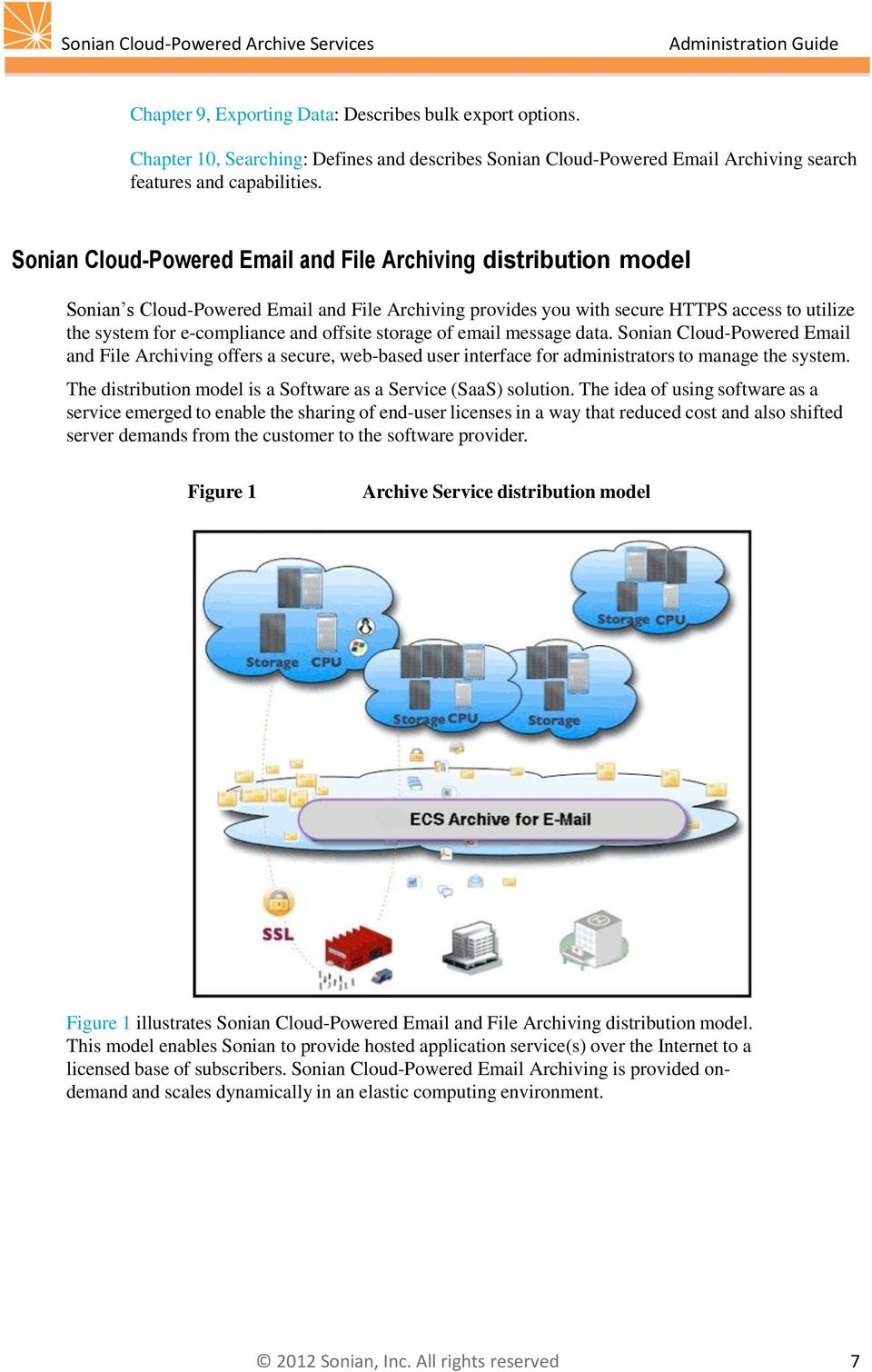
8 Chapter 9, Exporting Data: Describes bulk export options. Chapter 10, Searching: Defines and describes Sonian Cloud-Powered Archiving search features and capabilities. Sonian Cloud-Powered and File Archiving distribution model Sonian s Cloud-Powered and File Archiving provides you with secure HTTPS access to utilize the system for e-compliance and offsite storage of message data. Sonian Cloud-Powered and File Archiving offers a secure, web-based user interface for administrators to manage the system. The distribution model is a Software as a Service (SaaS) solution. The idea of using software as a service emerged to enable the sharing of end-user licenses in a way that reduced cost and also shifted server demands from the customer to the software provider. Figure 1 Archive Service distribution model Figure 1 illustrates Sonian Cloud-Powered and File Archiving distribution model. This model enables Sonian to provide hosted application service(s) over the Internet to a licensed base of subscribers. Sonian Cloud-Powered Archiving is provided ondemand and scales dynamically in an elastic computing environment. 7
9 Elastic computing or cloud computing The elastic computing environment is commonly known as cloud computing. Cloud computing refers to computing where software, services, and storage are provided to customers on-demand through the Internet. By leveraging cloud computing providers, Sonian is able to provide scalable solutions that grow according to the specific needs of our customers. Figure 2 archive elastic computing environment Figure 2 illustrates Sonian Cloud-Powered and File Archiving elastic computing environment. This multi-tiered application exploits elastic cloud resources (web servers, storage indexes and databases, the Enterprise Service Bus, RAID arrays, and permanent data storage) to provide ubiquitous economies of scale. Sonian Cloud-Powered and File Archiving benefits are: Scalability Redundancy Automated provisioning Flexibility Low total cost of ownership (TCO) Sonian Cloud-Powered and File Archiving architecture features a multi-tenant backend and web-based front end. 8

10 2 New Account Set Up In this chapter: Sonian tasks creating your new account and Account Owner Administrator First notification of login credentials and URL Customer tasks Logging in and configuring the account Modifying account settings Billing information (read-only) When your company is ready to set up your new account, Sonian will initiate the process by creating a general account as well as the first account user, known as the Account Owner Administrator. Upon completion, the archive system will send you login credentials as well as your login URL. Then you will follow the series of steps described in this chapter to complete your account set up process. This chapter, New Account Set Up, covers those aspects of getting started having to do with account configuration. Refer also to Chapter 4, Administering User Access and Chapter 5, Collectors for other essential set up tasks. Phone training available by request Sonian provides documentation and videos to help administrators set up this archive service quickly and easily. However, should questions arise, you are welcome to request a 90-minute phone training session from Sonian. During the phone call, you will get a brief overview of each tab of the administration module, as well as troubleshooting support required to get the collectors running properly. Sonian tasks creating your new account and Account Owner Administrator Sonian pre-sales and support staff will work with you to gather the information needed to create your customer account and the first account user, known as the Account Owner Administrator. 9

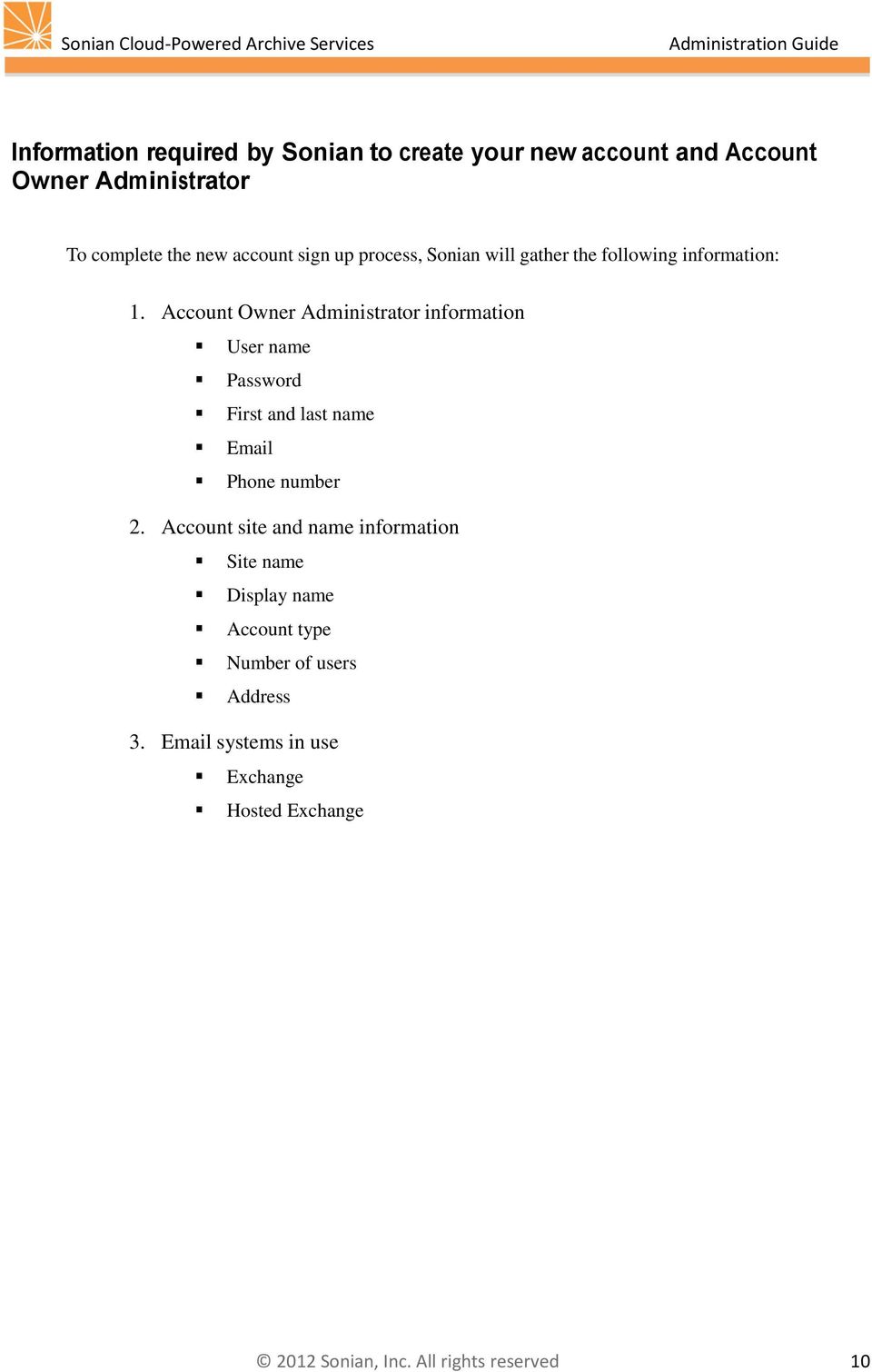
11 Information required by Sonian to create your new account and Account Owner Administrator To complete the new account sign up process, Sonian will gather the following information: 1. Account Owner Administrator information User name Password First and last name Phone number 2. Account site and name information Site name Display name Account type Number of users Address 3. systems in use Exchange Hosted Exchange 10
12 Customer tasks Logging in and configuring the account Navigate to the login URL indicated in the initial notification to access the login screen shown below in Figure 3. Figure 3 Login screen Enter the username and password specified by the initial notification, then click Login. NOTE For security purposes, you will be required to change the Account Owner Administrator password the first time you log in. About the Account Owner Administrator role At this stage of the process, you have access to the Account Owner Administrator role. Only one Account Owner Administrator exists system-wide and is the only user who may view and modify account information. The Account Owner Administrator can be reassigned, and it cannot be deleted. NOTE To reassign the Account Owner Administrator role, there must be at least one other user with Account Administrator permissions in the system. From the Account tab, select a user from the Account owner drop-down list. Only those users with Account Administrator permissions will display in the drop-down list. The essential job of the Account Owner Administrator is to take responsibility for the account level settings and configurations, as well as to create other system users as needed with their respective user permissions. See Chapter 4, Administering User Access, for more information about user roles and permissions. 11

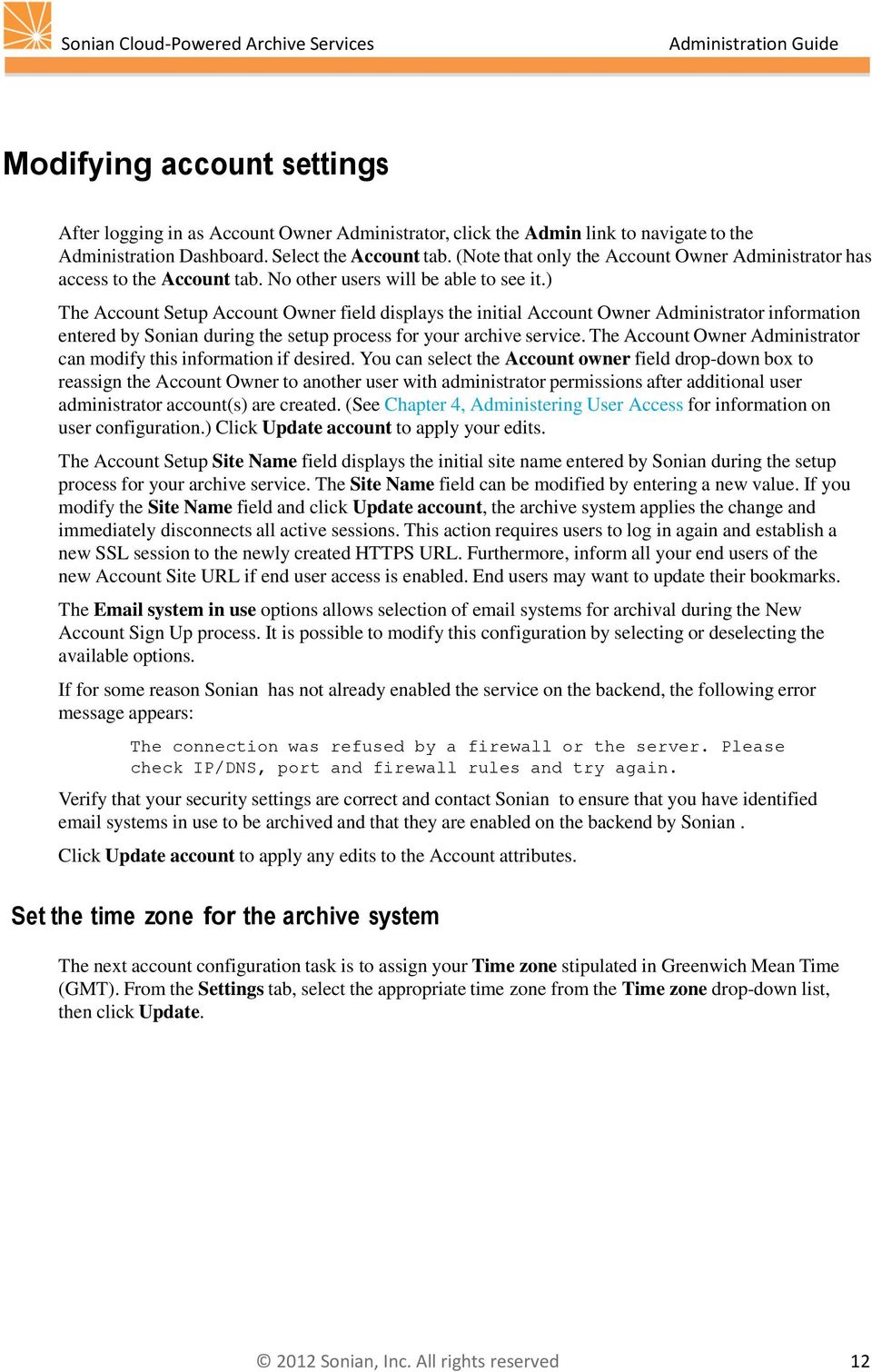
13 Modifying account settings After logging in as Account Owner Administrator, click the Admin link to navigate to the Administration Dashboard. Select the Account tab. (Note that only the Account Owner Administrator has access to the Account tab. No other users will be able to see it.) The Account Setup Account Owner field displays the initial Account Owner Administrator information entered by Sonian during the setup process for your archive service. The Account Owner Administrator can modify this information if desired. You can select the Account owner field drop-down box to reassign the Account Owner to another user with administrator permissions after additional user administrator account(s) are created. (See Chapter 4, Administering User Access for information on user configuration.) Click Update account to apply your edits. The Account Setup Site Name field displays the initial site name entered by Sonian during the setup process for your archive service. The Site Name field can be modified by entering a new value. If you modify the Site Name field and click Update account, the archive system applies the change and immediately disconnects all active sessions. This action requires users to log in again and establish a new SSL session to the newly created HTTPS URL. Furthermore, inform all your end users of the new Account Site URL if end user access is enabled. End users may want to update their bookmarks. The system in use options allows selection of systems for archival during the New Account Sign Up process. It is possible to modify this configuration by selecting or deselecting the available options. If for some reason Sonian has not already enabled the service on the backend, the following error message appears: The connection was refused by a firewall or the server. Please check IP/DNS, port and firewall rules and try again. Verify that your security settings are correct and contact Sonian to ensure that you have identified systems in use to be archived and that they are enabled on the backend by Sonian. Click Update account to apply any edits to the Account attributes. Set the time zone for the archive system The next account configuration task is to assign your Time zone stipulated in Greenwich Mean Time (GMT). From the Settings tab, select the appropriate time zone from the Time zone drop-down list, then click Update. 12
14 Configuring account Subscription, Options, and Logo Figure 5 Account Subscription, Options, and Logo The Account Subscription, Options, and Logo page is displayed in Figure 5. Account Subscription displays customer account subscription attributes. Account Status and Payment, Extras, and Options attributes are maintained by Sonian based on your subscription terms. Contact Sonian to modify service if desired. Subscription Status and Payments Status: The archive service displays customer account status if entered by Sonian through the backend; field options are Trial, Expired Trial, Paid Customer, and Demo. Customer since: The archive service displays day/month/year date when a customer 13
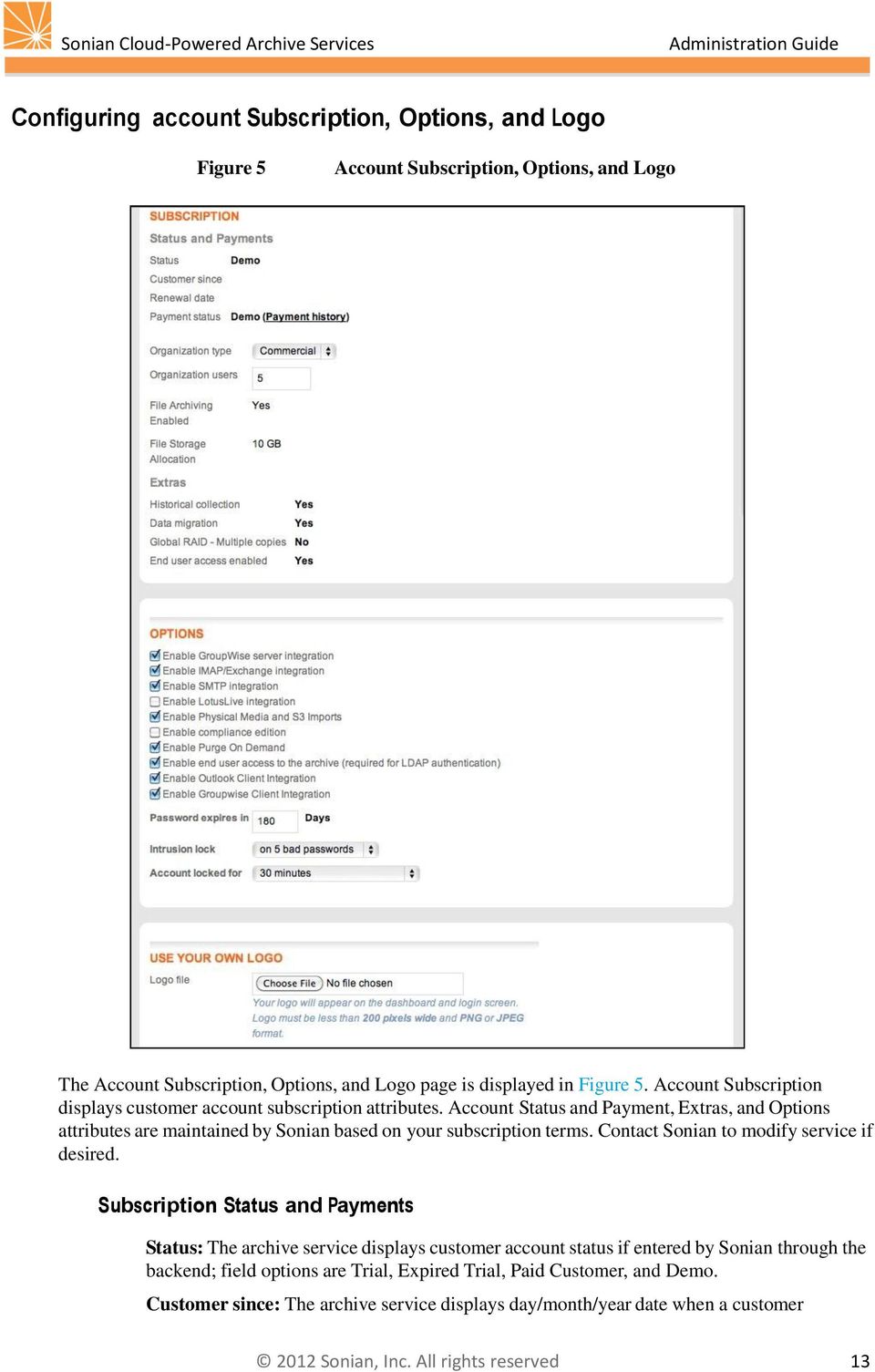
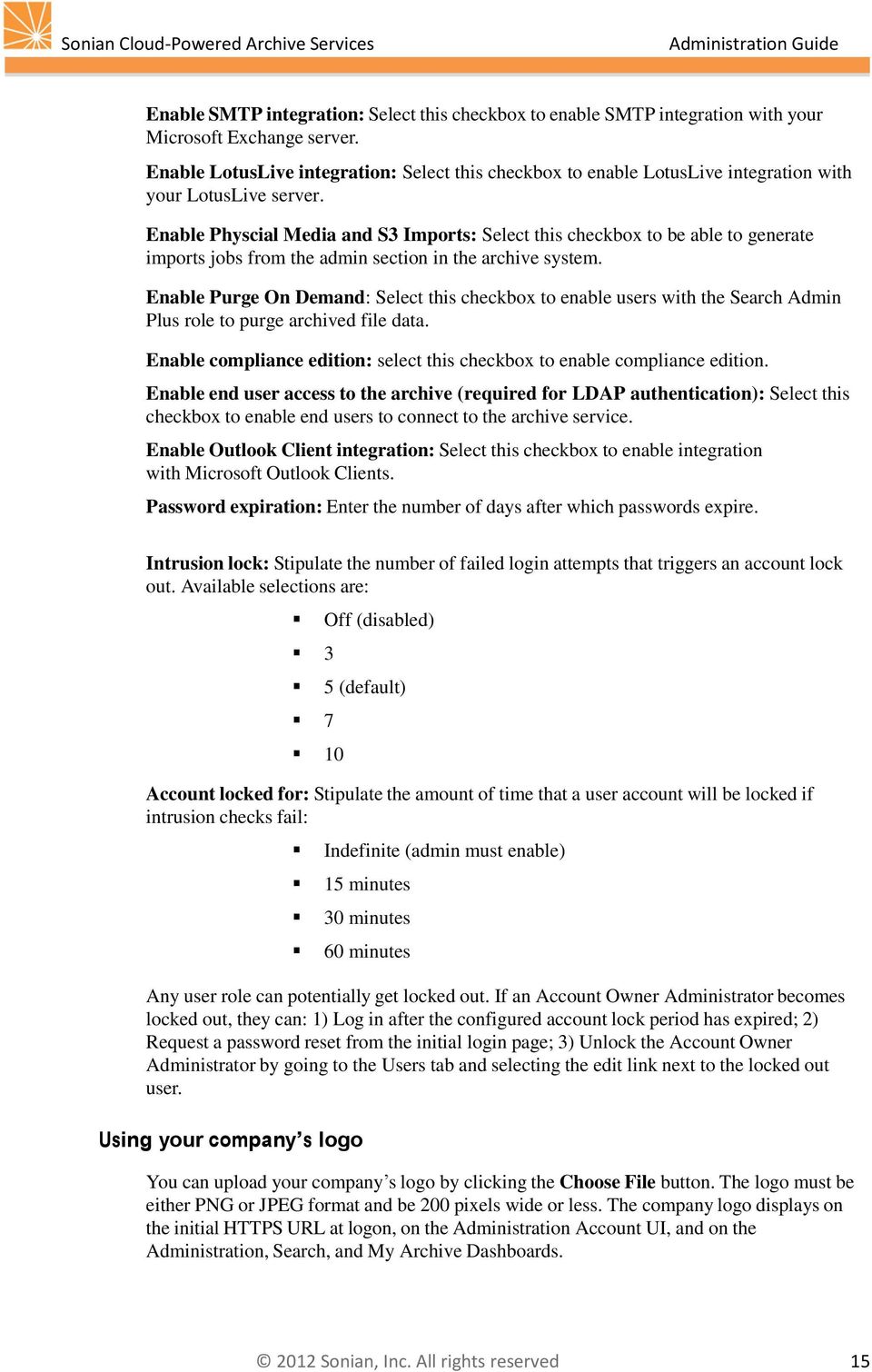
15 subscribes if entered by Sonian through the backend. Renewal date: The archive service displays day/month/year date when customer renews their subscription if entered by Sonian through the backend. Payment Status: The archive service displays customer account payment status if entered by Sonian through the backend; field value options are: Expired Trial, Past due, Invoice sent, Paid in full, Trial, Demo. Organization type: Available selections are Commercial, Non-Profit, Education, and Government. This data point is for informational purposes only. Organization users: Enter the number of organizational user mailboxes archived. The number of user mailboxes archived should match the number of licenses purchased. This field is used for report billing to indicate the upper limit you wish to set on your usage. The number you enter for this field should reflect the capacity that you intend to use. It is currently reported but not enforced. File archiving customers have access to additional information: File Archiving Enabled: The archive service displays if yes or no the file archiving service has been enabled by Sonian through the backend. File Storage Allocation: The archive service displays the storage space that has been allocated to each specific customer by Sonian. This storage allocation can be increased upon customer s notification. Subscription extras Options Historical collection: The archive service has been enabled for the collection of historical from your GroupWise environment. The system will allow historical collection of s from your active post offices. Data migration: The service is enabled to import legacy from a mail system or from a previous archive service. Contact Sonian for more details. Global RAID Multiple copies: The base subscription to the archive service includes storage at eight physically separate data centers in the United States. Global RAID adds four additional data centers for extra protection. End user access enabled: The archive service displays 'end user access enabled' as Yes or No, as set by Sonian through the backend. Yes means end users may access their personal archive through My Archive. If no, end users may not access My Archive. Select applicable check boxes to enable the archive service to integrate with third party server software, client software, and compliance capabilities, or provide end users with HTTPS access. Options are: Enable GroupWise server integration: Select this checkbox to enable GroupWise integration with your GroupWise server. Enable IMAP/Exchange integration: Select this checkbox to enable IMAP integration with your Microsoft Exchange server. 14

16 Enable SMTP integration: Select this checkbox to enable SMTP integration with your Microsoft Exchange server. Enable LotusLive integration: Select this checkbox to enable LotusLive integration with your LotusLive server. Enable Physcial Media and S3 Imports: Select this checkbox to be able to generate imports jobs from the admin section in the archive system. Enable Purge On Demand: Select this checkbox to enable users with the Search Admin Plus role to purge archived file data. Enable compliance edition: select this checkbox to enable compliance edition. Enable end user access to the archive (required for LDAP authentication): Select this checkbox to enable end users to connect to the archive service. Enable Outlook Client integration: Select this checkbox to enable integration with Microsoft Outlook Clients. Password expiration: Enter the number of days after which passwords expire. Intrusion lock: Stipulate the number of failed login attempts that triggers an account lock out. Available selections are: Off (disabled) 3 5 (default) 7 10 Account locked for: Stipulate the amount of time that a user account will be locked if intrusion checks fail: Indefinite (admin must enable) 15 minutes 30 minutes 60 minutes Any user role can potentially get locked out. If an Account Owner Administrator becomes locked out, they can: 1) Log in after the configured account lock period has expired; 2) Request a password reset from the initial login page; 3) Unlock the Account Owner Administrator by going to the Users tab and selecting the edit link next to the locked out user. Using your company s logo You can upload your company s logo by clicking the Choose File button. The logo must be either PNG or JPEG format and be 200 pixels wide or less. The company logo displays on the initial HTTPS URL at logon, on the Administration Account UI, and on the Administration, Search, and My Archive Dashboards. 15
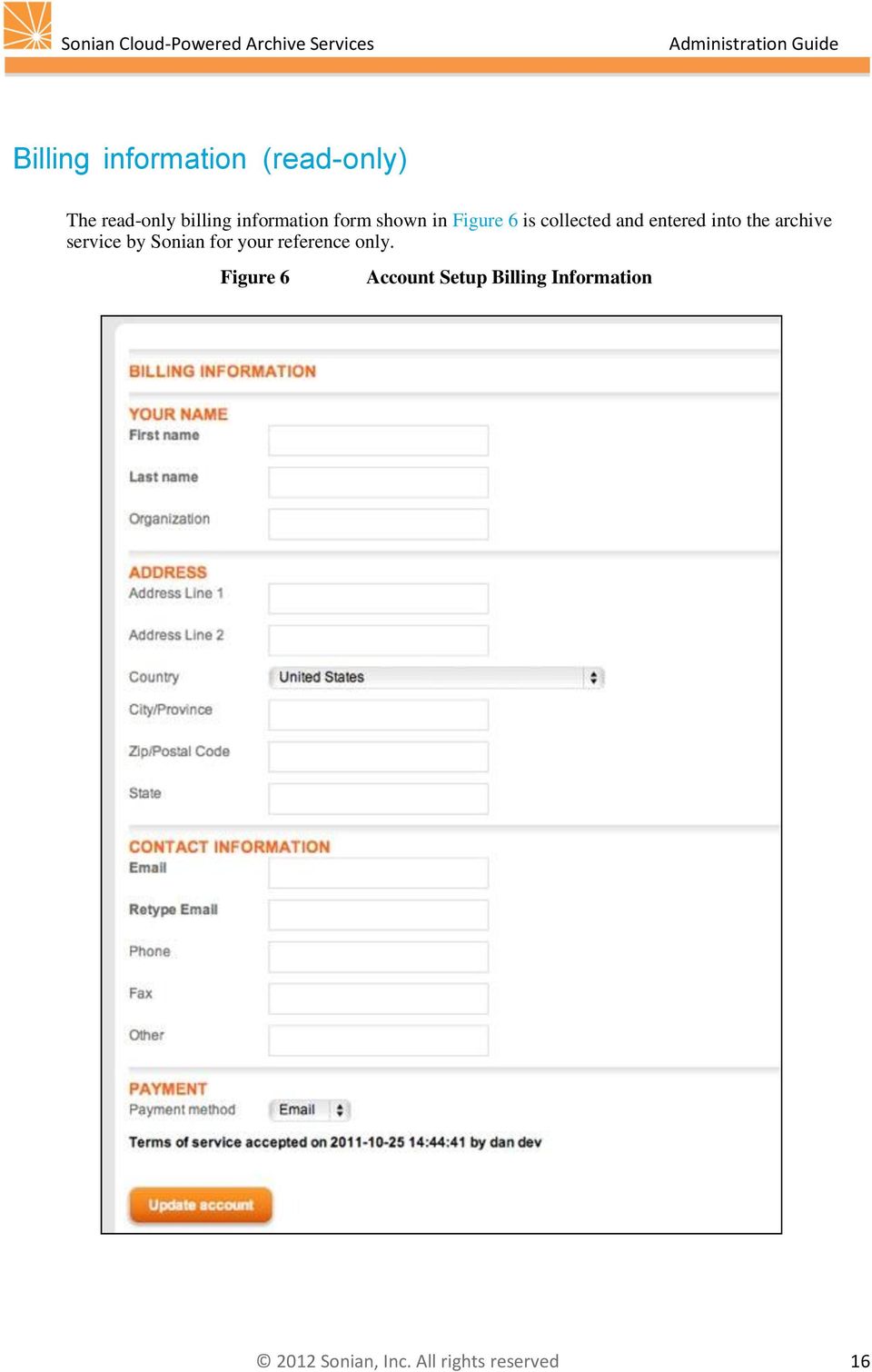
17 Billing information (read-only) The read-only billing information form shown in Figure 6 is collected and entered into the archive service by Sonian for your reference only. Figure 6 Account Setup Billing Information 16
18 3 Administration Dashboard In this chapter: Administration Dashboard statistics Company Logo, Recent Logins, Workstream What you can do from here In this chapter you will learn how to use the Administration Dashboard. The objectives are to identify and define the following Dashboard attributes: Statistics Logo Recent Logins Workstream The Administration Dashboard is based on the software industry standard in which a dashboard displays key business information that can be viewed at a glance. Figure 7 Archive Service Administration Dashboard Sonian Cloud-Powered and File Archiving Administration Dashboard (see Figure 7) facilitates the ability to view and quickly access summary Statistics, most Recent Login(s), handy 'What you can do from here' hyperlinks, and workstream RSS feeds. 17

19 Administration Dashboard statistics Figure 8 Administration Dashboard Statistics Dashboard Statistics (see Figure 8) display summary metrics for all archival activity, providing a snapshot of the latest historical system data points, including: System-wide data points: o Message in archive - the total number of archived messages Attachments in archive the total number of archived attachments Approximate size GB, MBs, or KBs of message data stored Approximate index size GBs, MBs, or KBs of indexed metadata generated For File Archiving customers Files in the archive total number of files in the archive. Approximate size of files GBs, MBs, or KBs of archived file data. Last collection data points: Messages the total number of messages archived during the last collection. Approximate size GBs, MBs, KBs of indexed data during the last collection. Approximate index size GBs, MBs, KBs of indexed metadata generated during the last collection. The statistics also provides a snapshot of user statistics for LDAP-enabled organizations, including: Total users The total numbers of LDAP-enabled users Most recent login the most recent time at which a user logged into the archive via LDAP. 18

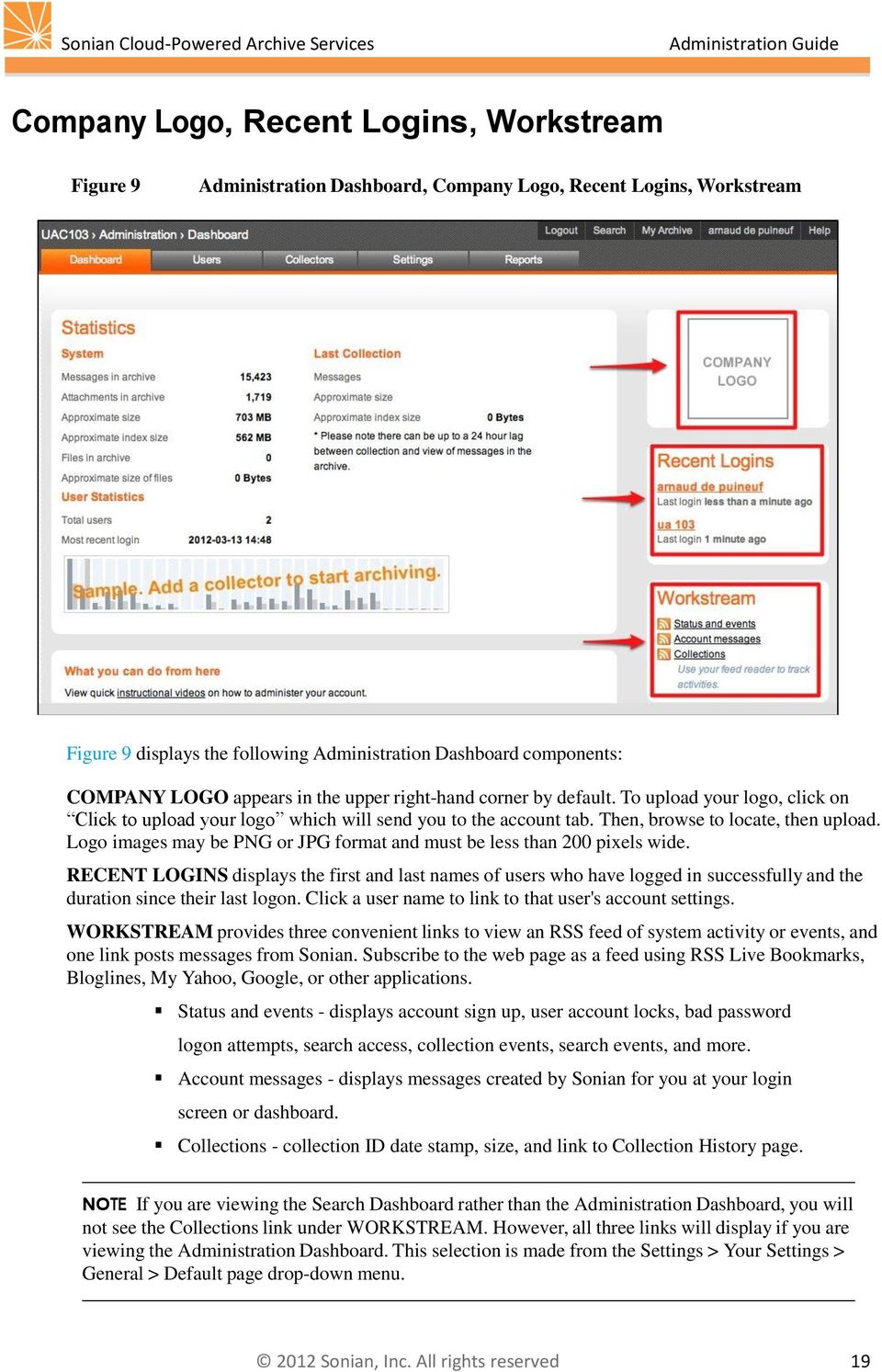
20 Company Logo, Recent Logins, Workstream Figure 9 Administration Dashboard, Company Logo, Recent Logins, Workstream Figure 9 displays the following Administration Dashboard components: COMPANY LOGO appears in the upper right-hand corner by default. To upload your logo, click on Click to upload your logo which will send you to the account tab. Then, browse to locate, then upload. Logo images may be PNG or JPG format and must be less than 200 pixels wide. RECENT LOGINS displays the first and last names of users who have logged in successfully and the duration since their last logon. Click a user name to link to that user's account settings. WORKSTREAM provides three convenient links to view an RSS feed of system activity or events, and one link posts messages from Sonian. Subscribe to the web page as a feed using RSS Live Bookmarks, Bloglines, My Yahoo, Google, or other applications. Status and events - displays account sign up, user account locks, bad password logon attempts, search access, collection events, search events, and more. Account messages - displays messages created by Sonian for you at your login screen or dashboard. Collections - collection ID date stamp, size, and link to Collection History page. NOTE If you are viewing the Search Dashboard rather than the Administration Dashboard, you will not see the Collections link under WORKSTREAM. However, all three links will display if you are viewing the Administration Dashboard. This selection is made from the Settings > Your Settings > General > Default page drop-down menu. 19
21 Figure 10 Selecting the Default page from the Settings drop-down menu 20
22 What you can do from here Figure 11 Administration Dashboard: What you can do from here Figure 11 displays the 'What you can do from here' navigation pane that provides hyperlinks to the following: View quick instructional videos on how to administer your account Manage your account Manage your users Manage your data collectors Your comments help us greatly. Please give us feedback. View system status and coming attractions. 21
23 4 Administering User Access In this chapter: Users tab Creating user accounts Enabling end user access to the archive Requesting a new temporary password In this chapter you will learn how to manage user access to your archive service. The objectives of this chapter are: Identify user attributes Define user permissions Describe creation and management of users The Users tab provides administrators with the ability to create, manage, and view user account permissions and attributes. Users tab Figure 12 Users tab Log in as Administrator. Select the Admin link, then the Users tab to display the Users page shown in Figure
24 Filtering the users list display Figure 13 Filter Users List Display You may filter the user list by account type by clicking All, Admins, Searchers, or End Users links, or enter user name in 'Filter Username' field, as shown in Figure 13. Administrator accounts may configure and audit the system, users, and collectors, view statistics, and create and export reports. Searchers are End User accounts that include at least one search capability. For example, if your archive service account chose the enable end user access to the archive option, your end users have the low-level ability to search their own message archives. The Search Admin Plus accounts have more abilities; they can create, edit, run, and delete searches. They can also run reports. If you chose the enable end user access to the archive option, End User accounts may access their personal message archive. There is no limit to the total number of users that can be created. Creating user accounts The archive service features three methods to create End User accounts: Method one: add users Method two: creating users in bulk Method three: new user self-registration 23
25 Figure 14 Add Users Method one: add users Click Add User to display the New User page shown in Figure Username: Type in the username label that the End User will use to log in. The Username must be unique to your archive service account. 2. First and last name: Type in user's first and last name Type in user's address. The primary address must be unique to your archive service account. 4. (confirm): Type in user's primary address again to confirm. 5. Temp. password: Type in a temporary password. By default, the password must be at least 8 alphanumeric characters with a minimum of three numbers. Upon first log in, the archive service will prompt the End User to stipulate a new password for their account. 24
26 Figure 15 Additional addresses 6. Add addresses: Click the Add address link to associate additional addresses with this user s account, shown in Figure 15. The archive service sends an notification to the address with a link to respond and verify new address. Remove link appears to remove an additional address once entered. End Users can also associate additional addresses to their personal accounts via their SETTINGS. Your archive service will compare addresses entered against your policies and settings. Permissions Permissions: Select checkbox to assign permission: Account Owner (AO) As stated previously, the Account Owner Administrator (AO) is a singularly unique account administrator role created during NEW ACCOUNT SIGN UP. The archive service assigns maximum permissions to the Account Owner. An Account Owner may create, edit and delete user accounts, edit account attributes, and modify all system settings. There may be only one Account Owner system-wide. To reassign the Account Owner role, navigate to the Administration Account tab and toggle the Account Owner dropdown box to assign Account Owner status to another administrator. NOTE Account Owner permission cannot be awarded to a new user while creating the user. The Account Owner can only be changed from the Administration Account tab once the user has already been created. Account Administrator (AA) Account Administrator permissions allow the ability administer your archive service system. Account Administrators may create and edit user accounts and system collectors, modify system settings, and execute reports. Search Administrator (SA) Search Administrators may create, manage and execute searches; assign user access to a given search, and export search results. Search User (SU) permissions allow 'access', 'change scope' and 'export' of existing searches as assigned by the Search Administrator to the Search User for a given search. It is a support role to the Search Administrator. Search User cannot create or delete a search. Search Admin Plus (SAPlus) permissions include Search User permissions plus ability to access the archive reports, retention-policy settings, and on-demand purge for archived file data. End User (EU) permissions allow individuals to access their personal archived data. 25
27 Additional contact information and account options Figure 16 Add New User - Additional Attributes Figure 16 displays additional, optional user account attributes as follows: 1. Organization field is a label of your choosing to qualify account, for example, EAST or WEST. 2. Phone field is for a phone number. 3. Fax field is for a fax number. 4. Expire Date field stipulates expiry value in the database for this account and archive service denies login access on or after that date. Click calendar applet to set date. Click Clear to clear date. You use this setting to provide temporary access to users, for example, a sales engineer that periodically reviews system configuration during first 60 days of subscription; or legal compliance consultant that creates executes and exports search results. 5. Account disabled, when checked, disables end user access to their account. 6. Intrusion Detection is enabled by default. The Account Owner sets an 'Intrusion Lock' value for your archive service on the Administration Account tab. Intrusion Lock values are none, 3, 5 (default), 7, and 10. Logon attempts that exceed 'Intrusion Lock' value lock the user's account and the archive service login page displays 'Your Account has been locked.' 26
28 7. Account Locked Account is locked when checked; account is not locked when unchecked. Deselect this checkbox to clear a user's locked account. 8. Disable password recovery, when checked, prevents a user from requesting a password reset from the logon screen through Disable Outlook Integration uniquely disables Outlook integration for this user account even if enabled system-wide. For example, you may wish to deploy Outlook integration to a subset of users during an incremental rollout. Welcome message Figure 17 Welcome message The last portion of the New User page is for a welcome message. The welcome message is optional. There is a configurable default message that comes pre-populated in the Default message text area. Additionally, using the Custom text field, you can enter a message tailored for new users with any special message or communication that you want to provide to them. To prevent the welcome message from being sent, select the checkbox for Do not send welcome message. 27
29 Method two: creating users in bulk Log in as Administrator, select Admin link, and Users tab to display archive service Users page shown in Figure 12 and click Bulk Create End Users. Figure 18 Create Users in Bulk To generate multiple end user accounts in bulk, click the 'Download CSV file template' shown in Figure 18. Note the Create Users in Bulk UI displays a sample header format and two user entries. A flat, comma-delimited file to create users in bulk is a common, industry-standard tool. Enter each user s field values for your archive service. Instructions on how to fill out the template are included in the download, too. 28
30 Method three: new user self-registration The archive service features three methods to create end user accounts. The first two, 'Add New User' and 'Create Users in Bulk' are previously described earlier in this chapter. The third option to create new End User accounts it to allow users to self-register and gain access to their personal archive account. For security purposes, configure your archive service Settings - End User Access Rules to explicitly allow only your corporate SMTP aliases to create end user accounts. See Chapter 6, Policies and Settings for more information. Figure 19 New User Self-Registration By default the archive service provides a self-registration HTTPS URL in the format of see Figure 19. Users enter a Username, first and last name, and confirmation to self-register and click Create new user account. As previously described, username and alias must be unique systemwide. If the end user enters a duplicate username or address the archive service UI displays the appropriate error message. Figure 20 Your New Account Has Been Created After an end user self-registers successfully, the archive service immediately acknowledges account creation as shown in Figure 20. Also, a confirmation is sent to the stipulated alias with an HTTPS URL enclosed. The End User must successfully navigate to the HTTPS URL to activate their newly registered account. 29
31 Enabling end user access to the archive If you are creating end user accounts one at a time or in bulk, ensure end user access to your archive service is enabled. Figure 21 Enable End User Access First, configure your archive service to enable end user access to your system. Log on as Account Owner Administrator and navigate to Administrator ACCOUNT OPTIONS page, displayed in Figure 21. If you subscribed with Sonian for end user access 'End user access enabled' attribute displays Yes. If 'End user access enable' displays No, contact Sonian to add this feature. Then, select your Account Options 'Enable end user access to the archive' checkbox to permit end user access. It is disabled by default. 30
32 Requesting a new temporary password The archive service provides an HTTPS URL, in the format of <customersubdomain>.archive.com/reset/new, for administrators to offer to users who cannot remember their password. Figure 22 Request a new temporary password Users navigate to the Reset my password page, shown in Figure 22, and enter their archive service username and address. The archive service sends an message with the user's existing password stating: Hello <username>, The system administrator has updated your account. Your user name is <username>. Your new temporary password is <existing_password>. Please change your password on your next login. Your login location is subdomain.archiveserviceprovider.com> Users follow instructions and navigate to their archive service default HTTPS URL and log in with their existing password and are immediately prompted to change their password. 31
33 5 Collectors In this chapter: Non-mail items archived conditionally Draft and deleted items Microsoft Exchange envelope journaling Working with collectors Adding IMAP or Exchange Collector Exchange Journal Adding SMTP collector and trusted network Exchange SMTP SMTP and encryption as a best practice IMAP security with SSL as a best practice This chapter has the following objectives: To describe the basic concept of Collectors. To identify and define Collectors web-based User Interface attributes. To describe all Collector types and configuration options. Collectors gather your data for archive storage. The basic concept of Collectors is to collect messages and attachments from your Microsoft Exchange systems for archiving. To determine the steps necessary to setup your archive service collectors, consider these two questions: 1. Where is my system located, customer premise equipment (CPE) or hosted? 2. What type of transport mechanism do I want to use to archive mail, IMAP or SMTP? 32
34 Figure 23 Archive SaaS and Connectors Diagram Figure 23 illustrates three scenarios that answer the two questions posed. It shows Sonian Cloud-Powered and File Archiving cloud with redundant, load balanced archive systems and connectors to the following mail systems: 1. SMTP hosted Microsoft Exchange Envelope Journaled mailbox 2. SMTP customer premise equipment (CPE) Microsoft Exchange Envelope Journaled mailbox 3. IMAP CPE Microsoft Exchange Envelope Journaled mailbox 33
35 Figure 24 Concept of Collectors Push and Pull Methodologies Figure 24 illustrates two collector methods possible for retrieving , IMAP or pull, and SMTP or Push. The solid line shows the direction of the initial collector connection established to retrieve messages and the dotted line shows the direction of the retrieval of archived messages by the customer from the archive cloud. Pull method The archive service is configured with an Internet Message Access Protocol (IMAP) Collector that initiates a connection, at midnight GMT by default, to the source server and pulls all messages from the configured folders to the archive system. The timing of the connection to the source server can be changed by Sonian Support to meet your requirements. This pull method utilizes IMAP IETF standard specifications and is used by the archive service for all platform-specific collectors, except SMTP. Push method The source system is configured to push envelope journaled messages to a unique Simple Mail Transfer Protocol (SMTP) address on the archive system. The time to initiate the connection is configured on the source system. This push method utilizes SMTP IETF standards and is used by the archive service for all SMTP Collectors. 34
36 Non-mail items archived conditionally Non-mail items, such as tasks and calendar items, do not get collected if there is only a single person involved. When non-mail items are created, the archive service collector does not archive them if it is not between two or more people. Specifically, if a calendar item is relevant to only one person, it is not archived. If non-mail items involve multiple parties, then they are archived. Draft and deleted items Draft and deleted items are not explicitly collected even when you may have selected those options in the archive service. By default the journal mailbox is equipped with a Draft and Deleted Items folder. However, through normal administration of a journal mailbox, no journal items should be placed in the Draft and Deleted Items folder. IMAP protocol as it relates to draft and deleted items Because of IMAP s protocol, if you delete an item in your Inbox by selecting it and pressing the Delete button, or by right-clicking it and selecting Delete, it is now in the Deleted Items folder and it is marked for deletion. Whereas if you drag an from your Inbox into the Deleted Items folder, the is not actually marked for deletion as far as IMAP is concerned. If you drag a draft item from your Inbox into the Draft folder, the archive service would collect and archive that. A work in progress that has not been sent is in a work in progress status and would not be collected. Items with a deleted status that are in the Deleted Items folder, or items with a draft status will not be collected. By default, the archive service displays the folders for Calendar, Deleted Items, Inbox, Drafts, and Sent Items. CPE (customer premise equipment) Microsoft Exchange IMAP example One organization s unique and secure virtual stack is configured with an IMAP Collector that collects mail to be archived from the Microsoft Exchange server located onsite at the organization. Microsoft Exchange SMTP example A second organization's unique and secure virtual stack is configured with an SMTP Collector that collects mail to be archived from the organization's hosted SMTP server, co-located in the organization s Sonian Cloud-Powered Archiving cloud. 35
37 Microsoft Exchange envelope journaling Microsoft Exchange 2003/2007/2010 utilizes Envelope Journaling. The concept of Envelope Journaling is to provide a company or organization with a method to enforce policies to comply with regulations regarding communication. A journaling agent monitors traffic for a given information store mailbox and all messages are copied to an envelope journaled mailbox. The envelope journaled mailbox is configured to connect to the archive service through SMTP for archiving and thereby captures and uploads all communication for forensic analysis if required, or any search function, through Sonian Cloud-Powered Archiving. Microsoft also offers an option called Microsoft Exchange Premium journaling. With Premium journaling, it is possible to perform more granular journaling with journal rules. This option allows an organization to configure journaling to capture individual recipients or members of distribution groups. Refer to Microsoft Exchange documentation for more information about this option. Please refer to the selected links below from the Microsoft TechNet Exchange Server TechCenter for more information on how to configure Exchange Envelope Journaling and SMTP. NOTE When SMTP journaling is used, the archive service does not maintain folder information for archived s. Envelope Journaling and Microsoft Exchange 2003/2007 How to Create a Custom SMTP Recipient for Exchange Server 2003 Journaling How to enable standard journaling (not required with dedicated journaling server) How to enable envelope journaling Journaling and Microsoft Exchange 2010 Understanding Journaling Create and Configure a Journaling Mailbox 36
38 Understanding Journaling in a Mixed Exchange 2003 and Exchange 2010 Environment Working with collectors Account owner and account administrator roles The only two user roles that have permissions to configure Collectors are Account Owner and Account Administrator. Users with one of these roles can configure Collectors through the archive service Administrator Collectors UI. Figure 25 Default Administration Collectors UI Figure 25 displays the Sonian Cloud-Powered Archiving default Collectors HTTPS User Interface. The default Collectors HTTPS User Interface lists all previously configured Available Collectors. To quickly view a given mailbox, enter the mailbox name in the Mailbox name field to dynamically filter the record set being displayed. To edit a given mailbox, click its associated Edit link to its right. To view the history of collections for a given mailbox, click its associated History link to its right. To create a new collector with its associated configurations, click the appropriate button. The proper steps to configure each collector type are explicitly delineated later in this chapter. Add Exchange/IMAP Collector Add Exchange/IMAP Collector - Exchange Journal Add SMTP Collector Configure GroupWise Post Offices 37
39 To pause all collectors, click the Pause All Collectors button. This temporarily suspends collection services during Moves/Adds/Changes or troubleshooting. The button changes to Resume All Collectors to reinitialize collectors when desired. To view the collection history of all collectors, click Collection History to display each collection's Collector ID, the number of items archives, and the KBs or MBs of data collected. To manually initiate a collection, click Collect Now. A message displays at the top of the page stating 'Your request is queued for processing' by the archive service. The requested collection process initiates in approximately one hour to collect and ingest messages into your archive. Figure 26 Account Options It is important to verify that your Account OPTIONS (Figure 26) are configured to allow the archive service to interoperate with the appropriate system and collector type. If the archive service is not enabled to interoperate with a given system or collector type the associated GUI button to click does not appear on the Collectors UI. 38
40 Adding IMAP or Exchange Collector Exchange Journal Figure 27 Add IMAP or Exchange Collector Exchange Journal Navigate to the archive service Administration Collectors tab and click Add Exchange/IMAP collector. The Add IMAP or Exchange Collector page displays, shown in Figure 27. To add an Exchange Collector for Microsoft Exchange mail servers, select the Collector Type Exchange Journal radio button. 1. Populate Server Name field with unique label for this mail system. 2. Populate Mailbox with the mail systems' mailbox name. 3. Toggle Interval dropdown box and choose Nightly, Weekly, or Monthly. 4. Populate IP/DNS field with public IP address or fully qualified domain name (FQDN). 5. Populate Port field with port number to establish an IMAP session from the archive service to the mail system. IETF IMAP well-known port numbers are 143 and 993, 39
41 verify and enter port used on the mail system. 6. Select Use SSL checkbox if the mail server is configured for SSL. 7. Toggle Authentication Method dropdown box and select MD5 if enabled on the mail system. Default value is None. 8. Populate Username field with mailbox account username used to authorize archive service access. 9. Populate Password field with mailbox account username's password to authorize archive service access. 10. Toggle Max message size and select one of these values: 5MB, 10MB, 20MB, 30MB, 40MBs, 50MBs or 75MBs Figure 28 Add Exchange/IMAP Collector Options and Test Figure 28 displays Add Exchange/IMAP Collector UI for steps delineated below: 11. To explicitly define folders to collect from for a new or existing IMAP Collector, use the IMAP Collector's Folder fields. Folder mode dropdown field allows two options: Choose Exclude to explicitly define folders not to be archived and check the desired folders to exclude. 40
42 Choose Include to explicitly define folders to include and check the desired folders to include. NOTE You cannot include or exclude folders unless you are properly connecting to a mailbox through IMAP. 12. Check Options Test mode checkbox to test connectivity and not flag the messages as archived, a best practice. Deselect when you are ready to move from staging to production. 13. Check Options Inactive checkbox to test, a best practice. Deselect when you are ready to move from staging to production. 14. When a configured IMAP collector has been tested, remember to de-select the Test mode checkbox when you are ready to move to production. If Test mode remains selected, the status of the collector will be moved to an Inactive state. Collect by Date offers three mutually exclusive options: All messages Collect data older than <x days>, range is 7 days to 510 days. For example, use this option if IT wants to manage mail system resources and network utilization during initial setup and incrementally pull data. Begin: and End: fields must be set with calendar applet. For example, use this 15. Click Test Config option if IT wants to manage mail system resources and network utilization during initial setup and incrementally pull data stipulated by date range. If parameters are correct a congratulations message is displayed. Click Add Collector to add the new IMAP Collector. The new Exchange IMAP Collector is then displayed in the Available Collectors UI. If parameters are incorrect an error message is displayed with possible solutions. 41
43 Google Apps and SSL connection requirement While configuring IMAP on a Google Apps instance, Test Config is successful only when the port is specified as 993 and the SSL checkbox is checked. Gapps only allows SSL connections. Figure 29 Add IMAP or Exchange Collector and Available Collectors UI for Exchange Journal Figure 29 displays an example of an 'Add IMAP or Exchange Collector - Exchange Journal' UI. Figure 30 shows an example of a new Exchange collector type displayed in Available Collectors UI after successfully adding an Exchange IMAP Collector. 42
44 Figure 30 A new Exchange Collector type displayed Adding SMTP collector and trusted network Exchange SMTP Make sure you are logged in as Account Owner Administrator, and then navigate to Administration - Account Options. Figure 31 Account Options Enable SMTP integration Account Options Enable SMTP integration is enabled by default, see Figure 31. To disable SMTP collections, log on to archive service Administration Account UI and deselect the Enable SMTP Integration checkbox. Click Update account at the bottom of the page to confirm modification. 43
45 The archive service queues and processes the SMTP integration request and automatically generates a unique mailbox name hash. The mailbox SMTP address is then displayed on the Collectors UI. The mailbox SMTP alias is the address used to configure Microsoft Exchange Envelope Journaling as the recipient of forwarded messages from Exchange envelope journaled mailbox to the archive service Collector mailbox via SMTP. When SMTP Collection is enabled for the first time, the following message appears at the top of the Account page: 'SMTP Collection is enabled but you have not added any SMTP Trusted Networks. The Archive will not receive SMTP data until you define your SMTP Trusted Network.' Figure 32 Configure SMTP collector Click Configure SMTP collector (see Figure 32) button to begin setup of the archive service to establish SMTP sessions between the archive service network and organization's server network. Figure 33 Add Trusted Network - SMTP Click Add Trusted Network shown in Figure
46 Figure 34 New Trusted Network IP Range In the NEW TRUSTED NETWORK UI (shown in Figure 34) IP Range field enter the unique public IP address of your mail system, or IP subnetwork address of the segment where your system resides, in standard Classless Interdomain Routing (CIDR) IPv4 format, e.g. dotted decimal address/# of subnetmasked bits. Click Create. Figure 35 SMTP Trusted Networks Figure 35 shows the SMTP TRUSTED NETWORK UI that now displays the new trusted network you just added (and any other previously configured SMTP trusted networks). 45
47 SMTP and encryption as a best practice Sonian Cloud-Powered Archiving supports secure SMTP over TLS using STARTTLS. While this is not required, it is recommended as a best practice, and it is available for those who wish to take advantage of the additional security. By configuring your SMTP sending server with a preference to SMTP/TLS when delivering journal , the TCP session will be encrypted. IMAP security with SSL as a best practice Whenever possible, it is recommended as a best practice to use SSL to encrypt the connection between the archive and your server. If SSL encryption is not possible, please consider using SMTP instead of IMAP. Use SSL certificates created by reputable certificate of authorities (CA) to ensure the best possible secure connection. Try to avoid self-signed certificates since they may not pass tests to verify the true owner. You can create your own firewall rules to accept only inbound IMAP connections from the archive's published IP address ranges. You can also use NAT and port redirection to obscure your public IMAP port (143 or 993) to a random high number. 46
48 6 Policies and Settings In this chapter: Policies Settings In this chapter you will learn how to create, define and configure archive system policies, settings, rules and login messages. The concept of Sonian Cloud-Powered and File Archiving policies is very broad. Chapter 1, Introduction lists several well-known U.S. and international regulations that are the bases of compliance and e-discovery corporate and non-profit policies. For example, the Sarbanes-Oxley, SEC, NASD, and FIPPA organizations regulate journaling and litigation rules. The and file archive system accommodates multiple aspects of any organization s and file archival needs. This comprehensive and file archive software provides Account, User, Collector configuration and more, over a Secure Socket Layer (SSL) and file encryption system. The objectives of this chapter are: To identify and configure Policy attributes for automatic message removal. To identify and configure Setting attributes for your personal account settings, rules for your end users, and system-wide login messages. Policies retention policies automatically removing items older than X days The Policies tab is used for configuring retention policies. An retention policy sets a system-wide attribute to remove messages from the archive based on timestamp. The automatic retention policy feature may be enabled or disabled globally across the whole archive account. When the automatic retention policy is enabled, messages older than the specified number of days will be purged from the archive. Messages will cease to be discoverable through search within 24 hours of the policy threshold being reached. The default setting is disabled (meaning that the automatic retention policy is turned off). Items with legal hold status are always preserved. If legal hold is removed, the message(s) that are older than the specified retention period will be removed upon the next purge event. 47
49 Figure 36 Policies page Navigate to the Administration Policies tab, shown in Figure 36. Select the Enable Automatic Policy checkbox. In the field Remove items older than X days, enter the desired value, then click Update. NOTE There is no upper value boundary to this field. Here are a few example values for three-, five- and seven-year periods expressed in terms of days: 3 Years = 1095 days 5 Years = 1825 days 7 Years = 2555 days Purge history For every purge event, there will be an entry on the Purge History page. To access the Purge History page, select the Automatic Purge History button from the Policies page. Figure 37 Automatic Purge History page 48
50 The Purge History contains the following information: Date: A timestamp for the purge event. Eligible Messages: Messages eligible to be purged (the original date of the message met the retention criteria). Purged: Number of messages actually purged. On Legal Hold: Number of messages not purged due to legal hold status. Not Purged: Number of messages not purged due to some other issue (unable to determine eligibility or legal hold status; rare, if network issues when querying or some environmental issue such as this - these messages would be purged at the next purge event). Details (download link): Link to a.csv file containing a list of messages purged and not due to legal hold. Purge Details For every purge, a summary report is available and may be downloaded from the Automatic Purge History page by clicking on the Details download link. The download contains a.csv file containing information about what was and was not purged. For auditing purposes, the original message date and message-id is provided. The original message date is included as proof that the message was in fact rightly purged based on the retention policy. 49
51 Settings Your Settings Sonian Cloud-Powered Archiving and File HTTPS Administration Settings features provide the ability to fine tune individual personal settings, end user access rules and login messages. Figure 38 Administration - Settings - Your Settings Log on to your and file archive system as an administrator and from the default Administration Dashboard click Settings - Your Settings tab, shown in Figure 38. You may also navigate to the Settings UI if already logged into the archive service Administration UI by simply clicking the Settings tab then Your Settings tab. Modify User Account field with unique personal criteria. User Account standard parameters are maintained: The User name and address fields must be unique system wide, and passwords must be alphanumeric with at least three numbers. If given field value is not valid, an error message displays citing an incorrect parameter, review and correct inputs. Modify User General fields with preferred personal criteria to customize personal user interfaces. Use the drop-down menus to set each attribute value. Available selections are as follows: 16. Items per page: Sets End User and Search items per page: 10, 25, or Default page: Sets your default login page: Admin dashboard, Search dashboard, Search list. The available selections will vary depending on user permissions. 18. Time zone: Sets your personal time zone. 50
52 19. Default View: Sets your preferred search view. Normal View - Default view that displays SMTP message header and snippet of body content. Mini View - Displays SMTP message header content only. Text View - Displays SMTP message header and full body content with option to Expand Extra headers to expand SMTP header and X-Arc* type message headers. 20. Receive nightly s of collection activity: select the checkbox to be notified on a daily basis of the archive activity. If that is checked, the admin(s) will receive an each day listing the number of messages collected over the past 24 hours. Click Update to apply settings. When successful, the message 'Your settings have been successfully updated' displays at the top of the page. General settings are effective immediately except for the Default page setting, which takes effect the next time the user logs into the system. End user access rules The concept of End User Access Rules is to impose restrictions on SMTP domains for end users that self-register to the archive service via an HTTPS browser session ( Restrictions limit end user access and system vulnerability and improve security. Figure 39 Administration - Settings - End User Access Rules 51
53 Logon to your and file archive system as an administrator and from the default Administration Dashboard click Settings - End User Access Rules tab, shown in Figure 39. The End User Access Rules concept is based on typical allow and deny rules-based policy and all SMTP aliases are denied by default. Allow rules explicitly define SMTP aliases to allow access. Deny rules explicitly define SMTP aliases to deny access. For example, to allow access from all locations except free sites such as Yahoo, Hotmail, and Gmail, add an allow rule for *@* and a Deny rule for *@gmail.com, *@yahoo.com, and *@hotmail.com. Click Update to apply settings. The message 'The access lists have been updated.' displays at the top of the page. If an end user registers with an invalid or denied SMTP alias, the archive service system does not send an notification to the SMTP alias. Therefore, the notification reply cannot be sent to the invalid or denied SMTP alias and the self-registered account never activates. Configuring LDAP integration LDAP integration gives you the ability to leverage your directory information to provision and manage archive users and related attributes. LDAP integration is designed to help your streamline user provisioning, management, and authentication. This feature relieves the administrator(s) from the hassles of manually managing archive users. Notes: LDAP support needs to be enabled at the account level first by the Sonian administrator to appear in the Account Admin settings page. The sn, given name, mail, username, and password have to be filled out on the LDAP server for integration to successfully complete. In order to configure LDAP integration, please follow these steps: 1. Log on to your archive system as an administrator and navigate to Administration - Settings LDAP integration tab, shown in Figure 40. Figure 40 Administration Settings LDAP integration 2. Provide your LDAP server connection settings, as shown in Figure 41: a. LDAP server Hostname or IP address for the LDAP server. b. Port Enter the port number: 636 can be used for LDAP over SSL. 52
54 Figure 41 LDAP server connection 3. Provide your username and password for the LDAP integration account, as shown in Figure 42: a. Service User Name The distinguished name of an account with permission to search the LDAP directory. This is basically an account with permission to query the LDAP server. b. Service Password Password on the network, for read-access only to the LDAP server. Figure 42 LDAP User name and password 4. Describe how the service should locate and identify archive users, as shown in Figure 43: a. Base DN The distinguished name of the user containers or Active Directory tree. b. User Filter The filter that should be used to identify users that should have access to the archive. User filter is an LDAP filter string that is used to select those records within the based DN. Figure 43 LDAP Base DN and user filter Notes: o By default, servers that are performing user authentication and management connect to the LDAP server using LDAP over SSL (port 636). o The administrator is NOT able to choose to use a standard LDAP (port 389 by default) rather than LDAP over SSL. o The administrator can provide any port number as long as it is configured with his LDAP server and uses a secure (SSL) connection. 53
55 5. Test your configuration (see Figure 44). It is important that you test your LDAP configuration before saving any settings you provided above. a. Test User Name Provide a user name for a user account that should have access to the archive. It will be sued to validate the settings you provided above. b. Test Password Provide a password for the test account. This password will not be saved. c. Click on Test Config to test the accuracy of your LDAP configuration settings. Figure 44 LDAP Testing your LDAP configuration Notes: Test config fails In case your configuration test fails, you will see a message displayed below the Test Config button telling you what errors there are and which fields need to be modified. Test config succeed In case your configuration test succeed, you will see a message displayed below the Test Config button telling you that your LDAP configuration settings are accurate. 6. Once you are done testing your LDAP configuration and that the archive system has validated your LDAP configuration settings, click on Save Settings to save your settings and enable LDAP integration (see Figure 45). Figure 45 LDAP Save settings 54
56 Notes: The user will only have access to LDAP/directory integration feature set if you (the administrator) enable it. Only users whose account information and attributes are managed via directory/ldap synchronization will be able to leverage LDAP for authentication. Users that are configured for LDAP authentication will not be able to recover their passwords in the archiving system. If the administrator chooses to enable users to login using their last known good password, in the event that the LDAP server is unreachable, passwords stored in the system will never be visible by the administrator of your archiving provider. Removing LDAP settings Administrators have the ability to remove the LDAP settings if necessary. This is a very quick and simple action. Administrators have to follow this 2 steps process: 1. Log on to your archive system as an administrator and navigate to Administration - Settings LDAP integration tab, shown in Figure Click on Remove LDAP Settings at the bottom of the page, as shown in Figure 46. Figure 46 LDAP Remove settings Once the LDAP settings are removed all the LDAP-enabled users will become native users. They will not be deleted from the archive. Users will be able to login into the system with their username and last used password. 55
57 Additional information Authentication methods 1. Database Authentication User Creation Users are created by a customer, and given a temporary password. The first time they login, they will be forced to change their password. If enabled, users can self-register. In which case they keep the password they used to sign up. Users can be bulk uploaded from a CSV file. Users created in any of these ways are flagged as "Native" users. Passwords We are not able to use the default (and preferred) password encryption algorithm of Devise, bcrypt. Instead we have to inherit the previous, not as good but okay, algorithm of Restful-Authentication. Passwords are salted and hashed. It is not possible for anyone, even developers, to reverse this hash. All passwords are salted with a one-time salt, and passed through a one-way hashing algorithm. It's the result of that that gets stored. Salts change every time the password does. That means we cannot easily implement the "don't reuse old passwords" constraint. This existing functionality has been pulled. Login User's provide there credentials in the /login/new screen. They will be redirected there if, they are not currently logged in. If a native user exists with the entered credentials, the user is authenticated and redirected to one of (in order): o The URL they were trying to go to. o The default location saved with their profile o The dashboard of the environment their most powerful role allows: admin, search, my archive. Password Recovery If password recovery is enabled by the admin, a user can request a new password from the login screen. If they do, they will get an sending them to a new screen to enter their new password. Note, the ability to recover a password can be set at the user level (as well as the account level). If such a user is at the login screen, we can't know not to show the recover link. However, if they actually try to recover their password it will be denied. Intrusion Detection An admin can configure a set number of failed password attempts allowed before a user is locked out. If a user (presumably a bad guy) fails to login after this number of attempts they will be locked out. When a user gets locked out, they will receive an telling them how to unlock their account, so that the bad guy can't create a denial of service attack. Alternately, an admin can unlock an account, or it will be automatically unlocked after a configurable amount of time; default: 30 minutes. Inactivity Timeout 56
58 If a user has been inactive for 30 minutes, they will be asked to login again the next time they use the site. Logging out When a user logs out, they are sent to the login screen and unable to proceed until they login again. 2. LDAP Authentication LDAP authentication uses the customer's publicly accessible LDAP server to authenticate users. We do not currently synchronize the customer's LDAP server with a local user store. Configuration A Sonian admin can configure whether LDAP-based authentication is available to its customers. If it is, and the customer has enabled end user access, the customer s admin will see a "LDAP integration" link in the SETTINGS tab. Here they enter the relevant information needed to connect to their server. ALL LDAP queries are over SSL. The LDAP server MUST be configure for SSL communication. o StartTLS is never used. It is all SSL all the time. Microsoft Active Directory: due to the way Active Directory is designed we must bind to LDAP as a search-enabled user and retrieve the attributes for the user logging in (rather than binding to LDAP as the user logging in). Therefore, we need to know the bind DN of a search user (presumably created just for this purpose) and that search user's password (which will be encrypted when saved.) The filter parameter MUST include the string "%u" in it somewhere. This is where we will insert the user's entered username. The username and password asked for on the configuration screen are not saved. They can be the credentials of any user in the directory server. User Creation When an LDAP user logs in for the first time (see below) a local user is created using properties returned from an LDAP query: sn (surname): last name givenname: first name mail: address The username of the user will be whatever username they entered on the login screen. We also save the password they entered (exactly as we do for local authentication). All users are created with the End User role. Consequently, they will have only one address. An End User access must be enabled. All users will be flagged as LDAP users (as opposed to Native users). On subsequent logins, if those attributes have changed the user will be updated, overwriting any changes that may have been made locally. If the user is deleted in LDAP, on their next login they will be (logically) deleted locally. User attributes can be later modified by an admin locally. But LDAP changes will overwrite any changes made to the first name, last name, and password. Additional addresses will be maintained and so will additional roles, but the End User role will be restored if it was removed. The account owner of an LDAP enabled account exists locally as a Native user. Administrators are encouraged not to make LDAP users the account owner and then delete the local account owner. 57
59 Other local users can be created for an LDAP-enabled account, in which case they will behave just as ordinary local users do. Microsoft Active Directory: a Domain user can use his old password to access the network/archive for one hour after the password has changed. If you want to disable a user access to the archive, changing his password will be fully effective only one hour later. As a best practice, we recommend that the Admin disable the employee account. Logging In If an account has LDAP properties associated with it, it is considered LDAP-enabled. If a user attempts to login to an LDAP-enabled account, then: We look first for Native users with those credentials, and log them in if they exist. If a Sonian admin has turned LDAP support off (after an account has set up LDAP), we look locally for LDAP users, this way all those local users don't have to be recreated. Otherwise, we bind to the LDAP server as the search user specified in setup and then do a query for that logging-in user's attributes. We then rebind using that user's DN and the entered password. If that's successful, we create the user as specified above and log them in. However, if we cannot bind successfully and that user exists locally, we still log them in. This allows us to continue in the event that the LDAP server is inaccessible. For security reasons, all passwords are salted with a one-time salt, and passed through a one-way hashing algorithm. It's the result of that that gets stored. Finally, if we can't find the user remotely or locally, they are denied. Note, once an LDAP user is logged in, they behave just like a local user. We do not ping LDAP for each subsequent request; we just look locally. Password Recovery Password recovery is disabled for LDAP users. 3. SAML Authentication With SAML authentication method, every SAML user is pre-authenticated. That said, it's still possible for the external authentication server to present us with user information that we cannot use, and thus need to correct for. User Creation When a SAML user connects (not "logs in" - they never see the login screen) for the first time a local user is created using properties embedded in the HTTP request. Required o saml_account The UUID of the Sonian account the user belongs to o saml_username Example: kenneth o saml_ Example: [email protected] Optional o saml_full_name Example: Kenneth Lay o saml_first_name Example: Kenneth o saml_last_name Example: Lay 58
60 o saml_roles Example: [ acme_admin, acme_user ] If saml_roles is provided, the user will be created with those roles (after they are scrubbed to prevent privilege escalation). Otherwise they will have the EndUser role. If saml_full_name is provided and first and last are not, we attempt to guess first and last. If all three names are provided, first and last win. All users will be flagged as SAML users (as opposed to Native users). On subsequent connections, if those attributes have changed the user will be updated. Logging In As noted, all SAML users are logged in just by showing up (that is, there's at least one HTTP header that begins with "saml_" and the account is SAML-enabled). SAML users never see the login screen. If a SAML request comes in and it's missing the account, username, or mail attribute, then the user is shown a failure page. If these, required fields are present, but last name and first name are not, the user is redirected to a page where they can enter their personal information. If everything we want is in the request, the user simply gets to the requested page. Just like for LDAP, once a SAML user is logged in, they behave just like a local user. We do not reauthenticate with the provided SAML attributes until they logout. Password Recovery Password recovery is disabled for SAML users. Logging Out Even though a SAML user never sees a login screen, there's still a logout link. Clicking this link destroys there local session, but also redirects to Shibboleth and destroys there remote session. Which means the next time the user requests a page, they will see whatever authentication that Shibboleth provides. Tip You can manually test SAML with Firefox using the Modify Headers Plug-in and entering the appropriate headers listed above. There's probably a similar plug-in for Chrome. 59
61 Login messages The concept of Login Messages is to conveniently display messages on your archive system login HTTPS URL to communicate with all end users. Figure 47 Administration - Settings - Login Messages Log on to your and file archive system as an administrator and navigate to Administration - Settings - Login Message tab, shown in Figure 47. Click New message and define: Message: Enter Text to display on your archive service login screen. Starts On: Click calendar applet and select start date for your message. Expires On: Click calendar applet and select date for your message to expire. The archive service posts an update Message was successfully created at the top of the Login Messages UI. Log out and navigate to your archive service default HTTPS URL and verify message appears if date falls within range defined. One option is to define your message with current date setting to verify correct message text appears as desired and then modify date range after test. Figure 48 Login Message example For example, Figure 48 displays Customer Login Screen Message 'Our company holiday is scheduled for December 22nd'. 60
62 7 Reporting In this chapter: Report builder options Sample report The objectives of this chapter are as follows: 1. Identify archive service user accounts allowed to run reports. 2. Identify and describe several available Report types: i. Activity by User ii. Activity by UI Action iii. Activity by Date iv. ECI Activity by User v. Collection by Mailbox vi. Collection by Date 3. Identify and describe format options 4. Identify and describe date range options 5. Identify and describe sort options Report builder options The following archive service user roles have permission to run reports: Account Owner Account Administrator Search Admin Plus Reports can be generated in PDF or CSV format and are sent directly to the designated user s inbox. Navigate to the Reports tab and stipulate Report Builder options. 61
63 Figure 49 Report Builder Options Configure your archive service with your desired Report Builder Options, displayed in Figure From the Choose report: drop-down menu, select one of the following report types: i. Activity by User - reports actions executed by user, for example, UserLogin, SearchCreation, SearchAccess, ExportAvailable. ii. Activity by UI Action - reports User Interface activity, for example, BulkTagActivity, CollectNowRequested, CollectNowCompleted, CollectorEdit, EciLogin, etc. iii. Activity by Date - reports activity sorted by date iv. ECI Activity by User - reports client integration activity v. Collection by Mailbox - reports collections per mailbox vi. Collection by Date - reports collection by date 2. Stipulate a format option: i. PDF ii. CSV (Comma Separated Values) 3. From the Date Range drop-down menu, select one of the following date range options: i. Last Week 62
64 ii. This Week iii. Last Month iv. This Month v. Last Quarter vi. This Quarter vii. Last Year viii. This Year ix. All x. Custom NOTE Except for the Date Range choices All and Custom, each selection populates the date range fields with pre-defined dates. These pre-defined date ranges cover most reporting needs. Selecting All leaves the Begins on and Ends on fields empty and will place no date restrictions on the report. Selecting Custom causes a date selection tool to display next to the Begins on and Ends on fields. Use the date selection tools to choose a custom date range. 4. Sort options: i. From the Order by drop-down menu, select from these criteria: User, Date, Activity ii. For Sort order, select the Ascending or Descending radio button. Click Create Report. A confirmation message appears at the top of the page stating that the report will be sent by . NOTE When viewing a report that is generated with the CSV format option, a string of ###### symbols in the date column indicates that the date column is too narrow to display the date correctly. To fix this, widen the date column in the spreadsheet until the date displays correctly. 63
65 8 Importing Data In this chapter: High-level summary of the data import work flow Creating the import job Preparing data for import Creating the S3 import job The concept of the archive service Import function is to process bulk data import requests. When you subscribe to the archive service, Sonian offers the option of importing legacy archives and static file data into Sonian Cloud-Powered and File Archiving. High-level summary of the data import work flow 1. Customer creates an import job. 2. Sonian is notified by Sonian ships a storage device to the customer; alternatively, the customer may provide its own device. 4. Customer prepares and encrypts the data. 5. Customer places the data onto the device and ships it to Sonian at the following address: Sonian, Inc 95 Wells Avenue, Suite 150 NEWTON, Ma Sonian receives the device, inspects it for integrity and object size, then imports the data. 7. After the data has been imported, Sonian electronically shreds the data on the device. The data shred option is built into the archive service, and it is enabled by default. In the event that the customer uses their own storage device, they will have the option to not shred the data following the import. After shredding, the data is not recoverable and the files on it display as containing zero bytes. The device will require reformatting before it can be re-used. 8. Customer refers to the Import Task list for status. 64
66 Creating the import job To request a legacy data import, select the Admin link, then the Import tab. The Import Tasks page displays. Figure 50 The Import Tasks page From the Import Tasks page, select Create Import Task. The New Import Task page displays. By filling out the New Import Task form, you are providing contact information on who is requesting the import and where the drive should be shipped after the data has been transferred at the data center. 65
67 Figure 51 The New Import Task page After you have completed the form, select Submit Import Task. The Import Tasks page displays showing the import task that you just submitted. It is now waiting to begin. NOTE: Make a note of the Import Task ID outlined in red in Figure 52. You will need this number for the data encryption process. 66
68 Figure 52 Import Task waiting to begin Your legacy data can be successfully imported using the popular PST mail file format. The following section provides guidance on how to work with the PST format, commonly used by Microsoft Outlook. Preparing data for import When preparing your data for processing, you will be responsible for encrypting the data that will be placed on the portable storage media device. WARNING! In order to be uploaded into your archive, all file objects on the portable media device must be below 25 GBs. Sonian recommends using the program 7-zip ( which allows for AES-256 bit encryption. You must use your Import Task ID (see Figure 52) as your password for encrypting your files. PST format The PST (Personal Storage) folder format is used by Microsoft Outlook to store messages on local desktops. The PST format is a single file that holds all folders and messages. You will need to provide each PST file as a separate file which must not be secured with any password protection. Name the PST file and copy it onto the hard drive you will be shipping. PST files may be generated in a couple of ways. Directly by users; or Through an automated application such as exmerge, which extracts messages from your Exchange Server into a collection of PST files. The PST file format can hold information other than just messages, such as tasks, notes and contacts. This additional information is stored as a message and can, if required, be imported into the archive. However, there will be no differentiation between these various information types since imported data is searchable by and/or attachment. 67
69 Requirements for naming PST files As part of the PST import process, we will need to know the primary address of the user for each PST file in order to assign ownership of the message after being imported into the archive system. If you have used a utility such as exmerge, this will typically name the PST files based on the nickname of the user in your Active Directory configuration. We ask that you rename each PST file generated to match the individual to whom the PST belongs. For example, user Simon Bloggs mailbox has been extracted from the Exchange server, and the exmerge utility is likely to call the PST file whatever his alias is (SBloggs.pst). The file must be renamed to [email protected] (retain the PST file extension). Where you have multiple PST files for an individual, please simply add a number to the end of the address: [email protected] [email protected] [email protected] If, however, you have acquired PST files created directly from your end users who have copied messages to them from Outlook, then it is likely that they will be arbitrarily named. Since there is no way to accurately ascertain who each PST file belongs to in the organization, we will need you to ensure that the naming convention cited here is upheld. Table 1 Supported physical media ITEM REQUIREMENT Power for External Devices US wall socket plug 120 Hertz Max Power Consumption 2,000 Watts Interface Type SATA esata USB 2.0; 2.5 inch and 3.5 inch internal Dimensions Max device size is 14 inches high by 19 inches wide by 36 inches deep (8Us in a standard 19 inch rack) Weight Maximum is 50 pounds File System Type Device Capacity NTFS, ext2, ext3, FAT32 Up to 4 TB 68
70 Creating the S3 import job To request a static file data import, select the Admin link, then the Import tab. The Import Tasks page displays. Figure 53 The New S3 Import Tasks page From the Import Tasks page, select Create S3 Import Task. The New Import Task page displays. By filling out the New Import Task form, you are providing contact information on who is requesting the import and where the drive should be shipped after the data has been transferred at the data center. Figure 54 The New Import Task page 69
71 After you have completed the form, select Submit Import Task. The Import Tasks page displays showing the import task that you just submitted. It is now waiting to begin. NOTE: Make a note of the Import Task ID outlined in red in Figure 55. You will need this number for the data encryption process. Figure 55 S3 Import Task waiting to begin Your static file data can be successfully imported using the popular S3 bucket method. Sonian will be able to grab the data from the S3 bucket, using SAFE, and to then archive your file data in your Sonian Archive for and File service. 70
72 9 Exporting Data In this chapter: Bulk export of archive data If you decide at any point in time to unsubscribe from the archive service, you may request bulk export of your data. Please contact Sonian directly for more details regarding the export of archived data and options. Bulk export of archive data You may request bulk export of all your archived data, or a large subset such as a monthly or quarterly archived data set. The archive service processes the export in one of two ways: 1. From the Import tab, you will be able to access an export wizard. The wizard will prompt you to provide answers for several questions similar to the ones you were asked when a bulk import job was created (see Figure 51). Subsequently, Sonian will ship to you a storage device containing your bulk export data. As an option the data can be encrypted before shipment at the customer s request using the program 7-zip ( which allows for AES 256-bit encryption. 2. Alternatively, Sonian will provide you with a link you can use to download your bulk export. All file formats and utilities described for bulk imports are supported for bulk exports. NOTE Export of Search results is a uniquely different archive service process than bulk export. Refer to Chapter 10, Searching, for more information regarding Search result export options. 71
73 10 Searching In this chapter: Search basics Starting a new search Original mail client view and search results view Editing a saved search Viewing search summaries Viewing searches Exporting search results Auditing search activity Working with saved search results NOTE: Customers who signed up for File Archiving are able to perform Simple and Custom search for Files, (and their associated attachments), or a combination a both. The same interface is used for both and file data, providing users with an integrated search. In this chapter, you will learn how to fully leverage your Sonian Cloud-Powered and File Archiving search functionality, with which you can create, execute, manage, view and export searches. The archive service search functionality is based on the concept of providing corporate IT administrators the capability to efficiently and effectively query archived message and file data within a secure environment. When searching, carefully consider the reason for your search and the criteria necessary to yield the best search results. For example, you may need to search your Sonian Cloud-Powered and File Archiving to comply with ediscovery legal compliance requirements, to investigate allegations of sexual harassment, or to query for all correspondence from a given business partner. After carefully defining your search criteria, locate the desired type of search from the many examples in this chapter and follow the configuration instructions provided. To select from among the available search configuration options clearly, this chapter presents step-by-step instructions on how to configure and run your archive service searches. The objectives of this chapter are: To identify and describe search attributes; To describe the range of search configuration options and their correct usage. 72
74 Search basics Figure 56 Search Archive User Interface To access your archive service search features and capabilities, log on to your archive service with proper search permissions and select the Search tab (see Figure 56). A second option is to access the archive service search functions from the Dashboard tab (see Figure 57). The following user accounts have administrative search permissions: Search Admins (SA) can create new searches and manage search settings. Search Admin Plus (SAPlus) users can create new searches, manage search settings, access reports, and perform on demand purge for file data. Search Users (SU) are limited to accessing searches created by Search Admins. Search Users must also be granted access to searches by Search Admins. NOTE Archive service administrators may enable end user access to the archive system-wide and permit End Users (EUs) to access only their archived data. EUs access and query their archived data via the My Archive Message Archive user interface. My Archive is an End User interface only with no administrator capabilities or functionality. Time required to execute a search depends on the number of GB or TB of data to search and criteria, ranging from milliseconds upwards. If you initiate a collection cycle (Collect Now), please allow at least 24 hours for the archive service to archive and index the data before executing a search against new archived data. This is typically the longest window of time experienced in the field for the archive service to queue your collection request, execute collection request, index data, and await new search queries. For each search capability, the steps clearly outline options specific to each search topic. Follow the steps that match your desired results. 73
75 Figure 57 Archive Service Dashboard Search page From the Dashboard, you can quickly view search-specific hyperlinks to relevant content and high-level statistical data points as follows: Recent searches: Displays recent searches in the format of <searchname> hyperlinks; click a given link to jump to that saved search. View all searches: Links to the Search page Displaying All Saved Searches page (see Figure 59). Start new search: Links to the New Search page (see Figure 59). Figure 58 Administration Dashboard Search link A third option is to access the Search page from any of your archive service Administration pages (see Figure 58); click the Search hyperlink. 74
76 Starting a new search Figure 59 Start new search: Dashboard and Search pages Figure 59 displays two archive service page options to start a new search. Two options to initiate a new search are: 1. Log on to the archive service, select the Dashboard tab, and click Start new search. 2. Log on to the archive service, select the Search tab, and click Start new search. 75
77 Simple search A Simple search is the easiest method to run a search with basic criteria. 1. Log on as Account Admin, Search Admin, or Search Admin Plus. Select the Search tab to view the Displaying All Saved Searches page (see Figure 56). Figure 60 Start New Search - Simple tab 2. The Create New Search Simple tab is selected (see Figure 60). a) Populate the Name field to give your search a unique name. b) (Only for available with File archiving) Choose your search scope. Choose to search for (and their associated attachments), Files, or a combination of both. 76
78 Figure 61 Start New Search - Simple tab - Search terms c) Populate the Search terms field with search criteria (see Figure 61). Separate multiple search terms with a comma delimiter. For a simple test search, you may wish to try 'YourCompanyName' or 'SEC' or any term you know appears in archived messages to guarantee a return d) (Optional) Click the Range drop-down menu to select a preconfigured date range. Click the calendar icon to define a custom date range for the Begins on parameter. Click the calendar icon to define a custom date range for the Ends on parameter. If this parameter is left blank, every time the saved search is executed it will have the most up to date results. e) (Optional) Populate the Tags field or click the Tags link to view previously created Tags. Tags are used to categorize searches. You use tags to expeditiously review searches associated with a given tag, for example, CompanyACorrespondence. f) (Optional) Click the Permissions link and assign user permissions: Options: Access, Change Scope, Export g) (Optional) Enter a note in the Note field to describe your new search. h) Click Save and display results to execute your search and display results, or i) Click Save and return to list saves your search and returns to DISPLAYING ALL SAVED SEARCHES search list with your newly created search added to the saved search list. Again, as mentioned earlier in this chapter, you may select a unique permutation of these steps described above to fit your own unique search criteria needs. 77
79 Wizard search A Wizard search provides predefined search fields that expand the Simple Search basic criteria, and the ability to add or remove new search conditions. 1. Log on as Account Admin, Search Admin, or Search Admin Plus and navigate to the Search tab to view the Saved Searches page (see Figure 59). Figure 62 Start New Search Wizard tab 2. Click the Start New Search - Wizard tab (see Figure 62). 3. Execute the steps delineated in Simple search task step 2, step a, d, e, f, and g). 78
80 Figure 63 Start New Search - Wizard tab - search conditions 4. Toggle the drop-down boxes and select preconfigured parameters to define a conditional search (see Figure 63). 5. Click the link add new condition to add more search conditions. Click the remove link to remove a search condition. 6. Click Save and display results or Save and return to list. Save and display results executes your search and displays results. Save and return to list saves your search and returns to SAVED SEARCHES search list with your newly created search added to the saved search list. Again, as mentioned earlier in this chapter, you may select a unique permutation of the steps just described to fit your own unique search needs. NOTE: Wizard search cannot be used to retrieve Files, but only s and/or attachments. 79
81 Advanced search An Advanced search features additional fields and the ability for you to enter custom criteria separated by a comma delimiter that expands upon the Simple Search basic criteria. 1. Log on as Account Admin, Search Admin, or Search Admin Plus and navigate to the Search tab to view the Saved Searches page (see Figure 59). 2. Execute the steps delineated in Simple search task step 2, step a, d, e, f, and g) Figure 64 Start New Search Advanced tab 80
82 3. Click Start New Search Advanced tab (see Figure 64). Figure 65 Start new search - Advanced tab - Search Options Figure 65 displays the Advanced Search Options, which are described below. 4. Populate the Subject field as a search parameter to search message subject fields. NOTE: * To find an exact match for a Subject field search, put your Subject field search terms within double quotes. * Wildcards * require 5 or more characters appended. Leading wildcards cannot be used with the Has words and Do not have words fields. 5. Populate the Sender field as a search parameter with full or partial names. 6. Populate the Recipients field as a search parameter with full or partial names. 7. Populate the Has words field as a search parameter with full or partial words. 8. Select the Look into message body checkbox to enable message body searching. 9. Select the Look into attachments checkbox to enable attachments searching. 10. Populate the Do not have words field as a search parameter with full or partial words. 11. Populate the Attachment name field with full or partial words. 12. Populate the Mailbox field with full or partial search terms. 81
83 13. Populate the Attachment name field with full or partial words. 14. Click Save and display results or Save and return to list. Save and display results executes your search and displays results. Save and return to list saves your search and returns to SAVED SEARCHES search list with your newly created search added to the saved search list. Again, as mentioned earlier in this chapter, you may select a unique permutation of steps described above to fit your own unique search needs. NOTE: Advanced search cannot be used to retrieve Files, but only s and/or attachments. Custom search The custom search feature is intended to provide advanced users with the flexibility to create searches that more complex than those available via the Simple, Advanced, or Wizard-based search features. 1. Log on as Account Admin, Search Admin, or Search Admin Plus and navigate to the Search tab to view the Saved Searches page (see Figure 59). Figure 66 Start New Search Custom tab 82
84 2. Click Start New Search Custom tab (see Figure 66) 3. Execute the steps delineated in Simple search task step 2, step a, d, e, f, and g). Figure 67 Start New Search Custom tab Custom query 4. Populate the Custom query field with search criteria. Examples of capabilities that are available via the custom search include: a. Advanced Boolean queries: combining Boolean logic (i.e. AND, OR, NOT) with grouping to locate messages or documents based on a combination of nested conditions. b. Fuzzy queries: including common misspellings and alternate spellings of search terms in results. c. Proximity queries: searching for terms that exist within a certain number of terms of one another in a document or attachment d. Advanced date/time queries: combining date/time ranges with Boolean logic and/or wildcard capabilities to search for messages based on a variety of timerelated criteria. 5. Click Save and display results or Save and return to list. Save and display results executes your search and displays results. Save and return to list saves your search and returns to SAVED SEARCHES search list with your newly created search added to the saved search list. Again, as mentioned earlier in this chapter, you may select a unique permutation of steps described above to fit your own unique search needs. 83
85 Random search A Random search is designed for compliance users who wish to provide auditors with a randomly selected set of messages without any discrimination on content. 1. Log on as Account Admin, Search Admin, or Search Admin Plus and navigate to the Search tab to view the Saved Searches page (see Figure 59). Figure 68 Start New Search Random tab 2. Click Start New Search Random tab (see Figure 65). 3. Execute the steps delineated in Simple search task step 2, step a, d, e, f, and g). 84
86 Figure 69 Start New Search Random search Sample size and Search conditions Figure 69 displays the Random search options, which are described below. 4. Populate the sample size field with a percentage (as a whole number) between 1% and 30%. 5. Toggle the drop-down boxes and select preconfigured parameters to define a conditional search (see Figure 69). 6. Click the link add new condition to add more search conditions. Click the remove link to remove a search condition. 7. Click Save and return to list. Save and return to list saves your search and returns to SAVED SEARCHES search list with your newly created search added to the saved search list Again, as mentioned earlier in this chapter, you may select a unique permutation of steps described above to fit your own unique search needs. NOTE: Random search cannot be used to retrieve Files, but only and/or attachments. 85
87 Original mail client view and search results view Your message has been archived faithfully and is unchanged from its original content. Sometimes, translating that content into different formats may cause the message to display slightly differently than how you viewed that message originally in your mail client. In order to view the message in the format that most closely matches the original content, download a message from a search page in MIME/RFC822 format and then view that file in your mail client. More details Your view of a message in search results may not appear exactly the way it did when you received the message with your mail client, because the message is translated into HTML and browsers differ significantly in how they display HTML. Browsers differ in interpreting the standards for HTML, extensions they provide, and errors they contain. Differences between browsers are often seen for containing HTML and with content pasted from other applications, because those other applications may have used fonts that are not available on your computer. Also, some applications generate non-standard HTML that may cause problems for certain browsers. Furthermore, as a security precaution when displaying HTML content, the archiving service removes JavaScript from the message and that may affect the way the message is displayed. Editing a saved search Figure 70 Displaying all saved searches 1. Log on as Account Admin, Search Admin, or Search Admin Plus and navigate to the Search tab to view the Saved Searches page (displayed in Figure 70). 86
88 Figure 71 Edit Search 2. From the Saved Searches page, click the Edit link associated with a given saved search to view the Edit Search Simple page as displayed in Figure Edit the search criteria as desired. Click Save and display results to save your edits, run the search, and display the results. Or click Save and return to list to save and return to the Search list. Saving as a new search You can edit a search with new search criteria/filters and then save it as a new search to keep the previously created search and create a new search based on the edited search. 1. Log on as Account Admin, Search Admin, or Search Admin Plus and navigate to the Search tab to view the Saved Searches page (displayed in Figure 70). 2. From the Saved Searches page, click the Edit link associated with a given saved search to view the Edit Search Simple page as displayed in Figure
89 3. Edit the search criteria as desired. Click Save as a new search. Figure 72 Edit search Save as a new search 4. Enter a new name for the edited search to save your edits, run the search, and display the results (see Figure 72). Figure 73 Edit search Save as a new search Search results 5. The results of the new search are displayed (see Figure 73) and can be edited at will to create new and saved new searches. 88
90 Figure 74 Dashboard and Saved Search pages 6. The new saved search appears as a new search in the dashboard and in the saved searches pages (see Figure 74). Editing advanced search criteria You can edit search criteria on a more granular level. Click the Edit link associated with a given search. From the Edit Search page, click the Advanced tab. Refer to the Advanced search (page 80) description for more details. Deleting a saved search Click Delete this Search if you wish to delete a saved search. A prompt displays indicating that this will permanently remove this search. Click OK or Cancel. Selecting Cancel returns you to the original Saved Searches page. 89
91 Viewing search summaries 1. Log on as Account Admin, Search Admin, or Search Admin Plus and navigate to the Search tab to view the Saved Searches page (displayed in Figure 74). Figure 75 Search summary 2. Click the Summary link associated with a given saved search to view its summary, as shown in Figure 75. Selecting summary report options From the Search summary page, you have options for reports you can generate for search summaries. For example, you can include or not include the search results. You can also decide whether or not to include tags. Once you have determined which options you want to include, click Generate PDF. Select Open with or Save File in the Opening summary.pdf dialog box, then click OK. View the report as a PDF file either by viewing it in Adobe Reader or Adobe Acrobat if you selected Open with. If you selected Save File, navigate to the saved file to open it. 90
92 Viewing searches 1. Log on as Account Admin, Search Admin, or Search Admin Plus and navigate to the Search tab to view the Saved Searches page (displayed in Figure 74). Figure 76 Search views 2. Click the Views link associated with a given saved search to view it. Placing a legal hold on a search You can place a legal hold status to all items in a given search. A legal hold will prohibit items from being removed during automatic maintenance routines. Legal holds are typically used when legal action is taking place for the pertinent searches. Legal holds can be placed on , file, and co-mingled and file search results. Any file tagged with the legal hold attribute is not purged from the archive service system even if an automatic policy is configured to remove those items. Legal hold will overwrite a user s, with the Search Admin Plus role, capability to purge files. To place a legal hold on a search, select the corresponding Legal Hold checkbox. The following confirmation message displays: The Legal Hold status was added to all messages successfully. Figure 77 The legal hold status checkbox 91
93 Removing a legal hold To remove the legal hold, deselect the Legal Hold checkbox for the relevant search. The following confirmation message displays: The Legal Hold status was removed from all messages successfully. Automatic purge history To confirm items have been left on legal hold after the nightly purge, a Search Admin Plus or Account Owner Administrator can access the Automatic Purge History from the Policies page (Administration > Policies). See Figure 78. Click the Details link from the Automatic Purge History page to download a CSV file containing the items that have been purged or put on legal hold. The Message ID (full or partial) can be used to search against specific messages. Figure 78 Automatic Purge History button on Administration > Policies page 92
94 Exporting search results 1. Log on as Account Admin, Search Admin, or Search Admin Plus and navigate to the Search tab to view the Saved Searches page (displayed in Figure 74). Figure 79 Search Views - Exports. Note the message You can export up to 15,000 messages at a time. 2. Under the Name heading, click the name of the search you want to export. 3. The search results are displayed. Select the button Export My Results. The Views page displays as shown in Figure 79. You now have the following five export options available: Export to PST Export to File (only format available for files will download the files in their native format). Export to Text Export to PDF Export to HTML Export to LotusLive (NSF format). 4. Select the link corresponding to the export type you want; for example, Export to PST, as shown in Figure Enter an optional note to yourself as an administrative reminder in the Note field. 6. If you like, you can select the checkbox for Send notification when the file is ready for download. This option instructs the archive system to send an SMTP message with a 93
95 unique URL to your assigned address when this search export is ready for download. Click on the URL and it will prompt you to authenticate using your archive credentials before accessing the export. Otherwise, you can retrieve your export request by going to the Export page where all the exports are listed. When the Status column indicates ready next to your export request, click its file name to begin downloading. 7. Click Export to execute the export request, or click Cancel to return to the previous page without exporting. After clicking Export, you will return to the previous page. 8. When the archive service Export notification is received, open it and click the URL link in the message body to download your exported search. NOTE: Once the export has been created, you will be able to access the exports from two places. 1. From the search dashboard page, the RECENT EXPORTS will be displayed right below the RECENT SEARCHES (see Figure 80). From there you will be able to perform several actions: a. View the export(s) name(s), which will be hyperlinked if ready to be downloaded. In that case, click on the export name to download it. b. View the status of the recently created export(s). c. View the date of creation. d. View the name of the user who created the export(s). Figure 80 Search Dashboard Recent Exports 2. From the search results page you can access the pending exports. a. Log on as Account Admin, Search Admin, or Search Admin Plus and 94
96 navigate to the Search tab to view the Saved Searches page (displayed in Figure 74). b. Under the Name heading, click the name of the search you want to export. c. The Search Results are displayed. Click on Pending Exports to access the pending exports list (see Figure 81). Figure 81 Search Results Pending Exports d. If the export status is Ready, the export will be ready to be downloaded. e. Click on the export s hyperlinked name to download the export s results (see Figure 82). Figure 82 Search Archive Exports 95
97 Auditing search activity 1. Log on as Account Admin, Search Admin, or Search Admin Plus and navigate to the Search tab to view the Saved Searches page (displayed in Figure 74). Figure 83 Search Audit 2. Click the Audit link associated with a given saved search. The Audit Activity page displays for your chosen search (see Figure 83 & 84). Figure 84 Audit Activity page The Audit Activity page lists the name, date and time, IP address, and action for every instance that there was activity for the chosen saved search. This allows you to see how the search is being used. Each column can be sorted in ascending or descending order. Note also that you can export the audit activity in a CSV (comma separated value) file by clicking Export to CSV file. CSV files are ideal for importing into a spreadsheet. 96
98 Working with saved search results This topic lists several archive service search features and capabilities working with existing search results. The archive service is fully featured and flexible. The topics presented clearly delineate steps to leverage a given feature. Keep in mind these steps can be combined to produce multiple permutations. This section covers the following topics: How to view and parse an existing search result with more granular criteria How to preview a file search result How to view attachments in search results How to edit an existing search to generate new results How to sort an existing search result Preconfigured tags: Save, Reviewed, Starred, Attention How to create search tags Working with search tags How to view and parse an existing search result with more granular criteria Figure 85 Search - Displaying All Saved Searches 1. Log on as Account Admin, Search Admin, or Search Admin Plus and select the Search tab to view the Saved Searches page, shown in Figure
99 Figure 86 Search UI displaying a given saved search result 2. Click a given Search name to open search result set, as shown in Figure This default saved Search UI is the normal view and displays SMTP header and SMTP body text for each archived message contained in the search result. a) Click Expand All to display 'Text View'. Text View displays SMTP message header and body content with the option to Expand the header. b) Click Original View to display original SMTP body content as rendered by clients. c) Click Collapse All to return to brief display of information for each item. d) Click Mini view to display SMTP message header content only. Expand All and Collapse All options are present only with snippet view The Expand All and Collapse All options are present only when the search results are displaying in snippet view. Snippet view is when you enter a search term or phrase that is found and highlighted within the search results. To see a snippet view, enter a search term or phrase in the Search terms box of the New Search or Edit Search page. Click Save and display results. If the search terms are found, they will be highlighted in the search results. This is snippet view. Note the presence of Expand All and Collapse All in Figure
100 Figure 87 Expand All and Collapse All available with snippet view Collapse All reduces the size of each search result item. Expand All shows a larger view of each search result. In contrast, when a more general search is done without search terms entered in the Search terms box, there will not be a snippet view, and Expand All and Collapse All do not appear on the search results page, as shown in Figure 88. Figure 88 No snippet view and Expand All and Collapse All are not present 99
101 Figure 89 Expand Extra Headers If you wish to view more SMTP header information, click Expand header shown in Figure 89. Figure 90 shows the expanded SMTP header details including X-Arc* headers. X-Arc* type message headers are created by the archive service. Figure 90 Expanded SMTP header details including X-Arc* headers created by the archive service 100
102 Figure 91 Filters in Results UI 1. Click Filter My Result to display the Find in Results page as shown in Figure Populate the Find in Results page with your criteria to refine and parse search results with iterations of: a) Enter Date range values using calendar applet. b) Enter Sender and Recipient alias values. c) Enter Attachments Name Has Attachments/Does not contain. d) (Optional) Give your filter a unique name. e) Enter body and attachments Subject/Has words/message/attachments/ Does not have words criteria. f) Click Apply. g) Review results returned. 101
103 How to preview a file search result File archiving customers can perform co-mingled search and retrieve file and (and their associated attachments) data in a single integrated interface, as shown in Figure 92. Figure 92 Search Results and Files search results 1. Two options are available to preview a file. The search user can either, click on the preview button, or click on the hyperlinked file s name preview, as shown in Figure 93. Figure 93 Search Results Preview button 2. A preview of the first page (or slide, excel sheet, etc) will then be displayed providing the user a native preview of a file. From the file preview, the user download the file directly in its web-browser by clicking on the download button as shown in Figure
104 Figure 94 Search Results File Preview 3. To quit the preview, the user has two options: a. Click on the top-right cross to quit the preview; b. Click anywhere in the grey area to quit the preview and get back to search results. NOTE: File preview is only available for Word, PDF, PowerPoint, and Excel documents as off today. How to view attachments in search results 1. Log on as Account Admin, Search Admin, or Search Admin Plus and select the Search tab to view the Saved Searches page, shown in Figure Click a given search name to open search result set, as shown in Figure An Attachments header will display the presence of attachment(s) in individual search results shown in Figure 95. Figure 95 Search Results Headers Attachments 103
105 4. To preview an attachment, click on Original view and click on Preview (see Figure 96). 5. To download an attachment, click on Original view and click on Download as shown in Figure 96. Or, click on Preview and then click on the download button as shown in Figure 95 to download the attachment right into your browser. How to edit an existing search to generate new results Figure 96 Search - Saved Searches 1. Log on as Account Admin, Search Admin, or Search Admin Plus and navigate to the Search tab. The Saved Searches page displays, shown in Figure 96. Figure 97 Search UI displaying a given saved search result 2. Click a given Search name to open search result set, as shown in Figure
106 Click Edit Search to Generate New Results. Your archive service displays Edit Search UI. Please refer to Simple search (page 76), Wizard search (page 78), Advanced search (page 80), Custom search (page 82), or Random search (page 84) to execute your choice of edits and generate new results. How to sort an existing search result 1. Log on as Account Admin, Search Admin, or Search Admin Plus and navigate to the Search tab. The Saved Searches page displays, shown in Figure Click a given Search name to open search result set, as shown in Figure 97. This default saved Search UI is the normal view and displays SMTP header and SMTP body text for each archived message contained in the search result. 3. Next to Sort results by, select one of the following links according to how you want to sort the search results: a) Relevance b) Date c) Sender d) Subject e) # of Attachments Preconfigured tags: Save, Reviewed, Starred, Attention Figure 98 Search - Saved Searches 1. Log on as Account Admin, Search Admin, or Search Admin Plus and navigate to the Search tab. The Saved Searches page displays, shown in Figure
107 Figure 99 Search UI displaying a given saved search result 2. Click a given Search name to open search result set, as shown in Figure 99. Figure 100 Preconfigured TAGS: Save, Reviewed, Starred, Attention 3. Click Save, Reviewed, Starred and/or Attention to apply predefined tags to search result (see Figure 100). 4. Click 'To PDF' to download PDF of search result message and attachment file names sent. 5. Click Download to download search result message in MIME/RFC82 format or a search result file in its native format. 6. Click Send to forward search results to recipient as attachment. 7. Click Recover to send message to recover in user active mailbox. 106
108 8. Click Tags link to view system wide tags, apply, and save. The archive service is very flexible and another option to leverage is to apply a tagging option to result set displayed in your given Search UI with 'Tagging' dropdown field to apply a tagging action. Figure 101 Tagging actions dropdown options 9. Click the Tagging field dropdown box and select Add or Remove (see Figure 101). Add Review to all this page Attention to all this page Star to all this page Save to all this page Tag word to all this page Remove Review from all this page Attention from all this page Star from all this page Tag word from all this page Tag word to all this view 107
109 How to create search tags A tag is an online industry standard term used to label data such as a file or image. The archive service system features tags as terms or keywords attached to and file archived metadata. You can create and use a tag to quickly categorize and browse your and file archive to find archived messages and files. You can even add a tag to an individual message or file. For example, in Figure 100 you may add a tag in the TAGS field shown to the right of the message or file body to uniquely tag that message or file. 1. To create archive system tags from initial logon or non-search UI are displayed in Figure 101: a) Log on as Account Admin, Search Admin, or Search Admin Plus to your archive Settings tab. b) If already logged in select Search link and select Search tab - System tags. Figure 102 Add Tag Word from Settings > System Tags 2. Populate the Name field by entering your new, custom, system-wide tag and click Add Tag Word. Your newly-created system tag is displayed under Name. Click a delete link next to a given tag name to delete. 108
110 Working with search tags Figure 103 Search - Saved Searches - Tags 1. Log on as Account Admin, Search Admin, or Search Admin Plus and navigate to the Search tab. The Saved Searches page displays. The TAGS pane is displayed in the upper right hand corner as shown in Figure Click View as list to view linear list. Click 'View as cloud' to view tag cloud. Figure 104 Search - select specific Tag 3. Click a previously defined TAGS link (as shown in Figure 104) to view all saved search results with that tag. This example displays all saved searches assigned 'Stanford' tag, for example, Stanford Freedom Speech. 109
111 Working with filters This topic lists a particular archive service search feature working with existing search results. The archive service is fully featured and flexible. The topic presented clearly delineates steps to leverage the filtering feature. Keep in mind these steps can be combined to produce multiple permutations. This section covers the following topics: How to apply a filter to search results How to manage filter(s) How to apply a filter to search results 1. Log on as Account Admin, Search Admin, or Search Admin Plus a) Navigate to the Search Dashboard. Create a new search or open a recently created search, as shown in Figure 80. b) Navigate to the Search tab. The Saved Searches page displays, shown in Figure 104. Create a new search or open a saved search. Figure 105 Search Archive - Search results - Filter my results 2. Click Filter My Results, from the search results page, to access the filtering options (as shown in Figure 105). 110
112 Figure 106 Search Archive Search results Filter my results 3. This will open a drop-down menu with the available filtering fields/options (as shown in Figure 106). a) Fill out the fields available to apply the desired filtering criteria. b) (Optional) Give a unique name to the filter. Otherwise, a default name will be applied to the filter. c) Click on Apply to run the filter and display the filtered results. Figure 107 Search Archive - Filtered Search Results 111
113 4. The created filter will be applied to the search results and the filtered results, if any, will be displayed. From there, different actions can be taken on the applied filter, as shown in Figure 107: a) Click on "Clear Filter" on the top-right corner to clear the filter and go back to the search results. ***Note that this will not delete the filter but just go back to the "unfiltered" search results page. b) Click on "Edit Current Filter" to change the filtering criteria of the specific filter you are viewing. c) You can switch from one filter to another if you created multiple filters for one given search. How to manage filter(s) Figure 108 Search archive Search results - Manage filters 1. All the filters created for a given search will appear in the search views page. Different actions can be performed on the filer(s) from the search views. To access the search views page from the search results page, click on "Manage Filters", as shown in Figure
114 Figure 109 Search Views Filters 2. Different actions can be performed on the filer(s) from the search views page, as shown in Figure 109: a) Click on "Delete" to delete the filter. b) Select the legal hold check box to apply a legal hold on a particular filter. c) Click on one of the different available export formats to export the filtered results in the desired format. d) Click on the filter name ("Alert" in this case) and the filtered search results will be displayed. 113
115 11 Purging File Data Archived file data can be purged from the archive. Purging file data from the archive means that files will be permanently deleted from the archive. The option of purging files is only available to users that have the Search Admin Plus role. Before being able to perform any purge, on demand purge has first to be enable at thesonian level, and then, it also has to be enabled by the Account Administrator under ACCOUNT in the Admin interface. Search Admin Plus can purge an entire search, a subset of search results (such as filtered or tagged search results), or an individual search result. Please, note that purge is only available for search results that only contain files. If a user, with the Search Admin Plus (SAPlus) role, performs a search returning both and file results, he will not be able to purge files. If files have been placed under legal hold in search A for any reason, and a user, with the SAPlus role, creates a search B that includes some of the Search A files (that are under legal hold), purge will be automatically disabled for search B. Legal hold will overwrite any policy in place and will disable purge for the associated files. 1. From the search results page, select the file data that needs to be purged. Use tags to mark files that need to be purged. 2. When the desired files have been tagged, click on Tagged Views, Export My Results, or Legal Hold to go to the search views page, as shown in Figure 110. Figure 110 Search Results Export My Results 3. From the search view page, select the result set that needs to be purged, as shown in Figure Click on Purge to start the process, as shown in Figure Select the checkbox to confirm that you want to permanently delete the selected files, as shown in Figure Click on Purge to complete the process and send the purge request, as shown in Figure 111. a. An notification will be sent to the Search Admin Plus to confirm the purge request. 114
116 Figure 111 Search Views Purge Saved files 7. A green confirmation message pops up on the Search Views page to confirm that your purge is queued for processing, as shown in Figure 112. Figure 112 Search Views Purge confirmation message 8. The purge that the Search Admin Plus created will be displayed on the dashboard, under the PENDING PURGES section, as shown in Figure 113. Figure 113 Search Dashboard Pending Purges 115
117 9. The Search Admin Plus will have confirmation that the files have been successfully purge by refreshing his browser, on the Search Dashboard page. a. If the message: You have no pending purge requests appears, this means that the purge has been successfully completed, as shown in Figure 114. Figure 114 Search No Pending Purges 116
118 11 Appendix: Supported Server Platforms On-premise server platforms The archive service currently supports two Collector object types: IMAP and SMTP. This is true for Microsoft Exchange 2003, 2007, and 2010 for on-premise servers. Hosted platforms The archive service supports Google Apps , but limited to individual mailbox collections. IMAP journaling is not supported. Collection through SMTP is limited without third-party routing of outbound internet . client integration Microsoft Outlook 2003, 2007, and 2010 are supported. Both have the ability to access the search functionality of the archive system through the client. Supported web browsers i. Internet Explorer 7.x ii. Internet Explorer 8.x iii. Internet Explorer 9.x iv. Firefox 3 and above v. Safari 4 vi. Safari 5 vii. Google Chrome Both the 32- and 64-bit versions of the browsers are supported as applicable. 117
119 Index A Account, configuring, 13 Account, creating, 9 Account, locked, 15 Account login URL, 11 Account options, 14, 43 Account owner administrator, 9 Account owner administrator, creating, 10 Account Owner Administrator, reassigning role, 12 Account owner and account administrator roles, 37 Account subscription, options, logo, 13 Active Directory, 53, 57 Administration Policies tab, 48 Amazon, S3, 15, Audience intended, 4 Auditing search activity, 96 Automatic message removal, 48 Attachments, 103 B Bulk data import and export, 64 C Cloud computing, 7 Collapse All, Expand All, Collector, Add Exchange/IMAP collector, 49 Collector methods pull and push, 34 Collectors, 32 Collectors, basic concept, 33 Collectors, determining the steps necessary to set up, 33 Collectors, pull method, 34 Collectors, push method, 34 Collectors, test mode, 40 Collectors, working with, 47 Company Logo, 19 Customer premise equipment (CPE),
120 D Dashboard, 17 Dashboard statistics, 18 Data import work flow, summary, 64 Default page, selecting, 20 E Elastic computing environment, 7 address of account owner administrator, 10 notification to account owner administrator, 11 retention policies, 47 server platforms supported, 36 Encryption, 46, 47 End user access rules, 51 Envelope journaling, Microsoft Exchange, 36 Exchange Journal, adding IMAP or Exchange Collector, 39 Expand All, Collapse All, Export, bulk, 71 F Folders, defining folders for collection, 40 Filters, 87, Filters, creating filters, 110 Filters, saving filters, 111 Filters, managing filters, 111 H Hosted, 10, 33 I IMAP, type of transport mechanism, 37 Importing, creating import task, 65 Importing data, 64 Importing data, preparing, 67 L LDAP, 18, 15, Legal hold, 91-92, Login, 11 Login messages, 60 Logo, upload, 19 LotusLive, 15,
121 M Message removal, automatic, 48 Microsoft Exchange systems, 35 Microsoft Exchange envelope journaling, 36 Microsoft Exchange SMTP, 35 N Notification of login credentials and URL, 11 P Password, requesting a new temporary password, 31 People, 19 Policies, 47 Policies and Settings, 47 Prerequisites product, 4 Preview files, PST (Personal Storage) format, 68 PST files, naming requirements for importing, 69 Pull method, 34 Purge details, legal hold, 49 Purge files, 15, 48-49, 91, 114 Purge history, 48 Push method, 34 R Redundant, 33 Remove items older than X days field, 48 Reporting, 61 S Reporting, report types, 62 Retention, retention policies, 47 SAML, SAPlus, Search Admin Plus, 25 Saving, saving as a new search, 87 Searching, search basics, 73 Searching, simple search, 76 Searching, wizard search, 78 Searching, advanced search,
122 Searching, custom search, 82 Searching, random search, 84 Searching, sorting search results, 92 Searching, working with saved search results, 97 Secure Socket Layer (SSL), 46 Security, SMTP collection, 43 Settings, 50 Settings, individual personal, 50 Settings, end user access rules, 51 Settings login messages, 60 Settings, your settings, 50 Settings and Policies, 47 SMTP, type of transport mechanism, 35 SMTP collector, configuring, 44 SMTP integration, enable, 43 SMTP Trusted Networks, 44 Snippet view, 51, Software version, 1 Software as a Service (SaaS), 7 Subscriber s choice web site, 5 Support web site, 5 Supported server platforms, 36 System summary information, 17 S3, Amazon, 15, T Tags, Tags, creating search tags, 108 Tags, working with search tags, 108 Time zone, setting, 12 Trusted Network, New, IP range, 45 U URL, notification of, 11 User Administration, 25 Username, 11 Users, adding, 24 Users, creating in bulk, 28 Users, enabling end user access,
123 Users, filtering the display, 23 Users, new user self-registration, 29 Users tab, 22 W Web site documentation, 5 Work stream,
Administration Guide
 Administration Guide Software release date: June 2011 Legal notices Warranty The only warranties for Webroot products and services are set forth in the express warranty statements accompanying such products
Getting Started Guide
 Getting Started Guide Software release date: June 2011 Contents About this document... 2 Intended audience... 2 Prerequisites... 2 Related documentation... 2 1 Get Organized... 3 Gather design notes...
Sonian Getting Started Guide October 2008
 Sonian Getting Started Guide October 2008 Sonian, Inc. For Authorized Use Only 1 Create your new archiving account 3 Configure your firewall for IMAP collections 4 (Skip this step if you will be using
WEBROOT EMAIL ARCHIVING SERVICE. Getting Started Guide North America. The best security in an unsecured world. TM
 WEBROOT EMAIL ARCHIVING SERVICE Getting Started Guide North America Webroot Software, Inc. World Headquarters 2560 55th Street Boulder CO 80301 USA www.webroot.com 800.870.8102 Table of Contents Create
Sonian Cloud-Powered Archive Service. End User (My Archive) Guide
 Sonian Cloud-Powered Archive Service End User (My Archive) Guide Software Release Date: April 2012 Legal Notices Warranty The only warranties for Sonian products and services are set forth in the express
Copyright 2013, 3CX Ltd. http://www.3cx.com E-mail: [email protected]
 Manual Copyright 2013, 3CX Ltd. http://www.3cx.com E-mail: [email protected] Information in this document is subject to change without notice. Companies names and data used in examples herein are fictitious
Copyright 2012 Trend Micro Incorporated. All rights reserved.
 Trend Micro Incorporated reserves the right to make changes to this document and to the products described herein without notice. Before installing and using the software, please review the readme files,
NETWRIX EVENT LOG MANAGER
 NETWRIX EVENT LOG MANAGER ADMINISTRATOR S GUIDE Product Version: 4.0 July/2012. Legal Notice The information in this publication is furnished for information use only, and does not constitute a commitment
Mobile Device Management Version 8. Last updated: 17-10-14
 Mobile Device Management Version 8 Last updated: 17-10-14 Copyright 2013, 2X Ltd. http://www.2x.com E mail: [email protected] Information in this document is subject to change without notice. Companies names
Microsoft Office 365 from Vodafone. Administrator s Guide for Midsize Businesses and Enterprises
 Microsoft Office 365 from Vodafone Administrator s Guide for Midsize Businesses and Enterprises Contents Footer bar Return to contents page Go to next of section Return to start of section Previous page
Administration Guide. BlackBerry Enterprise Service 12. Version 12.0
 Administration Guide BlackBerry Enterprise Service 12 Version 12.0 Published: 2015-01-16 SWD-20150116150104141 Contents Introduction... 9 About this guide...10 What is BES12?...11 Key features of BES12...
Product Manual. MDM On Premise Installation Version 8.1. Last Updated: 06/07/15
 Product Manual MDM On Premise Installation Version 8.1 Last Updated: 06/07/15 Parallels IP Holdings GmbH Vordergasse 59 8200 Schaffhausen Switzerland Tel: + 41 52 632 0411 Fax: + 41 52 672 2010 www.parallels.com
Exchange Mailbox Protection Whitepaper
 Exchange Mailbox Protection Contents 1. Introduction... 2 Documentation... 2 Licensing... 2 Exchange add-on comparison... 2 Advantages and disadvantages of the different PST formats... 3 2. How Exchange
NETWRIX EVENT LOG MANAGER
 NETWRIX EVENT LOG MANAGER QUICK-START GUIDE FOR THE ENTERPRISE EDITION Product Version: 4.0 July/2012. Legal Notice The information in this publication is furnished for information use only, and does not
Active Directory Self-Service FAQ
 Active Directory Self-Service FAQ General Information: [email protected] Online Support: [email protected] CionSystems Inc. Mailing Address: 16625 Redmond Way, Ste M106 Redmond, WA. 98052 http://www.cionsystems.com
Preparing for GO!Enterprise MDM On-Demand Service
 Preparing for GO!Enterprise MDM On-Demand Service This guide provides information on...... An overview of GO!Enterprise MDM... Preparing your environment for GO!Enterprise MDM On-Demand... Firewall rules
Copyright 2013 Trend Micro Incorporated. All rights reserved.
 Trend Micro Incorporated reserves the right to make changes to this document and to the products described herein without notice. Before installing and using the software, please review the readme files,
NETWRIX USER ACTIVITY VIDEO REPORTER
 NETWRIX USER ACTIVITY VIDEO REPORTER ADMINISTRATOR S GUIDE Product Version: 1.0 January 2013. Legal Notice The information in this publication is furnished for information use only, and does not constitute
vcloud Director User's Guide
 vcloud Director 5.5 This document supports the version of each product listed and supports all subsequent versions until the document is replaced by a new edition. To check for more recent editions of
WEBCONNECT INSTALLATION GUIDE. Version 1.96
 WEBCONNECT INSTALLATION GUIDE Version 1.96 Copyright 1981-2015 Netop Business Solutions A/S. All Rights Reserved. Portions used under license from third parties. Please send any comments to: Netop Business
NETWRIX FILE SERVER CHANGE REPORTER
 NETWRIX FILE SERVER CHANGE REPORTER ADMINISTRATOR S GUIDE Product Version: 3.3 April/2012. Legal Notice The information in this publication is furnished for information use only, and does not constitute
Getting Started. Business Link. User Name Rules. Hardware/Software Requirements. Password Rules
 Getting Started User Name Rules All user names must: Be unique. Be between six and 40 characters in length. Notes: It is recommended that user names consist only of alphanumeric characters (A-Z, 0-9).
User's Guide. Product Version: 2.5.0 Publication Date: 7/25/2011
 User's Guide Product Version: 2.5.0 Publication Date: 7/25/2011 Copyright 2009-2011, LINOMA SOFTWARE LINOMA SOFTWARE is a division of LINOMA GROUP, Inc. Contents GoAnywhere Services Welcome 6 Getting Started
Spambrella SaaS Email Encryption Enablement for Customers, Domains and Users Quick Start Guide
 January 24, 2015 Spambrella SaaS Email Encryption Enablement for Customers, Domains and Users Quick Start Guide Spambrella and/or other noted Spambrella related products contained herein are registered
RoomWizard Synchronization Software Manual Installation Instructions
 2 RoomWizard Synchronization Software Manual Installation Instructions Table of Contents Exchange Server Configuration... 4 RoomWizard Synchronization Software Installation and Configuration... 5 System
HP IMC Firewall Manager
 HP IMC Firewall Manager Configuration Guide Part number: 5998-2267 Document version: 6PW102-20120420 Legal and notice information Copyright 2012 Hewlett-Packard Development Company, L.P. No part of this
SaaS Email Encryption Enablement for Customers, Domains and Users Quick Start Guide
 SaaS Email Encryption Enablement for Customers, Domains and Users Quick Start Guide Email Encryption Customers who are provisioned for SaaS Email Encryption can easily configure their Content Policies
Exchange 2010. Outlook Profile/POP/IMAP/SMTP Setup Guide
 Exchange 2010 Outlook Profile/POP/IMAP/SMTP Setup Guide September, 2013 Exchange 2010 Outlook Profile/POP/IMAP/SMTP Setup Guide i Contents Exchange 2010 Outlook Profile Configuration... 1 Outlook Profile
Creating a Content Group and assigning the Encrypt action to the Group.
 Product Guide Revision A SaaS Email Encryption Enablement for Customers, Domains, and Users Email Encryption Customers who are provisioned for SaaS Email Encryption can easily configure their Content Policies
Policy Based Encryption Z. Administrator Guide
 Policy Based Encryption Z Administrator Guide Policy Based Encryption Z Administrator Guide Documentation version: 1.2 Legal Notice Legal Notice Copyright 2012 Symantec Corporation. All rights reserved.
Contents Notice to Users
 Web Remote Access Contents Web Remote Access Overview... 1 Setting Up Web Remote Access... 2 Editing Web Remote Access Settings... 5 Web Remote Access Log... 7 Accessing Your Home Network Using Web Remote
HP A-IMC Firewall Manager
 HP A-IMC Firewall Manager Configuration Guide Part number: 5998-2267 Document version: 6PW101-20110805 Legal and notice information Copyright 2011 Hewlett-Packard Development Company, L.P. No part of this
BlackBerry Internet Service. Version: 4.5.1. Administration Guide
 BlackBerry Internet Service Version: 4.5.1 Administration Guide Published: 2014-01-22 SWD-20140122155744258 Contents 1 Getting started...6 Administrative feature availability... 6 Availability of features
Cloud. Hosted Exchange Administration Manual
 Cloud Hosted Exchange Administration Manual Table of Contents Table of Contents... 1 Table of Figures... 4 1 Preface... 6 2 Telesystem Hosted Exchange Administrative Portal... 7 3 Hosted Exchange Service...
WatchDox Administrator's Guide. Application Version 3.7.5
 Application Version 3.7.5 Confidentiality This document contains confidential material that is proprietary WatchDox. The information and ideas herein may not be disclosed to any unauthorized individuals
Trustwave SEG Cloud Customer Guide
 Trustwave SEG Cloud Customer Guide Legal Notice Copyright 2015 Trustwave Holdings, Inc. All rights reserved. This document is protected by copyright and any distribution, reproduction, copying, or decompilation
Advanced Configuration Steps
 Advanced Configuration Steps After you have downloaded a trial, you can perform the following from the Setup menu in the MaaS360 portal: Configure additional services Configure device enrollment settings
Vodafone Secure Device Manager Administration User Guide
 Vodafone Secure Device Manager Administration User Guide Vodafone New Zealand Limited. Correct as of September 2014. Do business better Contents Introduction 3 Help 4 How to find help in the Vodafone Secure
http://docs.trendmicro.com
 Trend Micro Incorporated reserves the right to make changes to this document and to the products described herein without notice. Before installing and using the product, please review the readme files,
Policy Based Encryption E. Administrator Guide
 Policy Based Encryption E Administrator Guide Policy Based Encryption E Administrator Guide Documentation version: 1.2 Legal Notice Legal Notice Copyright 2012 Symantec Corporation. All rights reserved.
Policy Based Encryption E. Administrator Guide
 Policy Based Encryption E Administrator Guide Policy Based Encryption E Administrator Guide Documentation version: 1.2 Legal Notice Legal Notice Copyright 2012 Symantec Corporation. All rights reserved.
Architecture and Data Flow Overview. BlackBerry Enterprise Service 10 721-08877-123 Version: 10.2. Quick Reference
 Architecture and Data Flow Overview BlackBerry Enterprise Service 10 721-08877-123 Version: Quick Reference Published: 2013-11-28 SWD-20131128130321045 Contents Key components of BlackBerry Enterprise
About Email Archiving for Microsoft Exchange Server
 Setup Guide Revision A McAfee SaaS Email Archiving Service Configuring Microsoft Exchange Server 2013 About Email Archiving for Microsoft Exchange Server The McAfee SaaS Email Archiving service stores
BOTTOM UP THINKING EMAIL SETUP INSTRUCTIONS. Unique businesses require unique solutions CLIENT GUIDE
 BOTTOM UP THINKING Unique businesses require unique solutions EMAIL SETUP INSTRUCTIONS CLIENT GUIDE INDEX How to connect a. Deciding on best method (POP or IMAP) Setting up email on devices Webmail a.
Sage 200 Web Time & Expenses Guide
 Sage 200 Web Time & Expenses Guide Sage (UK) Limited Copyright Statement Sage (UK) Limited, 2006. All rights reserved If this documentation includes advice or information relating to any matter other than
SaskTel Hosted Exchange Administrator Guide
 SaskTel Hosted Exchange Administrator Guide Customer Center Administration Portal At least the first of the following tasks (Accept the Terms of Service) needs to be completed before the company portal
Important Information
 June 2015 Important Information The following information applies to Proofpoint Essentials US1 data center only. User Interface Access https://usproofpointessentials.com MX Records mx1-usppe-hosted.com
Virtual Data Centre. User Guide
 Virtual Data Centre User Guide 2 P age Table of Contents Getting Started with vcloud Director... 8 1. Understanding vcloud Director... 8 2. Log In to the Web Console... 9 3. Using vcloud Director... 10
Request Manager Installation and Configuration Guide
 Request Manager Installation and Configuration Guide vcloud Request Manager 1.0.0 This document supports the version of each product listed and supports all subsequent versions until the document is replaced
Web Remote Access. User Guide
 Web Remote Access User Guide Notice to Users 2005 2Wire, Inc. All rights reserved. This manual in whole or in part, may not be reproduced, translated, or reduced to any machine-readable form without prior
Integrate Check Point Firewall
 Integrate Check Point Firewall EventTracker Enterprise Publication Date: Oct.26, 2015 EventTracker 8815 Centre Park Drive Columbia MD 21045 www.eventtracker.com Abstract The purpose of this document is
USER GUIDE: MANAGING NARA EMAIL RECORDS WITH GMAIL AND THE ZL UNIFIED ARCHIVE
 USER GUIDE: MANAGING NARA EMAIL RECORDS WITH GMAIL AND THE ZL UNIFIED ARCHIVE Version 1.0 September, 2013 Contents 1 Introduction... 1 1.1 Personal Email Archive... 1 1.2 Records Management... 1 1.3 E-Discovery...
Spambrella SaaS Email Encryption Enablement for Customers, Domains and Users Quick Start Guide
 August 22, 2013 Spambrella SaaS Email Encryption Enablement for Customers, Domains and Users Quick Start Guide Spambrella and/or other noted Spambrella related products contained herein are registered
http://www.trendmicro.com/download
 Trend Micro Incorporated reserves the right to make changes to this document and to the products described herein without notice. Before installing and using the software, please review the readme files,
User Guide. Time Warner Cable Business Class Cloud Solutions Control Panel. Hosted Microsoft Exchange 2007 Hosted Microsoft SharePoint 2007
 Chapter Title Time Warner Cable Business Class Cloud Solutions Control Panel User Guide Hosted Microsoft Exchange 2007 Hosted Microsoft SharePoint 2007 Version 1.1 Table of Contents Table of Contents...
HP IMC User Behavior Auditor
 HP IMC User Behavior Auditor Administrator Guide Abstract This guide describes the User Behavior Auditor (UBA), an add-on service module of the HP Intelligent Management Center. UBA is designed for IMC
How To Configure Email Using Different Email Clients
 How To Configure Email Using Different Email Clients This document will show step by step instructions for setting up and updating email accounts using different Email Clients. Always remember to verify
Introduction to the EIS Guide
 Introduction to the EIS Guide The AirWatch Enterprise Integration Service (EIS) provides organizations the ability to securely integrate with back-end enterprise systems from either the AirWatch SaaS environment
System Administration Training Guide. S100 Installation and Site Management
 System Administration Training Guide S100 Installation and Site Management Table of contents System Requirements for Acumatica ERP 4.2... 5 Learning Objects:... 5 Web Browser... 5 Server Software... 5
Setup Guide Revision B. McAfee SaaS Email Archiving for Microsoft Exchange Server 2010
 Setup Guide Revision B McAfee SaaS Email Archiving for Microsoft Exchange Server 2010 COPYRIGHT Copyright 2015 McAfee, Inc., 2821 Mission College Boulevard, Santa Clara, CA 95054, 1.888.847.8766, www.intelsecurity.com
Netwrix Auditor. Administrator's Guide. Version: 7.1 10/30/2015
 Netwrix Auditor Administrator's Guide Version: 7.1 10/30/2015 Legal Notice The information in this publication is furnished for information use only, and does not constitute a commitment from Netwrix Corporation
Introduction to Directory Services
 Introduction to Directory Services Overview This document explains how AirWatch integrates with your organization's existing directory service such as Active Directory, Lotus Domino and Novell e-directory
Strategic Asset Tracking System User Guide
 Strategic Asset Tracking System User Guide Contents 1 Overview 2 Web Application 2.1 Logging In 2.2 Navigation 2.3 Assets 2.3.1 Favorites 2.3.3 Purchasing 2.3.4 User Fields 2.3.5 History 2.3.6 Import Data
Setup Guide. Email Archiving for Microsoft Exchange Server 2007
 Setup Guide Email Archiving for Microsoft Exchange Server 2007 COPYRIGHT Copyright 2012 McAfee, Inc. Do not copy without permission. TRADEMARK ATTRIBUTIONS McAfee, the McAfee logo, McAfee Active Protection,
Introduction to Google Apps for Business Integration
 Introduction to Google Apps for Business Integration Overview Providing employees with mobile email access can introduce a number of security concerns not addressed by most standard email security infrastructures.
Sophos Mobile Control SaaS startup guide. Product version: 6
 Sophos Mobile Control SaaS startup guide Product version: 6 Document date: January 2016 Contents 1 About this guide...4 2 About Sophos Mobile Control...5 3 What are the key steps?...7 4 Change your password...8
Wimba Pronto. Version 3.1. Administrator Guide
 Wimba Pronto Version 3.1 Administrator Guide Wimba Pronto 3.1 Administrator Guide Overview 1 Accessing the Wimba Pronto Administration Interface 2 Managing Multiple Institutions 3 General Features 4 Configuring
CHARTER BUSINESS custom hosting faqs 2010 INTERNET. Q. How do I access my email? Q. How do I change or reset a password for an email account?
 Contents Page Q. How do I access my email? Q. How do I change or reset a password for an email account? Q. How do I forward or redirect my messages to a different email address? Q. How do I set up an auto-reply
Outlook Express POP Instructions - Bloomsburg University Students
 1. Open Outlook Express by clicking Start, All Programs, and Outlook Express. 2. Click on the Tools menu and click Accounts. 1 3. Click on Add Mail 4. Enter your name and click Next. 2 5. Enter your full
Live@edu User Guide. Please visit the Helpdesk website for more information: http://www.smu.edu.sg/iits/helpdesk_support/index.asp
 IITS Main Office SINGAPORE MANAGEMENT UNIVERSITY Administration Building, Level 11 81, Victoria Street Singapore 188065 Phone: 65-6828 1930 Email: [email protected] Please visit the Helpdesk website for
User Guide. Version R91. English
 AuthAnvil User Guide Version R91 English August 25, 2015 Agreement The purchase and use of all Software and Services is subject to the Agreement as defined in Kaseya s Click-Accept EULATOS as updated from
Secure Web Service - Hybrid. Policy Server Setup. Release 9.2.5 Manual Version 1.01
 Secure Web Service - Hybrid Policy Server Setup Release 9.2.5 Manual Version 1.01 M86 SECURITY WEB SERVICE HYBRID QUICK START USER GUIDE 2010 M86 Security All rights reserved. 828 W. Taft Ave., Orange,
Setup Guide. Email Archiving for Microsoft Exchange Server 2010
 Setup Guide Email Archiving for Microsoft Exchange Server 2010 COPYRIGHT Copyright 2012 McAfee, Inc. Do not copy without permission. TRADEMARK ATTRIBUTIONS McAfee, the McAfee logo, McAfee Active Protection,
http://docs.trendmicro.com
 Trend Micro Incorporated reserves the right to make changes to this document and to the products described herein without notice. Before installing and using the product, please review the readme files,
Configuration Guide. BES12 Cloud
 Configuration Guide BES12 Cloud Published: 2016-04-08 SWD-20160408113328879 Contents About this guide... 6 Getting started... 7 Configuring BES12 for the first time...7 Administrator permissions you need
What browsers can I use to view my mail?
 How to use webmail. This tutorial is our how-to guide for using Webmail. It does not cover every aspect of Webmail; What browsers can I use to view my mail? Webmail supports the following browsers: Microsoft
Portal Administration. Administrator Guide
 Portal Administration Administrator Guide Portal Administration Guide Documentation version: 1.0 Legal Notice Legal Notice Copyright 2013 Symantec Corporation. All rights reserved. Symantec, the Symantec
EMC Documentum Webtop
 EMC Documentum Webtop Version 6.5 User Guide P/N 300 007 239 A01 EMC Corporation Corporate Headquarters: Hopkinton, MA 01748 9103 1 508 435 1000 www.emc.com Copyright 1994 2008 EMC Corporation. All rights
Synchronization Agent Configuration Guide
 SafeNet Authentication Service Synchronization Agent Configuration Guide 1 Document Information Document Part Number 007-012476-001, Revision A Release Date July 2014 Trademarks All intellectual property
Deploy Remote Desktop Gateway on the AWS Cloud
 Deploy Remote Desktop Gateway on the AWS Cloud Mike Pfeiffer April 2014 Last updated: May 2015 (revisions) Table of Contents Abstract... 3 Before You Get Started... 3 Three Ways to Use this Guide... 4
GO!Enterprise MDM Device Application User Guide Installation and Configuration for Android
 GO!Enterprise MDM Device Application User Guide Installation and Configuration for Android GO!Enterprise MDM for Android, Version 3.x GO!Enterprise MDM for Android 1 Table of Contents GO!Enterprise MDM
SECURE MESSAGING PLATFORM
 SECURE MESSAGING PLATFORM WEB ADMIN CONSOLE ADMIN USER GUIDE Introduction... 2 Customer Management... 3 Dashboard... 3 User Account... 5 General & Feature Settings... 7 Secure Message Disclaimers... 9
Exchange 2003 Standard Journaling Guide
 Exchange 2003 Standard Journaling Guide Websense Email Security Solutions v7.3 Websense Advanced Email Encryption Copyright 1996-2011 Websense, Inc. All rights reserved. This document contains proprietary
Deploying F5 with Microsoft Active Directory Federation Services
 F5 Deployment Guide Deploying F5 with Microsoft Active Directory Federation Services This F5 deployment guide provides detailed information on how to deploy Microsoft Active Directory Federation Services
Installation and Setup Guide
 Installation and Setup Guide Contents 1. Introduction... 1 2. Before You Install... 3 3. Server Installation... 6 4. Configuring Print Audit Secure... 11 5. Licensing... 16 6. Printer Manager... 17 7.
Using Your New Webmail
 Using Your New Webmail Table of Contents Composing a New Message... 2 Adding Attachments to a Message... 4 Inserting a Hyperlink... 6 Searching For Messages... 8 Downloading Email from a POP3 Account...
HP Records Manager. Release Notes. Software Version: 8.1. Document Release Date: June 2014
 HP Records Manager Software Version: 8.1 Release Notes Document Release Date: June 2014 Software Release Date: June 2014 Legal Notices Warranty The only warranties for HP products and services are set
HP Service Manager. Software Version: 9.40 For the supported Windows and Linux operating systems. Application Setup help topics for printing
 HP Service Manager Software Version: 9.40 For the supported Windows and Linux operating systems Application Setup help topics for printing Document Release Date: December 2014 Software Release Date: December
Grapevine Mail User Guide
 Grapevine Mail User Guide Table of Contents Accessing Grapevine Mail...2 How to access the Mail portal... 2 How to login... 2 Grapevine Mail user guide... 5 Copying your contacts to the new Grapevine Mail
Administration Guide. WatchDox Server. Version 4.8.0
 Administration Guide WatchDox Server Version 4.8.0 Published: 2015-11-01 SWD-20151101091846278 Contents Introduction... 7 Getting started... 11 Signing in to WatchDox... 11 Signing in with username and
Evoko Room Manager. System Administrator s Guide and Manual
 Evoko Room Manager System Administrator s Guide and Manual 1 1. Contents 1. Contents... 2 2. Read this first! Introduction to this Guide... 6 3. User Guide... 6 4. System Architecture Overview... 8 ----
BlackBerry Enterprise Service 10. Version: 10.2. Configuration Guide
 BlackBerry Enterprise Service 10 Version: 10.2 Configuration Guide Published: 2015-02-27 SWD-20150227164548686 Contents 1 Introduction...7 About this guide...8 What is BlackBerry Enterprise Service 10?...9
Manual to Access SAP Training Systems Technical Description for Customer On-Site Training
 Manual to Access SAP Training Systems Technical Description for Customer On-Site Training 2.0 draft version available as of Jan. 5th 2015. The final version will be available in January 2015 after valuable
Webmail Instruction Guide
 Webmail Instruction Guide This document is setup to guide your through the use of the many features of our Webmail system. You may either visit www.safeaccess.com or webmail.safeaccess.com to login with
User Guide. DocAve Lotus Notes Migrator for Microsoft Exchange 1.1. Using the DocAve Notes Migrator for Exchange to Perform a Basic Migration
 User Guide DocAve Lotus Notes Migrator for Microsoft Exchange 1.1 Using the DocAve Notes Migrator for Exchange to Perform a Basic Migration This document is intended for anyone wishing to familiarize themselves
AD Self-Service Suite for Active Directory
 The Dot Net Factory AD Self-Service Suite for Active Directory Version 3.6 The Dot Net Factory, LLC. 2005-2011. All rights reserved. This guide contains proprietary information, which is protected by copyright.
Administration GUIDE. Exchange Database idataagent. Published On: 11/19/2013 V10 Service Pack 4A Page 1 of 233
 Administration GUIDE Exchange Database idataagent Published On: 11/19/2013 V10 Service Pack 4A Page 1 of 233 User Guide - Exchange Database idataagent Table of Contents Overview Introduction Key Features
Barracuda Message Archiver Administrator s Guide
 Barracuda Message Archiver Administrator s Guide Version 1.x Barracuda Networks Inc. 3175 S. Winchester Blvd. Campbell, CA 95008 http://www.barracuda.com Copyright Notice Copyright 2004-2008, Barracuda
Radia Cloud. User Guide. For the Windows operating systems Software Version: 9.10. Document Release Date: June 2014
 Radia Cloud For the Windows operating systems Software Version: 9.10 User Guide Document Release Date: June 2014 Software Release Date: June 2014 Legal Notices Warranty The only warranties for products