
G3512. GSM Mobile Phone. User Guide
|
|
|
- Alexandrina Wilson
- 9 years ago
- Views:
Transcription
1 G3512 GSM Mobile Phone User Guide

2 Copyright Huawei Technologies Co., Ltd All rights reserved. Trademarks and Permissions,, and are trademarks or registered trademarks of Huawei Technologies Co., Ltd. Other trademarks, product, service and company names mentioned are the property of their respective owners. NO WARRANTY THE CONTENTS OF THIS MANUAL ARE PROVIDED AS IS. EXCEPT AS REQUIRED BY APPLICABLE LAWS, NO WARRANTIES OF ANY KIND, EITHER EXPRESS OR IMPLIED, INCLUDING BUT NOT LIMITED TO, THE IMPLIED WARRANTIES OF MERCHANTABILITY AND FITNESS FOR A PARTICULAR PURPOSE, ARE MADE IN RELATION TO THE ACCURACY, RELIABILITY OR CONTENTS OF THIS MANUAL. TO THE MAXIMUM EXTENT PERMITTED BY APPLICABLE LAW, IN NO CASE SHALL HUAWEI TECHNOLOGIES CO., LTD BE LIABLE FOR ANY SPECIAL, INCIDENTAL, INDIRECT, OR CONSEQUENTIAL DAMAGES, OR LOST PROFITS, BUSINESS, REVENUE, DATA, GOODWILL OR ANTICIPATED SAVINGS.

3 Features marked with "optional" are optional. These features may vary according to service providers. For details, contact your service provider. 1 Getting to Know Your Phone Your Phone The following figure shows the appearance of your phone. 1

4 1 Torch 7 Microphone 2 Earpiece 8 Number keys 3 Screen 9 End/Power key 4 Navigation keys 10 Right soft key 5 Left soft key 11 Confirm key 6 Call/Answer key 12 Charger jack / Headset jack Keys and Functions Press Make a call. Answer a call. To View call logs for subscriber identity module (SIM) card in standby mode. Power the phone on or off (press and hold the key for about 3 seconds). End or reject a call. Return to standby mode. Access the main menu in standby mode. Select the option displayed in the lower left corner of the screen. Access Contact list in standby mode. Select the option displayed in the lower right corner of the screen. Access the main menu in standby mode. Confirm a selection. 2

5 Press To Access Calendar (press ) in standby mode. Access Alarm (press ) in standby mode. Access User profiles (press ) in standby mode. through Access Write message (press Increase the volume (press Decrease the volume (press ) in standby mode. ) during a call. ) during a call. Enter numbers, letters, and symbols. Call voic in standby mode (press and hold the 1 key for about 3 seconds). Speed-dial phone numbers in standby mode (press and hold the 2 9 keys for about 3 seconds). Select an option labeled with the corresponding number. Enter * (press the key once), + (press the key twice), P (press the key three times), and W (press the key four times) in standby mode. Display the symbol list in editing mode. Turn the torch on or off in standby mode (press and hold the key for about 3 seconds). Enter #. Switch between text input methods in editing mode. Lock the keypad in standby mode (press and hold the key for about 3 seconds). 3

6 Screen Icons Icon (optional) (optional) (optional) (optional) (optional) Indicates Signal strength. General Packet Radio Service (GPRS) signal. Ring only enabled. Vib. only enabled. Vib. and ring enabled. Vib. then ring enabled. Silence profile activated. Headset profile activated. Missed calls. Call forwarding enabled. New text messages. New multimedia messages. New push messages. Alarms enabled. Keypad locked. Battery level. Bluetooth activated. 4

7 2 Getting Started Installing the SIM Cards and the Battery You can install up to two SIM cards in the phone at the same time. When installing a SIM card, ensure that the gold contact area faces down, and that the beveled edge of the SIM card aligns with that of the SIM card slot. Removing the Battery and the SIM Cards Before removing the battery and the SIM cards, ensure that your phone is powered off. 5

8 Installing the microsd Card Before installing or removing a microsd card, power the phone off. When the phone is powered back on, it indicates whether the microsd card has been installed correctly. You can expand your phone's memory capacity by installing a microsd card. When installing a microsd card, ensure that the gold contact area faces down. Charging the Battery 1. Connect the charger to an AC power socket. 2. Connect the charger to the charger jack on the phone. 3. Wait until the battery is completely charged. During the charging process, the charging icon is displayed in animation. When the charging icon becomes static, the battery is fully charged. 4. Disconnect the charger from the phone. 5. Disconnect the charger from the AC power socket. Navigating the Main Menu 1. In standby mode, press (Menu) or. 6

9 2. Press to scroll to the desired application and press (OK) or to access the application. 3. Press or to scroll to the desired option, and press (OK) or to access the option. 4. Press (Back) to return to the previous menu. To return to standby mode, press. Phone Lock The phone lock protects your phone from unauthorized use. By default, the phone lock is disabled. Once the phone lock is enabled, you must enter the phone unlock code each time you power on the phone. The preset phone unlock code is You can change this code into any numeric string between four and eight digits. If you forget the phone unlock code, contact your service provider. PIN and PUK The personal identification number (PIN) protects your SIM card from unauthorized use. The PIN unblocking key (PUK) unlocks a blocked PIN. Both the PIN and the PUK are provided with the SIM card. For details, contact your service provider. To enable the PIN lock: 1. Select Menu > Settings > Security settings > SIM1 or SIM2 security > PIN lock. 2. Enter the PIN and press (OK). If you enter the incorrect PIN a specified number of times, the phone prompts you to enter the PUK. 7

10 If you enter the incorrect PUK a specified number of times, the SIM card will become permanently invalid. If this occurs, contact your service provider for a new SIM card. Locking and Unlocking the Keypad To lock the keypad, press and hold in standby mode. To unlock the keypad, press (Unlock) and. If the Auto keypad lock function is enabled and the phone is in standby mode for a preset period, the phone automatically locks the keypad. When the keypad is locked, you can press answer a call or make an emergency call. to My Files The My Files manages multimedia files stored on the phone and its microsd card. Using My Files, you can view the size and creation date of an ebook, image, or audio clip and open a multimedia file. 3 Voice Services Dual-Card Management Your phone supports dual-card dual-standby mode, but the two SIM cards cannot be used simultaneously. When you are making a call or using data services with one SIM card, the other SIM card becomes unavailable, that is, no incoming calls can be received and the data services cannot be used. 8

11 Making a Call 1. In standby mode, enter the phone number. To make an international call, press twice to enter the plus sign (+). Then enter the country or region code, area code, and phone number. To call an extension number, enter the phone number, press three times to enter P, and enter the extension number. 2. Press to dial the number. 3. Press to end the call. You can also make a call from the call log, contacts, or messaging screen. During a call, you can press or to adjust the volume. Answering a Call When there is an incoming call, you can: Press to answer the call. Press to reject the call. Press (Options) and select Answer to answer the call. Press (Mute) to mute the speaker, and then press (Reject) again to reject it. 9

12 If the Any Key answer function is enabled, you can press any key except, and to answer a call. 4 Text Input Changing the Text Input Mode The current text input mode indicator is displayed in the upper left corner of the screen. You can press input modes. Indicator ABC, Abc and abc s ABC, s Abc and s abc to switch between text Text Input Mode Multi-tap input modes Predictive input modes 123 Number input mode Press (Clear) once to delete the last character entered or press and hold (Clear) for about 3 seconds to delete all the characters. In any input mode except the number input mode and the predictive input mode, press once to enter a space and twice to enter 0. 10

13 Entering a Word To enter a word in multi-tap input mode, repeatedly press the keys labeled with the letters that spell the word until the desired letters are entered. To enter a word in predictive input mode: 1. Press each key once according to the spelling sequence of the desired word. The phone displays words associated with the sequence entered. 2. Press the navigation keys to scroll to the desired word. 3. Press to enter the word. Entering a Digit In number input mode, press the number key labeled with the desired digit. Entering a Symbol 1. Press to display the symbol list. 2. Press to scroll to the desired symbol. 3. Press to enter the symbol. 5 Messages Writing and Sending a Text Message 1. Press (Menu) and select Messages > Write message >SMS. 2. Write the message. 11

14 3. Press (Options), select Send to, and enter the recipient's phone number or add a recipient from contacts. To add multiple recipients, repeat this step. 4. Scroll to the desired recipient and press (Options) for the following options: Send: sends the message to the recipient. Edit recipient: allows you to change the recipient. Remove recipient: removes the recipient from receiving the message. Remove all recipients: removes all recipients from receiving the message. Save to Drafts: saves the message to Drafts. Writing and Sending a Multimedia Message 1. Press (Menu) and select Messages > Write message > MMS. 2. Edit the content of the message. You can add images, audio clips, and attachments to the message. You can also preview the message add slides to the message, and set the playing interval between two slides. 3. Press (Options), select Send to, and enter the recipient's phone number or add a recipient from contacts. To add multiple recipients, repeat this step. 4. Scroll to the desired recipient and press (Options) for the following options: Send: sends the message to the recipient. Send options: allows you to set the sending options. Edit recipient: allows you to change the recipient. 12

15 Remove recipient: removes the recipient from receiving the message. Remove all recipients: removes all recipients from receiving the message. Change to CC: copies the message to the recipient. Change to Bcc: blind copies the message to the recipient. Save to Drafts: saves the message to Drafts. Contact your service provider to determine the availability of the Multimedia Messaging Service (MMS) and how to subscribe to this service. Open multimedia messages with caution. Objects in multimedia messages may contain viruses and malicious software that can damage your phone. To configure the network settings provided by the service provider, select Menu > Network Services > Data account > Add account, and then select Messages> Message settings > MMS> Data account > SIM1 or SIM2 > OK. Creating a Contact 6 Contacts 1. Press (Menu) and select Contacts > Add new contact. 2. Select To SIM1, To SIM2, or To phone for saving the contact. 3. Edit the contact information. 4. Press and (Yes) to save the contact. 13

16 Searching for a Contact 1. Press (Menu) and select Contacts. 2. Enter the first letter of the contact name in the search bar. Contacts who have names that start with this letter will be displayed. Camera 14 7 Multimedia 1. Press (Menu) and select Multimedia > Camera to launch the camera. 2. Press (Options) to view images or configure the relevant settings. 3. Press to take a picture. 4. Press (Options) to send or delete the picture, or press Image Album (Back) to save the picture. 1. Press (Menu) and select Multimedia > Image Album to launch the image album. 2. Press to view images. 3. Press (Options) for options such as View, Image information, Browse style, Send, Use as, Rename, Delete, Sort by, Delete all, and Storage.

17 Audio Player 1. Press (Menu) and select Multimedia > Audio Player. 2. Select an audio clip. 3. Press to play the clip. When the clip is being played: Press to pause or continue. Press or to adjust the volume. Press and hold or to fast-forward or rewind the clip. Press or to go back to the previous clip or advance to the next one. 4. If background playback is enabled, press (Back) to exit the audio player screen and play the audio clip in the background. Video Recorder 1. Press (Menu) and select Multimedia > Video recorder to launch the video recorder. 2. Press (Options) to configure the relevant settings. 3. Press to start recording a video clip. 4. Press and (Yes) to save the video clip. 15

18 Video Player 1. Press (Menu) and select Multimedia > Video Player to launch the video player. 2. Select a video clip. 3. Press to start playing the video clip. 4. Press (Options) for options such as Play, Send, Rename, Delete, Delete all, Sort by, and Storage. FM Radio (Optional) If your phone comes with a built-in antenna, you can listen to the radio without a headset. If the headset is included in the product package, you can also use the headset to listen to the FM radio. If your phone does not support the built-in antenna, you should use the headset to listen to the FM radio. Connect the compatible headset to the phone before accessing the FM radio. The headset functions as an antenna. To ensure the best possible reception and therefore audio quality, do not unplug the headset or bend the headset cable. 1. Press (Menu) and select Multimedia > FM Radio to access the frequency modulation (FM) radio. 2. On the FM radio screen: Press to turn the FM radio on or off. Press or to adjust the volume. Press or to switch to the previous or next channel. Press (Options) for options such as Channel list, Manual input, Auto search, Settings, Sound Recorder, Append, and File list. 16

19 Sound Recorder 1. Press (Menu) and select Multimedia > Sound Recorder. 2. Press (Options) and select New record. While recording, you can press (or ) to pause or continue. 3. Press (Stop) to stop recording. 8 Bluetooth (Optional) Your phone supports Bluetooth. You can synchronize data between your phone and a personal computer (PC), exchange data with other Bluetooth devices, and connect a Bluetooth headset to your phone. You can turn on Bluetooth by configuring Bluetooth settings. Connecting a Bluetooth Headset to Your Phone 1. Select Menu > Organizer> Bluetooth > Activate Bluetooth> On to turn on Bluetooth. 2. Select Search hands-free device to search for available Bluetooth headsets. 3. Scroll to the desired Bluetooth headset and press (Pair). 4. Enter the password to pair the Bluetooth headset with your phone. 17

20 When the Bluetooth headset is connected to your phone, the headset icon is displayed on the standby screen, indicating that you can use the headset. A Bluetooth headset is not included in the product package and must be purchased separately. Transferring Data 1. Select Menu > Organizer > Bluetooth > Activate Bluetooth > On to turn on Bluetooth. 2. Select Search for Bluetooth device to search for available Bluetooth devices. 3. Scroll to the desired Bluetooth device and press (Pair). When you pair your phone with the device for the first time, a password is required. 4. Exchange data between your phone and the Bluetooth device. 9 WAP You can use your phone to access Wireless Application Protocol (WAP) sites and use WAP-based services. To browse WAP pages, you must subscribe to the corresponding service from your service provider and configure your phone's relevant settings. For details about services and charges, contact your service provider. 18

21 Network Settings To access the WAP sites on your phone, you need to set your data account and WAP parameters first. Setting the Connection Profile 1. Press (Menu) and select Network Services > Data account. 2. Select the network type, press (Options), and select Add account. 3. Press (OK) and select Yes to save the settings. Setting the WAP Profile 1. Press (Menu) and select Network Services > WAP > Settings > Data account. 2. Select SIM1 or SIM2. 3. Select your service provider and press (OK). Connecting to a Network 1. Press (Menu) and select Network Services > WAP > Enter address. 2. Enter the URL of the desired website. 3. Press (Options) and select Done to access the website. 19
22 10 Warnings and Precautions This section contains important information pertaining to the operating instructions of your device. It also contains information about how to use the device safely. Read this information carefully before using your device. Electronic Device Power off your device if using the device is prohibited. Do not use the device when using the device causes danger or interference with electronic devices. Medical Device Follow rules and regulations set forth by hospitals and health care facilities. Do not use your device when using the device is prohibited. Pacemaker manufacturers recommend that a minimum distance of 15 cm be maintained between a device and a pacemaker to prevent potential interference with the pacemaker. If you are using a pacemaker, use the device on the opposite side of the pacemaker and do not carry the device in your front pocket. Potentially Explosive Atmosphere Power off your device in any area with a potentially explosive atmosphere, and comply with all signs and instructions. Areas that may have potentially explosive atmospheres include the areas where you would normally be advised to turn off your vehicle engine. Triggering of sparks in such areas could cause an explosion or a fire, resulting in bodily injuries or even deaths. Do not power on your device at refueling points such as service stations. Comply with restrictions on the use of radio equipment in fuel depots, storage, and distribution areas, and chemical plants. In addition, adhere to restrictions in areas where blasting operations are in progress. Before 20
23 using the device, watch out for areas that have potentially explosive atmospheres that are often, but not always, clearly marked. Such locations include areas below the deck on boats, chemical transfer or storage facilities, and areas where the air contains chemicals or particles such as grain, dust, or metal powders. Ask the manufacturers of vehicles using liquefied petroleum gas (such as propane or butane) whether this device can be safely used in their vicinity. Traffic Security Observe local laws and regulations while using the device. In addition, if using the device while driving a vehicle, comply with the following guidelines: Concentrate on driving. Your first responsibility is to drive safely. Do not talk on the device while driving. Use hands-free accessories. When you have to make or answer a call, park the vehicle at the road side before using your device. RF signals may affect electronic systems of motor vehicles. For more information, consult the vehicle manufacturer. In a motor vehicle, do not place the device over the air bag or in the air bag deployment area. Otherwise, the device may hurt you owing to the strong force when the air bag inflates. Do not use your device while flying in an aircraft. Power off your device before boarding an aircraft. Using wireless devices in an aircraft may cause danger to the operation of the aircraft and disrupt the wireless telephone network. It may also be considered illegal. Operating Environment Do not use or charge the device in dusty, damp, and dirty places or places with magnetic fields. Otherwise, it may result in a malfunction of the circuit. 21
24 The device complies with the RF specifications when the device is used near your ear or at a distance of 1.5 cm from your body. Ensure that the device accessories such as a device case and a device holster are not composed of metal components. Keep your device 1.5 cm away from your body to meet the requirement earlier mentioned. On a stormy day with thunder, do not use your device when it is being charged, to prevent any danger caused by lightning. When you are on a call, do not touch the antenna. Touching the antenna affects the call quality and results in increase in power consumption. As a result, the talk time and the standby time are reduced. While using the device, observe the local laws and regulations, and respect others' privacy and legal rights. Keep the ambient temperature between 0 C and 40 C while the device is being charged. Keep the ambient temperature between 0 C to 40 C for using the device powered by a battery. Prevention of Hearing Damage Using a headset at high volume can damage your hearing. To reduce the risk of damage to hearing, lower the headset volume to a safe and comfortable level. Safety of Children Comply with all precautions with regard to children's safety. Letting the child play with your device or its accessories, which may include parts that can be detached from the device, may be dangerous, as it may present a choking hazard. Ensure that small children are kept away from the device and accessories. Accessories Use the accessories delivered only by the manufacturer. Using accessories of other manufacturers or vendors with this device model may invalidate any approval or warranty applicable to the device, result in the non-operation of the device, and cause danger. 22
25 Battery and Charger Unplug the charger from the electrical plug and the device when not in use. The battery can be charged and discharged hundreds of times before it eventually wears out. When the standby time and the talk time are shorter than the normal time, replace the battery. Use the AC power supply defined in the specifications of the charger. An improper power voltage may cause a fire or a malfunction of the charger. Do not connect two poles of the battery with conductors, such as metal materials, keys, or jewelries. Otherwise, the battery may be short-circuited and may cause injuries and burns on your body. Do not disassemble the battery or solder the battery poles. Otherwise, it may lead to electrolyte leakage, overheating, fire, or explosion. If battery electrolyte leaks out, ensure that the electrolyte does not touch your skin and eyes. When the electrolyte touches your skin or splashes into your eyes, wash your eyes with clean water immediately and consult a doctor. If there is a case of battery deformation, color change, or abnormal heating while you charge or store the battery, remove the battery immediately and stop using it. Otherwise, it may lead to battery leakage, overheating, explosion, or fire. If the power cable is damaged (for example, the cord is exposed or broken), or the plug loosens, stop using the cable at once. Otherwise, it may lead to an electric shock, a short circuit of the charger, or a fire. Do not dispose of batteries in fire as they may explode. Batteries may also explode if damaged. Danger of explosion if battery is incorrectly replaced. Recycle or dispose of used batteries according to the local regulations or reference instruction supplied with your device. 23
26 Cleaning and Maintenance The device, battery, and charger are not water-resistant. Keep them dry. Protect the device, battery, and charger from water or vapor. Do not touch the device or the charger with a wet hand. Otherwise, it may lead to a short circuit, a malfunction of the device, and an electric shock to the user. Do not place your device, battery, and charger in places where they can get damaged because of collision. Otherwise, it may lead to battery leakage, device malfunction, overheating, fire, or explosion. Do not place magnetic storage media such as magnetic cards and floppy disks near the device. Radiation from the device may erase the information stored on them. Do not leave your device, battery, and charger in a place with an extreme high or low temperature. Otherwise, they may not function properly and may lead to a fire or an explosion. When the temperature is lower than 0 C, performance of the battery is affected. Do not place sharp metal objects such as pins near the earpiece. The earpiece may attract these objects and hurt you when you are using the device. Before you clean or maintain the device, power off the device and disconnect it from the charger. Do not use any chemical detergent, powder, or other chemical agents (such as alcohol and benzene) to clean the device and the charger. Otherwise, parts of the device may be damaged or a fire can be caused. You can clean the device and the charger with a piece of damp and soft antistatic cloth. Do not dismantle the device or accessories. Otherwise, the warranty on the device and accessories is invalid and the manufacturer is not liable to pay for the damage. 24
27 Emergency Call You can use your device for emergency calls in the service area. The connection, however, cannot be guaranteed in all conditions. You should not rely solely on the device for essential communications. Certification Information (SAR) This device meets guidelines for exposure to radio waves. Your device is a low-power radio transmitter and receiver. As recommended by international guidelines, the device is designed not to exceed the limits for exposure to radio waves. These guidelines were developed by the independent scientific organization International Commission on Non-Ionizing Radiation Protection (ICNIRP) and include safety measures designed to ensure safety for all users, regardless of age and health. The Specific Absorption Rate (SAR) is the unit of measurement for the amount of radio frequency energy absorbed by the body when using a device. The SAR value is determined at the highest certified power level in laboratory conditions, but the actual SAR level of the device when being operated can be well below the value. This is because the device is designed to use the minimum power required to reach the network. The SAR limit also adopted by Europe is 2.0 W/kg averaged over 10 grams of tissue. The highest SAR value for this device type when tested at the ear is W/kg. The highest SAR value for this device type when tested at the body is W/kg. EU Regulatory Conformance Hereby, Huawei Technologies Co., Ltd. declares that this device is in compliance with the essential requirements and other relevant provisions of Directive 1999/5/EC. For the declaration of conformity, visit the Web site 25
28 0700 Notice: Observe the national local regulations in the location where the device is to be used. This device may be restricted for use in some or all member states of the European Union (EU). Please visit for recently updated hotline and address in your country or region. 26 Version: 02 NO.:
G5510. GSM Mobile Phone. User Guide
 G5510 GSM Mobile Phone User Guide Copyright Huawei Technologies Co., Ltd. 2012. All rights reserved. Trademarks and Permissions,, and are trademarks or registered trademarks of Huawei Technologies Co.,
HUAWEI F685. Fixed Wireless Terminal USER GUIDE
 HUAWEI F685 Fixed Wireless Terminal USER GUIDE Copyright Huawei Technologies Co., Ltd. 2011. All rights reserved. No part of this document may be reproduced or transmitted in any form or by any means without
Notes Tasks FM Radio. Games Mobile TV Multimedia. Starmobile 4 Dialer 5 Messaging 6 Warnings and Precautions
 TABLE OF CONTENTS 1 Overview 2 Getting Started Installing the Battery and SIM Cards Installing a Micro SD Card Charging the Battery Phone Lock PIN and PUK Locking the Keypad 3 Main Menu Contacts Call Logs
Sprint Phone Connect 2 User Guide
 Sprint Phone Connect 2 User Guide 2012 Sprint. Sprint and the logo are trademarks of Sprint. Other marks are trademarks of their respective owners. Table of Contents Introduction... 1 Package Contents...
KPN USB-Modem 2 (HSUPA) Quick Start Manual
 KPN USB-Modem 2 (HSUPA) Quick Start Manual Table of Contents What Is in Your Packet 2 Getting to Know Your KPN USB-Modem 2 3 Preparation 4 Installation/Removal Guide 5 Safety Information 7 Acronyms and
GLOBAL. The world s local mobile phone. Quick Start Guide
 GLOBAL The world s local mobile phone Quick Start Guide 1 SAR This mobile phone meets applicable national SAR limits of 2.0 W/Kg. The specific maximum SAR values can be found in the SAR information section
Wonderful Communication, Mobile life.
 Wonderful Communication, Mobile life. HUAWEI U1250-9 Mobile Phone Users Guide Copyright 2010 Huawei Technologies Co., Ltd. All Rights Reserved No part of this document may be reproduced or transmitted
Thank you for choosing our mobile phone! Please read this manual before use.
 Thank you for choosing our mobile phone! Please read this manual before use. We reserve the right to upgrade the software and product and/or to make changes to this user manual without prior notice. from
Nokia USB Modem. Issue 1.1
 Nokia USB Modem Issue 1.1 2 Contents About your USB modem 3 Get started 3 Parts 3 Insert the SIM card 4 Insert a memory card 4 Install the connection manager 6 Uninstall from your computer 6 Internet connection
Nokia Bluetooth Headset BH-604 User Guide
 Nokia Bluetooth Headset BH-604 User Guide Issue 1 EN DECLARATION OF CONFORMITY Hereby, NOKIA CORPORATION declares that this HS-96W product is in compliance with the essential requirements and other relevant
Consumer Cellular Envoy
 Consumer Cellular Envoy TM User Guide Your Phone 1 Installing the SIM Card and Battery Before you begin to use your phone, a SIM card must be inserted. Follow the steps laid out below to insert your SIM
Nokia Bluetooth Stereo Headset BH-221
 Nokia Bluetooth Stereo Headset BH-221 Issue 2.0 2 Introduction About your headset With the Nokia Bluetooth Stereo Headset BH-221, you can handle calls hands-free, enjoy your favourite music, and listen
G700. Quick Start Guide
 G700 Quick Start Guide Dual-Card Dual-Standby Your mobile phone supports dual-card dual-standby mode, which can significantly reduce power consumption and increase your phone's standby time. Note that
Nokia Bluetooth Headset BH-102. Issue 1
 Nokia Bluetooth Headset BH-102 1 2 3 4 45 46 7 8 10 119 Issue 1 DECLARATION OF CONFORMITY Hereby, NOKIA CORPORATION declares that this HS-107W product is in compliance with the essential requirements and
Nokia Bluetooth Headset BH-101. Issue 1
 Nokia Bluetooth Headset BH-101 1 2 3 4 5 6 7 8 9 11 12 10 Issue 1 DECLARATION OF CONFORMITY Hereby, NOKIA CORPORATION declares that this HS-94W product is in compliance with the essential requirements
Nokia Bluetooth Headset BH-200 User Guide
 Nokia Bluetooth Headset BH-200 User Guide 1 9246085 Issue 2 DECLARATION OF CONFORMITY We, NOKIA CORPORATION declare under our sole responsibility that the product HS-58W is in conformity with the provisions
Nokia Bluetooth Headset BH-104
 Nokia Bluetooth Headset BH-104 2 1 4 5 6 3 7 8 11 12 9 10 DECLARATION OF CONFORMITY Hereby, NOKIA CORPORATION declares that this BH-104 product is in compliance with the essential requirements and other
Nokia Bluetooth Headset BH-118 User Guide
 Nokia Bluetooth Headset BH-118 User Guide Issue 1.1 2 Contents Introduction 3 About your headset 3 About Bluetooth connectivity 3 Get started 4 Keys and parts 4 Charge the battery 4 Switch the headset
Nokia Bluetooth Headset BH-109
 Nokia Bluetooth Headset BH-109 Issue 1.0 2 Introduction About your headset With Nokia Bluetooth Headset BH-109, you can handle calls hands-free, even when you are using two mobile devices at the same time.
Nokia Bluetooth Headset BH-607. Issue 2. 1
 Nokia Bluetooth Headset BH-607 2 3 1 4 5 6 7 8 9 11 10 Issue 2. 1 12 13 14 DECLARATION OF CONFORMITY Hereby, NOKIA CORPORATION declares that this BH-607 product is in compliance with the essential requirements
User Guide for the Wireless Headset (HS-11W) 9235346 Issue 1
 User Guide for the Wireless Headset (HS-11W) 9235346 Issue 1 DECLARATION OF CONFORMITY We, NOKIA CORPORATION declare under our sole responsibility that the product HS-11W is in conformity with the provisions
Nokia Bluetooth Headset BH-100 9255557/1
 Nokia Bluetooth Headset BH-100 6 7 9 8 10 9255557/1 DECLARATION OF CONFORMITY Hereby, NOKIA CORPORATION declares that this HS-78W product is in compliance with the essential requirements and other relevant
Nokia Bluetooth Headset BH-606 9211748/2
 Nokia Bluetooth Headset BH-606 2 1 4 5 3 7 6 8 9 10 11 12 9211748/2 DECLARATION OF CONFORMITY Hereby, NOKIA CORPORATION declares that this HS-128W product is in compliance with the essential requirements
Nokia Bluetooth Headset BH-108 9220721/1
 Nokia Bluetooth Headset BH-108 1 2 3 4 5 6 7 8 9 9220721/1 DECLARATION OF CONFORMITY Hereby, NOKIA CORPORATION declares that this BH-108 product is in compliance with the essential requirements and other
User s Guide 9357246 Issue 5
 Electronic user's guide released subject to "Nokia User's Guides Terms and Conditions, 7th June, 1998" User s Guide 9357246 Issue 5 DECLARATION OF CONFORMITY We, NOKIA CORPORATION declare under our sole
User Guide Nokia Bluetooth Headset BH-222
 User Guide Nokia Bluetooth Headset BH-222 Issue 1.0 EN-US BC User Guide Nokia Bluetooth Headset BH-222 Contents Safety 3 About your headset 4 Keys and parts 5 Charge your headset 6 Switch your headset
Nokia Bluetooth Headset BH-110 User Guide
 Nokia Bluetooth Headset BH-110 User Guide Issue 1.0 2 Introduction About your headset With the Nokia Bluetooth BH-110 headset, you can handle calls hands-free, even when you are using two phones at the
SW10. User Guide. Smart Watch. Please read the manual before use.
 SW10 Smart Watch User Guide www. ScinexUSA.com Please read the manual before use. 1 About this manual You can use this Watch as a companion device to most Android and IOS mobile devices. This user manual
Nokia Bluetooth Headset BH-800 User Guide. 9246974 Issue 2
 Nokia Bluetooth Headset BH-800 User Guide 9246974 Issue 2 DECLARATION OF CONFORMITY We, NOKIA CORPORATION declare under our sole responsibility that the product HS-24W is in conformity with the provisions
Nokia X1 01 User Guide
 Nokia X1 01 User Guide Issue 1.1 2 Contents Contents Safety 3 Get started 4 Your dual SIM device 4 Insert the SIM card and battery 4 Insert or remove a memory card 6 Charge the battery 6 Switch on or off
User guide. T250i. This is the Internet version of the User's guide. Print only for private use.
 User guide T250i Congratulations on your purchase of the Sony Ericsson T250i. For additional phone content, go to www.sonyericsson.com/fun. Register now to get free online storage and special offers at
Nokia 103 User Guide. Issue 1.0EN
 Nokia 03 User Guide Issue.0EN Keys and parts 7 3 6 5 4 Earpiece Display 3 End/Power key 4 Keypad 5 Navi key (navigation key) 6 Call key 7 ion keys 8 9 0 8 Flashlight 9 Charger connector 0 Microphone Loudspeaker
User Guide Microsoft Screen Sharing for Lumia Phones (HD-10)
 User Guide Microsoft Screen Sharing for Lumia Phones (HD-10) Issue 1.1 EN-US User Guide Microsoft Screen Sharing for Lumia Phones (HD-10) Contents Safety 3 About your accessory 4 Keys and parts 5 Connect
PAR Tablet 10 Quick Start Guide
 ParTech, Inc. 8383 Seneca Turnpike New Hartford, NY 13413 p.800.458.6898 www.partech.com PAR Tablet 10 Quick Start Guide PN 770505503 This material has been created in order to accommodate a wide range
Contents 1 Getting Started... 3 2 Call Functions... 10 3 Text Input... 14 4 Contacts... 16 5 Messaging... 17
 Consumer Cellular Envoy TM User Manual Contents 1 Getting Started... 3 Your Phone... 3 Installing the SIM Card and Battery... 4 Inserting the microsd Card... 5 Charging the Battery... 5 Keys and Functions...
User Guide Nokia 106. Issue 1.3 EN
 User Guide Nokia 106 Issue 1.3 EN User Guide Nokia 106 Contents For your safety 3 Get started 4 Keys and parts 4 Get your phone ready 4 Charge the battery 5 Lock the keys 6 Basics 7 Explore your phone
User Guide Nokia 215 Dual SIM
 User Guide Nokia 215 Dual SIM Issue 1.0 EN User Guide Nokia 215 Dual SIM Contents For your safety 3 Get started 4 Keys and parts 4 Insert SIM, battery, and memory card 4 Charge the battery 6 Lock or unlock
Nokia Bluetooth Headset BH-211 9204665/2
 Nokia Bluetooth Headset BH-211 1 2 5 4 7 8 3 6 11 9 10 9204665/2 DECLARATION OF CONFORMITY Hereby, NOKIA CORPORATION declares that this HS-99W product is in compliance with the essential requirements and
AIRCARD 310U QUICK START
 OPTUS Mobile BROADBAND AIRCARD 310U USB MODEM 02 Optus mobile BROADBAND AIRCARD 310U USB Modem QUICK START INSTALLATION GUIDE OPTUS Mobile BROADBAND AIRCARD 310U USB MODEM 02 Contents 01 Package Contents
Bluetooth Stereo Headphone. User Guide. Hive
 Bluetooth Stereo Headphone User Guide Hive 1. Product Description Avantree Hive is a Bluetooth stereo headphone with MIC from the Avantree family. It delivers clear voice transmission and high quality
PM1109 Mondo QUICK GUIDE
 PM1109 Mondo QUICK GUIDE SUMMARY Content of the sales pack... 3 How to change the language... 4 SIM card... 4 MicroSD card... 6 Recharging the battery... 7 Phone... 8 Keys and functions... 8 Touchscreen...
User Guide Nokia 130. Issue 1.0 EN
 User Guide Nokia 130 Issue 1.0 EN User Guide Nokia 130 Contents For your safety 3 Get started 4 Keys and parts 4 Insert the SIM and memory card and battery 4 Charge the battery 6 Lock or unlock the keys
Copyright Huawei Technologies Co., Ltd. 2013. All rights reserved.
 F616 USER GUIDE Copyright Huawei Technologies Co., Ltd. 2013. All rights reserved. No part of this manual may be reproduced or transmitted in any form or by any means without prior written consent of
Samba W - Table of Contents
 Samba W - Table of Contents 1.Getting Started... 3 1.1 Installing the SIM Card, SD Card and Battery... 3 2. Input Type... 4 3. Menu Guide... 6 1.2 Messaging... 6 1.3 Call History... 6 1.4 Calculator...
Otium Gear S Smart Watch User Guide Please read the manual before use. * For further information, please visit www.otiumobile.com
 Otium Gear S Smart Watch User Guide Please read the manual before use. * For further information, please visit www.otiumobile.com 1 About this manual You can use this Gear S as a companion device to some
Get started. Issue 1
 Get started Issue 1 2008 Nokia. All rights reserved. Nokia, Nokia Connecting People, Nseries, N85, Navi, and Nokia Care are trademarks or registered trademarks of Nokia Corporation. Other product and company
Doro PhoneEasy 621. Quick Start Guide. English
 Doro PhoneEasy 621 Quick Start Guide English Overview 1 2 21 20 3 4 5 6 7 14 13 12 11 10 9 15 16 18 17 19 8 Complete manual For the complete user guide please visit www.doro.co.uk/support/ or contact our
User Guide Nokia 220. Issue 1.1 EN
 User Guide Nokia 220 Issue 1.1 EN User Guide Nokia 220 Contents Safety 3 Get started 4 Keys and parts 4 Insert SIM, battery, and memory card 4 Charge the battery 6 Lock or unlock the keys 6 Change the
V660. Quick Start Guide. Dual-Mode Phone. Version 1.00 04/2007 Edition 1. Copyright 2007. All rights reserved
 V660 Dual-Mode Phone Quick Start Guide Version 1.00 04/2007 Edition 1 Copyright 2007. All rights reserved 1 Overview Your V660 provides standard cellphone functions, and adds WiFi connectivity. In the
User Guide Nokia Portable Wireless Charging Plate DC-50
 User Guide Nokia Portable Wireless Charging Plate DC-50 Issue 1.1 EN User Guide Nokia Portable Wireless Charging Plate DC-50 Contents For your safety 3 About your accessory 4 Keys and parts 5 Top up your
WIRELESS BROADBAND. Self-Help Guide. USB Modem (E220, E1552, E1762, E173, E303, E372)
 WIRELESS BROADBAND Self-Help Guide USB Modem (E220, E1552, E1762, E173, E303, E372) contents description of LED lights on equipment how to measure the correct download and upload internet speeds how to
User Guide Nokia 222 Dual SIM
 User Guide Nokia 222 Dual SIM Issue 1.0 EN For your safety Read these simple guidelines. Not following them may be dangerous or against local laws and regulations. SWITCH OFF IN RESTRICTED AREAS Switch
WIRELESS BROADBAND. Self-Help Guide. MiFi Modem (MF60) PortaFi Modem (MF70)
 WIRELESS BROADBAND Self-Help Guide MiFi Modem (MF60) PortaFi Modem (MF70) contents understanding the LED light on the modem how to measure the current download and upload internet speeds how to manage
GETTING TO KNOW YOUR TELSTRA PRE-PAID 3G WI-FI
 GETTING TO KNOW YOUR TELSTRA PRE-PAID 3G WI-FI LET S GET THIS SHOW ON THE ROAD You must be excited about your brand new Telstra Pre-Paid 3G Wi-Fi. This guide will help you get connected as quickly and
GETTING TO KNOW YOUR PRE-PAID TELSTRA WI-FI 4G
 GETTING TO KNOW YOUR PRE-PAID TELSTRA WI-FI 4G LET S GET THIS SHOW ON THE ROAD You must be excited about your brand new Pre-Paid Telstra Wi-Fi 4G. This guide will help you get connected as quickly and
Version: 01310310 Printed in Poland
 1 Content List 1. Security...3 2. Enjoy Your Cell Phone Trip...9 2.1. Install/remove the battery...9 2.1.1. Install the battery...9 2.1.2. Remove the battery...10 2.2. Install/Remove SIM Card (phone card)...12
125 8880 telstra.com/ppmbb visit a telstra store or partner GETTING TO KNOW YOUR
 FOR MORE INFORMATIoN: 125 8880 telstra.com/ppmbb visit a telstra store or partner GETTING TO KNOW YOUR Telstra PRE-paid 4G wi-fi LET S GET THIS SHOW ON THE ROad WHAT S INSIDE Your Telstra Pre-Paid 4G Wi-Fi
Nokia Car Kit CK-300 Quick Guide and Safety Information
 Nokia Car Kit CK-300 Quick Guide and Safety Information Issue 1 EN DECLARATION OF CONFORMITY Hereby, NOKIA CORPORATION, declares that this HF-21W product is in compliance with the essential requirements
Contents Contents Contents Overview Charging your headset Wearing the headset Powering on the headset Connecting your headset for dictation
 1 Contents Contents Contents 2 Overview 3 Charging your headset 4 Wearing the headset 4 Powering on the headset 4 Connecting your headset for dictation 5 The adapter 5 Adjusting your computer's audio settings
B68L Wireless Gateway Quick Start
 B68L Wireless Gateway Quick Start 96722754_01 1 Getting to know your B68L Power button WPS button LAN port Power port Telephone port External antenna port Press and hold for about 3 seconds to power the
Jarv Nmotion BTHL-201 Bluetooth Stereo Earbuds Users Guide
 Jarv Nmotion BTHL-201 Bluetooth Stereo Earbuds Users Guide Features: Bluetooth wireless technology Comfortable lightweight in-ear design with detachable sports ear hooks for added support High Definition
User Guide Nokia 225 Dual SIM
 User Guide Nokia 225 Dual SIM Issue 1.1 EN User Guide Nokia 225 Dual SIM Contents Safety 3 Get started 4 Keys and parts 4 Insert SIM, battery, and memory card 4 Charge the battery 6 Lock or unlock the
USB Modem User Guide ZTE MF823
 Need any help? Please visit www.bt.com/business/help/mobilebroadband Xxx BT Business Mobile Broadband USB Modem User Guide ZTE MF823 1 Contents Contents Quick Start Set-up / What s In Your Pack 3 Minimum
Jarv Joggerz BT-301 Bluetooth Stereo Headphones Users Guide
 Jarv Joggerz BT-301 Bluetooth Stereo Headphones Users Guide Features: Bluetooth Wireless technology Compact design fits in the palm of your hand and weighs less than 2 oz. Comfortable Behind the Neck design
User Guide Microsoft Screen Sharing for Lumia Phones (HD-10)
 User Guide Microsoft Screen Sharing for Lumia Phones (HD-10) Issue 1.1 EN User Guide Microsoft Screen Sharing for Lumia Phones (HD-10) Contents Safety 3 About your accessory 4 Keys and parts 5 Connect
B315 LTE CPE Quick Start
 B315 LTE CPE Quick Start 3150****_01 1 Getting to know your B315 Power indicator Network mode indicator Wi-Fi/WPS indicator On: the B315 is powered on. Off: the B315 is powered off. Steady cyan: connected
Content Get Started... 3 Insert SIM card and Memory Card...3 Charging the Battery or Connect to a Computer...4 PAD Overview...
 Content Get Started... 3 Insert SIM card and Memory Card...3 Charging the Battery or Connect to a Computer...4 PAD Overview... 5 Locking and Unlocking the Screen...6 Basic Operation... 7 Switch on/off...
GETTING TO KNOW YOUR TELSTRA PRE-PAID 3G USB + WI-FI
 FOR MORE INFORMATION CALL 125 8880 or FROM A NON-TELSTRA PHONE, CALL 13 2200 AND SAY PRE-PAID VISIT telstra.com/ppmbb VISIT A TELSTRA STORE OR PARTNER GETTING TO KNOW YOUR TELSTRA PRE-PAID 3G USB + WI-FI
1. Product Description
 1. Product Description Avantree Jogger Pro (AS6P) is a lightweight Bluetooth stereo headphone with integral microphone. It is great for use during active pursuits, such as jogging and exercising. It has
User s Guide for Nokia 6131
 User s Guide for Nokia 6131 DECLARATION OF CONFORMITY We, NOKIA CORPORATION declare under our sole responsibility that the product RM-115 is in conformity with the provisions of the following Council Directive:
Nokia 2220 slide User Guide
 Nokia 2220 slide User Guide Issue 1. 4 2 Contents Contents Safety 5 Support 7 Get started 8 Insert SIM card and battery 8 Charge the battery 9 Antenna 10 Headset 11 Magnets and magnetic fields 11 Keys
User Guide. Orion Pro X500. www.poshmobile.com
 User Guide Orion Pro X500 www.poshmobile.com 1 Introduction... 3 2 Safety & Notice... 4 3 Start to use... 5 3.1 Touch & type... 5 3.2 Assemble & charge... 5 3.2.1 Switch On and Off... 6 3.2.2 Unlock SIM
User Guide Nokia 108 Dual SIM
 User Guide Nokia 108 Dual SIM Issue 1.2 EN User Guide Nokia 108 Dual SIM Contents For your safety 3 Get started 4 Keys and parts 4 Insert the SIM card and battery 4 Insert a memory card 6 Charge the battery
NFC Communication Tray Model: HHX-IT3-Z
 INSTRUCTION MANUAL NFC Communication Tray Model: HHX-IT3-Z ENGLISH CONTENTS Introduction...3 Important safety information...4 Know your unit...6 Transferring data to the PC...7 Care and maintenance...8
How To Use A U.S. Cell Phone At Home
 U.S. Cellular Home Phone 1 Contents Getting to Know Your Device...5 Appearance... 5 LED Indicators... 6 Device Installation...7 Before You Begin... 7 Installing the Battery... 7 Installing the Power Adapter...
Optional. The Rugged Phone RUGGED MOBILE PHONE. Language. Type of product
 The Rugged Phone RUGGED MOBILE PHONE Language Type of product WELCOME Thank you for choosing the WORKZONE mobile phone. The phone is shockproof, waterproof and dustproof. Please take some time to read
User Guide Lumia 950. Issue 1.0 EN
 User Guide Lumia 950 Issue 1.0 EN Keys and parts 1 Main camera 2 Loudspeaker 3 Audio connector 4 Front camera 5 Earpiece 6 Volume keys 7 Power/Lock key 8 Camera key 9 Charger connector 10 Microphone 2015
User Manual. Vogue2.8-D6
 User Manual Vogue2.8-D6 S L E E C Index 1. iball Vogue2.8-D6...1 1.1 Phone Overview...1 1.2 Functions of Keys...2 2. Getting Started...3 2.1 Installing the SIM Cards and the Battery...3 2.2 Installing
Nokia 2720 fold User Guide
 Nokia 2720 fold User Guide 9216121 Issue 2.0 2 Contents Contents Safety 4 Get started 5 Insert SIM card and battery 5 Charge the battery 5 Antenna 6 Headset 6 Magnets and magnetic fields 6 Keys and parts
Thank you for choosing Huwei E589 4G Mobile WiFi
 Thank you for choosing Huwei E589 4G Mobile WiFi This guide briefly describes the functions of your Huawei E589 4G Mobile WiFi. For more details, see help on the web management page. See Accessing the
THE NEW GENERATION IN TECHNOLOGY. NI-3103A Alarm Clock w/fm Radio ipod & iphone Docking. Operating Instructions
 THE NEW GENERATION IN TECHNOLOGY NI-3103A Alarm Clock w/fm Radio ipod & iphone Docking Operating Instructions Table of Contents Important Safeguards... 3 Parts... 6 Controls... 6 To Set Up... 7 ipod/iphone
BTH360-S Bluetooth Stereo Headset Specifications & User's Guide
 BTH360-S Bluetooth Stereo Headset Specifications & User's Guide www.kinivo.com Email: [email protected] Warranty BTH360-S is covered under 1 year limited hardware warranty. Please contact Kinivo technical
WELCOME. Thank you for choosing the Boost Mobile Wi-Fi. To get the most from your
 WELCOME Thank you for choosing the Boost Mobile Wi-Fi. To get the most from your device and to keep it in the best condition please read this manual thoroughly. The following parts are supplied in the
Some of the contents in this manual may differ from your phone depending on the software of the phone or your service provider.
 Some of the contents in this manual may differ from your phone depending on the software of the phone or your service provider. World Wide Web http://www.samsungmobile.com Printed in Korea Code No.:GH68-22158A
WF720 Wireless Home Phone User Manual
 WF720 Wireless Home Phone User Manual Content Getting to Know Your Device... 3 Appearance...3 LED Indicator...4 Device Installation... 5 Before You Begin...5 Installing the SIM Card and the Battery...5
User s Guide for Nokia 6310i
 User s Guide for Nokia 6310i List of menu functions 1. Messages 1. Write message 2. Write e-mail 3. Inbox 4. Outbox 5. Archive 6. Templates 7. My folders 8. Erase messages 9. Voice messages 10.Info messages
Operating Instructions
 Integrated Telephone System Model No. KX-TS05HGW PLEASE READ BEFORE USE AND SAVE. Pulse-or-tone dialing capability Operating Instructions Preparation Basic Operation Advanced Operation Useful Information
Operating Instructions
 PLEASE READ BEFORE USE AND SAVE. Integrated Telephone System Model No. KX-T7FXW Pulse-or-tone dialing capability Operating Instructions Preparation Basic Operation Advanced Operation Useful Information
nüvi 1400 series quick start manual
 nüvi 1400 series quick start manual for use with these nüvi models: 1410, 1490 2009 Garmin Ltd. or its subsidiaries April 2009 190-01073-01 Rev. A Printed in Taiwan Looking at Your nüvi See the Important
WELCOME. Wireless Router 1 AC Charger 1 USB charging cable 1 Quick Start User Guide 1 Security Settings card 1
 WELCOME Thank you for choosing the Telstra ELITE Pre-Paid Mobile Wi-Fi. To get the most from your wireless router and to keep it in the best condition please read this manual thoroughly. The following
Primo 305 by Doro User Manual
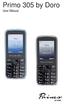 Primo 305 by Doro User Manual U2 1. Speaker Phone with the mobile phone at the ear. 2. Navigation buttons For navigating in menus and text input. In addition by default quick access (see also page 58):
Doro PhoneEasy 631. Quick Start Guide. English
 Doro PhoneEasy 631 Quick Start Guide English 1 14 20 2 3 4 5 6 7 13 12 11 10 9 8 15 16 17 19 18 Note! All illustrations are for illustrative purposes only and may not accurately depict the actual device.