
PCGENESIS PAYROLL SYSTEM OPERATIONS GUIDE
|
|
|
- Susanna Moody
- 9 years ago
- Views:
Transcription
1 PCGENESIS PAYROLL SYSTEM OPERATIONS GUIDE 6/17/2016 Section I: Special Functions [Topic 8A: Payroll Gross Data Export and Import File Processing, V1.6]

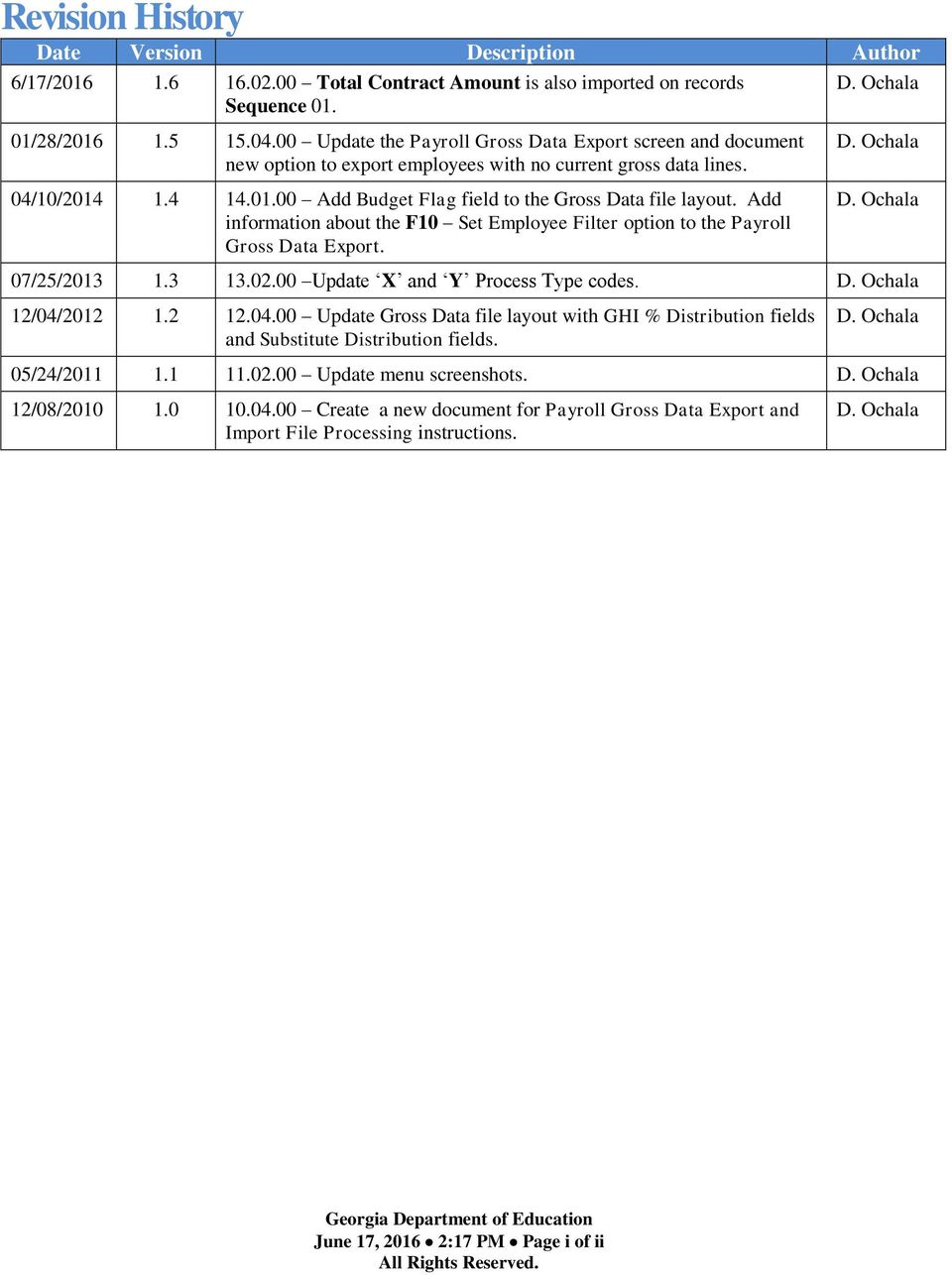
2 Revision History Date Version Description Author 6/17/ Total Contract Amount is also imported on records Sequence 01. D. Ochala 01/28/ Update the Payroll Gross Data Export screen and document new option to export employees with no current gross data lines. 04/10/ Add Budget Flag field to the Gross Data file layout. Add information about the F10 Set Employee Filter option to the Payroll Gross Data Export. D. Ochala D. Ochala 07/25/ Update X and Y Process Type codes. D. Ochala 12/04/ Update Gross Data file layout with GHI % Distribution fields and Substitute Distribution fields. D. Ochala 05/24/ Update menu screenshots. D. Ochala 12/08/ Create a new document for Payroll Gross Data Export and Import File Processing instructions. D. Ochala June 17, :17 PM Page i of ii
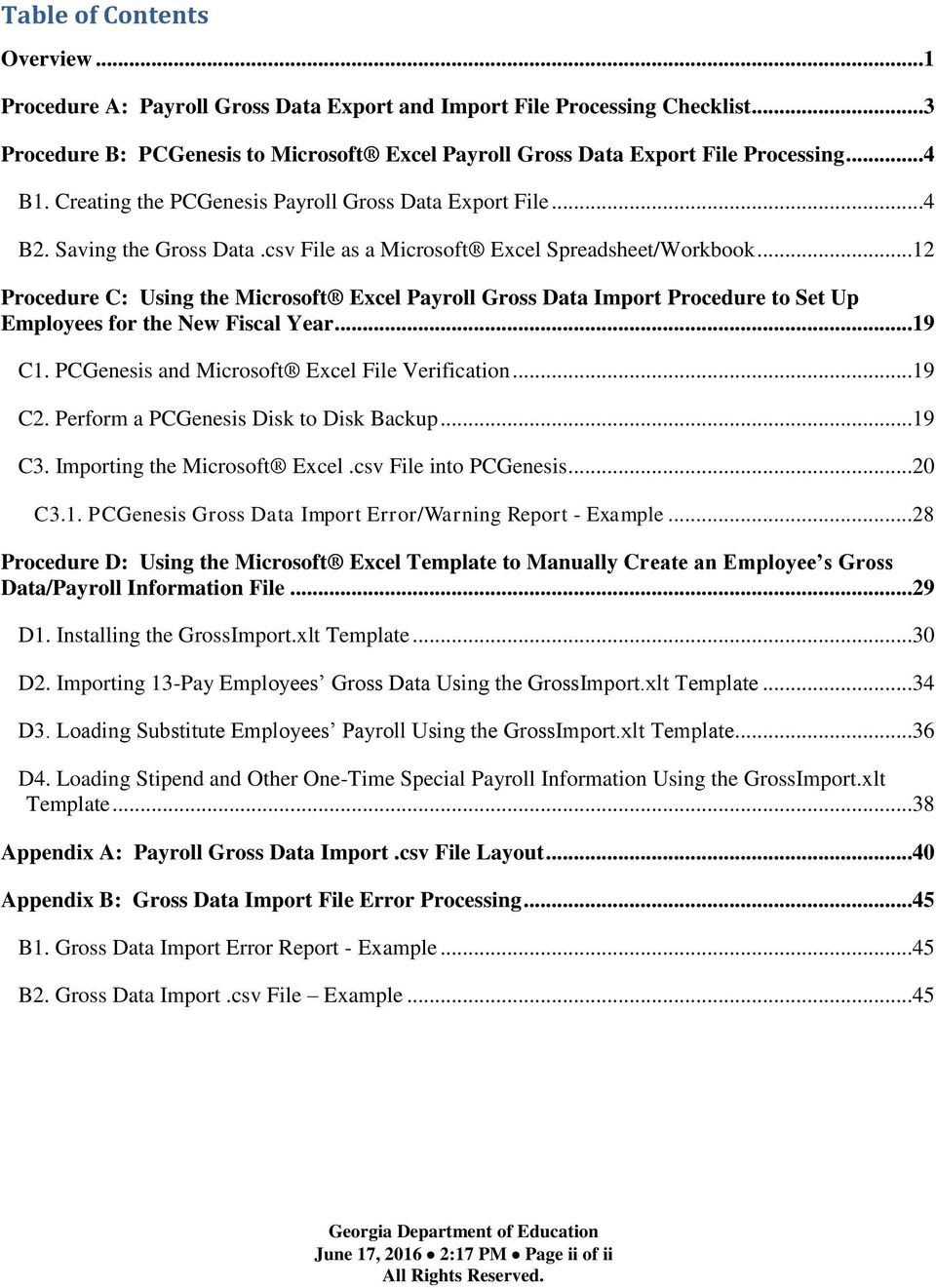
3 Table of Contents Overview...1 Procedure A: Payroll Gross Data Export and Import File Processing Checklist...3 Procedure B: PCGenesis to Microsoft Excel Payroll Gross Data Export File Processing...4 B1. Creating the PCGenesis Payroll Gross Data Export File...4 B2. Saving the Gross Data.csv File as a Microsoft Excel Spreadsheet/Workbook...12 Procedure C: Using the Microsoft Excel Payroll Gross Data Import Procedure to Set Up Employees for the New Fiscal Year...19 C1. PCGenesis and Microsoft Excel File Verification...19 C2. Perform a PCGenesis Disk to Disk Backup...19 C3. Importing the Microsoft Excel.csv File into PCGenesis...20 C3.1. PCGenesis Gross Data Import Error/Warning Report - Example...28 Procedure D: Using the Microsoft Excel Template to Manually Create an Employee s Gross Data/Payroll Information File...29 D1. Installing the GrossImport.xlt Template...30 D2. Importing 13-Pay Employees Gross Data Using the GrossImport.xlt Template...34 D3. Loading Substitute Employees Payroll Using the GrossImport.xlt Template...36 D4. Loading Stipend and Other One-Time Special Payroll Information Using the GrossImport.xlt Template...38 Appendix A: Payroll Gross Data Import.csv File Layout...40 Appendix B: Gross Data Import File Error Processing...45 B1. Gross Data Import Error Report - Example...45 B2. Gross Data Import.csv File Example...45 June 17, :17 PM Page ii of ii
4 Overview The Payroll Gross Data Export and Import procedures provide financial personnel with vital budgeting information, and allows for the transfer of salaries across years. The procedure allows salaries to be rolled, and the necessary changes made to employees locations and accounts for the September payroll. After the July payroll, users may export the existing gross data, and pull the 10-month employees information by class code and by contract months where appropriate. At this point, PCGenesis users should also make the necessary updates to the applicable accounts and dollar amounts within the Microsoft Excel spreadsheet. After the August payroll, and after these employees new salary and assignments are determined, the spreadsheet for these employees may be imported into PCGenesis. This procedure also affords the following additional advantages: Import the monthly Substitute pay or other special one-time pay amounts such as stipends or perfect attendance bonuses, and salary supplements into PCGenesis from the Microsoft Excel spreadsheet. Create and import a spreadsheet with new teachers who elect to receive their pay spread over 13 months instead of 12 months into PCGenesis for the August payroll. It is also possible to use this process for 11- and 12-month employees. With fewer employees in these categories, it may be more efficient to enter these changes manually into PCGenesis. To comply with Teacher Retirement System (TRS) reporting requirements, the SERV (Retirement Service Indicator) is included in both, the import and the export files. Payroll Gross Data Export: Use the export procedure as needed to create a financial analysis and projection spreadsheet. The Payroll Gross Data Export procedure has two options for creating the export file. The field, Export only employees with NO current gross data lines in order to set up import template, determines which employees are included in the export file as follows: To export only employees with NO current gross data lines, select Yes. To export only employees with current gross data lines, select No. Existing Employee Information: Selecting the No option allows the payroll administrator to export existing employees gross data information. Although PCGenesis exports active employees information containing gross data entries that include hourly and daily pay, the procedure omits inactive employees information, and employees information without gross data information from the export. Additionally, PCGenesis includes Z (Pension Adjustments) in the export s results where appropriate. New Employee Information: Selecting the Yes option allows the payroll administrator to export gross data information for employees with NO current gross data lines. This option facilitates creating a csv template (Excel spreadsheet) to use for setting up gross data account information for newly hired employees. For example, selecting Yes for this option allows the csv template to be created with headers and with the following fields populated for each employee: employee id, last name, first name, sequence number, cycle gross, state salary, local salary, other salary, contract months, number of pay periods, class code, TRS service indicator, pay location and work location. However, the gross data account columns and corresponding fields will be blank or zero in the csv file. June 17, :17 PM Page 1 of 45

5 Alternatively, newly hired employees information may be entered into PCGenesis before exporting the gross data information. In this case, selecting the No option allows the payroll administrator to export existing employees gross data information, even for newly hired employees. Payroll Gross Data Import: Perform the Import procedure only after payroll is set up, and before F4 (Calculate Payroll & Update YTD (FINAL). PCGenesis also verifies the account number information to ensure the year is consistent throughout the entries. Perform the Import procedure to roll salaries for 10 month employees: For these employees, the Import procedure is performed after the August payroll run(s), but before the September payroll is set up. The Import procedure may also be executed for the following scenarios: Substitute employee s pay: Monthly. Special Pay/Stipends: As needed. 13-Pay Employee Information: Enter thirteen-pay employees gross data account detail lines into the Microsoft Excel spreadsheet. June 17, :17 PM Page 2 of 45
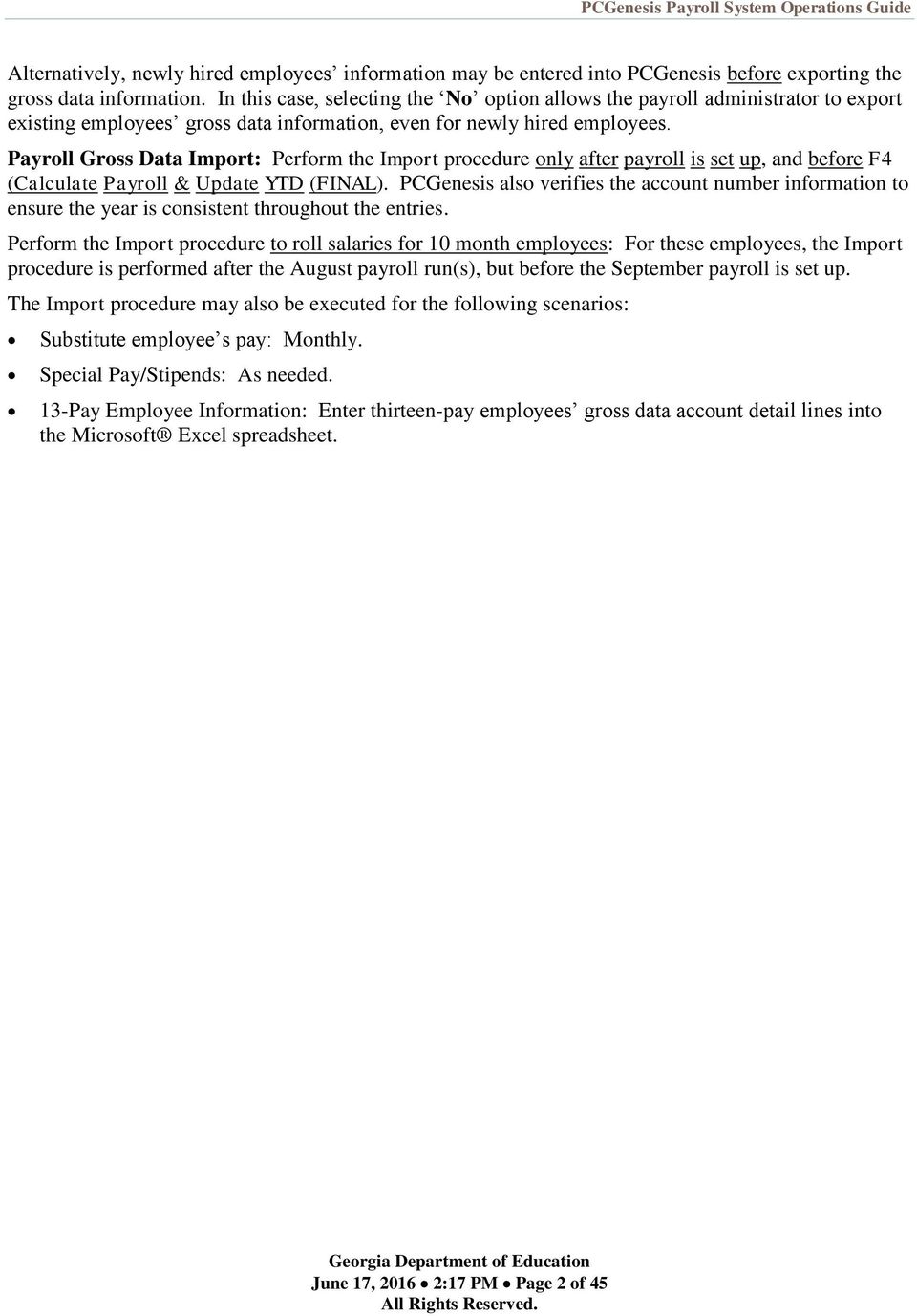
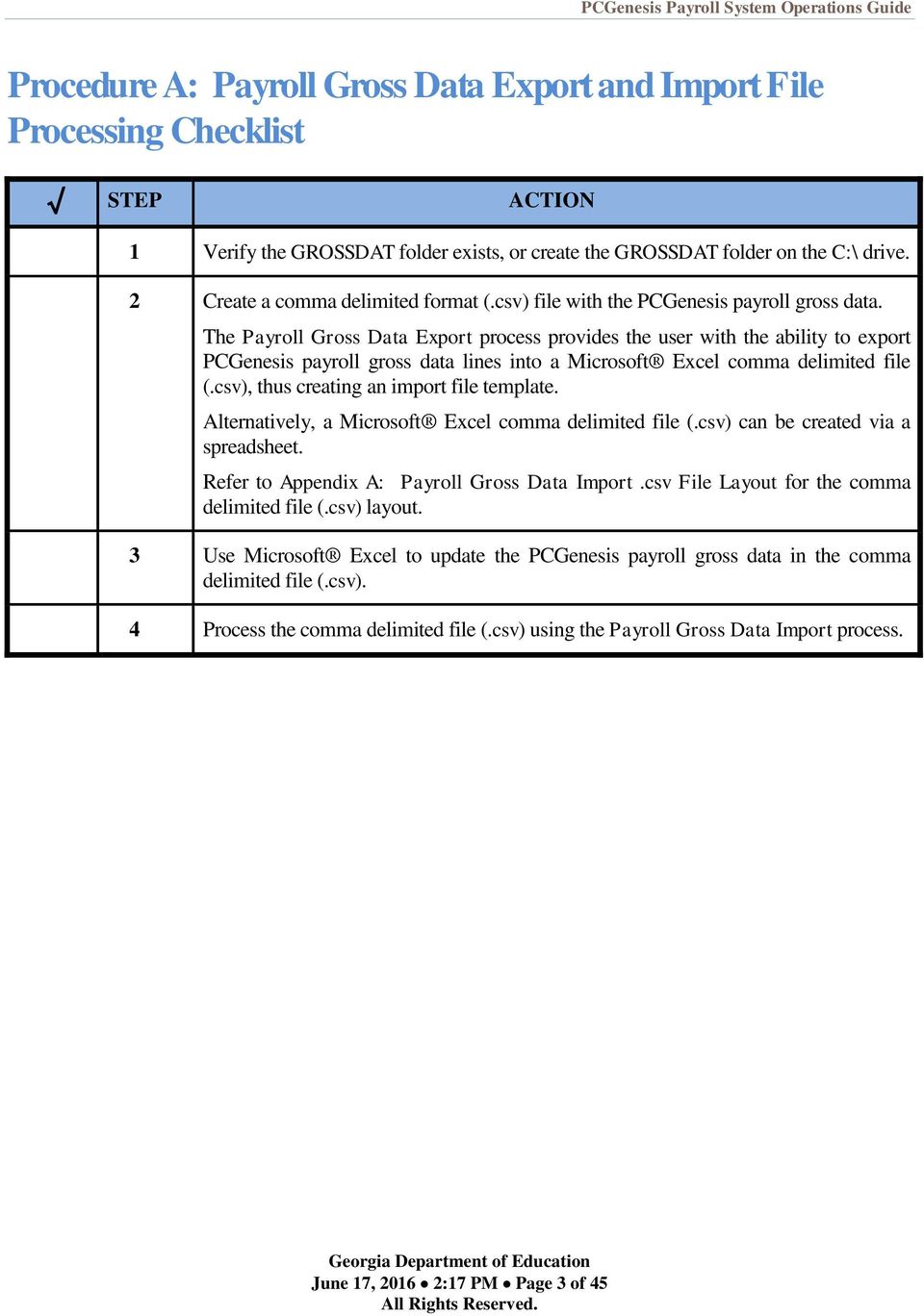
6 Procedure A: Payroll Gross Data Export and Import File Processing Checklist STEP ACTION 1 Verify the GROSSDAT folder exists, or create the GROSSDAT folder on the C:\ drive. 2 Create a comma delimited format (.csv) file with the PCGenesis payroll gross data. The Payroll Gross Data Export process provides the user with the ability to export PCGenesis payroll gross data lines into a Microsoft Excel comma delimited file (.csv), thus creating an import file template. Alternatively, a Microsoft Excel comma delimited file (.csv) can be created via a spreadsheet. Refer to Appendix A: Payroll Gross Data Import.csv File Layout for the comma delimited file (.csv) layout. 3 Use Microsoft Excel to update the PCGenesis payroll gross data in the comma delimited file (.csv). 4 Process the comma delimited file (.csv) using the Payroll Gross Data Import process. June 17, :17 PM Page 3 of 45
7 Procedure B: PCGenesis to Microsoft Excel Payroll Gross Data Export File Processing B1. Creating the PCGenesis Payroll Gross Data Export File 1 Navigate to C:\GROSSDAT to verify the folder (directory) exists. Where appropriate, follow normal procedures to create the folder on the C:\ drive. 2 From the Business Applications Master Menu, select (F2 - Payroll System). The following screen displays: 3 Select (Pay Monitor), and verify the payroll is complete through F14 (Update Budget Files with Current Pay) is complete. 4 Select F16 (Exit) to return to the Payroll System Master Menu. 5 From the Payroll System Master Menu, select (F13 - Special Functions Menu). June 17, :17 PM Page 4 of 45

8 The following screen displays: 6 Select (F8 - Payroll Export/Import Menu). June 17, :17 PM Page 5 of 45
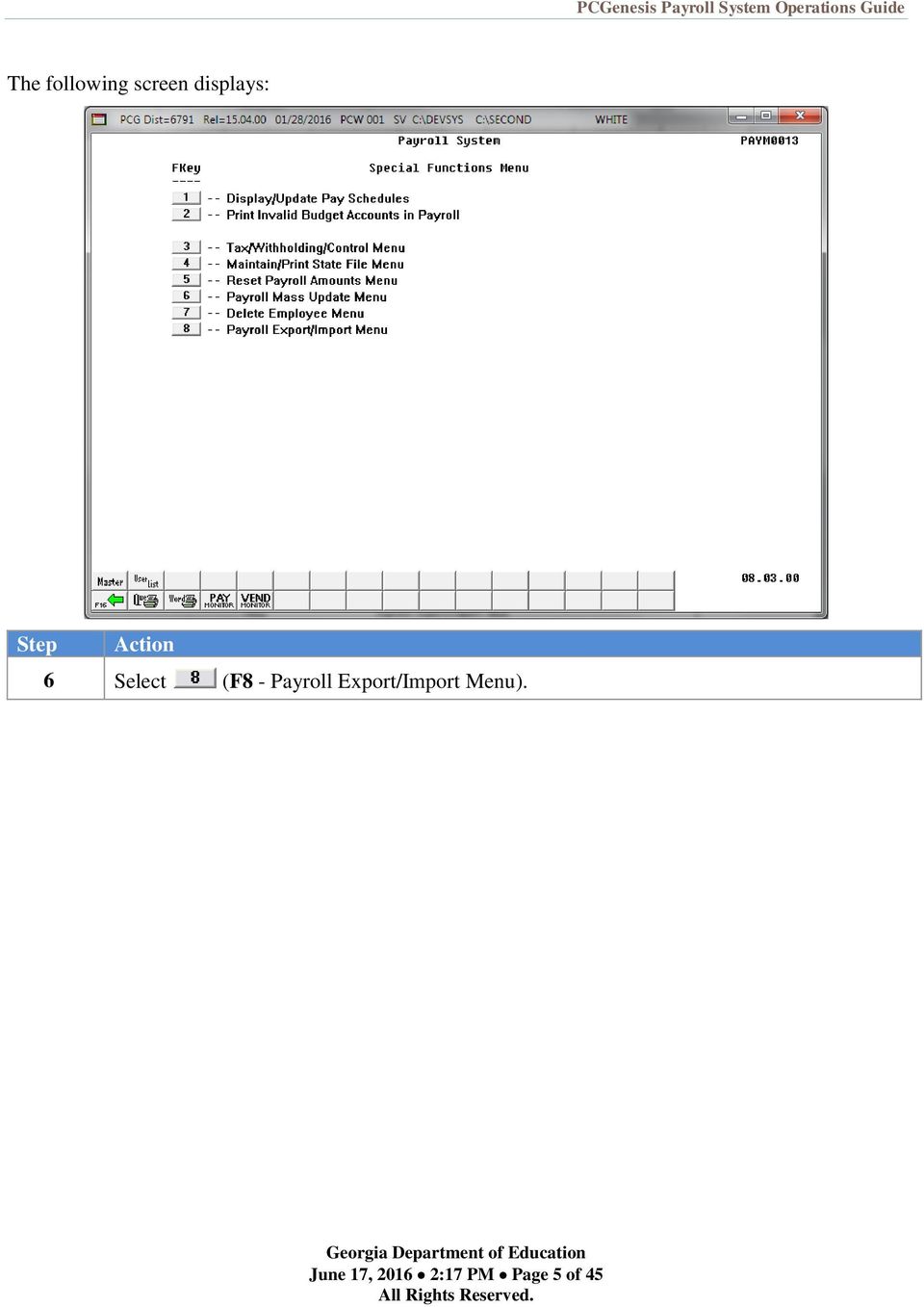
9 The following screen displays: 7 Select (F1 - Payroll Gross Data Export). June 17, :17 PM Page 6 of 45
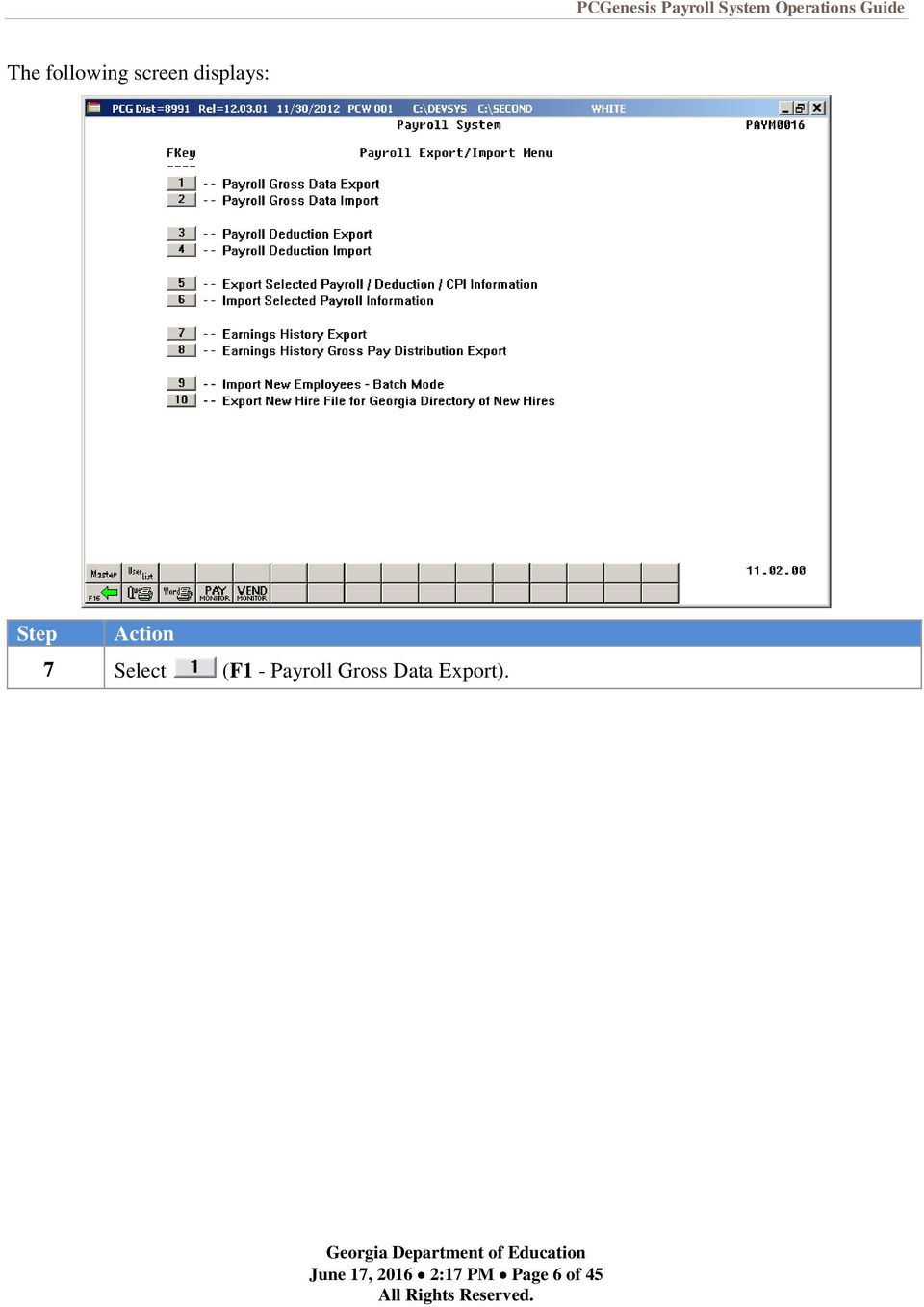
10 The following screen displays: 8 Verify the path and filename have defaulted correctly as C:\GROSSDAT\GROSSEXP.csv, or enter the correct path and filename in the Enter the Export file Path and Name field, or select (F10 - Browse to select file) to browse for the correct filename. PCGenesis allows entries other C:\GROSSDAT\GROSSEXP.csv as long as the directory structure entered exists. In the case of duplicated filenames, PCGenesis replaces the previous file s information with the most recently selected deduction and payroll information results. 9 Select (Enter - continue). June 17, :17 PM Page 7 of 45
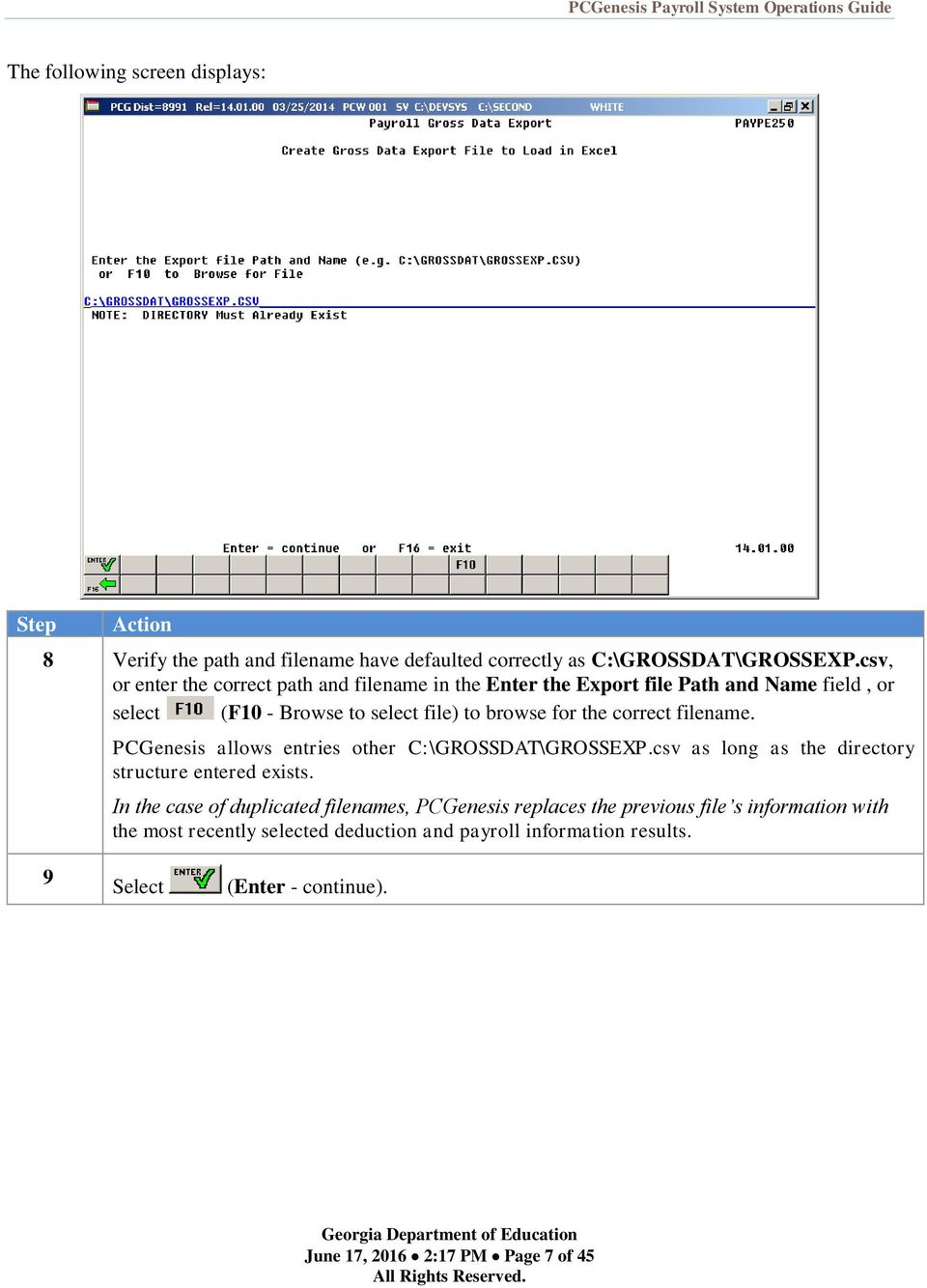
11 The following screen displays: Filter options not set. 10 Select (F10 Set filter condition). Use F10 to set the filter conditions and to export the Gross Data information for a subset of employees. Setting the filter criteria is optional. Refer to Topic 1: Set/Clear Employee Search Criteria for instructions on defining the record selection criteria. June 17, :17 PM Page 8 of 45
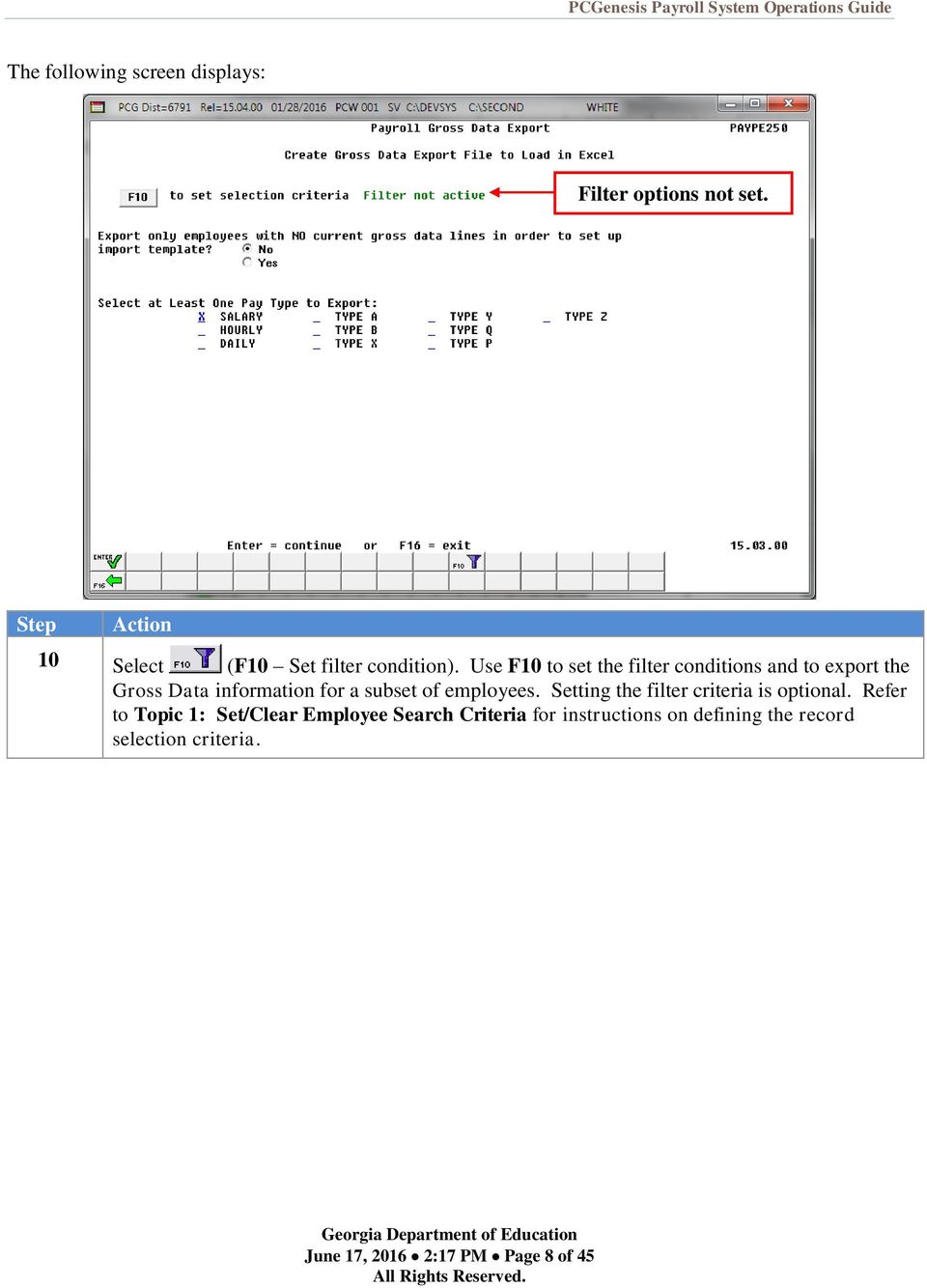
12 The following screen displays: Filter options have been selected. 11 Select the (Radio button) to the left of the desired Export only employees with NO current gross data lines in order to set up import template field. To export only employees with NO current gross data lines, select Yes. To export only employees with current gross data lines, select No. The Payroll Gross Data Export option allows the payroll administrator to export gross data information for employees with NO current gross data lines. This option facilitates creating a csv template (Excel spreadsheet) to use for setting up gross data account information for newly hired employees. For example, selecting Yes for this option allows the csv template to be created with headers and with the following fields populated for each employee: employee id, last name, first name, sequence number, cycle gross, state salary, local salary, other salary, contract months, number of pay periods, class code, TRS service indicator, pay location and work location. However, the gross data account columns and corresponding fields will be blank or zero in the csv file. June 17, :17 PM Page 9 of 45
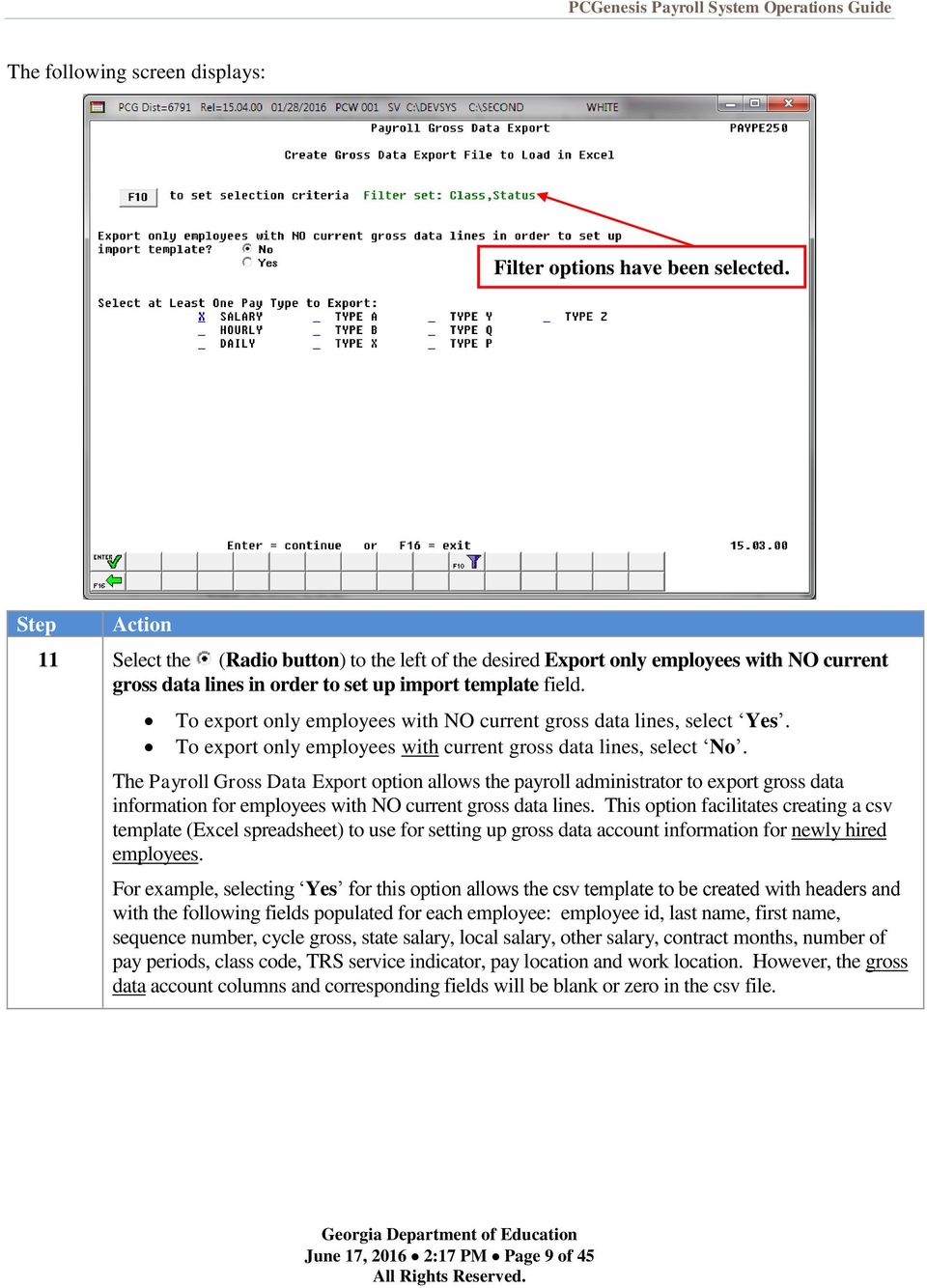
13 12 Enter X to the left of the appropriate pay type field(s) to export. For example, to export only gross data lines with a Process Type of A, enter an X to the left of Type A. Valid selections include: Salary Hourly Daily A - Daily/Hourly adjustment, no pension B - Salary adjustment, no pension X - Daily/Hourly, with FICA, NO pension/annuities or tax calculation Y Salary, with FICA, NO pension/annuities or tax calculation Q - Salary adjustment with taxes and pension P - Daily/Hourly adjustment with taxes and pension Z - Pension adjustment only 13 Select (Enter - continue) to continue. * * Processing Request * * briefly displays. The following screen displays: June 17, :17 PM Page 10 of 45

14 14 Select (F16 - Exit) to return to the Payroll System Master Menu, or select (Master) to return to the Business Applications Master Menu. At this point, PCGenesis creates the GROSSEXP.csv file and exports pertinent payroll information into a Microsoft Excel comma delimited (*.csv) file. June 17, :17 PM Page 11 of 45
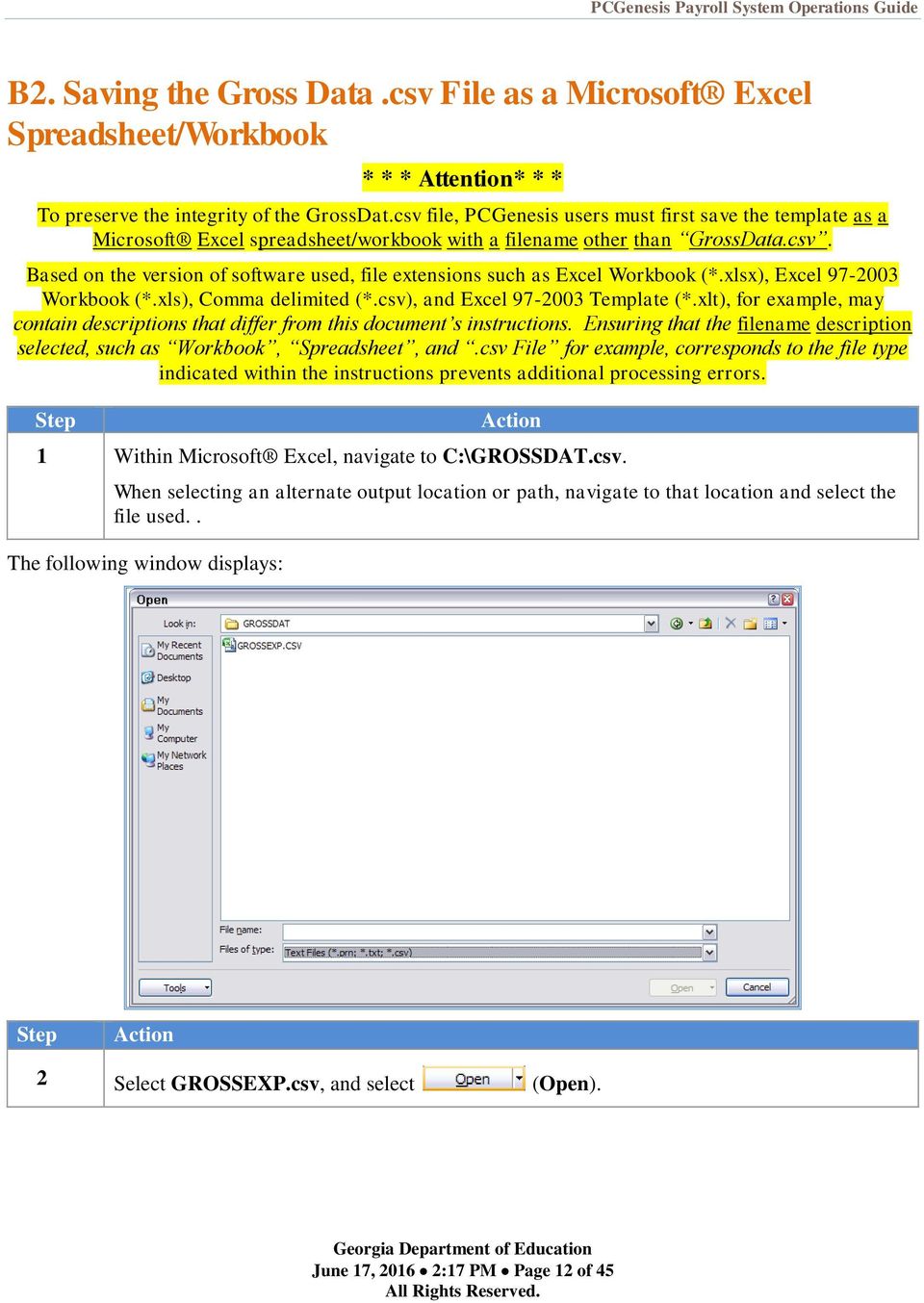
15 B2. Saving the Gross Data.csv File as a Microsoft Excel Spreadsheet/Workbook * * * Attention* * * To preserve the integrity of the GrossDat.csv file, PCGenesis users must first save the template as a Microsoft Excel spreadsheet/workbook with a filename other than GrossData.csv. Based on the version of software used, file extensions such as Excel Workbook (*.xlsx), Excel Workbook (*.xls), Comma delimited (*.csv), and Excel Template (*.xlt), for example, may contain descriptions that differ from this document s instructions. Ensuring that the filename description selected, such as Workbook, Spreadsheet, and.csv File for example, corresponds to the file type indicated within the instructions prevents additional processing errors. 1 Within Microsoft Excel, navigate to C:\GROSSDAT.csv. When selecting an alternate output location or path, navigate to that location and select the file used.. The following window displays: 2 Select GROSSEXP.csv, and select (Open). June 17, :17 PM Page 12 of 45
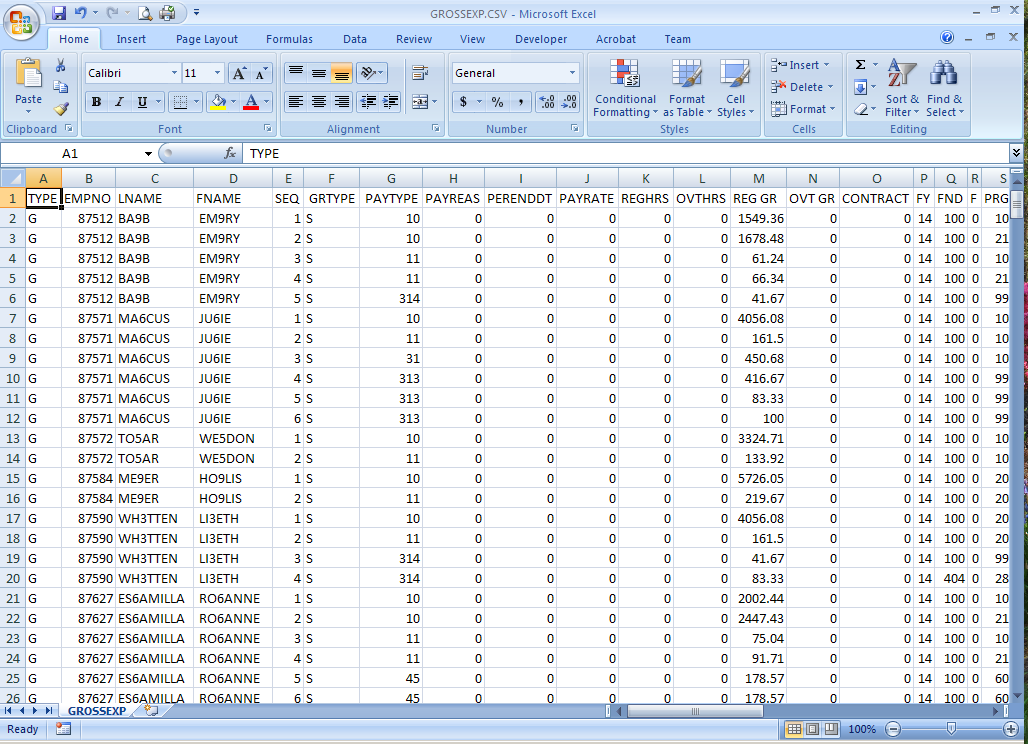
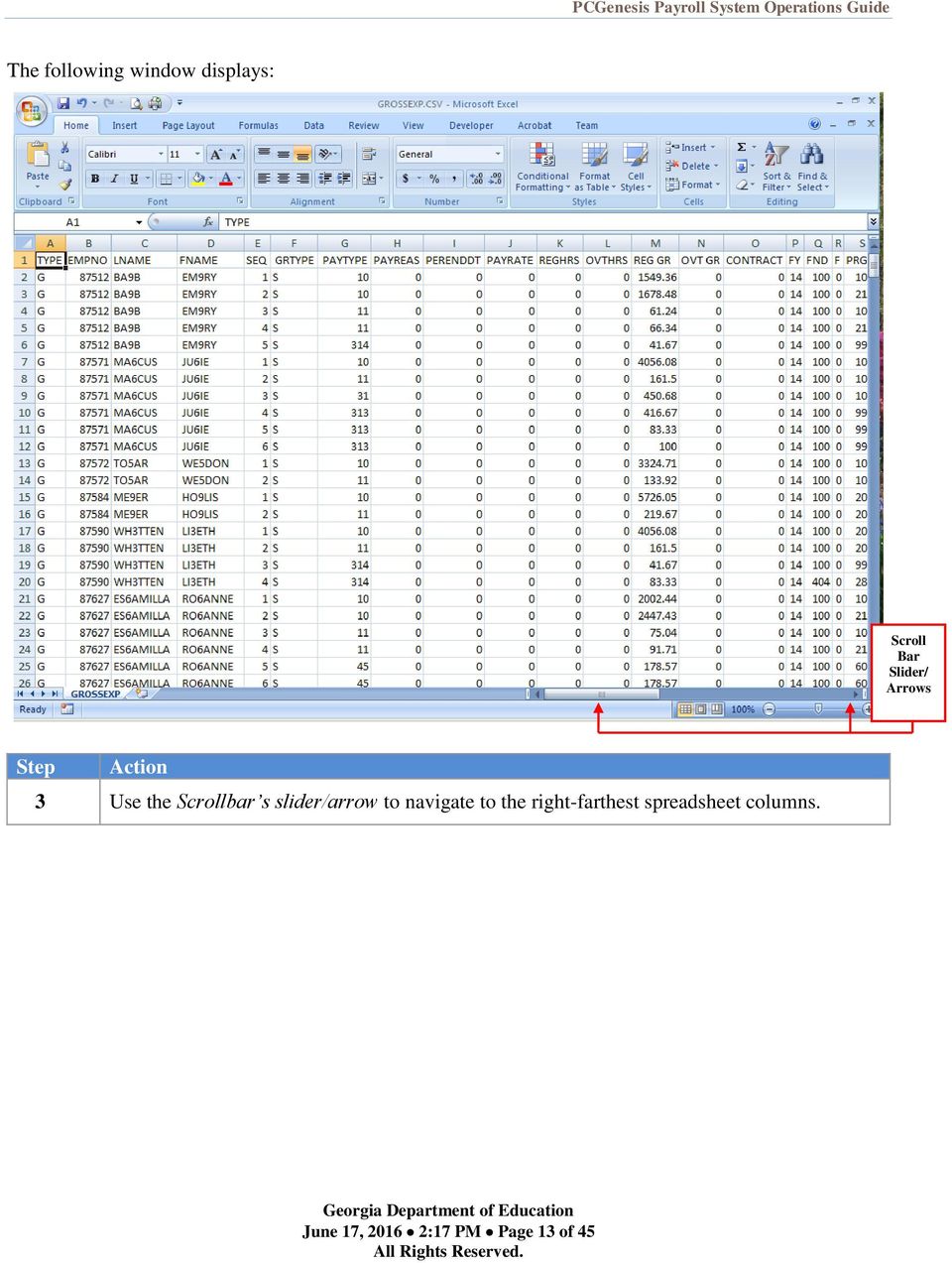
16 The following window displays: Scroll Bar Slider/ Arrows 3 Use the Scrollbar s slider/arrow to navigate to the right-farthest spreadsheet columns. June 17, :17 PM Page 13 of 45

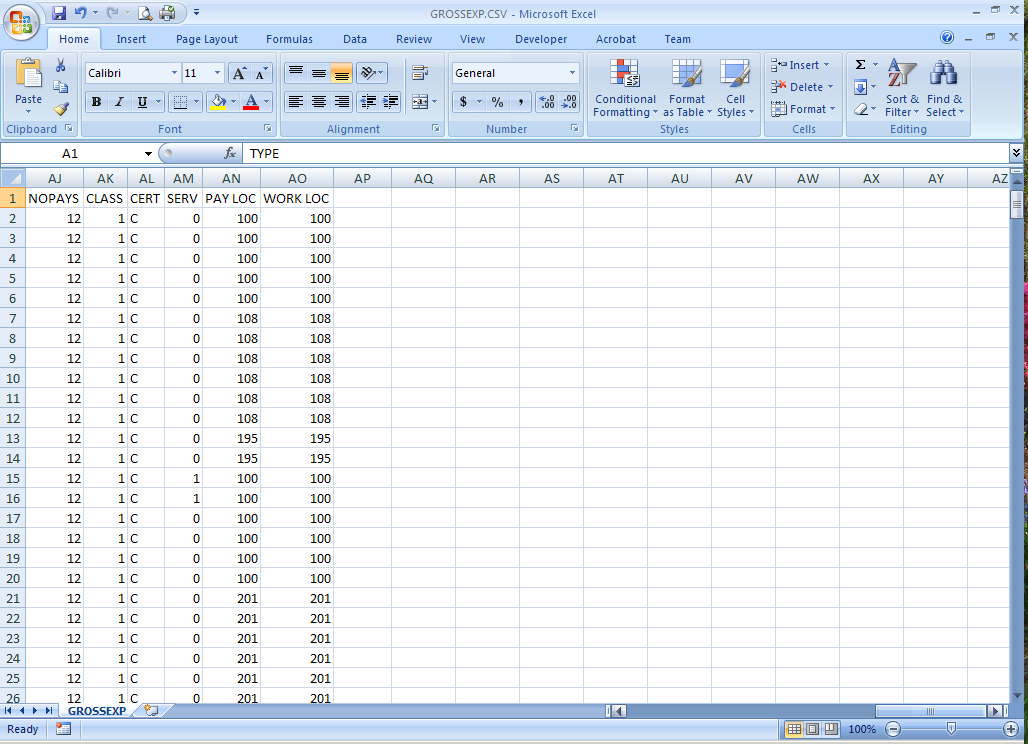
17 The following window displays: 4 Continue to slide the Scrollbar s slider/arrow to navigate to the right-farthest spreadsheet columns. June 17, :17 PM Page 14 of 45

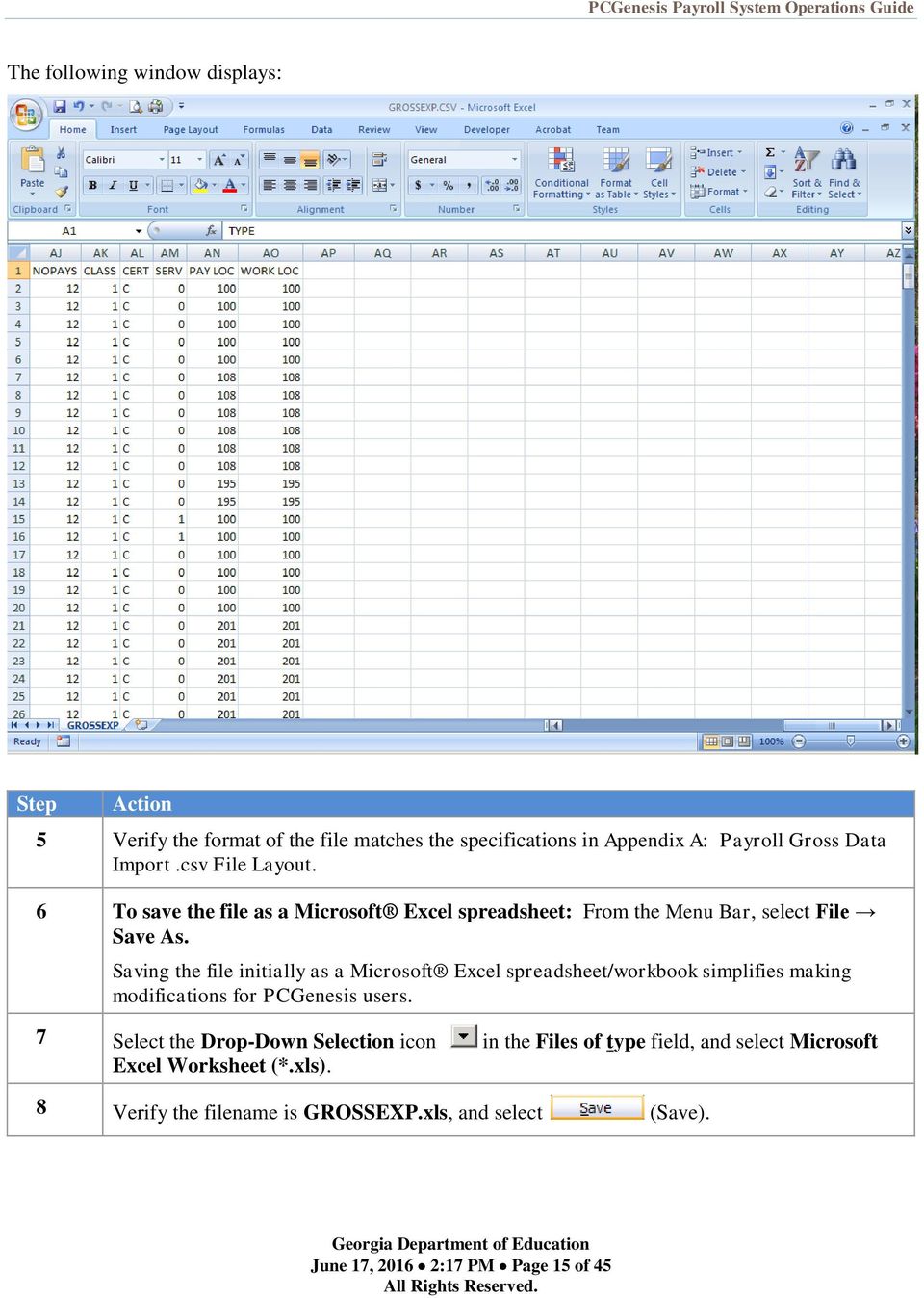
18 The following window displays: 5 Verify the format of the file matches the specifications in Appendix A: Payroll Gross Data Import.csv File Layout. 6 To save the file as a Microsoft Excel spreadsheet: From the Menu Bar, select File Save As. Saving the file initially as a Microsoft Excel spreadsheet/workbook simplifies making modifications for PCGenesis users. 7 Select the Drop-Down Selection icon in the Files of type field, and select Microsoft Excel Worksheet (*.xls). 8 Verify the filename is GROSSEXP.xls, and select (Save). June 17, :17 PM Page 15 of 45
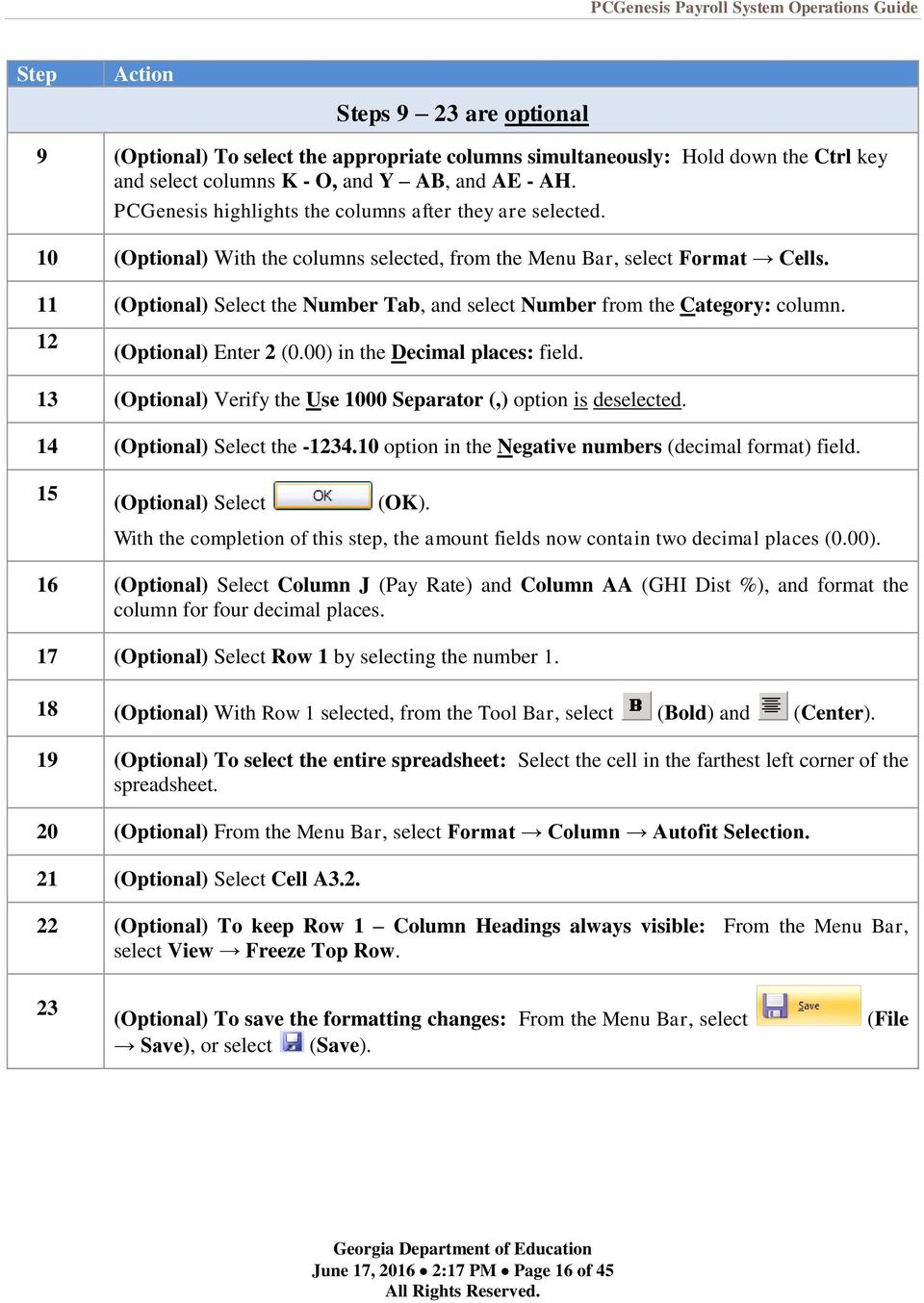
19 s 9 23 are optional 9 (Optional) To select the appropriate columns simultaneously: Hold down the Ctrl key and select columns K - O, and Y AB, and AE - AH. PCGenesis highlights the columns after they are selected. 10 (Optional) With the columns selected, from the Menu Bar, select Format Cells. 11 (Optional) Select the Number Tab, and select Number from the Category: column. 12 (Optional) Enter 2 (0.00) in the Decimal places: field. 13 (Optional) Verify the Use 1000 Separator (,) option is deselected. 14 (Optional) Select the option in the Negative numbers (decimal format) field. 15 (Optional) Select (OK). With the completion of this step, the amount fields now contain two decimal places (0.00). 16 (Optional) Select Column J (Pay Rate) and Column AA (GHI Dist %), and format the column for four decimal places. 17 (Optional) Select Row 1 by selecting the number (Optional) With Row 1 selected, from the Tool Bar, select (Bold) and (Center). 19 (Optional) To select the entire spreadsheet: Select the cell in the farthest left corner of the spreadsheet. 20 (Optional) From the Menu Bar, select Format Column Autofit Selection. 21 (Optional) Select Cell A (Optional) To keep Row 1 Column Headings always visible: From the Menu Bar, select View Freeze Top Row. 23 (Optional) To save the formatting changes: From the Menu Bar, select Save), or select (Save). (File June 17, :17 PM Page 16 of 45

20 24 Within the Microsoft Excel spreadsheet: Delete Inactive employees, and add New employees information. Modify Active employees information to update account codes and pay amounts where applicable. Enter the pay rate for hourly and daily employees. Do not make entries in the REGHRS and OVTHRS columns. If entries other than 0.00 exist in the columns, PCGenesis automatically calculates the gross amount during the file s import. Complete s before attempting to import the Gross Data information into PCGenesis. 25 To save the file as a Microsoft Excel spreadsheet: After verifying all entries are correct, from the Menu Bar, select File Save to save the file as a Microsoft Excel spreadsheet (*.xls). Refer to Appendix A: Payroll Gross Data Import File Layout for assistance, where applicable. 26 To save the file as a Comma delimited file: From the Menu Bar, select File Save as. Select the drop-down selection icon within the Files of type field, and choose CSV (Comma delimited) (*.csv). 27 Change the filename to GROSSDAT in the File name field, and select (Save). *** Processing Request *** Please Wait. briefly displays. The following dialog box displays: 28 Select (Yes). 29 Close Microsoft Excel. June 17, :17 PM Page 17 of 45
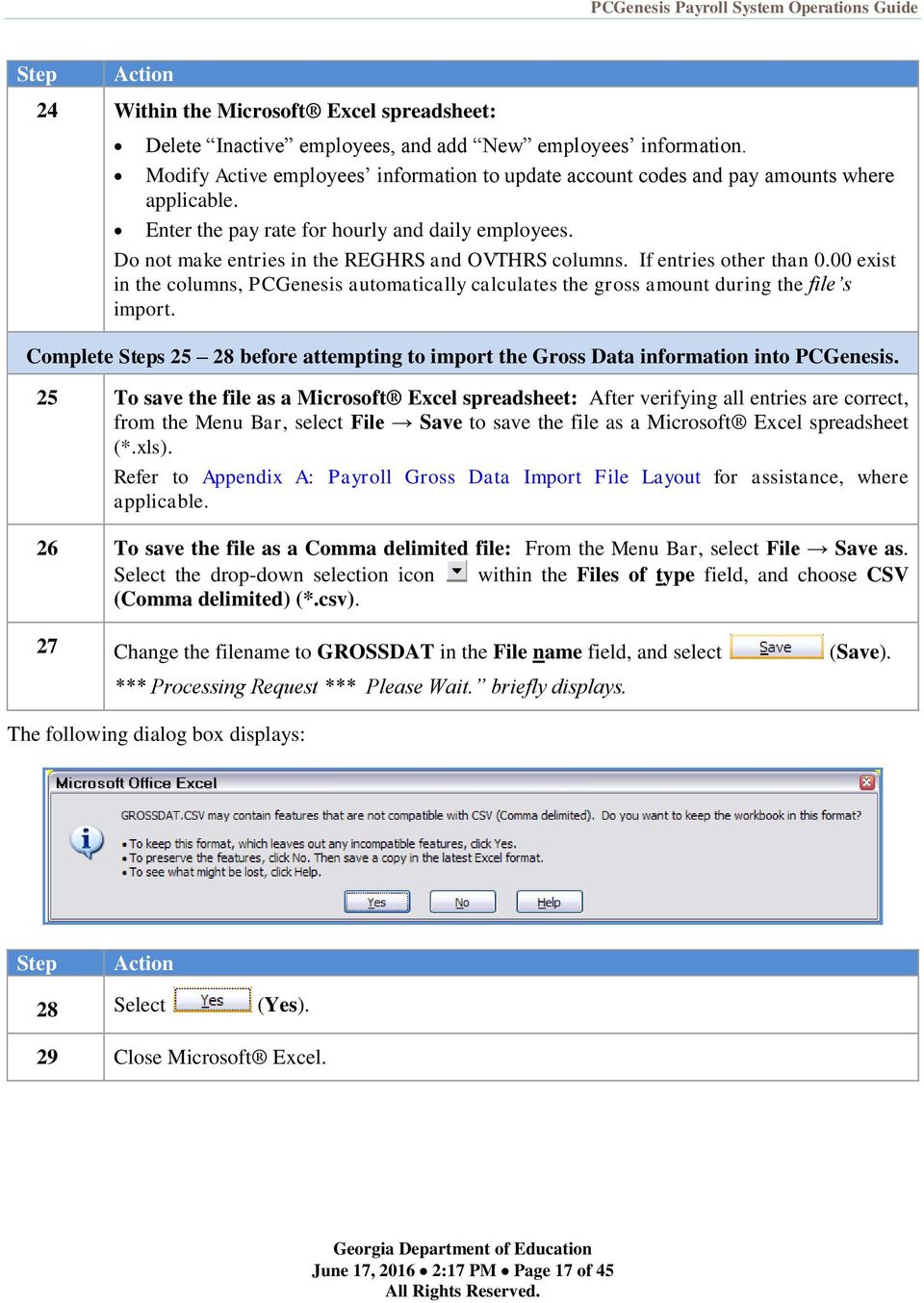

21 The following dialog displays: 30 Select (No). The instructions saved these file changes. June 17, :17 PM Page 18 of 45
22 Procedure C: Using the Microsoft Excel Payroll Gross Data Import Procedure to Set Up Employees for the New Fiscal Year C1. PCGenesis and Microsoft Excel File Verification 1 Verify the August payroll is complete. This procedure imports data for all active, salaried employees, not just 9-month employees. C2. Perform a PCGenesis Disk to Disk Backup 1 From the PCGenesis server, perform a Disk-to-Disk backup: Verify all users all logged out of PCGenesis. Perform a PCGenesis full backup to CD or DVD or tape. 2 Label the backup MM/DD/CCYY Backup Before Payroll Gross Data Import. June 17, :17 PM Page 19 of 45
23 C3. Importing the Microsoft Excel.csv File into PCGenesis The Payroll Gross Data Import option sorts the Gross Data Import File by Employee ID Number before loading the data into the PCGenesis Update/Display Gross Data screen. Without the sort, if the csv import file is not in order by Employee ID Number, the R replace function will only load the last gross data line for the employee in the import file and will lose any other gross data lines in the file. With the sort, all gross data lines for an employee are loaded properly. NOTE: The Gross Data Import File must not be open in any application before executing the Payroll Gross Data Import procedure. The import file must be closed so that PCGenesis can sort the file before loading the data. 1 If the Gross Data Import File is open in any application, close the file before executing the Payroll Gross Data Import procedure. The import file must be closed so that PCGenesis can sort the file before loading the data. 2 Select (F13 - Special Functions Menu). June 17, :17 PM Page 20 of 45
24 The following screen displays: 3 Select (F8 - Payroll Export/Import Menu). June 17, :17 PM Page 21 of 45
25 The following screen displays: 4 Select (F2 - Payroll Gross Data Import). June 17, :17 PM Page 22 of 45
26 The following screen displays: June 17, :17 PM Page 23 of 45
27 5 Enter the Input the GROSS DAT Type for Import field. Valid values are: R - To replace ALL current entries A - To add salary, hourly or daily entries S - To add entries for substitutes September Account and Salary Rollover: Enter R in the field to replace all gross data entries. For S (Salary) lines, PCGenesis validates the Regular Gross Amount is loaded, and the Cycle Gross and Contract Amount entries are loaded. For H (Hourly) and D (Daily) lines, pay rates are loaded. If regular and overtime hours and a Pay Rate are present, the regular and overtime amounts are calculated. If the information is missing, these values will be set to zero. For S (Salary) lines, PCGenesis loads the following data fields only for the Sequence Number 01: Cycle Gross, State Salary, Local Salary, Other Salary, Total Contract Amount, and TRS Service Indicator. To add the import file s entries to the employee s existing gross data: Enter A in the field. Use this code to load a file of supplements, stipends, or other special one-time pay amounts. Any type line can be added, including H, D, S, A, B, X, Y, Q and P. Hourly and Daily rates and hours are loaded and the Regular and Overtime gross pay are calculated. To import Substitutes gross pay: This feature operates the same as the Replace ( R ) function, except that an extra validation is performed to insure the employee s Pay Class is a Substitute pay class. PCGenesis halts the Import procedure if an employee is included in the import file whose pay class is not Substitute. When completed successfully, PCGenesis clears existing gross data entries for the substitute employees. 6 Verify the path and filename have defaulted correctly as C:\GROSSDAT\GROSSDAT.csv, or enter the correct path and filename in the Enter the Export file Path and Name field, or select (F10 - Browse to select file) to browse for the correct filename. PCGenesis allows entries other C:\GROSSDAT\GROSSDAT.csv as long as the directory structure entered exists. 7 Select (Enter - continue) to continue. * * Processing Request * * briefly displays. June 17, :17 PM Page 24 of 45
28 For file import errors, the following screen displays: For successful file imports with warnings, the following screen displays: June 17, :17 PM Page 25 of 45
29 8 For file import errors: Select Enter (to Exit Program and Correct). For successful file imports with warnings: Select (F8 Process File As Is ) to continue importing the file, and then proceed to 9. Or, select (F16 Exit and Correct) to review the print file and correct the warnings. For successful file imports with no warnings: Skip to 9. For successful file imports with no warnings, the following screen displays: 9 Select (ENTER to load GROSS DATA Import File) to import the file. Select (F16 STOP Process) to stop the import process and exit the program. *** Processing Please Wait *** briefly displays. June 17, :17 PM Page 26 of 45
30 The following screen displays: 10 To print the report via the Uqueue Print Manager: Select (Uqueue). To print the report via Microsoft Word: Select (MS WORD). Follow the instructions provided in the Technical System Operations Guide, User Interface Procedures, Creating the Microsoft -PCGenesis QWORD Macro for Report Printing to create the macro necessary to use the feature where appropriate. 11 Select (F16 - Exit) to return to the Payroll System Special Functions Menu, or select (Master) to return to the Business Applications Master Menu. 12 Identify and correct all errors within the GROSSDAT.xls file. Save the file as a.csv (Comma delimited) (csv) file, and repeat this procedure. Refer to Appendix A: Payroll Gross Data Import File Layout and to Appendix B: Gross Data Import File Error Processing for additional error message examples, and for additional information to aid in the correction of errors. Using the Section B: Payroll Update Processing, Topic 4: Update/Display Payroll Information instructions, review the import file s gross data information to verify the information is correct. Contact the Technology Management Customer Support Center for assistance as needed. June 17, :17 PM Page 27 of 45
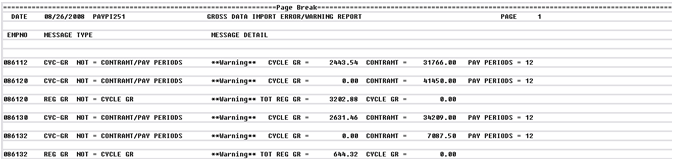
31 C3.1. PCGenesis Gross Data Import Error/Warning Report - Example June 17, :17 PM Page 28 of 45
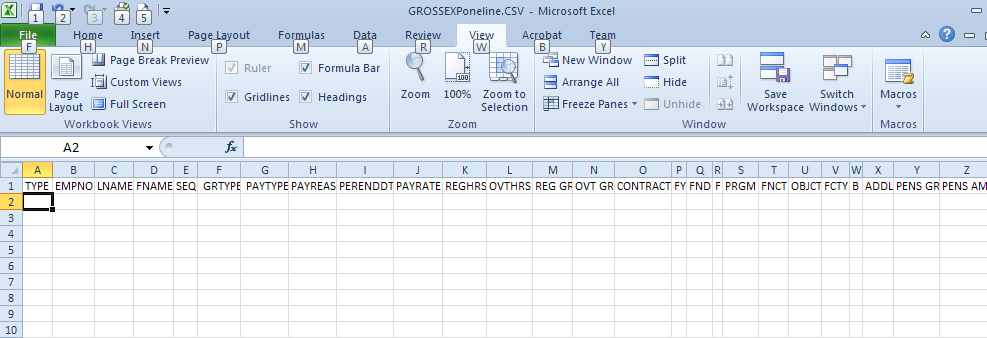
32 Procedure D: Using the Microsoft Excel Template to Manually Create an Employee s Gross Data/Payroll Information File PCGenesis provides a Microsoft Excel template file, GrossImport.xlt, which allows users to create a file of employees gross data. The instructions allow the import of gross data for the following employees and circumstances: Thirteen (13) pay employees Substitute employees, including third-party software information Stipends and other one-time special payroll amounts June 17, :17 PM Page 29 of 45
33 D1. Installing the GrossImport.xlt Template 1 Access and open the GrossImport.xls file located at: Payroll System Operations Guide, Section I: Special Functions, Topic 8: Payroll Export and Import File Processing, PCGenesis Gross Data Import Template. The following window displays: 2 From the Menu Bar, select File Save As. 3 Navigate to C:\GROSSDAT. 4 Within the Save as type field, verify the selection of, or select Excel Template (*.xlt). June 17, :17 PM Page 30 of 45

34 The following window displays: 5 Enter GrossImport in the File name field and select (Save). 6 Within the Personal Computer s (PC s) Microsoft Templates folder, copy the Template to each workstation in which PCGenesis users will create and export gross data. This folder is usually located on the PC at C:\OS\Profiles\user_name\Application Data\Microsoft\Templates, where OS is the operating system s folder, e.g. WINNT or WINDOWS. Contact the local Technology Specialist for assistance as needed. When saved to this location, the Template files displays on the General tab when selecting File New. 7 Within Microsoft Excel, select File New (My Templates). June 17, :17 PM Page 31 of 45
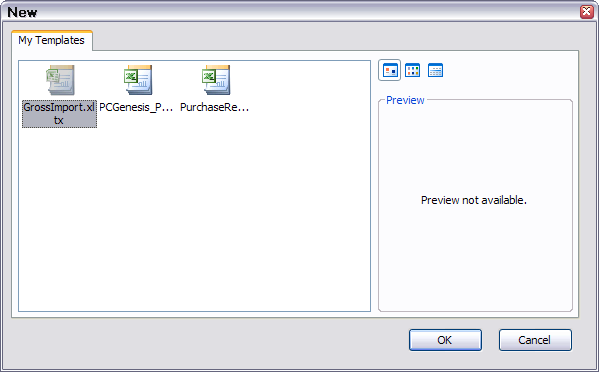
35 The following window displays: 8 Select GrossImport.xlt. A blank spreadsheet will be created with the appropriate headings and formatting. June 17, :17 PM Page 32 of 45

36 The following window displays: 9 Proceed to the appropriate topic based on the use of this Template. Gross Data Pay Type S, B, Y, Q 10 D, H, A, X, P Information Adjustment line types B, Y, and Q require a Pay for Period End Date (PERENDDT). Overtime Gross (OVT GR) is only valid for gross types S, B, Y and Q. PCGenesis ignores the following fields and sets these entries to zero: o Regular Hours (REGHRS) o Overtime Hours (OVTHRS) o Pay Rate (PAYRATE) o Overtime Gross (OVT GR) Adjustment line types A, X, and P require a Pay for Period End Date (PERENDDT). PCGenesis ignores the following fields, and instead calculates these entries from the Pay Rate, and Regular Hours (REGHRS) and Overtime Hours (OVTHRS) field entries: o Regular Gross (REG GR) o Overtime Gross (OVT GR) June 17, :17 PM Page 33 of 45
37 D2. Importing 13-Pay Employees Gross Data Using the GrossImport.xlt Template 1 Create the employees records in the PCGenesis Payroll system as they are hired: Make the appropriate entries within the Total Contract Amount, Cycle Gross, State, Local, and Other amounts fields. 2 Create a Microsoft Excel GrossImport.xlt Spreadsheet for 13-Pay employees: Using the instructions in Procedure D: Using the Microsoft Excel Template to Manually Create an Employee s Gross Data/Payroll Information create a Microsoft Excel spreadsheet containing only the employees whose salaries are spread over thirteen (13) months. Enter the employees names and employee numbers exactly as the information the information exists within the PCGenesis Payroll module. Enter Process Type (GRTYPE) = S, PayRate = 0, and enter the RegHrs and OvtHrs fields. Enter 1/13 th of the employees annual salary in the Regular Gross column. Enter the appropriate amount in the Contract where applicable. Enter the appropriate payroll account number in the fields. Enter the appropriate GHI distribution percentage in the GHI DIST % column. 3 Save the GrossImport.xlt Spreadsheet for 13-Pay Employees as an.xls Worksheet/Spreadsheet From the Menu Bar, select File Save as. Navigate to and open the appropriate file. Select the Drop-Down Selection icon in the Files of type field, and select Microsoft Excel Worksheet (*.xls). Enter the appropriate filename, for example, GROSSDAT_13Pay, in the File name field and select (Save). 4 Save the GrossImport.xlt Spreadsheet for 13-Pay Employees as a.csv File From the Menu Bar, select File Save as. Navigate to and open the appropriate file. Select the Drop-Down Selection icon in the Files of type field, and select CSV (Comma delimited) (csv). Enter the appropriate filename, for example, GROSSDAT_13Pay, in the File name field and select (Save). When the GrossData.csv may contain features that are not compatible with CSV (Comma delimited) dialog box displays, select (Yes). June 17, :17 PM Page 34 of 45
38 5 Refer to C3. Importing the Microsoft Excel.csv File into PCGenesis for instructions for importing the.csv file into PCGenesis. Load this spreadsheet after the July payroll but before the August payroll is run. Import the spreadsheet either before or after Payroll Setup. On the Identify Gross Data Import File from Excel screen, enter R (Replace) in the Input the GROSS DAT for Import field. June 17, :17 PM Page 35 of 45
39 D3. Loading Substitute Employees Payroll Using the GrossImport.xlt Template The PCGenesis Gross Data Import procedure allows employees gross data to be imported from third-party software packages as long as the file meets PCGenesis file import requirements. If the school district or the system uses a third-party software package to manage substitute employees pay, contact the vendor for instructions for importing data from the vendor s software application. 1 Create the employees records in the PCGenesis Payroll system as they are hired. 2 Create a Microsoft Excel GrossImport.xlt Spreadsheet for Substitute Employees: Using the instructions in Procedure D: Using the Microsoft Excel Template to Manually Create an Employee s Gross Data/Payroll Information, create a Microsoft Excel spreadsheet containing only the substitute employees information who worked for the pay period. Enter the employees names and employee numbers exactly as the information exists within the Payroll module. Enter Process Type (GRTYPE) = D (Daily), H (Hourly), or the pay type normally used: D (Daily) Enter PayRate = Daily Rate, RegHrs = Total Days Worked, OvtHrs = 0. Enter 0.00 in the Reg Gr column. Enter the payroll account number in the fields. Enter the GHI distribution percentage in the GHI DIST % column. H (Hourly) Enter PayRate = Hourly Rate, RegHrs = Total Hours Worked, OvtHrs = Total Overtime Hours Worked and Reg Gr = 0 (Regular Gross is automatically calculated by PCGenesis). Enter the payroll account number in the fields. Enter the GHI distribution percentage in the GHI DIST % column. OVT GR is only valid for salary types S, B, Q and Y. 3 Save the GrossImport.xlt Spreadsheet for Substitute Employees as an.xls Worksheet/Spreadsheet From the Menu Bar, select File Save as. Navigate to and open the appropriate file. Select the Drop-Down Selection icon in the Files of type field, and choose Microsoft Excel Worksheet (*.xls). Enter the appropriate filename, for example, GROSSDAT_Substitutes, in the File name field and select (Save). June 17, :17 PM Page 36 of 45
40 4 Save the GrossImport.xlt Spreadsheet for Substitute Employees as a.csv File From the Menu Bar, select File Save as. Navigate to and open the appropriate file. Select the drop-down selection icon to the right of Files of type and select CSV (Comma delimited) (csv). Enter the appropriate filename, for example, GROSSDAT_Substitutes, in the File name field and select (Save). When the GrossData.csv may contain features that are not compatible with CSV (Comma delimited) dialog box displays, select (Yes). 5 Refer to C3. Importing the Microsoft Excel.csv File into PCGenesis for instructions on importing the.csv file into PCGenesis. Load this spreadsheet after Payroll Setup. On the Identify Gross Data Import File from Excel screen, enter A (Add) in the Input the GROSS DAT for Import field. June 17, :17 PM Page 37 of 45
41 D4. Loading Stipend and Other One-Time Special Payroll Information Using the GrossImport.xlt Template 1 Create the employees records in the PCGenesis Payroll System module as they are hired. 2 Create a Microsoft Excel GrossImport.xlt Spreadsheet for Employees Affected: Using the instructions in Procedure D: Using the Microsoft Excel Template to Manually Create an Employee s Gross Data/Payroll Information, create a Microsoft Excel spreadsheet containing only the affected employees information. Enter the employees names and employee numbers exactly as the information exists in Payroll. Enter the appropriate pay type in the Proc Type (GRTYPE) field. For example, a Proc Type of B (Salary Adjustment, No Pension) would contain the following entries: o PayRate = 0, RegHrs = 0, OvtHrs = 0, and RegGross = Stipend/Special Pay dollar amount. o Enter the appropriate payroll account number in the fields. o Enter the appropriate GHI distribution percentage in the GHI DIST % column. 3 Save the GrossImport.xlt Spreadsheet for Affected Employees as an.xls Worksheet/Spreadsheet From the Menu Bar, select File Save as. Navigate to and open the appropriate file. Select the Drop-Down Selection icon in the Files of type field, and select Microsoft Excel Worksheet (*.xls). Enter the appropriate filename, for example, GROSSDAT_Stipend, in the File name field and select (Save). 4 Save the GrossImport.xlt Spreadsheet for Affected Employees as a.csv File From the Menu Bar, select File Save as. Navigate to and open the appropriate file. Select the Drop-Down Selection icon in the Files of type field, and select CSV (Comma delimited) (csv). Enter the appropriate filename, for example, GROSSDAT_Stipend, in the File name field and select (Save). When the GrossData.csv may contain features that are not compatible with CSV (Comma delimited) dialog box displays, select (Yes). June 17, :17 PM Page 38 of 45
42 5 Refer to C3. Importing the Microsoft Excel.csv File into PCGenesis for instructions for importing the.csv file into PCGenesis. Load this spreadsheet after Payroll Setup. On the Identify Gross Data Import File from Excel screen, enter A (Add) in the Input the GROSS DAT for Import field. 6 Close Microsoft Excel and PCGenesis, where appropriate. June 17, :17 PM Page 39 of 45
43 Appendix A: Payroll Gross Data Import.csv File Layout ATTENTION: The first record for each employee must contain data for all of the fields within this table. The 30- digit account number must be a valid account number within the current fiscal year s BUDGET file. Column A Field Name LINE TYPE Description Must be G to indicate the line is a Gross Data import line. PCGenesis ignores lines without a G, such as headers. B EMPNO Employee number. The employee must be active in the Payroll file. C LNAME Employee s last name. The employee s last name must match the name in the Payroll file. D FNAME Employee s first name. The employee s first name must match the name in the Payroll file. E SEQ Sequence Number. Gross data sequence line number. (Optional, may be zero.) When the R (Replace) option is selected for the import and S (Salary) lines are present, PCGenesis loads the following data fields for the Sequence Number 01: Cycle Gross, State Salary, Local Salary, Other Salary, Total Contract Amount, and TRS Service Indicator. PCGenesis automatically generates the Sequence Number when a sequence number is not entered. F GRTYPE Gross Type or Process Type code. Salary (S), Hourly (H), Daily (D), or Adjustment line types A, B, X, Y, Q, P, and Z. Valid values: Regular Gross Types: S Regular salary with pension and taxes D Regular daily with pension and taxes H Regular hourly with pension and taxes Special Gross Types: A Daily/Hourly adjustment NO pension calculation B Salary adjustment NO pension calculation X Daily/Hourly, with FICA, NO pension/annuities or tax calculation Y Salary, with FICA, NO pension/annuities or tax calculation Q Salary adjustment with taxes and pension calculation P Daily/Hourly adjustment with taxes and pension calculation Z Pension adjustment only June 17, :17 PM Page 40 of 45
44 Column Field Name Description G PAYTYPE Pay Type code. Optional. The Pay Type code is used only for the new detailed pay stub. The Pay Type code must be defined in the payroll Description File. Zero, or an empty cell, defaults to 000 (Regular Pay). The new detailed check stub contains a new section of data entitled Current Hours and Earnings. The current earnings will print based upon the Pay Type entered for the gross data line. The Current Hours and Earnings section on the detailed check stub will list the pay type descriptions, along with the pay rates, regular and overtime hours, regular and overtime pay, and contract amounts. In order to get a proper breakdown of the earnings, users will need to categorize their employees Gross Data earnings by Pay Type before utilizing the new detailed pay check statement. All gross data lines with the same Pay Type and Pay Rate will be summarized (and accumulated) on ONE earning line on the check stub. H PAYREAS Pay Reason code. Optional pay reason code used to define the reason for any pay increase or decrease. The Pay Reason code must be defined in the payroll Description File. Zero, or an empty cell, identifies normal pay. I PERENDDT Pay for Period End date. Optional for Adjustment gross types, not permitted for S, D, and H gross types. The date format must be CCYYMMDD. This field indicates the period for which the adjustment applies. The date CANNOT be a future date. J PAYRATE Pay Rate. Employee s rate of pay. K REGHRS Regular Hours. Total regular hours worked. L OVTHRS Overtime Hours. Optional. Total overtime hours worked. M REG GR Regular Gross. Regular Gross amount charged to this account number. The accumulated total of the REG GR amount should equal the accumulated total of the employee s CYCLE GR (Cycle Gross) amount. N OVT GR Overtime Gross. Optional. Overtime Gross amount charged to this account number. O CONTRACT Contract Amount. Optional. Current pay to going toward the annual Contract Amount. P FY Fiscal Year in this account number in which salary is charged - must be the valid fiscal year. Q FND Fund in this account number in which salary is charged R F Fiscal Year in this account number - always zero. S PRGM Program in this account number in which salary is charged. T FNCT Function in this account number in which salary is charged. June 17, :17 PM Page 41 of 45
45 Column Field Name Description U OBJCT Object in this account number in which salary is charged. V FCTY Facility in this account number in which salary is charged. W B Building in this account number in which salary is charged. X ADDL Additional Local numbers in this account number in which salary is charged. Y PENS GR Pension Gross amount charged to this account number. Amount of pension gross used for calculations of employer pension contributions. This field only applies to a GRTYPE (Gross Type) of 'Z' (pension adjustment only). A PENS GR amount will only be accepted for an employee whose pension code on the Update/Display Gross Data screen is 1, 2, 3, 4, or 5. Negative amounts are allowed for pension adjustments. Z PENS AMT Pension Amount. The employee pension contribution adjustment amount charged to this account number. This field only applies to a GRTYPE (Gross Type) of 'Z' (pension adjustment only). A Pension Amount will only be accepted for an employee whose pension code on the Update/Display Gross Data screen is 1, 2, 3, 4, or 5. Negative amounts are allowed for pension adjustments. AA GHI DIST % GHI Distribution Percentage. Enter the GHI distribution percentage for the corresponding General Ledger account number. The GHI distribution percentage indicates the percentage of the employer GHI contribution to distribute to this GL account line. The GHI distribution percentage is valid only with Process Types H, D, or S. All GL accounts must add to 100%. ( equals 100%, equals 25%) Distribute the employer GHI contribution across multiple account lines when charging GHI to multiple state programs. The GHI distribution percentage must be zero if the GHI Participation Switch is N, and the GHI Option field is NC (No Coverage) or NE (Not Eligible). An employer contribution will NOT be billed for employees with a GHI Option field of NC (No Coverage) or NE (Not Eligible), and therefore, the GHI Dist field must be zero. PCGenesis does not allow the entry of negative percentages. AB CONTRAMT Contract salary amount. The contract salary amount charged to this account number must equal STATE + LOCAL + OTHER salaries. Enter the employee s gross salary amount that is going towards the employee s annual contract salary in the CONTRAMT field. When the R (Replace) option is selected for the import and S (Salary) lines are present, PCGenesis loads the following data fields only for the Sequence Number 01: Cycle Gross, State Salary, Local Salary, Other Salary, Total Contract Amount, and TRS Service Indicator. PCGenesis does not allow the entry of negative amounts. June 17, :17 PM Page 42 of 45
46 Column Field Name Description AC SUB DIST Substitute Distribution Flag. The Substitute Distribution field is used with the Enhanced Substitute Pay and Employee Leave System. This field indicates whether or not a substitute s pay is distributed to this account line. Typically, the substitute s pay is distributed to some or all of the absent employee s salary (S) account lines. Valid values: Y = Distribute substitute pay to this account line N = Do NOT distribute substitute pay to this account line The Substitute Distribution field is used when the Enhanced Substitute Pay and Employee Leave System is enabled on the Tax/Withholding/Control Menu. AD BUDG FLAG Budget Flag. The Budget Flag field is used with the PCGenesis Budget System. The Budget Flag field on each account line determines what formulas are applied to generate new salary amounts in the budget SANDBOX directory. Valid values: A = Move the account number over to the budget, but do NOT bring over any amounts. L = Budget as a local supplement/extra salary. Apply either an amount or percent increase or decrease to the line salary or the line rate. M = Move the account line over to the budget, but do NOT apply any increase or decrease to the line amount. N = Budget as state salary, but do not apply a salary schedule. Apply either an amount or percent increase or decrease to the line salary or the line rate. (Usually used for non-certified employees) S = Budget as state salary using the state CPI salary schedule. (Used for the S account lines of certified employees only) T = Budget as local supplement using a local salary schedule. (Used for the S account lines of certified employees only) X = Do not bring the account line over to the budget process. (Generally used for substitute pay, etc.) AE CYCLE GR Cycle Gross. The cycle gross amount must equal the employee s CONTRACT salary divided by the number of pay periods. PCGenesis does not allow the entry of negative amounts. When the R (Replace) option is selected for the import and S (Salary) lines are present, PCGenesis loads the following data fields only for the Sequence Number 01: Cycle Gross, State Salary, Local Salary, Other Salary, Total Contract Amount, and TRS Service Indicator. June 17, :17 PM Page 43 of 45
47 Column Field Name Description AF STATE SAL State Salary Amount. The portion of gross salary that comes from State funds. PCGenesis does not allow the entry of negative amounts. When the R (Replace) option is selected for the import and S (Salary) lines are present, PCGenesis loads the following data fields only for the Sequence Number 01: Cycle Gross, State Salary, Local Salary, Other Salary, Total Contract Amount, and TRS Service Indicator. AG LOCAL SAL Local Salary Amount. The portion of gross salary that comes from Local funds. PCGenesis does not allow the entry of negative amounts. When the R (Replace) option is selected for the import and S (Salary) lines are present, PCGenesis loads the following data fields only for the Sequence Number 01: Cycle Gross, State Salary, Local Salary, Other Salary, Total Contract Amount, and TRS Service Indicator. AH OTHER Other Salary Amount. The portion of gross salary that comes from Other funds. PCGenesis does not allow the entry of negative amounts. When the R (Replace) option is selected for the import and S (Salary) lines are present, PCGenesis loads the following data fields only for the Sequence Number 01: Cycle Gross, State Salary, Local Salary, Other Salary, Total Contract Amount, and TRS Service Indicator. AM SERV Retirement service indicator. The SERV field defines the employee s Teacher Retirement System (TRS) service credit. Valid values: 0 = No service credit 1 = Service credit earned for the month When the R (Replace) option is selected for the import and S (Salary) lines are present, PCGenesis loads the following data fields only for the Sequence Number 01: Cycle Gross, State Salary, Local Salary, Other Salary, Total Contract Amount, and TRS Service Indicator. Column Field Name Description PCGenesis exports the following fields for reference only. PCGenesis will not import these fields. AI CONTMO Contract Months. The total number of contract months the employee works. AJ NOPAYS Number of pays (not on Gross Data screen). AK CLASS Payroll class code (not on Gross Data screen). AL CERT Certified status (not on Gross Data screen). AN PAY LOC Payroll pay location code (not on Gross Data screen). AO WORK LOC Payroll work location code (not on Gross Data screen). June 17, :17 PM Page 44 of 45

48 Appendix B: Gross Data Import File Error Processing B1. Gross Data Import Error Report - Example B2. Gross Data Import.csv File Example June 17, :17 PM Page 45 of 45
Education Solutions Development, Inc. APECS Navigation: Business Systems Getting Started Reference Guide
 Education Solutions Development, Inc. APECS Navigation: Business Systems Getting Started Reference Guide March 2013 Education Solutions Development, Inc. What s Inside The information in this reference
Microsoft Office. Mail Merge in Microsoft Word
 Microsoft Office Mail Merge in Microsoft Word TABLE OF CONTENTS Microsoft Office... 1 Mail Merge in Microsoft Word... 1 CREATE THE SMS DATAFILE FOR EXPORT... 3 Add A Label Row To The Excel File... 3 Backup
MODULE 7: FINANCIAL REPORTING AND ANALYSIS
 MODULE 7: FINANCIAL REPORTING AND ANALYSIS Module Overview Businesses running ERP systems capture lots of data through daily activity. This data, which reflects such things as the organization's sales
Affordable Care Act Reporting - Manual
 Terminology Configurations Setup Affordable Care Act Reporting - Manual Employee Profile Mass Change Pay Record ACA Hours ACA Information Tab Employee Status 1094C-1095C ACA Hours Payroll Worksheets Payroll
To export data formatted for Avery labels -
 Information used to create labels in the Client Data System (CDS) can be exported out of CDS and used to create labels in Microsoft Word, making it possible to customize the font style, size, and color.
Mail Merge Creating Mailing Labels 3/23/2011
 Creating Mailing Labels in Microsoft Word Address data in a Microsoft Excel file can be turned into mailing labels in Microsoft Word through a mail merge process. First, obtain or create an Excel spreadsheet
In This Issue: Excel Sorting with Text and Numbers
 In This Issue: Sorting with Text and Numbers Microsoft allows you to manipulate the data you have in your spreadsheet by using the sort and filter feature. Sorting is performed on a list that contains
Excel Reports and Macros
 Excel Reports and Macros Within Microsoft Excel it is possible to create a macro. This is a set of commands that Excel follows to automatically make certain changes to data in a spreadsheet. By adding
Business e-cash Manager Plus Automated Clearing House (ACH)
 Business e-cash Manager Plus Automated Clearing House (ACH) 1 Welcome to the Business e-cash Manager Plus WebEx training on Business ecash Manager Plus s ACH Module. 1 Table of Contents i. Add ACH Profile
Job Streaming User Guide
 Job Streaming User Guide By TOPS Software, LLC Clearwater, Florida Document History Version Edition Date Document Software Trademark Copyright First Edition 08 2006 TOPS JS AA 3.2.1 The names of actual
EARTHSOFT DNREC. EQuIS Data Processor Tutorial
 EARTHSOFT DNREC EQuIS Data Processor Tutorial Contents 1. THE STANDALONE EQUIS DATA PROCESSOR... 3 1.1 GETTING STARTED... 3 1.2 FORMAT FILE... 4 1.3 UNDERSTANDING THE DNREC IMPORT FORMAT... 5 1.4 REFERENCE
Formatting Report Output to MS Excel
 Digital Innovation Users Conference 2013 Formatting Report Output to MS Excel Kansas City, MO October 2-4 Copyright 2013 Digital Innovation, Inc. All Rights Reserved Proprietary Rights Notice Revision
Vodafone PC SMS 2010. (Software version 4.7.1) User Manual
 Vodafone PC SMS 2010 (Software version 4.7.1) User Manual July 19, 2010 Table of contents 1. Introduction...4 1.1 System Requirements... 4 1.2 Reply-to-Inbox... 4 1.3 What s new?... 4 2. Installation...6
EXCEL FINANCIAL USES
 EXCEL FINANCIAL USES Table of Contents Page LESSON 1: FINANCIAL DOCUMENTS...1 Worksheet Design...1 Selecting a Template...2 Adding Data to a Template...3 Modifying Templates...3 Saving a New Workbook as
USER MANUAL (PRO-CURO LITE, PRO & ENT) [SUPPLIED FOR VERSION 3]
![USER MANUAL (PRO-CURO LITE, PRO & ENT) [SUPPLIED FOR VERSION 3]](/thumbs/39/19325006.jpg "USER MANUAL (PRO-CURO LITE, PRO & ENT) [SUPPLIED FOR VERSION 3]") Pro-curo Software Ltd USER MANUAL (PRO-CURO LITE, PRO & ENT) [SUPPLIED FOR VERSION 3] CONTENTS Everyday use... 3 Logging on... 4 Main Screen... 5 Adding locations... 6 Working with locations... 7 Duplicate...
Pro-curo Software Ltd USER MANUAL (PRO-CURO LITE, PRO & ENT) [SUPPLIED FOR VERSION 3] CONTENTS Everyday use... 3 Logging on... 4 Main Screen... 5 Adding locations... 6 Working with locations... 7 Duplicate...
COMP Upload File Management and Processing
 COMP Upload File Management and Processing Purpose Create Compensation transactions using the MS Excel COMP UPLOAD TEMPLATE, FileZilla and the Compensation Upload process [NZPCUPL] to complete the following
Getting Started. Powerpay Version 4.1
 Getting Started Powerpay Version 4.1 Contents Opening Powerpay... 5 Before you open Powerpay... 5 Opening Powerpay for the first time... 5 Log on to Powerpay for the first time... 6 Password restrictions
Directions for the Well Allocation Deck Upload spreadsheet
 Directions for the Well Allocation Deck Upload spreadsheet OGSQL gives users the ability to import Well Allocation Deck information from a text file. The Well Allocation Deck Upload has 3 tabs that must
ExpressShipper User Guide
 ExpressShipper Quick User Guide ExpressShipper Section 0 Page 1 of 1 Section 1: Structure of the User Guide In this section This section contains the following topics: Topic See Page What is the purpose
Using an Edline Gradebook. EGP Teacher Guide
 Using an Edline Gradebook EGP Teacher Guide Table of Contents Introduction...3 Setup...3 Get the Gradebook Web Plugin... 3 Using Your Web Gradebook... 4 Using the Web Gradebook on a Shared Computer...
Simply Accounting Intelligence Tips and Tricks Booklet Vol. 1
 Simply Accounting Intelligence Tips and Tricks Booklet Vol. 1 1 Contents Accessing the SAI reports... 3 Running, Copying and Pasting reports... 4 Creating and linking a report... 5 Auto e-mailing reports...
BulkSMS Text Messenger Product Manual
 BulkSMS Text Messenger Product Manual 1. Installing the software 1.1. Download the BulkSMS Text Messenger Go to www.bulksms.com and choose your country. process. Click on products on the top menu and select
User s Guide for the Texas Assessment Management System
 User s Guide for the Texas Assessment Management System Version 8.3 Have a question? Contact Pearson s Austin Operations Center. Call 800-627-0225 for technical support Monday Friday, 7:30 am 5:30 pm (CT),
EXCEL PIVOT TABLE David Geffen School of Medicine, UCLA Dean s Office Oct 2002
 EXCEL PIVOT TABLE David Geffen School of Medicine, UCLA Dean s Office Oct 2002 Table of Contents Part I Creating a Pivot Table Excel Database......3 What is a Pivot Table...... 3 Creating Pivot Tables
einstruction CPS (Clicker) Instructions
 Two major approaches to run Clickers a. Anonymous b. Tracked Student picks any pad as s/he enters classroom; Student responds to question, but pad is not linked to student; Good for controversial questions,
Juris User Guide. Version 2.7. 2015 LexisNexis. All rights reserved.
 Juris User Guide Version 2.7 2015 LexisNexis. All rights reserved. Copyright and Trademark LexisNexis, Lexis, and the Knowledge Burst logo are registered trademarks of Reed Elsevier Properties Inc., used
TimeValue Software Due Date Tracking and Task Management Software
 User s Guide TM TimeValue Software Due Date Tracking and Task Management Software File In Time Software User s Guide Copyright TimeValue Software, Inc. (a California Corporation) 1992-2010. All rights
IRIS Payroll v1.15.50 Guide to Spreadsheet Import. www.iris.co.uk/payroll
 IRIS Payroll v1.15.50 Guide to Spreadsheet Import Contents What is Spreadsheet Import?... 3 How to create a new Spreadsheet Import template - step by step... 4 How to import pay details - step by step...
Acroprint Time Recorder Company QuickBooks Integration Instructions for timeqplus v4 Software
 Acroprint Time Recorder Company QuickBooks Integration Instructions for timeqplus v4 Software Publication: 06-0423-000 Date of Publication: Sept. 11, 2013 Revision: A Introduction QuickBooks Integration
A Guide to Submitting Invoices for Related Services
 A Guide to Submitting Invoices for Related Services and SETSS via the Vendor Portal Updated 3/2013 Table of Contents Chapter 1 Overview Pages 1 6 Chapter 2 Vendor Portal Registration Pages 7 9 Chapters
Instructions for Creating an Outlook E-mail Distribution List from an Excel File
 Instructions for Creating an Outlook E-mail Distribution List from an Excel File 1.0 Importing Excel Data to an Outlook Distribution List 1.1 Create an Outlook Personal Folders File (.pst) Notes: 1) If
Client Accounting Suite Conversion Guide. User Guide
 Client Accounting Suite Conversion Guide User Guide C O N V E R S I O N G U I D E User Guide 2013 CCH Small Firm Services. All rights reserved. 225 Chastain Meadows Court NW Suite 200 Kennesaw, GA 30144
Project Management WalkThrough
 PRACTICE CS Project Management WalkThrough version 2009.x.x TL 21455 10/25/09 Copyright Information Text copyright 2004-2009 by Thomson Reuters/Tax & Accounting. All rights reserved. Video display images
Step One. Step Two. Step Three USING EXPORTED DATA IN MICROSOFT ACCESS (LAST REVISED: 12/10/2013)
 USING EXPORTED DATA IN MICROSOFT ACCESS (LAST REVISED: 12/10/2013) This guide was created to allow agencies to set up the e-data Tech Support project s Microsoft Access template. The steps below have been
McAfee Endpoint Encryption Reporting Tool
 McAfee Endpoint Encryption Reporting Tool User Guide Version 5.2.13 McAfee, Inc. McAfee, Inc. 3965 Freedom Circle, Santa Clara, CA 95054, USA Tel: (+1) 888.847.8766 For more information regarding local
Mastering Mail Merge. 2 Parts to a Mail Merge. Mail Merge Mailings Ribbon. Mailings Create Envelopes or Labels
 2 Parts to a Mail Merge 1. MS Word Document (Letter, Labels, Envelope, Name Badge, etc) 2. Data Source Excel Spreadsheet Access Database / query Other databases (SQL Server / Oracle) Type in New List Mail
Creating a Distribution List from an Excel Spreadsheet
 Creating a Distribution List from an Excel Spreadsheet Create the list of information in Excel Create an excel spreadsheet. The following sample file has the person s first name, last name and email address
Suite. How to Use GrandMaster Suite. Exporting with ODBC
 Suite How to Use GrandMaster Suite Exporting with ODBC This page intentionally left blank ODBC Export 3 Table of Contents: HOW TO USE GRANDMASTER SUITE - EXPORTING WITH ODBC...4 OVERVIEW...4 WHAT IS ODBC?...
Navios Quick Reference
 Navios Quick Reference Purpose: The purpose of this Quick Reference is to provide a simple step by step outline of the information needed to perform various tasks on the system. We begin with basic tasks
JROTC Unit Management System (JUMS) User s Guide
 JROTC Unit Management System (JUMS) User s Guide 1 March 2016 Summary of Changes JUMS User Guide This revision, dated 1 March 2016 o Updates Chapter 3, paragraph 3-2, Import New Cadets from a File into
Home Loan Manager Pro 7.1
 Home Money Manager www.homemoneymanager.com.au Home Loan Manager Pro 7.1 The Mortgage Checker and Planning Tool 05 November 2015 DOWNLOAD SOFTWARE Home Loan Manager Pro is available from www.homemoneymanager.com.au
Migrating to Excel 2010 from Excel 2003 - Excel - Microsoft Office 1 of 1
 Migrating to Excel 2010 - Excel - Microsoft Office 1 of 1 In This Guide Microsoft Excel 2010 looks very different, so we created this guide to help you minimize the learning curve. Read on to learn key
NDSR Utilities. Creating Backup Files. Chapter 9
 Chapter 9 NDSR Utilities NDSR utilities include various backup and restore features, ways to generate output files, and methods of importing and exporting Header tab information. This chapter describes:
Payco, Inc. Evolution and Employee Portal. Payco Services, Inc.., 2013. 1 Home
 Payco, Inc. Evolution and Employee Portal Payco Services, Inc.., 2013 1 Table of Contents Payco Services, Inc.., 2013 Table of Contents Installing Evolution... 4 Commonly Used Buttons... 5 Employee Information...
Web Intelligence User Guide
 Web Intelligence User Guide Office of Financial Management - Enterprise Reporting Services 4/11/2011 Table of Contents Chapter 1 - Overview... 1 Purpose... 1 Chapter 2 Logon Procedure... 3 Web Intelligence
Direct Deposit of Payroll Cash Concentration and Disbursement Consumer Debits and Credits. About ACH
 Automated Clearing House (ACH) Payments Use ACH to make a wide variety of payment types. Each data entry screen is specifically designed for a different kind of payment. Payment types, also called applications,
SAP BusinessObjects Financial Consolidation Web User Guide
 SAP BusinessObjects Financial Consolidation Document Version: 10.0 Support Package 18 2016-02-19 SAP BusinessObjects Financial Consolidation Web User Guide Content 1 General user functions....12 1.1 To
RA MODEL VISUALIZATION WITH MICROSOFT EXCEL 2013 AND GEPHI
 RA MODEL VISUALIZATION WITH MICROSOFT EXCEL 2013 AND GEPHI Prepared for Prof. Martin Zwick December 9, 2014 by Teresa D. Schmidt ([email protected]) 1. DOWNLOADING AND INSTALLING USER DEFINED SPLIT FUNCTION
Strategic Asset Tracking System User Guide
 Strategic Asset Tracking System User Guide Contents 1 Overview 2 Web Application 2.1 Logging In 2.2 Navigation 2.3 Assets 2.3.1 Favorites 2.3.3 Purchasing 2.3.4 User Fields 2.3.5 History 2.3.6 Import Data
Scheduling Data Import from Avaya Communication Manager into Avaya Softconsole MasterDirectory
 Scheduling Data Import from Avaya Communication Manager into Avaya Softconsole MasterDirectory ABSTRACT This Application Note details step-by-step instructions on how to configure the scheduling feature
Scheduling Guide Revised August 30, 2010
 Scheduling Guide Revised August 30, 2010 Instructions for creating and managing employee schedules ADP s Trademarks The ADP Logo is a registered trademark of ADP of North America, Inc. ADP Workforce Now
A Quick Tour of F9 1
 A Quick Tour of F9 1 Table of Contents I. A Quick Tour of F9... 3 1. Getting Started... 3 2. Quick Trial Balance... 7 3. A More Dynamic Table Report... 10 II. The Fundamental F9 Formula... 14 The GL Formula...
ICP Data Entry Module Training document. HHC Data Entry Module Training Document
 HHC Data Entry Module Training Document Contents 1. Introduction... 4 1.1 About this Guide... 4 1.2 Scope... 4 2. Step for testing HHC Data Entry Module.. Error! Bookmark not defined. STEP 1 : ICP HHC
PCGENESIS PAYROLL SYSTEM OPERATIONS GUIDE
 PCGENESIS PAYROLL SYSTEM OPERATIONS GUIDE 1/21/2016 Section D: Monthly/Quarterly/Annual/ Fiscal Report Processing [Topic 3: Processing Annual Reports W-2 Statement Processing, V2.14] Revision History Date
Accounts Receivable: Importing Remittance Data
 Updated December 2015 Contents...3 Getting Started...3 Configuring the Excel Spreadsheet...3 Importing the Data...5 2015 ECi Software Solutions, Inc. This feature lets you import check remittance information
Tips and Tricks SAGE ACCPAC INTELLIGENCE
 Tips and Tricks SAGE ACCPAC INTELLIGENCE 1 Table of Contents Auto e-mailing reports... 4 Automatically Running Macros... 7 Creating new Macros from Excel... 8 Compact Metadata Functionality... 9 Copying,
CLIENT BOOKKEEPING SOLUTION PAYCHECK. Getting Started. version 2007.x.x
 CLIENT BOOKKEEPING SOLUTION PAYCHECK Getting Started version 2007.x.x TL 20744 (06/08/09) Copyright Information Text copyright 1997 2009 by Thomson Reuters/Tax & Accounting. All rights reserved. Video
MAS 500 Intelligence Tips and Tricks Booklet Vol. 1
 MAS 500 Intelligence Tips and Tricks Booklet Vol. 1 1 Contents Accessing the Sage MAS Intelligence Reports... 3 Copying, Pasting and Renaming Reports... 4 To create a new report from an existing report...
PROPHIX Reporting What is PROPHIX?
 ALA Financial System PROPHIX Reporting What is PROPHIX? ALA s Financial System upgrade is comprised of three new software solutions: 1. Bill Payment Process (BPP), a Microsoft SharePoint web-based platform
Section 4. Mastering Folders
 Section 4 Mastering Folders About This Section Section 3: Working with Receipts introduced you to the Receipts Grid area of the Receipt Organizer window (the lower of the two grids). In the Receipts Grid,
Training Manual. Version 6
 Training Manual TABLE OF CONTENTS A. E-MAIL... 4 A.1 INBOX... 8 A.1.1 Create New Message... 8 A.1.1.1 Add Attachments to an E-mail Message... 11 A.1.1.2 Insert Picture into an E-mail Message... 12 A.1.1.3
Alliance Payroll Services, Inc. Millennium Report Writer
 Alliance Payroll Services, Inc. Millennium Report Writer Introduction to Millennium Table of Contents Table of Contents Symbols Used in this Manual Chapter 1 - Overview of Report Writer Tool Accessing
Microsoft Access 2010 Part 1: Introduction to Access
 CALIFORNIA STATE UNIVERSITY, LOS ANGELES INFORMATION TECHNOLOGY SERVICES Microsoft Access 2010 Part 1: Introduction to Access Fall 2014, Version 1.2 Table of Contents Introduction...3 Starting Access...3
Creating and Managing Online Surveys LEVEL 2
 Creating and Managing Online Surveys LEVEL 2 Accessing your online survey account 1. If you are logged into UNF s network, go to https://survey. You will automatically be logged in. 2. If you are not logged
Employer Access Program
 Employer Access Program Table of contents Note: To link to and view a specific topic, select the appropriate heading within the table of contents. Getting started... 4 Enrolling in the program... 4 Standard
TheFinancialEdge. Configuration Guide for General Ledger
 TheFinancialEdge Configuration Guide for General Ledger 071012 2012 Blackbaud, Inc. This publication, or any part thereof, may not be reproduced or transmitted in any form or by any means, electronic,
emarketing Manual- Creating a New Email
 emarketing Manual- Creating a New Email Create a new email: You can create a new email by clicking the button labeled Create New Email located at the top of the main page. Once you click this button, a
PCLaw 11.0. Administration Guide
 PCLaw 11.0 Administration Guide About this guide This guide provides a list of tasks for installing PCLaw Practice Management Software. If you need additional information, refer to the PCLaw Support Center.
How to Make the Most of Excel Spreadsheets
 How to Make the Most of Excel Spreadsheets Analyzing data is often easier when it s in an Excel spreadsheet rather than a PDF for example, you can filter to view just a particular grade, sort to view which
Creating tables in Microsoft Access 2007
 Platform: Windows PC Ref no: USER 164 Date: 25 th October 2007 Version: 1 Authors: D.R.Sheward, C.L.Napier Creating tables in Microsoft Access 2007 The aim of this guide is to provide information on using
Sage HRMS Sage 100 ERP Payroll Link User Guide. February 2015
 Sage HRMS Sage 100 ERP Payroll Link User Guide February 2015 This is a publication of Sage Software, Inc. Document version: January 30, 2015 Copyright 2015. Sage Software, Inc. All rights reserved. Sage,
CowCalf5. for Dummies. Quick Reference. D ate: 3/26 / 2 0 10
 CowCalf5 for Dummies Quick Reference D ate: 3/26 / 2 0 10 Page 2 Email: [email protected] Page 3 Table of Contents System Requirement and Installing CowCalf5 4 Creating a New Herd 5 Start Entering Records
1. Introduction. P2O is automatically loaded when you open Ms Project (2010 or 2013). The add-in can be found under the M5 Tools menu. 2.
 1. Introduction Project 2 Outlook (P2O) will help Microsoft Project users to improve project communication by exporting MS Project tasks and information to MS Outlook Task or Appointments. Users don t
Attaché Payroll End-of-Year Processing 2013/14. Notes accompanying the Attaché EOY Training Payroll
 End-of-Year Processing 2013/14 Notes accompanying the Attaché EOY Training Payroll June 2014 Publication Number Publication Date Product Version A001269.00 May 2014 version 1.12 (Feb. 2014) 2014 Attaché
Excel 2007 Basic knowledge
 Ribbon menu The Ribbon menu system with tabs for various Excel commands. This Ribbon system replaces the traditional menus used with Excel 2003. Above the Ribbon in the upper-left corner is the Microsoft
Importing Transaction Files and Posting Them via Direct Mail Post
 Importing Transaction Files and Posting Them via Direct Mail Post INTRODUCTION Does your credit union have a vendor file of, for example ATM Surcharge postings, and want to upload it to CU*BASE and post
Wire Manager. for Business Online Banking Quick Reference Guide
 Wire Manager for Business Online Banking Quick Reference Guide . All rights reserved. This work is confidential and its use is strictly limited. Use is permitted only in accordance with the terms of the
Creating Cost Recovery Layouts
 Contents About Creating Cost Recovery Layouts Creating New Layouts Defining Record Selection Rules Testing Layouts Processing Status Creating Cost Recovery Layouts About Creating Cost Recovery Layouts
EXCEL 2007. Using Excel for Data Query & Management. Information Technology. MS Office Excel 2007 Users Guide. IT Training & Development
 Information Technology MS Office Excel 2007 Users Guide EXCEL 2007 Using Excel for Data Query & Management IT Training & Development (818) 677-1700 [email protected] http://www.csun.edu/training TABLE
How do I create a Peachtree (Sage 50) Payroll export file?
 How do I create a Peachtree (Sage 50) Payroll export file? Steps to complete prior to running the payroll export in HBS: In Peachtree: Prior to setting up the Peachtree (Sage 50) Payroll export, you will
Instructions for Configuring a SAS Metadata Server for Use with JMP Clinical
 Instructions for Configuring a SAS Metadata Server for Use with JMP Clinical These instructions describe the process for configuring a SAS Metadata server to work with JMP Clinical. Before You Configure
Sage Abra SQL HRMS Reports. User Guide
 Sage Abra SQL HRMS Reports User Guide 2010 Sage Software, Inc. All rights reserved. Sage, the Sage logos, and the Sage product and service names mentioned herein are registered trademarks or trademarks
KIP Certified AutoCAD Driver KIP TRACK ACCOUNTING SYSTEM
 KIP Certified AutoCAD Driver KIP TRACK ACCOUNTING SYSTEM Contents Introduction... 2 System Requirements... 3 Installation... 3 Custom Name of the KIP Track fields... 6 KIP Track Rules... 6 Setup KIP Track
Quick Reference Guide Course Homepage Management (Faculty)
 Quick Reference Guide Course Homepage Management (Faculty) Table of Contents View Faculty Schedule... 3 Print Faculty Schedule... 3 Create Course Homepage... 3 Add a New Activity to the Course Homepage...
The first thing to do is choose if you are creating a mail merge for printing or an e-mail merge for distribution over e-mail.
 Create a mail or e-mail merge Use mail or e-mail merge when you want to create a large number of documents that are mostly identical but include some unique information. For example, you can use mail merge
Bank Accounts and Net Pay Distributions
 edupay User Guide Version 1.5 30 June 2010 Bank Accounts and Net Pay Distributions Audience: School / Central operators Table of Contents 1 About Bank Accounts and Net Pay Distributions...3 1.1 Entering
Offline Remittance Processing Standalone, Service-Based, Multi-Client, Attorney Options
 Offline Remittance Processing Standalone, Service-Based, Multi-Client, Attorney Options User Manual 911 Central Parkway North, Suite 200 San Antonio, Texas 78232 (210) 403-8670 www.acttax.com Contents
User Manual V1.3. NCB File Converter. @alahlincb. /alahlincb. 9 2000 1000 www.alahli.com
 User Manual V1.3 NCB File Converter @alahlincb /alahlincb 9 2000 1000 www.alahli.com The National Commercial Bank File Converter User Manual Copyright 2013 The National Commercial Bank Page 2 of 44 Table
MICROSOFT DYNAMICS GP YEAR-END CLOSING PROCEDURES USERS GROUP MEETING
 MICROSOFT DYNAMICS GP YEAR-END CLOSING PROCEDURES MICROSOFT DYNAMICS GP USERS GROUP MEETING December 2012 Contents TIPS FOR A SUCCESSFUL YEAR-END... 4 INVENTORY... 6 What the Inventory Year-End Close Process
SPSS: Getting Started. For Windows
 For Windows Updated: August 2012 Table of Contents Section 1: Overview... 3 1.1 Introduction to SPSS Tutorials... 3 1.2 Introduction to SPSS... 3 1.3 Overview of SPSS for Windows... 3 Section 2: Entering
Custom Reporting Basics for ADP Workforce Now. Automatic Data Processing, LLC ES Canada
 Custom Reporting Basics for ADP Workforce Now Automatic Data Processing, LLC ES Canada ADP s Trademarks The ADP Logo, ADP, ADP Workforce Now and IN THE BUSINESS OF YOUR SUCCESS are registered trademarks
Transitioning from TurningPoint 5 to TurningPoint Cloud - LMS 1
 Transitioning from TurningPoint 5 to TurningPoint Cloud - LMS 1 A Turning Account is a unique identifier that is used to tie together all software accounts and response devices. A Turning Account is required
Munis Human Resources and Payroll
 Munis Human Resources and Payroll Major Enhancements Version 10.4 to 10.5 For more information, visit www.tylertech.com. TABLE OF CONTENTS Human Resources for Version 10.4... 4 Applicant Master... 4 Applicant
FrontStream CRM Import Guide Page 2
 Import Guide Introduction... 2 FrontStream CRM Import Services... 3 Import Sources... 4 Preparing for Import... 9 Importing and Matching to Existing Donors... 11 Handling Receipting of Imported Donations...
User Guide for Payroll Service (APS+)
 User Guide for Payroll Service (APS+) Sept 2015 No part of this document may be reproduced, stored in a retrieval system of transmitted in any form or by any means, electronic, mechanical, chemical, photocopy,
Time & Attendance Manager Basics
 Time & Attendance Manager Basics Handout Manual V03261272136EZ18CMB2 2012 ADP, Inc. ADP s Trademarks The ADP Logo, ADP Workforce Now, and ezlabormanager are registered trademarks of ADP, Inc. In the Business