
Tablet and Camera MANUAL
|
|
|
- Mark Howard
- 9 years ago
- Views:
Transcription
1 Tablet and Camera MANUAL 73 Mall Drive, Commack, NY (P) (F)
2 CONTENTS SAFETY NOTES... 3 INTRODUCTION... 4 UNPACKING AND COMPONENTS... 4 CARING FOR THE CAMERA LENS... 4 GETTING TO KNOW THE image PAD 500 FRONT VIEW... 5 SIDE CONTROLS & PORTS... 5 SIDE BUTTONS... 5 BATTERY MAINTENANCE & CHARGING... 6 BUTTON OPERATIONS POWER BUTTON... 6 RETURN BUTTON... 7 VOLUME DECREASE (-) / MENU BUTTON... 7 VOLUME INCREASE (+) / SEARCH BUTTON... 8 SCREEN ROTATION ON/OFF BUTTON... 8 RESET BUTTON... 8 TOUCH SCREEN ONE TOUCH OPERATION... 9 CONTINUOUS TOUCH OPERATION... 9 GLIDE OPERATION... 9 ACCESSORY INSTALLATION/ADAPTERS CONNECTION COMPONENTS C-MOUNT ADAPTER INSTALLATION EYEPIECE ADAPTER INSTALLATION SOFTWARE APPLICATIONS & OPERATION UNLOCKING THE TCS Pro USING THE CAMERA IMAGE CAPTURE OVERVIEW CHANGING CAMERA SETTINGS IMAGE GALLERY FILE STORAGE CONNECTING TO A PC WI-FI NETWORK CONFIGURATION DISPLAY SETTINGS POWER MANAGER LANGUAGE SETTING ANDROID APPLICATIONS TROUBLESHOOTING TECHNICAL SPECIFICATIONS UNITRON 73 Mall Drive, Commack, NY
3 SAFETY NOTES This manual provides important safety information on the correct way to use this product. Please read thoroughly before using your TCS Pro 500 to avoid misuse and/or damage. The TCS Pro 500 to is a precision instrument; handle it carefully. Before moving, turn of the unit and remove all power cords and other adapters to avoid tripping and to prevent damage. To prevent damage, DO NOT snap, drop or hit the CMOS sensor on the camera. UNITRON is not responsible for internal memory loss of the unit resulting from misuse, damage, improper maintenance, etc. (Please operate according to the user manuals. DO NOT dismantle the unit. DO NOT use alcohol, diluents or benzol to clean the surface. Use only a lint-free cloth to clean the screen. Keep away from all liquids to avoid accidental spillage/damage. DO NOT operate the unit when the product is wet to avoid electric shock or damage. Use only in an environment where the temperature is maintained between 10-35º C or 50-95º F with humidity 20-80%. DO NOT expose to direct sunlight to avoid distortion and fire. Keep in a dust-free environment to avoid damage to the unit and image quality. Keep away from electromagnetic fields and electrical instruments such as radios, speakers, etc. Audio speakers may create a strong magnetic field a magnetic field may cause data loss or damage to the LCD screen. Use only the included A/C adapter to charge the battery. Other adapters may cause fire or damage. DO NOT use loose or damaged power plug doing so may result in electric shock, fire or damage. Ensure the correct voltage, current and the correct ground connection for the power socket are used to avoid electric shock, fire or damage. DO NOT place heavy objects on the power cord. For maximum protection, the power cord should be plugged into a surge protector. Mercury is present in the LCD fluorescent screen. If the LCD screen is damaged and liquid comes in contact with eyes or skin, wash the affected area immediately with water. DO NOT use a sharp object to touch the screen as the screen can scratch and become permanently damaged. DO NOT expose the battery to environments above 60º C or 140º F; fire or explosion may occur. Keep out of reach of children. UNITRON 73 Mall Drive, Commack, NY
4 INTRODUCTION Congratulations on the purchase of your new UNITRON TCS Pro 500. UNITRON instruments are engineered and manufactured to the highest quality standards. UNITRON instruments are carefully inspected and tested by our staff of trained technicians in our New York facility. Careful quality control procedures ensure each TCS Pro 500 is of the highest quality prior to shipment. UNPACKING AND COMPONENTS Your TCS Pro 500 arrived packed in a molded Styrofoam container. Do not discard the container: the Styrofoam container should be retained for reshipment of your TCS Pro 500 if needed. Avoid placing the TCS Pro 500 in dusty surroundings or in high temperature or humid areas as mold and mildew will form. Carefully remove the TCS Pro 500 from the Styrofoam container and place it on a flat, vibration-free surface and away from electromagnetic fields. Your TCS Pro 500 comes with an A/C power cord and with a mini USB adapter. CARING FOR THE CAMERA LENS If dust is found on the camera lens, clean using canned air or an air bulb to remove dust or dirt that may have accumulated on the lens surface. If more persistent dust or dirt is found, please consult with an authorized UNITRON distributor for assistance. To locate a UNITRON distributor near you, please call UNITRON at UNITRON 73 Mall Drive, Commack, NY
5 Getting to Know the TCS Pro 500 Front View Multi-point capacitance touch screen Return Button Side Controls & Ports Side Buttons Please remove protective plastic cover before using the side ports. Power On/Off SIM Card Slot Micro SD Card Slot HDMI Reset Mini USB Screen Rotation On/Off Volume + / Search Button Volume - / Menu Button Headphone Jack External AC Power Jack UNITRON 73 Mall Drive, Commack, NY
6 Battery Maintenance & Charging When the low battery warning window appears on the screen, you should immediately charge the battery. How to Charge the Battery Plug in the A/C power adapter Charging picture appears on the screen When the battery is fully charged, this picture will appear on the screen: NOTES: If the TCS Pro 500 is not used for a long period of time, it must be charged at least once per month to avoid depleting the battery. It takes longer to charge the battery when operating the TCS Pro 500 at the same time. When the TCS Pro 500 shuts down for shortage of power, low power reminder will appear after you plug in the adapter. After charging for a while, the TCS Pro 500 will get enough power to go into the main interface automatically. It takes approximately hours to charge the TCS Pro 500. The TCS Pro 500 was charged initially before shipment, however, the battery discharges power when not being used. Button Operations Power Button To Turn the Power On: TOUCH the power button for 5 seconds. If the TCS Pro 500 is On, but in Sleep Mode: PRESS the power button once to move into ready mode. PRESS the power button for 5 seconds to turn the poweroff and TOUCH "OK" to shut down the equipment on the pop-up screen (shown left). CAUTION: PRESSING the power button for 8 seconds will reset the TCS Pro 500 (i.e., date, time). Use this function with caution. UNITRON 73 Mall Drive, Commack, NY
7 Button Operations (continued) Return Button To return to the previous screen: PRESS the return button ONCE. To return to the Home Screen: PRESS and HOLD the return button. Volume Decrease (-) / Menu Button PRESS the Volume Decrease / Menu button ONCE to bring up the settings menu along the bottom of the screen PRESS and HOLD the Volume Decrease / Menu button for 5 seconds to bring up the Volume Menu. You can lower the volume by one increment by pressing the button for 0.5 second. UNITRON 73 Mall Drive, Commack, NY
8 Button Operations (continued) Volume Increase (+) / Search Button PRESS the Volume Increase / Search button ONCE to move into Search mode. PRESS and HOLD the Volume Increase / Search button for 5 seconds to bring up the Volume Menu. You can raise the volume by one increment by pressing the button for 0.5 second. Screen Rotation On/Off Button The rotation of the screen can be turned on or off depending on user preference by sliding the button to the appropriate position. Reset Button If the TCS Pro 500 freezes and the system cannot be shut down using normal methods, you can use a fine-shaped object (such as the end of a paper clip) to reset the system by pressing the reset button (See Side Controls on p. 3) the side panel to force shut down. Frequent use of the Reset button may cause data loss, so use with caution. UNITRON 73 Mall Drive, Commack, NY
9 Touch Screen The TCS Pro 500 is a 5-point touch screen all operations can be achieved by touch One TOUCH Operation TOUCH the Applications icon side of the screen to go to the main menu/applications screen. on the right If the system is running slowly or some processes are always blocked, TOUCH the close all currently running programs. icon to Continuous TOUCH Operation TOUCH and hold the screen until related menu appears. Glide Operation TOUCH and glide your finger on the screen until in the direction you want to get the gliding effect. UNITRON 73 Mall Drive, Commack, NY
10 Accessory Installation/Adapters The TCS Pro 500 is equipped with a standard C-type interface. It can be threaded on both C-mount and eyepiece adapters and is compatible with monocular, binocular, trinocular heads Connection Components C-Mount Adapters 0.5x and 1x C-mount adapters are sold separately and can be purchased from your UNITRON distributor. Eyepiece Adapter Kit sold separately and can be purchased from your UNITRON distributor. Kit includes a 0.5x adapter with Ф23mm, Ф30mm and Ф30.5mm adapter rings for different diameter eyepieces holders. Installation Connection Via C-mount Adapter: Screw the TCS Pro 500 onto the C-mount adapter first, then insert the C- mount adapter bottom into the trinocular tube (see above). Note: C-mount adapters look different depending on the microscope however, as long as the threads on the adapter you want to use are standard C-mount type, it will work with the TCS Pro 500. UNITRON 73 Mall Drive, Commack, NY
11 Accessory Installation/Adapters (continued) Installation Connection Via Eyepiece Adapter: Thread the upper end of the eyepiece adapter onto the TCS Pro 500 adapter (See (A) below). Insert the bottom end of the eyepiece adapter into the ocular tube with a diameter of Ф23mm. If the diameter of the ocular tube is too large, an optional adapter ring needs to be added onto the ocular tube. There are two sizes of adapter rings with diameters of Ф30mm and Ф30.5mm (See (B) below). Insert the eyepiece adapter into the adapter ring and then insert the adapter ring into the ocular tube (See (C) below). (A) (B) (C) CAUTION The wide angle view of the TCS Pro 500 is adjustable to 0-90º incline. DO NOT attempt to rotate the screen beyond this incline. Rotating the screen too frequently may cause damage. For instructions on adjusting the incline, please refer to the QUICK START GUIDE. UNITRON 73 Mall Drive, Commack, NY
12 Software Applications & Operation Unlocking the TCS Pro 500 TOUCH and drag the lock icon upwards to unlock the TCS Pro 500. Note: the TCS Pro 500 will lock when it goes into timeout/sleep mode the default setting is set to 10 minutes. Using the Camera TOUCH the Camera icon Capture software. to go to the Image NOTE: To return to the Home Screen, PRESS the Return button on the right side of the TCS Pro 500. UNITRON 73 Mall Drive, Commack, NY
13 Image Capture Software PREVIEW WHITE BALANCE VIDEO CAMERA SHUTTER (in Camera Mode) OVERVIEW (in Video Mode) PREVIEW: TOUCH the PREVIEW icon to go into the photo gallery to preview, share, delete and edit photos or videos. MANUAL WHITE BALANCE: TOUCH the WHITE BALANCE icon -- the system will automatically perform a white balance and SAVE the setting. PHOTO & VIDEO FUNCTIONS: To change between image capturing with the camera and video functions simply slide the setting on the CAMERA/VIDEO icon to the appropriate setting. CAMERA:TOUCH the SHUTTER icon to capture an image. The image is automatically saved in the image Gallery of the internal memory automatically. VIDEO:(Drag the round icon SEE PHOTO & VIDEO FUNCTIONS above) to video mode. TOUCH the (video) SHUTTER icon to start recording; TOUCH it again to stop recording, the video will be saved automatically. UNITRON 73 Mall Drive, Commack, NY
14 Image Capture Software (continued) SETTINGS: EXPOSURE SET GRID PICTURE SIZE FLICKER REDUCTION CONTRAST /SATURATION/EXPOSURE WHITE BALANCE CHANGING SETTINGS WHITE BALANCE: When AUTO WHITE BALANCE mode is selected, the color and brightness of an image will be adjusted to the best automatically according to the current lighting environment. The MANUAL WHITE BALANCE uses two methods to set the White Balance based on different types of microscopes as follows: White Balance icon Set icon REFLECTED Light when the illumination of the microscope is reflected light (such as stereo and metallurgical microscopes), place a white piece of paper onto the microscope. TOUCH the WHITE BALANCE icon to process the white balance automatically. The preferred color background after completing the White Balance will be a whitish color with a soft gray background. When the setting is finished, TOUCH the Set icon that appears the system will save the current White Balance and Set white balance successful will appear on the screen. TRANSMITTED Light when the illumination of the microscope is transmitted light (such as with a biological compound microscope), position a blank section of a slide on the microscope. Adjust the light source to get a suitable brightness. TOUCH the White Balance icon the system will process the White Balance automatically. When the setting is finished, TOUCH the Set icon that appears -- the system will save the current White Balance and Set white balance successful will appear on the screen. UNITRON 73 Mall Drive, Commack, NY
15 Image Capture Software (continued) EXPOSURE SET: Two Exposure set modes can be selected: Manual Mode and Auto Mode. When Auto Mode is selected, the exposure data will be adjusted automatically according to the current light environment. When Manual Mode is selected, you can change the exposure data. NOTE: Manual Mode for Exposure and Manual White Balance should be used in conjunction with each other. The exposure data is set as low as possible the longer the exposure time, the slower the frame rate speed). CONTRAST & SATURATION: TOUCH and DRAG the rectangles icon on the parameter menu bar to adjust the Contrast and Saturation values a Contrast value of 4 or less is recommended. GRID FUNCTION: The system default setting for the grid/crossline is set to appear on the image preview space automatically. If you want to remove the grid/crossline, TOUCH Off on the Grid menu. TOUCH On to have the grid/crossline appear. UNITRON 73 Mall Drive, Commack, NY
16 Image Capture Software (continued) PICTURE SIZE (PIXEL) SELECTION: The system default resolution is set to the highest resolution of 5M Pixels (5MP) or 2592 x You can change the image size by TOUCHING any of the other selections. NOTE: Video mode system default resolution is set to the highest resolution of 720P (1280 x 720). You can change the resolution to a lower setting (640 x 480) by TOUCHING the HD icon on the bottom right of the TCS Pro 500 screen and TOUCHING the D1 (640 x 480) the HD button will change to Low. You can change back to HD by TOUCHING the Low icon and then TOUCHING the 720P setting. POWER FREQUENCY SELECTION: Flicker reduction selection:due to different electrical frequencies in different countries, you should select the correct electrical frequency for your country's standard. The system default is set to"60 Hz" which is the frequency in the United States. If you select improperly you may see noise waves moving across your screen. To change the frequency, TOUCH the desired frequency under the "Flicker reduction menu. PREVIEW: TOUCH the PREVIEW icon to go into the photo gallery. Using your finger, DRAG to glide the screen left or right to view images in the gallery. You can Share or Delete the image, or with the More menu, Crop, and Rotate the image. DOUBLE-TAP the image to enlarge it DOUBLE-TAP the image to reduce it back to the view size. You can also view the areas when enlarged by using your finger to drag different areas of the image into view. To return to the Image Capture software, TOUCH the RETURN button the right side of the pad or the Camera icon on the top right. UNITRON 73 Mall Drive, Commack, NY
17 Image Gallery IMAGE GALLERY: From the Applications screen, TOUCH the Gallery icon to go into the Gallery Preview. TOUCH any photo for 2 seconds, then TOUCH the pane on the top right corner of the photo or video a green check mark will appear which indicates it has been selected. You can then share, delete and edit. UNITRON 73 Mall Drive, Commack, NY
18 File Storage There are three was to store images and videos on the TCS Pro 500: the local storage, the micro SD Card slot, and the external USB Flash drive/disk storage. ES File Explorer: to access any of the storage types, TOUCH the ES File Explorer icon from the Applications screen to open ES File Explorer. DCIM (sdcard/dcim) folder corresponds to the local/hard drive storage. extsd folder corresponds to the micro SD card the micro SD card may need to be installed in the slot for this folder to appear in ES File Explorer. udisk folder corresponds to the external USB Flash drive/disk. The USB Flash drive may need to be connected for this folder to appear in ES File Explorer Refer to the QUICK START GUIDE for more information on how to browse, copy, cut, past and delete files to and from the micro SD Card and the USB Flash drive. UNITRON 73 Mall Drive, Commack, NY
19 Copying Files to PC Via USB 2.0 Interface 1. CONNECT the TCS Pro 500 to your PC with a USB 2.0 cable via the mini USB 2.0 cable port on the side of the TCS Pro On the PC, CLICK Cancel on the pop up window that reads Windows needs to install driver software for your MX53 SMD Android. 3. On the TCS Pro 500 s Home Screen, TOUCH and SLIDE DOWN the top black pull down menu which is now the USB Connect Menu. 4. On the TCS Pro 500, TOUCH the USB connected bar, then TOUCH the Turn on USB storage button on the bottom right of the screen. 5. TOUCH the OK button on the pop up screen that reads If you turn on USB Storage, some applications you are using will stop and may be unavailable until you turn off USB storage. UNITRON 73 Mall Drive, Commack, NY
20 Copying Files to PC Via USB 2.0 Interface (continued) 6. On the PC, CLICK Continue without scanning to close the pop up window that asks Do you want scan and fix the Sd Card (G:)? 7. On the PC, CLICK Open folder to view files. You can now locate files from the PC you want to copy to the TCS Pro 500 and vice versa using the drag and drop methods with your mouse. 8. When finished, on the TCS Pro 500 TOUCH the Turn off USB storage button on the bottom right of the screen. 9. TOUCH the Home button (upper left) OR the back button (upper right) to return to the Home screen, and then disconnect the USB cable from the PC and TCS Pro 500 to resume using the TCS Pro 500. UNITRON 73 Mall Drive, Commack, NY
21 Network Configuration Wi-Fi Setting & Wireless Data Network: TOUCH the Settings icon on the Applications screen. TOUCH the Settings icon on the Applications screen. TOUCH Wireless & networks to enter into the Wireless & Networks settings. TOUCH Wireless & Networks to enter into the Wi-Fi setting interface. TOUCH Wi-Fi settings and make sure both are selected (green check marks appear in the boxes at the right side of the corresponding bar). The TCS Pro 500 will search for nearby WIFI SSID automatically and will choose the correct WIFI SSID. Enter the password for the network in the pop-up menu and the TCS Pro 500 will connect the WIFI SSID. UNITRON 73 Mall Drive, Commack, NY
22 Display Settings The Display Settings allows you to adjust the brightness of the LCD screen according to user preference, turn on or off auto-rotate screen feature, change the screen timeout, and animation settings. TOUCH the Settings icon on the Applications screen. TOUCH Display to enter into the Display Settings. BRIGHTNESS: TOUCH Brightness to adjust, TOUCH and DRAG the value bar to desired level on the pop-up screen, then TOUCH OK to set. SCREEN TIME-OUT: TOUCH Screen timeout to change, TOUCH any of the other times available it is not recommended to choose never when using the battery as the power source as this will shorten the battery charge time. AUTO-ROTATE SCREEN: it is recommended to keep the auto-rotate screen checked/on and use the autorotate button on the top of the TCS Pro 500 to lock and unlock this feature. ANIMATION: it is recommended to keep the Animation checked for all animations. To change the Animation settings, TOUCH Animation and then TOUCH any of the other selections. UNITRON 73 Mall Drive, Commack, NY
23 Power Manager The Power Manager activates the Power Manager, Brightness Manager and Sound Manager. All three should be checked with green check marks to indicate they are open/activated. The system will automatically regulate the brightness of the LCD screen in relation to the exterior light conditions as well as the volume to conserve power. TOUCH the Settings icon on the Applications screen. TOUCH Power Manager to enter into the Power Manager. If all three are not checked, TOUCH the Power Manager bar once to activate all three. TOUCH the back arrow in the upper right of the screen to return to the Settings menu. UNITRON 73 Mall Drive, Commack, NY
24 Language Setting To change the language setting, TOUCH the Settings icon on the Applications screen. TOUCH Language & keyboard to enter into the Language & Keyboard setting. TOUCH Select Language and then scroll and TOUCH the language you want to change to. The default setting is English (United States) TOUCH the back arrow key in the upper right of the screen to return the Settings menu. UNITRON 73 Mall Drive, Commack, NY
25 Android Applications The operating system of TCS Pro 500 is Android 2.3. There are thousands of applications that can be downloaded from the Android Market. Android applications are generally those whose suffixes are *.apk. NOTE: DO NOT attempt to upgrade the operating system from Android 2.3. Doing so will disable the camera and VMS3.6 image analysis software. UNITRON 73 Mall Drive, Commack, NY
26 Troubleshooting PROBLEM RESOLUTION Check that the battery is charged. Remove the A/C power cord from the TCS Pro 500 and then plug it back in. Cannot power up/turn on Make sure you are not holding the Power On/Off button for more than 5 seconds if you hold it longer than 5 seconds (i.e., for 8 seconds resets the system) it will not power up. If the TCS Pro 500 will not turn on after trying all of the above and you are sure the battery is fully charged, please contact UNITRON s Technical Services Department at The screen is flashing after Power On or shuts down immediately No Sound The battery is low; charge the battery or switch to operating the TCS Pro 500 with the A/C power cord. Check the Volume to be sure it s not turned down or off. Check the media file to ensure it is not corrupt by testing another media file. If connected to a PC, make sure the connection from the TCS Pro 500 to the PC is secure. Cannot Copy or Display Documents If using a micro SD card, check to make sure there is adequate space if copying to it. If trying to display documents from it, check to make sure it is inserted properly into the micro SD card slot. Check to make sure the micro SD card is not damaged. If using a USB Flash drive, check to make sure there is adequate space if copying to it. If trying to display documents from it, check to make sure it is inserted properly into the USB card adapter and that the mini USB cord is properly inserted into the mini USB port on the side of the TCS Pro 500. Check to make sure the USB cable is not damaged. UNITRON 73 Mall Drive, Commack, NY
27 Technical Specifications Digital Parts Display 1/2.5 " CMOS Sensor 5 Megapixels (2592*1936), Selectable Resolutions for Capturing Images Frame Rates:Image: 30fps at Full Resolution; Video Format:720P/15FPS White Balance Setting:Manual / Automatic / Preset Programmable Controls:Gain, Frame Rate, Frame Size, Exposure Pixel Size:2.2µm x 2.2µm ADC:12bit Dynamic Range:71dB SNRMAX:40.5dB Operating System Android 2.3 CPU RAM 1GB (DDR 3) Storage Device Application Software Buttons Wi-Fi Bluetooth 3G Net Work Sensor Function Interface Audio Media File Formats Shutter Type:Global Reset Release (GRR) Color Filter Array:RGB Bayer Pattern Connection: International Standard C-type Interface; works with both C-mount & Eyepiece Adapters 9.7" 2nd Generation HD LED Backlit LCD Screen (1024*768) G-sensor, Multi-point Capacitance Touch Screen 1.2GHz (ARM Cortex -A8 Core) Onboard Flash 8GB, Optional:16GB Support External TF Card, Maximum Capacity of 32GB Browser, Calculator, Calendar, Camera, Clock, , ES File Explorer, Gallery, Google Search, Music, Setting, Sound Recorder, E-book, MSN/Skype Chatting, Game Playing etc. Turn on/off, Volume±, Home Support Wireless Data Network, Wireless LAN b/g/n V2.1 + EDR 3G Module is Optional, External 3G Card Slot, Support WCDMA / EVDO / TDSCDMA Onboard G-sensor, Support X/Y/Z 3axis Gravity Sensor, Onboard Electronic Compass 1 Mini USB2.0, 1HDMI, 1 Micro SD Card Slot (Up to 32GB), 1 3.5mm Standard Stereo Earphone Slot, 1 SIM Card Slot 2 Built-in Class-D Digital Power Amplifier Loudspeaker, Built-in Microphone Video Supported: MPEG-2 Main-High, H.264 BP/MP/HP, VC1 SP/MP/AP, RV10 8/9/10, MPEG-4/Xvid SP/ASP, DivX 3/4/5/6, H.263 P0/P3, MJPEG Encode:H.264 BP, H.263 P0/P3, MPEG-4 SP, MPEG-2 Main-Main, MJPEG, 3D Video Primary Formats Audio Support:MP3, ACC, ADTS, M4A, WMA Photo Support:JPG, GIF, BMP, PNG Language Power Accessories Ambient Condition Multi Languages:English, Czech, Dansk, German, Spanish, Russian, French, Italian, Dutch, Norwegian, Polski, Portugues, Greek, Portuguese, Svenska, Turkey, Korean, Japanese, Simplified Chinese, Traditional Chinese etc. External Power Adaptor: Input - AC 110V~220V, Output - DC5V 3A Battery: 3.7V 6400 mah Rechargeable Li-Polymer 3 hours Power Adapter, USB Cable, User Manuals Temperature:30 C to +70 C UNITRON 73 Mall Drive, Commack, NY
Specifications. What s Inside The box
 Tablet of Contents Specifications.1 What s inside the box Tablet Parts Getting started... Connection to Internet..6 Task Bar..8 Install and Uninstall 9 Camera.10 HDMI.11 Trouble Shooting 11 Specifications
9.7" Microscope Tablet Camera (REALPAD 5.5) Introduction. Feature
 9.7" Microscope Tablet Camera (REALPAD 5.5) Introduction Brand new high performance and highly cost-effective, super reliable 9.7inches smart digital microscope tablet camera! Equipped with 5MP color COMS
User Manual 9.7 Tablet Android 4.0
 User Manual 9.7 Tablet Android 4.0 1 Welcome...3 Important Notices...3 Keys and Functions...4 I. Getting Started...5 1.1 Turn on/off...5 1.1.1 Turn on...5 1.1.2 Turn off...5 1.2 Lock/unlock the screen
How To Use An Easypad On A Pc Or Macbook Or Ipad (For Pc)
 User Guide Congratulations on your new EasyPad 1000. Please follow the instructions in this manual carefully. Statement: If the final version of this product has any differences from the description of
User Manual I1010Q16DCZ
 User Manual I1010Q16DCZ Explanation, Note and Warning *Explanation: important information, which can help you better use your tablet PC. *Note: indicates that not observing the content may result in hardware
Point of View ProTab 3XXL IPS - Android 4.0 Tablet PC. Contents... 1 General notices for use... 2 Disclaimer... 2 Box Contents...
 Point of View ProTab 3XXL IPS - Android 4.0 Tablet PC English Contents Contents... 1 General notices for use... 2 Disclaimer... 2 Box Contents... 2 1.0 Product basics... 3 1.1 Buttons and connections...
Quick Start Turning on the Tablet PC for the First Time
 User s Manual DL46 Getting Started Congratulations on your purchase of a Tablet PC. The Tablet PC is a fully functional PC with built-in LAN, and wireless connectivity. With your Tablet PC you will be
TABLE OF CONTENTS QUICK START... 1 DIAGRAM OF THE DIGITAL PHOTO FRAME... 2 KEYPAD BUTTON FUNCTIONS... 3 REMOTE CONTROL FUNCTIONS..
 TABLE OF CONTENTS QUICK START........ 1 DIAGRAM OF THE DIGITAL PHOTO FRAME... 2 KEYPAD BUTTON FUNCTIONS..... 3 REMOTE CONTROL FUNCTIONS..4 DIGITAL PHOTO FRAME NAVIGATION........5 OSD MENU FUNCTIONS..6
Table of Contents. System Requirement of MP3 Player:... 4. Connection and Downloading... 7. Downloading DRM10 Files... 8.
 Table of Contents Instructions... 1 Precautions... 2 System requirements... 4 System Requirement of MP3 Player:... 4 Introduction... 5 Features... 5 Charging the Battery... 6 Connection and Downloading...
Content Get Started... 3 Insert SIM card and Memory Card...3 Charging the Battery or Connect to a Computer...4 PAD Overview...
 Content Get Started... 3 Insert SIM card and Memory Card...3 Charging the Battery or Connect to a Computer...4 PAD Overview... 5 Locking and Unlocking the Screen...6 Basic Operation... 7 Switch on/off...
User Guide. Memo S580. www.poshmobile.com
 User Guide Memo S580 www.poshmobile.com Welcome to POSH S580 Memo Quick Guide S580 is designed with Android system, support dual Sim and dual stand-by. Except for the standard communication function, it
Point of View Mobii 925 - Android 4.2 Tablet PC. General notices for use... 2 Disclaimer... 2 Box Contents... 2
 Table of Contents General notices for use... 2 Disclaimer... 2 Box Contents... 2 1.0 Product basics... 3 1.1 Buttons and connections... 3 1.2 Start up and shut down... 3 2.0 Introduction to Google Android
10 Magni Tablet User Guide
 10 Magni Tablet User Guide MODEL NUMBER: Wireless Mobile Internet Tablet Powered by SYTAB10ST Top View Front View Bottom View Side View SYTAB10ST Getting to Know Your New Tablet: MINI Micro SD Micro SD
M3 User Manual Tablet Android 4.1
 M3 User Manual Tablet Android 4.1 Welcome... 2 Important Notices... 3 Keys and Functions... 4 I. Getting Started... 5 1.1 Turn on/off...5 1.1.1 Turn on... 5 1.1.2 Turn off... 5 1.2 Lock/unlock the screen
Acellus Natural 3D Tablet
 Acellus Natural 3D Tablet Locked Down & Optimized for Use with the Acellus Learning System Acellus Natural 3D Tablet Locked Down & Optimized for Use with the Acellus Learning System Contents I. Quick Start
Tablet PC User Manual
 Tablet PC User Manual Please read all instructions carefully before use to get the most out of your Time2Touch Tablet PC. The design and features are subject to change without notice. Contents Important
Mini Android PC. User Manual. Copyright Edis Trading (HK) Limited 2008-2012. All Rights Reserved.
 Mini Android PC User Manual Page 1 of 23 INDEX SAFETY INSTRUCTIONS...3 APPEARANCE INTRODUCTION...4 INITIAL OPERATION...5 1.HARDWARE CONNECTION INSTRUCTIONS...5 2.OS INTERFACE...5 3.MANAGEMENT SOFTWARE
BLU Vivo 4.3 User Manual
 BLU Vivo 4.3 User Manual 1 Table of Contents Phone Safety Information... 3 Appearance and Key Functions... 4 Installation and Charging... 5 Phone Operation... 7 Communication... 10 Camera... 11 Gallery...
User Manual. Product Model: MiTraveler 10C3. OS: Android 4.0
 User Manual Product Model: MiTraveler 10C3 OS: Android 4.0 Tablet of Contents Specifications.1 What s inside the box 2 Tablet Parts 2 Getting started...2 Connection to Internet..6 Task Bar..8 Install and
User manual TAB-10C010-232
 User manual TAB-10C010-232 Congratulations on the purchase of your new tablet! This manual contains important safety and operating information in order to prevent accidents! Please read this manual thoroughly
HANNspree. HANNSpad SN1AT76(HSG1316) User s Manual
 HANNspree HANNSpad SN1AT76(HSG1316) User s Manual English Contents 1. Precautions... 4 2. Declaration... 5 3. Product Overview... 7 Front View...7 Back View...8 4. Initial Operation... 9 Managing and
User Manual for 4.4 Kit Kat Android
 User Manual for 4.4 Kit Kat Android Thank you for your purchase of the Time2 4.4 Android tablet device. This manual will introduce you to the functions available on your device and make you aware of anything
BOSS Electronics 7 PC TABLET User Guide
 1 Table of Contents Table of Contents...1 1. Introducing Your Boss Touch Screen Tablet ComputerError! Bookmark not defined. 2. Getting Started...4 2.1 Battery Charging...5 2.2 Screen Calibration 2.2 How
ATAB701 Manual. o o. o o. o o o. o o. o o o o
 ATAB701 Manual o o o o o o o o o o o o o o Index 1. Intended use 2. Safety 2.1. Labels in this manual 2.2. General safety instructions 3. Preparations for use 3.1. Unpacking 3.2. Package contents 4. For
Digital Photo Picture Frame. Operation Manual
 Digital Photo Picture Frame Operation Manual 20070309 CONGRATULATIONS on your purchase of a Polaroid 7 LCD Digital Photo Picture Frame. Please read carefully and follow all warnings and instructions in
7 Mini Tablet User Guide
 7 Mini Tablet User Guide MODEL NUMBER: Powered by SYTABBL7 Wireless Mobile Internet Tablet Getting to Know Your New Tablet: Front View: Back View: Side Angle View: MENU MENU Power Key ON/OFF, Back Button
Point of view HDMI Smart TV dongle Mini RF Keyboard
 Point of view HDMI Smart TV dongle Mini RF Keyboard English Contents Contents... 1 General notices for use... 2 Disclaimer... 2 Box Contents... 2 1. HDMI TV dongle... 3 1.1. Product display... 3 1.2. Instructions
Table Of Contents. Thank You...3 Package Contents...3 Features...4
 Â Table of Contents Thank You...3 Package Contents...3 Features...4 GeTTinG To know The internet TableT...5 About the Touchscreen...8 Protective Film...8 Touchscreen Actions...8 About the Orientation Sensor...9
 Table of Contents Thank You...3 Package Contents...3 Features...4 GeTTinG To know The internet TableT...5 About the Touchscreen...8 Protective Film...8 Touchscreen Actions...8 About the Orientation Sensor...9
xtab-100dci 3G Tablet PC User s manual
 xtab-100dci 3G Tablet PC User s manual TABLE OF CONTENTS INTRODUCTION... 3 I - GETTING STARTED... 3 Important Safety Precautions... 3 Cleaning the Panel... 3 Cleaning the Personal Touch Tablet... 3 Features...
User Manual. Product Model: MiTraveler 7D-4A. OS: Android 4.0
 User Manual Product Model: MiTraveler 7D-4A OS: Android 4.0 Tablet of Contents Specifications.1 What s inside the box 2 Tablet Parts 2 Getting started...2 Connection to Internet..6 Task Bar..8 Install
Lenovo Miix 2 8. User Guide. Read the safety notices and important tips in the included manuals before using your computer.
 Lenovo Miix 2 8 User Guide Read the safety notices and important tips in the included manuals before using your computer. Notes Before using the product, be sure to read Lenovo Safety and General Information
Preface. Product Features
 Warning 1 It is a high-precision product, do not fall or crash. 2. Do not expose the unit to strong magnetic objects, such as magnet and electrical motor. Avoid strong radio waves. Strong magnetic fields
Mirror Mount Video Monitor/Recorder with Front and Rear View Night Cameras PLCMDVR5
 Mirror Mount Video Monitor/Recorder with Front and Rear View Night Cameras PLCMDVR5 www.pyleaudio.com Instruction Manual Installation and Connection: 1. Please disconnect your car battery. 2. In the contents
Action Camcorder Rollei Youngstar USER MANUAL
 Action Camcorder Rollei Youngstar USER MANUAL Mounting Accessories 1 Functions This user's manual has referred to the latest information we had when this user s manual was made. The screen display and
Your Phone This section introduces you to the hardware of the device.
 Your Phone This section introduces you to the hardware of the device. No. Items Functions 1 Earphone jack 2 Strap hole 3 LED / Speaker Use a headset for hands-free conversation or listening to music. It
Otium Gear S Smart Watch User Guide Please read the manual before use. * For further information, please visit www.otiumobile.com
 Otium Gear S Smart Watch User Guide Please read the manual before use. * For further information, please visit www.otiumobile.com 1 About this manual You can use this Gear S as a companion device to some
Point of View SmartTV-500 Center - Android 4.2. General notices for use...2 Disclaimer...2 Box Contents...2
 Point of View SmartTV-500 Center - Android 4.2 English Table of Contents General notices for use...2 Disclaimer...2 Box Contents...2 1.0 Product basics...3 1.1 Buttons and connections... 3 1.2 Connecting
M707Z M808Z M1010Z Digital Photo Frame Owner s Manual
 M707Z M808Z M1010Z Digital Photo Frame Owner s Manual Thank you for purchasing a Micca product. Should you need any assistance, please contact our technical support before returning the product to the
User Manual 7" Tablet Android 4.1 Model: S3
 User Manual 7" Tablet Android 4.1 Model: S3 Welcome...3 Important Notices...3 Keys and Functions...4 I. Getting Started...4 1.1 Turn on/off...4 1.1.1 Turn on...4 1.1.2 Turn off...5 1.2 Lock/unlock the
Lenovo IdeaPad Miix 10
 Lenovo IdeaPad Miix 10 User Guide Read the safety notices and important tips in the included manuals before using your computer. Notes Before using the product, be sure to read Lenovo Safety and General
Quick Start Guide. Getting to know your AIR PRO WIFI camera EN-1
 Quick Start Guide Quick Start Guide Thank you for purchasing the ion AIR PRO WiFi HD sports video camera. The ion AIR PRO with WiFi PODZ allows you to connect to your PCs and smart devices without using
2. Precautions. 1. Introduction. Index
 User Manual 1. Introduction 2. Precautions Thank you for purchasing the Veho K-Series HD camcorder. Its small size, integrated design and easy to use functions mean that you can record and photograph anytime,
social networking and use of media and portable device to manage digital operating system and offer a series of applications for web browsing,
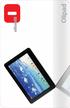 PRODUCT Olipad is a new 10" touch tablet from Olivetti for people who want a versatile portable device to manage digital content. The new Olipad runs the Android operating system and offer a series of
Lenovo IdeaPad Yoga11
 Lenovo IdeaPad Yoga11 User Guide V1.0 Read the safety notices and important tips in the included manuals before using your computer. Notes Before using the product, be sure to read Lenovo Safety and General
TABKAM X1 Tablet camera system evolution of video microscope systems
 TABKAM X1 Tablet camera system evolution of video microscope systems Microscope not included, it is only for photo purpose BEL Engineering introduces the new " TABKAM X1 Tablet Camera for microscopes,
7. Computer System Minimum Requirement. 31 8. Troubleshooting. 32. PortableCapture Pro Software Introductions...33
 Table of Contents EN 1. Precaution. 3 2. Preparation..6 Standard Accessories 6 Part Names & Functions..7 3. key features..... 8 4. Use the Microscope.....9 Install Battery... 9 Insert a MicroSD Card...
INSTRUCTION MANUAL All-In-One GSM Home Alarm System SB-SP7200-GSM
 INSTRUCTION MANUAL All-In-One GSM Home Alarm System SB-SP7200-GSM Revised: August 28, 2014 PRODUCT REFERENCE MOUNTING ACCESSORIES PIR / MOTION DETECTION UNIT MAIN UNIT POWER ADAPTER MOUNTING ACCESSORIES
EBook-EB720 USER MANUAL
 EBook-EB720 USER MANUAL Please read carefully before use TABLE OF CONTENTS Important Safety Instructions and Precautions... 4 What s in the Box... 5 Product Connections and Use... 5 GETTING TO KNOW YOUR
Capacities Overview: 9.7 MultiTouch Screen with IPS technology Access to AndroidTM apps HD Multimedia playback
 Arnova introduces a new HD multimedia tablet: The ARNOVA 9 G2 Equipped with a sharp, bright 9.7 (1024x768) LCD touchscreen, it delivers amazing display quality. The combination between Android TM 2.3 Gingerbread
PA700 Rugged Handheld Computer
 PA700 Rugged Handheld Computer User s Manual Version 1.0 Table of content Table of content... 2 1. Package Contents... 3 2. Getting started... 4 2.1 Device overview... 4 2.2 Assembly... 6 Accessing battery,
Using AORUS Notebook for the First Time
 V2.0 Congratulations on your purchase of the AORUS Notebook! This Manual will help you to get started with setting up your notebook. For more detailed information, please visit our website at http://www.aorus.com.
Windows 10.1 Tablet (UB-15MS10 and UB-15MS10SA) FAQ December 2014
 Windows 10.1 Tablet (UB-15MS10 and UB-15MS10SA) FAQ December 2014 Navigation... 2 Question 1: What are charms used for?... 2 Question 2: How do I navigate while using a mouse or trackpad?... 3 Question
MODECOM MC-602 ART UNIQUE MICE COLLECTION. MODECOM Tablet FreeTAB 2096+
 MODECOM FreeTAB 2096+ is a refreshed version of MODECOM FreeTAB 2096. Similarly like its predecessor, this tablet hidden inside technologically advance and highquality components. MODECOM FreeTAB 2096+
Instructions for A-5 Digital Game Camera
 I CAMERA OVERVIEW Instructions for A-5 Digital Game Camera THANK YOU for your purchase of. Please read this booklet before using unit. If you should have any questions about this product or any or Moultrie
IP Camera (L series) User manual 2013-05 V1.1
 Dear users, the configuration for this camera is professional, so please read the user manual carefully before using the camera. IP Camera (L series) User manual 2013-05 V1.1 Statement If the user manual
WARNING. Getting to know your camera
 Thank you for purchasing this Kogan HD sports action camera. You should read these instructions thorough before use. The camera has no internal memory, so prior to taking photographs or footage, you should
Easy Security Camera Set TX 28 User Manual
 Technaxx Easy Security Camera Set TX 28 User Manual This device complies with the requirements of the standards referred to the Directive R&TTE 1999/5/EC. The Declaration of Conformity you find here: www.technaxx.de/
Point of View SmartTV HDMI 210 dongle - Android 4.2. General notices for use... 2 Disclaimer... 2 Box Contents... 2
 Table of Contents General notices for use... 2 Disclaimer... 2 Box Contents... 2 1.0 Product basics... 3 1.1 Connecting your device for the first time... 3 1.2 Connections... 4 1.3 Using the remote control
Android Mobile Phone User Manual
 Android Mobile Phone User Manual The manual is applicable for the Grand X mobile phone. Contents Let s get started... 1 Getting to know your phone... 2 Screen control... 2 Open and switch applications...
D-Moticam BTW8 Microscope Tablet / Camera Use and Care Manual
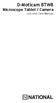 D-Moticam BTW8 Microscope Tablet / Camera Use and Care Manual Moticam BTW8 Introduction Introduction Thank you for purchasing the D-Moticam BTW8 Tablet/Camera system. The BTW provides an effective method
U e s r e Ma M n a u n a u l 1. 0 1. Ta T b a l b e l t e An A d n r d o r i o d i 4. 4 1
 User Manual 10.1 Tablet Android 4.1 1 2 Contents Welcome... 3 Important Notices... 3 Keys and Functions... 4 I. Getting Started... 5 1.1 Turn on/off... 5 1.1.1 Turn on... 5 1.1.2 Turn off... 5 1.2 Lock/unlock
Amcrest 960H DVR Quick Start Guide
 Amcrest 960H DVR Quick Start Guide Welcome Thank you for purchasing our Amcrest 960H DVR! This quick start guide will help you become familiar with our DVR in a very short time. Before installation and
1. Check the Accessories
 This Quick User Guide helps you get started with the IRIScan Book Executive 3 scanner. This scanner is supplied with the software applications Readiris Pro 14 (Windows and Mac ), IRIScan Direct and IRISCompressor
Dear Users: Install and remove memory card. Product Characteristics
 Dear Users: Thank you for buying this High-resolution car DVR. This product is characterized by advanced technology, unique appearance, strong function and can realize the dual-camera synchronous real-time
FreeTAB 1017 IPS2 X4+ Sint-Truidensesteenweg 632 3300 Hakendover 016 78 99 38
 FreeTAB 1017 IPS2 X4+ Sint-Truidensesteenweg 632 3300 Hakendover 016 78 99 38 MODECOM FreeTAB 1017 IPS2 X4 is a premium tablet PC of outstanding technical parameters, efficiency and design. This high-end
PAR Tablet 10 Quick Start Guide
 ParTech, Inc. 8383 Seneca Turnpike New Hartford, NY 13413 p.800.458.6898 www.partech.com PAR Tablet 10 Quick Start Guide PN 770505503 This material has been created in order to accommodate a wide range
USER S MANUAL Kodiak Series Wireless Trail Camera
 USER S MANUAL Kodiak Series Wireless Trail Camera Contents 1. Introduction... 0 1.1 Functionality Introduction... Error! Bookmark not defined. 1.2 Applications... 0 1.3 Power Supply... 1 1.4 Attention...
Dear users, the configuration for this camera is professional, so please read the user manual carefully before using the camera. 2012-11 V4.
 Dear users, the configuration for this camera is professional, so please read the user manual carefully before using the camera. IP Camera (B series) User manual 2012-11 V4.19 Statement If the user manual
Foreword. Thank you for purchasing our products. This built-in manual provides details including product
 Foreword Thank you for purchasing our products. This built-in manual provides details including product information and product usage, helping you understand and easily operate the product. Read all materials
Gembird DCAM-004. English
 Gembird DCAM-004 English User manual Product description Product structure 1)UP button 2)MENU 3)DOWN button 4)USB interface 5)Camera 6)Speaker 7)OK button 8)MODE 9)Power button 10)Display screen 11)TF
How To Use The Dc350 Document Camera
 www.optoma.com DC350 Document Camera / Visualiser 1.4kg 5mp Camera XGA,720P support Power on via USB or Power Supply Micro SD Full SD CARD Support for both Images and Video saving Built-in speaker Built-in
QUICK START GUIDE QUAD CORE 8 INCH MODEL NO: PTBPTW81QC8
 QUICK START GUIDE QUAD CORE 8 INCH MODEL NO: PTBPTW81QC8 Table of Contents 1. What s in the Box.1 2.Tablet Parts.. 1 3.Getting Started 2 4. The Start Screen 3 5. Getting Around.4 6. Apps..5 7. Charm Menu.6
Aspire A3-600. User s Manual
 Aspire A3-600 User s Manual 2013. All Rights Reserved. Aspire A3-600 User's Manual Model: A3-600 This Revision: 09/2013 Acer A3-600 Model number: Serial number*: Date of purchase: Place of purchase: *Note:
Honor T1 8.0 FAQ. Issue 01. Date 06/30
 Honor T1 8.0 FAQ Issue 01 Date 06/30 1 System and update... 1-1 1.1 Why does my Honor T1 8.0 constantly crash?... 1-1 1.2 Will data be erased if I update my Honor T1 8.0?... 1-1 1.3 Why can't I power
SW10. User Guide. Smart Watch. Please read the manual before use.
 SW10 Smart Watch User Guide www. ScinexUSA.com Please read the manual before use. 1 About this manual You can use this Watch as a companion device to most Android and IOS mobile devices. This user manual
IP Villa System Quick Start Guide
 IP Villa System Quick Start Guide Version 1.0.0 Welcome Thank you for purchasing our device! This quick start guide will help you become familiar with our device in a very short time. Before installation
Ultra Dashcam. with Smartphone app control INSTRUCTION MANUAL
 Ultra Dashcam with Smartphone app control EN INSTRUCTION MANUAL 1 Getting to know the Dashcam GPS Receiver Slot 1 Camera Lens Micro HDMI Port 2 Speaker 1 For future application 2 Requires Micro HDMI to
Single Day Alarm Clock with. Bluetooth and USB Play-through
 Single Day Alarm Clock with Bluetooth and USB Play-through MODEL : BSC 200 READ THIS INSTRUCTION MANUAL BEFORE OPERATING THE APPLIANCE. SAVE THIS MANUAL FOR FUTURE REFERENCE. TABLE OF CONTENTS IMPORTANT
HUAWEI MediaPad T1 8.0 FAQ HUAWEI TECHNOLOGIES CO., LTD. Issue 01. Date 06/30
 HUAWEI MediaPad T1 8.0 FAQ Issue 01 Date 06/30 HUAWEI TECHNOLOGIES CO., LTD. 1 System and update... 1-1 1.1 Why does my HUAWEI MediaPad T1 8.0 constantly crash?... 1-1 1.2 Will data be erased if I update
Trio AXS 4G User Guide
 Trio AXS 4G User Guide 2 Contents Welcome.... 4 Important Safety Instructions... 4 Care of the Environment... 5 What s in the Box.... 5 Tablet Layout.... 5 Getting Started... 6 Charging the Battery...
Mobile Eyewear Recorder
 Mobile Eyewear Recorder 1 2 1. Quality Polaroid Lens from brand makers. 2. User friendly operation button for easy control. 3. With extended memory slot for TF/Micro SD card. 4. Easy connection with PC/Laptops,no
Fit Clip Plus Portable Media Player
 Fit Clip Plus Portable Media Player User Guide BL 8GB Thank you for purchasing a Fit Clip Plus Portable Media Player! To get the most out of your Fit Clip Plus, please read this entire user guide carefully.
G1W-C Dash Camera User Manual
 G1W-C Dash Camera User Manual Spy Tec www.spytecinc.com GETTING STARTED Components Features Powering Up the Device Micro SD Memory Card for Data Storage Attaching the Device to Tilting Suction Mount Menu
Unmatchable Windows 8 Tablet S1185 Sales Kit Lite
 Unmatchable Windows 8 Tablet S1185 Sales Kit Lite P.1 P.1 NB Date: 2013/5/10 Product Overview Unique Selling Points Windows 8 Detachable Tablet Brilliant Capacitive 1920x1080 IPS Display High-performance
Appearance and Buttons
 User Manual Thank you for buying the GoXtreme WiFi action camera. Before start using this product, please read this manual carefully to maximize its performance and extend the life of the product. Appearance
Lenovo IdeaPad U510. User Guide V1.0. Read the safety notices and important tips in the included manuals before using your computer.
 Lenovo IdeaPad U510 User Guide V1.0 Read the safety notices and important tips in the included manuals before using your computer. Note Before using the product, be sure to read Lenovo Safety and General
Il potere tra le tue mani
 Il potere tra le tue mani Sarda Elaborazione Dati s.r.l. Via Is Corrias 14-16 Cagliari Tel. 070 542032-070 8648169 Cell. 346 3551428-3490514207 www.sardaelaborazionedati.com Partita IVA n 03360210920 NEW
Android Tablet User Manual
 Android Tablet User Manual We re blurring the line between the latest technology and affordable pricing. Our mission: To get powerful, useful technology into the hands of everyone who wants it. To do our
Connect to a remote PC via Ethernet with a monitor, keyboard, and mouse. This network monitor offers both long distance and wireless transmission.
 17" (43 cm) LCD Monitor Connect to a remote PC via Ethernet with a monitor, keyboard, and mouse. This network monitor offers both long distance and wireless transmission. Long Distance Transmission Easily
Wi-Fi handheld microscope for use with the Apple iphone, ipod touch, or ipad.*
 Instruction Manual Model: ProScope Mobile **Important: The ProScope Mobile only works on Apple ios devices including iphone, ipad and ipod touch. This device DOES NOT WORK with Mac or PC computers. Contents
Getting to Know the New Lenovo Safety and General Information Guide
 Lenovo IdeaPad Yoga 13 User Guide V1.0 Read the safety notices and important tips in the included manuals before using your computer. Note Before using the product, be sure to read Lenovo Safety and General
Thank you very much for buying our product. This user s manual is to. insure your prompt and convenient use of the product. Please read the user s
 User Manual IT-400 Dear Customer Thank you very much for buying our product. This user s manual is to insure your prompt and convenient use of the product. Please read the user s guide carefully before
1. Open the battery compartment as shown in the image.
 This Quick User Guide helps you get started with the IRIScan Book 3 scanner. This scanner is supplied with the software applications Readiris Pro 12, IRIScan Direct and IRISCompressor. Corresponding Quick
This guide describes features that are common to most models. Some features may not be available on your tablet.
 User Guide Copyright 2013 Hewlett-Packard Development Company, L.P. Bluetooth is a trademark owned by its proprietor and used by Hewlett-Packard Company under license. Google, Android, AdWords, Gmail,
PD590-KT. Guide Android 4.4.2
 PD590-KT Guide Android 4.4.2 List PD-590 SPECIFICATION... 3 1 EXTERNAL STRUCTURE DESCRIPTION... 4 2 HOME SCREEN... 5 2.1 Notification Bar Icons... 6 3 OPERATION INSTRUCTIONS... 7 3.1 Dialing... 7 3.2 Notification
MVS - Mini Video Speaker
 MVS - Mini Video Speaker Mini Clock Radio Night Vision Hidden Camera User Manual Spy Tec www.spytecinc.com GETTING STARTED Components Features Powering Up the Device Micro SD Memory Card for Data Storage
Nucleus CP810 Sound Processor and Nucleus CR110 Remote Assistant Troubleshooting Guide
 Nucleus CP810 Sound Processor and Nucleus CR110 Remote Assistant Troubleshooting Guide Symbols Contents Note Important information or advice. Can save inconvenience. Tip Time saving hint or saves inconvenience.