
Avaya P330 Load Balancing Manager User Guide
|
|
|
- Gervais Leonard
- 9 years ago
- Views:
Transcription
1 Avaya P330 Load Balancing Manager User Guide March 2002

2 Avaya P330 Load Balancing Manager User Guide Copyright 2002 Avaya Inc. ALL RIGHTS RESERVED The products, specifications, and other technical information regarding the products contained in this document are subject to change without notice. All information in this document is believed to be accurate and reliable, but is presented without warranty of any kind, express or implied, and users must take full responsibility for their application of any products specified in this document. Avaya disclaims responsibility for errors which may appear in this document, and it reserves the right, in its sole discretion and without notice, to make substitutions and modifications in the products and practices described in this document. Avaya, Cajun, CajunRules!, CajunDocs, OpenTrunk, P550, LANstack, and Avaya MultiService Network Manager are registered trademarks and trademarks of Avaya Inc. ALL OTHER TRADEMARKS MENTIONED IN THIS DOCUMENT ARE PROPERTY OF THEIR RESPECTIVE OWNERS. Release 2.003

3 Table of Contents Preface vi The Purpose of This Guide vi Who Should Use This Guide vi ganization of This Guide vi Chapter 1 Overview of Load Balancing What is Load Balancing Load Balancing Elements Firewall Load Balancing (FWLB) FWLB Overview Benefits of FWLB Transparent Routing Firewalls Non-Transparent Routing Firewalls Bridging Firewalls Server Load Balancing (SLB) SLB Overview Benefits of SLB Server Load Balancing Direct Server Return (Triangulation) Application Redirection (AR) AR Overview Benefits of AR Cache Redirection Combination of Applications Load Balancing Metrics Round Robin Hash MinMiss Hash Weighted Real Servers Health Check Persistency Additional Persistency Schemes Chapter 2 Getting Started with Avaya P330 Load Balancing Manager Starting Avaya Load Balancing Manager The User Interface Toolbar Avaya P330 Load Balancing Manager User Guide iii

4 Table of Contents Logical View Logical Tree Area Table Area RSG Area RS Area Form Area Physical View Physical Tree Area Virtual Form Area Status Bar Saving Configuration Changes Applied Changes Committed Changes Searching for Load Balancing Components Chapter 3 Configuring Firewall Load Balancing Firewall Load Balancing Configuration Overview Defining a Firewall Service Editing the Routing Table Defining RSGs and RSs for FWLB Editing the Properties Sheets for FWLB Module Properties Sheet Routing Firewall Properties Sheet Bridging Firewall Properties Sheet Launching Another Avaya Device Manager Chapter 4 Configuring Server Load Balancing Server Load Balancing Configuration Overview Defining a Virtual Server Defining a Virtual Service Proxy IP Editor Adding PIP Banks Modifying PIP Banks Deleting PIP Banks Health Check Editor Adding Health Check Methods Modifying Health Check Methods Deleting Health Check Methods Health Check Method Properties Defining RSGs and RSs for SLB Editing the Properties Sheets for SLB Module Properties Sheet Virtual Server Properties Sheet SLB Virtual Service Properties Sheet Chapter 5 Configuring Application Redirection Application Redirection Configuration Overview iv Avaya P330 Load Balancing Manager User Guide

5 Table of Contents VLAN Area Mapping Mapping VLAN Areas Defining a Service Defining RSGs and RSs for Application Redirection Defining a Rule Using Address Wildcards Editing the Properties Sheets for AR Module Properties Sheet AR Virtual Service Properties Sheet Chapter 6 Real Server Groups and Real Servers Real Server Groups Real Server Group Backup Defining an RSG Defining a Connected RSG Defining an Unconnected RSG Deleting an RSG Real Servers Real Server Backup Defining an RS Defining an RS for an RSG - Logical View Defining an RS for an RSG - Physical View Defining an Unconnected RS Deleting an RS Editing the RSG and RS Properties Sheets Real Server Group Properties Sheet Real Server Properties Sheet Chapter 7 Application Editor Tool Application Editor Tool Overview Using the Application Editor Tool Adding Application Protocols Modifying an Application Protocol Deleting an Application Protocol Applying Changes Reports Appendix A Menus File Menu Edit Menu Action Menu Tools Menu Help Menu Appendix B Error Messages Index Avaya P330 Load Balancing Manager User Guide v

6 Preface Welcome to Avaya P330 Load Balancing Manager. This chapter provides an introduction to this guide. It includes the following sections: - A description of the goals of the guide. - The intended audience of this guide. ganization of This Guide - A brief description of the subjects contained in the various sections of this guide. The Purpose of This Guide This guide contains the information needed to use Avaya P330 Load Balancing Manager efficiently and effectively. Who Should Use This Guide This guide is intended for use by network managers familiar with network management and its fundamental concepts. ganization of This Guide This guide is structured to reflect the following conceptual divisions: Preface - This section describes the guide s purpose, intended audience, and organization. Overview of Load Balancing - This section provides an overview of the terms and concepts used in load balancing. Getting Started with Avaya Load Balancing Manager - This section provides an overview of the user interface and instructions on how to start and use Avaya P330 Load Balancing Manager. Configuring Firewall Load Balancing - This section describes how to configure Avaya P330 Load Balancing Manager to perform Firewall Load Balancing. Avaya P330 Load Balancing Manager User Guide vi

7 Preface Configuring Server Load Balancing - This section describes how to configure Avaya P330 Load Balancing Manager to perform Server Load Balancing. Configuring Application Redirection - This section describes how to configure Avaya P330 Load Balancing Manager to perform Application Redirection. Real Server Groups and Real Servers - This section describes how to configure Real Server Groups and Real Servers for the various load balancing applications. Application Editor Tool - This section provides instructions on how to use the Application Editor Tool and how to customize application protocols. Menus - The full structure of the menus in Avaya P330 Load Balancing Manager. Error Messages - A full explanation of the error messages that appear in Avaya P330 Load Balancing Manager. Avaya P330 Load Balancing Manager User Guide vii

8 1 Overview of Load Balancing This section describes load balancing and includes the following topics: What is Load Balancing - A general overview of load balancing. Load Balancing Elements - A description of the conceptual load balancing elements. Firewall Load Balancing (FWLB) - An overview of Firewall Load Balancing, including descriptions and configuration examples for routing and bridging firewalls. Server Load Balancing (SLB) - An overview of Server Load Balancing, including descriptions and examples of SLB with Full and Half Network Address Translation (NAT). Application Redirection (AR) - An overview and description of Application Redirection, including a description of Cache Redirection. Combination of Applications - A description of how to combine more than one load balancing application. Load Balancing Metrics - A description of the various metrics used to direct traffic to different Real Servers. Health Check - A description of how health checks are performed by the load balancer. Persistency - A description of session and client persistency and how they are sustained. Additional Persistency Schemes - A description of backup Real Servers and backup Real Server Groups. Avaya P330 Load Balancing Manager User Guide 1

9 What is Load Balancing Load balancing technology allows system administrators to replace single firewalls and servers with multiple firewall and server farms, achieving the following goals: Improving resilience by removing single points of failure. Improving performance by utilizing multiple units instead of a single one. This improves the scalability and maintainability of the firewalls and servers in the network. The load balancer also serves as a smart redirector, allowing traffic redirection, commonly known as Application Redirection. This allows for: Invisibly intercepting web traffic and forwarding it to deployed web caches. Redirecting specific application traffic to content inspection engines. Policy based routing, providing routing based on application or data source. There are several different load balancing applications: Firewall Load Balancing (refer to Firewall Load Balancing (FWLB) on page 4). Server Load Balancing (refer to Server Load Balancing (SLB) on page 8). Application Redirection (refer to Application Redirection (AR) on page 10). Avaya P330 Load Balancing Manager User Guide 2

10 Chapter 1 Load Balancing Elements There are several abstract load balancing elements: Real Server (RS) - An RS is a physical server that is associated with a Real IP address. One or more RSs may belong to an RSG. Real Server Group (RSG) - An RSG is a logical grouping of Real Servers used for load balancing. For example, for SLB, the load balancer distributes packets to Real Servers belonging to a specific RSG. Virtual Service - Virtual Services are abstract links to the RSGs provided by a Virtual Server. For example, load-balanced forwarding of HTTP or FTP packets is a Virtual Service. Virtual Server - A Virtual Server represents the server to the outside world. It is associated with a Virtual IP address and provides Virtual Services. For example, a load balancer that intercepts traffic from the WAN acts as a Virtual Server. Traffic from the WAN is directed to the Virtual Server. The Virtual Server provides Virtual Services when transferring packets to the RSG, which is comprised of RSs. The following figure illustrates the conceptual load balancing model. Figure 1-1. The Conceptual Load Balancing Model Virtual Server Virtual Server Virtual Service Virtual Service Virtual Service RSG RSG RSG Real Server Real Server Real Server 3 Avaya P330 Load Balancing Manager User Guide

11 Firewall Load Balancing (FWLB) FWLB Overview This section provides information about Firewall Load Balancing, including a general overview and detailed information about routing and bridging firewalls. Firewall Load Balancing intercepts all traffic between the LAN and the WAN, and dynamically distributes the load among the available firewalls, based on FWLB configuration. Using FWLB, all of the firewalls are utilized concurrently, providing overall improved firewall performance, scalability and availability. The firewalls are the Real Servers, and the group of firewalls is the Real Server Group. The firewall group is associated with a Virtual Service, which is a routing or bridging firewall. The load balancer: Balances traffic across two or more firewalls (up to 1024) in your network, allowing the firewalls to work in parallel. Maintains state information about the traffic flowing through it and ensures that all traffic between specific IP address source and destination pairs flows through the same firewall. Performs health checks on all paths through the firewalls. If any path is not operational, the load balancer diverts traffic away from that path, maintaining connectivity across the firewalls. Often, two load balancers are needed to support FWLB. One device is deployed on the LAN side (internal) of the firewalls and another on the WAN side (external). If a Demilitarized Zone (DMZ) is implemented to allow remote access, a third load balancer must be deployed on the DMZ side of the network. Additional devices can be added to provide redundancy, eliminating any device or path as a single point of failure. Avaya P330 Load Balancing Manager supports both routing and bridging firewalls. Routing firewalls may be transparent or non-transparent. Avaya P330 Load Balancing Manager User Guide 4

12 Chapter 1 Benefits of FWLB FWLB allows you to: Maximize firewall productivity. Scale firewall performance. Transparent Routing Firewalls Eliminate the firewall as a single point of failure. For transparent FWLB, the load balancer receives a packet, makes a load balancing decision, and forwards the packet to a firewall. The firewall does not perform NAT on the packets; the source and destination IP addresses are not changed. Two load balancers are required for transparent FWLB, one on each side of the firewalls. One device intercepts traffic between the WAN and the firewall, and the second device intercepts traffic between the LAN and the firewall. Transparent routing firewalls act as a next hop device from the perspective of the load balancer. After a firewall is selected in a load balancing decision, normal routing to that firewall takes place. The load balancers ensure that all packets belonging to a session pass through the same firewall in both directions. The devices select a firewall based on a symmetric hash function of the source and destination IP addresses. This ensures that packets traveling between the same source and destination IP addresses traverse the same firewall. The following figure illustrates transparent FWLB. Figure 1-2. Transparent Firewall Load Balancing 5 Avaya P330 Load Balancing Manager User Guide
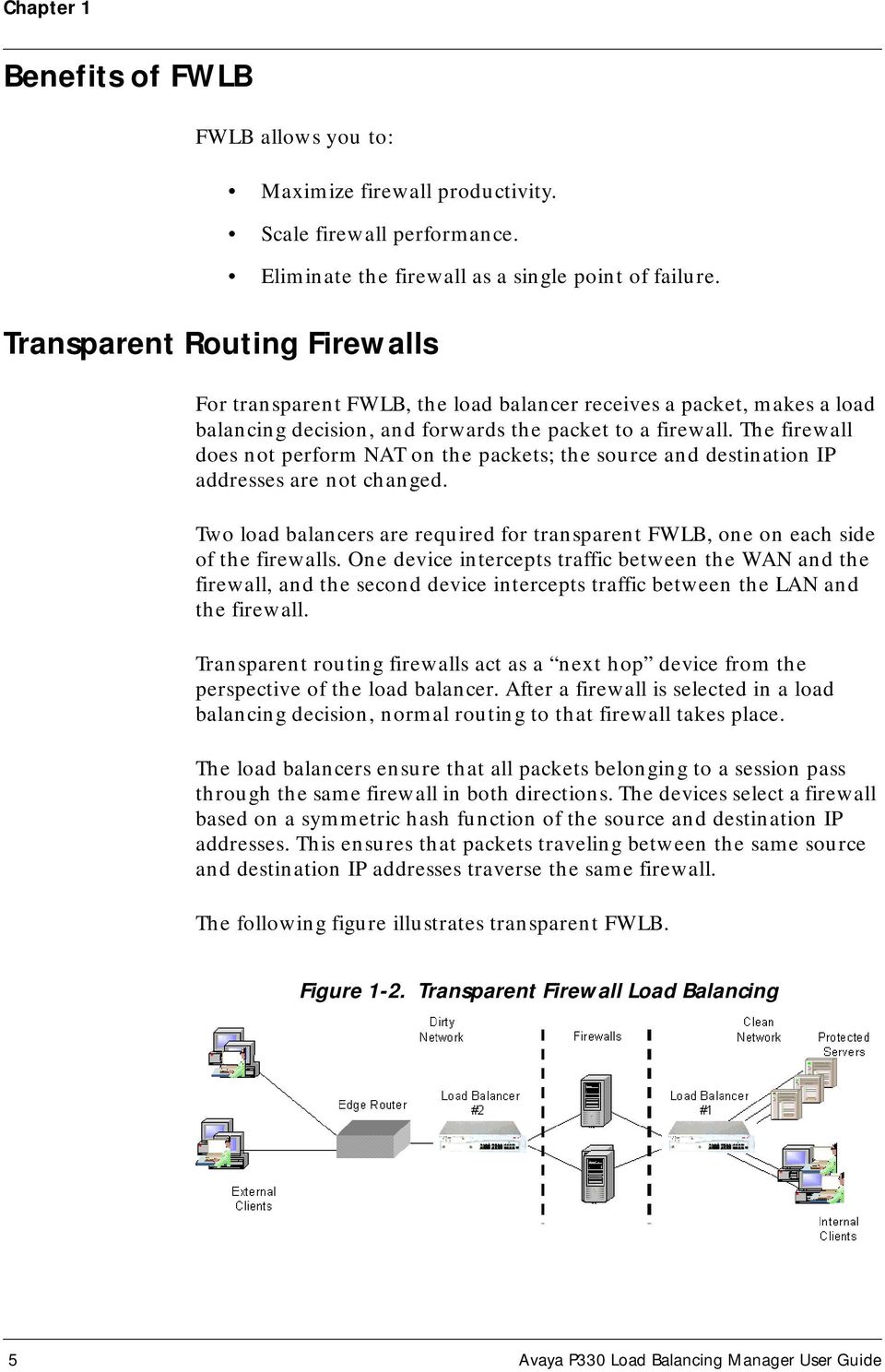
13 The load balancer enables you to route packets to a DMZ. A DMZ is a portion of the client s network, apart from the client s LAN, where remote access is allowed. After creating a DMZ, a third load balancer is installed to route packets to the DMZ. The following figure illustrates transparent FWLB with a DMZ. Figure 1-3. Transparent FWLB With DMZ Non-Transparent Routing Firewalls Non-transparent routing firewalls are firewalls that support dynamic NAT. For non-transparent FWLB, the load balancer receives an outgoing packet, makes a load balancing decision, and forwards the packet to a firewall. The firewall keeps a bank of IP addresses and replaces the source IP address of the outgoing packet with a unique, arbitrary IP address from the bank. The firewall then forwards the packet to an edge router which routes it to the correct destination on the WAN. For incoming packets, the unique NAT address is used as a destination IP address to access the same firewall. The firewall performs reverse NAT by replacing the NAT destination address with the actual destination address (the client IP address), and then forwards the packet to the load balancer, which routes the packet to its destination. No load balancing is performed on incoming packets. For non-transparent FWLB, only one load balancer is required. The device is positioned on the LAN (internal) side of the firewalls. Since the firewalls perform NAT, a load balancer is not needed between the WAN and the firewalls. Avaya P330 Load Balancing Manager User Guide 6

14 Chapter 1 In transparent FWLB, persistency is ensured by the load balancer. In non-transparent FWLB, the firewalls ensure persistency through NAT, and there is no need for the load balancer to intervene. The following figure illustrates non-transparent FWLB. Figure 1-4. Non-Transparent Firewall Load Balancing Bridging Firewalls Bridging firewalls are firewalls that do not perform forwarding at the IP address layer, but rather appear as transparent bridges. Bridging firewalls are transparent to devices inside and outside of the secured network. The bridging firewalls do not have IP or MAC addresses to which traffic is directed. Therefore, the firewalls must physically appear on the traffic path. For bridging FWLB, the load balancers must be positioned on both sides of the firewalls. Each device load balances between IP address interfaces of the peer device behind the firewall. For this to work, each firewall must reside in a different VLAN and subnet, and the physical ports connected to the firewalls must be on different VLANs as well. In addition, for each VLAN, both load balancers must be in the same subnet. Each load balancer interface and the firewall connected to it reside in a separate VLAN. This ensures persistency since all the traffic through a particular firewall is contained in the firewall s VLAN. 7 Avaya P330 Load Balancing Manager User Guide

15 The following figure illustrates bridging FWLB. Figure 1-5. Bridging Firewall Load Balancing VLAN 1 LAN Load Balancer Firewall 1 Load Balancer Access Router Internet Firewall2 VLAN 2 Server Load Balancing (SLB) SLB Overview This section provides information about Server Load Balancing, including a general overview and detailed information about SLB. Server Load Balancing intercepts all traffic between clients and servers, and dynamically distributes the load among the available servers, based on the SLB configuration. In a non-balanced network, each server provides access to specific applications or data. Some of these applications may be in higher demand than others. Servers that provide applications with higher demand are over-utilized while other servers are under-utilized. This causes the network to perform below its optimal level. Load balancing provides a solution by balancing the traffic among several servers which all have access to identical applications and data. This involves intercepting all traffic between clients and load-balanced servers and dynamically distributing the load according to configured schemes (metrics). The load balancer acts as a Virtual Server to the outside world (the WAN) and has a Virtual IP address. Avaya P330 Load Balancing Manager User Guide 8

16 Chapter 1 Benefits of SLB Server Load Balancing SLB improves network performance by: Minimizing server response time. Maximizing server availability. Increasing server utilization and network bandwidth. This is accomplished by balancing session traffic between the available servers, according to rules established during configuration. Increasing reliability. If any server fails, the remaining servers continue to provide services seamlessly. Increasing scalability. Server configuration can be performed without disrupting the network. The server load balancer changes one of the source and destination IP addresses. When a packet arrives from a client to a server, the load balancer changes the destination IP from the Virtual IP address to the Real IP address. When a packet is sent from a server to a client, the load balancer changes the source IP address from the Real IP address to the Virtual IP address. The following figure illustrates Server Load Balancing: Figure 1-6. Server Load Balancing 9 Avaya P330 Load Balancing Manager User Guide

17 Direct Server Return (Triangulation) Direct server return, or triangulation, is an additional implementation of SLB. In standard SLB, the load balancer intercepts traffic between the servers and clients in both directions. In triangulation, load balancing is performed only on traffic from the clients to the server. Traffic from the servers is returned to the client directly through a router without any need for load balancing intervention. For triangulation, the Real Servers must be specially configured. The Real Servers must also be capable of receiving packets with the Virtual IP address as the destination IP address, and of sending packets with the Virtual IP address as the source IP address. The Virtual IP address should be configured in the Real Servers as a loopback IP address, and the router (not the load balancer) should be configured as the servers default gateway. When the load balancer detects that a Real Server supports triangulation and is configured properly, it does not change the destination IP address of the packet. The Virtual IP address is left as the destination IP address, and the packet does not undergo NAT. Application Redirection (AR) AR Overview This section provides information about Application Redirection, including a general overview, and detailed information about Cache Redirection. With the growing importance of the Internet as a source of information, an organization's LAN may suffer from a degradation of performance due to congestion of the router connecting the network to the Internet. Since much information retrieved from the Web is either repeatedly requested by a user or requested by multiple users, many organizations implement a local caching mechanism to prevent unnecessary Internet traffic. The local caches must be on the traffic path between the client and the Internet router. As a result, all traffic, even traffic not intended for the cache, passes through the cache. Load balancing solves this problem by redirecting packets from their original destination to an alternative server based on the Application Redirection configuration. Cache Redirection is the most common implementation of Application Redirection. Avaya P330 Load Balancing Manager User Guide 10

18 Chapter 1 Benefits of AR Cache Redirection By redirecting client requests to a local cache or application server, you can increase the speed at which clients access information and free up valuable network bandwidth. Application Redirection improves network performance by: Providing faster client access to information. Increasing effective network bandwidth. Filtering traffic. Directing only suitable traffic to the local cache. Connecting and load balancing multiple caches. Performing the redirection process in a way that is transparent to the client. Allowing redundant caches to be configured. For Cache Redirection, the load balancer is positioned on the traffic route and redirects traffic from the original destination to an alternative cache server. The redirection process involves the following steps: 1. The load balancer checks whether the packet characteristics comply with one of the defined filter rules. The user configures rules to define which clients or destinations are to be redirected to the cache. 2. The load balancer checks whether the application port is suitable for redirection (i.e., HTTP). 3. The load balancer routes the packet to the cache server instead of to the original destination on the Internet. 4. The cache checks if it has the relevant information. If it does, it forwards the cached information to the client. If it does not have the information, it retrieves the information from the Internet, saves it to the cache, and then forwards the information to the client. The load balancer supports transparent caches. A transparent cache is a cache that is capable of accepting packets not addressed to its IP address. The cache usually uses NAT in its IP address stack, so the higher layers can process packets not addressed to the cache s IP address. 11 Avaya P330 Load Balancing Manager User Guide

19 The following figure illustrates Cache Redirection. Figure 1-7. Cache Redirection In this figure, the sequence of events is as follows: 1. The user issues an HTTP request. The source IP address is the user s IP address and the destination IP address is the Web server s IP address. 2. The load balancer routes the packet to the local cache. The packet still has the Web server s IP address as its destination IP address. 3. If the cache has the required page, the cache returns the page to the load balancer with the destination IP address of the client and the source IP address of the Web server. If the cache does not have the required page, the cache returns the packet to the load balancer, and the load balancer routes the packet to the Web server. 4. On the way back from the Web server, the load balancer routes the packet to the cache. 5. The cache saves the packet and routes it back to the load balancer. 6. The load balancer sends the page to the user. A client's request for a Web page and the cache's request for a Web page have the same source and destination IP addresses. To distinguish between them, the load balancer uses separate VLANs for clients and the cache. If the request is on the clients' VLAN, the load balancer forwards the request to the cache. If the request is on the cache's VLAN, the load balancer forwards the request to the WAN. Similarly, the WAN s return of a Web page and the cache's forwarding of a Web page to a client have the same source and destination IP addresses. To distinguish between them, the load balancer uses separate VLANs for clients and the cache. If the response is on the cache s VLAN, the load balancer forwards the response to the cache. If the response is on the clients' VLAN, the load balancer forwards the response to the client. Avaya P330 Load Balancing Manager User Guide 12

20 Chapter 1 Combination of Applications You can enable the P333R-LB to use various applications concurrently. For example, it is possible to configure the same P333R-LB to perform Server Load balancing for an Intranet web-server, Application Redirection for web traffic that is Internet-bound, and Firewall Load Balancing for traffic that is Internet-bound. In some cases, the same type of traffic can be given two different actions by the load balancer. In these situations, it is necessary to tell the load balancer which action to choose. In the example described above, web traffic to the intranet server can be configured to either be directed to the web cache, or bypass the web cache and directly access the Intranet server. The latter configuration will save the web cache resources to deal with Internet-bound traffic. You can specify the preferred action as one of the following: Configure SLB to take precedence over AR. AR can take precedence over SLB. Load Balancing Metrics Configure AR filters to redirect traffic from client/server addresses, using wildcards. Configure AR filters to specify which traffic not to redirect ( no-ar as service) from specific client/server addresses, using wildcards. There are several methods, or metrics, that a load balancer can use to distribute traffic among multiple servers, firewalls or caches. These metrics tell the load balancer which Real Server should receive each session. Some commonly used metrics are: Round Robin Hash MinMiss Hash Weighted Real Servers 13 Avaya P330 Load Balancing Manager User Guide

21 Round Robin Using Round Robin, the load balancer issues sessions to each RS in turn. The first RS in the group receives the first session, the second RS receives the next session, and so on. When all the RSs receive a session, the issuing process starts over with the first RS. Round Robin ensures that each RS receives an equal number of sessions. Hash Using the Hash metric, sessions are distributed to RSs using a predefined mathematical hash function. The hash function is performed on a specified parameter. The source IP address, destination IP address, or both are used as the hash function input. The load balancer creates a list of all the currently available RSs. The result of the hash function is used to select an RS from the list. Any given parameter always gives the same hash result, providing natural persistency. If an RS is removed or added to the group, persistency is broken. This occurs since the order of the RSs in the list changes, but the hash still points to the same list entries. The following figure illustrates how a loss of persistency occurs when an RS becomes non-operational: Figure 1-8. Hash Metric - Loss of Persistency In the above figure, when Server 2 becomes non-operational, the list of available servers is readjusted, causing a lack of persistency. However, if Server 2 becomes operational again, the list of available servers is restored to its original order, and persistency is recovered. Avaya P330 Load Balancing Manager User Guide 14
22 Chapter 1 MinMiss Hash MinMiss hash distributes sessions to RSs in the same way as the Hash metric. However, MinMiss hash retains persistency even when an RS is removed from the group. When an RS fails or is removed, the load balancer does not change the position of all the RSs in the list. Instead, it redistributes the remaining RSs to the list entries freed by the failing RS. The following figure illustrates how persistency is retained when an RS becomes non-operational. Figure 1-9. MinMiss Metric - Persistency Retained Weighted Real Servers In the above figure, when Server 2 becomes non-operational, the list of available servers is not readjusted. Only the list entries that are now empty are replaced with other available servers. Therefore, persistency is retained for all available servers. However, if Server 2 becomes operational again, the list of available servers is recalculated so that the smallest number of servers is affected. The list is not restored to its original configuration. As a result, persistency is only partially recovered. You can assign weights to RSs to enable faster RSs to receive a larger share of sessions. This minimizes overloading and maximizes functionality. If you assign a weight to an RS, the sessions are distributed to the RSs in the metric chosen (Round Robin, Hash or MinMiss). However, the weighted RS is assigned a larger share of sessions. For example, if you assign a weight of 20 to one RS and leave the default weight (10)on the second RS, the weighted RS receives 2 sessions for each session directed to the second RS. This is useful for RSs with different bandwidths or processor speeds. 15 Avaya P330 Load Balancing Manager User Guide
23 Health Check Persistency The load balancer constantly checks the RSs to ensure that each RS is accessible and operational. An RS that fails the health check is automatically removed from the load balancer s internal list of currently available RSs, and traffic is redirected to other available RSs. There are several types of health check methods that the load balancer can use, including: ICMP Ping - Each RS is periodically pinged. If no answer is received, the RS is not operational. TCP Port Checking - A TCP connection is periodically opened to each RS, checking for successful completion of the connection. For FWLB, checking the firewalls is insufficient. The health checks must be performed on the entities beyond the firewalls as well. In order to ensure that the health check packets traverse the same firewall in both directions, the packet s source and destination IP addresses should be the IP addresses of the load balancer interfaces on each side of the firewall. For each load balancer, both the local and remote addresses must be configured. In addition, the load balancers on both sides of the firewall must be configured symmetrically. For non-transparent FWLB (with NAT), there is only one load balancer. In this case, you must configure an IP address beyond the firewall as the health check address. Like other non-transparent FWLB sessions, the health check session returns through the same firewall according to the NAT address it was given. Persistency is the maintenance of the connection between the server and the client over multiple sessions. Persistency ensures that all traffic from the client is directed to the same RS. Persistency is achieved by using naturally persistent load balancing metrics (such as Hash or MinMiss hash) or by forcing persistent load balancing decisions on non-persistent load balancing metrics (such as Round Robin). Persistency is forced by storing the history of the latest decisions in a cache for a limited time, and then sending the packets to the appropriate RS according to the previous load balancing decisions. Avaya P330 Load Balancing Manager User Guide 16
24 Chapter 1 Persistency is achieved by opening a new entry for a server group based on the following: New entry on source IP address - All sessions from a specific source are directed to the same RS. This is useful for applications where client information must be retained on the RS between sessions. New entry on destination IP address - All sessions to a specific destination are directed to the same RS. This is useful for caching applications to maximize successful cache hits when the information is not duplicated between RSs. New entry on source IP and destination IP addresses - All sessions from a given source to a given destination are directed to the same RS. This is useful for Firewall Load Balancing, since it ensures that the two unidirectional flows of a given session are directed through the same firewall. Additional Persistency Schemes Using the P333R-LB, you can configure a Real Server to backup one or more primary Real Servers. A backup Real server is not used unless the primary Real Server is down. You can also configure a Real Server Group (RSG) to backup one or more primary RSGs. A backup RSG can run a different service than the primary RSG while providing backup to all of the primary RSG s services. Similar to the Real Server, the backup RSG is not used unless all Real Servers in the RSG are down. 17 Avaya P330 Load Balancing Manager User Guide
25 2 Getting Started with Avaya P330 Load Balancing Manager This chapter provides instructions on how to start Avaya Load Balancing Manager and an overview of the user interface. It includes the following topics: Starting Avaya Load Balancing Manager - Instructions on how to start Avaya P330 Load Balancing Manager. The User Interface - An introduction to Avaya P330 Load Balancing Manager s user interface. Saving Configuration Changes - Instructions for applying and committing changes to the load balancing configuration. Searching for Load Balancing Components - Instructions on how to search for RSs and RSGs in Avaya P330 Load Balancing Manager. Starting Avaya Load Balancing Manager To start Avaya P330 Load Balancing Manager for the Avaya P330: 1. Click the Load Balancing Manager tab in the Avaya P330 Manager. A list of P333R-LB module IP addresses appears in the Tree View of the Avaya P330 Manager. * Note: In order that the Load Balancing Manager tab appear, at least one of the interfaces should be configured on the load balancer. For more information, refer to P333R-LB User Guide or P333R-LB Quick Start. Avaya P330 Load Balancing Manager User Guide 18
26 Chapter 2 The User Interface The user interface consists of the following elements: Menu Bar - Menus for accessing Avaya Load Balancing Manager functions (refer to Appendix A, Menus). Toolbar - Toolbar buttons for accessing Avaya Load Balancing Manager functions. Logical or Physical View - Depending on the tab selected, the application displays one of the two views. Logical View - A logical representation of the network showing Virtual Servers and Services and their associated RSGs and RSs. The Logical View includes a hierarchical Tree Area, Table Area, RSG Area, RS Area, and Form Area. The various areas display information related to the element selected in the Tree Area. The following figure shows the Logical View of the user interface, with its various parts labeled. Figure 2-1. The User Interface - Logical View Menu Bar Table Area Form Area Toolbar Tree Area RSG Area Status Bar RS Area 19 Avaya P330 Load Balancing Manager User Guide
27 Physical View - A physical representation of the P333R-LB devices in the network showing RSs and RSGs. The Physical View includes a Tree Area and a Form Area. The Form Area displays information related to the element selected in the Tree Area. The following figure shows the Physical View of the user interface, with its various parts labeled. Figure 2-2. The User Interface - Physical View Menu Bar Toolbar Form Area Tree Area Status Bar Status Bar - An area at the bottom of the screen that displays the communication status between Avaya Load Balancing Manager and the network. Toolbar The toolbar provides shortcuts to Avaya Load Balancing Manager s main functions. The following table describes the buttons on the toolbar and gives the equivalent menu options. Table 2-1. Toolbar Buttons Buttons Description Menu Item Saves configuration changes to the device. Cuts a rule from a table to the application clipboard Copies a rule from a table to the application clipboard. File > Commit Edit > Cut Edit > Copy Avaya P330 Load Balancing Manager User Guide 20
28 Chapter 2 Table 2-1. Toolbar Buttons (Continued) Buttons Description Menu Item Pastes a rule from the application clipboard. Adds a new entity. Edit > Paste Edit > Add Deletes the selected entity. Edit > Delete Opens the Find dialog box. Edit > Find Refreshes the current view from the device. Changes that were not applied or saved to the device are lost. Applies current modifications to the device. Launches another device manager. Action > Refresh Action > Send to Device Tools > Launch Opens the Application Editor. Opens the Proxy IP Editor. Opens the Health Check Editor. Provides context-sensitive on-line help. Tools > Application Editor Tools > Proxy IP Editor Tools > Health Check Editor Help > What s This? When you place the cursor on a toolbar button for one second, a tooltip appears with the name of the button. 21 Avaya P330 Load Balancing Manager User Guide
29 Logical View The Logical View displays a logical representation of the network. The Logical View includes the following areas (these areas are discussed in more detail below): Logical Tree Area - Displays a hierarchical representation of the network. Table Area - Displays various tables. RSG Area - Displays RSGs. RS Area - Displays RSs. Form Area - Displays Properties Sheets. The various areas are synchronized. When you select an element in one area, the other areas display related information. As you move the focus between the different areas and select different elements within the areas, the information displayed in the other areas changes. In the Logical View, the focus is always on one of the Logical Tree, Table, RSG, or RS Areas. You can only make changes to the area in focus. The area in focus is framed in blue, and an item selected in the area in focus appears dark green. An item selected in an area that is not in focus appears cyan. Logical Tree Area The Logical Tree Area is a hierarchical representation of the structure and functions performed by the load balancers in the network. To select a device or any of its components, click the appropriate icon in the Logical Tree Area. The highest level in the Logical Tree Area represents the IP address of the device. The lower levels show load balancer modules, load balancing applications (FWLB, SLB or AR), Virtual Servers, firewall services, rules, and services. The type of information displayed in the lower levels of the Logical Tree Area depends on which load balancing application is selected. To expand the view of a collapsed element in the tree or to collapse an expanded element in the tree: Double-click the element you want to expand or collapse. Click the handle next to the element. Avaya P330 Load Balancing Manager User Guide 22
30 Chapter 2 Table Area RSG Area RS Area Form Area The Table Area displays information related to the selected item in the Logical Tree Area. Depending on which item is selected in the Logical Tree Area, the Table Area displays the Virtual Services Table, the Routing Table, the Rules List, or the Services List. The RSG Area displays the RSGs that are related to the selected element in the Logical Tree Area or in the Table Area. The RS Area displays the RSs that are connected to the RSG selected in the RSG Area. The Form Area displays the Properties Sheet of the element selected in the area in focus. For example, if the focus is on the Table Area and you select an item from the Virtual Services Table, the Form Area displays the Properties Sheet of the selected Virtual Service. Physical View The Form Area never receives the focus, but you can edit the Properties Sheet displayed in the Form Area. The Physical View displays a representation of the physical P333R-LB modules in the network. The Physical View includes the Physical Tree Area and the Form Area. Some configuration changes can only be made using the Physical View. For example, if you delete an entity in the Logical View, the link to the entity is deleted, but the entity is still available for configuring at a later time. To delete the entity completely, you must delete it from the Physical View. An entity deleted from the Physical View is unavailable for further use and must be redefined. Physical Tree Area The Physical Tree Area displays RSs and RSGs. When you select an RS or RSG from the Physical Tree Area, the Form Area displays the Properties Sheet related to the selected RS or RSG. To expand the view of a collapsed element in the tree or to collapse an expanded element in the tree: Double-click the element you want to expand or collapse. Click the handle next to the element. 23 Avaya P330 Load Balancing Manager User Guide
31 Virtual Form Area The Form Area displays the Properties Sheet of the element selected in the Physical Tree Area. Status Bar The Status Bar shows the communication status between Avaya Load Balancing Manager and a specific device in the network. The following table shows the possible communication statuses with their corresponding graphics, and gives a short explanation for each status. Table 2-2. Communication Statuses Graphic Status Description Ready Communicati ng Communicatio n Error The application is ready to communicate with a load balancing device. The application is currently communicating with a load balancing device. The last attempted communication with the load balancing device was not successful. Saving Configuration Changes Configuration changes do not take effect until you apply or save the changes to the device. There are two levels of applying configuration changes to the load balancing device: Applied Changes - Changes are applied to the device, but are not saved. Applied changes affect the present network configuration. However, these changes are lost when the device is reset. Committed Changes - Changes are saved to the device. Committed changes are maintained even when the device is reset. Avaya P330 Load Balancing Manager User Guide 24
32 Chapter 2 Applied Changes After finalizing all configuration changes, the changes must be applied to the device. Applied changes affect the current configuration but are not saved when the device is reset. To apply the changes to the device: Click Send to Device. Committed Changes Select Action > Send to Device. The configuration changes are applied to the device. The applied changes remain in effect until the device is reset. When the device is reset, it is configured with the last committed configuration. All changes applied but not committed are lost. When you switch the focus from one screen area to another without applying changes, a message prompts you to apply the configuration changes that you made to the device. Changes to Properties Sheets are stored locally until you apply the changes to the device. Therefore, no message appears when you switch from one Properties Sheet to another. To make configuration changes permanent, the changes must be committed (saved) to the device. To commit the configuration to the device: Click Commit. Select File > Commit. The changes are saved to the device. * Note: The commit operation may take up to 20 seconds. Avoid running other operations while committing changes to the device. 25 Avaya P330 Load Balancing Manager User Guide
33 Searching for Load Balancing Components Avaya Load Balancing Manager allows you to search for RSs or RSGs in the Physical Tree Area. To search for a load balancing component: 1. Click Find. Select Edit > Find. The Find dialog box opens. Figure 2-3. Find Dialog Box 2. Enter the IP address of the RS or the name of the RSG to search for, and enter the RLB ID (the slot number of the load balancer module in the stack). 3. Click Find. Avaya Load Balancing Manager searches for the item. If the requested RS or RSG is found, the element is selected in the Physical Tree Area. If the requested element is not found, a message appears. Avaya P330 Load Balancing Manager User Guide 26
34 3 Configuring Firewall Load Balancing This chapter provides instructions on how to configure Firewall Load Balancing (FWLB). It includes the following topics: Firewall Load Balancing Configuration Overview - An overview of the steps involved in configuring FWLB. Defining a Firewall Service - Instructions on how to define a firewall service. Editing the Routing Table - Instructions on how to add and edit entries in the service s Routing Table. Defining RSGs and RSs for FWLB - Instructions on how to define RSGs and RSs for Firewall Load Balancing. Editing the Properties Sheets for FWLB - Instructions on how to enter information in the Properties Sheets for FWLB entities. Launching Another Avaya Device Manager - Instructions on how to launch another Avaya P330 Load Balancing Manager for identical configuration of two devices. Avaya P330 Load Balancing Manager User Guide 27
35 Firewall Load Balancing Configuration Overview Configuring Avaya P330 Load Balancing Manager for FWLB involves several steps. This section provides an overview of the entire process, and the following sections explain each step in detail. To configure Avaya P330 Load Balancing Manager to perform FWLB: 1. Define one or more firewall services (refer to Defining a Firewall Service on page 29). 2. Add and edit entries in the Routing Table (refer to Editing the Routing Table on page 30). 3. Define an RSG (refer to Defining RSGs and RSs for FWLB on page 31). 4. Define one or more RSs (refer to Defining RSGs and RSs for FWLB on page 31). After you define a new FWLB element, click Send to Device to apply the configuration changes to the device. To save the configuration changes, click Commit. For more information about applying and saving changes, refer to Saving Configuration Changes on page 24. Avaya P330 Load Balancing Manager User Guide 28
36 Chapter 3 Defining a Firewall Service The first step in configuring FWLB is defining a firewall service. A firewall service is a Virtual Service for FWLB (refer to Load Balancing Elements on page 3). A firewall service may be a routing firewall service or a bridging firewall service. To define a firewall service: 1. In the Logical Tree Area, select FWLB from the load balancer module you are currently configuring. 2. Select Bridging or Routing, depending on the type of firewall you are configuring. 3. Click Add. Select Edit > Add. A new firewall service is added to the tree. 4. Enter information about the new firewall service in the Routing Table and the Properties Sheet. For more information about entering information in the Routing Table and Properties Sheet, refer to Editing the Routing Table on page 30 and Editing the Properties Sheets for FWLB on page 31. When you select a firewall service from the Logical Tree Area, the Table Area displays the Routing Table to the selected service, the RSG Area displays the related RSGs, and the Form Area displays the service s Properties Sheet. To modify an existing firewall service: 1. Select the service from the tree. 2. Edit the information in the Routing Table and Properties Sheet. To delete a firewall service: 1. Select the service from the tree. 2. Click Delete. Select Edit > Delete. The firewall service is deleted. 29 Avaya P330 Load Balancing Manager User Guide
37 Editing the Routing Table The Table Area displays the Routing Table when a firewall service is selected in the Logical Tree Area. The Routing Table displays destination and network mask information for the firewall service. Figure 3-1. Routing Table The following table lists the fields in the Routing Table and their descriptions: Field Destination Net Mask Description Table 3-1. The destination network IP address of this route. An IP address of denotes a default router. The destination network mask of this route. To add an entry to the Routing Table: 1. In the Logical Tree Area, select a firewall service you want to add a routing entry to. 2. Click anywhere inside the Table Area so that the Table Area receives the focus. 3. Click Add. Select Edit > Add. A new row is added to the Routing Table. 4. Enter information in the fields of the new row. To delete an entry in the Routing Table: 1. Select the entry you want to delete. 2. Click Delete. Select Edit > Delete. The entry is deleted. Avaya P330 Load Balancing Manager User Guide 30
38 Chapter 3 * Note: When the focus is on the Routing Table, the Properties Sheet displayed in the Form Area is not related to the selected entry in the Routing Table. Rather, the Properties Sheet is related to the firewall service that is selected in the tree. Defining RSGs and RSs for FWLB After you define a firewall service, you can define the RSGs that are connected to the service. The RSG Area displays the RSGs related to the firewall service selected in the Logical Tree Area. You can add or delete RSGs for each firewall service. The RS Area displays the RSs belonging to the RSG selected in the RSG Area. You can add or delete RSs for each RSG. For more information about defining and deleting RSGs and RSs, refer to Chapter 6, Real Server Groups and Real Servers. Editing the Properties Sheets for FWLB When you add a new entity for load balancing configuration, the Form Area displays the Properties Sheet of the new entity. The following figure displays a Routing Firewall Properties Sheet. Figure 3-2. Routing Firewall Properties Sheet 31 Avaya P330 Load Balancing Manager User Guide
39 Module Properties Sheet Some fields in the Properties Sheet are Read Only and cannot be edited and other fields are Read/Write. Enter information in all the Read/Write fields. When you click Send to Device to apply the new configuration information to the device, the device updates the Properties Sheet s Read Only fields with the correct information. The Form Area displays the Properties Sheet of the selected item in the area in focus. The Form Area never receives the focus, but you can edit the Properties Sheet displayed in the Form Area. As the focus switches between the various areas, the Properties Sheet displayed in the Form Area changes. Any new information you entered is not lost when the Properties Sheet changes. This information is stored locally until you apply the changes to the device. The following tables list the fields in the various FWLB Properties Sheets. The following table lists the fields in the Module Properties Sheet and their descriptions. Field IP Address Name Type Contact Location SLB-AR Precedence App-Redir enable/disable Firewall LB enable/disable Server LB enable/disable Table 3-2. Module Properties Sheet Fields Description The IP address of the module. A user-defined name for the module. The module type. The name of the person responsible for the module. The location of the module. The precedence order of the various load balancing applications. The Applications Precedence value is used when more than one load balancing application may be applied to a given packet. Select a precedence order from the drop-down list. An enable/disable toggle for Application Redirection. An enable/disable toggle for Firewall Load Balancing. An enable/disable toggle for Server Load Balancing. Avaya P330 Load Balancing Manager User Guide 32
40 Chapter 3 Routing Firewall Properties Sheet The following tables list the fields in the Routing Firewall Properties Sheet and their descriptions. Table 3-3. Routing Firewall Properties Sheet Fields Field Name Admin Status Operational Status Metric Health Check Live Servers Partner Management IP My Health Check IP Partner Health Check IP Description A user-defined name for the service. The user-defined status of the service. Available options are enable and disable. The operational status of the service. This field is read only. The possible values are: Up - the paths are operational Down - all paths through the firewall are not operational, or no paths are configured. The metric used in load balancing decisions. For more information about metrics, refer to Load Balancing Metrics on page 13. The health check method used to check the validity of all paths through the firewall. The number of paths that are valid for this service. The management IP address of the load balancer operating on the other side of the firewall. The IP address from where the health check packet originates. The IP address to which the health check packet is directed. 33 Avaya P330 Load Balancing Manager User Guide
41 Bridging Firewall Properties Sheet The following tables list the fields in the Bridging Firewall Properties Sheet and their descriptions. Field Name Admin Status Operational Status Metric Health Check Live Servers Partner Management IP Table 3-4. Bridging Firewall Properties Sheet Fields Description A user-defined name for the service. The user-defined status of the service. Available options are: Enable Disable The operational status of the service. This field is read only. The possible values are: Up - the paths are operational Down - all paths through the firewall are not operational, or no paths are configured. The metric used in load balancing decisions. For more information about metrics, refer to Load Balancing Metrics on page 13. The health check method used to check the validity of all paths through the firewall. The number of paths that are valid for this service. The management IP address of the Load Balancing device operating on the other side of the firewall. Launching Another Avaya Device Manager For transparent and bridging FWLB, two load balancers are necessary, one for each side of the firewalls. The two devices must be identically configured. Avaya P330 Load Balancing Manager allows you to launch the device manager of another load balancer so that you can configure both devices the same way. To launch another device manager: 1. Select a Bridging FWLB component. Avaya P330 Load Balancing Manager User Guide 34
42 Chapter 3 2. Click Launch Select Tools > Launch. Avaya P330 Load Balancing Manager launches on the selected device. * Note: This feature is not available when you run Avaya P330 Load Balancing Manager from the Web. 35 Avaya P330 Load Balancing Manager User Guide
43 4 Configuring Server Load Balancing This chapter provides instructions on how to configure Server Load Balancing (SLB). It includes the following topics: Server Load Balancing Configuration Overview - An overview of the steps involved in configuring SLB. Defining a Virtual Server - Instructions on how to define a Virtual Server. Defining a Virtual Service - Instructions on how to define a Virtual Service. Defining RSGs and RSs for SLB - Instructions on how to define RSGs and RSs. Defining RSGs and RSs for SLB - Instructions on how to define RSGs and RSs. Editing the Properties Sheets for SLB - Instructions on how to edit the Properties Sheets for Server Load Balancing entities. Avaya P330 Load Balancing Manager User Guide 36
44 Chapter 4 Server Load Balancing Configuration Overview Configuring Avaya P330 Load Balancing Manager for SLB involves several steps. This section provides an overview of the entire process, and the following sections explain each step in detail. To configure Avaya P330 Load Balancing Manager to perform SLB: 1. Define one or more Virtual Servers (refer to Defining a Virtual Server on page 38). 2. Define one or more Virtual Services ( Defining a Virtual Service on page 39). 3. Define one or more RSGs (refer to Defining RSGs and RSs for SLB on page 47). 4. Define one or more RSs (refer to Defining RSGs and RSs for SLB on page 47). After you define a new SLB element, click Send to Device to apply the configuration changes to the device. To save the configuration changes, click Commit. For more information about applying and saving changes, refer to Saving Configuration Changes on page Avaya P330 Load Balancing Manager User Guide
45 Defining a Virtual Server The first step in configuring SLB is defining a Virtual Server. To define a new Virtual Server: 1. In the Logical Tree Area, select SLB from the load balancer module you are currently configuring. 2. Click Add. Select Edit > Add. A new Virtual Server is added to the tree. 3. Enter information about the new Virtual Server in the Properties Sheet. For more information about entering information in the Properties Sheet, refer to Editing the Properties Sheets for SLB on page 47. * Note: When defining a new Virtual Server, you must enter a virtual IP address in the SLB Property Sheet. When you select a Virtual Server from the Logical Tree Area, the Table Area displays the related Virtual Services Table and the Form Area displays the server s Properties Sheet. To modify an existing Virtual Server: 1. Select the server from the tree. 2. Edit the information in the Properties Sheet. To delete a Virtual Server: 1. Select the server from the tree. 2. Click Delete. Select Edit > Delete. The Virtual Server is deleted. Avaya P330 Load Balancing Manager User Guide 38
46 Chapter 4 Defining a Virtual Service After you define one or more Virtual Servers, you can define related Virtual Services. The Table Area displays the Virtual Services Table when a Virtual Server is selected in the Logical Tree Area. To define a new Virtual Service: 1. In the Logical Tree Area, select the Virtual Server to which you want to add the new Virtual Service. 2. Click anywhere inside the Table Area so that the Table Area receives the focus. 3. Click Add. Select Edit > Add. A row is added to the Virtual Services Table. 4. Enter information about the new Virtual Service in the Properties Sheet. For more information about entering information in the Properties Sheet, refer to Editing the Properties Sheets for SLB on page (Optional) You can configure proxy IP addresses for the Virtual Service. For information on creating proxy IP addresses, refer to Proxy IP Editor on page (Optional) You can add and configure health check methods for the Virtual Service. For information on creating and configuring health check methods, refer to Health Check Editor on page 43. * Note: The new information only appears in the Virtual Services Table after you apply the changes to the device and refresh the current view. When you select a service from the Virtual Services Table, the RSG Area displays the RSGs related to the selected service, and the Form Area displays the service s Properties Sheet. 39 Avaya P330 Load Balancing Manager User Guide
47 To modify an existing Virtual Service: 1. Select the service from the Virtual Services Table 2. Edit the information in the Properties Sheet. 3. You can create, edit, or delete the Virtual Service s proxy IP addresses. For information on proxy IP addresses, refer to Proxy IP Editor on page You can create, modify, or delete the Virtual Service s health check methods. For information on health check methods, refer to Health Check Editor on page 43. To delete a Virtual Service: 1. Select the service from the Virtual Services Table. 2. Click Delete. Select Edit > Delete. The Virtual Service is deleted. Avaya P330 Load Balancing Manager User Guide 40
48 Chapter 4 Proxy IP Editor The Proxy IP Editor allows you to configure new proxy IP addresses. To open the Proxy IP Editor: Select Tools > Proxy IP Editor. Click. The Proxy IP Editor opens. Figure 4-1. Proxy IP Editor The following table lists the fields in the Proxy IP editor and their descriptions: Field Bank ID Start IP End IP Used Table 4-1. Proxy IP Editor Fields Description The bank identifier. The first IP address in the bank s range. The last IP address in the bank s range. The percentage of IP addresses in the range that are currently being used. * Note: You can define more than one range for a bank. 41 Avaya P330 Load Balancing Manager User Guide
49 Adding PIP Banks To add a new Proxy IP (PIP) bank: 1. Click. Select Edit > Add. A new line appears in the Proxy IP Editor. 2. Configure the PIP bank using the fields in the table. 3. Click. Select Action > Send to Device. The bank is added to the device. You can modify any PIP bank that is not currently enabled on the device. Modifying PIP Banks To modify a PIP bank: 1. Select the bank that you want to modify. 2. Edit the bank s fields in the table. 3. Click. Select Action > Send to Device. The bank is modified. You can delete one or more PIP banks that are not currently enabled. Deleting PIP Banks To delete a PIP bank: 1. Select the bank that you want to delete. To select more than one bank, press CTRL while selecting additional banks. 2. Click Delete. Select Edit > Delete. An appears next to the entry. 3. Click. Select Action > Send to Device. The bank is deleted from the device. Avaya P330 Load Balancing Manager User Guide 42
50 Chapter 4 Health Check Editor The Health Check Editor allows you to create and configure health check methods. To open the Health Check Editor: Select Tools > Health Check Editor. Click. The Health Check Editor opens with one default entry for each health check method. Figure 4-2. Health Check Editor The Health Check Editor includes the following fields: HC Method - The type of the health check entry. HC ID - The ID number for the health check entry. In addition, you can configure the TCP Connect, HTTP, and Script health check methods using the Health Check Configuration form. For more information regarding Health Check Configuration forms, refer to Health Check Method Properties on page Avaya P330 Load Balancing Manager User Guide
51 Adding Health Check Methods To add a health check method: 1. Click. Select Action > Add. The Add a New Health Check Entry dialog box opens. Figure 4-3. Add a New Health Check Entry Dialog Box 2. Select the HC Method to create. 3. Enter an HC ID. 4. Click OK. The health check method appears in the Health Check Editor and a Health Check Configuration form appears in the bottom half of the Health Check Editor. 5. Fill in the configuration properties for the health check method. For more information on the configuration properties for each of the health check methods, refer to Health Check Method Properties on page To add the new HC Method to the device, click. Select Action > Send to Device. Modifying Health Check Methods To modify a Health Check entry: 1. Select the entry that you want to modify. 2. Edit the entry s fields in the form. 3. Click. Select Action > Send to Device. The entry is modified. Avaya P330 Load Balancing Manager User Guide 44
52 Chapter 4 Deleting Health Check Methods You can delete one or more Health Check entries. To delete Health Check entries: 1. Select the entry that you want to delete. To select more than one entry, press CTRL while selecting additional banks. 2. Click Delete. Select Edit > Delete. An appears next to the entry. 3. Click. Select Action > Send to Device. The entry is deleted from the device. * Note: You cannot delete entries with a HC ID of 1. Health Check Method Properties This section provides a detailed description of each of the Health Check Configuration forms. TCP Properties The following table lists the fields in the TCP Health Check Configuration form and their descriptions: Field HC Method HC ID Port Table 4-2. TCP Health Check Configuration Properties Description The type of the health check entry. The ID number for the health check entry. The port on which the health check is performed. 45 Avaya P330 Load Balancing Manager User Guide
53 HTTP Properties The following table lists the fields in the HTTP Health Check Configuration form and their descriptions: Table 4-3. HTTP Health Check Configuration Properties Field Description HC Method The type of the health check entry. HC ID The ID number for the health check entry. Port The port on which the health check is performed. HTTP Version The HTTP version. Possible versions include: HTTP 1.0 HTTP 1.1 HTTP Method The HTTP method used for the health check. Possible methods include: GET HEAD URL The URL to be used for this health check. Domain Name The domain name of the RSG. Http Expected Response The HTTP response signalling a successful health check. Possible expected responses are: Any Response - Any packet received from the RSG signals a successful healthcheck. Any OK - A response between 200 and 299 received from the RSG signals a successful healthcheck. Exact OK - Only a response of 200 received from the RSG signals a successful healthcheck. Avaya P330 Load Balancing Manager User Guide 46
54 Chapter 4 Script Properties The following table lists the fields in the Script Health Check Configuration form and their descriptions: Field HC Method HC ID Port Table 4-4. Script Health Check Configuration Properties Script Request Script Expected Response Description The type of the health check entry. The ID number for the health check entry. The port on which the health check is performed. A user specified script request. The expected format of the script response. Defining RSGs and RSs for SLB After you define a Virtual Service, you can define the RSGs that are connected to the service. The RSGs related to the Virtual Service selected in the Virtual Services Table are displayed in the RSG Area. If no service is selected in the Virtual Services Table, no information is displayed in the RSG Area. The RSs belonging to the RSG selected in the RSG Area are displayed in the RS Area. You can add or delete RSs for each RSG. For more information about defining and deleting RSGs and RSs, refer to Chapter 6, Real Server Groups and Real Servers. Editing the Properties Sheets for SLB When you add a new entity for load balancing configuration, the Form Area displays the Properties Sheet of the new entity. For more information about using and editing the Properties Sheets, refer to Editing the Properties Sheets for FWLB on page 31. The following tables list the fields in the various SLB Properties Sheets. 47 Avaya P330 Load Balancing Manager User Guide
55 Module Properties Sheet The following table lists the fields in the Module Properties Sheet and their descriptions. Field IP Name Type Contact Location SLB-AR Precedence App-Redir enable/disable Firewall LB enable/disable Server LB enable/disable Table 4-5. Module Properties Sheet Description The IP address of the module. A user-defined name for the module. The module type. The name of the person responsible for the module. The location of the module. The precedence order of the various load balancing applications. The Applications Precedence value is used when more than one load balancing application may be applied to a given packet. Select a precedence order from the drop-down list. An enable/disable toggle for Application Redirection. An enable/disable toggle for Firewall Load Balancing. An enable/disable toggle for Server Load Balancing. Avaya P330 Load Balancing Manager User Guide 48
56 Chapter 4 Virtual Server Properties Sheet The following table lists the fields in the Virtual Server Properties Sheet and their descriptions. Field Name Operational Status Admin Status Virtual IP Table 4-6. Virtual Server Properties Sheet Description A user-defined name for the server. The operational status of the service. This field is read only. The possible values are: Up - the paths are operational Down - all paths through the firewall are not operational, or no paths are configured. The user-defined status of the service. Available options are: Enable Disable The virtual IP address of the Virtual Server. SLB Virtual Service Properties Sheet The following table lists the fields in the Virtual Service Properties Sheet and their descriptions. Field Name Admin Status Operational Status Table 4-7. Virtual Service Properties Sheet Description A user-defined name for the service. The user-defined status of the service. Available options are: Enable Disable The operational status of the service. This field is read only. The possible values are: Up - the paths are operational Down - all paths through the firewall are not operational, or no paths are configured. 49 Avaya P330 Load Balancing Manager User Guide
57 Field Application RS Port Metric Hash Key Live servers PIP Bank ID Health Check Persistency Persistency Time Wildcard Table 4-7. Virtual Service Properties Sheet (Continued) Description The application protocol of the packets to which this service applies. Select an application from the drop-down list. You can customize application protocols using the Application Editor Tool. For more information about customizing application protocols, refer to Chapter 7, Application Editor Tool. The Real Server port to which this service is mapped. The metric used in load balancing decisions. The following load balancing metrics are available: Round Robin Hash MinMiss hash For more information about metrics, refer to Load Balancing Metrics on page 13. The key by which traffic is persistently sent to a particular server using the Hash metric. The key specified may be the source IP address, destination IP address, or a combination of the two. The number of servers that are valid for this service. The proxy IP bank ID. For more information on proxy IPs, refer to Proxy IP Editor on page 41. The health check method used to check the validity of servers connected to this service. For more information on health check methods, refer to Health Check Editor on page 43. Configures the device to send new sessions of specific origin to the same server. Available options are: Enable Disable The amount of time the device maintains user persistency. Use a wildcard to mask all or part of an IP address. Avaya P330 Load Balancing Manager User Guide 50
58 5 Configuring Application Redirection This chapter of the on-line help provides instructions on how to configure Application Redirection. It includes the following topics: Application Redirection Configuration Overview - An overview of the steps involved in configuring AR. VLAN Area Mapping - Instructions on how to map a VLAN area. Defining a Service - Instructions on how to define a service for AR. Defining RSGs and RSs for Application Redirection - Instructions on how to define RSGs and RSs. Defining a Rule - Instructions on how to define a rule. Using Address Wildcards - Instructions on using wildcards for client and server IP addresses in the Rules List. Editing the Properties Sheets for AR - Instructions on how to edit the Properties Sheets of Application Redirection entities. Avaya P330 Load Balancing Manager User Guide 51
59 Application Redirection Configuration Overview VLAN Area Mapping Configuring Avaya P330 Load Balancing Manager for AR involves several steps. This section provides an overview of the entire process, and the following sections explain each step in detail. To configure Avaya P330 Load Balancing Manager to perform Application Redirection: 1. Configure VLAN Area Mapping 2. Define one or more services (refer to Defining a Service on page 55). 3. Define one or more RSGs and RSs for each service (refer to Defining RSGs and RSs for Application Redirection on page 56). 4. Define one or more rules for each service (refer to Defining a Rule on page 56). After you define a new AR element, click Send to Device to apply the configuration changes to the device. To save the configuration changes, click Commit. For more information about applying and saving changes, refer to Saving Configuration Changes on page 24. In the Application Redirection packet flow, there are two events that are indistinguishable on the IP level: When a session arrives from the client, the session should be redirected to the RS. When a session arrives from the RS with the same addresses, the session should be routed to the ultimate destination. To address this issue, the load balancer uses different VLAN areas for the clients and the RS. If a session arrives at the load balancer from the clients VLAN, it is redirected to the RS. If a packet arrives from the RS s VLAN, it is routed to the ultimate destination. Avaya P330 Load Balancing Manager User Guide 52
60 Chapter 5 Mapping VLAN Areas To map VLAN Areas: 1. Select a load balancing module from the Tree Area. 2. Select Tools > VLAN Area Mapping. The VLAN Area Mapping tool opens. Figure 5-1. VLAN Area Mapping 3. Select a VLAN. 4. Define the VLAN Area using the pull-down list box. 5. Click Select Action > Send to Device to apply the change. To discard unapplied changes: Click Select Action > Refresh. The following table lists the fields in the VLAN Area Mapping tool and their description: Table 5-1. VLAN Area Mapping Fields Field VLAN ID VLAN name Description The VLAN s number. This field is read-only. The VLAN s name. This field is read-only. 53 Avaya P330 Load Balancing Manager User Guide
61 Table 5-1. VLAN Area Mapping Fields (Continued) Field VLAN Area Description The source from which packets on the selected VLAN originate: Server - Packets arriving on the selected VLAN are routed to the ultimate destination. Client - Packets arriving from the selected VLAN are routed to the RS. Avaya P330 Load Balancing Manager User Guide 54
62 Chapter 5 Defining a Service The first step in configuring AR is defining a service. To define a new service: 1. In the Logical Tree Area, select AR from the load balancer module you are currently configuring, and then select Services. The Table Area displays the Virtual Services Table. 2. Click anywhere in the Table Area so that the Table Area receives the focus. 3. Click Add. Select Edit > Add. A new row is added to the Virtual Services Table. 4. Enter information about the new service in the Properties Sheet. For more information about entering information in the Properties Sheet, refer to Editing the Properties Sheets for AR on page 59. When you select a service from the Virtual Services Table, the RSG Area displays the related RSGs and the Form Area displays the service s Properties Sheet. To modify an existing service: 1. Select the service from the Virtual Services Table 2. Edit the information in the Properties Sheet. To delete a service: 1. Select the service from the Virtual Services Table. 2. Click Delete. Select Edit > Delete. The Virtual Service is deleted. 55 Avaya P330 Load Balancing Manager User Guide
63 Defining RSGs and RSs for Application Redirection Defining a Rule After you define a service, you can define the RSGs that are connected to the new service. The RSG Area displays the RSGs related to the service selected in the Virtual Services Table. If no service is selected in the Virtual Services Table, no information is displayed in the RSG Area. The RS Area displays the RSs belonging to the RSG selected in the RSG Area. You can add or delete RSs for each RSG. For more information about defining and deleting RSGs and RSs, refer to Chapter 6, Real Server Groups and Real Servers. A rule maps a service and its related RSGs and RSs to source and destination IP addresses. A service may have more than one rule. To define a new rule: 1. In the Logical Tree Area, select AR from the load balancer module you are currently configuring, and then select Rules. The Table Area displays the Rules List. 2. Click anywhere in the Table Area so that the Table Area receives the focus. 3. Click Add. Select Edit > Add. A new rule is added to the Rules List. 4. Enter information about the new rule in the Rules List. Avaya P330 Load Balancing Manager User Guide 56
64 Chapter 5 The following table lists the fields in the Rules List and their descriptions: Field Row Status Client Addr Client Wild Server Addr Server Wild Table 5-2. Rules List Description The status of the entry in the Rules List. Possible values are: New - The new rule is not yet applied to the device. Deleted - The rule has been deleted but the change is not yet applied to the device. Modified - The rule has been modified but the change is not yet applied to the device. Updated - All changes to the rule are applied to the device. The client IP address of the packet being matched by the rule. A wildcard that modifies the definition of the specified client IP address. You can change the Client IP Wildcard using the pull-down list, or you can enter a user defined wildcard. Available options are: Host Any User Defined For more information about using wildcards, refer to Using Address Wildcards on page 59. The server IP address of the packet being matched by the rule. A wildcard that modifies the definition of the specified server address. You can change the Server IP Wildcard using the drop-down list, or you can enter a user defined wildcard. Available options are: Host Any User Defined For more information about using wildcards, refer to Using Address Wildcards on page Avaya P330 Load Balancing Manager User Guide
65 Field Type Service Operational Status Status Table 5-2. Rules List (Continued) Description The type of filter used for this rule. Available options are: uni-directional - the filter works on either the incoming or outgoing interface. bi-directional - the filter works on both the incoming and outgoing interface. The service to which the rule is mapped. Select a service from the pull-down list. The operational status of the service. This field is read only. The possible values are: Up - the paths are operational Down - all paths through the firewall are not operational, or no paths are configured. The user-defined status of the rule. Available options are: Enable Disable When you select a rule from the Rules List, the RSGs and RSs related to the service mapped in the rule are displayed in the RSG and RS Areas. If there are no RSGs connected to the service, no information is displayed in the RSG and RS Areas. For more information about RSGs and RSs, refer to Chapter 6, Real Server Groups and Real Servers. To modify an existing rule: 1. Select the rule from the Rules List 2. Edit the fields in the Rules List. To delete a rule: 1. select the rule from the Rules List 2. Click Delete. Select Edit > Delete. The rule is deleted. Avaya P330 Load Balancing Manager User Guide 58
66 Chapter 5 Using Address Wildcards Wildcards are used to mask all or part of a source or destination IP address. Using wildcards, you can create filters for IP addresses. A wildcard can also be used to mask specific bits of an IP address. This mask is used to specify which bits are used and which bits are ignored. If you specify Host, the wildcard is set to , and the entire address is used. If you specify Any, the wildcard is set to , and the IP address is ignored. You can also specify a custom wildcard to mask part of the IP address. Examples: If the client IP address is , and the wildcard is the rule will apply to all packets, where the second byte of the IP address is 36. The 255 in the first, third, and fourth bytes allow any value in the corresponding bytes of the source address to match this rule. If the server address is , and the wildcard is , the rule will only apply to traffic directed to IP addresses whose third byte is between , and whose fourth byte is 189. Editing the Properties Sheets for AR When you add a new entity for load balancing configuration, the Form Area displays the Properties Sheet of the new entity. For more information about using and editing the Properties Sheets, refer to Editing the Properties Sheets for FWLB on page 31. The following tables list the fields in the various AR Properties Sheets. 59 Avaya P330 Load Balancing Manager User Guide
67 Module Properties Sheet The following tables list the fields in the Module Properties Sheet and their descriptions. Field IP Name Type Contact Location SLB-AR Precedence App-Redir enable/disable Firewall LB enable/disable Server LB enable/disable Table 5-3. Module Properties Sheet Description The IP address of the module. A user-defined name for the module. The module type. The name of the person responsible for the module. The location of the module. The precedence order of the various load balancing applications. The Applications Precedence value is used when more than one load balancing application may be applied to a given packet. Select a precedence order from the drop-down list. An enable/disable toggle for Application Redirection. An enable/disable toggle for Firewall Load Balancing. An enable/disable toggle for Server Load Balancing. Avaya P330 Load Balancing Manager User Guide 60
68 Chapter 5 AR Virtual Service Properties Sheet The following tables list the fields in the Virtual Service Properties Sheet and their descriptions. Table 5-4. Virtual Service Properties Sheet Field Description Name A user-defined name for the service. Admin Status The user-defined status of the service. Available options are: Enable Disable Operational Status Application RS Port Metric Hash Key Health Check Live servers The operational status of the service. This field is read only. The possible values are: Up - the paths are operational Down - all paths through the firewall are not operational, or no paths are configured. The application protocol of the packets this service applies to. Select an application from the drop-down list. You can customize application protocols using the Application Editor Tool. For more information about customizing application protocols, refer to Chapter 7, Application Editor Tool. The Real Server port to which this service is mapped. The metric used in load balancing decisions. The following load balancing metrics are available: Round Robin Hash MinMiss hash For more information about metrics, refer to Load Balancing Metrics on page 13. The key by which traffic is persistently sent to a particular server using the Hash metric. The key specified may be the source IP address, destination IP address, or a combination of the two. The health check method used to check the validity of servers connected to this service. The number of servers that are valid for this service. 61 Avaya P330 Load Balancing Manager User Guide
69 6 Real Server Groups and Real Servers This chapter describes how to configure Real Server Groups and Real Servers for load balancing. It includes the following topics: Real Server Groups - Instructions on how to configure RSGs, including defining and deleting RSGs. Real Servers - Instructions on how to configure RSs, including defining and deleting RSs. Editing the RSG and RS Properties Sheets - Instructions on how to edit the RSG and RS Properties Sheets. Avaya P330 Load Balancing Manager User Guide 62
70 Chapter 6 Real Server Groups Real Server Group Backup Defining an RSG RSGs are displayed in both the Logical and Physical Views. In the Logical View, a graphical representation of the RSGs connected to the element selected in the Tree or Table Area is displayed in the RSG Area. In the Physical View, all RSGs and RSs are displayed in the Tree Area according to the load balancing application. In the Logical View, when you select an RSG from the RSG Area, a list of the RSs connected to the RSG are displayed in the RS Area and the RSG s Properties Sheet is displayed in the Form Area. If there are no RSs connected to the RSG, no information is displayed in the RS Area. In the Physical View, when you select an RSG from the Tree Area, the RSG s Properties Sheet is displayed in the Form Area. The RSs that are connected to the RSG are displayed in the tree. You can configure a Real Server Group (RSG) to serve as a backup for a primary RSG implementing a Virtual Service. You can configure an RSG to backup one or more primary RSGs. An RSG can backup a primary RSG, but not a backup RSG. A backup RSG can run a different Virtual Service than the primary RSG while supplying backup to all services of the primary RSG. The backup RSG is not used for the primary RSG s services unless all the Real Servers in the primary RSG are down. When backup is implemented, the backup RSG runs the primary RSG s service in addition to its own services. When the primary RSG has recovered, it resumes operation. Ongoing sessions continue going to the backup RSG until they are completed. In addition, in order to maintain persistency, new sessions might open to the backup RSG. There are two ways to define a new RSG. You can define an RSG in relation to other load balancing elements, or you can define an unconnected RSG. Unconnected RSGs do not affect the current configuration but are always available for use in configuring the network. You may want to define unconnected RSGs if you want to add all RSGs and RSs to the application before configuring the network. 63 Avaya P330 Load Balancing Manager User Guide
71 Defining a Connected RSG To define a new RSG in relation to other load balancing elements: 1. In the Logical View, select a Virtual Service from the Tree Area or Table Area. 2. Click anywhere inside the RSG Area so that the RSG Area receives the focus. 3. Click Add. Select Edit > Add. The Add Real Server Group dialog box opens. Figure 6-1. Add Real Server Group Dialog Box 4. Select Primary to create a primary RSG. Select Backup for RSG to create a backup RSG, and select the primary RSG from the pull-down list box to which you assign the backup. 5. Select Create New to create a new RSG, and enter the RSG s name. Select Select Existing to define an existing RSG in relation to other load balancing elements, and select the existing RSG from the drop-down list. 6. Click OK. The RSG is added to the RSG Area. 7. Enter information about the RSG in the Properties Sheet. For more information about entering information in the Properties Sheet, refer to Editing the RSG and RS Properties Sheets on page 70. Avaya P330 Load Balancing Manager User Guide 64
72 Chapter 6 Defining an Unconnected RSG To define an unconnected RSG: 1. In the Physical Tree Area, select RSGs. 2. Click Add. Select Edit > Add. The Create New Real Server Group dialog box opens. Figure 6-2. Create New Real Server Group Dialog Box Deleting an RSG 3. Enter the name of the new RSG, and click OK. A new RSG is added to the Physical Tree Area. 4. Enter information about the new RSG in the Properties Sheet. For more information about entering information in the Properties Sheet, refer to Editing the RSG and RS Properties Sheets on page 70. There are two ways to delete an RSG. You can delete an RSG s relationship to other load balancing elements, or you can completely delete the RSG so that it is no longer available for configuration. If you completely delete the RSG, it no longer appears in any service. To delete an RSG s relationship to other load balancing elements: 1. In the Logical View, select a Virtual Service from the Tree Area or Table Area. 2. From the RSG Area, select the RSG you want to delete. 3. Click Delete. Select Edit > Delete. The RSG is deleted from the RSG Area. 65 Avaya P330 Load Balancing Manager User Guide
73 Real Servers To completely delete an RSG so that it is no longer available for configuration: 1. From the Physical Tree Area, select the RSG you want to delete. 2. Click Delete. Select Edit > Delete. The RSG is deleted. * Note: If an RSG is connected to other load balancing elements, completely deleting the RSG also deletes the RSG from any element it is connected to. Real Server Backup RSs are displayed in both the Logical and Physical Views. In the Logical View, the table of the RSs connected to the RSG selected in the RSG Area is displayed. In the Physical View, all RSGs and RSs according to load balancing application are displayed in the Tree Area. When you select an RS from the Logical RS Area or the Physical Tree Area, the RS s Properties Sheet is displayed in the Form Area. You can configure a Real Server to serve as a backup for one or more primary RealServers in a Real Server Group. As with RSG, a Real Server can backup a primary Real Server but not a backup Real Server. Unlike a backup RSG, a backup Real Server cannot provide another service while supplying backup to the primary Real Server. Although the backup Real Server will be completely dormant while the primary Real Server is active, its Health will be periodically checked. A backup Real Server will not be used unless the primary Real Server is down. * Note: A backup Real Server cannot be a part of an RSG. Avaya P330 Load Balancing Manager User Guide 66
74 Chapter 6 Defining an RS There are two ways to define an RS. You can define an RS for an existing RSG, or you can define an unconnected RS. When you define an RS for an existing RSG, you can use either the Logical View or the Physical View. Defining an RS for an RSG - Logical View To define a new RS for an existing RSG using the Logical View: 1. In the Logical View, select an RSG from the RSG Area. The RS Table opens in the RS Area. 2. Click anywhere in the RS Area so that the RS Area receives the focus. 3. Click Add. Select Edit > Add. The Add Real Server to Real Server Group dialog box opens. Figure 6-3. Add Real Server to Real Server Group Dialog Box - Logical 4. Select Create New to create a new RS, and enter the RS s IP address and ID. Select Select Existing to define an existing RS in relation to the selected RSG, and select the RS s IP address from the drop-down list. * Note: RS ID is relevant for Routing FWLB only. 5. Click OK. A new RS is added to the RS Table. 67 Avaya P330 Load Balancing Manager User Guide
75 6. Enter information about the new RS in the Properties Sheet. For more information about entering information in the Properties Sheet, refer to Editing the RSG and RS Properties Sheets on page 70. Defining an RS for an RSG - Physical View To define a new RS for an existing RSG using the Physical View: 1. In the Physical Tree Area, select the RSG to which you want to add the RS. 2. Click Add. Select Edit > Add. The Add Real Server to Real Server Group dialog box opens. Figure 6-4. Add Real Server to Real Server Group Dialog Box - Physical 3. Select the RS s IP address from the drop-down list, and click OK. A new RS is added to the selected RSG in the tree. 4. Enter information about the new RS in the Properties Sheet. For more information about entering information in the Properties Sheet, refer to Editing the RSG and RS Properties Sheets on page 70. Defining an Unconnected RS To define an unconnected RS: 1. In the Physical Tree Area, select RSs. 2. Click Add. Select Edit > Add. A new RS is added to the tree. 3. Enter information about the new RS in the Properties Sheet. For more information about entering information in the Properties Sheet, refer to Editing the RSG and RS Properties Sheets on page 70. Avaya P330 Load Balancing Manager User Guide 68
76 Chapter 6 Deleting an RS There are two ways to delete an RS. You can delete an RS s connection to an RSG, or you can completely delete the RS so that it is no longer available for configuration. If you completely delete the RS, it no longer appears in any RSG. To delete an RS s connection to an RSG: 1. In the Logical View, select an RSG from the RSG Area, and then select the RS you want to delete from the RS Area. From the Physical Tree Area, select an RSG, and then select the RS you want to delete. 2. Click Delete. Select Edit > Delete. The RS is deleted from the selected RSG. To completely delete an RS so that it is no longer available for configuration: 1. From the Physical Tree Area, select RSs, and select the RS you want to delete. 2. Click Delete. Select Edit > Delete. The RS is deleted. * Note: If an RS is connected to an RSG, completely deleting the RS also deletes the RS from any RSG to which it was connected. 69 Avaya P330 Load Balancing Manager User Guide
77 Editing the RSG and RS Properties Sheets When you add a new RSG or RS, the Form Area displays the Properties Sheet of the new entity. For more information about using and editing the Properties Sheets, refer to Editing the Properties Sheets for FWLB on page 31. The following tables list the fields in the RSG and RS Properties Sheets. Real Server Group Properties Sheet The following table lists the fields in the RSG Properties Sheet and their descriptions. Table 6-1. Real Server Group Properties Sheet Field Description Name A user-defined name for the RSG. Admin Status The user-defined status of the RSG. Available options are: Enable Disable Operational Status The operational status of the service. This field is read only. The possible values are: Up - the paths are operational Down - all paths through the firewall are not operational, or no paths are configured. Avaya P330 Load Balancing Manager User Guide 70
78 Chapter 6 Real Server Properties Sheet The following table lists the fields in the RS Properties Sheet and their descriptions. Field IP address Admin Status Oper Status Weight Success Retries Failed Retries Interval Timeout Backup IP address Backup Status Table 6-2. Real Server Properties Sheet Description The IP address of the Real Server. The user-defined status of the server. Available options are: Enable Disable The operational status of the server. This field is read only. Possible values are: Up - the paths are operational Down - all paths through the firewall are not operational, or no paths are configured. The relative weight of the server used for weighted load balancing metrics. The number of successful health checks necessary to determine that the server is operational. The number of unsuccessful health checks necessary to determine that the server is not operational. The health check interval in seconds. The allowed range is The amount of time in seconds before the health check times out. The allowed range is The IP address of the backup server. The status of the backup Real Server. Possible values are: Not Configured - No backup Real Server is configured. Standby - The backup server is ready to operate if necessary. Down - The backup server is not operational. The Real Server may or may not be operational. Active - The backup server is currently active because the Real Server is not operational. 71 Avaya P330 Load Balancing Manager User Guide
79 7 Application Editor Tool This chapter of the on-line help provides instructions on how to use the Application Editor Tool and how to customize application protocols. It contains the following topics: Application Editor Tool Overview - An overview of the Application Editor Tool. Using the Application Editor Tool - Detailed instructions on how to use the Application Editor Tool including adding, modifying, and deleting application protocols. Reports - Detailed instructions on how to create an ASCII report of the application protocols listed in the Application Editor Tool. Application Editor Tool Overview Avaya P330 Load Balancing Manager allows you to specify application protocols by selecting an application name that represents protocol and port number information. The mapping of the application name to the information it represents is managed by the Application Editor Tool. Using the Application Editor Tool you can add, modify, and delete custom application protocols. Default application protocols cannot be modified or deleted. You can also create ASCII reports of the applications listed in the Application Editor Tool. Avaya P330 Load Balancing Manager User Guide 72
80 Chapter 7 Using the Application Editor Tool To open the Application Editor Tool: Click Application Editor. Select Tools > Application Editor. The Application Editor Tool opens. Figure 7-1. Application Editor Tool The following table lists the fields in the Application Editor Tool and their description: Table 7-1. Application Editor Tool Fields Field Name Type Min Port Max Port Notes Description The name of the application protocol. The application type. Possible types are: TCP UDP The low end of the range of ports for this protocol. The high end of the range of ports for this protocol. A user defined description of the protocol. 73 Avaya P330 Load Balancing Manager User Guide
81 Adding Application Protocols To add a new application protocol: 1. Click Add. Select Edit > Add. A new protocol appears in the Application Editor Tool. 2. Define the application protocol using the fields in the table. Modifying an Application Protocol You can modify any user-defined application protocol. Predefined application protocols are not editable. To modify an application protocol: 1. Select the application protocol you want to modify. 2. Edit the application protocol's fields in the table. Deleting an Application Protocol You can delete any user-defined application protocol. Predefined application protocols cannot be deleted. To delete an application protocol: 1. Select the application protocol you want to delete. 2. Click Delete. Select Edit > Delete. An appears next to the protocol. Avaya P330 Load Balancing Manager User Guide 74
82 Chapter 7 Applying Changes Reports When Avaya P330 Load Balancing Manager is updated with the changes to the Application Protocols table, the Application drop-down list in the Virtual Service Properties Sheet for SLB and AR is updated. The changes are saved to a file on the desktop and are automatically loaded the next time you open Avaya Load Balancing Manager. Added protocols appear in the Application drop-down list, and deleted applications no longer appear in the Application drop-down list. To update Load Balancing Manager with the changes to the Application Protocols table, click Refresh. The application drop-down list is in the service s Properties Sheet is updated. You can create an ASCII report of the application protocols listed in the Application Editor Tool. The report is a text file with the information in each column separated by tabs. To create an ASCII report of the Application Protocols table: 1. Click. Select File > Report. The Save dialog box opens. 2. Select a directory for the report. 3. Enter a name for the report. 4. Click Save. The report is saved to the specified file. 75 Avaya P330 Load Balancing Manager User Guide
83 A Menus File Menu This appendix gives the menu structure of Avaya P330 Load Balancing Manager. Table A-1. File Menu Item Commit Description Saves configuration changes to the device. Edit Menu Table A-2. Edit Menu Item Cut Copy Paste Add Delete Find Description Cuts a rule from the Rule List to the clipboard. Copies a rule from the Rule List to the clipboard. Pastes a rule from the clipboard into the Rule List. Adds a new entity. Deletes the selected entity. Opens the Find dialog box. Action Menu Table A-3. Actions Menu Item Refresh Description Refreshes the current view from the device. Changes that were not applied or saved to the device are lost. Avaya P330 Load Balancing Manager User Guide 76
84 Appendix A Table A-3. Actions Menu (Continued) Item Send to Device Description Applies current modifications to the device. Tools Menu Table A-4. Tools Menu Item Launch Application Editor VLAN Area Mapping Description Launches another device manager. Opens the Application Editor Tool. Opens the VLAN Area Mapping tool. Help Menu Table A-5. Help Menu Item Help Topics Context Help About Load Balancing Manager Description Opens the help module contents page for information. Provides detailed context-sensitive on-line help. Copyright and version information about Avaya P330 Load Balancing Manager. 77 Avaya P330 Load Balancing Manager User Guide
85 B Error Messages This appendix lists the error messages that appear in Avaya P330 Load Balancing Manager: The current Properties Sheet contains illegal or missing information. Please fill the form correctly or delete it. [view name] contains illegal or missing information. A Group with an identical name already exists. The Server IP Address is not valid. The Server ID is not valid. No Real Servers of this group's type are configured. Launch action failed. Partner IP is not configured. The tree building process failed. + CONNECTION FAILURE MESSAGE. The device is not responding. You exceeded the number of virtual services allowed. You exceeded the number of rules allowed. Services that are associated to Application Redirection Rules could not be deleted. The new name is invalid. New IP is not valid. Failed to launch other Manager. Could not open URL. The following operations didn't succeed: Commit action failed. CONNECTION FAILURE MESSAGE: Try Checking the connection or the community of the device. Avaya P330 Load Balancing Manager User Guide 78
86 Index A Adding application protocols 74 connected RSGs 64 firewall services 29 RSGs 63 RSs 67 rules 56 services 39, 55 unconnected RSGs 65 Application Editor Tool overview 72 reports 75 using 73 Application protocols adding 74 applying changes 75 deleting 74 modifying 74 reports 75 Application Redirection (AR) benefits 11 Cache Redirection 11 configuring 51 overview 10 Applied changes 25 AR. See Application Redirection (AR) Areas Form 23, 24 Logical Tree 22 RS 23 RSG 23 Table 23 ASCII reports 75 Avaya Load Balancing Manager, starting 18 B Benefits AR 11 FWLB 5 SLB 9 Bridging firewall Properties Sheet 34 Bridging firewalls 7 C Cache Redirection 11 Changes applied 24 committed 24 Combination of applications 13 Committed changes 25 Communicating 24 Communication Error 24 Configuring AR 51 FWLB 27 RSGs 63 RSs 66 SLB 36 D Defining connected RSGs 64 firewall services 29 RSGs 63 RSs 67 rules 56 services 55 unconnected RSGs 65 Virtual Servers 38 Virtual Services 39 Deleting application protocols 74 firewall services 29 RSGs 65 RSs 69 rules 58 services 55 Virtual Servers 38 Virtual Services 40 Direct Server Return 10 DMZ 6 E Editing the Properties Sheets for AR 59 the Properties Sheets for FWLB 31 the Properties Sheets for SLB 47 the Routing Table 30 the RSG and RS Properties Sheets 70 Error messages 78 Avaya P330 Load Balancing Manager User Guide 79
87 Index F Fields admin status 71 application 50, 61 applications precedence 48, 60 App-Redir enable/disable 32, 48, 60 client IP 57 client IP wildcard 57 contact 32, 48, 60 destination 30 failed health checks 71 FWLB enable/disable 32, 48, 60 hash key (Virtual Service) 50, 61 health check (bridging firewall) 34 health check (routing firewall) 33 health check (Virtual Service) 50, 61 interval 71 IP (module) 32, 48, 60 IP address 71 live servers 50, 61 location 32, 48, 60 Max Port 73 Min Port 73 my health check IP 33 name (bridging firewall) 34 name (module) 60 name (routing firewall) 33 name (RSG) 70 name (Virtual Server) 49 name (Virtual Service) 49, 61 net mask 30 notes 73 operational status 33, 34, 49, 58, 61, 70 operational status (RS) 71 partner health check IP 33 partner management IP 33, 34 row status 57 RS port 50, 61 server IP 57 server IP wildcard 57 service 58 SLB enable/disable 32, 48, 60 status bridging fw 34 routing firewall 33 RSG 70 Virtual Service 49, 61 succeeded health checks 71 up servers 33 user persistency time 50 weight 71 Finding load balancing components 26 Finding, continued RSGs 26 RSs 26 Firewall Load Balancing (FWLB) benefits 5 configuring 27 overview 4 Firewall service bridging 7 defining 29 deleting 29 modifying 29 non-transparent routing 6 transparent routing 5 Form Area 23, 24 FWLB. See Firewall Load Balancing (FWLB) G Getting started with Avaya Load Balancing Manager 18 H Hash 14 Health check 16 How to add an application protocol 74 apply application protocol changes 75 configure AR 52 configure FWLB 28 configure SLB 37 create application protocol reports 75 define a connected RSG 64 define a firewall service 29 define a rule 56 define a service for AR 55 define a Virtual Server 38 define a Virtual Service 39 define an RS 67 define an RSG 63 define an unconnected RSG 65 delete a firewall service 29 delete a rule 58 delete a service for AR 55 delete a Virtual Server 38 delete a Virtual Service 40 delete an application protocol 74 delete an RS 69 delete an RSG 65 edit the Properties Sheet for AR 59 edit the Properties Sheet for FWLB 31 edit the Properties Sheet for SLB 47 edit the Routing Table 30 edit the RS Properties Sheet 70 edit the RSG Properties Sheet 70 Avaya P330 Load Balancing Manager User Guide 80
88 Index How to, continued launch another device manager 34 modify a firewall service 29 modify a rule 58 modify a service for AR 55 modify a Virtual Server 38 modify a Virtual Service 40 modify an application protocol 74 save changes 24 search for RSs and RSGs 26 start Avaya Load Balancing Manager 18 use the Application Editor Tool 73 use the toolbar buttons 20 L Launching another device manager 34 Load balancing elements 3 metrics 13 overview 2 Logical Tree Area 22 Logical View 22 M Menu bar 19 Menus 76 Actions 76 Edit 76 File 76 Help 77 Tools 77 Metrics Hash 14 MinMiss 15 overview 13 Round Robin 14 MinMiss 15 Modifying firewall services 29 rules 58 services 55 Virtual Servers 38 Virtual Services 40 Module Properties Sheet 32 N Non-transparent routing firewalls 6 O ganization of this guide vi Overview Application Redirection (AR) 10 AR configuration 52 Firewall Load Balancing (FWLB) 4 Overview, continued FWLB configuration 28 Server Load Balancing (SLB) 8 SLB configuration 37 P Persistency 16 Physical Tree Area 23 Physical View 23 Preface vi Properties Sheet bridging firewall 34 module 32 routing firewall 33 RS 71 RSG 70 Virtual Server 49 Virtual Service AR 61 SLB 49 R Ready 24 Real Server (RS) configuring 66 definition 3 Real Server Group (RSG) 3, 62, 63 Reports 75 Round Robin 14 Routing firewalls non-transparent 6 Properties Sheet 33 transparent 5 Routing Table 30 adding an entry 30 deleting an entry 30 RS configuring 62, 66 defining 67 defining for AR 56 defining for FWLB 31 defining for SLB 47 definition 3 deleting 69 finding 26 Properties Sheet 71 weighted 15 RS Area 23 RSG 63 configuring 62 defining 63 defining for AR 56 defining for FWLB 31 defining for SLB Avaya P330 Load Balancing Manager User Guide
89 Index RSG 63, continued definition 3 deleting 65 finding 26 Properties Sheet 70 RSG Area 23 Rule defining 56 deleting 58 modifying 58 S Searching for load balancing components 26 Server Load Balancing (SLB) benefits 9 configuring 36 direct server return 10 overview 8 triangulation 10 Service defining 55 deleting 55 modifying 55 Shortcuts 20 SLB. See Server Load Balancing (SLB) Starting Avaya Load Balancing Manager 18 Starting Load Balancer Manager 18 Status Bar description 24 possible statuses 24 T Table Area 23 The purpose of this guide vi The purpose of this on-line help vi Toolbar 20 Toolbar buttons add 21 Application Editor tool 21 commit 20 Toolbar buttons, continued delete 21 find 21 launch 21 on-line help 21 refresh 21 send to device 21 Tooltips 21 Transparent routing firewalls 5 Tree Area logical 22 physical 23 Triangulation 10 U User Interface 19 Using Application Editor Tool 73 Logical Tree Area 22 Physical Tree Area 23 Using Address Wildcards 59 V Virtual Server defining 38 definition 3 deleting 38 modifying 38 Properties Sheet 49 Virtual Service defining 39 definition 3 deleting 40 modifying 40 Properties Sheet 49, 61 W Weighted Real Servers 15 What is load balancing 2 Who should use this guide vi Who should use this on-line help vi Avaya P330 Load Balancing Manager User Guide 82
Avaya Network Configuration Manager User Guide
 Avaya Network Configuration Manager User Guide May 2004 Avaya Network Configuration Manager User Guide Copyright Avaya Inc. 2004 ALL RIGHTS RESERVED The products, specifications, and other technical information
Avaya P333R-LB. Load Balancing Stackable Switch. Load Balancing Application Guide
 Load Balancing Stackable Switch Load Balancing Application Guide May 2001 Table of Contents: Section 1: Introduction Section 2: Application 1 Server Load Balancing Section 3: Application 2 Firewall Load
NLoad Balancing Stackable Switch
 NLoad Balancing Stackable Switch Now you can implement load balancing when and where you need it to support all your information applications. The, the most recent addition to the Avaya P330 stackable
Routing Security Server failure detection and recovery Protocol support Redundancy
 Cisco IOS SLB and Exchange Director Server Load Balancing for Cisco Mobile SEF The Cisco IOS SLB and Exchange Director software features provide a rich set of server load balancing (SLB) functions supporting
Configuring the BIG-IP and Check Point VPN-1 /FireWall-1
 Configuring the BIG-IP and Check Point VPN-1 /FireWall-1 Introducing the BIG-IP and Check Point VPN-1/FireWall-1 LB, HALB, VPN, and ELA configurations Configuring the BIG-IP and Check Point FireWall-1
Lab 8.4.2 Configuring Access Policies and DMZ Settings
 Lab 8.4.2 Configuring Access Policies and DMZ Settings Objectives Log in to a multi-function device and view security settings. Set up Internet access policies based on IP address and application. Set
Firewall Load Balancing
 CHAPTER 6 This chapter describes the (FWLB) feature. It includes the following sections: FWLB Overview, page 6-1 FWLB Features, page 6-2 FWLB Configuration Tasks, page 6-3 Monitoring and Maintaining FWLB,
vcloud Air - Virtual Private Cloud OnDemand Networking Guide
 vcloud Air - Virtual Private Cloud OnDemand Networking Guide vcloud Air This document supports the version of each product listed and supports all subsequent versions until the document is replaced by
Top-Down Network Design
 Top-Down Network Design Chapter Five Designing a Network Topology Copyright 2010 Cisco Press & Priscilla Oppenheimer Topology A map of an internetwork that indicates network segments, interconnection points,
DEPLOYMENT GUIDE Version 1.1. DNS Traffic Management using the BIG-IP Local Traffic Manager
 DEPLOYMENT GUIDE Version 1.1 DNS Traffic Management using the BIG-IP Local Traffic Manager Table of Contents Table of Contents Introducing DNS server traffic management with the BIG-IP LTM Prerequisites
Barracuda Link Balancer
 Barracuda Networks Technical Documentation Barracuda Link Balancer Administrator s Guide Version 2.2 RECLAIM YOUR NETWORK Copyright Notice Copyright 2004-2011, Barracuda Networks www.barracuda.com v2.2-110503-01-0503
DATA CENTER. Best Practices for High Availability Deployment for the Brocade ADX Switch
 DATA CENTER Best Practices for High Availability Deployment for the Brocade ADX Switch CONTENTS Contents... 2 Executive Summary... 3 Introduction... 3 Brocade ADX HA Overview... 3 Hot-Standby HA... 4 Active-Standby
DEPLOYMENT GUIDE Version 1.2. Deploying the BIG-IP System v9.x with Microsoft IIS 7.0 and 7.5
 DEPLOYMENT GUIDE Version 1.2 Deploying the BIG-IP System v9.x with Microsoft IIS 7.0 and 7.5 Deploying F5 with Microsoft IIS 7.0 and 7.5 F5's BIG-IP system can increase the existing benefits of deploying
Barracuda Link Balancer Administrator s Guide
 Barracuda Link Balancer Administrator s Guide Version 1.0 Barracuda Networks Inc. 3175 S. Winchester Blvd. Campbell, CA 95008 http://www.barracuda.com Copyright Notice Copyright 2008, Barracuda Networks
Microsoft SharePoint 2010 Deployment with Coyote Point Equalizer
 The recognized leader in proven and affordable load balancing and application delivery solutions Deployment Guide Microsoft SharePoint 2010 Deployment with Coyote Point Equalizer Coyote Point Systems,
axsguard Gatekeeper Internet Redundancy How To v1.2
 axsguard Gatekeeper Internet Redundancy How To v1.2 axsguard Gatekeeper Internet Redundancy How To v1.2 Legal Notice VASCO Products VASCO data Security, Inc. and/or VASCO data Security International GmbH
DEPLOYMENT GUIDE DEPLOYING F5 WITH MICROSOFT WINDOWS SERVER 2008
 DEPLOYMENT GUIDE DEPLOYING F5 WITH MICROSOFT WINDOWS SERVER 2008 Table of Contents Table of Contents Deploying F5 with Microsoft Windows Server 2008 Prerequisites and configuration notes...1-1 Deploying
Security+ Guide to Network Security Fundamentals, Fourth Edition. Chapter 6 Network Security
 Security+ Guide to Network Security Fundamentals, Fourth Edition Chapter 6 Network Security Objectives List the different types of network security devices and explain how they can be used Define network
DEPLOYMENT GUIDE DEPLOYING THE BIG-IP LTM SYSTEM WITH MICROSOFT WINDOWS SERVER 2008 TERMINAL SERVICES
 DEPLOYMENT GUIDE DEPLOYING THE BIG-IP LTM SYSTEM WITH MICROSOFT WINDOWS SERVER 2008 TERMINAL SERVICES Deploying the BIG-IP LTM system and Microsoft Windows Server 2008 Terminal Services Welcome to the
Configuring IP Load Sharing in AOS Quick Configuration Guide
 Configuring IP Load Sharing in AOS Quick Configuration Guide ADTRAN Operating System (AOS) includes IP Load Sharing for balancing outbound IP traffic across multiple interfaces. This feature can be used
Link Load Balancing 2015-04-28 08:50:44 UTC. 2015 Citrix Systems, Inc. All rights reserved. Terms of Use Trademarks Privacy Statement
 Link Load Balancing 2015-04-28 08:50:44 UTC 2015 Citrix Systems, Inc. All rights reserved. Terms of Use Trademarks Privacy Statement Contents Link Load Balancing... 3 Link Load Balancing... 4 Configuring
Managing Virtual Servers
 CHAPTER 4 Content Switching Module Device Manager (CVDM-CSM) displays details of existing virtual servers and enables users to perform detailed tasks that include creating or deleting virtual servers,
Outline VLAN. Inter-VLAN communication. Layer-3 Switches. Spanning Tree Protocol Recap
 Outline Network Virtualization and Data Center Networks 263-3825-00 DC Virtualization Basics Part 2 Qin Yin Fall Semester 2013 More words about VLAN Virtual Routing and Forwarding (VRF) The use of load
DEPLOYMENT GUIDE Version 1.2. Deploying the BIG-IP LTM for SIP Traffic Management
 DEPLOYMENT GUIDE Version 1.2 Deploying the BIG-IP LTM for SIP Traffic Management Table of Contents Table of Contents Configuring the BIG-IP LTM for SIP traffic management Product versions and revision
DEPLOYMENT GUIDE DEPLOYING THE BIG-IP SYSTEM WITH MICROSOFT INTERNET INFORMATION SERVICES (IIS) 7.0
 DEPLOYMENT GUIDE DEPLOYING THE BIG-IP SYSTEM WITH MICROSOFT INTERNET INFORMATION SERVICES (IIS) 7.0 Deploying F5 with Microsoft IIS 7.0 F5's BIG-IP system can increase the existing benefits of deploying
Firewall Defaults and Some Basic Rules
 Firewall Defaults and Some Basic Rules ProSecure UTM Quick Start Guide This quick start guide provides the firewall defaults and explains how to configure some basic firewall rules for the ProSecure Unified
Configuring PA Firewalls for a Layer 3 Deployment
 Configuring PA Firewalls for a Layer 3 Deployment Configuring PAN Firewalls for a Layer 3 Deployment Configuration Guide January 2009 Introduction The following document provides detailed step-by-step
SuperLumin Nemesis. Administration Guide. February 2011
 SuperLumin Nemesis Administration Guide February 2011 SuperLumin Nemesis Legal Notices Information contained in this document is believed to be accurate and reliable. However, SuperLumin assumes no responsibility
How To Understand and Configure Your Network for IntraVUE
 How To Understand and Configure Your Network for IntraVUE Summary This document attempts to standardize the methods used to configure Intrauve in situations where there is little or no understanding of
DMZ Network Visibility with Wireshark June 15, 2010
 DMZ Network Visibility with Wireshark June 15, 2010 Ashok Desai Senior Network Specialist Intel Information Technology SHARKFEST 10 Stanford University June 14-17, 2010 Outline Presentation Objective DMZ
Lab 8.4.2 Configuring Access Policies and DMZ Settings
 Lab 8.4.2 Configuring Access Policies and DMZ Settings Objectives Log in to a multi-function device and view security settings. Set up Internet access policies based on IP address and application. Set
SonicOS Enhanced 4.0: NAT Load Balancing
 SonicOS Enhanced 4.0: NAT Load Balancing This document describes how to configure the Network Address Translation (NAT) & Load Balancing (LB) features in SonicOS Enhanced 4.0. Feature Overview, page 1
Secure Web Appliance. Reverse Proxy
 Secure Web Appliance Reverse Proxy Table of Contents 1. Introduction... 1 1.1. About CYAN Secure Web Appliance... 1 1.2. About Reverse Proxy... 1 1.3. About this Manual... 1 1.3.1. Document Conventions...
Availability Digest. www.availabilitydigest.com. Redundant Load Balancing for High Availability July 2013
 the Availability Digest Redundant Load Balancing for High Availability July 2013 A large data center can comprise hundreds or thousands of servers. These servers must not only be interconnected, but they
DEPLOYMENT GUIDE. Deploying the BIG-IP LTM v9.x with Microsoft Windows Server 2008 Terminal Services
 DEPLOYMENT GUIDE Deploying the BIG-IP LTM v9.x with Microsoft Windows Server 2008 Terminal Services Deploying the BIG-IP LTM system and Microsoft Windows Server 2008 Terminal Services Welcome to the BIG-IP
How To Load balance traffic of Mail server hosted in the Internal network and redirect traffic over preferred Interface
 How To Load balance traffic of Mail server hosted in the Internal network and redirect traffic over preferred Interface How To Configure load sharing and redirect mail server traffic over preferred Gateway
Smart Tips. Enabling WAN Load Balancing. Key Features. Network Diagram. Overview. Featured Products. WAN Failover. Enabling WAN Load Balancing Page 1
 Smart Tips Enabling WAN Load Balancing Overview Many small businesses today use broadband links such as DSL or Cable, favoring them over the traditional link such as T1/E1 or leased lines because of the
Overview of WebMux Load Balancer and Live Communications Server 2005
 AVANU Load Balancing for Microsoft Office Live Communications Server 2005 WebMux Delivers Improved Reliability, Availability and Scalability Overview of WebMux Load Balancer and Live Communications Server
GlobalSCAPE DMZ Gateway, v1. User Guide
 GlobalSCAPE DMZ Gateway, v1 User Guide GlobalSCAPE, Inc. (GSB) Address: 4500 Lockhill-Selma Road, Suite 150 San Antonio, TX (USA) 78249 Sales: (210) 308-8267 Sales (Toll Free): (800) 290-5054 Technical
Management Software. Web Browser User s Guide AT-S106. For the AT-GS950/48 Gigabit Ethernet Smart Switch. Version 1.0.0. 613-001339 Rev.
 Management Software AT-S106 Web Browser User s Guide For the AT-GS950/48 Gigabit Ethernet Smart Switch Version 1.0.0 613-001339 Rev. A Copyright 2010 Allied Telesis, Inc. All rights reserved. No part of
Basic ViPNet VPN Deployment Schemes. Supplement to ViPNet Documentation
 Basic ViPNet VPN Deployment Schemes Supplement to ViPNet Documentation 1991 2015 Infotecs Americas. All rights reserved. Version: 00121-04 90 01 ENU This document is included in the software distribution
Cyberoam Multi link Implementation Guide Version 9
 Cyberoam Multi link Implementation Guide Version 9 Document version 96-1.0-12/05/2009 IMPORTANT NOTICE Elitecore has supplied this Information believing it to be accurate and reliable at the time of printing,
Deploying F5 to Replace Microsoft TMG or ISA Server
 Deploying F5 to Replace Microsoft TMG or ISA Server Welcome to the F5 deployment guide for configuring the BIG-IP system as a forward and reverse proxy, enabling you to remove or relocate gateway security
IP Service Manager User Guide
 IP Service Manager User Guide Infrastructure Client for ISM Provision Extreme Networks, Inc. 3585 Monroe Street Santa Clara, California 95051 (888) 257-3000 http://www.extremenetworks.com Published: April,
DEPLOYMENT GUIDE Version 1.0. Deploying the BIG-IP LTM with Microsoft Windows Server 2008 R2 Remote Desktop Services
 DEPLOYMENT GUIDE Version 1.0 Deploying the BIG-IP LTM with Microsoft Windows Server 2008 R2 Remote Desktop Services Deploying the BIG-IP LTM with Microsoft Windows Server 2008 R2 Remote Desktop Services
Avaya Wireless AP Device Manager User Guide
 Avaya Wireless AP Device Manager User Guide February 2003 Avaya Wireless AP Device Manager User Guide Copyright Avaya Inc. 2003 ALL RIGHTS RESERVED The products, specifications, and other technical information
Chapter 12 Supporting Network Address Translation (NAT)
 [Previous] [Next] Chapter 12 Supporting Network Address Translation (NAT) About This Chapter Network address translation (NAT) is a protocol that allows a network with private addresses to access information
Firewall VPN Router. Quick Installation Guide M73-APO09-380
 Firewall VPN Router Quick Installation Guide M73-APO09-380 Firewall VPN Router Overview The Firewall VPN Router provides three 10/100Mbit Ethernet network interface ports which are the Internal/LAN, External/WAN,
Alteon Basic Firewall Load Balancing. Sample Configuration
 T e c h n i c a l T i p TT-0411406a -- Information -- 29-Nov-2004 Contents: Contents:...1 Introduction:...1 Associated Products:...1 Sample Configuration...2 Setup...2 Configuring PC...3 Configuring CES1...3
Deployment Guide AX Series for Palo Alto Networks Firewall Load Balancing
 Deployment Guide AX Series for Palo Alto Networks Firewall Load Balancing DG_PAFWLB_120718.1 TABLE OF CONTENTS 1 Overview... 4 2 Deployment Prerequisites... 4 3 Architecture Overview... 5 4 Access Credentials...
Blue Coat Security First Steps Transparent Proxy Deployments
 Transparent Proxy Deployments SGOS 6.5 Third Party Copyright Notices 2014 Blue Coat Systems, Inc. All rights reserved. BLUE COAT, PROXYSG, PACKETSHAPER, CACHEFLOW, INTELLIGENCECENTER, CACHEOS, CACHEPULSE,
Chapter 4 Customizing Your Network Settings
 Chapter 4 Customizing Your Network Settings This chapter describes how to configure advanced networking features of the RangeMax Dual Band Wireless-N Router WNDR3300, including LAN, WAN, and routing settings.
Understanding Slow Start
 Chapter 1 Load Balancing 57 Understanding Slow Start When you configure a NetScaler to use a metric-based LB method such as Least Connections, Least Response Time, Least Bandwidth, Least Packets, or Custom
configure WAN load balancing
 How To configure WAN load balancing Introduction With the increasing use of the Internet to service core business functions comes the need for reliable WAN connectivity. A specific aspect of this requirement
ERserver. iseries. TCP/IP routing and workload balancing
 ERserver iseries TCP/IP routing and workload balancing ERserver iseries TCP/IP routing and workload balancing Copyright International Business Machines Corporation 1998, 2001. All rights reserved. US
Enabling NAT and Routing in DGW v2.0 June 6, 2012
 Enabling NAT and Routing in DGW v2.0 June 6, 2012 Proprietary 2012 Media5 Corporation Table of Contents Introduction... 3 Starting Services... 4 Distinguishing your WAN and LAN interfaces... 5 Configuring
ServerIron TrafficWorks Firewall Load Balancing Guide
 ServerIron TrafficWorks Firewall Load Balancing Guide ServerIron 4G Series ServerIronGT C Series ServerIronGT E Series ServerIron 350 & 350-PLUS ServerIron 350 & 350-PLUS ServerIron 450 & 450-PLUS Release
DEPLOYMENT GUIDE Version 1.0. Deploying the BIG-IP Edge Gateway for Layered Security and Acceleration Services
 DEPLOYMENT GUIDE Version 1.0 Deploying the BIG-IP Edge Gateway for Layered Security and Acceleration Services Table of Contents Table of Contents Using the BIG-IP Edge Gateway for layered security and
M2M Series Routers. Port Forwarding / DMZ Setup
 Introduction Port forwarding enables programs or devices running on your LAN to communicate with the internet as if they were directly connected. Many internet services and applications use designated
Broadband Router ESG-103. User s Guide
 Broadband Router ESG-103 User s Guide FCC Warning This equipment has been tested and found to comply with the limits for Class A & Class B digital device, pursuant to Part 15 of the FCC rules. These limits
Introducing the BIG-IP and SharePoint Portal Server 2003 configuration
 Deployment Guide Deploying Microsoft SharePoint Portal Server 2003 and the F5 BIG-IP System Introducing the BIG-IP and SharePoint Portal Server 2003 configuration F5 and Microsoft have collaborated on
User Manual. Onsight Management Suite Version 5.1. Another Innovation by Librestream
 User Manual Onsight Management Suite Version 5.1 Another Innovation by Librestream Doc #: 400075-06 May 2012 Information in this document is subject to change without notice. Reproduction in any manner
Set Up a VM-Series Firewall on the Citrix SDX Server
 Set Up a VM-Series Firewall on the Citrix SDX Server Palo Alto Networks VM-Series Deployment Guide PAN-OS 6.1 Contact Information Corporate Headquarters: Palo Alto Networks 4401 Great America Parkway Santa
How to Open HTTP or HTTPS traffic to a webserver behind the NetVanta 2000 Series unit (Enhanced OS)
 NetVanta 2000 Series Technical Note How to Open HTTP or HTTPS traffic to a webserver behind the NetVanta 2000 Series unit (Enhanced OS) This document is applicable to NetVanta 2600 series, 2700 series,
AS/400e. TCP/IP routing and workload balancing
 AS/400e TCP/IP routing and workload balancing AS/400e TCP/IP routing and workload balancing Copyright International Business Machines Corporation 2000. All rights reserved. US Government Users Restricted
Configuring WAN Failover & Load-Balancing
 SonicOS Configuring WAN Failover & Load-Balancing Introduction This new feature for SonicOS 2.0 Enhanced gives the user the ability to designate one of the user-assigned interfaces as a Secondary or backup
Networking TCP/IP routing and workload balancing
 System i Networking TCP/IP routing and workload balancing Version 5 Release 4 System i Networking TCP/IP routing and workload balancing Version 5 Release 4 Note Before using this information and the product
DEPLOYMENT GUIDE Version 1.2. Deploying the BIG-IP System v10 with Microsoft IIS 7.0 and 7.5
 DEPLOYMENT GUIDE Version 1.2 Deploying the BIG-IP System v10 with Microsoft IIS 7.0 and 7.5 Table of Contents Table of Contents Deploying the BIG-IP system v10 with Microsoft IIS Prerequisites and configuration
SonicWALL NAT Load Balancing
 SonicWALL NAT Load Balancing Overview This feature module will detail how to configure the Network Address Translation (NAT) & Load Balancing (LB) features in SonicOS Enhanced 4.0 and newer, to balance
Internet Redundancy How To. Version 8.0.0
 Internet Redundancy How To Version 8.0.0 Table of Contents 1. Introduction... 1 1.1. 1.2. 1.3. 1.4. About this Document... Examples used in this Guide... Documentation Sources... About the AXS GUARD...
DEPLOYMENT GUIDE DEPLOYING THE BIG-IP LTM SYSTEM WITH ADOBE ACROBAT CONNECT PROFESSIONAL
 DEPLOYMENT GUIDE DEPLOYING THE BIG-IP LTM SYSTEM WITH ADOBE ACROBAT CONNECT PROFESSIONAL Deploying the BIG-IP LTM system with Adobe Acrobat Connect Professional Welcome to the F5 - Adobe Acrobat Connect
A host-based firewall can be used in addition to a network-based firewall to provide multiple layers of protection.
 A firewall is a software- or hardware-based network security system that allows or denies network traffic according to a set of rules. Firewalls can be categorized by their location on the network: A network-based
Broadband Phone Gateway BPG510 Technical Users Guide
 Broadband Phone Gateway BPG510 Technical Users Guide (Firmware version 0.14.1 and later) Revision 1.0 2006, 8x8 Inc. Table of Contents About your Broadband Phone Gateway (BPG510)... 4 Opening the BPG510's
M86 Web Filter USER GUIDE for M86 Mobile Security Client. Software Version: 5.0.00 Document Version: 02.01.12
 M86 Web Filter USER GUIDE for M86 Mobile Security Client Software Version: 5.0.00 Document Version: 02.01.12 M86 WEB FILTER USER GUIDE FOR M86 MOBILE SECURITY CLIENT 2012 M86 Security All rights reserved.
Chapter 5 Customizing Your Network Settings
 Chapter 5 Customizing Your Network Settings This chapter describes how to configure advanced networking features of the RangeMax NEXT Wireless Router WNR834B, including LAN, WAN, and routing settings.
Chapter 4 Customizing Your Network Settings
 . Chapter 4 Customizing Your Network Settings This chapter describes how to configure advanced networking features of the Wireless-G Router Model WGR614v9, including LAN, WAN, and routing settings. It
HP IMC Firewall Manager
 HP IMC Firewall Manager Configuration Guide Part number: 5998-2267 Document version: 6PW102-20120420 Legal and notice information Copyright 2012 Hewlett-Packard Development Company, L.P. No part of this
VMware vcloud Air Networking Guide
 vcloud Air This document supports the version of each product listed and supports all subsequent versions until the document is replaced by a new edition. To check for more recent editions of this document,
ExamPDF. Higher Quality,Better service!
 ExamPDF Higher Quality,Better service! Q&A Exam : 1Y0-A21 Title : Basic Administration for Citrix NetScaler 9.2 Version : Demo 1 / 5 1.Scenario: An administrator is working with a Citrix consultant to
User Manual. Page 2 of 38
 DSL1215FUN(L) Page 2 of 38 Contents About the Device...4 Minimum System Requirements...5 Package Contents...5 Device Overview...6 Front Panel...6 Side Panel...6 Back Panel...7 Hardware Setup Diagram...8
Configure WAN Load Balancing
 AlliedWare TM OS How To Configure WAN Load Balancing Introduction With the increasing use of the Internet to service core business functions comes the need for reliable WAN connectivity. A specific aspect
SSL-VPN 200 Getting Started Guide
 Secure Remote Access Solutions APPLIANCES SonicWALL SSL-VPN Series SSL-VPN 200 Getting Started Guide SonicWALL SSL-VPN 200 Appliance Getting Started Guide Thank you for your purchase of the SonicWALL SSL-VPN
IBM Tivoli Network Manager 3.8
 IBM Tivoli Network Manager 3.8 Configuring initial discovery 2010 IBM Corporation Welcome to this module for IBM Tivoli Network Manager 3.8 Configuring initial discovery. configuring_discovery.ppt Page
Infor ERP BaanIV / Baan 5.0 / LN 6.1. User's Guide for Worktop 2.4
 Infor ERP BaanIV / Baan 5.0 / LN 6.1 User's Guide for Worktop 2.4 Copyright 2008 Infor All rights reserved. The word and design marks set forth herein are trademarks and/or registered trademarks of Infor
CPEi 800/825 Series. User Manual. * Please see the Introduction Section
 CPEi 800/825 Series User Manual * Please see the Introduction Section Contents Introduction...iii Chapter 1: CPEi 800/825 User Guide Overview... 1-1 Powerful Features in a Single Unit... 1-2 Front of the
Implementing Network Address Translation and Port Redirection in epipe
 Implementing Network Address Translation and Port Redirection in epipe Contents 1 Introduction... 2 2 Network Address Translation... 2 2.1 What is NAT?... 2 2.2 NAT Redirection... 3 2.3 Bimap... 4 2.4
Multi-Homing Dual WAN Firewall Router
 Multi-Homing Dual WAN Firewall Router Quick Installation Guide M73-APO09-400 Multi-Homing Dual WAN Firewall Router Overview The Multi-Homing Dual WAN Firewall Router provides three 10/100Mbit Ethernet
Procedure: You can find the problem sheet on Drive D: of the lab PCs. Part 1: Router & Switch
 University of Jordan Faculty of Engineering & Technology Computer Engineering Department Computer Networks Laboratory 907528 Lab. 2 Network Devices & Packet Tracer Objectives 1. To become familiar with
IP Addressing A Simplified Tutorial
 Application Note IP Addressing A Simplified Tutorial July 2002 COMPAS ID 92962 Avaya Labs 1 All information in this document is subject to change without notice. Although the information is believed to
Chapter 7 Troubleshooting
 Chapter 7 Troubleshooting This chapter provides troubleshooting tips and information for your ProSafe VPN Firewall 200. After each problem description, instructions are provided to help you diagnose and
How To Load Balance On A Cisco Cisco Cs3.X With A Csono Css 3.X And Csonos 3.5.X (Cisco Css) On A Powerline With A Powerpack (C
 esafe Gateway/Mail v. 3.x Load Balancing for esafe Gateway 3.x with Cisco Web NS and CSS Switches Design and implementation guide esafe Gateway provides fast and transparent real-time inspection of Internet
Elfiq Link Load Balancer Frequently Asked Questions (FAQ)
 lin Elfiq Link Load Balancer Frequently Asked Questions (FAQ) For Elfiq Operating System (EOS) version 3.1.x Document Revision 1.8 May 2006 Elfiq Solutions www.elfiq.com Page 2 / 14 Table of contents 1
1:1 NAT in ZeroShell. Requirements. Overview. Network Setup
 1:1 NAT in ZeroShell Requirements The version of ZeroShell used for writing this document is Release 1.0.beta11. This document does not describe installing ZeroShell, it is assumed that the user already
Sophos for Microsoft SharePoint startup guide
 Sophos for Microsoft SharePoint startup guide Product version: 2.0 Document date: March 2011 Contents 1 About this guide...3 2 About Sophos for Microsoft SharePoint...3 3 System requirements...3 4 Planning
DEPLOYMENT GUIDE Version 1.1. Configuring BIG-IP WOM with Oracle Database Data Guard, GoldenGate, Streams, and Recovery Manager
 DEPLOYMENT GUIDE Version 1.1 Configuring BIG-IP WOM with Oracle Database Data Guard, GoldenGate, Streams, and Recovery Manager Table of Contents Table of Contents Configuring BIG-IP WOM with Oracle Database
SSVP SIP School VoIP Professional Certification
 SSVP SIP School VoIP Professional Certification Exam Objectives The SSVP exam is designed to test your skills and knowledge on the basics of Networking and Voice over IP. Everything that you need to cover
HP Load Balancing Module
 HP Load Balancing Module Load Balancing Configuration Guide Part number: 5998-2685 Document version: 6PW101-20120217 Legal and notice information Copyright 2012 Hewlett-Packard Development Company, L.P.
MDM Mass Configuration Tool User s Manual
 User s Manual First Edition, October 2010 www.moxa.com/product 2010 Moxa Inc. All rights reserved. Reproduction without permission is prohibited. User s Manual The software described in this manual is