
XMap 7 Administration Guide. Last updated on 12/13/2009
|
|
|
- Bernice Fitzgerald
- 9 years ago
- Views:
Transcription
1 XMap 7 Administration Guide Last updated on 12/13/2009
2 Contact DeLorme Professional Sales for support: Page 2

3

4 Table of Contents XMAP 7 ADMINISTRATION GUIDE... 1 INTRODUCTION... 5 DEPLOYING XMAP 7 USING ACTIVE DIRECTORY DISTRIBUTING A PATCH USING ACTIVE DIRECTORY GPO DEPLOYING XMAP 7 USING SMS DISTRIBUTING A PATCH USING SMS XMAP 7 NETWORK AND SILENT INSTALLS TROUBLESHOOTING ADDITIONAL INFORMATION ADDING EXISTING DATABASE CONNECTIONS MIGRATING LAYERS TO NEW DATABASES DATABASE ADMINISTRATION USING DATABASE MANAGER UPDATING LAYERS MAINTAINED IN ANOTHER GIS IMPORTING FROM ARCSDE USING CLASSIFICATION TEMPLATES

5 Introduction Introduction This document contains information regarding XMap 7 installation and tasks at the administrative level. Content may evolve over time as additional information is provided or new tasks are added. This document is not intended to preclude the need of more detailed process descriptions that may be found in the XMap Help documentation. Please contact DeLorme Professional Sales if you are unable to address a particular XMap related issue. SECURITY NOTE The XMap installation may temporarily change local security policies during the installation process. To restore the security policies back to their original settings, reboot after installing XMap. If you are scanning the computer with a Federal Desktop Core Configuration (FDCC) compliance tool after installing XMap, then reboot before running the compliance tool to ensure that the security policies have been set back to their original states. Installation Prerequisites When installing XMap with the MSI instead of the bootstrapper, which is the case when installing with Active Directory or SMS, you must install prerequisites before you install XMap. Contact DeLorme Professional Sales to get a copy of the Prerequisites Installer. There are two ways that you can deploy the prerequisites. You can choose which method you want to use based on your business practices. Install the prerequisites using SMS. These instructions are described in the Deploying XMap 7 Using SMS section. Install the prerequisites using Active Directory. The Install Prerequisites Using Active Directory section describes how to install the prerequisites for Active Directory. This option is a little more complex as the prerequisites have to be installed through a startup script. Because of the sequencing of startup scripts after software distribution in Active Directory, you have to perform a step to check the installation of the prerequisites on the client computers before implementing the instructions for installing XMap using Active Directory. SMS or another software distribution system with similar capabilities is the most robust and easiest way to deploy the prerequisites and application. If you have that available, you should use it. Prepare for Installing the Prerequisites Save the prerequisite installer to a network share that already exists or create a new network share that is accessible to all of the client computers that you want to distribute XMap to. Ensure that the Everyone Contact DeLorme Professional Sales for support: Page 5
6 Introduction user group has read permissions for the folder and for the share as the prerequisite installer will run in each client computer s system context. Using RunPrerequisites.vbs Summary This script installs or checks the prerequisites for XMap. The script is provided in the root of prerequisite installation folder. It can be used as a startup script through Active Directory. This script either installs the prerequisites or checks to see if the prerequisites are installed, depending on the command line parameters passed in. Notes The prerequisites will install Windows Installer 4.5 so that SQL Server 2008 Express can install. If you do not have Windows Installer 4.5 installed, then the computer will reboot after the Windows Installer 4.5 installation package executes. If you are running the RunPrerequisites.vbs by hand and not part of a startup script, then you will have to execute RunPrerequisites.vbs again after the computer has rebooted to complete the install of the prerequisites. Usage RunPrerequisites.vbs /installpath:""<setup path>"" /computer:[computer name] /no_sql_server /norestart <setup path> := This is the path to the installation program, setup.exe in the root of the prerequisite installation folder. If installing to multiple remote computers the installation folder should be placed in a network share that has read and execute permissions for the Everyone group. /computer:[computer name] := This is an optional parameter If provided, then the prerequisites will not be installed. This is the name of the computer on which to check the prerequisite installation. If the prerequisites are installed on the given computer, then the script sets the ERRORLEVEL environment variable to 0. If the prerequisites are not installed, the script sets the ERRORLEVEL environment variable to 1. Run the script using this parameter for each remote client computer. Running the script for each client computer will ensure the prerequisites are installed before starting the XMap installation. /no_sql_server := This is an optional parameter. If provided, then SQL server will not be installed. /norestart := This is a semi-optional parameter. If provided the setup will not reboot and restart the setup. This option is required for distributing via Active Directory. /boot_only := This is an optional parameter. The setup will only reboot the computer but will not restart the setup on reboot. This option is used for SMS distributions. Contact DeLorme Professional Sales for support: Page 6
7 Introduction Optionally, you can prefix the RunPrerequisites.vbs with cscript, e.g. cscript RunPrerequisites.vbs, to see the command line output of the script, otherwise it will run silently. Example Check the prerequisite installation on a remote computer: RunPrerequisites.vbs /installpath: \\myserver\xmap_prerequisites\setup.exe /computer:lois After running either command, check the ERRORLEVEL property. If it is 0, then the prerequisites are installed; if it is 1, then they are not installed. Install Prerequisites Using Active Directory 1) It may be useful to get a tool such as psexec that you can use to run gpupdate and/or restart the client computers. You should use this or a similar tool so you don t have to go to each computer to force an update or ask your users to force an update of group policies. Install the tool and add its path to the system path variable so you can access it easily from the command line. You won t need this tool until the last step, but you should get it beforehand and have it installed and ready to go. This tool has a very simple installation; just download the compressed file and unpack it to where you want to run it from. Add the path to the uncompressed folder to your system path to make it easy to use. 2) Save the prerequisite installer to a network share that is accessible to all the client computers on which you want to install prerequisites. See Installation Prerequisites for more information. 3) If you are running the script on many computers, it is easier to add all the computers to which you want to install the prerequisites to a computer group using the Active Directory Users and Computers tool on your Active directory server before you implement this step. The following optional steps show how to create a computer group using the Active Directory Users and Computers tool. a) Locate the Active Directory Users and Computers tool in the Control Panel s Administrative Tools and start the program. Contact DeLorme Professional Sales for support: Page 7

8 Introduction b) Click the Computers folder under the domain in which you want to create the group. c) Click the Action menu, point to New and click Group. Contact DeLorme Professional Sales for support: Page 8

9 Introduction d) In the New Object Group dialog; in the Group name box, type your group name, leave the default settings as is, and click OK. e) Right-click your new computer group and click Properties. Contact DeLorme Professional Sales for support: Page 9

10 Introduction f) Click the Members tab on the Properties dialog and click the Add button. g) Click Object Types and select Computers so it is one of the types you can add. Type the list of computer names using semi-colons to separate them in the Enter the object names to select box and click OK. h) The list of computers is displayed in the Members tab of the Properties dialog. Click OK to complete creation of the group. Close the Active Directory Users and Computers program; the Contact DeLorme Professional Sales for support: Page 10

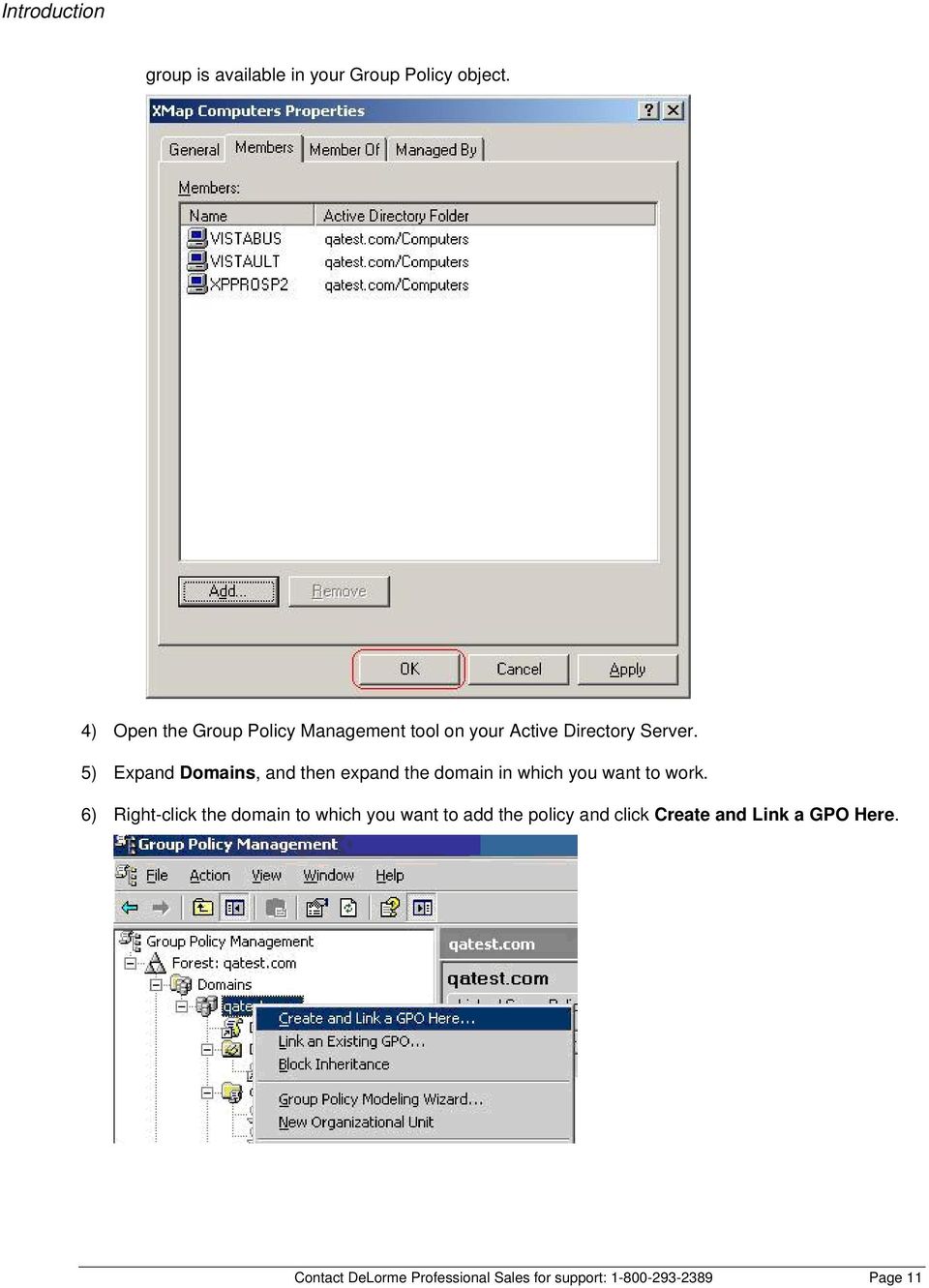
11 Introduction group is available in your Group Policy object. 4) Open the Group Policy Management tool on your Active Directory Server. 5) Expand Domains, and then expand the domain in which you want to work. 6) Right-click the domain to which you want to add the policy and click Create and Link a GPO Here. Contact DeLorme Professional Sales for support: Page 11
12 Introduction 7) Type the name of the prerequisite in the Name box and click OK. 8) Click your new policy in the management console and make sure the Scope tab is selected in the pane on the right. Under Security Filtering, click Authenticated Users and then click the Remove button. 9) Under Security Filtering, click the Add button. Contact DeLorme Professional Sales for support: Page 12
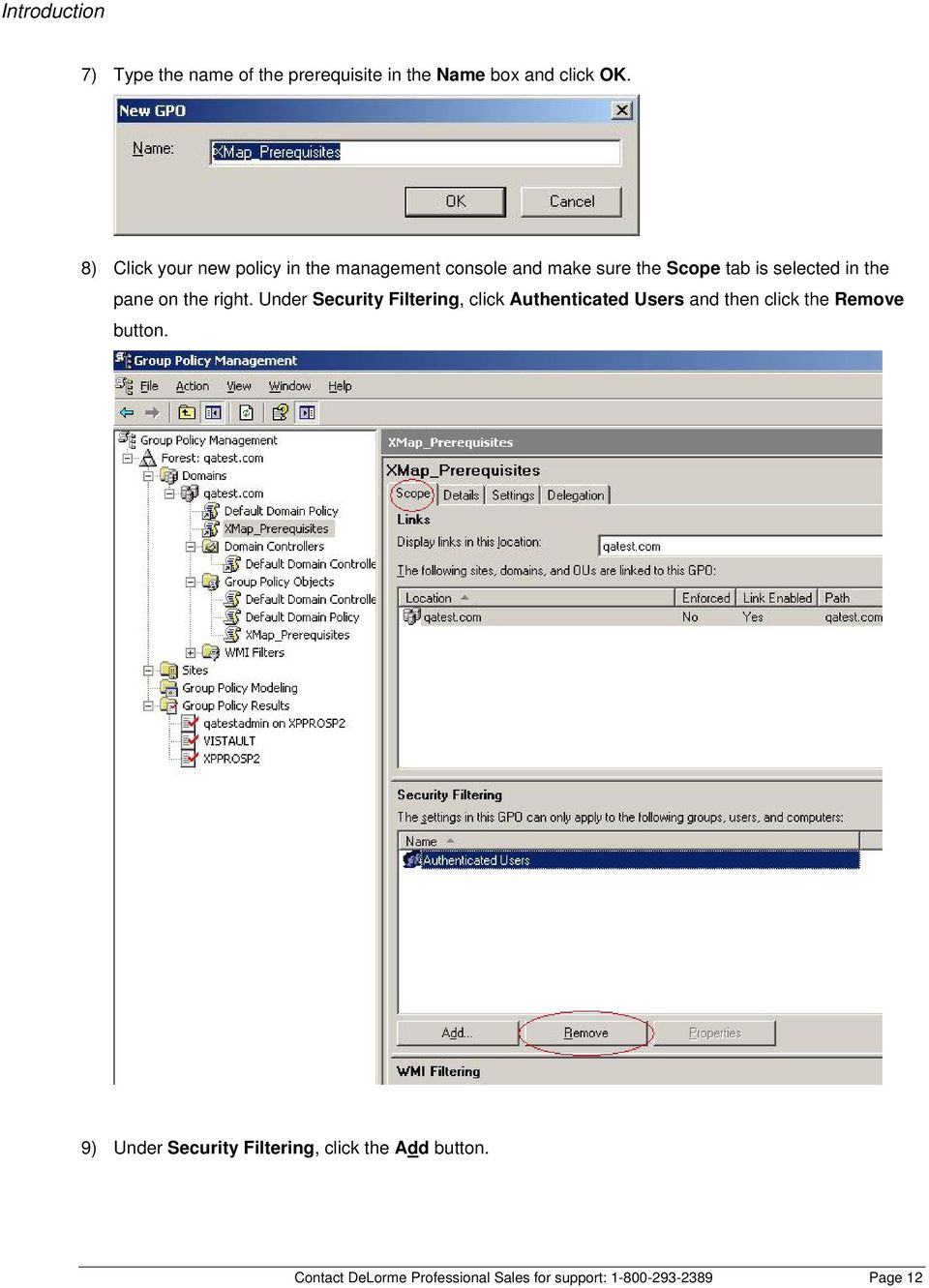
13 Introduction 10) On the Select User, Computer, or Group dialog click the Object Types button, select Computers in the Object Types dialog, and then click OK. 11) Type a computer or a computer group for which you want install prerequisites in the Enter the object name to select box. See step 4 if you are installing to a lot of computers as this dialog only allows you to add one computer at a time. Click OK once you have entered the computer or group. Contact DeLorme Professional Sales for support: Page 13

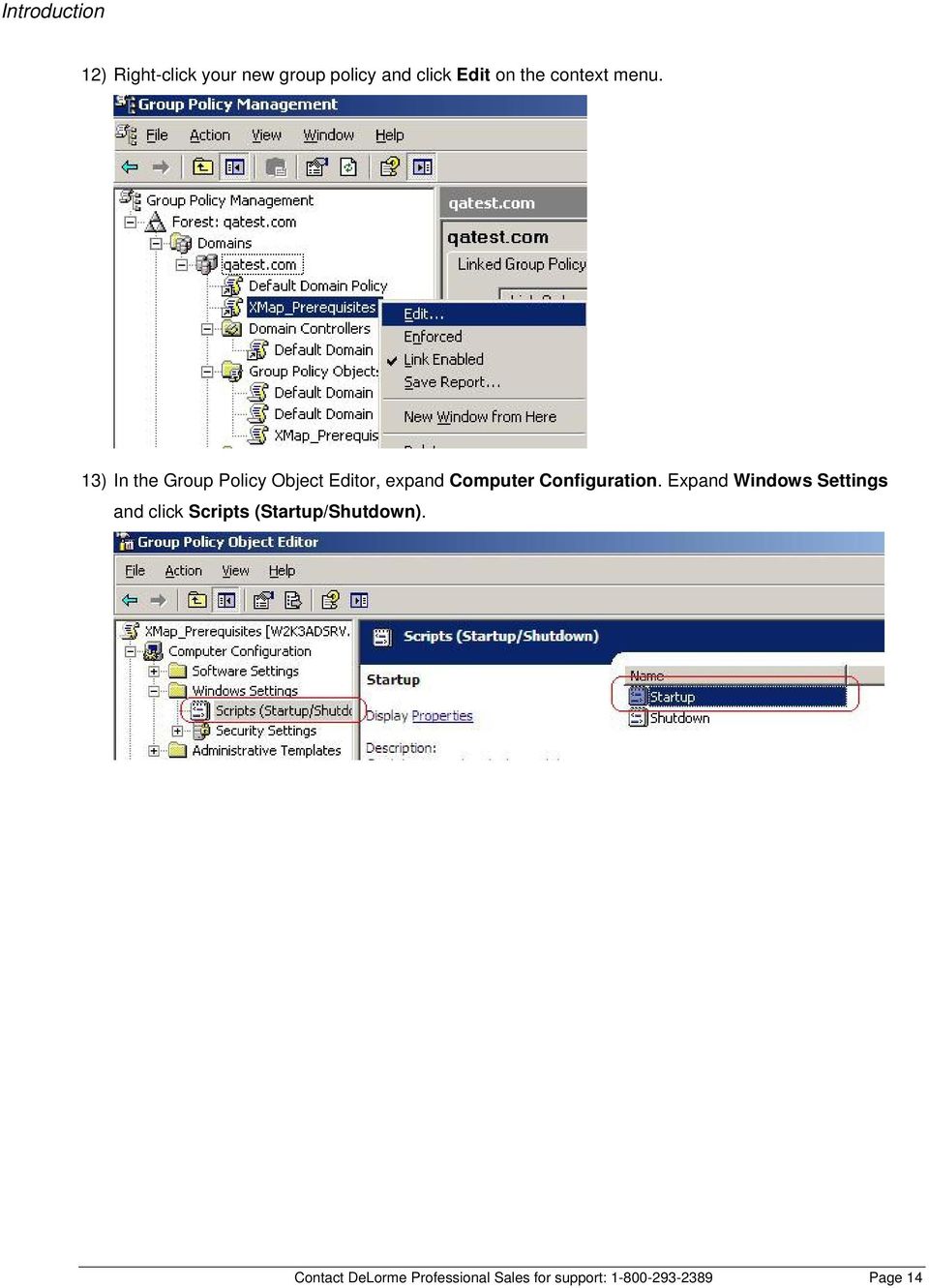
14 Introduction 12) Right-click your new group policy and click Edit on the context menu. 13) In the Group Policy Object Editor, expand Computer Configuration. Expand Windows Settings and click Scripts (Startup/Shutdown). Contact DeLorme Professional Sales for support: Page 14
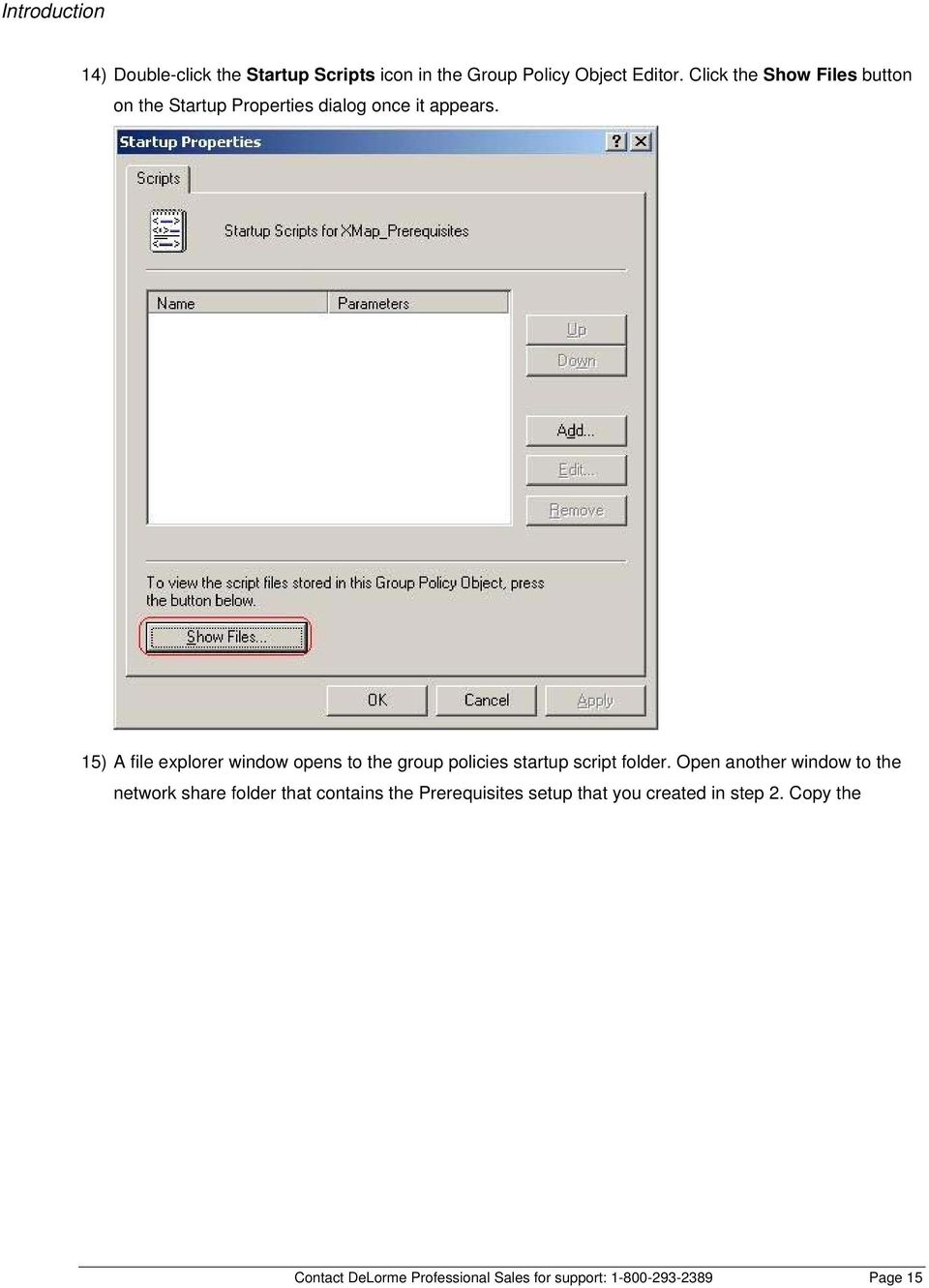
15 Introduction 14) Double-click the Startup Scripts icon in the Group Policy Object Editor. Click the Show Files button on the Startup Properties dialog once it appears. 15) A file explorer window opens to the group policies startup script folder. Open another window to the network share folder that contains the Prerequisites setup that you created in step 2. Copy the Contact DeLorme Professional Sales for support: Page 15
16 Introduction RunPrerequisites.vbs script to the startup script folder. 16) Close the folders and reopen the Startup Properties dialog from the Group Policy Object Editor. Click the Add button. Contact DeLorme Professional Sales for support: Page 16

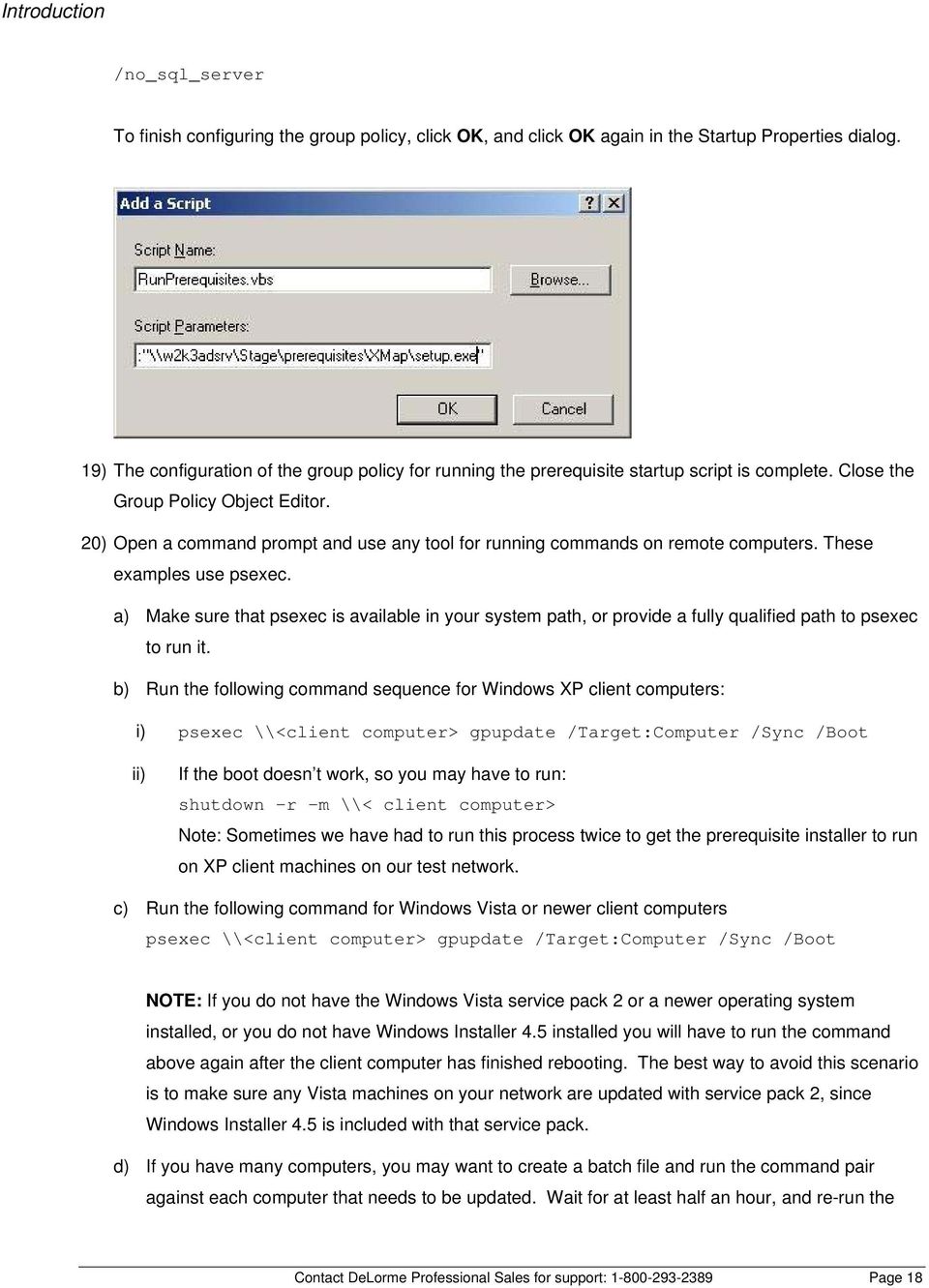
17 Introduction 17) On the Add a Script dialog, click the Browse button; a file dialog opens. Double-click the RunPrerequisites.vbs script that you copied in step 15. This should populate the Script Name box in the Add a Script dialog. 18) Type the script parameter in the Script Parameters box in the Add a Script dialog. There are three possible parameters you can enter. The /installpath: <network path> parameter is required and is the network path to the Setup.exe in the Prerequisites source folder that you created in step 2. Enclose the path in quotes if it contains any spaces. The second parameter, /norestart will prevent the setup from restarting the computer. This will allow your distribution process to control the prerequisite installation. The third parameter, /no_sql_server, is optional, and will turn off installing of SQL Server Express if it is provided. For example, enter something like the following in Script Parameters to install the prerequisites without SQL server: /installpath: \\myserver\stage\prerequisites\setup.exe /norestart Contact DeLorme Professional Sales for support: Page 17

18 Introduction /no_sql_server To finish configuring the group policy, click OK, and click OK again in the Startup Properties dialog. 19) The configuration of the group policy for running the prerequisite startup script is complete. Close the Group Policy Object Editor. 20) Open a command prompt and use any tool for running commands on remote computers. These examples use psexec. a) Make sure that psexec is available in your system path, or provide a fully qualified path to psexec to run it. b) Run the following command sequence for Windows XP client computers: i) psexec \\<client computer> gpupdate /Target:Computer /Sync /Boot ii) If the boot doesn t work, so you may have to run: shutdown r m \\< client computer> Note: Sometimes we have had to run this process twice to get the prerequisite installer to run on XP client machines on our test network. c) Run the following command for Windows Vista or newer client computers psexec \\<client computer> gpupdate /Target:Computer /Sync /Boot NOTE: If you do not have the Windows Vista service pack 2 or a newer operating system installed, or you do not have Windows Installer 4.5 installed you will have to run the command above again after the client computer has finished rebooting. The best way to avoid this scenario is to make sure any Vista machines on your network are updated with service pack 2, since Windows Installer 4.5 is included with that service pack. d) If you have many computers, you may want to create a batch file and run the command pair against each computer that needs to be updated. Wait for at least half an hour, and re-run the Contact DeLorme Professional Sales for support: Page 18
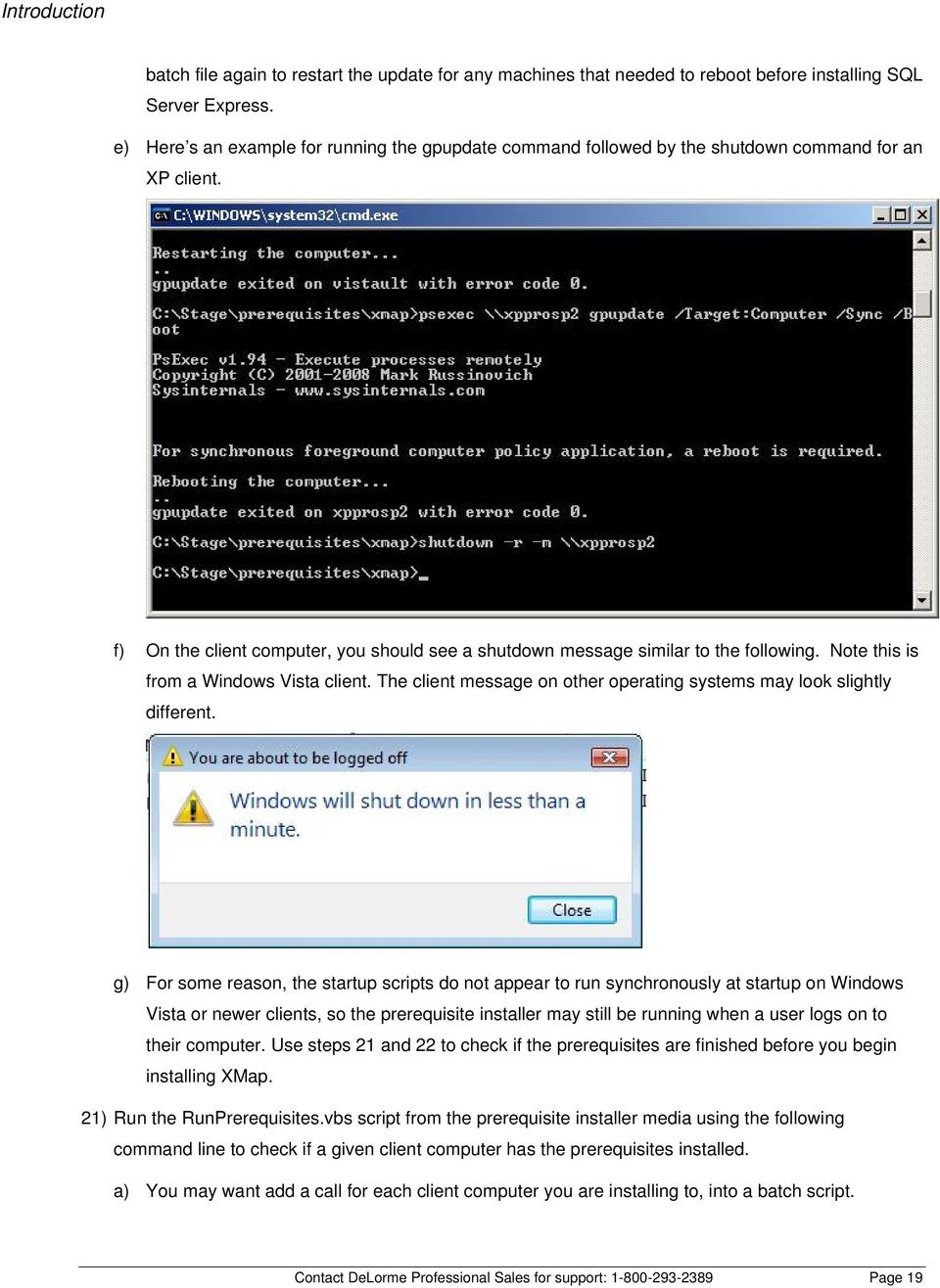
19 Introduction batch file again to restart the update for any machines that needed to reboot before installing SQL Server Express. e) Here s an example for running the gpupdate command followed by the shutdown command for an XP client. f) On the client computer, you should see a shutdown message similar to the following. Note this is from a Windows Vista client. The client message on other operating systems may look slightly different. g) For some reason, the startup scripts do not appear to run synchronously at startup on Windows Vista or newer clients, so the prerequisite installer may still be running when a user logs on to their computer. Use steps 21 and 22 to check if the prerequisites are finished before you begin installing XMap. 21) Run the RunPrerequisites.vbs script from the prerequisite installer media using the following command line to check if a given client computer has the prerequisites installed. a) You may want add a call for each client computer you are installing to, into a batch script. Contact DeLorme Professional Sales for support: Page 19
20 Introduction b) Make sure that you are in the directory that contains the RunPrerequisites.vbs script, or the path to the script is in your system path, or that you provide the full path to the local copy of the RunPrerequisites.vbs script on the command line. c) Also make sure that you provide the /no_sql_server switch if you used that option for installing the prerequisites: cscript RunPrerequisites.vbs /installpath:<network path to Prerequisites installer> /computer:<client computer name> [/no_sql_server] E.g. cscript RunPrerequisites.vbs /installpath: \\someserver\path_to_installer\setup.exe /computer:someclient d) NOTE: This command or some of the steps following this command may produce an error that outputs text to the command window that is similar to the following: There was a problem connecting to machine_name\root\default:stdregprov Error 462 The remote server machine does not exist or is unavailable. If you see this error text it can be caused by one of two things: i) The client computer or the firewall that the client is behind is blocking the port for the remote registry service. If this is the case, enable the port for the remote registry service if your security policy allows this, or, go to the client computer to physically verify that the prerequisites have completed installing by viewing the processes that are running to ensure that the Prerequisites process is not running. You can use the task manager or pslist if available on the client, to view the processes. ii) The remote registry service is not running on the client computer. If this is the case, then you can run the following command to enable the remote registry service on the client computer: psexec \\<client computer> net start RemoteRegistry 22) The RunPrerequisites.vbs script will set the ERRORLEVEL variable to 0 if the prerequisites are installed or 1 if the prerequisites are not installed. Enter echo %ERRORLEVEL% at the command line to see the results of running the script. Below is an example of calling the command for a computer that does not have all of the prerequisites installed. Contact DeLorme Professional Sales for support: Page 20

21 Introduction The prerequisite installer may be running asynchronously when the computer is starting up and the user may be able to log in while the prerequisites are installing. If the prerequisites don t show as installed when running the command above, then you can check to see if the prerequisite install is still running by doing the following: a) Run: pslist \\<client computer>. This command comes with the same package that you installed for the psexec command. b) You should see a list of processes. If the prerequisite installer is still running then you should see setup in the list: Contact DeLorme Professional Sales for support: Page 21
22 Deploying XMap 7 Using Active Directory 23) If the prerequisites are still running, then periodically repeat steps 22.a and b until the prerequisites are finished. Then you can run the following command again as you did at the beginning of step 21 to see if the prerequisites are fully installed. Remember to provide the /no_sql_server switch if you used that to install the prerequisites, or do not provide it if you did not use it: RunPrerequisites.vbs /installpath:<network path to Prerequisites installer> /computer:<client computer name> [/no_sql_server] Then check the ERRORLEVEL by executing the following command line: echo %ERRORLEVEL% If you see 1 printed in the command window, then you know that the prerequisites installer may still be running or the install failed. If you see 0, then it has finished running and the prerequisites should be installed. Note: If you choose to install SQL Server Express on Windows XP and Vista versions older than SP2 that don t have Windows Installer 4.5 installed, you will have to repeat steps 20 and 21 to force the prerequisites to run again. Windows 7 and newer operating system do not require this. This is to finish the installation of SQL Server. If you used the /no_sql_server option, then it is likely that you will not have to repeat these steps again. 24) Once this process is complete for all the client computers you want to install XMap to, follow the instructions in Deploying XMap 7 Using Active Directory Deploying XMap 7 Using Active Directory Follow the steps below to install XMap 7 on a network using Active Directory. 1) Ensure that all prerequisites are installed prior to distributing package. See the Installation Prerequisites section for more information. 2) Create a transform and set the LICENSE_NUMBER in the property table to the license number that was assigned to you. How To Use Properties describes how to set properties in the property table and there are more properties that you can set in the transform to customize your install that are described in Property List for XMap. Once you create the transform, set it aside; you will apply it to your distribution package in a later step. The transform that you create in this step should be saved as an *.mst file. NOTE: We have found that it is easier and causes fewer errors to use Orca to generate transforms. This is a free tool and doesn t add any extra properties that can potentially break an installation. Many other third-party tools will run the installation to generate the transform and record changes; however, these changes end up being too specific for the computer on which the tool is run and the settings will Contact DeLorme Professional Sales for support: Page 22
23 Deploying XMap 7 Using Active Directory break installations on other computers. The Create a Transform section describes how to create a transform with Orca. 3) Set up a shared folder containing the setup files. 4) Create an XMap70 group policy against the domain, organizational unit, etc. If applicable, add appropriate machines. a) Go to Start>Programs>Administrative Tools>Group Policy Management. If this information is not listed, you can download and install it from: Group Policy Management Console with Service Pack 1. b) In the tree view on the left, expand Forest and expand Domains. Then, right-click Domains (or Organizational Unit) and select Create and Link a GPO Here. c) Name the policy XMap70. d) Double-click to open the XMap70 policy you just created. Contact DeLorme Professional Sales for support: Page 23
24 Deploying XMap 7 Using Active Directory e) On the Scope tab, under Security Filtering, highlight Authenticated Users, click Remove, and then click OK to confirm the removal. f) Click Add (to the left of the Remove button) and then click Advanced. g) Click Object Types in the upper-right corner of the window. h) Clear all check boxes except Computers. i) Click OK. j) Click Find Now to populate all of the computers in the Domain. Contact DeLorme Professional Sales for support: Page 24
25 Deploying XMap 7 Using Active Directory k) Highlight a computer to add to the policy and click OK. Click OK again to add the policy under Security Filtering. Perform steps g j for each computer you want to add to the policy. l) Once all of the computers have been added, right-click your policy under Group Policy Objects and then click Edit. A new window opens. m) In the tree view, expand Computer Configuration, expand Administrative Templates, expand Windows Components, and select Windows Installer. Contact DeLorme Professional Sales for support: Page 25
26 Deploying XMap 7 Using Active Directory n) On the right, double-click Always install with elevated privileges. A new dialog opens. o) Set this option to Enabled, and click on OK. p) In the tree view, expand User Configuration, then expand Administrative Templates, then expand Windows Components. Click Windows Installer, then repeat steps n and o. q) With this done, move back to Computer Configuration in the tree view, expand this option, and then expand Software Settings. r) Right-click Software Installation, point to New, and then click Package. Contact DeLorme Professional Sales for support: Page 26
27 Deploying XMap 7 Using Active Directory s) Browse to the shared folder you created in step 3, select the DeLorme XMap 7.msi file, and then click Open. The Deploy Software dialog box opens. t) Select Advanced to add the transform created in step 2 to the installation and follow the steps below. Contact DeLorme Professional Sales for support: Page 27
28 Deploying XMap 7 Using Active Directory i) Make sure Assigned is selected on the Deployment tab. ii) On the modification tab click Add to select the *.mst file that you created in step 2. Make sure that the transform is not in the same directory as the MSI and not in a sub directory of the MSI s directory. Contact DeLorme Professional Sales for support: Page 28
29 Deploying XMap 7 Using Active Directory Contact DeLorme Professional Sales for support: Page 29
30 Deploying XMap 7 Using Active Directory iii) Click OK when complete. u) Once the DeLorme XMap Network package displays, the package is published and available to client machines with the applied group policy. The next time you restart a client computer with the applied group policy, the following install message will display. Note: You may have to restart the client twice for the application to install. Optionally, you can also try running the following command on the client to force it to update. If you are on a Windows Vista or newer operating system client, then you will have to start a command prompt by running the command prompt as an administrator for this command to work. This may keep you from having to reboot twice: Contact DeLorme Professional Sales for support: Page 30
31 Deploying XMap 7 Using Active Directory gpupdate /Target:Computer /Sync /Boot Contact DeLorme Professional Sales for support: Page 31
32 Distributing a Patch using Active Directory GPO Distributing a Patch using Active Directory GPO Active Directory GPO does not allow native distribution of update.exe or its embedded MSP, Microsoft patch, file. The following steps will allow an administrator to use the embedded.msp file to patch the original MSI. Once the original MSI is patched, then it is possible to redeploy the MSI as an upgrade. Uncompress original MSI files Uncompress the original MSI package using the following command line: msiexec.exe /a <path_to_original_msi> TARGETDIR= <path_to_uncompressed_msi>. Make sure that the uncompressed directory is accessible by all users on the domain. Extract MSP file Run the update.exe to extract the.msp file. XMap does not need to be installed on the machine where this runs. The msp file is extracted to the temp directory. Depending on the size of the patch, this process may take a few minutes. If XMap is not installed on the machine you will see the following dialog: When you see this dialog then you will know that the patch is completely extracted and safe to copy to another directory. You can find the temp directory by typing in %temp% at the run prompt. The.msp file will be located in a new folder in this directory. For XMap the msp is labeled xmap.msp. After you have finished copying the file to a different directory, click OK on the prompt above and the setup will abort. Merge MSP with uncompressed MSI Run the following command line to merge the patch MSP file with the uncompressed original MSI package. msiexec /a <path_to_uncompressed_msi> /p <path_to_msp_file> Depending on the patch size, this process may take a few minutes. Contact DeLorme Professional Sales for support: Page 32
33 Distributing a Patch using Active Directory GPO Deploy merged MSI To deploy the updated package, create a new software installation object in the same GPO as the original application install. See instructions for deploying the original MSI for a step-by-step guide to create a new installation object. 1) In the Deploy Software screen select the Advanced option and click OK. 2) In the Properties dialog, specify a name for the upgrade. A good rule of thumb is to keep the name the same as the current service pack level if possible. 3) Click the Upgrades tab and click the Add button. 4) Click a previous package to upgrade. Also click the option Package can upgrade over the existing package and click OK. Contact DeLorme Professional Sales for support: Page 33
34 Distributing a Patch using Active Directory GPO 5) Click the Modifications tab and select any previously created transform (.mst) files. The previous transform should work with the patched MSI. Note that the transform, while not needed for an upgrade, will be needed for new installations in the future. Make sure that the.mst file is accessible by users across the network. The example below uses a local path which is wrong for actual deployment. Contact DeLorme Professional Sales for support: Page 34
35 Distributing a Patch using Active Directory GPO 6) Click OK. 7) The updated setup will be deployed on the next reboot of the client machine in the GPO. 8) TIP: Use psexec to force a reboot of all client machines. "psexec \\<client computer name> gpupdate /Target:Computer /Sync /Boot" Psexec is a free command line utility that you can download from Microsoft TechNet. Once it's downloaded and installed, add it to the computer's system path. 9) For new machines, just use the latest software installation object in the GPO. 10) For future service packs, just merge the latest.msp file with the current extracted MSI package and redeploy the package. Contact DeLorme Professional Sales for support: Page 35
36 Deploying XMap 7 Using SMS Deploying XMap 7 Using SMS 1) Ensure that the prerequisites installer is available on a network share prior to the following steps. See Installation Prerequisites for more information. 2) Open the SMS administrator console and expand the site to which you will deploy XMap. 3) Right click Packages, point to New, and click Package. Contact DeLorme Professional Sales for support: Page 36
37 Deploying XMap 7 Using SMS a) In the Package Properties dialog, set the Name to something like XMap Prerequisites. Contact DeLorme Professional Sales for support: Page 37
38 Deploying XMap 7 Using SMS b) Click the Data Source tab. Make sure the This package contains source files option is selected. Click the Set button and browse to the network share that contains the prerequisite installer. Make sure the Always obtain files from source directory option is selected. Click OK to close the dialog. 4) Expand the prerequisite package, right-click Programs, point to New, and click Program. Contact DeLorme Professional Sales for support: Page 38
39 Deploying XMap 7 Using SMS 5) In the program Properties dialog, type a name like XMap Prerequisites in the Name box, and then click the Browse button. a) In the Open file dialog, browse to the network share that you created in the Install Prerequisites sections and double-click the Setup.exe program. Contact DeLorme Professional Sales for support: Page 39
40 Deploying XMap 7 Using SMS b) In the Command line box on the Program Properties dialog edit the text so it looks like Setup.exe /s /boot_only. Optionally you can add the /no_sql_server switch if you do not want to install SQL Server Express, so your command line would look like: Setup.exe /s /boot_only /no_sql_server. NOTE: The /boot_only switch tells the installer to reboot the machine if the install requires a reboot and does not restart the setup, so SMS can restart the setup on a schedule and not have a collision. If you want your users to re-run the prerequisite setup after a reboot by logging into the computer, then do not include the /boot_only switch and the setup will automatically start when a user logs back in. The user will have to be an administrator for this to work, and will have to have read and execute access to the network share that contains the prerequisite installation network share. If you do not install SQL Server Express, then it is more likely for there not to be a reboot. Contact DeLorme Professional Sales for support: Page 40
41 Deploying XMap 7 Using SMS c) Click the Environment tab. Under Run mode, select Run with administrative rights. Change Programs can run to Whether or a user is logged on. Click OK to close the Program Properties dialog. Contact DeLorme Professional Sales for support: Page 41
42 Deploying XMap 7 Using SMS 6) To distribute the package, right-click the XMap Prerequisites Package that you just created, point to All Tasks, and then click Distribute Software. a) Click Next on the Distribute Package Wizard. Under Distribution points, make sure that the distribution point check box is selected and click Next. Contact DeLorme Professional Sales for support: Page 42
43 Deploying XMap 7 Using SMS b) Make sure Yes is selected on the Advertise a Program dialog and click Next. c) Select the XMap Prerequisites program on the Select a Program to Advertise dialog and click Next. Contact DeLorme Professional Sales for support: Page 43
44 Deploying XMap 7 Using SMS d) On the Advertisement Target screen, click Browse and select the collection of computers on which you want to install. Click Next and continue to click Next until you get to the Assign Program dialog. e) Select Yes. Assign the program. Click Next and then click Finish on the last dialog. Contact DeLorme Professional Sales for support: Page 44
45 Deploying XMap 7 Using SMS 7) If you want to adjust the schedule of your newly advertised prerequisite installer, select Advertisements in the SMS management tool, right-click the prerequisite advertisement in the right hand window (you may have to refresh to see the advertisement), and click Properties. Contact DeLorme Professional Sales for support: Page 45
46 Deploying XMap 7 Using SMS a) Click the Schedule tab and add new schedule items or edit existing schedule items to suit your needs. For example, we generally change the existing schedule to occur every 30 minutes to test our setups, and you may want to do the same when you first deploy to test your distribution on one or two computers, then change it back to a daily or weekly cycle once you get everything working. If your client computers do not have Windows Installer 4.5 installed, then you will probably want to schedule this to run every 30 minutes when you first deploy the package to the network. This will force the package to run multiple times which will be required to install SQL Server after the reboot from installing Windows Installer 4.5. Once the package has successfully deployed to all your clients, then you can either remove it, or reschedule it to only run once in a while. Contact DeLorme Professional Sales for support: Page 46
47 Deploying XMap 7 Using SMS 8) You can tell when the package has deployed by following by running the RunPrerequisites.vbs included in the prerequisites installation using the following command line: RunPrerequisites.vbs /installpath:\\server\prerequisites setup directory\setup.exe /computer:computername [/no_sql_server] computername := The name of the client computer to test. /no_sql_server := Provide this parameter if you installed using this parameter, otherwise don t include it. If the %ERRORLEVEL% environment variable is 0, then the prerequisites are installed, if %ERRORLEVEL% is not 0, then the prerequisites are not installed. 9) At this point, you have the option to create a transform to apply to the XMap installation later on in this procedure. Transforms allow you to modify the installation package as it is running. SMS also has the ability to modify the command line that is used to run the MSI if you don t want to use a transform. The command line is limited by 255 characters, so if you want to apply a lot of changes you will need a transform. Note that the LICENSE_NUMBER is a required property. If you create a transform, you will need to set the LICENSE_NUMBER in the property table to the license number that was assigned to you. How to Use Properties describes how to set properties in the property table and there are more properties that you can set in the transform to customize your install that are described in the Property List for XMap 7. Once you have created the transform, set it aside; you will apply it to your distribution package in a later step. The transform that you create in this step should be saved as an *.mst file, and on a network share that is available to all the client computers to which you will install the package. NOTE: After working with various customers we have found that it is easier and causes less errors to use Orca to generate transforms. This is a free tool and doesn t add any extra properties that can potentially break an installation. Many other third-party tools will run the installation to generate the transform and record changes. Unfortunately, these changes end up being too specific for the computer on which the tool is run and the settings will break installations on other computers. The Create a Transform section describes how to create a transform with Orca. 10) Create a shared folder with default permissions for the XMap installation files. Contact DeLorme Professional Sales for support: Page 47
48 Deploying XMap 7 Using SMS 11) In SMS, expand Site Database. Then, right-click Packages, point to New, and click Package From Definition. The Create Package from Definition Wizard opens. 12) Click Next. 13) Click Browse, browse to the shared folder you created in step 2, select DeLorme XMap 7.msi, and then click Open. 14) Click Next. Contact DeLorme Professional Sales for support: Page 48
49 Deploying XMap 7 Using SMS 15) Select the Always obtain files from a source directory option and click Next. 16) On the Source Directory screen, under Source directory location, select the location for the mapping application. 17) Click Next and then click Finish. 18) Modify the Setup Properties. You may have to refresh to see the new package. Contact DeLorme Professional Sales for support: Page 49
50 Deploying XMap 7 Using SMS 19) Expand the setup package and select Programs. 20) Right-click Per-system unattended, in the window on the right, and click Properties. Contact DeLorme Professional Sales for support: Page 50
51 Deploying XMap 7 Using SMS 21) If you see ALLUSERS=2 in the Command line text box, change it to ALLUSERS=1. 22) In the Command line text box, add any properties that you want to change to the command line with the syntax PROPERTY_NAME=value (see the How to Use Properties section of this document for a description of the properties that can be set). LICENSE_NUMBER is a required property and has to be included in either the Command line text box, or in the property table of a transform that is applied to the MSI. Please note that there is a 255-character limit to the Command line text box, so you may need to create a transform as described in step 9 to apply your changes to the installation. To add a transform to the installation, simply add TRANSFORMS=transform_name.mst to the Command line text box. If you want to add multiple transforms, separate each transform with a semi-colon (e.g., TRANSFORMS=transform_name1.mst;transform_name2.mst). The transform has to be available on a network share that is accessible to the client computers that the package is distributed to, and the TRANSFORMS= statement should include the fully-qualified path to each transform. 23) Click the Advanced tab on the Program Properties dialog. 24) Select the Run another program first check box. 25) From the Package drop-down list, select the XMap Prerequisites package created in steps 3 to 7. 26) From the Program drop-down list, select the XMap Prerequisites program created in steps 6 and 7. Contact DeLorme Professional Sales for support: Page 51
52 Deploying XMap 7 Using SMS 27) Make sure the Run this other program every time option is selected. 28) Click OK to save your changes and go on to the next step. 29) To distribute the package that was created, right-click the package, point to All Tasks, and then click Distribute Software. Contact DeLorme Professional Sales for support: Page 52
53 Deploying XMap 7 Using SMS 30) Click to select a distribution point and click Next. 31) Select Yes to advertise the package and then click Next. Contact DeLorme Professional Sales for support: Page 53
54 Deploying XMap 7 Using SMS 32) Select the Per-system unattended program and click Next. Contact DeLorme Professional Sales for support: Page 54
55 Deploying XMap 7 Using SMS 33) Select the collection that you used or created for the prerequisites in step 6.d and click Next. Contact DeLorme Professional Sales for support: Page 55
56 Deploying XMap 7 Using SMS 34) Type a name for the advertisement (and comment, optional) in the Name text box and then click Next. 35) Select whether to include sub-collections and then click Next. Contact DeLorme Professional Sales for support: Page 56
57 Deploying XMap 7 Using SMS 36) Select a schedule and expiration (if desired) and then click Next. 37) Assign the program, click Next, and then click Finish. Contact DeLorme Professional Sales for support: Page 57
58 Distributing a Patch using SMS 38) The program is now advertised and SMS clients in the selected collection will install the program according to the selection criteria. NOTE: If you want to change the schedule for the XMap distribution, then follow the instructions in step 7. Distributing a Patch using SMS The following steps describe the process to use SMS for distributing patches using update.exe and its embedded.msp file. See for more general guidelines on using SMS for deploying patches. NOTE: Only one of the options below is required to update clients on which the application is already installed. Select the approach that best fits your business practices. Option 1: To upgrade existing clients by using update.exe Stage the update.exe file to a directory that is accessible by all the machines in the distribution collection. Find the original deployment package for the application.. Open the package and right-click Programs to create a new program. In the Name box, type an appropriate name for the patch. Contact DeLorme Professional Sales for support: Page 58
59 Distributing a Patch using SMS For the command line, click Browse and navigate to the update.exe file. Make sure to navigate through the network path to the file and not a local path. After add in the following /s /v /qn for a completely quiet install. Note the space between the /s and /v. If you want to display a basic progress bar to let the user know when the update is complete, use /qb in place of /qn. Click Advanced. Select the option to Run another program first and point it to the original deployment of the application. Click Environment and select the option to Run with Administrative Rights. Click Apply and OK. Right-click the newly created program, point to All Tasks, and click Distribute Software. Click Next in the wizard, select the appropriate distribution point, and then click Next. Contact DeLorme Professional Sales for support: Page 59
60 Distributing a Patch using SMS In the Advertisement Target dialog click Browse and click an appropriate collection. Advertise this to all appropriate machines. Option 2: Upgrading existing clients by merging the MSP file Uncompress original MSI files NOTE: If the original install was distributed using an uncompressed setup then this step is not required. A compressed setup will have.cab files in the same directory as the.msi file. 1) Create a collection of computers to install the patch on. 2) Uncompress the original MSI package using the following command line: Contact DeLorme Professional Sales for support: Page 60
61 Distributing a Patch using SMS msiexec.exe /a <path_to_original_msi> TARGETDIR= <path_to_uncompressed_msi>. 3) Make sure that the uncompressed directory is accessible by all users on the domain. Extract MSP file 1) Run the update.exe to extract the.msp file. XMap does not need to be installed on the machine where this runs. The msp file is extracted to the temp directory. You can find the temp directory by typing in %temp% at the run prompt. The.msp file will be located in a new folder in this directory. Depending on the size of the patch, this process may take a few minutes. If XMap is not installed on the machine you will see the following dialog: When you see this dialog then you will know that the patch is completely extracted and safe to copy to another directory. For XMap, the msp is labeled xmap.msp. After you have finished copying the file to a different directory, then click OK on the prompt above and the setup will abort. Merge MSP with uncompressed MSI 2) Run the following command line to merge the patch MSP file with the uncompressed original MSI package msiexec /a <path_to_uncompressed_msi> /p <path_to_msp_file> ) Depending on the patch size, this process may take a few minutes. Copy updated uncompressed MSI to all distribution point servers from which the application was previously deployed. This will allow for a fully patched install for all new installations. Upgrade existing clients 4) Create a new program in the existing package to perform the upgrade. To do this, configure the following options in the Program Properties dialog box: 5) On the General tab, specify a command line that will upgrade clients to the new version. Use the following combination of repair command-line options: /fvomus. For more information on these options, see "Command-line Options" in Windows Installer Help. The command line should reference Contact DeLorme Professional Sales for support: Page 61
62 Distributing a Patch using SMS the original setup package file (version1.msi) because this file was patched with the updated source files (version 2). The following is an example of the command line: MSIEXEC /fvomus version1.msi 6) If the original program included configuration options for any of the following deployment options, be sure that the following options match in the new (upgrade) program: deploying packages per user or per system, generating install status MIF files, configuring resilient sources, configuring system restarts, and automating program removal. 7) Create a new collection that includes clients that have installed the original version (version 1) of the application. 8) Advertise the new upgrade program (version 2) to the collection containing clients that have installed the original version (version 1) of the application. i Option 3: Patching existing clients with a full install 1) Create a collection of computers to install the patch on. 2) Uncompress the MSI and stage it to a location that is accessible by all machines in the distribution collection using the following command line: msiexec.exe /a <path to original msi> TARGETDIR= <path to uncompressed msi> 3) Propagate the latest uncompressed MSI to all distribution points. Contact DeLorme Professional Sales for support: Page 62
63 Distributing a Patch using SMS 4) Right-click Packages in the SMS manager, point to New, and then click Package From Definition. Contact DeLorme Professional Sales for support: Page 63
64 Distributing a Patch using SMS a) Click Next on the Create Package From Definition Wizard dialog and then click Browse. Browse to the MSI package on the network share you will be using to upgrade your existing installations. Be sure to browse to the network share and not a local path as a local path will not work for the clients you are distributing to. Double-click the MSI to select it. b) Select the package on the Package Definition dialog (this will most likely be the package with the highest version) and click Next. Contact DeLorme Professional Sales for support: Page 64
65 Distributing a Patch using SMS c) Make sure Always obtain files from a source directory is selected on the Source Files screen and click Next. d) On the Source Directory screen, enter the network path that contains the MSI that will upgrade your existing installations and click Next. Click Finish on the last dialog. Contact DeLorme Professional Sales for support: Page 65
66 Distributing a Patch using SMS e) Press the F5 key on your keyboard to refresh the package view so you can see your new package in the SMS manager. 5) In the package manager, expand the package you just added, click Programs, right-click the Persystem unattended program and click Properties. Contact DeLorme Professional Sales for support: Page 66
67 Distributing a Patch using SMS a) Click the General tab and change the command line to: msiexec /fvomus <msi name> /qn Replace <msi name> with the MSI that you selected in step 4.a. For example, your command line should look something like: msiexec /fvomus DeLorme XMap 7.msi /qn b) Click OK to close the Program Properties dialog. Contact DeLorme Professional Sales for support: Page 67
68 Distributing a Patch using SMS c) Right click the package you created, point to All Tasks, and click Distribute Software. d) On the Distribution Points screen, under Distribution Points, make sure the check box for each of the distribution points you want the package to go to are selected. Click Next until you get to the Select a Program to Advertise screen. Contact DeLorme Professional Sales for support: Page 68
69 Distributing a Patch using SMS e) On the Select a Program to Advertise screen, click Per-system unattended and click Next. Contact DeLorme Professional Sales for support: Page 69
70 Distributing a Patch using SMS f) On the Advertisement Target screen, make sure that Advertise this program to an existing collection is selected. Browse to the collection that you created in step 1 to select the collection to advertise to. Click Next and continue to click Next until you get to the Assign Program screen. Contact DeLorme Professional Sales for support: Page 70
71 Distributing a Patch using SMS g) On the Assign Program screen, select Yes. Assign the program, and click Next. h) Click Finish on the last dialog to close the distribute software wizard. NOTE: You can adjust the distribution schedule of the advertisement you just created: In the SMS manager, click Advertisements, right-click the advertisement for your software package, click Properties, then adjust the schedule on the Schedule tab. Contact DeLorme Professional Sales for support: Page 71
72 Distributing a Patch using SMS Create a Collection of Computers That Have XMap Installed You will want to perform the procedure in this section if you want to use either Option 2, or Option 3 for upgrading your XMap installations. 1) Right click Collections in the SMS manager, point to New, and click Collection. 2) Name the collection something like XMap Installed, then click the Membership Rules tab. Contact DeLorme Professional Sales for support: Page 72
73 Distributing a Patch using SMS 3) Click the yellow database symbol to create a new query rule. a) Name the query rule something like XMap Installed and click the Edit Query Statement button. Contact DeLorme Professional Sales for support: Page 73
74 Distributing a Patch using SMS i) Click the Criteria tab and click the New Criteria button. ii) Click the Select button on the Criterion Properties dialog. In the Select Attribute dialog, select Add/Remove Programs from the Attribute class. From the Attribute drop-down list, select Product ID. Click OK. Contact DeLorme Professional Sales for support: Page 74
75 Distributing a Patch using SMS iii) In the Criterion Properties dialog, select is equal to from the Operator drop-down list. Type or paste the XMap GUID in the Value box. For example, XMap 7 s product ID is {57D3FFDB-50C5-41EE-BD C967F7}. NOTE: The formatting is important and it should be formatted as shown in the example. Click OK until you have closed all the dialogs. You should now have a new collection named something like XMap Installed or whatever you specified in step 2. Contact DeLorme Professional Sales for support: Page 75
76 Distributing a Patch using SMS 4) To update your collection, click your new collection, right-click it, and click Refresh. You should see all the computers that have XMap installed in the right pane. Contact DeLorme Professional Sales for support: Page 76
77 XMap 7 Network and Silent Installs XMap 7 Network and Silent Installs **Notice** If you create a transform using InstallShield AdminStudio or any of the InstallShield development products, you must access the property manager table and delete the ISSETUPFILESCOMPLETED property. Internal testing has shown that leaving this property in place can delete core operating system files (boot.ini, etc) when the setup is executed from a batch file. Failure to do this will result in a machine that will not reboot. InstallShield has confirmed this as an issue and recommended the above work around. **Notice** When running command line installations on Windows Vista or newer, it is important to run the command as an Administrator. This can be done in one of two ways. Click Start on the task bar and type CMD in the search box. Right-click CMD.exe and click Run as Administrator. Enter the installation command similar to the ones below and execute the command. Create a batch file with the installation command line. Right-click the batch file in the file explorer and click Run as Administrator. How to Use Properties Properties provide a way to pass information to the installation and to control some aspects of the installation. A list of properties can be found in the Property List For XMap 7 Properties can be set by two different methods: The property name on the command line followed by =<value>; for example, LICENSE_NUMBER=XXXX-XXXX-XXXX-XXXX. In the property table of a transform; you can then apply the transform to the installation. See the example for applying a transform. Contact DeLorme Professional Sales for support: Page 77
78 XMap 7 Network and Silent Installs Property List for XMap 7 Property Name (Must be upper case) LICENSE_NUMBER INSTALLDIR PHONE_DATA_DIR EXISTING_MAP_DATA_PATHS FIRST_NAME LAST_NAME ADDRESS1 CITY STATE PROVINCE ZIPCODE COUNTRY REGISTER_ONLINE INSTALL_FEATURES DISABLE_FEATURES Default values in bold text. This property is REQUIRED. The install will not complete if this is not provided. This is the complete license number including hyphens. It is not case sensitive. The format of the license is XXXX-XXXX-XXXX-XXXX Fully-qualified path for application. Default Path: Program Files\DeLorme\XMap 7 \ Fully-qualified path to installed phone data or network phone data. This should be the path to the directory that IS the phone sub directory. The phone sub directory should contain the CDN directories where N is a number for a phone region, e.g. CD1, CD2, and etc. Default Path: If phone data is installed locally, then the path is populated with the local location, otherwise the path is empty Pipe-delimited list of fully-qualified paths to data locations Fully-qualified address used for online registration Street address for online registration Two letter country code e.g. US CA UK etc 1 0 default is 1, which means to register online. Note that registration online does not occur when doing a silent install. Users can register online by using NetLink when starting the program. A comma-separated list of features to install. Optional features that are not installed by default can be added to this list. A comma-separated list of features to not install. Optional features that are installed by default and that you want to Contact DeLorme Professional Sales for support: Page 78
79 XMap 7 Network and Silent Installs TAB_CONFIG_PATH disable can be added to this list. The path to a tab configuration file that was created with the Tab Manager program. The path should be fully-qualified and available to everyone on a network share if the install is distributed across a network share. This file can be used to customize the order of tabs and what tabs are displayed when XMap starts. The tab configuration is only applied when the application runs for the first time for a given user. If the user changes the tab configuration after that point, then the tab configuration will match what the user chooses for a configuration. Contact DeLorme Professional Sales for support: Page 79
80 XMap 7 Network and Silent Installs How to use the EXISTING_MAP_DATA_PATHS property XMap has the ability to connect to multiple data sources simultaneously. You may want to add one or more data connections during the install. The EXISTING_MAP_DATA_PATHS provides the ability to accomplish these connections. Note: The application has to resolve all data connections when starting the application. As an administrator, you should judiciously add connections to speed application start time. Individual users can still add more data connections from within the application. The property EXISTING_MAP_DATA_PATHS should include one or more fully-qualified paths. Separate multiple paths with a single pipe ( ) character. If you are providing this value on a command line, be sure to use double quotes as demonstrated below. Example: msiexec /qn /i <program msi> LICENSE_NUMBER=@@@@-@@@@-@@@@-@@@@ EXISTING_MAP_DATA_PATHS= \\FileServer\Directory\<path that contains the ADC or cd.txt file> \\File Server\Directory Path 2\<path that contains the ADC or cd.txt file> Data Connection Path to use Type 3D TopoQuads USGS quadrangle raster data. cd.txt Use the path that includes the cd.txt file. Do not include the cd.txt file name itself. USA Topographic Data *.adc Use the path that includes the *.adc file. Do not include the *.adc file name in the path. USA Street Atlas Data *.adc Use the path that includes the *.adc file. Do not include the *.adc file name in the path. SAT Meter Colorized Satellite Imagery *.adc Use the path that includes the *.adc file. Do not include the *.adc file name in the path. How to Use INSTALL_FEATURES and DISABLE_FEATURES These properties make it easier to control optional feature installation. To disable a default feature and its child features, simply add it to the DISABLE_FEATURES property. To install a feature that is not included by default, then add it to the INSTALL_FEATURES list. This can be done on the command line or in a transform. Note that feature names are case sensitive. If you add a feature that is installed by default to the INSTALL_FEATURES list, then there should be no effect on the installation. If you add a feature that is not installed by default to the DISABLE_FEATURES list, then there should be no effect on the installation. See the Optional Feature List for the list of features that can be controlled with these properties. Below is an example that disables all of the sample data and the desktop shortcut for a command line installation: Contact DeLorme Professional Sales for support: Page 80
81 XMap 7 Network and Silent Installs msiexec.exe /qn /i \\server\path to msi\delorme XMap 7.msi LICENSE_NUMBER=XXXX-XXXX-XXXX-XXXX DISABLE_FEATURES= SampleData,DesktopShortcut Contact DeLorme Professional Sales for support: Page 81
82 XMap 7 Network and Silent Installs Optional Feature List These features can be configured using the INSTALL_FEATURES, and DISABLE_FEATURES properties. Symbols: - Indicates a sub feature. The number of - symbols indicate the level of the sub feature. If the parent feature is disabled, then all the child features are disabled. For example, disabling SampleImagery disables ExplorersMonumentAZ, FontanaLakeNC, JennyLakeWY, and etc. Feature Name Default Action Notes SampleData Install Installs complete collection of sample data. -SampleImagery Install Installs sample imagery. --ExplorersMonumentAZ Install Color Aerial Imagery and USGS 1:24K Topo Quads (scanned maps) for Explorer s Monument, AZ --FontanaLakeNC Install Color Aerial Imagery and USGS 1:24K Topo Quads for Fontana Lake, NC --JennyLakeWY Install Color Aerial Imagery and USGS 1:24K Topo Quads for Jenny Lake, WY --MtWashingtonNH Install Color Aerial Imagery and USGS 1:24K Topo Quads for Mt. Washington, NH --SilvertonCO Install Color Aerial Imagery and USGS 1:24K Topo Quads for Silverton, CO --SkylineDriveVA Install Color Aerial Imagery and USGS 1:24K Topo Quads for Skyline Drive, VA --YellvilleAR Install Color Aerial Imagery and USGS 1:24K Topo Quads for Yellville, AR --YosemiteCA Install Color Aerial Imagery and USGS 1:24K Topo Quads for Yosemite, CA -SampleDraw Install Examples of draw files. -SampleGPSLogs Install Sample GPS log files that can be viewed with the GPS tab. -SampleXData Install Installs sample XData files for import. Use as an example of how to format your own files. XData is available for Plus and Plus Network only. DesktopShortcut Install Creates a desktop shortcut AutoCheckUpdate Install Configures NetLink to automatically check for updates. Contact DeLorme Professional Sales for support: Page 82
83 XMap 7 Network and Silent Installs Required Feature List Do not change these features or their components. Feature Name Notes XData Installs the XData tab. Core Installs the application files. PerUserData Configures registry for current user Voice Installs speech files when needed. Not installed on Vista or newer. ThreeD_For_XP_And_Vista Calculates the cost for installing DirectX 9c for Windows XP, Vista, and newer operating systems. SpeechEngine Installs speech files when needed. Not installed on Vista or newer. Create a Transform Using Orca Orca is a component of the Microsoft Windows Software Developers Kit (SDK); you must install the SDK to get Orca. You can download the SDK from: Windows Server 2003 R2 Platform SDK Full Download Installing the SDK places Orca.msi in the the \Program Files\Microsoft SDKs\Windows\v6.1\Bin directory. Double click Orca.msi to complete the install of Orca. For information on using Orca, see Microsoft Developer Network Orca.exe. 1) Open Orca. 2) Open the application MSI Database. 3) Select Transform from the menu bar. 4) Select New Transform from the drop down menu. 5) Scroll to and select the Property table. 6) Press CTRL + R to create a new record. 7) Type LICENSE_NUMBER and press ENTER. 8) Type the LICENSE_NUMBER value found on the DVD case and then press ENTER. 9) Set any installation paths or properties by creating new or modifying existing records in the Property Table. See the Property List for the paths and properties that can be changed. 10) Switch to the Feature table. 11) For any optional feature that is enabled by default and that you do not want to install, add it to the DISABLE_FEATURES list. 12) For any feature that is disabled by default and that you want to install, add it to the INSTALL_FEATURES list. Contact DeLorme Professional Sales for support: Page 83
84 XMap 7 Network and Silent Installs 13) When finished editing, click Transform on the menu bar and select Generate Transform. Save the file to an appropriate location that you can access during setup. Test the transform by installing using the following command line: msiexec /i <fully-qualified path to.msi file> TRANSFORMS=<fully-qualified path to.mst file>. For example, msiexec.exe /i <Path to MSI>\DeLorme Street Atlas USA 2009.msi TRANSFORMS= <Path to MST>\SA2009_transform.mst Command Line Examples Install silently using Setup.exe Setup.exe /s /v LICENSE_NUMBER=XXXX-XXXX-XXXX-XXXX /qn Note that the properties from the Property List for XMap 7 can also be included here. Just include the properties inside the quotes as demonstrated above with the LICENSE_NUMBER. Important Note: SQL Server 2008 XMAP7 instance will be created with this method. If you do not want to include the SQL Server then you cannot install silently using Setup.exe and will need to use the MSI examples below. Install using default destination directory Note: Be sure to install all required prerequisites prior to running the example below. Msiexec /i "\\server\software\delorme\xmap7\delorme XMap 7.msi" FIRST_NAME="Authorized" LAST_NAME="User" COMPANYNAME="MyCompany" LICENSE_NUMBER=XXXX-XXXX-XXXX-XXXX /qn Note: Some of the examples above may contain more characters than permitted for some distribution methods. In this case the administrator should generate a transform using Orca or some other third party tool that allows you to create a response transform. Using a transform is the preferred method of distribution even though provision has been made for command line options for this installation. Create a Transform Using Orca describes how to create a new transform. Install the application using a transform Msiexec /i "\\server\software\delorme\xmap7\delorme XMap 7.msi" TRANSFORMS="\\server\software\DeLorme\XMap7\XMap7.mst" /qn Contact DeLorme Professional Sales for support: Page 84
85 Troubleshooting Troubleshooting Incorrect command line parameters when you install using Setup.exe If you get an "Incorrect command line parameters" error when you install using Setup.exe: 1) Make sure you have not used the same options in both the command line and the Setup.ini CmdLine= ; the options can only be in one place or the other. 2) Make sure you have not included the MSI file name in the command line or Setup.ini CmdLine=. 3) Make sure there is a space before the log file name if you use the syntax for writing a log file. 4) Make sure you have not placed a /qn switch between the /i switch and the name of the MSI file. 5) Make sure the syntax is correct. Incorrect command line parameters when you install using Msiexec If you get "Incorrect command line parameters" when you install using Msiexec: 1) Make sure there is a space before the log file name if you use the syntax for writing a log file. 2) Make sure you have not placed a /qn switch between the /i switch and the name of the MSI file. 3) Make sure the syntax is correct. Creating an MSI log for debugging If you do encounter a problem that cannot be resolved using the tips above, then you can create a log file. This may help you and/or Tech Support diagnose the problem. Msiexec /i "\\server\software\delorme\xmap7\delorme XMap 7.msi" LICENSE_NUMBER=XXXX-XXXX-XXXX-XXXX /L*v C:\Setup.log /qn OR Setup.exe /V"LICENSE_NUMBER=XXXX-XXXX-XXXX-XXXX /L*v C:\Setup.log /qn" If installing on Windows Vista or a newer operating system, the log file cannot be created on the root of the C:\ drive. You will need to specify C:\users\<username>\Documents\Setup.log. Another way to create a log file to diagnose repair and first run issues is to add the following key to the registry if it doesn t exist: HKLM\Software\Policies\Microsoft\Windows\Installer\ Then add the value Logging with a value of voicewarmup or voicewarmupx if you want additional information under the Installer Key. To find any logs generated by this method, open the Run window, type in %temp% and click OK. The log files start with MSI and end with the.log extension, for example. MSI2b95.LOG. Look for the log file that matches the time and date of your installation. If you don t find the log file with the matching time in the %temp% directory, check the \Windows\Temp directory, as this is Contact DeLorme Professional Sales for support: Page 85
86 where log files are stored when the installation is run in the system context, like when distributing installations through Active Directory. Missing the GIS Tab after installation You cannot copy an installed copy of XMap onto a machine. There are registry entries that need to be set and they are unique for each machine. I do not want to install Microsoft SQL Server 2005 Express Simply click No when asked to install SQL Server when running the installation using the Setup.exe or the autorun functionality when inserting the DVD. If you run the MSI directly then SQL Server Express will not be installed. XMap cannot find the SQL Server Make sure that the service has started and make sure that the local user has the right to start the service. Access Rights Error This error message is generated for three reasons: You cannot open HKLM\Software\DeLorme\XMap7\SysPaths\App\0 for read and write. You cannot create a key called check within that registry key area. You cannot create a file called pcc.log within the application directory. To fix the problem, give users rights to the XMap Registry settings, DeLorme Docs folders and to the application folder. Additional Information Command Line Options for Msiexec.exe For more information on Command Line Options for Msiexec.exe, see the following websites: MSDN Command Line Options MsiExec.exe Command-Line Parameters Command Line Options for Setup.exe For more information on Command Line Options for Setup.exec, visit the Install Shield website: Setup.exe and Update.exe Command-Line Parameters. Contact DeLorme Professional Sales for support: Page 86
87 Additional Information Command Line Options for updates For more information on Command Line Options for updates, visit the Install Shield website: Applying Patches. How to install default tab and toolbar configurations Tab configuration You can create a tab configuration in the Tab Manager utility and send this configuration out for others to use. This is done by exporting the tab settings (tab order and which tabs are active) as a configuration file which can be imported by other users within Tab Manager. See the XMap Help section Importing/Exporting Tab Manager Preferences for more details. The tab configuration can be distributed with the setup by using the TAB_CONFIG_PATH property. If the application has already been installed and you want to change the tab configuration, then you can use the tab_configuration.vbs script as a logon script for the users to which you want to apply the tab configuration. The script will apply new tab configuration settings to the user context that runs the script. This script can be found in the root of the installation media. Note: The tab_configuration.vbs will try to delete the tab configuration file distributed with the TAB_CONFIG_PATH property to prevent the new settings set with the script from getting overwritten on first run. If this is not desired, then look for the filesystem.deletefile line in the script and comment it out before using this as a logon script. Tab_configuration.vbs Usage tab_configuration.vbs <short product name> <tab configuration path> Required Parameters <short product name> : XMap7 is the only short name supported at this time, but this should work with future products that have the Tab Manager that was updated for XMap7. <tab configuration path> : The fully-qualified path to the tab configuration file that was exported from the DeLorme Tab Manager application for the product that you have installed. Return Codes 0 - Is success There should be at least two arguments passed to the script The <short product name> is an empty string The <tab configuration path> is an empty string The <tab configuration path> does not exist, or is not accessible The application path could not be found. The likely causes are the application is not installed or the <short product name> is not correct. Look at the registry under HKLM\Software\DeLorme for a list of installed applications. The keys directly under this key are what are used for the short product names. Contact DeLorme Professional Sales for support: Page 87
88 994 - The tab manager program does not exist. Our installation was broken somehow if the tab manager program cannot be found. Any other error code indicates that the Tab Manager program failed in some way. Toolbar configuration You can create a custom toolbar configuration by editing the toolbar scheme file (default.toolbar) in the XMap install directory. The file is located in C:\Program Files\DeLorme\XMap 7\default_toolbarschemes_XMap7 by default. Tool group order, content, and default active state can be changed. Before editing the default.toolbar file, be sure to save the original file with a different name in the event that you need to revert back to the original toolbar configuration at a later time. XMap automatically looks for default.toolbar as the current file to use for the toolbar, so whichever toolbar configuration you use, it must be named default.toolbar before it will be detected by the system. You can perform edits to the toolbar file in a text editor like Notepad. Be sure to use the exact same syntax and formatting that was used in the original default.toolbar file when performing the edits. A single mistake (like a missing > symbol) in the toolbar file will result in the entire toolbar disappearing in XMap. Customized toolbar files must be manually disseminated and saved to each user s default_toolbarschemes_xmap7 folder before they can take effect on those computers. Adding Existing Database Connections If you have existing databases that you want XMap to connect to, you can add the connections through the registry. Each connection can be added by adding a registry similar to the following: [HKEY_CURRENT_USER\Software\DeLorme\XMap7\DeLormeComponents\DeLorme.XMap7.Lay ers_component.1\openspaceservers\_my_server my_instance_my_database] "ServerName"="my_server\\my_instance" "DatabaseName"="my_database" "Lg"="" "Ps"="" This will only work for NTLM connections. If connecting with a SQL server user, then you will have to create the connection through the Database Manager, or through the GIS tab in the application. Steps to make sure this connection will work: 1) Replace my_server, my_instance, and my_database with your own server, instance, and database information. Note that if you do not have a named instance, then don t include my_instance and leave out the \ between the server and instance. 2) Make sure the SQL browse service is running on the database server to which the client will connect. Contact DeLorme Professional Sales for support: Page 88
89 3) Make sure that the SQL Server Configuration on the server you are connecting to has TCP/IP, named pipes, and/or shared memory enabled depending on how you want to connect to the server. This can be accessed through the SQL Server configuration manager on the server to which you are connecting. 4) Make sure that the current user on the client computer has login access to the database server and has the appropriate permissions for the level of access to the database that you want them to have. If you are distributing the XMap installation over a network, then you can put the connection registry entries into a transform and apply them to the XMap installation MSI. Make sure that you test these settings on a test computer before distributing. Migrating Layers to New Databases Layers in older OpenSpace databases can be migrated to the new XMap 7 database version through a bulk export and bulk import process using the Bulk Importer-Exporter which is included with XMap Enterprise. You can use a SQL script (see sample below) to help automate the process by building a list of the layers in the older database and copying this list into a.bat file. You will need MS SQL Server Management Studio to do so. The suggested steps are: 1) Create the new XMap 7 database(s) into which you want to migrate the layers. 2) Run the SQL script below against the older database(s) to build a result of all layers in the database. You will need to change the SQL script below to reflect the old XMap database instance and the new XMap 7 database instance. 3) Copy the results of the script into a.bat file and run it in the Bulk Importer-Exporter. Note: The sample script will not be able to deal with layers with the same name in the same database. Sample Script 1: set nocount on sysname -- Fill out our source and target variables. varchar(200) varchar(200) -- Fill in the server name. = 'keith\xmap7' varchar(100) Contact DeLorme Professional Sales for support: Page 89
90 Migrating Layers to New Databases = CONVERT(varchar(100),SERVERPROPERTY('MachineName')) IF SERVERPROPERTY('InstanceName') IS NOT NULL BEGIN + '\' + CONVERT(varchar(100),SERVERPROPERTY('InstanceName')) END -- Use temporary table to hold script cmds create table #xmaplayers ( exportcmd varchar(1000) NOT NULL) -- cursor for all of the databases on the server declare c1 cursor for select name from master.dbo.sysdatabases where has_dbaccess(name) = 1 -- Only look at databases to which we have access open c1 fetch c1 >= 0 -- loop through the database looking for GIS layers begin EXEC ('insert into #xmaplayers (exportcmd) select ''xmapexport --source-server='+@sourceserver+' - -source-db='+@name+'''+'' --source-layer="''+ [name] + ''" --output-file="''+[name]+''.openspace"'' from ') EXEC ('insert into #xmaplayers (exportcmd) select ''xmapimport --target-server='+@targetserver+' -- target-db='+@name+'''+'' --source-file="''+ [name]+''.openspace"'' from ') EXEC ('insert into #xmaplayers (exportcmd) select ''del "''+ [name]+''.openspace"'' from ') fetch c1 end deallocate c1 select * from #xmaplayers drop table #xmaplayers Contact DeLorme Professional Sales for support: Page 90
91 Migrating Layers to New Databases Sample Script 2: int varchar(100) varchar(4000) varchar(100) varchar(300) varchar(300) varchar(300) varchar(100) varchar(50) varchar(100) varchar(2000) varchar(100) --This will automatically populate the export server parameter with the current server. = CONVERT(varchar(50),SERVERPROPERTY('MachineName')) IF SERVERPROPERTY('InstanceName') IS NOT NULL BEGIN + '\' + CONVERT(varchar(50),SERVERPROPERTY('InstanceName')) END --Adjust these two parameters to point at your copies of XMapExport.exe and XMapImporte.exe = 'w:\work\dev_xmap7_int_shackleton\bin\xmapexport.exe' = 'w:\work\dev_xmap7_int_shackleton\bin\xmapimport.exe' --Change these two parameters to point at the database you want to import the layers into. = '(local)\sql2008' = 'adriantest' --Point this at a directory which will hold the output files = 'w:\work\data\exporttest\' --Change this to be the file extension for the type of file you want to use for the transfer. = '.openspace' Contact DeLorme Professional Sales for support: Page 91
92 Migrating Layers to New Databases --Change this line to contain the type of openspace file you would like generated. --This parameter is ignored if you are not exporting to the openspace format. = 'XMap7' --Adjust the WHERE clause if you do not want to export/import all layers in the database. DECLARE LayerCursor CURSOR FOR SELECT ID,Name FROM Layers --WHERE ID IN (1,2,3,4) OPEN LayerCursor FETCH NEXT FROM = 0 BEGIN = '"'+@ExportDirectory+@LayerName+'_'+CAST(@LayerID as varchar(16))+@exportextension+'"' + ' --source-server=' + ' --sourcedb=' + DB_NAME() + ' --layer='+ CAST(@LayerID as varchar(16)) + ' --output-file='+@exportfilename LIKE '%openspace%' BEGIN + ' --openspace='+@openspacetype END + ' --target-server=' + ' + ' --layer-name="'+@layername + '" --source-file='+@exportfilename FETCH NEXT FROM END CLOSE LayerCursor DEALLOCATE LayerCursor Contact DeLorme Professional Sales for support: Page 92
93 Database Administration Using Database Manager Database Administration Using Database Manager This section describes common DeLorme OpenSpace Database administration tasks that can be accomplished using the Database Manager application that installs with XMap. Topics include: Managing SQL Server User Roles, Managing Database User Roles, and Backing Up and Restoring Databases. Refer to the XMap Help section Database Manager Overview for additional Database Manager tasks and detailed information. If you use a third party application to administer your OpenSpace Databases, this section does not apply to you. Managing SQL Server (System) User Roles Three server roles can be configured by a Server Administrator using Database Manager: Server User (default) This is the default server role given to a user when they are added to the SQL server list. Server Users can log in and access any databases to which they have been granted access, but they cannot create or delete (drop) databases. Their permissions on each database are governed by the database role they have been assigned by a Server Administrator. Database Creator Database creators are automatically assigned XMap Owner database roles on the databases they create and have full access to these databases, including deleting databases, enabling subscriptions, enabling check-outs, and changing database permissions of other users on the database. Permissions on databases that they did not create are governed by the database role they have been assigned by a Server Administrator. Server Administrator Server administrators have full access to the server and owner rights to any databases on the server. They can add and remove server users and assign server roles to other users, as well as enable subscriptions on databases. Note that System Administrators on the computer where the SQL server resides are automatically granted SQL Server Admin and Database Owner rights. To add a new user to the SQL server, expand the server list in the tree menu to the left, point to Server Users, then right-click New User. Contact DeLorme Professional Sales for support: Page 93
94 Database Administration Using Database Manager In the Add Server Account dialog, type the user s name in the User Name box and the select the type of authentication method to use. If you choose Windows Authentication, the user name must match the user name on the network domain. If you choose SQL Server Authentication, create the name and password for the new user. The user will need the password to access the GIS layers in the database from within XMap. Click OK. Note: A user must be added to the SQL server user list before they can be given access to databases on that SQL server. To modify a user s server role from the default, expand the server list in the tree-view and select Server Users, then double-click in the System Role column in the Working View to the right. To remove a server user, right-click the user in the Working View to the right and click Delete User. Contact DeLorme Professional Sales for support: Page 94
95 Database Administration Using Database Manager Managing Database Users and Roles A Server User or Database Creator must be given permissions for a database by a Server Administrator before they can access the GIS layers in the database in XMap. The default database role is XMap User. The table below shows the functionality that is available for each of the role types; XMap User, XMap Edit, XMap Checkout Creator, XMap Administrator, or XMap Owner. Database Creators are automatically assigned XMap Owner roles on the databases they create. Server Administrators (and Computer Administrators where the SQL server resides) are automatically assigned XMap Owner roles on all databases on the server. Feature XMap User XMap Edit XMap Checkout Creator XMap Administrator View GIS layers and associated X X X X X information (attributes, classifications, layer properties, etc.) Run queries X X X X X Export layers X X X X X Subscribe to an Enterprise X X X X X database Create redlines X X X X X Synchronize to an Enterprise X X X X X database Create queries X X X X Edit geometries and attributes X X X X Create check-outs from an X X X Enterprise database Save check-outs on an existing X X X database Import layers X X Delete layers X X Add/delete attribute fields X X Import/link attribute sets X X Edit layer properties X X Create classifications X X Save classification templates X X XMap Owner Enable subscriptions on an Enterprise database* Create subscriptions on an Enterprise database* X X X X Contact DeLorme Professional Sales for support: Page 95
96 Database Administration Using Database Manager Enable/Disable a layer for checkouts Add users to a database Change database user roles X X X X Drop (delete) databases X * Indicates that XMap Enterprise is required to create an Enterprise Database in order for this feature to function. To add a database user, expand the database's menu in the tree view and then point to the Database Users option underneath it. Right-click and select Add User. In the Add Users dialog select the server user you want to add to the database user list and click OK. To modify a user s database role from the default, expand the database list in the tree-view, click Database Users, then double-click in the Database Role column in the Working View to the right. To remove a user from a database, right-click the user in the Working View to the right and select Remove User. Backing up and Restoring Databases You can back up a local database to a secure location and restore database backups at a later date using the Backup/Restore feature in Database Manager. Network databases are not currently supported for backup/restore in Database Manager. It is strongly recommended that the location of the back up file be different than the hard drive of the computer where the source database resides in case of hard drive failure. Contact DeLorme Professional Sales for support: Page 96
97 Updating Layers Maintained in Another GIS Back Up To back up a database, right-click it in the tree view and click Backup/Restore. In the Backup/Restore dialog, click the Backup button, and then specify the name of the backup and location to create it in. Then click OK. Note: The destination directory of a backup operation must be one that your SQL server account has permissions to. Restore To restore a database backup, open the Backup/Restore dialog and select Restore From File, if the database backup does not appear in the history list, or select the backup from the history list and click Restore. In the Restore dialog, specify the database name that the restored backup should be given, then click OK. Note: The destination database of a restore operation has to be the source database or a database that does not yet exist on the server. For example: Take two databases region1 and region2 and create backups of both, then restore the region2 backup. You can either give the restored database a new name like region2_restore or you can tell Database Manager to replace the existing region2 database with the backup. But if you try to name the restored database region1, an error will be reported. For more detailed instructions on the backup/restore procedure please see the XMap Help topics Backing Up a Database and Restoring a Database. Updating Layers Maintained in Another GIS You can use the Import-Replace or Import-Append features in the Import Wizard and Bulk Importer to update layers in XMap that are maintained in another GIS application, such as an ArcSDE database. For more detailed instructions on the Import-Replace and Import-Append features, see the XMap Help topics Importing a Layer into a Database and Bulk Importing. Database Subscriptions, Synchronization, and Redlining This section describes how to set up and manage database subscriptions so database users can perform synchronization and redlining against the layers they are subscribed to. Database subscriptions can be created only for layers in enterprise databases (any database created using XMap Enterprise). If you maintain updates to subscription layers in an application other than XMap, you can use the Import- Replace and Import-Append features described in the previous section to update the subscriptions layers in XMap. Contact DeLorme Professional Sales for support: Page 97
98 Updating Layers Maintained in Another GIS Synchronization Check List 1) The remote machine must be able to connect to the Enterprise SQL database on the network. You can use the Manage Layers and Attach Database dialog box in XMap Professional to check for a connection. 2) The remote user must have Database Create rights on their local SQL Server. 3) Add the remote user or a network group that user is a member of to the list of SQL users using the DB Manager. 4) Add the remote user or a network group that user is a member of to the list of database users for the database via the DB Manager. 5) Check off which layers you want to give to the remote users or group. Do not check the redline layer. 6) Create a subscription file and send it to the remote users. 7) The remote user can either drag the subscription file onto the XMap window or just double click the file. This will activate the Sync and Redline buttons in the toolbar.the remote user can get a copy of the layers assigned to them by clicking the Sync button. About Subscriptions A database subscription describes which database is used to look for a list of layers available for synchronization. Read-only copies of these layers are created in each user s local database when the subscription is synchronized. A subscription is first enabled on a user s computer by opening a subscription file created by a Database Administrator in Database Manager. The layers that are included in a subscription are dynamically configured in Database Manager and are not included in the subscription file itself. Enabling Subscriptions on Enterprise Database To enable a subscription on an Enterprise database, right-click the subscriptions item in the tree menu in Database Manager and click Enable Subscriptions. The icon changes from red to green once subscriptions are enabled. Contact DeLorme Professional Sales for support: Page 98
99 Updating Layers Maintained in Another GIS Managing Subscription Layers for Database Users Once a database is enabled for subscriptions, the Working view appears to the right when the Subscriptions item is selected in the tree menu. The Working View is comprised of three components; a list of database users and the database roles (left), a list of layers in the database (right), and a Create Subscription File button (bottom). To subscribe a user(s) or Windows Group (only security groups are supported at this time) to a layer, select the user(s) in the list on the left and select the check box next to each layer to subscribe them to in the list on the right. This layer assignment is dynamic and can be changed at any time by a database administrator or owner. The actual subscription file, when created, does not contain this layer assignment information; it only contains connection information to the subscription database. Note: The RedLine Layer is a GIS layer that is automatically created when an Enterprise database is enabled for subscriptions. It is the repository for all redlines draw layers and serves as the GIS change reference for a database administrator. There is no need to include it as part of a user s subscription unless it is important for them to see where other users have been making their redline edits. Creating a Subscription File To create a subscription file, click the button at the bottom of the Working View and name and save the file. For record keeping, it is good practice to name the subscription file after its database rather than an individual user or list of layers, since the file does not contain specific information related to a particular user or group of layers in the database. The subscription file contains information about the master database (the database that the user is subscribed to), and indicates the user s version of XMap and which database to sync too when synchronization is performed. It does not record information about which layers in the subscription database users are subscribed to, and it does not contain information about specific users access rights and database roles, unless the SQL authentication method is used, in which case individual subscription files will need to be created and manually configured for each SQL account (SQL accounts for database subscriptions and synchronization are not recommended for this reason). Contact DeLorme Professional Sales for support: Page 99
100 Updating Layers Maintained in Another GIS For a detailed look at the contents of a subscription file, you can open it in a text editor like Notepad. The file contains comments on the different parameters it uses, which can be configured by the user if desired. The subscription file parameters are: MasterDB-Server= MasterDB-Database= (Specify the master database name and server. These are typically the only settings required for synchronization using NTML credentials). MasterDB-Login= MasterDB-Password= (Specify the SQL login and password credentials. Only needed for SQL accounts). LocalInstanceName= (Specifies the local database instance to be used during the creation of the local sync database. XMap automatically searches for this name during the initial synchronization on a user s computer. If the SyncDB- parameters below are filled in, this is ignored). SyncDB-Server= SyncDB-Database= (Specify the server and database to use as the local subscription database. Only needed if the default local sync database automatically created on first run of the sync process should be bypassed). SyncDB-Login= SyncDB-Password= (Specify the SQL login and password credentials of the sync database. Only needed for SQL accounts when the default sync database should be bypassed. To get the encrypted password for the SQL account, connect to the DB within XMap and then copy the password out of the registry into thesubscription file opened in a text editor. You can find the registry key here - HKEY_CURRENT_USER\Software\DeLorme\XMAP7\DeLormeComponents\DeLorme.XMap7.Layers_Co mponent.1\openspaceservers). BatchSize= (Specifies the batch size to use during syncing. The default is The batch size is the number of geometries to process at a time. The smaller the batch size, the more iterations of the synchronization will be performed). SyncLogSizeKBytes= (Species the maximum sync log file size, in bytes. The default is 10. This file records all the operations that the synchronization engine performs. It is automatically stored in the XMap program directory.) Contact DeLorme Professional Sales for support: Page 100
101 Updating Layers Maintained in Another GIS Enabling a Subscription on a User s Computer To enable the subscription on a user s computer, the file can be manually sent to them and either dragged onto XMap (while XMap is open) or double-clicked. A message will show that XMap needs to be restarted to enable the subscription. Note: XMap supports passing a subscription file as a command line argument: XMap7.exe c:\temp\myserver.subscription. Doing so will trigger the same behavior as dragging and dropping the file on top of the application and jump straight to syncing the subscription file. This can also be done through the xmapi program by calling the shortcut key assigned to syncing. A user can have only one database subscription at a time. To disable a subscription for a user, clear the check boxes for their access to all layers in the subscription from within Database Manager. To change a user s subscription to a different database, send them the new subscription file for that database, have them open it like they did the previous subscription file, and then synchronize. Synchronizing Layers and Redline Edits in a Subscription When XMap has detected that it has a subscription enabled, the Redline/Sync Tools appear in the Toolbar. Creating a Local Sync Database Clicking the Synchronize button for the first time initiates the creation of a local synchronization database on the local SQL server that installed with XMap, unless this step is bypassed using the syncdb parameters specified in the synchronization file (see subscription file description above). The name of the synchronization database contains the name of the master database that it synchronizes with. Note: The user requires admin rights to the local SQL server on their machine in order for the sync database to be created on their computer. Synchronizing Updates and Redlines After the local sync database is created, the synchronization process automatically begins when the Synchronization button is clicked. The synchronization process is composed of two steps: 1) Read only copies of subscription GIS layers, or geometry updates to layers the user is already subscribed to, are imported into the user s local sync database. This enables multiple remote users to get up-to-date changes made to enterprise layers on a regular basis. 2) The active Redline Draw Layer (an.an1 draw layer created using the Redline tools), if existing, is exported to the Redline GIS layer in the enterprise database. The Redline Draw Layer is imbedded as a new record in the Redline GIS layer. See the XMap Help topics Refreshing the Layers in a Subscription and Sending Redline Edits to the Source Database for more details on the synchronization process. Contact DeLorme Professional Sales for support: Page 101
102 Importing From ArcSDE Managing the Redline GIS Layer and Redline Draw Layers Redline draw layers embedded as records in the redline GIS layer on the master database are represented as rectangle geometries on the map. The color of the geometry border is determined by the True/False setting in the COMPLETED field in Attributes. It can be used to track the progress of reviewing the redline draw layers. To open redline draw layers for review, click in the Redline Layer field in the redline GIS Layer and open the draw layer. Once opened, the draw layer is automatically added to the current project as an individual draw layer in the Draw tab. Deleting it from the project will not delete the stored copy in the redline GIS layer. Notes: 1) A Redline Draw Layer can have content added to it from existing draw layers by selecting the object in the draw file list of the existing draw layer and copying it to the redline draw layer. A redline draw layer can only be created using the draw tools in the Redline Draw toolbox, opened through the toolbar button. 2) The redline GIS layer cannot have records added to it (unless through synchronization), and cannot have geometries edited. Records can be deleted with the GIS Edit tool by selecting the corresponding geometry on the map. Only one redline GIS layer can exist for an Enterprise database. See the XMap Help topics Creating Redline Edits and Viewing Redline Edits for more details on the redlining process. Adding Subscription Layers to Workspace If a user removes a subscription layer from their GIS workspace, they can automatically add it back without having to utilize the Manage Layers utility. Click the Add Synchronized Layers tool in the Redline/Sync tool group in the toolbar to add the layers. The tool is active only when at least one layer in the active subscription has been removed from the workspace. Importing From ArcSDE You can import GIS layers from an ArcSDE geodatabase in single form using the GIS import wizard, or in bulk form using the Bulk Import utility. You must have the ArcSDE C SDK client tools installed on your system in order to perform the import. Importing from ArcSDE is an Enterprise only feature. Contact DeLorme Professional Sales for support: Page 102
103 Importing From ArcSDE Importing Using the Import Wizard To import from ArcSDE using the GIS import wizard, open the wizard and select the Database option at the top of the first page. In the Connect to Database page, provide the server name and instance (For example SDE_Server:5151), and login and password. Then click the Search button. Note: If the ArcSDE database is on an Oracle server, the search function will not work and the name of the database must be manually specified. Once a connection to the server is successfully established, select the geodatabase from which to import from, and then click OK to return to the normal import wizard process. You will need to select which layer in the connected database you would like to import. See the XMap Help section Importing a Layer from an ArcSDE Database for more detailed information. Importing Using the Bulk Importer The Bulk Importer parameters are already well documented in the Bulk Importing Parameters section of the Help system. However, there are two other advanced features which bear mentioning. First, for optimal performance make sure that the layer entity mask is set to properly reflect the types of objects contained within the layer. If the mask is set to include multiple geometry types, then a more expensive test must be performed by the importer to verify the layer geometry type. Second, the ability to filter imports is available through an environment variable named OGR_SDE_ATTRIBUTEFILTER. This variable receives an arbitrarily complex WHERE clause which is used when reading shapes from the ArcSDE database. This mechanism can be used to filter the incoming layer by spatial criteria as in the included example (see sample.cmd). Please verify any SQL statements prior to using them within an attribute filter as the error messages reported by the ArcSDE client API do not include any details regarding the source of the problem. sample.cmd SET OGR_SDE_ATTRIBUTEFILTER=SDO_FILTER(SHAPE,SDO_GEOMETRY(2003, ,null,S DO_ELEM_INFO_ARRAY(1,1003,3),SDO_ORDINATE_ARRAY( , , , ))) = 'TRUE' Another example of how to use the attribute filter is to filter the data by one of the attributes in the database for example SET OGR_SDE_SDE_ATTRIBUTE=STATE= TX where STATE is one of the attributes in the imported layer. Lastly, there is a system variable that can be use to limit the extent of the import. It is called OGC_SDE_ENVELOPEFILTER and the parameters are Minlon, Maxlon, MinLat,MaxLon. Remember that this setting will filter all imports so remove this setting if you want to import a different layer outside the current set extent. Contact DeLorme Professional Sales for support: Page 103
104 Using Classification Templates Using Classification Templates You can create classification templates from one layer and apply them to other layers that have the same attribute field names and data types and similar attribute values. This is useful if you deploy new or updated layers, such as those that are replaced by regular imports from another system where you maintain your enterprise data, to multiple users. Creating Classification Templates To create a classification template from an existing classification of a layer, open the Classify dialog for that layer and select the desired classification from the Classification menu. Then open the Manage menu and select Save As Template. Click OK at the prompt, then name and save the classification as an.xmc file. See the XMap Help topic Saving a Classification to a Template File for more detailed information. Applying Classification Templates to Layers To apply a classification template to a layer, open the Classify dialog for that layer, open the Manage menu and select Load Template. In the open dialog, browse to the location where the.xmc file is and select it and click Open. The new classification will be added to the list of saved classifications for that layer. Note: The default classification is stored in the database while the active classification is cached temporarily against the layer in the Workspace. The default classification serves as the classification that is defaulted to when a layer is first added to Workspace, regardless of if the layer was added from Manage Layers or added after importing into the database. Regardless of what classification was active when a layer was removed from the Workspace, the layer always goes back to the default classification when added back into the Workspace. The user is able to set any classification as the default classification to make that the classification that is defaulted to. When a default classification is deleted, the next classification in the list is automatically set as the default classification. If there is only one classification and it is deleted, a new default classification is automatically generated with the single value classification type. See the XMap Help topic Creating a Classification from a Template File for more detailed information. i Deploying Windows Installer Setup Packages with Systems Management Server 2.0, accessed 10/29/2008 Contact DeLorme Professional Sales for support: Page 104
PowerMapper/SortSite Desktop Deployment Guide v2.11. 1. Introduction
 PowerMapper/SortSite Desktop Deployment Guide v2.11 1. Introduction... 1 2. Architecture... 2 3. Independent Certification... 2 4. Setup.exe Command Line... 2 5. Registry Settings... 3 6. Deployment using
Test Note Phone Manager Deployment Windows Group Policy Sever 2003 and XP SPII Clients
 Test Note Phone Manager Deployment Windows Group Policy Sever 2003 and XP SPII Clients Note: I have only tested these procedures on Server 2003 SP1 (DC) and XP SPII client, in a controlled lab environment,
4cast Client Specification and Installation
 4cast Client Specification and Installation Version 2015.00 10 November 2014 Innovative Solutions for Education Management www.drakelane.co.uk System requirements The client requires Administrative rights
HOW TO SILENTLY INSTALL CLOUD LINK REMOTELY WITHOUT SUPERVISION
 HOW TO SILENTLY INSTALL CLOUD LINK REMOTELY WITHOUT SUPERVISION Version 1.1 / Last updated November 2012 INTRODUCTION The Cloud Link for Windows client software is packaged as an MSI (Microsoft Installer)
Technical Reference: Deploying the SofTrack MSI Installer
 Technical Reference: Page 1 of 20 Table of Contents Overview...3 Prerequisites...3 Component Descriptions...3 Deploying the MSI...3 Script Method...3 Defining Public Properties... 4 Public Property Tables...
Adobe Acrobat 9 Deployment on Microsoft Windows Group Policy and the Active Directory service
 Adobe Acrobat 9 Deployment on Microsoft Windows Group Policy and the Active Directory service white paper TABLE OF CONTENTS 1. Document overview......... 1 2. References............. 1 3. Product overview..........
Version 5.0. SurfControl Web Filter for Citrix Installation Guide for Service Pack 2
 Version 5.0 SurfControl Web Filter for Citrix Installation Guide for Service Pack 2 NOTICES Updates to the SurfControl documentation and software, as well as Support information are available at www.surfcontrol.com/support.
TECHNICAL DOCUMENTATION SPECOPS DEPLOY / APP 4.7 DOCUMENTATION
 TECHNICAL DOCUMENTATION SPECOPS DEPLOY / APP 4.7 DOCUMENTATION Contents 1. Getting Started... 4 1.1 Specops Deploy Supported Configurations... 4 2. Specops Deploy and Active Directory...5 3. Specops Deploy
User Document. Adobe Acrobat 7.0 for Microsoft Windows Group Policy Objects and Active Directory
 Adobe Acrobat 7.0 for Microsoft Windows Group Policy Objects and Active Directory Copyright 2005 Adobe Systems Incorporated. All rights reserved. NOTICE: All information contained herein is the property
ACTIVE DIRECTORY DEPLOYMENT
 ACTIVE DIRECTORY DEPLOYMENT CASAS Technical Support 800.255.1036 2009 Comprehensive Adult Student Assessment Systems. All rights reserved. Version 031809 CONTENTS 1. INTRODUCTION... 1 1.1 LAN PREREQUISITES...
Automating client deployment
 Automating client deployment 1 Copyright Datacastle Corporation 2014. All rights reserved. Datacastle is a registered trademark of Datacastle Corporation. Microsoft Windows is either a registered trademark
How To Install Outlook Addin On A 32 Bit Computer
 Deployment Guide - Outlook Add-In www.exclaimer.com Contents About This Guide... 3 System Requirements... 4 Software... 4 Installation Files... 5 Deployment Preparation... 6 Installing the Add-In Manually...
Guide to deploy MyUSBOnly via Windows Logon Script Revision 1.1. Menu
 Menu INTRODUCTION...2 HOW DO I DEPLOY MYUSBONLY ON ALL OF MY COMPUTERS...3 ADMIN KIT...4 HOW TO SETUP A LOGON SCRIPTS...5 Why would I choose one method over another?...5 Can I use both methods to assign
Version 10.0 50-951A-10312
 Version 10.0 50-951A-10312 2 of 19 Scan to PC Desktop v10.0 Network Installation Guide Document version 4.0 This document provides instructions for installing the software associated with Scan to PC Desktop
XEROX, The Document Company, the stylized X, and the identifying product names and numbers herein are trademarks of XEROX CORPORATION.
 Version 9.0 Scan to PC Desktop v9.0 Network Installation Guide Document version 4.0 This document provides instructions for installing the software associated with Scan to PC Desktop in a network environment.
Adobe Acrobat 9 Deployment on Microsoft Systems Management
 Adobe Acrobat 9 Deployment on Microsoft Systems Management Server white paper TABLE OF CONTENTS 1. Document overview......... 1 2. References............. 1 3. Product overview.......... 1 4. Installing
Citrix Systems, Inc.
 Citrix Systems, Inc. Notice The information in this publication is subject to change without notice. THIS PUBLICATION IS PROVIDED AS IS WITHOUT WARRANTIES OF ANY KIND, EXPRESS OR IMPLIED, INCLUDING ANY
Using Group Policies to Install AutoCAD. CMMU 5405 Nate Bartley 9/22/2005
 Using Group Policies to Install AutoCAD CMMU 5405 Nate Bartley 9/22/2005 Before we get started This manual provides a step-by-step process for creating a Group Policy that will install AutoCAD to a Windows
Tool Tip. SyAM Management Utilities and Non-Admin Domain Users
 SyAM Management Utilities and Non-Admin Domain Users Some features of SyAM Management Utilities, including Client Deployment and Third Party Software Deployment, require authentication credentials with
DriveLock Quick Start Guide
 Be secure in less than 4 hours CenterTools Software GmbH 2012 Copyright Information in this document, including URL and other Internet Web site references, is subject to change without notice. Unless otherwise
Web-Access Security Solution
 WavecrestCyBlock Client Version 2.1.13 Web-Access Security Solution UserGuide www.wavecrest.net Copyright Copyright 1996-2014, Wavecrest Computing, Inc. All rights reserved. Use of this product and this
Both MS Windows 2000 Server and MS System Management Server (SMS) support this type of network installation.
 Network Installation of OmniPage Pro 12 Office Introduction Network installation enables a system administrator to push applications out to client computers without the need to visit each client system.
Downloading and Mass Deploying Applications
 Downloading and Mass Deploying Applications Use of this product requires additional applications that must be downloaded to your users' computers. You can download and mass deploy these applications using
Changing Your Cameleon Server IP
 1.1 Overview Technical Note Cameleon requires that you have a static IP address defined for the server PC the Cameleon server application runs on. Even if the server PC has a static IP address, you may
Distributing EmailSMS v2.0
 Distributing EmailSMS v2.0 1) Requirements Windows 2000/XP and Outlook 2000, 2002 or 2003, Microsoft.NET Framework v 2).NET Framework V 1 Rollout Microsoft.NET Framework v1 needed to run EmailSMS v2.0.
How To Create An Easybelle History Database On A Microsoft Powerbook 2.5.2 (Windows)
 Introduction EASYLABEL 6 has several new features for saving the history of label formats. This history can include information about when label formats were edited and printed. In order to save this history,
White Paper. Network Installation of ScanSoft PDF Create! 2
 White Paper Network Installation of ScanSoft PDF Create! 2 Introduction Network installation enables a system administrator to push applications out to client computers without the need to visit each client
Troubleshooting File and Printer Sharing in Microsoft Windows XP
 Operating System Troubleshooting File and Printer Sharing in Microsoft Windows XP Microsoft Corporation Published: November 2003 Updated: August 2004 Abstract File and printer sharing for Microsoft Windows
Active Directory Software Deployment
 APPLICATION N0TE ST-0128 March 24, 2006 Product: Active Directory / PCM Deployment System version: ShoreTel 6 Active Directory Software Deployment Courtesy of: Dylan Moser with LANtelligence Inc. This
ArcGIS 10.3 Enterprise Deployment. An Esri Technical Paper December 2014
 ArcGIS 10.3 Enterprise Deployment An Esri Technical Paper December 2014 Copyright 2014 Esri All rights reserved. Printed in the United States of America. The information contained in this document is the
Password Manager Windows Desktop Client
 Password Manager Windows Desktop Client EmpowerID provides an extension that allows organizations to plug into Password Manager to customize the Windows logon experience beyond that supplied by the standard
Autograph 3.3 Network Installation
 Eastmond Publishing Ltd (Autograph) PO Box 46, Oundle, Peterborough, PE8 4JX, UK Tel: +44 (0)1832 273444 Fax: +44 (0)1832 273529 Email: [email protected] Web: www.autograph-maths.com Technical
ms-help://ms.technet.2005mar.1033/security/tnoffline/security/smbiz/winxp/fwgrppol...
 Page 1 of 16 Security How to Configure Windows Firewall in a Small Business Environment using Group Policy Introduction This document explains how to configure the features of Windows Firewall on computers
MATLAB Distributed Computing Server with HPC Cluster in Microsoft Azure
 MATLAB Distributed Computing Server with HPC Cluster in Microsoft Azure Introduction This article shows you how to deploy the MATLAB Distributed Computing Server (hereinafter referred to as MDCS) with
OneStop Reporting 3.7 Installation Guide. Updated: 2013-01-31
 OneStop Reporting 3.7 Installation Guide Updated: 2013-01-31 Copyright OneStop Reporting AS www.onestopreporting.com Table of Contents System Requirements... 1 Obtaining the Software... 2 Obtaining Your
ArcGIS 10.2 Enterprise Deployment. An Esri Technical Paper August 2013
 ArcGIS 10.2 Enterprise Deployment An Esri Technical Paper August 2013 Copyright 2013 Esri All rights reserved. Printed in the United States of America. The information contained in this document is the
safend a w a v e s y s t e m s c o m p a n y
 safend a w a v e s y s t e m s c o m p a n y SAFEND Data Protection Suite Installation Guide Version 3.4.5 Important Notice This guide is delivered subject to the following conditions and restrictions:
Deployment of Keepit for Windows
 Deployment of Keepit for Windows Keepit A/S October 13, 2010 1 Introduction When deploying Keepit in larger setups with many desktops and servers, installing Keepit individually on each computer is cumbersome
Installation Manual (MSI Version)
 Installation Manual (MSI Version) 1. SYSTEM REQUIREMENTS... 2 2. INSTALLATION INSTRUCTIONS... 2 2.1 REMOTE INSTALLATION USING GROUP POLICY... 2 2.1.1 Assigning Software...2 2.1.2 Publishing Software...2
Deploying System Center 2012 R2 Configuration Manager
 Deploying System Center 2012 R2 Configuration Manager This document is for informational purposes only. MICROSOFT MAKES NO WARRANTIES, EXPRESS, IMPLIED, OR STATUTORY, AS TO THE INFORMATION IN THIS DOCUMENT.
Symantec AntiVirus Corporate Edition Patch Update
 Symantec AntiVirus Corporate Edition Patch Update Symantec AntiVirus Corporate Edition Update Documentation version 10.0.1.1007 Copyright 2005 Symantec Corporation. All rights reserved. Symantec, the Symantec
Management Utilities Configuration for UAC Environments
 Management Utilities Configuration for UAC Environments For optimal use of SyAM Management Utilities, Windows client machines should be configured with User Account Control disabled or set to the least
DigitalPersona Pro Server for Active Directory v4.x Quick Start Installation Guide
 DigitalPersona Pro Server for Active Directory v4.x Quick Start Installation Guide 1 of 7 DigitalPersona Pro Server for Active Directory v4.x Quick Start Installation Guide Process Overview Step Description
DeviceLock Management via Group Policy
 User Manual DeviceLock Management via Group Policy SmartLine Inc 1 Contents Using this Manual...3 1. General Information...4 1.1 Overview...4 1.2 Applying Group Policy...5 1.3 Standard GPO Inheritance
Sharpdesk V3.5. Push Installation Guide for system administrator Version 3.5.01
 Sharpdesk V3.5 Push Installation Guide for system administrator Version 3.5.01 Copyright 2000-2015 by SHARP CORPORATION. All rights reserved. Reproduction, adaptation or translation without prior written
Migrating MSDE to Microsoft SQL 2008 R2 Express
 How To Updated: 11/11/2011 2011 Shelby Systems, Inc. All Rights Reserved Other brand and product names are trademarks or registered trademarks of the respective holders. If you are still on MSDE 2000,
IT Administrator Guide for Mass Deployment of WebEx Productivity Tools
 IT Administrator Guide for Mass Deployment of WebEx Productivity Tools Version 2.0 COPYRIGHT 1997-2010 Cisco and/or its affiliates. All rights reserved. WEBEX, CISCO, Cisco WebEx, the CISCO logo, and the
NETWRIX FILE SERVER CHANGE REPORTER
 NETWRIX FILE SERVER CHANGE REPORTER ADMINISTRATOR S GUIDE Product Version: 3.3 April/2012. Legal Notice The information in this publication is furnished for information use only, and does not constitute
Automatic Network Deployment
 White paper Automatic Network Deployment Easy way to manage add-in deployment February 2012 Version 1.3 Standss (South Pacific) Limited Contents Introduction... 3 Getting Started... 3 Installing MSI Package
PC Power Down. MSI Deployment Guide
 PC Power Down MSI Deployment Guide 1. Introduction 1.1. Outline The client software for PC Power Down can be pushed out across a network, saving the effort of individually visiting each computer to install
MSI Admin Tool User Guide
 MSI Admin Tool User Guide Introduction The MSI Admin Tool is a utility which allows you to pre-configure your Read&Write installation package prior to installation. The tool is primarily designed to be
Secret Server Installation Windows 8 / 8.1 and Windows Server 2012 / R2
 Secret Server Installation Windows 8 / 8.1 and Windows Server 2012 / R2 Table of Contents Table of Contents... 1 I. Introduction... 3 A. ASP.NET Website... 3 B. SQL Server Database... 3 C. Administrative
Welcome to the QuickStart Guide
 QuickStart Guide Welcome to the QuickStart Guide This QuickStart Guide provides the information you need to install and start using Express Software Manager. For more comprehensive help on using Express
LepideAuditor Suite for File Server. Installation and Configuration Guide
 LepideAuditor Suite for File Server Installation and Configuration Guide Table of Contents 1. Introduction... 4 2. Requirements and Prerequisites... 4 2.1 Basic System Requirements... 4 2.2 Supported Servers
Exchange Server Backup and Restore
 WHITEPAPER BackupAssist Version 6 www.backupassist.com Cortex I.T. 2001-2007 2 Contents 1. Introduction... 3 1.1 Overview... 3 1.2 Requirements... 3 1.3 Requirements for remote backup of Exchange 2007...
IT Administrator Guide for Mass Deployment of WebEx Productivity Tools. Installation Guide for Administrators
 IT Administrator Guide for Mass Deployment of WebEx Productivity Tools Installation Guide for Administrators COPYRIGHT 1997-2015. Cisco and/or its affiliates. All rights reserved. WEBEX, CISCO, Cisco WebEx,
DeviceLock Management via Group Policy
 User Manual DeviceLock Management via Group Policy SmartLine Inc 1 Contents Using this Manual...3 1. General Information...4 1.1 Overview...4 1.2 Applying Group Policy...5 2. DeviceLock Service Deployment...6
Using Logon Agent for Transparent User Identification
 Using Logon Agent for Transparent User Identification Websense Logon Agent (also called Authentication Server) identifies users in real time, as they log on to domains. Logon Agent works with the Websense
Portions of this product were created using LEADTOOLS 1991-2009 LEAD Technologies, Inc. ALL RIGHTS RESERVED.
 Installation Guide Lenel OnGuard 2009 Installation Guide, product version 6.3. This guide is item number DOC-110, revision 1.038, May 2009 Copyright 1992-2009 Lenel Systems International, Inc. Information
SmartDraw Installation Guide
 SmartDraw Installation Guide System Requirements Your computer must meet these requirements in order to run SmartDraw: Windows Vista, XP or 2000 256MB RAM 3GB free hard disk space Installation Options
Create, Link, or Edit a GPO with Active Directory Users and Computers
 How to Edit Local Computer Policy Settings To edit the local computer policy settings, you must be a local computer administrator or a member of the Domain Admins or Enterprise Admins groups. 1. Add the
How To Set Up Safetica Insight 9 (Safetica) For A Safetrica Management Service (Sms) For An Ipad Or Ipad (Smb) (Sbc) (For A Safetaica) (
 SAFETICA INSIGHT INSTALLATION MANUAL SAFETICA INSIGHT INSTALLATION MANUAL for Safetica Insight version 6.1.2 Author: Safetica Technologies s.r.o. Safetica Insight was developed by Safetica Technologies
SARANGSoft WinBackup Business v2.5 Client Installation Guide
 SARANGSoft WinBackup Business v2.5 Client Installation Guide (November, 2015) WinBackup Business Client is a part of WinBackup Business application. It runs in the background on every client computer that
WhatsUp Gold v16.3 Installation and Configuration Guide
 WhatsUp Gold v16.3 Installation and Configuration Guide Contents Installing and Configuring WhatsUp Gold using WhatsUp Setup Installation Overview... 1 Overview... 1 Security considerations... 2 Standard
Pearl Echo Installation Checklist
 Pearl Echo Installation Checklist Use this checklist to enter critical installation and setup information that will be required to install Pearl Echo in your network. For detailed deployment instructions
Spector 360 Deployment Guide. Version 7
 Spector 360 Deployment Guide Version 7 December 11, 2009 Table of Contents Deployment Guide...1 Spector 360 DeploymentGuide... 1 Installing Spector 360... 3 Installing Spector 360 Servers (Details)...
Lab A: Deploying and Managing Software by Using Group Policy Answer Key
 Lab A: Deploying and Managing Software by Using Group Policy Answer Key Exercise 1 Assigning Software This Answer Key provides the detailed steps for completing Lab A: Deploying and Managing Software by
DisplayLink Corporate Install Guide
 This document s classification is: Public This means: It can be freely distributed to Customers without an NDA needing to be in place Document Analysis Title Document number DisplayLink Corporate Install
White Paper. Deployment of ActiveX Controls via Microsoft Windows Active Directory. Fabasoft Folio 2015 Update Rollup 2
 White Paper Fabasoft Folio 2015 Update Rollup 2 Copyright Fabasoft R&D GmbH, Linz, Austria, 2015. All rights reserved. All hardware and software names used are registered trade names and/or registered
IBM Connections Plug-In for Microsoft Outlook Installation Help
 IBM Connections Version 5 IBM Connections Plug-In for Microsoft Outlook Installation Help Edition Notice Note: Before using this information and the product it supports, read the information in "Notices."
Installing and Configuring WhatsUp Gold
 Installing and Configuring WhatsUp Gold This guide provides information about installing and configuring WhatsUp Gold v14.2, including instructions on how to run the WhatsUp web interface through an Internet
HELP DOCUMENTATION E-SSOM DEPLOYMENT GUIDE
 HELP DOCUMENTATION E-SSOM DEPLOYMENT GUIDE Copyright 1998-2013 Tools4ever B.V. All rights reserved. No part of the contents of this user guide may be reproduced or transmitted in any form or by any means
Installing Windows Server Update Services (WSUS) on Windows Server 2012 R2 Essentials
 Installing Windows Server Update Services (WSUS) on Windows Server 2012 R2 Essentials With Windows Server 2012 R2 Essentials in your business, it is important to centrally manage your workstations to ensure
Avaya Modular Messaging Microsoft Outlook Client Release 5.2
 Avaya Modular Messaging Microsoft Outlook Client Release 5.2 Important: Instructions in this guide are applicable only if your message store is the Avaya Message Storage Server (MSS) or Microsoft Exchange
Installation Guide. . All right reserved. For more information about Specops Deploy and other Specops products, visit www.specopssoft.
 . All right reserved. For more information about Specops Deploy and other Specops products, visit www.specopssoft.com Copyright and Trademarks Specops Deploy is a trademark owned by Specops Software. All
Moving the TRITON Reporting Databases
 Moving the TRITON Reporting Databases Topic 50530 Web, Data, and Email Security Versions 7.7.x, 7.8.x Updated 06-Nov-2013 If you need to move your Microsoft SQL Server database to a new location (directory,
SMART Sync 2011. Windows operating systems. System administrator s guide
 SMART Sync 2011 Windows operating systems System administrator s guide Trademark notice SMART Sync, smarttech and the SMART logo are trademarks or registered trademarks of SMART Technologies ULC in the
How To Install Database Oasis On A Computer Or Computer (For Free)
 INSTALLATION INSTRUCTIONS Table of Contents Installation Instructions 1 Table of Contents 1 System Requirements 2 Installation 3 Selecting where to Install the Professional Server 3 Installing Prerequisites
Hosting Users Guide 2011
 Hosting Users Guide 2011 eofficemgr technology support for small business Celebrating a decade of providing innovative cloud computing services to small business. Table of Contents Overview... 3 Configure
Deploying Software with Group Policy Whitepaper
 Deploying Software with Group Policy Whitepaper Written by Darren Mar-Elia Chief Technology Officer Microsoft Group Policy MVP SDM Software, Inc. Abstract Group Policy is the feature in Microsoft Windows
Running 4D Server as a Service on Windows
 Running 4D Server as a Service on Windows By Timothy Aaron Penner, Technical Services Team Member, 4D Inc. Technical Note 10-02 1 Table of Contents Table of Contents... 2 Abstract... 3 Introduction...
Dell Recovery Manager for Active Directory 8.6. Quick Start Guide
 Dell Recovery Manager for Active Directory 8.6 2014 Dell Inc. ALL RIGHTS RESERVED. This guide contains proprietary information protected by copyright. The software described in this guide is furnished
Sophos for Microsoft SharePoint startup guide
 Sophos for Microsoft SharePoint startup guide Product version: 2.0 Document date: March 2011 Contents 1 About this guide...3 2 About Sophos for Microsoft SharePoint...3 3 System requirements...3 4 Planning
Team Foundation Server 2010, Visual Studio Ultimate 2010, Team Build 2010, & Lab Management Beta 2 Installation Guide
 Page 1 of 243 Team Foundation Server 2010, Visual Studio Ultimate 2010, Team Build 2010, & Lab Management Beta 2 Installation Guide (This is an alpha version of Benjamin Day Consulting, Inc. s installation
MailStore Outlook Add-in Deployment
 MailStore Outlook Add-in Deployment A MailStore Server installation deploys the MailStore Outlook Add-in as a Windows Installer package (MSI) that can be installed on client machines using software distribution.
Windows Firewall Configuration with Group Policy for SyAM System Client Installation
 with Group Policy for SyAM System Client Installation SyAM System Client can be deployed to systems on your network using SyAM Management Utilities. If Windows Firewall is enabled on target systems, it
Project management integrated into Outlook
 y Project management integrated into Outlook InLoox PM 7.x deployment via Group Policy An InLoox Whitepaper Published: October 2011 You can find up-to-date information at http://www.inloox.com The information
Administrator s Guide
 MAPILab Disclaimers for Exchange Administrator s Guide document version 1.8 MAPILab, December 2015 Table of contents Intro... 3 1. Product Overview... 4 2. Product Architecture and Basic Concepts... 4
Lepide Software. LepideAuditor for File Server [CONFIGURATION GUIDE] This guide informs How to configure settings for first time usage of the software
![Lepide Software. LepideAuditor for File Server [CONFIGURATION GUIDE] This guide informs How to configure settings for first time usage of the software](/thumbs/33/16328811.jpg "Lepide Software. LepideAuditor for File Server [CONFIGURATION GUIDE] This guide informs How to configure settings for first time usage of the software") Lepide Software LepideAuditor for File Server [CONFIGURATION GUIDE] This guide informs How to configure settings for first time usage of the software Lepide Software Private Limited, All Rights Reserved
Lepide Software LepideAuditor for File Server [CONFIGURATION GUIDE] This guide informs How to configure settings for first time usage of the software Lepide Software Private Limited, All Rights Reserved
NETWRIX WINDOWS SERVER CHANGE REPORTER
 NETWRIX WINDOWS SERVER CHANGE REPORTER INSTALLATION AND CONFIGURATION GUIDE Product Version: 4.0 March 2013. Legal Notice The information in this publication is furnished for information use only, and
User Guide. Version 3.2. Copyright 2002-2009 Snow Software AB. All rights reserved.
 Version 3.2 User Guide Copyright 2002-2009 Snow Software AB. All rights reserved. This manual and computer program is protected by copyright law and international treaties. Unauthorized reproduction or
Installing LearningBay Enterprise Part 2
 Installing LearningBay Enterprise Part 2 Support Document Copyright 2012 Axiom. All Rights Reserved. Page 1 Please note that this document is one of three that details the process for installing LearningBay
Windows Server Update Services 3.0 SP2 Step By Step Guide
 Windows Server Update Services 3.0 SP2 Step By Step Guide Microsoft Corporation Author: Anita Taylor Editor: Theresa Haynie Abstract This guide provides detailed instructions for installing Windows Server
RSA Security Analytics
 RSA Security Analytics Event Source Log Configuration Guide Microsoft Windows using Eventing Collection Last Modified: Thursday, July 30, 2015 Event Source Product Information: Vendor: Microsoft Event
Abila MIP. Installation Guide
 This is a publication of Abila, Inc. Version 2015.x Copyright 2014 Abila, Inc. All rights reserved. Abila, the Abila logos, and the Abila product and service names mentioned herein are registered trademarks
Installation Guide. . All right reserved. For more information about Specops Inventory and other Specops products, visit www.specopssoft.
 . All right reserved. For more information about Specops Inventory and other Specops products, visit www.specopssoft.com Copyright and Trademarks Specops Inventory is a trademark owned by Specops Software.
MGC WebCommander Web Server Manager
 MGC WebCommander Web Server Manager Installation and Configuration Guide Version 8.0 Copyright 2006 Polycom, Inc. All Rights Reserved Catalog No. DOC2138B Version 8.0 Proprietary and Confidential The information
STATISTICA VERSION 9 STATISTICA ENTERPRISE INSTALLATION INSTRUCTIONS FOR USE WITH TERMINAL SERVER
 Notes: STATISTICA VERSION 9 STATISTICA ENTERPRISE INSTALLATION INSTRUCTIONS FOR USE WITH TERMINAL SERVER 1. These instructions focus on installation on Windows Terminal Server (WTS), but are applicable