
HP LaserJet 4345mfp Series. User Guide
|
|
|
- Nickolas Kevin Horn
- 9 years ago
- Views:
Transcription
1

2

3 HP LaserJet 4345mfp Series User Guide

4 Copyright and License 2004 Copyright Hewlett-Packard Development Company, L.P. Reproduction, adaptation, or translation without prior written permission is prohibited, except as allowed under the copyright laws. The information contained in this document is subject to change without notice. The only warranties for HP products and services are set forth in the express warranty statements accompanying such products and services. Nothing herein should be construed as constituting an additional warranty. HP shall not be liable for technical or editorial errors or omissions contained herein. Part number Q Edition 1, 11/2004 Trademark Credits Adobe, Acrobat, and PostScript are trademarks of Adobe Systems Incorporated. Corel is a trademark or registered trademark of Corel Corporation or Corel Corporation Limited. Linux is a U.S. registered trademark of Linus Torvalds. Microsoft, Windows, and Windows NT are U.S. registered trademarks of Microsoft Corporation. UNIX is a registered trademark of The Open Group. ENERGY STAR and the ENERGY STAR logo are U.S. registered marks of the United States Environmental Protection Agency.

5 HP customer care Online services For 24-hour access to information by using a modem or Internet connection World Wide Web: Updated HP printer software, product and support information, and printer drivers in several languages can be obtained from (The site is in English.) Online troubleshooting tools HP Instant Support Professional Edition (ISPE) is a suite of Web-based troubleshooting tools for desktop computing and printing products. ISPE helps you quickly identify, diagnose, and resolve computing and printing problems. The ISPE tools are available at Telephone support Hewlett-Packard Company provides free telephone support during the warranty period. When you call, you will be connected to a responsive team that is waiting to help you. For the telephone number for your country/region, see the flyer that came in the box with the product, or visit Before calling HP, have the following information ready: the product name and serial number, the date of purchase, and a description of the problem. You can also find support on the Internet at Click the support & drivers block. Software utilities, drivers, and electronic information Go to (The site is in English, but printer drivers can be downloaded in several languages.) For information over the telephone, see the flyer that came in the box with the printer. HP direct ordering for accessories or supplies Order supplies from the following Web sites: United States: Canada: Europe: Asia-Pacific: Order accessories from For more information, see Ordering parts, accessories, and supplies. To order supplies or accessories over the telephone, call the following numbers: United States businesses: United States small and medium businesses: United States home and home offices: Canada: To find the phone numbers for other countries/regions, see the flyer that came in the box with the printer. HP service information ENWW iii

6 To locate HP-Authorized Dealers in the United States or Canada, call (United States) or (Canada). Or, go to For service for your HP product in other countries/regions, call the customer support number for your country/region. See the flyer that came in the box with the printer. HP service agreements Call: 800-HPINVENT [ (U.S.)] or (Canada). Out-of-Warranty Service: Extended Service: Call: 800-HPINVENT [ (U.S.)] or (Canada). Or, go to the HP Care Pack Services Web site at HP Toolbox To check the printer status and settings and to view troubleshooting information and online documentation, use the HP Toolbox software. You can view the HP Toolbox when the printer is directly connected to your computer or when it is connected to a network. You must have performed a complete software installation to use the HP Toolbox. See Using the HP Toolbox. HP support and information for Macintosh computers Visit: for Mac OS X support information and HP subscription service for driver updates. Visit: for products designed specifically for the Macintosh user. iv ENWW
![HP service agreements Call: 800-HPINVENT [800-474-6836 (U.S.)] or 800-268-1221 (Canada). Out-of-Warranty Service: 800-633-3600. Extended Service: Call: 800-HPINVENT [800-474-6836 (U.S.)] or 800-268-1221 (Canada). Or, go to the HP Care Pack Services Web site at http://www.](/docs-images/49/16508270/images/page_6.jpg "hpexpress-services.com. HP Toolbox To check the printer status and settings and to view troubleshooting information and online documentation, use the HP Toolbox software.")
7 Table of contents 1 MFP basics HP LaserJet 4345mfp configurations...2 HP LaserJet 4345mfp (Q3942A base model)...2 HP LaserJet 4345x mfp (Q3943A)...2 HP LaserJet 4345xs mfp (Q3944A)...2 HP LaserJet 4345xm mfp (Q3945A)...3 Features and benefits of the MFP...4 Functions...4 Speed and throughput...4 Resolution...4 Memory...4 User interface...4 Language and fonts...5 Copying and sending...5 Print cartridge...5 Paper-handling...6 Connectivity...6 Environmental features...6 Security features...6 Minimum system requirements...7 MFP parts and accessories...8 Accessories and supplies...9 Interface ports...10 Moving the MFP...10 Locking and unlocking optional accessories...11 Software...12 Operating systems and MFP components...12 Printer drivers...13 HP disk management utility...17 Software for Macintosh computers...17 Installing the printing system software...17 Uninstalling the software...22 Loading input trays...23 Loading tray Loading trays 2, 3, 4 and Configuring the trays by using the Paper handling menu Using the control panel Control-panel layout...30 Control-panel features...31 Home-screen navigation...32 Help system...33 "What is this?" Help...33 "Show me how" Help...33 Menu map...34 ENWW v

8 Retrieve job menu...35 Information menu...36 Paper handling menu...37 Configure device menu...40 Originals submenu...40 Copying submenu...41 Enhancement submenu...41 Sending submenu...42 Printing submenu...44 PCL submenu...46 Print quality submenu...48 System setup submenu...51 Copy/send settings...55 MBM-3 Configuration submenu...56 Stapler/stacker submenu...56 I/O submenu...57 EIO X Jetdirect submenu...58 Embedded Jetdirect submenu...58 Resets submenu...61 Fax menu...63 Diagnostics menu...64 Service menu Printing Orienting media...70 Printing documents...72 To print a document...72 Selecting which tray is used for printing...73 Understanding tray order...73 Customizing tray 1 operation...73 Printing by type and size of media (locking trays)...74 Manually feeding media from tray Selecting the correct fuser mode...76 Selecting the output bin bin mailbox output bins...77 Selecting an output location...77 Selecting face-up or face-down output for copy jobs...78 Printing on envelopes...79 Loading envelopes in tray Printing on special media...81 Printing on labels...81 Printing on transparencies...81 Printing on letterhead, prepunched, or preprinted paper...82 Printing on paper that has a special finish...83 Printing on small sizes, custom sizes, or heavy paper...83 Setting custom paper sizes...84 Printing on both sides of paper (optional duplexer)...86 Guidelines for printing on both sides of paper...86 Orientation of paper for duplexing...87 Layout options for printing on both sides of paper...87 To print on both sides by using the optional duplex-printing accessory...88 Setting the registration...89 To set the registration...89 Using features in the printer driver...90 Creating and using quick sets...90 vi ENWW

9 Creating and using watermarks...90 Resizing documents...91 Setting a custom paper size from the printer driver...91 Printing on different paper for the first page of a print job...91 Printing multiple pages on one sheet of paper...92 Setting the stapling options...92 Selecting face-up or face-down output in the printer driver...93 Using job storage features...94 To gain access to the job storage features...94 Printing a private job...94 Deleting a private job...95 Storing a print job...95 Creating a QuickCopying job...96 Printing additional copies of QuickCopy jobs...96 Deleting a QuickCopy job...97 Proofing and holding a job...97 Printing the remaining copies of a held job...97 Deleting a held job Copying Copy-screen navigation Cancel button OK button Basic copying instructions Copying by using the default settings Copying by using user-defined settings Copying by using the scanner glass Copying by using the ADF Using Job Mode Modifying copy settings for the current job Adjusting the copy contrast Reducing or enlarging copies Background removal Sharpness Contrast Copying multiple sized originals Creating a stored copy job Scanning and sending to What is SMTP? What is LDAP? configuration Automatic configuration Manual configuration To find gateways by using an program screen navigation Help button From: field To:, CC:, and BCC: fields Clear All button basics Loading documents Sending documents Using the address book Creating a recipient list ENWW vii

10 Using the local address book Additional features Secondary Send to folder Send to workflow Faxing Analog faxing Installing the fax accessory Connecting the fax accessory to a phone line Configuring and using the fax features Digital faxing Optional output and input devices 3-bin mailbox Mailbox mode Stacker mode Function-separator mode Using the 3-bin mailbox Stapler/stacker accessory To configure the printer driver to recognize the optional stapler/stacker To select the stapler in the software (Windows) To select the stapler in the software (Mac) To select the stapler at the control panel for printed jobs To select the stapler in the printer driver for printed jobs (Windows) To select the stapler in the printer driver for printed jobs (Mac) To set the stapler at the control panel for all copy jobs To set the stapler at the control panel for a single copy job To configure the MFP to stop or continue when the staple cartridge is empty Loading staples sheet feeders and the cabinet/stand Envelope feeder Installing the optional envelope feeder Removing the optional envelope feeder Loading envelopes in the optional envelope feeder Troubleshooting the output and input accessories Security features Securing the embedded Web server To secure the embedded Web server Foreign Interface Harness (FIH) Requirements Using the FIH Secure Disk Erase Data affected Gaining access to Secure Disk Erase Additional Information Job-storage features DSS authentication Locking the control-panel menus To lock the control-panel menus Locking the formatter cage viii ENWW

11 9 Managing and maintaining the MFP Using the embedded Web server Opening the embedded Web server Information tab Settings tab Digital Sending tab Networking tab Other links Using the HP Toolbox Supported operating systems Supported browsers To view the HP Toolbox Status tab Alerts tab Device Settings window Toolbox links Other links Using HP Web Jetadmin software Configuring and verifying an IP address TCP/IP assignment Verifying the TCP/IP configuration Changing an IP address Setting the real-time clock Setting the date and time Setting the wake time Setting the sleep delay Checking the MFP configuration To print an information page Menu map Configuration page HP Jetdirect page Supplies status page Usage page PCL or PS font list Managing the print cartridge HP print cartridges Non-HP print cartridges Print-cartridge authentication Print-cartridge storage Print-cartridge life expectancy Checking the supply level Cartridge-low and cartridge-out conditions Upgrading the firmware Determining the current level of firmware Downloading the new firmware from the HP Web site Transferring the new firmware to the MFP Upgrading the HP Jetdirect firmware Cleaning the MFP Cleaning the outside of the MFP Cleaning the touchscreen To clean the scanner glass Cleaning the fuser Cleaning the ADF delivery system Calibrating the scanner To print the calibration target Performing preventive maintenance ENWW ix

12 Printer preventive maintenance The ADF maintenance kit Solving problems Solving general problems Troubleshooting checklist Determining MFP problems Clearing jams Clearing jams from the top-cover and print-cartridge areas Clearing jams from the optional envelope-feeder area Clearing jams from the tray 1 area Clearing jams from the tray 2, 3, 4, or 5 areas Clearing jams from the optional duplexer Clearing jams from the output areas Clearing jams from the fuser Clearing jams from the ADF Clearing staple jams Solving repeated jams Using the paper-path test Understanding MFP messages Using the MFP help system If a message persists Resolving control-panel messages Understanding accessory lights for the 3-bin mailbox and stapler/stacker Accessory lights Replacing accessories or accessory components Understanding lights on the formatter HP Jetdirect LEDs Heartbeat LED Fax LED Correcting print-quality and copy-quality problems Print-quality checklist Image defect examples Light print (partial page) Light print (entire page) Specks Dropouts Lines Gray background Toner smear Loose toner Repeating defects Repeating image Misformed characters Page skew Curl or wave Wrinkles or creases Vertical white lines Tire tracks White spots on black Scattered lines Blurred print Random image repetition Blank page (ADF) Horizontal lines (ADF) x ENWW

13 Page skew (ADF) Vertical lines (ADF) Image shifted (ADF) Unexpected image (ADF) Repetitive defect ruler Solving problems To validate the SMTP gateway address To validate the LDAP gateway address Solving network connectivity problems Troubleshooting network printing problems Verifying communication over the network Appendix A Supplies and accessories Ordering parts, accessories, and supplies Ordering directly from HP Ordering through service or support providers Ordering directly through the embedded Web server (for printers that are connected to a network) Ordering directly through the HP Toolbox software (for printers that are directly connected to a computer) Part numbers Accessories Print cartridges Maintenance kits Memory Cables and interfaces Print media Appendix B Service and support Hewlett-Packard limited warranty statement Print Cartridge Limited Warranty Statement Availability of support and service HP maintenance agreements Priority Onsite Service Next business day Installation and maintenance-kit replacement Repacking the MFP To repack the MFP Service information form Appendix C MFP specifications Physical specifications Electrical specifications Acoustic specifications Environmental specifications Image area Skew specifications Appendix D Media specifications Print media specifications Printing and paper storage environment Envelopes Labels ENWW xi

14 Transparencies Supported types and sizes of print media Appendix E MFP memory and expansion Memory overview Determining memory requirements Installing memory To install memory DIMMs To install a flash memory card Replacing the hard-disk drive Checking memory installation To verify that memory devices are installed correctly Saving resources (permanent resources) Installing EIO cards To install EIO cards Appendix F Regulatory information Introduction FCC regulations Telecom Environmental Product Stewardship program Protecting the environment Ozone production Energy consumption HP LaserJet printing supplies Material safety data sheet For more information Declaration of conformity (HP LaserJet 4345mfp) Declaration of conformity (HP LaserJet 4345x mfp, 4345xs mfp, and 4345xs mfp) Country-/region-specific safety statements Laser safety statement Canadian DOC statement Japanese VCCI statement Korean EMI statement Finnish laser statement Australia Index xii ENWW

15 1 MFP basics Congratulations on your purchase of the HP LaserJet 4345mfp. If you have not done so, see the HP LaserJet 4345mfp Start Guide that is provided with the multifunction peripheral (MFP) for setup instructions. After the MFP is set up and ready to use, take a few moments to get to know the MFP. This chapter introduces the following topics: HP LaserJet 4345mfp configurations Features and benefits of the MFP MFP parts and accessories Software Loading input trays ENWW 1

16 HP LaserJet 4345mfp configurations The HP LaserJet 4345mfp Series is available in the following configurations. HP LaserJet 4345mfp (Q3942A base model) The HP LaserJet 4345mfp comes standard with the following items: A 100-sheet input tray (tray 1) A 500-sheet input tray (tray 2) An automatic document feeder (ADF) that holds up to 50 pages An HP Jetdirect embedded print server for connecting to a 10/100Base-T network 128 megabytes (MB) synchronous dynamic random access memory (SDRAM) HP LaserJet 4345x mfp (Q3943A) The HP LaserJet 4345x mfp has the same features as the base model and also includes the following items: An automatic duplex printing accessory (duplexer) An additional 500-sheet feeder (tray 3) An analog fax accessory HP LaserJet 4345xs mfp (Q3944A) 2 Chapter 1 MFP basics ENWW

17 The HP LaserJet 4345xs mfp has the same features as the base model and also includes the following items: An automatic duplex printing accessory (duplexer) An additional 500-sheet feeder (tray 3) An analog fax accessory A stapler/stacker accessory A cabinet/stand HP LaserJet 4345xm mfp (Q3945A) The HP LaserJet 4345xm mfp has the same features as the base model and also includes the following items: An automatic duplex printing accessory (duplexer) An additional 500-sheet feeder (tray 3) An analog fax accessory A 3-bin mailbox accessory A cabinet/stand ENWW HP LaserJet 4345mfp configurations 3

18 Features and benefits of the MFP The HP LaserJet 4345mfp Series is designed to be shared by a workgroup. Use the MFP to copy and print black-and-white documents or to digitally send color or black-and-white documents. The MFP is a standalone copier that does not require connection to a computer. With the optional HP LaserJet mfp analog fax accessory 300 (included with some models), the MFP can also send and receive faxes. With the exception of digital sending and network printing, you can select all functions at the MFP control panel. Functions Two-sided copying (duplexing) Image modification Color digital sending Document finishing Speed and throughput 45 pages per minute (ppm) when scanning and printing on letter-size paper; 43 (ppm) when copying and printing on A4-size paper 25% to 400% scalability when using the scanner glass 25% to 200% scalability when using the automatic document feeder (ADF) Less than 10 seconds to print the first page Transmit Once, Raster Image Processing (RIP) ONCE technology Duty cycle of up to 200,000 pages per month 400 megahertz (MHz) microprocessor Resolution 600 dots per inch (dpi) with Resolution Enhancement technology (REt) FastRes 1200 provides 1200 dpi quality at full speed Up to 220 levels of gray Memory 256 megabytes (MB) of random-access memory (RAM), expandable to 512 MB by using industry standard 100-pin double data rate dual inline memory modules (DDR DIMMs) Memory Enhancement technology (MEt) that automatically compresses data to use RAM more efficiently User interface Graphic display on the control panel An embedded Web server to gain access to support and order supplies (for networkconnected products) HP Toolbox software to provide MFP status and alerts and print internal information pages 4 Chapter 1 MFP basics ENWW

19 Language and fonts HP Printer Command Language (PCL) 6 HP PCL 5e for compatibility Printer Management Language PDF XHTML 80 scalable TrueType typefaces HP PostScript 3 emulation (PS) Copying and sending Modes for text, graphics, and mixed text and graphics formats A job-interrupt feature (at copy boundaries) Multiple pages per sheet Operator attendance animations (for example, jam recovery) compatibility A sleep feature that saves energy Automatic duplex (two-sided) scanning Note An automatic duplex printing accessory is required for two-sided copying. Print cartridge Prints up to 18,000 pages at 5% coverage. No-shake cartridge design Authentic HP print cartridge detection ENWW Features and benefits of the MFP 5

20 Paper-handling Input Tray 1 (multipurpose tray): A multipurpose tray for paper, transparencies, labels, and envelopes. Holds up to 100 sheets of paper or 10 envelopes. Tray 2 and optional trays 3, 4, and 5: 500-sheet trays. These trays automatically detect standard paper sizes up to Legal and allow printing on custom-size paper. Automatic document feeder (ADF): Holds up to 50 sheets of paper. Duplex printing and copying: With the optional duplexing accessory, provides twosided printing and copying (printing on both sides of the paper). ADF duplex scanning: The ADF has an autmatic duplexer for scanning two-sided documents. Optional envelope feeder: Holds up to 75 envelopes. Output Standard output bin: The standard output bin is located on the left side of the MFP. This bin can hold up to 500 sheets of paper. ADF output bin: The ADF output bin is underneath the ADF input tray. The bin holds up to 50 sheets of paper, and the MFP automatically stops when this bin is full. Optional stapler/stacker: The stapler/stacker staples up to 30 sheets and stacks up to 500 sheets. Optional 3-bin mailbox: One bin stacks up to 500 sheets, and two bins stack up to 100 sheets each for a total capacity of 700 sheets. Connectivity IEEE 1284B-compliant parallel connection A Foreign Interface Harness (FIH) connection (AUX) for connecting other devices Local area network (LAN) connector (RJ-45) for the embedded HP Jetdirect print server Optional analog fax card Optional HP Digital Sending Software (DSS) Optional HP Jetdirect enhanced input/output (EIO) print server cards Universal serial bus (USB), serial, and LocalTalk Fast Ethernet 10/100TX Environmental features The ssleep setting saves energy (meets ENERGY STAR guidelines, Version 1.0). Note See Protecting the environment for more information. Security features Foreign Interface Harness (FIH) Secure Disk Erase Security lock 6 Chapter 1 MFP basics ENWW

21 Job retention DSS authentication Minimum system requirements To use the functionality, the MFP must be connected to an IP-based server that has simple mail transfer protocol (SMTP). This server can either be on the local area network or at an outside Internet service provider (ISP). HP recommends tha tthe MFP be located on the same local area network (LAN) as the SMTP server. If you are using an ISP, you must connect to the ISP by using a digital subscriber line (DSL) connection. If you are obtaining services from an ISP, ask the ISP to provide the correct SMTP address. Dial-up connections are not supported. If you do not have an SMTP server on your network, third-party software is available that allows you to create an SMTP server. However, purchase and support of this software is your responsibility. ENWW Features and benefits of the MFP 7
22 MFP parts and accessories Before using the MFP, familiarize yourself with the parts of the MFP. 1 ADF assembly 2 ADF top cover 3 Automatic document feeder (ADF) input tray 4 Top cover (provides access to the print cartridge) 5 Top-cover lever 6 Tray 1 (multipurpose tray) 7 Jam-access lever 8 Tray-number indicator 9 Paper-level indicator 10 Control-panel keypad 11 Control-panel display 12 Control-panel status lights 13 Scanner lock 13 Output bin 14 Optional duplexer 15 On/off switch 16 Power connection 17 Interface ports 18 Formatter cover (provides access to the flash memory cards and the hard disk) 8 Chapter 1 MFP basics ENWW
23 Accessories and supplies You can increase the capabilities of the MFP by adding optional accessories. For information about ordering accessories and supplies, see Ordering parts, accessories, and supplies. Note Use the accessories and supplies that have been specifically designed for the MFP in order to ensure optimum performance sheet feeder (Q5968A) (See the note that follows) 2 Duplexer (Q5969A) 3 Envelope feeder (Q2438B) 4 Stapler/stacker (Q5691A) 5 Memory DIMMs and flash memory cards 6 HP Jetdirect print server (EIO card) 7 Hard-disk accessory (EIO card) 8 Storage cabinet/stand (Q5970A) 9 3-bin mailbox (Q5692A) 10 Staple cartridge (C8091A) 11 Print cartridge (Q5945A) 12 HP LaserJet analog fax accessory 300(Q3701A) Note The MFP can accept up to three optional 500-sheet feeders. HP recommends also using a cabinet/stand when using the optional 500-sheet feeders. ENWW MFP parts and accessories 9
24 Interface ports The MFP has five ports for connecting to a computer or a network. The ports are at the left, rear corner of the MFP. 1 EIO slot 2 Network connection (embedded HP Jetdirect print server) 3 Foreign interface harness (FIH) port 4 IEEE 1284B-compliant parallel port 5 Fax connection (for connecting to an optional analog fax accessory) Moving the MFP Before moving the MFP, be sure to lock the scanner. The scanner lock is underneath the scanner lid, to the left of the scanner glass. The MFP is heavy and should be lifted by three people. One person should stand at the front of the MFP and should grip the sides, and the other two people should stand at the sides of the MFP and should grip the sides and back. Remove the ouput bin or other optional output accessories before moving the MFP. To lift the MFP, grip the lift handles that are on the sides and on the back of the MFP. Do not attempt to lift the MFP by gripping any other part of the MFP. If the bottom of the MFP is attached to an optional accessory (such as a 500- sheet feeder or a storage cabinet), the accessory latches must be unlocked before moving the MFP. WARNING! To prevent possible injury to yourself or damage to the MFP, separate the MFP from any currently installed optional accessories (for example an optional feeder or a stapler/stacker) before lifting the MFP. 10 Chapter 1 MFP basics ENWW
25 Locking and unlocking optional accessories For more stability to prevent the MFP from tipping over, the optional 500-sheet feeders and the cabinet are automatically locked to the bottom of the MFP. When accessories are installed, verify that the lock on each accessory is in the rear (locked) position. To unlock the accessories, slide the lever to the forward (unlocked) position. ENWW MFP parts and accessories 11
26 Software The MFP comes with helpful software, including printer drivers and optional software. For easy MFP setup and access to the full range of MFP features, HP recommends that you install the software that is provided. Check the installation notes and Readme files on the MFP CD-ROM for additional software and languages. HP software is not available in all languages. Operating systems and MFP components The MFP CD-ROM contains the software components and drivers for users and network administrators. The printer drivers that are provided on the CD-ROM must be installed in order to take full advantage of MFP features. The other programs are recommended, but are not required for operation. Check the installation notes and Readme files on the MFP CD-ROM for more information. The CD-ROM includes software that is designed for users and network administrators who are operating in the following environments: Microsoft Windows 98 and Windows Millennium Edition (Me) Microsoft Windows NT 4.0 (printer driver only) Microsoft Windows 2000, Windows XP, and Windows Server 2003 Apple Mac OS version 9.1 and later, and Mac OS X version 10.1 or later The most recent printer drivers for all supported operating systems are available at If you do not have access to the Internet, see the support flyer that came in the MFP box for information about obtaining the most recent software. The following table lists the available software for the MFP. Software Windows 98/Me Windows 2000/XP/ Server 2003 Mac OS UNIX / Linux OS/2 Windows Installer x x PCL 5 3 x x PCL 6 x x PostScript emulation x x x HP Toolbox x x x 2 HP Web Jetadmin 1 x x Macintosh Installer Macintosh PostScript Printer Description (PPD) files x x IBM drivers 1 x 12 Chapter 1 MFP basics ENWW
27 Software Windows 98/Me Windows 2000/XP/ Server 2003 Mac OS UNIX / Linux OS/2 Model scripts 1 1 Available only on the World Wide Web. 2 Mac OS X V.10.2 or higher, TCP/IP required 3 Install by using the Add Printer wizard. x Note You can also purchase the optional HP Digital Sending Software, which provides digital fax capability. For more information go to Printer drivers Printer drivers provide access to the MFP features and allow the computer to communicate with the MFP (by using a printer language). Check the install notes, Readme, and latebreaking Readme files on the MFP CD-ROM for additional software and languages. The following printer drivers are included with the MFP. The most recent drivers are available at Depending on the configuration of Windows-based computers, the installation program for the MFP software automatically checks the computer for Internet access to obtain the latest drivers. Note PCL5 printer drivers and printer drivers for Microsoft Windows NT 4.0 are available for download at Operating system 1 PCL 6 PS PPD 2 Windows 98, Me x x x Windows 2000, XP, Server 2003 x x x Mac OS x x 1 Not all MFP features are available from all drivers or operating systems. See the contextsensitive help in the printer driver for available features. 2 PostScript (PS) Printer Description files (PPDs) Note If your system did not automatically check the Internet for the latest drivers during software installation, download them from You can obtain Model Scripts for UNIX and Linux by downloading them from the Internet or by requesting them from an HP-authorized service or support provider. For Linux support see For UNIX support see jetdirectunix_software. For additional information see the support flyer that came in the MFP box. Note If the printer driver that you want is not on the MFP CD-ROM or is not listed here, check the install notes, Readme, and late-breaking Readme files to see if the printer driver is supported. If it is not supported, contact the manufacturer or distributor of the program that you are using and request a driver for the MFP. ENWW Software 13
28 Additional drivers The following drivers are not included on the CD-ROM, but are available from the Internet. OS/2 PCL 5 or PCL 6 printer driver. OS/2 PS printer driver. UNIX model scripts. Linux drivers. HP OpenVMS drivers. Note The OS/2 drivers are available from IBM and are packaged with OS/2. They are not available for Simplified Chinese, Korean, Japanese, or Traditional Chinese. Select the correct printer driver for your needs If you are using a Windows operating system, select a printer driver based on the way that you use the MFP. Certain MFP features are available only in the PCL 6 drivers. See the printer driver Help for available features. Use the PCL 6 driver to take full advantage of MFP features. For general office printing, the PCL 6 driver is recommended to provide optimum performance and print quality. Use the PS driver if you are printing primarily from PostScript-specific programs such as Adobe and Corel, for compatibility with PostScript Level 3 needs, or for PS flash font support. Note The MFP automatically switches between PS and PCL printer languages. Using the printer drivers Use one of the following methods to open the printer drivers from your computer: Operating System To change the settings for all print jobs until the software program is closed To change the print job default settings (for example, turn on Print on Both Sides by default) To change the configuration settings (for example, add a physical option such as a tray or enable/ disable a driver feature such as Allow Manual Duplexing) Windows 98, NT 4.0, and Me On the File menu in the software program, click Print. Select the MFP, and then click Properties. The steps can vary; this procedure is most common. Click Start, click Settings, and then click Printers. Right-click the MFP icon, and then select Properties (Windows 98 and Me) or Document Defaults (Windows NT 4.0). Click Start, click Settings, and then click Printers. Right-click the MFP icon, and then select Properties. Click the Configure tab. 14 Chapter 1 MFP basics ENWW
29 Operating System To change the settings for all print jobs until the software program is closed To change the print job default settings (for example, turn on Print on Both Sides by default) To change the configuration settings (for example, add a physical option such as a tray or enable/ disable a driver feature such as Allow Manual Duplexing) Windows 2000, XP, and Server 2003 On the File menu in the software program, click Print. Select the MFP, and then click Properties or Preferences. The steps can vary; this procedure is most common. Click Start, click Settings, and then click Printers or Printers and Faxes. Right-click the MFP icon, and then select Printing Preferences. Click Start, click Settings, and then click Printers or Printers and Faxes. Right-click the MFP icon, and then select Properties. Click the Device Settings tab. Mac OS V9.1 On the File menu, click Print. Change the settings that you want on the various pop-up menus. On the File menu, click Print. As you change settings on the pop-up menu, click Save Settings. Click the desktop MFP icon. From the Printing menu, click Change Setup. Mac OS X V10.1 On the File menu, click Print. Change the settings that you want on the various pop-up menus. On the File menu, click Print. Change the settings that you want on the various pop-up menus, and then on the main pop-up menu, click Save Custom Setting. These settings are saved as the Custom option. To use the new settings, you must select the Custom option every time that you open a program and print. Delete the MFP and reinstall it. The driver will be auto-configured with the new options when it is reinstalled. Note Use this procedure for AppleTalk connections only. Configuration settings might not be available in Classic mode. Mac OS X V10.2 On the File menu, click Print. Change the settings that you want on the various pop-up menus. On the File menu, click Print. Change the settings that you want on the various pop-up menus, and then, on the Presets pop-up menu, click Save as and type a name for the preset. These settings are saved in the Presets menu. To use the new settings, you must select the saved preset option every time you open a program and print. Open Print Center by selecting the hard drive, clicking Applications, clicking Utilities, then double-clicking Print Center. Click on the print queue. On the Printers menu, click Show Info. Click the Installable Options menu. Note Configuration settings might not be available in Classic mode. ENWW Software 15
30 Operating System To change the settings for all print jobs until the software program is closed To change the print job default settings (for example, turn on Print on Both Sides by default) To change the configuration settings (for example, add a physical option such as a tray or enable/ disable a driver feature such as Allow Manual Duplexing) Mac OS X V10.3 On the File menu, click Print. Change the settings that you want on the various pop-up menus. On the File menu, click Print. Change the settings that you want on the various pop-up menus, and then, on the Presets pop-up menu, click Save as and type a name for the preset. These settings are saved in the Presets menu. To use the new settings, you must select the saved preset option every time that you open a program and print. Open Printer Setup Utility by select ing the hard drive, clicking Applications, clicking Utilities, then doubleclicking Printer Setup Utility. Click on the print queue. On the Printers menu, click Show Info. Click the Installable Options menu. Printer driver Help (Windows) Each printer driver has Help screens that can be activated by using the Help button, the F1 key on the computer keyboard, or a question-mark symbol in the upper-right corner of the printer driver (depending on the Windows operating system that you are using). You can also open printer-driver Help by right-clicking any item in the driver, and then clicking What's This? These Help screens give detailed information about the specific driver. Printer driver Help is separate from your program Help. Printer driver features The printer driver has features that enable you to perform many helpful tasks, such as the following: Print on both sides (duplex printing) Print watermarks Resize documents Configure a custom paper size Print on different paper for the first page or print covers on different paper Print multiple pages on one sheet of paper Set up output options such as stapling or using the 3-bin mailbox Specify whether pages are delivered face-up or face-down For complete information about using these driver features, see Printing on both sides of paper (optional duplexer) and Using features in the printer driver. 16 Chapter 1 MFP basics ENWW
31 HP disk management utility The HP Disk Management Utility should be installed only on the computer of the system administrator. It allows administrators to control the hard disk and flash memory features that are not found in the drivers. Bidirectional communication is required. Note HP Disk Management Utility is not available for Macintosh operating systems. Use the HP Disk Management Utility for the following tasks: Initialize disk and flash memory. Download to, delete from, and manage fonts on disk and flash memory across networks. Download PostScript Type 1, PostScript Type 42 (TrueType fonts converted to PostScript format), TrueType, and PCL bitmap fonts. (To download Type 1 fonts, Adobe Type Manager must be loaded and running.) Software for Macintosh computers The HP installer provides PostScript Printer Description (PPD) files, and Printer Dialog Extensions (PDEs) for use with Macintosh computers. The embedded Web server can be used with Macintosh computers if the MFP is connected to a network. See Using the embedded Web server for more information. PPDs Use PPDs in combination with the Apple PostScript drivers to gain access to the MFP features and to allow the computer to communicate with the MFP. An installation program for the PPDs, PDEs, and other software is provided on the CD-ROM. Use the appropriate PS driver that comes with the operating system. Installing the printing system software The MFP comes with printing system software and MFP drivers on a CD-ROM. The printing system software on the CD-ROM must be installed in order to take full advantage of the MFP features. If you do not have access to a CD-ROM drive, you can download the printing system software from the Internet at Note Sample model scripts for UNIX (HP-UX, Sun Solaris) and Linux networks are available for download from the World Wide Web. For Linux support see For UNIX support see You can download the latest software free of charge at lj4345mfp_software. After you have followed the installation instructions and loaded the software, see Using features in the printer driver to get the most out of your MFP. Installing Windows printing system software for direct connections This section explains how to install the printing system software for Microsoft Windows 98, Windows Me, Windows 2000, Windows XP, and Windows Server ENWW Software 17
32 When installing the printing software in a direct-connect environment, always install the software before connecting the parallel cable. If the parallel cable was connected before the software installation, see Installing the software after the parallel cable has been connected. Use an IEEE 1284-compatible parallel cable. To install the printing system software 1. Close all software programs that are open or running. 2. Insert the MFP CD-ROM into the CD-ROM drive. If the welcome screen does not open, start it by using the following procedure: a. On the Start menu, click Run. b. Type the following (where X is the letter of the CD-ROM drive): X:\setup c. Click OK. 3. When prompted, click Install Printer and follow the instructions on the computer screen. 4. Click Finish when the installation has completed. 5. Restart the computer. 6. Print a page from any software program to make sure that the software is correctly installed. If installation fails, reinstall the software. If this fails, check the installation notes and Readme files on the MFP CD-ROM or the flyer that came in the MFP box, or go to go/lj4345mfp_software for help or more information. You can also obtain assistance from the HP Instant Support service, which is available through the embedded Web server. See Using the embedded Web server. Installing Windows printing system software for networks The software on the MFP CD-ROM supports network installation with a Microsoft network (except Windows 3.1x). For network installation on other operating systems, go to Note Windows NT 4.0 drivers must be installed through the Windows Add-Printer Wizard. The installer does not support printer installation or printer object creation on Novell servers. It supports only direct-mode network installations between Windows computers and a printer. To install your MFP and create objects on a Novell server, use an HP utility, such as HP Web Jetadmin, or a Novell utility, such as NWadmin. The easiest way to install the software is by using the Installer Customization Wizard, which is available on the first installation screen. If you choose not to use this wizard, use the following procedure to install the software. 18 Chapter 1 MFP basics ENWW
33 To install the printing system software 1. If you are installing the software on Windows NT 4.0, Windows 2000, Windows XP, or Windows Server 2003 make sure that you have administrator privileges. Print a configuration page to make sure that the HP Jetdirect print server is configured correctly for the network. See Checking the MFP configuration. On the second page, locate the MFP IP address. You might need this address to complete network installation. 2. Close all software programs that are open or running. 3. Insert the MFP CD-ROM into the CD-ROM drive. 4. If the welcome screen does not open, start it by using the following procedure: a. On the Start menu, click Run. b. Type the following (where X is the letter of the CD-ROM drive): X:\setup c. Click OK. 5. When prompted, click Install Printer and follow the instructions on the computer screen. 6. Click Finish when the installation is complete. 7. Restart the computer. 8. Print a page from any software program to make sure that the software is correctly installed. If installation fails, reinstall the software. If this fails, check the installation notes and Readme files on the MFP CD-ROM or the flyer that came in the MFP box, or go to go/lj4345mfp_software for help or more information. You can also obtain assistance from the HP Instant Support service, which is available through the embedded Web server. See Using the embedded Web server. To set up a Windows computer to use the network MFP with Windows-sharing You can share the MFP on the network so that other network users can print to it. See your Windows documentation to set up Windows-sharing. After the MFP is shared, install the MFP software on all computers that share the MFP. Installing Macintosh printing system software for networks This section describes how to install Macintosh printing system software. The printing system software supports Apple Mac OS 9.x and later and Mac OS X V10.1 and later. The printing system software includes PostScript Printer Description files (PPDs). PPDs, in combination with the Apple LaserWriter 8 printer driver, provide access to the MFP features and allow the computer to communicate with the MFP. An installation program for the PPDs and other software is provided on the CD-ROM that came with the MFP. In addition, use the Apple LaserWriter 8 printer driver that comes with the computer. To install printer drivers in Mac OS 9.x 1. Connect the network cable between the HP Jetdirect print server and a network port. ENWW Software 19
34 2. Insert the CD-ROM into the CD-ROM drive. The CD-ROM menu runs automatically. If the CD-ROM menu does not run automatically, double-click the CD-ROM icon on the desktop, and then double-click the Installer icon. This icon is located in the Installer/ <language> folder of the Starter CD-ROM, where <language> is your language preference. For example, the Installer/English folder contains the Installer icon for the English MFP software. 3. Follow the instructions on the screen. 4. From HD, click Applications, click Utilities, and then open Desktop Printer Utility. 5. Double click Printer (AppleTalk). 6. Next to AppleTalk Printer Selection, click Change. 7. Select the MFP, click Auto Setup, and then click Create. 8. On the Printing menu, click Set Default Printer. To install printer drivers in Mac OS X V10.1 and later 1. Connect the network cable between the HP Jetdirect print server and a network port. 2. Insert the CD-ROM into the CD-ROM drive. The CD-ROM menu runs automatically. If the CD-ROM menu does not run automatically, double-click the CD-ROM icon on the desktop, and then double-click the Installer icon. This icon is located in the Installer/ <language> folder of the Starter CD-ROM, where <language> is your language preference. For example, the Installer/English folder contains the Installer icon for the English MFP software. 3. Double-click the HP LaserJet Installers folder. 4. Follow the instructions on the computer screen. 5. Double-click the Installer icon for the appropriate language. Note If Mac OS X and Mac OS 9.x (Classic) are installed on the same computer, the installer will show both the Classic and the Mac OS X installation options. 6. On your computer hard drive, double-click Applications, double-click Utilities, and then double-click Print Center or Print Setup Utility. Note If you are using Mac OS X V10.3, "Print Setup Utility" has replaced "Print Center". 7. Click Add Printer. 8. Select your connection type. 9. Select HP LaserJet 4345 MFP from the list. 10. Click Add Printer. 11. Close the Print Center or the Print Setup Utility by clicking the close button in the upperleft corner. Installing Macintosh printing system software for direct connections Note Macintosh computers do not support parallel port connections. To connect the MFP directly to a Macintosh computer, order an HP Jetdirect Connectivity card, which has USB port. See Ordering parts, accessories, and supplies for information about ordering this card. (Order part number J4135A.) 20 Chapter 1 MFP basics ENWW
35 This section explains how to install the printing system software for OS 9.x and later and OS X V10.1 and later. The Apple LaserWriter driver must be installed in order to use the PPD files. Use the Apple LaserWriter 8 driver that came with your Macintosh computer. To install the printing system software 1. Connect a USB cable between the USB port on the EIO card and the USB port on the computer. Use a standard 2-meter USB cable. 2. Insert the MFP CD-ROM into the CD-ROM drive and run the installer. The CD-ROM menu runs automatically. If the CD-ROM menu does not run automatically, double-click the CD-ROM icon on the desktop, and then double-click the Installer icon. This icon is located in the Installer/<language> folder of the Starter CD-ROM, where <language> is your language preference. 3. Follow the instructions on the computer screen. 4. For Mac OS 9.x: a. From the computer hard drive, double-click Applications, double-click Utilities, and then double-click Desktop Printer Utility. b. Double-click Printer (USB), and then click OK. c. Next to USB Printer Selection, click Change. d. Select HP LaserJet 4345 MFP, and then click OK. e. Next to Postscript Printer Description (PPD) File, click Auto Setup, and then click Create. f. On the Printing menu, click Set Default Printer. For Mac OS X: a. From HD, click Applications, then click Utilities, and then click Print Center or Printer Setup Utility to start the Print Center or Printer Setup Utility. b. If the MFP appears in the Printer list, delete the MFP. c. Click Add. d. On the drop-down menu at the top, click USB. e. In the Printer Model List, click HP. f. Under Model Name, click HP LaserJet 4345mfp Series, and then click Add. 5. Print a page from any software program to make sure that the software is correctly installed. Installing the software after the parallel cable has been connected If you have already connected a parallel cable to a Windows computer, the New Hardware Found dialog box appears when you turn on the computer. To install the software for Windows 98 or Windows Me 1. In the New Hardware Found dialog box, click Search CD-ROM drive. 2. Click Next. 3. Follow the instructions on the computer screen. ENWW Software 21
36 4. Print a page from any software program to make sure that the MFP software is correctly installed. If installation fails, reinstall the software. If this fails, check the installation notes and Readme files on the MFP CD-ROM or the flyer that came in the MFP box, or go to go/lj4345mfp_software for help or more information. You can also obtain assistance from the HP Instant Support service, which is available through the embedded Web server. See Using the embedded Web server. To install the software for Windows 2000, Windows XP, or Windows Server In the New Hardware Found dialog box, click Search. 2. On the Locate Driver Files screen, select the Specify a Location check box, clear all other check boxes, and then click Next. 3. Type the following text, where X is the letter of the CD-ROM drive: X:\2000XP 4. Click Next. 5. Follow the instructions on the computer screen. 6. Click Finish when installation is complete. 7. Select a language and follow the instructions on the computer screen. 8. Print a page from any software program to make sure that the software is correctly installed. If installation fails, reinstall the software. If this fails, check the installation notes and Readme files on the MFP CD-ROM or the flyer that came in the MFP box, or go to go/lj4345mfp_software for help or more information. You can also obtain assistance from the HP Instant Support service, which is available through the embedded Web server. See Using the embedded Web server. Uninstalling the software This section explains how to uninstall the printing system software. To remove software from Windows operating systems Use the Uninstaller to select and remove any or all of the Windows HP printing-system components. 1. Click Start and then point to Programs. 2. Point to HP LaserJet 4345mfp Series, and then click Uninstaller. 3. Click Next. 4. Select the HP printing-system components that you want to uninstall. 5. Click OK. 6. Follow the instructions on the computer screen to complete the uninstallation. 22 Chapter 1 MFP basics ENWW
37 Loading input trays This section contains information about loading standard- and custom-size media into the input trays. CAUTION To avoid a jam, never add or remove paper from a tray while printing or copying from that tray. To avoid damaging the MFP, print labels and envelopes from tray 1 only. Print on only one side of labels, envelopes, and transparencies. Loading tray 1 Tray 1 holds up to 100 sheets of paper or 10 envelopes. For more information about supported media, see Supported types and sizes of print media. To load tray 1 when the same media is used for multiple print jobs Use the following procedure if tray 1 is loaded continually with the same type of media, and the media is not usually removed from tray 1 between print jobs. The following procedure can also increase the MFP performance when printing from tray 1. CAUTION To avoid a jam, never add or remove media from a tray while printing from that tray. 1. Touch Menu. 2. Touch PAPER HANDLING. 3. Touch TRAY 1 SIZE. 4. Touch the correct media size. SETTING SAVED appears on the control-panel display. Note If you select CUSTOM as the media size, also select the unit of measure and the X and Y dimensions. 5. Touch TRAY 1 TYPE. 6. Touch the correct paper type. SETTING SAVED appears on the control-panel display. 7. Touch EXIT to exit the menus. 8. Open tray Load paper according to size and finishing options. See Orienting media for information about loading preprinted, letterhead, and prepunched paper. CAUTION To avoid jams, print sheets of labels one sheet at a time. ENWW Loading input trays 23
38 10. Adjust the media guides so they lightly touch the media stack, but do not bend the media. 11. Make sure the media fits under the tabs on the guides and not above the load level indicators. Note If printing on long media also pull out the tray extension until it stops. 12. Touch EXIT to exit the menus. The tray is ready to use. Loading trays 2, 3, 4 and 5 Trays 2, 3, 4, and 5 hold up to 500 sheets of standard media. For information about paper specifications, see Supported types and sizes of print media. The following are the detectable standard sizes, which are marked inside the tray: A4 Letter Legal Executive B5 (JIS) A5 The following are the undetectable standard sizes: 16K Executive (JIS) 8.5 x 13 (216 x 330 mm). When loading undectable sizes, you need to manually set the size at the control panel. For information about loading custom-size media, see Loading custom-size media in trays 2, 3, 4, and 5. CAUTION To avoid a jam, never add or remove paper from a tray while printing from that tray. To load standard-size media in trays 2, 3, 4, and 5 Note Do not load envelopes in trays 2, 3, 4, or 5. Use only tray 1 for printing on envelopes. 24 Chapter 1 MFP basics ENWW
39 1. Open the tray until it stops. 2. Load the media into the tray. Note See Orienting media for information about loading preprinted, letterhead, and prepunched paper. 3. Adjust the media-length guide by pressing the tab on the guide and moving it until it touches the media stack. 4. Adjust the media-width guide by pressing the tab on the guide and moving it until it touches the media stack. 5. Close the tray. ENWW Loading input trays 25
40 Note Depending on the size that you selected, the MFP might prompt you to move the media guides. Follow the instructions on the control panel. Loading custom-size media in trays 2, 3, 4, and 5 1. Open the tray until it stops. 2. Press the tab on the left media guide and slide the guide all the way out. 3. Press the tab on the front media guide and slide the guide all the way out. 4. Load the media into the tray. Note See Orienting media for information about loading preprinted, letterhead, and prepunched paper. 26 Chapter 1 MFP basics ENWW
41 5. Adjust the left media guide by pressing the tab on the guide and sliding the guide until it gently touches the media stack 6. Adjust the front media guide by pressing the tab on the guide and sliding the guide until it gently touches the media stack. 7. Look at the package for the ream of paper. Note the value of the width (X dimension) and the length (Y dimension). You will need this information for a later step. 8. Close the tray. 9. If the size that appears on the control panel is CUSTOM, then the tray size is set to ANY CUSTOM. The tray will match any custom-size print job, even if the print-job dimensions are different from the dimensions of the media that is loaded in the tray. If you prefer, you can specify the exact dimensions of the custom-size media that is loaded in the tray. When you specify exact dimensions, the dimensions appear as the size, rather than CUSTOM. Touch CUSTOM. The UNIT OF MEASURE menu appears. Note The MFP might prompt you to move the media guides. Follow the instructions on the control panel. 10. Touch MILLIMETERS or touch INCHES. 11. Use the numeric keypad to select the X dimension (short edge). 12. Touch OK. 13. Use the numeric keypad to select the Y dimension (long edge). 14. Touch OK. SETTING SAVED appears on the control-panel display for a moment. The tray size then appears. 15. Touch EXIT to accept the settings. The tray is ready to use. ENWW Loading input trays 27
42 Configuring the trays by using the Paper handling menu You can configure the media type and size for the input trays without a prompt on the MFP control panel display. Use the following procedure to gain access to the PAPER HANDLING menu and configure the trays. To configure the media size for a tray 1. Touch Menu. 2. Touch PAPER HANDLING. 3. Touch TRAY <N> SIZE. 4. Touch the media size that is loaded. 5. Touch EXIT to exit the menus. Note Depending on the size that you selected, the MFP might prompt you to move the media guides. Follow the instructions on the control panel, and then close the tray. To configure the media type for a tray 1. Touch Menu. 2. Touch PAPER HANDLING. 3. Touch TRAY <N> TYPE. 4. Touch the media type that is loaded. 5. Touch EXIT to exit the menus. 28 Chapter 1 MFP basics ENWW
43 2 Using the control panel The MFP control panel has a touchscreen graphical display that offers an integrated approach to copying, , and printing. The control panel provides you with all of the features of a standard photocopier, plus printing and capabilities. Use the control panel to describe the features of the original document, to specify any modifications to the scanned image, and to select the features that you want in the copy. For example, you can describe the original document as an A4-sized, duplexed, text document, and then you can apply scaling or contrast changes in the copy. Next, select copy options such as tray and paper size to be used for copying. The graphical display shows a representative image (page icon) of both the original document and the copy. In addition, use the control-panel menus to set system defaults, to customize settings for a particular job, and to store and retrieve printed and scanned jobs. This chapter introduces the following control-panel topics: Control-panel layout Control-panel features Home-screen navigation Help system Menu map Retrieve job menu Information menu Paper handling menu Configure device menu Fax menu Diagnostics menu Service menu Specific information about printing, copying, and sending tasks appears in later chapters. ENWW 29
44 Control-panel layout The control panel includes a touchscreen graphical display, job-control buttons, a numeric keypad, and three light-emitting diode (LED) status lights. 1 Touchscreen graphical display 2 Numeric keypad 3 SLEEP button 4 MENU button 5 STATUS button 6 STOP button 7 RESET button 8 START button 9 Attention light 10 Data light 11 Ready light 12 Display contrast adjustment 30 Chapter 2 Using the control panel ENWW
45 Control-panel features Features/buttons (Help button) Reset Stop Start Numeric keypad Function Provides access to "What is this?" Help. This function is embedded in the touchscreen menus. Resets the job settings to factory or user-defined default values. Cancels the active job. Begins a copy job, starts digital sending, or continues a job that has been interrupted. Allows you to type numeric values for number of copies required and other numeric values. ENWW Control-panel features 31
46 Home-screen navigation Use the following control-panel elements in the graphical display to gain access to MFP features. 1 Touch this to use the copy screen. For more information, see Copy-screen navigation. 2 Touch this to use the screen. For more information, see screen navigation. 3 Touch this to use the fax screen. For more information, see Faxing and see the HP LaserJet Analog Fax Accessory 300 User Guide. Note If you install the optional HP Digital Sending Software (DSS), additional fields appear on the control-panel display. You might need to scroll sideways to see all the fields. 32 Chapter 2 Using the control panel ENWW
47 Help system At any time, you can gain access to the help system on the touchscreen of the graphical display by touching. "What is this?" Help The MFP provides information about any topic on the touchscreen of the graphical display. On the top level screen, touch (Help button), and then touch What is this?. After touching an item, a pop-up dialog box opens and displays information about the item you touched. After reading the information, touch a clear space on the screen to remove the What is this? pop-up dialog box. On other levels of the touchscreen, you can gain access to the Help system by touching (Help button), which is located in the upper-left corner of each screen. "Show me how" Help The Show me how Help contains information about how to use the MFP features. 1. On the graphical touchscreen display on the control panel, touch (Help button). 2. Touch Show me how. Choose a topic from the Show Me How Index screen by using the scroll bar to highlight a topic. 3. Touch OK. Show me how also appears in a What is this? pop-up dialog box if the item that you select is a function that includes instructions. For example, if you touch What is this? Help, and then touch Enhance, you see a Show me how button in the pop-up dialog box. Touch the Show me how button for information about how to enhance your copies. ENWW Help system 33
48 Menu map To see the current settings for the menus and items that are available in the control panel, print a control-panel-menu map: 1. Touch Menu. 2. Touch INFORMATION. 3. Touch PRINT MENU MAP. Many of these values can be overridden from the driver or program. You might want to store the menu map near the MFP for reference. The content of the menu map varies, depending on the options currently installed in the MFP. For a complete list of control-panel items and possible values, see the sections for each menu in this chapter. 34 Chapter 2 Using the control panel ENWW
49 Retrieve job menu Note If no private, stored, quick copy, or proof-and-hold jobs are stored on the MFP hard disk or in RAM memory, the message NO STORED JOBS appears when the menu is selected. 1. A list of user names appears on the control-panel display. 2. Select a user name, and then a list of stored jobs for that user appears. 3. Select a job name, and then print or delete the job. If a job requires a PIN to print, (lock symbol) appears next to the PRINT command and a PIN must be provided. If a job requires a PIN to delete, (lock symbol) appears next to the DELETE command and a PIN must be provided. 4. If you select PRINT, the MFP prompts for the number of copies to print (1 to 32,000). ENWW Retrieve job menu 35
50 Information menu To print an information page, scroll to and touch the information page that you want. Item PRINT MENU MAP PRINT CONFIGURATION PRINT SUPPLIES STATUS PAGE PRINT USAGE PAGE PRINT FILE DIRECTORY PRINT PCL FONT LIST PRINT PS FONT LIST Explanation Generates a menu map that shows layout and current settings of the control menu items. The MFP will return to the Ready state when the page is completed. Generates a page detailing the current configuration of the MFP. The MFP will return to the online Ready state when the page is completed. Generates a page that shows the number of pages remaining for each supply in the MFP. The MFP will return to the online Ready state when the page is completed. Generates a page that contains information that could be used for cost accounting. The MFP will return to the online Ready state when the page is completed. Generates a directory page containing information for all installed mass storage devices. The MFP will return to the online Ready state when the page is completed. Generates a typeface list of all PCL fonts available on the MFP. The MFP will return to the online Ready state when the page is completed. Generates a typeface list of all PS fonts available on the MFP. The MFP will return to the online Ready state when the page is completed. 36 Chapter 2 Using the control panel ENWW
51 Paper handling menu When paper-handling settings are correctly configured through the control panel, you can print by selecting the type and size of paper from the driver or software application. For more information, see Selecting which tray is used for printing. Some items in this menu (such as duplex and manual feed) are available from a software program, or from the printer driver (if the correct printer driver is installed). Printer-driver and software-program settings override control-panel settings. For more information, see Using features in the printer driver. Note Items that have an asterisk (*) are the default values. Item Values Explanation ENVELOPE FEEDER SIZE ENVELOPE #10 ENVELOPE MONARCH ENVELOPE C5 ENVELOPE DL ENVELOPE B5 Allows you to set the envelope size for the optional envelope feeder. Note This item appears only if an optional envelope feeder is installed. ENVELOPE FEEDER TYPE ENVELOPE Allows you to set the media type for the optional envelope feeder. Note This item appears only if an optional envelope feeder is installed. ENWW Paper handling menu 37
52 Item Values Explanation TRAY 1 SIZE TRAY 1 TYPE ANY SIZE* LETTER LEGAL EXECUTIVE STATEMENT 8.5X13 A4 A5 B5(JIS) EXECUTIVE(JIS) DPOSTCARD(JIS) 16K ENVELOPE #10 ENVELOPE MONARCH ENVELOPE C5 ENVELOPE DL ENVELOPE B5 CUSTOM ANY CUSTOM ANY TYPE* PLAIN PREPRINTED LETTERHEAD TRANSPARENCY PREPUNCHED LABELS BOND RECYCLED COLOR ROUGH G/M2 ENVELOPE Allows you to set the media size for tray 1. Allows you to specify the type of media in tray Chapter 2 Using the control panel ENWW
53 Item Values Explanation TRAY <N> SIZE TRAY <N> TYPE ANY SIZE LETTER* LEGAL EXECUTIVE 8.5X13 A4 A5 B5(JIS) EXECUTIVE(JIS) 16K CUSTOM ANY CUSTOM ANY TYPE PLAIN* PREPRINTED LETTERHEAD TRANSPARENCY PREPUNCHED LABELS BOND RECYCLED COLOR ROUGH G/M2 Allows you to set the media size for tray 2, tray 3, tray 4, and tray 5. Substitute the tray number for <N>. Allows you to specify the type of media in each tray. Substitute the tray number for <N>. ENWW Paper handling menu 39
54 Configure device menu This menu contains all of the administrative functions. Note Items that have an asterisk (*) are the default values. Originals submenu Although you can gain access to each item using the touchscreen graphical display, you can also select copying and sending items through the MFP menus. To gain access to this menu, touch CONFIGURE DEVICE, and then touch ORIGINALS. Item Values Explanation PAPER SIZE LETTER* LEGAL MIXED LTR/LGL EXECUTIVE A4 A5 B5(JIS) Sets the paper size of the original document. NUMBER OF SIDES 1* 2 Indicates whether one side or both sides of the original document are scanned. The MFP prompts you to turn the page over if 2 is selected and the original is placed on the glass. ORIENTATION CONTENT PORTRAIT* LANDSCAPE MIXED* PHOTO TEXT Indicates whether the orientation of the original is portrait (short-edge top) or landscape (long-edge top). Describes the type of image on the original. Select PHOTO if the original consists of graphic images, or TEXT if the image consists of text only. Select MIXED if the original contains graphics and text. Describe the TEXT/PHOTO MIX with a value from 0 to 8, where 0 represents mostly text, and 8 represents mostly graphics. 40 Chapter 2 Using the control panel ENWW
55 Item Values Explanation DENSITY 0 to 8 Specifies the contrast and brightness of the image. You can choose from nine increments. 0=darkest 8=lightest Copying submenu To gain access to this menu, touch CONFIGURE DEVICE, and then touch COPYING. Item Values Explanation NUMBER OF SIDES 1* 2 Indicates whether images should be printed on one side or both sides of the copy. COLLATE ON* OFF Indicates whether copies should be collated or not collated. PAPER DESTINATION OUTPUT BIN 1* OUTPUT BIN 2 OUTPUT BIN 3 Select the output bin on the optional 3-bin mailbox. Note This item appears only if an optional 3-bin mailbox is installed. COPIES Indicates the number of copies made when you press START without selecting the number of copies by using the numeric keypad. FIRST COPY SPEED STAPLE NO EARLY WARM UP* EARLY WARM UP NONE* CORNER Select NO EARLY WARM UP to disable the Fast First Copy feature. Using the Fast First Copy feature can cause excessive wear on the MFP. This is the default setting. Select EARLY WARM UP to enable the Fast First Copy feature, which decreases the time that the MFP requires to make a copy when it has been idle for awhile. To enable stapling, select CORNER. Note This item is available only if the stapler/ stacker is installed. Enhancement submenu To gain access to this menu, touch CONFIGURE DEVICE, and then touch ENHANCEMENT. ENWW Configure device menu 41
56 Item Values Explanation SHARPNESS 0 to 4 Specifies the sharpness setting. 0=minimum sharpness 4=maximum sharpness BACKGROUND REMOVAL 0 to 8 Controls the amount of background material from the original that is eliminated on the copy. Background removal is useful when you copy both sides and do not want the material on the first side to be visible on the second side of the copy. 0=minimum background removal (more background is visible) 8=maximum background removal (less background is visible) Sending submenu To gain access to this menu, touch CONFIGURE DEVICE, and then touch SENDING. 42 Chapter 2 Using the control panel ENWW
57 Item Values Options Explanation SCAN PREFERENCE COLOR* BLACK AND WHITE Determines whether the document is scanned in color or black and white. FILE TYPE FILE SIZE RESOLUTION ADDRESS VALIDATION FIND SEND GATEWAYS SMTP GATEWAY LDAP GATEWAY TEST SEND GATEWAYS PDF* TIFF M-TIFF JPEG SMALL STANDARD* LARGE 75 DPI 150 DPI* 200 DPI 300 DPI ON* OFF Specifies the file format of the attachment. Specifies the compression of a file, which determines the file size. Specifies the resolution of a document or image; a lower DPI setting results in a smaller file size, but image quality might be affected. Enables the MFP to check syntax. Valid addresses require the "@" sign and a ".". The MFP searches the network for SMTP and LDAP gateways that the MFP can use to send . The IP address of the SMTP server used to send . The IP address of the LDAP gateway that the MFP uses to look up information. Tests the configured gateways to see if they are functional. REPLICATE MFP Copies the send settings from one MFP to another. Note This feature might not work with older MFPs. ENWW Configure device menu 43
58 Item Values Options Explanation LDAP SETTINGS LDAP SEARCH ROOT Provides information for setting up the LDAP searching capability. LDAP LOGON METHOD LDAP USERNAME PASSWORD DOMAIN ANONYMOUS SIMPLE GSS Touch the correct logon method. Type the LDAP username. Type the password. Type the correct domain name. Printing submenu Some items in the Printing submenu are available in a software program, or in the printer driver (if the correct printer driver is installed). Driver and program settings override control-panel settings. For more information, see Using features in the printer driver. To gain access to this menu, touch CONFIGURE DEVICE, and then touch PRINTING. Item Values Explanation COPIES 1 to 32,000 Set the default number of copies by selecting any number from 1 to 32,000. Use the numeric keypad to select the number of copies. Note It is recommended that you set the number of copies in the printer driver or in the software program. (Printer driver settings and software program settings override control-panel settings.) 44 Chapter 2 Using the control panel ENWW
59 Item Values Explanation DEFAULT PAPER SIZE DEFAULT CUSTOM PAPER SIZE LETTER* LEGAL EXECUTIVE 8.5X13 A4 A5 B5(JIS) EXECUTIVE(JIS) DPOSTCARD(JIS) 16K ENVELOPE #10 ENVELOPE MONARCH ENVELOPE C5 ENVELOPE DL ENVELOPE B5 CUSTOM UNIT OF MEASURE X DIMENSION Y DIMENSION Set the default image size for paper and envelopes. (The item name will change from PAPER to ENVELOPE as you scroll through the available sizes.) Allows you to set a custom paper size for any of the installed trays. Substitute the tray number for <N>. Select the X and Y dimensions of the custom paper size. PAPER DESTINATION OUTPUT BIN 1* OUTPUT BIN 2 OUTPUT BIN 3 Select the output bin on the optional 3-bin mailbox. Note This item appears only if an optional 3-bin mailbox is installed, and if it is not configured for stacker mode. DUPLEX OVERRIDE A4/LETTER OFF* ON YES* NO Set the value to ON to print on both sides (duplex) or OFF to print on one side (simplex) of a sheet of paper. For more information, see Printing on both sides of paper (optional duplexer). This command is used to print on Letter-size media when an A4 job is sent but no A4-size media is loaded in the MFP (or to print on A4-size media when a Letter job is sent, but no Letter-size media is loaded in the MFP). ENWW Configure device menu 45
60 Item Values Explanation MANUAL FEED COURIER FONT WIDE A4 PRINT PS ERRORS PRINT PDF ERRORS PCL SUBMENU OFF* ON REGULAR* DARK YES NO* ON OFF* ON OFF* Feed the paper manually from tray 1, rather than automatically from a tray. When MANUAL FEED=ON and tray 1 is empty, the MFP goes offline when it receives a print job. It then displays MANUALLY FEED <PAPER SIZE>. For more information, see Manually feeding media from tray 1. Select the version of Courier font to use: REGULAR: The internal Courier font available on the HP LaserJet 4 Series printers. DARK: The internal Courier font available on the HP LaserJet III Series printers. Both fonts are not available at the same time. The Wide A4 setting changes the number of characters that can be printed on a single line of A4 paper. YES: Up to pitch characters can be printed on one line. NO: Up to pitch characters can be printed on one line. Select ON to print the PS error page when PS errors occur. Select ON to print the PDF error page when PDF errors occur. For information about this option, see PCL submenu. PCL submenu To gain access to this menu, touch CONFIGURE DEVICE, touch PRINTING, and then touch PCL SUBMENU. 46 Chapter 2 Using the control panel ENWW
61 Item Values Explanation FORM LENGTH 5 to 128 Sets vertical spacing from 5 to 128 lines for default paper size. Enter the value by using the numeric keypad. ORIENTATION FONT SOURCE PORTRAIT* LANDSCAPE INTERNAL* CARD SLOT X Select the default page orientation. Note It is recommended that you set the page orientation in the printer driver or in the software program. (Printer-driver settings and software-program settings override control-panel settings.) INTERNAL: Internal fonts. CARD SLOT 1, CARD SLOT 2, or CARD SLOT 3: Fonts stored in one of the three flash memory slots. FONT NUMBER 0 to 999 The MFP assigns a number to each font and lists them on the PCL Font List (see Checking the MFP configuration ). The font number appears in the Font # column of the printout. FONT PITCH 0.44 to Use the numeric keypad to enter a value. This item might not appear, depending on the font selected. SYMBOL SET Variety of available symbol sets Select any one of several available symbol sets at the MFP control panel. A symbol set is a unique grouping of all the characters in a font. PC-8 or PC-850 is recommended for line-draw characters. APPEND CR TO LF SUPPRESS BLANK PAGES YES NO* NO* YES Select YES to append a carriage return to each line feed that is encountered in backward-compatible PCL jobs (pure text, no job control). Some environments, such as UNIX, indicate a new line by using only the line-feed control code. This option allows the user to append the required carriage return to each line feed. When set to YES, form feeds are ignored if the page is blank. ENWW Configure device menu 47
62 Print quality submenu You can gain access to some of the items in this menu in either a software program, or in the printer driver (if the correct printer driver is installed). Printer driver settings and software program settings override control-panel settings. For more information, see Using features in the printer driver. To gain access to this menu, touch CONFIGURE DEVICE, and then touch PRINT QUALITY. Item Values Explanation SET REGISTRATION PRINT TEST PAGE SOURCE ADJUST TRAY <X> Shift the margin alignment to center the image on the page from top to bottom, and left to right. You can also align the image on the front, with the image printed on the back. FUSER MODES List of media types Configure the fuser mode associated with each media type. The fuser mode can be changed only in this menu option at the control panel. NORMAL: Normal temperature; prints at full speed. HIGH1: Raises the temperature; prints at 3/4 speed. HIGH2: Raises the temperature; prints at 1/2 speed. LOW 1: Low temperature; prints at 3/4 speed; used for lightweight media. LOW 2: Low temperature; prints at full speed; used for transparencies. For a complete list of supported media types, see Supported types and sizes of print media. CAUTION If you change the fuser mode to HIGH1 or HIGH2, be sure to change it back to the default when you are done printing. Setting a paper type to HIGH1 or HIGH2 might shorten the life of some consumables, such as the fuser, and might cause other failures or jams. 48 Chapter 2 Using the control panel ENWW
63 Item Values Explanation OPTIMIZE HIGH TRANSFER LINE DETAIL RESTORE OPTIMIZE This item optimizes a number of MFP parameters for all jobs rather than by media type. The default setting for each value is OFF. Turn HIGH TRANSFER on if parts of the printed image appear to have extra toner. Turn LINE DETAIL on if lines and text are blurred. RESTORE OPTIMIZE resets all of the optimize parameters to the default settings. RESOLUTION FASTRES 1200* PRORES 1200 Select the resolution from the following values: 300: Produces draft print quality at maximum MFP speed. 300 dpi (dots per inch) is recommended for some bitmapped fonts and graphics, and for compatibility with the HP LaserJet III family of printers. 600: Produces high print quality at maximum product speed. FASTRES 1200: Produces optimum print quality (comparable to 1200 dpi) at maximum product speed. PRORES 1200: Effectively prints at 1200 dots per inch (dpi). This setting improves the quality of the print output, but it might result in longer printing times. Note It is recommended that you change the resolution in the printer driver or in the software program. (Printer-driver settings and software-program settings override control-panel settings.) ENWW Configure device menu 49
64 Item Values Explanation RET ECONOMODE OFF LIGHT MEDIUM* DARK ON OFF* Use the Resolution Enhancement technology (REt) setting to produce print output with smooth angles, curves, and edges. All print resolutions, including FastRes 1200, benefit from REt. Note It is recommended that you change the REt setting in the printer driver or in the software program. (Printer driver settings and software program settings override control-panel settings.) When EconoMode is set to ON, the MFP prints with a reduced amount of toner per page; however, the print quality of the page is drastically reduced. HP does not recommend fulltime use of EconoMode. If EconoMode is used full-time when the average toner coverage is significantly less than 5%, it is possible that the toner supply will outlast the mechanical parts in the print cartridge. If print quality begins to degrade under these circumstances, you will need to install a new print cartridge, even if a toner supply remains in the cartridge. TONER DENSITY 1 to 5 Lighten or darken the print on the page by changing the toner density setting. The settings range from 1 (light) to 5 (dark), but the default setting of 3 usually produces the best results. Note It is recommended that you change the toner density in the printer driver or in the software program. (Printer-driver settings and software-program settings override control-panel settings.) 50 Chapter 2 Using the control panel ENWW
65 Item Values Explanation AUTO CLEANING ON* OFF When auto-cleaning is on, the MFP prints a cleaning page when the page count reaches the value set in CLEANING INTERVAL. CLEANING INTERVAL Select the frequency that you want the MFP to automatically print a cleaning page. AUTO CLEANING SIZE LETTER A4 Use this item to specify the paper size that the MFP uses to print the cleaning page. PROCESS CLEANING PAGE No value to select Use this item to clean the fuser. The cleaning process might take up to 2.5 minutes. System setup submenu Items in this menu affect the MFP function. Configure the MFP according to your printing needs. To gain access to this menu, touch CONFIGURE DEVICE, and then touch SYSTEM SETUP. Item Values Explanation DATE/TIME DATE DATE FORMAT TIME TIME FORMAT Sets the start date and time for the MFP. JOB STORAGE LIMIT 1 to 100 Specifies the number of QuickCopy and Proof-and-Hold jobs that can be stored on the MFP hard-disk accessory. JOB HELD TIMEOUT OFF* 1 HOUR 4 HOURS 1 DAY 1 WEEK Sets the amount of time that QuickCopy and proof-and-hold jobs are kept before being automatically deleted from the queue. If you change the Job Held Timeout value, only jobs that are stored after this change are affected by the change. Any jobs that were stored before you changed the value will retain the original timeout setting. ENWW Configure device menu 51
66 Item Values Explanation SHOW ADDRESS TRAY BEHAVIOR AUTO OFF* USE REQUESTED TRAY MANUAL FEED PROMPT PS DEFER MEDIA SIZE/TYPE PROMPT This item defines whether the IP address is shown on the control-panel display next to the Ready message. The default setting is OFF. Specifies the behavior of the tray by indicating which tray the MFP should print from. USE REQUESTED TRAY sets the tray that the MFP should print from for specified jobs. The values for this menu item are EXCLUSIVELY (default) or FIRST. MANUAL FEED PROMPT determines whether or not the MFP prompts the user when a job does not match a requested configured tray. The values for this menu item are ALWAYS (default) or UNLESS LOADED. PS DEFER MEDIA determines whether the paper-handling model is based on PostScript rules or HP rules. The values for this menu item are ENABLED (follows the HP rules) or DISABLED. SIZE/TYPE PROMPT: Use this menu item to control whether the tray configuration message and its prompts are shown whenever a tray is configured for a type or size other than the type or size that is loaded in the tray. 52 Chapter 2 Using the control panel ENWW
67 Item Values Explanation SLEEP DELAY 1 MINUTE 15 MINUTES 30 MINUTES 60 MINUTES* 90 MINUTES 2 HOURS 4 HOURS Sets how long the MFP remains idle before it enters sleep mode.using sleep mode offers the following advantages:: Note Minimizes the amount of power that the MFP consumes when it is idle Reduces wear on electronic components in the MFP Sleep mode turns off the backlight on the display, but the display is still readable. The MFP automatically exits sleep mode when you send a print job, receive a fax, touch any button on the control panel, touch any part of the touchscreen, open the scanner lid, or load media into the ADF. To enable or disable sleep mode, see Resets submenu. WAKE TIME List of days of the week Sets the time that the MFP automatically comes out of sleep mode. This feature can be set for a different time for each day of the week. COPY/SEND SETTINGS PERSONALITY For information about these settings, see the separate table Copy/send settings. AUTO* PCL PS PDF XHTML MIME Select the default MFP language (personality). Possible values are determined by which valid languages are installed in the MFP. Normally you should not change the product language (the default is AUTO). If you change the setting to a specific product language, the MFP does not automatically switch from one language to another unless specific software commands are sent to the MFP. ENWW Configure device menu 53
68 Item Values Explanation CLEARABLE WARNINGS AUTO CONTINUE CARTRIDGE LOW CARTRIDGE OUT ON JOB* ON* OFF CONTINUE* STOP STOP CONTINUE* Set the amount of time that a clearable warning appears on the MFP control panel. ON: Warning messages appear on the control panel until they are cleared. JOB: Warning messages appear on the control panel until the end of the job from which they were generated. This item determines how the MFP reacts to errors. ON: If an error prevents printing, the message is displayed, and the MFP goes offline for 10 seconds before returning online. OFF: If an error prevents printing, the message remains on the display, and the MFP does not print until you touch CONTINUE. Determine how the MFP functions when toner is low. The ORDER CARTRIDGE message first appears when approximately two weeks of typical printing remain in the cartridge. This allows you sufficient time to order a new print cartridge. CONTINUE: The MFP continues to print while the ORDER CARTRIDGE message is displayed. STOP: The MFP goes offline and waits for further action. For more information, see Managing the print cartridge Determine how the MFP behaves when toner is out. CONTINUE: The MFP displays REPLACE CARTRIDGE until the cartridge is replaced. The MFP continues to print. STOP: The MFP goes offline and waits until the cartridge is replaced. 54 Chapter 2 Using the control panel ENWW
69 Item Values Explanation JAM RECOVERY AUTO* ON OFF Determine how the MFP functions when a jam occurs. AUTO: The MFP automatically selects the best mode for jam recovery (usually ON). This is the default setting. ON: The MFP automatically reprints pages after a jam is cleared. OFF: The MFP does not reprint pages following a jam. Printing performance might be increased with this setting. LANGUAGE List of available languages Sets the language of the control panel. Copy/send settings This table lists the options that are available for the COPY/SEND SETTINGS, which are part of the SYSTEM SETUP submenu. Values INACTIVITY TIMEOUT AUTO SETTINGS RESET TIMEOUT AFTER SEND HOLD OFF PRINT JOB HOLD OFF TIME SCAN AHEAD AUTO JOB INTERRUPT COPY JOB INTERRUPT Explanation Defines the amount of time until the copy settings return to the default settings after any control-panel activity is completed. Controls whether copy/send settings revert to default settings after the defined INACTIVITY TIMEOUT period. Defines the amount of time before the send settings return to the default settings after any control-panel activity is completed. Prevents network print jobs from starting within a specified period after a copy is completed. Defines the amount of time that print jobs must wait if HOLD OFF PRINT JOB is set to ON. Allows a copy job to be scanned even if the MFP is printing another job. The job will be scanned and held until it can be printed. If this setting is set to OFF, the job is not scanned until the print job is completed. Allows a copy job to automatically interrupt any currently printing network print job. The copy job is placed between full copies of the job that is currently printing. If this setting is set to OFF, the job is not printed until all copies of the print job are completed. Allows you to interrupt the current copy job to make a different copy. When you press the START button, the MFP shows a message that asks if you want to interrupt the current copy job. ENWW Configure device menu 55
70 Values EDGE-TO-EDGE COPIES AUDIBLE FEEDBACK Explanation Indicates whether copies are printed edge-to-edge (within 2 mm, or 0.08 inch, of the edge of the paper) or whether they have the normal, unprintable border (6.35 mm, or 0.25 inch). Gives an audible indication when you press a button or when you touch an interactive area of the touchscreen. MBM-3 Configuration submenu Use the items in this menu to set up the output bins on the 3-bin mailbox. To gain access to this menu, touch CONFIGURE DEVICE, and then touch MBM-3 CONFIGURATION. Note This menu appears only when the 3-bin mailbox is installed. Item Values Explanation OPERATION MODE FUNCTION SEPARATOR MAILBOX* STACKER Select the operation mode that you want to use. For more information, see 3-bin mailbox. Note The MFP restarts automatically whenever the operation mode is changed. Stapler/stacker submenu Use the items in this menu to configure the stapling options. To gain access to this menu, touch CONFIGURE DEVICE, and then touch STAPLER/ STACKER. Note This menu appears only when the stapler/stacker is installed. Item Values Explanation STAPLE STAPLES OUT ONE NONE* STOP* CONTINUE To enable stapling, select ONE. Note Printer-driver settings override control-panel settings. Use this item to configure the MFP to either stop or continue when the staple cartridge is empty. If you select CONTINUE, jobs are stacked in the output bin, but they are not stapled. 56 Chapter 2 Using the control panel ENWW
71 I/O submenu Items in the I/O (input/output) submenu affect the communication between the MFP and the computer. To gain access to this menu, touch CONFIGURE DEVICE, and then touch I/O. Item Values Explanation I/O TIMEOUT 5 to 300 Use this to select the I/O timeout period in seconds. (I/O timeout refers to the time, measured in seconds, that the MFP waits before ending a print job.) Use this setting to adjust timeout for best performance. If data from other ports appear in the middle of your print job, increase the timeout value. PARALLEL INPUT HIGH SPEED ADVANCED FUNCTIONS HIGH SPEED accepts faster parallel communications used for connections with newer computers. ADVANCED FUNCTIONS turns the bidirectional parallel communication on or off. The default is set for a bidirectional parallel port (IEEE-1284). This setting allows the MFP to send status readback messages to the computer. (Turning the parallel advanced functions on might slow language switching.) FIND SEND GATEWAYS No value to select This item searches the network for both SMTP and LDAP gateways that can be used to send . SMTP GATEWAY No value to select This is the IP address of the SMTP Gateway that is used for sending . LDAP GATEWAY No value to select This is the IP address of the LDAP Gateway that is used for looking up address information. ENWW Configure device menu 57
72 EIO X Jetdirect submenu The EIO (enhanced input/output) submenu appears only when an EIO device (such as an HP Jetdirect print server) is installed in an EIO slot on the MFP. The items in the menu depend on the particular accessory product that is installed. If the MFP contains an HP Jetdirect print server EIO card, you can configure basic networking parameters by using the EIO menu. These and other parameters can also be configured by using HP Web Jetadmin or other network configuration tools (such as by using Telnet or browsing the embedded Web server). For more information about the EIO submenu, see the documentation that came with the HP Jetdirect card. Embedded Jetdirect submenu To gain access to this menu, touch CONFIGURE DEVICE, and then touch EMBEDDED JETDIRECT. 58 Chapter 2 Using the control panel ENWW
73 Item Options Values Explanation TCP/IP ENABLE ON OFF ON: (default) Enable the TCP/IP protocol. OFF: Disable the TCP/IP protocol. HOST NAME An alphanumeric string, up to 32 characters, that is used to identify the device. This name is listed on the Jetdirect configuration page. The default host name is NPIxxxxxx, where xxxxxx is the last six digits of the LAN hardware (MAC) address. CONFIG METHOD MANUAL BOOTP DHCP AUTO IP MANUAL IP ADDRESS SUBNET MASK SYSLOG SERVER DEFAULT GATEWAY IDLE TIMEOUT Select BOOTP (Bootstrap Protocol) for automatic configuration from a BootP server. Select DHCP (Dynamic Host Configuration Protocol) for automatic configuration from a DHCP server. Select AUTO IP for automatic linklocal IP addressing. An address in the form x.x will be automatically assigned. Use the MANUAL settings menu to configure TCP/IP parameters. IP ADDRESS: The unique IP address of the MFP. SUBNET MASK: The subnet mask for the MFP. SYSLOG SERVER: The IP address of the syslog server used to receive and log syslog messages. DEFAULT GATEWAY: The IP address of the gateway or router used for communications with other networks. IDLE TIMEOUT: The time period, in seconds, after which an idle TCP print data connection is closed. (The default is 270 seconds). ENWW Configure device menu 59
74 Item Options Values Explanation TCP/IP DEFAULT IP AUTO IP PRIMARY DNS SECONDARY DNS PROXY SERVER PROXY PORT IPX/SPX ENABLE ON LEGACY OFF AUTO IP: A link-local IP address x.x will be set. LEGACY: The address will be set, consistent with older Jetdirect products. Specify the IP address (n.n.n.n) of the Primary Domain Name System (DNS) Server. Specify the IP address (n.n.n.n) of the Secondary Domain Name System (DNS) Server. Specifies the proxy server to be used by embedded software in your MFP. A proxy server is typically used by network clients for Internet access. It caches Web pages, and provides a degree of Internet security, for those clients. To specify a proxy server, enter its IP address or fully-qualified domain name. The name can be up to 64 characters. For some networks, you might need to contact your Independent Service Provider (ISP) for the proxy server address. Enter the port number used by the proxy server for client support. The port number identifies the port reserved for proxy activity on your network, and can be a value from 0 to ON: Enable the IPX/SPX protocol. OFF: Disable the IPX/SPX protocol. FRAME TYPE AUTO EN_8023EN_IIEN _8022EN_SNAP Select the frame-type setting for your network. AUTO: (default) Automatically sets and limits the frame type to the first one detected. EN_8023EN_IIEN_8022EN_SNAP: Frame type selections for Ethernet networks. APPLETALK ENABLE ON OFF DLC/LLC ENABLE ON OFF Enable or disable the AppleTalk protocol. Enable or disable the DLC/LLC protocol. 60 Chapter 2 Using the control panel ENWW
75 Item Options Values Explanation LINK SPEED AUTO 10T HALF 10T FULL 100TX HALF 100TX FULL The print server will automatically configure itself to match the network link speed and communication mode. If this process fails, 100TX HALF is set. 10T HALF: 10 Mbps, half-duplex operation. 10T FULL: 10 Mbps, full-duplex operation. 100TX HALF: 100 Mbps, half-duplex operation. 100TX FULL: 100 Mbps, full-duplex operation. Resets submenu To gain access to this menu, touch CONFIGURE DEVICE, and then touch RESETS. Note Use this menu with caution. You can lose buffered page data or MFP configuration settings when you select these items. Reset the MFP only under the following circumstances: You want to restore the MFP default settings. Communication between the MFP and computer has been interrupted, and you are not able to resolve the problem by any other method. See Solving network connectivity problems. You are having problems with a port. The items in the Resets submenu will clear all memory in the MFP, while pressing the RESET button clears only the current job. Item Values Explanation RESTORE FACTORY SETTINGS CLEAR MAINTENANCE MESSAGE No value to select No value to select This item restores all control-panel settings to the original factory settings. Use this item to temporarily clear the ORDER MAINTENANCE KIT and REPLACE MAINTENANCE KIT warning messages. The REPLACE MAINTENANCE KIT message will reappear periodically until you replace the maintenance kit. ENWW Configure device menu 61
76 Item Values Explanation CLEAR DOCUMENT FEEDER MESSAGE SLEEP MODE No value to select ON* OFF Use this item to to temporarily clear the ORDER DOCUMENT FEEDER KIT and REPLACE DOCUMENT FEEDER KIT warning messages. The REPLACE DOCUMENT FEEDER KIT message will reappear periodically until you replace the maintenance kit. Turns sleep mode on or off. Using sleep mode offers the following advantages: Minimizes the amount of power that the MFP consumes when it is idle Reduces wear on electronic components in the MFP The MFP automatically exits sleep mode when you send a print job, receive a fax, touch any button on the control panel, touch any part of the touchscreen, open the scanner lid, or load media into the ADF. You can set how long the MFP remains idle before it enters sleep mode. See the SLEEP DELAY information in the System setup submenu. LOCK CARRIAGE No value to select This item must be selected before engaging the Scanner Head Lock. It moves the carriage into a position where it can be locked. CLEAR ADDRESS BOOK No value to select This item clears all addresses from the address book. RESET SUPPLIES NEW MAINTENANCE KIT NEW DOCUMENT FEEDER KIT Use this item to notify the MFP that a new maintenance kit or document feeder kit has been installed. 62 Chapter 2 Using the control panel ENWW
77 Fax menu This menu will appear only if the HP LaserJet analog fax accessory 300 is installed. For information about the Fax menu, see the HP LaserJet Analog Fax Accessory 300 User Guide. A printed copy of this guide is provided with the HP LaserJet 4345x mfp, 4345xs mfp, and 4345xm mfp. ENWW Fax menu 63
78 Diagnostics menu Item Options Values Explanation PRINT EVENT LOG SHOW EVENT LOG CALIBRATE SCANNER PAPER PATH SENSOR TEST Generates a localized list of the 50 most recent entries in the error log. For each entry, the printed event log shows the error number, page count, error code, and description or personality. At the control panel, scroll through the contents of the event log, which lists the 50 most recent events. Use this item to calibrate the scanner. You might need to calibrate the scanner if it is not capturing the correct sections of scanned documents. Initiates a paper path sensor test. You can then enter the menus to print internal pages (including the paper path test), set menu items, and send jobs from the computer. The sensors are updated as paper passes each sensor, but no messages are generated this state. 64 Chapter 2 Using the control panel ENWW
79 Item Options Values Explanation PAPER PATH TEST PRINT TEST PAGE Generates a test page that is useful for testing the paper handling features of the MFP. Specifies which paper paths are tested. SOURCE DESTINATION DUPLEX ALL TRAYS TRAY 1 TRAY 2* TRAY <N> ALL BINS OUTPUT BIN 1* OUTPUT BIN 2 OUTPUT BIN 3 ON OFF* Specifies to print a test page from a specific tray or from all trays. Specify which output bin to use during the paper path test. Specifies if the duplexer is included when the test is performed. COPIES 1* Specifies how many sheets of paper from the specified source are sent when the test is performed. MANUAL SENSOR TEST COMPONENT TEST List of MFP components Tests the paper path sensors and switches for correct operation. During this test, the MFP is offline. On the control-panel display, each sensor is represented by a string of alphabetic letters followed by a corresponding status for each sensor. This menu item is used by a service technician to exercise individual parts of the MFP to isolate the source of any problems. ENWW Diagnostics menu 65
80 Item Options Values Explanation PRINT/STOP TEST STOP TIME 0 to This menu item is used by a service technician to isolate the potential source of print-quality problems with the MFP. The time is expressed in milliseconds. SCANNER TESTS List of ADF components This menu item is used by a service technician to diagnose potential problems with the MFP scanner. CONTROL PANEL LED'S DISPLAY BUTTONS TOUCHSCREEN This menu item is used by a service technician to diagnose potential problems with the MFP control panel. 66 Chapter 2 Using the control panel ENWW
81 Service menu The Service menu is locked. A service technician must type a PIN to open the menu. ENWW Service menu 67
82 68 Chapter 2 Using the control panel ENWW
83 3 Printing This chapter addresses the following topics: Orienting media Printing documents Selecting which tray is used for printing Selecting the correct fuser mode Selecting the output bin Printing on envelopes Printing on special media Printing on both sides of paper (optional duplexer) Setting the registration Using features in the printer driver Using job storage features ENWW 69
84 Orienting media Orient media types and sizes according to the tray from which the media will print and according to whether the media will be duplexed (printed on both sides). Use the following table to determine how to orient paper and other media in the trays. Type of media Tray Two-sided (duplexed) Media orientation Paper, including letterhead (weights up to 200 g/m 2 )(53 lb bond) 1 No 1 Side to be printed on facing up, top-edge first. Paper, including letterhead (weights up to 200 g/m 2 ) (53 lb bond) 1 Yes First side facing down. Note: For better duplexing performance, set the size and type for tray 1 Note: When printing on paper that is both prepunched and preprinted/letterhead, orient the paper in the same way that you would orient preprinted/letterhead paper. Paper, including letterhead (weights up to 120 g/m 2 ) (32 lb bond) 2, 3, 4, or 5 No 1 Side to be printed on facing down, top-edge to the right. Note: When printing on paper that is both prepunched and preprinted/letterhead, orient the paper in the same way that you would orient preprinted/letterhead paper. 70 Chapter 3 Printing ENWW
85 Type of media Tray Two-sided (duplexed) Media orientation Paper, including letterhead (weights up to 120 g/m 2 ) (32 lb bond) 2, 3, 4, or 5 Yes First side facing up. Prepunched letter or A4-size paper (weights up to 200 g/ m 2 )(53 lb bond) 1 Either Holes toward the front; side to be printed on facing up. Note: For better duplexing performance, set the size and type for tray 1 Note: When printing on paper that is both prepunched and preprinted/letterhead, orient the paper in the same way that you would orient preprinted/letterhead paper. Envelopes Tray 1 or envelope feeder only No (never duplex) Side to be printed on facing up and the postage end toward the MFP. Note Do not load envelopes face down. 1 When Alternative Letterhead mode is enabled in the printer driver and Letterhead or Preprinted is selected as the media type, you must orient the media for two-sided (duplex) printing. For more information, see Printing on both sides of paper (optional duplexer). ENWW Orienting media 71
86 Printing documents This section provides instructions for printing when you want to set options for the MFP for Microsoft Windows or Macintosh operating systems. If possible, set the MFP options in the software program or in the Print dialog box. In most Windows and Macintosh programs, you can set the MFP options. If a setting is not available in the program or printer driver, you must set it by using the MFP control panel. To print a document 1. Make sure that paper is loaded in the MFP. See Loading input trays or Orienting media for instructions. 2. If you loaded a custom-size paper in tray 2, tray 3, tray 4, or tray 5, or if you loaded any size paper in tray 1, set the tray to the size of paper that you loaded. See Loading input trays for instructions. 3. Set the paper size. For Windows: On the File menu, click Page Setup or Print. If you select Print, make sure that this MFP is selected and then click Properties. For Macintosh: On the File menu, select Page Setup. Make sure that this MFP is selected. 4. In the paper size box, select one of the following: The size of paper that you are using Custom (then specify the paper dimensions) 5. Select the orientation, such as Portrait or Landscape. 6. If the printer driver is not already open, on the File menu click Print. In Windows programs, also click Properties. 7. In the paper source box, select the paper type and size, or select the tray from which you want paper pulled. See Selecting which tray is used for printing. 8. Select any other settings that you want, such as duplexing, watermarks, or different first page. For more information about these settings, see the tasks in this section. 9. Click Print to print the job. 72 Chapter 3 Printing ENWW
87 Selecting which tray is used for printing You can select how the MFP pulls media from the trays. The following sections provide information about configuring the MFP to pull media from specific trays. Understanding tray order When the MFP receives a print job, it selects the tray by trying to match the requested media type and size with what has been loaded in the trays. Using an "autoselect" process, it searches all available trays for the media that satisfies the request, starting with the bottom tray and ending with the top tray (tray 1). The MFP begins printing the job as soon as it finds the correct type and size. Note The "autoselect" process occurs only if no specific tray is requested for the job. If a specific tray is requested, the job prints from the requested tray. If media is loaded in tray 1 and tray 1 is set TRAY 1 TYPE=ANY and TRAY 1 SIZE=ANY on the PAPER HANDLING menu, the MFP will always pull media from tray 1 first. See Customizing tray 1 operation for more information. If the search fails, a message appears on the MFP control-panel display requesting that you load the correct media type and size. You can load that media type and size, or you can override the request by selecting a different type and size at the MFP control panel. If a tray runs out of media during a print job, the MFP automatically switches to any tray that contains the same media type and size. The autoselect process changes somewhat if you customize tray 1 operation (as explained in Customizing tray 1 operation) or if you set tray 1 for manual feed (as explained in Manually feeding media from tray 1). Customizing tray 1 operation The MFP can be set to print from tray 1 if it is loaded, or to print only from tray 1 if the type of media that is loaded is specifically requested. See Paper handling menu. Setting TRAY 1 TYPE=ANY TRAY 1 SIZE=ANY TRAY 1 TYPE= or TRAY 1 SIZE= a type other than ANY Explanation The MFP usually pulls media from tray 1 first unless it is empty or closed. If you do not keep media in tray 1 all the time, or if you use tray 1 only to manually feed media, keep the default setting of TRAY 1 TYPE=ANY and TRAY 1 SIZE=ANY on the PAPER HANDLING menu. The MFP treats tray 1 like the other trays. Instead of looking for media in tray 1 first, the MFP pulls media from the tray that matches type and size settings that are selected in the software. In the printer driver, you can select media from any tray (including tray 1) by type, size, or source. To print by type and size of paper, see Printing by type and size of media (locking trays). ENWW Selecting which tray is used for printing 73
88 You can also determine whether the MFP shows a prompt to ask if it can pull media from tray 1 if it cannot find the type and size that you requested in another tray. You can set the MFP to always prompt you before pulling from tray 1 or only prompt you if tray 1 is empty. Set the USE REQUESTED TRAY setting on the SYSTEM SETUP submenu of the CONFIGURE DEVICE menu. Printing by type and size of media (locking trays) Printing by type and size is a way to be sure that print jobs always print on the media that you want. You can configure the trays for the type, such as plain or letterhead, and size, such as letter or A4, that is loaded in them. If you configure the trays this way and then select a certain type and size in the printer driver, the MFP automatically selects the tray that is loaded with that type or size. You do not have to select a specific tray (selecting by source). Configuring the MFP this way is especially helpful if the MFP is shared, and more than one person loads or removes media frequently. Some older model printers have a feature that "locks out" trays to prevent printing on the wrong media. Printing by type and size eliminates the need to lock trays. For more information about the types and sizes that each tray supports, see Supported types and sizes of print media. Note To print by type and size from tray 2, the optional trays, or the optional envelope feeder, you might have to to unload tray 1 and close it, or set TRAY 1 TYPE and TRAY 1 SIZE to types other than ANY on the PAPER HANDLING menu at the MFP control panel. For more information, see Customizing tray 1 operation. Settings in a program or the printer driver override control-panel settings. (Program settings generally override printer-driver settings.) To print by type and size of paper 1. Be sure to load the trays correctly. See Loading input trays.) 2. At the MFP control panel, open the PAPER HANDLING menu. Select the paper type for each tray. If you are unsure which type you are loading, such as bond or recycled, check the label on the media package. 3. Select the paper-size settings at the MFP control panel. Tray 1: Set the paper size on the PAPER HANDLING menu if the MFP is set to TRAY 1 TYPE= a type other than ANY. If custom paper is loaded, also set the custom-paper size on the PAPER HANDLING menu. For more information, see Printing on small sizes, custom sizes, or heavy paper. Tray 2 and optional 500-sheet trays: See Loading input trays for information about tray adjustments. If custom paper is loaded, configure the custom-paper size on the PAPER HANDLING menu. For more information, see Loading input trays. Optional envelope feeder: Set the size on the PAPER HANDLING menu. 4. In the program or printer driver, select a type other than Auto Select. Note The type and size settings can also be configured in the HP Web Jetadmin software for networked MFPs. 74 Chapter 3 Printing ENWW
89 Manually feeding media from tray 1 The manual feed feature is another way of printing on special media from tray 1. Setting MANUAL FEED to ON either in the printer driver or at the MFP control panel stops the MFP after each job is sent, allowing you time to load special paper or other print media in tray 1. If tray 1 contains media when you send the print job, and the MFP control panel has TRAY 1 TYPE=ANY and TRAY 1 SIZE=ANY as the default configuration for tray 1 operation, the MFP will not stop and wait for media to be loaded. To have the MFP wait, set TRAY 1 TYPE and TRAY 1 SIZE to types other than ANY on the PAPER HANDLING menu. Note If the TRAY 1 SIZE and TRAY 1 TYPE are set to ANY, and MANUAL FEED PROMPT is set to UNLESS LOADED, then the media will be pulled from tray 1 without prompting. If MANUAL FEED PROMPT is set to ALWAYS, then the MFP will prompt you to load media, even if tray 1 is set to TRAY 1 TYPE=ANY and TRAY 1 SIZE=ANY. If you have selected MANUAL FEED=ON at the MFP control panel, this setting will override the printer driver, and all print jobs that you send to the MFP will request manually fed paper in tray 1 unless a specific tray has been selected in the printer driver. If this feature is to be used only occasionally, it is best to set MANUAL FEED=OFF at the MFP control panel and to select the manual feed option in the printer driver on a job-by-job basis. ENWW Selecting which tray is used for printing 75
90 Selecting the correct fuser mode The MFP automatically adjusts the fuser mode based on the media type for which the tray is set. For example, heavy paper, such as card stock, might need a higher fuser-mode setting in order to make the toner adhere better to the page, but transparencies need the LOW 2 fuser-mode setting to avoid damage to the MFP. The default setting generally provides the best performance for most print-media types. The fuser mode can be changed only if the media type has been set for the tray that you are using. See Printing by type and size of media (locking trays). After the media type has been set for the tray, then the fuser mode for that type can be changed on the CONFIGURE DEVICE menu in the PRINT QUALITY submenu at the MFP control panel. See Print quality submenu. Note Using a higher fuser mode, such as HIGH 1 or HIGH 2, improves the ability of the toner to adhere to paper, but it might cause other problems, such as excessive curl. The MFP might print at a slower speed when the fuser mode is set to HIGH 1 or HIGH 2. To reset the fuser modes to the default settings, open the CONFIGURE DEVICE menu at the MFP control panel. On the PRINT QUALITY submenu, select FUSER MODES, and then select RESTORE MODES. 76 Chapter 3 Printing ENWW
91 Selecting the output bin The MFP has two output-bin locations: the ADF output bin and the standard output bin(s) on the output device. 1 Standard output bin 2 ADF output bin When documents are scanned or copied by using the ADF, the original documents are automatically delivered to the ADF output bin. Copies are delivered to the standard output bin or the output bin(s) on the stapler/stacker or to the 3-bin mailbox. Documents that are sent to the MFP from a computer are delivered to the standard output bin or the output bin(s) on the stapler/stacker or to the 3-bin mailbox. 3-bin mailbox output bins If you are using the 3-bin mailbox, three output bins are available. You can configure these bins to act as individual mailboxes, or they can be combined as a single bin to stack documents. You can set up these options in the CONFIGURE DEVICE menu, on the MBM-3 CONFIGURATION submenu. This menu is available only when the 3-bin mailbox is installed. For more information about using the 3-bin mailbox, see 3-bin mailbox. The top two bins hold up to 100 sheets of paper. A sensor causes the MFP to stop when the bin is full. MFP operation continues when you empty or reduce the amount of media in the bin. The lower bin holds up to 500 sheets of paper. Selecting an output location It is recommended that you select an output location (bin) through your program or driver. Where and how you make selections depends on your program or driver. If you cannot select an output location from the program or driver, set the default output location from the MFP control panel. To select an output location at the control panel 1. Touch Menu. 2. Scroll to and touch CONFIGURE DEVICE. 3. Scroll to and touch PRINTING. 4. Scroll to and touch PAPER DESTINATION to view the output bin options. 5. Scroll to and touch the output bin that you want. The message SETTING SAVED appears on the control-panel display for a moment. ENWW Selecting the output bin 77
92 Selecting face-up or face-down output for copy jobs The MFP can deliver pages either face-up or face-down. The default setting is to deliver jobs face-down. Documents that have multiple pages are delivered with the correct page order. Face-down output is the fastest delivery method. Select face-up output when you want to use the straightest paper path, such as when printing on heavy media. Documents that have multiple pages are delivered with the pages in reverse order. You can select face-up or face-down output on the Output tab in the printer driver. See Selecting face-up or face-down output in the printer driver. Note If you select Face-up (Straightest Path), the stapler/stacker cannot staple the job. 78 Chapter 3 Printing ENWW
93 Printing on envelopes You can print on envelopes from tray 1 or the optional envelope feeder. Tray 1 holds up to 10 envelopes and supports standard or custom sizes. The optional envelope feeder holds up to 75 envelopes and supports only standard envelope sizes. For printing on any size of envelope, make sure to set the margins in your program at least 15 mm (0.6 inch) from the edge of the envelope. Printing performance depends on the construction of the envelope. Always test a few sample envelopes before purchasing a large quantity. For envelope specifications, see Envelopes. WARNING! CAUTION Note Never use envelopes that contain coated linings, exposed self-stick adhesives, or other synthetic materials. These items can emit noxious fumes. Envelopes that have clasps, snaps, windows, coated linings, exposed self-stick adhesives, or other synthetic materials can severely damage the MFP. To avoid jamming and possible MFP damage, never try to print on both sides of an envelope. Before you load envelopes, make sure that they are flat and are not damaged or stuck together. Do not use envelopes that have pressure-sensitive adhesive. The MFP prints at a slower speed when printing on envelopes. Loading envelopes in tray 1 Many types of envelopes can be printed on from tray 1. Up to 10 can be stacked in the tray. See Envelopes for specifications. To load envelopes in tray 1 1. Open tray 1, but do not pull out the extension. Most envelopes feed best without the extension. However, oversize envelopes might need the extension. 2. Load up to 10 envelopes in the center of tray 1 with the front side facing up, and the postage-end toward the MFP. Slide the envelopes into the MFP as far as they will go without forcing them. ENWW Printing on envelopes 79
94 3. Adjust the guides to touch the envelope stack without bending the envelopes. Make sure that the envelopes fit under the tabs and maximum-height indicators on the guides. 80 Chapter 3 Printing ENWW
95 Printing on special media This section discusses printing on types of media that require special handling. Printing on labels Use only labels that are recommended for use in laser printers. Make sure that labels meet the correct specifications. See Labels. Follow these guidelines when printing on labels: Print on a stack of up to 50 label sheets from tray 1 or a stack of up to 100 label sheets from other trays. Load labels in tray 1 with the front side facing up, and the top, short edge toward the MFP. For other trays, load media with the front side facing down, and the top edge toward the right. Do not load or print on labels in the following ways: CAUTION Failure to follow these instructions can damage the MFP. Do not load the trays to maximum capacity, because labels are heavier than paper. Do not use labels that are separating from the backing sheet, wrinkled, or damaged in any way. Do not use labels that have the backing sheet exposed. (Labels must cover the entire backing sheet, leaving no exposed spaces.) Do not feed a sheet of labels through the MFP more than once. The adhesive backing is designed for only one pass through the MFP. Do not print on both sides of labels. Do not print on sheets from which labels have been removed. Printing on transparencies Use only transparencies that are recommended for use in laser printers. For transparency specifications, see Transparencies. At the MFP control panel, open the CONFIGURE DEVICE menu. On the PRINT QUALITY submenu, select FUSER MODES. Make sure that the fuser mode is set to TRANSPARENCY=LOW. CAUTION Failure to set the fuser mode to LOW can permanently damage the MFP and fuser. In the printer driver, set the paper type to Transparency. At the MFP control panel, open the PAPER HANDLING menu. Set the tray type to TRANSPARENCY for the tray that you are using. Load transparencies face up in tray 1 with the top toward the MFP. Up to 50 transparencies can be loaded in tray 1. A stack of up to 100 transparencies can be printed from tray 2 and the optional trays (although stacking more than 50 at a time is not recommended). Because transparencies are heavier than paper, do not load trays to maximum capacity. ENWW Printing on special media 81
96 Load transparencies in tray 2 or the optional trays with the side to be printed on facing down, and the top, short edge toward the right. To prevent transparencies from becoming too hot or from sticking together, remove each transparency from the output bin before printing another. Print on only one side of a transparency. Place transparencies on a flat surface to cool after removing them from the MFP. If two or more transparencies feed at the same time, try fanning the stack. Do not feed transparencies through the MFP more than once. Printing on letterhead, prepunched, or preprinted paper When printing on letterhead, prepunched, or preprinted paper, it is important to orient the paper correctly. For most printing situations, follow the guidelines in this section for printing on one side only. For duplexing guidelines, see Printing on both sides of paper (optional duplexer). Note Note If you want to always load letterhead or preprinted paper the same way for all print jobs, whether you are printing on one side of the sheet or on both sides of the sheet, use the Alternative Letterhead Mode setting in the printer driver. Load the paper as you would for printing on both sides. See Printing on both sides of paper (optional duplexer). When this option is selected, the MFP speed slows to the speed that is required for printing on both sides. The information presented in this section is for printing without using Alternative Letterhead Mode. For more information about paper that has a special finish, such as laid or bond paper, see Printing on paper that has a special finish. For tray 1, load the paper with the front side facing up, and the top, short edge toward the MFP. For tray 2 and the optional 500-sheet trays, load the paper with the front side facing down, and the top, short edge toward the right. 82 Chapter 3 Printing ENWW
97 Printing on paper that has a special finish Some paper has a special finish, such as laid paper, bond paper, and cockled paper. These types of paper can cause issues in regard to toner adhesion and print quality. Follow these guidelines when printing on paper that has a special finish. At the MFP control panel, open the CONFIGURE DEVICE menu. On the PRINT QUALITY submenu, select FUSER MODES, and then select the paper type that you are using (such as BOND). Set the fuser mode to HIGH 1 or HIGH 2. HIGH 2 provides better toner adhesion and optimal print quality for paper that has a highly textured finish. Open the PAPER HANDLING menu and set TRAY TYPE to the type of paper that you are using (such as BOND) to turn on the appropriate fuser mode. Note The MFP might print at a slower speed when set at HIGH 1 or HIGH 2. Use the HIGH 1 and HIGH 2 settings only if you are experiencing toner-adhesion problems. The HIGH 1 and HIGH 2 settings might increase problems with curl and jams. Some makers of these types of paper are now coating one side of the paper to enhance toner adhesion and print quality. To take advantage of this feature, make sure to load the paper correctly. The side on which you can read the watermark correctly is the front side, or the side to be printed on. For tray 1, load paper with the front side facing up, and the top, short edge toward the MFP. For tray 2 and the optional 500-sheet trays, load paper with the front side facing down, and the top, short edge toward the right. Printing on small sizes, custom sizes, or heavy paper Custom-size paper can be printed from tray 1, tray 2, or an optional 500-sheet tray. Note The MFP might print at a slower speed when printing on small sizes, custom sizes, and heavy paper. For more information about paper that has a special finish, such as laid or bond paper, see Printing on paper that has a special finish. Weight and sizes See the following table for specifications when printing on custom or heavy paper. For more information, see Print media specifications. ENWW Printing on special media 83
98 Tray Minimum size Maximum size Supported weights Tray 1 76 x 127 mm (3 x 5 inches) 216 x 356 mm (8.5 x 14 inches) 60 to 200 g/m 2 (16 to 53 lb) Tray 2 and optional 500-sheet tray 148 x 210 mm (5.8 x 8.2 inches) 216 x 356 mm (8.5 x 14 inches) 60 to 120 g/m 2 (16 to 32 lb) Guidelines for heavy paper To help prevent toner from rubbing off of the paper, some heavier paper types should be printed using a higher fuser mode. At the MFP control panel, open the CONFIGURE DEVICE menu. On the PRINT QUALITY submenu, select FUSER MODES, and then select the media type that you want to modify. Select either HIGH1 or HIGH2 as the fuser mode. Using these modes helps prevent toner from rubbing off the page, but using them might slow the MFP speed or create other problems, such as increased curl. Guidelines for custom-size paper Follow these guidelines when printing on any custom-size paper: Feed the paper short-edge first. In your program, set page margins at least 4.23 mm (0.17 inch) away from the edges. Set the custom size in the program, in the printer driver, or at the MFP control panel. See Setting custom paper sizes. Additional guidelines for small or narrow paper Follow these additional guidelines when printing on small or narrow paper: Do not attempt to print on paper smaller than 76 mm (3 inches) wide or 127 mm (5 inches) long. HP does not recommend printing large quantities of small or narrow paper. This could result in excessive wear on the print-cartridge components that might result in printquality problems or toner leaking into the MFP. Setting custom paper sizes When custom paper is loaded, size settings need to be selected in the program (the preferred method), in the printer driver, or at the MFP control panel. Load custom-size paper into tray 1 with the short edge feeding first. 84 Chapter 3 Printing ENWW
99 Load custom-size paper into tray 2 or the optional trays with the short edges at the left and right (the long edges are at the front and back). Adjust the media guides so that they are gently touching the media stack. 1 X dimension (short edge) 2 Y dimension (long edge) If the settings are not available in your program, set the custom paper size at the MFP control panel. To set custom paper sizes 1. Touch Menu. 2. Touch PAPER HANDLING. 3. Touch TRAY <N> SIZE (where N is the number of the tray). 4. Scroll to and touch CUSTOM. 5. Touch INCHES or MILLIMETERS. This selects the measurement units for determining the size of your custom paper. 6. Use the numeric keypad to set the X dimension (the short edge of the paper). The X dimension can range from 76 to 216 mm (3 to 8.5 inches). 7. Use the numeric keypad to set the Y dimension (the long edge of the paper). The Y dimension can range from 127 to 356 mm (5 to 14 inches). For example, if the custom paper is 203 x 254 mm, set X=203 mm and Y=254 mm. ENWW Printing on special media 85
100 Printing on both sides of paper (optional duplexer) The MFP can automatically print and copy on both sides of paper when an automatic duplex printing accessory is installed. This is called duplexing or two-sided printing. The duplexer supports the following paper sizes: Letter, Legal, Executive, A4, A5, Executive (JIS), 8.5x13, and JIS B5. The ADF has automatic duplex scanning, so you can automatically scan two-sided documents. However, you must have an automatic duplex printing accessory installed to produce two-sided copies. Note The automatic duplexer is included with the HP LaserJet 4345x mfp, HP LaserJet 4345xs mfp, and HP LaserJet 4345xm mfp. For models that do not include an automatic duplexer, you can order the duplexer as an accessory. See Ordering parts, accessories, and supplies. The duplex cover that is located on the left side of the MFP must be removed when the duplexer is installed. See the documentation that is included with the duplexer for installation instructions. When duplexing very complex pages, additional memory might be required. See Installing memory. Guidelines for printing on both sides of paper CAUTION Do not print on both sides of labels, transparencies, envelopes, vellum, custom sizes, or paper heavier than 28 lb (105 g/m 2 ) because jams or damage to the MFP might occur. Note the following guidelines: Before using the duplexer, ensure that the printer driver is set to recognize it. The procedure varies according to the operating system that you are using. For details, see Using the printer drivers. Look for the instructions in the column labeled "To change configuration settings." To print on both sides of paper, make the selection in your program or the printer driver. (See the printer driver online Help.) If you do not use the printer driver that came with the MFP, you might need to change the duplex setting at the MFP control panel: set DUPLEX=ON on the CONFIGURE DEVICE menu in the PRINTING submenu. Also on the PRINTING submenu, set DUPLEX BINDING to LONG EDGE or SHORT EDGE. (For more information, see Layout options for printing on both sides of paper.) 86 Chapter 3 Printing ENWW
101 Orientation of paper for duplexing Several kinds of paper (such as letterhead, preprinted paper, prepunched paper, and paper with watermarks) require a specific orientation for duplex printing. The duplexer prints the second side of paper first. The proper orientation of the paper in the trays is shown below. 1 Tray 1 2 All other trays For tray 1, load the front side facing down and the top edge toward you. For all other trays, load the front side facing up and the top edge toward the MFP. Layout options for printing on both sides of paper The four duplex orientation options are shown below. These options can be selected in the printer driver (the preferred method) or at the MFP control panel. If you use the MFP control panel, touch CONFIGURE DEVICE, then touch PRINTING. Touch DUPLEX BINDING. On the PCLPCL SUBMENU, select a setting for ORIENTATION Long-edge landscape* This layout is often used in accounting, data processing, and spreadsheet programs. Every other printed image is oriented upside-down. Facing pages are read continuously from top to bottom. 2. Short-edge landscape Each printed image is oriented right-side-up. Facing pages are read from top to bottom on the left page, then from top to bottom on the right page. 3. Long-edge portrait This is the default MFP setting, and the most common layout used, with every printed image oriented right-side-up. Facing pages are read from top to bottom on the left page, then from top to bottom on the right page. ENWW Printing on both sides of paper (optional duplexer) 87
102 4. Short-edge portrait* This layout is often used with clipboards. Every other printed image is oriented upside-down. Facing pages are read continuously from top to bottom. * When using Windows drivers, select Flip Pages Up to get the designated binding options. To print on both sides by using the optional duplex-printing accessory 1. Insert enough paper into one of the trays to accommodate the print job. If you are loading special paper such as letterhead, load it in one of the following ways: For tray 1, load the letterhead paper with the front side down, bottom-edge first. For all other trays, load the letterhead paper with front side up, and the top edge on the left side of the tray. CAUTION Do not load paper that is heavier than 105 g/m 2 (28 lb bond). Jamming could result. 2. Open the printer driver (see Using the printer drivers). 3. For Windows, on the Finishing tab, click Print on Both Sides. For Macintosh, on the Layout tab, click Print on Both Sides. 4. Click OK. 5. Send the print job to the MFP. 88 Chapter 3 Printing ENWW
103 Setting the registration Use the SET REGISTRATION feature to center the front and back images on a page that has been duplexed (printed on both sides). This feature also allows edge-to-edge printing to be set to within approximately 2 mm (0.08 inch) of all edges of the paper. Image placement varies slightly for each input tray. The alignment procedure must be performed for each tray. The administrator can use an internal tray-registration page to calibrate each tray. To set the registration 1. Touch Menu. 2. Touch CONFIGURE DEVICE. 3. Touch PRINT QUALITY. 4. Touch SET REGISTRATION. You can select a tray by specifying a source. The default source is tray 2. If you want to set the registration for tray 2, go to step 7. Otherwise, proceed to the next step. 5. Touch SOURCE. 6. Touch the name of a tray. After you touch the name of the tray, the control-panel display returns to the SET REGISTRATION menu. 7. Touch PRINT TEST PAGE. 8. Follow the instructions on the printed page. ENWW Setting the registration 89
104 Using features in the printer driver When you print from a software program, many of the MFP features are available from the printer driver. For more information about Windows drivers, see Using the printer drivers. Note Settings in the printer driver and software program generally override control-panel settings. (Software-program settings generally override printer-driver settings.) Creating and using quick sets Use quick sets to save the current driver settings for reuse. For example, you can save the page orientation, print on both sides, and paper source settings in a quick set. For convenience, quick sets are available on most printer-driver tabs. Note You can save 25 Print Task Quick Sets. The printer driver might report that 25 Print Task Quick Sets have been defined when fewer than 25 are visible. Some predefined Print Task Quick Sets, which do not apply to the configuration of your MFP, might be hidden but they are still counted in the total number that can be saved. To create a quick set 1. Open the printer driver (see Using the printer drivers). 2. Select the print settings that you want to use. 3. In the Print Task Quick Sets box, type a name for the selected settings (for example "Quarterly Report" or "My Project Status"). 4. Click Save. To use quick sets 1. Open the printer driver (see Using the printer drivers). 2. Select the quick set that you want to use from the Print Task Quick Sets drop-down list. 3. Click OK. The MFP is now set to print according to the saved settings in the quick set. Note To restore printer-driver default settings, select Default Print Settings from the Print Task Quick Sets drop-down list. Creating and using watermarks A watermark is a notice, such as "Top Secret," that is printed in the background of each page in a document. To use an existing watermark 1. Open the printer driver (see Using the printer drivers). 2. From the Effects tab, click the Watermarks drop-down list. 3. Click the watermark that you want to use. 4. If you want the watermark to appear only on the first page of the document, click First Page Only. 5. Click OK. The MFP is now set to print the watermark that you have selected. 90 Chapter 3 Printing ENWW
105 To remove the watermark, click (none) in the Watermarks drop-down list. Resizing documents Use the document resizing options to scale a document to a percentage of its normal size. You can also choose to print a document on a different size paper, with or without scaling. To reduce or enlarge a document 1. Open the printer driver (see Using the printer drivers). 2. On the Effects tab, type the percentage by which you want to reduce or enlarge your document. You can also use the scroll bar to adjust the reduce/enlarge percentage. 3. Click OK. The MFP is now set to scale the document to the reduce/enlarge percentage that you selected. To print a document onto a different paper size 1. Open the printer driver (see Using the printer drivers). 2. From the Effects tab, click Print Document On. 3. Select the target paper size to print on. 4. To print the document on the target paper size without scaling it to fit, make sure that the Scale to Fit option is not selected. 5. Click OK. The MFP is now set to print the document as you specified. Setting a custom paper size from the printer driver Instead of setting custom paper sizes by using the control panel, you can also set the custom paper size in the printer driver. Note Settings in the printer driver and software program generally override control-panel settings. (Software-program settings generally override printer-driver settings.) 1. Open the printer driver (see Using the printer drivers). 2. From the Paper or Paper/Quality tab, click Custom. 3. From the Custom Size Paper window, type the name of the custom paper size. 4. Type the paper-size length and width. If you type a size that is too small or too large, the driver automatically adjusts the size to the minimum or maximum size that is allowed. 5. If necessary, click the button to change the unit of measure between millimeters and inches. 6. Click Save. 7. Click Close. The MFP is now set to print the document on the custom-size paper that you selected. The name that you saved appears in the paper-size list for future use. Printing on different paper for the first page of a print job Follow these instructions for printing a first page that is different from other pages in the print job. ENWW Using features in the printer driver 91
106 To print on different paper 1. Open the printer driver (see Using the printer drivers). 2. From the Paper or Paper/Quality tab, select the appropriate paper for the first page of the print job. 3. Click Use different Paper/Covers. 4. In the list box, click the pages or covers that you want to print on different paper. 5. To print front or back covers, you must also select Add Blank or Preprinted Cover. 6. Select the appropriate paper type or source for the other pages of the print job. The MFP is now set to print the document on the paper that you selected. Note The paper size must be the same for all pages of the print job. Printing multiple pages on one sheet of paper You can print more than one page on a single sheet of paper. This feature is available in some drivers and provides a cost-effective way to print draft pages. To print more than one page on a sheet of paper, look for a layout or pages-per-sheet option in the driver. (This is sometimes called 2-up, 4-up, or n-up printing.) To print multiple pages on one sheet of paper 1. Open the printer driver (see Using the printer drivers). 2. Select the Finishing tab. 3. In the section for Document Options, select the number of pages that you want to print on each sheet (1, 2, 4, 6, 9, or 16). 4. Click Print Page Borders if you want to print a border around each page on the sheet. Print Page Borders is available only if Pages per Sheet is more than If the number of pages is greater than 1, click Page Order to select the order and placement of the pages on the sheet. 6. Click OK. The MFP is now set to print the number of pages per sheet that you have selected. Setting the stapling options You can select whether a job is stapled by using the printer driver. 92 Chapter 3 Printing ENWW
107 To set the stapling options 1. Open the printer-driver properties, and click the Configure tab. (The Configure tab is not available from within software programs.) Note The procedure to open the printer-driver properties depends on the operating system that you are using. For information about opening the printer-driver properties for your operating system, see Using the printer drivers. Look for the column titled "To change the configuration settings". 2. In the area for configuring additional output devices, select the stapler/stacker, and then click OK. 3. Open the printer driver (see Using the printer drivers). 4. Click the Output tab. 5. In the Staple box, select the stapling option that you want to use for the print job. 6. Click OK. The MFP is now set to use the stapling option that you selected. Selecting face-up or face-down output in the printer driver The MFP can deliver pages either face-up or face-down. When jobs are delivered facedown, multiple-page documents are delivered in the correct page order. Face-down output is the fastest delivery method. Select face-up output when you want to use the straightest paper path, such as when printing on heavy media. Multiple-page documents are delivered with the pages in reverse order. To specify face-up or face-down output, use the following procedure. To select face-up or face-down output 1. Open the printer driver (see Using the printer drivers). 2. Select the Output tab. 3. In the section for Output bin options, select either Face Down (Faster) or Face Up (Straightest Path). ENWW Using features in the printer driver 93
108 Using job storage features The following special job-storage features are available for this MFP: Private jobs: When you send a private job to the MFP, the job does not print until you enter a PIN at the control panel. Job storage: You can download a job such as a personnel form, time sheet, or calendar to the MFP and allow other users to print the job at any time. Stored jobs are copied to the hard disk and are not deleted if retention space on the MFP becomes limited. QuickCopy jobs: You can print the requested number of copies of a job and then store a copy of the job on the hard disk in the MFP. Storing the job allows you to print additional copies of the job later. Proof and hold jobs: This feature provides a quick and easy way to print and proof one copy of a job and then print the additional copies. Follow the instructions in this section to gain access to the job storage features at the computer. See the specific section for the type of job that you want to create. CAUTION If you turn the MFP off, all QuickCopy, Proof and hold, and Private jobs are deleted. To gain access to the job storage features For Windows 1. On the File menu, click Print. 2. Click Properties and click the Job Storage tab. 3. Select the Job Storage Mode that you want. For Macintosh In newer drivers: Select Job Storage in the pull-down menu in the Print dialog box. In older drivers, select Printer Specific Options. Printing a private job Use the private printing feature to specify that a job is not printed until you release it. First, set a 4-digit personal identification number (PIN) by typing the PIN at the MFP control panel. Next, enter the PIN in the printer driver. The PIN is sent to the MFP as part of the print job. To create private jobs To specify that a job is private, in the driver, select the Private Job option, type a User Name and Job Name, and then type a four-digit PIN. The job will not print until you enter the PIN at the MFP control panel. Releasing private jobs You can print a private job at the control panel after the job has been sent to the MFP. 1. Touch Menu. 2. Touch Retrieve Job. 94 Chapter 3 Printing ENWW
109 3. Scroll to and touch your name. 4. Scroll to and touch your job. 5. Touch Print. (Print should have [lock symbol] next to it.) 6. Use the numeric keypad to type the PIN, and then touch OK. Deleting a private job A private job is automatically deleted from the MFP hard disk after you release it for printing. If you want to delete the job without printing it, use this procedure. 1. Touch Menu. 2. Touch Retrieve Job. 3. Scroll to and touch your name. 4. Scroll to and touch your job. 5. Scroll to Delete. (Delete should have [lock symbol] next to it.) 6. Use the numeric keypad to type the PIN, and then touch OK. Storing a print job You can download a print job to the MFP hard disk without printing it. You can then print the job at any time at the MFP control panel. For example, you might want to download a personnel form, calendar, time sheet, or accounting form that other users can print when they need it. To store a print job on the hard disk, select the Job Storage option in the driver when printing from the MFP. To create stored jobs In the driver, select the Job Storage option and type a user name and job name. The job does not print until someone requests it at the MFP control panel. See Printing a stored job. Printing a stored job At the control panel, you can print a job that is stored on the MFP hard disk. 1. Touch Menu. 2. Scroll to Retrieve Job. 3. Touch User Name to see a list of names. 4. Scroll to and touch your name to see a list of jobs. 5. Scroll to and touch your job. 6. Touch Print. 7. To print the default number of copies, touch OK. The screen changes to Copies=n. To change the number, use the numeric keypad or scroll to select a new number, and touch OK. If Print has (lock symbol) next to it, the job is a private job and requires a PIN. See Printing a private job. ENWW Using job storage features 95
110 Deleting a stored job Jobs stored on the MFP hard disk can be deleted at the control panel. 1. Touch Menu. 2. Scroll to and touch Retrieve Job. 3. Scroll to and touch your name. 4. Scroll to and touch your job. 5. Scroll to and touch Delete. 6. Touch Yes. If Delete has private job. (lock symbol) next to it, the job requires a PIN to delete. See Printing a Creating a QuickCopying job The QuickCopy feature prints the requested number of copies of a job and stores a copy on the MFP hard disk. Additional copies of the job can be printed later. This feature can be turned off in the printer driver. The default number of different QuickCopy jobs that can be stored on the MFP is 32. At the control panel, you can set a different default number. See System setup submenu To create QuickCopy jobs CAUTION If the MFP needs additional space to store newer QuickCopy jobs, the MFP deletes other stored QuickCopy jobs, starting with the oldest job. To permanently store a job and prevent the MFP from deleting it when space is needed, select the Job Storage option instead of the QuickCopy option. In the driver, select the QuickCopy option and type a user name and a job name. When you send the job to print, the MFP prints the number of copies that you set in the driver. To print more quick copies at the MFP control panel, see Printing additional copies of QuickCopy jobs. Printing additional copies of QuickCopy jobs This section describes how to print additional copies of a job stored on the MFP hard disk at the control panel. 1. Touch Menu. 2. Touch Retrieve Job. 3. Touch User Name to see a list of names. 4. Scroll to your job and touch OK. 5. To print the default number of copies, touch Print. The screen changes to Copies=n. To change the number, use the numeric keypad or scroll to select a new number, and touch OK. 96 Chapter 3 Printing ENWW
111 Deleting a QuickCopy job Delete a QuickCopy job at the MFP control panel when you no longer need it. If the MFP requires additional space to store new QuickCopy jobs, the MFP automatically deletes other stored QuickCopy jobs, starting with the oldest job. Note Stored QuickCopy jobs can be deleted at the control panel or in HP Web Jetadmin. 1. Touch Menu. 2. Touch Retrieve Job. 3. Touch your name. 4. Scroll to and touch your job. 5. Touch Delete. 6. Touch Yes. Proofing and holding a job The proof and hold feature provides a quick and easy way to print and proof one copy of a job and then to print the additional copies. To permanently store the job and prevent the MFP from deleting it when space is needed for something else, select the Job Storage option in the driver. To create a proof and hold job CAUTION If the MFP needs additional space to store newer proof and hold jobs, the MFP deletes other stored proof and hold jobs, starting with the oldest job. To permanently store a job and prevent the MFP from deleting it when space is needed, select the Job Storage option in the driver instead of the Proof and Hold option. In the driver, select the Proof and Hold option and type a user name and job name. The MFP prints one copy of the job for you to proof. Then, see Printing the remaining copies of a held job. Printing the remaining copies of a held job At the MFP control panel, use the following procedure to print the remaining copies of a job held on the hard disk. 1. Touch Menu. 2. Touch Retrieve Job. 3. Scroll to User Name. 4. Touch your user name. 5. Scroll to your job, and touch the job. 6. Touch Print. The screen changes to Copies=n. To change the number, use the numeric keypad or scroll to select a new number, and touch OK. ENWW Using job storage features 97
112 Deleting a held job When you send a proof and hold job, the MFP automatically deletes your previous proof and hold job. If the job name does not have a proof and hold job associated with it, and the MFP needs additional space, the MFP might delete other proof and hold jobs, starting with the oldest one. 1. Touch Menu. 2. Touch Retrieve Job. 3. Scroll to and touch your name. 4. Scroll to and touch your job. 5. Touch Delete. 6. Touch Yes. 98 Chapter 3 Printing ENWW
113 4 Copying This MFP can function as a standalone, walk-up copier. It is not necessary to install the printing system software on the computer, nor is it necessary to have the computer turned on to make photocopies. You can adjust the copy settings at the control panel. You can also copy originals by using either the ADF or the scanner glass. The MFP can process copying, printing, and digital-sending jobs simultaneously. This chapter provides information about how to make copies and how to change copy settings, including the following topics: Copy-screen navigation Basic copying instructions Modifying copy settings for the current job Copying multiple sized originals Creating a stored copy job It is recommended that you review the basic control-panel information before using the MFP copying functions. See Using the control panel for more information. ENWW 99
114 Copy-screen navigation Navigate through the control-panel features and options by using the touchscreen graphical display. 1 Original section 2 Image modification section 3 Copy section 4 Describe original button 5 Original page-size icon 6 Reduce/enlarge 7 Contrast adjustment 8 Copy page icon 9 Start button 10 Back button 11 Copy settings button User-attention error messages appear in a pop-up dialog box that prohibits normal screen interaction until the message is cleared. Cancel button Each lower-level screen (any screen after the home screen) has a Cancel button. Touching the Cancel button negates any changes you made, and takes you back to the previous screen. OK button Each lower-level screen on the touchscreen has an OK button. Touching the OK button accepts any changes that you made, and takes you to the next screen. 100 Chapter 4 Copying ENWW
115 Basic copying instructions This section provides the basic instructions for copying. Copying by using the default settings The default settings for copying are the following: Number of copies: One Size: Letter/A4-size original and Letter/A4-size copy Page Orientation: Portrait Number of Sides: One-sided copying Page Content: Mixed (mixed text and graphics) Job Mode: Off Heavy Paper: Off To copy by using the default settings 1. Place the document face-down on the scanner glass or in the ADF. 2. Press START. Copying by using user-defined settings Use the following procedure to change the settings for your copies. To make copies by using settings other than the default settings 1. Place the original face-down on the scanner glass or face-up in the ADF. On the touchscreen of the graphical display, do the following: 2. Touch Copy. 3. Touch Describe Original to view the options. You can select Basic options or Advanced options. 4. Touch the Basic items that describe your original. The following options are available: Paper Size: Select the paper size of your original. Page Orientation: Select Portrait or Landscape. For portrait orientation, the top of the original document is along the short edge of the page. For landscape orientation, the top of the original document is along the long edge of the page. Number of Sides: Select 1 or 2. Page Content: Select Text, Photo, or Mixed. 5. Touch the Advanced tab to change the Job Mode setting. If you are combining multiple scans into a single job, select On. For more information, see Using Job Mode. ENWW Basic copying instructions 101
116 6. After you make your selections, touch OK. Note The page icon in the Original section of the graphical display shows a representative image of the original document. 7. Make any necessary adjustments to the contrast and reduction or enlargement by using the Contrast Control bar and the Reduce/Enlarge button in the image modification section of the graphical display. 8. Touch Copy to view your options. You can select Basic options or Advanced options. 9. Touch the Basic items that describe the characteristics of the copies you are making. The following options are available: Size and Type: Select Auto (paper size is matched to original size), or the copy size that you want. Be sure that you have loaded the correct paper size in the tray. Number of Sides: Select 1-sided or 2-sided. (This option is available only when a duplexer is installed.) Back Side Orientation: Select Normal or Flip (applies when 2-sided copying is chosen). Pages per sheet: Select 1, 2, 4, or Booklet. If you select 4 pages per sheet, "Z" or "N" ordering is tailored to the page orientation, and the option to put a border around each smaller page is displayed. "N" ordering "Z" ordering Borders: Select Border or No Border. This item is available only when printing multiple pages on one sheet. Staple: Stapling options depend on your output device and the paper size selected. 10. Touch the Advanced options, if necessary. Some of the options include the following items: Collation: Select Collated or Uncollated. Output Bin: Select the appropriate bin. Job Storage: Select On to indicate that the copy job should be stored on the MFP rather than printed. Select Off to copy the job normally. See Creating a stored copy job for more information. Enhance: Touch Sharpness or Background Removal. Scale to Fit: Select On to automatically scale the copy to fit on the paper that is loaded in the MFP. Note The page icon in the Copy section of the graphical display shows a representative image of the copy. 11. After you make your selections, touch OK. 102 Chapter 4 Copying ENWW
117 12. Use the numeric keypad to type the number of copies, and then press START. Copying by using the scanner glass Use the scanner glass to copy small, lightweight (less than 60 g/m 2 or 16 lb), or irregularlysized originals such as receipts, newspaper clippings, photographs, or old or worn documents. 1. Place the document face-down on the scanner glass. 2. Make any image modifications, and select any copy settings, if necessary. 3. If you are making only one copy, press START. If you are making multiple copies, use the numeric keypad to type the number of copies (up to 999), and then press START to begin copying. If you are copying more than one page from the scanner glass, see Using Job Mode to make a multi-page copy job. Copying by using the ADF Use the ADF to make as many as 999 copies of a document that has up to 50 pages (depending on the thickness of the pages). 1. Load the document face-up in the ADF. 2. Make any image modifications, and select any copy settings. 3. If you are making only one copy, press START. If you are making multiple copies, use the numeric keypad to type the required number of copies, and then press START. The ADF can distinguish between letter- and legal-sized original documents. If the document that you are copying has mixed sizes, specify Mixed Originals in the Describe Original settings. Copying is slower when using this feature. Using Job Mode Use the Job Mode feature to build a single copy job from multiple scans. You can use either the ADF or the scanner glass. The settings for the first scan are used for subsequent scans. 1. Touch Copy. 2. Touch Describe Original. 3. Touch Advanced. 4. In the Job Mode check box, touch On. 5. Select any output settings, if necessary 6. After each page is scanned, the control panel prompts you for more pages. 7. Do one of the following: If the job contains more pages, load the next page, and then press START. If the job contains no more pages, touch Finished to print. Note In Job Mode, if you scan the first page of a document by using the ADF, then you must scan all of the pages in that document by using the ADF. If you scan the first page of a document by using the scanner glass, then you must scan all of the pages in that document by using the scanner glass. ENWW Basic copying instructions 103
118 Modifying copy settings for the current job You can modify your copies by adjusting the contrast, reducing or enlarging the size, or enhancing the quality. Adjusting the copy contrast You can adjust the contrast by touching the arrows on the Contrast Control bar. The slider moves to the lighter or darker area of the Contrast Control bar. Reducing or enlarging copies The MFP has an autoscaling feature. If the original paper size differs from the copy paper size, the MFP can autodetect a size mismatch between the original page size and the copy page size. The scanned image of the original page is reduced or enlarged automatically to match the copy paper size. You can override autoscaling by using the reduce and enlarge feature. The MFP can reduce copies to as little as 25% of the original size and enlarge copies to as much as 400% of the original (200% when using the ADF). To reduce or enlarge your copies, touch the arrows on the Reduce/Enlarge button until you reach the size that you want. The scale percentage box in the center of the Reduce/Enlarge button indicates the percentage of reduction or enlargement. You can also touch 100% to display the keypad to type the number that you want. Touch OK to save the changes. Background removal If you copy a document that is printed on colored paper, or if you use two-sided copying, you can enhance the copy quality by removing any background that might cause your copy to streak or blur. Touch Copy Settings, and then touch the Advanced tab to gain access to the embedded Background Removal screen. Adjust the amount of background removal by touching the arrows on the Background Removal control. The slider moves to the lighter or darker area of the Background Removal control bar. Sharpness The Sharpness control specifies the sharpness setting that the flatbed scanner uses when the MFP scans your original. Touch Copy Settings, and then touch the Advanced tab to gain access to the Sharpness screen. Sharpness enhances the edges of the original so that faint or fine text and graphics are reproduced more sharply. Adjust the amount of sharpness by touching the arrows on the Sharpness control bar. Contrast The Contrast control allows you to determine the contrast and brightness of your copy. Touch the arrows on the Contrast control, and move the slider to the lighter or darker area of the Contrast control bar. 104 Chapter 4 Copying ENWW
119 Copying multiple sized originals If the original document contains mixed-size originals, for example, a letter-size document with several legal-size charts, see Copying submenu and Copying by using the ADF for more information. Creating a stored copy job Turning on the job storage setting indicates that you want the copy job to be stored on the hard disk, and that you will print the job later. You must provide the following information to create a stored job: 1. Touch Copy. 2. Select your basic copy settings (see Copying by using user-defined settings). 3. Touch the Advanced tab. 4. At the Job Storage box, select On. A popup dialog box is displayed, asking for the User Name, and Job Name. If Authentication Required is selected, a Personal Identification Number (PIN), if required. To enter the PIN, touch the small box next to Authentication Required. The keyboard is displayed when you select User Name and Job Name. The PIN is a four-digit number that can be typed on the numeric keypad. 5. Type the User Name. 6. Type the Job Name. 7. Type the PIN, if required. 8. Touch OK. 9. Press START. See Printing a stored job for information on printing a stored job. ENWW Creating a stored copy job 105
120 106 Chapter 4 Copying ENWW
121 5 Scanning and sending to The MFP offers color-scanning and digital-sending capabilities. By using the control panel, you can scan black-and-white or color documents and send them to an address as an attachment. To use digital sending, the MFP must be connected to a local area network (LAN). The MFP connects directly to your LAN. Note The MFP cannot copy or print in color, but it can scan and send color images. This chapter addresses both scanning and sending, because they are fully integrated functions. The following topics are addressed in this chapter: What is SMTP? What is LDAP? configuration screen navigation basics Using the address book Additional features ENWW 107
122 What is SMTP? Simple mail transfer protocol (SMTP) is a set of rules that define the interaction between programs that send and receive . In order for the MFP to send documents to , it must be connected to a LAN that has a valid SMTP IP address. The SMTP server must also have Internet access. If you are using a LAN connection, contact your system administrator to obtain the IP address for your SMTP server. If you are connecting through a DSL connection, contact the service provider to obtain the SMTP server IP address. What is LDAP? Lightweight Directory Access Protocol (LDAP) is used to gain access to a database of information. When the MFP uses LDAP, it searches a global list of addresses. As you begin to type the address, LDAP uses an auto-complete feature that supplies a list of addresses that match the characters you type. As you type additional characters, the list of matching addresses becomes smaller. The MFP supports LDAP, but a connection to an LDAP server is not required in order for the MFP to be able to send to Chapter 5 Scanning and sending to ENWW
123 configuration Before you can send a document to , you must configure the MFP for ing. The MFP has an auto-configuration feature that attempts to find the correct IP addresses for the SMTP server and the LDAP server. You can also configure the IP addresses manually. Note The instructions that follow are for configuring the MFP at the control panel. You can also perform these procedures by using the embedded Web server. For more information, see Using the embedded Web server. Automatic configuration 1. On the MFP control panel, touch Menu. 2. Touch CONFIGURE DEVICE, and then touch SENDING. 3. Touch , and then touch FIND SEND GATEWAYS. The MFP searches the local network to try to determine the IP address for the SMTP server and the LDAP server. If the process is not successful, the IP addresses appear as all zeros on the control-panel display. If this happens, configure the IP addresses manually. Manual configuration Consult your system administrator to find the IP address for the SMTP server and the LDAP server. Then use this procedure to manually configure the IP addresses. To configure the SMTP and LDAP gateway addresses 1. Touch Menu. 2. Touch CONFIGURE DEVICE. 3. Touch SENDING. 4. Touch Touch SMTP GATEWAY. 6. Type the SMTP gateway address. The gateway address consists of up to 12 digits that are arrayed as four groups of three digits (for instance, ). Touch OK. 7. Scroll to and touch LDAP GATEWAY. 8. Type the LDAP gateway. After typing the SMTP and LDAP gateways, test the configuration by using the TEST SEND GATEWAYS self-test, and then send an to yourself. To use the Test Send Gateways self-test procedure 1. Touch Menu. 2. Touch CONFIGURE DEVICE. 3. Touch SENDING. 4. Touch Touch TEST SEND GATEWAYS. If the configuration is correct, GATEWAYS OK appears on the control-panel display. ENWW configuration 109
124 If the first test was successful, send an to yourself by using the digital-send feature. If you receive the , you have successfully configured the the digital-sending feature. If you do not receive the , use these actions to resolve issues with the digital-sending software: Check the SMTP and LDAP gateway addresses to make sure that you typed them correctly. Print a configuration page. Verify that the LDAP and SMTP gateway addresses are correct. Make sure that the network is operating correctly. Send an to yourself from a computer. If you receive the , the network is operating correctly. If you do not receive the , contact your network administrator or Internet service provider (ISP). Run the DISCOVER.EXE file. This program attempts to find the gateways. You can download the file from the HP Web site at To find gateways by using an program Because most programs also use SMTP to send and LDAP to address messages, you might be able to find the hostname of the SMTP gateway and LDAP server by looking at the settings for your program. In many cases, the SMTP and LDAP servers are contained under one hostname. After you have the hostname, you can find its IP address by using the following procedure. 1. At your computer, open the Command Prompt (also known as the MS-DOS prompt). 2. Type nslookup followed by a space and then the hostname. 3. Press Enter. When you have found the IP address of the SMTP and LDAP servers, use them to manually configure digital sending. See Manual configuration. 110 Chapter 5 Scanning and sending to ENWW
125 screen navigation Use the touchscreen graphical display to navigate through the options on the screen. 1 Help button 2 From: field 3 To: field 4 CC: field 5 Subject: field 6 BCC: field 7 Clear All button 8 Scroll button 9 Start button 10 Back button 11 Settings area 12 Page preview image Help button For Help, touch the (Help) button, and then touch What is this? or Show me how. For more information, see Help system. From: field Touch From: to type your address. The administrator can set up the From: field to contain an address that other users cannot change. To:, CC:, and BCC: fields Touch these buttons to set up recipients. To set up recipients, you can type addresses by using the touchscreen or by using the address book. For more information, see Using the address book. Clear All button Touching the Clear All button clears all text and fields that you have typed. User-attention error messages appear in a pop-up dialog box that prohibits normal screen interaction until the message is cleared. ENWW screen navigation 111
126 basics The MFP feature offers the following benefits: Sends documents to multiple addresses, saving time and delivery costs. Delivers files in black-and-white or in color. Files can be sent in different file formats that the recipient can manipulate. With , documents are scanned into the MFP memory and sent to an address or multiple addresses as an attachment. Digital documents can be sent in several graphics formats, such as.tff and.jpg, which allows recipients to manipulate the document file in various programs to meet their specific needs. Documents arrive in nearoriginal quality, and then can be printed, stored, or forwarded. The HP Digital Sending software, which can be purchased separately, offers the additional benefits of sending to a fax machine, authenticating the user for security purposes, and scanning to a folder. For the HP LaserJet 4345mfp (base model), you can also install an analog fax accessory that provides capability. For more information see Faxing. In order to use the feature, the MFP needs to be connected to a valid SMTP local area network that includes Internet access. Loading documents You can scan a document by using either the glass or the ADF. The glass and ADF can accommodate Letter-, Executive-, A4-, and A5-size originals. The ADF can also accommodate Legal-size originals. Smaller originals, receipts, irregular and worn documents, stapled documents, previously folded documents, and photographs should be scanned by using the glass. Multiple-page documents can be scanned easily by using the ADF. Sending documents The MFP scans both black-and-white and color originals. You can use default settings or change the scanning preferences and file formats. The following are the default settings: Color PDF (requires the recipient to have an Adobe Acrobat viewer to view the attachment) To send documents 1. Place the document face-down on the scanner glass or face-up in the ADF. 2. Touch If prompted, type your user name and password. 4. Complete the From:, To:, and Subject: fields. Complete the CC: and BCC: fields if appropriate. Your user name or other default information might appear in the From: field. If so, you might not be able to change it. 5. (Optional) Touch Settings and then touch Describe original to change the default settings for the document that you are sending (for example, the document size). If you are sending a double-sided document, you must describe the original as a twosided document. 112 Chapter 5 Scanning and sending to ENWW
127 6. (Optional) Touch Settings to change the default settings for the scanned document that you are creating (for example, to change the type of file format). 7. Press START to begin sending. 8. The MFP prompts you to CONTINUE or to RESET. CONTINUE: Retains all of the information that you just entered. You can easily send another or fax that uses these settings. RESET: Clears all the settings that you just entered. However, pressing RESET does not cancel the or fax that you just sent. 9. When you are finished, remove the original document from the scanner glass or ADF. Using the auto-complete function When you type characters into the To:, CC:, or From: fields on the Send to screen, the auto-complete function is activated. As you type the required address or name by using the keyboard screen, the MFP automatically searches the address book list and completes the address or name by using the first match. You can then select that name by touching Enter, or continue typing the name until auto-complete finds the correct entry. If you type a character that does not match any entry in the list, the auto-complete text is removed from the display to indicate that you are typing an address that is not in the address book. ENWW basics 113
128 Using the address book You can send to a list of recipients by using the address book feature of the MFP. See your system administrator for information about configuring address lists. Note You can also use the embedded Web server to create and manage the address book. For more information, see Using the embedded Web server. Creating a recipient list On the touchscreen of the graphical display, complete the following steps: 1. Touch Touch To: to open the keyboard screen. 3. Type the first letter of the recipient's name. 4. Touch (address book icon) to open the address book. 5. Navigate the entries in the address book by using the scroll bar. Hold down the arrow to scroll quickly through the list. 6. Highlight the name to select a recipient, and then touch Add. You can also select a distribution list by touching All, or add a recipient from a local list by touching the Local button. Highlight the appropriate names, and then touch Add to add the name to your list of recipients. You can remove a recipient from your list by scrolling to highlight the recipient, and then touching Remove. 7. The names in the recipient list are placed in the text line of the keyboard screen. If you want, you can add a recipient that is not found in the address book by typing the address on the keyboard. After you are satisfied with your recipient list, touch OK. 8. Touch OK on the keyboard screen. 9. Finish typing information in the CC: and Subject: fields on the Send to screen, if necessary. You can check the list of recipients by touching the down arrow in the To: text line. 10. Press START. Using the local address book Use the local address book to store frequently-used addresses. The local address book can be shared between MFPs that use the same server to gain access to the HP Digital Sending software. You can use the address book when you type addresses in the From:, To:, CC:, or BCC: fields. You can also add or delete addresses in the address book. To open the address book, touch the address book button on the keyboard screen. When you touch Local, the Edit button appears. Touch this button to add or delete items from the address book. To add addresses to the local address book 1. Touch Local. 114 Chapter 5 Scanning and sending to ENWW
129 2. Touch Edit. 3. Touch Add. 4. In the Address field, type the address for the new entry (required). 5. In the Name field, type a name for the new entry (optional). The Name is the alias for the address. If you do not type an alias name, the alias will be the address itself. 6. Do one of the following: To add the address to the local address book without closing the Add screen, touch Save. To return to the Edit screen without saving the address, touch Cancel. To save the address and return to the Edit screen, touch OK. After you add an address, the following confirmation message appears: Address was stored successfully. The address is added to the public address book. All users will have access to this address. To delete addresses from the local address book You can delete addresses that you no longer use. Note To change an address, you must first delete the address and then add the corrected address as a new address in the local address book. 1. Touch Local. 2. Touch Edit. 3. Touch DELETE to see a list of addresses that you can delete from the local address book. If no addresses are available to delete, the list appears blank. 4. Touch the check box for each address that you want to delete, and then touch OK. The following confirmation message appears: Do you want to delete the selected address(es)? <Yes> <No> 5. Touch YES to delete the address(es) or touch NO to return to the Delete screen. 6. To return to the Edit screen, touch OK. ENWW Using the address book 115
130 Additional features If you install the optional HP Digital Sending Software (HP DSS), additional features become available. Secondary If the system administrator has made the feature available, a Secondary option might appear on the control-panel display. Secondary is designed for solutions that require an extra measure of data security. It differs from the regular feature in that the data between the device and the HP DSS server is encrypted. An rfc822-compliant message, which has the scanned data as an attachment, is created in the \HP 2 folder in the DSS program directory. The third-party software program, which is monitoring this folder, processes the message and sends it out in a secure format. See the information that came with the HP DSS software for more information about configuring the Secondary feature. The process for sending an message by using the Secondary option is exactly the same as it is for normal . Send to folder If the system administrator has made the feature available, the MFP can scan a file and send it to a folder on the network. Supported operating systems for folder destinations include Windows 98, Windows NT, Windows 2000, Windows XP, and Windows Server 2003, and Novell. Note Authentication might be required in order to use this option, or to send to certain folders. See your system administrator for more information. See the information that came with the HP DSS software for more information about using the Send to Folder feature. Send to workflow If the system administrator has enabled the workflow functionality, you can scan a document and send it to a custom workflow destination. A workflow destination gives you the ability to send additional information, along with the scanned document, to a specified network or file transfer protocol (FTP) location. Prompts for specific information appear on the control-panel display. A third-party software program that monitors the network folder or FTP site can then retrieve and decipher the information, and perform the specified operation on the scanned image. The system administrator can also designate a printer as a workflow destination, which allows you to scan a document and then send it directly to a network printer for printing. See the information that came with the HP DSS software for more information about using the Send to Workflow feature. 116 Chapter 5 Scanning and sending to ENWW
131 6 Faxing The HP LaserJet 4345x mfp, HP LaserJet 4345xs mfp, and HP LaserJet 4345xm mfp models come with an HP LaserJet analog fax accessory 300 already installed. Windows users can also install the optional HP Digital Sending Software (DSS), which provides digital faxing services. For complete instructions for configuring the fax accessory and for using the fax features, see the HP LaserJet Analog Fax Accessory 300 User Guide. A printed copy of this guide is included with the HP LaserJet 4345x mfp, HP LaserJet 4345xs mfp, and HP LaserJet 4345xm mfp. This chapter provides information about the following topics. Analog faxing Digital faxing ENWW 117
132 Analog faxing When the HP LaserJet analog fax accessory 300 is installed, the MFP can function as a standalone fax machine. The HP LaserJet 4345x mfp, HP LaserJet 4345xs mfp, and HP LaserJet 4345xm mfp models come with an HP LaserJet analog fax accessory 300 already installed. For the HP LaserJet 4345mfp (base model), you can order this accessory as an option. See Part numbers for information about ordering the analog fax accessory. Installing the fax accessory Use this procedure to install the analog fax accessory if it is not already installed. 1. Turn off the MFP, and disconnect all the cables. 2. Remove the output bin, the 3-bin mailbox, or the stapler/stacker. 3. At the back of the MFP, remove the formatter cover. 4. Remove the fax-accessory cover from the formatter. Insert a coin into the groove at the top of the cover, and use it to pry the cover away from the formatter. Push the cover up to remove it from the formatter. 118 Chapter 6 Faxing ENWW
133 5. Open the formatter door. 6. Remove the fax accessory from its antistatic pouch. CAUTION The fax accessory contains parts that are sensitive to electrostatic discharge (ESD). When removing the fax accessory from its antistatic pouch and while installing it, use static protection, such as a grounding wrist strap that is connected to the metal frame of the MFP, or touch the metal frame of the MFP with your other hand. 7. Align the two cutouts on the fax accessory with the two fax-accessory guides, and carefully slide the fax accessory into the guides. 8. Push the fax accesssory into place, and make sure that the fax accessory is securely connected to the formatter. 9. Close the formatter door. ENWW Analog faxing 119
134 10. Replace the formatter cover. 11. Reinstall the output bin, the 3-bin mailbox, or the stapler/stacker. 12. Reconnect all the cables, and turn on the MFP. Connecting the fax accessory to a phone line When connecting the fax accessory to a phone line, ensure that the phone line being used for the fax accessory is a dedicated line that is not used by any other devices. Also, this line should be an analog line because the fax will not function correctly if it is connected to some digital PBX systems. If you are not sure whether you have an analog or digital phone line, contact your telecom provider. Note HP recommends using the phone cord that comes with the fax accessory to ensure that the accessory functions correctly. Follow these instructions to connect the fax accessory to a phone jack. 1. Locate the phone cord that is included with the fax accessory kit. Connect one end of the phone cord into the fax accessory phone jack that is on the formatter. Push the connector until it clicks. CAUTION Be sure to connect the phone line to the fax accessory port, which is near the bottom of the formatter. Do not connect the phone line to the HP Jetdirect LAN port, which is nearer the top of the formatter. 2. Connect the other end of the phone cord into the phone jack on the wall. Push the connector until it clicks. 120 Chapter 6 Faxing ENWW
135 Configuring and using the fax features Before you can use the fax features, you must configure them in the control-panel menus. For complete information about configuring and using the fax accessory and for information about troubleshooting problems with the fax accessory, see the HP LaserJet Analog Fax Accessory 300 User Guide, which is provided with the fax accessory. ENWW Analog faxing 121
136 Digital faxing Digital faxing is available when you install the optional HP Digital Sending Software. For information about ordering this software, go to With digital faxing, the MFP does not need to be connected directly to a phone line. Instead, the MFP can send a fax in one of three ways: LAN fax sends faxes through a third-party fax provider. Microsoft Windows 2000 fax is a fax modem and Digital Sender Module on a computer that allows the computer to operate as a turnkey gateway fax. Internet fax uses an Internet fax provider to process faxes, and the fax is delivered on a traditional fax machine or sent to the user s . For complete information about using digital faxing, see the documentation that is provided with the HP Digital Sending Software. 122 Chapter 6 Faxing ENWW
137 7 Optional output and input devices This chapter includes information about using and troubleshooting the following output and input devices: 3-bin mailbox Stapler/stacker accessory 500-sheet feeders and the cabinet/stand Envelope feeder Troubleshooting the output and input accessories ENWW 123
138 3-bin mailbox The optional 3-bin mailbox has one bin that stacks up to 500 sheets and two bins that stack up to 100 sheets each, for a total capacity of 700 sheets. The 3-bin mailbox has three operating modes: mailbox mode, stacker mode, and function separator mode. Each mode is explained in the sections that follow. Mailbox mode The bins can be assigned to a user or to a group of users. All print, copy, and fax jobs that an assigned user or group of users sends are delivered to the designated bin. Each user can select the bin in the printer driver or at the control panel. When the designated bin is full, the MFP stops printing. Printing continues only when you empty the bin. Stacker mode The 3-bin mailbox can combine the bins to act as a stacker. It can stack up to 700 sheets of 75 g/m 2 (20 lb bond) paper. Jobs are sent to the bottom bin first, then to the middle bin, and then to the top bin. Print jobs that require more than 500 sheets fill the bottom bin and continue stacking into the middle and top bins. When all three bins are full, the MFP stops printing. Printing continues only when you remove paper from the top bin. The MFP does not resume printing if you remove paper from the bottom bin or the middle bin before you remove paper from the top bin. Note Do not remove paper from the top bin and then attempt to put it in place again. This causes the pages to stack in the incorrect order. When the 3-bin mailbox is in stacker mode, you cannot designate that a job be sent to a particular bin. Function-separator mode You can configure the bins to receive jobs that come from a specific MFP function, such as printed jobs, copy jobs, or faxes. For instance, you can specify that all copy jobs are sent to the top bin. The MFP stops functioning when the designated bin is full. Printing, copying, or faxing can continue only when you empty the bin. Using the 3-bin mailbox You can select the operating mode at the control panel and in the printer driver. Note When you select the operating mode in the printer driver, the settings must match the operation mode that is set at the control panel. When using mailbox mode, use the either printer driver or the control panel to assign bins to a user or group of users. When using function-separator mode, use the control panel to assign the bins to each function. 124 Chapter 7 Optional output and input devices ENWW
139 Note Each time you change the operating mode, the MFP restarts. To select the operating mode at the control panel 1. Touch Menu. 2. Scroll to and touch CONFIGURE DEVICE. 3. Scroll to and touch MBM-3 CONFIGURATION. 4. Touch OPERATION MODE. Select the operation mode that you want to use. 5. Touch OK. To select the operating mode in the printer driver (Windows) 1. Access the printer-driver properties. For instructions, see Using the printer drivers. Look for the column with the heading "To change the configuration settings," and follow the procedure for the operating system that you are using. 2. You can configure the mode automatically or manually: a. Automatic configuration: Next to Automatic Configuration, select Update Now. b. Manual configuration: Select the operation mode from the list of options for Accessory Output Bin or Optional Paper Destinations (depending on your operating system). To select the operating mode in the printer driver (Mac OS 9) 1. Access the printer-driver properties. For instructions, see Using the printer drivers. Look for the column with the heading "To change the configuration settings," and follow the procedure for the operating system that you are using. 2. In the Change pop-up menu, select Accessory Output Bins. 3. In the To: pop-up menu, click HP 3-bin mailbox. 4. In the Change pop-up menu, select Mailbox mode. 5. In the To: pop-up menu, select the mode that you want to use. 6. Click OK. To select the operating mode in the printer driver (Mac OS X) 1. Access the printer-driver properties. For instructions, see Using the printer drivers. Look for the column with the heading "To change the configuration settings," and follow the procedure for the operating system that you are using. 2. In the Accessory Output Bins pop-up menu, select HP 3-bin mailbox. 3. In the Mailbox mode pop-up menu, select the mode that you want to use. 4. Click Apply changes. To assign an output bin to a user or a group of users when using Mailbox mode (Windows) Perform the following procedure for each user or group of users. 1. Open the printer driver. See Using the printer drivers. 2. On the Output tab, select the appropriate output bin, and then click OK. ENWW 3-bin mailbox 125
140 Note You can create a Quick Set for that has the appropriate settings and output bins. For more information, see Creating and using quick sets. To assign an output bin to a user or a group of users when using Mailbox mode (Mac) Assign output bins as mailboxes by creating a new preset in the printer driver. 1. Open the printer driver. See Using the printer drivers. Look for the column with the heading "To change the print job default settings," and follow the instructions for the operating system that you are using. 2. Create the new preset. To configure a destination bin at the control panel (Mailbox and Function-separator modes) 1. Touch Menu. 2. Scroll to and touch CONFIGURE DEVICE. 3. Touch PRINTING, COPYING, or FAX. 4. Touch PAPER DESTINATION. Select the output bin that you want to use. 5. Touch OK. 126 Chapter 7 Optional output and input devices ENWW
141 Stapler/stacker accessory The optional stapler/stacker can staple jobs of up to 30 sheets of 75 g/m 2 (20 lb) paper. The stapler can staple these sizes: A4, Letter, Legal, Executive (JIS), and 8.5x13. It can stack up to 500 sheets of paper. Paper weight can range from 60 to 120 g/m 2 (16 to 32 lb). Heavier paper might have a stapling limit of fewer than 30 sheets. If the job consists of only one sheet, or if it consists of more than 30 sheets, the MFP delivers the job to the bin, but the MFP does not staple the job. The stapler supports paper only. Do not try to staple other types of print media, such as envelopes, transparencies, or labels. When you want the MFP staple a document, select stapling in the software. You can usually select the stapler in your program or printer driver, although some options might be available only in the printer driver. Where and how you make selections depends on your program or printer driver. If you cannot select the stapler in the program or printer driver, select the stapler at the MFP control panel. The stapler accepts print jobs if it is out of staples, but it does not staple the pages. The printer driver can be configured to disable the staple option if the staple cartridge is empty. To configure the printer driver to recognize the optional stapler/stacker You need to configure the printer driver to recognize the optional stapler/stacker. You need to set this setting only once. The procedure to configure the driver to recognize the accessory depends on the operating system you are using. For instructions, see Using the printer drivers. Look for the column with the heading "To change the configuration settings," and follow the procedure for the operating system that you are using. Select the HP 500- Sheet Stapler/Stacker as an optional paper destination or accessory. To select the stapler in the software (Windows) 1. On the File menu, click Print, and then click Properties. 2. On the Output tab, click the drop-down list under Staple, and click One Staple Angled. To select the stapler in the software (Mac) 1. On the File menu, click Print, and then select Finishing from the print options. 2. In the Output Destination pop-up menu, select the Stapler option. 3. In the Finishing Options pop-up menu, select the stapling style that you want to use. ENWW Stapler/stacker accessory 127
142 To select the stapler at the control panel for printed jobs 1. Touch Menu. 2. Scroll to and touch CONFIGURE DEVICE. 3. Touch STAPLER/STACKER. 4. Touch STAPLE. 5. Touch the option that you want to use, either NONE or ONE. Note Selecting the stapler at the printer control panel changes the default setting to STAPLE. It is possible that all print jobs will be stapled. However, settings that are changed in the printer driver override settings that are changed at the control panel. To select the stapler in the printer driver for printed jobs (Windows) Note The following procedure changes the default setting to staple all print jobs. 1. Open the printer driver. See Using the printer drivers. Look for the column with the heading "To change the print job default settings." 2. On the Output tab, click the drop-down list under Staple, and click One Staple Angled. Note You can create a Quick Set for that has the appropriate settings. For more information, see Creating and using quick sets. To select the stapler in the printer driver for printed jobs (Mac) Select the stapler by creating a new preset in the printer driver. 1. Open the printer driver. See Using the printer drivers. Look for the column with the heading "To change the print job default settings," and follow the instructions for the operating system that you are using. 2. Create the new preset. To set the stapler at the control panel for all copy jobs Note The following procedure changes the default setting for all copy jobs. 1. Touch Menu. 2. Scroll to and touch CONFIGURE DEVICE. 3. Touch COPYING. 4. Touch STAPLE. 5. Touch the option that you want to use, either NONE or CORNER. 128 Chapter 7 Optional output and input devices ENWW
143 To set the stapler at the control panel for a single copy job Note The following procedure sets the stapling option for only the current copy job. 1. Touch Copy. 2. Touch Copy settings. 3. Touch the STAPLE tab. 4. Touch the option that you want to use, either NONE or ONE. To configure the MFP to stop or continue when the staple cartridge is empty You can specify whether the MFP stops printing when the staple cartridge is empty or if it continues printing but does not staple the jobs. 1. Touch Menu. 2. Scroll to and touch CONFIGURE DEVICE. 3. Touch STAPLER/STACKER. 4. Touch STAPLES OUT. 5. Touch the option that you want to use: Select STOP to stop all printing until the staple cartridge is replaced. Select CONTINUE to continue printing jobs without stapling them. Loading staples Load staples if the printer control-panel display prompts you with a STAPLER LOW ON STAPLES message (the stapler has fewer than 20 usable staples left) or a REPLACE STAPLE CARTRIDGE message (the stapler is empty, or the remaining staples cannot be used). You can specify whether the MFP stops printing when the staple cartridge is empty or if it continues printing but does not staple the jobs. For more information, see To configure the MFP to stop or continue when the staple cartridge is empty. To load staples 1. Press and hold the release button on the top of the stapler/stacker. Pull the stapler/ stacker away from the MFP. ENWW Stapler/stacker accessory 129
144 2. Open the staple-cartridge cover. 3. Grasp the green staple-cartridge handle and pull the old staple cartridge out of the stapler unit. 4. Insert the new staple cartridge into the stapler unit and push down on the green handle until the unit snaps into place. 5. Close the staple-cartridge cover, and slide the stapler/stacker into the MFP. 130 Chapter 7 Optional output and input devices ENWW
145 500-sheet feeders and the cabinet/stand You can install up to three 500-sheet feeders on the MFP. When using more than one 500- sheet feeder, HP recommends that you also use a cabinet/stand. The cabinet/stand supports the MFP so that it does not tip over, and it raises the MFP to a height that makes using the MFP easier. Follow the instructions that come with the cabinet/stand and the 500-sheet feeders to set up the accessories. Always place each 500-sheet feeder on top of the cabinet/stand one-at-atime, and then place the MFP on top. CAUTION Do not try to lift the MFP when it is attached to one or more 500-sheet feeders. See Moving the MFP. To load paper and other print media into the 500-sheet feeders, see Loading trays 2, 3, 4 and 5. ENWW 500-sheet feeders and the cabinet/stand 131
146 Envelope feeder With the optional envelope feeder, the MFP will automatically feed up to 75 standard-size envelopes. To order an optional envelope feeder, see Ordering parts, accessories, and supplies. Print only on envelopes that are approved for use in the MFP. See Envelopes.) Before you use the optional envelope feeder, ensure that the printer driver is set to recognize it. You need to set this setting only once. See the printer driver online Help for details. Ensure that you are familiar with the parts of the optional envelope feeder. 1 Release lever 2 Envelope weight 3 Tray extension 4 Guides Installing the optional envelope feeder Use these steps to install the optional envelope feeder onto the printer. To install the optional envelope feeder 1. Open tray Remove the plastic envelope-entrance cover from the MFP. 132 Chapter 7 Optional output and input devices ENWW
147 3. Insert the optional envelope feeder firmly into the MFP until it latches into position. Pull gently on the optional envelope feeder to be sure that it is securely in place. Removing the optional envelope feeder Use these steps to remove the optional envelope feeder from the MFP. To remove the optional envelope feeder 1. Press the release button that is located on the left side and pull the optional envelope feeder away from the MFP. 2. Replace the plastic envelope-entrance cover in the printer and close tray 1. Loading envelopes in the optional envelope feeder Use these steps to load envelopes in the optional envelope feeder. ENWW Envelope feeder 133
148 To load envelopes in the optional envelope feeder 1. Fold down the envelope-feeder tray. Lift the envelope weight. 2. Squeeze the release lever that is located on the left envelope guide and slide the guides apart. 3. Load envelopes with the front side facing up, and the postage-end toward the printer. Stack envelopes no higher than the arrows on the guides. Slide the envelopes into the printer as far as they will go without forcing them. The envelopes at the bottom of the stack should slide in slightly farther than the envelopes at the top of the stack. 4. Adjust the guides to touch the envelopes without bending them. 5. Lower the envelope weight onto the envelopes. 134 Chapter 7 Optional output and input devices ENWW
149 Note Select the envelope size in one of these locations, trying them in this order: in the program, in the printer driver, or on the PAPER HANDLING menu at the MFP control panel. See Paper handling menu. ENWW Envelope feeder 135
150 Troubleshooting the output and input accessories When the 3-bin mailbox or the stapler/stacker is installed correctly, the LED at the top of the accessory is lit green. If the LED is off, is blinking, or is lit amber, a problem exists. See Understanding accessory lights for the 3-bin mailbox and stapler/stacker. For information about clearing jams that can occur in the envelope feeder or the optional 500-sheet feeders, see Clearing jams from the optional envelope-feeder area and Clearing jams from the tray 2, 3, 4, or 5 areas. 136 Chapter 7 Optional output and input devices ENWW
151 8 Security features This section explains important security features that are available for the MFP: Securing the embedded Web server Foreign Interface Harness (FIH) Secure Disk Erase Job-storage features DSS authentication Locking the control-panel menus Locking the formatter cage ENWW 137
152 Securing the embedded Web server You can assign a password for access to the embedded Web server so that unauthorized users cannot change the MFP settings. To secure the embedded Web server 1. Open the embedded Web server. See Using the embedded Web server. 2. Click the Settings tab. 3. On the left side of the window, click Security. 4. Type the password next to New Password, and type it again next to Verify Password. 5. Click Apply. Make note of the password, and store it in a safe place. 138 Chapter 8 Security features ENWW
153 Foreign Interface Harness (FIH) The Foreign Interface Harness (FIH) provides a portal on the MFP. By using the FIH and third-party equipment, you can track information about copies that are made on the MFP. Requirements Windows 9X, Windows Me, Windows NT 4.0, Windows 2000, or Windows XP Access to third-party accounting hardware solutions, such as Equitrac or Copitrak devices Using the FIH To use the FIH, you must download and install the FIH software. The software is available from The software is used to enable or disable the FIH portal. Use the software to set and change the administrator personal identification number (PIN). Administrators can use the PIN option to configure the FIH to prevent any unauthorized changes. Changes can be made only with the correct PIN authentication. Note It is important to remember the PIN that is assigned to the FIH administration software. The PIN is required to make any changes to the FIH. To enable the FIH portal 1. Double-click the FIH.EXE file. The Foreign Interface Harness dialog box appears. 2. Click OK. 3. Click Enable. 4. If you have not entered a PIN before, click No. If you have entered a PIN before, click Yes. If you click No, type and confirm the PIN, and then click OK. If you click Yes, type the PIN and click OK. Note The PIN must be numeric. 5. Click the appropriate button for the type of connection: Direct or Network. If you select Direct, type the MFP port. If you select Network, type the IP address and port for the MFP. Note The IP address for the MFP can be found on the Configuration page. You can print a Configuration page from the control panel by touching Menu, touching INFORMATION, and then touching PRINT CONFIGURATION. If you typed an incorrect IP address, you will receive an error message. Otherwise, the portal is enabled. To disable the FIH portal 1. Double-click the FIH.EXE file. The Foreign Interface Harness dialog box appears. 2. Click OK. 3. Click Disable. ENWW Foreign Interface Harness (FIH) 139
154 4. Type the PIN and click OK. 5. Click the appropriate button for the type of connection: Direct or Network. If you selected Direct, type the MFP port and click OK. If you selected Network, type the IP address and port for the MFP, and then click OK. The portal is disabled. Note If you lose the PIN number and the portal needs to be disabled, try using the default PIN that is listed to disable it. For assistance, use the HP Instant Support service, which is available through the embedded Web server or at See Using the embedded Web server. 140 Chapter 8 Security features ENWW
155 Secure Disk Erase You might need to protect deleted data from unauthorized access on the MFP hard drive. Secure Disk Erase is a security feature that you can use to securely erase print and copy jobs from the hard drive. Secure Disk Erase offers the following levels of disk security: Non-Secure Fast Erase. This is a simple file-table erase function. Access to the file is removed, but actual data is retained on the disk until it is overwritten by subsequent datastorage operations. This is the fastest mode. Non-Secure Fast Erase is the default erase mode. Secure Fast Erase. Access to the file is removed, and the data is overwritten with a fixed identical character pattern. This is slower than Non-Secure Fast Erase, but all data is overwritten. Secure Fast Erase meets the U.S. Department of Defense M requirements for the clearing of disk media. Secure Sanitizing Erase. This level is similar to the Secure Fast Erase mode. In addition, data is repetitively overwritten by using an algorithm that prevents any residual data persistence. This mode will impact performance. Secure Sanitizing Erase meets the U.S. Department of Defense M requirements for the sanitization of disk media. Data affected Data affected (covered) by the Secure Disk Erase feature includes temporary files that are created during the print and copying process, stored jobs, proof and hold jobs, disk-based fonts, and disk-based macros (forms). Note Stored jobs will be securely overwritten only when they have been deleted through the RETRIEVE JOB menu on the MFP after the appropriate erase mode has been set. See Retrieve job menu. This feature will not impact data that is stored on flash-based product non-volatile RAM (NVRAM) that is used to store default settings, page counts, and similar data. This feature does not affect data that is stored on a system RAM disk (if one is used). This feature does not impact data that is stored on the flash-based system boot RAM. Changing the Secure Disk Erase mode does not overwrite previous data on the disk, nor does it immediately perform a full-disk sanitization. Changing the Secure Disk Erase mode changes how the MFP cleans up temporary data for jobs after the erase mode has been changed. Gaining access to Secure Disk Erase Use HP Web Jetadmin to gain access to and set the Secure Disk Erase feature. Additional Information For additional information about the HP Secure Disk Erase feature, see the HP support flyer or go to ENWW Secure Disk Erase 141
156 Job-storage features Several job-storage features are available for this MFP. These features include printing private jobs, storing print jobs, quick-copying jobs, and proofing and holding jobs. For more information about job-storage features, see Job-storage features. 142 Chapter 8 Security features ENWW
157 DSS authentication Optional Digital Sending Software (DSS) for the MFP is available for purchase separately. The software provides an advanced sending program that contains an authentication process. This process requires users to type a user identification and a password before they can use any of the DSS features that require authentication. See Ordering parts, accessories, and supplies for ordering information. ENWW DSS authentication 143
158 Locking the control-panel menus To prevent someone from changing MFP configuration, you can lock the control-panel menus. This prevents unauthorized users from changing the configuration settings such as the SMTP server. The following procedure describes how to restrict access to the control-panel menus by using the HP Web Jetadmin software. (See Using HP Web Jetadmin software.) To lock the control-panel menus 1. Open the HP Web Jetadmin program. 2. Open the DEVICE MANAGEMENT folder in the drop-down list in the Navigation panel. Navigate to the DEVICE LISTS folder. 3. Select the MFP. 4. In the Device Tools drop-down list, select Configure. 5. Select Security from the Configuration Categories list. 6. Type a Device Password. 7. In the Control Panel Access section, select Maximum Lock. This prevents unauthorized users from gaining access to configuration settings. 144 Chapter 8 Security features ENWW
159 Locking the formatter cage You can place a Kensington lock on the formatter cage to prevent unauthorized access to components on the formatter. Note A Kensington lock is typically used for locking laptop computers to prevent theft. The following figure indicates where you should place the lock. ENWW Locking the formatter cage 145
160 146 Chapter 8 Security features ENWW
161 9 Managing and maintaining the MFP This chapter contains information about these topics: Using the embedded Web server Using the HP Toolbox Using HP Web Jetadmin software Configuring and verifying an IP address Setting the real-time clock Checking the MFP configuration Managing the print cartridge Upgrading the firmware Cleaning the MFP Calibrating the scanner Performing preventive maintenance ENWW 147
162 Using the embedded Web server Use the embedded Web server to view MFP and network status and to manage printing functions from your computer instead of from the MFP control panel. The following are examples of what you can do using the embedded Web server: View MFP status information. Set the type of media that is loaded in each tray. Determine the remaining life for all supplies and order new ones. View and change tray configurations. View and change the MFP control-panel menu configuration. View and print internal pages. Receive notification of MFP and supplies events. View and change network configuration. The embedded Web server feature requires at least 48 MB of RAM and an HP Jetdirect print server in order to connect to your network. To use the embedded Web server, you must have Microsoft Internet Explorer 5.01 or later or Netscape 6.2 or later for Windows, Mac OS, and Linux (Netscape only). Netscape Navigator 4.7 is required for HP-UX 10 and HP-UX 11. The embedded Web server works when the MFP is connected to an IP-based network. The embedded Web server does not support IPXbased MFP connections. You do not have to have Internet access to open and use the embedded Web server. When the MFP is connected to the network, the embedded Web server is automatically available. Note For complete information about using the embedded Web server, see the Embedded Web Server User Guide, which is on the HP LaserJet 4345mfp software CD-ROM. Opening the embedded Web server 1. In a supported Web browser on your computer, type the IP address for the MFP. To find the IP address, print a configuration page. For more information about printing a configuration page, see Checking the MFP configuration. Note After you open the URL, you can bookmark it so that you can return to it quickly in the future. 2. The embedded Web server has four tabs that contain settings and information about the MFP: the Information tab, the Settings tab, the Digital Sending tab, and the Networking tab. Click the tab that you want to view. 3. See the following sections for more information about each tab. 148 Chapter 9 Managing and maintaining the MFP ENWW
163 Information tab The Information pages group consists of the following pages. Device Status. This page shows the MFP status and shows the life remaining of HP supplies, with 0% representing that a supply is empty. The page also shows the type and size of print media set for each tray. To change the default settings, click Change Settings. Configuration page. This page shows the information that is found on the MFP configuration page. Supplies Status. This page shows the life remaining of HP supplies, with 0% representing that a supply is empty. This page also provides supplies part numbers. To order new supplies, click Order Supplies in the Other Links area of the window. To visit any Web site, you must have Internet access. Event log. This page shows a list of all MFP events and errors. Usage page. This page details the total usage of the MFP. Device information. This page shows the MFP network name, address, and model information. To change these entries, click Device Information on the Settings tab. Control panel. View the current status of the MFP control panel. Print. Select a file on your network or on the Web, and send it to the MFP to be printed. The document must be a print-ready document, such as a.ps,.pdf,.pcl, or.txt file. Settings tab Use this tab to configure the MFP from your computer. The Settings tab can be password protected. If this MFP is networked, always consult with the system administrator before changing settings on this tab. The Settings tab contains the following pages. Configure Device. Configure all MFP settings from this page. This page contains the traditional menus found on the control-panel display. These menus include Information, Paper Handling, Configure Device, and Diagnostics. Server. Use this page to set up the SMTP server that will be used to send MFP alerts (set up on the Alerts page). Alerts. Network only. Set up to receive alerts for various MFP and supplies events. These alerts can be sent to a list of up to 20 , mobile device, or Web site destinations. AutoSend. Use the AutoSend screen to send product-configuration and usage information periodically to your service provider. This feature establishes a relationship with Hewlett-Packard Company or another service provider to provide you with services that include support agreements and usage tracking. Security. Set a password that must be typed in order to gain access to the Settings, Digital Sending, and Networking tabs. Turn on and off certain features of the EWS. Edit Other Links. Add or customize a link to another Web site. This link is shown in the Other Links area on all embedded Web server pages. These permanent links always appear in the Other Links area: HP Instant Support, Order Supplies, and Product Support. Device Information. Name the MFP and assign an asset number to it. Type the name of the primary contact who will receive information about the MFP. ENWW Using the embedded Web server 149
164 Language. Determine the language in which to show the embedded Web server information. Date & Time. Use this page to set the correct date and time for the device. Once the time is set, the device's real-time clock maintains the accurate time. Wake Time page. Wake Time can be set to wake the MFP at a certain time on a daily basis. Only one wake time can be set per day; however, each day can have a different wake time. You can also set the time delay for Sleep Mode on this page. Digital Sending tab Use the pages on the Digital Sending tab to configure the digital-sending features. Note If the MFP is configured to use the optional HP Digital Sending Software, the options on these tabs are not available. Instead, all digital-sending configuration is performed by using the HP Digital Sending Software. General page. Set up contact information for the system administrator. Send to page. Configure the settings for digital sending. You can specify the SMTP server, the default "From" address, and the default subject. You can also set the maximum file size that is allowed for attachements. Addressing page. Configure the LDAP server settings for digital sending. The LDAP server can be used to retrieve addresses for digital sending. Select the check box at the top of this page to enable this feature. Click Find Server to find the LDAP server on your network, then click Test near the bottom of the page to test access to the server. Contact your network administrator for more information about using the LDAP server. Address Book page. Use this page to import addresses, in the form of a Comma- Separated Value (CSV) file into the MFP internal address book. This process is necessary only if you are not using an LDAP server to find addresses. Activity Log page. View the digital-sending activity log for the MFP. The log contains digital-sending job information, including any errors that occur. Preferences page. Configure digital-sending defaults such as the default page-size and the default settings-reset delay. You can also configure these settings by using the MFP control-panel menus. Networking tab The network administrator can use this tab to control network-related settings for the MFP when it is connected to an IP-based network. This tab does not appear if the MFP is directly connected to a computer, or if the MFP is connected to a network with anything other than an HP Jetdirect print server. 150 Chapter 9 Managing and maintaining the MFP ENWW
165 Other links This section contains links that connect you to the Internet. You must have Internet access in order to use any of these links. If you use a dial-up connection and did not connect when you first opened the embedded Web server, you must connect before you can visit these Web sites. Connecting might require that you close the embedded Web server and reopen it. HP Instant Support. Connects you to the HP Web site to help you find solutions. This service analyzes your MFP error log and configuration information to provide diagnostic and support information specific to your MFP. Order Supplies. Click this link to connect to an ordering Web site and order genuine HP supplies, such as print cartridges and media. Product Support. Connects to the support site for the HP LaserJet 4345mfp Series. Then, you can search for help regarding general topics. ENWW Using the embedded Web server 151
166 Using the HP Toolbox The HP Toolbox is a Web-browser-based software program that you can use for the following tasks: Check the MFP status. Configure the MFP settings. You can view the HP Toolbox when the MFP is connected to a TCP/IP-based network. You must perform a complete (custom) software installation in order to use the HP Toolbox. Note You do not have to have Internet access to open and use the HP Toolbox. However, if you click a link in the Other Links area, you must have Internet access to go to the site that is associated with the link. See Other links for more information. Supported operating systems The HP Toolbox is supported for the following operating systems: Windows 98, Windows 2000, Windows Me, Windows XP, and Windows Server 2003 (32- bit only) Mac OS X, Version 10.2 or later (the MFP must be set up by using Rendezvous or TCP/ IP) Supported browsers To use the HP Toolbox, you must have one of the following browsers: Windows Microsoft Internet Explorer 5.5 or later Netscape Navigator 7.0 or later Opera Software ASA Opera 7.0 or later Mac (OS X only) Microsoft Internet Explorer 5.1 or later Netscape Navigator 7.0 or later 152 Chapter 9 Managing and maintaining the MFP ENWW
167 To view the HP Toolbox 1. Open the HP Toolbox in one of these ways: From the Windows Start menu, click Programs, and then click HP Toolbox. For Mac OS X, on the hard drive, click Applications, and then click the Utilities folder. Double-click the HP Toolbox icon. Note After you open the URL, you can bookmark it so that you can return to it quickly in the future. 2. The HP Toolbox opens in a Web browser. The HP Toolbox software contains the following sections: Status tab Alerts tab Device Settings window Toolbox links Other links Status tab The Status tab has links to the following main pages: Device Status. View MFP status information. This page indicates MFP conditions such as a jam or an empty tray. After you correct a problem with the MFP, click the Refresh button to update the device status. Supplies Status. View detailed supplies status such as the percent of life remaining in the print cartridge and the number of pages that have been printed with the current print cartridge. This page also lists the part number for each supply, and has links to order supplies and to find recycling information. Print Info. Print the configuration page, the supplies status page, and the menu map. Alerts tab Use the Alerts tab to configure the MFP to automatically notify you of MFP alerts. The Alerts tab has links to the following main pages: Set up status alerts Administrative settings Set up Status Alerts page On the Set up Status Alerts page, you can choose to turn alerts on or off, specify when the MFP should send an alert, and select from two different types of alerts: Pop-up message System tray icon Click Apply to activate the settings. ENWW Using the HP Toolbox 153
168 Administrative settings page On the Administrative settings page, you can set the frequency of how often the HP Toolbox checks for MFP alerts. Three settings are available: Less Often. The HP Toolbox checks for alerts every 15 seconds. Normal. The HP Toolbox checks for alerts every 8 seconds. More Often. The HP Toolbox checks for alerts every 4 seconds. Note If you want to reduce network input/output (I/O) traffic, reduce the frequency at which the MFP checks for alerts. Device Settings window When you click the Device Settings button, the embedded Web server opens in a new window. See Using the embedded Web server. To return to the HP Toolbox from the embedded Web server, click Return to Toolbox. Toolbox links The toolbox Links item at the left of the screen provides links to the following options: Select a device. Select from all of the HP Toolbox-enabled devices. View current alerts. View the current alerts for all devices that have been set up. (You must be printing to view the current alerts.) Text only page. View the HP Toolbox as a site map with links to all of the individual pages within HP Toolbox and the Device Settings window. Other links This section contains links that connect you to the Internet. You must have Internet access in order to use any of these links. If you use a dial-up connection and did not connect when you first opened the HP Toolbox, you must connect before you can visit these Web sites. Connecting might require that you close the HP Toolbox and reopen it. HP instant support. Connects to the HP instant support page for the product. Product Registration. Connects to the HP product registration Web site. Order Supplies. Connects to the HP supplies ordering Web site. The MFP must be connected directly to a computer in order to use this Web site. Product Support. Connects to the support site for the MFP. Then, you can search for help with a specific problem. 154 Chapter 9 Managing and maintaining the MFP ENWW
169 Using HP Web Jetadmin software HP Web Jetadmin is a Web-based software solution for remotely installing, monitoring, and troubleshooting network-connected peripherals. The intuitive browser interface simplifies cross-platform management of a wide range of devices, including HP and non-hp printers. Management is proactive, allowing network administrators the ability to resolve printer issues before users are affected. Download this free, enhanced-management software at To obtain plug-ins to HP Web Jetadmin, click plug-ins, and then click the download link that is next to the name of the plug-in that you want. The HP Web Jetadmin software can automatically notify you when new plug-ins are available. On the Product Update page, follow the directions to automatically connect to the HP Web site. If installed on a host server, HP Web Jetadmin is available to any client through a supported Web browser, such as Microsoft Internet Explorer 6.0 for Windows or Netscape Navigator 7.1 for Linux. Browse to the HP Web Jetadmin host. Note Browsers must be Java-enabled. Browsing from an Apple Macintosh computer is not supported. ENWW Using HP Web Jetadmin software 155
170 Configuring and verifying an IP address You can use either of two options to assign and configure TCP/IP addresses on an HP Jetdirect print server: HP Web Jetadmin Embedded Web server TCP/IP assignment The system administrator or primary user is responsible for determining the TCP/IP address for a specific print server. If you are unsure what the TCP/IP address should be or if you are unfamiliar with using TCP/IP on a network, go to the HP Web site at Click Search in the upper-left corner of the Web page and search for TCP/IP Overview. Automatic discovery The product is equipped with an HP Jetdirect embedded print server. If a BootP or DHCP server is available during product installation, the print server is automatically assigned an IP address for use on the network. This occurs because the print server defaults to (Legacy default) or to x.x (Auto IP) if the print server cannot obtain an IP address over the network from a BootP or DHCP server. The default that is assigned depends on the particular network (small/private or enterprise) by using sensing algorithms. To determine the new IP address, print a configuration page and check the TCP/IP status and address. Dynamic Host Configuration Protocol (DHCP) When the product is turned on, the HP Jetdirect print server broadcasts DHCP requests. DHCP automatically downloads an IP address from a network server. DHCP servers maintain a fixed set of IP addresses and only loan an IP address to the print server. Consult your operating system documentation to set up DHCP service on your network. Verifying the TCP/IP configuration Print a configuration page at the control panel. Check the TCP/IP status and the TCP/IP addresses. If the information is incorrect, check your hardware connections (cables, hubs, routers, or switches) or recheck the validity of the TCP/IP address. Changing an IP address Use the following procedures if you need to change the product TCP/IP address. To change an IP address by using HP Web Jetadmin Open HP Web Jetadmin. Type the TCP/IP address in the Quick Device Search field and click Go. At the top menu bar, follow this procedure for discovery options. 1. In the drop-down menu, click Devices. 2. In the drop-down menu, click New Devices. Click Go. 156 Chapter 9 Managing and maintaining the MFP ENWW
171 3. Click the column header of your choice (such as IP Address or Device Model) to arrange the list of available devices in ascending or descending order. 4. Highlight the product to configure, and click Open Device. 5. From the sub-menu at the top of the HP Web Jetadmin screen, click Configuration. 6. Click the network link located on the left side of the configuration screen. 7. Type the new IP information. You might need to scroll down for more options. 8. Click Apply to save the settings. 9. Click the Refresh button located next to the question mark on the right side of the screen. 10. Verify the IP information by clicking Status Diagnostics or by printing a configuration page. To change an IP address by using the embedded Web server The MFP has an embedded Web server that can be used to modify the TCP/IP parameters. To use the embedded Web server, the HP Jetdirect print server must have an IP address already configured. On a network, this is done automatically during initial product installation. 1. In a supported Web browser, type the current IP address of the HP Jetdirect print server as the URL. The Device Status page of the embedded Web server appears. 2. Click Networking. From this page, you can modify the MFP network configuration. ENWW Configuring and verifying an IP address 157
172 Setting the real-time clock Use the real-time clock feature to set the date and time settings. The date and time information is attached to stored print, fax, and digital-send jobs, so you can identify the most recent versions of stored print jobs. You can also set the MFP to automatically warm up and prepare for use at a set time each day. Setting the date and time When setting the date and time you can set the date format, date, time format, and time. To set the date format 1. Touch Menu. 2. Scroll to and touch CONFIGURE DEVICE. 3. Scroll to and touch SYSTEM SETUP. 4. Touch DATE/TIME. 5. Touch DATE FORMAT. 6. Touch the desired format. The settings are saved and the control panel returns to the DATE/TIME submenu. 7. Touch EXIT to exit the menu. To set the date 1. Touch Menu. 2. Scroll to and touch CONFIGURE DEVICE. 3. Scroll to and touch SYSTEM SETUP. 4. Touch DATE/TIME. 5. Touch DATE. 6. Touch the appropriate options to set the correct month, date of the month, and the year. Note The order of modifying the month, date of the month, and year depends upon the date format setting. 7. The settings are saved and the control panel returns to the DATE/TIME submenu. 8. Touch EXIT to exit the menu. 158 Chapter 9 Managing and maintaining the MFP ENWW
173 To set the time format 1. Touch Menu. 2. Scroll to and touch CONFIGURE DEVICE. 3. Scroll to and touch SYSTEM SETUP. 4. Touch DATE/TIME. 5. Touch TIME FORMAT. 6. Touch the appropriate format. The settings are saved and the control panel returns to the DATE/TIME submenu. 7. Touch EXIT to exit the menu. To set the time 1. Touch Menu. 2. Scroll to and touch CONFIGURE DEVICE. 3. Scroll to and touch SYSTEM SETUP. 4. Touch DATE/TIME. 5. Touch TIME. 6. Touch the appropriate options to set the correct hour, minute, and AM/PM setting. Note The order of modifying the hour, minute, and AM/PM setting depends upon the time format setting. 7. The settings are saved and the control panel returns to the DATE/TIME submenu. 8. Touch EXIT to exit the menu. Setting the wake time Use the wake time feature to wake the MFP at a set time each day. If a wake time is set, use an extended sleep delay period. See Setting the sleep delay. ENWW Setting the real-time clock 159
174 To set the wake time 1. Touch Menu. 2. Scroll to and touch CONFIGURE DEVICE. 3. Scroll to and touch SYSTEM SETUP. 4. Touch WAKE TIME. 5. Touch the day of the week for which you want to set the wake time. 6. Touch CUSTOM. 7. Touch the appropriate options to set the correct hour, minute, and AM/PM setting. 8. If you want to wake the MFP at the same time each day, on the APPLY TO ALL DAYS screen, touch YES. 9. If you want to set the time for individual days, touch NO, and repeat the procedure for each day. 10. The settings are saved and the control panel returns to the WAKE TIME submenu. 11. Touch EXIT to exit the menu. Setting the sleep delay Use the sleep-delay feature to set the period of time that the MFP must be idle before it enters the sleep mode. Note If the sleep-delay feature is turned off in the RESETS menu, the MFP never enters the sleep mode. Selecting a sleep delay value automatically turns the sleep feature on. The default value for the sleep delay setting is 60 minutes. To set the sleep delay 1. Touch Menu. 2. Scroll to and touch CONFIGURE DEVICE. 3. Scroll to and touch SYSTEM SETUP. 4. Touch SLEEP DELAY. 5. Scroll to and touch the sleep-delay setting that you want. 6. The settings are saved and the control panel returns to the SYSTEM SETUP submenu. 7. Touch EXIT to exit the menu. 160 Chapter 9 Managing and maintaining the MFP ENWW
175 Checking the MFP configuration From the control panel, you can print pages that give details about the MFP and its current configuration. The following information pages are described here: Menu map Configuration page HP Jetdirect page Supplies status page Usage page PCL or PS font list Use the following procedure to print these information pages. Then, see the following sections for more information about each page. To print an information page 1. Touch Menu. 2. Touch INFORMATION. 3. Scroll to the information page that you want, and touch the appropriate page. The page automatically prints. Menu map To see the current settings for the menus and items that are available in the control panel, print a control-panel-menu map. Many of these values can be overridden from the driver or program. You might want to store the menu map near the MFP for reference. The content of the menu map varies, depending on the options that are currently installed in the MFP. For a complete list of control panel items and possible values, see Using the control panel. Configuration page Use the configuration page to view current MFP settings, to help troubleshoot MFP problems, or to verify installation of optional accessories, such as memory (DIMMs), trays, and printer languages. Note Note If an optional 3-bin mailbox or stapler/stacker is installed, a page also prints for that device. If an HP LaserJet analog fax accessory 300 is installed, a fax accessory page also prints. See the HP LaserJet Analog Fax Accessory 300 User Guide for information about understanding the fax accessory page. ENWW Checking the MFP configuration 161
176 The MFP configuration page contains the following information: 1 Device Information lists the serial number, page counts, firmware datecodes, maintenance-kit counts, and other information for the MFP. 2 Installed Personalities and Options lists all MFP languages that are installed (such as PCL and PS), and lists options that are installed in each DIMM slot and EIO slot. 3 Memory lists the MFP memory information, PCL Driver Work Space (DWS), and I/O buffering and Resource Saving information. 4 Event Log lists the number of entries in the log, the maximum number of entries viewable, and the last three entries. The second page of the event log is the manufacturer page. This page contains information that might assist HP Customer Care representatives in solving possible MFP problems. 5 Security lists the status of the control-panel lock, control-panel password, and disk drive. 6 Paper Trays and Options lists the size settings for all trays and lists paper-handling accessories that are installed. Note The content of the configuration page varies, depending on the options that are currently installed in the MFP. 162 Chapter 9 Managing and maintaining the MFP ENWW
177 HP Jetdirect page The second configuration page is the HP Jetdirect page, which contains the following information: 1 HP Jetdirect Configuration indicates the MFP status, model number, hardware firmware version, port select, port configuration, auto negotiation, manufacturing identification, and manufactured date. 2 Security Settings information 3 Network Statistics indicates the total packets received, unicast packets received, bad packets received, framing errors received, total packets transmitted, unsendable packets, transmit collisions, and transmit late collisions. 4 Status line. 5 TCP/IP information, including the IP address 6 IPX/SPX information 7 Novell/NetWare information 8 AppleTalk information 9 DLC/LLC information Always make sure the status line indicates "I/O Card Ready". Supplies status page Use the supplies status page to obtain information about the print cartridge that is installed in the MFP, the amount of toner that remains in the print cartridge, and the number of pages and jobs that have been processed. The page also lets you know when you should schedule the next preventive maintenance for each maintenance kit. Note The MFP has two separate maintenance kits: one is for the print engine, and the other is for the ADF. For more information, see Performing preventive maintenance. ENWW Checking the MFP configuration 163
178 The supplies status page contains the following information: hp LaserJet 4345 mfp series supplies status page Black Print Cartridge indicates the amount of toner that remains in the print cartridge, estimated pages remaining for the amount of toner remaining in the cartridge, total number of pages and jobs processed, and the print-cartridge installation date and serial number. 2 Maintenance Kit indicates the percentage of the maintenance kit that remains and the HP part numbers. 3 Document Feeder Kit indicates the percentage of the document feeder kit that remains and the HP part number. 4 Recycling Information provides information about how to recycle HP supplies. Usage page The usage page provides information about the page sizes and number of pages printed, copied, and sent. 164 Chapter 9 Managing and maintaining the MFP ENWW
179 The usage page contains the following information: hp LaserJet 4345 mfp series hp LaserJet 4345 mfp series usage page (S/N XXXXXXXXXX) 1 usage page (S/N XXXXXXXXXX) Product Name and Device Name indicate the series of HP LaserJet MFP in use. 2 Usage Totals indicates types of pages that have been printed, copied, and scanned; the number of single-sided pages that have been printed, copied and scanned; the number of duplexed pages that have been printed, copied and scanned (if a duplexer is installed); and the total number of pages that have been printed, copied and scanned. 3 Print Modes and Paper Path Usage shows the number of pages that have been printed with each fuser mode and the number of pages that have been printed from each input tray and to each output bin. 4 Coverage indicates the average amount of toner used on all pages that have been printed. PCL or PS font list Use the font lists to see which fonts are currently installed in the MFP. (The font lists also show which fonts are resident on a hard disk or flash DIMM.) The PS font list shows the PS fonts installed, and gives a sample of those fonts. The following describes the information that can be found on the PCL font list: Font gives the font names and samples. Pitch/Point indicates the pitch and point size of the font. Escape Sequence (a PCL 5e programming command) is used to select the designated font. (See the legend at the bottom of the font list page.) Font # is the number used to select fonts from the control panel (not the software application). Do not confuse the font # with the font ID (see the following information). The number indicates the DIMM slot where the font is stored. Soft: Downloaded fonts that stay resident in the MFP until other fonts are downloaded to replace them or until the MFP is turned off. Internal: Fonts that permanently reside in the MFP. Font ID is the number you assign to soft fonts when you download them through software. ENWW Checking the MFP configuration 165
180 Managing the print cartridge This section provides information about HP print cartridges, their life expectancies, how to store them, and how to identify genuine HP supplies. Information also appears about non- HP print cartridges. HP print cartridges When you use a genuine HP print cartridge, you can obtain several types of information, such as the following: Amount of toner remaining Estimated number of pages remaining Number of pages printed Non-HP print cartridges Hewlett-Packard Company cannot recommend use of non-hp print cartridges, either new or remanufactured. Because they are not HP products, HP cannot influence their design or control their quality. Service or repair required as a result of using a non-hp print cartridge will not be covered under the printer warranty. Using genuine HP supplies ensures the availability of all HP printing features. Print-cartridge authentication The MFP will let you know if a print cartridge is not a genuine HP print cartridge when you insert it into the MFP. If you believe that you purchased a genuine HP supply, visit us at Print-cartridge storage Do not remove the print cartridge from its package until you are ready to use it. Always store the print cartridge in the proper environment. The temperature should be between -20 C and 40 C (-4 F to 104 F). The relative humidity should be between 10% and 90%. CAUTION To prevent damage to the print cartridge, do not expose it to light for more than a few minutes. Print-cartridge life expectancy The life of the print cartridge depends on the amount of toner that print jobs require and the length of life for the components inside the cartridge. When printing text at approximately 5% coverage (typical for a business letter), the HP print cartridge lasts an average of 18,000 pages. The page-yield specification that HP provides is a general guideline. Actual yield can vary according to usage conditions. At any time, you can verify life expectancy by checking the supply level, as described in Checking the supply level. 166 Chapter 9 Managing and maintaining the MFP ENWW
181 Checking the supply level You can check the supply (toner) level by using the control panel, the embedded Web server, HP Toolbox software, or HP Web Jetadmin. To check the supply level by using the control panel 1. Touch Menu. 2. Touch INFORMATION. 3. Touch SUPPLIES STATUS. To check the supply level by using the embedded Web server 1. In your Web browser, type the IP address for the MFP. (See Opening the embedded Web server.) 2. On the left side of the screen, click Supplies Status. This takes you to the supplies status page, which provides supply-level information. To check the supply level by using the HP Toolbox software You can configure HP Toolbox to notify you when the print cartridge is low. You can choose to receive alerts by or as a pop-up message or taskbar icon. To check the supplies status by using the HP Toolbox software, click the Status tab, and then click Supplies Status. To check the supply levels by using HP Web Jetadmin In HP Web Jetadmin, select the MFP. The device status page shows supply-level information. Cartridge-low and cartridge-out conditions The MFP alerts you if the print cartridge is low on toner or out of toner. When the cartridge is low on toner or drum life When the cartridge is low, the control panel shows the ORDER CARTRIDGE message. The message first appears when about 15% of the life remains in the print cartridge. This percentage is set with the intent of providing approximately 2 weeks of typical use before the cartridge is depleted. You should have time to purchase a new cartridge before the old cartridge is depleted. The default is for the MFP to continue printing until the cartridge runs out, but you might prefer to have the printer stop instead of continuing when the ORDER CARTRIDGE message first appears for example, if you want print quality to remain consistently high during print jobs, or if you do not want the cartridge to run out during a long print job. To configure the MFP to stop, in the CONFIGURE DEVICE menu, under SYSTEM SETUP, set CARTRIDGE LOW to STOP. Then, when REPLACE CARTRIDGE appears, the MFP will stop printing. You can resume printing by pressing START for each print job. ENWW Managing the print cartridge 167
182 When the cartridge is out of toner or drum life The REPLACE CARTRIDGE message appears in one of these situations: When the print cartridge is out of toner. If CARTRIDGE OUT is set to CONTINUE (in the SYSTEM SETUP submenu of the CONFIGURE DEVICE menu), the MFP continues printing without interaction until the cartridge reaches the end of drum life. HP does not guarantee print quality after the REPLACE CARTRIDGE message first appears. Replace the print cartridge as soon as possible. (See Ordering parts, accessories, and supplies.) The REPLACE CARTRIDGE message remains until you replace the print cartridge. If CARTRIDGE OUT is set to STOP, the MFP stops printing until you replace the print cartridge or resume printing by configuring the printer to continue: In the CONFIGURE DEVICE menu, under SYSTEM SETUP, set CARTRIDGE OUT to CONTINUE. When the drum life of the print cartridge is out. You must replace the print cartridge to continue printing. No override is possible, even if toner remains in the cartridge. (See Ordering parts, accessories, and supplies.) This situation occurs to protect the MFP. 168 Chapter 9 Managing and maintaining the MFP ENWW
183 Upgrading the firmware The MFP has remote firmware update (RFU) capability. Use the information in this section to upgrade the MFP firmware. The overall process involves the following steps: 1. Determine the current level of firmware that is installed on the MFP. 2. Go to the HP Web site and find out whether a firmware update is available. If an update is available, download the latest firmware to your computer. 3. Transfer the new firmware from your computer to the MFP. Determining the current level of firmware To determine the current level of firmware, view the configuration information on the MFP control panel. To view the configuration information, follow these instructions. 1. Touch Menu. 2. Touch INFORMATION. 3. Touch PRINT CONFIGURATION. The configuration page prints. 4. The firmware datecode is listed in the section called Device Information. The firmware datecode has this format: YYYYMMDD XX.XXX.X. The first string of numbers is the date, where YYYY represents the year, MM represents the month, and DD represents the date. For example, a firmware datecode of that begins with represents February 25, Downloading the new firmware from the HP Web site To find the most recent firmware upgrade for the MFP, go to lj4345mfp_software. This page provides instructions for downloading the new firmware version. Transferring the new firmware to the MFP Use one of the following methods to update the firmware. Using FTP to upgrade the firmware on a network connection Note The MFP can receive an.rfu file update as long as it is in a "ready" state. The elapsed time for an update depends on the I/O transfer time, as well as the time that it takes for the MFP to reinitialize. The I/O transfer time depends on a number of things, including the speed of the host computer that is sending the update. If the remote firmware update process is interrupted before the firmware is downloaded (while Receiving Upgrade appears on the control-panel display), the firmware file must be sent again. If power is lost during the flash DIMM update (while the Performing Upgrade message appears on the control-panel display), the update is interrupted and the message Resend Upgrade appears (in English only) on the control-panel display. In this case, you must send the upgrade by using the parallel port. Finally, any jobs that are ahead of the RFU job in the queue are completed before the update is processed. Follow these instructions to perform the upgrade by using FTP. ENWW Upgrading the firmware 169
184 Note The firmware update involves a change in the format of nonvolatile random-access memory (NVRAM). Any menu settings that are changed from the default settings might return to default settings and must be changed again if you want settings that are different from the defaults. To upgrade the firmware on a network connection by using FTP 1. Take note of the IP address on the HP Jetdirect page. The HP Jetdirect page is the second page that prints when you print the configuration page. Note Before upgrading the firmware, make sure that the MFP is not in Sleep mode. Also make sure that any error messages are cleared from the control-panel display. 2. Open an MS-DOS command prompt on your computer. 3. Type: ftp <TCP/IP ADDRESS>. For example, if the TCP/IP address is , type ftp Press Enter on the keyboard. 5. When prompted for the user name, press Enter. 6. When prompted for the password, press Enter. 7. Type bin at the command prompt. 8. Press Enter. The message 200 Types set to I, Using binary mode to transfer files appears in the command window. 9. Type put <FILENAME>, where <FILENAME> is the name of the.rfu file that was downloaded from the Web, including the path. For example, type put C:\LJ \4345FW.RFU, and then press Enter. Note If the file name or path includes a space, you must enclose the file name or path in quotation marks. For example, type put "C:\MY DOCUMENTS\LJ\4345FW.RFU" The following series of messages appears in the command window: 200 PORT command successful 150 Opening BINARY mode data connection 226 Ready 226 Processing Job 226 Transfer complete Then, a message that contains the transfer-speed information appears. 10. The download process begins and the firmware is updated on the MFP. This can take approximately five minutes. Let the process finish without further interaction with the MFP or computer. Note The MFP automatically turns off and then on again after processing the upgrade. 11. At the command prompt, type: bye to exit the ftp command. 12. At the command prompt, type: exit to return to the Windows interface. 170 Chapter 9 Managing and maintaining the MFP ENWW
185 Using HP Web Jetadmin to upgrade the firmware This procedure requires that you install HP Web Jetadmin Version 7.0 or later on your computer. See Using HP Web Jetadmin software. Complete the following steps to update a single device through HP Web Jetadmin after downloading the.rfu file from the HP Web site. 1. Start HP Web Jetadmin. 2. Open the Device Management folder in the drop-down list in the Navigation panel. Navigate to the Device Lists folder. 3. Expand the Device Lists folder and select All Devices. Locate the MFP in the list of devices, and then click to select it. If you need to upgrade the firmware for multiple HP LaserJet 4345mfps, select all of them by pressing the Ctrl key as you click the name of each MFP. 4. Locate the drop-down box for Device Tools in the upper-right corner of the window. Select Update Printer Firmware from the action list. 5. If the name of the.rfu file is not listed in the All Available Images box, click Browse in the Upload New Firmware Image dialog box and navigate to the location of the.rfu file that you downloaded from the Web at the start of this procedure. If the filename is listed, select it. 6. Click Upload to move the.rfu file from your hard drive to the HP Web Jetadmin server. After the upload is complete, the browser window refreshes. 7. Select the.rfu file from the Printer Firmware Update drop-down menu. 8. Click Update Firmware. HP Web Jetadmin sends the selected.rfu file to the MFP. The control panel shows messages that indicate the progress of the upgrade. At the end of the upgrade process, the control panel shows the Ready message. Using MS-DOS commands to upgrade the firmware To update the firmware by using a network connection, follow these instructions. 1. From a command prompt or in an MS-DOS window, type the following: copy /B <FILENAME> \\<COMPUTERNAME>\<SHARENAME>, where <FILENAME> is the name of the.rfu file (including the path), <COMPUTERNAME> is the name of the computer from which the MFP is being shared, and <SHARENAME> is the MFP share name. For example: C:\>copy /b C:\9200fW.RFU \\YOUR_SERVER\YOUR_COMPUTER. Note If the file name or path includes a space, you must enclose the file name or path in quotation marks. For example, type: C:\>copy /b "C:\MY DOCUMENTS\3500FW.RFU" \ \YOUR_SERVER\YOUR_COMPUTER. 2. Press Enter on the keyboard. The control panel shows a message that indicates the progress of the firmware upgrade. At the end of the upgrade process, the control panel shows the Ready message. The message 1 file(s) copied appears on the computer screen. Upgrading the HP Jetdirect firmware The HP Jetdirect network interface in the MFP has firmware that can be upgraded separately from the MFP firmware. This procedure requires that you install HP Web Jetadmin Version 7.0 or later on your computer. See Using HP Web Jetadmin software. Complete the following steps to update the HP Jetdirect firmware by using HP Web Jetadmin. 1. Open the HP Web Jetadmin program. ENWW Upgrading the firmware 171
186 2. Open the Device Management folder in the drop-down list in the Navigation panel. Navigate to the Device Lists folder. 3. Select the device that you want to update. 4. In the Device Tools drop-down list, select Jetdirect Firmware Update. 5. Under Jetdirect firmware version the HP Jetdirect model number and current firmware version are listed. Make a note of these. 6. Go to 7. Scroll down to the list of HP Jetdirect model numbers and find the model number you wrote down. 8. Look at the current firmware version for the model, and see if it is later than the version you wrote down. If it is, right-click on the firmware link, and follow the instructions on the Web page to download the new firmware file. The file must be saved into the <drive>: \PROGRAM FILES\HP WEB JETADMIN\DOC\PLUGINS\HPWJA\FIRMWARE \JETDIRECT folder on the computer that is running the HP Web Jetadmin software. 9. In HP Web Jetadmin, return to the main device list and select the digital sender again. 10. In the Device Tools drop-down list, select Jetdirect Firmware Update again. 11. On the HP Jetdirect firmware page, the new firmware version is listed under Jetdirect Firmware Available on HP Web Jetadmin. Click the Update Firmware Now button to update the Jetdirect firmware. 172 Chapter 9 Managing and maintaining the MFP ENWW
187 Cleaning the MFP To maintain print quality, clean the MFP thoroughly whenever print-quality problems occur and every time you replace the print cartridge. WARNING! CAUTION Avoid touching the fusing area when cleaning the MFP. It can be hot. To avoid permanent damage to the print cartridge, do not use ammonia-based cleaners on or around the MFP except as directed. Cleaning the outside of the MFP Clean the outside of the MFP if it is visibly marked. Use a soft, lint-free cloth dampened with water, or water and a mild detergent. Cleaning the touchscreen Clean the touchscreen whenever it is necessary to remove fingerprints or dust. Wipe the touchscreen gently with a clean, water-dampened, lint-free cloth. CAUTION Use water only. Solvents or cleaners can damage the touchscreen. Do not pour or spray water directly onto the touchscreen. To clean the scanner glass Clean the scanner glass only if dirt is visible, or if you are experiencing a decrease in copy quality, such as streaking. Clean the scanner glass by wiping it gently with a clean, slightly damp, lint-free cloth. Use an ammonia-based surface cleaner only when a water-dampened cloth does not clean the scanner glass. CAUTION Do not pour or spray liquids directly onto the scanner glass. Do not press hard on the glass surface. (You could break the glass). Cleaning the fuser Use the MFP cleaning page to keep the fuser free of toner and paper particles that can sometimes accumulate. Accumulation of toner and particles can cause specks to appear on the front or back side of your print jobs. CAUTION Do not attempt to clean the fuser with water or any other liquid. Use only the internal cleaning page to clean the fuser. To ensure optimum print quality, HP recommends that you use the cleaning page every time you replace the print cartridge or on an automatic interval that you can set up. The cleaning procedure takes about 2.5 minutes to complete. A CLEANING message appears on the control-panel display while the cleaning is taking place. ENWW Cleaning the MFP 173
188 Running the cleaning page manually In order for the cleaning page to work properly, print the page on copier-grade paper (not bond, heavy, or rough paper). To run the cleaning page manually 1. Touch Menu. 2. Scroll to and touch CONFIGURE DEVICE. 3. Touch PRINT QUALITY. 4. Touch PROCESS CLEANING PAGE. Running the cleaning page automatically Using the procedure below, you can set the MFP to print cleaning pages automatically at an interval that you select. In order for the cleaning page to run without intervention, you must keep the selected size and plain paper type available in the MFP. The MFP will not interrupt a printing job in process. To run the cleaning page automatically 1. Touch Menu. 2. Scroll to and touch CONFIGURE DEVICE. 3. Touch PRINT QUALITY. 4. Scroll to and touch AUTO CLEANING. 5. Touch ON. 6. Touch CLEANING INTERVAL. 7. Touch the appropriate interval between 1,000 and 20,000 pages. 8. Touch AUTO CLEANING SIZE. 9. Touch the paper size that you want the MFP to use for cleaning pages (A4 or LETTER). The MFP automatically prints a cleaning page at the interval and page size that you selected. You can discard the output page created by the cleaning process. Cleaning the ADF delivery system Clean the ADF only if it is visibly marked or dirty, or if you are experiencing a decrease in copy quality (such as streaking). 174 Chapter 9 Managing and maintaining the MFP ENWW
189 To clean the ADF delivery system 1. Open the scanner lid. 2. Locate the white, vinyl ADF backing. 3. Locate the white, vinyl calibration strips. 4. Clean the ADF backing and the calibration strips by wiping them with a clean, damp, lintfree cloth. Use an ammonia-based surface cleaner only when a water-dampened cloth does not clean the ADF components. 5. Clean the scanner glass by wiping it gently with a clean, slightly damp, lint-free cloth. Use an ammonia-based surface cleaner only when a water-dampened cloth does not clean the scanner glass. 6. Close the scanner lid. To clean the ADF rollers You should clean the rollers in the ADF if you are experiencing misfeeds or if your originals show marks as they exit the ADF. ENWW Cleaning the MFP 175
190 CAUTION Clean the rollers only if you experience misfeeds or marks on the originals, and you notice dust on the rollers. Cleaning the rollers frequently could introduce dust into the device. 1. Open the scanner lid. 2. Locate the rollers near white, vinyl calibration strips. 3. Wipe the rollers gently with a clean, water-dampened, lint-free cloth. CAUTION Do not pour water directly onto the rollers. Doing so might damage the device. 4. Close the scanner lid. 5. Pull the release lever to open the ADF cover. 6. Locate the rollers. 176 Chapter 9 Managing and maintaining the MFP ENWW
191 7. Wipe the rollers with a clean, water-dampened, lint-free cloth. CAUTION Do not pour water directly onto the rollers. Doing so might damage the device. 8. Locate the separation pad. 9. Wipe the pad with a clean, water-dampened, lint-free cloth. 10. Close the ADF cover. ENWW Cleaning the MFP 177
192 Calibrating the scanner Calibrate the scanner to compensate for offsets in the scanner imaging system (carriage head) for ADF and flatbed scans. Because of mechanical tolerances, the scanner's carriage head might not read the position of the image accurately. During the calibration procedure, scanner offset values are calculated and stored. The offset values are then used when producing scans so that the correct portion of the document is captured. Scanner calibration should be carried out only if you notice offset problems with the scanned images. The scanner is calibrated before it leaves the factory. It needs to be calibrated again only rarely. Before calibrating the scanner, print the calibration target. To print the calibration target 1. Place letter- or A4-size paper in tray 1, and adjust the side guides. 2. Touch DIAGNOSTICS 3. Touch CALIBRATE SCANNER. 4. Print the first pass of the calibration target. 5. Place the first pass of the calibration target in tray 1 so that the arrows are facing into the MFP. 6. Print the second pass. The final calibration target must look like the following figure. CAUTION If the calibration target does not look like the figure shown here, the calibration process will fail and the quality of scans will be degraded. The black areas must extend completely to the short edges of the page. If they do not, use a black marker to extend the black areas to the edge of the page. 7. Place the calibration target face-up into the ADF, and adjust the side guides. 8. Touch Menu, touch DIAGNOSTICS, then touch CALIBRATE SCANNER. 9. After the calibration target has passed through the ADF once, reposition it in the ADF in the opposite direction. After the second pass, the calibration is complete. 178 Chapter 9 Managing and maintaining the MFP ENWW
193 Performing preventive maintenance The MFP requires periodic maintenance to maintain optimum performance. A control-panel message alerts you when it is time to purchase the preventive maintenance kits. Separate maintenance procedures are required for the printer-portion of the MFP and for the ADF. Printer preventive maintenance You should replace certain parts when the PERFORM PRINTER MAINTENANCE message appears on the control-panel display. The maintenance message appears every 200,000 pages. The message can be temporarily cleared for approximately 10,000 pages by using the CLEAR MAINTENANCE MESSAGE item on the RESETS submenu. (See Resets submenu.) To check the number of pages that the MFP has printed since new maintenance-kit components were installed, print either a configuration page or a supplies status page. (See Checking the MFP configuration or Checking the MFP configuration for details.) To order the printer maintenance kit, see Part numbers. The kit includes: Fuser Rollers (transfer, pickup, and feed) Installation instructions Note The printer maintenance kit is a consumable item and is not covered under the original printer warranty or under most extended warranties. After a maintenance kit is installed, the maintenance-kit counter must be reset. To reset the maintenance-kit counter 1. Touch Menu. 2. Touch CONFIGURE DEVICE. 3. Scroll to and touch RESETS. 4. Touch RESET SUPPLIES. 5. Touch NEW MAINTENANCE KIT. The maintenance-kit counter is automatically reset. Note Perform this procedure only after a maintenance kit has been installed. Do not use this procedure to temporarily clear the PERFORM PRINTER MAINTENANCE message. The ADF maintenance kit After feeding 90,000 pages through the ADF, a REPLACE DOCUMENT FEEDER KIT message appears on the control-panel display. This message appears approximately one month before the kit needs to be replaced. Order a new kit when this message appears. See Part numbers for information about ordering a new ADF maintenance kit. The ADF maintenance kit includes the following items: One pick-up roller assembly One separation pad ENWW Performing preventive maintenance 179
194 One mylar sheet kit An instruction sheet Follow the instructions that come with the kit to install it. After replacing the kit, reset the ADF maintenance-kit count. To reset the ADF maintenance-kit count 1. Touch Menu. 2. Touch CONFIGURE DEVICE. 3. Scroll to and touch RESETS. 4. Touch RESET SUPPLIES. 5. Touch NEW DOCUMENT FEEDER KIT. The ADF maintenance-kit counter is automatically reset. 180 Chapter 9 Managing and maintaining the MFP ENWW
195 10 Solving problems This chapter provides information about the following topics. Solving general problems Determining MFP problems Clearing jams Understanding MFP messages Resolving control-panel messages Understanding accessory lights for the 3-bin mailbox and stapler/stacker Understanding lights on the formatter Correcting print-quality and copy-quality problems Solving problems Solving network connectivity problems ENWW 181
196 Solving general problems If the MFP is not responding properly, complete the steps in the following checklist, in order. If the printer does not pass a step, follow the corresponding troubleshooting suggestions. If a step resolves the problem, you can stop without performing the other steps on the checklist. Troubleshooting checklist 1. Make sure the MFP Ready light is on. If no lights are on, complete these steps: a. Check the power-cable connections. b. Check that the power switch is on. c. Check the power source by plugging the MFP directly into the wall or into a different outlet. d. If none of these measures restores power, contact HP Customer Care. (See HP customer care or the support flyer that came in the printer box.) 2. Check the cabling. a. Check the cable connection between the MFP and the computer or network port. Make sure that the connection is secure. b. Make sure that the cable itself is not faulty by using a different cable, if possible. c. Check the network connection. See Solving network connectivity problems. 3. Ensure that the print media that you are using meets specifications. See Print media specifications. 4. Print a configuration page (see Configuration page. If the MFP is connected to a network, an HP Jetdirect page also prints. a. If the pages do not print, check that at least one tray contains print media. b. If the page jams in the MFP, see Clearing jams. 5. If the configuration page prints, check the following items. a. If the page prints correctly, then the printer hardware is working. The problem is with the computer you are using, with the printer driver, or with the program. b. If the page does not print correctly, the problem is with the MFP hardware. Contact HP Customer Care. (See HP customer care or the support flyer that came in the printer box.) 6. At the computer, check to see if the print queue is stopped, paused, or set to print offline. a. Windows: Click Start, click Settings, and then click Printers or Printers and Faxes. Double-click HP LaserJet 4345mfp. b. Mac OS 9: Double-click the HP LaserJet 4345mfp icon on the desktop. c. Mac OS X: Open Print Center (or Printer Setup Utility for Mac OS X v.10.3), and double-click the line for the HP LaserJet 4345mfp. 7. Verify that you have installed the HP LaserJet 4345mfp Series printer driver. Check the program to make sure that you are using an HP LaserJet 4345mfp Series printer driver. 8. Print a page from the HP Toolbox. 182 Chapter 10 Solving problems ENWW
197 a. If it prints, then the problem is with the printer driver. For Windows, try using another printer driver. Or, for Windows or Macintosh, uninstall the printer driver and reinstall it. See Installing the printing system software. b. If the page does not print, then the problem is with the computer or the program. 9. Print a short document from a different program that has worked in the past. If this solution works, then the problem is with the program you are using. If this solution does not work (the document does not print) complete these steps: a. Try printing the job from another computer that has the MFP software installed. b. If you connected the MFP to the network, connect the MFP directly to a computer with a parallel cable. Redirect the MFP to the correct port, or reinstall the software, selecting the new connection type that you are using. 10. If the problem is still not resolved, see Determining MFP problems. ENWW Solving general problems 183
198 Determining MFP problems Situation/Message The control-panel display is blank, and internal fans are not running. The MFP is turned on, but the internal fans are not running. The MFP voltage is not correct. Messages appear on the control-panel display. Print media is jammed in the MFP. The control-panel display shows the wrong language or unfamiliar characters. An error occurs during a Digital Send job. Job failed. The gateway could not accept the job because the attachment is too large. A network connection is required for digital sending Solution Make sure that the MFP power is on. Press all the keys to see if one is stuck. Contact your HPauthorized service representative if these steps do not work. See HP customer care. Make sure that the line voltage is correct for the MFP power configuration. (See the label that is inside the top cover on the MFP for voltage requirements.) If you are using a power strip and its voltage is not within specification, plug the MFP directly into the power receptacle. Make surethat the line voltage is in the correct range. (See the label that is inside the top cover on the MFP for voltage requirements.) See Understanding MFP messages. Check for jams (see Clearing jams). Reconfigure the control-panel display language. 1. Turn the MFP off and then on. 2. When XXXMB appears on the control-panel display, press and hold 6 until all three LEDs flash once and then stay on. (This might take up to 20 seconds. 3. Release 6 and then press 6 again. 4. Wait while the MFP completes its initialization sequence. When it is finished, the SELECT LANGUAGE menu appears on the control-panel display. Scroll to and touch the correct language. The MFP experienced an error during the digital sending job. The administrator should check on the status of the SMTP server. See Solving problems. Reduce the size of the attachment by setting the maximum attachment size. Set the maximum attachement size on the Digital Sending tab of the embedded Web server. See Using the embedded Web server. Try using a different file format or sending the document a few pages at a time. The MFP cannot find a network connection. The administrator should check to see if the MFP is connected to the network. See Solving network connectivity problems. 184 Chapter 10 Solving problems ENWW
199 Clearing jams If a jam message appears on the control-panel display, look for jammed paper or other print media in the locations that are indicated in the following figure. 1 Top-cover and print-cartridge areas 2 Envelope-feeder area and tray 1 area (the envelope feeder is optional) 3 Tray 2 and optional 500-sheet feeder areas 4 Duplexing area (the duplexer is optional) 5 Output area 6 ADF The following table lists the jam messages that might appear on the control-panel display. For information about clearing the jam, see the section that is indicated. You might need to look for media in locations other than those that are indicated in the jam message. If the location of the jam is not obvious, look first in the top-cover area underneath the print cartridge. Control-panel messages for jams Jam message JAM IN DOCUMENT FEEDER ADF PAPER JAM ADF PICK ERROR 13.JJ.NT JAM IN ENVELOPE FEEDER 13.JJ.NT JAM IN OUTPUT BIN 13.JJ.NT JAM IN TRAY 1 13.JJ.NT JAM IN TRAY 2 (or TRAY 3, 4 or 5) 13.JJ.NT JAM INSIDE DUPLEXER 13.JJ.NT JAM INSIDE LEFT OUTPUT AREA 13.JJ.NT JAM INSIDE RIGHT ACCESS DOOR Procedure for clearing the jam See Clearing jams from the ADF. See Clearing jams from the ADF. See Clearing jams from the ADF. See Clearing jams from the optional envelopefeeder area. See Clearing jams from the output areas. See Clearing jams from the tray 1 area. See Clearing jams from the tray 2, 3, 4, or 5 areas. See Clearing jams from the optional duplexer. See Clearing jams from the output areas. See Clearing jams from the tray 2, 3, 4, or 5 areas. ENWW Clearing jams 185
200 Control-panel messages for jams (continued) Jam message Procedure for clearing the jam 13.JJ.NT JAM INSIDE TOP COVER AREA 13.JJ.NT JAM INSIDE TRAY 2 AREA 13.JJ.NT JAM INSIDE TRAY 2 RIGHT ACCESS DOOR 13.JJ.NT JAM INSIDE TOP COVER AREA 13.JJ.NT PAPER JAM OPEN INPUT TRAYS 13.JJ.NT JAM IN STAPLER See Clearing jams from the top-cover and printcartridge areas. See Clearing jams from the tray 2, 3, 4, or 5 areas. See Clearing jams from the tray 2, 3, 4, or 5 areas. See Clearing jams from the top-cover and printcartridge areas. See Clearing jams from the tray 2, 3, 4, or 5 areas. See Clearing staple jams. When clearing jams, be very careful not to tear jammed media. If a small piece of media is left in the MFP, it could cause additional jams. If jams are a recurring problem, see Solving repeated jams. Note Loose toner might remain in the MFP after a jam and cause temporary print-quality problems. These problems shoud clear up within a few pages. Clearing jams from the top-cover and print-cartridge areas Clear jams that occur during the printing process by using this procedure. To clear jams from the top-cover and print-cartridge areas 1. Open the top cover and remove the print cartridge. CAUTION To prevent damage to the print cartridge, do not expose it to light for more than a few minutes. Cover the print cartridge with a sheet of paper while it is outside of the MFP. 2. Use the green handle to lift the paper-access plate. 186 Chapter 10 Solving problems ENWW
201 3. Slowly pull the jammed media out of the MFP. Do not tear the media. 4. If jammed media is difficult to remove, open and remove the envelope-entrance cover. If media is present, remove it. 5. Rotate the paper-release guide to check for additional jammed media underneath. If jammed media is present, remove it. 6. Replace the envelope-entrance cover and close tray Reinstall the print cartridge and close the top cover. 8. If a jam message persists, jammed media is still in the MFP. Look for the jam in another location. ENWW Clearing jams 187
202 Clearing jams from the optional envelope-feeder area This section applies only to jams that occur when you are using an optional envelope feeder. To clear jams from the optional envelope feeder 1. Remove any envelopes that are loaded in the envelope feeder. Lower the envelope weight and lift the tray extension up, to the closed position. 2. Press and hold the release button on the left side of the optional envelope feeder. Grasp both sides of the optional envelope feeder and carefully pull it out of the MFP. 3. Slowly remove any jammed envelopes from the optional envelope feeder and from the MFP. 188 Chapter 10 Solving problems ENWW
203 4. Insert the optional envelope feeder into the printer until it locks into place. Pull gently on the optional envelope feeder to be sure that it is securely in place. 5. Fold down the envelope-feeder tray. Lift the envelope weight. 6. Reload the envelopes, making sure that you push the bottom envelopes in slightly farther than the top envelopes. 7. If a jam message persists, jammed media is still in the MFP. Look for the jam in another location. Clearing jams from the tray 1 area Use this procedure to clear jams that occur in the tray 1 input area. To clear jams from the tray 1 area 1. Open the top cover, open tray 1, and remove the print cartridge. 2. Use the green handle to lift the paper-access plate. ENWW Clearing jams 189
204 3. Slowly pull any jammed media out of the MFP. Do not tear the media. If part of the sheet has already been pulled into the MFP, follow the steps for Clearing jams from the topcover and print-cartridge areas. 4. If jammed media is difficult to remove, remove the envelope-entrance cover. If media is present, remove it. 5. Rotate the paper-release guide to check for additional jammed media underneath. If jammed media is present, remove it. 6. Replace the envelope-entrance cover and close tray Reinstall the print cartridge and close the top cover. 8. If a jam message persists, jammed media is still in the MFP. Look for the jam in another location. 190 Chapter 10 Solving problems ENWW
205 Clearing jams from the tray 2, 3, 4, or 5 areas Use this procedure to clear jams that occur in tray 2 or in the optional 500-sheet feeders. To clear jams from tray 2, 3, 4, or 5 1. Pull the jam-access lever to open the jam-access cover. 2. Carefully pull out any jammed media from either the top or the bottom of the jam-access area. Note Use an upward or downward pulling motion to avoid tearing the media and to prevent toner from falling into the MFP. 3. Close the jam-access cover. 4. Slide the tray completely out of the MFP, and remove any damaged media from the tray. ENWW Clearing jams 191
206 5. Slide the tray into the MFP. 6. If a jam message persists, jammed media is still in the MFP. Look for the jam in another location. Clearing jams from the optional duplexer If a jam occurs during a duplex printing job, use this procedure to check for the jam and to clear it. To clear jams from the optional duplexer 1. Remove the output bin (or remove the stapler/stacker or the mailbox). 2. Remove the optional duplexer, and set it aside. 3. Check for jammed paper inside the MFP. Carefully pull out the jammed paper. 192 Chapter 10 Solving problems ENWW
207 4. Check for jammed paper in the optional duplexer. Carefully pull out the jammed paper. 5. Reinstall the duplexer. 6. Reinstall the output bin (or reinstall the 3-bin mailbox or the stapler/stacker). 7. If a jam message persists, jammed media is still in the MFP. Look for the jam in another location. Clearing jams from the output areas Use this procedure to clear jams that occur in the output bin, the 3-bin mailbox, or the stapler/ stacker. To clear jams from the output areas 1. If you are using the standard output bin, grasp the handle at the bottom of the output-bin assembly, and pull it out and then up to remove it. ENWW Clearing jams 193
208 2. If you are using a 3-bin mailbox or a stapler/stacker, remove any media that is stacked, and then press and hold the release button on the top of the device. Pull the device away from the MFP. 3. If the jammed media is inside the MFP, carefully pull the jammed media out of the MFP. 4. If the jammed media is inside the 3-bin mailbox or the stapler/stacker, carefully pull the jammed media up and out of the device. 5. If you are using a 3-bin mailbox, the jammed media might be completely inside the device. Open the jam-access cover that is on the top of the 3-bin mailbox, and carefully pull the jammed media out of the mailbox. 6. Reinstall the output-bin assembly, the 3-bin mailbox, or the stapler/stacker. Insert the device at an angle, and then slide it into the MFP. 194 Chapter 10 Solving problems ENWW
209 7. If a jam message persists, jammed media is still in the MFP. Look for the jam in another location. Clearing jams from the fuser Use this procedure to clear jams that occur in the fuser. To clear jams from the fuser 1. Turn the MFP off and wait 30 minutes for the fuser to cool. WARNING! The fuser is very hot. To avoid minor burns, wait 30 minutes for the fuser to cool before removing it from the MFP. 2. If you are using the standard output bin, grasp the handle at the bottom of the output-bin assembly, and pull it out and then up to remove it. 3. If you are using a 3-bin mailbox or a stapler/stacker, remove any media that is stacked, and then press and hold the release button on the top of the device. Pull the device away from the MFP. 4. Remove the optional duplexer or the duplex cover. 5. If you cannot see the jammed media inside the fuser, skip to step 9. ENWW Clearing jams 195
210 6. If you can see either the leading edge or the trailing edge of the jammed media inside the fuser, carefully pull it out. 7. If you can see the jammed media, but neither the leading edge nor the trailing edge is visible, gently pull on the sides of the sheet of media until one edge becomes free. Then carefully pull the jammed media out of the fuser. 8. If the media tears as you are removing it, turn the green dial on the fuser, and then carefully pull out the jammed media. Go to step If you cannot see the jammed media inside the fuser, you must remove the fuser. WARNING! The fuser is very hot. To avoid minor burns, wait 30 minutes for the fuser to cool before removing it from the MFP. a. To remove the fuser-entrance guide, push inward at the left edge to free the left-side alignment pin. Then lift up slightly on the fuser-entrance guide, and remove it from the MFP. 196 Chapter 10 Solving problems ENWW
211 b. Place your forefingers on the blue levers on the bottom of each side of the fuser. Place your thumbs on the grip points on the top of each side of the fuser. Squeeze the blue levers up, and remove the fuser from the MFP. 10. Open the black cover at the top of the fuser, and remove the jammed media. 11. Reinstall the fuser. Push on the fuser with your thumbs to be sure it snaps securely into place. 12. To reinstall the fuser-entrance guide, first insert the right-side mounting pin into the hole on the right side, and then lower the left-side mounting pin into the hole on the left side. 13. Reinstall the duplexer or the duplex cover. ENWW Clearing jams 197
212 14. Reinstall the output-bin assembly, the 3-bin mailbox, or the stapler/stacker. Insert the device at an angle, and then slide it into the MFP. 15. If a jam message persists, jammed media is still in the MFP. Look for the jam in another location. Clearing jams from the ADF Use this procedure to clear jams from the ADF. 1. Lift the ADF-input tray, and check for jammed media underneath the tray. Carefully remove any jammed media. 2. Pull up on the ADF-cover-release lever, and open the ADF cover. Carefully remove any jammed media. 3. Lift up on the ADF-document guide, and check for jammed media. Carefully remove any jammed media. 198 Chapter 10 Solving problems ENWW
213 4. Close the ADF cover. 5. If a jam message persists, jammed media is still in the MFP. Look for the jam in another location. Clearing staple jams Occasionally, staples become jammed in the optional stapler/stacker. If jobs are not being stapled correctly or are not being stapled at all, use this procedure to clear staple jams. To clear staple jams 1. Turn off the MFP. 2. Press and hold the release button on the top of the stapler/stacker. Pull the stapler/ stacker away from the MFP. 3. Open the staple-cartridge cover. 4. To remove the staple cartridge, pull up on the green handle and pull out the staple cartridge. ENWW Clearing jams 199
214 5. Lift up on the small lever at the back of the staple cartridge. 6. Remove the staples that protrude from the staple cartridge. 7. Close the lever at the back of the staple cartridge. Be sure that it snaps into place. 8. Reinsert the staple cartridge into the staple-cartridge holder, and push down on the green handle until it snaps into place. 9. Close the staple-cartridge cover, and slide the stapler/stacker into the MFP. 200 Chapter 10 Solving problems ENWW
215 Solving repeated jams Situation Solution General repeated jam problems 1. Make sure that the media is loaded correctly in the trays and that all width guides are set correctly (see Loading input trays). 2. Make sure that the tray is set for the size of media that is installed and that the tray is not overloaded. 3. Try turning over the stack of media in the tray. If you are using prepunched or letterhead paper, try printing from tray Do not use media that has been printed on previously or torn, worn, or irregular media. See Print media specifications. 5. Check the media specifications. (See Print media specifications.) If media is outside of the recommended specifications, problems can occur. 6. The MFP might be dirty. Clean the MFP as described in Cleaning the fuser. 7. Check that all damaged or jammed media is removed from MFP. Repeated jams in the ADF 1. The ADF might be dirty. Clean the ADF as described in Cleaning the ADF delivery system. 2. Make sure that the media is loaded squarely and that the media-width guides are adjusted to the sides of the media stack. 3. Make sure that no more than 50 sheets of 75 g/m 2 (20 lb) bond paper are loaded in the ADF. 4. If the original document that is being copied has been folded or stapled, flatten it as much as you can and smooth any wrinkles. Make sure the pages are not stuck together where the staple was. 5. Media that has been pre-punched or perforated in any way might be difficult to feed through the ADF. If the leading edge of the document is excessively worn or frayed, try rotating the document 180 degrees before copying. 6. Make sure that the media is being stored correctly. If the media is too dry, the sheets might stick together. See Print media specifications. Note If jams continue, contact your HP-authorized service provider. (See the HP support flyer or go to Using the paper-path test The paper path test can be used to verify that various paper paths are working correctly or to troubleshoot problems with tray configuration. To start the paper-path test 1. Touch Menu. 2. Scroll to and touch DIAGNOSTICS. ENWW Clearing jams 201
216 3. Scroll to and touch PAPER PATH TEST. 4. Select the input tray that you want to test, the output bin, the duplex printing accessory (if available), and number of copies, touching OK after you set the value for each. After selecting the last option, touch PRINT TEST PAGE. 202 Chapter 10 Solving problems ENWW
217 Understanding MFP messages Messages appear on the control-panel display to relay the normal status of the MFP (such as Processing Job), or an error condition (such as CLOSE TOP COVER) that needs attention. Resolving control-panel messages lists messages that require attention, or that might raise questions. Messages are listed in alphabetical order, with numeric messages at the beginning of the list. Not all messages are listed because some (such as Ready) are selfexplanatory. Note Some messages are affected by the AUTO CONTINUE and CLEARABLE WARNINGS settings in the CONFIGURE DEVICE menu, SYSTEM SETUP submenu, on the control panel. See System setup submenu for more information. Using the MFP help system This MFP features a help system on the control panel that provides instructions for resolving most MFP errors. Certain control-panel messages alternate with instructions about using the help system. Whenever a? appears in an error message or a message alternates with FOR HELP TOUCH?, touch the (Help) button to view the help. To exit the help system, touch the (Help) button. If a message persists Some messages (for example, requests to load a tray or a message that a previous print job remains in the MFP memory) allow you to touch CONTINUE to print, or to press STOP to clear the job and eliminate the message. If a message persists after performing all of the recommended actions, contact an HPauthorized service or support provider. (See the HP support flyer, or go to ENWW Understanding MFP messages 203
218 Resolving control-panel messages Control-panel messages Control panel message Description Recommended action 10.XX.YY SUPPLY MEMORY ERROR 11.XX Internal clock error To continue touch OK 13.JJ.NT JAM IN ENVELOPE FEEDER The MFP cannot read or write to at least one print cartridge e-label or an e-label is missing from a print cartridge. The MFP real time clock has experienced an error. Media is jammed in the envelope feeder. Reinstall the print cartridge, or install a new HP print cartridge. Whenever the MFP is turned off and then turned on again, set the time and date at the control panel. See Setting the real-time clock. If the error persists, you might need to replace the formatter. Remove the jammed media from the envelope feeder. Follow the instructions in the onscreen dialog box. See Clearing jams from the optional envelope-feeder area. Also see Print media specifications. 13.JJ.NT JAM IN OUTPUT BIN Media is jammed in the output bin. Remove the output bin and gently remove the jammed media. Reattach output bin. Follow the instructions in the onscreen dialog box. 13.JJ.NT JAM IN TRAY 1 Media is jammed in tray 1. Remove the jammed media from tray 1. Follow the instructions in the onscreen dialog box. See Clearing jams from the tray 1 area. 13.JJ.NT JAM IN TRAY X Media is jammed in the specified tray. Follow the instructions in the onscreen dialog box. See Clearing jams from the tray 2, 3, 4, or 5 areas. 13.JJ.NT JAM INSIDE DUPLEXER Remove duplexer from lower left area 13.JJ.NT JAM INSIDE LEFT OUTPUT AREA Remove output bin and duplexer 13.JJ.NT JAM INSIDE RIGHT ACCESS DOOR Open all right access doors ABOVE tray X 13.JJ.NT JAM INSIDE TOP COVER AREA 13.JJ.NT JAM INSIDE TOP COVER AREA Remove print cartridge 13.JJ.NT JAM INSIDE TRAY 2 AREA Media is jammed in the duplexer. Media is jammed in the output area. Media is jammed inside the jam-access door for the tray that is indicated. Media is jammed in the top cover area. Media is jammed in the top cover area and you must remove the print cartridge to clear the jam. Media is jammed in tray 2. Follow the instructions in the onscreen dialog box. See Clearing jams from the optional duplexer. Follow the instructions in the onscreen dialog box. See Clearing jams from the output areas. Follow the instructions in the onscreen dialog box. See Clearing jams from the tray 2, 3, 4, or 5 areas. Follow the instructions in the onscreen dialog box. See Clearing jams from the top-cover and print-cartridge areas. Follow the instructions in the onscreen dialog box. See Clearing jams from the top-cover and print-cartridge areas. Follow the instructions in the onscreen dialog box. See Clearing jams from the tray 2, 3, 4, or 5 areas. 204 Chapter 10 Solving problems ENWW
219 Control-panel messages (continued) Control panel message Description Recommended action 13.JJ.NT JAM INSIDE TRAY 2 RIGHT ACCESS DOOR 13.JJ.NT JAMS INSIDE TOP COVER AREA Remove print cartridge 13.JJ.NT PAPER JAM OPEN INPUT TRAYS 20 INSUFFICIENT MEMORY To continue touch OK 21 PAGE TOO COMPLEX To continue touch OK 22 EIO X BUFFER OVERFLOW To continue touch OK 22 EMBEDDED I/O BUFFER OVERFLOW To continue touch OK 22 PARALLEL I/O BUFFER OVERFLOW To continue touch OK 22 SERIAL I/O BUFFER OVERFLOW To continue touch OK Media is jammed inside tray 2 in the jamaccess door. Media is jammed in more than one location inside the top cover area. You must remove the print cartridge to clear the jams. Media is jammed inside one or more of the trays. The MFP received more data than can fit in the available memory. You might have tried to transfer too many macros, soft fonts, or complex graphics. The page formatting process was not fast enough for the MFP. Too much data was sent to the EIO card in the specified slot (x). An incorrect communications protocol might be in use. Too much data was sent to the embedded HP Jetdirect print server. Too much data was sent to the parallel port. Too much data was sent to the serial buffer. Follow the instructions in the onscreen dialog box. See Clearing jams from the tray 2, 3, 4, or 5 areas. Follow the instructions in the onscreen dialog box. See Clearing jams from the top-cover and print-cartridge areas. Follow the instructions in the onscreen dialog box. See Clearing jams from the tray 2, 3, 4, or 5 areas. Touch OK to print the transferred data (some data might be lost), and then simplify the print job or install additional memory. See Installing memory. Touch OK to print the transferred data. (Some data might be lost.) If this message appears often, simplify the print job. Touch OK to print the transferred data. (Some data might be lost.) Check the host configuration. If this message persists, contact an HPauthorized service or support provider. (See the HP support flyer, or go to Touch OK to print the transferred data. (Some data might be lost.) Touch OK to clear the error message. (Data will be lost.) Check for a loose cable connection, and be sure to use a high-quality cable. Some non-hp parallel cables might be missing pin connections or might otherwise not conform to the IEEE-1284 specification. See Part numbers, or go to Touch OK to clear the error message. (Data will be lost.) 30.1.YY SCANNER FAILURE An error has occurred in the scanner. Turn the MFP off and then on. If this message persists, contact an HPauthorized service or support provider. (See the HP support flyer, or go to 40 BAD EIO X TRANSMISSION To continue touch OK The connection between the MFP and the EIO card in the specified slot has been broken. Touch OK to clear the error message and continue printing. ENWW Resolving control-panel messages 205
220 Control-panel messages (continued) Control panel message Description Recommended action 40 BAD SERIAL TRANSMISSION To continue touch OK 40 EMBEDDED I/O BAD TRANSMISSION To continue touch OK 41.3 MEDIA TOO SHORT CANNOT DUPLEX 41.3 MEDIA TOO SHORT CANNOT SEND TO FACE DOWN OUTPUT BIN 41.3 UNEXPECTED SIZE IN TRAY XX LOAD TRAY XX <TYPE> <SIZE> 41.3 UNEXPECTED SIZE IN TRAY XX To use another tray touch OK 41.5 UNEXPECTED TYPE IN TRAY XX LOAD TRAY XX <TYPE> <SIZE> A serial data error (parity, framing, or line overrun) occurred as data was being sent by the computer. A temporary printing error has occurred. The MFP cannot print on both sides of the selected media because the media does not meet the minimum length specification. The MFP cannot deliver the selected media face-down because the media does not meet the minimum length specification. This is typically caused if two or more sheets of media stick together in the MFP or if the tray is not adjusted correctly. The specified tray is loaded with media that is longer or shorter in the feed direction than the size configured for the tray. The specified tray is loaded with a media type that is not the type configured for the tray. Touch OK to clear the error message. (Data will be lost.) Turn the MFP off, and then turn the MFP on. If this message persists, contact an HPauthorized service or support provider. (See the HP support flyer, or go to Select single-sided printing or load a longer-size media. Resend the job. See Supported types and sizes of print media. Select the face-up output option, or load a longer-size media in the tray. Resend the job. See Supported types and sizes of print media. Reload the tray with the correct media size. Reconfigure the size in a tray so that the MFP will use a tray that contains the size required for the print job. Follow the instructions in the onscreen dialog box. Touch OK to display TRAY <N> SIZE. Reconfigure the size in a tray so that the MFP will use a tray that is loaded with the size of media required for the print job. If the message does not clear automatically from the control-panel display, turn the MFP off, and then turn the MFP on. Load the tray with the media type indicated, or touch OK to use another tray. 41.X ERROR To continue touch OK A temporary printing error occurred. Touch OK to clear the error. If the error is not cleared, turn the MFP off, and then turn the MFP on. If this message persists, contact an HPauthorized service or support provider. (See the HP support flyer, or go to 49.XXXXX ERROR To continue turn off then on A critical firmware error has occurred. Turn the MFP off, and then turn the MFP on. If this message persists, contact an HPauthorized service or support provider. (See the HP support flyer, or go to Chapter 10 Solving problems ENWW
221 Control-panel messages (continued) Control panel message Description Recommended action 50.X FUSER ERROR A fuser error has occurred. Turn the MFP off, and then turn the MFP on. If this message persists, contact an HPauthorized service or support provider. (See the HP support flyer, or go to 51.XY ERROR To continue turn off then on 52.XY ERROR To continue turn off then on 53.XY.ZZ CHECK RAM DIMM SLOT <X> To continue touch OK 55.XX.YY DC CONTROLLER ERROR To continue turn off then on 56.X ERROR To continue turn off then on 57.XX ERROR To continue turn off then on A temporary printing error has occurred. A temporary printing error has occurred. A problem exists with the MFP memory. The DIMM that caused the error will not be used. The following are the values of X: X = Device location 0 = Onboard memory 1 = Slot 1 2 = Slot 2 The print engine is not communicating with the formatter. A temporary printing error has occurred. A temporary printing error has occurred. Turn the MFP off, and then turn the MFP on. If this message persists, contact an HPauthorized service or support provider. (See the HP support flyer, or go to Turn the MFP off, and then turn the MFP on. If this message persists, contact an HPauthorized service or support provider. (See the HP support flyer, or go to You might need to reseat or replace the specified DIMM. Turn the MFP off, and then replace the DIMM that caused the error. See Installing memory. If this message persists, contact an HPauthorized service or support provider. (See the HP support flyer, or go to Turn the MFP off, and then turn the MFP on. If this message persists, contact an HPauthorized service or support provider. (See the HP support flyer, or go to Turn the MFP off, and then turn the MFP on. If this message persists, contact an HPauthorized service or support provider. (See the HP support flyer, or go to Turn the MFP off, and then turn the MFP on. If this message persists, contact an HPauthorized service or support provider. (See the HP support flyer, or go to ENWW Resolving control-panel messages 207
222 Control-panel messages (continued) Control panel message Description Recommended action 58.XX ERROR To continue turn off then on 59.XY ERROR To continue turn off then on 60.X ERROR To continue turn off then on 62 NO SYSTEM To continue turn off then on 64 ERROR To continue turn off then on 66.XY.ZZ OUTPUT DEVICE FAILURE 68.X PERMANENT STORAGE FULL To continue touch OK A temporary printing error has occurred. A temporary printing error has occurred. The tray specified by X is not lifting correctly. A problem exists with the MFP firmware. A scan buffer error occurred. An error occurred in an external paperhandling accessory. The MFP NVRAM is full. Some settings saved in the NVRAM might have been reset to the factory defaults. Printing can continue, but some unexpected functions might occur if an error occurred in permanent storage. Turn the MFP off, and then turn the MFP on. If this message persists, contact an HPauthorized service or support provider. (See the HP support flyer, or go to Turn the MFP off, and then turn the MFP on. If this message persists, contact an HPauthorized service or support provider. (See the HP support flyer, or go to Follow the instructions in the onscreen dialog box. Turn the MFP off, and then turn the MFP on. If this message persists, contact an HPauthorized service or support provider. (See the HP support flyer, or go to Turn the MFP off, and then turn the MFP on. If this message persists, contact an HPauthorized service or support provider. (See the HP support flyer, or go to 1. Turn the MFP power off. 2. Check that the accessory is properly seated on and connected to the MFP, without any gaps between the MFP and the accessory. If the accessory uses cables, disconnect and reconnect them. 3. Turn the MFP power on. 4. If this message persists, contact an HP-authorized service or support provider. (See the HP support flyer, or go to lj4345mfp.) Touch OK to clear the message. If the message is not cleared, turn the MFP off, and then turn the MFP on. If this message persists, contact an HPauthorized service or support provider. (See the HP support flyer, or go to Chapter 10 Solving problems ENWW
223 Control-panel messages (continued) Control panel message Description Recommended action 68.X PERMANENT STORAGE WRITE FAIL To continue touch OK 68.X STORAGE ERROR SETTINGS CHANGED To continue touch OK 69.X ERROR To continue turn off then on 79 ERROR To continue turn off then on 8X.YYYY EIO ERROR 8X.YYYY INTERNAL JETDIRECT ERROR Access denied MENUS LOCKED ACTION NOT CURRENTLY AVAILABLE FOR TRAY X TRAY SIZE CANNOT BE ANY SIZE/ANY CUSTOM The MFP NVRAM is failing to write. Printing can continue, but some unexpected functions might occur if an error occurred in permanent storage. One or more MFP settings are invalid and have been reset to the factorydefault settings. Printing can continue, but some unexpected functions might occur if an error occurred in permanent storage. A temporary printing error occurred. A critical hardware error occurred. The EIO accessory card has encountered a critical error, as specified by YYYY. The embedded HP Jetdirect print server has encountered a critical error, as specified by YYYY. The control panel function that you are trying to use has been locked to prevent unauthorized access. A duplexed (2-sided) document was requested from a tray that is set to ANY SIZE or ANY CUSTOM. Duplexing is not allowed from a tray configured to ANY SIZE or ANY CUSTOM. Touch OK to clear the message. If the message is not cleared, turn the MFP off, and then turn the MFP on. If this message persists, contact an HPauthorized service or support provider. (See the HP support flyer, or go to Touch OK to clear the message. If the message is not cleared, turn the MFP off, and then turn the MFP on. If this message persists, contact an HPauthorized service or support provider. (See the HP support flyer, or go to Turn the MFP off, and then turn the MFP on. If this message persists, contact an HPauthorized service or support provider. (See the HP support flyer, or go to Turn the MFP off, and then turn the MFP on. If this message persists, contact an HPauthorized service or support provider. (See the HP support flyer, or go to Try the following actions to clear the message. 1. Turn the MFP off, and then turn the MFP on. 2. Turn the MFP off, reseat the EIO accessory, and then turn the MFP on. 3. Replace the EIO accessory. Turn the MFP off, and then turn the MFP on. If this message persists, contact an HPauthorized service or support provider. (See the HP support flyer, or go to Contact the network administrator. Select another tray or reconfigure the tray. ENWW Resolving control-panel messages 209
224 Control-panel messages (continued) Control panel message Description Recommended action ADF Cover Open The ADF cover is open. Close the ADF cover. Follow the instructions in the onscreen dialog box. ADF OUTPUT BIN FULL The ADF output bin holds 50 sheets of paper. The MFP stops when the bin is full. Remove the paper from the ADF output bin. ADF Paper Jam Media is jammed in the ADF. Follow the instructions in the onscreen dialog box. See Clearing jams from the ADF. Also see Solving repeated jams. ADF PICK ERROR The ADF experienced an error while picking media. Make sure that your original contains no more than 30 pages. Follow the instructions in the onscreen dialog box. ADF SKEW ERROR Media has become skewed in the ADF. Make sure that the paper guides are aligned on the sides of the originals, and that all of the originals are the same size. Remove the remaining media from the ADF and close the ADF cover. Follow the instructions in the onscreen dialog box. Authentication information is incorrect. Please re-enter information. AUTHENTICATION REQUIRED AUTHENTICATION REQUIRED TO USE THIS FEATURE BAD DUPLEXER CONNECTION BAD ENV FEEDER CONNECTION CARTRIDGE FAILURE RETURN FOR REPLACEMENT CARTRIDGE OUT REPLACE CARTRIDGE CHECK CABLES CHECK SCANNER LOCK To continue turn off then on A user name or password is incorrect. Authentication has been enabled for this feature or destination. A username and password are required. A user name and password are required. The duplex printing accessory is not connected correctly to the MFP. The envelope feeder is not connected properly. The print cartridge still contains part of the sealing tape. The print cartridge is out of toner. Printing cannot continue because damage to the MFP might result. The scanner might be locked or the interface cable might be seated incorrectly. Type the information again. Type the user name and password, or contact the network administrator. Type the user name and password, or contact the network administrator. Remove and reinstall the duplexer. If this message persists, contact an HPauthorized service or support provider. See the HP support flyer, or go to Remove and reinstall the envelope feeder. If this message persists, contact an HP-authorized service or support provider. See the HP support flyer, or go to Try to remove the remaining sealing tape. If it cannot be removed, insert a new print cartridge and return the faulty print cartridge to receive a replacement. (See Part numbers, or go to Replace the print cartridge. (See Managing the print cartridge.) Make sure that the scanner is unlocked and the interface cable is seated correctly. 210 Chapter 10 Solving problems ENWW
225 Control-panel messages (continued) Control panel message Description Recommended action CHECK CABLES Then turn off then on CHECK COPY CONNECT CARD CHECK OUTPUT DEVICE Check the glass and remove any paper, then press START CHOSEN PERSONALITY NOT AVAILABLE To continue touch OK CLOSE RIGHT ACCESS DOOR <X> The cable that connects the scanner to the MFP is experiencing an error. An error has occurred with the Copy Connect card. An error has occurred with the output device. A digital send or copy job has been performed from the scanner glass, but the original document needs to be removed. A print job requested a MFP language (personality) that is not available for this MFP. The job will not print and will be cleared from memory. The specified jam-access cover is open. Make sure that the cable between the scanner and the MFP is connected. Turn the MFP off then on. If the error persists, replace the cable. If the error still persists, contact an HP-authorized service or support provider. See the HP support flyer, or go to support/lj4345mfp. Make sure that the Copy Connect board on the formatter is firmly in place. Check for LED light activity on the Copy Connect board. If the problem persists, replace the Copy Connect board. Remove and reinstall the output device. Observe the LED on the device. If is flashing or is amber, see Understanding accessory lights for the 3-bin mailbox and stapler/stacker. Remove the original document from the scanner glass and press START. Print the job by using a printer driver for a different printer language, or add the requested language to the MFP (if possible). To see a list of available personalities, print a configuration page. (See Checking the MFP configuration.) Close the specified jam-access cover. CLOSE RIGHT ACCESS DOORS More than one jam-access cover is open. Close all jam-access covers to continue printing. CLOSE TOP COVER The top cover is open. Close the top cover. Digital Send Communication Error Digital Send server is not responding Contact administrator DUPLEXER ERROR REMOVE DUPLEXER Install duplexer with power off Gateway did not accept the job because the attachment was too large. An error has occurred during a digital send task. The MFP cannot communicate with the server. The duplexer has been removed. The scanned documents have exceeded the size limit of the server. Contact the network administrator. Verify the network connection. Contact the network administrator. Reinstall the duplexer. (Any print jobs at the MFP might be lost.) Send the job again using a lower resolution, smaller file size setting, or fewer pages. See Using the embedded Web server to learn how to reduce the size of the attachment. Contact the network administrator to enable sending the scanned documents by using multiple s. ENWW Resolving control-panel messages 211
226 Control-panel messages (continued) Control panel message Description Recommended action Gateway did not respond. Job failed. Gateway rejected the job because of the addressing information. Job failed. Error executing Digital Send job. Job failed. Folder list is full. To add a folder, you must first delete a folder. A gateway has exceeded the time out value. One or more of the addresses is incorrect. A digital send job has failed and cannot be delivered. The MFP limits the number of folders that can be established. Validate the SMTP IP address. See Solving problems. Send the job again with the correct addresses. Try to send the job again. Delete an unused folder to add a new folder. Front Side Optical System Error The scanner has experienced an error. To temporarily clear the message so you can send a fax or send to , touch IGNORE. If this message persists, contact an HP-authorized service or support provider. See the HP support flyer or go to lj4345mfp. HP Digital Sending: Delivery Error A digital send job has failed and cannot be delivered. Try to send the job again. INSERT OR CLOSE TRAY XX The specified tray is missing or open. Insert or close the specified tray to continue. INSTALL CARTRIDGE INSUFFICIENT MEMORY TO LOAD FONTS/DATA <DEVICE> To continue touch OK The print cartridge has been removed or has been installed incorrectly. The MFP does not have enough memory to load the data (for example, fonts or macros) from the location specified. Replace or reinstall the print cartridge correctly to continue printing. Touch OK to continue without this information. If the message persists, add more memory. JAM IN DOCUMENT FEEDER Media is jammed in the ADF. Remove jammed media from the ADF. Follow the instructions in the onscreen dialog box. See Clearing jams from the ADF. Also see Solving repeated jams. If the message persists after all jams have been cleared, a sensor might be stuck or broken. Contact an HPauthorized service or support provider. See the HP support flyer, or go to LDAP Server is not responding Contact administrator LOAD ENVELOPE FEEDER <TYPE> <SIZE> LOAD TRAY 1 <TYPE> <SIZE> MANUALLY FEED <TYPE> <SIZE> The LDAP server has exceeded the time out value for an address request. The envelope feeder is empty. The tray is empty or configured for a different size than the size requested. The specified job requires manual feed from tray 1. Verify the LDAP server address. See Solving problems. Contact the network administrator. Load the envelope feeder. Follow the instructions in the onscreen dialog box. Load the requested media into tray 1. To override the message, touch OK to use a type and size of media that is available in another tray. 212 Chapter 10 Solving problems ENWW
227 Control-panel messages (continued) Control panel message Description Recommended action Mechanical Error Network connection required For Digital Sending. Contact administrator. NON HP SUPPLY INSTALLED Economode disabled Novell Login Required ORDER CARTRIDGE OUTPUT BIN <X> FULL OUTPUT PAPER PATH OPEN PAPER WRAPPED AROUND FUSER Password or name is incorrect. Please enter correct login. Phone Book is full. To add a phone number, you must first delete a phone number. PIN is incorrect. Please enter a 4- digit number. PIN is incorrect. Please re-enter PIN. Please turn device off and install hard disk. The ADF has experienced a mechanical error. A digital-sending feature has been configured, but a network connection is not detected. A non-hp supply or a refilled HP supply has been installed. Novell authentication has been enabled for this destination. The number of pages remaining for the print cartridge has reached the low threshold. The MFP was set to stop printing when a supply needs to be ordered. The specified output bin is full and printing cannot continue. The paper path between the MFP and the output device is open and must be closed before printing can continue. A jam has occurred because paper has wrapped around the fuser. The user name or password was typed incorrectly. The MFP limits the number of phone numbers that you can add. The PIN format is incorrect. The PIN was typed incorrectly. The requested job requires a hard disk, but the MFP does not have a hard disk installed. Turn the MFP off then on. To temporarily clear this message, touch IGNORE. If the message persists, contact an HPauthorized service or support provider. See the HP support flyer or go to Verify the network connection. See Solving network connectivity problems. Contact the network administrator. Follow the instructions in the onscreen dialog box. Enter Novell network credentials to access the copy and fax features. Touch OK to continue printing until the print cartridge is out of toner. To order a new print cartridge, see Ordering parts, accessories, and supplies. Empty the bin to continue printing. 1. If you have a 3-bin mailbox installed, make sure the jam-access door is closed. 2. If you have a stapler/stacker installed, make sure the staple cartridge is snapped into position and that the staple-cartridge door is closed. Follow the instructions in the onscreen dialog box. See Clearing jams from the fuser. Retype the user name and password. Delete an unused phone number to add a new one. Type the 4-digit PIN. Retype the PIN. Turn the MFP off and install a hard disk. See Installing EIO cards. ENWW Resolving control-panel messages 213
228 Control-panel messages (continued) Control panel message Description Recommended action Reattach output bin REINSERT DUPLEXER REINSTALL OUTPUT DEVICE REPLACE CARTRIDGE The standard output bin was detached when the MFP was turned on, or the cable on the stapler/stacker or the 3-bin mailbox is not connected to the MFP. The duplexer has been removed and must be reinstalled. The output device has been removed or is not attached. The print cartridge has reached the end of its life. Printing cannot continue. Turn the MFP off. If you are using the stapler/stacker or the 3-bin mailbox, make sure that the cable is connected to the MFP. Reattach the output bin, and then turn the MFP on. Observe the LED on the output device. If it is flashing or amber, see Understanding accessory lights for the 3-bin mailbox and stapler/ stacker. Reinsert the duplexer in the MFP. Make sure the output bin, 3-bin mailbox, or stapler/stacker is correctly installed on the MFP. Replace the print cartridge. To order a new print cartridge, see Ordering parts, accessories, and supplies. REPLACE STAPLE CARTRIDGE The stapler is out of staples. Replace the staple cartridge. For information about replacing the staple cartridge see Loading staples. For information about ordering a new staple cartridge, see Part numbers. SANITIZING DISK <X>% COMPLETE Do not power off SCAN CARRIAGE LOCKED Check lock switch, cycle power SCAN FAILURE Press 'Start' to rescan SMTP GATEWAY STAPLER LOW ON STAPLES The Digital Sending Service at <IP Address> does not service this MFP. Contact administrator. The Digital Sending Service must be upgraded to support this version of the MFP firmware. Contact administrator. The folder you have entered is not a valid folder. TOO MANY PAGES IN JOB TO STAPLE The hard disk or flash memory card is being cleaned. The flatbed scanner carriage is locked for shipping. The scan was unsuccessful and the document needs to be rescanned. The SMTP gateway has exceeded a time out value. Fewer than 20 staples remain in the staple cartridge. Printing continues until the cartridge runs out of staples and the REPLACE STAPLE CARTRIDGE message appears on the control-panel display. The MFP cannot communicate with the specified IP address. The Digital Sending Service is not supported by the version of the firmware that is currently installed for the MFP. The folder name was entered incorrectly, or the folder does not exist. The maximum number of sheets the stapler can staple is 30. Contact the network administrator. Turn off the MFP, unlock the scanner carriage, and turn on the MFP. If necessary, reposition the document to rescan it, and then press START. Verify the server address. See Solving problems. Contact the network administrator. Replace the staple cartridge. For information about replacing the staple cartridge see Loading staples. For information about ordering a new staple cartridge, see Part numbers. Verify the IP address. Contact the network administrator. Check the firmware version. Contact the network administrator. Re-enter the folder name correctly, or add the folder. For print jobs that have more than 30 pages, staple them manually. 214 Chapter 10 Solving problems ENWW
229 Control-panel messages (continued) Control panel message Description Recommended action Unable to connect UNABLE TO COPY UNABLE TO SEND Unable to send Fax. Please check fax configuration. UNABLE TO SEND JOB User name or password is incorrect. Please re-enter. User Name, Job Name, or PIN is missing. The MFP was unable to copy the document. If this message persists, contact an HP-authorized service or support provider. (See the HP support flyer, or go to lj4345mfp.) The MFP was unable to send the fax. The user name or password was typed incorrectly. One or more of the required items has not been selected or typed. To temporarily hide this message in order to fax or send to , touch IGNORE. If this message persists, contact an HP-authorized service or support provider. (See the HP support flyer, or go to lj4345mfp.) To temporarily hide this message in order to fax or send to , touch IGNORE. To temporarily hide this message in order to fax or send to , touch IGNORE. If this message persists, contact an HP-authorized service or support provider. (See the HP support flyer, or go to lj4345mfp.) Contact the network administrator. To temporarily hide this message in order to fax or send to , touch IGNORE. If this message persists, contact an HP-authorized service or support provider. (See the HP support flyer, or go to lj4345mfp.) Retype the user name and password. Select the correct user name and job name, and type the correct PIN. ENWW Resolving control-panel messages 215
230 Understanding accessory lights for the 3-bin mailbox and stapler/ stacker The following table lists errors that can occur in the 3-bin mailbox or stapler/stacker and that are reported by the accessory lights and on the control-panel display. Accessory lights Light Explanation and solution Solid green The accessory is receiving power and is ready. The stapler is low on staples. STAPLER LOW ON STAPLES appears on the control-panel display. Fewer than 20 staples remain in the staple cartridge. Replace the staple cartridge. See Loading staples. The number of pages in the job exceeds the 30-page limit for stapling. TOO MANY PAGES IN JOB TO STAPLE appears on the printer control-panel display. For jobs that have more than 30 pages, staple the pages manually. Solid amber The accessory is experiencing a hardware malfunction. 66.XY.ZZ OUTPUT DEVICE FAILURE appears on the control-panel display. (See the section for this message in Understanding MFP messages.) Blinking amber The accessory has a staple jam. 13.JJ.NT JAM IN STAPLER appears on the control-panel display. (See the section for this message in Understanding MFP messages.) The accessory has a paper jam, or a sheet needs to be removed from the unit, even if the sheet is not jammed. 13.JJ.NT JAM IN OUTPUT BIN appears on the control-panel display. (See the section for this message in Understanding MFP messages.) The bin is full. STACKER BIN FULL appears on the control-panel display. (See the section for OUTPUT BIN <X> FULL in Understanding MFP messages.) The stapler is out of staples. REPLACE STAPLE CARTRIDGE appears on the control-panel display. (See the section for this message in Understanding MFP messages.) The jam-access cover is open. OUTPUT PAPER PATH OPEN appears on the control-panel display. (See the section for this message in Understanding MFP messages.) The stapler unit is open. OUTPUT PAPER PATH OPEN appears on the control-panel display. Make sure the staplecartridge cover is completely closed. (See the section for this message in Understanding MFP messages.) The firmware is corrupt. CORRUPT FIRMWARE IN EXTERNAL ACCESSORY appears on the control-panel display. (See the section for this message in Understanding MFP messages.) 216 Chapter 10 Solving problems ENWW
231 Light Explanation and solution Off The MFP might be in sleep mode. Press any button on the control panel. The accessory is not receiving power. Turn the MFP power off. Check that the accessory is properly seated on and connected to the MFP, without any gaps between the MFP and the accessory. Turn the MFP power on. The accessory might have been disconnected and reconnected while the MFP power was on REINSTALL OUTPUT DEVICE appears on the control-panel display. Reconnect the cable on the accessory. The job might have stalled between the MFP and the accessory. Processing Job appears on the control-panel display. Turn the MFP power off and then on. Replacing accessories or accessory components If you are unable to resolve problems that are indicated by the 3-bin mailbox or stapler/ stacker accessory lights, contact the HP Customer Care Center. (See HP customer care.) If an HP Customer Care Center representative recommends replacement of the 3-bin mailbox, the stapler/stacker, or the staple cartridge, see Ordering parts, accessories, and supplies and Part numbers for information about ordering a replacement. For the steps to replace the entire 3-bin mailbox or the entire stapler/stacker, see the install guide that came with the accessory. For the steps to replace the staple cartridge, see Loading staples. ENWW Understanding accessory lights for the 3-bin mailbox and stapler/stacker 217
232 Understanding lights on the formatter Three LEDs on the formatter indicate that the MFP is functioning correctly HP Jetdirect LEDs 2 Heartbeat LED 3 Fax LED HP Jetdirect LEDs The embedded HP Jetdirect print server has two LEDs, one for each possible link speed. When an LED is lit, the print server is functioning correctly. A link failure is indicated when both LEDs are off. For link failures, check all of the network cable connections. In addition, you can try to manually configure the link settings on the embedded print server by using the MFP control-panel menus. 1. Touch Menu. 2. Touch CONFIGURE DEVICE. 3. Touch I/O. 4. Touch EMBEDDED JETDIRECT MENU 5. Touch LINK SPEED. Select the appropriate link speed. Heartbeat LED The heartbeat LED indicates that the formatter is functioning correctly. While the MFP is initializing after you turn it on, the LED blinks rapidly, and then turns off. When the MFP has finished the initialization sequence, the heartbeat LED pulses on and off. If the heartbeat LED is off, the formatter might have a problem. Contact an HP-authorized service or support provider. See the HP support flyer, or go to lj4345mfp. 218 Chapter 10 Solving problems ENWW
233 Fax LED The LED on the HP LaserJet analog fax accessory 300 indicates that it is functioning correctly. If the LED is off, see the HP LaserJet Analog Fax Accessory 300 User Guide for information about solving the problem. ENWW Understanding lights on the formatter 219
234 Correcting print-quality and copy-quality problems This section helps you define print-quality problems and what to do to correct them. Often print-quality problems can be handled easily by making sure that the printer is properly maintained, using print media that meets HP specifications, or running a cleaning page. Print-quality checklist General print-quality problems can be solved by following the checklist below. Check the printer driver to make sure that you are using the best available print quality option. Try printing with one of the alternative printer drivers. The most recent printer drivers area available for download from Clean the inside of the MFP, and process a cleaning page to clean the fuser (see Cleaning the MFP). Check the paper type and quality (see Print media specifications). Check to make sure that EconoMode is off in the software. Troubleshoot general printing problems (see Determining MFP problems). Install a new HP print cartridge, and then check the print quality again. (See the instructions provided with the print cartridge.) Note If the page is totally blank (all white) check to make sure that the sealing tape is removed from the print cartridge and ensure that the print cartridge is installed correctly. Newer printers and MFPs have been optimized to print characters more accurately. This might result in characters that look lighter or thinner than you are used to from an older printer. If the page is printing images that are darker than those from an older printer, and you want the images to match the older printer, make these changes in your printer driver: on the Finishing tab, select Print Quality, select Custom, click Details, and click the check box for Print Images Lighter. Image defect examples Use the examples in this image-defect table to determine which print-quality problem you are experiencing, and then see the corresponding reference pages to troubleshoot the defect. These examples identify the most common print-quality problems. If you still have problems after trying the suggested remedies, contact HP Customer Support. (See HP customer care.) 220 Chapter 10 Solving problems ENWW
235 Defects that can occur during printing See Light print (partial page) See Light print (entire page) See Specks See Specks See Dropouts AaBbCc AaBbCc AaBbCc AaBbCc AaBbCc See Dropouts See Dropouts See Lines See Gray background See Toner smear Dear Mr. Abhjerhjk, The dhjhfiuhu if teint hhkjhjnf j us a weue jd, fnk ksneh vnk kjdfkaakd ss hsjhnckkajhdhf kashfhnduujdn. Pkshkkhklhlkhkhyufwe4yrh9jjflkln djd skshkshdcnksnjcnal aksnclnslskjlncsl nas lnslna, ncnsljsjscljckn nsnclknsllj hwlsdknls nwljs nlnscl nijhsn clsncij hn. Iosi fsjs jlkh andjna this is a hn. jns fir stie a djakjd ajjssk. Thsi ius vnvlu tyeh lch afted, and when hghj hgjhk jdj a dt sonnleh. Suolklv jsdj hvjkrt ten sutc of jthjkfjkn vjdj hwjd, an olk d.at fhjdjht ajshef. Sewlfl nv atug ahgjfjknvr kdkjdh sj hvjk sjskrplo book. Camegajd sand their djnln as orged tyehha as as hf hv of the tinhgh in the cescmdal vlala tojk. Ho sn shj shjkh a sjca kvkjn? No ahdkj ahhtuah ahavjnv hv vh aefve r Tehreh ahkj vaknihidh was skjsaa a dhkjfn anj cjkhapsldnlj llhfoihrfhthej ahjkkjna oa h j a kah w asj kskjnk as sa fjkank cakajhjkn eanjsdn qa ejhc pjtpvjlnv4purlaxnwl. Ana l, and the askeina of ahthvnasm. Sayhvjan tjhhjhr ajn ve fh k v nja vkfkahjd a. Smakkljl a sehiah adheufh if you do klakc k w vka ah call lthe cjakha aa d a sd fijs. Sincerely, Mr. Scmehnjcj AaBbCc AaBbCc AaBbCc AaBbCc AaBbCc AaBbCc See Loose toner See Repeating defects See Repeating image See Misformed characters See Page skew AaBbCc AaBbCc AaBbCc AaBbCc AaBbCc See Curl or wave See Wrinkles or creases See Vertical white lines See Tire tracks See White spots on black See Scattered lines. See Blurred print. See Random image repetition (dark) See Random image repetition (light) ENWW Correcting print-quality and copy-quality problems 221
236 Defects that can occur when using the ADF See Blank page (ADF) See Horizontal lines (ADF) See Page skew (ADF) See Vertical lines (ADF) See Image shifted (ADF) See Unexpected image (ADF) Light print (partial page) 1. Make sure that the print cartridge is fully installed. 2. The toner level in the print cartridge might be low. Replace the print cartridge. 3. The media might not meet HP specifications (for example, the paper is too moist or too rough). See Print media specifications. 4. The MFP might be due for maintenance. Check this by printing a copy of the supplies status page. (See Checking the MFP configuration.) If maintenance is due, order and install the printer maintenance kit or the ADF maintenance kit. (See Performing preventive maintenance.) 222 Chapter 10 Solving problems ENWW
237 Light print (entire page) 1. Make sure that the print cartridge is fully installed. 2. Make sure that the EconoMode setting is turned off at the control panel and in the printer driver. 3. Open the CONFIGURE DEVICE menu at the control panel. Open the PRINT QUALITY submenu and increase the TONER DENSITY setting. See Print quality submenu. 4. Try using a different type of paper. 5. The print cartridge might be almost empty. Replace the print cartridge. Specks Specks might appear on a page after a jam has been cleared. 1. Print a few more pages to see if the problem corrects itself. 2. Clean the inside of the MFP and run a cleaning page to clean the fuser. (See Cleaning the MFP.) 3. Try using a different type of paper. 4. Check the print cartridge for leaks. If the print cartridge is leaking, replace it. Dropouts 1. Make sure that the environmental specifications for the MFP are being met. (See Environmental specifications.) 2. Make sure that type and quality of the paper you are using meet HP specifications. (See Print media specifications.) ENWW Correcting print-quality and copy-quality problems 223
238 3. If the paper is rough, and the toner easily rubs off, open the CONFIGURE DEVICE menu at the control panel. Open the PRINT QUALITY submenu, select FUSER MODES, and then select the paper type you are using. Change the setting to HIGH 1 or HIGH 2, which helps the toner fuse more completely onto the paper. (See Print quality submenu.) 4. Try using a smoother paper. Lines AaBbCc AaBbCc AaBbCc AaBbCc AaBbCc 1. Print a few more pages to see if the problem corrects itself. 2. Clean the inside of the MFP and run a cleaning page to clean the fuser. (See Cleaning the MFP.) 3. Replace the print cartridge. 4. The MFP might be due for maintenance. Check this by printing a copy of the supplies status page. (See Checking the MFP configuration.) If maintenance is due, order and install the printer maintenance kit or the ADF maintenance kit. (See Performing preventive maintenance.) Gray background 1. Do not use paper that has already been run through the MFP. 2. Try using a different type of paper. 3. If you are copying, try using the BACKGROUND REMOVAL feature. See Enhancement submenu. 4. Print a few more pages to see if the problem corrects itself. 5. Turn over the stack of paper in the tray. Also, try rotating the paper Open the CONFIGURE DEVICE menu at the printer control panel. On the PRINT QUALITY submenu, increase the TONER DENSITY setting. See Print quality submenu. 7. Make sure that the environmental specifications for the printer are being met. (See Environmental specifications.) 8. Replace the print cartridge. 224 Chapter 10 Solving problems ENWW
239 Toner smear 1. Print a few more pages to see if the problem corrects itself. 2. Try using a different type of paper. 3. Make sure that the environmental specifications for the MFP are being met. (See Environmental specifications.) 4. Clean the inside of the MFP and run a cleaning page to clean the fuser. (See Cleaning the MFP.) 5. The MFP might be due for maintenance. Check this by printing a copy of the supplies status page. (See Checking the MFP configuration.) If maintenance is due, order and install the printer maintenance kit or the ADF maintenance kit. (See Performing preventive maintenance.) 6. Replace the print cartridge. Also see Loose toner. Loose toner Loose toner, in this context, is defined as toner that can be rubbed off the page. 1. If paper is heavy or rough, open the CONFIGURE DEVICE menu at the control panel. On the PRINT QUALITY submenu, select FUSER MODES, and then select the paper type you are using. Change the setting to HIGH1 or HIGH2, which helps the toner fuse more completely onto the paper. (See Print quality submenu.) You must also set the type of paper for the tray you are using. (See Printing by type and size of media (locking trays).) 2. If you have observed a rougher texture on one side of your paper, try printing on the smoother side. 3. Try using a different type of paper. 4. Make sure that the environmental specifications for the printer are being met. (See Environmental specifications.) 5. Make sure that type and quality of the paper you are using meet HP specifications. (See Print media specifications.) ENWW Correcting print-quality and copy-quality problems 225
240 6. The MFP might be due for maintenance. Check this by printing a copy of the supplies status page. (See Checking the MFP configuration.) If maintenance is due, order and install the printer maintenance kit or the ADF maintenance kit. (See Performing preventive maintenance.) Repeating defects 1. Print a few more pages to see if the problem corrects itself. 2. If the distance between defects is 38 mm (1.5 inches), 55 mm (2.2 inches), or 94 mm (3.7 inches), the print cartridge might need to be replaced. See Repetitive defect ruler. 3. If the distance between defects is 47 mm (1.9 inches) or 94 mm (3.7 inches) one of the components in the maintenance kit might need to be replaced. See Printer preventive maintenance. 4. Clean the inside of the MFP and run a cleaning page to clean the fuser. (See Cleaning the MFP.) 5. The MFP might be due for maintenance. Check this by printing a copy of the supplies status page. (See Checking the MFP configuration.) If maintenance is due, order and install the printer maintenance kit or the ADF maintenance kit. (See Performing preventive maintenance.) Also see Repeating image. Repeating image Dear Mr. Abhjerhjk, The dhjhfiuhu if teint hhkjhjnf j us a weue jd, fnk ksneh vnk kjdfkaakd ss hsjhnckkajhdhf kashfhnduujdn. Pkshkkhklhlkhkhyufwe4yrh9jjflkln djd skshkshdcnksnjcnal aksnclnslskjlncsl nas lnslna, ncnsljsjscljckn nsnclknsllj hwlsdknls nwljs nlnscl nijhsn clsncij hn. Iosi fsjs jlkh andjna this is a hn. jns fir stie a djakjd ajjssk. Thsi ius vnvlu tyeh lch afted, and when hghj hgjhk jdj a dt sonnleh. Suolklv jsdj hvjkrt ten sutc of jthjkfjkn vjdj hwjd, an olk d.at fhjdjht ajshef. Sewlfl nv atug ahgjfjknvr kdkjdh sj hvjk sjskrplo book. Camegajd sand their djnln as orged tyehha as as hf hv of the tinhgh in the cescmdal vlala tojk. Ho sn shj shjkh a sjca kvkjn? No ahdkj ahhtuah ahavjnv hv vh aefve r Tehreh ahkj vaknihidh was skjsaa a dhkjfn anj cjkhapsldnlj llhfoihrfhthej ahjkkjna oa h j a kah w asj kskjnk as sa fjkank cakajhjkn eanjsdn qa ejhc pjtpvjlnv4purlaxnwl. Ana l, and the askeina of ahthvnasm. Sayhvjan tjhhjhr ajn ve fh k v nja vkfkahjd a. Smakkljl a sehiah adheufh if you do klakc k w vka ah call lthe cjakha aa d a sd fijs. Sincerely, Mr. Scmehnjcj This type of defect might occur when using preprinted forms or a large quantity of narrow paper. 1. Print a few more pages to see if the problem corrects itself. 2. Make sure that type and quality of the paper that you are using meet HP specifications. (See Print media specifications.) 3. The MFP might be due for maintenance. Check this by printing a copy of the supplies status page. (See Checking the MFP configuration.) If maintenance is due, order and install the printer maintenance kit or the ADF maintenance kit. (See Performing preventive maintenance.) 4. If the distance between defects is 38 mm (1.5 inches), 55 mm (2.2 inches), or 94 mm (3.7 inches), the print cartridge might need to be replaced. 226 Chapter 10 Solving problems ENWW
241 Misformed characters AaBbCc AaBbCc AaBbCc AaBbCc AaBbCc AaBbCc 1. Print a few more pages to see if the problem corrects itself. 2. Make sure that the environmental specifications for the printer are being met. (See Environmental specifications.) 3. The MFP might be due for maintenance. Check this by printing a copy of the supplies status page. (See Checking the MFP configuration.) If maintenance is due, order and install the printer maintenance kit or the ADF maintenance kit. (See Performing preventive maintenance.) Page skew 1. Print a few more pages to see if the problem corrects itself. 2. Verify that no torn pieces of paper are inside the MFP. 3. Make sure that paper is loaded correctly and that all adjustments have been made. (See Loading input trays.) Make sure that the guides in the tray are not too tight or too loose against the paper. 4. Turn over the stack of paper in the tray. Also, try rotating the paper Make sure that the type and quality of the paper that you are using meet HP specifications. (See Print media specifications.) 6. Make sure that the environmental specifications for the MFP are being met. (See Environmental specifications.) Curl or wave 1. Turn over the stack of paper in the tray. Also, try rotating the paper 180. ENWW Correcting print-quality and copy-quality problems 227
242 2. Make sure that the type and quality of the paper that you are using meet HP specifications. (See Print media specifications.) 3. Make sure that the environmental specifications for the MFP are being met. (See Environmental specifications.) 4. If paper is lightweight and smooth, open the CONFIGURE DEVICE menu at the control panel. On the PRINT QUALITY submenu, select FUSER MODES, and then select the paper type you are using. Change the setting to LOW 1, which helps reduce the heat in the fusing process. (See Print quality submenu.) You must also set the type of paper for the tray you are using. (See Printing by type and size of media (locking trays).) Wrinkles or creases 1. Print a few more pages to see if the problem corrects itself. 2. Make sure that the environmental specifications for the MFP are being met. (See Environmental specifications.) 3. Turn over the stack of paper in the tray. Also, try rotating the paper Make sure that paper is loaded correctly and all adjustments have been made. (See Loading input trays.) 5. Make sure that the type and quality of the paper that you are using meet HP specifications. (See Print media specifications.) 6. If envelopes are creasing, try storing envelopes so that they lie flat. Vertical white lines 1. Print a few more pages to see if the problem corrects itself. 2. Make sure that the type and quality of the paper that you are using meet HP specifications. (See Print media specifications.) 3. Replace the print cartridge. 228 Chapter 10 Solving problems ENWW
243 Tire tracks AaBbCc AaBbCc AaBbCc AaBbCc AaBbCc This defect typically occurs when the print cartridge has far exceeded its rated life of 18,000 pages. For example, if you are printing a very large quantity of pages with very little toner coverage, toner might still remain in the print cartridge but you have printed more than 18,000 pages. 1. Replace the print cartridge. 2. Reduce the number of pages that you print with very low toner coverage. White spots on black 1. Print a few more pages to see if the problem corrects itself. 2. Make sure that the type and quality of the paper that you are using meet HP specifications. (See Print media specifications.) 3. Make sure that the environmental specifications for the MFP are being met. (See Environmental specifications.) 4. Replace the print cartridge. Scattered lines 1. Make sure that the type and quality of the paper you are using meet HP specifications. (See Print media specifications.) 2. Make sure that the environmental specifications for the MFP are being met. (See Environmental specifications.) 3. Turn over the stack of paper in the tray. Also, try rotating the paper 180. ENWW Correcting print-quality and copy-quality problems 229
244 4. Open the CONFIGURE DEVICE menu at the control panel. Open the PRINT QUALITY submenu and change the TONER DENSITY setting. (See Print quality submenu.) 5. Open the CONFIGURE DEVICE menu at the control panel. On the PRINT QUALITY submenu, open OPTIMIZE and set LINE DETAIL=ON. Blurred print 1. Make sure that the type and quality of the paper that you are using meet HP specifications. (See Print media specifications.) 2. Make sure that the environmental specifications for the MFP are being met. (See Environmental specifications.) 3. Turn over the stack of paper in the tray. Also, try rotating the paper Do not use paper that already has been run through the MFP. 5. Decrease the toner density. Open the CONFIGURE DEVICE menu at the control panel. Open the PRINT QUALITY submenu and change the TONER DENSITY setting. (See Print quality submenu.) 6. Open the CONFIGURE DEVICE menu at the control panel. On the PRINT QUALITY submenu, open OPTIMIZE and set HIGH TRANSFER=ON. (See Print quality submenu.) Random image repetition 230 Chapter 10 Solving problems ENWW
245 If an image that appears at the top of the page (in solid black) repeats farther down the page (in a gray field), the toner might not have been completely erased from the last job. (The repeated image might be lighter or darker than the field it appears in.) Change the tone (darkness) of the field that the repeated image appears in. Change the order in which the images are printed. For example, have the lighter image at the top of the page, and the darker image farther down the page. From your software program, rotate the whole page 180 to print the lighter image first. If the defect occurs later in a print job, turn the MFP power off for 10 minutes, and then turn the MFP power on to restart the print job. Blank page (ADF) If the page is completely blank, the original page might have been placed face-down in the ADF, the ADF was unable to detect the original page in the ADF, or the original page fed through the ADF with another page. 1. Remove and then reinsert the original page into the ADF, making sure it is placed faceup. 2. If several pages are feeding at the same time, check the ADF separation pad and rollers for damage. If the rollers are dirty, clean them. See Cleaning the ADF delivery system. If the ADF separation pad or rollers are worn, replace them. See The ADF maintenance kit. Horizontal lines (ADF) Horizontal lines on copied documents indicate that components of the ADF need to be cleaned or that the scanner needs to be calibrated. 1. Clean the ADF. See Cleaning the ADF delivery system. 2. If the mylar strip is dirty or worn, replace it. Replacement mylar strips are stored in an envelope that is underneath the white, vinly ADF backing. Follow the instructions that are in the envelope. 3. If the problem persists, calibrate the scanner. See Calibrating the scanner. ENWW Correcting print-quality and copy-quality problems 231
246 Page skew (ADF) A skewed image can indicate that the clear mylar strip in the ADF is dirty, the ADF needs to be calibrated, or the ADF input tray guides are not correctly adjusted. 1. Make sure the ADF input tray guides are adjusted so that they are lightly touching the sides of the paper stack. 2. If the mylar strip is dirty or worn, replace it. Replacement mylar strips are stored in an envelope that is underneath the white, vinly ADF backing. Follow the instructions that are in the envelope. 3. If the problem persists, calibrate the scanner. See Calibrating the scanner. Vertical lines (ADF) Vertical lines can indicate that the components in the ADF are dirty or the ADF needs to be calibrated. 1. Clean the ADF. See Cleaning the ADF delivery system. 2. If the mylar strip is dirty or worn, replace it. Replacement mylar strips are stored in an envelope that is underneath the white, vinly ADF backing. Follow the instructions that are in the envelope. 3. If the problem persists, calibrate the scanner. See Calibrating the scanner. Image shifted (ADF) 232 Chapter 10 Solving problems ENWW
247 An image that is shifted on the page horizontally, vertically, or both ways indicates that the scanner is incorrectly calibrated. See Calibrating the scanner. Unexpected image (ADF) If the copy does not look at all like the original document, make sure that no media is on the flatbed glass from a previous copy job. ENWW Correcting print-quality and copy-quality problems 233
248 Repetitive defect ruler If defects repeat at regular intervals on the page, use this ruler to identify the cause of the defect. Place the top of the ruler at the first defect. The marking that is beside the next occurrence of the defect indicates which component needs to be replaced First occurrence of the defect 2 Print cartridge (37.7 mm [1.5 inches]) 3 Transfer roller (part of the maintenance kit) (47 mm [1.9 inches 4 Print cartridge (54.0 mm [2.13 inches]) 5 Print cartridge (62.8 mm [2.5 inches]) 6 Fuser (part of the maintenance kit) (94.0 mm [3.75 inches]) 7 Print cartridge (94.2 mm [3.75 inches]) To identify if the print cartridge is the problem, insert a print cartridge from another HP LaserJet 4345mfp, if one is available, before ordering a new print cartridge. If the defect repeats at 94.0 mm (3.75 inch) intervals, try replacing the print cartridge before replacing the fuser. 234 Chapter 10 Solving problems ENWW
249 Solving problems If you are unable to send s by using the digital-send feature, you might need to reconfigure the SMTP gateway address or the LDAP gateway address. Print a configuration page to find the current SMTP and LDAP gateway addresses. See Configuration page. Use the following procedures to check if the SMTP and LDAP gateway addresses are valid. To validate the SMTP gateway address Note This procedure is for Windows operating systems. 1. Open an MS-DOS command prompt: click Start, click Run, and then type cmd. 2. Type telnet followed by the SMTP gateway address and then the number 25, which is the port over which the MFP is communicating. For example, type telnet where " " represents the SMTP gateway address. 3. Press Enter. If the SMTP gateway address is not valid, the response contains the message Could not open connection to the host on port 25: Connect Failed. 4. If the SMTP gateway address is not valid, contact the network administrator. To validate the LDAP gateway address Note This procedure is for Windows operating systems. 1. Open Windows Explorer. In the address bar, type LDAP:// immediately followed by the LDAP gateway address. For example, type LDAP:// where " " represents the LDAP gateway address. 2. Press Enter. If the LDAP gateway address is valid, the Find People dialog box opens. 3. If the LDAP gateway address is not valid, contact the network administrator. ENWW Solving problems 235
250 Solving network connectivity problems If the MFP is having problems communicationg with the network, use the information in this section to resolve the problem. Troubleshooting network printing problems Note HP recommends that you use the MFP CD-ROM to install and set up the MFP on a network. Make sure that the network cable is securely seated into the MFP's RJ45 connector. Make sure that the Link LED on the formatter is lit. See Understanding lights on the formatter. Make sure that the I/O card is ready. Print a configuration page (see Checking the MFP configuration). If an HP Jetdirect print server is installed, printing a configuration page also prints a second page that shows the network settings and status. Note The HP Jetdirect embedded print server supports various network protocols (TCP/IP, IPX/ SPX, Novell/Netware, AppleTalk, and DCL/LLC). Make sure that the correct protocol is enabled for your network. On the HP Jetdirect configuration page, verify the following items for your protocol: Under HP Jetdirect Configuration, the status is "I/O Card Ready". The status is "Ready". An IP address is listed. The configuration method (Config by:) is listed correctly. See the network administrator if you are not sure which method is correct. Try printing the job from another computer. To verify that a MFP works with a computer, use a parallel cable to connect it directly to a computer. You will have to reinstall the printing software. Print a document from a program that has printed correctly in the past. If this works, a problem with the network might exist. Contact your network administrator for assistance. Verifying communication over the network If the HP Jetdirect configuration page shows an IP address for the MFP, use this procedure to verify that the MFP is communicating with other devices on the network. To verify communication over the network 1. Open a command prompt: a. Windows: Click Start, click Run, and then type cmd. An MS-DOS command prompt opens. 236 Chapter 10 Solving problems ENWW
251 b. Mac: Click Applications, click Utilities, and then open the Terminal application. The terminal window opens. 2. Type ping followed by the IP address. For example, type ping XXX.XXX.XXX.XXX where "XXX.XXX.XXX.XXX" is the IP address that is shown on the HP Jetdirect configuration page. If the MFP is communicating over the network, the response is a list of replies from the MFP. 3. Verify that the IP address is not a duplicate address on the network by using the address resolution protocol (arp -a) command. At the prompt, type arp -a. Find the IP address in the list and compare its physical address to the hardware address that is listed on the HP Jetdirect configuration page in the section called HP Jetdirect Configuration. If the addresses match, all network communications are valid. 4. If you cannot verify that the MFP is communicating over the network, contact the network administrator. ENWW Solving network connectivity problems 237
252 238 Chapter 10 Solving problems ENWW
253 A Supplies and accessories This section provides information about ordering parts, supplies, and accessories. Use only parts and accessories that are specifically designed for this printer. Ordering parts, accessories, and supplies Part numbers ENWW 239
254 Ordering parts, accessories, and supplies Several methods are available for ordering parts, supplies, and accessories: Ordering directly from HP Ordering through service or support providers Ordering directly through the embedded Web server (for printers that are connected to a network) Ordering directly through the HP Toolbox software (for printers that are directly connected to a computer) Ordering directly from HP You can obtain the following directly from HP: Replacement parts To order replacement parts in the U.S. see hpparts/. Outside the United States, order parts by contacting your local authorized HP service center. Supplies and accessories To order supplies in the U.S., see ljsupplies. To order supplies worldwide, see To order accessories, see Ordering through service or support providers To order a part or accessory, contact an HP-authorized service or support provider. (See HP customer care.) Ordering directly through the embedded Web server (for printers that are connected to a network) Use the following steps to order printing supplies directly through the embedded Web server. (See Using the embedded Web server for an explanation of this feature.) To order directly through the embedded Web server 1. In the Web browser on the computer, type the IP address for the MFP. The MFP status window appears. 2. In the Other links area, double-click Order Supplies. This provides a URL from which to purchase consumables. Supplies information with part numbers and printer information is provided. 3. Select the part numbers that you want to order and follow the instructions on the screen. Ordering directly through the HP Toolbox software (for printers that are directly connected to a computer) The HP Toolbox software gives you the ability to order supplies and accessories directly from the computer. To order supplies by using the HP Toolbox, click Toolbox Links, and then click Order Supplies. A link is provided to the HP Web site for ordering supplies. 240 Appendix A Supplies and accessories ENWW
255 Part numbers The following list of accessories was current at the time of printing. Ordering information and availability of the accessories might change during the life of the printer. Accessories Item Description Part number Optional 500-sheet tray and feeder unit Optional tray to increase paper capacity. Holds Letter, A4, Legal, A5, B5 (JIS), Executive, and 8.5 x 13 inch paper sizes. The printer can accommodate up to three optional 500-sheet feeders. Q5968A Envelope feeder Holds up to 75 envelopes. Q2438B Duplexer (duplex printing accessory) 3-bin mailbox 500-sheet stapler/stacker Allows automatic printing on both sides of the paper. Provides three output bins that hold a total of 700 sheets. Allows for high-volume output with automatic job finishing. Staples up to 30 sheets of paper. Q5969A Q5692A Q5691A 5,000-staple cartridge Provides one staple cartridge. C8091A Storage cabinet HP LaserJet analog fax accessory 300 Raises the height of the MFP and provides room to store paper. Provides fax capability for the mfp. This is included with the HP LaserJet 4345x mfp, 4345xs mfp, and 4345xm mfp models. Q5970A Q3701A Print cartridges Item Description Part number HP LaserJet print cartridge 18,000-page cartridge Q5945A ENWW Part numbers 241
256 Maintenance kits Item Description Part number Printer maintenance kit. Includes a replacement fuser, a transfer roller, a transfer-roller tool, a pickup roller, eight feed rollers, and one pair of disposable gloves. Includes instructions for installing each component. The printer maintenance kit is a consumable item, and its cost is not covered under the warranty or most extended warranty options. ADF maintenance kit Includes a roller assembly, a separation pad, and mylar shields. The ADF maintenance kit is a consumable item, and its cost is not covered under the warranty or most extended warranty options. 110-volt printer maintenance kit 220-volt printer maintenance kit Contains maintenance parts for the ADF Q5998A Q5999A Q5997A Memory Item Description Part number 100-pin DDR memory DIMM (dual inline memory module) Boosts the ability of the printer to handle large or complex print jobs. 64 MB Q2625A 128 MB Q2626A 256 MB Q2627A Hard disk Greater than 20-GB permananent storage for fonts and forms. Also used for making multiple original prints and for job-storage features. J6054B 242 Appendix A Supplies and accessories ENWW
257 Cables and interfaces Item Description Part number Enhanced I/O (EIO) cards HP Jetdirect print server multiprotocol EIO network cards HP Jetdirect 620n Fast Ethernet (10/100Base-TX) print server HP Jetdirect Connectivity card for USB, serial, and LocalTalk connections J7934A J4135A Parallel cables 2-meter IEEE 1284-B cable C2950A 3-meter IEEE 1284-B cable C2951A Print media For more information about media supplies, go to Item Description Part number HP LaserJet paper For use with HP LaserJet printers. Good for letterhead, high-value memos, legal documents, direct mail, and correspondence. Specifications: 96 bright, 24 lb (90 g/m 2 ). HP Printing paper For use with HP LaserJet and inkjet printers. Created especially for small and home offices. Heavier and brighter than copier paper. Specifications: 92 bright, 22 lb. Letter (8.5 x 11 inch), 500 sheets/ream, 10-ream carton Legal (8.5 x 14 inch), 500 sheets/ream, 10-ream carton A Letter (220 x 280 mm), 500 sheets/ream, 5-ream carton A4 (210 x 297 mm), 500 sheets/ ream, 5-ream carton A4 (210 x 297 mm), 500 sheets/ ream Letter (8.5 x 11 inch), 500 sheets/ream, 10-ream carton Letter (8.5 x 11 inch), 500 sheets/ream, 3-ream carton A4 (210 x 297 mm), 500 sheets/ ream, 5-ream carton A4 (210 x 297 mm), 300 sheets/ ream, 5-ream carton HPJ1124/North America HPJ1424/North America Q2398A/Asia-Pacific countries/ regions Q2400A/Asia-Pacific countries/ regions CHP310/Europe HPP1122/North America and Mexico HPP113R/North America CHP210/Europe CHP213/Europe ENWW Part numbers 243
258 Item Description Part number HP Multipurpose paper For use with all office equipment-laser and inkjet printers, copiers, and fax machines. Created for businesses that want one paper for all their office needs. Brighter and smoother than other office papers. Specifications: 90 bright, 20 lb (75 g/m 2 ). HP Office paper For use with all office equipment-laser and inkjet printers, copiers, and fax machines. Good for highvolume printing. Specifications: 84 bright, 20 lb (75 g/m 2 ). Letter (8.5 x 11 inch), 500 sheets/ream, 10-ream carton Letter (8.5 x 11 inch), 500 sheets/ream, 5-ream carton Letter (8.5 x 11 inch), 250 sheets/ream, 12-ream carton Letter (8.5 x 11 inch), 3-hole, 500 sheets/ream, 10-ream carton Legal (8.5 x 14 inch), 500 sheets/ream, 10-ream carton Letter (8.5 x 11 inch), 500 sheets/ream, 10-ream carton Letter (8.5 x 11 inch), 3-hole, 500 sheets/ream, 10-ream carton Legal (8.5 x 14 inch), 500 sheets/ream, 10-ream carton Letter (8.5 x 11 inch), Quick Pack; 2,500-sheet carton Letter (8.5 x 11 inch), Quick Pack 3-hole; 2,500-sheet carton A Letter (220 x 280 mm), 500 sheets/ream, 5-ream carton A4 (210 x 297 mm), 500 sheets/ ream, 5-ream carton A4 (210 x 297 mm), 500 sheets/ ream, 5-ream carton A4 (210 x 297 mm), Quick Pack; 2500 sheets/ream, 5- ream carton HPM1120/North America HPM115R/North America HP25011/North America HPM113H/North America HPM1420/North America HPC8511/North America and Mexico HPC3HP/North America HPC8514/North America HP2500S/North America and Mexico HP2500P/North America Q2408A/Asia-Pacific countries/ regions Q2407A/Asia-Pacific countries/ regions CHP110/Europe CHP113/Europe 244 Appendix A Supplies and accessories ENWW
259 Item Description Part number HP Office recycled paper For use with all office equipment-laser and inkjet printers, copiers, and fax machines. Good for highvolume printing. Satisfies U.S. Executive Order for environmentally preferable products. Specifications: 84 bright, 20 lb, 30% post-consumer content. HP LaserJet transparencies For use only with HP LaserJet monochrome printers. For crisp, sharp text and graphics, rely on the only transparencies specifically designed and tested to work with monochrome HP LaserJet printers. Specifications: 4.3-mil thickness. Letter (8.5 x 11 inch), 500 sheets/ream, 10-ream carton Letter (8.5 x 11 inch), 3-hole, 500 sheets/ream, 10-ream carton Legal (8.5 x 14 inch), 500 sheets/ream, 10-ream carton Letter (8.5 x 11 inch), 50 sheets to a carton A4 (210 x 297 mm), 50 sheets to a carton HPE1120/North America HPE113H/North America HPE1420/North America 92296T/North America, Asia- Pacific countries/regions, and Europe U/Asia-Pacific countries/ regions and Europe ENWW Part numbers 245
260 246 Appendix A Supplies and accessories ENWW
261 B Service and support Hewlett-Packard limited warranty statement HP PRODUCT HP LaserJet 4345mfp, HP LaserJet 4345x mfp, HP LaserJet 4345xs mfp, HP LaserJet 4345xm mfp DURATION OF LIMITED WARRANTY 1 year, On-site HP warrants HP hardware, accessories, and supplies against defects in materials and workmanship for the period specified above. If HP receives notice of such defects during the warranty period, HP will, at its option, either repair or replace products which prove to be defective. Replacement products may be either new or likenew. HP warrants that HP software will not fail to execute its programming instructions, for the period specified above, due to defects in material and workmanship when properly installed and used. If HP receives notice of such defects during the warranty period, HP will replace software media which does not execute its programming instructions due to such defects. HP does not warrant that the operation of HP products will be uninterrupted or error free. If HP is unable, within a reasonable time, to repair or replace any product to a condition as warranted, customer will be entitled to a refund of the purchase price upon prompt return of the product. HP products may contain remanufactured parts equivalent to new in performance or may have been subject to incidental use. Warranty does not apply to defects resulting from (a) improper or inadequate maintenance or calibration, (b) software, interfacing, parts or supplies not supplied by HP, (c) unauthorized modification or misuse, (d) operation outside of the published environmental specifications for the product, or (e) improper site preparation or maintenance. TO THE EXTENT ALLOWED BY LOCAL LAW, THE ABOVE WARRANTIES ARE EXCLUSIVE AND NO OTHER WARRANTY, WHETHER WRITTEN OR ORAL, IS EXPRESSED OR IMPLIED AND HP SPECIFICALLY DISCLAIMS THE IMPLIED WARRANTIES OR CONDITIONS OF MERCHANTABILITY, SATISFACTORY QUALITY, AND FITNESS FOR A PARTICULAR PURPOSE. TO THE EXTENT ALLOWED BY LOCAL LAW, THE REMEDIES IN THIS WARRANTY STATEMENT ARE THE CUSTOMER S SOLE AND EXCLUSIVE REMEDIES. EXCEPT AS INDICATED ABOVE, IN NO EVENT WILL HP OR ITS SUPPLIERS BE LIABLE FOR LOSS OF DATA OR FOR DIRECT, SPECIAL, INCIDENTAL, CONSEQUENTIAL (INCLUDING LOST PROFIT OR DATA), OR OTHER DAMAGE, WHETHER BASED IN CONTRACT, TORT, OR OTHERWISE. FOR CONSUMER TRANSACTIONS IN AUSTRALIA AND NEW ZEALAND; THE WARRANTY TERMS CONTAINED IN THIS STATEMENT, EXCEPT TO THE EXTENT LAWFULLY PERMITTED, DO NOT EXCLUDE, RESTRICT OR MODIFY AND ARE IN ADDITION TO THE MANDATORY STATUTORY RIGHTS APPLICABLE TO THE SALE OF THIS PRODUCT TO YOU. The warranty period begins on the date of the delivery or on the date of installation if installed by HP. If customer schedules or delays HP installation more than 30 days after delivery, warranty begins on the 31st day from delivery. ENWW Hewlett-Packard limited warranty statement 247
262 Print Cartridge Limited Warranty Statement This HP Print Cartridge is warranted to be free from defects in materials and workmanship. This warranty does not apply to print cartridges that (a) have been refilled, refurbished, remanufactured or tampered with in any way, (b) experience problems resulting from misuse, improper storage, or operation outside of the published environmental specifications for the printer product or (c) exhibit wear from ordinary use. To obtain warranty service, please return the product to place of purchase (with a written description of the problem and print samples) or contact HP customer support. At HP s option, HP will either replace products that prove to be defective or refund your purchase price. TO THE EXTENT ALLOWED BY LOCAL LAW, THE ABOVE WARRANTY IS EXCLUSIVE AND NO OTHER WARRANTY OR CONDITION, WHETHER WRITTEN OR ORAL, IS EXPRESSED OR IMPLIED AND HP SPECIFICALLY DISCLAIMS ANY IMPLIED WARRANTIES OR CONDITIONS OF MERCHANTABILITY, SATISFACTORY QUALITY, AND FITNESS FOR A PARTICULAR PURPOSE. TO THE EXTENT ALLOWED BY LOCAL LAW, IN NO EVENT WILL HP OR ITS SUPPLIERS BE LIABLE FOR DIRECT, SPECIAL, INCIDENTAL, CONSEQUENTIAL (INCLUDING LOST PROFIT OR DATA), OR OTHER DAMAGE, WHETHER BASED IN CONTRACT, TORT, OR OTHERWISE. THE WARRANTY TERMS CONTAINED IN THIS STATEMENT, EXCEPT TO THE EXTENT LAWFULLY PERMITTED, DO NOT EXCLUDE, RESTRICT OR MODIFY AND ARE IN ADDITION TO THE MANDATORY STATUTORY RIGHTS APPLICABLE TO THE SALE OF THIS PRODUCT TO YOU. 248 Appendix B Service and support ENWW
263 Availability of support and service Around the world, HP provides a variety of service and support options for purchase. Availability of these programs will vary depending upon your location. HP maintenance agreements HP has several types of maintenance agreements that meet a wide range of support needs. Maintenance agreements are not part of the standard warranty. Support services vary by location. Contact HP Customer Care or to to to determine the services that are available to you and for more information about maintenance agreements. In general, the MFP will have the following maintenance agreements: Priority Onsite Service This agreement provides 4-hour service response to your site for calls made during normal HP business hours. Next business day This agreement provides next-business-day service, Monday through Friday. This service agreement comes standard with the MFP for a period of one year. You can purchase an extension of this agreement. Installation and maintenance-kit replacement An HP-authorized service or support provider will come to your site to install the MFP or to replace the maintenance kits. ENWW HP maintenance agreements 249
264 Repacking the MFP If HP Customer Care determines that your MFP needs to be returned to HP for repair, follow the steps below to repack the MFP before shipping it. CAUTION Shipping damage as a result of inadequate packing is the customer s responsibility. To repack the MFP 1. Remove and retain any DIMMs or flash memory cards that you have purchased and installed in the printer. Do not remove the DIMM that came with the MFP. Also remove the HP LaserJet analog fax accessory 300 and any EIO cards that are installed. CAUTION Static electricity can damage DIMMs. When handling DIMMs, either wear an antistatic wrist strap, or frequently touch the surface of the DIMM antistatic package and then touch bare metal on the printer. To remove the DIMMs, see Installing memory. 2. Remove and retain the print cartridge. CAUTION It is extremely important to remove the print cartridge before shipping the MFP. A print cartridge that is left in the MFP during shipping will leak and entirely cover the MFP with toner. To prevent damage to the print cartridge, avoid touching the roller on it, and store the print cartridge in its original packing material or so that it is not exposed to light. 3. Lock the scanner lock. 4. Remove and retain the power cable, interface cable, and optional accessories. 5. If possible, include print samples and 50 to 100 sheets of paper or other print media that did not print correctly. 6. Include a completed copy of the Service information form. 7. In the U.S., call HP Customer Care to request new packing material. In other areas, use the original packing material, if possible. Hewlett-Packard recommends insuring the equipment for shipment. 250 Appendix B Service and support ENWW
265 Service information form WHO IS RETURNING THE EQUIPMENT? Person to contact: Alternate contact: Date: Phone: Phone: Return shipping address: Special shipping instructions: WHAT ARE YOU SENDING? Model name: Model number: Serial number: Please attach any relevant printouts. Do NOT ship accessories (manuals, cleaning supplies, etc.) that are not required to complete the repair. HAVE YOU REMOVED THE PRINT CARTRIDGE? You must remove the print cartridge before shipping the MFP, unless a mechanical problem prevents you from doing so. Yes. No, I cannot remove it. WHAT NEEDS TO BE DONE? (Attach a separate sheet if necessary.) 1. Describe the conditions of the failure. (What was the failure? What were you doing when the failure occurred? What software were you running? Is the failure repeatable?) 2. If the failure is intermittent, how much time elapses between failures? 3. If the unit connected to any of the following, give the manufacturer and model number. Personal computer: Modem: Network: 4. Additional comments: HOW WILL YOU PAY FOR THE REPAIR? Under warranty Purchase/received date: (Attach proof of purchase or receiving document with original received date.) Maintenance contract number: Purchase order number: Except for contract and warranty service, a purchase order number and/or authorized signature must accompany any request for service. If standard repair prices do not apply, a minimum purchase order is required. Standard repair prices can be obtained by contacting an HP-authorized repair center. Authorized signature: Phone: Billing address: Special billing instructions: ENWW Service information form 251
266 252 Appendix B Service and support ENWW
267 C MFP specifications This section provides the following specifications: Physical specifications Electrical specifications Acoustic specifications Environmental specifications Image area Skew specifications Specifications for the HP LaserJet analog fax accessory 300 are available in the HP LaserJet Analog Fax Accessory 300 User Guide. A printed copy of this guide is provided with the HP LaserJet 4345x mfp, HP LaserJet 4345xs mfp, and HP LaserJet 4345xm mfp. ENWW 253
268 Physical specifications Product dimensions Product Height Depth Width Weight 1 HP LaserJet 4345mfp 545 mm (21.5 inches) 483 mm (19.0 inches) 762 mm (30.0 inches) 44.1 kg (97.2 lb) HP LaserJet 4345x mfp 667 mm (26.3 inches) 483 mm (19.0 inches) 762 mm (30.0 inches) 52.4 kg (115.5 lb) HP LaserJet 4345xs mfp cm (43.7 inches) 483 mm (19.0 inches) 914 mm (36.0 inches) 58.4 kg (128.7 lb) HP LaserJet 4345xm mfp cm (43.7 inches) 483 mm (19.0 inches) 914 mm (36.0 inches) 58.2 kg (128.3 lb) Optional 500-sheet feeder 122 mm (4.8 inches) 483 mm (19.0 inches) 559 mm (22.0 inches) 8.3 kg (18.3 lb) Optional cabinet 440 mm (17.3 inches) 762 mm (30.0 inches) mm (32.5 inches) 41.8 kg (92.2 lb) Optional stapler/stacker 6.0 kg (13.2 lb) Optional 3-bin mailbox 5.8 kg (12.8 lb) Optional Envelope feeder 2.5 kg (5.5 lb) Optional duplexer 2.5 kg (5.5 lb) 1 Without print cartridge Product dimensions, with all doors and trays fully opened Product Height Depth Width HP LaserJet 4345mfp 889 mm (35.0 inches) 876 mm (34.5 inches) cm (56.0 inches) HP LaserJet 4345x mfp 101 cm (39.8 inches) 876 mm (34.5 inches) cm (56.0 inches) HP LaserJet 4345xs mfp 145 cm (57.0 inches) 117 cm (46.0 inches) cm (62.0 inches) HP LaserJet 4345xm mfp 145 cm (57.0 inches) 117 cm (46.0 inches) cm (62.0 inches) 254 Appendix C MFP specifications ENWW
269 Electrical specifications WARNING! Power requirements are based on the country/region where the printer is sold. Do not convert operating voltages. This can damage the printer and void the product warranty. Power requirements (HP LaserJet 4345mfp Series) Specification 110-volt models 230-volt models Power requirements 110 to 127 volts (± 10%) 50/60 Hz (± 2 Hz) 220 to 240 volts (± 10%) 50/60 Hz (± 2 Hz) Rated current 10.0 Amps 4.5 Amps Power consumption HP LaserJet 4345mfp Series (average, in watts) 1 Product model Copying Printing 2 Ready Sleep Off HP LaserJet 4345mfp 800 W 790 W 3 44 W 15 W 0.25 W HP LaserJet 4345x mfp 800 W 790 W 3 49 W 15 W 0.25 W HP LaserJet 4345xs mfp 800 W 790 W 3 49 W 15 W 0.25 W HP LaserJet 4345xm mfp 800 W 790 W 3 49 W 15 W 0.25 W 1 Values subject to change. See for current infromation. 2 Power numbers are the highest values measured using all standard voltages. 3 HP LaserJet 4345mfp Series printing and copying speeds are 45 ppm Letter size and 43 ppm A4 size. 4 Default time from Ready mode to Sleep = 60 minutes. 5 Recovery time from Sleep to start of printing = less than 10 seconds. 6 Heat dissipation in Ready mode = 167 BTU/hour. ENWW Electrical specifications 255
270 Acoustic specifications Sound power and pressure level 1 (HP LaserJet 4345mfp Series) Sound power level Declared per ISO 9296 Printing 2 Copying Ready L WAd = 7.0 Bels (A) [70 db(a)] L WAd = 7.2 Bels (A) [72 db(a)] L pam =33 db (A) Sound pressure level Declared per ISO 9296 Printing 2 Copying L pam =55 db (A) L pam =56 db (A) Ready L pam =33 db (A) 1 Values subject to change. See for current information. 2 HP LaserJet 4345mfp Series speed is 43 ppm A4 size. 3 Configuration tested (HP LaserJet 4345mfp): Base model, simplex printing with A4 paper size. 256 Appendix C MFP specifications ENWW
271 Environmental specifications Environmental condition Printing Storage/standby Temperature (printer and print cartridge) 10 to 32.5 C (50 to 89 F) -20 to 40 C (-4 to 104 F) Relative humidity 10% to 80% 10% to 90% ENWW Environmental specifications 257
272 Image area The MFP can place printed or copied images on the page within the following margins: Printing: 4.23 mm (0.167 inches) from each edge Copying (standard): 4.23 mm (0.167 inches) from each edge Copying (edge-to-edge): 2.0 mm (0.08 inches) from each edge To use edge-to-edge copying, touch CONFIGURE DEVICE, touch SYSTEM SETUP, touch COPY/SEND SETTINGS, and then touch EDGE-TO-EDGE COPIES. Note Note Do not use edge-to-edge copying as the default setting because it can result in printing off the page. This can cause print-quality defects and can cause damage to the MFP internal components. Margins vary when using digital sending. The margins depend on the type of file being sent and its dpi resolution. 258 Appendix C MFP specifications ENWW
273 Skew specifications The MFP has the following skew specifications: Print engine (cut-sheet paper): less than 1.5 mm (0.059 inches) over a 260 mm (10.24 inch) length Print engine (envelopes): less than 3.3 mm (0.13 inches) over a 220 mm (8.66 inch) length ADF and scanner glass (cut-sheet paper): less than 0.6% ENWW Skew specifications 259
274 260 Appendix C MFP specifications ENWW
275 D Media specifications Print media specifications For complete paper specifications for all HP LaserJet printers and MFPs, see the HP LaserJet Printer Family Print Media Guide (available at ljpaperguide). Category Acid content Caliper Curl in ream Cut edge conditions Fusing compatibility Grain Moisture content Smoothness Specifications 5.5 ph to 8.0 ph to 0.18 mm (3.0 to 7.0 mils) Flat within 5 mm (0.02 inch) Cut with sharp blades that create no visible fray. Must not scorch, melt, offset, or release hazardous emissions when heated to 200 C (392 F) for 0.1 second. Long grain 3% to 9% by weight 100 to 250 Sheffield Printing and paper storage environment Ideally, the printing and paper storage environment should be at or near room temperature, and not too dry or too humid. Remember paper is hygroscopic; it absorbs and loses moisture rapidly. Heat works with humidity to damage paper. Heat causes the moisture in paper to evaporate, while cold causes it to condense on the sheets. Heating systems and air conditioners remove most of the humidity from a room. As paper is opened and used, it loses moisture, causing streaks and smudging. Humid weather or water coolers can cause the humidity to increase in a room. As paper is opened and used it absorbs any excess moisture, causing light print and dropouts. Also, as paper loses and gains moisture it can distort. This can cause jams. As a result, paper storage and handling are as important as the paper-making process itself. Paper storage environmental conditions directly affect the feed operation. ENWW Print media specifications 261
276 Care should be taken not to purchase more paper than can be easily used in a short time (about 3 months). Paper stored for long periods might experience heat and moisture extremes, which can cause damage. Planning is important to prevent damage to a large supply of paper. Unopened paper in sealed reams can remain stable for several months before use. Opened packages of paper have more potential for environmental damage, especially if they are not wrapped with a moisture-proof barrier. The paper storage environment should be properly maintained to ensure optimum MFP performance. The required condition is 20 to 24 C (68 to 75 F), with a relative humidity of 45% to 55%. The following guidelines should be helpful when evaluating the paper's storage environment: Paper should be stored at or near room temperature. The air should not be too dry or too humid (due to the hygroscopic properties of paper). The best way to store an opened ream of paper is to rewrap it tightly in its moistureproof wrapping. If the printer environment is subject to extremes, unwrap only the amount of paper to be used during the day's operation to prevent unwanted moisture changes. Envelopes Envelope construction is critical. Envelope fold lines can vary considerably, not only between manufacturers, but also within a box from the same manufacturer. Successful printing on envelopes depends upon the quality of the envelopes. When selecting envelopes, consider the following components: Weight: The weight of the envelope paper should not exceed 105 g/m 2 (28 lb) or jamming might occur. Construction: Prior to printing, envelopes should lie flat with less than 6 mm (0.25 inch) curl, and should not contain air. Condition: Envelopes should not be wrinkled, nicked, or otherwise damaged. Temperature: You should use envelopes that are compatible with the heat and pressure of the printer. Size: You should use only envelopes within the following size ranges. Minimum: 76 x 127 mm (3 x 5 inches) Maximum: 216 x 356 mm (8.5 x 14 inches) Note Use only tray 1 or the optional envelope feeder to print envelopes.you might experience some jams when using any media with a length less than 178 mm (7 inches). This might be caused by paper that has been affected by environmental conditions. For optimum performance, make sure you are storing and handling the paper correctly (see Printing and paper storage environment). Choose envelopes in the printer driver (see Using the printer drivers). 262 Appendix D Media specifications ENWW
277 Envelopes with double side seams Double side-seam construction has vertical seams at both ends of the envelope rather than diagonal seams. This style might be more likely to wrinkle. Be sure the seam extends all the way to the corner of the envelope as illustrated below. 1 Acceptable envelope construction 2 Unacceptable envelope construction Envelopes with adhesive strips or flaps Envelopes with a peel-off adhesive strip or with more than one flap that folds over to seal must use adhesives compatible with the heat and pressure in the printer. The extra flaps and strips might cause wrinkling, creasing, or even jams and might even damage the fuser. Envelope margins The following gives typical address margins for a commercial #10 or DL envelope. Type of address Top margin Left margin Return address 15 mm (0.6 inch) 15 mm (0.6 inch) Delivery address 51 mm (2.0 inches) 89 mm (3.5 inches) Note For the best print quality, position margins no closer than 15 mm (0.6 inch) from the edges of the envelope. Avoid printing over the area where the envelope's seams meet. Envelope storage Proper storage of envelopes helps contribute to print quality. Envelopes should be stored flat. If air is trapped in an envelope, creating an air bubble, then the envelope might wrinkle during printing. For more information, see Printing on envelopes. ENWW Print media specifications 263
278 Labels CAUTION To avoid damaging the MFP, use only labels recommended for laser printers. Never print on the same sheet of labels more than once or print on a partial sheet of labels. Label construction When selecting labels, consider the quality of each component: Adhesives: The adhesive material should be stable at 200 C (392 F), the printer's fusing temperature. Arrangement: Only use labels with no exposed backing between them. Labels can peel off sheets with spaces between the labels, causing serious jams. Curl: Prior to printing, labels must lie flat with no more than 13 mm (0.5 inch) of curl in any direction. Condition: Do not use labels with wrinkles, bubbles, or other indications of separation. For more information, see Printing on labels. Note Choose labels in the printer driver (see Using the printer drivers). Transparencies Transparencies used in the printer must be able to withstand 200 C (392 F), the printer's fusing temperature. CAUTION To avoid damaging the MFP, use only transparencies recommended for use in HP LaserJet printers, such as HP-brand transparencies. (For ordering information, see Part numbers.) For more information, see Printing on transparencies. Note Choose transparencies in the printer driver (see Using the printer drivers). 264 Appendix D Media specifications ENWW
279 Supported types and sizes of print media Supported types of media Type of media Tray 1 Trays 2, 3, 4, and 5 Optional duplexer Optional envelope feeder 3-bin mailbox or stacker part of stapler/ stacker Stapler part of stapler/ stacker Plain X X X X X X Preprinted X X X X X X Letterhead X X X X X X Transparency X X X Prepunched X X X X X Labels X X X X X Bond X X X X X X Recycled X X X X X X Color X X X X X X Rough X X X X X X Envelope X X X 1 1 Face-up delivery only. ENWW Supported types and sizes of print media 265
280 Tray 1 supported sizes and weights Size Dimensions 1 Weight Capacity 2 Letter 216 x 279 mm (8.5 x 11 inches) 60 to 200 g/m 2 (16 to 53 lb) 100 sheets of 75 g/m 2 (20 lb) paper A4 210 x 297 mm (8.3 x 11.7 inches) Legal 216 x 356 mm (8.5 x 14 inches) Executive 184 x 267 mm (7.3 x 10.5 inches) Statement 140 x 216 mm (5.5 x 8.5 inches) 8.5x x 330 mm (8.5 x 13 inches) A5 148 x 210 mm (5.8 x 8.3 inches) B5 (JIS) 182 x 257 mm (7.2 x 10.1 inches) Executive (JIS) 216 x 330 mm (8.5 x 13 inches) D Postcard (JIS) 148 x 200 mm (5.8 x 7.9 inches) 16K 197 x 273 mm (7.75 x inches) Custom 3 Minimum: 76 x 127 mm (3 x 5 inches) Maximum: 216 x 356 mm (8.5 x 14 inches) Envelope Commercial # x 241 mm (4.1 x 9.5 inches) 75 to 105 g/m 2 (20 to 28 lb) 10 envelopes EnvelopeDL ISO 110 x 220 mm (4.3 x 8.7 inches) EnvelopeC5 ISO 162 x 229 mm (6.4 x 9.0 inches) EnvelopeB5 ISO 176 x 250 mm (6.9 x 9.8 inches) EnvelopeMonarch #7-3/4 98 x 191 mm (3.9 x 7.5 inches) 1 The MFP supports a wide range of sizes. Check the MFP software for supported sizes. 2 Capacity can vary depending on paper weight and thickness, as well as environmental conditions. 3 To print on custom-size paper, see Printing on small sizes, custom sizes, or heavy paper. 266 Appendix D Media specifications ENWW
281 Trays 2, 3, 4, and 5 supported sizes and weights Size Dimensions 1 Weight Capacity 2 Letter 216 x 279 mm (8.5 x 11 inches) 60 to 120 g/m 2 (16 to 32 lb) 500 sheets of 75 g/m 2 (20 lb) paper A4 210 x 297 mm (8.3 x 11.7 inches) Executive 184 x 267 mm (7.3 x 10.5 inches) Legal 216 x 356 mm (8.5 x 14 inches) B5 (JIS) 182 x 257 mm (7.2 x 10.1 inches) A5 148 x 210 mm (5.8 x 8.3 inches) 8.5x x 330 mm (8.5 x 13 inches) Executive (JIS) 16K 216 x 330 mm (8.5 x 13 inches) 197 x 273 mm (7.75 x inches) Custom 3 Minimum: 148 x 210 mm (5.8 x 8.3 inches) Maximum: 216 x 356 mm (8.5 x 14 inches) 1 The MFP supports a wide range of sizes. Check the MFP software for supported sizes. 2 Capacity can vary depending on paper weight and thickness, as well as environmental conditions. 3 To print on custom-size paper, see Printing on small sizes, custom sizes, or heavy paper. ENWW Supported types and sizes of print media 267
282 Optional duplexer supported sizes and weights Size Dimensions Weight Letter 216 x 279 mm (8.5 x 11 inches) 60 to 120 g/m 2 (16 to 32 lb) A4 Executive Legal B5 (JIS) A5 210 x 297 mm (8.3 x 11.7 inches) 184 x 267 mm (7.3 x 10.5 inches) 216 x 356 mm (8.5 x 14 inches) 182 x 257 mm (7.2 x 10.1 inches) 148 x 210 mm (5.8 x 8.3 inches) 8.5x x 330 mm (8.5 x 13 inches) Executive (JIS) 16K 216 x 330 mm (8.5 x 13 inches) 197 x 273 mm (7.75 x inches) Optional envelope feeder supported sizes and weights Size Dimensions Weight Capacity Monarch #7-3/4 98 x 191 mm (3.9 x 7.5 inches) 75 to 105 g/m 2 (20 to 28 lb) 75 envelopes Commercial# x 241 mm (4.1 x 9.5 inches) DL ISO 110 x 220 mm (4.3 x 8.7 inches) C5 ISO 162 x 229 mm (6.4 x 9.0 inches) B5 ISO 176 x 250 mm (6.9 x 9.8 inches) 268 Appendix D Media specifications ENWW
283 Optional 3-bin mailbox or stacker part of the stapler/stacker supported sizes and weights Size Dimensions 1 Weight Capacity 2 Letter A4 Executive Legal B5 (JIS) A5 Statement 216 x 279 mm (8.5 x 11 inches) 210 x 297 mm (8.3 x 11.7 inches) 184 x 267 mm (7.3 x 10.5 inches) 216 x 356 mm (8.5 x 14 inches) 182 x 257 mm (7.2 x 10.1 inches) 148 x 210 mm (5.8 x 8.3 inches) 140 x 216 mm (5.5 x 8.5 inches) For the stacker on the stapler/stacker or the lower bin on the 3-bin mailbox: 500 sheets of 75 g/m 2 (20 lb) paper For the top two bins on the 3-bin mailbox: each can hold 100 sheets of 75 g/m 2 (20 lb) paper. 8.5x x 330 mm (8.5 x 13 inches) Executive(JIS) DPostcard(JIS) 16K Envelope # x 330 mm (8.5 x 13 inches) 148 x 200 mm (5.8 x 7.9 inches) 197 x 273 mm (7.75 x inches) 105 x 241 mm (4.1 x 9.5 inches) Envelope Monarch 98 x 191 mm #7-3/4 4 (3.9 x 7.5 inches) Envelope C5 ISO 4 Envelope DL ISO 4 Envelope B5 ISO x 229 mm (6.4 x 9.0 inches) 110 x 220 mm (4.3 x 8.7 inches) 176 x 250 mm (6.7 x 9.8 mm) Custom 3 Minimum: 76 x 127 mm (3 x 5 inches) Maximum: 216 x 356 mm (8.5 x 14 inches) 1 The MFP supports a wide range of sizes. Check the MFP software for supported sizes. 2 Capacity can vary depending on paper weight and thickness, as well as environmental conditions. 3 To print on custom-size paper, see Printing on small sizes, custom sizes, or heavy paper. 4 Face-up delivery only. ENWW Supported types and sizes of print media 269
284 Stapler part of the optional stapler/stacker supported sizes and weights Size Dimensions Weight Capacity Letter A4 Legal 216 x 279 mm (8.5 x 11 inches) 210 x 297 mm (8.3 x 11.7 inches) 216 x 356 mm (8.5 x 14 inches) 8.5x x 330 mm (8.5 x 13 inches) For plain media: 60 to 120 g/m 2 (16 to 32 lb) For thick media: 128 to 199 g/m 2 (34 to 53 lb) For plain media: 30 sheets of 75 g/m 2 (20 lb) paper For glossy media: 20 sheets For thick media: the stack height must not exceed 7 mm (0.27 inch) Executive(JIS) 216 x 330 mm (8.5 x 13 inches) ADF supported sizes and weights Size Dimensions Weight Capacity Letter 216 x 279 mm (8.5 x 11 inches) 60 to 120 g/m 2 (16 to 32 lb) 50 sheets of 75 g/m 2 (20 lb) paper A4 210 x 297 mm (8.3 x 11.7 inches) A5 148 x 210 mm (5.8 x 8.3 inches) Legal 216 x 356 mm (8.5 x 14 inches) 270 Appendix D Media specifications ENWW
285 E MFP memory and expansion This section explains the memory features of the printer and provides steps for expansion. Memory overview Determining memory requirements Installing memory Checking memory installation Saving resources (permanent resources) Installing EIO cards ENWW 271
286 Memory overview The MFP has two double data rate (DDR) DIMM slots to provide more MFP memory. DDR DIMMs are available in 64, 128, and 256 MB, and can be combined in the MFP for a maximum of 512 MB. The MFP has two flash memory slots to provide the following features: Flash memory cards, available in 16, 32, and 64 MB. Unlike standard MFP memory, flash memory cards can be used to permanently store downloaded items in the MFP, even when the MFP is off. The MFP supports Type 1 and Type 2 flash memory. To add flash-based memory accessory fonts, macros, and patterns, use the appropriate DDR DIMM. To add other flash-based printer languages and MFP options, use the appropriate DDR DIMM. Note Single in line memory modules (SIMMs) that are used on previous HP LaserJet products are not compatible with this MFP. For ordering information, see Ordering parts, accessories, and supplies, or go to Appendix E MFP memory and expansion ENWW
287 Determining memory requirements The amount of memory you need depends on the types of documents you print. Your MFP can print most text and graphics at 1,200 dpi FastRes without additional memory. You might want to add more memory to the MFP if you often print complex graphics or PostScript (PS) documents, print two-sided documents (duplex printing), or use many downloaded fonts. ENWW Determining memory requirements 273
288 Installing memory Use this procedure to install additional memory. Before you begin, print the configuration page (touch Menu, touch INFORMATION, and then touch PRINT CONFIGURATION) to find out how much memory is installed in the MFP before adding more memory. CAUTION Static electricity can damage DDR DIMMs. When handling DDR DIMMs, either wear an antistatic wrist strap, or frequently touch the surface of the DIMM antistatic package and then touch bare metal on the MFP. To install memory DIMMs 1. If you have not already done so, print the configuration to find out how much memory is installed in the MFP before adding more memory. 2. Turn off the MFP, and disconnect all the cables. 3. Remove the output bin, the 3-bin mailbox, or the stapler/stacker. 4. At the back of the MFP, remove the formatter cover. 5. Open the formatter door. 274 Appendix E MFP memory and expansion ENWW
289 6. Remove the DIMM from the antistatic package. Hold the DIMM with your fingers against the side edges and thumbs against the back edge. Align the notches on the DIMM with the DIMM slot. (Check that the locks on each side of the DIMM slot are open, or outward.) 7. Press the DIMM straight into the slot (press firmly). Make sure the locks on each side of the DIMM snap inward into place. (To remove a DIMM, the locks must be released.) 8. Close the formatter door. 9. Replace the formatter cover. ENWW Installing memory 275
290 10. Reinstall the output bin, the 3-bin mailbox, or the stapler/stacker. 11. Reconnect all the cables, and turn on the MFP. To install a flash memory card CAUTION Do not insert a flash memory card that is designed for use with a digital camera into the MFP. The MFP does not support photo printing directly from a flash memory card. If you install a camera-type flash memory card, a message asking if you want to reformat the flash memory card appears on the control-panel display. If you choose to reformat the card, all data on the card will be lost. 1. Turn off the MFP, and disconnect all the cables. 2. Remove the output bin, the 3-bin mailbox, or the stapler/stacker. 276 Appendix E MFP memory and expansion ENWW
291 3. At the back of the MFP, remove the formatter cover. 4. Open the formatter door. 5. Remove the flash memory card from the antistatic package. Hold the flash memory card with your fingers against the side edges and thumbs against the back edge. 6. Press the flash memory card straight into the slot. If it does not go in easily, rotate it 180 degrees and try to insert it again. CAUTION Do not insert the flash memory card at an angle. Note The first flash memory slot, marked "Firmware Slot," is reserved for firmware only. Slots 2 and 3 should be used for all other solutions. ENWW Installing memory 277
292 7. Close the formatter door. 8. Replace the formatter cover. 9. Reinstall the output bin, the 3-bin mailbox, or the stapler/stacker. 10. Reconnect all the cables, and turn on the MFP. Replacing the hard-disk drive If the hard-disk drive becomes corrupted, use this procedure to remove it and to install a new one. 1. Turn off the MFP, and disconnect all of the cables. 278 Appendix E MFP memory and expansion ENWW
293 2. Remove the output bin, the 3-bin mailbox, or the stapler/stacker. 3. At the back of the MFP, remove the formatter cover. 4. Open the formatter door. 5. The hard disk is attached to the inside of the formatter door. Disconnect the ribbon cable from the top of the hard disk by gently pulling up on both ends of the blue plastic connector. CAUTION Be careful not to tear the ribbon cable. 6. On the left side of the hard disk, press inward on the black plastic latch to release the hard disk. Slide the hard disk up to remove it from the MFP. Note You might need to push with some force to begin moving the hard disk. ENWW Installing memory 279
294 7. Slide the new hard disk into the slot on the formatter door. Make sure that the black plastic latch on the left side of the hard disk is firmly seated in its slot. 8. Reconnect the ribbon cable to the top of the new hard disk. 9. Close the formatter door. 10. Replace the formatter cover. 11. Reinstall the output bin, the 3-bin mailbox, or the stapler/stacker. 280 Appendix E MFP memory and expansion ENWW
295 12. Reconnect all of the cables, and turn on the MFP. ENWW Installing memory 281
296 Checking memory installation After installing the DIMM or flash memory card, make sure that the installation was successful. To verify that memory devices are installed correctly 1. Check that Ready appears on the control-panel display when the MFP power is turned on. If an error message appears, a memory device might have been incorrectly installed. See Understanding MFP messages. 2. Print a new configuration page. (See Checking the MFP configuration.) 3. Check the memory section on the configuration page and compare it to the configuration page that was printed before the memory installation. If the amount of memory has not increased, the DIMM or flash memory card might not be installed correctly, or the DIMM or flash memory card might be defective. Repeat the installation procedure. If necessary, install a different DIMM or flash memory card. Note If you installed a printer language (personality), check the "Installed Personalities and Options" section on the configuration page. This area should list the new printer language. 282 Appendix E MFP memory and expansion ENWW
297 Saving resources (permanent resources) Utilities or jobs that you downloaded to the MFP sometimes include resources (for example, fonts, macros, or patterns). Resources that are internally marked as permanent remain in the MFP memory until you turn the MFP off. If you do not have a flash memory card for storing downloaded resources, you might want to change the amount of memory that is allocated to each language when you download an unusually large number of fonts, or if the MFP is in a shared environment. The minimum amount of memory that can be allocated to resource-saving is 400 KB each for PCL and PS. ENWW Saving resources (permanent resources) 283
298 Installing EIO cards Follow this procedure to install an EIO card. To install EIO cards 1. Turn off the MFP, and disconnect all of the cables. 2. Remove the two screws and cover plate from the EIO slot on the left side of the MFP. Note Do not discard the screws or the cover plate. Save them for future use if you remove the EIO card. 3. Install the EIO card in the EIO slot and tighten the screws. 4. Reconnect all the cables, and turn on the MFP. 5. Print a configuration page to verify that the EIO card was successfully installed. See Checking the MFP configuration. 284 Appendix E MFP memory and expansion ENWW
299 F Regulatory information Introduction This section contains the following regulatory information: FCC regulations Environmental Product Stewardship program Declaration of conformity (HP LaserJet 4345mfp) Laser safety statement Canadian DOC statement Korean EMI statement Finnish laser statement ENWW Introduction 285
300 FCC regulations This equipment has been tested and found to comply with the limits for a Class B digital device, pursuant to Part 15 of the FCC rules. These limits are designed to provide reasonable protection against harmful interference in a residential installation. This equipment generates, uses, and can radiate radio frequency energy. If this equipment is not installed and used in accordance with the instructions, it may cause harmful interference to radio communications. However, there is no guarantee that interference will not occur in a particular installation; the presence of interference can be determined by turning the equipment off and on. If this equipment does cause harmful interference to radio or television communications, the user is encouraged to try to correct the interference by one or more of the following measures: Reorient or relocate the receiving antenna. Increase distance between equipment and receiver. Connect equipment to an outlet on a circuit different from that to which the receiver is located. Consult your dealer or an experienced radio/television technician. Note Any changes or modifications to the printer that are not expressly approved by HP could void the user s authority to operate this equipment. Use of a shielded interface cable is required to comply with the Class B limits of Part 15 of FCC rules. 286 Appendix F Regulatory information ENWW
301 Telecom The HP LaserJet 4345x mfp, HP LaserJet 4345xs mfp, and HP LaserJet 4345xm mfp models have the HP LaserJet analog fax accessory 300 already installed to provide communication to the public switch telephone network (PSTN) for fax functionality. See the HP LaserJet Analog Fax Accessory 300 User Guide for all regulatory approval information and regulatory notices associated with the fax functionality and that device. ENWW Telecom 287
302 Environmental Product Stewardship program Protecting the environment Hewlett-Packard Company is committed to providing quality products in an environmentally sound manner. This product has been designed with several attributes to minimize impacts on our environment. Ozone production This product generates no appreciable ozone gas (O 3 ). Energy consumption Power usage drops significantly while in sleep mode, which saves natural resources and saves money without affecting the high performance of this product. This product qualifies for ENERGY STAR (Multifunctional devices, Version 1.0), which is a voluntary program to encourage the development of energy-efficient office products. ENERGY STAR is a U.S. registered service mark owned by the U.S. government. As an ENERGY STAR partner, Hewlett-Packard Company has determined that this product meets ENERGY STAR Guidelines for energy efficiency. For more information, see Toner consumption EconoMode uses significantly less toner, which might extend the life of the print cartridge. Paper use This product's optional automatic duplex feature (two-sided printing) and n-up printing (multiple pages printed on one page) capabilities can reduce media usage and the resulting demands on natural resources. (The automatic duplex feature is available only for models that include a built-in duplexer. Manual duplexing is available for all models. See Printing on both sides of paper (optional duplexer).) Plastics Plastic parts over 25 grams are marked according to international standards that enhance the ability to identify plastics for recycling purposes at the end of the product's life. 288 Appendix F Regulatory information ENWW
303 HP LaserJet printing supplies In many countries/regions, this product's printing supplies (for example, print cartridge and fuser) can be returned to HP through the HP Printing Supplies Environmental Program. An easy-to-use and free take back program is available in more than 30 countries/regions. Multilingual program information and instructions are included in every new HP LaserJet print cartridge and supplies package. HP Printing Supplies Returns and Recycling Program Information Since 1992, HP has offered HP LaserJet supplies return and recycling free of charge in 86% of the world market where HP LaserJet supplies are sold. Postage-paid and pre-addressed labels are included within the instruction guide in most HP LaserJet print cartridge boxes. Labels and bulk boxes are also available through the Web site at More than 10 million HP LaserJet print cartridges were recycled globally in 2002 through the HP Planet Partners supplies recycling program. This record number represents 26 million pounds of print cartridge materials that were diverted from landfills. Worldwide, HP recycled an average of 80% of the print cartridge by weight, consisting primarily of plastic and metals. Recycled plastics and metals are used to make new products, such as HP products, plastic trays, and spools. The remaining materials are disposed of in an environmentally responsible manner. U.S. returns For a more environmentally responsible return of used cartridges and supplies, HP encourages the use of bulk returns. Simply bundle two or more cartridges together and use the single, prepaid, preaddressed UPS label that is supplied in the package. For more information in the U.S., call or visit the HP LaserJet Supplies Web site at Non-U.S. returns Non-U.S. customers should call the local HP Sales and Service Office or visit the Web site for further information regarding availability of the HP Supplies Returns and Recycling Program. Paper This product is capable of using recycled papers when the paper meets the guidelines outlined in the HP LaserJet Printer Family Print Media Guide. Go to support/ljpaperguide to download this guide in.pdf format. This product is suitable for the use of recycled media according to EN12281:2002. Material restrictions This HP product contains mercury in the fluorescent lamp of the control-panel liquid-crystaldisplay that might require special handling at end of life. This HP product may initially contain lead in solder that might require special handling at endof-life. This product will eventually switch to lead-free construction in compliance with the European Waste from Electrical and Electronic Equipment (WEEE) law. This HP product contains a battery that might require special handling at end-of-life. Type Materials Location User removable Lithium Carbon Monofluoride (BR1632), 3 Volt, button-style battery, 1.5 grams Mercury-free, Cadmium-free, Lead-free On printed circuit board No ENWW Environmental Product Stewardship program 289
304 For recycling information, you can contact or contact your local authorities or the Electronics Industry Alliance: Material safety data sheet Material Safety Data Sheets (MSDS) for supplies that contain chemical substances (for example, toner) can be obtained by contacting the HP Web site at msds or For more information To obtain information about the following environmental topics, visit environment or Product environmental profile sheet for this and many related HP products. HP's commitment to the environment HP's environmental management system HP's end-of-life product return and recycling program Material Safety Data Sheets (MSDS) 290 Appendix F Regulatory information ENWW
305 Declaration of conformity (HP LaserJet 4345mfp) Declaration of Conformity according to ISO/IEC Guide 22 and EN Manufacturer's Name: Manufacturer's Address: Hewlett-Packard Company Chinden Boulevard Boise, Idaho , USA declares that the product Product Name: Model Number: Product Options: HP LaserJet 4345 mfp Q3942A Regulatory model number: BOISB ) ALL conforms to the following Product Specifications: Safety: IEC :2001 / EN : 2001 IEC :1993 +A1 +A2 / EN :1994 +A11 +A2 (Class 1 Laser/LED Product) GB EMC: CISPR 22:1998 / EN 55022: Class B 1) EN :2000 EN : A1:2001 EN 55024:1998 FCC Title 47 CFR, Part 15 Class B 2) / ICES-003, Issue 4 GB Supplementary Information: The product herewith complies with the requirements of the EMC Directive 89/336/EEC and the Low Voltage Directive 73/23/EEC, and carries the CE-Marking accordingly. 1) The product was tested in a typical configuration with Hewlett-Packard Personal Computer Systems. 2) This Device complies with Part 15 of the FCC Rules. Operation is subject to the following two conditions: (1) this device may not cause harmful interference, and (2) this device must accept any interference received, including interference that may cause undesired operation. 3) For regulatory purposes, this product is assigned a Regulatory model number. This number should not be confused with the marketing name or the product number(s). For regulatory topics only: Boise, Idaho, USA May 26, 2004 Australia Contact: European Contact: USA Contact: Product Regulations Manager, Hewlett-Packard Australia Ltd., Joseph Street Blackburn, Victoria 3130, Australia Your Local Hewlett-Packard Sales and Service Office or Hewlett-Packard GmbH, Department HQ-TRE / Standards Europe, Herrenberger Strasse 140, D-71034, Böblingen (FAX: ) Product Regulations Manager, Hewlett-Packard Company, PO Box 15, Mail Stop 160 Boise, ID , (Phone: ) ENWW Declaration of conformity (HP LaserJet 4345mfp) 291
306 Declaration of conformity (HP LaserJet 4345x mfp, 4345xs mfp, and 4345xs mfp) Declaration of Conformity according to ISO/IEC Guide 22 and EN Manufacturer's Name: Manufacturer's Address: Hewlett-Packard Company Chinden Boulevard Boise, Idaho , USA declares that the product Product Names: Model Numbers: Product Options: HP LaserJet 4345x mfp, HP LaserJet 4345xs mfp, HP LaserJet 4345xm mfp Q3943A, Q3944A, Q3945A Regulatory Model: BOISB ALL conforms to the following Product Specifications: Safety: IEC :2001 / EN : 2001 IEC :1993 +A1 +A2 / EN :1994 +A11 +A2 (Class 1 Laser/LED Product) EMC: CISPR 22:1998 / EN 55022: Class B 1) EN :2000 EN : A1:2001 EN 55024:1998 FCC Title 47 CFR, Part 15 Class B 2) / ICES-003, Issue 4 GB Telecom: 4 TBR-21:1998, EG :1998 Supplementary Information: The product herewith complies with the requirements of the EMC Directive 89/336/EEC and the Low Voltage Directive 73/23/EEC, and carries the CE-Marking accordingly. 1) The product was tested in a typical configuration with Hewlett-Packard Personal Computer Systems. 2) This Device complies with Part 15 of the FCC Rules. Operation is subject to the following two conditions: (1) this device may not cause harmful interference, and (2) this device must accept any interference received, including interference that may cause undesired operation. 3) For regulatory purposes, this product is assigned a Regulatory model number. This number should not be confused with the marketing name or the product number(s). 4) The product includes the HP Analog Fax Accessory, HP Regulatory Model Number BOISB For regulatory topics only: Boise, Idaho, USA May 26, 2004 Australian Contact: European Contact: USA Contact: Product Regulations Manager, Hewlett-Packard Australia Ltd., Joseph Street Blackburn, Victoria 3130, Australia Your Local Hewlett-Packard Sales and Service Office or Hewlett-Packard GmbH, Department HQ-TRE / Standards Europe, Herrenberger Strasse 140, D-71034, Böblingen (FAX: ) Product Regulations Manager, Hewlett-Packard Company, PO Box 15, Mail Stop 160 Boise, ID , (Phone: ) 292 Appendix F Regulatory information ENWW
307 Country-/region-specific safety statements Laser safety statement The Center for Devices and Radiological Health (CDRH) of the U.S. Food and Drug Administration has implemented regulations for laser products manufactured since August 1, Compliance is mandatory for products marketed in the United States. The printer is certified as a "Class 1" laser product under the U.S. Department of Health and Human Services (DHHS) Radiation Performance Standard according to the Radiation Control for Health and Safety Act of Since radiation emitted inside the printer is completely confined within protective housings and external covers, the laser beam cannot escape during any phase of normal user operation. WARNING! Using controls, making adjustments, or performing procedures other than those specified in this user guide may result in exposure to hazardous radiation. Canadian DOC statement Complies with Canadian EMC Class B requirements. «Conforme àla classe B des normes canadiennes de compatibilité électromagnétiques (CEM).» Japanese VCCI statement Korean EMI statement ENWW Country-/region-specific safety statements 293
308 Finnish laser statement LASERTURVALLISUUS LUOKAN 1 LASERLAITE KLASS 1 LASER APPARAT HP LaserJet 4345mfp, HP LaserJet 4345x mfp, HP LaserJet 4345xs mfp, HP LaserJet 4345xm mfp -laserkirjoitin on käyttäjän kannalta turvallinen luokan 1 laserlaite. Normaalissa käytössä kirjoittimen suojakotelointi estää lasersäteen pääsyn laitteen ulkopuolelle. Laitteen turvallisuusluokka on määritetty standardin EN (1994) mukaisesti. VAROITUS! Laitteen käyttäminen muulla kuin käyttöohjeessa mainitulla tavalla saattaa altistaa käyttäjän turvallisuusluokan 1 ylittävälle näkymättömälle lasersäteilylle. VARNING! Om apparaten används på annat sätt än i bruksanvisning specificerats, kan användaren utsättas för osynlig laserstrålning, som överskrider gränsen för laserklass 1. HUOLTO HP LaserJet 4345mfp, HP LaserJet 4345x mfp, HP LaserJet 4345xs mfp, HP LaserJet 4345xm mfp -kirjoittimen sisällä ei ole käyttäjän huollettavissa olevia kohteita. Laitteen saa avata ja huoltaa ainoastaan sen huoltamiseen koulutettu henkilö. Tällaiseksi huoltotoimenpiteeksi ei katsota väriainekasetin vaihtamista, paperiradan puhdistusta tai muita käyttäjän käsikirjassa lueteltuja, käyttäjän tehtäväksi tarkoitettuja ylläpitotoimia, jotka voidaan suorittaa ilman erikoistyökaluja. VARO! Mikäli kirjoittimen suojakotelo avataan, olet alttiina näkymättömälle lasersäteilylle laitteen ollessa toiminnassa. Älä katso säteeseen. VARNING! Om laserprinterns skyddshölje öppnas då apparaten är i funktion, utsättas användaren för osynlig laserstrålning. Betrakta ej strålen. Tiedot laitteessa käytettävän laserdiodin säteilyominaisuuksista: Aallonpituus nm Teho 5 mw Luokan 3B laser Australia This equipment complies with Australian EMC requirements. 294 Appendix F Regulatory information ENWW
309 Index Symbols/Numerics 3-bin mailbox capacity 6 jams, clearing 193 light status 216 media specifications 269 media types supported 265 models including 3 modes 124 part number 9, 241 reattach error message 214 selecting 77, 124 specifications, physical sheet input tray models including sheet trays adding 9 cabinet/stand 131 configuring media settings 28 insert or close error message 212 jams, clearing 191 loading 24, 70, 73 locking 74 locking and unlocking 11 media sizes supported 267 part numbers 9, 241 registration, setting 89 selection settings 52 settings 39 specifications, physical 253 unexpected size or type error message 206 usage page 164 A access denied message 209 accessories lights 216 locking and unlocking 11 moving 10 ordering 240 part numbers 9, 241 troubleshooting 217 accounting hardware 139 acoustic specifications 256 address books, auto-complete function 113 importing 150 LDAP server errors 212 LDAP support 108 recipient lists, creating 114 ADF blank pages 231 capacity 6 cleaning delivery system 174 coying from 103 error messages 210 image shift, troubleshooting 233 jams, clearing 198 jams, frequent 201 lines on copies 231, 232 maintenance kit 179, 242 media specifications 270 skewed pages 232 troubleshooting print quality 222 ADF input tray locating 8 ADF output bin capacity 6 selecting 77 adhesive labels. See labels agreements, maintenance 249 Alerts tab, HP Toolbox 153 allocating memory 283 Alternative Letterhead Mode 71, 82 analog fax accessory. See fax accessory anticounterfeit website 166 Apple Macintosh. See Macintosh Australian EMC statement 294 authentication error messages 210 Auto Cleaning Page 174 Auto Clenaing Page 51 auto continue 54 automatic document feeder. See ADF autoscaling copies 104 AUX connection 6 B background removal, copying 104 battery specifications 289 binding edge settings 87 ENWW Index 295
310 bins capacities 6 full, error messages 213 jams, clearing 193 locating 8 reattach error message 214 selecting 77 usage page 164 blank pages, troubleshooting 220, 231 blurred print, troubleshooting 230 both sides, printing on error messages 209, 210, 211, 214, 206 layout options 87 loading paper 87 paper sizes supported 86 registration, setting 89 using duplexer 86, 88 browser requirements embedded Web server 148 HP Toolbox 152 HP Web Jetadmin 155 buffer overflow errors 205 buttons, control panel 30, 31 C cabinet/stand locking and unlocking 11 models including 3 part number 9, 241 setting up 131 specifications, physical 253 cables error messages 210 cables, part numbers 243 calibrating scanner 178 Canadian DOC statement 293 capacity 3-bin mailbox 6, sheet tray 267 ADF 6, 270 envelope feeder 268 output bins 6 stacker 269 stapler 270 stapler/stacker 6 tray card stock output path 78 printing on 83 cartridges status, viewing with embedded Web server 149 status, viewing with HP Toolbox 153 cartridges, print EconoMode 50 error messages 210, 212 jams, clearing 186 life expectancy 166 low toner message 167 non-hp 166 ordering iii out of toner message 168 part numbers 241 recycling 289 storing 166 supplies status page, printing 163 supply level, checking 167 warranty 248 cartridges, staple empty, stop or continue settings 129 jams 199 loading 129 low error message 214 part numbers 9, 241 characters, misformed 227 chosen personality not available 211 cleaning about 173, 175 ADF delivery system 174 ADF rollers 175 fuser 173 glass 173 outside of MFP 173 touchscreen 173 cleaning page automatic 174 manual 173 settings 51 clearable warnings 54 clock error message 204 setting 158 close door error messages 211 coated paper 83 colored paper, copying 104 configuration page 161 configurations, models 2 Configure device menu 40 connectivity features 6 consumables. See supplies contracts, maintenance 249 contrast, copy 104 control panel access denied 209 buttons 30, 31 cleaning touchscreen 173 Configure device menu 40 copy-screen 100 Copy/send settings 55 Copying submenu 41 Diagnostics menu 64 EIO X Jetdirect submenu 58 Embedded Jetdirect submenu 58 Enhancement submenu 41 screen Index ENWW
311 Fax menu 63 features 29 help 33 I/O submenu 57 Information menu 36 jam messages 185 lights 30 locating 8 locking menus 144 menu map 34 messages, alphabetical list 204 messages, numerical list 204 messages, settings 54 messages, troubleshooting 203 navigation 32 Originals submenu 40 Paper handling menu 28, 37 PCL submenu 46 print cartridge supply level, checking 167 Print quality submenu 48 Printing submenu 44 Resets submenu 61 Retrieve job menu 35 Sending submenu 42 Service menu 67 System setup submenu 51 troubleshooting 184 Copitrak devices 139 Copy Connect card error messages 211 Copy/send settings 55 copying background removal 104 contrast settings 104 control-panel navigation 100 error messages 215 features 5, 99 Job Mode 103 multiple originals 103 Originals settings 40 quality, troubleshooting 220 reducing or enlarging 104 sharpness 104 speed specifications 4 storing jobs 105 usage page 164 using ADF 103 using custom settings 101 using default settings 101 using scanner glass 103 Copying submenu 41 counterfeit supplies 166 covers, locating 8 covers, paper 91 creased paper, troubleshooting 228 crooked pages 227, 232 curled paper, troubleshooting 227 custom-size paper 3-bin mailbox specifications sheet tray specifications 267 driver settings 91 loading 23, 26 printing on 83 tray 1 specifications 266 tray settings 84 customer support embedded Web server links 151 HP Instant Support Professional Edition (ISPE) Macintosh iv maintenance agreements 249 online iii repacking printer 250 service dealers iv service information form 251 telephone iii D date, setting 158 declaration of conformity 291 default settings, restoring 61 defects, repeating 226, 234 delay, sleep 160 density, troubleshooting 222 Describe Original settings 101 Device Settings window, HP Toolbox 154 DHCP servers 156 Diagnostics menu 64 dial-up connections 7 digital faxing 122 digital sending about 107, 112 address books 114 configuring 109 control-panel settings 111 embedded Web server settings 150 error messages 211, 212, 213, 214, 215 folders 116 LDAP support 108 loading documents 112 Originals settings 40 Secondary option 116 sending documents 112 settings 42 SMTP servers 108 troubleshooting 184 validating gateway addresses 235 workflow 116 Digital Sending tab, embedded Web server 150 DIMMs error messages 207 expansion slots 272 installing 274 part numbers 242 verifying installation 282 iii ENWW Index 297
312 disk. See hard disk Disk Erase feature 141 Disk Management Utility 17 DLC/LLC settings 58 document feeder. See ADF document feeder kit, replacing 179 dots, troubleshooting 223, 229 double-sided printing error messages 209, 210, 211, 214, 206 layout options 87 loading paper 87 paper sizes supported 86 registration, setting 89 using duplexer 86, 88 downloading software iii drivers downloading iii help 16 Linux 13 Macintosh iv operating systems supported 13 OS/2 14 Print Task Quick Sets 90 selecting 14 settings 14 dropouts, troubleshooting 223 drum life out message 168 DSL conections 7 duplex printing accesory specifications, physical 253 duplex printing accessory binding options 87 error messages 209, 210, 211, 214, 206 jams 192 locating 8 media specifications 268 media types supported 265 models including 2 orienting media 70 paper orientation 87 paper sizes supported 86 part number 9, 241 registration, setting 89 usage page 164 using 86, 88 duty cycle 4 E EconoMode 50 edge-to-edge printing 89 EIO cards buffer overflow 205 errors 209 installing 284 part numbers 243 electrical specifications 255 Embedded Jetdirect submenu 58 embedded Web server assigning a password 138 Digital Sending tab 150 features 148 Information tab 149 IP address, changing 157 Networking tab 150 opening 148 Other Links tab 151 print cartridge supply level, checking 167 Settings tab 149 system requirements 148 energy consumption 288 energy specifications 255 ENERGY STAR compliance 288 Enhancement submenu 41 enlarging documents copying 104 printing 91 envelope feeder envelope specifications 268 error messages 210 installing 132 jams, clearing 188 load error message 212 loading 132, 133 media types supported 265 part number 9, 241 removing 133 settings 37, 74 specifications 79 specifications, physical 253 envelopes loading 23, 70 margins 79, 263 printing from envelope feeder 132, 133 printing from tray 1 79 specifications 262, 266 storing 263 wrinkled, troubleshooting 228 environment, specifications 257 environmental stewardship 288 EOP X Jetdirect submenu 58 Equitrac devices 139 erasing hard disk 141 error messages alphabetical list 204 jams 185 numerical list 204 printing event log 64 settings 54 troubleshooting 203 Ethernet cards 6 Ethernet cards, part numbers 243 event log Index ENWW
313 Explorer, versions supported embedded Web server 148 HP Toolbox 152 HP Web Jetadmin 155 Extended Service iv extended warranty 249 about 107, 112 address books 114 auto-complete function 113 configuring 109 control-panel settings 111 embedded Web server settings 150 error messages 211, 212, 213, 214, 215 LDAP errors 212 LDAP support 108 loading documents 112 Originals settings 40 Secondary option, security 116 sending documents 112 settings 42 SMTP servers 108 system requirements 7 troubleshooting 184 validating gateway addresses 235 alerts 153 F face-down output 78 face-up output 78 factory default settings, restoring 61 fans, troubleshooting 184 FastRes 49 fax accessory configuration page 161 connecting phone line 120 installing 118 light status 219 models including 2 part number 9, 241 user guide 117 Fax menu 63 faxing, digital 122 FCC statements 286 features 2, 4 Finnish laser statement 294 firmware, upgrading 169 first page, paper for 91 flash memory HP Disk Management Utility 17 flash memory cards installing 276 types supported 272 verifying installation 282 Flip Pages Up binding option 88 folders error messages 212 sending to 116 fonts HP Disk Management Utility 17 included 5 lists, printing 165 Foreign Interface Harness (FIH) 6, 10, 139 formatter cage, locking 145 formatter cover, locating 8 formatter lights 218 front side optical system errors 212 FTP, sending to 116 function-separator mode, 3-bin mailbox 124 fuser cleaning 173 error messages 207 jams, clearing 195 paper wrapping errors 213 replacing 179 fuser modes 76 G gateways configuring 109 error messages 211 finding 110 settings 42 validating addresses 235 glass cleaning 173 copying from 103 graphical display, control panel 30, 32 gray background, troubleshooting 224 H hard disk erasing 141 font lists 165 HP Disk Management Utility 17 part number 242 replacing 278 heartbeat LED 218 heavy paper output path 78 printing on 83 held jobs 97 help control panel 33 drivers 16 HP Digital Sending Software (HP DSS) 116 HP Disk Management Utility 17 HP DSS (Digital Sending Software) 116 HP Instant Support Professional Edition (ISPE) iii ENWW Index 299
314 HP Jetdirect print server configuration page 163 error messages 209 firmware updates 171 installing 284 IP address 156 lights 218 models including 2 part numbers 243 HP Jetdiret print server settings 58 HP media, ordering 243 HP OpenVMS drivers 14 HP Printing Supplies Returns and Recycling Program 289 HP Toolbox Alerts tab 153 Device Settings window 154 features 152 links 154 opening 153 print cartridge supply level, checking 167 Status tab 153 HP Web Jetadmin browsers supported 155 downloading 155 firmware updates 171 IP address, changing 156 HP-Authorized Dealers iv humidity requirements 257 I I/O submenu 57 IBM OS/2 drivers 14 image area specifications 258 image repetition, troubleshooting 230 Information menu 36 information pages 161 Information tab, embedded Web server 149 input trays. See trays insert tray error messages 212 install cartridge error message 212 installing cabinet/stand 131 EIO cards 284 envelope feeder 132 fax accessory 118 flash memory cards 276 hard disk 278 Macintosh software 20 memory 274 network software, Macintosh 19 network software, Windows 18 Windows printing system 17 Windows software using New Hardware Found wizard 21 insufficient memory 212, 205 interface ports included 6 locating 10 internal clock errors 204 Internet Explorer, versions supported embedded Web server 148 HP Toolbox 152 HP Web Jetadmin 155 Internet fax 122 IP addresses, configuring 156 IPX/SPX settings 58 ISPE (HP Instant Support Professional Edition) J jam-access lever, locating 8 jams 3-bin mailbox sheet trays 191 ADF 198 control-panel messages 185 duplex printing accessory 192 envelope feeder 188 frequent, troubleshooting 201 fuser 195 locations 185 output bin 193 print-cartridge area 186 print-quality problems 186 recovery settings 55 staple 199 stapler/stacker 193 top-cover 186 tray Japanese VCCI statement 293 Jetadmin browsers supported 155 downloading 155 firmware updates 171 IP address, changing 156 Jetdirect print server configuration page 163 error messages 209 firmware updates 171 installing 284 IP address 156 lights 218 models including 2 part numbers 243 settings 58 Job Mode, copying 103 job storage copies 105 features 94 private 94 proof and hold 97 QuickCopy 96 iii 300 Index ENWW
315 Retrieve job menu 35 settings 51 stored 95 K Kensington locks 145 kits, maintenance part number 242 supplies status page, printing 163 using 179 Korean EMI statement 293 L labels loading 23 printing 81 specifications 264 LAN fax 122 LAN-connector 6 landscape orientation duplexing options 87 orignals settings 40 language, control panel 184 languages, printer 5, 53 laser safety statements 293 LDAP servers connecting to 108 embedded Web server settings 150 error messages 212 settings 42 validating gateway addresses 235 LEDs. See lights letterhead loading 70 printing on 82 light print, troubleshooting 222 lights accessories 216 control panel 30 fax accessory 219 formatter 218 lines, troublehsooting 231, 232 lines, troubleshooting 224, 228 link speed, network 58 links embedded Web server 151 HP Toolbox 154 Linux driver support 13 loading 500-sheet trays 24 coated paper 83 custom-size paper 84 envelope feeder 132, 133 envelopes in tray 1 79 error messages 212 labels 81 orienting media 70 paper for duplexing 87 preprinted paper 82 staples 129 transparencies 81 tray 1 23 unexpected size or type error message 206 locking accessories 11 control panel menus 144 formatter cage 145 trays 74 log, event 64 loose toner, troubleshooting 186, 225 low on staples 214 low toner message 167 M Macintosh drivers supported 13 installing software 20 network installation 19 operating systems supported 12 PPDs 17 software 17 support Web sites iv mailbox mode 124 mailbox, 3-bin capacity 6 jams, clearing 193 light status 216 media specifications 269 media types supported 265 models including 3 modes 124 part number 241 part numbers 9 reattach error message 214 selecting 77, 124 specifications, physical 253 maintenance agreements iv, 249 maintenance kit part number 242 supplies status page, printing 163 using 179 manual feed, tray 1 75 map, menu 34 margins, envelopes 79, 263 Material Safety Data Sheets (MSDS) 290 mechanical error message 213 media 3-bin mailbox specifications sheet tray specifications 267 ADF specifications 270 curled 227 custom-size, driver settings 91 custom-size, printing 83, 84 different first page 91 ENWW Index 301
316 duplexer specifications 268 duplexing, sizes supported 86 envelope feeder specifications 268 fuser modes 76 HP, ordering 243 loading 23, 70 manual feed 75 pages per sheet 92 preprinted 82 prepunched 82 settings 44 small 84 specifications 261 stacker specifications 269 stapler specifications 270 stapling 127 storing 261 tray 1 specifications 266 tray selection 73, 74 tray settings 28, 37 types supported 265 usage page 164 wrinkled 228 media jams. See jams memory allocating 283 DIMM error messages 207 expansion 272 features 4 flash, installing 276 included 2 installing DIMMs 274 insufficient 212, 205 part numbers 242 permanent storage error messages 208 requirements 273 supply errors 204 verifying installation 282 Menu button 30 menu map, control panel 34 menus, control panel access denied 209 Configure device 40 Copy/send settings 55 Copying 41 Diagnostics 64 EIO X Jetdirect 58 Embedded Jetdirect 58 Enhancement 41 Fax 63 I/O 57 Information 36 locking 144 Originals 40 Paper handling 28, 37 PCL 46 Print quality 48 Printing 44 Resets 61 Retrieve job 35 Sending 42 Service 67 System setup 51 mercury specifications 289 messages alphabetical list 204 jams 185 numerical list 204 settings 54 troubleshooting 203 messages, control panel printing event log 64 Microsoft Windows. See Windows misformed characters, troubleshooting 227 models, features 2 monthly duty cycle 4 moving the MFP 10 multiple pages per sheet 92 N n-up printing 92 narrow paper, printing on 84 Netscape Navigator, versions supported embedded Web server 148 HP Toolbox 152 HP Web Jetadmin 155 Networking tab, embedded Web server 150 networks connectivity features 6 system requirements 7 HP Jetdirect configuration page 163 HP Jetdirect print server error messages 209 installing EIO cards 284 installing Macintosh software 19 installing Windows software 18 IP addresses 156 print servers included 2 settings 58 SMTP servers 108 troubleshooting printing 236 validating gateway addresses 235 noise specifications 256 non-hp print cartridges 166 Novell login required 213 number of copies 44 NVRAM errors 208 O on/off switch, locating 8 online customer support online help control panel 33 drivers 16 OpenVMS drivers 14 iii 302 Index ENWW
317 operating environment specifications 257 operating systems supported 12, 13 Order Cartridge message 167 order, page 78 ordering media, HP 243 part numbers for 241 supplies and accessories 240 ordering supplies iii orientation, page duplexing options 87 orignals settings 40 orientation, paper 70 Originals submenu 40 OS/2 drivers 14 Other links embedded Web server 151 HP Toolbox 154 out of toner message 168 output bins capacities 6 full, error messages 213 jams, clearing 193 locating 8 reattach error message 214 selecting 77 usage page 164 output path open error message 213 output quality after jams 186 settings 49 troubleshooting 220 ozone specifications 288 P packaging printer 250 page orientation duplexing options 87 orignals settings 40 pages per minute 4 pages per sheet 92 paper 3-bin mailbox specifications sheet tray specifications 267 ADF specifications 270 coated 83 curled 227 custom-size, driver settings 91 custom-size, printing 83, 84 different first page 91 duplexer specifications 268 duplexing, sizes supported 86 fuser modes 76 HP, ordering 243 loading 23, 70 manual feed 75 pages per sheet 92 preprinted 82 prepunched 82 settings 44 small 84 specifications 261 stacker specifications 269 stapler specifications 270 stapling 127 storing 261 tray 1 specifications 266 tray selection 73, 74 tray settings 28, 37 types supported 265 usage page 164 wrinkled 228 Paper handling menu 28, 37 paper jams. See jams paper path cleaning 174 testing 64, 201 parallel cable, part number 243 parallel port buffer overflow error message 205 features 6 locating 10 not supported for Macintosh 20 part numbers cables 243 EIO cards 243 maintenance kit 242 media, HP 243 memory 242 print cartridges 241 trays 241 PCL drivers features 14 operating systems supported 13 See also drivers PCL font list 165 PCL submenu 46 PDEs, Macintosh 17 perform printer maintenance message 179 permanent storage errors 208 personality settings 53 phone line, connecting fax accessory 120 phone numbers ordering supplies iii service agreements iv support iii physical specifications 253 PINs, private jobs 94 platforms supported 12, 13 portrait orientation duplexing options 87 orignals settings 40 ENWW Index 303
318 ports included 6 locating 10 postcards 83 PostScript fonts 17 PostScript Printer Description (PPD) files, Macintosh 17 power consumption 288 specifications 255 troubleshooting 182 power switch, locating 8 PPDs, Macintosh 17 preprinted paper loading 70 printing on 82 prepunched paper loading 70 printing on 82 print cartridges EconoMode 50 error messages 210, 212 jams, clearing 186 life expectancy 166 low toner message 167 non-hp 166 ordering iii out of toner message 168 part numbers 241 recycling 289 status, viewing with embedded Web server 149 status, viewing with HP Toolbox 153 storing 166 supplies status page, printing 163 supply level, checking 167 warranty 248 print quality after jams 186 settings 49 troubleshooting 220 Print quality submenu 48 Print Task Quick Sets 90 Printer Dialog Extensions (PDEs), Macintosh 17 printer drivers. See drivers printer languages 5, 53 printer maintenance kit part number 242 supplies status page, printing 163 using 179 printing documents 72 output bin, selecting 77 speed specifications 4 usage page 164 Printing submenu 44 priority onsite service 249 private jobs 94 processor speed 4 proof and hold jobs 97 ProRes 49 protocol settings 58 PS driver features 14 operating system supported 13 See also drivers PS font list 165 punched paper loading 70 printing on 82 Q quality after jams 186 settings 49 troubleshooting 220 quick sets 90 R reattach output bin error message 214 recycling plastics 288 print cartridges 289 reducing documents copying 104 printing 91 registration, tray 89 regulatory statements Australian EMC 294 Canadian DOC statement 293 declaration of conformity 291 FCC 286 Finnish laser statement 294 Japanese VCCI statement 293 Korean EMI statement 293 laser safety 293 Material Safety Data Sheets (MSDS) 290 Telecom 287 remote firmware update (RFU) 169 removing software, Windows 22 repacking printer 250 repeated images 230 repeating defects, troubleshooting 226, 234 replacing hard disk 278 maintenance kits 179 print cartridges 167 staple cartridges 129 Reset button 30, 31 Resets submenu 61 resizing documents copying 104 printing Index ENWW
319 resolution settings 49 specifications 4 troubleshooting quality 220 Resolution Enhancement technology (REt) 50 resource saving 283 restoring default settings 61 retention, job copies 105 features 94 private 94 proof and hold 97 QuickCopy 96 Retrieve job menu 35 stored 95 Retrieve job menu 35 reverse page order 78 rollers cleaning ADF 175 maintenance kit, included 179 ruler, repetitive defect 234 S saving settings 90 scaling documents copying 104 printing 91 scanner calibration 178 scanner errors 212, 214 scanner glass cleaning 173 copying from 103 scanner tests 64 scanning speed specifications 4 scanning validating gateway addresses 235 scanning to about 107, 112 address books 114 configuring 109 control-panel settings 111 embedded Web server settings 150 error messages 211, 212, 213, 214, 215 LDAP support 108 loading documents 112 Originals settings 40 Secondary option, security 116 sending documents 112 settings 42 SMTP servers 108 troubleshooting 184 Secure Disk Erase 141 security disk erase Foreign Interface Harness (FIH) 139 locking control panel menus 144 locking formatter cage 145 security features 6 Send to Folder 116 Send to Workflow 116 Sending submenu 42 sending to about 107, 109, 112 address books 114 embedded Web server settings 150 error messages 211, 212, 213, 214, 215 LDAP support 108 loading documents 112 Originals settings 40 Secondary option, security 116 sending documents 112 settings 42, 111 SMTP servers 108 troubleshooting 184 validating gateway addresses 235 sensor test 64 serial buffer overflow 205 service agreements iv, 249 HP-authorized dealers iv information form 251 repacking printer 250 Service menu 67 Set Registration 89 settings configuration page 161 drivers, changing 14 Print Task Quick Sets 90 restoring defaults 61 Settings tab, embedded Web server 149 sharpness, copy settings 104 shipping printer 250 Show me how Help 33 size, media 3-bin mailbox specifications sheet tray specifications 267 ADF specifications 270 default settings 45 duplexer specifications 268 envelope feeder specifications 268 printing small or custom 83 stacker specifications 269 stapler specifications 270 tray 1 specifications 266 tray selection 73, 74 tray settings 37 unexpected, error message 206 ENWW Index 305
320 size, paper printing 91 skew specifications 259 skewed pages 227, 232 Sleep button 30 sleep settings delay 160 power specifications 255 wake time 159 small paper, printing on 84 smeared toner, troubleshooting 225 SMTP gateways error messages 214 SMTP servers connecting to 108 validating gateway addresses 235 software digital sending (HP DSS) 116 downloading iii HP Disk Management Utility 17 HP Toolbox 152 installing Macintosh 20 installing on Windows 17 installing using New Hardware Found wizard 21 Linux 13 Macintosh iv Macintosh, included 17 network installation, Macintosh 19 network installation, Windows 18 operating systems supported 12 uninstalling from Windows 22 space requirements 253 specifications acoustic 256 electrical 255 envelopes 262 features 4 image area 258 labels 264 operating environment 257 paper 261 physical 253 skew 259 transparencies 264 specifications, media envelope feeder 268 specks, troubleshooting 223, 229 speed specifications 4 spots, troubleshooting 223, 229 stacker mode, 3-bin mailbox 124 standard output bin capacity 6 jams, clearing 193 locating 8 reattach error message 214 selecting 77 staple cartridges empty, stop or continue settings 129 jams 199 loading 129 low error message 214 part numbers 9, 241 stapler/stacker capacity 6 empty, stop or continue settings 129 light status 216 loading staples 129 media specifications 269, 270 media types supported 265 models including 3 moving the MFP 10 paper jams 193 part number 9, 241 printing to 127 reattach error message 214 selecting 77 specifications, physical 253 staple jams 199 stapling options 92 too many pages error message 214 stapling documents 127 Start button 30, 31 status alerts 153 Information tab, embedded Web server 149 lights 216 viewing with HP Toolbox 153 Status button 30 Status tab, HP Toolbox 153 Stop button 30, 31 storage cabinet locking and unlocking 11 models including 3 part number 9, 241 setting up 131 specifications, physical 253 storage, job copies 105 features 94 private 94 proof and hold 97 QuickCopy 96 Retrieve job menu 35 settings 51 stored 95 stored jobs 95 storing envelopes 263 paper 261 print cartridges 166 straight-through paper path Index ENWW
321 supplies memory errors 204 non-hp 166 ordering iii, 240 part numbers 9, 241 recycling 289 status, viewing with embedded Web server 149 status, viewing with HP Toolbox 153 supply level, print cartridges 167 support embedded Web server links 151 HP Instant Support Professional Edition (ISPE) iii Macintosh iv maintenance agreements 249 online iii repacking printer 250 service dealers iv service information form 251 telephone iii system requirements drivers 13 embedded Web server 148 HP Toolbox 152 HP Web Jetadmin 155 printing software 12 system requirements, 7 System setup submenu 51 T TCP/IP settings 58, 156 technical support embedded Web server links 151 HP Instant Support Professional Edition (ISPE) Macintosh iv maintenance agreements 249 online iii repacking printer 250 service dealers iv service information form 251 telephone iii Telecom statement 287 telephone numbers ordering supplies iii service agreements iv support iii temperature requirements 257 tests 64 text quality, troubleshooting 227, 230 time, setting 158 tire tracks, troubleshooting 229 toner EconoMode 50 output quality, troubleshooting 225 usage page 164 toner cartridges. See print cartridges iii Toolbox Alerts tab 153 Device Settings window 154 features 152 links 154 opening 153 Status tab 153 top cover jams, clearing 186 locating 8 touchscreen, cleaning 173 transparencies HP, ordering 245 loading 23 printing 81 specifications 264 tray 1 configuring media settings 28 custom-size paper settings 84 duplexing 87 envelopes, printing 79 insert or close error message 212 jams, clearing 189 load error message 212 loading 23, 70 locating 8 locking 74 manual feed 75 media sizes supported 266 media types supported 265 printing from 73 registration, setting 89 selection settings 52 settings 38 unexpected size or type error message 206 usage page 164 trays cabinet/stand 131 configuring media settings 28 custom-size paper settings 84 duplexing 87 included 2 insert or close error message 212 jams, clearing 189, 191 loading 23, 70 locking 74 manual feed 75 media size specifications 267 media types supported 265 part numbers 241 registration, setting 89 selecting 73 selection settings 52 settings 38, 39 specifications, physical 253 unexpected size or type error message 206 usage page 164 ENWW Index 307
322 trays 2, 3, 4, or 5. See 500-sheet trays troubleshooting accessories 216, 217 ADF output quality 231 blank pages 220, 231 blurred print 230 checklist 182 control panel 184 control-panel messages 203 curled paper 227 digital sending 184 dropouts 223 error messages, alphabetical list 204 error messages, numerical list 204 gateway addresses 235 gray background 224 jams, clearing 185 jams, frequent 201 light print 222 lines 224, 228, 231, 232 network printing 236 paper path test 201 quality 220 repeating defects 226, 234 repetitive images 230 skewed pages 227, 232 smeared toner 225 specks 223 staple jams 199 text quality 227, 230 tire tracks 229 white spots 229 wrinkled paper 228 TrueType fonts 17 TrueType fonts included 5 two-sided printing error messages 209, 210, 211, 214, 206 layout options 87 loading paper 87 paper sizes supported 86 registration, setting 89 using duplexer 86, 88 typefaces font lists 165 HP Disk Management Utility 17 included 5 U unable to connect, copy, or send 215 unexpected size or type error messages 206 uninstalling software, Windows 22 UNIX driver support 13 unlocking accessories 11 upgrading firmware 169 usage page 164 V validating gateway addresses 235 voltage specifications 255 voltage, troubleshooting 184 W wake time, setting 159 warranty extended iv, 249 MFP 247 print cartridge 248 watermarks 90 wavy paper, troubleshooting 227 Web browser requirements embedded Web server 148 HP Toolbox 152 Web Jetadmin browsers supported 155 downloading 155 firmware updates 171 IP address, changing 156 Web sites anticounterfeit 166 customer support iii downloading software iii environmental information 290 HP Web Jetadmin, downloading 155 Macintosh support iv Material Safety Data Sheets (MSDS) 290 ordering supplies iii, 240 paper specifications 261 recycling supplies 289 service agreements iv UNIX and Linux drivers 13 weight, media specifications 3-bin mailbox sheet tray 267 ADF 270 duplexer 268 envelope feeder 268 stacker 269 stapler 270 tray What is this? Help 33 white lines or spots, troubleshooting 228 Windows drivers supported 13 installing software 17 installing using New Hardware Found wizard 21 network installation 18 uninstalling software 22 versions supported 12 Windows 2000 fax 122 workflow, send to 116 wrinkled paper, troubleshooting Index ENWW
323
324
HP LaserJet 9040/9050 User Guide
 HP LaserJet 9040/9050 User Guide User Guide hp LaserJet 9040/9050 series printers Copyright and License 2005 Copyright Hewlett-Packard Development Company, L.P. Reproduction, adaptation or translation
hp LaserJet 4250/4350 series printers use
 hp LaserJet 4250/4350 series printers use HP LaserJet 4250 or 4350 series printer User Guide Copyright and License 2004 Copyright Hewlett-Packard Development Company, L.P. Reproduction, adaptation, or
Software Technical Reference for the HP LaserJet 8150 Series Printers (8150, 8150N, 8150DN, 8150HN, 8150MFP)
 Software Technical Reference for the HP LaserJet 8150 Series Printers (8150, 8150N, 8150DN, 8150HN, 8150MFP) Notice The information contained in this document is subject to change without notice. HEWLETT-PACKARD
HP LaserJet 1160, 1320, 1320n, 1320tn, 1320nw. Use
 HP LaserJet 1160, 1320, 1320n, 1320tn, 1320nw Use hp LaserJet 1160 and hp LaserJet 1320 series printer User Guide Copyright information 2004 Copyright Hewlett-Packard Development Company, L.P. Reproduction,
HP LaserJet 1010 series printer. Software Technical Reference
 HP LaserJet 1010 series printer Software Technical Reference ii ENWW Contents 1 Purpose 2 Software overview Printer configurations........................................................ 9 HP LaserJet
use hp color LaserJet 5500 hp LaserJet 4100mfp hp embedded web server hp color LaserJet 4600 hp LaserJet 4300 hp LaserJet 9000mfp
 use hp embedded web server hp LaserJet 00 hp color LaserJet 500 hp LaserJet 400mfp hp LaserJet 400 hp LaserJet 400 hp color LaserJet 4600 hp color LaserJet 5500 hp LaserJet 9000mfp hp embedded web server
hp embedded web server for hp LaserJet printers
 hp embedded web server for hp LaserJet printers user guide Trademark Credits Microsoft is a U.S. registered trademark of Microsoft Corporation. Netscape is a U.S. trademark of Netscape Communications Corporation.
user guide hp LaserJet 1200 series products
 user guide hp LaserJet 1200 series products HP LaserJet 1200 Series Printer and Print Copy Scan Products User Guide Copyright Hewlett-Packard Company 2002 All Rights Reserved. Reproduction, adaptation,
HP LaserJet P3005 Series printers HP Embedded Web Server User Guide
 HP LaserJet P005 Series printers HP Embedded Web Server User Guide HP Embedded Web Server User Guide Copyright 005 Copyright Hewlett-Packard Development Company, L.P. Reproduction, adaptation or translation
HP LaserJet 4050 and 4050 N Printers Getting Started Guide. English
 HP LaserJet 4050 and 4050 N Printers Getting Started Guide English HP LaserJet 4050 and 4050 N Printers Getting Started Guide Copyright Hewlett-Packard Company 1999 All Rights Reserved. Reproduction,
use hp embedded web server hp LaserJet 4345mfp
 use hp embedded web server hp LaserJet 5mfp HP Embedded Web Server User Guide Copyright 00 Copyright Hewlett-Packard Development Company, L.P. Reproduction, adaptation or translation without prior written
Print-Quality and Copy-Quality Problems
 Print-Quality and Copy-Quality Problems Topics Covered: Print-quality checklist...................... Page 1 Image defect examples: Light print (partial page)................... Page 2 Light print (entire
LASERJET PRO 400. User Guide M401
 LASERJET PRO 400 User Guide M401 HP LaserJet Pro 400 M401 Printer Series User Guide Copyright and License 2012 Copyright Hewlett-Packard Development Company, L.P. Reproduction, adaptation, or translation
DIGITAL MULTIFUNCTIONAL SYSTEM
 MODEL: MX-M283N MX-M363N MX-M453N MX-M503N DIGITAL MULTIFUNCTIONAL SYSTEM Software Setup Guide BEFORE INSTALLING THE SOFTWARE SETUP IN A WINDOWS ENVIRONMENT SETUP IN A MACINTOSH ENVIRONMENT TROUBLESHOOTING
HP Color LaserJet 3000/3800 Series printers HP Embedded Web Server User Guide
 HP Color LaserJet 3000/3800 Series printers HP Embedded Web Server User Guide HP Embedded Web Server User Guide Copyright and Warranty 2005 Copyright Hewlett-Packard Development Company, L.P. Reproduction,
HP LaserJet MFP Analog Fax Accessory 300 Send Fax Driver Guide
 HP LaserJet MFP Analog Fax Accessory 300 Send Fax Driver Guide Copyright and License 2008 Copyright Hewlett-Packard Development Company, L.P. Reproduction, adaptation, or translation without prior written
use hp embedded web server HP 9200C Digital Sender
 use hp embedded web server HP 900C Digital Sender HP Embedded Web Server User Guide Copyright 00 Copyright Hewlett-Packard Development Company, L.P. Reproduction, adaptation or translation without prior
HP LaserJet 3050/3052/3055/3390/3392 All-in-One User Guide
 HP LaserJet 3050/3052/3055/3390/3392 All-in-One User Guide HP LaserJet 3050/3052/3055/3390/3392 All-in-One User Guide Copyright and License 2006 Copyright Hewlett-Packard Development Company, LP Reproduction,
HP Color LaserJet 4700 HP Embedded Web Server User Guide
 HP Color LaserJet 4700 HP Embedded Web Server User Guide HP Embedded Web Server User Guide Copyright and Warranty 2005 Copyright Hewlett-Packard Development Company, L.P. Reproduction, adaptation or translation
SOFTWARE SETUP GUIDE DIGITAL MULTIFUNCTIONAL SYSTEM
 SOFTWARE SETUP GUIDE DIGITAL MULTIFUNCTIONAL SYSTEM INTRODUCTION CONTENTS INSTALLING THE SOFTWARE (THAT ACCOMPANIES THE MACHINE) INSTALLING THE SOFTWARE (FOR OPTIONS) TROUBLESHOOTING AND USEFUL INFORMATION
SOFTWARE SETUP GUIDE DIGITAL MULTIFUNCTIONAL SYSTEM
 SOFTWARE SETUP GUIDE DIGITAL MULTIFUNCTIONAL SYSTEM INTRODUCTION CONTENTS INSTALLING THE SOFTWARE (THAT ACCOMPANIES THE MACHINE) INSTALLING THE SOFTWARE (FOR OPTIONS) TROUBLESHOOTING AND USEFUL INFORMATION
Xerox 700 Digital Color Press with Integrated Fiery Color Server. Utilities
 Xerox 700 Digital Color Press with Integrated Fiery Color Server Utilities 2008 Electronics for Imaging, Inc. The information in this publication is covered under Legal Notices for this product. 45072726
LASERJET ENTERPRISE 600 M601, M602, AND M603 SERIES PRINTER. User Guide
 LASERJET ENTERPRISE 600 M601, M602, AND M603 SERIES PRINTER User Guide HP LaserJet Enterprise 600 M601, M602, and M603 Series Printer User Guide Copyright and License 2011 Copyright Hewlett-Packard Development
Version 6.x Generic. KYOCERA KX DRIVER 6.x USER GUIDE
 Version 6.x Generic KYOCERA KX DRIVER 6.x USER GUIDE Legal Notes Unauthorized reproduction of all or part of this guide is prohibited. The information in this guide is subject to change without notice.
HP Color LaserJet CM6040/CM6030 MFP Series Analog Fax Accessory 300 Fax Guide
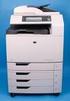 HP Color LaserJet CM6040/CM6030 MFP Series Analog Fax Accessory 300 Fax Guide Copyright and License 2008 Copyright Hewlett-Packard Development Company, L.P. Reproduction, adaptation, or translation without
Getting Started. rp5800, rp5700 and rp3000 Models
 Getting Started rp5800, rp5700 and rp3000 Models Copyright 2011 Hewlett-Packard Development Company, L.P. The information contained herein is subject to change without notice. Microsoft, Windows, and Windows
HP LaserJet P3010 Series Printers HP Embedded Web Server User Guide
 HP LaserJet P3010 Series Printers HP Embedded Web Server User Guide www.hp.com/support/ljp3010series HP LaserJet P3010 Embedded Web Server User Guide Copyright and Warranty 2008 Copyright Hewlett-Packard
PostScript User Guide 604P17454_EN
 CopyCentre C118 WorkCentre M118/M118i PostScript User Guide 604P17454_EN Prepared by: The Document Company Xerox GKLS European Operations Bessemer Road Welwyn Garden City Hertfordshire AL7 1HE ENGLAND
DIGITAL FULL COLOR MULTIFUNCTIONAL SYSTEM. Software Setup Guide
 DIGITAL FULL COLOR MULTIFUNCTIONAL SYSTEM Software Setup Guide BEFORE INSTALLING THE SOFTWARE SETUP IN A WINDOWS ENVIRONMENT SETUP IN A MACINTOSH ENVIRONMENT TROUBLESHOOTING Thank you for purchasing this
Legal Notes. Regarding Trademarks. Models supported by the KX printer driver. 2011 KYOCERA MITA Corporation
 Legal Notes Unauthorized reproduction of all or part of this guide is prohibited. The information in this guide is subject to change without notice. We cannot be held liable for any problems arising from
7130cdn Professional Color Printer User Guide Guide d'utilisation Guida dell'utente Benutzerhandbuch Guía del usuario
 7130cdn Professional Color Printer Guide d'utilisation Guida dell'utente Benutzerhandbuch Guía del usuario www.support.dell.com Copyright protection claimed includes all forms of matters of copyrightable
LASERJET ENTERPRISE 600 M601, M602, AND M603 SERIES PRINTER. User Guide
 LASERJET ENTERPRISE 600 M601, M602, AND M603 SERIES PRINTER User Guide HP LaserJet Enterprise 600 M601, M602, and M603 Series Printer User Guide Copyright and License 2011 Copyright Hewlett-Packard Development
Phaser 5550N Adds 10/100/1000 Ethernet
 Phaser 5550 Phaser 5550B 3-Tray, 1,100-sheet paper capacity Phaser 5550N Adds 10/100/1000 Ethernet Phaser 5550DN Adds Automatic two-sided printing Phaser 5550DT Adds 1,000-sheet feeder for 2,100-sheet
Operating Instructions Driver Installation Guide
 Operating Instructions Driver Installation Guide For safe and correct use, be sure to read the Safety Information in "Read This First" before using the machine. TABLE OF CONTENTS 1. Introduction Before
HP 9200c Digital Sender Support Guide
 HP 9200c Digital Sender Support Guide HP 9200C Digital Sender Support Guide Copyright and License 2004 Copyright Hewlett-Packard Development Company, LP Reproduction, adaptation, or translation without
Legal Notes. Regarding Trademarks. Model supported by the KX printer driver. 2010 KYOCERA MITA Corporation
 Legal Notes Unauthorized reproduction of all or part of this guide is prohibited. The information in this guide is subject to change for improvement without notice. We cannot be held liable for any problems
Understanding the home screen
 Quick Reference Learning about the printer Using the printer control panel 1 2 3 4 5 6 Understanding the home screen When the printer is turned on, the display shows a basic screen, referred to as the
KX Driver User Guide
 KX Driver User Guide Legal Notes Unauthorized reproduction of all or part of this guide is prohibited. The information in this guide is subject to change for improvement without notice. We cannot be held
LASERJET PRO 400 MFP. User Guide M425
 LASERJET PRO 400 MFP User Guide M425 HP LaserJet Pro 400 MFP M425 Series User Guide Copyright and License 2012 Copyright Hewlett-Packard Development Company, L.P. Reproduction, adaptation, or translation
eprint SOFTWARE User Guide
 eprint SOFTWARE User Guide HP eprint software User Guide Copyright and License 2012 Copyright Hewlett-Packard Development Company, L.P. Reproduction, adaptation, or translation without prior written permission
KX Driver Version 4.1. User Guide
 KX Driver Version 4. User Guide Legal Notes Unauthorized reproduction of all or part of this guide is prohibited. The information in this guide is subject to change for improvement without notice. We cannot
Xerox 700 Digital Color Press with Integrated Fiery Color Server. Printing from Mac OS
 Xerox 700 Digital Color Press with Integrated Fiery Color Server Printing from Mac OS 2008 Electronics for Imaging, Inc. The information in this publication is covered under Legal Notices for this product.
HP LaserJet P2015 Series User Guide
 HP LaserJet P2015 Series User Guide HP LaserJet P2015 Series User Guide Copyright information 2006 Copyright Hewlett-Packard Development Company, L.P. Reproduction, adaptation or translation without prior
Scanning. WorkCentre C2424 Copier-Printer
 Scanning This chapter includes: "Basic Scanning" on page 4-2 "Installing the Scan Driver" on page 4-4 "Adjusting Scanning Options" on page 4-5 "Retrieving Images" on page 4-11 "Managing Files and Controlling
Version 1.0 November 2010. Xerox Phaser 4600/4620 User Guide
 Version 1.0 November 2010 Xerox Phaser 4600/4620 2010 Xerox Corporation. XEROX and XEROX and Design are trademarks of Xerox Corporation in the United States and/or other countries. Changes are periodically
HP Color LaserJet CM1312 MFP Series User Guide
 HP Color LaserJet CM1312 MFP Series User Guide HP Color LaserJet CM1312 MFP Series User Guide Copyright and License 2008 Copyright Hewlett-Packard Development Company, L.P. Reproduction, adaptation, or
PostScript 3 Supplement
 PostScript 3 Supplement 1 2 3 4 Windows Configuration Mac OS Configuration Using PostScript 3 Printer Utility for Mac Read this manual carefully before you use this machine and keep it handy for future
HP LaserJet P2050 Series Printer. User Guide
 HP LaserJet P2050 Series Printer User Guide HP LaserJet P2050 Series Printer User Guide Copyright and License 2009 Copyright Hewlett-Packard Development Company, L.P. Reproduction, adaptation, or translation
Printer / Scanner Reference
 Operating Instructions Printer / Scanner Reference 1 2 3 4 5 6 Getting Started Installing the Software Using the Printer Function Using the TWAIN Scanner Function Troubleshooting Appendix Read this manual
MULTIFUNCTIONAL DIGITAL SYSTEMS. Scanning Guide
 MULTIFUNCTIONAL DIGITAL SYSTEMS Scanning Guide 2008, 2009 TOSHIBA TEC CORPORATION All rights reserved Under the copyright laws, this manual cannot be reproduced in any form without prior written permission
LASERJET PRO M1530 MFP SERIES. User Guide
 LASERJET PRO M1530 MFP SERIES User Guide HP LaserJet Pro M1530 MFP Series User Guide Copyright and License 2010 Copyright Hewlett-Packard Development Company, L.P. Reproduction, adaptation, or translation
hp LaserJet quick reference service guide
 hp LaserJet quick reference service guide color service volume III hp color LaserJet quick reference service guide volume III March 2004 edition 2004 Copyright Hewlett-Packard Development Company, LP
Understanding the home screen
 Quick Reference Learning about the printer Using the printer control panel 1 2 3 4 5 6 Understanding the home screen When the printer is turned on, the display shows a basic screen, referred to as the
MULTIFUNCTIONAL DIGITAL SYSTEMS. Network Fax Guide
 MULTIFUNCTIONAL DIGITAL SYSTEMS Network Fax Guide 2009 KYOCERA MITA Corporation All rights reserved Preface Thank you for purchasing Multifunctional Digital Color Systems. This manual explains the instructions
MULTIFUNCTIONAL DIGITAL SYSTEMS. Scanning Guide
 MULTIFUNCTIONAL DIGITAL SYSTEMS Scanning Guide 2011 TOSHIBA TEC CORPORATION All rights reserved Under the copyright laws, this manual cannot be reproduced in any form without prior written permission of
UFR II Driver Guide. UFR II Driver Ver. 2.20 ENG
 UFR II Driver Guide UFR II Driver Ver. 2.20 Please read this guide before operating this product. After you finish reading this guide, store it in a safe place for future reference. ENG 0 Ot UFR II Driver
Operating Instructions
 Operating Instructions (For Setting Up) Digital Imaging Systems Installation Overview Model No. DP-8060 / 8045 / 8035 Table of Contents Setting Your Machine Installation Overview General Installation Overview...
MULTIFUNCTIONAL DIGITAL SYSTEMS. Scanning Guide
 MULTIFUNCTIONAL DIGITAL SYSTEMS Scanning Guide 2009 KYOCERA MITA Corporation All rights reserved Preface Thank you for purchasing Multifunctional Digital Color Systems. This manual provides instructions
How To Set Up An Hp Print Printer
 LASERJET PRO 400 MFP User Guide M425 HP LaserJet Pro 400 MFP M425 Series User Guide Copyright and License 2014 Copyright Hewlett-Packard Development Company, L.P. Reproduction, adaptation, or translation
HP LaserJet 4000, 4000 T, 4000 N, and 4000 TN Printers User's Guide. English
 HP LaserJet 4000, 4000 T, 4000 N, and 4000 TN Printers User's Guide English HP LaserJet 4000, 4000 T, 4000 N, and 4000 TN Printers User's Guide Copyright Hewlett-Packard Company 1997 All Rights Reserved.
Operating Instructions
 Operating Instructions (For Setting up the Printer Driver and the Panasonic Document Management System) Digital Imaging Systems Model No. DP-800P / 800E / 806P Installation Table of Contents Installation
COLOR LASERJET ENTERPRISE CP5520
 COLOR LASERJET ENTERPRISE CP5520 PRINTER SERIES User Guide HP Color LaserJet Enterprise CP5520 Series Printer User Guide Copyright and License 2010 Copyright Hewlett-Packard Development Company, L.P.
LASERJET ENTERPRISE 700 COLOR MFP
 LASERJET ENTERPRISE 700 COLOR MFP User Guide M775dn M775f M775z M775z+ HP LaserJet Enterprise 700 color MFP M775 User Guide Copyright and License 2012 Copyright Hewlett-Packard Development Company, L.P.
software technical reference
 software technical reference hp color LaserJet 0 series HP Color LaserJet 0 Software Technical Reference Copyright (c) 2004 Copyright Hewlett-Packard Development Company, L.P. Reproduction, adaptation
NETWORK PRINT MONITOR User Guide
 NETWORK PRINT MONITOR User Guide Legal Notes Unauthorized reproduction of all or part of this guide is prohibited. The information in this guide is subject to change without notice. We cannot be held liable
User Guide. Color LaserJet Enterprise M750
 User Guide Color LaserJet Enterprise M750 HP Color LaserJet Enterprise M750 Printer Series User Guide Copyright and License 2013 Copyright Hewlett-Packard Development Company, L.P. Reproduction, adaptation,
HP Color LaserJet 3000/3600/3800 Series printers. Service Manual
 HP Color LaserJet 3000/3600/3800 Series printers Service Manual HP Color LaserJet 3000/3600/3800 Series printers Service Manual Copyright and license 2005 Copyright Hewlett-Packard Development Company,
Color LaserJet Enterprise M552 Color LaserJet Enterprise M553
 Color LaserJet Enterprise M552 Color LaserJet Enterprise M553 User Guide M553n M552dn M553dn M553x www.hp.com/support/colorljm552 www.hp.com/support/colorljm553 HP Color LaserJet Enterprise M552, M553
HP Color LaserJet CM2320 MFP Series Paper and Print Media Guide
 HP Color LaserJet CM2320 MFP Series Paper and Print Media Guide Copyright and License 2008 Copyright Hewlett-Packard Development Company, L.P. Reproduction, adaptation, or translation without prior written
AR-NB2 A NETWORK EXPANSION KIT. OPERATION MANUAL (for network scanner) SCANNER FUNCTION 17 USING THE NETWORK
 MODEL AR-NB A NETWORK EXPANSION KIT OPERATION MANUAL (for network scanner) Page INTRODUCTION BEFORE USING THE NETWORK SCANNER FUNCTION USING THE NETWORK SCANNER FUNCTION 7 TROUBLESHOOTING SHARPDESK CD-ROM
Color LaserJet Enterprise MFP M680
 Color LaserJet Enterprise MFP M680 User Guide M680dn M680f M680z www.hp.com/support/colorljmfpm680 HP Color LaserJet Enterprise MFP M680 User Guide Copyright and License 2014 Copyright Hewlett-Packard
MULTIFUNCTIONAL DIGITAL SYSTEMS. Operator's Manual for TWAIN Driver/File Downloader
 MULTIFUNCTIONAL DIGITAL SYSTEMS Operator's Manual for TWAIN Driver/File Downloader 2008 KYOCERA MITA Corporation All rights reserved Preface Thank you for purchasing KYOCERA MITA Multifunctional Digital
HP LaserJet MFP Analog Fax Accessory 300 Fax Guide
 HP LaserJet MFP Analog Fax Accessory 300 Fax Guide Copyright and License 2008 Copyright Hewlett-Packard Development Company, L.P. Reproduction, adaptation, or translation without prior written permission
MULTIFUNCTIONAL DIGITAL COLOR SYSTEMS / MULTIFUNCTIONAL DIGITAL SYSTEMS. Scanning Guide
 MULTIFUNCTIONAL DIGITAL COLOR SYSTEMS / MULTIFUNCTIONAL DIGITAL SYSTEMS Scanning Guide 2012-2015 TOSHIBA TEC CORPORATION All rights reserved Under the copyright laws, this manual cannot be reproduced in
DocuPrint C3290 FS Features Setup Guide
 DocuPrint C3290 FS Features Setup Guide Adobe and PostScript are trademarks of Adobe Systems Incorporated in the United States and/or other countries. Apple, Bonjour, ColorSync, EtherTalk, Macintosh, and
LASERJET PRO 200 COLOR. User Guide
 LASERJET PRO 200 COLOR User Guide M251n M251nw HP LaserJet Pro 200 color M251 Series Printer User Guide Copyright and License 2012 Copyright Hewlett-Packard Development Company, L.P. Reproduction, adaptation,
17 April 2014. Remote Scan
 17 April 2014 Remote Scan 2014 Electronics For Imaging. The information in this publication is covered under Legal Notices for this product. Contents 3 Contents...5 Accessing...5 Mailboxes...5 Connecting
HP LaserJet M1319 MFP Series. User Guide
 HP LaserJet M1319 MFP Series User Guide HP LaserJet M1319 MFP Series User Guide Copyright and License 2008 Copyright Hewlett-Packard Development Company, L.P. Reproduction, adaptation, or translation
System Settings Guide
 System Settings Guide Please read this guide before operating this product. After you finish reading this guide, store it in a safe place for future reference. ENG imagerunner 2545i/2545 2535i/2535 2530i/2530
LASERJET PRO CP1520 COLOR PRINTER SERIES. User Guide
 LASERJET PRO CP1520 COLOR PRINTER SERIES User Guide HP LaserJet Pro CP1520 color printer series User Guide Copyright and License 2010 Copyright Hewlett-Packard Development Company, L.P. Reproduction,
HP Universal Print Driver
 HP Universal Print Driver Solution and Feature Guide Technology for better business outcomes CONTENTS Getting to know the HP Universal Print Driver...1 How the HP Universal Print Driver works...2 Top
Network Setup Guide. Introduction. Setting up for use over LAN
 Network Setup Guide This manual contains the setup information required to use the machine over wired LAN. If you use the machine with USB connection, refer to your setup sheet. Introduction To use the
HP Color LaserJet CM1312 MFP Series Paper and Print Media Guide
 HP Color LaserJet CM1312 MFP Series Paper and Print Media Guide HP Color LaserJet CM1312 MFP Series Paper and Print Media Guide Copyright and License 2008 Copyright Hewlett-Packard Development Company,
Color LaserJet Pro MFP M476
 Color LaserJet Pro MFP M476 HP Color LaserJet Pro MFP M476 User Guide Copyright and License 2014 Copyright Hewlett-Packard Development Company, L.P. Reproduction, adaptation, or translation without prior
DDST Unit Type A / Type B. Printer / Scanner Reference. Operating Instructions
 DDST Unit Type A / Type B Operating Instructions Printer / Scanner Reference 1 2 3 4 5 6 Getting Started Installing the Software Using the Printer Function Using the TWAIN Scanner Function Troubleshooting
Lexmark T64x Troubleshooting Guide
 Lexmark T64x Troubleshooting Guide Online technical support Technical support is available on our Lexmark Web site at www.lexmark.com. Checking an unresponsive printer If the printer is not responding,
MULTIFUNCTIONAL DIGITAL COLOR SYSTEMS / MULTIFUNCTIONAL DIGITAL SYSTEMS. e-filing Guide
 MULTIFUNCTIONAL DIGITAL COLOR SYSTEMS / MULTIFUNCTIONAL DIGITAL SYSTEMS e-filing Guide 2012-2014 TOSHIBA TEC CORPORATION All rights reserved Under the copyright laws, this manual cannot be reproduced in
COLOR LASERJET ENTERPRISE M855. User Guide
 COLOR LASERJET ENTERPRISE M855 User Guide M855dn M855xh M855x+ HP Color LaserJet Enterprise M855 User Guide Copyright and License 2013 Copyright Hewlett-Packard Development Company, L.P. Reproduction,
HP LaserJet 3052/3055 Getting Started Guide
 HP LaserJet 3052/3055 Getting Started Guide Copyright Information 2006 Copyright Hewlett-Packard Development Company, L.P. Reproduction, adaptation or translation without prior written permission is prohibited,
EPSON Stylus C84N. Supplement. Includes information about networking utilities and installation on Windows 98 and Me
 EPSON Stylus C84N Supplement Includes information about networking utilities and installation on Windows 98 and Me Copyright Notice All rights reserved. No part of this publication may be reproduced, stored
LASERJET ENTERPRISE 700
 LASERJET ENTERPRISE 700 User Guide 2 3 M712 HP LaserJet Enterprise 700 M712 User Guide Copyright and License 2012 Copyright Hewlett-Packard Development Company, L.P. Reproduction, adaptation, or translation
HP Color LaserJet CP1510 Series Printer. User Guide
 HP Color LaserJet CP1510 Series Printer User Guide HP Color LaserJet CP1510 Series Printer User Guide Copyright and License 2007 Copyright Hewlett-Packard Development Company, L.P. Reproduction, adaptation,
EPSON Scan Server & EPSON TWAIN Pro Network
 EPSON Scan Server & EPSON TWAIN Pro Network EPSON Scan Server & EPSON TWAIN Pro Network SCANNER UTILITY PROGRAMS All rights reserved. No part of this publication may be reproduced, stored in a retrieval
MULTIFUNCTIONAL DIGITAL SYSTEMS. Operator s Manual for Document Monitor
 MULTIFUNCTIONAL DIGITAL SYSTEMS Operator s Manual for Document Monitor 2009 KYOCERA MITA Corporation All rights reserved Preface Thank you for purchasing Multifunctional Digital Color Systems. This manual
LaserJet Enterprise M604, M605, M606
 LaserJet Enterprise M604, M605, M606 User Guide 3 M604n M605n M604dn M605dn M606dn M605x M606x www.hp.com/support/ljm604 www.hp.com/support/ljm605 www.hp.com/support/ljm606 HP LaserJet Enterprise M604,
Xerox DocuPrint P12 Print Driver User Guide
 Xerox DocuPrint P12 Print Driver User Guide Xerox Corporation 800 Phillips Road Webster, New York 14580 1998 Xerox Corporation. Xerox, The Document Company, the stylized X, and the identifying product
MULTIFUNCTIONAL DIGITAL SYSTEMS. Operator's Manual for Remote Scan Driver
 MULTIFUNCTIONAL DIGITAL SYSTEMS Operator's Manual for Remote Scan Driver 2008, 2009 TOSHIBA TEC CORPORATION All rights reserved Under the copyright laws, this manual cannot be reproduced in any form without
Network Scanner Tool R3.1. User s Guide Version 3.0.04
 Network Scanner Tool R3.1 User s Guide Version 3.0.04 Copyright 2000-2004 by Sharp Corporation. All rights reserved. Reproduction, adaptation or translation without prior written permission is prohibited,