
NICE Perform. Insight from Interactions TM
|
|
|
- Cory Nicholson
- 10 years ago
- Views:
Transcription
1 NICE Perform Insight from Interactions TM

2

3 NICE Systems Ltd. shall bear no responsibility or liability to a client or to any other person or entity with respect to liability, loss or damage caused or alleged to be caused directly or indirectly by any NICE product. This includes, but is not limited to, any interruption of service, loss of business or anticipatory profits or consequential damage resulting from the use or operation of any NICE products. Information in this document is subject to change without notice and does not represent a commitment on the part of NICE Systems Ltd. The systems described in this document are furnished under a license agreement or nondisclosure agreement. All information included in this document, such as text, graphics, photos, logos and images, is the exclusive property of NICE Systems Ltd. and protected by United States and international copyright laws. Permission is granted to view and photocopy (or print) materials from this document for personal, noncommercial use only. Any other copying, distribution, retransmission or modification of the information in this document, whether in electronic or hard copy form, without the express prior written permission of NICE Systems Ltd., is strictly prohibited. In the event of any permitted copying, redistribution or publication of copyrighted material, no changes in, or deletion of, author attribution, trademark legend or copyright notice shall be made. All contents of this document are: Copyright 2008 NICE Systems Ltd. All rights reserved. This product is covered by one or more of the following US patents: 4,893,197 5,185,780 5,216,744 5,274,738 5,289,368 5,396,371 5,446,603 5,457,782 5,819,005 5,911,134 6,115,746 6,122,665 6,192,346 6,246,752 6,249,570 6,330,025 6,542,602 6,564,368 6,694,374 6,728,345 6,785,370 6,856,343 6,865,604 6,870,920 6,871,229 6,959,079 6,965,886 6,970,829 7,010,106 7,010,109 7,203,655 7,240,328 7,305,082 7,333,445 7,346,186 5,325,292 5,937,029 6,252,946 6,775,372 6,880,004 7,058,589 5,339,203 6,044,355 6,252,947 6,785,369 6,937,706 7,085, o View, ACTIMIZE, Actimize logo, Alpha, Customer Feedback, Dispatcher Assessment, Encorder, enicelink, Executive Connect, Executive Insight, FAST, FAST alpha Blue, FAST alpha Silver, FAST Video Security, Freedom, Freedom Connect, IEX, Interaction Capture Unit, Insight from Interactions, Investigator, Last Message Replay, Mirra, My Universe, NICE, NICE logo, NICE Analyzer, NiceCall, NiceCall Focus, NiceCLS, NICE Inform, NICE Learning, NiceLog, NICE Perform, NiceScreen, NICE SmartCenter, NICE Storage Center, NiceTrack, NiceUniverse, NiceUniverse Compact, NiceVision, NiceVision Alto, NiceVision Analytics, NiceVision ControlCenter, NiceVision Digital, NiceVision Harmony, NiceVision Mobile, NiceVision Net, NiceVision NVSAT, NiceVision Pro, Performix, Playback Organizer, Renaissance, Scenario Replay, ScreenSense, Tienna, TotalNet, TotalView, Universe, Wordnet are trademarks and registered trademarks of NICE Systems Ltd. All other registered and unregistered trademarks are the property of their respective owners. Applications to register certain of these marks have been filed in certain countries, including Australia, Brazil, the European Union, Israel, Japan, Mexico, Argentina and the United States. Some of such registrations have matured to registrations. 385A Rev. A1

4 For assistance please contact your local supplier or the nearest NICE Systems Customer Service Center: EMEA Region: (Europe, Middle East, Africa) Tel: Fax: APAC Region: (Asia/Pacific) Tel: Fax: The Americas Region: (North, Central, South America) Tel: NICE-611 Fax: Israel: Tel: Fax: For general information on NICE Systems products please contact your local distributor or the nearest NICE Systems office: International Headquarters-Israel Tel: Fax: United Kingdom Tel: Fax: France Tel: +33-(0) Fax: +33-(0) North America Tel: Fax: Germany Tel: +49-(0) Fax: +49-(0) Hong-Kong Tel: Fax: Please send all queries, comments, and suggestions pertaining to this document to Please visit NICE at

5 Contents 1 Introduction 9 Overview Prerequisites and Limitations Media Library Language Settings About the Database Migration Copying the nice_cls Database to the Database Server Delta Database Interactions Shutting Down the NiceCLS Server Log Files NICE Migration Application Log Files nice-interactions Database Log Files Migrating the NICE Media Library Database Duration Times Supported Items Workflow Installing the Database Migration Application 25 Installing the NICE Migration Application Software Running the Migration Application Hot Fixes Contents 5

6 3 Preparatory Procedures 29 Setting up NICE Perform Servers Setting up the NICE Perform Release 3 Database Server Setting up the NICE Perform Release 3 Applications Server Verifying System Configurations Setting up and Running the nice_cls Database Script Copying the nice_cls Database Script to the NiceCLS Server Stopping the Version 8.9 NiceCLS Server and Storage Center Running the nice_cls Database Script on the NiceCLS Server Starting the Version 8.9 NiceCLS Server Copying the nice_cls Database to the NICE Perform Database Server Stopping the Version 8.9 NiceCLS Server Backing up the Version 8.9 nice_cls Database Starting the Version 8.9 NiceCLS Server Stopping the NICE Services Creating a New Database on the NICE Perform Database Server Transferring the Database to the NICE Perform Database Server Stopping the SQL Server Agent Service Backing up Interaction Data Avaya CT Files Registry Parameters Alcatel Files Registry Parameters Aspect Portal Registry Parameters Genesys Files Registry Parameters H323RAS Files Registry Parameters Contents 6
7 NEC/Nortel Files Registry Parameters Mosaix Registry Parameters Migrating Administrative and Interactions Data 55 Backing up the Databases Starting the NICE Services Setting up the NICE Migration Application Running the NICE Migration Application Updating the List Editor Stopping the NICE Services Running the List Editor Hot Fix Starting the NICE Services Upgrading Service Pack 3 to Service Pack 4 85 Configuring Windows (NT) Authentication Installing NICE Perform Database Suite Service Pack Installing NICE Perform Applications Suite Service Pack Configuring Service Pack Installing Service Pack 4 Components Completing the Database Migration 89 Starting the SQL Server Agent Service Migrating the NICE Media Library Database NICE Media Library Database Migration: Preparatory Procedures Verifying NiceCLS Server Definitions Backing up the NICE Media Library Database Copying the NICE Media Library Database to a New Server NICE Media Library Database Migration: Running the Installation Wizard.. 92 Contents 7
8 Running the NICE Database Utilities Running the DBAgnose Utility Running the DBSpace Utility Restoring Interaction Data Restoring Interaction Data Files Defining Interaction Data Values Concluding Procedures A Organization Settings 107 B Switch IDs 109 C Defining the Migration Log File Settings 111 D Defining Technician Mode 113 E Defining Autogrowth 115 Index 119 Contents 8

9 1 Introduction This manual describes the procedures for migrating the Version 8.9 database to NICE Perform Release 3, Service Pack 4. IMPORTANT Read the Prerequisites and Limitations on page 10 and About the Database Migration on page 12 carefully before beginning the migration procedures. Contents Overview...10 Prerequisites and Limitations...10 About the Database Migration...12 Duration Times...16 Supported Items...17 Workflow...20 Chapter 1: Introduction 9
10 Overview Overview NOTE: There are two stages to the migration: Database migration from Version 8.9 to NICE Perform Release 3 Service Pack 3. Upgrade from NICE Perform Release 3 Service Pack 3 to NICE Perform Release 3 Service Pack 4. Do not attempt to migrate the database directly to NICE Perform Release 3 Service Pack 4. The database migration program migrates administrative and interactions data and data pertaining to NiceUniverse evaluations from the NiceCLS Server Version 8.9 database to the NICE Perform database. The actual migration procedures are described in Chapter 4 (see Migrating Administrative and Interactions Data on page 55). However, the prerequisites and limitations listed below and the issues covered in the section About the Database Migration (see page 12) are an integral part of the migration procedures, and you must adhere to them to ensure that you complete the database migration successfully. Prerequisites and Limitations Before running the NICE Migration Application, note the following prerequisites and limitations: You must install all the NICE Perform Release 3 software before beginning the migration procedures. The operating system must be Microsoft Windows 2003 Server Edition with the latest Microsoft Windows 2003 service pack certified by NICE Systems. The original database must be Version 8.9; the NICE Migration Application does not support earlier versions. Make sure that the latest NiceCLS Server Version 8.9 Service Pack and the latest Hot Fix are installed on the NiceCLS Server before beginning the migration. The Version 8.9 nice_cls database must retain the default column order. Make sure that the time displayed on the Version 8.9 NiceCLS Server is the same as the time displayed on the Version 8.9 NiceLog Logger. Verify that all hot fixes for Version 8.9 components have been installed before beginning any of the procedures described in this guide. Chapter 1: Introduction 10
11 Prerequisites and Limitations The path used by Storage Center Version 8.9 for archived calls must include the server name of the computer on which the calls are archived, whether the calls are archived locally or on the network. NOTE: If Storage Center Version 8.9 archives calls using the local path (that is, does not include the server name of the computer on which the calls are archived), it could be necessary to run a special script to update the archiving path of the migrated calls in order to enable playback. For details call NICE Systems Customer Services. You must use the latest Service Pack for NICE Perform Release 3. The size of both the NICE Perform nice_interactions database and the nice_dw database must be at least twice the size of the used space (not the allocated space) of the Version 8.9 nice_cls database. The Administrative tables in the NICE Perform database must retain the same data that you installed during the NICE Perform Database Suite installation. The Collation (that is, the language) defined during the SQL Server installation for NICE Perform Release 3 must be the same as was defined for the Version 8.9 database. You must allocate at least 500 MB free space for the log file of each database. You must define the tempdb database to be a minimum of 2 GB and the Log File 500 MB. If you replace your Version 8.9 Voice Logger with a new Voice Logger for NICE Perform, you must define both the original (Version 8.9) and the new (Release 3) Voice Loggers in the System Administrator in order to ensure playback of all archived calls. Verify that all the latest NICE Perform Release 3 hot fixes and patches have been installed. When migrating the database to Release 3 with the GA version Applications Service Pack, it is necessary to first stage the migration in the region s lab before performing the migration at the customer s site. In cases of migration/merge paths that require a commitment, staging will first be performed in the ST&I labs. Following the commitment s approval, staging will then be performed in the region s lab. Depending on your site s configuration and requirements, it could be necessary to add one or more dedicated server(s) when installing NICE Perform Release 3 components. For details, refer to the NICE Perform Design Consideration guide. Chapter 1: Introduction 11

12 Media Library About the Database Migration In addition to the above prerequisites and limitations, if your system includes the NICE Media Library, it must also meet the following minimum software requirements: RAS Service. pcanywhere Host Application - Version 10 or higher. TCP/IP network protocol. System must include NICE Storage Center. Language Settings All NICE Perform servers must run on an English-language operating system. Workstations (clients) may run on an English-language operating system or on any localized language approved by NICE Systems. About the Database Migration The NICE Migration Application transfers data from the nice_cls database located on the NiceCLS Server Version 8.9 to the nice_interactions and nice_admin databases on the NICE Perform Database Server. The NICE Migration Application consists of the following five utilities: Administration Information (such as list of users, passwords, etc.) Interaction Details (Business Data details, interactions) Delta Database Interactions (see Delta Database Interactions below) NICE Storage Center data NiceUniverse Evaluations (data only) Copying the nice_cls Database to the Database Server Before beginning the database migration, you must copy the nice_cls database that is located on the Version 8.9 NiceCLS Server to the NICE Perform Database Server, so that both the source and target databases are located on the same computer. You cannot run the database migration through the network. For details see Copying the nice_cls Database to the NICE Perform Database Server on page 34). Chapter 1: Introduction 12

13 About the Database Migration Delta Database Interactions You cannot run the NiceCLS Server while the NICE Migration Application transfers data. In large sites, this process can take a great deal of time. To avoid shutting down the NiceCLS Server for the duration of the entire migration process, the NICE Migration Application offers a Delta Database feature. After copying the existing Version 8.9 nice_cls database to the NICE Perform Database Server (see Copying the nice_cls Database to the Database Server above), you run the NICE Migration Application using the Delta Database feature. While the migration procedures run on the Database Server, the Delta Database feature detects via the network all new incoming interactions details on the NiceCLS Server. Later, when you run the Delta Database feature, it migrates only those new details. Although it is still necessary to shut down the NiceCLS Server (see Shutting Down the NiceCLS Server in the next section), you do so for only a few minutes, thus minimizing the time the NiceCLS Server is off-line. NOTE: The Delta Database feature migrates only details of interactions, and not data pertaining to new users, new evaluations, etc. If you use the Delta Database feature, you define the necessary parameters when you define the NICE Migration Application details, as explained in Setting up the NICE Migration Application on page 62. Shutting Down the NiceCLS Server You must shut down the Version 8.9 NiceCLS Server before running the NICE Migration Application, as follows: If you use the Delta Database utility - shut down the Version 8.9 NiceCLS Server after running the Interactions Details utility and before running the Delta Database utility (see step number 18 on page 73). If you do not use the Delta Database utility - shut down the Version 8.9 NiceCLS Server after installing the NICE Migration Application software and before running the NICE Database Migration (see Running the NICE Migration Application on page 66). IMPORTANT Wait until the NiceCLS Server has fully transferred all the calls to the nice_cls database before shutting it down. WARNING DO NOT under any circumstances start up the NICE Perform Release 3 CLS software until you have totally completed the migration procedures. Doing so will cause the entire migration process to fail. Chapter 1: Introduction 13

14 About the Database Migration Log Files NICE Migration Application Log Files The NICE Migration Application creates log files that provide a detailed record of the following migration procedures: MigrationApplication_Admin.log - provides a record of the Administrative Information utility procedures during the database migration. MigrationApplication_Interactions.log - provides a record of the Interaction Details utility procedures during the database migration. MigrationApplication_SC.log - provides a record of the Storage Center utility procedures during the database migration. MigrationApplication_Shell.log - provides a record of the Migration Application operations. NOTE: The above log files are stored in the same location in which you installed the NICE Migration Application. QAUpgrade.log - provides a record of the NiceUniverse Forms and Evaluations utility procedures during the migration of the QAUpgrade.sql script (see following paragraph). The Migration Application Installation program automatically creates five files that contain the necessary SQL scripts for migrating the NiceUniverse Forms and Evaluations. When you run the migration procedures, the Migration Application creates a separate log file for each of the five SQL scripts. Each SQL script file is assigned a number from 1 to 5, and the parallel log file is assigned the same number, as in Figure 1-1 below. NOTE: The SQL script and log files are located at: C:\Program Files\NICE Systems\Nice Migration Application\SQLFiles NOTE: The default size of each of the above log files is 100 MB. To increase the size or change the report level of the log files see Appendix C, Defining the Migration Log File Settings on page 111. Chapter 1: Introduction 14
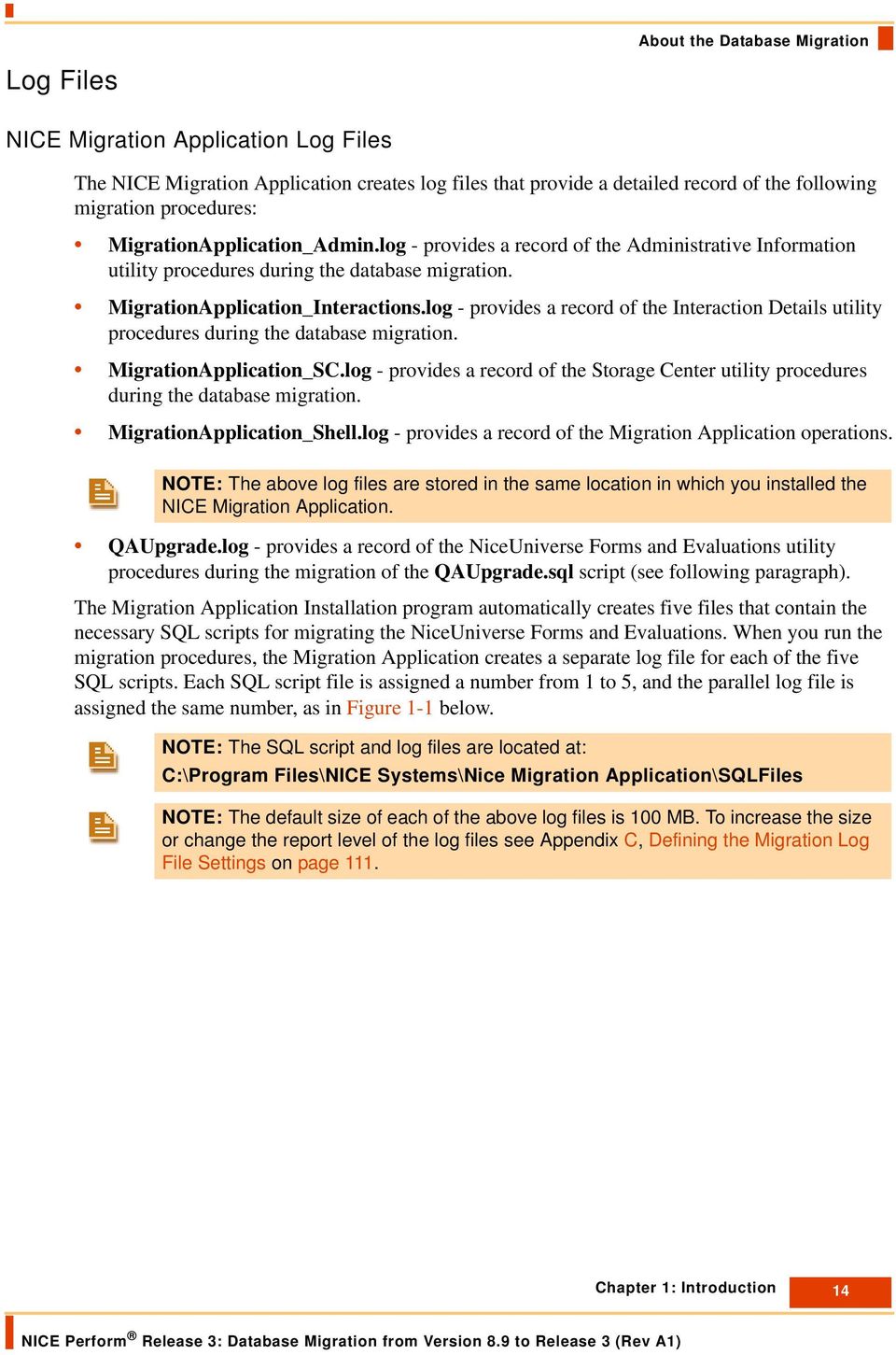
15 About the Database Migration Figure 1-1 SQL Script Files and Log Files nice-interactions Database Log Files The recommended size of the nice_interactions database log file is 20% of the size of the data file. These definitions are usually sufficient for running the migration procedures without problems. However, since the log file is dynamic, in very large databases it might exceed the allocated space and fill up the entire drive, thus causing the migration to fail. In such cases, define a new log file on a different drive, and restart the migration application; the migration application will automatically restart at the point at which it stopped. Migrating the NICE Media Library Database NICE Media Library is an optional component of both Version 8.9 and of NICE Perform. However, the NICE Migration Application does not support migrations of the Media Library database. Therefore, if your Version 8.9 system includes NICE Media Library you must migrate the Media Library database separately. For details, see Migrating the NICE Media Library Database on page 91. Chapter 1: Introduction 15
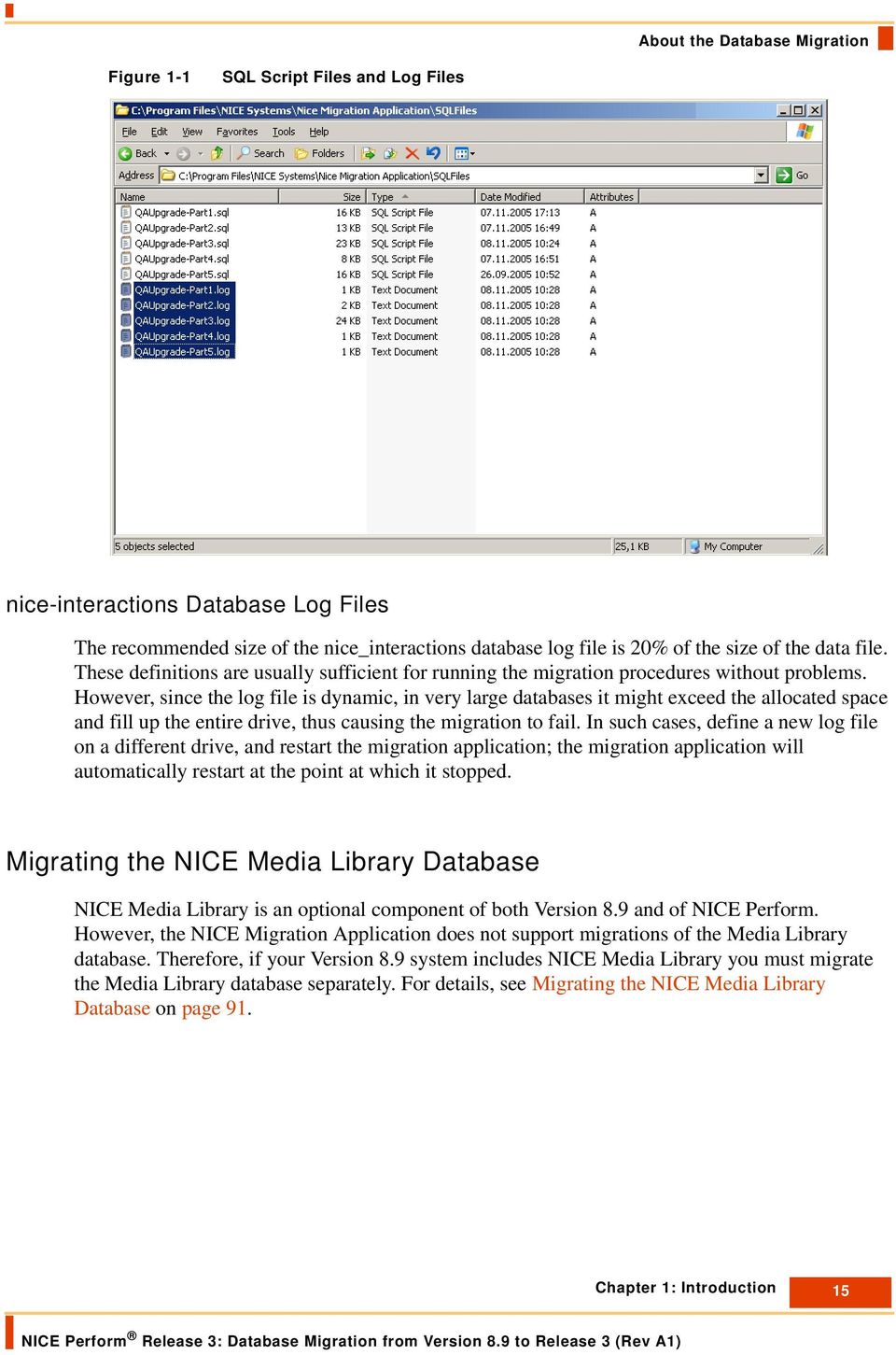
16 Duration Times Table Table 1-1 indicates the approximate duration for each of the procedures listed: Duration Times NOTE: The duration time depends on a large number of factors and therefore may vary greatly from the time listed here. Use this table only as an estimation. Table 1-1: Duration Times Item Approximate Duration Reference in this Manual Running the CLS Script 5 minutes for 1 million calls Setting up and Running the nice_cls Database Script (see page 31) Backing up the Version 8.9 nice_cls Database Restoring the Version 8.9 nice_cls Database Migrating Administration Data Migrating Interactions Data Delta Database Interactions (optional) Migrating Storage Center Data 20 minutes for 10 GB Backing up the Version 8.9 nice_cls Database (see page 34) 30 minutes for 10 GB Transferring the Database to the NICE Perform Database Server (see page 41) 3 minutes for 1,000 Users Running the NICE Migration Application (see step number 7 on page 69) 45 minutes for 1 million calls Running the NICE Migration Application (see step number 14 on page 72) 45 minutes for 1 million calls Running the NICE Migration Application (see step number 19 on page 74) 3 minutes for 1 million calls Running the NICE Migration Application (see step number 23 on page 76) Evaluation Forms 1 to 5 minutes Running the NICE Migration Application (see step number 29 on page 78) Chapter 1: Introduction 16

17 Supported Items Supported Items Table 1-2 lists the objects supported by the Version 8.9 to NICE Perform Release 3 database migration: Table 1-2: Supported Objects - Version 8.9 to NICE Perform Release 3 Object Supported Comments Audio Analysis Audit Trail Business Analyzer Queries Business Analyzer Saved Items Business Analyzer User Preferences Not Applicable No Not Applicable Not Applicable Not Applicable Business Data Yes IDs will be changed, but this has no effect on the application. Calls Yes Call tables and all CTI information are migrated. Clips Coaching Not Applicable Not Applicable CTI Data Yes All CTI data is migrated. Evaluation Results Partial Individual scores can be seen via the Business Analyzer and the Reporter, however the evaluations themselves cannot be opened. Popup notes are not available. Form Designer FTF Applications Inserter No Not Applicable Yes IP Phone Applications Must coordinate with NICE Systems Customer Services. Licensing Not Applicable Lists Editor Yes All lists and their values are migrated. Chapter 1: Introduction 17
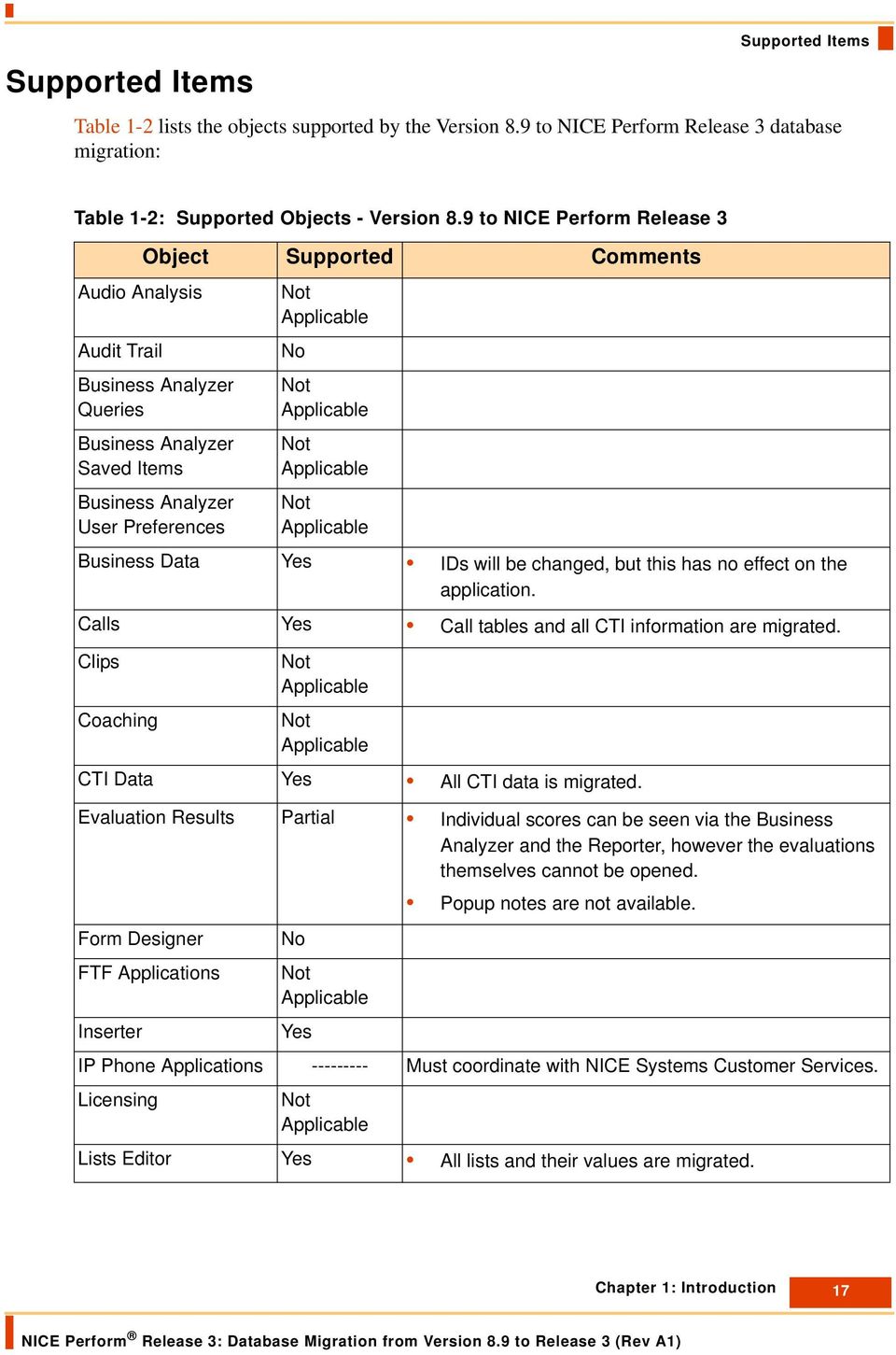
18 Supported Items Table 1-2: Supported Objects - Version 8.9 to NICE Perform Release 3 (Continued) Object Supported Comments Media Library Yes The Media Library database is not supported by the Database Migration Application, but can be migrated in a separate procedure. Monitor No Multi-site Capabilities Not Applicable My Universe Not Applicable Playback Server (PBS) Not Applicable Reports No Rules Manager No Saved Items Not Applicable Saved Queries No Schedules No Screen Logger Data No ScreenSense No Storage Center Task No Definitions System Administration User Profiles No Not Applicable Users Details Partial Profiles and privileges cannot be migrated. New passwords will be defined for Users whose current password does not meet requirements. Passwords of Users who do meet requirements will be retained. Chapter 1: Introduction 18
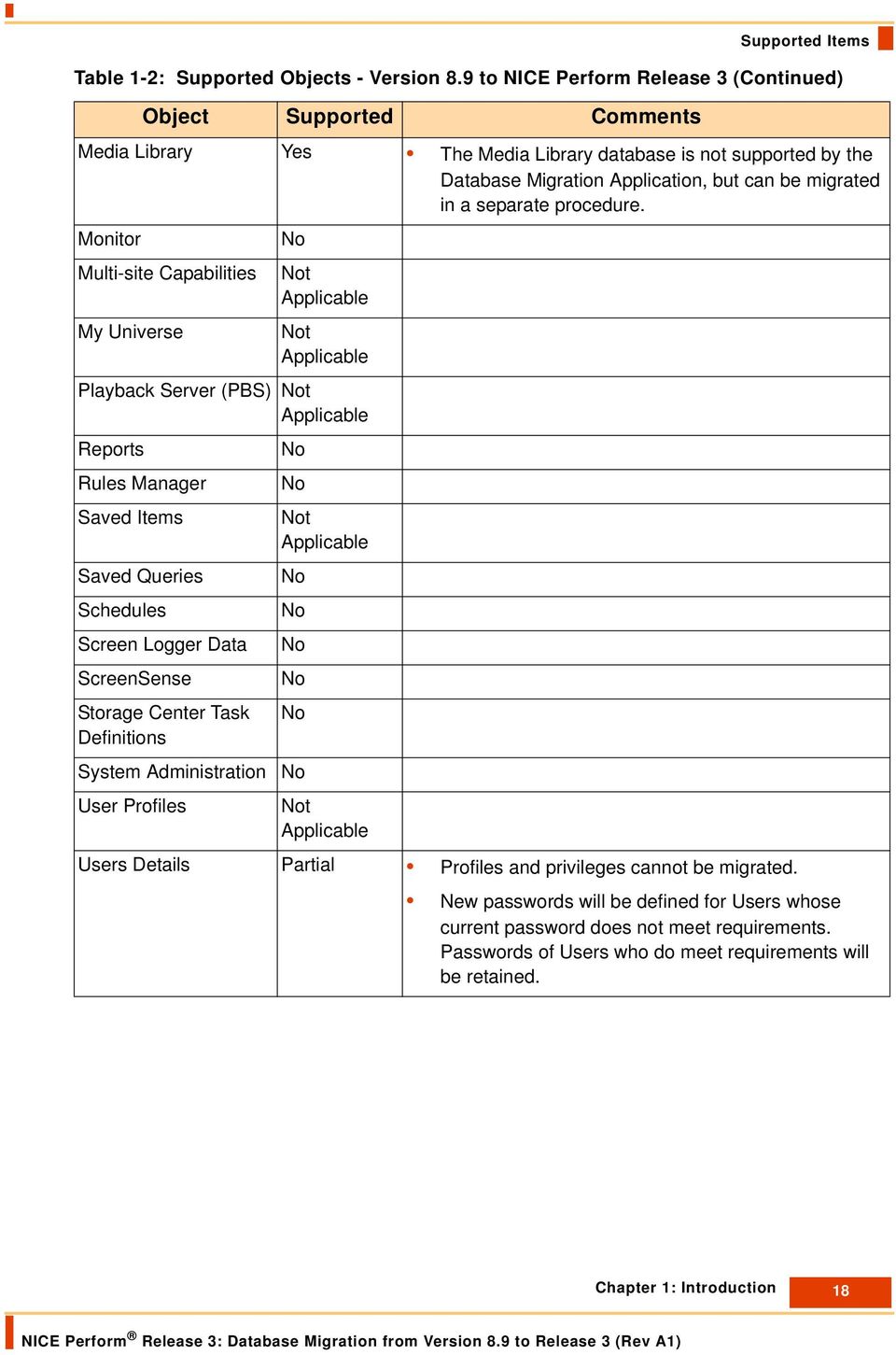
19 Supported Items Table 1-2: Supported Objects - Version 8.9 to NICE Perform Release 3 (Continued) Object Supported Comments Voice Logger Audio Partial ISA Logger audio is protected but is not migrated. PCI Logger audio is protected and migrated. Audio is migrated but not available online. VoIP Yes When upgrading Windows 2003 based VoIP Loggers while keeping the Logger s platform, audio will be migrated and be available on-line. If the logger s platform is replaced, audio will be migrated (provided certified archiving devices or Storage Center) but will not be available on-line. Windows 2000 VoIP Loggers will be upgraded by installing Windows 2003 first. Audio will be migrated (provided certified archiving devices or Storage Center) but will not be available on-line. Chapter 1: Introduction 19

20 Workflow Workflow The following workflow lists the procedures for migrating the Version 8.9 database to Release 3. IMPORTANT These procedures must be performed in the order in which they appear. WORKFLOW NOTES Installing the Database Migration Application Refer to Chapter 2 on page 25 Installing the NICE Migration Application Software (see page 26) Install on Database Server using NICE Migration Application Setup Wizard Running the Migration Application Hot Fixes (see page 28) Run Hot Fixes for Migration Application Preparatory Procedures Refer to Chapter 3 on page 29 Setting up NICE Perform Servers (see page 30) Set up Database and Applications Servers for NICE Perform Setting up and Running the nice_cls Database Script (see page 31) Run the script on the Version 8.9 NiceCLS Server Copying the nice_cls Database to the NICE Perform Database Server (see page 34) Stop NiceCLS Server before backing up database Stopping the SQL Server Agent Service (see page 48) Stops SQL Server 2005 jobs Backing up Interaction Data (see page 49) Back up switch integration data not supported by migration for later use Chapter 1: Introduction 20

21 Workflow Migrating Administrative and Interactions Data Refer to Chapter 4 on page 55 Backing up the Databases (see page 56) Backup NICE Perform database using the Migration Application Starting the NICE Services (see page 60) NICE Services must be started while the migration is running Setting up the NICE Migration Application (see page 62) Enter details relating to the Version 8.9 and the NICE Perform server Running the NICE Migration Application (see page 66) The Migration Application migrates the databases Updating the List Editor (see page 82) For Compliance Suite configurations only Chapter 1: Introduction 21
22 Workflow Upgrading Service Pack 3 to Service Pack 4 Refer to Chapter 5 on page 85 Configuring Windows (NT) Authentication (see page 86) Switch from SQL Authentication to Windows Authentication Installing NICE Perform Database Suite Service Pack 4 (see page 86) Run the Database Suite Installation for SP4 Installing NICE Perform Applications Suite Service Pack 4 (see page 87) Run the Applications Suite Installation for SP4 Configuring Service Pack 4 (see page 87) Configure SP4 in the System Administrator Installing Service Pack 4 Components (see page 87) Install the remaining SP4 components Chapter 1: Introduction 22
23 Workflow Completing the Database Migration Refer to Chapter 6 on page 89 Starting the SQL Server Agent Service (see page 90) Starts the SQL jobs you stopped earlier Migrating the NICE Media Library Database (see page 91) Must migrate the Media Library database separately Running the NICE Database Utilities (see page 99) Checks system configurations Restoring Interaction Data (see page 104) Restore the Interaction data you backed up earlier Concluding Procedures (see page 106) Final manual configurations Chapter 1: Introduction 23
24 Blank page for double-sided printing.
25 2 Installing the Database Migration Application This chapter details the procedures for installing the NICE Migration Application software on the NICE Perform Database Server. IMPORTANT You must install the NICE Perform Release 3 software before installing the Database Migration Application. Contents Installing the NICE Migration Application Software...26 Running the Migration Application Hot Fixes...28 Chapter 2: Installing the Database Migration Application 25
26 Installing the NICE Migration Application Software Installing the NICE Migration Application Software Before migrating the databases from Version 8.9 to NICE Perform, you install the NICE Migration Application software on the NICE Perform Database Server. The NICE Migration Application is located on the NICE Perform Migration Application CD. IMPORTANT You must install the NICE Migration Application on the same computer on which you installed the NICE Perform Database Suite. To install the NICE Migration Application: 1. Insert the NICE Perform Migration Application installation CD in the CD-ROM drive of the NICE Perform Database Server. 2. Copy the Migration 8.9 to Release 3 folder from the installation CD to any convenient location on the Database Server. 3. In the Migration 8.9 to Release 3 folder you just copied, navigate to Migration 8.9 to Release 3\Migration\Migration Utility, and double-click MigrationSetup.msi. 4. The NICE Migration Application - Welcome window appears. Figure 2-1 NICE Migration Application - Welcome Window 5. Click Next. The NICE Migration Application - Select Installation Folder window appears. Chapter 2: Installing the Database Migration Application 26
27 Installing the NICE Migration Application Software Figure 2-2 NICE Migration Application - Select Installation Folder Window 6. Accept the default path, or, if you want to change the folder in which you want to install the NICE Migration Application, click Browse, and navigate to the desired folder. Under Install NICE Migration Application..., select Everyone. 7. Click Next. The Database Info window appears as the installation program begins to install the NICE Migration Application on the Database Server. Figure 2-3 Database Info Window Chapter 2: Installing the Database Migration Application 27
28 8. Accept the default Server Name, User Name, and Password. Running the Migration Application Hot Fixes NOTE: The default SQL User Name is sa, and the Password is left blank. If you have defined a unique User Name and Password for your site, type them in the relevant fields. 9. Click Next. The installation program continues to install the software. 10. Upon completion, the NICE Migration Application - Installation Complete window appears. Figure 2-4 NICE Migration Application - Installation Complete Window 11. Click Close to complete installation of the NICE Migration Application software. Running the Migration Application Hot Fixes After installing the NICE Migration Application software, you must run any NICE Migration Application hot fixes included in your Upgrade Kit. Each hot fix includes instructions for installing or running the hot fix. Chapter 2: Installing the Database Migration Application 28
29 3 Preparatory Procedures IMPORTANT Read the Prerequisites and Limitations on page 10 and About the Database Migration on page 12 carefully before beginning the migration procedures. This chapter details the procedures you must perform before you are can migrate the database. Contents Setting up the NICE Perform Release 3 Database Server...30 Verifying System Configurations...31 Setting up and Running the nice_cls Database Script...31 Copying the nice_cls Database to the NICE Perform Database Server...34 Stopping the SQL Server Agent Service...48 Backing up Interaction Data...49 Chapter 3: Preparatory Procedures 29
30 Setting up NICE Perform Servers Setting up NICE Perform Servers Before beginning the migration procedures, set up the following servers for NICE Perform Release 3, Service Pack 3: NICE Perform Database Server (see Setting up the NICE Perform Release 3 Database Server). NICE Perform Applications Server (see Setting up the NICE Perform Release 3 Applications Server). Setting up the NICE Perform Release 3 Database Server You must set up the NICE Perform Release 3 Database Server before beginning the migration procedures as follows: Install Microsoft SQL Server 2005 on the NICE Perform Release 3 Database Server. For details see the NICE Perform Release 3 Microsoft SQL 2005 Guide. IMPORTANT If you want to use the NICE Perform Analytics feature, you must also install the SQL Analysis Services when you install the SQL Server. For full details, see the NICE Perform Release 3 Microsoft SQL 2005 Guide before installing the SQL Server. If your site uses Microsoft SQL Server 2000, you must upgrade to SQL 2005 on the NICE Perform Release 3 Database Server before beginning the migration procedures. For details see the NICE Perform Release 3 Microsoft SQL 2005 Guide. Install the NICE Perform Release 3 Service Pack 3 Database Suite on the NICE Perform Release 3 Database Server. For details see the NICE Perform Release 3 Database Server Installation Guide. Setting up the NICE Perform Release 3 Applications Server You must set up the NICE Perform Release 3 Service Pack 3 Applications Server before beginning the migration procedures as follows: Install the NICE Perform Release 3 Applications Suite. For details refer to the NICE Perform Release 3 Applications and Reporter Setup Guide. In the NICE Perform System Administrator, configure the Applications, the Database Server, and the CTI Interface with the physical switch. For details refer to the NICE Perform Release 3 System Administrator s Guide. Chapter 3: Preparatory Procedures 30
31 Verifying System Configurations Verifying System Configurations IMPORTANT As a safety precaution, it is highly recommended to back up your Version 8.9 database to a secure location before beginning the migration procedures. Before you begin the migration procedures, it is recommended to verify the following: The NICE Perform Application Suite software is configured on the NICE Perform Application Server. You have Administrator privileges for the NICE Perform Database Server. The location of the NICE databases and of the Applications Suite have been defined in the NICE Perform System Administrator. The switch is configured in the NICE Perform System Administrator. Verify that the NICE Perform CLS Server software located on the NICE Interaction Center is shut down. Verify that the System Administrator, Audit Trail, and SQLSERVERAGENT services on the NICE Perform Database Server are all running. Setting up and Running the nice_cls Database Script Before running the Database migration, you must prepare the nice_cls database by running the nice_cls database script, as follows: Copying the nice_cls Database Script to the NiceCLS Server (see page 32) Stopping the Version 8.9 NiceCLS Server and Storage Center (see page 32) Running the nice_cls Database Script on the NiceCLS Server (see page 32) Starting the Version 8.9 NiceCLS Server (see page 33) IMPORTANT You run the nice_cls Database script on the Version 8.9 NiceCLS Server. You must run the nice_cls Database script before backing up or copying the databases. You must run the nice_cls Database script whether or not you use the Delta Database feature (see Delta Database Interactions on page 13). Chapter 3: Preparatory Procedures 31
32 Setting up and Running the nice_cls Database Script Copying the nice_cls Database Script to the NiceCLS Server Before running the nice_cls database script, you must first copy it to the Version 8.9 NiceCLS Server. To copy the nice_cls database script: 1. On the NICE Perform Database Server, navigate to the NICE Migration Application folder according to the path you defined during installation (see step number 6 on page 27). 2. Open the Resources folder. 3. In the Resources folder, copy the SQL script called CallsMigrationUpdatedBD.sql and paste it in any convenient place on the Version 8.9 NiceCLS Server. Stopping the Version 8.9 NiceCLS Server and Storage Center Before running the nice_cls database script, you must shut down the NiceCLS Server and the NICE Storage Center. NOTE: Shut down only the software; do not shut down the computer. Running the nice_cls Database Script on the NiceCLS Server After copying the nice_cls database script to the Version 8.9 NiceCLS Server, you now run it. To run the nice_cls Database script: 1. In the Start menu of the Version 8.9 NiceCLS Server, choose Programs > Microsoft SQL Server > Query Analyzer. The Microsoft Query Analyzer window appears. 2. Select the script called CallsMigrationUpdatedBD.sql script you copied in the above procedures and drag it onto the Microsoft Query Analyzer window, as in Figure 3-1 below. Chapter 3: Preparatory Procedures 32
33 Setting up and Running the nice_cls Database Script Figure 3-1 Microsoft Query Analyzer Window Run Button 3. Click the Run button. NOTE: The running time of the nice_cls Database script depends of the size of the nice_cls database. Large databases could take some time to complete. Starting the Version 8.9 NiceCLS Server After running the nice_cls database script, you start the NiceCLS Server. NOTE: If you are not using the Delta Database feature, (see Delta Database Interactions on page 13), it is not necessary to start the NiceCLS Server. Chapter 3: Preparatory Procedures 33
34 Copying the nice_cls Database to the NICE Perform Database Server Copying the nice_cls Database to the NICE Perform Database Server Before beginning the database migration, you must copy the nice_cls database that is located on the Version 8.9 NiceCLS Server to the NICE Perform Database Server, so that both the source and target databases are located on the same computer. You cannot run the database migration through the network. Copying the nice_cls database to the NICE Perform Database Server includes the following procedures: Stopping the Version 8.9 NiceCLS Server (see page 34) Backing up the Version 8.9 nice_cls Database (see page 34) Starting the Version 8.9 NiceCLS Server (see page 36) Stopping the NICE Services (see page 37) Creating a New Database on the NICE Perform Database Server (see page 38) Transferring the Database to the NICE Perform Database Server (see page 41) Stopping the Version 8.9 NiceCLS Server Before you back up the nice_cls database, you must stop the NiceCLS Server. NOTE: Stop only the NiceCLS Server software; do not shut down the computer. Backing up the Version 8.9 nice_cls Database You perform the following procedures on the Version 8.9 NiceCLS Server. To back up the Version 8.9 nice_cls database: 1. In the Start menu, choose Programs > Microsoft SQL Server > Enterprise Manager. The SQL Server Enterprise Manager window appears. 2. Under Console Root > Microsoft SQL Servers > SQL Server Group > your SQL Server, > Databases, choose nice_cls. 3. In the right-click menu, choose All Tasks > Backup Database. Chapter 3: Preparatory Procedures 34
35 Copying the nice_cls Database to the NICE Perform Database Server Figure 3-2 SQL Server Enterprise Manager 4. The SQL Server Backup window appears. Figure 3-3 SQL Server Backup Window Chapter 3: Preparatory Procedures 35
36 Copying the nice_cls Database to the NICE Perform Database Server 5. To backup the nice_cls database to the default location that appears in the Destination area, click OK. To backup the nice_cls database to any other location, continue with step number Step To backup the nice_cls database to any other location, click the Remove button, and then click the Add button. The Select Backup Destination window appears. Figure 3-4 Select Backup Destination Window Browse Button 7. Click the Browse button, and navigate to the desired location. Click OK. The SQL Server Backup window reappears and the new location appears in the Destination area. 8. Click OK. Starting the Version 8.9 NiceCLS Server If you are using the Database Delta feature (see Delta Database Interactions on page 13), start the Version 8.9 NiceCLS Server to enable it to archive new interactions. NOTE: If you not using the Database Delta feature, it is not necessary to start the Version 8.9 NiceCLS Server. Chapter 3: Preparatory Procedures 36
37 Stopping the NICE Services Copying the nice_cls Database to the NICE Perform Database Server Before you backup the nice_cls database to the NICE Perform Database Server, you must stop all NICE Services. It is highly recommended to use the NICE Services Configuration Manager. To stop NICE Services: 1. Using My Computer or Windows Explorer, on the drive on which you installed the NICE Systems software (the default drive is C:\), navigate to: Program Files\Nice Systems\Applications\Tools\Nice Services Configuration Manager. 2. Open the file and double-click Nice Services Configuration Manager.exe. The NICE Services Configuration Manager window appears. Figure 3-5 NICE Services Configuration Manager Window Stop Button 3. Press Ctrl + A to select all the NICE Services. 4. Click the Stop button. The NICE Services Configuration Manager stops all the NICE services. NOTE: After stopping the NICE Services, it is recommended to verify in the Computer Management window that all NICE Services are in the Stop mode. Chapter 3: Preparatory Procedures 37
38 Copying the nice_cls Database to the NICE Perform Database Server Creating a New Database on the NICE Perform Database Server IMPORTANT You must retain the name nice_cls when you create and later copy the database to the NICE Perform Database Server. To create a new database on the NICE Perform Database Server: 1. Open the Microsoft SQL Server Management Studio. Figure 3-6 Microsoft SQL Server Management Studio 2. Select Databases. 3. In the right-click menu select New Database The New Database window appears. Chapter 3: Preparatory Procedures 38
39 Copying the nice_cls Database to the NICE Perform Database Server Figure 3-7 New Database Window 4. In the Database Name field, enter nice_cls. The name nice_cls is automatically added to the rows of the Logical Name column, as in Figure 3-8Figure 3-8. Chapter 3: Preparatory Procedures 39
40 Copying the nice_cls Database to the NICE Perform Database Server Figure 3-8 New Database Window 5. In the Initial Size column, enter the desired size of the Data and Log files. IMPORTANT It is recommended that the size of the Log file be at least 20% of the size of the Data file. However, the size of the Log file must be at least 501 MB, even if the Data file is less than 2500 MB. The size you define for the nice_cls data files must be the same or greater than the size of the nice_cls data files in the Version 8.9 nice_cls database. If there is insufficient space on the default drive, copy the database to any other convenient drive. Verify that the Autogrowth column is defined as unrestricted growth. To define autogrowth, see Appendix E, Defining Autogrowth on page 115. Chapter 3: Preparatory Procedures 40
41 Copying the nice_cls Database to the NICE Perform Database Server Figure 3-9 New Database Window 6. Click OK. The SQL Server creates the nice_cls database. NOTE: Depending on it size, creating the database may take anywhere from a few minutes to 30 minutes or more. Transferring the Database to the NICE Perform Database Server To enhance the restoration procedures and to avoid overburdening your network, you must transfer the nice_cls Database you backed up on the Version 8.9 NiceCLS Server (see Backing up the Version 8.9 nice_cls Database on page 34) to the NICE Perform Database Server using the SQL Server restore feature. You perform the following procedures on the NICE Perform Database Server. To restore the nice_cls database to the NICE Perform Database Server: 1. Open the SQL Server Management Studio. 2. Under your Database Server navigate to Databases and select nice_cls. Chapter 3: Preparatory Procedures 41
42 Copying the nice_cls Database to the NICE Perform Database Server Figure 3-10 SQL Server Management Studio Window 3. In the right-click menu, select Tasks > Restore > Database. The Restore Database window appears. Chapter 3: Preparatory Procedures 42
43 Copying the nice_cls Database to the NICE Perform Database Server Figure 3-11 Restore Database Window Browse Button 4. In the Source for Restore area, select From Device, and click the Browse button. The Specify Backup window appears. Figure 3-12 Specify Backup Window Chapter 3: Preparatory Procedures 43
44 5. Click the Add button. The Locate Backup File window appears. Copying the nice_cls Database to the NICE Perform Database Server Figure 3-13 Locate Backup File Window 6. Navigate to and select your backup file. NOTE: By default, only backup files using the.bak and.trn extensions are displayed. If you backed up your database using any other extension, select All Files from the Files of Type drop-down list. Chapter 3: Preparatory Procedures 44
45 Copying the nice_cls Database to the NICE Perform Database Server Figure 3-14 Locate Backup File Window 7. Click OK. The Specify Backup window reappears and the path to the backup file appears in the Backup Location area. Figure 3-15 Specify Backup Window Chapter 3: Preparatory Procedures 45
46 Copying the nice_cls Database to the NICE Perform Database Server 8. Click OK. The Restore Database window reappears and the path to the backup file appears in the From Device field. Figure 3-16 Restore Database Window 9. Select the checkbox in the Restore column. 10. In the Select a Page area, click Options. The Restore Database - Options Page window appears. Chapter 3: Preparatory Procedures 46
47 Copying the nice_cls Database to the NICE Perform Database Server Figure 3-17 Restore Database - Options Page Window Progress Area 11. In the Restore Options area, select Overwrite the Existing Database. 12. Click OK. The SQL Server restores the selected database. NOTE: The SQL Server tracks the status of the database restore in the Progress area. 13. Upon completion, the Microsoft SQL Server Management Studio window appears. Figure 3-18 Microsoft SQL Server Management Studio Window 14. Click OK. Chapter 3: Preparatory Procedures 47
48 Stopping the SQL Server Agent Service You can stop the SQL jobs by stopping the SQL Server Agent service. Stopping the SQL Server Agent Service To stop the SQL Server Agent service 1. Open the Computer Management window and select Services. Figure 3-19 Services Window 2. Select SQL Server Agent (MSSQLSERVER). 3. In the right-click menu, choose Stop. Chapter 3: Preparatory Procedures 48
49 Backing up Interaction Data Backing up Interaction Data NOTE: Integration data pertaining to Business Data cannot be saved. You must configure Business Data manually in the NICE Perform Release 3 System Administrator. Due to configuration changes in Release 3, switch integration data is not migrated. It is therefore highly recommended to save the data detailed below as follows: Files - backup and save the files listed below. After completing the migration procedures, you can import them directly into the NICE Perform Release 3 System Administrator. Registry Parameters - write down the registry parameters listed below. They will help you configure your Release 3 switch integration after completing the migration This chapter list the files and registry parameters for the following switches: Avaya CT (see page 49) Alcatel (see page 50) Aspect Portal (see page 50) Genesys (see page 51) H323RAS (see page 52) NEC/Nortel (see page 52) Mosaix (see page 53) Avaya CT Files Back up the following files from the Integration folder and save in any convenient location: Devices.wri (Contains the devices, ACDs, DS1s and VDNs without their types) Rejected1.txt (if the Reject feature is enabled) Registry Parameters Write down the values of the registry parameters in the following locations: HKEY_LOCAL_MACHINE\SOFTWARE\NICECTI\SYSTEM\PabxList\LucentTS\PORT1 LoginID (The user name of the group) MaxLenOfInternalDevice (The maximum length of internal device) ObservCode (The observation code if the migration is for DMCC SO) Chapter 3: Preparatory Procedures 49
50 Backing up Interaction Data Alcatel Files Password (The password of the group) ServerName (The TLink) Back up the following files from the Integration folder and save in any convenient location: Devices.wri (Contains the agents and devices without their types) Rejected1.txt (if the Reject feature is enabled) Alccsta.cfg (Contains the connection details of the PABX) devtype.txt (Contains the agents and devices with their types) StationNmon.txt (Contains the agents and devices which are not monitored) trunkg.ini (Contains the neqt information) Registry Parameters Write down the values of the registry parameters in the following locations: HKEY_LOCAL_MACHINE\SOFTWARE\NICECTI\SYSTEM\PabxList\Alcatel_TSAPOI\ PORT1 ServerName (Contains the server link for the PABX) Aspect Portal Registry Parameters Write down the values of the registry parameters in the following locations: HKEY_LOCAL_MACHINE\SOFTWARE\NICECTI\SYSTEM\PabxList\Portal\PORT1 LinkID (Contains the primary link id) LinkID1 (Contains the secondary link id) PortID (Contains the primary port id) PortID1 (Contains the secondary port id) SwitchAddress (Contains the primary switch address) SwitchAddress1 (Contains the secondary switch address) Chapter 3: Preparatory Procedures 50
51 Genesys Backing up Interaction Data Files Back up the following files from the Integration folder and save in any convenient location: Devices1.txt (Contains the devices with their types) Rejected1.txt (if the Reject feature is enabled) Registry Parameters Write down the values of the registry parameters in the following locations: HKEY_LOCAL_MACHINE\SOFTWARE\NICECTI\SYSTEM\PabxList\Genesys\PORT1 NumberOfUserDataFields (the number of BD fields) ClsOptionField4UserDataFieldX (Where X is the number of the parameter. ex. ClsOptionField4UserDataField1, ClsOptionField4UserDataField2,... -> the optional field) UserDataFieldX (where X is the number of the parameter. ex. UserDataField1, UserDataField2,... --> the name of the BD) UserDataTypeFieldX (where X is the number of the parameter. ex. UserDataTypeField1, UserDataTypeField2,... --> the type of the BD) SecondaryPortID (when includes redundancy) SecondarySwitchAddress (when includes redundancy) RedundancyType (when we work with redundancy [hot or warm]) UseRedundencyMechanism (when includes redundancy) SwitchAddress (Contains the switch address) PortID (Contains the switch port) MaxLenOfInternalDevice (The maximum length of internal device) SSCObserveMode (Contains the type of the observation [future use]) In addition, save the following registry parameters located at: HKEY_LOCAL_MACHINE\SOFTWARE\NICECTI\SYSTEM\PabxList\Genesys\PORT1\ BussinessData RuleXCutLongInfo (where X is the number of the parameter. ex. Rule1CutLongInfo, Rule2CutLongInfo,...) RuleXDestOpt (where X is the number of the parameter. ex. Rule1DestOpt, Rule2DestOpt,...) RuleXLength (where X is the number of the parameter. ex. Rule1Length, Rule2Length,...) RuleXSrcOpt (where X is the number of the parameter. ex. Rule1SrcOpt, Rule2SrcOpt,...) RuleXStartIndex (where X is the number of the parameter. ex. Rule1StartIndex, Rule1StartIndex,...) Chapter 3: Preparatory Procedures 51
52 H323RAS Backing up Interaction Data Files Back up the following files from the Integration folder and save in any convenient location: GKList.ini (Contains the gate keeper information) IPRange.txt (Contains the devices IP ranges) Registry Parameters Write down the values of the registry parameters in the following locations: HKEY_LOCAL_MACHINE\SOFTWARE\NICECTI\SYSTEM\PabxList\H323RAS\PORT1 UseAvayaPushInterface (If push interface is used) UseSNMPQuery (If SNMP query is used) WebServerIPAddress (for Push purpose) MinutesToSleepPerInterval (for SNMP purpose) NEC/Nortel Files Back up the following files from the Integration folder and save in any convenient location: Devices1.txt (Contains the devices, positions and trunks with their types) DevMapping1.txt (Contains the map between extension and position) Rejected1.txt (Contains the rejected trunks) Registry Parameters Write down the values of the registry parameters in the following locations: HKEY_LOCAL_MACHINE\SOFTWARE\NICECTI\SYSTEM\PabxList\NecCti\PORT1 PortID (The port of the PABX) SwitchAddress (The IP address of the PABX) Chapter 3: Preparatory Procedures 52
53 Mosaix Backing up Interaction Data Registry Parameters Write down the values of the registry parameters in the following locations: HKEY_LOCAL_MACHINE\SOFTWARE\NICECTI\SYSTEM\PabxList\Mosaix\PORT1 NamingServiceHostName (Contains the service host name) MosaixServerIP (Contains the mosaix server IP) EventServiceObjectNameServer (Contains the server connection to the event service) Password (AvayaPD Client User Name) UserName (AvayaPD Client password) Ident1 (business data) Ident2 (business data) Ident3 (business data) Ident4 (business data) Chapter 3: Preparatory Procedures 53
54 Blank page for double-sided printing.
55 4 Migrating Administrative and Interactions Data IMPORTANT Read the Prerequisites and Limitations on page 10 and About the Database Migration on page 12 carefully before beginning the migration procedures. This chapter details the procedures for migrating administrative and interactions data from the NiceCLS Server Version 8.9 database to the NICE Perform database using the NICE Migration Application. Contents Backing up the Databases...56 Starting the NICE Services...60 Setting up the NICE Migration Application...62 Running the NICE Migration Application...66 Updating the List Editor...82 Chapter 4: Migrating Administrative and Interactions Data 55
56 Backing up the Databases Backing up the Databases For enhanced performance, you must copy the NICE Migration Application to the NICE Perform Database Server (see Installing the Database Migration Application on page 25) and run it locally. Before running the database migration procedures, it is highly recommended to back up all the databases included in the NICE Perform Database Suite on your NICE Perform Database Server. You back up the databases using the NICE Migration Application. NOTE: You can back up the databases to either an archiving device or to any place of convenience on your network. NOTE: The NICE Migration Application supports migrations to both SQL 2000 and to SQL The following windows apply to SQL 2005; the procedures in SQL 2000 are similar, but the windows are slightly different. To back up the databases: 1. Navigate to the NICE Migration Application folder according to the path you defined during installation (see Figure 2-2 on page 27), and double-click NICE Migration Application.exe. The NICE Migration Application - Welcome window appears. Figure 4-1 NICE Migration Application - Welcome Window 2. Click the Backup button. The NICE Migration Application opens the Microsoft SQL Server Management Studio. window. 3. Under your Database Server navigate to Databases and choose nice_admin. Chapter 4: Migrating Administrative and Interactions Data 56
57 Backing up the Databases Figure 4-2 SQL Server Management Studio Window 4. In the right-click menu, choose Tasks > Back Up. The Backup Database window appears. Chapter 4: Migrating Administrative and Interactions Data 57
58 Backing up the Databases Figure 4-3 Backup Database Window 5. Click the Add button. The Select Backup Destination window appears. Figure 4-4 Select Backup Destination Window Chapter 4: Migrating Administrative and Interactions Data 58
59 Backing up the Databases 6. To back up the database on your computer or the network, select File Name and type or navigate to the path and file name to which you want to backup the nice_admin database. NOTE: You can also back up the database to an external archiving device by selecting Backup Device and typing or navigating to the path and file name to which you want to backup the nice_admin database. 7. Click OK. The SQL Server Backup window reappears and the path and file name you defined appears in the Back up to area. Figure 4-5 Backup Database Window Progress Area 8. Click OK. The SQL Server begins backing up the nice_admin database. NOTE: The SQL Server tracks the status database backup in the Progress area. 9. Upon completion, the Microsoft SQL Server Management Studio window appears. Chapter 4: Migrating Administrative and Interactions Data 59
60 Starting the NICE Services Figure 4-6 Microsoft SQL Server Management Studio Window 10. Click OK. 11. Repeat steps number 4 to 10 for the databases included in the NICE Perform Database Suite. Starting the NICE Services After backing up the NICE Perform databases, you must start the NICE services. To start NICE Services: 1. Using My Computer or Windows Explorer, on the drive on which you installed the NICE Systems software (the default drive is C:\), navigate to: Program Files\Nice Systems\Applications\Tools\Nice Services Configuration Manager. 2. Open the file and double-click Nice Services Configuration Manager.exe. The NICE Services Configuration Manager window appears. Chapter 4: Migrating Administrative and Interactions Data 60
61 Starting the NICE Services Figure 4-7 NICE Services Configuration Manager Window Start Button 3. Press Ctrl + A to select all the NICE Services. 4. Click the Start button. The NICE Services Configuration Manager starts all the NICE services. Chapter 4: Migrating Administrative and Interactions Data 61
62 Setting up the NICE Migration Application After backing up the databases, you define the migration details. Setting up the NICE Migration Application To set up the NICE Migration Application: 1. In the NICE Migration Application - Welcome window (see Figure 4-1), click Next. The NICE Migration Application - Database Details window appears. Figure 4-8 NICE Migration Application - Database Details Window Delta Database Check Box Chapter 4: Migrating Administrative and Interactions Data 62
63 2. Type the following information in the relevant fields: Setting up the NICE Migration Application Old Database - Version 8.9 Host Name/IP Address Automatically displays the host name or the IP address of the NICE Perform Database Server to which you copied the nice_cls database (see Copying the nice_cls Database to the Database Server on page 12). DB User Type the DB User name of the SQL Server for the computer whose host name or IP address appears in the above field. Password Type the password of the SQL Server for the computer whose host name or IP address appears in the above field. IMPORTANT You must use the same DB User name and password that you defined during the NICE Perform Database Server installation. Delta Database - Version 8.9 Host Name/IP Address Type the host name or the IP address of the Version 8.9 NiceCLS Server on which you continue to archive interactions received while running the NICE Migration Application (for full details pertaining to the Delta Database feature, see Delta Database Interactions on page 13). DB User Type the DB User of the SQL Server of the Version 8.9 NiceCLS Server. Password Type the password of the SQL Server of the Version 8.9 NiceCLS Server. IMPORTANT To use the Delta Database feature, you must mark the Delta Database checkbox next to the Delta Database area (see Figure 4-8). Chapter 4: Migrating Administrative and Interactions Data 63
64 Setting up the NICE Migration Application New Database - NICE Perform Host Name/IP Address Automatically displays the host name or the IP address of the NICE Perform Database Server to which you migrate the database. DB User Type the DB User of the SQL server installed on the NICE Perform Database Server to which you migrate the database. Password Type the password of the SQL server installed on the NICE Perform Database Server to which you migrate the database. IMPORTANT Make sure the host name or IP address is identical to that of the NICE Perform Database Server you defined in the NICE Perform Applications System Administrator. System Administrator Address - NICE Perform Host Name/IP Address Automatically displays the host name or the IP address of the NICE Perform computer on which you installed the System Administrator. Port Use the default port setting IMPORTANT You must use the same IP address that you defined in the NICE Perform System Administrator. 3. Click Next. The NICE Migration Application - Migration Steps window appears. Chapter 4: Migrating Administrative and Interactions Data 64
65 Setting up the NICE Migration Application Figure 4-9 NICE Migration Application - Migration Steps Window The Migration Steps window lists which of the migration utilities the Database Migration Application will run, as described in the following section Running the NICE Migration Application. Chapter 4: Migrating Administrative and Interactions Data 65
66 Running the NICE Migration Application Running the NICE Migration Application IMPORTANT If you chose not to use the Delta Database Interactions feature as described in Setting up the NICE Migration Application on page 62, you must shut down the Version 8.9 NiceCLS Server before running the NICE Migration Application. For further information see Delta Database Interactions on page 13 and Shutting Down the NiceCLS Server on page 13. WARNING Wait until the NiceCLS Server has fully transferred all the calls to the nice_cls database before shutting it down. When running the NICE Migration Application, DO NOT under any circumstances start up the NICE Perform Release 3 CLS software until you have totally completed the migration procedures. Doing so will cause the entire migration process to fail. You now run the NICE Migration Application. The NICE Migration Application includes the following utilities: Administrative Information (such as lists, names of users and groups, etc.) Interaction Details Delta Database Interactions (only if you marked the Delta Database check box in Figure 4-8) NICE Storage Center data NiceUniverse Forms and Evaluations Data NOTE: If for any reason the migration procedures were not successfully completed, you must run the NICE Migration Application again. When you run the NICE Migration Application a second time, it automatically detects those utilities that have not yet been completed and lists only those uncompleted utilities in the Migration Steps window (Figure 4-9). The NICE Migration Application will not repeat a utility that has been successfully completed. To run the NICE Migration Application: 1. In the Migration Steps window, click Next. The NICE Migration Application - Administrative Information Configuration window appears. Chapter 4: Migrating Administrative and Interactions Data 66
67 Running the NICE Migration Application Figure 4-10 NICE Migration Application - Administrative Information Configuration Window 2. The fields of the Administrative Information Configuration window are as follows: Migrate NICE Applications Organization Settings: If you want to migrate the existing Version 8.9 Organization Settings such as password limitations, security definitions, etc., mark the Migrate NICE Applications Organization Settings check box (for details, see Appendix A on page 107). 8.9 System Definition: select the seating method (either Free Seating or Fixed Seating) used in your site. Type the Default Password...: Due to different security definitions, some user passwords that are supported in Version 8.9 may not be supported in NICE Perform. To define a new password that users can use with NICE Perform, type the new password in the Type Default Password field; the NICE Migration Application automatically defines the password you entered as the default password in NICE Perform only for those users whose passwords are not supported. For details concerning password definitions, refer to the User Administrator s Guide. NOTE: The default password suggested by the NICE Migration Application is Nice1234. IMPORTANT After completing the migration procedures, each user types his Version 8.9 default password as usual. If the password it not supported, the NICE Migration Application automatically replaces it with the password you defined, and allows the user to enter the NICE Perform Applications Suite once. The user must then immediately redefine his password. NOTE: All passwords redefined by the NICE Migration Application are listed in the MigrationApplication_Admin log file (see Log Files on page 14). Chapter 4: Migrating Administrative and Interactions Data 67
68 Running the NICE Migration Application Map the Old Unit IDs...: From the drop-down list choose the relevant switch. The NICE Migration Application automatically reads the switch ID that appears in the Version 8.9 NICE Applications for the switch you chose, and creates a row in the Administrative Information Configuration window for each switch (for details, see Appendix B on page 109). NOTE: If you click the Back button and receive an error message, you may ignore it. 3. Click Next. The NICE Migration Application - Interactions Migration Configurations window appears. Figure 4-11 NICE Migration Application - Interactions Migration Configurations Window 4. The Interactions Migration Configurations window lists certain fields of the nice_cls database, and if your NiceCLS Server uses Business Data, all Business Data options. Mark all checkboxes related to the nice_cls database fields, and also those Business Data options that you want to migrate to the NICE Perform Database Server. NOTE: You can mark or unmark all checkboxes by clicking the Select All or the Clear buttons respectively. WARNING You must mark all the nice_cls database fields that appear in the Interactions Migration Configurations window. The NICE Migration Application will not migrate the data of those nice_cls database fields left unmarked to the NICE Perform Database Server. 5. Click Next. The NICE Migration Application - Loggers Time Configuration window appears. Chapter 4: Migrating Administrative and Interactions Data 68
69 Running the NICE Migration Application Figure 4-12 NICE Migration Application - Loggers Time Configuration Window 6. From the Application Server Time Settings drop down list, choose the GMT (Greenwich Mean Time) setting that is currently defined in the NICE Perform Release 3 Applications Server. The Loggers Time Settings area displays all the Loggers currently installed in your Version 8.9 system. For each Logger there is a GMT field. From the GMT drop down list, choose the difference between the local time that is defined on your Logger and Greenwich Mean Time. EXAMPLES: The Logger is physically located in New York and the time defined is the local time, which is five hours earlier than GMT: From the GMT drop-down list, choose -5. The Logger is physically located in Tokyo and the time defined is the local time, which is 9 hours later than GMT: From the GMT drop-down list, choose +9. The Logger is physically located in New York, however, the time defined on the Logger is the time for Los Angeles, which is eight hours earlier than GMT: From the GMT drop-down list, choose -8 (the time in Log Angeles). Important: Make sure to choose the difference between the local time defined on the Logger and the GMT, even if the Logger is physically located in a different time zone. NOTE: If the name of your Logger is longer than 11 characters, only the first 11 characters appear in the window. 7. Click Next. The NICE Migration Application - Migration Progress - Administration window appears as the NICE Migration Application begins running the Administrative Information utility. Chapter 4: Migrating Administrative and Interactions Data 69
70 Running the NICE Migration Application Figure 4-13 NICE Migration Application - Migration Progress - Administration Window 8. The NICE Migration Application - Migration Progress - Administration window tracks the progress of the Administrative Information utility migration procedures. Upon completion, the Next button becomes enabled. NOTE: The Administrative Information utility migration procedures usually take between 5 and 10 minutes, however in very large sites they could take longer. 9. Click Next. The NICE Migration Application - Backup Data window for the Administration Information utility appears. Chapter 4: Migrating Administrative and Interactions Data 70
71 Running the NICE Migration Application Figure 4-14 NICE Migration Application - Backup Data Window (Administration Information Utility) 10. After running the migration procedures, it is highly recommended to back up the nice_admin database. To back up the nice_admin database, click the Backup button. The NICE Migration Application opens the Microsoft SQL Server Management Studio window. (For detailed backup procedures, see step number 3 on page 56). NOTE: Back up the nice_admin database to a new location; do not overwrite the database you backed up previously (see Backing up the Databases on page 56). 11. After backing up the nice_admin database, click Next. The NICE Migration Application begins running the Interaction Details utility. 12. The NICE Migration Application scans the Database Server to verify that it meets the minimum requirements. If your system does not meet one or more of the minimum requirements, the NICE Migration Application - Interactions Preconditions window appears listing the deficiencies. If your system meets all requirements, this window does not appear and the NICE Migration Application continues with step number 14. Chapter 4: Migrating Administrative and Interactions Data 71
72 Running the NICE Migration Application Figure 4-15 NICE Migration Application - Interactions Preconditions Window 13. The NICE Migration Application - Interactions Preconditions window lists deficiencies that are likely to cause the migration to fail. Correct the problems listed in the window and click Retry. NOTE: You can try to run the NICE Migration Application despite system deficiencies by clicking Ignore, however the migration is likely to fail. 14. The NICE Migration Application - Migration Progress - Interactions window appears as the NICE Migration Application begins running the Interaction Details utility. Figure 4-16 NICE Migration Application - Migration Progress - Interactions Window Chapter 4: Migrating Administrative and Interactions Data 72
73 Running the NICE Migration Application 15. The NICE Migration Application - Migration Progress - Interactions window tracks the progress of the Interactions Details utility migration procedures. Upon completion, the Next button becomes enabled. 16. Click Next. The NICE Migration Application - Backup Data window for the Interaction Details utility appears. Figure 4-17 NICE Migration Application - Backup Data Window (Interaction Details Utility) 17. Upon completion, it is highly recommended to backup the nice_interactions database. To backup the nice_interactions database, click the Backup button. The NICE Migration Application opens the Microsoft SQL Server Management Studio window. (For detailed backup procedures, see step number 3 on page 56). NOTE: Back up the nice_interactions database to a new location; do not overwrite the database you backed up previously (see Backing up the Databases on page 56). 18. After backing up the nice_interactions database, click Next. If you marked Delta Database in the Database Details window (see Figure 4-8 on page 62), the NICE Migration Application - Interactions Delta Migration window appears. If you did not mark Delta Database, the NICE Migration Application continues with step number 23. Chapter 4: Migrating Administrative and Interactions Data 73
74 Running the NICE Migration Application Figure 4-18 NICE Migration Application - Interactions Delta Migration Window IMPORTANT If you are using the Delta Database Interactions feature as described in Setting up the NICE Migration Application on page 62, you must shut down the Version 8.9 NiceCLS Server before continuing with the migration procedures. For further information see Delta Database Interactions on page 13 and Shutting Down the NiceCLS Server on page 13. IMPORTANT NOTES: Wait until the NiceCLS Server has fully transferred all the calls to the nice_cls database before shutting it down. DO NOT under any circumstances start up the NICE Perform Release 3 CLS software until you have totally completed the migration procedures. Doing so will cause the entire migration process to fail. 19. Click Next. The NICE Migration Application - Migration Progress - Delta Window appears as the NICE Migration Application begins running the Delta Database utility. Chapter 4: Migrating Administrative and Interactions Data 74
75 Running the NICE Migration Application Figure 4-19 NICE Migration Application - Migration Progress - Delta Window 20. The NICE Migration Application - Migration Progress - Delta window tracks the progress of the Delta Database utility migration procedures. Upon completion, the Next button becomes enabled. 21. Click Next. The NICE Migration Application - Backup Data window for the Delta Database utility appears. Figure 4-20 NICE Migration Application - Backup Data Window (Delta Database Utility) Chapter 4: Migrating Administrative and Interactions Data 75
76 Running the NICE Migration Application 22. Upon completion, it is highly recommended to backup the nice_interactions database again. To backup the nice_interactions database, click the Backup button. The NICE Migration Application opens the Microsoft SQL Server Management Studio window. (For detailed backup procedures, see step number 3 on page 56). NOTE: Back up the nice_interactions database to a new location; do not overwrite the database you backed up before running the migration procedures (see Backing up the Databases on page 56), or the nice_interactions database you backed up after running the Interactions module (see step number 17 on page 73). 23. Click Next. The NICE Migration Application - Migration Process - Storage Center window appears. NOTE: If your site does not include NICE Storage Center, the following window does not appear, and the migration procedures continue with step number 29. Figure 4-21 NICE Migration Application - Migration Process - Storage Center Window 24. The NICE Migration Application - Migration Progress - Storage Center window tracks the progress of the Storage Center utility migration procedures. Upon completion, the Next button becomes enabled. 25. Click Next. The NICE Migration Application - Storage Center Configuration window appears. Chapter 4: Migrating Administrative and Interactions Data 76
77 Running the NICE Migration Application Figure 4-22 NICE Migration Application - Storage Center Configuration Window 26. By default, the NICE Perform Storage Center will begin archiving calls starting from the last (that is, the most recent) call already archived in the Version 8.9 Storage Center. The date and time of the most recent archived call appear in the drop-down boxes. If you want NICE Perform Storage Center to start archiving calls from an earlier (that is, previous) date, choose the desired date and time from the drop-down boxes. You can define a date and time within the previous 30 days. IMPORTANT After completing the migration procedures, you must define a Storage Center rule in NICE Perform Rules Manager in order to enable Storage Center to begin archiving the calls. 27. Click Next. The NICE Migration Application - Backup Data window for the Storage Center utility appears. Chapter 4: Migrating Administrative and Interactions Data 77
78 Running the NICE Migration Application Figure 4-23 NICE Migration Application - Backup Data Window (Storage Center Utility) 28. Upon completion, it is highly recommended to backup the nice_interactions database again. To backup the nice_interactions database, click the Backup button. The NICE Migration Application opens the Microsoft SQL Server Management Studio window. (For detailed backup procedures, see step number 3 on page 56). NOTE: Back up the nice_interactions database to a new location; do not overwrite the database you backed up before running the migration procedures (see Backing up the Databases on page 56), or the nice_interactions database you backed up after running the Interactions module (see step number 17 on page 73). or after running the Delta module (see step number 22 on page 76). 29. Click Next. The NICE Migration Application - Forms Evaluation window appears. Chapter 4: Migrating Administrative and Interactions Data 78
79 Running the NICE Migration Application Figure 4-24 NICE Migration Application - Forms Evaluation Window 30. The NICE Migration Application - Migration Progress - Forms Evaluation window tracks the progress of the Forms Evaluation utility migration procedures. Upon completion, the Next button becomes enabled. NOTE: If your system does not include NiceUniverse, the Forms Evaluation window display remains empty and the Next button becomes enabled immediately. 31. Click Next. The NICE Migration Application - Backup Data window for the Forms Evaluation utility appears. Chapter 4: Migrating Administrative and Interactions Data 79
80 Running the NICE Migration Application Figure 4-25 NICE Migration Application - Backup Data Window (Forms Evaluation Utility) 32. Upon completion, it is highly recommended to backup the nice_qa database. To backup the nice_qa database, click the Backup button. The NICE Migration Application opens the Microsoft SQL Server Management Studio window. (For detailed backup procedures, see step number 3 on page 56). NOTE: Back up the nice_qa database to a new location; do not overwrite the database you backed up previously (see Backing up the Databases on page 56). 33. Click Next. The Database Upgrade window appears as the NICE Migration Application begins to migrate the database. Chapter 4: Migrating Administrative and Interactions Data 80
81 Running the NICE Migration Application Figure 4-26 Database Upgrade Window NOTE: The duration of the database migration depends on a large number of factors and may take a long time; large databases may take several hours. 34. Upon completion, the Next button becomes enabled. 35. Click Next. The NICE Migration Application - Migration Process Completed window appears. Figure 4-27 NICE Migration Application - Migration Process Completed Window 36. Click Finish. Chapter 4: Migrating Administrative and Interactions Data 81
82 Updating the List Editor Updating the List Editor IMPORTANT Running the List Editor hot fix applies only to Compliance Suite configurations. Do not run this hot fix for Contact Center configurations. After completing the database migration, you run the List Editor hot fix. Running the hot fix includes the following procedures: Stopping the NICE Services (see page 82) Running the List Editor Hot Fix (see page 82) Starting the NICE Services (see page 83) Stopping the NICE Services Before running the List Editor hot fix, stop the NICE Services. To stop the NICE Services, use the NICE Services Configuration Manager. For details see Stopping the NICE Services on page 37. Running the List Editor Hot Fix To run the List Editor hot fix: 1. In the Start menu, choose Programs > Microsoft SQL Server > Query Analyzer. The Microsoft Query Analyzer window appears. 2. Using My Computer or Microsoft Explorer, navigate to the NICE Perform Installation CD on which the Hot Fixes are located, and navigate to the SQL script called ListEditor SP1 FTF.sql using the following path: Migration 8.9 to R3\Migration\HFs\HF_2OnlyForMigrationToComplianceSuite Chapter 4: Migrating Administrative and Interactions Data 82
83 Updating the List Editor Figure 4-28 ListEditor SP1 FTF.sql Hot Fix 3. Double-click the ListEditor SP1 FTF.sql SQL script. Notepad opens displaying the SQL script. 4. Copy the entire SQL script from Notepad, and paste it in the SQL Query Analyzer window you opened in step number Click the Run button. SQL Query Analyzer runs the hot fix. Starting the NICE Services You now start the NICE Services. To start the NICE Services, use the NICE Services Configuration Manager. For details see Starting the NICE Services on page 60. Chapter 4: Migrating Administrative and Interactions Data 83
84 Blank page for double-sided printing.
85 5 Upgrading Service Pack 3 to Service Pack 4 The Migration Utility migrates the database from Version 8.9 to NICE Perform Release 3, Service Pack 3. Before completing the migration, you must first upgrade Release 3 from Service Pack 3 to Service Pack 4. Contents Configuring Windows (NT) Authentication...86 Installing NICE Perform Database Suite Service Pack Installing NICE Perform Applications Suite Service Pack Configuring Service Pack Installing Service Pack 4 Components...87 Chapter 5: Upgrading Service Pack 3 to Service Pack 4 85
86 Configuring Windows (NT) Authentication Configuring Windows (NT) Authentication Although NICE Perform Service Pack 3 supports and provides options for defining Windows (NT) Authentication, the default setting is SQL Authentication. However, the default and recommended setting for NICE Perform Service Pack 4 is Windows Authentication. If your site currently uses SQL Authentication, it is highly recommended to switch to Windows Authentication. For full details and procedures, refer to the NICE Perform Release 3 SQL Server Windows (NT) Authentication Configuration Guide. WARNING To properly define the Windows Authentication required for NICE Perform Service Pack 4, you must use the procedures described in the SQL Server Windows (NT) Authentication Configuration Guide. Failure to adhere to those procedures will cause the entire migration to fail. Installing NICE Perform Database Suite Service Pack 4 IMPORTANT You must install all NICE Perform Database Suite hot fixes for SP3 before installing Database Suite SP4. You now install the NICE Perform Database Suite Service Pack 4. The installation program detects the existing Service Pack 3 Database Suite and automatically upgrades it to Service Pack 4. The NICE Perform Database Suite installation program installs the following five mandatory databases required in all configurations of NICE Perform Release 3: nice_admin nice_audit nice_ca nice_interactions nice_rule In addition, you use the NICE Perform Database installation program to install the databases of the following optional components: nice_as_text_analysis* nice-crypto nice_cti_analysis nice_dw nice_ib nice_pbs_data Chapter 5: Upgrading Service Pack 3 to Service Pack 4 86
87 Installing NICE Perform Applications Suite Service Pack 4 nice_qa nice_reporter nice_screen_sense nice_storage_center * Indicates multidimensional database NOTE: The nice_as_text_analysis database is not part of the NICE Perform Database Suite; it is installed separately. For full details and installation procedures for both the NICE Perform Database Suite and for the nice_as_text_analysis database, see the NICE Perform Release 3 Databases Installation Guide for Service Pack 4. NOTE: Due to potential conflicts between SP3 hot fixes and the SP4 Database installation program, you may get error messages. Most error messages may be ignored, but some may indicate problems. If in doubt about any error messages that may appear, contact NICE Systems Customer Services. Installing NICE Perform Applications Suite Service Pack 4 You now install the NICE Perform Applications Suite for Service Pack 4. For full details and installation procedures see the NICE Perform Release 3 Applications Suite Installation Guide for Service Pack 4. Configuring Service Pack 4 After installing the NICE Perform Applications Suite for Service Pack 4, you must configure Service Pack 4 in the NICE Perform System Administrator. For full details, see the NICE Perform Release 3 System Administrator s Guide for Service Pack 4. Installing Service Pack 4 Components To complete the upgrade from Service Pack 3 to Service Pack 4, you now install the NICE Perform Service Pack 4 components according to the configuration at your site. For full details and installation procedures, see the NICE Perform Release 3 Service Pack 4 installation guide for the relevant component. Chapter 5: Upgrading Service Pack 3 to Service Pack 4 87
88 Blank page for double-sided printing.
89 6 Completing the Database Migration This chapter describes the concluding procedures you must perform to complete the database migration. Contents Starting the SQL Server Agent Service...90 Migrating the NICE Media Library Database...91 Running the NICE Database Utilities...99 Restoring Interaction Data Concluding Procedures Chapter 6: Completing the Database Migration 89
90 Starting the SQL Server Agent Service You can start the SQL jobs by starting the SQL Server Agent service. Starting the SQL Server Agent Service To start the SQL Server Agent service 1. Open the Computer Management window and select Services. Figure 6-1 Services Window 2. Select SQL Server Agent (MSSQLSERVER). 3. In the right-click menu, choose Start. Chapter 6: Completing the Database Migration 90
91 Migrating the NICE Media Library Database Migrating the NICE Media Library Database The NICE Migration Application does not support migration of the NICE Media Library database. If your system includes NICE Media Library, you must migrate the database separately. Migrating the NICE Media Library database includes the following procedures: NICE Media Library Database Migration: Preparatory Procedures (see page 91) NICE Media Library Database Migration: Running the Installation Wizard (see page 92) NICE Media Library Database Migration: Preparatory Procedures Verifying NiceCLS Server Definitions Before migrating the NICE Media Library database, verify that the NICE Perform NiceCLS Server is defined in the System Administrator. For details, see the NICE Perform System Administrator s Guide. Backing up the NICE Media Library Database As a safety precaution, it is highly recommended to back up the original (Version 8.9) NICE Media Library database to a secure location before beginning the migration procedures. NOTE: You can back up the database to either an archiving device or to any place of convenience on your network. Copying the NICE Media Library Database to a New Server If you want to install the NICE Perform Media Library software on a new server (that is, a server other than the one on which the Version 8.9 Media Library is currently installed), you must first copy the Media Library Version 8.9 database to the new server. To copy the NICE Media Library database to a new server: 1. On the new (NICE Perform) Server, create a folder on your C:\ drive and call it Dat_db. 2. Copy the Version 8.9 NICE Media Library database which is located at C:\Dat_db to the Dat_db folder you created on the new server in step number Run the NICE Media Library Installation wizard (see NICE Media Library Database Migration: Running the Installation Wizard below). The wizard detects the existing Version 8.9 Media Library database and automatically migrates it to NICE Perform Release 3. Chapter 6: Completing the Database Migration 91
92 Migrating the NICE Media Library Database NICE Media Library Database Migration: Running the Installation Wizard To upgrade NICE Media Library: 1. Insert the Media Library Framework Installation CD in the CD-ROM drive of the NICE Perform Media Library server. 2. Navigate to ML\Ver \Disk 1, and double-click Setup.exe. The Media Library Framework Installation wizard starts. Figure 6-2 NICE Media Library Framework Installation Setup - Welcome Window 3. Click Next. The License Agreement appears. 4. Click Yes. The Choose Destination Location window appears. Chapter 6: Completing the Database Migration 92
93 Migrating the NICE Media Library Database Figure 6-3 NICE Media Library Framework Installation Setup - Choose Destination Location Window 5. To accept the default path, click Next. If you want to change the folder in which you install NICE Media Library, click Browse, navigate to the desired folder, and click Next. The Select Features window appears. Figure 6-4 NICE Media Library Framework Installation Setup - Select Features Window 6. Mark the Media Library checkbox. If your printer is remote, mark Printer Server; do not mark Printer Server for a local printer. Chapter 6: Completing the Database Migration 93
94 7. Click Next. The Applications Server Connection Parameters window appears. Migrating the NICE Media Library Database Figure 6-5 NICE Media Library Framework Installation Setup - Applications Server Connection Parameters Window 8. Type the IP address or the host name of the Application Server and the port number, which is 62070, and click Next. The Start Copying Files window appears. Figure 6-6 NICE Media Library Framework Installation Setup - Start Copying Files Window Chapter 6: Completing the Database Migration 94
95 Migrating the NICE Media Library Database 9. Click Next. The Convert Database window appears. Figure 6-7 NICE Media Library Framework Installation Setup - Convert Database Window 10. Click OK. The Migrate Logs Table window appears. Figure 6-8 Migrate Logs Table Window 11. Click OK. The installation program migrates the Logs tables. NOTE: Depending on the size of the database, this procedure usually takes anywhere between one and twenty minutes. However, in some configurations it could take even longer. 12. Upon completion, the Migrate Cassettes Table window appears. Figure 6-9 Migrate Cassettes Table Window 13. Click OK. The installation program migrates the Cassettes tables. NOTE: Depending on the size of the database, this procedure usually takes anywhere between one and twenty minutes. However, in some configurations it could take even longer. Chapter 6: Completing the Database Migration 95
96 14. Upon completion, the Migrate Channels Table window appears. Migrating the NICE Media Library Database Figure 6-10 Migrate Channels Table Window 15. Click OK. The installation program migrates the Channels tables. NOTE: Depending on the size of the database, this procedure usually takes anywhere between one and twenty minutes. However, in some configurations it could take even longer. 16. Upon completion, the Printer Model window appears. Figure 6-11 ML Edit Configuration Tool - Printer Model Window 17. Select the appropriate printer type, and click Next. NOTE: For COSTAR printers, select the DYMO option. The Printer Port window appears. Chapter 6: Completing the Database Migration 96
97 Migrating the NICE Media Library Database Figure 6-12 ML Edit Configuration Tool - Printer Port Window 18. Select the appropriate printer port, and click Next. The installation program finishes installing the NICE Media Library software and migrating the Version 8.9 Media Library database to NICE Perform. NOTE: The original (Version 8.9) Media Library database is saved on C:\olddat.db. The NICE Perform Media Library is saved on C:\dat.db. 19. Upon completion, the InstallShield Wizard Complete window appears. Chapter 6: Completing the Database Migration 97
98 Migrating the NICE Media Library Database Figure 6-13 NICE Media Library Framework Installation Setup - InstallShield Wizard Complete Window 20. Select Yes, I want to restart my computer now. 21. Click Finish. IMPORTANT If, after migrating the database, you move the database to another location, you must run the wizard again and then define the new IP address in the Applications Server Connection Parameters window (see Figure 6-5 on page 94). Chapter 6: Completing the Database Migration 98
99 Running the NICE Database Utilities Running the NICE Database Utilities After running the NICE Migration Application, you must run the NICE DBAgnose and the NICE DBSpace utilities. The DBAgnose utility verifies that the SQL Server is properly configured and the DBSpace utility ensures that your system has sufficient free space: Running the DBAgnose Utility (see page 99) Running the DBSpace Utility (see page 101) Running the DBAgnose Utility The DBAgnose utility checks your SQL Server configurations on the NICE Perform Database Server. By running the DBAgnose utility you ensure that the SQL Server is configured properly. IMPORTANT You must run the DBAgnose utility locally. Therefore, before running the DBAgnose utility, you must copy it to the NICE Perform Database Server. To run the DBAgnose utility: 1. Copy the DBAgnose utility from the NICE Perform Applications Server to any convenient location on the NICE Perform Database Server. 2. On the NICE Database Server, open the Nice DBAgnose folder you just copied and double-click Nice DBAgnose.exe. The Nice DBAgnose window appears. Chapter 6: Completing the Database Migration 99
100 Running the NICE Database Utilities Figure 6-14 Nice DBAgnose Window 3. In the SQL Server field, type the SQL Server name or the IP Address. In the Login name and Password fields, type your SQL Server Login name and the SQL Server password. NOTE: By default, the sa Login password is blank. It is highly recommended to define a unique sa Login password for your site. However, if you did not define a unique sa Login password, leave the Password field blank. 4. Click the Diagnose button. The DBAgnose utility checks the SQL Server configurations. Chapter 6: Completing the Database Migration 100
101 Running the NICE Database Utilities Figure 6-15 Nice DBAgnose Window 5. The DBAgnose utility displays the status of each SQL Server configuration. IMPORTANT Some of the displayed configurations may not be applicable to the database migration, and you may be able to successfully conclude the migration procedures despite some Warning or even Error messages. For details or assistance contact NICE Systems Customer Services. NOTE: You can save the results by clicking the Save Results button. You can then print them out or them to NICE Systems Customer Services. TIP: For a detailed description of each configuration, place your cursor at the beginning of the row; a pop-up window appears displaying the details of that configuration. Running the DBSpace Utility The DBSpace utility verifies that the free space on your database is sufficient to successfully complete the database migration. To ensure that the migration procedures are successful, run the DBSpace utility. IMPORTANT You must run the DBSpace utility locally. Therefore, before running the DBSpace utility, you must copy it to the NICE Perform Database Server. Chapter 6: Completing the Database Migration 101
102 Running the NICE Database Utilities To run the DBSpace utility: 1. Copy the DBSpace utility from the NICE Perform Applications Server to any convenient location on the NICE Perform Database Server. 2. Open the Nice DBspace.zip file, and then double-click Nice DBspace.exe. The Nice DBSpace window appears. Figure 6-16 SQL Server Connection Area Nice DBSpace Window Low Space Databases Area Drive Status Area Databases Status Area 3. In the SQL Server Connection area, do the following: a. In the SQL Server field, choose the SQL Server. b. If you defined a unique login and password, type them in the Login and Password fields. Chapter 6: Completing the Database Migration 102
103 4. Click the Connect button. The Status area is populated. Running the NICE Database Utilities 5. In the Data/Log tab, select either Data to see the status of the SQL Server data files or Log to see the status of the SQL Server log files. The DBSpace utility displays the following: Area Low Space Databases Drive Status Area Databases Status Area Status Lists all databases in which the amount of free space is less than 10%, and the percentage of the remaining free space. Displays the amount of used space (displayed in blue) and free space (displayed in green) on the drive on which either the Data files or the Log files are located. Displays the amount of used space (displayed in blue) and free space (displayed in green) in each database in the NICE Perform Database Suite. The status of each database is displayed both as a table and a graph. TIP: Use the scroll bar under the table to display the portion of the table not visible. NOTE: The DBSpace utility does not display the status of the databases in real time. To refresh the display, click the Connect button. Chapter 6: Completing the Database Migration 103
104 Restoring Interaction Data Restoring Interaction data includes the following: Restoring Interaction Data Files (see page 104) Defining Interaction Data Values (see page 105) Restoring Interaction Data Restoring Interaction Data Files You now restore the Interaction Data Files you backed up earlier (see Backing up Interaction Data on page 49). NOTE: You must work in Technician Mode to perform the following procedure. To define Technician Mode, see Appendix D, Defining Technician Mode on page 113. To restore integration data files: 1. In the NICE Perform System Administrator, navigate to Organization > Master Site > CTI Integrations > CTI Interfaces, and choose your CTI Integration. 2. Choose the Devices tab. Figure 6-17 Devices Tab 3. In the Import from drop-down list, choose File. 4. Click the Apply button. The Import window appears. Chapter 6: Completing the Database Migration 104
105 Restoring Interaction Data Figure 6-18 Import Window Browse Button 5. Mark Clear all existing values. 6. In the File Format area, define the desired parameters. 7. Click the Browse button, and navigate to the file in which you backed up the Integration Data files. 8. Click OK. The data you backed up is imported into the NICE Perform Release 3 integration. NOTE: For complete details, refer to the NICE Perform System Administrator s Guide. Defining Interaction Data Values When you define the Switch integration in the Integration plug-in of the NICE Perform Release 3 System Administrator, use the relevant data that you wrote down before running the migration procedures (refer to Backing up Interaction Data on page 49). Chapter 6: Completing the Database Migration 105
106 Concluding Procedures Concluding Procedures To complete the migration procedures, you must do the following: Define profiles for all Users and Groups in the NICE Perform User Administrator. For details, see the NICE Perform Users Administrator s Guide. If your system uses Business Data, you must manually configure the Optional field in the System Administrator CLS Plug-in. For details see the NICE Perform System Administrator User s Guide. If your site includes the NICE ScreenAgent, you must uninstall the NICE ScreenAgent Version 8.9 from the workstation and then reboot the workstation before installing the NICE Perform Release 3 ScreenAgent. If your site includes NICE Media Library, you must configure the Media Library in the NICE Perform System Administrator. For details, see the NICE Perform System Administrator User s Guide. Reboot the computer. IMPORTANT You must properly define the date and time settings before rebooting the computer. TIP: When you run NICE Perform for the first time after migrating the database, the NICE DW Population Schedule job transfers data from the databases to Data Mart. Depending on the size of the databases, this job may take a long time to run, and time-out errors may appear. These time-out messages do not indicate that the job has failed. Chapter 6: Completing the Database Migration 106
107 A Organization Settings Organization Settings consist of Password and Security definitions. Figure A-1 shows their location in the Version 8.9 NICE Administrator; Figure A-2 shows their location in NICE Perform User s Administrator. Figure A-1 NICE Administrator - Passwords Tab Appendix A: Organization Settings 107
108 Figure A-2 NICE Perform User s Administrator - Passwords Tab Appendix A: Organization Settings 108
109 B Switch IDs Figure B-1 shows the location of Switch IDs in the Version 8.9 NICE Administrator; Figure B-2 shows their location in NICE Perform System Administrator. Figure B-1 NICE Administrator Switch ID Appendix B: Switch IDs 109
110 Figure B-2 NICE Perform System Administrator Switch ID Appendix B: Switch IDs 110
111 C Defining the Migration Log File Settings The NICE Migration Application creates log files that provide a detailed record of migration procedures (for details see Log Files on page 14). The default size of each of the log files is 100 MB. If necessary, you can increase the size of the log files to meet your specific needs. In addition, you can also define the report level. NOTE: The log file size and/or report level you define in the procedure below applies to all the NICE Migration log files; you cannot define the settings of each log file separately. To define the Migration Log File settings: 1. Using Microsoft Explorer or My Computer, navigate to the folder in which you installed the NICE Migration Application (see Figure 2-2 and step number 6 on page 27). 2. Double click the NICE Migration Application.exe.config file. The contents of the NICE Migration Application.exe.config file open in Notepad. Appendix C: Defining the Migration Log File Settings 111
112 Figure C-1 Notepad - NICE Migration Application.exe.config File Report Level value LogFileSize value 3. In the <MigrationLogLevels> section, define one or both of the following values (refer to Figure C-1 above): To: Do this: Increase log file size 1. Go to <add key= LogFileSize value= 100 />. 2. Change the value to the desire size. 3. Save your changes and close Notepad. Change report level 1. Go to <add key= LogLevel value= All />. 2. Change the value to one of the following: Info Warn Error 3. Save your changes and close Notepad. Appendix C: Defining the Migration Log File Settings 112
113 D Defining Technician Mode To make any administrative changes in the NICE Perform System Administrator, you must first define Technician Mode. To define Technician Mode: 1. In the NICE Perform Accessories menu, choose System Administrator. 2. Choose Organization. Figure D-1 NICE Perform - System Administrator Technician Mode Save Button 3. In the User Mode pane, mark Technician Mode. 4. Click the Save button. Appendix D: Defining Technician Mode 113 NICE Perform : Release 3: Database Migration from Version 8.9 to Release 3 (Rev A1)
114 Blank page for double-sided printing.
115 E Defining Autogrowth When you create a new nice_cls database on the NICE Perform Database Server, you must enable autogrowth. This appendix describes for enabling autogrowth. To define autogrowth: 1. Open the Microsoft SQL Server Management Studio. 2. Under Databases, select the database for which you want to define the autogrowth. Figure E-1 Microsoft SQL Server Management Studio 3. In the right-click menu select Properties. The Database Properties window appears. 4. In the Select a Page area, select Files. Appendix E: Defining Autogrowth 115 NICE Perform : Release 3: Database Migration from Version 8.9 to Release 3 (Rev A1)
116 Figure E-2 Database Properties Window Autogrowth Parameters Buttons 5. In the Autogrowth column, select either the Data file or the Log file and click the corresponding Autogrowth Parameters button. 6. The Change Autogrowth window appears. Figure E-3 Change Autogrowth Window 7. To enable autogrowth, select Enable Autogrowth. -or- To disable autogrowth, clear Enable Autogrowth. Appendix E: Defining Autogrowth 116 NICE Perform : Release 3: Database Migration from Version 8.9 to Release 3 (Rev A1)
117 8. If you enabled autogrowth: a. Under File Growth select either In Percent or In Megabytes and select the desired parameter from the corresponding drop-down box. b. Under Maximum File Size select either Restricted File Growth and choose the desired parameter from the corresponding drop-down box, or select Unrestricted File Growth. 9. Click OK. The parameters you defined appear in the Autogrowth column of the Properties window. Appendix E: Defining Autogrowth 117 NICE Perform : Release 3: Database Migration from Version 8.9 to Release 3 (Rev A1)
118 Blank page for double-sided printing.
119 Index A administrative data migrating 55 Administrative Information utility 66 administrative tables 11 Alcatel backing up interaction data 50 Applications Server installing the Applications Suite 30 setting up 30 Applications Suite configuring in System Administrator 30 installing 30 Aspect Portal backing up interaction data 50 autogrowth defining 115 Avaya CT backing up interaction data 49 B backing up interaction data Alcatel 50 Aspect Portal 50 Avaya CT 49 Genesys 51 H323RAS 52 Mosaix 53 NEC/Nortel 52 Business Data configuring the Optional fields 106 options 68 C CallsMigrationUpdatedBD.sql 32 CLS Server shutting down the CLS software 31 CTI Interface Administrator 30 D data file 15 Database Server Business Data options 68 configuring in System Administrator 30 copying the nice_cls database 12 creating a new database 38 defining administrator privileges 31 Delta Database Interactions 13 Host Name/IP Address 63, 64 installing Database Suite 30 installing SQL Server 30 installing the NICE Migration Application 26 minimum requirements 71 nice_cls database fields 68 rebooting 106 restoring the nice_cls database 41 setting up 30 starting NICE Services 60, 83 stopping NICE Services 37, 82 upgrading SQL Server to Database Suite installing 30 upgrading to SP4 86 DB User 63 DB/Applications Server starting NICE Services 83 DBAgnose Utility running 99 DBSpace Utility running 101 Delta Database Interactions 13 running the 73 shutting down the NiceCLS Server 13 utility 66 duration times 16 F Forms Evaluation migrating the database 79 Index 119
120 G Genesys backing up interaction data 51 GMT (Greenwich Mean Time) defining 69 H H323RAS backing up interaction data 52 Hot Fixes List Editor 82 Migration Application 28 Version 8.9 components 10 I installations Database Suite SP4 86 NICE Media Library 92 NICE Migration Application 26 integration files backing up 49 integration parameters backing up 49 interaction data also see backing up interaction data backing up Alcatel data 50 backing up Aspect Portal data 50 backing up Avaya CT data 49 backing up Genesys data 51 backing up H323RAS data 52 backing up Mosaix data 53 backing up NEC/Nortel data 52 migrating 55 restoring 104 interaction data files restoring 104 interaction data parameters restoring 105 Interaction Details utility 66, 71 items supported by Migration Application 17 L language settings 12 limitations 10 List Editor running hot fix 82 updating 82 log files 14, 15 defining log file size 111 defining report level 111 MigrationApplication_Admin.log 14 MigrationApplication_Interactions.log 14 MigrationApplication_SC.log 14 MigrationApplication_Shell.log 14 paths 14 QAUpgrade.log 14 M Media Library see NICE Media Library MigrationApplication_Admin log files 14 MigrationApplication_Interactions log files 14 MigrationApplication_SC log files 14 MigrationApplication_Shell log files 14 Mosaix backing up interaction data 53 N NEC/Nortel backing up interaction data 52 NICE Interaction Center shutting down the CLS software 31 NICE Media Library backing up the database 91 configuring in System Administrator 106 copying the database 91 installation wizard 92 migrating the database 15, 91 preparatory migration procedures 91 printer model 96 printer port 96 Printer Server 93 requirements 12 NICE Migration Application backing up nice_admin database 56 backing up nice_audit database 56 backing up nice_ib database 56 backing up nice_interactions database 56 backing up nice_qa database 56 backing up nice_rule database 56 completing procedures 89 defining log file size 111 defining report level 111 Delta Database Interactions 13 Forms and Evaluations migration 79 installation CD 26 installing on Database Server 26 limitations 10 Index 120
121 log files 14 NICE Perform details 64 old database - Version 8.9 details 63 overview 10 preconditions window 71 preparatory procedures 29, 31 prerequisites 10 running 66 running hot fixes 28 setting up 62 Storage Center migration 76 supported items 17 System Administrator details 64 verifying system configurations 31 Version 8.9 details 63 NICE Migration Application.exe.config file 111 NICE Perform configuring SP4 87 defining passwords 67 installing SP4 Applications Suite 87 installing SP4 components 87 installing SP4 Database Suite 86 setting up the Applications Server 30 setting up the Database Server 30 upgrading SP3 to SP4 85 NICE ScreenAgent rebooting before installing 106 NICE Services starting 60, 83 stopping 37, 82 NICE Storage Center utility 66 nice_admin database 12 backing up 56, 71 nice_audit database backing up 56 nice_cls database 12 backing up 34 column order 10 copying the nice_cls Database script 32 copying to the Database Server 12, 34 running the nice_cls Database script 32 transferring calls before shutting down 13 nice_cls database script 32 location 32 Resources folder 32 running 32 nice_dw database size 11 nice_ib database backing up 56 nice_interactions database 12 backing up 56, 73, 76, 78 size 11 nice_qa database backing up 56, 80 nice_rule database backing up 56 NiceCLS Server backing up the nice_cls database 34 copying the nice_cls Database script 32 copying the nice_cls database to the Database Server 34 running the nice_cls Database script 32 shutting down 13 starting 33 starting after backing up the database 36 stopping 32, 34 synchronizing the time display 10 transferring calls before shutting down 13 NiceLog Logger defining in System Administrator 11 synchronizing the time display 10 NiceUniverse Forms and Evaluations Data utility 66 NT Authentication see Windows Authentication O Organization Settings location in Version 8.9 NICE Administrator 107 migrating 67 organization settings location in NICE Perform User s Administrator 107 P passwords defining in NICE Perform 67 preparatory procedures 29 prerequisites 10 profiles defining 106 Q QAUpgrade log files 14 QAUpgrade.sql script 14 Query Analyzer 32 Index 121
122 R Resources folder 32 Rules Manager defining Storage Center rule 77 S sa password 100 scripts CallsMigrationUpdatedBD.sql 32 QAUpgrade.sql 14 Service Pack 3 upgrading to SP4 85 Service Pack 4 configuring 87 configuring Windows Authentication 86 installing Applications Suite 87 installing components 87 installing Database Suite 86 SQL Authentication defining 86 switching to Windows (NT) Authentication 86 SQL jobs starting via the SQL Server Agent 90 stopping via the SQL Server Agent 48 SQL Server collation 11 installing 30 Query Analyzer 32, 82 upgrading to SQL Server Agent starting 90 stopping 48 Storage Center configuring archiving date and time 77 migrating the database 76 path for archived calls 11 Switch IDs 68 location in NICE Perform System Administrator 110 location in Version 8.9 NICE Administrator 109 System Administrator configuring the Applications Suite 30 configuring the CTI Interface 30 configuring the Database Suite 30 System Administrator CLS Plug-in configuring the Optional fields 106 T technician mode defining 113 time of duration 16 U upgrades SP3 to SP4 85 User Administrator defining profiles 106 W Windows Authentication configuring for SP4 86 defining 86 workflow 20 Index 122
All contents of this document are: Copyright 2004 NICE Systems Ltd. All rights reserved.
 NICE Systems Ltd. shall bear no responsibility or liability to a client or to any other person or entity with respect to liability, loss or damage caused or alleged to be caused directly or indirectly
All contents of this document are: Copyright 2010 NICE Systems Ltd. All rights reserved.
 NICE Perform express Installation Guide Insight from Interactions TM Information in this document is subject to change without notice and does not represent a commitment on the part of NICE Systems Ltd.
All contents of this document are: Copyright 2004 NICE Systems Ltd. All rights reserved.
 NICE Systems Ltd. shall bear no responsibility or liability to a client or to any other person or entity with respect to liability, loss or damage caused or alleged to be caused directly or indirectly
NICE REAL-TIME PROCESS OPTIMIZATION. Impacting the Outcome of Every Customer Interaction. www.nice.com
 NICE REAL-TIME PROCESS OPTIMIZATION Impacting the Outcome of Every Customer Interaction The ability to impact customer interactions in real time is critical for improving operational efficiency, enhancing
Version 3.0. User Guide. June 2009 OM812-101-03-00-03-00ENG
 NICE Inform TM Version 3.0 User Guide June 2009 OM812-101-03-00-03-00ENG Insight from Interactions TM This page is left intentionally blank for double-sided printing. NICE Systems Ltd. shall bear no responsibility
Switch-Side Preparation - Avaya DMCC
 NICE Interaction Management 4.1 NICE Perform 3.2/3.5 Switch-Side Preparation - Avaya DMCC 385A0965-20 Rev. A2 February 2013 Information in this document is subject to change without notice and does not
Complying with PCI DSS
 Complying with PCI DSS Table of Contents Complying with the New PCI DSS Rulings 1 Audio and DTMF Tone Data 2 Agent Screen Data 2 Appendix A 3 Complying with the New PCI DSS Rulings The Payment Card Industry
Portions of this product were created using LEADTOOLS 1991-2009 LEAD Technologies, Inc. ALL RIGHTS RESERVED.
 Installation Guide Lenel OnGuard 2009 Installation Guide, product version 6.3. This guide is item number DOC-110, revision 1.038, May 2009 Copyright 1992-2009 Lenel Systems International, Inc. Information
Nice Situator for Electric Utilities and Nerc-Cip Compliance. Copyright 2013 NICE Systems Ltd. All rights reserved.
 Nice Situator for Electric Utilities and Nerc-Cip Compliance Copyright 2013 NICE Systems Ltd. All rights reserved. Important Notice NICE Systems Ltd. shall bear no responsibility or liability to a client
Portions of this product were created using LEADTOOLS 1991-2010 LEAD Technologies, Inc. ALL RIGHTS RESERVED.
 Installation Guide Lenel OnGuard 2010 Installation Guide, product version 6.4. This guide is item number DOC-110, revision 1.045, May 2010 Copyright 1995-2010 Lenel Systems International, Inc. Information
Install SQL Server 2014 Express Edition
 How To Install SQL Server 2014 Express Edition Updated: 2/4/2016 2016 Shelby Systems, Inc. All Rights Reserved Other brand and product names are trademarks or registered trademarks of the respective holders.
Table of Contents. CHAPTER 1 About This Guide... 9. CHAPTER 2 Introduction... 11. CHAPTER 3 Database Backup and Restoration... 15
 Table of Contents CHAPTER 1 About This Guide......................... 9 The Installation Guides....................................... 10 CHAPTER 2 Introduction............................ 11 Required
Migrating MSDE to Microsoft SQL 2008 R2 Express
 How To Updated: 11/11/2011 2011 Shelby Systems, Inc. All Rights Reserved Other brand and product names are trademarks or registered trademarks of the respective holders. If you are still on MSDE 2000,
How To Create An Easybelle History Database On A Microsoft Powerbook 2.5.2 (Windows)
 Introduction EASYLABEL 6 has several new features for saving the history of label formats. This history can include information about when label formats were edited and printed. In order to save this history,
Third Party Security and Backup Application Guidelines
 Third Party Security and Backup Application Guidelines Third Party Release: Document Revision: Distribution Status: NICE Engage Platform NICE Interaction Management 4.1 NICE Perform 3.2/3.5 B0 Published
Bosch ReadykeyPRO Unlimited Installation Guide, product version 6.5. This guide is item number DOC-110-2-029, revision 2.029, May 2012.
 Bosch ReadykeyPRO Unlimited Installation Guide, product version 6.5. This guide is item number DOC-110-2-029, revision 2.029, May 2012. Copyright 1995-2012 Lenel Systems International, Inc. Information
SafeCom G2 Enterprise Disaster Recovery Manual
 SafeCom G2 Enterprise Disaster Recovery Manual D60612-06 September 2009 Trademarks: SafeCom, SafeCom Go, SafeCom P:Go, SafeCom OnLDAP, SafeCom epay and the SafeCom logo are trademarks of SafeCom a/s. Company
NICE IEX WORKFORCE MANAGEMENT. A comprehensive workforce management solution for improving the efficiency and effectiveness of your business
 NICE IEX WORKFORCE MANAGEMENT A comprehensive workforce management solution for improving the efficiency and effectiveness of your business Insight from Interactions Benefits Delivers a system designed
SQL Server 2008 R2 Express Installation for Windows 7 Professional, Vista Business Edition and XP Professional.
 SQL Server 2008 R2 Express Installation for Windows 7 Professional, Vista Business Edition and XP Professional. 33-40006-001 REV: B PCSC 3541 Challenger Street Torrance, CA 90503 Phone: (310) 303-3600
SonicWALL CDP 5.0 Microsoft Exchange InfoStore Backup and Restore
 SonicWALL CDP 5.0 Microsoft Exchange InfoStore Backup and Restore Document Scope This solutions document describes how to configure and use the Microsoft Exchange InfoStore Backup and Restore feature in
Upgrading from MSDE to SQL Server 2005 Express Edition with Advanced Services SP2
 Upgrading from MSDE to SQL Server 2005 Express Edition with Advanced Services SP2 Installation and Configuration Introduction This document will walk you step by step in removing MSDE and the setup and
Moving the TRITON Reporting Databases
 Moving the TRITON Reporting Databases Topic 50530 Web, Data, and Email Security Versions 7.7.x, 7.8.x Updated 06-Nov-2013 If you need to move your Microsoft SQL Server database to a new location (directory,
Topaz Installation Sheet
 Topaz Installation Sheet P/N 460924001E ISS 08FEB12 Content Introduction... 3 Recommended minimum requirements... 3 Setup for Internet Explorer:... 4 Topaz installation... 10 Technical support... 14 Copyright
Installation Manual Version 8.5 (w/sql Server 2005)
 C ase Manag e m e n t by C l i e n t P rofiles Installation Manual Version 8.5 (w/sql Server 2005) T E C H N O L O G Y F O R T H E B U S I N E S S O F L A W Table of Contents - 2 - Table of Contents SERVER
Installing SQL Express. For CribMaster 9.2 and Later
 Installing SQL Express For CribMaster 9.2 and Later CRIBMASTER USER GUIDE Installing SQL Express Document ID: CM9-031-03012012 Copyright CribMaster. 1996, 1997, 1998, 1999, 2000, 2001, 2002, 2003, 2004,
Mobility Services Platform 3.1.1 Software Installation Guide
 Mobility Services Platform 3.1.1 Software Installation Guide Mobility Services Platform 3.1.1 Software Installation Guide 72E-100159-04 Revision D January 2008 2007 by Motorola, Inc. All rights reserved.
Converting InfoPlus.21 Data to a Microsoft SQL Server 2000 Database
 Technical Bulletin Issue Date August 14, 2003 Converting InfoPlus.21 Data to a Microsoft SQL Server 2000 Database Converting InfoPlus.21 Data to a Microsoft SQL Server 2000 Database...2 Introduction...
Symantec Backup Exec TM 11d for Windows Servers. Quick Installation Guide
 Symantec Backup Exec TM 11d for Windows Servers Quick Installation Guide September 2006 Symantec Legal Notice Copyright 2006 Symantec Corporation. All rights reserved. Symantec, Backup Exec, and the Symantec
Dell Statistica 13.0. Statistica Enterprise Installation Instructions
 Dell Statistica 13.0 2015 Dell Inc. ALL RIGHTS RESERVED. This guide contains proprietary information protected by copyright. The software described in this guide is furnished under a software license or
Installation Manual UC for Business Unified Messaging for Exchange 2010
 Installation Manual UC for Business Unified Messaging for Exchange 2010 NEC Corporation nec.com Unified Messaging for Exchange Installation Manual - Exchange 2010 Edition Table of Contents About this Manual...
Active Directory Change Notifier Quick Start Guide
 Active Directory Change Notifier Quick Start Guide Software version 3.0 Mar 2014 Copyright 2014 CionSystems Inc., All Rights Reserved Page 1 2014 CionSystems Inc. ALL RIGHTS RESERVED. This guide may not
WhatsUp Gold v16.2 Installation and Configuration Guide
 WhatsUp Gold v16.2 Installation and Configuration Guide Contents Installing and Configuring Ipswitch WhatsUp Gold v16.2 using WhatsUp Setup Installing WhatsUp Gold using WhatsUp Setup... 1 Security guidelines
VERITAS Backup Exec TM 10.0 for Windows Servers
 VERITAS Backup Exec TM 10.0 for Windows Servers Quick Installation Guide N134418 July 2004 Disclaimer The information contained in this publication is subject to change without notice. VERITAS Software
VERITAS Backup Exec 9.1 for Windows Servers Quick Installation Guide
 VERITAS Backup Exec 9.1 for Windows Servers Quick Installation Guide N109548 Disclaimer The information contained in this publication is subject to change without notice. VERITAS Software Corporation makes
3 Setting up Databases on a Microsoft SQL 7.0 Server
 3 Setting up Databases on a Microsoft SQL 7.0 Server Overview of the Installation Process To set up GoldMine properly, you must follow a sequence of steps to install GoldMine s program files, and the other
Microsoft BackOffice Small Business Server 4.5 Installation Instructions for Compaq Prosignia and ProLiant Servers
 Integration Note October 2000 Prepared by OS Integration Engineering Compaq Computer Corporation Contents Introduction...3 Requirements...3 Minimum Requirements...4 Required Information...5 Additional
Database Administration Guide
 Database Administration Guide 013008 2008 Blackbaud, Inc. This publication, or any part thereof, may not be reproduced or transmitted in any form or by any means, electronic, or mechanical, including photocopying,
UNICORN 6.4. Administration and Technical Manual
 UNICORN 6.4 Administration and Technical Manual Page intentionally left blank Table of Contents Table of Contents 1 Introduction... 1.1 Administrator functions overview... 1.2 Network terms and concepts...
NICE PERFORM ANALYTICS SUITE
 NICE PERFORM ANALYTICS SUITE Insight from Interactions EXTRACTING THE VALUE FROM INTERACTIONS Every day, millions of vital business interactions take place around the world, as organizations interact with
About This Manual. 2 About This Manual
 Ver.4.1 Important This System Guide applies to RadiNET Pro Ver. 4.1. Please read this System Guide and the User s Manual on the RadiNET Pro CD-ROM carefully to familiarize yourself with safe and effective
MetaXpress High Content Image Acquisition & Analysis Software
 MetaXpress High Content Image Acquisition & Analysis Software Version 4.0 Installation and Update Guide 5015320 A August 2011 This document is provided to customers who have purchased Molecular Devices,
Crystal Reports Installation Guide
 Crystal Reports Installation Guide Version XI Infor Global Solutions, Inc. Copyright 2006 Infor IP Holdings C.V. and/or its affiliates or licensors. All rights reserved. The Infor word and design marks
Diamond II v2.3 Service Pack 4 Installation Manual
 Diamond II v2.3 Service Pack 4 Installation Manual P/N 460987001B ISS 26APR11 Copyright Disclaimer Trademarks and patents Intended use Software license agreement FCC compliance Certification and compliance
Digipass Plug-In for IAS. IAS Plug-In IAS. Microsoft's Internet Authentication Service. Installation Guide
 Digipass Plug-In for IAS IAS Plug-In IAS Microsoft's Internet Authentication Service Installation Guide Disclaimer of Warranties and Limitations of Liabilities Disclaimer of Warranties and Limitations
WhatsUp Gold v16.1 Installation and Configuration Guide
 WhatsUp Gold v16.1 Installation and Configuration Guide Contents Installing and Configuring Ipswitch WhatsUp Gold v16.1 using WhatsUp Setup Installing WhatsUp Gold using WhatsUp Setup... 1 Security guidelines
Installation / Migration Guide for Windows 2000/2003 Servers
 PSQL v9 SP1 (9.1) & Installation / Migration Guide for Windows 2000/2003 Servers Ebix, Inc. Corporate Headquarters Concourse Parkway, Suite 3200 Atlanta, GA 30328 USA Phone: 678-281-2020 Fax: 678-281-2019
NICE Performance Management Coaching Best Practices and Benchmarking Study
 NICE Performance Management Coaching Best Practices and Benchmarking Study TABLE OF CONTENTS Introduction...1 Basis For Our Findings...1 I. Why Coach?...2 II. How Is Coaching Delivered?...2 III. Who Needs
GO!NotifyLink. Database Maintenance. GO!NotifyLink Database Maintenance 1
 GO!NotifyLink Database Maintenance GO!NotifyLink Database Maintenance 1 Table of Contents Database Maintenance 3 Database Cleanup... 3 Database Backups... 3 Database Configuration... 4 The Procedure via
Reconfiguring VMware vsphere Update Manager
 Reconfiguring VMware vsphere Update Manager vsphere Update Manager 6.0 This document supports the version of each product listed and supports all subsequent versions until the document is replaced by a
SolarWinds Migrating SolarWinds NPM Technical Reference
 SolarWinds Migrating SolarWinds NPM Technical Reference Copyright 1995-2015 SolarWinds Worldwide, LLC. All rights reserved worldwide. No part of this document may be reproduced by any means nor modified,
Preparing to Install SQL Server 2005
 Preparing to Install SQL Server 2005 Depending on your requirements, Microsoft SQL Server 2005 Setup installs a new instance of SQL Server. The following topics address important considerations for the
Avtec Scout Integration for NICE Recording Installation Guide
 Avtec Scout Integration for NICE Recording Installation Guide Release 1.0 December 2015 Copyright 2015. All rights reserved. Important Notice Subject always to any existing terms and conditions agreed
WhatsUp Gold v16.3 Installation and Configuration Guide
 WhatsUp Gold v16.3 Installation and Configuration Guide Contents Installing and Configuring WhatsUp Gold using WhatsUp Setup Installation Overview... 1 Overview... 1 Security considerations... 2 Standard
QUANTIFY INSTALLATION GUIDE
 QUANTIFY INSTALLATION GUIDE Thank you for putting your trust in Avontus! This guide reviews the process of installing Quantify software. For Quantify system requirement information, please refer to the
Print Audit 6 - SQL Server 2005 Express Edition
 Print Audit 6 - SQL Server 2005 Express Edition Summary This is a step-by-step guide to install SQL Server 2005 Express Edition to use as a database for Print Audit 6. Pre-Requisites There are a few pre-requisites
www.dfcconsultants.com 800-277-5561 Microsoft Dynamics GP Audit Trails
 www.dfcconsultants.com 800-277-5561 Microsoft Dynamics GP Audit Trails Copyright Copyright 2010 Microsoft. All rights reserved. Limitation of liability This document is provided as-is. Information and
NICE IEX WORKFORCE MANAGEMENT ADVANCED
 NICE IEX WORKFORCE MANAGEMENT ADVANCED The NICE IEX Workforce Management Advanced and Optional modules help contact centers enhance operational efficiency and effectiveness Benefits Monitor and track agent
TANDBERG MANAGEMENT SUITE 10.0
 TANDBERG MANAGEMENT SUITE 10.0 Installation Manual Getting Started D12786 Rev.16 This document is not to be reproduced in whole or in part without permission in writing from: Contents INTRODUCTION 3 REQUIREMENTS
Nortel Networks Call Center Reporting Set Up and Operation Guide
 Nortel Networks Call Center Reporting Set Up and Operation Guide www.nortelnetworks.com 2001 Nortel Networks P0919439 Issue 07 (24) Table of contents How to use this guide... 5 Introduction...5 How this
SQL Server Setup for Assistant/Pro applications Compliance Information Systems
 SQL Server Setup for Assistant/Pro applications Compliance Information Systems The following document covers the process of setting up the SQL Server databases for the Assistant/PRO software products form
Microsoft SQL Server Staging
 Unified ICM requires that you install Microsoft SQL Server on each server that hosts a Logger or Administration & Data Server (Real Time Distributor and HDS only) component. Microsoft SQL Server efficiently
Horizon Debt Collect. User s and Administrator s Guide
 Horizon Debt Collect User s and Administrator s Guide Microsoft, Windows, Windows NT, Windows 2000, Windows XP, and SQL Server are registered trademarks of Microsoft Corporation. Sybase is a registered
Upgrade ProTracker Advantage Access database to a SQL database
 Many of our customers run the process themselves with great success. We are available to run the process for you or we can be available on standby from 9:00-5:00(Eastern) to provide assistance if needed.
Dell InTrust 11.0. Preparing for Auditing Microsoft SQL Server
 2014 Dell Inc. ALL RIGHTS RESERVED. This guide contains proprietary information protected by copyright. The software described in this guide is furnished under a software license or nondisclosure agreement.
ilaw Installation Procedure
 ilaw Installation Procedure This guide will provide a reference for a full installation of ilaw Case Management Software. Contents ilaw Overview How ilaw works Installing ilaw Server on a PC Installing
Upgrading LytecMD from 9.3.1 to 9.4 on Windows Server 2008. Best Practices. Revision Date: 7/29/2010 PLEASE READ:
 Upgrading LytecMD from 9.3.1 to 9.4 on Windows Server 2008 Best Practices Revision Date: 7/29/2010 PLEASE READ: This installation guide will guide you through the upgrade of LytecMD 9.3.1 to 9.4. If you
Team Foundation Server 2012 Installation Guide
 Team Foundation Server 2012 Installation Guide Page 1 of 143 Team Foundation Server 2012 Installation Guide Benjamin Day [email protected] v1.0.0 November 15, 2012 Team Foundation Server 2012 Installation
Introduction and Overview
 Inmagic Content Server Workgroup 10.00 Microsoft SQL Server 2005 Express Edition Installation Notes Introduction and Overview These installation notes are intended for the following scenarios: 1) New installations
Upgrade Guide. McAfee Vulnerability Manager Microsoft Windows Server 2008 R2
 Upgrade Guide McAfee Vulnerability Manager Microsoft Windows Server 2008 R2 COPYRIGHT Copyright 2012 McAfee, Inc. Do not copy without permission. TRADEMARKS McAfee, the McAfee logo, McAfee Active Protection,
Video Administration Backup and Restore Procedures
 CHAPTER 12 Video Administration Backup and Restore Procedures This chapter provides procedures for backing up and restoring the Video Administration database and configuration files. See the following
Symantec Backup Exec System Recovery Exchange Retrieve Option User's Guide
 Symantec Backup Exec System Recovery Exchange Retrieve Option User's Guide Symantec Backup Exec System Recovery Exchange Retrieve Option User's Guide The software described in this book is furnished under
Sage 200 Web Time & Expenses Guide
 Sage 200 Web Time & Expenses Guide Sage (UK) Limited Copyright Statement Sage (UK) Limited, 2006. All rights reserved If this documentation includes advice or information relating to any matter other than
INSTALLATION GUIDE. AXIS Camera Station
 INSTALLATION GUIDE AXIS Camera Station About this Guide This guide is intended for administrators and users of the AXIS Camera Station, and is applicable for software release 3.50 and later. It covers
UNICORN 7.0. Administration and Technical Manual
 UNICORN 7.0 Administration and Technical Manual Page intentionally left blank Table of Contents Table of Contents 1 Introduction... 1.1 Administrator functions overview... 1.2 Network terms and concepts...
CONFIGURING TARGET ACTIVE DIRECTORY DOMAIN FOR AUDIT BY NETWRIX AUDITOR
 CONFIGURING TARGET ACTIVE DIRECTORY DOMAIN FOR AUDIT BY NETWRIX AUDITOR TECHNICAL ARTICLE Product Version: 5.0 July 2013. Legal Notice The information in this publication is furnished for information use
http://support.microsoft.com/kb/878449 Notes Transfer instructions INTRODUCTION More information
 Page 1 of 6 How to transfer an existing Microsoft Dynamics GP, Microsoft Small Business Financials, or Microsoft Small Business Manager installation to a new server that is running Microsoft SQL Server
Partner. Sage Pastel. Accounting. Installation Guide
 Sage Pastel Accounting Partner Installation Guide Sage Pastel: +27 11 304 3000 Sage Pastel Intl: +27 11 304 3400 www.pastel.co.za www.sagepastel.com [email protected] [email protected] Sage Pastel Accounting
Installing Windows Rights Management Services with Service Pack 2 Step-by- Step Guide
 Installing Windows Rights Management Services with Service Pack 2 Step-by- Step Guide Microsoft Corporation Published: October 2006 Author: Brian Lich Editor: Carolyn Eller Abstract This step-by-step guide
Troubleshooting Failover in Cisco Unity 8.x
 CHAPTER 16 Troubleshooting Failover in Cisco Unity 8.x This chapter describes methods for troubleshooting Cisco Unity failover. See the following sections: Failover Configuration Wizard Does Not Finish
Quadro Configuration Console User's Guide. Table of Contents. Table of Contents
 Epygi Technologies Table of Contents Table of Contents About This User s Guide... 3 Introducing the Quadro Configuration Console... 4 Technical Specification... 6 Requirements... 6 System Requirements...
StreamServe Persuasion SP4
 StreamServe Persuasion SP4 Installation Guide Rev B StreamServe Persuasion SP4 Installation Guide Rev B 2001-2009 STREAMSERVE, INC. ALL RIGHTS RESERVED United States patent #7,127,520 No part of this document
5.6.3 Lab: Registry Backup and Recovery in Windows XP
 5.6.3 Lab: Registry Backup and Recovery in Windows XP Introduction Print and complete this lab. In this lab, you will back up a computer registry. You will also perform a recovery of a computer registry.
NETWRIX FILE SERVER CHANGE REPORTER
 NETWRIX FILE SERVER CHANGE REPORTER ADMINISTRATOR S GUIDE Product Version: 3.3 April/2012. Legal Notice The information in this publication is furnished for information use only, and does not constitute
Blackbaud FundWare Installation and Update Guide VERSION 7.60, JULY 2010
 Blackbaud FundWare Installation and Update Guide VERSION 7.60, JULY 2010 Blackbaud FundWare Installation and Update Guide USER GUIDE HISTORY Date Changes November 2000 June 2001 August 2001 January 2002
Reconfiguring VMware vsphere Update Manager
 Reconfiguring VMware vsphere Update Manager vsphere Update Manager 5.5 This document supports the version of each product listed and supports all subsequent versions until the document is replaced by a
Database Administration Guide
 Database Administration Guide 092211 2011 Blackbaud, Inc. This publication, or any part thereof, may not be reproduced or transmitted in any form or by any means, electronic, or mechanical, including photocopying,
Polycom CMA System Upgrade Guide
 Polycom CMA System Upgrade Guide 5.0 May 2010 3725-77606-001C Trademark Information Polycom, the Polycom Triangles logo, and the names and marks associated with Polycom s products are trademarks and/or
Upgrading to Document Manager 2.7
 Upgrading to Document Manager 2.7 22 July 2013 Trademarks Document Manager and Document Manager Administration are trademarks of Document Logistix Ltd. TokOpen, TokAdmin, TokImport and TokExRef are registered
Symantec Backup Exec System Recovery Granular Restore Option User's Guide
 Symantec Backup Exec System Recovery Granular Restore Option User's Guide Symantec Backup Exec System Recovery Granular Restore Option User's Guide The software described in this book is furnished under
Reporting for Contact Center Setup and Operations Guide. BCM Contact Center
 Reporting for Contact Center Setup and Operations Guide BCM Contact Center Document Number: NN40040-302 Document Status: Standard Document Version: 04.00 Part Code: N0060637 Date: June 2006 Copyright 2005