
Backing up and restoring HP Insight Software v3.10 Central Management System (Windows)
|
|
|
- Linda Bryant
- 10 years ago
- Views:
Transcription

1 Backing up and restoring HP Insight Software v3.10 Central Management System (Windows) Abstract... 2 Introduction... 2 Scope... 3 Preparing your environment for backup... 4 Saving your environment Preparing your environment for restore Restoring your environment Completing the recovery process References Appendix A HP Insight mxsync Utility man page Appendix B Sample mxsync.log Appendix C Insight Software Backup File and Directories Appendix D Sample Script Appendix E VM-based Activate and Deactivate Actions Appendix F Add and Remove Domain Groups Appendix G Troubleshooting For more information... 78

2 Abstract The purpose of this white paper is to assist IT professionals in performing backup and recovery of HP Insight Software v3.10 running on a Microsoft Windows -based Central Management Server (CMS). HP Insight software suites are designed to address the most difficult issues encountered by IT infrastructures, such as cost, time, energy, and change. With flexible software that unifies the management of hardware resources and scales to businesses of all sizes, HP Insight software helps you: Take control of your time by simplifying management of HP ProLiant and HP BladeSystem infrastructures Reduce risk by identifying and resolving issues faster Drive business growth through flexible infrastructure deployment and optimization Lower cost through more efficient use of staff and facilities Introduction If the HP Insight software Central Management Server (CMS) environment becomes lost or corrupted, it may be necessary to restore your environment from a backup copy. The purpose of this white paper is to assist IT professionals in defining backup and recovery procedures for HP Insight Software v3.10 running on a Microsoft Windows -based Central Management Server (CMS). HP Insight Software media provides an integrated installer to quickly and accurately deploy, configure, integrate, and update HP Insight software suites and individual management products. Note: The details described in this paper are specific to the Insight software components included on the HP Insight Software DVD v3.10. The Insight Software Matrix 1.01 update is required to support the HP Insight mxsync Utility. See the Scope section for additional details. The Preparing your environment for backup section in this white paper describes the steps to quiesce the HP Insight software environment prior to performing a backup. In the section Saving your environment the steps to perform a backup of the HP Insight software files, directories and databases that contain user changeable state and configuration data are described. This partial backup process can be performed between full system backups. The steps to restore the environment are described in the Preparing your environment for restore and Restoring your environment sections. Finally the Completing the recovery process section describes a set of best practices to resynchronization the environment after the data has been restored. HP recommends periodically testing your backup and restore procedures in a non-production environment. Note: This paper describes the backup and restoration of a same system for fault insurance purposes only. It does not apply to system migration or software upgrades. 2

3 Scope This version of the white paper describes the procedures to backup and restore the Insight Software components listed in Table 1. The Insight Software Matrix 1.01 Update to Insight Software DVD v3.10 is required to support the HP Insight mxsync Utility. To download the Insight Software Matrix 1.01 Update, search for HPMTRX at Table 1. Components covered by the procedures described in this document. Insight Software Component Version Comment HP Integrated Lights-Out 2 Advanced for BladeSystem HP Insight Software Integrated Installer 3.10 HP Systems Insight Manger (HP SIM) HP Insight Power Manager (IPM) 2.0 HP Rapid Deployment Pack (RDP) 3.83 A full system backup should be performed whenever changes are made to the RDP environment. HP Insight Software Advisor 3.10 HP Performance Management Pack (PMP) HP Virtual Machine Management Pack (VMM) This document covers saving and restoring the VMM configuration data stored on the CMS. Please refer to HP ProLiant Essentials Virtual Machine Management Pack for details on backing up and restoring Virtual Machines. HP Insight Server Migration software for ProLiant (SMP) 3.70 HP Virtual Connect Enterprise Manager (VCEM) System Management Homepage (SMH) 3.0 HP Version Control Repository Manager (VCRM) WMI Mapper 2.6 HP Insight Dynamics VSE suite for ProLiant HP Insight Orchestration (HP IO) HP Insight Recovery (HP IR) HP Systems Insight Manager July 2009 hotfix for Windows is required. This hot fix is included in the HP BladeSystem Matrix 1.01 update. 2 This version of the product is included in the HP BladeSystem Matrix 1.01 update. 3

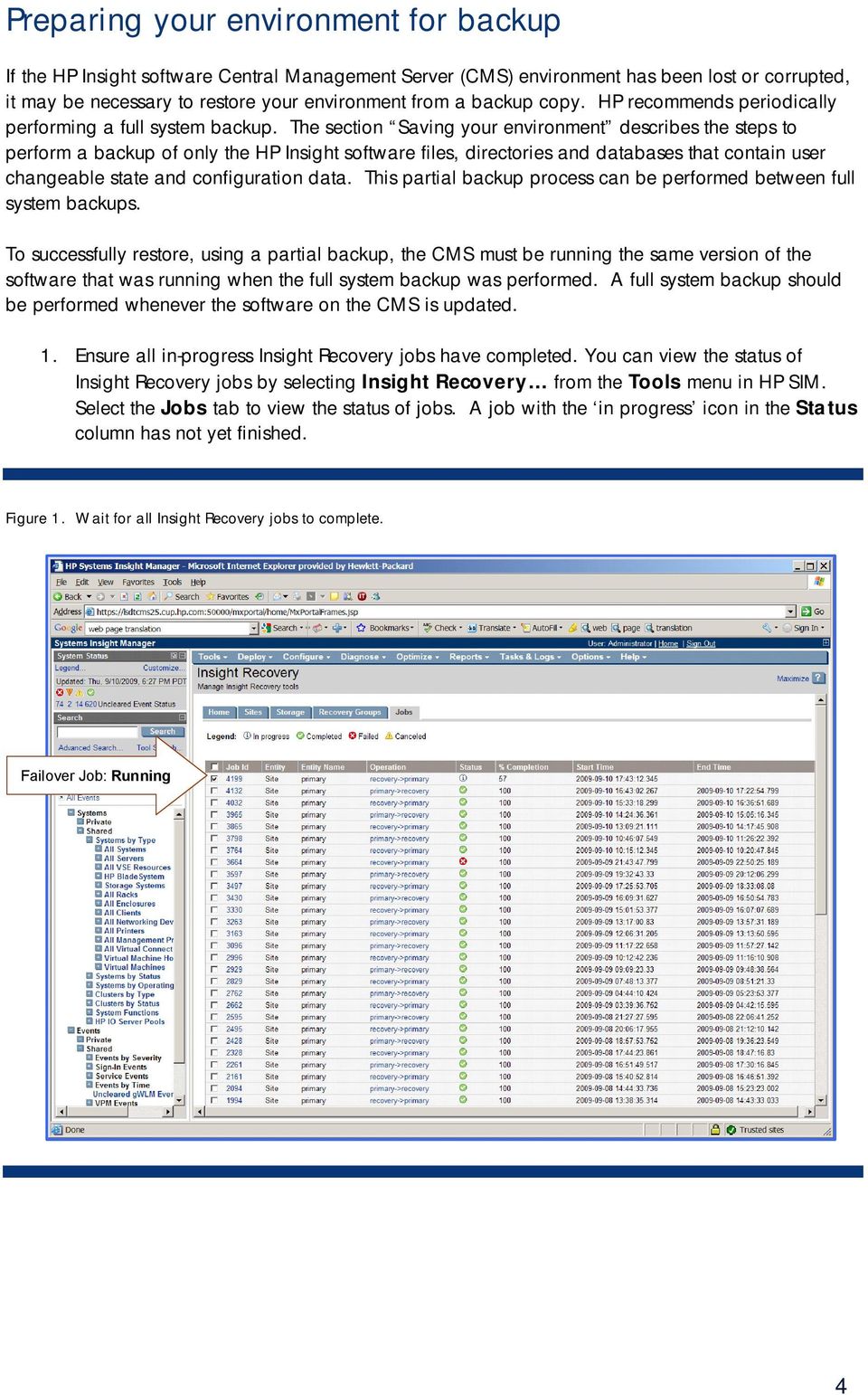
4 Preparing your environment for backup If the HP Insight software Central Management Server (CMS) environment has been lost or corrupted, it may be necessary to restore your environment from a backup copy. HP recommends periodically performing a full system backup. The section Saving your environment describes the steps to perform a backup of only the HP Insight software files, directories and databases that contain user changeable state and configuration data. This partial backup process can be performed between full system backups. To successfully restore, using a partial backup, the CMS must be running the same version of the software that was running when the full system backup was performed. A full system backup should be performed whenever the software on the CMS is updated. 1. Ensure all in-progress Insight Recovery jobs have completed. You can view the status of Insight Recovery jobs by selecting Insight Recovery from the Tools menu in HP SIM. Select the Jobs tab to view the status of jobs. A job with the in progress icon in the Status column has not yet finished. Figure 1. Wait for all Insight Recovery jobs to complete. Failover Job: Running 4
5 2. Ensure no HP Insight Orchestration requests are in-progress. Requests pending approval and scheduled requests may remain scheduled. You can view the status of HP IO requests by selecting Insight Orchestration from the Tools menu in HP SIM and then selecting the Requests tab. Click on the End Date column name to sort the request list. Requests with an empty End Date have not yet finished. Figure 2. Wait for HP Insight Orchestration in-progress requests to complete. Scheduled requests or requests pending approval do not need to complete. 5

6 3. Ensure all in-progress logical server jobs have completed before stopping the HP Logical Server Automation service. Logical server jobs that are in-progress when the service stops will fail. These jobs will need to be resubmitted after restarting the service. You can view the status of logical server jobs by selecting VSE Management from the Tools menu in HP SIM. Use the Reports menu to select the Logical Server Job Status item. Click on the % Complete column name to sort the list of jobs. Figure 3. Wait for all logical server jobs to complete. 6

7 4. Ensure all in-progress Virtual Connect jobs have completed. You can view the status of Virtual Connect jobs by selecting Integrated Consoles -> Virtual Connect Enterprise Manager (VCEM) from the Tools menu in HP SIM. Select the Jobs tab to view the status of jobs. Click on the End Time column name to sort the job list. Jobs displaying an empty End Time have not yet finished. Figure 4. Wait for all in-progress Virtual Connect jobs to complete. 7

8 5. Ensure all in-progress Virtual Machine tasks have completed. You can view the status of Virtual Machine tasks by selecting View Task Results from the Tasks & Logs menu in HP SIM. Click on the End Time column name to sort the task list. Tasks displaying an empty End Time have not yet finished. Figure 5. Wait for all in-progress Virtual Machine tasks to complete. 8

9 6. Ensure all in-progress installation and configuration tasks have completed (e.g., Configure and Repair Agents tasks). You can view the status of the tasks by selecting View Task Results from the Tasks & Logs menu in HP SIM. Click on the End Time column name to sort the task list. Tasks displaying an empty End Time have not yet finished. Figure 6. Wait for all in-progress installation and configuration task to complete. 9

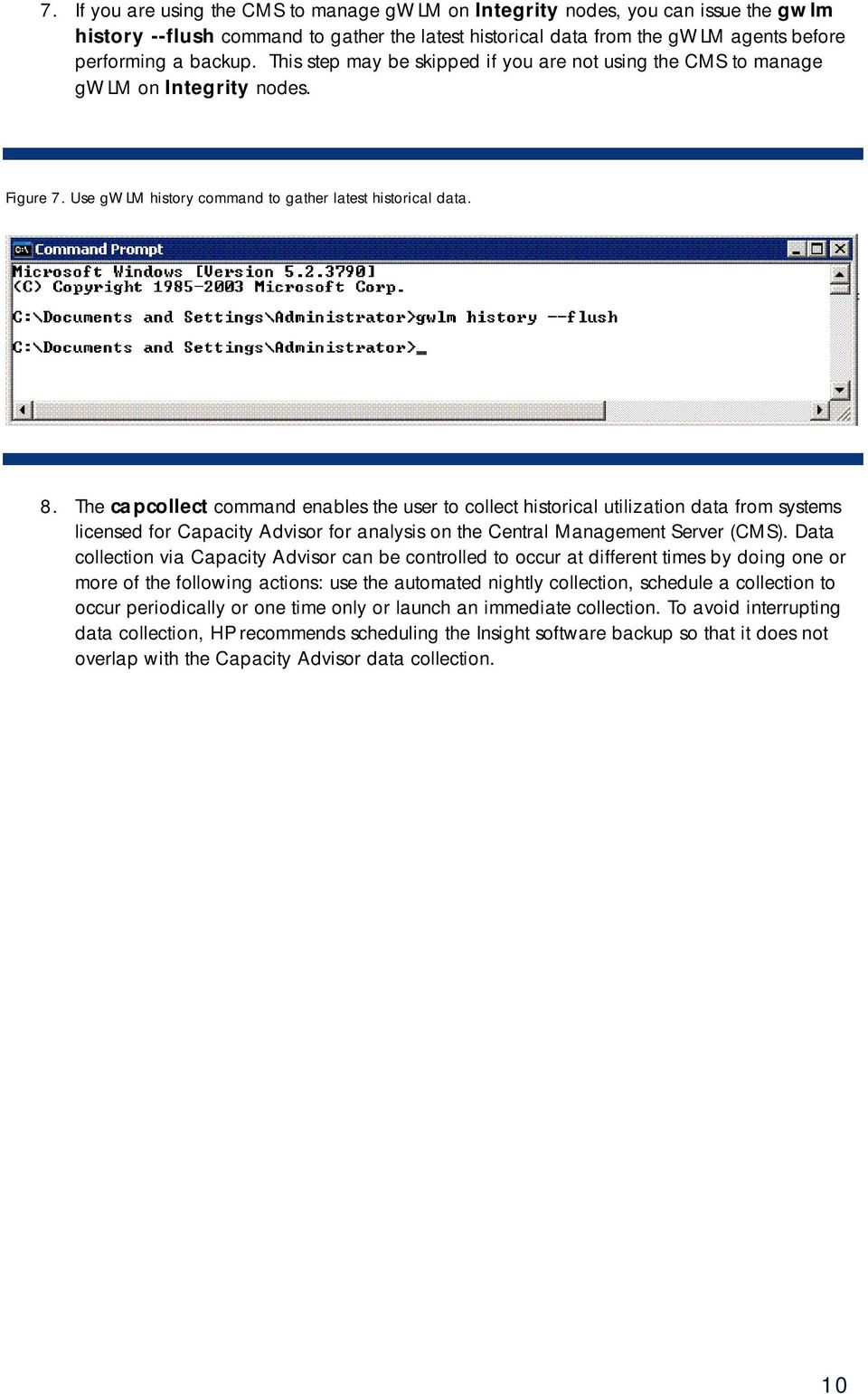
10 7. If you are using the CMS to manage gwlm on Integrity nodes, you can issue the gwlm history --flush command to gather the latest historical data from the gwlm agents before performing a backup. This step may be skipped if you are not using the CMS to manage gwlm on Integrity nodes. Figure 7. Use gwlm history command to gather latest historical data. 8. The capcollect command enables the user to collect historical utilization data from systems licensed for Capacity Advisor for analysis on the Central Management Server (CMS). Data collection via Capacity Advisor can be controlled to occur at different times by doing one or more of the following actions: use the automated nightly collection, schedule a collection to occur periodically or one time only or launch an immediate collection. To avoid interrupting data collection, HP recommends scheduling the Insight software backup so that it does not overlap with the Capacity Advisor data collection. 10
11 9. Although not required, HP recommends waiting for all actively running migrations to complete before stopping the HP Server Migration Pack services. Migrations that are actively running when the services stop will fail. These jobs will need to be resubmitted after restarting the services. You can view the status of the currently running migrations by selecting View Status/Logs tab in HP Server Migration Pack Universal Edition. Figure 8. HP Server Migration Pack - Running Migration Status Screen 10. Before starting a full system backup, HP recommends waiting for all HP Rapid Deployment Pack (RDP) jobs to complete. This step is not required when performing a partial backup. You can use the HP ProLiant Essential Rapid Deployment Pack console, Start -> All Programs ->Altiris -> Deployment Solution -> Console, to view the status of RDP jobs. 11

12 11. Stop the Insight Software services describe in Table 2 in the order defined by the Stop Order column. A sample script to stop the services is provided in Appendix D. Note: If, in your environment, you have implemented a policy to automatically restart stopped services, this policy will need to be temporarily disabled to avoid restarting the services during the backup. Table 2. Insight Software services to stop before backup. Stop Order HP Insight Software Component Service Display Name 1 HP Insight Orchestration (HP IO) RSCentral 2 HP Insight Orchestration (HP IO) RSJRAS 3 HP Insight Orchestration (HP IO) RSScheduler 4 HP Insight Orchestration (HP IO) HP Insight Orchestration 5 The HP Insight Dynamics VSE suite for Proliant HP Logical Server Automation 6 The HP Insight Dynamics VSE suite for Proliant HP Application Discovery 7 The HP Insight Dynamics VSE suite for Proliant HP Global Workload Manager Central Management Server 8 The HP Insight Dynamics VSE suite for Proliant HP Agentless Data Collector Service 9 HP Virtual Machine Management Pack (VMM) HP Virtual Machine Management Service 10 HP Systems Insight Manager (HP SIM) HP Systems Insight Manager 11 HP Insight Server Migration Software for ProLiant HP Insight Server Migration software Application Service 12 HP Insight Server Migration Software for ProLiant HP Insight Server Migration software Web Service 13 HP Version Control Repository Manger (VCRM) HP Version Control Repository Manager 14 System Management Homepage (SMH) HP System Management Homepage The following Insight Software services may remain running during backup. HP Insight Software Component Service Display Name Comment OpenSSH Services for HP Systems Insight Manager WMI Mapper for HP Systems Insight Manager WMI Mapper for HP Systems Insight Manager OpenSSH Server Pegasus WMI Mapper Pegasus WMI Mapper Indications Service Indications sent while the WMI Mapper services are not running may be lost. Indications sent while the WMI Mapper services are not running may be lost. 12

13 Saving your environment If the HP Insight software Central Management Server (CMS) environment has been lost or corrupted, it will be necessary to restore your environment from a backup copy. HP recommends periodically performing a full system backup. A partial backup of the HP Insight software files, directories and databases that contain user changeable state and configuration data can be performed between full system backups. Important: To successfully restore the HP Insight software files, the CMS must be running the same version of the software that was running when the full system backup was performed. A full system backup should be performed whenever the software on the CMS is updated. The first part of this section describes the steps to perform a full system backup of the CMS. Table 3 contains a high-level description of these steps. Table 3. Overview of the steps to perform a full system backup. Step mxsync-svcutil stop backup Action 1 mxsync-svcutil manual 2 Using the tool of your choice, perform a full system backup of the CMS. 3 mxsync-svcutil auto mxsync-svcutil start 1. By default, the Windows services startup type of the Insight software services is set to Automatic. When performing a full system backup, HP recommends temporarily changing the startup type to Manual so that the startup type in the backup copy is Manual. In the event a restore is necessary, this will prevent the services from starting before the recovery process is complete. Table 4 provides a list of the Insight software service names. At a minimum, the state of the HP Insight Orchestration service must be changed to Manual. A sample script to change the startup type of the services to Manual is provided in Appendix D. 2. Using the tool of your choice, perform a full system backup of the CMS. 3. After the backup is complete, the startup type of the Insight software Windows services should be reset to Automatic for normal operations. A sample script to change the startup type to Automatic is provided in Appendix D. 13

14 Table 4. List of HP Insight software service names. HP Insight Software Component Service Display Name Service Name HP Insight Orchestration (HP IO) RSCentral RSCentral HP Insight Orchestration (HP IO) RSJRAS RSJRAS HP Insight Orchestration (HP IO) RSScheduler RSScheduler HP Insight Orchestration (HP IO) HP Insight Orchestration hpio The HP Insight Dynamics VSE suite for Proliant The HP Insight Dynamics VSE suite for Proliant The HP Insight Dynamics VSE suite for Proliant The HP Insight Dynamics VSE suite for Proliant HP Virtual Machine Management Pack (VMM) HP Logical Server Automation HP Application Discovery HP Global Workload Manager Central Management Server HP Agentless Data Collector Service HP Virtual Machine Management Service HP Logical Server Automation AppDisc HP Global Workload Manager CMS hp_agentless_service hpvmmsvc HP Systems Insight Manager (HP SIM) HP Systems Insight Manager HP Systems Insight Manager HP Insight Server Migration Software for ProLiant HP Insight Server Migration Software for ProLiant HP Version Control Repository Manger (VCRM) System Management Homepage (SMH) OpenSSH Services for HP Systems Insight Manager WMI Mapper for HP Systems Insight Manager WMI Mapper for HP Systems Insight Manager HP Insight Server Migration software Application Service HP Insight Server Migration software Web Service HP Version Control Repository Manager HP System Management Homepage OpenSSH Server Pegasus WMI Mapper Indications Service Pegasus WMI Mapper hpsmpsvc hpwebsmpsvc cpqsrhmo SysMgmtHp OpenSSHd WbemConsumer WMI Mapper 14

15 The remainder of the section describes the steps to perform a partial backup of the HP Insight software files, directories and databases that contain user changeable state and configuration data. This partial backup process can be performed between full system backups. Table 5 contains a highlevel description of these steps. Table 5. Overview of the steps to perform a partial backup. Step mxsync-svcutil stop backup Action 1 Using the file management tool of your choice, save the directories and files listed in Table 7. 2 Using the tool of your choice, perform a full backup of the databases listed in Table 6. 3 mxsync-svcutil start 4 Schedule a Windows task to save the HP Insight Orchestration network definition files between backups. This step is optional but recommended in environments where HP IO services are frequently created and deleted. To save the HP Insight Software data files and databases, proceed as follows: 1. Using the file management tool of your choice, save the directories and files listed in Table 7. For each occurrence of a bracketed variable (e.g., <SIM> ), substitute the actual installation path (e.g., C:\Program Files\HP\Systems Insight Manager). Table 6 describes the default installation directories for the HP Insight Software DVD v3.10. Although recommended, it is not necessary to save the log directories and files marked below as Optional. Note: You must use a file management tool that preserves file and directory permissions (such as the Windows Backup tool). 15

16 Appendix C contains a fully qualified path list of the directories and files described in Table 7. This list was created using the default installation directory settings described in Table 6. Table 6. Default Insight Software Installation Directories Symbol Component Default Installation Directory <ALC> HP IO <SystemDisk>Program Files\HP\ALC <HP> <SystemDisk>Program Files\HP <HPIO> HP IO <SystemDisk>Program Files\HP\Insight Orchestration <HPIR> HP IR <SystemDisk>Program Files\HP\Insight Recovery <HPOO> HP IO <SystemDisk>Program Files\HP\Operations Orchestration <OpenSSH> HP SIM <SystemDisk>Program Files\HP\OpenSSH <SIM> HP SIM <SystemDisk>Program Files\HP\Systems Insight Manager <SMH> SMH <SystemDisk>hp\hpsmh <SMP> SMP <SystemDisk>Program Files\HP\Server Migration Pack - Universal Edition <SystemDisk>Program Files (x86)\hp\server Migration Pack - Universal Edition <SystemDisk> C:\ <VCEM> VCEM C:\Program Files\HP\Virtual Connect Enterprise Manager <VCRMRep> VCRM <SystemDisk>Repository <VMM> VMM <SystemDisk>Program Files\HP\Virtual Machine Management <VSE> ID-VSE <SystemDisk>Program Files\HP\Virtual Server Environment <VSEData> ID-VSE <SystemDisk>Documents and Settings\All Users\Application Data\HP\Virtual Server Environment <UserProfile> HP SIM <SystemDisk>Documents and Settings\{username} <WMIMapper> HP SIM <SystemDisk>Program Files\The Open Group\WMI Mapper 16

17 Table 7. Insight Software Data Directories and Files Directory or File Optional Description <ALC>\Folders\ No HP Insight Orchestration configuration files <HP>\VMMTemplateLib\ No HP Virtual Machine Management Pack data files. Note: This directory is used to store the virtual machine backup and virtual machine template information created using Virtual Machine Management Pack. <HPIO>\conf\ No HP Insight Orchestration configuration files <HPIO>\logs\ Yes HP Insight Orchestration log files <HPIO>\data\ No HP Insight Orchestration network definition files <HPIR>\conf\ No HP Insight Recovery configuration files <HPIR>\logs\ Yes HP Insight Recovery log files <HPIR>\STORAGE\EVA\bin\clxevacfg No HP Insight Recovery credentials <HPIR>\STORAGE\EVA\conf No HP Insight Recovery configuration files <HPIR>\STORAGE\EVA\log Yes HP Insight Recovery log files <HPOO>\Central\conf\ No HP Operations Orchestration configuration files <HPOO>\Central\logs\ Yes HP Operations Orchestration log files <HPOO>\Central\rasrepo\ No HP Operations Orchestration data files <HPOO>\Central\rcrepo\ No HP Operations Orchestration data files <HPOO>\RAS\Java\Default\webapp\logs\ Logs where HP IO RAS java usage gets logged <HPOO>\Studio\conf\ No HP Operations Orchestration Studio configuration files <HPOO>\Studio\logs\ Yes HP Operations Orchestration Studio log files <HPOO>\Studio\rasrep\ No HP Operations Orchestration Studio data files <HPOO>\Studio\studiorep\ No HP Operations Orchestration Studio data files <OpenSSH>\etc\ No Save the OpenSSH keys. <SIM>\bin\CLIClientConfig.cfg No CLI configuration file <SIM>\bin\server_cert.pem No Certificate used by the Command Line Interface (CLI) <SIM>\config\ No HP Systems Insight Manager configuration files <SIM>\Install PSP\ No HP ProLiant Support Packs (PSP) data files <SIM>\log\Alc*.log Yes HP Insight Orchestration log files <SIM>\logs\mx.log Yes HP Systems Insight Manager audit log file <SIM>\mibs\ No Save any existing user-supplied or modified Management Information Bases (MIBs). <SIM>\output\ Contains job result output <SIM>\patch\ No Program updates (required if you want to reinstall HP SIM), this may be empty 17

18 Directory or File Optional Description <SIM>\tools\ No Save any existing user-supplied or modified tool definition files (TDEFs). <SMH>\certs\ No Directory containing the imported HP SIM certificates. <SMH>\conf\ No System Management Homepage configuration files <SMH>\data\cgibin\vcrepository\cpqsrhmo.log <SMH>\data\cgibin\vcrepository\cpqsrhmo.settings Yes No HP Version Control Repository Manager log file. HP Version Control Repository Manager configuration file. Note: The cpqsrhmo.settings file is encrypted. If a full system backup is not available and it becomes necessary to reinstall VCRM, the archived copy of this file will not be usable. The Administrator will need to manually reconfigure the VCRM settings using the configure the repository and automatic update settings in VCRM. <SMH>\data\cgi-bin\vcrepository\vcainf.xml No HP Version Control Repository Manager configuration file. <SMH>\data\webapp-data\ No System Management Homepage webapp related data. <SMH>\logs\ Yes System Management Homepage log files. <SMH>\session\ No System Management Homepage session directory. Subdirectories are used to store temporary session data. <SMH>\tomcat\ No System Management Homepage directory containing tomcat configuration files, log files, executables, other files of java based plug-ins and also working files produced by tomcat. Note: This directory may not exist. <SMH>\webapp\ No System Management Homepage webapp integration xml files. <SMP>\bin\hpvmm.conf No HP Server Migration Pack Universal Edition configuration file <SMP>\db\ No HP Server Migration Pack Universal Edition online hibernate database file <SMP>\log\ Yes HP Server Migration Pack Universal Edition log files <SystemDisk>\hp\sslshare No Shared HP OpenSSL certificate directory <UserProfile>\.ssh\ No OpenSSL user certificate directory <VCEM>\cfg\mvcd-config.xml No HP Virtual Connect Enterprise Manager configuration file <VCRMRep> No HP Version Control Repository Manager repository directory. Note: You can use VCRM to determine the location of the Repository. Select the configure the repository and automatic update settings in VCRM. The location will be display in the Directory field in the Repository Directory dialog. Please refer to the "HP Version Control Repository 18

19 Directory or File Optional Description Manager" document for additional information. <VMM>\bin\hpglobal.conf No HP Virtual Machine Management Pack configuration file <VMM>\bin\hpvmm.conf No HP Virtual Machine Management Pack configuration file <VMM>\bin\hpvmmdb.conf No HP Virtual Machine Management Pack configuration file <VMM>\bin\windows\hpvmmsvc.conf No HP Virtual Machine Management Pack configuration file <VMM>\bin\windows\hpvmmweb.conf No HP Virtual Machine Management Pack configuration file <VMM>\log\ Yes HP Virtual Machine Management Pack log files <VSE>\conf\ No HP Insight Dynamics VSE configuration files <VSE>\config\ No HP Insight Dynamics VSE configuration files <VSE>\data\ No HP Insight Dynamics VSE data files <VSE>\lbin\capadcollector.nodes No HP Insight Dynamics VSE configuration files HP Capacity Advisor node list configuration file <VSE>\lbin\capadcollector.properties No HP Insight Dynamics VSE configuration files HP Capacity Advisor node list property file <VSE>\logs\ Yes HP Insight Dynamics VSE log files <VSE>\lsadb\ No HP Insight Dynamics VSE logical server data files <VSE>\userprefs No HP Insight Dynamics VSE configuration files <VSEData>\ No HP Insight Dynamics VSE data directory. Note: The <VSEDataLocation> entry refers to the value of the HKEY_LOCAL_MACHINE\SOFTWARE\Hewl ett-packard\virtual Server Environment\DataLocation registry entry. <WMIMapper>\cimserver_planned.conf No OpenPegasus WMI Mapper configuration file <WMIMapper>\client.pem No OpenPegasus WMI Mapper client certificate <WMIMapper>\file.pem No OpenPegasus WMI Mapper server certificate key <WMIMapper>\logs\ Yes OpenPegasus WMI Mapper log files <WMIMapper>\server.pem No OpenPegasus WMI Mapper server certificate <WMIMapper>\ssl.cfg No OpenPegasus WMI Mapper configuration file 19

20 2. Using the tool of your choice, perform a full backup of the databases listed in Table 8. The database backup must be sufficient to restore the entire database, including schema as well as data. Table 8. - Insight Software Databases Component HP Systems Insight Manager (HP SIM) HP Performance Management Pack (PMP) HP Virtual Machine Management Pack (VMM) The HP Insight Dynamics VSE suite for Proliant HP Insight Orchestration (HP IO) HP Insight Orchestration (HP IO) HP Insight Recovery (HP IR) Database Insight_v* PMP_V* hpvmmsqldb gwlm hpio Oo lsdt Security Note: The archived files and databases contain confidential information including credential data. Access to this data should be careful controlled. 3. Start the Insight Software services described in Table 2 in the reverse of the order described by the Stop Order column. A sample script to stop the services is provided in Appendix D. 4. HP recommends scheduling a Windows task to frequently save the HP Insight Orchestration network definition files between backups. These files contain the current status of the HP IO networks and are stored in the <HPIO>\data\ directory. There is one XML file, Subnet_<network name>.xml, for each network. During the restore process, it will be possible to use these files to reduce the effort required to identify the IP addresses that were allocated after backup. Note: To support automatic provisioning, HP Insight Orchestration maintains a pool of available IP addresses for each network defined in HP IO. After restore, IP addresses allocated after the last backup, but before the catastrophic failure occurred, will be incorrectly marked as available and need to be fixed up. Please refer to the mxsync HP Insight Orchestration Synchronization section in Appendix A for additional details. 20

21 Preparing your environment for restore Prior to performing a restore, the following steps may be used to quiesce the environment. 1. If your environment is still operational, you may want to follow the steps defined in the section Preparing your environment for backup to allow in-progress operations to complete. 2. If running, stop the Insight Software services describe in Table 9 in the order defined in the Stop Order column. A sample script to stop the services is provided in Appendix D. Note: If, in your environment, you have implemented a policy to automatically restart stopped services, this policy will need to be temporarily disabled to avoid restarting the services during the recovery process. Table 9. Insight Software services to stop prior to restore. Stop Order HP Insight Software Component Service Display Name 1 HP Insight Orchestration RSCentral 2 HP Insight Orchestration RSJRAS 3 HP Insight Orchestration RSScheduler 4 HP Insight Orchestration HP Insight Orchestration 5 HP Virtual Server Environment Management Software HP Logical Server Automation 6 HP Virtual Server Environment Management Software HP Application Discovery 7 HP Virtual Server Environment Management Software HP Global Workload Manager Central Management Server 8 HP Virtual Server Environment Management Software HP Agentless Data Collector Service 9 HP Virtual Machine Management Pack HP Virtual Machine Management Service 10 HP Systems Insight Manager HP Systems Insight Manager 11 HP Insight Server Migration Software for ProLiant HP Insight Server Migration software Application Service 12 HP Insight Server Migration Software for ProLiant HP Insight Server Migration software Web Service 13 HP Version Control Repository Manger (VCRM) HP Version Control Repository Manager 14 System Management Homepage (SMH) HP System Management Homepage 15 OpenSSH Services for HP Systems Insight Manager OpenSSH Server 16 WMI Mapper for HP Systems Insight Manager Pegasus WMI Mapper Indications Service 17 WMI Mapper for HP Systems Insight Manager Pegasus WMI Mapper 21
22 Restoring your environment The section describes the steps to restore your environment from backup. Table 10 contains a highlevel description of the restore and recovery steps. Table 10. Overview of restore and recovery steps. Step Action mxsync-svcutil stop restore Restoring your environment 1-4 Using the tools of your choice, restore the Insight software environment from backup. 1 mxsync-e Completing the recovery process Note: Execution mode (-e) should only be enabled if a backup copy of the Insight software databases and data files is available. 2 mxsync-svcutil auto 3 mxsync-svcutil start 4-8 Where necessary, manually re-issue the operations that were performed after backup. 1. If necessary, first restore the CMS environment from the full system backup. Warning: Before proceeding, please be sure that all Insight software services are stopped. Refer to Table 9 for a list of services to stop. A sample script to stop the services is provided in Appendix D. 2. Using the file management tool of your choice, restore the directories and files listed in Table 7. You must use a tool that preserves file and directory permissions (such as the Windows Backup tool). 3. Using the tool of your choice, restore the databases listed in Table 8. You must restore each database using the same database name that existed when the database was saved. 4. If you have saved a more recent version of the HP Insight Orchestration network files, <HPIO>\data\Subnet_<network name>.xml, overwrite the restored versions with the more up-to-date copies. 22
23 Completing the recovery process Changes to managed resources that occur after backup but before the failure occurred, referred to in this document as post-backup activity, can affect the recovery process. Examples of post-backup activity include activating or deactivating a logical server, placing an HP IO service on Standby, deleting an HP IO service or logical server, and adding or deleting an HP IR recovery group. To complete the recovery process, the Insight software solution stack components need to resynchronize. Note: The purpose of the mxsync tool is to place the solution stack in a consistent state. Most operations that occurred after backup will need to be manually re-entered. HP recommends backing up the environment frequently. 1. Run the mxsync command line utility and follow the displayed instructions. The mxsync command line utility is provided as an aid to guide the Administrator through the process of synchronizing the Insight software environment with the current state of managed resources. Appendix A contains a description of the HP mxsync Utility. Appendix B contains the output from a sample run of mxsync. Note: The installation directory for the mxsync utility is <HPSIM>\mxsync\bin directory. The fully qualified path for the mxsync command is <HPSIM>\mxsync\bin\mxsync. If, as a post-backup activity, a VC Domain was added to or removed from a VC Domain Group, the Add VC Domain/Remove VC Domain operation will need to be reissued to synchronize the state of the VC Domain with the restored VCEM database. To avoid the manual steps required to perform this resynchronization, HP strongly recommends backing up the environment whenever a VC Domain is added or removed from a VC Domain Group. Appendix F contains a description of the steps required to reissue these operations. 2. Verify that the startup type for the HP Insight software services is set to Automatic. Table 9 provides a list of the HP Insight software names. A sample script to change the startup type is provided in Appendix D. 3. After all mxsync synchronization phases have completed successfully, you may now start the services described in Table 9 in the reverse order defined by the Stop Order column. Depending on your configuration, several of these services may have been started during the previous step. A sample script to start the services is provided in Appendix D. 23
24 4. You may need to perform the following manual steps to resynchronize the VM-based logical servers that were modified after backup. a. If a logical server was activated, as a post-backup activity, the state of the logical server in the restored ID-VSE database (i.e., deactivated) will be out-of-sync with the state of the managed VM (i.e., activated). Until the states are synchronized, the logical server will not be fully manageable by ID-VSE. To synchronize the state, without changing the state of the underlying VM, you will need to first unmanage and then re-import the logical server. To unmanage the logical server, select VSE Management from the Tools menu in HP SIM. From the Logical Servers perspective select the logical server to be resynchronized. Select Unmanage Logical Server from the Delete menu. To import the VM, select VSE Management from the Tools menu in HP SIM. Select the VM to be imported and select Logical Servers->Import from the Tools menu to perform the import. b. If a logical server was deactivated, as a post-backup activity, the state of the logical server in the restored ID-VSE database (i.e., activated) will be out-of-sync with the state of the managed VM (i.e., deactivated). Until the states are synchronized, the logical server will not be fully manageable by ID-VSE. To synchronize the states, you will need to reissue the ID-VSE deactivate request. However, before performing this operation you will need to temporarily activate the VM using the underlying VM management infrastructure. For details, please refer to the procedures described in Appendix E. Note: Depending on the state of the HP SIM database, it may be necessary to re-identify the VM host at this point. Once the VM has been successfully activated, select VSE Management from the Tools menu in HP SIM. Select Logical Servers->Refresh from the Tools menu in VSE Management. Select Refresh of Virtual Machine Resources. Click Refresh. You can now use ID-VSE to deactivate the logical server by selecting VSE Management from the Tools menu in HP SIM. From the Logical Servers perspective select the logical server to be activated. Select Logical Servers -> Activate from the Tools menu. 5. You may need to perform the following manual steps to resynchronize logical servers that were modified after backup. a. If a logical server was deleted, as a post-backup activity, you may need to manually delete the logical server definition from the restored ID-VSE database. Select VSE Management from the Tools menu in HP SIM. From the Logical Servers perspective select the logical server to be deleted. Select Delete Logical Server from the Delete menu. If the underlying resource has already been deleted, the delete operation will fail and you will need to perform an Unmanage Logical Server. For VM-based logical servers, if the logical server was active at the time the backup was taken, you will need to perform an Unmanage Logical Server. b. If a logical server was created, as a post-backup activity, you may need to manually import the logical server to add the definition to the restore ID-VSE database. You can 24
25 import the logical server by selecting VSE Management from the Tools menu in HP SIM. Select Logical Servers->Import from the Tools menu in Virtualization Manager. c. If a logical server definition was modified after backup (e.g., Identity, Compute, Storage or Network), these changes will need to be manually re-entered after resynchronization has successfully completed. Note: If a VC-based logical server, created after backup, was deactivate when the failure occurred, the VC profile definition will be lost and the logical server will need to be recreated. 6. You may need to perform the following manual steps to resynchronize the HP IO services. Note: The HP Insight Orchestration Windows service will initiate a refresh on startup. Once running, a refresh will be run once an hour. Therefore, it may take up to an hour for HP IO to detect changes. If there are no HP Insight Orchestration jobs running, you can restart the HP Insight Orchestration service to accelerate detection of the changes. a. If an HP IO service was resumed, as a post-backup activity, the state of the HP IO service in the restored HP IO database (i.e., Standby) will be out-of-sync with the state of the associated logical servers (i.e., activated). To resynchronize the state in the HP IO database, the resume request will need to be reissued to update the state of the service in the restored HP IO database. Select Insight Orchestration from the Tools menu in HP SIM. From the Services tab select the service to be placed on Standby. Click Resume servers. After the resume operation has completed, the HP IO service will be manageable, however, under the Resource Details tab, the Resource ID may be incorrect. During the next HP IO refresh, the Resource ID will be updated to the correct value. b. If an HP IO service was placed on Standby, as a post-backup activity, the state of the HP IO service in the restored HP IO database (i.e., Active) will be out-of-sync with the state of the associated logical servers (i.e., deactivated). To resynchronize the state in the HP IO database, the Standby request will need to be reissued to update the state of the service in the restored HP IO database. Select Insight Orchestration from the Tools menu in HP SIM. From the Services tab select the service to be placed on Standby. Click Standby servers. c. If an HP IO service was deleted, as a post-backup activity, you will be able to delete the HP IO service from the restored HP IO database during the execution of mxsync (phase 2 in the HPIO section). However, you may need to manually delete the associated logical server definition by selecting VSE Management from the Tools menu in HP SIM. From the Logical Servers perspective select the logical server to be deleted. Select Delete Logical Server from the Delete menu. For VM-based logical servers, if the logical server was active at the time the backup was taken, you will need to perform an Unmanage Logical Server. 7. For HP Insight Recovery configurations, if you have restored and resynchronized the primary site CMS, you must ensure the recovery site is updated to reflect the changes made to the primary site configuration. Please refer to the HP Insight Recovery 1.0 Online Help for details on how to export and import HP IR configuration data. 25
26 Note: After resynchronization is complete, HP recommends performing a planned failover/failback to verify the HP IR configuration. 8. Most changes made after the backup was taken will need to be manually re-entered. Examples include, but are not limited to, adding or deleting a logical server or HP IO services, network configuration changes, storage configuration changes, adding or removing VC Domain or VC Domain Groups, license changes, monitored workload definition changes, and user preference changes. Note: HP recommends backing up the environment after making configuration changes to the Insight software environment. 26
27 References Refer to the following for more information regarding the topics discussed in this paper. 1. For HP Insight Software product documentation, click Technical Documentation under the Tools and Resources section at 2. For HP Insight Dynamics VSE product documentation, click Product Documentation under the Quick Links section at 3. For HP Insight Orchestration product documentation, click Support & Documents under the Support section at 4. For HP Insight Recovery product documentation, click Support & Documents under the Support section at 27
28 Appendix A HP Insight mxsync Utility man page The HP Insight mxsync Utility man page is included in this Appendix. Appendix B contains the output from a sample run of mxsync. A user running mxsync must have administrator privileges on both the CMS and database servers, have administrative privileges to the Insight Dynamics VSE database, and be a valid HP SIM user. NAME mxsync - eases the task of synchronizing an Insight Software CMS environment that has been restored from backup with the state of the managed resources. This utility can be used to identify potential inconsistencies, recommend corrective actions, and perform most recommended actions. SYNOPSIS mxsync [--help] [--version] [-e] [-c] DESCRIPTION If the HP Insight software Central Management Server (CMS) environment becomes lost or corrupted, it may be necessary to restore the environment from a backup copy. The mxsync utility guides the Administrator through the process of synchronizing an Insight software CMS environment that has been restored from backup with the state of the managed resources. The mxsync tool is divided into five sections that are executed sequentially in the following order: HP Systems Insight Manager (HP SIM), Virtual Connect Enterprise Manager (VCEM), HP Insight Dynamics Logical Server (ID-VSE), HP Insight Orchestration (HP IO) and HP Insight Recovery (HP IR). Each section is responsible for identifying inconsistencies between its representation of a resource and that of the underlying layer. A section consists of one or more phases. A phase defines an analysis and execution step for a specific synchronization activity. 28
29 Section Phase Synchronization Activity HP SIM 1 Discover any system changes that may have occurred after backup was performed. VCEM 1 Ensure WWN and MAC address assigned to a VCEM profile have not been reassigned to a different VC profile. Ensure WWN and MAC addresses allocated to VC profiles, after backup, have been correctly marked as External in the VCEM database. 2 Resynchronize each VC domain managed by VCEM. ID-VSE Ensure the ID- VSE logical server network, storage and bay assignment definitions are consistent with the underlying VCEM profile definitions. Ensure WWN and MAC addresses assigned to an ID-VSE logical server are still owned by ID-VSE and have not been reassigned to a different VCEM profile. Ensure WWN addresses assigned to ID-VSE storage pool entries (SPE) are still allocated to ID- VSE and associated with VCEM profiles that are managed by IS-VSE. 1 HP IO 2 3 HP IR 1 HP IR 2 Terminate HP Insight Orchestration requests that were in-progress when the backup was taken or requests that were scheduled to run after the backup but before the restore. This is necessary to prevent the HP Insight Orchestration Windows service from attempting to restart a request that may have already completed. Update the HP IO database to remove the definition of HP IO services that were deleted post-backup. Update the HP IO database to mark, as allocated, any IP address that was allocated after backup. Start the HP Logical Server Automation service since it is needed for HP IR resynchronization Use an up-to-date HP IR configuration export file to install any postbackup HP IR configuration changes. If any protected Logical Servers have been deleted, delete the corresponding IR recovery groups as necessary. The mxsync tool supports two modes of operation, an analysis-only mode and an execution mode. By default, mxsync runs in an analysis-only mode. When started in an analysis-only mode, all execution steps will be skipped and no updates will be made to the restored database or files. The analysis-only mode can be used to preview the recommended changes for the next synchronization phase. Warning: When run in analysis-only mode, an unresolved issue in one phase can cause subsequent analysis phases to report incomplete or incorrect results. Warning: When run in execution mode, all issues identified in a phase must be resolved before proceeding to the next phase. mxsync Initialization As a general rule, the Insight software Windows services should not be running during the execution of mxsync. However, the mxsync tool does depend on several HP Insight software Windows services to perform the analysis and execute steps. Prior to starting the synchronization activity, the mxsync tool will check the status of the Insight software services and recommend actions for stopping and starting services. 29
30 When run in execution mode, if you respond y to the prompt to make the recommended changes, the required services will be started and the non-required Insight software services will be stopped. When run in analysis-only mode, the mxsync tool does not make any changes to the running state of the Windows services. If the required services are not started, the mxsync tool will exit with an error. You will need to manually start the services to run mxsync. If non-required services are running, mxsync will allow the analysis to proceed. However, a warning will be displayed stating that in-progress operations may cause mxsync to report non-existent issues. If issues are identified, when the system is quiesced, the services should be stopped and the analysis rerun. Service required by mxsync Service Display Name Analysis-only Requirement by section Execution HP Logical Server Automation HP IR HP IR HP Virtual Machine Management Service HP SIM HP SIM HP Systems Insight Manager All All OpenSSH Server HP SIM HP SIM Note: If, in your environment, you have implemented a policy to automatically restart stopped services, this policy will need to be temporarily disabled to avoid restarting the services during the recovery process. Warning: Although selected services are started by the mxsync tool, executing operations that change the state of managed resources should be avoided until resynchronization is complete. mxsync HP SIM Synchronization Section To discover system changes that may have occurred after the backup was created, during the execution step, you will be asked to connect to HP SIM, login as Administrator and run HP SIM tasks to discover Onboard Administrators, hypervisor host operating systems, and operating systems deployed on blades, VM guests and stand-alone servers. The mxsync tool will pause while you complete discovery. Once discovery is complete, you can return to mxsync to continue the synchronization process. For more information about performing an HP SIM discovery, see the HP Systems Insight Manager 5.3 Technical Reference Guide. If, as a post-backup activity, managed resources were added to the discovery tasks, or credential or licenses were added or modified, these changes should be made before running discovery. mxsync HP Virtual Connect Enterprise Manager Synchronization Section During this section the restored VCEM database will be resynchronized with the actual state of the VC Domains managed by VCEM. There are two phases in this section. During the first phase, the mxsync tool will analyze the WWN and MAC addresses assigned to profiles in the VC domains managed by VCEM to identify addresses that may have been allocated or reassigned after backup. 30
31 An address could have been allocated if, for example, as a post-backup activity, a VC-based logical server or HP IO service was created. To prevent a post-backup allocated address from incorrectly being reassigned to a second server, during the execution step of this phase, the mxsync tool will mark these addresses as External in the VCEM database. An address could have been reassigned if a VC-based logical server was deleted, the address freed and then reassigned to a new logical server. To eliminate the conflict caused by reassigning an address to a different VC profile, during the execution step of this phase, the mxsync tool will delete the definition of the VCEM profile that contains the reassigned address. If, as a post-backup activity, a VC Domain was added to or removed from a VC Domain Group, the VC Domain will no longer be accessible to VCEM after the VCEM database has been restored from backup. During phase 1, you will be given the opportunity to provide the credentials for the added or removed VC Domain. This will allow mxsync to access the VC Domain to identify any WWN or MAC addresses that were assigned to the VC Domain after backup. If no VC Domains were added or removed after backup, you can respond n to the prompt to provide credentials. During the second phase, the mxsync tool will issue requests to VCEM to resynchronize each VC domain managed by VCEM. Note: During the analysis step of phase 2, mxsync will display an ISSUE for each VC Domain managed by VCEM stating that the VC Domain MAY need to be synchronized with VCEM. This is only a potential issue. The test to check if the VC Domain is out of sync will temporarily place the VC Domain in maintenance mode and therefore can only be performed during the execution step. If, as a post-backup activity, a VC Domain was added to or removed from a VC Domain Group, you will need to manually re-issue the Add to VC Domain or Remove From VC Domain operation to successfully complete phase 2. mxsync HP Insight Dynamics Logical Server Synchronization Section During this section, the restored HP Insight Dynamics database will be updated to reflect the changes made to the VCEM database during the previous section. There are three phases in this section. During the first phase, the mxsync tool will analyze each logical server definition to ensure the underlying VCEM profile exists and the network, storage and bay assignment configuration data stored in the ID-VSE database are consistent. The restored logical server definition can be out-of-date if, for example, as a post-backup activity, the logical server was deactivated. Note: If a logical server definition was modified after backup, these changes will need to be manually re-entered after resynchronization has successfully completed. During the second phase, the mxsync tool will analyze each logical server definition to ensure the assigned WWN and MAC addresses are still allocated to Insight Dynamics - VSE (ID-VSE) and have not been reassigned to another VCEM profile. The latter can happen if, for example, as a post-backup activity, the logical server was deleted, the addresses freed and then reassigned to a new server. To prevent two servers from using the same address, during the execution step of this phase, the mxsync tool will delete reassigned MAC addresses from the logical server definition and, in the case of duplicate WWN address, delete the logical server definition. 31
32 During the third and final phase, the mxsync tool will analyze each storage pool entry (SPE) definition to ensure the assigned WWN addresses are still allocated to ID - VSE and correctly associated with the defined VCEM profiles. The state of a WWN address can be incorrect if, for example, as a post-backup activity, a logical server was created using the pre-defined SPE. To resolve the inconsistency, the VCEM profile containing the WWN address assigned to the SPE will be imported. mxsync HP Insight Orchestration Synchronization Section During this section, the restore HP Insight Orchestration database will be updated. There are three phases in this section. During the first phase, the mxsync tool will analyze the scheduled, pending approval or in-progress requests. Note: HP IO maintains the state of requests in the HP IO database. On restart, the HP IO service will attempt to restart requests that are in-progress or start scheduled requests that are past due to run. Because the state of the underlying environment may have changed significantly since the database was saved, executing, or even cancelling, these requests can have undesirable side-effects (e.g., activating or deactivating production servers, or incorrectly allocating or freeing resources). To prevent the HP IO service from attempting to restart requests that may have already completed, during the execution step of this phase, the mxsync tool will terminate requests that were in-progress when the backup was taken or scheduled to run before the restore. The list of requests to be terminated will be displayed during the analysis step. During the second phase, you will be asked to identify services that have been deleted after backup. To help with this effort the mxsync tool will create a file, <HPSIM>\mxsync\data\InfrastructureServices.txt, containing a list of the HP IO services defined in the restored database. Prior to performing the execution step, you will be asked to edit the generated file and mark, with a *, the services that have been deleted. Note: It is not necessary to identify all post-backup deleted services. Once resynchronization is complete, you will be able to delete orphaned HP IO service definition by selecting Insight Orchestration from the Tools menu in HP SIM. From the Services tab, select the HP IO service to delete and click Delete. However, it is important to identify any post-backup deleted service definitions that include IP addresses that have already been allocated to another service. This can happen if, as a post-backup activity, a service was deleted, and then a new service was created using one or more of the IP addresses freed when the service was deleted. If this service definition is deleted after resynchronization, the IP address will incorrectly be marked as available. During the execution step, the definition of the deleted services will be removed from the HP IO database. Note: To support automatic provisioning, HP Insight Orchestration maintains a pool of available IP addresses for each network defined in HP IO. After restore, IP addresses allocated after the last backup, but before the catastrophic failure occurred, will be incorrectly marked as available and need to be fixed up. During the third phase, you will be given the opportunity to update the status of the dynamic and static IP addresses allocated to the defined HP IO networks. To help with this effort the mxsync tool will create a file, <HPSIM>\mxsync\data\network_analysis.txt, containing a list 32
33 of the allocated IP addresses. Prior to performing the execution step, you will be asked to edit the generated file to identify any IP addresses that were allocated after backup. Note: If you have saved a more recent version of the HP Insight Orchestration network files, <HPIO>\data\ directory\subnet_<network name>.xml, you will only need to identify IP addresses that have been allocated since the network files were backed up. mxsync HP Insight Recovery Synchronization Section During this section, the restored HP Insight Recovery database will be updated. There are two phases in this section. During the first phase, the mxsync tool will request permission to start the HP Logical Server Automation Windows service. This service is required to perform the phase 2 steps. During the second phase, to reduce the effort required to recreate the post-backup HP IR configuration changes, you will be given the opportunity to import an exported HP IR configuration file. If changes have been made in the HP IR configuration post backup, this option is highly recommended, otherwise such changes will need to be manually re-entered. This option is only necessary if HP IR has been configured. Import Option If you choose the import option, you will be asked to provide an exported HP IR configuration file and copy this file to <HPIR>\conf\mxsync_config on the local site. Please refer to the HP Insight Recovery 1.0 Online Help for details on creating an export file. In addition to the export file, if you are importing from an exported HP IR configuration file generated at the remote site, you will also need to describe the mapping between the logical server names on the remote site and the local site. To help with this effort the mxsync tool will create a file, <HPIR>\conf\mxsync_lsnames.txt, containing a list of <recovery group name, remote logical server name and local logical server name> triples. You will be asked to edit this file to include the local logical server name. If the recovery group no longer exists (e.g., was deleted post-backup), the local logical server name should be left blank. During the analysis step, the mxsync tool will generate a file, <HPIR>\conf\mxsync_fixups.txt, containing the recommended resynchronization actions. Potential actions include resetting the site role if it has changed since the backup/export file was generated, and deleting a recovery group that may have been removed as a post-backup activity. You will be given the opportunity to edit this file before proceeding with the execution step. Additional Notes 1. If a recovery group was deleted after backup, and an up-to-date HP IR export configuration file was not available, it will be necessary to re-delete the recovery group. During the phase 2 analysis step, you will be given the opportunity able to identify any post-backup deleted recovery groups. During the execution step, these recovery groups will be deleted. 2. If a logical server was created post backup, after import, the restored HP IR database may contain recovery groups that reference logical servers that are not defined in ID-VSE. During phase 2, you will be given the opportunity to delete the orphaned recovery 33
34 groups. If you decide to retain the recovery groups, you will need to manually import or re-create the logical server definition. 3. If a VM-based logical server was created, deleted, activated or deactivated, it may be necessary to manually resynchronize the state of the restored ID-VSE database will the state of the underlying VM. However, to perform this resynchronization, the VM must be manageable by the underlying VM management infrastructure. In the DR environment, the datastore may not be visible due to its replica being active at the remote site, with the peer logical server possibly executing on it. Hence a prerequisite step is to deactivate the logical server at the remote site, fail over the corresponding disk using EVA Command View, scan the disk into an appropriate ESX host using VMware Virtual Center and use the Logical Servers refresh operation in VMAN to make the datastore visible to LSM. After the logical servers have been synchronized, the disks should be failed back and operations restored at the remote site following the same procedures at that site. 4. Before proceeding to the execution step, you must ensure that the protected logical servers are synchronized with the managed environment. 5. When running mxsync in analysis-only mode, the analysis in phase 2 of the HP IR section will be skipped if the Logical Server Automation Windows service is not running. To enable phase 2 analysis to occur in analysis-only mode, start this service before invoking mxsync. Options The mxsync command recognizes the following options: -c Continue an incomplete synchronization session. Prompts are displayed to allow each synchronization phase to be skipped until a phase is not skipped. This option can be useful if the tool needs to be restarted during the synchronization process. However, it should only be used to skip phases that are known to have successfully completed resynchronization. Skipping phases that have not successfully resynchronized can cause subsequent phases to operate on out-ofdate, potentially inconsistent data. -e Enable execution of synchronization actions. The default mode is analysis-only in which no actions are taken. In analysis-only mode, an unresolved issue in one phase can cause subsequent analysis phases to report incomplete or incorrect results. Execution should only be enabled if a backup copy of the Insight software databases and data files is available. --help Print the command help message and exit. --version Print the command version and exit. RETURN VALUE mxsync returns one of the following values: 0 Completed successfully. >0 Error condition occurred. 34
35 Appendix B Sample mxsync.log To illustrate the behavior of the mxsync utility, this appendix contains the output from a sample run of mxsync. For this example, Table 11 describes the changes that were made after backup. Table 11. Description of post-backup activity for sample run. Post-backup Activity Deactivate logical server LS1_VC_Test. Activate logical server LS2_VC_Test. Create logical server LS3_VC_ls. Delete logical server LS4_VC_ls Standby HP IO service S1_VC_Test. Resume HP IO service S2_VC_Test. Create HP IO service S3_VC_Test. Delete HP IO service S4_VC_Test. Lease on HP IO service S5_VC_Test expires. Resume HP IO service S100_VM_Test Standby HP IO service S101_VM_Test Create HP IO service S102_VM_Test. Delete HP IO service S103_VM_Test. Request to create HP IO service S104_VM_Test pending approval. The mxsync tool is divided into five sections that are executed sequentially in the following order: HP Systems Insight Manager (HP SIM), Virtual Connect Enterprise Manager (VCEM), HP Insight Dynamics Logical Server (ID-VSE), HP Insight Orchestration (HP IO) and HP Insight Recovery (HP IR). Each section is responsible for identifying inconsistencies between the representation of a resource in it s restored database and that of the underlying updated layer. 35
36 Prior to starting the synchronization activity, the mxsync tool will check the status of the Insight software services and recommend actions for stopping and starting services. If you respond y to the request to perform the recommended changes, the required services will be started and all other services will be stopped. Checking the service state required for mxsync processing. Service "RSCentral" is not running...[ok] Service "RSJRAS" is not running...[ok] Service "RSScheduler" is not running...[ok] Service "HP Insight Orchestration" is not running...[ok] Service "HP Logical Server Automation" is not running...[ok] Service "HP Application Discovery" is not running...[ok] Service "HP Global Workload Manager Central Management Server" is not running...[ok] Service "HP Agentless Data Collector Service" is not running...[ok] Service "HP Insight Server Migration software Application Service" is not running...[ok] Service "HP Insight Server Migration software Web Service" is not running...[ok] Service "HP Version Control Repository Manager" is not running...[ok] Service "HP System Management Homepage" is not running...[ok] Service "Pegasus WMIMapper Indications Service" is not running...[ok] Service "Pegasus WMI Mapper" is not running...[ok] Starting service "OpenSSH Server"...[ACTION] Starting service "HP Systems Insight Manager"...[ACTION] Starting service "HP Virtual Machine Management Service"...[ACTION] The service start/stop actions listed above must be performed before synchronization may proceed. >>> Would you like to perform the service start/stop actions now? (Y/N): y Starting service "OpenSSH Server"...[OK] Starting service "HP Systems Insight Manager"...[OK] Starting service "HP Virtual Machine Management Service"...[OK] Waiting for HP SIM to initialize. This may take up to 15 minutes... Initializing HP SIM...[OK] 36
37 System Insight Manager Section During this section, the restored HP SIM database will be updated to reflect system changes that may have occurred after the backup. During the execution step you will be asked to login to HP SIM and issue tasks to discover Onboard Administrators, hypervisor host operating systems (i.e., VMware ESX servers or Microsoft Hyper-V servers), and operating systems deployed on blades, VM guests and stand-alone servers. The mxsync tool will pause while you complete discovery. Once discovery is complete, you can return to mxsync to continue the synchronization process Section 1 of 5 Systems Insight Manager Populate the HP SIM database with post-backup system changes. **** Analysis: Run HP SIM discovery to discover post-backup system **** **** changes. **** **** Section 1 of 5, phase 1 of 1 **** HP SIM discovery tasks should be run to discover any post-backup system changes that may have occurred. Run HP SIM discovery...[input] ISSUE: The HP SIM database may be out-of-date. To discover changes that may have occurred after backup, HP SIM discovery should be run. RESOLUTION: During the execution step, you will be asked to run HP SIM discovery tasks to discover Onboard Administrators, hypervisor host operating systems (e.g., VMware ESX servers or Microsoft Hyper-V servers), and operating systems deployed on blades, VM guests or stand-alone servers. To run HP SIM discovery, connect to HP SIM and login as Administrator. Select "Discovery..." from the "Options" menu in HP SIM. ADVISORY: HP SIM discovery should always be run during the first invocation of the mxsync tool after the environment has been restored. If you need to restart the mxsync tool, it is not necessary to rerun discovery unless you have explicitly changed the state of a managed resource using an external tool (e.g., VMware vcenter or HP Virtual Connect Manager). Analysis summary: 1 check performed 1 action needed 1 action requires input 1 advisory 0 errors Analysis completed successfully. You may choose to execute synchronization actions now or stop the synchronization process. If the synchronization process is stopped, it can be started again later. >>> Would you like to perform the actions now? (Y/N): y **** Execution: Run HP SIM discovery to discover post-backup system **** **** changes. **** **** Section 1 of 5, phase 1 of 1 **** At this time, you are asked to connect to HP SIM and login as the Administrator. Select "Discovery..." from the Options menu and run discovery tasks to discover Onboard Administrators, hypervisor host operating systems (e.g., VMware ESX servers or Microsoft Hyper-V servers), and operating systems 37
38 deployed on blades, VM guests or stand-alone servers. When the discovery tasks have completed, please return to the mxsync tool and press y. >>> Have you successfully completed the required discovery tasks? (Y/N): y Run HP SIM discovery...[ok] Execution summary: 1 action performed 0 advisories 0 errors >>> Please press [ENTER] to continue: 38
39 VCEM Section During this section the restored VCEM database will be resynchronized with the state of the VC Domain managed by VCEM. During the first phase, the mxsync tool will scan the VC Domains managed by VCEM. If changes occurred after backup that could cause the VCEM product resynchronization to fail, the mxsync tool will recommend making changes to the restored VCEM database to resolve the identified issues. For the sample run, the changes recommended by mxsync during phase 1 of section 2 are summarized in Table 12. Table 12. Summary of mxsync VCEM phase 1 actions. Post-backup Activity Deactivate logical server LS1_VC_Test. Standby HP IO service S1_VC_Test. Activate logical server LS2_VC_Test. Resume HP IO service S2_VC_Test. Create logical server LS3_VC_Test. Create HP IO service S3_VC_Test. Delete logical server LS4_VC_Test Delete HP IO service S4_VC_Test. Lease on HP IO service S5_VC_Test expires. Pre-mxsync State VCEM Section Phase 1 The profile is assigned to a blade in the restored VCEM database, but the profile no longer exists in the underlying VC Domain configuration. The profile is unassigned in the restored VCEM database, but the profile is assigned to a blade in one of the underlying VC Domain configurations. The profile does not exist in the restored VCEM database. Note: If the profile was assigned to a blade when the failure occurred, the profile definition will exist in one of the underlying VC Domain configurations. However, if the profile was unassigned when the failure occurred, the profile definition will be lost and need to be recreated. The profile is assigned to a blade in the restored VCEM database, but the profile no longer exists in the underlying VC Domain configuration. mxsync Recommendation/Action VCEM Section Phase 1 Changed the state of the profile to unassigned in the VCEM database. Remove profile from the VCEM database. The profile definition will be recreated during phase 2. The profile definition will be added to the VCEM database during phase 2. Note: Once or more addresses assigned to the LS3_VC_Test profile are still assigned to the LS4_VC_Test profile in the restored VCEM database. To resolve the duplicate reference, delete the LS4_VC_Test profile from the restored VCEM database. One or more addresses assigned to the S3_VC_Test profile are still assigned to the S4_VC_Test profile in the restored VCEM database. To resolve the duplicate reference, delete the S4_VC_Test profile from the restored VCEM database. Delete the profile from the restored VCEM database. Note: In both cases, the delete recommendation is triggered because the addresses assigned to the profile have already been reallocated to a new profile in an underlying VC Domain. 39
40 Section 2 of 5 Virtual Connect Enterprise Management Synchronizes VCEM with the state of the underlying VC Domains. **** Analysis: Resolve conflicting resource assignments. **** **** Section 2 of 5, phase 1 of 2 **** Update or remove VCEM resources that conflict with the underlying VC Domains. Checking VC Domain Domain_15_186_24_107 Checking VC Domain Domain_15_186_24_110 Checking VC Domain USE642206V_vc_domain Checking VC Domain USE901JS1X_vc_domain Unassign VCEM profile S1-VC-1_1241e [ACTION] ISSUE: The VCEM profile is assigned but there is no corresponding VC profile. RESOLUTION: The VCEM profile will be unassigned. Delete VCEM profile S2-VC-1_1241e8159af...[ACTION] ISSUE: The VCEM profile is not assigned consistent with the corresponding VC profile assignment. RESOLUTION: The VCEM profile will be deleted. Delete VCEM profile S4-VC-1_12425e0bf54...[ACTION] ISSUE: The VCEM profile is assigned addresses that are in use by VC profile S3-VC-1_ c: 50:06:0B:00:00:C2:62:57, A C, A D. RESOLUTION: The VCEM profile will be deleted. Delete VCEM profile S5-VC-1_12426f [ACTION] ISSUE: The VCEM profile is assigned addresses that are in use by VC profile S3-VC-1_ c: 50:06:0B:00:00:C2:62:68, 50:06:0B:00:00:C2:62:6B, 50:06:0B:00:00:C2:62:69, A D, A RESOLUTION: The VCEM profile will be deleted. Unassign VCEM profile vsels_ls1_vc_test...[action] ISSUE: The VCEM profile is assigned but there is no corresponding VC profile. RESOLUTION: The VCEM profile will be unassigned. Delete VCEM profile vsels_ls2_vc_test...[action] ISSUE: The VCEM profile is not assigned consistent with the corresponding VC profile assignment. RESOLUTION: The VCEM profile will be deleted. Delete VCEM profile vsels_ls4_vc_test...[action] ISSUE: The VCEM profile is assigned addresses that are in use by VC profile vsels_ls3_vc_test: 50:06:0B:00:00:C2:62:4F, 50:06:0B:00:00:C2:62:4E, 50:06:0B:00:00:C2:62:51, 50:06:0B:00:00:C2:62:50, A C, A , A E, A RESOLUTION: The VCEM profile will be deleted. Mark VC profile S2-VC-1_1241e8159af addresses external: 50:06:0B:00:00:C2:62:32, 50:06:0B:00:00:C2:62:54, 50:06:0B:00:00:C2:62:34, 50:06:0B:00:00:C2:62:33, A , A B, A , A [ACTION] ISSUE: The addresses used by the VC profile are either not assigned to a corresponding VCEM profile for the same 40
41 domain or the VCEM profile is unassigned. RESOLUTION: The addresses will be marked EXTERNAL. Mark VC profile S3-VC-1_ c addresses external: 50:06:0B:00:00:C2:62:68, 50:06:0B:00:00:C2:62:57, 50:06:0B:00:00:C2:62:6B, 50:06:0B:00:00:C2:62:69, A C, A D, A D, A [ACTION] ISSUE: The addresses used by the VC profile are either not assigned to a corresponding VCEM profile for the same domain or the VCEM profile is unassigned. RESOLUTION: The addresses will be marked EXTERNAL. Mark VC profile vsels_ls2_vc_test addresses external: 50:06:0B:00:00:C2:62:5E, 50:06:0B:00:00:C2:62:3E, 50:06:0B:00:00:C2:62:60, 50:06:0B:00:00:C2:62:5F, A , A , A , A C...[ACTION] ISSUE: The addresses used by the VC profile are either not assigned to a corresponding VCEM profile for the same domain or the VCEM profile is unassigned. RESOLUTION: The addresses will be marked EXTERNAL. Mark VC profile vsels_ls3_vc_test addresses external: 50:06:0B:00:00:C2:62:4F, 50:06:0B:00:00:C2:62:4E, 50:06:0B:00:00:C2:62:51, 50:06:0B:00:00:C2:62:50, A C, A , A E, A [ACTION] ISSUE: The addresses used by the VC profile are either not assigned to a corresponding VCEM profile for the same domain or the VCEM profile is unassigned. RESOLUTION: The addresses will be marked EXTERNAL. Analysis summary: 11 checks performed 11 actions needed 0 actions require input 0 advisories 0 errors Analysis completed successfully. You may choose to execute synchronization actions now or stop the synchronization process. If the synchronization process is stopped, it can be started again later. >>> Would you like to perform the actions now? (Y/N): y **** Execution: Resolve conflicting resource assignments. **** **** Section 2 of 5, phase 1 of 2 **** Unassign VCEM profile S1-VC-1_1241e [OK] Delete VCEM profile S2-VC-1_1241e8159af...[OK] Delete VCEM profile S4-VC-1_12425e0bf54...[OK] Delete VCEM profile S5-VC-1_12426f [OK] Unassign VCEM profile vsels_ls1_vc_test...[ok] Delete VCEM profile vsels_ls2_vc_test...[ok] Delete VCEM profile vsels_ls4_vc_test...[ok] Mark VC profile S2-VC-1_1241e8159af addresses external: 50:06:0B:00:00:C2:62:32, 50:06:0B:00:00:C2:62:54, 50:06:0B:00:00:C2:62:34, 50:06:0B:00:00:C2:62:33, A , A B, A , A [OK] Mark VC profile S3-VC-1_ c addresses external: 50:06:0B:00:00:C2:62:68, 50:06:0B:00:00:C2:62:57, 50:06:0B:00:00:C2:62:6B, 50:06:0B:00:00:C2:62:69, A C, A D, A D, A [OK] Mark VC profile vsels_ls2_vc_test addresses external: 50:06:0B:00:00:C2:62:5E, 50:06:0B:00:00:C2:62:3E, 41
42 50:06:0B:00:00:C2:62:60, 50:06:0B:00:00:C2:62:5F, A , A , A , A C...[OK] Mark VC profile vsels_ls3_vc_test addresses external: 50:06:0B:00:00:C2:62:4F, 50:06:0B:00:00:C2:62:4E, 50:06:0B:00:00:C2:62:51, 50:06:0B:00:00:C2:62:50, A C, A , A E, A [OK] Execution summary: 11 actions performed 0 advisories 0 errors >>> Please press [ENTER] to continue: During the second phase of the VCEM section, mxsync will issue requests to VCEM to resynchronize each VC domain managed by VCEM. Note: During the analysis step of phase 2, mxsync will display an ISSUE for each VC Domain managed by VCEM stating that the VC Domain MAY need to be synchronized with VCEM. This is only a potential issue. The test to check if the VC Domain is out of sync will temporarily place the VC Domain in maintenance mode and therefore can only be performed during the execution step. **** Analysis: Domain synchronization **** **** Section 2 of 5, phase 2 of 2 **** Synchronize the state of VCEM with the defined VC Domains. Synchronize VC Domain mxsync_domain_a in VCEM...[ACTION] ISSUE: VCEM may be out of sync with the VC Domain. RESOLUTION: The VC Domain will be checked and, if necessary, synchronized in VCEM. Synchronize VC Domain mxsync_domain_b in VCEM...[ACTION] ISSUE: VCEM may be out of sync with the VC Domain. RESOLUTION: The VC Domain will be checked and, if necessary, synchronized in VCEM. Synchronize VC Domain USE901JS1X_vc_domain in VCEM...[ACTION] ISSUE: VCEM may be out of sync with the VC Domain. RESOLUTION: The VC Domain will be checked and, if necessary, synchronized in VCEM. Synchronize VC Domain USE642206V_vc_domain in VCEM...[ACTION] ISSUE: VCEM may be out of sync with the VC Domain. RESOLUTION: The VC Domain will be checked and, if necessary, synchronized in VCEM. Analysis summary: 4 checks performed 4 actions needed 0 actions require input 0 advisories 0 errors Analysis completed successfully. You may choose to execute synchronization actions now or stop the synchronization process. If the synchronization process is stopped, it can be started again later. >>> Would you like to perform the actions now? (Y/N): y 42
43 **** Execution: Domain synchronization **** **** Section 2 of 5, phase 2 of 2 **** Synchronizing VC Domain mxsync_domain_a... Synchronize VC Domain mxsync_domain_a in VCEM...[OK] Synchronizing VC Domain mxsync_domain_b... Synchronize VC Domain mxsync_domain_b in VCEM...[OK] Synchronizing VC Domain USE901JS1X_vc_domain... Synchronize VC Domain USE901JS1X_vc_domain in VCEM...[OK] Synchronizing VC Domain USE642206V_vc_domain... Synchronize VC Domain USE642206V_vc_domain in VCEM...[OK] Execution summary: 4 actions performed 0 advisories 0 errors >>> Please press [ENTER] to continue: 43
44 Logical Server Management Section During this section, the restored ID-VSE database will be updated to reflect the changes made to the VCEM database. In the first phase of this section, the mxsync tool will analyze each logical server definition to ensure the underlying VCEM profile exists and the network, storage and bay assignment configuration data stored in the ID-VSE database is consistent. The restored logical server definition can be out-of-date if, for example, as a post-backup activity, the logical server was deactivated. For the sample run, the changes recommended by mxsync during phase 1 of section 3 are summarized in Table 13. Table 13. Summary of mxsync Logical Server Management phase 1 actions. Post-backup Activity Deactivate logical server LS1_VC_Test. Standby HP IO service S1_VC_Test. Activate logical server LS2_VC_Test. Resume HP IO service S2_VC_Test. Create logical server LS3_VC_Test. Create HP IO service S3_VC_Test. Delete logical server LS4_VC_Test Delete HP IO service S4_VC_Test. Lease on HP IO service S5_VC_Test expires. Pre-mxsync State LSM Section Phase 1 The state of the logical server is activated in the restored ID-VSE database, but the profile is unassigned in the updated VCEM database. The state of the logical server is deactivated in the restored ID-VSE database, but the profile is assigned in the updated VCEM database. The logical server definition does not exist in the restored VCEM database. The state of the logical server is activated or deactivated in the restored ID-VSE database, but the profile does not exist in the updated VCEM database. mxsync Recommendation/Action LSM Section Phase 1 Changed the state of the logical server to deactivated in the ID-VSE database. Note: It is possible that the profile might not exist in the updated VCEM database. In this case the logical server would be placed in a pre-activated, new state. Changed the state of the logical server to activated in the ID-VSE database. Change the state of the logical server to a pre-activated, new state. Note: It is possible that the profile might exist in the updated VCEM database. In this case the logical server would be placed in a deactivated state. 44
45 Section 3 of 5 Logical Server Management Synchronize the logical server and storage pool entry definitions in the Insight Dynamics - VSE (ID-VSE) database with the changes made to the VCEM databases. **** Analysis: Synchronize logical server definitions with VCEM. **** **** Section 3 of 5, phase 1 of 3 **** Analyzing each logical server definition to ensure the underlying VCEM profile exists and the network, storage and bay assignment configuration data stored in the ID-VSE database is current. The restored logical server definition can be out-of-date if, for example, as a post-backup activity, a logical server was modified to add or remove a network or storage entry. Establishing connections and gathering information to perform the analysis. This may take a few minutes... Checking logical server LS1_VC_Test...[ACTION] ISSUE: The state of the logical server LS1_VC_Test (active) is inconsistent with the state of the underlying VCEM profile vsels_ls1_vc_test (unassigned). RESOLUTION: Update the definition of logical server LS1_VC_Test in the Insight Dynamics database to reflect the deactivated state. Checking logical server LS2_VC_Test...[ACTION] ISSUE: The state of the logical server vsels_ls2_vc_test (inactive) is inconsistent with the state of the underlying VCEM profile LS2_VC_Test (assigned). RESOLUTION: Update the definition of logical server LS2_VC_Test in the Insight Dynamics database to reflect the activated state. Checking logical server LS4_VC_Test...[ACTION] ISSUE: The VCEM profile vsels_ls4_vc_test assigned to logical server LS4_VC_Test does not exist. RESOLUTION: Update the definition of logical server LS4_VC_Test in the Insight Dynamics database to reflect the new state. Checking logical server S1-VC-1_ls...[ACTION] ISSUE: The state of the logical server S1-VC-1_ls (active) is inconsistent with the state of the underlying VCEM profile S1-VC-1_1241e (unassigned). RESOLUTION: Update the definition of logical server S1-VC-1_ls in the Insight Dynamics database to reflect the deactivated state. Checking logical server S2-VC-1_ls...[ACTION] ISSUE: The state of the logical server S2-VC-1_1241e8159af (inactive) is inconsistent with the state of the underlying VCEM profile S2-VC-1_ls (assigned). RESOLUTION: Update the definition of logical server S2-VC-1_ls in the Insight Dynamics database to reflect the activated state. Checking logical server S4-VC-1_ls...[ACTION] ISSUE: The VCEM profile S4-VC-1_12425e0bf54 assigned to logical server S4-VC-1_ls does not exist. RESOLUTION: Update the definition of logical server S4-VC-1_ls in the Insight Dynamics database to reflect the new state. Checking logical server S5-VC-1_ls...[ACTION] 45
46 ISSUE: The VCEM profile S5-VC-1_12426f64058 assigned to logical server S5-VC-1_ls does not exist. RESOLUTION: Update the definition of logical server S5-VC-1_ls in the Insight Dynamics database to reflect the new state. Analysis summary: 7 checks performed 7 actions needed 0 actions require input 0 advisories 0 errors Analysis completed successfully. You may choose to execute synchronization actions now or stop the synchronization process. If the synchronization process is stopped, it can be started again later. >>> Would you like to perform the actions now? (Y/N): y **** Execution: Synchronize logical server definitions with VCEM. **** **** Section 3 of 5, phase 1 of 3 **** Updating definition of logical server LS1_VC_Test...[OK] Retrieving blade information of bay number 15 in enclosure USE901JS1X. Updating blade information on logical server. Updating definition of logical server LS2_VC_Test...[OK] Updating definition of logical server LS4_VC_Test...[OK] Updating definition of logical server S1-VC-1_ls...[OK] Retrieving blade information of bay number 14 in enclosure USE642206V. Updating blade information on logical server. Updating definition of logical server S2-VC-1_ls...[OK] Updating definition of logical server S4-VC-1_ls...[OK] Updating definition of logical server S5-VC-1_ls...[OK] Execution summary: 7 actions performed 0 advisories 0 errors >>> Please press [ENTER] to continue: 46
47 During the second phase of the Logical Server Management section, the mxsync tool will analyze each logical server definition to ensure the assigned WWN and MAC addresses are still allocated to Insight Dynamics - VSE (ID-VSE) and have not been reassigned to another VCEM profile. The latter can happen if, for example, as a post-backup activity, the logical server was deleted, the addresses freed and then reassigned to a new server. To prevent two servers from using the same address, during the execution step of this phase, the mxsync tool will delete reassigned MAC addresses from the logical server definition and, in the case of duplicate WWN address, delete the logical server definition. For the sample run, the changes recommended by mxsync during phase 2 of section 3 are summarized in Table 14. Table 14. Summary of mxsync Logical Server Management phase 2 actions. Post-backup Activity Delete logical server LS4_VC_Test Delete HP IO service S4_VC_Test. Lease on HP IO service S5_VC_Test expires. Pre-mxsync State LSM Section Phase 2 The state of the logical server is activated or deactivated in the restored ID-VSE database, but the profile does not exist in the updated VCEM database. The state of the logical server is activated or deactivated in the restored ID-VSE database, but the profile does not exist in the updated VCEM database. mxsync Recommendation/Action LSM Section Phase 2 Delete the profile from the restored ID- VSE database. Note: In all three cases, the delete recommendation is triggered because the addresses assigned to the profile have already been reallocated to a different profile in the updated VCEM database. Delete the conflicting network definition from the logical server definition in the restored ID-VSE database. 47
48 **** Analysis: Reconcile ownership of WWN and MAC addresses. **** **** Section 3 of 5, phase 2 of 3 **** Analyzing each logical server definition to ensure the assigned WWN and MAC addresses are still allocated to ID-VSE and have not been reassigned to another VCEM profile. The latter can happen if, for example, as a post-backup activity, the logical server was deleted, the addresses freed and then reassigned to a new server. Establishing connections and gathering information to perform the analysis. This may take a few minutes... Checking logical server LS1_VC_Test...[OK] Checking logical server LS2_VC_Test...[OK] Checking logical server LS4_VC_Test...[ACTION] ISSUE: The WWN address 50:06:0B:00:00:C2:62:4E has been reassigned to VCEM profile vsels_ls3_vc_test. RESOLUTION: Delete the definition of logical server LS4_VC_Test from the ID-VSE database. Checking logical server S1-VC-1_ls...[OK] Checking logical server S2-VC-1_ls...[OK] Checking logical server S4-VC-1_ls...[ACTION] ISSUE: The WWN address 50:06:0B:00:00:C2:62:57 has been reassigned to VCEM profile S3-VC-1_ c. RESOLUTION: Delete the definition of logical server S4-VC-1_ls from the ID-VSE database. Checking logical server S5-VC-1_ls...[ACTION] ISSUE: A MAC address A D has been reassigned to VCEM profile A D. RESOLUTION: Delete network definitions of logical server S5-VC-1_ls from ID-VSE database. Analysis summary: 7 checks performed 3 actions needed 0 actions require input 0 advisories 0 errors Analysis completed successfully. You may choose to execute synchronization actions now or stop the synchronization process. If the synchronization process is stopped, it can be started again later. >>> Would you like to perform the actions now? (Y/N): y **** Execution: Reconcile ownership of WWN and MAC addresses. **** **** Section 3 of 5, phase 2 of 3 **** Deleting definition of logical server LS4_VC_Test...[OK] Deleting definition of logical server S4-VC-1_ls...[OK] Deleting network definitions of logical server S5-VC-1_ls from ID-VSE database...[ok] Execution summary: 3 actions performed 0 advisories 0 errors >>> Please press [ENTER] to continue: 48
49 During the third phase, the mxsync tool will analyze each storage pool entry (SPE) definition to ensure the assigned WWN addresses are still allocated to ID - VSE and correctly associated with the defined VCEM profiles. The state of a WWN address can be incorrect if, for example, as a post-backup activity, the storage pool entry was deleted or a logical server was created using the pre-defined SPE. To resolve the inconsistency, VCEM profile containing the WWN address assigned to the SPE will be imported. For the sample run, the changes recommended by mxsync during phase 3 of section 3 are summarized in Table 15. Table 15. Summary of mxsync Logical Server Management phase 3 actions. Post-backup Activity Create logical server LS3_VC_Test. Create HP IO service S3_VC_Test. Pre-mxsync State LSM Section Phase 3 The logical server definition does not exist in the restored VCEM database. mxsync Recommendation/Action LSM Section Phase 3 Create logical server for VC profile. 49
50 **** Analysis: Reconcile assignment of storage pool entries (SPE). **** **** Section 3 of 5, phase 3 of 3 **** Analyzing each storage pool entry (SPE) definition to ensure the assigned WWN addresses are still allocated to ID-VSE and correctly associated with the defined VCEM profiles. The state of a WWN address can be incorrect if, for example, as a post-backup activity, a storage pool entry was deleted or a logical server was created using a pre-defined SPE. Establishing connections and gathering information to perform the analysis. This may take a few minutes... Checking storage pool entry mxsynctestvcdg Pool_PoolEntry_Test3...[OK] Checking storage pool entry mxsynctestvcdg Pool_PoolEntry_Test4...[OK] Checking storage pool entry mxsynctestvcdg Pool_PoolEntry_Test5...[OK] Checking storage pool entry mxsynctestvcdg Pool_PoolEntry_Test7...[OK] Checking storage pool entry mxsynctestvcdg Pool_PoolEntry_Test8...[OK] Checking storage pool entry mxsynctestvcdg Pool_PoolEntry_Test9...[OK] Checking storage pool entry mxsynctestvcdg Pool_PoolEntry_Test12...[ACTION] ISSUE: The WWN address 50:06:0B:00:00:C2:62:4E assigned to storage pool entry mxsynctestvcdg Pool_PoolEntry_Test12 is now assigned to VCEM profile vsels_ls3_vc_test. RESOLUTION: To resolve the inconsistency, a new logical server definition to associate VCEM profile vsels_ls3_vc_test with storage pool entry mxsynctestvcdg Pool_PoolEntry_Test12 will be created. Checking storage pool entry mxsynctestvcdg Pool_PoolEntry_Test15...[ACTION] ISSUE: The WWN address 50:06:0B:00:00:C2:62:57 assigned to storage pool entry mxsynctestvcdg Pool_PoolEntry_Test15 is now assigned to VCEM profile S3-VC-1_ c. RESOLUTION: To resolve the inconsistency, a new logical server definition to associate VCEM profile S3-VC-1_ c with storage pool entry mxsynctestvcdg Pool_PoolEntry_Test15 will be created. Analysis summary: 8 checks performed 2 actions needed 0 actions require input 0 advisories 0 errors Analysis completed successfully. You may choose to execute synchronization actions now or stop the synchronization process. If the synchronization process is stopped, it can be started again later. >>> Would you like to perform the actions now? (Y/N): y **** Execution: Reconcile assignment of storage pool entries (SPE). **** **** Section 3 of 5, phase 3 of 3 **** Preparing LSM's inventory for import. This may take a few minutes... Creating logical server vsels_ls3_vc_test_ls for VCEM Profile vsels_ls3_vc_test...[ok] Creating logical server S3-VC-1_ c_ls for VCEM Profile S3-VC-1_ c...[OK] Execution summary: 2 actions performed 0 advisories 0 errors >>> Please press [ENTER] to continue: 50
51 Insight Orchestration Section During this section the restored HP IO database will be updated. In the first phase, the mxsync tool will analyze the scheduled, pending approval or in-progress requests. To prevent the HP IO service from attempting to restart requests that may have already completed, during the execution step of this phase, the mxsync tool will terminate requests that were in-progress when the backup was taken or scheduled to run before the restore. The list of requests to be terminated will be displayed during the analysis step Section 4 of 5 Insight Orchestration Terminate active requests, remove deleted services, and update allocated IP addresses. **** Analysis: Terminate active requests. **** **** Section 4 of 5, phase 1 of 3 **** HPIO requests that were in-progress when the backup was taken, or scheduled to run before the restore, will be terminated. This will prevent HPIO from resuming requests that may have already completed. Checking for active requests...[ok] CREATE for S104_VM_Test is PAUSED_FOR_APPROVAL...[ACTION] ISSUE: HPIO requests that are in an active state may cause undesirable results if they are resumed on HPIO restart. Requests scheduled for a future date will be preserved. RESOLUTION: 1 request(s) will be terminated and marked as CANCELED. Analysis summary: 2 checks performed 1 action needed 0 actions require input 0 advisories 0 errors Analysis completed successfully. You may choose to execute synchronization actions now or stop the synchronization process. If the synchronization process is stopped, it can be started again later. >>> Would you like to perform the actions now? (Y/N): y **** Execution: Terminate active requests. **** **** Section 4 of 5, phase 1 of 3 **** Terminating CREATE request for service S104_VM_Test...[OK] Execution summary: 1 action performed 0 advisories 0 errors >>> Please press [ENTER] to continue: 51
52 During the second phase, you will be asked to identify services that have been deleted after backup. To help with this effort the mxsync tool will create a file, <HPSIM>\mxsync\data\InfrastructureServices.txt, containing a list of the HP IO services defined in the restored database. Prior to performing the execution step, you will be asked to edit the generated file and mark, with a *, the services that have been deleted. The modified InfrastructureServices.txt file is shown in Figure 9. **** Analysis: Remove deleted services. **** **** Section 4 of 5, phase 2 of 3 **** HPIO services in the restored database may have been been deleted after the backup was taken. If so, in this phase you can delete these services from the restored database. >>> The file C:\Program Files\HP\Systems Insight Manager\mxsync\data\InfrastructureServices.txt exists, would you like to use this file? (Y/N): n File InfrastructureServices.txt renamed to InfrastructureService (3).txt The following infrastructure services were found in HPIO database: Checking S100_VM_Test AVAILABLE, Lease End: 11/04/ :30:00...[OK] Checking S2_VC_Test AVAILABLE, Lease End: 11/04/ :30:00...[OK] Checking S1_VC_Test AVAILABLE, Lease End: 11/04/ :30:00...[OK] Checking S101_VM_Test AVAILABLE, Lease End: 11/04/ :30:00...[OK] Checking S5_VC_Test AVAILABLE, Lease End: 10/05/ :30:00, Expired...[OK] Checking S103_VM_Test AVAILABLE, Lease End: 11/05/ :30:00...[OK] Checking S4_VC_Test AVAILABLE, Lease End: 11/05/ :30:00...[OK] Found: 7 infrastructure services in HPIO database.1 are expired. Infrastructure services list saved in: C:\Program Files\HP\Systems Insight Manager\mxsync\data\InfrastructureServices.txt Identify already deleted services...[input] ISSUE: Failure to remove infrastructure services that were deleted after the backup was taken will result in available resources being marked as in use. RESOLUTION: Expired services will be automatically deleted. To delete other services, modify the "InfrastructureServices.txt" file and mark the services that were deleted after the backup was taken. ADVISORY: It is not mandatory to identify all post-backup deleted services. After resynchronization, you can use HPIO to remove them. However, it is recommended that you remove these services now, to free up the compute, storage, and network resources allocated to them. Analysis summary: 8 checks performed 1 action needed 1 action requires input 1 advisory 0 errors Analysis completed successfully. You may choose to execute synchronization actions now or stop the synchronization process. If the synchronization process is stopped, it can be started again later. 52
53 >>> Would you like to perform the actions now? (Y/N): y **** Execution: Remove deleted services. **** **** Section 4 of 5, phase 2 of 3 **** Checking data\infrastructureservices.txt Found 3 infrastructure services marked for deletion. S5_VC_Test: AVAILABLE, lease end: 10/05/ :30:00, Expired S103_VM_Test: AVAILABLE, lease end: 11/05/ :30:00 S4_VC_Test: AVAILABLE, lease end: 11/05/ :30:00 >>> Are you sure that you want to delete these service(s)? (Y/N): y Deleting S5_VC_Test...[OK] Deleting S103_VM_Test...[OK] Deleting S4_VC_Test...[OK] Preserving file at "C:\Program Files\HP\Systems Insight Manager\mxsync\data\InfrastructureServices " Execution summary: 3 actions performed 0 advisories 0 errors >>> Please press [ENTER] to continue: Figure 9. Contents of InfrastructureServices.txt file. During the third phase, you will be given the opportunity to update the status of the dynamic and static IP addresses allocated to the defined HP IO networks. To help with this effort the mxsync tool will create a file, <HPSIM>\mxsync\data\network_analysis.txt, containing a list of the allocated IP addresses. Prior to performing the execution step, you will be asked to update the file to add any IP addresses that have been allocated after backup. The modified network_analysis.txt file is shown in Figure 10. **** Analysis: Update allocated IP Addresses. **** **** Section 4 of 5, phase 3 of 3 **** HPIO maintains pools of available IP addresses for each network. IP addresses allocated after the backup was taken are marked as free in the restored database. In this phase you can mark these IP addresses as in-use. Checking HPInternalNetwork 0 DHCP, 6 Static IP addresses in use...[ok] Checking VM Network 2 DHCP addresses in use...[ok] >>> The output file "C:\Program Files\HP\Systems Insight Manager\mxsync\data\network_analysis.txt" (Date Modified: 10/6/09 10:20 PM) 53
54 already exists. Would like to use this file in the execution step? (Y/N): n ADVISORY: The output file "network_analysis.txt" already exists. It has been renamed to "network_analysis(3).txt" and a new "network_analysis.txt" has been created. Comparing network data files with restored HPIO database...[ok] Identify additional IP addresses in use...[input] ISSUE: New IP addresses might have been allocated since the backup was taken. RESOLUTION: You can specify dynamic and static IP addresses that have been allocated since the backup was taken. Modify the file "C:\Program Files\HP\Systems Insight Manager\mxsync\data\network_analysis.txt" to add them. It contains the list of all in use IP addresses for each network. ADVISORY: Failure to identify IP addresses that were allocated after the backup was taken may result in two servers with the same IP address. This will cause duplicate IP Addresses in your environment. Analysis summary: 4 checks performed 1 action needed 1 action requires input 2 advisories 0 errors Analysis completed successfully. You may choose to execute synchronization actions now or stop the synchronization process. If the synchronization process is stopped, it can be started again later. >>> Would you like to perform the actions now? (Y/N): y **** Execution: Update allocated IP Addresses. **** **** Section 4 of 5, phase 3 of 3 **** Adding to HPInternalNetwork: Static addresses: [ ] Adding to VM Network: 1 new DHCP addresses >>> Are you sure you want to add these IP addresses? (Y/N): y Adding IP address to network HPInternalNetwork...[OK] Adding 1 DHCP addresses to network VM Network...[OK] Preserving file at "C:\Program Files\HP\Systems Insight Manager\mxsync\data\network_analysis " Execution summary: 2 actions performed 0 advisories 0 errors >>> Please press [ENTER] to continue: 54
55 Figure 10. Contents of network_analysis.txt file. 55
56 The iosync IPDeletionTask command can be used to reclaim IP addresses once the server using the IP address is no longer in service or provisioned. In the example shown in Figure 11the IP addresses and are returned to the HP IO Usable IP Address Space. The contents of the network_deletion.txt file are shown in Figure 12. Figure 11. iosync -IPDeletionTask command example. 56
57 Figure 12. Contents of the network_deletion.txt file. 57
58 Insight Recovery Section During this final section, the restored HP Insight Recovery database will be updated. During the first phase of this section, the mxsync tool will request permission to start the HP Logical Server Automation Windows service Section 5 of 5 Insight Recovery Synchronizes IR state with underlying logical servers and, optionally, with a saved IR configuration file **** Analysis: Check of state of required services **** **** Section 5 of 5, phase 1 of 2 **** Checks the state of services required for IR synchronization Starting service "HP Logical Server Automation"...[ACTION] ISSUE: Service "HP Logical Server Automation" is not running RESOLUTION: Please start the HP Logical Server Automation service. Analysis summary: 1 check performed 1 action needed 0 actions require input 0 advisories 0 errors Analysis completed successfully. You may choose to execute synchronization actions now or stop the synchronization process. If the synchronization process is stopped, it can be started again later. >>> Would you like to perform the actions now? (Y/N): y **** Execution: Check of state of required services **** **** Section 5 of 5, phase 1 of 2 **** Checking the service state required for HP IR synchronization Starting service "HP Logical Server Automation"...[OK] Execution summary: 1 action performed 0 advisories 0 errors >>> Please press [ENTER] to continue: 58
59 During the second phase, to reduce the effort required to recreate the post-backup HP IR configuration changes, you will be given the opportunity to import an exported HP IR configuration file. In this example, no HP IR recovery groups have been defined. **** Analysis: IR configuration sync **** **** Section 5 of 5, phase 2 of 2 **** Analyzes each IR Recovery Group to ensure that the associated Logical Server is present in the LSM database. An IR export configuration file may be provided to recover post-backup configuration changes. You are recommended to supply an HPIR export file for synchronization. This file should contain the latest HPIR configuration changes. You may also proceed with a not fully up-to-date export file or with the state restored from a backup.you must then review the HPIR configuration at the end of mxsync execution and make the necessary additional changes. >>> Do you want to use an exported configuration file? If yes, please place the file at the following location: C:\Program Files\HP\Insight Recovery\conf\mxsync_config, and then type y. If you prefer to use the existing database configuration, type n (Y/N): n Determining starting configuration for HP IR synchronization. This may take a few minutes... No recovery groups found in the database. Analysis summary: 0 checks performed 0 actions needed 0 actions require input 0 advisories 0 errors Analysis completed successfully with no action required. 59
60 Appendix C Insight Software Backup File and Directories For your reference, this appendix contains a list of the directories and files, described in Table 7, that contain user changeable state and configuration data. This list was created using the default installation directory settings described in Table 6. C:\Documents and Settings\Administrator\.ssh\ C:\Documents and Settings\All Users\Application Data\HP\Virtual Server Environment\ C:\hp\hpsmh\certs\ C:\hp\hpsmh\conf\ C:\hp\hpsmh\data\cgi-bin\vcrepository\cpqsrhmo.log C:\hp\hpsmh\data\cgi-bin\vcrepository\cpqsrhmo.settings C:\hp\hpsmh\data\cgi-bin\vcrepository\vcainf.xml C:\hp\hpsmh\data\webapp-data\ C:\hp\hpsmh\logs\ C:\hp\hpsmh\session\ C:\hp\hpsmh\tomcat\ C:\hp\hpsmh\webapp\ C:\hp\sslshare\ C:\Program Files\HP\ALC\Folders\ C:\Program Files\HP\Insight Orchestration\conf\ C:\Program Files\HP\Insight Orchestration\data\ C:\Program Files\HP\Insight Orchestration\logs\ C:\Program Files\HP\Insight Recovery\conf\ C:\Program Files\HP\Insight Recovery\logs\ C:\Program Files\HP\Insight Recovery\STORAGE\EVA\bin\clxevacfg C:\Program Files\HP\Insight Recovery\STORAGE\EVA\conf C:\Program Files\HP\Insight Recovery\STORAGE\EVA\log C:\Program Files\HP\OpenSSH\etc\ C:\Program Files\HP\Operations Orchestration\Central\conf\ C:\Program Files\HP\Operations Orchestration\Central\logs\ C:\Program Files\HP\Operations Orchestration\Central\rasrepo\ C:\Program Files\HP\Operations Orchestration\Central\rcrepo\ C:\Program Files\HP\Operations Orchestration\RAS\Java\Default\webapp\logs\ C:\Program Files\HP\Operations Orchestration\Studio\conf\ C:\Program Files\HP\Operations Orchestration\Studio\logs\ C:\Program Files\HP\Operations Orchestration\Studio\rasrepo\ C:\Program Files\HP\Operations Orchestration\Studio\studiorepo\ C:\Program Files\HP\Server Migration Pack - Universal Edition\bin\hpvmm.conf C:\Program Files\HP\Server Migration Pack - Universal Edition\db\ C:\Program Files\HP\Server Migration Pack - Universal Edition\log\ C:\Program Files\HP\Systems Insight Manager\bin\CLIClientConfig.cfg C:\Program Files\HP\Systems Insight Manager\bin\server_cert.pem C:\Program Files\HP\Systems Insight Manager\config\ C:\Program Files\HP\Systems Insight Manager\Install PSP\ C:\Program Files\HP\Systems Insight Manager\logs\Alc1_0.0.log C:\Program Files\HP\Systems Insight Manager\logs\mx.log C:\Program Files\HP\Systems Insight Manager\mibs\ C:\Program Files\HP\Systems Insight Manager\output\ C:\Program Files\HP\Systems Insight Manager\patch\ C:\Program Files\HP\Systems Insight Manager\tools\ C:\Program Files\HP\Virtual Connect Enterprise Manager\cfg\mvcd-config.xml 60
61 C:\Program Files\HP\Virtual Machine Management\bin\hpglobal.conf C:\Program Files\HP\Virtual Machine Management\bin\hpvmm.conf C:\Program Files\HP\Virtual Machine Management\bin\hpvmmdb.conf C:\Program Files\HP\Virtual Machine Management\bin\windows\hpvmmsvc.conf C:\Program Files\HP\Virtual Machine Management\bin\windows\hpvmmweb.conf C:\Program Files\HP\Virtual Machine Management\log\ C:\Program Files\HP\Virtual Server Environment\conf\ C:\Program Files\HP\Virtual Server Environment\config\ C:\Program Files\HP\Virtual Server Environment\data\ C:\Program Files\HP\Virtual Server Environment\lbin\capadcollector.nodes C:\Program Files\HP\Virtual Server Environment\lbin\capadcollector.properties C:\Program Files\HP\Virtual Server Environment\logs\ C:\Program Files\HP\Virtual Server Environment\lsadb\ C:\Program Files\HP\Virtual Server Environment\userprefs\ C:\Program Files\HP\VMMTemplateLib\ C:\Program Files\The Open Group\WMI Mapper\cimserver_planned.conf C:\Program Files\The Open Group\WMI Mapper\client.pem C:\Program Files\The Open Group\WMI Mapper\file.pem C:\Program Files\The Open Group\WMI Mapper\logs\ C:\Program Files\The Open Group\WMI Mapper\server.pem C:\Program Files\The Open Group\WMI Mapper\ssl.cfg C:\Repository\ 61
62 Appendix D Sample Script For your reference, this appendix contains a sample script to execute the start, stop and change the startup type actions described in this white paper. This script is also packaged with the mxsync utility. Figure 13. The mxsync-svcutil command can be used to stop, start and change the startup type of Insight software off setlocal if "%1".=="". goto :HELP if /i "%1"=="help" goto :HELP if /i "%1"=="stop" ( if "%2"=="backup" goto :STOPBACKUP if "%2"=="restore" goto :STOPRESTORE goto :USAGE ) if not "%2".=="". goto :USAGE if /i "%1"=="start" goto :START if /i "%1"=="manual" goto :MANUAL if /i "%1"=="auto" goto :AUTO :USAGE echo Usage: %~n0 stop backup^ restore echo %~n0 start echo %~n0 manual echo %~n0 auto echo %~n0 help goto :EOF :HELP echo. echo A utility for managing the state of HP Insight software services during backup echo and restore processes. echo. echo These actions are available: echo. echo stop Stops the recommended set of services for a backup or a restore. 62
63 echo start Starts the recommended set of services after a backup or restore. echo manual Configures the recommended set of services to start only on demand. echo auto Configures the recommended set of services to start automatically. echo help Displays this help message. echo. goto :USAGE :START call :STARTSVC "Pegasus WMI Mapper" call :STARTSVC "Pegasus WMIMapper Indications Service" call :STARTSVC "OpenSSH Server" call :STARTSVC "HP System Management Homepage" call :STARTSVC "HP Version Control Repository Manager" call :STARTSVC "HP Insight Server Migration software Web Service" call :STARTSVC "HP Insight Server Migration software Application Service" call :STARTSVC "HP Systems Insight Manager" call :STARTSVC "HP Virtual Machine Management Service" call :STARTSVC "HP Agentless Data Collector Service" call :STARTSVC "HP Global Workload Manager Central Management Server" call :STARTSVC "HP Application Discovery" call :STARTSVC "HP Logical Server Automation" call :STARTSVC "HP Insight Orchestration" call :STARTSVC "RSScheduler" call :STARTSVC "RSJRAS" call :STARTSVC "RSCentral" goto :EOF :STOPBACKUP call :STOPSVC "RSCentral" call :STOPSVC "RSJRAS" call :STOPSVC "RSScheduler" call :STOPSVC "HP Insight Orchestration" call :STOPSVC "HP Logical Server Automation" call :STOPSVC "HP Application Discovery" call :STOPSVC "HP Global Workload Manager Central Management Server" call :STOPSVC "HP Agentless Data Collector Service" call :STOPSVC "HP Virtual Machine Management Service" call :STOPSVC "HP Systems Insight Manager" call :STOPSVC "HP Insight Server Migration software Application Service" call :STOPSVC "HP Insight Server Migration software Web Service" call :STOPSVC "HP Version Control Repository Manager" call :STOPSVC "HP System Management Homepage" goto :EOF :STOPRESTORE call :STOPSVC "RSCentral" call :STOPSVC "RSJRAS" call :STOPSVC "RSScheduler" call :STOPSVC "HP Insight Orchestration" call :STOPSVC "HP Logical Server Automation" call :STOPSVC "HP Application Discovery" call :STOPSVC "HP Global Workload Manager Central Management Server" call :STOPSVC "HP Agentless Data Collector Service" call :STOPSVC "HP Virtual Machine Management Service" call :STOPSVC "HP Systems Insight Manager" call :STOPSVC "HP Insight Server Migration software Application Service" call :STOPSVC "HP Insight Server Migration software Web Service" call :STOPSVC "HP Version Control Repository Manager" call :STOPSVC "HP System Management Homepage" call :STOPSVC "OpenSSH Server" call :STOPSVC "Pegasus WMIMapper Indications Service" call :STOPSVC "Pegasus WMI Mapper" goto :EOF :AUTO 63
64 call :AUTOSVC "RSCentral" call :AUTOSVC "RSJRAS" call :AUTOSVC "RSScheduler" call :AUTOSVC "HP Insight Orchestration" call :AUTOSVC "HP Logical Server Automation" call :AUTOSVC "HP Application Discovery" call :AUTOSVC "HP Global Workload Manager Central Management Server" call :AUTOSVC "HP Agentless Data Collector Service" call :AUTOSVC "HP Virtual Machine Management Service" call :AUTOSVC "HP Systems Insight Manager" call :AUTOSVC "HP Insight Server Migration software Application Service" call :AUTOSVC "HP Insight Server Migration software Web Service" call :AUTOSVC "HP Version Control Repository Manager" call :AUTOSVC "HP System Management Homepage" call :AUTOSVC "OpenSSH Server" call :AUTOSVC "Pegasus WMIMapper Indications Service" call :AUTOSVC "Pegasus WMI Mapper" goto :EOF :MANUAL call :MANUALSVC "RSCentral" call :MANUALSVC "RSJRAS" call :MANUALSVC "RSScheduler" call :MANUALSVC "HP Insight Orchestration" call :MANUALSVC "HP Logical Server Automation" call :MANUALSVC "HP Application Discovery" call :MANUALSVC "HP Global Workload Manager Central Management Server" call :MANUALSVC "HP Agentless Data Collector Service" call :MANUALSVC "HP Virtual Machine Management Service" call :MANUALSVC "HP Systems Insight Manager" call :MANUALSVC "HP Insight Server Migration software Application Service" call :MANUALSVC "HP Insight Server Migration software Web Service" call :MANUALSVC "HP Version Control Repository Manager" call :MANUALSVC "HP System Management Homepage" call :MANUALSVC "OpenSSH Server" call :MANUALSVC "Pegasus WMIMapper Indications Service" call :MANUALSVC "Pegasus WMI Mapper" goto :EOF :STARTSVC REM Function to start a service if it is installed and not running. REM Argument is service display name call :GETSVCNAME %1 if "%SVCNAME%"=="" goto :EOF for /f "tokens=*" %%A in ('net start') do ( if /i "%%A"==%1 goto :ALREADY_RUNNING ) echo Starting service %1 net start %1 goto :EOF :ALREADY_RUNNING echo Service %1 is already running goto :EOF :STOPSVC REM Function to start a service if it is installed and not running. REM Argument is service display name call :GETSVCNAME %1 if "%SVCNAME%"=="" goto :EOF for /f "tokens=*" %%A in ('net start') do ( if /i "%%A"==%1 goto :IS_RUNNING ) echo Service %1 is not running goto :EOF :IS_RUNNING echo Stopping service %1 net stop %1 goto :EOF 64
65 :AUTOSVC REM Function to set a service to start automatically if it is installed. REM Argument is service display name call :GETSVCNAME %1 if "%SVCNAME%"=="" goto :EOF echo Setting service %1 to start automatically sc config "%SVCNAME%" start= auto goto :EOF :MANUALSVC REM Function to set a service to start manually if it is installed. REM Argument is service display name call :GETSVCNAME %1 if "%SVCNAME%"=="" goto :EOF echo Setting service %1 to start manually sc config "%SVCNAME%" start= demand goto :EOF :GETSVCNAME REM Function to get service name from service display name argument. REM Service name is returned in variable SVCNAME. REM Note: "Name =..." may appear on second line of output for /f "tokens=*" %%A in ('sc GetKeyName %1') do ( for /f "tokens=2" %%B in ("%%A") do ( if "%%B"=="=" ( for /f "tokens=2*" %%C in ("%%A") do ( set SVCNAME=%%D goto :EOF ) ) else ( for /f "tokens=3,4,5*" %%C in ("%%A") do ( if not "%%C"=="SUCCESS" ( if "%%D"=="1060:" ( echo Service %1 is not installed set SVCNAME= goto :EOF ) echo Error: Failed to look up service %1 set SVCNAME= goto :EOF ) if not "%%F"=="" ( set SVCNAME=%%F goto :EOF ) ) ) ) ) goto :EOF endlocal 65
66 Appendix E VM-based Activate and Deactivate Actions This appendix describes the actions performed on the underlying VM when a VM-based logical server is activated or deactivated. These same steps can be used to manually resynchronize the state of a VM-based logical server with the state of the underlying VM. Important: The procedures documented in this Appendix are specific to version 3.7 of HP Virtual Machine Management Pack (VMM). VMware-based Logical Servers This section describes the actions performed on the underlying VM when a VMware-based logical server is activated or deactivated. When a VMware-based logical server is activated, the virtual machine definition is added to inventory. When a VMware-based logical server is deactivated, the virtual machine is shutdown and the virtual machine definition is removed from inventory. The examples in this section were created using VMware Infrastructure Client, version For more information about VMware ESX Server, see 66
67 Activate a VMware -based Logical Server If the state of a VMware-based logical server is activated and the underlying VM is deactivated, you can use the following steps to reactivate the VM. 1. Use ID-VSE to determine the storage path and VM Name for VM-based logical server by selecting VSE Management from the Tools menu in HP SIM. From the Logical Servers perspective, click on the View Logical Server details icon for the selected logical server. Figure 14. View Logical Server details screen displays the storage path and VM Name for a VM-based logical server. 67
68 2. Logon to the VMware Infrastructure Client. Use the Datastore Browser to search for the <VM Name>.vmx file associated with the logical server. Once the file has been located, right click on the file name in the results screen and select the Go To Folder option. Figure 15. Use the VMware Datastore browser to locate the deactiaved VM. 68
69 3. To activate the VM, right click on the file name in folder and select the Add to Inventory option. Figure 16. Use Add to Inventory option to activate the VM. 69
70 Deactivate a VMware-based Logical Server If the state of a VMware-based logical server is deactivated and the underlying VM is activated, you can use the following steps to deactivate the VM. 1. Use ID-VSE to determine the VM Name for a VM-based logical server by selecting VSE Management from the Tools menu in HP SIM. From the Logical Servers perspective, click on the View Logical Server details icon for the selected logical server. 2. Logon to the VMware Infrastructure Client. From the Hosts & Clusters view, use the VM Name to select the deactivated VM. If the VM is powered on, you will first need to power off the VM. To deactivate the VM, right click on the VM and select the Remove from Inventory option. Figure 17. Use the VMware Infrastructure Client to deactivate the VM. 70
71 Hyper-V-based Logical Servers This section describes the actions performed on the underlying VM when a Hyper-V-based logical server is activated or deactivated. When a Hyper-V-based logical server is activated, the symbolic link for the virtual machine configuration file is renamed from <global_id>.xml.unregistered to <global_id>.xml. When a Hyper-V-based logical server is deactivated, the symbolic link for the virtual machine configuration file is renamed from <global_id>.xml to <global_id>.xml.unregistered. Note: The processes described in this section are subject to change in a future release of HP Insight Dynamics VSE or HP Virtual Machine Management Pack. The examples in this section were created using the Microsoft Hyper-V Manager, version 6.0. For more information about Windows Server 2008 Hyper-V, see Activate Hyper-V-based Logical Server If the state of a Hyper-V-based logical server is activated and the underlying VM is deactivated, you can use the following steps to reactivate the VM. 1. Use ID-VSE to determine the VM Name for a VM-based logical server by selecting VSE Management from the Tools menu in HP SIM. From the Logical Servers perspective, click on the View Logical Server details icon for the selected logical server. 2. Logon to the Microsoft Hyper-V host. Search the virtual machine configuration file directory for the configuration file containing the VM name (i.e., <global_id>.xml.unregistered). E.g., the file E3DCF013-2CD6-47EB-B263-1E187F8066D1.xml.UNREGISTERED contains the definition for the VM named vsels_ls201_vm_test. <properties> <name type="string">vsels_ls201_vm_test</name> </properties> By default, the virtual configuration files are stored in the directory C:\ProgramData\Microsoft\Windows\Hyper-V. To determine the location of the VM configuration file directory, select the Hyper-V Settings option in the Microsoft Hyper-V Manager. 3. To activate the VM, rename the file from <global_id>.xml.unregistered to <global_id>.xml. 71
72 Figure 18. The Hyper-V Settings dialog displays the default VM configuration file directory. 72
73 Deactivate a Hyper-V -based Logical Server If the state of a Hyper-V-based logical server is deactivated and the underlying VM is activated, you can use the following steps to deactivate the VM. 1. Use ID-VSE to determine the VM Name for a VM-based logical server by selecting VSE Management from the Tools menu in HP SIM. From the Logical Servers perspective, click on the View Logical Server details icon for the selected logical server. 2. Logon to the Microsoft Hyper-V host. Search the virtual machine configuration file directory for the configuration file (i.e., <global_id>.xml) containing the VM name. 3. To deactivate the VM, rename the file from <global_id>.xml to <global_id>.xml.unregistered. 73
74 Appendix F Add and Remove Domain Groups If, as a post-backup activity, a VC Domain was added to or removed from a VC Domain Group, the Add VC Domain/Remove VC Domain operation will need to be reissued to synchronize the state of the VC Domain with the restored VCEM database. The steps required to perform this resynchronization are described in this Appendix. Important: In most environments, operations such as adding or removing a VC Domain from a VC Domain Group are expected to occur infrequently. To avoid the manual steps required to perform this resynchronization, HP strongly recommends backing up the environment whenever a VC Domain is added or removed from a VC Domain Group. VC Domain Removed After Backup If, as a post-backup activity, a VC Domain was removed from a VC Domain Group (VCDG), after the VCEM database is restored from backup, the VC Domain will still be a member of the VCDG in the restored VCEM database. You will need to manually reissue the request to remove the VC Domain from the VCDG. To remove the VC Domain from the restored database, perform the following steps during the execution of mxsync. 1. During the analysis step of phase 1 in the VCEM section, mxsync will display a message stating that the VC Domain is inaccessible. You will be given the opportunity to provide the credentials for the VC Domain. This will allow mxsync to access the VC Domain to identify any WWN or MAC addresses that were assigned to the VC Domain after backup. This can happen if, for example, as a post-backup activity, a VC Profile was assigned to a blade in the VC Domain before the domain was removed from the VCDG. During the execution step of phase 1, the identified WWN and MAC addresses will be marked as EXTERNAL in the restored VCEM database. Also any profiles, in the restored VCEM database, using these addresses will be deleted. These steps are necessary to ensure that addresses assigned to the removed VC Domain and not re-used by VCEM. 2. During the second phase, mxsync will issue requests to VCEM to resynchronize each VC domain managed by VCEM. Since the removed VC Domain is still a member of the VCDG in the restored database, the resynchronization request will be issued. However, since this VC Domain is not longer managed by this VCEM, the request will fail. You can view the details of VCEM resynchronization task by selecting Integrated Consoles -> Virtual Connect Enterprise Manager (VCEM) from the Tools menu in HP SIM. Select the VC Domain tab to view the status. If the VC Domain was removed after backup, the status Missing External Manager Lock status will be displayed. 74
75 Figure 19. Use the VCEM VC Domains tab to view the current status the VC Domain. Missing External Manager Lock 3. After the execution of phase 2 completes, you will be given the opportunity to repeat this phase. However, before repeating this phase, you will need to reissue the request to remove the VC Domain from the restore VCEM database. You can reissue the Remove From VC Domain Group request by selecting Integrated Consoles -> Virtual Connect Enterprise Manager (VCEM) from the Tools menu in HP SIM. Select the VC Domains tab to remove the selected VC Domain from the VC Domain Group. Once the VC Domain has been successfully removed from the VCEM database, you can return to the mxsync and respond y to the prompt Would you like to repeat this synchronization phase? (Y/N):. Important: Do not proceed to the Logical Server Synchronization section until all added and removed VC Domains have been successfully processed. Recommendations made during the Logical Server section are based on the assumption that the VCEM database is update. If this is not true, the recommended actions may be incorrect. 4. Once you have successfully completed the VCEM phases, you can proceed to the Logical Server Synchronization section. During this section, any logical server definition or storage pool entry in the restored ID-VSE database that is associated with an EXTERNAL MAC or WWN address will be deleted from the database. 5. During the HP IO Synchronization section you will be given the opportunity, in phase 2, to update the restored HP IO database to delete HP IO services that are no longer assigned to blades in VC Domains managed by VCEM. In phase 3, you will be asked to identify any IP addresses that are associated with these servers. 75
76 VC Domain Added After Backup If, as a post-backup activity, a VC Domain was added to a VC Domain Group (VCDG), after the VCEM database is restored from backup, the VC Domain will not be defined as a member of the VCDG in the restored VCEM database. You will need to manually re-add the VC Domain to the VCDG. To re-add the VC Domain, you will first need to release the VC Domain from VCEM control. You can use the Virtual Connect Manager command line utility to release the external lock. Please refer to the HP Virtual Connect Enterprise Manager User Guide for details on releasing the external manager lock. Perform the following steps during the execution of mxsync. 1. During the Systems Insight Manager execution step, verify that the enclosure has been successfully discovered by HP SIM. 2. During the analysis step of phase 1 in the VCEM section, mxsync will display a message stating that the VC Domain is inaccessible. You will be given the opportunity to provide the credentials for the VC Domain. This will allow mxsync to access the VC Domain to identify any WWN or MAC addresses that were assigned to the VC Domain after backup. This can happen if, for example, as a post-backup activity, a VC Profile was assigned to the newly added VC Domain. During the execution step of phase 1, the identified WWN and MAC addresses will be marked as EXTERNAL in the restored VCEM database. Also any profiles, in the restored VCEM database, using these addresses will be deleted. These steps are necessary to allow the VC Domain to be re-added to the VCDG. During the second phase, mxsync will issue requests to VCEM to resynchronize each VC domain managed by VCEM. 3. After phase 2 of the VCEM section has completed successfully, but before starting the Logical Server Synchronization section, you will need to re-add the VC Domain into the VCDG. You can reissue the Add to VC Domain Group request by selecting Integrated Consoles -> Virtual Connect Enterprise Manager (VCEM) from the Tools menu in HP SIM. Select the VC Domains tab to add the selected VC Domain. If the enclosure was licensed after backup, you will also need to re-license the enclosure. 4. Once the VC Domain has been added, you can now proceed with the Logical Server Synchronization section. Important: Do not proceed to the Logical Server Synchronization section until all added and removed VC Domains have been successfully processed. Recommendations made during the Logical Server section are based on the assumption that the VCEM database is update. If this is not true, the recommended actions may be incorrect. 76
77 Appendix G Troubleshooting mxsync times out before HP SIM has successfully started. By default, mxsync will wait 15 minutes for the HP SIM Windows service to start before terminating. To change the wait period set the variable init.hpsim.wait.minutes in the file <HPSIM>\mxsync\conf\mxsync.properties to the desired value. ERROR: Access denied. The entered logon token is invalid. Obtain a new token and perform the operation again. The token used by mxsync to connect to HP SIM is no longer valid. The most likely cause is that the session has timed out because of inactivity. The default timeout value is 30 minutes. You will need to exit from the mxsync tool and restart to establish a new session. ERROR: Failed to set the database schema version because: Cannot open connection. mxsync failed to connect to the Insight Dynamics VSE database. The user running the mxsync command may not have sufficient privileges to connect to the Insight Dynamics VSE database. A user running mxsync must have administrator privileges on both the CMS and database servers, have administrative privileges to the Insight Dynamics VSE database, and be a valid HP SIM user. 77
78 For more information Hewlett-Packard Development Company, L.P. The information contained herein is subject to change without notice. The only warranties for HP products and services are set forth in the express warranty statements accompanying such products and services. Nothing herein should be construed as constituting an additional warranty. HP shall not be liable for technical or editorial errors or omissions contained herein. Microsoft and Windows are U.S. registered trademarks of Microsoft Corporation , October 2009
Backing up and restoring HP Systems Insight Manager 6.0 or greater data files in a Windows environment
 Technical white paper Backing up and restoring HP Systems Insight Manager 6.0 or greater data files in a Windows environment Table of contents Abstract 2 Introduction 2 Saving and restoring data files
HP Matrix Operating Environment 7.2 Recovery Management User Guide
 HP Matrix Operating Environment 7.2 Recovery Management User Guide Abstract The HP Matrix Operating Environment 7.2 Recovery Management User Guide contains information on installation, configuration, testing,
HP SCOM Management Packs User Guide
 HP SCOM Management Packs User Guide Abstract This guide describes the HP extensions for Microsoft System Center Operations Manager that are provided as part of HP Insight Control for Microsoft System Center.
WhatsUp Gold v16.1 Database Migration and Management Guide Learn how to migrate a WhatsUp Gold database from Microsoft SQL Server 2008 R2 Express
 WhatsUp Gold v16.1 Database Migration and Management Guide Learn how to migrate a WhatsUp Gold database from Microsoft SQL Server 2008 R2 Express Edition to Microsoft SQL Server 2005, 2008, or 2008 R2
Database Migration and Management Guide v15.0
 Database Migration and Management Guide v15.0 Learn how to migrate a WhatsUp Gold database from Microsoft SQL Server 2005 Express Edition to Microsoft SQL Server 2005 or 2008 Enterprise, Standard, or Workgroup
IBM WebSphere Application Server Version 7.0
 IBM WebSphere Application Server Version 7.0 Centralized Installation Manager for IBM WebSphere Application Server Network Deployment Version 7.0 Note: Before using this information, be sure to read the
VMware Mirage Web Manager Guide
 Mirage 5.1 This document supports the version of each product listed and supports all subsequent versions until the document is replaced by a new edition. To check for more recent editions of this document,
HP SCOM Management Packs User Guide
 HP SCOM Management Packs User Guide Abstract This guide describes the HP extensions for Microsoft System Center Operations Manager that are provided as part of HP Insight Control for Microsoft System Center.
How To Install An Aneka Cloud On A Windows 7 Computer (For Free)
 MANJRASOFT PTY LTD Aneka 3.0 Manjrasoft 5/13/2013 This document describes in detail the steps involved in installing and configuring an Aneka Cloud. It covers the prerequisites for the installation, the
WhatsUp Gold v16.0 Database Migration and Management Guide Learn how to migrate a WhatsUp Gold database from Microsoft SQL Server 2005 Express
 WhatsUp Gold v16.0 Database Migration and Management Guide Learn how to migrate a WhatsUp Gold database from Microsoft SQL Server 2005 Express Edition or SQL Server 2008 Express R2 to Microsoft SQL Server
WhatsUp Gold v16.2 Database Migration and Management Guide
 WhatsUp Gold v16.2 Database Migration and Management Guide Contents CHAPTER 1 How to use this guide CHAPTER 2 Migrating the WhatsUp Gold Microsoft SQL Server 2008 R2 Express Edition database to Microsoft
Installing, Uninstalling, and Upgrading Service Monitor
 CHAPTER 2 Installing, Uninstalling, and Upgrading Service Monitor This section contains the following topics: Preparing to Install Service Monitor, page 2-1 Installing Cisco Unified Service Monitor, page
ZENworks 11 Support Pack 4 Full Disk Encryption Agent Reference. May 2016
 ZENworks 11 Support Pack 4 Full Disk Encryption Agent Reference May 2016 Legal Notice For information about legal notices, trademarks, disclaimers, warranties, export and other use restrictions, U.S. Government
Administration guide. Host software WinCCU Installation. Complete gas volume and energy data management
 Administration guide Host software WinCCU Installation Complete gas volume and energy data management Contents 1 Introduction... 1 Safety first... 1 Warning... 1 Typographic conventions... 1 Product versioning...
Moving the TRITON Reporting Databases
 Moving the TRITON Reporting Databases Topic 50530 Web, Data, and Email Security Versions 7.7.x, 7.8.x Updated 06-Nov-2013 If you need to move your Microsoft SQL Server database to a new location (directory,
User Manual. Onsight Management Suite Version 5.1. Another Innovation by Librestream
 User Manual Onsight Management Suite Version 5.1 Another Innovation by Librestream Doc #: 400075-06 May 2012 Information in this document is subject to change without notice. Reproduction in any manner
HP Server Management Packs for Microsoft System Center Essentials User Guide
 HP Server Management Packs for Microsoft System Center Essentials User Guide Part Number 460344-001 September 2007 (First Edition) Copyright 2007 Hewlett-Packard Development Company, L.P. The information
Migrating to vcloud Automation Center 6.1
 Migrating to vcloud Automation Center 6.1 vcloud Automation Center 6.1 This document supports the version of each product listed and supports all subsequent versions until the document is replaced by a
VMware vcenter Configuration Manager Backup and Disaster Recovery Guide vcenter Configuration Manager 5.4.1
 VMware vcenter Configuration Manager Backup and Disaster Recovery Guide vcenter Configuration Manager 5.4.1 This document supports the version of each product listed and supports all subsequent versions
HP ProLiant Essentials Vulnerability and Patch Management Pack Planning Guide
 HP ProLiant Essentials Vulnerability and Patch Management Pack Planning Guide Product overview... 3 Vulnerability scanning components... 3 Vulnerability fix and patch components... 3 Checklist... 4 Pre-installation
Introducing logical servers: Making data center infrastructures more adaptive
 Introducing logical servers: Making data center infrastructures more adaptive technology brief, 2 nd edition Abstract... 2 Introduction... 2 Overview of logical servers... 3 Why use logical servers?...
Synthetic Monitoring Scripting Framework. User Guide
 Synthetic Monitoring Scripting Framework User Guide Please direct questions about {Compuware Product} or comments on this document to: APM Customer Support FrontLine Support Login Page: http://go.compuware.com
WhatsUp Gold v16.3 Installation and Configuration Guide
 WhatsUp Gold v16.3 Installation and Configuration Guide Contents Installing and Configuring WhatsUp Gold using WhatsUp Setup Installation Overview... 1 Overview... 1 Security considerations... 2 Standard
HP Insight Diagnostics Online Edition. Featuring Survey Utility and IML Viewer
 Survey Utility HP Industry Standard Servers June 2004 HP Insight Diagnostics Online Edition Technical White Paper Featuring Survey Utility and IML Viewer Table of Contents Abstract Executive Summary 3
FileMaker Server 14. FileMaker Server Help
 FileMaker Server 14 FileMaker Server Help 2007 2015 FileMaker, Inc. All Rights Reserved. FileMaker, Inc. 5201 Patrick Henry Drive Santa Clara, California 95054 FileMaker and FileMaker Go are trademarks
Deploying System Center 2012 R2 Configuration Manager
 Deploying System Center 2012 R2 Configuration Manager This document is for informational purposes only. MICROSOFT MAKES NO WARRANTIES, EXPRESS, IMPLIED, OR STATUTORY, AS TO THE INFORMATION IN THIS DOCUMENT.
Attix5 Pro Server Edition
 Attix5 Pro Server Edition V7.0.3 User Manual for Linux and Unix operating systems Your guide to protecting data with Attix5 Pro Server Edition. Copyright notice and proprietary information All rights reserved.
Backup and Restore the HPOM for Windows 8.16 Management Server
 Backup and Restore the HPOM for Windows 8.16 Management Server White Paper version 2.0 Backup and Restore the HPOM for Windows 8.16 Management Server... 1 Change record... 2 Conceptual Overview... 3 Understanding
How to manage non-hp x86 Windows servers with HP SIM
 How to manage non-hp x86 Windows servers with HP SIM Introduction... 3 HP SIM inventory for non-hp x86 Windows servers... 3 Discovery and Identification... 3 Events... 4 System properties and reports...
HP ProLiant PRO Management Pack (v 2.0) for Microsoft System Center User Guide
 HP ProLiant PRO Management Pack (v 2.0) for Microsoft System Center User Guide Abstract This guide provides information on using the HP ProLiant PRO Management Pack for Microsoft System Center version
HP Online ROM Flash. User Guide
 HP Online ROM Flash User Guide Part number: 216315-010 Tenth edition: March 2006 Legal notices Copyright 2000, 2006 Hewlett-Packard Development Company, L.P. The information contained herein is subject
HP Insight Remote Support
 HP Insight Remote Support Upgrade Guide Software Version: 7.4 Document Release Date: February 2016 Software Release Date: August 2015 Legal Notices Warranty The only warranties for HP products and services
Upgrading to advanced editions of Acronis Backup & Recovery 10. Technical white paper
 Upgrading to advanced editions of Acronis Backup & Recovery 10 Technical white paper Table of contents 1 Introduction...3 2 Choosing the way to upgrade...3 2.1 Gradual upgrade... 3 2.2 Importing backup
Getting Started with the Ed-Fi ODS and Ed-Fi ODS API
 Getting Started with the Ed-Fi ODS and Ed-Fi ODS API Ed-Fi ODS and Ed-Fi ODS API Version 2.0 - Technical Preview October 2014 2014 Ed-Fi Alliance, LLC. All rights reserved. Ed-Fi is a registered trademark
Novell ZENworks 10 Configuration Management SP3
 AUTHORIZED DOCUMENTATION Software Distribution Reference Novell ZENworks 10 Configuration Management SP3 10.3 November 17, 2011 www.novell.com Legal Notices Novell, Inc., makes no representations or warranties
Installing and Using the vnios Trial
 Installing and Using the vnios Trial The vnios Trial is a software package designed for efficient evaluation of the Infoblox vnios appliance platform. Providing the complete suite of DNS, DHCP and IPAM
How To Backup A Virtual Machine With Thinware Vbackup
 vbackup Administrator s Guide Thinware vbackup 4.0.1 Thinware vbackup Administrator s Guide Thinware vbackup Administrator s Guide Revision: 4.0.1-1 The latest product updates and most up-to-date documentation
Metalogix SharePoint Backup. Advanced Installation Guide. Publication Date: August 24, 2015
 Metalogix SharePoint Backup Publication Date: August 24, 2015 All Rights Reserved. This software is protected by copyright law and international treaties. Unauthorized reproduction or distribution of this
Team Foundation Server 2010, Visual Studio Ultimate 2010, Team Build 2010, & Lab Management Beta 2 Installation Guide
 Page 1 of 243 Team Foundation Server 2010, Visual Studio Ultimate 2010, Team Build 2010, & Lab Management Beta 2 Installation Guide (This is an alpha version of Benjamin Day Consulting, Inc. s installation
Moving the Web Security Log Database
 Moving the Web Security Log Database Topic 50530 Web Security Solutions Version 7.7.x, 7.8.x Updated 22-Oct-2013 Version 7.8 introduces support for the Web Security Log Database on Microsoft SQL Server
Using HP Systems Insight Manager to achieve high availability for Microsoft Team Foundation Server
 Using HP Systems Insight Manager to achieve high availability for Microsoft Team Foundation Server Executive summary... 2 Audience... 2 Architecture... 3 Prerequisite... 4 Deploying AT servers... 5 Configuring
ACTIVE DIRECTORY DEPLOYMENT
 ACTIVE DIRECTORY DEPLOYMENT CASAS Technical Support 800.255.1036 2009 Comprehensive Adult Student Assessment Systems. All rights reserved. Version 031809 CONTENTS 1. INTRODUCTION... 1 1.1 LAN PREREQUISITES...
Abstract... 2. Introduction... 2. Overview of Insight Dynamics VSE and Logical Servers... 2
 HP Insight Recovery Technical white paper Abstract... 2 Introduction... 2 Overview of Insight Dynamics VSE and Logical Servers... 2 Disaster Recovery Concepts... 4 Recovery Time Objective (RTO) and Recovery
Cisco Unified Contact Center Express Data Migration Tool User Guide, Release 1.0
 Cisco Unified Contact Center Express Data Migration Tool User Guide, Release 1.0 Cisco Unified Contact Center Express and Cisco Unified IP IVR October, 2009 This document describes the Data Migration Tool
Table of Contents. CHAPTER 1 About This Guide... 9. CHAPTER 2 Introduction... 11. CHAPTER 3 Database Backup and Restoration... 15
 Table of Contents CHAPTER 1 About This Guide......................... 9 The Installation Guides....................................... 10 CHAPTER 2 Introduction............................ 11 Required
Hosting Users Guide 2011
 Hosting Users Guide 2011 eofficemgr technology support for small business Celebrating a decade of providing innovative cloud computing services to small business. Table of Contents Overview... 3 Configure
Parallels Virtuozzo Containers 4.6 for Windows
 Parallels Parallels Virtuozzo Containers 4.6 for Windows Upgrade Guide Copyright 1999-2010 Parallels Holdings, Ltd. and its affiliates. All rights reserved. Parallels Holdings, Ltd. c/o Parallels International
Dell UPS Local Node Manager USER'S GUIDE EXTENSION FOR MICROSOFT VIRTUAL ARCHITECTURES Dellups.com
 CHAPTER: Introduction Microsoft virtual architecture: Hyper-V 6.0 Manager Hyper-V Server (R1 & R2) Hyper-V Manager Hyper-V Server R1, Dell UPS Local Node Manager R2 Main Operating System: 2008Enterprise
Support Document: Microsoft SQL Server - LiveVault 7.6X
 Contents Preparing to create a Microsoft SQL backup policy... 2 Adjusting the SQL max worker threads option... 2 Preparing for Log truncation... 3 Best Practices... 3 Microsoft SQL Server 2005, 2008, or
Portions of this product were created using LEADTOOLS 1991-2009 LEAD Technologies, Inc. ALL RIGHTS RESERVED.
 Installation Guide Lenel OnGuard 2009 Installation Guide, product version 6.3. This guide is item number DOC-110, revision 1.038, May 2009 Copyright 1992-2009 Lenel Systems International, Inc. Information
SAP BusinessObjects Business Intelligence Suite Document Version: 4.1 Support Package 3-2014-05-07. Patch 3.x Update Guide
 SAP BusinessObjects Business Intelligence Suite Document Version: 4.1 Support Package 3-2014-05-07 Table of Contents 1 Document History....3 2 Introduction....4 2.1 About this Document....4 2.1.1 Constraints....4
HP Device Monitor (v 1.2) for Microsoft System Center User Guide
 HP Device Monitor (v 1.2) for Microsoft System Center User Guide Abstract This guide provides information on using the HP Device Monitor version 1.2 to monitor hardware components in an HP Insight Control
vcenter Configuration Manager Backup and Disaster Recovery Guide VCM 5.3
 vcenter Configuration Manager Backup and Disaster Recovery Guide VCM 5.3 This document supports the version of each product listed and supports all subsequent versions until the document is replaced by
StarWind Virtual SAN Installation and Configuration of Hyper-Converged 2 Nodes with Hyper-V Cluster
 #1 HyperConverged Appliance for SMB and ROBO StarWind Virtual SAN Installation and Configuration of Hyper-Converged 2 Nodes with MARCH 2015 TECHNICAL PAPER Trademarks StarWind, StarWind Software and the
Getting Started with HP Systems Insight Manager 7.2 in a Smaller Windows Environment
 White paper Getting Started with HP Systems Insight Manager 7.2 in a Smaller Windows Environment HP Systems Insight Manager 7.2 Table of contents Introduction... 4 Example 1... 6 Example 2... 6 Systems
Troubleshooting pcanywhere plug-in Deployment
 Contents Verify implementation of pcanywhere Solution... 2 Deployment of the pcanywhere plug-in from the SMC... 3 Plug-in installation on managed computer... 5 Problems during pcanywhere Plug-in installation...
Legal Notes. Regarding Trademarks. 2012 KYOCERA Document Solutions Inc.
 Legal Notes Unauthorized reproduction of all or part of this guide is prohibited. The information in this guide is subject to change without notice. We cannot be held liable for any problems arising from
Attix5 Pro Server Edition
 Attix5 Pro Server Edition V7.0.2 User Manual for Mac OS X Your guide to protecting data with Attix5 Pro Server Edition. Copyright notice and proprietary information All rights reserved. Attix5, 2013 Trademarks
VMware/Hyper-V Backup Plug-in User Guide
 VMware/Hyper-V Backup Plug-in User Guide COPYRIGHT No part of this publication may be reproduced, stored in a retrieval system, or transmitted in any form or by any means, electronic, mechanical, photocopying,
Hardware Information Managing your server, adapters, and devices ESCALA POWER5 REFERENCE 86 A1 00EW 00
 86 A1 00EW 00 86 A1 00EW 00 Table of Contents Managing your server, adapters, and devices...1 Managing your server using the Hardware Management Console...1 What's new...1 Printable PDFs...2 HMC concepts
Polycom CMA System Upgrade Guide
 Polycom CMA System Upgrade Guide 5.0 May 2010 3725-77606-001C Trademark Information Polycom, the Polycom Triangles logo, and the names and marks associated with Polycom s products are trademarks and/or
vsphere Replication for Disaster Recovery to Cloud
 vsphere Replication for Disaster Recovery to Cloud vsphere Replication 6.0 This document supports the version of each product listed and supports all subsequent versions until the document is replaced
HP ProLiant Essentials Vulnerability and Patch Management Pack Release Notes
 HP ProLiant Essentials Vulnerability and Patch Management Pack Release Notes Supported platforms... 2 What s new in version 2.1... 2 What s new in version 2.0.3... 2 What s new in version 2.0.2... 2 What
Installation instructions for MERLIN Dashboard
 Installation instructions for MERLIN Dashboard Contents Installation Prerequisites:... 2 Procedure to manually backup and restore Views and Settings in AxOEE Manager... 3 For XP users go to:... 3 For Vista
User Guide for VMware Adapter for SAP LVM VERSION 1.2
 User Guide for VMware Adapter for SAP LVM VERSION 1.2 Table of Contents Introduction to VMware Adapter for SAP LVM... 3 Product Description... 3 Executive Summary... 3 Target Audience... 3 Prerequisites...
Troubleshooting Failover in Cisco Unity 8.x
 CHAPTER 16 Troubleshooting Failover in Cisco Unity 8.x This chapter describes methods for troubleshooting Cisco Unity failover. See the following sections: Failover Configuration Wizard Does Not Finish
Acronis SharePoint Explorer. User Guide
 Acronis SharePoint Explorer User Guide Table of contents 1 Introducing Acronis SharePoint Explorer... 3 1.1 Supported Microsoft SharePoint versions... 3 1.2 Supported backup locations... 3 1.3 Licensing...
VirtualCenter Database Maintenance VirtualCenter 2.0.x and Microsoft SQL Server
 Technical Note VirtualCenter Database Maintenance VirtualCenter 2.0.x and Microsoft SQL Server This document discusses ways to maintain the VirtualCenter database for increased performance and manageability.
Installation Guide: Delta Module Manager Launcher
 Installation Guide: Delta Module Manager Launcher Overview... 2 Delta Module Manager Launcher... 2 Pre-Installation Considerations... 3 Hardware Requirements... 3 Software Requirements... 3 Virtualisation...
Integrating HP Insight Management WBEM (WMI) Providers for Windows with HP System Insight Manager
 Integrating HP Insight Management WBEM (WMI) Providers for Windows with HP System Insight Manager Integration note, 4 th edition Introduction... 2 Utilizing HP WBEM Providers for Windows... 2 Security...
RSA Authentication Manager 7.1 to 8.1 Migration Guide: Upgrading RSA SecurID Appliance 3.0 On Existing Hardware
 RSA Authentication Manager 7.1 to 8.1 Migration Guide: Upgrading RSA SecurID Appliance 3.0 On Existing Hardware Contact Information Go to the RSA corporate website for regional Customer Support telephone
DSView 4 Management Software Transition Technical Bulletin
 DSView 4 Management Software Transition Technical Bulletin DSView, Avocent and the Avocent logo are trademarks or registered trademarks of Avocent Corporation or its affiliates in the U.S. and other countries.
SafeGuard Enterprise Web Helpdesk. Product version: 6 Document date: February 2012
 SafeGuard Enterprise Web Helpdesk Product version: 6 Document date: February 2012 Contents 1 SafeGuard web-based Challenge/Response...3 2 Installation...5 3 Authentication...8 4 Select the Web Helpdesk
Microsoft Corporation. Project Server 2010 Installation Guide
 Microsoft Corporation Project Server 2010 Installation Guide Office Asia Team 11/4/2010 Table of Contents 1. Prepare the Server... 2 1.1 Install KB979917 on Windows Server... 2 1.2 Creating users and groups
FileMaker Server 7. Administrator s Guide. For Windows and Mac OS
 FileMaker Server 7 Administrator s Guide For Windows and Mac OS 1994-2004, FileMaker, Inc. All Rights Reserved. FileMaker, Inc. 5201 Patrick Henry Drive Santa Clara, California 95054 FileMaker is a trademark
User Guide - English. ServerView Suite. DeskView and ServerView Integration Pack for Microsoft SCCM
 User Guide - English ServerView Suite DeskView and ServerView Integration Pack for Microsoft SCCM Edition June 2010 Comments Suggestions Corrections The User Documentation Department would like to know
Silect Software s MP Author
 Silect MP Author for Microsoft System Center Operations Manager Silect Software s MP Author User Guide September 2, 2015 Disclaimer The information in this document is furnished for informational use only,
TIBCO Spotfire Automation Services 6.5. Installation and Deployment Manual
 TIBCO Spotfire Automation Services 6.5 Installation and Deployment Manual Revision date: 17 April 2014 Important Information SOME TIBCO SOFTWARE EMBEDS OR BUNDLES OTHER TIBCO SOFTWARE. USE OF SUCH EMBEDDED
Storage Sync for Hyper-V. Installation Guide for Microsoft Hyper-V
 Installation Guide for Microsoft Hyper-V Egnyte Inc. 1890 N. Shoreline Blvd. Mountain View, CA 94043, USA Phone: 877-7EGNYTE (877-734-6983) www.egnyte.com 2013 by Egnyte Inc. All rights reserved. Revised
Parallels Containers for Windows 6.0
 Parallels Containers for Windows 6.0 Upgrade Guide June 11, 2014 Copyright 1999-2014 Parallels IP Holdings GmbH and its affiliates. All rights reserved. Parallels IP Holdings GmbH Vordergasse 59 8200 Schaffhausen
FileMaker Server 8. Administrator s Guide
 FileMaker Server 8 Administrator s Guide 1994-2005 FileMaker, Inc. All Rights Reserved. FileMaker, Inc. 5201 Patrick Henry Drive Santa Clara, California 95054 FileMaker is a trademark of FileMaker, Inc.,
Postgres Plus xdb Replication Server with Multi-Master User s Guide
 Postgres Plus xdb Replication Server with Multi-Master User s Guide Postgres Plus xdb Replication Server with Multi-Master build 57 August 22, 2012 , Version 5.0 by EnterpriseDB Corporation Copyright 2012
Full Disk Encryption Agent Reference
 www.novell.com/documentation Full Disk Encryption Agent Reference ZENworks 11 Support Pack 3 May 2014 Legal Notices Novell, Inc., makes no representations or warranties with respect to the contents or
DiskPulse DISK CHANGE MONITOR
 DiskPulse DISK CHANGE MONITOR User Manual Version 7.9 Oct 2015 www.diskpulse.com [email protected] 1 1 DiskPulse Overview...3 2 DiskPulse Product Versions...5 3 Using Desktop Product Version...6 3.1 Product
Using Delphix Server with Microsoft SQL Server (BETA)
 Using Delphix Server with Microsoft SQL Server (BETA) Table of Contents Architecture High level components in linking a SQL Server database to Delphix High level components in provisioning a SQL Server
SafeGuard Enterprise Administrator help
 SafeGuard Enterprise Administrator help Product version: 5.60 Document date: April 2011 Contents 1 The SafeGuard Management Center...4 2 Log on to the SafeGuard Management Center...5 3 Operating steps
Dell Enterprise Reporter 2.5. Configuration Manager User Guide
 Dell Enterprise Reporter 2.5 2014 Dell Inc. ALL RIGHTS RESERVED. This guide contains proprietary information protected by copyright. The software described in this guide is furnished under a software license
HP Factory-Installed Operating System Software for Windows Server 2008 R2 Standard and Windows Server 2012 Standard User Guide
 HP Factory-Installed Operating System Software for Windows Server 2008 R2 Standard and Windows Server 2012 Standard User Guide HP Part Number: 481182-006 Published: September 2012 Edition: Fifth Contents
Server Manager Help 10/6/2014 1
 Server Manager Help 10/6/2014 1 Table of Contents Server Manager Help... 1 Getting Started... 7 About SpectorSoft Server Manager... 8 Client Server Architecture... 9 System Requirements... 10 Screencasts...
Novell PlateSpin Orchestrate
 AUTHORIZED DOCUMENTATION Virtual Machine Management Guide Novell PlateSpin Orchestrate 2.6 March 29, 2011 www.novell.com Legal Notices Novell, Inc., makes no representations or warranties with respect
SolarWinds Migrating SolarWinds NPM Technical Reference
 SolarWinds Migrating SolarWinds NPM Technical Reference Copyright 1995-2015 SolarWinds Worldwide, LLC. All rights reserved worldwide. No part of this document may be reproduced by any means nor modified,
CA ARCserve Backup for Windows
 CA ARCserve Backup for Windows Agent for Microsoft SharePoint Server Guide r15 This documentation and any related computer software help programs (hereinafter referred to as the "Documentation") are for
VERITAS Backup Exec TM 10.0 for Windows Servers
 VERITAS Backup Exec TM 10.0 for Windows Servers Quick Installation Guide N134418 July 2004 Disclaimer The information contained in this publication is subject to change without notice. VERITAS Software
FileNet P8 Platform Directory Service Migration Guide
 FileNet P8 Platform Directory Service Migration Guide Release 3.5.1 November 2005 FileNet is a registered trademark of FileNet Corporation. All other product and brand names are trademarks or registered
Mobility Services Platform 3.1.1 Software Installation Guide
 Mobility Services Platform 3.1.1 Software Installation Guide Mobility Services Platform 3.1.1 Software Installation Guide 72E-100159-04 Revision D January 2008 2007 by Motorola, Inc. All rights reserved.
HP BladeSystem Management Pack version 1.0 for Microsoft System Center Essentials Troubleshooting Assistant
 HP BladeSystem Management Pack version 1.0 for Microsoft System Center Essentials Troubleshooting Assistant Part Number 465399-001 November 2007 (First Edition) Copyright 2007 Hewlett-Packard Development
SafeGuard Enterprise Web Helpdesk. Product version: 6.1
 SafeGuard Enterprise Web Helpdesk Product version: 6.1 Document date: February 2014 Contents 1 SafeGuard web-based Challenge/Response...3 2 Scope of Web Helpdesk...4 3 Installation...5 4 Allow Web Helpdesk
WhatsUp Gold v16.1 Installation and Configuration Guide
 WhatsUp Gold v16.1 Installation and Configuration Guide Contents Installing and Configuring Ipswitch WhatsUp Gold v16.1 using WhatsUp Setup Installing WhatsUp Gold using WhatsUp Setup... 1 Security guidelines
Synchronizer Installation
 Synchronizer Installation Synchronizer Installation Synchronizer Installation This document provides instructions for installing Synchronizer. Synchronizer performs all the administrative tasks for XenClient
SonicWALL CDP 5.0 Microsoft Exchange InfoStore Backup and Restore
 SonicWALL CDP 5.0 Microsoft Exchange InfoStore Backup and Restore Document Scope This solutions document describes how to configure and use the Microsoft Exchange InfoStore Backup and Restore feature in