
Setting up the sync between Xero and Bill.com
|
|
|
- Silvester Lang
- 10 years ago
- Views:
Transcription
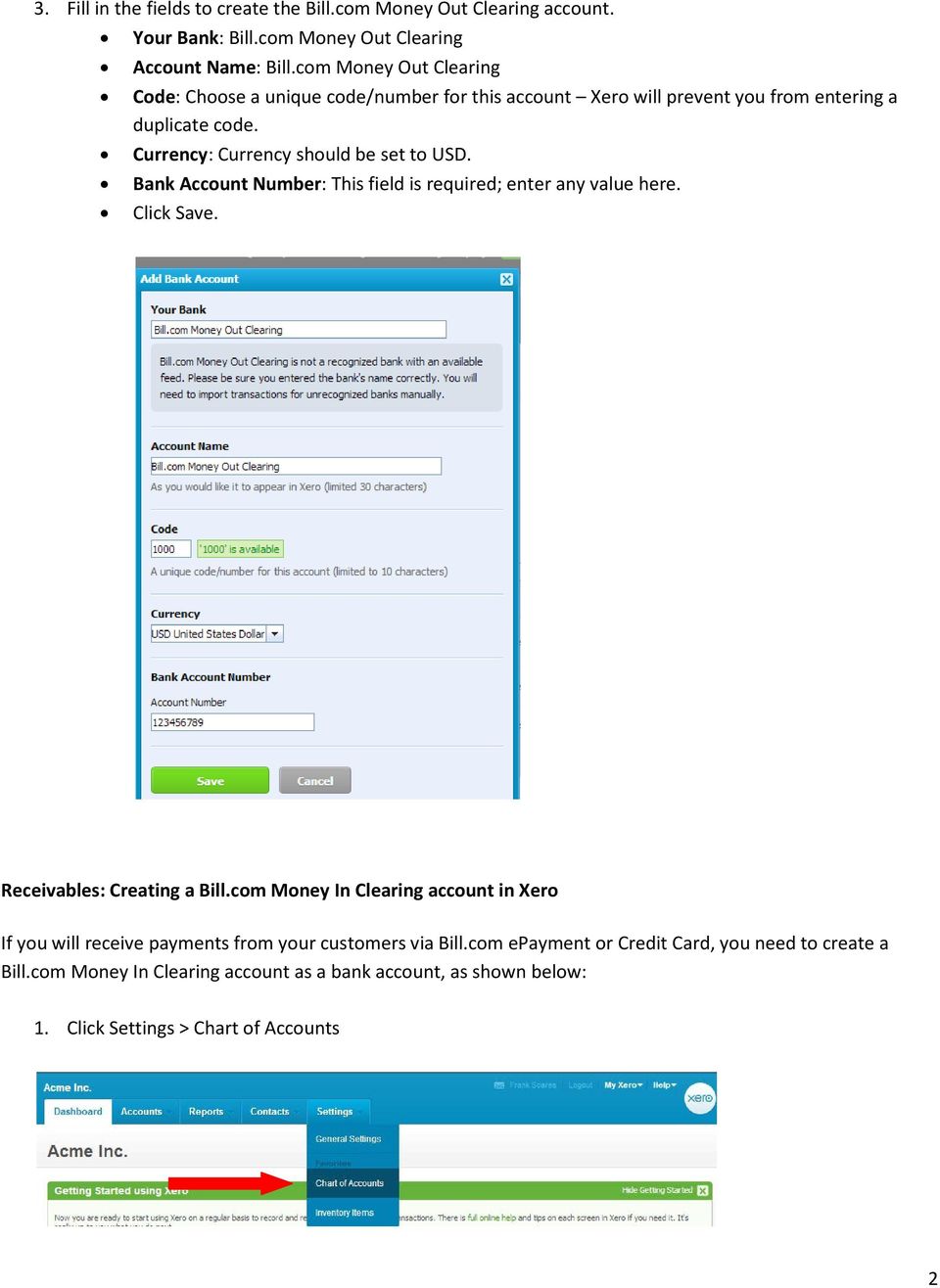
1 Setting up the sync between Xero and Bill.com To set up the Xero/Bill.com Sync, you will need to: 1. Configure your Xero account 2. Set up and configure a OneSaas account OneSaas facilitates the sync between Xero and Bill.com. Set up your Xero Account Overview 1. Set up the Bill.com Money In and Money Out accounts in Xero a. Payables: Creating Bill.com Money Out Clearing account b. Receivables: Creating a Bill.com Money In Clearing account 2. Using Xero Tracking - Bill.com Departments and Locations Bill.com Money In and Money Out accounts in Xero You need to manually create the Bill.com Money In and/or Money Out Clearing accounts in Xero - there is no API in Xero for us to automate this step for you. Those accounts are needed to automate your bank reconciliation for payments received or made via Bill.com. Learn more about the Bill.com Money Out Clearing account The following steps will be performed in your Xero account. Payables: Creating Bill.com Money Out Clearing account in Xero If you will be paying your vendors/suppliers using Bill.com Payments, you need to create the "Bill.com Money Out Clearing" account as a bank account, as shown below: 1. Click Settings > Chart of Accounts 2. Click Add Bank Account > Bank Account 1

2 3. Fill in the fields to create the Bill.com Money Out Clearing account. Your Bank: Bill.com Money Out Clearing Account Name: Bill.com Money Out Clearing Code: Choose a unique code/number for this account Xero will prevent you from entering a duplicate code. Currency: Currency should be set to USD. Bank Account Number: This field is required; enter any value here. Click Save. Receivables: Creating a Bill.com Money In Clearing account in Xero If you will receive payments from your customers via Bill.com epayment or Credit Card, you need to create a Bill.com Money In Clearing account as a bank account, as shown below: 1. Click Settings > Chart of Accounts 2
3 2. Click Add Bank Account > Bank Account 3. Fill in the fields to create the Bill.com Money In Clearing Account. Your Bank: Bill.com Money In Clearing Account Name: Bill.com Money In Clearing Code: Choose a unique code/number for this account Xero will prevent you from entering a duplicate code. Currency: Currency should be set to USD. Bank Account Number: This field is required; enter any value here. Click Save. Using Xero Tracking -> Bill.com Departments and Locations The Xero tracking categories for bills and invoices are synced to Bill.com as Departments and Locations. Bill.com supports department and location categories for AP bills and only department for AR invoices. 3

4 To have them sync to Bill.com, you need to name the Tracking category in Xero with the exact names "Department" and "Location": Name tracking as Department so it syncs to Bill.com (for Bill.com AP bills and AR invoices): 1. Click Settings > General Settings 2. Click Tracking 3. Click Add Tracking Category 4

5 4. In the Tracking category name field, enter: Department 5. Click Save Name tracking as Location so it syncs to Bill.com (for Bill.com AP bills only): 6. Repeat steps 1-3, above. 7. Tracking category name field, enter: Location 8. Click Save 5

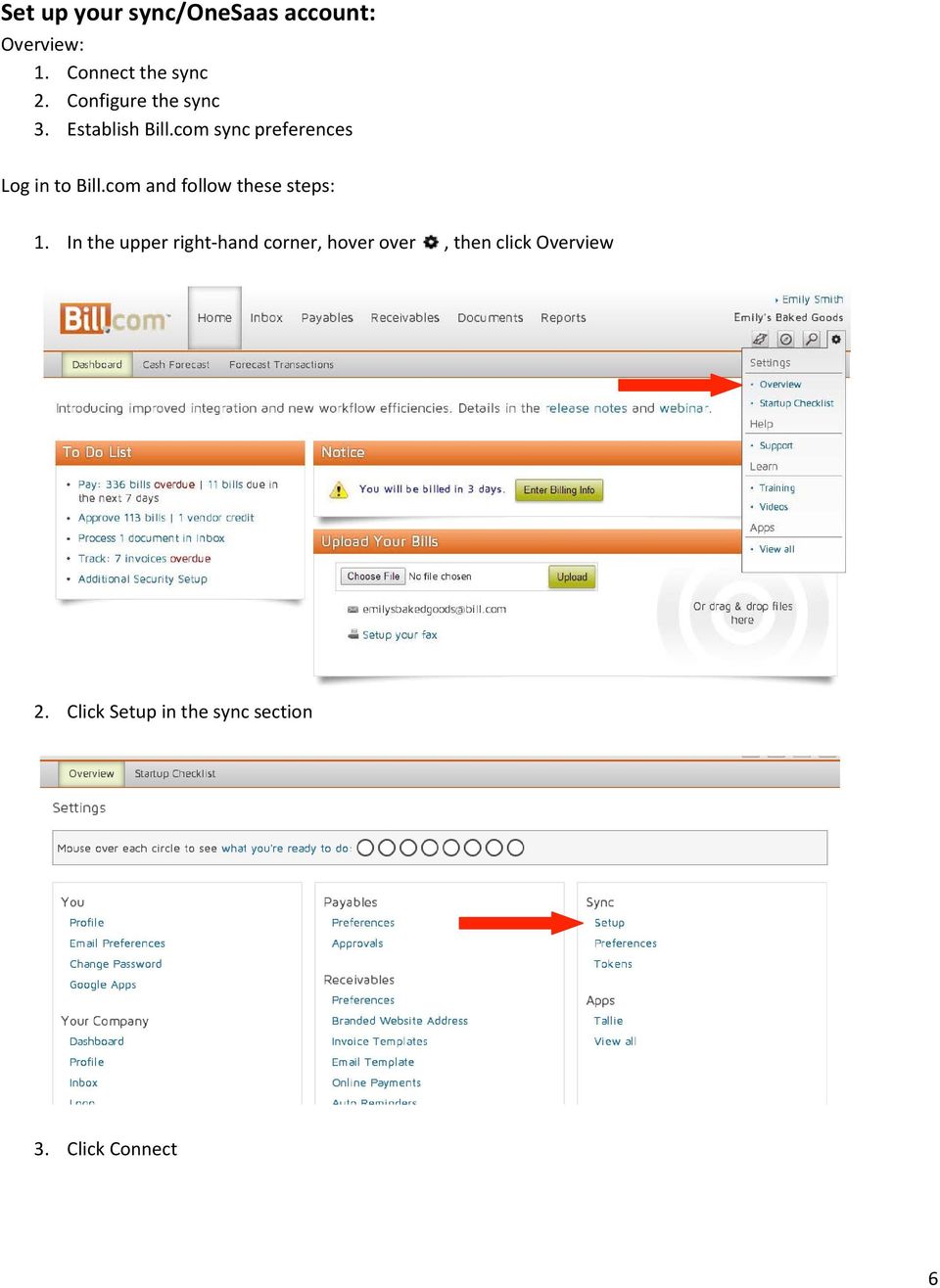
6 Set up your sync/onesaas account: Overview: 1. Connect the sync 2. Configure the sync 3. Establish Bill.com sync preferences Log in to Bill.com and follow these steps: 1. In the upper right-hand corner, hover over, then click Overview 2. Click Setup in the sync section 3. Click Connect 6
7 4. If you already have a OneSaas account, please click Sign In, and then select New File. Otherwise, create a OneSaas account: 5. Click Register 7

8 6. Click Sign In to Xero 7. Log into your Xero account 8. Select the correct Xero account and click Authorize 8

9 9. Click Next 10. Bill.com Properties Starting Date: Choose a date from which you d like to start syncing bills/invoices. Any invoices dated before the starting date will not sync. 11. Bill.com Contacts Create only Contacts that have Invoices: If you check this box, Contacts from Xero will not be created in Bill.com until they have a bill or invoice in Xero. If you leave this box unchecked, all Xero Contacts without bills or invoices will push to Bill.com as either Vendors or Customers you will designate how these Contacts sync later on in the Sync Setup, in the Contact Properties section. 9

10 12. Bills Properties: Select the appropriate Bill Statuses to have Bills synced to Xero. 13. Invoice Properties: Default DueDate Offset most customers leave this field as default (0). You may choose to change the default according to your workflow 14. Pull Payments From the dropdown menus, select the matching Xero account. o If a field is left blank and the account is used in Bill.com, the payment won t sync to Xero. o The best practice is to fill all fields with the matching Xero account. If there is no matching account to choose from, you can skip the field for now and continue the setup. When the setup is complete, you can create the account in Xero, perform a sync, and go back to the Pull Payments settings and add the account to the blank field. 10

11 15. Tax Codes 16. Bill.Com: New Inventory Items Properties Both fields are optional. When creating a new Item in Bill.com, if an account is not selected, OneSaas will add the Default Account to the Item in order to sync the Item to Xero. OPTIONAL OPTIONAL 17. Xero: Contact Properties Create and Update only Contacts & Organizations that have Invoices: o Checked: Vendors/Customers from Bill.com will not be created as Contacts in Xero until they have a bill or invoice in Bill.com. o Unchecked: Vendors and Customers in Bill.com will be created in Xero, regardless of whether or not they have Bills or Invoices. Assume Xero Contacts are: If you did NOT check the Create only Contacts that have Invoices box in step 12, your Xero contacts will be synced to Bill.com. Select Supplier or Customer to determine how those Contacts without Bills or Invoices will be synced to Bill.com. 11

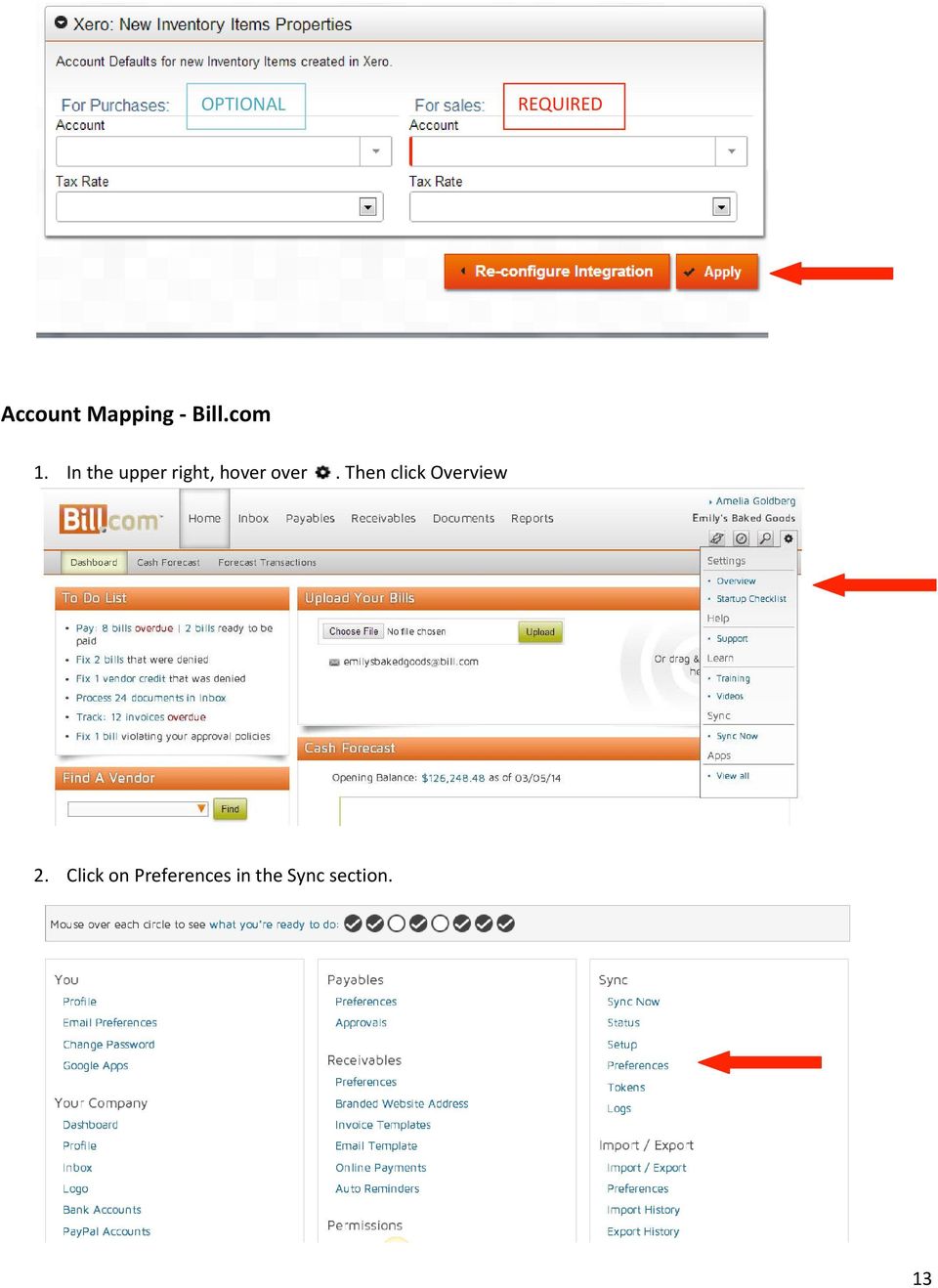
12 18. Xero: Accounts Receivable & Payable (Pull Properties) Select the appropriate Invoice Statuses to have bills and invoices synced to Xero, according to your workflow. o Note: The best practice is to leave the Paid field unchecked. If you check this box, Paid Bills and Invoices from Xero will sync to Bill.com as Unpaid. Check the Sales box if you want to move Receivables invoices to Bill.com. Check the Purchases box if you want to move Payables bills to Bill.com. 19. Xero: Accounts Receivable & Payable (Push Properties) The sync is able to authorize invoices in Xero for you. Only check one of the boxes. Authorize Invoices: The sync will authorize unpaid invoices from Bill.com to Xero. Unpaid invoices will sync to the "Awaiting Payment" status in Xero. Only Authorize Paid Invoices: The sync will only authorize Paid invoices in Bill.com to Xero. If you sync an unpaid invoice, it will come over as "Awaiting Approval". No payments for this invoice will sync until you approve it in Xero. Check both options: Only Authorize Paid Invoices will override the other option. Uncheck all options: The sync will not authorize any invoices for you in Xero. (Note: Updates to invoices will not sync if the invoice is approved in Xero.) 20. New Inventory Items Properties a. You ll need to fill in the For Sales: Account field. The Purchased Products: Account field is optional. When creating a new Item in Bill.com, if an account is not selected, OneSaas will add the Default Account to the Item in order to sync the Item to Xero. b. Click Apply. You will be redirected back to Bill.com 12

13 OPTIONAL REQUIRED Account Mapping - Bill.com 1. In the upper right, hover over. Then click Overview 2. Click on Preferences in the Sync section. 13
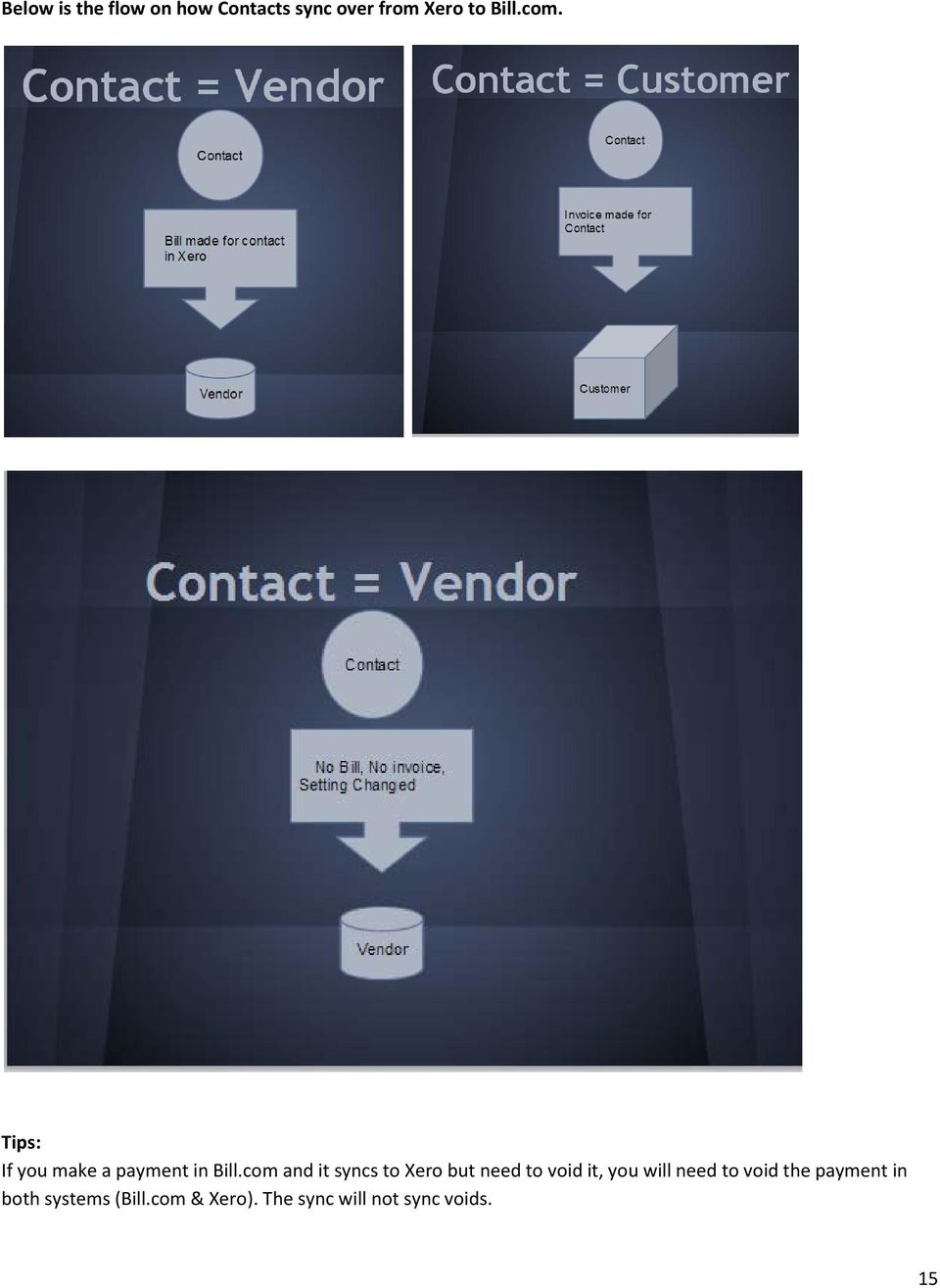
14 3. Click, then map your accounts, and click Save. Contacts FAQs I only use Payables in Bill.com. I want all Xero Contacts to come over to Bill.com, regardless if the Contact has a bill or not. Can this be done? Yes, it can be done. The way the sync allows for Contacts in Xero without a bill or invoice to sync over to Bill.com is to uncheck the "Create only Contacts that have Invoices" option. This will bring over all Contacts in Xero to Bill.com as Vendors. I use Payables and Receivables in Bill.com and want all my Contacts in Xero to come over to Bill.com regardless if the Contact has a bill/invoice or not. Can this be done? No, it can't be done. If the "Create only Contacts that have Invoices" option is unchecked, all Contacts will sync over as Vendors. Since the sync doesn t know how to categorize a Contact without a bill or an invoice, they will sync in as Vendors as a default. If you use Payables and Receivables, the best practice is to check the "Create only Contacts that have Invoices" option. This way, Contacts get synced to the correct list (Vendors or Customers) in Bill.com. If you choose to check the option and need a Customer in Bill.com, you can either: Create the first Invoice in Xero and then sync. The Contact and Invoice will come over to Bill.com. Now you can create future invoices in Bill.com. Or Create the Customer in Bill.com with the exact same name as in Xero. Create an invoice for that customer in Bill.com, and then sync. Since the sync matches by name, the Invoice will come over to Xero. 14

15 Below is the flow on how Contacts sync over from Xero to Bill.com. Tips: If you make a payment in Bill.com and it syncs to Xero but need to void it, you will need to void the payment in both systems (Bill.com & Xero). The sync will not sync voids. 15
Introducing the Acowin Accounts Payable Module!
 Introducing the Acowin Accounts Payable Module! This quick reference sheet will help you get up and running with the new Acowin Accounts Payable system. For more detailed information about Accounts Payable,
New Features in Sage BusinessVision 2013 (version 7.6)
 New Features in Sage BusinessVision 2013 (version 7.6) 2012 Sage Software, Inc. All rights reserved. Sage Software, Sage Software logos, and the Sage Software product and service names mentioned herein
The End of Month Closing process cuts off all sub-journal postings for the month and should be performed at the conclusion of each month.
 End of Month Closing The End of Month Closing process cuts off all sub-journal postings for the month and should be performed at the conclusion of each month. Closing the month involves up to five steps:
Fusion Financials White Paper Manage Payments Business Process Prepare and Record Payments
 Fusion Financials White Paper Manage Payments Business Process Prepare and Record Payments An Overview of Payments Process Author: Vijaya Gudipati Version: 1.0 Created: 14th June 2011 1 1. Table of Contents
Accounts Payable 6.4 User Manual
 Accounts Payable 6.4 User Manual Accounts Payable TABLE OF CONTENTS Accounts Payable User Manual Introduction... 3 Purpose... 3 Accounts Payable Overview... 3 Enter Payable... 4 General Info... 6 Remit
USER MANUAL MAGEBASE DPS PAYMENT EXPRESS
 USER MANUAL MAGEBASE DPS PAYMENT EXPRESS QUICK LINKS Getting Started DPS PxPost by MageBase Settings DPS PxPay by MageBase Settings PLEASE LEAVE A REVIEW! If you are enjoying the free Magebase DPS Payment
R12 e-business Tax: A Procure-to-Pay Upgrade Perspective. www.tacticsco.com
 R12 e-business Tax: A Procure-to-Pay Upgrade Perspective 1 Welcome and Introduction Your Speaker The Project GL, AP, Purchasing, iproc Upgrade to 12.1.3 from 11.5.10.2 No AR Tax Sorry! 2 Oracle and the
L.E.A.P.S Electronic Freight Billing System Installation Guide
 L.E.A.P.S Electronic Freight Billing System Installation Guide Ryder Revision V2.0 June 6th 2013 Reviser: N. West 1 FAQ: What is LEAPS? LEAPS (Logistics Electronic Automated Processing System) is a freight
Amicus Small Firm Accounting: Frequently Asked Questions
 Amicus Small Firm Accounting: Frequently Asked Questions Questions Administration... 3 1 How do I add another user account? 3 2 How are passwords set up and how are they used? 3 3 What does "Reset User
DTN AP Invoice Transaction Import
 DTN AP Invoice Transaction Import Enhanced and updated for 4.05.6.5 02/27/08 Overview: This feature imports supplier invoices from a file created by downloading the invoice information from DTN s website.
Magento Integration User Guide
 Magento Integration User Guide 2 Magento integration user guide Table of Contents INTRODUCTION 4 Getting Help 4 Disclaimer 4 Supported Magento Verisons 5 UNLEASHED SUPPORTS COMMUNITY EDITION 1.3 ONWARDS
ACCEPT PAYMENTS WITH PAYPAL
 ACCEPT PAYMENTS WITH PAYPAL ACCEPT PAYPAL AND CREDIT CARD PAYMENTS USING QUICKBOOKS ONLINE Welcome Guide Welcome to Accept Payments with PayPal Intuit QuickBooks Online is enabling small businesses and
As your financial institution completes its system conversion, you
 QuickBooks Business Accounting Software 2007 2009 for Windows Account Conversion Instructions Converting from Direct Connect to Web Connect As your financial institution completes its system conversion,
agrē multicurrency is intended for use by retailers that conduct a large volume of business transactions in a foreign currency on a regular basis.
 MULTICURRENCY agrē multicurrency is intended for use by retailers that conduct a large volume of business transactions in a foreign currency on a regular basis. If you do not use a foreign currency bank
Automating Accounts Payable with GP & Mineral Tree
 Automating Accounts Payable with GP & Mineral Tree Webinar Attendee Questions Question Do you have to use the payment process from MineralTree, or can we use the GP system for generating checks still?
Self-serve Incentive Program (SIP) User Guide Version 3.0. For use by Industrial Customers for Lighting System and Compressed Air projects
 Self-serve Incentive Program (SIP) User Guide Version 3.0 For use by Industrial Customers for Lighting System and Compressed Air projects Introduction The Self-serve Incentive Program (SIP) allows an Industrial
Kuali Requisition Training
 Kuali Requisition Training From the Kuali Main Menu, click Requisition to start the process of creating a requisition. This Guide covers the tabs that are needed to create a requisition. When creating
Xero Integration. Merchant User Guide Version 1.0 27/04/2016
 Xero Integration Merchant User Guide Version 1.0 27/04/2016 Table of Contents About Flo2Cash... 1 Introduction... 1 Flo2Cash Merchant Console Setup... 2 Authorisation... 3 Account Selection... 4 Payment
How To Manage A Pom.Net Account Book
 ACCOUNTS PAYABLE This manual walks you through entering different types of vouchers, approving, budget checking, closing, deleting and finalizing PO vouchers as well as inquiring on payment information
DBA Financials Conversion Guide
 Note: To change the product logo for your ow n print manual or PDF, click "Tools > Manual Designer" and modify the print manual template. Contents 3 Table of Contents 1 Who Is this Guide for? 4 2 Using
Method CRM Evaluation / Reviewers Guide
 Method CRM Evaluation / Reviewers Guide Contents What this guide contains... 3 1. Overview... 3 2. Installing the Method Integration Engine... 3 3. Simple A-to-B tutorial... 4 4. QuickBooks Integration
DESKTOP CLIENT CONFIGURATION GUIDE BUSINESS EMAIL
 DESKTOP CLIENT CONFIGURATION GUIDE BUSINESS EMAIL Version 2.0 Updated: March 2011 Contents 1. Mac Email Clients... 3 1.1 Configuring Microsoft Outlook 2011... 3 1.2 Configuring Entourage 2008... 4 1.3.
Accounts Payable User Manual
 Accounts Payable User Manual Confidential Information This document contains proprietary and valuable, confidential trade secret information of APPX Software, Inc., Richmond, Virginia Notice of Authorship
PSA INTEGRATION GUIDE
 efolder ConnectWise PSA Integration Guide Page 1 PSA INTEGRATION GUIDE Last Updated July 2014 Integration Overview ConnectWise PSA is business automation software that helps IT service providers efficiently
History Explorer. View and Export Logged Print Job Information WHITE PAPER
 History Explorer View and Export Logged Print Job Information WHITE PAPER Contents Overview 3 Logging Information to the System Database 4 Logging Print Job Information from BarTender Designer 4 Logging
Contents AP - BROWSER BASED USER INTERFACE... 3 AP - CLIENT CAPABILITIES... 12. Cabinet AP October 2014 P a g e 2
 Cabinet AP Contents AP - BROWSER BASED USER INTERFACE... 3 AP - CLIENT CAPABILITIES... 12 Cabinet AP October 2014 P a g e 2 AP - BROWSER BASED USER INTERFACE AP uses a browser interface for processing
AgencyPro. Cash Accounting Workflow
 AgencyPro Cash Accounting Workflow This document is a supplemental accounting guide to reiterate the general processes outlined during the first accounting training. Some of the outlined processes differ
ACS Version 10.6 - Accounts Payable
 ACS Version 10.6 - Accounts Payable Table Of Contents 1. Accounts Payable... 1 Accounts Payable Overview... 1 Accounts Payable Startup Outline... 2 Procedures Outline... 2 Customizing Program Defaults...
CREATING NON-PO BASED INVOICES IN AGGIEBUY. Click on the Settlement tab in the menu bar to get to the invoice entry screen.
 CREATING NON-PO BASED INVOICES IN AGGIEBUY Click on the Settlement tab in the menu bar to get to the invoice entry screen. 1 Invoice Creation: This is where invoices will begin to be entered. For non-po
SMALL BUSINESS ACCOUNTING. User Guide
 SMALL BUSINESS ACCOUNTING User Guide 3022100_504913_f1.indd 1 7/17/13 12:26 AM Welcome to QuickBooks We're going to help you get paid, pay others, and see how your business is doing. Use this guide to
TOPS PROFESSIONAL ACCOUNTS PAYABLE MANUAL. By TOPS Software, LLC Clearwater, FL
 TOPS PROFESSIONAL ACCOUNTS PAYABLE MANUAL By TOPS Software, LLC Clearwater, FL Document History Version Edition Date Document Software Version 1 10-2011 TOPS-AP 10-10-11 Professional Version 4 Trademark
Little Green Light & MailChimp: Email Marketing
 Little Green Light & MailChimp: Email Marketing Table of Contents Overview 2 Connect LGL to MailChimp 3 Create your MailChimp account if you don t already have one 3 Create a list in MailChimp to sync
Accounts Payable Job Aid
 About Using Pay Terms Accounts Payable Job Aid State Agencies and Institutions are required to pay for all completely delivered goods and services by the required payment due date. The CAPP Manual Topic
Step 2. Choose security level Step 2 of 3
 Quickstart Guide Unique Entry Get it Now Unique Entry is installed quickly and easily from the AppExchange via the Get it Now button. During the installation wizard, you must make sure you grant access
WMS SOFTWARE - TRAINING SCHEDULE
 WMS SOFTWARE - TRAINING SCHEDULE During this process the following outlined activities will occur. SAGE ACCOUNTING CONCEPTS: 1. Overall concepts and functions that are common to all modules 2. Print Files
Timely by Demandforce is the best way to stay active on Twitter and Facebook
 by Demandforce A key principle to using social media as a marketing tool is to engage customers by feeding them fresh and relevant information regularly. Demandforce D3 now offers a convenient way to do
QuickBooks Interface for Almyta Control System Contents
 QuickBooks Interface for Almyta Control System Contents QuickBooks Interface for Almyta Control System... 1 Introduction... 2 Configuring the Interface... 4 Account Description... 6 Export Receipts and
How To Use Quickbooks
 OSP / QuickBooks Web Connector Setup Overview The OrderStream Pro Business Manager can be integrated in real time with QuickBooks Financial Software. Key data flows automatically between applications as
High Impact email & Alpha Five: A Mail Merge Guide.
 High Impact email & Alpha Five: A Mail Merge Guide. Performing a Mail Merge that utilizes your Alpha Five database takes just a few moments and allows you to easily send HTML messages to your contacts.
BUSINESS PRACTICES WILSON COUNTY BOARD OF EDUCATION ACCOUNTS PAYABLE DEPARTMENT
 BUSINESS PRACTICES WILSON COUNTY BOARD OF EDUCATION ACCOUNTS PAYABLE DEPARTMENT Invoices are mailed in by the vendors. Some invoices are mailed to the Accounts Payable department and then distributed to
MAS 90 MAS 200 Tips, Tricks and Frequently Asked Questions (FAQ s) Prepared by: The Fitzgerald Group August 11, 2004
 MAS 90 MAS 200 Tips, Tricks and Frequently Asked Questions (FAQ s) Prepared by: The Fitzgerald Group August 11, 2004 This is a compilation of ideas from The Fitzgerald Group staff, from clients and from
Workshop Tool in Moodle
 Workshop Tool in Moodle Moodle Workshops are a great tool for students to view, grade and assess their own and other course members work as a group. There are many options that can make this educational
ebilling and epayment for Fully Insured Groups
 ebilling and epayment for Fully Insured Groups This document walks you through the basics of registering for, and using, ebilling and epayment Services. Topics covered are: Setting up Roles in BlueConnection
Accounts Payable and Inventory Management
 Accounts Payable and Inventory Management 2013 SedonaOffice Users Conference Presented by: Lisa Gambatese & Laurie Goodrich Table of Contents Accounts Payable G/L Account Defaults (AP) 4 A/P Setup Processing
General Ledger Module
 PestPac Software General Ledger Module The General Ledger Module in PestPac allows certain transactions to be recorded and then be exported into a format that is compatible with your accounting software.
Install Unique Entry: As -You-Type Duplicate Prevention. No Duplicates.
 Quickstart Guide Unique Entry Get it Now Unique Entry is installed quickly and easily from the AppExchange via the Get it Now button. During the installation wizard, you must make sure you grant access
Table of Contents. Copyright 2010-2015 Symphonic Source, Inc. All rights reserved. Salesforce is a registered trademark of salesforce.
 DupeCatcher is a real-time deduplication app designed specifically for Salesforce. It is a 100% APEX developed and deployed managed package, and is installed via the Salesforce AppExchange, eliminating
IPM-Software. CornerStone 3.0 Update Summary
 IPM-Software CornerStone 3.0 Update Summary This document provides installation instructions and a summary of program changes and enhancements. This document printed on: Thursday, July 28, 2005 UPDATE
HOW INTEGRATION WORKS...
 Contents INTRODUCTION... 1 How to Use This Guide... 1 Software Editions Supported... 2 HOW INTEGRATION WORKS... 3 INTEGRATION RULES... 4 SYNCHRONIZATION SETTINGS... 6 General Settings... 6 Send Settings...
Changing from Accrual to Modified Cash Accounting
 Changing from Accrual to Modified Cash Accounting Contents About Changing from Accrual to Modified Cash Accounting Adjusting GST/Vat and Sales Tax Adjusting Accounts Receivable Adjusting Receive Payments
Snow Active Directory Discovery
 Product Snow Active Directory Discovery Version 1.0 Release date 2014-04-29 Document date 2014-04-29 Snow Active Directory Discovery Installation & Configuration Guide Page 2 of 9 This document describes
Changing from Cash to Accrual Accounting
 Changing from Cash to Accrual Accounting Contents About Changing the Accounting Method Creating a Client Disb Recov (1210) Account Contacting LexisNexis PCLaw Technical Support Adjusting Disbursements
INTUIT PROFESSIONAL EDUCATION. QuickBooks Files: Sharing, Managing, and Maintaining Data Integrity
 INTUIT PROFESSIONAL EDUCATION QuickBooks Files: Sharing, Managing, and Maintaining Data Integrity Copyright Copyright 2008 Intuit Inc. All rights reserved. Intuit Inc. 5601 Headquarters Drive Plano, TX
Intuit QuickBooks Certified User. Study Guide. succeed. www.certiport.com/quickbooks
 Intuit QuickBooks Certified User Study Guide succeed www.certiport.com/quickbooks Businesses Standardize on QuickBooks Dear Test Candidate, In preparation for the QuickBooks Certified User exam, we ve
ACCRUAL ACCOUNTING WORKFLOW
 ACCRUAL ACCOUNTING WORKFLOW TABLE OF CONTENTS COMPANY ACCOUNT NUMBERS... 2 POLICY ENTRY... 2 Agency Bill... 2 Direct Bill... 3 Transaction Detail... 3 CLIENT PAYMENTS... 4 Agency Billed Payment... 4 Direct
Generate Electronic Payments in Accounts Payable
 Generate Electronic Payments in Accounts Payable IMPORTANT NOTICE This document and the Sage 300 Construction and Real Estate software may be used only in accordance with the Sage 300 Construction and
Dynamics GP 50 More Tips in 50 Minutes
 Financial Tip #1 Use Keyboard Shortcuts for Marking Cleared Transactions in Bank Rec Transactions >> Financial >> Reconcile Bank Statement Select the first transaction, then type CTRL+B (Begin Range).
Reminder Mate Instructions
 Reminder Mate Instructions Reminder Mate is a Practice Mate add-on Service which will make automated phone calls to remind patients of upcoming scheduled appointments, reduce missed appointments and receive
HOW INTEGRATION WORKS...
 Contents INTRODUCTION... 1 How to Use This Guide... 1 Software Editions Supported... 2 HOW INTEGRATION WORKS... 3 INTEGRATION RULES... 4 SYNCHRONIZATION SETTINGS... 6 General Settings... 6 Send Settings...
How To Install The Snow Active Directory Discovery Service On Windows 7.5.1 (Windows) (Windows 7) (Powerbook) (For Windows) (Amd64) (Apple) (Macintosh) (Netbook) And (Windows
 USER GUIDE Product Snow Active Directory Discovery Version 1.0 Release date 2014-04-29 Document date 2015-02-09 CONTENT ABOUT THIS DOCUMENT... 3 SNOW ACTIVE DIRECTORY DISCOVERY... 3 PREREQUISITES... 4
ACCOUNT RECEIVABLES TABLE OF CONTENTS
 ACCOUNT RECEIVABLES TABLE OF CONTENTS 1. SETUP CUSTOMER...2 2. CUSTOMER LISTING...6 3. CUSTOMER INVOICE...7 4. CUSTOMER INVOICE LISTING...12 5. ENTER CREDITS / REFUNDS...14 6. CUSTOMER CREDITS LISTING...20
User Documentation. Accounts Payable. June 2008 www.randrinc.com
 User Documentation Accounts Payable June 2008 www.randrinc.com FP_UserManual_AccountsPayable.doc Page 1 Table of Contents: Page: 1. Overview 3 2. Enter Vendor Invoice 4 3. Pay AP, Change, Display 6 4.
Salesforce Integration. Installation Manual Release
 Salesforce Integration Installation Manual Release Table of Contents Salesforce Integration... Error! Bookmark not defined. 1. Integration with LeadForce1(Manual)... 3 2. Integration with LeadForce1 (Automated
Email client configuration guide. Business Email
 Email client configuration guide Business Email August 2013 Contents 1. Mac Email Clients 1.1 Downloading Microsoft Outlook (Professional Plan Users) 1.2 Configuring Microsoft Outlook (Full Exchange Server
Copyright 2011 Business Management Systems. Web Based ERP/CRM Software
 Web Based ERP/CRM Software INTRODUCTION... 7 Features... 8 Services... 9 INSTALLATION... 10 CUSTOMER FILE... 11 Add Customer... 11 Modify Customer... 13 Add Ship To... 14 Modify Ship To... 15 Reports...
DutyCalculator - Installation and Configuration
 DutyCalculator - Installation and Configuration Date: 23 Oct 201, Version 0.4.10 Requirements Magento Community version 1. and higher or Enterprise version 1.9.1 and higher Installation Follow this link
Additional values have been added to the Billing List Reports to allow for additional fields to be displayed on the report.
 Time Matters and Billing Matters 13.1 Obtaining the Software Time Matters is available via the download link that appears in your product key email. For assistance, please visit the Time Matters Support
Email Setup Guide. network support pc repairs web design graphic design Internet services spam filtering hosting sales programming
 Email Setup Guide 1. Entourage 2008 Page 2 2. ios / iphone Page 5 3. Outlook 2013 Page 10 4. Outlook 2007 Page 17 5. Windows Live Mail a. New Account Setup Page 21 b. Change Existing Account Page 25 Entourage
Big Lots Vendor Compliance Web Portal User Guide - Vendor
 Big Lots Vendor Compliance Web Portal User Guide - Vendor https://visibility.inovis.com/dataquality/xclient/biglots 1. To login to the system for the first time: Open the New User Notification Invite e-mail
Directions for the AP Invoice Upload Spreadsheet
 Directions for the AP Invoice Upload Spreadsheet The AP Invoice Upload Spreadsheet is used to enter Accounts Payable historical invoices (only, no GL Entry) to the OGSQL system. This spreadsheet is designed
AR326: Accounts Receivable - Funds Receipts. Instructor Led Training
 AR326: Accounts Receivable - Funds Receipts Instructor Led Training Rev 1/21/2015 Welcome This training provides employees with the skills and information necessary to use Cardinal. It is not intended
Inform Upgrade Version 20.0.77.77. New Features Improved Google Calendar Synchronization
 **The latest Inform upgrade includes features and fixes from all previous upgrades. Please review the upgrade notes for any additional versions that fall between your current version and this upgrade.**
SYSTEM SETUP & ADMINISTRATOR GUIDE
 SYSTEM SETUP & ADMINISTRATOR GUIDE 2010 DrivenCRM, Inc.. SYSTEM CONFIGURATION AND SETUP... 6 ACCESSING SYSTEM MANAGEMENTS... 6 MASTER SYSTEM CONFIGURATION... 7 ACCOUNTING SETUP... 7 COMPANY SETUP:... 7
CHAPTER 6: SALES TAX SETUP
 Chapter 6: Sales Tax Setup CHAPTER 6: SALES TAX SETUP Objectives Introduction The objectives are: Provide an overview on sales tax Create Ledger Posting Groups Create Sales Tax Authorities Create Sales
Faye Business Systems Group. Enhancement for Sage MAS 90 and MAS 200. Accounts Payable Document Integration
 6320 Canoga Avenue, 15th Floor, Woodland Hills, CA 91367 * Phone: (818)227-5130 * Fax: (818)227-5099 * Web: www.fayebsg.com Overview allows you to easily link any document or set of documents to accounts
Accounting & Finance. Guidebook
 Accounting & Finance Guidebook January 2012 TABLE OF CONTENTS Table of Contents... 2 Preface... 6 Getting Started... 8 Accounting... 10 Accounting Welcome... 10 Sales Quotes... 11 New Sales Quote... 11
QuickBooks Online Certification Exam Prep (Parts 1-3) Wifi Network: Password: Welcome
 #SNH16 QuickBooks Online Certification Exam Prep (Parts 1-3) Wifi Network: Password: Welcome Attending this Breakout session for the full 100 minutes entitles you to 2 hours of CPE. Please be sure you
Accounts Payable Reference Guide
 Create a New Vendor Vendors supply you with goods or services you need to run your business. Vendor records must be created prior to processing bills or other payable transactions. 1 Before entering in
POS Connector Installation and Setup Guide
 POS Connector Installation and Setup Guide Contents About POS Connector for Small Business Accounting... 1 What is POS Connector?... 1 How does POS Connector work?... 1 Is POS Connector easy to install
Launch Create Store. Import Orders Enter Orders Manually Process Orders. Note: Ctrl+click on a number to jump to that topic.
 Order Manager Version 5 QUICK START GUIDE Updated 1/6/11 About the Quick Start Guide This Quick Start Guide is designed to help users get started with the Order Manager as rapidly as possible. Although
How to Change Your Schedule for Holidays
 How to Change Your Schedule for Holidays Note: All of these functions are accomplished in the GuestBridge Administrator Application. Closing the Restaurant If you are closing the restaurant for an entire
NEOAUG. Custom Web ADI Integrators
 NEOAUG Custom Web ADI Integrators Agenda Agenda Web ADI Custom Integrators Creating an Integrator Creating an API Defining the Interface Defining an Importer Working around the bugs Adding the Integrator
Vendor Configuration, Ordering, and Receiving. Kroll 9.1. Kroll 9.1
 Vendor Configuration, Ordering, and Receiving Kroll 9.1 Kroll 9.1 Contents Vendor Configuration... 1 Catalog Tab... 3 Ordering Tab... 6 Receiving Tab... 7 General Tab... 9 Preventing OTC Inventory Adjustments...
Changing from Accrual to Cash Accounting
 Changing from Accrual to Cash Accounting Contents About Changing from Accrual to Cash Accounting Description of Accounting Methods Creating a Client Disb Expense (5010) Account Adjusting GST/Vat and Sales
1. About Flo2Cash 2. 2. Introduction 3. 3. Flo2Cash Merchant Console Setup 3. 3.1 Authorisation 4. 3.2 Account Selection 7. 3.
 Table of Contents 1. About Flo2Cash 2 2. Introduction 3 3. Flo2Cash Merchant Console Setup 3 3.1 Authorisation 4 3.2 Account Selection 7 3.3 Payment URL 8 4. Xero Setup 9 4.1 Creating a Custom Payment
Microsoft Dynamics GP. Payables Management
 Microsoft Dynamics GP Payables Management Copyright Copyright 2010 Microsoft. All rights reserved. Limitation of liability This document is provided as-is. Information and views expressed in this document,
QuickBooks Mac 2014 Getting Started Guide
 QuickBooks Mac 2014 Getting Started Guide Financial Institution Support - OFX Connectivity Group Table of Contents QUICKBOOKS 2014 FOR MAC GETTING STARTED GUIDE... 3 ABOUT THIS GUIDE... 3 QUICKBOOKS 2014
Contact Treasury Management Support: 866-563-1010 (toll free) Monday through Friday, 7:30 am 5:30 pm (Pacific Time) TreasuryManagement@umpquabank.
 Contact Treasury Management Support: 866-563-1010 (toll free) Monday through Friday, 7:30 am 5:30 pm (Pacific Time) [email protected] Updated October 2013 - TreasuryPro 3.8 Contents Welcome...
The Validator GP. User Guide. Reporting-Central
 The Validator GP User Guide Reporting-Central This document contains proprietary information which is protected by copyright. All rights are reserved. 1 T h e V a l i d a t o r G P TABLE OF CONTENTS 1.
For details about using automatic user provisioning with Salesforce, see Configuring user provisioning for Salesforce.
 Chapter 41 Configuring Salesforce The following is an overview of how to configure the Salesforce.com application for singlesign on: 1 Prepare Salesforce for single sign-on: This involves the following:
NetSuite Essentials. Course Description. Key Objectives
 NetSuite Essentials Key Objectives How do I: Configure NetSuite to meet business requirements? Determine user roles and permissions? Customize the user interface to align with business needs? Plan for
Overview of Procure to Pay
 This segment from our 427+ page JD Edwards Accounts Payable manual is being made available as a sample of our training manuals. Please contact [email protected] if you have any JDE training needs,
User Guide Setup, sales, purchase and support information for your Clear Books account
 User Guide Setup, sales, purchase and support information for your Clear Books account Digital Edition Contents 4 Chapter 1: Customising your Dashboard 7 Chapter 2: Setting up a Bank Account 12 Chapter
Last Updated on 11/06/2008. www.jobprotech.com
 Last Updated on 11/06/2008 www.jobprotech.com Copyright JobPro Technology, 2008 How to Use this Guide This manual is designed as a reference for JobPro customers. It is not intended to be a replacement
MODULE 4: PURCHASE ORDER MANAGEMENT
 MODULE 4: PURCHASE ORDER MANAGEMENT Module Overview Timely purchases that are made at the best price improve a company s inventory management, reduce costs, and have a direct effect on the company s ability