
Step-by-Step Guide to Submitting a SBIR/STTR Phase I Proposal in FastLane
|
|
|
- Rosamond Freeman
- 10 years ago
- Views:
Transcription
1 Step-by-Step Guide to Submitting a SBIR/STTR Phase I Proposal in FastLane ADA & 508 Compliance Assistance - Please Call the FastLane Help Desk at STOP: Do you have the required registrations? Verify the below required registrations have been complete: It is imperative that you register your company and enter all information identically in all systems to avoid processing delays later. Dun and Bradstreet Data Universal Numbering System (DUNS) System for Award Management (SAM) Small Business Administration (SBA) Company Registry NSF FastLane - register company and Principal Investigator (PI) How to Use this Guide The Phase I SBIR and STTR solicitations explain what information should go in a proposal. This FastLane Submission Guide explains how to enter that information into FastLane, NSF's electronic submission system. Generally, these two documents contain the information needed to submit a proposal. When needed, NSF s Grant Proposal Guide (GPG) is referenced. The GPG is NSF's general guide for proposal submission. The instructions in the solicitations take precedence over instructions in the GPG in the event of a conflict. As such, SBIR/STTR proposers are encouraged to use the Phase I solicitation and FastLane Submission Guide as the primary submission resources. 1

2 FastLane Step-by-Step Instructions As a reminder, any documents uploaded into FastLane should follow the formatting rules: Multiple column formats are not accepted. Arial, Courier New, or Palatino Linotype at a font size of 10 points or larger should be used or Times New Roman or Computer Modern fonts at a font size of 12 points or larger. To get started with your proposal follow the steps outlined below: 1. Go to the FastLane home page at 2. Select the Proposal, Awards & Status link on the top (blue) menu bar. 3. Fill in Log In information in the PI/CO-PI Log In box on the right side of the screen. Note: The Principal Investigator (PI) for the proposed Phase I project MUST login and prepare the proposal. - Click the Log In button 4. On the Principal Investigator (PI)/Co-Principal Investigator (CO-PI) Management screen, select Proposal Functions 5. On the Proposal Functions screen, click Proposal Preparation 6. On the Principal Investigator (PI) Information screen, check the PI information for accuracy. You may choose to update or edit the PI information by selecting the Edit PI Information button. You cannot change the PI here. Once finished, click the Prepare Proposal button. 2
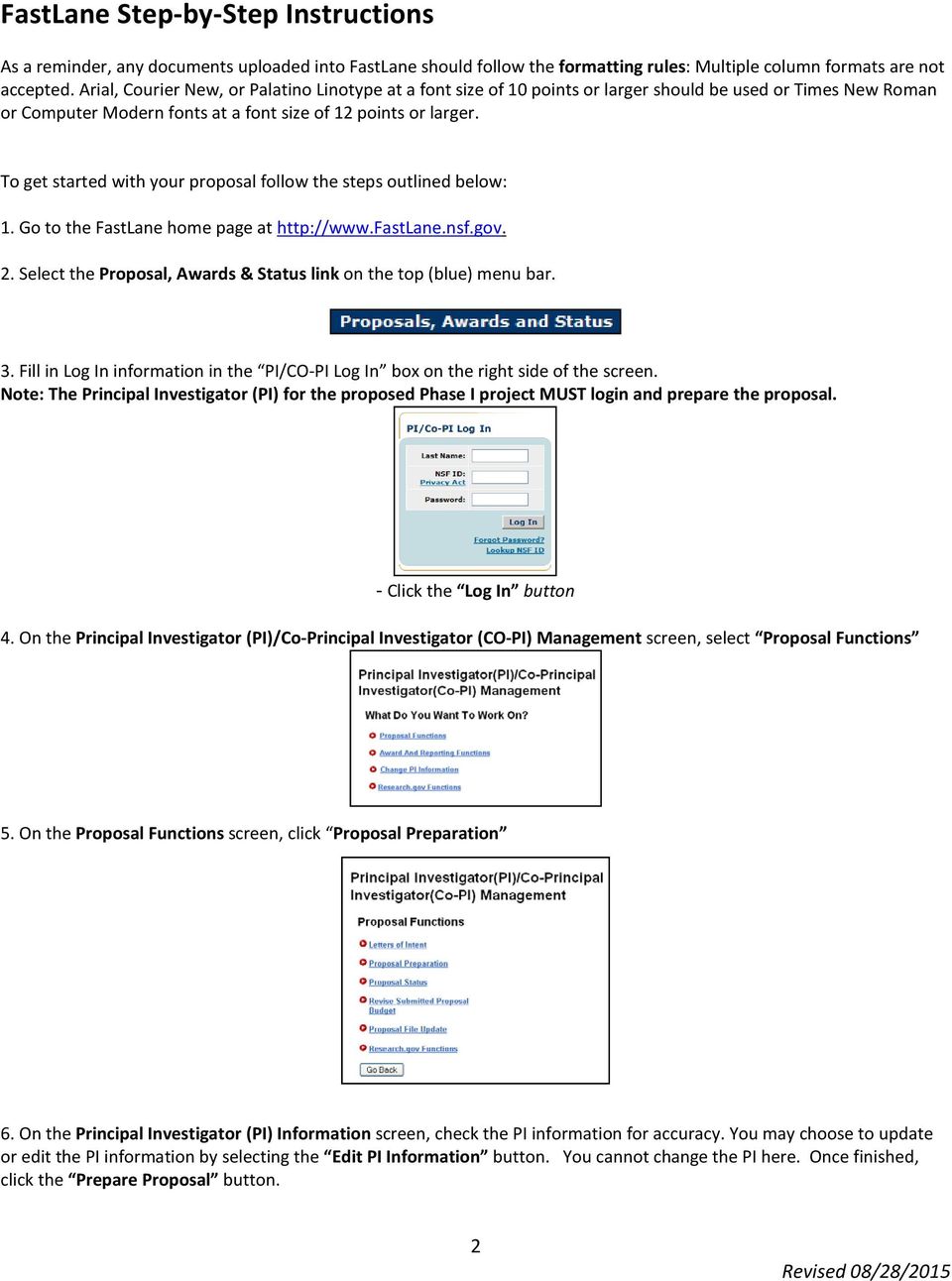
3 7. Once you select to prepare your proposal, the Proposal Actions screen appears. Scroll down past the Temporary Proposals in Progress section to the Create New Proposal section at the bottom, and click on the SBIR Phase I or STTR Phase I button. The Form Preparation screen is the control center for proposal development. All of the GO buttons move you to each of the different modules that you need to complete in order to prepare your Phase I proposal. It is strongly advised that you prepare each of the sections offline and then upload the sections to each of the modules. The Budget is the only section for which you will need to enter the information directly into FastLane; however, the budget justification(s) can be prepared offline and uploaded into the Budget Justification module. 8. At the top of the Form Preparation page will be the text Forms for Temp Proposal # - this number will be used as a reference throughout the preparation process. When your FastLane Contact/SPO finally submits your proposal to NSF, your proposal will be assigned an official NSF proposal number, the first two digits of which will match the fiscal year in which the proposal was submitted (e.g. proposals submitted between October 1, 2015 and September 30, 2016 will be numbered 16xxxxx). This official proposal number should be used in all further communications with NSF. 9. Click on the GO button to the left of Cover Sheet. 3

4 The Cover Sheet has been divided into 4 sections. To complete the Cover Sheet you must complete all 4 sections. 9a. The first Cover Sheet GO Button is Awardee Organization/Primary Place of Performance Selection The Awardee Organization information is pre-populated from the PI information. Click on the Add/Change Primary Place of Performance button to make necessary updates. 4
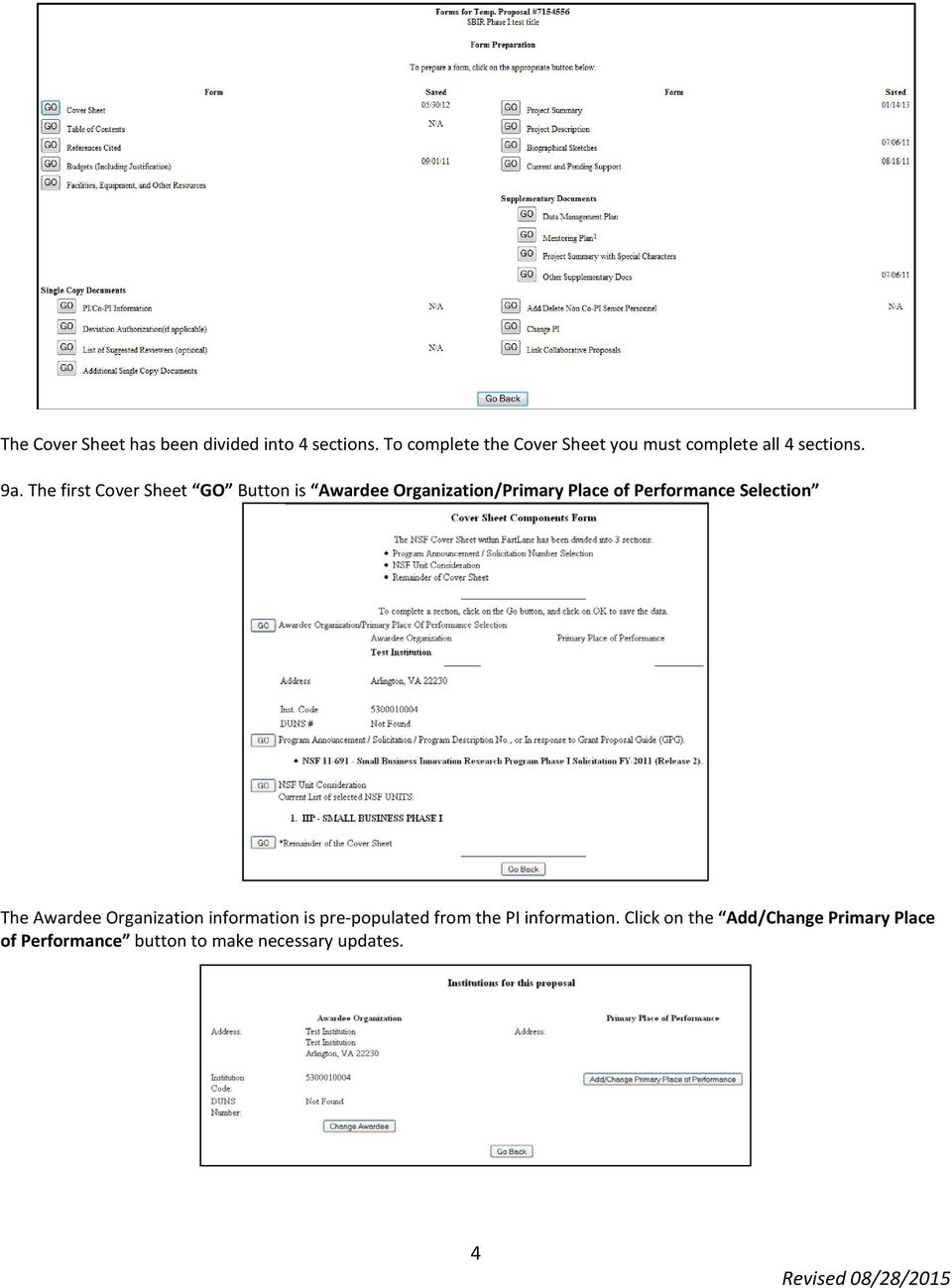
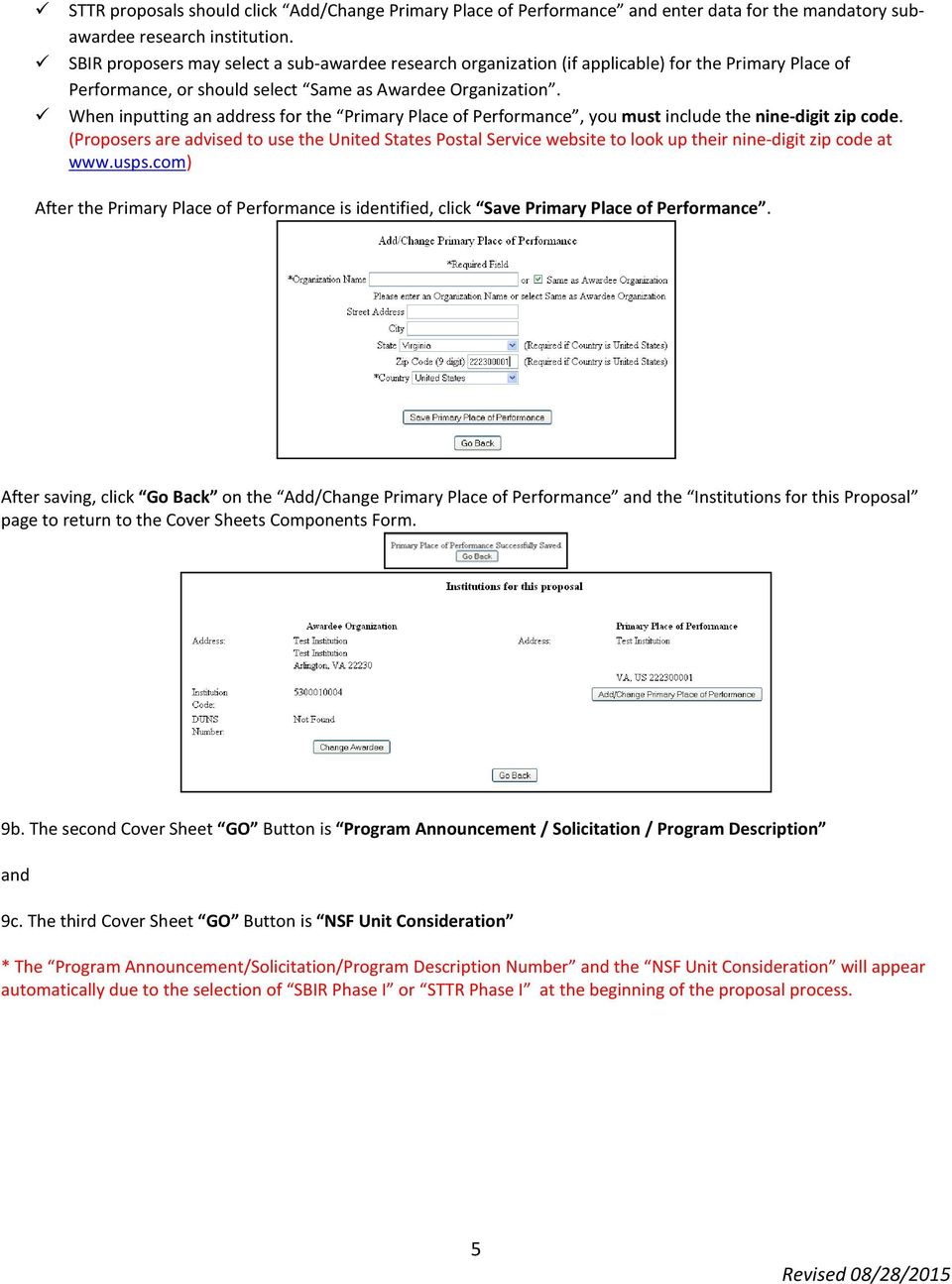
5 STTR proposals should click Add/Change Primary Place of Performance and enter data for the mandatory subawardee research institution. SBIR proposers may select a sub-awardee research organization (if applicable) for the Primary Place of Performance, or should select Same as Awardee Organization. When inputting an address for the Primary Place of Performance, you must include the nine-digit zip code. (Proposers are advised to use the United States Postal Service website to look up their nine-digit zip code at After the Primary Place of Performance is identified, click Save Primary Place of Performance. After saving, click Go Back on the Add/Change Primary Place of Performance and the Institutions for this Proposal page to return to the Cover Sheets Components Form. 9b. The second Cover Sheet GO Button is Program Announcement / Solicitation / Program Description and 9c. The third Cover Sheet GO Button is NSF Unit Consideration * The Program Announcement/Solicitation/Program Description Number and the NSF Unit Consideration will appear automatically due to the selection of SBIR Phase I or STTR Phase I at the beginning of the proposal process. 5
6 9d. The fourth Cover Sheet GO Button is Remainder of the Cover Sheet Click the GO button and provide the required information to complete the cover sheet. Title of Proposed Project : The system has already been programmed for each title to begin with SBIR Phase I: or STTR Phase I: * Please do include two spaces after the colon before typing the project title. * Please do not use acronyms in the proposal title. Budget and Duration Information : Three items are requested. Requested Amount: Enter the requested amount of funds. (SBIR and STTR Phase I budgets cannot exceed $225,000. The requeseted amount on the Cover Page should match the total funds requested in the budget.) Proposal Duration: Enter the proposed duration of the project in months (between 6 and 12 months). Requested Starting Date: For deadline dates in June, enter the following January 1 st. For deadline dates in December, enter the following July 1 st. 6

7 Announcement and Consideration Information, Principal Investigator (PI) Information and Co-Principal Investigator (Co-PI) Information : These sections will automatically populate. Previous NSF Award : Do not check the box. Preliminary proposals are not accepted by the SBIR/STTR Program. Other Federal Agencies : Provide a listing of all other Federal agencies to which you have submitted, or plan to submit, this proposal. Awardee Organization Information : This section has your Organization Name, Address, and Organization Code (this is a code assigned by NSF to your organization). All of this information should be pre-populated. The company s Employer Identification Number (EIN) and Taxpayer Identification Number (TIN) must be provided. Under the Check all that apply to the Awardee Organization (see GPG for Definitions) you should always check the following two boxes: For Profit Small Business Check the appropriate box(s) if your company is a Minority or Woman-Owned Business Primary Place of Performance : This section will automatically populate. 7

8 Other Information : Check the appropriate box(s) that are applicable to your proposal. Funding Mechanism : Select Research other than RAPID or EAGER Collaborative Status : Select Not a collaborative proposal. Note: The inclusion of a subaward to a university does not make this a collaborative proposal. The SBIR/STTR Program does not accept collaborative proposals. The small business must upload all required budgets and subaward files into their single proposal submission. Small Business Innovation Research : Select the appropriate topic from the drop down box and type in the appropriate subtopic (reference solicitation). The Small Business Concern Certifies : Answer all of the following questions. 8

9 NOTE: If the PI responds YES to the question It has received Phase II awards from the Federal Government, the company s Company Commercialization History must be provided in the Supplementary Documents module of the proposal or the entire proposal will be Returned Without Review. The Commercialization History must be submitted on the NSF template: Company Officer Information (For Business and Financial Matters), Other Information, Affiliated Companies, Research Institution Investigator and Proprietary Notice : Fill in all requested information. 9

10 Debarment and Suspension Certification and Authorized Representative : Read each section carefully, answer question(s) and provide any additional information (if applicable). Click OK and then select Go Back to return to the Form Preparation screen. 10. Click on the Go button to the left of Add/Delete Non Co-PI Senior Personnel : Click Add Non Co-PI Senior Person to Proposal after inputting the First Name, Middle Initial and Last Name of each person. For the SBIR/STTR Program, senior personnel are individuals with critical expertise who will be working on the project and are employed at the proposing company or at a subaward institution. The company should upload a Bio Sketch and Current & Pending Support form (see relevant sections later in this document) for each person included as Senior Personnel. 10

11 After adding all participants, click Go Back until you return to the Form Preparation screen. 11. Click on the Go button to the left of References Cited : Provide a comprehensive listing of relevant references in this module. You can directly enter the references into the text box or you can transfer a file. It is recommended that you do the file transfer. All proposals must have something in the References Cited section. If you do not have any references to cite, put a statement to that effect into this module. 11

12 When this section is completed, click Go Back to return to the Form Preparation screen. If uploading a file, click Transfer File on the above screen. Follow the instructions on the below screen, then click Upload File to upload document. Click Go Back until you return to the Form Preparation screen. 12. Click on the Go button to left of Budgets (Including Justification) : STREAMLINED BUDGET PILOT: The NSF SBIR Program is piloting a new approach to proposal budgets and budget justifications. A preliminary budget will be submitted as part of a Phase I proposal, along with a preliminary, narrative Budget Justification. The preliminary proposed budget should reflect the needs of the proposed R&D project. The submission of a preliminary Budget and preliminary Budget Justification is required in the Phase I proposal. NOTE: If a proposal is being considered for an award following the review period, NSF will contact the PI to request that a full budget and budget justification be submitted via FastLane with amounts included in all appropriate budget categories, including indirect costs and any other items not discussed in the original budget justification. A request for a full budget is NOT a commitment that the proposal will be funded. It is recommended that proposers familiarize themselves with the full budget rules and instructions so that they may be able to quickly provide a detailed budget upon request. These are described on the website here for SBIR proposals ( and here for STTR proposals ( 12

13 The Project Budget Screen will appear. The company name should be highlighted; then Click on the Add Year button. Year 1 will be highlighted; then Click the Add button. FastLane will return to the Project Budget Screen. Click on the Funds hyperlink (under the Year heading). A. Senior Personnel section: Click the Add/Remove Senior Personnel button. The Senior Personnel entered on the Cover Page will be prepopulated in the budget module. They will need to be removed from Section A for the purposes of submitting a streamlined proposal budget. 13

14 Click Add/Remove Senior Personnel to remove all pre-populated entries, then click Save to return to the Year 1 Budget screen. Budget $225,000 to Line 6 Other under Section G Other Direct Costs. No other budget lines should be completed. 12a. Budget Justification: To complete the budget justification page, click on the Budget Justification hyperlink under your company name. For the streamlined budget pilot, please follow the specific instructions in the solicitation to ensure all required information in included in the Budget Justification. 14

15 After cutting and pasting/typing in text box, click Save Text and then Go Back to return to the Project Budget screen. If uploading a file, click Transfer File on the above screen. Then, follow the instructions on the below screen and click Upload File to upload document. Once the budget justification is complete, click Go Back until you return to the Form Preparation screen. Click the Print tab on the right-hand side to see the PDF version of the budget. 15

16 Streamlined Budget Pilot: Sample budget completed as outlined in the solicitation 16

17 Streamlined Budget Pilot: Sample budget justification as outlined in the solicitation Senior Personnel The PI, Dr. Jane Smith, Chief Technical Officer, will work two calendar months on the project. Dr. William Adams, Senior Engineer, will work one calendar month on the project, overseeing the electrical engineers and providing systems-level oversight. A Bio Sketch/Resume and the NSF Current & Pending Support form are included in the appropriate areas of FastLane for each of these senior personnel. Other Personnel An electrical engineer, Mr. Michael Jones, will spend four months of effort building the prototype amplifier circuitry. Two technicians will also spend a total of three months doing electrical and mechanical characterization. Materials and Supplies The following is a list of materials and supplies required with estimated costs for each. Chemical precursors: $3,000. Specialized alloys: $4,000. Temperature sensors: $2,000. Consultant Services Dr. I. D. Snow will be our consultant. She will work for a total of ten days (80 hours/8 hours per day) at the maximum consultant rate of $600/day. Total requested costs are $6,000. A copy of the signed commitment letter from Dr. Snow is included with this budget justification. Subawards One subaward has been reached with Science University. A signed letter of commitment from the subaward lead, Dr. Fred Johnson, is included following this budget justification. The total subaward amount is $35,000. Indirect Costs Our company currently has an established indirect rate of 67.75%. OR Our company does not yet have an established indirect rate. However, for this project, our indirects plus fringe benefits will be limited to less than 150% of salaries and wages. 17

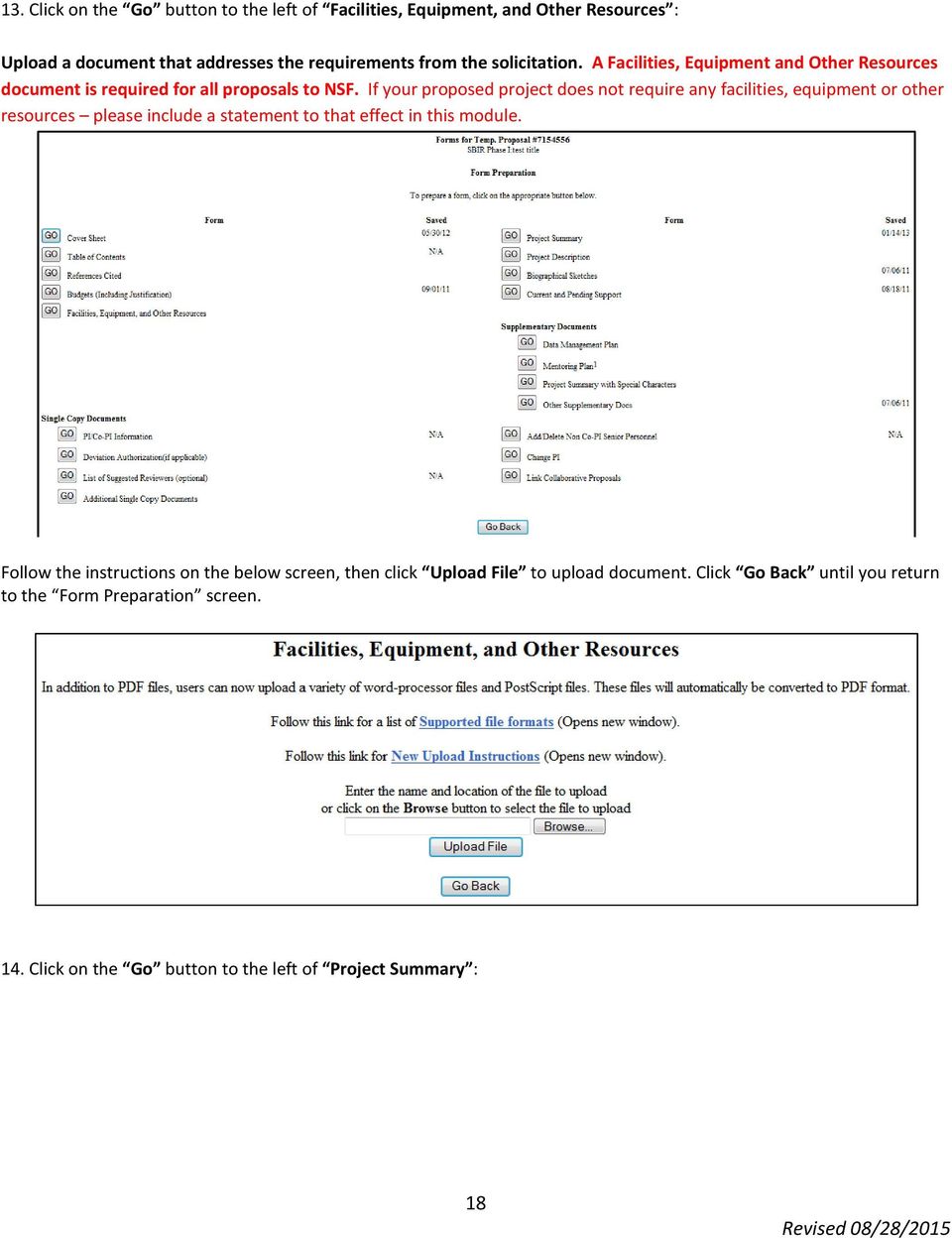
18 13. Click on the Go button to the left of Facilities, Equipment, and Other Resources : Upload a document that addresses the requirements from the solicitation. A Facilities, Equipment and Other Resources document is required for all proposals to NSF. If your proposed project does not require any facilities, equipment or other resources please include a statement to that effect in this module. Follow the instructions on the below screen, then click Upload File to upload document. Click Go Back until you return to the Form Preparation screen. 14. Click on the Go button to the left of Project Summary : 18
19 Type the Project Summary in the provided text boxes. The aggregate of the three text boxes cannot exceed 4,600 characters, including spaces. The maximum number of lines that may be included on a page is 51. When this section is completed, click Save and then OK to return to the Form Preparation screen. Information MUST be entered into all three text boxes, or the proposal will not be accepted. DO NOT CHECK THE BOX TO ENTER YOUR PROJECT SUMMARY AS A SUPPLEMENTARY DOCUMENT. NO! 19

20 15. Click on the Go button to the left of Project Description : The Project Description must include all required sections as outlined in the solicitation. The Project Description (complete file) cannot exceed 15 pages or the proposal will be Returned Without Review. Do not include References Cited at the end of the Project Description. There is a separate module to indicate references. Follow the instructions on the below screen, then click Upload File to upload the document. Click Go Back until you return to the Form Preparation screen. 16. Click on the Go button to the left of Biographical Sketches : Biographical sketches or resumes for all individuals described as senior personnel are required. Senior personnel are individuals with critical expertise who will be working on the project and are employed at the proposing company or at a subaward institution. Bio sketches are not to exceed two pages per person and should address the requirements in the solicitation. 20

21 Click Go beside the appropriate person s name to upload their biographical sketch. Biographical sketches may be uploaded individually or as one file (under the PI). Type/Upload the Biographical Sketch in the below text box. When this section is completed, click Go Back to return to the Form Preparation screen. If uploading a file, click Transfer File on the above screen. Follow the instructions on the below screen, then click Upload File to upload document. Click Go Back until you return to the Form Preparation screen. 21
22 17. Click on the Go button to the left of Current & Pending Support : Use the NSF Current & Pending Support form provided by FastLane. A form must be submitted for the PI (and co-pi for STTR) as well as any senior personnel. NSF considers the Phase I proposal being submitted as Pending Support. Therefore, ALL proposals to NSF must have at least one entry in the Current & Pending Support form for the PI and senior personnel (this proposal). Click the radio button beside the appropriate person s name and then click New Form to upload their Current & Pending Support. Fill in all the required information, click Save Text and then Go Back until you return to the Form Preparation screen. 22
23 If uploading a file, click Transfer File on the above screen. Follow the instructions on the below screen, then click Upload File to upload the document. Click Go Back until you return to the Form Preparation screen. 18. Click on the Go button to the left of Data Management Plan : Proposals must contain a supplementary document labeled "Data Management Plan" which can simply consist of the statement, "All data generated in this SBIR (or STTR) Phase I project is considered proprietary." 23
24 Follow the instructions on the below screen, then click Upload File to upload the document. Click Go Back until you return to the Form Preparation screen. 19. Click on the Go button to the left of Mentoring Plan : If the SBIR or STTR project will include a sub-award to an academic institution, and that institution is requesting funding for postdoctoral researchers, a Post Doc Mentoring Plan must be included as a supplementary document in this proposal. Otherwise, you may skip this section. Note that employees of the small business or other for-profit companies DO NOT count as postdocs, as they relate to this requirement, and should not be budgeted on line B.1. Please consult the solicitation for more information and a sample mentoring plan.please 24
25 Follow the instructions on the below screen, then click Upload File to upload document. Click Go Back until you return to the Form Preparation screen. 20. Click on the Go button to the left of Other Supplementary Docs : 25
26 Reference the current solicitation for restrictions and explanations of what NSF requires and what NSF allows in the Supplementary Documents. Items beyond those specifically requested and permitted should not be included. Type/Upload your necessary information in the below text box. When this section is completed, click Go Back to return to the Proposal Actions screen. If uploading a file, click Transfer File on the above screen. Follow the instructions on the below screen, then click Upload File to upload document. Click Go Back until you return to the Proposal Actions screen. 26
27 Proposal Submission Procedures If you have completed all the above actions you are now ready to submit your proposal. If you want to print out your proposal before moving to the submission and printing section below, return to the Proposal Actions screen and click on the Print button. This will allow you to have a hard copy of what you have entered into FastLane. (The printed proposal is not your official proposal). Note that only those persons listed as official Sponsored Research Officers (SROs) have the ability to complete submission of the proposal to NSF. If you have SRO Access Rights, you can click the Submit SBIR or Submit STTR button and the proposal will be submitted to NSF. You will receive a confirmation with the new NSF Proposal ID. If you do not see the Submit SBIR or Submit STTR button on the Proposal Action screen, you do not have the FastLane SRO Access Rights and should follow the directions below. Submitting a proposal to NSF involves two steps in the Research Administration portal: Submitting the proposal to NSF Electronically signing the proposal 1. To begin the submission process, return to the Proposal Actions screen; select and highlight the proposal you wish to submit and click on the button "Allow SRO Access". 2. At this point, FastLane may notify you of some warnings and/or errors related to the proposal. Errors will prevent you from submitting the proposal until they are remedied. You will receive an error if modules or required documents are missing that must be included per NSF policy. If the proposal is submitted after the deadline due to proposal errors that prevented timely submission, the proposal will be Returned Without Review. 27
28 FastLane may also give you warnings that do not prevent proposal submission, but could indicate missing items that are required by the solicitation. Please be sure to review and address these warnings in the context of the specific solicitation requirements. When you are ready to continue, click Proceed to continue the submission process. 3. If you are ready to complete the submission process, select the third Go button for Allow SRO to view, edit and submit proposal. 4. Then click the OK button on the below screen. SRO ACCESS STEPS At this point, the Sponsored Research Officer (SRO) has to take the following steps to submit the proposal to NSF. 1. Go to the FastLane Home Page and select the Research Administration link. 2. The authorized organizational representative will be asked to provide the following Log-in information: Last Name NSF ID Password 28
29 3. Click Proposals/Supplements/File Updates/Withdrawals. The screen displays on the Documents in Progress tab. 4. Click Submit in the row for the proposal you want to submit. 5. The Proposal Errors/Warnings screen gives you the capability to submit the proposal, if there are no errors that prevent submission. Warnings will not prevent submission, but may alert you to missing items that are required by the specific program or solicitation. You are urged to address and correct these issues. 29
30 5. There are two options at this point: Submit and Sign the Proposal or Submit the Proposal Only. The steps below are for the Submit and Sign the Proposal option. (If you are an SPO with AOR permissions, you have the capability to submit and sign the proposal. If you submit without signing, please have the AOR sign the proposal within 5 days of submission.) 5a. Debarment and Suspension : click the radio button for Yes or No if there are any debarments or suspensions of you or of your organization from transactions with federal agencies. (If you answered Yes, provide an explanation in the text box.) 5b. Institution Information: Check the accuracy of your organization s information, then click Sign and Submit. 5c. Proposal Submission Confirmation screen: Displays a message that the proposal has been successfully submitted to NSF. It also displays the official NSF proposal number which has been assigned. Write down the NSF proposal number Print a copy of the Proposal Submission Confirmation screen, if desired Click the OK button to return to the Documents in Progress tab 30
31 This is the Proposal Number you should reference in all communications with NSF regarding this proposal henceforward. Note: User s lack of familiarity with FastLane is not a valid excuse for submitting a late proposal, nor are warnings/errors received at the time of submission. Therefore, we strongly advise all submitters to ensure the proposal is submitted EARLY (days not hours before each deadline). 31
FastLane Proposal Preparation. 1. PI receives password from Office of Sponsored Research. 2. PI accesses FastLane homepage <www.fastlane.nsf.gov>.
 1. PI receives password from Office of Sponsored Research. 2. PI accesses FastLane homepage . 3. PI clicks on Proposal Preparation. 4. PI types in last name, SSN, and password, then
Last Modified: August 25, 2015. Table of Contents. Page 1 of 15
 National Science Foundation Office of International Science and Engineering How to Apply to the East Asia and Pacific Summer Institutes (EAPSI) Fellowship Program for U.S. Graduate Students via NSF FastLane
NATIONAL SCIENCE FOUNDATION Grants.Gov Application Guide A Guide for Preparation and Submission of NSF Application via Grants.
 This document has been archived and replaced by grantsgovguide309. NATIONAL SCIENCE FOUNDATION A Guide for Preparation and Submission of NSF Application via Grants.gov June 15, 2006 Summary of Significant
Small Business Electronic Applications: Annotated SF424 (R&R) Form Set
 Small Business Electronic Applications: Annotated SF424 (R&R) Form Set FORMS Included in SBIR and STTR applications: Federal-wide Forms SF424 (R&R) Cover Component [Page 2] Project/Performance Site Location(s)
CDMRP ereceipt System User Guide
 CDMRP ereceipt System User Guide Congressionally Directed Medical Research Programs (CDMRP) Last Updated: January 2011 Table of Contents Overview... 3 Purpose... 3 Help Desk Contact Information... 3 System
E-FILE. Universal Service Administrative Company (USAC) Last Updated: September 2015
 E-FILE USER GUIDE This document providers E-File users with an overview of E-File account management, managing entitlements, and instructions on how to submit forms, such as the FCC Form 498, FCC Form
Charles Eason SBIR/STTR Specialist Tech Futures Group (707) 863-7846 [email protected]
 Charles Eason SBIR/STTR Specialist Tech Futures Group (707) 863-7846 [email protected] ShapeMaker Technology Rapid Prototyping Process called Thick Layer Object Manufacturing Can produce objects
Recruiter s Resource Guide
 Recruiter s Resource Guide First Edition 1.29.2015 Contents Section One Recruiting... 3 Accessing Team Georgia Careers... 4 My Setup Preferences... 5 Creating a Requisition... 6 Approving a Requisition...
Physician Quality Reporting System (PQRS) Physician Portal
 The American College of Radiology Physician Quality Reporting System (PQRS) Physician Portal User Guide January 29, 2016 American College of Radiology 1891 Preston White Drive Reston, VA 20191-4397 Copyright
Section 8(e) Notice User Guide Primary Support
 Primary Support Environmental Protection Agency Office of Pollution Prevention and Toxics Manage Toxic Substances Table of Contents 1 Introduction... 1 1.1 Overview... 1 1.2 Labeling Confidential Information...
GMS Applicant Procedures Applicant - OJP Grants Management System Welcome Page (AP-1)
 Applicant - OJP Grants Management System Welcome Page (AP-) Welcome to the Applicant Procedures (AP) for the OJP Grants Management System. These Job Aids will guide you through the procedures for using
Council of Ontario Universities. COFO Online Reporting System. User Manual
 Council of Ontario Universities COFO Online Reporting System User Manual Updated September 2014 Page 1 Updated September 2014 Page 2 Table of Contents 1. Security... 5 Security Roles Defined in the Application...
Panel 2: Avoiding common fatal mistakes small firms make with their proposals
 Panel 2: Avoiding common fatal mistakes small firms make with their proposals NATIONAL SBIR CONFERENCE Nov 12, 2014 Panel Chair: Matthew Portnoy, Ph.D. 4:15 p.m. 5:00 p.m Matthew E. Portnoy, Ph.D., NIH
Instructions for Completing a DOE SBIR/STTR Phase I Grant Application
 U.S. Department of Energy (DOE) Instructions for Completing a DOE SBIR/STTR Phase I Grant Application (Please refer to the respective Funding Opportunity Announcement for Fast-Track and Phase II guidance)
Table of Contents INTRODUCTION... 2 HOME... 3. Dashboard... 5 Reminders... 8 Announcements... 12 Preferences... 13 Recent Items... 15 REQUESTS...
 Table of Contents INTRODUCTION... 2 HOME... 3 Dashboard... 5 Reminders... 8 Announcements... 12 Preferences... 13 Recent Items... 15 REQUESTS... 16 Request List View... 17 Requests based on Filters...
Portfolio Analysis and Management System (PAMS) External User Guide
 Portfolio Analysis and Management System (PAMS) External User Guide Version 11.1 April 2016 Prepared for: DOE Office of Science Office of Business Policy and Operations Revision History Date Document Version
TRAINING MANUAL FOR NATIONAL E-GOVERNMENT PROCUREMENT SYSTEM OF NEPAL
 TRAINING MANUAL FOR NATIONAL E-GOVERNMENT PROCUREMENT SYSTEM OF NEPAL Bidders Group www.bolpatra.gov.np/egp Organized By: Government of Nepal Public Procurement Monitoring Office, Tahachal, Kathmandu Table
Add Title. Electronic Services Verification Instructions
 Add Title Electronic Services Verification Instructions Electronic Services Verification Instructions Access CHAMPS Enter Daily Tasks What to do if the Client is Not in the Home Log services for Multiple
Instructions for Application Submission National MS Society-American Academy of Neurology (AAN) Clinician Scientist Development Award 2016
 Instructions for Application Submission National MS Society-American Academy of Neurology (AAN) Clinician Scientist Development Award 2016 INTRODUCTION Please read these instructions and follow them carefully.
Vendor Registration Quick Start Guide
 Vendor Registration Quick Start Guide ColoradoVSS Help Desk 303-866-6464 [email protected] www.colorado.gov/vss Overview This guide provides an overview for vendor registration in ColoradoVSS. This guide
Zambia Revenue Authority. TaxOnline Project
 Zambia Revenue Authority TaxOnline Project User Manual - e-returns September, 2013 Version 1.0 i Contents 1 Introduction to web portal... 6 2 Introduction to e-return Processing... 7 3 e-return Functionality...
https://syracuseuniversity.qualtrics.com/controlpanel/ajax.php?action=getsurveyprintpre...
 Page 1 of 7 SU - UMU Pilot Grant Program Driving Inspiration and Innovation through Collaboration Syracuse University- Upstate Medical University 2015 Pilot Grant Application Responding to society s most
Creating a Participants Mailing and/or Contact List:
 Creating a Participants Mailing and/or Contact List: The Limited Query function allows a staff member to retrieve (query) certain information from the Mediated Services system. This information is from
DSS Electronic Facility Clearance System (e-fcl) Submission Site User Guide
 U. S. Department of Defense Defense Security Service Industrial Security Program DSS Electronic Facility Clearance System (e-fcl) Submission Site User Guide June 2013 Version 7.2 1 e-fcl Submission Site
Engaged Management ReView Reviewer Guidelines V.1.0. Friday, March 11, 2015
 Engaged Management ReView Reviewer Guidelines V.1.0 Friday, March 11, 2015 Table of Contents Engaged Management ReView (EMR) Reviewer Guidelines... 3 SECTION 1: Reviewer Receiving Invitation to Review
Online Services through My Direct Care www.mydirectcare.com
 Online Services through My Direct Care www.mydirectcare.com WEB PORTAL Employers and Employees associated with Consumer Direct have access to online services available through a secure website www.mydirectcare.com.
HOW TO SET UP SINGLE SIGN ON FOR PARENT PORTAL IN POWERSCHOOL
 HOW TO SET UP SINGLE SIGN ON FOR PARENT PORTAL IN POWERSCHOOL Before you can access your student(s) information, you MUST create your account which ties you to your student(s). Even if you have your user
HEALTH SAVINGS ACCOUNT EMPLOYER WEBSITE GUIDE
 REGISTERING YOUR ACCOUNT FOR ONLINE ACCESS HEALTH SAVINGS ACCOUNT EMPLOYER WEBSITE GUIDE A note to accountholders with multiple account types with Sterling HSA: We now support a single login for all of
Banner Web Time Entry. Banner Web Time Entry (WTE) Time Entry User Guide
 Banner Web Time Entry Banner Web Time Entry (WTE) Time Entry User Guide Overview Banner s Web Time Entry module automates the time entry collection, calculation and approval process for job assignments.
UFIRST Training Manual
 UFIRST Training Manual Division of Sponsored Programs UF Training & Organizational Development Page 1 TABLE OF CONTENTS UFIRST 5 INTRODUCTION 5 ADDITIONAL RESOURCES 5 HOW TO USE THIS MANUAL 5 ACKNOWLEDGEMENTS
Supplier Management System User Guide
 Supplier Management System User Guide Copyright 2007-2010 by CVM Solutions LLC. All Rights Reserved. The material contained in this document is proprietary data and is the intellectual property of CVM
Central Commissioning Facility Research Management Systems (RMS): User Guidance
 Central Commissioning Facility Research Management Systems (RMS): User Guidance Contents 1. How to login and register a new account... 2 2. How to accept an invitation to review... 8 3. How to submit a
FAST Travel System. Guide: Creating Expense Reports
 FAST Travel System Guide: Creating Expense Reports Purpose: To provide instructions on how to create an Expense Report (ER) in FAST 9.2 Travel module. Definition: Expense Report submission entered into
The NIHMS System User s Guide to Submitting a Manuscript
 On May 2, 2005, The National Institutes of Health (NIH) Public Access Policy went into effect for NIH-funded researchers to submit their peer-reviewed manuscripts only those that have been accepted for
TBR System Office Performance Management Supervisor s Guide
 TBR System Office Performance Management Supervisor s Guide A Step-By-Step Supervisor s Guide for completing performance evaluations in the PeopleAdmin Performance Management Suite PeopleAdmin 7.0 is a
Compliance Document Manager User Guide
 Compliance Document Manager User Guide CONTENTS Overview...2 System Requirements...2 Log In...3 Navigation...4 Navigating Compliance Manager...4 Screen Vendors...5 Manage Oversight...6 My Calendar...6
GRANT CLOSEOUT SYSTEM END-USER MANUAL
 GRANT CLOSEOUT SYSTEM END-USER MANUAL Table of Contents Table of Contents... i List of Figures... ii 1. Introduction... 1 About this Document... 1 Grant Closeout System... 1 Closeout Package for Governmental
User Guide Quote Request for Quotation (RFQ)
 OVERVIEW This User Guide describes how Suppliers participates in Request for Quotation (RFQ) events. HOW TO USE THIS USER GUIDE If familiar with the isupplier Portal Functionalities and the Oxy processes,
ELECTRONIC BIOMEDICAL RESEARCH APPLICATION PORTAL (ebrap) User Guide
 ELECTRONIC BIOMEDICAL RESEARCH APPLICATION PORTAL (ebrap) User Guide 1 Table of Contents Overview 5 Purpose and User Roles 5 Help Desk Contact Information 6 Operating Environment 6 Welcome to the ebrap
Electronic Grant Submission: FASTLANE and GRANTS.GOV
 Electronic Grant Submission: FASTLANE and GRANTS.GOV BRAD STITH, UNIVERSITY OF COLORADO AT DENVER TALK POSTED TO: www.cudenver.edu/~bstith 1 WHY ELECTRONIC SUBMISSION? during the 1980s. the NSF budget
Georgia Department of Revenue. georgia tax center. Quick Reference Guide
 georgia tax center Quick Reference Guide 1 Table of Contents 1. Forgot Password or Username.. 3 2. Create a New GTC Profile.. 4 3. Register a New GA Business.. 5 4. Add Accounts to my GTC Profile. 6 5.
NIH and Other PHS Agency Research Performance Progress Report (RPPR) Instruction Guide
 NIH and Other PHS Agency Research Performance Progress Report (RPPR) Instruction Guide Document Version 9.5.0 July 17, 2015 Forms Approved Through 08/31/2015 OMB No. 0925-0002 CONTACT US Document Comments:
How to Register and Pay Online for Senior Adult Education Programs (SAE)
 How to Register and Pay Online for Senior Adult Education Programs (SAE) Students can register and pay online for Encore Campus and Neighborhood Scholars programs. Payment is required at the time of registration
Wisconsin Medicaid Electronic Health Record Incentive Program for Eligible Hospitals
 P-00358D Wisconsin Medicaid Electronic Health Record Incentive Program for Eligible Hospitals User Guide i Table of Contents 1 Introduction... 1 2 Before You Begin... 2 2.1 Register with Centers for Medicare
NIH and Other PHS Agency Research Performance Progress Report (RPPR) Instruction Guide
 NIH and Other PHS Agency Research Performance Progress Report (RPPR) Instruction Guide Document Version 7.1.0 April 25, 2014 Forms Approved Through 08/31/2015 OMB No. 0925-0002 CONTACT US Document Comments:
e-qip Electronic Questionnaires for Investigations Processing User s Manual
 e-qip Electronic Questionnaires for Investigations Processing User s Manual HEADQUARTERS U.S. MARINE CORPS SECURITY DIVISION (PS) Sources This user s guide was prepared using U.S. Office of Personnel
FAQ for Students. Note: The new password must be between six and 12 characters long.
 What is MY Portal? MY Portal is a secure website that provides access to news, announcements, personal information, registration and online billing services, collaboration areas, Blackboard and email.
PICO Portal Integrado del Comerciante (Integrated Merchant Portal) User Manual
 PICO Portal Integrado del Comerciante (Integrated Merchant Portal) User Manual August, 2015 Table of Contents PICO Home Page... 4 New User... 5 Create User steps... 6 User log in... 9 User name recovery...
Document Services Online Customer Guide
 Document Services Online Customer Guide Logging in... 3 Registering an Account... 3 Navigating DSO... 4 Basic Orders... 5 Getting Started... 5 Attaching Files & Print Options... 7 Advanced Print Options
Grants and Cooperative Agreements with Subawards you must enter the detailed subaward budget.
 `Grants and Contracts Office Grants and Contracts Office One Gustave L. Levy Place Box 1075 New York, NY 10029-6574 Phone: 212. 824-8300 Facsimile: 212.241-3294 Email: [email protected] Memorandum To: All
Applicants: How to apply for a Commonwealth PhD Scholarship
 Applicants: How to apply for a Commonwealth PhD Scholarship Log On/Register Apply for a Scholarship A. Application Details B. Personal Information C. Career To Date D. References E. Endorsement F. Proposed
How To Log On To The Help Desk On Manageengine Service Desk Plus On Pc Or Mac Or Macbook Or Ipad (For Pc Or Ipa) On Pc/ Mac Or Ipo (For Mac) On A Pc Or Pc Or Mp
 Service Desk Plus: User Guide Introduction ManageEngine ServiceDesk Plus is comprehensive help desk and asset management software that provides help desk agents and IT managers, an integrated console to
College Faculty Salary & Credentialing System User Document 1
 WELCOME! The College Faculty Salary and Credentialing System has been developed to streamline the process of Salary Placement and Credentialing submission, review, and approval. Features include: Secure
Account Management System User Guide
 Account Management System User Guide System Version 1.14.0.0 Document Version 1.1.5 January 19, 2015 CONTACT US Document Comments: How are we doing? The Communications & Documentation Team of the electronic
Electronic Selection of Consultants
 Electronic Selection of Consultants User Guide for Consulting Firms Version 3 This User Guide was produced by the Operations and Corporate Procurement Groups and the Information Solutions Group Global
DEPARTMENT OF VETERANS AFFAIRS Financial Services Center Dialysis Provider Portal User Guide. Version 3.0 May 2015
 DEPARTMENT OF VETERANS AFFAIRS Financial Services Center Dialysis Provider Portal User Guide Version 3.0 May 2015 1. Provider Portal for Dialysis Overview The VA Financial Services Center (FSC) Dialysis
Grant Application Package
 Opportunity Title: Offering Agency: CFDA Number: CFDA Description: Opportunity Number: Competition ID: Opportunity Open Date: Opportunity Close Date: Agency Contact: Grant Application Package Reducing
Dayforce HCM Employee Access Employee Guide
 Dayforce HCM Employee Access Employee Guide Contents Employee Tasks... 2 Dayforce HCM Login... 2 Tool Bar Buttons... 3 Time Entry 4 Time Clock Entry 4 Hours Entry..6 Time In/Out Manually Entered..7 Salaried
Sponsored Programs New Developments and Important Reminders
 Sponsored Programs New Developments and Important Reminders Bonnie Pendergraft Rebecca Trahan Office of Sponsored Programs March 22, 2011 1 Training Session Overview NSF Updates NIH Updates Senior Personnel
The Goodyear Tire & Rubber Co. Supplier Registration User Guide
 The Goodyear Tire & Rubber Co. Supplier Registration User Guide Welcome to The Goodyear Tire & Rubber Company supplier registration site. Here you will be able to submit your information to Goodyear quickly
Step 1: Verify compliance with the System for Award Management (SAM) and Data Universal Numbering System (DUNS) registration requirements
 Establishing an Intended Recipient s Payment Method before Obligating Funds for a New Grant or Cooperative Agreement Award in the Financial and Business Management System (FBMS) Instructions: Programs
S T Payment A primer for short-term consultants (STCs) and shortterm temporaries (STTs)
 A primer for short-term consultants (STCs) and shortterm temporaries (STTs) Contents Overview of the Payment Request Form for... 2 What is the Payment Request Form?... 2 What are the benefits of using
Online Financial Statement Guide
 Contents Life Sciences Policies... 2 Online Grant Management... 2 Financial Statement Submission Deadlines... 2 Financial Policy Highlights... 2 proposalcentral Login... 6 Accessing Awards and Budget Section...
The PTA s new membership website database and dues reporting system
 M3 The PTA s new membership website database and dues reporting system State Level Actions from Task Menu M3 CAPABILITIES The State must authorize a user to have access to M3. The State s authorized users
Schools CPD Online General User Guide Contents
 Schools CPD Online General User Guide Contents New user?...2 Access the Site...6 Managing your account in My CPD...8 Searching for events...14 Making a Booking on an Event...20 Tracking events you are
Next Gen Web Solutions Student Employment. Employer Training Template
 Next Gen Web Solutions Student Employment Employer Training Template Student Employment Suite JobX + TimesheetX = Total Solution JobX helps schools automate the job posting, hiring, and reporting process
Grants Management System (GMS) and Reports Training OVW. GMS Roles OVW. The Office on Violence Against Women. Grants Management System (GMS)
 Grants Management System (GMS) and Reports Training Grant Adjustments Semi-Annual Progress Reports Quarterly Financial Reports Payment Requests (GPRS) Sub-award Reporting (FSRS) GMS Roles Primary Point
Division of Long Term Care User Training System & Training Overview
 Division of Long Term Care User Training System & Training Overview New Electronic Cost Report System Developed in partnership with the University of Wisconsin Center for Health Systems Research & Analysis
SBA 8(a) Business Development MIS: User Guide for Initial 8(a) Program Applicants and Firms Returning for 8(a) Annual Review. User Guide 1.
 Office of Business Development 409 Third Street, S.W. Washington, DC 20416 [email protected] SBA 8(a) Business Development MIS: User Guide for Initial 8(a) Program Applicants and Firms Returning for 8(a) Annual
NEW USER REGISTRATION AND EMAIL VERIFICATION
 NEW USER REGISTRATION AND EMAIL VERIFICATION The Children s Treatment (CT) or Residential Treatment (RT) organization must have an assigned Departmental Vendor Number (DVN), a PIN number issued to the
SUBRECIPIENT COMMITMENT FORM
 Guidance on how to complete this form is found at: http://spo.berkeley.edu/forms/subaward/subrecipient_instructions.html. SECTION A: UC Berkeley Proposal Information Name of UC Berkeley PI: Prime Sponsor:
March 7, 2016, NIH Webinar. THE FOLLOWING IS AN UNEDITED ROUGH DRAFT TRANSLATION FROM THE CART PROVIDER'S OUTPUT
 March 7, 2016, NIH Webinar. ****************DISCLAIMER!!!**************** THE FOLLOWING IS AN UNEDITED ROUGH DRAFT TRANSLATION FROM THE CART PROVIDER'S OUTPUT FILE. THIS TRANSCRIPT IS NOT VERBATIM AND
GPC Online Directory Navigation (http://www.gpc.edu/directory)
 GPC Online Directory Navigation (http://www.gpc.edu/directory) Employee Search: Employee Name Format Options: o First name, Last name: ex: John Smith o Last name, First name: ex: Smith John o Last name
The SGS Online Admissions Application: A Guide for Graduate Administrators
 The SGS Online Admissions Application: A Guide for Graduate Administrators v.2.2 October 2012 P a g e 2 Table of Contents 1. Introduction and Login... 4 2. Home Page, Menus and Navigation... 6 3. Program
Student guide to creating and sharing a webfolio
 Student guide to creating and sharing a webfolio This guide includes: An introduction to webfolios Reasons why you might choose to develop a webfolio Instructions on how to create, edit and add content
mywcb Online User Guide
 WCB REV NOVEMBER, 2014 mywcb Online User Guide for Employers ebusiness Support Team Phone: 780-498-7688 Fax: 780-498-7866 Email: [email protected] Hours: 8:00 a.m. to 4:30 p.m., Monday through
Using the jmrdesign Service Desk
 The jmrdesign Service Desk provides supported client users with a more comprehensive resource and easier to use interface. The jmrdesign Service Desk is designed to increase the efficiency and reduce the
REGISTER OF COMPANIES, ENTERPRISES AND BUSINESS
 RWANDA BUSINESS REGISTRY PROJECT REGISTER OF COMPANIES, ENTERPRISES AND BUSINESS NAMES USER MANUAL Online user Version: 1.0 March 9 th 2010 NORWAY REGISTERS DEVELOPMENT AS TABLE OF CONTENTS 1 INTRODUCTION...
GRS Advantage Website User Reference Guide
 GRS Advantage Website User Reference Guide This document describes how to use the GRS Advantage Website. Table of Contents GRS Advantage Website... 2 Accessing the Website... 2 Requesting Access to the
Milwaukee Carpenters District Council Health, Vacation, and Millwright Funds. Online Remittance Processing Instructions
 Milwaukee Carpenters District Council Health, Vacation, and Millwright Funds Online Remittance Processing Instructions Milwaukee Carpenters District Council Health, Vacation, and Millwright Funds Online
Single Sign-On Instructions (SSO) Registration for the SSO
 Single Sign-On Instructions (SSO) Registration for the SSO Step 1: Registration to Single Sign-On (SSO) Skip this section if you ve already registered for a SSO account. Open your web browser (Internet
Click a topic in the Table of Contents to jump to a topic and use Ctrl + Home to return to this page.
 Table of Contents Click a topic in the Table of Contents to jump to a topic and use Ctrl + Home to return to this page. RECRUITING WORKFLOW... 1 CREATE JOB OPENING... 2 TEMPORARY JOB OPENING... 2 POSITION
User Guide Create and View Credit Memos
 OVERVIEW This User Guide aims to describe how isupplier Users can create Credit Memos. HOW TO USE THIS USER GUIDE If familiar with the isupplier Portal Functionalities and the Oxy process, refer to the