
AE 55 H 50-Channel Portable Scanner
|
|
|
- Elinor Davidson
- 10 years ago
- Views:
Transcription
1 AE 55 H 50-Channel Portable Scanner TEIL 3 SCAN MANUAL BAND LIGHT MON CLEAR PGM DELAY L/OUT 0 E AE55H 50 KANAL SCANNER OWNER S MANUAL

2 OWNER S MANUAL AE55H 50-Channel Portable Scanner Your new Albrecht AE55H 50-Channel Portable Scanner gives you direct access to over 27,000 exciting frequencies, including police and fire departments, ambulance services, and amateur radio services. You can select up to 50 channels to scan, and you can change your selection at any time. The secret to your scanner s ability to scan so many frequencies is its custom-designed microprocessor a tiny, built-in computer. Your scanner has these special features: Ten Preprogrammed Search Bands let you search for transmissions within preset frequency ranges, so you can find interesting frequencies more quickly. Fifty Channels let you store up to 50 of your favorite frequencies for easy recall and scanning. Duplicate Frequency Check automatically warns you if you try to store a frequency you ve already stored, to help you use the scanner s memory more efficiently. Monitor Memory lets you temporarily save a frequency located during a direct search, so you can move it to channel storage later. Channel Lockout keeps channels you select from being scanned. Memory Backup keeps the channel frequencies stored in memory for about 1 hour during a power loss. Two-Second Scan Delay delays scanning for 2 seconds before moving to another channel, so you can hear more replies. Key Lock lets you lock the keys to help prevent accidentally changing the scanner s programming. Flexible Antenna with BNC Connector provides excellent reception. The BNC connector makes it easy to attach and remove the antenna or a variety of optional antennas. Liquid Crystal Display clearly displays how the scanner is set and makes it easy to change those settings. Three Power Options you can power the scanner from internal batteries (not supplied including non-rechargeable

3 batteries, rechargeable batteries, or a rechargeable scanner battery pack) or external AC or DC power (using optional adapters). Your AE55H scanner can receive the following frequency bands: MHz MHz MHz MHz For a list of the frequency ranges in the ten preprogrammed search bands, see Search Bands. PREPARATION POWER SOURCES You can power your scanner from any of four sources: Internal batteries (not supplied) with the provided battery holder A rechargeable scanner battery pack (not supplied) Standard AC power (using an optional AC adapter) Vehicle battery power (using an optional DC cigarette-lighter adapter) You can power your scanner from six AA batteries. For the longest operation and best performance, we recommend alkaline batteries. You can also power the scanner using a rechargeable scanner battery pack or rechargeable nickel-cadmium batteries, and recharge it as you use the scanner. Caution: Do not mix old and new batteries, different types of batteries (standard, alkaline, or rechargeable), or rechargeable batteries of different capacities. Notes: The PWR jack lets you connect an external AC or DC adapter to operate the scanner. Connecting an adapter to PWR disconnects the internal batteries. You can use the PWR jack with either non-rechargeable or rechargeable nickel-cadmium batteries installed. The CHG jack lets you connect an external AC or DC adapter to operate the scanner. The internal batteries remain connected when you connect an adapter to CHG, and get recharged when you connect a charger. Warning: Never use the CHG jack with non-rechargeable batteries! If you try to recharge non-rechargeable batteries, they could get very hot and explode.

4 Battery Install 1. Press down on the battery compartment cover on the bottom of the scanner and slide the cover in the direction of the arrow to remove it. 2. Slide the battery holder out of the battery compartment. 3. If you are installing individual batteries, insert six AA batteries in the battery holder as indicated by the polarity symbols (+ and -) marked on the battery holder. 4. Slide the battery holder or battery pack into the compartment. Caution: The battery holder or battery pack fits only one way inside the battery compartment. Do not force it. 5. Replace the cover. When battery power is low, BATT flashes and the scanner beeps about every 3 seconds. Immediately replace all six nonrechargeable batteries or recharge the rechargeable batteries or battery pack. Caution: Always dispose of old batteries promptly and properly. Do not bury or burn them. Using Standard AC Power To power the scanner from AC power, you need an AC adapter. Cautions: You must use an AC adapter that supplies 9 volts and delivers at least 200 milliamps. Its center tip must be set to negative, and its barrel plug must correctly fit the scanner s PWR/CHG jack. The recommended adapter meets these specifications. Using an adapter that does not meet these specifications could damage the scanner or the adapter. When you finish using the AC adapter, disconnect it from the AC outlet first. Then disconnect it from the scanner. Plug the adapter s barrel plug into the scanner s PWR jack. Then plug the adapter s power module into a standard AC outlet.

5 Using Vehicle Battery Power To power the scanner from your vehicle s cigarette-lighter socket, you need a DC adapter. Cautions: You must use a DC adapter that supplies 9 volts and delivers at least 200 milliamps. Its center tip must be set to negative, and its plug must correctly fit the scanner s PWR/CHG jack. The recommended adapter meets these specifications. Using an adapter that does not meet these specifications could damage the scanner or the adapter. To protect your vehicle s electrical system, always plug the adapter into the scanner before you plug it into your vehicle s cigarette-lighter socket. Always unplug the adapter from the vehicle s cigarette-lighter socket before you unplug it from the scanner. Plug the adapter s barrel plug into the scanner s PWR jack. Then plug the adapter s power module into your vehicle s cigarette-lighter socket. Charging a Rechargeable Battery Pack/Rechargeable Batteries Your scanner has a built-in charging circuit that lets you charge a rechargeable battery pack or rechargeable nickel-cadmium batteries while it is in the scanner. To charge it, simply connect an AC or DC adapter to the scanner s CHG jack. It takes about hours to recharge a battery pack (rechargeable batteries) that is fully discharged. You can operate the scanner while recharging the battery pack (rechargeable batteries), but charging takes longer. Note: A rechargeable battery pack (rechargeable batteries) lasts longer if you let it fully discharge once a month. To do this, simply use the scanner until BATT flashes and the scanner beeps about every 3 seconds. Then fully charge it. Important! At the end of a rechargeable battery pack or batteries useful life, it must be recycled or disposed of properly. Contact your local, county, or state hazardous waste management authorities for information on recycling or disposal programs in your area. Some options that might be available are: municipal curb-side collection, drop-off boxes a retailers such as your local store, recycling collection centers, and mailback programs. CONNECTING THE ANTENNA Follow these steps to attach the supplied flexible antenna to your scanner. 1. Align the slots around the scanner s connector with the tabs on the ANT jack.

6 2. Press the antenna down over the jack and turn the antenna s base clockwise until it locks into place. Connecting an Optional Antenna The ANT jack on the top of the scanner makes it easy to use the scanner with a variety of antennas. Instead of the supplied antenna, you can attach a different one, such as an external mobile antenna or outdoor base station antenna. Follow the installation instructions supplied with the antenna, route the antenna cable to the scanner, then connect it to the ANT jack. Warning: Use extreme caution when installing or removing an outdoor base station antenna. If the antenna starts to fall, let it go! It could contact overhead power lines, if the antenna touches a power line, contact with the antenna, mast, cable or guy wires can cause electrocution and death! Call the power company to remove the antenna. Do not attempt to do so yourself. USING THE BELT CLIP You can use the belt clip for hands-free carrying when you are on the go. Simply slide the belt clip over your belt or waistband. CONNECTING AN EARPHONE/HEADPHONES For private listening, you can plug a mono or stereo earphone/ headphone with a 3.5 mm plug into the PHONE jack on top of your scanner. This disconnects the internal speaker. Caution: To protect your hearing, follow these guidelines when you use an earphone or headphones: Do not listen at extremely high volume levels. Extended highvolume listening can lead to permanent hearing loss. Once you set the volume, do not increase it. Over time, your ears adapt to the volume level, so a volume level that does not cause discomfort might still damage your hearing. Warning: Do not use an earphone or headphones with your scanner when operating a motor vehicle or riding a bicycle, in or near traffic. Doing so can create a traffic hazard and could be illegal in some areas.

7 CONNECTING AN EXTENSION SPEAKER In a noisy area, an extension speaker or an amplified speaker might provide more comfortable listening. We recommend to use an active speaker (like they are sold for portable music players) Plug the speaker cable s 3.5 mm plug into your scanner s PHONE jack. YOUR SCANNER A LOOK AT THE KEYPAD Your scanner s keys might seem confusing at first but this information should help you understand each key s function. SCAN scans through the programmed channels. MANUAL stops scanning to let you directly enter a channel number. BAND selects a preprogrammed search band. MON accesses the monitor memory. LICHT turns on/off the display s backlight Up or Down keys - searches down or up from the currently displayed frequency, or selects the direction when you scan channels. (key symbol) locks/unlocks the keypad to prevent accidental entries. CLEAR clears an incorrect entry. PGM lets you program frequencies into channels. Number Keys use these keys to enter the numbers for a channel or frequency. DLY/. (delay/decimal point) programs a 2-second delay for the selected channel, or enters a decimal point (necessary when programming frequencies). L-OUT/E (lockout/enter) locks out channels so they will not be scanned, or enters frequencies into channels. A LOOK AT THE DISPLAY The display has indicators that show the scanner s current operation. MAN appears when you manually select a channel. SCAN appears when you scan channels. MON appears when you listen to the monitor memory. BATT appears when battery power is low.

8 L/O appears when you manually select a channel you locked out. SRCH appears during a band or direct frequency search. Up or Down-symbols - indicates the search or scan direction. DELAY appears when you program a 2-seconds delay for a channel. PGM appears while you program frequencies into the scanner s channels. (key symbol) appears when you lock the keypad. ch appears after the digits (1-50) that show which channel the scanner is tuned to. -d appears during a direct frequency search the digits on the right of the display show which frequency the scanner is tuned to. Error appears when you make an entry error. dupl (duplicate) appears when you try to store a frequency that is already stored in another channel. UNDERSTANDING BANDS/MONITOR MEMORY Search Bands Your scanner can tune over 27,000 different frequencies. Many of these frequencies are grouped within permanent memory locations called search bands. Band Displayed Description Search Range (MHz) VHF Lo VHF-Lo and 6 m Amateur Radio VHF-Lo VHF-Hi VHF-Hi Meter Amateur Radio VHF-Hi UHF cm Amateur Radio UHF You can search these bands to quickly find active frequencies you might want to store into the scanner s channels. For example, if you wanted to search for transmissions between amateur radio operators, you could search only the search bands where you are most likely to hear the transmissions (Bands 5, and 8). Note: The frequencies in the scanner s search bands are preset. You cannot change them.

9 Monitor Memory The scanner also has a monitor memory that you can use to temporarily store a frequency while you decide whether to save it into a channel. This is handy for quickly storing an active frequency when you are searching through an entire band using direct search. See Direct Search. OPERATION TURNING ON THE SCANNER/SETTING VOLUME AND SQUELCH Note: Make sure the scanner s antenna is connected before you turn it on. 1. Turn SQUELCH fully counterclockwise. 2. Turn VOLUME clockwise until it clicks and you hear a hissing sound. 3. Turn SQUELCH clockwise until the hissing sound stops. Notes: If the scanner picks up unwanted, partial, or very weak transmissions, turn SQUELCH clockwise to decrease the scanner s sensitivity to these signals. If you want to listen to a weak or distant station, turn SQUELCH counterclockwise. If SQUELCH is adjusted so you always hear a hissing sound, the scanner does not scan properly. If you have not stored frequencies into any channels, the scanner does not scan. STORING ACTIVE FREQUENCIES You can manually store frequencies you already know into the scanner s channels. You can also store frequencies you found using band search directly into channels. You can also store a frequency into a monitor memory then store it into a channel. If you do not have a reference to frequencies in your area, follow the steps in Band Search or Direct Search to search for transmissions. Manually Storing Frequencies If you know a frequency you want to store, you can store it manually. 1. Press PGM. PGM appears. 2. Use the number keys to enter the channel number where you want to store the frequency (1-50), then press PGM again. Or, repeatedly press PGM until the desired channel number appears.

10 3. Use the number keys and DLY/. to enter the frequency (including the decimal point) you want to store into that channel. 4. Press E to store the frequency. Notes: If you entered an invalid frequency in Step 3, Error appears, the channel number flashes, and the scanner beeps three times after you press E. Simply repeat Steps 3 and 4. Your scanner automatically rounds the entered frequency down to the nearest valid frequency. For example, if you enter a frequency of , your scanner accepts it as If you entered a frequency that is already stored in another channel, dupl (duplicate) and the lowest-numbered channel containing the duplicate frequency flash for about 3 seconds. To store the frequency anyway, press E again. 5. Repeat Steps 2-4 to store more frequencies into channels. Band Search If you do not know of a frequency to store, you can search your scanner s preprogrammed search bands (see Search Bands ) for active frequencies, then store any that you find into your scanner s channels. Follow these steps to search for and store active frequencies using band search. 1. Press BAND. The last selected band number (B followed by the band number) and the frequency search range appear for about 2 seconds. 2. To select a different band within 2 seconds, enter the band s number (0-9) or repeatedly press BAND until the desired band number appears. After about 2 seconds, SRCH Up appears, the next available channel flashes, and the scanner begins searching rapidly upward in that band (from lowest to highest frequency) for an active frequency. Notes: To reverse the search direction at any time, hold down the Down key for about 1 second. To search the band upward or downward in small increments (in steps or 5 of 12.5 khz, depending on the band), repeatedly press and release Up or Down. The scanner stops when it finds an active frequency. 3. To store the displayed frequency in the channel currently flashing on the display, press E. The scanner stores the frequency, then the next available channel flashes and continue the search.

11 Notes: After you store a frequency into the last available channel, -- ch appears instead of a channel number. If you try to store a channel while --ch appears, Ch FULL appears briefly. In order to store more frequencies, you must clear some channels. See Clearing a Channel. Direct Search You can search up or down from the currently displayed frequency and store the frequency into the monitor memory. 1. Press MANUAL or PGM, then use the number keys and DLY/. to enter the frequency where you want to start the search. Note: To start from a frequency already stored in one of your scanner s channels, press MANUAL or PGM, enter the desired channel number, then press MANUAL or PGM again. 2. Hold down Up or Down for about 1 second to search up or down from the selected frequency. When the scanner finds an active frequency, it stops searching. 3. To store the frequency in the monitor memory, simply press MON. MON appears on the display. 4. To continue the search, hold down Up or Down for about 1 second. MOVING A FREQUENCY FROM THE MONITOR MEMORY TO A CHANNEL 1. Press MANUAL, enter the channel number where you want to store the frequency, then press PGM. PGM, the frequency number or , and the selected channel number appear. 2. Press MON. MON and the frequency appear and the channel number flashes. 3. Press E. MON disappears, the channel number stops flashing, and the scanner stores the frequency in the selected channel. MONITORING A STORED CHANNEL You can continuously monitor a specific channel without scanning. This is useful if you hear an emergency broadcast on a channel and do not want to miss any details even though there might be periods of silence or if you simply want to monitor that channel. Follow these steps to manually select a channel.

12 1. Press MANUAL. 2. Enter the channel number. 3. Press MANUAL again. SCANNING THE CHANNELS To begin scanning channels or to start scanning again after monitoring a specific channel, press SCAN. SCAN and Up-symbol appear, and the scanner begins to rapidly scan upward until it finds an active frequency. If the scanner finds an active frequency, it stops and displays that channel and frequency number, then it automatically begins scanning again when the transmission ends on that frequency. Notes:. You must store frequencies into channels before the scanner can scan them.. To change the scanning direction, press Up or Down.. The scanner does not scan empty channels. LISTENING TO THE MONITOR MEMORY To listen to the frequency stored in the monitor memory, press MANUAL then MON. MAN, MON and the frequency stored in the monitor memory appear. CLEARING A CHANNEL 1. Press MANUAL. 2. Use the number keys to enter the channel number containing the frequency you want to delete, then press PGM. Or, repeatedly press PGM until the desired channel number appears. PGM appears. 3. Press CLEAR. The frequency number flashes. 4. Press L-OUT. L/O (lockout see Locking Out a Channel ) appears, the channel number flashes, and the frequency number changes to to indicate the frequency is cleared. 5. To delete more frequencies, repeat Steps 2-4.

13 SPECIAL FEATURES DELAY Many agencies use a two-way radio system that might have a pause of several seconds between a query and a reply. To avoid missing a reply, you can program a 2-seocnd delay into any of your scanner s channels. Then, when the scanner stops on the channel, DELAY appears and the scanner continues to monitor the channel for 2 seconds after the transmission stops before it resumes scanning. You can program a 2-second delay in any of these ways: If the scanner is scanning and stops on an active channel, quickly press DLY before it starts to scan again. If the desired channel is not selected, manually select the channel then press DLY. If the scanner is searching, press DLY during the search. DELAY appears and the scanner automatically adds a 2- second delay to every transmission it stops on. LOCKING OUT A CHANNEL You can scan existing channels faster by locking out a channel that has a continuous transmission. To lock out a channel, select the channel then press L-OUT. L/O appears. To remove the lockout from a channel, manually select the channel then press L-OUT until L/O disappears. Notes:. You can still manually select locked-out channels.. Your scanner automatically locks out empty channels. USING THE DISPLAY BACKLIGHT You can turn on the display s backlight for easy viewing in dimly-lit areas. Press LICHT to turn on the display light for 5 seconds. To turn off the light before it automatically turns off, press LICHT again. TURNING THE KEY TONE ON AND OFF Each time you press any of the scanner s keys (except (key symbol) and LICHT), the scanner sounds a tone. Follow these steps to turn the scanner s key tone off or back on. 1. If the scanner is on, turn VOLUME counterclockwise until it clicks to turn it off. 2. While you hold down the 2 and E keys, turn on the scanner. 3. After 1 second, release 2 and E.

14 USING THE KEYLOCK Once you program your scanner, you can protect it from accidental program changes by turning on the keylock feature. When the keypad is locked, the only controls that operate are LICHT, VOLUME, and SQUELCH (and the scanner continues to scan channels). To turn on the keylock, hold down (key symbol) for about 3 seconds until (key symbol) appears. The scanner beeps three times (if the key tone is turned on). To turn it off, hold (key symbol) for about 3 seconds until (key symbol) disappears. GENERAL GUIDE TO SCANNING BIRDIE FREQUENCIES Every scanner has birdie frequencies. Birdies are signals created inside the scanner s receiver. These operating frequencies might interfere with broadcasts on the same frequencies. If you program one of these frequencies, you hear only noise on that frequency. If the interference is not severe, you might be able to turn SQUELCH clockwise to cut out the birdie. To find the birdies in your scanner, being by disconnecting the antenna and moving it away from the scanner. Make sure that no other nearby radio or TV sets are turned on near the scanner. Use the search function and scan every frequency range from its lowest frequency to the highest. Occasionally, the searching will stop as if it had found a signal, often without any sound. That is a birdie. Make a list of all the birdies in your scanner for future reference. SPECIFIED INTERVALS Frequencies in different bands are accessible only at specific intervals. For example: Frequency Range Specified Interval 26-54, 68-88, and MHz 5.0 khz steps and MHz 12.5 khz steps TROUBLESHOOTING If your scanner is not working as it should, these suggestions might help you eliminate the problem. If the scanner still does not operate properly, take it to your local store for assistance.

15 Problem Possible Causes Remedies The scanner The AC or DC adapter is not Be sure the adapter is plugged into does not work properly connected. a working AC outlet or cigaretteat all. lighter socket, and is fully inserted into the scanner s PWR jack The internal batteries/battery Charge the rechargeable batteries pack needs to be recharged, or or battery pack, or replace nonthe non-rechargeable batteries rechargeable batteries with fresh are dead. batteries Poor or no Improperly connected antenna. Be sure the antenna is properly reception. connected Programmed frequencies are the Avoid programming frequencies same as birdie frequencies. listed under Birdie Frequencies Scanner is on, SQUELCH is not correctly Adjust SQUELCH clockwise (see but does not adjusted. Turning On the Scanner/Setting scan Volume and Squelch In the scan Programmed frequencies are the Avoid programming frequencies mode, the same as birdie frequencies. listed under Birdie Frequencies scanner locks or only listen to them manually on frequencies that have an unclear transmission. RESETITNG/INITIALIZING THE SCANNER If the scanner s display locks up or does not work properly after you connect a power source, you might need to reset or initialize it. Important: If you have problems, first try to reset the scanner. If that does not work, you can initialize the scanner, however, initializing clears all frequencies you stored in the scanner s memory and initialilzes the scanner to its default settings. Resetting the Scanner 1. Turn off the scanner, then turn it on again. 2. Insert a pointed object, such as a straightened paper clip, into the reset hole on the side of the scanner. Then gently press and release the reset button inside the opening. The display goes blank, then information reappears. Initializing the Scanner Important: This procedure clears all frequencies you stored in the scanner s memory and initializes the scanner to its default settings. Initialize the scanner only when you are sure the scanner is not working properly. 1. Turn off the scanner, then turn it on again. 2. While holding down CLEAR, insert a pointed object, such as a straightened paper clip, into the reset hole on the side of the scanner. Then gently press and release the reset button inside the opening. The display goes blank, then information reappears.

16 Note: You must release the reset button before you release CLEAR. Otherwise, the memory might not clear. 3. When the display reappears, release CLEAR. CARE AND MAINTENANCE The following suggestions will help you care for your scanner so you can enjoy it for years. Keep the scanner dry. If it gets wet, wipe it dry immediately. Use only fresh batteries of the required size and type. Always remove old and weak batteries. They can leak chemicals that destroy electronic circuits. Handle the scanner gently and carefully. Dropping it can damage circuit boards and cases and can cause the scanner to work improperly. Use and store the scanner only in normal temperature environments. Temperature extremes can shorten the life of electronic devices, damage batteries, and distort or melt plastic parts. Keep the scanner away from dust and dirt, which can cause premature wear of parts. Wipe the scanner with a damp cloth occasionally to keep it looking new. Do not use harsh chemicals, cleaning solvents, or strong detergents to clean the scanner.

17 SPECIFICATIONS Frequency Coverage MHz MHz MHz MHz Channels of Operation 50 Channels and 1 Monitor Memory Sensitivity (20dB S/N): MHz 0.7 uv MHz 0.7 uv MHz 0.7 uv MHz 0.7 uv Selectivity: +/-10kHz +/-18kHz -6 db -50 db Spurious Rejection: MHz 50 db at 41 MHz MHz 50 db at 78 MHz MHz 50 db at 154 MHz Scanning Rate Up to 25 channels/second Search Rate Up to 50 steps/second Delay Time 2 seconds Intermediate Frequencies (IF): 1st 2nd IF Rejection: 10.7 MHz Squelch Sensitivity: Threshold Tight Antenna Impedance Audio Output Power Built-in Speaker Power Requirements Current Drain (Squelched) Dimensions Weight Supplied Accessory 10.7 MHz 455 khz 70 db at 154 MHz Less than 0.5 uv (S+N)/N 25 db 50 ohms 200 mw Nominal (10% THD) 36 mm, 8-ohm Dynamic Type 9 V DC, 6 AA batteries AC adapter/dc adapter (9V, 200 ma) 50 ma 171 (H) x 59 (W) x 40 (D) mm 240 g without antenna and batteries Antenna 2003 ALAN Electronics GmbH

Portavision-50 AM/FM/TV1/TV2 Portable Radio (120-0687) Features Faxback Doc. #
 (120-0687) Features Faxback Doc. # Your Portavision-50 AM/FM/TV1/TV2 Portable Radio lets you hear your favorite television shows wherever you go. Set it on your desk, or take it with you in your car to
DX-395. FM/AM/SW1/SW2 PLL Synthesized Receiver OWNER S MANUAL. Cat. No. 20-225. Please read before using this equipment.
 20-225.fm Page 1 Wednesday, August 4, 1999 10:07 AM Cat. No. 20-225 OWNER S MANUAL Please read before using this equipment. DX-395 FM/AM/SW1/SW2 PLL Synthesized Receiver 20-225.fm Page 2 Wednesday, August
Portable Multiband Radio (120-0456A) Features Faxback Doc. # 56400
 (120-0456A) Features Faxback Doc. # 56400 Your RadioShack Portable Multiband Radio is an all-in-one radio system designed to provide high-quality sound. the multi-band tuner lets you listen to the radio,
AM/FM Aircraft Radio (120-0615) Features Faxback Doc. # 17253
 (120-0615) Features Faxback Doc. # 17253 The Radio Shack AM/FM Aircraft Radio is ideal for aviation enthusiasts - you can monitor transmissions between pilots and other planes or air traffic control facilities.
AM/FM Stereo Portable Radio (120-0732) Features Faxback Doc. # 19744
 (120-0732) Features Faxback Doc. # 19744 The Radio Shack AM/FM Stereo Portable Radio is a mini-stereo system that is perfect for your active lifestyle. The easy to use controls make it simple to select
900 MHz Lightweight Wireless Stereo Headphones
 33-1165.fm Page 1 Tuesday, August 10, 1999 10:50 AM Cat. No. 33-1165 OWNER S MANUAL Please read before using this equipment. 900 MHz Lightweight Wireless Stereo Headphones 33-1165.fm Page 2 Tuesday, August
AM/FM Portable Radio
 Cat. No. 12-798 OWNER S MANUAL Please read before using this equipment. AM/FM Portable Radio with Dual Time, Single Alarm FEATURES Your Optimus AM/FM Portable Radio is designed for your active lifestyle.
CB Receive with Channel Display - you can scan CB transmissions, displaying the channel number as you scan them.
 PRO-2066 150-Channel Mobile Trunking Scanner (200-0195) Features Faxback Doc. # 49848 INTRODUCTION Your new RadioShack PRO-2066 150-Channel Mobile Trunking Scanner is one of a new generation of scanners
How To Use A Scanner On A Pc Or Macbook 2 (For Pc) With A Pager Or Ipa (For Macbook) With An Ipa 2 (Femalese) With The Pager 2 (Powerline) With
 PRO-2046 Programmable 100-Channel Mobile Scanner (200-0149) Introduction Your new RadioShack PRO-2046 Programmable 100-Channel Mobile Scanner lets you in on all the action! This scanner gives you direct
AM/FM Pocket Radio with Mono Earphone
 12-789.fm Page 1 Wednesday, July 7, 1999 11:13 AM Cat. No. 12-789 AM/FM Pocket Radio with Mono Earphone Your Radio Shack AM/FM Pocket Radio with Mono Earphone is designed for your active lifestyle. Its
ATS-505. GB Version 1
 ATS-505 GB Version 1 Control Locations Power/Sleep Power On/off/Alarm off/sleep function Display Switch between radio frequency and time while radio is power on Mode Mode set up (please see below mode
AE 72 H. Scanning Receiver
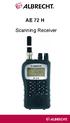 AE 72 H Scanning Receiver 1 AE72H Controls and Display Antenna (See Connecting the Antenna on Page 12) Headphone Jack Squelch Volume Display Keypad DC 6V Jack Power 2 Contents AE72H Controls and Display...2
OPERATIONS MANUAL BC80 XLT SCANNER
 OPERATIONS MANUAL BC80 XLT SCANNER 34 Somerset Avenue Pleasantville, NJ 08232 (609) 272-0022 Fax (609) 272-0846 www.racingelectronics.com 2 3 Precautions Before you use this scanner, please read and observe
3. Enter the first five digits of desired frequency (2 2 5 0 0 for 225.000 MHz).
 Simplified Directions 1. Install the batteries. 2. Turn the unit on (rotate volume knob clockwise). 3. Enter the first five digits of desired frequency (2 2 5 0 0 for 225.000 MHz). 4. Listen. Table of
Weather Radio Alarm Clock
 1200093 User s Guide Weather Radio Alarm Clock Thank you for purchasing your Weather Radio Alarm Clock from RadioShack. Please read this user s guide before installing, setting up, and using your new weather
Important Safety Instructions
 PR-D7 GB Revision 1 Important Safety Instructions 1. Read these instructions. 2. Keep these instructions. 3. Heed all warnings. 4. Follow all instructions. 5. Do not use this apparatus near water. 6. Clean
THE NEW GENERATION IN TECHNOLOGY. NI-3103A Alarm Clock w/fm Radio ipod & iphone Docking. Operating Instructions
 THE NEW GENERATION IN TECHNOLOGY NI-3103A Alarm Clock w/fm Radio ipod & iphone Docking Operating Instructions Table of Contents Important Safeguards... 3 Parts... 6 Controls... 6 To Set Up... 7 ipod/iphone
PR-D9W. GB Version 1
 PR-D9W Version 1 Table of contents Important safety instructions... 2-3 Introduction... 4 Controls... 5-8 Using your weather alert radio for the first time... 9 Operating your radio Search tuning AM/FM...
Controls. LCD Display. Tuning Up Time Set and Station Scan
 PR-D8 GB Revision 3 1 1 2 4 5 7 9 10 12 14 16 18 20 22 24 25 26 27 29 31 33 35 36 37 38 Controls Stereo Built-in Microphone (Left Channel) LCD Display Stereo Built-in Microphone (Right channel) Power/Auto
AM/FM VHF TV Pocket Radio (120-0617) Features Faxback Doc. # 18055
 (120-0617) Features Faxback Doc. # 18055 Your Radio Shack AM/FM VHF TV Pocket Radio gives you high-quality sound and is designed for your active lifestyle. You can listen to music, sports, news, or TV
AE 82 H / AE 82 H BT Scanning Receiver
 AE 8 H / AE 8 H BT Scanning Receiver CONTENTS.... 5. 6. 7. 8. 9. CAUTIONS... ABOUT MODELS... SUPPLIED EQUIPMENT... 5 INSTALLING THE BATTERIES... 5 INSTALLING THE ANTENNA... 5 CONTROLS... 6 Power On/Off
Hear The Future...Now! SIEM-2T/SIEM-2R
 Hear The Future...Now! SIEM-2T/SIEM-2R UHF PLL Mono In Ear Monitoring System 856 59508-03 ATTENTION Please pay high attention to the following information. The guideline published by Occupational Safety
INSTRUCTION MANUAL PLEASE READ ALL THE INSTRUCTIONS COMPLETELY BEFORE USE AND SAVE THIS MANUAL FOR FUTURE REFERENCE
 INSTRUCTION MANUAL PLEASE READ ALL THE INSTRUCTIONS COMPLETELY BEFORE USE Ver. 2.0 AND SAVE THIS MANUAL FOR FUTURE REFERENCE Table of Contents Unpacking... 3 About the CCRadio-EP... 4 Quick Start Guide...
Treasure Cove Metal Detector
 Treasure Cove Metal Detector Fortune Finder 1020 OWNER S MANUAL www.treasure-cove.com 805-658-2328 With your 1020 metal detector, you can hunt for coins, relics, jewelry, gold, and silver just about anywhere,
Operation Manual for Users
 Operation Manual for Users Model No.: FLTAMFMRCD!!!!!!!!!! ATTENTION!!!!!!!!!! THE RESET BUTTON MUST BE PRESSED TO ENSURE PROPER OPERATION. SEE INSTRUCTION MANUAL Table of Contents Table of Contents ---------------------------------------------------------------------------------------------
Radio BMR100 INSTRUCTION MANUAL. ENGLISH (Original instructions)
 ENGLISH (Original instructions) INSTRUCTION MANUAL Radio BMR00 WARNING: For your personal safety, READ and UNDERSTAND before using. SAVE THESE INSTRUCTIONS FOR FUTURE REFERENCE. Symbols The following show
INSTRUCTION MANUAL RM-5750. AM/FM Digital Alarm Clock Radio
 INSTRUCTION MANUAL RM-5750 AM/FM Digital Alarm Clock Radio Fig. 1 CAUTION: THE APPARATUS SHALL NOT BE EX- POSED TO DRIPPING OR SPLASHING. NO OBJECTS FILLED WITH LIQUIDS, SUCH AS VASES, SHALL BE PLACED
SP1790JK 900MHz Wireless Indoor/Outdoor Speakers. User Manual INTRODUCTION FEATURES IMPORTANT SAFETY INFORMATION
 SP1790JK 900MHz Wireless Indoor/Outdoor Speakers INTRODUCTION This 900 MHz digital hybrid wireless speaker system uses the latest wireless technology that enables you to enjoy music and TV sound anywhere
DR 70 Portable Digital DAB+ and FM Radio Receiver User Manual English Please read carefully before using this product
 DR 70 Portable Digital DAB+ and FM Radio Receiver User Manual Please read carefully before using this product 15 1 Table of Contents 1 Table of Contents... 16 2 Safety Instructions:... 17 3 Specification:...
Color LCD TV with AM/FM Radio
 16-3054.auto.fm Page 1 Thursday, August 19, 1999 3:00 PM Color LCD TV with AM/FM Radio EAR VOLUME BRIGHT TV OFF RADIO Switch Built-In Telescoping Rod Antenna TUNING FM AM TUNING Dial FM VHF AM UHF Switch
Nokia Bluetooth Headset BH-604 User Guide
 Nokia Bluetooth Headset BH-604 User Guide Issue 1 EN DECLARATION OF CONFORMITY Hereby, NOKIA CORPORATION declares that this HS-96W product is in compliance with the essential requirements and other relevant
Single Day Alarm Clock with. Bluetooth and USB Play-through
 Single Day Alarm Clock with Bluetooth and USB Play-through MODEL : BSC 200 READ THIS INSTRUCTION MANUAL BEFORE OPERATING THE APPLIANCE. SAVE THIS MANUAL FOR FUTURE REFERENCE. TABLE OF CONTENTS IMPORTANT
Controls. Opening the cover
 BTS-102 GB 2013 CSR plc and its group companies. The aptx mark and the aptx logo are trademarks of CSR plc or one of its group companies and may be registered in one or more jurisdictions. The Bluetooth
BSCAN DW VOX SAVE BEEP CHANNEL CALL VOX
 The World in Communication Content 2 ALAN 441 transceivers 2 1 user instructions 8 CHANNELS PMR446 TRANSCEIVER Congratulations on your purchase! ALAN 441 is a new generation PMR 446 transceiver which may
Visit our Website at. www.bc780xlt.com BC780XLT. 500-Channel Trunk Tracking Scanner TRUNK TRACKER III
 Visit our Website at www.bc780xlt.com BC780XLT TRUNK TRACKER III 500-Channel Trunk Tracking Scanner Introduction The BC780XLT is a state-of-the-art radio with TrunkTracking and automatic scanning capabilities.
USER MANUAL. 2. Get started 2.1 Overview The headset contains the following parts as shown in the figure:
 1. Introduction Thank you for purchasing our. Together with Bluetooth mobile phones or other Bluetooth embedded devices, Bluetooth headset allows you the freedom to make and receive calls while on the
DR-83 90-Minute Digital Recorder
 DR-83 90-Minute Digital Recorder Owner s Manual Please read before using this equipment. ˆ Contents Features... 5 Preparation... 7 Installing Batteries... 7 Setting the Clock... 8 Connecting Earphones...
20-405 / PRO-405 User s Guide Desktop Radio Scanner
 20-405 / PRO-405 User s Guide Desktop Radio Scanner Thank you for purchasing your Desktop Radio Scanner from RadioShack. Please read this user s guide before installing, setting up, and using your new
DAB & FM RADIO Installation Manual
 Size: 105x145mm 105g copper paper DAB & FM RADIO Installation Manual Model: 10798 10799 10800 10801 Thank you for purchasing this AGK DAB/FM radio. Please read the instructions and warnings carefully before
G e t t i n g. Know your radio. 1 external power connector. on /off switch. aerial
 G e t t i n g 1 external power connector Know your radio on /off switch aerial battery compartment Warning: See the Safety Notes on the back page. headphone connector Warning: Do not turn your radio on
Register your product and get support at www.philips.com/welcome LFH0645 LFH0648. EN User manual
 Register your product and get support at www.philips.com/welcome LFH0645 LFH0648 EN User manual Table of contents 1 Welcome 3 Product highlights 3 2 Important 4 Safety 4 Hearing safety 4 Disposal of your
User Guide. CR-111IP Clock radio with dock for ipod
 User Guide CR-111IP Clock radio with dock for ipod IMPORTANT SAFETY INFORMATION CAUTION! RISK OF ELECTRIC SHOCK DO NOT OPEN TO REDUCE THE RISK OF ELECTRIC SHOCK DO NOT REMOVE COVER (OR BACK) This symbol
INSTRUCTION MANUAL PLEASE READ ALL THE INSTRUCTIONS COMPLETELY BEFORE USE AND SAVE THIS MANUAL FOR FUTURE REFERENCE
 INSTRUCTION MANUAL PLEASE READ ALL THE INSTRUCTIONS COMPLETELY BEFORE USE AND SAVE THIS MANUAL FOR FUTURE REFERENCE m Before Use Please read IMPORTANT SAFETY INSTRUCTIONS on page 10 before use. It is important
20-427 PRO-2054 300 channel mobile/base scanner
 20-427 PRO-2054 300 channel mobile/base scanner Please read this user s guide before installing, setting up and using your new product www.radioshack.com Thank you for purchasing your PRO-2054 300 channel
AM/FM PLL Clock/Table Radio
 12-1632.fm Page 1 Wednesday, May 10, 2000 10:57 AM Cat. No. 12-1632 OWNER S MANUAL Please read before using this equipment. AM/FM PLL Clock/Table Radio 12-1632.fm Page 2 Wednesday, May 10, 2000 10:57 AM
2.4 GHz Dual Handset Cordless Telephone Answering System 2255 with Caller ID/Call Waiting
 USER S MANUAL Part 2 2.4 GHz Dual Handset Cordless Telephone Answering System 2255 with Caller ID/Call Waiting Please also read Part 1 Important Product Information AT&T and the globe symbol are registered
H203D 中文 GB Version 1
 H203D 中 GB文 Version 1 Contents Installing batteries... 4 Using the AC adapter (not supplied)... 5 Setting the clock... 6-7 Updating your radio - DAB... 8 Selecting a station - DAB... 9 Secondary services
Gold Century GC-1023 Metal Detector
 Gold Century GC-1023 Metal Detector Discriminating Pin Pointing Metal Detector OWNER S MANUAL And Warranty With your GC-1023 metal detector, you can hunt for coins, relics, jewelry, gold, and silver just
Controls (front) 1. Loudspeaker 2. Light button 3. Band button 4. Auto tune button 5. Alarm button 6. LCD display
 GB Contents Controls... 2-4 Mains operation... 5 Operating your radio... 6 Selecting a station DAB... 7 Display modes DAB... 8 Finding new stations - DAB... 9 Secondary services DAB... 9 Manual tuning
Business Audio System: Music & Messaging MP3 Player. by Grace Digital Audio. User Guide. Model No. GDI-USBM10
 Business Audio System: Music & Messaging MP3 Player by Grace Digital Audio User Guide Model No. GDI-USBM10 User Guide Contents Introduction 2 Safety & General Use Information 2 Features 3 Set Up & Operation
FMT600BT Transmitter
 Technaxx FMT600BT Transmitter User Manual Transfer of music and calls directly from your Bluetooth device to your car radio This device complies with the requirements of the standards referred to the Directive
RCR-22 AM/MW 2 bands Digital Clock Radio instruction manual
 RCR-22 AM/MW 2 bands Digital Clock Radio instruction manual Important safety instructions 1. Read and understand all safety and operating instructions before the radio is operated. 2. Retain instruction:
ER102. Emergency Crank Weather Radio Owner s Manual. www.midlandradio.com
 ER102 Emergency Crank Weather Radio Owner s Manual Table of Contents Welcome to the World of Midland Electronics Major ER102 Features ER102 Controls and Functions ER102 Power Sources - Built-in Rechargeble
Owner s Manual AWM910 JENSEN AWM910 COMPACT DISC PLAYER RADIO CD COMPACT MUSIC SYSTEM MUTE AUX BAND AUX IN PUSH PUSH PWR VOL ALARM T/F AUD SPK A SPK B
 AWM910 Owner s Manual COMPACT DISC PLAYER PUSH 1 2 3 4 5 6 RPT SCAN RDM H M PUSH PWR VOL ALARM SET ON/OFF EQ T/F AUD RADIO CD COMPACT MUSIC SYSTEM MUTE AUX BAND CD AUX IN A B A+B JENSEN AWM910 Thank You!
RD-11 ROBERTS. FM RDS/DAB digital radio with. Sound for Generations. Please read this manual before use
 ROBERTS Sound for Generations RD- FM RDS/DAB digital radio with Please read this manual before use Contents Controls... Battery operation... 3 Mains operation... 3 Operating your radio - DAB... 4 Selecting
Contents. Product Code -------------------------------------------------------15. Page 1
 Contents Important Safety Instructions -------------------------------------2 BT HP01 --------------------------------------------------------------4 BT HP01 Anatomy ---------------------------------------------------5
PA500II Enterprise Mobile Computer
 PA500II Enterprise Mobile Computer - PA500II - Quick Reference Guide 400891G Version 1.0 PA500II Product Introduction & Accessory Kit After opening the box, ensure the following accessories for the PA500II
PORTABLE ALARM CLOCK. Dual Alarm. FM Radio. Wake-up Sounds. USB Phone Charger G-1CR
 G-BUZZ PORTABLE ALARM CLOCK Dual Alarm FM Radio Wake-up Sounds USB Phone Charger G-1CR Welcome Alarm clocks can be boring. Get ready to shake things up with your new G-BUZZ. Slap the snooze for more ZZZ
Digital Radio/DAB+/FM RDS digital clock radio with dual alarm Operating instruction
 381SE1D-A Digital Radio/DAB+/FM RDS digital clock radio with dual alarm Operating instruction GB Contents Controls... 2-3 Using the clock radio for the first time... 4 Operating your clock radio... 5 Selecting
TABLE OF CONTENTS. TABLE OF CONTENTS... 1 Package content... 1. INTRODUCTION Dear customer... 2 Features... 2 Caution... 2
 Headset Englisch 19.07.2001 14:26 Uhr Seite 1 TABLE OF CONTENTS 1 TABLE OF CONTENTS............................................................... 1 Package content..................................................................
PEBBLE USER MANUAL. MODEL: GMR1888DAB DAB Digital & FM Radio. Hyper-link ALL text to corresponding sections
 PEBBLE Hyper-link ALL text to corresponding sections MODEL: GMR1888DAB DAB Digital & FM Radio USER MANUAL 1 2 Welcome Your DAB Digital&FM Radio 2.1 In The box 2.2 Front View 2.3 Top View 2.4 Rear View
Wireless Indoor/ Outdoor Thermometer
 Wireless Indoor/ Outdoor Thermometer Owner s Manual Please read before using this equipment. ˆ Contents FCC Information... 3 FCC Declaration of Conformity... 5 Preparation... 5 Installing Batteries...
Manual Ranging MultiMeter
 Owner s Manual Manual Ranging MultiMeter Model 82345 CAUTION: Read, understand and follow Safety Rules and Operating Instructions in this manual before using this product.! Safety! Operation! Maintenance!
High Power Receiver CR-W400U Operating Instructions
 High Power Receiver CR-W400U Operating Instructions Please read these instructions carefully before using this product and save this manual for future use. Panasonic welcomes you to our ever growing family
Cat 20-527 PRO-97 1,000 Channel Triple Trunking Hand Held Scanner
 Cat 20-527 PRO-97 1,000 Channel Triple Trunking Hand Held Scanner Please read this user s guide before installing, setting up and using your new product www.radioshack.com Contents Thank you for purchasing
Alarm Clock USER GUIDE
 Alarm Clock USER GUIDE Jazwares, Inc. 2012 CONTENTS Please read the instructions along with the Alarm Clock carefully before you use it, so that you can operate it conveniently. WELCOME & Warnings Page
Nokia Bluetooth Headset BH-800 User Guide. 9246974 Issue 2
 Nokia Bluetooth Headset BH-800 User Guide 9246974 Issue 2 DECLARATION OF CONFORMITY We, NOKIA CORPORATION declare under our sole responsibility that the product HS-24W is in conformity with the provisions
Quick Start USER GUIDE
 ECOSTONE Features & Operation Models: GDI-EGST700--710 QUICK START 1-2-3 STEP 1: STEP 2: STEP 3: Power ON your ECOSTONE SEARCH your Bluetooth Connection on your Smart-device PAIR & PLAY STANDBY ON/OFF
2013 VTech Printed in China 91-009656-000 US
 Rechargeable Power Pack User s Manual 2013 VTech Printed in China 91-009656-000 US INTRODUCTION The Rechargeable Power Pack makes it easier than ever to keep the InnoTab 3 or InnoTab 3S charged and ready
Converse 320. Userfriendly Guide
 Converse 0 Userfriendly Guide Return Diversion Minder On Off At a glance IMPORTANT Next Inserts a space in a number when storing numbers in the memory. Clear Used to edit numbers when pre-dialling or when
REVIVE DAB/FM ALARM CLOCK RADIO
 kitsound.co.uk REVIVE DAB/FM ALARM CLOCK RADIO USER MANUAL JB. 3208 / Made in China. KitSound 2014. Christchurch, Dorset. BH23 4FL We are craftspeople. We are musicians. We are KitSound And we all commit
Nokia Bluetooth Headset BH-200 User Guide
 Nokia Bluetooth Headset BH-200 User Guide 1 9246085 Issue 2 DECLARATION OF CONFORMITY We, NOKIA CORPORATION declare under our sole responsibility that the product HS-58W is in conformity with the provisions
DAB Radio. Instruction Manual L55DAB10
 DAB Radio Instruction Manual L55DAB10 L55DAB10_IB_110810_Zell.indd 1 L55DAB10_IB_110810_Zell.indd 2 Contents Unpacking...5 Product Overview...6 Top View... 6 Rear View... 6 Power Source...7 Battery Power...
DAB2+ Dear Customer, Congratulations with your new Argon DAB2+
 Dear Customer, Quality has always been our driving force and founding Argon Audio is a natural extension of this philosophy. We have 20 years' experience in creating and specifying high quality products,
AutoRanging Digital MultiMeter
 Owner's Manual AutoRanging Digital MultiMeter Model No. 82139 CAUTION: Read, understand and follow Safety Rules and Operating Instructions in this manual before using this product. Safety Operation Maintenance
Elite Edition Metal Detector
 Elite Edition Metal Detector LCD Display probable type of metal, Notch Setting ignores junk metal depth of the target, operating mode and low battery indication Headphone Jack connect headphones (not supplied).
DAB1001. Wireless Digital Radio Interface. Installation & User Guide
 DAB1001 Wireless Digital Radio Interface Installation & User Guide Contents Contents... 2 Introduction... 3 Contents of Package... 4 Installation... 5 Product Overview... 5 Installation Procedure... 5
TV hearing aid BL-8008A BL-8008B. Manual
 TV hearing aid BL-8008A BL-8008B Manual A. Product instruction 1. What is TV hearing aid 2. Theory 3. Features 4. Functions 4.1 TV hearing aid function 4.2 Normal hearing aid function 4.3 Wired hearing
MODEL 2202IQ (1991-MSRP $549.00)
 F O R T H E L O V E O F M U S I C F O R T H E L O V E O F M U S I C MODEL 2202IQ (1991-MSRP $549.00) OWNER'S MANUAL AND INSTALLATION GUIDE INTRODUCTION Congratulations on your decision to purchase a LINEAR
ROBERTS. Enjoy Listening. DAB/FM RDS digital portable radio. Please read this manual before use
 ROBERTS Enjoy Listening DAB/FM RDS digital portable radio Please read this manual before use Contents Controls... -3 Battery operation...4 Using the AC adaptor...5 Operating your radio - DAB...6 Selecting
Table of Contents. System Requirement of MP3 Player:... 4. Connection and Downloading... 7. Downloading DRM10 Files... 8.
 Table of Contents Instructions... 1 Precautions... 2 System requirements... 4 System Requirement of MP3 Player:... 4 Introduction... 5 Features... 5 Charging the Battery... 6 Connection and Downloading...
Tiny Audio C3. English TINY AUDIO C3. Please read carefully before using this product
 English TINY AUDIO C3 Please read carefully before using this product 1 Safety Instructions: 1. Do not use this radio near water. 2. Clean with dry cloth. 3. Do not block any ventilation openings. 4. Do
RD-27 ROBERTS. FM RDS/DAB digital radio with. Sound for Generations. Please read this manual before use
 ROBERTS RD-7 Sound for Generations FM RDS/DAB digital radio with Please read this manual before use Contents Controls... Battery operation... 3 Mains operation... 3 Operating your radio - DAB... 4 Selecting
Nokia Bluetooth Headset BH-607. Issue 2. 1
 Nokia Bluetooth Headset BH-607 2 3 1 4 5 6 7 8 9 11 10 Issue 2. 1 12 13 14 DECLARATION OF CONFORMITY Hereby, NOKIA CORPORATION declares that this BH-607 product is in compliance with the essential requirements
All Hazards Weather Alert Radio WR-100
 All Hazards Weather Alert Radio WR-100 Owner s Manual Quick Start Instructions: Please see pg. 5 for important buttons and controls 1. Place 3 AAA alkaline batteries (not supplied) into the compartment
ROBERTS. Enjoy Listening. DAB/FM RDS digital portable radio. Please read this manual before use
 ROBERTS Enjoy Listening DAB/FM RDS digital portable radio Please read this manual before use Contents Controls... 2-3 Battery operation...4 Using the AC adaptor...5 Operating your radio - DAB...6 Selecting
DSB-100 Portable Premium Bluetooth Speaker Owner s Manual
 . DSB-100 Portable Premium Bluetooth Speaker Owner s Manual You can print more than one page of a PDF onto a single sheet of paper. 1 Index Preparation Unpacking 3 Overview 4 Sound Quality 4 Design 4 Operation
User Guide ACT-32T Bodypack Transmitters
 User Guide ACT-T s All rights reserved. Do not copy or forward without prior approvals MIPRO. Specifications and design subject to change without notice. MN 0/0 CE5 A IMPORTANT SAFETY INSTRUCTIONS WARNING.
PT2508/3508 VHF/UHF HANDHELD TRANSCEIVER INSTRUCTION MANUAL
 PT2508/3508 VHF/UHF HANDHELD TRANSCEIVER INSTRUCTION MANUAL 0681 0681 TO THE USER THANK YOU! We are grateful you have chosen application. for your land mobile We believe this easy to use transceiver will
Jarv Nmotion BTHL-201 Bluetooth Stereo Earbuds Users Guide
 Jarv Nmotion BTHL-201 Bluetooth Stereo Earbuds Users Guide Features: Bluetooth wireless technology Comfortable lightweight in-ear design with detachable sports ear hooks for added support High Definition
CR9986 ROBERTS. Dual Alarm CD Clock Radio. Sound for Generations. Please read this manual before use
 ROBERTS Sound for Generations CR9986 Dual Alarm CD Clock Radio Please read this manual before use Contents Contents... Controls... - Switching on and setting the time... 4 Listening to the radio... 5 Compact
User Guide Nokia Portable Wireless Charging Plate DC-50
 User Guide Nokia Portable Wireless Charging Plate DC-50 Issue 1.1 EN User Guide Nokia Portable Wireless Charging Plate DC-50 Contents For your safety 3 About your accessory 4 Keys and parts 5 Top up your
Youkits TJ2B 2016 SSB CW HF TRANSCEIVER OPERATION GUIDE
 Youkits TJ2B 2016 SSB CW HF TRANSCEIVER OPERATION GUIDE TJ2B is a high-performance QRP portable multi-band SSB/CW transceiver, used with DDS as LO, offering wide frequency coverage and fine tuning rate.
ENGLISH (Original instructions) Job Site DAB Radio BMR101. INSTRUCTION MANUAL IMPORTANT: Read Before Using.
 ENGLISH (Original instructions) Job Site DAB Radio BMR0 INSTRUCTION MANUAL IMPORTANT: Read Before Using. ENGLISH (Original instructions) Symbols The following show the symbols used for the equipment. Be