
SELF SERVICE RESET PASSWORD MANAGEMENT CREATING CUSTOM REPORTS GUIDE
|
|
|
- Jonas Griffith
- 10 years ago
- Views:
Transcription
1 SELF SERVICE RESET PASSWORD MANAGEMENT CREATING CUSTOM REPORTS GUIDE
2 Copyright Tools4ever B.V. All rights reserved. No part of the contents of this user guide may be reproduced or transmitted in any form or by any means without the written permission of Tools4ever. DISCLAIMER - Tools4ever will not be held responsible for the outcome or consequences resulting from your actions or usage of the informational material contained in this user guide. Responsibility for the use of any and all information contained in this user guide is strictly and solely the responsibility of that of the user. All trademarks used are properties of their respective owners.

3 Contents 1. Introduction 1 2. Report Structure Report Components Report Templates Creating a Custom Report Creating the Report Components Creating a Report Template Creating the Report Report Template Keywords Example Template 8 5. HTML Restrictions 8 6. Index 9 Copyright Tools4ever i
4 1. Introduction SSRPM is shipped with several default reports. It is however also possible to edit these reports or to create completely different reports. This document describes how these custom reports can be created using SSRPM. The chapter 'Creating a Custom Report' provides a step by step method of creating a custom report. 2. Report Structure This chapter describes how a report is build in SSRPM using report components in a report template Report Components A report component is an object that can be placed in a report template. When a report is generated, the report component is evaluated and replaced by the result from for instance a database query. The result of every report component is a table in HTML containing the result data. The class name of the table is 'ssrpmreporttable'. Report Component Configuration in SSRPM The report component itself has a unique name in SSRPM. This name is used to identify the component in a report template*. The correct syntax of a report component in a report template is: <SSRPMCOMP:Report Component Name> Example: The 'Manage Report Components' screenshot shows that a report component named 'Enrolled users' has been configured. This component can be added to a report template with the following syntax: <SSRPMCOMP:Enrolled users> *Please note that the report component name is case sensitive. Copyright Tools4ever

5 2.2. Report Templates A report template is a HTML document containing the layout of the report and the report components that must be included in the final report. New report templates can be created and existing report templates can be added. Report templates can be created with a normal HTML editor*. When the Report Template is complete, it can be added to the SSRPM service via the 'Import' button in the 'Manage Report Templates' dialog in the SSRPM Admin Console. Report Template Configuration in SSRPM Example Report Template: <html> <head> <title>self Service Reset Password Management Report</title> </head> <body> <SSRPMDESC:This is an example report template> This table contains the currently enrolled users: <SSRPMCOMP:Enrolled users> Generated at: <SSRPMTIME> </body> </html> *Please note that pictures and css sheets can be added to the report template. They must be in the same directory as the report template. 3. Creating a Custom Report This chapter describes step by step how to create a new and fully customized report. In this chapter a custom report will be created that displays all users that are enrolled in SSRPM and the users that are not (yet) enrolled Creating the Report Components A report must contain report component to display events that occurred in SSRPM. It is also the first step of creating a new report. In this chapter we will create two report components: All users that have been enrolled into SSRPM and the users that are not enrolled in SSRPM. 1. Open the SSRPM Admin Console Copyright Tools4ever

6 2. Go to 'Reporting --> Manage --> Components...' in the menu. The following dialog will be displayed: 3. Click on 'Add...'. You will be presented with the following dialog: Copyright Tools4ever

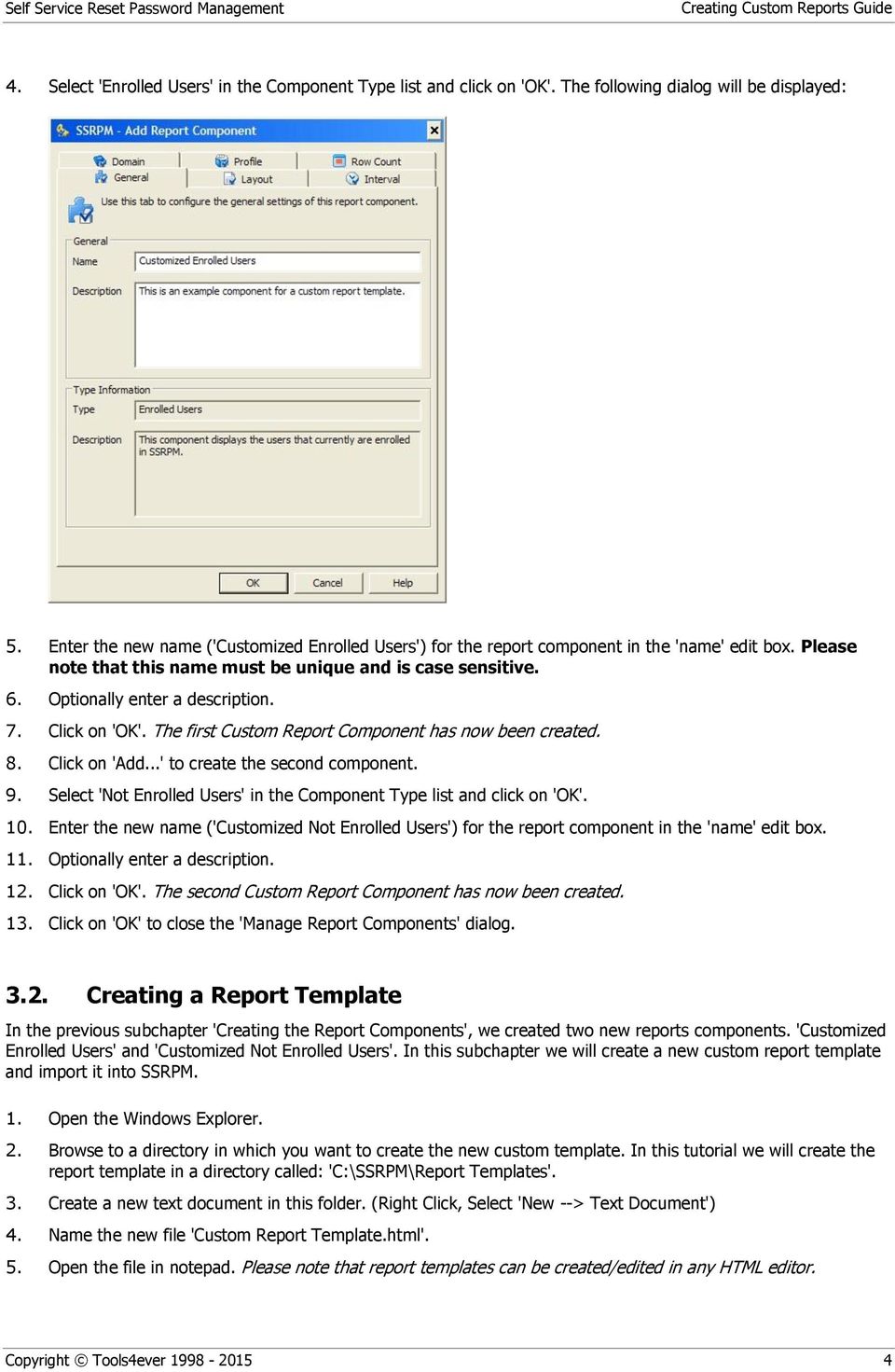
7 4. Select 'Enrolled Users' in the Component Type list and click on 'OK'. The following dialog will be displayed: 5. Enter the new name ('Customized Enrolled Users') for the report component in the 'name' edit box. Please note that this name must be unique and is case sensitive. 6. Optionally enter a description. 7. Click on 'OK'. The first Custom Report Component has now been created. 8. Click on 'Add...' to create the second component. 9. Select 'Not Enrolled Users' in the Component Type list and click on 'OK'. 10. Enter the new name ('Customized Not Enrolled Users') for the report component in the 'name' edit box. 11. Optionally enter a description. 12. Click on 'OK'. The second Custom Report Component has now been created. 13. Click on 'OK' to close the 'Manage Report Components' dialog Creating a Report Template In the previous subchapter 'Creating the Report Components', we created two new reports components. 'Customized Enrolled Users' and 'Customized Not Enrolled Users'. In this subchapter we will create a new custom report template and import it into SSRPM. 1. Open the Windows Explorer. 2. Browse to a directory in which you want to create the new custom template. In this tutorial we will create the report template in a directory called: 'C:\SSRPM\Report Templates'. 3. Create a new text document in this folder. (Right Click, Select 'New --> Text Document') 4. Name the new file 'Custom Report Template.html'. 5. Open the file in notepad. Please note that report templates can be created/edited in any HTML editor. Copyright Tools4ever
8 6. Copy/Paste the following text to the file: <html> <head> <title>self Service Reset Password Management Custom Report</title> </head> <body> <SSRPMDESC:This is an custom report template> <br> This table contains the currently enrolled users:<br><br> <SSRPMCOMP:Customized Enrolled Users> <br><br> This table contains the not enrolled users:<br><br> <SSRPMCOMP:Customized Not Enrolled Users> <br><br> Generated at: <SSRPMTIME><br> </body> </html> 7. Save the file and close notepad. 8. Open the SSRPM Admin Console. 9. Go to 'Reporting --> Manage --> Templates...'. The following dialog will be displayed: 10. Click on 'Import...' 11. Browse to the location where the new report template was created (In our case 'C:\SSRPM\Report Templates') and select the custom report template. 12. Click on 'Open'. The Customized Report Template has now been added to the SSRPM Service. 13. Click on 'Close' Creating the Report In the previous subchapters we created new report components and a new report template that uses the new report components. In this subchapter we will create a report based on that custom report template. 1. Open the Admin Console 2. Go to the 'Reports' tab in the main overview window. 3. Go to 'Reporting --> Add Report...' in the main menu. The 'Create Report Wizard' will be displayed. Copyright Tools4ever

9 4. Click on 'Next'. The following wizard page will be displayed: 5. Select 'Custom Report Template' from the list and click on 'Next'. 6. Select a schedule from the list. In this tutorial we will select 'Every Week'. Click on 'Next'. 7. Configure the schedule. In this tutorial we will select 'Sunday' at 02:00. Click on 'Next'. The following wizard page will be displayed: 8. Select 'Send the generated report to the following address(es):'. Copyright Tools4ever

10 9. Enter the address to which the generated report must be send and click on 'Next' twice. The following wizard page will be displayed: 10. Enter the name of the new report. In this tutorial we used 'Custom Report'. 11. Optionally enter a description. 12. Click on 'Next' and then on 'Finish'. This will create the report. The report has no been created and is scheduled to be generated on Sunday 02:00 AM. Follow the steps below to generate the created report immediately: 1. Open the SSRPM Admin Console. 2. Go to the 'Reports' tab in the main overview window. 3. Select the 'Custom Report' from the report list. 4. Right click on the 'Custom Report'. 5. Select 'Generate Now' to generate the report now. It will be send to the specified address. 6. Select 'Generate and View' to generate the report now. The report will be displayed in your browser Report Template Keywords A report template can contain several custom keywords used by SSRPM: Keyword: <SSRPMDESC:Description> Purpose: This keyword can be used to add a description to the Report Template. The description is displayed in the SSRPM Admin console. The keyword is removed in generated reports. Example: <SSRPMDESC:This is an example description> Keyword: <SSRPMCOMP:Component Name> Purpose: This keyword can be used to add report components to the Report Template. When a report is generated, the keyword is replaced by a table containing the result data. Please note that report component names are case sensitive. Example: <SSRPMCOMP:Customized Enrolled Users> Keyword: <SSRPMTIME> Purpose: This keyword can be used to add the generation time to the report. When a report is generated the keyword is replaced by the time it was generated. Example: <SSRPMTIME> Copyright Tools4ever

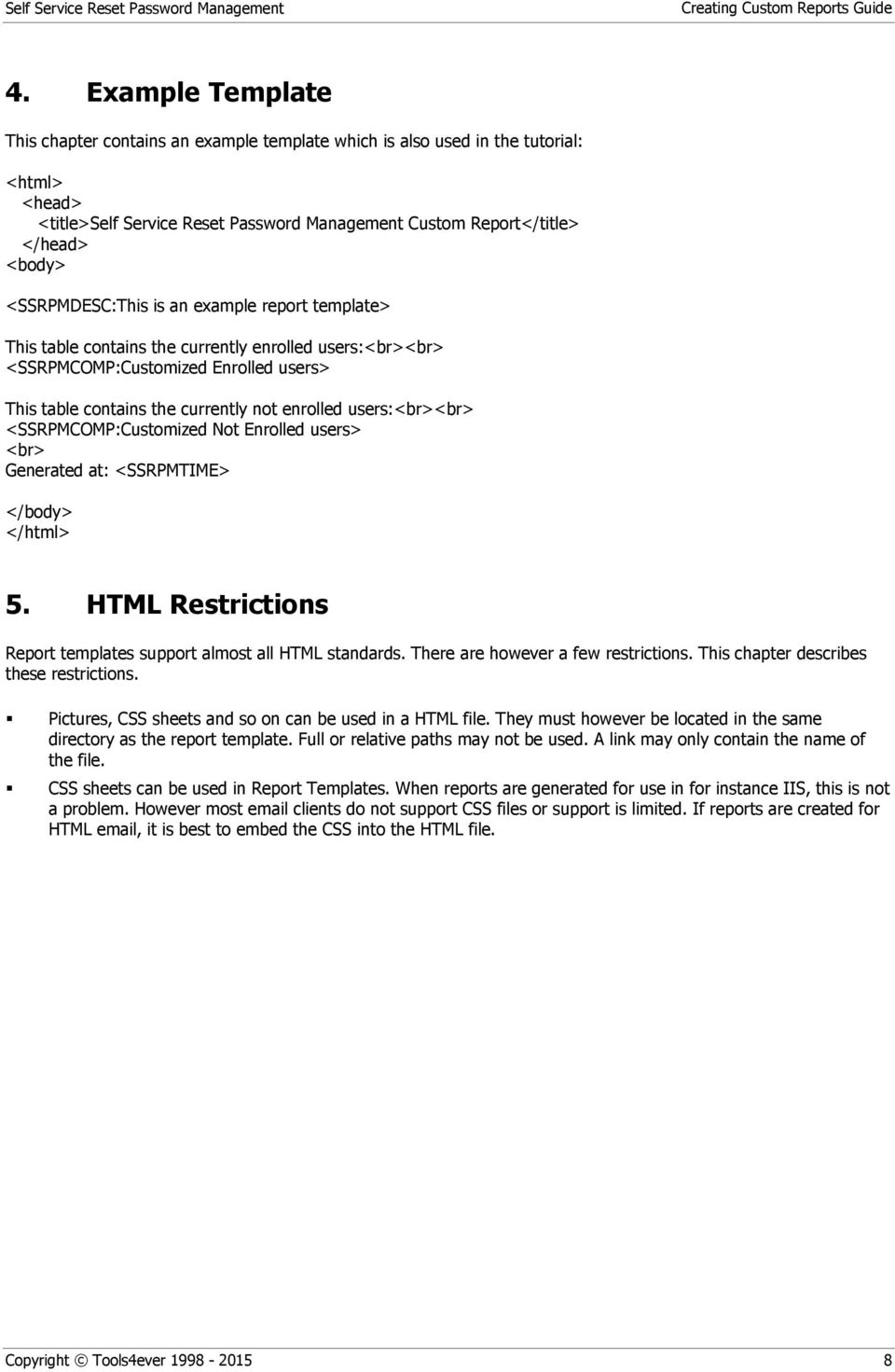
11 4. Example Template This chapter contains an example template which is also used in the tutorial: <html> <head> <title>self Service Reset Password Management Custom Report</title> </head> <body> <SSRPMDESC:This is an example report template> This table contains the currently enrolled users:<br><br> <SSRPMCOMP:Customized Enrolled users> This table contains the currently not enrolled users:<br><br> <SSRPMCOMP:Customized Not Enrolled users> <br> Generated at: <SSRPMTIME> </body> </html> 5. HTML Restrictions Report templates support almost all HTML standards. There are however a few restrictions. This chapter describes these restrictions. Pictures, CSS sheets and so on can be used in a HTML file. They must however be located in the same directory as the report template. Full or relative paths may not be used. A link may only contain the name of the file. CSS sheets can be used in Report Templates. When reports are generated for use in for instance IIS, this is not a problem. However most clients do not support CSS files or support is limited. If reports are created for HTML , it is best to embed the CSS into the HTML file. Copyright Tools4ever
12 6. Index C Creating a Custom Report 2 Creating a Report Template 4 Creating the Report 5 Creating the Report Components 2 E Example Template 8 H HTML Restrictions 8 I Introduction 1 R Report Components 1 Report Structure 1 Report Template Keywords 7 Report Templates 2

SELF SERVICE RESET PASSWORD MANAGEMENT BACKUP GUIDE
 SELF SERVICE RESET PASSWORD MANAGEMENT BACKUP GUIDE Copyright 1998-2015 Tools4ever B.V. All rights reserved. No part of the contents of this user guide may be reproduced or transmitted in any form or by
SELF SERVICE RESET PASSWORD MANAGEMENT DATABASE REPLICATION GUIDE
 SELF SERVICE RESET PASSWORD MANAGEMENT DATABASE REPLICATION GUIDE Copyright 1998-2015 Tools4ever B.V. All rights reserved. No part of the contents of this user guide may be reproduced or transmitted in
HELP DOCUMENTATION E-SSOM DEPLOYMENT GUIDE
 HELP DOCUMENTATION E-SSOM DEPLOYMENT GUIDE Copyright 1998-2013 Tools4ever B.V. All rights reserved. No part of the contents of this user guide may be reproduced or transmitted in any form or by any means
SELF SERVICE RESET PASSWORD MANAGEMENT WEB INTERFACE GUIDE
 SELF SERVICE RESET PASSWORD MANAGEMENT WEB INTERFACE GUIDE Copyright 1998-2015 Tools4ever B.V. All rights reserved. No part of the contents of this user guide may be reproduced or transmitted in any form
HELP DOCUMENTATION SSRPM WEB INTERFACE GUIDE
 HELP DOCUMENTATION SSRPM WEB INTERFACE GUIDE Copyright 1998-2013 Tools4ever B.V. All rights reserved. No part of the contents of this user guide may be reproduced or transmitted in any form or by any means
SELF SERVICE RESET PASSWORD MANAGEMENT GPO DISTRIBUTION GUIDE
 SELF SERVICE RESET PASSWORD MANAGEMENT GPO DISTRIBUTION GUIDE Copyright 1998-2015 Tools4ever B.V. All rights reserved. No part of the contents of this user guide may be reproduced or transmitted in any
HELP DOCUMENTATION E-SSOM BACKUP AND RESTORE GUIDE
 HELP DOCUMENTATION E-SSOM BACKUP AND RESTORE GUIDE Copyright 1998-2013 Tools4ever B.V. All rights reserved. No part of the contents of this user guide may be reproduced or transmitted in any form or by
HELP DOCUMENTATION SSRPM CITRIX AND MICROSOFT TERMINAL SERVICES
 HELP DOCUMENTATION SSRPM CITRIX AND MICROSOFT TERMINAL SERVICES Copyright 1998-2013 Tools4ever B.V. All rights reserved. No part of the contents of this user guide may be reproduced or transmitted in any
SELF SERVICE RESET PASSWORD MANAGEMENT ARCHITECTURE GUIDE
 SELF SERVICE RESET PASSWORD MANAGEMENT ARCHITECTURE GUIDE Copyright 1998-2015 Tools4ever B.V. All rights reserved. No part of the contents of this user guide may be reproduced or transmitted in any form
SELF SERVICE RESET PASSWORD MANAGEMENT CITRIX AND MICROSOFT TERMINAL SERVICES
 SELF SERVICE RESET PASSWORD MANAGEMENT CITRIX AND MICROSOFT TERMINAL SERVICES Copyright 1998-2015 Tools4ever B.V. All rights reserved. No part of the contents of this user guide may be reproduced or transmitted
SELF SERVICE RESET PASSWORD MANAGEMENT IMPLEMENTATION GUIDE
 SELF SERVICE RESET PASSWORD MANAGEMENT IMPLEMENTATION GUIDE Copyright 1998-2015 Tools4ever B.V. All rights reserved. No part of the contents of this user guide may be reproduced or transmitted in any form
HELP DOCUMENTATION E-SSOM BACKUP AND RESTORE GUIDE
 HELP DOCUMENTATION E-SSOM BACKUP AND RESTORE GUIDE Copyright 1998-2012, Tools4ever B.V. All rights reserved. No part of the contents of this user guide may be reproduced or transmitted in any form or by
PASSWORD COMPLEXITY MANAGER ADMINISTRATOR'S GUIDE
 PASSWORD COMPLEXITY MANAGER ADMINISTRATOR'S GUIDE Copyright 1998-2015 Tools4ever B.V. All rights reserved. No part of the contents of this user guide may be reproduced or transmitted in any form or by
SELF SERVICE RESET PASSWORD MANAGEMENT ADMINISTRATOR'S GUIDE
 SELF SERVICE RESET PASSWORD MANAGEMENT ADMINISTRATOR'S GUIDE Copyright 1998-2015 Tools4ever B.V. All rights reserved. No part of the contents of this user guide may be reproduced or transmitted in any
Tool Tip. SyAM Management Utilities and Non-Admin Domain Users
 SyAM Management Utilities and Non-Admin Domain Users Some features of SyAM Management Utilities, including Client Deployment and Third Party Software Deployment, require authentication credentials with
ibaan ERP 5.2a Configuration Guide for ibaan ERP Windows Client
 ibaan ERP 5.2a Configuration Guide for ibaan ERP Windows Client A publication of: Baan Development B.V. P.O.Box 143 3770 AC Barneveld The Netherlands Printed in the Netherlands Baan Development B.V. 2002.
Wavecrest Certificate
 Wavecrest InstallationGuide Wavecrest Certificate www.wavecrest.net Copyright Copyright 1996-2015, Wavecrest Computing, Inc. All rights reserved. Use of this product and this manual is subject to license.
Create, Link, or Edit a GPO with Active Directory Users and Computers
 How to Edit Local Computer Policy Settings To edit the local computer policy settings, you must be a local computer administrator or a member of the Domain Admins or Enterprise Admins groups. 1. Add the
User Management Resource Administrator. UMRA Example Projects. Service Management
 User Management Resource Administrator UMRA Example Projects UMRA example projects Copyright 2005, Tools4Ever B.V. All rights reserved. No part of the contents of this user guide may be reproduced or transmitted
Release Notes Self Service Reset Password Management
 Release Notes Self Reset Password Management Version 6.54 build 1086, April 13-th, 2012 Specific changes in SSRPM version 6.54: New Features: General Multi lingual support for PCM rules Fixes: Helpdesk
Lepide Exchange Recovery Manager
 Configuration Guide Lepide Exchange Recovery Manager Lepide Software Private Limited, All Rights Reserved This User Guide and documentation is copyright of Lepide Software Private Limited, with all rights
DP-313 Wireless Print Server
 DP-313 Wireless Print Server Quick Installation Guide TCP/IP Printing (LPR for Windows 95/98/Me/2000) Rev. 03 (August, 2001) Copyright Statement Trademarks Copyright 1997 No part of this publication may
Sophos Mobile Control Startup guide. Product version: 3
 Sophos Mobile Control Startup guide Product version: 3 Document date: January 2013 Contents 1 About this guide...3 2 What are the key steps?...5 3 Log in as a super administrator...6 4 Activate Sophos
Microsoft Expression Web
 Microsoft Expression Web Microsoft Expression Web is the new program from Microsoft to replace Frontpage as a website editing program. While the layout has changed, it still functions much the same as
This tutorial provides detailed instructions to help you download and configure Internet Explorer 6.0 for use with Web Commerce application.
 IE 6.0 Download and Set-up To use the Web Commerce e-commerce service, you need to: Gain access to the Internet Install Microsoft Internet Explorer 6.0 Configure Temporary Internet files in Internet Explorer.
Customer Tips. Xerox Network Scanning HTTP/HTTPS Configuration using Microsoft IIS. for the user. Purpose. Background
 Xerox Multifunction Devices Customer Tips June 5, 2007 This document applies to these Xerox products: X WC Pro 232/238/245/ 255/265/275 for the user Xerox Network Scanning HTTP/HTTPS Configuration using
Follow these procedures for QuickBooks Direct or File Integration: Section 1: Direct QuickBooks Integration [Export, Import or Both]
![Follow these procedures for QuickBooks Direct or File Integration: Section 1: Direct QuickBooks Integration [Export, Import or Both]](/thumbs/25/5226259.jpg "Follow these procedures for QuickBooks Direct or File Integration: Section 1: Direct QuickBooks Integration [Export, Import or Both]") Follow these procedures for QuickBooks Direct or File Integration: Section 1: Direct QuickBooks Integration [Export, Import or Both] Part A - Configuration Step 1. During installation of the Amano Time
Follow these procedures for QuickBooks Direct or File Integration: Section 1: Direct QuickBooks Integration [Export, Import or Both] Part A - Configuration Step 1. During installation of the Amano Time
LPR for Windows 95/98/Me/2000/XP TCP/IP Printing User s Guide. Rev. 03 (November, 2001)
 LPR for Windows 95/98/Me/2000/XP TCP/IP Printing User s Guide Rev. 03 (November, 2001) Copyright Statement Trademarks Copyright 1997 No part of this publication may be reproduced in any form or by any
How to Create a Delegated Administrator User Role / To create a Delegated Administrator user role Page 1
 Managing user roles in SCVMM How to Create a Delegated Administrator User Role... 2 To create a Delegated Administrator user role... 2 Managing User Roles... 3 Backing Up and Restoring the VMM Database...
Sophos Mobile Control Startup guide. Product version: 3.5
 Sophos Mobile Control Startup guide Product version: 3.5 Document date: July 2013 Contents 1 About this guide...3 2 What are the key steps?...5 3 Log in as a super administrator...6 4 Activate Sophos Mobile
Richmond SupportDesk Web Reports Module For Richmond SupportDesk v6.72. User Guide
 Richmond SupportDesk Web Reports Module For Richmond SupportDesk v6.72 User Guide Contents 1 Introduction... 4 2 Requirements... 5 3 Important Note for Customers Upgrading... 5 4 Installing the Web Reports
Interact for Microsoft Office
 Interact for Microsoft Office Installation and Setup Guide Perceptive Content Version: 7.0.x Written by: Product Knowledge, R&D Date: October 2014 2014 Perceptive Software. All rights reserved Perceptive
How to Configure a Secure Connection to Microsoft SQL Server
 How to Configure a Secure Connection to Microsoft SQL Server 1993-2015 Informatica Corporation. No part of this document may be reproduced or transmitted in any form, by any means (electronic, photocopying,
JAVS Scheduled Publishing. Installation/Configuration... 4 Manual Operation... 6 Automating Scheduled Publishing... 7 Windows XP... 7 Windows 7...
 1 2 Copyright JAVS 1981-2010 Contents Scheduled Publishing... 4 Installation/Configuration... 4 Manual Operation... 6 Automating Scheduled Publishing... 7 Windows XP... 7 Windows 7... 12 Copyright JAVS
How to recover IE Client
 HIKVISION EUROPE B.V. How to recover IE Client (WebClientActiveX Control) Name: WebClientActiveX Control Publisher: HANGZHOU HIKVISION DIGITAL TECHNOLOGY CO.,LTD. Type: ActiveX Control Version: 2.4.0.56
Guide to PDF Publishing
 Guide to PDF Publishing Alibre Design 9.2 Copyrights Information in this document is subject to change without notice. The software described in this document is furnished under a license agreement or
Avery Wizard: Using the wizard with Microsoft Word. This is a simple step-by-step guide showing how to use the Avery wizard in word
 Avery Wizard: Using the wizard with Microsoft Word This is a simple step-by-step guide showing how to use the Avery wizard in word Open up a blank document in Microsoft Word and click the Avery Tab at
IMPORTING AND EXPORTING CERTIFICATES IN IE AND FIREFOX FOR BPIA AND PRACS
 IMPORTING AND EXPORTING CERTIFICATES IN IE AND FIREFOX FOR BPIA AND PRACS Exporting a certificate is useful for keeping a backup copy of your certificate or for importing it to another browser (either
LPR for Windows 95 TCP/IP Printing User s Guide
 LPR for Windows 95 TCP/IP Printing User s Guide First Edition Printed in Taiwan, R.O.C. RECYCLABLE Copyright Statement Trademarks Limited Warranty Copyright 1997 D-Link Corporation No part of this publication
How to install and use the File Sharing Outlook Plugin
 How to install and use the File Sharing Outlook Plugin Thank you for purchasing Green House Data File Sharing. This guide will show you how to install and configure the Outlook Plugin on your desktop.
Setting up VMware ESXi for 2X VirtualDesktopServer Manual
 Setting up VMware ESXi for 2X VirtualDesktopServer Manual URL: www.2x.com E-mail: [email protected] Information in this document is subject to change without notice. Companies, names, and data used in examples
Specops Command. Installation Guide
 Specops Software. All right reserved. For more information about Specops Command and other Specops products, visit www.specopssoft.com Copyright and Trademarks Specops Command is a trademark owned by Specops
Sage HRMS 2014 Sage Employee Self Service Tech Installation Guide for Windows 2003, 2008, and 2012. October 2013
 Sage HRMS 2014 Sage Employee Self Service Tech Installation Guide for Windows 2003, 2008, and 2012 October 2013 This is a publication of Sage Software, Inc. Document version: October 17, 2013 Copyright
IMDG Code for Intranet
 Version 12 Installation Instructions System Requirements These files should be loaded on a server running ASP.NET 2.0, and with at least 50 Mb of free disk space. For clients to access the application
Universal Management Service 2015
 Universal Management Service 2015 UMS 2015 Help All rights reserved. No parts of this work may be reproduced in any form or by any means - graphic, electronic, or mechanical, including photocopying, recording,
Project management integrated into Outlook
 y Project management integrated into Outlook InLoox PM 7.x Help for the configuration for MySQL-Server An InLoox Whitepaper Published: October 2011 Copyright: InLoox GmbH 2011 You find up-to-date information
Lepide Active Directory Self Service. Installation Guide. Lepide Active Directory Self Service Tool. Lepide Software Private Limited Page 1
 Installation Guide Lepide Active Directory Self Service Tool Lepide Software Private Limited Page 1 Lepide Software Private Limited, All Rights Reserved This User Guide and documentation is copyright of
etoken Enterprise For: SSL SSL with etoken
 etoken Enterprise For: SSL SSL with etoken System Requirements Windows 2000 Internet Explorer 5.0 and above Netscape 4.6 and above etoken R2 or Pro key Install etoken RTE Certificates from: (click on the
Instructions for Configuring a SAS Metadata Server for Use with JMP Clinical
 Instructions for Configuring a SAS Metadata Server for Use with JMP Clinical These instructions describe the process for configuring a SAS Metadata server to work with JMP Clinical. Before You Configure
Printer Sharing of the PT-9500pc in a Windows Environment
 Printer Sharing of the PT-9500pc in a Windows Environment This procedure is for configuring the PT-9500pc as a shared printer in Microsoft Windows. For printer sharing to operate correctly, please be sure
MobileStatus Server Installation and Configuration Guide
 MobileStatus Server Installation and Configuration Guide Guide to installing and configuring the MobileStatus Server for Ventelo Mobilstatus Version 1.2 June 2010 www.blueposition.com All company names,
Pharmacy Affairs Branch. Website Database Downloads PUBLIC ACCESS GUIDE
 Pharmacy Affairs Branch Website Database Downloads PUBLIC ACCESS GUIDE From this site, you may download entity data, contracted pharmacy data or manufacturer data. The steps to download any of the three
PaperStream Connect. Setup Guide. Version 1.0.0.0. Copyright Fujitsu
 PaperStream Connect Setup Guide Version 1.0.0.0 Copyright Fujitsu 2014 Contents Introduction to PaperStream Connect... 2 Setting up PaperStream Capture to Release to Cloud Services... 3 Selecting a Cloud
Installation Guide. (You can get these files from http://www.clariostechnology.com/intelligentreports/install)
 Clarios Technology Pty. Ltd. Intelligent Reporter Installation Guide Installing Intelligent Reports JIRA plugin The Intelligent Reports plugin for JIRA is available through the Atlassian Marketplace. Follow
Email Account Create for Outlook Express
 Email Account Create for Outlook Express Click Start Menu Choose Outlook Express Click Tools menu from Menu Bar and then click Accounts In Internet Account Wizard, Click Add Button and Click Mail. 1 In
MadCap Software. Upgrading Guide. Pulse
 MadCap Software Upgrading Guide Pulse Copyright 2014 MadCap Software. All rights reserved. Information in this document is subject to change without notice. The software described in this document is furnished
1. Starting the management of a subscribers list with emill
 The sending of newsletters is the basis of an efficient email marketing communication for small to large companies. All emill editions include the necessary tools to automate the management of a subscribers
StarWind iscsi SAN Software: Installing StarWind on Windows Server 2008 R2 Server Core
 StarWind iscsi SAN Software: Installing StarWind on Windows Server 2008 R2 Server Core www.starwindsoftware.com Copyright 2008-2011. All rights reserved. COPYRIGHT Copyright 2008-2011. All rights reserved.
16.4.3 Lab: Data Backup and Recovery in Windows XP
 16.4.3 Lab: Data Backup and Recovery in Windows XP Introduction Print and complete this lab. In this lab, you will back up data. You will also perform a recovery of the data. Recommended Equipment The
Avaya Network Configuration Manager User Guide
 Avaya Network Configuration Manager User Guide May 2004 Avaya Network Configuration Manager User Guide Copyright Avaya Inc. 2004 ALL RIGHTS RESERVED The products, specifications, and other technical information
Configuration Guide. Remote Backups How-To Guide. Overview
 Configuration Guide Remote Backups How-To Guide Overview Remote Backups allow you to back-up your data from 1) a ShareCenter TM to either a Remote ShareCenter or Linux Server and 2) Remote ShareCenter
Polar Help Desk 4.1. User s Guide
 Polar Help Desk 4.1 User s Guide Copyright (legal information) Copyright Polar 1995-2005. All rights reserved. The information contained in this document is proprietary to Polar and may not be used or
StarWind iscsi SAN Software: Using with Citrix XenServer
 StarWind iscsi SAN Software: Using with Citrix XenServer www.starwindsoftware.com Copyright 2008-2010. All rights reserved. COPYRIGHT Copyright 2008-2010. All rights reserved. No part of this publication
5.6.2 Optional Lab: Restore Points in Windows Vista
 5.6.2 Optional Lab: Restore Points in Windows Vista Introduction Print and complete this lab. In this lab, you will create a restore point and return your computer back to that point in time. Recommended
FEC Secure IPSec Client
 FEC Secure IPSec Client Software Activtion User's Guide FEC Secure IPSec Client 1 Copyright Trademarks All rights are reserved. No part of this publication may be reproduced or transmitted in any form
Using Internet or Windows Explorer to Upload Your Site
 Using Internet or Windows Explorer to Upload Your Site This article briefly describes what an FTP client is and how to use Internet Explorer or Windows Explorer to upload your Web site to your hosting
Windows Firewall Configuration with Group Policy for SyAM System Client Installation
 with Group Policy for SyAM System Client Installation SyAM System Client can be deployed to systems on your network using SyAM Management Utilities. If Windows Firewall is enabled on target systems, it
Installation Guide. . All right reserved. For more information about Specops Inventory and other Specops products, visit www.specopssoft.
 . All right reserved. For more information about Specops Inventory and other Specops products, visit www.specopssoft.com Copyright and Trademarks Specops Inventory is a trademark owned by Specops Software.
Installation & Activation Guide. Lepide Active Directory Self Service
 Installation & Activation Guide Lepide Active Directory Self Service , All Rights Reserved This User Guide and documentation is copyright of Lepide Software Private Limited, with all rights reserved under
HELP DOCUMENTATION E-SSOM INSTALLATION GUIDE
 HELP DOCUMENTATION E-SSOM INSTALLATION GUIDE Copyright 1998-2013 Tools4ever B.V. All rights reserved. No part of the contents of this user guide may be reproduced or transmitted in any form or by any means
How to Configure Microsoft System Operation Manager to Monitor Active Directory, Group Policy and Exchange Changes Using NetWrix Active Directory
 How to Configure Microsoft System Operation Manager to Monitor Active Directory, Group Policy and Exchange Changes Using NetWrix Active Directory Change Reporter Table of Contents General Information...
Configuring Active Directory with AD FS and SAML for Brainloop Secure Dataroom Setup Guide
 Configuring Active Directory with AD FS and SAML for Brainloop Secure Dataroom Copyright Brainloop AG, 2004-2015. All rights reserved. Document version 1.0 All trademarks referred to in this document are
Client Side Digital Certificates User Enrolment Guide
 Client Side Digital Certificates User Enrolment Guide Table of Contents 1. INTRODUCTION... 3 2. INSTALLING A NEW CERTIFICATE AUTHORITY... 4 3. ENROLLING THE NEW CSDC... 10 4. CONFIRMING AND EXPORTING THE
Lab 05: Deploying Microsoft Office Web Apps Server
 Lab 05: Deploying Microsoft Office Web Apps Server DISCLAIMER 2013 Microsoft Corporation. All rights reserved. Microsoft, Active Directory, Hyper-V, Internet Explorer, Lync, PowerPoint, Silverlight, SQL
Technical Bulletin. SQL Express Backup Utility
 Technical Bulletin SQL Express Backup Utility May 2012 Introduction This document describes the installation, configuration and use of the SATEON SQL Express Backup utility, which is used to provide scheduled
StarWind iscsi SAN Configuring HA File Server for SMB NAS
 Hardware-less VM Storage StarWind iscsi SAN Configuring HA File Server for SMB NAS DATE: FEBRUARY 2012 TECHNICAL PAPER Trademarks StarWind, StarWind Software and the StarWind and the StarWind Software
SSL Intercept Mode. Certificate Installation Guide. Revision 1.0.0. Warning and Disclaimer
 SSL Intercept Mode Certificate Installation Guide Revision 1.0.0 Warning and Disclaimer This document is designed to provide information about the configuration of CensorNet Professional. Every effort
Load testing with. WAPT Cloud. Quick Start Guide
 Load testing with WAPT Cloud Quick Start Guide This document describes step by step how to create a simple typical test for a web application, execute it and interpret the results. 2007-2015 SoftLogica
StarWind iscsi SAN: Configuring HA File Server for SMB NAS February 2012
 StarWind iscsi SAN: Configuring HA File Server for SMB NAS February 2012 TRADEMARKS StarWind, StarWind Software and the StarWind and the StarWind Software logos are trademarks of StarWind Software which
Click-To-Talk. ZyXEL IP PBX License IP PBX LOGIN DETAILS. Edition 1, 07/2009. LAN IP: https://192.168.1.12 WAN IP: https://172.16.1.1.
 Click-To-Talk ZyXEL IP PBX License Edition 1, 07/2009 IP PBX LOGIN DETAILS LAN IP: https://192.168.1.12 WAN IP: https://172.16.1.1 Username: admin Password: 1234 www.zyxel.com Copyright 2009 ZyXEL Communications
WinTask x64 Scheduler for Windows 7 64 bit, Windows 8/8.1 64 bit and Windows 2008 R2 64 bit. Scheduler Quick Start Guide
 WinTask x64 Scheduler for Windows 7 64 bit, Windows 8/8.1 64 bit and Windows 2008 R2 64 bit Scheduler Quick Start Guide 2 INTRODUCTION 5 CHAPTER I : INSTALLATION 7 CHAPTER II : SET UP YOUR FIRST SCHEDULED
... Asbru Web Content Management System. Getting Started. Easily & Inexpensively Create, Publish & Manage Your Websites
 Asbru Ltd Asbru Ltd wwwasbrusoftcom info@asbrusoftcom Asbru Web Content Easily & Inexpensively Create, Publish & Manage Your Websites 31 March 2015 Copyright 2015 Asbru Ltd Version 92 1 Table of Contents
Software Activation. high security remote access. NCP Secure Entry Client
 Software Activation high security remote access NCP Secure Entry Client Copyright Considerable care has been taken in the preparation and publication of this manual, errors in content, typographical or
PRODUCT WHITE PAPER LABEL ARCHIVE. Adding and Configuring Active Directory Users in LABEL ARCHIVE
 PRODUCT WHITE PAPER LABEL ARCHIVE Adding and Configuring Active Directory Users in LABEL ARCHIVE TEKLYNX International March 19, 2010 Introduction Now more than ever, businesses large and small alike are
Nexio Insight LDAP Synchronization Service
 Nexio Insight LDAP Synchronization Service 15-May-2015 Revision: Release Publication Information 2015 Imagine Communications Corp. Proprietary and Confidential. Imagine Communications considers this document
IIS, FTP Server and Windows
 IIS, FTP Server and Windows The Objective: To setup, configure and test FTP server. Requirement: Any version of the Windows 2000 Server. FTP Windows s component. Internet Information Services, IIS. Steps:
10.3.1.6 Lab - Data Backup and Recovery in Windows XP
 5.0 10.3.1.6 Lab - Data Backup and Recovery in Windows XP Introduction Print and complete this lab. In this lab, you will back up data. You will also perform a recovery of the data. Recommended Equipment
Using Entrust certificates with Microsoft Office and Windows
 Entrust Managed Services PKI Using Entrust certificates with Microsoft Office and Windows Document issue: 1.0 Date of issue: May 2009 Copyright 2009 Entrust. All rights reserved. Entrust is a trademark
Building A Very Simple Web Site
 Sitecore CMS 6.2 Building A Very Simple Web Site Rev 100601 Sitecore CMS 6. 2 Building A Very Simple Web Site A Self-Study Guide for Developers Table of Contents Chapter 1 Introduction... 3 Chapter 2 Building
Secure Agent Quick Start for Windows
 Secure Agent Quick Start for Windows 1993-2015 Informatica Corporation. No part of this document may be reproduced or transmitted in any form, by any means (electronic, photocopying, recording or otherwise)
STATISTICA VERSION 9 STATISTICA ENTERPRISE INSTALLATION INSTRUCTIONS FOR USE WITH TERMINAL SERVER
 Notes: STATISTICA VERSION 9 STATISTICA ENTERPRISE INSTALLATION INSTRUCTIONS FOR USE WITH TERMINAL SERVER 1. These instructions focus on installation on Windows Terminal Server (WTS), but are applicable
User Management Resource Administrator. Managing LDAP directory services with UMRA
 User Management Resource Administrator Managing LDAP directory services with UMRA Copyright 2005, Tools4Ever B.V. All rights reserved. No part of the contents of this user guide may be reproduced or transmitted
HELP DOCUMENTATION E-SSOM CONFIGURATION GUIDE
 HELP DOCUMENTATION E-SSOM CONFIGURATION GUIDE Copyright 1998-2013 Tools4ever B.V. All rights reserved. No part of the contents of this user guide may be reproduced or transmitted in any form or by any
XMailer Reference Guide
 XMailer Reference Guide Version 7.00 Wizcon Systems SAS Information in this document is subject to change without notice. SyTech assumes no responsibility for any errors or omissions that may be in this
Notepad++ The COMPSCI 101 Text Editor for Windows. What is a text editor? Install Python 3
 Notepad++ The COMPSCI 101 Text Editor for Windows The text editor that we will be using in the Computer Science labs for creating our Python programs is called Notepad++ and http://notepad-plus-plus.org
USING SSL/TLS WITH TERMINAL EMULATION
 USING SSL/TLS WITH TERMINAL EMULATION This document describes how to install and configure SSL or TLS support and verification certificates for the Wavelink Terminal Emulation (TE) Client. SSL/TLS support
How To Create An Easybelle History Database On A Microsoft Powerbook 2.5.2 (Windows)
 Introduction EASYLABEL 6 has several new features for saving the history of label formats. This history can include information about when label formats were edited and printed. In order to save this history,
www.nuvox.net, enter the administrator user name and password for that domain.
 Page 1 of 7 Cute_FTP Server Names and Authentication Before connecting to an FTP site you need three pieces of information: the server name or the site you are connecting to and a user name and password.
How To Install Ctera Agent On A Pc Or Macbook With Acedo (Windows) On A Macbook Or Macintosh (Windows Xp) On An Ubuntu 7.5.2 (Windows 7) On Pc Or Ipad
 Deploying CTERA Agent via Microsoft Active Directory and Single Sign On Cloud Attached Storage September 2015 Version 5.0 Copyright 2009-2015 CTERA Networks Ltd. All rights reserved. No part of this document