
Salary and Planning Distribution (SPD) Ad-Hoc Reporting Tool
|
|
|
- Jocelyn Crawford
- 10 years ago
- Views:
Transcription
1 Salary and Planning Distribution (SPD) Ad-Hoc Reporting Tool Georgia Institute of Technology HRMS 8.8 Systems Training Copyright Georgia Institute of Technology 2004

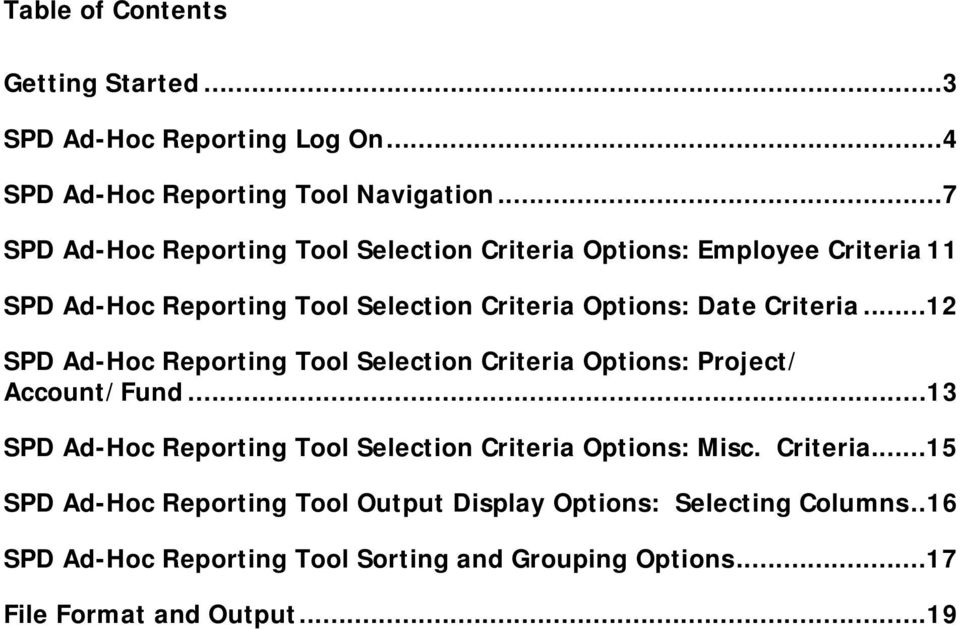
2 Table of Contents Getting Started...3 SPD Ad-Hoc Reporting Log On...4 SPD Ad-Hoc Reporting Tool Navigation...7 SPD Ad-Hoc Reporting Tool Selection Criteria Options: Employee Criteria 11 SPD Ad-Hoc Reporting Tool Selection Criteria Options: Date Criteria...12 SPD Ad-Hoc Reporting Tool Selection Criteria Options: Project/ Account/Fund...13 SPD Ad-Hoc Reporting Tool Selection Criteria Options: Misc. Criteria...15 SPD Ad-Hoc Reporting Tool Output Display Options: Selecting Columns..16 SPD Ad-Hoc Reporting Tool Sorting and Grouping Options...17 File Format and Output...19
3 Getting Started Navigation: Go to techworks.gatech.edu Login using your GT Account ID and password Select SPD Ad-Hoc Reporting from Financial Services Frequent Links OCTOBER 2004 GETTING STARTED - 3

4 SPD Ad-Hoc Reporting Log On The SPD Ad-Hoc Reporting logon screen is displayed. Enter your assigned Data Warehouse ID and password. Click. Note: Your browser release must be 6.0 or higher. If your browser is not the appropriate release, click on your browser logo and download the latest version before you login to SPD Ad-Hoc Reporting. OCTOBER 2004 GETTING STARTED - 4

5 The top portion of the SPD Ad-Hoc Reporting Tool contains the selection criteria. OCTOBER 2004 GETTING STARTED - 5

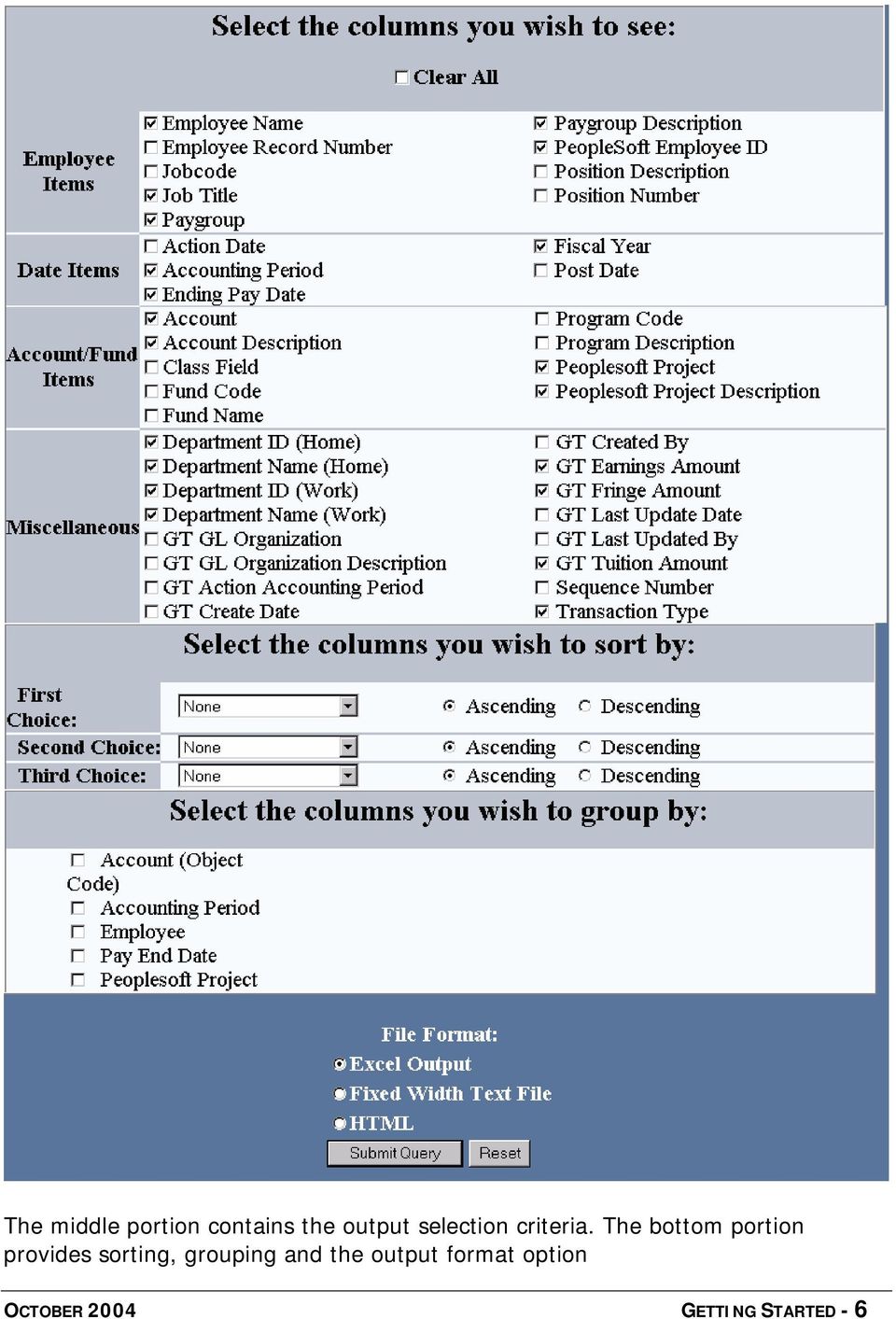
6 The middle portion contains the output selection criteria. The bottom portion provides sorting, grouping and the output format option OCTOBER 2004 GETTING STARTED - 6
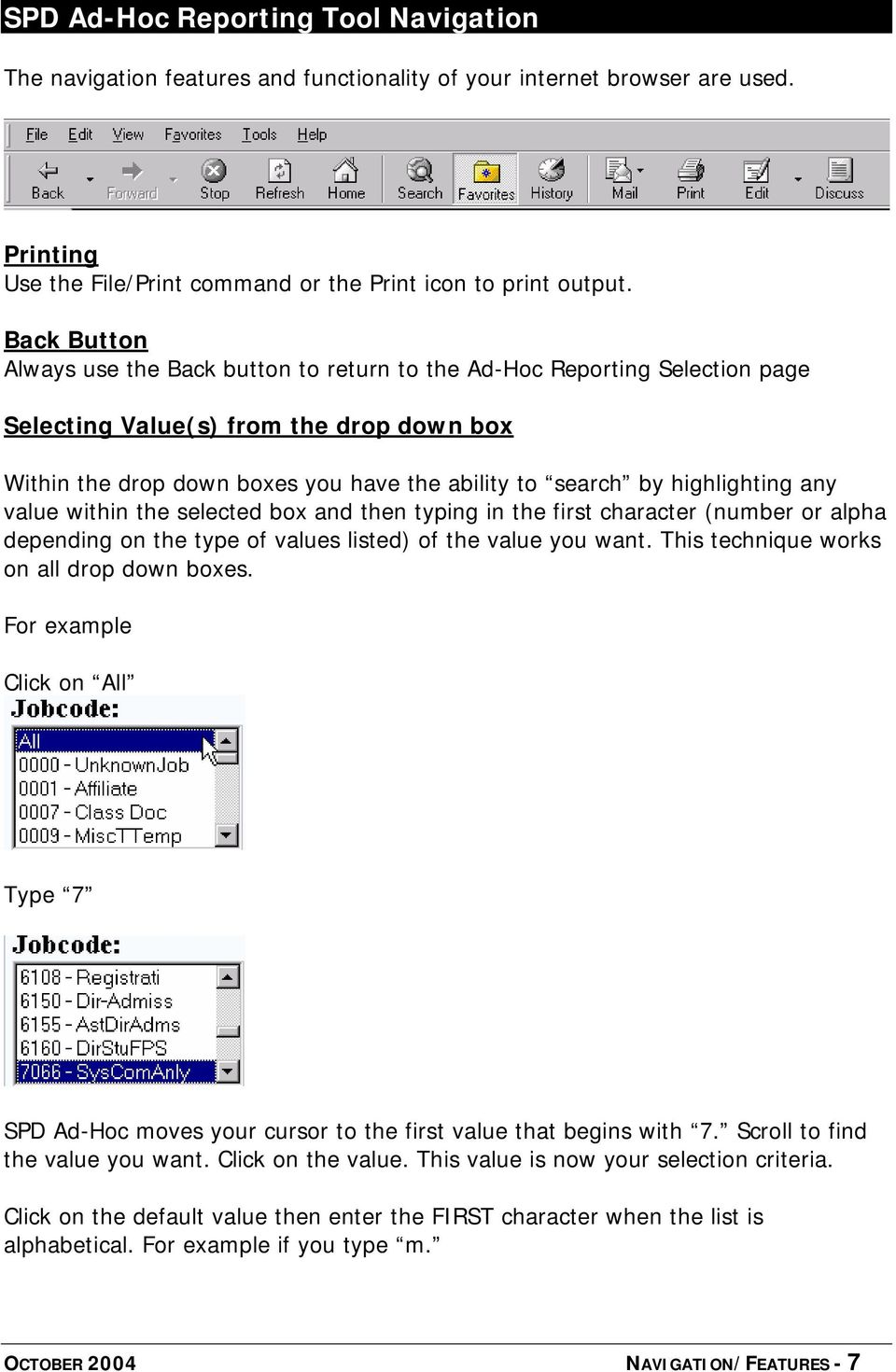
7 SPD Ad-Hoc Reporting Tool Navigation The navigation features and functionality of your internet browser are used. Printing Use the File/Print command or the Print icon to print output. Back Button Always use the Back button to return to the Ad-Hoc Reporting Selection page Selecting Value(s) from the drop down box Within the drop down boxes you have the ability to search by highlighting any value within the selected box and then typing in the first character (number or alpha depending on the type of values listed) of the value you want. This technique works on all drop down boxes. For example Click on All Type 7 SPD Ad-Hoc moves your cursor to the first value that begins with 7. Scroll to find the value you want. Click on the value. This value is now your selection criteria. Click on the default value then enter the FIRST character when the list is alphabetical. For example if you type m. OCTOBER 2004 NAVIGATION/FEATURES - 7
8 SPD Ad-Hoc moves your cursor to the first value that begins with M What if you want several values in a range? Click on the first value, hold down the SHIFT key, click on the last value in the range. The first, last, and all the values are selected. For example: What if you want several values that are not in a range? Click on the first value, hold down the CONTROL key, and click on the other values you want to select. For example: Note: If you have highlighted a value you do not want while holding down the Control key you can unselect it by clicking on the value again. OCTOBER 2004 NAVIGATION/FEATURES - 8

9 Using Excel The Ad-Hoc Reporting Tool loads the raw data from your query into predefined fields (based on your selection criteria) into the Excel spreadsheet. Once the data is loaded you have access to the full functionality of Excel. If you are using the Netscape browser the Excel toolbar opens automatically. If you are using the Internet Explorer browser click on the Tools icon the Excel toolbar. to open Saving Output You can save the spreadsheet to any directory/file on your desktop. When you save be sure to change the file format to Microsoft Excel Workbook Be sure to change the Save as type Selection Criteria Relationships SPD Ad-Hoc Reporting Tool has three main sections: OCTOBER 2004 NAVIGATION/FEATURES - 9

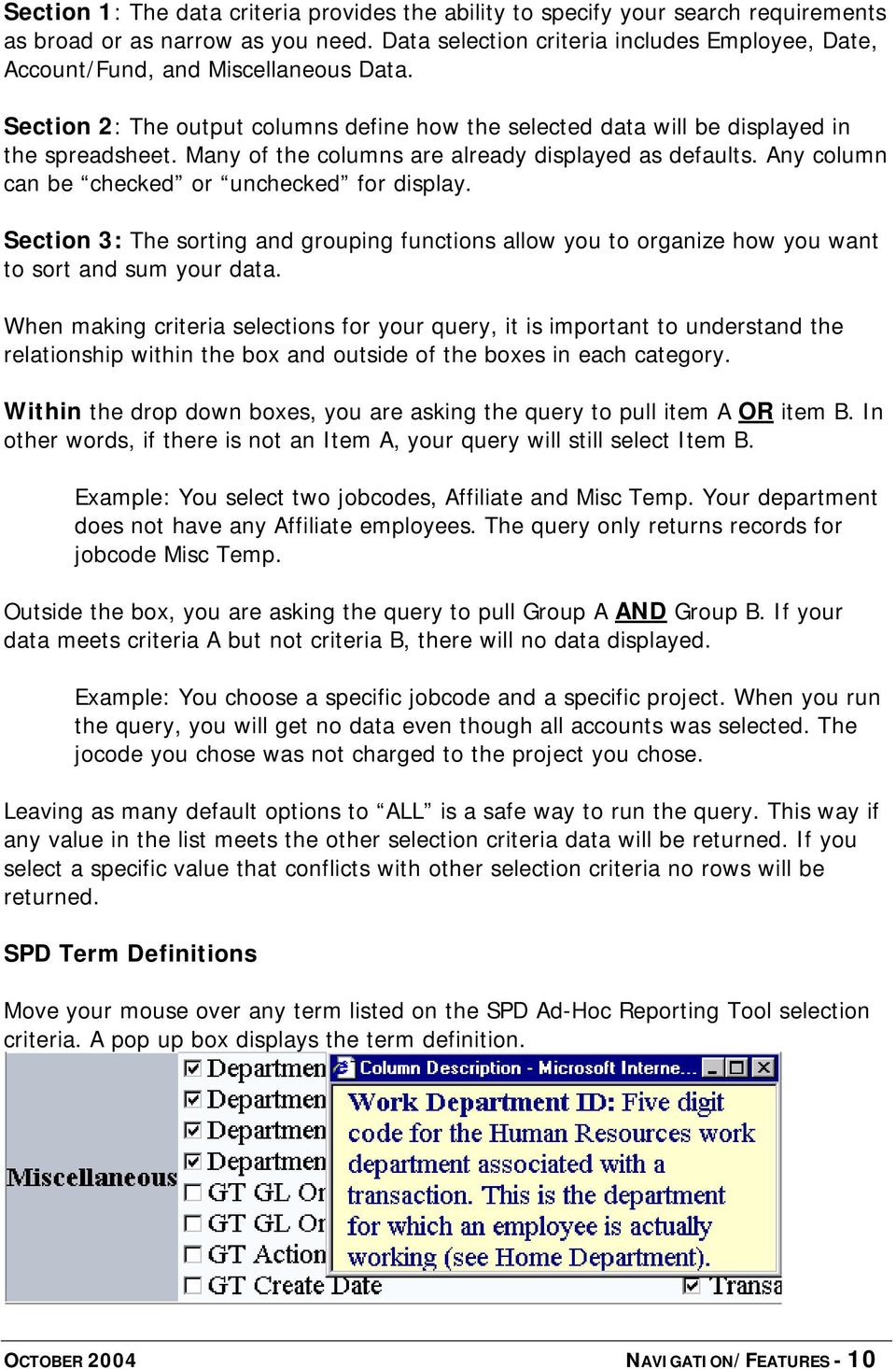
10 Section 1: The data criteria provides the ability to specify your search requirements as broad or as narrow as you need. Data selection criteria includes Employee, Date, Account/Fund, and Miscellaneous Data. Section 2: The output columns define how the selected data will be displayed in the spreadsheet. Many of the columns are already displayed as defaults. Any column can be checked or unchecked for display. Section 3: The sorting and grouping functions allow you to organize how you want to sort and sum your data. When making criteria selections for your query, it is important to understand the relationship within the box and outside of the boxes in each category. Within the drop down boxes, you are asking the query to pull item A OR item B. In other words, if there is not an Item A, your query will still select Item B. Example: You select two jobcodes, Affiliate and Misc Temp. Your department does not have any Affiliate employees. The query only returns records for jobcode Misc Temp. Outside the box, you are asking the query to pull Group A AND Group B. If your data meets criteria A but not criteria B, there will no data displayed. Example: You choose a specific jobcode and a specific project. When you run the query, you will get no data even though all accounts was selected. The jocode you chose was not charged to the project you chose. Leaving as many default options to ALL is a safe way to run the query. This way if any value in the list meets the other selection criteria data will be returned. If you select a specific value that conflicts with other selection criteria no rows will be returned. SPD Term Definitions Move your mouse over any term listed on the SPD Ad-Hoc Reporting Tool selection criteria. A pop up box displays the term definition. OCTOBER 2004 NAVIGATION/FEATURES - 10
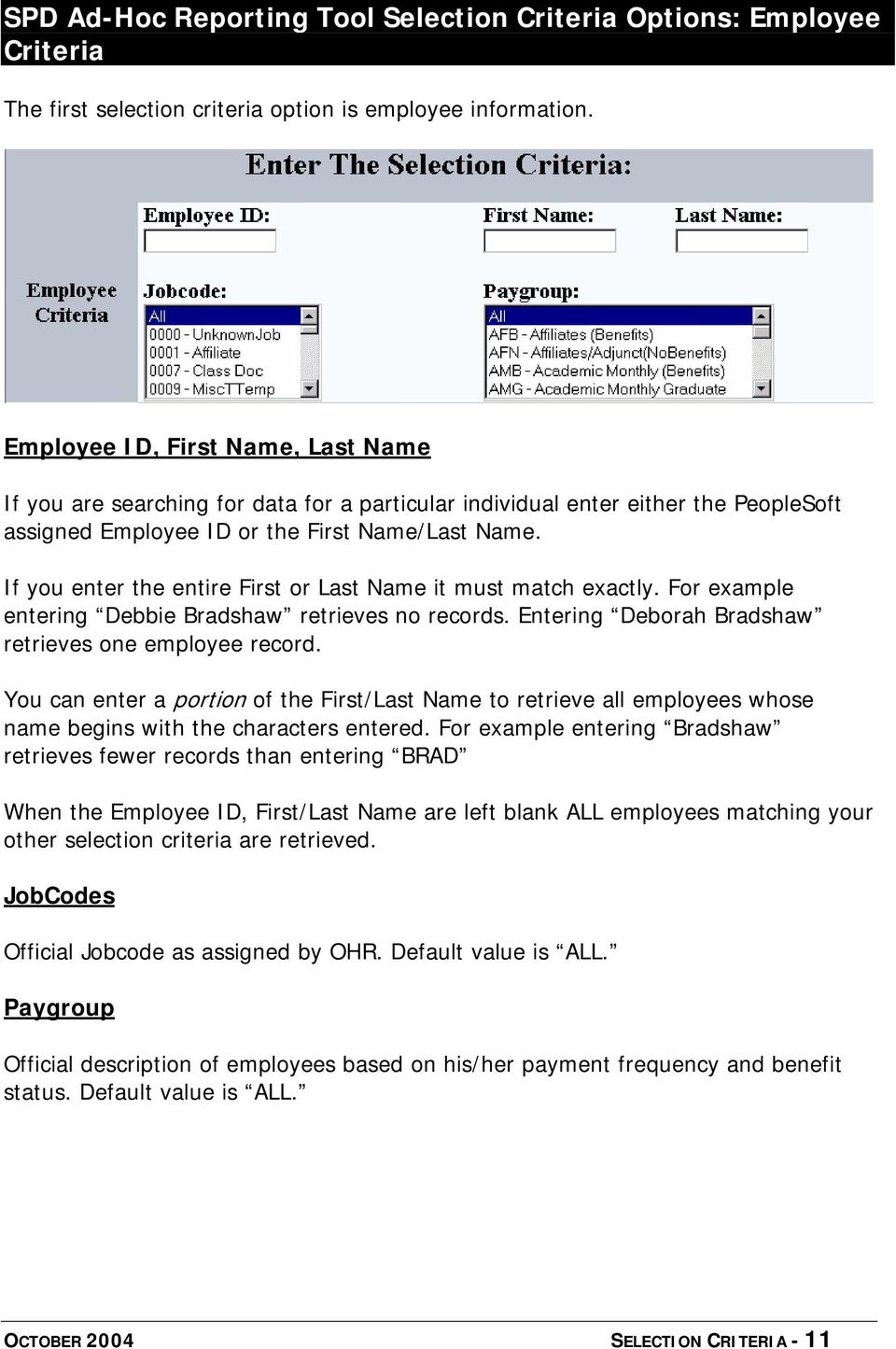
11 SPD Ad-Hoc Reporting Tool Selection Criteria Options: Employee Criteria The first selection criteria option is employee information. Employee ID, First Name, Last Name If you are searching for data for a particular individual enter either the PeopleSoft assigned Employee ID or the First Name/Last Name. If you enter the entire First or Last Name it must match exactly. For example entering Debbie Bradshaw retrieves no records. Entering Deborah Bradshaw retrieves one employee record. You can enter a portion of the First/Last Name to retrieve all employees whose name begins with the characters entered. For example entering Bradshaw retrieves fewer records than entering BRAD When the Employee ID, First/Last Name are left blank ALL employees matching your other selection criteria are retrieved. JobCodes Official Jobcode as assigned by OHR. Default value is ALL. Paygroup Official description of employees based on his/her payment frequency and benefit status. Default value is ALL. OCTOBER 2004 SELECTION CRITERIA - 11
12 SPD Ad-Hoc Reporting Tool Selection Criteria Options: Date Criteria The second selection criteria is date. Fiscal Year Multiple years of data is available. The default value is the current Fiscal Year. Accounting Period An Accounting Period is defined a one month. Accounting Periods are numbered one through twelve based ion the fiscal year calendar. For example July is 1, January is 7, and June is 12. Select a specific accounting period, a range of accounting periods, or non-sequential accounting periods. Be very careful how you choose your selection criteria if you select multiple Fiscal Years. It may be more prudent to select individual fiscal years and append your spreadsheets. Pay Period Ending Dates You can choose to retrieve data for a specific Pay Period rather than Fiscal Year/Accounting Period. The Pay Period Ending Date must be a valid pay period ending date as designated by Payroll. OCTOBER 2004 SELECTION CRITERIA - 12

13 SPD Ad-Hoc Reporting Tool Selection Criteria Options: Project/ Account/Fund The third selection option is by Project, Account, or Fund. PeopleSoft Project You can select data based on the salary distribution encumbered or expensed in PeopleSoft. More than one project can be selected by entering the number then a comma no space and the next Project. Example: , ,2106Z99 Note: If you enter an invalid Project Number no error message of any kind is displayed. SPD Ad-Hoc Reporting simply retrieves the rows matching the valid Project Numbers entered. Note: If you enter a project you must also choose the associated department. Note: If you enter PeopleSoft Project Id(s) leave Fund set to the default of ALL. Account (Object Code) Account is the PeopleSoft General Ledger Chart of Accounts defined element. The account is automatically assigned within the SPD application based on paygroup, jobcode, etc. The default is ALL. Fund Fund is the PeopleSoft General Ledger Chart of Accounts defined element associated with Project Number. The Fund is automatically assigned within the SPD application based on Project Id. The default is ALL. OCTOBER 2004 SELECTION CRITERIA - 13

14 Note: Fund is especially useful when retrieving data for a specific sponsored grant. Selecting by Fund ensures that all associated projects are included in your query. Transaction Type There are two SPD transaction types; Encumbrance and Expenditure. Salary distribution records are recorded as Encumbrances until the payroll transaction is posted to PeopleSoft General Ledger. Once the payroll has been processed and posted the salary distribution record for that Pay Period is recorded as an Expenditure. (There are no unencumbrace transactions in SPD.) Encumbrance All distribution records for future Pay Periods are recorded as Encumbrance. Expenditure All distribution records for past Pay Periods are recorded as Expenditure. Both The default is Both. All Encumbrance and Expenditure records matching your other select criteria are retrieved. Note: A Transaction Type column is listed in the output for easy identification of an Encumbrance and Expenditure record. OCTOBER 2004 SELECTION CRITERIA - 14
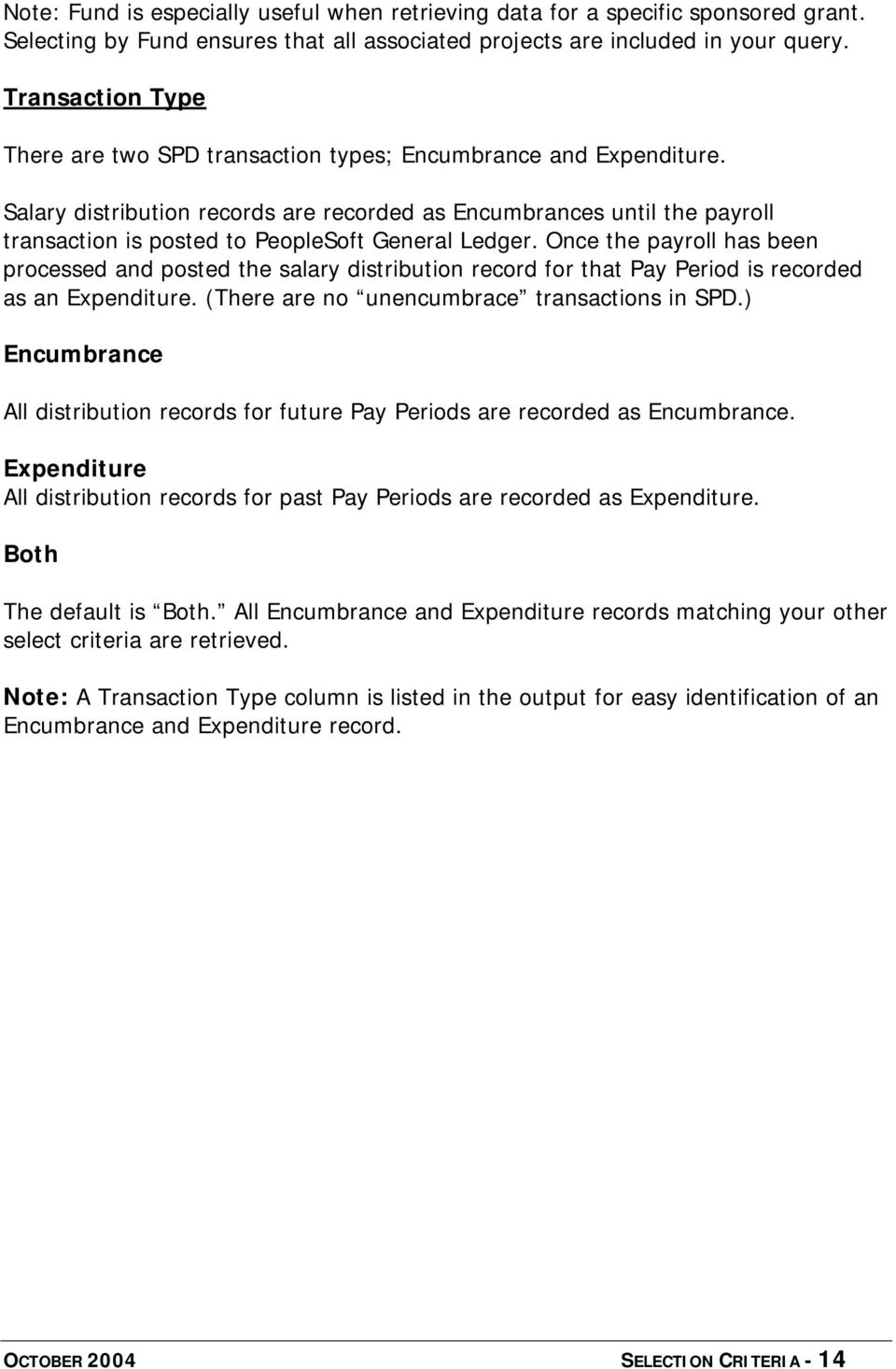
15 SPD Ad-Hoc Reporting Tool Selection Criteria Options: Misc. Criteria The final selection criteria is Department. There are two ways to select a department. You can select by the5 digit HR Department Number OR, by the 3 digit GL Organization Number. You must choose one method or the other; you cannot use both options. The HR Department defaults to your Home Department. There is no default for GL Organization Id. HR Department Id Employees are assigned one Home Department and one or more Work Departments. In the HR Department ID field select all departments that are applicable to your search criteria. Records that have the Department ID(s) you have selected in either the Home Department or Work Department will be retrieved. The output includes a separate column for Home Department and Work Department. The separate column facilitates any further data manipulation in Excel. GT GL Organization The GL Organization Id is used for to identify the General Ledger department. SPD Ad-Hoc converts the selected Organization ID to the appropriate HR Department ID. Note: You can select a range (Shift key) or multiple (Control key) departments. Selecting the appropriate department is critical if you have other selection criteria that require an exact match with the department. Criteria that must match department includes Employee ID, Name Project ID For example if you use Employee Id as selection criteria but choose a Department that is not his/her Home or Work Department no records will be returned. If you select a Project for Chemistry but select Architecture as the Department Id no records will be returned. OCTOBER 2004 SELECTION CRITERIA - 15
16 SPD Ad-Hoc Reporting Tool Output Display Options: Selecting Columns This section allows you to select the Columns (data elements) you want displayed in the output file. Columns that would typically be in included in most queries are already checked for selection as default columns. Click your mouse in the box adjacent to the column you want displayed. This action places a check mark in the box. The click acts as a toggle switch so you check and uncheck a column. The Clear All box at the top pf the page removes all check marks (including the default ones). Hint: Go ahead and check a box if you are not sure you want to see the data. Once you are in the spreadsheet it is very easy to delete the column if you do not want the data. Otherwise you would have to go back, make additional selections, and rerun the query. Remember you can easily Sort or Delete within the spreadsheet. OCTOBER 2004 SELECTION CRITERIA - 16

17 SPD Ad-Hoc Reporting Tool Sorting and Grouping Options The last section of the Reporting Tool contains formatting and data organization options. Sorting the Data There are three sorting levels available. These sorting options function the same as the sorting function in Excel. Your sorting options include: Group By Function The Group By function is used to summarize transactions. In order to summarize the Group By eliminates detail data. When you select a Group By category SPD Ad-Hoc Reporting displays a list of the detail data that will be collapsed into a summarized transaction. OCTOBER 2004 SORTING AND GROUP BY - 17

18 Select only ONE Group By category. Each selection displays the detail data that will be collapsed into a summarized transaction. Click OK to continue. Hint: It is important to make sure you have deselected columns that will interfere with the data summarization. For example you should deselect Project Id, Project Title, Fund ID, and Fund title. OCTOBER 2004 SORTING AND GROUP BY - 18

19 File Format and Output Excel Excel is the default output. The raw SPD data is loaded into an Excel spreadsheet. The data can be summed, manipulated, sorted, etc using the full functionality of Excel. The output file can be saved as an Excel Workbook file or deleted. Sample Excel Output file First row is an identifier record listing the type of data and the date file is created. Fixed Width Text File Text files are simply your Excel spreadsheet in a basic report format. Text cannot be manipulated in this format. The text files have pre-set column widths which cannot be changed. HTML The HTML files are a cleaner version of the text file. Column widths are not as large and column titles are formatted Bold. Text cannot be manipulated. OCTOBER 2004 FILE FORMAT - 19

EXCEL PIVOT TABLE David Geffen School of Medicine, UCLA Dean s Office Oct 2002
 EXCEL PIVOT TABLE David Geffen School of Medicine, UCLA Dean s Office Oct 2002 Table of Contents Part I Creating a Pivot Table Excel Database......3 What is a Pivot Table...... 3 Creating Pivot Tables
REP200 Using Query Manager to Create Ad Hoc Queries
 Using Query Manager to Create Ad Hoc Queries June 2013 Table of Contents USING QUERY MANAGER TO CREATE AD HOC QUERIES... 1 COURSE AUDIENCES AND PREREQUISITES...ERROR! BOOKMARK NOT DEFINED. LESSON 1: BASIC
Human Resources (HR) Query Basics
 Human Resources (HR) Query Basics This course will teach you the concepts and procedures involved in finding public queries, creating private queries, and running queries in PeopleSoft 9.1 Query Manager.
Rochester Institute of Technology. Oracle Training: Advanced Financial Application Training
 Rochester Institute of Technology Oracle Training: Advanced Financial Application Training Table of Contents Introduction Lesson 1: Lesson 2: Lesson 3: Lesson 4: Creating Journal Entries using Excel Account
Smart Web. User Guide. Amcom Software, Inc.
 Smart Web User Guide Amcom Software, Inc. Copyright Version 4.0 Copyright 2003-2005 Amcom Software, Inc. All Rights Reserved. Information in this document is subject to change without notice. The software
Basics Series-4006 Email Basics Version 9.0
 Basics Series-4006 Email Basics Version 9.0 Information in this document is subject to change without notice and does not represent a commitment on the part of Technical Difference, Inc. The software product
Using Delphi Data with Excel and Access
 $FDGHPLF&RPSXWLQJ &RPSXWHU 7UDLQLQJ 6XSSRUW 6HUYLFHV 1HWZRUNLQJ6HUYLFHV :HEHU%XLOGLQJ Using Delphi Data with Excel and Access Using Delphi Data The raw data used to create the CSU financial, human resource,
Running, Viewing, and Printing Reports Table of Contents
 Running, Viewing, and Printing Reports Table of Contents Running Reports... 1 Select and Run Report... 1 Process Scheduler Request... 2 Process Scheduler Run Date and Run Time... 3 Report Type and Format...
DALHOUSIE NOTES ON PAYROLL EXPENSE DETAIL IN FINANCE SELF SERVICE. QUICK REFERENCE As of September 1, 2015
 DALHOUSIE NOTES ON PAYROLL EXPENSE DETAIL IN FINANCE SELF SERVICE QUICK REFERENCE As of September 1, 2015 Quick reference document outlining the basic steps to access the payroll expense detail results
University of Alaska Statewide Financial Systems User Documentation. BANNER TRAVEL AND EXPENSE MANAGEMENT TEM (Quick)
 University of Alaska Statewide Financial Systems User Documentation BANNER TRAVEL AND EXPENSE MANAGEMENT TEM (Quick) Travel and Expense Management Table of Contents 2 Table of Contents Table of Contents...
Tips and Tricks. Table of Contents. Run Control ID
 Tips and Tricks Table of Contents Contents Table of Contents... 1 Run Control ID... 1 Running Reports in Core-CT... 2 Downloading Reports to Excel... 3 Journal Source Types... 4 Entering Parameters...
PeopleSoft Query Training
 PeopleSoft Query Training Overview Guide Tanya Harris & Alfred Karam Publish Date - 3/16/2011 Chapter: Introduction Table of Contents Introduction... 4 Navigation of Queries... 4 Query Manager... 6 Query
ORACLE USER PRODUCTIVITY KIT USAGE TRACKING ADMINISTRATION & REPORTING RELEASE 3.6 PART NO. E17087-01
 ORACLE USER PRODUCTIVITY KIT USAGE TRACKING ADMINISTRATION & REPORTING RELEASE 3.6 PART NO. E17087-01 FEBRUARY 2010 COPYRIGHT Copyright 1998, 2009, Oracle and/or its affiliates. All rights reserved. Part
TRIM: Web Tool. Web Address The TRIM web tool can be accessed at:
 TRIM: Web Tool Accessing TRIM Records through the Web The TRIM web tool is primarily aimed at providing access to records in the TRIM system. While it is possible to place records into TRIM or amend records
CORE Oklahoma. State of Oklahoma COR118 Accounts Payable Inquiry and Reporting Manual. Revised: October 1, 2007
 State of Oklahoma COR118 Accounts Payable Inquiry and Reporting Manual COR118 Accounts Payable Inquiry and Reporting Page 1 of 48 Authorized by: [_CORE_] Original Issue: [11/17/2003] Maintained by: [ Accounts
DarwiNet Client Level
 DarwiNet Client Level Table Of Contents Welcome to the Help area for your online payroll system.... 1 Getting Started... 3 Welcome to the Help area for your online payroll system.... 3 Logging In... 4
PI Budget Planning Tool
 PI Budget Planning Tool WHAT is the PI Budget Planning Tool? The PI Budget Planning Tool is an application that will be delivered in a series of releases that will increase in feature and function over
IRA Pivot Table Review and Using Analyze to Modify Reports. For help, email [email protected]
 IRA Pivot Table Review and Using Analyze to Modify Reports 1 What is a Pivot Table? A pivot table takes rows of detailed data (such as the lines in a downloadable table) and summarizes them at a higher
Budget Process using PeopleSoft Financial 9.1
 Section 14 Budget 14.1 Budget Overview Each council must prepare a yearly operating budget and, in many cases, multiple budgets to respond to the needs of the council and the legal requirement to expend
EXCEL 2007. Using Excel for Data Query & Management. Information Technology. MS Office Excel 2007 Users Guide. IT Training & Development
 Information Technology MS Office Excel 2007 Users Guide EXCEL 2007 Using Excel for Data Query & Management IT Training & Development (818) 677-1700 [email protected] http://www.csun.edu/training TABLE
University of Alaska Statewide Financial Systems User Documentation. BANNER TRAVEL AND EXPENSE MANAGEMENT TEM (Detail)
 University of Alaska Statewide Financial Systems User Documentation BANNER TRAVEL AND EXPENSE MANAGEMENT TEM (Detail) Travel and Expense Management Table of Contents 2 Table of Contents Table of Contents...
Web Intelligence User Guide
 Web Intelligence User Guide Office of Financial Management - Enterprise Reporting Services 4/11/2011 Table of Contents Chapter 1 - Overview... 1 Purpose... 1 Chapter 2 Logon Procedure... 3 Web Intelligence
Session #134 QSS Users Group Conference. Presenter: Stephanie Gunderson
 QCC Payroll Reports & On-line Payroll History Session #134 QSS Users Group Conference Santa Clara, CA ~~ March 8,9,10, 2010 Presenter: Stephanie Gunderson El Dorado County Office of Education 1 Location
SAP Business Intelligence ( BI ) Financial and Budget Reporting. 2nd Edition. (Best Seller Over 1,000,000 copies sold)
 SAP Business Intelligence ( BI ) Financial and Budget Reporting 2nd Edition (Best Seller Over 1,000,000 copies sold) August 2009 Table of Contents Log In... 1 Initial Variable Screen... 4 Fund Center Hierarchy
Downloading RIT Account Analysis Reports into Excel
 Downloading RIT Account Analysis Reports into Excel In the last lesson you learned how to access the Account Analysis detail and export it to Excel through the Account Analysis function. Another way to
Education Solutions Development, Inc. APECS Navigation: Business Systems Getting Started Reference Guide
 Education Solutions Development, Inc. APECS Navigation: Business Systems Getting Started Reference Guide March 2013 Education Solutions Development, Inc. What s Inside The information in this reference
Finance Reporting. Millennium FAST. User Guide Version 4.0. Memorial University of Newfoundland. September 2013
 Millennium FAST Finance Reporting Memorial University of Newfoundland September 2013 User Guide Version 4.0 FAST Finance User Guide Page i Contents Introducing FAST Finance Reporting 4.0... 2 What is FAST
WEBFOCUS QUICK DATA FOR EXCEL
 WEBFOCUS QUICK DATA FOR EXCEL BRIAN CARTER INFORMATION BUILDERS SUMMIT 2008 USERS CONFERENCE JUNE 2008 Presentation Abstract: Even with the growing popularity and evolvement of Business Intelligence products
WEB USER GUIDE VAULT MEDIA STORAGE
 BUSINESS DATA RECORD SERVICES WEB USER GUIDE VAULT MEDIA STORAGE TABLE OF CONTENTS Log In Screen/Home Page Rotation Services-Request Media Rotation Services-View List Rotation Services-Miscellaneous Query
Enterprise Reporting Advanced Web Intelligence Training. Enterprise Reporting Services
 Enterprise Reporting Advanced Web Intelligence Training Enterprise Reporting Services Table of Contents Chapter Page 1 Overview 4 2 Web Intelligence Access 8 3 BI Launch Pad Navigation 12 4 Nested Query
COLLABORATION NAVIGATING CMiC
 Reference Guide covers the following items: How to login Launching applications and their typical action buttons Querying & filtering log views Export log views to Excel User Profile Update info / Change
Getting Started with Mamut Online Desktop
 // Mamut Business Software Getting Started with Mamut Online Desktop Getting Started with Mamut Online Desktop Contents Welcome to Mamut Online Desktop... 3 Getting Started... 6 Status... 23 Contact...
Creating a Participants Mailing and/or Contact List:
 Creating a Participants Mailing and/or Contact List: The Limited Query function allows a staff member to retrieve (query) certain information from the Mediated Services system. This information is from
EmpCenter Employee Training for Harvey Mudd College. TR-01: Time and Attendance Employee Functions
 ` EmpCenter Employee Training for Harvey Mudd College TR-01: Time and Attendance Employee Functions LEGAL NOTICES Copyright 2012 WorkForce Software All Rights Reserved. WorkForce Software 38705 Seven Mile
RUNNING GENERAL REPORTS AND QUERIES IN PEOPLESOFT
 RUNNING GENERAL REPORTS AND QUERIES IN PEOPLESOFT NOTE: This document is designed to use online and has a number of embedded links to processes and additional information. We discourage the printing of
By the end of this chapter, you will be able to: Describe the asset depreciation close flow process.
 Chapter 10 Depreciation Close Objectives By the end of this chapter, you will be able to: Describe the asset depreciation close flow process. Run depreciation close. Close an accounting period in PeopleSoft
MICROSOFT OFFICE ACCESS 2007 - NEW FEATURES
 MICROSOFT OFFICE 2007 MICROSOFT OFFICE ACCESS 2007 - NEW FEATURES Exploring Access Creating and Working with Tables Finding and Filtering Data Working with Queries and Recordsets Working with Forms Working
Running a Budget Position Report for a Department
 Running a Budget Position Report for a Department This Addy Note explains how to run a Budget Position report for a department from within UCF Financials. It discusses how to: Run a Budget Position report
Elisabetta Zodeiko 2/25/2012
 PRINCETON UNIVERSITY Report Studio Introduction Elisabetta Zodeiko 2/25/2012 Report Studio Introduction pg. 1 Table of Contents 1. Report Studio Overview... 6 Course Overview... 7 Princeton Information
Crystal Reports Payroll Exercise
 Crystal Reports Payroll Exercise Objective This document provides step-by-step instructions on how to build a basic report on Crystal Reports XI on the MUNIS System supported by MAISD. The exercise will
User Guide to the Budget Process
 User Guide to the Budget Process 2/12/2015 Contents 1. Adaptive Insights... 2 2. Browsers... 2 3. Nomenclature... 3 4. Logging into Adaptive Insights... 3 5. User Security - Roles and Levels... 4 6. What
University of Rochester
 University of Rochester User s Guide to URGEMS Ad Hoc Reporting Guide Using IBM Cognos Workspace Advanced, Version 10.2.1 Version 1.0 April, 2016 1 P age Table of Contents Table of Contents... Error! Bookmark
SPSS: Getting Started. For Windows
 For Windows Updated: August 2012 Table of Contents Section 1: Overview... 3 1.1 Introduction to SPSS Tutorials... 3 1.2 Introduction to SPSS... 3 1.3 Overview of SPSS for Windows... 3 Section 2: Entering
SonicWALL GMS Custom Reports
 SonicWALL GMS Custom Reports Document Scope This document describes how to configure and use the SonicWALL GMS 6.0 Custom Reports feature. This document contains the following sections: Feature Overview
University of Waterloo Financial Online Reporting Environment (FORE) Training Manual
 University of Waterloo Financial Online Reporting Environment (FORE) Training Manual Permission to use this document for non-commercial purposes, in original or modified form, is granted, provided that
Business Intelligence Overview. BW/BI Security. BW/BI Architecture. Business Explorer (BEx) BW/BI BEx Tools Overview. What is BEx?
 SAP Business Warehouse/Business Intelligence Reporting Business Explorer (BEx) Washington State HRMS Business Warehouse/Business Intelligence (BW/BI) BW/BI Power User Workshop Materials General Topics
Novell ZENworks Asset Management 7.5
 Novell ZENworks Asset Management 7.5 w w w. n o v e l l. c o m October 2006 USING THE WEB CONSOLE Table Of Contents Getting Started with ZENworks Asset Management Web Console... 1 How to Get Started...
4.0 Reporting Tools. 4.1 SQR Reports
 4.0 Reporting Tools Chapter at a glance: 4.1 SQR Reports 4.2 Crystal Reports 4.3 nvision Reports 4.4 Ad Hoc Queries PeopleSoft utilizes a variety of reporting tools to present financial information. Reports
CAMPUS FINANCIAL REPORTING Instruction Manual
 CAMPUS FINANCIAL REPORTING Instruction Manual Financial & Accounting Services August 21, 2014 Table of Contents Introduction 2 Data Sources 2 Report Security VPs, Budget Officers and Department Heads 3
COGNOS Query Studio Ad Hoc Reporting
 COGNOS Query Studio Ad Hoc Reporting Copyright 2008, the California Institute of Technology. All rights reserved. This documentation contains proprietary information of the California Institute of Technology
How To Create A Powerpoint Intelligence Report In A Pivot Table In A Powerpoints.Com
 Sage 500 ERP Intelligence Reporting Getting Started Guide 27.11.2012 Table of Contents 1.0 Getting started 3 2.0 Managing your reports 10 3.0 Defining report properties 18 4.0 Creating a simple PivotTable
Business Warehouse Reporting Manual
 Business Warehouse Reporting Manual This page is intentionally left blank. Table of Contents The Reporting System -----------------------------------------------------------------------------------------------------------------------------
Business Objects Version 5 : Introduction
 Business Objects Version 5 : Introduction Page 1 TABLE OF CONTENTS Introduction About Business Objects Changing Your Password Retrieving Pre-Defined Reports Formatting Your Report Using the Slice and Dice
InfoView User s Guide. BusinessObjects Enterprise XI Release 2
 BusinessObjects Enterprise XI Release 2 InfoView User s Guide BusinessObjects Enterprise XI Release 2 Patents Trademarks Copyright Third-party contributors Business Objects owns the following U.S. patents,
BEx Analyzer (Business Explorer Analyzer)
 BEx Analyzer (Business Explorer Analyzer) Purpose These instructions describe how to use the BEx Analyzer, which is utilized during budget development by account managers, deans, directors, vice presidents,
Lesson 07: MS ACCESS - Handout. Introduction to database (30 mins)
 Lesson 07: MS ACCESS - Handout Handout Introduction to database (30 mins) Microsoft Access is a database application. A database is a collection of related information put together in database objects.
Blackbaud FundWare Accounts Receivable Guide VOLUME 1 SETTING UP ACCOUNTS RECEIVABLE
 Blackbaud FundWare Accounts Receivable Guide VOLUME 1 SETTING UP ACCOUNTS RECEIVABLE VERSION 7.50, JULY 2008 Blackbaud FundWare Accounts Receivable Guide Volume 1 USER GUIDE HISTORY Date Changes June 2000
TRAINING MANUAL. Executing Reports. Formatting Options. Copyright 2004 University of San Diego. All rights reserved.
 TRAINING MANUAL Executing Reports Formatting Options Copyright 2004 by the University of San Diego. All rights reserved. No part of this publication may be reproduced, stored in a retrieval system, or
Lab 2: MS ACCESS Tables
 Lab 2: MS ACCESS Tables Summary Introduction to Tables and How to Build a New Database Creating Tables in Datasheet View and Design View Working with Data on Sorting and Filtering 1. Introduction Creating
HR Reporting. Introduction to: This training document was developed by and for the use of:
 Introduction to: HR Reporting This training document was developed by and for the use of: Department of Administration and Finance Information Systems Management http://www.depts.ttu.edu/afism/ 1 COGNOS
Rochester Institute of Technology. Oracle Training: Performing Inquiries and Requesting Reports in the Oracle Applications
 Rochester Institute of Technology Oracle Training: Performing Inquiries and Requesting Reports in the Oracle Applications Table of Contents Introduction Lesson 1: Lesson 2: Lesson 3: Lesson 4: Lesson 5:
Getting Started with Access 2007
 Getting Started with Access 2007 Table of Contents Getting Started with Access 2007... 1 Plan an Access 2007 Database... 2 Learning Objective... 2 1. Introduction to databases... 2 2. Planning a database...
Monthly Payroll to Finance Reconciliation Report: Access and Instructions
 Monthly Payroll to Finance Reconciliation Report: Access and Instructions VCU Reporting Center... 2 Log in... 2 Open Folder... 3 Other Useful Information: Copying Sheets... 5 Creating Subtotals... 5 Outlining
Word 2010: Mail Merge to Email with Attachments
 Word 2010: Mail Merge to Email with Attachments Table of Contents TO SEE THE SECTION FOR MACROS, YOU MUST TURN ON THE DEVELOPER TAB:... 2 SET REFERENCE IN VISUAL BASIC:... 2 CREATE THE MACRO TO USE WITHIN
Concession FTP User Guide May 2011 Version 1.2
 Concession FTP User Guide May 2011 Version 1.2 Concessions FTP User guide Page 1 of 41 Contents Objective... 3 FTP User Guide Microsoft Windows XP... 5 Anatomy of the Files... 9 Working on your Files....
Sage Abra SQL HRMS Reports. User Guide
 Sage Abra SQL HRMS Reports User Guide 2010 Sage Software, Inc. All rights reserved. Sage, the Sage logos, and the Sage product and service names mentioned herein are registered trademarks or trademarks
MODULE 2: SMARTLIST, REPORTS AND INQUIRIES
 MODULE 2: SMARTLIST, REPORTS AND INQUIRIES Module Overview SmartLists are used to access accounting data. Information, such as customer and vendor records can be accessed from key tables. The SmartList
Introduction to Microsoft Access 2013
 Introduction to Microsoft Access 2013 A database is a collection of information that is related. Access allows you to manage your information in one database file. Within Access there are four major objects:
Business Objects. Report Writing - CMS Net and CCS Claims
 Business Objects Report Writing - CMS Net and CCS Claims Updated 11/28/2012 1 Introduction/Background... 4 Report Writing (Ad-Hoc)... 4 Requesting Report Writing Access... 4 Java Version... 4 Create A
Business Explorer (BEx)
 SAP Business Warehouse/Business Intelligence Reporting Business Explorer (BEx) Washington State HRMS Business Warehouse/Business Intelligence (BW/BI) BW/BI Power User Workshop Materials General Topics
2002 Blackbaud, Inc. This publication, or any part thereof, may not be reproduced or transmitted in any form or by any means, electronic, or
 041902 2002 Blackbaud, Inc. This publication, or any part thereof, may not be reproduced or transmitted in any form or by any means, electronic, or mechanical, including photocopying, recording, storage
ECDL. European Computer Driving Licence. Database Software BCS ITQ Level 1. Syllabus Version 1.0
 ECDL European Computer Driving Licence Database Software BCS ITQ Level 1 Using Microsoft Access 2013 Syllabus Version 1.0 This training, which has been approved by BCS, includes exercise items intended
ACCESS 2007. Importing and Exporting Data Files. Information Technology. MS Access 2007 Users Guide. IT Training & Development (818) 677-1700
 Information Technology MS Access 2007 Users Guide ACCESS 2007 Importing and Exporting Data Files IT Training & Development (818) 677-1700 [email protected] TABLE OF CONTENTS Introduction... 1 Import Excel
Business Online. Quick Reference Guide
 Business Online Quick Reference Guide . All rights reserved. This work is confidential and its use is strictly limited. Use is permitted only in accordance with the terms of the agreement under which it
Charter Business Phone. Online Control Panel Getting Started Guide. Document Version 1.0
 Charter Business Phone Online Control Panel Getting Started Guide Document Version 1.0 Table of Contents 1 About This Guide...4 2 Overview...5 2.1 Online Control Panel and Call Manager... 5 3 Manual and
Using Excel for Analyzing Survey Questionnaires Jennifer Leahy
 University of Wisconsin-Extension Cooperative Extension Madison, Wisconsin PD &E Program Development & Evaluation Using Excel for Analyzing Survey Questionnaires Jennifer Leahy G3658-14 Introduction You
Advanced Query for Query Developers
 for Developers This is a training guide to step you through the advanced functions of in NUFinancials. is an ad-hoc reporting tool that allows you to retrieve data that is stored in the NUFinancials application.
DIRECTV Rio Track 2 Dispatch 3 rd Party QA Truck Roll Activities Instructor Guide
 Rio Track 2 Dispatch 3 rd Party QA Truck Roll Activities Table of Contents Introduction...1 Course Outline...2 Siebel (Rio) Benefits...3 Getting Started...4 Logging Onto the etrust Identity Manager...5
Blackbaud FundWare General Ledger Project/Grant Guide
 Blackbaud FundWare General Ledger Project/Grant Guide VERSION 7.60, SEPTEMBER 2009 Blackbaud FundWare General Ledger Project/Grant Guide USER GUIDE HISTORY Date August 2000 May 2003 May 2004 December 2004
THE CHILDREN S HEALTH NETWORK CONTRACTING TOOL TRAINING MANUAL
 THE CHILDREN S HEALTH NETWORK CONTRACTING TOOL TRAINING MANUAL 1 TCHN CONTRACTING TOOL TABLE OF CONTENTS 2 Overview 3 Step by Step Instructions 3 Logging In 4 The Main Menu Options 5 Creating Custom Lists
Microsoft Office. Mail Merge in Microsoft Word
 Microsoft Office Mail Merge in Microsoft Word TABLE OF CONTENTS Microsoft Office... 1 Mail Merge in Microsoft Word... 1 CREATE THE SMS DATAFILE FOR EXPORT... 3 Add A Label Row To The Excel File... 3 Backup
Netmail Search for Outlook 2010
 Netmail Search for Outlook 2010 Quick Reference Guide Netmail Search is an easy-to-use web-based electronic discovery tool that allows you to easily search, sort, retrieve, view, and manage your archived
User Manual for the SAP Business Objects BI Platform 4.1 System (BI Suite) CONTENTS
 User Manual for the SAP Business Objects BI Platform 4.1 System (BI Suite) CONTENTS Section 1: Getting Started with BI Suite In this section you will learn how to log in to BI Suite, find, open and view
Business Objects Reports Influenza Vaccinations User Guide
 Business Objects Reports Influenza Vaccinations User Guide IT@JH Enterprise Applications Updated: August 2, 2013 Page 1 of 19 Table of Contents Report Viewer:... 4 Business Objects Reporting Website...4
TimeValue Software Due Date Tracking and Task Management Software
 User s Guide TM TimeValue Software Due Date Tracking and Task Management Software File In Time Software User s Guide Copyright TimeValue Software, Inc. (a California Corporation) 1992-2010. All rights
Business Objects 4.1 Quick User Guide
 Business Objects 4.1 Quick User Guide Log into SCEIS Business Objects (BOBJ) 1. https://sceisreporting.sc.gov 2. Choose Windows AD for Authentication. 3. Enter your SCEIS User Name and Password: Home Screen
Business Reports. ARUP Connect
 Business Reports ARUP Connect User Manual November 2015 Table of Contents Business Reports... 4 Quick Reference... 4 View Reports... 5 My Reports Tab... 5 Open a Report... 5 Save a Report... 5 Modify My
Extension Course -9006 Notes, Attachments, and Document Management Version 9.0
 Extension Course -9006 Notes, Attachments, and Document Management Version 9.0 Information in this document is subject to change without notice and does not represent a commitment on the part of Technical
Basic Microsoft Excel 2007
 Basic Microsoft Excel 2007 The biggest difference between Excel 2007 and its predecessors is the new layout. All of the old functions are still there (with some new additions), but they are now located
MerchantConnect Premium
 MerchantConnect Premium Quick Reference Guide The online window to your payment processing account. Quick Reference Guide MerchantConnect Premium Getting Started When logging onto MerchantConnect Premium
Search help. More on Office.com: images templates
 Page 1 of 14 Access 2010 Home > Access 2010 Help and How-to > Getting started Search help More on Office.com: images templates Access 2010: database tasks Here are some basic database tasks that you can
Microsoft Access 2007
 How to Use: Microsoft Access 2007 Microsoft Office Access is a powerful tool used to create and format databases. Databases allow information to be organized in rows and tables, where queries can be formed