
User's Manual. For use with ProSYS 16, ProSYS 40, and ProSYS 128
|
|
|
- Reginald Hoover
- 10 years ago
- Views:
Transcription
1 User's Manual For use with ProSYS 16, ProSYS 40, and ProSYS 128
2 Important Notice This manual is delivered subject to the following conditions and restrictions: This manual contains proprietary information belonging to RISCO Group. Such information is supplied solely for the purpose of assisting explicitly and properly authorized users of the system. No part of its contents may be used for any other purpose, disclosed to any person or firm or reproduced by any means, electronic or mechanical, without the express prior written permission of RISCO Group. The text and graphics are for the purpose of illustration and reference only. The specifications on which they are based are subject to change without notice. Information in this document is subject to change without notice. Corporate and individual names and data used in examples herein are fictitious unless otherwise noted. Copyright 2009 RISCO Group. All rights reserved. RTTE Declaration of Conformity Hereby, RISCO Group, declares that this control panel (ProSYS128, ProSYS40, ProSYS16), with wired accessories (including cables) and wireless accessories, is in compliance with the essential requirements and other relevant provisions of Directive 1999/5/EC. For the CE Declaration of Conformity please refer to our website: 2 ProSYS User's Manual

3 Table of Contents SUMMARY OF USER COMMANDS... 6 CHAPTER 1: INTRODUCTION... 8 Operating the System... 9 The ProSYS Family Terms and Definitions CHAPTER 2: YOUR KEYPAD Keypad Types LED Indicators Power/ LED...14 Arm/ LED...15 Ready/ LED...15 Bypass/ LED...16 Fire/ LED...16 Tamper/ LED...16 Zone LEDs...17 Keys Numerical Keys...17 Function Keys (A, B, C and D)...17 Control Keys...18 Emergency Keys Quick Key Operation...19 LCD Status Display LCD Blank Display CHAPTER 3: ARMING AND DISARMING THE SYSTEM Arming Away Arming...20 Stay Arming...21 ProSYS User's Manual 3

4 Partition Arming...22 Arming Multiple Partitions...23 Group Arming...24 Quick Arming...24 Force Arming...25 Wireless Button Arming...25 Proximity Tag Arming...25 Keyswitch Arming...25 Access Control Arming...25 Disarming Disarming the System...26 Silencing an Alarm...26 Partition Disarming...27 Duress Disarming...28 Disabling the Fire Alarm (Switch Auxiliary)...29 CHAPTER 4: ZONE BYPASSING CHAPTER 5: ACTIVATING HOME APPLIANCES (UOS) Activating Home Appliances from the User Functions Menu Activating Home Appliances by Entering a Code CHAPTER 6: SETTING FOLLOW ME DESTINATIONS CHAPTER 7: USER CODES Setting and Changing User Codes Deleting User Codes User Authority Levels Entering User Labels Character Table...40 Assigning Double Codes CHAPTER 8: VIEWING TROUBLE CONDITIONS CHAPTER 9: SETTING AND CHANGING SYSTEM TIME AND DATE Setting and Changing System Time ProSYS User's Manual
5 Setting and Changing System Date CHAPTER 10: DEFINING WEEKLY SCHEDULES Automatic Arming/Disarming Defining a UO Activation Schedule Defining a User Limitation Schedule CHAPTER 11: PROGRAMMING FUNCTION KEYS Using the Arm Key to Program Function Keys CHAPTER 12: PROXIMITY KEYPAD Adding a New Proximity Tag Deleting a Proximity Tag By the User Serial Number Deleting a Proximity Tag By the User Tag Using a Proximity Tag CHAPTER 13: COMPLETE MENU OF USER FUNCTIONS APPENDIX A: SYSTEM TROUBLES APPENDIX B: SYSTEM SOUNDS APPENDIX C: SCHEDULING TABLES ProSYS User's Manual 5
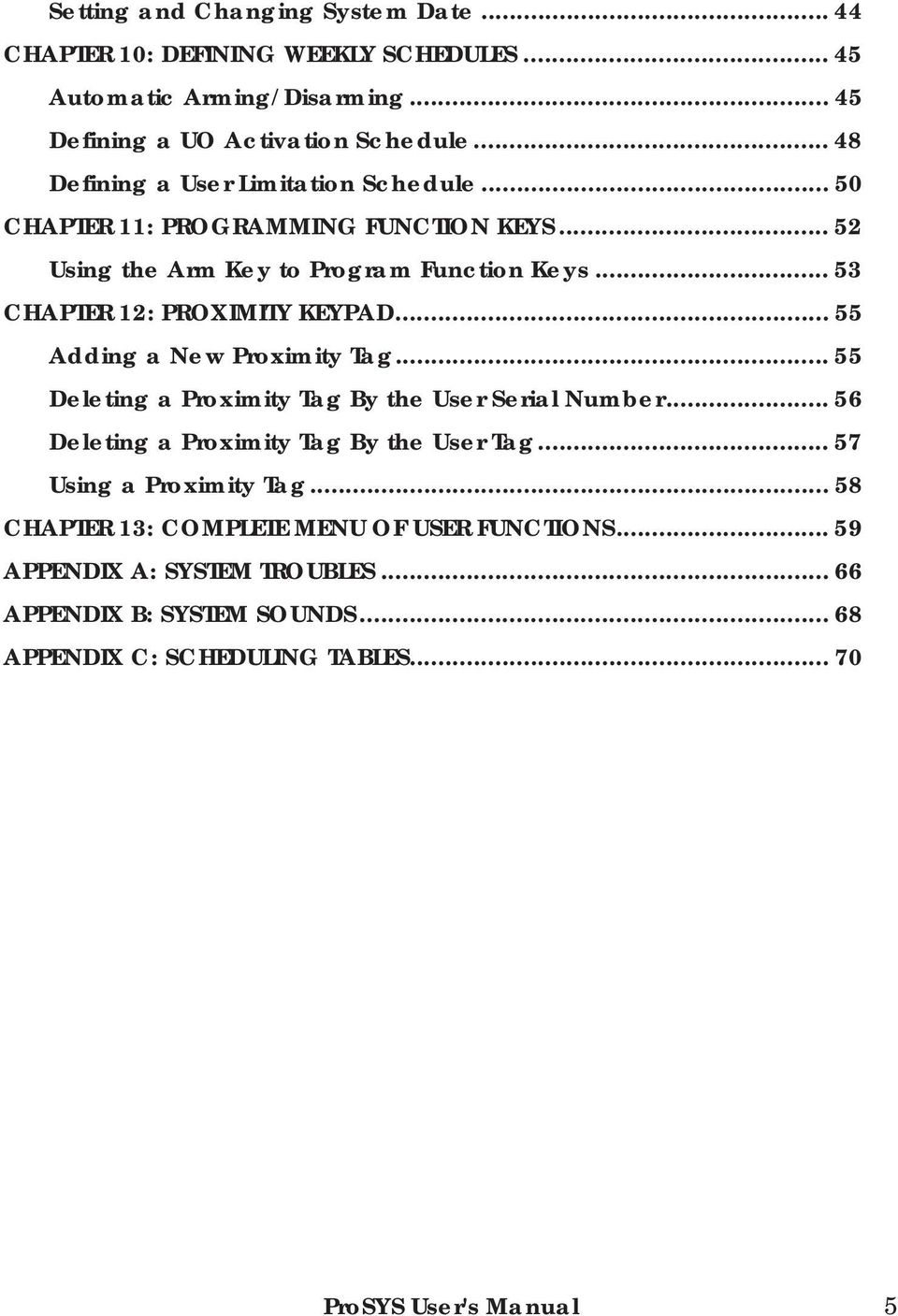
6 Away Arm Summary of User Commands Stay Arm Code> / Group Arm Partition Away Arm Hold the tag close to the keypad's keys -OR- Code> / Code>A/B/C/D Hold the tag close to the keypad's keys > Partition No. > / -OR- Code> / > Partition No. > / Partition Stay Arm Code> / > Partition No. > / Partition Group Arm System Disarm Partition Disarm Duress Disarm Silence an Alarm Bypass Zones Activate Utility Output Define Follow-Me Enable Installer Menu View Trouble View Alarm Memory Code>A/B/C/D > Partition No. > A/B/C/D Hold the tag close to the keypad's keys -OR- Code> / Hold the tag close to the keypad's keys > Partition No. > / -OR- Code> / > Partition No. > / Duress Code > / Hold the tag close to the keypad's keys -OR- Code> / >[1]>[1]>[Code]> / >[Zone No.] >[2]>[1]>[Code] > / [UO No.] >[2]>[7]>[Code] > / >[7]>[1]>[Installer Code]> / >[3]>[1]>[Code] > / >[3]>[2]>[Code]> / 6 ProSYS User's Manual
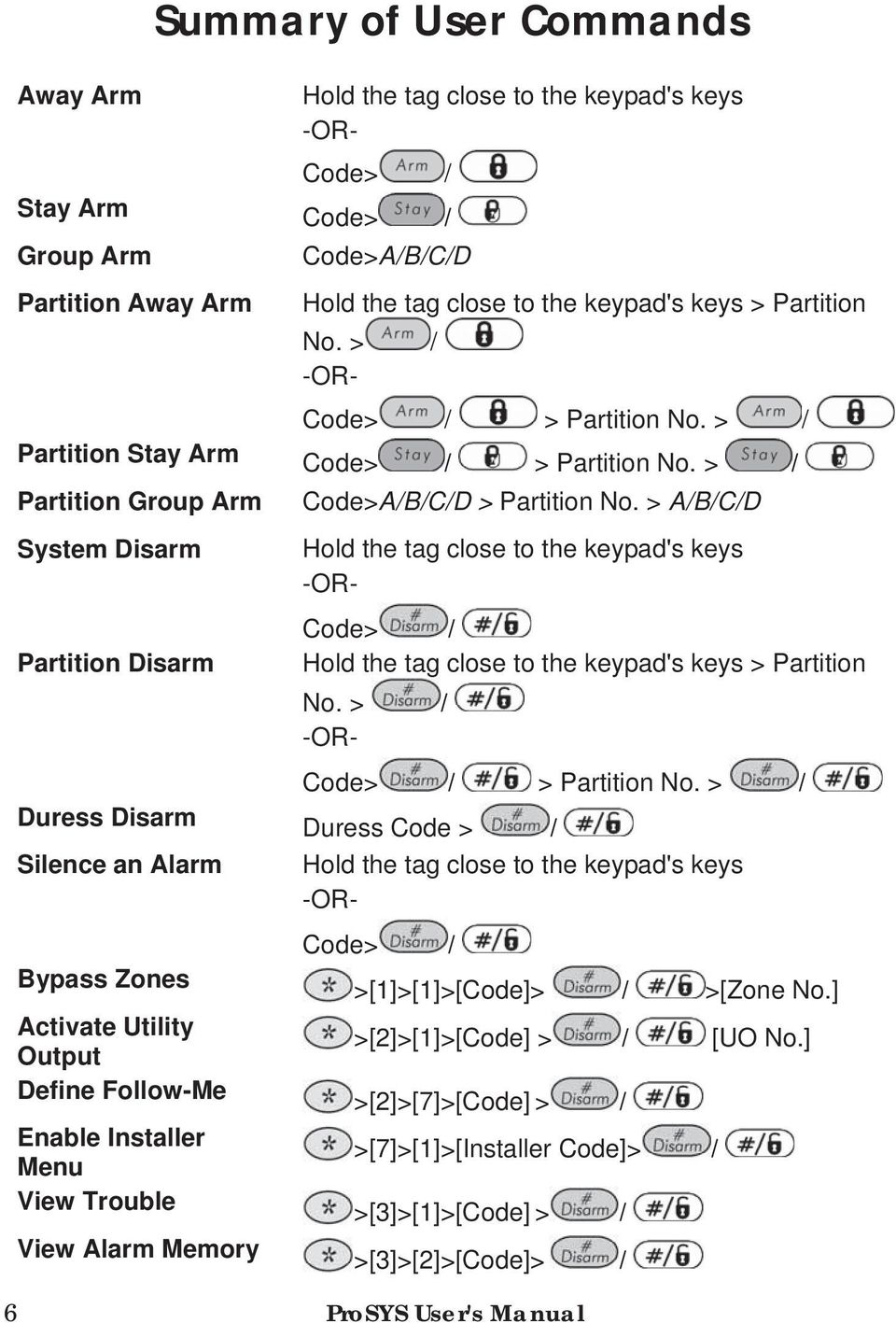
7 View Zone Status View Event Log Bell/Strobe/Keypad Test Zone Testing (Walk Test) Local Chime On/Off Edit User Code Edit Time Edit Date Automatic Arming/Disarming >[3]>[4]>[Code]> / >[3]>[5]>[Manager Code]> / >[4]>[Code]> / >[1] >[4]>[Grand Master Code]> / > [0]>[1] >[4]>[Code]> / >[4]/[3] >[5]>[Code]> / >[1] >[6]>[Grand Master Code]> / >[1] >[6]>[Grand Master Code]> / >[2] >[6]>[Grand Master Code]> / >[5] >[Schedule No]>[1] ProSYS User's Manual 7
![>[1] >[4]>[Grand Master Code]> / > [0]>[1] >[4]>[Code]> / >[4]/[3] >[5]>[Code]> / >[1] >[6]>[Grand Master Code]>](/docs-images/40/9665757/images/page_7.jpg "/ >[1] >[6]>[Grand Master Code]> / >[2] >[6]>[Grand Master Code]> / >[5] >[Schedule No]>[1] ProSYS User's Manual")
8 Chapter 1: Introduction Congratulations on your purchase of RISCO Group's ProSYS Security System. The ProSYS has been specifically designed to meet a wide range of security needs for many residential and commercial applications. The ProSYS includes the most advanced communication capabilities for dual or triple-path communication to Monitoring Stations (MSs) using telephone lines, GSM/GPRS network or TCP/IP network. It consists of a variety of sensors, detectors, and contacts placed throughout the premises. It is designed to recognize abnormal conditions and inform the system of the status of any protected door, window, hallway, room, or area. The Main Panel, which contains the system's electronics and backup battery, functions in the background. For security purposes, it is recommended that it be installed out of sight. You can place a household appliance or premises lighting under the control of the ProSYS, where it can be conveniently turned on and off automatically or by user command from any system keypad, as described on page 32. In addition, the ProSYS supports the following optional RISCO Group devices: Advanced Communication Module that enables the system to operate over the IP network. GSM/GPRS module which enables the system to communicate over the GSM/GPRS network, and also send or receive SMS commands. Access Control, which enables integrating access control capabilities into your security system. Digital Voice Module which enables you to receive voice messages, operate the system from a remote phone, and listen- in or speak to the premises. 8 ProSYS User's Manual

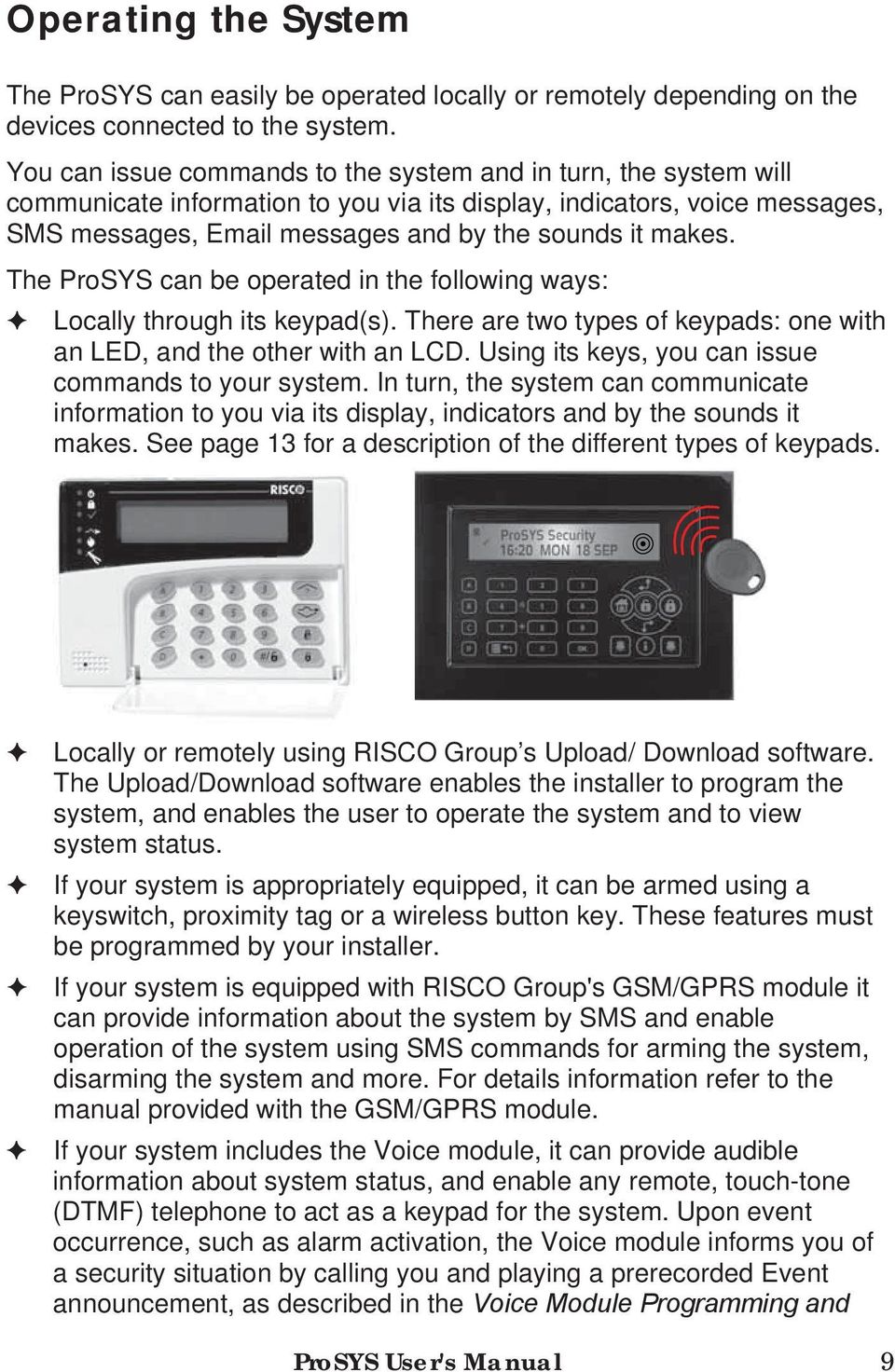
9 Operating the System The ProSYS can easily be operated locally or remotely depending on the devices connected to the system. You can issue commands to the system and in turn, the system will communicate information to you via its display, indicators, voice messages, SMS messages, messages and by the sounds it makes. The ProSYS can be operated in the following ways: Locally through its keypad(s). There are two types of keypads: one with an LED, and the other with an LCD. Using its keys, you can issue commands to your system. In turn, the system can communicate information to you via its display, indicators and by the sounds it makes. See page 13 for a description of the different types of keypads. Locally or remotely using RISCO Group s Upload/ Download software. The Upload/Download software enables the installer to program the system, and enables the user to operate the system and to view system status. If your system is appropriately equipped, it can be armed using a keyswitch, proximity tag or a wireless button key. These features must be programmed by your installer. If your system is equipped with RISCO Group's GSM/GPRS module it can provide information about the system by SMS and enable operation of the system using SMS commands for arming the system, disarming the system and more. For details information refer to the manual provided with the GSM/GPRS module. If your system includes the Voice module, it can provide audible information about system status, and enable any remote, touch-tone (DTMF) telephone to act as a keypad for the system. Upon event occurrence, such as alarm activation, the Voice module informs you of a security situation by calling you and playing a prerecorded Event announcement, as described in the Voice Module Programming and ProSYS User's Manual 9
10 Operations Manual. The first task to be performed before operating the system is Setting and Changing User Codes, as described on page 36. NOTE: A certified serviceman should do all repairs and maintenance including replacement of the device battery. The ProSYS Family This manual is intended for all three types of panels in the ProSYS family. The following table lists the number of features in each type of panel. Feature ProSYS 16 ProSYS 40 ProSYS 128 Total Zones User Codes Utility Outputs Follow-Me Destinations Maximum Keypads Partitions Weekly Schedules ProSYS User's Manual

11 Terms and Definitions There are a few terms with which you should become familiar. Knowing them will help you to better understand and use your system. Authority Level: Each individual using the system is assigned a user code, which, in turn, is linked to an Authority Level. Those with a "higher authority" have access to a greater number of system functions, while those with a "lower authority" are more restricted in what they may do. There are nine different Authority Levels available for users of the ProSYS, as described on page 38. Chime: The chime is a series of three short keypad tones, which can be set up to annunciate, during the disarmed period, the violation of selected intrusion zone(s). For example, the chime tone can be used to annunciate the arrival of a customer each time the front door opens. The chime can be disabled or enabled at your discretion. Event Log: A list of system events can be displayed on an LCD keypad or uploaded to the Monitoring Station via the Upload/Download software and printed for further analysis. Exit/Entry Delay: Your security system must incorporate an entry/exit delay to allow proper entry and exit to and from the premises without causing inadvertent alarms. Follow-Me Destinations: In addition to the standard event reporting to the Monitoring Station, the system can send event messages to a designated system user's telephone/ . Group: A number of zones gathered as one unit to allow partial arming. Each zone can be assigned to any one (or a combination) of four groups (A, B, C or D). Each partition can be divided into a maximum of four groups. Keyswitch: Your system may also be equipped with a keyswitch, which is useful for simple arming and disarming operations (usually at a remote location). Monitoring Station: Your system is set up to report alarms to a Monitoring Station, which is a facility that continually monitors the activities of many security systems (usually via the telephone network) and dispatches the proper authorities. Partition: One of the ProSYS advantages is its ability to divide any system into a number of partitions. You can think of each partition as a separate security system that can be armed and disarmed individually. ProSYS User's Manual 11

12 Proximity: A technology that enables a keypad to sense when a proximity key tag is near it. This provides an easy and user-friendly way to arm or disarm the security system. Tamper: A device that prevents system hardware from being tampered with by triggering an alarm whenever a hardware component is opened. Trouble Reporting: If required, your security system may also report to the Monitoring Station any troubles or malfunctions it senses, so that a service call can be made. Upload/Download: Software used by the installer for programming the ProSYS and by the user for operating the system and viewing system status. User Code: Up to a four-digit or six-digit code that is used to perform many of the ProSYS functions. Utility Output (UO): A household appliance. In addition to your system's normal operation, it is possible to place a household appliance or premises lighting under the control of the ProSYS where it can be conveniently turned on and off automatically, or by user command from any system keypad. Weekly Schedules: Through the use of the system's built-in clock, it is possible to schedule automatic operations such as arming and disarming, UO activation, and user limitation. Zone: A single detector, or collection of detectors, usually relating to a certain area of the premises or type of protection. Zones that use devices designed to detect break-ins are called intrusion zones. Another kind of zone may contain one or more smoke detectors. Such zones are called fire zones. An environmental zone typically protects the premises from gas leaks and/or flooding. 12 ProSYS User's Manual
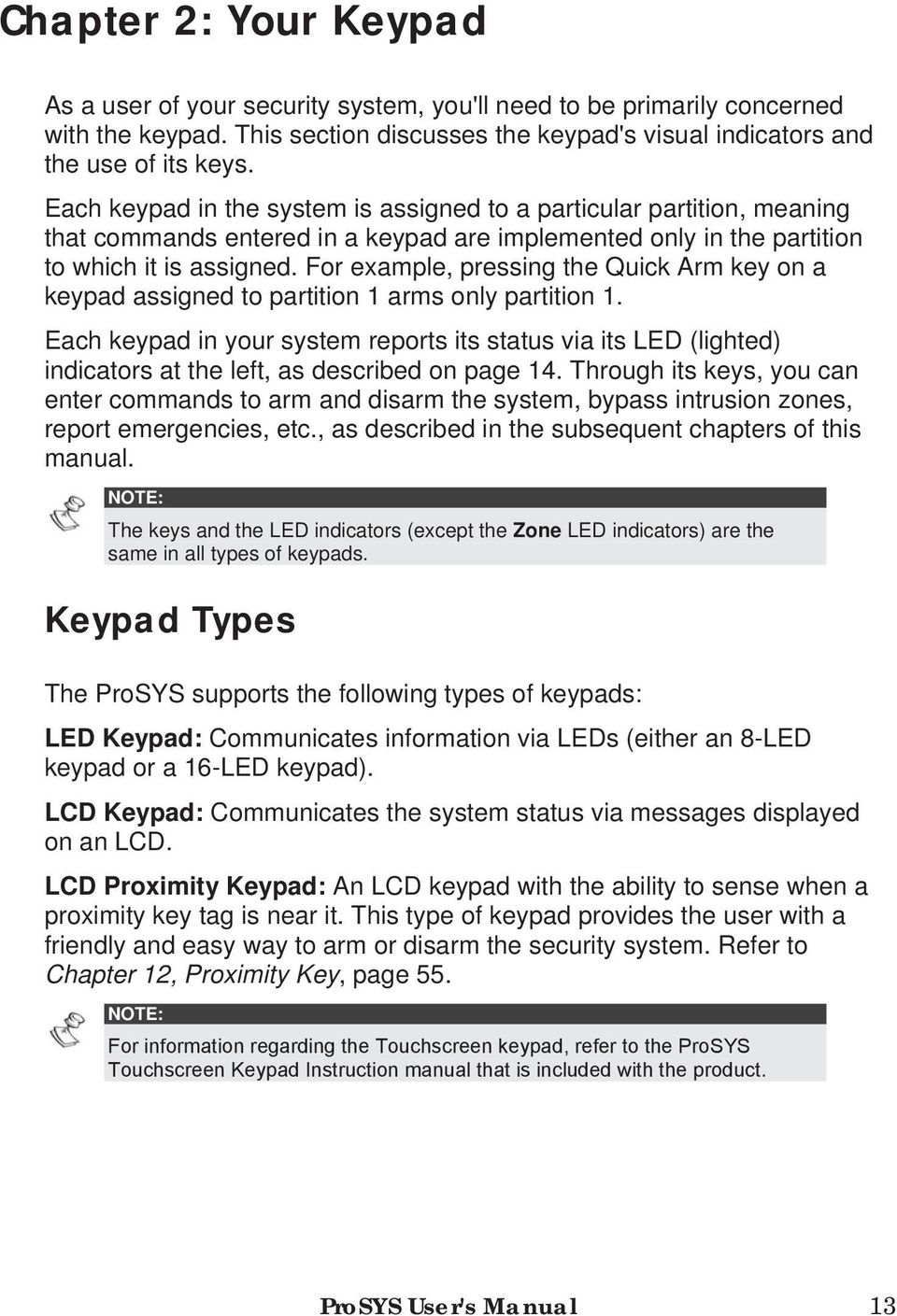
13 Chapter 2: Your Keypad As a user of your security system, you'll need to be primarily concerned with the keypad. This section discusses the keypad's visual indicators and the use of its keys. Each keypad in the system is assigned to a particular partition, meaning that commands entered in a keypad are implemented only in the partition to which it is assigned. For example, pressing the Quick Arm key on a keypad assigned to partition 1 arms only partition 1. Each keypad in your system reports its status via its LED (lighted) indicators at the left, as described on page 14. Through its keys, you can enter commands to arm and disarm the system, bypass intrusion zones, report emergencies, etc., as described in the subsequent chapters of this manual. NOTE: The keys and the LED indicators (except the Zone LED indicators) are the same in all types of keypads. Keypad Types The ProSYS supports the following types of keypads: LED Keypad: Communicates information via LEDs (either an 8-LED keypad or a 16-LED keypad). LCD Keypad: Communicates the system status via messages displayed on an LCD. LCD Proximity Keypad: An LCD keypad with the ability to sense when a proximity key tag is near it. This type of keypad provides the user with a friendly and easy way to arm or disarm the security system. Refer to Chapter 12, Proximity Key, page 55. NOTE: For information regarding the Touchscreen keypad, refer to the ProSYS Touchscreen Keypad Instruction manual that is included with the product. ProSYS User's Manual 13
14 LED Indicators The six LED indicators found at the upper left provide typical system indications, as discussed below. Some indicators have additional functions, which are explained later on. NOTE: If required, the system status can be hidden by setting the keypad to Hidden LCD mode. In this mode, the Arm/, Ready/ and Bypass/ LEDs do not function, and the LCD displays ENTER CODE: After entering a valid user code, the system works in and displays the Normal Operation mode. One minute after the last operation, the system automatically switches to Hidden LCD mode. Power/ LED The Power/ LED indicates system operation. Condition Description ON The system is operating properly from commercial (AC) power; its backup battery is in good condition. OFF RAPID FLASH (about 4 times per second) SLOW FLASH (about once every 2 seconds) NOTE: The system is inoperative due to lack of power (from both commercial AC and backup battery); servicing is required. Indicates a trouble condition, as described on page 66. Indicates the system is in User Functions mode. See page 55 for more information on user functions. If a trouble condition exists, the Power/ LED will flash only when the system is in its disarmed state. Once the system is armed, a previously flashing Power/ LED will light steadily. 14 ProSYS User's Manual

15 Arm/ LED The Arm/ LED indicates whether or not the system's intrusion detectors are armed. Condition Description ON OFF SLOW FLASH (about once every second) RAPID FLASH (about 4 times per second) Ready/ LED The system's intrusion detectors are armed; subsequent violations of a protected point or area (e.g. a door, a window, unauthorized motion) will result in a burglar alarm The intrusion function of the system is disarmed. Indicates the system is in its Exit Delay time period. Indicates an alarm condition, and occurs after disarming an alarmed system while the display is in Alarm Memory mode. To restore the display to Normal Operation mode, press. The Ready/ LED indicates whether or not the system's intrusion zones are secured and ready to be armed. Condition Description ON OFF SLOW FLASH All intrusion zones are secure; the system is ready to be armed. One or more intrusion zones are not secure, and the system is not ready to be armed. Before the system can be armed, the condition must be addressed. -OR- For 3 minutes when power is restored to an unpowered system (if defined by your installer). Indicates the system is ready to be armed while a specially designated entry/exit door remains open. ProSYS User's Manual 15

16 Bypass/ LED The Bypass/ LED is normally lit when Stay mode is selected. Condition Description ON At least one intrusion zone is bypassed, or Stay mode is selected. OFF Fire/ LED All zones are operating normally and the system is in Arm mode. When lit, the Fire/ LED indicates that the system is experiencing a fire alarm. When flashing, a problem has been detected on the fire circuit, and must be serviced. Condition Description ON OFF FLASHING Tamper/ LED A fire alarm or fire emergency is in progress or has recently occurred. All fire zones are operating normally. A problem has been detected on the fire circuit and must be serviced. The Tamper/ LED indicates that a zone, a keypad, or an external module has been tampered with and requires resetting. In some cases, a technician code is required to restore the system to Normal Operation mode. Condition Description ON OFF A zone, keypad, or an external module used by the system has been physically disturbed or tampered with. If disarmed without fixing the problem, only the sound will be silenced. All zones are operating normally. 16 ProSYS User's Manual

17 Zone LEDs The Zone LEDs indicate the status of each of the system's intrusion zones. For LCD keypads, the display indicates the zone's number and label. Condition Description System Disarmed System Armed ON N/A An alarm has occurred in the indicated zone. OFF FLASHING Keys The corresponding zone is secured. The indicated zone is not secured. N/A The keys on the keypad can be used for a variety of functions. Each key is explained below. Numerical Keys Numerical keys are used to input the numeric codes that may be required for arming, disarming, and triggering emergency alarms, along with several other special functions. Function Keys (A, B, C and D) By default, Function keys are used to arm groups of zones, as defined by your installer and described on page 24. Function keys can also be used to activate a prerecorded series of commands, as described on page 52. ProSYS User's Manual 17

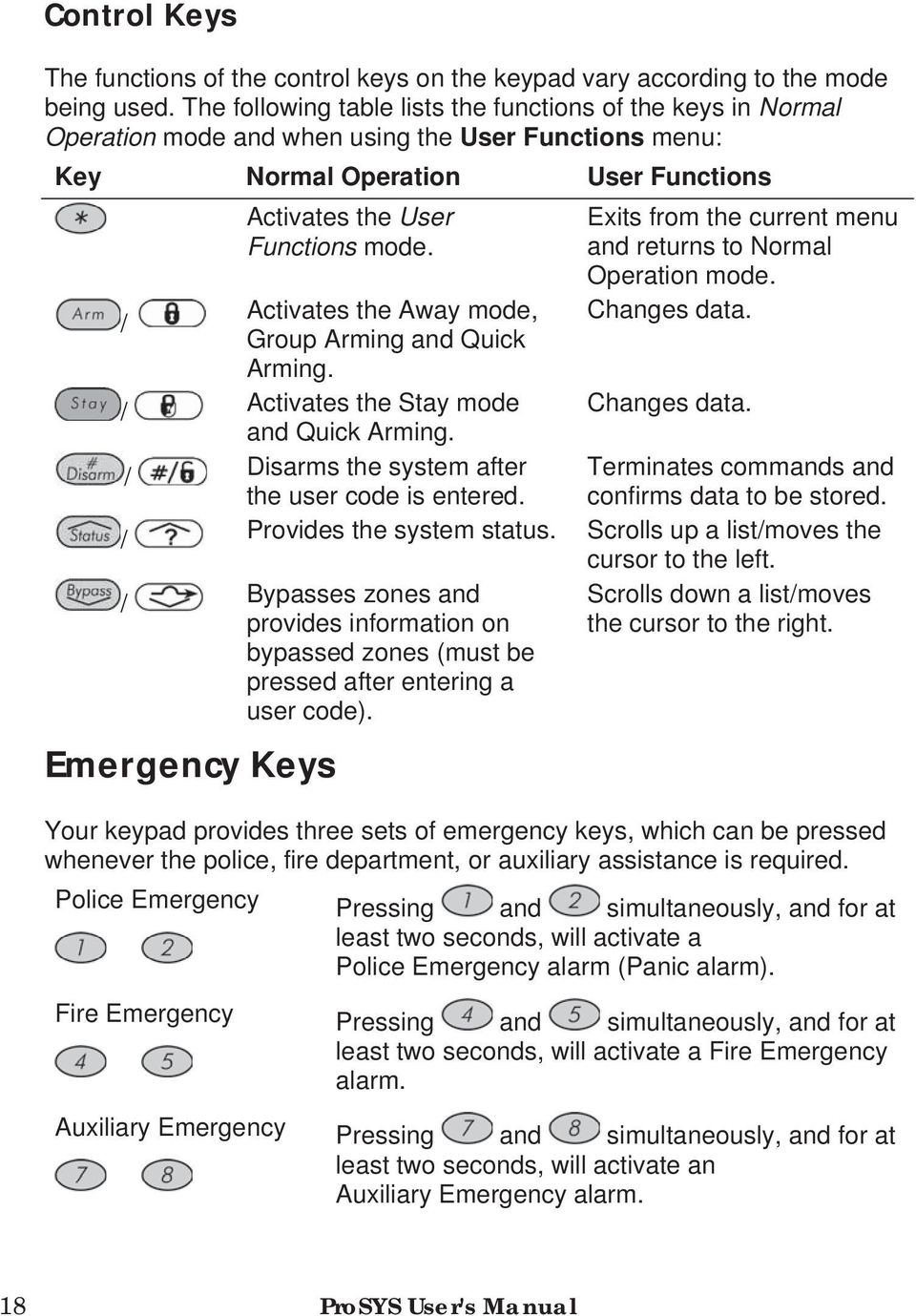
18 Control Keys The functions of the control keys on the keypad vary according to the mode being used. The following table lists the functions of the keys in Normal Operation mode and when using the User Functions menu: Key Normal Operation User Functions Activates the User Functions mode. Activates the Away mode, / Group Arming and Quick Arming. / Activates the Stay mode and Quick Arming. / Disarms the system after the user code is entered. Exits from the current menu and returns to Normal Operation mode. Changes data. Changes data. Terminates commands and confirms data to be stored. / Provides the system status. Scrolls up a list/moves the / Bypasses zones and provides information on bypassed zones (must be pressed after entering a user code). Emergency Keys cursor to the left. Scrolls down a list/moves the cursor to the right. Your keypad provides three sets of emergency keys, which can be pressed whenever the police, fire department, or auxiliary assistance is required. Police Emergency Pressing and simultaneously, and for at least two seconds, will activate a Police Emergency alarm (Panic alarm). Fire Emergency Pressing and simultaneously, and for at least two seconds, will activate a Fire Emergency alarm. Auxiliary Emergency Pressing and simultaneously, and for at least two seconds, will activate an Auxiliary Emergency alarm. 18 ProSYS User's Manual
19 The annunciation that results during these emergency alarms, along with other system sounds, is described on page 68. If your system has been programmed to do so, it will communicate any or all of these alarms to the Monitoring Station monitoring your installation. System programming also determines whether these emergency alarms will be audible and/or capable of being communicated to the Monitoring Station. Quick Key Operation The Quick Key Operation is a short effective way that helps you to easily operate your system and quickly activate user functions, skipping the user code. For example, to set the system, simply press the / key. NOTE: For quick key operation your installer has to define quick key operation. LCD Status Display The LCD status display will vary depending on the number of partitions in your system. If your system is defined with only one partition, the LCD displays the partition name, time and date. If your system has 2 or 3 partitions, the LCD displays the system name, date, time and the status of each partition. A status letter represents the partition s status, as follows: A: Partition Armed N: Partition Not Ready L: Partition in Alarm S: Partition Stay Armed R: Partition Ready LCD Blank Display If defined by your installer two minutes after the last keypad operation the keypad will be disabled and the following display will appear on the LCD: Enter code: _ To release the keypad and return to normal operation mode press: [CODE] + / NOTE: During Blank Display mode the Ready LED indicates a fault in the system. ProSYS User's Manual 19
20 Chapter 3: Arming and Disarming the System Arming Arming your system enables its intrusion detectors to trigger an alarm when violated. Remember, fire protection and the protection offered by the keypad's emergency keys are always armed and always available. Your ProSYS offers the following kinds of arming: Away, page 20 Stay, page 21 Partition, page 22 Group, page 24 Quick, page 24 Force, page 25 Wireless Button, page 25 Proximity Tag, page 25 Keyswitch, page 25 Access Control, page 25 Away Arming Away arming prepares all of the system's intrusion detectors to sound an alarm, if violated, and is used when leaving the premises empty. To away arm: 1) Check the Ready/ LED on your keypad. If it is lit or flashing, the system is READY to be armed. If the Ready/ LED is NOT lit or flashing, the system is NOT ready to be armed. In this case, secure or bypass the violated zone(s), see page 30, and then proceed. 2) THE JONESES 05:42 DEC 16 TUE Hold the tag close to the keypad's keys or enter your user code and press /. 20 ProSYS User's Manual
21 NOTE: If you make a mistake, the keypad produces three short beeps. If so, press 3) THE JONESES ARM: EXIT = 0:45 THE JONESES ARMED Stay Arming quickly and re-enter the above sequence correctly. All persons are to exit except the person arming the system. Leave the premises and close the door. The keypad beeps and the Arm/ LED flashes while the system counts down the Exit Delay time period (shown in the bottom right of the LCD). When the Exit Delay time period is up, the Arm/ LED lights steadily. Stay arming activates only external detectors, enabling individuals to remain inside and move about the premises even after the system is armed. To stay arm: 1) Check the Ready/ LED on your keypad. If it is lit or flashing, the system is READY to be armed. If the Ready/ LED is NOT lit or flashing, the system is NOT ready to be armed. In this case, secure or bypass the violated zone(s), as described on page 30, and then proceed. 2) THE JONESES 05:42 DEC 16 TUE Hold the tag close to the keypad's keys or enter your user code and press /. NOTES: Press / twice to cancel the Entry Delay time period. Press during the Exit Delay time period to silence the beeps from the keypad. If you make a mistake entering your user code, the keypad produces three short beeps. If so, press quickly and re-enter the above sequence correctly. ProSYS User's Manual 21
22 3) THE JONESES HOME: EXIT = 0:45 THE JONESES AT HOME ARMED If required, leave the premises and close the door. During the Exit Delay time period, the keypad beeps, the Arm/ LED flashes, and the Bypass/ LED lights, indicating that the interior zones are being bypassed. When the Exit Delay time period is up, the Arm/ LED lights steadily. Partition Arming One of the ProSYS advantages is its ability to divide any system into a number of partitions. Each partition may be viewed as a separate security system, each of which can be armed and disarmed individually regardless of the condition of the other. Partitions can be armed/disarmed one at a time, or all at once, and can be Stay or Away armed. Keypads and Partitions - Each keypad is assigned to different partition(s). The Grand Master and the Manager (with access to all partitions) can use any keypad to access any partition. Other users can use only designated keypads. Common Zones - Partitioned systems have to share common zones. For example, a shared front door to two family houses must be available to both families and is therefore shared between them. A common zone(s) is armed only if all partitions sharing the zone(s) are armed. The common zone(s) is disarmed if any of the partitions, to which the zone(s) is assigned, are disarmed. If the system is defined to work in Area mode, the common zone will be armed if any partition sharing the zone is armed. The common zone will be disarmed if all the partitions sharing the zone are disarmed. 22 ProSYS User's Manual
23 Arming Multiple Partitions Only users that have been defined to operate multiple partitions during the system installation can operate more than one partition and arm/disarm all partitions at once. To arm multiple partitions: 1) Check the Ready / LED on your keypad. If it is lit or flashing, the system is READY to be armed. If the Ready / LED is NOT lit or flashing, the system is NOT ready to be armed. In this case, secure or bypass the violated zone(s), as described on page 30, and then proceed. 2) THE JONESES 05:42 DEC 16 TUE Enter your user code and press /. 3) ARM R - 0) ALL 4) Select the number of the partition you want to arm. -OR- Select 0 to arm ALL partitions. Press / to arm the selected partition(s). 5) Repeat the above steps to arm additional partitions. Examples: To arm partition 3 with code 1234: / [3] / To arm ALL partitions: / [0] / To arm partitions 3 and 4: / [3] [4] / To arm partition 3 in Stay mode: / [3] / ProSYS User's Manual 23
24 Group Arming Group arming enables you to arm a number of zones within a partition, using the Function keys. Ask your installer about defining groups. To arm a group (if the system has one partition): 1) Enter your code, followed by the Function key corresponding to the group(s) you want to arm. The selected group is armed. For example, to arm Group A, enter: [Code] [A]. 2) To arm another group, repeat step 1. To arm a group (if your user code is assigned to more than one partition): 1) Enter your user code, then the group letter, then the partition number, and the group letter again. For example, to arm Group A, enter: [Code] [A] [Partition No] [A]. 2) To arm another group, repeat step 1. NOTE: If your system has Quick Arming, press the Function key corresponding to the group(s) you want to arm. The selected group(s) is armed. Quick Arming Quick arming enables you to quickly arm the system with the press of a key. NOTE: Quick Arming should be defined by your installer. To quick arm using away arming: Hold the tag close to the keypad's keys or press /. The system is fully armed. To quick arm using stay arming: Hold the tag close to the keypad's keys or press /. The system's external detectors are activated. 24 ProSYS User's Manual
25 To quick arm a group: Press the Function key corresponding to the group(s) you want to arm. The selected group(s) is armed. Force Arming Force arming arms the system regardless of open zones. Your installer must enable this option. WARNING: Force arming the system results in leaving partition(s) unsecured. Wireless Button Arming The system can be armed using a button on a wireless button key. Your installer programs this option. Refer to the instructions supplied with your 4- button key for more information. Proximity Tag Arming If your system is appropriately equipped, it can be armed using a proximity tag. Your installer programs this option. Keyswitch Arming If your system is equipped with a special keyswitch, it can, with the twist of a key, be toggled through Arm (Away) and Disarm modes. Access Control Arming If your system is equipped with RISCO Group's Access Control, you can arm and disarm the system from the Access Control reader. Refer to the Access Control User's Manual for more information. ProSYS User's Manual 25
26 Disarming Disarming your system deactivates its detectors. Remember, fire protection and the protection offered by the keypad's emergency keys are always armed and always available. Your ProSYS offers the following kinds of disarming: System, below Silencing an Alarm, page 26 Partition, page 27 Duress, page 28 Fire Alarm, page 29 Disarming the System Disarming deactivates all detectors in the system. To disarm the system: 1) If outside the premises, open an "entry" door. The keypad(s) beeps, indicating that the Entry Delay time period has begun. 2) Before the Entry Delay time period expires, enter your user code and press /. NOTE: If you make a mistake when entering your user code, the keypad will produce three short beeps. If so, re-enter the sequence correctly. Silencing an Alarm The system is disarmed when an alarm is silenced. To silence an alarm: 1) If outside the premises, open an "entry" door. The keypad(s) beeps, indicating that the Entry Delay period has begun. 2) Observe the keypad. If any of the following conditions is evident, an alarm has occurred: For an LED keypad: The Arm/ LED is flashing. A Zone LED is lit steadily. The Fire/ LED is lit steadily. 26 ProSYS User's Manual
27 3) For an LCD keypad: The Arm/ LED is flashing, and the display shows the disturbed zone. Enter your user code and press /. If an alarm occurred, the Arm/ LED and the corresponding Zone LED will flash for the Alarm Memory period of about 60 seconds. 4) If you are using an LCD keypad, scroll through the list of alarmed zones. 5) (Optional) To exit the Alarm Memory mode before the timeout has expired, press. IMPORTANT: NOTES: It is recommended to leave the premises. Only after police investigation should you consider that the burglar is no longer on your premises and you can re-enter. In special cases (if programmed so during installation), arming the system after an alarm requires a technician code. On the LCD, a Not ready - technician reset message will appear. If the alarm was caused by a tripped smoke detector(s), the keypad's Fire/ LED will remain lit, providing an indication that the fire system must be reset before it will be capable of detecting subsequent alarms. Furthermore, until it is reset, you will be prevented from arming your system. To reset a smoke detector, press [ ] [2] [2] [user code] [ / ]. Press [ ] [ ] to exit the User Functions mode. Partition Disarming Partition disarming enables you to disarm individual partitions within an armed system. To disarm partitions: 1) Enter your user code and press /. 2) Select the partition number (1-8). -OR- To disarm all partitions at once, select 0. -OR- ProSYS User's Manual 27
28 3) For an LCD keypad, scroll with the / or the / key to the required partition (or enter the partition's number). Press / to confirm. A confirmation message will be displayed for several seconds. 4) Repeat the above steps to disarm other partitions. Examples: To disarm partition 3 with code 1234: / [3] / To disarm ALL partitions: / [0] / To disarm partitions 3 and 4: / [3] [4] / NOTES: ALL partitions relate to all partitions that are authorized by the security code in use. If the Arm / LED is flashing after disarming, check the display for activated (alarmed) zones before proceeding. Duress Disarming If you are ever coerced into disarming your system, you can comply with the intruder's wishes while sending a silent duress alarm to the Monitoring Station. To do so, you must use a special duress code, which when used, will disarm the system in the regular manner, while simultaneously transmitting the duress alarm. To use a duress code, add 1 to the last digit of your user code, as shown in the table below: User Code Duress Code Under no circumstances must the duress code be used haphazardly or without reason. Monitoring Stations, along with Police Departments, treat duress codes very seriously and take immediate action. 28 ProSYS User's Manual
29 To disarm using a duress code: 1) If outside the premises, open an "entry" door. The keypad(s) beeps, indicating that the Entry Delay time period has begun. 2) Enter your duress code and press /. The system is disarmed, and a silent alarm is sent to the Monitoring Station. Disabling the Fire Alarm (Switch Auxiliary) Disarming the fire alarm interrupts the power supplied to the system's smoke detector(s) for a predetermined interval, thus resetting and "readying" them for subsequent alarms. NOTE: You may need to perform this procedure several times in order to prevent the smoke detector(s) from re-detecting any remaining smoke. To disable the fire alarm: 1) USER FUNCTIONS: From the User Functions menu, select [2] 1) BYPASS Activities. 2) ACTIVITIES: 1) UTIL OUTPUT Select [2] Switch Auxiliary. 3) INSERT CODE: Enter your user code. DONE HIT ANY KEY The fire alarm is disabled for a predefined amount of time. ProSYS User's Manual 29
30 Chapter 4: Zone Bypassing [*] [1] [CODE] [#] [1] When an intrusion zone is not secured, the keypad's Ready/ LED will not light, nor can the system be readily armed. Bypassing a zone enables you to arm a partition even if a zone within that partition is open/not secured. You may want to bypass a zone when access is needed to one zone in an otherwise protected area, or to cause the system to temporarily circumvent a zone containing damaged wiring until repairs can be made. WARNING: A bypassed zone may reduce the system's security capability. Before performing the following procedure, identify the violated zone(s) as follows: LED Keypad: Note which zone LED(s) is flashing on the keypad. LCD Keypad: Enter your user code followed by /, and then scroll down with the down arrow key to view all "not ready" zones. The LCD only displays "not ready" zones that belong to the user code that was entered. To change a zone's bypass status: 1) THE JONESES 05:42 DEC 16 TUE Enter your code and press /. The Bypass/ LED is illuminated. NOTE: If you make a mistake when entering your user code, the keypad will produce three short beeps. Re-enter if necessary. 2) BYP Z=01 (CL) N ZONE 01 Enter the zone number. Entering the zone number a second time un-bypasses it (toggle action). An additional zone(s) can be bypassed at the same time by adding its number to the sequence. For example, to bypass zones 2 and 13 using code 1234, enter: / / 30 ProSYS User's Manual
31 To un-bypass zone 2 only using code 1234, enter: / 02 / 3) When finished entering zone numbers, press /. NOTES: All zones are automatically un-bypassed when the system is armed and then disarmed again. The Bypass / LED turns off when arming in Away mode. ProSYS User's Manual 31
32 Chapter 5: Activating Home Appliances (UOs) [*] [2] [CODE] [#] [1] You can place a household appliance, such as heating, lighting or an external device, under the control of the ProSYS, where it can be conveniently turned on and off automatically, or by user commands from any system keypad. There are two types of appliances, each of which behaves differently when activated: Latched appliance: Remains activated until it is deactivated. Pulsed appliance: Remains activated for a predefined time, after which it is automatically deactivated. Ask your installer which of your appliances are defined as latched and which are defined as pulsed. NOTES: The UO option applies to UOs that are defined as Follow Code. Ask your installer for details about defining UOs in this way. The default system label for a UO is OUTPUT. Ask your installer to define a name, such as HEATING for each UO. Home appliances can also be remotely activated and deactivated by using the Voice module. Refer to the Voice Module Programming and Installation Manual for more information. There are two ways in which to activate home appliances from the keypad: From the User Functions menu, as described on page 33. By entering a code, as described on page ProSYS User's Manual
33 Activating Home Appliances from the User Functions Menu Home appliances can be activated by any user who is assigned a code that is authorized to activate home appliances. To activate home appliances from the User Functions menu: 1) USER FUNCTIONS: From the User Functions menu, select 1) BYPASS [2] Activities. 2) ACTIVITIES: 1) UTIL OUTPUT Select [1] Utility Outputs. 3) INSERT CODE: Enter your user code. NOTE: Your installer can define the system so that a user code is not required. 4) ACTIVATE UO: 01) OUTPUT 01 ACTIVATE UO: OUTPUT ACTIVATED Select the number of the utility output that you want to activate or deactivate. The selected utility output is activated. Activating Home Appliances by Entering a Code Users with the Authority Level of UO Only can activate home appliances by entering their user code followed by /. The status of all UOs assigned to this code is subsequently changed. ProSYS User's Manual 33
34 Chapter 6: Setting Follow Me Destinations [*] [2] [7] [CODE] [#] In the case of an alarm or event, the system can initiate a phone call to a designated telephone or pager, send an SMS/ and employ unique tones or messages to express the active event. Your installer defines the type of reporting to a follow me destination. Consult your installer for the possibility to report events by SMS or . To enter/edit a Follow Me destination: 1) USER FUNCTIONS: From the User Functions menu, select 1) BYPASS [2] Activities. 2) ACTIVITIES: 1) UTIL OUTPUT Select [7] Follow Me 3) INSERT CODE: Enter your user code. 4) DEFINE FM: 01)FM No. 01 Select the FM index number you want to define. 5) EDIT FM NO:01 Enter the phone number, including the area code (if required) or address. To enter an address, use the / and / keys to obtain the required characters and use the / and / keys to move to the required character position in the address. NOTE: Whether you can enter a phone number or an address depends on the follow me type defined for the index by your installer. If you entered a phone number, two questions are displayed. These questions enable you to define the permission assigned to the designated phone when the Advanced Voice Module is connected to the system. FM phone numbers can also be used for remote operation. Refer to the Voice Module Programming and Operations Manual for more information. 34 ProSYS User's Manual
35 6) ENABLE FM NO 1: REMOTE PROGRAM:N 7) ENABLE FM NO 1: REMOTE LISTEN:N Select one of the following options to define the permission: Y: The user on the FM phone can enter the Remote Operations menu and perform arm, disarm, zone bypassing, home appliance activation, FM phone editing, and remote listen and talk operations. N: The user on the FM phone cannot enter the Remote Operations menu. Select one of the following options to define the permission: Y: The user on the FM phone can perform remote listen in and talk operations from the Acknowledgement menu. N: The user on the FM phone cannot perform listen and talk operations from the Acknowledgment menu. Refer to the Voice Module Programming and Operations Manual for more information. If required, when defining a telephone number (maximum 32 digits), include the special functions described below to achieve the related effect. You can press the / or / keys to toggle to the required character. Function Sequence Results Stop dialing and wait for a new dial tone. [ ] [1] A Wait a fixed period before continuing. [ ] [2] B Switch from Pulse to Tone (or from Tone to [ ] [3] C Pulse). Send the DTMF character. [ ] [7] Send the DTMF # character. [ ] [9] # Delete numbers from the cursor position. [ ] [0] NOTE: To delete a number, place the cursor in the first position and press [ ] [0]. When done with your complete entry, press / to store it. ProSYS User's Manual 35
36 Chapter 7: User Codes [*] [5] [CODE] [#] [1] To perform many of the ProSYS's functions, a security code (often called a user code) must be entered at the keypad. Each individual using the system is assigned a user code, which, in turn, is linked to an Authority Level. Those with a "higher authority" have access to a greater number of system functions, while those with a "lower authority" are more restricted in what they may do. There are eight different Authority Levels available for users of the ProSYS, as described on page 38. Note that user codes may have variable lengths up to 6 digits, according to your installer's definition, as follows: ProSYS 128 systems can support up to 99 different user codes. ProSYS 40 systems can support up to 60 different user codes. ProSYS 16 systems can support up to 30 different user codes. Your ProSYS was given a Grand Master Code of during manufacturing. Unless your installer has already changed it to suit your preference, it's best to modify this code to one that is unique and personalized. To change the Master Code, and/or to set up user codes, follow the procedure in the following section. Setting and Changing User Codes [*] [5] [CODE] [#] [1] The user assigned the Grand Master Authority Level can change all user codes but cannot view the digits in the user codes. Users with other Authority Levels can only change their own codes. The system must be disarmed in order to set or change user codes. To set/change a user code: 1) USER FUNCTIONS: From the User Functions menu, select 1) BYPASS [5] Access Code. 2) INSERT CODE: Enter your 4-digit or 6-digit Master or Grand Master code, and press /. 36 ProSYS User's Manual
37 3) ACCESS CODE: 1) UPDATE CODES 4) CODE 1234 GRAND 00) USER 00 Select [1] Update Code. Enter the two-digit User Index number to which you want to assign a user code. For example, to assign a user code to user index number 6, press [0] [6]. NOTES: In ProSYS 128 systems, the User Index number is from 00 to 98. In ProSYS 40 systems, the User Index number is from 00 to 59. In ProSYS 16 systems, the User Index number is from 00 to 29. The User Index number 00 belongs to the Grand Master user code. 5) CODE 06, USER ENTER: 0 6) CODE: 06, MSTR ACCEPTED 7) SELECT CODE: 07) 0 USER Enter a four/six digit code and press /. If successful, a single confirmation beep is sounded, and a message is displayed. If not, three quick error beeps are sounded. Repeat the above steps for additional codes until complete. 8) When all codes are entered press quickly to reset and exit the User Functions menu. Deleting User Codes At times, it may be desirable to completely delete a user code. Note that it is impossible to delete the Master Code (although it can be changed). The system must be disarmed in order to delete user codes. To delete a user code: 1) Follow steps 1-3 in the previous procedure. 2) CODE 1234 GRAND 00) USER 00 Enter the two-digit User Index number for which the code is to be deleted. For example, to delete the user code assigned to user index number 6, press [0] [6]. ProSYS User's Manual 37
38 3) CODE 06, USER ENTER: ) CODE: 06, USER ACCEPTED 5) SELECT CODE: 07) 0 USER Press [0] followed by /. If successful, a single confirmation beep is sounded, and a message is displayed. If not, three quick error beeps are sounded. Repeat the above steps for additional codes until complete. 6) When all required codes are deleted, press quickly to reset and exit the User Functions menu. User Authority Levels [*] [5] [CODE] [#] [2] Each individual using the system is assigned a user code, which, in turn, is linked to an Authority Level. Those with a "higher authority" have access to a greater number of system functions, while those with a "lower authority" are more restricted in what they may do. There are nine different Authority Levels available for users of the ProSYS. Level GRAND MASTER MANAGER MASTER USER ARM ONLY Description All operations for all partitions. There is only one Grand Master code in the system, and it is designated to user index number 00. This code can be changed by the installer or the Grand Master. All operations for all partitions. There is only one Manager code in the system, and it is designated to user index number 01. All operations but only for designated partitions. The user holding the Master code can change the Master code and the codes of all Authority Levels lower than Master. There can be any number of Master codes in the system. Only basic operations for one or more partitions. Arming one or more partitions. Arm Only codes are useful for workers who arrive when the premises are already open but, because they are the last to leave, they are given the responsibility to close the premises. 38 ProSYS User's Manual
39 Level MAID UNBYPASS GUARD UO ONLY Description Used only for one-time arming and disarming, after which the code is automatically erased and should be redefined. This code is typically used residentially for maids, home attendants, and repairmen who must enter the premises before the owner(s) arrive. Basic operations to one or more partitions without the ability to bypass zones. Typically used to enable a guard to disarm the system for a predefined amount of time. After this time, the system is automatically armed again. Typically used to enable the operation of a device controlled by a Utility Output (meaning a door and so on). These codes are used only to operate a Utility Output. Entering User Labels [*] [5] [CODE] [#] [4] - Installer or Grand Master You can rename the labels that identify users by changing the default labels (User 1, User 2, and so on) to the names of the users themselves. To enter a user label: 1) USER FUNCTIONS: 1) BYPASS 2) INSERT CODE: 3) ACCESS CODE: 1) UPDATE CODES 4) USER LABEL: USER=01 From the User Functions menu, select [5] Access Code. Enter your 4-digit or 6-digit Master or Grand Master code and press /. Select [4] User Label. Select the index number of the user code that you want to label, and enter a name for the selected user, as described in the character table on page 40. ProSYS User's Manual 39
40 Character Table Use the keys on the keypad to produce characters according to the table below. Pressing a particular key toggles between the characters available for that key. The ProSYS permits a total of 74 characters (letters, numbers, and symbols) for use in labeling. NOTES: The data sequence of each key in the following table is suitable only for the English version. You can use a maximum of 10 characters per user label. KEY DATA SEQUENCE 1 1 A B C D E F G H I J K L M 2 2 N O P Q R S T U V W X Y Z 3 3! '' & ' :.? / ( ) 4 4 a b c d e f g H i j K l m 5 5 n o p q r s t U v w X y z 6-0 Each of these keys toggles between producing their number and a blank space. / Use this button to toggle forward through the available characters. / Use this button to toggle backward through the available characters. / Use this button to move the cursor to the left. / Use this button to move the cursor to the right. / Use this button to enter a completed label into the system. 40 ProSYS User's Manual
41 Assigning Double Codes [*] [5] [CODE] [#] [7] Double codes are a high-security option that ensures that the system is disarmed only by pairs of users. This prevents individual users from disarming the system alone, by making their user code active only if accompanied by their partner's user code. The time between entering the two user codes is 60 seconds. NOTES: Your installer must enable the Double Code feature. The Authority Levels of Maid, Arm Only and Guard cannot be used to perform Double Code disarming. To assign double codes: 1) USER FUNCTIONS: From the User Functions menu, select 1) BYPASS [5] Access Code. 2) INSERT CODE: Enter your user code, followed by /. 3) ACCESS CODE: 1) UPDATE CODES 4) DOUBLE CODE: 01) 00 WITH 00 5) DOUBLE CODE 01: 1st=00 2nd=00 Select [7] Double Codes. Select the index number of the double code that you want to assign. Enter the user index numbers of the users you want to pair together for the double code, and press /. ProSYS User's Manual 41
42 Chapter 8: Viewing Trouble Conditions [*] [3] [1] [CODE] [#] A rapid flashing of the Power/ LED indicates a trouble condition. The following procedure describes how to identify the trouble condition. Refer to the table on page 66 for a list of possible trouble conditions and their descriptions. The system must be disarmed to view trouble conditions. To view trouble conditions: From the User Functions menu, select [3] View. 1) USER FUNCTIONS: 1) BYPASS 2) VIEW 1) TROUBLE Select [1] Trouble. 3) INSERT CODE: Enter your user code and press /. The first trouble condition is displayed. 4) TROUBLE MAIN: LOW BATT If a ( ) appears, other troubles exist. Scroll down to view the next ones. For an LED keypad, select the View/Trouble function by pressing [3] [1] [USER CODE] /. The Zone LEDs flash according to the trouble(s). NOTE: In some cases, you may be able to correct troubles and restore the system to Normal Operation mode yourself. In other cases, your dealer (or other related services) may be required. When all outstanding troubles are resolved, the rapidly flashing Power/ LED on your keypad(s) lights steadily, and all evidence of the troubles is automatically removed from your system. 42 ProSYS User's Manual
43 Chapter 9: Setting and Changing System Time and Date [*] [6] [CODE] [#] [1] / [2] The correct time and date must be set to ensure proper operation of the ProSYS. Setting and Changing System Time The system time is set and changed from the Set Clocks menu. To set/change the system time: 1) USER FUNCTIONS: From the User Functions menu, select 1) BYPASS [6] Clocks. 2) SET CLOCKS: 1) SYSTEM TIME Select [1] System Time. 3) INSERT CODE: Enter your user code. 4) ENTER SYS TIME: 00:31 Enter the correct time in 24-hour format. ProSYS User's Manual 43
44 Setting and Changing System Date The system date is set and changed from the Set Clocks menu. To set/change the system date: 1) USER FUNCTIONS: From the User Functions menu, select 1) BYPASS [6] Clocks. 2) SET CLOCKS: 1) SYSTEM TIME Select [2] System Date. 3) INSERT CODE: Enter your user code. 4) ENTER SYS DATE: JAN 3 (2003) FRI Enter the correct date. Use the / and / keys to move the cursor and the / key to toggle among the choices. 44 ProSYS User's Manual
45 Chapter 10: Defining Weekly Schedules [*] [6] [CODE] [#] [5] Defining weekly schedules enables you to automate some system operations. This is performed by defining up to two time intervals per day, during which the system automatically performs one of the following functions: Automatic Arming/Disarming, below Automatic UO Activation, page 48 User Limitation, page 50 You can define automatic time intervals for every day of the week, or individual days of the week. When performing this procedure, use the data that you prepared in the table provided in Appendix C: Scheduling Tables, page 70. In some cases, it may be necessary to temporarily disable the automatic scheduling. Each of the schedules contains an off/on parameter to quickly perform this when needed. Automatic Arming/Disarming An arming schedule automatically arms and disarms the system during your required time intervals. When defining the automatic arming/disarming schedule, you need to define the following parameters: On/Off, Partition, Arming Mode, Time, and Label. To define an automatic arming/disarming schedule: 1) USER FUNCTIONS: From the User Functions menu, select 1) BYPASS [6] Clocks. 2) INSERT CODE: Enter your user code. 3) SET CLOCKS: 1) SYSTEM TIME Select [5] Scheduler. ProSYS User's Manual 45
46 4) SCHEDULER: 01)SCHEDULE 01 Select a program. 5) SCHEDULE 01: 01)ARM/DISARM Select [1] Arm/Disarm. 6) ARM/DISARM S:01 1) ON/OFF Select [1] On/Off. 7) SCHEDULE 01: SCHEDULE:ON Use the / key to define : On : Automatic scheduling is enabled. Off : Automatic scheduling is disabled. 8) ARM/DISARM S:01 1) ON/OFF Press /. Press /. 9) ARM/DISARM S:01 2)PARTITION Select [2] Partition. 10) P: S:01 Y ) ARM/DISARM S:01 3)ARMING MODE 12) ARMING MODE:S:01 1)AWAY 13) GROUP=ABCD S:01... Use the / key to enter Y under each partition that will be automatically armed and disarmed. Select [3] Arming Mode. Select one of the following options: [1] Away: To fully arm the system. Proceed to step 14. [2] Stay: To arm the system's external detectors. Proceed to step 14. [3] Group: To arm groups within the assigned partitions. Proceed to step 13. Use the / key to enter Y under each group that will be automatically armed and disarmed. 46 ProSYS User's Manual
47 14) ARM/DISARM S:01 4)DAY/TIME Select [4] Day/Time. 15) SELECT A DAY 1) MONDAY 16) MON:ARM1 S:01 00:00 17) MON:DISARM1 S:01 00:00 18) MON:ARM2 S:01 00:00 19) MON:DISARM2 S:01 00:00 Select [1] Monday. -OR- Select [8] All to set the same time intervals for every day in the week. Enter the first time at which the system is armed on Monday. Enter the first time at which the system is disarmed on Monday. Enter the second time at which the system is armed on Monday. Enter the second time at which the system is disarmed on Monday. NOTE: Leave the time at 00:00 if you do not want to perform the automation during the current interval for the current day. 20) SELECT A DAY 2) TUESDAY 21) ARM/DISARM S:01 5)LABEL Define intervals for Tuesday and the rest of the week, as described in steps above. After you have defined the last day or all days in the week, you define a label for the weekly program. Select [5] Label. 22) SCHEDULE LABEL: SCHEDULE 01 23) SCHEDULER: 02)SCHEDULE 02 Enter a name for the scheduling program, as described in the table on page 40. Define additional scheduling programs, as required. ProSYS User's Manual 47
48 Defining a UO Activation Schedule A UO (home appliance) activation schedule automatically activates and deactivates UOs during your required intervals. In each schedule, you can define four UOs to operate simultaneously. When defining a UO activation schedule, you need to define the following parameters: On/Off, UOs, Time Schedule, Vacation, and Label. To define a UO activation schedule: 1) USER FUNCTIONS: From the User Functions menu, select 1) BYPASS [6] Clocks. 2) INSERT CODE: Enter your user code. 3) SET CLOCKS: 1) SYSTEM TIME 4) SCHEDULER: 01)SCHEDULE 01 5) SCHEDULE 02: 1)ARM/DISARM Select [5] Scheduler. Select a schedule, other than those already being used for automatic arming or user limitation. Select [2] UO On/Off. 6) UO ON/OFF S:02 1)ON/OFF Select [1] On/Off. 7) SCHEDULE 02: SCHEDULE:ON Use the / key to define : On : Automatic scheduling is enabled. Off : Automatic scheduling is disabled. Press /. 8) UO ON/OFF S:02 1)ON/OFF 9) UO ON/OFF S:02 2)UTIL OUTPUTS Press /. Select [2] Utility Outputs. In this option, you select the UO that will be operated in this scheduling program. 48 ProSYS User's Manual
49 10) UTIL OUTPUT S:02 01)OUTPUT 01 N Specify whether or not the first UO in the list should be automatically activated by using the key to enter one of the following characters at the end of the second line in the LCD: Y: Automatically activated. N: Not automatically activated. 11) Specify whether or not the three remaining UOs in the list should be automatically activated by selecting them and following step 7 above. 12) UO ON/OFF S:02 2)UTIL OUTPUTS Select [3] Day/Time. 13) SELECT A DAY 1) MONDAY 14) UO ON/OFF S:02 4)VACATION 15) UO VACATION S:02 YES/NO N Define time windows for the week, as described in step 16 on page 47. Select [4] VACATION. In this option, you define the way in which the group of UOs are activated during a vacation. N: During vacation, UOs are activated in the same way as defined in the time windows of the week. Go to step 20. Y: UOs are activated during the vacation according to the time schedule defined in the next steps (vacation definition). 16) NOTE: If all the time intervals during the vacation are defined as 00:00, then the UOs are not activated during the vacation. VAC: START1 S:02 00:00 Enter the first time at which the UO is to be activated on vacation. 17) 18) VAC: STOP1 S:02 00:00 VAC: START2 S:02 00:00 Enter the first time at which the UO is to be deactivated on vacation. Enter the second time at which the UO is to be activated on vacation. ProSYS User's Manual 49
50 19) 20) VAC: STOP2 S:02 00:00 UO ON/OFF S:02 5)LABEL Enter the second time at which the UO is to be deactivated on vacation. Select [5] Label. 21) SCHEDULE LABEL SCHEDULE 02 22) SCHEDULER: 03)SCHEDULE 03 Enter a name for the schedule, as described in the table on page 40. Define additional weekly schedules, as required. Defining a User Limitation Schedule A user limitation schedule automatically prevents certain users from disarming the system during specified time intervals. By default, all users of the system operate without this limitation. When defining a user limitation schedule, you need to define the following parameters: On/Off, Users, Time Schedule, and Label. NOTE: By default, all users are not restricted. To define a user limitation schedule: 1) USER FUNCTIONS: From the User Functions menu, select 1) BYPASS [6] Clocks. 2) INSERT CODE: Enter your user code. 3) SET CLOCKS: 1) SYSTEM TIME 4) SCHEDULER: 01)SCHEDULE 01 5) SCHEDULE 03: 1)ARM/DISARM Select [5] Scheduler. Select a schedule other than those already being used for automatic arming or UO activation. Select [3] User Limit. 50 ProSYS User's Manual
51 6) USER LIMIT S:03 1)ON/OFF Select [1] On/Off. 7) SCHEDULE 03: SCHEDULE: ON Use the / key to define : On : Automatic scheduling is enabled. Off : Automatic scheduling is disabled. 8) USER LIMIT S:03 1)ON/OFF Press /. Press /. 9) USER LIMIT S:03 2)USERS NUMBER Select [2] Users Number. 10) USER LIMIT S:03 00)USER 00 N 11) USER LIMIT S:03 2)USERS NUMBER Specify whether or not each user in the list should be automatically restricted from disarming the system by using the / key to enter one of the following characters at the end of the second line in the LCD: Y: Automatically restricted. N: Not automatically restricted. Select [3]Day/Time. 12) SELECT A DAY 1) MONDAY 13) USER LIMIT S:03 2)USERS NUMBER Define time windows for the week, as described in step 16 on page 47. Select [4] Label. 14) SCHEDULE LABEL: SCHEDULE 03 15) SCHEDULER: 04)SCHEDULE 04 Enter a name for the weekly schedule, as described in the table on page 40. Define additional scheduling programs, as required. ProSYS User's Manual 51
52 Chapter 11: Programming Function Keys [*] [9] [CODE] [#] [5] The ProSYS enables you to record a series of commands and assign them to a Function key. When the Function key is pressed, the recorded commands are executed from beginning to end. NOTE: The default function for all Function keys is group arming, as described on page 24. Before programming a Function key, it is recommended to perform your required series of commands, making a note of every key you press while doing so. These keys will be entered in the form of characters in step 4 of the procedure for programming the Function key. For example, to arm partitions 1 and 2 in a 3-partitioned system, you would press the following keys in step 4: CODE / / This example requires the following sequence of characters: 1234a12a NOTE: Function keys cannot be programmed to perform disarming commands. To program a Function key: 1) USER FUNCTIONS: From the User Functions menu, select [9] 1) BYPASS Miscellaneous. 2) INSERT CODE: Enter your user code. 3) MISCELLANEOUS: 1) PRINTER CNTRL 4) CHOOSE KEY: 1) KEY A 5) PRESS A TO START/STOP Select [5] Key Custom. The Choose Key menu lists the four function keys. Select the function key that you want to program. Press [A] (or the function key you selected in step 4). 52 ProSYS User's Manual
53 6) KEY A CUSTOM Use the numerical keys or the / key to enter a series of characters representing your required keys, as described on page 53. Each character you enter is displayed in the second line of the LCD. 7) KEY A CUSTOM 1234a12a When you have finished entering the series of characters, ensure that the cursor is placed in the field after the last character in the series, and press [A] (or the function key you selected in step 4) again. The series of characters is saved and assigned to the selected function key. NOTE: When entering characters, ensure that the cursor is placed after the last character. Otherwise, the last character you defined and everything after it will be erased, and the Function key will not perform the required function. 8) CHOOSE KEY: 1) KEY A If required, select an additional Function key to program and repeat the above procedure. Using the Arm Key to Program Function Keys In step 4 of the previous procedure, the and / / keys are used to toggle between and enter characters that represent keys on the ProSYS keypad. The following is a list of these characters and the keys they represent: Character Represents 0-9 The Numerical keys from 0 to 9. A-D The Function keys from A to D. a The / key. S The / key. The key. # The / key. NOTE: You can also use the Numerical keys to enter numbers when programming Function keys. Use the / and / keys to move the cursor. ProSYS User's Manual 53
54 When your required character is displayed, press to move the / cursor to the next field in the LCD, where you can enter the next character in the series. When you have finished entering a series of characters, ensure that the cursor is placed in the field after the last character in the series by pressing again. / 54 ProSYS User's Manual
55 Chapter 12: Proximity Keypad The proximity keypad enables you to use a proximity tag to arm and disarm the security system or to activate and deactivate home appliances and utilities, such as heating and lights. Proximity tag programming is performed from the User Functions menu. When programming a proximity tag, the following three options are available: (RE)WRITE TAG: Adds a new proximity tag (described below). DEL BY USER: Deletes a proximity tag according to the user serial number, as described on page 56. DEL BY TAG: Deletes a proximity tag according to the user tag, as described on page 57. This section also includes general instructions for using a proximity tag, as described on page 58. NOTES: Users can define or delete their individual proximity tags, but the Grand Master can define or delete any user's tag. Each proximity tag can be assigned to only one user. Adding a New Proximity Tag You can add a new proximity tag for each user in the system, as required. To add a new proximity tag: 1) USER FUNCTIONS: From the User Functions menu, select [5] Access 1) BYPASS Code. 2) INSERT CODE: Enter your user code. 3) ACCESS CODE: 1) UPDATE CODES 4) PROX TAG: 1) (RE)WRITE TAG Select [5] Prox Tag. Select [1] (Re)Write Tag. ProSYS User's Manual 55
56 5) SELECT USER: 00)0 GRAND Select the user to which you want to assign the proximity tag and press /. NOTE: A display of (****) indicates that a user has already been assigned to a specific proximity tag. 6) USER XX: APPROACH TAG TO UNIT Within 10 seconds, approach the proximity tag at a distance of 3 to 7 cm. from the keypad's keys. The keypad automatically reads the proximity tag and saves it into the system's memory. Once the proximity tag has been successfully recorded, a long confirmation beep sounds, and a confirmation message is displayed. If the proximity tag is already stored in the system's memory, the following message is displayed: USER TAG ALREADY IN MEMORY. NOTES: Once a proximity tag is recorded, it will be functional from all keypads. The programmed proximity tag has the same permissions that are defined for the specified user code. If a user is defined as having the Maid security level, then the proximity tag can operate only if a security code was previously defined for that user. Deleting a Proximity Tag By the User Serial Number You can use this option to delete a proximity tag for which the user is known. To delete a proximity tag by user serial number: 1) USER FUNCTIONS: From the User Functions menu, select [5] Access 1) BYPASS Code. 2) INSERT CODE: Enter your user code. 3) ACCESS CODE: 1) UPDATE CODES Select [5] Prox Tag. 56 ProSYS User's Manual
57 4) PROX TAG: 1) (RE)WRITE TAG 5) SELECT USER: 00)0 GRAND 6) ***DELETE*** ARE YOU SURE? N Select [2] Del By User. Select the user for which you want to delete the proximity tag and press /. Select [Y] or [N] by using the / key and then pressing /. If you select [Y], the following confirmation message is displayed: USER XX: TAG DELETED. Deleting a Proximity Tag By the User Tag You can use this option to delete a proximity tag for which the user is not known. To delete a proximity tag by user tag: 1) USER FUNCTIONS: From the User Functions menu, select [5] Access 1) BYPASS Code. 2) INSERT CODE: Enter your user code. 3) ACCESS CODE: 1) UPDATE CODES 4) PROX TAG: 1) (RE)WRITE TAG 5) APPROACH TAG TO PROX KEYPAD Select [5] Prox Tag. Select [3] Del By Tag. Within 10 seconds, approach the proximity tag at a distance of 3 to 7 cm. from the keypad's keys. If the proximity tag was deleted, the following confirmation message is displayed: USER TAG XX DELETED. If the system does not recognize the proximity tag, the following message is displayed: TAG NOT DEFINED IN MEMORY. ProSYS User's Manual 57
58 Using a Proximity Tag When using a proximity tag, the following points regarding assigned partitions are relevant: If your user code is assigned to only one partition, then the partition will arm or disarm automatically. If your user code is assigned to more then one partition, use the / or / keys to select the required partition(s) and press /. NOTE: CE!: The proximity keypad is restricted from use in Greece. To use a proximity tag: Hold the proximity tag close to the keypad's keys at a distance of approximately 3 to 7 cm. Based on your user definitions: The partition(s) assigned to your user code are armed/disarmed. (Ask your installer for the number of partitions that are assigned to your user code.) -OR- The defined home appliance(s) operates (based on its current status). 58 ProSYS User's Manual
59 Chapter 13: Complete Menu of User Functions Your ProSYS comes with a variety of selectable user functions that become available when you enter the User Functions mode. This chapter lists the complete menu of user functions, the most frequently used of which are described in detail in previous chapters of this manual. To enter the User Functions mode, press followed by the Function Index or quick key (see the table below) and your user code. For example, to activate Switch Auxiliary, press [ ]. / To exit the User Functions mode and return to Normal Operation mode, press quickly. Quick Key 1 Bypass Function Description 1 Bypass Zones 2 Bypass Reset 3 Bypass Recall 4 Permanent Bypass 5 Bypass Tamper Provides the ability to bypass any of the system's intrusion zones, as described on page 30. Removes any bypass(es) previously placed on an intrusion zone(s). Recalls the most recent zone bypass(es). Provides the Grand Master the ability to bypass (and reset bypassing) any of the system's intrusion zones permanently. This feature is different from regular Zone Bypassing (Quick key [*][1][1]). While in regular bypassing, the zone returns to be Not Bypassed after it is armed, in Permanent Bypass the zone remains bypassed until the Grand Master changes its status. Provides the Grand Master or the Installer the ability to bypass bell or box tamper conditions. If Bypass Tamper is selected and a tamper condition occurs, the tamper LED on the LCD will light, there will be no alarm, no indication to the Monitoring Station and no record in the event log. Note that this feature should be enabled by your installer. ProSYS User's Manual 59
60 Quick Key Function Description 2 Activities 1 Utility Output Allows user control of previously designated external devices (e.g. an appliance, a motor-driven garage door, etc.), as described on page Switch Auxiliary 3 Terminate FM Interrupts the power supplied to the system's smoke detector(s) for a predetermined interval, thus resetting and "readying" them for subsequent alarms, as described on page 29. If Follow Me Destination(s) were chosen, their operation can be terminated. Use this function when an alarm has been tripped and there is no need to utilize the Follow Me feature. 4 Initiate Call By initiating a call to your Monitoring Station, this allows them to perform a remote programming operation on your system. 5 Hand Over Similar in intent to Initiate Call (above), Hand Over allows your Monitoring Station to call you and, during the call, "hand over" to them the control of your security system. 6 Void Rep Prg For installer use only. Some protocols have a report code to the monitoring station for entering and exiting the installer programming. To avoid the entering report and save time, this function postpones the report for two minutes during which the installer can enter the programming menu and no report will be made. 7 Follow Me Allows the entry and/or editing of follow me destinations used with the Follow-Me feature. In case of an alarm, your system will generate a telephone call to a designated system phone or pager, send a sms/ , and, when connected to the Voice module, employ voice messages to announce the event that has occurred. Refer to page 34 for details about editing Follow Me destinations. 8 Enable U/D Each time this function is enabled, your Monitoring Station may subsequently gain a single remote access to your system to make any required programming changes. Contact your dealer for additional information. 9 Del Rmt Msg Deletes a message that has been sent to the LCD from the Upload/Download software. 60 ProSYS User's Manual
61 Quick Key Function Description 0 More Cancel Report 02 Overload Restore Sends a "Cancel Alarm" report message to the Monitoring Station. This function is used if the alarm was activated by mistake. The Grand Master/Installer /Sub-installer/Manager can use this option to restore overloading of the system s Switched Power Supply. If overload condition is still present, disconnect all loads from AUX. Output. 03 Check Credit Use this function to receive information by SMS of the credit level in your Prepaid SIM card. The ProSYS will send SMS Credit Level Request message (User menu: Quick Key [4][0][4][1]) to the provider's phone (User menu: Quick Key [4][0][4][2]). Once the SMS is received by the provider, the SIM s credit level is sent back and displayed on the keypad's LCD display or sent to the Follow Me (if defined). 04 Reset SIM After charging a prepaid SIM card, the user has to reset the SIM Expire Time manually. The time duration for expiration is defined by your installer. 05 User Call Use this function to receive the SIM credit level using the voice channel. Upon accessing this option, a dial tone is received and the ProSYS keypad functions as a GSM telephone. You can dial and listen to messages as with a regular telephone. To end the call press the key. Note the following : 1. The outgoing call will always be executed through the GSM channel. 2. Talking is not optional during the call. 3. This option can be used to get any provider information. The call can be established to any phone number. 3 View 1 Trouble Should be used when the system has detected a problem, which is evidenced by the rapid flashing of the Power LED, as described on page Alarm Memory 3 Not Ready Status Allows the viewing of the five most recent alarm conditions stored by the system. Allows the viewing of all "not ready" zones. ProSYS User's Manual 61
62 Quick Key Function Description 4 Zone Status Allows the display of all system zones and their current status. 5 Event Log Allows the viewing of significant system events including date and time. 6 Service Info Allows the display of any previously entered service information and the system version. 7 Overview Select between the following LCD keypad display types: Single: The keypad displays the partition name, time, and date. All: the keypad displays the status of all relevant partitions. Each partition is represented by a status letter, as follows: A: Partition Armed S: Partition Stay Armed L: Partition in Alarm N: Partition Not Ready R: Partition Ready 4 Maintenance 1 Keypad Test Momentarily tests the keypad indicators and the system's external sounder(s). 2 Battery Test Tests the system's standby battery(ies). 3 Local Chime Off 4 Local Chime On 5 Part. Chime Off 6 Part. Chime On 7 Local Buzzer Off 8 Local Buzzer On Use to turn OFF a particular keypad's internal sounder for any function involving the Chime feature. Use to turn ON a particular keypad's internal sounder for any function involving the Chime feature. Use to disable the internal sounder for all keypads in the partition for any function involving the Chime feature. Use to enable the internal sounder for all keypads in the partition for any function involving the Chime feature. Use to turn OFF a particular keypad's internal sounder during both Entry and Exit Delay time periods and all fire and burglar alarms. Use to turn ON a particular keypad's internal sounder during both Entry and Exit Delay time periods and all fire and burglar alarms. 62 ProSYS User's Manual
63 Quick Key Function Description 9 Diagnostics Enables the Installer/Sub-installer to perform diagnostics tests for: BUS zones, power supply, siren and GSM/GPRS module. 0 More... 1 Walk Test Used to easily test and evaluate the operation of selected zones in your system. 2 Accessory Versions Enables viewing the software version of the BUS zones, switched power supply, siren and GSM/GPRS module. 3 Get ACM IP View the ACM IP address. Required for establishing remote communication for U/D through the IP network. 4 Prepaid SIM When using Pre-paid SIM cards, these options are used to receive information regarding the SIM card credit level. For detailed information, refer to the manuals supplied with the GSM/GPRS module. 5 Access Code 1 Update Codes Sets, changes, and deletes user codes, as described on page Authority Links user codes with Authority Levels, as described on page Partition Assigns partitions to users. 4 User label Assigns labels to users (10 characters long). 5 Prox Tag Assigns user codes to proximity tags, which are used with proximity keypads to arm and disarm the system, as described in the LCD Proximity Keypad instructions. 6 Digital Key Programs digital keys, which are used to arm and disarm the system, if your system is equipped with this option. 7 Double Code Assigns high-security double codes, as described on page Clocks 1 System Time Allows the setting of the system time, as described on page System Date Allows the setting of the system date, as described on page 44. ProSYS User's Manual 63
64 Quick Key Function Description 3 Next Arm Used to automatically Away arm a disarmed system at a specific time within the next 24 hours. Next Arm works for one time only since the system deletes the setting after it is acted upon. 4 Next Disarm Used to automatically disarm an armed system at a specific time within the next 24 hours. Next Disarm works for one time only since the system deletes the setting after it is acted upon. 5 Scheduler Enables you to define a weekly schedule with up to two time intervals per day, during which the system automatically arms, activates UOs, or prevents users from disarming, as described on page Vacation Use to define up to 20 vacation periods and the partitions that will be armed automatically during vacation. 7 User Limit. This feature is used to enable or disable a user from any of the user limitation scheduling programs (Quick key [6][code][5][xx][3]). 7 Installer Prog Note that deleting the schedule is not sufficient in order to disable a user from the user limitation schedule. You should also delete the user in this programming location. 1 Advanced Accesses the full menu of programming options. 2 Selected Accesses a limited menu of programming options. NOTE: Refer to the ProSYS Installation and Programming Manual for more information about the Installer Prog functions. 8 Access Control 1 Settings Defines the door mode for each door and the reader criteria for each reader in the system. 2 Time Schedule 3 Group Access 4 Record Users Configures the time schedules by which users can access the system. Defines access to doors for groups of users during specific time periods. Adds Arm/Disarm users and Enter/Exit users to the system. 64 ProSYS User's Manual
65 Quick Key Function Description 5 User Settings Defines settings for users, including assigning PIN (Personal Identification Number) codes, assigning users to specific access groups, and deleting users. 6 Open Door Remotely opens any door from any keypad that has previously been defined in the system. NOTE: Refer to the Access Control User's Manual for more information about the Access Control functions. 9 Miscellaneous 1 Printer Control (to control on-line printing) 1 Printer 1 on Activates printer 1 2 Printer 1 off Deactivates messages to printer 1 3 Printer 2 on Activates printer 2 4 Printer 2 off Deactivates messages to printer 2 2 Anti-code Some systems (defined during installation of the systems) are not ready to Arm after an alarm or tamper condition. To restore the system to Normal Operation mode, a technician code or an Anti-code must be entered. Entering the code supplied by the technician at this location will restore the system to the Normal Operation mode. 3 Duress Restore Deactivates a latched UO that has been activated as a result of a duress code being entered. 4 Voice Msg Customizes the spoken messages that are announced when the user accesses the system from a remote telephone. Refer to the Voice Module Programming and Operations Manual for more information. 5 Key Custom Records a series of commands and assigns them to a function key. For detailed information refer to page 52. ProSYS User's Manual 65
66 Appendix A: System Troubles The following table lists possible trouble conditions, their descriptions, and recommended responses. Trouble Description LED KP Response Low Battery The capacity of the battery is low or missing and needs to be recharged or replaced. Zone 1 LED flashes. Contact your dealer. Loss of AC Power The commercial power has been interrupted; the system will continue to operate on its standby battery as long as possible. Zone 2 LED flashes. Check the connection of the panel's transformer to its AC source. Be sure that power has not been interrupted or switched off. Auxiliary Failure The panel's auxiliary power, used to supply electric current to designated devices (e.g. motion detectors, keypads, and smoke detectors), has failed. Zone 4 LED flashes. Contact your dealer. False Code Trouble If enabled by your dealer, your system will report a false code as a trouble. Zone 5 LED flashes. Once the trouble has been displayed (LCD keypad only), it will automatically be removed from the system. Phone Line Failure The telephone line used for Monitoring Station communication is either disconnect-ed or inoperative. Zone 6 LED flashes. If all premises telephones are operating properly, contact your security dealer. BUS Failure A fault has been detected in the wiring supporting system peripherals. The trouble indicates the device with the communication touble Zone 7 LED flashes. Contact your dealer. Clock Not Set The system's clock has lost track of the time and/or date. Zone 8 LED flashes. Set the system's time and date. 66 ProSYS User's Manual
67 Trouble Description LED KP Response Low Battery in Power Supply Module The capacity of the battery is low or missing and needs to be recharged or replaced Zone 9 LED flashes. (Requires the 16-Zone LED keypad.) Contact your dealer. AC Loss in Power Supply Module The commercial power has been interrupted to the Power Supply modle(s). Zone 10 LED flashes. (Requires the 16-Zone LED keypad.) Make sure the connection of this module's transformer to AC power has not been disturbed. Make sure that the outlet into which the module's transformer is plugged is ON. Bell Trouble d Trouble has been detected in a bell conncted to the main panel or to the power supply expander Zone 11 LED flashes (Requires the 16-Zone LED keypad.) Contact your dealer. Auxiliary Power Failure auxiliary power from the optional Power Supply module(s). Zone 12 LED flashes. (Requires the 16-Zone LED keypad.) Contact your dealer. Day Zone Trouble A zone designated as a DAY ZONE has been faulted during the disarm period. The designated zone flashes. (Requires the 16-Zone LED keypad.) Check the integrity of the indicated zone. ProSYS User's Manual 67
68 Appendix B: System Sounds In addition to the visual indications provided by your keypad(s), your system is designed to produce audible annunciation after certain events. Depending on the circumstance, such sounds may be made by your system's keypad(s) or sounders (e.g. a siren or bell). NOTES: If defined by your engineer, the internal bell can follow any of the keypad sounds Event Keypad Sound Internal Bell External Siren Intrusion Alarm Rapid beeping Rapid beeping Rapid beeping Fire Alarm Rapid beeping Rapid beeping YES (staggered) Keypad Police Emergency Keypad Emergency / Mesdical No Sound (1) No Sound (1) No Sound (1) A momentary chirp No sound No sound Arming or Disarming Correct / Incorrect Data Entry Delay Countdown Exit Delay Countdown Bell Circuit Failure or Fire Loop Trouble Chime Sound No Sound Systm is armed: 1 chirp System Disarmed: 2 chirp (Key-fob) Disarm after alarm: 4 chirps (Keyfob) A one-second tone if completed correctly; three rapid error beeps if incorrect Slowly repeating tones until the Entry Delay time period expires (2) Slowly repeating tones until the Exit Delay time period expires (2) Three rapid beeps at 10-second intervals (2,3) 2 second buzzer beep (4) No sound No sound No sound No sound No sound Systm is armed: 1 chirp No sound No sound No sound No sound No sound 68 ProSYS User's Manual
69 NOTES: 1. Based on decisions made at the time your alarm system was installed, keypads may beep during this type of alarm. 2. Keypad beeps may be disabled at the user's discretion, see Buzzer On/Off under User Menu > Activities 3. Press for two seconds to stop the fault beeps 4 Any intrusion zone, if selected for the Chime feature, will, when violated during the disarm period, cause the keypad to annunciate the event. The chime can also be disabled when not required ProSYS User's Manual 69
70 Appendix C: Scheduling Tables Use the following table to define each of the weekly schedules. Weekly Schedule : Schedule Name: Schedule Type Arm / Disarm Utility Output User Access Authorization Day Sunday Monday Tuesday Wednesday Thursday Friday Saturday Parameter Definitions Partition Arm Mode: Arm Home Group 1st UO No: 2nd UO No: Select Group: A B C D 3rd UO No: 4th UO No: NOTE: For the UO weekly schedule, you can define a separate time definition during vacation. User # Name User # Name NOTE: You can choose any user in the system. Start Time 1 HH:MM Stop Time 1 HH:MM Start Time 2 HH:MM Stop Time 2 HH:MM 70 ProSYS User's Manual
71 FCC Compliance Section FCC Part 15 Note This equipment has been tested and found to comply with the limits for a Class B digital device, pursuant to Part 15 of the FCC rules. These limits are designed to provide reasonable protection against harmful interference in a residential installation. This equipment generates, uses and can radiate radio frequency energy and, if not installed and used in accordance with the instructions, may cause harmful interference to radio communications. However, there is no guarantee that interference will not occur in a particular installation. If this equipment does cause harmful interference to radio or television reception, which can be determined by turning the equipment off and on, the user is encouraged to try to correct the interference by one or more of the following measures: Reorient or relocate the receiving antenna. Increase the separation between the equipment and receiver. Connect the equipment to an outlet on a circuit different from that to which the receiver is connected. Consult the dealer or an experienced radio/tv technician. FCC Warning The manufacturer is not responsible for any radio or TV interference caused by unauthorized modifications to this equipment. Such modifications could void the user's authority to operate the equipment. FCC Part 68 Note (Telecom) 1) This equipment complies with Part 68 of the FCC Rules and the requirements adopted by the ACTA. On the bottom panel of this equipment is a label, that contains among other information, a product identifier in the format US:RISAL10BMD2400. If requested, this number must be provided to the telephone company. 2) This equipment is designed to be connected to the telephone network using a terminal block, RJ31X or RJ 11. See Installation Instructions for details. 3) A plug and jack used to connect this equipment to the premises wiring and telephone network must comply with the applicable FCC Part 68 ProSYS User's Manual 71
72 rules and requirements adopted by the ACTA. A compliant telephone cord and modular plug is provided with this product. It is designed to be connected to a compatible modular jack that is also compliant. See installation instructions for details. 4) The REN is used to determine the number of devices that may be connected to a telephone line. Excessive RENs on a telephone line may result in the devices not ringing in response to an incoming call. In most but not all areas, the sum of RENs should not exceed five (5.0). To be certain of the number of devices that may be connected to a line, as determined by the total RENs, contact the local telephone company. The REN of this alarm system is part of the product identifier that has the format US:RISAL10BMD ) If this equipment US:RISAL10BMD2400 causes harm to the telephone network, the telephone company will notify you in advance that temporary discontinuance of service may be required. But if advance notice is not practical, the telephone company will notify the customer as soon as possible. Also, you will be advised of your right to file a complaint with the FCC if you believe it is necessary. 6) The telephone company may make changes in its facilities, equipment, operations or procedures that could affect the operation of the equipment. If this happens the telephone company will provide advance notice in order for you to make necessary modifications to maintain uninterrupted service. 7) If trouble is experienced with this equipment US:RISAL10BMD2400, for repair or warranty information please contact RISCO Group USA Inc 2822 NW 79th Ave. Miami, Florida USA, phone number , URL: [email protected]. If the equipment is causing harm to the telephone network, the telephone company may request that you disconnect the equipment until the problem is resolved. 8) The user or installer is not to make any repairs to the product or the telephone interface, in case of problems please contact RISCO's customer service. 9) Connection to party line service is subjected to state tariffs. Contact the state public utility commission, public service commission or corporation for information. 10) If your home has additional alarm dialing equipment other then the ProSYS system which is connected to the telephone line, ensure the installation of this equipment US:RISAL10BMD2400 does not disable your alarm equipment. If you have questions about what will disable alarm equipment, consult your telephone company or qualified installer. 72 ProSYS User's Manual
73 ! Caution: To ensure proper operation, this equipment must be installed according to the enclosed installation instructions. To verify that the equipment is operating properly and can successfully report an alarm, this equipment must be tested immediately after installation, and periodically thereafter, according to the enclosed test. Equipment must be installed according to the manufacturer instructions in order for the alarm dialing equipment to work properly when other equipment connected to the same line is in use, see drawing below for info. Verification of the Line Seize capability should be made immediately after installation, and periodically thereafter, in order to ensure that this equipment can initiate a call even when other equipment (telephone, answering machine, computer modem, etc.) connected to the same line in use. Network Service Provider's Facilities RJ-31X Jack Alarm Dialing Equipment Unused RJ-11 Jack Computer Telephone Line Telephone Network Demarcation Point Telephone Answering System Fax Machine Unused RJ-11 Jack Telephone Customer Premises Equipment and Wiring ProSYS User's Manual 73
74 FCC Part 68 Self Declaraion (Telecom): 74 ProSYS User's Manual
75 RISCO Group Limited Warranty RISCO Group and its subsidiaries and affiliates ("Seller") warrants its products to be free from defects in materials and workmanship under normal use for 24 months from the date of production. Because Seller does not install or connect the product and because the product may be used in conjunction with products not manufactured by the Seller, Seller can not guarantee the performance of the security system which uses this product. Sellers obligation and liability under this warranty is expressly limited to repairing and replacing, at Sellers option, within a reasonable time after the date of delivery, any product not meeting the specifications. Seller makes no other warranty, expressed or implied, and makes no warranty of merchantability or of fitness for any particular purpose. In no case shall seller be liable for any consequential or incidental damages for breach of this or any other warranty, expressed or implied, or upon any other basis of liability whatsoever. Sellers obligation under this warranty shall not include any transportation charges or costs of installation or any liability for direct, indirect, or consequential damages or delay. Seller does not represent that its product may not be compromised or circumvented; that the product will prevent any persona; injury or property loss by burglary, robbery, fire or otherwise; or that the product will in all cases provide adequate warning or protection. Buyer understands that a properly installed and maintained alarm may only reduce the risk of burglary, robbery or fire without warning, but is not insurance or a guaranty that such will not occur or that there will be no personal injury or property loss as a result. Consequently seller shall have no liability for any personal injury, property damage or loss based on a claim that the product fails to give warning. However, if seller is held liable, whether directly or indirectly, for any loss or damage arising from under this limited warranty or otherwise, regardless of cause or origin, sellers maximum liability shall not exceed the purchase price of the product, which shall be complete and exclusive remedy against seller. No employee or representative of Seller is authorized to change this warranty in any way or grant any other warranty. WARNING: This product should be tested at least once a week.
76 Contacting RISCO Group RISCO Group is committed to customer service and product support. You can contact us through our website ( or as follows: United Kingdom Tel: Italy Tel: Spain Tel: France Tel: Belgium Tel: USA Tel: Brazil Tel: China Tel: Poland Tel: Israel Tel: All rights reserved. No part of this document may be reproduced in any form without prior written permission from the publisher. RISCO Group 06/09 5IN1272
IDS. Users Guide to Keypad Functions S E C U R I T Y MANUAL NO. 700-171-01B ISSUED AUG 2002 VERSION 1.18
 INHEP DIGITAL IDS S E C U R I T Y Users Guide to Keypad Functions MANUAL NO. 700-171-01B ISSUED AUG 2002 VERSION 1.18 Summary of Operation A rm/ disarm [#] + [USER CODE] Quick Quick Quick Away Arm Stay
Solution-16 Operators Manual ISSUE 1.60
 Solution-16 Operators Manual ISSUE 1.60 !"#$%&"'()*+ Operators Manual Copyright 2002 by, SYDNEY, AUSTRALIA Document Part Number MA880O DOCUMENT ISSUE 1.60 Printed 22 March 2002 This documentation is provided
Understanding the Code Pad lights...4. Code Pad tones...5. Fully arming the system On MODE...6. Fully arming the system - Quick Arm MODE...
 TABLE OF CONTENTS...Glossary of terms...2...code Pad Diagram...3 Understanding the Code Pad lights...4 Code Pad tones...5 Fully arming the system On MODE...6 Fully arming the system - Quick Arm MODE...6
NetworX Series. NX- 4/8 Code Pad. User Manual (Australian Version)
 NetworX Series NX- 4/8 Code Pad User Manual (Australian Version) Table Of Contents Code Pad Diagram... Inside Front Glossary of Terms...2 Understanding the Code Pad lights...3 Code Pad Tones...4 Fully
Important Notice. Customer Information RTTE Compliance Statement. WisDom User Manual
 User Manual Important Notice This manual is delivered subject to the following conditions and restrictions: This manual contains proprietary information belonging to RISCO Group. Such information is supplied
Important Notice This guide is delivered subject to the following conditions and restrictions:
 User Manual Important Notice This guide is delivered subject to the following conditions and restrictions: Agility User Manual This guide contains proprietary information belonging to RISCO Group. Such
CONTENTS 4. HOW TO UNSET THE PANEL...7
 Pi-8 USER MANUAL CONTENTS 1. THE KEYPAD AND ITS OPERATION...3 1.1 DESCRIPTION OF THE KEYPAD LEDS... 3 1.1.1 READY LED (RED)...3 1.1.2 TAMPER LED (RED)...3 1.1.3 POWER LED (GREEN)...3 1.1.4 CIRCUIT LEDs
NetworX NX-6V2. LED Keypad User Manual
 NetworX NX-6V2 LED Keypad User Manual POWER Light is on when AC power is present; flashes to indicate a low battery condition. ARMED Light is on when armed; off when disarmed; flashes to indicate a previous
GE Concord 4 Quick User Guide
 GE Concord 4 Quick User Guide GE Concord 4 Quick User Guide Page 1 Before Calling Is the keypad beeping? Press *. This will silence the beeping and let you know where the trouble is. Is there a flashing
SECURITY SYSTEM NOTES
 SECURITY SYSTEM NOTES Installing/Service Company For Service Call Central Station Duress Code FUNCTION CODES Function Code Controls Function This system is is not partitioned. EMERGENCY ACTIVATION KEYS
VISTA-128FBP VISTA-250FBP Commercial Fire and Burglary Partitioned Security Systems with Scheduling
 VISTA-128FBP VISTA-250FBP Commercial Fire and Burglary Partitioned Security Systems with Scheduling User Guide K0377V2 7/09 Rev. C 2 TABLE OF CONTENTS SYSTEM OVERVIEW... 5 General... 5 A Partitioned System...
Users Guide to Keypad Functions
 Users Guide to Keypad Functions MANUAL NO. 700-175-01J ISSUED JAN 2002 VERSION 1.41 Summary of Operation A rm/ disarm [#] + [USER CODE] Quick Quick Quick Panic Fire Medical Away Arm Stay Arm Stay Arm &
SECURITY SYSTEM NOTES
 SECURITY SYSTEM NOTES Installing/Service Company For Service Call Central Station Duress Code FUNCTION CODES Function Code Controls Function EMERGENCY ACTIVATION KEYS (check if enabled) Fire Auxiliary
FIRST ALERT INSTRUCTION MANUAL FOR FA 270 KEYPADS SECURITY SYSTEM
 FIRST ALERT INSTRUCTION MANUAL FOR FA 270 KEYPADS SECURITY SYSTEM Page 0 Table of Contents Introduction 1 System Basics.. 1 Burglary Protection.. 1 Fire Protection.. 1 Security Codes. 1 Zones and Partitions
HILLS Series LED Code Pad User Manual
 HILLS Series LED Code Pad User Manual Not all features may be available on your system Check with your installer to find out which features are programmed Page 2 TABLE OF CONTENTS Code Pad Diagrams...2
System Manager s Manual
 LCD Keypad DGP2-641B / DGP2-641RB DGP2-641 / DGP2-641R System Manager s Manual Also includes Operating Instructions Table of Contents Introduction... 1 Legend... 1 Basic Operation... 1 Auditory Feedback
SECURITY SYSTEM NOTES. EMERGENCY ACTIVATION KEYS (check if enabled) PROGRAMMED FUNCTIONS
 SECURITY SYSTEM NOTES Installing/Service Company For Service Call Installation Date / / Central Station Duress Code EMERGENCY ACTIVATION KEYS (check if enabled) Fire Auxiliary Emergency Police PROGRAMMED
VISTA-50P VISTA-50PUL
 S e c u r i t y S y s t e m User's Manual VISTA-50P VISTA-50PUL N5943-6 7/95 TABLE OF CONTENTS SYSTEM OVERVIEW... 3 A Partitioned System... 3 Zones... 3 Fire Protection... 4 Burglary Protection... 4 Alarms...
616, 626, 636 & 646 Keypads
 616, 626, 636 & 646 Keypads User s Manual TABLE OF CONTENTS 1.0 BASIC OPERATION...2 2.0 ACCESS CODES...4 3.0 ARMING & DISARMING...6 4.0 PANIC ZONES...13 5.0 KEY ACCESS PROGRAMMING.14 6.0 ADDITIONAL FEATURES...15
HILLS Series LED Code Pad User Manual
 HILLS Series LED Code Pad User Manual Not all features may be available on your system Check with your installer to find out which features are programmed Page 2 TABLE OF CONTENTS Code Pad Diagrams...2
IDS X-Series User Manual 700-398-01D Issued July 2012
 1 2 Contents 1. Introduction to the IDS X-Series Panels... 7 2. Before Operating Your Alarm System... 7 3. Understanding the Keypad LEDs... 8 3.1 Viewing Data on an LED Keypad... 12 3.1.1 LED Status Indicators...
Using your LED Plus keypad
 Using your LED Plus keypad System 238 System 2316 System 238i System 2316i Part Number 5-051-372-00 Rev B Thank you for purchasing this C&K alarm system Your system is one of the most powerful and advanced
HARDWIRED CONTROL PANELS
 USER GUIDE 9651 HARDWIRED CONTROL PANELS Contents 1. Introduction...3 The Alarm System...3 The Keypad...3 About This Guide...5 2. Everyday Operation...6 How Do I Know if the System is Working?...6 Setting
SECURITY SYSTEM NOTES. Security System Configuration
 Installing / Service Company: For Service Call: SECURITY SYSTEM NOTES Security System Configuration Master Code: Auxiliary Code(s) 2 3 4 5 6 "Quick Arm" Digit: Exit Delay Time Auxiliary Exit Delay Time
PowerWave-8. Users Operating and Programming Guide Version 8.64. 8 zone Control panel Communicator
 ELECTRONIC ENGINEERING LTD. PowerWave-8 8 zone Control panel Communicator Users Operating and Programming Guide Version 8.64 P/N 7101261 Rev. C N.A July 2002 2 Contents Introduction...5 Meet the Crow Alarm
Enhanced. Commercial Burglary Partitioned Security System with Scheduling. User Guide. K4970-1V3 4/09 Rev. B FA560 3 STAY 2 AWAY 1 OFF 5 TEST 9 CHIME
 BS/ESC N/Y SHIFT ARMED READY A D S SPACE R B E T C F X ENTER ARMED READY MAX INSTANT READY R BYPASS FA1660C Enhanced Commercial Burglary Partitioned Security System with Scheduling 4 1 5 FA560 6 7 8 9
DESTINY OWNER S MANUAL
 DESTINY OWNER S MANUAL DESTINY You have made a wise decision to protect your family and property with the DESTINY Security System. The DESTINY has been designed to provide you with a maximum level of security
SPECIAL CODES AUXILIARY CODES SYSTEM NOTES
 Installing/Service Company Monitoring Center SPECIAL CODES Master Code Duress Code AUXILIARY CODES "Quick Arm" " Chime" 08 02 09 03 10 04 11 05 12 06 13 07 14 SYSTEM NOTES Exit Delay Time Entry Delay Time
SECURITY SYSTEM NOTES SPECIAL CODES. Security System Configuration
 Installing / Service Company: SECURITY SYSTEM NOTES For Service Call: Master Code SPECIAL CODES Duress Code Security System Configuration Auxiliary Code(s) Quick Arm" Digit: 2 9 3 10 4 11 5 12 6 13 7 14
THANK YOU FOR VOTING TEXECOM MASTER USER MANUAL. Security Control Panels with Integrated Communicator. Issue 6
 THANK YOU FOR VOTING TEXECOM MASTER USER MANUAL Security Control Panels with Integrated Communicator Issue Contents Premier 4// Master User Manual Contents. About the System... Introduction... About this
National Security Systems Inc (800)457-1999. Security System User's Guide
 National Security Systems Inc (800)457-1999 Security System User's Guide Security System Glossary As security system technology has evolved, a special jargon has developed. Some terms widely used within
Destiny 4100. Destiny 4100. Owners Manual
 Destiny 4100 Destiny 4100 Owners Manual TABLE OF CONTENTS INTRODUCTION Control Panel...3 Detection Devices...3 Telephone Keypads...3 GLOSSARY... 4-5 LOCAL PHONE ACCESS Using Your Telephones As Keypads...6
GC2 Panel User Guide
 GC2 Panel User Guide ENGLISH (International) WIRELESS SECURITY SYSTEM WARNING: OWNER S I NSTRUCTION NOTICE Not to be removed by anyone except occupant THIS PAGE INTENTIONALLY LEFT BLANK CONTENTS System
EVO48 EVO192. User Guide
 EVO48 EVO192 User Guide We hope this product performs to your complete satisfaction. Should you have any questions or comments, please visit www.paradox.com and send us your comments. Table of Contents
Using Your. Security System With Icon Keypad S5020, S5021, S5022
 Using Your Security System With Icon Keypad S5020, S5021, S5022 Contents 1 Overview Your Security System... 1 How Your Security System Works... 2 Your System's Programming... 3 Getting Used to Your System...
SECURITY SYSTEM NOTES SPECIAL CODES AUXILIARY ARM / DISARM CODES ENTRY / EXIT DELAY TIMES ZONE DESCRIPTIONS
 SECURITY SYSTEM NOTES Installing/Service Company For Service Call SPECIAL CODES Master Code Duress Code "Quick Arm" Digit "Chime" Digit "Entry-Guard" Digit AUXILIARY ARM / DISARM CODES 02 12 22 03 13 23
Lynx Plus Series Security System
 Lynx Plus Series Security System User Guide ARMED READY ESCAPE ADD OFF AWAY RECORD LIGHTS ON 1 2 3 VOLUME TEST PLAY 4 5 6 BYPASS 7 8 9 STAY DELETE AUX SELECT LIGHTS OFF 0 CODE CHIME STATUS NO DELAY FUNCTION
NetworX Series. NX-148E LCD Keypad. User Manual
 NetworX Series NX-148E LCD Keypad User Manual TABLE OF CONTENTS I. GLOSSARY OF TERMS... 3 II. UNDERSTANDING THE LIGHTS... 4 III. KEYPAD FUNCTIONS... 5 ARMING YOUR SYSTEM IN THE AWAY MODE... 5 MAKING YOUR
VISTA-100. Commercial Fire and Burglary 8VHU*XLGH. Partitioned Security System. N6020-2 Rev B 4/99 FIRE FIRE PULL
 VISTA-100 Commercial Fire and Burglary Partitioned Security System 8VHU*XLGH FIRE FIRE * PULL N6020-2 Rev B 4/99 TABLE OF CONTENTS SYSTEM OVERVIEW... 3 A Partitioned System... 3 Zones... 3 Fire Protection...
Control/Communicator Installation Manual
 DAS NETWORX NX-8 Control/Communicator Installation Manual Page General Description... 2 Ordering Information... 2 Option Definitions... 2 Programming the LED Code Pads... 4 Programming the NX-8... 8 Types
ADEMCO VISTA SERIES VISTA-20P / VISTA-20PSIA VISTA-15P / VISTA-15PSIA Security Systems
 ADEMCO VISTA SERIES VISTA-20P / VISTA-20PSIA VISTA-15P / VISTA-15PSIA Security Systems User Guide K5309-1V4 10/04 Rev. A IMPORTANT! PROPER INTRUSION PROTECTION For proper intrusion coverage, sensors should
3 6HFXULW\6\VWHP 8VHU*XLGH K4333 9/99 AWAY BYPASS STAY ALARM FIRE ARMED OFF AWAY STAY READY MAX TEST BYPASS INSTANT CODE CHIME
 ARMED READY OFF AWAY STAY MAX TEST BYPASS INSTANT CODE CHIME READY ARMED READY NIGHT NO AC PHONE TEST NOT READY CHIME BAT CHECK INSTANT CANCELED OFF AWAY STAY MAX TEST BYPASS INSTANT CODE CHIME READY 3
ADEMCO VISTA SERIES VISTA-20P / VISTA-20PSIA VISTA-15P / VISTA-15PSIA Security Systems
 ADEMCO VISTA SERIES VISTA-20P / VISTA-20PSIA VISTA-15P / VISTA-15PSIA Security Systems User Guide K5309-1V7 3/15 Rev A IMPORTANT! PROPER INTRUSION PROTECTION For proper intrusion coverage, sensors should
CAPTAIN 6. USER GUIDE System ver. 6.0. 6 Zones Intruder Alarm System. PIMA Electronic Systems Ltd. www.pima-alarms.com
 CAPTAIN 6 6 Zones Intruder Alarm System USER GUIDE System ver. 6.0 PIMA Electronic Systems Ltd. www.pima-alarms.com P/N 4410049, G2 XX en, Jan. 2010 2 CAPTAIN 6 User Guide SAFETY INSTRUCTIONS Your CAPTAIN-i
FA701 Series. User s Guide. K6249-2V2 5/09 Rev. A
 FA701 Series TouchCenter Keypads User s Guide K6249-2V2 5/09 Rev. A Table of Contents ABOUT THE TOUCHCENTER... 5 Introduction... 5 2 The TouchCenter Interface... 5 Navigating through the TouchCenter...
8VHU V*XLGH 6HFXULW\6\VWHPV (QWUHSUHQHXU(1 6HFXULW\0DQDJHU(1. Meets ADT Security Services Triple Standards Requirements:
 6DIHZDWFK3UR Š (1 (QWUHSUHQHXU(1 6HFXULW\0DQDJHU(1 6HFXULW\6\VWHPV 8VHU V*XLGH Meets ADT Security Services Triple Standards Requirements: C US LISTED Standards for Security and Fire Standard for False
Quick Reference Guide
 infinite prime User Manual - Version 3.00 Catalog Number: 5IN1912 All data is subject to change without prior notice. Hereby, Electronics Line 3000 Ltd. declares that this control panel is in compliance
ICP-CC488. Installation Guide ICP-CC488 Control Panel
 ICP-CC488 EN Installation Guide ICP-CC488 Control Panel ICP-CC488 Installation Guide Notices EN 2 Copyright Notice Unless otherwise indicated, this publication is the copyright of Bosch Security Systems,
ICP-CC488 ICP-CC488 EN. Control Panel. User s Guide
 ICP-CC488 EN User s Guide ICP-CC488 Control Panel ICP-CC488 User's Guide Notices EN 2 Copyright Notice Unless otherwise indicated, this publication is the copyright of Bosch Security Systems, Inc. ( Bosch
SPECIAL CONTROL BUTTON FUNCTIONS
 Operating Guide 1 2 3 CONTENTS Page No. OPERATING YOUR ALARM 5 General Information 5 Arming the Alarm 5 Disarming the Alarm 6 Arming in Stay Mode 7 Disarming Stay Mode 8 Bypassing Zones 8 Manual Panic,
Ademco Vista-20P/First Alert FA-168C Basic Commands
 Zones 64 total Ademco Vista-20P/First Alert FA-168C Basic Commands Wireless Yes, Zones 09 to 48 + 16 Keyfob Zones (Zones 49 to 64) Batteries Downloadable Partitions 2 12 volt Rechargable inside main Panel,
NX-8 Installation manual Page 1 Date 13/03/04
 NetworX NX-8 Installation Manual NX-8 Installation manual Page 1 Date 13/03/04 CONTENTS CONTENTS...2 GENERAL INFORMATION...4 ORDERING INFORMATION...4 FEATURE DEFINITIONS...5 PROGRAMMING THE NX-8 KEYPADS...12
Accenta/Optima. User Guide. Servicing Organisation (Installer) name: Telephone Number: Date of Installation: Account Number: Honeywell Security
 Accenta/Optima User Guide ZONE 1 2 3 4 5 6 7 8 9 Chime Omit Prog PA 0 1 2 3 4 5 6 7 8 9 CHIME OMIT RESET PROG SET Accenta + TA PA DAY POWER PA! " # $ % & 0 1 2 3 5 6 7 8 Chime Omit Reset Prog 4 9 Set PA
MONITOR ISM / AFx Multi-Tenant Security System User Guide V1.3
 MONITOR ISM / AFx Multi-Tenant Security System User Guide V.3 Multi-Tenant Security System User Guide Welcome New Users! There are two types of suite security keypads. Follow the instructions in the proceeding
SECURITY SYSTEM NOTES SPECIAL CODES ENTRY / EXIT DELAY TIMES ARM / DISARM CODES
 SECURITY SYSTEM NOTES Installing/Service Company For Service Call SPECIAL CODES "Chime" Digit 1 "Partial Arm" Digit 2 "Quick Arm" Digit 3 ENTRY / EXIT DELAY TIMES Exit Delay Time Entry Delay Time Secondary
Using Your. Security System. With LED Keypad S5030, S5031, S5032
 Using Your Security System With LED Keypad S5030, S5031, S5032 Contents 1 Overview Your Security System... 1 How Your Security System Works... 2 Your System's Programming... 3 Getting Used to Your System...
LYNX Touch L5210 Series Security System
 LYNX Touch L5210 Series Security System User Guide 800-19975 12/14 Rev. A LYNX Touch L5210 Series Your Honeywell security system is designed for use with devices manufactured or approved by Honeywell for
6HFXULW\6\VWHPV 8VHU V*XLGH K5309-1V1 8/01
 9,67$39,67$3&1 9,67$39,67$3&1 6HFXULW\6\VWHPV 8VHU V*XLGH K5309-1V1 8/01 1 IMPORTANT! PROPER INTRUSION PROTECTION For proper intrusion coverage, sensors should be located at every possible point of entry
HUNTER-PRO 32 Ver. 3.8 Intruder Alarm System RXN-9/416 User Guide
 HUNTER-PRO 32 Ver. 3.8 Intruder Alarm System RXN-9/416 User Guide PIMA Electronic Systems Ltd. 5 Hatzoref Street, Holon 58856, Israel +972-3-5587722 +972-3-5500442 [email protected] http://www.pima-alarms.com
ADEMCO LYNXR-EN Security System
 ADEMCO LYNXR-EN Security System User Guide ARMED READY OFF ESCAPE AWAY ADD STAY RECORD LIGHTS ON 1 2 3 VOLUME 4 5 6 TEST 7 8 9 PLAY BYPASS DELETE AUX SELECT LIGHTS OFF CODE CHIME 0 # STATUS NO DELAY FUNCTION
MODEL 4734 SECURITY SYSTEM OWNER'S MANUAL TABLE OF CONTENTS
 MODEL 4734 SECURITY SYSTEM OWNER'S MANUAL TABLE OF CONTENTS 1 SYSTEM OVERVIEW Page 1 1.1 Introduction 1 1.2 System components 1 1.3 Features 3 1.4 Types of alarms 5 1.5 Other audible signals 6 1.6 Access
User s Information Guide R1A
 HSC505-R Home Security Controller - User Manual Release R1a Pi HSC505 and Pi HSC505R Home Security Controller User s Information Guide R1A Page 1 QD Dynamics (Pty) Ltd reserves the right to make changes
SECURITY SYSTEM MANUAL
 SECURITY SYSTEM MANUAL CONTACT NUMBERS: Phase 3 Security 403-783-2199 Technical Difficulties, Account Updates, & Any Other Inquiries: Consolidated Monitoring 1-800-232-7290 False Alarms & Holiday Procedures
2 4PI175 issue 1_6/01. How to unset system in alarm. Programs 1, 2 and 3. Access codes. How to operate Personal Attack
 Access codes Contents Unset system indications - - - - - - - - - - - System indication - - - - - - - - - - - - Access codes - - - - - - - - - - - - - - - - How to operate Personal - - - - - - How to unset
LYNX Touch Security System
 LYNX Touch Security System User Guide 800-10615V1 12/12 Rev. A LYNX Touch L5100 Series Your Honeywell security system is designed for use with devices manufactured or approved by Honeywell for use with
Solution 880 Operators Manual ISSUE 1.10
 Solution 880 Operators Manual ISSUE 1.10 Solution 880 Operators Manual Copyright 2001 by, SYDNEY, AUSTRALIA Document Part Number MA408O DOCUMENT ISSUE 1.10 Printed 25 May 2001 This documentation is provided
Solution 16 plus. User Guide Security System
 Solution 16 plus EN Security System Copyright Notice Unless otherwise indicated, this publication is the copyright of Bosch Security Systems Pty Ltd ( Bosch ). All rights are reserved.you may download
Elite 8D/Lite Version 8 Zone Controller. Arrowhead Alarm Products Ltd. Operating Guide. Proudly Designed and Manufactured in New Zealand
 Elite 8D/Lite Version 8 Zone Controller 8 Arrowhead Alarm Products Ltd Operating Guide 1 Proudly Designed and Manufactured in New Zealand 2 CONTENTS Page No. INTRODUCTION 4 About your Alarm 4 OPERATING
Solution 862 Operators Manual. Issue 1.00
 Solution 862 Operators Manual Issue 1.00 Solution 862 Operators Manual Copyright 1998 by Electronics Design and Manufacturing Pty Limited, SYDNEY, AUSTRALIA Document Part Number MA406O Document Issue
LYNX Touch L7000 Series Security System
 LYNX Touch L7000 Series Security System User Guide 800-16084 12/13 Rev. A LYNX Touch L7000 Series Your Honeywell security system is designed for use with devices manufactured or approved by Honeywell for
POWER POWER ABC DEF GHI JKL ABC DEF GHI JKL COMMAND YZ COMMAND POWER ABC DEF GHI JKL COMMAND YZ USER'S GUIDE
 POWER POWER POWER ABC DEF GHI JKL ABC DEF GHI JKL MNO PQR STU VWX MNO PQR STU VWX YZ COMMAND YZ COMMAND ABC DEF GHI JKL MNO PQR STU VWX COMMAND YZ USER'S GUIDE Security Command User's Guide for 9XR Command
LYNX Touch L5200 Series Security System
 LYNX Touch L5200 Series Security System User Guide 800-16083V1 12/14 Rev. A LYNX Touch L5200 Series Your Honeywell security system is designed for use with devices manufactured or approved by Honeywell
Security System. User's Guide. Keypad
 Security System EN User's Guide Keypad Security System User's Guide This system includes a telephone line seizure feature. The system can be programmed to communicate with a central monitoring station
Quick Reference Guide
 infinite prime User Manual - Version 1.00 Catalog Number: ZI0373A (9/05) All data is subject to change without prior notice. Hereby, Electronics Line 3000 Ltd. declares that this control panel is in compliance
PC4020 v3.3 Instruction Manual
 PC4020 v3.3 Instruction Manual WARNING: This manual contains information on limitations regarding product use and function and information on the limitations as to liability of the manufacturer. The entire
FIRE DETECTION Note: Your installer must enable the fire detection portion of this equipment before it becomes functional.
 Table of Contents Introduction... 2 About Your Security System... 2 Fire Detection... 2 Monitoring... 2 General System Operation... 3 Keypad LED Displays... 3 System Master Menu Functions... 3 Partition
tattletale User Guide Consumer unit version 2.48 1 P a g e
 tattletale User Guide Consumer unit version 2.48 1 P a g e Contents Basic 1... 4 Base Unit Features... 4 Initial Setup... 4 Arming... 5 Disarming... 5 Quiet Button... 5 Settings... 5 Settings 2... 6 Quick
LCD and 16-Zone LED Keypads. User s Manual
 LCD and 16-Zone LED Keypads 1689 1641 16-Zone LED Keypad LCD Keypad User s Manual TABLE OF CONTENTS 1.0 INTRODUCTION...3 2.0 BASIC OPERATION...4 2.1 Keypad Indicator Lights... 4 2.2 Visual Feedback...
LYNX Touch Security System
 LYNX Touch Security System User Guide 1:35 2 PM October 26, 2011 72 Mostly Sunny 68 F F Feels Like 71 Security Messages Automation 5-Day Forecast News Traffic 800-10615 1/12 Rev. A LYNX Touch L5100 Series
INSTRUCTION MANUAL LCD-6OO SECURITY STATION
 INSTRUCTION MANUAL 1993 Digital Security Controls Ltd. 1645 Flint Road, Downsview, Ontario, Canada M3J 2J6 Printed in Canada 29000144 R1 LCD-6OO SECURITY STATION Table of Contents Introduction 1 About
D1260/D1260B. Keypad. National Security Systems Inc (800)457-1999. Owner's Manual
 D1260/D1260B EN Owner's Manual Keypad National Security Systems Inc (800)457-1999 D1260/D1260B Owner's Manual This system includes a telephone line seizure feature. The system may be programmed to communicate
SCORPION Z16040C Alarm Controller User Instructions
 SCORPION Z16040C Alarm Controller User Instructions Thank you for choosing to purchase this micron security alarm controller. Micron product is manufactured to exacting quality standards. We understand
Galaxy 2 Series. User Guide. Honeywell Security
 Galaxy 2 Series User Guide Honeywell Security Table of Contents Table of Contents... iii Introduction...1 Controlling Your Alarm System...2 Users... 2 Groups... 2 Keypads...3 Prox Tags/Cards... 3 Wireless
5HDG\*XDUG5 6HFXULW\6\VWHP 8VHU*XLGH K5481-1 8/00 OFF AWAY STAY AUX
 5HDG\*XDUG5 6HFXULW\6\VWHP OFF AWAY STAY AUX 8VHU*XLGH K5481-1 8/00 7$%/(2)&217(176 SYSTEM OVERVIEW...3 Features...3 General Operation...4 Quick View of System Functions...6 About the Master Keypad...7
How To Set A Timer On A Gg System
 ZONE ZONE 2 ZONE ZONE ZONE 5 ZONE 6 ZONE 7 ZONE Power PA XR2/ XR2+ Intruder alarm system Operating Instructions ZONE ZONE 2 ZONE ZONE ZONE 5 ZONE 6 ZONE 7 ZONE 0 2 5 6 7 9 Omit Prog Remote LED keypad 0
ELECTRONIC ENGINEERING LTD. Runner Series WIRELESS AND WIRED CONTROL PANEL. User s Guide. Version 9.08.2
 ELECTRONIC ENGINEERING LTD. Runner Series WIRELESS AND WIRED CONTROL PANEL User s Guide Version 9.08.2 Crow Limited Warranty (Crow) warrants this product to be free from defects in materials and workmanship
Welcome to Bell Aliant NextGen Home Security
 Quick Start Guide Welcome to Bell Aliant NextGen Home Security Congratulations! Your home is now protected by the most advanced security technology available. This guide is intended to familiarize you
Wireless Security System
 Wireless Security System 2GIG-CNTRL2 (2GIG-CP2) User s Guide WARNING: Owner s Instruction Notice Not to be removed by anyone except occupant The Go!Control Security System Congratulations on your ownership
Simon XT V2 User Manual
 GE Security Simon XT V2 User Manual P/N 466-2266-01 REV A ISS 24FEB10 Copyright Disclaimer Trademarks and patents 2010 GE Security, Inc. This document may not be copied in whole or in part or otherwise
How To Use A Keypad On A Iphone Or Ipad (Awn) With A Security System On A Powerline (Apl) With An Alarm System On It (Aldeen) And A Power Button On It
 WARNING This manual contains information on limitations regarding product use and function and information on the limitations as to liability of the manufacturer. The entire manual should be carefully
Digiplex LCD Keypad DGP-641. User s Manual
 Digiplex LCD Keypad DGP-641 User s Manual TABLE OF CONTENTS 1.0 INTRODUCTION... 7 1.1 Legend... 7 2.0 BASIC OPERATION... 8 2.1 Auditory Feedback (Beep Tones)... 9 2.2 Keypad Indicator Lights... 9 2.3
Simon Security System. User Guide. 466-1871-01-EUR Rev A August 2004. Part No: 60-911 ZZZJHVHFXULW\FRP. Motion. Doors & Windows
 ) *(6HFXULW\ 466-1871-01-EUR Rev A August 2004 ZZZJHVHFXULW\FRP Part No: 60-911 Doors & Windows Motion Sensors System Status HOME SECURITY Arm Disarm 1/2 3/4 5/6 7/8 9/0 CODE Chime Doors Motion Time Sensor
SECURITY SYSTEM NOTES AREA LISTINGS SPECIAL CODES ENTRY / EXIT DELAY TIMES ARM / DISARM CODES ZONE DESCRIPTIONS
 SECURITY SYSTEM NOTES Installing/Service Company For Service Call Area 1 Area 2 Area 3 AREA LISTINGS SPECIAL CODES "Quick Arm" Digit "Partial Arm" Digit "Chime" Digit ENTRY / EXIT DELAY TIMES Exit Delay
Simon XT User Manual. 600-1054-95R-11 and 600-1054-95R-11-CN P/N 466-2266-02 REV B ISS 13JAN11
 Simon XT User Manual 600-1054-95R-11 and 600-1054-95R-11-CN P/N 466-2266-02 REV B ISS 13JAN11 Copyright Trademarks and patents Manufacturer FCC compliance Contact information 2011 UTC Fire & Security.
User Guide for the DS7060 Control/Communicator
 DS7060 User Guide Copyright 1996-97 Detection Systems, Inc. User Guide for the DS7060 Control/Communicator Copyright 1996-97 Detection Systems, Inc. Detection Systems, Inc., 130 Perinton Parkway, Fairport,
VR8. User Guide Intruder Alarm System
 VR8 EN User Guide Intruder Alarm System VR8 User Guide Notices EN 2 Copyright Notice Unless otherwise indicated, this publication is the copyright of Bosch Security Systems Pty Ltd ( Bosch ). All rights
466-1936 Rev E October 2004 ZZZ*(6HFXULW\FRP. Part No: 60-883-95R. CareGard. User Guide
 ) *(6HFXULW\ 466-1936 Rev E October 2004 ZZZ*(6HFXULW\FRP Part No: 60-883-95R CareGard User Guide FCC Notices FCC Part 15 Information to the User Changes or modifications not expressly approved by GE Security
ADEMCO VISTA-48A ADEMCO VISTA-48E Security Systems
 ADEMCO VISTA-48A ADEMCO VISTA-48E Security Systems User Guide K0750-1EN 11/04 Rev. A Table of Contents Burglary System Overview...3 Basic Features... 3 Exit/Entry Delays... 3 Before Arming (Ready [ ] Key)...
Vision Security System OWNER MANUAL V-LCD1
 Vision Security System OWNER MANUAL V-LCD1 Congratulations on your purchase of the OPTEX Vision security system. Vision is an advanced microprocessor based alarm system which provides fire and burglar
astec Integrated Alarm System USER GUIDE
 astec Integrated Alarm System USER GUIDE 020008599 CONTENTS Full Set, Part Set and Disarm 3 Instant Full Set 3 Part Set with exit time 4 Bell Test 4 Bypassing zones 4 Switch Lights on/off 4 Bypass (24