
ToThePOINT. Best Practices WORKER SAFETY. A Critical Factor in Workplace Safety. Understand Musculoskeletal Disorders LOSS CONTROL SERVICES
|
|
|
- Wendy Green
- 10 years ago
- Views:
Transcription
1 ToThePOINT Best Practices LOSS CONTROL SERVICES Office Ergonomics A Critical Factor in Workplace Safety WORKER SAFETY The fastest growing category of workplace injury is a group of conditions called Musculoskeletal Disorders (MSDs). The increase in number of repetitive motion and stress injuries has resulted in ergonomics becoming a critical factor in workplace safety. Mobile and virtual offices, aging workforces, and our dependence on laptops and smartphones have all contributed to this growing trend. The use of computers and related technology may require only small amounts of physical activity, but we bring our whole bodies to work. And in order for us to work as efficiently as possible, we must accommodate our bodies by providing a safe, and comfortable workplace. In the past, the workplace was designed to move products and operate machines efficiently. Since people always seemed so adaptable, how they fit into the workplace received less attention. Ergonomics is the science that seeks to adapt tasks and tools to fit the person. It s a way of looking at the designs of tasks, tools, equipment and workplace layouts to fit the job to the person, rather than the person to the job. By understanding ergonomics and how to analyze and adapt work to avoid ergonomic health hazards everyone can work in ways that reduce the risks for MSDs, control the costs associated with these injuries and increase everyone s safety. Developing an office ergonomics program can help you maintain a safe workplace and help employees avoid MSDs. Creating an Ergonomics Hazards Assessment and Control Program will help you examine the activities in your office, reduce the ergonomic health hazards that may exist and make sure that everyone understands how to keep themselves healthy. Understand Musculoskeletal Disorders Musculoskeletal Disorders are characterized by wear and tear on tendons, muscles, joints and sensitive nerve tissue and are caused by repetitive use over an extended period of time. What these conditions have in common is that they are usually cumulative and occur gradually over time. Fatigue and discomfort can result whenever force or pressure is placed on the body or the same movement is performed repeatedly over a long period of time. Types of MSDs MSDs may include muscle strains and tears, ligament sprains, joint and tendon inflammation, pinched nerves and spinal disc degeneration. Two of the most common MSDs among office workers are carpal tunnel syndrome and tendinitis. Causes of MSDs These are the major risk factors that can lead to MSDs: Awkward postures and positions: working in ways that place increased demands on the body. Force: requiring the muscles and joints to work harder or to exert more effort. Repetition: making the same movement repeatedly or frequently. Contact stress: pressing part of the body against a hard surface or sharp edge or resting it on such a surface for an extended time.

2 Signs and Symptoms of MSDs Common signs and symptoms of MSDs include the following: Burning Cramping Decreased grip strength Decreased range of motion Deformity Loss of muscle function Numbness Pain Stiffness Tingling In general, these signs and symptoms may be worse at night or even first noticed at night. Discomfort by itself is not considered a sign or symptom of MSDs. Even so, you may choose to address reports of discomfort, given that the purposes of your ergonomics program are to reduce the potential for injuries and to provide a comfortable and productive workplace. Early Reporting of MSDs Encourage employees to pay attention to their bodies. When they are experiencing the signs or symptoms of MSDs for instance, pain, tingling or muscle fatigue they should report it immediately, rather than wait until the problem becomes severe. The importance of early reporting of MSDs cannot be overstated. Emphasize that MSDs develop gradually over time. This means that the signs and symptoms will only become worse the longer an individual continues the activity that has caused them. The sooner the problem is reported, the sooner the source will be discovered and treatment will get under way. By reporting the problem promptly, the employee will recover sooner and with less pain and stress. Prevent Musculoskeletal Disorders How an employee moves and uses his or her body while performing work and non-work related activities will determine how healthy and comfortable he or she feels on the job. To ensure that everyone feels as healthy and comfortable as possible, workplaces, machines and tasks should be reviewed according to the principles of ergonomics. Doing so is the most effective way to eliminate MSDs. One of the basic principles of ergonomics is using good body positions that keep the employee working in neutral. This means keeping the joints in their strongest, most stable and least stressful positions while working. For example, if you re standing, your wrists are in neutral when your arms are relaxed at your sides. In this position, the wrists are straight, not bent or flexed. Your forearms, wrists and hands should also be relaxed and aligned when you re sitting at a desk using a keyboard or mouse. Ergonomic Design Ergonomic design is the practice of designing workplaces, machines and tasks to match the capabilities and limitations of the human body. The goal is to create a workplace in which employees can work in neutral, minimizing wear and tear on their bodies. Stretching, Warm-Up and Relaxation Activities As noted earlier, muscles that are used in one position for an extended period of time will become fatigued. This affects circulation to the working muscles and makes any job more difficult and more uncomfortable. By taking regular breaks and completing stretching, warm-up and relaxation activities, employees can help avoid fatigue and prevent MSDs. Stretching improves the blood flow and keeps the working muscles fresh and loose. Doing stretching exercises can relieve the muscle strain and tightness caused by work involving awkward postures and positions, force, repetition and contact stress. Administrative Practices Several administrative practices can be used to reduce MSD hazards in the workplace: Look for simple adaptations that can make jobs safer: Layout changes to improve heights and reaches Improvements in work methods Use of equipment such as keyboard holders or lighting Involve employees in the work planning process, since they are often in the best position to find solutions to work process problems. Enlarge jobs to include more parts of the body and avoid jobs that involve repeating one specific task over and over. Rotate jobs using different muscle groups among employees. Doing so not only helps provide relief from performing repetitive motions but also provides cross-training, increased job stimulus and better understanding of operations.
3 Medical Management It s important to have a program in place to identify and treat employees with MSDs. That program should address the following areas: Early recognition: The sooner symptoms are identified and reported, the better the chance for providing effective and inexpensive treatment. Early recognition can be achieved through training sessions and employee surveys that ask employees to report problems. Systematic evaluation and referral: When employees report symptoms, standardized diagnostic steps must be performed, and standardized procedures must be followed for treatment and referral. Conservative treatment and follow-up: The primary goal is to treat any health problem at an early stage and thus avoid surgery or other more involved treatments. A plan should be put in place to ensure that employees return to work only when ready, that they are assigned jobs that are compatible with their restrictions and that they are evaluated periodically to see that problems are not recurring. Provide Office Ergonomics Training An important way to make sure all employees understand office ergonomics and how to prevent the occurrence of MSDs is to conduct training on this topic. That training should cover these points: Basic principles of ergonomics. MSDs and their causes. How to work in neutral to reduce stress and injury. How to adjust workstations to meet individual needs. How to do stretching, warm-up and relaxation activities. Evaluate the Program After your ergonomics program has been put in place, it s important to evaluate it on a regular basis. When you evaluate your program, be sure that you cover these points: Ask employees in the program or a sample of those employees (and their representatives) about the effectiveness of the program and any problems they have found. Review all of the elements of the program to make sure they are working effectively. Determine whether MSD hazards are being identified and addressed. Determine whether the program is achieving positive results, as demonstrated by indicators such as these: Fewer MSDs in the workplace (and especially fewer serious MSDs). More jobs in which MSD hazards have been controlled. Fewer jobs posing MSD hazards to employees. Any other measure that shows positive change. You should also evaluate your program (or a relevant part of it) when you have reason to believe that it s not working properly. And if your evaluation finds problems, you should promptly correct them. Keep Accurate Records The final step in managing your ergonomics program is to keep accurate records. You should keep written or electronic records of the following information: Employee reports of MSDs, MSD signs and symptoms, and MSD hazards. Ergonomic improvements made. Ergonomics program evaluations. Employee training provided. Developing an office ergonomics program can help you maintain a safe workplace and help employees avoid Musculoskeletal Disorders. Resources: Association of Canadian Ergonomists Canadian Centre for Occupational Health and Safety Chubb Loss Control Services Ergonomics Tool Kit Contact your Chubb Loss Control Services professional Cornell University Ergonomics Web National Institute for Occupational Safety and Health (NIOSH) Occupational Safety and Health Administration (OSHA) The Ergonomics Center of North Carolina Treasury Board of Canada Secretariat: The Fundamentals - Ergonomics

4 Chubb Group of Insurance Companies This document is advisory in nature. It is offered as a resource to be used together with your professional insurance advisors in maintaining a loss prevention program. Our evaluations, reports, and recommendations are made solely to assist the insurer in underwriting and loss control. Evaluation for any hazard or condition does not imply that it is covered under any policy. No liability is assumed by the information contained in this document. Chubb refers to the insurers of the Chubb Group of Insurance Companies. Form (Rev. 6/13)

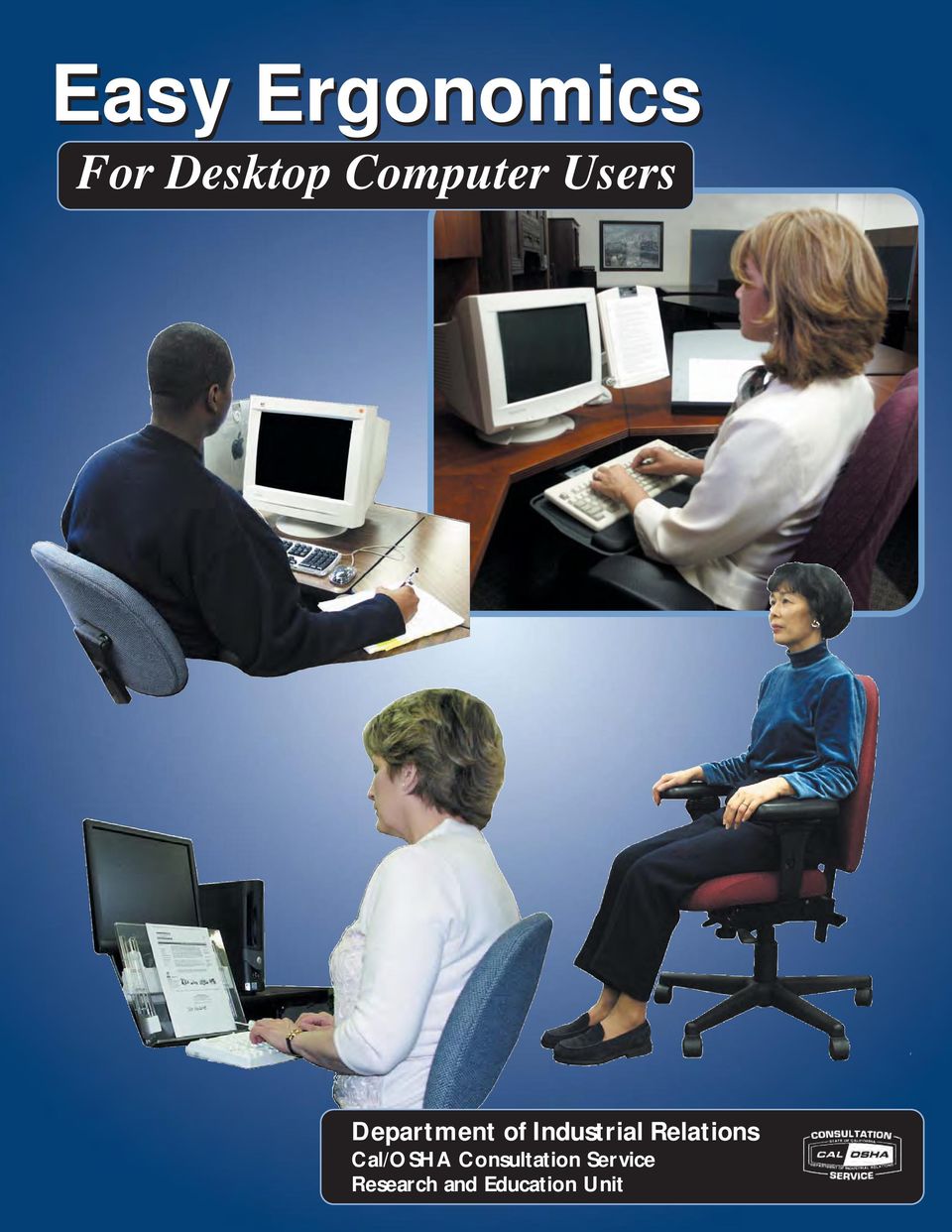
5 Easy Ergonomics For Desktop Computer Users Department of Industrial Relations Cal/OSHA Consultation Service Research and Education Unit 1
6 COMPUTER ERGONOMICS GUIDE Easy Ergonomics for Desktop Computer Users was developed and prepared for publication by the Cal/OSHA Consultation Service, Research and Education Unit, Division of Occupational Safety and Health, California Department of Industrial Relations. It was distributed under the provisions of the Library Distribution Act and Government Code Section Published 2005 by the California Department of Industrial Relations This booklet is not meant to be a substitute for, or a legal interpretation of, the occupational safety and health standards. Please see the California Code of Regulations, Title 8, or the Labor Code for detailed and exact information, specifications, and exceptions. The display or use of particular products in this booklet is for illustrative purposes only and does not constitute an endorsement by the Department of Industrial Relations.
7 Introduction Congratulations! You have taken the first step toward improving the way you work at your desktop computer. Have you ever thought of the many things you do while you are at your computer work station? What is your body posture while you are performing general computer functions, such as keying, mousing, or writing? How long do you work at your computer without taking breaks? By changing the way you interact with your computer equipment and furniture, you may be able to reduce your risk of injury. Protect your ability to work! If you are already feeling some discomfort or pain or if you would like to learn how to work safely and reduce your risk of injury, read on. This guide was written for you. 1 3
8 COMPUTER ERGONOMICS GUIDE Using this booklet This booklet is intended for use by desktop computer users. The purpose of this booklet is to help you reduce your chances of being injured. You will learn to identify common desktop computer work station problems and explore some improvement goals. By understanding how you perform your job tasks, and how you use your equipment and furniture, you can work more safely, efficiently and comfortably. Each section of this booklet begins with an action goal which tells you what you need to do to work more safely and more comfortably. The action goals are summarized on pages 5 and 6, and covered in more detail in the sections on pages Suggestions in this booklet are made to improve your work station first by utilizing your existing furniture and equipment. Try to do the best you can with what you ve got. After that, suggestions are made to improve your work station by purchasing new or replacing existing furniture and equipment. If you are unable to improve your work station without purchasing new or replacing existing furniture or equipment, talk to your immediate supervisor. If you are already feeling discomfort, the table on page 4 will direct you to the sections in the booklet that address possible causes for your discomfort. The Checklist on page 7 serves as a way to identify computer tasks that may expose you to the risk of injury. If you answer YES to all the questions on the Checklist, you may not need to go any further. The pages that follow the Checklist offer suggestions for improving your work station and your work practices. You can also use this booklet as a training tool. Talk about these guidelines in your safety meetings and discuss ways to make necessary improvements. No one is required to use the information in this booklet. This booklet is not intended to provide employers or employees with information on how to comply with Cal/OSHA regulations. 2
9 TAKE A LOOK Take a Look As you read this booklet, sit at your computer and take a good look at what you do there. You may be surprised to learn that some things you do every day may cause you pain or discomfort over time. Learn how to change your work habits! You can ease your symptoms and learn how to work pain free. Job Tasks Before you begin to look for risk factors, it is important to understand how your job tasks may contribute to your exposure to these risk factors. Ask yourself which tasks you perform simultaneously (at the same time). For computer users, simultaneous tasks are those tasks that are performed while keying, and include: A. keying / mousing (generic term for using an external pointing device) B. keying / mousing / writing C. keying / mousing / writing / using the telephone D. keying / mousing / writing / using the telephone / reading When simultaneous and nonsimultaneous tasks are performed in awkward postures or with extended reaches, you increase your chances of developing an injury. If you perform simultaneous tasks, go to pages Workstation Handedness Look at the direction of the work flow when performing simultaneous tasks. Generally, people are most comfortable when they work toward their dominant side. For example, if you are right-handed, your right hand is your dominant hand, and your right side is your dominant side. Does the handedness of your work station fit your hand dominance? In other words, does the design of the work station promote your work to flow toward your dominant hand? The handedness of the work station is determined by the location of the keyboard relative to the work area where other tasks are performed simultaneously with keying. When this work area (often the writing surface) is to the left of the keyboard, it is said to be a left-handed work station, and vice versa. A right-handed employee who sits at a left-handed work station will twist, turn, and reach to get to the work area to his/her left. The handedness of the work station is not always a concern, as in the case when only one task is performed there (e.g. keying only). To learn more ways to make the work station fit your handedness, go to pages Left-handed workstation Right-handed workstation 3 5

10 COMPUTER ERGONOMICS GUIDE Risk Factors In computer tasks there are certain conditions or risk factors that can contribute to the development of musculoskeletal disorders (MSDs) when computer users are exposed frequently to these risk factors, or for long periods of time. The conditions for exposing a user to the risk of MSDs associated with computer use are as follows: Keying for long periods of time without breaks or rest Using force when striking the keyboard or when gripping the pointing device (e.g. mouse, trackball) Working with awkward neck, shoulder, elbow, wrist, or back postures Remaining in the same position for a long time with little or no movement (e.g. sitting, holding the mouse) Continuous pressure against (leaning on) the wrist rest, work surface edge, or armrest with the wrists, forearms, or elbows; or against the front edge of the chair with the back of the legs. Do not wait until you feel pain or discomfort. Learn to change the way you work. If you understand your body posture in relationship to your computer equipment and furniture, you may, in fact, be able to prevent this kind of injury. If you are exposed to any of these risk factors repeatedly or for long periods, you might experience pain or discomfort. If you do, refer to the pages below for improvement options. If you continue to have pain or discomfort, let your immediate supervisor know. If you are having pain or discomfort here... LOWER BACK UPPER BACK It may be related to this... Refer to these pages... Chair adjustment 8-15 Organization of the work station Chair adjustment Keyboard height Location of the pointing device Organization of the work station Monitor height and distance Placement of the document 31, 32 NECK Organization of the work station Monitor height and distance Placement of the document 31, 32 ARMS / SHOULDERS Chair adjustment Keyboard height Location of the pointing device Organization of the work station FOREARMS Keyboard height Location of the pointing device Organization of the work station WRISTS / HANDS Keyboard height Location of the pointing device Organization of the work station VISION Monitor height and distance Monitor glare 29 Placement of the document 31, 32

11 ACTION GOALS Action Goals Now that you are aware of the job tasks you perform and the risk factors leading to MSDs, you are ready to look at the setup and organization of the furniture and equipment in your work space. The action goals that follow will help you reduce or eliminate some of these risks. They are written to help you work safely. The following action goals describe the best way to work at your work station. This section will help you to know where to start looking for problems at your work station. After reading these goals, complete the Checklist on page 7. If you are unable to answer questions on the Checklist because you need additional information about an action goal, or if you answer NO to any item on the checklist, go to the page indicated where the action goal is covered in greater detail. Goals WHEN SITTING 1a-b.Your feet are resting comfortably on the floor or on a footrest, and your knees are slightly lower than your hips. 2. There is a 2- to 4-inch gap between the back of your knees and the front edge of the chair when your back is against the chair. 3. The curve of the chair back fits into the deepest part of the curve in your lower back. 4. The back of the chair is upright or tilted back for comfort, and provides upper back support. 5. Armrests are adjusted so that they are just slightly below your elbows when your shoulders are relaxed. 6. Armrests do not interfere with access to the keying, mousing or writing surfaces. WHEN KEYING 7a. Your shoulders are relaxed, and your elbows are close to your body. 7b. Your elbows are bent to 90 degrees or slightly greater (inner angle). 7c. The tops of the home row keys are at the same height as your elbows, or slightly lower than your elbows. 7d. Your wrists are straight (not bent). WHEN POSITIONING THE CURSOR WITH A POINTING DEVICE (using a mouse, trackball, touch pad, etc.) 8. The pointing device is close to the keyboard. 5 7

12 COMPUTER ERGONOMICS GUIDE Goals WHEN ORGANIZING THE WORK SPACE 9a. Reaches performed frequently are within the near work space (your elbows remain at your sides). 9b. Reaches performed occasionally are within the near or mid work space (no more than an arm s length away). 9c. You are not reaching across your body to work. WHEN VIEWING THE MONITOR 10a. It is in front of you and the top line of print is at or just below your eye level or even lower if you wear bifocal, trifocal, or progressive lenses; AND You are able to scan the screen from top to bottom by using only eye movements, not head movements. 10b. You can sit against the back of the chair and read the monitor screen from a comfortable distance, without experiencing eye fatigue, blurred vision or headaches. 10c. The monitor screen is free of glare. Viewing through bifocal lenses WHEN READING THE DOCUMENT 11a. The document is off the flat work surface and in your line of vision. 11b. The document is directly next to the monitor or between the monitor and the keyboard. 11c. The document is at the same distance as, or closer than, the monitor. 11d. You can look at the document and the monitor by moving only your eyes, not your head. WHEN USING A NEW SOFTWARE PROGRAM OR OPERATING SYSTEM (OS) 12a. You are efficient in the most common tasks you perform. 12b. You reduce the stress and frustration you experience when you cannot complete a task. 6

13 Instructions: CHECKLIST Answer the questions below to determine problems that might cause MSDs. If you answer NO, turn to the page indicated for improvement options. If you run out of improvement options and you still have problems, contact your immediate supervisor. GOAL pp YES NO If NO, see page: WHEN SITTING Is the chair height adjusted so that your feet rest comfortably flat on the 1a-b floor or footrest, with your knees just slightly lower than the hips? 2 Look at the depth of the seat pan. Is there a small gap (2 to 4inches) between the back of your legs and the front edge of the seat pan? Does the curve of the back of the chair fit into your low back? Does the back of the chair tilt back? a-d With your shoulders relaxed, are the armrests slightly below your elbows, and do your arms hang comfortably at your sides? Can you get your chair close enough to your keying, mousing, or 6 writing surfaces without reaching? 15 WHEN KEYING With your shoulders relaxed and your fingers curved, is the home row of keys at the same height as your elbows or slightly below your elbows? WHEN POSITIONING THE CURSOR WITH A POINTING DEVICE Is the pointing device positioned close to the keyboard? 20 WHEN ORGANIZING THE WORK SPACE Are you able to use your work surface and equipment without overreaching or using awkward 9a-c postures? WHEN VIEWING THE MONITOR Is it in front of you and the top line of print is at or just below eye level or even lower if you wear bifocal, trifocal, or progressive lenses; AND 10a are you able to scan the screen from top to bottom using only eye movements, not head movements? b 10c Can you sit against the back and read the monitor screen from a comfortable distance, without experiencing eye fatigue, blurred vision, or headaches? Is the monitor screen free of glare? WHEN READING THE DOCUMENT 11a-d Is the document off the flat work surface and at the same distance as the monitor screen? WHEN USING NEW SOFTWARE PROGRAMS AND OPERATING SYSTEMS 12 Have you been trained on the software programs and operating system you are using?

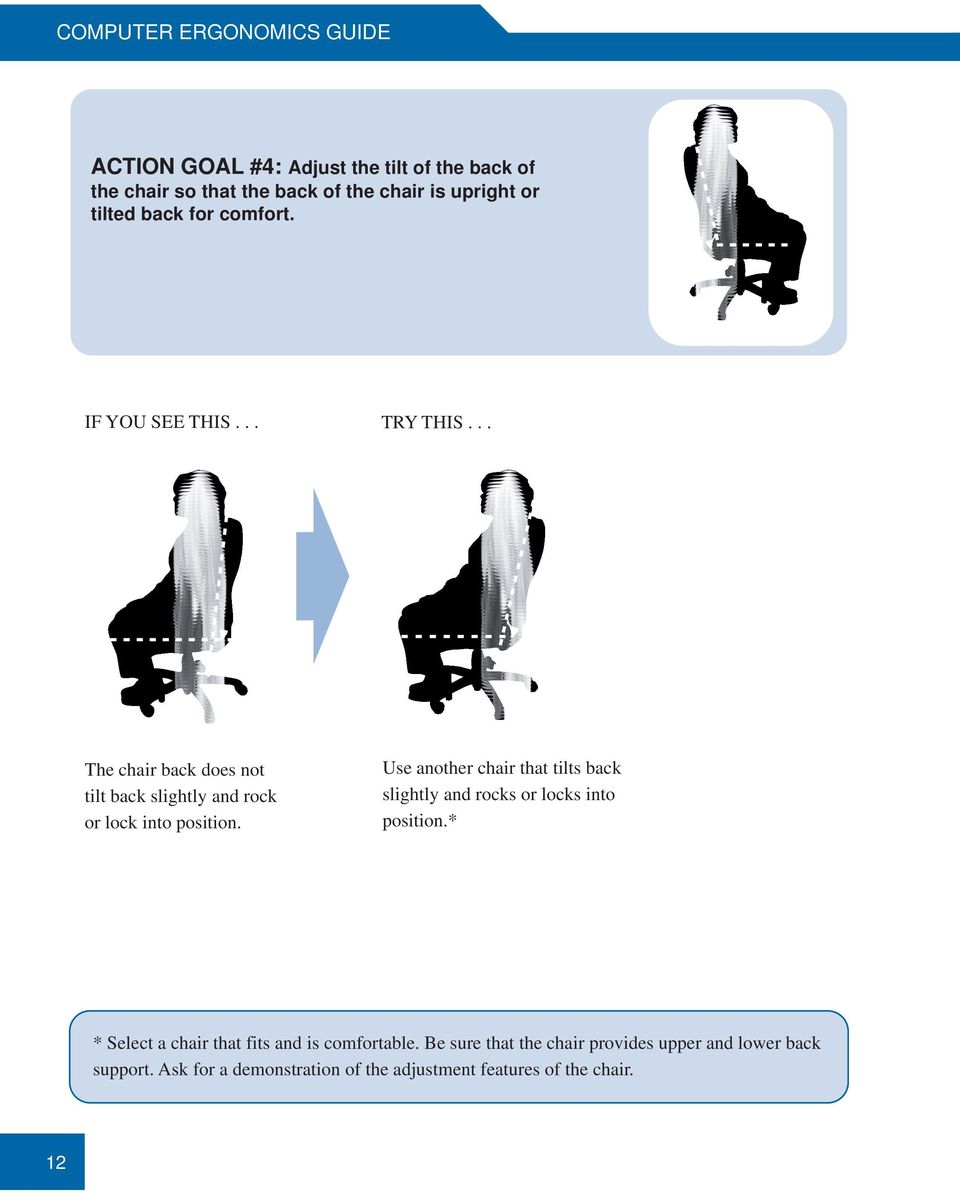
14 COMPUTER ERGONOMICS GUIDE WHEN SITTING Seat pan adjustments: Seat pan Chair back Lumbar curve (low back) Pull out to make seat pan deeper Push back to make seat pan shallower Awkward seated postures and lengthy periods of sitting may increase your risk of injury. It is important that you are comfortable while sitting, as remaining in an awkward seated posture can increase your fatigue level, tighten muscles, or irritate nerves. When your body is fatigued or in discomfort, the risk of injury increases, and productivity and accuracy decrease. An awkward seated posture is especially risky if it is combined with lengthy periods of sitting, or other awkward body postures, and eventually you may have trouble doing even simple tasks, such as reaching for the telephone. When you remain in the same seated posture for a long time, your blood flow slows down and you may begin to feel tired. The muscles in your neck, shoulders, and back become fatigued. Recognize opportunities to get out of your chair and move around. Instead of reaching up to the overhead bin, stand up. Instead of reaching to the printer, place the printer farther away so you must get up and walk to it. Stand up to take a phone call. Moving around keeps the blood flowing and prevents muscle fatigue and cramping. When your chair is properly adjusted 1a-b. Your feet are resting comfortably on the floor or on a footrest, and your knees are slightly lower than your hips. 2. There is a 2-4-inch gap between the back of your knees and the front edge of the chair when your back is against the chair. 3. The curve of the chair back fits into the deepest part of the curve in your lower back. 4. The back of the chair is upright or tilted back for comfort. 5. Armrests are adjusted so that they are just slightly below your elbows when your shoulders are relaxed. 6. Armrests do not interfere with access to keying, mousing, or writing surfaces. 8 You may need to adjust the height of your chair every day, depending upon the job task, and the shoes you are wearing (the higher the heels, the higher the chair will be raised). If the seat pan height is changed, the keyboard and monitor will need to be adjusted, as well.

15 WHEN SITTING ACTION GOAL #1: Adjust the seat pan height so that a. Your feet rest comfortably flat on the floor, or on a footrest. b. Your knees are slightly lower than your hips. IF YOU SEE THIS... TRY THIS... OR Your feet do not rest comfortably flat on the floor. Lower the chair until your feet rest comfortably flat on the floor. Use a footrest. IF YOU SEE THIS... TRY THIS... Your feet rest on the floor, but your knees are higher than your hips. Raise the chair until your hips are slightly higher than your knees. 911

16 COMPUTER ERGONOMICS GUIDE ACTION GOAL #2: Adjust the seat pan depth so that there is a 2 4-inch gap between the back of your knees and the front edge of the chair when your back is against the chair. IF YOU SEE THIS... TRY THIS... There is more than 4 inches between the front edge of the seat pan and the back of your knees. Slide the seat out (forward) to make it deeper and provide more support. OR Use a chair with a seat pan that has a 2- to 4-inch gap between the back of your knees and the front edge of the chair when your back is against the chair.* * Select a chair that fits and is comfortable. Be sure that the chair provides upper and lower back support. Ask for a demonstration of the adjustment features of the chair. 10

17 WHEN SITTING ACTION GOAL #3: Adjust the height of the back of the chair so that the curve of the back of the chair fits into the deepest part of the curve in your lower back. IF YOU SEE THIS... TRY THIS... Chair back too low Chair back too high The curve in the chair back does not fit into your lower back. Reach back to feel the curve in your lower back. Then raise or lower the chair back until it fits into the curve of your lower back; OR Use another chair that can be adjusted to fit your lower back.* * Select a chair that fits and is comfortable. Be sure that the chair provides upper and lower back support. Ask for a demonstration of the adjustment features of the chair

18 COMPUTER ERGONOMICS GUIDE ACTION GOAL #4: Adjust the tilt of the back of the chair so that the back of the chair is upright or tilted back for comfort. IF YOU SEE THIS... TRY THIS... The chair back does not tilt back slightly and rock or lock into position. Use another chair that tilts back slightly and rocks or locks into position.* * Select a chair that fits and is comfortable. Be sure that the chair provides upper and lower back support. Ask for a demonstration of the adjustment features of the chair. 12
19 WHEN SITTING ACTION GOAL #5: Adjust the armrests so that a: They are slightly below your elbows when your shoulders are relaxed. b. Your arms hang comfortably at your sides. IF YOU SEE THIS... TRY THIS... Armrests too high Your shoulders are raised when resting on the armrests. With shoulders relaxed, lower the armrests to just slightly below your elbows. IF YOU SEE THIS... TRY THIS... Armrests too low You reach down to rest on the armrests. Raise the armrests to just slightly below your elbows when your shoulders are relaxed

20 COMPUTER ERGONOMICS GUIDE ACTION GOAL #5 Continued IF YOU SEE THIS... TRY THIS... The armrests cannot be adjusted to slightly below your elbows when your shoulders are relaxed. Remove the armrests. OR Use another chair with adjustable armrests.* * Select a chair that fits and is comfortable. Be sure that the chair provides upper and lower back support. Ask for a demonstration of the adjustment features of the chair. 14

21 WHEN SITTING ACTION GOAL #6: Adjust the armrests so that they do not interfere with access to keying, mousing or writing surfaces. IF YOU SEE THIS... TRY THIS... Armrests interfere with access to keying, mousing, or writing surfaces. Adjust the armrests to their lowest position. In this position they cannot be used for resting. OR Remove the armrests
22 COMPUTER ERGONOMICS GUIDE WHEN KEYING When the keyboard is at the right height 7a. Your shoulders are relaxed, and your elbows are close to your body. 7b. Your elbows are bent to 90 degrees, or slightly greater (inner angle). 7c. The tops of the home row keys are at the same height as your elbows, or slightly below your elbows. 7d. Your wrists are straight (not bent). Home row Keys at elbow height Neutral keyboard Keys slightly below elbows Negative keyboard tilt When you center your fingers on home row, your fingers must reach the top, bottom, and sides of the keyboard. The fingers and wrists do all the work and they quickly tire. Try this keying technique* Instead, transfer the workload from your hands to the larger muscles of your arms, elbows, and shoulders by using arm movements rather than just finger and wrist movements while keying. You will work more comfortably and you won t tire as quickly. Source: * Computing Without Pain With the MouseKeyDo System, Norman J. Kahan, MD. In this section, reference is made to the keyboard platform. The keyboard platform is mounted beneath the work surface, and allows you to raise, lower, and tilt the keyboard. For computer operators, it is recommended that the keyboard platform is either flat (not tilted) or tilted downwards (negative tilt). It is not recommended that the keyboard is tilted upwards (positive tilt), as this forces you to bend your wrists back. Negative tilt Flat or neutral (not tilted) Positive tilt 16 Many desktop computer users still use the standard, or traditional, keyboard. For a description of alternative keyboards, go to
23 WHEN KEYING ACTION GOAL #7: Adjust the keyboard height so that a. Your shoulders are relaxed, and your elbows are close to your body. b. Your elbows are bent to 90 degrees, or slightly greater (inner angle). c. The tops of the home row keys are at the same height as your elbows or slightly below your elbows (negative tilt). d. Your wrists are straight (not bent). IF YOU SEE THIS... TRY THIS... Keyboard too high The keyboard is above elbow height. Raise or lower the keyboard platform or your chair until the tops of the home row keys are at the same height as your elbows or slightly below your elbows when your shoulders are relaxed. Use a footrest if necessary. OR Keyboard too low The keyboard is too low and your wrists are bent. Tilt the back edge of your keyboard platform slightly downward ( negative tilt). You arms will tilt downward, and your elbows will open to slightly more than Don t use the legs beneath the keyboard
24 COMPUTER ERGONOMICS GUIDE ACTION GOAL #7 Continued IF YOU SEE THIS... TRY THIS... The keyboard is at your elbow height, but you lean on your wrists while keying. Use the wrist rest only for short periods between keying. For longer periods, remove your hands from the keyboard and rest them in your lap. 18
25 POSITIONING THE CURSOR WHEN POSITIONING THE CURSOR WITH A POINTING DEVICE Pointing devices, such as the mouse and trackball, can cause computer-related injuries to the shoulders, neck, elbows, wrists, and hands. Common actions associated with such devices include reaching, gripping, pivoting at the wrist, finger clicking, and holding the button when dragging the mouse. Those actions and static arm posture ( mouse arm ) may cause problems eventually. When a pointing device is used while keying, it is important that it is accessed without overreaching or using awkward postures. To accomplish this place the pointing device as close to the keyboard as possible. When the pointing device is in the right position 8. The pointing device is close to the keyboard. There are many improvement options for positioning the pointing device that are not covered in this section. Other comfortable positions for the pointing device that promote a flat (neutral) wrist can be used. When using a mouse, try this technique:* Drop your arm and hand as one onto the mouse, with your upper arm hanging freely from your shoulder. Drape your hand over the mouse, with your palm on the center of the mouse and all your fingertips hanging over the front and sides (avoid the temptation to grip the mouse with your fingers). Make small circular motions with the mouse by making arm movements from the shoulder. Click the mouse button with the mid-section of your finger rather than your fingertip. Source: * Computing Without Pain With the MouseKeyDo System, Norman J. Kahan, MD. Tips for mouse or trackball: Take your hand off the mouse or trackball when you are not using it, and rest your hand in your lap. Make sure you have enough space on the work surface to move the cursor with the mouse in one sweeping movement, rather than having to pick up and reposition the mouse
26 COMPUTER ERGONOMICS GUIDE ACTION GOAL #8: Place the pointing device so that it is close to the keyboard. IF YOU SEE THIS... TRY THIS... The pointing device is a trackball that does not fit on the keyboard platform. Use a keyboard that does not have a 10-key pad and place the trackball next to the keyboard. OR There are many improvement options for positioning the pointing device that are not covered in this section. Other comfortable positions for the pointing device that promote a flat (neutral) wrist can be used. Replace the keyboard platform with an adjustable keyboard platform wide enough to fit the keyboard and the trackball. Adjust the height and tilt of the platform so that the tops of the home row keys are at your elbow height, or slightly below your elbows (negative tilt), when your shoulders are relaxed. 20
27 POSITIONING THE CURSOR ACTION GOAL #8 Continued IF YOU SEE THIS... TRY THIS... Mouse platform The pointing device is a mouse that does not fit on the keyboard platform. OR IF YOU SEE THIS... Place a mouse platform over the numbers pad and use it as a mousing surface. OR TRY THIS... The pointing device is either a mouse or a trackball that does not fit on the keyboard platform. There are many improvement options for positioning the pointing device that are not covered in this section. Other comfortable positions for the pointing device that promote a flat (neutral) wrist can be used. Follow these steps: 1. Remove the keyboard platform; 2. Then place the keyboard and pointing device directly on the work surface, with the mouse or trackball next to the keyboard. 3. Raise the chair until the tops of the home row keys are at the same height as your elbows, or slightly below your elbows, when your shoulders are relaxed. Use a footrest, if necessary. 4. Adjust the height and distance of the monitor, if necessary. OR Use a keyboard with a built-in pointing device (touch pad)
28 COMPUTER ERGONOMICS GUIDE ORGANIZING THE WORK SPACE Near work space Mid work space Overreaching is defined as reaching to such a distance that you lean forward or to the sides while fully extending your arm. Overreaching in any direction causes fatigue, reducing productivity and accuracy and increasing the risk of injury. Reduce or eliminate overreaching by rearranging the work station. Near Work space Activities For activities performed frequently or repetitively, the work should be performed within the near work space, with your elbows at your sides. Within this space, you can work comfortably without stretching or leaning. Working outside this space requires you to reach, bend, twist, and so forth. These activities lead to discomfort and fatigue and can cause injuries. By working within the near work space, you can maximize efficiency and comfort. Avoid overreaching Near work space Mid Work space Activities Activities performed occasionally can be performed in the mid work space (an arm s length away); however, this requires extension of your arm. Activities performed beyond this mid-range involve leaning and reaching and should be performed rarely. If your work space is properly organized 9a. Reaches performed frequently are within the near work space (your elbows remain at your sides). 9b. Reaches performed occasionally are within the near or mid work space (no more than an arm s length away). 9c. You are not reaching across your body to work. Mid work space Avoid reaching across your body 22
29 ORGANIZING THE WORK SPACE ACTION GOAL #9: Organize the work space so that a. Reaches performed frequently are within the near work space (your elbows are at your sides). b. Reaches performed occasionally are within the near or mid work space (no more than an arm s length away). c. You are not reaching across your body to work. IF YOU SEE THIS... TRY THIS... Near work space Mid work space You frequently lean to make reaches more than an arm s length away. Remove unnecessary equipment and supplies from the work station; AND Re-organize your work space by moving all necessary equipment and supplies close, to no more than an arm s length away, or to a location where you must get up and walk to it
30 COMPUTER ERGONOMICS GUIDE ACTION GOAL #9 Continued IF YOU SEE THIS... TRY THIS... You are using a keyboard platform and you are keying, mousing, and writing simultaneously, and you reach above and behind your keyboard to get to the pointing device or the writing surface. Follow these steps: 1. Remove the keyboard platform; 2. Then place the keyboard, pointing device and writing material directly on the work surface; 3. Raise the chair until the tops of the home row keys are at the same height as your elbows, or slightly below your elbows when your shoulders are relaxed. Use a footrest, if necessary. 4. Adjust the height and distance of the monitor, if necessary. OR 24 Follow these steps: 1. Replace the keyboard platform with a height- and tiltadjustable platform that is wide enough for the keyboard and pointing device. 2. Adjust the height and tilt of the keyboard platform until the tops of the home row keys are the same height as your elbows, or slightly below your elbows (negative tilt) when your shoulders are relaxed.
31 ORGANIZING THE WORK SPACE ACTION GOAL #9 Continued IF YOU SEE THIS... TRY THIS... You reach across your body to work because: Your work station does not match your dominant hand (handedness). IF YOU SEE THIS... Reverse the placement of the computer equipment so that non-keying tasks are performed on your dominant side when you are sitting at your keyboard. TRY THIS... You reach across your body to work because: File drawers prevent you from having knee clearance beneath the work surface on your dominant side. Reverse the placement of the file drawers so that they are beneath the work surface on your nondominant side
32 COMPUTER ERGONOMICS GUIDE WHEN VIEWING THE MONITOR Monitor height The maximum height of your viewing range is established by your horizontal line of sight when you are comfortably and properly seated at your work station. A monitor that is set too high will cause you to tip or tilt your head back to look up at the monitor. Over time, neck, shoulder, and upper back pain may result. You may also notice dry eyes because there is a tendency to blink less when looking up. Monitor distance Placing the monitor at a comfortable distance varies with each person. In general, the closer you are to the monitor, the harder your eyes work to keep the image in focus. You may experience eye fatigue, blurred vision, or headaches if your monitor is placed too close. On the other hand, if you lean forward to see the monitor, pull it closer to you. If your monitor is properly adjusted 10a. It is in front of you and the top line of print is at or below your horizontal line of sight or even lower if you wear bifocal, trifocal or progressive lenses. 10b. You can sit against the back of the chair and read the monitor screen from a comfortable distance, without experiencing eye fatigue, blurred vision, or headaches. 10c. The monitor screen is free of glare. Try these techniques 1. Periodically shift your view to something in the background (behind the monitor). Give your eyes a chance to relax. 2. Periodically rest your eyes by closing them for five seconds. 3. Adjust the monitor s contrast and/or brightness (light background, dark font). 4. Zoom in to increase the display percentage. 5. Blink! 26
33 WHEN VIEWING THE MONITOR ACTION GOAL #10a: Adjust the height of the monitor so that It is directly in front of you and the the top line of print is at or just below eye level, or lower if you wear bifocal, trifocal, or progressive lenses AND You are able to scan the screen from top to bottom using only eye movements, not head movements. IF YOU SEE THIS... TRY THIS... With bifocal, trifocal, or progressive lenses OR Monitor too high Lower the monitor Raise the chair The top line of print is above eye level. Lower the monitor (remove the computer or monitor riser[s] from beneath the monitor) until the top line of print is at or slightly below eye level, or lower if you wear bifocal, trifocal, or progressive lenses. OR Raise your chair until your eyes are at or just slightly above the top line of print, or even higher if you wear bifocal, trifocal or progressive lenes. Use a footrest, if necessary. IF YOU SEE THIS... TRY THIS... Monitor too low With bifocal, trifocal, or progressive lenses Without bifocal, trifocal, or progressive lenses You use head movements to scan from top to bottom of the screen. Raise the monitor until the top line of print is at or slightly below your eye level, or even lower if you wear bifocal, trifocal, or progressive lenses
34 COMPUTER ERGONOMICS GUIDE ACTION GOAL #10b: Start with the monitor an arm s lenght away. Then adjust the distance of the monitor so that you can sit against the back of the chair and read the monitor screen from a comfortable distance, without experiencing eye fatigue, blurred vision, or headaches. IF YOU SEE THIS... TRY THIS... A small change can make a big difference Monitor too close You have symptoms (eye fatigue, blurred vision, or headaches). Move the monitor back until you can comfortably read the screen without experiencing symptoms. IF YOU SEE THIS... TRY THIS... A small change can make a big difference Monitor too far You have difficulty reading the screen, and lean forward to get a closer look. Move the monitor closer until you can sit back and comfortably read the screen without symptoms. 28
35 WHEN VIEWING THE MONITOR ACTION GOAL #10c: Adjust the tilt of the monitor so that the screen is free of glare. IF YOU SEE THIS... TRY THIS Glare on your monitor from task or overhead lighting. Tilt the monitor down slightly; OR Dim task or overhead lights; draw blinds or curtains. IF YOU SEE THIS... TRY THIS... Glare on your monitor from windows. Other sources of glare include light colored clothing and white papers. Reposition the monitor so that it is at a right angle to the light source; OR OR Use a glare screen. Use file folders or a screen hood 29 31
36 COMPUTER ERGONOMICS GUIDE WHEN READING THE DOCUMENT Focusing on a document requires the muscles in your eyes to contract to keep the image sharp. Each time your eyes shift from the document to the monitor they must refocus. Eventually they become fatigued. Ultimately, the result is eye fatigue, eyestrain, or headaches which can affect productivity and accuracy. When the document is placed flat on the work surface, you will use head and neck movements to shift your view between the document and the monitor. These movements can cause neck strain if performed repeatedly, or day after day. When the document holder is properly placed 11a. The document is off the flat work surface and in your line of vision. 11b. The document is directly next to the monitor, or between the monitor and the keyboard. 11c. The document is at the same distance as, or closer than, the monitor. 11d. You can look at the document and the monitor by moving only your eyes, not your head. 30
37 WHEN READING THE DOCUMENT ACTION GOAL #11: Position the document so that a. It is off the flat worksurface and in your line of sight. b. It is directly next to the monitor or between the monitor and the keyboard. c. It is at the same distance as the monitor or closer. d. You can shift your view between the document and the monitor by moving only your eyes, not your head. IF YOU SEE THIS... TRY THIS... The document is not directly next to the monitor. Place the document at the same height and distance as the monitor unless the print is too small to read. If the print is hard to read, place the document closer to and at the same height as the monitor. OR Position the document between the monitor and the keyboard
38 COMPUTER ERGONOMICS GUIDE ACTION GOAL #11 Continued IF YOU SEE THIS... TRY THIS... The document is farther away than the monitor. Use a document holder that mounts to the monitor or is positioned to either the left or right side of the monitor; OR Position the document between the monitor and the keyboard. 32
39 KNOW YOUR SOFTWARE KNOW YOUR SOFTWARE PROGRAMS AND OPERATING SYSTEM... ACTION GOAL #12: Ask your manager for instructions or training before you begin so that a. You are efficient in the most common tasks you perform. b. You reduce the stress and frustration you experience when you cannot complete a task. Protect your ability to work! Ask your manager for help if you have not been trained on the software programs or operating system you are using. If you need to work with a particular program or operating system, be sure to familiarize yourself with it ahead of time. Training can be as simple as a short demonstration or taking a class for a day or two. The time spent in training can pay off in big dividends in (1) preventing injuries; (2) being able to work without discomfort or pain; (3) reducing unnecessary movements; (4) saving time and getting the work done more efficiently. Many software programs have shortcuts that allow you to quickly accomplish tasks without using a pointing device (mouse, trackball, etc.). By pressing one or more keys on the keyboard you can complete your task quickly and without the awkward postures associated with the pointing device. Learn to use the shortcuts as an alternative to the pointing device
40 COMPUTER ERGONOMICS GUIDE The Benefits of Software Training By Anthony Andre, PhD. Interface Analysis In a recent usability study conducted by Interface Analysis Associates, 24 intermediate to highly experienced computer users were observed while they were attempting to perform basic tasks in common software applications. Their interactions with the software were analyzed in terms of length of time, number of mouse clicks, and successful completion of the tasks and when compared to optimal performance standards. The results showed that, on average, participants either took longer and used more mouse clicks than necessary to successfully perform common computer tasks, or they couldn t figure out how to complete a task. In the end, the study suggests that for every 8 hours of computer work, the same work could have been performed in only 40 minutes if the software training had been provided! Impacts on You During these periods of inefficiency, participants were observed for body postures and other behaviors, such as facial expressions (indicators of frustration or stress) and verbal utterances. These observations revealed the impact of software inefficiency in four main areas: Time: The more inefficient we are as computer users, the more time we spend sitting in front of the computer. The negative effects of prolonged sitting include poor circulation; muscle fatigue; back, shoulder, and neck pain; eye strain; and more. Repetitions: Inefficiency results in more mouse clicks and keystrokes, that is, higher repetitions. Posture: Our postures change when we can t easily accomplish our goals with our computer software. For example, we lean forward, we hold the mouse with our arm outstretched and shoulder raised, and ultimately we lose the basis for the support of good body posture. Stress: With each failed attempt to carry out a specific action or command with our computer software, we experience higher levels of stress, frustration, and time pressure. Conclusions and Guidelines Computer users are encouraged to explore ways to improve their computer interaction efficiency and seek training in the software programs and operating systems they use in their workplaces. Indeed, most of the participants indicated that their interactions with software would be more efficient with formal training. 34
41 REFERENCE TIPS TO IMPROVE THE WAY YOU WORK Take micro-breaks from repetitious activities or static postures every 30 minutes for one or two minutes before resuming that activity or posture. Find opportunities to get out of your chair and move around. Place the telephone on your non-dominant hand side. Your dominant hand will be free for writing, and cradling the telephone between your ear and shoulder while writing will not be necessary. Use a telephone headset or the speaker when performing tasks simultaneously with the telephone. This practice will prevent awkward neck and shoulder postures associated with cradling the telephone between your ear and shoulder. Type with the tips of the fingers. Less force is needed to depress the keys with the tips of the fingers. Use a light touch when keying. Change postures frequently throughout the day. Alternate working from a sitting to a standing position whenever possible. Change the tilt of the back of the chair frequently. Use shortcut keys whenever possible, instead of a pointing device (mouse, trackball, etc.). Alternate hands when using the pointing device, OR alternate between pointing devices (e.g. alternate between mouse and trackball). Use larger muscles by moving from the elbow and shoulder, rather than from the wrist, when operating the pointing device. Stand up to reach into overhead bins rather than reaching up from a sitting position, OR, lower the overhead storage bins if possible
42 COMPUTER ERGONOMICS GUIDE List of Websites The Web sites listed below contain ergonomic information for office and industrial work settings and work techniques. Australia OHS Canadian OSHA Cornell University Ergo Solutions Ergo Web Federal OSHA Healthy Computing Human Factors/Ergonomics Society (HFES) Interface Analysis International Ergonomics Association (IEA) MouseKeyDo National Institute for Occupational Safety & Health (NIOSH) Oregon OSHA UC Berkeley/SF UC Davis Ag-Ergo Washington State Labor & Industries 36
43 ACKNOWLEDGEMENTS WRITER Fran Wagner, MS, Certified Industrial Ergonomist, First Response Ergonomics EDITOR Faye Ong, Associate Editor, CDE Press, California Department of Education PHOTOGRAPHY Rick Hight, Cal/OSHA Consultation, Research and Education Fran Wagner, First Response Ergonomics PAGE LAYOUT AND DESIGN Ken Jackson, Graphic Designer, Link One LLC ACKNOWLEDGEMENTS The following people assisted in the research and development of this booklet: Anthony Andre, PhD Dave Bare Marisela Bonilla Cindy Burt, MS, OTR/L, CEA Zin Cheung, MS, CIE Richard DaRosa, MS Mario Feletto, MS, MPH Alan Hedge, PhD, CPE John Howard, MD, MPH, JD, LLM Norman Kahan, MD, Director Mike Oldridge Ann Pudoff, CIE Cheri Ruliffson Kristy Schultz, MS, CIE Principal, Interface Analysis Associates Cal/OSHA Consultation Services Cal/OSHA Consultation Services UCLA Environment Health & Safety Cal/OSHA Consultation Services Cal/OSHA Consultation Services Cal/OSHA Consultation Services Cornell University Human Factors/Ergonomics Lab Director, National Institute for Occupational Safety & Health Sports & Occupation Medical Associates/MouseKeyDo The Mart Office Furniture Bickmore Risk Services Vision Services Plan Cal/OSHA Consultation Services 37 39
44 Cal/OSHA Consultation Programs COMPUTER ERGONOMICS GUIDE Toll-free number: On-site Assistance Program Area Offices Internet: Northern California 2424 Arden Way, Suite 410 Sacramento, CA (916) San Francisco Bay Area 1515 Clay St., Suite 1103 Oakland, CA (510) San Fernando Valley 6150 Van Nuys Blvd., Suite 307 Van Nuys, CA (818) Central Valley 1901 North Gateway Blvd., Suite 102 Fresno, CA (559) San Bernardino/Orange 464 West 4th St., Suite 339 San Bernardino, CA (909) Los Angeles Heritage Park Dr., Suite 201 Santa Fe Springs, CA (562) San Diego 7575 Metropolitan Dr., Suite 204 San Diego, CA (619) Your call will in no way trigger an inspection by Cal/OSHA Enforcement Voluntary Protection Program Oakland, CA (510) Research and Education Unit Sacramento, CA (916)
45 ErgonomicsTOOL KIT IMPROMPTU ERGONOMICS Connected We have become an e-mobile society. Many people are constantly connected to work and family via smartphones, tablets, laptops, Webcams, virtual meetings and the Cloud. Unfortunately, the advances in all this connectivity have not necessarily translated into advances in most workers personal ergonomics. The typical road warrior may spend countless hours in awkward unchanging positions that often occur in tight or cramped spaces and doesn t have height-adjustable keyboard trays or even peripherals. Costly checked bag fees mean that many road warriors have had to limit what they bring along to what will fit in the overhead compartment and under the seat in front of them. That typically means stripping down the office workstation to just a laptop computer or tablet and lugging everything through the airport to get to their final destination. Since ergonomics is about fitting the task to the person, it s important to provide frequent travelers with information on how to handle working in challenging situations. With knowledge about ergonomics principles and some creativity, the savvy worker can make impromptu adjustments to reduce stress and discomfort while working on the go. Traveling Offices and Impromptu Ergonomics Because prolonged holding or carrying a 2- to 8-pound laptop has a direct effect on posture, workers should eliminate the carry by using a wheeled bag or backpack. Lighter-weight bag options are preferred since travelers frequently lift them into a vehicle trunk or into overhead airline storage compartments. The bag should have high-quality wheels and a long-enough handle for easy maneuvering. If the bag doesn t have wheels, the carried laptop load should be balanced on both sides of the body. Travelers should avoid carrying laptops by the bag handle. At the very minimum, a bag with a padded shoulder strap should be used, and the load should be shifted between right and left shoulders frequently to provide mini-rest breaks to each side of the body. Two padded shoulder straps, as on a backpack, are preferred to distribute the load across both shoulders more evenly. Backpacks should be worn high on the torso. Whether at the airport, in the car, in a hotel, or in a remote office setting, travelers frequently find that the equipment provided at the temporary work location is not ideal. Knowing a few tricks of the trade can minimize potential musculoskeletal risks they encountered. Sitting Posture A pillow, cushion or even folded towels can be used to raise the worker high enough in the chair so that the elbows are A stable ironing board can serve as an impromptu adjustable keyboard tray. A lightweight foldable laptop stand can ensure that the laptop monitor is positioned at the proper height. A foldable keyboard can also save valuable space when travelling.
46 level or slightly higher than the keyboard. A rolled-up bath towel or pillow can be used to support the lower back. If the feet cannot be placed flat on the floor with the altered sitting height, consider placing them on a book, briefcase or other solid object in order to keep them supported with the thighs parallel to the floor. If there isn t a surface low enough or a chair high enough to work comfortably, then the lap is always an option. Sit so the knees and hips are level to allow the laptop to rest comfortably in the lap. Laptops can produce significant amounts of heat, so it is a good idea to place a heat-dissipating barrier, like a towel or large thin book, between the laptop and the user s lap. It is not advisable to use the laptop in bed, but, if it can t be helped, pay close attention to the body s posture and ensure that the lumbar region of the back is properly supported. Try to sit up straight so as to avoid neck, shoulder and back discomfort. Pillows can be used to support the lower back and head. And remember to use a heat-dissipating barrier. A laptop stand, to keep the neck from flexing, combined with an add-on keyboard and mouse, to keep the arms in more-neutral postures, can help an impromptu workstation fit the person better. Breaks Frequent work breaks are especially important in a mobile computing environment even brief ones. Listen to the body and take a short break when the first signs or symptoms of discomfort arise. Short stretching exercises, a trip to the bathroom, or a walk to the water fountain are purposeful ways of incorporating breaks into the worker s routine. Taking a break to change working positions is perhaps the best reason to take a break. Alternating between working with the laptop on the desk for better screen position and with the laptop in the lap for better arm position is a common position toggle. Remember, the best position is the next position! Airplane Few people would describe current airplane coach seating as comfortable, let alone expansive. If travelers need to use a laptop on the airplane, a bulkhead seat or an exit row, as a second choice, may be the best compromise between cost and space. Bulkhead seats are not limited by a reclined seatback in the row ahead. Exit rows provide more seat-to-seat spacing and will allow travelers to keep their arms in more-neutral positions. A small pillow or folded in-flight magazines can be used to provide support to the neck or lower back, and the tray table can serve as a great heat-dissipating barrier between the lap and laptop. Technology With new technologies emerging every day, it s good to take a step back and ask how the technologies are used and if there are any inherent risks. Smartphones can keep travelers connected while on the move, but their size also introduces some risk of injury with overuse. Frequent text messaging can lead to tendonitis of the thumb, also known as De Quervain s disease or Blackberry Thumb. Keyboard use can be minimized with the use of the dictation mode supplied on many of the newer phones. Tablet computers are larger than smartphones yet lighter weight than laptop computers. Because of their built-in touchscreen keyboards, tablets also induce poor neck posture (flexion) like smartphones and laptops. Tablets may be an alternative to a heavy laptop, but, if using a tablet for an extended period of time, a tablet stand (oftentimes built into the tablet s case), an external keyboard, and an external pointing device are recommended. Travel keyboards and travel mice can be handy space-saving devices since they are usually smaller than their standard full-size counterparts. However, because they are smaller, they can create smaller
47 pinch-like grips and additional awkward postures in the hands and wrists which lead to a more-rapid increase in fatigue and a greater potential for musculoskeletal disorders (MSDs). If travelers will be spending large amounts of time using these external devices, make sure that the devices fit their hands comfortably. The one-sizefits-all approach definitely does not apply here. Technology advancements have many upsides, but they also present some new challenges especially for the telecommuter and frequent traveler. These workers can easily slip into an always-on lifestyle with extended working hours in awkward postures. Using ergonomics principles to fit the task to the person can prevent pain at home and on the road. Chubb Loss Control Services Assistance To learn more about Impromptu Ergonomics, or for further reference materials on this topic, please contact your local Chubb Loss Control Services Risk Engineer. You can also visit us at
48 ErgonomicsTOOL KIT IMPROMPTU ERGONOMICS Checklist Transport Y N N/A Potential Fixes Is a wheeled bag or a backpack used to transport the computer and its peripheral equipment? Does the wheeled bag have a long-enough handle to prevent awkward back postures while using it? Does the nonwheeled bag have at least one padded shoulder strap? (Two straps are preferred.) Is the nonwheeled bag strap shifted from one shoulder to the other frequently to provide mini-rest breaks to the other shoulder? Are both straps of the backpack used (one on each shoulder) to distribute the weight of the computer and its peripheral equipment? Use a wheeled bag or backpack Use a wheeled bag with a longer handle Use a bag with at least one padded shoulder strap (two straps preferred) Switch shoulders frequently when using a bag with only one strap Use both straps of the backpack Is the backpack worn high on the torso? Wear the backpack high on the torso Sitting Y N N/A Potential Fixes Can the chair be raised high enough so the elbows are level with or slightly higher than the keyboard? Has the laptop screen been raised, assisted by the use of an external keyboard and pointing device in an effort to keep the elbows level with or slightly higher than the keyboard? Is the lower back supported? Can the feet be placed firmly on the floor with the thighs parallel to the floor? Is the laptop used at a workstation instead of on the lap? (Lap use is recommended only if the chair/user cannot be adjusted high enough or the work surface cannot be lowered enough.) Are the knees and hips level to allow the laptop to rest comfortably in the lap? Is a heat-dissipating barrier used between the laptop and the lap? Is the laptop used at a workstation instead of in bed? (Bed use is recommended only as a last resort if the chair/user cannot be adjusted high enough or the work surface cannot be lowered enough.) Is the user able to sit up straight with the lower back and neck supported? Are short breaks taken before signs and symptoms of discomfort arise? Sit on a pillow, cushions or folded towels to raise the worker Use an external keyboard and external pointing device Support the lower back with a rolled-up towel or pillow Support the feet with a book, briefcase or other solid object Adjust the chair higher or the work surface lower if possible Position the knees and hips level Use a large thin book or folded towel as a barrier Use a chair and workstation if possible Sit up straight and use a pillow or rolled-up towel to support the lower back and neck Take a break to change to another working position, use the bathroom or walk to the water fountain
49 Airplanes Y N N/A Potential Fixes Does the seat ahead provide ample space to use the laptop? Are the lower back and neck supported? Is a heat-dissipating barrier used between the laptop and the lap? Consider sitting in a bulkhead or exit row seat or utilizing a laptop with a smaller footprint Provide support with a pillow or rolled-up blanket Use a magazine or tray table as the barrier Tablets & Smartphones Y N N/A Potential Fixes Is an external keyboard employed when using the tablet or smartphone for extended periods of time? Is an external pointing device employed when using the tablet or smartphone for extended periods of time? Is a stand or prop employed when using the tablet or smartphone for extended periods of time? Use an external keyboard for long periods of use Use an external pointing device for long periods of use Use a stand for long periods of use
50 Notes
51 Notes
52 Chubb Group of Insurance Companies This document is advisory in nature. It is offered as a resource to be used together with your professional insurance advisors in maintaining a loss control program. Evaluation for any hazard or condition does not imply that it is covered under any policy. No liability is assumed by the information contained in this document. Chubb refers to the insurers of the Chubb Group of Insurance Companies. This form was developed in conjunction with The Ergonomics Center of North Carolina. Form (Ed. 11/13) Printed on recycled paper
53 ErgonomicsTOOL KIT INDUSTRIAL ERGONOMICS: REPETITIVE, UPPER-EXTREMITY TASKS AND AWKWARD POSTURES Introduction Ergonomics, or fitting the task to the person, has been applied in industrial settings for decades. Besides the incentive of maintaining the health and well-being of workers, promoting sound ergonomic principles in industrial environments has also proven to improve other business metrics such as productivity, efficiency and quality, thereby maximizing company profits. Ultimately, since ergonomics is all about optimizing the performance of the workers, the tasks they perform and the machines they use, many companies have integrated ergonomics into their Lean Manufacturing and 5S (work organization and housekeeping) efforts and vice versa. Essentially, the goal of Lean and 5S is to remove wastes and unnecessary steps from processes to optimize efficiency. Such wastes may include an unnecessary lift, an awkward reach or reworking poor quality parts, which may also introduce additional ergonomic risks and concerns that otherwise would not be present. Thus, linking ergonomics to your Lean and 5S initiatives is certainly encouraged. Although industry is a very broad term with a variety of work processes and tasks, there are common task characteristics that drive the majority of ergonomic concerns in industries of all types: Repetitive, Upper-Extremity Intensive Tasks Awkward Postures According to the Bureau of Labor Statistics (BLS, 2012), approximately 60 million U.S. workers spend more than half their time in their job performing repetitive movements, and over 25% perform such tasks continually or almost continually. Likewise, awkward postures are another major cause of occupational injury. Of the strain, sprain and tear cases involving days away from work reported annually, 36% involve injuries to the back; 21% involve injuries to the shoulder, arm, wrist, or hand; and12% involve injuries to the knees. The majority of such cases are associated with performing work tasks that do not incorporate positive ergonomic principles that directly result in lost time, lost productivity and lost company profits. To avoid such problems, consider using this Industrial Ergonomics Tool Kit: Manual Material Handling and Awkward Postures to improve the fit between the work demands and the capabilities of your workers. Repetitive, Upper-Extremity Intensive Tasks Besides manual material handling (covered in a separate Industrial Ergonomics Tool Kit), another large percentage of industrial work involves the repetitive use of the upper extremities. Upper-extremity intensive tasks are defined as any task performed by the shoulders, arms/elbows, hands/ wrists and fingers that involve significant ergonomic stressors (i.e. high force, awkward posture and repetitive or static motion). The criteria listed below and in the attached checklist that follows help users identify and solve ergonomic issues associated with upper-extremity intensive tasks.
54 High Hand Force and Wrist Posture, Highly Repetitive Motion/Repeated Impact Potential Ergonomic Risks High Hand Force and Wrist Posture Pinching an unsupported object(s) weighing more than 2 lb per hand, more than 2 hours total per day Pinching with a force of greater than 4 lb per hand (comparable to pinching a half ream of paper or the force required to open two wooden clothespins), more than 2 hours total per day Gripping an unsupported object(s) weighing more than 10 lb per hand, more than 2 hours total per day Pinching or gripping with significant wrist deviation (greater than 30 flexion, greater than 45 extension or greater than 30 ulnar deviation) Ergonomic controls and solutions that eliminate or mitigate such ergonomic risks typically fall into three main categories: 1. Engineering Controls changes made to workstations, products, tools, machinery, etc. that alter the physical composition of the work area or work process 2. Administrative Controls changes made to the work process or manner in which the work is performed without physically changing the workspace (e.g., job rotation, work methods training, breaks and stretching) 3. Personal Protective Equipment (PPE) equipment worn to minimize exposure to certain risks (e.g., gloves, padding, foot and eye protection, protective hearing devices, hard hats, respirators) The control types above are listed in the order in which they should be considered. For instance, always consider engineering controls that eliminate or mitigate the ergonomic risks prior to administrative controls and PPE that may only regulate exposure to the risks. Greater than 30 flexion Greater than 45 extension Recommended Controls for Repetitive, Upper-Extremity Intensive Tasks Engineering Control Examples Design equipment and select tools that minimize hand grip force and promote use of a power grip vs. pinch grip whenever possible Mechanize tasks (e.g., pneumatic press, hydraulic piston) that require one-hand forces greater than 10 lb Greater than 30 ulnar deviation Highly Repetitive Motion/Repeated Impact Repeating the same motion with the shoulders, elbows, wrists or hands (excluding keying activities) with little to no variation every few seconds, more than 2 hours total per day Using the hand (heel/base of palm) or other body part as a hammer, more than 10 times per hour, and more than 2 hours total per day Provide tool balancers for heavy (greater than 10 lb) or bulky one-handed tools Provide torque arms for high-torque tools Provide adequate clearance for the shoulders, arms/ elbows and hands/fingers to reduce awkward postures and excessive forces Consider automating highly repetitive manual tasks (repeated every few seconds) Use clamps, jigs and fixtures to reduce manual part positioning and minimize static hand grip forces Provide a tool to eliminate repeated impact forces on the hand and/or knee Conduct routine preventative maintenance on equipment and tooling to minimize forces on the body
55 Elbows are close to 90 angle Wrists are straight, with hands in handshake position Legs are straight and feet are firmly supported on the floor An exertion significantly outside this neutral range, termed an awkward or extreme posture, is inefficient and requires muscles to work closer to their maximum capacity, resulting in increased risk of fatigue and possible injury. Examples of awkward postures include overhead work, excessive back bending, squatting and kneeling. Thus, the section below and attached checklist helps users identify and solve ergonomic issues associated with awkward postures. Investigate process or product improvements to eliminate repeated impact forces on the hand or knee Consider using automated equipment such as automated storage & retrieval systems (ASRS), vertical lift modules (VLM), robotic palletizers and automated guide vehicles (AGVs) Administrative Control Examples Consider adding an employee to highly repetitive tasks to reduce task frequency per person Rotate tasks and take frequent short breaks to reduce exposure Train and promote proper body mechanics and the importance of working in neutral posture and encourage employees to take measures or make suggestions for solutions to accomplish such principles Overhead Work, Awkward Neck and Back Posture, Squatting and Kneeling Potential Ergonomic Risks Working with the hand(s) above the head or the elbow(s) above the shoulders more than 2 hours total per day Working with the neck bent (without support and without the ability to vary posture) more than 30 for more than 2 hours total per day Working with the back bent forward (without support and without the ability to vary posture) more than 30 for more than 2 hours total per day Squatting more than 2 hours total per day Kneeling more than 2 hours total per day Awkward Postures Awkward posture is defined as any task occurring significantly outside the body s neutral posture located around the joint s midrange of motion for most body parts. More specifically, neutral posture occurs when: Standing upright and maintaining the natural S-shape curve of the spine Keeping the head, neck, back, hips and legs in line such that the ears, shoulders, hips and legs are aligned in the same plane Shoulders are relaxed and upper arms are close to the side
56 Recommended Controls for Awkward Postures Engineering Control Examples Automate or mechanize the task to eliminate the awkward postures for the employee Raise or lower the work (lift tables, container tilters, fixtures, jigs, height-adjustable arms, tool balancers) to improve posture Raise or lower the worker (step stools, work platforms, scaffolding, personnel scissor lifts, creepers) to improve posture Provide stools and/or creepers to minimize squatting and kneeling Hand and wrist posture needs improvement Administrative Control Examples Rotate tasks and take frequent short breaks to reduce exposure Train and promote proper body mechanics and the importance of working in neutral posture and encourage employees to take measures or make suggestions for solutions to minimize awkward postures Personal Protective Equipment (PPE) Example Provide padding (padded mats or knee pads) to minimize contact stress while kneeling Improved hand and wrist posture with tool balancer use Chubb Loss Control Services Assistance To learn more about Industrial Ergonomics, or for further reference materials on this topic, please contact your local Chubb Loss Control Services Risk Engineer. You can also visit us at
57 ErgonomicsTOOL KIT INDUSTRIAL ERGONOMICS: Repetitive, Upper-Extremity Intensive Tasks and Awkward Posture Checklist Evaluator: Evaluation Date: Department: Location: Job Description: Instructions: Assess tasks that are a regular and foreseeable part of the job. For each question, determine whether the potential ergonomic risk factor is present by placing a check in the appropriate box. If checked, make notes of the task causing the concern in the Task Notes column and make notes of potential solutions in the Potential Fixes column (see Recommended Controls in the Tool Kit for additional ideas to help mitigate the risk). High Hand Force and Wrist Posture 1. Pinching an unsupported object(s) weighing more than 2 lb per hand, more than 2 hours total per day Y N Task Notes Potential Fixes A. Automate or mechanize the work B. Modify tooling to promote a power grip C. Use clamps, jigs & fixtures vs. gripping D. Job rotation to minimize exposure E. Other: 2. Pinching with a force greater than 4 lb per hand (comparable to pinching a half ream of paper or the force required to open two wooden clothespins), more than 2 hours total per day A. Automate or mechanize the work B. Modify tooling to promote a power grip C. Use clamps, jigs & fixtures vs. gripping D. Job rotation to minimize exposure E. Other: 3. Gripping an unsupported object(s) weighing more than 10 lb per hand, more than 2 hours total per day A. Provide tool balancer or torque arm B. Reduce object weight C. Use clamps, jigs & fixtures vs. gripping D. Methods: Promote two-handed gripping E. Other: 4. Gripping with a force greater than 10 lb per hand (comparable to clamping light-duty jumper cables onto a battery), more than 2 hours total per day A. Provide tool balancer or torque arm B. Reduce object weight C. Use clamps, jigs & fixtures vs. gripping D. Methods: Promote two-handed gripping E. Other: >30 flexion >45 extension >30 ulnar deviation 5. Pinching or gripping with significant wrist deviation (greater than 30 of flexion, greater than 45 of extension, or greater than 30 of ulnar deviation) more than 2 hours total per day A. Automate or mechanize the work B. Modify tooling to improve grip & posture C. Use clamps, jigs & fixtures vs. gripping D. Job rotation to minimize exposure E. Other:
58 Highly Repetitive Motion/ Repeated Impact 6. Repeating the same motion with the shoulders, elbows, wrists or hands (excluding keying activities) with little to no variation every few seconds more than 2 hours total per day Y N Task Notes Potential Fixes A. Automate or mechanize the work B. Reduce task frequency and/or duration C. Minimize forces for repetitive motions D. Optimize posture for repetitive motions E. Other: 7. Using the hand (heel/base of palm) or other body part as a hammer more than 10 times per hour, more than 2 hours total per day A. Automate or mechanize the work B. Minimize forces for repetitive motions C. Use hand tool for impact vs. body part D. Reduce task frequency and/or duration E. Other: Awkward Postures Y N Task Notes Potential Fixes 8. Working with the hand(s) above the head or the elbow(s) above the shoulders more than 2 hours total per day A. Automate or mechanize the work B. Lower the work (e.g., ht. adjust. fixture) C. Raise the worker (e.g., work platforms) D. Job rotation to minimize exposure E. Other: 9. Working with the neck bent (without support and without the ability to vary posture) more than 30 for more than 2 hours total per day A. Automate or mechanize the work B. Raise/tilt the work (ht./tilt adjust. arm) C. Lower the worker (ht. adjust. platform) D. Job rotation to minimize exposure E. Other: 10. Working with the back bent forward (without support and without the ability to vary posture) more than 30 for more than 2 hours total per day A. Automate or mechanize the work B. Raise/tilt the work (e.g., container tilter) C. Lower the worker (ht. adjust. platform) D Job rotation to minimize exposure E. Other: 11. Squatting more than 2 hours total per day A. Automate or mechanize the work B. Raise the work (e.g., lift table, fixtures) C. Lower the worker (ht. adjust. platform) D. Provide padding & encourage kneeling E. Other: 12. Kneeling more than 2 hours total per day A. Automate or mechanize the work B. Raise the work (e.g., lift table, fixtures) C. Lower the worker (ht. adjust. platform) D. Provide padding, job rotation E. Other: This form was developed in conjunction with The Ergonomics Center of North Carolina and Chubb Loss Control Services and adapted and modified from Washington State Department of Labor and Industries Caution/Hazard Zone Checklists. Chubb Group of Insurance Companies This document is advisory in nature. It is offered as a resource to be used together with your professional insurance advisors in maintaining a loss control program. Evaluation for any hazard or condition does not imply that it is covered under any policy. No liability is assumed by the information contained in this document. Chubb refers to the insurers of the Chubb Group of Insurance Companies. This form was developed in conjunction with The Ergonomics Center of North Carolina. Form (Ed. 9/13) Printed on recycled paper
59 ErgonomicsTOOL KIT INDUSTRIAL ERGONOMICS: MANUAL MATERIAL HANDLING AND AWKWARD POSTURES Introduction Ergonomics, or fitting the task to the person, has been applied in industrial settings for decades. Besides the incentive of maintaining the health and well-being of workers, promoting sound ergonomic principles in industrial environments has also proven to improve other business metrics such as productivity, efficiency and quality, thereby maximizing company profits. Ultimately, since ergonomics is all about optimizing the performance of the workers, the tasks they perform and the machines they use, many companies have integrated ergonomics into their Lean Manufacturing and 5S (work organization and housekeeping) efforts and vice versa. Essentially, the goal of Lean and 5S is to remove wastes and unnecessary steps from processes to optimize efficiency. Such wastes may include an unnecessary lift, an awkward reach or reworking poor quality parts, which may also introduce additional ergonomic risks and concerns that otherwise would not be present. Thus, linking ergonomics to your Lean and 5S initiatives is certainly encouraged. Although industry is a very broad term with a variety of work processes and tasks, there are common task characteristics that drive the majority of ergonomic concerns in industries of all types: Manual Material Handling Awkward Postures Manual material handling (MMH) has long been and continues to be the leading cause of occupational injury in the United States, comprising 27% of all injuries and 60% of all injury costs in industry (Konz and Johnson, 2008). Likewise, awkward postures are another major cause of occupational injury. Musculoskeletal disorders associated with MMH and awkward postures often include strains and sprains to the lower back, shoulders, arms/elbows, hands and knees. Of the strain and sprain cases involving days away from work, 36% involve injuries to the back; 21% involve injuries to the shoulder, arm, wrist or hand; and 12% involve injuries to the knees. The majority of such cases are associated with performing work tasks that do not incorporate positive ergonomic principles that directly result in lost time, lost productivity and lost company profits. To avoid such problems, consider using this Industrial Ergonomics Tool Kit: Manual Material Handling and Awkward Postures to improve the fit between the work demands and the capabilities of your workers.
60 Manual Material Handling Manual material handling (MMH) is defined as any handling task involving the human body as the main power source. MMH tasks include lifting, lowering, carrying, pushing and pulling objects or containers of any kind. Thus, the primary intent of this ergonomics tool kit and attached checklist is to help users identify and solve ergonomic issues associated with MMH tasks. Lifting, Lowering, Carrying, Pushing and Pulling Potential Ergonomic Risks Lifting heavy object(s) weighing more than 25 to 30 pounds Lifting objects frequently weighing more than 10 pounds, more than twice per minute and more than 2 hours total each day Lifting objects weighing more than 10 to 15 pounds above the shoulders, below the knees or at arm s length away from the body Lifting or carrying bulky, difficult-to-grasp or unstable/ unbalanced objects Carrying heavy object(s) weighing more than 25 to 30 pounds Pushing/pulling objects using high force (greater than 50 pounds of initial force to start an object in motion OR greater than 25 pounds of sustained force to keep an object in motion) Ergonomic controls and solutions that eliminate or mitigate such ergonomic risks typically fall into three main categories: 1. Engineering Controls changes made to workstations, products, tools, machinery, etc. that alter the physical composition of the work area or work process 2. Administrative Controls changes made to the work process or manner in which the work is performed without physically changing the workspace (e.g., job rotation, work methods training, breaks and stretching) 3. Personal Protective Equipment (PPE) equipment worn to minimize exposure to certain risks (e.g., gloves, padding, foot and eye protection, protective hearing devices, hard hats and respirators) Two-person lift These control types are listed in the order in which they should be considered. For instance, always consider engineering controls that eliminate or mitigate the ergonomic risks prior to administrative controls and PPE that may only regulate exposure to the risks with effectiveness dependent on the policy being followed or PPE being properly used. Recommended Manual Material Handling Controls Engineering Control Examples Use lift-assist equipment that eliminates manual lifting (e.g., vacuum lifts, hoists, cranes) Use conveyors and/or carts for material transfers to eliminate manual carries Keep lifts between knee and shoulder height (waist height is optimal) via lift tables, pallet stacking, work platforms, portable ladders and storage strategies Reduce object/container weight Reduce the carry distance Make the object easier to handle (e.g., handles, handhold cutouts) Use power tuggers for moving heavy carts Increase wheel diameter, caster size and/or number of wheels on carts to decrease push/pull force Consider alternative wheel materials (lower-friction materials) or floor surfaces to decrease push/pull force
61 Perform routine preventative maintenance on cart wheels/casters and/or floor surfaces Consider using automated equipment such as automated storage & retrieval systems (ASRS), vertical lift modules (VLM), robotic palletizers and automated guide vehicles (AGVs) Administrative Control Examples Mandate a two-person lift and carry policy for heavy and/or bulky objects Rotate tasks and take frequent short breaks to reduce exposure Train and encourage proper lift, carry and push/pull techniques (i.e., keep object close to the body; bend knees; maintain neutral back posture; avoid twisting the back; keep motions smooth and controlled; lift, carry and push/pull with two hands; push instead of pull; etc.) Personal Protective Equipment (PPE) Example Wear well-fitted gloves to minimize contact stress on the hands while lifting or pushing/pulling objects For additional information and resources on material handling guidelines and equipment solutions, please reference the NIOSH Ergonomic Guidelines for Manual Material Handling and Material Handling Institute. Elbows are close to 90 angle Wrists are straight, with hands in handshake position Legs are straight and feet are firmly supported on the floor An exertion significantly outside this neutral range, termed an awkward or extreme posture, is inefficient and requires muscles to work closer to their maximum capacity, resulting in increased risk of fatigue and possible injury. Examples of awkward postures include overhead work, excessive back bending, squatting and kneeling. Thus, the section below and the attached checklist that follows help users identify and solve ergonomic issues associated with awkward postures. Overhead Work, Awkward Neck and Back Posture, Squatting and Kneeling Potential Ergonomic Risks Working with the hand(s) above the head or the elbow(s) above the shoulders more than 2 hours total per day Working with the neck bent (without support and without the ability to vary posture) more than 30 for more than 2 hours total per day Working with the back bent forward (without support and without the ability to vary posture) more than 30 for more than 2 hours total per day Squatting more than 2 hours total per day Kneeling more than 2 hours total per day Awkward Postures Awkward posture is defined as any task occurring significantly outside the body s neutral posture located around the joint s midrange of motion for most body parts. More specifically, neutral posture occurs when: Standing upright and maintaining the natural S-shape curve of the spine Keeping the head, neck, back, hips and legs in line such that the ears, shoulders, hips and legs are aligned in the same plane Shoulders are relaxed and upper arms are close to the side
62 Recommended Controls for Awkward Postures Engineering Control Examples Automate or mechanize the task to eliminate the awkward postures for the employee Raise or lower the work (lift tables, container tilters, fixtures, jigs, height-adjustable arms, tool balancers) to improve posture Raise or lower the worker (step stools, work platforms, scaffolding, personnel scissor lifts, creepers) to improve posture Provide stools and/or creepers to minimize squatting and kneeling Administrative Control Examples Rotate tasks and take frequent short breaks to reduce exposure Train and promote proper body mechanics and the importance of working in neutral posture and encourage employees to take measures or make suggestions for solutions to minimize awkward postures Personal Protective Equipment (PPE) Example Provide padding (padded mats or knee pads) to minimize contact stress while kneeling Chubb Loss Control Services Assistance To learn more about Industrial Ergonomics, or for further reference materials on this topic, please contact your local Chubb Loss Control Services Risk Engineer. You can also visit us at
63 ErgonomicsTOOL KIT INDUSTRIAL ERGONOMICS: Manual Material Handling and Awkward Postures Checklist Evaluator: Evaluation Date: Department: Location: Job Description: Instructions: Assess tasks that are a regular and foreseeable part of the job. For each question, determine whether the potential ergonomic risk factor is present by placing a check in the appropriate box. If checked, make notes of the task causing the concern in the Task Notes column and make notes of potential solutions in the Potential Fixes column (see Recommended Controls in the Tool Kit for additional ideas to help mitigate the risk). Manual Material Handling Y N Task Notes Potential Fixes 1. Lifting heavy object(s) weighing more than 25 to 30 lb A. Eliminate lift via conveyor or slide to cart B. Lift assist (e.g., vacuum lift, lift table) C. Reduce object weight D. Mandate a two-person lift E. Other: 2. Lifting objects weighing more than 10 lb, AND more than twice per minute, AND more than 2 hours total per day. A. Eliminate lift via conveyor or slide to cart B. Lift assist (e.g., vacuum lift, lift table) C. Reduce object weight D. Reduce lift frequency and/or duration E. Other: 3. Lifting objects weighing more than 10 to 15 lb above the shoulders, below the knees, or at arm s length A. Eliminate lift via conveyor or slide to cart B. Lift assist (e.g., vacuum lift, lift table) C. Reduce object weight D. Keep lifts close & b/n knees & shoulders E. Other: 4. Lifting or carrying objects that are too bulky, difficult to grasp or unstable/unbalanced A. Eliminate lift via conveyor or slide to cart B. Lift assist (e.g., vacuum lift, lift table) C. Alternative container (smaller, handles) D. Mandate a two-person lift E. Other: 5. Carrying objects weighing more than 25 to 30 lb 6. Pushing/pulling objects using high force (> 50 lb initial force to start an object in motion OR > 25 lb sustained force to keep object in motion) A. Eliminate carry via conveyor or cart B. Lift assist (e.g., vacuum lift, hoist) C. Reduce object weight D. Mandate a two-person carry E. Other: A. Conveyance or power tugger for cart B. Alt. wheels (larger diameter, material) C. Preventative maintenance D. Job rotation to minimize exposure E. Other:
64 Awkward Postures Y N Task Notes Potential Fixes 7. Working with the hand(s) above the head or the elbow(s) above the shoulders more than 2 hours total per day A. Automate or mechanize the work B. Lower the work (e.g., ht. adjust. fixture) C. Raise the worker (e.g., work platforms) D. Job rotation to minimize exposure E. Other: 8. Working with the neck bent (without support and without the ability to vary posture) more than 30 for more than 2 hours total per day A. Automate or mechanize the work B. Raise/tilt the work (ht./tilt adjust. arm) C. Lower the worker (ht. adjust. platform) D. Job rotation to minimize exposure E. Other: 9. Working with the back bent forward (without support and without the ability to vary posture) more than 30 for more than 2 hours total per day A. Automate or mechanize the work B. Raise/tilt the work (e.g., container tilter) C. Lower the worker (ht. adjust. platform) D Job rotation to minimize exposure E. Other: 10. Squatting more than 2 hours total per day A. Automate or mechanize the work B. Raise the work (e.g., lift table, fixtures) C. Lower the worker (ht. adjust. platform) D. Provide padding & encourage kneeling E. Other: 11. Kneeling more than 2 hours total per day A. Automate or mechanize the work B. Raise the work (e.g., lift table, fixtures) C. Lower the worker (ht. adjust. platform) D. Provide padding, job rotation E. Other: This form was developed in conjunction with The Ergonomics Center of North Carolina and Chubb Loss Control Services and adapted and modified from Washington State Department of Labor and Industries Caution/Hazard Zone Checklists. Chubb Group of Insurance Companies This document is advisory in nature. It is offered as a resource to be used together with your professional insurance advisors in maintaining a loss control program. Evaluation for any hazard or condition does not imply that it is covered under any policy. No liability is assumed by the information contained in this document. Chubb refers to the insurers of the Chubb Group of Insurance Companies. This form was developed in conjunction with The Ergonomics Center of North Carolina. Form (Ed. 9/13) Printed on recycled paper
65 ErgonomicsTOOL KIT LABORATORY ERGONOMICS Laboratory operations can be found in a wide range of industries, including hospitals, universities, research facilities, pharmaceutical production, etc. It is an important operation that should not be forgotten when addressing ergonomics due to the risk of repetitive motion injuries associated with the tasks performed and the equipment used. Laboratory workers can develop repetitive motion injuries while performing tasks such as pipetting, working with microscopes and microtomes, and using their computers. Working in awkward postures or prolonged static positions also contributes to fatigue and repetitive stress that leads to injury. Another major ergonomic risk factor is the generation of high physical forces by lab workers performing material handling tasks. In order to address these issues, it is important to apply some basic workstation design principles to eliminate or reduce these common ergonomic risk factors. Be Aware of Your Posture Keep a neutral posture in your back by maintaining the three natural curves (S-shape) of the spine. This is accomplished when the ears, shoulders and hips are aligned in the same plane. When seated, keep your feet firmly supported by lowering the chair so that the feet are flat on the floor or by using a footrest. Use a chair with adequate lumbar support and sit against the back of the chair. Tilt the seat forward or use a seat wedge when working in a forward posture. Adjust the position of the work, work surface or chair so that an upright position is attained. Try to work at a cutout in the lab bench. This will allow you to work as close to the bench as possible while sitting against the back of the chair. When standing for long periods of time, use shoes with good support and cushioning or shoe inserts to reduce discomfort. Using cushioned or antifatigue mats can help redistribute the pressure on your legs. Keep trays and other frequently used supplies within easy reach. Keep Arms and Hands Relaxed Keep your shoulders relaxed and your elbows close to the sides of your body when working and avoid reaching to use instruments and work materials. This can be achieved by sitting close to your work area, holding objects close to the body, and adjusting the chair to match the proper height of the bench. Maintain neutral wrist and arm postures as much as possible. Remember, a neutral hand and arm posture looks as if you are shaking hands with someone. Avoid repetitive or forceful twisting and turning motions, like the ones performed when opening test tubes or adjusting knobs on a microscope. Select tools and equipment that fit the size of your hands.
66 Use padding to soften sharp edges and tubing to increase the diameter of a tool when using a pinch grip; this will reduce the force and pressure. Use gloves that fit properly. Gloves that are too big or small cause undue stress by increasing pinch and grip forces. Avoid Static Positions Vary postures throughout the day by changing activities and taking short breaks every 20 minutes. This will rest your muscles and increase blood circulation. When standing for long periods, make sure you shift your weight often. Use a stool or foot rail to raise one foot off of the floor to relieve pressure on your back. Alternate the position of objects held in your hand, such as forceps. Alternating between your thumb and index finger and your index and middle fingers will vary the task. Even when alternating, don t forget to take breaks to allow muscles to rest and the blood to flow back into your fingers. Incorporate simple stretching motions prior to starting your tasks and intermittently during the day to improve blood flow and maintain flexibility. Use Good Material-Handling Techniques Store materials as close to you as possible or use rotating carousels or turntables to reduce excessive reaching for objects. Store heavy and frequently used objects on shelves located below shoulder height whenever possible. Use a footstool or stepladder to reach objects that are stored on higher shelves. Avoid asymmetrical lifting or twisting while lifting. The object to be lifted should be directly in front of you. Use a team approach to remove heavy centrifuge rotors. If possible, use a second person to assist with lifting and removing the rotors. Use a cart to transport rotors or any heavy object. Consider purchasing equipment from vendors that manufacture lighter-weight rotors. Risk Factors and Recommended Controls for Specific Types of Lab Work Pipetting Potential Ergonomic Risks Repetitive motion of the hands, forearm and thumb, or fingers Pinch grips when handling pipette tips or opening vials Bending and twisting of the wrist Working with elbows elevated and abducted (away from the body) Neck bent forward or sideways Awkward and static postures Excessive force of the thumb Overreaching Recommended Controls Automate pipetting tasks when possible, especially for continuous and repetitive tasks. Work with wrists in neutral (straight) positions; do not twist or rotate your wrists. Make sure head and shoulders are kept in neutral position.
67 Avoid elevating arms and elbows above shoulders for long periods of time to prevent static work of arm and shoulder strain. Raise your chair instead of reaching up to pipette and work only at appropriate heights. Alternate hands or use both hands to pipette. Hold the pipette with a relaxed grip. Use minimal pressure whenever possible. When changing tips, use a light amount of force or both hands. Use electronic, latch-mode or light-touch pipettes for highly repetitive pipetting tasks to reduce/ eliminate contact pressure on your thumb. Use low-profile tubes, solution containers and waste receptacles or adjust their height and position to prevent twisting and bending of the wrist and neck. Use lightweight pipettors that properly fit the size of your hand. Use pipettors with finger aspirators and thumb dispensers to reduce thumb strain. Alter continuous repetitive pipetting by performing other tasks or take a 1- to 2-minute break every 20 minutes. Use short pipettes and shorter waste receptacles for used tips in order to reduce reaching. Consider task sharing as another way to reduce the impact of risk factors associated with pipetting. Microscopy Potential Ergonomic Risks Awkward and static posture of the neck and head Awkward and static posture of the lower back Lack of adequate leg and knee clearance under work table Working with elbows abducted (away from the body) Pinch grips when adjusting binocular eyepiece and when moving the stage Contact stress in the areas of the wrist and palm of your hand High repetition Eyestrain and fatigue Recommended Controls Sit close to the work surface. Elevate, tilt or move the microscope close to the edge of the bench to avoid bending the neck or raising the shoulders.
68 Adjust your chair, workbench or microscope eyepiece s height to maintain an upright head and neck posture. Use adjustable eyepieces or mount the microscope on a 30 angle stand for easier viewing. Consider use of camera systems with monitors instead of an eyepiece microscope. Keep elbows close to your sides. Make sure to work with wrists in neutral (straight) position. Avoid forearm and wrist contact stress by not leaning on hard edges. Pad sharp edges with foam or pad wrists and forearms to reduce pressure. Make sure leg and knee clearance under work bench is adequate. Always assume proper sitting position, ensuring proper lower back support and that feet are supported. Prevent repetition and alter prolonged awkward postures. Take adequate small breaks or perform other job tasks that require less repetition. Rest your eyes, neck and shoulders. Every 15 minutes, close your eyes or focus on something in the distance. Every minutes, get up to stretch and move. Make sure microscopes remain clean all the time and lighting is adequate. Fume Hoods, Laminar Flow and Biosafety Cabinets Potential Ergonomic Risks Repetitive motions of the hands, wrist and forearms, especially when pipetting is involved Constrained knee and leg space, especially in fume hoods and older biosafety cabinets Contact stress on the forearms, wrists and knees, or legs Awkward and static posture of the neck, torso, legs, arms and wrists Working with elbows abducted (away from the body) Overreaching Prolonged standing in unnatural positions or in restricted postures Recommended Controls Remove unnecessary supplies from the work area. Perform your work at least 6 inches back into the hood or cabinet to maintain optimal airflow containment for material and personal protection. Place most frequently used work supplies near the front of the hood (but not closer than 6 inches from the face of the hood) to prevent extended reaches. When possible, keep waste containers inside the hood/cabinet to minimize twisting when disposing of wastes. Use approved elevated turntables to place equipment and make retrieval easier. Always assume a proper posture. Use an adjustable chair or stool with built-in foot- and armrests. Avoid contact stress (forearm and wrist contact with sharp edges). Constrained body position
69 If standing for prolonged periods of time, use an antifatigue mat and footrest to reduce muscle fatigue. Avoid static loads when possible. Raise cabinets a few inches upwards to create a more comfortable leg and thigh clearance. Use diffused lighting to limit glare. Reduce eyestrain and awkward posture by keeping viewing window clean and line of sight unobstructed. Make sure the window sash operates smoothly and locks into position to prevent injury. Microtomy Potential Ergonomic Risks Highly repetitive motions of the hands and arms Excessive force of the hands Use motorized cutting. Use an external control unit like a pedal instead of the hand operated wheel. Apply padding to the work surface and the edge of the work surface to eliminate sharp edges and increase the amount of blood flow to the hands. Use an adjustable task chair or stool with built-in foot rest. Place microtome at the appropriate height in your workbench. If working in a seated position, make sure the workbench allows enough clearance for legs and thighs. Rotate tasks and take frequent short breaks. Awkward postures of the neck, torso, arms and wrists Working with elbows abducted (away from the body) Overreaching Recommended Controls Keep elbows close to your sides. Replace manual microtome with an automatic unit if possible. Reduce force when operating the handwheel. Adjust the feed wheel position to reduce stress. Chubb Loss Control Services Assistance To learn more about Laboratory Ergonomics, or for further reference materials on this topic, please contact your local Chubb Loss Control Services Risk Engineer. You can also visit us at
70 ErgonomicsTOOL KIT LABORATORY ERGONOMICS Checklist Workstations Y N N/A Potential Fixes If the user stands for prolonged periods of time, is antifatigue matting provided? Is the height of the workstation appropriate for the user and for the work performed (above elbow height for precision work, just below elbow height for light work, and 4-6 inches below elbow height for heavy work?) Is there sufficient leg and foot clearance at all seated work areas? Are frequently used items located within easy reach? Can all laboratory chairs be adjusted to accommodate the user working in seated workstations? Provide antifatigue mats Adjust workstation height Provide leg room Relocate items within forearm s length Provide adjustable chairs Can users rest their feet flat on the floor or footrest? Provide footrest Do chairs provide good lower back support? Provide lumbar support Is the monitor at about an arm s length distance away from the employee? Relocate monitor Can the monitor be adjusted so that the top of the screen is located at users eye level? Can the keyboard and mouse be located so users can rest their arms at their side with forearms parallel to the floor? Relocate monitor Relocate keyboard and mouse If documents are frequently used, is a document holder provided? Provide document holder Pipettors Y N N/A Potential Fixes Does the user work in neutral wrist positions? Provide training Is manual pipette use minimized? Provide training Are electronic pipettors provided? Pipettors Are latch-mode pipettors provided? Pipettors Is the pipettor designed to reduce contact with sharp edges? Pad sharp edges Have users been trained how to properly operate the pipettor (e.g., pick up tips, eject tips, program electronic pipettors, etc.)? Provide training
71 Pipettors Y N N/A Potential Fixes Does the user pipette less than 2 hours per day? Limit total pipetting time Are frequent breaks provided? Provide proper breaks Is the pipettor electric or multichanneled to allow for computer-activated multiple dispensing instead of finger-activated dispensing? Provide adequate pipettor Microscopes Y N N/A Potential Fixes Does the user work in neutral shoulder postures (not hunched over)? Does the user work in neutral neck postures (flexion < 25 )? Is the work area free of contact stresses between sharp edges and the forearms? Provide training Provide ocular extensions Provide training Pad edges and forearms Is the microscope pulled out to the edge of the workbench and located at an optimum viewing height? Relocate microscope Are armrests or padding provided? Provide armrest Is there sufficient leg room? Provide leg room Is a footrest provided? Provide footrest Have users been trained how to properly sit at a microscope workstation? Provide training Are microscope work breaks provided every minutes? Provide proper breaks Fume Hoods and Biosafety Cabinets Y N N/A Potential Fixes Are antifatigue mats used if users experience prolonged standing? Are materials inside the hoods/biosafety cabinets close to the users to avoid extended reaches? Is there sufficient leg room? Provide antifatigue mats Relocate items within forearm s length Provide leg room Do users work with neutral neck and back postures? Provide training Are frequent breaks provided for prolonged work periods? Provide proper breaks Are lighting levels inside the hoods/biosafety cabinets appropriate? Modify lighting sources
72 Microtomy Y N N/A Potential Fixes Do users maintain neutral postures (without excessive wrist flexion and extension) when operating the microtome? Is the workstation at a height that reduces arm abduction (away from body) as much as possible? Provide training Adjust workstation height Do users have access to an automatic microtome? Provide automatic microtome Are frequent breaks provided? Provide proper breaks Chubb Group of Insurance Companies This document is advisory in nature. It is offered as a resource to be used together with your professional insurance advisors in maintaining a loss control program. Evaluation for any hazard or condition does not imply that it is covered under any policy. No liability is assumed by the information contained in this document. Chubb refers to the insurers of the Chubb Group of Insurance Companies. This form was developed in conjunction with The Ergonomics Center of North Carolina. Form (Ed. 11/13) Printed on recycled paper
73 ErgonomicsTOOL KIT TELECOMMUTING ERGONOMICS Connected We have become an e-mobile society. Many people are constantly connected to work and family via smartphones, tablets, laptops, Webcams, virtual meetings and the Cloud. According to the Bureau of Labor Statistics, this instant connectivity has enabled approximately 24% of the American workforce to work at least some hours at home, outside the realm of what is considered a traditional office environment. Telecommuting has many benefits such as increased worker productivity, reduced commuting time and expenses, increased work schedule flexibility (also a potential drawback), improved job satisfaction and retention, and reduced sick leave. Drawbacks to telecommuting include loss of face-to-face collaboration, extended working hours due to schedule flexibility, the expectation of always being connected, feelings of isolation, and making do with whatever workstation is available. Telecommuting: The Home Office It s rare to find a home without a computer in today s society, even if the computer is used just for personal activities. The same ergonomics principles that are applied to a traditional office, shown in the Office Ergonomics Workstation Model on the next page, should be applied at home in a designated workspace. Unfortunately, since some employers view the opportunity to work from home as a benefit, they do not see the need to provide adjustable equipment. The responsibility for this usually falls to the employees, who more often than not simply make do with the furniture they have at hand from the kitchen table and chair to a makeshift desk or card table in a bedroom. The result is often pain and discomfort that may impact the company s health insurance or worker s compensation costs. It works to everyone s advantage if the company takes measures up front to make sure the employee is set up correctly and has the resources to address any problems that may arise. For additional details on fitting the workstation to the worker, please refer to Chubb s Office Ergonomics Workstation Model. The body functions best when it is in a neutral posture located around the joint s midrange of motion for most body parts. A posture significantly outside this neutral range, termed an awkward or extreme posture, is inefficient Unfortunately, the advances in all this connectivity have not necessarily translated into advances in most workers personal ergonomics. The typical telecommuter may spend countless hours in awkward unchanging positions that often occur in tight or cramped spaces. Since ergonomics is about fitting the task to the person, it s important to provide telecommuters with information on how to handle working in challenging situations.
74 and requires muscles to work near their maximum capacity which may result in increased fatigue rates and musculoskeletal disorders (MSDs). Unfortunately, awkward postures are inherently designed into laptops a common tool for many telecommuters. If the laptop is positioned so the upper extremities are in neutral postures, then the screen is too low and the neck will be bent forward (flexed) in an awkward posture. If the laptop s screen is positioned higher to keep the neck neutral, then the upper extremities are placed in awkward postures with shoulders shrugged and forearms slanted upwards. If employees primarily use a laptop for telecommuting, a docking station should be supplied. A docking station with external monitor, external keyboard and external mouse will permit independent positioning and make ergonomicneutral postures more achievable. A document holder is an essential add-on to also keep the neck in neutral postures when transcribing or referring to source material. Another advantage of a docking station is that the laptop can be undocked easily for use when travelling. Technology advancements have many upsides, but they also present some new challenges for the telecommuter. These workers can easily slip into an always-on lifestyle with extended working hours in awkward postures. Using ergonomics principles to fit the task to the person can prevent pain at the office and when telecommuting. Chubb s Office Ergonomics Workstation Model Elbows at 90 degrees with wrists straight Upper arms located by the worker s side Mouse located next to the keyboard and at the same height Keyboard at the same height as the elbows Seat height adjusted so the thighs are parallel to the floor Lumbar support adjacent to the small of the back Top of screen at eye level Monitor located approximately arm s length away from worker Feet firmly supported by the floor or by the footrest Leg room should be free of obstructions Chubb Loss Control Services Assistance To learn more about Telecommuting Ergonomics, or for further reference materials on this topic, please contact your local Chubb Loss Control Services Risk Engineer. You can also visit us at
75 ErgonomicsTOOL KIT TELECOMMUTING ERGONOMICS Checklist Chair Y N N/A Potential Fixes Is the chair height adjusted so the user s thighs are parallel to the floor? Is the lumbar support adjusted so that it fits into the lumbar region of the user s back? Does the backrest recline have a lockout to support the user in an upright posture? Is the seat pan depth adjusted to allow three fingers, width between the back of the user s knee and the front of the seat pan? Are the armrests adjusted to just below the elbow of the user? Do the armrests allow the user to get close enough to the workstation? Adjust chair height Adjust lumbar support Provide new chair Adjust seat pan depth Adjust armrests Remove armrests Keyboard Tray, Keyboard & Pointing Device Y N N/A Potential Fixes If the chair needs to be raised to position the user better with respect to the keyboard and pointing device, is there a footrest available to keep the user s thighs parallel to the floor? Would an articulating keyboard tray provide the user with a better approach to the keyboard? Is the keyboard tray large enough for both keyboard and pointing device? Provide footrest Install keyboard tray Provide an extended keyboard tray Is the keyboard tray stable? Change or repair keyboard tray Does the angle of the keyboard allow the wrists to be straight? Change keyboard tray angle Does the pointing device (e.g., mouse, trackball, etc.) fit the hand? Provide different pointing device Is the pointing device located next to the keyboard in a place where it can be operated without extended reaching? Is a wrist rest or padding available to protect against hand or forearm contact with sharp or hard edges? Is the user required to lean against the wrist rest to perform tasks? If a laptop computer is used, are an external keyboard and pointing device provided? Adjust pointing device location Add wrist rest for keyboard and/or pointing device Change wrist rest Provide external devices
76 Monitor & Source Document Y N N/A Potential Fixes If a laptop computer is used, is an external monitor provided? Is the monitor located in front of the user? Is the monitor approximately an arm s length (with fingers extended) away from the user? Is the monitor set at a height so that the top row of characters on the screen is even with the seated eye height of the user? If a document holder is used, is it ocated adjacent to the computer screen? Provide monitor Reposition monitor Reposition monitor Lower or raise monitor Move document holder Phone & Printer Y N N/A Potential Fixes Is the phone located on the same side as the hand that is used to answer it? Can the phone be answered without extended reaching? Does the user talk on the phone while cradling it? Does the user utilize speakerphone or a headset while participating in conference calls? Can the printer be easily accessed? Move phone to opposite side Move phone closer Add headset or speaker phone Add headset or speaker phone Relocate printer Work Surface Y N N/A Potential Fixes Is there sufficient space for all equipment and accessories? Are frequently used equipment and supplies within arm s reach? Is there a need for the work surface to be height adjustable? Reorganize furniture Reorganize equipment Provide height-adjustable workstation Work Space Y N N/A Potential Fixes Can the user move about the work space easily, without equipment, the CPU and/or supplies? Is there adequate leg clearance (height, width, depth)? Is there sufficient storage and filing room to keep the work area free from clutter? Organize work space Provide leg room Provide more storage Environment Y N N/A Potential Fixes Is lighting adequate for all tasks? Is the monitor screen free of glare from overhead lighting? Is the monitor located perpendicular to windows or are windows heavily tinted? Is equipment noise minimized at the source? Provide task lighting Reduce overhead lighting Use blinds Reduce noise Chubb Group of Insurance Companies This document is advisory in nature. It is offered as a resource to be used together with your professional insurance advisors in maintaining a loss control program. Evaluation for any hazard or condition does not imply that it is covered under any policy. No liability is assumed by the information contained in this document. Chubb refers to the insurers of the Chubb Group of Insurance Companies. This form was developed in conjunction with The Ergonomics Center of North Carolina. Form (Ed. 11/13) Printed on recycled paper
77 PLACE THE MONITOR DIRECTLY IN FRONT OF YOU WHILE AT THE KEYBOARD POSITION THE TOP OF MONITOR SCREEN AT OR BELOW EYE LEVEL AND ABOUT AN ARM S LENGTH AWAY TILT OR SWIVEL THE MONITOR SCREEN TO ELIMINATE REFLECTIONS ON THE SCREEN OR ADD AN ANTI-GLARE FILTER REDUCE GLARE ON WORK SURFACES BY DECREASING OVERHEAD LIGHTING AND USING WINDOW SHADES EFFECTIVELY ADD A TASK LIGHT TO ILLUMINATE DOCUMENTS PROPERLY USE A DOCUMENT HOLDER TO PLACE SOURCE DOCUMENTS AS CLOSE TO THE COMPUTER SCREEN AS POSSIBLE AND AT THE SAME HEIGHT AND DISTANCE OFFICE ERGONOMICS REMEMBER THE BASICS PLACE MOUSE AND OTHER INPUT DEVICES NEXT TO THE KEYBOARD MAINTAIN A PROPER POSTURE HAVING A 90 DEGREE OR GREATER ANGLE AT THE HIPS AND KNEES WHILE THE FEET ARE SUPPORTED BY THE FLOOR OR FOOTREST ALLOW AMPLE CLEARANCE TO MOVE KNEES AND LEGS UNDER THE KEYBOARD SUPPORT SIT WITH HEAD AND NECK IN UPRIGHT POSITION, EVEN WHILE ON THE TELEPHONE KEEP SHOULDERS RELAXED AND ELBOWS CLOSE TO THE BODY SELECT A CHAIR THAT ALLOWS CLEARANCE BEHIND KNEES WHEN SEATED AGAINST THE USE THE BACKREST OF THE CHAIR TO PROVIDE FULL SUPPORT PARTICULARLY FOR THE LOWER BACK ADJUST THE HEIGHT OF THE CHAIR TO ACHIEVE A PROPER POSTURE ADJUST THE KEYBOARD OR CHAIR HEIGHT TO KEEP FOREARMS, WRISTS AND HANDS IN A STRAIGHT LINE WHILE USING BLOCK NOISE WITH FABRIC PARTITIONS OR USE EARPLUGS, MUSIC OR A SMALL FAN TO MASK NOISE BACKREST THE KEYBOARD
78 Use glare reducing screen Vertical copy stand angled even with screen Keyboard level or slight angle down Top of screen at or slightly below eye level Wrist pad to rest arm and hands when not keying Head above shoulders Backrest in constant support of low back curve Armrests (if available) support power posture Body sits deep in seat Foot rest to adjust leg position Supports thigh without pinching or rubbing Height adjusts to help body maintain comfortable open joint angles Keyboard and VDT Tasks Stable 5-point base prevents falls Office Workstation Considerations Have you adjusted your office chair height (up) so your forearms/hands are at or slightly above your desk table height? Do you understand all of your chair adjustments? Is the area under your desk clear? Are your feet flat on the floor? Do you need a footrest? Are you close enough to the desk so you can sit in your chair, with your back fully supported by the chair? Do your chair s armrests get in the way? Is your keyboard close to your body? Do you need a wrist pad? Is the top of your monitor level with your eye level? Is your monitor far enough away (arms length or more)? Is the office equipment (phone, calculator, etc.) you regularly use located within arms reach from your sitting position? Do you frequently transfer information/data from paper to your computer? Do you need a paper holder? Do you answer the phone a lot? Dou need a phone rest or headset? Is the room lighting creating glare on your monitor screen?
79 15 Ways to Improve Your Computer Work Station The following 15 steps are a brief summary of what most ergonomists agree are most important in helping you to perform your job safely and comfortably. 1. Sit back in your chair, not leaning forward. 2. Position the top of your monitor 2-3 inches above seated eye level.* 3. Reduce glare on the screen by strategic monitor placement and/or an optical glass filter. 4. Sit at arm s length from the monitor screen. 5. Keep both feet flat on the floor or footrest with your knee angle greater than 90 o. 6. Position your documents at the same height as the monitor. A document holder may be helpful. 7. Keep your wrists flat and straight, not bent. 8. Keep your elbows at greater than 90 o angle, and your arms close to your body even when using the mouse. Avoid overreaching. 9. Center the monitor and keyboard in front of you. 10. Adjust the keyboard tray and mouse platform to accommodate numbers 7 & 8 above. 11. Use a stable work surface. 12. Remember to blink (to moisten your eyes). Look away from the computer screen every 15 to 30 minutes and focus on something at least 20 feet away. 13. Take a moment to stand and stretch periodically. 14. If you need glasses, wear them! 15. Hold your phone in your hand or use a headset; avoid grasping the phone between your head and shoulder. These ergonomic tips are intended to be helpful hints, not as a rigid standard for all colleagues in all situations. Your personal choices will depend on many factors. * If you wear bifocal or progressive lenses, the monitor may need to be lower so that you do not have to lean your head back to look at it. The monitor s position should allow your head to be level when you look at the screen.
Easy Ergonomics. For Desktop Computer Users. Department of Industrial Relations Cal/OSHA Consultation Service Research and Education Unit
 Easy Ergonomics For Desktop Computer Users Department of Industrial Relations Cal/OSHA Consultation Service Research and Education Unit 1 COMPUTER ERGONOMICS GUIDE Easy Ergonomics for Desktop Computer
Computer Workstation Ergonomic Self Evaluation
 Computer Workstation Ergonomic Self Evaluation Use this guidance to perform a preliminary evaluation of your workstation, and make any adjustments that are necessary to achieve a correct neutral posture.
Texas Department of Insurance. Office Ergonomics. Provided by. Division of Workers Compensation HS03-003C (03-09)
 Texas Department of Insurance Office Ergonomics Provided by Division of Workers Compensation HS03-003C (03-09) Contents Introduction 1 The Ergonomic Checklist 1 Sharp Edge Hazards 1 Equipment Adjustability
A guide for employees
 A guide for employees This booklet has been developed as a guide to assist in the prevention of muscular discomfort and strain that can sometimes be associated with computer use. The information provided
HEADACHES, NECK & EYE FATIGUE. Deep tissue massage. Regular upper body stretches. Consult Optometrist/Ophthalmologist
 HEADACHES, NECK & EYE FATIGUE Headaches Vision concerns Itchy and irritated eyes Overall Neck Pain Muscular tension See NECK PAIN and VISION CONCERNS below Need corrective lenses or new prescription Inadequate
Preventing Overuse Injuries at Work
 Preventing Overuse Injuries at Work The Optimal Office Work Station Use an adjustable chair with good lumbar support. Keep your feet flat on a supportive surface (floor or foot rest). Your knees should
STANDARD OPERATING PROCEDURES (SOP) FOR COMPUTER WORK, DESK TOP
 STANDARD OPERATING PROCEDURES (SOP) FOR COMPUTER WORK, DESK TOP General Guidelines-Best Practices: The following guidelines are applicable to office workers who sit at a desk and/or work on computers.
Loss Prevention Reference Note. Adjusting the Computer Workstation. Glare Viewing Distance. Line of Sight Neck Posture Arm Posture Back Posture
 Loss Prevention Reference Note Adjusting the Computer Workstation Line of Sight Neck Posture Arm Posture Back Posture Adjustability Glare Viewing Distance Work Surfaces Mouse Position Leg Space Leg Support
ERGONOMICS. University at Albany Office of Environmental Health and Safety 2010
 ERGONOMICS University at Albany Office of Environmental Health and Safety 2010 WHAT IS ERGONOMICS? From the Greek: ergon work and nomoi natural laws Defined by Webster as: Biotechnology WHAT IS ERGONOMICS?
Proper Workstation Setup
 Proper Workstation Setup A Step by Step Guide to help you organize your workstation and reduce the risk of injury Step 1 Review Work Habits Working in a stationary position for long periods will increase
ERGONOMICS. Improve your ergonomic intelligence by avoiding these issues: Awkward postures Repetitive tasks Forceful exertions Lifting heavy objects
 ERGONOMICS The goal of ergonomics is to reduce your exposure to work hazards. A hazard is defined as a physical factor within your work environment that can harm your body. Ergonomic hazards include working
Approachproach to Office Ergonomics
 Office Ergonomics A Practical Approachproach to Office Ergonomics ErgoSystems Consulting Group, Inc. Minneapolis, MN Voice: 952-401-9296 Web: www.ergosystemsconsulting.com Welcome to ErgoSystems! Who sits
A Guide to Work with Computers
 A Guide to Work with Computers This guide is prepared by the Occupational Safety and Health Branch, Labour Department This edition May 2010 This guide is issued free of charge and can be obtained from
Office Ergonomics. Guidelines for preventing Musculoskeletal Injuries
 Office Ergonomics Guidelines for preventing Musculoskeletal Injuries january 2010 Table of Contents introduction 4 The purpose of this guide Getting familiar with the jargon Good Posture versus Poor Posture
The Advantages of Ergonomics
 The Advantages of Ergonomics Workers come in all different sizes. Ergonomics can help make the work more comfortable for the individual worker. What is ergonomics? Ergonomics is designing a job to fit
SETTING UP THE COMPUTER WORKSTATION TO FIT YOU
 SETTING UP THE COMPUTER WORKSTATION TO FIT YOU TABLE OF CONTENTS Adjusting Your Chair...1 Adjusting an Adjustable Working Surface...2 Adjusting a Non-adjustable Working Surface...3 Adjusting Your Keyboard...3
The ergonomics of tablet use in business applications
 The ergonomics of tablet use in business applications An Ergonomic Solutions white paper by Melanie Swann MSc(Hons), Grad IOSH For more information and contact details, please go to ergonomic-solutions.net
Class Term Project Radiology Workplace Assessment Client Henry Ford Hospital - Radiology Department Coordinated by Carl Zylak
 Design & Environmental Analysis 670 Class Term Project Radiology Workplace Assessment Client Henry Ford Hospital - Radiology Department Coordinated by Carl Zylak Professor Alan Hedge Cornell University
YOUR COMPUTER WORKSTATION AND YOUR OFFICE ENVIRONMENT
 WORKPLACE ERGONOMICS Your Guide to Health and Comfort at Work YOUR COMPUTER WORKSTATION AND YOUR OFFICE ENVIRONMENT CAN YOU ANSWER THESE SELF-HELP QUESTIONS? How do you adjust your chair for good posture
Workplace Job Accommodations Solutions for Effective Return to Work
 Workplace Job Accommodations Solutions for Effective Return to Work Workplace Job Accommodations Solutions for Effective Return to Work Published by 102 275 Broadway Winnipeg, MB R3C 4M6 www.mflohc.mb.ca
Yes No Correction Date. Seated Position Do you know how to adjust your chair? Is your chair adjusted for support & comfort?
 UC Davis Health System - Computer Workstation Self Evaluation Assessment Date: Employee Name: Employee ID#: Department: Supervisor: Union Affiliation: Date of Hire (if new hire) Reason for Assessment (circle
COMPUTER ERGONOMICS: WORKSTATION LAYOUT AND LIGHTING
 COMPUTER ERGONOMICS: WORKSTATION LAYOUT AND LIGHTING An electronic copy of this publication is available on the Ministry of Labour website at www.labour.gov.on.ca A hardcopy of this publication can be
Injuries from lifting, loading, pulling or pushing can happen to anyone in any industry. It is important to be aware of the risks in your workplace.
 Workplace safety: lifting One of the biggest concerns in the workplace is lifting and loading. When you lift something, the load on your spine increases and your spine can only bear so much before it is
Exercises for older people
 Exercise for older people Exercises for older people Sitting Getting started If you ve not done much physical activity for a while, you may want to get the all-clear from a GP before starting. For the
COMPUTER-RELATED MUSCLE, TENDON, AND JOINT INJURIES
 CHAPTER ELEVEN COMPUTER-RELATED MUSCLE, TENDON, AND JOINT INJURIES To reduce the risk of pain in your neck and shoulders, stay within these recommended ranges of movement: Neck Flexion: 0 o -15 o (bending
SPRAINS AND STRAINS. Preventing musculoskeletal injury through workplace design
 SPRAINS AND STRAINS Preventing musculoskeletal injury through workplace design TABLE OF CONTENTS An introduction to musculoskeletal injury............................. 1 Preventing musculoskeletal injury:
Working as a cashier. HealthandSafetyOntario.ca. Hazard: Poor Workstation Layout
 Working as a cashier Cashiers are at risk for many painful muscles and joint injuries, hazards due to noise, and possibly a quick pace of work. Hazard: Poor Workstation Layout The workstation surface is
A Simple Guide to Health Risk Assessment Office Environment Series OE 5/2003
 A Simple Guide to Health Risk Assessment Office Environment Series OE 5/2003 Occupational Safety and Health Branch Labour Department Occupational Safety and Health Council Contents Introduction 1 Office
Repetitive strain injury (RSI) in the workplace
 AbilityNet Factsheet September 2015 Repetitive strain injury (RSI) in the workplace This factsheet looks at repetitive strain injury (RSI) the term most often used to describe the pain felt in muscles,
COMPUTER WORKSTATION ERGONOMICS
 COMPUTER WORKSTATION ERGONOMICS Keeping the workplace safe Table of Contents Introduction.. 2 Office Ergonomics Process at UCDHS.. 3 Completing / Conducting the Self Workstation Evaluation.. 4 Computer
Range of Motion. A guide for you after spinal cord injury. Spinal Cord Injury Rehabilitation Program
 Range of Motion A guide for you after spinal cord injury Spinal Cord Injury Rehabilitation Program This booklet has been written by the health care providers who provide care to people who have a spinal
Fact Sheet: Occupational Overuse Syndrome (OOS)
 Fact Sheet: Occupational Overuse Syndrome (OOS) What is OOS? Occupational Overuse Syndrome (OOS) is the term given to a range of conditions characterised by discomfort or persistent pain in muscles, tendons
Repetitive strain injury (RSI) in the workplace
 AbilityNet Factsheet March 2015 Repetitive strain injury (RSI) in the workplace This factsheet looks at repetitive strain injury (RSI) the term most often used to describe the pain felt in muscles, nerves
CONSTRUCTION WORK and CUMULATIVE TRAUMA DISORDERS
 Connecticut Department of Public Health Environmental and Occupational Health Assessment Program 410 Capitol Avenue MS # 11OSP, PO Box 340308 Hartford, CT 06134-0308 (860) 509-7740 http://www.ct.gov/dph
Fact sheet Exercises for older adults undergoing rehabilitation
 Fact sheet Exercises for older adults undergoing rehabilitation Flexibility refers to the amount of movement possible around a joint and is necessary for normal activities of daily living such as stretching,
Workplace Ergonomics Reference Guide 2 nd Edition
 Workplace Ergonomics Reference Guide 2 nd Edition A Publication of the Computer/Electronic Accommodations Program Table of Contents Table of Contents... i Introduction... 1 What is Ergonomics?... 2 Workstation
Work Health & Safety Computer User Guide & Self Assessment Checklist
 Work Health & Safety Computer User Guide & Self Assessment Checklist TABLE OF CONTENTS Introduction Causes of computer related injuries Ergonomics Preventing workplace injuries Computer self assessment
LABORATORY ERGONOMICS. PRESENTED BY: GINGER EDGECOMBE DORSEY, Ph.D. APHIS ERGONOMICS PROGRAM MANAGER
 LABORATORY ERGONOMICS PRESENTED BY: GINGER EDGECOMBE DORSEY, Ph.D. APHIS ERGONOMICS PROGRAM MANAGER Ergonomics Definition: Fitting the job to the worker. Goals: Work in neutral postures (i.e. the position
Mike s Top Ten Tips for Reducing Back Pain
 Mike s Top Ten Tips for Reducing Back Pain The following article explains ways of preventing, reducing or eliminating back pain. I have found them to be very useful to myself, my clients and my patients.
Do you sit at a desk all day? Does your 9 to 5 leave no time for structured exercise..?
 Do you sit at a desk all day? Does your 9 to 5 leave no time for structured exercise..? Staying healthy at work is easier than you might think: Try building the following desk based exercises into your
Ergonomics Training for Nursing Home Workers
 DEPARTMENT OF WORK ENVIRONMENT Ergonomics Training for Nursing Home Workers Workers Manual TABLE OF CONTENTS Page Agenda 2 Objectives 3 Motrin Ad 4 What is Ergonomics 5 Injuries Non-Clinical Staff 6 Injuries
Ergonomic Workplace Evaluation ISE 210, Human Factors and Ergonomics San Jose State University Fall 2003
 Ergonomic Workplace Evaluation ISE 210, Human Factors and Ergonomics San Jose State University Fall 2003 Robert Murphy Table of Contents Introduction... 2 Task... 2 Equipment... 4 Workers... 5 Observations
Ergonomics for Schoolchildren and Young Workers
 Ergonomics for Schoolchildren and Young Workers Schoolchildren and Backpacks Schoolchildren everywhere are being asked to carry more and more weight around on their backs. There are many reasons why children
Pavement Breaker Operators
 Pavement Breaker Operators Prevent Back, Joint and Muscle Injuries! INSIDE: Ways to prevent injuries while using breakers Handling a 90-pound breaker can injure your back muscles, spinal discs and hands.
Office Ergonomics. Practical solutions for a safer workplace. Prepared by WISHA Services Division Washington State Department of Labor and Industries
 Office Ergonomics Practical solutions for a safer workplace Prepared by WISHA Services Division Washington State Department of Labor and Industries F417-133-000 [02/2002] Preface Notice The recommendations
HELPFUL HINTS FOR A HEALTHY BACK
 HELPFUL HINTS FOR A HEALTHY BACK 1. Standing and Walking For correct posture, balance your head above your shoulders, eyes straight ahead, everything else falls into place. Try to point toes straight ahead
Ergonomics and Repetitive Strain Injury
 Ergonomics and Repetitive Strain Injury Desk Research conducted by StrategyOne for Microsoft April 2008 Ergonomics and Repetitive Strain Injury What is RSI? Repetitive Strain Injury, commonly known as
Remote Working Policy for Juniper Users
 Remote Working Policy for Juniper Users 1 Introduction The Local Authority supports Remote Access to facilitate managers and employees to maximise their time and resources, and to provide anytime, anywhere
A Stretch-Break Program for Your Workplace! www.healthyworkplaceweek.ca
 www.healthyworkplaceweek.ca A Stretch-Break Program for Your Workplace! Why is stretching at work important? Sitting at a desk or computer; or standing at your work station for extended periods of time
Workstation and Work Area Ergonomics
 Workstation and Work Area Ergonomics If you answer "yes" to one of the following questions, you need to read further. Do you spend hours working on a computer, either at work or home? Does your computer
Self Regional Healthcare Physical Therapy Savannah Lakes 207 Holiday Road McCormick, SC 29835 Office: (864) 391-0704
 Wrist Pain Decoded Your Definitive Guide to Improving Hand Function Self Regional Healthcare Optimum Life Center 115 Academy Avenue Greenwood, SC 29646 Office: (864) 725-7088 Self Regional Healthcare Physical
[Project name] Standard Operating Procedures. Body Mechanics
![[Project name] Standard Operating Procedures. Body Mechanics](/thumbs/27/11986346.jpg "[Project name] Standard Operating Procedures. Body Mechanics") [Project name] Standard Operating Procedures Body Mechanics PURPOSE. The purpose of this SOP is to provide information to minimize staff injuries with the focus on back injuries resulting from improper
[Project name] Standard Operating Procedures Body Mechanics PURPOSE. The purpose of this SOP is to provide information to minimize staff injuries with the focus on back injuries resulting from improper
Lean-Ergonomic methods to reduce workers compensation costs (Part 2 of 2) Cumulative trauma disorders can be classified as: What is CTD?
 #425 Lean-ergonomic methods to reduce workers compensation costs, Part 2 of 2 Lean-Ergonomic methods to reduce workers compensation costs (Part 2 of 2) Govid Bharwani, Ph.D, Biomedical Engineering Thursday,
How To Stretch Your Body
 Exercise Module A New Leaf Choices for Healthy Living University of North Carolina at Chapel Hill 2007 Center for Health Promotion and Disease Prevention Physical Activity Exercises for Keeping Active
How To Fit Out A Hospital Bed For A Patient
 Hospital Emergency Room Ergonomic Evaluations & Recommendations Karleigh Burns Janna Burrows Chris Moe Lily Nirenberg Course taught by Professor Alan Hedge DEA 470, Spring 2004 Introduction Computers &
General Guidelines. Neck Stretch: Side. Neck Stretch: Forward. Shoulder Rolls. Side Stretch
 Stretching Exercises General Guidelines Perform stretching exercises at least 2 3 days per week and preferably more Hold each stretch for 15 20 seconds Relax and breathe normally Stretching is most effective
ISOMETRIC EXERCISE HELPS REVERSE JOINT STIFFNESS, BUILDS MUSCLE, AND BOOSTS OVERALL FITNESS.
 ISOMETRIC EXERCISE HELPS REVERSE JOINT STIFFNESS, BUILDS MUSCLE, AND BOOSTS OVERALL FITNESS. By Askari A. Kazmi KazmisBioscienceLabs exercise helps reverse joint stiffness, builds muscle, and boosts overall
Exercise 1: Knee to Chest. Exercise 2: Pelvic Tilt. Exercise 3: Hip Rolling. Starting Position: Lie on your back on a table or firm surface.
 Exercise 1: Knee to Chest Starting Position: Lie on your back on a table or firm surface. Action: Clasp your hands behind the thigh and pull it towards your chest. Keep the opposite leg flat on the surface
REFRIGERATION & AIR CONDITIONING
 Musculoskeletal hazards and controls REFRIGERATION & AIR CONDITIONING Photocopy this profile and distribute it as widely as possible! Musculoskeletal disorders (MSDs), such as chronic back pain or shoulder
EGOSCUE CLINIC PAIN/POSTURE STRETCHES 1. Standing Arm Circles: Helps Restore Upper Body Strength
 EGOSCUE CLINIC PAIN/POSTURE STRETCHES 1. Standing Arm Circles: Helps Restore Upper Body Strength Two sets of 40 repetitions each. Stand with your feet pointed straight and hip-width apart. Place your fingertips
Equipment loan arrangements and loan form
 Safety and Health Services Equipment loan arrangements and loan form Document control information Published document name: Work-equip-loan-gn Date issued: February 2016 Version: 4.1 Previous review dates:
Cornell Digital Reading Room Ergonomics Checklist
 Cornell Digital Reading Room Ergonomics Checklist The Cornell Digital Reading Room Ergonomics Checklist is intended as a quick evaluation of the working environment for radiologists who work with digital
Stretching in the Office
 Stretching in the Office Legs: Quads, Hamstrings, IT band, Hip flexors, Gluts, Calves Quads: Standing @ desk maintaining upright posture, grab one leg @ a time by foot or ankle and bring it towards backside
Health & Safety. Display Screen Equipment (DSE)
 Health & Safety Display Screen Equipment (DSE) Information Pack for: Users Information prepared by: County Health and Safety Unit (CHSU) Reference: SAF_DSE_D002(Users)(Issue2).doc Page 1 of 16 Date: 27/07/2005
Strength Training HEALTHY BONES, HEALTHY HEART
 Strength Training HEALTHY BONES, HEALTHY HEART No matter what your age, strength training can improve your bone health and your balance. As we age, our bones lose both tissue and strength. This condition
How to Get and Keep a Healthy Back. Amy Eisenson, B.S. Exercise Physiologist
 How to Get and Keep a Healthy Back Amy Eisenson, B.S. Exercise Physiologist Lesson Objectives Statistics of Back Pain Anatomy of the Spine Causes of Back Pain Four Work Factors Core Muscles Connection
Injury Prevention for the Back and Neck
 Injury Prevention for the Back and Neck www.csmr.org We have created this brochure to provide you with information regarding: Common Causes of Back and Neck Injuries and Pain Tips for Avoiding Neck and
Body Mechanics for Mammography Technologists
 Body Mechanics for Mammography Technologists Diane Rinella RT(R)(M)(BD)RDMS(BR)CDT Objectives Recognize causes and risk factors for Musculoskeletal Disorders (MSDs) for mammography technologists Understand
Repetitive Strain Injury (RSI)
 Carpal Tunnel Syndrome and Other Musculoskeletal Problems in the Workplace: What s the Solution? by Richard N. Hinrichs, Ph.D. Dept. of Kinesiology Arizona State University Repetitive Strain Injury (RSI)
Take a few minutes for yourself and incorporate some Office Yoga into your daily routine.
 OFFICE YOGA Working in an office or at a computer for prolonged periods of time can put strain on the neck, shoulder and back muscles which in turn can lead to tension and stiffness. This tension can cause
EVIDENCE-BASED PRACTICES FOR IMPROVING INJURY REDUCTION PERFORMANCE
 EVIDENCE-BASED PRACTICES FOR IMPROVING INJURY REDUCTION PERFORMANCE To accelerate improvement in workplace safety, KP requires that the following proven practices are in place across KP s hospitals in
Beware! your mouse can bite your hand!
 Beware! your mouse can bite your hand! Pradnya R. Malandkar K. Munshi When a typical form of work is extensively performed repeatedly over a large time span (years) it causes R.S.I. (Repetitive Stress
White Paper. Ergotron Desk Stands DESIGN OF AN ERGONOMICALLY CORRECT DESK STAND FOR FLAT PANEL MONITORS
 White Paper Ergotron Desk Stands DESIGN OF AN ERGONOMICALLY CORRECT DESK STAND FOR FLAT PANEL MONITORS DESIGN OF AN ERGONOMICALLY CORRECT DESK STAND FOR FLAT PANEL MONITORS Presented by Ergotron, Inc.
he American Physical Therapy Association would like to share a secret with you. It can help you do more with less effort breathe easier feel great.
 The Secret... T he American Physical Therapy Association would like to share a secret with you. It can help you do more with less effort breathe easier feel great. The secret is about good posture, which
Ergonomics Monitor Training Manual
 Table of contents I. Introduction Ergonomics Monitor Training Manual II. Definition of Common Injuries Common Hand & Wrist Injuries Common Neck & Back Injuries Common Shoulder & Elbow Injuries III. Ergonomics
HealthStream Regulatory Script
 HealthStream Regulatory Script Back Safety Version: May 2007 Lesson 1: Introduction Lesson 2: Back Injury Lesson 3: Spinal Anatomy and Physiology Lesson 4: Safe Operation of the Spine Lesson 5: Preventive
How To Treat Musculoskeletal Injury In Sonographers
 MUSCULOSKELETAL DISORDERS IN SONOGRAPHERS: ARE WE DOING ENOUGH? Many terms are used to refer to work related injuries among sonographers. Musculosketetal injury (MSI) Repetitive motion injury (RMI) Repetitive
Basic Stretch Programme 3. Exercise Circuit 4
 Basic Stretch Programme 3 Exercise Circuit 4 2 1 Calves Stand approximately 1 metre away from wall with legs straight and heels on floor. Step and lean forward and slowly push hips towards wall. Should
ROSA Rapid Office Strain Assessment. Michael Sonne, MHK, CK. [email protected]
 ROSA Rapid Office Strain Assessment Michael Sonne, MHK, CK. [email protected] Rapid Office Strain Assessment ROSA is a picture based posture checklist designed to quantify exposure to risk factors in
How to Make Your Computer Workstation Fit You
 How to Make Your Computer Workstation Fit You 1 About the WCB Preventing on-the-job injury and disease is the first priority of the Workers Compensation Board (WCB) of British Columbia. WCB officers inspect
A simple guide for preventing muscle injuries at work.
 A simple guide for preventing muscle injuries at work. Lupita,what are you all doing right now? What are those exercises? Are you about to go play soccer? No Pepe. Didn t you come last weekend? No, Lupita.
Evaluating your computer workstation
 Evaluating your computer workstation How to make it work for you Oregon OSHA About this document Evaluating your computer workstation is an Oregon OSHA Standards and Technical Resources publication. Reprinting,
CUMMULATIVE DISORDERS OF UPPER EXTIMITY DR HABIBOLLAHI
 CUMMULATIVE DISORDERS OF UPPER EXTIMITY DR HABIBOLLAHI Definition Musculoskeletal disorder (MSD) is an injury or disorder of the muscles, nerves, tendons, joints, cartilage,ligament and spinal discs. It
Australian Centre for Agricultural Health and Safety. Farming with Back Pain
 Australian Centre for Agricultural Health and Safety Farming with Back Pain 2008 Australian Centre for Agricultural Health and Safety All rights reserved Title: Farming with Back Pain Authors: Boughton
Preventing Falls. Strength and balance exercises for healthy ageing
 Preventing Falls Strength and balance exercises for healthy ageing Exercise should be comfortable and fun. To get the most out of your home exercise book, join a class for older people to check your exercises
Labour Protect Your Back!
 Building Fair and Productive Workplaces Labour Protect Your Back! LT-006-07-07 Also available: Protect Your Lungs! / Protégez vos poumons! LT-168-10-05 Protect Your Skin! / Protégez votre peau! LT-158-09-05
For Deep Pressure Massage
 T H E R A C A N E O W N E R S M A N U A L For Deep Pressure Massage Thera Cane is a self massager used to apply pressure to sore muscles. The unique design of the Thera Cane lets you apply deep pressure
Display screen equipment (DSE) workstation checklist
 Display screen equipment (DSE) workstation checklist Workstation location and number (if applicable):... User:... Checklist completed by:... Assessment checked by:... Any further action needed: / This
MSD Hazards & Solutions FORCE
 FORCE Lower Force Good Posture Less Repetition Reduced MSD Risk Lifting/Lowering Hazards Lifting from the floor Overhead Lifting Lifting out of a Bin Lifting while reaching Lifting heavy loads Lifting/Lowering
Rehabilitation after shoulder dislocation
 Physiotherapy Department Rehabilitation after shoulder dislocation Information for patients This information leaflet gives you advice on rehabilitation after your shoulder dislocation. It is not a substitute
Patient handling techniques to prevent MSDs in health care
 28 Introduction Patient handling techniques Work-related musculoskeletal disorders (MSDs) are a serious problem among hospital personnel, and in particular the nursing staff. Of primary concern are back