
Initial Setup Unit 1. Patterson EagleSoft Overview Initial Setup Unit 1 1
|
|
|
- Stephany Underwood
- 10 years ago
- Views:
Transcription
1 Initial Setup Unit 1 This unit contains the following chapters: Patterson EagleSoft Logging On Security Administration Using Patterson EagleSoft Menu Tour Quick Start Basics Patterson EagleSoft Overview Initial Setup Unit 1 1

2 Patterson EagleSoft Welcome to Patterson EagleSoft! About EagleSoft Welcome to Patterson EagleSoft, the Windows -based dental practice management system. With EagleSoft, your office and operatory are more efficient, more productive and more profitable. EagleSoft has developed a system that takes control of your practice management and leaves you with more time to concentrate on your patients and profits. With EagleSoft, data is automatically updated throughout the system once it is entered; there is no need for constant keying of the same information. Reports are available on most topics and are accessible from several different areas. Employers, insurance companies, service codes and fee schedules can be linked for simple insurance processing. The flexibility of the design enables you to customize EagleSoft to the ultimate benefit of your office. The information within the User s Guide is also available in the online Help. Things to Remember When using this guide, remember: When pointing you to certain areas of the software, the guide is written as if you are viewing the Integrated Mode window. For example, if you are going to set up patients, you need to access the Lists menu, then Practice Management Lists and then choose the Person option. If you are viewing the Practice Management Front Office window, there is one less step involved. For example, to set up a patient, you would go to the Lists menu and select Person Both Practice Management (Practice Management software) and Clinical (Operatory software) instructions are available in the same guide. This enables you to learn the software more quickly and easily 2 Patterson EagleSoft Patterson EagleSoft Overview 15.00

3 Logging On Starting EagleSoft The first step in getting started each day is to log on to the system. The logon process identifies the user and the date that is associated with each transaction. It is recommended that you log off and log back on each time you wish to change users or change the current date. After installing EagleSoft, select the Windows Start button in the lower left-hand corner of your Windows desktop. With your mouse, scroll to the Programs selection. From Programs, go to EagleSoft. You have the option of using EagleSoft or the Assistant. EagleSoft is the option you ll choose to use your live database of patients in the live application of EagleSoft. Assistant is the option to choose if you want to train a new staff person or if you wish to learn a new area of EagleSoft but not on your live database (so any changes you make do not affect your actual database). The Assistant has all of the same features of EagleSoft but with sample/test data. Learn all that you can! If you are using Multi-User EagleSoft, you must first choose Start EagleSoft Server to start the database engine, then choose EagleSoft from this or any EagleSoft workstation. To use EagleSoft or the Assistant, you may: 1. From the Programs menu, select the EagleSoft or Assistant icon. -or- 2. Double-click the EagleSoft or Assistant icon (if you have set up a shortcut on your Windows desktop). Patterson EagleSoft Overview Logging On 3

4 EagleSoft Log On/Off Before you log on, you may want to read the chapter concerning security options and features. Before utilizing the many features of EagleSoft, you need to log on to the system by selecting your name from the list of users, entering your password (if one has been set up) and confirming the date. Logging on to the system with the correct name enables EagleSoft to record your User Name/ID with each patient transaction. Logging On to EagleSoft 1. From the Logon window, choose the user s name in the User field. 2. Enter a Password. A password is only required if the security administrator has set up passwords for the staff members. 3. Verify the Date. If the date is incorrect, you should verify that the system date on your computer is correct. 4. Select Logon. The EagleSoft Integrated Mode desktop is displayed. Viewing Users Logged On There are two ways to view who is logged on to EagleSoft: 1. From the Utilities menu, select User Summary. The user(s) are displayed in this window, including the logon time. Select Exit to leave this window. -or- 2. Simply check the bottom of the virtual screen. The user s initials are displayed next to the day, month, date and year. The Compliance Checker The Compliance Checker informs the user when a machine is out of compliance with EagleSoft s hardware requirements. The Compliance Checker is a diagnostic tool designed to identify potential performance issues before they become problems. The Compliance Checker appears when the EagleSoft program is started on a machine where components do not conform to EagleSoft s specifications. Your options on the Compliance Checker are to Print Report, Report, Save Report or Ignore. Selecting Ignore simply closes the window. 4 Logging On Patterson EagleSoft Overview 15.00

5 Select in the number box and enter a suitable number in the Remind Me Again In _ Day(s) section. The Compliance Checker appears again after the number of designated days has been exceeded. Use the FAQ link on the Compliance Checker to review articles on each incident listed on the Compliance Checker. From here, you can access articles pertaining to the issues stated in the Compliance Checker. Logging Off and Exiting in EagleSoft Integrated Mode Logging Off Use the logoff function when logging off and quitting EagleSoft Integrated Mode. You also need to log off to allow other persons in the office to log on under their name. To log off EagleSoft Integrated Mode: Exiting 1. From the File menu, choose Logoff. The Logon window appears. Select Exit to exit EagleSoft. To exit EagleSoft Integrated Mode: 1. From the Integrated Mode window, select the Exit icon (an exit button in the bottom right of the Integrated Mode window). -or- 2. Select Exit on the toolbar. Exiting EagleSoft Practice Management or Clinical Logging Off Use the logoff function when logging off and quitting EagleSoft Practice Management or Clinical. You also need to log off to allow another person in the office to log on under the user s name. To log off EagleSoft Practice Management or Clinical: From the File menu, choose Logoff. The Logon window appears. Select the Exit button to exit the program. Exiting To exit EagleSoft Practice Management or Clinical: From the Practice Management Front Office or Clinical Operatory window, select the Exit icon. -or- Select Exit on the toolbar. Select File Exit. Patterson EagleSoft Overview Logging On 5

6 Security Administration Security Administration Security is one of the most important features when it comes to ensuring that your data remains protected and accurate. This chapter explains how to utilize the security options in EagleSoft to specify access levels for staff members. Before you set up user profiles for your staff, you need to choose a person or persons to have Security Access rights. This person is usually a dentist or owner of the practice and maintains the passwords and access levels of each person who uses EagleSoft. To use the Assign Provider Security item initially after installing EagleSoft Version 15.00, the current Security Administrator will need to login as usual. The Security Administrator will then need to edit a provider/staff profile to assign administration rights. In the selected profile, select the Security button. 1. Select Provider from the Show Security Zone dropdown list. 6 Security Administration Patterson EagleSoft Overview 15.00

7 2. Scroll the list to locate the Assign Provider Security item. 3. Double-click to enable. Enabled items will have a green x next to them. Administrative User To give a staff member full administrative rights over the entire system, select the Administrator profile. In the Security screen, select Administrator from the Security Profile dropdown list. Security Profiles can be deleted. The Assign Provider Security item is selected by default. You will need to log out and log back in before these changes can take effect. Security Profiles A Security Profile is a set of security access items that can be applied to specific users, positions or as defaults for new employees. Profiles can be centrally managed so a change to the profile changes the access for all users assigned to the profile. Security Zones Security Zones are areas of focus and functionality designed to group protocols into easy to locate groups. Security items may be assigned to multiple security zones. The items should display in any logical zone based on its application. Setting Up Security Profiles The purpose of Security Profiles is they predetermine the security needs of each staff position. Establish basic security profiles for staff positions and change them as needed. Profiles allow you to quickly apply security items to new staff. Four default profiles are provided: Administrator, Basic User, Clinical User and Practice Management User. Patterson EagleSoft Overview Security Administration 7

8 Under Lists Security Profile, select New to create a new profile. Name Enter the desired name for the Security Profile. Reset to Security Profile Use the dropdown menu to select an existing profile from which to start. Show Security Zone Use the dropdown menu to select a Security Zone. Allow All Select this option to allow all available options for the selected Zone. Block All Select this option to block all available options for the selected Zone. Double-click a list item to manually select to allow or block the individual item. The text box located at the bottom of the window briefly explains the selected security item. You must have Administration rights to assign security profiles. Assigning Security Profiles To access the new Security access, go to Lists Provider/Staff. In the Provider/Staff list, select and Edit the desired staff member. Select the Security button to Edit/View Provider Security window. 8 Security Administration Patterson EagleSoft Overview 15.00

9 Creating Passwords 1. In the New Password field, enter the desired password for the selected provider. 2. In the Confirm Password field, reenter the password from the New Password field. 3. In the next section, establish the security questions and answers needed to retrieve this provider s password when lost, forgotten or not established. In the Security Settings section, use the dropdown arrow to change a Security Profile. Current Security Profile Use the dropdown menu to select a Security Profile. Show Security Zone Use the dropdown menu to select a Security Zone. Allow All Select this option to allow all available options for the selected Zone. Block All Select this option to block all available options for the selected Zone. Double-click a list item to manually select to allow or block the individual item. The text box located at the bottom of the window briefly explains the selected security item. Patterson EagleSoft Overview Security Administration 9

10 Using EagleSoft The Virtual Screen The Virtual Screen allows you to move easily between Practice Management and Clinical Functions. Select File on the menu bar. If there is a check mark by Show Virtual Screen, the Virtual Screen window is enabled. To disable it, simply select the option from the dropdown menu, removing the check mark beside it. One of the unique features of EagleSoft is the virtual screen. The purpose of this interface is to provide quick access to the most frequently used areas of Practice Management and Clinical from one window. To view the Practice Management Front Office window, select the Window menu and choose Practice Management Mode. Keep reading to find out more information about the different modes. Viewing the Virtual Screens in Alternate Modes When you first log on to EagleSoft, the virtual screen is displayed in Integrated Mode by default. This window gives you access to several modules in Clinical and Practice Management. The Toolbar and Menu Bar are also available from this window. The following is a picture of the virtual screen in the Integrated Mode: 10 Using EagleSoft Patterson EagleSoft Overview 15.00

11 If you prefer using the Practice Management Front Office, the ESToday or the Clinical Operatory windows, these options are available from the Windows menu. From the Windows menu, you can choose Practice Management, Clinical, the Integrated Mode or ESToday. This same Window menu is available from each module s main window. If you are in Practice Management mode, you can easily flip back to the Integrated Mode by selecting on Window and choosing Integrated Mode. The virtual screen in Practice Management mode: The virtual screen in Clinical mode: Patterson EagleSoft Overview Using EagleSoft

12 The Virtual screen in ESToday mode: To display the labels as shown in the previous images, press the F2 key. Remove the labels by pressing the F2 key a second time. To quickly access one of the areas shown previously, simply select the picture that represen ts the area in which you desire to work. For example, select the printer to the left side of the desk to access your reports. To resize the virtual screen, right-click on the EagleSoft Title Bar and choose Minimiz e. Terminology F5 Key The F5 key enables you to quickly open the ID of the last patient, responsible party or policyholder who was accessed. When you are prompted to key in the ID, press the F5 key or select the button to the left of the name, policyholder or responsible party name. There are Last Policy Holder and Last Responsible Party buttons available when the Person List window is accessed from areas requiring a policyholder or responsible party. Hyperlink A hyperlink is a link from one location to another location or file, typically activated by selecting on a highlighted word or icon at a particular location on the screen. Sort and Search by First Name From the Person List window, choose the option to sort by First Name. The Person List is re-sorted with first names first. Enter in the first name for the patient, such as John or Tammy. Press the Tab key, and the patients with that first name appear in the top part of the list. 12 Using EagleSoft Patterson EagleSoft Overview 15.00

13 Patient List from Activities From any of the Activities windows (Walkout Processing, Receive Payments and so on), enter the last name of the person you want to access. Then, enter a comma followed by the person s first name or an abbreviated form of the first name. This pulls up a window with a list of possible person names based on the name entered. Select a name and select OK. Last Patient Button Select the Last Patient button to perform the same function as the F5 key. Select Last Patient, and the last patient accessed in the system is automatically selected. Active/Inactive Status Specifying an Active status means the patients are currently being used by the system. Inactive means that the patient may have been active in the system in the past and may appear in history and records, but they are not currently being used by the system. For example, if a patient no longer comes into the office, it might be tempting to simply delete him from the system. Because of the importance of maintaining clinical history, EagleSoft allows you to mark the patient as Inactive. If the patient is specified as Inactive, the patient remains in the system to be included in patient and provider history and reports but does not appear in the active patients list; therefore, the patient does not receive letters or postcards. The areas of the software where you can select Active/Inactive: Providers Exploding Codes Service Codes Insurance Companies Show Inactives Referral Sources Payment Types Patients Employer Select the Show Inactive checkbox to display inactive providers, patients, service codes and so on. Reports Reports are available from all quick boxes and many other windows. In addition, you can use the Report button on selected windows to view or print a report. Using Reports 1. From th e menu bar, choose Reports or select the Reports Toolbar item. A listing of specific reports is displayed under the appropriate Report tab. 2. Select the desired tab and Report to preview and print. Choose OK to generate the report. If more information, such as a range of dates, is required, you are prompted to enter that information. The Report Preview window is displayed. Patterson EagleSoft Overview Using EagleSoft

14 Notes The foll owing functions are also available from the right-click menu in the Report Preview window. 3. Select Zoom to view the report at different magnifications. 4. Select Filter to select a group of items to appear in the report. 5. Select Sort to change the order of items in the report. 6. Select Rulers to remove the ruler lines from the window. 7. Select SmartDoc to launch the SmartDoc application. 8. Choose the < button to view the first page of the report. 9. Choose the > button to view the next page of the report. 10. Choose the < button to view the prior page of the report. 11. Choose the > button to view the last page of the report. 12. Choose Print to access more print options and to print the report. 13. Choose Printer to set the printer the report prints on. 14. From th e right-click menu only, choose SaveData As to save the report information as a Text file (*.txt), Microsoft Excel file (*.xls) or a Comma Delimited file (*.csv). 15. Choose Cancel to end the preview and return to the Reports quick box. Notes are available on most windows that allow information entry. You can use notes for almost any purpose. For example, you might want to write notes about patients interests or hobbies. When notes exist for a topic, the Note button displays lines on the notepad. When notes do not exist for a topic, the notepad is blank. This is another of the customizable features of EagleSoft. Using Notes EagleSoft Virtual Screen Toolbar 1. From the Edit Person window, choose Notes. The Notes window is displayed. 2. Type any notes. An example of a person note is: John enjoys playing golf. 3. Choose OK to save the note and return to the Edit Person window. Other frequently accessed options of EagleSoft have been provided on the Integrated Mode toolbar. When you switch modes, a different toolbar is available from each window. The toolbar provides a quick and easy way to access various options in each modu le. You can customize the toolbar with items your office uses the most. Instead of selecting the option from a menu, you may select an item on the toolbar for quick access. To customize your toolbar: 1. Anywhere on the Toolbar, right-click and select Customize. 2. Under Available Toolbar Options, highlight the icon and select Add. 14 Using EagleSoft Patterson EagleSoft Overview 15.00

15 3. If you want to replace current buttons with different features, select another item from the Available Toolbar Options and select Add. If you are not happy with your customization, select the Reset button to change the toolbar button back to its original appearance. Toolbar Buttons Choose: To: Practice Management Functions Open the Person list. Open the Account window. Open the Account Payment window. Open the Insurance Payment window. Open the Walkout Statement window. Open the Treatment Plan window. Open the InContact window. Print, reprint, view and/or close insurance claims. Print or view reports. Open OnSchedule. View Practice Management result totals. Open the Bulk Payment window. Open Clinical, EagleSoft s operatory software (only if installed). Open the Lab Tracking window. View a patient s summary information. View and process payment plans. Open the Rx Writer. Patterson EagleSoft Overview Using EagleSoft

16 Open the Task List. Open the Trends practice management feature. Open the Statements Wizard. Open the Age Accounts module. Open the Process EOD module. Open the Process EOM module. Open the Route Sheets module. Open the Recall Wizard. Open the Revenue Opportunities module. Open the Messenger feature. Open the Web Sync function. Open the SmartDoc function. Open the Post Procedure Notes function. Open the Money Finder feature. Launch the emagine program. Open the Family Appointments scheduler. Open the Track Arrival window Deselect the current Patient Open the ESToday Mode. Open the Integrated Mode. Clinical Functions Open the Chart window. Open the Clinical Exam window. 16 Using EagleSoft Patterson EagleSoft Overview 15.00

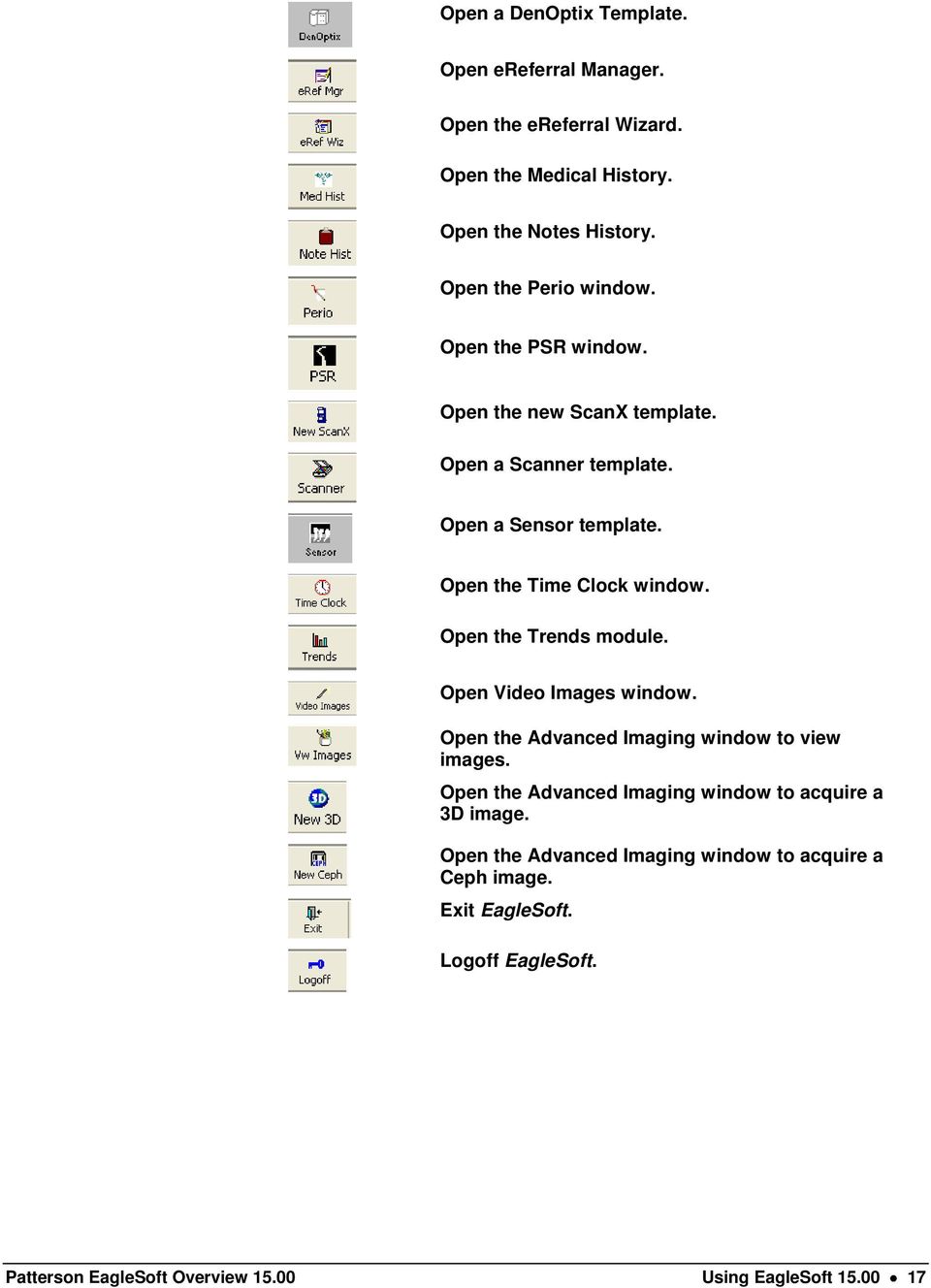
17 Open a DenOptix Template. Open ereferral Manager. Open the ereferral Wizard. Open the Medical History. Open the Notes History. Open the Perio window. Open the PSR window. Open the new ScanX template. Open a Scanner template. Open a Sensor template. Open the Time Clock window. Open the Trends module. Open Video Images window. Open the Advanced Imaging window to view images. Open the Advanced Imaging window to acquire a 3D image. Open the Advanced Imaging window to acquire a Ceph image. Exit EagleSoft. Logoff EagleSoft. Patterson EagleSoft Overview Using EagleSoft
18 Customize Select the Customize option on the menu. The following window appears. Adding and Removing To add new buttons to the toolbar, select Available toolbar buttons in the left column. Select Add to transfer the button to the right column. When you select Close, the new button appears on the toolbar. Moving Up and Down To move the buttons to dif ferent locations on the toolbar, select a button and select the Move Up or Move Down button. Drag and Drop The Drag and Drop featur e enables you to select a button, drag it and move it to a different location. Example for the Toolbar (Advanced Imaging Toolbar) Press and hold the Shift key. Select the Spot Color button. Drag the button by holding down the shift key and then the left-select mouse button. Move the feature to another location on the toolbar and press the Shift key and the left-select mouse button to drop the button. Show Text Select this option to show the text on each toolbar button. Reset Select this option to set the toolbar back to its original default state. 18 Using EagleSoft Patterson EagleSoft Overview 15.00

19 Frequently Asked Questions About Initial Setup How do I customize the Toolbar? To customize your toolbar: 1. Anywhere on the Toolbar, right-click and select Customize. 2. Under Available toolbar buttons, highlight the icon and select Add. 3. If you want to replace current buttons with different features, select another item from the Available toolbar buttons and select Add. If you are not happy with your customization, select the Reset button to change the toolbar button back to its original appearance. How do I go from Clinical to ESToday? From the Window menu, you can choose Practice Management, Clinical, the Integrated Mode or ESToday. This same Window menu is available from each module s main window. If you are in Practice Management mode, you can easily flip back to the Integrated Mode by selecting Window and choosing Integrated Mode. Is there a quick way to access list boxes? Select F2 on your keyboard to launch a list box such as Service Code List or Messages. I don t see the Front Office Screen? In the File menu, select Show FrontOffice. Patterson EagleSoft Overview Using EagleSoft

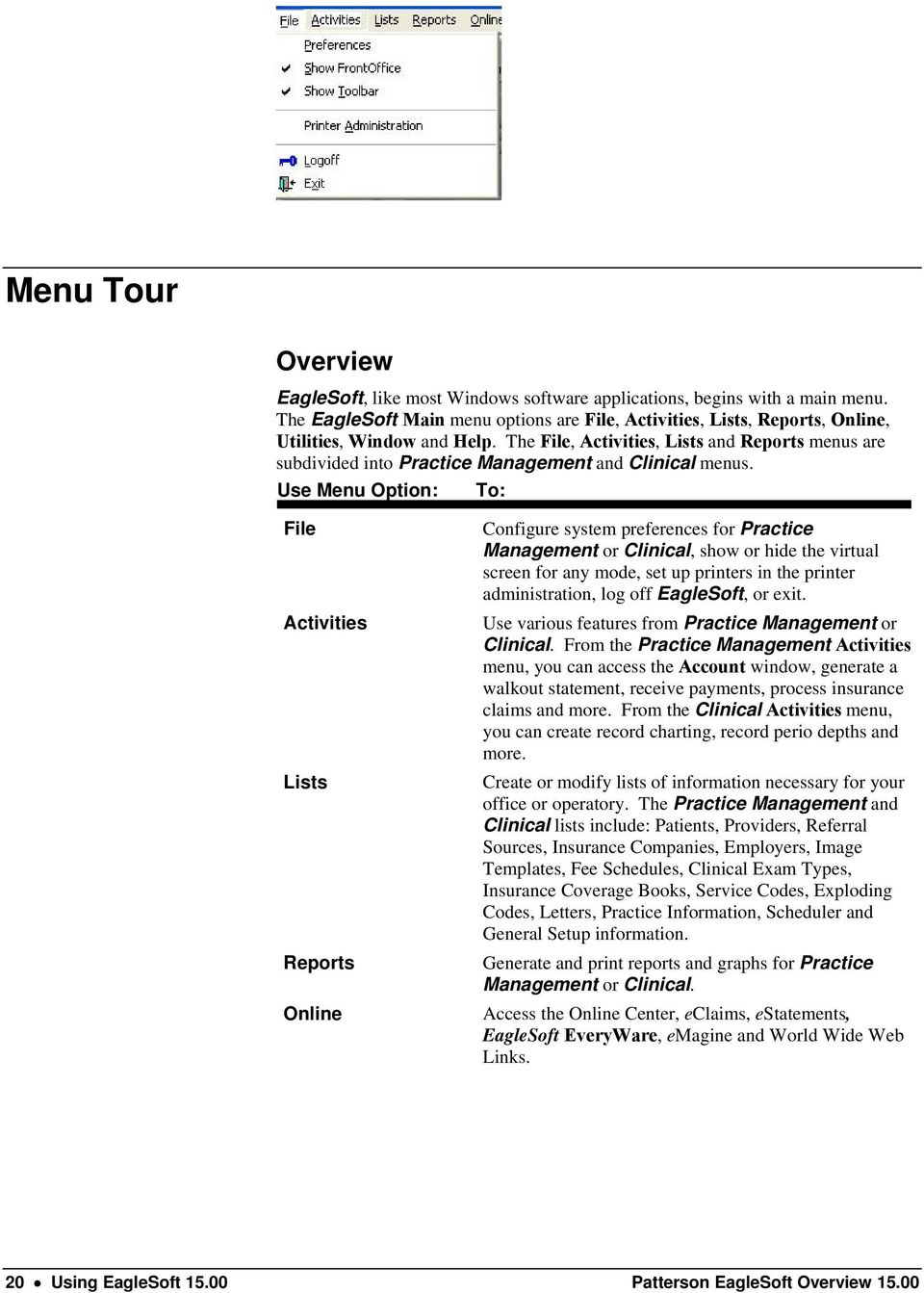
20 Menu Tour Overview EagleSoft, like most Windows software applications, begins with a main menu. The EagleSoft Main menu options are File, Activities, Lists, Reports, Online, Utilities, Window and Help. The File, Activities, Lists and Reports menus are subdivided into Practice Management and Clinical menus. Use Menu Option: To: File Activities Lists Reports Online Configure system preferences for Practice Management or Clinical, show or hide the virtual screen for any mode, set up printers in the printer administration, log off EagleSoft, or exit. Use various features from Practice Management or Clinical. From the Practice Management Activities menu, you can access the Account window, generate a walkout statement, receive payments, process insurance claims and more. From the Clinical Activities menu, you can create record charting, record perio depths and more. Create or modify lists of information necessary for your office or operatory. The Practice Management and Clinical lists include: Patients, Providers, Referral Sources, Insurance Companies, Employers, Image Templates, Fee Schedules, Clinical Exam Types, Insurance Coverage Books, Service Codes, Exploding Codes, Letters, Practice Information, Scheduler and General Setup information. Generate and print reports and graphs for Practice Management or Clinical. Access the Online Center, eclaims, estatements, EagleSoft EveryWare, emagine and World Wide Web Links. 20 Using EagleSoft Patterson EagleSoft Overview 15.00
21 Utilities Window Help Access system summary information, transfer a patient to a different account, reprint walkout statements or generate new claims for patients, change service fees, delete appointments, purge various data and mass updates, validate the integrity of your data, navigate through your database, view a listing of users on the system, view an activity log and access the calculator. Change the mode you are currently viewing. You can switch to Practice Management Mode, Clinical Mode, Integrated Mode or ESToday and cascade, tile or display windows that are currently open. Access the EagleSoft Online User s Guide, EagleSoft Highlights, Frequently Asked Questions, Patient Education information and System Information. Patterson EagleSoft Overview Using EagleSoft
22 Quick Start Basics Learning the Basics This section is provided as a primer of basic everyday functions that can be used as a quick reference source or a training guide for new staff. More in-depth information pertaining to EagleSoft functions is available throughout the rest of this User s Guide. Enter a New Patient In EagleSoft, only a minimum amount of information is necessary to enter a patient into the system. You can always go back later to add or modify the patient s information. Here is a list of the minimum information needed: Patient ID (if Auto Numbering is used, you do not need to enter this information.) First and last name Responsible party designation 22 Quick Start Basics Patterson EagleSoft Overview 15.00
23 Using Quick Setup 1. From the Lists menu, you can choose Person or choose Person from the toolbar. The Person List quick box is displayed. 2. Choose New. The New Person window is displayed. 3. Type the Patient ID. If Auto Numbering is used, an ID is assigned once the patient information is saved. 4. Type the patient s name. (Last name is all that is required, but it would be a good idea to include the first name.) 5. Specify the patient s Responsible Party and Policy Holder status. 6. If the patient is a Patient Only, type the responsible party s ID. The responsible party s name is displayed. 7. Type or select the patient s address, including city, state and ZIP code. 8. Type the patient s telephone number. 9. Choose OK to save and return to the Patient List quick box. Make an Appointment To schedule or modify an appointment: 1. Highlight the appointment slot where the new appointment begins. Select Schedule or double-click in the open appointment slot. You can also right-click in the appointment slot and choose the Schedule Appointment command. 2. Choose a patient name from the Select Patient window by highlighting the patient name and selecting Use. If the patient has an existing treatment plan, you are prompted to utilize the service codes from the treatment plan. If the patient has any alerts, they appear here as well. The New Appointment window is displayed. Confirm Status Patient Photo Family Appointments Patterson EagleSoft Overview Quick Start Basics 23
24 3. Choose the Appt Type from the dropdown list. Appointment types can be set up through Lists OnSchedule Appointment Types. 4. Choose the Primary Provider scheduled for this appointment from the dropdown list box. The patient s preferred provider is chosen by default. 5. Choose the Secondary Provider, if applicable. 6. Enter the duration of the appointment by keying in the number of Time Units. Notice that the Provider Time/Provider ID listing on the right si de reflects the number of time units for the appointment. 7. Enter the Amount of revenue that this appointment is expected to generate for the office. This is automatically entered if you have an amount set up for the appointment type or if you have already entered any services for this appointment. 8. Note: This field is optional in scheduling appointments. You can enter a two-character free-form Prefix for the appointment. This abbreviation appears next to the appointment detail displayed on the main OnSchedule window. Some offices have used this to represent tray setups (for example, T1 for Tray #1), insurance information, user who scheduled the appointment or Appointment Types. 9. Select Service to add services to the appointment. The Service Codes List window appears. Select a service code and select Use. If a service is already attached to the appointment, edit it by selecting the service and selecting Edit. 10. When any services are added to the appointment, the Display Abbreviation for the service is displayed Indicate the time units that the provider is expected to be working with the patient by selecting on the appropriate units in the Provider Time listing. 13. Select OK to save the appointment. Optional Features That Can Be Accessed from the Appointment Select Edit, Delete or Add to Tx plan. Type any free-form Notes for the appointment. If there is room for them in the appointment display, these notes appear in the OnSchedule display and printouts. Select Print Card to print a patient appointment card from EagleSoft. Select Patient to view patient information through the Edit Person window. From this window, you can edit and save information to the patient s file. 17. If Imaging is installed, and this patient has a photo, a patient photo button is available. Select this button to view the patient s photo. 18. Select Lab Case to create a lab case that is attached to this appointment. 19. Select Fast Walkout to process a walkout with any existing services attached to this appointment. You are prompted to save the appointment before continuing. 24 Quick Start Basics Patterson EagleSoft Overview 15.00
25 20. Select Family Appts to view the scheduled appointments for other family members. 21. Select the Appt Queue to save this appointment to the Appointment Queue instead of scheduling. 22. Select Eligibility to view the patient s insurance eligibility summary. Walkout Processing 1. From the Activities menu, choose Practice Management Activities and then Walkout Statement. The Walkout Statement window is displayed (see the following image). Important Things to Remember when Using this Option: The Production goes to the Provider on the service. The Collections and Insurance* go to the selected Provider for Walkout. *Note: Provider on Insurance can be different depending on your preferences If the Provider for Walkout is not set up to receive Collections or Insurance in the Edit Provider window, the provider does not receive the collections or insurance. For more information on Provider options, see the Accounting Preferences section. 2. Type the partial or full last name of the patient and press the Tab key. You can also select Patient to get the Patient List box. When selected, the account and insurance information is displayed. 3. To change the provider for walkout, select the Provider for Walkout dropdown list box. If the patient s preferred provider is not the provider on this walkout, you need to select a new provider. 4. If the patient has services attached to a scheduled appointment, you are prompted to add those items first. Select Yes to use these services and skip to step 7. If you select No, you are then prompted to add any treatment plan items marked Post to Walkout. 5. When you have selected the treatment plan items, select OK to return to the Walkout Statement window. Patterson EagleSoft Overview Quick Start Basics 25
26 6. Under Options, select the checkbox Use Date of Service From Planned Procedure or Use Fee From Treatment Plan (If applicable). 7. The provider automatically appears. (Note: This provider is based on how the service code is set up for the Normally Performed By field under the service code and the preferred dentist and preferred hygienist fields in the patient setup.) 8. If desired, change the provider by selecting the Provider box. A dropdown list box appears. Choose a new provider from those listed. 9. If you are receiving a message stating that the tooth/surface/quadrant is not allowed, edit the service code and modify the Affected Area box to match your requirement for this service. For this change to take effect, you need to cancel the current walkout and start over. 10. To delete a service code from the Walkout Statement window, highlight the service and select Delete. 11. Choose Process to process the walkout statement. The Walkout Statement Processing window is displayed. Entering Payments 1. Under Activities Receive Payment, type the full or partial last name of the patient and press the Tab key, or enter the ID of the patient in the ID field and then press the Tab key. (If more than one patient exists in your database with the same last name, choose the correct name, and select OK.) The account balance information is displayed. 2. In the Date field, you can modify the date of the payment, if necessary. Otherwise, press the Tab key. 3. Select the Payment Type from the dropdown list provided. 26 Quick Start Basics Patterson EagleSoft Overview 15.00
27 4. Type the answer to the Number/Payment Prompt (if a prompt is set up for the payment type). This field usually refers to the check number or credit card number. 5. Enter the Amount of the payment and press the Tab key. This amount is applied to the patients who have balances in the oldest aging categories. 6. In the Distribution section, the preferred dentist is listed in the Provider field. If you wish to assign the payment to a different provider, select the Add button. 7. Select the Print Payment Receipt checkbox to print a receipt for the patient. 8. Select OK to save and enter the next payment. Adding or Editing a New Insurance Company 1. From the Lists menu, choose Insurance Companies. If you are in Practice Management mode, choose Insurance Companies from the Lists menu. The Insurance Companies List is displayed. 2. Choose New or Edit. The New or Edit Insurance Company window is displayed. 3. Enter the information for the insurance company. Name The name of the insurance company. This is the name that appears in the Insurance Company list box. Address, City, State, ZIP Code The address where claims are mailed. Contact The name of a contact at the insurance company. Phones/Fax The phone and fax numbers of the insurance company. Active Select or deselect the active checkbox to indicate the status of the insurance company. Patterson EagleSoft Overview Quick Start Basics 27
28 Pymnt Grp (Payment Group) This is the payment group the insurance company belongs to if you are receiving bulk payments. Since you probably receive insurance payments from more than one insurance company under the same payment group, you need to assign the same payment group name to all insurance companies that fall under this group. For more information on payment groups, see the Receiving Payments chapter in the Account Management unit. eclaim Payer ID Enter your assigned eclaims ID. Select the word eclaims ID to access the eclaim Payer ID Setup window. From this window, you can view, edit and assign IDs to insurance companies. For more information on setting up the eclaims IDs, see the ebusiness chapter in the Daily Procedures unit. Claim Office ID The number assigned for some specific insurance companies. The Payer ID list indicates if a Claim Office ID is required. If needed, contact the EagleSoft ebusiness Department at NEA Payer ID Enter your NEA number for use on insurance claims. Pymt Source (Payment Source) Select the type of payment source. This identifies what type of insurance company it is (for example, Medicare, Commercial Insurance, Self and so on). Mgd Care Number Enter a Managed Care number for this insurance company. 4. Choose OK to save and return to the Insurance Companies List quick box. Additional Options Notes Any notes that pertain to this insurance company. Employer This section displays those employers linked to this insurance company. It does not display data until you have set up this insurance company and returned to this window by choosing Edit from the Insurance Companies List quick box. Associate Companies This section displays those insurance companies with the same payment group name as this insurance company. Label/Env Select Label/Env to print mailing labels for this insurance company. Letter Select Letter to print a letter directed to the insurance company. SmartDoc Select the SmartDoc button to launch the application. Adding or Editing an Employer 1. From the Lists menu, choose Employers/Coverage list. The Employers/Coverage List is displayed. 2. Choose New or Edit. The New or Edit Employer window is displayed. 28 Quick Start Basics Patterson EagleSoft Overview 15.00
29 3. Enter the basic information for the employer. 4. Enter the Group Name and Group Number for this employer. 5. Enter the Deductible, Maximum amount of coverage and the Beginning Month for the insurance company. 6. Enter the Insurance Company or select the word Ins. Company to select an existing insurance company or to set up a new one. 7. Select the Ins. Form. This is the insurance form that is used by default for all patients with this employer. 8. If the employees use fees that differ from your standard fees, select the Fee Schedule, or select Fee Schedule to select an existing fee schedule or to enter a new fee schedule. 9. Select a Coverage Book from the coverage book dropdown list box. Instead of having to set up several coverage books for several companies, you can create one coverage book to be used by multiple companies or select the word Coverage Book to enter a new one. 10. Select an Adjustment Type from the dropdown list. 11. Review and update the Percent covered for each service type and indicate whether this classification should be applied against the deductible. 12. Choose Notes, Prompts, Productivity, Coverage Book or Preferences to add more information to the employer/insurance coverage. 13. Choose OK to save and return to the Employers/Coverage List. Patterson EagleSoft Overview Quick Start Basics 29
30 (This page has been left blank intentionally.) 30 Quick Start Basics Patterson EagleSoft Overview 15.00
EagleSoft Training - Practice Management Pre Training Checklist Prior To The Training
 EagleSoft Training - Practice Management Pre Training Checklist Prior To The Training Received confirmation letter with complete installation details. Hardware and network are set up and running properly.
Continuing Care Unit 6
 Continuing Care Unit 6 The Continuing Care unit contains the following chapters: Rx Writer Lab Case Tracking Post Procedure Notes ereferrals Recalls Patterson EagleSoft Overview 15.00 Continuing Care Unit
System Maintenance and Backups Unit 9
 System Maintenance and Backups Unit 9 The System Maintenance and Backups unit contains the following sections and chapters: Utilities Making Backups 578 System Maintenance and Backups Unit 9 Patterson
EagleSoft Features - Practice Management
 - 14.00 EagleSoft Features - Time in Hours Custom Only (Enter ) 2 Days 3 Days including Caesy 4 Days including Caesy and 1/2 Day Live 5 Days including Caesy and 1&1/2 Days Live Introductions Review of
Eaglesoft, a Patterson Technology. New Features Guide. Printed copies of this document are considered uncontrolled. 18999.1.Rev002 01.23.2015.
 Eaglesoft, a Patterson Technology New Features Guide Page i Volume XVI 2013 Patterson Dental Supply, Inc. All rights reserved. Microsoft and Windows are trademarks of Microsoft Corporation. All other trademarks,
Kareo Quick Start Guide April 2012
 Kareo Quick Start Guide April 2012 Table of Contents 1. Get Started...1 1.1 Practice Setup... 1 1.2 Training, Help Guides and Support... 1 1.3 User Login... 1 1.4 Dashboard Navigation... 2 1.5 Record Search...
How To Use Senior Systems Cloud Services
 Senior Systems Cloud Services In this guide... Senior Systems Cloud Services 1 Cloud Services User Guide 2 Working In Your Cloud Environment 3 Cloud Profile Management Tool 6 How To Save Files 8 How To
Eaglesoft, a Patterson Technology. New Features Guide. Eaglesoft New Features Guide 16
 Eaglesoft, a Patterson Technology New Features Guide Eaglesoft New Features Guide 16 Contents i Volume XVI 2010 Patterson Dental Supply, Inc. All rights reserved. Microsoft and Windows XP are trademarks
Easy Scan Complete. Administrator User Guide. HealthStream Competency Cent. HealthStream, Inc. 209 10th Ave. South Suite 450 Nashville, TN 37203
 Easy Scan Complete Administrator User Guide HealthStream, Inc. 209 10th Ave. South Suite 450 Nashville, TN 37203 HealthStream Competency Cent Table of Contents Easy Scan Overview... 3 Gathering Data for
Appointment Scheduler
 EZClaim Appointment Scheduler User Guide Last Update: 11/19/2008 Copyright 2008 EZClaim This page intentionally left blank Contents Contents... iii Getting Started... 5 System Requirements... 5 Installing
Microsoft Access 2010 handout
 Microsoft Access 2010 handout Access 2010 is a relational database program you can use to create and manage large quantities of data. You can use Access to manage anything from a home inventory to a giant
Time Matters and Billing Matters 11.1. User Guide
 Time Matters and Billing Matters 11.1 User Guide About this guide This guide provides steps to achieve basic, commonly performed tasks. For additional details, including interface elements and advanced
Banner Document Management Suite (BDMS) Web Access Help
 May 10 th, 2011 Banner Document Management Suite (BDMS) Web Access Help Division of Information Technology AppXtender Web Access Help: For questions regarding AppXtender Web Access, please contact the
Outlook Web Access (OWA) User Guide
 Outlook Web Access (OWA) User Guide September 2010 TABLE OF CONTENTS TABLE OF CONTENTS... 2 1.0 INTRODUCTION... 4 1.1 OUTLOOK WEB ACCESS SECURITY CONSIDERATIONS... 4 2.0 GETTING STARTED... 5 2.1 LOGGING
Outlook 2010 Essentials
 Outlook 2010 Essentials Training Manual SD35 Langley Page 1 TABLE OF CONTENTS Module One: Opening and Logging in to Outlook...1 Opening Outlook... 1 Understanding the Interface... 2 Using Backstage View...
Module One: Getting Started... 6. Opening Outlook... 6. Setting Up Outlook for the First Time... 7. Understanding the Interface...
 2 CONTENTS Module One: Getting Started... 6 Opening Outlook... 6 Setting Up Outlook for the First Time... 7 Understanding the Interface...12 Using Backstage View...14 Viewing Your Inbox...15 Closing Outlook...17
Release Notes DAISY 4.0
 2010 Release Notes DAISY 4.0 NEW FEATURES Inactivate/Reactivate accounts and patients Enhanced treatment planning AutoRemind electronic appointment confirmation Copyright 2010. DAISY is a registered trademark
Outlook Email. User Guide IS TRAINING CENTER. 833 Chestnut St, Suite 600. Philadelphia, PA 19107 215-503-7500
 Outlook Email User Guide IS TRAINING CENTER 833 Chestnut St, Suite 600 Philadelphia, PA 19107 215-503-7500 This page intentionally left blank. TABLE OF CONTENTS Getting Started... 3 Opening Outlook...
TimeValue Software Due Date Tracking and Task Management Software
 User s Guide TM TimeValue Software Due Date Tracking and Task Management Software File In Time Software User s Guide Copyright TimeValue Software, Inc. (a California Corporation) 1992-2010. All rights
Welcome to MaxMobile. Introduction. System Requirements. MaxMobile 10.5 for Windows Mobile Pocket PC
 MaxMobile 10.5 for Windows Mobile Pocket PC Welcome to MaxMobile Introduction MaxMobile 10.5 for Windows Mobile Pocket PC provides you with a way to take your customer information on the road. You can
Asset Track Getting Started Guide. An Introduction to Asset Track
 Asset Track Getting Started Guide An Introduction to Asset Track Contents Introducing Asset Track... 3 Overview... 3 A Quick Start... 6 Quick Start Option 1... 6 Getting to Configuration... 7 Changing
Daily Procedures Unit 7
 Daily Procedures Unit 7 The Daily Procedures unit contains the following chapters: Processing Claims and Pre-Authorizations Aging Accounts Processing Statements ebusiness Online Center EagleSoft EveryWare
email-lead Grabber Business 2010 User Guide
 email-lead Grabber Business 2010 User Guide Copyright and Trademark Information in this documentation is subject to change without notice. The software described in this manual is furnished under a license
Outlook 2003 User Guide. April 15, 2004
 Outlook 2003 User Guide April 15, 2004 PURPOSE OF THE DOCUMENT... 2 NAVIGATE OUTLOOK...3 Toolbars... 3 Menu Toolbar... 4 Standard Toolbar... 5 Outlook Bar... 6 Navigation Pane... 7 USING THE MAIL OPTION...
Legal Notes. Regarding Trademarks. 2012 KYOCERA Document Solutions Inc.
 Legal Notes Unauthorized reproduction of all or part of this guide is prohibited. The information in this guide is subject to change without notice. We cannot be held liable for any problems arising from
FrontDesk Installation And Configuration
 Chapter 2 FrontDesk Installation And Configuration FrontDesk v4.1.25 FrontDesk Software Install Online Software Activation Installing State Related Databases Setting up a Workstation Internet Transfer
NETWORK PRINT MONITOR User Guide
 NETWORK PRINT MONITOR User Guide Legal Notes Unauthorized reproduction of all or part of this guide is prohibited. The information in this guide is subject to change without notice. We cannot be held liable
NDA-30141 ISSUE 1 STOCK # 200893. CallCenterWorX-Enterprise IMX MAT Quick Reference Guide MAY, 2000. NEC America, Inc.
 NDA-30141 ISSUE 1 STOCK # 200893 CallCenterWorX-Enterprise IMX MAT Quick Reference Guide MAY, 2000 NEC America, Inc. LIABILITY DISCLAIMER NEC America, Inc. reserves the right to change the specifications,
TOPS v3.2.1 Calendar/Scheduler User Guide. By TOPS Software, LLC Clearwater, Florida
 TOPS v3.2.1 Calendar/Scheduler User Guide By TOPS Software, LLC Clearwater, Florida Document History Version Edition Date Document Software Trademark Copyright First Edition Second Edition 02 2007 09-2007
Personal Call Manager User Guide. BCM Business Communications Manager
 Personal Call Manager User Guide BCM Business Communications Manager Document Status: Standard Document Version: 04.01 Document Number: NN40010-104 Date: August 2008 Copyright Nortel Networks 2005 2008
Microsoft Outlook 2010
 Microsoft Outlook 2010 Prepared by Computing Services at the Eastman School of Music July 2010 Contents Microsoft Office Interface... 4 File Ribbon Tab... 5 Microsoft Office Quick Access Toolbar... 6 Appearance
Installation and Program Essentials
 CS PROFESSIONAL SUITE ACCOUNTING PRODUCTS Installation and Program Essentials version 2015.x.x TL 28970 3/26/2015 Copyright Information Text copyright 1998 2015 by Thomson Reuters. All rights reserved.
REMEDY 7.5 INCIDENT MANAGEMENT AND CHANGE MANAGEMENT USER MANUAL
 INCIDENT MANAGEMENT AND CHANGE MANAGEMENT USER MANUAL 08/17/2009 Contents OVERVIEW... 3 CREATING INCIDENT TICKETS... 13 WORKING AND RESOLVING INCIDENTS AS SUPPORT STAFF... 28 CHANGE MANAGEMENT... 33 SEARCHING
Roth IRA Conversion Evaluator
 Roth IRA Conversion Evaluator Quick Start Guide 2009, WoltersKluwer. All Rights Reserved. Page 1 of 36 Table of Contents Roth IRA Conversion Evaluator Quick Start Guide Getting Started... 3 About the Roth
User Guide. Customer Appointment Manager. Standard & Pro Versions. Overview. New in this Version
 Customer Appointment Manager User Guide Standard & Pro Versions Thank you for choosing Customer Appointment Manager. Everything you ll need to promptly serve your customers is right at your fingertips
Time & Expense Entry WalkThrough
 PRACTICE CS Time & Expense Entry WalkThrough Version 2014.x.x TL 27573a (01/16/2015) Copyright Information Text copyright 2004-2015 by Thomson Reuters. All rights reserved. Video display images copyright
OnGuard Online User Guide
 OnGuard Online User Guide T81165/Rev ER-7991-40 Jan 2005 Contents 1 Introduction Related documents 1 1 Navigation of the software 1 2 How to use this guide 1 4 2 Managing Access Holidays and Timezones
STEPfwd Quick Start Guide
 CERT/Software Engineering Institute June 2016 http://www.sei.cmu.edu Table of Contents Welcome to STEPfwd! 3 Becoming a Registered User of STEPfwd 4 Learning the Home Page Layout 5 Understanding My View
How To Create A Powerpoint Intelligence Report In A Pivot Table In A Powerpoints.Com
 Sage 500 ERP Intelligence Reporting Getting Started Guide 27.11.2012 Table of Contents 1.0 Getting started 3 2.0 Managing your reports 10 3.0 Defining report properties 18 4.0 Creating a simple PivotTable
2002 Blackbaud, Inc. This publication, or any part thereof, may not be reproduced or transmitted in any form or by any means, electronic, or
 041902 2002 Blackbaud, Inc. This publication, or any part thereof, may not be reproduced or transmitted in any form or by any means, electronic, or mechanical, including photocopying, recording, storage
Password Memory 6 User s Guide
 C O D E : A E R O T E C H N O L O G I E S Password Memory 6 User s Guide 2007-2015 by code:aero technologies Phone: +1 (321) 285.7447 E-mail: [email protected] Table of Contents Password Memory 6... 1
Project Management WalkThrough
 PRACTICE CS Project Management WalkThrough version 2014.x.x TL 27715a (1/16/15) Copyright Information Text copyright 2004 2015 by Thomson Reuters. All rights reserved. Video display images copyright 2004
DAISY 4.2. New features. Electronic prescribing with erx Integrated credit card processing with DAISY InCharge
 DAISY 4.2 New features Electronic prescribing with erx Integrated credit card processing with DAISY InCharge DAISY 4.2 Update Release Notes 1 What s New in DAISY 4.2... 1 New Features... 1 Other Enhancements
CITY OF BURLINGTON PUBLIC SCHOOLS MICROSOFT EXCHANGE 2010 OUTLOOK WEB APP USERS GUIDE
 CITY OF BURLINGTON PUBLIC SCHOOLS MICROSOFT EXCHANGE 2010 OUTLOOK WEB APP USERS GUIDE INTRODUCTION You can access your email account from any workstation at your school using Outlook Web Access (OWA),
Using Webmail. Document Updated: 11/10. Technical Manual: User Guide. The Webmail Window. Logging In to Webmail. Displaying and Hiding the Full Header
 Using Webmail Technical Manual: User Guide Webmail is supported in the following browsers: Windows Internet Explorer 6, Internet Explorer 7, Firefox 2, and Firefox 3 Mac OSX Safari 2, Safari 3, Firefox
Strategic Asset Tracking System User Guide
 Strategic Asset Tracking System User Guide Contents 1 Overview 2 Web Application 2.1 Logging In 2.2 Navigation 2.3 Assets 2.3.1 Favorites 2.3.3 Purchasing 2.3.4 User Fields 2.3.5 History 2.3.6 Import Data
TAMUS Terminal Server Setup BPP SQL/Alva
 We have a new method of connecting to the databases that does not involve using the Texas A&M campus VPN. The new way of gaining access is via Remote Desktop software to a terminal server running here
Cornerstone Practice Explorer User s Guide
 IDEXX Cornerstone Practice Management System Cornerstone Practice Explorer User s Guide Powered by SmartLink Technology Proprietary Rights Notice Information in this document is subject to change without
Client Marketing: Sets
 Client Marketing Client Marketing: Sets Purpose Client Marketing Sets are used for selecting clients from the client records based on certain criteria you designate. Once the clients are selected, you
Optum Patient Portal. 70 Royal Little Drive. Providence, RI 02904. Copyright 2002-2013 Optum. All rights reserved. Updated: 3/7/13
 Optum Patient Portal 70 Royal Little Drive Providence, RI 02904 Copyright 2002-2013 Optum. All rights reserved. Updated: 3/7/13 Table of Contents 1 Patient Portal Activation...1 1.1 Pre-register a Patient...1
WebEx Remote Access User s Guide
 About This Guide This guide introduces you to WebEx Remote Access and its features. This guide assumes that you have a user account for your Remote Access service. Note To obtain a user account, contact
How To Sync Between Quickbooks And Act
 QSalesData User Guide Note: In addition to this User Guide, we have an extensive Online Video Library that you can access from our website: www.qsalesdata.com/onlinevideos Updated: 11/14/2014 Installing
DarwiNet Client Level
 DarwiNet Client Level Table Of Contents Welcome to the Help area for your online payroll system.... 1 Getting Started... 3 Welcome to the Help area for your online payroll system.... 3 Logging In... 4
Decision Support AITS University Administration. Web Intelligence Rich Client 4.1 User Guide
 Decision Support AITS University Administration Web Intelligence Rich Client 4.1 User Guide 2 P age Web Intelligence 4.1 User Guide Web Intelligence 4.1 User Guide Contents Getting Started in Web Intelligence
Outlook. Getting Started Outlook vs. Outlook Express Setting up a profile Outlook Today screen Navigation Pane
 Outlook Getting Started Outlook vs. Outlook Express Setting up a profile Outlook Today screen Navigation Pane Composing & Sending Email Reading & Sending Mail Messages Set message options Organizing Items
Top Producer 8i Training Manual
 Top Producer 8i Training Manual Information in this document is subject to change without notice. Companies, names and data used in examples herein are fictitious unless otherwise noted, and are used for
Chapter 28. Poi nt of Sale But. FrontDesk v4.1.25. Point of Sale Menus. Voiding Invoices. Redeeming Gift Certificates. Revised on: 06/10/2009
 Chapter 28 Point of Sale FrontDesk v4.1.25 Point of Sale Poi nt of Sale But tons Point of Sale Menus Opening and Closing Register Drawers Making a Sale Voiding Invoices Reprinting Receipts Selling Gift
The Rehab Documentation Company, Inc. 12/8/11. ReDoc Scheduler. User Guide
 The Rehab Documentation Company, Inc. 12/8/11 ReDoc Scheduler User Guide 12/8/11 Contents CONTENTS CHAPTER 1 INTRODUCTION................................ 1 CHAPTER 2 SETUP........................................
How To Set Up Total Recall Web On A Microsoft Memorybook 2.5.2.2 (For A Microtron)
 Total Recall Web Web Module Manual and Customer Quick Reference Guides COPYRIGHT NOTICE Copyright 1994-2009 by DHS Associates, Inc. All Rights Reserved. All TOTAL RECALL, TOTAL RECALL SQL, TOTAL RECALL
Microsoft Outlook 2013 Part 1: Introduction to Outlook
 CALIFORNIA STATE UNIVERSITY, LOS ANGELES INFORMATION TECHNOLOGY SERVICES Microsoft Outlook 2013 Part 1: Introduction to Outlook Fall 2014, Version 1.0 Table of Contents Introduction...3 Starting Outlook...3
Working with SQL Server Integration Services
 SQL Server Integration Services (SSIS) is a set of tools that let you transfer data to and from SQL Server 2005. In this lab, you ll work with the SQL Server Business Intelligence Development Studio to
Appendix A How to create a data-sharing lab
 Appendix A How to create a data-sharing lab Creating a lab involves completing five major steps: creating lists, then graphs, then the page for lab instructions, then adding forms to the lab instructions,
Windows XP Pro: Basics 1
 NORTHWEST MISSOURI STATE UNIVERSITY ONLINE USER S GUIDE 2004 Windows XP Pro: Basics 1 Getting on the Northwest Network Getting on the Northwest network is easy with a university-provided PC, which has
Welcome to MaxMobile. Introduction. System Requirements
 MaxMobile 10.5 for Windows Mobile Smartphone Welcome to MaxMobile Introduction MaxMobile 10.5 for Windows Mobile Smartphone provides you with a way to take your customer information on the road. You can
One step login. Solutions:
 Many Lotus customers use Lotus messaging and/or applications on Windows and manage Microsoft server/client environment via Microsoft Active Directory. There are two important business requirements in this
Personal Training. Chapter 27. FrontDesk v4.1.25. PT Specific Program Options. Contract Templates. Set Member s Secure Check In Password
 Chapter 27 Personal Training FrontDesk v4.1.25 PT Specific Program Options Empl oyees Contract Templates Personal Training Window in Contract Wizard Contract Manager / Personal Training Information Clear
Appointments: Calendar Window
 Appointments Appointments: Calendar Window Purpose The Appointment Calendar window is the automated equivalent of a paper appointment book. You can make appointments, confirm appointments, and view appointments
Harrisburg University Skype for Business User Guide
 Harrisburg University Skype for Business User Guide Contents 2 Accessing Skype for Business... 2 Starting Skype for Business on your desktop... 3 Subsequent access to Skype for Business... 3 Changing Skype
SonicWALL SSL VPN 3.5: Virtual Assist
 SonicWALL SSL VPN 3.5: Virtual Assist Document Scope This document describes how to use the SonicWALL Virtual Assist add-on for SonicWALL SSL VPN security appliances. This document contains the following
Software User's Guide
 BROTHER QL-500/550/650TD/1050/1050N Software User's Guide QL-500 QL-650TD QL-550 QL-1050/1050N 1 Contents Contents....................................................................................2................................................................................4
BulkSMS Text Messenger Product Manual
 BulkSMS Text Messenger Product Manual 1. Installing the software 1.1. Download the BulkSMS Text Messenger Go to www.bulksms.com and choose your country. process. Click on products on the top menu and select
WebEx Meeting Center User's Guide
 WebEx Meeting Center User's Guide Table of Contents Accessing WebEx... 3 Choosing the scheduler that works for you... 6 About the Quick Scheduler Page... 6 About the Advanced Scheduler... 8 Editing a scheduled
User guide. Business Email
 User guide Business Email June 2013 Contents Introduction 3 Logging on to the UC Management Centre User Interface 3 Exchange User Summary 4 Downloading Outlook 5 Outlook Configuration 6 Configuring Outlook
Using Webmail. Technical Manual: User Guide. Document Updated: 1/07. The Webmail Window. Displaying and Hiding the Full Header.
 Using Webmail Technical Manual: User Guide The Webmail Window To save an attachment: 1. Click once on the attachment name. Or, if there are multiple attachments, click the Save icon to save all attachments
Table of Contents. Welcome... 2. Login... 3. Password Assistance... 4. Self Registration... 5. Secure Mail... 7. Compose... 8. Drafts...
 Table of Contents Welcome... 2 Login... 3 Password Assistance... 4 Self Registration... 5 Secure Mail... 7 Compose... 8 Drafts... 10 Outbox... 11 Sent Items... 12 View Package Details... 12 File Manager...
Check Writer Program
 Starting the Check Writer Program: Check Writer Program 1) You can start the Check Writer program from the main menu of your rating software by clicking on the button. 2) You should be prompted to enter
1) Important browser information New 2) Why is my browser so slow? 3) How can I view more than one screen without the other disappearing?
 Known/Unresolved issues: Browser Scan to e-mail Creating Help Desk tickets for the scan-to-email issue is no longer necessary. A member of MIS will follow up with each office to determine scan-to-email
Corporate Telephony Toolbar User Guide
 Corporate Telephony Toolbar User Guide 1 Table of Contents 1 Introduction...6 1.1 About Corporate Telephony Toolbar... 6 1.2 About This Guide... 6 1.3 Accessing The Toolbar... 6 1.4 First Time Login...
Installation and Operation Manual Portable Device Manager, Windows version
 Installation and Operation Manual version version About this document This document is intended as a guide for installation, maintenance and troubleshooting of Portable Device Manager (PDM) and is relevant
How To Create A Document On A Pc Or Macbook
 ApplicationXtender 6.5 Document Manager User Guide (version 1.0) CCS Computing and Communications Service June 2013 Table of Contents OVERVIEW... 3 Logging in to AppXtender Document Manager... 4 Changing
Tabs3, PracticeMaster, and the pinwheel symbol ( trademarks of Software Technology, Inc. Portions copyright Microsoft Corporation
 Tabs3 Trust Accounting Software Reseller/User Tutorial Version 16 for November 2011 Sample Data Copyright 1983-2013 Software Technology, Inc. 1621 Cushman Drive Lincoln, NE 68512 (402) 423-1440 http://www.tabs3.com
Utilities. 2003... ComCash
 Utilities ComCash Utilities All rights reserved. No parts of this work may be reproduced in any form or by any means - graphic, electronic, or mechanical, including photocopying, recording, taping, or
MICROSOFT OUTLOOK 2010
 MICROSOFT OUTLOOK 2010 George W. Rumsey Computer Resource Center 1525 East 53rd, Suite 906 Chicago, IL 60615 (773) 955-4455 www.computer-resource.com [email protected] What Is Outlook?... 1 Folders... 2
Billing & Accounts Receivable Test Blueprint
 Billing & Accounts Receivable Test Blueprint Financial Transaction Management Accounts Receivable Management Insurance Billing & Claim Management Overview Who should take the Billing and Accounts Receivable
User Manual for Web. Help Desk Authority 9.0
 User Manual for Web Help Desk Authority 9.0 2011ScriptLogic Corporation ALL RIGHTS RESERVED. ScriptLogic, the ScriptLogic logo and Point,Click,Done! are trademarks and registered trademarks of ScriptLogic
Viive 5.0 INSTALLATION AND SETUP GUIDE 1-855-MAC-VIIVE
 Viive 5.0 INSTALLATION AND SETUP GUIDE 1-855-MAC-VIIVE ii Contents PUBLICATION DATE February 2015 COPYRIGHT 2015 Henry Schein, Inc. All rights reserved. No part of this publication may be reproduced, transmitted,
Introduction... 2. Download and Install Mobile Application... 2. About Logging In... 4. Springboard... 4. Navigation... 6. List Pages...
 Contents Introduction... 2 Download and Install Mobile Application... 2 About Logging In... 4 Springboard... 4 Navigation... 6 List Pages... 6 Example: Edit Contact... 7 View Pages... 12 Example: Companies...
End User Training Guide
 End User Training Guide October 2013 2005-2013 ExpenseWire LLC. All rights reserved. 1 expensewire.com Use of this user documentation is subject to the terms and conditions of the applicable End- User
Seagate Manager. User Guide. For Use With Your FreeAgent TM Drive. Seagate Manager User Guide for Use With Your FreeAgent Drive 1
 Seagate Manager User Guide For Use With Your FreeAgent TM Drive Seagate Manager User Guide for Use With Your FreeAgent Drive 1 Seagate Manager User Guide for Use With Your FreeAgent Drive Revision 1 2008
LogMeIn Network Console Version 8 Getting Started Guide
 LogMeIn Network Console Version 8 Getting Started Guide April 2007 1. About the Network Console... 2 2. User Interface...2 3. Quick Start... 2 4. Network & Subnet Scans...3 5. Quick Connect...3 6. Operations...
Outlook Web Access (OWA) 2010 Email Cheat Sheet
 June 9, 2014 Outlook Web Access (OWA) 2010 Email Cheat Sheet Outlook Web Access 2010 allows you to gain access to your messages, calendars, contacts, tasks and public folders from any computer with internet
All Rights Reserved. Copyright 2006
 All Rights Reserved Copyright 2006 The use, disclosure, modification, transfer, or transmittal of this work for any purpose, in any form, or by any means, without the written permission of the copyright
Webmail Instruction Guide
 Webmail Instruction Guide This document is setup to guide your through the use of the many features of our Webmail system. You may either visit www.safeaccess.com or webmail.safeaccess.com to login with
Business Communications Solutions 9910 Irvine Center Drive Irvine, CA 92618 www.bcsconsultants.com [ m ] 949.333.1000 [ f ] 949.333.
![Business Communications Solutions 9910 Irvine Center Drive Irvine, CA 92618 www.bcsconsultants.com [ m ] 949.333.1000 [ f ] 949.333.](/thumbs/28/12943220.jpg "Business Communications Solutions 9910 Irvine Center Drive Irvine, CA 92618 www.bcsconsultants.com [ m ] 949.333.1000 [ f ] 949.333.") VERTICAL VIEWPOINT 2.0 USER GUIDE Business Communications Solutions 9910 Irvine Center Drive Irvine, CA 92618 www.bcsconsultants.com [ m ] 949.333.1000 [ f ] 949.333.1001 TABLE OF CONTENTS Logging on to
VERTICAL VIEWPOINT 2.0 USER GUIDE Business Communications Solutions 9910 Irvine Center Drive Irvine, CA 92618 www.bcsconsultants.com [ m ] 949.333.1000 [ f ] 949.333.1001 TABLE OF CONTENTS Logging on to
NYS OCFS CMS Contractor Manual
 NYS OCFS CMS Contractor Manual C O N T E N T S CHAPTER 1... 1-1 Chapter 1: Introduction to the Contract Management System... 1-2 CHAPTER 2... 2-1 Accessing the Contract Management System... 2-2 Shortcuts
Results CRM 2012 User Manual
 Results CRM 2012 User Manual A Guide to Using Results CRM Standard, Results CRM Plus, & Results CRM Business Suite Table of Contents Installation Instructions... 1 Single User & Evaluation Installation
Baylor Secure Messaging. For Non-Baylor Users
 Baylor Secure Messaging For Non-Baylor Users TABLE OF CONTENTS SECTION ONE: GETTING STARTED...4 Receiving a Secure Message for the First Time...4 Password Configuration...5 Logging into Baylor Secure Messaging...7
IT Quick Reference Guides Using Windows 7
 IT Quick Reference Guides Using Windows 7 Windows Guides This sheet covers many of the basic commands for using the Windows 7 operating system. WELCOME TO WINDOWS 7 After you log into your machine, the
Quick Start Guide. www.uptrendsinfra.com
 Quick Start Guide Uptrends Infra is a cloud service that monitors your on-premise hardware and software infrastructure. This Quick Start Guide contains the instructions to get you up to speed with your