
Times AA-9303 or equivalent (plenum rated)
|
|
|
- Ruby White
- 10 years ago
- Views:
Transcription
1 Cisco Aironet 6.5-dBi Diversity Patch Antenna (AIR-ANT2465P-R) This document outlines the specifications, describes the AIR-ANT2465P-R 6-dBi patch antenna, and provides instructions for mounting it. The antenna operates in the 2.4-GHz frequency range and is designed for use in both indoor and outdoor environments. The following information is provided in this document. Technical Specifications System Requirements Installation Guidelines Installing the Antenna Obtaining Documentation Documentation Feedback Cisco Product Security Overview Obtaining Technical Assistance Obtaining Additional Publications and Information Technical Specifications Antenna type Operating frequency range Nominal input impedance Diversity patch MHz 50Ω 2:1 VSWR bandwidth MHz Peak gain Polarization E-plane 3-dB beamwidth 65 H-plane 3-dB beamwidth 75 Front-to-back ratio Cross-pol discrimination Cable length and type Connector type Length Width Height Operating temperature range Storage temperature range Environment 6.5 dbi Linear, vertical 15 db 15 db 36 in. (91.4 cm) Times AA-9303 or equivalent (plenum rated) RP-TNC 4.4 in. (11.1 cm) 6.6 in. (16.7 cm) 1 in. (2.5 cm) -22 F to 158 F (-30 C to 70 C) -40 F to 185 F (-40 C - 85 C) Indoor/outdoor System Requirements This antenna is designed for use with Cisco Aironet access points and bridges but can be used with any 2.4-GHz Cisco Aironet radio device that utilizes an RP-TNC connector. Safety Precautions

2 Translated versions of the following safety warnings are provided in the Safety Warnings for Cisco Aironet Antennas, which is available at Warning This warning symbol means danger. You are in a situation that could cause bodily injury. Before you work on any equipment, be aware of the hazards involved with electrical circuitry and be familiar with standard practices for preventing accidents. Use the statement number provided at the end of each warning to locate its translation in the translated safety warnings that accompanied this device. Statement 1071 SAVE THESE INSTRUCTIONS Warning In order to comply with RF exposure limits established in the ANSI C95.1 standards, it is recommended when using a laptop with a PC card client adapter that the adapter's integrated antenna is positioned more than 2 inches (5 cm) from your body or nearby persons during extended periods of transmitting or operating time. If the antenna is positioned less than 2 inches (5 cm) from the user, it is recommended that the user limit exposure time. Statement 254 Warning Do not work on the system or connect or disconnect cables during periods of lightning activity. Statement 1001 Warning Do not locate the antenna near overhead power lines or other electric light or power circuits, or where it can come into contact with such circuits. When installing the antenna, take extreme care not to come into contact with such circuits, because they may cause serious injury or death. For proper installation and grounding of the antenna, please refer to national and local codes (for example, U.S.:NFPA 70, National Electrical Code, Article 810, Canada: Canadian Electrical Code, Section 54). Statement 1052 Each year hundreds of people are killed or injured when attempting to install an antenna. In many of these cases, the victim was aware of the danger of electrocution, but did not take adequate steps to avoid the hazard. For your safety, and to help you achieve a good installation, please read and follow these safety precautions. They may save your life! 1. If you are installing an antenna for the first time, for your own safety as well as others, seek professional assistance. Your Cisco sales representative can explain which mounting method to use for the size and type antenna you are about to install. 2. Select your installation site with safety, as well as performance in mind. Remember: electric power lines and phone lines look alike. For your safety, assume that any overhead line can kill you. 3. Call your electric power company. Tell them your plans and ask them to come look at your proposed installation. This is a small inconvenience considering your life is at stake. 4. Plan your installation carefully and completely before you begin. Successful raising of a mast or tower is largely a matter of coordination. Each person should be assigned to a specific task, and should know what to do and when to do it. One person should be in charge of the operation to issue instructions and watch for signs of trouble. 5. When installing your antenna, remember: a. Do not use a metal ladder. b. Do not work on a wet or windy day. c. Do dress properly shoes with rubber soles and heels, rubber gloves, long sleeved shirt or jacket.

3 6. If the assembly starts to drop, get away from it and let it fall. Remember, the antenna, mast, cable, and metal guy wires are all excellent conductors of electrical current. Even the slightest touch of any of these parts to a power line complete an electrical path through the antenna and the installer: you! 7. If any part of the antenna system should come in contact with a power line, don't touch it or try to remove it yourself. Call your local power company. They will remove it safely. 8. If an accident should occur with the power lines call for qualified emergency help immediately. Installation Guidelines Because the antenna transmits and receives radio signals, they are susceptible to RF obstructions and common sources of interference that can reduce throughput and range of the device to which they are connected. Follow these guidelines to ensure the best possible performance: Mount the antenna to utilize its propagation characteristics. One way to do this is to orient the antenna vertically and mount it as high as possible. Keep the antenna away from metal obstructions such as heating and air-conditioning ducts, large ceiling trusses, building superstructures, and major power cabling runs. If necessary, use a rigid conduit to lower the antenna away from these obstructions. The density of the materials used in a building's construction determines the number of walls the signal must pass through and still maintain adequate coverage. Consider the following before choosing the location to install your antenna: Paper and vinyl walls have very little affect on signal penetration. Solid and pre-cast concrete walls limit signal penetration to one or two walls without degrading coverage. Concrete and wood block walls limit signal penetration to three or four walls. A signal can penetrate five or six walls constructed of drywall or wood. A thick metal wall causes signals to reflect off, causing poor penetration. A chain link fence or wire mesh spaced between 1 and 1 1/2 in. (2.5 and 3.8 cm) acts as a harmonic reflector that blocks a 2.4- Ghz radio signal. Install the antenna away from microwave ovens and 2-GHz cordless phones. These products can cause signal interference because they operate in the same frequency range as the device your antenna is connected to. Install the antenna in a vertical orientation to maximize signal propagation. Site Selection Before attempting to install your antenna, determine where you can best place the antenna for safety and performance. Follow these steps to determine a safe distance from wires, power lines, and trees. Step 1 Measure the height of your antenna. Step 2 Add this length to the length of your tower or mast and then double this total for the minimum recommended safe distance. Caution If you are unable to maintain this safe distance, stop and get professional help. Generally, the higher an antenna is above the ground, the better it performs. Good practice is to install your antenna about 5 to 10 ft (1.5 to 3 m) above the roof line and away from all power lines and obstructions. If possible, find a mounting place directly above your wireless device so that the lead-in cable can be as short as possible. Installing the Antenna

4 You can install the antenna on any flat vertical surface or on a mast using the optional mast mounting plate. Hardware for mounting the antenna on drywall is provided. If you intend to install your antenna on another surface, you must provide the appropriate hardware. Note Four mounting screws are provided to mount the antenna. To ensure a safe, reliable, and long-standing installation, you must use all four screws to mount the antenna. Tools and Equipment Required A mast mounting installation kit is shipped with the antenna and consists of the following hardware: Four #8 x ¾ screws Four #8 plastic anchors Four end caps You need the following tools and equipment, which are not provided. A Phillips screwdriver A drill A #29 ((0.136-in (3.45 mm)) drill bit (For drywall installation, other surfaces may require a different size) A pencil A small mallet or hammer Mounting on a Vertical Surface Follow these steps to mount your antenna on a vertical surface. This procedure describes mounting the antenna on a drywall surface. If you are mounting the antenna on any other type of surface, your procedure may vary slightly. Step 1 Determine the location where you will mount the antenna. Step 2 Use the antenna as a template to mark the locations of the four mounting holes. Step 3 Use a drill and #29 drill bit to drill four holes at the locations you marked in Step 2. Step 4 Start a plastic anchor into each hole. Step 5 Use a mallet or small hamer to seat the anchors into the wall. Step 6 Align the antenna's mounting holes with the anchors. Step 7 Start a #8 x ¾ screw into each antenna mounting hole. Step 8 Use a Phillips screwdriver to secure the antenna to the wall. Do not overtighten. Step 9 Install the end caps into the antenna mounting holes. Step 10 Remove the yellow outdoor installation warning label from the antenna radome.

5 Outdoor Installations You can mount this antenna outdoors. If you mount the antenna outdoors, you must provide the mounting hardware. For outdoor installations, Follow the instructions printed on the back of the antenna. Caution An orientation arrow is printed on the back of the antenna that indicates the orientation for outdoor installations. You must install the antenna with the orientation arrow pointing down to prevent any water intrusion and to provide a drain for any moisture that may accumulate inside the antenna. Suggested Cable Cisco recommends a high-quality, low-loss cable for use with the antenna. Note Coaxial cable loses efficiency as the frequency increases, resulting in signal loss. The cable should be kept as short as possible because cable length also determines the amount of signal loss (the longer the run, the greater the loss). The antenna terminates with a RP-TNC plug after a short, 3-ft (0.91-m) cable. The mating connector to the antenna is an appropriate RP-TNC jack. The connector on the opposite end will vary according to the type of equipment used. After the cable is attached to the antenna, make sure that the connections are sealed (if outdoors) to prevent moisture and other weathering elements from affecting performance. Cisco recommends using a coax seal (such as CoaxSeal) for outdoor connections. Silicon sealant or electrical tape are not recommended for sealing outdoor connections. Grounding the Antenna Follow these steps to ground the antenna in accordance with national electrical code instructions. Step 1 Use No. 10 AWG copper or No. 8 or larger copper-clad steel or bronze wire as ground wires for both mast and lead-in. Securely clamp the wire to the bottom of the mast. Step 2 Secure the lead-in wire to a static discharge unit (lightning arrestor, Cisco Aironet AIR-ACC245LA-R or equivalent) and the mast ground wire to the building with stand-off insulators spaced from 4 ft (1.2 m) to 8 ft (2.4 m) apart. Step 3 Mount the antenna discharge unit as close as possible to where the lead-in wire enters the building. Step 4 Drill a hole in the building's wall as close as possible to the equipment to which you will connect the lead-in cable. Caution There may be wires in the wall. Make sure your drilling location is clear of any obstructions or other hazards. Step 5 Pull the cable through the hole and form a drip loop close to where it enters the building. Step 6 Thoroughly waterproof the lead-in area. Step 7 Connect the lead-in cable to the equipment. Obtaining Documentation Cisco documentation and additional literature are available on Cisco.com. Cisco also provides several ways to obtain technical assistance and other technical resources. These sections explain how to obtain technical information from Cisco Systems.

6 Cisco.com You can access the most current Cisco documentation at this URL: You can access the Cisco website at this URL: You can access international Cisco websites at this URL: Documentation DVD Cisco documentation and additional literature are available in a Documentation DVD package, which may have shipped with your product. The Documentation DVD is updated regularly and may be more current than printed documentation. The Documentation DVD package is available as a single unit. Registered Cisco.com users (Cisco direct customers) can order a Cisco Documentation DVD (product number DOC-DOCDVD=) from the Ordering tool or Cisco Marketplace. Cisco Ordering tool: Cisco Marketplace: Ordering Documentation You can find instructions for ordering documentation at this URL: You can order Cisco documentation in these ways: Registered Cisco.com users (Cisco direct customers) can order Cisco product documentation from the Ordering tool: Nonregistered Cisco.com users can order documentation through a local account representative by calling Cisco Systems Corporate Headquarters (California, USA) at or, elsewhere in North America, by calling NETS (6387). Documentation Feedback You can send comments about technical documentation to [email protected]. You can submit comments by using the response card (if present) behind the front cover of your document or by writing to the following address: Cisco Systems Attn: Customer Document Ordering 170 West Tasman Drive San Jose, CA We appreciate your comments. Cisco Product Security Overview Cisco provides a free online Security Vulnerability Policy portal at this URL:

7 From this site, you can perform these tasks: Report security vulnerabilities in Cisco products. Obtain assistance with security incidents that involve Cisco products. Register to receive security information from Cisco. A current list of security advisories and notices for Cisco products is available at this URL: If you prefer to see advisories and notices as they are updated in real time, you can access a Product Security Incident Response Team Really Simple Syndication (PSIRT RSS) feed from this URL: Reporting Security Problems in Cisco Products Cisco is committed to delivering secure products. We test our products internally before we release them, and we strive to correct all vulnerabilities quickly. If you think that you might have identified a vulnerability in a Cisco product, contact PSIRT: Emergencies [email protected] Nonemergencies [email protected] Tip We encourage you to use Pretty Good Privacy (PGP) or a compatible product to encrypt any sensitive information that you send to Cisco. PSIRT can work from encrypted information that is compatible with PGP versions 2.x through 8.x. Never use a revoked or an expired encryption key. The correct public key to use in your correspondence with PSIRT is the one that has the most recent creation date in this public key server list: In an emergency, you can also reach PSIRT by telephone: Obtaining Technical Assistance For all customers, partners, resellers, and distributors who hold valid Cisco service contracts, Cisco Technical Support provides 24- hour-a-day, award-winning technical assistance. The Cisco Technical Support Website on Cisco.com features extensive online support resources. In addition, Cisco Technical Assistance Center (TAC) engineers provide telephone support. If you do not hold a valid Cisco service contract, contact your reseller. Cisco Technical Support Website The Cisco Technical Support Website provides online documents and tools for troubleshooting and resolving technical issues with Cisco products and technologies. The website is available 24 hours a day, 365 days a year, at this URL: Access to all tools on the Cisco Technical Support Website requires a Cisco.com user ID and password. If you have a valid service contract but do not have a user ID or password, you can register at this URL:

8 Note Use the Cisco Product Identification (CPI) tool to locate your product serial number before submitting a web or phone request for service. You can access the CPI tool from the Cisco Technical Support Website by clicking the Tools & Resources link under Documentation & Tools. Choose Cisco Product Identification Tool from the Alphabetical Index drop-down list, or click the Cisco Product Identification Tool link under Alerts & RMAs. The CPI tool offers three search options: by product ID or model name; by tree view; or for certain products, by copying and pasting show command output. Search results show an illustration of your product with the serial number label location highlighted. Locate the serial number label on your product and record the information before placing a service call. Submitting a Service Request Using the online TAC Service Request Tool is the fastest way to open S3 and S4 service requests. (S3 and S4 service requests are those in which your network is minimally impaired or for which you require product information.) After you describe your situation, the TAC Service Request Tool provides recommended solutions. If your issue is not resolved using the recommended resources, your service request is assigned to a Cisco TAC engineer. The TAC Service Request Tool is located at this URL: For S1 or S2 service requests or if you do not have Internet access, contact the Cisco TAC by telephone. (S1 or S2 service requests are those in which your production network is down or severely degraded.) Cisco TAC engineers are assigned immediately to S1 and S2 service requests to help keep your business operations running smoothly. To open a service request by telephone, use one of the following numbers: Asia-Pacific: (Australia: ) EMEA: USA: For a complete list of Cisco TAC contacts, go to this URL: Definitions of Service Request Severity To ensure that all service requests are reported in a standard format, Cisco has established severity definitions. Severity 1 (S1) Your network is "down," or there is a critical impact to your business operations. You and Cisco will commit all necessary resources around the clock to resolve the situation. Severity 2 (S2) Operation of an existing network is severely degraded, or significant aspects of your business operation are negatively affected by inadequate performance of Cisco products. You and Cisco will commit full-time resources during normal business hours to resolve the situation. Severity 3 (S3) Operational performance of your network is impaired, but most business operations remain functional. You and Cisco will commit resources during normal business hours to restore service to satisfactory levels. Severity 4 (S4) You require information or assistance with Cisco product capabilities, installation, or configuration. There is little or no effect on your business operations. Obtaining Additional Publications and Information Information about Cisco products, technologies, and network solutions is available from various online and printed sources. Cisco Marketplace provides a variety of Cisco books, reference guides, and logo merchandise. Visit Cisco Marketplace, the company store, at this URL: Cisco Press publishes a wide range of general networking, training and certification titles. Both new and experienced users will benefit from these publications. For current Cisco Press titles and other information, go to Cisco Press at this URL: Packet magazine is the Cisco Systems technical user magazine for maximizing Internet and networking investments. Each quarter, Packet delivers coverage of the latest industry trends, technology breakthroughs, and Cisco products and solutions, as well

9 as network deployment and troubleshooting tips, configuration examples, customer case studies, certification and training information, and links to scores of in-depth online resources. You can access Packet magazine at this URL: iq Magazine is the quarterly publication from Cisco Systems designed to help growing companies learn how they can use technology to increase revenue, streamline their business, and expand services. The publication identifies the challenges facing these companies and the technologies to help solve them, using real-world case studies and business strategies to help readers make sound technology investment decisions. You can access iq Magazine at this URL: Internet Protocol Journal is a quarterly journal published by Cisco Systems for engineering professionals involved in designing, developing, and operating public and private internets and intranets. You can access the Internet Protocol Journal at this URL: World-class networking training is available from Cisco. You can view current offerings at this URL: CCSP, CCVP, the Cisco Square Bridge logo, Follow Me Browsing, and StackWise are trademarks of Cisco Systems, Inc.; Changing the Way We Work, Live, Play, and Learn, and iquick Study are service marks of Cisco Systems, Inc.; and Access Registrar, Aironet, BPX, Catalyst, CCDA, CCDP, CCIE, CCIP, CCNA, CCNP, Cisco, the Cisco Certified Internetwork Expert logo, Cisco IOS, Cisco Press, Cisco Systems, Cisco Systems Capital, the Cisco Systems logo, Cisco Unity, Enterprise/Solver, EtherChannel, EtherFast, EtherSwitch, Fast Step, FormShare, GigaDrive, GigaStack, HomeLink, Internet Quotient, IOS, IP/TV, iq Expertise, the iq logo, iq Net Readiness Scorecard, LightStream, Linksys, MeetingPlace, MGX, the Networkers logo, Networking Academy, Network Registrar, Packet, PIX, Post- Routing, Pre-Routing, ProConnect, RateMUX, ScriptShare, SlideCast, SMARTnet, The Fastest Way to Increase Your Internet Quotient, and TransPath are registered trademarks of Cisco Systems, Inc. and/or its affiliates in the United States and certain other countries. All other trademarks mentioned in this document or Website are the property of their respective owners. The use of the word partner does not imply a partnership relationship between Cisco and any other company. (0601R)

How To Install A Cisco Antenna For Outdoor Use
 Cisco Aironet 5.5-dBi Omnidirectional Antenna (AIR-ANT2455V-N) This document describes the Cisco Aironet AIR-ANT2455V-N 5.5-dBi Omnidirectional Antenna and provides instructions for mounting it. The antenna
Cisco Aironet 5-dBi Omnidirectional Antenna (AIR-ANT2450V-N)
 Cisco Aironet 5-dBi Omnidirectional Antenna (AIR-ANT2450V-N) This document describes the Cisco Aironet AIR-ANT2450V-N 5-dBi Omnidirectional Antenna and provides instructions for mounting it. The antenna
Cisco Aironet 5-GHz MIMO 6-dBi Patch Antenna (AIR-ANT5160NP-R)
 Cisco Aironet 5-GHz MIMO 6-dBi Patch Antenna (AIR-ANT5160NP-R) This document outlines the specifications for the Cisco Aironet 5-GHz MIMO 6-dBi Patch Antenna (AIR-ANT5160NP-R) and provides instructions
Cisco Aironet Dual Band MIMO Low Profile Ceiling Mount Antenna (AIR-ANT2451NV-R)
 Cisco Aironet Dual Band MIMO Low Profile Ceiling Mount Antenna (AIR-ANT2451NV-R) This document outlines the specifications for the AIR-ANT2451NV-R dual band MIMO low profile ceilng mount antenna and provides
Cisco Aironet 2.4-GHz MIMO Wall-Mounted Omnidirectional Antenna (AIR-ANT2440NV-R)
 Cisco Aironet 2.4-GHz MIMO Wall-Mounted Omnidirectional Antenna (AIR-ANT2440NV-R) This document outlines the specifications for the Cisco Aironet 2.4-GHz MIMO Wall-Mounted Omnidirectional Antenna (AIR-ANT2440NV-R)
Cisco OC-3/OC-12/OC-48 SFP Transceiver Modules Compatibility Matrix
 Cisco OC-3/OC-12/OC-48 SFP Transceiver Modules Compatibility Matrix This publication contains information about the Cisco platforms and software versions that support the OC-3/OC-12/OC-48 Small Form-Factor
Disaster Recovery System Administration Guide for Cisco Unified Presence Server Release 1.0(3)
 Disaster Recovery System Administration Guide for Cisco Unified Presence Server Release 1.0(3) The Disaster Recovery System Administration Guide provides an overview of the Disaster Recovery System, describes
Cisco Integrated 4G Low-profile Outdoor Saucer Antenna (ANT-4G-SR-OUT-TNC)
 CHAPTER 10 Cisco Integrated 4G Low-profile Outdoor Saucer Antenna (ANT-4G-SR-OUT-TNC) This document describes the Cisco Integrated 4G Low-profile Outdoor Saucer Antenna that is supported on the Cisco CGR
Installing and Configuring External Flash Memory Cards in Cisco 3600 Series Routers
 Installing and Configuring External Flash Memory Cards in Cisco 3600 Series Routers Product Numbers: MEM3600-4FC=, MEM3600-8FC=, MEM3600-16FC=, MEM3600-20FC= This document describes how to install external
Cisco Network Planning Solution 2.0.2 Documentation Guide and Supplemental License Agreement
 Cisco Network Planning Solution 2.0.2 Documentation Guide and Supplemental License Agreement June 2007 This documentation guide contains the End User Supplemental License Agreement for Cisco Systems Network
FXO, FXS, and E&M Voice Interface Card Support on Cisco 1700 Series Routers
 FXO, FXS, and E&M Voice Interface Card Support on Cisco 1700 Series Routers This document describes the support on the Cisco 1751 and Cisco 1760 routers for the following new voice interface cards (VICs):
Upgrading to the Cisco ubr7246vxr Universal Broadband Router
 Upgrading to the Cisco ubr7246vxr Universal Broadband Router This document outlines the process for upgrading an existing Cisco ubr7246 universal broadband router to a Cisco ubr7246vxr chassis, along with
Cisco Unified Wireless IP Phone 7925G Accessory Guide
 Cisco Unified Wireless IP Phone 7925G Accessory Guide This guide describes the accessories that you can order for your Cisco Unified Wireless IP Phone 7925G. Contents This document contains these sections:
Cisco 10-Gigabit Ethernet Transceiver Modules Compatibility Matrix
 Cisco 10-Gigabit Ethernet Transceiver Modules Compatibility Matrix This publication contains information about the Cisco platforms and software versions that support the 10-Gigabit Ethernet transceiver
Cisco Unified Wireless IP Phone 7925G Accessory Guide
 Cisco Unified Wireless IP Phone 7925G Accessory Guide This guide describes the accessories that you can order for your Cisco Unified Wireless IP Phone 7925G. Contents This document contains these sections:
Connecting Cisco Fast Ethernet ISDN PRI Network Modules to the Network
 Connecting Cisco Fast Ethernet ISDN PRI Network Modules to the Network Revised: May 1, 2008, OL-12808-01 This guide describes how to connect Cisco Fast Ethernet Integrated Services Digital Network (ISDN)
Cisco IP Phone 7961G/7961G-GE and 7941G/7941G-GE Enhancements
 Enhancements The purpose of this document is to provide a summary of some of the feature behavior enhancements on the new, and how they differ from the Cisco IP Phone 7960G/7940G. Complete information
How to Register, Start, and Access a Cisco Online Exam
 How to Register, Start, and Access a Cisco Online Exam Lifecycle Services and SMB Exams The process for registering and taking a Cisco online exam is different from the process for registering and taking
Cisco IP Phone 7912G. At a Glance
 At a Glance Cisco IP Phone 7912G 1 Overview 2 Connecting Your Phone 3 Introducing Your Cisco IP Phone 7912G 4 Tips for Using Your Phone 5 Using Additional Features 6 Where to Find More Information 7 Safety
Cisco IP Phone 7914 Expansion Module
 Quick Start Guide Cisco IP Phone 7914 Expansion Module 1 Introduction to the Cisco IP Phone 7914 Expansion Module 2 Installing the 7914 Expansion Module 3 Features 4 How to Use the 7914 Expansion Module
Overview: Cisco Wireless Network Management Suite 1.0
 Overview: Cisco Wireless Network Management Suite 1.0 Introduction Cisco Wireless Network Management Suite 1.0 (CWNMS 1.0) is a client/server based network management application suite for Broadband Fixed
Cisco 10-Gigabit Ethernet Transceiver Modules Compatibility Matrix
 Cisco 10-Gigabit Ethernet Transceiver Modules Compatibility Matrix This publication contains information about the Cisco platforms and software versions that support the 10-Gigabit Ethernet transceiver
Cisco Registered Envelope Recipient Guide
 September 8, 2008 Americas Headquarters Cisco Systems, Inc. 170 West Tasman Drive San Jose, CA 95134-1706 USA http://www.cisco.com Tel: 408 526-4000 800 553-NETS (6387) Fax: 408 527-0883 Text Part Number:
Release Notes for the Cisco WAN Modeling Tools, Release 15.4.00 Patch 1
 Release Notes for the Cisco WAN Modeling Tools, Release 15.4.00 Patch 1 June 2007 Rev. A0 These release notes are for use with the Cisco WAN Modeling Tools, which includes the following subsystems: NMT
Data Center Infrastructure Design Guide 2.1 Readme File
 Data Center Infrastructure Design Guide 2.1 Readme File Corporate Headquarters Cisco Systems, Inc. 170 West Tasman Drive San Jose, CA 95134-1706 USA http://www.cisco.com Tel: 408 526-4000 800 553-NETS
White Paper: Active Directory Capacity Planning (Cisco Unity Versions 4.x, 3.1, and 3.0(3) and Later with Microsoft Exchange)
 White Paper: Active Directory Capacity Planning (Cisco Unity Versions 4.x, 3.1, and 3.0(3) and Later with Microsoft Exchange) Revised August 10, 2007 Purpose This document provides capacity planning recommendations
Cisco Router and Security Device Manager File Management
 Application Note Cisco Router and Security Device Manager File Management Introduction Cisco Router and Security Device Manager (SDM) allows you to view and manage the file system on your Cisco router
Danish Train Operator Gets Customer Service Back On Track
 Danish Train Operator Gets Customer Service Back On Track Danish Rail uses Cisco Unified Communications to sharpen its customer focus and revitalise its call centre operation EXECUTIVE SUMMARY Customer
CISCO AIRONET POWER INJECTOR
 DATA SHEET CISCO AIRONET POWER INJECTOR Cisco Aironet Power Injector products increase the deployment flexibility of Cisco Aironet wireless access points and bridges by providing an alternative powering
Figure 1. The Cisco Aironet Power Injectors Provide Inline Power to Cisco Aironet Access Points and Bridges
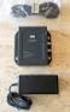 DATA SHEET CISCO AIRONET POWER INJECTOR Cisco Aironet Power Injector products increase the deployment flexibility of Cisco Aironet wireless access points and bridges by providing an alternative powering
CISCO SFP OPTICS FOR PACKET-OVER-SONET/SDH AND ATM APPLICATIONS
 DATA SHEET CISCO SFP OPTICS FOR PACKET-OVER-SONET/SDH AND ATM APPLICATIONS The Cisco industry-standard Small Form-Factor Pluggable Interface Converter (SFP) for packet-over-sonet/sdh (POS), optical networking,
CISCO SMALL AND MEDIUM BUSINESS CLASS VOICE SOLUTIONS: CISCO CALLMANAGER EXPRESS BUNDLES
 OVERVIEW CISCO SMALL AND MEDIUM BUSINESS CLASS VOICE SOLUTIONS: CISCO CALLMANAGER EXPRESS BUNDLES COMPANY PROFILE Cisco CallManager Express (CME) promotional bundles are appropriate for small businesses
7906G, 7911G, 7931G, 7941G, 7942G, 7945G, 7961G, 7961GE, 7962G, 7965G, 7970G, 7971G, 7971GE,
 FIPS 140-2 Non-Proprietary Security Policy for the Cisco Unified IP Phone 7906G, 7911G, 7931G, 7941G, 7942G, 7945G, 7961G, 7961GE, 7962G, 7965G, 7970G, 7971G, 7971GE, and 7975G Introduction This is a non-proprietary
Constraining IP Multicast in a Switched Ethernet Network
 Constraining IP Multicast in a Switched Ethernet Network This module describes how to configure routers to use the Cisco Group Management Protocol (CGMP) in switched Ethernet networks to control multicast
Cisco Smart Care Services Questions and Answers About the Voice Quality Monitor Service
 Cisco Smart Care Services Questions and Answers About the Voice Quality Monitor Service For Qualified Cisco Partners October 2008 Americas Headquarters Cisco Systems, Inc. 170 West Tasman Drive San Jose,
Cisco Aironet 1130AG Series
 Ordering Guide Cisco Aironet 1130AG Series The Cisco Aironet 1130AG Series IEEE 802.11a/b/g Access Point is a fixed-configuration, dual-band access point. Built in to the access point are two radios each
L2TP Dial-Out Load Balancing and Redundancy
 L2TP Dial-Out Load Balancing and Redundancy The L2TP Dial-Out Load Balancing and Redundancy feature enables an L2TP network server (LNS) to dial out to multiple L2TP access concentrators (LACs) When the
This feature was introduced. This feature was integrated in Cisco IOS Release 12.2(11)T.
 BGP Link Bandwidth The Border Gateway Protocol (BGP) Link Bandwidth feature is used to advertise the bandwidth of an autonomous system exit link as an extended community. This feature is configured for
Cisco 100-Megabit Ethernet SFP Modules Compatibility Matrix
 Cisco 100-Megabit Ethernet SFP Modules Compatibility Matrix This document contains information about the Cisco platforms and software versions that support the 100-Megabit Ethernet Small Form-Factor Pluggable
Connecting Cisco Serial High-Speed WAN Interface Cards
 Connecting Cisco Serial High-Speed WAN Interface Cards Revised: April 5, 008, Overview This document describes Cisco serial and high-speed WAN interface cards (HWICs) and how to connect them to a network.
Cisco IronPort Encryption Appliance 6.5.5 Release Notes
 Cisco IronPort Encryption Appliance 6.5.5 Release Notes Published: August 30, 2011 Contents These release notes contain important information about running the latest version of the IronPort Encryption
CISCO ISDN BRI S/T WIC FOR THE CISCO 1700, 1800, 2600, 2800, 3600, 3700, AND 3800 SERIES
 DATA SHEET CISCO ISDN BRI S/T WIC FOR THE CISCO 1700, 1800, 2600, 2800, 3600, 3700, AND 3800 SERIES Offering a single ISDN BRI S/T interface, this WIC may require an external Network Termination 1 (NT1),
SURGE PROTECTION CABLES FOR SMART SERIAL INTERFACES
 DATA SHEET SURGE PROTECTION CABLES FOR SMART SERIAL INTERFACES Surge events, including ElectroStatic Discharge (ESD) and lightning surges, are common in many parts of the world, especially during electrical
Transferring Files Using HTTP or HTTPS
 Transferring Files Using HTTP or HTTPS First Published: May 5, 2005 Last Updated: May 14, 2009 Cisco IOS Release 12.4 provides the ability to transfer files between your Cisco IOS software-based device
CISCO 10GBASE X2 MODULES
 DATA SHEET CISCO 10GBASE X2 MODULES Figure 1. Cisco 10GBASE X2 and Xenpak Module PRODUCT OVERVIEW The Cisco 10GBASE X2 modules (Figure 1) offers customers a wide variety of 10 Gigabit Ethernet connectivity
Cisco Remote Monitoring Suite Administration Guide
 Cisco Remote Monitoring Suite Administration Guide Remote Monitoring Suite (RMS) Release 2.1(0) July 2005 Corporate Headquarters Cisco Systems, Inc. 170 West Tasman Drive San Jose, CA 95134-1706 USA http://www.cisco.com
Cisco IP Phone 7960 and 7940 Series. At a Glance
 At a Glance Cisco IP Phone 7960 and 7940 Series 1 Overview 2 Connecting Your Cisco IP Phone 3 Introducing Your Cisco IP Phone 4 Tips for Using Your Phone 5 How to Get Help with Keys and Features 6 Where
CISCO CATALYST 3750 SERIES SWITCHES
 AT-A-GLANCE CISCO CATALYST 3750 SERIES SWITCHES Product Part Number Port Speed Number Cisco Catalyst 3750-24TS 3750-24TS 3750-24FS 3750-24PS 3750-24PS 3750-48TS 3750-48TS 3750-48PS WS-C3750-24TS-S 10/100
Configuring Cisco Unified Communications Manager for the NovaTec TransNova S3 Voice Gateway
 Configuring Cisco Unified Communications Manager for the NovaTec TransNova S3 Voice Gateway This document describes how to configure Cisco Unified Communications Manager systems to use the NovaTec TransNova
CISCO IOS SOFTWARE FEATURE PACKS FOR THE CISCO 1700 SERIES MODULAR ACCESS ROUTERS AND CISCO 1800 SERIES (MODULAR) INTEGRATED SERVICES ROUTERS
 CISCO IOS SOFTWARE FEATURE PACKS FOR THE CISCO 1700 SERIES MODULAR ACCESS ROUTERS AND CISCO 1800 SERIES (MODULAR) INTEGRATED SERVICES ROUTERS This product bulletin provides details on the Cisco IOS s for
Terminal Services Overview
 Terminal Services Overview This chapter provides an overview of Cisco IOS terminal services and includes the following main sections: Cisco IOS Network Access Devices Line Characteristics and s Asynchronous
PCI Compliance: Improve Payment Security
 PCI Compliance: Improve Payment Security The latest Payment Card Industry (PCI) Data Security Standards (DSS) for customer data give you more ways to address an evolving risk environment and meet PCI compliance
Integrating CAD with Thin Client and Virtual Desktop Environments
 Integrating CAD with Thin Client and Virtual Desktop Environments CAD for Cisco Unified Contact Center Express, releases 6.2 10.5 CAD for Cisco Unified Contact Center Enterprise, releases 7.0 10.0 First
Installation Guide for Cisco Unified ICM/Contact Center Enterprise and Hosted Release 9.0(1)
 Installation Guide for Cisco Unified ICM/Contact Center Enterprise and Hosted Release 9.0(1) First Published: June 21, 2012 Americas Headquarters Cisco Systems, Inc. 170 West Tasman Drive San Jose, CA
CISCO IOS SOFTWARE RELEASES 12.4 MAINLINE AND 12.4T FEATURE SETS FOR THE CISCO 3800 SERIES ROUTERS
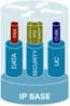 PRODUCT BULLETIN NO. 2877 CISCO IOS SOFTWARE RELEASES 12.4 MAINLINE AND FEATURE SETS FOR THE CISCO 3800 SERIES ROUTERS This product bulletin details changes to the Cisco IOS Software packaging for Cisco
Release Notes for Cisco Support Tools Release 2.4(1)
 Release Notes for Cisco Support Tools Release 2.4(1) July 2009 Contents Introduction, page 1 System Requirements, page 2 New Features, page 4 Limitations and Restrictions, page 4 Important Notes, page
City Government Improves Caller Service and Cultivates Economic Vitality
 Customer Case Study City Government Improves Caller Service and Cultivates Economic Vitality EXECUTIVE SUMMARY CITY OF SACRAMENTO, CALIFORNIA 445,000 residents 97 square miles INDUSTRY Local Government
Calling Name Delivery (CNAM)
 Calling Name Delivery (CNAM) Document Release History Publication Date June 25, 2007 Comments Initial version of the document. Feature History Release Modification 9.7(3) The Calling Name Delivery (CNAM)
Cisco Data Center Infrastructure Design Guide 2.1 Release Notes
 Cisco Data Center Infrastructure Design Guide 2.1 Release Notes Corporate Headquarters Cisco Systems, Inc. 170 West Tasman Drive San Jose, CA 95134-1706 USA http://www.cisco.com Tel: 408 526-4000 800 553-NETS
Cisco GLBP Load Balancing Options
 Data Sheet Cisco GLBP Load Balancing Options Last updated: December 2005 INTRODUCTION The purpose of this document is to discuss the options that Cisco Gateway Load Balancing Protocol (GLBP) one of Cisco
Supplement and Release Notes for. CiscoWorks Security Information Management Solution (SIMS) 3.4.1
 Supplement and Release Notes for CiscoWorks Security Information Management Solution (SIMS) 3.4.1 Revised October 31, 2006 This document provides Cisco-specific information to supplement the CiscoWorks
CISCO IOS SOFTWARE RELEASES 12.4 MAINLINE AND 12.4T FEATURE SETS FOR THE CISCO 2800 SERIES ROUTERS
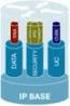 PRODUCT BULLETIN NO. 2879 CISCO IOS SOFTWARE RELEASES 12.4 MAINLINE AND FEATURE SETS FOR THE CISCO 2800 SERIES ROUTERS This product bulletin details changes to the Cisco IOS Software packaging for Cisco
Cipher Suites and WEP
 Cipher Suites and WEP This module describes how to configure the cipher suites required for using Wireless Protected Access (WPA) and Cisco Centralized Key Management (CCKM); Wired Equivalent Privacy (WEP);
CD Installation Guide for the Cisco SIP Proxy Server on Linux
 CD Installation Guide for the Cisco SIP Proxy Server on Linux The describes how to install the Cisco SIP Proxy Server software on a Pentium-based server running Linux Kernel 2.2.13 or later. Network engineers,
CISCO IP PHONE EXPANSION MODULE 7914
 DATA SHEET CISCO IP PHONE EXPANSION MODULE 7914 Call coverage is a critical capability for administrative assistants and others who must monitor, manage, and cover the various status of calls. This requires
Cisco PIX 515E Security Appliance Getting Started Guide
 Cisco PIX 515E Security Appliance Getting Started Guide Corporate Headquarters Cisco Systems, Inc. 170 West Tasman Drive San Jose, CA 95134-1706 USA http://www.cisco.com Tel: 408 526-4000 800 553-NETS
NETWORK AVAILABILITY IMPROVEMENT SUPPORT OPERATIONAL RISK MANAGEMENT ANALYSIS
 DATA SHEET NETWORK AVAILABILITY IMPROVEMENT SUPPORT OPERATIONAL RISK MANAGEMENT ANALYSIS Operational Risk Management Analysis helps you maintain and improve network availability by evaluating the risks
Cisco Unified CallConnector for Microsoft Office Troubleshooting Guide
 Cisco Unified CallConnector for Microsoft Office Troubleshooting Guide First Published: April 2007 Last Updated: April 2007 OL 13005-01 In this document you will find basic information that will help you
Cellular Wireless Antennas
 Cellular Wireless Antennas A Technical Brief GarrettCom Inc., November 2010 Overview The Cellular Wireless Antenna Technical brief is provided to assist with the design and deployment of the DX940 Cellular
Cisco Unified Attendant Console Backup and Restore Guide
 Cisco Unified Attendant Console Backup and Restore Guide Revised: January 28, 2013, 2011, This document describes how to back up Cisco Unified Attendant Console server Version 9.0 (all Editions), and restore
Definition of Financial Terms
 Definition of Financial Terms ACT Advance Corporation Tax. ACTUARIAL METHODS OF ACCOUNTING Accounting methods where cash earned during a lease is periodically removed from the lessor's investment account
CISCO IP CONTACT CENTER HOSTED EDITION A CROSS-NETWORK (PSTN TO IP), DISTRIBUTED, INTELLIGENT, HOSTED PLATFORM FOR CONTACT CENTERS
 BROCHURE CISCO IP CONTACT CENTER HOSTED EDITION A CROSS-NETWORK (PSTN TO IP), DISTRIBUTED, INTELLIGENT, HOSTED PLATFORM FOR CONTACT CENTERS Responding to a changing marketplace and intense competition,
Cisco Unified Communications
 Cisco Unified Communications Brochure Cisco Unified Communications To effectively excel in today s fast-paced world, employees must communicate and collaborate in every imaginable way, including mobile
Cisco WLAN Controller Web Interface User Guide
 Cisco WLAN Controller Web Interface User Guide Corporate Headquarters Cisco Systems, Inc. 170 West Tasman Drive San Jose, CA 95134-1706 USA http://www.cisco.com Tel: 408 526-4000 800 553-NETS (6387) Fax:
Getting Started. Cisco Desktop Product Suite 4.5 (ICD)
 Getting Started Cisco Desktop Product Suite 4.5 (ICD) Corporate Headquarters Cisco Systems, Inc. 170 West Tasman Drive San Jose, CA 95134-1706 USA http://www.cisco.com Tel: 408 526-4000 800 553-NETS (6387)
Home Signal Distribution Kit for Satellite TV Plus SIRIUS
 SR-101C SIRIUS/DBS Signal Combiner System SR-2261 Combiner-Outdoor Made in China DBS IN SIRIUS IN SR-101C SIRIUS/DBS Signal Combiner System SR-2251 Splitter-Indoor Made in China DC IN DBS OUT SIRIUS OUT
Cisco Director Class SAN Planning and Design Service
 Cisco Director Class SAN Planning and Design Service Improve data center infrastructure for accessing, managing, and protecting growing information resources. Mitigate risk and accelerate the deployment
Cisco Solution Incentive Program Asia Pacific
 Channel Incentive Offerings Cisco Solution Incentive Program Asia Pacific User Guide This program will expire on December 31, 2006. Cisco Systems reserves the right to cancel or modify this program at
Avaya WLAN 9100 External Antennas for use with the WAO-9122 Access Point
 Avaya WLAN 9100 External Antennas for use with the WAO-9122 Access Point Overview To optimize the overall performance of a WLAN in an outdoor deployment it is important to understand how to maximize coverage
Omni Antenna vs. Directional Antenna
 Omni Antenna vs. Directional Antenna Document ID: 82068 Contents Introduction Prerequisites Requirements Components Used Conventions Basic Definitions and Antenna Concepts Indoor Effects Omni Antenna Pros
END-OF-SALE AND END-OF-LIFE ANNOUNCEMENT FOR SELECTIVE CISCO CATALYST 6503, CATALYST 6506 AND CATALYST 6509 CHASSIS
 PRODUCT BULLETIN NO. 3037 END-OF-SALE AND END-OF-LIFE ANNOUNCEMENT FOR SELECTIVE CISCO CATALYST 6503, CATALYST 6506 AND CATALYST 6509 CHASSIS Cisco Systems announces the end-of-sale and end-of-life dates
Cause Codes and Debug Values
 s and Debug Values This chapter contains the following information: Details of s and Debug Values for VoIP, page 1 Internal s for SIP and H.323, page 4 Additional cause code information can be found in
Cisco Registered Envelope Recipient Guide
 February, 2012 Americas Headquarters Cisco Systems, Inc. 170 West Tasman Drive San Jose, CA 95134-1706 USA http://www.cisco.com Tel: 408 526-4000 800 553-NETS (6387) Fax: 408 527-0883 Text Part Number:
Home Signal Distribution Kit for Cable TV Plus SIRIUS
 Home Signal Distribution Kit for Cable TV Plus SIRIUS For Use With a Single SIRIUS Radio Installation Manual Thank you for purchasing the Home Signal Distribution Kit for Cable TV Plus SIRIUS The Home
Cisco7920WirelessIPPhone Design and Deployment Guide
 Cisco7920WirelessIPPhone Design and Deployment Guide March 2005 Corporate Headquarters Cisco Systems, Inc. 170 West Tasman Drive San Jose, CA 95134-1706 USA http://www.cisco.com Tel: 408 526-4000 800 553-NETS
Cisco Smart Business Communications System Setup
 Cisco Smart Business Communications System Setup Version 1.0 Voice Small Business Data Video Mobility Partners Start Here 2 1 The Smart Choice for Small Business Small businesses are looking for appropriately
Getting Started with the Cisco IP Phone 7910 Series
 Getting Started with the Cisco IP Phone 7910 Series Corporate Headquarters Cisco Systems, Inc. 170 West Tasman Drive San Jose, CA 95134-1706 USA http://www.cisco.com Tel: 408 526-4000 800 553-NETS (6387)
NETFLOW PERFORMANCE ANALYSIS
 WHITE PAPER NETFLOW PERFORMANCE ANALYSIS INTRODUCTION The Cisco IOS NetFlow feature set allows for the tracking of individual IP flows as they are received at a Cisco router or switching device. Network
Enabling and Monitoring NetFlow on Subinterfaces
 Enabling and Monitoring NetFlow on Subinterfaces This module contains instructions for enabling and monitoring NetFlow on a router subinterface or a Versatile Interface Processor (VIP) controller interface.
CISCO MEETINGPLACE FOR OUTLOOK 5.3
 DATA SHEET CISCO MEETINGPLACE FOR OUTLOOK 5.3 Rich-media Conferencing for Microsoft Outlook PRODUCT OVERVIEW Cisco MeetingPlace part of the Cisco IP Communications system is a complete rich-media conferencing
Cisco Unified SIP Phone 3911 Phone Guide for Cisco Unified Communications Manager 6.0 and 5.1
 Phone Guide Cisco Unified SIP Phone 3911 Phone Guide for Cisco Unified Communications Manager 6.0 and 5.1 INCLUDING LICENSE AND WARRANTY Americas Headquarters Cisco Systems, Inc. 170 West Tasman Drive
System Message Logging
 System Message Logging This module describes how to configure system message logging on your wireless device in the following sections: Understanding System Message Logging, page 1 Configuring System Message
Installing Cisco Security Agent for Cisco Intelligent Contact Management Software, Release 6.0(0)
 Installing Cisco Security Agent for Cisco Intelligent Contact Management Software, Release 6.0(0) October 2004 This document provides installation instructions and information about Cisco Security Agent