
Custom Visualizations with D3.js
|
|
|
- Annabelle Mosley
- 10 years ago
- Views:
Transcription
1 7 Custom Visualizations with D3.js In this book we ve looked at many JavaScript libraries that were designed for specific types of visualizations. If you need a certain type of visualization for your web page and there s a library that can create it, using that library is often the quickest and easiest way to create your visualization. There are drawbacks to such libraries, however. They all make assumptions about how the visualization should look and

2 act, and despite the configuration options they provide, you don t have complete control over the results. Sometimes that s not an acceptable trade-off. In this chapter, we ll look at an entirely different approach to JavaScript visualizations, one that allows us to be creative and to retain complete control over the results. As you might expect, that approach isn t always as easy as, for example, adding a charting library and feeding it data. Fortunately, there is a very powerful JavaScript library that can help: D3.js ( D3.js doesn t provide predefined visualizations such as charts, graphs, or maps. Instead, it s a toolbox for data visualization, and it gives you the tools to create your own charts, graphs, maps, and more. To see some of the powerful features of D3.js, we ll take a whirlwind tour. This chapter s examples include the following: > > Adapting a traditional chart type for particular data > > Building a force-directed graph that responds to user interactions > > Displaying map-based data using high-quality SVGs > > Creating a fully customized visualization Adapting a Traditional Chart Type The most significant difference between D3.js and other JavaScript libraries is its philosophy. D3.js is not a tool for creating predefined types of charts and visualizations. Instead, it s a library to help you create any visualization, including custom and unique presentations. It takes more effort to create a standard chart with D3.js, but by using it we re not limited to standard charts. To get a sense of how D3.js works, we can create a custom chart that wouldn t be possible with a typical charting library. For this example, we ll visualize one of the most important findings in modern physics Hubble s law. According to that law, the universe is expanding, and as a result, the speed at which we perceive distant galaxies to be moving varies according to their distance from us. More precisely, Hubble s law proposes that the variation, or shift, in this speed is a linear function of distance. To visualize the law, we can chart the speed variation (known as red shift velocity) versus distance for several galaxies. If Hubble is right, the chart should look like a line. For our data, we ll use galaxies and clusters from Hubble s original 1929 paper ( but updated with current values for distance and red shift velocities. So far this task seems like a good match for a scatter chart. Distance could serve as the x-axis and velocity the y-axis. There s a twist, though: physicists don t actually know the distances or velocities that we want to chart, at least not exactly. The best they can do is estimate those values, and there is potential for error in both. But that s no reason to abandon the effort. In fact, potential errors in the values might be an important aspect for us to highlight in our visualization. To do 224 Chapter 7

3 that, we won t draw each value as a point. Rather, we ll show it as a box, and the box dimensions will correspond to the potential errors in the value. This approach isn t common for scatter plots, but D3.js can accommodate it with ease. Step 1: Prepare the Data Here is the data for our chart according to recent estimates. Table 7-1: Distance and Red Shift Velocity for Nebulae and Clusters Nebulae/cluster Distance (Mpc) Red shift velocity (km/s) NGC ± ±2 NGC ± ±6 NGC ± ±3 NGC ± ±1 NGC ± ±2 NGC ± ±3 NGC ± ±3 NGC ± ±4 NGC ± ±3 NGC ± ±1 NGC ± ±7 NGC ± ±6 NGC ± ±2 We can represent that in JavaScript using the following array. hubble_data = [ { nebulae: "NGC 6822", distance: 0.500, distance_error: 0.010, velocity: 57, velocity_error: 2, }, { nebulae: "NGC 221", distance: 0.763, distance_error: 0.024, velocity: 200, velocity_error: 6, }, { nebulae: "NGC 598", distance: 0.835, distance_error: 0.105, velocity: 179, velocity_error: 3, }, // Data set continues... Step 2: Set Up the Web Page D3.js doesn t depend on any other libraries, and it s available on most CDNs. All we need to do is include it in the page. Custom Visualizations with D3.js 225

4 u v <!DOCTYPE html> <html lang="en"> <head> <meta charset="utf-8"> <title></title> </head> <body> <div id="container"></div> <script src="//cdnjs.cloudflare.com/ajax/libs/d3/3.4.6/d3.min.js"> </script> </body> </html> We include D3.js at v, and we set up a <div> with the id "container" at u to contain our visualization. Step 3: Create a Stage for the Visualization Unlike higher-level libraries, D3.js doesn t draw the visualization on the page. We ll have to do that ourselves. In exchange for the additional effort, though, we get the freedom to pick our own drawing technology. We could follow the same approach as most libraries in this book and use HTML5 s <canvas> element, or we could simply use native HTML. Now that we ve seen it in action in Chapter 6, however, it seems using SVG is the best approach for our chart. The root of our graph, therefore, will be an <svg> element, and we need to add that to the page. We can define its dimensions at the same time using attributes. If we were using jquery, we might do something like the following: var svg = $("<svg>").attr("height", height).attr("width", width); $("#container").append(svg); With D3.js our code is very similar: var svg = d3.select("#container").append("svg").attr("height", height).attr("width", width); With this statement, we re selecting the container, appending an <svg> element to it, and setting the attributes of that <svg> element. This statement highlights one important difference between D3.js and jquery that often trips up developers starting out with D3.js. In jquery the append() method returns the original selection so that you can continue operating on that selection. More specifically, $("#container").append(svg) returns $("#container"). With D3.js, on the other hand, append() returns a different selection, the newly appended element(s). So d3.select("#container").append("svg") doesn t return the container selection, but rather a selection of the new <svg> element. The attr() calls that follow, therefore, apply to the <svg> element and not the "#container". 226 Chapter 7

5 Step 4: Control the Chart s Dimensions So far we haven t specified the actual values for the chart s height and width; we ve only used height and width variables. Having the dimensions in variables will come in handy, and it will make it easy to incorporate margins into the visualization. The following code sets up those dimensions; its form is a common convention in D3.js visualizations. var margin = {top: 20, right: 20, bottom: 30, left: 40}, width = margin.left - margin.right, height = margin.top - margin.bottom; We ll have to adjust the code that creates the main <svg> container to account for these margins. var svg = d3.select("#chart1").append("svg").attr("height", height + margin.left + margin.right).attr("width", width + margin.top + margin.bottom); To make sure our chart honors the defined margins, we ll construct it entirely within a child SVG group (<g>) element. The <g> element is just an arbitrary containing element in SVG, much like the <div> element for HTML. We can use D3.js to create the element and position it appropriately within the main <svg> element. var chart = svg.append("g").attr("transform", "translate(" + margin.left + "," + margin.top + ")" ); Visualizations must often rescale the source data. In our case, we ll need to rescale the data to fit within the chart dimensions. Instead of ranging from 0.5 to 17 Mpc, for example, galactic distance should be scaled between 0 and 920 pixels. Since this type of requirement is common for visualizations, D3.js has tools to help. Not surprisingly, they re scale objects. We ll create scales for both the x- and y-dimensions. As the following code indicates, both of our scales are linear. Linear transformations are pretty simple (and we really don t need D3.js to manage them); however, D3.js supports other types of scales that can be quite complex. With D3.js, using more sophisticated scaling is just as easy as using linear scales. var xscale = d3.scale.linear().range([0,width]); var yscale = d3.scale.linear().range([height,0]); We define both ranges as the desired limits for each scale. The x-scale ranges from 0 to the chart s width, and the y-scale ranges from 0 to the chart s height. Note, though, that we ve reversed the normal order for the y-scale. That s Custom Visualizations with D3.js 227
6 because SVG dimensions (just like HTML dimensions) place 0 at the top of the area. That convention is the opposite of the normal chart convention, which places 0 at the bottom. To account for the reversal, we swap the values when defining the range. At this point, we ve set the ranges for each scale, and those ranges define the desired output. We also have to specify the possible inputs to each scale, which D3.js calls the domain. Those inputs are the minimum and maximum values for the distance and velocity. We can use D3.js to extract the values directly from the data. Here s how to get the minimum distance: var mindist = d3.min(hubble_data, function(nebulae) { return nebulae.distance - nebulae.distance_error; }); We can t simply find the minimum value in the data, because we have to account for the distance error. As we can see in the preceding snippet, D3.js accepts a function as a parameter to d3.min(), and that function can make the necessary adjustment. We can use the same approach for maximum values as well. Here s the complete code for defining the domains of both scales: xscale.domain([ d3.min(hubble_data, function(nebulae) { return nebulae.distance - nebulae.distance_error; }), d3.max(hubble_data, function(nebulae) { return nebulae.distance + nebulae.distance_error; }) ]).nice(); yscale.domain([ d3.min(hubble_data, function(nebulae) { return nebulae.velocity - nebulae.velocity_error; }), d3.max(hubble_data, function(nebulae) { return nebulae.velocity + nebulae.velocity_error; }) ]).nice(); Step 5: Draw the Chart Framework Axes are another common feature in visualizations, and D3.js has tools for those as well. To create the axes for our chart, we specify the appropriate scales and an orientation. As you can see from the following code, D3.js supports axes as part of its SVG utilities. var xaxis = d3.svg.axis().scale(xscale).orient("bottom"); 228 Chapter 7

7 var yaxis = d3.svg.axis().scale(yscale).orient("left"); After defining the axes, we can use D3.js to add the appropriate SVG elements to the page. We ll contain each axis within its own <g> group. For the x-axis, we need to shift that group to the bottom of the chart. var xaxisgroup = chart.append("g").attr("transform", "translate(0," + height + ")"); To create the SVG elements that make up the axis, we could call the xaxis object and pass it the containing group as a parameter. xaxis(xaxisgroup); With D3.js, though, there s a more concise expression that avoids creating unnecessary local variables and preserves method chaining. chart.append("g").attr("transform", "translate(0," + height + ")").call(xaxis); And as long as we re preserving method chaining, we can take advantage of it to add yet another element to our chart: this time, it s the label for the axis. chart.append("g").attr("transform", "translate(0," + height + ")").call(xaxis).append("text").attr("x", width).attr("y", -6).style("text-anchor", "end").text("distance (Mpc)"); If you look under the hood, you ll find that D3.js has done quite a bit of work for us in creating the axis, its tick marks, and its labels. Here s a taste of the SVG it builds: <g class="x axis" transform="translate(0,450)"> <g class="tick" transform="translate(0,0)" style="opacity: 1;"> <line y2="6" x2="0"></line> <text y="9" x="0" dy=".71em" style="text-anchor: middle;">0</text> </g> <g class="tick" transform="translate(77.77,0)" style="opacity: 1;"> <line y2="6" x2="0"></line> <text y="9" x="0" dy=".71em" style="text-anchor: middle;">2</text> </g> <!-- Additional tick marks... --> Custom Visualizations with D3.js 229

8 <path class="domain" d="m0,6v0h700v6"></path> <text x="700" y="-6" style="text-anchor: end;">distance (Mpc)</text> </g> When we add the code for the y-axis, we ve completed the framework for the chart. chart.append("g").attr("transform", "translate(0," + height + ")").call(xaxis).append("text").attr("x", width).attr("y", -6).style("text-anchor", "end").text("distance (Mpc)"); chart.append("g").call(yaxis).append("text").attr("transform", "rotate(-90)").attr("y", 6).attr("dy", ".71em").style("text-anchor", "end").text("red Shift Velocity (km/s)") The result of Figure 7-1 isn t very exciting without any data, but it does give us a framework for the chart. 1,400 1,200 1, Red Shift Velocity (km/s) Distance (Mpc) Figure 7-1: D3.js provides tools to create the framework for a chart. 230 Chapter 7

9 As you can tell, we ve had to write quite a bit of code just to get a couple of axes on the page. That s the nature of D3.js. It s not a library to which you can simply pass a data set and get a chart as an output. Instead, think of it as a collection of very useful utilities that you can use to help create your own charts. Step 6: Add the Data to the Chart Now that our chart s framework is ready, we can add the actual data. Because we want to show both the distance and velocity errors in the data, we can draw each point as a rectangle. For a simple, static chart, we can add SVG <rect> elements just as we ve created the rest of the chart. We can take advantage of our x- and y-scales to calculate the dimensions of the rectangles. hubble_data.foreach(function(nebulae) { chart2.append("rect").attr("x", xscale(nebulae.distance - nebulae.distance_error)).attr("width", xscale(2 * nebulae.distance_error)).attr("y", yscale(nebulae.velocity - nebulae.velocity_error)).attr("height", height - yscale(2 * nebulae.velocity_error)); }); The preceding approach works fine for this example and results in the chart in Figure 7-2. Typically, however, D3.js visualizations combine their data sets directly with markup elements and rely on D3 s enter, update, and exit selections to add the data to the page. We ll defer further discussion of this alternative approach until the next example. 1,400 1,200 1, Red Shift Velocity (km/s) Distance (Mpc) Figure 7-2: D3.js can render the data elements using any valid markup, including SVG <rect> elements with defined dimensions. Custom Visualizations with D3.js 231

10 Step 7: Answer Users Questions Whenever you create a visualization, it s a good idea to anticipate questions that users might ask when they view it. In our example so far, we ve presented a data set that leads to Hubble s law. But we haven t (yet) shown how well the data fits that law. Since that is such an obvious question, let s answer it right on the chart itself. The current estimate for the Hubble constant (H 0 ) is about 70 km/s/mpc. To show how that matches the data on our chart, we can create a line graph with that slope beginning at the point (0,0). A single SVG <line> is all that s required. Once again we rely on the D3.js scales to define the line s coordinates. chart.append("line").attr("x1",xscale(0)).attr("y1",yscale(0)).attr("x2",xscale(20)).attr("y2",yscale(1400)); In Figure 7-3 we can see that Hubble s law remains a good approximation. 1,400 1,200 1, Red Shift Velocity (km/s) Distance (Mpc) Figure 7-3: The complete custom chart shows the data set exactly as we wish. Creating a Force-Directed Network Graph Unlike the JavaScript plotting libraries we considered in the early chapters, D3.js is not limited to standard charts. In fact, it excels at specialized and custom graph types. To see its power, we ll create another version of the network graph from Chapter 4. In the earlier implementation we used the Sigma library, and most of our work was structuring the data into the format that library requires. We didn t have to decide how to draw the nodes and edges, how to connect them, or, once 232 Chapter 7

11 we enabled layouts, how to position them on the page. As we ll see next, D3.js doesn t make those decisions for us. For this example, we ll have to draw the nodes and edges, connect them to each other appropriately, and position them on the page. That may sound like a lot of work, but, as we ll also see, D3.js gives us a lot of tools to help. Step 1: Prepare the Data Since we re replicating the network graph from Chapter 4, we start with the same data set. var albums = [ { album: "Miles Davis - Kind of Blue", musicians: [ "Cannonball Adderley", "Paul Chambers", "Jimmy Cobb", "John Coltrane", "Miles Davis", "Bill Evans" ] },{ album: "John Coltrane - A Love Supreme", musicians: [ "John Coltrane", "Jimmy Garrison", "Elvin Jones", "McCoy Tyner" ] // Data set continues... For the visualization, it will be helpful to have two separate arrays, one for the graph s nodes and one for the graph s edges. Extracting those arrays from the original data is straightforward, so we won t bother looking at it in this chapter. You can, however, see the full implementation in the book s source code. The result looks like the following: var nodes = [ { "name": "Miles Davis - Kind of Blue", "links": [ "Cannonball Adderley", "Paul Chambers", "Jimmy Cobb", "John Coltrane", "Miles Davis", "Bill Evans" ], "x": 270, "y": 200 Custom Visualizations with D3.js 233

12 }, { "name": "John Coltrane - A Love Supreme", "links": [ "John Coltrane", "Jimmy Garrison", "Elvin Jones", "McCoy Tyner" ], "x": , "y": }, // Data set continues... ]; For the nodes, we ve added x and y properties to define a position on the graph. Initially the code arbitrarily sets these values so that the nodes are positioned in a circle. var edges = [ { "source": 0, "target": 16, "links": [ "Cannonball Adderley", "Miles Davis" ] }, { "source": 0, "target": 6, "links": [ "Paul Chambers", "John Coltrane" ] }, // Data set continues... ]; The edges indicate the two nodes that they connect as indices in the nodes array, and they include an array of the individual musicians that are common between the albums. Step 2: Set Up the Page As noted in the previous example, D3.js doesn t depend on any other libraries, and it s available on most content distribution networks. All we need to do is include it in the page. 234 Chapter 7
![var edges = [ { "source": 0, "target": 16, "links": [ "Cannonball Adderley", "Miles Davis" ] }, { "source": 0, "target": 6, "links": [ "Paul Chambers", "John Coltrane" ] }, // Data set continues.](/docs-images/43/8391450/images/page_12.jpg ".. ]; The edges indicate the two nodes that they connect as indices in the nodes array, and they include an array of the individual musicians that are common between the albums.")
13 <!DOCTYPE html> <html lang="en"> <head> <meta charset="utf-8"> <title></title> </head> <body> <div id="container"></div> <script src="//cdnjs.cloudflare.com/ajax/libs/d3/3.4.6/d3.min.js"> </script> </body> </html> Just as in the previous example, we set up a container for the visualization by including a <div> with the id "container". Step 3: Create a Stage for the Visualization This step is also the same as in the previous example. var svg = d3.select("#container").append("svg").attr("height", 500).attr("width", 960); We ask D3.js to select the container element and then insert an <svg> element within it. We also define <svg> element s size by setting the height and width attributes. Step 4: Draw the Graph s Nodes We ll draw each node as a circle by appending <circle> elements inside the <svg> stage. Based on the previous step, you might think that would be as simple as executing svg.append( circle ) for each element in the nodes array. nodes.foreach(function(node) { svg.append("circle"); }); That code will indeed add 25 circles to the visualization. What it won t do, though, is create any links between the data (nodes in the array) and the document (circle elements on the page). D3.js has another way to add the circles to the page that does create that linkage. In fact, not only will D3.js create the links, it will even manage them for us. This support becomes especially valuable as visualizations grow more complex. QQNote: This feature is really the core of D3.js and, in fact, is the source for the name D3, which is shorthand for data-driven documents. Custom Visualizations with D3.js 235

14 Here s how we can use D3.js more effectively to add the <circle> elements to the graph: var selection = svg.selectall("circle").data(nodes); selection.enter().append("circle"); If you haven t seen D3.js code before, that fragment surely looks very strange. What are we trying to do by selecting <circle> elements before we ve even created any? Won t the result just be empty? And if so, what s the point of the data() function that follows? To answer those questions, we have to understand how D3.js differs from traditional JavaScript libraries like jquery. In those libraries a selection represents elements of HTML markup. With jquery, $("circle") is nothing more than the <circle> elements in the page. With D3.js, however, selections are more than just markup elements. D3.js selections can contain both markup and data. D3.js puts markup elements and data objects together with the data() function. The object on which it operates (svg.selectall("circle") in the preceding code) supplies the elements, and its parameter (nodes, in this case) provides the data. The first statement in the fragment, therefore, tells D3.js that we want to match <circle> elements with nodes in our graph. We are, in effect, saying that we want one <circle> to represent each value in the nodes array. The result is easiest to understand when there are exactly as many elements as there are data values. Figure 7-4 shows four <circle> elements and four albums. D3.js dutifully combines the two sets, giving us a selection of four objects. Each object has both a <circle> and an album. <circle> <circle> <circle> <circle> Selection of four objects Figure 7-4: D3.js selections can associate page content such as <circle> elements with data items such as albums. 236 Chapter 7

15 In general, though, we can t guarantee that there will be exactly as many elements as data values. Suppose, for example, only two <circle> elements existed for our four albums. As Figure 7-5 shows, D3.js still creates a selection of four objects, even though there aren t enough circles for all of them. Two of the objects will have a data value but no element. <circle> <circle> Selection of four objects Figure 7-5: D3.js selections keep track of page content that doesn t exist (yet). Our code fragment is an even more extreme example. When it executes, there are absolutely no circles on the page. There are, however, values in the nodes array that we re telling D3.js to use as data. D3.js, therefore, creates an object for each of those data values. It just won t have a <circle> element to go with them. (Take a breath because magic is about to happen.) Now we can look at the second statement in our code fragment. It starts with selection.enter(). The enter() function is a special D3.js function. It tells D3.js to search through the selection and find all of the objects that have a data value but no markup element. We then complete the statement by taking that subset of the selection and calling append( circle ). And with that function call, D3.js will take any object in the selection without a markup element and create a circle for it. That s how we add <circle> elements to the graph. To be a little more concise, we can combine our two statements into a single one. var nodeselection = svg.selectall("circle").data(nodes).enter().append("circle"); The effect for our visualization is to create a <circle> within the <svg> container for every node in the graph. Custom Visualizations with D3.js 237

16 Step 5: Draw the Graph s Edges You won t be surprised to find that adding the edges to the graph works just like adding nodes. We simply append <line> elements instead of circles. var edgeselection = svg.selectall("line").data(edges).enter().append("line"); Even though we won t need to use them for this example, D3.js has other functions that complement the enter() function. To find objects that have a markup element but no data value, you can use the function exit(). And to find objects that have a markup element with a data value that has changed, you can use the function update(). The names enter and exit derive from a theater metaphor that D3.js associates with a visualization. The enter() subset represents those elements that are entering the stage, while the exit() subset represents elements exiting the stage. Because we re using SVG elements for both the nodes and the edges, we can use CSS rules to style them. That s especially important for the edges because, by default, SVG lines have a stroke width of 0. circle { fill: #ccc; stroke: #fff; stroke-width: 1px; } line { stroke: #777; stroke-width: 1px; } Step 6: Position the Elements At this point, we ve added the necessary markup elements to our visualization, but we haven t given them any dimensions or positions. As noted before, D3.js doesn t do any drawing, so we ll have to write the code to do it. And as noted in Step 2, we did assign somewhat arbitrary positions to the nodes by arranging them in a circle. For now, we can use that to position them. To position an SVG circle, we set its cx and cy attributes to correspond to the circle s center. We also specify the circle s radius with the r attribute. Let s start with the radius; we ll set it to a fixed value for all nodes. We ve already created a D3.js selection for all of those nodes. Setting their r attributes is a simple statement: nodeselection.attr("r", 10); 238 Chapter 7
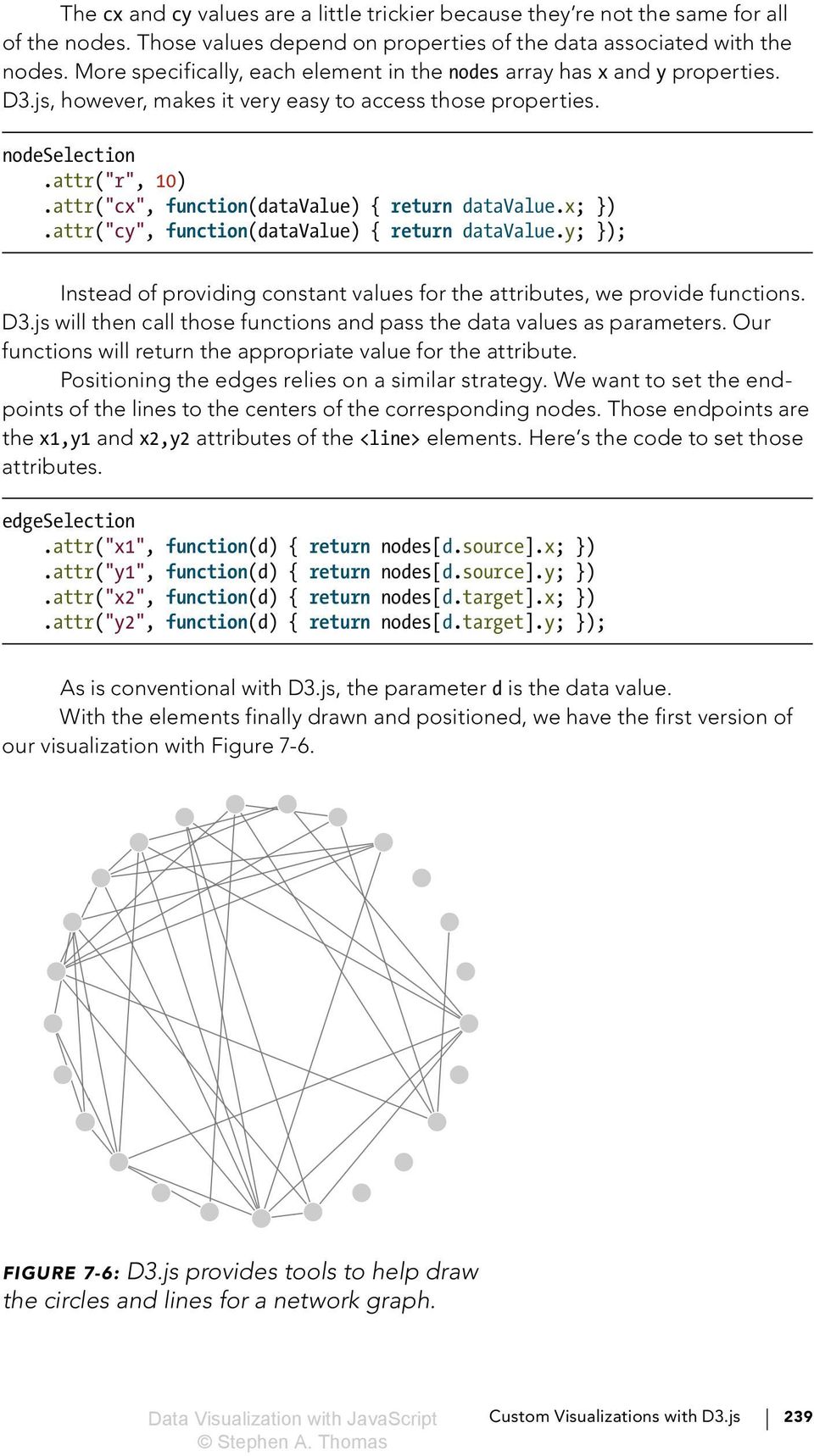
17 The cx and cy values are a little trickier because they re not the same for all of the nodes. Those values depend on properties of the data associated with the nodes. More specifically, each element in the nodes array has x and y properties. D3.js, however, makes it very easy to access those properties. nodeselection.attr("r", 10).attr("cx", function(datavalue) { return datavalue.x; }).attr("cy", function(datavalue) { return datavalue.y; }); Instead of providing constant values for the attributes, we provide functions. D3.js will then call those functions and pass the data values as parameters. Our functions will return the appropriate value for the attribute. Positioning the edges relies on a similar strategy. We want to set the endpoints of the lines to the centers of the corresponding nodes. Those endpoints are the x1,y1 and x2,y2 attributes of the <line> elements. Here s the code to set those attributes. edgeselection.attr("x1", function(d) { return nodes[d.source].x; }).attr("y1", function(d) { return nodes[d.source].y; }).attr("x2", function(d) { return nodes[d.target].x; }).attr("y2", function(d) { return nodes[d.target].y; }); As is conventional with D3.js, the parameter d is the data value. With the elements finally drawn and positioned, we have the first version of our visualization with Figure 7-6. Figure 7-6: D3.js provides tools to help draw the circles and lines for a network graph. Custom Visualizations with D3.js 239
18 Step 7: Add Force Direction to the Graph The graph has all the essential components, but its layout doesn t make identifying the connections as easy as we d like. In Chapter 4 the Sigma library could automate the layout with only a couple of lines of JavaScript. To perform that automation, Sigma uses a force-direction algorithm. Force direction treats nodes as physical objects and simulates the effect of forces such as gravity and electromagnetism. With D3.js we cannot rely on the library to fully automate the layout. As we ve seen, D3.js does not draw any of the graph elements, so it cannot, by itself, set positions and dimensions. D3.js does, however, provide a lot of tools to help us create our own graph layouts. One of those tools is the force layout tool. As you might expect, the force layout tool helps us draw our own force-directed graph. It handles all of the messy and complex calculations that underlie force direction and gives us results we can use directly in code that draws the graph. To get started with the layout, we define a new force object. That object accepts many configuration parameters, but only five are essential for our visualization: > > The dimensions of the graph > > The nodes in the graph > > The edges in the graph > > The distance we d like to see between connected nodes > > How strongly nodes repel each other, a parameter D3.js calls charge The last parameter can take a bit of trial and error to optimize for any particular visualization. In our case, we ll want to increase it substantially above its default (-30) because we have a lot of nodes in a small space. (Negative charge values indicate repulsion.) Here s the code to set all of those values: var force = d3.layout.charge().size([width, height]).nodes(nodes).links(edges).linkdistance(40).charge(-500); When we tell D3.js to start its force-direction calculations, it will generate events at intermediate steps and when the calculations complete. Force direction often takes several seconds to execute fully, and if we wait until the calculations are complete before we draw the graph, users may think the browser has frozen. It s usually better to update the graph at each iteration so users see some indication of progress. To do that, we can add a function to respond to the intermediate force-direction calculations. That happens on a D3.js tick event. force.on("tick", function() { // Update graph with intermediate results }); 240 Chapter 7

19 Each time D3.js calls our event handler function, it will have updated the x and y properties of the nodes array. The new values will reflect how the force direction has nudged the nodes on the graph s stage. We can update our graph accordingly by changing the SVG attributes of the circles and lines. Before we do that, however, we can take advantage of the fact that D3.js is giving us an opportunity to tweak the force-direction algorithm as it executes. One problem that we may encounter, especially with the large charge force we defined, is that nodes may repel each other so strongly that some tend to drift off the stage entirely. We can prevent that by ensuring that the node positions remain within the dimensions of the graph. force.on("tick", function() { nodeselection.each(function(node) { node.x = Math.max(node.x, 5); node.y = Math.max(node.y, 5); node.x = Math.min(node.x, width-5); node.y = Math.min(node.y, height-5); }); // Update graph with intermediate results }); We ve added or subtracted 5 in the preceding fragment to account for the radius of the nodes circles. Once we ve adjusted the nodes properties to keep them on the stage, we can update their positions. The code is exactly the same as the code we used to position them initially. nodeselection.attr("cx", function(d) { return d.x; }).attr("cy", function(d) { return d.y; }); We ll also want to adjust the endpoints of our edge lines. For these objects, however, there s a small twist. When we initialized the edges array, we set the source and target properties to the indices of the respective nodes in the nodes array. When the D3.js force layout tool begins execution, it replaces those indices with direct references to the nodes themselves. That makes it a little easier for us to find the appropriate coordinates for the lines. edgeselection.attr("x1", function(d) { return d.source.x; }).attr("y1", function(d) { return d.source.y; }).attr("x2", function(d) { return d.target.x; }).attr("y2", function(d) { return d.target.y; }); With our function ready to handle updates from the force-direction calculations, we can tell D3.js to start its work. That s a simple method of the force object. force.start(); Custom Visualizations with D3.js 241

20 With that statement, the graph begins an animated transition to its final, force-directed state, as Figure 7-7 shows. Figure 7-7: The D3.js force layout tool provides the information to reposition network graph elements. Step 8: Add Interactivity Since D3.js is a JavaScript library, you would expect it to support interactions with the user. It does, and to demonstrate, we can add a simple interaction to the graph. When a user clicks on one of the nodes in the graph, we can emphasize that node and its neighbors. Event handlers in D3.js closely resemble those in other JavaScript libraries such as jquery. We define an event handler using the on() method of a selection, as in the following code. nodeselection.on("click", function(d) { // Handle the click event }); The first parameter to on() is the event type, and the second parameter is a function that D3.js will call when the event occurs. The parameter to this function is the data object that corresponds to the selection element, and by convention it s named d. Because we re adding the event to the selection of nodes (nodeselection), d will be one of the graph nodes. 242 Chapter 7

21 For our visualization, we ll emphasize the clicked node by adding a CSSaccessible class to the corresponding <circle> and by increasing the circle s size. The class makes it possible to style the circle uniquely, but a circle s size cannot be specified with CSS rules. Ultimately, therefore, we have to do two things to the circle: add the selected class and increase the radius using the r attribute. Of course, in order to do either, we have to select the <circle> element. When D3.js calls an event handler, it sets this equal to the target of the event; we can turn that target into a selection with d3.select(this). The following code, therefore, is all it takes to change the clicked node s circle. d3.select(this).classed("selected", true).attr("r", 1.5*nodeRadius); We can do something similar by adding a selected class to all the edges that connect to the clicked node. To find those edges we can iterate through the full edge selection. D3.js provides the each() function to do just that. u edgeselection.each(function(edge) { if ((edge.source === d) (edge.target === d)) { d3.select(this).classed("selected",true); } }); As we look at each edge, we check the source and target properties to see if either matches our clicked node. When we find a match, we add the selected class to the edge. Note that at u we re once again using d3.select(this). In this example the code is inside the each() function, so this will equal the particular element of the current iteration. In our case that s the <line> for the edge. The preceding code handles setting the selected class, but we still need to remove it when appropriate. We can remove it from all the other circles (and make sure their radii are restored to their default values) by operating on the node selection. nodeselection u.filter(function(node) { return node!== d; }).classed("selected", false).attr("r", noderadius); The code looks the same as we ve seen before, except that at u we use the D3.js filter() function to limit the selection to the nodes other than the one that was clicked. Custom Visualizations with D3.js 243
22 A similar process resets the selected class on all the edges. We can remove the class from all edges first, before we add to the appropriate edges in the previous code fragment. Here s the code that removes it; with D3.js it takes only a single line: edgeselection.classed("selected", false); And finally, if the user clicks on a node that s already selected, we can restore it to its default state like so: d3.select(this).classed("selected", true).attr("r", 1.5*nodeRadius); When you put all of the preceding code fragments together, you have the complete event handler shown here: nodeselection.on("click", function(d) { nodeselection.filter(function(node) { return node!== d; }).classed("selected", false).attr("r", noderadius); edgeselection.classed("selected", false); if (d3.select(this).classed("selected")) { d3.select(this).classed("selected", false).attr("r", noderadius) } else { d3.select(this).classed("selected", true).attr("r", 1.5*nodeRadius); }); } edgeselection.each(function(edge) { if ((edge.source === d) (edge.target === d)) { d3.select(this).classed("selected",true); } }); Along with a bit of CSS styling to emphasize the selected circles and lines, this code results in the interactive visualization of Figure Chapter 7
23 Figure 7-8: D3.js includes functions to make visualizations interactive. Step 9: Experiment with Other Enhancements Our example has explored many of the features that D3.js provides for custom visualizations. The code so far, however, has only scratched the surface of D3 s capabilities. We haven t added labels to our graph or animated the transitions in the graph s state. In fact, it s a pretty safe bet that if there is anything we want to add to the visualization, D3.js has tools to help. And although we don t have the time or space to consider other enhancements here, the source code for the book does include a more full-featured implementation that takes advantage of other D3.js capabilities. Creating a Scalable Map The first two examples touched on some of the capabilities of D3.js, but the library includes many others. From the examples in Chapter 6, we know some of the best visualizations rely on maps, and D3.js as a general-purpose visualization library has extensive support for mapping. To illustrate that support, we ll create a map that shows tornado sightings in the continental United States. Step 1: Prepare the Data The US National Oceanic and Atmospheric Administration ( publishes an extensive set of weather and climate data on its Climate Data Online site ( That data includes all storm events reported in the United States and its territories. We can download the data set for the year 2013 as a comma-separated value (CSV) file. Because the file is extremely large and contains many events that aren t tornadoes, we can edit it to remove the extraneous information using a spreadsheet application such as Microsoft Custom Visualizations with D3.js 245
24 Excel or Numbers for Mac. For this visualization, we need only records that have an event_type equal to "Tornado", and we want only the columns for the tornado s latitude, longitude, and Enhanced Fujita Scale classification (a measure of tornado strength). Once we ve pruned the CSV file appropriately, it will look something like the following data. f_scale,latitude,longitude EF1,33.87, EF1,33.73,-87.9 EF0,33.93,-87.5 EF1,34.06, EF1,34.21, EF1,34.23, EF1,31.54, EF1,31.59, EF1,31.62, snip-- Since we re going to access this data using JavaScript, you might be tempted to convert the file from CSV to JSON format. It s better, however, to keep the data in a CSV file. D3.js has full support for CSV, so we don t really gain anything by converting to JSON. More importantly, the JSON file would be more than four times larger than the CSV version, and that extra size would slow down the loading of our web page. Step 2: Set Up the Page Our skeletal web page is no different from the other D3.js examples. We set aside a container for the map and include the D3.js library. <!DOCTYPE html> <html lang="en"> <head> <meta charset="utf-8"> <title></title> </head> <body> <div id="map"></div> <script src="//cdnjs.cloudflare.com/ajax/libs/d3/3.4.6/d3.min.js"> </script> </body> </html> Step 3: Create a Map Projection If you can t quite recall your geography lessons about map projections, don t worry; D3.js can handle all of the heavy lifting. Not only does it have extensive support for common projections, but it also supports extensions for custom projections tailored 246 Chapter 7
25 specifically for visualizations. For example, there s a modified Albers projection that s optimized for choropleth maps of the United States. It repositions (and resizes) Alaska and Hawaii to provide a convenient map of all 50 states. In our case, since there were no tornado sightings in Alaska or Hawaii in 2013, we can use a standard Albers projection. We set up the projection in the following code. var width = 640, height = 400; var projection = d3.geo.albers().scale(888).translate([width / 2, height / 2]); var path = d3.geo.path().projection(projection); First, at and, we define the size of our map in pixels. Then, at, we create the Albers projection. D3.js supports many adjustments to position the projection appropriately on the page, but the default values are fine in our case. We need only to scale the map at and center it at. To draw the map on the page, we re going to use SVG <path> elements, but our map data takes the form of latitude and longitude values. D3.js has a path object to translate geographic coordinates to SVG paths based on a particular map projection. At and, we create our path object. Step 4: Initialize the SVG Container We can create an SVG container to hold the map, just as we did in the previous D3.js example. var svg = d3.select("#map").append("svg").attr("width", width).attr("height", height); var g = svg.append("g"); As we ll see in later steps, it will be helpful have an inner group in which to place the map. This inner group (defined by a <g> element) acts much like an arbitrary <div> element in HTML. We create that inner group at. Step 5: Retrieve the Map Data For our visualization, the map data is nothing but a map of the United States with individual states. D3.js uses GeoJSON ( for its map data. Unlike most of the image tiles that we used in Chapter 6, GeoJSON data is vector based, so it can be used at any scale. GeoJSON data is also in JSON format, which makes it especially compatible with JavaScript. Custom Visualizations with D3.js 247
26 Since our data is in a JSON format, we can use the d3.json() function to retrieve it. This function is almost identical to the jquery $.getjson() function. d3.json("data/us-states.json", function(map) { // Process the JSON map data }); Step 6: Draw the Map Once we have our data, we can draw the map on the page. The code in this step is very similar to that in the previous example. Each state will be a <path> element within the <g> container. g.selectall("path").data(map.features).enter().append("path").attr("d", path); Using D3.js conventions, we create a selection of <path> elements at and bind those elements to our data at. When there is no element, we create one and we set its d attribute to be the path associated with the data, given our projection. Note that path at is the object we created in Step 4. It is a function that translates the latitude and longitude information into appropriate SVG coordinates. As we can see from Figure 7-9, D3.js gives us the paths required to create a nice SVG map. Figure 7-9: D3.js helps create vector maps from geographic JSON data. 248 Chapter 7
27 Step 7: Retrieve the Weather Data Now our map is ready for some data. We can retrieve the CSV file using another D3.js utility. Note, though, that all of the properties of a CSV file are considered text strings. We ll want to convert those strings to numbers. We also want to filter out the few tornado sightings that don t include latitude and longitude information. d3.csv("tornadoes.csv", function(data) { data = data.filter(function(d, i) { if (d.latitude && d.longitude) { d.latitude = +d.latitude; d.longitude = +d.longitude; d.f_scale = +d.f_scale[2]; d.position = projection([ d.longitude, d.latitude ]); return true; } }); // Continue creating the visualization... }); Once the browser has retrieved the CSV file from the server, we can begin processing it at. Here we re using the.filter() method of arrays to iterate through the data values. The.filter() method eliminates the data points without latitude and longitude values. It only returns true at if both values are present. While we re checking the data points for latitude and longitude, we convert the string values into numbers at and, extract the number from the Enhanced Fujita Scale classification at, and calculate the position of the sighting in SVG coordinates at z and using the projection function we created in Step 3. Step 8: Plot the Data With the data retrieved, cleaned, and converted, it s a simple matter to plot the points on the map. Once again we ll use the traditional D3.js approach. g.selectall("circle").data(data).enter().append("circle").attr("cx", function(d) { return d.position[0]; }).attr("cy", function(d) { return d.position[1]; }).attr("r", function(d) { return 4 + 2*d.f_scale; }); Each data point is an SVG <circle> element, so we select those elements, bind the data to the selection, and use the.enter() function to create new <circle> elements to match the data. Custom Visualizations with D3.js 249
28 As you can see, we set the position of the circles using the position property we created in the previous step. Also, to indicate the relative strength of each tornado, we make the size of the circle proportional to the Enhanced Fujita Scale classification at. The result in Figure 7-10 is a nice map of 2013 tornado sightings in the continental United States. Figure 7-10: Adding points to a map is easy with D3.js projections. Step 9: Add Interactivity Maps naturally invite users to zoom in and pan around, and D3.js makes it easy to support those standard map interactions. In fact, D3.js gives us complete control, so we re not limited to standard map interaction conventions. Let s do something a little different with our map. We can make it so that a user can click any state to zoom in on it. Clicking a state that s already zoomed in on will then zoom the map back out to its default. As you ll see, this behavior is easy to implement with D3.js. The first bit of code we ll add is a variable that keeps track of the particular state into which the map is zoomed. Initially, the user won t have zoomed anywhere, so that variable is empty. var active = d3.select(null) Next we add an event handler to all of the state <path> elements. We can do that when we create the elements (which we did earlier in Step 6). 250 Chapter 7
29 g.selectall("path").data(map.features).enter().append("path").attr("d", path).on("click", clicked); The extra statement is at. Like jquery, D3.js gives us an easy way to add event handlers to HTML and SVG elements. Now we have to write that event handler. The handler needs to identify the state that the user clicked, calculate the position of that state (in SVG coordinates), and transition the map to zoom to those coordinates. Before we look at the implementation in detail, it s worth noting that D3.js event handlers are optimized to work with data visualizations (which shouldn t be surprising). In particular, the parameter passed to the handler is the data item associated with the target element (conventionally named d). The JavaScript context (this) is set to the specific element that received the event. If the handler needs access to the other properties of the JavaScript event, they re available in the d3.event global variable. Here s how those conventions work in a real event handler: var clicked = function(d) { active.attr("fill", "#cccccc"); active = d3.select(this).attr("fill", "#F77B15"); var bounds = path.bounds(d), dx = bounds[1][0] - bounds[0][0], dy = bounds[1][1] - bounds[0][1], x = (bounds[0][0] + bounds[1][0]) / 2, y = (bounds[0][1] + bounds[1][1]) / 2, scale =.9 / Math.max(dx / width, dy / height), translate = [ width / 2 - scale * x, height / 2 - scale * y]; }; g.transition().duration(750).attr("transform", "translate(" + translate + ")scale(" + scale + ")"); In the first code block (starting at ), we manipulate the map colors. The previously zoomed state is reset to a muted gray, and the clicked state is filled with a vibrant orange. Notice that this same code resets the active variable so that it accurately tracks the zoomed state. Next, starting at, we calculate the bounds of the zoomed state. Or rather, we let D3.js do the calculation. All the work happens Custom Visualizations with D3.js 251
30 in the bounds() function we call at. The other lines are mostly just extracting the individual parts of that calculation. At, we calculate how to scale the map so that the zoomed state fills 90 percent of the map. Then, starting at, we calculate how to shift the map to center that state. The final block of code, starting at, adjusts the map by scaling and translating the SVG. As you can see, we re using a D3.js transition to animate the change in view. The code we ve seen so far still needs a few minor additions to deal with some loose ends, but I ll leave those to the book s source code ( source/). The result in Figure 7-11 is a nice interactive map of our data. Figure 7-11: D3.js makes it easy to add custom interactions to maps. Creating a Unique Visualization If you ve followed the first three examples in this chapter, you re probably beginning to appreciate the level of flexibility D3.js offers compared to traditional JavaScript libraries. Instead of creating visualizations for you, it provides many tools and utilities that you can use however you wish. We ve used that flexibility to add unconventional error bars to a chart, to refine the behavior of a network graph, and to customize user interactions with a map. With D3.js, however, we aren t limited to minor adjustments to existing visualization types. Instead, we can use the library to create unique visualizations that are nothing like those found in traditional libraries. In this example, we ll use the same data from the previous visualization tornado sightings in 2013 from the US National Oceanic and Atmospheric Administration s Climate Data Online site ( Rather than placing the sightings on a map, however, we ll create an interactive, hierarchical visualization that lets users understand the number of sightings by region, state, 252 Chapter 7
31 or even counties within a state. A circular hierarchy can be especially effective for this subject matter, so we ll create a sunburst visualization with rotational animations. The code that follows is based on an example ( mbostock/ /) developed by Mike Bostock, the lead D3.js developer. QQNote: It is also possible to create sunburst visualizations using some charting libraries, generally by customizing a variation of the pie chart. Those libraries, however, are much more focused on off-the-shelf use. Creating custom visualizations is generally much easier with a library like D3.js, which is designed especially for customization. Step 1: Prepare the Data As before, we ll clean and prune the 2013 tornado sightings data set. Instead of longitude, latitude, and Enhanced Fujita Scale classification, however, we ll keep the state and county. We ll also add a region name as a way to group subsets of states. The resulting CSV file begins as follows. state,region,county Connecticut,New England,Fairfield County Connecticut,New England,Hartford County Connecticut,New England,Hartford County Connecticut,New England,Tolland County Maine,New England,Somerset County Maine,New England,Washington County Maine,New England,Piscataquis County --snip-- Step 2: Set Up the Page Our skeletal web page is no different from the other D3.js examples. We set aside a container for the visualization and include the D3.js library. <!DOCTYPE html> <html lang="en"> <head> <meta charset="utf-8"> <title></title> </head> <body> <div id="chart"></div> <script src="//cdnjs.cloudflare.com/ajax/libs/d3/3.4.6/d3.min.js"> </script> </body> </html> Custom Visualizations with D3.js 253
32 Step 3: Create a Stage for the Visualization As with our other D3.js examples, we start by creating an <svg> container for the visualization. Within that container, we ll also add a group (<g>) element. var width = 640, height = 400, maxradius = Math.min(width, height) / 2; var svg = d3.select("#chart").append("svg").attr("width", width).attr("height", height); var g = svg.append("g");.attr("transform", "translate(" + (width / 2) + "," + (height / 2) + ")"); This code contains a couple of new wrinkles. First, at, we calculate the maximum radius for the visualization. This value which is half of the height or the width, whichever is smaller will come in handy in the code that follows. More interestingly, starting at, we translate the inner <g> container so that its coordinate system places the point (0,0) right in the center of the visualization. This translation makes it easy to center the sunburst and calculate sunburst parameters. Step 4: Create Scales When it s complete, our visualization will consist of areas corresponding to regions in the United States; larger areas will represent regions with more tornadoes. Because we re dealing with areas, we ll need two dimensions for each region. But we re not going to draw our areas as simple rectangles; instead we re going to use arcs. That will require a bit of trigonometry, but fortunately, D3.js provides a lot of help. We ll start by defining some scale objects. We first saw scales in Step 4 of Adapting a Traditional Chart Type on page 227, where we used them to translate data values to SVG coordinates. The scales in the following code do much the same, except they re using polar coordinates. var theta = d3.scale.linear().range([0, 2 * Math.PI]); var radius= d3.scale.sqrt().range([0, maxradius]); As you can see, the angular scale is a linear scale that ranges from 0 to 2π (or 360 ). The radial scale ranges from 0 to the maximum radius, but it s not linear. Instead, this scale is a square root scale; D3.js takes the square root of the input before computing the output. The area of an arc varies as the square of its radius, and the square root scale compensates for this effect. 254 Chapter 7
33 QQNote: In prior examples, we ve set both ranges (outputs) and domains (inputs) for our scales. In this case, however, we won t need to set domains explicitly. The default domain of [0,1] is exactly what we need for both scales. The scales we ve defined come in handy in the next bit of code, where we define a function that calculates the SVG path for a single arc. Most of the work takes place in the D3.js function d3.svg.arc(), which computes an arc s path. That function, though, needs four parameters: the starting and ending angles and the starting and ending radii for the arc. The values for those parameters come from our scales. When we use our arc() function later in the code, we re going to call it with a D3.js selection. That selection will have a data value associated with it, and the data value will include four properties:.x the starting x position for the data.dx the data s length along the x axis ( x).y the starting y position for the data.dx the data s length along the y axis ( y) Given those properties, here s the code that generates the arc path. var arc = d3.svg.arc().startangle(function(d) { return Math.max(0, Math.min(2 * Math.PI, theta(d.x))); }).endangle(function(d) { return Math.max(0, Math.min(2 * Math.PI, theta(d.x + d.dx))); }).innerradius(function(d) { return Math.max(0, radius(d.y)); }).outerradius(function(d) { return Math.max(0, radius(d.y + d.dy)); }); The code itself is pretty straightforward, but a picture helps explain why we re using the code this way. Assume that the data associated with a selection has an (x,y) position of (12.5,10), a width of 25, and a height of 30. The data properties would then be: > >.x = 12.5 > >.dx = 25 > >.y = 10 > >.dy = 30 Custom Visualizations with D3.js 255
34 With Cartesian coordinates, we could draw the selection as on the left side of Figure Our scales and arc function will transform the rectangle to the arc shown on the right side of the figure. Cartesian coordinates Polar coordinates dy=30 start=45 inner=79 outer=158 y=10 dx=25 end=135 x=12.5 Figure 7-12: D3.js helps transform a rectangular area into an arc. We haven t specified the ranges of the x- and y-scales, but assume for now that each ranges from 0 to 100. The starting x-value of 12.5, therefore, is 12.5 percent of the full range. When we convert that value to polar coordinates, the result will be 12.5 percent of the full 360. That s 45, or π/4. The x-value extends another 25 percent, so the final x-value adds another 90, or π/2, to the starting value. For the y-values, our scales take the square root and map the results to the domain from 0 to 250 (maxradius). The initial value of 10, therefore, is divided by 100 (for the range) and transformed to , or 79. The final value of results in a radius of , or 158. That s the process that creates an SVG for each data value. Step 5: Retrieve the Data With the initial preparation complete, we re now ready to process the data. As in the previous example, we ll use d3.csv() to retrieve the CSV file from the server. d3.csv("tornadoes.csv", function(data) { // Continue processing the data... }); When D3.js retrieves the file, it creates a data structure that begins like the following fragment. 256 Chapter 7
35 [ { "state":"connecticut", "region":"new England", "county":"fairfield County" },{ "state":"connecticut", "region":"new England", "county":"hartford County" },{ "state":"connecticut", "region":"new England", "county":"hartford County" }, // Data set continues... That data structure reflects the data, but it doesn t include the.x,.dx,.y, and.dy properties that we need to draw the arcs. There s additional work to be done to calculate those values. If you recall the second example in this chapter, we ve seen this situation before. We have a set of raw data, but we need to augment that raw data with additional properties for the visualization. In the earlier example, we used the D3.js force layout to calculate the extra properties. In this case, we can use the partition layout. Before we can use the partition layout, however, we have to restructure our data. The partition layout works with hierarchical data, and right now all we have is a single dimensional array. We must structure the data to reflect the natural hierarchy of region, state, and county. Here again, however, D3.js can help us. The d3.nest() operator analyzes an array of data and extracts the hierarchy from it. If you re familiar with database commands, it s the D3.js equivalent of the GROUP BY operation. We can use the operator to create a new version of the data. var hierarchy = { key: "United States", values: d3.nest().key(function(d) { return d.region; }).key(function(d) { return d.state; }).key(function(d) { return d.county; }).rollup(function(leaves) { return leaves.length; }).entries(data) }; First, at, we define the variable that will hold our restructured data. It s an object with two properties. The.key property is set to "United States", and the.values property is the result of the d3.nest() operation. Starting at, we tell the operator to group the data, first by.region, then by.state, and finally by.county. Then, at and, we tell the operator to set the final value to be the count of Custom Visualizations with D3.js 257
36 entries for the final grouping. Finally, at, we pass the original data set to the operator. When this statement finishes, the hierarchy variable contains a structured version of our data that begins like the following fragment: { "key": "United States", "values": [ { "key": "New England", "values": [ { "key": "Connecticut", "values": [ { "key": "Fairfield County", "values": 1 },{ "key": "Hartford County", "values": 2 },{ // Data set continues... This structure matches what the partition layout needs, but there s still one more step we need to take. The d3.nest() operator places both child arrays and leaf data in the.values property. By default, however, the partition layout expects the data to use different property names for each type of property. More specifically, it expects child nodes to be stored in the.children property and data values in the.value property. Since the d3.nest() operator doesn t create exactly that structure, we have to extend the default partition layout. Here s the code to do that: var partition = d3.layout.partition().children(function(d) { return Array.isArray(d.values)? d.values : null; }).value(function(d) { return d.values; }); At and, we provide a custom function to return a node s children. If the node s.values property is an array, then that property contains the children. Otherwise, the node has no children and we return null. Then at and, we provide a custom function to return a node s value. Since this function is used only when no children exist, the.values property has to contain the node value. Step 6: Draw the Visualization It s taken a bit of work to get to this point, but now we re ready to draw the visualization. Here s where we see the payoff for all the work. It takes only a few lines of code to create the visualization. 258 Chapter 7
37 var path = g.selectall("path").data(partition.nodes(hierarchy)).enter().append("path").attr("d", arc); This code follows the same structure we ve used for all of our D3.js examples. At, we create a selection of the SVG elements that represent our data; in this case we re using <path> elements. We then bind the selection to the hierarchical data using the custom partition layout. At, we identify the data values that don t (yet) have an associated SVG element, and at we create new elements for those values. That final step relies on the.arc() function that we created in Step 4. We haven t yet added any colors or labels, but we can see from Figure 7-13 that we re on the right track. Figure 7-13: D3.js handles the math required to create a sunburst diagram. Step 7: Color the Areas Now we can turn our attention to coloring the visualization. We want to give each region a unique, dominant color and then shade that color for states and counties within the region. A good starting point for us is a different type of D3.js scale, a categorical scale for colors. All of the scales we ve seen so far are cardinal scales; they map numerical values to properties for the visualization. Categorical scales Custom Visualizations with D3.js 259
38 work with data values that are not numerical; rather, the values simply represent different categories of some quantity. In our case, the regions represent categorical data. After all, there isn t anything intrinsically numerical about New England or the Southwest. As the name suggests, a categorical color scale maps different category values to different colors. D3.js includes several of these predefined color scales. Since we have fewer than 10 regions in our data, the d3.scale.category10() scale works fine for this example. Figure 7-14 shows the colors in this scale. Figure 7-14: D3.js includes color scales for categorical data. Our next task is assigning colors from this scale to the arcs in our visualization. To do that, we ll define our own color() function. That function will accept a data node from the partition layout as input. var color = function(d) { var colors; if (!d.parent) { colors = d3.scale.category10(); d.color = "#fff"; } // More code needed... First, at, we create a local variable that we ll use to store colors. We then check to see if the input node is the root of the hierarchy. If it is, we then create a color scale at for the node s children and assign the node its own color at. The root node in our visualization, which represents the entire United States, will be white. That assigned color will eventually be returned by the function. After we create a color scale for the child nodes, we want to distribute the individual colors to those nodes. There s a slight catch, though. The nodes in the d.children array aren t necessarily distributed in the clockwise order we want for our visualization. To make sure the colors from our scale are distributed in order, we ll have to sort the d.children array first. Here s the complete code for this step. if (d.children) { d.children.map(function(child, i) { return {value: child.value, idx: i}; }).sort(function(a,b) { return b.value - a.value }).foreach(function(child, i) { d.children[child.idx].color = colors(i); }); } 260 Chapter 7
39 In the first line, we make sure that there is a children array. If there is, we create a copy of the children array that contains just the node values and their original array index at. Then, at, we sort that copy based on the node values. Finally, at, we iterate through the sorted array and assign colors to the child nodes. So far we ve created a categorical color scale and assigned its colors to the first-level children. That takes care of colors for the regions, but there are also states and counties that need colors. For those, we can create a different scale based on the parent color. Let s go back to our function definition and add an else clause for non-root nodes. In this clause, we also create a color scale for the children. These child nodes, however, are not regions; they are states or counties. For states of a region and counties of a state, we don t want unique, distinct colors like those from a categorical scale. Instead, we want colors related to the color of the parent. That calls for a linear gradient. var color = function(d) { var colors; if (!d.parent) { // Handle root node as above... } else if (d.children) { var startcolor = d3.hcl(d.color).darker(), endcolor = d3.hcl(d.color).brighter(); colors = d3.scale.linear().interpolate(d3.interpolatehcl).range([ startcolor.tostring(), endcolor.tostring() ]).domain([0,d.children.length+1]); } // Code continues... Starting at, we define the starting and ending colors for our gradient. To create those colors, we start with the parent node s color (d.color) and darken or brighten it. In both cases we use hue, chroma, and luminance (HCL) as the basis for the color manipulations. The HCL color space is based on human visual perception, unlike the purely mathematical basis for the more familiar RGB color space. Using HCL generally results in a more visually pleasing gradient. The code block starting at actually creates the gradient. We re using a D3.js linear scale and a built-in interpolation algorithm for HCL colors. Our gradient ranges between the start and end colors, and its domain is the indices of the node s children. Custom Visualizations with D3.js 261
40 Now all we need to do is assign the appropriate color when we create each data value s <path> element. That requires a one-line addition,.attr("fill", color), to the code that creates those paths. var path = g.selectall("path").data(partition.nodes(hierarchy)).enter().append("path").attr("d", arc).attr("fill", color); As Figure 7-15 shows, our visualization now includes appropriate colors. Figure 7-15: D3.js provides tools to add attractive colors to visualizations such as our sunburst. Step 8: Make the Visualization Interactive To conclude this example, we will add some interactivity. When a user clicks an area in the chart, the chart will zoom in to show more detail for that area. To emphasize the subject matter, we ll create a custom rotating animation effect for this zoom. The easiest part of this step is adding the function to handle click events. We can do that when we add the <path> elements to the page. var path = g.selectall("path").data(partition.nodes(hierarchy)) 262 Chapter 7
41 .enter().append("path").attr("d", arc).attr("fill", color).on("click", handleclick); The handleclick function at is the event handler that we ll have to write. Conceptually, the function is pretty straightforward. When the user clicks an area, we want to modify all the paths to make that area the focal point of the visualization. The complete function is shown in the following code. function handleclick(datum) { path.transition().duration(750).attrtween("d", arctween(datum)); }; The function s single parameter is the data value corresponding to the clicked element. Conventionally, D3.js uses d for that value; in this case, however, we re using datum to avoid confusion with the SVG "d" attribute. The first line in the function references all of the paths in the visualization and sets up an animated transition for those paths. The next line tells D3.js what values we re going to transition. In this case, we re changing an attribute of the <path> elements (so we use the function attrtween), and the specific attribute we re changing is the "d" attribute (the first parameter to that function). The second parameter, arctween(datum), is a function that returns a function. Here s the complete implementation of arctween(). function arctween(datum) { var thetadomain = d3.interpolate(theta.domain(), [datum.x, datum.x + datum.dx]), radiusdomain = d3.interpolate(radius.domain(), [datum.y, 1]), radiusrange = d3.interpolate(radius.range(), [datum.y? 20 : 0, maxradius]); }; return function calculatenewpath(d, i) { return i? function interpolatepathforroot(t) { return arc(d); } : function interpolatepathfornonroot(t) { theta.domain(thetadomain(t)); radius.domain(radiusdomain(t)).range(radiusrange(t)); return arc(d); }; }; You can see that this code block defines several different functions. First, there s arctween(). It returns another function calculatenewpath(), and that function Custom Visualizations with D3.js 263
42 returns either interpolatepathforroot() or interpolatepathfornonroot(). Before we look at the details of the implementation, let me go over the distinctions between these functions. > > arctween() is called once (for a single click) in the click event handler. Its input parameter is the data value corresponding to the clicked element. > > calculatenewpath() is then called once for every path element, a total of 702 times for each click. Its input parameters are the data value and index of the path element. > > interpolatepathforroot() or interpolatepathfornonroot() are called multiple times for each path element. Every call provides the input parameter t (for time) that represents the amount of progress in the current animation transition. The time parameter ranges from 0 when the animation starts to 1 when the animation ends. If, for example, D3.js requires 100 individual animation steps for the transition, then these functions will be called 70,200 times for each click. Now that we know when each of these functions is called, we can start to look at what they actually do. A concrete example definitely helps, so let s consider what happens when the user clicks the state of Kentucky. As Figure 7-16 shows, it s on the second row in the upper-right section of the visualization. Figure 7-16: The tornado sightings sunburst graph with Kentucky highlighted 264 Chapter 7
43 The data value associated with this SVG <path> will have properties calculated by the partition layout, specifically: >> an x value of >> a y value of 0.5 >> a dx value of >> a dy value of 0.25 In terms of our visualization, the area begins at an angular position of (x) and continues for another (dx). Its innermost radius begins 177 pixels (y) from the center. When the user clicks Kentucky, we want the visualization to zoom in on Kentucky and its counties. That s the region that Figure 7-17 highlights. The angle begins at and continues for another ; the radius begins at 177 pixels and continues to the maxradius value, a total length of 73 pixels. θ = r = 73px When the user clicks Kentucky, we want the visualization to focus on that small area. Figure 7-17: The concrete example helps explain the arctween() implementation. The function first creates three d3.interpolate objects. These objects provide a convenient way to handle the mathematical calculations for interpolations. The first object interpolates from the starting theta domain (initially 0 to 1) to our desired subset (0.051 to for Kentucky). The second object does the same for the radius, interpolating from the starting radius domain (initially 0 to 1) to our desired subset (0.5 to 1 for Kentucky and its counties). The final object provides a new, Custom Visualizations with D3.js 265
44 interpolated range for the radius. If the clicked element has a non-zero y value, the new range will start at 20 instead of 0. If the clicked element was the <path> representing the entire United States, then the range reverts to the initial starting value of 0. arctween() returns the calculatenewpath function after creating the d3.interpolate objects. D3.js calls this function once for each <path> element. When it executes, calculatenewpath() checks to see if the associated <path> element is the root (representing the entire United States). If so, calculatenewpath() returns the interpolatepathforroot function. For the root, no interpolation is necessary, so the desired path is just the regular path that our arc() function (from Step 4) creates. For all other elements, however, we use the d3.interpolate objects to redefine the theta and radius scales. Instead of the full 0 to 2π and 0 to maxradius, we set these scales to be the desired area of focus. Furthermore, we use the amount of progress in the transition from the parameter t to interpolate how close we are to those desired values. With the scales redefined, calling the arc() function returns a path appropriate for the new scales. As the transition progresses, the paths reshape themselves to fit the desired outcome. You can see the intermediate steps in Figure Figure 7-18: The transition smoothly animates the visualization to zoom in on the area of focus. 266 Chapter 7
45 With this final bit of code, our visualization is complete. Figure 7-19 shows the result. It includes some additional hover effects in lieu of a true legend; you can find the complete implementation in the book s source code ( Tornado Sightings in 2013 ( Kentucky: 44 sightings Figure 7-19: D3.js provides all the tools needed for complex custom interactive visualizations like this animated zoomable sunburst. Summing Up As we ve seen in these examples, D3.js is a very powerful library for building JavaScript visualizations. Using it effectively requires a deeper understanding of JavaScript techniques than most of the other libraries we ve seen in this book. If you make the investment to learn D3.js, though, you ll have more control and flexibility over the results. Custom Visualizations with D3.js 267
46
Lab 2: Visualization with d3.js
 Lab 2: Visualization with d3.js SDS235: Visual Analytics 30 September 2015 Introduction & Setup In this lab, we will cover the basics of creating visualizations for the web using the d3.js library, which
Visualizing Data: Scalable Interactivity
 Visualizing Data: Scalable Interactivity The best data visualizations illustrate hidden information and structure contained in a data set. As access to large data sets has grown, so has the need for interactive
Interactive HTML Reporting Using D3 Naushad Pasha Puliyambalath Ph.D., Nationwide Insurance, Columbus, OH
 Paper DV09-2014 Interactive HTML Reporting Using D3 Naushad Pasha Puliyambalath Ph.D., Nationwide Insurance, Columbus, OH ABSTRACT Data visualization tools using JavaScript have been flourishing recently.
Team Members: Christopher Copper Philip Eittreim Jeremiah Jekich Andrew Reisdorph. Client: Brian Krzys
 Team Members: Christopher Copper Philip Eittreim Jeremiah Jekich Andrew Reisdorph Client: Brian Krzys June 17, 2014 Introduction Newmont Mining is a resource extraction company with a research and development
Introduction to D3.js Interactive Data Visualization in the Web Browser
 Datalab Seminar Introduction to D3.js Interactive Data Visualization in the Web Browser Dr. Philipp Ackermann Sample Code: http://github.engineering.zhaw.ch/visualcomputinglab/cgdemos 2016 InIT/ZHAW Visual
Create interactive web graphics out of your SAS or R datasets
 Paper CS07 Create interactive web graphics out of your SAS or R datasets Patrick René Warnat, HMS Analytical Software GmbH, Heidelberg, Germany ABSTRACT Several commercial software products allow the creation
How to Deploy Custom Visualizations Using D3 on MSTR 10. Version 1.0. Presented by: Felipe Vilela
 How to Deploy Custom Visualizations Using D3 on MSTR 10 Version 1.0 Presented by: Felipe Vilela Table of Contents How to deploy Custom Visualizations using D3 on MSTR 10... 1 Version 1.0... 1 Table of
Visualizing MongoDB Objects in Concept and Practice
 Washington DC 2013 Visualizing MongoDB Objects in Concept and Practice https://github.com/cvitter/ikanow.mongodc2013.presentation Introduction Do you have a MongoDB database full of BSON documents crying
EXERCISE: Introduction to the D3 JavaScript Library for Interactive Graphics and Maps
 EXERCISE: Introduction to the D3 JavaScript Library for Interactive Graphics and Maps Barend Köbben Version 2.1 July 2, 2015 Contents 1 Introduction 2 2 Three little circles a first attempt at D3 3 2.1
So you want to create an Email a Friend action
 So you want to create an Email a Friend action This help file will take you through all the steps on how to create a simple and effective email a friend action. It doesn t cover the advanced features;
Plots, Curve-Fitting, and Data Modeling in Microsoft Excel
 Plots, Curve-Fitting, and Data Modeling in Microsoft Excel This handout offers some tips on making nice plots of data collected in your lab experiments, as well as instruction on how to use the built-in
DATA VISUALIZATION WITH JAVAS CRIPT
 DATA VISUALIZATION WITH JAVAS CRIPT STEPHEN A. THOMAS www.allitebooks.com www.allitebooks.com Data Visualization with JavaScript www.allitebooks.com Data Visualization with JavaScript Stephen A. ThomAS
Visualizing an OrientDB Graph Database with KeyLines
 Visualizing an OrientDB Graph Database with KeyLines Visualizing an OrientDB Graph Database with KeyLines 1! Introduction 2! What is a graph database? 2! What is OrientDB? 2! Why visualize OrientDB? 3!
Create A Collage Of Warped Photos
 Create A Collage Of Warped Photos In this Adobe Photoshop tutorial, we re going to learn how to create a collage of warped photos. Now, don t go letting your imagination run wild here. When I say warped,
KaleidaGraph Quick Start Guide
 KaleidaGraph Quick Start Guide This document is a hands-on guide that walks you through the use of KaleidaGraph. You will probably want to print this guide and then start your exploration of the product.
Hypercosm. Studio. www.hypercosm.com
 Hypercosm Studio www.hypercosm.com Hypercosm Studio Guide 3 Revision: November 2005 Copyright 2005 Hypercosm LLC All rights reserved. Hypercosm, OMAR, Hypercosm 3D Player, and Hypercosm Studio are trademarks
TIBCO Spotfire Business Author Essentials Quick Reference Guide. Table of contents:
 Table of contents: Access Data for Analysis Data file types Format assumptions Data from Excel Information links Add multiple data tables Create & Interpret Visualizations Table Pie Chart Cross Table Treemap
We automatically generate the HTML for this as seen below. Provide the above components for the teaser.txt file.
 Creative Specs Gmail Sponsored Promotions Overview The GSP creative asset will be a ZIP folder, containing four components: 1. Teaser text file 2. Teaser logo image 3. HTML file with the fully expanded
Developer Tutorial Version 1. 0 February 2015
 Developer Tutorial Version 1. 0 Contents Introduction... 3 What is the Mapzania SDK?... 3 Features of Mapzania SDK... 4 Mapzania Applications... 5 Architecture... 6 Front-end application components...
MicroStrategy Analytics Express User Guide
 MicroStrategy Analytics Express User Guide Analyzing Data with MicroStrategy Analytics Express Version: 4.0 Document Number: 09770040 CONTENTS 1. Getting Started with MicroStrategy Analytics Express Introduction...
If you know exactly how you want your business forms to look and don t mind detail
 Advanced Form Customization APPENDIX E If you know exactly how you want your business forms to look and don t mind detail work, you can customize QuickBooks forms however you want. With QuickBooks Layout
Visualizing a Neo4j Graph Database with KeyLines
 Visualizing a Neo4j Graph Database with KeyLines Introduction 2! What is a graph database? 2! What is Neo4j? 2! Why visualize Neo4j? 3! Visualization Architecture 4! Benefits of the KeyLines/Neo4j architecture
TIBCO Spotfire Network Analytics 1.1. User s Manual
 TIBCO Spotfire Network Analytics 1.1 User s Manual Revision date: 26 January 2009 Important Information SOME TIBCO SOFTWARE EMBEDS OR BUNDLES OTHER TIBCO SOFTWARE. USE OF SUCH EMBEDDED OR BUNDLED TIBCO
Quick and Easy Web Maps with Google Fusion Tables. SCO Technical Paper
 Quick and Easy Web Maps with Google Fusion Tables SCO Technical Paper Version History Version Date Notes Author/Contact 1.0 July, 2011 Initial document created. Howard Veregin 1.1 Dec., 2011 Updated to
WebFOCUS BI Portal: S.I.M.P.L.E. as can be
 WebFOCUS BI Portal: S.I.M.P.L.E. as can be Author: Matthew Lerner Company: Information Builders Presentation Abstract: This hands-on session will introduce attendees to the new WebFOCUS BI Portal. We will
Virto Pivot View for Microsoft SharePoint Release 4.2.1. User and Installation Guide
 Virto Pivot View for Microsoft SharePoint Release 4.2.1 User and Installation Guide 2 Table of Contents SYSTEM/DEVELOPER REQUIREMENTS... 4 OPERATING SYSTEM... 4 SERVER... 4 BROWSER... 4 INSTALLATION AND
DKAN. Data Warehousing, Visualization, and Mapping
 DKAN Data Warehousing, Visualization, and Mapping Acknowledgements We d like to acknowledge the NuCivic team, led by Andrew Hoppin, which has done amazing work creating open source tools to make data available
IE Class Web Design Curriculum
 Course Outline Web Technologies 130.279 IE Class Web Design Curriculum Unit 1: Foundations s The Foundation lessons will provide students with a general understanding of computers, how the internet works,
SPELL Tabs Evaluation Version
 SPELL Tabs Evaluation Version Inline Navigation for SharePoint Pages SPELL Tabs v 0.9.2 Evaluation Version May 2013 Author: Christophe HUMBERT User Managed Solutions LLC Table of Contents About the SPELL
Data representation and analysis in Excel
 Page 1 Data representation and analysis in Excel Let s Get Started! This course will teach you how to analyze data and make charts in Excel so that the data may be represented in a visual way that reflects
Portal Connector Fields and Widgets Technical Documentation
 Portal Connector Fields and Widgets Technical Documentation 1 Form Fields 1.1 Content 1.1.1 CRM Form Configuration The CRM Form Configuration manages all the fields on the form and defines how the fields
Microsoft Expression Web Quickstart Guide
 Microsoft Expression Web Quickstart Guide Expression Web Quickstart Guide (20-Minute Training) Welcome to Expression Web. When you first launch the program, you ll find a number of task panes, toolbars,
WP Popup Magic User Guide
 WP Popup Magic User Guide Plugin version 2.6+ Prepared by Scott Bernadot WP Popup Magic User Guide Page 1 Introduction Thank you so much for your purchase! We're excited to present you with the most magical
Shopping Cart Manual. Written by Shawn Xavier Mendoza
 Shopping Cart Manual Written by Shawn Xavier Mendoza Table of Contents 1 Disclaimer This manual assumes that you are using Wix.com for website creation, and so this method may not work for all other online
Charts for SharePoint
 KWizCom Corporation Charts for SharePoint Admin Guide Copyright 2005-2015 KWizCom Corporation. All rights reserved. Company Headquarters 95 Mural Street, Suite 600 Richmond Hill, ON L4B 3G2 Canada E-mail:
Real World D3.JS. John Hammer. This book is for sale at http://leanpub.com/realworldd3js. This version was published on 2015-06-16
 Real World D3.JS John Hammer This book is for sale at http://leanpub.com/realworldd3js This version was published on 2015-06-16 This is a Leanpub book. Leanpub empowers authors and publishers with the
M-Files Gantt View. User Guide. App Version: 1.1.0 Author: Joel Heinrich
 M-Files Gantt View User Guide App Version: 1.1.0 Author: Joel Heinrich Date: 02-Jan-2013 Contents 1 Introduction... 1 1.1 Requirements... 1 2 Basic Use... 1 2.1 Activation... 1 2.2 Layout... 1 2.3 Navigation...
App Building Guidelines
 App Building Guidelines App Building Guidelines Table of Contents Definition of Apps... 2 Most Recent Vintage Dataset... 2 Meta Info tab... 2 Extension yxwz not yxmd... 3 Map Input... 3 Report Output...
MASTERTAG DEVELOPER GUIDE
 MASTERTAG DEVELOPER GUIDE TABLE OF CONTENTS 1 Introduction... 4 1.1 What is the zanox MasterTag?... 4 1.2 What is the zanox page type?... 4 2 Create a MasterTag application in the zanox Application Store...
0 Introduction to Data Analysis Using an Excel Spreadsheet
 Experiment 0 Introduction to Data Analysis Using an Excel Spreadsheet I. Purpose The purpose of this introductory lab is to teach you a few basic things about how to use an EXCEL 2010 spreadsheet to do
Access 2007 Creating Forms Table of Contents
 Access 2007 Creating Forms Table of Contents CREATING FORMS IN ACCESS 2007... 3 UNDERSTAND LAYOUT VIEW AND DESIGN VIEW... 3 LAYOUT VIEW... 3 DESIGN VIEW... 3 UNDERSTAND CONTROLS... 4 BOUND CONTROL... 4
How to create PDF maps, pdf layer maps and pdf maps with attributes using ArcGIS. Lynne W Fielding, GISP Town of Westwood
 How to create PDF maps, pdf layer maps and pdf maps with attributes using ArcGIS Lynne W Fielding, GISP Town of Westwood PDF maps are a very handy way to share your information with the public as well
Digital Workflow How to make & use digital signatures
 Last updated: 11/25/08 Digital Workflow How to make & use digital signatures Digital Signatures make sense Digital signatures save time, which obviously translates into monetary savings as well. And, by
If you know exactly how you want your business forms to look and don t mind
 appendix e Advanced Form Customization If you know exactly how you want your business forms to look and don t mind detail work, you can configure QuickBooks forms however you want. With QuickBooks Layout
Staying Organized with the Outlook Journal
 CHAPTER Staying Organized with the Outlook Journal In this chapter Using Outlook s Journal 362 Working with the Journal Folder 364 Setting Up Automatic Email Journaling 367 Using Journal s Other Tracking
Using Microsoft Office to Manage Projects
 (or, Why You Don t Need MS Project) Using Microsoft Office to Manage Projects will explain how to use two applications in the Microsoft Office suite to document your project plan and assign and track tasks.
Visualizing molecular simulations
 Visualizing molecular simulations ChE210D Overview Visualization plays a very important role in molecular simulations: it enables us to develop physical intuition about the behavior of a system that is
Tutorial: Building a Dojo Application using IBM Rational Application Developer Loan Payment Calculator
 Tutorial: Building a Dojo Application using IBM Rational Application Developer Loan Payment Calculator Written by: Chris Jaun ([email protected]) Sudha Piddaparti ([email protected]) Objective In this
Designing and Implementing Forms 34
 C H A P T E R 34 Designing and Implementing Forms 34 You can add forms to your site to collect information from site visitors; for example, to survey potential customers, conduct credit-card transactions,
Interspire Website Publisher Developer Documentation. Template Customization Guide
 Interspire Website Publisher Developer Documentation Template Customization Guide Table of Contents Introduction... 1 Template Directory Structure... 2 The Style Guide File... 4 Blocks... 4 What are blocks?...
Visualizing MyAnimeList
 Visualizing MyAnimeList Binh Tran Abstract MyAnimeList users use myanimelist.net to track the anime they watch. The users see a lot of simple visualizations on the website. There is not a lot of understanding
Getting Started with WebSite Tonight
 Getting Started with WebSite Tonight WebSite Tonight Getting Started Guide Version 3.0 (12.2010) Copyright 2010. All rights reserved. Distribution of this work or derivative of this work is prohibited
JavaScript and jquery for Data Analysis and Visualization
 Brochure More information from http://www.researchandmarkets.com/reports/2766360/ JavaScript and jquery for Data Analysis and Visualization Description: Go beyond design concepts build dynamic data visualizations
Client Overview. Engagement Situation. Key Requirements
 Client Overview Our client is one of the leading providers of business intelligence systems for customers especially in BFSI space that needs intensive data analysis of huge amounts of data for their decision
WP Popup Magic User Guide
 WP Popup Magic User Guide Introduction Thank you so much for your purchase! We're excited to present you with the most magical popup solution for WordPress! If you have any questions, please email us at
Interactive Voting System. www.ivsystem.nl. IVS-Basic IVS-Professional 4.4
 Interactive Voting System www.ivsystem.nl IVS-Basic IVS-Professional 4.4 Manual IVS-Basic 4.4 IVS-Professional 4.4 1213 Interactive Voting System The Interactive Voting System (IVS ) is an interactive
Information Literacy Program
 Information Literacy Program Excel (2013) Advanced Charts 2015 ANU Library anulib.anu.edu.au/training [email protected] Table of Contents Excel (2013) Advanced Charts Overview of charts... 1 Create a chart...
MEAP Edition Manning Early Access Program D3.js in Action Version 5
 MEAP Edition Manning Early Access Program D3.js in Action Version 5 Copyright 2014 Manning Publications For more information on this and other Manning titles go to www.manning.com Welcome Thank you for
Raising the Bar (Chart)
 Raising the Bar (Chart) THE NEXT GENERATION OF VISUALIZATION TOOLS Jeffrey Heer @jeffrey_heer Univ. of Washington + Trifacta ? Visualizing Big Data! Stratified Sampling Binned Aggregation immens: Real-Time
Animations in DrRacket
 90 Chapter 6 Animations in DrRacket 6.1 Preliminaries Up to this point we ve been working with static pictures. But it s much more fun and interesting to deal with pictures that change over time and interact
Citrix StoreFront. Customizing the Receiver for Web User Interface. 2012 Citrix. All rights reserved.
 Citrix StoreFront Customizing the Receiver for Web User Interface 2012 Citrix. All rights reserved. Customizing the Receiver for Web User Interface Introduction Receiver for Web provides a simple mechanism
The Social Accelerator Setup Guide
 The Social Accelerator Setup Guide Welcome! Welcome to the Social Accelerator setup guide. This guide covers 2 ways to setup SA. Most likely, you will want to use the easy setup wizard. In that case, you
There are various ways to find data using the Hennepin County GIS Open Data site:
 Finding Data There are various ways to find data using the Hennepin County GIS Open Data site: Type in a subject or keyword in the search bar at the top of the page and press the Enter key or click the
DATA VISUALIZATION WITH TABLEAU PUBLIC. (Data for this tutorial at www.peteraldhous.com/data)
 DATA VISUALIZATION WITH TABLEAU PUBLIC (Data for this tutorial at www.peteraldhous.com/data) Tableau Public allows you to create a wide variety of interactive graphs, maps and tables and organize them
Excel Intermediate Session 2: Charts and Tables
 Excel Intermediate Session 2: Charts and Tables Agenda 1. Introduction (10 minutes) 2. Tables and Ranges (5 minutes) 3. The Report Part 1: Creating and Manipulating Tables (45 min) 4. Charts and other
WHAT'S NEW IN SHAREPOINT 2013 WEB CONTENT MANAGEMENT
 CHAPTER 1 WHAT'S NEW IN SHAREPOINT 2013 WEB CONTENT MANAGEMENT SharePoint 2013 introduces new and improved features for web content management that simplify how we design Internet sites and enhance the
Responsive Web Design. vs. Mobile Web App: What s Best for Your Enterprise? A WhitePaper by RapidValue Solutions
 Responsive Web Design vs. Mobile Web App: What s Best for Your Enterprise? A WhitePaper by RapidValue Solutions The New Design Trend: Build a Website; Enable Self-optimization Across All Mobile De vices
Dashboard Skin Tutorial. For ETS2 HTML5 Mobile Dashboard v3.0.2
 Dashboard Skin Tutorial For ETS2 HTML5 Mobile Dashboard v3.0.2 Dashboard engine overview Dashboard menu Skin file structure config.json Available telemetry properties dashboard.html dashboard.css Telemetry
Interactive Data Visualization for the Web Scott Murray
 Interactive Data Visualization for the Web Scott Murray Technology Foundations Web technologies HTML CSS SVG Javascript HTML (Hypertext Markup Language) Used to mark up the content of a web page by adding
Excel -- Creating Charts
 Excel -- Creating Charts The saying goes, A picture is worth a thousand words, and so true. Professional looking charts give visual enhancement to your statistics, fiscal reports or presentation. Excel
JavaFX Session Agenda
 JavaFX Session Agenda 1 Introduction RIA, JavaFX and why JavaFX 2 JavaFX Architecture and Framework 3 Getting Started with JavaFX 4 Examples for Layout, Control, FXML etc Current day users expect web user
XML Processing and Web Services. Chapter 17
 XML Processing and Web Services Chapter 17 Textbook to be published by Pearson Ed 2015 in early Pearson 2014 Fundamentals of http://www.funwebdev.com Web Development Objectives 1 XML Overview 2 XML Processing
Dreamweaver and Fireworks MX Integration Brian Hogan
 Dreamweaver and Fireworks MX Integration Brian Hogan This tutorial will take you through the necessary steps to create a template-based web site using Macromedia Dreamweaver and Macromedia Fireworks. The
How to Make the Most of Excel Spreadsheets
 How to Make the Most of Excel Spreadsheets Analyzing data is often easier when it s in an Excel spreadsheet rather than a PDF for example, you can filter to view just a particular grade, sort to view which
Updates to Graphing with Excel
 Updates to Graphing with Excel NCC has recently upgraded to a new version of the Microsoft Office suite of programs. As such, many of the directions in the Biology Student Handbook for how to graph with
This document will describe how you can create your own, fully responsive. drag and drop email template to use in the email creator.
 1 Introduction This document will describe how you can create your own, fully responsive drag and drop email template to use in the email creator. It includes ready-made HTML code that will allow you to
Creating a Guest Book Using WebObjects Builder
 Creating a Guest Book Using WebObjects Builder Creating a Guest Book Using WebObjects BuilderLaunch WebObjects Builder WebObjects Builder is an application that helps you create WebObjects applications.
Joomla! Actions Suite
 Joomla! Actions Suite The Freeway Actions and this documentation are copyright Paul Dunning 2009 All other trademarks acknowledged. www.actionsworld.com Joomla! and Freeway What are these Actions? The
Paper Airplanes & Scientific Methods
 Paper Airplanes 1 Name Paper Airplanes & Scientific Methods Scientific Inquiry refers to the many different ways in which scientists investigate the world. Scientific investigations are done to answer
Tools for Excel Modeling. Introduction to Excel2007 Data Tables and Data Table Exercises
 Tools for Excel Modeling Introduction to Excel2007 Data Tables and Data Table Exercises EXCEL REVIEW 2009-2010 Preface Data Tables are among the most useful of Excel s tools for analyzing data in spreadsheet
Tutorial 2: Using Excel in Data Analysis
 Tutorial 2: Using Excel in Data Analysis This tutorial guide addresses several issues particularly relevant in the context of the level 1 Physics lab sessions at Durham: organising your work sheet neatly,
Chapter 4 Creating Charts and Graphs
 Calc Guide Chapter 4 OpenOffice.org Copyright This document is Copyright 2006 by its contributors as listed in the section titled Authors. You can distribute it and/or modify it under the terms of either
SketchUp Instructions
 SketchUp Instructions Every architect needs to know how to use SketchUp! SketchUp is free from Google just Google it and download to your computer. You can do just about anything with it, but it is especially
Introduction to Google SketchUp (Mac Version)
 Introduction to Google SketchUp (Mac Version) This guide is handy to read if you need some basic knowledge to get started using SketchUp. You will see how to download and install Sketchup, and learn how
CEFNS Web Hosting a Guide for CS212
 CEFNS Web Hosting a Guide for CS212 INTRODUCTION: TOOLS: In CS212, you will be learning the basics of web development. Therefore, you want to keep your tools to a minimum so that you understand how things
GelAnalyzer 2010 User s manual. Contents
 GelAnalyzer 2010 User s manual Contents 1. Starting GelAnalyzer... 2 2. The main window... 2 3. Create a new analysis... 2 4. The image window... 3 5. Lanes... 3 5.1 Detect lanes automatically... 3 5.2
Responsive Web Design Creative License
 Responsive Web Design Creative License Level: Introduction - Advanced Duration: 16 Days Time: 9:30 AM - 4:30 PM Cost: 2197 Overview Web design today is no longer just about cross-browser compatibility.
Adding 3rd-Party Visualizations to OBIEE Kevin McGinley
 Adding 3rd-Party Visualizations to OBIEE Kevin McGinley! @kevin_mcginley [email protected] oranalytics.blogspot.com youtube.com/user/realtimebi The VCU (Visualization Cinematic Universe) A OBIEE
Email Marketing System Options
 System Options Different Systems for Different Users We run various different types of systems for different users based on their email marketing requirements. If you have your own email marketing system
INTRODUCING AZURE SEARCH
 David Chappell INTRODUCING AZURE SEARCH Sponsored by Microsoft Corporation Copyright 2015 Chappell & Associates Contents Understanding Azure Search... 3 What Azure Search Provides...3 What s Required to
Introduction to Data Tables. Data Table Exercises
 Tools for Excel Modeling Introduction to Data Tables and Data Table Exercises EXCEL REVIEW 2000-2001 Data Tables are among the most useful of Excel s tools for analyzing data in spreadsheet models. Some
01/42. Lecture notes. html and css
 web design and applications Web Design and Applications involve the standards for building and Rendering Web pages, including HTML, CSS, SVG, Ajax, and other technologies for Web Applications ( WebApps
CIS 467/602-01: Data Visualization
 CIS 467/602-01: Data Visualization HTML, CSS, SVG, (& JavaScript) Dr. David Koop Assignment 1 Posted on the course web site Due Friday, Feb. 13 Get started soon! Submission information will be posted Useful
Working with Tables. Creating Tables in PDF Forms IN THIS CHAPTER
 Working with Tables T ables are part of many PDF forms. Tables are commonly set up with columns and rows having a header at the top that describes the content for each column and two or more rows of data
jquery Tutorial for Beginners: Nothing But the Goods
 jquery Tutorial for Beginners: Nothing But the Goods Not too long ago I wrote an article for Six Revisions called Getting Started with jquery that covered some important things (concept-wise) that beginning
The following is an overview of lessons included in the tutorial.
 Chapter 2 Tutorial Tutorial Introduction This tutorial is designed to introduce you to some of Surfer's basic features. After you have completed the tutorial, you should be able to begin creating your
Dashcode User Guide. (Retired Document)
 Dashcode User Guide (Retired Document) Contents Introduction to Dashcode User Guide 7 Who Should Read This Document? 7 Organization of This Document 7 Getting and Running Dashcode 8 Reporting Bugs 8 See
Creating and Configuring a Custom Visualization Component
 ORACLE CORPORATION Creating and Configuring a Custom Visualization Component Oracle Big Data Discovery Version 1.1.x Oracle Big Data Discovery v1.1.x Page 1 of 38 Rev 1 Table of Contents Overview...3 Process