
Contents. 1 The Basics What s New: For 8.x-9.x How tos: Using Digital IDs... 20
|
|
|
- Dwain Henderson
- 10 years ago
- Views:
Transcription
1 Contents 1 The Basics Basic Concepts What is Security and Information Assurance? What is Trust? What is a Trusted Identity? What is a Digital ID? Digital ID Storage Mechanisms What s New: For 8.x-9.x What s new for 9.1? What s new for Enhanced security Security setting import and export Signatures and signing workflows FIPS Certificate Security Reader Enablement Password security Adobe Reader usage rights and feature enablement Security and Encryption for of PDF packages (portfolios) Signing of PDF packages (portfolios) Attachments Product renaming What s New for What s New for Digital ID Management Certificate Processing and Viewing Enhancements Signature Enhancements Document Security Enhancements Application Environment Preference Improvements How tos: Using Digital IDs Working with Digital IDs Registering a Digital ID for Use in Acrobat Digital ID Management and the Security Settings Console Setting Identity Information Generic ID Operations Specifying Digital ID Usage Sharing (Exporting) a Digital ID Certificate Viewing All of Your Digital IDs Customizing a Digital ID Name Viewing Digital ID Certificates in the Certificate Viewer Managing PKCS#12 Digital ID Files Logging in to a Digital ID File Adding a Digital ID from a PKCS#12 File

2 Acrobat 9.0 Acrobat Security Administration Guide Adding and Removing Digital ID Files from the File List Changing an ID File s Password Changing a PKCS#12 File s Password Timeout Logging in to PKCS#12 Files Creating a Self-Signed Digital ID Deleting a PKCS#12 Digital ID Managing Windows Digital IDs Finding a Digital ID in a Windows Certificate Store File Deleting a Digital ID from the Windows Certificate Store Managing Roaming ID Accounts and IDs Adding a Roaming ID Account to Get a Roaming ID Logging in to a Roaming ID Account Managing IDs Stored on Hardware Devices Adding an ID that Resides on External Hardware Changing Passwords Logging in to a Device How tos: Certificate Trust and Trusted Identities Adding Someone to Your Trusted Identity List Adding a Certificate From a Signature Requesting a Digital ID via Importing a Certificate From a File Searching for Digital ID Certificates Certificate Trust Settings Setting Certificate Trust Setting Certificate Policy Restrictions Using Certificates for Certificate Security (Encryption) Using Directory Servers to Add Trusted Identities Manually Configuring a Directory Server Editing Directory Servers Details Deleting a Directory Server Specifying a Default Directory Server Importing and Exporting Directory Server Settings Managing Contacts Viewing and Editing Contact Details ing Certificate or Contact Data Saving Certificate or Contact Details to a File Associating a Certificate with a Contact Changing a Trusted Identity s Certificate Association Deleting Contacts and Certificates Differences Between Signature Types Standard PDF and Static XML Forms Approval Signature Certification Signature (DocMDP) Signature with Field Restrictions (FieldMDP) Signatures Created When Reader Enabling (UR3) Dynamic XML Forms Approval Signature Certification Signature (DocMDP) Signature with Field Restrictions (FieldMDP)...58
3 Acrobat 9.0 Acrobat Security Administration Guide Signatures Created When Reader Enabling (UR3) Sharing Settings & Certificates with FDF FDF Files and Security Exporting Application Settings with FDF Files Distributing a Trust Anchor Setting the Certificate Trust Level Exporting Your Certificate ing Your Certificate Saving Your Digital ID Certificate to a File Requesting a Certificate via ing Server Details Exporting Server Details Importing Application Settings with FDF Files Responding to an Request for a Digital ID Importing Someone s Certificate Importing Multiple Certificates Importing Timestamp Server Settings Importing Directory Server Settings Importing Adobe LiveCycle Rights Management Server Settings Importing Roaming ID Account Settings Importing a Trust Anchor and Setting Trust Certificate Processing Index... 95
4 Addendum to the Digital Signatures Guide Acrobat Family of Products Modification date: 12/14/10

5 Adobe Systems Incorporated. All rights reserved. Addendum to the Digital Signatures Guide for the Adobe Acrobat Family of Products. If this guide is distributed with software that includes an end user agreement, this guide, as well as the software described in it, is furnished under license and may be used or copied only in accordance with the terms of such license. Except as permitted by any such license, no part of this guide may be reproduced, stored in a retrieval system, or transmitted, in any form or by any means, electronic, mechanical, recording, or otherwise, without the prior written permission of Adobe Systems Incorporated. Please note that the content in this guide is protected under copyright law even if it is not distributed with software that includes an end user license agreement. The content of this guide is furnished for informational use only, is subject to change without notice, and should not be construed as a commitment by Adobe Systems Incorporated. Adobe Systems Incorporated assumes no responsibility or liability for any errors or inaccuracies that may appear in the informational content contained in this guide. Any references to company names in sample templates are for demonstration purposes only and are not intended to refer to any actual organization. Adobe, Acrobat, Reader, and the Adobe logo are either registered trademarks or trademarks of Adobe Systems Incorporated in the United States and/or other countries. Windows, Windows Vista, Windows 7, and Windows XP are registered trademarks of Microsoft Corporation registered in the United States and/or other countries. Mac and Macintosh are registered trademarks of Apple Computer, Inc. in the United States and other countries. All other trademarks are the property of their respective owners. Adobe Systems Incorporated, 345 Park Avenue, San Jose, California 95110, USA. Notice to U.S. Government End Users. The Software and Documentation are Commercial Items, as that term is defined at 48 C.F.R , consisting of Commercial Computer Software and Commercial Computer Software Documentation, as such terms are used in 48 C.F.R or 48 C.F.R , as applicable. Consistent with 48 C.F.R or 48 C.F.R through , as applicable, the Commercial Computer Software and Commercial Computer Software Documentation are being licensed to U.S. Government end users (a) only as Commercial Items and (b) with only those rights as are granted to all other end users pursuant to the terms and conditions herein. Unpublished-rights reserved under the copyright laws of the United States. Adobe Systems Incorporated, 345 Park Avenue, San Jose, CA , USA. For U.S. Government End Users, Adobe agrees to comply with all applicable equal opportunity laws including, if appropriate, the provisions of Executive Order 11246, as amended, Section 402 of the Vietnam Era Veterans Readjustment Assistance Act of 1974 (38 USC 4212), and Section 503 of the Rehabilitation Act of 1973, as amended, and the regulations at 41 CFR Parts 60-1 through 60-60, , and The affirmative action clause and regulations contained in the preceding sentence shall be incorporated by reference.
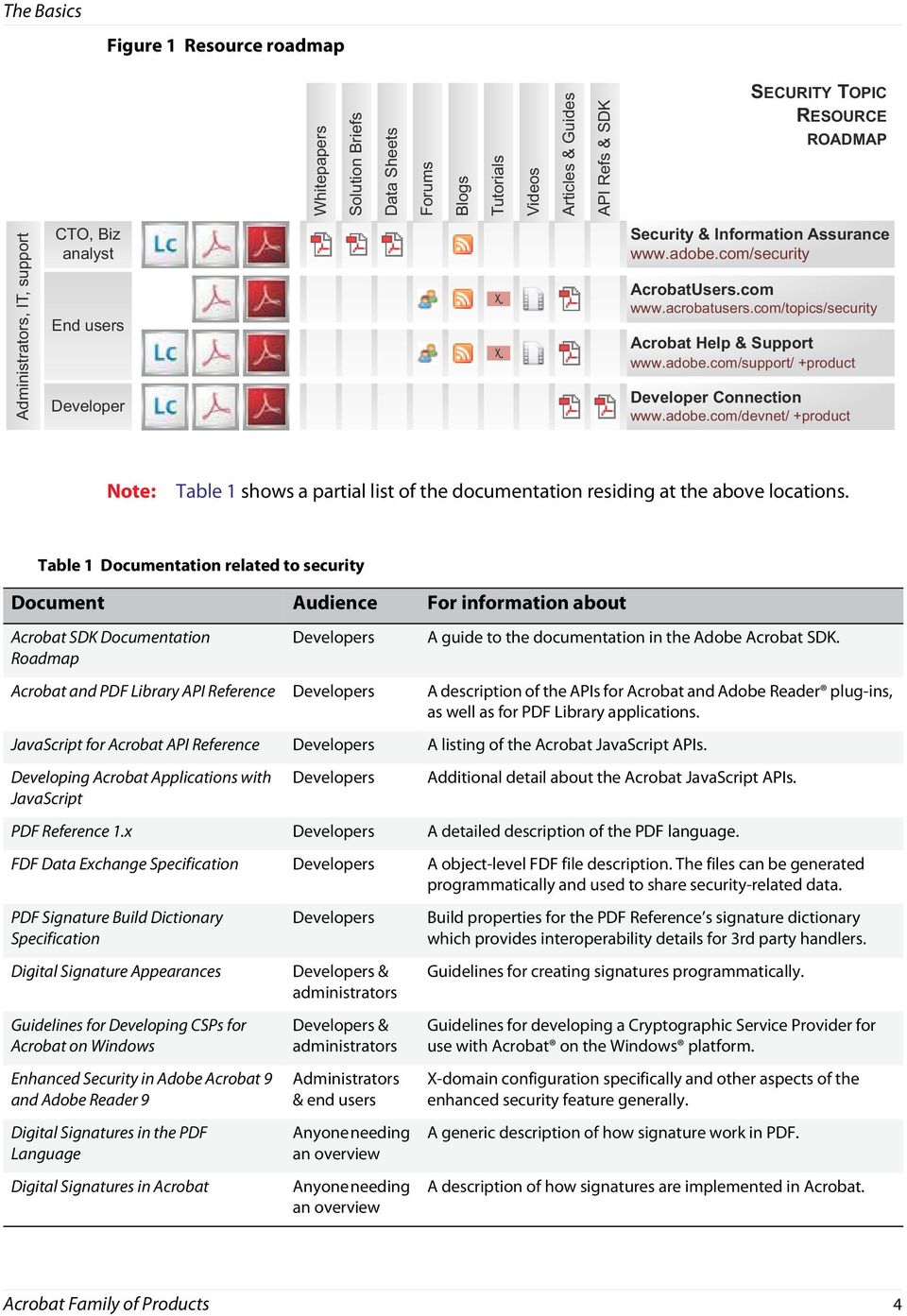
6 1 The Basics This guide describes the technical details of the Acrobat family of products digital signature feature. Audience This document is primarily a technical document which provides in depth details not found in end user help or in the SDK. The primary focus here is to provide details that help enterprise users, admins, and other business users set up and maintain secure PDF workflows. Potential audiences might include: Administrators who configure, deploy, and maintain clients on many machines in an enterprise environment. Developers who need registry level detail to augment SDK information about creating custom plug-ins and handlers that use Acrobat s security features. End users that need advanced knowledge of Acrobat s and Adobe Reader s security features. Other resources This guide provides technical details that are probably not of interest to the casual user. It is also not a developer document, and developers should refer to the SDK and its associated references and APIs. As you peruse this document, keep in mind that there are numerous resources out there, including forums and even video tutorials. Adobe is aggressively revamping many of its learning resources as Web 2.0 matures, and it may be that one of these sites would prove equally, if not more, useful: Documentation Library: Developer documentation: Admin and end user documents: Provides end user tutorials, guides, videos, and blogs. White papers/data sheets: 3

7 The Basics Figure 1 Resource roadmap Note: Table 1 shows a partial list of the documentation residing at the above locations. Table 1 Documentation related to security Document Audience For information about Acrobat SDK Documentation Roadmap Developers A guide to the documentation in the Adobe Acrobat SDK. Acrobat and PDF Library API Reference Developers A description of the APIs for Acrobat and Adobe Reader plug-ins, as well as for PDF Library applications. JavaScript for Acrobat API Reference Developers A listing of the Acrobat JavaScript APIs. Developing Acrobat Applications with JavaScript Developers Additional detail about the Acrobat JavaScript APIs. PDF Reference 1.x Developers A detailed description of the PDF language. FDF Data Exchange Specification Developers A object-level FDF file description. The files can be generated programmatically and used to share security-related data. PDF Signature Build Dictionary Specification Digital Signature Appearances Guidelines for Developing CSPs for Acrobat on Windows Enhanced Security in Adobe Acrobat 9 and Adobe Reader 9 Digital Signatures in the PDF Language Digital Signatures in Acrobat Developers Developers & administrators Developers & administrators Administrators & end users Anyone needing an overview Anyone needing an overview Build properties for the PDF Reference s signature dictionary which provides interoperability details for 3rd party handlers. Guidelines for creating signatures programmatically. Guidelines for developing a Cryptographic Service Provider for use with Acrobat on the Windows platform. X-domain configuration specifically and other aspects of the enhanced security feature generally. A generic description of how signature work in PDF. A description of how signatures are implemented in Acrobat. Acrobat Family of Products 4
8 The Basics 1.1 Basic Concepts Basic Concepts You re going to have a hard time understanding most of the content in this document without understanding how Acrobat defines or uses trust, trusted identities, and digital IDs. Trust me What is Security and Information Assurance? Adobe helps organizations protect sensitive information by enabling confidentiality, privacy, authentication, integrity, non repudiation, and availability. As shown in Figure 2, security in the context of a living workflow includes all of the workflow s components as well as the proper exercising of Acrobat s security features by those participating in that workflow. Information assurance includes all the products, services, features, policies, and procedures that allow the reliable exchange of electronic information. Many users have business and other reasons to care about information assurance more than the average end user. You might work in an enterprise setting as an administrator or workflow architect. Your concern might be configuring, deploying, and managing clients across your organization, or you may be responsible for creating secure end-to-end workflows on a network. In all of those cases, you should be concerned with both the application s runtime security options as well as its packaged security features. While digital signatures and content security through encryption and permissions are features designed to help you protect content and control its use, these features are exercised in an application that runs on a machine interacting with other files, machines, and users via a network. Ideally, all of a workflow s components should be secure, and tuning applications, machine, servers, and users (through education) increases the security of the environment in which signed and encrypted documents exist. Tip: Runtime security is an essential component of information assurance. For more details, see the document Application Security in the Acrobat Family of Products. Figure 2 Information assurance components Acrobat Family of Products 5

9 The Basics What is Trust? What is Trust? The concept of trust may mean different things in different contexts. In Acrobat security workflows, trust can mean the following: Trusting participants in your workflows: For content security and signature workflows, you will need to trust those with whom you are sharing your documents. Trusting an identity means that you accept that someone s certificate actually represents a particular person or organization. It is official recognition on your part of the ownership and origin of the digital ID; that is, that the digital ID represents a specific entity. Setting certificate trust levels: Once you ve created a trusted identities list, you will likely need to allow and disallow certain operations. You do this by associating (setting) trust levels with each trusted identity s certificate. Trust levels define privileges that allow documents signed or certified by that identity to execute privileged operations on YOUR machine--things that cannot otherwise be done by documents you otherwise just open and display--for example, playing multimedia or executing JavaScript. Providing trust to a certificate should only be done if you want documents created or signed by the trusted identity to have higher levels of access to your machine What is a Trusted Identity? Digital signature and certificate security workflows both rely on certificates. Participants in signing workflows share their certificates ahead of time or embed them in a document. Participants in certificate security workflows must share their certificates ahead of time. Both operations involve importing other people s certificates into your Trusted Identities list. When a person s certificate information appears in the Trusted Identity Manager, they become a trusted identity. Groups of people that share documents with certificate security or digital signatures are in essence a community of trusted identities that share their certificates to make those features work. You will add people to your trusted identity list and others will add you to theirs: When you sign document, the document recipient can validate your signature by validating the certificate embedded in the document. Conversely, you need access to a document sender s certificate to validate their signature. Acrobat Family of Products 6
10 The Basics What is a Trusted Identity? You encrypt a document with the document recipient s public key so that they can decrypt it with their corresponding private key. Conversely, others need your certificate to encrypt documents for you. The Acrobat family of products provide tools for selecting and interacting with the certificates of document recipients you trust. For example, Acrobat s user interface prompts authors to select one or more recipients when applying certificate security. Because it is often the case that a document will be sent or received from numerous individuals, it is expedient to create a list of trusted identities ahead of time. In large organizations, an administrator may do this for you; otherwise, you will use Acrobat s Trusted Identity Manager to store your trusted identities contact information and certificates. Getting someone s contact information and certificate involves searching for (or having sent to you) the digital ID data in the requisite format. Some common ways of getting the data include the following: Import the data from an.acrobatsecurity file. Configuration details can be imported from a security settings file as described in Chapter 4, Migrating and Sharing Security Settings. Extract the data from an FDF file. Double-clicking on an FDF file causes Acrobat to automatically import the information. Search a server directory. Users can add directory servers containing contact information and certificates. Sometimes administrators preconfigure these directories. Use the data embedded in a signed document. The Certificate Viewer s Add to Trusted Identities button adds a certificate to the trusted identities list and allows setting its trust level. Figure 3 Digital ID: Managing trusted identities Acrobat Family of Products 7

11 The Basics What is a Digital ID? From within the Manage Trusted Identities dialog, users import and manage the certificates and certificate owner data for document recipients they wish to trust. A contact will occasionally be associated with multiple certificates. Therefore, contacts and certificates are in some respects managed independently of each other. It is also possible to create a group from any number of contacts so that security can be applied to all group members with a single action. Users manage contacts, groups, and certificates by choosing Advanced (Acrobat) or Document (Reader) > Manage Trusted Identities and opening the Trusted Identities Manager. Figure 4 Manage Trusted Identities menu item What is a Digital ID? A digital ID is like a driver s license or passport or other certified by some entity paper identification. It proves your identity to people and institutions that you communicate with electronically. These IDs are an essential component of digital signatures and certificate security. In signing and certificate security workflows, you will be asked to select a digital ID from a list of previously installed digital IDs, since they are a required for signing, certifying, and applying certificate encryption to PDFs. You can get a digital ID from a third-party provider, or you can create a self-signed digital ID. Self-signed digital IDs may be adequate for many situations. However, to prove your identity in most business transactions, you may need a digital ID from a trusted third-party provider, called a certificate authority. Because the certificate authority is responsible for verifying your identity to others, choose one that is trusted by major companies doing business on the Internet. A digital ID consists of two main parts: a certificate and a private key. A certificate consists of your identity information (name, date, serial number, etc.) and a public key that are bound together and signed by a trusted or untrusted certificate authority. The certificate sometimes includes a reference to the certificate issuer s certificate, thereby creating what is known as a certificate chain. Digital IDs operate by using a key pair: data encrypted with one key can only be decrypted by the other corresponding key. When you sign PDF documents, you use the private key to apply your digital signature. You distribute the certificate that contains your public key to those who need to validate your signature or encrypt information for you. Only your private key can unlock information that was encrypted using your public key, so be sure to store your digital ID in a safe place. Some users have multiple digital IDs for different purposes; for example, to sign documents in different roles or using different certification methods. Digital IDs are usually password protected and can be stored on your computer in password protected file, on a smart card or hardware token, in the Windows Acrobat Family of Products 8

12 The Basics Digital ID Storage Mechanisms certificate store, or on a signing server (for roaming IDs). Acrobat applications can access digital IDs from any of these locations. Figure 5 Digital ID: Components Users exchange their digital ID s certificate so that they can validate signatures and encrypt documents for each other. Shared certificates can be physically sent in a file or made available over a network. The private key is never shared and is used to decrypt documents. There are several ways to share certificates: Physical sharing: Certificates can be physically shared in a file sent via or located in a shared directory. They can be imported, exported, and otherwise managed with the Trusted Identity Manager. For details, see Chapter C, How tos: Certificate Trust and Trusted Identities. Network sharing: Certificates can be stored on a central server. The Trusted Identity Manager can be used to search for certificates on LDAP directory servers. Adobe applications provide tools for configuring and managing directory servers. For details, see Using Directory Servers to Add Trusted Identities on page 206. Figure 6 Trusted identities Digital ID Storage Mechanisms A digital ID s certificate and private key need to be stored in a secure location. There are several file types and file locations where these items could be stored (Table 2). The digital ID data in these files is provided to the application via digital ID service providers (sometimes called Cryptographic Service Providers or CSPs). A service provider is simply a storage mechanism and code that makes the data available to the application. In most cases, the digital ID is stored on a local or networked file. Common locations include the Windows Certificate Store which is accessible by Adobe applications and other Windows applications Acrobat Family of Products 9
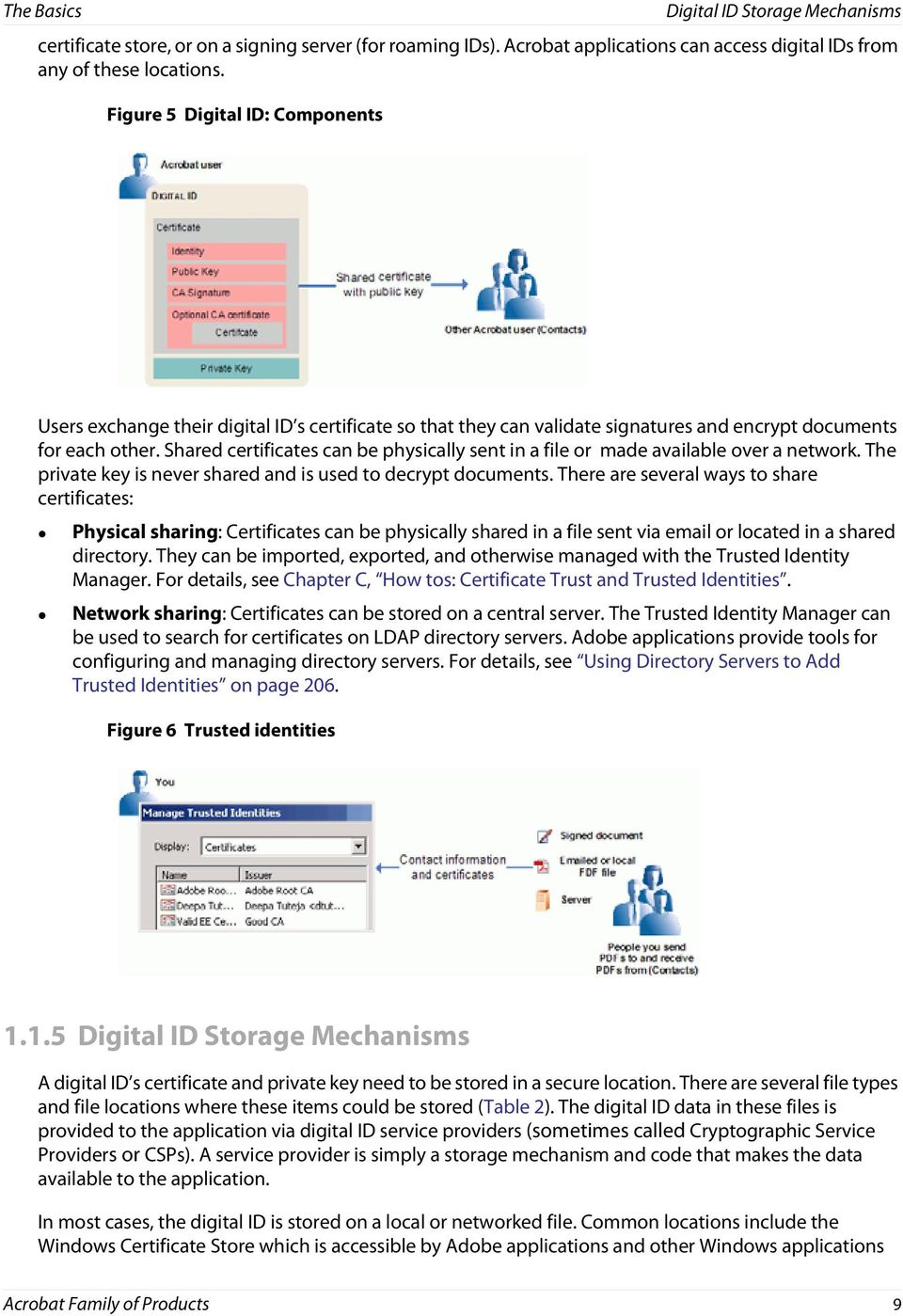
13 The Basics Digital ID Storage Mechanisms and the Acrobat store which is used only by the Acrobat family of products. Some IDs may exist only on external hardware such as a smart card connected to the computer. The Acrobat family of products can access a digital ID from the following storage mechanisms: Windows Certificate Store: A local store (file location) provided by Windows that can import and export various file formats and that can be used by both Windows programs and Acrobat products. PKCS#12 files: A common file format residing on your hard drive that is used on both Windows and Macintosh. Tip: PKCS refers to a group of Public Key Cryptography Standards authored by RSA Security PKCS#11 devices: External devices such as a USB token or smart card that store digital ID data. Roaming ID servers: A network server. The private key is known only to the server. The server sends the certificate and its public key to users on demand. Users can import and export the certificate and its public key from Acrobat, but they never have install the private key on a local machine. Table 2 Digital ID-related file types Type Description 5.x 6.x 7.x 8.x 9.x.acrobat security PKCS#12:.pfx (Win),. p12 (Mac).fdf PKCS#7:.p7b,.p7c An XML format encapsulated in a PDF which stores security settings for import and export. Contains: Digital ID (public and private keys) Personal Information Exchange Syntax Standard: Specifies a portable, password protected, and encrypted format for storing or transporting certificates. Contains: Digital ID (public and private keys) An Adobe file data exchange format used for importing and exporting settings and certificates (usually PKCS#12 files). Certificate Message Syntax (CMS): Files with.p7b and.p7c extensions are registered by the Windows OS. Acrobat products can import and export these files. Contains: Certificate and public key only.cer Certificate format: A Microsoft format for digital IDs usually stored in the Windows Certificate Store. Contains: Certificate and public key only.apf Adobe Profile Files (Legacy): Not used after Acrobat 5. Files can be upgraded by double clicking them. Contains: Digital ID (public and private keys) Export Import Import Export Export Import Export Export Export Export Import Import Import Import Export Export Export Export Import Import Import Import Export Export Export Export Import Import Import Import Export Export Export Export Import Import Import Import Import Import Import n/a Acrobat Family of Products 10

14 2 What s New: For 8.x-9.x 2.2 What s new for 9.1? The following changes and enhancements appear in this release: Long term signature validation enhancements: By default, certificate revocation information is embedded in the signature. This provides the ability to verify signatures using embedded revocation information even after the end entity, intermediate CA, and root certificates have expired. Timestamp signatures include revocation information. Ability to add certificate and revocation information post signing. This results in the following behaviors: Certified documents with no-changes-allowed: Adding validation information after signing invalidates the certification in Acrobat 9.0 and earlier. Signed documents: Adding validation information after signing in Acrobat 9.0 will show unsigned changes if no subsequent signature is added. Documents with validation information added after signing in pre 9.0 versions will show as Valid with modifications. Note: Certified documents configured for no-changes-allowed that have validation information added post signing will show invalid certification in for earlier versions of Acrobat and Adobe Reader. A user-interface item Show timestamp warnings in the Document Message Bar has been added. This feature is currently not implemented. The default signature digest algorithm is changed to SHA-256. If the cryptograph service provider cannot accommodate SHA-256, then the application uses SHA-1. For example, XP pre service pack 3 does not support SH-256 if the Windows CSP is used. In Acrobat 9.0, signing a certified document with the Lock After Signing option selected caused the certification to be invalidated. This problem is corrected in Acrobat 9.1. Signature verification time: The validation time new default is The time at which the signature was created. This value does not update after upgrading to 9.1 if the user has modified the setting for 9.0. You can apply an mouse or pen-driven signature by choosing Advanced > Sign and Certify > Apply Ink Signature. Tip: This command is unrelated to digital signatures and may be disabled for some documents. It may, however, cause confusion for some users. Organizations may wish to educate users on when to sign with one or the other. Script changes prevent signing: It is no longer possible to sign (or certify) a document in the same session when a document script change was made. You must first save, close, and reopen the document. This change mainly affects form authors and developers. It should also be noted that scripts that modify scripts on the form can no longer be used in conjunction with signatures. This restriction is due to security vulnerability problems. Certified forms could never modify scripts and are unaffected. Uncertified forms that modified scripts during 11

15 What s New: For 8.x-9.x What s new for 9.1? a fill-in and signing process must be changed so that the effects of the script updates can be achieved in other ways. Signing and certifying with Adobe-provided Reader Extensions certificates no longer permitted: Prior to Acrobat 9.1, it was possible to use a Reader Extensions certificate provided by Adobe to apply usage rights to a document for signing or certifying. Acrobat and Adobe Reader 9.1 no longer support using those certificates for signing or certifying. If a document was signed or certified using such a certificate in a previous version of Acrobat or in another product such as LiveCycle ES or Interactive Forms based on Adobe software, the certification will be shown as invalid in Acrobat and Adobe Reader 9.1 and later, although it will still show as valid in earlier versions of Acrobat and Adobe Reader. Macintosh OS X keychain support for software and hardware credential (private key) usage. The Macintosh Keychain Store is equivalent of the Microsoft Windows Certificate Store, and supporting it allows the user to use their Keychain Store credentials to: Sign a document. Encrypt a document using a certificate associated with a Keychain credential. Decrypt documents. PKCS#12 and ArcotID credential provisioning for encrypted document delivery. Signature validation performance improvements. XML data signature improvements. Additional localized search and redact patterns. Time verification changes from 9.0 to 9.1 With 9.1, the default preferences assure signatures will be valid if the certificate used was valid at the time of signing rather than valid at the time of checking the validation. So by default, a signature will remain valid in the long term even after the certificate has expired. But it also means that, as well as trusting the signature, you are also trusting the document s signing time. Long term validation improvments The document security store (DSS) enables embedding long term validation (LTV) data such as large CRLs outside the signature object. DSS is an extension to ISO and part of the PAdES standard. For more information, see PAdES Long Term at Known issues Invalid Signature state in Reader 9.1: Forms containing scripts that assign an illegal value, such as a string, to a numeric field cause invalid signature status in some cases. If the document was signed by an earlier version of Acrobat and verified in Reader 9.1, Reader 9.1 shows the signature as invalid. If the document is signed by Reader 9.1, future versions of Reader show the signature as invalid. The workaround is to remove the offending script. Future versions of Reader will throw an exception so that such script is easier to find. Acrobat Family of Products 12
16 What s New: For 8.x-9.x What s new for What s new for Enhanced security Refer to the documents in the Application Security Library. This feature interacts with certified documents Security setting import and export Acrobat 9 provides a more robust and detailed mechanism for importing and exporting security settings than was provided by FDF files. With Acrobat 9, all settings can be migrated to new machines, saved during upgrades, or distributed via a server. The new feature includes the following A new XML format for storing security settings which are saved in an empty PDF. Separate site and personal settings. A secure way of communicating and installing site-wide security settings. A user interface for selecting which settings are imported and exported. A mechanism for automatically installing or updating security settings from a server Signatures and signing workflows Note: For additional detail, refer to Adobe Acrobat 9 Digital Signatures, Changes and Improvements. User interface changes: Numerous user interface improvements throughout, including the Signature Properties dialog and the Certificate Viewer. The Digital Signature Tool was moved from the Advanced Editing toolbar to the Forms menu. Indication of overall signature validity state: Changes the Document Message Bar to specify the overall validity and integrity of the document. You can use this information to make a quick decision about the document. Revision tracking in Signature panel: Describes the changes made to each revision of the document. The changes to a revision include all changes made to the document between signing. This information is displayed in the signature panel for an Acrobat form. Clearing signatures: Prior to Acrobat 9.0, a signature that was not specifically protected by field locking could be cleared by anybody while protected fields could only be cleared by somebody with the private key that applied the signature. With version 9.0, all signatures can only be cleared by somebody with the private key that applied the signature. Change in status of forms that take multiple signatures: Allows additional signatures to be applied to a document, without changing earlier signatures to a Valid with subsequent changes status (green check with a yellow warning triangle). Allowed and disallowed changes: Refines the definition of the kinds of changes that can be made to a certified or signed document without invalidating the signatures applied to the document. Disallowed changes invalidate the signatures on a document. Individual signature status icons removed from signature fields: Removes the signature status icon from the signature appearance. The Document Message Bar is a better source of information about overall signature validity and integrity of a document, and the Signature panel s list of signatures is a better source of information about individual signature status. Acrobat Family of Products 13
17 What s New: For 8.x-9.x Individual signature status icon meanings: Replaces Acrobat 8 icons with new icons that are compatible with the new overall signature validity state icons Lock document after last signature: Allows the last signer of the document to lock the document, which prevents further changes Certification requirement for XML forms: Adds requirement to certification of forms created with LiveCycle Designer ES Form field and form behavior changes: Document lock on signing: A default signing action locks all form fields in a form. Users who want to create a multi-signature workflow must take explicit action to not lock fields they want subsequent fillers to use. This affects only forms created with Acrobat 9.0 and later. Add a new signature and rollup status and icon form modified during progressive form fill-in and signing. This is similar to in concept (but not the same as) the current "green check+yellow triangle" signature status. It is an advisory warning for users to look more closely at the form and does not invalidate signatures. Signatures followed by a form field change are marked with a form modified status and icon rather than a valid signature status and icon, unless the signature included field locking (MDP+). In that case it can be marked with a valid signature status and icon. If all signatures are valid or form modified, then the rollup status is form modified. The document message bar advises the user that the form has gone through a multi-step fill-in workflow and that they should inspect the document history in the signature panel. These same rules apply for both uncertified and certified documents. (That is, signature invalidation on modified field values and "form modified" signature state for multi-step workflows apply to both types of documents.) Post-signing changes warning: For Acrobat 8.x, the document modified after signing warning (the green check with yellow triangle icon) was triggered by any document change of any kind. Now the warning icons and text have changed. If a document is changed after the last signature, a warning is shown indicating that there are unsigned changes in the document. This could happen in the course of normal workflow as a form is filled in. When signed, the warning is no longer shown. The warning could also indicate an attempt to tamper with the document after is was signed. Changes not listed above result in invalid signature status. The document modified after signing warning is eliminated and never shown. The form modified warning is shown for any form field or data change that follows a non-field-locking (MDP+) signature. The form modified warning is displayed when needed for documents signed with a certification signature as well as an approval signature. Certification of XML dynamic forms: For signed dynamic XML forms in Acrobat 8.0, everything is digested and signed for visible certification signatures. Everything but rendering components are digested and signed invisible certification signatures. For Acrobat 9.0, the rendering components are never signed FIPS The FIPS-mode encryption module has been updated and changed to RSA BSAFE Crypto-C Micro Edition (ME) cryptographic module. The FIPS validation status for RSA BSAFE Crypto-C ME FIPS Acrobat Family of Products 14

18 What s New: For 8.x-9.x Certificate Security is available at For details, see Turning on FIPS Mode on page Certificate Security AES 256-bit encryption algorithm can be used Reader Enablement AES 256-bit encryption algorithm can be used Password security For documents with password security the following changes have been made: AES 256-bit encryption algorithm can be used. If AES 256-bit encryption is used, then the password may use Unicode. Acrobat 8 compatibility allows a programmatic call with a null password for owner permission to succeed if the owner password really is null. Acrobat 9 does not. For Acrobat 9, if the owner password is null but the user password is not null, you must ask for owner permission with the non-null user password. Acrobat 9.0 now allows full Unicode pass phrases up to 128 characters in length (an actual limit of 128 UTF-8 bytes). Acrobat 8.x and earlier limits passwords to 32 characters maximum and almost entirely to the Latin alphabet (strictly, PDFDocEncoding) Adobe Reader usage rights and feature enablement Acrobat users can author documents that enable Reader users to take advantage of features that are otherwise unavailable. For example, a Reader user can sign a form field or save a form with their data when the author has enabled those features for that document. Support for earlier versions of this feature which are based on UB1 are disabled. Only UB3 is allowed and error messages have been improved Security and Encryption for of PDF packages (portfolios) The Modify and Secure Portfolio menu only applies encryption to the cover sheet not child documents. Failure to allow form fill-in results in blocking the recipient s ability to modify the portfolio s child documents. Encryption must be set at the child document level. Reader enablement rights must be set at the child document level Signing of PDF packages (portfolios) Packages have been renamed as portfolios. The changes are as follows: Acrobat Family of Products 15
19 What s New: For 8.x-9.x Attachments The PDF portfolio s user interface provides the standard signing mechanism. The signature is placed on the portfolio cover sheet (choose View > Portfolio > Cover sheet). The cover sheet may be signed in the traditional way either with an approval or certification signature. Signing or certifying a portfolio results in locking down its children (the assembled documents) while they reside within the portfolio. Certified documents that are placed inside of a portfolio will behave as if they are uncertified. Once removed from the portfolio, the contained certified document regains it s certified-specific behaviors. You can sign but you can't certify a document once it is placed inside a portfolio Attachments Files with the file extensions.pkg and.jar have been added to the default attachment blacklist Product renaming The Adobe LiveCycle Policy Server has been renamed to Adobe LiveCycle Rights Management Server. 2.4 What s New for 8.1 FIPS mode: Acrobat and Reader can provide encryption via a Federal Information Processing Standard (FIPS) mode. When the FIPS mode is on, encryption uses FIPS-approved algorithms provided by the RSA BSAFE Crypto-C Micro Edition version 2.1 encryption module. FIPS mode is only supported on Windows and can only be turned on by editing the registry. For details, see Turning on FIPS Mode on page 69. digital ID authentication caching: The bwincachesessionhandles registry preference has been added to specify whether to retain cryptographic service provider (CSP) handles when a user authenticates to a digital ID. When enabled, users can access their ID without reentering their password unless they log out or the session ends. For example, smart card users won t have to enter their PIN with each use when bwincachesessionhandles is set to 1. The impact of this preference will vary based on the CSP in use. The setting does not affect Windows CSPs. Refreshing the digital ID list: A Refresh IDs button in the signing dialog allows users to refresh the list of available digital IDs after the signing process has already been initiated. For example, if a smart card user initiates the signing workflow without first attaching their card reader, their digital ID will not appear in the Digital ID drop down list. Refresh IDs allows users to attach their reader, insert their card, and the refresh the list without having to restart the signing process. Encryption level name changes: The word High was removed from High (128-bit RC4/AES). For example, the levels are now just 128-bit AES. Document integrity checking and script detection: During signature validation, the detection of a script in a PDF does not cause Acrobat to flag the document as changed. Acrobat 8.1 compares the digitally signed and current versions of the document to determine if the current version has been modified. Acrobat 8.0 considered all scripts executed during document construction as a document modification even if no changes were made (e.g. it performed a read-only query or some other no change action). Acrobat Family of Products 16
20 What s New: For 8.x-9.x What s New for 8.0 PDF portfolio security: The following is a list of expected behaviors when a PDF package is secured: If the cover sheet is signed with an approval or certification signature, then document recipients will not be able to edit and save any documents in the package. If the cover sheet is signed or Reader-enabled, then the security method cannot be changed for any documents in the package. If a package s security settings do not allow changes, then that setting is inherited and it will not be possible to edit and save any child documents. For example, form fill-in and changing the security settings would not be allowed for any document in the package. It is possible to validate a certification signature on the cover sheet when it is Reader-enabled. If the permission to allow deleting, inserting, and extracting pages is turned on, form fill-in cannot be turned on for documents in the package. If form fill-in is allowed on the cover sheet, then editing and saving is allowed for any document in the package. 2.5 What s New for 8.0 Acrobat 8.0 ships with major improvements to its security features, including its user interface and core functionality. Nearly all of it features are more powerful and easier to use as a result of streamlined workflows and a redesigned user interface. All security-related menu items are accessible through a fewer number of clicks, and administrators now have more control over the end user experience via a set of expanded registry preferences. For an overview, see the following: Digital ID Management Certificate Processing and Viewing Enhancements Signature Enhancements Document Security Enhancements Application Environment Preference Improvements Digital ID Management In addition to the top level menus that have been redesigned to improve usability, managing digital IDs through the Security Settings Console is now easier and less subject to user-error: The ID Usage Options menu allows users to individually specify which IDs to use for signing, certifying, and encrypting documents. The ID Usage Options menu enables users to associate a user-friendly name with an ID card that lists the ID s basic details. The friendly name simplifies choosing an ID during signing. The Remove ID button only allows deleting self-signed digital ID created in Acrobat, thereby preventing accidental deletion of critical IDs. Users can only remove an ID in a.pfx file in the Acrobat store if it was created in Acrobat 8.0 or later. Acrobat Family of Products 17
21 What s New: For 8.x-9.x Certificate Processing and Viewing Enhancements A Manage Attribute Certificates option enables users to associate an attribute certificate with an ID used for signing Certificate Processing and Viewing Enhancements The application s handling of certificates has been both extended and improved: Attribute certificates are now supported and can be managed via Security Settings Console. Signature field customization: Additional seed values have been added to allow authors to require certain certificate attributes in order to sign a field (Refer to Digital Signatures Guide). Certificate Viewer enhancements were introduced to improve usability and provide more features, including but not limited to the display of: Attribute certificate data. ISIS-MTT-required OIDs (in the Certificate Data drop down list on the Details tab). The private key location, if known. The validation model: shell or chain appears at the bottom of the Certificate Viewer Signature Enhancements Many digital signature features have been added or improved. The changes significantly reduce the amount of effort it takes to sign while at the same time extending Acrobat s signing capabilities: Roaming IDs: Users can access their roaming ID account on a remote server and sign from any location. Administrators can create custom workflows, manage IDs from a central location, and so on. Signature field customization: Additional seed values have been added to allow customization of signing workflows such as who can sign and what information is required (Refer to Digital Signatures Guide). Streamlined signature workflow: Vast changes in a now user-friendly signing dialog provide more detail with fewer steps. All of the signing details can be selected on one dialog: Users can select from a list of available IDs, view an ID card that displays the digital ID s high level details, and click on the card to open it in the Certificate Viewer. A dynamic Password field that only appears when needed. Signature appearances display in a drop-down list. Depending on application settings, Location, Contact, and Reasons fields are available. Algorithms: Support for more signing algorithms, including SHA256, SHA384, SHA512, RIPEMD160. Application settings: The signing environment now has additional options. Users can turn on and off document warnings, force a warning review, turn off and on the Location, Contact, and Reasons fields, and require signing in preview mode. Administrators can preconfigure these settings via the registry and, in some cases, prevent end-user modification. Preview mode: Preview mode suppresses dynamic content that could change the appearance of a signed document and analyzes the document for constructs that may be problematic for signing. The document message bar tells the user if the document is safe to sign, the level of PDF/SigQ compliance, and provides links to the PDF/SigQ Conformance Report dialog which lists potential problems. View Signed version also invokes the preview mode so that the signature validator can see what was signed by viewing the document in a safe mode. Acrobat Family of Products 18
22 What s New: For 8.x-9.x Document Security Enhancements Document Security Enhancements Changes to the security features include: Usability: Top level menu items have been simplified to streamline workflows and improve usability. New ID choices: When adding a digital ID during a certificate security workflow, users can add IDs from PKCS#11 devices such as smart cards and tokens. Reader enabling: It is now possible to enable a document for signing and saving within Adobe Reader. While this is not solely a security feature, signatures provide protection against unknown document changes, and each document version (1 per signature) is always available for viewing Application Environment Preference Improvements The user interface is redesigned for usability: Trust Manager: Trust settings now include simplified options for accessing resources that exist outside of a document, including attachments, Internet access, and external content. All of the sub-dialogs have been simplified, and advanced configuration details are described in the administration guide. Multimedia Trust: Options have been removed from the Trust Manager panel have been given a unique home. The options have been simplified and its interaction with the certification signatures has been made more intuitive (signature trust settings interact with the Trusted Documents and Untrusted Documents settings in Multimedia Trust. Acrobat Family of Products 19
23 3 How tos: Using Digital IDs The following sections provide details about managing digital IDs in Acrobat and Adobe Reader. Working with Digital IDs on page 20 Generic ID Operations on page 22 Managing PKCS#12 Digital ID Files on page 25 Managing Windows Digital IDs on page 33 Managing Roaming ID Accounts and IDs on page 33 Managing IDs Stored on Hardware Devices on page 35 Tip: This feature requires a basic understanding of how Acrobat defines trust and digital IDs. For more information, see Basic Concepts on page Working with Digital IDs Registering a Digital ID for Use in Acrobat There are two ways to register a digital ID: In advance: You can set up the ID ahead of time for later use. To do so, choose Advanced (Acrobat) or Document (Reader) > Security Settings, selecting Digital IDs in the left-hand tree, and then choosing Add ID. On the fly: You can find or add IDs in signature and certificate security workflows. For example, when the Sign Document dialog appears, choose New ID from the Sign As drop down list. For more information, refer to the following: Adding a Digital ID from a PKCS#12 File Finding a Digital ID in a Windows Certificate Store File Adding an ID that Resides on External Hardware Adding a Roaming ID Account to Get a Roaming ID Figure 7 Add Digital ID dialog 20
24 How tos: Using Digital IDs.apf: No longer supported Digital ID Management and the Security Settings Console Older application versions use a deprecated digital ID format with an.apf extension..apf is not supported in 9.0. You must use Acrobat 8.x or earlier to use this type of ID Digital ID Management and the Security Settings Console The Security Settings Console enables users to manage their own digital IDs. Choosing Advanced (Acrobat) or Document (Reader) > Security Settings opens a dialog for adding, removing, and setting the usage preferences for digital IDs stored on.pfx files, PKCS#11 modules and tokens, roaming ID servers, and the Windows Certificate Store. Tip: You should always back up your private key if you have access to it. Without the key, encrypted documents cannot be decrypted and opened. To protect and back up private keys in an enterprise setting, administrators sometimes escrow private keys. If your digital ID is stored in a file on your local machine, consider copying it to a secure location. Figure 8 Security settings menu and manager Setting Identity Information You can enter default identity (user) information that the application can automatically use as the defaults for workflows such as creating self-signed certificates and ing certificate and server settings. To create default user information: 1. Choose one of the following. Acrobat (Windows): Edit > Preferences > Identity Acrobat (Macintosh): Acrobat > Preferences > Identity Adobe Reader (Windows): Edit > Preferences > Identity Adobe Reader (Macintosh): Adobe Reader > Preferences > Identity 2. Configure the identity details. These details will appear in your signature appearance when you sign with a self-signed digital ID. 3. Choose OK. Acrobat Family of Products 21
25 How tos: Using Digital IDs Figure 9 Identity preferences Generic ID Operations 3.7 Generic ID Operations Once you have one or more digital IDs, you can edit, remove, and otherwise manage them from the Security Settings Console. To simplify workflows that use digital IDs, consider doing the following before using your ID: Specifying Digital ID Usage: Set an ID to automatically use each time one is required for signing or certificate encryption. Sharing (Exporting) a Digital ID Certificate: Since a digital ID s certificate contains the public key required for validating your digital signature and encrypting documents for you, send it to those who participate in these kinds of workflows with you ahead of time. Other operations also apply to all digital IDs irrespective of their format. For details, see: Viewing All of Your Digital IDs on page 23 Customizing a Digital ID Name on page 24 Viewing Digital ID Certificates in the Certificate Viewer on page Specifying Digital ID Usage If a digital ID is not specified for a particular task that requires one, a prompt will ask for a digital ID file. To avoid repeated prompts, specify a digital ID for signing and encryption. Different IDs may be used for signing and encryption. When you specify ID usage, that ID is the first one in the list you ll see when you re asked to select an ID in a signing or encryption workflow. If you select a different ID, your usage option will change to the newly selected ID; that is, the last used ID becomes the new default. To select a default digital ID file: 1. Choose Advanced (Acrobat) or Document (Reader) > Security Settings. 2. Select Digital IDs in the left-hand tree (Figure 3.7.1). 3. Highlight an ID in the list on the right. Acrobat Family of Products 22
26 How tos: Using Digital IDs 4. Choose Usage Options. A drop-down list appears. Sharing (Exporting) a Digital ID Certificate Figure 10 Usage options for a digital ID 5. Choose one or more options: signing, certifying, and encrypting. A lock or pen icon (or both) will appear to the left of the digital ID based on this selection. Caution: Invalid and expired IDs with a yellow caution triangle cannot be used Sharing (Exporting) a Digital ID Certificate Digital ID certificates must be distributed among participants in signing and certificate encryption workflows. Other users must have access to your certificate before: They can validate your signature if they are not already trusting a certificate above yours in the certificate chain. Note that a signature always includes the signer s certificate, so validation can occur with the certificate embedded in the signature if it is not already on the validator s machine. They can encrypt a document for you using certificate security. Certificates can be ed or saved to a file. For more information, see Chapter 6, Sharing Settings & Certificates with FDF. Note the 9.x products and later off more robust ways of migrating settings. For details, see Tip: To export a certificate displayed in the Certificate Viewer, choose Export on the Summary tab Viewing All of Your Digital IDs You can view all of your digital IDs in one list regardless of their type or location. To view all of your IDs: 1. Choose Advanced (Acrobat) or Document (Reader) > Security Settings. 2. Select Digital IDs in the left-hand tree (Figure 8). All the IDs you have added appear in the right hand panel. The list includes all of the IDs that you can view separately under: Digital ID Files Roaming ID Accounts Windows Digital IDs PKCS#11 Modules and Tokens Acrobat Family of Products 23
27 How tos: Using Digital IDs Customizing a Digital ID Name Customizing a Digital ID Name You can personalize a digital ID by providing a user-friendly name. This name appears in the ID drop-down list in workflows where you are asked to select an ID. To provide a friendly name: 1. Choose Advanced (Acrobat) or Document (Reader) > Security Settings. 2. Select Digital IDs in the left-hand tree (Figure 8). 3. Highlight an ID in the list on the right. 4. Choose Personalize. 5. Enter a name for the ID. Figure 11 Personalizing an ID name Viewing Digital ID Certificates in the Certificate Viewer Your digital IDs appear in the Security Settings Console. From there, the Certificate Viewer can be used to display the time for which its certificate is valid and other details such as usage, a unique serial number, public key method, and so on (Figure 12). To check certificate details: 1. Choose Advanced (Acrobat) or Document (Reader) > Security Settings. 2. Select Digital IDs in the left-hand tree (Figure 3.7.1). 3. Highlight an ID in the list on the right. 4. Choose Certificate Details. The Certificate Viewer displays the certificate. (Figure 12). The following details are available: Left hand panel: The certificate chain. Acrobat Family of Products 24
28 How tos: Using Digital IDs Managing PKCS#12 Digital ID Files Bottom area: A description of the certificate, path validity statement, path validation time, and sometimes the type of validation. Summary tab: Displays the owner, issuer, validity period, and other details. The Intended Usage field tells you whether the certificate can be used for signing, encryption, or both. An Export button allow you to export the certificate to a file. Details tab: Lists all the certificate fields (extensions) and their values. Revocation tab: Indicates whether a revocation check occurred and the result. Allows users to initiate a manual check and analyze problems. Trust tab: Displays the certificate s trust level. If it does not already exist in the trusted identities list, the Add to Trusted Identities is active. If the certificate is already on the Trusted Identities list and you want to change the trust level, see Certificate Trust Settings on page 43. Policies tab: Displays policy restriction information that must be met for a signature to be valid, if any. Legal Notice tab: Displays other certificate policies as well as a button which links to that policy, if any. Figure 12 Digital ID: Certificate viewer 3.8 Managing PKCS#12 Digital ID Files PKCS#12 digital ID files have several convenient features: Multiple IDs can be stored in a single, password-protected file. A file can contain both the public and private key. Passwords and password time-outs are user customizable. Acrobat Family of Products 25
29 How tos: Using Digital IDs Figure 13 Digital ID Files menu Logging in to a Digital ID File Logging in to a Digital ID File You will not usually need to log in to a digital ID file. Logging in means that Acrobat wants you to prove that you know the password to open the password-protected file containing the digital IDs. Since you likely supplied the password when you created your ID or obtained a new one, then you should be logged in. However, you may need to log in for the following cases: You logged out of the file for some reason. You are importing an acrobatsecuritysettings file containing digital IDs. To log in to a digital ID file: Adding a Digital ID from a PKCS#12 File If you need a digital ID does not appear in the digital ID list and you know it s location, browse to it and add it. You can browse to PKCS#12 files (with.pfx or.p12 extensions) and Windows Certificate Store compatible files (with.cer and.der extensions). Note: In enterprise settings, you may be instructed by your administrator to get a digital ID from a specific location or to customize Acrobat or Adobe Reader to work with software supplied by your organization. To find a digital ID file: 1. Choose Advanced (Acrobat) or Document (Reader) > Security Settings. 2. Select Digital IDs in the left-hand tree (Figure 8). 3. Choose Add ID. 4. Select the My existing digital ID from and A file radio buttons (Figure 7). 5. Choose Next. 6. Choose Browse and browse to the digital ID file. PKCS#12 files may reside on a network or in some local location. For example, Acrobat Family of Products 26
30 How tos: Using Digital IDs Adding and Removing Digital ID Files from the File List On a Window machine it might be C:\Documents and Settings\<username>\Application Data\ Adobe\<application name>\<version>\security\. On a Windows machine with Vista in low rights mode and installed from a browser, it is <Boot Drive>:\Users\<user name>\appdata\roaming\adobe\<application name>\<version>\ Security 7. Select the ID and choose Open. 8. Enter a password if one is required. 9. Review the digital ID list and choose Finish Adding and Removing Digital ID Files from the File List Adobe Acrobat and Adobe Reader only allow deletion of user-created self-signed digital IDs created with those applications. A file can have one or more IDs. To delete or add an ID file: 1. Choose Advanced (Acrobat) or Document (Reader) > Security Settings. 2. Select Digital IDs > Digital ID Files in the left-hand tree (Figure 13). 3. Highlight a digital ID file in the right-hand panel. 4. Do one of the following: Choose Detach File. The file is removed from the list but still remains on your file system. Choose Attach File. Browse to the file, enter the file password, and choose OK. Note: Detaching a file does not remove it from your system, and it may be reattached later Changing an ID File s Password Passwords and password time-outs are unique to PKCS#12 IDs. Since a file can contain multiple IDs, passwords and time-outs are configured at the file level rather than for individual IDs. Note: If the file is read only, then the Change Password and Password Timeout options are disabled. To change the password: 1. Choose Advanced (Acrobat) or Document (Reader) > Security Settings. 2. Highlight Digital ID Files in the left-hand tree (Figure 13). 3. Select a file in the right-hand panel (Figure 13). 4. Choose Change Password. 5. Enter the old password. 6. Enter a new password and confirm it. Acrobat Family of Products 27
31 How tos: Using Digital IDs 7. Choose OK. Changing a PKCS#12 File s Password Timeout Figure 14 Digital ID files: Password configuration Changing a PKCS#12 File s Password Timeout Passwords and password time-outs can only be set for PKCS#12 IDs. Since a file can contain multiple IDs, passwords and time-outs are configured at the file level rather than for individual IDs. Note: If the is read only, then the Change Password and Password Timeout options are disabled. To change the password timeout: 1. Choose Advanced (Acrobat) or Document (Reader) > Security Settings. 2. Highlight Digital ID Files in the left-hand tree (Figure 13). 3. Select a file in the right-hand panel (Figure 13). 4. Choose Password Timeout. Tip: The password timeout feature interacts with the Login/Logout feature as described in Logging in to PKCS#12 Files on page Configure the Password Timeout Policy dialog by specifying when a password prompt should appear: Always: A password is always required each time the digital ID is used regardless of whether or not you are logged in to a file. After: Choose a value from the drop-down list to set a time frame. Once per session: A password is asked for only once while the application is open. Never: The password is not usually required when using this ID and you are logged into the file. 6. Enter the password. 7. Choose OK. Acrobat Family of Products 28
32 How tos: Using Digital IDs Figure 15 Digital ID files: Timeout settings Logging in to PKCS#12 Files Logging in to PKCS#12 Files The digital ID Login feature provides access to the IDs in a particular file. Login behavior is dependant on the user-specified password timeout feature. If the user has specified a password timeout of Never, then the application never asks for a password when an ID is used for some process. For example: Signing: During signing workflows, you can sign with a digital ID without entering a password if you are logged into a file and the time-out is set to Never. Batch processing: In normal operation, batch sequences that require access to a digital ID invoke the user-interface's authentication dialog. Because the dialog prompts for a password, the batch sequence is effectively stopped until a user intervenes. Logging in to a file provides the ID to the process without stopping it or requiring user input. To enable sequences to run automatically and bypass normal user interface actions, do the following: 1. Choose Advanced (Acrobat) or Document (Reader) > Security Settings. 2. Select Digital ID Files in the left-hand tree (Figure 13). Tip: Verify the password timeout is set according to your own preferences. For details, see Changing a PKCS#12 File s Password Timeout on page Select a file in the right-hand panel (Figure 13). 4. Do one of the following: Logout: Highlight an ID in the list on the right and choose Logout. Login: Highlight an ID in the list on the right and choose Login. Enter a password when prompted and choose OK Creating a Self-Signed Digital ID Note: The option to create self-signed digital IDs is unavailable if your administrator has configured your application to prevent this operation. Acrobat Family of Products 29
33 How tos: Using Digital IDs Creating a Self-Signed Digital ID Users can create a self-signed digital ID if they don t wish to purchase an ID from a 3rd party certificate authority (CA) or are not given a company-provided ID. Self-signed IDs are usually considered less secure because the user has not been verified by a 3rd party CA. For self-signed IDs, you act as your own CA. To create a self-signed digital ID: 1. Navigate to the Add Digital ID dialog as described in Adding a Digital ID from a PKCS#12 File on page Choose A new digital ID I want to create now (Figure 7). 3. Choose Next. Figure 16 Digital ID format selection 4. Select a digital ID format and storage location: New PKCS#12 Digital ID File: Stores the IDs in a password protected file with a.pfx (Win) or. p12 (Mac) extension. The file is in a PKCS#12 standard format. The files can be copied, moved, and ed. They are cross-platform, portable, and always password protected. This common format is supported by most security software applications, including web browsers. These files should always be backed up. On Windows XP, the default location is C:\Documents and Settings\<username>\Application Data\Adobe\<application name>\ <version>\security\. Windows Certificate Store: (Windows only) Stores the ID in the Windows Certificate Store where it is also available to other Windows applications. The ID is protected by your Windows login. These IDs are easy to use and do not have to have file-level password protection. However, they are not portable and could be less secure if a file-level password is not specified. 5. Choose Next. Acrobat Family of Products 30
34 How tos: Using Digital IDs Figure 17 Digital ID: Configuration Creating a Self-Signed Digital ID 6. Configure the digital ID. The dialog is prepopulated if the Identity preferences have been previously configured: Tip: If you use non-roman characters, choose Enable Unicode Support before continuing. Name: The name that appears in the Signatures tab and in the signature field. Organizational Unit: Optional. Appears in the signature and certificate. Organizational Name: Optional. Appears in the signature and certificate. Address: Optional. Appears in the signature and certificate. Country/Region: Optional. Appears in the signature and certificate. Enable Unicode Support: Optional. Use Unicode when your information cannot be adequately displayed with Roman characters. Note: Many applications do not support non-ascii characters in certificates. Be sure to specify both an ASCII representation of the information as well as the Unicode representation of information you are supplying. Key Algorithm: 2048-bit RSA offers more security than 1024-bit RSA, but 1024-bit RSA is more universally compatible. Use the 1024 bit key length if you are unsure. Use Digital ID for: Select whether to use the digital ID for digital signatures, data encryption (certificate security), or both. 7. If a Windows digital ID was selected, choose Finish; otherwise, for a PKCS#12 ID do the following: 1. Choose Next. 2. Specify a file name and location for the digital ID file. 3. Enter a password and confirm it. Note: Passwords are case-sensitive and must contain at least six characters. Acrobat Family of Products 31
35 How tos: Using Digital IDs 4. Choose Finish. Deleting a PKCS#12 Digital ID Figure 18 Digital ID: PKCS#12 location and password Deleting a PKCS#12 Digital ID Adobe Acrobat and Adobe Reader only allow deletion of user-created, self-signed digital IDs created by them. The methodology for deleting other types of IDs varies with the type of ID. While the ID will be removed from the ID list, other ID s in the container.pfx or p12 file will not be affected. Deleting the last, self-signed PKCS#12 ID in a.pfx or p12 file also deletes the digital ID file. Caution: Because deleting an ID deletes its private key, operations that require that key will no longer be possible. If the file is used by other programs or you need it to open encrypted documents, do not delete it. To delete a self-signed ID: 1. Choose Advanced (Acrobat) or Document (Reader) > Security Settings. 2. Select Digital IDs in the left-hand tree (Figure 3.7.1). 3. Highlight a self-signed ID in the list on the right that uses a digital ID file or Windows Certificate Store storage mechanism. 4. Choose Remove ID. 5. Choose OK when asked to proceed. Figure 19 Digital ID: Deleting Acrobat Family of Products 32
36 How tos: Using Digital IDs 3.9 Managing Windows Digital IDs Managing Windows Digital IDs For the Acrobat family of products, a Windows digital ID is an ID that resides in the Windows certificate store rather than the Acrobat store. These IDs are protected by your Windows login, are easy to use, and do require file-level password protection. However, they are not portable and are less secure when a file-level password is not specified. The Windows store makes these IDs available to other Windows applications such as Acrobat and Adobe Reader. When an ID in the Windows store is registered with the application, it appears in the Security Settings Console. IDs in the Windows store are subject to the same operations as described in Generic ID Operations on page 22 Figure 20 Windows digital ID menu Finding a Digital ID in a Windows Certificate Store File If you have a personal digital ID in the Windows store, it should appear in the Security Settings Console automatically without any special configuration. Acrobat products automatically find that ID. However, if there is a problem, you can browse to and add Windows Certificate Store compatible files (.cer and. p7b) Deleting a Digital ID from the Windows Certificate Store IDs that have been added to the Windows certificate store can only be deleted from the Security Settings Console if they are self-signed IDs created in Acrobat or Reader version 8.0 or later. Other IDs must be removed from the Windows store by using an application such as Internet Explorer. The store s location in Internet Explorer may vary by version, but is typically found under Tools > Internet Options > Content tab > Certificates button Managing Roaming ID Accounts and IDs A roaming ID is a digital ID that is stored on a server. The private key always remains on the server, but the certificate and its public key can be downloaded at the subscriber s request to any location. Roaming IDs require an Internet connection. Acrobat Family of Products 33
37 How tos: Using Digital IDs Adding a Roaming ID Account to Get a Roaming ID Roaming IDs allow you to access and use your digital Id for signing or encryption from any machine that can access the server. You don't have to have your ID file with you or install it prior to use. Roaming IDs can be centrally administered. When IDs expire, new ones can be issued and placed on the server rather than being distributed to each individual. Deployment and management therefore occurs in one location rather than on numerous client machines. Depending on how the system is configured, users identify themselves (authenticate) to the server either with a username and password, Windows single sign-on, or by some 3rd party method such as ArcotID. Note: Roaming IDs are only used for signing and cannot be used for certificate encryption. They are subject to the same operations as described in Generic ID Operations on page Adding a Roaming ID Account to Get a Roaming ID Roaming IDs are only available for those with roaming ID accounts on a roaming ID server. For connection details, contact your system administrator. Once you log in to your account, the IDs associated with that account will be automatically downloaded. To install the roaming IDs certificate: 1. Verify you have an Internet connection. Note: If a roaming ID administrator has sent you an file with the account settings preconfigured, refer to Chapter 4, Migrating and Sharing Security Settings. 2. Do one of the following: Navigate to the Add Digital ID dialog as described in Adding a Digital ID from a PKCS#12 File on page 26. Choose Advanced (Acrobat) or Document (Reader) > Security Settings. Then expand the left-hand tree to Roaming ID Accounts and choose Add Account from the top menu (Figure 21). 3. Choose Configure a roaming ID for use on this computer (Figure 7). 4. Choose Next. 5. In the Add a Roaming ID dialog, enter an arbitrary server name. Choose a name that you can remember. 6. Enter the exact server URL. 7. Choose Next. 8. Enter your user name and password for this roaming ID server account. 9. Enter a server name and URL. 10. Choose Next. Acrobat Family of Products 34
38 How tos: Using Digital IDs Tip: Logging in to a Roaming ID Account Your server may require additional or different authentication steps. Follow the directions that appear in your workflow-specific dialogs. 11. Your certificate(s) will be automatically downloaded. Review the digital ID list and choose Finish Logging in to a Roaming ID Account A roaming ID account is a user account on a roaming ID server containing one or more digital IDs. The login feature provides access to the IDs associated with the account. Depending on how the server administrator has set up the server, once you log in you may not be asked to supply a password again when you use that ID to sign. To log in to a device: 1. Choose Advanced (Acrobat) or Document (Reader) > Security Settings. 2. Expand the left-hand tree to Roaming ID Accounts (Figure 21). 3. Select an account in the right-hand panel. 4. Choose Login. 5. Follow the instructions in the dialogs. The workflow varies by the roaming ID supplier as well as the authentication type. Figure 21 Roaming ID Security Settings menu items 3.11 Managing IDs Stored on Hardware Devices Smart cards, hardware tokens, and other devices are increasingly being used by businesses and individuals to carry digital IDs. These devices provide enhanced mobility, remote access to intranets and extranets, as well as strong security with public/private key cryptography and PIN access to the digital ID. Note: Most devices comply with the Public Key Cryptography System 11 (PKCS#11) format devised by RSA. Acrobat Family of Products 35
39 How tos: Using Digital IDs Adding an ID that Resides on External Hardware The method for registering a digital ID on such a device with the application may vary. The manufacturer or your system administrator should provide detailed instructions. However, the steps below may be used as a general guide. IDs stored on a PKCS#11 device are subject to the same operations as described in Generic ID Operations on page Adding an ID that Resides on External Hardware Digital IDs can reside on hardware such as a smart card or token with a USB interface. In these cases, the card is inserted into a smart card reader or the token is inserted directly into an USB port. Adobe products can be configured to look for and use IDs on these devices by adding the device s module (software driver) to the module list. The module s IDs are automatically registered with the application. To register an ID that resides on external hardware: 1. Choose Advanced (Acrobat) or Document (Reader) > Security Settings. 2. Expand Digital IDs in the left-hand list (Figure 20). 3. Highlight PKCS#11 Modules and Tokens. Figure 22 PKCS#11 Security Settings menu items 4. Choose Add Module. 5. Browse to the device driver. On Windows, this could likely be C:\Windows\system32\<some dll>.dll. The exact path will be supplied by your system administrator or the maker of your device. 6. Choose Open. The module and its IDs are automatically added to the list in the right-hand panel Changing Passwords A card or token may contain multiple IDs. All of the IDs are password protected by a single password. This password is used to log in to a device and to sign. 1. Expand the tree under PKCS#11 Modules and Tokens. 2. Highlight any module. Acrobat Family of Products 36
40 How tos: Using Digital IDs Figure 23 PKCS#11 Security Settings menu items Logging in to a Device 3. A card or token label should appear in the right-hand panel. If there is more than one, select one. 4. Choose Change Password. 5. Enter the old password. 6. Enter a new password and confirm it. 7. Choose OK. Figure 24 Digital ID files: Password configuration Logging in to a Device Logging in provides access to the IDs on a particular device or smart card. In most cases login in is not required as it occurs on demand during signing or encryption/decryption. PKCS#11 workflows vary by the device supplier. For example, additional passwords or PINs may or may not be required. The login interface may be provided by the Adobe application or by the device supplier. To log in to a device: 1. Choose Advanced (Acrobat) or Document (Reader) > Security Settings. 2. Expand the tree under PKCS#11 Modules and Tokens. 3. Highlight any module. Acrobat Family of Products 37
41 How tos: Using Digital IDs Logging in to a Device 4. A card or token label should appear in the right-hand panel. If there is more than one, select one. 5. Choose Login. 6. Enter a password. 7. Choose OK. Figure 25 PKCS#11 Security Settings menu items Acrobat Family of Products 38
42 4 How tos: Certificate Trust and Trusted Identities As described in Basic Concepts on page 13, a digital ID consists of two main parts: a certificate with a public key and a private key. Participants in signing and certificate security workflows need to exchange the public part (the certificate) of their digital ID. Once you obtain someone s certificate and add it to your trusted identities list, you can encrypt documents for them. If their certificate does not already chain up to a trust anchor that you have specified, you can set the certificate s trust level so that you can validate the owner s signature. Tip: This feature requires a basic understanding of how Acrobat defines trust and trusted identities. For more information, see Basic Concepts on page 13. Understanding what a trusted identity is and how trust levels are set can help you streamline workflows and troubleshoot problems. For example, you can add trusted identities ahead of time and individually set each certificate s trust settings. In enterprise settings, where certificates are stored on a directory server, you may also be able to search for certificates to expand your list of trusted identities. The following sections provide details about managing trust and trusted identities in Acrobat and Adobe Reader Adding Someone to Your Trusted Identity List You build a list of trusted identities by getting digital ID certificates from those who will be participating in signing and certificate security workflows. You get this information from a server, a file, or from a signed document. For signing workflows, you can get this information during the signature validation process. For certificate security workflows involving encryption, you must request the information ahead of time so you can encrypt the document with the document recipient s public key Adding a Certificate From a Signature When you receive a signed document from someone whose certificate is not in your trusted identity list AND does not chain up to a trust anchor (another certificate that is trusted), the signing certificate s validity is unknown and a related icon and message appear in the document message bar. To validate the signature, you will need to trust one of the certificates in the certification chain. You could trust the signer (the end-entity certificate), one of the EE certificate issuer (an intermediate certificate), or the topmost certificate authority (the root). Because revocation checking does not occur for certificates that are directly trusted (a trust anchor), it is best practice to trust a certificate other than the signer s. That is, trust a certificate as high up in the chain as is practical for your signing workflows. To add a certificate to your trusted identities list directly from a signature: 1. Right click on the signature and choose Show Signature Properties. 2. Choose Show Certificate. 39
43 How tos: Certificate Trust and Trusted Identities 3. When the Certificate Viewer appears, choose the Trust tab. Requesting a Digital ID via 4. Choose Add to Trusted Identities (Figure 26). 5. Set the certificate trust settings as described in Setting Certificate Trust on page 44. Figure 26 Certificate Viewer: Trust tab Requesting a Digital ID via requests for digital ID information use.acrobatsecurity or FDF files. For details, see Chapter 4, Migrating and Sharing Security Settings. For details, see Requesting a Certificate via on page Importing a Certificate From a File Acrobat and Adobe Reader are can export certificates to a file so that they can be shared as needed. To import certificates, follow the instructions described in Chapter 4, Migrating and Sharing Security Settings. However, certificates may also exist in other file types such as.cer,.p7b, and so on. To import certificates from these file types: 1. Choose Advanced (Acrobat) or Document (Reader) > Manage Trusted Identities. 2. Choose Add Contacts. 3. Choose Browse. 4. Browse to the contact file location. 5. Select the file. Acrobat Family of Products 40
44 How tos: Certificate Trust and Trusted Identities 6. Choose Open. Searching for Digital ID Certificates Figure 27 Importing digital ID data 7. Choose Import. 8. Choose OK when the confirmation dialog appears Searching for Digital ID Certificates The search feature allows you to search a list of directories for certificates. If no directories have been previously specified, the Search button will NOT appear. The list of search servers in the Directories drop-down list is populated through three mechanisms: The default server settings that ship with Adobe Acrobat and Adobe Reader. The Windows Certificate Store if the user has turned on this option. User-specified directory servers the user has added in the Security Settings Console. For details, see Using Directory Servers to Add Trusted Identities on page 47. Tip: Home users do not usually need to change the directory server list. Users in enterprise environments typically have the list preconfigured by their system administrator. Acrobat Family of Products 41
45 How tos: Certificate Trust and Trusted Identities Figure 28 Digital IDs: Searching for certificates Searching for Digital ID Certificates To search for a certificate so that you can add one or more people to your trusted identities list: 1. Choose Advanced (Acrobat) or Document (Reader) > Manage Trusted Identities. 2. Choose Add Contacts. 3. Choose Search. 4. Configure the search options: Choose Search all directories or select a directory and optional group. Searching all directories may take some time. In a business environment, it is often expedient to just select the company s LDAP directory. Enter a name and/or address to search. This is an AND search. Using both fields only returns results that match both criteria. 5. Choose Search. 6. Select a name from the search results. 7. Choose OK. 8. If the desired entries are found, choose Import. 9. Choose OK when the confirmation dialog appears. Acrobat Family of Products 42
46 How tos: Certificate Trust and Trusted Identities Figure 29 Searching for a document recipients Certificate Trust Settings 4.13 Certificate Trust Settings Contacts in the trusted identities list should be associated with one or more certificates. Those certificate s trust settings may be individually configured. Choosing to not trust a certificate does not prevent a document from displaying, but it will result in signatures having an problematic status. The status is represented by a yellow triangle in the Document Message Bar, Signatures pane, and the Signature Validation Status dialog (Figure 30). For each contact for whom you will encrypt a document with certificate security, one certificate can also be selected as the default for encryption. Figure 30 Untrusted signature Certificate trust settings have the following features: Trust settings are configured in the Trusted Identity Manager ahead of time, at the time of import, or directly from a signature. Acrobat Family of Products 43
47 How tos: Certificate Trust and Trusted Identities Setting Certificate Trust Trust settings can be viewed in the Trusted Identity Manager by choosing Edit Trust or by choosing the Trust tab in the Certificate Viewer (Figure 31). Certificates can be separately trusted for approval signatures and certification signatures. Certificates can be individually configured to trust operations such as signing, certification, and allowing items such as dynamic content and JavaScript in certified documents. These settings interact with application environment settings. Figure 31 Certificate trust settings Setting Certificate Trust Signers use their digital ID certificate to sign documents. In order for you to verify the validity of a signature, you must have explicitly trusted their certificate for signing or that certificate must chain up to a another certificate you have trusted (a trusted anchor). You can set trust ahead of time or when you are viewing a signature. To trust a certificate for signing and certifying: 1. Do one of the following: If you already have the certificate: 1. Choose Advanced (Acrobat) or Document (Adobe Reader) > Manage Trusted Identities. 2. Choose Certificates in the Display drop down list. 3. Select the certificate. 4. Choose Edit Trust. If the certificate is in a signature: 1. Right click and choose Signature Properties. 2. Choose Show Certificate. 3. Select the Trust tab. Acrobat Family of Products 44
48 How tos: Certificate Trust and Trusted Identities 4. Choose Add to Trusted Identities. Setting Certificate Trust Tip: If Add to Trusted Identities is disabled, the identity is already on your Trusted Identities list. To change the trust settings, you must use the first method above. 2. On the Trust tab, select the trust options. In enterprise settings, an administrator should tell you which trust settings to use. Note: During an import action, recipients of the distributed trust anchor may be able to inherit its trust settings. Once you ve verified the sender, you usually want to accept these settings so you can use the certificate they way the sender intended. Figure 32 Certificate trust settings Use this certificate as a trusted root: Makes the certificate a trust anchor. The net result is that any certificates which chain up to this one will also be trusted for signing. At least one certificate in the chain (and preferably only one) must be a trusted root (trust anchor) to validate signatures and timestamps. Tip: There is no need to make end entity certificates trust anchors if they issued by a certificate holder whose certificate you have configured as a trust anchor. It is best practice to trust the topmost certificate that is reasonable to trust because revocation checking occurs on every certificate in a chain until that anchor is reached. For example, in a large organization, it is likely you would want to trust your company s certificate. If that certificate was issued by VeriSign, you would not want to make VeriSign a trusted root unless you wanted to trust every certificate that chains up to VeriSign. Signed documents or data: Trusts the certificate for approval signatures. Acrobat Family of Products 45
49 How tos: Certificate Trust and Trusted Identities Setting Certificate Policy Restrictions Tip: This setting is disabled because if the certificate is set as a trust anchor. Trust anchors are automatically trusted for approval signatures. Certified documents: Trusts the certificate for certification signatures. Dynamic content: Trusts multimedia and other dynamic content in certified documents. Selecting this option automatically adds documents that are certified with this certificate to the Trusted Documents list which is maintained by the Multimedia Trust Manager. Embedded high privilege JavaScript: Trusts embedded scripts. Certificate settings do not override application-level settings, so even if JavaScript is enabled for a particular certificate, it may not execute unless the application s preferences allow it. This option requires that the application environment be configured correctly. Privileged system operations (networking, printing, file access, etc.: Some operations represent a security risk more serious than others. Acrobat considers the following operations potential threats to a secure application operating environment: Internet connections, cross domain scripting, silent printing, external-object references, and FDF data injection. If this checkbox is checked, documents that are certified with this certificate will allow these actions. Tip: This feature interacts with the Enhanced Security preferences which may be set by choosing Edit > Preferences > Security (Enhanced). The application always takes the least restrictive setting when determining what is allowed. For example, if the trust level for this certificate does not allow privileged operations but the certified file resided in a privileged location, then these operations will be permitted. 3. If you need to specify a policy restriction, do so. Most users only need to set policy restrictions at the request of their administrator. 4. Choose OK twice. 5. Choose Close Setting Certificate Policy Restrictions Policy restrictions are typically used in enterprise settings when configuring trust anchors. A restriction provides criteria the certificate chain must meet before a signing certificate can be used to create a valid signature. For example, a VeriSign certificate may be set as a trusted root, but a company may wish to only trust their own intermediate certificates (ICAs) that chain to VeriSign rather than all certificates that chain up to VeriSign. The company can issue an ICA with a certificate policy extension. By including that ICA in the certificate chain between all end entity certificates and VeriSign and requiring the presence of that extension, only company signers will be trusted. Policies are represented by numbers called object identifiers (OIDs). OIDs are usually provided by your system administrator. 1. Select the Policy Restrictions tab if the Edit Certificate Trust dialog is displayed; otherwise, choose Advanced (Acrobat) or Document (Reader) > Manage Trusted Identities. 2. Choose Certificates from the Display drop-down list. 3. Highlight a certificate and choose Edit Trust. 4. Choose the Policy Restrictions tab and enter the restrictions: Acrobat Family of Products 46
50 How tos: Certificate Trust and Trusted Identities Using Certificates for Certificate Security (Encryption) Certificate Policies: Required. Enter the policy OID. Description: Optional. Enter a meaningful description. Figure 33 Policy restrictions Using Certificates for Certificate Security (Encryption) You only need to specify a certificate s encryption usage if you are using certificate security. When more than one certificate is associated with the contact, you can select which one to use as the default encryption certificate. For details, see Chapter 8, Certificate Security Using Directory Servers to Add Trusted Identities Businesses often use a centrally managed certificate repository such as an LDAP directory server. Directory servers are capable of returning X.509 public key certificates. These servers are searchable so that you can easily expand your list of trusted identities. Both Adobe Acrobat and Adobe Reader for Windows ship with default servers: Versions 7.x: VeriSign Internet Directory Service GeoTrust Directory Service IDtree Directory Service Version 8.x and 9x: VeriSign Internet Directory Service Home users may never need to use directory servers. In most cases, needed certificates will be sent directly to you or will be embedded in a signature. However, enterprise users will likely use directory servers when their administrator has set up an LDAP server as part of a public key infrastructure. This allows the administrator to make the certificates available to teams and workgroups while managing them from a central location. The administrator usually preconfigures user machines, tells the user how to configure the server manually, or sends the server configuration details in a file as described in Chapter 4, Migrating and Sharing Security Settings. Acrobat Family of Products 47
51 How tos: Certificate Trust and Trusted Identities Figure 34 Digital ID Directory servers: Server list Manually Configuring a Directory Server Manually Configuring a Directory Server Some companies store employee digital ID certificates on a networked LDAP server. To access those certificates, add the server to the list of directories used to locate those IDs. Tip: In an ideal scenario, the server administrator supplies configuration details in a file as described in Chapter 4, Migrating and Sharing Security Settings. To manually configure an identity directory: 1. Choose Advanced (Acrobat) or Document (Reader) > Security Settings. 2. Select Directory Servers in the left-hand list (Figure 34). 3. Choose New. 4. Configure the LDAP server settings in the Edit Directory Server dialog: Directory Name: An arbitrary directory name. Access Type: LDAP is the only type supported. Server Name: The server name. Port: The server port. 389 is the default port. Search Base: A comma-separated list of name-value pairs used in the search. For example, c=us,cn=brown Trout,ou=example,dn=Acme Manufacturing for country, common name, organizational unit, and distinguished name. This server requires me to log on: Check this box if the server requires username and password authentication to look up LDAP entries. User name: The login username. Password: The login password. Timeout: The number of seconds to keep trying to connect. Maximum Number of Records to Receive: The number of records to return. 5. Choose OK. Acrobat Family of Products 48
52 How tos: Certificate Trust and Trusted Identities Figure 35 Digital ID Directory servers: Setting server details Editing Directory Servers Details Editing Directory Servers Details Directory server details can be changed at any time. To edit directory server information: 1. Choose Advanced (Acrobat) or Document (Reader) > Security Settings. 2. Select Directory Servers in the left-hand list (Figure 34). 3. Select a directory server from the right-hand panel. 4. Choose Edit. 5. Edit the information as described in Manually Configuring a Directory Server on page Choose OK Deleting a Directory Server Previously configured directory servers can be removed from the server list at any time. To delete a directory server: 1. Choose Advanced (Acrobat) or Document (Reader) > Security Settings. 2. Select Directory Servers in the left-hand list (Figure 34). 3. Select a directory server from the right-hand panel. 4. Choose Remove. 5. When a confirmation dialog appears, choose OK. Acrobat Family of Products 49
53 How tos: Certificate Trust and Trusted Identities Specifying a Default Directory Server Specifying a Default Directory Server A default server may be specified so that it is always used when searching for digital IDs. To set default directory server: 1. Choose Advanced (Acrobat) or Document (Reader) > Security Settings. 2. Select Directory Servers in the left-hand list (Figure 34). 3. Select a directory server from the right-hand panel. 4. Choose Set Default. 5. Choose OK if a confirmation dialog appears. A star appears next to the name of the selected server. Figure 36 Digital ID Directory servers: Setting defaults Importing and Exporting Directory Server Settings For details, refer to Chapter 4, Migrating and Sharing Security Settings Managing Contacts Contacts are those people that will send you documents or receive documents from you. Each contact may be associated with one or more certificates. Like certificates, contacts can be added, removed, edited, and so on from the trusted identity list Viewing and Editing Contact Details When a contact s details change, it is possible to update them in the Trusted Identity Manager. To change a contact s details: 1. Choose Advanced (Acrobat) or Document (Reader) > Manage Trusted Identities. 2. Choose a contact in the left-hand list. Acrobat Family of Products 50
54 How tos: Certificate Trust and Trusted Identities Figure 37 Contacts: Viewing details ing Certificate or Contact Data 3. Choose Details. Figure 38 Edit Contact dialog 4. Edit the details. 5. Choose OK ing Certificate or Contact Data You can export certificate and contact data via directly from the Trusted Identity Manager. Doing so allows other users to add that data their trusted identity list, thereby expanding the number of users that can participate in secure document workflows. For details, see ing Your Certificate on page 53. Acrobat Family of Products 51
55 How tos: Certificate Trust and Trusted Identities Saving Certificate or Contact Details to a File Saving Certificate or Contact Details to a File You can export certificate and contact data and save it to a file from the Trusted Identity Manager. Doing so allows you to it later or locate it on a shared network directory. Other users can then add that data to their trusted identity list. For details, see Saving Your Digital ID Certificate to a File on page Associating a Certificate with a Contact A certificate is usually already associated with a contact. However, in certain cases the two may need to be reassociated: Someone has provided you with new contact information. An old contact has sent you a certificate to be associated with old contact information. To associate a certificate with a contact: 1. Choose Advanced (Acrobat) or Document (Reader) > Manage Trusted Identities. 2. Choose a contact in the left-hand list (Figure 37). 3. Choose Details. 4. Choose Associate Certificate (Figure 38). Figure 39 Contacts: Selecting certificates 5. Select a certificate from the list. 6. Choose OK. 7. Choose OK Changing a Trusted Identity s Certificate Association Contacts in the Trusted Identity Manager only have value when they are associated with certificates. Therefore, removing a certificate association only makes sense when it is being replaced by another certificate. For example, someone in your trusted identities list may have replaced a compromised or expired certificate with a new one. In this case, simply replace the old certificate association with a new one. 1. Choose Advanced (Acrobat) or Document (Reader) > Manage Trusted Identities. 2. Choose a contact in the left-hand list (Figure 37). Acrobat Family of Products 52
56 How tos: Certificate Trust and Trusted Identities 3. Choose Details. Deleting Contacts and Certificates 4. Choose a certificate from the list. 5. Choose Remove Association (Figure 40). 6. Choose a certificate from the list. Note: The certificate list is populated with the currently associated certificate and any unassociated certificates for the current contact. In other words, the list does not display all of a contact s certificates, it displays only those that have no contact association. 7. Choose Associate Certificate. 8. Choose OK. Figure 40 Edit Contact dialog Deleting Contacts and Certificates It is possible to delete contact information independently from its certificate. The most common scenarios for deleting trusted identity information include the following: You no longer share documents with someone and can delete all of their contact and certificate data. The trusted identity s contact information or certificate has changed and new data will be imported. To delete a contact (and optionally a certificate): 1. Choose Advanced (Acrobat) or Document (Reader) > Manage Trusted Identities. 2. Choose Contacts from the Display drop-down list. 3. Choose a contact in the left-hand list (Figure 37). 4. Choose Delete. Acrobat Family of Products 53
57 How tos: Certificate Trust and Trusted Identities Deleting Contacts and Certificates 5. Choose whether or not to delete the certificates along with contact. Once a certificate is deleted, it can no longer be used to validate someone s signature or encrypt a document for them. 6. Choose OK. Figure 41 Contacts: Deleting Deleting a Certificate To delete a certificate: 1. Choose Advanced (Acrobat) or Document (Reader) > Manage Trusted Identities. 2. Choose Certificates from the Display drop-down list. 3. Choose a certificate in the left-hand list (Figure 38). 4. Choose Delete. 5. Choose OK. Acrobat Family of Products 54
58 5 Differences Between Signature Types The following sections provide details about how Acrobat handles signing tasks with respect to a particular signature and document type. The following questions are answered: What is digested and signed? How is the signature verified? How are in-memory changes detected? How are prohibited in-memory changes prevented? Standard PDF and Static XML Forms Approval Signature What is digested and signed? The PDF file s full byte range is saved to disk, digested, and signed. How is the signature verified? The byte range is digested and compared to the digest stored in the signature value. If they match, the signature is valid. If they do not match, the signature will be invalid. If the digests match, but there have been incremental changes since the signature was applied, these changes are analyzed and the result may be that the signature is considered invalid, valid, or valid with a form modified warning (blue i icon). How are in-memory changes detected? When a change is made, a notification is sent to the signature to put it into an unverified state. When validation is requested (which can be accomplished by clicking the signature field), the signature verification process is executed, updating the signature state. How are prohibited in-memory changes prevented? An approval signature does not prohibit any in-memory document changes. However, any changes made after an approval signature will cause the signature status to indicate that changes have been made Certification Signature (DocMDP) What is digested and signed? The PDF file s full byte range is saved to disk, digested, and signed (including the rule(s) data in DocMDP). Note: For backward compatibility with Acrobat 6.x, a PDF object digest is also included. 55
59 Differences Between Signature Types How is the signature verified? Standard PDF and Static XML Forms The byte range is digested and compared to the digest stored in the signature value. If these digests do not match, the certification signature is invalid. A run-time analysis of document components compares the opened and signed document versions. Changes that violate the DocMDP rule specified in the signed version of the document will cause the certification signature will be invalid; otherwise, the certification signature will be valid. Note: In a static XML form, the run-time analysis is only done on PDF level components. In a dynamic XML form, the run-time analysis is done on XML packets and PDF-level components. How are in-memory changes detected? When a change is made, a notification is sent to the signature to put it into an unverified state. When validation is requested (which can be accomplished by clicking the signature field), the signature verification process is executed, updating the signature state. How are prohibited in-memory changes prevented? Acrobat/XML form permissions are used to prevent changes that would invalidate the certification signature Signature with Field Restrictions (FieldMDP) What is digested and signed? The PDF file s full byte range is saved to disk, digested, and signed (including the field rule(s) data in FieldMDP). How is the signature verified? The byte range is digested and compared to the digest stored in the signature. If these digests do not match, the signature will be invalid. A run-time analysis of form field components compares the opened and signed document versions. Form field changes that violate the FieldMDP rules specified in the signed version of the document will cause the FieldMDP signature to report an invalid state; otherwise, the FieldMDP signature will report a valid state. Note: In a static XML form, the run-time analysis is done on PDF level form fields. This is in contrast to a dynamic XML form where the run-time analysis is done on XML form fields. How are in-memory changes detected? When a change is made, a notification is sent to the signature to put it into an unverified state. When validation is requested (which can be accomplished by clicking the signature field), the signature verification process is executed, updating the signature state. Acrobat Family of Products 56
60 Differences Between Signature Types How are prohibited in-memory changes prevented? Dynamic XML Forms Acrobat permissions are used to prevent changes that would invalidate the FieldMDP signature Signatures Created When Reader Enabling (UR3) What is digested and signed? The PDF file s full byte range is saved to disk, digested, and signed (including the Reader extension usage rules in UR3). How is the signature verified? The byte range is digested and compared to the digest stored in the signature value. If these digests do not match, the signature will be invalid. A run-time analysis of document components compares the opened and signed document versions. Changes that violate the UR3 rule specified in the signed version of the document will cause the signature to report an invalid state; otherwise, the signature is considered valid. How are in-memory changes detected? No effort is made to detect in-memory changes. How are prohibited in-memory changes prevented? Acrobat permissions are used to prevent changes that would invalidate the signature Dynamic XML Forms Approval Signature What is digested and signed? The PDF file s full byte range is saved to disk, digested, and signed. How is the signature verified? The byte range is digested and compared to the digest stored in the signature value. If they match, the signature is valid. If they do not match, the signature will be invalid. If the digests match, but there have been incremental changes since the signature was applied, the signature will show a warning. How are in-memory changes detected? When a change is made, a notification is sent to the signature to put it into an unverified state. When validation is requested (which can be accomplished by clicking the signature field), the signature verification process is executed, updating the signature state. Acrobat Family of Products 57
61 Differences Between Signature Types How are prohibited in-memory changes prevented? Dynamic XML Forms An approval signature does not prohibit any in-memory document changes. However, any changes made after an approval signature will cause the signature status to indicate that changes have been made since the signature was applied Certification Signature (DocMDP) Note: For signed dynamic XML forms in Acrobat 8.0, everything is digested and signed for visible certification signatures. Everything but rendering components are digested and signed invisible certification signatures. For Acrobat 9.0, the rendering components are never signed. What is digested and signed for certification signatures? The PDF file s byte range (including the form data but NOT including form rendering components) is saved to disk, digested, and signed (including the rule(s) data in DocMDP). Note: For more information, see What s Different with XML Forms? on page 132. How is the signature verified? The byte range is digested and compared to the digest stored in the signature value. If these digests do not match, the certification signature will be invalid. A run-time analysis of document components compares the opened and signed document versions. Changes that violate the DocMDP rule specified in the signed version of the document will cause the certification signature to report an invalid state; otherwise, the certification signature will report a valid state. Note: In a static XML form, the run-time analysis is only done on PDF level components. In a dynamic XML form, the run-time analysis is done on XML packets and PDF-level components. How are in-memory changes detected? When a change is made, a notification is sent to the signature to put it into an unverified state. When validation is requested (which can be accomplished by clicking the signature field), the signature verification process is executed, updating the signature state. How are prohibited in-memory changes prevented? Acrobat permissions are used to prevent changes that would invalidate the certification signature Signature with Field Restrictions (FieldMDP) FieldMDP rule(s) can apply to an approval or a certification signature. What is digested and signed? For approval signatures with FieldMDP rule(s), the full byte range of the PDF file, including document snapshot and including the FieldMDP rule(s) data is saved to disk, digested and signed. Acrobat Family of Products 58
62 Differences Between Signature Types Dynamic XML Forms For certification signatures with FieldMDP rule(s), the full byte range of the PDF file, excluding a document snapshot and including the DocMDP and FieldMDP rule(s) data is saved to disk, digested and signed. Note: In Acrobat 8.0, rendering components were not digested for invisible certification signatures. How is the signature verified? The byte range is digested and compared to the digest stored in the signature. If these digests do not match, the FieldMDP signature will be invalid. For certification signatures, the certification signature is first verified as described in Certification Signature (DocMDP) on page 55. A run-time analysis of form field components compares the opened and signed document versions. Form field changes that violate the FieldMDP rules specified in the signed version of the document will cause the FieldMDP signature to report an invalid state; otherwise, the FieldMDP signature will report a valid state. Note: In a dynamic XML form, the run-time analysis is done on XML form fields. This is in contrast to a static XML form document where the run-time analysis is done on PDF level form fields. How are in-memory changes detected? When a change is made, a notification is sent to the signature to put it into an unverified state. When validation is requested (which can be accomplished by clicking the signature field), the signature verification process is executed, updating the signature state. How are prohibited in-memory changes prevented? Acrobat form permissions are used to prevent changes that would invalidate the FieldMDP signature Signatures Created When Reader Enabling (UR3) What is digested and signed? The full byte range of the PDF file, excluding document snapshot and including the UR3 rule(s) data is saved to disk, digested, and signed. How is the signature verified? The byte range is digested and compared to the digest stored in the signature value. If these digests do not match, the signature will be invalid. A run-time analysis of document components compares the opened and signed document versions. Changes that violate the UR3 rule specified in the signed version of the document will cause the signature to report an invalid state; otherwise, the signature will report a valid state. How are in-memory changes detected? No effort is made to detect in-memory changes. Acrobat Family of Products 59
63 Differences Between Signature Types How are prohibited in-memory changes prevented? Dynamic XML Forms Acrobat permissions are used to prevent changes that would invalidate the signature. XML digital signatures conform to the W3C XML-Signature standard ( xmldsig-core. The signature information is in the XML form datasets packet which is part of the PDF file. The payload is currently XML form data or a subset thereof which is defined by the XML signature definition. The payload is transformed according to the XML signature definition (there are many potential options) and then digested and signed. There is no byte range in XML signatures. The payload is transformed according to the XML signature definition and then digested. It is then compared with signature value extracted (decrypted) from the signature. If they match, the signature is valid. If they do not match, the signature will be invalid. If the data has been modified (even incrementally) since it was signed, the signature is invalid. Data signatures do not prohibit any in-memory document changes. However, any changes (incremental or otherwise) to the signed data since the signature was applied will result in an invalid signature. Acrobat Family of Products 60
64 6 Sharing Settings & Certificates with FDF Acrobat and Adobe Reader support the use of FDF files to exchange data between the Acrobat family of client and server products. FDF files use a.fdf extension, and like.pdf, it is registered by Adobe so that the required application is used to open these files via a browser or file explorer. Acrobat provides the following FDF features: Import and export of digital ID certificates. Import and export of server settings for an Adobe LiveCycle Rights Management Server, LDAP directory servers, roaming credential servers, and timestamp servers. Whether the file is located on a network or ed, FDF file recipients simply double click on a FDF file to import its data automatically via the FDF import wizard, thereby eliminating the need for error prone, manual configuration. Note: The first time you receive settings, you may not have the certificate of the signer of the settings file. This will result in some additional dialogs asking if you are sure you trust the source of the settings file. Once installed, the settings file should include the proper certificate so these additional questions will be avoided in subsequent updates. FDF files provide individuals and businesses with many opportunities for streamlining workflows. For example: Alice wants to her certificate to Bob and wants Bob to reply with his certificate. Alice chooses Request Contact in the Trusted Identity Manager. The workflow generates and s an FDF file that can contain her certificate, a request for Bob s certificate, and Alice s return address. Alice needs to encrypt documents for a number of people in her organization. An administrator sends her an FDF file that contains a large group of contacts. When Alice opens the FDF file, she is walked through the FDF Data Exchange UI wizard so that she can import these contacts into her Trusted Identities list. A server wants a copy of Bob s certificate so that the server can encrypt documents for Bob. The server generates an FDF file that contains a certificate request and a return URL address. When Bob downloads the FDF file from the server, he is walked through the FDF Data Exchange UI wizard where he can respond by allowing his certificate to be returned. A company needs to distribute its trusted certificate to customers so that they can verify that the company s documents are authentic. A server or administrator creates an FDF file that contains the trusted certificate and posts it on a Web server that hosts a Web page with a link to the file. When customers download the file, they are asked whether they wish to add this certificate to the Trusted Identity list and are given the ability to set the certificate s trust level. For more information, refer to the following: FDF Files and Security Importing Application Settings with FDF Files Responding to an Request for a Digital ID on page 75 Importing Someone s Certificate on page 77 Importing Multiple Certificates on page 78 Importing Timestamp Server Settings on page 80 61
65 Sharing Settings & Certificates with FDF Importing Directory Server Settings on page 82 Importing Adobe LiveCycle Rights Management Server Settings on page 83 Importing Roaming ID Account Settings on page 84 Importing a Trust Anchor and Setting Trust on page 86 Exporting Application Settings with FDF Files Distributing a Trust Anchor on page 64 Setting the Certificate Trust Level on page 67 Exporting Your Certificate on page 68 ing Your Certificate on page 69 Saving Your Digital ID Certificate to a File on page 70 Requesting a Certificate via on page 71 ing Server Details on page 72 Exporting Server Details on page FDF Files and Security FDF Files and Security FDF files are data exchange files. Like acrobatsecurity files, they help you move certificate, server, and other data from one machine to another. This data transfer usually involves some mechanism such as data injection into a PDF form field, installing files, executing a script, and so on. These actions represent a potential security risk, and in some environments that risk may be unacceptable. Acrobat therefore provides a new security feature that, when turned on, disables some FDF functionality unless those FDF files originate from a specifically privileged file, folder, or server. The new feature is called Enhanced Security and may be enabled or disabled by choosing Edit > Preferences > Security (Enhanced). Table 5 lists the high level rules defining FDF behavior. Tip: If you need to configure your environment for enhanced security or need to troubleshoot FDF workflows that may not be working as expected when enhanced security is on, see Enhanced Security. Table 5 Rules for opening a PDF via FDF Action Opening a target PDF Opening a target PDF Opening a target PDF Opening a target PDF FDF location PDF location 8.x behavior 9.x behavior local local PDF opens and no authentication required. Same. local http server PDF opens User authorization required unless trusted via enhanced security feature. https server https server http server PDF opens and no authentication required. Same. local Blocked Http hosted FDFs cannot open local files. Acrobat Family of Products 62
66 Sharing Settings & Certificates with FDF Table 5 Rules for opening a PDF via FDF Exporting Application Settings with FDF Files Action FDF location PDF location 8.x behavior 9.x behavior Data injection n/a n/a Allowed Allowed if: Data injection server browser Allowed Allowed if: Data injection server Application Allowed Allowed if: Data retuned via a form submit with url#fdf. FDF has no /FDF key. cross-domain policy permits it. Link to PDF contains #FDF=url. FDF has no /FDF key. x-domain policy permits it. PDF makes EFS POST/GET and FDF sends data in https response to same PDF. x-domain policy permits it. Data injection Varied Varied Allowed Authorization required if enhanced security is on and document is not set as a privileged location. Script injection Any Any Allowed Injection is blocked unless if enhanced security is on and FDF is not in a privileged location Exporting Application Settings with FDF Files FDF files can be created by administrators, end users, and even a server. It is a good idea to sign FDF files so that recipients of the file can establish a level of trust for the contents of the FDF file. For example, when an FDF file is signed, the Accept the level of trust specified by the signer for all contacts in this file checkbox becomes enabled, thereby allowing the importer to accept the level of trust you have specified. Note: Recipients won t be able to validate your signature unless you have previously sent them your digital ID certificate or your certificate was issued by someone they already trust. Acrobat Family of Products 63
67 Sharing Settings & Certificates with FDF Figure 42 Signing an FDF file Exporting Application Settings with FDF Files Distributing a Trust Anchor You can establish trust via a trust anchor on an organization-wide basis by wrapping one or more certificates in an FDF file and making it available to other users via , a network directory, or a Web site. Recipients simply click on the file or a link to the file to open the Acrobat wizard which downloads and/or installs the certificate. Certificate Chains and Trust Anchors /Roots Certificates usually exist as part of a hierarchy or chain of certificates, and part or all of the chain can be wrapped in an FDF file. The bottom-most and end user certificate (yours) is called an end entity (EE) certificate. The top-most certificate, (the root) is typically belongs to a trusted Certificate Authority (CA). Certificates in between the end entity and root certificates are sometimes called intermediate certificates (ICAs) and are issued by the CA or ICAs underneath the CA. Acrobat enables users to specify one or more of the certificates in a chain as trusted for specific operations. Thus, an EE certificate could have one or more trust anchors (trusted ICAs) that chain up to a the top-most CA certificate which is the primary trust anchor or trusted root. A typical chain might include your certificate, your company s ICA, and a root CA. Certificates inherit trust from certificates on the root end of the chain. For example, if the root certificate is trusted, then any certificates chaining to the that root will also be trusted. Some organizations have their own root CA or use an ICA certificate that is issued by an external CA and make these the trust anchors for their employees. It is a common practice to trust certificates as high up in the chain as is reasonable since revocation checking starts at the chain bottom and continues until it reaches a trust anchor. Revocation checking occurs until reaching a certificate that is absolutely trusted by you or your organization. It also allows users to trust other certificates that chain up to the same root. The trust anchor is often an ICA for example, since if the root is issued by a company such as VeriSign, it might not be wise to make it a trust anchor as that tells Acrobat to trust the millions of certificates that chain up to VeriSign. Distributing and installing ICA or CA trust anchors to a user or group of users allows them to: Distribute certified or signed documents to partners and customers. Help document recipients validate the signatures of document authors. Acrobat Family of Products 64
68 Sharing Settings & Certificates with FDF Exporting a Trust Anchor Exporting Application Settings with FDF Files When Acrobat exports a certificate, it automatically exports other selected certificates in that certificate s chain and includes them in the FDF file. 1. Choose Advanced (Acrobat) or Document (Adobe Reader) > Manage Trusted Identities. 2. Choose Certificates in the Display drop-down list. In addition to this method, you can also display the certificate from any signature or certificate security method workflow where a Show Certificate or Certificate Details button appears, such as the Signature Properties dialog. 3. Select the certificate (Figure 44). Note: In the unlikely event that you can sign the FDF file with a signature the recipient can validate (they will use a different certificate than the one you are exporting), set the certificate s trust level before exporting it. For details, see Setting the Certificate Trust Level on page 67 Tip: You could just choose Export and bypass the following two steps. However, exporting the certificate from the Certificate Viewer allows you to see the entire certificate chain where you can select all or part of it. 4. Choose Show Certificate. The Certificate Viewer displays the certificate. 5. Select a certificate in the chain that appears in the left-hand window. Acrobat Family of Products 65
69 Sharing Settings & Certificates with FDF Figure 43 Selecting a certificate chain for export Exporting Application Settings with FDF Files 6. Choose Export. 7. Choose one of the following: the data to someone: ing the data automatically creates an FDF file that other Adobe product users can easily import. Save the exported data to a file: Acrobat FDF Data Exchange. FDF is a format recognized by the Acrobat family of products. 8. Choose Next. Acrobat Family of Products 66
70 Sharing Settings & Certificates with FDF Exporting Application Settings with FDF Files 9. (Optional) If the Identity Information dialog appears, enter the your address and any other information. If you have already configured your identity details, this screen may not appear. For details, see Setting Identity Information on page Do not sign if the certificate you use to sign uses the same trust anchor or you are distributing. Since recipients do not have this certificate yet, they will not be able to validate your signature. Note: Signing the FDF will only be useful if you have a digital ID that the recipient has already trusted (uses a trust anchor OTHER than the one you are currently distributing). The FDF file recipients must also already have that digital IDs certificate so that they can validate your signature without relying on the certificate you are currently sending. This workflow is uncommon, but it does allow recipients to automatically inherit your predefined trust settings for the certificate embedded in the file. 11. Choose Next. 12. Continue with the workflow until the trusted root is ed or placed in a directory where your intended recipients can find it. Providing Instructions to the Trusted Root Recipients For details, see Importing a Trust Anchor and Setting Trust on page Setting the Certificate Trust Level Note: This section is only relevant for trust anchor s in FDF files that are signed with a trusted signature. This is an unlikely scenario, since the trust anchor distributor is probably using the same trust anchor that is being distributed and the recipient doesn t have it yet. Most users will likely need to manually set the imported certificate s trust level. When distributing a trusted root in a signed file that the FDF recipient can validate, set the certificate trust level: 1. Choose Advanced (Acrobat) or Document (Adobe Reader) > Manage Trusted Identities. 2. Choose Certificates in the Display drop-down list. Acrobat Family of Products 67
71 Sharing Settings & Certificates with FDF Figure 44 Certificates in the Trusted Identities list Exporting Application Settings with FDF Files 3. Highlight the needed certificate. 4. Choose Edit Trust. 5. Display the Trust tab. 6. Set the trust level as described in Importing a Trust Anchor and Setting Trust on page Exporting Your Certificate You can use FDF files to export your certificate so that others can import it into their list of trusted identities. This enables them to encrypt documents for you and validate your signature for documents that you digitally sign. Before users receiving your signed document can validate your signature, they must receive the your certificate or one above it in the trust chain. Before users can encrypt a document for you with certificate encryption, they must have access your certificate. Certificates can be ed or saved to a file for later use. There are two ways to export a certificate: To export a certificate from the list in the Security Settings Console, refer the following: ing Your Certificate on page 69 Saving Your Digital ID Certificate to a File on page 70 To export any certificate displayed in the Certificate Viewer, choose Export on the Summary tab. Acrobat Family of Products 68
72 Sharing Settings & Certificates with FDF ing Your Certificate Exporting Application Settings with FDF Files If you do not have an program on your machine, save the data to a file as described in Saving Your Digital ID Certificate to a File on page 70 and then send the file as an attachment using your web-based program. To a digital ID certificate: 1. Choose Advanced (Acrobat) or Document (Adobe Reader) > Security Settings. 2. Select Digital IDs in the left-hand tree. 3. Highlight an ID in the list on the right. If you have more than one, choose the one that is appropriate for the usage context. For example, send your company-issued ID to those you do business with. 4. Choose Export. 5. Choose the data to someone (Figure 45). Figure 45 Digital ID: ID export options 6. Choose Next. 7. Enter the recipient s address and any other optional information. Acrobat Family of Products 69
73 Sharing Settings & Certificates with FDF Figure 46 ing your certificate Exporting Application Settings with FDF Files 8. Choose When the program opens, send the . Note: Some problems only queue messages to be sent. You may need to start your client program to cause the message to actually send Saving Your Digital ID Certificate to a File To save a digital ID certificate to a file: 1. Choose Advanced (Acrobat) or Document (Adobe Reader) > Security Settings. 2. Select Digital IDs in the left-hand tree. 3. Highlight an ID in the list on the right. 4. Choose Export. 5. Choose Save the exported data to a file (Figure 45). 6. Choose a file type: Acrobat FDF Data Exchange: FDF files enable the easy exchange of data between any Acrobat family of products. Acrobat Family of Products 70
74 Sharing Settings & Certificates with FDF Exporting Application Settings with FDF Files Certificate Message Syntax - PKCS#7: Save the file as a PKCS7 file. Use this format when the data will be imported into a non-adobe store such as the Macintosh key store or Windows Certificate Store. 7. Choose Next. 8. Browse to a file location and choose Save. 9. Choose Next. 10. Review the data to export and choose Finish Requesting a Certificate via When you request digital ID information from someone, the application automatically attaches to the an FDF file containing your contact information and certificate. To request a certificate from someone: 1. Choose Advanced (Acrobat) or Document (Adobe Reader) > Manage Trusted Identities. 2. Choose Request Contact. Figure 47 ing a certificate request Acrobat Family of Products 71
75 Sharing Settings & Certificates with FDF Exporting Application Settings with FDF Files 3. Confirm or enter your identity so that the recipient can identify you. The identity panel is prepopulated if the information has been previously as described in Setting Identity Information on page Choose Include My Certificates to allow other users to add your certificate to their list of trusted identities. 5. Choose whether to the request or save it as a file. 6. Choose Next. 7. Select one or more digital IDs to export. Highlight contiguous IDs by holding down the Shift key. Highlight non-contiguous IDs by holding down the Control key. Figure 48 Certificates: Selecting a digital ID for export 8. Choose Select. 9. The next step varies depending on whether you chose to the ID: If you chose Enter the person s address in the Compose dialog and choose . Send the message when it appears in the launched application with the certificate request attached. If you chose Save as file: Choose a location for the certificate file Export Data As dialog. Choose Save, and then choose OK. Tell the intended recipient(s) where to find the file ing Server Details Adobe LiveCycle Rights Management Server, directory server, roaming credential server, and timestamp server details can be exported to an FDF file for distribution to one or more people. Server information sent via an resides in an attached FDF file. To send directory server details in an 1. Choose Advanced (Acrobat) or Document (Adobe Reader) > Security Settings. 2. Select a server category from the left-hand list. 3. Select a server from the right-hand panel. Acrobat Family of Products 72
76 Sharing Settings & Certificates with FDF 4. Choose Export. Exporting Application Settings with FDF Files Figure 49 Security Settings menu items 5. Choose the exported data to the FDF file. Figure 50 Digital ID Directory servers: Export destination 6. Choose Next. The Identity panel (Figure 51) will not appear if the information has been previously configured. For details, see Setting Identity Information on page 215. Acrobat Family of Products 73
77 Sharing Settings & Certificates with FDF Figure 51 Digital ID Directory servers: Sender s identify Exporting Application Settings with FDF Files 7. Choose Sign and complete the signing workflow (Figure 61). Sign FDF files so that recipients of the file can easily trust the file and its contents. 8. Choose Next. 9. Enter the information. Figure 52 Digital ID Directory servers: details 10. Choose Next. 11. Review the export details. 12. Choose Finish Exporting Server Details Adobe LiveCycle Rights Management Server, directory server, roaming ID, and timestamp server details can be exported to an FDF file for distribution to one or more people. Server information can be written to a file and saved to any location. To save server details to a file: 1. Choose Advanced (Acrobat) or Document (Adobe Reader) > Security Settings. 2. Select a server category from the left-hand list. Acrobat Family of Products 74
78 Sharing Settings & Certificates with FDF Importing Application Settings with FDF Files Note: For roaming ID server settings, choose an account under Roaming ID Accounts. 3. Select a server from the right-hand panel. 4. Choose Export. 5. Choose Save the exported data to a file to save the data in an FDF file that can be shared (Figure 50). 6. Choose Next. The Identity panel (Figure 51) will not appear if the information has been previously configured. For details, see Setting Identity Information on page Choose Sign and complete the signing workflow (Figure 61). Sign FDF files so that recipients of the file can easily trust the file and its contents. 8. Choose Next. 9. Browse to a location in which to save the file. 10. Choose a file name and choose Save. 11. Choose Next. 12. Review the export details. 13. Choose Finish Importing Application Settings with FDF Files There are several ways to import Acrobat and Adobe Reader data from an FDF file: By choosing File > Open. Double clicking on an FDF file (.fdf) Tip: The first two options above automatically invoke the simplest workflow. For FDF digital ID information, importing it into the Trusted Identity Manager. For FDF server settings, importing it with the Security Settings Console Responding to an Request for a Digital ID There may be times when someone else needs your digital ID to verify your signature or encrypt a file for you to decrypt (for example, when applying certificate security). To do either, they need access to the public part of your digital ID so that it can be added to their trusted identities list. One way someone can get your ID is to request it in an . To request your certificate, a user will simply choose Advanced (Acrobat) or Document (Adobe Reader) > Manage Trusted Identities and then choose Request Contact. Acrobat automatically attaches an FDF file with their public certificate to an that requests your digital ID. The workflow is essentially a digital ID trade that allows two users to exchange digital IDs. You must have a digital ID before responding to the request. To respond to an digital ID request: Acrobat Family of Products 75
79 Sharing Settings & Certificates with FDF 1. Double click the attached FDF file. Importing Application Settings with FDF Files 2. Choose your Certificate. Figure 53 ing your certificate 3. Choose a digital ID from the list of existing digital IDs. Note: If you do not have a digital ID or choose Cancel, an alert appears that says A certificate was not selected for export. Exit the workflow and get a digital ID. Figure 54 Selecting a digital ID 4. Choose Select. 5. Review the details. You can edit the To, Subject, and Body fields (Figure 55). 6. Choose Send the through your mail application. Acrobat Family of Products 76
80 Sharing Settings & Certificates with FDF Figure 55 ing your certificate Importing Application Settings with FDF Files Importing Someone s Certificate You can use an FDF file to import someone s certificate into your list of trusted identities. This enables you to validate their signature and encrypt documents with their public key so only that intended recipient can open it. Tip: Importing this information ahead of time enables you to configure your trusted identities list before needing to validate a signature or encrypt a document for someone. To add someone s certificate to your list of trusted identities: 1. Click on the FDF file or from Acrobat or Adobe Reader choose File > Open. The digital ID certificate may be sent directly from Acrobat as an attachment or may reside in a networked directory. 2. Review the sender s information when the Import Contact dialog appears. Note: If the file is signed, then the Import Contact dialog will also have a Signature panel as shown in Figure 57. Acrobat Family of Products 77
81 Sharing Settings & Certificates with FDF Figure 56 Certificates: Contact Information Importing Application Settings with FDF Files 3. Choose Set Contact Trust. 4. When the Import Contact Settings dialog appears, configure the Trust and Policy Restrictions. For details, see Importing a Trust Anchor and Setting Trust on page Choose Certificate Details. 6. Choose the Details tab. 7. In the Certificate data panel, scroll to MD5-digest and SHA-1 digest and note the fingerprint numbers. 8. Contact the certificate's originator and verify the fingerprints are correct. 9. Choose OK. 10. Choose OK. 11. Choose Close Importing Multiple Certificates You can use an FDF file to import multiple certificates or a company-wide address book into your list of trusted identities. This enables you to encrypt a document using the public key of the intended recipient so that only they can open it. Tip: Importing this information ahead of time enables you to configure your trusted identities list before needing to validate signature or encrypt a document to those identities. Administrators can create a company-wide address book and can export it to an FDF file for distribution throughout a company via a network or . To add multiple certificate to the trusted identities list all at once: 1. Click on the FDF file or from Acrobat or Adobe Reader choose File > Open. The digital ID certificate may be sent directly from Acrobat as an attachment or may reside in a networked directory. Acrobat Family of Products 78
82 Sharing Settings & Certificates with FDF Figure 57 Importing multiple certificates Importing Application Settings with FDF Files 2. If the FDF file is signed, the signature can be validated, AND a trust level has been specified by the sender, check or uncheck Accept the level of Trust specified by the signer for all Contacts in this file. Note: The box is disabled if either of the above conditions are not met. If the FDF is signed by someone you trust but their signature has a status of UNKNOWN, you may be able to simply add the sender to your list of trusted identities. To do so, choose Signature Properties > Show Certificate > select the Trust tab > and choose Add to Trusted Identities. If the checkbox is selected, all contacts associated with this certificate will receive the level of trust that was set by the user that signed the FDF file. If the checkbox is not selected, no trust level will be set for these certificates. The certificate cannot be used for many actions (such as providing a valid timestamp or encrypting) until a trust level is set as described in the user documentation. 3. Choose Add Contacts to List of Trusted Identities. 4. If there are multiple contacts in the file, the Choose Contacts to Import dialog appears. Remove those that are not wanted and highlight the rest. 5. Choose Import. 6. Choose OK in the confirmation dialog. Acrobat Family of Products 79
83 Sharing Settings & Certificates with FDF Figure 58 Making a contact a trusted identity Importing Application Settings with FDF Files Importing Timestamp Server Settings In enterprise settings, servers do not usually have to be manually configured. Timestamp server administrators often export the server information to an FDF file which is ed or made available on a network. Users can import (add) directory server settings through the Security Settings user interface or simply by double clicking on the FDF file containing the data. To import the server settings: 1. Locate the FDF file: find the file in an or on the local file system and double click on it. The FDF can also be imported through the Security Settings Console by choosing Advanced (Acrobat) or Document (Adobe Reader) > Security Settings, selecting Time Stamp Servers in the left-hand list, and choosing Import. 2. Review the sender s details. Note the following: If the FDF is unsigned, no Signature panel appears in the import dialog. If the FDF is signed, you can use the Signature Properties button to find out more information about the sender and the validity of the signature. Acrobat Family of Products 80
84 Sharing Settings & Certificates with FDF Figure 59 Timestamps: Importing server details from an FDF file Importing Application Settings with FDF Files 3. Review the timestamp server list. Note the following behavior: If there is more than one server listed, all of the servers will be imported even though only one is highlighted. At import time, you will be asked if you want to make the highlighted server the default server. Note: If there is more than one server and you do not want to import all of them, highlight those that should not be imported and select Remove. 4. Choose Import. A dialog appears asking if the first (or only) server in the server list should be used as the default. Figure 60 Timestamps: Importing a server 5. Choose Yes or No. If No is selected, a default timestamp server must be set before timestamps can be used. To set a default timestamp server, Choose Advanced (Acrobat) or Document (Adobe Reader) > Security Settings > Time Stamp Servers, select a server, and choose Set Default. 6. After the import completes, choose OK. The settings are automatically imported and should now appear in your list of Time Stamp Servers. Acrobat Family of Products 81
85 Sharing Settings & Certificates with FDF Importing Directory Server Settings Importing Application Settings with FDF Files In enterprise environments, administrators often set up user machines or export the configuration details to an FDF file which is ed or made available on a network. In the latter case, you can import the server settings through the Security Settings Console or simply by double clicking on the FDF file containing the data. To add server settings from a file: 1. Locate the FDF file: find the file in an or on the local file system and double click on it. The FDF can also be imported through the Security Settings Console by choosing Advanced (Acrobat) or Document (Adobe Reader) > Security Settings, selecting Directory Servers in the left-hand list, and choosing Import. 2. Review the sender s details. Verify the signature properties if needed (Figure 61). Note: If the FDF is unsigned, the Signature panel will display Not signed and the Signature Properties button will be disabled. Figure 61 Digital ID Directory servers: Importing 3. Choose Import Search Directory Settings. 4. If a confirmation dialog appears, choose OK. This dialog will not appear if Do not show this message again was previously selected. 5. Choose Close. The settings are automatically imported and should now appear in the Directory Servers list in the Security Settings Console. Acrobat Family of Products 82
86 Sharing Settings & Certificates with FDF Importing Application Settings with FDF Files Importing Adobe LiveCycle Rights Management Server Settings In enterprise settings, administrators often set up user machines or export the configuration details to an FDF file which is ed or made available on a network. In the latter case, you can import the server settings through the Security Settings Console or simply by double clicking on the FDF file containing the data. To import the server settings: 1. Locate the FDF file: find the file in an or on the local file system and double click on it. The FDF can also be imported through the Security Settings Console by choosing Advanced (Acrobat) or Document (Adobe Reader) > Security Settings, selecting Adobe LiveCycle Rights Management Servers in the left-hand list, and choosing Import. 2. Review the sender s details. Note the following: If the FDF is unsigned, no Signature panel appears in the import dialog. If the FDF is signed, you can use the Signature Properties button to find out more information about the sender and the validity of the signature. Figure 62 Importing Adobe LiveCycle Server settings 3. Choose Log In. Tip: You must identify yourself to the server before you will be allowed to import these settings. The Import button does is disabled until you log in. Acrobat Family of Products 83
87 Sharing Settings & Certificates with FDF Figure 63 Logging in to an Adobe LiveCycle Rights Management Server Importing Application Settings with FDF Files 4. Choose OK. 5. Choose Import. 6. If you do not already have a default Adobe LiveCycle Rights Management Server, a dialog appears asking whether or not you want to make this your default server, choose Yes or No. 7. Choose OK. The settings are automatically imported and should now appear in the Adobe LiveCycle Rights Management Servers list in the Security Settings Console Importing Roaming ID Account Settings In enterprise settings, administrators often set up user machines or export the configuration details to an FDF file which is ed or made available on a network. In the latter case, you can import the server settings through the Security Settings Console or simply by double clicking on the FDF file containing the data. To import the server settings: 1. Locate the FDF file: find the file in an or on the local file system and double click on it. The FDF can also be imported through the Security Settings Console by choosing Advanced (Acrobat) or Document (Adobe Reader) > Security Settings, selecting Roaming ID Accounts in the left-hand list, and choosing Import. 2. Review the sender s details. Note the following: If the FDF is unsigned, no Signature panel appears in the import dialog. If the FDF is signed, you can use the Signature Properties button to find out more information about the sender and the validity of the signature. Acrobat Family of Products 84
88 Sharing Settings & Certificates with FDF Figure 64 Importing roaming ID server settings Importing Application Settings with FDF Files 3. Choose Import. 4. Verify the roaming ID account name and server URL. Figure 65 Roaming ID server name and URL 5. Choose Next. 6. Enter a user name and password. Tip: The topmost portion of this dialog is customizable and server-dependant. The fields will remain the same, but the branding will vary. Figure 66 Logging in to a roaming ID server 7. Choose Next. Acrobat Family of Products 85
89 Sharing Settings & Certificates with FDF Importing Application Settings with FDF Files 8. After the confirmation that you have downloaded the roaming ID(s) appears, choose Finish. The server settings and associated certificates are automatically imported and will now appear in the Roaming ID Accounts list in the Security Settings Console. Figure 67 Downloaded roaming ID certificates Importing a Trust Anchor and Setting Trust Users occasionally need to import a trust anchor so that certificates that chain up to that anchor will also be trusted. This is particularly true in large organizations, and system administrators often distribute a trust anchor so that everyone within that organization can trust everyone else at the same level for signature workflows. For more information about trust anchors, see Distributing a Trust Anchor on page 64. To import a certificate that will be used as a trust anchor: 1. Open the FDF with one of the following methods: Click on the FDF file. It may be an attachment or a file on a network or your local system. In Acrobat or Adobe Reader choose File > Open, browse to the FDF file, and choose Open. Note: It is unlikely that you will receive a signed FDF file containing a trusted root. However, if you do, simply check Accept the level of trust specified by the signer for all contacts in this file and then choose Close. Skip the rest of the steps. 2. For unsigned FDF files containing a trusted root (the most likely case), choose Set Contact Trust. 3. Import the certificates. 4. Do one of the following: If you already have the certificate: 1. Choose Advanced (Acrobat) or Document (Adobe Reader) > Manage Trusted Identities. 2. Choose Certificates in the Display drop down list. 3. Select the certificate. 4. Choose Edit Trust. If the certificate is in a signature: 1. Right click and choose Signature Properties. Acrobat Family of Products 86
90 Sharing Settings & Certificates with FDF 2. Choose Show Certificate. Importing Application Settings with FDF Files 3. Select the Trust tab. 4. Choose Add to Trusted Identities. Tip: If Add to Trusted Identities is disabled, the identity is already on your Trusted Identities list. To change the trust settings, you must use the first method above. 5. On the Trust tab, select the trust options. In enterprise settings, an administrator should tell you which trust settings to use. Note: During an import action, recipients of the distributed trust anchor may be able to inherit its trust settings. Once you ve verified the sender, you usually want to accept these settings so you can use the certificate they way the sender intended. Figure 68 Certificate trust settings Use this certificate as a trusted root: Makes the certificate a trust anchor. The net result is that any certificates which chain up to this one will also be trusted for signing. At least one certificate in the chain (and preferably only one) must be a trusted root (trust anchor) to validate signatures and timestamps. Tip: There is no need to make end entity certificates trust anchors if they issued by a certificate holder whose certificate you have configured as a trust anchor. It is best practice to trust the topmost certificate that is reasonable to trust because revocation checking occurs on every certificate in a chain until that anchor is reached. For example, in a large organization, it is likely you would want to trust your company s certificate. If that certificate was issued by VeriSign, you would not want to make Acrobat Family of Products 87
91 Sharing Settings & Certificates with FDF Importing Application Settings with FDF Files VeriSign a trusted root unless you wanted to trust every certificate that chains up to VeriSign. Signed documents or data: Trusts the certificate for approval signatures. Tip: This setting is disabled because if the certificate is set as a trust anchor. Trust anchors are automatically trusted for approval signatures. Certified documents: Trusts the certificate for certification signatures. Dynamic content: Trusts multimedia and other dynamic content in certified documents. Selecting this option automatically adds documents that are certified with this certificate to the Trusted Documents list which is maintained by the Multimedia Trust Manager. For this reason, verify your application environment is configured correctly. Embedded high privilege JavaScript: Trusts embedded scripts. Certificate settings do not override application-level settings, so even if JavaScript is enabled for a particular certificate, it may not execute unless the application s preferences allow it. This option requires that the application environment be configured correctly. Privileged system operations (networking, printing, file access, etc.: Some operations represent a security risk more serious than others. Acrobat considers the following operations potential threats to a secure application operating environment: Internet connections, cross domain scripting, silent printing, external-object references, and FDF data injection. If this checkbox is checked, documents that are certified with this certificate will allow these actions. Tip: This feature interacts with the Enhanced Security preferences which may be set by choosing Edit > Preferences > Security (Enhanced). The application always takes the most permissive setting when determining what is allowed. For example, if the trust level for this certificate does not allow privileged operations but the certified file resided in a privileged location, then these operations will be permitted. 6. If you need to specify a policy restriction, do so. Most users only need to set policy restrictions at the request of their administrator. Certificate Trust Settings on page Choose OK twice. 8. Choose Close. Acrobat Family of Products 88
92 7 Certificate Processing Table 5 Revocation checking: GUI strings for CRL check Summary Field Detail string #1 Detail string #2 Sig state Valid Invalid Unknown Problem Valid: CRL/OCSP response in signature Valid: CRL/OCSP outside of signature Invalid: CRL response is outside of doc Invalid: CRL response is embedded in doc Unknown Problem Any except Unknown or Problem If CRL does not have valid until info. String Default: The selected certificate is valid. String for special condition: See Table 9. Default: The selected certificate has been revoked. String for special condition: See Table 9. Default: Could not determine whether the selected certificate is still valid. String for special condition: See Table 9. Default: Problem determining whether the selected certificate is still valid. String for special condition: See Table 9. Default: The selected certificate is considered valid because it does not appear in the Certificate Revocation List (CRL) that is embedded in the document. String for special condition: See Table 9. Default: The selected certificate is considered valid because it does not appear in a Certificate Revocation List (CRL). String for special condition: See Table 9. Default: The selected certificate has been revoked and appears in a Certificate Revocation List (CRL). String for special condition: See Table 9. Default: The selected certificate has been revoked and appears in a Certificate Revocation List (CRL) that is embedded in the document. String for special condition: See Table 9. Default: The selected certificate does not provide information on how its revocation status can be verified. It cannot be determined whether this certificate is valid or whether it has been revoked. String for special condition: See Table 9. Default: An attempt was made to determine whether the certificate is valid by checking whether it appeared in any Certificate Revocation Lists (CRLs). String for special condition: See Table 9. Default: The CRL was signed by %ssigner% on %sdate1% and is valid until %sdate2%. There are no special conditions for this field. Default: The CRL was signed by %ssigner% on %sdate1%. There are no special conditions for this field. 89
93 Certificate Processing Table 5 Revocation checking: GUI strings for CRL check Detail string #3 Sig state Any String Default: Click Signer Details to get more information on the source of the revocation information. There are no special conditions for this field. Table 6 Revocation checking: GUI strings for OCSP check Summary Field Detail string #1 Sig state Valid Invalid Unknown Problem Valid: OCSP response in signature Valid: OCSP outside of signature Invalid: OCSP response is outside of doc Invalid: OCSP response is embedded in doc Unknown Problem String Default: The selected certificate is valid. String for special condition: See Table 9. Default: The selected certificate has been revoked. String for special condition: See Table 9. Default: Could not determine whether the selected certificate is still valid. String for special condition: See Table 9. Default: Problem determining whether the selected certificate is still valid. String for special condition: See Table 9. Default: The selected certificate is considered valid because it has not been revoked, as verified using an Online Certificate Status Protocol (OCSP) response that was embedded in the document. String for special condition: See Table 9. Default: The selected certificate is considered valid because it has not been revoked, as verified in real-time using the Online Certificate Status Protocol (OCSP). String for special condition: See Table 9. Default: The selected certificate has been revoked, as verified in real-time using the Online Certificate Status Protocol (OCSP). String for special condition: See Table 9. Default: The selected certificate has been revoked, as verified using the Online Certificate Status Protocol (OCSP) response that was embedded in the document. String for special condition: See Table 9. Default: The selected certificate does not provide information on how its revocation status can be verified. It cannot be determined whether this certificate is still valid or whether it has been revoked. String for special condition: See Table 9. Default: An attempt was made to determine whether the certificate is valid by doing a revocation check using the Online Certificate Status Protocol (OCSP). String for special condition: See Table 9. Acrobat Family of Products 90
94 Certificate Processing Table 6 Revocation checking: GUI strings for OCSP check Detail string #2 Detail string #3 Sig state Any except Unknown or Problem If CRL does not have valid until info. Any String Default: The OCSP Response was signed by %ssigner% on %sdate1% and is valid until %sdate2%. There are no special conditions for this field. Default: The OCSP Response was signed by %ssigner% on %sdate1%. There are no special conditions for this field. Default: Click Signer Details to get more information on the source of the revocation information. There are no special conditions for this field. Table 7 Revocation checking: GUI strings for MSCAPI check Summary Field Detail string #1 Sig state Valid Invalid Unknown Problem Valid: OCSP response in signature Valid:OCSP outside of signature Invalid Unknown Problem String Default: The selected certificate is valid. String for special condition: See Table 9. Default: The selected certificate has been revoked. String for special condition: See Table 9. Default: Could not determine whether the selected certificate is still valid. String for special condition: See Table 9. Default: Problem determining whether the selected certificate is still valid. String for special condition: See Table 9. Default: N/A. String for special condition: See Table 9. Default: The selected certificate is considered valid because it has not been revoked, according to Microsoft's cryptographic revocation verification services. String for special condition: See Table 9. Default: The selected certificate has been revoked, according to Microsoft's cryptographic revocation verification services. Microsoft's revocation services do not provide details regarding how revocation was performed. String for special condition: See Table 9. Default: The selected certificate does not provide information on how its revocation status can be verified. It cannot be determined whether this certificate is valid or whether it has been revoked. Default: An attempt was made to determine whether the certificate is valid by doing a revocation check using Microsoft revocation services. There were problems encountered while performing this check. Problem details and the mechanism used to perform revocation checks are not available from Microsoft revocation services. String for special condition: See Table 9. Acrobat Family of Products 91
95 Certificate Processing Table 7 Revocation checking: GUI strings for MSCAPI check Detail string #2 Detail string #3 Sig state Any except Unknown or Problem If CRL does not have valid until info. Any String Default: The OCSP Response was signed by %ssigner% on %sdate1% and is valid until %sdate2%. There are no special conditions for this field. Default: The OCSP Response was signed by %ssigner% on %sdate1%. There are no special conditions for this field. Default: Click Signer Details to get more information on the source of the revocation information. There are no special conditions for this field. Table 8 Revocation checking: Revocation info button text Condition CRL check OCSP check MSCAPI Path validation error Certificate does not chain to trusted root Certificate is self-signed Button text CRL Signer Details... OCSP Signer Details... No button shown No button shown No button shown No button shown Table 9 Revocation checking: Strings for special conditions Field Summary Sig state Path validation error Untrusted chain Self-signed OCSP no check Valid NA NA Revocation checks not performed. Revocation checks not performed. Invalid NA NA NA NA NA Unknown Revocation checks not performed. Revocation checks not performed. Revocation checks not performed. Problem NA NA NA NA NA NA Cert is trust anchor Revocation checks not performed. NA Acrobat Family of Products 92
96 Certificate Processing Field Table 9 Revocation checking: Strings for special conditions Sig state Valid: CRL/ OCSP response in signature Valid: CRL/ OCSP outside of signature Invalid: CRL response is outside of doc Invalid: CRL response is embedded in doc Path validation error Untrusted chain Self-signed OCSP no check NA NA Self-signed and root certificates do not provide a mechanism for revocation checking to be done. NA NA Self-signed and root certificates do not provide a mechanism for revocation checking to be done. The selected certificate is considered to be valid because it has OCSP No-Check extension (see the Details Tab for details). The selected certificate is considered to be valid because it has OCSP No-Check extension (see the Details Tab for details). NA NA NA NA NA NA NA NA NA NA Cert is trust anchor The selected certificate is either a Trusted Root or is a certificate above the Trusted Root in the certificate chain (see the Trust Tab for details). No revocation checks are done for such certificates, they are inherently considered trustworthy. The selected certificate is either a Trusted Root or is a certificate above the Trusted Root in the certificate chain (see the Trust Tab for details). No revocation checks are done for such certificates, they are inherently considered trustworthy. Unknown There were errors The selected Self-signed and NA NA Acrobat Family of Products encountered while certificate does root certificates do 93 building the not chain up to a not provide a certificate chain to a trusted root mechanism for trusted root certificate (see the revocation Certificate. Trust Tab for checking to be Revocation checks details). The result done.
97 Certificate Processing Table 9 Revocation checking: Strings for special conditions Field Sig state Path validation error Untrusted chain Self-signed OCSP no check Cert is trust anchor Detail 2 and 3 There are no special conditions for these fields. Acrobat Family of Products 94
98 8 Index..apf No longer supported 21 A Access Type 48 Add Digital ID dialog 20 Adding a Certificate From a Signature 39 Adding a Digital ID from a PKCS#12 File 26 Adding a Roaming ID Account to Get a Roaming ID 34 Adding an ID that Resides on External Hardware 36 Adding and Removing Digital ID Files from the File List 27 Adding Someone to Your Trusted Identity List 39 Adobe Reader usage rights and feature enablement 15 Application Environment Preference Improvements 19 Approval Signature 55, 57 Associating a Certificate with a Contact 52 Attachments 16 B Basic Concepts 5 Because You re Lost? 3 Because Your Technical 3 C Certificate Chains and Trust Anchors /Roots 64 Certificate Processing and Viewing Enhancements 18 Certificate Security 15 Certificate Trust Settings 43 Certificate trust settings 44, 45, 87 Certificate Viewer Trust tab 40 Certificates Contact Information 78 Selecting a digital ID for export 72 Certificates in the Trusted Identities list 68 Certification Signature (DocMDP) 55, 58 Changing a PKCS#12 File s Password Timeout 28 Changing a Trusted Identity s Certificate Association 52 Changing an ID File s Password 27 Changing Passwords 36 Contacts Deleting 54 Selecting certificates 52 Viewing details 51 Creating a Self-Signed Digital ID 29 Customizing a Digital ID Name 24 D Deleting a Certificate 54 Deleting a Digital ID from the Windows Certificate Store 33 Deleting a Directory Server 49 Deleting a PKCS#12 Digital ID 32 Deleting Contacts and Certificates 53 Differences Between Signature Types 55 Digital ID Certificate viewer 25 Components 9 Configuration 31 Deleting 32 ID export options 69 Managing trusted identities 7 PKCS#12 location and password 32 Digital ID Directory servers details 74 Export destination 73 Importing 82 Sender s identify 74 Server list 48 Setting defaults 50 Setting server details 49 Digital ID files Password configuration 28, 37 Timeout settings 29 Digital ID Files menu 26 Digital ID format selection 30 Digital ID Management 17 Digital ID Management and the Security Settings Console 21 Digital ID Storage Mechanisms 9 Digital ID-related file types 10 Digital IDs Searching for certificates 42 Directory Name 48 Distributing a Trust Anchor or Trust Root 64 Document Security Enhancements 19 Documentation related to security 4 Downloaded roaming ID certificates 86 Dynamic XML Forms 57 E Edit Contact dialog 51, 53 Editing Directory Servers Details 49 ing a certificate request 71 ing Certificate or Contact Data 51 ing Server Details 72 ing Your Certificate 69 ing your certificate 70, 76, 77 Enhanced security 13 Exporting a Trust Anchor 65 Exporting Application Settings with FDF Files 63 Exporting Server Details 74 Exporting Your Certificate 68 95
99 Index F FDF Files and Security 62 Finding a Digital ID in a Windows Certificate Store File 33 FIPS 14 G Generic ID Operations 22 H How are in-memory changes detected? 55, 56, 57, 58, 59 How are prohibited in-memory changes prevented? 55, 56, 57, 58, 59, 60 How is the signature verified? 55, 56, 57, 58, 59 I Identity preferences 22 Importing a Certificate From a File 40 Importing a Trust Anchor and Setting Trust 86 Importing Adobe LiveCycle Rights Management Server Settings 83 Importing Adobe LiveCycle Server settings 83 Importing and Exporting Directory Server Settings 50 Importing Application Settings with FDF Files 75 Importing digital ID data 41 Importing Directory Server Settings 82 Importing Multiple Certificates 78 Importing multiple certificates 79 Importing Roaming ID Account Settings 84 Importing roaming ID server settings 85 Importing Someone s Certificate 77 Importing Timestamp Server Settings 80 Information assurance components 5 K Known issues 12 L Logging in to a Device 37 Logging in to a Digital ID File 26 Logging in to a Roaming ID Account 35 Logging in to a roaming ID server 85 Logging in to an Adobe LiveCycle Rights Management Server 84 Logging in to PKCS#12 Files 29 M Making a contact a trusted identity 80 Manage Trusted Identities menu item 8 Managing Contacts 50 Managing IDs Stored on Hardware Devices 35 Managing PKCS#12 Digital ID Files 25 Managing Roaming ID Accounts and IDs 33 Managing Windows Digital IDs 33 Manually Configuring a Directory Server 48 Maximum Number of Records to Receive 48 P Password 48 Password security 15 Personalizing an ID name 24 PKCS#11 Security Settings menu items 36, 37, 38 Policy restrictions 47 Port 48 Product renaming 16 Providing Instructions to the Trusted Root Recipients 67 R Reader Enablement 15 Registering a Digital ID for Use in Acrobat 20 Requesting a Certificate via 71 Requesting a Digital ID via 40 Resource roadmap 4 Responding to an Request for a Digital ID 75 Revocation checking GUI strings for CRL check 89 GUI strings for MSCAPI check 91 GUI strings for OCSP check 90 Revocation info button text 92 Strings for special conditions 92 Roaming ID Security Settings menu items 35 Roaming ID server name and URL 85 Rules for opening a PDF via FDF 62 S Saving Certificate or Contact Details to a File 52 Saving Your Digital ID Certificate to a File 70 Search Base 48 Searching for a document recipients 43 Searching for Digital ID Certificates 41 Security and Encryption for of PDF packages (portfolios) 15 Security setting import and export 13 Security Settings Console 21 Security settings menu and manager 21 Security Settings menu items 73 Selecting a certificate chain for export 66 Selecting a digital ID 76 Server Name 48 Setting Certificate Policy Restrictions 46 Setting Certificate Trust 44 Setting Identity Information 21 Setting the Certificate Trust Level 67 Sharing (Exporting) a Digital ID Certificate 23 Sharing Settings & Certificates with FDF 61 Signature Enhancements 18 Signature with Field Restrictions (FieldMDP) 56, 58 Signatures and signing workflows 13 Signatures Created When Reader Enabling (UR3) 57, 59 Signing an FDF file 64 Signing of PDF packages (portfolios) 15 Specifying a Default Directory Server 50 Specifying Digital ID Usage 22 Standard PDF and Static XML Forms 55 Acrobat Family of Products 96
100 Index T This server requires me to log on 48 Time verification changes from 9.0 to Timeout 48 Timestamps Importing a server 81 Importing server details from an FDF file 81 Trusted identities 9 U Untrusted signature 43 Usage options for a digital ID 23 User name 48 Using Certificates for Certificate Security (Encryption) 47 Using Directory Servers to Add Trusted Identities 47 V Viewing All of Your Digital IDs 23 Viewing and Editing Contact Details 50 Viewing Digital ID Certificates in the Certificate Viewer 24 W What is a Digital ID? 8 What is a Trusted Identity? 6 What is digested and signed for certification signatures? 58 What is digested and signed? 55, 56, 57, 58, 59 What is Security and Information Assurance? 5 What is Trust? 6 What s New for What s New for What s New for What s new for 9.1? 11 Windows digital ID menu 33 Working with Digital IDs 20 Acrobat Family of Products 97
Digital Signature User Guide for Acrobat 9.0 and Adobe Reader 9.0
 bc PDF Creation Date: November 17, 2008 Digital Signature User Guide for Acrobat 9.0 and Adobe Reader 9.0 Acrobat and Adobe Reader Version 9.0 2008 Adobe Systems Incorporated. All rights reserved. Digital
Document Security User Guide for Acrobat 9.0 and Adobe Reader 9.0
 bc PDF Creation Date: August 4, 2008 Document Security User Guide for Acrobat 9.0 and Adobe Reader 9.0 Acrobat and Adobe Reader Version 9.0 2008 Adobe Systems Incorporated. All rights reserved. Document
Adobe Acrobat 9 Digital Signatures, Changes and Improvements
 Technical White Paper Updated for Adobe Acrobat and Adobe Reader 9.1 CONTENTS Introduction 1 Indication of overall validity state 3 Revision tracking in Signature panel 7 Change in status of forms that
Digital Signatures Workflow Guide
 Digital Signatures Workflow Guide A guide for workflow owners Acrobat Family of Products Modification date: 9/28/12 2009-2012 Adobe Systems Incorporated. All rights reserved. Digital Signatures Workflow
bbc Digital Signatures in XFA Documents Acrobat Family of Products PDF Creation Date: May 23, 2007 Version 8
 bbc PDF Creation Date: May 23, 2007 Digital Signatures in XFA Documents Acrobat Family of Products Version 8 2007 Adobe Systems Incorporated. All rights reserved. Digital Signatures in XFA Documents for
Digital Signatures on iqmis User Access Request Form
 Digital Signatures on iqmis User Access Request Form When a user clicks in the User Signature block on the iqmis Access Form, the following window appears: Click Save a Copy and rename it with your name,
bbc Overview Adobe Flash Media Rights Management Server September 2008 Version 1.5
 bbc Overview Adobe Flash Media Rights Management Server September 2008 Version 1.5 2008 Adobe Systems Incorporated. All rights reserved. Adobe Flash Media Rights Management Server 1.5 Overview for Microsoft
Using Entrust certificates with Adobe PDF files and forms
 Entrust Managed Services PKI Using Entrust certificates with Adobe PDF files and forms Document issue: 1.0 Date of issue: May 2009 Copyright 2009 Entrust. All rights reserved. Entrust is a trademark or
ADOBE ACROBAT CONNECT ADD-IN FOR MICROSOFT OUTLOOK USER GUIDE
 ADOBE ACROBAT CONNECT ADD-IN FOR MICROSOFT OUTLOOK USER GUIDE 2007 Adobe Systems Incorporated. All rights reserved. Adobe Acrobat Connect Add-in for Microsoft Outlook User Guide If this guide is distributed
DIGIPASS CertiID. Getting Started 3.1.0
 DIGIPASS CertiID Getting Started 3.1.0 Disclaimer Disclaimer of Warranties and Limitations of Liabilities The Product is provided on an 'as is' basis, without any other warranties, or conditions, express
Creating Digital Signatures
 About Security You can secure a PDF using any of the following security methods: Add passwords and set security options to restrict opening, editing, and printing PDFs. Encrypt a document so that only
bbc Understanding the Differences Between Static and Dynamic PDF Forms Adobe LiveCycle Designer ES July 2008 Version 8.2
 bbc Understanding the Differences Between Static and Dynamic PDF Forms Adobe LiveCycle Designer ES July 2008 Version 8.2 2008 Adobe Systems Incorporated. All rights reserved. Adobe LiveCycle Designer ES
Guidelines for Developing Cryptographic Service Providers (CSPs) for Acrobat on Windows
 Technical Note Providers (CSPs) for Acrobat C ONTENTS Requirements for Minimal Functionality 1 Recommendations for Maximum Functionality 2 For a Better User Experience Using CSPs in Acrobat 3 Other Recommendations
bbc Parameters for Opening PDF Files Adobe Acrobat SDK June 2008 Version 9.0
 bbc Parameters for Opening PDF Files Adobe Acrobat SDK June 2008 Version 9.0 2008 Adobe Systems Incorporated. All rights reserved. Adobe Acrobat SDK 9.0 Parameters for Opening PDF Files for Microsoft Windows,
Digital Signatures in a PDF
 This document describes how digital signatures are represented in a PDF document and what signature-related features the PDF language supports. Adobe Reader and Acrobat have implemented all of PDF s features
X.509 Certificate Generator User Manual
 X.509 Certificate Generator User Manual Introduction X.509 Certificate Generator is a tool that allows you to generate digital certificates in PFX format, on Microsoft Certificate Store or directly on
Using the Adobe Access Server for Protected Streaming
 Adobe Access April 2014 Version 4.0 Using the Adobe Access Server for Protected Streaming Copyright 2012-2014 Adobe Systems Incorporated. All rights reserved. This guide is protected under copyright law,
Legal Notes. Regarding Trademarks. Models supported by the KX printer driver. 2011 KYOCERA MITA Corporation
 Legal Notes Unauthorized reproduction of all or part of this guide is prohibited. The information in this guide is subject to change without notice. We cannot be held liable for any problems arising from
dobe Acrobat XI Pro Digital Signatures
 dobe Acrobat XI Pro Digital Signatures Intermediate Adobe Acrobat XI Pro is licensed under the Creative Commons Attribution-NonCommercial-NoDerivatives 4.0 International License. To view a copy of this
PDF Signer User Manual
 PDF Signer User Manual Introduction The main function of PDF Signer is to sign PDF documents using X.509 digital certificates. Using this product you can quickly sign multiple PDF files (bulk sign) by
ADOBE CONNECT ENTERPRISE SERVER 6
 Chapter 1: ADOBE CONNECT ENTERPRISE SERVER 6 SSL CONFIGURATION GUIDE Copyright 2006 Adobe Systems Incorporated. All rights reserved. Adobe Connect Enterprise Server 6, for Windows If this guide is distributed
bbc Installing Your Development Environment Adobe LiveCycle ES July 2007 Version 8.0
 bbc Installing Your Development Environment Adobe LiveCycle ES July 2007 Version 8.0 2007 Adobe Systems Incorporated. All rights reserved. Adobe LiveCycle ES 8.0 Installing Your Development Environment
Shakambaree Technologies Pvt. Ltd.
 Welcome to Support Express by Shakambaree Technologies Pvt. Ltd. Introduction: This document is our sincere effort to put in some regular issues faced by a Digital Signature and USB Token user doing on
bbc Developing Service Providers Adobe Flash Media Rights Management Server November 2008 Version 1.5
 bbc Developing Service Providers Adobe Flash Media Rights Management Server November 2008 Version 1.5 2008 Adobe Systems Incorporated. All rights reserved. Adobe Flash Media Rights Management Server 1.5
SAFE Digital Signatures in PDF
 SAFE Digital Signatures in PDF Ed Chase Adobe Systems Digital Signatures in PDF Digital Signature Document Digital ID Doc Digest Signer s digital identity is bound to document Modifying document invalidates
PROXKey Tool User Manual
 PROXKey Tool User Manual 1 Table of Contents 1 Introduction...4 2 PROXKey Product... 5 2.1 PROXKey Tool... 5 2.2 PROXKey function modules...6 2.3 PROXKey using environment...6 3 PROXKey Tool Installation...7
IBM Client Security Solutions. Client Security User's Guide
 IBM Client Security Solutions Client Security User's Guide December 1999 1 Before using this information and the product it supports, be sure to read Appendix B - Notices and Trademarks, on page 22. First
Entrust Managed Services PKI
 Entrust Managed Services PKI Entrust Managed Services PKI Windows Smart Card Logon Configuration Guide Using Web-based applications Document issue: 1.0 Date of Issue: June 2009 Copyright 2009 Entrust.
Network FAX Driver. Operation Guide
 Network FAX Driver Operation Guide About this Operation Guide This Operation Guide explains the settings for the Network FAX driver as well as the procedures that are required in order to use the Network
FileMaker Server 7. Administrator s Guide. For Windows and Mac OS
 FileMaker Server 7 Administrator s Guide For Windows and Mac OS 1994-2004, FileMaker, Inc. All Rights Reserved. FileMaker, Inc. 5201 Patrick Henry Drive Santa Clara, California 95054 FileMaker is a trademark
Entrust Certificate Services for Adobe CDS
 Entrust Certificate Services Entrust Certificate Services for Adobe CDS Getting Started Guide Entrust SafeNet Authentication Client: 8.3 Date of issue: July 2015 Document issue: 3.0 Revisions Issue and
USER GUIDE WWPass Security for Email (Outlook) For WWPass Security Pack 2.4
 USER GUIDE WWPass Security for Email (Outlook) For WWPass Security Pack 2.4 March 2014 TABLE OF CONTENTS Chapter 1 Welcome... 4 Introducing WWPass Security for Email (Outlook)... 5 Supported Outlook Products...
How to Time Stamp PDF and Microsoft Office 2010/2013 Documents with the Time Stamp Server
 How to Time Stamp PDF and Microsoft Office 2010/2013 Documents with the Time Stamp Server Introduction Time stamping is an important mechanism for the long-term preservation of digital signatures, time
Intertek esignature Customer Reference Document Author: Application Support. Page 1 of 17
 Page 1 of 17 Document History Version Amendments Date Amended by 2.1 Corrected index numbering, revised Section 30-Jul-2014 Application Support 1.6 and references to 1.6; Corrected formatting 2.2 Added:
VMware Horizon FLEX User Guide
 Horizon FLEX 1.5 This document supports the version of each product listed and supports all subsequent versions until the document is replaced by a new edition. To check for more recent editions of this
VeriSign PKI Client Government Edition v 1.5. VeriSign PKI Client Government. VeriSign PKI Client VeriSign, Inc. Government.
 END USER S GUIDE VeriSign PKI Client Government Edition v 1.5 End User s Guide VeriSign PKI Client Government Version 1.5 Administrator s Guide VeriSign PKI Client VeriSign, Inc. Government Copyright 2010
User Guide Supplement. S/MIME Support Package for BlackBerry Smartphones BlackBerry Pearl 8100 Series
 User Guide Supplement S/MIME Support Package for BlackBerry Smartphones BlackBerry Pearl 8100 Series SWD-292878-0324093908-001 Contents Certificates...3 Certificate basics...3 Certificate status...5 Certificate
SEZ SEZ Online Manual Digital Signature Certficate [DSC] V Version 1.2
![SEZ SEZ Online Manual Digital Signature Certficate [DSC] V Version 1.2](/thumbs/32/15683057.jpg "SEZ SEZ Online Manual Digital Signature Certficate [DSC] V Version 1.2") SEZ SEZ Online Manual Digital Signature Certficate [DSC] V Version 1.2 Table of Contents 1 Introduction...2 2 Procurement of DSC...3 3 Installation of DSC...4 4 Procedure for entering the DSC details of
SEZ SEZ Online Manual Digital Signature Certficate [DSC] V Version 1.2 Table of Contents 1 Introduction...2 2 Procurement of DSC...3 3 Installation of DSC...4 4 Procedure for entering the DSC details of
Entrust Managed Services PKI. Getting started with digital certificates and Entrust Managed Services PKI. Document issue: 1.0
 Entrust Managed Services PKI Getting started with digital certificates and Entrust Managed Services PKI Document issue: 1.0 Date of issue: May 2009 Copyright 2009 Entrust. All rights reserved. Entrust
Sophos SafeGuard Native Device Encryption for Mac Administrator help. Product version: 7
 Sophos SafeGuard Native Device Encryption for Mac Administrator help Product version: 7 Document date: December 2014 Contents 1 About SafeGuard Native Device Encryption for Mac...3 1.1 About this document...3
Ross Video Limited. DashBoard Server and User Rights Management User Manual
 Ross Video Limited DashBoard Server and User Rights Management User Manual DashBoard Server and User Rights Management User Manual Ross Part Number: 8351DR-004A-01 Release Date: March 22, 2011. Printed
Djigzo S/MIME setup guide
 Author: Martijn Brinkers Table of Contents...1 Introduction...3 Quick setup...4 Create a CA...4 Fill in the form:...5 Add certificates for internal users...5 Add certificates for external recipients...7
Adobe PDF for electronic records
 White Paper Adobe PDF for electronic records Digital signatures and PDF combine for definitive electronic records and transactions Contents 1 PDF and electronic records 2 Digital certification 3 Validating
TrustKey Tool User Manual
 TrustKey Tool User Manual 1 Table of Contents 1 Introduction... 5 2 TrustKey Product...6 2.1 TrustKey Tool... 6 2.2 TrustKey function modules...7 2.3 TrustKey using environment...7 3 TrustKey Tool Installation...
Person To Person (PTP) Software Release Notes
 Person To Person (PTP) Software Release Notes 3.5.3 December 10, 2014 The option to save an original copy of encrypted email messages in Outlook Sent Items folder was found to not work correctly with non-
HP ProtectTools Embedded Security Guide
 HP ProtectTools Embedded Security Guide Document Part Number: 364876-001 May 2004 This guide provides instructions for using the software that allows you to configure settings for the HP ProtectTools Embedded
Adobe Acrobat X Pro Forms
 Adobe Acrobat X Pro Forms Course objectives: Create interactive forms Manage form fields and properties Use forms in Adobe Reader Use PDF Actions Digital Signatures This course does not cover LiveCycle.
Using Entrust certificates with Microsoft Office and Windows
 Entrust Managed Services PKI Using Entrust certificates with Microsoft Office and Windows Document issue: 1.0 Date of issue: May 2009 Copyright 2009 Entrust. All rights reserved. Entrust is a trademark
Document Management Getting Started Guide
 Document Management Getting Started Guide Version: 6.6.x Written by: Product Documentation, R&D Date: February 2011 ImageNow and CaptureNow are registered trademarks of Perceptive Software, Inc. All other
CoSign. Version 5.2. -------------------------------- User Guide
 CoSign Version 5.2 -------------------------------- User Guide Notice This manual contains information that is proprietary to ARX (Algorithmic Research) Ltd. No part of this manual may be reproduced in
SafeNet Authentication Client (Mac)
 SafeNet Authentication Client (Mac) Version 8.2 SP2 Revision A Administrator s Guide 1 Copyright 2014 SafeNet, Inc. All rights reserved. All attempts have been made to make the information in this document
U.S. FDA Title 21 CFR Part 11 Compliance Assessment of SAP Records Management
 U.S. FDA Title 21 CFR Part 11 Compliance Assessment of SAP Records Management Disclaimer These materials are subject to change without notice. SAP AG s compliance analysis with respect to SAP software
Smart Card Certificate Authentication with VMware View 4.5 and Above WHITE PAPER
 Smart Card Certificate Authentication with VMware View 4.5 and Above WHITE PAPER Table of Contents.... About This Paper.... 3 Introduction... 3 Smart Card Overview.... 3 Getting Started... 4 Authenticating
Adobe Acrobat 9 Deployment on Microsoft Systems Management
 Adobe Acrobat 9 Deployment on Microsoft Systems Management Server white paper TABLE OF CONTENTS 1. Document overview......... 1 2. References............. 1 3. Product overview.......... 1 4. Installing
Security Digital Certificate Manager
 IBM i Security Digital Certificate Manager 7.1 IBM i Security Digital Certificate Manager 7.1 Note Before using this information and the product it supports, be sure to read the information in Notices,
Token User Guide. Version 1.0/ July 2013
 Token User Guide Version 1.0/ July 2013 Index Overview... 3 Usage requirements... 4 KIT contents... 5 Smart Card installation... 6 Reader driver installation... 7 In the case of Windows XP... 7 In the
Shavlik Patch for Microsoft System Center
 Shavlik Patch for Microsoft System Center User s Guide For use with Microsoft System Center Configuration Manager 2012 Copyright and Trademarks Copyright Copyright 2014 Shavlik. All rights reserved. This
FileMaker Server 8. Administrator s Guide
 FileMaker Server 8 Administrator s Guide 1994-2005 FileMaker, Inc. All Rights Reserved. FileMaker, Inc. 5201 Patrick Henry Drive Santa Clara, California 95054 FileMaker is a trademark of FileMaker, Inc.,
PUBLIC Secure Login for SAP Single Sign-On Implementation Guide
 SAP Single Sign-On 2.0 SP04 Document Version: 1.0-2014-10-28 PUBLIC Secure Login for SAP Single Sign-On Implementation Guide Table of Contents 1 What Is Secure Login?....8 1.1 System Overview.... 8 1.1.1
Validating Digital Signatures in Adobe
 Validating Digital Signatures in Adobe Table of Contents Validating Digital Signatures in Adobe...1 1. Validate the Signature using Windows Integration...3 2. Add the Root Certificate on Adobe Trusted
EMC Data Protection Search
 EMC Data Protection Search Version 1.0 Security Configuration Guide 302-001-611 REV 01 Copyright 2014-2015 EMC Corporation. All rights reserved. Published in USA. Published April 20, 2015 EMC believes
Website Administration Security Guide
 Website Administration Security Guide September 2012 TABLE OF CONTENTS Introduction... 1 General Overview... 1 System Requirements... 1 Important Administrator Terms... 2 Security Services Administration...
Security Digital Certificate Manager
 System i Security Digital Certificate Manager Version 5 Release 4 System i Security Digital Certificate Manager Version 5 Release 4 Note Before using this information and the product it supports, be sure
Smart Card Authentication. Administrator's Guide
 Smart Card Authentication Administrator's Guide October 2012 www.lexmark.com Contents 2 Contents Overview...4 Configuring the applications...5 Configuring printer settings for use with the applications...5
Guide for Securing E-mail With WISeKey CertifyID Personal Digital Certificate (Personal eid)
 The World Internet Security Company Solutions for Security Guide for Securing E-mail With WISeKey CertifyID Personal Digital Certificate (Personal eid) Wherever Security relies on Identity, WISeKey has
User Document. Adobe Acrobat 7.0 for Microsoft Windows Group Policy Objects and Active Directory
 Adobe Acrobat 7.0 for Microsoft Windows Group Policy Objects and Active Directory Copyright 2005 Adobe Systems Incorporated. All rights reserved. NOTICE: All information contained herein is the property
NetBackup Backup, Archive, and Restore Getting Started Guide
 NetBackup Backup, Archive, and Restore Getting Started Guide UNIX, Windows, and Linux Release 6.5 Veritas NetBackup Backup, Archive, and Restore Getting Started Guide Copyright 2007 Symantec Corporation.
Adobe Acrobat 9 Deployment on Microsoft Windows Group Policy and the Active Directory service
 Adobe Acrobat 9 Deployment on Microsoft Windows Group Policy and the Active Directory service white paper TABLE OF CONTENTS 1. Document overview......... 1 2. References............. 1 3. Product overview..........
Adobe Digital Signatures in Adobe Acrobat X Pro
 Adobe Digital Signatures in Adobe Acrobat X Pro Setting up a digital signature with Adobe Acrobat X Pro: 1. Open the PDF file you wish to sign digitally. 2. Click on the Tools menu in the upper right corner.
Acrobat X Pro Accessible Forms and Interactive Documents
 Contents 2 PDF Form Fields 2 Acrobat Form Wizard 5 Enter Forms Editing Mode Directly 5 Create Form Fields Manually 6 Forms Editing Mode 8 Form Field Properties 11 Editing or Modifying an Existing Form
EPM Performance Suite Profitability Administration & Security Guide
 BusinessObjects XI R2 11.20 EPM Performance Suite Profitability Administration & Security Guide BusinessObjects XI R2 11.20 Windows Patents Trademarks Copyright Third-party Contributors Business Objects
WatchDox Administrator's Guide. Application Version 3.7.5
 Application Version 3.7.5 Confidentiality This document contains confidential material that is proprietary WatchDox. The information and ideas herein may not be disclosed to any unauthorized individuals
RSA Authentication Manager 8.1 Help Desk Administrator s Guide
 RSA Authentication Manager 8.1 Help Desk Administrator s Guide Contact Information Go to the RSA corporate website for regional Customer Support telephone and fax numbers: www.emc.com/domains/rsa/index.htm
RSA Authentication Manager 8.1 Help Desk Administrator s Guide. Revision 1
 RSA Authentication Manager 8.1 Help Desk Administrator s Guide Revision 1 Contact Information Go to the RSA corporate website for regional Customer Support telephone and fax numbers: www.emc.com/domains/rsa/index.htm
SAS Business Data Network 3.1
 SAS Business Data Network 3.1 User s Guide SAS Documentation The correct bibliographic citation for this manual is as follows: SAS Institute Inc. 2014. SAS Business Data Network 3.1: User's Guide. Cary,
Technical Description. DigitalSign 3.1. State of the art legally valid electronic signature. The best, most secure and complete software for
 Technical Description DigitalSign 3.1 State of the art legally valid electronic signature The best, most secure and complete software for Adding digital signatures to any document, in conformance with
VERITAS Backup Exec TM 10.0 for Windows Servers
 VERITAS Backup Exec TM 10.0 for Windows Servers Quick Installation Guide N134418 July 2004 Disclaimer The information contained in this publication is subject to change without notice. VERITAS Software
Administration Guide ActivClient for Windows 6.2
 Administration Guide ActivClient for Windows 6.2 ActivClient for Windows Administration Guide P 2 Table of Contents Chapter 1: Introduction....................................................................12
SEZ SEZ Online Manual- DSC Signing with Java Applet. V Version 1.0 ersion 1.0
 SEZ SEZ Online Manual- V Version 1.0 ersion 1.0 Table of Contents 1 Introduction...2 2 DSC signing functionality with java applet...2 3 Troubleshooting...5 4 Annexure I: JAVA Console Setting... 13 5 Annexure
IBM i Version 7.3. Security Digital Certificate Manager IBM
 IBM i Version 7.3 Security Digital Certificate Manager IBM IBM i Version 7.3 Security Digital Certificate Manager IBM Note Before using this information and the product it supports, read the information
MULTIFUNCTIONAL DIGITAL SYSTEMS. Operator s Manual for AddressBook Viewer
 MULTIFUNCTIONAL DIGITAL SYSTEMS Operator s Manual for AddressBook Viewer 2008, 2009 TOSHIBA TEC CORPORATION All rights reserved Under the copyright laws, this manual cannot be reproduced in any form without
Universal Management Service 2015
 Universal Management Service 2015 UMS 2015 Help All rights reserved. No parts of this work may be reproduced in any form or by any means - graphic, electronic, or mechanical, including photocopying, recording,
ETSI TS 102 778 V1.1.1 (2009-04) Technical Specification
 TS 102 778 V1.1.1 (2009-04) Technical Specification Electronic Signatures and Infrastructures (ESI); PDF Advanced Electronic Signature Profiles; CMS Profile based on ISO 32000-1 2 TS 102 778 V1.1.1 (2009-04)
McAfee Endpoint Encryption for PC 7.0
 Migration Guide McAfee Endpoint Encryption for PC 7.0 For use with epolicy Orchestrator 4.6 Software COPYRIGHT Copyright 2012 McAfee, Inc. Do not copy without permission. TRADEMARK ATTRIBUTIONS McAfee,
Certificate Management for your ICE Server
 Certificate Management for your ICE Server Version 2.23.301 Contact: [email protected] +1-613-591-9002 x3000 TRADEMARKS InGenius, InGenius Connector Enterprise and the InGenius logo are trademarks of
RSA Authentication Manager 7.1 Basic Exercises
 RSA Authentication Manager 7.1 Basic Exercises Contact Information Go to the RSA corporate web site for regional Customer Support telephone and fax numbers: www.rsa.com Trademarks RSA and the RSA logo
ZENworks 11 Support Pack 4 Full Disk Encryption Agent Reference. May 2016
 ZENworks 11 Support Pack 4 Full Disk Encryption Agent Reference May 2016 Legal Notice For information about legal notices, trademarks, disclaimers, warranties, export and other use restrictions, U.S. Government
VERITAS Backup Exec 9.1 for Windows Servers Quick Installation Guide
 VERITAS Backup Exec 9.1 for Windows Servers Quick Installation Guide N109548 Disclaimer The information contained in this publication is subject to change without notice. VERITAS Software Corporation makes
Trend Micro Incorporated reserves the right to make changes to this document and to the products described herein without notice.
 Trend Micro Incorporated reserves the right to make changes to this document and to the products described herein without notice. Before installing and using the software, please review the readme files,
Windows BitLocker Drive Encryption Step-by-Step Guide
 Windows BitLocker Drive Encryption Step-by-Step Guide Microsoft Corporation Published: September 2006 Abstract Microsoft Windows BitLocker Drive Encryption is a new hardware-enhanced feature in the Microsoft
WINDOWS 7 & HOMEGROUP
 WINDOWS 7 & HOMEGROUP SHARING WITH WINDOWS XP, WINDOWS VISTA & OTHER OPERATING SYSTEMS Abstract The purpose of this white paper is to explain how your computers that are running previous versions of Windows
Qlik REST Connector Installation and User Guide
 Qlik REST Connector Installation and User Guide Qlik REST Connector Version 1.0 Newton, Massachusetts, November 2015 Authored by QlikTech International AB Copyright QlikTech International AB 2015, All
FileMaker. Installation and New Features Guide. for FileMaker Pro 15 and FileMaker Pro 15 Advanced
 FileMaker Installation and New Features Guide for FileMaker Pro 15 and FileMaker Pro 15 Advanced 2007-2016 FileMaker, Inc. All Rights Reserved. FileMaker, Inc. 5201 Patrick Henry Drive Santa Clara, California
Smart Card Setup Guide
 Smart Card Setup Guide K Apple Computer, Inc. 2006 Apple Computer, Inc. All rights reserved. Under the copyright laws, this manual may not be copied, in whole or in part, without the written consent of
CALIFORNIA SOFTWARE LABS
 ; Digital Signatures and PKCS#11 Smart Cards Concepts, Issues and some Programming Details CALIFORNIA SOFTWARE LABS R E A L I Z E Y O U R I D E A S California Software Labs 6800 Koll Center Parkway, Suite
Enabling SSL and Client Certificates on the SAP J2EE Engine
 Enabling SSL and Client Certificates on the SAP J2EE Engine Angel Dichev RIG, SAP Labs SAP AG 1 Learning Objectives As a result of this session, you will be able to: Understand the different SAP J2EE Engine
Overview of Active Directory Rights Management Services with Windows Server 2008 R2
 Overview of Active Directory Rights Management Services with Windows Server 2008 R2 Student Manual Module 3: Active Directory Rights Management Clients and Information Rights Management on Desktop Applications
Aloaha Sign! (English Version)
 Aloaha Sign! (English Version) Aloaha Sign! (English Version) All rights reserved. No parts of this work may be reproduced in any form or by any means - graphic, electronic, or mechanical, including photocopying,
FileMaker Server 11. FileMaker Server Help
 FileMaker Server 11 FileMaker Server Help 2010 FileMaker, Inc. All Rights Reserved. FileMaker, Inc. 5201 Patrick Henry Drive Santa Clara, California 95054 FileMaker is a trademark of FileMaker, Inc. registered