
High Availability Technical Notice
|
|
|
- Camron Boyd
- 10 years ago
- Views:
Transcription
1 IBM FileNet P8 Version High Availability Technical Notice GC

2

3 IBM FileNet P8 Version High Availability Technical Notice GC

4 Note Before using this information and the product it supports, read the information in Notices on page 175. This edition applies to version of IBM FileNet Content Manager (product number 5724-R81), version of IBM FileNet Business Process Manager (product number 5724-R76), and to all subsequent releases and modifications until otherwise indicated in new editions. Copyright IBM Corporation 2001, US Government Users Restricted Rights Use, duplication or disclosure restricted by GSA ADP Schedule Contract with IBM Corp.
5 Contents ibm.com and related resources..... v How to send your comments v Contacting IBM vi What is high availability? Terms and concepts Disaster recovery and high availability Server consolidation and high availability... 2 Industry terminology The FileNet P8 architecture in a highly available environment Choosing between a farm and a cluster Server farms Server clusters High availability products Examples of high availability High availability products tested with FileNet P8 10 Planning and preparing for high availability Planning the installation Understanding the system components Definition of installation roles Using the installation and upgrade worksheet.. 33 Performing required preparation tasks Installation administrator tasks Information technology administrator Security administrator tasks Database administrator tasks Application server administrator tasks Process Engine Installing and configuring for high availability Overview Installing FileNet P8 components in a highly available environment Installing a highly available Content Engine Installation and deployment tasks Creating object stores in FileNet P Connecting to a highly available Content Engine 69 Enabling application server connections after database failover Verifying the Content Engine installation and failover Installing a highly available Process Engine Configuring a Process Engine server farm for a hardware load balancer Configuring a Process Engine server farm for a software load balancer Installing Process Engine in a Veritas cluster server (UNIX) Installing Process Engine in a Veritas cluster server (Windows) Installing Process Engine in a Microsoft cluster server Migrating Process Engine clusters to farms (UNIX, Windows) Process Engine database reconnection Installing a highly available Application Engine/Workplace XT Installing and configuring Application Engine/Workplace XT Configuring and deploying Application Engine/Workplace XT Verifying Workplace/Workplace XT deployment 105 Enabling the Process Engine Component Integrator Managing Workplace/Workplace XT settings in a highly available environment Installing a highly available Rendition Engine Installing and configuring Rendition Engine Installing a highly available Business Process Framework Pre-installation tasks Installation tasks Verifying the Business Process Framework installation Installing a highly available Content Search Engine 118 Installing a highly available CFS-ICI Installing and configuring Content Federation Services Verifying deployment Installing a highly available IBM FileNet eforms for P Installing and configuring IBM FileNet eforms for P Verifying IBM FileNet eforms for P8 deployment Installing a highly available Process Analyzer Installing and configuring Process Analyzer Configuring a database connection to Process Engine running on Oracle RAC Installing a highly available IBM InfoSphere Enterprise Records Pre-installing IBM InfoSphere Enterprise Records Installing IBM InfoSphere Enterprise Records 130 Verifying deployment Installing a highly available IBM FileNet Connector for Microsoft SharePoint Web Parts Installing and configuring IBM FileNet Connector for Microsoft SharePoint Web Parts Verifying installation Installing a highly available IBM FileNet Connector for Microsoft SharePoint Web Parts Installing and configuring IBM FileNet Connector for Microsoft SharePoint Web Parts Copyright IBM Corp. 2001, 2009 iii
6 Verifying installation Installing a highly available IBM FileNet Connector for Microsoft SharePoint Document Libraries Installing and configuring IBM FileNet Connector for Microsoft SharePoint Document Libraries Verifying installation Verifying transfer of documents from SharePoint to IBM FileNet P Configuration and startup tasks Planning and preparing for high availability upgrades Planning the upgrade Content Engine upgrade procedure overview 152 Process Engine Application Engine/Workplace XT upgrade procedure overview IBM InfoSphere Enterprise Records Rendition Engine upgrade procedure overview 154 IBM FileNet Connector for SharePoint document libraries IBM FileNet Connector for SharePoint Web parts Performing required preparation tasks Installation administrator tasks Information technology administrator tasks Security administrator tasks Database administrator tasks Application server administrator tasks Upgrading and configuring for high availability Upgrading IBM FileNet P8 components in a highly available environment Upgrading a highly available Content Engine Preparing Content Engine for upgrade Upgrading Content Engine Deploying upgraded Content Engine instances 162 Upgrading Content Engine data Upgrading a highly available Process Engine Upgrading Process Engine server farms Process Engine cluster pre-upgrade tasks Upgrading Process Engine in a Veritas cluster server (UNIX) Upgrading Process Engine in a Veritas or Microsoft Cluster Server (Windows) Upgrading a highly available Application Engine/Workplace XT Upgrading a highly available Rendition Engine Upgrading a highly available CFS-ICI Upgrading a highly available IBM InfoSphere Enterprise Records Notices Trademarks Index iv High Availability
7 ibm.com and related resources Product support and documentation are available from ibm.com. Support and assistance Product support is available on the Web. Click Support from the product Web site at: FileNet Content Manager Support Information center You can view the product documentation in an Eclipse-based information center that you can install when you install the product. By default, the information center runs in a Web server mode that other Web browsers can access. You can also run it locally on your workstation. See the information center at PDF publications You can view the PDF files online using the Adobe Acrobat Reader for your operating system. If you do not have the Acrobat Reader installed, you can download it from the Adobe Web site at See the following PDF publications Web sites: Product Product Documentation for FileNet P8 Platform Web site &uid=swg How to send your comments How to send your comments Your feedback is important in helping to provide the most accurate and highest quality information. Contacting IBM on page vi To contact IBM customer service in the United States or Canada, call IBM-SERV ( ). Your feedback is important in helping to provide the most accurate and highest quality information. Send your comments by using the online reader comment form at &source=swg-rcf. Copyright IBM Corp. 2001, 2009 v
8 Contacting IBM Consumability survey You are invited to tell IBM how to improve the consumability of software products. If you want to help IBM make IBM FileNet P8 easier to use, take the Consumability Survey at consumability-survey/. To contact IBM customer service in the United States or Canada, call IBM-SERV ( ). To learn about available service options, call one of the following numbers: v In the United States: v In Canada: For more information about how to contact IBM, see the Contact IBM Web site at vi High Availability
9 What is high availability? Terms and concepts High availability is the ability of a server system to provide a service to an end user with as little perceived downtime as possible. Though not guaranteed, different ranges of high availability exist, from five nines with % uptime, to 95% uptime. If a system component fails for any reason, the high availability solution ensures that another component takes over for the failed component, and that the newly composed system will maintain the same machine identifications (host names and IP addresses) as the system before failure, minimizing the disruption to the user. This technical notice addresses only the hardware and software issues. Other issues that might impact high availability at a customer's system include: human error, process problems, and external issues. Restriction: High availability does not mean that a service is guaranteed to always be available. Analysts describe a range of high availability targets, from the so-called "five nines" availability, with % up-time, at the high end, to basic availability at 95%. Five nines availability translates to five minutes or less downtime in a full year of 24 by 7 operations. By contrast, 99% availability allows up to 87 hours of downtime per year, and 95% allows up to 436 hours, or 18 days, of downtime, with the cost of providing high availability increases exponentially as the target moves from 95% to 99% to %. Terms and concepts Before you install IBM FileNet P8 products in a high availability system, learn about high availability concepts and how they pertain to disaster recovery and server consolidation on the system. The FileNet P8 architecture in a highly available environment on page 3 A highly available FileNet P8 system consists of components such as Content Engine or Application Engine which are deployed as all-inclusive applications containing both presentation and business logic on multiple running instances. Choosing between a farm and a cluster on page 4 When choosing between clustering and farming as your type of highly available architecture you must take into account issues such as scalability and recovery time, among others. High availability products on page 9 You can integrate IBM FileNet P8 with various high availability products for load balancing, server clustering, and database services. Before you install IBM FileNet P8 products in a high availability system, learn about high availability concepts and how they pertain to disaster recovery and server consolidation on the system. In some cases a server refers to a machine (either hardware or a virtual machine) that is running the operating system. A server can also refer to software, such as WebSphere Application Server. When you plan, install, and initially configure a highly available IBM FileNet P8 system, consider the impact of high availability on disaster recovery and server Copyright IBM Corp. 2001,

10 consolidation. High availability can maximize the flexibility and effectiveness of your overall system by providing multiple server options for disaster recovery and server consolidation. Disaster recovery and high availability Disaster recovery solutions provide for business continuity in the face of natural or man-made disasters that cause the loss of an entire production system, whereas high availability solutions provide business continuity in the face of localized failures, such as a single server failure or hard disk crash. Server consolidation and high availability Server consolidation is the process of combining software from two or more servers on a single, more powerful server to make server maintenance easier and thus lower the total cost of ownership. Industry terminology on page 3 Vendors and industry analysts use a variety of differing terms to describe high availability concepts. IBM uses the terms server farms and server clusters to distinguish between these two different technologies. Disaster recovery and high availability Disaster recovery solutions provide for business continuity in the face of natural or man-made disasters that cause the loss of an entire production system, whereas high availability solutions provide business continuity in the face of localized failures, such as a single server failure or hard disk crash. Although the goal of both high availability and disaster recovery solutions is the same--keeping your IBM FileNet P8 system available for continued business operations--the solutions themselves are quite different. For more information, see the IBM FileNet P8 Disaster Recovery Technical Notice. Related information Download the IBM FileNet P8 Disaster Recovery Technical Notice Download IBM FileNet P8 Disaster Recovery Technical Notice, as well as other IBM FileNet P8 documentation. Server consolidation and high availability Server consolidation is the process of combining software from two or more servers on a single, more powerful server to make server maintenance easier and thus lower the total cost of ownership. One way of doing this is logical partitioning, where one server is configured to act like several separate physical servers. The IBM LPAR products for AIX is one example. If you plan to implement logical partitioning in an HA environment you must take into account the distribution of the IBM FileNet P8 components across the servers. If a single physical failure on a consolidated server can take down two or more logical servers running in parallel on that server, then redundant servers for a server farm or server cluster should not co-reside on that consolidated server unless the risk of that failure is deemed to be exceptionally low. Otherwise, a single point of failure can take down an entire farm or cluster, violating a central premise for high availability. 2 High Availability

11 Industry terminology Vendors and industry analysts use a variety of differing terms to describe high availability concepts. IBM uses the terms server farms and server clusters to distinguish between these two different technologies. For more information about these high availability technologies, see: v Server farms on page 4 v Server clusters on page 5 Table 1. Industry terms mapped to the terminology used in this document. Vendor or analyst Term for server farm Term for server cluster BEA WebLogic Server cluster N/A Gartner Group Web server cluster Application server cluster, database cluster IBM WebSphere server group of Cluster clones; also cluster Microsoft NLB cluster; also cluster farm Server cluster; also cluster server Symantec Parallel group Failover group The FileNet P8 architecture in a highly available environment A highly available FileNet P8 system consists of components such as Content Engine or Application Engine which are deployed as all-inclusive applications containing both presentation and business logic on multiple running instances. An Enterprise Content Management (ECM) system typically consists of multiple tiers. For example, a system might have a Web server tier, an application server tier for business logic, a content repository tier for managing content, and a data storage tier. A chain is only as strong as its weakest link, so a high availability solution requires a high availability configuration for every tier. The different tier types and server types require different technical solutions for high availability, primarily server farms with no sharing or server clusters with shared storage. In a highly available IBM FileNet P8 environment however, components such as Application Engine and Content Engine are each installed and deployed as all-inclusive applications (presentation and business logic components) on multiple running instances. The Application Engine architecture does not separate the images and static content of the Workplace application on separate server instance from the servlets and Java server pages of the Workplace application. Instead all these components are deployed on one server instance. Furthermore, neither Content Engine nor Application Engine require any applications or components be running on any server that is not intended to run the Content Engine or Application Engine itself. When you use a load-balancer or proxy server in a configuration of IBM FileNet P8 components, you are not required to install and run Component Manager on the load-balancer or proxy server. What is high availability? 3

12 For more information on the FileNet P8 architecture, see the IBM FileNet P8 System Overview. Other essential HA building blocks include: v A reliable and tested backup process. v Hardened servers with uninterruptible power supplies, RAID disk arrays, redundant network interface cards, auto-restart capabilities, and other high availability features. Related information Download the IBM FileNet P8 System Overview document Download the IBM FileNet P8 System Overview document and other IBM FileNet P8 documentation. Choosing between a farm and a cluster When choosing between clustering and farming as your type of highly available architecture you must take into account issues such as scalability and recovery time, among others. All IBM FileNet Web applications adhere to industry standards for HA farming. To be consistent Process Engine supports that HA model as well, in addition to clustering. Generally, load-balanced server farms have a scalability advantage, exhibit better server utilization, and recover more quickly from server failures when compared to active-passive server clusters. Server farms A server farm is a group of identical servers accessed through hardware or software load balancing technology. All the servers are active, provide the same set of services, and are effectively interchangeable. A load balancer distributes incoming client requests over the servers in the group. Server clusters on page 5 Server clusters are based on the concept of shared software configuration data storage, making it suitable for data-centric tiers, such as file servers and data servers, because their data content is constantly changing. Server farms A server farm is a group of identical servers accessed through hardware or software load balancing technology. All the servers are active, provide the same set of services, and are effectively interchangeable. A load balancer distributes incoming client requests over the servers in the group. Server farms are best suited to server tiers such as Content Engine and Application Engine Web applications that are processing-centric rather than data-centric, as all the servers in the farm are clones of each other. Processing logic for these components does not change often, making it easy to keep all the servers identical. 4 High Availability

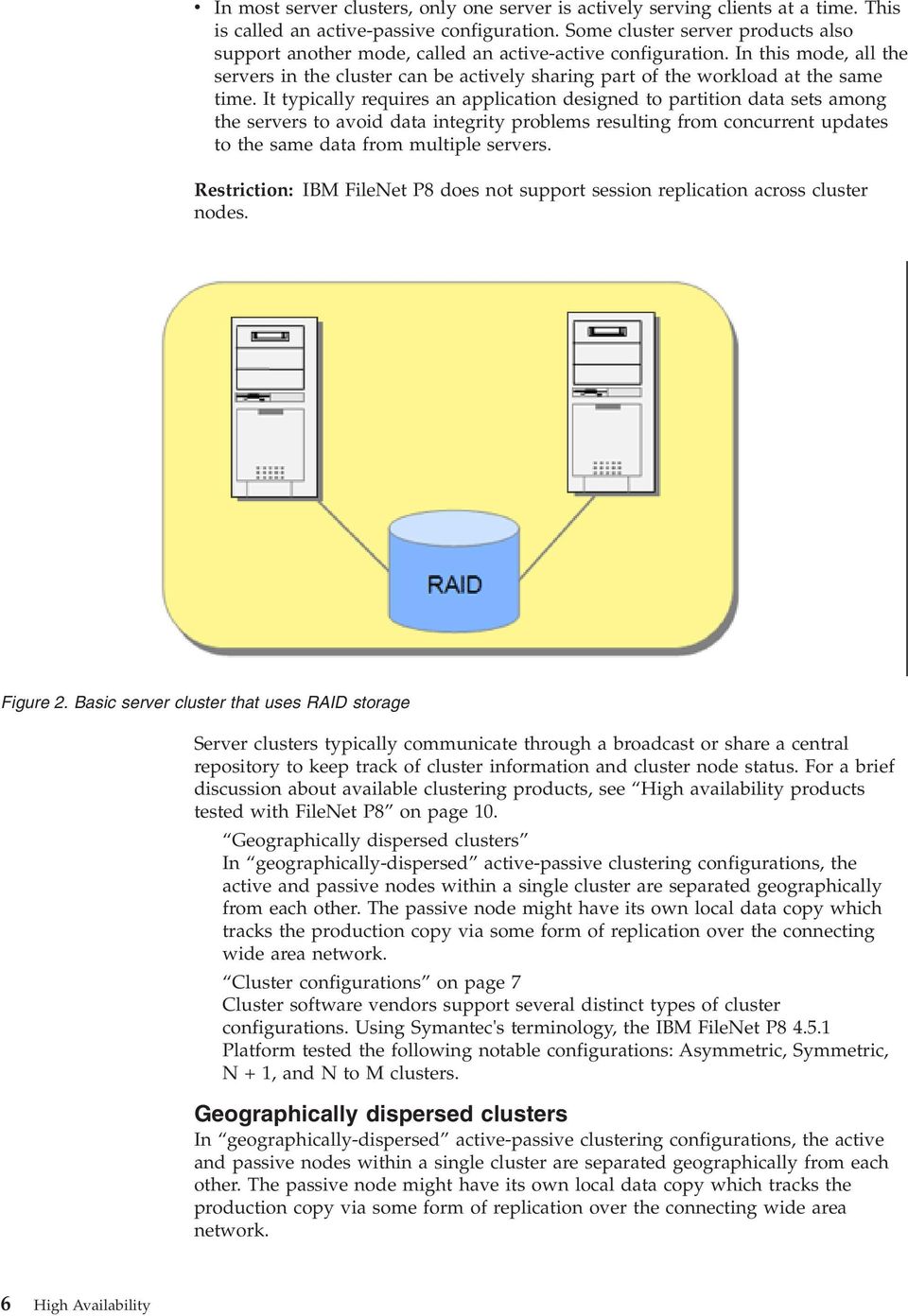
13 Figure 1. The basic server farm setup A load-balanced server farm provides both better availability and better scalability than a single server. When a server fails, the load balancer automatically detects the failure and redirects user requests to another server in the farm, thereby keeping the site available. Administrators can increase system performance and capacity by adding servers to the farm. With a hardware-based load balancing solution, redundant load balancers are required to avoid a single point of failure. The software-based load balancers are typically designed to avoid a single point of failure by running the network load balancing software on each server in the farm. For a brief discussion about available load balancing/farming products, see Examples of high availability on page 10. Server clusters Server clusters are based on the concept of shared software configuration data storage, making it suitable for data-centric tiers, such as file servers and data servers, because their data content is constantly changing. Server hardware and software vendors offer vendor-specific server clustering products as their high availability offering for these kinds of data-centric servers. v v v v Two or more servers share a highly available disk array for data storage, shown in the following figure. The array incorporates redundant copies of the data, but appears as a single disk resource to the servers, thereby avoiding the need for data replication between servers. The servers can each have their own local disk for static storage of operating system, utilities, and other software. A common set of applications run on each server. Server clients see the cluster as a single virtual server. If one of the servers fails, the other server picks up the workload of the failed server (failover). When the failed server is repaired and ready to run again, the workload is shifted back over from the other server (failback). In some configurations, the repaired server simply becomes the new backup server, and no failback is required. What is high availability? 5

14 v In most server clusters, only one server is actively serving clients at a time. This is called an active-passive configuration. Some cluster server products also support another mode, called an active-active configuration. In this mode, all the servers in the cluster can be actively sharing part of the workload at the same time. It typically requires an application designed to partition data sets among the servers to avoid data integrity problems resulting from concurrent updates to the same data from multiple servers. Restriction: IBM FileNet P8 does not support session replication across cluster nodes. Figure 2. Basic server cluster that uses RAID storage Server clusters typically communicate through a broadcast or share a central repository to keep track of cluster information and cluster node status. For a brief discussion about available clustering products, see High availability products tested with FileNet P8 on page 10. Geographically dispersed clusters In geographically-dispersed active-passive clustering configurations, the active and passive nodes within a single cluster are separated geographically from each other. The passive node might have its own local data copy which tracks the production copy via some form of replication over the connecting wide area network. Cluster configurations on page 7 Cluster software vendors support several distinct types of cluster configurations. Using Symantec's terminology, the IBM FileNet P Platform tested the following notable configurations: Asymmetric, Symmetric, N + 1, and N to M clusters. Geographically dispersed clusters In geographically-dispersed active-passive clustering configurations, the active and passive nodes within a single cluster are separated geographically from each other. The passive node might have its own local data copy which tracks the production copy via some form of replication over the connecting wide area network. 6 High Availability
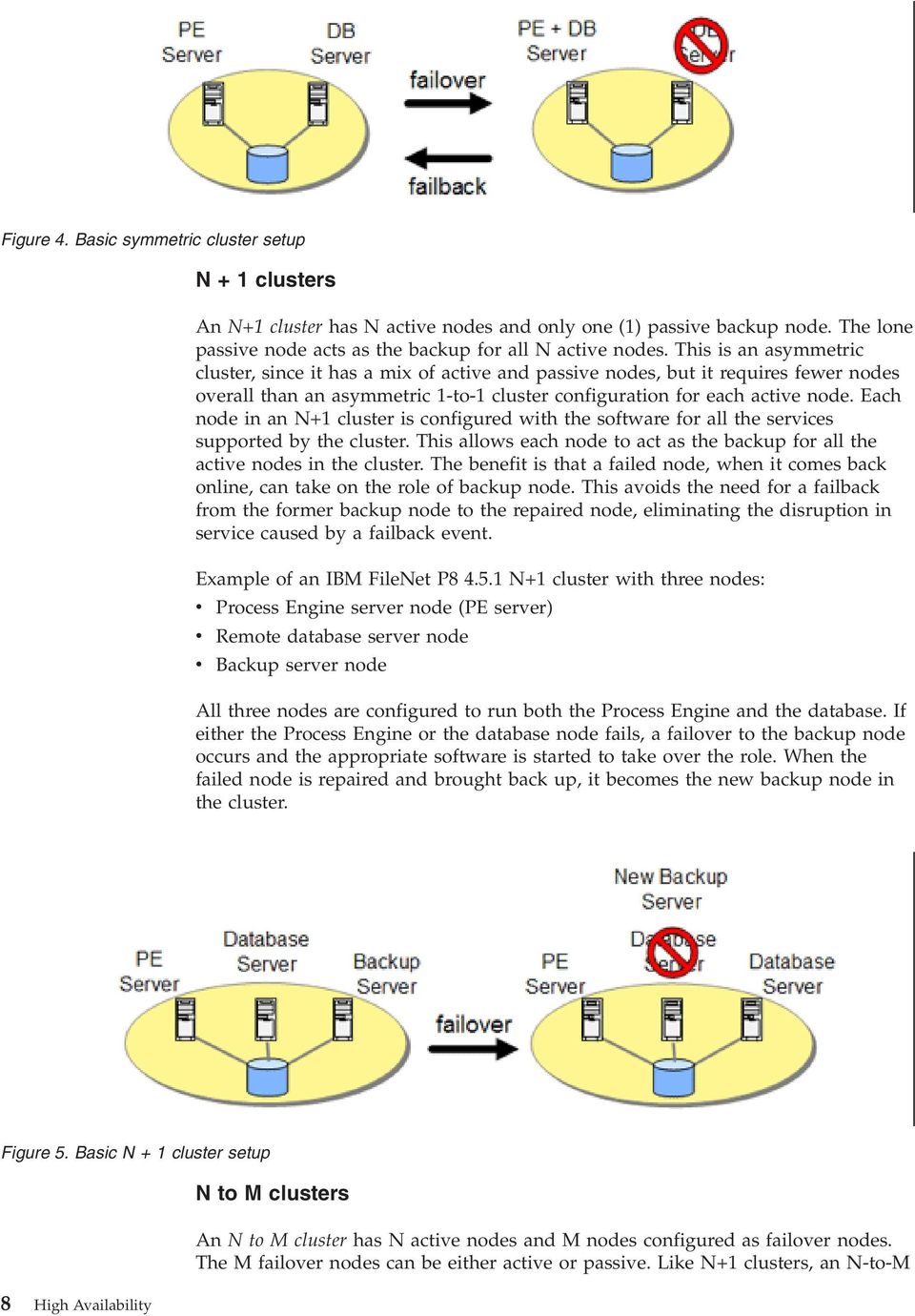
15 Data replication and geographically-dispersed servers should be reserved for a disaster recovery configuration, where data replication and the difficulties introduced by wide area networking cannot be avoided. For more information, see the IBM FileNet P8 Disaster Recovery Technical Notice. Related information Download the IBM FileNet P8 Disaster Recovery Technical Notice Download IBM FileNet P8 Disaster Recovery Technical Notice, as well as other IBM FileNet P8 documentation. Cluster configurations Cluster software vendors support several distinct types of cluster configurations. Using Symantec's terminology, the IBM FileNet P Platform tested the following notable configurations: Asymmetric, Symmetric, N + 1, and N to M clusters. Asymmetric clusters Asymmetric clusters are asymmetric in the sense that the cluster includes both active and passive servers. An asymmetric 1-to-1 cluster has one active server and one passive server. This is the simplest form of server cluster, but also the most expensive, in effect doubling the number of servers required for a given workload. There is no drop-off in performance after a failover in an asymmetric 1-to-1 cluster, assuming the passive server is identical in capability with the active server. Figure 3. Basic asymmetric cluster setup Symmetric clusters Symmetric clusters are termed symmetric because all the servers (also called nodes) in the cluster are active. Although there are no passive servers in a symmetric cluster, the servers typically run different services. No two servers provide the same service for the same data set simultaneously, because of the difficulty of maintaining data integrity mentioned earlier. The net result of a failover in a symmetric cluster is that both services end up running on one node. Note the potential drop in performance if both nodes are not provisioned with enough idle capacity to accommodate running both the Process Engine and database on the same node. For this reason nodes in a symmetric cluster might have to be more powerful than they would be in a non-ha environment, but no extra nodes are required, in contrast to an asymmetric cluster. Restriction: You can only set up symmetric clusters with components that can be collocated. For more information, see the IBM FileNet P8 Hardware and Software Requirements document. What is high availability? 7

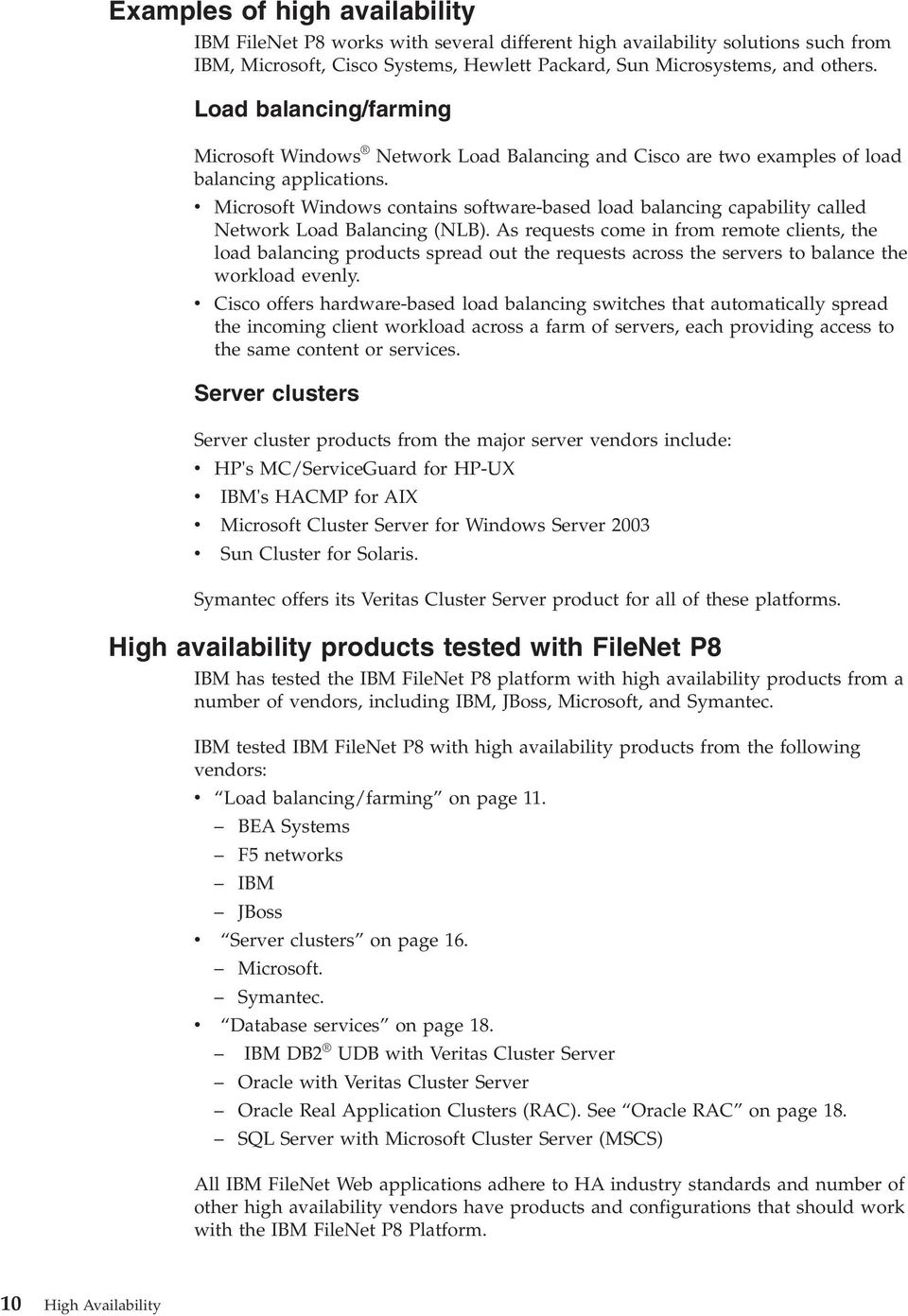
16 Figure 4. Basic symmetric cluster setup N + 1 clusters An N+1 cluster has N active nodes and only one (1) passive backup node. The lone passive node acts as the backup for all N active nodes. This is an asymmetric cluster, since it has a mix of active and passive nodes, but it requires fewer nodes overall than an asymmetric 1-to-1 cluster configuration for each active node. Each node in an N+1 cluster is configured with the software for all the services supported by the cluster. This allows each node to act as the backup for all the active nodes in the cluster. The benefit is that a failed node, when it comes back online, can take on the role of backup node. This avoids the need for a failback from the former backup node to the repaired node, eliminating the disruption in service caused by a failback event. Example of an IBM FileNet P N+1 cluster with three nodes: v Process Engine server node (PE server) v Remote database server node v Backup server node All three nodes are configured to run both the Process Engine and the database. If either the Process Engine or the database node fails, a failover to the backup node occurs and the appropriate software is started to take over the role. When the failed node is repaired and brought back up, it becomes the new backup node in the cluster. Figure 5. Basic N + 1 cluster setup 8 High Availability N to M clusters An N to M cluster has N active nodes and M nodes configured as failover nodes. The M failover nodes can be either active or passive. Like N+1 clusters, an N-to-M
17 cluster can be configured to avoid the need for a failback when the failed node is available for use again, in the case where a passive backup node is desired. If there is no passive node in an N-to-M cluster, a failback is presumably preferred to get the cluster back to its highest performance configuration with all nodes active. The advantage of an N-to-M cluster over an N+1 cluster is that it can accommodate multiple failures, since it has M failover targets that can take over for a failed node. Example of an IBM FileNet P8 N to M cluster with four nodes: v Process Engine server node (PE Server) v Content Engine Database server node (CE Database Server) v Process Engine Database server node (PE Database Server) v File Store share server node (File Store Server) If the File Store share server node fails, it could be configured to fail over to the Process Engine Database server. On a second failure, say of the Process Engine the clustering software on the PE node could be configured to fail over to the Content Engine Database Server node. Figure 6. Basic N + M cluster setup High availability products You can integrate IBM FileNet P8 with various high availability products for load balancing, server clustering, and database services. IBM FileNet P8 supports high availability products from different vendors to provide you with flexible system integration options. You can use these products to load balance system requests over system farms, create cluster farms for various supported application servers, and access and retrieve content from Content Engine and Process Engine by using the supported database of your choice. Examples of high availability on page 10 IBM FileNet P8 works with several different high availability solutions such from IBM, Microsoft, Cisco Systems, Hewlett Packard, Sun Microsystems, and others. High availability products tested with FileNet P8 on page 10 IBM has tested the IBM FileNet P8 platform with high availability products from a number of vendors, including IBM, JBoss, Microsoft, and Symantec. What is high availability? 9

18 Examples of high availability IBM FileNet P8 works with several different high availability solutions such from IBM, Microsoft, Cisco Systems, Hewlett Packard, Sun Microsystems, and others. Load balancing/farming Microsoft Windows Network Load Balancing and Cisco are two examples of load balancing applications. v v Microsoft Windows contains software-based load balancing capability called Network Load Balancing (NLB). As requests come in from remote clients, the load balancing products spread out the requests across the servers to balance the workload evenly. Cisco offers hardware-based load balancing switches that automatically spread the incoming client workload across a farm of servers, each providing access to the same content or services. Server clusters Server cluster products from the major server vendors include: v HP's MC/ServiceGuard for HP-UX v IBM's HACMP for AIX v Microsoft Cluster Server for Windows Server 2003 v Sun Cluster for Solaris. Symantec offers its Veritas Cluster Server product for all of these platforms. High availability products tested with FileNet P8 IBM has tested the IBM FileNet P8 platform with high availability products from a number of vendors, including IBM, JBoss, Microsoft, and Symantec. IBM tested IBM FileNet P8 with high availability products from the following vendors: v Load balancing/farming on page 11. BEA Systems F5 networks IBM JBoss v Server clusters on page 16. Microsoft. Symantec. v Database services on page 18. IBM DB2 UDB with Veritas Cluster Server Oracle with Veritas Cluster Server Oracle Real Application Clusters (RAC). See Oracle RAC on page 18. SQL Server with Microsoft Cluster Server (MSCS) All IBM FileNet Web applications adhere to HA industry standards and number of other high availability vendors have products and configurations that should work with the IBM FileNet P8 Platform. 10 High Availability
19 Important: If your high availability configuration differs significantly from those described here, you should to do a proof of concept test, or even a pilot project, to confirm that the configuration functions as expected. Load balancing/farming A number of hardware and software load-balancing products are available for server farm configurations, including IBM, Oracle, F5 Big IP, and JBoss. Oracle WebLogic Server clusters (farms) on page 15 By using Oracle WebLogic Server you can create a network of clustered application servers to provide highly available and scalable applications that are capable of providing service in the event of a machine or hardware component failure. WebSphere clusters (farms) on page 15 IBM WebSphere Application Server Network Deployment (WebSphere Application Server ND) provides high availability through clusters, a collection of servers that work together as a server farm and can be managed as a single server. You can deploy, start, and stop all servers in the cluster as a single entity. JBoss clusters on page 16 JBoss Application Servers can be grouped together into a cluster to provide high availability, but each server is managed individually. Server clusters on page 16 Veritas Cluster Server and Microsoft Cluster Server are two examples of similar server cluster products. Each machine in the cluster is seen as a node. Database services on page 18 If the database is inaccessible, users will be unable to add and retrieve content on Content Engine or Process Engine. You should include any database services in a cluster as part of a highly available environment. Load balancing/farming A number of hardware and software load-balancing products are available for server farm configurations, including IBM, Oracle, F5 Big IP, and JBoss. For more information, see Using load balancers with IBM FileNet P8 on page 12. Table 2. Tested load-balancing/farming solutions Vendor Notes Oracle WebLogic Server clusters - F5 Big IP - IBM WebSphere Application Server Network Formerly called server group of clones. Deployment clusters JBoss Application Server cluster Also called HA partition. v v WebSphere Application Server and WebLogic Server Both FileNet P8 Application Engine and Content Engine are hosted on Java application servers. Both the Oracle and IBM Java application servers have built-in capabilities for providing highly available Web services. Each application server product is capable of configuring a collection of server instances that function as a single entity in order to provide an application to an end-user. Both Oracle WebLogic Server and IBM WebSphere Application Server calls this collection of server instances a Cluster. Both products function like a server farm. JBoss Application Server What is high availability? 11

20 JBoss Application Server clusters do not use a separate administrative server. In a JBoss cluster all nodes grouped together in a partition are equivalent. Applications must be deployed on each node individually unless the optional JBoss "farm" service is used, and individual nodes are started and stopped independently. For details on the JBoss farm service, see the JBoss Application Server documentation. Using load balancers with IBM FileNet P8 You can use load-balancers to manage client requests across all of the nodes in an IBM FileNet P8 server farm. Using load balancers with IBM FileNet P8: You can use load-balancers to manage client requests across all of the nodes in an IBM FileNet P8 server farm. Farming requires a mechanism to balance the load across all the nodes in a farm, and to redirect client connections to surviving nodes in case of failure. This section summarizes the load balancing options available for IBM FileNet P Load balancer support for IBM FileNet P8 You can use different load-balancing strategies to manage requests to the Content Engine, Process Engine, Application Engine, and the database respectively. Configuring the time-to-live value for load balancers that use dynamic DNS servers on page 14 For load balancers that use dynamic DNS servers, you can configure the Content Engine, Application Engine, and Process Engine to point the information that is cached after a failover to the correct address of the active farm node. Load balancer support for IBM FileNet P8: You can use different load-balancing strategies to manage requests to the Content Engine, Process Engine, Application Engine, and the database respectively. Content Engine Content Engine is stateless and supports both hardware and software load balancers. Depending on which of the two transports the client applications use to Content Engine, certain restrictions apply. This table outlines the types of load balancing that can be used with Content Engine for each transport. Table 3. Content Engine Hardware load balancing (all protocols) Application Server load balancing HTTP-plugin load balancing CE clients Web Services Yes No Yes Yes clients (CEWS transport: HTTP) Java clients (EJB transport: IIOP/T3/JNP) No (see Important note later in this section.) Yes No No Network Load Balancing feature in Windows Server 12 High Availability

21 Table 3. Content Engine (continued) CE clients IBM FileNet Enterprise Manager and other administrative applications Hardware load balancing (all protocols) Application Server load balancing HTTP-plugin load balancing No No No No Network Load Balancing feature in Windows Server Content Engine Web Services clients (CEWS transport: HTTP) v Pure Web service clients v COM API clients (Capture) v.net API clients IBM Content Collector (ICC) Sharepoint Connector v Java API clients when using CEWS as transport (Process Engine) Custom applications could use any of the APIs shown above and would require the same kind of load balancing. Java clients (EJB transport: IIOP/T3/JNP) v Application Engine/Workplace v Workplace XT v IBM InfoSphere Enterprise Records v Business Process Framework v Custom Java API clients when using EJB transport IBM FileNet Enterprise Manager and other administrative applications For information, see Connecting to a highly available Content Engine on page 69. Important: To successfully configure your environment for Content Engine high availability for clients that use the EJB Transport, you must use the EJB cluster URL of the application server for EJB client communication with Content Engine. For configuration information, see Content Engine in an application server cluster by using EJB transport on page 70. If you use a hardware load-balancer between a client and Content Engine using EJB transport, the load-balancer only performs the initial JNDI lookup. The client then locks to an individual Content Engine node, bypassing the load-balancer. Process Engine Since the Process Engine does not run inside a Java 2 Enterprise Edition (J2EE) application server, a load balancer external to FileNet Process Engine is required. FileNet Process Engine is qualified with a hardware load balancer. Tip: v If FileNet Content Engine and FileNet Process Engine are collocated, a hardware load balancer is required as FileNet Process Engine does not support software What is high availability? 13
22 v load balancing. If any FileNet Content Engine clients are using the EJB transport, software load balancing by the application server would still be needed for FileNet Content Engine. If you access your Process Engine farms through a load balancer configured to use a dynamic DNS server you must configure Time-To-Live (TTL) setting for your environment. Table 4. Process Engine PE clients v v v Java API Application Engine/ Workplace Workplace XT Process Engine Web Service clients (PEWS transport: HTTP) Hardware load balancing (all protocols) Yes (TCP for client access, UDP for intraserver communication) Application Server load balancing HTTP-plugin load balancing No No No Yes No Yes Yes Network Load Balancing feature in Windows Server Application Engine Application Engine supports both hardware and software load balancers. Note, however, that it is not stateless; you must use a load balancer that supports sticky sessions such as Cisco Local Director (tested by IBM FileNet). You can also use WebSphere or WebLogic HTTP plug-in load balancing in combination with an HTTP server. Table 5. Application Engine AE clients Hardware load balancing (all protocols) Application Server load balancing HTTP-plugin load balancing Network Load Balancing feature in Windows Server Web Browsers Yes + sticky sessions No Yes + sticky sessions Yes + sticky sessions Application integration (Office) Yes + sticky sessions No Yes + sticky sessions Yes + sticky sessions Database When using Oracle RAC as the database service, load balancing is provided through the built-in capabilities of both the Oracle RAC client and SQL NET. Configuring the time-to-live value for load balancers that use dynamic DNS servers: For load balancers that use dynamic DNS servers, you can configure the Content Engine, Application Engine, and Process Engine to point the information that is cached after a failover to the correct address of the active farm node. 14 High Availability
23 Process Engine farms accessed via a load balancer configured to use a dynamic DNS server might not be accessible after a failover. In this configuration the load balancer name-to-address translation is cached by the JVM of the application that accesses the Process Engine API. After a failover, this cache might be pointing to an incorrect address for the active farm node. To configure your applications for correct failover in this type of environment you must set the Time-To-Live (TTL) setting for host name caching on the following components: v Content Engine v Application Engine v Component Manager on Application Engine (configuration done post-installation) v Workplace XT v Component Manager on Workplace XT (configuration done post-installation) v Custom client applications that use the Process Engine API. Set the Time-To-Live (TTL) to a value that is equal to or less than the TTL for the DNS server. This will force the application to look up the current name-to-address translation before attempting to connect to the Process Engine load balancer. To modify the TTL setting: 1. On each node in the application server cluster, edit the java.security file located in the host../jvm/jre/lib/security directory. 2. Update the TTL property: networkaddress.cache.ttl = T where T should be equal to or less than the value, in seconds, set for the dynamic DNS server. In a highly available IBM FileNet P8 environment Application Engine runs on WebSphere, and the Process Engine farm load balancer is F5 with 3DNS configured for a TTL of 30 seconds. a. Edit the following file on each of the Application Engine servers in the cluster: WAS_Home/AppServer/java/jre/lib/security/java.security b. Set the TTL value to 30 seconds in the following entry: networkaddress.cache.ttl = Restart the application server. Oracle WebLogic Server clusters (farms) By using Oracle WebLogic Server you can create a network of clustered application servers to provide highly available and scalable applications that are capable of providing service in the event of a machine or hardware component failure. WebLogic Server clusters are a network of WebLogic Server instances that work together as a server farm to provide a highly available Web service. Each instance is a fully functioning application server. You can deploy several applications to the entire cluster, thus making the cluster function as a single unit providing the same application across all machines in the cluster. Web clients connect to the cluster through either a cluster aware Proxy application (an application provided by WebLogic Server which includes built-in load balancing) or a vendor load balancer. In either case the Web client connects to one address and is transparently redirected to a machine within the cluster. WebSphere clusters (farms) IBM WebSphere Application Server Network Deployment (WebSphere Application Server ND) provides high availability through clusters, a collection of servers that What is high availability? 15
24 work together as a server farm and can be managed as a single server. You can deploy, start, and stop all servers in the cluster as a single entity. Important: The base version of IBM WebSphere Application Server that is bundled with Content Engine does not include cluster support. To configure clusters, you must have Content Engine installed on servers that are running the WebSphere Application Server Network Deployment version. Servers in a WebSphere Application Server cluster are copies of an original WebSphere Application Server. They function as separate individual servers, yet their configuration is based on the same template configuration from an original server. Clusters can be used to group together cloned servers. WebSphere Application Server clusters together with clones are equivalent to Oracle WebLogic Server clusters, both of which are server farms. Web clients can connect to the cluster through a proxy HTTP server. For WebSphere Application Server Network Deployment, the proxy HTTP server uses the WebSphere Application Server Network Deployment HTTP plug-in. The HTTP plug-in is cluster-aware and redirects requests to the cluster of application servers. Another way to load balance the Application Engine is to use a hardware load balancer. In that case, the Application Engine can be hosted on either the base version of WebSphere Application Server or WebSphere Application Server Network Deployment. The Content Engine's CEWS HTTP transport can also be load balanced via a hardware load balancer, but WebSphere Application Server Network Deployment is required for load balancing the EJB transport, if it is used. See Load balancer support for IBM FileNet P8 on page 12 for details on load balancing IBM FileNet P8. JBoss clusters JBoss Application Servers can be grouped together into a cluster to provide high availability, but each server is managed individually. The server on each node is started and stopped individually, and applications must be deployed separately to each node unless the optional JBoss "farm" service is used. Important: Since the farm service is not necessary for a JBoss Application Server cluster to operate, it will not be discussed further in this document; applications are to be deployed individually on each node. Each node in a JBoss Application Server cluster is an independent server running the cluster service and configured with the same HA partition name. Servers with the same partition name are configured separately but communicate with each other via multicast. Web clients connect to the cluster through a proxy HTTP server such as Apache HTTP Server with the Apache Tomcat Connector. The Tomcat Connector, mod_jk, is configured with the location of each JBoss Application Server in the cluster and redirects each request to a machine in the cluster. For more information, see JBoss documentation and Connecting to a highly available Content Engine on page 69. Server clusters Veritas Cluster Server and Microsoft Cluster Server are two examples of similar server cluster products. Each machine in the cluster is seen as a node. 16 High Availability
25 Each node in the cluster monitors the local services it is running and broadcasts this information on a private network connection. This private network connection allows all nodes in the cluster to know the status of all clustered resources. In the event that a service on one node fails, another node receives this status through the private network connection and in response, can start the service locally to maintain high availability for the service. In addition to Oracle being supported by out of the box Veritas high availability agents, a certified Veritas custom high availability agent for the Process Engine is provided as part of the IBM FileNet P8 Platform software. See Installing Process Engine in a Veritas cluster server (UNIX) on page 80 for more details on the Veritas high availability agent for the Process Engine. Microsoft Cluster Server Microsoft offers clustering technology within its Windows operating system. Microsoft Cluster Server (MSCS) offers the ability to set up a number of Windows cluster nodes in order to provide highly available services, with functionality similar to other cluster products. The maximum number of nodes that can be clustered depends on the version of the operating system being used. For more information, consult your operating system vendor's documentation. Veritas Cluster Server Symantec provides a software package called Veritas Cluster Server (VCS) that provides a network of servers that are capable of running applications in a high availability environment with clustered storage. VCS works by monitoring resources and applications associated with a provided service (for example an application server, database, or network storage). When a provided service goes offline on one server in the cluster, it is automatically started on another node in the cluster. VCS Agents monitor, start, and stop services in a cluster. Agents are a middle layer between the user interface, and the services running in a cluster. Commands are given to the Agents and the Agents are responsible for fulfilling the command and verifying that everything ran without error. When you issue a command in VCS to bring a resource offline this is in effect telling the Agent to go and take the resource offline. VCS provides a highly configurable framework for creating your own Agents to control services in a cluster. Symantec also provides, for purchase, several Agents for popular products such as Oracle, Microsoft SQL Server, and Microsoft Exchange. Table 6. Tested server clusters Vendor Microsoft Cluster Server Veritas Cluster Server Notes Windows The Symantec Veritas product runs on a number of hardware and operating systems platforms, including: v AIX v HP-UX v Solaris v Microsoft Windows Server What is high availability? 17
26 Database services If the database is inaccessible, users will be unable to add and retrieve content on Content Engine or Process Engine. You should include any database services in a cluster as part of a highly available environment. Content Engine and Process Engine both use database servers to store content. If the database is inaccessible, users will be unable to add and retrieve content on the Content Engine or Process Engine. You should include any database services in a cluster as part of a highly available environment. No additional configuration steps are necessary on the IBM FileNet P8 side to use highly available database instances for any FileNet P8 components (with the exception of Oracle Real Application Clusters as noted in the information later in this section). Table 7. Tested database services Vendor Notes IBM DB2 UDB with Veritas Cluster Server - Oracle with Veritas Cluster Server - Oracle RAC See Oracle RAC. SQL Server with Microsoft Cluster Server - (MSCS) Oracle RAC In addition to the traditional database server clusters, IBM FileNet P8 platform components support Oracle Real Application Clusters (RAC). Oracle RAC allows for the active availability of multiple database servers running in parallel. Oracle RAC: In addition to the traditional database server clusters, IBM FileNet P8 platform components support Oracle Real Application Clusters (RAC). Oracle RAC allows for the active availability of multiple database servers running in parallel. Active availability of multiple database servers running in parallel is in contrast to the traditional cluster topologies covered previously, where only one instance was running at any given time. With Oracle RAC multiple database servers are running at the same time and provide access to the same data. The benefit of this is the ability to continue to provide high availability in conjunction with load balancing functionality. Oracle also provides a feature called Transparent Application Failover (TAF) to automatically reconnect client applications to a database in the event of a connection failure, making the failover of database sessions transparent to the application. The settings controlling load-balancing and TAF are maintained by the Oracle client. The Oracle client settings required to enable load-balancing and TAF in an Oracle RAC configuration are not specific to any application, including FileNet P8 platform components. See your Oracle documentation for more information on how to enable client settings for load balancing and Transparent Application Failover for your Oracle RAC configuration. For Oracle clusters: The database server name requires a specific format. For more information, see Configuring Content Engine on page 63 and Creating object stores in FileNet P on page High Availability
27 Planning and preparing for high availability Planning the installation You must prepare your system before you install and upgrade IBM FileNet P8 components in a highly available environment. This section provides instructions for preparing your system to install and upgrade the core IBM FileNet P8 components in a highly available environment. Installation instructions are contained in the IBM FileNet P8 Platform Installation and Upgrade Guide and separate add on installation guides. Planning the installation You must plan your system rollout before you install IBM FileNet P8 components in a highly available environment. Performing required preparation tasks on page 35 You must perform the required planning and preparation tasks for the components you are installing. You must plan your system rollout before you install IBM FileNet P8 components in a highly available environment. Prepare your environment for the installation of a highly available IBM FileNet P8 system. In many cases, the items shown will be links to more detailed information that will help you plan a system rollout. Review this section thoroughly before you start to set up IBM FileNet P8 components or required independent software vendor (ISV) software. Understanding the system components You should understand the IBM FileNet P8 components and how they are integrated in a highly available environment in your planning. Definition of installation roles on page 32 The tasks in this guide and the rows in the Installation and Upgrade Worksheet are organized by administrative roles. Your organization might have different roles, and some of the responsibilities of listed roles will vary from those assigned by default in this documentation. Using the installation and upgrade worksheet on page 33 The Installation and Upgrade Worksheet is a Microsoft Excel spreadsheet (p8_worksheet.xls). The worksheet describes the properties and parameters required to complete IBM FileNet P8 installation, upgrade, and configuration programs, and provides a way to record the values you assign to these properties and parameters. Understanding the system components You should understand the IBM FileNet P8 components and how they are integrated in a highly available environment in your planning. Follow the general information and high level installation steps to help you plan the high availability installation of your system components. Content Engine on page 20 Content Engine is a critical component in a highly available environment Copyright IBM Corp. 2001,
28 because it provides users with access and storage facilities for content. If content is not accessible due to a system failure, the other IBM FileNet P8 components are affected as well. Content Search Engine on page 22 The IBM FileNet P8 platform relies on Autonomy's K2 Enterprise technology for its content based retrieval (CBR) functionality, also called Content Search Engine. Process Engine on page 23 Process Engine allows users to create, manage, control, and participate in workflows. Application Engine/Workplace XT on page 26 Application Engine/Workplace XT provides front-end access to IBM FileNet P8 content by using the corresponding Workplace/Workplace XT Web application. Rendition Engine on page 26 In a highly available Rendition Engine environment a number of Rendition Engine servers share the rendition administration and workload. Together they provide redundancy in the event of network or server failure. The Liquent software uses a Liquent Vista domain to track all render servers that have been configured and joined to the domain. CFS-ICI on page 27 Content Federation Services for IBM Content Integrator (CFS-ICI) is an optional component of the IBM FileNet P8 Platform. IBM FileNet eforms for P8 on page 28 IBM FileNet eforms for P8 is an add-on component to the Application Engine or Workplace XT that provides availability to eforms. Process Analyzer on page 29 Process Analyzer provides dynamic, chart-based analyses of workflow activity, based on information collected from Process Engine or Process Simulator. IBM InfoSphere Enterprise Records on page 30 IBM InfoSphere Enterprise Records is tightly integrated with Content Engine, Process Engine, and Application Engine and seamlessly integrates with other IBM FileNet P8 components in clustered configurations. IBM FileNet Connector for Microsoft SharePoint Web Parts, versions 2.2 and on page 31 You can install and configure IBM FileNet Connector for Microsoft SharePoint Web Parts to connect to different versions (2.2 or 2.2.1) of Content Engine or Process Engine in a highly available SharePoint environment. IBM FileNet Connector for Microsoft SharePoint Document Libraries, version 2.2 on page 31 The IBM FileNet Connector for Microsoft SharePoint Document Libraries installation program installs two sets of services. Content Engine Content Engine is a critical component in a highly available environment because it provides users with access and storage facilities for content. If content is not accessible due to a system failure, the other IBM FileNet P8 components are affected as well. For a general overview of Content Engine deployment options, see the "Planning Content Engine deployment" topic in the Plan and Prepare Your Environment for IBM FileNet P8 document. Content Engine provides access and storage facilities for content. When a critical component fails, users will no longer have access to existing content or be allowed 20 High Availability
29 to add new content. When content is no longer accessible Application Engine and Process Engine components are also affected. This makes the health and stability of the Content Engine a key factor in creating a highly available IBM FileNet P8 environment. Content Engine is comprised of a number of components. The following are the most important for a highly available FileNet P8 environment: v Content Engine enterprise application v Content Engine Global Configuration Data - stored in the database v Object store data - stored in the database v File store data - stored in a highly available network share Content Engine procedure overview The installation of Content Engine requires the installation and configuration of several other IBM FileNet P8 components including the database, the application server, and Process Engine. Content Engine cache refresh delays on page 22 Metadata and GCD information are cached and any changes made to these areas might not be reflected among the other Content Engine nodes until the refresh has occurred. Content Engine procedure overview: The installation of Content Engine requires the installation and configuration of several other IBM FileNet P8 components including the database, the application server, and Process Engine. Important: Depending on your setup/configuration there might be additional steps to the ones later in this section relevant to your setup/configuration. For more information, see the IBM FileNet P8 Platform Installation and Upgrade Guide. To install Content Engine: 1. Install and configure the database/tablespace. This step includes installing and configuring your database(s)/tablespace(s), including setting them up to be highly available if required. Follow the instructions in the Plan and Prepare Your Environment for IBM FileNet P8 for your database requirements, and follow vendor documentation for database installation. 2. Install and configure the directory service. This step includes installing and configuring your directory server(s) (LDAP), including setting them up to be highly available. Follow the instructions for your LDAP server installation. 3. Install and configure the application server. This step includes installing and configuring your application server, including creating and configuring your highly available application server configuration. Follow the instructions provided by your application server vendor. 4. (Content Engine using WSI) Install load balancer. 5. Install Content Engine to one of your application server nodes. Option WebSphere Application Server Oracle WebLogic Server Description Install to your deployment manager node. Install to your Admin Server node. Planning and preparing for high availability 21
30 Option JBoss Application Server Description Deploy Content Engine separately on each node, as described in Install or upgrade IBM FileNet P8 Platform. 6. Configure Content Engine instances. 7. Install the latest Process Engine Client files on Content Engine servers. 8. Redeploy Content Engine to your application server configuration. 9. Complete post-deployment steps. 10. Establish the IBM FileNet P8 domain and Global Configuration Data (GCD). 11. Create the data sources for your object store databases. 12. Enable application server connections after database failover. Enable the WebSphere/WebLogic/JBoss connection to your GCD and object store databases after failover. 13. Create an object store and verify the Content Engine Installation. Content Engine cache refresh delays: Metadata and GCD information are cached and any changes made to these areas might not be reflected among the other Content Engine nodes until the refresh has occurred. The default refresh delay value is: v 2 minutes for metadata cache (not configurable) v 30 seconds for GCD cache The GCD cache value is configurable by using IBM FileNet Enterprise Manager via the properties page of the IBM FileNet P8 domain in the Server Cache tab. Recommendation: After making changes to the GCD, or to object store metadata, you should wait for the respective cache refresh interval before taking actions involving these changes. For example, after creating a class with Enterprise Manager you should wait two minutes before creating and manipulating instances of the class. This recommendation only applies to the portions of applications performing administrative operations that update metadata or the GCD, such as those within Enterprise Manager. Content Search Engine The IBM FileNet P8 platform relies on Autonomy's K2 Enterprise technology for its content based retrieval (CBR) functionality, also called Content Search Engine. You can install Content Search Engine in a highly available environment by using Veritas Cluster Server (VCS) or Microsoft Cluster Server (MSCS) technologies. General information about Content Search Engine installation: v The Content Search Engine only supports failover clustering. v The Content Search Engine installer must be run on each cluster node and supplied with the same configuration information. Content Search Engine procedure overview on page 23 The installation of Content Search Engine involves the creation of clusters and highly available storage locations. 22 High Availability
31 Content Search Engine procedure overview: The installation of Content Search Engine involves the creation of clusters and highly available storage locations. Important: Depending on your setup/configuration there might be additional steps to the ones later in this section relevant to your setup/configuration. For more information, see the IBM FileNet P8 Platform Installation and Upgrade Guide. To install Content Search Engine: 1. Create a Veritas or MSCS cluster. 2. (Windows 2008 MSCS) Create an empty Service or Application resource. 3. (Windows 2008 MSCS) Add a client access point to the Service or Application resource. Use the virtual name and IP during installation. 4. Create highly available storage locations for the following: v UNIX (Optional) Content Search Engine binaries and configuration files Content Search Engine temporary files v Windows Content Search Engine temporary files 5. (Windows 2008 MSCS) Add the highly available storage locations to the Service or Application resource. 6. Install Content Search Engine on each cluster node, in the shared directory. (Windows 2008 MSCS) Use the virtual name configured for the client access point for the Service or Application resource when specifying the Master Administration Server Information during installation. 7. Change Content Search Engine configuration files to use cluster host name. 8. Add the resources that will be under cluster control: v K2 Admin Service v K2 Dashboard Service (optional) v File share for Collections directory 9. Fail over to each node to ensure that Content Search Engine resources startup properly on each node. 10. Configure Content Search Engine per install guide instructions, for your cluster. Process Engine Process Engine allows users to create, manage, control, and participate in workflows. When Process Engine is unavailable, Application Engine or Content Engine cannot retrieve Process information. Under these circumstances no process work can be done; all workflows remain in their current state until Application Engine or Content Engine can reconnect to a running Process Engine. The goal of this configuration is to allow Process Engine Services to continue running and provide service to Application Engine and Content Engine in the event that the active node in the cluster or farm fails. Making the Process Engine highly available ensures that Application Engine and Content Engine can reconnect to the Process Engine and continue to provide users with access to workflows. Planning and preparing for high availability 23
32 Important: The procedure for making the Process Engine highly available differs by platform and configuration (cluster or farm). Server farm environments A server farm is a group of identical servers accessed through hardware or software load balancing technology. All the servers are active, provide the same set of services, and are effectively interchangeable. A load balancer distributes incoming client requests to the servers in the group. Cluster environments (UNIX) Server clusters are based on the concept of shared software configuration data storage, making it suitable for data-centric tiers, such as file servers and data servers, because their data content is constantly changing. There are various UNIX-based server clustering products that provide high availability for data-centric servers. Cluster environments (Windows) on page 25 Server clusters are based on the concept of shared software configuration data storage, making it suitable for data-centric tiers, such as file servers and data servers, because their data content is constantly changing. There are various Windows-based server clustering products that provide high availability for data-centric servers. Server farm environments: A server farm is a group of identical servers accessed through hardware or software load balancing technology. All the servers are active, provide the same set of services, and are effectively interchangeable. A load balancer distributes incoming client requests to the servers in the group. The following high-level steps are required to make the Process Engine highly available in a server farm environment on UNIX or Windows platforms: 1. Install and configure the first Process Engine in the farm as described in the IBM FileNet P8 Platform Installation and Upgrade Guide. 2. Configure the hardware load balancer. 3. Install subsequent Process Engines on the farm servers as described in the IBM FileNet P8 Platform Installation and Upgrade Guide with some farm specific exceptions. 4. Start Process Engine on the additional farmed servers. 5. Refresh the Process Engine node on the Process Task Manager and configure it for the load balancer. 6. Configure Process Engine for the load balancer. For detailed instructions, see Configuring a Process Engine server farm for a hardware load balancer on page 74 or Configuring a Process Engine server farm for a software load balancer on page 78. Cluster environments (UNIX): Server clusters are based on the concept of shared software configuration data storage, making it suitable for data-centric tiers, such as file servers and data servers, because their data content is constantly changing. There are various UNIX-based server clustering products that provide high availability for data-centric servers. Important: A Process Engine cluster must run in an active-passive type of cluster configuration with only one cluster node running Process Engine Services at any one time. 24 High Availability
33 The following high-level steps are required to make the Process Engine highly available in a cluster environment on UNIX platforms: 1. Create partition resources in the cluster for the Process Engine. 2. Perform Process Engine pre-installation and configuration tasks on all nodes. 3. Install the Process Engine software on one node as described in the IBM FileNet P8 Platform Installation and Upgrade Guide. 4. Configure the Process Engine for the cluster. 5. Move the cluster group to second node (repeat this step for each additional cluster node). 6. Install Process Engine software on second node (repeat this step for each additional cluster node) as described in the IBM FileNet P8 Platform Installation and Upgrade Guide. 7. Create a cluster resource to control the Process Engine (by using one of the following two methods): v Install/configure the Veritas Certified FileNet Process Engine Agent. v Use a generic cluster package to create/configure a resource to control the Process Engine. Tip: For an overview of command line shutdown and startup procedures, go to the IBM FileNet P8 Platform help and navigate to FileNet P8 Administration Enterprise-wide Administration Shutdown and Startup. The following services are available for monitoring: TM_daemon (required) vworbbroker (required) vwior (required) SEC_daemon (optional) NCH_daemon (optional) MKF_writer (optional) MKF_clean (optional) 8. Fail over to each node to ensure that Process Engine resources startup properly on each node. For detailed instructions, see Installing Process Engine in a Veritas cluster server (UNIX) on page 80. Cluster environments (Windows): Server clusters are based on the concept of shared software configuration data storage, making it suitable for data-centric tiers, such as file servers and data servers, because their data content is constantly changing. There are various Windows-based server clustering products that provide high availability for data-centric servers. The following high-level steps are required to make the Process Engine highly available in a cluster environment on Windows platforms: 1. Create partition resources in the cluster for the Process Engine. 2. Install Process Engine on one node as described in the IBM FileNet P8 Platform Installation and Upgrade Guide. 3. Configure Process Engine for the cluster. 4. Move the cluster group to second node (repeat this step for each additional cluster nodes). Planning and preparing for high availability 25
34 5. Install Process Engine software on second node (repeat this step for each cluster node) as described in the IBM FileNet P8 Platform Installation and Upgrade Guide. 6. Add resources to the cluster to control Process Engine. v IMS Control Service v Process Engine Services Manager v Registry replication 7. Fail over to each node to ensure that Process Engine resources startup properly on each node. For detailed instructions, see Installing Process Engine in a Veritas cluster server (UNIX) on page 80 or Installing Process Engine in a Microsoft cluster server on page 92. Application Engine/Workplace XT Application Engine/Workplace XT provides front-end access to IBM FileNet P8 content by using the corresponding Workplace/Workplace XT Web application. By making Application Engine/Workplace XT highly available you ensure that users will always have access to a running instance of the application. Application Engine/Workplace XT comprises a number of components. The following components are the most important for a highly available FileNet P8 environment: v The Workplace/Workplace XT Web application v The shared configuration directory v Component Manager Application Engine/Workplace XT procedure overview The installation of Application Engine/Workplace XT involves the creation of a highly available storage location and an application server cluster. Application Engine/Workplace XT procedure overview: The installation of Application Engine/Workplace XT involves the creation of a highly available storage location and an application server cluster. The following high-level steps are required to make Application Engine/Workplace XT highly available: 1. Create a shared location for storing shared configuration information. 2. Install Application Engine/Workplace XT on all nodes. 3. Configure the application server cluster for Application Engine/Workplace XT. 4. Deploy Workplace/Workplace XT. 5. Perform any necessary post-deployment steps, and restart Application Engine/Workplace XT. Rendition Engine In a highly available Rendition Engine environment a number of Rendition Engine servers share the rendition administration and workload. Together they provide redundancy in the event of network or server failure. The Liquent software uses a Liquent Vista domain to track all render servers that have been configured and joined to the domain. Each Rendition Engine, controlled by the Liquent Vista domain, polls the Rendition Engine database for submitted rendition jobs in a round-robin fashion. If a job is available, the Liquent Vista domain assigns it to one of the available Rendition Engine servers. In this scenario the Liquent Vista domain, distributed across the 26 High Availability
35 available Rendition Engine servers, acts as a load balancer and assigns jobs to active Rendition Engine servers. If a server becomes unavailable, the available Rendition Engine servers pick up the workload. Tip: v You can install IBM FileNet Rendition Engine in highly available configurations by using the standard Rendition Engine installer. No extra software is needed to set up a highly available Rendition Engine. v IBM FileNet P8 relies on the built in Liquent high availability for Rendition Engine v Restriction: This functionality is new for Rendition Engine and later, and the instructions in this chapter do not apply to earlier versions of Rendition Engine. If an Rendition Engine server becomes unavailable during rendering, the job ticket will fail, and a timeout will occur on the ordering Content Engine server. After the timeout, Content Engine resubmits the job once before signaling an error. The new job is picked up by another Rendition Engine server. Important: After a Rendition Engine server becomes unavailable you should inspect both the Rendition Engine Domain Manager Job tab and the Content Engine EM Publishing Queue for failed jobs. Jobs are automatically retried one time if not returned within the publishing timeout (default: 600 s/10 min) set for the server. Manually retry any jobs in InError state in the Content Engine EM Publishing Queue. For more information, go to the IBM FileNet P8 Platform help and navigate to FileNet P8 Administration Enterprise-wide Administration Publishing Publishing Queue Retry Publishing requests. Rendition Engine procedure overview The installation of Rendition Engine requires the installation of Content Engine, Process Engine, and Application Engine. Rendition Engine procedure overview: The installation of Rendition Engine requires the installation of Content Engine, Process Engine, and Application Engine. The following high-level steps are necessary to configure Rendition Engine for high availability: 1. Install Content Engine, Process Engine, and Application Engine. 2. Perform prerequisite tasks. 3. Install and configure an initial Rendition Engine. 4. Install and configure additional Rendition Engines. 5. Optional: Verify Installation. CFS-ICI Content Federation Services for IBM Content Integrator (CFS-ICI) is an optional component of the IBM FileNet P8 Platform. You can install CFS-ICI in highly available configurations by using standard application server clustering software. The software is integrated with Content Engine, Process Engine, and Application Engine and integrates with other FileNet P8 components in clustered configurations. Tip: Planning and preparing for high availability 27
36 v v v This procedure covers installation of the Federator Administrator application only. This procedure covers the specific details required for installing Content Federation Services in an application server cluster rather than on a standalone server. Typically, application servers provide their own clustering/farming (the terminology differs by vendor) for achieving high availability with a Web application. Application servers use server farms to make applications highly available. These are groups of identical servers running the same application server, which in turn runs the same Web application. A load balancer will typically direct users to different instances throughout the group of servers. When one server goes down a user is automatically directed to an already running instance. CFS-ICI procedure overview The installation of Content Federation Services for IBM Content Integrator (CFS-ICI) requires the installation of Content Engine, Process Engine, Application Engine, and an application server cluster. CFS-ICI procedure overview: The installation of Content Federation Services for IBM Content Integrator (CFS-ICI) requires the installation of Content Engine, Process Engine, Application Engine, and an application server cluster. The following high-level steps are required to make CFS-ICI highly available: 1. Install Content Engine and Process Engine. 2. Install a highly available Application Engine. 3. Install and configure an application server cluster for Content Federation Services. 4. Install and configure IICE in the cluster. Follow the installation instructions provided in the Content Integrator Enterprise Edition Support Web site at 5. Configure the CFS-ICI environment. 6. Install and Deploy Content Federation Services. 7. Perform Post Installation Steps. IBM FileNet eforms for P8 IBM FileNet eforms for P8 is an add-on component to the Application Engine or Workplace XT that provides availability to eforms. You can install IBM FileNet eforms for P8 on a server with FileNet P8 Application Engine or Workplace XT installed. Because IBM FileNet eforms for P8 is an add-on to the Application Engine or Workplace XT, the same high availability solution for Application Engine or Workplace XT is used to provide availability for eforms. IBM FileNet eforms for P8 procedure overview The installation of IBM FileNet eforms for P8 requires the installation of Application Engine or Workplace XT. IBM FileNet eforms for P8 procedure overview: The installation of IBM FileNet eforms for P8 requires the installation of Application Engine or Workplace XT. 28 High Availability
37 The following high-level steps are required to make eforms for IBM FileNet P8 highly available: 1. Install IBM FileNet eforms for P8 and appropriate patches, as documented in the IBM FileNet P8 eforms Installation and Upgrade Guide. 2. If Application Engine or Workplace XT is already deployed then redeploy the Web application. 3. Perform post-deployment configuration steps as noted in the IBM FileNet eforms for P8documentation. Process Analyzer Process Analyzer provides dynamic, chart-based analyses of workflow activity, based on information collected from Process Engine or Process Simulator. You can install Process Analyzer in a highly available environment by using Microsoft Cluster Server (MSCS) technologies. General information about Process Analyzer installation: v Process Analyzer only supports failover clustering. v The Process Analyzer installer needs to be run on each cluster node and supplied with the same configuration information. v Configuration changes to the running Process Analyzer instance should be made by using Process Task Manager on the active node of the cluster. Process Analyzer configuration files Process Analyzer configuration information is stored in the configuration files. Process Analyzer procedure overview The installation of Process Analyzer requires the installation of the Process Analyzer Engine and Process Analyzer Client. Other highly available components on page 30 In a highly available Process Analyzer configuration, the other highly available components include SQL Server Database Engine, SQL Server Analysis Services, Process Engine Database, Content Engine, and Process Engine. Process Analyzer configuration files: Process Analyzer configuration information is stored in the configuration files. Configuration information is stored in two files located in PA_install_path\ FileNet\Process Analyzer Engine\jpa: v vwtaskman.xml v analyzer.properties Restriction: Process Analyzer does not support storing these files in a single location shared among cluster nodes, so if the Process Analyzer configuration is changed in Process Task Manager, these changes should be propagated to all other nodes. In general, this should be done by copying the files to the other nodes, although it could also be done by running Process Task Manager on each node and making the same configuration changes. Process Analyzer procedure overview: The installation of Process Analyzer requires the installation of the Process Analyzer Engine and Process Analyzer Client. Planning and preparing for high availability 29
38 The following high-level steps are required to make Process Analyzer highly available: 1. Create a shared Temporary directory. 2. Configure Microsoft Cluster Server (MSCS) PA Resource Group. 3. Install Process Analyzer Engine on all cluster nodes. 4. Configure Process Analyzer Engine. 5. Install Process Analyzer Client. Other highly available components: In a highly available Process Analyzer configuration, the other highly available components include SQL Server Database Engine, SQL Server Analysis Services, Process Engine Database, Content Engine, and Process Engine. In a highly available Process Analyzer configuration, you should make all other system components highly available: v SQL Server Database Engine For details, see Database services on page 18. v SQL Server Analysis Services For details, see Database services on page 18. v Process Engine Database For details, see Database services on page 18. v Content Engine (can be farmed) For details, see Installing a highly available Content Engine on page 61. v Process Engine (can be farmed) For details, see Installing a highly available Process Engine on page 74. IBM InfoSphere Enterprise Records IBM InfoSphere Enterprise Records is tightly integrated with Content Engine, Process Engine, and Application Engine and seamlessly integrates with other IBM FileNet P8 components in clustered configurations. You can install InfoSphere Enterprise Records version in highly available configurations by using standard application server clustering software. Tip: v This procedure covers installation of the InfoSphere Enterprise Records Web application only. v This procedure covers the specific details required for installing InfoSphere Enterprise Records in an application server cluster rather than on a standalone server. v Typically, application servers provide their own clustering/farming (the terminology differs by vendor) for achieving high availability with a Web application. Application servers use server farms to make applications highly available. These are groups of identical servers running the same application server, which in turn runs the same Web application. A load balancer will typically direct users to different instances throughout the group of servers. When one server goes down a user is automatically directed to an already running instance. 30 High Availability
39 v For instructions on installing InfoSphere Enterprise Records components such as the InfoSphere Enterprise Records Sweep Application or Crystal Reports, see the IBM FileNet Records Manager Installation and Upgrade Guide, version Procedure overview for IBM InfoSphere Enterprise Records The installation of IBM InfoSphere Enterprise Records requires the installation of Content Engine, Process Engine, and Application Engine. Procedure overview for IBM InfoSphere Enterprise Records: The installation of IBM InfoSphere Enterprise Records requires the installation of Content Engine, Process Engine, and Application Engine. The following high-level steps are necessary to configure InfoSphere Enterprise Records for high availability: 1. Install Content Engine and Process Engine. Follow the instructions in the IBM FileNet P8 Platform Installation and Upgrade Guide. For high availability installation of these components, see Installing a highly available Content Engine on page 61 and Installing a highly available Process Engine on page Install a highly available Application Engine/Workplace XT and note the location of the bootstrap.properties file (a highly available share is recommended). For information, see Installing a highly available Application Engine/Workplace XT on page 100. Restriction: Do not deploy Workplace. This step will be completed as part of deploying the InfoSphere Enterprise Records Web application. 3. Install InfoSphere Enterprise Records and apply the relevant client file installers on each node in the cluster where Application Engine/Workplace XT is installed. 4. Configure the application server cluster for InfoSphere Enterprise Records. 5. Deploy Workplace/Workplace XT and then InfoSphere Enterprise Records. 6. Perform any necessary post-deployment steps. 7. Start Component Manager on all nodes in the server farm. IBM FileNet Connector for Microsoft SharePoint Web Parts, versions 2.2 and You can install and configure IBM FileNet Connector for Microsoft SharePoint Web Parts to connect to different versions (2.2 or 2.2.1) of Content Engine or Process Engine in a highly available SharePoint environment. v v You can configure IBM FileNet Connector for Microsoft SharePoint Web Parts, version 2.2, to connect to a highly available Content Engine or Process Engine, see Installing and configuring IBM FileNet Connector for Microsoft SharePoint Web Parts 2.2 on page 134. You can configure IBM FileNet Connector for Microsoft SharePoint Web Parts, version 2.2.1, to connect to a highly available Content Engine or Process Engine, see Installing and configuring IBM FileNet Connector for Microsoft SharePoint Web Parts on page 138. IBM FileNet Connector for Microsoft SharePoint Document Libraries, version 2.2 The IBM FileNet Connector for Microsoft SharePoint Document Libraries installation program installs two sets of services. Planning and preparing for high availability 31
40 You can install IBM FileNet Connector for Microsoft SharePoint Document Libraries 2.2 in a highly available SharePoint environment. The setup program installs two sets of services: v Connector Services installed on each member of the SharePoint farm. v Connector Administration Services installed in a Microsoft active/passive cluster. For information, see Installing and configuring IBM FileNet Connector for Microsoft SharePoint Document Libraries 2.2 on page 141. Definition of installation roles The tasks in this guide and the rows in the Installation and Upgrade Worksheet are organized by administrative roles. Your organization might have different roles, and some of the responsibilities of listed roles will vary from those assigned by default in this documentation. Installation administrator v Runs IBM FileNet P8 installers during initial setup. v Runs the Configuration Manager tool during initial setup, followed by starting IBM FileNet Enterprise Manager. v Runs IBM FileNet P8 Upgrade programs during upgrades. v Abbreviated as IA. Responsible for coordinating the information described in this worksheet. The information itself will require the input from the other roles. The role of IA is usually filled by an IBM FileNet Certified Professional (FCP). Information technology administrator v Responsible for the networking and operating systems settings required by IBM FileNet P8. v Responsible for performing certain security configurations. v Abbreviated as ITA. Responsible for providing the information in the rows in the Installation and Upgrade Worksheet with a value of ITA in the Role column. Security administrator v v v Responsible for configuring the directory servers required by IBM FileNet P8 components, including Content Engine and Application Engine. Creates and maintains directory server user and group accounts. Abbreviated as SA. Responsible for providing the information in the rows in the Installation and Upgrade Worksheet with a value of SA in the Role column. Database administrator v Creates, configures, maintains database installations and database or table spaces. v Responsible for creating database accounts needed by IBM FileNet P8. v v For purposes of this documentation, the database administrator is expected to have responsibilities regarding the JDBC data sources. Abbreviated as DBA. Responsible for providing the information in the rows in the Installation and Upgrade Worksheet with a value of DBA in the Role column. 32 High Availability
41 Application server administrator v Responsible for providing the application servers required by IBM FileNet P8. v Responsible for application server administrative accounts. v Abbreviated as ASA. Responsible for providing the information in the rows in the Installation and Upgrade Worksheet with a value of ASA in the Role column. IBM FileNet P8 administrator v v v This role designation actually refers to the administrator or administrators who perform regular maintenance of Content Engine, Process Engine Application Engine, Workplace or Workplace XT. The administrator who logs on to Enterprise Manager by using the gcd_admin account or an object_store_admin account is considered an IBM FileNet P8 administrator. Abbreviated as P8A. Responsible for providing the information in the rows of the Installation and Upgrade Worksheet with a value of P8A in the Role column. Administrator v v Creates an account that will be used to configure the Notification tab of the Process Task Manager so that Process Engine can send notifications to end users. (Required only if you use this feature.) Abbreviated as EA. Using the installation and upgrade worksheet The Installation and Upgrade Worksheet is a Microsoft Excel spreadsheet (p8_worksheet.xls). The worksheet describes the properties and parameters required to complete IBM FileNet P8 installation, upgrade, and configuration programs, and provides a way to record the values you assign to these properties and parameters. Administrators who are preparing the environment for installation or upgrade of IBM FileNet P8 components must use the worksheet during their preparation tasks to record the appropriate values and provide them to the Installation Administrator who runs the installation or upgrade programs. Some of the features of the Installation and Upgrade Worksheet are: v Instructions: describes the worksheet and includes a button that runs the Customize Worksheet macro. v The two highlighted columns, Property or Parameter and ENTER YOUR VALUE HERE, provide the simplest view of the requirement. The others add identifying information and help you sort and filter the rows usefully. v The Role column assigns each row to an administrator and uses the following acronyms: ITA: Information Technology Administrator ASA: Application Server Administrator DBA: Database Administrator SA: Security Administrator P8A: IBM FileNet P8 Administrator v Property definitions are contained in the column titled Description. v Some rows, though not all, contain a hyperlink in the PPG Links column. Click this hyperlink to run a query against the IBM Information Center, which opens with the Search Results pane showing the topics that contain the words in the Planning and preparing for high availability 33
42 query phrase. Browse the search results until you have enough information to be able to enter a value in the Worksheet row. Running the Customize Worksheet macro The Customize Worksheet macro lets you extract only those rows that describe your environment. Autofiltering and sorting the Worksheet There are several ways to organize the Worksheet to make finding properties and entering values easier. Related reference Installation and Upgrade worksheet The worksheet is a Microsoft Excel spreadsheet that describes the properties and parameters required to complete installation, upgrade, and configuration. It also provides a way to record the values that you assign to these properties and parameters. Running the Customize Worksheet macro The Customize Worksheet macro lets you extract only those rows that describe your environment. To run the Customize Worksheet macro: 1. Open the Installation and Upgrade Worksheet (p8_worksheet.xls) and click the Instructions worksheet (also called a tab). 2. Scroll down until you see the button representing the Customize Worksheet macro. Click the button. 3. Select the components and options that describe the environment you are preparing for IBM FileNet P8. v Installation or Upgrade v FileNet P8 Components v Application Server type v Operating system v Database type v Directory Server type v Number of object stores (adds new sets of rows for creating additional data sources) v Name of customized sheet 4. Click OK. The macro copies the rows that fulfill your selection criteria into a new worksheet with the name you entered. Enter the values for your environment into this new worksheet. 5. Click the name of the new worksheet at the bottom of the Excel window. Add your preparation values into this new worksheet. 6. Notice that the new worksheet has buttons at the top titled Show Installer View and Show Full View, depending on its state. The Show Installer View displays only those columns that you need while running installation or configuration programs. Autofiltering and sorting the Worksheet There are several ways to organize the Worksheet to make finding properties and entering values easier. AutoFiltering is a quick way to display only those rows that meet a certain criteria. To use AutoFilter: 34 High Availability
43 1. Make sure AutoFiltering is enabled. (Select the entire row with the column headers, then click Data Filter Autofilter.) AutoFilter arrows will appear to the right of the column labels. 2. Click the AutoFilter arrow in the Installation or Configuration Program column header and select the program you are interested in (for example, PE installer). 3. Click the AutoFilter arrow in the Setup Type column header, select Custom, and specify Setup Type contains Installation. 4. For a custom AutoFilter, click the AutoFilter in any column header, select Custom, and specify Setup Type contains Installation. 5. To turn off AutoFiltering in a column, click the column AutoFilter arrow and select (All). 6. To reorder rows alphabetically, do a Sort: a. Click anywhere in a column, for example, Column A Role. The only possible values in the Role column are ASA, SA, DBA, ITA, and P8A. Sorting on Role therefore groups the rows by this attribute, in alphabetic order. Several other columns also have a limited number of possible values which means they can be usefully sorted. b. Click the Sort Ascending icon in the Excel toolbar, or use the Data Sort menu command. The rows sort on Role. Sorting the Worksheet reassigns row numbers. If you refer to rows by number, be aware that row numbers change if you change the sort order. Performing required preparation tasks You must perform the required planning and preparation tasks for the components you are installing. Important: In addition to the preparation tasks later in this section, follow the plan and prepare instructions in the Plan and Prepare Your Environment for IBM FileNet P8 document for the components you are installing. For add-on components, follow the plan and prepare instructions in the corresponding installation guide. Note that some of the tasks might replace the tasks described for a non highly available environment. If you are using the Installation and Upgrade Worksheet for your environment, all administrators should complete the worksheet with the relevant information as described in Using the installation and upgrade worksheet on page 33. Installation administrator tasks on page 36 You must complete the installation administrator tasks for the different IBM FileNet P8 components. Information technology administrator on page 37 You must complete the information technology administrator tasks for the different IBM FileNet P8 components. Security administrator tasks on page 47 You must complete the security administrator tasks for the IBM FileNet P8 components. Database administrator tasks on page 48 You must complete the database administrator tasks for the IBM FileNet P8 components. Planning and preparing for high availability 35
44 Application server administrator tasks on page 50 You must complete the application server administrator tasks for the IBM FileNet P8 components. Process Engine on page 57 You can install and configure Process Engine in a highly available FileNet P8 environment to create and manage workflows that selectively route your business information to the appropriate users on your system. Installation administrator tasks You must complete the installation administrator tasks for the different IBM FileNet P8 components. Content Engine In addition to the tasks later in this section, review and perform the required Content Engine tasks in the "Performing required preparation tasks" section of the Plan and Prepare Your Environment for IBM FileNet P8 guide. Content Engine installation location You can install the Content Engine software on local storage; no Content Engine configuration files require shared storage. Remember: File store data must still be shared. For more information, see Configuring file stores for high availablilty on page 65. Content Search Engine In addition to the tasks shown later in this section, review and perform the required Content Search Engine tasks in the "Performing required preparation tasks" section of the Plan and Prepare Your Environment for IBM FileNet P8 guide. Process Engine In addition to the tasks shown later in this section, review and perform the required Process Engine tasks in the "Performing required preparation tasks" section of the Plan and Prepare Your Environment for IBM FileNet P8 guide. Application Engine/Workplace XT In addition to the tasks shown later in this section, review and perform the required Application Engine or Workplace XT tasks in the "Performing required preparation tasks" section of the Plan and Prepare Your Environment for IBM FileNet P8 guide. Rendition Engine In addition to the tasks shown later in this section, review and perform the required Rendition Engine tasks in the "Performing required preparation tasks" section of the Plan and Prepare Your Environment for IBM FileNet P8 guide. CFS-ICI In addition to the tasks shown later in this section, review and perform the required Content Federation Services tasks in the "Performing required preparation 36 High Availability
45 tasks" section of the Plan and Prepare Your Environment for IBM FileNet P8 guide. eforms In addition to the tasks shown later in this section, review and perform the required IBM FileNet eforms for P8 tasks in the "Performing required preparation tasks" section of the Plan and Prepare Your Environment for IBM FileNet P8 guide. Process Analyzer In addition to the tasks shown later in this section, review and perform the required Process Analyzer tasks in the "Performing required preparation tasks" section of the Plan and Prepare Your Environment for IBM FileNet P8 guide. IBM FileNet Connector for SharePoint Web Parts Before you begin the installation, ensure that all prerequisites are completed. For details, see "Installation planning considerations" in the IBM FileNet Connector for SharePoint Web Parts Installation and Upgrade Guide. IBM FileNet Connector for SharePoint Document Libraries Before you begin the installation, ensure that all prerequisites are completed. For details, see "Installation Planning Considerations" in the IBM FileNet Connector for SharePoint Document Libraries Installation and Upgrade Guide. Information technology administrator You must complete the information technology administrator tasks for the different IBM FileNet P8 components. Follow the required tasks for the information technology administrator. Content Search Engine You can install Content Search Engine in a highly available FileNet P8 environment. Application Engine/Workplace XT on page 39 You can install and configure Application Engine/Workplace XT in a highly available FileNet P8 environment to provide access to the IBM FileNet P8 content on the corresponding Application Engine/Workplace XT Web application. Process Engine on page 39 You can install and configure Process Engine in a highly available FileNet P8 environment to create and manage workflows that selectively route your business information to the appropriate users on your system. Process Analyzer on page 45 You can install Process Analyzer in a highly available FileNet P8 environment. Process Analyzer provides chart-based analyses of the workflow activity on your system by using information that it collects from Process Engine or Process Simulator. Content Search Engine You can install Content Search Engine in a highly available FileNet P8 environment. Content Search Engine is an optional FileNet P8 component based on the Autonomy K2 product. Planning and preparing for high availability 37
46 (UNIX only) Updating the k2_os_user profile You can update the k2_os_user profile when you install Content Search Engine on UNIX. Creating required shared directories You must create three separate directories when you install Content Search Engine. (UNIX only) Updating the k2_os_user profile: You can update the k2_os_user profile when you install Content Search Engine on UNIX. If you are installing Content Search Engine on UNIX, add the following lines to the profile of the k2_os_user user: CATALINA_PID=verity_install_path/data/host/log/catalina.pid export CATALINA_PID Creating required shared directories: You must create three separate directories when you install Content Search Engine. Content Search Engine requires three separate locations: v A location where the Content Search Engine executable files will be stored (for example, /opt/ibm/verity). This location must be shared by each cluster node and might either be on shared local storage (UNIX and Windows) or mounted from a remote highly-available storage location (UNIX only). v A location where temporary files will be placed by Content Engine for indexing by Content Search Engine (for example, /opt/ibm/verity/tmp ). This location must be shared by each Content Search Engine cluster node and each Content Engine node configured to use Content Search Engine. This location can either be on shared storage local to a Content Engine or Content Search Engine cluster or mounted by both Content Engine and Content Search Engine from a remote highly-available storage location. v A location where the Content Search Engine collections will be stored. This location must be on shared storage local to Content Search Engine and not mounted from a remote location. It must also be made available as a clustered file share resource that can be mounted remotely by Content Engine. Create highly available file shares to store the Content Search Engine binary files and configuration files, and mount these directories from each Content Search Engine cluster node at the following locations: Table 8. Content Search Engine shared directories File share Mount point UNIX Mount point Windows Binary Share /opt/ibm/verity Drive:\Program Files\IBM\FileNet\ ContentEngine\verity Temp DirectoryShare /opt/ibm/verity/tmp Drive:\Program Files\IBM\FileNet\ ContentEngine\verity\tmp 38 High Availability
47 Table 8. Content Search Engine shared directories (continued) File share Mount point UNIX Mount point Windows Collections Share /opt/ibm/verity/ collections Drive:\Program Files\IBM\FileNet\ ContentEngine\verity\ collections Application Engine/Workplace XT You can install and configure Application Engine/Workplace XT in a highly available FileNet P8 environment to provide access to the IBM FileNet P8 content on the corresponding Application Engine/Workplace XT Web application. Complete the Information Technology Application Administrator planning and preparation tasks for Application Engine/Workplace XT. Creating a local or shared directory for the shared configuration files You can create a local or shared directory for the shared configuration files. Creating a local or shared directory for the shared configuration files: You can create a local or shared directory for the shared configuration files. For more information on the use of the shared configuration directory and how to manage it see Managing Workplace/Workplace XT settings in a highly available environment on page 106. Remember: At a minimum, the user running the install and the Application Engine/Workplace XT processes needs write access to this directory. Do not use one of the cluster servers for the file location as this creates a single point of failure. The bootstrap.properties file could, theoretically, be placed on a local Windows share or local NFS export directory from any of the systems in the Application Engine/Workplace XT cluster (that is, shared out from the default file location from the first installation). However, if the local system holding the file would go down, other Application Engine/Workplace XT instances will be unable to find the bootstrap.properties file and will return error messages. Process Engine You can install and configure Process Engine in a highly available FileNet P8 environment to create and manage workflows that selectively route your business information to the appropriate users on your system. Complete the Information Technology Application Administrator planning and preparation tasks for Process Engine. Configuring hardware load balancer on page 40 You can configure your hardware load balancer to forward and monitor TCP traffic on ports (IOR) and (broker) only. Configuring the Process Engine nodes hosts file on page 40 You can configure the Process Engine nodes hosts files for your server farms and server clusters. Configuring your operating system for Process Engine Cluster (UNIX) on page 41 You must configure your UNIX operating system for Process Engine clusters. Planning and preparing for high availability 39
48 Installing and configuring Veritas Cluster Server (UNIX) on page 41 You install the clustering software in a UNIX environment before installing or configuring any FileNet services for high availability. This software includes Veritas Cluster Server, Veritas Volume Manager, data replication software, and backup software. Installing and configuring Veritas Cluster Server (Windows) on page 42 You install the clustering software in a Windows environment before installing or configuring any FileNet services for high availability. This software includes Veritas Cluster Server, Veritas Volume Manager, data replication software, and backup software. Installing and configuring Microsoft Cluster Server on page 42 You can install and configure Microsoft clustering software on your Windows-based system. Setting up a secure native mode domain installation on page 43 You can set up a secure native domain installation to perform a Process Engine cluster installation in an IBM FileNet P8 environment without Domain Administrator privileges. Configuring hardware load balancer: You can configure your hardware load balancer to forward and monitor TCP traffic on ports (IOR) and (broker) only. For information about required and default ports for your environment, see the IBM FileNet P8 Ports appendix in the Plan and Prepare Your Environment for IBM FileNet P8 document. Configuring the Process Engine nodes hosts file: You can configure the Process Engine nodes hosts files for your server farms and server clusters. Server Farm Table 9. Example server farm hosts file entries For each Process Engine server, configure the hosts file on each node in the farm to: v Include the network name for every other node in the farm. v Identify the loadbalancer virtual as itself. The hosts file entries should look like this: Server PE_farm1 PE_farm2 PE_farm3 Hosts file entry PE_farm1_server loadbalancer_virtual_name PE_farm2_server PE_farm3_server PE_farm1_server PE_farm2_server loadbalancer_virtual_name PE_farm3_server PE_farm1_server PE_farm2_server PE_farm3_server loadbalancer_virtual_name 40 High Availability
49 loadbalancer_virtual_name is the load balancer virtual name, and PE_farm1_server ( ), PE_farm2_server ( ), and PE_farm3_server ( ) are three Process Engine servers with unique network addresses and network names for each server. For UNIX: Verify that the nsswitch.conf file (AIX netsvc.conf and/or irs.conf) is configured to resolve names via the local hosts file first. Server Cluster Configure the hosts file on each cluster node server to follow the following format: Node name PE_node1 PE_node2 Hosts file entry cluster_virtual_name local_node_server1 ProcessEngine cluster_virtual_name local_node_server2 ProcessEngine where: v is the network address for the cluster. This is the address used for the Clustered IP resource. v cluster_virtual_name is the name of the cluster. v local_node_server1 and local_node_server2 are the network names for the Process Engine servers. Configuring your operating system for Process Engine Cluster (UNIX): You must configure your UNIX operating system for Process Engine clusters. Perform the following required pre-installation configuration and verification as documented in the prerequisite tasks forprocess Engine installation found in Plan and Prepare Your Environment for IBM FileNet P8. To configure your operating system: Configure operating system accounts for Process Engine. The accounts you create will depend on the Process Engine server's operating system and the database the Process Engine will connect to. These accounts must be created on all Process Engine nodes with identical properties. Follow the procedures in the tasks applicable to your operating system for configuring UNIX. When creating partitions: v v It is recommended that the /fnsw/ partition be placed on a local (non-clustered) storage. The Process Engine binaries are placed in the /fnsw directory and if they are taken offline there will be no binaries available to shutdown, clean, or troubleshoot a failed node. Create the /fnsw/local partition as a clustered storage resource. Refer to Installing and configuring Veritas Cluster Server (UNIX) for details. Installing and configuring Veritas Cluster Server (UNIX): Planning and preparing for high availability 41
50 You install the clustering software in a UNIX environment before installing or configuring any FileNet services for high availability. This software includes Veritas Cluster Server, Veritas Volume Manager, data replication software, and backup software. To install and configure the Veritas Cluster Server on UNIX: 1. Create a cluster group with the following resources (at a minimum): v Clustered storage resources - any shared storage resource that will be used to host the partitions required for the Process Engine. This is the /fnsw/local partition. This resource name will be required for configuring a Process Engine agent. v Clustered IP resource - the network address for the cluster. This address will be needed when configuring a Process Engine agent and when configuring host files for Process Engine. 2. Verify that the cluster group can failover to all nodes in the cluster, and that the clustered storage can be accessed from all nodes. Installing and configuring Veritas Cluster Server (Windows): You install the clustering software in a Windows environment before installing or configuring any FileNet services for high availability. This software includes Veritas Cluster Server, Veritas Volume Manager, data replication software, and backup software. To install and configure the Veritas Cluster Server on Windows: 1. Create a clustered storage drive to store configuration data. The Process Engine stores configuration data under the fnsw_loc directory. Clustering this location ensures that each node uses consistent information and provides the same data to all users. 2. Verify that a cluster group exists with the following resources (at a minimum): v Clustered storage resources (can include Veritas Volume Group (VMDg) and MountV, or Mount for a basic disk). v A clustered IP resource v A Lanman name resource 3. Verify that the cluster group can failover to all nodes in the cluster, and that the clustered storage can be accessed from all nodes. Installing and configuring Microsoft Cluster Server: You can install and configure Microsoft clustering software on your Windows-based system. To install and configure Microsoft Cluster Server: 1. Verify that you are using Microsoft Windows Cluster Service-approved hardware. All hardware used in the Cluster configuration must be shown in the Windows Catalogs. For more information, go to the Microsoft Web site at and search for Windows Catalog and HCL. 2. Verify that your cluster nodes are members of a Windows domain running in Windows Server 2003 mode. 3. Install the clustering software before installing or configuring any IBM FileNet P8 services for high availability. 4. Plan to have a clustered shared disk available for the Process Engine application. The Process Engine stores configuration data under the fnsw_loc 42 High Availability
51 directory. Clustering this location ensures that each node uses consistent information and provides the same data to all users. Recommendation: You should keep the fnsw directory on a local (non-clustered) storage. 5. Verify that a group of cluster resources (Windows 2003) or empty service/application (Windows 2008) exists with the following resources: v Clustered disk resource v Clustered IP resource v Network Name resource 6. Verify that the clustered resources can fail over to all nodes. Setting up a secure native mode domain installation: You can set up a secure native domain installation to perform a Process Engine cluster installation in an IBM FileNet P8 environment without Domain Administrator privileges. Completion of the following configuration steps enables you to proceed with a Process Engine cluster install without having to perform the installation as a Domain Administrator. You can instead use these procedures to create the "installer" user (with limited rights), setup other required FileNet users and groups, and configure the node 1 and node 2 cluster servers. Configuring the domain controller To set up a secure native domain installation, you must first configure the domain controller by creating FileNet groups and FileNet users and adding nodes to the Pre-Windows 2000 Compatible Access properties. Configuring node servers on page 44 To set up a secure native domain installation, you must configure node servers after you configure the domain controller. Configuring the domain controller: To set up a secure native domain installation, you must first configure the domain controller by creating FileNet groups and FileNet users and adding nodes to the Pre-Windows 2000 Compatible Access properties. To configure the domain controller: 1. Create FileNet Groups. Create the following domain local security groups on the domain controller: Table 10. FileNet groups Group name FNADMIN FNOP FNUSR Group description Members have all privileges on FileNet files and databases Members can start/stop and run FileNet software Members have normal privileges on FileNet files and databases 2. Create FileNet Users. On the Domain Controller, create the following users: Planning and preparing for high availability 43
52 Table 11. FileNet users User name User description Member of Installer (The user name Installer is arbitrary; you can use any name you wish. If you plan to retain the Installer user after installation you can for example use the fnsw user for installation.) fnsw oracle (The oracle user name can be local and the user account can remain disabled during the installation.) User that will install the IBM FileNet P8 Process Engine software. Primary FileNet software user Primary Oracle software user FNADMIN, FNOP, and FNUSR FNADMIN, FNOP, and FNUSR N/A Important: The oracle user name is required even if you have a Microsoft SQL Server relational database. The Process Engine installer checks for this name and fails if it is not found. Tip: If you are planning to install Microsoft SQL Server, you do not need to create a special user for the RDBMS software. The SQL Server installer configures the system for use with the SQL Server software. 3. Add Nodes to Pre-Windows 2000 Compatible Access Properties. a. On the Active Directory Users and Computers window, click the Builtin folder. b. Right-click the Pre-Windows 2000 Compatible Access object and select Properties, as shown previously. c. Click on the Members tab, and click the Add button. d. Select Node 1 and click the Add button. e. Select Node 2 and click the Add button. f. Click OK on the Select Users, Contacts, Computers, or Groups dialog box. The Pre-Windows 2000 Compatible Access Properties window displays again and shows that the two nodes have been added. g. Click Apply on the Pre-Windows 2000 Compatible Access Properties dialog box to apply the changes. h. Click OK to close the Pre-Windows 2000 Compatible Access Properties window. i. Click OK to close the Active Directory Users and Computers window. Configuring node servers: To set up a secure native domain installation, you must configure node servers after you configure the domain controller. Perform these procedures on the node 1 server first, and then repeat them on the remaining servers. To configure node servers: 1. Create the LocalAdminInstall File. Use this procedure to create the LocalAdminInstall file in the C:\temp directory. 44 High Availability
53 a. Turn-on the node servers and logon as Domain Administrator on each server. b. Open a Command Prompt window. c. From the C: drive, change to the \temp directory by entering: cd \temp. Tip: If the temporary directory does not exist on the C: drive, use the mkdir command to create one. d. At the \temp directory, type the following command and press enter: copy con LocalAdminInstall e. Press and hold Ctrl key, and press the Z key. f. Press Enter. g. Verify that the LocalAdminInstall file was successfully created in the C:\temp directory. 2. Create Local FileNet Groups. On the node servers, create the following local groups: Table 12. Local groups Group name dba Group description Members should be domain fnsw and domain oracle. 3. Add Users to Local Admin Group. a. Add the domain users installer and fnsw to the local Administrators group. b. After both the installer and fnsw users have been added to the local Administrators group, close the Computer Management window and continue to the next section. 4. Modify the Local Security Policy for the Domain Account (fnsw) a. Modify the local security policy to give the fnsw user domain account permissions for the following local policies: v Act as part of the operating System v Log on as a service v Adjust memory quotas for a process v Replace a process level token b. After all Policy selections have been modified, close the Local Security Settings window and return to step 1 to repeat these procedures on subsequent node servers. Process Analyzer You can install Process Analyzer in a highly available FileNet P8 environment. Process Analyzer provides chart-based analyses of the workflow activity on your system by using information that it collects from Process Engine or Process Simulator. Complete the Information Technology Application Administrator planning and preparation tasks for Process Analyzer. Creating a shared temporary directory on page 46 You can create a shared Temporary directory on the Process Analyzer Engine server and grant full access rights on the folder to the pa_administrator. You must set full access rights on the Security and Sharing tabs. Planning and preparing for high availability 45
54 Configuring Microsoft Cluster Server (MSCS) PA Resource Group You can configure the Microsoft Cluster Server Process Analyzer Resource Group to add resources to the cluster. Creating a shared temporary directory: You can create a shared Temporary directory on the Process Analyzer Engine server and grant full access rights on the folder to the pa_administrator. You must set full access rights on the Security and Sharing tabs. In a highly available environment the UNC path to the temporary directory configured in Process Task Manager should use the Process Analyzer cluster's network name so that the path can be configured identically on all nodes. The shared temporary directory must be highly available and part of the group of resources configured for Process Analyzer. For performance reasons, it should be located on the same cluster as Process Analyzer. Configuring Microsoft Cluster Server (MSCS) PA Resource Group: You can configure the Microsoft Cluster Server Process Analyzer Resource Group to add resources to the cluster. The contents of the Process Analyzer Resource Group should be: v IP Address v Network name v Process Analyzer Temporary Share v Process Analyzer Services Manager (VWServicesPA) To add resources to the cluster: 1. Add a resource for the Process Analyzer Temporary share. a. Set the Resource Type: File Share b. Select the Use Network Name for computer name box. c. Make the resource dependent on the following resources: v Clustered network name v Clustered disk resources 2. Add a resource for the VWServicesPA. a. Set the Resource Type: Generic Service b. Set the Service name to VWservicesPA c. Select the Use Network Name for computer name box. d. (Windows 2003) Make the resource dependent on the following resource: v Process Analyzer Temporary Share v Clustered network name v Cluster IP address e. (Windows 2008) Make the resource dependent on the following resource: v Clustered network name 3. Bring the cluster group online. 46 High Availability
55 Security administrator tasks You must complete the security administrator tasks for the IBM FileNet P8 components. Follow the required tasks for the Security Administrator. Rendition Engine You can install and configure multiple Rendition Engine components in a highly available FileNet P8 environment to share the rendition administration and workload to provide redundancy in the event of a system failure. IBM InfoSphere Enterprise Records You can install IBM InfoSphere Enterprise Records in a highly available FileNet P8 environment to classify, apply retention policies and store electronic records according to fiscal, legal and regulatory requirements. Rendition Engine You can install and configure multiple Rendition Engine components in a highly available FileNet P8 environment to share the rendition administration and workload to provide redundancy in the event of a system failure. Complete the Security Administrator planning and preparation tasks for the Rendition Engine components. Assigning the FNRE_Admin user You must assign the FNRE_Admin user to the Rendition Engine servers. Assigning the FNRE_Admin user: You must assign the FNRE_Admin user to the Rendition Engine servers. For a highly available Rendition Engine environment the required FNRE_Admin user can be either: v A domain user available to all Rendition Engine servers. v An identically configured user on each Rendition Engine server. Important: Use the same named account with the same password on all Rendition Engine servers. IBM InfoSphere Enterprise Records You can install IBM InfoSphere Enterprise Records in a highly available FileNet P8 environment to classify, apply retention policies and store electronic records according to fiscal, legal and regulatory requirements. Complete the Security Administrator planning and preparation tasks for InfoSphere Enterprise Records. Verifying installation directory access requirements You must verify the user performing the installation has the correct access requirements. Verifying installation directory access requirements: You must verify the user performing the installation has the correct access requirements. When installing IBM InfoSphere Enterprise Records, the installer will create a number of directory structures, and install the InfoSphere Enterprise Records files Planning and preparing for high availability 47
56 into these directories. Verify that the user who will be performing the installation has the correct access requirements. For information, see Installation directory access requirements task in the IBM FileNet Records Manager Installation and Upgrade Guide. Do this on all InfoSphere Enterprise Records nodes where you will be installing software. Database administrator tasks You must complete the database administrator tasks for the IBM FileNet P8 components. Follow the required tasks for the database administrator. Installing and configuring the database for Content Engine You can install Content Engine in a highly available FileNet P8 environment to provide access and storage to facilities for content on your system. High availability is important for Content Engine because if Content Engine becomes unavailable due to a system failure, the other components are affected as well. Rendition Engine on page 49 You can install and configure multiple Rendition Engine components in a highly available FileNet P8 environment to share the rendition administration and workload and provide redundancy in the event of a system failure. Installing and configuring the database for Content Engine You can install Content Engine in a highly available FileNet P8 environment to provide access and storage to facilities for content on your system. High availability is important for Content Engine because if Content Engine becomes unavailable due to a system failure, the other components are affected as well. Complete the Database Administrator planning and preparation tasks for Content Engine included in the Plan and Prepare Your Environment for IBM FileNet P8 Guide. Oracle RAC configuration on page 49 You can install an Oracle RAC database and synchronize the Oracle nodes. 48 High Availability
57 Related tasks Preparing Microsoft SQL Server Plan the SQL Server installation and configuration, install the software, and configure database components for IBM FileNet P8 components after reviewing the requirements. Preparing Oracle server To prepare your Oracle databases, you must install the database software, and configure database components for IBM FileNet P8. Preparing DB2 for z/os servers Plan the DB2 for z/os installation and configuration, install the software, and configure database components for IBM FileNet P8 components. Preparing DB2 for Linux, UNIX and Windows servers Plan and prepare your IBM DB2 for Linux, UNIX and Windows servers for IBM FileNet P8 installation. Configuring Microsoft SQL Server client for Process Engine To configure your database clients for Process Engine, you must create ODBC data sources and, if required, install Microsoft SQL Server Client software for Process Engine. Configuring Oracle client for Process Engine Install the Oracle Client software to prepare for the installation of Process Engine. Content Engine does not require installation of Oracle Client software. Configuring DB2 client Configure the DB2 client. Configuration requirements will be different for Content Engine and Process Engine and will vary between DB2 for Linux, UNIX and Windows and DB2 for z/os. Oracle RAC configuration: You can install an Oracle RAC database and synchronize the Oracle nodes. Do the following to ensure that your Oracle nodes are properly synchronized. Oracle 9i If you are using Oracle 9i RAC with IBM FileNet P8, then you must configure the database instance for Broadcast on Commit (BOC) by setting the MAX_COMMIT_PROPAGATION_DELAY to a value of 0. You must do this on all databases that Content Engine uses. Oracle 10g and 11g If you are using Oracle 10g or 11g RAC with FileNet P8, you should have created Oracle users and groups and granted the appropriate permissions to the ce_db_user when you created Content Engine database accounts. For more information, see Plan and Prepare Your Environment for IBM FileNet P8. Rendition Engine You can install and configure multiple Rendition Engine components in a highly available FileNet P8 environment to share the rendition administration and workload and provide redundancy in the event of a system failure. Complete the Database Administrator planning and preparation tasks for the Rendition Engine components. Planning and preparing for high availability 49
58 Configuring remote databases You can configure remote databases to make them available to all the Rendition Engine servers on the system. Configuring remote databases: You can configure remote databases to make them available to all the Rendition Engine servers on the system. Perform all required Prerequisite tasks as outlined in the IBM FileNet Rendition Engine Installation and Upgrade Guide, with the following modifications: Table 13. Remote database configuration tasks Server SQL Server Perform "Install Microsoft SQL Server for Rendition Engine" task. Install the database as a remote database, available to all Rendition Engine servers. Oracle "Install Oracle Server for Rendition Engine" task. Install the database as a remote database, available to all Rendition Engine servers. Application server administrator tasks You must complete the application server administrator tasks for the IBM FileNet P8 components. Follow the required tasks for the Application server administrator. JBoss clustering of Content Engine and Application Engine You can cluster Content Engine and Application Engine nodes in a JBoss cluster environment. Application Engine/Workplace XT on page 51 You can install and configure Application Engine/Workplace XT in a highly available FileNet P8 environment to provide access to the IBM FileNet P8 content on the corresponding Application Engine/Workplace XT Web application. Content Engine on page 54 You can install Content Engine in a highly available FileNet P8 environment to provide access and storage to facilities for content on your system. High availability is important for Content Engine because if Content Engine becomes unavailable due to a system failure, the other components are affected as well. CFS-ICI on page 57 You can install Content Federation Services for IBM Content Integrator (CFS-ICI) on an application server cluster. JBoss clustering of Content Engine and Application Engine You can cluster Content Engine and Application Engine nodes in a JBoss cluster environment. In a JBoss cluster environment Application Engine and Content Engine must reside in separate JBoss clusters. Unless given a unique name, all JBoss nodes will be part of the cluster "Default." 50 High Availability
59 For each Application Engine node, uniquely name the cluster something other than default. Update the JBoss startup file on both Application Engine cluster nodes from: JBOSSSH=${JBOSSSH:-"$JBOSS_HOME/bin/run.sh -c $JBOSS_CONF -b $JBOSS_HOST"} to JBOSSSH=${JBOSSSH:-"$JBOSS_HOME/bin/run.sh -c $JBOSS_CONF -b $JBOSS_HOST"} -Djboss.partition.name=JBossP8AE Application Engine/Workplace XT You can install and configure Application Engine/Workplace XT in a highly available FileNet P8 environment to provide access to the IBM FileNet P8 content on the corresponding Application Engine/Workplace XT Web application. Complete the Application Server Administrator planning and preparation tasks for Application Engine/Workplace XT. Configure the application server You can create clusters of supported application servers. Configuring load-balancer or proxy server on page 52 Before installing and configuring Application Engine or Workplace XT in a highly available environment, verify that your load balancer or proxy server has been set up correctly. Planning for Workplace/Workplace XT shared settings on page 53 You can store Workplace/Workplace XT settings in a shared configuration directory. This directory can reside on a shared device as needed. Planning for Component Manager on page 53 If you will use Component Manager, you must install and run it on each node in the application server configuration. Configure the application server: You can create clusters of supported application servers. Application Engine/Workplace XT is an enterprise application running on a Java application server and should be made highly available by using either of the following configurations: Application Server clusters v (WebSphere, WebLogic) Managed Application Server Clusters An administrative server manages a number of application server instances. Applications and configuration changes are implemented by using an administrative server/interface and sent to each cluster node. In this type of configuration the application server software provides the components to build and deploy the highly available enterprise application. v (JBoss) Application Server Clusters JBoss application server clusters do not use a separate administrative server, and configuration changes are implemented on each cluster node separately. Farm of independent Application Server instances. A number of separate server instances run independently behind a load-balancer or proxy device. No central administration server is used. You must install and deploy on each farm node. Planning and preparing for high availability 51
60 Configuring load-balancer or proxy server: Before installing and configuring Application Engine or Workplace XT in a highly available environment, verify that your load balancer or proxy server has been set up correctly. v v A load balancing or proxy device will typically direct users to different instances throughout the group of highly available servers. When one server goes down a user is automatically directed to an already running instance. The load-balancing device can be a hardware or software implementation of a proxy or load-balancer. See the application server software's hardware and software support requirements to determine the supported load-balancing or proxy device supported for you configuration. v Application Engine and Workplace XT do not support directory security when using IIS as a proxy in front of WebSphere Application Server. 1. Identify the Base URL for the load balancer or proxy server When installing any components that request the URL of a deployed Workplace or Workplace XT instance in a highly available configuration, you must use the URL that directs users to your load-balancing or proxy device. Tip: Do not specifying a single Application Engine/Workplace XT server. This will introduce a single point of failure in the environment. If you are using load-balancer or proxy device in your configuration you must use the load-balancer or proxy device to log on to Workplace or Workplace XT for the first time. Doing this ensures that the Base URL setting, which must be set to the load-balancer or proxy URL, is correctly set. If the application is deployed to a farm of application servers, and a load-balancer is configured for this farm, then a URL could be: Application Engine: URL:loadbalancer port/workplace Workplace XT: URL:loadbalancer port/workplacext Use this URL when completing the installation steps. 2. (F5 using 3DNS for load balancing by DNS routing) Configure the IOR cache time-to-live for applications accessing a farmed Process Engine. In a farmed Process Engine environment where you use F5 for load balancing by using DNS routing and the 3DNS method, you must configure the client machine IOR (Interoperable Object Reference) cache time-to-live to a value smaller than the default 3600 seconds, matching the DNS TTL set for the 3DNS. Having a cache time-to-live that is longer than the 3DNS TTL will cause the calls to be routed to only one Process Engine server instead of the preferred Process Engine server as intended by the 3DNS routing. The cache time-to-live is set by using the system property filenet.pe.ior.cache.ttl.in.seconds. The configuration is required for the following components: v Content Engine v Application Engine v v v v Component Manager on Application Engine (configuration done post-installation) Workplace XT Component Manager on Workplace XT (configuration done post-installation) Custom client applications that use the Process Engine API. 52 High Availability
61 a. Create the p8bpmsystems.properties configuration file in the JRE/LIB directory of the application server, or in the JRE/LIB directory of the Component Manager. For example, for WebSphere on Windows, create: C:\Program Files\IBM\WebSphere\AppServer\ java\jre\lib\p8bpmsystems.properties b. Add this line to the file: filenet.pe.ior.cache.ttl.in.seconds=ttl Where TTL is the IOR cache time-to-live in seconds. For example, to set the IOR cache time-to-live to 30 seconds: filenet.pe.ior.cache.ttl.in.seconds=30 Planning for Workplace/Workplace XT shared settings: You can store Workplace/Workplace XT settings in a shared configuration directory. This directory can reside on a shared device as needed. v v v v v If you deploy your Workplace/Workplace XT Web application as a Windows service on WebSphere, do not use mapped drives to reference shared configuration folders. Instead, use a UNC share. Note that UNC shares cannot be Windows administrative shares such as \\host\c$. If the share is mountable the mount must be online when Workplace/Workplace XT is started and accessed. If the shared configuration directory is not accessible an error page is returned when a user tries to access the Workplace/Workplace XT sign-in page. Aside from the shared configuration directory no other Application Engine/Workplace XT software has to reside on shared storage. Overwriting of configuration files on subsequent installations. If you are performing an installation by using a shared configuration directory be aware that all installations of Application Engine/Workplace XT will replace any files that exist in the shared configuration directory. If an installation has been completed and settings such as the bootstrap information have already been set then any subsequent installations by using the same shared configuration directory will result in the files being overwritten, losing any settings that have been made. To preserve the settings in the shared configuration directory you should back up the files in the shared configuration directory and restore them when you have completed the installation. Remember: This is not an issue for configurations where all Application Engine/Workplace XT installations are performed at the same time, but for cases where the installer must be run again (to add a node to the configuration for example). Planning for Component Manager: If you will use Component Manager, you must install and run it on each node in the application server configuration. Including Component Manager, the installation also facilitates patching by providing a clean installation base on which to run product updates for the Application Engine/Workplace XT, which will in turn update the Component Manager software. Planning and preparing for high availability 53
62 Content Engine You can install Content Engine in a highly available FileNet P8 environment to provide access and storage to facilities for content on your system. High availability is important for Content Engine because if Content Engine becomes unavailable due to a system failure, the other components are affected as well. Complete the Application Server Administrator planning and preparation tasks for Content Engine. Installing JDBC drivers for your selected database You can install JDBC drivers for your databases on all of the nodes in the Content Engine cluster. Installing and configuring the application server for high availability You can configure the application server cluster to make Content Engine highly available. Configuring the application server for Content Engine You must configure the application server for Content Engine with modified settings for high availability. (WebSphere only) Configure Light weight Third Party Authentication (LTPA) on page 56 You must configure the WebSphere application for Light weight Third Party Authentication (LTPA) with specific modifications for high availability. Configuring load-balancer or proxy server on page 56 You can configure the load-balancer or proxy server to manage user requests over multiple application servers. Installing JDBC drivers for your selected database: You can install JDBC drivers for your databases on all of the nodes in the Content Engine cluster. Install the jdbc driver on all nodes in the Content Engine cluster, add the jdbc driver to the classpath for all servers. Installing and configuring the application server for high availability: You can configure the application server cluster to make Content Engine highly available. Content Engine is an enterprise application running on a Java application server and should be made highly available by using either of the following Application Server Cluster configurations: v (WebSphere, WebLogic) Managed Application Server Clusters An administrative server manages a number of application server instances. Applications and configuration changes are implemented by using an administrative server/interface and sent to each cluster node. In this type of configuration the application server software provides the components to build and deploy the highly available enterprise application. v (JBoss) Application Server Clusters. JBoss Application Server clusters do not use a separate administrative server, and configuration changes are implemented on each cluster node separately. Configuring the application server for Content Engine: 54 High Availability
63 You must configure the application server for Content Engine with modified settings for high availability. 1. Configure the application server on each node by following the instructions in the Plan and Prepare Your Environment for IBM FileNet P8 Guide with the following modification: v WebSphere Application Server: Follow the instructions in the Plan and Prepare Your Environment for IBM FileNet P8 Guide for configuring WebSphere Application Server for Content Engine, bet the JDBC parameters for the nodes by using the administrative console, not the individual servers. v WebLogic Server: Follow the instructions in the Plan and Prepare Your Environment for IBM FileNet P8 Guide for configuring WebLogic Server for Content Engine. v JBoss Application Server: Follow the instructions in the Plan and Prepare Your Environment for IBM FileNet P8 Guide for configuring JBoss Application Server for Content Engine, but use JBOSS_DIST/all as the base configuration file set instead of JBOSS_DIST/server. 2. (F5 using 3DNS for load balancing by DNS routing) Configure the IOR cache time-to-live for applications accessing a farmed Process Engine. In a farmed Process Engine environment where you use F5 for load balancing by using DNS routing and the 3DNS method, you must configure the client machine IOR (Interoperable Object Reference) cache time-to-live to a value smaller than the default 3600 seconds, matching the DNS TTL set for the 3DNS. Having a cache time-to-live that is longer than the 3DNS TTL will cause the calls to be routed to only one Process Engine server instead of the preferred Process Engine server as intended by the 3DNS routing. The cache time-to-live is set by using the system property filenet.pe.ior.cache.ttl.in.seconds. The configuration is required for the following components: v Content Engine v Application Engine v Component Manager on Application Engine (configuration done post-installation) v Workplace XT v Component Manager on Workplace XT (configuration done post-installation) v Custom client applications that use the Process Engine API. a. Create the p8bpmsystems.properties configuration file in the JRE/LIB directory of the application server, or in the JRE/LIB directory of the Component Manager. For example, for WebSphere on Windows, create: C:\Program Files\IBM\WebSphere\AppServer\ java\jre\lib\p8bpmsystems.properties b. Add this line to the file: filenet.pe.ior.cache.ttl.in.seconds=ttl Where TTL is the IOR cache time-to-live in seconds. For example, to set the IOR cache time-to-live to 30 seconds: filenet.pe.ior.cache.ttl.in.seconds=30 Planning and preparing for high availability 55
64 Related tasks Configuring WebSphere for Content Engine You must prepareibm WebSphere Application Server before you install Content Engine. You must create a WebSphere profile for the Content Engine application and set the environment variables for the database connection. Configuring WebLogic Server for Content Engine This task assumes you have already installed WebLogic Server on the machine where you are going to install and deploy Content Engine. Configuring JBoss Application Server for Content Engine You must prepare the server with JBoss Application Server for Content Engine. (WebSphere only) Configure Light weight Third Party Authentication (LTPA): You must configure the WebSphere application for Light weight Third Party Authentication (LTPA) with specific modifications for high availability. To configure LTPA on the Content Engine cluster, follow the instructions in the IBM FileNet P8 Platform Installation and Upgrade Guide for configuring Light weight Third Party Authentication (LTPA) for the version of WebSphere you are running, with the following modifications: 1. Set timeout to 60, After saving your configuration settings, synchronize the changes across all nodes. 3. If your environment uses Workplace, follow the second part of the "Configure Light weight Third Party Authentication (LTPA)" step to configure the Application Engine server for LTPA. 4. If your environment uses Workplace XT, follow the second part of the "Configure Light weight Third Party Authentication (LTPA)" step in the IBM FileNet Workplace XT Installation and Upgrade Guide task "Configure IBM FileNet Workplace XT( <Application server> )" to configure the Workplace XT server for LTPA. Related tasks Configuring Lightweight Third Party Authentication (LTPA) To set up LTPA security, configure settings to match on both the Content Engine application server and the Application Engine application server. If your Application Engine and Content Engine are on the same WebSphere Application Server, you are not required to configure LTPA. Related information Download the IBM FileNet Workplace XT Installation and Upgrade Guide Download IBM FileNet Workplace XT Installation and Upgrade Guide, as well as other IBM FileNet P8 documentation. Configuring load-balancer or proxy server: You can configure the load-balancer or proxy server to manage user requests over multiple application servers. Load-balancers and proxy-servers are typically used to direct users to different instances throughout a highly available application server configuration. When one server goes down the system automatically redirects the user to another running server instance. For more information, see Using load balancers with IBM FileNet P8 on page High Availability
65 The following are requirements for configurations by using a load-balancer or proxy-server: v Session affinity is required for Application Engine and Workplace XT only. v Virtual server name. If you use a load-balancer or proxy server in this configuration you must use the virtual name when performing installation steps that require a server name for a Content Engine server, with the exception of IBM FileNet Enterprise Manager and other administrative applications. For more information, see Connecting to a highly available Content Engine on page 69. CFS-ICI You can install Content Federation Services for IBM Content Integrator (CFS-ICI) on an application server cluster. The application server must have a cluster instance configured and it must be ready for applications to be deployed. To install CFS-ICI: 1. Install and configure an application server cluster for CFS-ICI. 2. Verify that the cluster nodes and load balancers are started. Process Engine You can install and configure Process Engine in a highly available FileNet P8 environment to create and manage workflows that selectively route your business information to the appropriate users on your system. Complete the Application Server Administrator planning and preparation tasks for Process Engine. Configuring software load balancer You can configure your software load balancer to forward and monitor TCP traffic on ports (IOR) and (broker) only. Configuring software load balancer You can configure your software load balancer to forward and monitor TCP traffic on ports (IOR) and (broker) only. For information about required and default ports for your environment, see the IBM FileNet P8 Ports appendix in the Plan and Prepare Your Environment for IBM FileNet P8 document. Planning and preparing for high availability 57
66 58 High Availability
67 Installing and configuring for high availability You can install and configure IBM FileNet P for high available. Follow the required steps to install and configure a highly available IBM FileNet P environment. Overview on page 60 Depending on your configuration, you might have to install at least a portion of the additional fix pack and interim fix software while you work your way through the standard IBM FileNet P8 platform installation. Installing FileNet P8 components in a highly available environment on page 60 When you install FileNet P8 components in a highly available environment, you must include HA-specific modifications in the procedures. Installing a highly available Content Engine on page 61 You can install Content Engine on a server cluster or farm to make it highly available in an IBM FileNet P8 environment. Installing a highly available Process Engine on page 74 You can install Process Engine in a highly available IBM FileNet P8 environment. Installing a highly available Application Engine/Workplace XT on page 100 You can install Application Engine/Workplace XT in a highly available environment. Installing a highly available Rendition Engine on page 109 To enable the rendering of HTML and PDF documents in your highly available FileNet P8 environment, install Rendition Engine. Installing a highly available Business Process Framework on page 111 Business Process Framework is an optional component of IBM FileNet P8 Platform which you can install and configure for high availability in a supported IBM FileNet P8 environment. Installing a highly available Content Search Engine on page 118 Use this procedure to install and configure IBM FileNet Content Search Engine, an optional component based on the Autonomy K2 product, in your highly available IBM FileNet P8 environment. Installing a highly available CFS-ICI on page 121 You can install Content Federation Services for IBM Content Integrator (CFS-ICI) in a highly available IBM FileNet P8 environment. Installing a highly available IBM FileNet eforms for P8 on page 125 You can install and configure IBM FileNet eforms for P8 to be highly available in an IBM FileNet P8 environment. Installing a highly available Process Analyzer on page 126 You can install and configure Process Analyzer to be highly available in an IBM FileNet P8 environment. Installing a highly available IBM InfoSphere Enterprise Records on page 129 You can install IBM InfoSphere Enterprise Records in a highly available IBM FileNet P8 environment. Installing a highly available IBM FileNet Connector for Microsoft SharePoint Web Parts 2.2 on page 133 You can install and configure IBM FileNet Connector for Microsoft SharePoint Web Parts 2.2 to be highly available in an IBM FileNet P8 environment. Copyright IBM Corp. 2001,
68 Installing a highly available IBM FileNet Connector for Microsoft SharePoint Web Parts on page 137 You can install and configure IBM FileNet Connector for Microsoft SharePoint Web Parts to be highly available in an IBM FileNet P8 environment. Installing a highly available IBM FileNet Connector for Microsoft SharePoint Document Libraries 2.2 on page 141 You can install and configure IBM FileNet Connector for Microsoft SharePoint Document Libraries 2.2 to be highly available in an IBM FileNet P8 environment. Configuration and startup tasks on page 148 After you install the IBM FileNet P8 components, there are some additional steps to configure the IBM FileNet P8 system in a highly available environment. Overview Depending on your configuration, you might have to install at least a portion of the additional fix pack and interim fix software while you work your way through the standard IBM FileNet P8 platform installation. For more information about available service packs and interim fixes, see the IBM FileNet P8 Release Notes and the IBM FileNet P8 Platform Installation and Upgrade Guide. Installing FileNet P8 components in a highly available environment When you install FileNet P8 components in a highly available environment, you must include HA-specific modifications in the procedures. To install and configure IBM FileNet P8 platform in a high availability environment, follow the procedures outlined in the IBM FileNet P8 Platform Installation and Upgrade Guide, with the following HA-specific modifications: v Database Services This step typically only involves vendor software and does not require you to install or configure any FileNet software. Create the database server instance and necessary table spaces, including table spaces for Global Configuration Data (GCD) and object stores, before you install any FileNet software. These preparations makes it easier to troubleshoot problems that are not FileNet software related. v Content Engine Server Farm. This step involves the installation and configuration of the Content Engine component in a highly available application server environment, including the creation of the FileNet P8 domain. For more information, see Installing a highly available Content Engine on page 61. v Process Engine Cluster or Farm. This step involves installing and configuring a highly available Process Engine. Before setting security information in the Process Task Manager as part of the post installation configuration steps, verify that: Content Engine is online. The GCD domain is created. Security is set. 60 High Availability
69 v Installing Process Engine at this stage makes it possible to verify that Process Engine functionality after Application Engine comes online. For more information, see Installing a highly available Process Engine on page 74. Application Engine/Workplace XT Server Farm. This step involves installing and configuring a highly available Application Engine/Workplace XT. As Workplace XTApplication Engine/Workplace requires all other FileNet P8 components online in order for you to log in, browse content, and perform any activities with the Process Engine, it is most often the component that is installed and configured last. For more information, see Installing a highly available Application Engine/Workplace XT on page 100. Installing a highly available Content Engine You can install Content Engine on a server cluster or farm to make it highly available in an IBM FileNet P8 environment. Follow the tasks and requirements for making Content Engine highly available in an IBM FileNet P8 environment. Installation and deployment tasks You can install and deploy FileNet P8 in a highly available environment. Creating object stores in FileNet P on page 67 Before you can complete your system setup, you must create at least one object store. Connecting to a highly available Content Engine on page 69 The configuration of the Content Engine connection in a highly available environment depends on the type of application you want to connect to the Content Engine. You can configure administrative applications or user applications to connect to the Content Engine. Enabling application server connections after database failover on page 71 If the database fails over in your environment, your application server must be able to reconnect. Verifying the Content Engine installation and failover on page 74 You can verify that the Content Engine installation succeeded by using Enterprise Manager to create a folder and a document in each object store and then check the new document out and in. Installation and deployment tasks You can install and deploy FileNet P8 in a highly available environment. Follow the tasks and requirements for installing and deploying IBM FileNet P8 in a highly available in an environment. Installing Content Engine and related client software on page 62 You must install the Content Integrator software and related client software to place the binary files for its components on the server. Install the software on the web application administrative server. Configuring Content Engine on page 63 You must prepare the Content Engine application for deployment on the application server in a highly available environment. Installing and configuring for high availability 61
70 Deploying Content Engine on page 64 You deploy the Content Engine application to make it available for use. Configuring file stores for high availablilty on page 65 File store content is managed from the Content Engine application. Completing Content Engine post-deployment steps on page 65 You must complete the post-deployment Web application server configuration and create the FileNet P8 domain before you can put an IBM FileNet P8 system into production. Verifying successful deployment on page 66 After installing and deploying your system, verify your deployment by successfully connecting to each Content Engine node and viewing the Startup Context page. Establishing the IBM FileNet P8 domain and Global Configuration Data (GCD) on page 67 With Content Engine installed and deployed, you must use Enterprise Manager to create the FileNet P8 domain. Installing Content Engine and related client software You must install the Content Integrator software and related client software to place the binary files for its components on the server. Install the software on the web application administrative server. Ensure that you completed the following prerequisite tasks: 1. Verify that you have performed the required preparation tasks as shown in Performing required preparation tasks on page (JBoss Application Server) Verify that the Content Engine and Application Engine clusters have different names. For information, see JBoss clustering of Content Engine and Application Engine on page Verify that all the servers in your highly available application server configuration are running. Note: Content Engine is comprised of a number of components. The following components are the most important for a highly available IBM FileNet P8 environment: v Content Engine enterprise application v Content Engine Global Configuration Data - stored in the database v Object store data - stored in the database v File store data - stored in a highly available network share v Fixed Content Device (FCD) - stored in a highly available network share (including configuration files such as a.pea file) To install Content Engine in a highly available environment: 1. Install the Content Engine software on the web application administrative server. In a cluster environment, the administrative server manages a number of application server instances. Applications and configuration changes are done through the administrative server interface. Follow the full instructions for installing Content Engine in the IBM FileNet P8 Platform Installation and Upgrade Guide. 2. If you did not install Enterprise Manager when you installed Content Engine, then install Enterprise Manager now. Follow the instructions in the IBM FileNet P8 Platform Installation and Upgrade Guide. 62 High Availability
71 3. Install Content Engine software updates. Follow the instructions in the IBM FileNet P8 Platform Installation and Upgrade Guide. 4. Install the latestcontent Search Engine Client files on all servers where Content Engine is installed. Follow the instructions in the IBM FileNet P8 Platform Installation and Upgrade Guide. 5. Install the latest Process Engine Client files on all servers where Content Engine is installed. Follow the instructions in the IBM FileNet P8 Platform Installation and Upgrade Guide. Related tasks Installing Content Engine See the full instructions for installing Content Engine in the IBM FileNet P8 Platform Installation and Upgrade Guide. Configuring Content Engine instances See the instructions for configuring Content Engine instances in the IBM FileNet P8 Platform Installation and Upgrade Guide. Installing the latest Process Engine Client files on Content Engine servers See the instructions for installing the latest Process Engine Client files on Content Engine servers in the IBM FileNet P8 Platform Installation and Upgrade Guide. Deploying Content Engine instances See the instructions for deploying Content Engine instances in the IBM FileNet P8 Platform Installation and Upgrade Guide. Deploying Content Engine to additional JBoss servers in a cluster See the instructions for deploying Content Engine to additional JBoss servers in a cluster in the IBM FileNet P8 Platform Installation and Upgrade Guide. Configuring Content Engine You must prepare the Content Engine application for deployment on the application server in a highly available environment. A single Content Engine application instance equates to one deployed application in your application server cluster. Configuration is a multiple step process. You must provide information about your Content Engine application environment, then apply the settings by running the configuration tasks, and then deploy the application. To configure Content Engine in a highly available environment: 1. Configure the Content Engine application. Follow the instructions in the IBM FileNet P8 Platform Installation and Upgrade Guide. 2. Enter the following additional information for the Configure GCD JDBC Data Sources task: Database server name If you are using a highly available database for the Global Configuration Data (GCD), use the virtual server name. Database server name RAC node n If you are using Oracle RAC, then you must enter the database information for two nodes in the RAC cluster. Configuration Manager uses the values that you provided to create the JDBC URL in the format shown in the following table: Installing and configuring for high availability 63
72 Table 14. JDBC URL format for Oracle RAC Server Description Example WebSphere Oracle WebLogic Server JBoss Application Server (DESCRIPTION = (load_balance=yes) (ADDRESS_LIST = (ADDRESS = (PROTOCOL = TCP) (HOST = rac node 1) (PORT = 1521))(ADDRESS = (PROTOCOL = TCP)(HOST = rac node 2) (PORT = 1521))) (CONNECT_DATA =(SERVICE_NAME = DB service name) (failover_mode = (type=select) (method=basic) (retries=retry number)(delay= delay value)))) See the Oracle Technology Network Web site, documentation/index.html Search for Configuring JDBC Multi Data sources. jdbc:oracle:@ (DESCRIPTION =(load_balance=yes) (ADDRESS_LIST= (ADDRESS = (PROTOCOL = TCP) (HOST = rac node 1) (PORT = 1521))(ADDRESS = (PROTOCOL = TCP) (HOST = rac node 2) (PORT = 1521))) (CONNECT_DATA =(SERVICE_NAME = DB service name) (failover_mode = (type=select) (method=basic) (retries=retry number) (delay=delay value)))) =(load_balance=yes) (ADDRESS_LIST=(ADDRESS = (PROTOCOL = TCP)(HOST = testrac1) (PORT = 1521)) (ADDRESS = (PROTOCOL = TCP) (HOST = testrac2)(port = 1521))) (CONNECT_DATA =(SERVICE_NAME = testracdb)(failover_mode = (type=select)(method=basic) (retries=32)(delay=4)))) jdbc:oracle:@ (DESCRIPTION =(load_balance=yes) (ADDRESS_LIST= (ADDRESS = (PROTOCOL = TCP) (HOST = testrac1)(port = 1521)) (ADDRESS = (PROTOCOL = TCP) (HOST = testrac2)(port = 1521))) (CONNECT_DATA =(SERVICE_NAME = testracdb)(failover_mode = (type=select)(method=basic) (retries=32)(delay=4)))) Deploying Content Engine You deploy the Content Engine application to make it available for use. To deploy Content Engine in a highly available environment: 1. Start Configuration Manager on your administrative node. 2. (Application server cluster only) Deploy the Content Engine instances to the cluster nodes. Follow the instructions for deploying Content Engine instances in the IBM FileNet P8 Platform Installation and Upgrade Guide, with the following additional information: Deployment type Verify that Deployment type is set to Cluster. Application server name (Application Server Cluster configurations only) Enter the name of the HA cluster that you have configured. This configures the GCD data sources and security settings at the administrative level so that all cluster nodes have access to this vital configuration information. 64 High Availability
73 Restriction: JBoss Application Server clusters do not have an administrative server. When installing Content Engine choose a single JBoss Application Server node on which to install Content Engine, then copy the necessary files to the rest of the nodes in the cluster. To deploy a Content Engine instance on each additional JBoss Application Server in your cluster, follow the instructions for deploying Content Engine to additional JBoss servers in a cluster in the IBM FileNet P8 Platform Installation and Upgrade Guide. Configuring file stores for high availablilty File store content is managed from the Content Engine application. 1. If your IBM FileNet P8 system includes IBM Tivoli Storage Manager or EMC Centera devices, then install the storage device source files on the server where you installed the Content Engine software. Follow the instructions in the IBM FileNet P8 Platform Installation and Upgrade Guide. 2. Ensure that the file store data is highly available and that access to content in file stores is not interrupted. All file stores File systems that are used for file stores must be shared or mounted through the NFS or CIFS protocol. Each Content Engine instance in a farm must have access to the same shares or mount points. Standard file stores Standard file stores must be installed in file systems that are highly available. Fixed File Stores The file system front-end must be made highly available as indicated previously, and the remote device must be made highly available by using its built-in capability. See your fixed file store documentation for details. Tip: v A fixed file store comprises a file system-based front-end, similar to a standard file store, and a remote storage system such as Centera or NetApp/IBM N-Series SnapLock. v The method and technology used to make file store data highly available can vary greatly, from file servers built on general-purpose hardware and cluster technology, such as Veritas Cluster Server or IBM HACMP, to specialized devices with built-in high availability such as NAS- and SAN-based offerings from EMC, NetApp or IBM. v The implementation and use of these technologies vary, but they can all be used to provide highly available access to data so long as they meet the criteria discussed in this section. Completing Content Engine post-deployment steps You must complete the post-deployment Web application server configuration and create the FileNet P8 domain before you can put an IBM FileNet P8 system into production. To complete the Content Engine post-deployment steps: Perform the post-deployment configuration steps for your Web application server. Follow the instructions in the IBM FileNet P8 Platform Installation and Upgrade Guide. Installing and configuring for high availability 65
74 Related tasks Installing Enterprise Manager Use the IBM FileNet P8 Platform Installation and Upgrade Guide to learn how to install Enterprise Manager. Create and configure permissions for a FileNet P8 domain, and configure directory service authentication See the "Establishing the FileNet P8 domain and Global Configuration Data (GCD)" topic in the IBM FileNet P8 Platform Installation and Upgrade Guide. Completing Content Engine post-deployment steps See the IBM FileNet P8 Platform Installation and Upgrade Guide to learn how to configure the application server after Content Engine deployment. Verifying successful deployment After installing and deploying your system, verify your deployment by successfully connecting to each Content Engine node and viewing the Startup Context page. To verify the Content Engine deployment: 1. Verify that the Content Engine application is running on the cluster or farm. 2. Verify Content Engine access on each node. Follow the instructions in the IBM FileNet P8 Platform Installation and Upgrade Guide. a. For each server node in your configuration, verify the state of Content Engine deployment by browsing to the IBM FileNet P8 System Health page: where ce_server is the name of one of the servers in the farm and port is the WSI port used by the Web application server where Content Engine is deployed. b. For each server node in your configuration, in a browser, go to: where ce_server is the name of one of the servers in the farm and port is the WSI port used by the Web application server where Content Engine is deployed. c. View the startup context name of the load-balancer or proxy device to verify the functionality of the load-balanced environment, or the name of the physical server to verify a single server. 3. Verify Content Engine access through the load balancer. a. Browse to: where ce_load_balancer is name of the load-balancer or proxy device to verify the functionality of the load balanced environment and port is the port used to access Content Engine on the load balancer or server running Content Engine. b. Load the Content Engine Startup Context page and verify that Content Engine is accessed correctly by using the load balancer. c. View the startup context.name of the load-balancer or proxy device to verify the functionality of the load-balanced environment, or the name of the physical server to verify a single server. Tip: 66 High Availability
75 v Depending on your configuration you can connect to the load balanced Content Engine installation, and after confirming that Content Engine is up and running, you can refresh your browser to have the load balancer cycle through all managed nodes for verification. v For JBoss Application Server, this cyclic verification will not work because JBoss Application Server only reports the name of the cluster and not the individual servers. Related tasks Creating the data sources for an object store See the instructions for creating the data sources for an object store in the IBM FileNet P8 Platform Installation and Upgrade Guide. Creating the initial object store See the instructions for creating the initial object store in the IBM FileNet P8 Platform Installation and Upgrade Guide. Verifying the Content Engine installation See the instructions for verifying the Content Engine installation in the IBM FileNet P8 Platform Installation and Upgrade Guide. Establishing the IBM FileNet P8 domain and Global Configuration Data (GCD) With Content Engine installed and deployed, you must use Enterprise Manager to create the FileNet P8 domain. To create the IBM FileNet P8 domain and Global Configuration Data (GCD), follow the instructions in the IBM FileNet P8 Platform Installation and Upgrade Guide. Remember: Create only one FileNet P8 domain per HA environment. Restriction: Using a load-balancer for the Enterprise Manager connection is not supported. For more information, see Connecting to a highly available Content Engine on page 69. After you complete this step, every other Content Engine server instance that starts in a farm or application server cluster can see the FileNet P8 domain. Related tasks Establishing the FileNet P8 domain and Global Configuration Data (GCD) With Content Engine installed and deployed, you must use IBM FileNet Enterprise Manager to create a FileNet P8 domain. You can also use Enterprise Manager to set a URL to the FileNet P8 online help if you did not specify the location when you ran the Content Engine installation program. Creating object stores in FileNet P Before you can complete your system setup, you must create at least one object store. To create object stores in a highly available environment: 1. Create the data sources for the initial object store. Follow the instructions in the IBM FileNet P8 Platform Installation and Upgrade Guide, using the following additional information for the object store data sources: Database server name If you are using a highly available database cluster, use the virtual name of the cluster. Installing and configuring for high availability 67
76 Database server name RAC node n If you are using Oracle RAC, then you must enter the database information for two nodes in the RAC cluster. Configuration Manager uses the values that you provided to create the JDBC URL in the format shown in the following table: Table 15. JDBC URL format for Oracle RAC Server Description Example WebSphere jdbc:oracle:@ (DESCRIPTION = (load_balance=yes) (ADDRESS_LIST = (ADDRESS = (PROTOCOL = TCP) (HOST = rac node 1) (PORT = 1521))(ADDRESS = (PROTOCOL = TCP)(HOST = rac node 2) (PORT = 1521))) (CONNECT_DATA =(SERVICE_NAME = DB service name) (failover_mode = (type=select) (method=basic) (retries=retry number)(delay= delay value)))) =(load_balance=yes) (ADDRESS_LIST=(ADDRESS = (PROTOCOL = TCP)(HOST = testrac1) (PORT = 1521)) (ADDRESS = (PROTOCOL = TCP) (HOST = testrac2)(port = 1521))) (CONNECT_DATA =(SERVICE_NAME = testracdb)(failover_mode = (type=select)(method=basic) (retries=32)(delay=4)))) Oracle WebLogic Server See the Oracle Technology Network Web site, documentation/index.html JBoss Application Server Search for Configuring JDBC Multi Data sources. jdbc:oracle:@ (DESCRIPTION =(load_balance=yes) (ADDRESS_LIST= (ADDRESS = (PROTOCOL = TCP) (HOST = rac node 1) (PORT = 1521))(ADDRESS = (PROTOCOL = TCP) (HOST = rac node 2) (PORT = 1521))) (CONNECT_DATA =(SERVICE_NAME = DB service name) (failover_mode = (type=select) (method=basic) (retries=retry number) (delay=delay value)))) jdbc:oracle:@ (DESCRIPTION =(load_balance=yes) (ADDRESS_LIST= (ADDRESS = (PROTOCOL = TCP) (HOST = testrac1)(port = 1521)) (ADDRESS = (PROTOCOL = TCP) (HOST = testrac2)(port = 1521))) (CONNECT_DATA =(SERVICE_NAME = testracdb)(failover_mode = (type=select)(method=basic) (retries=32)(delay=4)))) 2. Create the initial object store. Follow the instructions in the IBM FileNet P8 Platform Installation and Upgrade Guide. 68 High Availability
77 Related tasks Creating the data sources for an object store See the instructions for creating the data sources for an object store in the IBM FileNet P8 Platform Installation and Upgrade Guide. Creating the initial object store See the instructions for creating the initial object store in the IBM FileNet P8 Platform Installation and Upgrade Guide. Verifying the Content Engine installation See the instructions for verifying the Content Engine installation in the IBM FileNet P8 Platform Installation and Upgrade Guide. Connecting to a highly available Content Engine The configuration of the Content Engine connection in a highly available environment depends on the type of application you want to connect to the Content Engine. You can configure administrative applications or user applications to connect to the Content Engine. Administrative applications, such as IBM FileNet Enterprise Manager, modify metadata and GCD information such as property templates, class and property definitions, and domain level objects such as sites, object stores, and file storage areas. Due to the built-in lag in metadata synchronization across the Content Engine nodes, changes made on one node are not synchronized immediately after a configuration change is made via an administrative application. For more information, see Content Engine cache refresh delays on page 22. To ensure your administrative applications always get a consistent view of the system metadata, you must configure them all to point to a single Content Engine node (the same node), rather than a virtual server. In the event the configured Content Engine fails you must reconfigure your administrative applications to point to a different Content Engine node. For information, go to the IBM FileNet P8 online help and navigate to System Administration Content Engine Administration FileNet P8 Domain How to... Logon to a domain dialog box. User applications such as Workplace and Workplace XT are content and process centric applications used in everyday production to check documents in and out and access workflows, for example. For user applications, the Content Engine connection in a highly available environment differs depending on your HA configuration, but in any case must be configured to connect to the virtual server, so that it will be redirected automatically to another Content Engine node in the event of a Content Engine node failure. v v If a Java application server cluster is used, EJB connections must use a specific format for establishing connections to Content Engine. See Content Engine in an application server cluster by using EJB transport on page 70. Applications that use the Web service (CEWS) protocol to connect to Content Engine must use the virtual server name of the hardware or software that is load balancing the connection. See Connecting by using Content Engine Web Service Transport (CEWS) on page 71. Installing and configuring for high availability 69
78 Content Engine in an application server cluster by using EJB transport You can configure clients, such as Application Engine, that use EJB transport to communicate with the Content Engine in an application server cluster. Connecting by using Content Engine Web Service Transport (CEWS) on page 71 You can use load-balancers to manage requests to the Content Engine in a highly available configuration by connecting the Process Engine to the Content Engine using the Web Services (CEWS, previously seen as WSI) transport. Content Engine in an application server cluster by using EJB transport You can configure clients, such as Application Engine, that use EJB transport to communicate with the Content Engine in an application server cluster. For clients such as Application Engine that use an EJB transport to communicate with Content Engine in an application server cluster configuration, you must use an URL with a format different from non-highly available configurations. Restriction: In these examples, the cemp portion at the beginning of the URI is required by IBM FileNet P8 applications, such as Workplace and Workplace XT. If you are developing and using your own applications, the cemp prefix is not required. When Content Engine is made highly available through an application server cluster configuration the Content Engine URL should have the following form: WebSphere Application Server SSL cemp:corbalocs::node1_ hostname:wc_default_secure_port,:node2_hostname :WC_default_secure_port/cell/clusters/your_websphere_cluster_name/ FileNet/Engine Non-SSL cemp:corbaloc::node1_ hostname:wc_default port,:node2_hostname:wc_default port/ cell/clusters/ your_websphere_cluster_name/filenet/engine This configuration requires the WebSphere cluster name in addition to the node names as part of the URL. The default bootstrap port (for example, 9810) is different from the non-default (for example, 2809) on a non cluster configuration (that is, a standalone WebSphere installation). Only one URL is used regardless of SSL use. When using WebSphere an SSL connection is automatically established by using this transport if the SSL port is enabled for the WebSphere application server instance. Example: cemp:corbaloc::testnode1:9810,:testnode2:9810/cell/clusters/ testwascluster/filenet/engine Oracle WebLogic Server SSL cemp:t3s://node1 name:node1 SSL port, node2 name:node2 SSL port/filenet/engine 70 High Availability
79 Non-SSL cemp:t3://node1 name:node1 port,node2 name:node2 port /FileNet/Engine Even though the individual server names are shown, Oracle WebLogic Server will load-balance requests through the EJB transport to the Content Engine if the server instances are part of a Oracle WebLogic Server cluster. Example: cemp:t3://testnode1:7001,testnode2:7001/filenet/engine JBoss Application Server SSL For information, see JBoss Application Server documentation for SSL. Non-SSL cemp:jnp://node1_name:node1_port, node2_name:node2_port/filenet/ Engine The behavior of JBoss Application Server is the opposite of Oracle WebLogic Server in the previous note; instead of load-balancing through the shown servers, JBoss Application Server tries the list in order and connects to the first server that responds. Example: cemp:jnp://testnode1:1100,testnode2:1100/filenet/engine Connecting by using Content Engine Web Service Transport (CEWS) You can use load-balancers to manage requests to the Content Engine in a highly available configuration by connecting the Process Engine to the Content Engine using the Web Services (CEWS, previously seen as WSI) transport. Applications like Process Engine use the Content Engine CEWS transport to connect to the Content Engine. This transport can utilize load-balancers to balance requests to Content Engine servers in a highly available configuration. In this type of configuration a virtual server name is used by clients to access the Content Engine. Use the virtual server name of the load-balancing device when configuring a connection to Content Engine to ensure that applications will function in the event of a Content Engine failure. Use the following format for the Content Engine URL: server name:virtual port number/wsi/fncews40mtom/ Example: Enabling application server connections after database failover If the database fails over in your environment, your application server must be able to reconnect. Complete the task for your application server. Enabling application server connections after database failover (WebSphere 6.1) on page 72 Installing and configuring for high availability 71
80 You can enable a WebSphere Application Server 6.1 connection to the Global Configuration Data (GCD) and object store databases after failover. Enabling application server connections after database failover (WebSphere 7.x You can enable a WebSphere Application Server 6.1 connection to the Global Configuration Data (GCD) and object store databases after failover. Enabling application server connections after database failover (Oracle WebLogic Server) on page 73 You can enable an Oracle WebLogic Server connection to the Global Configuration Data (GCD) and object store databases after failover. Enabling application server connections after database failover (JBoss Application Server) on page 73 You can enable a JBoss Application Server connection to the Global Configuration Data (GCD) and object store databases after failover. Enabling application server connections after database failover (WebSphere 6.1) You can enable a WebSphere Application Server 6.1 connection to the Global Configuration Data (GCD) and object store databases after failover. To configure database connections for failover: 1. Log on to the WebSphere Application Server Administrative Console. 2. Navigate to JDBC Providers JDBC Providers for GCD Datasource Data sources Data Source Name WebSphere Application Server data source properties. 3. Select both Pretest connection properties check boxes in WebSphere to enable and accept the default parameter values for pretest connection retry interval and pretest SQL string. Example SQL string for DB2: SELECT 1 FROM sysibm.sysdummy1 4. (Oracle RAC only) Navigate to JDBC Providers for GCD Datasource Data sources Data Source Name custom properties, and remove the servername and portnumber properties. 5. Save your changes. Enabling application server connections after database failover (WebSphere 7.x You can enable a WebSphere Application Server 6.1 connection to the Global Configuration Data (GCD) and object store databases after failover. To configure database connections for failover: 1. Log on to the WebSphere Application Server Administrative Console. 2. Navigate to Resources JDBC Data sources Data Source Name WebSphere Application Server data source properties. 3. Select the Validate New Connections check box. Set the number of retries to 100, and set the retry interval to Select the Validate existing pooled connections check box. Set the retry interval to Under the validation options, enter an appropriate query for your database type. For DB2, enter: SELECT 1 FROM sysibm.sysdummy1 6. (Oracle RAC only) Navigate to Resources JDBC Data sources Data Source Name Custom properties, and remove the servername and portnumber properties. 72 High Availability
81 7. Save your changes. Enabling application server connections after database failover (Oracle WebLogic Server) You can enable an Oracle WebLogic Server connection to the Global Configuration Data (GCD) and object store databases after failover. To enable Oracle WebLogic Server to connect to the database after failover: 1. Log on to Oracle WebLogic Server Administration Console. 2. In the Domain Structure tree, expand Services JDBC, and then select Data Sources. 3. On the Summary of Data Sources page, click GCD Data Source Name or Data Source Name. Where GCD Data Source Name is the name of your XA data source. 4. In the Configuration tab, click the Connection Pool tab, click the Advanced menu, then select the Test connections on reserve. By default, the option is collapsed beneath a drop down box. 5. Click Advanced and select the Test Connections On Reserve check box. 6. Save and activate your changes. 7. Repeat this procedure for the non-xa data source name. Enabling application server connections after database failover (JBoss Application Server) You can enable a JBoss Application Server connection to the Global Configuration Data (GCD) and object store databases after failover. To enable JBoss Application Server connection to the GCD and object store databases after failover: 1. Open the JBoss_HOME/server/all/deploy/*-ds.xml files that you created for the your data sources in a text editor. 2. Uncomment the following lines, depending on your database type: Option DB2 Description <check-valid-connection-sql> SQL statement </check-valid-connection-sql> Where SQL statement is specific for DB2. For information, see JBoss Application Server documentation for Connectors on JBoss. Oracle MS SQL Server <valid-connection-checker-class-name> org.jboss.resource.adapter. jdbc.vendor. OracleValidConnectionChecker </valid-connection-checker-class-name>. <check-valid-connection-sql> SQL statement </check-valid-connection-sql> Where SQL statement is specific for MS SQL Server. For information, see JBoss Application Server documentation for Connectors on JBoss. 3. Save your changes. Installing and configuring for high availability 73
82 Verifying the Content Engine installation and failover You can verify that the Content Engine installation succeeded by using Enterprise Manager to create a folder and a document in each object store and then check the new document out and in. To verify the Content Engine installation: 1. Verify Content Engine installation by creating a folder and a document in each object store and then checking the new document out and in. Follow the instructions in the IBM FileNet P8 Platform Installation and Upgrade Guide. 2. Enable Enterprise Manager to display file storage area status. Follow the instructions in the IBM FileNet P8 Platform Installation and Upgrade Guide. 3. Verify failover for all nodes in your configuration. a. Browse to the Content Engine Startup Context page: b. Fail one of the Content Engine nodes. c. Verify that you can reload the Startup Context page, and that you can access your object stores by using Enterprise Manager. d. Restart all nodes that you failed during this test. Installing a highly available Process Engine You can install Process Engine in a highly available IBM FileNet P8 environment. Follow the tasks and requirements for making Process Engine highly available in an IBM FileNet P8 environment. Configuring a Process Engine server farm for a hardware load balancer You can configure a Process Engine server to use a hardware load balancer. Configuring a Process Engine server farm for a software load balancer on page 78 You can configure a Process Engine server farm to use WebSphere Edge Components as a software load balancer. This functionally is supported on IPv4 networks only. Installing Process Engine in a Veritas cluster server (UNIX) on page 80 You can install Process Engine in a Veritas cluster server on a UNIX platform. Installing Process Engine in a Veritas cluster server (Windows) on page 86 You can install Process Engine in a Veritas cluster server on a Windows platform. Installing Process Engine in a Microsoft cluster server on page 92 You can install Process Engine in a Microsoft cluster server. Migrating Process Engine clusters to farms (UNIX, Windows) on page 97 You can migrate existing Process Engine clusters to server farms. Process Engine database reconnection on page 98 When the Process Engine is disconnected from the database, the system tries to create a new connection. Configuring a Process Engine server farm for a hardware load balancer You can configure a Process Engine server to use a hardware load balancer. To install and configure Process Engine for a hardware load balancer: 74 High Availability
83 1. Verify that you have performed the required preparation tasks as shown in Performing required preparation tasks on page Install the Process Engine software and the Content Engine client software on the first Process Engine in the farm as described in the IBM FileNet P8 Platform Installation and Upgrade Guide. 3. Verify that your hardware load balancer is set up to forward and monitor TCP ports and Verify that the load balancer virtual name (loadbalancer_virtual_name )isinthe host file of the local Process Engine server and that it resolves to that Process Engine server IP address (IPv4 or IPv6), as shown in Table 17 on page 76. Important: (UNIX) To enable the vworbbroker process to start, the name resolution must come from the host file first. 5. Start Process Task Manager (vwtaskman), on the first Process Engine node. 6. Complete the configuration of Process Task Manager through step 12 using the procedures in the IBM FileNet P8 Platform Installation and Upgrade Guide for configuring Process Task Manager and return to this task to resume configuration specific to your network protocol and farmed environment. 7. (Single protocol IPv4 or IPv6 only) From Process Task Manager, add the hardware load balancer virtual name registered in DNS for the Process Engine farm: a. Start Process Task Manager (vwtaskman), on the first Process Engine node if it is not already running. b. Expand Process Engine Servers nodes and select the Process Engine node server to configure. c. On the Advanced page, add the vworbbroker.endpoint property: Table 16. vworbbroker.endpoint properties for IPv4 or IPv6 Internet protocol version IPv4 IPv6 Property entry vworbbroker.endpoint = iiop: //loadbalancer_virtual_name:port# /hostname_in_ior =loadbalancer_virtual_name vworbbroker.endpoint = iiop: //loadbalancer_virtual_name :port# /hostname_in_ior =loadbalancer_virtual_name where: v loadbalancer_virtual_name is the load balancer variable name. For example, in the following table showing example host file entries, the loadbalancer_virtual_name is pe_farm. When configuring isolated region connections points, use the loadbalancer_virtual_name as the DNS name. v port# is the port on the Process Engine server used for the vworbbroker process handling RPCs from the Process Engine API clients. The default value is In this case the hosts file on one of the nodes in the Process Engine farm might look like this: Installing and configuring for high availability 75
84 Table 17. Example of hosts file on the Process Engine farm nodes. Server Hosts file entry PE_farm PE_farm1_server pe_farm PE_farm2_server PE_farm3_server PE_farm PE_farm1_server PE_farm2_server pe_farm PE_farm3_server For more information, see Configuring the Process Engine nodes hosts file on page 40. d. Restart the software when prompted after applying the setting for the vworbbroker.endpoint. 8. (Dual stack IPv4 and IPv6 only) From Process Task Manager, add the hardware load balancer virtual name registered in DNS for each Process Engine farm node. a. Start Process Task Manager (vwtaskman), on the first Process Engine node if it is not already running. b. Expand Process Engine Servers nodes and select the Process Engine node server to configure. c. On the Advanced page, add the vworbbroker.endpoint property: Table 18. vworbbroker.endpoint properties for dual stack environments Internet protocol version IPv6 and IPv4 Property entry vworbbroker.endpoint = iiop: //1.2@pe_server_ipv6_address :port#,pe_server_ipv4_address:port# /hostname_in_ior =loadbalancer_virtual_name where: v pe_server_ipv6_address is the IPv6 address of the Process Engine Server. The format entered in the string for an IPv6 address must have the IPv6 address enclosed in square brackets '[' ']' For example: [2007::9:181:124:200] v pe_server_ipv4_address is the address of the Process Engine server in IPv4 format. v loadbalancer_virtual_name is the load balancer variable name. For example, in the following table showing example host file entries, the loadbalancer_virtual_name is pe_farm. When configuring isolated region connections points, use the loadbalancer_virtual_name as the DNS name. v port# is the port on the Process Engine server used for the vworbbroker process handling RPCs from the Process Engine API clients. The default value is The address and port pairs are separated by a comma. For example, add iiop://[2007::9:181:124:200]:32777, :32777/ hostname_in_ior=pe_farm, where pe_farm is the loadbalancer_virtual_name. In this case the hosts file on one of the nodes in the Process Engine farm might look like this: 76 High Availability
85 Table 19. Example of hosts file on the Process Engine farm nodes in a dual-stack environment. Server Hosts file entry PE_farm PE_farm1_server pe_farm 2007::9:181:124:200 PE_farm1_server pe_farm PE_farm2_server 2007::9:181:124:201 PE_farm2_server PE_farm3_server 2007::9:181:124:202 PE_farm3_server PE_farm PE_farm1_server 2007::9:181:124:200 PE_farm1_server PE_farm2_server pe_farm 2007::9:181:124:201 PE_farm2_server pe_farm PE_farm3_server 2007::9:181:124:202 PE_farm3_server For more information, see Configuring the Process Engine nodes hosts file on page 40. d. Restart the software when prompted after applying the setting for the vworbbroker.endpoint. 9. Complete the installation and configuration of the Process Engine, verifying the database connection and completing post-installation configuration on Windows only. Do not install any software updates until the entire server farm is installed and configured. 10. Install subsequent Process Engine instances on the farm servers as described in the IBM FileNet P8 Platform Installation and Upgrade Guide tasks for installing Process Engine software and Content Engine client software with the following farm-specific exceptions: v v v Use a unique network name for each server in the farm. For information, see Configuring the Process Engine nodes hosts file on page 40. When running SQL scripts, choose the option I have already run the pre-install scripts manually. Configure all additional Process Engines to use the same database as the initial Process Engine. v Do not configure Process Task Manager again as this was done when you configured the first Process Engine. 11. Refresh the Process Engine node on the Process Task Manager. 12. You should now see all the farmed Process Engine servers under the servers node. 13. Install any Process Engine software updates as described in the IBM FileNet P8 Platform Installation and Upgrade Guide. Installing and configuring for high availability 77
86 Related tasks Installing Process Engine You can install Process Engine software either interactively or silently. A number of configuration steps follow the execution of the Process Engine installation program. Installing the latest Process Engine Client files on Content Engine servers See the instructions for installing the latest Process Engine Client files on Content Engine servers in the IBM FileNet P8 Platform Installation and Upgrade Guide. Configuring Process Task Manager Start the Process Task Manager and set initial configuration parameters on the Process Engine. Verifying connection to the Process Engine database To verify the connection to the Process Engine database, issue the vwcemp command. Installing Process Engine software updates You can install software updates such as modified releases, fix packs, or interim fixes to Process Engine. Configuring a Process Engine server farm for a software load balancer You can configure a Process Engine server farm to use WebSphere Edge Components as a software load balancer. This functionally is supported on IPv4 networks only. You must complete the following prerequisites before configuring Process Engine server farms for a software load balancer. v v v WebSphere Edge Components must be installed and configured on the target server. The target server does not require the installation of WebSphere Application Server. The Dispatcher service or process in WebSphere Edge Components must be running on the target server. The Dispatcher is used as the software load balancer. The load balancer server, the cluster IP, and the nodes must reside on the same network (subnet). To install and configure Process Engine server farms for a software load balancer: 1. Verify that you have performed the required preparation tasks as shown in Performing required preparation tasks on page Install the Process Engine software and the Content Engine client software on the first Process Engine in the farm as described in the IBM FileNet P8 Platform Installation and Upgrade Guide. 3. Start Process Task Manager (vwtaskman), on the first Process Engine node. 4. Complete the configuration of Process Task Manager through step 12 using the procedures in the IBM FileNet P8 Platform Installation and Upgrade Guide for configuring Process Task Manager and return to this task to resume configuration for a software load balancer. 5. Open your completed Installation and Upgrade Worksheet file. Tip: In the Installation and Upgrade Worksheet file, verify the Data Filter AutoFilter command is enabled. To view only the Process Engine values, filter by Process Task Manager in the Installation or Configuration column. 78 High Availability
87 6. Log on to Process Engine as a member of the fnadmin group. 7. Complete the installation and configuration of the Process Engine, verifying the database connection and completing post-installation configuration. Do not install any software updates until the entire server farm is installed and configured. 8. Install subsequent Process Engine instances on the farm servers as described in the IBM FileNet P8 Platform Installation and Upgrade Guide tasks for installing Process Engine software and Content Engine client software with the following farm-specific exceptions: v When running SQL scripts, choose the option I have already run the pre-install scripts manually. v Configure all additional Process Engine instances to use the same database as the initial Process Engine. v Do not configure Process Task Manager again because this was done when you configured the first Process Engine. 9. Refresh the Process Engine node on the Process Task Manager. All of the farmed Process Engine servers under the servers node should display. 10. Install any Process Engine software updates as described in the IBM FileNet P8 Platform Installation and Upgrade Guide. 11. Configure and administer the Dispatcher. a. Start the WebSphere Edge Components Load Balancer administration tool to configure the Dispatcher. b. Right-click on Dispatcher and select Connect to Host. c. Click OK. d. Right-click on the Host node and select Start Executor on the server that hosts the WebSphere Edge Components. e. Right-click on the Executor node to add a cluster. f. In the Cluster field, enter the load balancer virtual name. g. In the Cluster Address field, enter the load balancer virtual IP address. h. Click OK. i. Right-click on the cluster and add the Process Engine broker and IOR port values. The default values are and respectively. j. Right-click on the broker port to add the Process Engine server nodes that will part of the farm. k. Right-click on the IOR port to add the Process Engine server nodes that will be part of the farm. 12. Setup the vworbbroker.endpoint for the server farm. Restriction: The configuration for load balancer on the Process Engine server farm must done at the individual node level to enable TCP port monitoring. a. At each Process Engine node in the Process Task Manager, set the vworbbroker.endpoint property in the Advanced tab to: iiop://pe_server_ipv4_address:port#,loadbalancer_virtual_name:port#/ hostname_in_ior=loadbalancer_virtual_name for example, where the IP address of pe_farm1_server is : vwbroker.endpoint=iiop:// :32777,cmwinwslb:32777/hostname_in_ior=cmwinwslb b. On each of the Process Engine servers that you are configuring for load balancing, alias the loopback address to the address of the cluster. This enables the load balanced server to accept requests that were forwarded to its MAC address by the Dispatcher. Follow the steps in the Configuring the Installing and configuring for high availability 79
88 server machines section at wasinfo/v7r0/index.jsp?topic=/com.ibm.websphere.edge.doc/lb/info/ae/ tcfg_configservers.html Note: For more information on aliasing the loopback device on Windows 2008, see &context=ssbqmn&dc=db560&dc=db520&uid=swg &loc=en_us &cs=utf-8&lang=en&rss=ct250websphere] 13. Start the connect advisors for Process Engine IOR and broker ports, and a. Right-click the Host node under the Dispatcher node and select Start Manager. b. Right-click on the Manager node and select Start Advisor to display a dialog box where you enter advisor information. c. From the Advisor name list box, select Connect. d. In the Cluster name field, enter the load balancer virtual name. e. In the Port Number box, enter f. Repeat these steps to set up a connector advisor for port Validate the connect advisor connection. a. Select the advisor for each configured port b. Select the Current Statistics tab in the Dispatcher Administration tool. c. Check the load values of the servers. A load value of -1 indicates the server is not running or the Process Engine node is configured improperly. Installing Process Engine in a Veritas cluster server (UNIX) You can install Process Engine in a Veritas cluster server on a UNIX platform. Install and configure Process Engine software, and configure and use the FileNet custom agents on Veritas Cluster Server; all steps are applicable for Solaris, AIX, and HP-UX platforms. Symantec uses Service Groups of resources to provide highly available services to users. The instructions specify how to add resources to a pre-existing service group to provide a highly available Process Engine Service. Symantec provides a framework to create custom agents that can control and monitor particular resources. FileNet has created custom agents by using the Veritas framework to allow users to create, monitor, and control a Process Engine resource. The agents have been certified by Symantec for use with their Veritas Cluster Server product on Solaris, AIX, and HP-UX platforms. Important: In a Veritas Cluster Environment the user accounts, by design, must be local and not Network Information Services (NIS and NIS+) users if they are to be used by an agent. This requirement includes the account specified as the Oracle Owner in the Veritas Oracle agent, and the fnsw user account that is used in the Process Engine agent. For more information, see the Veritas Cluster Server and Veritas Agent documentation. From time to time it can become necessary to recompile the Process Engine Veritas Agent to accommodate a change in the operating system (if the agent is to be used on an operating system on which the agent was not compiled) or a change in the startup and shutdown behavior of the agent (for example to increase the level of 80 High Availability
89 monitoring). To recompile the Process Engine Veritas Agent or to produce a new agent binary if needed, follow the instructions in Recompiling the FileNet Process Engine Veritas agent on page 85. Installing Process Engine in a Veritas cluster server (UNIX) You can install and configure Process Engine servers in a Veritas cluster Installing the FileNet P Process Engine Agent on page 83 You can install the FileNet P Process Engine Agent. Verifying Process Engine installation (UNIX) on page 84 You can verify your Process Engine installation by using Application Engine (Workplace). Recompiling the FileNet Process Engine Veritas agent on page 85 You can recompile the FileNet Process Engine Veritas agent if needed. Installing Process Engine in a Veritas cluster server (UNIX) You can install and configure Process Engine servers in a Veritas cluster To install the Process Engine in a Veritas cluster server: 1. Verify that you have performed the required preparation tasks as shown in Performing required preparation tasks on page Install Process Engine in the cluster. a. Install the Process Engine software and the Content Engine client software on the first node as documented in the platform specific Process Engine installation tasks found in the IBM FileNet P8 Platform Installation and Upgrade Guide. b. When the cluster group comes online on the next node, remove all files and directories underneath /fnsw/local. Repeat the installation procedure, installing Process Engine software and Content Engine client software. Repeat, one server at a time, for all Process Engine nodes. 3. Configure Process Task Manager to display on all nodes when Process Engine service starts running under the cluster virtual name. a. Start Process Task Manager (vwtaskman), on the first Process Engine node if it is not already running. b. Select the root node in the navigation tree. c. In the Local Host field enter in a comma separated list of the physical node names of the cluster. d. Close and reopen Process Task Manager. 4. Follow the instructions for configuring Process Task Manager in the IBM FileNet P8 Platform Installation and Upgrade Guide and skip the last step involving the configuration of the vworbbroker.endpoint property. Instead, return to this task to resume configuration specific to your network protocol and farmed environment. When configuring security, use the highly available Content Engine URL. For more information, see Connecting by using Content Engine Web Service Transport (CEWS) on page From Process Task Manager, add the cluster virtual name registered in DNS for the Process Engine cluster: Important: This configuration is only required for the first Process Engine. These are steps that should be performed in connection with the steps for configuring Process Task Manager in the IBM FileNet P8 Platform Installation and Upgrade Guide. a. Start Process Task Manager (vwtaskman), on the first Process Engine node. b. Select the Process Engine node. Installing and configuring for high availability 81
90 c. On the Advanced page, add the vworbbroker.endpoint property: Internet protocol version IPv4 Property entry vworbbroker.endpoint = iiop: //cluster_virtual_name:port# /hostname_in_ior =cluster_virtual_name Where cluster_virtual_name is the name of the cluster, used by the clients with the Process Engine server. where: v cluster_virtual_name is the cluster variable name. For example, in the following table showing example host file entries, the cluster_virtual_name is pe_farm. When configuring isolated region connections points, use the cluster_virtual_name as the DNS name. v port# is the port on the Process Engine server used for the vworbbroker process handling RPCs from the Process Engine API clients. The default value is For example, add iiop://pe_cluster:32777/hostname_in_ior=pe_cluster, where pe_cluster is virtual name of the Process Engine cluster. In this case the hosts file on one of the nodes in the Process Engine cluster might look like this: Table 20. Example of hosts file on the Process Engine cluster nodes. Node name PE_node1 PE_node2 Hosts file entry cluster_virtual_namelocal_node_server cluster_virtual_namelocal_node_server2 where: v is the network address for the cluster. v cluster_virtual_name is the name of the cluster v local_node_server1 and local_node_server2 are the network names for the Process Engine servers. d. Restart the software when prompted after applying the setting for the vworbbroker.endpoint. 6. Complete the installation and configuration of the Process Engine and verifying the database connection. Do not install any software updates until the entire cluster is installed and configured. 7. Enable automatic start of Process Engine services from the Process Task Manager. a. Fail over to each node and start the Process Task Manager. b. Check the box to enable automatic startup of Process Engine Processes. 8. After the cluster has been installed and configured, install any software updates for the Process Engine. 82 High Availability
91 Related tasks Installing Process Engine You can install Process Engine software either interactively or silently. A number of configuration steps follow the execution of the Process Engine installation program. Installing the latest Content Engine client files on Process Engine servers Installing the Content Engine Client files on all Process Engine enables communication between the Content Engine and the Process Engine. You can install these files interactively by using the installation wizard or silently by using the command line and a silent input file. Configuring Process Task Manager Start the Process Task Manager and set initial configuration parameters on the Process Engine. Verifying connection to the Process Engine database To verify the connection to the Process Engine database, issue the vwcemp command. Completing post-installation Process Engine configuration (Windows only) You must enable Process Engine to use the largest available contiguous free memory area for shared memory allocations. Otherwise, at some point during normal execution, the system fails to allocate shared memory and ceases to function correctly. Installing Process Engine software updates You can install software updates such as modified releases, fix packs, or interim fixes to Process Engine. Installing the FileNet P Process Engine Agent You can install the FileNet P Process Engine Agent. Before putting the Process Engine under cluster control, ensure that you can start Process Services from each node on which the cluster group is running. If there are any issues at this point then they must be resolved before creating cluster resources to control the Process Engine. To install the IBM FileNet P8 agent: 1. Untar the FileNetProcess Engine Agent located under the Veritas folder on the IBM FileNet P8 Process Engine CD or esd image. 2. Copy the files to all nodes in the cluster. 3. On all nodes perform the following steps: a. Create the following directory: /opt/vrtsvcs/bin/fn_processengine b. Copy FN_ProcessEngineAgent, the agent binary, to this directory. c. Change the permissions on the directory as follows: chmod -R 755 /opt/vrtsvcs/bin/fn_processengine d. Copy the file FN_Types.cf to /etc/vrtsvcs/conf/config. 4. Follow Veritas documentation to prepare the cluster for a configuration update. This involves stopping Veritas processes on all nodes. 5. On one of the nodes, update the cluster configuration for the new FileNet type definitions by adding the following line to the beginning of the cluster's configuration file, main.cf:. include "FN_Types.cf" Installing and configuring for high availability 83
92 6. Restart cluster services according to Veritas documentation by typing the command: hatype -list A Process Engine resource should now be shown as one of the available resource types. One of the resources displayed should be FN_ProcessEngine. 7. Create a Process Engine resource. Enable the resource and verify that it shows as "offline." 8. Make the Process Engine resource dependent on the network address for the cluster and the physical disk resource for the Process Engine local partition on clustered storage: 9. Bring the cluster online. Verifying Process Engine installation (UNIX) You can verify your Process Engine installation by using Application Engine (Workplace). You should be able to use the Process Engine components through Application Engine and not lose the session connection or be prompted for login credentials throughout this procedure. To verify Process Engine installation: 1. Create a region and assign it a password using the Process Task Manager on the Process Engine. Create a corresponding region ID and connection point using the Enterprise Manager. See the topics in the IBM FileNet P8 Platform Installation and Upgrade Guide related to creating a Process Engine isolated region, creating a Process Engine connection point, and configuring the Process Engine connection point for Application Engine. Remember: When creating the region ID specify the DNS name of the clustered IP resource for the Process Engine server. 2. Log on to Workplace. 3. In Site Preferences, select a connection point to use for Tasks functionality. 4. Create and start a workflow. 5. Fail over Process Engine in the cluster. 6. Access the user's inbox and retrieve workflow information during/after the failover. There might be a slight delay, but eventually the connection point automatically connects to the Process Engine after the failover. 7. Complete a step in a workflow. 8. Create and start another workflow. 9. Verify that you can access the user's inbox and retrieve workflow information. 84 High Availability
93 Related tasks Creating a Process Engine isolated region Process Engine clients communicate to isolated regions in the database and to the Process Engine server by using a connection point. Each connection point is associated with an isolated region. In this task you will create an isolated region. Creating a Process Engine Connection Point A connection point identifies a specific isolated region of the workflow database, and gives it a name that workflow-related applications use to access the region. Follow these procedures to create a connection point. Configuring the Process Engine connection point for Application Engine Before users can access Process Engine tasks and work items from Workplace, you must configure the connection point on the Application Engine. Recompiling the FileNet Process Engine Veritas agent You can recompile the FileNet Process Engine Veritas agent if needed. You can run the following procedure to recompile the agent or to produce a new agent binary for use with Veritas Cluster Server. To recompile the agent: 1. Create or identify a directory to use when compiling the agent. 2. Copy the agent archive (for example HPUX_Agent.tar, AIX_Agent.tar, Solaris_Agent.tar) to the directory from the Process Engine CD or ESD image. For Process Engine installation, use the Process Engine CD or ESD image. For service pack or interim fix installation, use the corresponding CD or ESD image. 3. Unpack the archive by using the following command: tar -xvf agent archive filename where agent archive filename is the name of the agent.tar file. 4. Install a C++ compiler on your system. Make sure that the compiler matches a supported compiler per Symantec's supported compilers for Veritas Cluster Server Agents, such as: v AIX XL C+ v HPUX ac++ v Solaris Forte C++ 5. Verify that both the bin directory of the installed compiler and the "make" command are in the path of the user compiling the agent. 6. Recompile the agent. a. Move to the directory where you unpacked the agent archive. b. Issue the make command. c. Verify that an agent.o file is created. d. Verify that no compilation errors occurred. e. Issue the make command to create the FN_ProcessEngine agent. 7. (If a FileNet Veritas Process Engine Agent is already installed) Update the current agent. a. Stop the existing agent on each cluster node by using the following command: "haagent -stop FN_ProcessEngine" -sys system name where system name is the name of a system in the cluster running the FileNet Process Engine Veritas Agent. Installing and configuring for high availability 85
94 b. Replace the existing agent binary with the newly created agent binary on all nodes that will run Process Engine. The default location of the agent is: /opt/vrtsvcs/bin/fn_processengine 8. (If no agent is installed) Copy the newly created agent file to: /opt/vrtsvcs/bin/fn_processengine Installing Process Engine in a Veritas cluster server (Windows) You can install Process Engine in a Veritas cluster server on a Windows platform. Symantec uses Service Groups of resources to provide highly available services to users. Process Engine resources are configured to run in a Veritas cluster. Restriction: The Veritas custom agent for the Process Engine is intended only for the Solaris, AIX, and HP-UX platforms. For Process Engine on Windows, FileNet use Veritas out-of-the-box agents. To install Process Engine in a Veritas cluster server on Windows: Installing the Process Engine (Windows) You can install Process Engine in a Veritas Windows cluster. Verifying Process Engine installation (Windows) on page 91 You can verify your Process Engine installation by using Application Engine (Workplace). Installing the Process Engine (Windows) You can install Process Engine in a Veritas Windows cluster. Important: Run the Process Engine installer as a domain user created for installing Process Engine software as detailed in the procedures for setting up a secure native mode domain task in Setting up a secure native mode domain installation on page 43. To install the Process Engine in a Veritas cluster server: 1. Verify that you have performed the required preparation tasks as shown in Performing required preparation tasks on page Verify that the cluster group is online for the system you are installing on. 3. Install the Process Engine software and the Content Engine client software on the first Process Engine in the cluster as described in the IBM FileNet P8 Platform Installation and Upgrade Guide. Enter the cluster virtual name when prompted by the installation program for the network name 4. Install FNSW (executables) on the local drive. 5. Install FNSW_LOC (local files) on the clustered storage drive. 6. Verify that the Process Engine Services are working. a. Verify the following services have started and modify them by using the Windows Service Control Manager as follows: IMS ControlService Set the startup type to manual. Process Engine Services Manager Set the startup type to manual. b. Open the Process Task Manager and verify that Process Service started without error. 86 High Availability
95 c. From the Windows Service Control Manager, stop the IMS ControlService and Process Engine Services Manager services. Kill any other active Process Engine processes. d. Installation of the Process Engine software on the first node is complete. 7. Move the cluster group to subsequent nodes in your cluster and install the Process Engine by using the steps outlined previously. 8. Install subsequent Process Engine instances in the cluster as described in the IBM FileNet P8 Platform Installation and Upgrade Guide tasks for installing Process Engine software and Content Engine client software with the following cluster-specific exceptions: v When running SQL scripts, choose the option: I have already run the pre-install scripts manually. v Configure all additional Process Engines to use the same database as the initial Process Engine. 9. Configure Process Engine for the cluster on all nodes. a. In the Process Task Manager, check the box to automatically start the Process Services. b. Modify the registry to set the NCH Broadcast value by navigating to: Windows 2003 HKEY_LOCAL_MACHINE\Software\FileNet\IMS\CurrentVersion Windows 2008 HKEY_LOCAL_MACHINE\Software\Wow6432Node\FileNET\IMS\ CurrentVersion c. Add a new DWORD (Windows 2003) or 32bit DWORD (Windows 2008) Value: Name: NCHBroadcast Value: Add resources to the cluster to control the Process Engine. Installing and configuring for high availability 87
96 Service name IMS ControlService Registry Replication To add the resources: 1. Set the Resource Type: RegRep. 2. Set MountResName to the mount resource for the clustered disk. 3. Leave the ReplicationDirectory location on the clustered disk as default or set as desired. 4. Set Keys to: Windows 2003 HKLM\\SOFTWARE \\FileNet\\IMS \\CurrentVersion HKLM\\SYSTEM \\CurrentControlSet \\Services \\IMS ControlService Windows 2008 HKLM\\SOFTWARE \\Wow6432Node\\FileNET \\IMS\\CurrentVersion IMS ControlService Process Engine Services Manager Registry Replication HKLM\\SYSTEM \\CurrentControlSet \\Services \\IMS ControlService 5. Make the resource dependent on the clustered disk resource. 1. Resource Type: GenericService 2. Set the ServiceName to: IMS ControlService 3. Make the resource dependent on the following: v Lanman name resource v Clustered disk resource v IMS ControlService Registry Replication 1. Set the Resource Type: RegRep 2. Set MountResName to the mount resource for the clustered disk. 3. Leave the ReplicationDirectory location on the clustered disk as default or set as desired. 4. Set Keys to: HKLM\\SYSTEM \\CurrentControlSet \\Services\\VWServicesPE 5. Make the resource dependent on the clustered disk resource. 88 High Availability
97 Service name Process Engine Services Manager To add the resources: 1. Set the Resource Type: GenericService 2. Set the ServiceName to: VWServicesPE 3. Make the resource dependent on the following resources: v IMS ControlService v Process Engine Services Manager Registry Replication 4. Set the Offline Timeout value for the resource to a minimum of 60 seconds. 5. Set the Clean Timeout value for the resource to a minimum of 60 seconds. 11. Configure Process Task Manager to display on all nodes when the Process Engine service starts running under the cluster virtual name. a. Start Process Task Manager (vwtaskman). b. Complete the configuration of Process Task Manager using the procedures in the IBM FileNet P8 Platform Installation and Upgrade Guide for configuring Process Task Manager and return to this task to resume configuration. Configure the Process Engine by using the highly available Content Engine URL from one of the nodes. For more information, see Connecting by using Content Engine Web Service Transport (CEWS) on page 71 and the instructions for configuring Process Task Manager in the IBM FileNet P8 Platform Installation and Upgrade Guide. c. Restart the Process Task Manager if it is not running. d. Select the root node in the navigation tree. e. In the Local Host field enter in a comma separated list of the physical node names of the cluster. f. Close and reopen Process Task Manager. 12. From Process Task Manager, add the cluster virtual name registered in DNS for the Process Engine cluster: Important: This configuration is only required for the first Process Engine. These are steps that should be performed in connection with the instructions for configuring Process Task Manager in the IBM FileNet P8 Platform Installation and Upgrade Guide. a. Start Process Task Manager (vwtaskman), on the first Process Engine node. b. Select the Process Engine node. c. On the Advanced page, add the vworbbroker.endpoint property: Internet protocol version IPv4 Property entry vworbbroker.endpoint = iiop: //cluster_virtual_name:port# /hostname_in_ior =cluster_virtual_name Where cluster_virtual_name is the name of the cluster, used by the clients with the Process Engine server. where: Installing and configuring for high availability 89
98 v cluster_virtual_name is the cluster variable name. For example, in the following table showing example host file entries, the cluster_virtual_name is pe_farm. When configuring isolated region connections points, use the cluster_virtual_name as the DNS name. v port# is the port on the Process Engine server used for the vworbbroker process handling RPCs from the Process Engine API clients. The default value is For example, add iiop://pe_cluster:32777/hostname_in_ior=pe_cluster, where pe_cluster is virtual name of the Process Engine cluster. In this case the hosts file on one of the nodes in the Process Engine cluster might look like this: Table 21. Example of hosts file on the Process Engine cluster nodes. Node name PE_node1 PE_node2 Hosts file entry cluster_virtual_namelocal_node_server cluster_virtual_namelocal_node_server2 where: v is the network address for the cluster. v cluster_virtual_name is the name of the cluster v local_node_server1 and local_node_server2 are the network names for the Process Engine servers. d. Restart the software when prompted after applying the setting for the vworbbroker.endpoint. 13. Complete the installation and configuration of the Process Engine, verifying the database connection and completing post-installation configuration, where a new registry entry is added to set a starting address for Process Engine shared memory. Do not install any software updates until the entire cluster is installed and configured. 14. Install any Process Engine software updates as described in the IBM FileNet P8 Platform Installation and Upgrade Guide. 90 High Availability
99 Related tasks Installing Process Engine You can install Process Engine software either interactively or silently. A number of configuration steps follow the execution of the Process Engine installation program. Installing the latest Content Engine client files on Process Engine servers Installing the Content Engine Client files on all Process Engine enables communication between the Content Engine and the Process Engine. You can install these files interactively by using the installation wizard or silently by using the command line and a silent input file. Configuring Process Task Manager Start the Process Task Manager and set initial configuration parameters on the Process Engine. Verifying connection to the Process Engine database To verify the connection to the Process Engine database, issue the vwcemp command. Completing post-installation Process Engine configuration (Windows only) You must enable Process Engine to use the largest available contiguous free memory area for shared memory allocations. Otherwise, at some point during normal execution, the system fails to allocate shared memory and ceases to function correctly. Installing Process Engine software updates You can install software updates such as modified releases, fix packs, or interim fixes to Process Engine. Verifying Process Engine installation (Windows) You can verify your Process Engine installation by using Application Engine (Workplace). You should be able to use the Process Engine components through Application Engine and not lose the session connection or be prompted for login credentials throughout this procedure. To verify Process Engine installation: 1. Create a region and assign it a password using the Process Task Manager on the Process Engine. Create a corresponding region ID and connection point using the Enterprise Manager. See the topics in the IBM FileNet P8 Platform Installation and Upgrade Guide related to creating a Process Engine isolated region, creating a Process Engine connection point, and configuring the Process Engine connection point for Application Engine. Remember: When creating the region ID specify the DNS name of the clustered IP resource for the Process Engine server. 2. Log on to Workplace. 3. In Site Preferences, select a connection point to use for Tasks functionality. 4. Create and start a workflow. 5. Fail over Process Engine in the cluster. 6. Access the user's inbox and retrieve workflow information during/after the failover. There might be a slight delay, but eventually the connection point automatically connects to the Process Engine after the failover. 7. Complete a step in a workflow. 8. Create and start another workflow. Installing and configuring for high availability 91
100 9. Verify that you can access the user's inbox and retrieve workflow information. Related tasks Creating a Process Engine isolated region Process Engine clients communicate to isolated regions in the database and to the Process Engine server by using a connection point. Each connection point is associated with an isolated region. In this task you will create an isolated region. Creating a Process Engine Connection Point A connection point identifies a specific isolated region of the workflow database, and gives it a name that workflow-related applications use to access the region. Follow these procedures to create a connection point. Configuring the Process Engine connection point for Application Engine Before users can access Process Engine tasks and work items from Workplace, you must configure the connection point on the Application Engine. Installing Process Engine in a Microsoft cluster server You can install Process Engine in a Microsoft cluster server. Microsoft Cluster Server (MSCS) provides a framework to create Groups of resources that collectively provide a highly available service. The instructions detail how to add to a Group of resources in order to provide a highly available Process Engine. Installing the Process Engine You can install Process Engine in a Microsoft Windows cluster. Verifying Process Engine installation on page 96 You can verify your Process Engine installation by using Application Engine (Workplace). Installing the Process Engine You can install Process Engine in a Microsoft Windows cluster. Important: Run the Process Engine installer as a domain user created for installing Process Engine software as detailed in the procedures for setting up a secure native mode domain task in Setting up a secure native mode domain installation on page 43. To install the Process Engine in a Windows cluster: 1. Verify that you have performed the required preparation tasks as shown in Performing required preparation tasks on page Verify that the cluster group is online for the system you are installing on. 3. Install the Process Engine software and the Content Engine client software on the first Process Engine in the cluster as described in the IBM FileNet P8 Platform Installation and Upgrade Guide. Enter the cluster virtual name when prompted by the installation program for the network name 4. Install FNSW (executables) on the local drive. 5. Install FNSW_LOC (local files) on the clustered storage drive. 6. Verify that the Process Engine Services are working. a. Verify the following services have started and modify them by using the Windows Service Control Manager as follows: IMS ControlService Set the startup type to manual. 92 High Availability
101 Process Engine Services Manager Set the startup type to manual. b. Open the Process Task Manager and verify that Process Service started without error. c. From the Windows Service Control Manager, stop the IMSService and Process Engine Services Manager services. Kill any other active Process Engine processes. d. Installation of the Process Engine software on the first node is complete. 7. Move the cluster group to subsequent nodes in your cluster and install the Process Engine by using the steps outlined previously. 8. Install subsequent Process Engine instances in the cluster as described in the IBM FileNet P8 Platform Installation and Upgrade Guide tasks for installing Process Engine software and Content Engine client software with the following cluster-specific exceptions: v When running SQL scripts, choose the option I have already run the pre-install scripts manually. v Configure all additional Process Engines to use the same database as the initial Process Engine. 9. Configure Process Engine for the cluster on all nodes. a. In the Process Task Manager, check the box to automatically start the Process Services. b. Modify the registry to set the NCH Broadcast value by navigating to: Windows 2003 HKEY_LOCAL_MACHINE\Software\FileNet\IMS\CurrentVersion Windows 2008 HKEY_LOCAL_MACHINE\Software\Wow6432Node\FileNET\IMS\ CurrentVersion c. Add a new DWORD (Windows 2003) or 32bit DWORD (Windows 2008) Value: Name: NCHBroadcast Value: Add resources to the cluster to control the Process Engine. Service name IMS ControlService To add the resources: 1. Resource Type: GenericService 2. Set the ServiceName to: IMS Service 3. Check the Use Network Name for computer name box. 4. Make the resource dependent on the following: v Lanman name resource v Clustered disk resource v IMS ControlService Registry Replication v Clustered network name v Clustered disk resources Installing and configuring for high availability 93
102 Service name Process Engine Services Manager To add the resources: 1. Set the Resource Type: GenericService 2. Set the ServiceName to: VWServicesPE 3. Check the Use Network Name for computer name box. 4. Make the resource dependent on the following resources: v IMS ControlService v Process Engine Services Manager Registry Replication 5. Set the Offline Timeout value for the resource to a minimum of 60 seconds. 6. Set the Clean Timeout value for the resource to a minimum of 60 seconds. 11. Configure Process Task Manager to display on all nodes when the Process Engine service starts running under the cluster virtual name. a. Start Process Task Manager (vwtaskman). b. Complete the configuration of Process Task Manager using the procedures in the IBM FileNet P8 Platform Installation and Upgrade Guide for configuring Process Task Manager and return to this task to resume configuration. Configure the Process Engine by using the highly available Content Engine URL from one of the nodes. For information, see Connecting by using Content Engine Web Service Transport (CEWS) on page 71. c. Restart the Process Task Manager if it is not running. d. Select the root node in the navigation tree. e. In the Local Host field enter in a comma separated list of the physical node names of the cluster. f. Close and reopen Process Task Manager. 12. From Process Task Manager, add the cluster virtual name registered in DNS for the Process Engine cluster: Important: This configuration is only required for the first Process Engine. These are steps that should be performed in connection with configuring Process Task Manager in the IBM FileNet P8 Platform Installation and Upgrade Guide. a. Start Process Task Manager (vwtaskman), on the first Process Engine node. b. Select the Process Engine node. c. On the Advanced page, add the vworbbroker.endpoint property: Internet protocol version IPv4 Property entry vworbbroker.endpoint = iiop: //cluster_virtual_name:port# /hostname_in_ior =cluster_virtual_name Where cluster_virtual_name is the name of the cluster, used by the clients with the Process Engine server. where: 94 High Availability
103 v cluster_virtual_name is the cluster variable name. For example, in the following table showing example host file entries, the cluster_virtual_name is pe_farm. When configuring isolated region connections points, use the cluster_virtual_name as the DNS name. v port# is the port on the Process Engine server used for the vworbbroker process handling RPCs from the Process Engine API clients. The default value is For example, add iiop://pe_cluster:32777/hostname_in_ior=pe_cluster, where pe_cluster is virtual name of the Process Engine cluster. The network names for the Process Engine servers are local_node_server1 and local_node_server2. Table 22. Example of hosts file on the Process Engine cluster nodes. Node name PE_node1 PE_node2 Hosts file entry cluster_virtual_name local_node_server1 ProcessEngine cluster_virtual_name local_node_server2 ProcessEngine where: v is the network address for the cluster. This is the address used for the Clustered IP resource. v cluster_virtual_name is the name of the cluster v local_node_server1 and local_node_server2 are the network names for the Process Engine servers. v local_node_server1 is the network name of windows on which you are working and it should be the entry on the first line. The text ProcessEngine should appear exactly as written. d. Restart the software when prompted after applying the setting for the vworbbroker.endpoint. 13. In the FNSW/BIN/ directory, modify the taskman.properties file to add the network address of the cluster. For each node in the file, add the following property: TaskManager.ProcessService.Cluster=true 14. Add the following properties in the Advanced tab of the Process Task Manager: PropertyName = clusternetworkname PropertyValue = Network Cluster Name where Network Cluster Name is the name of your network cluster. 15. Complete the installation and configuration of the Process Engine, verifying the database connection and completing post-installation configuration on Windows, where a new registry entry is added to set a starting address for Process Engine shared memory. Do not install any software updates until the entire cluster is installed and configured. 16. Install any Process Engine software updates as described in the IBM FileNet P8 Platform Installation and Upgrade Guide. Installing and configuring for high availability 95
104 Related tasks Installing Process Engine You can install Process Engine software either interactively or silently. A number of configuration steps follow the execution of the Process Engine installation program. Installing the latest Content Engine client files on Process Engine servers Installing the Content Engine Client files on all Process Engine enables communication between the Content Engine and the Process Engine. You can install these files interactively by using the installation wizard or silently by using the command line and a silent input file. Configuring Process Task Manager Start the Process Task Manager and set initial configuration parameters on the Process Engine. Verifying connection to the Process Engine database To verify the connection to the Process Engine database, issue the vwcemp command. Completing post-installation Process Engine configuration (Windows only) You must enable Process Engine to use the largest available contiguous free memory area for shared memory allocations. Otherwise, at some point during normal execution, the system fails to allocate shared memory and ceases to function correctly. Installing Process Engine software updates You can install software updates such as modified releases, fix packs, or interim fixes to Process Engine. Verifying Process Engine installation You can verify your Process Engine installation by using Application Engine (Workplace). You should be able to use the Process Engine components through Application Engine and not lose the session connection or be prompted for login credentials throughout this procedure. To verify the Process Engine installation: 1. Create a region and assign it a password using the Process Task Manager on the Process Engine. Create a corresponding region ID and connection point using the Enterprise Manager. See the topics in the IBM FileNet P8 Platform Installation and Upgrade Guide related to creating a Process Engine isolated region, creating a Process Engine connection point, and configuring the Process Engine connection point for Application Engine. Remember: When creating the region ID specify the DNS name of the clustered IP resource for the Process Engine server. 2. Log on to Workplace. 3. In Site Preferences, select a connection point to use for Tasks functionality. 4. Create and start a workflow. 5. Fail over Process Engine in the cluster. 6. Access the user's inbox and retrieve workflow information during/after the failover. There might be a slight delay, but eventually the connection point automatically connects to the Process Engine after the failover. 7. Complete a step in a workflow. 8. Create and start another workflow. 96 High Availability
105 9. Verify that you can access the user's inbox and retrieve workflow information. Related tasks Creating a Process Engine isolated region Process Engine clients communicate to isolated regions in the database and to the Process Engine server by using a connection point. Each connection point is associated with an isolated region. In this task you will create an isolated region. Creating a Process Engine Connection Point A connection point identifies a specific isolated region of the workflow database, and gives it a name that workflow-related applications use to access the region. Follow these procedures to create a connection point. Configuring the Process Engine connection point for Application Engine Before users can access Process Engine tasks and work items from Workplace, you must configure the connection point on the Application Engine. Migrating Process Engine clusters to farms (UNIX, Windows) You can migrate existing Process Engine clusters to server farms. Important: Before you begin the migration, ensure Process Engine is running and operational in a cluster configuration. To migrate a Process Engine cluster to a server farm: 1. Verify that you have performed the required preparation tasks as shown in Performing required preparation tasks on page From Process Task Manager, delete the vworbbroker.endpoint property from the configuration. a. Start Process Task Manager (vwtaskman) on the active Process Engine node. b. Select Process Engine node. c. On the Advanced page, delete the vworbbroker.endpoint property. 3. Stop Process Engine on the active node. 4. Remove the following cluster resources that control Process Engine. Option MSCS (Windows) Veritas (UNIX, Windows) Description Remove the Process Engine generic service/application for the following: v IMS Control Service v Process Engine Services Manager Remove the Process Engine resource. 5. Do not delete any of the other cluster resources such as the shared storage online. 6. Uninstall Process Engine from the active node. This is the node that has the shared storage resource mounted. 7. Failover Process Engine to another node in the cluster making that node active. 8. Repeat steps 3 through 7 on every other node in the cluster to uninstall Process Engine from these nodes. Every node on which you repeat these steps must be the active node. 9. Install Process Engine in a server farm by performing the steps in Configuring a Process Engine server farm for a hardware load balancer on page 74. Installing and configuring for high availability 97
106 10. Verify the farm installation uses the same database that the Process Engine cluster configuration was using to form a farm configuration around the original cluster server entry in the Process Engine Database. 11. Unregister the server from the farm. a. Open Process Task Manager on one of the Process Engine farm nodes. b. Select the Virtual Process Engine cluster server that is no longer being used from the list of servers in the left window. c. Select Action Unregister From Farm. d. Confirm your choice when prompted. Related tasks Removing Process Engine (Windows) Removal of the Process Engine for Windows platforms requires that you remove the software components in a specific order. Removing Process Engine (UNIX) Removal of the Process Engine on UNIX platforms requires that you stop IBM FileNet P8 software components and run specific commands. Process Engine database reconnection When the Process Engine is disconnected from the database, the system tries to create a new connection. Each Process Engine background process (VWRs, VWKs, VWSs, and vwtime) maintains an open database connection. When that database connection is lost, each of the background processes attempts for 9 minutes to reconnect for up to 9 minutes. The database connection could be lost due to database failover or other database connection problem. After a new connection is acquired or the time limit to reestablish the connection has been reached, an error is logged and that error might be sent back to the application level. The connection could be reestablished for reasons such as bringing the database back online, or establishing a connection to a highly available database. v v If a new connection is successfully acquired, an error message is sent back to the calling routine telling the internal program routine that requested information from the database to retry the operation as the connection was reestablished. If a new connection cannot be created within that time frame the returned error indicate that the database is not available message. Each background process only knows there is a lost connection when some task tries to access the database. Each open transaction at the time of failure must be retried. All existing transactions for that process are rolled back and the transaction information is reset. The transaction retries either take place automatically within the Process Engine software, or at the application level where the software can either display an error message for the user to handle or the program can catch the error and run a routine such as an automatic retry. Examples of errors returned on database disconnect Examples of errors returned from a database disconnection. Examples of errors returned on database disconnect Examples of errors returned from a database disconnection. Possible errors returned to the application level: 98 High Availability
107 Table 23. Invalid or lost database connection error Entry Description Tuple: 213,109,173 Message: Invalid or Lost database connection. Description: Database connection was lost. Could be a network error or other problems on the RDBMS server. This error is returned when a connection was once valid, but is no longer valid. Action: Contact your DBA or System Administrator. Table 24. Retry the last database transaction error Entry Description Tuple: 213,109,174 Message: Retry last DB transaction. Description: Database connection was lost but then connection was re-established. You should be able to now retry the last or current transaction where error occurred. This error is returned after a connection was re-established to the RDBMS. Action: With this error you can retry the last step or transaction you were running. Additional errors or messages logged in the application event viewer or FileNet system log-files, showing the progress of reconnecting to the database. Table 25. Additional errors and messages from a database disconnection Entry Tuple: Example: Example: Description 121,y,xxx (xxx being the database error condition, y being the database type -0 = generic all, 1 = Oracle, 7 = MSSQL and 9 = DB2) Shows error message from database. 2005/02/17 10:14: ,1,12535 fnsw VW/eProcess (8697)... [SERIOUS] Oracle Error ORA-12535: Unable to recover error message., File:../src/GDBO.c, Line 2463 Shows progress message where PE software in continuing to reconnect to the database. The number '3' in the second line shows the number of reconnection attempts 2005/02/17 10:14: ,1,12535 fnsw VW/eProcess (8697)... VW (Region=222): Lost DB connection reconnecting - 3 Known issues 1. If the following error shows up during a recovery scenario, it can be ignored: Installing and configuring for high availability 99
108 2005/02/18 14:28: ,0,7 fnsw VW/eProcess ( xe08.324)... VW (Region=500): Can't free GDB statement handle 2. If a failover occurs during a Process Engine database initialization, you should restart the Process Engine software before attempting to re-initialize. 3. If the Process Engine failover occurs in a farm environment and the user is trying to save data to the region or transfer workflows, it can take up to 90 seconds before the user can retry the tasks. Installing a highly available Application Engine/Workplace XT You can install Application Engine/Workplace XT in a highly available environment. Follow the tasks and requirements for making Application Engine (AE) or Workplace XT highly available in an IBM FileNet P8 environment. Restriction: This topic covers installation of Application Engine/Workplace XT in a supported FileNet P8 HA environment. Do NOT install this component unless it is supported at the release levels of your FileNet P8 environment. For information, see the IBM FileNet P8 Hardware and Software Requirements and the IBM FileNet P8 Compatibility Matrix documents. Installing and configuring Application Engine/Workplace XT Installing Application Engine/Workplace XT in a highly available environment involves configuring installing the Web application on all nodes, and synchronizing configuration files across all nodes. Configuring and deploying Application Engine/Workplace XT on page 103 The task to configure and deploy the Application Engine/Workplace XT will differ depending on your Web application server, and your configuration. Verifying Workplace/Workplace XT deployment on page 105 After deploying the Web application on your cluster or farm you should verify the deployment by connecting to the load balancer or to the individual nodes of a server farm. Enabling the Process Engine Component Integrator on page 105 In a highly available environment with multiple Application Engine nodes, you must configure Process Engine to allow the component integrator running on the active Application Engine node to query Process Engine for work. Managing Workplace/Workplace XT settings in a highly available environment on page 106 You can manage Workplace/Workplace XT settings in a load balanced Application Engine/Workplace XT environment consisting of a load balancer or proxy device, several HTTP servers and several application server instances. Installing and configuring Application Engine/Workplace XT Installing Application Engine/Workplace XT in a highly available environment involves configuring installing the Web application on all nodes, and synchronizing configuration files across all nodes. To install and configure Application Engine/Workplace XT: 1. Verify that you have performed the required preparation tasks as shown in Performing required preparation tasks on page (JBoss Application Server) Verify that the Content Engine and Application Engine clusters have different names. For information, see JBoss clustering of Content Engine and Application Engine on page High Availability
109 3. Mount the shared configuration directory from all nodes in the application server configuration. When the location of the shared configuration directory is decided, that directory must be mounted and accessible from all servers in the application server configuration. Also, ensure that the same directory path is used on all systems. If the path on the first system is: Application Engine //home/ae/config Workplace XT //home/webclient/config make sure this same path is available on all other systems. For more information, see Creating a local or shared directory for the shared configuration files on page (Workplace XT on IBM WebSphere Application Server) Configure the node agent service to start as a user with access to the shared configuration directory. If IBM WebSphere Application Server is configured to start as a Windows Service, you must configure the node agent service with a user that has access to the shared configuration directory. The default startup user for the service is Local System, which can not be given access to the shared directory. 5. (IBM WebSphere Application Server and Oracle WebLogic Server) Verify that your application farm or cluster configuration is running. Tip: JBoss Application Server deploys applications on startup. There is no need to start the application server until you have installed the application. 6. Install Application Engine/Workplace XT on all nodes. Follow the instructions for installing and configuring Application Engine in the IBM FileNet P8 Platform Installation and Upgrade Guide, or for installing IBM FileNet Workplace XT in the IBM FileNet Workplace XT Installation and Upgrade Guide, with the following additional information: v v (On the Content Engine API Configuration screen) If the Content Engine has been configured for high availability, make sure to specify the proper Content Engine URLs following the format and examples shown in Content Engine in an application server cluster by using EJB transport on page 70. (On the Specify Configuration Directory screen) Specify the location to hold the Application Engine/Workplace XT shared configuration data. Important: You must install Application Engine/Workplace XT on all nodes in the application server configuration. Even in an application server cluster configuration the Application Engine/Workplace XT provides components that run outside of the application server such as the Component Manager. These are only available through an Application Engine/Workplace XT installation. 7. Synchronize the UTCryptoKeyFile.properties file across your Application Engine/Workplace XT nodes. Each participating Application Engine or Workplace XT server must use the same encryption key file. Copy the UTCryptoKeyFile.properties file installed on the first Application Engine or Workplace XT server in your farm to all the other servers in your farm. Installing and configuring for high availability 101
110 For information, see the "FileNet P8 Developer Help" topic Developer Help Workplace Integration and Customization Introduction User Tokens Configuring Applications to Use Tokens. 8. Configure and deploy the Application Engine/Workplace XT for your application server configuration. Follow all the steps for your server in Configuring and deploying Application Engine/Workplace XT on page 103 Important: JBoss Application Server clusters do not have an administrative server. You must configure and deploy Application Engine/Workplace XT on each individual node. See Configuring and deploying Application Engine/Workplace XT on page (JBoss Application Server only) Configure JNDI lookup to connect to Content Engine and allow failover. On each node, edit the run.bat or run.sh file to include the following, entered as a single line: -DFileNet.EJB.ContextProperties=java.naming.factory.initial= org.jboss.naming.namingcontextfactory 10. Configure your environment to connect to a highly available Content Engine. Use the IBM FileNet P8 Platform Installation and Upgrade Guide to enable the Process Engine Component Integrator. Remember: Make sure you configure your environment to connect to a highly available Content Engine, see Connecting to a highly available Content Engine on page (F5 using 3DNS for load balancing by DNS routing) Configure the IOR cache time-to-live for applications accessing a farmed Process Engine. In a farmed Process Engine environment where you use F5 for load balancing by using DNS routing and the 3DNS method, you must configure the client machine IOR (Interoperable Object Reference) cache time-to-live to a value smaller than the default 3600 seconds, matching the DNS TTL set for the 3DNS. Having a cache time-to-live that is longer than the 3DNS TTL will cause the calls to be routed to only one Process Engine server instead of the preferred Process Engine server as intended by the 3DNS routing. The cache time-to-live is set by using the system property filenet.pe.ior.cache.ttl.in.seconds. The configuration is required for the following components: v Content Engine v Application Engine v v v Component Manager on Application Engine (configuration done post-installation) Workplace XT Component Manager on Workplace XT (configuration done post-installation) v Custom client applications that use the Process Engine API. a. Create the p8bpmsystems.properties configuration file in the JRE/LIB directory of the application server, or in the JRE/LIB directory of the Component Manager. For example, for WebSphere on Windows, create: C:\Program Files\IBM\WebSphere\AppServer\ java\jre\lib\p8bpmsystems.properties b. Add this line to the file: filenet.pe.ior.cache.ttl.in.seconds=ttl 102 High Availability
111 Where TTL is the IOR cache time-to-live in seconds. For example, to set the IOR cache time-to-live to 30 seconds: filenet.pe.ior.cache.ttl.in.seconds=30 Related tasks Installing and configuring Application Engine Application Engine provides a client application called Workplace that you can use to access the information managed by Content Engine. After you install the server, you must also configure your application server to work with Application Engine, and deploy the application. Enabling the Process Engine Component Integrator By using the Component Integrator functionality included in the IBM FileNet P8 Platform, a step in a workflow can access properties of documents, folders, and other objects in an object store. Using this functionality requires configuration on both Application Engine and Process Engine servers. Related information Download the IBM FileNet Workplace XT Installation and Upgrade Guide Download IBM FileNet Workplace XT Installation and Upgrade Guide, as well as other IBM FileNet P8 documentation. Configuring and deploying Application Engine/Workplace XT The task to configure and deploy the Application Engine/Workplace XT will differ depending on your Web application server, and your configuration. v (Application server cluster) To configure and deploy Application Engine/Workplace XT from the administrative server instance: 1. Configure your Web application. If you are using Application Engine, follow the instructions for your application server in the IBM FileNet P8 Platform Installation and Upgrade Guide for configuring Application Engine on the application server. If you are configuring an application server to work with Workplace XT, follow the instructions for your application server in the IBM FileNet Workplace XT Installation and Upgrade Guide to configure the Workplace/Workplace XT application by using the Administration server. Important: For steps that require Java Virtual Machine (JVM) settings to be made make sure to make these changes for every node in the application server configuration. 2. Deploy your Web application. If you are using Application Engine, follow the instructions for your application server in the IBM FileNet P8 Platform Installation and Upgrade Guide for deploying Application Engine on the application server. If you are configuring an application server to work with Workplace XT, follow the instructions for your application server in the IBM FileNet Workplace XT Installation and Upgrade Guide to deploy the Workplace/Workplace XT application by using the Administration server. Important: For steps that require Java Virtual Machine (JVM) settings to be made make sure to make these changes for every node in the application server configuration. web.xml file If you need to edit the web.xml file as part of deployment, for example if you are using single sign-on (SSO), make these changes from the Installing and configuring for high availability 103
112 administrative server node only. In addition, to include these changes you must recreate the WAR or EAR file before deploying the application. Most application server cluster configurations deploy an application to managed servers by copying the application files from the administrative node to the managed server, and only changes made on the administrative node are deployed to the configuration. Tip: An additional method for deploying applications to an application server cluster is to maintain a copy of the application on all servers as in a farm of independent servers instead of copying files. In this type of configuration, edits to files should be performed on all nodes in the application server cluster. (WebSphere Application Server and WebLogic Server) When installing the Application Engine/Workplace XT through the administrative server make sure to deploy the Application Engine/Workplace XT to the cluster of server instances: Table 26. Deployment actions Server WebSphere Application Server Action For WebSphere make sure you select the cluster and/or managed nodes that will be running the application when mapping modules to servers (the admin node is usually the default, so it is typical to change this). Click apply so that the application shows as deployed to the proper nodes instead of the default single node. UTF-8 encoding parameters should be set on every node. WebSphere 6.x: If you are using an IBM HTTP Server to proxy/load-balance application requests to WebSphere, make sure to select the Web server node when mapping modules to the application. Oracle WebLogic Server For Oracle WebLogic Server make sure the targets for the application include the Oracle WebLogic Server cluster and/or managed nodes that will be running the application. (WebSphere environment wherecontent Engine and Application Engine or Workplace XT are managed by different deployment managers) Perform any LTPA configuration steps on the administrative server only. The scope of this action will affect the entire application server configuration. (Farm of independent application server instances) Configure and deploy the Application Engine or Workplace XT on each node. When installing in farm of independent application server instances, the steps shown in the IBM FileNet P8 Platform Installation and Upgrade Guide for deploying Application Engine on the application server must be performed on every node. The instructions for your application server in the IBM FileNet Workplace XT Installation and Upgrade Guide for deploying Workplace XT must also be performed on every node. Important: Since there is no central administration server every server acts as a separate server instance and must be configured as such. 104 High Availability
113 Related tasks Configuring Application Engine on the application server After you complete the Application Engine installation, you must configure Application Engine files and your application sever to enable communication between Application Engine and Content Engine. You can choose the appropriate configuration tasks for your application server type and environment. Deploying Application Engine on the application server After you install and configure Application Engine, you must deploy your client application, Workplace, on your application server. You might be required to re-create the WAR or WAR and EAR files before you deploy. Related information Download the IBM FileNet Workplace XT Installation and Upgrade Guide Download IBM FileNet Workplace XT Installation and Upgrade Guide, as well as other IBM FileNet P8 documentation. Verifying Workplace/Workplace XT deployment After deploying the Web application on your cluster or farm you should verify the deployment by connecting to the load balancer or to the individual nodes of a server farm. To verify Application Engine/Workplace XT deployment: 1. By using the application server administration tool, verify that the Workplace/Workplace XT application is running. 2. Open a Web browser and type in the URL for the Workplace/Workplace XT application. v If you are using a load-balancer or proxy server the URL has the form: Workplace Workplace XT v If connecting to an individual cluster node the URL would have the form: Workplace Workplace XT Sign-in by using the virtual name to properly set the base Workplace/Workplace XT URL. If it is not set correctly you must change it in Site Preferences. 3. Verify that the sign-in page displays, and log in as a user. 4. Fail one of the nodes. 5. Verify that you can reload the sign-in page, and log in as the same user. Enabling the Process Engine Component Integrator In a highly available environment with multiple Application Engine nodes, you must configure Process Engine to allow the component integrator running on the active Application Engine node to query Process Engine for work. Installing and configuring for high availability 105
114 If you configure Process Engine to talk to a specific Application Engine node, it would only attempt to communicate with the component integrator on that node, and will not be able to switch to another node in case of an Application Engine failover. Follow the instructions for enabling the Process Engine Component Integrator in the IBM FileNet P8 Platform Installation and Upgrade Guide with the following modification: v In the Specifying connection between Process Engine and Component Manager (on a Process Engine server) procedure, leave the Host field empty. Related tasks Enabling the Process Engine Component Integrator By using the Component Integrator functionality included in the IBM FileNet P8 Platform, a step in a workflow can access properties of documents, folders, and other objects in an object store. Using this functionality requires configuration on both Application Engine and Process Engine servers. Specifying connection between Process Engine and Component Manager (on a Process Engine server) Configure the connection between the Process Engine and the Component Manager using Process Task Manager on the Process Engine. Managing Workplace/Workplace XT settings in a highly available environment You can manage Workplace/Workplace XT settings in a load balanced Application Engine/Workplace XT environment consisting of a load balancer or proxy device, several HTTP servers and several application server instances. When several application server instances host the Workplace/Workplace XT application the goal is to provide to end-users the same work environment from every server instance. Workplace/Workplace XT utilizes a number of preference settings and configuration information to customize the Workplace/Workplace XT application for user needs. In order to provide a seamless work experience in an environment with multiple application server instances residing behind a load-balancer or proxy device it is important that each instance access the same configuration data. The installer allows you to select the location of a shared configuration directory during the installation process. This shared configuration directory is used to store the files that contain preference settings and configuration information for the Workplace/Workplace XT application. A shared configuration directory allows you to have a single Workplace/Workplace XT instance with the same configuration information and preferences across multiple server instances. The process for managing settings by using a shared configuration directory is documented later in this section. The shared configuration directory should ideally be placed on a highly available share or NFS exported directory that is accessible by all systems in the application server configuration. Some Component Manager settings are stored on local files on the individual Application Engine servers, and cannot be successfully modified during runtime. Configuration changes made through the user interface will only be applied to the local server, and the modified file(s) will not be distributed throughout the 106 High Availability
115 application server configuration. You must distribute the changes manually and restart Component Manager for any changes to take effect as documented in the procedure later in this section. Important: If the port number assigned to Component Manager conflicts with the port number required by another application or service that runs on the Process Engine or the Application Engine server, Process Task Manager will not start and the necessary vwtaskman.xml will not be automatically created. If this happens, make a copy of the sample vwtaskman.xml.sample file located on the Process Engine or Application Engine/Workplace XT servers. v On Process Engine servers, the file is located in the /fnsw/bin directory. v On Application Engine servers, the file is located in C:\Program Files\FileNet\AE\Router on Windows and in /opt/filenet/ae/router on UNIX. v On Workplace XT, the file is located in C:\Program Files\FileNet\WebClient\ Router on Windows and in /opt/filenet/webclient/router on UNIX. Open vwtaskman.xml.sample with a text editor, change the port element value to an available port number, and save the file to vwtaskman.xml in the same directory. In an HA environment you must do this for every node that is running Component Manager. Important: To be able to perform these tasks you must be a user assigned the Application Engine Administrator access role, and have copy/overwrite permissions on the directories shown later in this section on all nodes. Updating Workplace/Workplace XT settings in a load balanced environment You can update Workplace/Workplace XT settings in a load balanced Application Engine/Workplace XT environment consisting of a load balancer or proxy device, several HTTP servers and several application server instances. Updating Component Integrator settings in a highly available environment on page 108 You can update the Component Integrator settings in a highly available Application Engine/Workplace XT environment. Updating Workplace/Workplace XT settings in a load balanced environment You can update Workplace/Workplace XT settings in a load balanced Application Engine/Workplace XT environment consisting of a load balancer or proxy device, several HTTP servers and several application server instances. If you need to update your Workplace/Workplace XT Site Preferences you must refresh the configuration files on each node server. To update Workplace/Workplace XT settings in a load balanced environment: 1. Make your Workplace/Workplace XT configuration changes. a. Sign into Workplace/Workplace XT as a user who is assigned the Application Engine Administrator access role. Application Engine: Workplace XT: /WorkplaceXT b. Click Admin. c. Click Site Preferences. Installing and configuring for high availability 107
116 d. Update your settings. e. Click Exit. 2. Reload the Workplace/Workplace XT configuration files on each node. After changes are made you must reload the Workplace/Workplace XT configuration files on each node server. To load identical settings on all the nodes you must perform the following steps on each individual node server by logging in to the Workplace instance running on the server. Restriction: Do not log in by using the load balancer URL. a. Sign into Workplace/Workplace XT as a user who is assigned the Application Engine Administrator access role. b. Use the following URL to sign in: Application Engine: Workplace XT: /WorkplaceXT c. Click Admin. d. Click Site Preferences. e. Click Refresh. f. From the Refresh page, click Reload configuration files. g. Click Exit. For more information and a list of all configuration files that can be reloaded, go to the on-line help and navigate to: Application Engine: Developer Help Workplace Development Workplace Customization Guide Appendixes Reloading Workplace Configuration Files Workplace XT: Expansion Products IBM FileNet Workplace XT Configure Workplace XT Manage Workplace XT configuration files scroll down to Reloading Workplace XT configuration files. Updating Component Integrator settings in a highly available environment You can update the Component Integrator settings in a highly available Application Engine/Workplace XT environment. To update Component Integrator settings in a highly available environment: 1. From one server make changes to the Component Integrator as needed. 2. Replicate the vwtaskman.xml file throughout the application server configuration. 3. Copy this file to the corresponding location on all nodes running Component Integrator. Application Engine: AE_install_path/FileNet/AE/Router Workplace XT: install_path/filenet/webclient/router 4. Restart all Component Integrators to pick up the changes made. 108 High Availability
117 Installing a highly available Rendition Engine To enable the rendering of HTML and PDF documents in your highly available FileNet P8 environment, install Rendition Engine. Restriction: This topic covers installation of Rendition Engine in a supported FileNet P8 HA environment. Do NOT install this component unless it is supported at the release levels of your FileNet P8 environment. For information, see the IBM FileNet P8 Hardware and Software Requirements and the IBM FileNet P8 Compatibility Matrix documents. To download these documents from the IBM support page, see ibm.com and related resources on page v. Installing and configuring Rendition Engine Rendition Engine provides a tool for publishing documents to a highly availableibm FileNet P8 environment. After you install the Rendition Engine you must configure your environment to enable publishing. Installing and configuring Rendition Engine Rendition Engine provides a tool for publishing documents to a highly availableibm FileNet P8 environment. After you install the Rendition Engine you must configure your environment to enable publishing. To install and configure Rendition Engine, follow the instructions in the IBM FileNet Rendition Engine Installation and Upgrade Guide for installing and configuring Rendition Engine with the following additional information: 1. Install Content Engine, Process Engine, and Application Engine. Follow the instructions in the IBM FileNet P8 Platform Installation and Upgrade Guide. For high availability installation of these components, see Installing a highly available Content Engine on page 61, Installing a highly available Process Engine on page 74, and Installing a highly available Application Engine/Workplace XT on page Verify that you have performed the required preparation tasks as shown in Performing required preparation tasks on page Install and configure the first Rendition Engine. a. Follow the instructions in the IBM FileNet Rendition Engine Installation and Upgrade Guide for installing Rendition Engine and configuring Rendition Engine connections on Content Engine. If Content Engine is clustered or farmed use the virtual IP address for the Content Engine cluster or farm when configuring Rendition Engine. b. Continue to follow the instructions in the IBM FileNet Rendition Engine Installation and Upgrade Guide for setting the site preferences on the Application Engine to use path-based URLs. Tip: v You only need to do this once per HA environment. v Setting the site preferences is not required on an upgrade. However, you should verify that your settings are valid. c. Enable word processing macros for rendering on the first Rendition Engine server. d. Install Rendition Engine software updates. Installing and configuring for high availability 109
118 e. Optional: Verify Rendition Engine installation. Before setting up any additional Rendition Engine servers you should verify that the newly installed environment works without problems. 4. Install additional Rendition Engine instances. On the SQL Server Database Information screen, for a farm environment, make sure all nodes use the same database information. If you are using a highly available database make sure you provide the virtual name of the database server. Important: After configuring the VistaTempDir, you must verify that you can access this directory from each existing Rendition Engine server by using the FNRE_admin user account, and that you can access the VistaTempDir on each existing Rendition Engine from the current server. a. Verify accessibility: v On the Rendition Engine server, select Start Run and then type \\Other_RE_Server\VistaTempDir. v Verify that you can create a text document in the directory by right-clicking and selecting New Text Document. b. Enable word processing macros for rendering. Do this on each Rendition Engine server. c. Install Rendition Engine software updates. d. Optional: Verify Rendition Engine installation. With the addition of each new Rendition Engine server you should verify that the environment works without problems. 110 High Availability
119 Related tasks Installing and configuring Rendition Engine Rendition Engine provides a tool for publishing documents to the FileNet P8 environment. After you install the Rendition Engine you must configure your environment to enable publishing. Installing the Rendition Engine software To enable document rendering, install the IBM FileNet Rendition Engine software. After installing the application you must complete additional tasks such as setting temporary folder permissions, create a Java repository, and set the Purge and Archive intervals. Configuring Rendition Engine connections on Content Engine To enable publishing to the IBM FileNet P8 you must use Enterprise Manager to configure the Rendition Engine connections on thecontent Engine server. Setting the site preferences on the Application Engine to use path-based URLs To be able to resolve graphics and other files linked from published HTML documents you must configure Application Engine to use path-based URLs. Enabling word processing macros for rendering To support certain rendering functionality, such as bookmarking and preserving links, you must install a number of macros for Corel WordPerfect and Adobe FrameMaker. Installing Rendition Engine software updates If any required fix packs and interim fixes exist for Rendition Engine, you must install these software updates. Verifying Rendition Engine installation (Optional) After completing all the Rendition Engine installation tasks, you should test your rendering environment to make sure your installation was successful. Installing a highly available Business Process Framework Business Process Framework is an optional component of IBM FileNet P8 Platform which you can install and configure for high availability in a supported IBM FileNet P8 environment. Restriction: This topic describes the installation of Business Process Framework (BPF) in a supported IBM FileNet P8 HA environment. Do NOT install this functional expansion unless it is supported at the release levels of your IBM FileNet P8 environment. Detailed information on supported versions of FileNet P8 software is provided on the IBM web site. You can install Business Process Framework in highly available configurations using standard application server clustering software. The software is tightly integrated with Content Engine, Process Engine, and Application Engine and other IBM FileNet P8 components in clustered configurations. Before you begin this Business Process Framework installation, you must install Content Engine, Process Engine, and Application Engine for high availability in your IBM FileNet P8 environment. Follow the instructions for each of these components in the IBM FileNet P8 Platform Installation and Upgrade Guide. v The following procedures describe the installation of the Business Process Framework Web Application only. Installing and configuring for high availability 111
120 v v When installing Business Process Framework Explorer in an environment with clustered databases, configure it to use the cluster's virtual IP address for the ODBC data source. The following procedures describe the specific details required for installing Business Process Framework in an application server cluster rather than on a standalone server. v Typically, application servers provide their own clustering/farming (the terminology differs by vendor) for achieving high availability with a web application. Application servers use server farms to make applications highly available. Server farms are groups of identical servers running the same application server, which in turn runs the same web application. A load balancer route users to the different instances throughout the group of servers. When one server goes down, users are automatically directed to an already running instance. Pre-installation tasks Complete the pre-installation tasks as the first stage of the Business Process Framework installation for high availability. Installation tasks on page 113 The installation tasks are the final stage of the Business Process Framework installation for high availability. Verifying the Business Process Framework installation on page 118 You should run the verification tasks after the installation tasks are completed to ensure Business Process Framework is operating properly on your system. Related information Product documentation, requirement, and compatibility for IBM FileNet P8 Platform Download IBM FileNet P8 Hardware and Software Requirements, the IBM FileNet P8 Compatibility Matrix, and other IBM FileNet P8 documentation. Pre-installation tasks Complete the pre-installation tasks as the first stage of the Business Process Framework installation for high availability. The following procedure assumes that the application server already has a cluster instance configured and is ready for applications to be deployed. 1. Before you deploy Business Process Framework to an application server, you must install any required patches that exist for Business Process Framework. Contact your IBM service representative to determine if any patches are required. 2. (WebSphere and WebLogic) Verify that your application farm or cluster configuration is running. JBoss deploys applications on startup so there is no need to start the application server until you have installed the application. 3. Configure your Business Process Framework environment. Follow the instructions in the "Configuration of the environment before BPF server installation" task in the IBM FileNet Business Process Framework Installation Guide to complete the following tasks: a. Prepare the Bootstrap Object Store b. Configure Users and Groups c. Edit Workplace Site Preferences d. Create new Metastore database 112 High Availability
121 4. Perform the following tasks on each Application Engine node: a. Install JDBC Drivers b. Copy CD contents to target machine c. Make the staging folder accessible 5. Create DataSources on the Application Engine for the Process Engine and Metastore databases. Follow the instructions in the "Create JDBC DataSource BPF Metastore" and "Create JDBC DataSource Process Engine" tasks in the IBM FileNet Business Process Framework Installation Guide. When configuring the DataSources, use the virtual IP of the database cluster for the Enter Host name: {meta data server} value. Installation tasks The installation tasks are the final stage of the Business Process Framework installation for high availability. For more information about Business Process Framework installation, see the IBM FileNet Business Process Framework Installation Guide. Important: This installation requires that the Application Engine and Business Process Framework are co-located on the same application server. For more information, see the "BPF Installation and Upgrade Overview" topic in the IBM FileNet Business Process Framework Installation Guide. Installing Business Process Framework on the first node You must install and configure the Business Process Framework Web Application on the first Application Engine node before you can install it on the remaining nodes. Installing Business Process Framework on the other nodes on page 115 After you install and configure the Business Process Framework Web Application on the first Application Engine node in your system, you install it on the remaining Application Engine nodes in your system. Deploying Business Process Framework on server clusters on page 116 After you install and configure Business Process Framework Web Application on the nodes on your system, you manually deploy the Business Process Framework Web Application on application server clusters. Deploying Business Process Framework on server farms on page 117 You can also manually deploy the Business Process Framework Web Application on application server farms of independent application server instances. Configuring Business Process Framework on page 118 You must complete the required tasks to configure the Business Process Framework Web Application in an IBM FileNet P8 environment. Making DataSources highly available on page 118 You can make the DataSources highly available in an IBM FileNet P8 environment after a system failover. Installing Business Process Framework on the first node You must install and configure the Business Process Framework Web Application on the first Application Engine node before you can install it on the remaining nodes. Installing and configuring for high availability 113
122 Follow the instructions in the "BPF server installation with automatic configuration" task in the IBM FileNet Business Process Framework Installation Guide with the following modifications. 1. In the Choose installation type screen, select Typical. 2. In the Automatic Metastore creation, select NO. 3. In the BPF Explorer XML Manifest, select Manual import of XML Manifest. You will perform this import as part of Configuring Business Process Framework on page (WebSphere) in thewebsphere server access info screen, select the following: a. The Deployment Manager's profile b. The Cell c. The CellManager Node d. The Deployment Manager server instance e. The Deployment Manager's SOAP port f. The local node's HTTP port 5. (WebLogic) in the WebLogic information screen, enter the following information: a. WebLogic Domain Name b. Admin Server Name c. Admin Server Port d. Admin Login Name e. Password 6. (JBoss) in the JBoss information screen, enter the following information: a. JBoss Home Directory b. JBoss Server Type - all c. HTTP Port 7. In the Deployment to web app server screen, choose No to manually deploy the application. 8. In the Datasources screen, choose Use existing for both PE Datasource and Metastore Datasource, and point to the existing PE DataSource and Metastore DataSource you created Configuring Business Process Framework on page In the Content Engine WSI access screen: a. In the Content Engine Client Software URL field, point to a single Content Engine server node using the correct host name and port number. 10. In the Content Engine EJB access screen: a. If the Content Engine has been configured for high availability, specify the proper Content Engine URLs following the format and examples listed in Content Engine in an Application Server Cluster using the EJB Transport on page In the Workplace Configuration Files screen: a. In the Deployed Workplace Directory field, enter the Workplace installed location. b. In the Workplace Config Directory field, enter the shared Application Engine bootstrap location. 12. In the Workplace URL screen: a. In the Workplace URL field, specify the proxy or load balanced URL for Workplace. 114 High Availability
123 Installing Business Process Framework on the other nodes After you install and configure the Business Process Framework Web Application on the first Application Engine node in your system, you install it on the remaining Application Engine nodes in your system. Follow the instructions in the "BPF server installation with automatic configuration" task in the IBM FileNet Business Process Framework Installation Guide, with the following modifications. 1. In the Choose installation type screen, select Custom and make sure only the following components are selected: a. BPF Metastore b. BPF Web Application c. BPF Operations - Component Manager Component 2. In the Automatic Metastore creation screen, select NO. 3. In the BPF Explorer XML Manifest screen, select Manual import of XML Manifest. You will perform this import as part of Configuring Business Process Framework on page (WebSphere) in the WebSphere server access info screen, configure the following: a. Profile - select the local application server profile (e.g., AppSrv01) b. Cell - select the same value as for the first node c. Node - select the value of the local application server's node d. Server - select the local application server instance (e.g., server1) e. HTTP Port - enter the local application server HTTP port (e.g., 9080) f. SOAP Port - enter 8880 (the SOAP port for the local application server node). In a clustered environment the installer must be able to connect to a SOAP port during the installation process, or it might fail with an exception. By configuring the installation for a local SOAP port the installer will fail but will let you continue the installation. 5. (WebLogic) in the WebLogic information screen, enter the same values you entered for the first node. 6. (JBoss) in the JBoss information screen, enter the same values you entered for the first node. 7. In the Deployment to web app server screen, choose No to manually deploy the application. 8. In the P8 administrative account screen, verify that the user name and password fields are blank. 9. In the Content Engine WSI access screen, verify that all fields are blank. 10. In the Content Engine EJB access screen, enter the same value you entered for the first node. 11. In the Workplace Configuration Files screen: a. In the Deployed Workplace Directory field, enter the Workplace installed location. b. In the Workplace Config Directory field, enter the shared Application Engine bootstrap location. 12. In the Workplace URL screen, enter the same values you entered for the first node. Installing and configuring for high availability 115
124 13. In the Process Engine access screen verify that all fields are blank. When running the installer with the above fields left blank a number of non-critical exceptions display in the Installation Summary screen. These exceptions all relate to configuration entries that were not made and that you plan to perform manually or have already performed as part of the initial node installation, and can be ignored. Deploying Business Process Framework on server clusters After you install and configure Business Process Framework Web Application on the nodes on your system, you manually deploy the Business Process Framework Web Application on application server clusters. Follow the instructions in the "Deploy BPF Web Application" task in the "Troubleshooting and Manual Procedures" section of the IBM FileNet Business Process Framework Installation Guide with the following modifications for your application server cluster: 1. WebSphere application server cluster: a. Configure and deploy the Business Process Framework Web Application from the administrative server instance. When installing Business Process Framework through the administrative server, deploy the Business Process Framework to the cluster of server instances. b. Follow the instructions in the "Deploy BPF Web Application" task "IBM WebSphere <version>" sub-task in the "Troubleshooting and Manual Procedures" section of the IBM FileNet Business Process Framework Installation Guide with the following modifications. c. Select the cluster and/or managed nodes that will be running the application when mapping modules to servers (the admin node is usually the default, so it is typical to change this). d. Click Apply to show the application as deployed to the proper nodes instead of the default single node. e. Set UTF-8 encoding parameters on every node. (WebSphere 6.x) If you are using an IBM HTTP Server to proxy/load-balance application requests to WebSphere, select the webserver node when mapping modules to the application. 2. WebLogic application server cluster: a. Configure and deploy the Business Process Framework Web Application from the administrative server instance. When installing Business Process Framework through the administrative server, deploy the Business Process Framework to the cluster of server instances. b. Follow the instructions in the "Deploy BPF Web Application" task "BEA WebLogic <version>" sub-task in the "Troubleshooting and Manual Procedures" section of the IBM FileNet Business Process Framework Installation Guide with the following modification. c. Make sure the targets for the application include the WebLogic cluster and/or managed nodes that will be running the application. 3. JBoss application server cluster: 116 High Availability
125 a. Follow the instructions in the "Deploy BPF Web Application" task "JBoss 4.0.x" sub-task in the "Troubleshooting and Manual Procedures" section of the IBM FileNet Business Process Framework Installation Guide with the following modifications. b. Copy the web application files from the first node to each additional node. c. Copy the datasource XML files from the first node to each additional node. d. Restart JBoss on each node. Deploying Business Process Framework on server farms You can also manually deploy the Business Process Framework Web Application on application server farms of independent application server instances. Follow the instructions in the "Deploy BPF Web Application" task in the "Troubleshooting and Manual Procedures" section of the IBM FileNet Business Process Framework Installation Guide with the following modifications for your application server farm: 1. WebSphere farm of independent application server instances: a. Configure and deploy the Business Process Framework Web Application on each node. b. Follow the instructions in the "Deploy BPF Web Application" task "IBM WebSphere <version>" sub-task in the "Troubleshooting and Manual Procedures" section of the IBM FileNet Business Process Framework Installation Guide with the following modifications. c. Select the cluster and/or managed nodes that will be running the application when mapping modules to servers. The Deployment Manager is usually the default, so it is typical to change this. d. Click Apply to show the application shows as deployed to the proper nodes instead of the default single node. e. Set UTF-8 encoding parameters on every node. If you are using an IBM HTTP Server to proxy/load-balance application requests to WebSphere, select the webserver node as well as the application servers when mapping modules to the application. 2. WebLogic farm of independent application server instances: a. Configure and deploy the Business Process Framework Web Application on each node. b. Follow the instructions in the "Deploy BPF Web Application" task "BEA WebLogic <version>" sub-task in the "Troubleshooting and Manual Procedures" section of the IBM FileNet Business Process Framework Installation Guide with the following modification. c. Make sure the targets for the application include the WebLogic cluster and/or managed nodes that will be running the application. 3. JBoss farm of independent application server instances: a. Configure and deploy the Business Process Framework Web Application on each node. b. Follow the instructions in the "Deploy BPF Web Application" task "JBoss 4.0.x" sub-task in the "Troubleshooting and Manual Procedures" section of the IBM FileNet Business Process Framework Installation Guide with the following modifications. c. Copy the web application files from the first node to each additional node. d. Copy the datasource XML files from the first node to each additional node. e. Restart JBoss on each node. Installing and configuring for high availability 117
126 Configuring Business Process Framework You must complete the required tasks to configure the Business Process Framework Web Application in an IBM FileNet P8 environment. Follow the instructions in the "Post-install BPF server configuration" tasks in the IBM FileNet Business Process Framework Installation Guide. This task includes importing the XML Manifest as well as updating the Workplace app_server.war./ear file and redeploying Workplace. Making DataSources highly available You can make the DataSources highly available in an IBM FileNet P8 environment after a system failover. Follow the instructions in Enabling application server connections after database failover on page 71, substituting XA/non-XA DataSources with BPF Metastore and Process Engine DataSources as appropriate. Verifying the Business Process Framework installation You should run the verification tasks after the installation tasks are completed to ensure Business Process Framework is operating properly on your system. To verify the installation follow the instructions in the "Installation Validation" task in the IBM FileNet Business Process Framework Installation Guide. To verify correct behavior on failover, follow the instructions below. 1. Using the application server administration tool, verify that the Business Process Framework application is running. 2. Open a web browser and type the URL for the Business Process Framework application. a. If you are using a load-balancer or proxy server, the URL has the form: b. If you are connecting to an individual cluster node, the URL has the form: 3. Verify that the sign-in page displays and log in as a user. 4. Fail one of the nodes. 5. Verify that you can reload the sign-in page and log in as the same user. Installing a highly available Content Search Engine Use this procedure to install and configure IBM FileNet Content Search Engine, an optional component based on the Autonomy K2 product, in your highly available IBM FileNet P8 environment. To install a highly available Content Search Engine: 1. Verify that you have performed the required preparation tasks as shown in Performing required preparation tasks on page Verify that your cluster is running. 3. (Windows 2008 MSCS) Create an empty Service or Application resource. 4. (Windows 2008 MSCS) Add a client access point to the Service or Application resource (Use the virtual name and IP during installation). 5. Verify that the shared directories are mounted on each node. 118 High Availability
127 v Binary Share (UNIX, optional) v Temp Directory Share For information, see Creating required shared directories on page (Windows 2008 MSCS) Add the highly available storage locations to the Service or Application resource. 7. Install Content Search Engine on all cluster nodes. In a highly available environment, you must run the Content Search Engine installer on each node, selecting the shared directory as the Content Search Engine installation path. a. Install Content Search Engine on a cluster node. Follow the instructions in the IBM FileNet P8 Platform Installation and Upgrade Guide for installing and configuring Content Search Engine with the following additional information: v Use the shared binary location as installation location (verity_install_path). UNIX This might either be a local shared cluster disk or a highly available shared storage location. Windows This must be a local shared cluster disk. v In the Select Autonomy K2 Server Type screen, select Master Administration Server. v In the Specify Master Administration Server Information screen, use the host name of the cluster rather than the host name of the local cluster node. Important: For Windows 2008 MSCS, use the virtual name defined for the Service or Application resource when specifying the Master Administration Server Information. v When the installer has finished, K2 will be running. Stop the application before failing to another node. UNIX Issue: k2adminstop Windows Stop the Verity K2 Administration Server and the Verity K2 Administration Web Server services. b. Fail over to another node and repeat the install process with the same parameters. 8. Configure local files to point to cluster address. After the installation has been completed on all nodes, the following files will contain local host names and must be edited to have the local node names changed to the cluster virtual host name: v verity_install_path/_cseuninst/installvariables.properties v verity_install_path/config.vcnf v verity_install_path/data/docs/web-inf/web.xml v verity_install_path/k2/common/base.xml v verity_install_path/k2/common/verity.cfg v verity_install_path/data/host/admin/adminn.xml Where the value of N is stored in verity_install_path/data/admin/ admin.dat. 9. Configure Veritas or Microsoft Cluster Server (MSCS) CSE Resource Group. Installing and configuring for high availability 119
128 After installing Content Search Engine on your cluster, you must configure the following cluster resources. These should all be placed in the same Resource or Service group so that they fail over together: v Network name (Windows) / IP Address (UNIX) v Binary File Share (if local to the cluster rather than mounted from a remote highly-available storage location) v Temporary File Share (if local to the cluster rather than mounted from a remote highly-available storage location) v Collections File Share Follow the instructions in the IBM FileNet P8 Platform Installation and Upgrade Guide on collections directory requirements to create a temporary directory and to create a collections directory. v Content Search Engine services Table 27. Content Search Engine services configuration procedures Operating system UNIX Procedure Configure the Veritas Application Agent as follows: User k2_os_user StartProgram verity_install_path/_platform/ bin/k2adminstart StopProgram verity_install_path/k2/ _platform/bin/k2adminstop PidFiles verity_install_path/data/host/ k2admin.pid/opt/verity/data/ host/catalina.pid It is possible to start and stop the K2 Administration Server and K2 Administration Web Server separately on UNIX, but doing so requires custom scripting. See the IBM FileNet P8 High Availability Solutions Redbook for more information. Windows v Verity K2 Administration Server (required) v Verity K2 Administration Web Server (optional) 10. Add the following resource dependencies: Collections File Share IP Address (UNIX)/Network name (Windows) Collections mount point K2 Administration Server / Administration Web Server Binary and temporary file shares (if these are clustered resources. If they are mounted from a remote highly available location, this is not necessary) Collections File Share IP Address (UNIX)/Network Name (Windows) 120 High Availability
129 11. Configure Content Search Engine per install guide instructions, for your cluster. Follow the instructions in the IBM FileNet P8 Platform Installation and Upgrade Guide for configuring Content Search Engine, using the cluster name for the K2 Dashboard URL entry. 12. Create a Content Search Engine collections directory. Follow the instructions in the IBM FileNet P8 Platform Installation and Upgrade Guide for creating a Content Search Engine collections directory. 13. Configure Content Engine for content-based retrieval. Follow the instructions in the IBM FileNet P8 Platform Installation and Upgrade Guide for configuring Content Engine for content-based retrieval, using the cluster host name when configuring the Verity Domain. Related tasks Installing and configuring Content Search Engine Use the information in the IBM FileNet P8 Platform Installation and Upgrade Guide to install and configure Content Search Engine. Collections directory requirements Create a temporary directory and create a collections directory when creating your cluster resources. Configuring Content Search Engine Use this procedure to configure services required on the K2 Master Administration Server, and on additional Administration Servers you might install for IBM FileNet P8 Content Search Engine. All servers are configured through the Master Administration Server Dashboard. Creating a Content Search Engine collections directory Use this procedure to configure the storage location and related security for your K2 collections. Configuring Content Engine for content-based retrieval You must use Enterprise Manager to configure an index area and enable the content-based retrieval (CBR) feature provided by the IBM FileNet P8 Content Search Engine. Installing a highly available CFS-ICI You can install Content Federation Services for IBM Content Integrator (CFS-ICI) in a highly available IBM FileNet P8 environment. For information on installing Content Federation Services for IBM Content Integrator in a highly available environment, see the IBM FileNet P8 Hardware and Software Requirements and the IBM FileNet P8 Compatibility Matrix documents. Installing and configuring Content Federation Services on page 122 The Content Federation Services (CFS) installation includes the installation of Content Engine, Process Engine, and Application Engine. Verifying deployment on page 124 After you deploy Content Federation Services, verify the Content Federation Services (CFS) application is performing correctly on failover. Installing and configuring for high availability 121
130 Related information Product documentation, requirement, and compatibility for IBM FileNet P8 Platform Download IBM FileNet P8 Hardware and Software Requirements, the IBM FileNet P8 Compatibility Matrix, and other IBM FileNet P8 documentation. Installing and configuring Content Federation Services The Content Federation Services (CFS) installation includes the installation of Content Engine, Process Engine, and Application Engine. For more information about the Content Federation Services installation, see the IBM FileNet Content Federation Services Installation and Upgrade Guide. To install and configure Content Federation Services: 1. Install Content Engine, Process Engine, and Application Engine. Follow the instructions in the IBM FileNet P8 Platform Installation and Upgrade Guide. For high availability installation of these components, see Installing a highly available Content Engine on page 61, Installing a highly available Process Engine on page 74, and Installing a highly available Application Engine/Workplace XT on page Verify that you have performed the required preparation tasks as shown in Performing required preparation tasks on page Install and configure IBM Content Integrator (ICI) on each node in the cluster. Follow the installation instructions provided in the Content Integrator Enterprise Edition Support Web site at content-management/support/content-integrator/. 4. Configure the ICI/CFS environment. Perform the configuration tasks as outlined in the IBM FileNet Content Federation Services Installation and Upgrade Guide with the following HA related modifications: v "Install updated IBM Content Integrator connectors" - Do this on all nodes. v "Create and enable session pools" - Do this on all nodes. v "Create Content Engine to IBM Content Integrator connector" When configuring the FileNet P8 Content Manager Connector use the following URLs to point to the Content Engine Cluster: 122 High Availability
131 Table 28. Remove server URL addresses Server WebSphere Application Server Remote URL Remote Server URL: cemp:iiop://node1 name:node1 port, node2 name:node2 port/filenet/engine Remote Server Upload URL: cemp:iiop://node1 name:node1 port, node2 name:node2 port/filenet/engine Remote Server Download URL: cemp:iiop://node1 name:node1 port, node2 name:node2 port/filenet/engine This configuration requires the WebSphere cluster name in addition to the node names as part of the URL. The default bootstrap port (for example, 9810) is different from the non-default (for example, 2809) on a non cluster configuration (that is, a standalone WebSphere installation). Oracle WebLogic Server Remote Server URL: cemp:t3//node1 name:node1 port, node2 name:node2 port/filenet/engine Remote Server Upload URL: cemp:t3://node1 name:node1 port, node2 name:node2 port/filenet/engine JBoss Application Server Remote Server Download URL: cemp:t3://node1 name:node1 port, node2 name:node2 port/filenet/engine Remote Server URL: cemp:jnp://node1 name:node1 port, node2 name:node2 port/filenet/engine Remote Server Upload URL: cemp:jnp://node1 name:node1 port, node2 name:node2 port/filenet/engine Remote Server Download URL: cemp:jnp://node1 name:node1 port, node2 name:node2 port/filenet/engine v "Start RMI Bridges" - Do this on all nodes. 5. Install and Deploy CFS. Perform the installation and deployment tasks outlined in the IBM FileNet Content Federation Services Installation and Upgrade Guide with the following HA related modifications: a. Perform either the "Install CFS interactively" or "Install CFS silently" tasks outlined in the IBM FileNet Content Federation Services Installation and Upgrade Guide. b. In the ICI Configuration panel set the SSO Server URL and Configuration Server URL as follows: ICI SSO Server URL: Installing and configuring for high availability 123
132 rmi://node1 name:node1 port/ssoservername, rmi://node2 name:node2 port/ssoservername IICE Configuration Server URL: rmi://node1 name:node1 port/configurationservername, rmi://node2 name:node2 port/configurationservername c. "Deploy CFS Federator Administration application" v WebSphere and WebLogic Server: Perform the deployment on the administrative server. v JBoss Application Server: Deploy to each farm node. d. "Start and Stop CFS Exporter" - Do this on all nodes. e. "Create Data Source for CFS Federator Database" v WebSphere and WebLogic Server: Do this on the administrative server. v JBoss Application Server: Deploy to each farm node. 6. "Configure Content Engine to Support CFS" - Enter the Configuration Server URL as follows: ICI SSO Server URL: rmi://node1 name:node1 port/ssoservername, rmi://node2 name:node2 port/ssoservername IICE Configuration Server URL: rmi://node1 name:node1 port/configurationservername, rmi://node2 name:node2 port/configurationservername 7. Synchronize Connector, Data Maps, and Session Pools across the nodes. This is not a task in the IBM FileNet Content Federation Services Installation and Upgrade Guide. After configuring the ICI Connectors, Data Maps, and Session Pools on one node, export the settings to XML files. Copy these files to the other node and import them by using the ICI Admin Tool. See the ICI documentation for more details on the export/import options. Make sure the JAR files in the IICE_HOME/lib directory are identical on all nodes. Important: You must do this each time you make changes to your environment, such as "Set Up Additional External Repositories" later in this section. 8. Perform Post Installation Steps. Perform the tasks outlined in the IBM FileNet Content Federation Services Installation and Upgrade Guide with the following HA related modification: "Set up additional external repositories" Required: After making configuration changes like these you must redo the "Synchronize Connector, Data Maps, and Session Pools across the nodes" task. Verifying deployment After you deploy Content Federation Services, verify the Content Federation Services (CFS) application is performing correctly on failover. To verify the installation, follow the instructions in the "Verify the CFS Installation" task in the IBM FileNet Content Federation Services Installation and Upgrade Guide. To verify correct behavior on failover: 124 High Availability
133 1. Using the application server administration tool, verify that the CFS Federator Administration application is running. 2. Open a Web browser and type in the URL for the CFS Federator Administration application. v If using a load-balancer or proxy server the URL has the form: v If connecting to an individual cluster node the URL would have the form: 3. Verify that the sign-in page displays, and log in with IBM Content Integrator Administrator credentials. 4. Fail one of the nodes. 5. Verify that you can reload the sign-in page, and log in as the same user. Installing a highly available IBM FileNet eforms for P8 You can install and configure IBM FileNet eforms for P8 to be highly available in an IBM FileNet P8 environment. Follow the tasks and requirements for making IBM FileNet eforms for P8 highly available in an IBM FileNet P8 environment. Restriction: This topic covers installation of IBM FileNet eforms for P8 in a supported FileNet P8 HA environment. Do NOT install this functional expansion unless it is supported at the release levels of your FileNet P8 environment. For information, see the IBM FileNet P8 Hardware and Software Requirements and IBM FileNet P8 Compatibility Matrix the documents. To download these documents from the IBM support page, see ibm.com and related resources on page v. Installing and configuring IBM FileNet eforms for P8 IBM FileNet eforms for P8 is an add-on component to Application Engine or Workplace XT that provides availability to eforms. You can install and configure IBM FileNet eforms for P8 to be highly available in an IBM FileNet P8 environment. Verifying IBM FileNet eforms for P8 deployment on page 126 Before you can use IBM FileNet eforms for P8 in your environment, you must verify the IBM FileNet eforms for P8 deployment. Installing and configuring IBM FileNet eforms for P8 IBM FileNet eforms for P8 is an add-on component to Application Engine or Workplace XT that provides availability to eforms. You can install and configure IBM FileNet eforms for P8 to be highly available in an IBM FileNet P8 environment. To install a highly available IBM FileNet eforms for P8: 1. Install Content Engine, Process Engine, and Application Engine or Workplace XT. Follow the instructions in the IBM FileNet P8 Platform Installation and Upgrade Guide and IBM FileNet Workplace XT Installation and Upgrade Guide. For high availability installation of these components, see Installing a highly available Content Engine on page 61, Installing a highly available Process Engine on page 74, and Installing a highly available Application Engine/Workplace XT on page 100. Installing and configuring for high availability 125
134 2. Verify that you have performed the required preparation tasks as shown in Performing required preparation tasks on page Install IBM FileNet eforms for P8 on each Application Engine or Workplace XT node. Follow the instructions in the Installation Tasks section of the IBM FileNet P8 eforms Installation and Upgrade Guide with the following additional information: v WebSphere Application Server or Oracle WebLogic Server: When deploying the Application Engine or Workplace XT Web application to the application server make sure to deploy it to the application server cluster. v JBoss Application Server: When deploying the Application Engine or Workplace XT Web application to the application server, copy it to the deploy folder for each server in a JBoss Application Server cluster. 4. Configure and start IBM FileNet eforms for P8. Follow the instructions in the Configuration/Startup Tasks section of the IBM FileNet P8 eforms Installation and Upgrade Guide with the following additional information: You only need to perform the configuration and startup tasks for IBM FileNet eforms for P8 once from an Application Engine or Workplace XT application if the same region and site preference is used for all instances of Application Engine and Workplace XT. Verifying IBM FileNet eforms for P8 deployment Before you can use IBM FileNet eforms for P8 in your environment, you must verify the IBM FileNet eforms for P8 deployment. For this procedure you need a form template created by using the Form Designer application. To verify IBM FileNet eforms for P8 deployment: 1. Make sure Application Engine or Workplace XT are running. 2. In a Web browser, enter the URL for the Application Engine or Workplace XT application and log in. 3. Add a form template. Add the form template as you would any other document but specify it as a document class type of ITX Template. 4. After you add the form template, verify that it successfully displays in Application Engine or Workplace XT. Installing a highly available Process Analyzer You can install and configure Process Analyzer to be highly available in an IBM FileNet P8 environment. Follow the tasks and requirements for making Process Analyzer highly available in an IBM FileNet P8 environment. Restriction: This topic covers installation of Process Analyzer in a supported IBM FileNet P8 HA environment. Do NOT install this functional expansion unless it is supported at the release levels of your FileNet P8 environment. For information, see the IBM FileNet P8 Hardware and Software Requirements and the IBM FileNet P8 Compatibility Matrix documents. To download these documents from the IBM support page, see ibm.com and related resources on page v. 126 High Availability
135 Installing and configuring Process Analyzer Process Analyzer provides analyses of your workflow activity from information it collects from Process Engine or Process Simulator. You can install and configure Process Analyzer to be highly available in an IBM FileNet P8 environment. Configuring a database connection to Process Engine running on Oracle RAC on page 128 You can configure a database connection to Process Engine running on Oracle RAC. Installing and configuring Process Analyzer Process Analyzer provides analyses of your workflow activity from information it collects from Process Engine or Process Simulator. You can install and configure Process Analyzer to be highly available in an IBM FileNet P8 environment. Microsoft Cluster Server (MSCS) provides a framework to create Groups of resources that collectively provide a highly available service. The following instructions detail how to add to a Group of resources in order to provide a highly available Process Analyzer. To install a highly available Process Analyzer: 1. Verify that you have performed the required preparation tasks as shown in Performing required preparation tasks on page Install Process Analyzer Engine on all nodes. Follow the instructions in the task Install Process Analyzer Engine in the IBM FileNet Process Analyzer Installation and Upgrade Guide, with the following additional information: v Database Location should be remote, using virtual IP or name of the SQL Server. v The installer creates the Process Analyzer database. When you install on the second node and supply the same database name, the installer will detect that the database already exists. If this is a new install of Process Analyzer, the installer can safely overwrite the existing database. If this is not a new install and the Process Analyzer database already contains information, specify a new name for a temporary database that can be created. When the installation completes, edit analyzer.properties and change the analyzer.db.name property to the name of the correct database. v The Content Engine API Configuration screen should use the virtual IP or name of the Content Engine. v Do not select any components to be started automatically when the installation is complete. 3. Install the latest Content Engine and Process Engine Client files on Process Analyzer server. Follow the instructions in the tasks Install the latest Content Engine Client files on Process Analyzer server and Install the latest Process Engine Client files on Process Analyzer server in the IBM FileNet Process Analyzer Installation and Upgrade Guide, with the following additional information: v Make sure that the PA Resource Group is taken offline manually using the Cluster Administrator tool before running the client installers. Installing and configuring for high availability 127
136 v When installing the Process Engine client software, deselect the box in the Process Engine client installer that asks if you want the installer to stop the BPM services. The Process Analyzer service will already be offline. If you let the client installer stop the Process Analyzer Services Manager, the cluster will restart it immediately. The Process Engine client installer will automatically start the Process Analyzer Services Manager at the end of installation 4. Configure Process Analyzer Engine Follow the instructions in the task Configure Process Analyzer Engine in the IBM FileNet Process Analyzer Installation and Upgrade Guide, with the following additional information: v v v In Process Task Manager, be sure the set the Temporary Directory UNC path to the virtual IP or name of the Process Analyzer Temporary Share, not to the IP or name of an individual cluster node. When configuring the Process Engine Database connection, use the virtual IP or name of the Process Engine database cluster. Important: If the Process Engine database is using Oracle RAC, you must manually configure the analyzer.properties file used by Process Analyzer to connect to the Process Engine database. See Configuring a database connection to Process Engine running on Oracle RAC. When configuring the Content Engine URI, use the virtual IP or name of the Content Engine cluster or Content Engine farm load balancer. v Check Automatically Started in Process Task Manager and clickapply. Otherwise Process Analyzer won't be started when the VWServicesPA service is brought online and Process Analyzer will need to be manually started when the cluster fails over. 5. Configure the Process Task Manager Local Host property a. In Process Task Manager, select the root node. b. In the Local Host property, enter a list of comma separated IP addresses for the separateprocess Analyzer server nodes. c. Click Apply. d. Restart the Process Analyzer service on the cluster. 6. Install the Process Analyzer Client Follow the instructions in the task Install Process Analyzer Client in the IBM FileNet Process Analyzer Installation and Upgrade Guide, by using the virtual IP or name of the SQL Server Analysis Services server when running the Process Analyzer Client Configuration Tool. You can install Process Analyzer client in a single location that multiple end users will access or on each end user workstation. The determining factors should be the number of end users who will access the reports and the sophistication of the end users. Configuring a database connection to Process Engine running on Oracle RAC You can configure a database connection to Process Engine running on Oracle RAC. If the Process Engine database is using Oracle RAC, the automatic construction of the JDBC URL from the data entered in the Process Task Manager (database type, database host, database name, database port) does not create a complete JDBC 128 High Availability
137 URL for Oracle RAC. The JDBC URL for connecting to Oracle RAC is more complex. In this case you must manually enter the JDBC URL in the analyzer.properties file used by Process Analyzer to connect to the Process Engine database. To configure a database connection to Process Engine running on Oracle RAC: 1. Stop Process Analyzer and close Process Task Manager. 2. Edit the analyzer.properties file located in PA_install_path\FileNet\Process Analyzer Engine\jpa. 3. Search for the analyzer.pedb.jdbcurl property and add the JDBC URL. For information about the Oracle RAC JDBC URL, see your Oracle documentation. 4. Save the analyzer.properties file. 5. Start Process Task Manager. 6. Choose the Process Analyzer node and select the Database tab. Then configure the remaining Process Engine database properties: Database type, Database username, Database password, JDBC driver name, and JDBC classpath. The Database host, database port, and database name are not necessary and are disabled. Installing a highly available IBM InfoSphere Enterprise Records You can install IBM InfoSphere Enterprise Records in a highly available IBM FileNet P8 environment. Attention: IBM InfoSphere Enterprise Records is the new name for IBM FileNet Records Manager; you might see both names throughout the documentation as we transition to the new name. Restriction: For an installation of InfoSphere Enterprise Records in a supported IBM FileNet P8 HA environment, do NOT install this functional expansion unless it is supported at the release levels of your FileNet P8 environment. For information, see the IBM FileNet P8 Hardware and Software Requirements and the IBM FileNet P8 Compatibility Matrix documents. Pre-installing IBM InfoSphere Enterprise Records You must perform some pre-installation tasks before you install IBM InfoSphere Enterprise Records. Installing IBM InfoSphere Enterprise Records on page 130 You can install IBM InfoSphere Enterprise Records in a IBM FileNet P8 environment. Verifying deployment on page 133 After you deploy IBM InfoSphere Enterprise Records, make sure the application server is running, and that the Application Engine/Workplace XT and InfoSphere Enterprise Records applications are started in the application server. Related information Product documentation, requirement, and compatibility for IBM FileNet P8 Platform Download IBM FileNet P8 Hardware and Software Requirements, the IBM FileNet P8 Compatibility Matrix, and other IBM FileNet P8 documentation. Pre-installing IBM InfoSphere Enterprise Records You must perform some pre-installation tasks before you install IBM InfoSphere Enterprise Records. Installing and configuring for high availability 129
138 The application server must have a cluster instance configured and it must be ready for applications to be deployed. Aside from the configuration data (bootstrap.properties), the remainder of the InfoSphere Enterprise Records software does not require network or clustered storage resources. The InfoSphere Enterprise Records software can be installed onto local storage for each machine in the cluster. To pre-install InfoSphere Enterprise Records: 1. Install Content Engine, Process Engine, and Application Engine. Follow the instructions in the IBM FileNet P8 Platform Installation and Upgrade Guide. For high availability installation of these components, see Installing a highly available Content Engine on page 61, Installing a highly available Process Engine on page 74, and Installing a highly available Application Engine/Workplace XT on page Verify that you have performed the required preparation tasks as shown in Performing required preparation tasks on page Verify that the cluster nodes and load balancers are started if the application server used to cluster InfoSphere Enterprise Records is WebLogic or WebSphere. 4. Mount the location of the bootstrap.properties file (a highly available share is recommended) on each server in the cluster. This location should be mounted to the same path on every server. For example, if the bootstrap.properties file is mounted to /opt/filenet/ bootstrap on one node then it should be mounted to the same directory on each subsequent node. A location for the bootstrap.properties file should already exist as part of the Application Engine high availability configuration. To ensure that each InfoSphere Enterprise Records instance functions identically in the cluster, it is important that each instance uses the same bootstrap.properties file. The InfoSphere Enterprise Records installer allows you to select the location of the bootstrap.properties file during installation. Restriction: Do not host the bootstrap.properties file on an application server cluster node. Although the bootstrap.properties file can be installed locally with its location shared or NFS exported for other nodes to access, this configuration introduces a single point of failure. If the node hosting the file fails, then the remainder of the cluster nodes will cease to function. Host this file on a highly available share exclusive of the Application Engine and InfoSphere Enterprise Records cluster. Installing IBM InfoSphere Enterprise Records You can install IBM InfoSphere Enterprise Records in a IBM FileNet P8 environment. For more information about InfoSphere Enterprise Records installation, see the "Install InfoSphere Enterprise Records" task in the IBM InfoSphere Enterprise Records Installation and Upgrade Guide. To install InfoSphere Enterprise Records: 1. Install InfoSphere Enterprise Records on each node of the application server cluster. See the "Install InfoSphere Enterprise Records" task. 130 High Availability
139 Tip: v If InfoSphere Enterprise Records is to be installed on an existing Application Engine cluster, the site preferences object in the Content Engine's object store must be checked out via IBM FileNet Enterprise Manager to verify the correct URL for Workplace. The XML element <setting key="workplacebaseurl"> v v must be set to the URL of the load-balancer or proxy server in the Application Engine farm. If the workplacebaseurl is not set, check out the XML document, correct the setting, and check it back in. In the "Installing IBM InfoSphere Enterprise Manager software" task you are required to specify the server name of the Content Engine. If Content Engine is clustered, specify the cluster host name or IP address of the service group that the API Listener belongs to. This is to ensure that all InfoSphere Enterprise Records cluster nodes are able to connect to the active node of the Content Engine cluster. This task also requires the path to the bootstrap.properties file. Select the location created to host the Application Engine configuration data here (likely a Windows share or NFS export location). Restriction: Do not install InfoSphere Enterprise Records nodes with independent bootstrap.properties files. 2. Configure the application server cluster and deploy Application Engine/Workplace XT according to the IBM FileNet P8 Platform Installation and Upgrade Guide or IBM FileNet Workplace XT Installation and Upgrade Guide. 3. Deploy InfoSphere Enterprise Records. Server WebSphere Application Server Reference Before deploying on IBM WebSphere Application Server make sure you select the cluster and/or managed nodes that will be running the application when mapping modules to servers. See "Configuring and deploying Application Engine/Workplace XT in the IBM InfoSphere Enterprise Records Installation and Upgrade Guide version To deploy InfoSphere Enterprise Records, see the "Deploying the IBM InfoSphere Enterprise Records Web Application" task, IBM WebSphere Application Server 5.x, 6.x, or 7.x procedures in the IBM InfoSphere Enterprise Records Installation and Upgrade Guide after the cluster and load balancer instances have been created by using the WebSphere administrative console. By using these steps, you can deploy InfoSphere Enterprise Records on the cluster and proxy server instances. Installing and configuring for high availability 131
140 Server WebLogic Server JBoss Application Server Reference Before deploying on WebLogic Server make sure the targets for the application include the WebLogic Server cluster and/or the managed nodes that will be running the application. See "Configuring and deploying Application Engine/Workplace XT in the IBM InfoSphere Enterprise Records Installation and Upgrade Guide version To deploy InfoSphere Enterprise Records, see the "Deploying the IBM InfoSphere Enterprise Records Web Application" task, WebLogic Server 8.1.x, 9.x, or 10.x procedures in the IBM InfoSphere Enterprise Records Installation and Upgrade Guide after the WebLogic domain, administration server and cluster have been created. Use these steps to deploy InfoSphere Enterprise Records on the cluster. On JBoss Application Server you configure and deploy the InfoSphere Enterprise Records Web application in a farm of independent application server instances. In this configuration, since there is no central administration server, every server acts as a separate server instance and must be configured as such. When installing in a farm of independent application server instances the steps shown in the IBM InfoSphere Enterprise Records Installation and Upgrade Guide task "Deploying on JBoss Application Server" must be performed on every node. 4. Run the RMCreationTool and RMAccessRole tool on one InfoSphere Enterprise Records server node. To successfully add Marking Sets and AddOns to the FileNet P8 domain and set up the Classified Records Security Personnel Access Role for a highly available InfoSphere Enterprise Records, you must run the RMCreationTool and the RMAccessRole tool on only one InfoSphere Enterprise Records node per highly available environment. Follow the instructions in the Adding marking sets and addons to the FileNet P8 domain or (DoD Classified only) Creating the classified records security personnel access role task of the IBM InfoSphere Enterprise Records Installation and Upgrade Guide. 5. If a load-balancer or proxy server is used in this configuration, make sure to use this URL for the remaining InfoSphere Enterprise Records installation steps that require an application URL. If the application is deployed to a farm of application servers, and a load-balancer is configured for this farm then a URL for Application Engine could be: High Availability
141 InfoSphere Enterprise Records would have a URL of the form: Use this URL when completing the installation steps for InfoSphere Enterprise Records. Attention: v v v You must perform configuration steps that utilize the InfoSphere Enterprise Records or Application Engine/Workplace XT Web applications. These steps should be performed on one node per HA environment only, and not for every node in the farm. You must perform the Transfer Workflow Definitions task from the command prompt by using WorkflowTransfer.bat /.sh. You need to do this on one node per HA environment only, and not for every node in the farm. You must perform configuration steps that utilize the Process Task Manager (to make configuration changes to the Component Manager) or the InfoSphere Enterprise Records Sweep applications. These steps should be performed on each node in the farm of application servers. Verifying deployment After you deploy IBM InfoSphere Enterprise Records, make sure the application server is running, and that the Application Engine/Workplace XT and InfoSphere Enterprise Records applications are started in the application server. To verify deployment of InfoSphere Enterprise Records: 1. Make sure Application Engine/Workplace XT and InfoSphere Enterprise Records applications are running on the cluster. 2. Open a Web browser and type in the URL for the InfoSphere Enterprise Records application: If you are using a proxy server the URL has the form: For example: 3. Verify that the Sign-in page displays. 4. Fail one of the nodes 5. Verify that you can reload the sign-in page. Installing a highly available IBM FileNet Connector for Microsoft SharePoint Web Parts 2.2 You can install and configure IBM FileNet Connector for Microsoft SharePoint Web Parts 2.2 to be highly available in an IBM FileNet P8 environment. Follow the tasks and requirements for making IBM FileNet Connector for Microsoft SharePoint Web Parts 2.2 highly available in an IBM FileNet P8 environment. Restriction: This topic covers installation of IBM FileNet Connector for Microsoft SharePoint Web Parts 2.2 in a supported IBM FileNet P8 HA environment. Do NOT install this functional expansion unless it is supported at the release levels of your FileNet P8 environment. For information, see the IBM FileNet P8 Hardware and Software Requirements and IBM FileNet P8 Compatibility Matrix documents. Installing and configuring IBM FileNet Connector for Microsoft SharePoint Web Parts 2.2 on page 134 You can install and configure IBM FileNet Connector for Microsoft SharePoint Web Parts 2.2 to be highly available in an IBM FileNet P8 environment. Installing and configuring for high availability 133
142 Verifying installation on page 136 After you deploy IBM FileNet Connector for SharePoint Web Parts 2.2, verify SharePoint and IBM FileNet P8 are running. Installing and configuring IBM FileNet Connector for Microsoft SharePoint Web Parts 2.2 You can install and configure IBM FileNet Connector for Microsoft SharePoint Web Parts 2.2 to be highly available in an IBM FileNet P8 environment. Before you begin the installation, ensure that all prerequisites are completed. For details, see the installation planning considerations in the IBM FileNet Connector for SharePoint Web Parts Installation and Upgrade Guide. Restriction: This topic covers installation of IBM FileNet Connector for Microsoft SharePoint Web Parts 2.2 in a supported IBM FileNet P8 HA environment. Do NOT install this functional expansion unless it is supported at the release levels of your FileNet P8 environment. For information, see the IBM FileNet P8 Hardware and Software Requirements and IBM FileNet P8 Compatibility Matrix documents. For general instructions on installing IBM FileNet Connector for Microsoft SharePoint Document Libraries, see the IBM FileNet Connector for SharePoint Document Libraries Installation and Upgrade Guide, Version 2.2 with modifications as shown later in this section. To install IBM FileNet Connector for Microsoft SharePoint Web Parts 2.2 in a farm environment: 1. Install and configure a SharePoint farm. To set up a farmed SharePoint environment, follow the instructions provided by Microsoft. For example, see the Microsoft TechNet article "Install Office SharePoint Server 2007 in a server farm environment." Important: Ensure that your farm meets all requirements as outlined in the IBM FileNet Connector for SharePoint Web Parts Installation and Upgrade Guide. 2. (IBM FileNet Credential Store Authentication only) Enable FileNet Credential Store Authentication. Only do this if you are using IBM FileNet Credential Store authentication with your installation. a. Note the following information for the remote MS SQL Server database required to set up the Microsoft SQL Server User Profile Database and configure IBM FileNet Credential Store Authentication. v Database Server and Instance v Database Port v Database User v Database Password b. Optional: Manually create a Microsoft SQL Server User Profile Database. This step is optional, you can use the IBM FileNet Connector for Microsoft SharePoint Web Parts setup program to create the database. Follow the instructions in for optionally creating a Microsoft SQL Server User Profile Database in the IBM FileNet Connector for SharePoint Web Parts Installation and Upgrade Guide, Version 2.2 with the following modifications: Make sure you enter the database server and instance name for the <hostname> property. For example: database_server/database_instance. 134 High Availability
143 Tip: Enter only the database server name if you use the default database instance. The Database Name is required to configure IBM FileNet Credential Store Authentication. 3. Install IBM FileNet Connector for Microsoft SharePoint Web Parts on each farm node. For each node, follow the instructions in the IBM FileNet Connector for SharePoint Web Parts Installation and Upgrade Guide with the following modifications: v (IBM FileNet Credential Store Authentication only) Configure the SharePoint farm to use the Microsoft SQL Server User Profile Database. If you choose to have the setup program create the database for you, only do this when running the setup program on the first farm node. For the consecutive nodes select the option to use an existing database, and point to the database you created while running the setup program on the first node. If you have created the database manually, select the option to use an existing database, and point to the database you created in "Manually create a Microsoft SQL Server User Profile Database" task. For a remote database, make sure you enter the database server and instance name for the <hostname> property. For example: database_server/database_instance v v Tip: Enter only the database server name if you use the default database instance. For port number enter the instance port number associated with your database instance. Encryption Key Each SharePoint node must use the same encryption key. Choose a deployment method that suits your SharePoint setup. Tip: In a farm environment the auto-deployment will fail, and an error will display in a splash screen at the end of the installer. You must manually deploy the components after installation. For information, see the "Manually Deploy Components" task that follows. For each node after the first, make sure the information you enter for "Specify Web Part Properties" is identical to what you entered for the first node. Tip: If your FileNet P8 environment is highly available, make sure you point to the virtual names of the highly available Content Engine, Application Engine, and Process Engine installations. For example, for Content Engine use: /wsi/fncews40mtom/ where CE_farm_name is the virtual name of your Content Engine farm and load_balancer_port# is the port for the load balancer for your Content Engine farm. 4. Verify that the installation was successful. Check the install log at: C:\Program Files\IBM\ FileNetConnectorForSharePointWebParts\ Installing and configuring for high availability 135
144 sharepoint_web_parts_install_log_2.2.0.txt. The log will contain errors due to the solution(s) not being deployed. This is normal in the case of a farm. Example of error: EXECUTE_DEPLOYWEBPARTS: Due to error certain actions might need to be done by hand Status: ERROR Additional Notes: ERROR - Batch File error deploying WebParts might need to be done by hand Make sure there are no other errors besides the example preceding. 5. Verify that the encryption key specified in the web.config file for each deployed Web application is identical for all nodes. a. Open the web.config file for each Web application on each farm node. The file is typically located in C:\Inetpub\wwwroot\wss\ VirtualDirectories\port# where port# is unique for each installation. b. Verify that the entry for <machinekey> is identical for each Web applications on all nodes. If you installed the component by using identical input these entries should not differ. If they do differ, select one of the entries and copy it to the web.config files on all the other nodes. 6. Manually Deploy Components. For each Web application, follow the instructions in the "Manually Deploy Components" task IBM FileNet Connector for SharePoint Web Parts Installation and Upgrade Guide by using the virtual host name of the farm instead of "localhost" for a SharePoint farm. Important: Performing these procedures will only be successful if you have already run the IBM FileNet Connector for Microsoft SharePoint Web Parts 2.2 installer on each SharePoint server in the SharePoint farm. 7. (IBM FileNet Credential Store Authentication only) Specify Application Pool Security Account. For each farm node, follow the instructions in the "Specify Application Pool Security Account" task IBM FileNet Connector for SharePoint Web Parts Installation and Upgrade Guide. 8. Add and Configure IBM FileNet Connector for Microsoft SharePoint Web Parts. For each applicable SharePoint Web application server, follow the instructions in the "Add and Configure IBM FileNet Web Parts" task IBM FileNet Connector for SharePoint Web Parts Installation and Upgrade Guide by using the virtual URLs for CE, PE, and AE. Related information Product documentation, requirement, and compatibility for IBM FileNet P8 Platform Download IBM FileNet P8 Hardware and Software Requirements, the IBM FileNet P8 Compatibility Matrix, and other IBM FileNet P8 documentation. Verifying installation After you deploy IBM FileNet Connector for SharePoint Web Parts 2.2, verify SharePoint and IBM FileNet P8 are running. To verify installation: 1. Make sure SharePoint and IBM FileNet P8 are running. 136 High Availability
145 a. Verify that FileNet P8 is running. Verify that you can log in to Workplace or Enterprise Manager. b. Verify that SharePoint can connect to FileNet P8. Log in to SharePoint and verify that the Web Parts can connect to FileNet P8 and that you can browse your object store by using the Browse Web Part. Add a document to the object store by using SharePoint. c. IBM FileNet Connector for SharePoint Web Parts Log in to Workplace or Enterprise Manager and verify that you can see the document you just added via the SharePoint Web Part. 2. Verify that IBM FileNet Connector for SharePoint Web Parts connects after Content Engine failover. a. Fail over your highly-available Content Engine. b. Verify that SharePoint can connect to FileNet P8. Log in to SharePoint and verify that Web Parts connects to FileNet P8 and that you can browse, view, and open documents in your object store through SharePoint Web Parts. 3. Verify that IBM FileNet Connector for SharePoint Web Parts connects after Application Engine failover. a. Fail over your highly-available Content Engine. b. Verify that SharePoint can connect to FileNet P8. Log in to SharePoint and verify that Web Parts connects to FileNet P8 and that you can open documents in your object store through SharePoint Web Parts. 4. Verify that SharePoint clients have access after a SharePoint failover. a. Fail over your highly available SharePoint server. b. Verify that the SharePoint client can still connect to SharePoint and that SharePoint can connect to FileNet P8. Installing a highly available IBM FileNet Connector for Microsoft SharePoint Web Parts You can install and configure IBM FileNet Connector for Microsoft SharePoint Web Parts to be highly available in an IBM FileNet P8 environment. Follow the tasks and requirements for making IBM FileNet Connector for Microsoft SharePoint Web Parts highly available in an IBM FileNet P8 environment. Restriction: This topic covers installation of IBM FileNet Connector for Microsoft SharePoint Web Parts in a supported IBM FileNet P8 HA environment. Do not install this functional expansion unless it is supported at the release levels of your FileNet P8 environment. For information, see the IBM FileNet P8 Hardware and Software Requirements and IBM FileNet P8 Compatibility Matrix documents. Installing and configuring IBM FileNet Connector for Microsoft SharePoint Web Parts on page 138 You can install and configure IBM FileNet Connector for Microsoft SharePoint Web Parts to be highly available in an IBM FileNet P8 environment. Verifying installation on page 140 After you deploy IBM FileNet Connector for Microsoft SharePoint Web Parts 2.2.1, verify SharePoint and IBM FileNet P8 are running. Installing and configuring for high availability 137
146 138 High Availability Installing and configuring IBM FileNet Connector for Microsoft SharePoint Web Parts You can install and configure IBM FileNet Connector for Microsoft SharePoint Web Parts to be highly available in an IBM FileNet P8 environment. Before you begin the installation, ensure that all prerequisites are completed. For details, see the installation planning considerations in the IBM FileNet Connector for SharePoint Web Parts Installation and Upgrade Guide. For general instructions on installing IBM FileNet Connector for Microsoft SharePoint Document Libraries, see the IBM FileNet Connector for SharePoint Document Libraries Installation and Upgrade Guide, Version 2.2 (PDF) with modifications as shown later in this section. To install IBM FileNet Connector for Microsoft SharePoint Web Parts in a farm environment: 1. Install and configure a SharePoint farm. To set up a farmed SharePoint environment, follow the instructions provided by Microsoft. For example, see the Microsoft TechNet article "Install Office SharePoint Server 2007 in a server farm environment." Important: Ensure that your farm meets all requirements as outlined in the IBM FileNet Connector for SharePoint Web Parts Installation and Upgrade Guide. 2. (IBM FileNet Credential Store Authentication only) Enable FileNet Credential Store Authentication. Only do this if you are using IBM FileNet Credential Store authentication with your installation. a. Note the following information for the MS SQL Server database required to set up the Microsoft SQL Server User Profile Database and configure IBM FileNet Credential Store Authentication. v Database Server and Instance v Database Port v Database User v Database Password b. Optional: Manually create a Microsoft SQL Server User Profile Database. This step is optional, you can use the IBM FileNet Connector for Microsoft SharePoint Web Parts setup program to create the database. Follow the instructions in the "(Optional) Create a Microsoft SQL Server User Profile Database" task in the IBM FileNet Connector for SharePoint Web Parts Installation and Upgrade Guide, Version with the following modifications: Make sure you enter the database server and instance name for the <hostname> property. For example: database_server/database_instance. Tip: Enter only the database server name if you use the default database instance. The Database Name is required to configure IBM FileNet Credential Store Authentication. 3. Install IBM FileNet Connector for Microsoft SharePoint Web Parts on each farm node. For each node, follow the instructions in the IBM FileNet Connector for SharePoint Web Parts Installation and Upgrade Guide with the following modifications:
147 v (IBM FileNet Credential Store Authentication only) Configure the SharePoint farm to use the Microsoft SQL Server User Profile Database. If you choose to have the setup program create the database for you, only do this when running the setup program on the first farm node. For the consecutive nodes select the option to use an existing database, and point to the database you created while running the setup program on the first node. If you have created the database manually, select the option to use an existing database, and point to the database you created in "Manually create a Microsoft SQL Server User Profile Database" task. For a remote database, make sure you enter the database server and instance name for the <hostname> property. For example: database_server/database_instance v v Tip: Enter only the database server name if you use the default database instance. For port number enter the instance port number associated with your database instance. Encryption Key Each SharePoint node must use the same encryption key. Choose a deployment method that suits your SharePoint setup. For each node after the first, make sure the information you enter for "Specify Web Part Properties" is identical to what you entered for the first node. v Tip: If your FileNet P8 environment is highly available, make sure you point to the virtual names of the highly available Content Engine, Application Engine, and Process Engine installations. For example, for Content Engine use: /wsi/fncews40mtom/ where CE_farm_name is the virtual name of your Content Engine farm and load_balancer_port# is the port for the load balancer for your Content Engine farm. Complete the installation on each node before beginning the installation on the next node. v Use the exact same settings on each subsequent node as you did on the first node. 4. Verify that the installation was successful. Check the install log at: C:\Program Files\IBM\ FileNetConnectorForSharePointWebParts\ sharepoint_web_parts_install_log_2.2.1.txt 5. Verify that the encryption key specified in the web.config file for each deployed Web application is identical for all nodes. a. Open the web.config file for each Web application on each farm node. The file is typically located in C:\Inetpub\wwwroot\wss\ VirtualDirectories\port# where port# is unique for each installation. b. Verify that the entry for <machinekey> is identical for each Web applications on all nodes. Installing and configuring for high availability 139
148 If you installed the component by using identical input these entries should not differ. If they do differ, select one of the entries and copy it to the web.config files on all the other nodes. 6. (IBM FileNet Credential Store Authentication only) Specify Application Pool Security Account. For each farm node, follow the instructions in the "Specify Application Pool Security Account" task IBM FileNet Connector for SharePoint Web Parts Installation and Upgrade Guide. 7. Add and Configure IBM FileNet Connector for Microsoft SharePoint Web Parts. For each applicable SharePoint Web application server, follow the instructions in the "Add and Configure IBM FileNet Web Parts" task IBM FileNet Connector for SharePoint Web Parts Installation and Upgrade Guide by using the virtual URLs for CE, PE, and AE. Related information Product documentation for FileNet Connector Sharepoint Download IBM FileNet Connector for Microsoft SharePoint documentation. Verifying installation After you deploy IBM FileNet Connector for Microsoft SharePoint Web Parts 2.2.1, verify SharePoint and IBM FileNet P8 are running. To verify installation: 1. Make sure SharePoint and IBM FileNet P8 are running. a. Verify that FileNet P8 is running. Verify that you can log in to Workplace and Enterprise Manager. b. Verify that SharePoint can connect to FileNet P8. Log in to SharePoint and verify that the Web Parts can connect to FileNet P8 and that you can browse your object store by using the Browse Web Part. Add a document to the object store by using SharePoint. c. IBM FileNet Connector for Microsoft SharePoint Web Parts Log in to Workplace or Enterprise Manager and verify that you can see the document you just added via the SharePoint Web Part. 2. Verify that IBM FileNet Connector for Microsoft SharePoint Web Parts connects after Content Engine failover. a. Fail over your highly-available Content Engine. b. Verify that SharePoint can connect to FileNet P8. Log in to SharePoint and verify that Web Parts connects to FileNet P8 and that you can browse, view, and open documents in your object store through SharePoint Web Parts. 3. Verify that IBM FileNet Connector for Microsoft SharePoint Web Parts connects after Application Engine failover. a. Fail over your highly-available Content Engine. b. Verify that SharePoint can connect to FileNet P8. Log in to SharePoint and verify that Web Parts connects to FileNet P8 and that you can open documents in your object store through SharePoint Web Parts. 4. Verify that SharePoint clients have access after a SharePoint failover. a. Fail over your highly available SharePoint server. 140 High Availability
149 b. Verify that the SharePoint client can still connect to SharePoint and that SharePoint can connect to FileNet P8. Installing a highly available IBM FileNet Connector for Microsoft SharePoint Document Libraries 2.2 You can install and configure IBM FileNet Connector for Microsoft SharePoint Document Libraries 2.2 to be highly available in an IBM FileNet P8 environment. Follow the tasks and requirements for making IBM FileNet Connector for Microsoft SharePoint Document Libraries 2.2 highly available in an IBM FileNet P8 environment. Restriction: This topic covers installation of IBM FileNet Connector for Microsoft SharePoint Document Libraries 2.2 in a supported IBM FileNet P8 HA environment. Do NOT install this functional expansion unless it is supported at the release levels of your FileNet P8 environment. For information, see the IBM FileNet P8 Hardware and Software Requirements and IBM FileNet P8 Compatibility Matrix documents. Installing and configuring IBM FileNet Connector for Microsoft SharePoint Document Libraries 2.2 You can install and configure IBM FileNet Connector for Microsoft SharePoint Document Libraries 2.2 to be highly available in an IBM FileNet P8 environment. Verifying installation on page 145 After you deploy IBM FileNet Connector for Microsoft SharePoint Document Libraries 2.2, verify SharePoint and IBM FileNet P8 are running. Verifying transfer of documents from SharePoint to IBM FileNet P8 on page 148 After you deploy IBM FileNet Connector for Microsoft SharePoint Document Libraries 2.2, transfer of documents from SharePoint to IBM FileNet P8. Installing and configuring IBM FileNet Connector for Microsoft SharePoint Document Libraries 2.2 You can install and configure IBM FileNet Connector for Microsoft SharePoint Document Libraries 2.2 to be highly available in an IBM FileNet P8 environment. Before you begin the installation, ensure that all prerequisites are completed. For details, see the installation planning considerations in the IBM FileNet Connector for SharePoint Document Libraries Installation and Upgrade Guide. For information on how to install FileNet Connector for Microsoft SharePoint Web Parts in a highly available environment, see Installing and configuring IBM FileNet Connector for Microsoft SharePoint Web Parts 2.2 on page 134. For general instructions on installing IBM FileNet Connector for Microsoft SharePoint Document Libraries, see the IBM FileNet Connector for SharePoint Document Libraries Installation and Upgrade Guide, Version 2.2 with the following modifications. To install IBM FileNet Connector for Microsoft SharePoint Document Libraries 2.2 in a highly available environment: 1. Install and configure a SharePoint farm. Installing and configuring for high availability 141
150 To set up a farmed SharePoint environment, follow the instructions provided by Microsoft. For example, see the Microsoft TechNet article "Install Office SharePoint Server 2007 in a server farm environment." Important: Ensure that your farm meets all requirements as outlined in the IBM FileNet Connector for SharePoint Document Libraries Installation and Upgrade Guide. 2. Install and configure a Microsoft active/passive cluster. This cluster will host the Doc Lib Connector Remote Admin Services. To set up a Microsoft active/passive cluster, follow the instructions provided by Microsoft. 3. (IBM FileNet Credential Store Authentication only) Enable FileNet Credential Store Authentication. Only do this if you are using IBM FileNet Credential Store authentication with your installation. a. Note the following information for the remote MS SQL Server database required to set up the Microsoft SQL Server User Profile Database and configure IBM FileNet Credential Store Authentication. v Database Server and Instance v Database Port v Database User v Database Password b. Optional: Manually create a Microsoft SQL Server User Profile Database. This step is optional, you can use the IBM FileNet Connector for Microsoft SharePoint Document Libraries setup program to create the database. Follow the instructions in the "(Optional) Create a Microsoft SQL Server User Profile Database" task in the IBM FileNet Connector for SharePoint Document Libraries Installation and Upgrade Guide, Version 2.2 with the following modifications: Make sure you enter the database server and instance name for the <hostname> property. For example: database_server/database_instance. Tip: Enter only the database server name if you use the default database instance. The Database Name is required to configure IBM FileNet Credential Store Authentication. 4. Install IBM FileNet Connector for SharePoint Web Parts on each farm node. For each node, follow the instructions in the Install IBM FileNet Connector for SharePoint Document Libraries in the IBM FileNet Connector for SharePoint Document Libraries Installation and Upgrade Guide with the following modifications: v Choose "Connector Services" only. Deselect the option to install the Connector Administration Services; these will be installed on the active/passive cluster. v (IBM FileNet Credential Store Authentication only) Configure the SharePoint farm to use the Microsoft SQL Server User Profile Database. If you choose to have the setup program create the database for you, only do this when running the setup program on the first farm node. For the consecutive nodes select the option to use an existing database, and point to the database you created while running the setup program on the first node. 142 High Availability
151 If you have created the database manually, select the option to use an existing database, and point to the database you created in "Manually create a Microsoft SQL Server User Profile Database" task. For a remote database, make sure you enter the database server and instance name for the <hostname> property. For example: database_server/database_instance Tip: Enter only the database server name if you use the default database instance. For port number enter the instance port number associated with your database instance. v Verify that the installation was successful. Check the install log at: C:\Program Files\IBM\ FileNetConnectorForSharePointWebParts\ sharepoint_web_parts_install_log_2.2.0.txt. The log will contain errors due to the solution(s) not being deployed. This is normal in the case of a farm. Example of error: EXECUTE_DEPLOYWEBPARTS: Due to error certain actions might need to be done by hand Status: ERROR Additional Notes: ERROR - Batch File error deploying WebParts might need to be done by hand 5. (IBM FileNet Credential Store Authentication only) Specify Application Pool Security Account. Perform this task on the remote database server. Follow the instructions in the "Specify Application Pool Security Account (FileNet Credential Store Authentication only)" task in the IBM FileNet Connector for SharePoint Document Libraries Installation and Upgrade Guide, Version Install the Connector Administration Services remotely on each cluster node. For each cluster node in the Microsoft active/passive cluster you created previously in the "Install and configure a Microsoft active/passive cluster" task, follow the instructions in the "(optional) Install the Connector Administration Services on a Remote Server" task in the IBM FileNet Connector for SharePoint Document Libraries Installation and Upgrade Guide with the following modifications: v Change the drive letter on the default install folder to your active/passive cluster shared drive. v On the cluster server, choose "Connector Administration Services." The Web Services are already installed on the SharePoint farm. Important: To correctly configure the Connector Administration Services you must run the setup program on the currently active cluster node. Before you install on the next cluster node you must fail over your cluster group to that node, and then repeat the installation procedure with identical input. 7. Create Connector Administration Services Database and Data Store Follow the instructions in the "Create Connector Administration Services Database and Data Store" task in the IBM FileNet Connector for SharePoint Document Libraries Installation and Upgrade Guide, Version 2.2, with the following modifications: v Copy the appropriate database script from the active node of the Document Libraries Connector Remote Admin Services active/passive cluster to the database server where you will install the database. Installing and configuring for high availability 143
152 Default location on the cluster node: Drive#:\Program Files\IBM\UFI\ Database Scripts\db_ufi_400_database_type.sql v Start UFI Configuration Manager to create a new data store from the active server in the active/passive cluster. 8. Configure the Web Service on each node in the SharePoint farm. For each node in the SharePoint farm, follow the instructions in the "Set IIS Manager Account Properties" task in the IBM FileNet Connector for SharePoint Document Libraries Installation and Upgrade Guide, Version Add Content Engine Object Store Mapping Keys to the web.config files. For each node in the SharePoint farm, follow the instructions in the "Add Content Engine Object Store Mapping Keys to the web.config Files" task in the IBM FileNet Connector for SharePoint Document Libraries Installation and Upgrade Guide, Version 2.2, with the following modifications: If your FileNet P8 environment is highly available, make sure you point to the virtual names of the Content Engine farm. For example, use: where CE_farm_name is the virtual name of your Content Engine farm and load_balancer_port# is the port for the load balancer for your Content Engine farm. 10. Deploy the IBM FileNet User Administration Web Part. On one node in the SharePoint farm, follow the instructions in the "Deploy the IBM FileNet User Administration Web Part" task in the IBM FileNet Connector for SharePoint Document Libraries Installation and Upgrade Guide, Version 2.2, using the virtual host name of the farm instead of "localhost" for a Share Point farm. 11. Manually deploy the IBM FileNet Redirector on each node in the SharePoint farm. On one node in the SharePoint farm, follow the instructions in the "Deploy the IBM FileNet Redirector" task in the IBM FileNet Connector for SharePoint Document Libraries Installation and Upgrade Guide, Version 2.2, using the virtual host name of the farm instead of "localhost" for a Share Point farm. 12. Configure the Remote Admin Server Cluster for fail over. a. Make sure the following services are set to manual start on both servers in the active/passive cluster: v FileNet SharePoint Connector Service v UFI FileNet P8 Content Engine 4.0 Connector v UFI Task Routing Engine v UFI Utility Service b. Open Cluster Administrator for the Microsoft active/passive cluster. c. Right-click your group name and choose New Resource. d. In the New Resource box, give the new resource a name. For example: "Doc Lib Connector." e. Under Resource Type, choose "Generic Service" and click Next. f. Make sure both servers are shown under "Possible Owners." Click Next. g. For Dependencies, move the drive that you installed the Doc Lib Connector Remote Admin Services on from "available resources" to "resource dependencies." h. Under Service Name, enter: ibm.ctms.taskrouteservice i. Leave start parameters blank. Click Next. 144 High Availability
153 j. On the registry replication page, click Add and enter: SOFTWARE\IBM\EMRC\ 4.0 k. Click OK, then Finish. Note that the new resource is created off-line. Related information Product documentation for FileNet Connector Sharepoint Download IBM FileNet Connector for Microsoft SharePoint documentation. Verifying installation After you deploy IBM FileNet Connector for Microsoft SharePoint Document Libraries 2.2, verify SharePoint and IBM FileNet P8 are running. For more information on how to use the Configuration Manager for the tasks described later in this section, see IBM FileNet P8 Help topic Expansion Products IBM FileNet Connector for SharePoint IBM FileNet Connector for SharePoint Document Libraries. To verify the installation: 1. Configure your test environment. a. Make sure SharePoint and FileNet P8 are running. b. Use the Configuration Manager to create a task route. v Configure the task route to collect documents from a verification folder. v On the schedule tab, configure the task to run once, and that the end date is set to "when task completes." v Make sure post-processing states "move and delete." c. Make sure the proper target folder exists in the selected object store (create it by using Enterprise Manager or Workplace) and that it is empty. 2. Run verification tests on the environment. There are four functional tests available to verify that your highly available IBM FileNet SharePoint Connector for Document Libraries is working correctly. v Verifying the base document transfer capabilities on page 146 v Verifying failover of the document libraries connector remote admin services on the active/passive cluster on page 146 v Verifying the document libraries connector services on the SharePoint server farm nodes on page 146 v Verifying document transfer after Content Engine failover on page 147 Verifying the base document transfer capabilities on page 146 After you deploy IBM FileNet Connector for Microsoft SharePoint Document Libraries 2.2, verify the base document transfer capabilities. Verifying failover of the document libraries connector remote admin services on the active/passive cluster on page 146 After you deploy IBM FileNet Connector for Microsoft SharePoint Document Libraries 2.2, verify the failover of the Document Libraries Connector Remote Admin Services on the active/passive cluster. Verifying the document libraries connector services on the SharePoint server farm nodes on page 146 After you deploy IBM FileNet Connector for Microsoft SharePoint Document Libraries 2.2, verify the Document Libraries Connector Services on the SharePoint server farm nodes. Installing and configuring for high availability 145
154 Verifying document transfer after Content Engine failover on page 147 After you deploy IBM FileNet Connector for Microsoft SharePoint Document Libraries 2.2, verify document transfer after Content Engine failover. Verifying the base document transfer capabilities After you deploy IBM FileNet Connector for Microsoft SharePoint Document Libraries 2.2, verify the base document transfer capabilities. To verify the base document transfer capabilities: 1. Upload a small number of documents to the verification folder referenced in the task route. 2. Start the Task Routing Engine service to run your task route. 3. From the Cluster Administrator, right click on the doc lib resource you created in "Configure the Remote Admin Server Cluster for fail over" task in Installing and configuring IBM FileNet Connector for Microsoft SharePoint Document Libraries 2.2 on page 141 and bring it on-line. 4. Verify transfer of documents from SharePoint to IBM FileNet P8. See Verifying transfer of documents from SharePoint to IBM FileNet P8 on page 148. Verifying failover of the document libraries connector remote admin services on the active/passive cluster After you deploy IBM FileNet Connector for Microsoft SharePoint Document Libraries 2.2, verify the failover of the Document Libraries Connector Remote Admin Services on the active/passive cluster. To verify failover of the Document Libraries Connector Remote Admin Services on the active/passive cluster: 1. Upload a small number of documents to the verification folder referenced in the task route. 2. Start the Task Routing Engine service to run your task route. 3. From the Cluster Administrator, right click on the doc lib resource you created in "Configure the Remote Admin Server Cluster for fail over" task in Installing and configuring IBM FileNet Connector for Microsoft SharePoint Document Libraries 2.2 on page 141 and bring it on-line. 4. Verify transfer of documents from SharePoint to IBM FileNet P8. See Verifying transfer of documents from SharePoint to IBM FileNet P8 on page Leave the services running. 6. Upload a small number of documents to the verification folder referenced in the task route. 7. Fail the cluster from the active node to the passive node. 8. When the cluster starts on the new node, it will start the doc lib resource. The task route you created previously is configured to run once. Restarting the doc lib service on the new server will cause the task to start again, and run to completion. 9. Verify transfer of documents from SharePoint to IBM FileNet P8. See Verifying transfer of documents from SharePoint to IBM FileNet P8 on page 148. Verifying the document libraries connector services on the SharePoint server farm nodes After you deploy IBM FileNet Connector for Microsoft SharePoint Document Libraries 2.2, verify the Document Libraries Connector Services on the SharePoint server farm nodes. 146 High Availability
155 To verify the Document Libraries Connector Services on the SharePoint server farm nodes: 1. Upload a small number of documents to the verification folder referenced in the task route. 2. Configure your load balancer to point to the first node of your SharePoint server farm. 3. Start the Task Routing Engine service to run your task route. 4. From the Cluster Administrator, right click on the doc lib resource you created in "Configure the Remote Admin Server Cluster for fail over" task in Installing and configuring IBM FileNet Connector for Microsoft SharePoint Document Libraries 2.2 on page 141 and bring it on-line. 5. Verify transfer of documents from SharePoint to IBM FileNet P8. See Verifying transfer of documents from SharePoint to IBM FileNet P8 on page Stop the Task Routing Engine service. 7. From the Cluster Administrator, right click on the doc lib resource you created in "Configure the Remote Admin Server Cluster for fail over" task in Installing and configuring IBM FileNet Connector for Microsoft SharePoint Document Libraries 2.2 on page 141 and bring it off-line. 8. Upload a small number of documents to the verification folder referenced in the task route. 9. Configure your load balancer to point to the second (or consecutive) node of your SharePoint server farm. 10. Start the Task Routing Engine service to run your task route. 11. From the Cluster Administrator, right click on the doc lib resource you created in "Configure the Remote Admin Server Cluster for fail over" task in Installing and configuring IBM FileNet Connector for Microsoft SharePoint Document Libraries 2.2 on page 141 and bring it on-line. 12. Verify transfer of documents from SharePoint to IBM FileNet P8. See Verifying transfer of documents from SharePoint to IBM FileNet P8 on page 148. Verifying document transfer after Content Engine failover After you deploy IBM FileNet Connector for Microsoft SharePoint Document Libraries 2.2, verify document transfer after Content Engine failover. To verify document transfer after Content Engine failover: 1. Upload a small number of documents to the verification folder referenced in the task route. 2. Start the Task Routing Engine service to run your task route. 3. From the Cluster Administrator, right click on the doc lib resource you created in "Configure the Remote Admin Server Cluster for fail over" task in Installing and configuring IBM FileNet Connector for Microsoft SharePoint Document Libraries 2.2 on page 141 and bring it on-line. 4. Verify transfer of documents from SharePoint to IBM FileNet P8. See Verifying transfer of documents from SharePoint to IBM FileNet P8 on page Stop the Task Routing Engine service. 6. From the Cluster Administrator, right click on the doc lib resource you created in "Configure the Remote Admin Server Cluster for fail over" task in Installing and configuring IBM FileNet Connector for Microsoft SharePoint Document Libraries 2.2 on page 141 and bring it off-line. Installing and configuring for high availability 147
156 7. Fail over your Content Engine. 8. Upload a small number of documents to the verification folder referenced in the task route. 9. Start the Task Routing Engine service to run your task route. 10. From the Cluster Administrator, right click on the doc lib resource you created in "Configure the Remote Admin Server Cluster for fail over" task in Installing and configuring IBM FileNet Connector for Microsoft SharePoint Document Libraries 2.2 on page 141 and bring it on-line. 11. Verify transfer of documents from SharePoint to IBM FileNet P8. See Verifying transfer of documents from SharePoint to IBM FileNet P8. Verifying transfer of documents from SharePoint to IBM FileNet P8 After you deploy IBM FileNet Connector for Microsoft SharePoint Document Libraries 2.2, transfer of documents from SharePoint to IBM FileNet P8. To verify transfer of documents from SharePoint to IBM FileNet P8: 1. Verify that SharePoint Connector for Document Libraries is running. a. On the active node of the cluster, from Windows Task Manager, verify that the following services are running: v FileNet SharePoint Connector Service v UFI FileNet P8 Content Engine 4.0 Connector v UFI Task Routing Engine v UFI Utility Service b. From Enterprise Manager or Workplace, verify that documents are being added to the folder specified by the File in Folder task. c. From SharePoint, verify that documents are being migrated and deleted from the verification folder referenced in the task route. 2. Verify that the file transfer completed successfully: a. From Enterprise Manager or Workplace, verify that all documents were added to the folder specified by the File in Folder task. b. From SharePoint, verify that documents were migrated and deleted from the verification folder referenced in the task route. Configuration and startup tasks After you install the IBM FileNet P8 components, there are some additional steps to configure the IBM FileNet P8 system in a highly available environment. Follow the steps for post-installation configuration in the IBM FileNet P8 Platform Installation and Upgrade Guide with the following exceptions for a highly available environment: v v In a cluster configuration, when creating Process Engine isolated regions in Enterprise Manager, specify the cluster_virtual_name for the DNS name of the Process Engine server. In a farmed configuration, when creating Process Engine isolated regions in Enterprise Manager, specify the loadbalancer_virtual_name for the DNS name of Process Engine server 148 High Availability
157 Related tasks Configuration and startup task documentation in the IBM FileNet P8 Platform Installation and Upgrade Guide View the information for post-installation configuration and startup tasks in the IBM FileNet P8 Platform Installation and Upgrade Guide. Make sure to follow the instructions above for configuring for a highly available environment. Installing and configuring for high availability 149
158 150 High Availability
159 Planning and preparing for high availability upgrades Planning the upgrade You should plan and prepare your system before you upgrade IBM FileNet P8 components in a highly available environment. Follow the instructions in the IBM FileNet P8 Platform Installation and Upgrade Guide and the separate add on installation guides to prepare your system to upgrade the core IBM FileNet P8 components in a highly available environment. Planning the upgrade You must plan your system rollout before you upgrade IBM FileNet P8 components in a highly available environment. Performing required preparation tasks on page 155 Planning and preparation instructions are provided for the components and add on components you are installing. You must plan your system rollout before you upgrade IBM FileNet P8 components in a highly available environment. Prepare your system to upgrade the core IBM FileNet P8 components in a highly available environment. In many cases, there are links to more detailed information to help you plan a system rollout. Review this information thoroughly before you start to set up FileNet P8 components or any required independent software vendor (ISV) software. Content Engine upgrade procedure overview on page 152 Content Engine is an enterprise application running on a Java application server which can reside on the same servers as Content Engine 3.5.x or on separate servers, running independently of each other. Process Engine on page 153 Process Engine allows you to create and manage workflows. You can route your business information to the appropriate users on your system. Application Engine/Workplace XT upgrade procedure overview on page 154 You can upgrade an Application Engine cluster/server farm to version IBM InfoSphere Enterprise Records on page 154 You can use IBM InfoSphere Enterprise Records to classify, apply retention policies and store electronic records according to fiscal, legal and regulatory requirements. Rendition Engine upgrade procedure overview on page 154 You can upgrade the Rendition Engine from 4.0 to by replacing the 4.0 version of the software with the version. IBM FileNet Connector for SharePoint document libraries on page 154 IBM FileNet P8 platform, version 4.5, supports the same version of IBM FileNet Connector for SharePoint Document Libraries as IBM FileNet P8 platform, version 4.0. IBM FileNet Connector for SharePoint Web parts on page 154 IBM FileNet P8 platform, version 4.5, supports the same versions of IBM FileNet Connector for Microsoft SharePoint Web Parts as IBM FileNet P8 platform, version 4.0. Copyright IBM Corp. 2001,
160 Content Engine upgrade procedure overview Content Engine is an enterprise application running on a Java application server which can reside on the same servers as Content Engine 3.5.x or on separate servers, running independently of each other. Content Engine can be made highly available by using the processes for making an application highly available in a Java application server as documented in Installing a highly available Content Engine on page 61. Important: The clustered services that comprised a highly available 3.5 Content Engine will be disabled during the upgrade and can be left offline or brought online after the upgrade as needed. A Content Engine upgrade includes the following steps: 1. Prepare Content Engine for Upgrade. a. Gather information needed for the upgrade. b. Create resources needed for the new Content Engine software. c. Install Content Engine in a highly available environment. Important: When deploying Content Engine in an HA environment you must specify the cluster as the deployment target. 2. Upgrade Content Engine Items. a. Migrate and upgrade GCD information from the sysinit file to the FileNet P GCD database repository. b. Migrate and upgrade object stores and file stores to the FileNet P Content Engine. The 3.5.x/4.5.1 Content Engine farm/cluster after upgrade After you upgrade the Content Engine to version 4.5.1, you can bring the Content Engine farm/cluster resources online if needed. Object store availability in a mixed 3.5.x/4.5.1 environment You can upgrade object stores from a 3.5 environment to a environment. Upgraded object stores are only visible and accessible in the environment for which they are configured. The 3.5.x/4.5.1 Content Engine farm/cluster after upgrade After you upgrade the Content Engine to version 4.5.1, you can bring the Content Engine farm/cluster resources online if needed. The 3.5.x Content Engine and Content Engine can operate independently and will not conflict with each other. After the upgrade process is complete the 3.5.x Content Engine cluster resources (if cluster is being used) can be uninstalled as needed, assuming that the 3.5.x environment is no longer needed. Object store availability in a mixed 3.5.x/4.5.1 environment You can upgrade object stores from a 3.5 environment to a environment. Upgraded object stores are only visible and accessible in the environment for which they are configured. Object stores that have not yet been upgraded to are still accessible from the 3.5.x environment. After the object stores and file stores have been converted, the Content Engine takes ownership of them and they are no longer be available to the 3.5.x Content Engine. 152 High Availability
161 The (4.0 and later) release of Content Engine does not use separate object store and file store services, instead a Content Engine consists solely of the Content Engine application running on a Java application server. Process Engine Process Engine allows you to create and manage workflows. You can route your business information to the appropriate users on your system. The procedure for upgrading Process Engine in a highly available IBM FileNet P8 Platform environment differs by configuration (cluster or farm). Server farm environments You can upgrade a Process Engine cluster in a Process Engine farm. Cluster environments You can upgrade Process Engine in a high available Process Engine server cluster environment. Server farm environments You can upgrade a Process Engine cluster in a Process Engine farm. Process Engine farming was initially supported with the IBM FileNet P8 Platform version release. The following high-level steps are necessary to upgrade a Process Engine cluster to a Process Engine farm: 1. Move all cluster services to the first node. 2. Upgrade the first node to Process Engine Uninstall Process Engine 3.5.x from the second node in the cluster. 4. Install Process Engine on the second node by using a unique NCH name. Cluster environments You can upgrade Process Engine in a high available Process Engine server cluster environment. To upgrade Process Engine you must upgrade the software on all nodes in the cluster, and upgrade the Process Engine database objects once only from the first node upgraded. The following high-level steps are necessary to upgrade the Process Engine for high availability: 1. Stop all Process Routers in the IBM FileNet P8 environment. 2. Stop all Process Engine services in the cluster. 3. Disable or remove any cluster resources monitoring and controlling the Process Engine. 4. Upgrade the Process Engine software on one node. 5. Enable or recreate cluster resources to monitor and control the Process Engine. 6. Start Process Engine services. 7. Complete Post-Upgrade Process Engine Configuration steps 8. Upgrade the software on the remaining nodes. There is no need to complete the post-upgrade steps on any node except the first node that was upgraded. Planning and preparing for high availability upgrades 153
162 Application Engine/Workplace XT upgrade procedure overview You can upgrade an Application Engine cluster/server farm to version An upgrade of an Application Engine cluster/server farm includes the following steps: 1. Stop all Process Routers in the IBM FileNet P8 environment. 2. Undeploy the current Application Engine. 3. Upgrade the Application Engine software. 4. Deploy Workplace. 5. Configure Application Engine. 6. Restore the original bootstrap settings. IBM InfoSphere Enterprise Records You can use IBM InfoSphere Enterprise Records to classify, apply retention policies and store electronic records according to fiscal, legal and regulatory requirements. Rendition Engine upgrade procedure overview You can upgrade the Rendition Engine from 4.0 to by replacing the 4.0 version of the software with the version. To upgrade Rendition Engine from the 4.0 release to the release, you uninstall and reinstall the software. The following high-level steps are necessary to upgrade and configure a highly available Rendition Engine for high availability: 1. Upgrade Content Engine, Process Engine, and Application Engine. 2. Perform prerequisite tasks as outlined in Performing required preparation tasks on page Uninstall the previous version of Rendition Engine. 4. Upgrade and configure an initial Rendition Engine on the existing Rendition Engine servers. 5. Upgrade and configure additional Rendition Engines. 6. Optional: Verify Installation. IBM FileNet Connector for SharePoint document libraries IBM FileNet P8 platform, version 4.5, supports the same version of IBM FileNet Connector for SharePoint Document Libraries as IBM FileNet P8 platform, version 4.0. No changes to the highly available SharePoint environment are required when you upgrade the IBM FileNet P8 platform from version 4.0 to version 4.5. IBM FileNet Connector for SharePoint Web parts IBM FileNet P8 platform, version 4.5, supports the same versions of IBM FileNet Connector for Microsoft SharePoint Web Parts as IBM FileNet P8 platform, version 4.0. No changes to the highly available SharePoint environment are required when you upgrade the IBM FileNet P8 platform from version 4.0 to version High Availability
163 Performing required preparation tasks Planning and preparation instructions are provided for the components and add on components you are installing. In addition to the administrator preparation tasks, follow the plan and prepare instructions in the Plan and Prepare Your Environment for IBM FileNet P8 document for the components you are installing. For add-on components, follow the plan and prepare instructions in the corresponding installation guide. Note that some of the tasks later in this section might replace the tasks described for a non highly available environment. In addition, if you are using the Installation and Upgrade Worksheet for your environment, all administrators should complete the worksheet with the relevant information. See Using the installation and upgrade worksheet on page 33. Installation administrator tasks The Application Installer Administrator must perform the required tasks for the Content Engine, Process Engine, Application Engine/Workplace XT, and Rendition Engine components. Information technology administrator tasks on page 156 The Information Technology Administrator must configure the Process Engine nodes hosts file for server farms and server clusters. Security administrator tasks on page 157 The Security Administrator must perform the required tasks for the Content Engine and IBM InfoSphere Enterprise Records accounts. Database administrator tasks on page 157 The Database Administrator must perform the required tasks for the Content Engine. Application server administrator tasks on page 157 The Application Server Administrator must perform the required tasks for the Content Engine and Application Engine/Workplace XT components. Installation administrator tasks The Application Installer Administrator must perform the required tasks for the Content Engine, Process Engine, Application Engine/Workplace XT, and Rendition Engine components. The following are required tasks for the Application Installer Administrator. Content Engine In addition to the various administrator tasks, review and perform the required Content Engine tasks in the "Perform the required preparation tasks" topic of the "Plan and prepare for IBM FileNet P8 upgrade" section of the Plan and Prepare Your Environment for IBM FileNet P8 guide. Process Engine In addition to the various administrator tasks, review and perform the required Process Engine tasks in the "Perform the required preparation tasks" topic of the "Plan and prepare for IBM FileNet P8 upgrade" section of the Plan and Prepare Your Environment for IBM FileNet P8 guide. Planning and preparing for high availability upgrades 155
164 Application Engine/Workplace XT In addition to the various administrator tasks, review and perform the required Application Engine or Workplace XT tasks in the "Perform the required preparation tasks" topic of the "Plan and prepare for IBM FileNet P8 upgrade" section of the Plan and Prepare Your Environment for IBM FileNet P8 guide. Rendition Engine In addition to the various administrator tasks, review and perform the required Rendition Engine tasks in the "Perform the required preparation tasks" section of the "Plan and Prepare for upgrade" topic in the Plan and Prepare Your Environment for IBM FileNet P8. Information technology administrator tasks The Information Technology Administrator must configure the Process Engine nodes hosts file for server farms and server clusters. Server farm For each Process Engine server, configure the hosts file so that on each node in the farm it: v includes the NCH name for every other node in the farm. v identifies the loadbalancer virtual as itself. The hosts file entries should look like this: Table 29. Server farm hosts file entries Server PE_farm1 PE_farm2 PE_farm3 Hosts file entry PE_farm1_server loadbalancer_virtual_name PE_farm2_server PE_farm3_server PE_farm1_server PE_farm2_server loadbalancer_virtual_name PE_farm3_server PE_farm1_server PE_farm2_server PE_farm3_server loadbalancer_virtual_name loadbalancer_virtual_name ( ) is the load balancer virtual name, and PE_farm1 ( ), PE_farm2 ( ), and PE_farm3 ( ) are three PE servers. For UNIX: Verify that the nsswitch.conf file (AIX netsvc.conf and/or irs.conf) is configured to resolve names via the local hosts file first. Server cluster Configure the hosts file on each cluster node server to follow the following format: PEvirtual_ip PEvirtual_dns_name PEclustered_nch_name local_node_name 156 High Availability
165 Table 30. Server cluster hosts file entry Server PE_node Hosts file entry virtual_dns_name ProcessEngine-FileNet-nch-server local_node_server ProcessEngine Security administrator tasks The Security Administrator must perform the required tasks for the Content Engine and IBM InfoSphere Enterprise Records accounts. Perform all of the required security administrator upgrade tasks for your environment, as shown in the Plan and Prepare Your Environment for IBM FileNet P8 guide, with the following HA specific details: Content Engine Specify IBM FileNet P8 accounts for upgrades. This step is required for upgrades from Content Engine 3.5 only. InfoSphere Enterprise Records (UNIX) Verify that the /bin directory is write-enabled before running the InfoSphere Enterprise Records installer. The directory need only be write-enabled during installation, and can be set back to whatever security permission you choose after the installation completes. Database administrator tasks The Database Administrator must perform the required tasks for the Content Engine. Perform all required database administrator tasks for your environment, as shown in the Plan and Prepare Your Environment for IBM FileNet P8 guide, with the following HA specific details: Content Engine Create the GCD data source for Content Engine (upgrades from 3.5.x). For more information about making databases highly available with P8 components, see Database services on page 18. Application server administrator tasks The Application Server Administrator must perform the required tasks for the Content Engine and Application Engine/Workplace XT components. The following are required tasks for the Application Installer Administrator. Perform all required application server administrator tasks for your environment, as shown in the "Plan and prepare for IBM FileNet P8 upgrade" section of the Plan and Prepare Your Environment for IBM FileNet P8 guide, with the following HA specific details: Planning and preparing for high availability upgrades 157
166 Content Engine Configure the application server for Content Engine (upgrades from 3.5.x) Perform the applicable tasks for your setup. For pre-installation, verification, and configuration steps needed for a highly available Content Engine, see Installing a highly available Content Engine on page 61. The steps shown are needed both for upgrades and new installations. Application Engine/Workplace XT Perform the task "Prepare for Application Engine upgrade" of the IBM FileNet P8 Platform Installation and Upgrade Guide, with the following modifications: v Backup the shared bootstrap.properties file in the shared network location. v (AE 3.5 only) A shared configuration directory will be created beneath the original location of the bootstrap file. Example: If your 3.5.x shared bootstrap location was Z: the newly created shared configuration directory will be Z:\AE\. 158 High Availability
167 Upgrading and configuring for high availability You can upgrade version 3.5 or 4 of IBM FileNet P8 in a highly available environment to IBM FileNet P Depending on your configuration, you might have to install at least a portion of the additional service pack and interim fix software while you work your way through the standard IBM FileNet P8 platform upgrade. Upgrading IBM FileNet P8 components in a highly available environment You can upgrade the Content Engine, Process Engine, and Application Engine components in a highly available IBM FileNet P8 environment. You can also upgrade any other add-on components in your environment. Upgrading a highly available Content Engine on page 160 You can upgrade the Content Engine component in a highly available IBM FileNet P8 environment. Upgrading a highly available Process Engine on page 163 You can upgrade the Process Engine component in a highly available IBM FileNet P8 environment. Upgrading a highly available Application Engine/Workplace XT on page 169 You can upgrade a highly available Application Engine/Workplace XT in an IBM FileNet P8 environment. Upgrading a highly available Rendition Engine on page 171 You can upgrade a highly available Rendition Engine in an IBM FileNet P8 environment. Upgrading a highly available CFS-ICI on page 172 You can upgrade a highly available Content Federation Services for IBM Content Integrator (CFS-ICI) in an IBM FileNet P8 environment. Upgrading a highly available IBM InfoSphere Enterprise Records on page 172 You can upgrade to a highly available IBM InfoSphere Enterprise Records in an IBM FileNet P8 environment. Upgrading IBM FileNet P8 components in a highly available environment You can upgrade the Content Engine, Process Engine, and Application Engine components in a highly available IBM FileNet P8 environment. You can also upgrade any other add-on components in your environment. For an HA environment, FileNet recommends that you perform the required installations/upgrades across the whole FileNet P8 environment at the same time, bringing the whole environment down before starting the installation/upgrade, and bringing it back up when all installation/upgrade tasks are completed. To upgrade an IBM FileNet P8 platform in an HA environment, follow the instructions found in the Plan and Prepare Your Environment for IBM FileNet P8 document, and in the "Upgrading and configuring IBM FileNet P8 Platform" section of the IBM FileNet P8 Platform Installation and Upgrade Guide. To upgradeibm FileNet P8 components in a highly available environment: 1. Upgrade the IBM FileNet P8 platform documentation. Copyright IBM Corp. 2001,
168 2. Ensure that you are running the minimum required release of IBM FileNet P8 platform software and service packs to perform an upgrade. 3. Upgrade the highly available Content Engine farm or cluster. For more information, see Upgrading a highly available Content Engine. 4. Upgrade the highly available Process Engine farm or cluster. For more information, see Upgrading a highly available Process Engine on page Upgrade the highly available Application Engine farm or cluster. For more information, see Upgrading a highly available Application Engine/Workplace XT on page Upgrade any other add-on components per your environment. v Upgrading a highly available Rendition Engine on page 171 v Upgrading a highly available CFS-ICI on page 172 v Upgrading a highly available IBM InfoSphere Enterprise Records on page 172 Upgrading a highly available Content Engine You can upgrade the Content Engine component in a highly available IBM FileNet P8 environment. Follow the tasks and requirements for upgrading a highly available Content Engine in an IBM FileNet P8 environment. Important: If you install version of IBM FileNet Enterprise Manager on a same server where a 3.5 version of IBM FileNet Enterprise Manager is installed, you will no longer be able to use the 3.5 version of the IBM FileNet Enterprise Manager. Install the new version of IBM FileNet Enterprise Manager only if you will no longer need access to the FileNet 3.5 P8 domain from this server. Preparing Content Engine for upgrade You must prepare the Content Engine component for upgrade in a highly available IBM FileNet P8 environment. Upgrading Content Engine on page 161 You can upgrade the Content Engine component from version 3.5 or from version 4.0 in a highly available IBM FileNet P8 environment. Deploying upgraded Content Engine instances on page 162 You can deploy the Content Engine component in a highly available IBM FileNet P8 environment. Upgrading Content Engine data on page 162 You can upgrade the data in the Content Engine component in a highly available IBM FileNet P8 environment. Preparing Content Engine for upgrade You must prepare the Content Engine component for upgrade in a highly available IBM FileNet P8 environment. To prepare Content Engine for upgrade: 1. Verify that you have performed the required preparation tasks as shown in Performing required preparation tasks on page High Availability
169 2. Prepare Content Engine for Upgrade involves performing the following tasks as described in "Completing pre-upgrade Content Engine configuration" from the Upgrade Content Engine task in the IBM FileNet P8 Platform Installation and Upgrade Guide. "To stop and disable all Content-Engine-related services on all servers in the IBM FileNet P8 domain (3.5 only)." In a cluster environment take the windows services for Content Engine offline, this includes the clustered resources for: v Apache v FileNet Object Store Service v FileNet File Store Service v Process Services Manager Important: You must leave the GCD share and virtual network resources (network name and IP) online. The upgrader requires access to the GCD sysinit file. If the share is offline it will not be accessible to the upgrader. In a highly available environment where file store shared folders are highly available make sure they are kept online. The upgrader requires access to the shared folders by using the same shared path that is stored in the GCD for the file store folder. Upgrading Content Engine You can upgrade the Content Engine component from version 3.5 or from version 4.0 in a highly available IBM FileNet P8 environment. Depending on your environment, follow either of the following two procedures "Upgrading from version 3.5" or "Upgrading from version 4" in the IBM FileNet P8 Platform Installation and Upgrade Guide. To upgrade Content Engine: 1. Install the Upgrader tool on at least one Windows server by running the Content Engine installer on a Windows machine, and selecting the Tools option in the Choose Components screen. v The Windows system does not need to be a part of a Windows Active Directory Domain. v The upgrader tool does not have to be collocated with Content Engine 3.5 or 4.0 to be installed and run on a server. 2. Configure Content Engine instances upgraded from 4.0 Perform "Configuring Content Engine instances upgraded from version 4" in the IBM FileNet P8 Platform Installation and Upgrade Guide. v Object Stores. You can create object stores at this point, but make sure no object stores are created with the same name as an object store that will be upgraded. If an object store already exists and the upgrade tool is run to upgrade an object store of the same name the upgrade will fail for that object store. 3. (F5 using 3DNS for load balancing by DNS routing) Configure the IOR cache time-to-live for applications accessing a farmed Process Engine. In a farmed Process Engine environment where you use F5 for load balancing by using DNS routing and the 3DNS method, you must configure the client machine IOR (Interoperable Object Reference) cache time-to-live to a value smaller than the default 3600 seconds, matching the DNS TTL set for the 3DNS. Having a cache time-to-live that is longer than the 3DNS TTL will cause the calls to be Upgrading and configuring for high availability 161
170 routed to only one Process Engine server instead of the preferred Process Engine server as intended by the 3DNS routing. The cache time-to-live is set by using the system property filenet.pe.ior.cache.ttl.in.seconds. The configuration is required for the following components: v Content Engine v Application Engine v Component Manager on Application Engine (configuration done post-installation) v Workplace XT v Component Manager on Workplace XT (configuration done post-installation) v Custom client applications that use the Process Engine API. a. Create the p8bpmsystems.properties configuration file in the JRE/LIB directory of the application server, or in the JRE/LIB directory of the Component Manager. For example, for WebSphere on Windows, create: C:\Program Files\IBM\WebSphere\AppServer\ java\jre\lib\p8bpmsystems.properties b. Add this line to the file: filenet.pe.ior.cache.ttl.in.seconds=ttl Where TTL is the IOR cache time-to-live in seconds. For example, to set the IOR cache time-to-live to 30 seconds: filenet.pe.ior.cache.ttl.in.seconds=30 Deploying upgraded Content Engine instances You can deploy the Content Engine component in a highly available IBM FileNet P8 environment. When deploying Content Engine in a high available environment, you must specify the cluster as the deployment target. Upgrading Content Engine data You can upgrade the data in the Content Engine component in a highly available IBM FileNet P8 environment. Perform the "Upgrade Content Engine Data" task from the IBM FileNet P8 Platform Installation and Upgrade Guide from a single node where you installed the Upgrader Tool. To upgrade Content Engine date: 1. Upgrading by using the command line tool. Perform the tasks in the "Command Line Interface to the Upgrader Tool" section of the IBM FileNet P8 Platform Installation and Upgrade Guide from a single node where you installed the Object Store 3.5 to 4.0 Upgrade Tool. v "To create an XML upgrade status file." v "To run the Upgrader tool by using the CLI." 2. Upgrading by using the Graphical User Interface Run the upgrade tool and perform the tasks in the "Upgrading data by using the graphical user interface" section of the IBM FileNet P8 Platform Installation and Upgrade Guide from a single node where you installed the Upgrader Tool. v "To run the Upgrader tool." v "To create the XML upgrade status file." 162 High Availability
171 v "To configure authentication, FCD, and object store parameters." Important: You must specify a URI to a single node instance as the application will make several updates to the GCD in short succession. During the upgrade the upgrader must not be load-balanced to another node in the highly available Content Engine configuration. Upgrading a highly available Process Engine You can upgrade the Process Engine component in a highly available IBM FileNet P8 environment. Follow the tasks and requirements for upgrading a highly available Process Engine in an IBM FileNet P8 environment. Upgrading Process Engine server farms You can upgrade Process Engine in a server farm environment. Process Engine cluster pre-upgrade tasks on page 165 You must complete some pre-upgrade tasks before you can upgrade Process Engine in a cluster environment. Upgrading Process Engine in a Veritas cluster server (UNIX) on page 165 You can upgrade Process Engine in a Veritas (UNIX) cluster server environment. Upgrading Process Engine in a Veritas or Microsoft Cluster Server (Windows) on page 167 You can upgrade Process Engine in a Veritas or Microsoft (Windows) cluster server environment. Upgrading Process Engine server farms You can upgrade Process Engine in a server farm environment. To upgrade your highly available Process Engine in a server farm environment from version 4.0 or later: 1. Make sure that the Process Engine software and services are stopped on all the nodes of the farm. Execute the following commands at a command prompt: initfnsw -y stop killfnsw -DAyS 2. Update Process Engine software on all farm nodes. Complete the following for each farm node: a. Update the Process Engine using the procedures in the IBM FileNet P8 Platform Installation and Upgrade Guide. Important: Do not start the Process Engine software on any node in the farm until all nodes have been updated to Process Engine version b. On each node, upgrade the Content Engine Client files on Process Engine servers using the procedures in the IBM FileNet P8 Platform Installation and Upgrade Guide. Make sure to input information for a highly available Content Engine. For more information, and for examples, see Connecting by using Content Engine Web Service Transport (CEWS) on page 71. c. On one of the farm nodes, complete the upgrade from Process Engine 4.0, or higher, as documented in the IBM FileNet P8 Platform Installation and Upgrade Guide. 3. Start the Process Engine software on the remaining nodes. At a Windows command prompt, or a UNIX command line, type the following: Upgrading and configuring for high availability 163
172 initfnsw -y restart 4. Set the new format of the Property Entry vworbbroker.endpoint. a. Start Process Task Manager (vwtaskman), on the first Process Engine node if it is not already running. b. Expand Process Engine Servers nodes and select the Process Engine node server to configure. c. On the Advanced page, add the vworbbroker.endpoint property: Table 31. vworbbroker.endpoint properties for IPv4 Internet protocol version IPv4 Property entry vworbbroker.endpoint = iiop: //loadbalancer_virtual_name:port# /hostname_in_ior =loadbalancer_virtual_name where: v loadbalancer_virtual_name is the load balancer variable name. For example, in the following table showing example host file entries, the loadbalancer_virtual_name is pe_farm. When configuring isolated region connections points, use the loadbalancer_virtual_name as the DNS name. v port# is the port on the Process Engine server used for the vworbbroker process handling RPCs from the Process Engine API clients. The default value is In this case the hosts file on one of the nodes in the Process Engine farm might look like this: Table 32. Example of hosts file on the Process Engine farm nodes. Server Hosts file entry PE_farm PE_farm1_server pe_farm PE_farm2_server PE_farm3_server PE_farm PE_farm1_server PE_farm2_server pe_farm PE_farm3_server For more information, see Configuring the Process Engine nodes hosts file on page 40. d. Restart the software when prompted after applying the setting for the vworbbroker.endpoint. 5. Install Process Engine software updates on every Process Engine node, and update Process Engine client software on other IBM FileNet P8 servers as documented in the IBM FileNet P8 Platform Installation and Upgrade Guide. 164 High Availability
173 Related tasks Upgrading Process Engine Upgrade Process Engine software either interactively or silently. Upgrading the Content Engine client files on Process Engine servers Installing or upgrading the Content Engine Client files on all Process Engine enables communication between the Content Engine and the Process Engine. For upgrades from 4.0, you must first remove the Content Engine Client files before upgrading them. Completing the upgrade from Process Engine 4.0, 4.5.0, or higher Perform the following steps to update a Process Engine database to version A database update will take place automatically by restarting the software. Installing Process Engine software updates After installing Process Engine, software updates such as fix packs or interim fixes might also be required. Installing the latest Process Engine client files on other IBM FileNet P8 servers (for staged upgrades) When you upgrade Process Engine server software, you must also upgrade the associated Process Engine Client files installed on other machines running FileNet P8 components, for example, on Content Engine and Application Engine servers. Process Engine cluster pre-upgrade tasks You must complete some pre-upgrade tasks before you can upgrade Process Engine in a cluster environment. Perform the following steps before upgrading your highly available Process Engine cluster environment. To pre-upgrade Process Engine: 1. Verify that you have performed the required preparation tasks as shown in Performing required preparation tasks on page Stop the clustered Process Engine resource. 3. Delete the FileNet Process Engine resource from the cluster. 4. Perform all other pre-upgrade tasks documented in the IBM FileNet P8 Platform Installation and Upgrade Guide. The tasks you perform to complete pre-upgrade Process Engine configuration will depend on whether you are upgrading from version 3.5 or version 4.0 of Process Engine software. Complete all steps once per cluster. Related tasks Completing pre-upgrade steps for upgrades from Process Engine Version 3.5 Verify that prerequisites have been completed and run a number of pre-upgrade steps before upgrading Process Engine software from Version 3.5. Completing pre-upgrade steps for upgrades from Process Engine 4.0 or 4.5 Verify that prerequisites have been completed and run a number of pre-upgrade steps before upgrading Process Engine software from Version 4.0 or 4.5. Upgrading Process Engine in a Veritas cluster server (UNIX) You can upgrade Process Engine in a Veritas (UNIX) cluster server environment. To upgrade your highly available Process Engine in a Veritas cluster server environment you will upgrade Process Engine software and Content Engine client Upgrading and configuring for high availability 165
174 files on all nodes in the cluster. You will then complete the upgrade, including updates to the database, on a single node, the last server being upgraded. After the entire cluster is upgraded and functioning, you should install any Process Engine software updates and updateprocess Engine client files on other IBM FileNet P8 servers. The version of the Process Engine client files you install will depend on whether you upgraded to the version base release or you upgraded to the base release with additional updates. 1. Make sure the cluster group is running on the node being upgraded. All cluster resources for the Process Engine group with the exception of the Process Engine resource itself, must be online. This includes the clustered storage or disk resource and the clustered IP resource. 2. Update Process Engine software on all nodes. Complete the following for each node: a. Update the Process Engine using the procedures in the IBM FileNet P8 Platform Installation and Upgrade Guide. Important: Do not start the Process Engine software on any node until all nodes have been updated to Process Engine version b. On each node, upgrade the Content Engine client files on Process Engine servers using the procedures in the IBM FileNet P8 Platform Installation and Upgrade Guide. Make sure to input information for a highly available Content Engine. For more information, and for examples, see Connecting by using Content Engine Web Service Transport (CEWS) on page Move the cluster group to another node and repeat Step 2. Do this for all nodes in the cluster that will run Process Engine services. 4. On the last node complete the upgrade from either Process Engine 3.5 or Process Engine 4.0, or higher, as documented in the corresponding section in the IBM FileNet P8 Platform Installation and Upgrade Guide. For upgrades from version 3.5, note the following cluster-specific information: v Complete all post-upgrade steps once per cluster, with the exception of updating notification. This must be done on every node. v When configuring isolated regions and connection points, make sure to use the virtual name of the Process Engine cluster for the DNS when creating the Process Engine Region ID from the Enterprise Manager. 5. Stop the Process Engine services before putting them under Veritas control by issuing the following command: killfnsw -DAyS Perform this step once per environment from the active cluster node. 6. Install the IBM FileNet P Process Engine Agent. a. Untar the FileNet Process Engine Agent package located under the Veritas folder on the FileNet P8 Process Engine software package. b. Copy the files to all nodes in the cluster. c. On all nodes perform the following steps: v Create the following directory: /opt/vrtsvcs/bin/fn_processengine. v Copy the FN_ProcessEngineAgent agent binary to the following directory (overwriting the existing file): /opt/vrtsvcs/bin/fn_processengine. v Change the permissions on the directory as follows: chmod -R 755 /opt/vrtsvcs/bin/fn_processengine. v Copy the file FN_Types.cf the following directory (overwriting the existing file): /etc/vrtsvcs/conf/config. 166 High Availability
175 d. Restart the Veritas cluster service on each node to read the new FileNet Agent types. e. Start the FileNet Process Engine Agent for Veritas on all nodes f. A Process Engine resource should now be shown as one of the available resource types. Type the command hatype -list. Verify that one of the shown resources is FN_ProcessEngine. g. Create a Process Engine resource. Enable the resource and verify that it shows as offline. h. Make the Process Engine resource dependent on the clustered IP and the Process Engine partitions on clustered storage: v local partition resource v fn_sec_db0 partition resource v fn_sec_rl0 partition resource 7. Bring the cluster online and verify that the upgrade was successful. 8. Install Process Engine software updates on every Process Enginenode, and update Process Engine client software on other IBM FileNet P8 servers as documented in the IBM FileNet P8 Platform Installation and Upgrade Guide. Related tasks Upgrading Process Engine Upgrade Process Engine software either interactively or silently. Upgrading the Content Engine client files on Process Engine servers Installing or upgrading the Content Engine Client files on all Process Engine enables communication between the Content Engine and the Process Engine. For upgrades from 4.0, you must first remove the Content Engine Client files before upgrading them. Completing the upgrade from Process Engine 4.0, 4.5.0, or higher Perform the following steps to update a Process Engine database to version A database update will take place automatically by restarting the software. Installing Process Engine software updates After installing Process Engine, software updates such as fix packs or interim fixes might also be required. Installing the latest Process Engine client files on other IBM FileNet P8 servers (for staged upgrades) When you upgrade Process Engine server software, you must also upgrade the associated Process Engine Client files installed on other machines running FileNet P8 components, for example, on Content Engine and Application Engine servers. Upgrading Process Engine in a Veritas or Microsoft Cluster Server (Windows) You can upgrade Process Engine in a Veritas or Microsoft (Windows) cluster server environment. To upgrade Process Engine in a Veritas or Microsoft Cluster Server on Windows you will upgrade Process Engine software and Content Engine client files on all nodes in the cluster. You will then complete the upgrade, including updates to the database, on a single node, the last server being upgraded. After the entire cluster is upgraded and functioning, you should install any Process Engine software updates and updateprocess Engine client files on other IBM FileNet P8 servers. The Upgrading and configuring for high availability 167
176 version of the Process Engine client files you install will depend on whether you upgraded to the version base release or you upgraded to the base release with additional updates. 1. Make sure the cluster group is running on the node being upgraded. All cluster resources for the Process Engine group with the exception of the Process Engine resource itself, must be online. This includes the clustered storage or disk resource and the clustered IP resource, and the network resource (Windows only). 2. Update Process Engine software on all nodes. Complete the following for each node: a. Update the Process Engine using the procedures in the IBM FileNet P8 Platform Installation and Upgrade Guide. Important: Do not start the Process Engine software on any node until all nodes have been updated to Process Engine version b. On each node, upgrade the Content Engine client files on Process Engine servers using the procedures in the IBM FileNet P8 Platform Installation and Upgrade Guide. Make sure to input information for a highly available Content Engine. For more information, and for examples, see Connecting by using Content Engine Web Service Transport (CEWS) on page Move the cluster group to another node and repeat Step 2. Do this for all nodes in the cluster that will run Process Engine services. 4. On the last node complete the upgrade from either Process Engine 3.5 or Process Engine 4.0, or higher, as documented in the corresponding section in the IBM FileNet P8 Platform Installation and Upgrade Guide. For upgrades from version 3.5, note the following cluster-specific information: v Complete all post-upgrade steps once per cluster, with the exception of updating notification. This must be done on every node. v When configuring isolated regions and connection points, make sure to use the virtual name of the Process Engine cluster for the DNS when creating the Process Engine Region ID from the Enterprise Manager. 5. On all nodes add the NCHBroadcast Value to the Windows registry. See the task "Modify the registry to set the NCHBroadcast value" in Installing Process Engine in a Veritas cluster server (Windows) on page Enable or recreate the cluster resources and bring the cluster online. If you are recreating the cluster resources see the Process Engine section of this document for details on the parameters and service names to configure. 7. Bring the cluster online and verify that the upgrade was successful. 8. Install Process Engine software updates on every Process Enginenode, and update Process Engine client software on other IBM FileNet P8 servers as documented in the IBM FileNet P8 Platform Installation and Upgrade Guide. 168 High Availability
177 Related tasks Upgrading Process Engine Upgrade Process Engine software either interactively or silently. Upgrading the Content Engine client files on Process Engine servers Installing or upgrading the Content Engine Client files on all Process Engine enables communication between the Content Engine and the Process Engine. For upgrades from 4.0, you must first remove the Content Engine Client files before upgrading them. Completing the upgrade from Process Engine 4.0, 4.5.0, or higher Perform the following steps to update a Process Engine database to version A database update will take place automatically by restarting the software. Installing Process Engine software updates After installing Process Engine, software updates such as fix packs or interim fixes might also be required. Installing the latest Process Engine client files on other IBM FileNet P8 servers (for staged upgrades) When you upgrade Process Engine server software, you must also upgrade the associated Process Engine Client files installed on other machines running FileNet P8 components, for example, on Content Engine and Application Engine servers. Upgrading a highly available Application Engine/Workplace XT You can upgrade a highly available Application Engine/Workplace XT in an IBM FileNet P8 environment. Verify that you have performed the required preparation tasks as shown in Performing required preparation tasks on page 155. Follow the tasks and requirements for upgrading a highly available Application Engine or Workplace XT in an IBM FileNet P8 environment. The Application Engine or Workplace XT upgrade process is similar to a fresh installation in terms of configuration and deployment. Application Engine is the last component to be upgraded in an IBM FileNet P8 platform environment. To upgrade a highly available Application Engine/Workplace XT: 1. Upgrade your application. Upgrading and configuring for high availability 169
178 Application Application Engine Workplace XT Actions 1. Perform the steps in the "Prepare for Application Engine upgrade" task of the IBM FileNet P8 Platform Installation and Upgrade Guide, with the following modifications: v Perform the steps on all nodes in your cluster. v In the "Copy modified files to the installed Workplace directory" task, copy the configuration files to the shared configuration directory, if you are using one. 2. Perform the "Upgrade and configure Application Engine" task of the IBM FileNet P8 Platform Installation and Upgrade Guide, with the following modification: v Perform the steps on all nodes in your cluster. 1. Perform the "Upgrade IBM FileNet Workplace XT" task of the IBM FileNet P8 Platform Installation and Upgrade Guide, with the following modification: v Perform the steps on all nodes in your cluster. 2. Perform the "Install Application Engine software updates" (Application Engine) or "Install IBM FileNet Workplace XT software updates" (Workplace XT) task on all nodes. 3. Perform "Install the latest Content Engine Client files on Application Engine servers" (Application Engine) or "Install the latest Content Engine Client files on Workplace XT servers" (Workplace XT) on all nodes. 4. Perform "Install the latest Process Engine Client files on Application Engine servers" (Application Engine) or "Install the latest Process Engine Client files on Workplace XT servers" (Workplace XT) on all nodes. 5. (Application Engine only) Perform "Configure Application Engine upgrades from 3.5.x ( appserver )" on all nodes. 6. (Application Engine only) Perform "Manually copy custom data" on all nodes. 7. (F5 using 3DNS for load balancing by DNS routing) Configure the IOR cache time-to-live for applications accessing a farmed Process Engine. In a farmed Process Engine environment where you use F5 for load balancing by using DNS routing and the 3DNS method, you must configure the client machine IOR (Interoperable Object Reference) cache time-to-live to a value smaller than the default 3600 seconds, matching the DNS TTL set for the 3DNS. Having a cache time-to-live that is longer than the 3DNS TTL will cause the calls to be routed to only one Process Engine server instead of the preferred Process Engine server as intended by the 3DNS routing. The cache time-to-live is set by using the system property filenet.pe.ior.cache.ttl.in.seconds. The configuration is required for the following components: v Content Engine v Application Engine 170 High Availability
179 v Component Manager on Application Engine (configuration done post-installation) v Workplace XT v Component Manager on Workplace XT (configuration done post-installation) v Custom client applications that use the Process Engine API. a. Create the p8bpmsystems.properties configuration file in the JRE/LIB directory of the application server, or in the JRE/LIB directory of the Component Manager. For example, for WebSphere on Windows, create: C:\Program Files\IBM\WebSphere\AppServer\ java\jre\lib\p8bpmsystems.properties b. Add this line to the file: filenet.pe.ior.cache.ttl.in.seconds=ttl Where TTL is the IOR cache time-to-live in seconds. For example, to set the IOR cache time-to-live to 30 seconds: filenet.pe.ior.cache.ttl.in.seconds=30 8. Deploy Application Engine or Workplace XT to the cluster nodes. Follow the instructions in the Configure and deploy the Application Engine/Workplace XT for your application server configuration and (Farm of independent application server instances) Configure and deploy the Application Engine/Workplace XT on each node tasks in Configuring and deploying Application Engine/Workplace XT on page Application Engine/Workplace XT deployment verification Follow the instructions in Verifying Workplace/Workplace XT deployment on page 105. Upgrading a highly available Rendition Engine You can upgrade a highly available Rendition Engine in an IBM FileNet P8 environment. Follow the tasks and requirements for upgrading a highly available Rendition Engine in an IBM FileNet P8 environment. Rendition Engine upgrade Perform the instructions in the IBM FileNet Rendition Engine Installation and Upgrade Guide Upgrade and configure Rendition Engine section. Uninstall previous version of Rendition Engine Perform the upgrade tasks as outlined in the IBM FileNet Rendition Engine Installation and Upgrade Guide Uninstall previous version of Rendition Engine task on each Rendition Engine node. Upgrade Rendition Engine Perform the upgrade tasks as outlined in Installing and configuring Rendition Engine on page 109. Rendition Engine upgrade verification Perform the optional the IBM FileNet Rendition Engine Installation and Upgrade Guide (Optional) Verify Installation task. Upgrading and configuring for high availability 171
180 With the addition of each new Rendition Engine server you should verify that the environment works without problems. Upgrading a highly available CFS-ICI You can upgrade a highly available Content Federation Services for IBM Content Integrator (CFS-ICI) in an IBM FileNet P8 environment. Follow the tasks and requirements for upgrading a highly available Content Federation Services for IBM Content Integrator in an IBM FileNet P8 environment. To upgrade an existing Content Federation Services for IBM Content Integrator system: 1. Uninstall the existing CFS-IICE environment. 2. Install Content Federation Services for IBM Content Integrator (CFS-ICI) in your environment, following the procedure in Installing a highly available CFS-ICI on page 121. Upgrading a highly available IBM InfoSphere Enterprise Records You can upgrade to a highly available IBM InfoSphere Enterprise Records in an IBM FileNet P8 environment. Verify that you have performed the required preparation tasks as shown in Performing required preparation tasks on page 155. Attention: IBM InfoSphere Enterprise Records is the new name for IBM FileNet Records Manager; you might see both names throughout the documentation as we transition to the new name. The InfoSphere Enterprise Records upgrade process is similar to a fresh installation in terms of configuration and deployment. Tip: v The following procedure covers upgrades of the InfoSphere Enterprise Records Web Application only. v This document covers the following upgrade paths: Version 3.7 to Version 4.0 to Version 4.5 to v This document does not include upgrade instructions for FileNet Records Manager version 3.5.x to FileNet Records Manager version 4.0 or 4.5. v For instructions on upgrading other components such as the InfoSphere Enterprise Records Sweep Application or Crystal Reports, see the "Upgrading and configuring IBM InfoSphere Enterprise Records" section of the IBM InfoSphere Enterprise Records Installation and Upgrade Guide, version To upgrade the InfoSphere Enterprise Records Web application, follow the tasks in the "Upgrading and configuring IBM InfoSphere Enterprise Records" section of the IBM InfoSphere Enterprise Records Installation and Upgrade Guide version 4.5.1, with HA specific modifications to specific tasks as outlined: 1. Upgrade FileNet Records Manager Software. 172 High Availability
181 To upgrade the FileNet Records Manager software on each node, follow the instructions in the "Upgrading IBM InfoSphere Enterprise Records Software" task in the IBM InfoSphere Enterprise Records Installation and Upgrade Guide version with the following HA specific modifications: v "Identify the following information, which you will be required to supply during the upgrade process." Use the same information for the bootstrap.properties file and the WEB-INF folder you used when you installed FileNet Records Manager version 3.7 or 4.0. See Installing a highly available IBM InfoSphere Enterprise Records on page 129. v "Complete the Setup screens as follows:" When prompted, enter the HA specific information you identified previously. 2. Configure report viewing if required. If your setup is using reports, follow the instructions in the "(Optional) Adding report viewing support" task with the following HA specific modification: You must copy the Crystal Reports JAR files to all server instances/nodes in the farm/cluster. 3. Install Content Engine and Process Engine Client Files. Follow the instructions in the task "Install Content Engine and Process Engine client files" on all server instances/nodes in the farm/cluster. 4. Redeploy Workplace or Workplace XT. Follow the instructions in the "Redeploying Workplace or Workplace XT" task of the IBM InfoSphere Enterprise Records Installation and Upgrade Guide version For a highly available Workplace XT/Workplace XT installation, see deployment instructions in Upgrading a highly available Application Engine/Workplace XT on page 169. Perform these steps once on a server cluster or on each node on a server farm with independent servers. 5. Redeploy the InfoSphere Enterprise Records Web application. Follow the instructions in the "Deploying the IBM InfoSphere Enterprise Records Web application" task. Important: When deploying the InfoSphere Enterprise Records Web Application, specify the cluster as the deployment location instead of individual server instances. Server WebSphere Application Server Reference See the "Deploying on IBM WebSphere Application Server" procedures for 5.x, 6.x, and 7.x in the IBM InfoSphere Enterprise Records Installation and Upgrade Guide version Perform these steps once on a server cluster or on each node on a server farm with independent servers to redeploy InfoSphere Enterprise Records on the cluster and proxy server instances. Upgrading and configuring for high availability 173
182 Server WebLogic Server JBoss Application Server Reference See the "Deploying on Oracle WebLogic Server" procedures for 8.1.x, 9.x, and 10.x in the IBM InfoSphere Enterprise Records Installation and Upgrade Guide version Perform these steps once on a server cluster or on each node on a server farm with independent servers to deploy InfoSphere Enterprise Records on the cluster or farm. See the "Deploying on JBoss Application Server" procedures for 4.0 and in the IBM InfoSphere Enterprise Records Installation and Upgrade Guide version Perform these steps once on a server cluster or on each node on a server farm with independent servers to deploy InfoSphere Enterprise Records on the cluster or farm. 6. Restart Component Manager. From the Application Engine or Workplace XT server, start the Process Task Manager. For information, go to the FileNet P8 online help and navigate to System Administration Enterprise-wide Administration Process Task Manager Getting Started Start Process Task Manager. 174 High Availability
183 Notices This information was developed for products and services offered in the U.S.A. IBM may not offer the products, services, or features discussed in this document in other countries. Consult your local IBM representative for information on the products and services currently available in your area. Any reference to an IBM product, program, or service is not intended to state or imply that only that IBM product, program, or service may be used. Any functionally equivalent product, program, or service that does not infringe any IBM intellectual property right may be used instead. However, it is the user's responsibility to evaluate and verify the operation of any non-ibm product, program, or service. IBM may have patents or pending patent applications covering subject matter described in this document. The furnishing of this document does not grant you any license to these patents. You can send license inquiries, in writing, to: IBM Director of Licensing IBM Corporation North Castle Drive Armonk, NY U.S.A. For license inquiries regarding double-byte (DBCS) information, contact the IBM Intellectual Property Department in your country or send inquiries, in writing, to: Intellectual Property Licensing Legal and Intellectual Property Law IBM Japan, Ltd , Roppongi, Minato-ku, Tokyo Japan The following paragraph does not apply to the United Kingdom or any other country where such provisions are inconsistent with local law: INTERNATIONAL BUSINESS MACHINES CORPORATION PROVIDES THIS PUBLICATION "AS IS" WITHOUT WARRANTY OF ANY KIND, EITHER EXPRESS OR IMPLIED, INCLUDING, BUT NOT LIMITED TO, THE IMPLIED WARRANTIES OF NON-INFRINGEMENT, MERCHANTABILITY OR FITNESS FOR A PARTICULAR PURPOSE. Some states do not allow disclaimer of express or implied warranties in certain transactions, therefore, this statement may not apply to you. This information could include technical inaccuracies or typographical errors. Changes are periodically made to the information herein; these changes will be incorporated in new editions of the publication. IBM may make improvements and/or changes in the product(s) and/or the program(s) described in this publication at any time without notice. Any references in this information to non-ibm Web sites are provided for convenience only and do not in any manner serve as an endorsement of those Web sites. The materials at those Web sites are not part of the materials for this IBM product and use of those Web sites is at your own risk. IBM may use or distribute any of the information you supply in any way it believes appropriate without incurring any obligation to you. Copyright IBM Corp. 2001,
184 Licensees of this program who wish to have information about it for the purpose of enabling: (i) the exchange of information between independently created programs and other programs (including this one) and (ii) the mutual use of the information which has been exchanged, should contact: IBM Corporation J46A/G4 555 Bailey Avenue San Jose, CA U.S.A. Such information may be available, subject to appropriate terms and conditions, including in some cases, payment of a fee. The licensed program described in this document and all licensed material available for it are provided by IBM under terms of the IBM Customer Agreement, IBM International Program License Agreement or any equivalent agreement between us. Any performance data contained herein was determined in a controlled environment. Therefore, the results obtained in other operating environments may vary significantly. Some measurements may have been made on development-level systems and there is no guarantee that these measurements will be the same on generally available systems. Furthermore, some measurements may have been estimated through extrapolation. Actual results may vary. Users of this document should verify the applicable data for their specific environment. Information concerning non-ibm products was obtained from the suppliers of those products, their published announcements or other publicly available sources. IBM has not tested those products and cannot confirm the accuracy of performance, compatibility or any other claims related to non-ibm products. Questions on the capabilities of non-ibm products should be addressed to the suppliers of those products. All statements regarding IBM's future direction or intent are subject to change or withdrawal without notice, and represent goals and objectives only. All IBM prices shown are IBM's suggested retail prices, are current and are subject to change without notice. Dealer prices may vary. This information is for planning purposes only. The information herein is subject to change before the products described become available. This information contains examples of data and reports used in daily business operations. To illustrate them as completely as possible, the examples include the names of individuals, companies, brands, and products. All of these names are fictitious and any similarity to the names and addresses used by an actual business enterprise is entirely coincidental. COPYRIGHT LICENSE: This information contains sample application programs in source language, which illustrate programming techniques on various operating platforms. You may copy, modify, and distribute these sample programs in any form without payment to IBM, for the purposes of developing, using, marketing or distributing application programs conforming to the application programming interface for the operating 176 High Availability
185 platform for which the sample programs are written. These examples have not been thoroughly tested under all conditions. IBM, therefore, cannot guarantee or imply reliability, serviceability, or function of these programs. The sample programs are provided "AS IS", without warranty of any kind. IBM shall not be liable for any damages arising out of your use of the sample programs. Trademarks IBM, the IBM logo, and ibm.com are trademarks or registered trademarks of International Business Machines Corporation in the United States, other countries, or both. If these and other IBM trademarked terms are marked on their first occurrence in this information with a trademark symbol ( or ), these symbols indicate U.S. registered or common law trademarks owned by IBM at the time this information was published. Such trademarks may also be registered or common law trademarks in other countries. A current list of IBM trademarks is available on the Web at ( copytrade.shtml). Java and all Java-based trademarks are trademarks of Sun Microsystems, Inc. in the United States, other countries, or both. Microsoft, Windows, and Windows NT are trademarks of Microsoft Corporation in the United States, other countries, or both. UNIX is a registered trademark of The Open Group in the United States and other countries. Linux is a registered trademark of Linus Torvalds in the United States, other countries, or both. Other company, product, and service names may be trademarks or service marks of others. Notices 177
186 178 High Availability
187 Index A Application Engine configuring 100, 103 creating shared directories 39 deploying 103 installation tasks 26 installing in a highly available environment 39, 100 overview 26 pre-installation tasks 51 server cluster JBoss 50 upgrade tasks 154 upgrading for high availability 169 verifying deployment 105 application server configuration 51, 54 enabling connections after database failover 71 server cluster 51 server farm 51 Application Server Administrator pre-installation tasks Content Engine 54 required tasks 50, 157 architecture 3 B BPF configuring 118 deploying on server clusters 116 deploying on server farms 117 installing 111 installing on additional nodes 115 installing on the first node 114 BPF installation installation tasks 113 overview 111 pre-installation tasks 112 verifying 118 C cache refresh delays Content Engine 22 CFS-ICI high availability 27, 28 installation 121 installation tasks 57 upgrading for high availability 172 cluster upgrade tasks Process Engine 165 cluster_virtual_name 40 Component Integrator enabling 106 updating settings 108 Component Manager pre-installation tasks 53 configuration and startup tasks highly available environment 148 configuration procedures BPF 118 server cluster 156 server farm 156 Connector for SharePoint Doc Library 2.2 configuring 141 installation tasks 32 installing in a highly available environment 141 overview 154 verifying base document transfer 146 verifying connector services 147 verifying failover 146 verifying installation 145 Connector for SharePoint Web Parts 2.2 installation restrictions 141 installation tasks 133, 134 overview 31, 154 verifying document transfer 148 verifying installation 136 Connector for SharePoint Web Parts configuring 138 installation restrictions 137 installing in a highly available environment 138 overview 31, 154 verifying installation 140 Content Engine cache refresh delays 22 configuration 55 configuring 63 configuring file stores 65 configuring the database for 48 connecting 71 creating object stores 67 database installation 48 deploying 64 deploying on server clusters 70 deploying upgraded instances 162 enabling application server connections after database failover 71, 72, 73 highly available connection 69 installation tasks 21 installing 62 installing in a highly available environment 61, 62 overview 20 post-deployment steps 65 pre-installation tasks 54 pre-upgrade tasks 160 server cluster JBoss 50 upgrade server clusters 152 server farms 152 upgrade object store 152 upgrading 152, 160, 161 verifying deployment 66 Content Engine (continued) verifying document transfer after failover 147 verifying failover 74 verifying installation 74 Content Engine data upgrading 162 Content Federation Services configuring 122 installing in a highly available environment 122 verifying deployment 124 Content Search Engine configuring 118 creating shared directories 38 installation tasks 23 installing in a highly available environment 37, 118 overview 22 updating the k2_os_user profile 38 D Database Administrator required tasks 48, 157 database reconnection Process Engine 98 database services high availability 18 DataSources making available 118 deployment procedures BPF server clusters 116 server farms 117 disaster recovery 1, 2 domain controller configuring 43 dynamic DNS servers time-to-live 15 E eforms configuration 125 high availability 28, 29 installation tasks 125 installing in a highly available environment 125 verifying deployment 126 examples high availability 10 products tested with FileNet P8 10 F file stores configuring 65 FileNet p8 creating object stores 67 Copyright IBM Corp. 2001,
188 FileNet p8 (continued) installing in a highly available environment 59 load balancing 12 pre-installation tasks 19 pre-upgrade tasks 151 upgrading for high availability 159 FileNet P8 pre-upgrade tasks 151 FileNet P8 components installing in a highly available environment 60 FileNet P8 domain 67 creating 67 FNRE_Admin user assigning 47 G Global Configuration Data (GCD) 67 creating 67 H hardware load balancer configuring 74 high availability 60 architecture 3 database services 18 disaster recovery 2 examples 10 farm or cluster 4 geographically dispersed clusters 7 industry terms 3 installation tasks 61 products 9 products tested with FileNet P8 10 server cluster 5 server consolidation 2 server farm 4 host file Process Engine 40 I Information Technology Administrator configuration procedures server clusters 156 server farms 156 pre-installation tasks Process Analyzer 45 required tasks 37 InfoSphere Enterprise Records installation restrictions 129 installation tasks 31, 130 overview 30 pre-installation tasks 47, 130 upgrade 154 upgrading for high availability 172 verifying deployment 133 verifying directory access 47 Installation Administrator required tasks 36, 155 installation and upgrade worksheet High Availability installation procedures for additional nodes BPF 115 installation procedures for the first node BPF 114 installation tasks Application Engine 26 BPF installation 113 Connector for SharePoint Doc Libraries Connector for SharePoint Web Parts , 134 InfoSphere Enterprise Records 130 J JBoss enabling connections after database failover 73 server cluster 50 JDBC drivers installing in a highly available environment 54 L load balancer configuring 52 load balancer support Application Engine 12 Content Engine 12 Process Engine 12 Rendition Engine 26 load balancing 11 configuring 40, 56, 57 software 40, 57 loadbalancer_virtual_name Process Engine 40 LTPA configuring 56 M Microsoft cluster server configuring PA Resource group 46 installing in a highly available environment 42 Process Engine 92 N network name Process Engine 40 node servers Process Engine 44 O object store upgrade 152 Oracle RAC 18 configuring 49 overview BPF installation 111 P post-deployment steps for Content Engine 65 pre-installation tasks 155 Application Engine 51 Application Server Administrator 54 BPF installation 112 InfoSphere Enterprise Records 47, 130 Process Analyzer 45 pre-upgrade tasks Content Engine 160 prerequisite tasks FileNet P8 19 installation 35 prerequisites Process Engine clusters on UNIX 41 procedure overview installation tasks 113 pre-installation tasks 112 Process Analyzer configuration files 29 configuring 127 creating shared directories 46 high availability 29 installation restrictions 126 installation tasks 30 installing in a highly available environment 127 other highly available components 30 pre-installation tasks 45 Process Engine 40 configuring server farms 24 configuring clusters UNIX 24 Windows 25 connecting Oracle RAC 128 database connection errors 98 installing in a highly available environment 23, 39, 57, 74 secure native mode domain installation 43 migrating clusters to farms UNIX 97 Windows 97 server farm 74, 78 upgrade server farms 163 upgrade tasks 153, 163 upgrading Microsoft clusters 167 upgrading Veritas clusters UNIX 165 Windows 167 Veritas cluster (UNIX) 80 Process Engine agent Veritas on UNIX 83 Process Engine clusters on UNIX prerequisites 41 Process Engine Veritas Agent recompiling 85 proxy server configuring 52, 56
189 R remote databases configuring 50 Rendition Engine assigning the FNRE_Admin user 47 configuring 109 configuring multiple components 49 installation tasks 27, 109 installing in a highly available environment 47, 109 load balancing 26 overview 26 upgrade tasks 154 upgrading for high availability 171 required tasks Application Server Administrator 50, 157 Information Technology Administrator 37 Installation Administrator 36, 155 Security Administrator 47, 157 roles definition of installation 32 S Security Administrator pre-installation tasks Records Manager 47 required tasks 47, 157 server cluster 5, 17 application server 51 configuration 7 geographically dispersed clusters 7 IBM WebSphere 16 JBoss 16, 50 Oracle RAC 18 Oracle WebLogic 15 Process Engine 153 server consolidation 1, 2 server farm 4 application server 51 configuring for a hardware load balancer 74 configuring for a software load balancer 78 load balancing 11 Process Engine 74, 78, 153 configuring for a hardware load balancer 74 configuring for a software load balancer 78 server farms 4 software load balancer configuring 78 system components 19 T terms and concepts disaster recovery 1 server consolidation 1 time-to-live 15 TTL 15 U upgrade server farms Process Engine 163 upgrade tasks Process Engine 163 Rendition Engine 154 V verification procedures BPF installation 118 verify installation Process Engine UNIX 84 Process Engine cluster 96 Windows 91 Veritas cluster Process Engine 81 Windows 86 Veritas cluster (UNIX) Process Engine 80 Veritas cluster server Process Engine UNIX 42 Windows 42 W Web Service Transport Content Engine 71 WebLogic enabling connections after database failover 73 WebSphere 6.1 enabling connections after database failover 72 WebSphere 7.x enabling connections after database failover 72 what is high availability 1 Windows cluster Process Engine Windows 92 Workplace managing settings 106 shared settings 53 updating settings load balanced environment 107 Workplace XT creating shared directories 39 installing in a highly available environment 39 worksheet autofiltering and sorting 34 running the customize macro 34 using the installation and upgrade worksheet 33 Index 181
190 182 High Availability
191
192 Program Number: 5724-R R81 GC
Active-Active and High Availability
 Active-Active and High Availability Advanced Design and Setup Guide Perceptive Content Version: 7.0.x Written by: Product Knowledge, R&D Date: July 2015 2015 Perceptive Software. All rights reserved. Lexmark
Oracle WebLogic Foundation of Oracle Fusion Middleware. Lawrence Manickam Toyork Systems Inc www.toyork.com http://ca.linkedin.
 Oracle WebLogic Foundation of Oracle Fusion Middleware Lawrence Manickam Toyork Systems Inc www.toyork.com http://ca.linkedin.com/in/lawrence143 History of WebLogic WebLogic Inc started in 1995 was a company
Building Reliable, Scalable AR System Solutions. High-Availability. White Paper
 Building Reliable, Scalable Solutions High-Availability White Paper Introduction This paper will discuss the products, tools and strategies available for building reliable and scalable Action Request System
High Availability Implementation for JD Edwards EnterpriseOne
 High Availability Implementation for JD Edwards EnterpriseOne Ken Yeh, Manager, ERP Systems/JDE Enersource Colin Dawes, Director of Technology Services, Syntax Presentation Abstract Enersource Corporation
Chapter 1 - Web Server Management and Cluster Topology
 Objectives At the end of this chapter, participants will be able to understand: Web server management options provided by Network Deployment Clustered Application Servers Cluster creation and management
Ecomm Enterprise High Availability Solution. Ecomm Enterprise High Availability Solution (EEHAS) www.ecommtech.co.za Page 1 of 7
 Ecomm Enterprise High Availability Solution Ecomm Enterprise High Availability Solution (EEHAS) www.ecommtech.co.za Page 1 of 7 Ecomm Enterprise High Availability Solution Table of Contents 1. INTRODUCTION...
A SURVEY OF POPULAR CLUSTERING TECHNOLOGIES
 A SURVEY OF POPULAR CLUSTERING TECHNOLOGIES By: Edward Whalen Performance Tuning Corporation INTRODUCTION There are a number of clustering products available on the market today, and clustering has become
Siemens PLM Connection. Mark Ludwig
 Siemens PLM Connection High Availability of Teamcenter Enterprise Mark Ludwig Copyright Siemens Copyright PLM Software Siemens Inc. AG 2008. All rights reserved. Teamcenter Digital Lifecycle Management
Clustering in Parallels Virtuozzo-Based Systems
 Parallels Clustering in Parallels Virtuozzo-Based Systems Copyright 1999-2009 Parallels Holdings, Ltd. ISBN: N/A Parallels Holdings, Ltd. c/o Parallels Software, Inc. 13755 Sunrise Valley Drive Suite 600
Configure AlwaysOn Failover Cluster Instances (SQL Server) using InfoSphere Data Replication Change Data Capture (CDC) on Windows Server 2012
 Configure AlwaysOn Failover Cluster Instances (SQL Server) using InfoSphere Data Replication Change Data Capture (CDC) on Windows Server 2012 Introduction As part of the SQL Server AlwaysOn offering, AlwaysOn
Cisco Active Network Abstraction Gateway High Availability Solution
 . Cisco Active Network Abstraction Gateway High Availability Solution White Paper This white paper describes the Cisco Active Network Abstraction (ANA) Gateway High Availability solution developed and
TECHNICAL WHITE PAPER: DATA AND SYSTEM PROTECTION. Achieving High Availability with Symantec Enterprise Vault. Chris Dooley January 3, 2007
 TECHNICAL WHITE PAPER: DATA AND SYSTEM PROTECTION Achieving High Availability with Symantec Enterprise Vault Chris Dooley January 3, 2007 Technical White Paper: Data and System Protection Achieving High
Chapter 2 TOPOLOGY SELECTION. SYS-ED/ Computer Education Techniques, Inc.
 Chapter 2 TOPOLOGY SELECTION SYS-ED/ Computer Education Techniques, Inc. Objectives You will learn: Topology selection criteria. Perform a comparison of topology selection criteria. WebSphere component
IBM FileNet Image Services
 IBM FileNet Image Services Version 4.1 VERITAS Cluster Server and VERITAS Volume Replicator Guidelines GC31-5545-00 IBM FileNet Image Services Version 4.1 VERITAS Cluster Server and VERITAS Volume Replicator
Veritas Cluster Server from Symantec
 Delivers high availability and disaster recovery for your critical applications Data Sheet: High Availability Overview protects your most important applications from planned and unplanned downtime. Cluster
Parallels. Clustering in Virtuozzo-Based Systems
 Parallels Clustering in Virtuozzo-Based Systems (c) 1999-2008 2 C HAPTER 1 This document provides general information on clustering in Virtuozzo-based systems. You will learn what clustering scenarios
Veritas Cluster Server by Symantec
 Veritas Cluster Server by Symantec Reduce application downtime Veritas Cluster Server is the industry s leading clustering solution for reducing both planned and unplanned downtime. By monitoring the status
recovery at a fraction of the cost of Oracle RAC
 Concurrent data access and fast failover for unstructured data and Oracle databases recovery at a fraction of the cost of Oracle RAC Improve application performance and scalability - Get parallel processing
Learn Oracle WebLogic Server 12c Administration For Middleware Administrators
 Wednesday, November 18,2015 1:15-2:10 pm VT425 Learn Oracle WebLogic Server 12c Administration For Middleware Administrators Raastech, Inc. 2201 Cooperative Way, Suite 600 Herndon, VA 20171 +1-703-884-2223
Best Practices for Implementing High Availability for SAS 9.4
 ABSTRACT Paper 305-2014 Best Practices for Implementing High Availability for SAS 9.4 Cheryl Doninger, SAS; Zhiyong Li, SAS; Bryan Wolfe, SAS There are many components that make up the mid-tier and server-tier
be architected pool of servers reliability and
 TECHNICAL WHITE PAPER GRIDSCALE DATABASE VIRTUALIZATION SOFTWARE FOR MICROSOFT SQL SERVER Typical enterprise applications are heavily reliant on the availability of data. Standard architectures of enterprise
Oracle Application Server
 Oracle Application Server High Availability Guide 10g Release 3 (10.1.3) B15977-02 February 2006 Oracle Application Server High Availability Guide, 10g Release 3 (10.1.3) B15977-02 Copyright 2006, Oracle.
High Availability Guide for Distributed Systems
 Tivoli IBM Tivoli Monitoring Version 6.2.2 Fix Pack 2 (Revised May 2010) High Availability Guide for Distributed Systems SC23-9768-01 Tivoli IBM Tivoli Monitoring Version 6.2.2 Fix Pack 2 (Revised May
Oracle Databases on VMware High Availability
 This product is protected by U.S. and international copyright and intellectual property laws. This product is covered by one or more patents listed at http://www.vmware.com/download/patents.html. VMware
Hard Partitioning and Virtualization with Oracle Virtual Machine. An approach toward cost saving with Oracle Database licenses
 Hard Partitioning and Virtualization with Oracle Virtual Machine An approach toward cost saving with Oracle Database licenses JANUARY 2013 Contents Introduction... 2 Hard Partitioning Concepts... 2 Oracle
Informatica MDM High Availability Solution
 Informatica MDM High Availability Solution 1 Executive Summary Informatica MDM Hub supports a number of different approaches to providing a highly available solution. Our use of the term highly available
Centrata IT Management Suite 3.0
 Centrata IT Management Suite 3.0 Technical Operating Environment April 9, 2004 Centrata Incorporated Copyright 2004 by Centrata Incorporated All rights reserved. April 9, 2004 Centrata IT Management Suite
Load Balancing and Clustering in EPiServer
 Load Balancing and Clustering in EPiServer Abstract This white paper describes the main differences between load balancing and clustering, and details EPiServer's possibilities of existing in a clustered
Veritas Cluster Server Application Note: Disaster Recovery for Microsoft SharePoint Server
 Veritas Cluster Server Application Note: Disaster Recovery for Microsoft SharePoint Server Windows Server 2003, Windows Server 2008 5.1 Veritas Cluster Server Application Note: Disaster Recovery for Microsoft
Application Discovery Manager User s Guide vcenter Application Discovery Manager 6.2.1
 Application Discovery Manager User s Guide vcenter Application Discovery Manager 6.2.1 This document supports the version of each product listed and supports all subsequent versions until the document
Oracle Database Solutions on VMware High Availability. Business Continuance of SAP Solutions on Vmware vsphere
 Business Continuance of SAP Solutions on Vmware vsphere This product is protected by U.S. and international copyright and intellectual property laws. This product is covered by one or more patents listed
Oracle BI Publisher Enterprise Cluster Deployment. An Oracle White Paper August 2007
 Oracle BI Publisher Enterprise Cluster Deployment An Oracle White Paper August 2007 Oracle BI Publisher Enterprise INTRODUCTION This paper covers Oracle BI Publisher cluster and high availability deployment.
Configuration Management of Massively Scalable Systems
 1 KKIO 2005 Configuration Management of Massively Scalable Systems Configuration Management of Massively Scalable Systems Marcin Jarząb, Krzysztof Zieliński, Jacek Kosiński SUN Center of Excelence Department
VERITAS Business Solutions. for DB2
 VERITAS Business Solutions for DB2 V E R I T A S W H I T E P A P E R Table of Contents............................................................. 1 VERITAS Database Edition for DB2............................................................
Infor Web UI High Availability Deployment
 Infor Web UI High Availability Deployment Copyright 2012 Infor Important Notices The material contained in this publication (including any supplementary information) constitutes and contains confidential
INUVIKA TECHNICAL GUIDE
 --------------------------------------------------------------------------------------------------- INUVIKA TECHNICAL GUIDE FILE SERVER HIGH AVAILABILITY OVD Enterprise External Document Version 1.0 Published
Siebel Installation Guide for UNIX. Siebel Innovation Pack 2013 Version 8.1/8.2, Rev. A April 2014
 Siebel Installation Guide for UNIX Siebel Innovation Pack 2013 Version 8.1/8.2, Rev. A April 2014 Copyright 2005, 2014 Oracle and/or its affiliates. All rights reserved. This software and related documentation
Active-Active ImageNow Server
 Active-Active ImageNow Server Getting Started Guide ImageNow Version: 6.7. x Written by: Product Documentation, R&D Date: March 2014 2014 Perceptive Software. All rights reserved CaptureNow, ImageNow,
High Availability Essentials
 High Availability Essentials Introduction Ascent Capture s High Availability Support feature consists of a number of independent components that, when deployed in a highly available computer system, result
bbc Configuring LiveCycle Application Server Clusters Using WebSphere 5.1 Adobe LiveCycle June 2007 Version 7.2
 bbc Configuring LiveCycle Application Server Clusters Using WebSphere 5.1 Adobe LiveCycle June 2007 Version 7.2 2007 Adobe Systems Incorporated. All rights reserved. Adobe LiveCycle 7.2 Configuring LiveCycle
Clustering ExtremeZ-IP 4.1
 Clustering ExtremeZ-IP 4.1 Installing and Configuring ExtremeZ-IP 4.x on a Cluster Version: 1.3 Date: 10/11/05 Product Version: 4.1 Introduction This document provides instructions and background information
Installing and Configuring Adobe LiveCycle 9.5 Connector for Microsoft SharePoint
 What s new Installing and Configuring Adobe LiveCycle 9.5 Connector for Microsoft SharePoint Contents Introduction What s new on page 1 Introduction on page 1 Installation Overview on page 2 System requirements
Using Oracle Real Application Clusters (RAC)
 Using Oracle Real Application Clusters (RAC) DataDirect Connect for ODBC Introduction In today's e-business on-demand environment, more companies are turning to a Grid computing infrastructure for distributed
High Availability and Disaster Recovery for Exchange Servers Through a Mailbox Replication Approach
 High Availability and Disaster Recovery for Exchange Servers Through a Mailbox Replication Approach Introduction Email is becoming ubiquitous and has become the standard tool for communication in many
Using DataDirect Connect for JDBC with Oracle Real Application Clusters (RAC)
 Using DataDirect Connect for JDBC with Oracle Real Application Clusters (RAC) Introduction In today's e-business on-demand environment, more companies are turning to a Grid computing infrastructure for
Setting Up B2B Data Exchange for High Availability in an Active/Active Configuration
 Setting Up B2B Data Exchange for High Availability in an Active/Active Configuration 2010 Informatica Abstract This document explains how to install multiple copies of B2B Data Exchange on a single computer.
Oracle Business Intelligence Publisher. 1 Oracle Business Intelligence Publisher Certification. Certification Information 10g Release 3 (10.1.3.4.
 Oracle Business Intelligence Publisher Certification Information 10g Release 3 (10.1.3.4.2) E12692-08 September 2011 This document outlines the certified hardware and software configurations for Oracle
Windows Server Failover Clustering April 2010
 Windows Server Failover Clustering April 00 Windows Server Failover Clustering (WSFC) is the successor to Microsoft Cluster Service (MSCS). WSFC and its predecessor, MSCS, offer high availability for critical
How To Manage An Orgs Server 10G (Operating System)
 Oracle University Contact Us: 1.800.529.0165 Oracle Application Server 10g R2: Administration II Duration: 5 Days What you will learn The focus of this class is to introduce how to distribute Oracle Application
Antelope Enterprise. Electronic Documents Management System and Workflow Engine
 Antelope Enterprise Electronic Documents Management System and Workflow Engine Antelope Enterprise v4 High Availability Edition Information in this document applies to the Antelope Enterprise v4 High Availability.
WhatsUp Gold v16.3 Installation and Configuration Guide
 WhatsUp Gold v16.3 Installation and Configuration Guide Contents Installing and Configuring WhatsUp Gold using WhatsUp Setup Installation Overview... 1 Overview... 1 Security considerations... 2 Standard
Legal Notices... 2. Introduction... 3
 HP Asset Manager Asset Manager 5.10 Sizing Guide Using the Oracle Database Server, or IBM DB2 Database Server, or Microsoft SQL Server Legal Notices... 2 Introduction... 3 Asset Manager Architecture...
WEBLOGIC ADMINISTRATION
 WEBLOGIC ADMINISTRATION Session 1: Introduction Oracle Weblogic Server Components Java SDK and Java Enterprise Edition Application Servers & Web Servers Documentation Session 2: Installation System Configuration
ArcGIS 9. Installing ArcIMS 9 on Red Hat Linux
 ArcGIS 9 Installing ArcIMS 9 on Red Hat Linux Table Of Contents Introduction...1 Introduction...1 Overview...2 What s included with ArcIMS 9.0?...2 ArcIMS components...2 Five steps to get ArcIMS up and
OVERVIEW. CEP Cluster Server is Ideal For: First-time users who want to make applications highly available
 Phone: (603)883-7979 [email protected] Cepoint Cluster Server CEP Cluster Server turnkey system. ENTERPRISE HIGH AVAILABILITY, High performance and very reliable Super Computing Solution for heterogeneous
Building a Highly Available and Scalable Web Farm
 Page 1 of 10 MSDN Home > MSDN Library > Deployment Rate this page: 10 users 4.9 out of 5 Building a Highly Available and Scalable Web Farm Duwamish Online Paul Johns and Aaron Ching Microsoft Developer
DeltaV Virtualization High Availability and Disaster Recovery
 DeltaV Distributed Control System Whitepaper October 2014 DeltaV Virtualization High Availability and Disaster Recovery This document describes High Availiability and Disaster Recovery features supported
SIEMENS. Teamcenter 11.2. Windows Server Installation PLM00013 11.2
 SIEMENS Teamcenter 11.2 Windows Server Installation PLM00013 11.2 Contents Part I: Getting started with Teamcenter server installation Requirements and overview.............................................
LOAD BALANCING TECHNIQUES FOR RELEASE 11i AND RELEASE 12 E-BUSINESS ENVIRONMENTS
 LOAD BALANCING TECHNIQUES FOR RELEASE 11i AND RELEASE 12 E-BUSINESS ENVIRONMENTS Venkat Perumal IT Convergence Introduction Any application server based on a certain CPU, memory and other configurations
<Insert Picture Here> WebLogic High Availability Infrastructure WebLogic Server 11gR1 Labs
 WebLogic High Availability Infrastructure WebLogic Server 11gR1 Labs WLS High Availability Data Failure Human Error Backup & Recovery Site Disaster WAN Clusters Disaster Recovery
SAN Conceptual and Design Basics
 TECHNICAL NOTE VMware Infrastructure 3 SAN Conceptual and Design Basics VMware ESX Server can be used in conjunction with a SAN (storage area network), a specialized high speed network that connects computer
Web Application Hosting Cloud Architecture
 Web Application Hosting Cloud Architecture Executive Overview This paper describes vendor neutral best practices for hosting web applications using cloud computing. The architectural elements described
Data Sheet: Disaster Recovery Veritas Volume Replicator by Symantec Data replication for disaster recovery
 Data replication for disaster recovery Overview Veritas Volume Replicator provides organizations with a world-class foundation for continuous data replication, enabling rapid and reliable recovery of critical
Load Balancing and Clustering in EPiServer
 Load Balancing and Clustering in EPiServer Abstract This white paper describes the main differences between load balancing and clustering, and details EPiServer's possibilities of existing in a clustered
Veritas Storage Foundation High Availability for Windows by Symantec
 Veritas Storage Foundation High Availability for Windows by Symantec Simple-to-use solution for high availability and disaster recovery of businesscritical Windows applications Data Sheet: High Availability
High Availability for Citrix XenApp
 WHITE PAPER Citrix XenApp High Availability for Citrix XenApp Enhancing XenApp Availability with NetScaler Reference Architecture www.citrix.com Contents Contents... 2 Introduction... 3 Desktop Availability...
Clustering and High Availability for Enterprise Tools 8.4x 8.5x
 Clustering and High Availability for Enterprise Tools 8.4x 8.5x Authors: Sheshi Sankineni Simon Sy Hemanth Sundaram Susan Chen Last Updated: October 2009 Disclaimer This document in any form, software
Deploying Global Clusters for Site Disaster Recovery via Symantec Storage Foundation on Infortrend Systems
 Deploying Global Clusters for Site Disaster Recovery via Symantec Storage Foundation on Infortrend Systems Application Notes Abstract: This document describes how to apply global clusters in site disaster
1z0-102 Q&A. DEMO Version
 Oracle Weblogic Server 11g: System Administration Q&A DEMO Version Copyright (c) 2013 Chinatag LLC. All rights reserved. Important Note Please Read Carefully For demonstration purpose only, this free version
Data Protection with IBM TotalStorage NAS and NSI Double- Take Data Replication Software
 Data Protection with IBM TotalStorage NAS and NSI Double- Take Data Replication September 2002 IBM Storage Products Division Raleigh, NC http://www.storage.ibm.com Table of contents Introduction... 3 Key
Administering and Managing Failover Clustering
 24_0672329565_ch18.qxd 9/7/07 8:37 AM Page 647 CHAPTER 18 Administering and Managing Failover Clustering Failover clustering is one of four SQL Server 2005 highavailability alternatives. Other SQL Server
MailMarshal SMTP in a Load Balanced Array of Servers Technical White Paper September 29, 2003
 Contents Introduction... 1 Network Load Balancing... 2 Example Environment... 5 Microsoft Network Load Balancing (Configuration)... 6 Validating your NLB configuration... 13 MailMarshal Specific Configuration...
Siebel Installation Guide for Microsoft Windows. Siebel Innovation Pack 2013 Version 8.1/8.2, Rev. A April 2014
 Siebel Installation Guide for Microsoft Windows Siebel Innovation Pack 2013 Version 8.1/8.2, Rev. A April 2014 Copyright 2005, 2014 Oracle and/or its affiliates. All rights reserved. This software and
Veritas Cluster Server Getting Started Guide
 Veritas Cluster Server Getting Started Guide Windows Server 2003, Windows Server 2008 5.1 Service Pack 2 21101490 Veritas Cluster Server Getting Started Guide The software described in this book is furnished
Introducing IBM Tivoli Configuration Manager
 IBM Tivoli Configuration Manager Introducing IBM Tivoli Configuration Manager Version 4.2 GC23-4703-00 IBM Tivoli Configuration Manager Introducing IBM Tivoli Configuration Manager Version 4.2 GC23-4703-00
Architecture and Mode of Operation
 Open Source Scheduler Architecture and Mode of Operation http://jobscheduler.sourceforge.net Contents Components Platforms & Databases Architecture Configuration Deployment Distributed Processing Security
CA ARCserve and CA XOsoft r12.5 Best Practices for protecting Microsoft SQL Server
 CA RECOVERY MANAGEMENT R12.5 BEST PRACTICE CA ARCserve and CA XOsoft r12.5 Best Practices for protecting Microsoft SQL Server Overview Benefits The CA Advantage The CA ARCserve Backup Support and Engineering
Oracle Communications WebRTC Session Controller: Basic Admin. Student Guide
 Oracle Communications WebRTC Session Controller: Basic Admin Student Guide Edition 1.0 April 2015 Copyright 2015, Oracle and/or its affiliates. All rights reserved. Disclaimer This document contains proprietary
Symantec NetBackup Getting Started Guide. Release 7.1
 Symantec NetBackup Getting Started Guide Release 7.1 21159722 Contents NetBackup Getting Started Guide... 5 About NetBackup... 5 How a NetBackup system works... 6 How to make a NetBackup system work for
Oracle Enterprise Manager
 Oracle Enterprise Manager System Monitoring Plug-in Installation Guide for Apache Tomcat Release 12.1.0.1.0 E28545-04 February 2014 This document provides installation instructions and configuration information
Simple Software for a Business Continuity Plan and a Disaster Recovery Plan (BCP DRP) pdf ppt
 For a recorded version of this webinar, go to http://www.evidian.com/products/high-availability-software-for-application-clustering/business-continuity-plan-disaster-recovery-plan-bcp-drp-pdf-ppt/ Transitions
CA Cloud Overview Benefits of the Hyper-V Cloud
 Benefits of the Hyper-V Cloud For more information, please contact: Email: [email protected] Ph: 888-821-7888 Canadian Web Hosting (www.canadianwebhosting.com) is an independent company, hereinafter
By the Citrix Publications Department. Citrix Systems, Inc.
 Licensing: Setting Up the License Server on a Microsoft Cluster By the Citrix Publications Department Citrix Systems, Inc. Notice The information in this publication is subject to change without notice.
Maximizing Data Center Uptime with Business Continuity Planning Next to ensuring the safety of your employees, the most important business continuity
 Maximizing Data Center Uptime with Business Continuity Planning Next to ensuring the safety of your employees, the most important business continuity task is resuming business critical operations. Having
Version 14.0. Overview. Business value
 PRODUCT SHEET CA Datacom Server CA Datacom Server Version 14.0 CA Datacom Server provides web applications and other distributed applications with open access to CA Datacom /DB Version 14.0 data by providing
Eliminate SQL Server Downtime Even for maintenance
 Eliminate SQL Server Downtime Even for maintenance Eliminate Outages Enable Continuous Availability of Data (zero downtime) Enable Geographic Disaster Recovery - NO crash recovery 2009 xkoto, Inc. All
Oracle EXAM - 1Z0-102. Oracle Weblogic Server 11g: System Administration I. Buy Full Product. http://www.examskey.com/1z0-102.html
 Oracle EXAM - 1Z0-102 Oracle Weblogic Server 11g: System Administration I Buy Full Product http://www.examskey.com/1z0-102.html Examskey Oracle 1Z0-102 exam demo product is here for you to test the quality
bbc Configuring LiveCycle Application Server Clusters Using WebSphere 6.0 Adobe LiveCycle June 2007 Version 7.2
 bbc Configuring LiveCycle Application Server Clusters Using WebSphere 6.0 Adobe LiveCycle June 2007 Version 7.2 2007 Adobe Systems Incorporated. All rights reserved. Adobe LiveCycle 7.2 Configuring LiveCycle
Sanbolic s SAN Storage Enhancing Software Portfolio
 Software to Simplify and Share SAN Storage Sanbolic s SAN Storage Enhancing Software Portfolio Overview of Product Suites www.sanbolic.com Version 2.0 Page 2 of 10 Contents About Sanbolic... 3 Sanbolic
High Availability for Databases Protecting DB2 Databases with Veritas Cluster Server
 WHITE PAPER: P customize T E C H N I C A L Confidence in a connected world. High Availability for Databases Protecting DB2 Databases with Veritas Cluster Server Eric Hennessey, Director Technical Product
Architecture and Mode of Operation
 Software- und Organisations-Service Open Source Scheduler Architecture and Mode of Operation Software- und Organisations-Service GmbH www.sos-berlin.com Scheduler worldwide Open Source Users and Commercial
IBM Security Access Manager, Version 8.0 Distributed Session Cache Architectural Overview and Migration Guide
 IBM Security Systems Access Management June, 2014 IBM Security Access Manager, Version 8.0 Distributed Session Cache Architectural Overview and Migration Guide Authors Jenny Wong ([email protected])
Software to Simplify and Share SAN Storage Sanbolic s SAN Storage Enhancing Software Portfolio
 Software to Simplify and Share SAN Storage Sanbolic s SAN Storage Enhancing Software Portfolio www.sanbolic.com Table of Contents About Sanbolic... 3 Melio File System... 3 LaScala Volume Manager... 3
High Availability Solutions for the MariaDB and MySQL Database
 High Availability Solutions for the MariaDB and MySQL Database 1 Introduction This paper introduces recommendations and some of the solutions used to create an availability or high availability environment
Adaptive Server Enterprise
 Using Sybase Failover in a High Availability System Adaptive Server Enterprise 15.7 DOCUMENT ID: DC00356-01-1570-02 LAST REVISED: Feburary 2012 Copyright 2012 by Sybase, Inc. All rights reserved. This
BMC BladeLogic Client Automation Installation Guide
 BMC BladeLogic Client Automation Installation Guide Supporting BMC BladeLogic Client Automation 8.2.02 January 2013 www.bmc.com Contacting BMC Software You can access the BMC Software website at http://www.bmc.com.
IBM FileNet Image Services
 IBM FileNet Image Services Version 4.1 Microsoft Cluster Server Installation and Upgrade Procedures for Windows Server GC31-5531-01 IBM FileNet Image Services Version 4.1 Microsoft Cluster Server Installation
IBM WEBSPHERE LOAD BALANCING SUPPORT FOR EMC DOCUMENTUM WDK/WEBTOP IN A CLUSTERED ENVIRONMENT
 White Paper IBM WEBSPHERE LOAD BALANCING SUPPORT FOR EMC DOCUMENTUM WDK/WEBTOP IN A CLUSTERED ENVIRONMENT Abstract This guide outlines the ideal way to successfully install and configure an IBM WebSphere
2012 LABVANTAGE Solutions, Inc. All Rights Reserved.
 LABVANTAGE Architecture 2012 LABVANTAGE Solutions, Inc. All Rights Reserved. DOCUMENT PURPOSE AND SCOPE This document provides an overview of the LABVANTAGE hardware and software architecture. It is written