
Cisco AnyConnect Secure Mobility Client VPN User Messages, Release 3.1
|
|
|
- Lily Short
- 10 years ago
- Views:
Transcription
1 Cisco AnyConnect Secure Mobility Client VPN User Messages, Release 3.1 October 15, 2012 The following user messages appear on the AnyConnect client GUI. A description follows each message, along with recommended user and administrator responses if applicable. The recommended administrator responses apply to IT representatives with monitoring and configuration access to the secure gateway configured to provide VPN access. Note Restarting the endpoint OS and AnyConnect might help to recover from some errors. The messages in this document are in alphabetical order, except for the following one: Message not present in this document Message originated from the Cisco Adaptive Security Appliance 5500 series (ASA) in the role of the secure gateway. This error message can contain any error string. The remaining messages originate from AnyConnect, unless the descriptions indicate otherwise. A new PIN has been generated for you: PIN. The server generated a new personal identification number (PIN) for use with the SDI authentication token. None. Americas Headquarters: Cisco Systems, Inc., 170 West Tasman Drive, San Jose, CA USA

2 A security threat has been detected in the received server certificate. A VPN connection will not be established. A security threat was detected in the received server certificate. The threat is likely the result of a null character prefix attack. Report the issue to your organization's technical support. access. Provide instructions to obtain the certificate required for VPN A user other than the one who started the VPN connection has logged into the computer locally. The VPN connection has been disconnected. Close all sensitive networked applications. AnyConnect disconnected from the VPN because another user logged into the local console, the AnyConnect client profile Retain VPN on Logoff parameter is enabled, and the associated User Enforcement parameter is set to Same user only. Thus, the client is configured to retain the VPN connection following the logoff of the local console user, and to disconnect from the VPN if a different user logs into the local console. The different user was not authenticated by the secure gateway for access to the private network, so the VPN connection has been disconnected to ensure the protection of the private network. connection. Ask the unauthenticated user to log off, then try a new VPN A VPN connection is not allowed due to administrative policy. HTTPS access to the secure gateway is not allowed during IPsec connections. This prevents file downloads and does not allow Cisco HostScan to run. An error has occurred while attempting to retrieve a file from the secure gateway during an IPsec connection. The Client Services Port is not enabled on the secure gateway. This prevents AnyConnect from retrieving files (during an IPsec connection) from the gateway and also prevents CSD from running. Enable the Client Services Port. Account expired. Message originated from the Cisco secure gateway. The VPN access request was rejected because your account is locked or expired. Report the issue to your organization's technical support. An error has occurred while running HostScan. Please attempt to connect again. An error has occurred while running HostScan, and the device cannot connect to the head end. This error may be transient and may be resolved by attempting a new connection. Try connecting to the VPN again. 2

3 An internal error occurred while creating the DART bundle. Please try again later. Creation of the DART bundle failed due to an internal processing error. Restart the computer. Install the latest release of DART and run it to attempt the collection of another DART bundle. (See Using DART to Gather Troubleshooting Information.) If the problem persists, report the error to your organization's technical support.. An unknown error has occurred in the VPN client service while trying to reconnect. The VPN connection was terminated without a reconnect reason code because of a flaw in the client software. Try starting a new VPN connection. Run DART. (See Using DART to Gather Troubleshooting Information.) Report the error to your organization's technical support and include the DART bundle. An unknown error occurred while creating the DART bundle, possibly due to restricted file permissions. Please try again later. Creation of the DART bundle failed. Common causes may include a failure to write to, read from, or move a file, possibly due to restricted user access to it. Try recreating the DART bundle. An unknown termination error has occurred in the client service. The VPN connection or AnyConnect client service was terminated without a termination reason code, due to a flaw in the client software. Typically, a reason code is generated, exposing a more detailed message. Restart the computer and device, then try starting a new VPN connection. If the error reoccurs, run DART. (See Using DART to Gather Troubleshooting Information.) Report the error to your organization's technical support and include the DART bundle. and include the DART bundle if you cannot resolve the issue. Another user has logged into your computer locally, and only one local user is allowed. The VPN connection has been disconnected. Close all sensitive networked applications. AnyConnect disconnected from the VPN because another user logged into the local console, the AnyConnect client profile Retain VPN on Logoff parameter is enabled, and the associated User Enforcement parameter is set to Same user only. The client is configured to retain 3

4 the VPN connection following the logoff of the local console user, and to disconnect from the VPN if a different user logs into the local console. The different user was not authenticated by the secure gateway for access to the private network, so the VPN connection was disconnected to ensure the protection of the private network. Ask the unauthenticated user to log off, then try a new VPN connection. Another user has logged into your computer, and only one user is allowed. The VPN connection has been disconnected. Close all sensitive networked applications. AnyConnect disconnected from the VPN because another user logged into the local console, the AnyConnect client profile Retain VPN on Logoff parameter is enabled, and the associated User Enforcement parameter is set to Same user only. Thus, the client is configured to retain the VPN connection following the logoff of the local console user, and to disconnect from the VPN if a different user logs into the local console. The different user was not authenticated by the secure gateway for access to the private network, so the VPN connection has been disconnected to ensure the protection of the private network. Ask the unauthenticated user to log off, then try a new VPN connection. AnyConnect cannot confirm it is connected to your secure gateway. The local network may not be trustworthy. Please try another network. AnyConnect cannot validate the secure gateway server certificate. The local network may not be trustworthy, or the secure gateway certificate may not be trusted, possibly because: A device between the endpoint and the secure gateway is attempting to intercept the VPN connection data (man-in-the-middle attack). The secure gateway was not properly provisioned with a valid server certificate. If strict mode is configured on the secure gateway, all remote access users experience the error. Move to a different network, then try a new VPN connection. If the problem persists, report the error to your organization's technical support. Ensure the secure gateway is provisioned with a valid server certificate from a proper certificate authority (CA). AnyConnect cannot establish a VPN session because a device in the network, such as a proxy server or captive portal, is blocking Internet access. Close AnyConnect and proceed with logging on to your system. Depending on the type of device 4

5 blocking access, you may be able to establish a VPN session after visiting a website with your browser and completing the steps required to obtain Internet access. When a captive portal is detected, and AnyConnect is in Start Before Login (SBL) mode, the user cannot launch a browser to remediate through the portal, which is needed for AnyConnect to reach the secure gateway. Prior to 3.1, AnyConnect exited when it encountered a captive portal in SBL mode. That prevented the user from selecting a different headend when captive portal was detected incorrectly (CSCua21833 or CSCtz86282), or when Network Access Manager is loaded at SBL, and Network Access Manager changes the network. Close AnyConnect and log onto Windows. Then try to establish a VPN connection. AnyConnect is not enabled on the VPN server. Message originated from the Cisco secure gateway. Access to the secure gateway through AnyConnect is not allowed. Try connecting to a different secure gateway. Make sure that AnyConnect is enabled on the secure gateway and the user is authorized to use AnyConnect. AnyConnect profile settings mandate a single local user, but multiple users are currently logged into your computer. A VPN connection will not be established. AnyConnect is configured to permit access only to the local console user whom the secure gateway authenticated. AnyConnect disconnected from the VPN to protect it from unauthorized use by another user who logged into the local console. Ask the remote users to log off, then retry the VPN connection. AnyConnect was not able to establish a connection to the specified secure gateway. Please try connecting again. A local network connectivity problem caused a VPN connection attempt to fail after a successful authentication. Retry the VPN connection. Authentication failed. Message originated from the Cisco secure gateway. The VPN connection could not be established, most likely because of invalid credentials. Confirm your credentials and retry the VPN connection. 5

6 Automatic profile updates are disabled and the local VPN profile does not match the secure gateway VPN profile. The secure gateway is configured to upload an AnyConnect XML profile. AnyConnect is configured to skip profile updates, so it cannot update to this version of the profile. Because the profile can specify a security policy, AnyConnect cannot establish a connection. The most common cause of this condition is connecting to a secure gateway with a version of AnyConnect, such as the Palm Pre, that does not support profile updates, or connecting with the BypassDownloader setting configured in the local policy file. profile. Configure a group policy that does not require an AnyConnect Certificate Enrollment - Certificate import has failed. AnyConnect failed to import the just-enrolled certificate. This failure can occur if the user declined a certificate store provider prompt, such as one for a password or a permission request. provider prompt. Try again, and follow the instructions in response to the certificate store Certificate enrollment failed. Please try again or contact your IT administrator for more information. Certificate enrollment failed. Possible causes of this failure include: Lack of network connectivity to the back-end certificate authority (CA). Secure gateway mis-configuration. Client profile mis-configuration. Invalid user input during certificate enrollment. Try again. If the problem reoccurs, report the error to your organization's technical support and ask for the proper certificate. Try reproducing the problem from an endpoint that matches the endpoint s OS to isolate the problem. Certificate enrollment succeeded. Your session will be disconnected. Please login again. Certificate enrollment through SCEP succeeded. Log in again with the newly acquired certificate, which supplies the credentials for the new connection. Start a new VPN connection. 6

7 Certificate Validation Failure Message originated from the Cisco secure gateway. The ASA declined to accept the certificate provided by AnyConnect because it could not be validated. Please verify that the correct certificate is available in the certificate store. proper certificate. Report the error to your organization's technical support, and ask for the required for VPN access. Provide instructions explaining how to obtain the certificate Clientless (browser) SSL VPN access is not allowed. Message originated from the Cisco secure gateway. The ASA requires the user of a full tunnel client such as AnyConnect for network access. Report the problem to your organization's technical support. Refer to Configuring the Security Appliance to Deploy AnyConnect in the Cisco AnyConnect Secure Mobility Client Administrator Guide, Release 3.0. Connect not available. Another AnyConnect application is running or the functionality was not requested by this application. AnyConnect is connected in a diminished mode. This can be the result of a specific request by a custom application, or because another AnyConnect client is already running. Try restarting the computer or device, then try a new VPN connection. Connecting via a proxy is not supported with Always On. AnyConnect is configured for Always-on VPN, which does not support connecting through a proxy. Remove the local proxy and try a new VPN connection. To access the proxy settings on Windows, choose the Control Panel > Internet Options > Connections tab, and go to LAN Settings. Connection attempt failed. Please try again. An initialization error caused the VPN connection to fail. Try establishing a new VPN connection. 7

8 Connection attempt has failed (download failed). A file transfer required to establish the connection could not be performed, and the connection attempt must be terminated. Try establishing a new VPN connection. Connection attempt has failed (error in response data). Communication with the secure gateway failed because it detected an error in the HTTP response data. Try starting a new VPN connection. Run DART. (See Using DART to Gather Troubleshooting Information.) Report the error to your organization's technical support and include the DART bundle. Connection attempt has failed (error in response header). Try starting a new VPN connection. Run DART. (See Using DART to Gather Troubleshooting Information.) Report the error to your organization's technical support and include the DART bundle. Connection attempt has failed due to invalid host entry. A profile URL or user-entered address does not resolve to a valid secure gateway. Choose another gateway from the VPN list or request the URL from your organization's technical support. Connection attempt has failed due to network or PC issue. An unexpected error in the HTTP protocol was detected. This error is unlikely and indicates an error state on the endpoint, such as loss of either connectivity to the secure gateway or network connectivity in general. Ensure your computer or device has network access. Restart it if necessary. Then try a new VPN connection. If the connection fails again, run DART. (See Using DART to Gather Troubleshooting Information.) Report the error to your organization's technical support 8

9 Connection attempt has failed due to server communication errors. Please retry the connection. The connection attempt was terminated for one of a number of reasons. These can include too many redirects at the secure gateway, a host changed from one connection to the next, etc. Look for additional error messages in the log. Connection attempt has failed. The VPN connection could not be established. Look for additional error message that identifies the cause. Connection attempt has failed: Gateway/proxy received an invalid response from the host or was unable to contact the host. Verify the host is valid. The failed connection attempt was done through a proxy. Possible causes of this failure are: the proxy could not resolve the selected host, the selected host does not exist, or the host is unavailable and therefore the proxy did not get a response. Remove the local proxy and try a new VPN connection. None. Check Allow Local Proxy Connections on the AnyConnect client profile if you want to permit the use of a local proxy. Connection attempt has timed out. Please verify Internet connectivity. AnyConnect canceled the connection attempt because the wait for a response exceeded an internal time-out value. Try a new VPN connection. Connections to this secure gateway are not permitted. The VPN connection to the selected secure gateway is not allowed because the Always On feature is enabled, which restricts VPN connections to only secure gateways found in the profiles. Choose another gateway from the VPN list, or request the URL from your organization's technical support. Cookies must be enabled to log in. Message originated from the Cisco secure gateway. In order to log into the secure gateway, cookies must be enabled. The secure gateway detects that it is unable to correctly set a cookie. Add the domain to the browser s list of trusted sites. 9

10 Could not connect to server. Please verify Internet connectivity and server address. AnyConnect could not contact the secure gateway. This error indicates a failure to establish a network connection. Possible causes of this failure include: Lack of network connectivity to the secure gateway. Connection to the wrong server host name or IP address. Problems with the secure gateway. Verify network connectivity. Check whether other applications, such as a web browser or a ping tool, can contact the secure gateway. Check whether other applications, such as a web browser or a ping tool, can contact the secure gateway. CSD initialization incomplete, required function is unavailable. There was a problem initializing a required function from the CSD library, because the CSD library is an incompatible version or may be corrupt. Remove the library from the cache, and try a new connection. CSD library signature verification failed. library. The signature of the library could not be verified. This indicates a problem with the CSD Remove the library from the cache, and try a new connection. Download of CSD stub library failed, cannot update cache. The locally cached CSD library could not be opened for creating or updating. Verify that the local AnyConnect cache directory exists, and has the correct permissions for writing. Remove the library from the cache, and try a new connection. Download of CSD stub library failed. The request to download the CSD stub library timed out or failed. This error may be transient and may be resolved by attempting a new connection. Try establishing a new VPN connection. Download of CSD stub library failed, CSD stub URL is empty. The URL for the CSD library is empty. The hostscan library cannot be updated. Try establishing a new VPN connection. 10

11 Error decompressing the Hostscan CSD library. There was a problem decompressing the downloaded Hostscan CSD file. Remove the compressed (.gz) library from the cache, and try connecting again. Error locating the Hostscan CSD cache directory. The Hostscan CSD cache directory does not exist. This error indicates that the directory may not exist or permissions may not be correct. If the cache directory exists, verify that the current user has read and write permissions. On Windows, the directory is located in the user local application data directory under Cisco\Cisco AnyConnect Secure Mobility Client. On Mac and Linux, the directory is under the user's home directory under.cisco/vpn. Error locating the Hostscan CSD temp download directory. The Hostscan CSD temp directory does not exist. This error indicates that the directory may not exist or permissions may not be correct. Verify that the current user has read and write permissions to the temp directory. On Linux and Mac the temp directory is /tmp. On Windows, the temp directory is configured in system environment variables. Error retrieving username from CSD data. The username from the certificate feature is configured to use the Cisco Secure Desktop Host Scan data when a certificate is unavailable. The secure gateway failed to get the username from the host scan data, and there was no certificate. Try starting a new VPN connection. Report the error to your organization's technical support.. Error saving preferences. Please retry, or restart AnyConnect. An unexpected error occurred while saving the user or global preferences file. Restart AnyConnect. Reattempting to store preferences might solve the issue. Error while waiting for Hostscan CSD stub to complete. Indicates a time out waiting for the CSD stub to complete. This error may be transient, and may be resolved by attempting a new connection. Try starting a new VPN connection. 11

12 Exiting. Bypassing start before logon. The start before logon GUI is exiting because of one of the following reasons: AnyConnect disconnected from the VPN because it detected a trusted network. The user may be located at a coffee shop, airport or hotel, where an Internet service provider is restricting access to the Internet. No action is necessary if you are in the corporate network. If you are not, start a web browser, satisfy the conditions of the local Internet service provider, and try to connect to the VPN. Failed accessing AnyConnect package. This may be due to IE security settings that are set too high. An error occurred while trying to download contents from the AnyConnect package located on the secure gateway. An Internet Explorer security setting could be blocking HTTP file downloads. Change the Internet Explorer security settings to permit downloads. Failed to Launch the Hostscan CSD stub. Indicates failure to launch the Hostscan CSD stub. This error may be transient and may be resolved by attempting a new connection. Try starting a new VPN connection. Failed to load preferences. An unexpected error occurred while reading the profiles or preferences files. The files might be corrupt, or an initialization failure may have occurred. Restart AnyConnect and try a new VPN connection. If the problem persists, run DART. (See Using DART to Gather Troubleshooting Information.) Report the error to your organization's technical support, Failed to verify FIPS mode. An unexpected error occurred during the AnyConnect FIPS verification process. The most likely cause is an AnyConnect flaw. Try starting a new VPN connection. If the problem reoccurs, run DART. (See Using DART to Gather Troubleshooting Information.) Report the error to your organization's technical support 12

13 FIPS compliant algorithms for encryption, hashing, and signing have not been enabled on this system. As part of the AnyConnect FIPS verification process, the Windows operating system's FIPS registry key is checked to ensure that the system is in a FIPS-compliant mode. This error is seen because the registry key value to enable FIPS is not set. is restarted. Restart Windows. AnyConnect will try to set the registry keys when the system FIPS mode requires TLS to be enabled to establish a VPN connection. FIPS mode requires that the TLS protocol be enabled. AnyConnect failed to enable the TLS protocol through the registry key setting. Choose the Control Panel > Internet Options > Advanced tab, and check Use TLS 1.0 under Security. Firefox certificate libraries could not be loaded. VPN connection cannot be established. AnyConnect could not access the Firefox certificate store, and there was no alternative certificate store available. Failure to verify server certificates results in the inability to verify the identity of the secure gateway. Also, AnyConnect cannot respond to certificate requests. valid. Verify that Firefox is correctly installed, and that Firefox s certificate store is Hostscan command line did not build. The Hostscan module could not be properly configured to run. There were errors setting up the commandline parameters to launch the executable stub for Hostscan. This is an unexpected error. Try to connect again. If the problem persists, run DART. (See Using DART to Gather Troubleshooting Information.) Report the error to your organization's technical support Hostscan CSD prelogin verification failed. During the pre-login check, Host Scan detected the local violation of a rule configured on the secure gateway. Examples of pre-login checks include: Host Scan detected a keylogger. A dynamic access policy matched an endpoint criterion disqualifies AnyConnect for VPN access. Restart the computer or device and try a new VPN connection. 13

14 Hostscan failed to complete without errors. There were errors running the Hostscan module. Report the issue to your organization's technical support.. Hostscan Initialize error. Host Scan could not launch. Possible causes include the Host Scan executable stub, or Host Scan initialization routines. Report the issue to your organization's technical support.. Hostscan Installation error. Host Scan could not be loaded to perform the system scan. Possible errors occurred when loading the DLL or finding the stub executable for Host Scan. Report the issue to your organization's technical support.. Invalid authentication handle. Message originated from the Cisco secure gateway. The authentication ticket was removed before the user responded. Recommended User Action Try logging on again. Invalid CSD stub path. The CSD stub path from the secure gateway is empty. Invalid client certificate The client cannot connect because the preconfigured certificate intended for authentication is invalid. Report the error to your organization's technical support. Verify the secure gateway configuration and certificate date. 14

15 Invalid host entry. Please re-enter. The URL requested was not found. Recommended User Action Recommended User Action Verify that the URL is correct and try again. Verify the URL in the secure gateway configuration. Invalid session/bad session parameters while processing Config Request Message originated from the Cisco secure gateway. The session cookie is invalid and cannot be used to request parameters needed to establish a VPN tunnel. Recommended User Action Try a new VPN connection. It may be necessary to connect via a proxy, which is not supported with Always On. AnyConnect is configured for Always-on VPN, which does not support connecting through a proxy. Remove the local proxy and try a new VPN connection. To access the proxy settings on Windows, choose the Control Panel > Internet Options > Connections tab, and go to LAN Settings. Leave both boxes blank to continue using current password Message originated from the Cisco secure gateway. The user password will expire soon. The user has the opportunity to change the password immediately. Recommended User Action Enter a new password into the text boxes or leave them blank if you want to defer the password change for later. Login denied, unauthorized connection mechanism, contact your administrator. The secure gateway is not permitting AnyConnect or clientless access by the user. Report the issue to your organization's technical support. Login denied. Message Message originated from the Cisco secure gateway. The secure gateway enforced a dynamic access policy that rejects the login credentials. Report the issue to your organization's technical support. 15

16 Login error. Message originated from the Cisco secure gateway. The secure gateway detected an error during login. Try a new VPN connection. Login failed. Message originated from the Cisco secure gateway. The VPN connection could not be established. The most likely cause of this error is invalid credentials. Verify your login credentials and try a new VPN connection. Login failed: Message Message originated from the Cisco secure gateway. The VPN connection could not be established. The message following Login failed: indicates the reason. VPN connection. Try using the reason in the message to resolve the issue and try a new Network access is restricted due to an administrator configured timer expiration. The connection must be retried manually. AnyConnect is configured with a connect failure policy of closed, and a captive portal remediation time-out setting expired. You may be located at a coffee shop, airport or hotel, where an Internet service provider is restricting access to the Internet. AnyConnect grants full network access for a limited period specified by the remediation time-out so you can attempt to satisfy the Internet service provider requirements. To protect the endpoint, AnyConnect restricts access after the timer expires. Start a web browser and satisfy the conditions of the service provider. The remediation timer restarts. Retry the connection. New Password Required but user not allowed to change. Message originated from the Cisco secure gateway. A password change is required to log in. An expired password is most likely the cause. The user does not have permission to change his/her own password. Report the issue to your organization's technical support. New password way too big. Message originated from the Cisco secure gateway. The length of the entered password exceeds the maximum length allowed. Consult your corporate guidelines to change your password. 16

17 New PIN way too big. Message originated from the Cisco secure gateway. The length of the personal identification number (PIN) entered exceeds the maximum length allowed. Consult your corporate guidelines to change your PIN or report the issue to your organization's technical support. No certificate store has been found. VPN connection cannot be established. AnyConnect could not access the certificate store, resulting in the inability to verify the identity of the secure gateway by performing verification of server certificates. Also, AnyConnect cannot respond to certificate requests. certificates. Make sure Firefox is installed and that the file store is provisioned with Make sure the Local Policy file does not exclude all potential certificate stores. Ensure the user has Firefox installed and that the file store is provisioned with certificates. No CSD Ticket. a CSD ticket is required for running Hostscan, but is it is not available. This is an unexpected error. Try starting a new VPN connection. If the problem persists, run DART. (See Using DART to Gather Troubleshooting Information.) Report the error to your organization's technical support No valid certificates available for authentication. The secure gateway did not accept any of the certificates that AnyConnect provided. No more certificates are available. This error might not require any action, because the secure gateway sometimes requests a client certificate when one it is not necessary, for example, when connecting to a AAA group. If a client certificate is required, then check that the user s certificate stores contain a valid client certificate. Password change required. Message originated from the Cisco secure gateway. A password change is required to log in. An expired password is most likely the cause. account for VPN access. Report the issue to your organization's technical support and request an 17

18 Please establish an Internet connection. If a browser or other application opened a connections dialog window, please respond so that AnyConnect can proceed. If Internet Explorer is configured to always dial, or dial if no other connection is present, when the browser is launched the user is prompted to select a connection. If the user does not connect, or cancels the dialog and opens AnyConnect, the connection becomes unresponsive while AnyConnect contacts the secure gateway. Dismiss the connection dialog box. AnyConnect displays a new dialog box and proceeds with the connection. Posture Assessment: Failed A Host Scan error occurred. Common causes include failures to download or launch the Host Scan components, and the system scan exceeded 10 minutes to complete. Try a new VPN connection. Posture assessment with authenticating proxy is not implemented. Host Scan could not perform posture assessment of the endpoint because AnyConnect is configured to use an authenticating proxy. Host Scan does not have access to the credentials for the authenticating proxy. secure gateway. Try to bypass or disable the proxy, then try a new VPN connection. Disable authentication completely, or selectively for access to the Potential security threat detected with Secure Gateway's server certificate. Connection attempt has been terminated. The VPN connection failed due to a potential security threat with the Secure Gateway's server certificate. This may indicate that you have been the target of a Man in the Middle attack. Report the error to your organization's technical support. Server reboot pending, new logins disabled. Try again later. The secure gateway is being restarted. Try a new VPN connection. Session terminated. Message originated from the Cisco secure gateway. The authentication ticket was removed before the user responded. Try logging on again. 18

19 SSL certificate thumbprint unavailable. An SSL certificate is required, but it is not available. AnyConnect will attempt to create a new connection. No action required. System configuration settings could not be applied. A VPN connection will not be established. AnyConnect attempted to apply system configuration settings received from the secure gateway. The error occurred in the System Network Abstraction Kit (SNAK) layer, which could indicate an error with vendor-supplied plug-ins external to AnyConnect. Restart the computer or device, then try starting a new VPN connection. If the problem persists, run DART (See Using DART to Gather Troubleshooting Information) and report the error to your organization's technical support If the problem persists, open a case with the Cisco Technical Assistance Center (TAC) The AnyConnect package on the secure gateway could not be located. You may be experiencing network connectivity issues. Please try connecting again. The AnyConnect package file could not be located on the secure gateway. connection. Make sure you have network connectivity, then try a new VPN Make sure an AnyConnect package file for the user s operating system is present on the secure gateway configuration. The AnyConnect protection settings must be lowered for you to log on with the service provider. Your current enterprise security policy does not allow this. You may be located at a coffee shop, airport or hotel, where an Internet service provider is restricting access to the Internet. Corporate policies do not permit VPN access in this setting. Retry after relocating. Recommended Administrator Action To permit captive portal access, change the AnyConnect client profile s Always-on VPN ConnectFailurePolicy setting. The certificate on the secure gateway is invalid. A VPN connection will not be established. A rare problem was encountered with the server certificate. Report the error to your organization's technical support. Check the validity of the secure gateway server certificate. 19

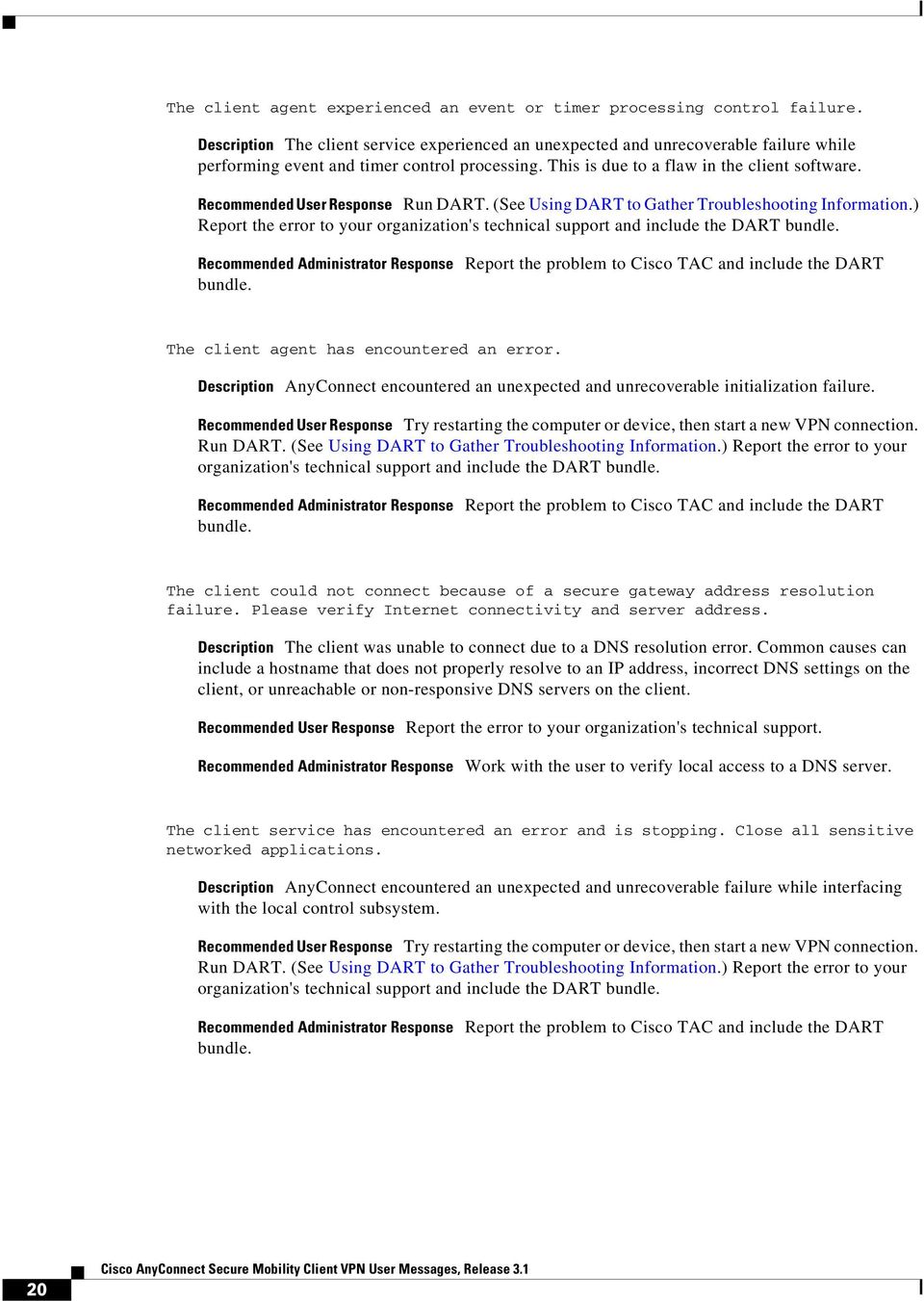
20 The client agent experienced an event or timer processing control failure. The client service experienced an unexpected and unrecoverable failure while performing event and timer control processing. This is due to a flaw in the client software. Run DART. (See Using DART to Gather Troubleshooting Information.) Report the error to your organization's technical support bundle. Report the problem to Cisco TAC and include the DART The client agent has encountered an error. AnyConnect encountered an unexpected and unrecoverable initialization failure. Try restarting the computer or device, then start a new VPN connection. Run DART. (See Using DART to Gather Troubleshooting Information.) Report the error to your organization's technical support bundle. Report the problem to Cisco TAC and include the DART The client could not connect because of a secure gateway address resolution failure. Please verify Internet connectivity and server address. The client was unable to connect due to a DNS resolution error. Common causes can include a hostname that does not properly resolve to an IP address, incorrect DNS settings on the client, or unreachable or non-responsive DNS servers on the client. Report the error to your organization's technical support. Work with the user to verify local access to a DNS server. The client service has encountered an error and is stopping. Close all sensitive networked applications. AnyConnect encountered an unexpected and unrecoverable failure while interfacing with the local control subsystem. Try restarting the computer or device, then start a new VPN connection. Run DART. (See Using DART to Gather Troubleshooting Information.) Report the error to your organization's technical support bundle. Report the problem to Cisco TAC and include the DART 20
21 The client's MTU configuration sent from the secure gateway is too small. A value of at least 1280 is required in order to tunnel IPv6 traffic. Please contact your network administrator. The client's MTU configuration sent from the secure gateway is too small to support IPv6 data through a VPN connection. The client requires that the MTU be set to 1280 or larger when an IPv6 address is assigned by the secure gateway. The configuration of the VPN Server has changed. Please try again. gateway. The secure gateway configuration changed after AnyConnect first contacted the secure Start a new VPN connection. Try starting a new VPN connection from another location. The Connect Failure Policy will not be applied because the Secure Gateway could not be found in the profile. AnyConnect could not apply the Always-on VPN connection-failure policy specified by the ConnectFailurePolicy profile setting, because the target secure gateway is not present in the profile. AnyConnect permits connections only to the hosts specified in the profile because the Always-on VPN policy restricts traffic to other destinations. The cryptographic algorithms required by the secure gateway do not match those supported by AnyConnect. Please contact your network administrator. not accept. AnyConnect used a fixed set of cryptographic algorithms that the secure gateway does Report the problem to your organization s technical support. Ensure that the gateway is properly configured with one or more of the acceptable algorithms: all the encryption, integrity, DH group, and PRF options under crypto maps and IKE policies in ASDM. The FIPS verification of the OpenSSL libraries have failed. Reinstalling AnyConnect might fix this issue. AnyConnect failed to configure OpenSSL into FIPS mode. The OpenSSL shared libraries installed with AnyConnect could have been tampered with or might be corrupt. Reinstall AnyConnect and try a new VPN connection. 21
22 The IPProtocolSupport profile setting for the selected secure gateway requires an IPv6 connection, which is not supported on this operating system. The IPProtocolSupport profile preference includes just IPv6, but either IPv6 is disabled on the client's operating system, or an IPv6 connection is not supported by AnyConnect on the client's operating system. Select a secure gateway that resolves to an IPv4 address. The IPProtocolSupport profile setting for the specified secure gateway requires an IPv4 connection, but the secure gateway could only be resolved to an IPv6 address. The connection was attempted via IPv6, whereas the IPProtocolSupport profile preference mandates IPv4. Select a secure gateway that resolves to an IPv4 address. The IPProtocolSupport profile setting for the specified secure gateway requires an IPv6 connection, but the secure gateway could only be resolved to an IPv4 address. The connection was attempted via IPv4, whereas the IPProtocolSupport profile preference mandates IPv6. Move to an IPv6 network, if not already on one, then select a secure gateway that resolves to an IPv6 address. The IPsec VPN connection was terminated due to an authentication failure or timeout. Please contact your network administrator. An authentication failure occurred. The following table shows the explanations of this message and the recommended actions. Explanation The user took more time to authenticate than allowed, or the user credentials are wrong or unacceptable. Action Verify your network access credentials. Retry the VPN connection and re-enter the credentials in a timely fashion. AnyConnect does not trust the secure gateway server certificate. Confirm the user credentials are valid or reset them. Ensure the secure gateway server certificate is valid. Ensure that the certificate authority (CA) certificate is in the endpoint certificate store as a trusted CA. The client certificate is invalid. Ensure the secure gateway server certificate is valid. Ensure that the client certificate is valid. 22
23 The required license for this type of VPN client is not available on the secure gateway. Please contact your network administrator. AnyConnect attempted to establish a VPN session with a secure gateway that is not activated with an AnyConnect license. Report the error to your organization's technical support. Obtain an AnyConnect Essentials or Premium license from your Cisco Sales Engineer, and activate it on the secure gateway. The secure gateway administrator has terminated the VPN connection. The secure gateway administrator manually disconnected the VPN session. Try a new VPN connection. The secure gateway failed to reply to a connection initiation message and may be malfunctioning. Please try connecting again. If this problem persists, please contact your network administrator. An extended timer expired while AnyConnect was establishing a VPN connection with the secure gateway. The secure gateway probably failed to respond to a protocol handshake request. A flaw in the secure gateway software could be the cause. Try starting a new VPN connection. Run DART. (See Using DART to Gather Troubleshooting Information.) Report the error to your organization's technical support and include the DART bundle. bundle. Report the problem to Cisco TAC and include the DART The secure gateway has rejected the connection attempt. A new connection attempt to the same or another secure gateway is needed, which requires re-authentication. AnyConnect received an error response (that is, an HTTP error code) from the secure gateway during the negotiation for a VPN session. AnyConnect logged the error code and any error description text provided in the secure gateway error response. Try starting a new VPN connection. If the problem persists, run DART. (See Using DART to Gather Troubleshooting Information.) Report the error to your organization's technical support Examine the log. If you cannot resolve the problem, report it to Cisco TAC 23
24 The secure gateway has terminated the VPN connection. The secure gateway terminated the VPN connection. In the case of SSL, the message displayed to the user from the secure gateway indicates the reason for the termination. Try starting a new VPN connection. If the problem persists, run DART. (See Using DART to Gather Troubleshooting Information.) Report the error to your organization's technical support Examine the log. If you cannot resolve the problem, report it to Cisco TAC The secure gateway is responding, but AnyConnect could not establish a VPN session. Please retry. The Always-on VPN connect failure policy specified via the ConnectFailurePolicy profile setting will not be applied, despite the connection failure. AnyConnect could not contact the target secure gateway, so the connection failure could not be confirmed and any existing network restrictions are maintained. Try starting a new VPN connection. The server certificate received from the secure gateway during the reconnect attempt differs from the one received during the initial connection. A new connection is necessary, which requires re-authentication. The server certificate received from the secure gateway differs from the one received during the initial connection attempt, and the reconnect attempt was aborted. This can happen if the network administrator changes the server certificate after the user has made a successful VPN connection. A new connection attempt is required so the new server certificate can be verified. Try starting a new VPN connection. The server certificate received or its chain does not comply with FIPS. A VPN connection will not be established. In accordance with the AnyConnect configuration, AnyConnect disconnected from the VPN because the server certificate received from the secure gateway or from the certificate in the server certificate chain is not compliant with Federal Information Processing Standards (FIPS). Report the error to your organization's technical support. Verify the secure gateway server certificate uses both the FIPS-required minimum RSA public key length and a FIPS compliant signature algorithm. The service provider in your current location is restricting access to the Internet. A VPN connection cannot be established because a captive portal is restricting access to the secure gateway. A second message will specify what actions can be taken to remediate the situation. 24
25 The service provider in your current location is restricting access to the secure gateway. The user may be located at a coffee shop, airport or hotel, where an Internet service provider is restricting access to the Internet. A VPN connection cannot be established. Look for a second message for actions to correct the problem. Open a web browser and satisfy the conditions of the local Internet service provider. Then retry the connection. The VPN client agent attempt to signal readiness to the plugin thread failed. The AnyConnect service experienced an unexpected and unrecoverable error while initializing the main thread of the AnyConnect for Apple ios VPN plug-in. Try restarting the device and starting a new VPN connection. Run DART. (See Using DART to Gather Troubleshooting Information.) Report the error to your organization's technical support The VPN client agent decryption engine encountered an error. AnyConnect service encountered an unexpected and unrecoverable error in the protocol decryption engine. Run DART. (See Using DART to Gather Troubleshooting Information.) Report the error to your organization's technical support The VPN client Agent encountered a connection failure and reconnect attempts have failed. The VPN connection has been disconnected. A new connection is necessary, which requires re-authentication. AnyConnect received an authentication error while trying to reconnect to the secure gateway. A likely cause is an unexpected error on the secure gateway resulting in the removal of the VPN session. Retry the VPN connection. The VPN client Agent encountered a connection failure and the reconnect capability is not supported by the secure gateway. The VPN connection has been disconnected. A new connection is necessary, which requires re-authentication. The client has lost communication with the gateway, and automatic reconnects are either not supported by or are disabled on the gateway. Retry the VPN connection. 25
26 The VPN client Agent encountered a connection failure and the reconnect capability is disabled. The VPN connection has been disconnected. A new connection is necessary, which requires re-authentication. The VPN connection experienced a connection failure, and AnyConnect is preventing an automatic reconnect in accordance with its configuration. Retry the VPN connection. The VPN client agent encountered a secure gateway protocol failure. The AnyConnect service encountered an unexpected and unrecoverable protocol error in an exchange with the secure gateway. Run DART. (See Using DART to Gather Troubleshooting Information.) Report the error to your organization's technical support The VPN client agent encountered an error. The VPN connection was terminated due to the incorrect handling of a VPN reconnection failure. This is due to a flaw in the client software. Run DART. (See Using DART to Gather Troubleshooting Information.) Report the error to your organization's technical support The VPN client agent encryption engine encountered an error. The AnyConnect service encountered an unexpected and unrecoverable error in the protocol encryption engine. Run DART. (See Using DART to Gather Troubleshooting Information.) Report the error to your organization's technical support The VPN client agent experienced a failure initializing a required timer. The AnyConnect service experienced an unexpected and unrecoverable error while initializing a required internal timer object. Run DART. (See Using DART to Gather Troubleshooting Information.) Report the error to your organization's technical support 26
27 The VPN client agent experienced a failure initializing trusted network detection. The AnyConnect service experienced an unexpected and unrecoverable error while initializing the trusted network detection subsystem. Run DART. (See Using DART to Gather Troubleshooting Information.) Report the error to your organization's technical support The VPN client agent experienced an unexpected internal error. The VPN connection has been disconnected. Please restart your computer or device, then try again. The client has experienced an unexpected and unrecoverable error. The error is possibly due to one of the following: Unable to access an internal data structure that is expected to always be available. Unable to retrieve a profile setting for which a value, at the very least a default, should always be available. A Windows Terminal Services operation failed. Please restart your computer or device, then try a new VPN connection. If the problem persists, run DART (See Using DART to Gather Troubleshooting Information) and report the error to your organization's technical support If the problem persists, open a case with the Cisco Technical Assistance Center (TAC) The VPN client agent experienced an unexpected internal error. The VPN connection has been disconnected. Please restart your computer or device, then try again. The client has experienced an unexpected and unrecoverable error. The error is possibly due to one of the following: Unable to access an internal data structure that is expected to always be available. Unable to retrieve a profile setting for which a value, at the very least a default, should always be available. A Windows Terminal Services operation failed. Please restart your computer or device, then try a new VPN connection. If the problem persists, run DART (See Using DART to Gather Troubleshooting Information) and report the error to your organization's technical support If the problem persists, open a case with the Cisco Technical Assistance Center (TAC) 27
28 The VPN client agent failed in receiving a message from an IPC peer requesting the creation of a VPN connection. The AnyConnect service experienced an unexpected and unrecoverable error while processing a request from another client process to initiate a VPN connection. Try restarting the VPN connection. Run DART. (See Using DART to Gather Troubleshooting Information.) Report the error to your organization's technical support and include the DART bundle. The VPN client agent failed in receiving a message from an IPC peer requesting the launch of an application. The AnyConnect service experienced an unexpected and unrecoverable error while processing a request from another client process to launch a client application. Run DART. (See Using DART to Gather Troubleshooting Information.) Report the error to your organization's technical support The VPN client agent failed to create a necessary processing component and cannot continue. The AnyConnect service experienced an unexpected and unrecoverable error while attempting to create its main execution thread. Run DART. (See Using DART to Gather Troubleshooting Information.) Report the error to your organization's technical support The VPN client agent failed to create an event necessary for agent service notification processing. The AnyConnect service experienced an unexpected and unrecoverable error while attempting to create a required internal event object for internal notification processing. Run DART. (See Using DART to Gather Troubleshooting Information.) Report the error to your organization's technical support 28
29 The VPN client agent failed to create an event necessary for agent termination processing. The AnyConnect service experienced an unexpected and unrecoverable error while attempting to create a required internal event object for internal termination processing. Run DART. (See Using DART to Gather Troubleshooting Information.) Report the error to your organization's technical support The VPN client agent failed to create an event necessary for network adapter change processing. AnyConnect experienced an unexpected and unrecoverable error while attempting to create a required event object for local network adapter change notifications. Run DART. (See Using DART to Gather Troubleshooting Information.) Report the error to your organization's technical support The VPN client agent failed to create an event necessary for profile and preference processing. The client service experienced an unexpected and unrecoverable error while attempting to create a required internal event object for profile and preference processing. Restart the computer or device, and try to connect again. The VPN client agent failed to create an event necessary for system suspend processing. The AnyConnect service experienced an unexpected and unrecoverable error while attempting to create a required internal event objects for local suspend processing. Run DART. (See Using DART to Gather Troubleshooting Information.) Report the error to your organization's technical support The VPN client agent failed to initialize CURL The client service experienced an unexpected and unrecoverable error while attempting to initialize CURL. 29
30 The VPN client agent failed to launch the client user interface application. The VPN connection was started via a web browser, requiring the start of the AnyConnect UI, but it failed to start. Restart the computer or device and try again. If the problem reoccurs, report the error to your organization's technical support. Try using the same OS to initiate a WebLaunch of AnyConnect. If it fails, open a case with the Cisco Technical Assistance Center (TAC).The VPN client agent failed to launch the client's user interface application. The VPN connection was started using a web browser, which requires the client service to start the client's user interface application. The client service's attempt to launch the user interface application failed. The VPN client agent failed to load the SNAK system plugin required by this version of AnyConnect. The AnyConnect service experienced an unexpected and unrecoverable error while attempting to initialize its System/Network Abstraction Kit (SNAK) subsystem. Run DART. (See Using DART to Gather Troubleshooting Information.) Report the error to your organization's technical support The VPN client agent IPsec engine encountered an error. AnyConnect encountered an unexpected and unrecoverable error in the IPsec protocol stack. One possible cause is an AnyConnect flaw. Restart the computer or device, then try starting a new VPN connection. If the problem persists, run DART (See Using DART to Gather Troubleshooting Information) and report the error to your organization's technical support If the problem persists, open a case with the Cisco Technical Assistance Center (TAC) The VPN client agent SSL engine encountered an error. Please restart your computer or device, then try again. If the issue persists, please contact your network administrator. The client service encountered an unexpected and unrecoverable error in the SSL protocol stack. This is possibly due to a flaw in the client software. Run DART. (See Using DART to Gather Troubleshooting Information.) Report the error to your organization's technical support 30
31 The VPN client agent was unable create the agent execution context class instance. The client service experienced an unexpected and unrecoverable error while attempting to create its execution context object. Run DART. (See Using DART to Gather Troubleshooting Information.) Report the error to your organization's technical support The VPN client agent was unable create the plugin loader. The AnyConnect service experienced an unexpected and unrecoverable error while attempting to create its plug-in loader subsystem. Run DART. (See Using DART to Gather Troubleshooting Information.) Report the error to your organization's technical support The VPN client agent was unable to create a necessary timer. The AnyConnect service experienced an unexpected and unrecoverable error while attempting to create a required internal timer object. Run DART. (See Using DART to Gather Troubleshooting Information.) Report the error to your organization's technical support The VPN client agent was unable to create the client DNS plugin manager. The client service experienced an unexpected and unrecoverable error while attempting to create its DNS plugin management subsystem. Run DART. (See Using DART to Gather Troubleshooting Information.) Report the error to your organization's technical support 31
32 The VPN client agent was unable to create the client host configuration manager. AnyConnect experienced an unexpected and unrecoverable error while attempting to create its local configuration management subsystem. Run DART. (See Using DART to Gather Troubleshooting Information.) Report the error to your organization's technical support The VPN client agent was unable to create the client preferences manager. The AnyConnect service experienced an unexpected and unrecoverable error while attempting to create its preferences management subsystem. Run DART. (See Using DART to Gather Troubleshooting Information.) Report the error to your organization's technical support The VPN client agent was unable to create the client VPN configuration manager. The AnyConnect service experienced an unexpected and unrecoverable error while attempting to create its VPN connection configuration management subsystem. Run DART. (See Using DART to Gather Troubleshooting Information.) Report the error to your organization's technical support The VPN client agent was unable to create the interprocess communication depot. The AnyConnect service experienced an unexpected and unrecoverable error while attempting to create a required internal interprocess communication object. Run DART. (See Using DART to Gather Troubleshooting Information.) Report the error to your organization's technical support 32
33 The VPN client agent was unable to create the network environment component. The AnyConnect service experienced an unexpected and unrecoverable error while attempting to create its network environment monitoring subsystem. Run DART. (See Using DART to Gather Troubleshooting Information.) Report the error to your organization's technical support The VPN client agent was unable to create the trusted network detection component. The AnyConnect service experienced an unexpected and unrecoverable error while attempting to create its trusted network detection subsystem. Run DART. (See Using DART to Gather Troubleshooting Information.) Report the error to your organization's technical support The VPN client agent was unable to enable FIPS Mode. The AnyConnect service experienced an unexpected and unrecoverable error while attempting to initialize its Federal Information Processing Standards (FIPS) operation mode. Run DART. (See Using DART to Gather Troubleshooting Information.) Report the error to your organization's technical support The VPN client agent was unable to initialize the system network socket support. AnyConnect experienced an unexpected and unrecoverable error while attempting to initialize its local network socket subsystem. Run DART. (See Using DART to Gather Troubleshooting Information.) Report the error to your organization's technical support 33
34 The VPN client agent was unable to send a failure response to an IPC peer requesting the creation of a VPN connection. The AnyConnect service received a request from another client process to initiate a VPN connection. The service encountered an unexpected and unrecoverable failure while attempting to send an error notification back to the requesting client process. Try restarting the VPN connection. Run DART. (See Using DART to Gather Troubleshooting Information.) Report the error to your organization's technical support and include the DART bundle. The VPN client agent was unable to send a failure response to an IPC peer requesting the launch of an application. The AnyConnect service received a request from another client process to launch a client application. The service encountered an unexpected and unrecoverable failure while attempting to send an error notification back to the requesting client process. Run DART. (See Using DART to Gather Troubleshooting Information.) Report the error to your organization's technical support The VPN client agent was unable to send a success response to an IPC peer requesting the creation of a VPN connection. The AnyConnect service received a request from another client process to initiate a VPN connection. The service encountered an unexpected and unrecoverable failure while attempting to send a success notification back to the requesting client process. Run DART. (See Using DART to Gather Troubleshooting Information.) Report the error to your organization's technical support The VPN client agent was unable to send a success response to an IPC peer requesting the launch of an application. The AnyConnect service received a request from another client process to launch a client application. The service encountered an unexpected and unrecoverable failure while attempting to send a success notification back to the requesting client process. Run DART. (See Using DART to Gather Troubleshooting Information.) Report the error to your organization's technical support 34
35 The VPN client agent's DNS component experienced an unexpected error. The VPN connection has been disconnected. Please restart your computer or device, then try again. An authentication failure has occurred. This could indicate that the gateway's server certificate is not trusted by the client (server failed authentication). Verify that the gateway's server certificate is valid, and that the CA certificate is in the end-point's certificate store as a trusted CA. the user credentials are wrong or unacceptable (client failed authentication). Verify that the user's credentials are valid. For client certificates, also verify that the certificate is valid. the user took too long to authenticate. The user should re-enter the credentials, and retry the connection. The VPN client agent's DNS component experienced an unexpected error. The VPN connection has been disconnected. Please restart your computer or device, then try again. An unrecoverable error has occurred in the DNS component that is used to control DNS behavior across all network adapters for the duration of the VPN tunnel. Restart your computer or device, then try a new VPN connection. If the problem persists, run DART. (See Using DART to Gather Troubleshooting Information.) Report the error to your organization's technical support The VPN client driver has encountered an error. Please restart your computer or device, then try again. The AnyConnect service could not configure or start the virtual adapter driver needed to perform a VPN connection. A likely cause is a problem with the virtual adapter installation or registry settings. Restart your computer or device, then try a new VPN connection. If the problem persists, run DART. (See Using DART to Gather Troubleshooting Information.) Report the error to your organization's technical support See Microsoft Windows Updates in the Cisco AnyConnect Secure Mobility Client Administrator Guide, Release
36 The VPN client driver has encountered an error. Close all sensitive networked applications. Please restart your computer or device, then try again. AnyConnect received a notification from its virtual adapter indicating it is terminating communication. The likely cause of the error is a virtual adapter driver failure. Restart your computer or device, then try a new VPN connection. If the problem persists, run DART. (See Using DART to Gather Troubleshooting Information.) Report the error to your organization's technical support The VPN client failed to establish a connection. The AnyConnect service failed to establish a secured connection to the secure gateway. Possible causes include the following: Proxy authentication failure Protocol handshake failure Bad client or server certificate Layer 2 communication failures Remove the local proxy if one is configured. Retry the VPN connection. Run DART. (See Using DART to Gather Troubleshooting Information.) Report the error to your organization's technical support The VPN client service has been stopped for upgrade. The client service was stopped in order to perform an automatic upgrade of the client software. The client service will restart automatically. connect again. Wait until the client is updated. If it fails to connect automatically, try to The VPN client service has been stopped. The VPN connection has been disconnected. Close all sensitive networked applications. endpoint. AnyConnect disconnected from the VPN because it received a stop notification from the Restart AnyConnect and retry the VPN connection. If the problem persists, run DART. (See Using DART to Gather Troubleshooting Information.) Report the error to your organization's technical support If the problem persists, open a case with the Cisco Technical Assistance Center (TAC) 36
37 The VPN client was unable to modify the IP forwarding table. A VPN connection will not be established. Please restart your computer or device, then try again. AnyConnect failed to apply all the VPN configuration settings to the endpoint IP forwarding table. A VPN connection is not permitted because this failure could compromise both its security and operation. This error is unrecoverable. Restart your computer or device, then try a new VPN connection. If the problem persists, run DART. (See Using DART to Gather Troubleshooting Information.) Report the error to your organization's technical support The VPN client was unable to setup IP filtering. A VPN connection will not be established. AnyConnect failed to apply the VPN configuration settings to its IP filtering subsystem. A VPN connection is not permitted because this failure could compromise both its security and data integrity. This error is unrecoverable. Restart the computer or device. Restart the VPN connection. Run DART. (See Using DART to Gather Troubleshooting Information.) Report the error to your organization's technical support The VPN client was unable to successfully verify the IP forwarding table modifications. A VPN connection will not be established. AnyConnect could not verify the successful application of all the VPN configuration settings to the local IP forwarding table. A VPN connection is not permitted because settings that are not applied could compromise both its security and operation. Other software running on the endpoint might also be actively altering the IP forwarding table, interfering with the AnyConnect configuration. Restart the computer or device. Exit all applications. Restart the VPN connection. If necessary, report the error to your organization's technical support. The VPN configuration received from the secure gateway has an invalid format. Please contact your network administrator. AnyConnect received a VPN connection configuration from the secure gateway containing an invalid format. The secure gateway could be malfunctioning. Report the error to your organization's technical support. Make sure the AnyConnect profile is an.xml file. 37
38 The VPN configuration received from the secure gateway is invalid. Please contact your network administrator. AnyConnect received a VPN connection configuration from the secure gateway containing invalid or conflicting information. Report the error to your organization's technical support. Examine and correct the VPN configuration settings on the secure gateway. Try using the AnyConnect profile editor to open and validate the AnyConnect profile. The VPN connection attempt was aborted due to the system suspending. A new connection is necessary, which requires re-authentication. The endpoint OS went into a suspended mode (for example, sleep or hibernate) after the user started a connection but before authentication. Start a new VPN connection. The VPN connection could not be automatically re-established following a system resume from standby or hibernate. A new connection is necessary, which requires re-authentication. Automatic VPN reconnection attempts failed following an endpoint standby-and-resume cycle or hibernate-and-resume (or Mac OS X sleep-and-wake) cycle. Try a new VPN connection. The VPN connection could not be automatically re-established following a system resume from standby or hibernate. A new connection is necessary, which requires re-authentication. cycle. Automatic VPN reconnection attempts failed after a local OS suspend-and-resume connection. Verify the computer or device network connectivity, and try a new VPN The VPN connection could not be re-established when attempting to resume from the paused connection state. Automatic VPN reconnection attempts failed after a local pause-and-continue cycle. Try a new VPN connection. 38
39 The VPN connection failed due to an unexpected internal error encountered by the VPN client. The client was unable to connect to the selected Secure Gateway due to an unexpected internal error. Restart the computer or device, and try to connect again. The VPN connection failed due to unsuccessful domain name resolution. The client was unable to contact the Secure Gateway due to name resolution failure. The VPN connection has been disconnected due to the system suspending. The reconnect capability is disabled. A new connection is necessary, which requires re-authentication. In accordance with the AnyConnect configuration, AnyConnect disconnected because an endpoint system suspend occurred. Try a new VPN connection. None. Change the AnyConnect client profile Auto Reconnect Behavior value to another value if you want to change the reconnect policy. The VPN connection has been terminated due to inactivity. A new connection is necessary, which requires re-authentication. The secure gateway terminated the VPN connection due to inactivity. This occurs when no traffic has been received at the gateway from the client for the duration if the idle timeout period. The idle timeout period is configured on the secure gateway. The VPN connection has been terminated due to the secure gateway being overloaded. A new connection is necessary, which requires re-authentication. resources. The VPN connection terminated because the secure gateway was running low on Try a new VPN connection. The VPN connection could not be re-established when attempting to resume from the paused connection state. Automatic VPN reconnection attempts failed after a connection was paused. Try a new VPN connection. 39
40 The VPN connection has been terminated due to the secure gateway being rebooted. A new connection is necessary, which requires re-authentication. The gateway administrator issued an orderly restart of the secure gateway. In preparation, the secure gateway terminated the VPN connection. Try a new VPN connection. The VPN connection has been terminated due to the secure gateway being shutdown. A new connection is necessary, which requires re-authentication. The administrator issued an orderly shutdown of the secure gateway. In preparation, the secure gateway terminated the VPN connection. Try a new VPN connection to see if another secure gateway accepts it. The VPN connection is not allowed via a local proxy. This can be changed through AnyConnect profile settings. In accordance with the AnyConnect configuration, AnyConnect prevented the use of a local proxy to establish a VPN connection. Remove the local proxy and try a new VPN connection. Check Allow Local Proxy Connections on the AnyConnect client profile to permit the use of a local proxy. The VPN connection to the secure gateway was disrupted and could not be automatically re-established. A new connection is necessary, which requires re-authentication. Automatic VPN reconnection attempts failed. The VPN connection required an automatic reconnection because of a connection failure or disruption. Possible causes include a local network failure, internet device failure, or secure gateway failure. Verify network connectivity, then try a new VPN connection. The VPN connection to the selected secure gateway requires a routable IPv4 or IPv6 physical adapter address. The client was unable to connect to the selected Secure Gateway. This connection requires either an IPv4 or IPv6 address, but there is no acceptable source address available. Move to an IPv6 network, if not already on one, then select a secure gateway that resolves to an IPv6 address. 40
41 The VPN connection to the selected secure gateway requires a routable IPv4 physical adapter address. Please move to an IPv4 network and retry the connection, or select a different secure gateway. The client was unable to connect to the selected Secure Gateway because this connection requires an IPv4 address, but there is no acceptable source address available. gateway. Move to in IPv4 network, and retry the connection, or select a different secure The VPN connection to the selected secure gateway requires a routable IPv6 physical adapter address. Please move to an IPv6 network and retry the connection or select a different secure gateway. The client was unable to connect to the selected Secure Gateway. This connection requires an IPv6 address, but there is no acceptable source address available. Note that a VPN connection using a 6-in-4 tunnel interface (for example, ISATAP, Teredo, 6to4) is not supported. connection. Move to an IPv6 network, or select a different secure gateway, and retry the The VPN connection to the selected secure gateway requires a routable IPv4 physical adapter address. Please move to an IPv4 network and retry the connection or select a different secure gateway. The client was unable to connect to the selected Secure Gateway. This connection requires an IPv4 address, but there is no acceptable source address available. gateway. Move to in IPv4 network, and retry the connection, or select a different secure The VPN connection to the selected secure gateway requires a routable IPv6 physical adapter address. Please move to an IPv6 network and retry the connection or select a different secure gateway. The client was unable to connect to the selected Secure Gateway. This connection requires an IPv6 address, but there is no acceptable source address available. Note that a VPN connection via a 6-in-4 tunnel interface (e.g. ISATAP, Teredo, 6to4) is not supported. gateway. Move to an IPv6 network, and retry the connection or select a different secure The VPN connection was re-established but the secure gateway assigned a new configuration that could not be successfully applied. A new connection is necessary, which requires re-authentication. Automatic VPN reconnection attempts failed. A modified VPN connection configuration from the secure gateway requires another automatic reconnection. Verify network connectivity, then try a new VPN connection. 41
42 The VPN connection was started by a remote desktop user whose remote console has been disconnected. It is presumed the VPN routing configuration is responsible for the remote console disconnect. The VPN connection has been disconnected to allow the remote console to connect again. A remote desktop user must wait 90 seconds after VPN establishment before disconnecting the remote console to avoid this condition. AnyConnect detected a remote console disconnect within 90 seconds of the establishment of a VPN session. AnyConnect terminated the session because it detected an interruption of the remote console session, indicating the necessity of restoring the local IP forwarding table to permit the re-establishment of the remote console session. Remote console users should wait more than 90 seconds following VPN connection establishment before disconnecting the remote console session to avoid this condition. The VPN connection was terminated by the secure gateway and could not be automatically re-established. A new connection is necessary, which requires re-authentication. Automatic VPN reconnection attempts failed. The VPN connection required an automatic reconnection because the secure gateway closed the connection. Remote console users should wait more than 90 seconds following VPN connection establishment before disconnecting the remote console session to avoid this condition. The VPN connection was terminated due to a different client IP address assignment by the secure gateway and could not be automatically re-established. A new connection is necessary, which requires re-authentication. Automatic VPN reconnection attempts failed. The VPN connection required an automatic reconnection because the secure gateway returned a different private network IP address in response to an IP address renewal request. Try to start a new VPN connection. The VPN connection was terminated due to a loss of communication with the secure gateway. A new connection is necessary, which requires re-authentication. AnyConnect cannot contact the secure gateway. Possible causes include a loss of network connectivity or a problem with the gateway. Verify network connectivity, then try a new VPN connection. The VPN connection was terminated due to a new network interface and could not be automatically re-established. A new connection is necessary, which requires re-authentication. Automatic VPN reconnection attempts failed. The VPN connection required automatic reconnection due to a new network interface. Try to start a new VPN connection. 42
43 The VPN connection was terminated due to a rekey failure and could not be automatically re-established. A new connection is necessary, which requires re-authentication. Automatic VPN reconnection attempts failed. The VPN connection required automatic reconnection due to a failure to rekey the encryption protocol. Try to start a new VPN connection. The VPN connection was terminated due to a system routing table modification and could not be automatically re-established. A new connection is necessary, which requires re-authentication. The local host configuration management subsystem could not correct a change in the local IP forwarding table. Automatic VPN reconnection attempts failed. Try to start a new VPN connection. The VPN connection was terminated due to a Windows connection manager failure. A new connection is necessary, which requires re-authentication. Automatic VPN reconnection attempts failed because of a Windows connection manager failure. The VPN connection requires an automatic reconnection. Repair the network connection or restart your computer or device, verify network connectivity, and establish a new VPN connection. The VPN connection was terminated due to an IP address renewal failure and could not be automatically re-established. A new connection is necessary, which requires re-authentication. A failure to perform a DHCP renewal of the private network IP address used by AnyConnect requires a new VPN connection. Automatic VPN reconnection attempts failed. Try to start a new VPN connection. The VPN connection was terminated due to incorrect tunnel MTU and could not be automatically re-established. A new connection is necessary, which requires re-authentication. AnyConnect detected that the tunnel MTU is incorrect. The VPN connection was torn down, but a new connection to enforce the correct tunnel MTU could not be established. Try a new VPN connection. If the problem persists, report the error to your organization's technical support. Change the secure gateway group-policy svc-mtu setting. To do so using ASDM, go to the MTU parameter on the Configuration > Group Policies > Add or Edit > Advanced > AnyConnect Client panel. 43
44 The VPN connection was terminated due to the loss of the network interface used for the VPN connection. The endpoint network interface used for the VPN connection lost its network connectivity. The interface either disconnected or no longer has a usable IP address. As a result, the VPN connection attempt failed, or the VPN session or idle time-out expired, halting VPN reconnect attempts. Repair the network connection, or restart your computer or device, verify network connectivity, and establish a new VPN connection. The VPN connection was terminated due to the loss of the network interface. A new connection is necessary, which requires re-authentication. The VPN connection lost its physical network interface, requiring a new VPN connection. Repair the network connection or restart your computer or device. Verify network connectivity, then establish a new VPN connection. The VPN connection was terminated to enforce a newly determined tunnel MTU and could not be automatically re-established. A new connection is necessary, which requires re-authentication. MTU. The VPN virtual adapter needs to be restarted in order to apply a newly determined The VPN GUI and Agent Process are not both in FIPS Mode. do so. Both the VPN GUI and VPN Agent are not operating in FIPS mode when configured to Restart the computer or device and AnyConnect to synchronize the operating modes of both processes. The Windows Routing and Remote Access service is not compatible with the VPN client. The VPN client cannot operate correctly when this service is running. You must disable this service in order to use the VPN client. The Windows Routing and Remote Access service lets Microsoft Windows Server 2000, 2003 and 2008 function as a router, and as such it actively monitors and modifies the system IP forwarding table. AnyConnect cannot coexist with a running Routing and Remote Access service because it interferes with the AnyConnect configuration of the endpoint IP forwarding table for VPN connections and, if configured, the security of Always-on VPN. Disable Routing and Remote Access. To do so, choose Start > Administrative Tools > Routing and Remote Access, right-click the server icon, choose Disable Routing and Remote Access, and click Yes in the confirmation dialog box. Then establish a VPN connection. 44
45 Unable to complete connection: Cisco Secure Desktop not installed on the client A login was attempted but no CSD data was sent for the connection. There may have been an error installing or running CSD. Report the error to your organization's technical support. Install CSD or verify that it is installed. Unable to contact SecureGateway. The secure gateway could not be contacted because of a DNS resolution error or an unreachable or non-responsive secure gateway. Check for an additional error message for more detail about the cause. Unable to establish connection with newly imported Certificate. AnyConnect could not locate a certificate recently obtained via enrollment. Common causes include the following: Misconfiguration of the secure gateway, such as missing trust points. Invalid certificate date. Report the error to your organization's technical support. Verify the secure gateway configuration and certificate date. Unable to get the available CSD version from the secure gateway. The server certificate can not be retrieved from the IKE exchange, and is required by the configuration. This is an unexpected error. Try to start a new VPN connection. If the problem persists, run DART. (See Using DART to Gather Troubleshooting Information.) Report the error to your organization's technical support Examine the log. If you cannot resolve the problem, report it to Cisco TAC Unable to load the CSD library. The CSD library is not able to be loaded into memory, which indicates a problem with the CSD library. Remove the library from the cache, and try to connect again. 45
46 Unable to proceed. Cannot contact the VPN service. A user attempted to perform an action such as connect, but AnyConnect is not able to communicate with the AnyConnect agent. An alert message informing the user of this condition precedes this one. Restart the computer or device, then start a new VPN connection. If the problem persists, run DART. (See Using DART to Gather Troubleshooting Information.) Report the error to your organization's technical support Examine the log. If you cannot resolve the problem, report it to Cisco TAC Unable to process remote proxy request. Please try again. An unexpected error occurred while processing the user response to proxy authentication. Remove the local proxy and try a new VPN connection. If the problem persists, run DART. (See Using DART to Gather Troubleshooting Information.) Report the error to your organization's technical support Report the error to Cisco TAC and include the DART bundle Unable to re-register for IP forwarding table change notifications. The VPN connection has been disconnected. AnyConnect encountered an unrecoverable error when it attempted to re-register for local IP forwarding table change notifications. The VPN was disconnected because the error prevents AnyConnect from ensuring both its security and correct operation. Restart the computer or device, then start a new VPN connection. If the problem persists, run DART. (See Using DART to Gather Troubleshooting Information.) Report the error to your organization's technical support Report the error to Cisco TAC Unable to retrieve logon information to verify compliance with AnyConnect logon enforcement and VPN establishment profile settings. A VPN connection will not be established. AnyConnect cannot enforce the user logon limit settings configured in the client profile because it cannot retrieve the local user login information. To ensure the protection of the private network, the VPN connection is not permitted. Report the error to your organization's technical support. Verify secure gateway access to the AAA server. 46
47 Unable to send authentication message. There was an error communicating with the authentication server. Report the error to your organization's technical support. Verify secure gateway access to the AAA server. Unable to send authorization message. There was an error communicating with the authorization server. Report the error to your organization's technical support. Verify secure gateway access to the AAA server. Unable to unload the CSD library for updating. The Hostscan module could not be unloaded from the process in order to be updated. Restart the process, and if that doesn t work, restart the system. Unable to update the session management database. The secure gateway encountered an error when attempting to add the VPN connection to the session database. Try a new VPN connection. If the problem persists, report it to your organization's technical support. Try a new VPN connection. Unable to verify the necessary registry keys for FIPS. The AnyConnect client could not access the local registry keys needed to verify FIPS compliance. Report the problem to your organization's technical support. Try a new VPN connection. Unknown challenge. The authentication server returned an unrecognized challenge code. Report the problem to your organization's technical support. Verify secure gateway access to the AAA server. 47
48 Unknown error. The secure gateway experienced an unknown error. Try restarting the VPN connection. Run DART. (See Using DART to Gather Troubleshooting Information.) Report the error to your organization's technical support and include the DART bundle. Unknown login status. The secure gateway did not perform one of the expected actions (accept, reject, or challenge the login, or return an error). Retry the VPN connection. If the problem persists, report the problem to your organization's technical support. Verify secure gateway access to the AAA server. Unwilling to perform password change. Message originated from the Cisco secure gateway. A password change is required to log in. An expired password is the likely cause. The server cannot modify the password. Report the problem to your organization's technical support. VPN connection terminated, smart card removed from reader. The smartcard used to authenticate the VPN connection was removed from the Smartcard reader. The VPN was disconnected to ensure the protection of the private network. Re-insert the smartcard and try a new VPN connection. VPN established. Continuing with login. The start before logon components established a VPN connection. The GUI exits to let the user log in to the OS. Log in. 48
49 VPN establishment capability from a remote desktop is disabled. A VPN connection will not be established. AnyConnect is not configured to permit the establishment of a VPN connection from within a remote desktop session on the endpoint. Log in directly, then connect to the VPN. Refer to Allowing a Windows RDP Session to Launch a VPN Session in the Cisco AnyConnect Secure Mobility Client Administrator Guide, Release 3.0 if you want to enable VPN access from an RDP session. VPN Server could not parse request. The secure gateway could not parse the request sent by the VPN client. Try restarting the VPN connection. Run DART. (See Using DART to Gather Troubleshooting Information.) Report the error to your organization's technical support and include the DART bundle. VPN Server internal error. The secure gateway encountered an internal error such as low memory. Try restarting the VPN connection. Report the error to your organization's technical support. if you cannot resolve the memory issue. VPN Service not available. The AnyConnect agent is not communicating. Likely causes include one of the following: The AnyConnect agent did not start. AnyConnect is not installed. Ask your organization's technical support for instructions on how to reinstall AnyConnect, then start a new VPN connection. If the problem persists, run DART. (See Using DART to Gather Troubleshooting Information.) Report the error to your organization's technical support bundle. Report the problem to Cisco TAC and include the DART 49
50 VPN Service not available. Exiting. The AnyConnect agent is not communicating. Likely causes include one of the following: The AnyConnect agent did not start. Because AnyConnect is configured to run in Start Before Logon mode, it exited to keep from blocking the user. AnyConnect is not installed. Try a new VPN connection. If the problem persists, ask your organization's technical support for instructions on how to reinstall AnyConnect, then start a new VPN connection. If the problem continues to persist, run DART. (See Using DART to Gather Troubleshooting Information.) Report the error to your organization's technical support and include the DART bundle. bundle. Report the problem to Cisco TAC and include the DART When in the Secure Vault, use the Launch Login Page button on the desktop to relaunch the client. Cisco Secure Desktop was detected as running on the endpoint. Click Launch Login Page inside the Secure Desktop to launch the client inside the Secure Desktop to continue using the VPN connection. You have no dial-in permission. The user s account does not have permission to access the network remotely. Report the error to your organization's technical support. You need to log on with the service provider before you can establish a VPN session. You can try this by visiting any website with your browser. The user may be located at a coffee shop, airport, or hotel, where an internet service provider is restricting access to the Internet. A VPN connection cannot be established. Look for a second message to identify actions to correct the situation. Open a web browser to see if you can satisfy the conditions for Internet access. Then retry the VPN connection. Your account is disabled. The user s account is disabled and cannot be used to access the VPN. Report the error to your organization's technical support. 50
51 Your certificate is invalid for the selected group The secure gateway validated the certificate provided by AnyConnect, however, the applied connection policy (tunnel group) does not permit the certificate. The certificate might be valid for another connection policy configured on the secure gateway. proper certificate. Report the error to your organization's technical support and ask for the access. Provide instructions to obtain the certificate required for VPN Your client certificate will be used for authentication Certificate-only authentication is in use. Instead of providing a username and password as credentials, the user s certificate will be used for authentication. No action required. Your connection to the secure gateway has been suspended longer than the allotted time limit. A new connection is necessary, which requires re-authentication. The VPN session was terminated because it exceeded the VPN session idle timer limit configured on the secure gateway. This feature helps protect the private network by requiring the user to re-authenticate with the secure gateway. Start a new VPN session. Your VPN connection has exceeded the session time limit. A new connection is necessary, which requires re-authentication. The VPN session was terminated because it exceeded the time permitted by the secure gateway for a VPN session. This feature helps protect the private network by requiring the user to re-authenticate with the secure gateway. Start a new VPN session. 51
52 52
Symbian User Guide for Cisco AnyConnect Secure Mobility Client, Release 2.4
 Symbian User Guide for Cisco AnyConnect Secure Mobility Client, Release 2.4 Updated: May 31, 2011 Contents This document describes the Cisco AnyConnect Secure Mobility Client 2.4 for devices running Symbian.
Cisco AnyConnect Secure Mobility Solution Guide
 Cisco AnyConnect Secure Mobility Solution Guide This document contains the following information: Cisco AnyConnect Secure Mobility Overview, page 1 Understanding How AnyConnect Secure Mobility Works, page
Client Error Messages
 Junos Pulse Client Error Messages Release 5.0 Juniper Networks, Inc. 1194 North Mathilda Avenue Sunnyvale, CA 94089 USA 408 745 2000 or 888 JUNIPER www.juniper.net December 2013 Juniper Networks, Junos,
Citrix Access Gateway Plug-in for Windows User Guide
 Citrix Access Gateway Plug-in for Windows User Guide Access Gateway 9.2, Enterprise Edition Copyright and Trademark Notice Use of the product documented in this guide is subject to your prior acceptance
ASA 8.x: VPN Access with the AnyConnect VPN Client Using Self Signed Certificate Configuration Example
 ASA 8.x: VPN Access with the AnyConnect VPN Client Using Self Signed Certificate Configuration Example Document ID: 99756 Contents Introduction Prerequisites Requirements Components Used Conventions Background
Configure Posture. Note. Cisco AnyConnect Secure Mobility Client Administrator Guide, Release 4.1 1
 The AnyConnect Secure Mobility Client offers an ASA Posture Module and an ISE Posture Module. Both provide the Cisco AnyConnect Secure Mobility Client with the ability to assess an endpoint's compliance
Clientless SSL VPN Users
 Manage Passwords, page 1 Username and Password Requirements, page 3 Communicate Security Tips, page 3 Configure Remote Systems to Use Clientless SSL VPN Features, page 3 Manage Passwords Optionally, you
AnyConnect VPN Client FAQ
 AnyConnect VPN Client FAQ Document ID: 107391 Questions Introduction What level of rights is required for the AnyConnect client? Is a reboot required after AnyConnect is installed/upgraded? Is it possible
How to Configure Captive Portal
 How to Configure Captive Portal Captive portal is one of the user identification methods available on the Palo Alto Networks firewall. Unknown users sending HTTP or HTTPS 1 traffic will be authenticated,
Evaluating the Cisco ASA Adaptive Security Appliance VPN Subsystem Architecture
 Deploying Cisco ASA VPN Solutions Volume 1 Course Introduction Learner Skills and Knowledge Course Goal and Course Flow Additional Cisco Glossary of Terms Your Training Curriculum Evaluation of the Cisco
BlackBerry Enterprise Service 10. Secure Work Space for ios and Android Version: 10.1.1. Security Note
 BlackBerry Enterprise Service 10 Secure Work Space for ios and Android Version: 10.1.1 Security Note Published: 2013-06-21 SWD-20130621110651069 Contents 1 About this guide...4 2 What is BlackBerry Enterprise
Configuring Single Sign-on for WebVPN
 CHAPTER 8 This chapter presents example procedures for configuring SSO for WebVPN users. It includes the following sections: Using Single Sign-on with WebVPN, page 8-1 Configuring SSO Authentication Using
Configuring Security Features of Session Recording
 Configuring Security Features of Session Recording Summary This article provides information about the security features of Citrix Session Recording and outlines the process of configuring Session Recording
ez Agent Administrator s Guide
 ez Agent Administrator s Guide Copyright This document is protected by the United States copyright laws, and is proprietary to Zscaler Inc. Copying, reproducing, integrating, translating, modifying, enhancing,
Configuring SSL VPN on the Cisco ISA500 Security Appliance
 Application Note Configuring SSL VPN on the Cisco ISA500 Security Appliance This application note describes how to configure SSL VPN on the Cisco ISA500 security appliance. This document includes these
Advanced Administration
 BlackBerry Enterprise Service 10 BlackBerry Device Service Version: 10.2 Advanced Administration Guide Published: 2014-09-10 SWD-20140909133530796 Contents 1 Introduction...11 About this guide...12 What
Clientless SSL VPN End User Set-up
 37 CHAPTER This ections is for the system administrator who sets up Clientless (browser-based) SSL VPN for end users. It summarizes configuration requirements and tasks for the user remote system. It also
Configuring the Cisco ISA500 for Active Directory/LDAP and RADIUS Authentication
 Configuring the Cisco ISA500 for Active Directory/LDAP and RADIUS Authentication This application note describes how to authenticate users on a Cisco ISA500 Series security appliance. It includes these
MITA End-User VPN Troubleshooting Guide
 01. Introduction MITA VPN users can be assigned one of two types of profiles Client-Based or Web-Based, depending on the type of access required. When logging on to the MITA VPN Portal https://vpn.secure.gov.mt,
RSA SecurID Ready Implementation Guide
 RSA SecurID Ready Implementation Guide Partner Information Last Modified: December 18, 2006 Product Information Partner Name Microsoft Web Site http://www.microsoft.com/isaserver Product Name Internet
User Identification and Authentication
 User Identification and Authentication Vital Security 9.2 Copyright Copyright 1996-2008. Finjan Software Inc.and its affiliates and subsidiaries ( Finjan ). All rights reserved. All text and figures included
SSL VPN Service. Once you have installed the AnyConnect Secure Mobility Client, this document is available by clicking on the Help icon on the client.
 Contents Introduction... 2 Prepare Work PC for Remote Desktop... 4 Add VPN url as a Trusted Site in Internet Explorer... 5 VPN Client Installation... 5 Starting the VPN Application... 6 Connect to Work
Astaro Security Gateway V8. Remote Access via L2TP over IPSec Configuring ASG and Client
 Astaro Security Gateway V8 Remote Access via L2TP over IPSec Configuring ASG and Client 1. Introduction This guide contains complementary information on the Administration Guide and the Online Help. If
Architecture and Data Flow Overview. BlackBerry Enterprise Service 10 721-08877-123 Version: 10.2. Quick Reference
 Architecture and Data Flow Overview BlackBerry Enterprise Service 10 721-08877-123 Version: Quick Reference Published: 2013-11-28 SWD-20131128130321045 Contents Key components of BlackBerry Enterprise
Citrix Receiver for Mobile Devices Troubleshooting Guide
 Citrix Receiver for Mobile Devices Troubleshooting Guide www.citrix.com Contents REQUIREMENTS...3 KNOWN LIMITATIONS...3 TROUBLESHOOTING QUESTIONS TO ASK...3 TROUBLESHOOTING TOOLS...4 BASIC TROUBLESHOOTING
A Guide to New Features in Propalms OneGate 4.0
 A Guide to New Features in Propalms OneGate 4.0 Propalms Ltd. Published April 2013 Overview This document covers the new features, enhancements and changes introduced in Propalms OneGate 4.0 Server (previously
BlackBerry Enterprise Service 10. Universal Device Service Version: 10.2. Administration Guide
 BlackBerry Enterprise Service 10 Universal Service Version: 10.2 Administration Guide Published: 2015-02-24 SWD-20150223125016631 Contents 1 Introduction...9 About this guide...10 What is BlackBerry
Cisco ASA Authentication QUICKStart Guide
 Cisco ASA Authentication QUICKStart Guide Powerful Authentication Management for Service Providers and Enterprises Authentication Service Delivery Made EASY Copyright 2012 SafeNet, Inc. All rights reserved.
XIA Configuration Server
 XIA Configuration Server XIA Configuration Server v7 Installation Quick Start Guide Monday, 05 January 2015 1 P a g e X I A C o n f i g u r a t i o n S e r v e r Contents Requirements... 3 XIA Configuration
Workspot Configuration Guide for the Cisco Adaptive Security Appliance
 Workspot Configuration Guide for the Cisco Adaptive Security Appliance Workspot, Inc. 1/27/2015 Cisco ASA and Workspot Overview The Cisco Adaptive Security Appliance (ASA) provides organizations with secure,
www.novell.com/documentation SSL VPN User Guide Access Manager 3.1 SP5 January 2013
 www.novell.com/documentation SSL VPN User Guide Access Manager 3.1 SP5 January 2013 Legal Notices Novell, Inc., makes no representations or warranties with respect to the contents or use of this documentation,
Network Connect Installation and Usage Guide
 Network Connect Installation and Usage Guide I. Installing the Network Connect Client..2 II. Launching Network Connect from the Desktop.. 9 III. Launching Network Connect Pre-Windows Login 11 IV. Installing
Agent Configuration Guide
 SafeNet Authentication Service Agent Configuration Guide SAS Agent for Microsoft Internet Information Services (IIS) Technical Manual Template Release 1.0, PN: 000-000000-000, Rev. A, March 2013, Copyright
Sophos UTM. Remote Access via PPTP. Configuring UTM and Client
 Sophos UTM Remote Access via PPTP Configuring UTM and Client Product version: 9.000 Document date: Friday, January 11, 2013 The specifications and information in this document are subject to change without
Managing Software and Configurations
 55 CHAPTER This chapter describes how to manage the ASASM software and configurations and includes the following sections: Saving the Running Configuration to a TFTP Server, page 55-1 Managing Files, page
Sophos SafeGuard Native Device Encryption for Mac Administrator help. Product version: 7
 Sophos SafeGuard Native Device Encryption for Mac Administrator help Product version: 7 Document date: December 2014 Contents 1 About SafeGuard Native Device Encryption for Mac...3 1.1 About this document...3
ENABLING RPC OVER HTTPS CONNECTIONS TO M-FILES SERVER
 M-FILES CORPORATION ENABLING RPC OVER HTTPS CONNECTIONS TO M-FILES SERVER VERSION 2.3 DECEMBER 18, 2015 Page 1 of 15 CONTENTS 1. Version history... 3 2. Overview... 3 2.1. System Requirements... 3 3. Network
Certificate Management
 Certificate Management Palo Alto Networks PAN-OS Administrator s Guide Version 6.0 Contact Information Corporate Headquarters: Palo Alto Networks 4401 Great America Parkway Santa Clara, CA 95054 www.paloaltonetworks.com/company/contact-us
Scenario: Remote-Access VPN Configuration
 CHAPTER 7 Scenario: Remote-Access VPN Configuration A remote-access Virtual Private Network (VPN) enables you to provide secure access to off-site users. ASDM enables you to configure the adaptive security
Guide for Setting Up Your Multi-Factor Authentication Account and Using Multi-Factor Authentication
 Guide for Setting Up Your Multi-Factor Authentication Account and Using Multi-Factor Authentication This document serves as a How To reference guide for employees to execute the following MFA tasks: 1.
Citrix Access Gateway Enterprise Edition Citrix Access Gateway Plugin for Windows User Guide. Citrix Access Gateway 9.0, Enterprise Edition
 Citrix Access Gateway Enterprise Edition Citrix Access Gateway Plugin for Windows User Guide Citrix Access Gateway 9.0, Enterprise Edition Copyright and Trademark Notice Use of the product documented in
Certificate Management. PAN-OS Administrator s Guide. Version 7.0
 Certificate Management PAN-OS Administrator s Guide Version 7.0 Contact Information Corporate Headquarters: Palo Alto Networks 4401 Great America Parkway Santa Clara, CA 95054 www.paloaltonetworks.com/company/contact-us
VPN Web Portal Usage Guide
 VPN Web Portal Usage Guide Table of Contents WHAT IS VPN WEB CLIENT 4 SUPPORTED WEB BROWSERS 4 LOGGING INTO VPN WEB CLIENT 5 ESTABLISHING A VPN CONNECTION 6 KNOWN ISSUES WITH MAC COMPUTERS 6 ACCESS INTRANET
Virtual Data Centre. User Guide
 Virtual Data Centre User Guide 2 P age Table of Contents Getting Started with vcloud Director... 8 1. Understanding vcloud Director... 8 2. Log In to the Web Console... 9 3. Using vcloud Director... 10
Cisco EXAM - 300-209. Implementing Cisco Secure Mobility Solutions (SIMOS) Buy Full Product. http://www.examskey.com/300-209.html
 Cisco EXAM - 300-209 Implementing Cisco Secure Mobility Solutions (SIMOS) Buy Full Product http://www.examskey.com/300-209.html Examskey Cisco 300-209 exam demo product is here for you to test the quality
Cisco ASA Adaptive Security Appliance Single Sign-On: Solution Brief
 Guide Cisco ASA Adaptive Security Appliance Single Sign-On: Solution Brief October 2012 2012 Cisco and/or its affiliates. All rights reserved. This document is Cisco Public Information. Page 1 of 21 Contents
GO!Enterprise MDM Device Application User Guide Installation and Configuration for Android with TouchDown
 GO!Enterprise MDM Device Application User Guide Installation and Configuration for Android with TouchDown GO!Enterprise MDM for Android, Version 3.x GO!Enterprise MDM for Android with TouchDown 1 Table
FileCloud Security FAQ
 is currently used by many large organizations including banks, health care organizations, educational institutions and government agencies. Thousands of organizations rely on File- Cloud for their file
Filtering remote users with Websense remote filtering software v7.6
 Filtering remote users with Websense remote filtering software v7.6 Websense Support Webinar April 2012 Websense 2012 Webinar Presenter Greg Didier Title: Support Specialist Accomplishments: 9 years supporting
Blue Coat Security First Steps Solution for Integrating Authentication
 Solution for Integrating Authentication using IWA Direct SGOS 6.5 Third Party Copyright Notices 2014 Blue Coat Systems, Inc. All rights reserved. BLUE COAT, PROXYSG, PACKETSHAPER, CACHEFLOW, INTELLIGENCECENTER,
Endpoint Security VPN for Windows 32-bit/64-bit
 Endpoint Security VPN for Windows 32-bit/64-bit E75.20 User Guide 13 September 2011 2011 Check Point Software Technologies Ltd. All rights reserved. This product and related documentation are protected
Installing and Configuring vcenter Support Assistant
 Installing and Configuring vcenter Support Assistant vcenter Support Assistant 5.5 This document supports the version of each product listed and supports all subsequent versions until the document is replaced
Comprehensive List of XenDesktop Event Log Entries
 Comprehensive List of XenDesktop Event Log Entries VDA Events 1200 Error Exception '%1' of type '%2' while starting the service. The service will now stop. When VDA fails to initialise or start. Renaming
Scenario: IPsec Remote-Access VPN Configuration
 CHAPTER 3 Scenario: IPsec Remote-Access VPN Configuration This chapter describes how to use the security appliance to accept remote-access IPsec VPN connections. A remote-access VPN enables you to create
Configuring AnyConnect VPN Client Connections
 CHAPTER 40 The Cisco AnyConnect SSL VPN Client provides secure SSL connections to the security appliance for remote users. Without a previously-installed client, remote users enter the IP address in their
How To - Implement Clientless Single Sign On Authentication with Active Directory
 How To Implement Clientless Single Sign On in Single Active Directory Domain Controller Environment How To - Implement Clientless Single Sign On Authentication with Active Directory Applicable Version:
What s New in Propalms VPN 3.5?
 What s New in Propalms VPN 3.5? Contents Improved Management Console Interface... 2 Inline Help on Management Console... 2 Graphical Dashboard on Management Console... 2 Multiple Authentication Server
Configuration Guide. SafeNet Authentication Service. SAS Agent for Microsoft Internet Information Services (IIS)
 SafeNet Authentication Service Configuration Guide Technical Manual Template Release 1.0, PN: 000-000000-000, Rev. A, March 2013, Copyright 2013 SafeNet, Inc. All rights reserved. 1 Document Information
TestNav 8 User Guide for PARCC
 TestNav 8 User Guide for PARCC Copyright 2014, Pearson Education, Inc. Published March 6, 2014 TestNav 8 User Guide for PARCC 1 TestNav 8 User Guide for PARCC Revision History What is TestNav? Technical
Description of Microsoft Internet Information Services (IIS) 5.0 and
 Page 1 of 10 Article ID: 318380 - Last Review: July 7, 2008 - Revision: 8.1 Description of Microsoft Internet Information Services (IIS) 5.0 and 6.0 status codes This article was previously published under
Configuring Digital Certificates
 CHAPTER 36 This chapter describes how to configure digital certificates and includes the following sections: Information About Digital Certificates, page 36-1 Licensing Requirements for Digital Certificates,
9243054 Issue 1. Nokia and Nokia Connecting People are registered trademarks of Nokia Corporation
 9243054 Issue 1 Nokia and Nokia Connecting People are registered trademarks of Nokia Corporation VPN Client User s Guide 9243054 Issue 1 Reproduction, transfer, distribution or storage of part or all of
Strong Authentication for Cisco ASA 5500 Series
 Strong Authentication for Cisco ASA 5500 Series with Powerful Authentication Management for Service Providers and Enterprises Authentication Service Delivery Made EASY Copyright Copyright 2011. CRYPTOCard
Installing and Configuring vcloud Connector
 Installing and Configuring vcloud Connector vcloud Connector 2.7.0 This document supports the version of each product listed and supports all subsequent versions until the document is replaced by a new
Cox Managed CPE Services. RADIUS Authentication for AnyConnect VPN Version 1.3 [Draft]
![Cox Managed CPE Services. RADIUS Authentication for AnyConnect VPN Version 1.3 [Draft]](/thumbs/39/18543129.jpg "Cox Managed CPE Services. RADIUS Authentication for AnyConnect VPN Version 1.3 [Draft]") Cox Managed CPE Services RADIUS Authentication for AnyConnect VPN Version 1.3 [Draft] September, 2015 2015 by Cox Communications. All rights reserved. No part of this document may be reproduced or transmitted
Cox Managed CPE Services RADIUS Authentication for AnyConnect VPN Version 1.3 [Draft] September, 2015 2015 by Cox Communications. All rights reserved. No part of this document may be reproduced or transmitted
If you have questions or find errors in the guide, please, contact us under the following e-mail address:
 1. Introduction... 2 2. Remote Access via PPTP... 2 2.1. Configuration of the Astaro Security Gateway... 3 2.2. Configuration of the Remote Client...10 2.2.1. Astaro User Portal: Getting Configuration
Securing Networks with Cisco Routers and Switches (642-637)
 Securing Networks with Cisco Routers and Switches (642-637) Exam Description: The 642-637 Securing Networks with Cisco Routers and Switches exam is the exam associated with the CCSP, CCNP Security, and
Implementing Core Cisco ASA Security (SASAC)
 1800 ULEARN (853 276) www.ddls.com.au Implementing Core Cisco ASA Security (SASAC) Length 5 days Price $6215.00 (inc GST) Overview Cisco ASA Core covers the Cisco ASA 9.0 / 9.1 core firewall and VPN features.
Getting Started Guide
 Getting Started Guide CensorNet Professional Copyright CensorNet Limited, 2007-2011 This document is designed to provide information about the first time configuration and testing of the CensorNet Professional
Apache Server Implementation Guide
 Apache Server Implementation Guide 340 March Road Suite 600 Kanata, Ontario, Canada K2K 2E4 Tel: +1-613-599-2441 Fax: +1-613-599-2442 International Voice: +1-613-599-2441 North America Toll Free: 1-800-307-7042
SSL-TLS VPN 3.0 Certification Report. For: Array Networks, Inc.
 SSL-TLS VPN 3.0 Certification Report For: Array Networks, Inc. Prepared by: ICSA Labs 1000 Bent Creek Blvd., Suite 200 Mechanicsburg, PA 17050 USA http://www.icsalabs.com SSL-TLS VPN 3.0 Certification
5.0 Secure Meeting Error Messages
 Juniper Networks, Inc. 1194 North Mathilda Avenue Sunnyvale, CA 94089 USA 408 745 2000 or 888 JUNIPER www.juniper.net Contents 5.0 Secure Meeting Error Messages...1 Contacting Juniper...1 Administrator
Connecting to the Firewall Services Module and Managing the Configuration
 CHAPTER 3 Connecting to the Firewall Services Module and This chapter describes how to access the command-line interface and work with the configuration. This chapter includes the following sections: Connecting
Integrated SSL Scanning
 Software Version 9.0 Copyright Copyright 1996-2008. Finjan Software Inc. and its affiliates and subsidiaries ( Finjan ). All rights reserved. All text and figures included in this publication are the exclusive
2 Downloading Access Manager 3.1 SP4 IR1
 Novell Access Manager 3.1 SP4 IR1 Readme May 2012 Novell This Readme describes the Novell Access Manager 3.1 SP4 IR1 release. Section 1, Documentation, on page 1 Section 2, Downloading Access Manager 3.1
Security Guide. BlackBerry Enterprise Service 12. for ios, Android, and Windows Phone. Version 12.0
 Security Guide BlackBerry Enterprise Service 12 for ios, Android, and Windows Phone Version 12.0 Published: 2015-02-06 SWD-20150206130210406 Contents About this guide... 6 What is BES12?... 7 Key features
Deploying the BIG-IP System with Oracle E-Business Suite 11i
 Deploying the BIG-IP System with Oracle E-Business Suite 11i Introducing the BIG-IP and Oracle 11i configuration Configuring the BIG-IP system for deployment with Oracle 11i Configuring the BIG-IP system
Astaro Security Gateway V8. Remote Access via SSL Configuring ASG and Client
 Astaro Security Gateway V8 Remote Access via SSL Configuring ASG and Client 1. Introduction This guide contains complementary information on the Administration Guide and the Online Help. If you are not
User Guide. Cloud Gateway Software Device
 User Guide Cloud Gateway Software Device This document is designed to provide information about the first time configuration and administrator use of the Cloud Gateway (web filtering device software).
Using EMC Unisphere in a Web Browsing Environment: Browser and Security Settings to Improve the Experience
 Using EMC Unisphere in a Web Browsing Environment: Browser and Security Settings to Improve the Experience Applied Technology Abstract The Web-based approach to system management taken by EMC Unisphere
ProxyCap Help. Table of contents. Configuring ProxyCap. 2015 Proxy Labs
 ProxyCap Help 2015 Proxy Labs Table of contents Configuring ProxyCap The Ruleset panel Loading and saving rulesets Delegating ruleset management The Proxies panel The proxy list view Adding, removing and
SSL... 2 2.1. 3 2.2. 2.2.1. 2.2.2. SSL VPN
 1. Introduction... 2 2. Remote Access via SSL... 2 2.1. Configuration of the Astaro Security Gateway... 3 2.2. Configuration of the Remote Client...10 2.2.1. Astaro User Portal: Getting Software and Certificates...10
Investment Management System. Connectivity Guide. IMS Connectivity Guide Page 1 of 11
 Investment Management System Connectivity Guide IMS Connectivity Guide Page 1 of 11 1. Introduction This document details the necessary steps and procedures required for organisations to access the Homes
Release Notes for Cisco AnyConnect Secure Mobility Client, Release 3.0
 Release Notes for Cisco AnyConnect Secure Mobility Client, Release 3.0 Last Updated: September 23, 2011 This document includes the following sections: Introduction, page 2 Downloading the Latest Version
Unifying Information Security. Implementing TLS on the CLEARSWIFT SECURE Email Gateway
 Unifying Information Security Implementing TLS on the CLEARSWIFT SECURE Email Gateway Contents 1 Introduction... 3 2 Understanding TLS... 4 3 Clearswift s Application of TLS... 5 3.1 Opportunistic TLS...
McAfee Firewall Enterprise 8.2.1
 Configuration Guide FIPS 140 2 Revision A McAfee Firewall Enterprise 8.2.1 The McAfee Firewall Enterprise FIPS 140 2 Configuration Guide, version 8.2.1, provides instructions for setting up McAfee Firewall
Cisco ASA 5500 Series Adaptive Security Appliance 8.2 Software Release
 Cisco ASA 5500 Series Adaptive Security Appliance 8.2 Software Release PB526545 Cisco ASA Software Release 8.2 offers a wealth of features that help organizations protect their networks against new threats
BlackShield ID Agent for Terminal Services Web and Remote Desktop Web
 Agent for Terminal Services Web and Remote Desktop Web 2010 CRYPTOCard Corp. All rights reserved. http:// www.cryptocard.com Copyright Copyright 2010, CRYPTOCard All Rights Reserved. No part of this publication
GO!Enterprise MDM Device Application User Guide Installation and Configuration for Android
 GO!Enterprise MDM Device Application User Guide Installation and Configuration for Android GO!Enterprise MDM for Android, Version 3.x GO!Enterprise MDM for Android 1 Table of Contents GO!Enterprise MDM
CA Performance Center
 CA Performance Center Single Sign-On User Guide 2.4 This Documentation, which includes embedded help systems and electronically distributed materials, (hereinafter referred to as the Documentation ) is
Introduction to the EIS Guide
 Introduction to the EIS Guide The AirWatch Enterprise Integration Service (EIS) provides organizations the ability to securely integrate with back-end enterprise systems from either the AirWatch SaaS environment
Chapter 8 Lab B: Configuring a Remote Access VPN Server and Client
 Chapter 8 Lab B: Configuring a Remote Access VPN Server and Client Topology Note: ISR G2 devices have Gigabit Ethernet interfaces instead of FastEthernet Interfaces. All contents are Copyright 1992 2012
BlackShield ID Agent for Remote Web Workplace
 Agent for Remote Web Workplace 2010 CRYPTOCard Corp. All rights reserved. http:// www.cryptocard.com Copyright Copyright 2010, CRYPTOCard All Rights Reserved. No part of this publication may be reproduced,
McAfee Firewall Enterprise 8.3.1
 Configuration Guide Revision A McAfee Firewall Enterprise 8.3.1 FIPS 140-2 The McAfee Firewall Enterprise FIPS 140-2 Configuration Guide, version 8.3.1, provides instructions for setting up McAfee Firewall
AnyConnect VPN Client FAQ
 AnyConnect VPN Client FAQ Document ID: 107391 Contents Introduction Installation Software Upgrade Licensing Supported Devices Supported Software Log Messages Datagram Transport Layer Security (DTLS) Supported
Kaseya Server Instal ation User Guide June 6, 2008
 Kaseya Server Installation User Guide June 6, 2008 About Kaseya Kaseya is a global provider of IT automation software for IT Solution Providers and Public and Private Sector IT organizations. Kaseya's
Endpoint Security VPN for Mac
 Security VPN for Mac E75 Release Notes 8 April 2012 Classification: [Protected] 2012 Check Point Software Technologies Ltd. All rights reserved. This product and related documentation are protected by
SSL VPN User Guide. Access Manager 4.0. November 2013
 SSL VPN User Guide Access Manager 4.0 November 2013 Legal Notice THIS DOCUMENT AND THE SOFTWARE DESCRIBED IN THIS DOCUMENT ARE FURNISHED UNDER AND ARE SUBJECT TO THE TERMS OF A LICENSE AGREEMENT OR A NON-DISCLOSURE
CONNECT-TO-CHOP USER GUIDE
 CONNECT-TO-CHOP USER GUIDE VERSION V8 Table of Contents 1 Overview... 3 2 Requirements... 3 2.1 Security... 3 2.2 Computer... 3 2.3 Application... 3 2.3.1 Web Browser... 3 2.3.2 Prerequisites... 3 3 Logon...
Cisco AnyConnect Secure Mobility Client Administrator Guide
 Cisco AnyConnect Secure Mobility Client Administrator Guide Release 3.0 Last Updated: September 14, 2011 Americas Headquarters Cisco Systems, Inc. 170 West Tasman Drive San Jose, CA 95134-1706 USA http://www.cisco.com