
SimpleBGC Software User Manual
|
|
|
- Kelly Dickerson
- 10 years ago
- Views:
Transcription
1 SimpleBGC Software User Manual Board ver. 3.0 Firmware ver. 2.4 GUI ver Basecamelectronics 1

2 Connection to PC To connect board to your PC, you need a miniusb cable. First time a USB cable is plugged, you need to install the appropriate software driver. If your PC does not install the driver automatically, install one manually from this link: After you install the driver and connecting the board, a new virtual COM port will be created. You need to choose this COM port in the SimleBGC software (GUI) to initiate the connection. It is safe to connect USB and main power (battery) simultaneously. But be very careful to not reverse the polarity of the main battery, because in this case it will burn out controller and may damage your PC! There is also a possibility to use Bluetooh To-Serial adapter (HC-05, Sparkfun BlueSMiRF, and comparable) to connect to the GUI and tune the board remotely. There is a special connector on the board that matches the same one on the BT module. It is marked as UART and contains pins: 5V,, RX, TX. You can solder BT module over it or use extender Male-Male 4pin cable. IMPORTANT NOTE: Bluetooth module must be configured at baud rate and Even parity (generally its not set by default, refer your module's user manual to find how to configure it). With these settings, you will be able to connect to the GUI and even to upgrade firmware remotely. Note, that HC-06 with original firmware does not support 'Even' parity. It will connect to GUI, but won't let to update firmware. Running application Follow these steps to connect your main controller board to the GUI software: Connect the mini-usb cable Start the GUI, select correct COM-port from the list, and click "Connect". After the connection is established, all board settings and profiles will be loaded into the GUI. You can re-load the current board parameters anytime by clicking the "READ" button. After adjusting parameters in the GUI you should write them to the controller board by clicking the "WRITE" button. Only the current profile parameters will be saved to the board. To return to the default settings push the "RESET TO DEFAULTS" button. To choose a different profile (with different settings) select it from the list of profiles (located in the upper right corner of the GUI window). You can store different settings as three different profiles onto the controller board. You can switch profiles saved on the board by choosing the profile in the GUI or by pressing the MENU button on the controller board. Remember that some settings are common for all profiles and can not be saved on a per-profile basis. Parameters such as sensor orientation, hardware configuration, RC inputs, and motors outs are the same across all profiles. The GUI starts in the English version of the user interface. To change the interface language, choose one in the 'language' menu and restart the program Basecamelectronics 2


3 GUI Blocks The GUI contains different functional blocks: 1. Configuration block in the central part of the window, organized by tab : Basic Basic gimbal stabilization settings. Adjusting these settings is usually adequate to achieve good camera stabilization. Advanced More precise tuning options. RC Settings settings to control the gimbal roll/pitch/yaw orientation with RC inputs. Service Specify the behavior of the MENU button (located on the controller board or mounted externally) and tune the battery monitoring service. Follow Mode settings related to special mode of the camera control. Real-time Data real-time sensor data monitoring. This screen is extremely helpful in tuning your gimbal performance. Firmware Update Firmware and GUI software versions and update options. Firmware Upgrade lets you to check the fresh version of firmware and upgrade if necessary. 2. Connection COM-port selection and connection status. 3. Profile Profile selection, loading, re-naming, and saving. 4. Control Panel graphic visualization of gimbal orientation angles in three axes. Black arrows are displaying the angles, blue arrows are a 10x time magnification to provide higher precision. Red marks show target angles that gimbal should keep. Thin blue lines shows the maximum (peak) deflection from the central, neutral point Basecamelectronics 3

4 Blue digits show peak deflection amplitude. Using these numbers, stabilization quality can be estimated. Vertical red bars to the right of the scales show actual power level, from 0 to 100%. 5. READ, WRITE, RESET TO DEFAULTS buttons are used to transfer setting from/to board. 6. MOTORS ON/OFF button is used to toggle motors state. 7. At the bottom of the screen, tips, status or error messages (in red color) are displayed. Overall cycle time and I2C error count is also displayed. 8. Battery voltage indicator with warning sector. Basic Settings Note: Before tuning your controller, install the camera into the gimbal firmly and ensure your gimbal s center of gravity is leveled as much as possible. P,I,D PID regulation parameters for all axes.. P describes the power of disturbance response. Higher values means a stronger response reaction to external disturbance. Raise this value until the stabilization quality of fast disturbances will be adequate. If the P value is too high, oscillations of the axis will start to be present. These oscillations will get worse if there are vibrations that reach the IMU sensor board. If oscillations occur, raise the D parameter by 1 or 2 units, and then try to raise the P" value again. D The D value reduces the reaction speed. This value helps to remove low-frequency oscillations. A D value that is too high can cause high-frequency oscillations, particularly, when the IMU sensor is exposed to vibrations. I The I value changes the speed at which the gimbal moves to incoming RC commands and to move the gimbal back to neutral. Low values result in a slow and smooth reaction to RC commands and to getting back to neutral. Increase this value to speed up the movement Limit Accelerations - this option lets to limit angular accelerations in case of hard RC or Serial control (useful to prevents jerks or skipped steps, smoother camera control, less impact on the multirotor's frame). The less is value, the smoother is camera rotation under control. POWER maximum voltage supplied to the motors (0-255, where 255 means full battery voltage). Choose this parameter according to your motor characteristics. Basic tuning: Motors should not get too hot! Motor temperatures of over 80С will cause permanent damage to motor magnets. A Power value that is too low will not provide enough force for the motor to move the gimbal and stabilize the camera adequately. A low power value will be most noticeable in windy conditions, when the gimbal is not well balanced, or if the gimbal suffers from mechanical friction. Slowly lower the Power parameter to find its optimal value. Find the lowest value that still provides good stabilization and adequate holding torque. Raising the power equals raising the P value of PID settings. If you raise the POWER value, you should re-tune your PID values as well. + - Additional power that will be add to the main power in case of big error (caused by missed steps). It helps to return camera to the normal position. If main power + additional power is greater than 255, the result is limited to 255. INVERT reverse motor rotation direction. It's extremely important to choose the correct motor rotation direction to not damage your gimbal. To determine the correct direction, set the P, I, and D values to 0 and the POWER values to 80 (or higher if your motors don t produce enough force to hold/move the camera). Level the camera tray horizontally and click the AUTO button in the "Motor configuration" settings. The gimbal will make small movement to determine correct Basecamelectronics 4


5 motor rotation direction. Wait for the calibration procedure to complete. Then, re-set your PID values and tune your Power values. NUM.POLES Number of motor poles. This value needs to be equal to the number of magnets in your motor s bell. During the auto calibration process described above, this value is automatically detected. However, this value is sometimes not correctly determined during the auto calibration process and will need to be verified and possibly corrected manually. Most brushless gimbal motors are built with 14 poles (or magnets) and utilize a DLRK winding scheme. Count your motor magnets and enter this value if the value is not correct in the GUI. External FC Gain Gain value for matching the gimbal data from your flight controller (optional). For better stabilization and utilization of some additional features, the knowledge about the frame inclination angles is required. SimpleBGC IMU doesn't provide such information. Most of FC have servo outs for connecting gimbals. This outs should be connected to SimpleBGC controller through EXT_ROLL and EXT_PITCH inputs. Activate gimbal outs in FC and set range limits for angles you generally fly (for example,+- 30 degrees of frame inclination should equals full servo range about ). Deactivate all filters and smoothing of FC gimbal settings (if present). In the RC-settings tab, make sure that inputs EXT_ROLL, EXT_PITCH doesn't used to control gimbal. (i.e. are not chosen as source for any other RC control task). In REALTIME DATA tab, check availability of EXT_FC_ROLL, EXT_FC_PITCH signals, and make sure they are split to axes correctly. (Frame roll angle tilting should cause EXT_FC_ROLL change in approximately range. The same is for pitch.) Connect power supply, and setup stabilization as described above (tune POWER, INVERT, PID) Push AUTO button in FLIGHT CONTROL GAIN group, and smoothly incline copter frame to different directions by all axes for seconds. Push AUTO button again to complete calibration. (Calibration will stop automatically after some time too). New gains will be written into EEPROM and shown in the GUI. NOTE : You may skip this step and leave zero values at initial setup. Sensor Specify your IMU sensor board s orientation and position on the gimbal. For a standard IMU sensor installation, look at the gimbal from behind just like the camera will view out from the gimbal. Viewing the gimbal in this way, the UP and Right direction will match the Z and X axis. You can place the IMU sensor in any direction, keeping its sides always parallel to the motor axis (be very accurate here, it is a very important to precisely align the sensor and mount it firmly). Configure your IMU orientation in the GUI. The correct configuration should result in the following: Camera pitches forward the PITCH arrow spins clockwise in the GUI. Camera rolls right - ROLL arrow spins clockwise in the GUI. Camera yaws clockwise - YAW arrow spins clockwise. PITCH ROLL Basecamelectronics 5


6 Skip Gyro calibration at startup - With this option, the board starts working immediately after powering it on, using the saved calibration data from last gyroscope calibration call. However, stored calibration data may become inaccurate over time or during temperature changes. We recommend you to re-calibrate your gyro from time to time to ensure the best performance. Second IMU sensor There is an option to install the second IMU sensor on the gimbal's frame. The advantage is more precise stabilization (you may use lower PID's to get the same quality) and knowing of frame tilting, that greatly helps for 3-axis system to extend the range of working angles. Second IMU should be connected to the same I2C bus as main (in parallel). Sensors should have different I2C-address (Main IMU 0x68, Frame IMU 0x69). On the Basecam IMU, address 0x69 may be set by cutting the ADDR bridge, located on the back side of the sensor: Mounting the Frame IMU There are two options where to place the second IMU: below YAW motor and above it. In case of 2- axis stabilization, there is only one option above ROLL motor. Frame IMU: above YAW YAW MOTOR below YAW (above ROLL) ROLL MOTOR PITCH MOTOR Camera IMU If the sensor is placed above YAW motor, it helps to stabilize ROLL, PITCH and YAW motors. But the system becomes less stable during long work (because the frame heading, estimated from the second IMU, may drift with time and auto-correction may not work in all cases). If the sensor is placed below YAW motor, it does not help YAW axis stabilization, but works more reliable. Like the main (camera) IMU, the frame IMU may be mounted in any orientation, keeping its axis parallel with motor's axis Basecamelectronics 6


7 Configuring the frame IMU To configure the frame IMU, first of all set its location in the Advanced tab, Sensor area. Write settings to the board and go to the Basic tab. Press the button Frame IMU : If the second IMU is connected properly, this button becomes active. It means that all IMU settings now affect on the frame IMU. Change sensor orientation (axis TOP, RIGHT) and write setting to the board, if necessary (board will be restarted). After restart, calibrate the accelerometer and gyroscope like you did it for the main IMU. For the accelerometer, you can do simple calibration or extended 6-point calibration. You may notice that right panels with arrows are displaying now angles not for the main, but for the frame IMU. Also, in the Realtime Data tab, accelerometer's and gyroscope's data go for the frame IMU. It helps to properly configure an orientation of the sensor and check its calibration. RC Settings tab RC Input Mapping here you can assign hardware RC inputs to virtual control channels. There are 4 hardware inputs provided on the board for RC Radio control connections, which you can assign to control any of three channels, one for each axes, and one command channel. If control for an axis is not needed, leave the option at "no input". RC_ROLL pin mode allows to configure several formats of incoming signal for RC_ROLL pin: Normal incoming signal is in the PWM format, that most RC-receivers generally outputs Sum-PPM - some receivers may have this signal output. It is a PWM format modification, in which every channel transmits sequentially through one cable. In this case you do not need to connect other channels (read your receiver's user manual to check if it has SumPPM out). Futaba s-bus receivers made by Futaba may transmit data in special digital format, up to 16 channels by one wire. Connect it to RC_ROLL pin. Spektrum another digital multi-channel protocol, that is used to communicate Spektrum's satellite modules with the main module, and in its clones. Because there are many modifications of this protocol, it may not work as expected in the first versions of SimpleBGC firmware (but we will work on correct implementation in next versions). There is a dedicated socket on the board (marked Spektrum) that matches standard connector. You should bind satellite module with the transmitter manually. For each control targets you can choose appropriate hardware input from the drop-down list. RC_ROLL, RC_PITCH, RC_YAW, FC_ROLL, FC_PITCH hardware inputs on board that accept signal in the PWM (Pulse Width Modulation) format (excepting RC_ROLL, see above). Most RC receivers output this signal type. ADC1, ADC2, ADC3 dedicated analog inputs, marked on the board as A1, A2, A3 and accepts analog signal in range from 0 to +3.3 volts. For example, joystick variable resistor provides such signal. Connect A1..A3 to the center contact of variable resistor, +3.3V and to side contacts. See Connection Diagram for more info. VIRT_CH_XX In case of RC_ROLL pin mode is set to multi-channel signal format, you can chose one of the virtual channels. Control targets: Basecamelectronics 7

8 ROLL, PITCH, YAW - controls the position of the camera CMD allows to execute some actions. You can configure 2- or 3-position switch on your RC for specified channel, and assign it to CMD channel. Its range is splitted into 3 sections : LOW,MID,HIGH. When changing the position of your RC-switch, signal jumps from one section to another, and assigned command is executed. The full list of available commands is described in the section MENU BUTTON of this manual. FC_ROLL, FC_PITCH is used to mark any of PWM inputs to be a signal from the external flight controller. See External FC gain section for details. RC Mix - you can mix 2 inputs together before applying to any of ROLL, PITCH or YAW axis. It lets to control the camera from the 2 sources (joystick and RC for example). You can adjust the proportion of the mix from 0 to 100%. ANGLE MODE RC stick will control the camera angle directly. The full RC range will cause a camera to go from min to max angles, as specified above. If RC stick doesn't move, camera stands still. The speed of rotation depends on the SPEED setting and the acceleration limiter setting. SPEED MODE RC stick will control the rotation speed. If stick is centered - camera stands still, if stick is deflected, camera starts to rotate, but does not exceed min-max range. Speed is slightly decreased near min-max borders. Speed of rotation is proportional to stick angle and the SPEED setting. RC control inversion is allowed in both of control modes. MIN.ANGLE, MAX.ANGLE range of the angles controlled from RC or in Follow mode. To inverse the control, set higher value first, and lower value second. For example, if you want to configure a camera to go from leveled position to down position, set 0-90 (or 90-0 to inverse). LPF Control signal filtering. The higher is value, the smoother is reaction to the stick commands. This filter cuts fast stick movements, but adds some delay. Follow Mode There is a special control mode, when the camera follows for a tilting of the outer frame, but eliminates small frame jerking. Several modes of operation are possible: Disabled camera is locked to ground and may be rotated only from RC. Estimate frame angles from motors - it use magnetic field for rough estimation of frame tilting. Helps to increase the range of the frame angles where the gimbal's operation is stable. To proper operation in this mode, it is strictly required to calibrate Offset setting (see below). Like with the Follow mode, its not recommended to use this option in flight, its dedicated for hand-held systems only. NOTE that this option is ignored if you connect second IMU mounted on the frame, because the data from the second IMU is more precise than from motors.) Follow Flight Controller camera is controlled from RC together with the mixed signal from an external flight controller (FC). Almost every FC has servo outputs to drive a gimbal. It feeds the information about the frame angles to this outputs, in the PWM format that all servos understand. SimpleBGC can get this information and use it to control a camera. It is necessary to connect and calibrate external flight controller (see EXT.FC GAIN settings). After calibration you can setup the percentage values for ROLL and PITCH axis, so the camera will follow frame inclinations. Follow PITCH, ROLL this mode is dedicated to hand-held systems. FC connection is not required. In this mode, the position of the outer frame by PITCH and ROLL is estimated from the motor's magnetic field. This means that if motor skips steps, position will be estimated incorrectly and operator should correct camera by hands, returning it to proper position. You should use this mode carefully for FPV flying, because if the camera misses its initial direction, there is no chance to return it back automatically. angle of the camera inclination by PITCH ROLL axis mode locked to the ground soft transition follow frame Basecamelectronics 8

9 Follow ROLL start, deg. - Set the angle (in degrees) of the camera PITCH-ing up or down, where the ROLL axis enters follow mode. Below this angle, ROLL is in lock mode. Follow ROLL mix, deg. - Set the range (in degrees) of the camera PITCH-ing, where the ROLL axis is gradually switched from the 'lock' mode to 'follow' mode (see picture) Hint: to completely disable follow for ROLL, set these values to (90, 0). To permanently enable follow for ROLL (regardless of the camera PITCH-ing), set values to (0, 0). Follow YAW the same as above, except it can be enabled only for YAW axis. For example, you can lock camera by ROLL and PITCH axis by selecting Disabled option, but still control camera by YAW by enabling Follow YAW option. There are additional settings to tune follow mode: Dead band, degrees: you can set the range where the rotation of an outer frame does not affect the camera. It helps to skip small jerks when you operate gimbal by hands. Expo curve: you can specify the strength of the control when outer frame declines from neutral position. For example: when the expo curve is enabled (i.e. is not flat), small or medium declination of an outer frame will cause very fine control even if I-term is configured high. But the strength of control exponentially grows when angles of declination becomes close to 60 degrees. It gives a big freedom in camera operation: from fine and smooth control to very fast movements. OFFSET: it is a very important to properly configure the initial position of the motor's magnetic poles, because all further calculations use this information. For YAW axis it allows to fine adjust a camera heading relative to a frame heading. For PITCH and ROLL axis there is an option to calibrate offset automatically. To do this, power on system, hold frame leveled, and press AUTO button. Don't forget to write setting when finished. If the camera after power on is not leveled, you need to adjust the offset setting. SPEED - adjust the speed of the camera rotation in the follow mode. Don't set big values that motors can not handle (if motor does not produce enough torque, it will skip steps and synchronization will be broken). In this case, acceleration limiter may help to have big speed but do not miss steps. Operation in the Follow Mode At system startup in the follow mode, keep the frame horizontally and manually adjust the camera to the horizontal position, and adjust it's heading. Camera easily "jumps" between the magnetic poles. Rotate the camera by hands to desired horizontal position, it will stick to the nearest magnetic pole Basecamelectronics 9

10 Gently rotate and tilt the frame. Turns within ± 45º will control the speed of the camera from 0 to 100%. Camera rotates in accordance with the SPEED settings until it's angles are not equal the frame's angles, or until given restrictions will be achieved. If the camera moves unpredictably, perhaps its the wrong direction of rotation of the motors and you need to change the Reverse flag in the 'Basic' tab. To achieve the smooth motion, increase the LPF parameter (in the 'RC' tab), increase Expo curve, and decrease the SPEED and the Acceleration limits. For more dynamic control, change these settings in the opposite direction. In case of failure of stabilization due to external disturbances, the camera can completely lose synchronization with the frame. In this case, it is necessary to return it to the proper position by hands. IT IS VERY IMPORTANT to keep the frame horizontally, because at this point the frame's zero angles are calibrated. You can switch between modes on-the-fly by activating different profiles. Camera will keep their position between modes. Advanced tab AHRS - options influencing on camera angle determination accuracy. Gyro trust The higher is value, the more trust to the gyro data compared with the accelerometer data when estimating angles. It can reduce errors caused by accelerations during moving, but also decreases gyro drift compensation, resulting in horizon drift over time. For smooth flying, it is recommended to set low values (40-80), which will give more stable horizon for longer time. For aggressive flying, it's better to set higher values ( ). Accelerations compensation enable it to use a physical model of multirotor to compensate accelerations during flight. This option works only when external FC is connected and calibrated. Serial port speed changes baud rate used for serial communication. Decrease it when using over-the-air serial adapters that can't work on maximum speed. The GUI can auto-detect the baud rate configured in the board. PWM Frequency sets the PWM frequency used to drive motors by power stage. Two modes are available : Low Frequency (in audible range) and High Frequency (outside audible range). In the high frequency mode it is necessary to increase the POWER setting a bit. Motor outputs you can assign hardware motor outs for any of stabilization axes. For example, you can use second controller for YAW stabilization and set it up this way: ROLL=disabled, PITCH=disabled, YAW=ROLL_OUT, and connect a YAW motor to hardware ROLL_OUT. RC Sub-Trim allows to correct transmitter inaccuracy. ROLL, PITCH, YAW trim central point trimming. Central point here is PWM It's better to trim it in transmitter. But in case of it is not possible (when using joystick, for example), you can use AUTO function in the GUI. Just place stick in center, and press AUTO button. Actual data becomes new center point. Press WRITE button to apply settings. Dead band adjusts a dead band around neutral point. There's no control while RC signal is inside this range. This feature works only in SPEED mode, and helps to achieve better control by eliminating jitters of stick around neutral point. Expo curve adjusts the curvature of an exponential function, that allows to get precise control from RC in the range of the small values, but rough and strong control near endpoints. Works only in SPEED mode. Sensor Gyro LPF adjusts filtering gyro data. It's not recommended to set values different than 0, Basecamelectronics 10

11 because it will make adjusting PID controller harder. You can experiment with this. Gyro high sensitivity - Increases gyro sensitivity twice. Use this option for big-sized DSLR cameras, in case if your PID settings are close to upper limits, but stabilization still not good. Increasing gyro sensitivity equals to multiplying P and D values by 2. I2C Pullups Enable - turns ON built in I2C pull-up resistors for SDA and SCL lines. Use function on only if sensor doesn't work properly. Frame IMU set the location of the frame IMU. See Second IMU sensor section of this manual. Service tab Menu Button If you've connected menu button to BTN connector on the controller, you can assign different actions to it. Available actions: Use profile 1..5 loads selected profile Calibrate ACC the accelerometer calibration, works the same way as button in the GUI. Calibrate Gyro gyroscope calibration. Swap RC PITCH ROLL temporary swap RC inputs from PITCH to ROLL. In the most cases only one PITCH channel is enough to control a camera in 2-axis systems. Before a flight you can assign control from pitch channel to roll, and make a camera precisely leveled. Activating this function again swaps channels back, and saves roll position in the static memory. Swap RC YAW ROLL like the previous point. Set tilt angles by hand motors will be turned off, after that you can take the camera in hands and fix it in the new position for a few seconds. Controller will save and hold the new position. This function may be useful to correct camera position before flight if there is no RC control connected. Motors toggle, Motors ON, Motors OFF - commands to change the state of the motors. Reset controller Battery Monitoring On some latest board versions there is a voltage sensor installed to monitor the main battery voltage. It is used to apply voltage drop compensation (PID becomes stable during whole battery life-cycle), and to make low-voltage alarms and do the motor cut-off when the battery becomes discharged. Calibrate - adjusts the rate of internal multiplier to make measured voltage more precise. You need a multimeter to measure the real voltage, than enter this value in the calibration dialog. Low voltage - alarm - set the threshold to make alarm when the voltage drops below it. Low voltage - stop motors - set the threshold to stop motors when the voltage drops below it. Compensate voltage drop - set this option to automatically increase the POWER parameter (which controls the output power goes to the motors), when the battery loose voltage due to discharge process. Set defaults for - select the battery type to fill the fields above with the default settings for selected type. Buzzer NOTE: you can add the voltage sensor to old boards in DIY way, by soldering a voltage divider 33k/10k: 33k goes to the battery +, 10k goes to the, and common point goes to the pin 19 of the 328p MCU (if this pin is grounded, de-solder it first). On some boards there is an output to the buzzer. It is used to buzz on some events. Events are Basecamelectronics 11

12 configured (turned ON or OFF) in the GUI. You can connect an active buzzer only (which has an internal sound generator), working from 5..12V, currents below 40mA (check this Digikey product search for example) NOTE: you can connect the buzzer to old boards in DIY way, by soldering its + wire to the pin 32 of the 328p MCU, and - wire to the. Realtime Data tab In this tab you can see raw sensor data stream, and logical RC input levels. ACC_X,Y,Z accelerometer data. GYRO_X,Y,Z gyroscope data. Helps to determine quality of P and D settings. Disturb gimbal by hand and see trace. If it looks like sine wave, D setting is too low and gimbal tends to lowfrequency oscillations. If some noise is always present even without any disturbance, D setting is too high and gimbal tends to high-frequency self-excitation. ERR_ROLL,PITCH,YAW stabilization error graph. Same as peak indicators on the control panel and shows maximum deflection angle. Each graph can be turned on or off, scale can be adjusted for Y axis. You can pause the data transmission at any time. Setup step-by-step sequence 1. Adjusting the mechanics Mount the camera on the tray and balance the gimbal in all three axes. Stabilization quality strongly depends on balance quality. To check your balance, pick your turned off gimbal in hands. Make fast motions along all axes, try to catch resonance point and swing the gimbal. If it is hard to do - gimbal is balanced correctly. NOTE : Good balance and low friction can scale down power consumption and keep good quality of stabilization. If you rewound motors by yourself, it's recommended to check winding. Remove motors from gimbal, connect them to controller and set parameters P=0, I=0.1, D=0 for each axis and set enough POWER. Connect main power supply. Motors should spin smoothly, while rolling the sensor. Little jitter is normal due to magnetic force between rotor and stator ( cogging effect). Pay great attention to sensor installation. Its axes must be parallel with motor axes. Pay attention to mechanical links. They must be a VERY RIGID and backlash-free. Sensor provides feedback data for stabilization, and even any little freedom or flexibility will cause delays and low-frequency resonances. This can complicate setting of PID, and cause unstable work in real conditions (frame vibrations, wind, etc) 2. Calibrating the sensor Gyro is calibrated every time you turn the controller on, and it takes about 4 seconds. Try to immobilize sensor (camera) as hard as you can in first seconds after powering on, while signal LED is blinking. After powering on you have 3 seconds to freeze gimbal before calibration starts. If you activated option Skip gyro calibration at startup, gyro is not calibrated every time and controller start working immediately after powering up. Be careful and recalibrate gyro manually, if you will notice something wrong with IMU angles. Calibrating Accelerometer You must perform ACC calibration only once, but it's recommended to recalibrate it from time to time or when the temperature significantly changes Basecamelectronics 12

13 Simple calibration mode: set the sensor horizontally, and press CALIB.ACC in the GUI (or menu button, if it's assigned). LED will blink for 3 seconds. Try not to move sensor during calibration. At this step no matter how camera is leveled. You are calibrating the sensor, not the camera! Advanced mode (recommended): perform calibration in simple mode as above. Then turn sensor in order that each side of sensor looks up (6 positions at all, including base one). Fix the sensor in each position, press CALIB.ACC button in the GUI, and wait about 3-4 seconds, while LED if flashing. The order does not matter, but the base position always goes first (because the simple calibration cancels a result of advanced calibration). You have not to press WRITE button, calibration data is written automatically after each step. NOTE: Precise accelerometer calibration is a very important for horizon holding during dynamic flying or YAW rotation. Z X Z X X Z Z Z X Z X X 4. Tuning basic settings Connect the main power supply. Set POWER according to the motor configuration (see recommendations above) Auto-detect number of poles and motors direction. Do not proceed to next step until proper direction will be detected! Adjust PID controller. To check stabilization quality, use peak indicator in the control panel (shown by the blue traces and blue numbers). Incline the frame by small angles and try to minimize peak values by increasing P, I and D to its maximum. You may use gyro data from Realtime Data tab to estimate stabilization quality, too. Better to tune PID with the Follow Mode turned OFF for all axes. Suggested algorythm for PID tuning: 1. Set I=0.01, P=10, D=10 for all axes. Gimbal should be stable at this moment. If not, decrease P and D a bit. Than start to tune each axis sequentially: 2. Gradually increase P until motor starts oscillate (you may knock camera and see on the gyro graph, how fast oscillation decays). Increase D a little it should damp oscillations, and decay time decreases. The lower is decay time, the better. 3. Repeat step 2 until D reaches its maximum, when high-frequency vibration appears (you may feel it by hands and see noisy line on the gyro graph). Current P and D values are maximum for your setup, decrease them a little and go to step 4 4. Increase I until low-frequency oscillation starts. Decrease I a little to keep gimbal stable Basecamelectronics 13

14 Now you found a maximum for all PID values for selected axis. Repeat from step 1 for other axes. 5. When all axes are tuned in static, try to move gimbal's frame, emulating a real work. You may notice that cross-influence of axes may make gimbal not stable. In this case, decrease a little PID values from its maximum for axes that looses The result of good tuning stabilization error is less than 1 degree when you slightly rock a gimbal's frame. 5. Connecting and configuring RC Connect one of the free receiver's channels to RC_PITCH input, preserving right polarity In the RC Settings tab: Set SORCE=PWM Assign RC_PITCH input to PITCH axis Leave all other axes and CMD as no input For PITCH axis, set MIN.ANGLE=-90, MAX.ANGLE=90, ANGLE MODE=checked, LPF=5, SPEED=10 (not used in angle mode) Connect the battery to the main controller and receiver, and check that RC_PITCH input receives data in the Realtime Data tab (slider should be blue filled and reflects to stick movement) Now you can control the camera from your RC transmitter, from -90 to 90 degrees. If you are not satisfied with the speed of movement, adjust the I-term setting for PITCH in the Basic tab. Try the SPEED mode and feel difference with the ANGLE mode. Connect and tune remaining axes the same way, as required. 6. Testing gimbal in real conditions Connect controller to the GUI and turn ON multirotor motors, holding it above your head. Check the vibrations on the camera by using Realtime Data tab / ACC raw data. Try to decrease the level of vibrations using soft dampers. NOTE: Brushless motors versus traditional servos provide faster reaction, but less torque. That's why it's hard for them to fight against wind and air flows from props. If you are developing multirotor frame by yourself, try to avoid this influences (for example, lengthen arms a bit, or tilt motors away from center or place camera above props in case of H-frame). Also bear in mind, when copter moves with high speed, an air flow is deflected and can affect the gimbal. Status LED There are 2 LEDs on board. Red led lights when power is connected. Green/blue LED signals show actual state of the system: LED is off pause before calibration, to take hands off or to level gimbal. LED blinks slowly Calibration is in action. Freeze gimbal during this process. LED blinks fast system error, stabilization cannot be performed. To check error description, connect to GUI. LED is on normal operation mode. LED is on, but blinks irregularly I2C errors appears. Also, additional LEDs may present to signal serial communication on RX and TX line Basecamelectronics 14

15 Possible problems and solutions Problem Possible causes Solutions Motors don t spin Camera is trying to align, but falls back During fast YAW rotating, camera deflects by ROLL, and then slowly gets to horizon. During fast motion with acceleration, camera deflects, and then slowly gets to horizon -Power supply is not connected -Supply polarity inverted -POWER set to 0 -Camera is not balanced -It's an error in motor windings, or one phase is broken - POWER is not high enough -Bad accelerometer calibration -Sensor is not in parallel with motor axes -This is normal effect of accelerations -Check all connections -Set POWER between Balance camera -Check motor winding - Increase POWER parameter -Make advanced ACC calibration by 6 positions -Align sensor with motor axes -Try to increase Gyro Trust in Advanced tab YAW arrow slowly spins in the GUI -Slow drift is normal (less than 1 degree/minute). It s because of gyro drifts over time. -Note to sensor Immobility during gyro calibration -Re-calibrate gyro Camera slowly drifts by any or all axes just after power on - Bad gyro calibration -Re-calibrate gyro Clicks and crunch are heard during work. LED is synchronously blinking. High-frequency oscillations. Low-frequency oscillations. GUI cannot connect to the board. -I2C errors present. Errors are possible if sensor wires are too long, or motors outs affect sensor by capacitive linkage. -Feedback self-excitation as a result of high D parameter -Feedback self-excitation as a result of high D parameter or high P -Wrong COM-port selected -GUI and firmware versions doesn t match. -Shorter sensor wires; -Lower pullup resistors value on the sensor board; -Install spike LC-filter on motor outs (make 2-3 turns of motor cable through ferrite coil); - Install spike LC-filter on sensor wires (the same as motor filter); - Replace sensor with version with LLC; -Check the graphs to understand on what axis is the problem, and lower D value. Lower P, increase D -Try different COM-ports -Upload the latest firmware, and download matching GUI version Basecamelectronics 15

16 SimpleBGC (32bit) connection diagram IMU SENSOR Y X YAW MOTOR 5V SDA SCL PITCH MOTOR BATTERY 3s..6s (8-25V) ROLL MOTOR MENU BUTTON + USB BAT IMU SENSOR CUT ADDR YAW +5V 5V SDA SCL 2 nd FRAME IMU (optional) RXI UART TXD SCL PITCH SDA VCC I2C BUZZER RC_PITCH RC_ROLL RC_YAW FC_ROLL FC_PITCH SPEKTRUM ROLL +5V +3.3V A1 A2 BTN A3 AUX1..3 BUZZER (5..12V) + +5V +5V CAM STAB ROLL CAM STAB PITCH FLIGHT CONTROLLER (OPTIONAL) CAM CONTROL ROLL / SumPPM / SBUS CAM CONTROL PITCH CAM CONTROL YAW +3.3V RECEIVER SIGNAL FERRITE RINGS (optional, if I2C errors) JOYSTICK Basecamelectronics 16

17 SimpleBGC (32bit) bluetooth connection BLUETOOTH Settings Baud rate: Parity: Even* or None** Data bits: 8 Stop bits: 1 * To upgrade firmware via Bluetooth, only 'Even' parity will work. ** Starting from firmware ver 2.41, 'None' parity is supported, too. Note, that by default, most modules configured with 'None' parity. +5V TX RX + USB BAT +5V RXI TXD UART SCL SDA VCC I2C YAW PITCH ROLL Basecamelectronics 17

SimpleBGC Software User Manual
 SimpleBGC Software User Manual Board ver. 1.0 Firmware ver. 2.3 GUI ver. 2.3 2013 Basecamelectronics 1 Connection to PC To connect the main controller board equipped with an FTDI interface to a PC you
How To Control Gimbal
 Tarot 2-Axis Brushless Gimbal for Gopro User Manual V1.0 1. Introduction Tarot T-2D gimbal is designed for the Gopro Hero3, which is widely used in film, television productions, advertising aerial photography,
2013 G Miller. 3 Axis Brushless Gimbal Controller Manual
 2013 G Miller 3 Axis Brushless Gimbal Controller Manual P a g e 2 When you receive your 3 axis controller board from dys.hk in the packet will be the following items the sensor 3rd Axis board the main
Flight Controller. Mini Fun Fly
 Flight Controller Mini Fun Fly Create by AbuseMarK 0 Mini FunFly Flight Controller Naze ( Introduction 6x6mm. 6 grams (no headers, 8 grams with). 000 degrees/second -axis MEMS gyro. auto-level capable
MANUAL FOR RX700 LR and NR
 MANUAL FOR RX700 LR and NR 2013, November 11 Revision/ updates Date, updates, and person Revision 1.2 03-12-2013, By Patrick M Affected pages, ETC ALL Content Revision/ updates... 1 Preface... 2 Technical
Configuration Software User Instruction
 Configuration Software User Instruction V1.0 Index Index... 1 Configuration Software... 1 1 Install Driver...1 2 Install Configuration Software...1 How to use Baseflight Configurator...1 Flight Controller
Welcome to FBL Gyro Configuration software
 Welcome to FBL Gyro Configuration software If you have gone flybarless and are using the ALZRC 3GYS, CopterX 3X1000, Helicox TG-1, Hobby King ZYX or Tarot ZYX then this software may be useful to you. Based
DROFLY PRO V3 User Guide
 DROFLY PRO V3 User Guide 1/17 Table Of Contents 1/ INTRODUCTION 1.1/ Presentation 1.2/ Changes 2/ HARDWARE SETUP 2.1/ Setup on your frame 2.2/Connecting Flight Controller a. To BEC b. To Receiver c. To
Scripting Language Reference. SimpleBGC 32bit
 Scripting Language Reference SimpleBGC 32bit Firmware ver.: 2.5x Updated: 05.08.2015 Overview Scripting language is intended to control a gimbal by user-written program. This program is uploaded to controller
The Quadcopter Controller
 The Quadcopter Controller Table of Contents Introduction to the Quadcopter controller...2 Flight Configurations...2 Updating the Firmware...3 Mounting the Quadcopter controller in your Quadcopter...8 Quadcopter
TwinCAT NC Configuration
 TwinCAT NC Configuration NC Tasks The NC-System (Numeric Control) has 2 tasks 1 is the SVB task and the SAF task. The SVB task is the setpoint generator and generates the velocity and position control
Servo Info and Centering
 Info and Centering A servo is a mechanical motorized device that can be instructed to move the output shaft attached to a servo wheel or arm to a specified position. Inside the servo box is a DC motor
Current Loop Tuning Procedure. Servo Drive Current Loop Tuning Procedure (intended for Analog input PWM output servo drives) General Procedure AN-015
 Servo Drive Current Loop Tuning Procedure (intended for Analog input PWM output servo drives) The standard tuning values used in ADVANCED Motion Controls drives are conservative and work well in over 90%
QUEEN HOBBY FLIP32+ MANUAL
 QUEEN HOBBY FLIP32+ MANUAL PURPOSE: This user manual covers topics needed to setup your Flip 32+ flight controller from ReadyToFlyQuads.com. All the pictures contained in this user manual, except for company
Keep it Simple Timing
 Keep it Simple Timing Support... 1 Introduction... 2 Turn On and Go... 3 Start Clock for Orienteering... 3 Pre Start Clock for Orienteering... 3 Real Time / Finish Clock... 3 Timer Clock... 4 Configuring
SL720 GYRO/PC INTERFACE MANUAL
 SL720 GYRO/PC INTERFACE MANUAL INTRODUCTION The SL720 gyro has a 'PC' port that allows the internal settings of the gyro to be examined and adjusted to users' requirements. For most users the pre-loaded
Naza for Multi-Rotor User Manual
 Naza for Multi-Rotor User Manual V 2.3 2012.08.30 Revision www.dji-innovations.com 2012 DJI Innovations. All Rights Reserved. Warning & Disclaimer Naza is an excellent autopilot system offering tremendous
WooKong Multi-Rotor User Manual
 WooKong Multi-Rotor User Manual V 3.3 2012.08.23 Revision www.dji-innovations.com 2012 DJI Innovations. All Rights Reserved. Warning & Disclaimer WKM is an excellent autopilot system offering tremendous
DAS202Tools v1.0.0 for DAS202 Operating Manual
 DAS202Tools v1.0.0 for DAS202 Operating Manual DAT102Tools 1.0.0 Manual Table of context 2 Table of Contents 1 General Information... 3 2 PC... Configuration Requirements 3 3 Software Installation... 3
0 28 November 2011 N/A First Release of Manual 1 24 February 2012 Page 21 Error in FY31AP connection diagram corrected.
 Rev 1: 24 February 2012 FEIYU TECH FY31AP Autopilot System Installation & Operation Guide Guilin Feiyu Electronic Technology Co., Ltd Rm. B305, Innovation Building, Information Industry Park, Chaoyang
ValveLink Mobile Software
 Quick Start Guide ValveLink Mobile Software Version 4.0 ValveLink Mobile Software ValveLink Mobile software lets you configure, calibrate, and troubleshoot FIELDVUE DVC2000, DVC6000, DVC6000f, DVC6200,
Bluetooth + USB 16 Servo Controller [RKI-1005 & RKI-1205]
![Bluetooth + USB 16 Servo Controller [RKI-1005 & RKI-1205]](/thumbs/40/21161302.jpg "Bluetooth + USB 16 Servo Controller [RKI-1005 & RKI-1205]") Bluetooth + USB 16 Servo Controller [RKI-1005 & RKI-1205] Users Manual Robokits India [email protected] http://www.robokitsworld.com Page 1 Bluetooth + USB 16 Servo Controller is used to control up to
Bluetooth + USB 16 Servo Controller [RKI-1005 & RKI-1205] Users Manual Robokits India [email protected] http://www.robokitsworld.com Page 1 Bluetooth + USB 16 Servo Controller is used to control up to
LEN s.r.l. Via S. Andrea di Rovereto 33 c.s. 16043 CHIAVARI (GE) Tel. +39 0185 318444 - Fax +39 0185 472835 mailto: [email protected] url: http//www.len.
 MA511 General Index 1 INTRODUCTION... 3 1.1 HARDWARE FEATURES:... 4 2 INTERFACE... 5 2.1 KEYBOARD... 6 2.2 POWER ON... 7 2.3 POWER OFF... 7 2.4 DETECTOR CONNECTION... 7 2.5 DETECTOR SUBSTITUTION...7 3
EasyC. Programming Tips
 EasyC Programming Tips PART 1: EASYC PROGRAMMING ENVIRONMENT The EasyC package is an integrated development environment for creating C Programs and loading them to run on the Vex Control System. Its Opening
DragonLink User Guide
 DragonLink User Guide Chris Seto, 2012 R5 8/24/2012 This document is in beta status. 1 P a g e Table of Contents 1) Quick Start checklist 2) DragonLink Versions 3) Getting to know the DragonLink hardware
Capacitive Touch Lab. Renesas Capacitive Touch Lab R8C/36T-A Family
 Renesas Capacitive Touch Lab R8C/36T-A Family Description: This lab will cover the Renesas Touch Solution for embedded capacitive touch systems. This lab will demonstrate how to setup and run a simple
1. Make sure that no client accounts are open. 2. Click on Setup, then click Modem. The Modem Setup window will appear.
 SECURITY SYSTEM MANAGEMENT SOFTWARE FOR WINDOWS WINLOAD MODEM SETUP The modem setup is a very important step in the connection process. If the modem setup is not properly completed communication between
computer radio control system
 extended serie Receivers 1 Introduction GLISH FW. ver. 3.10 Jeti DUPLEX Receivers are designated for use with the DC/DS transmitters or the JETI transmitter modules in the 2,4 GHz frequency band. DUPLEX
SE05: Getting Started with Cognex DataMan Bar Code Readers - Hands On Lab Werner Solution Expo April 8 & 9
 SE05: Getting Started with Cognex DataMan Bar Code Readers - Hands On Lab Werner Solution Expo April 8 & 9 Learning Goals: At the end of this lab, the student should have basic familiarity with the DataMan
Software User Guide UG-461
 Software User Guide UG-461 One Technology Way P.O. Box 9106 Norwood, MA 02062-9106, U.S.A. Tel: 781.329.4700 Fax: 781.461.3113 www.analog.com ezlinx icoupler Isolated Interface Development Environment
Frequently Asked Questions (FAQs)
 Frequently Asked Questions (FAQs) OS5000 & OS4000 Family of Compasses FAQ Document Rev. 2.0 Important Notes: Please also reference the OS5000 family user guide & OS4000 user guide on our download page.
AEO Head Movement Tracker X-GYRO 1000 USER MANUAL(V1.1bata 20091019)
 AEO Head Movement Tracker X-GYRO 1000 USER MANUAL(V1.1bata 20091019) Introduction: X-GYRO 1000 is a two axis head tracking system, based on G sensor technique, designed for tracking complicated three-dimensional
INTRODUCTION TO SERIAL ARM
 INTRODUCTION TO SERIAL ARM A robot manipulator consists of links connected by joints. The links of the manipulator can be considered to form a kinematic chain. The business end of the kinematic chain of
An internal gyroscope minimizes the influence of dynamic linear acceleration on slope sensor readings.
 TECHNICAL DATASHEET #TDAX06070X Triaxial Inclinometer with Gyro ±180⁰ Pitch/Roll Angle Pitch Angle Rate Acceleration SAE J1939, Analog Output or RS-232 Options 2 M12 Connectors, IP67 with Electronic Assistant
product. Please read this instruction before setup your VenomXTM.
 Tuact Corp. Ltd. TM Venom X mouse controller combo Setup Software Instruction Thank you for purchasing our VenomXTM product. Please read this instruction before setup your VenomXTM. Introduction Venom
Installing the IF-NMEASC & SC30 Windows XP Drivers & Software
 Installing the IF-NMEASC & SC30 Windows XP Drivers & Software The following document will outline the installation and use of the IF-NMEASC and SC-30 USB drivers and SC-30Tool software in three parts:
Hydras 3 LT Quick Start
 Catalog Number 6234218 Hydras 3 LT Quick Start SOFTWARE MANUAL December 2005, Edition 2 Hach Company, 2005. All rights reserved. Printed in the U.S.A. Catalog Number 6234218 Hydras 3 LT SOFTWARE MANUAL
driver s ed guide Instruction manual for all Castle Creations Car and Truck Brushless Power Systems
 driver s ed guide Instruction manual for all Castle Creations Car and Truck Brushless Power Systems WARNING: This is an extremely powerful brushless motor system. We strongly recommend removing your pinion
mdm-mp3 minidirector with MP3 Player
 minidirector with MP3 Player User Manual December 15, 2014 V1.02 Copyright Light O Rama, Inc. 2007, 2008 Table of Contents Introduction... 4 What s in the Box... 4 Hardware Utility Version... 5 Important
Bluetooth HC-06 with serial port module Easy guide
 1 Bluetooth HC-06 with serial port module Easy guide This manual consists of 3 parts: PART 1. Overview of Bluetooth HC-06 module with serial port. PART 2. Installing Bluetooth HC-06 module with Bolt 18F2550
Chapter I Model801, Model802 Functions and Features
 Chapter I Model801, Model802 Functions and Features 1. Completely Compatible with the Seventh Generation Control System The eighth generation is developed based on the seventh. Compared with the seventh,
EASY TO USE, SOPHISTICATED ENOUGH TO WIN EVERYTHING
 WARNING: This is an extremely powerful brushless motor system. We strongly recommend removing your pinion gear for your own safety and the safety of those around you before performing calibration and programming
Inwall 4 Input / 4 Output Module
 Inwall 4 Input / 4 Output Module IO44C02KNX Product Handbook Product: Inwall 4 Input / 4 Output Module Order Code: IO44C02KNX 1/27 INDEX 1. General Introduction... 3 2. Technical data... 3 2.1 Wiring Diagram...
SDN INSTRUCTIONS 07/10, Ver 1.2. Somfy Digital Network (SDN) Installation and Programming
 Somfy Digital Network (SDN) Installation and Programming SSoomffyy SSyysst teemss IInncc.. 1 Table of Contents 1 General Information and Features... 3 1.1 ILT2 Motor... 3 1.2 SDN Switches... 4 1.3 ILT2
Electric Landing Gear controllers and sequencer LGC12 / LGC 13C
 Electric Landing Gear controllers and sequencer LGC12 / LGC 13C Users Guide. Torrent d en Puig, 31. 08358, Arenys de Munt, Barcelona,Catalonia,Spain E-mail: [email protected]. Fax: +34 933 969 743 web: www.xicoy.com
Transmitter Interface Program
 Transmitter Interface Program Operational Manual Version 3.0.4 1 Overview The transmitter interface software allows you to adjust configuration settings of your Max solid state transmitters. The following
Best Robotics Sample Program Quick Start
 Best Robotics Sample Program Quick Start BEST Robotics Programming -- Sample Program Quick Start Page 1 Overview The documents describe the program "Best Competition Template.c" which contains the sample
How to read this guide
 How to read this guide The following shows the symbols used in this Quick start guide with descriptions and examples. Symbol Description Example P oint Reference Caution [ ] This symbol explains information
In-System Programmer USER MANUAL RN-ISP-UM RN-WIFLYCR-UM-.01. www.rovingnetworks.com 1
 RN-WIFLYCR-UM-.01 RN-ISP-UM In-System Programmer 2012 Roving Networks. All rights reserved. Version 1.1 1/19/2012 USER MANUAL www.rovingnetworks.com 1 OVERVIEW You use Roving Networks In-System-Programmer
PANO360 AUTOMATED PANORAMIC GIMBAL
 PANO360 AUTOMATED PANORAMIC GIMBAL Table of Contents USER'S MANUAL 1. A brief overview of the device...2 2. Getting started, step-by-step...3 2.1 Software installation...3 2.2 Mechanical setup...3 2.3
HYDRA HV OPERATION MANUAL. 2.0 Making Connections on your HYDRA speed control. Rosin core electrical solder
 HYDRA HV OPERATION MANUAL Starting Power Safe power on arming program helps prevent motor from accidentally turning on. Always use extreme care with high power systems. Auto shut down when signal is lost
USER S MANUAL. AXIS Mobile Monitor
 USER S MANUAL AXIS Mobile Monitor AXIS Mobile Monitor Overview Main window Main menu Find Devices Find Devices menu Monitor window Monitor menu Sequence window Sequence menu How to Use AXIS Mobile Monitor
NOQ_NQ-9121 Z-Wave Data Logger for Gas Meters Firmware Version : 2.55
 NOQ_NQ-9121 Z-Wave Data Logger for Gas Meters Firmware Version : 2.55 Quick Start S This device is a Z-Wave Sensor. Inclusion and Exclusion are confirmed by triple clicking the Z-Wave button on the device.
STEELSERIES FREE MOBILE WIRELESS CONTROLLER USER GUIDE
 STEELSERIES FREE MOBILE WIRELESS CONTROLLER USER GUIDE INTRODUCTION Thank you for choosing the SteelSeries Free Mobile Controller! This controller is designed by SteelSeries, a dedicated manufacturer of
Model 5511 Filler Controller User s Manual Version 1.1 October 2011
 Thompson Scale Company WEIGHING SYSTEMS & PACKAGING MACHINERY CONTROLS 2758 Bingle Road Houston, Texas 77055 Phone: 713/932-9071 Fax: 713/932-9379 www.thompsonscale.com Model 5511 Filler Controller User
Frequently Asked Questions for TFT Remote Controlled Monitors. First Rev 4/6/2005 SGMc Second Rev 5/7/2005 Third Rev 11/15/2005
 Frequently Asked Questions for TFT Remote Controlled Monitors. First Rev 4/6/2005 SGMc Second Rev 5/7/2005 Third Rev 11/15/2005 1. What was the primary spark that started the fire under TFT to make remote
RC Camera Control. User Guide v1.2. 10/20/2012
 RC Camera Control User Guide v1.2 10/20/2012 kristaps_r@rcgroups INTRODUCTION RC Camera Control board (RCCC) is multifunctional control board designed to for aerial photography or First Person Video flying.
DIY Y6. Build Manual V.A 2014
 DIY Y6 Build Manual V.A 2014 1 Contents Thanks for purchasing a DIY Y6! These instructions will show you how to assemble a Y6 using the Pixhawk autopilot system and ArduCopter/APM:Copter firmware. If you
How to connect to a Class II router using a mobile-phone data cable specifically for Solwise & Safecom routers
 USB to router s serial port How to connect to a Class II router using a mobile-phone data cable specifically for Solwise & Safecom routers by Neo at RouterTech.Org Introduction Routers based on the AR7RD/AR7WRD
Programming and Using the Courier V.Everything Modem for Remote Operation of DDF6000
 Programming and Using the Courier V.Everything Modem for Remote Operation of DDF6000 1.0 Introduction A Technical Application Note from Doppler System July 5, 1999 Version 3.x of the DDF6000, running version
Wi-Fi handheld microscope for use with the Apple iphone, ipod touch, or ipad.*
 Instruction Manual Model: ProScope Mobile **Important: The ProScope Mobile only works on Apple ios devices including iphone, ipad and ipod touch. This device DOES NOT WORK with Mac or PC computers. Contents
Phoenixtech Brushless Motor Speed Controller Programming Guide
 Congratulations on the purchase of your new Phoenixtech Brushless Motor Speed Controller. This latest series of controllers is unique in that it is equipped with a robust internal switching Battery Eliminator
1. SAFETY INFORMATION
 RS-232 Sound Level Meter 72-860A INSTRUCTION MANUAL www.tenma.com 1. SAFETY INFORMATION Read the following safety information carefully before attempting to operate or service the meter. Use the meter
Work with Arduino Hardware
 1 Work with Arduino Hardware Install Support for Arduino Hardware on page 1-2 Open Block Libraries for Arduino Hardware on page 1-9 Run Model on Arduino Hardware on page 1-12 Tune and Monitor Models Running
MGL Avionics Compass operation and calibration
 MGL Avionics Compass operation and calibration Page 1 Table of Contents General...3 Inside a MGL SP-6 compass...3 Compass modes...4 Compass mode 2 (3D accel)...4 Compass mode 4 (3D EFIS)...4 Other compass
BATTERY MANAGEMENT SYSTEM
 BATTERY MANAGEMENT SYSTEM User s manual Revision 1 In this user s manual you will find a list of characteristics, setup and installation steps and recommendations for the EMUS Battery Management System.
Dedalus autopilot User's manual
 Dedalus autopilot User's manual Introduction Thank you for purchasing Dedalus Autopilot. We have put our many year experience in electronics, automatics and control of model planes into this device. Dedalus
Universal Simple Control, USC-1
 Universal Simple Control, USC-1 Data and Event Logging with the USB Flash Drive DATA-PAK The USC-1 universal simple voltage regulator control uses a flash drive to store data. Then a propriety Data and
OPENUPS. 6-30V Intelligent Uninterruptible Power Supply. Installation Guide. Version 1.0f P/N OPENUPS-06
 OPENUPS 6-30V Intelligent Uninterruptible Power Supply Installation Guide Version 1.0f P/N OPENUPS-06 Before you start Please take a moment and read this manual before you install the OPENUPS. Often times,
Series 6000 Torque measured metal bellow coupling
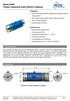 Properties Free of float metal bellow coupling with integrated torque measurement Non-contact measurement system, high robustness High torsional stiffness Limited torque of inertia Performance Measurement
Lab Experiment 1: The LPC 2148 Education Board
 Lab Experiment 1: The LPC 2148 Education Board 1 Introduction The aim of this course ECE 425L is to help you understand and utilize the functionalities of ARM7TDMI LPC2148 microcontroller. To do that,
i ChatterBox! Motorcycle Security
 i Before you Start the Installation * Please read this manual to become familiar with the requirements necessary to complete the installation. * Use a high quality multi-meter to test all wires before
PM1122 INT DIGITAL INTERFACE REMOTE
 PM1122 INT DIGITAL INTERFACE REMOTE PM1122 INT front panel description: 1. Clear wireless remotes knob: push this button for more than 2 seconds to clear the list of all assigned wireless remote settings
1. Introduction... 3. 2.Fixture exterior view... 3. 3. Connecting the Robe Universal Interface... 4. 3.1 Software update of the fixture...
 1 Table of contests 1. Introduction... 3 2.Fixture exterior view... 3 3. Connecting the Robe Universal Interface... 4 3.1 Software update of the fixture... 4 3.2 Connecting a DMX console to the Media Fusion...
STIM202 Evaluation Kit
 Table of contents: 1 FEATURES... 2 2 GENERAL DESCRIPTIONS AND SYSTEM CONTENTS... 2 3 SYSTEM REQUIREMENTS... 2 4 GETTING STARTED... 3 4.1 INSTALLATION OF NI-SERIAL CABLE ASSEMBLY DRIVER... 3 4.2 INSTALLATION
B0099 - Robo Claw 2 Channel 5A Motor Controller Data Sheet
 B0099 - Robo Claw 2 Channel 5A Motor Controller Feature Overview: 2 Channel at 5A, Peak 7A Hobby RC Radio Compatible Serial Mode TTL Input Analog Mode 2 Channel Quadrature Decoding Thermal Protection Lithium
SMS Alarm Messenger. Setup Software Guide. SMSPro_Setup. Revision 090210 [Version 2.2]
![SMS Alarm Messenger. Setup Software Guide. SMSPro_Setup. Revision 090210 [Version 2.2]](/thumbs/29/13662687.jpg "SMS Alarm Messenger. Setup Software Guide. SMSPro_Setup. Revision 090210 [Version 2.2]") SMS Alarm Messenger SMSPro_Setup Revision 090210 [Version 2.2] ~ 1 ~ Contents 1. How to setup SMS Alarm Messenger?... 3 2. Install the SMSPro_Setup software... 5 3. Connection Type... 6 4. Connection Port
SMS Alarm Messenger SMSPro_Setup Revision 090210 [Version 2.2] ~ 1 ~ Contents 1. How to setup SMS Alarm Messenger?... 3 2. Install the SMSPro_Setup software... 5 3. Connection Type... 6 4. Connection Port
SENSORED BRUSHLESS MOTOR & SPEED CONTROLLER COMBOS
 SENSORED BRUSHLESS MOTOR & SPEED CONTROLLER COMBOS OPERATING INSTRUCTIONS Please keep for future reference Thank you for purchasing this Exceed brushless motor and speed controller combo. We are sure you
REGTRONIC OPERATING INSTRUCTIONS
 REGTRONIC OPERATING INSTRUCTIONS 1.FEATURES Electrical connection: M12 8-pin connector Preset pressure range 0.05-10 bar with possible full scale regulation. 10 100 mbar adjustable deadband Supply pressure:
IDD-213T User Manual. (Rev. 1.0) China Aerospace Telecommunications Limited
 (Rev. 1.0) China Aerospace Telecommunications Limited Contents 1. Introduction......3 2. Specifications...4 2.1 External Interface... 4 2.2 Status Indicator...... 5 2.3 Technical Parameters... 6 3. Device
INSTRUCTION MANUAL. Specification: collective pitch 3D quadcopter. TYPE: Collective Pitch Electric 3D Quadcopter. Rotor Diameter: 118MM.
 collective pitch 3D quadcopter INSTRUCTION MANUAL Specification: TYPE: Collective Pitch Electric 3D Quadcopter Rotor Diameter: 118MM Length:635 MM Width: 365 MM Weight: 986g w/out battery Flying weight
CHAPTER 11: Flip Flops
 CHAPTER 11: Flip Flops In this chapter, you will be building the part of the circuit that controls the command sequencing. The required circuit must operate the counter and the memory chip. When the teach
IQAN MDM Operation Manual
 IQAN MDM Operation Manual Purpose The primary purpose of this document is to inform a user of the IQAN system on the ease of adjustments of the system. A person can create a much smoother machine control
EScribe. EScribe at a glance
 EScribe EScribe is a software package used to configure and modify the operation of your DNA 200. It requires a Windows PC and connects to your DNA 200 through the onboard USB port. EScribe at a glance
Parts List. Navigation
 Parts List quantity description 1 LCD-200 Display 1 LCD-200 Display cable 1 CD-ROM 2 dual lock or velcro 1 1GB SD card (optional) 1 CAN termination plug Navigation Main Menu Begin Log/Stop Log page 4 Log
Quick Start Guide. MRB-KW01 Development Platform Radio Utility Application Demo MODULAR REFERENCE BOARD
 Quick Start Guide MRB-KW01 Development Platform Radio Utility Application Demo MODULAR REFERENCE BOARD Quick Start Guide Get to Know the MRB-KW01x Module UART Selector ANT 1 RFIO (TX/RX) USB 2.0 Serial
Dedalus autopilot user's manual. Dedalus autopilot User's manual. Introduction
 Dedalus autopilot User's manual Introduction Thank you for purchasing Dedalus Autopilot. We have put our many year experience in electronics, automatics and control of model planes into this device. Dedalus
ENET-710. ENET-710 - Ethernet Module ENET-710 JAN / 06 FOUNDATION
 ENET-710 ENET-710 - Ethernet Module JAN / 06 ENET-710 FOUNDATION E N E T 7 1 0 ME smar www.smar.com Specifications and information are subject to change without notice. Up-to-date address information is
Application Information Fully Integrated Hall Effect Motor Driver for Brushless DC Vibration Motor Applications
 Application Information Fully Integrated Hall Effect Motor Driver for Brushless DC Vibration Motor Applications By Shaun Milano Vibration motors are used in a variety of applications including mobile phone
8 Channel Status Input Panel model SIP-8
 Description The Sine Systems model SIP-8 Status Input Panel is to be used with the RFC-1/B Remote Facilities Controller. It consists of a long PC board mounted on a 1.75 inch (1U) rack panel. The SIP-8
NEWBIES GUIDE to setting up and using the CRIUS MWC MultiWii SE Board Software By ATXHELI rev. 04/22/2012
 NEWBIES GUIDE to setting up and using the CRIUS MWC MultiWii SE Board Software By ATXHELI rev. 04/22/2012 1. Download and unzip the required software: -Arduino Compiler and Board Flashing Environment:
CONTENTS. Section 1 Document Descriptions... 3. 1.1 Purpose of this Document... 3. 1.2 Nomenclature of this Document... 3
 CONTENTS Section 1 Document Descriptions... 3 1.1 Purpose of this Document... 3 1.2 Nomenclature of this Document... 3 Section 2 Solution Overview... 5 2.1 General Description... 5 2.2 Hardware and Software
Hand Gestures Remote Controlled Robotic Arm
 Advance in Electronic and Electric Engineering. ISSN 2231-1297, Volume 3, Number 5 (2013), pp. 601-606 Research India Publications http://www.ripublication.com/aeee.htm Hand Gestures Remote Controlled
USBSPYDER08 Discovery Kit for Freescale MC9RS08KA, MC9S08QD and MC9S08QG Microcontrollers User s Manual
 USBSPYDER08 Discovery Kit for Freescale MC9RS08KA, MC9S08QD and MC9S08QG Microcontrollers User s Manual Copyright 2007 SofTec Microsystems DC01197 We want your feedback! SofTec Microsystems is always on
CONTENTS. 1. Reventon ESC Features. Page1. 2. Specifications.. Page1. 3. ESC s indicating LEDs.. Page5. 4. Wiring Diagram. Page5
 CONTENTS V2.1 Created on Nov 5 th 2013 1. Reventon ESC Features. Page1 2. Specifications.. Page1 3. ESC s indicating LEDs.. Page5 4. Wiring Diagram. Page5 5. Throttle Range Setting/Calibration.. Page6
User and installation manual
 User and installation manual aquaero 5 The information contained in this manual is subject to change without prior notice. All rights reserved. Current as of April 2011 ENGLISH: PAGE 1 DEUTSCH: SEITE 13
IDDERO TOUCH PANELS. Video door phone configuration. www.iddero.com 120130-02
 IDDERO TOUCH PANELS Video door phone configuration www.iddero.com 120130-02 TABLE OF CONTENTS 1 INTRODUCTION... 3 2 INSTALLATION... 3 3 INITIAL CONFIGURATION... 4 4 2N HELIOS IP VIDEO DOOR PHONES... 5
iridium for KNX/EIB Fast Start: Connection Setting Manual for KNX/EIB equipment
 iridium for KNX/EIB Fast Start: Connection Setting Manual for KNX/EIB equipment Review of iridium Software Package for KNX/EIB: iridium turns your iphone/ipod/ipad or Windows device into a KNX system control
Active Vibration Isolation of an Unbalanced Machine Spindle
 UCRL-CONF-206108 Active Vibration Isolation of an Unbalanced Machine Spindle D. J. Hopkins, P. Geraghty August 18, 2004 American Society of Precision Engineering Annual Conference Orlando, FL, United States
EDK 350 (868 MHz) EDK 350U (902 MHz) EnOcean Developer Kit
 EDK 350 (868 MHz) EDK 350U (902 MHz) EnOcean Developer Kit EDK 350 User Manual Important Notes This information describes the type of component and shall not be considered as assured characteristics. No