
Altera SoC Embedded Design Suite User Guide
|
|
|
- Wesley Fitzgerald
- 10 years ago
- Views:
Transcription
1 Altera SoC Embedded Design Suite User Guide Subscribe ug Innovation Drive San Jose, CA

2 TOC-2 Contents Introduction to SoC Embedded Design Suite Overview Linux Device Tree Binary Hardware and Software Development Roles Hardware Engineer Bare-Metal and RTOS Developer Linux Kernel and Driver Developer Linux Application Developer Hardware Software Development Flow Installing the Altera SoC Embedded Design Suite Installation Folders Installing the SoC EDS Installing the ARM DS-5 Altera Edition Toolkit Licensing Getting the License Activating the License Embedded Command Shell Getting Started Guides ARM DS-5 AE Starting Eclipse ARM DS-5 AE Bare-Metal Project Management Bare-Metal Project Management Using Makefiles GCC-Based Bare-Metal Project Management ARM Compiler Bare-Metal Project Management Debugging Accessing Debug Configurations Creating a New Debug Configuration Debug Configuration Options DTSL Options Boot Tools User Guide Introduction Second Stage Bootloader Support Package Generator

3 TOC-3 BSP Generation Flow BSP Generator Graphical User Interface BSP Generator Command Line Interface BSP Files and Folders BSP Settings Second Stage Bootloader Image Tool (mkpimage) Operation Header File Format Tool Usage Output Image Layout U-Boot Image Tool (mkimage) Tool Options Usage Examples Building the Second Stage Bootloader Building the Cyclone V and Arria V Preloader Building the Arria 10 Bootloader Hardware Library Feature Description SoC Abstraction Layer (SoCAL) Hardware Manager (HW Manager) Hardware Library Reference Documentation HPS Flash Programmer User Guide HPS Flash Programmer Command-Line Utility How the HPS Flash Programmer Works Using the Flash Programmer from the Command Line HPS Flash Programmer HPS Flash Programmer Command Line Examples Supported Memory Devices Bare-Metal Compiler SD Card Boot Utility Usage Scenarios Tool Options Linux Software Development Tools Linux Compiler Linux Device Tree Generator Support and Feedback

4 TOC-4 SoC Embedded Design Suite User Guide Document Revision History

5 Introduction to SoC Embedded Design Suite 1 ug-1137 Subscribe The Altera system on a chip (SoC) Embedded Design Suite (EDS) provides the tools needed to develop embedded software for Altera's SoC devices. The Altera SoC EDS is a comprehensive tool suite for embedded software development on Altera SoC devices. The Altera SoC EDS contains development tools, utility programs, run-time software, and application examples that enable firmware and application software development on the Altera SoC hardware platform. Overview The Altera SoC EDS enables you to perform all required software development tasks targeting the Altera SoCs, including: Board bring-up Device driver development Operating system (OS) porting Bare-metal application development and debugging OS- and Linux-based application development and debugging Debug systems running symmetric multiprocessing (SMP) Debug software targeting soft IP residing on the FPGA portion of the device The major components of the SoC EDS include: ARM Development Studio 5 (DS-5 ) AE (AE) Toolkit Compiler tool chains: Bare-metal GNU Compiler Collection (GCC) tool chain from Mentor Graphics Bare-metal compiler Linux GCC compiler tool chain from Linaro Pre-built Linux package including: Linux kernel executable U-boot image Bootloader Device Tree Device tree blob consumed by u-boot for A10 Linux Device Tree Device tree blob consumed by Linux Secure Digital (SD) card image Script to download Linux source code from the GitHub repository (1) SoC Hardware Library (HWLIB) All rights reserved. ALTERA, ARRIA, CYCLONE, ENPIRION, MAX, MEGACORE, NIOS, QUARTUS and STRATIX words and logos are trademarks of and registered in the U.S. Patent and Trademark Office and in other countries. All other words and logos identified as trademarks or service marks are the property of their respective holders as described at Altera warrants performance of its semiconductor products to current specifications in accordance with Altera's standard warranty, but reserves the right to make changes to any products and services at any time without notice. Altera assumes no responsibility or liability arising out of the application or use of any information, product, or service described herein except as expressly agreed to in writing by Altera. Altera customers are advised to obtain the latest version of device specifications before relying on any published information and before placing orders for products or services. ISO 9001:2008 Registered Innovation Drive, San Jose, CA 95134

6 1-2 Linux Device Tree Binary Hardware-to-software interface utilities: Second stage bootloader generator Linux device tree generator Sample applications Golden Hardware Reference Designs (GHRD) including: FPGA hardware project FPGA hardware SRAM Object File (.sof) file Precompiled Second Stage Bootloaders Preloader for Arria V and Cyclone V Bootloader for Arria 10 Embedded command shell allowing easy invocation of the included tools SD Card Boot Utility Quartus II Programmer and SignalTap II Note: The Linux package included in the SoC EDS is not an official release and is intended to be used only as an example. Use the official Linux release described in the Golden System Reference Design (GSRD) User Manual available on the Rocketboards website or a specific release from the Git trees located on the GitHub repository for development. Note: The SoC EDS is tested only with the Linux release that comes with it. Newer Linux releases may not be fully compatible with this release of SoC EDS. Note: The Golden Hardware Reference Design (GHRD) included with the SoC EDS is not an official release and is intended to be used only as an example. For development purposes, use the official GHRD release described in the GSRD User Manual available on the Rocketboards website. Related Information Golden System Reference Design User Manual GitHub Repository Linux Device Tree Binary There are two different Linux device tree binary (DTB) file versions delivered as part of the SoC EDS: The version from the prebuilt_images folder: socfpga_cyclone5.dtb and socfpga_arria10.dtb are generic DTB files which do not have any dependency on soft IP. FPGA programming and bridge releasing are not required before Linux starts running using this DTB. This DTB file is intended for customers interested in bringing up a new board or just wanting to simplify their boot flow until they get to the Linux prompt. If what is being developed or debugged does not involve the FPGA, it is better to remove the FPGA complexities. The version from the hardware design folder: soc_system.dtb, ghrd_5astfd5k3.dtb, and ghrd_10as066n2.dtb are based on the GHRD design, which is part of the GSRD. Since the GHRD does contain soft IPs, these DTB file versions notify Linux to load the soft IP drivers. Therefore, the FPGA needs to be programmed and the bridges released before booting Linux. ug-1137 (1) The script downloads the sources corresponding to the pre-built Linux package. Introduction to SoC Embedded Design Suite

7 ug-1137 Hardware and Software Development Roles 1-3 Hardware and Software Development Roles Depending on your role in hardware or software development, you need a different subset of the SoC EDS toolkit. The following table lists some typical engineering development roles and indicates the tools that each role typically requires. For more information about each of these tools, refer to the SoC Embedded Design Suite page. Table 1-1: Hardware and Software Development Roles This table lists typical tool usage, but your actual requirements depend on your specific project and organization. Tool Hardware Engineer Bare-Metal Developer RTOS Developer Linux Kernel and Driver Developer Linux Application Developer ARM DS-5 Debugging ARM DS-5 Tracing ARM DS-5 Cross Triggering Hardware Libraries Second Stage Bootloader Generator Flash Programmer Bare-Metal Compiler Linux Compiler Linux Device Tree Generator Hardware Engineer As a hardware engineer, you typically design the FPGA hardware in Qsys. You can use the debugger of ARM DS-5 AE to connect to the ARM cores and test the hardware. A convenient feature of the DS-5 debugger is the soft IP register visibility, using Cortex Microcontroller Software Interface Standard (CMSIS) System View Description (.svd) files. With this feature, you can easily read and modify the soft IP registers from the ARM side. Introduction to SoC Embedded Design Suite

8 1-4 Bare-Metal and RTOS Developer As a hardware engineer, you may generate the Preloader for your hardware configuration. The Preloader is a piece of software that configures the HPS component according to the hardware design. As a hardware engineer, you may also perform the board bring-up. You can use ARM DS-5 debugger to verify that they can connect to the ARM and the board is working correctly. These tasks require JTAG debugging, which is enabled only in the Subscription Edition. For more information, see the Licensing section. Related Information Licensing on page 3-1 Hardware Software Development Flow on page 1-5 For more information about.svd files, refer to the Hardware - Software Development Flow section. Bare-Metal and RTOS Developer As either a bare-metal or a RTOS developer, you need JTAG debugging and low-level visibility into the system. Use the bare-metal compiler to compile your code and the SoC Hardware Library to control the hardware in a convenient and consistent way. Use the Flash Programmer to program the flash memory on the target board. These tasks require JTAG debugging, which is enabled only in the Subscription Edition. For more information, see the Licensing section. Related Information Licensing on page 3-1 Linux Kernel and Driver Developer As a Linux kernel or driver developer, you may use the same tools the RTOS developers use, because you need low-level access and visibility into the system. However, you must use the Linux compiler instead of the bare-metal compiler. You can use the Linux device tree generator (DTG) to generate Linux device trees. These tasks require JTAG debugging, which is enabled only in the Subscription Edition. For more information, see the "Licensing" chapter. Related Information Licensing on page 3-1 Linux Application Developer As a Linux application developer, you write code that targets the Linux OS running on the board. Because the OS provides drivers for all the hardware, you do not need low-level visibility over JTAG. DS-5 offers a very detailed view of the OS, showing information such as which threads are running and which drivers are loaded. These tasks do not require JTAG debugging. You can perform them both in the Web and Subscription editions. For more information, see the Licensing section. Related Information Licensing on page 3-1 ug-1137 Introduction to SoC Embedded Design Suite

9 ug-1137 Hardware Software Development Flow 1-5 Hardware Software Development Flow The Altera hardware-to-software handoff utilities allow hardware and software teams to work independently and follow their respective familiar design flows. Figure 1-1: Altera Hardware-to-Software Handoff Handoff Second Stage Bootloader Genertaor Second Stage Bootloader Hardware Design ACDS.sopcinfo Linux Device Tree Generator Linux Device Tree.svd Ds-5 Debugger.sof The following handoff files are created when the hardware project is compiled: Handoff folder contains information about how the HPS component is configured, including things like which peripherals are enabled, the pin MUXing and IOCSR settings, and memory parameters.svd file contains descriptions of the HPS registers and of the soft IP registers on FPGA side implemented in the FPGA portion of the device.sopcinfo file contains a description of the entire system The handoff folder is used by the second stage bootloader generator to create the preloader. For more information about the handoff folder, refer to the BSP Generation Flow chapter. The.svd file contains the description of the registers of the HPS peripheral registers and registers for soft IP components in the FPGA portion of the SoC. This file is used by the ARM DS-5 Debugger to allow these registers to be inspected and modified by the user. The SOPC Information (.sopcinfo) file, containing a description of the entire system, is used by the Linux device tree generator to create the device tree used by the Linux kernel. For more information, refer to the "Linux Device Tree Generator" chapter. Note: The soft IP register descriptions are not generated for all soft IP cores. Related Information BSP Generation Flow on page 7-2 Linux Device Tree Generator SoC Embedded Design Suite Download Page Introduction to SoC Embedded Design Suite

10 Installing the Altera SoC Embedded Design Suite 2 ug-1137 Subscribe You must install the Altera SoC Embedded Design Suite (EDS) and the ARM DS-5 AE to run the SoC EDS on an Altera SoC hardware platform. Installation Folders The default installation folder for SoC EDS is: <SoC EDS installation directory> c:\altera\15.0\embedded on Windows ~/altera/15.0/embedded on Linux The default installation folder for Quartus Programmer is: <Quartus installation directory> c:\altera\15.0\qprogrammer on Windows ~/altera/15.0/qprogrammer on Linux Note: The installation directories are defined, as follows: <Altera installation directory> to denote the location where Altera tools are installed. <SoC EDS installation directory> to denote the location where SoC EDS is installed. Installing the SoC EDS Perform the following steps to install the SoC EDS Tool Suite in a Windows-based system: 1. Download the latest installation program from the SoC Embedded Design Suite Download Center page of the Altera website. 2. Run the installer to open the Installing SoC Embedded Design Suite (EDS) dialog box, and click Next to start the Setup Wizard. 3. Accept the license agreement, and click Next. 4. Accept the default installation directory or browse to another installation directory, and click Next. Note: If you have previously installed the Quartus II software, accept the default <SoC EDS installation directory> to allow the Quartus II software and the SoC EDS Tool Suite to operate together All rights reserved. ALTERA, ARRIA, CYCLONE, ENPIRION, MAX, MEGACORE, NIOS, QUARTUS and STRATIX words and logos are trademarks of and registered in the U.S. Patent and Trademark Office and in other countries. All other words and logos identified as trademarks or service marks are the property of their respective holders as described at Altera warrants performance of its semiconductor products to current specifications in accordance with Altera's standard warranty, but reserves the right to make changes to any products and services at any time without notice. Altera assumes no responsibility or liability arising out of the application or use of any information, product, or service described herein except as expressly agreed to in writing by Altera. Altera customers are advised to obtain the latest version of device specifications before relying on any published information and before placing orders for products or services. ISO 9001:2008 Registered Innovation Drive, San Jose, CA 95134

11 2-2 Installing the ARM DS-5 Altera Edition Toolkit 5. Select All the components to be installed, and click Next. The installer displays a summary of the installation. 6. Click Next to start the installation process. The installer displays a separate dialog box with the installation progress of the component installation. 7. When the installation is complete, turn on Launch DS-5 Installation to start the ARM DS-5 installation, and click Finish. Note: On some Linux-based machines, you can install the SoC EDS with a setup GUI similar to the Windows-based setup GUI. Because of the variety of Linux distributions and package requirements, not all Linux machines can use the setup GUI. If the GUI is not available, use an equivalent command-line process. Download the Linux installation program from the SoC Embedded Design Suite Download Center page on the Altera website. Related Information SoC Embedded Design Suite Download Center ug-1137 Installing the ARM DS-5 Altera Edition Toolkit Before you begin For the last step of the SoC EDS installation process, start the ARM DS-5 AE Toolkit installer. Note: Make sure you have the proper setting to access the internet. 1. When the Welcome message is displayed, click Next. 2. Accept the license agreement and click Next. 3. Accept the default installation path, to ensure proper interoperability between SoC EDS and ARM DS-5 AE, and click Next. 4. Click Install to start the installation process. The progress bar is displayed. 5. When a driver installation window appears, click Next. 6. Accept the driver installation and click Install. 7. After successful installation, click Finish. ARM DS-5 AE installation is complete. 8. Click Finish. Installing the Altera SoC Embedded Design Suite

12 Licensing 3 ug-1137 Subscribe The SoC EDS is available with three different licensing options: Subscription edition Free web edition 30-day evaluation of subscription edition The only tool impacted by the selected licensing option is the ARM DS-5 AE. All the other tools offer the same level of features in all licensing options; for example, the second stage bootloader generator and the bare-metal compiler offer the same features no matter which licensing option is used. The main difference between the licensing options depends on which types of debugging scenarios are enabled: Licensing Option Debugging Scenarios Enabled Web edition Linux application debugging over ethernet Subscription edition 30-day evaluation of the subscription edition JTAG-based Bare-Metal Debugging JTAG-based Linux Kernel and Driver Debugging Linux Application Debugging over Ethernet Getting the License Depending on the licensing option, it is necessary to follow the steps detailed for each option to obtain the license. Subscription Edition - If you have purchased the SoC EDS Subscription Edition, then you have already received an ARM license serial number. This is a 15-digit alphanumeric string with two dashes in between. You will need to use this number to activate your license in DS-5, as shown in the Activating the License section. Free Web Edition - For the free SoC EDS Web Edition, you will be able to use DS-5 perpetually to debug Linux applications over an Ethernet connection. Get your ARM license activation code from the SoC Embedded Design Suite download page on the Altera website and then activate your license in DS-5, as shown in the Activating the License section All rights reserved. ALTERA, ARRIA, CYCLONE, ENPIRION, MAX, MEGACORE, NIOS, QUARTUS and STRATIX words and logos are trademarks of and registered in the U.S. Patent and Trademark Office and in other countries. All other words and logos identified as trademarks or service marks are the property of their respective holders as described at Altera warrants performance of its semiconductor products to current specifications in accordance with Altera's standard warranty, but reserves the right to make changes to any products and services at any time without notice. Altera assumes no responsibility or liability arising out of the application or use of any information, product, or service described herein except as expressly agreed to in writing by Altera. Altera customers are advised to obtain the latest version of device specifications before relying on any published information and before placing orders for products or services. ISO 9001:2008 Registered Innovation Drive, San Jose, CA 95134

13 3-2 Activating the License 30-Day Evaluation of Subscription Edition - If you want to evaluate the SoC EDS Subscription Edition, you can get a 30-Day Evaluation activation code from the SoC Embedded Design Suite download page on the Altera website and then activate your license in DS-5, as shown in the Activating the License section. Related Information SoC EDS Download Page Activating the License on page 3-2 ug-1137 Activating the License This section presents the steps required for activating the license in the ARM DS-5 AE by using the serial license number or activation code that were mentioned in the "Getting the License" chapter. Note: An active user account is required to activate the DS-5 AE license. If you do not have an active user account, it can be created on the ARM Self-Service page available on the ARM website. 1. The first time the ARM DS-5 is run, it notifies you that it requires a license. Click the Open License Manager button. Figure 3-1: No License Found 2. If at any time it is required to change the license, select Help > ARM License Manager to open the License Manager. Licensing

14 ug-1137 Activating the License 3-3 Figure 3-2: Accessing ARM License Manager 3. The License Manager - View and edit licenses dialog box opens and shows that a license is not available. Click the Add License button. Licensing

15 3-4 Activating the License ug-1137 Figure 3-3: ARM License Manager 4. In the Add License - Obtain a new licenses dialog box, select the type of license to enter. In this example, select the radio button, Enter a serial number or activation code to obtain a license to enter the choices listed, below. When done, click Enter. a. ARM License Number for Subscription Edition. b. ARM License Activation Code for Web Edition and 30-Day Evaluation. Licensing

16 ug-1137 Activating the License 3-5 Figure 3-4: Add License - Obtain a New License 5. Click Next. 6. In the Add License - Choose Host ID dialog box, select the Host ID (Network Adapter MAC address) to tie the license to. If there are more than one option, select the one you desire to lock the license to, and click Next. Licensing

17 3-6 Activating the License Figure 3-5: Add License - Choose host ID ug In the Add License - Developer account details dialog box, enter an ARM developer (Silver) account. If you do not have an account, it can be created easily by clicking the provided link. After entering the account information, click Finish. Figure 3-6: Add License - Developer Account Details Note: The License Manager needs to be able to connect to the Internet in order to activate the license. If you do not have an Internet connection, you will need to write down your Ethernet MAC Licensing

18 ug-1137 Activating the License 3-7 address and generate the license directly from the ARM Self-Service web page on the ARM website, then select the "Already have a license" option in the License Manger. Note: Only the Subscription Edition, with an associated license number can be activated this way. The Web Edition and Evaluation edition are based on activation codes, and these codes cannot be used on the ARM Self-Service web page on the ARM website. They need to be entered directly in the License Manager; which means an Internet connection is a requirement for licensing. The ARM License Manager uses the Eclipse settings to connect to the Internet. The default Eclipse settings use the system-wide configuration for accessing the Internet. In case the License Manager cannot connect to the Internet, you can try to change the Proxy settings by going to Window > Preferences > General > Network Connections. Ensure that "HTTPS" proxy entry is configured and enabled. 8. After a few moments, the ARM DS-5 will activate the license and display it in the License Manager. Click Close. Figure 3-7: ARM License Manager Related Information ARM website Getting the License on page 3-1 Licensing

19 Embedded Command Shell 4 ug-1137 Subscribe The purpose of the embedded command shell is to provide an option for you to invoke the SoC EDS tools. It enables you to invoke the SoC EDS tools without qualifying them with the full path. Commands like eclipse, bsp-editor, or arm-altera-eabi-gcc can be executed directly. On Windows, the embedded command shell is started by running <SoC EDS installation directory>\ Embedded_Command_Shell.bat. On Linux, the embedded command shell is started from the Start menu or by running <SoC EDS installation directory>/embedded_command_shell.sh All rights reserved. ALTERA, ARRIA, CYCLONE, ENPIRION, MAX, MEGACORE, NIOS, QUARTUS and STRATIX words and logos are trademarks of and registered in the U.S. Patent and Trademark Office and in other countries. All other words and logos identified as trademarks or service marks are the property of their respective holders as described at Altera warrants performance of its semiconductor products to current specifications in accordance with Altera's standard warranty, but reserves the right to make changes to any products and services at any time without notice. Altera assumes no responsibility or liability arising out of the application or use of any information, product, or service described herein except as expressly agreed to in writing by Altera. Altera customers are advised to obtain the latest version of device specifications before relying on any published information and before placing orders for products or services. ISO 9001:2008 Registered Innovation Drive, San Jose, CA 95134

20 Getting Started Guides 5 ug-1137 Subscribe The Getting Started Guides chapter provides instructions on how to access complete Getting Started instructions including the following: Board Setup Running Linux Running the Tools Second Stage Bootloader Baremetal Debugging Hardware Libraries (HWLibs) Peripheral Register Visibility Baremetal Project Management Linux Application Debugging Linux Kernel and Driver Debugging Tracing Related Information SoCEDSGettingStarted Wiki Page For more information on how to access the Getting Started Guides All rights reserved. ALTERA, ARRIA, CYCLONE, ENPIRION, MAX, MEGACORE, NIOS, QUARTUS and STRATIX words and logos are trademarks of and registered in the U.S. Patent and Trademark Office and in other countries. All other words and logos identified as trademarks or service marks are the property of their respective holders as described at Altera warrants performance of its semiconductor products to current specifications in accordance with Altera's standard warranty, but reserves the right to make changes to any products and services at any time without notice. Altera assumes no responsibility or liability arising out of the application or use of any information, product, or service described herein except as expressly agreed to in writing by Altera. Altera customers are advised to obtain the latest version of device specifications before relying on any published information and before placing orders for products or services. ISO 9001:2008 Registered Innovation Drive, San Jose, CA 95134

21 ARM DS-5 AE 6 ug-1137 Subscribe The ARM Development Studio 5 Toolkit AE (ARM DS-5 AE) is a device-specific exclusive offering from Altera. The ARM DS-5 AE is a powerful Eclipse-based comprehensive Integrated Development Environment (IDE). Some of the most important provided features are: File editing, supporting syntax highlighting and source code indexing Build support, based on makefiles Bare-metal debugging Linux application debugging Linux kernel and driver debugging Multicore debugging Access to HPS peripheral registers Access to FPGA soft IP peripheral registers Tracing of program execution through Program Trace Macrocells (PTM) Tracing of system events through System Trace Macrocells (STM) Cross-triggering between HPS and FPGA Connecting to the target using Altera USB Blaster II The ARM DS-5 AE is a complex tool with many features and options. This chapter only describes the most common features and options and provides getting started scenarios to help you get started, quickly. You can access the ARM DS-5 AE reference material from Eclipse, by navigating to Help > Help Contents > ARM DS-5 Documentation or online. Related Information Online ARM DS-5 Documentation The ARM DS-5 AE reference material can be accessed online on the documentation page of the ARM website. Starting Eclipse ARM DS-5 AE ARM DS-5 AE must be started from the Embedded Command Shell. Eclipse needs to be started from the Embedded Command Shell so that all the utilities are added to the search path, and they can be used directly from the makefiles without the full path. To start the Eclipse IDE that the ARM DS-5 AE uses, you must type eclipse & at the command line All rights reserved. ALTERA, ARRIA, CYCLONE, ENPIRION, MAX, MEGACORE, NIOS, QUARTUS and STRATIX words and logos are trademarks of and registered in the U.S. Patent and Trademark Office and in other countries. All other words and logos identified as trademarks or service marks are the property of their respective holders as described at Altera warrants performance of its semiconductor products to current specifications in accordance with Altera's standard warranty, but reserves the right to make changes to any products and services at any time without notice. Altera assumes no responsibility or liability arising out of the application or use of any information, product, or service described herein except as expressly agreed to in writing by Altera. Altera customers are advised to obtain the latest version of device specifications before relying on any published information and before placing orders for products or services. ISO 9001:2008 Registered Innovation Drive, San Jose, CA 95134
22 6-2 Bare-Metal Project Management ug-1137 Bare-Metal Project Management ARM DS-5 AE enables convenient project management for bare-metal projects using two different methods: Using Makefiles Using the ARM DS-5 AE graphical interface Some users prefer Makefiles because they allow the option for the project compilation to be performed from scripts. Other users prefer to use a GUI to manage the project, and this is available for both GCC and ARM Compiler bare-metal projects. Method Advantages Compiler Toolchain Support Makefile Scripted compilation GCC ARM DS-5 AE graphical interface Multiple toolchain support Bare-Metal Project Management Using Makefiles GCC, ARM Compiler The ARM DS-5 AE enables convenient project management using makefiles. The sample projects that are provided with SoC EDS use makefiles to manage the build process. Note: This option refers to just the DS-5 specific aspects. If you are not familiar with defining and using makefiles, please use the ARM DS-5 AE GUI option detailed in the next section. To allow ARM DS-5 AE to manage a makefile-based project, create a project, as follows: 1. Create a folder on the disk. 2. Create the project by selecting File > New > Makefile Project with Existing Code. ARM DS-5 AE
23 ug-1137 Bare-Metal Project Management Using Makefiles 6-3 Figure 6-1: Creating a Project with Existing Code 3. Type the folder name in the Existing Code Location edit box and then click Finish. ARM DS-5 AE
24 6-4 Bare-Metal Project Management Using Makefiles Figure 6-2: Import Existing Code ug Create a Makefile in that folder, and define the rules required for compiling the code. Make sure it has the all and the clean targets. ARM DS-5 AE now offers the possibility of invoking the build process from the IDE and allows you to build your project, as shown in the following figure: ARM DS-5 AE
25 ug-1137 GCC-Based Bare-Metal Project Management 6-5 Figure 6-3: Eclipse IDE - Build Process Invoked - Building a Software Project in ARM DS-5 AE If the compilation tools issue errors, ARM DS-5 AE parses and formats them for you and displays them in the Problems view. 5. Build a software project in ARM DS-5 AE. GCC-Based Bare-Metal Project Management This section shows how the Bare-metal toolchain plugin can be used to manage GCC-based projects in a GUI environment. Creating Project 1. Start Eclipse. 2. Go to File > New C Project. 3. Determine if you want to create an Executable empty project or a Bare-metal library empty project. a. Bare-metal executable Select Project Type to be Executable > Empty Project then Toolchain to be Altera Baremetal GCC then click Finish. ARM DS-5 AE
26 6-6 Creating Project Figure 6-4: Bare-Metal Executable Project Type ug-1137 b. Static Library Select Bare-metal Library > Empty Project and click Finish. ARM DS-5 AE
27 ug-1137 Build Settings 6-7 Figure 6-5: Bare-Metal Library Project Type Build Settings Once the project is created, the project properties can be accessed by going to Project > Properties. ARM DS-5 AE
28 6-8 Build Settings Figure 6-6: Project Properties ug-1137 Then, in the Project Properites window, the Compilation settings can be accessed by selecting C/C++ Build > Settings ARM DS-5 AE
29 ug-1137 ARM Compiler Bare-Metal Project Management 6-9 Figure 6-7: Project Settings The Build Settings incldue detailed settings for all tools: Compiler Assembler Linker The Getting Started Guides chapter in this document contains a link to complete instructions on how to create a project from scratch, compile it and run it on an Altera SoC development board. ARM Compiler Bare-Metal Project Management This section shows ARM DS-5 can be used to manage ARM compiler projects in a GUI environment. ARM DS-5 AE
30 6-10 Creating a Project Creating a Project ug Start Eclipse. 2. Go to File > New C Project. 3. Select one of the following options: a. Select "Project Type" as Executable > Empty Project and then for "Toolchains", select ARM Compiler 5. Click Finish. Figure 6-8: Create an Empty ARM Compiler Bare-Metal Executable Project b. Select Static Library > Empty Project and then for "Toolchains", select ARM Compiler 5. Click Finish. ARM DS-5 AE
31 ug-1137 Linker Script 6-11 Figure 6-9: Create an Empty ARM Compiler Bare-metal Library Project Linker Script ARM DS-5 AE offers a visual tool to help create linker scripts. 1. Go to File > New > Other... ARM DS-5 AE
32 6-12 Linker Script Figure 6-10: Creating a Linker Script ug Select Scatter File Editor > Scatter File and press Next. ARM DS-5 AE
33 ug-1137 Linker Script 6-13 Figure 6-11: Creating a Scatter File 3. Select the location of the new file, type in the file name and press Finish. ARM DS-5 AE
34 6-14 Linker Script Figure 6-12: Create a New Scatter File Resource ug The linker script file can be edited directly as shown in the example below. ARM DS-5 AE
35 ug-1137 Linker Script 6-15 Figure 6-13: Linker Script Example 5. The file can also be edited by using the tools on the Outline view for the file. ARM DS-5 AE
36 6-16 Build Settings Figure 6-14: Editing "Scatter.scat" File Using Tools on the Outline View ug-1137 Build Settings 1. Once the project is created, the project properties can be accessed by going to Project > Properties. ARM DS-5 AE
37 ug-1137 Build Settings 6-17 Figure 6-15: Project Properties 2. Then, in the Project Properties window, the "Compilation" settings can be accessed by selecting C/C+ + Build > Settings. ARM DS-5 AE
38 6-18 Debugging Figure 6-16: Project Settings ug-1137 The build settings include detailed settings for all tools: Compiler Assembler Linker The "Getting Started with ARM Compiler Bare Metal Project Management" contains a link to complete instructions on how to create a project from scratch, compile it and run it on an Altera SoC development board. Related Information Getting Started Guides on page 5-1 Debugging The ARM DS-5 AE offers you a variety of debugging features. ARM DS-5 AE
39 ug-1137 Accessing Debug Configurations 6-19 Accessing Debug Configurations The settings for a debugging session are stored in a Debug Configuration. The Debug Configurations window is accessible from the Run > Debug Configurations menu. Figure 6-17: Accessing Debug Configurations Creating a New Debug Configuration A Debug Configuration is created in the Debug Configurations window by selecting DS-5 Debugger as the type of configuration in the left panel and then right-clicking with the mouse and selecting the New menu option. ARM DS-5 AE
40 6-20 Creating a New Debug Configuration Figure 6-18: Create New Debug Configuration ug-1137 In the ARM DS-5 AE, you can assign a default name to the configuration, which you can edit. ARM DS-5 AE
41 ug-1137 Debug Configuration Options 6-21 Figure 6-19: Rename Debug Configuration Debug Configuration Options This section lists the Debug Configuration options, which allows you to specify the desired debugging options for a project: Connection Options File Options Debugger Options RTOS Awareness Arguments Environment Event Viewer Related Information Getting Started Guides For examples on how to use the ARM DS-5 AE debugging features. Online ARM DS-5 Documentation Refer to the DS-5 reference documentation for the complete details. ARM DS-5 AE
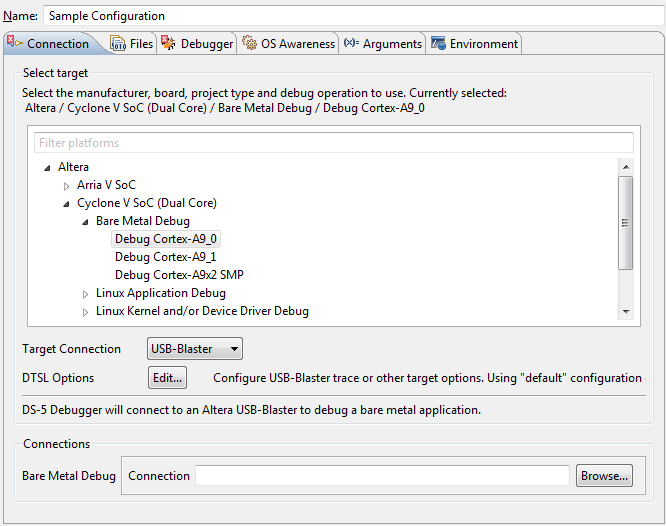
42 6-22 Connection Options Connection Options The Connection tab allows the user to select the desired target. The following targets are available for the Altera platforms: Arria 10 SoC: Bare Metal Debug Debug Cortex-A9_0 Debug Cortex-A9_1 Debug Cortex-A9x2 SMP Linux Application Debug Connect to already running gdbserver Download and debug application Start gdbserver and debug target resident application Linux Kernel and/or Device Driver Debug Debug Cortex-A9_0 Debug Cortex-A9_1 Debug Cortex-A9x2 SMP Arria V SoC: Bare Metal Debug Debug Cortex-A9_0 Debug Cortex-A9_1 Debug Cortex-A9x2_SMP Linux Application Debug Connect to already running gdbserver Download and debug application Start dbgserver and debug target resident application Linux Kernel and/or Device Driver Debug Debug Cortex-A9_0 Debug Cortex-A9_1 Debug Cortex-A9x2_SMP Cyclone V SoC (Single Core): Bare Metal Debug Debug Cortex-A9_0 Linux Application Debug Connect to already running gdbserver Download and debug application Start dbgserver and debug target resident application Linux Kernel and/or Device Driver Debug Debug Cortex-A9_0 Cyclone V SoC (Dual Core): ug-1137 ARM DS-5 AE
43 ug-1137 Connection Options 6-23 Bare Metal Debug Debug Cortex-A9_0 Debug Cortex-A9_1 Debug Cortex-A9x2_SMP Linux Application Debug Connect to already running gdbserver Download and debug application Start dbgserver and debug target resident application Linux Kernel and/or Device Driver Debug Debug Cortex-A9_0 Debug Cortex-A9_1 Debug Cortex-A9x2_SMP Dual Arria V SoC (Two Dual Core SoCs): Bare Metal Debug Debug HPS0 Cortex-A9_0 Debug HPS0 Cortex-A9_1 Debug HPS0 Cortex-A9x2_SMP Debug HPS1 Cortex-A9_0 Debug HPS1 Cortex-A9_1 Debug HPS1 Cortex-A9x2_SMP Linux Application Debug Connect to already running gdbserver Download and debug application Start dbgserver and debug target resident application Linux Kernel and/or Device Driver Debug Debug HPS0 Cortex-A9_0 Debug HPS0 Cortex-A9_1 Debug HPS0 Cortex-A9x2_SMP Debug HPS1 Cortex-A9_0 Debug HPS1 Cortex-A9_1 Debug HPS1 Cortex-A9x2_SMP Dual Cyclone V SoC (Two Dual Core SoCs): ARM DS-5 AE
44 6-24 Connection Options Bare Metal Debug Debug HPS0 Cortex-A9_0 Debug HPS0 Cortex-A9_1 Debug HPS0 Cortex-A9x2_SMP Debug HPS1 Cortex-A9_0 Debug HPS1 Cortex-A9_1 Debug HPS1 Cortex-A9x2_SMP Linux Application Debug Connect to already running gdbserver Download and debug application Start dbgserver and debug target resident application Linux Kernel and/or Device Driver Debug Debug HPS0 Cortex-A9_0 Debug HPS0 Cortex-A9_1 Debug HPS0 Cortex-A9x2_SMP Debug HPS1 Cortex-A9_0 Debug HPS1 Cortex-A9_1 Debug HPS1 Cortex-A9x2_SMP Android Application Debug: Native Application/Library Debug APK Native Library Debug via gdbserver Attach to a running Android application Download and debug an Android application Linux Application Debug: Application Debug Connections via gdbserver Connect to already running gdbserver Download and debug application Start dbgserver and debug target resident application ug-1137 ARM DS-5 AE
45 ug-1137 Connection Options 6-25 Depending on the selected Target, the Connections panel will look different. For Bare Metal Debug and Linux Kernel and/or Device Driver Debug target types: A Target Connection option appears, and it allows the user to select the type of connection to the target. Altera USB-Blaster and DSTREAM are two of the most common options. A DTSL option appears, allowing the user to configure the Debug and Traces Services Layer (detailed later) A Connections Browse button appears, allowing the user to browse and select either the specific instance for the connection (i.e. Altera USB-Blaster or the DSTREAM instance) Figure 6-20: Connection Options for Bare-metal and Linux Kernel and/or Device Driver Debug For the Linux Application Debug targets, the connection parameters will be different depending on which type of connection was selected. The following two pictures illustrate the options. ARM DS-5 AE

46 6-26 Connection Options Figure 6-21: Linux Application Debugging Connect to a Running GDB Server ug-1137 ARM DS-5 AE

47 ug-1137 Connection Options 6-27 Figure 6-22: Linux Application Debugging Download And Debug Application Note: For the Linux Application Debug, the Connection needs to be configured in the Remote System Explorer view, as shown in Getting Started with Linux Application Debugging. Related Information DTSL Options on page 6-31 For more information about the option on the Connections tab, refer to the DTSL Options section. Debugger Options on page 6-28 Getting Started Guides on page 5-1 ARM DS-5 AE

48 6-28 Files Options Files Options The Files tab allows the following settings to be configured: Application on host to download the file name of the application to be downloaded to the target. It can be entered directly in the edit box or it can be browsed for in the Workspace or on the File System. Files contains a set of files. A file can be added to the set using the + button, and files can be removed from the set using the button. Each file can be one of the following two types: Load symbols from file the debugger will use that file to load symbols from it, Add peripheral description files from directory the debugger to load peripheral register descriptions from the.svd files stored in that directory. The SVD file is a result of the compilation of the hardware project. Figure 6-23: Files Settings ug-1137 Debugger Options The Debugger tab offers the following configurable options Run Control Options Option to connect only, debug from entry point or debug from user-defined symbol, Option to run user-specified target initialization script, Option to run user-specified debug initialization script, Option to execute user-defined debugger commands Host working directory used by semihosting Paths allows the user to enter multiple paths for the debugger to search for sources. Paths can be added with + button and removed with - button. ARM DS-5 AE

49 ug-1137 RTOS Awareness 6-29 Figure 6-24: Debugger Settings RTOS Awareness The RTOS Awareness tab allows the user to enable RTOS awareness for the debugger. ARM DS-5 AE


50 6-30 Arguments Figure 6-25: RTOS Awareness Settings ug-1137 Arguments Related Information Keil Website For more information about RTOS Awareness, refer to the Embedded Development Tools page on the KeilTM website. The Arguments tab allows the user to enter program arguments as text. Figure 6-26: Arguments Settings Environment The Environment tab allows the user to enter environment variables for the program to be executed. ARM DS-5 AE

51 ug-1137 DTSL Options 6-31 Figure 6-27: Environment Settings DTSL Options The Debug and Trace Services Layer (DTSL) provides tracing features. To configure trace options, in your project's Debug Configuration window, in the "Connection" tab, click the Edit button to open the DTSL Configuration window. ARM DS-5 AE
52 6-32 Cross Trigger Settings Figure 6-28: Debug Configurations - DTSL Options - Edit ug-1137 Cross Trigger Settings The Cross Trigger tab allows the configuration of the cross triggering option of the SoC FPGA. The following options are available: Enable FPGA > HPS Cross Trigger for enabling triggers coming from FPGA to HPS Enable HPS > FPGA Cross Trigger for enabling triggers coming from HPS to FPGA ARM DS-5 AE
53 ug-1137 Trace Capture Settings 6-33 Figure 6-29: DTSL Configuration Editor - Cross Trigger Trace Capture Settings The Trace Capture tab allows the selection of the destination of the trace information. As mentioned in the introduction, the destination can be one of the following: None meaning the tracing is disabled ETR using any memory buffer accessible by HPS ETF using the 32KB on-chip trace buffer DSTREAM using the 4GB buffer located in the DSTREAM The DSTREAM option is available only if the Target connection is selected as DSTREAM in the Debug Configuration. Figure 6-30: DTSL Configuration Editor - Trace Capture > Trace Capture Method The Trace Buffer tab provides the option of selecting the timestamp frequency. Figure 6-31: DTSL Configuration Editor - Trace Capture > Timestamp Frequency ARM DS-5 AE

54 6-34 Cortex-A9 Settings Cortex-A9 Settings The Cortex-A9 tab allows the selection of the desired core tracing options. Figure 6-32: DTSL Configuration Editor - Cortex-A9 ug-1137 STM Settings The following Core Tracing Options are available: Enable Cortex-A9 0 core trace check to enable tracing for core #0 Enable Cortex-A9 1 core trace check to enable tracing for core #1 PTM Triggers halt execution check to cause the execution to halt when tracing Enable PTM Timestamps check to enable time stamping Enable PMT Context IDs check to enable the context IDs to be traced Context ID Size select 8-, 16- or 32-bit context IDs. Used only if Context IDs are enabled Cycle Accurate check to create cycle accurate tracing Trace capture range check to enable tracing only a certain address interval Start Address, End Address define the tracing address interval (Used only if the Trace Capture Range is enabled) The STM tab allows you to configure the System Trace Macrocell (STM). ARM DS-5 AE

55 ug-1137 ETR Settings 6-35 Figure 6-33: DTSL Configuration Editor - STM ETR Settings Only one option is available: Enable STM Trace check to enable STM tracing. The ETR settings allow the configuration of the Embedded Trace Router (ETR) settings. The Embedded Trace Router is used to direct the tracing information to a memory buffer accessible by HPS. Figure 6-34: DTSL Configuration Editor - ETR ETF Settings The following options are available: Configure the system memory trace buffer check this if the ETR is selected for trace destination on the Trace Capture tab Start Address, Size define the trace buffer location in system memory and its size Enable scatter-gather mode use when the OS cannot guarantee a contiguous piece of physical memory. The scatter-gather table is setup by the operating system using a device driver and is read automatically by the ETR. The ETF tab allows the configuration of the Embedded Trace FIFO (ETF) settings. The Embedded Trace FIFO is a 32KB buffer residing on HPS that can be used to store tracing data to be retrieved by the debugger, but also as an elastic buffer for the scenarios where the tracing data is stored in memory through ETR or on the external DSTREAM device using TPIU. ARM DS-5 AE

56 6-36 ETF Settings Figure 6-35: DTSL Configuration Editor - ETF ug-1137 The following options are available: Configure the on-chip trace buffer check this if ETF is selected for trace destination on the Trace Capture tab. Size define the ETF size. By default it is set up to 0x1000 (4KB) but it can be set to 0x8000 (32KB) to match the actual buffer size. ARM DS-5 AE
57 Boot Tools User Guide 7 ug-1137 Subscribe Introduction The boot flow for all Altera SoC devices includes the second stage bootloader (SSBL). The SSBL is usually referred to as preloader in the context of Cyclone V and Arria V devices, and bootloader in the context of Arria 10 devices. The SSBL is loaded by the boot ROM into the on-chip RAM (OCRAM) and has the task of bringing up the SDRAM, and loading and executing the next stage in the boot process. Figure 7-1: Cyclone V and Arria V Typical Boot Flow BootROM SSBL (Preloader) Bootloader Operating System Figure 7-2: Arria 10 Typical Boot Flow BootROM SSBL (Bootloader) Operating System For Cyclone V and Arria V devices, the OCRAM size is 64 KB, which limits the SSBL size and typically requires an additional bootloader stage, which then is used to load an operating system. For Arria 10 devices, there is no need for an additional bootloader stage, because the OCRAM size is 256 KB and the required functionality is included in the SSBL. This chapter presents the tools that are used to enable the SSBL management: SSBL Support Package Generator enables the user to create and manage the SSBL SSBL Image Tool ( mkpimage ) enables to user to add the boot ROM-required header on top of the SSBL U-Boot Image Tool ( mkimage ): enables the user to add the SSBL-required header on top of the files loaded by SSBL All rights reserved. ALTERA, ARRIA, CYCLONE, ENPIRION, MAX, MEGACORE, NIOS, QUARTUS and STRATIX words and logos are trademarks of and registered in the U.S. Patent and Trademark Office and in other countries. All other words and logos identified as trademarks or service marks are the property of their respective holders as described at Altera warrants performance of its semiconductor products to current specifications in accordance with Altera's standard warranty, but reserves the right to make changes to any products and services at any time without notice. Altera assumes no responsibility or liability arising out of the application or use of any information, product, or service described herein except as expressly agreed to in writing by Altera. Altera customers are advised to obtain the latest version of device specifications before relying on any published information and before placing orders for products or services. ISO 9001:2008 Registered Innovation Drive, San Jose, CA 95134
58 7-2 Second Stage Bootloader Support Package Generator ug-1137 Second Stage Bootloader Support Package Generator The Second Stage Bootloader (SSBL) Support Package Generator provides an easy, safe, and reliable way to customize the SSBL for the Altera SoC devices. The SSBL Support Package is referred to as BSP and the SSBL Support Package Generator is referred to as BSP Generator for the remainder of this document. The BSP Generator allows you to perform the following tasks: Create a new BSP Report BSP settings Modify BSP settings Generate BSP files The generated BSP includes a makefile, which can be used to build the corresponding bootable Preloader or Bootloader image. The BSP Generator functionality can be accessed from a Graphical User Interface or by using a set of command line tools, which allow complete scripting of the flow. BSP Generation Flow This section presents the BSP generation flow for both the Cyclone V and Arria V Preloader and Arria 10 Bootloader. While the flows are similar, there are some important differences. Cyclone V and Arria V Flow For Cyclone V and Arria V, the BSP Generator creates a customized BSP with preloader generic source files and board-specific SoC FPGA files. The generator consolidates the hardware settings and user inputs to create the BSP. The BSP files include a makefile to create the preloader image. The preloader image can then be downloaded to a Flash device or FPGA RAM to be used for booting HPS. Figure 7-3: Arria V/ Cyclone V BSP Generator Flow User Options Hardware Design Quartus II Handoff Folder (XML Files, Binary Files, Source Code) SSBL Generator Preloader Customized Source code Makefile make Preloader Image Legend Part of SoC EDS Preloader Generic Source Code Boot Tools User Guide
59 ug-1137 Arria 10 Flow 7-3 The hardware handoff information contains various settings that the user entered when creating the hardware design in Qsys and Quartus. These include the following: Pin-muxing for the HPS dedicated pins I/O settings for the HPS dedicated pins: Voltage Slew rate Pull up/ down State of HPS peripherals: Enabled Disabled Configuration of the bridges between HPS and FPGA Clock tree settings: PLL settings Clock divider settings Clock gatting settings DDR settings: Technology Width Speed The handoff settings are output from the Quartus compilation and are located in the <quartus project directory>/hps_isw_handoff/<hps entity name> directory (where <hps entity name > is the HPS component name in Qsys). You must update the hardware handoff files and regenerate the BSP each time a hardware change impacts the HPS, such as after pin multiplexing or pin assignment changes. Arria 10 Flow For Arria 10, the BSP Generator creates a customized BSP consisting of a makefile and a Bootloader Device Tree. There is no source code generated, as all customization is encapsulated in the Bootloader Device Tree and makefile settings. The makefile can be used to create the combined bootloader image, which contains both the bootloader executable and the bootloader device tree. The combined image can then be downloaded to a Flash device or FPGA RAM to be used for booting HPS. Figure 7-4: Arria 10 SSBL Support Package Generator Flow User Options Hardware Design Quartus II Handoff Folder (XML Files) SSBL Generator Bootloader Device Tree Source Makefile make Combined Bootloader and Bootloader Device Tree Image Legend Part of SoC EDS Bootloader Source Code Boot Tools User Guide
60 7-4 BSP Generator Graphical User Interface The hardware handoff information contains various settings that the user entered when creating the hardware design in Qsys and Quartus. These include the following: Pin-muxing for the HPS dedicated pins I/O settings for the HPS dedicated pins: Voltage Slew rate Pull up/ down Pin-muxing for the shared pins State of HPS peripherals: Enabled Disabled Configuration of the bridges between HPS and FPGA Clock tree settings: PLL settings Clock divider settings Clock gatting settings The handoff settings are output from the Quartus compilation and are located in the <quartus project directory>/hps_isw_handoff directory. The user must run the BSP Generator and re-generate the Bootloader device tree each time a hardware change results in a change of the above parameters. However, the user does not have to always recompile the Bootloader whenever a hardware setting is changed. The Bootloader needs to be recompiled only when changing the boot source. BSP Generator Graphical User Interface You must perform the following steps to use the BSP Generator GUI, bsp -editor: 1. Start an embedded command shell. 2. Run the bsp -editor command in the embedded command shell to launch the BSP Generator GUI. 3. To open and modify an existing BSP project, click File > Open and browse to an existing.bsp file. 4. To create a new BSP project, click File > New HPS BSP to open the New BSP dialog box. The New BSP dialog box includes the following settings and parameters: Preloader settings directory the path to the hardware handoff files. The generator inspects the handoff files to verify the validity of this path. Operating system Select the type of SSBL from the following two options: U-Boot SPL Preloader (Cyclone V/Arria V HPS) U-Boot Bootloader (Arria 10 HPS) Version the SSBL version to use. This release only supports the default 1.0 version. Use default locations checked by default, to derive the location of the BSP from the location of the hardware handoff folder. Uncheck if a custom path is desired instead. ug-1137 Boot Tools User Guide
61 ug-1137 Using.tcl Scripts 7-5 BSP target directory the destination folder for new BSP files created by the generator. This document refers to this as < bsp directory>. The default directory name is spl_bsp for the Arria V/ Cyclone V Preloader and uboot_bsp for the Arria 10 Bootloader. The directory name can be modified when Use default locations is unchecked. BSP settings file name the location and filename of the. bsp file containing the BSP settings. Additional.tcl scripting the location and filename of a.tcl script for overriding the default BSP settings. 5. You can customize the BSP. After creating or opening a.bsp file, access the Settings in the BSP Editor dialogue box. The Settings are divided into Common and Advanced settings. When you select a group of settings, the controls for the selected settings appear on the right side of the dialogue box. When you select a single setting, the setting name, description and value are displayed. You can edit these settings in the BSP Editor dialogue box. 6. Click Generate to generate the BSP. 7. Click Exit to exit the BSP Generator GUI. Using.tcl Scripts Instead of using the default settings, you can create a tcl script file (.tcl) to define custom settings during BSP creation. set_setting is the only available.tcl command. Refer to BSP Settings for a list of available settings. The following shows example commands that are used to set parameters in the BSP settings file: set_setting spl.boot.boot_from_qspi true set_setting spl.boot.qspi_next_boot_image 0x50000 Related Information BSP Settings on page 7-9 BSP Generator Command Line Interface The BSP command-line tools can be invoked from the embedded command shell, and provide all the features available in the BSP Generator GUI: The bsp -create-settings tool creates a new BSP settings file The bsp -update-settings tool updates an existing BSP settings file The bsp -query-settings tool reports the setting values in an existing BSP settings file The bsp -generate-files tool generates a BSP from the BSP settings file Note: Help for each tool is available from the embedded command shell. To display help, type the following command:<name of tool> --help bsp-create-settings The bsp-create-settings tool creates a new BSP settings file with default settings. You have the option to modify the BSP settings or generate the BSP files as shown in the following example. Boot Tools User Guide
62 7-6 bsp-update-settings ug-1137 Example 7-1: Creating a New BSP Settings File The following example creates a new Preloader BSP settings file, based on the hardware handoff information and using the default BSP settings: bsp-create-settings --type spl - bsp-dir. \ --settings settings.bsp \ --preloader-settings-dir../../hps_isw_handoff/<hps_entity_name> Table 7-1: User Parameters: bsp-create-settings Option Required Description --type <bsp type> Yes This option specifies the type of BSP. Allowed values are "spl" for Cyclone V/Arria V Preloader, and "uboot" for Arria 10 Bootloader. --settings <filename> Yes This option specifies the path to a BSP settings file. The file is created with default settings.altera recommends that you name the BSP settings file settings.bsp. --preloader-settings-dir <directory> Yes This option specifies the path to the hardware handoff files. --bsp-dir <directory> Yes This option specifies the path where the BSP files are generated.when specified, bsp - create-settings generates the files after the settings file has been created.altera recommends that you always specify this parameter with bsp -createsettings. --set <name> <value> No This option sets the BSP setting <name> to the value <value>. Multiple instances of this option can be used with the same command. Refer to BSP Settings for a complete list of available setting names and descriptions. bsp-update-settings The bsp-update-settings tool updates the settings stored in the BSP settings file, as shown in the following example. Boot Tools User Guide
63 ug-1137 bsp-query-settings 7-7 Example 7-2: Updating a BSP Settings File The following command changes the value of a parameter inside the file "settings.bsp": bsp-update-settings --settings settings.bsp --set spl.debug.semihosting 1 Table 7-2: User Parameters: bsp-update-settings Option Required Description --settings <settings-file> Yes This option specifies the path to an existing BSP settings file to update. --bsp-dir <bsp-dir> No This option specifies the path where the BSP files are generated.when this option is specified, bsp -create-settings generates the BSP files after the settings file has been created. --set <name> <value> No This option sets the BSP setting <name> to the value <value>. Multiple instances of this option can be used with the same command. Refer to BSP Settings for a complete list of available setting names and descriptions. bsp-query-settings The bsp-query-settings tool queries the settings stored in BSP settings file, as shown in the following example. Example 7-3: Querying a BSP Settings File The following command will retrieve all the settings from "settings.bsp" and displays the setting names and values: bsp-query-settings --settings settings.bsp --get-all --show-names Table 7-3: User Parameters: bsp-query-settings Option Required Description --settings <settings-file> Yes This option specifies the path to an existing BSP settings file. Boot Tools User Guide
64 7-8 bsp-generate-files ug-1137 Option Required Description --get <name> No This option instructs bsp - query-settings to return the value of the BSP setting <name>. --get-all No This option shows all the BSP settings values.when using -- get-all,you must also use -- show-names. --show-names No This option only takes effect when used together with --get <name> or --get-all. When used with one of these options, names and values of the BSP settings are shown side- by-side. bsp-generate-files The bsp-generate-files tool generates the files and settings stored in BSP settings file, as shown in the following examples. Example 7-4: Generating Files After BSP Creation The following commands create a settings file based on the handoff folder, and then generate the BSP files based on those settings: bsp-create-settings --type spl --bsp-dir. \ --settings settings.bsp \ --preloader-settings-dir \../../hps_isw_handoff/<hps_entity_name> bsp-generate-files --settings settings.bsp --bsp-dir Example 7-5: Generating Files After BSP Updates The following commands update the settings of a an existing BSP settings file, and then generate the BSP files based on those settings: bsp-update-settings --settings settings.bsp --set \ spl.debug.semihosting 1 bsp-generate-files --settings settings.bsp --bsp-dir Use the bsp-generate-files tool when BSP files need to be regenerated in one of the following conditions: bsp-create-settings created the BSP settings, but the --bsp-dir parameter was not specified, so BSP files were not generated. bsp-update-settings updated the BSP settings, but the --bsp-dir parameter was not specified, so the files were not updated. You want to ensure the BSP files are up-to-date. Boot Tools User Guide
65 ug-1137 BSP Files and Folders 7-9 Table 7-4: User Parameters: bsp-generate-files Option Required Description --settings <settings-file> Yes This option specifies the path to an existing BSP settings file. --bsp-dir <bsp-dir> Yes This option specifies the path where the BSP files are generated. BSP Files and Folders The files and folders created with the BSP Generator are stored in the location you specified in BSP target directory in the New BSP dialog box. For Cyclone V/Arria Preloader BSPs, the generated files include the following: settings.bsp file containing all BSP settings Makefile makefile used to compile the Preloader and create the preloader image; for more information, refer to Preloader Compilation preloader.ds ARM DS-5 script, that can be used to download and debug the Preloader on a target device. generated folder containing files generated from the hardware handoff files For Arria 10 Bootloader BSPs, the generated files include the following: settings.bsp file containing all BSP settings Makefile makefile used to compile the Bootloader, convert the Bootloader device tree file to binary, and create the combined Bootloader and Bootloader Device Tree image; for more information, refer to Preloader Compilation config.mk makefile configuration file, containing the boot source selection and whether the Bootloader compilation is selected. devicetree.dts Bootloader device tree, containing the Bootloader customization details, derived from the handoff files and the user settings. uboot.ds ARM DS-5 script, that can be used to download and debug the Bootloader on a target device. BSP Settings This section lists all the available BSP settings, which can be accessed from either the Graphical User Interface application (bsp-editor) or from the command line tools (bsp-create-settings, bsp-updatesettings, bsp-query-settings). The available BSP settings are different between Cyclone V and Arria V SSBL (Preloader) and Arria 10 SSBL (Bootloader). Boot Tools User Guide
66 7-10 Cyclone V and Arria V BSP Settings Cyclone V and Arria V BSP Settings ug-1137 Table 7-5: Cyclone V and Arria V BSP Settings BSP Setting Type Default Value Description spl.preloader_tgz String "<SoC EDS installation directory>/host_ tools/altera/ preloader/ubootsocfpga.tar.gz" This setting specifies the path to archive file containing the preloader source files. spl.cross_compile String "arm-altera-eabi-" This setting specifies the cross compilation tool chain for use. spl.boot.boot_from_qspi Boolean False Select the source for the subsequent boot spl.boot.boot_from_sdmmc Boolean True image. Note that only one source can spl.boot.boot_from_ram Boolean False be active at a time. When using bspcreate-settings or spl.boot.boot_from_nand Boolean False bsp-update-settings, you must turn off the boot option that is currently turned on before you can turn on a different boot option. spl.boot.qspi_next_boot_image Hexadecimal 0x60000 This setting specifies the location of the subsequent boot image in QSPI. spl.boot.sdmmc_next_boot_image Hexadecimal 0x40000 This setting specifies the location of the subsequent boot image in SD/MMC. spl.boot.nand_next_boot_image Hexadecimal 0xC0000 This setting specifies the location of the subsequent boot image in NAND. spl.boot.fat_support Boolean False Enable FAT partition support when booting from SD/ MMC. Boot Tools User Guide
67 ug-1137 Cyclone V and Arria V BSP Settings 7-11 BSP Setting Type Default Value Description spl.boot.fat_boot_partition Decimal Number 1 When FAT partition support is enabled, this specifies the FAT partition where the boot image is located. spl.boot.fat_load_payload_name String "u-boot.img" When FAT partition supported is enabled, this specifies the boot image filename to be used. spl.boot.watchdog_enable Boolean True This setting enables the watchdog during the preloader execution phase. The watchdog remains enabled after the preloader exits. spl.boot.checksum_next_image Boolean True This setting enables the preloader to validate the checksum in the subsequent boot image header information. spl.boot.exe_on_fpga Boolean False This setting executes the preloader on the FPGA. Select spl.boot.exe_on_ FPGA when the preloader is configured to boot from the FPGA. spl.boot.state_reg_enable Boolean True This setting enables writing the magic value to the INITSWSTATE register in the system manager when the preloader exists; this indicates to the boot ROM that the preloader has run successfully. Boot Tools User Guide
68 7-12 Cyclone V and Arria V BSP Settings ug-1137 BSP Setting Type Default Value Description spl.boot.bootrom_handshake_ CFGIO Boolean True This setting enables handshake with boot ROM when configuring the IOCSR and pin multiplexing. If spl.boot.bootrom_ HANDSHAKE_ CFGIO is enabled and warm reset occurs when the preloader is configuring IOCSR and pin multiplexing, the boot ROM will reconfigure IOCSR and pin multiplexing again. This option is enabled by default. spl.boot.warmrst_skip_cfgio Boolean True This setting enables the preloader to skip IOCSR and pin multiplexing configuration during warm reset. spl.boot.warmrst_ SKIP_CFGIO is only applicable if the boot ROM has skipped IOCSR and pin multiplexing configuration. spl.boot.sdram_initialization Boolean False Initialize the SDRAM to initialize the ECC bits. spl.boot.sdram_ecc_init_boot_ REGION_START spl.boot.sdram_ecc_init_boot_ REGION_END Hexadecimal 0x The start address of the memory region within the SDRAM to be initialized. Hexadecimal 0x The end address of the memory region within SDRAM to be initialized. Boot Tools User Guide
69 ug-1137 Cyclone V and Arria V BSP Settings 7-13 BSP Setting Type Default Value Description spl.boot.sdram_ecc_init_ REMAIN_REGION Boolean True Initialize the remaining SDRAM, during the flash accesses to load the image. spl.debug.debug_memory_write Boolean False This setting enables the preloader to write debug information to memory for debugging, useful when UART is not available. The address is specified by spl.debug.debug_ MEMORY_ADDR. spl.debug.semihosting Boolean False This setting enables semihosting support in the preloader, for use with a debugger tool. spl.debug.semihos TING is useful when UART is unavailable. spl.debug.skip_sdram Boolean False The preloader skips SDRAM initialization and calibration when this setting is enabled. spl.performance.serial_support Boolean True This setting enables UART print out support, enabling preloader code to call printf() at runtime with debugging information. stdout output from printf() is directed to the UART. You can view this debugging information by connecting a terminal program to the UART specified peripheral. Boot Tools User Guide
70 7-14 Cyclone V and Arria V BSP Settings ug-1137 BSP Setting Type Default Value Description spl.reset_assert.dma Boolean False spl.reset_assert.gpio0 Boolean False spl.reset_assert.gpio1 Boolean False spl.reset_assert.gpio2 Boolean False spl.reset_assert.l4wd1 Boolean False spl.reset_assert.osc1timer1 Boolean False spl.reset_assert.sdr Boolean False When enabled, this setting will force the corresponding peripheral to remain in reset. You must ensure the debugger does not read registers from these components. spl.reset_assert.sptimer0 Boolean False spl.reset_assert.sptimer1 Boolean False spl.warm_reset_handshake.fpga Boolean True This setting enables the reset manager to perform handshake with the FPGA before asserting a warm reset. spl.warm_reset_handshake.etr Boolean True This setting enables the reset manager to request that the Embedded Trace Router (ETR) stalls the Advanced extensible Interface (AXI) master and waits for the ETR to finish any outstanding AXI transactions before asserting a warm reset of the L3 interconnect or a debug reset of the ETR. Boot Tools User Guide
71 ug-1137 Cyclone V and Arria V BSP Settings 7-15 BSP Setting Type Default Value Description spl.warm_reset_handshake.sdram Boolean False This option allows the SDRAM contents to be preserved accros warm resets. Note: When using this option, the SDRAM controller is not completely re-initialized when coming back from warm reset. This may be a problem whenever the warm reset is generated by the Watchdog as a consequence of an SDRAM controller failure. Note: Also the SDRAM PLL is not re-initialized when this option is enabled and the system comes out of the warm reset. Boot Tools User Guide
72 7-16 Cyclone V and Arria V BSP Settings ug-1137 BSP Setting Type Default Value Description spl.boot.fpga_max_size Hexadecimal 0x10000 This setting specifies the maximum code (.text and.rodata) size that can fit within the FPGA. If the code build is bigger than the specified size, a build error is triggered. spl.boot.fpga_data_base Hexadecimal 0xFFFF0000 This setting specifies the base location for the data region (.data,.bss, heap and stack) when execute on FPGA is enabled. spl.boot.fpga_data_max_size Hexadecimal 0x10000 This setting specifies the maximum data (.data,.bss, heap and stack) size that can fit within FPGA. If the code build is bigger than the specified size, a build error is triggered. spl.debug.debug_memory_addr Hexadecimal 0xFFFFFD00 This setting specifies the base address for storing preloader debug information enabled with the spl.debug.debug_ MEMORY_ WRITE setting. spl.debug.debug_memory_size Hexadecimal 0x200 This setting specifies the maximum size used for storing preloader debug information. spl.debug.debug_memory_addr Hexadecimal 0xFFFFFD00 This setting specifies the base address for storing preloader debug information enabled with the spl.debug.debug_ MEMORY_ WRITE setting. Boot Tools User Guide
73 ug-1137 Arria 10 BSP Settings 7-17 BSP Setting Type Default Value Description spl.debug.hardware_diagnostic Boolean False Enable hardware diagnostic support. To enable this, at least 1GB of memory is needed, otherwise hardware diagnostic will fail to run properly. spl.boot.ramboot_pllreset Boolean True Execute RAM Boot PLL reset code on warm reset when CSEL = 00. This option is required to enable correct warm reset functionality when using CSEL = 00. When enabling this option, the upper 4 KB of OCRAM are reserved and must not be modified by the user software. Note: Enabling this feature with CSEL!= 00 does not have any effect, as the impacted code checks for this. Arria 10 BSP Settings The Arria 10 BSP Settings are divided in four different groups: Main Group MPU Firewall L3 Firewall Group F2S Firewall Group The following table presents the settings prefix to be added in front of the setting name for each of the groups. They are presented in a table to make the rest of this section more readable. Boot Tools User Guide
74 7-18 Arria 10 Main BSP Settings Group Table 7-6: Arria 10 BSP Firewall Setting Prefixes ug-1137 Settings Group Setting Group Prefix Main Group MPU Firewall L3 Firewall Group F2S Firewall Group N/A mpu_m0.noc_fw_ddr_mpu_fpga2sdram_ddr_scr.* mpu_m0.noc_fw_ddr_l3_ddr_scr.* mpu_m0.noc_fw_ddr_mpu_fpga2sdram_ddr_scr.* Arria 10 Main BSP Settings Group Table 7-7: Arria 10 Main BSP Settings Group BSP Setting Type Default Value Description uboot.boot_device String "SD/MMC" Select the source for the boot image. Possible values are SD/ MMC and QSPI. uboot.model String "SOCFPGA Arria10 Dev Kit" Name of the board to be displayed when bootloader starts. uboot.peripheral_rbf_filename String "periph.rbf" Peripheral.rbf filename, used to configure the I/O when the source of boot image is SD/ MMC. uboot.core_rbf_filename String "core.rbf" Core.rbf filename, used to configure the FPGA fabric when the source of boot image is SD/MMC. uboot.disable_uboot_build Boolean False Can be used to disable building U-Boot, and just generate the Bootloader Device Tree file. Boot Tools User Guide
75 ug-1137 Arria 10 Bootloader MPU Firewall BSP Settings Group 7-19 Arria 10 Bootloader MPU Firewall BSP Settings Group Table 7-8: Arria 10 Bootloader MPU Firewall BSP Settings Group BSP Setting Type Default Value Description enable.mpuregion0enable True enable.mpuregion1enable enable.mpuregion2enable Boolean False False Enable MPU Firewall Regions enable.mpuregion3enable False mpuregion0addr.base mpuregion1addr.base mpuregion2addr.base Hexadecimal 0x0 MPU Firewall region bases mpuregion3addr.base mpuregion0addr.limit mpuregion1addr.limit mpuregion2addr.limit Hexadecimal 0xffff MPU Firewall region limits mpuregion3addr.limit Arria 10 Bootloader L3 Firewall BSP Settings Group Table 7-9: Arria 10 Bootloader L3 Firewall BSP Settings Group BSP Setting Type Default Value Description enable.hpsregion0enable True enable.hpsregion1enable False enable.hpsregion2enable False enable.hpsregion3enable enable.hpsregion4enable Boolean False False Enable L3 Firewall regions enable.hpsregion5enable False enable.hpsregion6enable False enable.hpsregion7enable False Boot Tools User Guide
76 7-20 Arria 10 Bootloader L3 Firewall BSP Settings Group ug-1137 BSP Setting Type Default Value Description hpsregion0addr.base hpsregion1addr.base hpsregion2addr.base hpsregion3addr.base hpsregion4addr.base Hexadecimal 0x0 L3 Firewall region bases hpsregion5addr.base hpsregion6addr.base hpsregion7addr.base hpsregion0addr.limit hpsregion1addr.limit hpsregion2addr.limit hpsregion3addr.limit hpsregion4addr.limit Hexadecimal 0xffff L3 Firewall region limits hpsregion5addr.limit hpsregion6addr.limit hpsregion7addr.limit Boot Tools User Guide
77 ug-1137 Arria 10 Bootloader F2S Firewall BSP Settings Group 7-21 Arria 10 Bootloader F2S Firewall BSP Settings Group Table 7-10: Arria 10 Bootloader F2S Firewall BSP Settings Group BSP Setting Type Default Value Description enable.fpga2sdram0region0 True enable.fpga2sdram0region1 True enable.fpga2sdram0region2 True enable.fpga2sdram0region3 False enable.fpga2sdram1region0 False enable.fpga2sdram1region1 enable.fpga2sdram1region2 Boolean False False Enable F2S Firewall regions enable.fpga2sdram1region3 False enable.fpga2sdram2region0 False enable.fpga2sdram2region1 False enable.fpga2sdram2region2 False enable.fpga2sdram2region3 False fpga2sdram0region0addr.base fpga2sdram0region1addr.base fpga2sdram0region2addr.base fpga2sdram0region3addr.base fpga2sdram1region0addr.base fpga2sdram1region1addr.base fpga2sdram1region2addr.base Hexadecimal 0x0 F2S Firewall region bases fpga2sdram1region3addr.base fpga2sdram2region0addr.base fpga2sdram2region1addr.base fpga2sdram2region2addr.base fpga2sdram2region3addr.base Boot Tools User Guide
78 7-22 Second Stage Bootloader Image Tool (mkpimage) ug-1137 BSP Setting Type Default Value Description fpga2sdram0region0addr.limit fpga2sdram0region1addr.limit fpga2sdram0region2addr.limit fpga2sdram0region3addr.limit fpga2sdram1region0addr.limit fpga2sdram1region1addr.limit fpga2sdram1region2addr.limit Hexadecimal 0xffff F2S Firewall region limits fpga2sdram1region3addr.limit fpga2sdram2region0addr.limit fpga2sdram2region1addr.limit fpga2sdram2region2addr.limit fpga2sdram2region3addr.limit Second Stage Bootloader Image Tool (mkpimage) The Second Stage Bootloader (SSBL) Image Tool (mkpimage) creates an Altera BootROM-compatible image of the Arria V and Cyclone V Preloader or Arria 10 Bootloader. The tool can also decode the header of previously generated images. The mkpimage tool makes the following assumptions: The input file format is raw binary. You must use the objcopy utility provided with the GNU Compiler Collection (GCC) tool chain from the Mentor Graphics website to convert other file formats, such as Executable and Linking Format File (.elf), Hexadecimal (Intel-Format) File (.hex), or S-Record File (. srec), to a binary format. The output file format is binary. The tool always creates the output image at the beginning of the binary file. If the image must be programmed at a specific base address, you must supply the address information to the flash programming tool. The output file contains only Preloader or Bootloader images. Other images such as Linux, SRAM Object File (.sof) and user data are programmed separately using a flash programming tool or related utilities in the U-boot on the target system. Figure 7-5: Basic Operation of the mkpimage Tool Padding CRC Checksum SSBL (empty) Exception Vector + CRC Checksum Header SSBL Header Exception Vector Boot Tools User Guide
79 ug-1137 Operation 7-23 Operation The mkpimage tool runs on a host machine. The tool generates the header and CRC checksum and inserts them into the output image with the SSBL program image and its exception vector. For certain flash memory tools, the position of the SSBL images must be aligned to a specific block size; the mkpimage tool generates any padding data that may be required. The mkpimage tool optionally decodes and validates header information when given a pre-generated SSBL image. As illustrated, the binary SSBL image is an input to the mkpimage tool. The compiler leaves an empty space between the SSBL exception vector and the program. The mkpimage tool overwrites this empty region with header information and calculates a checksum for the whole image. When necessary, the mkpimage tool appends the padding data to the output image. The mkpimage tool can operate with either one or four input files. Operation on four input files consists in processing each file individually, then concatenating the four resulted images. Header File Format The mkpimage header file format has two versions: Version 0, used for Cyclone V and Arria V SSBL (Preloader) Version 1, used for Arria 10 SSBL (Bootloader) For Version 0, used for Cyclone V and Arria V Preloader, the header includes the following: Validation word (0x ) Version field (set to 0x0) Flags field (set to 0x0) Program length measured by the number of 32 bit words in the Preloader program 16-bit checksum of the header contents (0x40 0x49) Table 7-11: Header Format Version 0 0x4A Header checksum 0x48 0x46 0x45 0x44 0x40 Reserved (0x0) Program length in 32-bit words (n) Flags Version Validation word (0x ) Boot Tools User Guide
80 7-24 Header File Format ug-1137 Figure 7-6: Header Format Version 0 0x4A 0x48 0x46 0x45 0x44 0x40 Header Checksum Reserved (0x0) Program length in 32-bit words Flags Version Validation word (0x ) For Version 1, used for Arria 10 Bootloader, the header includes the following: Validation word (0x ). Version field (set to 0x1). Flags field (set to 0x0). Header length, in bytes, set to 0x14 (20 bytes). Total program length (including the exception vectors and the CRC field) in bytes. For an image to be valid, length must be a minimum of 0x5C (92 bytes) and a maximum of 0x32000 (200KiB). Program entry offset relative to the start of header (0x40) and should be 32-bit word-aligned. Default is 0x14, any value smaller than that is invalid. 16-bit checksum of the header contents (0x40 0x51): Figure 7-7: Header Format Version 1 0x52 0x50 0x4C 0x48 0x46 0x45 0x44 0x40 Header checksum Reserved (0x0) Program entry offset Program length in bytes Header length in bytes Flags Version Validation word (0x ) Table 7-12: Header Format Version 1 0x52 Header checksum 0x50 0x4c 0x48 0x46 0x45 0x44 0x40 Reserved (0x0) Program entry offset (x) Program length in bytes (n) Header length in bytes Flags Version Validation word (0x ) The header checksum for both versions of the mkpimage header is the CRC checksum of the byte value from offset 0x0 to (n*4)-4 bytes where n is the program length. Boot Tools User Guide
81 ug-1137 Tool Usage 7-25 Tool Usage The CRC is a standard CRC32 with the polynomial: x32 + x26 + x23 + x22 + x16 + x12 + x11 + x10 + x8 + x7 + x5 + x4 + x2 + x + 1. There is no reflection of the bits and the initial value of the remainder is 0xFFFFFFFF and the final value is exclusive OR-ed with 0xFFFFFFFF. The mkimage tool has three usage models: Single image creation Quad image creation Single or quad image decoding If an error is found during the make image process, the tool stops and reports the error. Possible error conditions include: For Cyclone V and Arria V Preloaders: input image is smaller than 81 bytes or larger than 60 KB. For Arria 10 Bootloaders: input image is smaller than 92 bytes or larger than 200 KB. mkpimage invokes the tool; invoking the tool with the --help option provides a tool description and tool usage and option information. $ mkpimage --help mkpimage version 15.0 (build 145) Description: This tool creates an Altera BootROM-compatible image of SecondStage Boot Loader (SSBL). The input and output files are in binary format.it can also decode and check the validity of previously generated image. Usage: Create quad image: mkpimage [options] -hv <num> -o <outfile> <infile> <infile> <infile> <infile> Create single image: mkpimage [options] -hv <num> -o <outfile> <infile> Decode single/quad image: mkpimage -d [-a <num>] <infile> Options: -a (--alignment) <num> : Address alignment in kilobytes, valid value starts from 64, 128, 256 etc, default to 64 for header version 0 and 256 for header version 1, override if the NAND flash has a larger block size -d (--decode) : Flag to decode the header information from input file and display it -f (--force) : Flag to force decoding even if the input file is an unpadded image -h (--help) : Display this help message and exit -hv (--header-version) <num> : Header version to be created (Arria/Cyclone V = 0, Arria 10 = 1) -o (--output) <outfile> : Output file, relative and absolute path supported -off (--offset) <num> : Program entry offset relative to start of header (0x40), default to 0x14. Used for header version 1 only -v (--version) : Display version and exit Output Image Layout Boot Tools User Guide
82 7-26 Base Address Base Address ug-1137 The bootable SSBL image must be placed at 0x0 for NAND and QSPI flash. For SD/MMC the image can also be placed at 0x0, but typically the image is placed at offset 0x0 in a custom partition of type 0xA2. The custom partition does not have a filesystem on it. The boot ROM is able to locate the partition using the MBR (Master Boot Record) located at 0x0 on the SD/MMC card. The mkpimage tool always places the output image at the start of the output binary file, regardless of the target flash memory type. The flash programming tool is responsible for placing the image at the desired location on the flash memory device. Size For Cyclone V and Arria V, a single Preloader has a maximum 60 KB image size. You can store up to four preloader images in flash. If the boot ROM does not find a valid preloader image at the first location, it attempts to read an image from the next location and so on. To take advantage of this feature, program four preloader images in flash. For Arria 10, a single Bootloader has a maximum 200 KB image size. You can store up to four Bootloader images in flash. If the boot ROM does not find a valid Bootloader image at the first location, it attempts to read the next one and so on. To take advantage of this feature, program four Bootloader images in flash. Address Alignment For Cyclone V and Arria V, every Preloader image has to be aligned to a 64KB boundary, except for NAND devices. For NAND devices, each Preloader image has to be aligned to the greater of 64 KB or NAND block size. For Arria 10, every Bootloader image has to be aligned to a 256 KB boundary, except for NAND devices. For NAND devices, each Bootloader image has to be aligned to the greater of 256 KB or NAND block size. The following tables present typical image layouts, that are used for QSPI, SD/MMC and NAND devices with block size equal or less to 64 KB (for Cyclone V/Arria V) or 256 KB (for Arria 10). Table 7-13: Typical Arria V/Cyclone V Preloader Image Layout Offset Image 0x30000 Preloader Image 3 0x20000 Preloader Image 2 0x10000 Preloader Image 1 0x00000 Preloader Image 0 Table 7-14: Typical Arria 10 Bootloader Image Layout Offset Image 0xC0000 Bootloader Image 3 0x80000 Bootloader Image 2 Boot Tools User Guide
83 ug-1137 NAND Flash 7-27 Offset Image 0x40000 Bootloader Image 1 0x00000 Bootloader Image 0 The mkpimage tool is unaware of the target flash memory type. If you do not specify the block size, the default is 64 KB. NAND Flash Each Preloader or Bootloader image occupies an integer number of blocks. A block is the smallest entity that can be erased, so updates to a particular boot image do not impact the other images. For example for Cyclone V and Arria V, a single Preloader image has a maximum size of 64 KB. But it the NAND block is 128 KB, then the Preloader images will need to be located at 128 KB intervals. Serial NOR Flash Each QSPI boot image occupies an integer number of sectors unless subsector erase is supported; this ensures that updating one image does not affect other images. SD/MMC Padding The master boot record, located at the first 512 bytes of the device memory, contains partition address and size information. The Preloader and Bootloader images are stored in partitions of type 0xA2. Other items may be stored in other partition types according to the target file system format. You can use the fdisk tool to set up and manage the master boot record. When the fdisk tool partitions an SD/MMC device, the tool creates the master boot record at the first sector, with partition address and size information for each partition on the SD/MMC. The mkimage tool inserts a CRC checksum in the unused region of the image. Padding fills the remaining unused regions. The contents of the padded and unused regions of the image are undefined. Related Information Arria V Hard Processor System Technical Reference Manual For more information, please refer to the Booting and Configuration chapter. Cyclone V Hard Processor System Technical Reference Manual For more information, please refer to the Booting and Configuration chapter. Arria 10 Hard Processor System Technical Reference Manual For more information, please refer to the Booting and Configuration chapter. U-Boot Image Tool (mkimage) Both the Preloader (for Arria V/ Cyclone V) and the Bootloader (for Arria 10) require the presence of the U-Boot image header at the beginning of the next stage boot image. Depending on usage scenario, other items that are loaded by either Preloader or Bootloader may also require the presence of the U-Boot image header. Boot Tools User Guide
84 7-28 Tool Options The mkimage utility is delivered with SoC EDS and can be used to append the U-Boot image header to the next stage boot image or any other required files. Figure 7-8: mkimage Header ug x0040 0x0000 Input File mkimage Signature Header The header consists of the following items: Image magic number - determines if the image is a valid boot image Image data size - the length of the image to be copied Data load address - the entry point of the boot image (not used for items that are not bootable images) Operating system - determines the type of image Image name - the name of the boot image Image CRC - the checksum value of the boot image Figure 7-9: mkimage Header Layout 0x0040 0x0030 0x0020 0x0010 0x0000 Image Name Data Load Address Entrypoint Image CRC O A T C Magic Number Header CRC Timestamp Image Data Size 0x4 0x8 0xC O Operating System A Architecture T Type C Compression Tool Options mkimage invokes the mkimage tool and the --help option provides the tool description and option information. $ mkimage --help Usage: mkimage -l image -l ==> list image header information mkimage [-x] -A arch -O os -T type -C comp -a addr -e ep -n name -d data_file[:data_file...] image -A ==> set architecture to 'arch' -O ==> set operating system to 'os' -T ==> set image type to 'type' -C ==> set compression type 'comp' -a ==> set load address to 'addr' (hex) -e ==> set entry point to 'ep' (hex) -n ==> set image name to 'name' -d ==> use image data from 'datafile' -x ==> set XIP (execute in place) mkimage [-D dtc_options] -f fit-image.its fit-image mkimage -V ==> print version information and exit Boot Tools User Guide
85 ug-1137 Usage Examples 7-29 Usage Examples Example 7-6: Creating a U-boot Image mkimage A arm T firmware C none O u-boot a 0x e 0 n "U-Boot for SOCFGPA board" d u-boot.bin u-boot.img Example 7-7: Creating a Bare-metal Application Image mkimage -A arm -O u-boot -T standalone -C none -a 0x e 0 -n "baremetal image" -d hello_world.bin hello_world.img Building the Second Stage Bootloader This section presents the details of how the bootable SSBL image is created, with the aid of the generated Makefile, for both Cyclone V and Arria V Preloader, and Arria 10 Bootloader. Building the Cyclone V and Arria V Preloader The following figure presents the Cyclone V and Arria V Preloader build flow, as performed by the generated Makefile when invoking make. In order to keep the illustration simple, the generated Makefile itself is not shown. Figure 7-10: Cyclone V/Arria V Preloader Build Flow User Options Preloader Generic Source Code Handoff Folder (XML Files, Binary Files, Source Code) SSBL Generator Preloader Customized Source code Compiler Toolchain Preloader Binary mkpimage Bootable Preloader Image Legend Part of SoC EDS Boot Tools User Guide
86 7-30 Building the Arria 10 Bootloader The makefile performs the following tasks: Copies the generic preloader source code into < bsp directory>/ uboot-socfpga Copies the generated BSP files and hardware handoff files to the source directory in < bsp_directory >/ uboot-socfpga /board/ altera / socfpga _<device> Configures the compiler tools to target an SoC FPGA Compiles the source files in < bsp directory>/ uboot-socfpga with the user-specified cross compiler (specified in the BSP settings) and stores the generated preloader binary files in < bsp_directory >/ uboot - socfpga / spl Converts the preloader binary file to a preloader image, < bsp_directory >/preloader- mkpimage.bin, with the mkpimage tool The makefile contains the following targets: make all compiles the preloader make clean deletes preloader-mkpimage.bin from the <bsp directory> make clean-all deletes <bsp directory>, including the source files in the directory Building the Arria 10 Bootloader The following figure presents the Arria 10 Bootloader build flow, as performed by the generated Makefile when invoking make. In order to keep the illustration simple, the generated Makefile itself is not shown. Figure 7-11: Arria 10 Bootloader Build Flow ug-1137 User Options Handoff Folder (XML Files) SSBL Generator Bootloader Device Tree Device Tree Compiler Bootloader Device Tree Binary cat Combined Binary mkpimage Bootable Combined Image Legend Part of SoC EDS Bootloader Source Code Compiler Toolchain Bootloader Binary Warning: For this release of the tools, the Bootloader compilation is only supported on Linux host machines. The Bootloader compilation It is not supported on Windows host machines. The rest of the flow is supported on both Linux and Windows host machines. Note: The Bootloader needs to be recompiled only when the boot source is changed (SD/MMC and QSPI are currently supported). The Bootloader does not need to be recompiled when other settings are changed, as those settings are encapsulated in the Bootloader Device Tree. Boot Tools User Guide
87 ug-1137 Building the Arria 10 Bootloader 7-31 The makefile performs the following tasks: Copies the bootloader source code into < bsp directory>/ uboot-socfpga Configures the bootloader to target the Arria 10 SoC Compiles the source files in < bsp directory>/ uboot-socfpga and creates the Bootloader binary < bsp directory>/ uboot-socfpga /u- boot.bin Creates the bootloader device tree file based on the hardware handoff information and user settings into < bsp directory>/ devicetree.dts Compiles the bootloader device tree source file by using dtc (Device Tree Compiler) into < bsp directory>/ devicetree.dtb Concatenates the bootloader device tree binary and the bootloader binary files into a combined binary file < bsp directory>/ u- boot_w_dtb.bin Converts the combined binary file to a bootable combined image, < bsp directory>/ uboot_w_dtbmkpimage.bin, with the mkpimage tool The makefile contains the following targets: make all builds everything make src copies the bootloader source code folder make uboot builds the bootloader binary make dtb compiles the bootloader device tree source to device tree binary make clean deletes all built files make clean-all deletes all built files, and the bootloader source code folder Boot Tools User Guide
88 Hardware Library 8 ug-1137 Subscribe The Altera SoC FPGA Hardware Library (HWLIB) was created to address the needs of low-level software programmers who require full access to the configuration and control facilities of SoC FPGA hardware. An additional purpose of the HWLIB is to mitigate the complexities of managing the operation of a sophisticated, multi-core application processor and its integration with hardened IP peripheral blocks and programmable logic in a SoC architecture. Figure 8-1: HW Library Within the context of the SoC HW/SW ecosystem, the HWLIB is capable of supporting software development in conjunction with full featured operating systems or standalone bare-metal programming environments. The relationship of the HWLIB within a complete SoC HW/SW environment is illustrated in the above figure All rights reserved. ALTERA, ARRIA, CYCLONE, ENPIRION, MAX, MEGACORE, NIOS, QUARTUS and STRATIX words and logos are trademarks of and registered in the U.S. Patent and Trademark Office and in other countries. All other words and logos identified as trademarks or service marks are the property of their respective holders as described at Altera warrants performance of its semiconductor products to current specifications in accordance with Altera's standard warranty, but reserves the right to make changes to any products and services at any time without notice. Altera assumes no responsibility or liability arising out of the application or use of any information, product, or service described herein except as expressly agreed to in writing by Altera. Altera customers are advised to obtain the latest version of device specifications before relying on any published information and before placing orders for products or services. ISO 9001:2008 Registered Innovation Drive, San Jose, CA 95134
89 8-2 Feature Description The HWLIB provides a symbolic register abstraction layer known as the SoC Abstraction Layer (SoCAL) that enables direct access and control of HPS device registers within the address space. This layer is necessary for enabling several key stakeholders (boot loader developers, driver developers, board support package developers, debug agent developers, and board bring-up engineers) requiring a precise degree of access and control of the hardware resources. The HWLIB also deploys a set of Hardware Manager (HW Manager) APIs that provides more complex functionality and drivers for higher level use case scenarios. The HWLIB has been developed as a source code distribution. The intent of this model is to provide a useful set of out-of-the-box functionality and to serve as a source code reference implementation that a user can tailor accordingly to meet their target system requirements. The capabilities of the HWLIB are expected to evolve and expand over time particularly as common use case patterns become apparent from practical application in actual systems. In general, the HWLIB assumes to be part of the system software that is executing on the Hard Processor System (HPS) in privileged supervisor mode and in the secure state. The anticipated HWLIB clients include: Bare-Metal application developers Custom preloader and boot loader software developers Board support package developers Diagnostic tool developers Software driver developers Debug agent developers Board bring-up engineers Other developers requiring full access to SoC FPGA hardware capabilities ug-1137 Feature Description This section provides a description of the operational features and functional capabilities present in the HWLIB. An overview and brief description of the HWLIB architecture is also presented. The HWLIB is a software library architecturally comprised of two major functional components: SoC Abstraction Layer (SoCAL) Hardware Manager (HW Manager) SoC Abstraction Layer (SoCAL) The SoC Abstraction Layer (SoCAL) presents the software API closest to the actual HPS hardware. Its purpose is to provide a logical interface abstraction and decoupling layer to the physical devices and registers that comprise the hardware interface of the HPS. The SoCAL provides the benefits of: A logical interface abstraction to the HPS physical devices and registers including the bit-fields comprising them. A loosely coupled software interface to the underlying hardware that promotes software isolation from hardware changes in the system address map and device register bit field layouts. Note: The release of the SoC EDS includes SoCAL support for Cyclone V, Arria V and Arria 10 SoCs. Hardware Library
90 ug-1137 Hardware Manager (HW Manager) 8-3 Hardware Manager (HW Manager) The Hardware Manager (HW Manager) component provides a group of functional APIs that address more complex configuration and operational control aspects of selected HPS resources. The HW Manager functions have the following characteristics: Functions employ a combination of low level device operations provided by the SoCAL executed in a specific sequence to effect a desired operation. Functions may employ cross functional (such as from different IP blocks) device operations to implement a desired effect. Functions may have to satisfy specific timing constraints for the application of operations and validation of expected device responses. Functions provide a level of user protection and error diagnostics through parameter constraint and validation checks. The HW Manager functions are implemented using elemental operations provided by the SoCAL API to implement more complex functional capabilities and services. The HW Manager functions may also be implemented by the compound application of other functions in the HW Manager API to build more complex operations (for example, software controlled configuration of the FPGA). Note: The release of the SoC EDS includes HW Manager support only for Cyclone V and Arria V SoCs. Future versions will add support for Arria 10 SoC. Hardware Library Reference Documentation Reference documentation for the SoCAL API and HW Manager API is distributed as part of the SoCEDS Toolkit. This reference documentation is provided as online HTML accessible from any web browser. The locations of the online SoC FPGA Hardware Library (HWLIB) Reference Documentation are: SoC Abstraction Layer (SoCAL) API Reference Documentation: Cyclone V and Arria V: <SoC EDS installation directory>/ip/altera/hps/altera_hps/doc/soc_cv_av/ socal/html/index.html Arria 10: <SoC EDS installation directory>/ip/altera/hps/altera_hps/doc/soc_a10/socal/html/index.html Hardware Manager (HW Manager) API Reference Documentation: Cyclone V and Arria V: <SoC EDS installation directory>/ip/altera/hps/altera_hps/doc/hwmgr/html/ index.html Hardware Library
91 HPS Flash Programmer User Guide 9 ug-1137 Subscribe The Altera Quartus II software and Quartus II Programmer include the HPS flash programmer. Hardware designs, such as HPS, incorporate flash memory on the board to store FPGA configuration data or HPS program data. The HPS flash programmer programs the data into a flash memory device connected to an Altera SoC. The programmer sends file contents over an Altera download cable, such as the USB-Blaster II, to the HPS and instructs the HPS to write the data to the flash memory. The HPS flash programmer programs the following content types to flash memory: HPS software executable files Many systems use flash memory to store non-volatile program code or firmware. HPS systems can boot from flash memory. Note: The HPS Flash Programmer is mainly intended to be used for programming the Preloader image to QSPI or NAND flash. Because of the low speed of operation, it is not recommended to be used for programming large files. FPGA configuration data At system power-up, the FPGA configuration controller on the board or HPS read FPGA configuration data from the flash memory to program the FPGA. The configuration controller or HPS may be able to choose between multiple FPGA configuration files stored in flash memory. Other arbitrary data files The HPS flash programmer programs a binary file to any location in a flash memory for any purpose. For example, a HPS program can use this data as a coefficient table or a sine lookup table. The HPS flash programmer programs the following memory types: Quad serial peripheral interface (QSPI) Flash Open NAND Flash Interface (ONFI) compliant NAND Flash HPS Flash Programmer Command-Line Utility You can run the HPS flash programmer directly from the command line. For the Quartus II software, the HPS flash programmer is located in <Altera installation directory>/quartus/bin. For the Quartus II Programmer, the HPS flash programmer is located in <Altera installation directory>/qprogrammer/bin. How the HPS Flash Programmer Works The HPS flash programmer is divided into a host and a target. The host portion runs on your computer and sends flash programming files and programming instructions over a download cable to the target All rights reserved. ALTERA, ARRIA, CYCLONE, ENPIRION, MAX, MEGACORE, NIOS, QUARTUS and STRATIX words and logos are trademarks of and registered in the U.S. Patent and Trademark Office and in other countries. All other words and logos identified as trademarks or service marks are the property of their respective holders as described at Altera warrants performance of its semiconductor products to current specifications in accordance with Altera's standard warranty, but reserves the right to make changes to any products and services at any time without notice. Altera assumes no responsibility or liability arising out of the application or use of any information, product, or service described herein except as expressly agreed to in writing by Altera. Altera customers are advised to obtain the latest version of device specifications before relying on any published information and before placing orders for products or services. ISO 9001:2008 Registered Innovation Drive, San Jose, CA 95134
92 9-2 Using the Flash Programmer from the Command Line The target portion is the HPS in the SoC. The target accepts the programming data flash content and required information about the target flash memory device sent by the host. The target writes the data to the flash memory device. Figure 9-1: HPS Flash Programmer ug-1137 The HPS flash programmer determines the type of flash to program by sampling the boot select (BSEL) pins during cold reset; you do not need to specify the type of flash to program. Using the Flash Programmer from the Command Line HPS Flash Programmer The HPS flash programmer utility can erase, blank-check, program, verify, and examine the flash. The utility accepts a Binary File with a required ".bin" extension. The HPS flash programmer command-line syntax is: quartus_hps <options> <file.bin> Note: The HPS flash programmer uses byte addressing. HPS Flash Programmer User Guide
93 ug-1137 HPS Flash Programmer 9-3 Table 9-1: HPS Flash Programmer Parameters Option Short Option Required Description --cable -c Yes This option specifies what download cable to use. To obtain the list of programming cables, run the command "jtagconfig". It will list the available cables, like in the following example: jtagconfig 1) USB-Blaster [USB-0] 2) USB-Blaster [USB-1] 3) USB-Blaster [USB-2] The "-c" parameter can be the number of the programming cable, or its name. The following are valid examples for the above case: -c 1 -c "USB-Blaster [USB-2]" --device -d Yes (if there are multiple HPS devices in the chain) This option specifies the index of the HPS device. The tool will automatically detect the chain and determine the position of the HPS device; however, if there are multiple HPS devices in the chain, the targeted device index must be specified. HPS Flash Programmer User Guide
94 9-4 HPS Flash Programmer Command Line Examples ug-1137 Option Short Option Required Description --operation -o Yes This option specifies the operation to be performed. The following operations are supported: I: Read IDCODE of SOC device and discover Access Port S: Read Silicon ID of the flash E: Erase flash B: Blank-check flash P: Program flash V: Verify flash EB: Erase and blank-check flash BP: Program <BlankCheck> flash PV: Program and verify flash BPV: Program (blank-check) and verify flash X: Examine flash Note: The program begins with erasing the flash operation before programming the flash by default. --addr -a Yes (if the start address is not 0) This option specifies the start address of the operation to be performed. --size -s No This option specifies the number of bytes of data to be performed by the operation. size is optional. --repeat -t --interval -i No These options must be used together. The HPS BOOT flow supports up to four images where each image is identical and these options duplicate the operation data; therefore you do not need esw to create a large file containing duplicate images. repeat specifies the number of duplicate images for the operation to perform. interval specifies the repeated address. The default value is 64 kilobytes (KB). repeatand intervalare optional. HPS Flash Programmer Command Line Examples Type quartus_hps --help to obtain information about usage. You can also type quartus_hps --help=<option> to obtain more details about each option. For example "quartus_hps --help=o". HPS Flash Programmer User Guide
95 ug-1137 HPS Flash Programmer Command Line Examples 9-5 Example 9-1: Program File to Address 0 of Flash quartus_hps c 1 o P input.bin programs the input file (input.bin) into the flash, starting at flash address 0 using a cable M. Example 9-2: Program First 500 Bytes of File to Flash (Decimal) quartus_hps c 1 o PV a 1024 s 500 input.bin programs the first 500 bytes of the input file (input.bin) into the flash, starting at flash address 1024, followed by a verification using a cable M. Note: Without the prefix 0x for the flash address, the tool assumes it is decimal. Example 9-3: Program First 500 Bytes of File to Flash (Hexadecimal) quartus_hps c 1 o PV a 0x400 s 500 input.bin programs the first 500 bytes of the input file (input.bin) into the flash, starting at flash address 1024, followed by a verification using a cable M. Note: With the prefix 0x, the tool assumes it is hexadecimal. Example 9-4: Program File to Flash Repeating Twice at Every 1 MB quartus_hps c 1 o BPV t 2 i 0x input.bin programs the input file (input.bin) into the flash, using a cable M. The operation repeats itself twice at every 1 megabyte (MB) of the flash address. Before the program operation, the tool ensures the flash is blank. After the program operation, the tool verifies the data programmed. Example 9-5: Erase Flash on the Flash Addresses quartus_hps c 1 o EB input.bin erases the flash on the flash addresses where the input file (input.bin) resides, followed by a blank-check using a cable M. Example 9-6: Erase Full Chip quartus_hps c 1 o E erases the full chip, using a cable M. When no input file (input.bin) is specified, it will erase all the flash contents. Example 9-7: Erase Specified Memory Contens of Flash quartus_hps c 1 o E a 0x s 0x erases specified memory contents of the flash. For example, 4 MB worth of memory content residing in the flash address, starting at 1 MB, are erased using a cable M. Example 9-8: Examine Data from Flash quartus_hps c 1 o X a 0x98679 s output.bin examines bytes of data from the flash with a 0x98679 flash start address, using a cable M. HPS Flash Programmer User Guide
96 9-6 Supported Memory Devices ug-1137 Supported Memory Devices Table 9-2: QSPI Flash Manufacturer Device ID DIE # Density (Mb) Micron 0x18BA Micron 0x19BA Micron 0x20BA Micron 0x21BA Micron 0x18BB Micron 0x19BB Micron 0x20BB Micron 0x21BB Micron 0x Spansion 0x (Sector size of 64 KB) Spansion 0x (Sector size of 256 KB) Spansion 0x (Sector size of 64 KB) Spansion 0x (Sector size of 256 KB) Spansion 0x Table 9-3: ONFI Compliant NAND Flash Manufacturer MFC ID Device ID Density (Gb) Micron 0x2C 0x68 32 Micron 0x2C 0x48 16 Micron 0x2C 0xA1 8 Micron 0x2C 0xF1 8 HPS Flash Programmer User Guide
97 ug-1137 Supported Memory Devices 9-7 Note: Starting with version 14.1, the HPS Flash Programmer supports all ONFI compliant NAND flash devices that are supported by the HPS QSPI Flash Controller. Note: Starting with version , the HPS Flash Programmer supports the Cyclone V, Arria V and Arria 10 SoC devices. HPS Flash Programmer User Guide
98 Bare-Metal Compiler 10 ug-1137 Subscribe The bare-metal compiler that is shipped with the SoC EDS is the Mentor Graphics Sourcery CodeBench Lite Edition, version For more information on the Sourcery CodeBench Lite Edition and to download the latest version of the tools, refer to the Mentor Graphics website. The compiler is a GCC-based arm-altera-eabi port. It targets the ARM processor, it assumes bare-metal operation, and it uses the standard ARM embedded-application binary interface (EABI) conventions. The bare-metal compiler is installed as part of the SoC EDS installation in the following folder: <SoC EDS installation directory>/host_tools/mentor/gnu/arm/baremetal. The Embedded Command Shell, opened by running the script from the SoC EDS installation directory, sets the correct environment PATH variables for the bare-metal compilation tools to be invoked. After starting the shell, commands like arm-altera-eabi-gcc can be invoked directly. When the ARM DS-5 AE environment is started from the embedded command shell, it inherits the environment settings, and it can call these compilation tools directly. Alternatively, the full path to the compilation tools can be used: <SoC EDS installation directory>/host_ tools/mentor/gnu/arm/baremetal/bin. The bare-metal compiler comes with full documentation, located at <SoC EDS installation directory>/ host_tools/mentor/gnu/arm/baremetal/share/doc/sourceryg++-arm-altera-eabi. The documentation is offered in four different formats to accommodate various user preferences: HTML files Info files Man pages PDF files Among the provided documents are: Compiler manual Assembler manual Linker manual Binutils manual GDB manual Getting Started Guides (2) Libraries Manual (2) The Getting Started Guides are located on the SoCEDSGettingStarted page on the Altera Wiki All rights reserved. ALTERA, ARRIA, CYCLONE, ENPIRION, MAX, MEGACORE, NIOS, QUARTUS and STRATIX words and logos are trademarks of and registered in the U.S. Patent and Trademark Office and in other countries. All other words and logos identified as trademarks or service marks are the property of their respective holders as described at Altera warrants performance of its semiconductor products to current specifications in accordance with Altera's standard warranty, but reserves the right to make changes to any products and services at any time without notice. Altera assumes no responsibility or liability arising out of the application or use of any information, product, or service described herein except as expressly agreed to in writing by Altera. Altera customers are advised to obtain the latest version of device specifications before relying on any published information and before placing orders for products or services. ISO 9001:2008 Registered Innovation Drive, San Jose, CA 95134
99 10-2 Bare-Metal Compiler Related Information Mentor Graphics SoC EDS Getting Started Guides ug-1137 Bare-Metal Compiler
100 SD Card Boot Utility 11 ug-1137 Subscribe The SoC EDS SD card boot utility is a tool for updating the boot software on an SD card. The Preloader is typically stored in a custom partition (with type = 0xA2) on the SD card. Optionally the next boot stage (usually the Bootloader) can also be stored on the same custom partition. Since it is a custom partition, without a file-system, the Preloader and/or Bootloader cannot be updated by copying the new file to the card; and a software tool is needed. The SD card boot utility allows the user to update the Preloader and/or Bootloader on a physical SD card or a disk image file. The utility is not intended to create a new bootable SD card or disk image file from scratch. In order to do that, it is recommended to use fdisk on a Linux host OS. Related Information Linux Software Development Tools on page 12-1 Usage Scenarios This utility is intended to update boot software on that resides on an existing: Existing SD card Existing disk image file You can choose from these three usage scenarios: Update just the Preloader software Update just the Bootloader software Update both Preloader and Bootloader software In the context of this tool, the term Bootloader simply means the next boot stage from Preloader. In some usage scenarios it can be a bootloader, while in other scenarios it could be a bare-metal application or even an OS. Note: The Preloader file needs to have the mkpimage header, as required by the boot ROM, and the Bootloader file needs to have the mkimage header, as required by the Preloader. Both mkpimage and mkimage tools are delivered as part of SoC EDS. The tool only updates the custom partition that stores the Altera SoC boot code. The rest of the SD card or disk image file is not touched. This includes the Master Boot Record (MBR) and any other partitions (FAT, EXT3 etc) and free space All rights reserved. ALTERA, ARRIA, CYCLONE, ENPIRION, MAX, MEGACORE, NIOS, QUARTUS and STRATIX words and logos are trademarks of and registered in the U.S. Patent and Trademark Office and in other countries. All other words and logos identified as trademarks or service marks are the property of their respective holders as described at Altera warrants performance of its semiconductor products to current specifications in accordance with Altera's standard warranty, but reserves the right to make changes to any products and services at any time without notice. Altera assumes no responsibility or liability arising out of the application or use of any information, product, or service described herein except as expressly agreed to in writing by Altera. Altera customers are advised to obtain the latest version of device specifications before relying on any published information and before placing orders for products or services. ISO 9001:2008 Registered Innovation Drive, San Jose, CA 95134
101 11-2 Tool Options ug-1137 Warning: The users of this tool need administrative or root access to their computer to use this tool to write to physical SD cards. These rights are not required when only working with disk image files. Please contact the IT department if you do not have the proper rights on your PC. Tool Options The utility is a command line program. The table describes all the command line options; and the figure shows the --help output from the tool. Table 11-1: Command Line Options Command line Argument Required? Description -p filename Required Specifies Preloader file to write -b filename Required Specifies Bootloader file to write -a write Required Specifies action to take. Only "write" action is supported. Example: "-a write" disk_file Required(unless -d option is used) Specifies disk image file or physical disk to write to. A disk image file is a file that contains all the data for a storage volume including the partition table. This can be written to a physical disk later with another tool. For physical disks in Linux, just specify the device file. For example: /dev/ mmcblk0 For physical disks in Windows, specify the physical drive path such as \\.\ physicaldrive2 or use the drive letter option(-d) to specify a drive letter. The drive letter option is the easiest method in Windows -d Optional specify disk drive letter to write to. Example: "-d E". When using this option, the disk_file option cannot be specified. -h Optional Displays help message and exits --version Optional Displays script version number and exits SD Card Boot Utility
102 ug-1137 Tool Options 11-3 Figure 11-1: Sample Output from Utility SD Card Boot Utility
103 Linux Software Development Tools 12 ug-1137 Subscribe The Linux software development tools are listed below. The Linux compiler and the linux device tree generator are described in the following sections of this chapter. Linux compiler SD card boot utility Linux device tree generator (DTG) Linux Compiler on page 12-1 Linux Device Tree Generator on page 12-2 Related Information SD Card Boot Utility on page 11-1 Linux Compiler The Linaro Linux compiler, version 4.8.3, is shipped with the SoC EDS. For more information about the Linux compiler and to download the latest version of the tools, refer to the download page at the Linaro website. The compiler is a GCC-based arm-linux-gnueabihf port. It targets the ARM processor, it assumes the target platform is running Linux, and it uses the GNU embedded-application binary interface (EABI) hard-float (HF) conventions. The Linux compiler is installed as part of the ARM DS-5 AE, which is installed as part of the SoC EDS. The compilation tools are located at <SoC EDS installation directory>/ds-5/bin. The Linux compiler comes with full documentation, located at <SoC EDS installation directory>/ds-5/ documents/gcc. The documents are provided as HTML files. Some of the provided documents are: Compiler manual Assembler manual Linker manual Binutils manual GDB manual Getting Started Guide Related Information Linaro Website All rights reserved. ALTERA, ARRIA, CYCLONE, ENPIRION, MAX, MEGACORE, NIOS, QUARTUS and STRATIX words and logos are trademarks of and registered in the U.S. Patent and Trademark Office and in other countries. All other words and logos identified as trademarks or service marks are the property of their respective holders as described at Altera warrants performance of its semiconductor products to current specifications in accordance with Altera's standard warranty, but reserves the right to make changes to any products and services at any time without notice. Altera assumes no responsibility or liability arising out of the application or use of any information, product, or service described herein except as expressly agreed to in writing by Altera. Altera customers are advised to obtain the latest version of device specifications before relying on any published information and before placing orders for products or services. ISO 9001:2008 Registered Innovation Drive, San Jose, CA 95134
104 12-2 Linux Device Tree Generator ug-1137 Linux Device Tree Generator A device tree is a data structure that describes the underlying hardware to an operating system - primarily Linux. By passing this data structure to the OS kernel, a single OS binary may be able to support many variations of hardware. This flexibility is particularly important when the hardware includes an FPGA. The Linux Device Tree Generator (DTG) tool is part of Altera SoC EDS and is used to create linux device trees for SoC systems that contain FPGA designs created using Qsys. The generated device tree describes the HPS peripherals, selected FPGA Soft IP, and peripherals that are board dependent. Note: The Arria 10 Bootloader also has an associated Device Tree called Bootloader Device Tree that is created and managed by the BSP Editor tool. Related Information Altera Wiki For more information about the Linux DTG, refer to the Altera Wiki website. Linux Device Tree Generator User Guide For more details, navigate to the Device Tree Generator User Guide located on the Device Tree Generator Documentation page on the Rocketboards website. Linux Software Development Tools
105 Support and Feedback 13 ug-1137 Subscribe Altera values your feedback. Please contact your Altera TSFAE or submit a service request at myaltera to report software bugs, potential enhancements, or obtain any additional information. Related Information myaltera Account Sign In All rights reserved. ALTERA, ARRIA, CYCLONE, ENPIRION, MAX, MEGACORE, NIOS, QUARTUS and STRATIX words and logos are trademarks of and registered in the U.S. Patent and Trademark Office and in other countries. All other words and logos identified as trademarks or service marks are the property of their respective holders as described at Altera warrants performance of its semiconductor products to current specifications in accordance with Altera's standard warranty, but reserves the right to make changes to any products and services at any time without notice. Altera assumes no responsibility or liability arising out of the application or use of any information, product, or service described herein except as expressly agreed to in writing by Altera. Altera customers are advised to obtain the latest version of device specifications before relying on any published information and before placing orders for products or services. ISO 9001:2008 Registered Innovation Drive, San Jose, CA 95134
106 SoC Embedded Design Suite User Guide Document Revision History 14 ug-1137 Subscribe Date Version Changes August 2015 Added Arria 10. Removed content of the Getting Started Guides chapter and moved it to the Altera Wiki All rights reserved. ALTERA, ARRIA, CYCLONE, ENPIRION, MAX, MEGACORE, NIOS, QUARTUS and STRATIX words and logos are trademarks of and registered in the U.S. Patent and Trademark Office and in other countries. All other words and logos identified as trademarks or service marks are the property of their respective holders as described at Altera warrants performance of its semiconductor products to current specifications in accordance with Altera's standard warranty, but reserves the right to make changes to any products and services at any time without notice. Altera assumes no responsibility or liability arising out of the application or use of any information, product, or service described herein except as expressly agreed to in writing by Altera. Altera customers are advised to obtain the latest version of device specifications before relying on any published information and before placing orders for products or services. ISO 9001:2008 Registered Innovation Drive, San Jose, CA 95134
Nios II Software Developer s Handbook
 Nios II Software Developer s Handbook Nios II Software Developer s Handbook 101 Innovation Drive San Jose, CA 95134 www.altera.com NII5V2-13.1 2014 Altera Corporation. All rights reserved. ALTERA, ARRIA,
USB-Blaster Download Cable User Guide
 USB-Blaster Download Cable User Guide Subscribe UG-USB81204 101 Innovation Drive San Jose, CA 95134 www.altera.com TOC-2 Contents Introduction to USB-Blaster Download Cable...1-1 USB-Blaster Revision...1-1
Zynq-7000 Platform Software Development Using the ARM DS-5 Toolchain Authors: Simon George and Prushothaman Palanichamy
 Application Note: Zynq-7000 All Programmable Soc XAPP1185 (v2.0) May 6, 2014 Zynq-7000 Platform Software Development Using the ARM DS-5 Toolchain Authors: Simon George and Prushothaman Palanichamy Summary
1. Overview of Nios II Embedded Development
 May 2011 NII52001-11.0.0 1. Overview o Nios II Embedded Development NII52001-11.0.0 The Nios II Sotware Developer s Handbook provides the basic inormation needed to develop embedded sotware or the Altera
1. Overview of Nios II Embedded Development
 January 2014 NII52001-13.1.0 1. Overview o Nios II Embedded Development NII52001-13.1.0 The Nios II Sotware Developer s Handbook provides the basic inormation needed to develop embedded sotware or the
Eddy Integrated Development Environment, LemonIDE for Embedded Software System Development
 Introduction to -based solution for embedded software development Section 1 Eddy Real-Time, Lemonix Section 2 Eddy Integrated Development Environment, LemonIDE Section 3 Eddy Utility Programs Eddy Integrated
Nios II Classic Software Developer s Handbook
 Nios II Classic Software Developer s Handbook Subscribe NII5V2 101 Innovation Drive San Jose, CA 95134 www.altera.com TOC-2 Contents Overview of Nios II Embedded Development... 1-1 Prerequisites for Understanding
DS-5 ARM. Using the Debugger. Version 5.7. Copyright 2010, 2011 ARM. All rights reserved. ARM DUI 0446G (ID092311)
 ARM DS-5 Version 5.7 Using the Debugger Copyright 2010, 2011 ARM. All rights reserved. ARM DUI 0446G () ARM DS-5 Using the Debugger Copyright 2010, 2011 ARM. All rights reserved. Release Information The
USB-Blaster II Download Cable User Guide
 USB-Blaster II Download Cable User Guide Subscribe UG-01150 101 Innovation Drive San Jose, CA 95134 www.altera.com TOC-2 Contents Setting Up the USB-Blaster II Download Cable...1-1 Supported Devices and
13. Publishing Component Information to Embedded Software
 February 2011 NII52018-10.1.0 13. Publishing Component Information to Embedded Software NII52018-10.1.0 This document describes how to publish SOPC Builder component information for embedded software tools.
PROFINET IRT: Getting Started with The Siemens CPU 315 PLC
 PROFINET IRT: Getting Started with The Siemens CPU 315 PLC AN-674 Application Note This document shows how to demonstrate a working design using the PROFINET isochronous real-time (IRT) device firmware.
Using Altera MAX Series as Microcontroller I/O Expanders
 2014.09.22 Using Altera MAX Series as Microcontroller I/O Expanders AN-265 Subscribe Many microcontroller and microprocessor chips limit the available I/O ports and pins to conserve pin counts and reduce
DS-5 ARM. Using the Debugger. Version 5.13. Copyright 2010-2012 ARM. All rights reserved. ARM DUI 0446M (ID120712)
 ARM DS-5 Version 5.13 Using the Debugger Copyright 2010-2012 ARM. All rights reserved. ARM DUI 0446M () ARM DS-5 Using the Debugger Copyright 2010-2012 ARM. All rights reserved. Release Information The
December 2002, ver. 1.0 Application Note 285. This document describes the Excalibur web server demonstration design and includes the following topics:
 Excalibur Web Server Demonstration December 2002, ver. 1.0 Application Note 285 Introduction This document describes the Excalibur web server demonstration design and includes the following topics: Design
DS-5 ARM. Using the Debugger. Version 5.16. Copyright 2010-2013 ARM. All rights reserved. ARM DUI0446P
 ARM DS-5 Version 5.16 Using the Debugger Copyright 2010-2013 ARM. All rights reserved. ARM DUI0446P ARM DS-5 ARM DS-5 Using the Debugger Copyright 2010-2013 ARM. All rights reserved. Release Information
Nios II IDE Help System
 Nios II IDE Help System 101 Innovation Drive San Jose, CA 95134 www.altera.com Nios II IDE Version: 9.0 Document Version: 1.7 Document Date: March 2009 UG-N2IDEHELP-1.7 Table Of Contents About This Document...1
Altera Error Message Register Unloader IP Core User Guide
 2015.06.12 Altera Error Message Register Unloader IP Core User Guide UG-01162 Subscribe The Error Message Register (EMR) Unloader IP core (altera unloader) reads and stores data from the hardened error
10 STEPS TO YOUR FIRST QNX PROGRAM. QUICKSTART GUIDE Second Edition
 10 STEPS TO YOUR FIRST QNX PROGRAM QUICKSTART GUIDE Second Edition QNX QUICKSTART GUIDE A guide to help you install and configure the QNX Momentics tools and the QNX Neutrino operating system, so you can
Development With ARM DS-5. Mervyn Liu FAE Aug. 2015
 Development With ARM DS-5 Mervyn Liu FAE Aug. 2015 1 Support for all Stages of Product Development Single IDE, compiler, debug, trace and performance analysis for all stages in the product development
Quartus II Software Download and Installation Quick Start Guide
 Quartus II Software Download and Installation Quick Start Guide 2013 Altera Corporation. All rights reserved. ALTERA, ARRIA, CYCLONE, HARDCOPY, MAX, MEGACORE, NIOS, QUARTUS and STRATIX words and logos
Digitale Signalverarbeitung mit FPGA (DSF) Soft Core Prozessor NIOS II Stand Mai 2007. Jens Onno Krah
 (DSF) Soft Core Prozessor NIOS II Stand Mai 2007 Jens Onno Krah Cologne University of Applied Sciences www.fh-koeln.de [email protected] NIOS II 1 1 What is Nios II? Altera s Second Generation
STLinux Software development environment
 STLinux Software development environment Development environment The STLinux Development Environment is a comprehensive set of tools and packages for developing Linux-based applications on ST s consumer
Getting Started with Kinetis SDK (KSDK)
 Freescale Semiconductor, Inc. Document Number: KSDKGSUG User s Guide Rev. 0, 12/2014 Getting Started with Kinetis SDK (KSDK) 1 Overview Kinetis SDK (KSDK) is a Software Development Kit that provides comprehensive
Q N X S O F T W A R E D E V E L O P M E N T P L A T F O R M v 6. 4. 10 Steps to Developing a QNX Program Quickstart Guide
 Q N X S O F T W A R E D E V E L O P M E N T P L A T F O R M v 6. 4 10 Steps to Developing a QNX Program Quickstart Guide 2008, QNX Software Systems GmbH & Co. KG. A Harman International Company. All rights
Using the Altera Serial Flash Loader Megafunction with the Quartus II Software
 Using the Altera Flash Loader Megafunction with the Quartus II Software AN-370 Subscribe The Altera Flash Loader megafunction IP core is an in-system programming (ISP) solution for Altera serial configuration
32-bit AVR UC3 Microcontrollers. 32-bit AtmelAVR Application Note. AVR32769: How to Compile the standalone AVR32 Software Framework in AVR32 Studio V2
 AVR32769: How to Compile the standalone AVR32 Software Framework in AVR32 Studio V2 1. Introduction The purpose of this application note is to show how to compile any of the application and driver examples
Guidelines for Developing a Nios II HAL Device Driver
 2015.06.12 AN-459 Subscribe This application note explains the process of creating and debugging a hardware abstraction layer (HAL) software device driver. The included example of a HAL software device
Site Configuration SETUP GUIDE. Windows Hosts Single Workstation Installation. May08. May 08
 Site Configuration SETUP GUIDE Windows Hosts Single Workstation Installation May08 May 08 Copyright 2008 Wind River Systems, Inc. All rights reserved. No part of this publication may be reproduced or transmitted
Using the NicheStack TCP/IP Stack - Nios II Edition Tutorial
 Using the NicheStack TCP/IP Stack - Nios II Edition Tutorial Using the NicheStack TCP/IP Stack - Nios II Edition Tutorial 101 Innovation Drive San Jose, CA 95134 www.altera.com TU-01001-3.0 Subscribe Copyright
Using Nios II Floating-Point Custom Instructions Tutorial
 Using Nios II Floating-Point Custom Instructions Tutorial 101 Innovation Drive San Jose, CA 95134 www.altera.com TU-N2FLTNGPNT-2.0 Copyright 2010 Altera Corporation. All rights reserved. Altera, The Programmable
Quartus II Software and Device Support Release Notes Version 15.0
 2015.05.04 Quartus II Software and Device Support Release Notes Version 15.0 RN-01080-15.0.0 Subscribe This document provides late-breaking information about the Altera Quartus II software release version
How to Run the MQX RTOS on Various RAM Memories for i.mx 6SoloX
 Freescale Semiconductor, Inc. Document Number: AN5127 Application Note Rev. 1, 05/2015 How to Run the MQX RTOS on Various RAM Memories for i.mx 6SoloX 1 Introduction This document describes how to customize
Developing an Application on Core8051s IP-Based Embedded Processor System Using Firmware Catalog Drivers. User s Guide
 Developing an Application on Core8051s IP-Based Embedded Processor System Using Firmware Catalog Drivers User s Guide Developing an Application on Core8051s IP-Based Embedded Processor System Using Firmware
Set up an ARM project that specifies a desired hardware system and software program
 Altera Monitor Program Tutorial for ARM For Quartus II 14.0 1 Introduction This tutorial presents an introduction to the Altera Monitor Program that can be used to compile, assemble, download and debug
Embedded Development Tools
 Embedded Development Tools Software Development Tools by ARM ARM tools enable developers to get the best from their ARM technology-based systems. Whether implementing an ARM processor-based SoC, writing
AT91 ARM Thumb Microcontrollers. Application Note. GNU-Based Software Development on AT91SAM Microcontrollers. 1. Introduction. 2.
 GNU-Based Software Development on AT91SAM Microcontrollers 1. Introduction Most development solutions used today in the ARM world are commercial packages, such as IAR EWARM or ARM RealView. Indeed, they
ERIKA Enterprise pre-built Virtual Machine
 ERIKA Enterprise pre-built Virtual Machine with support for Arduino, STM32, and others Version: 1.0 July 2, 2014 About Evidence S.r.l. Evidence is a company operating in the field of software for embedded
Development Studio 5 (DS-5)
 Development Studio 5 (DS-5) Development Tools for ARM Systems Quick Start Guide The ARM Development Studio 5 (DS-5 ) toolchain is a complete suite of software development tools for ARM processor-based
Model-based system-on-chip design on Altera and Xilinx platforms
 CO-DEVELOPMENT MANUFACTURING INNOVATION & SUPPORT Model-based system-on-chip design on Altera and Xilinx platforms Ronald Grootelaar, System Architect [email protected] Agenda 3T Company profile Technology
NVIDIA CUDA GETTING STARTED GUIDE FOR MAC OS X
 NVIDIA CUDA GETTING STARTED GUIDE FOR MAC OS X DU-05348-001_v5.5 July 2013 Installation and Verification on Mac OS X TABLE OF CONTENTS Chapter 1. Introduction...1 1.1. System Requirements... 1 1.2. About
NVIDIA CUDA GETTING STARTED GUIDE FOR MAC OS X
 NVIDIA CUDA GETTING STARTED GUIDE FOR MAC OS X DU-05348-001_v6.5 August 2014 Installation and Verification on Mac OS X TABLE OF CONTENTS Chapter 1. Introduction...1 1.1. System Requirements... 1 1.2. About
2. Scope of the DE0 Board and Supporting Material
 1 Getting Started with Altera s DE0 Board This document describes the scope of Altera s DE0 Development and Education Board and the supporting materials provided by the Altera Corporation. It also explains
Building an Embedded Processor System on a Xilinx Zync FPGA (Profiling): A Tutorial
 Building an Embedded Processor System on a Xilinx Zync FPGA (Profiling): A Tutorial Embedded Processor Hardware Design January 29 th 2015. VIVADO TUTORIAL 1 Table of Contents Requirements... 3 Part 1:
Eclipse IDE for Embedded AVR Software Development
 Eclipse IDE for Embedded AVR Software Development Helsinki University of Technology Jaakko Ala-Paavola February 17th, 2006 Version 0.2 Abstract This document describes how to set up Eclipse based Integrated
Vess A2000 Series. NVR Storage Appliance. Windows Recovery Instructions. Version 1.0. 2014 PROMISE Technology, Inc. All Rights Reserved.
 Vess A2000 Series NVR Storage Appliance Windows Recovery Instructions Version 1.0 2014 PROMISE Technology, Inc. All Rights Reserved. Contents Introduction 1 Different ways to backup the system disk 2 Before
Qsys System Design Tutorial
 2015.05.04 TU-01006 Subscribe This tutorial introduces you to the Qsys system integration tool available with the Quartus II software. This tutorial shows you how to design a system that uses various test
Using Microsoft Visual Studio 2010. API Reference
 2010 API Reference Published: 2014-02-19 SWD-20140219103929387 Contents 1... 4 Key features of the Visual Studio plug-in... 4 Get started...5 Request a vendor account... 5 Get code signing and debug token
ModelSim-Altera Software Simulation User Guide
 ModelSim-Altera Software Simulation User Guide ModelSim-Altera Software Simulation User Guide 101 Innovation Drive San Jose, CA 95134 www.altera.com UG-01102-2.0 Document last updated for Altera Complete
UM1680 User manual. Getting started with STM32F429 Discovery software development tools. Introduction
 User manual Getting started with STM32F429 Discovery software development tools Introduction This document describes the software environment and development recommendations required to build an application
Applying the Benefits of Network on a Chip Architecture to FPGA System Design
 Applying the Benefits of on a Chip Architecture to FPGA System Design WP-01149-1.1 White Paper This document describes the advantages of network on a chip (NoC) architecture in Altera FPGA system design.
CSE467: Project Phase 1 - Building the Framebuffer, Z-buffer, and Display Interfaces
 CSE467: Project Phase 1 - Building the Framebuffer, Z-buffer, and Display Interfaces Vincent Lee, Mark Wyse, Mark Oskin Winter 2015 Design Doc Due Saturday Jan. 24 @ 11:59pm Design Review Due Tuesday Jan.
Using the TASKING Software Platform for AURIX
 Using the TASKING Software Platform for AURIX MA160-869 (v1.0rb3) June 19, 2015 Copyright 2015 Altium BV. All rights reserved. You are permitted to print this document provided that (1) the use of such
Using the Agilent 3070 Tester for In-System Programming in Altera CPLDs
 Using the Agilent 3070 Tester for In-System Programming in Altera CPLDs AN-628-1.0 Application Note This application note describes how to use the Agilent 3070 test system to achieve faster programming
Integrated Virtual Debugger for Visual Studio Developer s Guide VMware Workstation 8.0
 Integrated Virtual Debugger for Visual Studio Developer s Guide VMware Workstation 8.0 This document supports the version of each product listed and supports all subsequent versions until the document
Gauge Drawing Tool... 8. Slider Drawing Tool... 8. Toggle Button Drawing Tool... 8. One-Way List Drawing Tool... 8
 v. 20120510 Table of Contents RTiPanel Overview and Requirements... 3 Software Requirements:... 3 Hardware Requirements:... 3 Network Requirements:... 3 Licensing Requirements:... 4 Basic Integration Designer
Università Degli Studi di Parma. Distributed Systems Group. Android Development. Lecture 1 Android SDK & Development Environment. Marco Picone - 2012
 Android Development Lecture 1 Android SDK & Development Environment Università Degli Studi di Parma Lecture Summary - 2 The Android Platform Android Environment Setup SDK Eclipse & ADT SDK Manager Android
TIBCO ActiveMatrix BusinessWorks Plug-in for TIBCO Managed File Transfer Software Installation
 TIBCO ActiveMatrix BusinessWorks Plug-in for TIBCO Managed File Transfer Software Installation Software Release 6.0 November 2015 Two-Second Advantage 2 Important Information SOME TIBCO SOFTWARE EMBEDS
UG103.8 APPLICATION DEVELOPMENT FUNDAMENTALS: TOOLS
 APPLICATION DEVELOPMENT FUNDAMENTALS: TOOLS This document provides an overview of the toolchain used to develop, build, and deploy EmberZNet and Silicon Labs Thread applications, and discusses some additional
Network connectivity controllers
 Network connectivity controllers High performance connectivity solutions Factory Automation The hostile environment of many factories can have a significant impact on the life expectancy of PCs, and industrially
USBSPYDER08 Discovery Kit for Freescale MC9RS08KA, MC9S08QD and MC9S08QG Microcontrollers User s Manual
 USBSPYDER08 Discovery Kit for Freescale MC9RS08KA, MC9S08QD and MC9S08QG Microcontrollers User s Manual Copyright 2007 SofTec Microsystems DC01197 We want your feedback! SofTec Microsystems is always on
For Introduction to Java Programming, 5E By Y. Daniel Liang
 Supplement H: NetBeans Tutorial For Introduction to Java Programming, 5E By Y. Daniel Liang This supplement covers the following topics: Getting Started with NetBeans Creating a Project Creating, Mounting,
Fujisoft solves graphics acceleration for the Android platform
 DESIGN SOLUTION: A C U S T O M E R S U C C E S S S T O R Y Fujisoft solves graphics acceleration for the Android platform by Hiroyuki Ito, Senior Engineer Embedded Core Technology Department, Solution
A. Using the Nios II Integrated Development Environment
 February 2011 NII52002-10.1.0 A. Using the Nios II Integrated Development Environment NII52002-10.1.0 Introduction This chapter familiarizes you with the main features of the Nios II integrated development
Parallels Desktop for Mac
 Parallels Software International, Inc. Parallels Desktop for Mac Quick Start Guide 3.0 (c) 2005-2007 Copyright 2006-2007 by Parallels Software International, Inc. All rights reserved. Parallels and Parallels
Oracle FLEXCUBE Direct Banking Android Tab Client Installation Guide Release 12.0.3.0.0
 Oracle FLEXCUBE Direct Banking Android Tab Client Installation Guide Release 12.0.3.0.0 Part No. E52543-01 April 2014 Oracle Financial Services Software Limited Oracle Park Off Western Express Highway
APPLICATION NOTE. AT07175: SAM-BA Bootloader for SAM D21. Atmel SAM D21. Introduction. Features
 APPLICATION NOTE AT07175: SAM-BA Bootloader for SAM D21 Atmel SAM D21 Introduction Atmel SAM Boot Assistant (Atmel SAM-BA ) allows In-System Programming (ISP) from USB or UART host without any external
Test Center Enterprise. ios Device Onboarding Guide
 Test Center Enterprise ios Device Onboarding Guide Copyright Copyright 2012 Keynote DeviceAnywhere. All Rights Reserved. March 2012. Notice 2012 Keynote DeviceAnywhere. All rights reserved. THE INFORMATION
Parallels Virtual Automation 6.1
 Parallels Virtual Automation 6.1 Installation Guide for Windows April 08, 2014 Copyright 1999-2014 Parallels IP Holdings GmbH and its affiliates. All rights reserved. Parallels IP Holdings GmbH. c/o Parallels
Cosmic Board for phycore AM335x System on Module and Carrier Board. Application Development User Manual
 Cosmic Board for phycore AM335x System on Module and Carrier Board Application Development User Manual Product No: PCL-051/POB-002 SOM PCB No: 1397.0 CB PCB No: 1396.1 Edition: October,2013 In this manual
UM1727 User manual. Getting started with STM32 Nucleo board software development tools. Introduction
 User manual Getting started with STM32 Nucleo board software development tools Introduction The STM32 Nucleo board (NUCLEO-F030R8, NUCLEO-F072RB, NUCLEO-F103RB, NUCLEO-F302R8, NUCLEO-F401RE, NUCLEO-L152RE)
The Advanced JTAG Bridge. Nathan Yawn [email protected] 05/12/09
 The Advanced JTAG Bridge Nathan Yawn [email protected] 05/12/09 Copyright (C) 2008-2009 Nathan Yawn Permission is granted to copy, distribute and/or modify this document under the terms of the
LPCXpresso v7 User Guide
 User guide 30 June, 2014 Copyright 2013-2014 All rights reserved. - 1 1. Introduction to LPCXpresso... 1 1.1. LPCXpresso IDE Overview of Features... 1 1.1.1. Summary of Features... 1 1.1.2. New functionality...
EMC NetWorker Module for Microsoft for Windows Bare Metal Recovery Solution
 EMC NetWorker Module for Microsoft for Windows Bare Metal Recovery Solution Version 9.0 User Guide 302-001-755 REV 01 Copyright 2007-2015 EMC Corporation. All rights reserved. Published in USA. Published
Overview. Open source toolchains. Buildroot features. Development process
 Overview Open source toolchains Buildroot features Development process 1 Tools in development process toolchain cross-compiler assembler & linker (filesystem) image generator boot loader / image writer
Enhanced Project Management for Embedded C/C++ Programming using Software Components
 Enhanced Project Management for Embedded C/C++ Programming using Software Components Evgueni Driouk Principal Software Engineer MCU Development Tools 1 Outline Introduction Challenges of embedded software
UM1790 User manual. Getting started with STM32L053 discovery kit software development tools. Introduction
 User manual Getting started with STM32L053 discovery kit software development tools Introduction This document describes the software environment recommendations required to build an application using
Using DAVE with MDK Version 5
 MDK Version 5 Tutorial AN258, Autumn 2015, V 2.0 [email protected] Abstract This application note demonstrates how to use Infineon's DAVE and MDK Version 5 to accelerate the development cycle when
Embedded Linux Platform Developer
 Embedded Linux Platform Developer Course description Advanced training program on Embedded Linux platform development with comprehensive coverage on target board bring up, Embedded Linux porting, Linux
QSG105 GETTING STARTED WITH SILICON LABS WIRELESS NETWORKING SOFTWARE
 GETTING STARTED WITH SILICON LABS WIRELESS NETWORKING SOFTWARE This quick start guide provides basic information on configuring, building, and installing applications using the Thread, EmberZNet RF4CE,
SIM900 Eclipse environment install Application Note_V1.00
 SIM900 Eclipse environment install Application Note_V1.00 Document Title: Note Version: V1.00 Date: 2011-01-11 Status: Document Control ID: Edit SIM900_Eclipse_environment_install_Application_Note _V1.01
Running a Program on an AVD
 Running a Program on an AVD Now that you have a project that builds an application, and an AVD with a system image compatible with the application s build target and API level requirements, you can run
Remote Configuration Over Ethernet with the Nios II Processor
 Remote Configuration Over Ethernet with the Nios II Processor April 2010 AN-429-3.0 Introduction Firmware in embedded hardware systems is frequently updated over the Ethernet. For embedded systems that
2. Getting Started with the Graphical User Interface
 May 2011 NII52017-11.0.0 2. Getting Started with the Graphical User Interace NII52017-11.0.0 The Nios II Sotware Build Tools (SBT) or Eclipse is a set o plugins based on the Eclipse ramework and the Eclipse
TWR-KV31F120M Sample Code Guide for IAR Board configuration, software, and development tools Rev.0
 TWR-KV31F120M Sample Code Guide for IAR Board configuration, software, and development tools Rev.0 Freescale TWR-KV31F120M Sample Code Guide for IAR KL25_LAB Contents 1 Purpose... 3 2 Getting to know the
HP Intelligent Management Center v7.1 Virtualization Monitor Administrator Guide
 HP Intelligent Management Center v7.1 Virtualization Monitor Administrator Guide Abstract This guide describes the Virtualization Monitor (vmon), an add-on service module of the HP Intelligent Management
CodeWarrior Development Studio for Freescale S12(X) Microcontrollers Quick Start
 CodeWarrior Development Studio for Freescale S12(X) Microcontrollers Quick Start SYSTEM REQUIREMENTS Hardware Operating System Disk Space PC with 1 GHz Intel Pentum -compatible processor 512 MB of RAM
Lab 0 (Setting up your Development Environment) Week 1
 ECE155: Engineering Design with Embedded Systems Winter 2013 Lab 0 (Setting up your Development Environment) Week 1 Prepared by Kirill Morozov version 1.2 1 Objectives In this lab, you ll familiarize yourself
Altera Monitor Program
 Altera Monitor Program This tutorial presents an introduction to the Altera Monitor Program, which can be used to compile, assemble, download and debug programs for Altera s Nios II processor. The tutorial
VMware/Hyper-V Backup Plug-in User Guide
 VMware/Hyper-V Backup Plug-in User Guide COPYRIGHT No part of this publication may be reproduced, stored in a retrieval system, or transmitted in any form or by any means, electronic, mechanical, photocopying,
Intel Integrated Native Developer Experience (INDE): IDE Integration for Android*
 Intel Integrated Native Developer Experience (INDE): IDE Integration for Android* 1.5.8 Overview IDE Integration for Android provides productivity-oriented design, coding, and debugging tools for applications
NETGEAR genie Apps. User Manual. 350 East Plumeria Drive San Jose, CA 95134 USA. August 2012 202-10933-04 v1.0
 User Manual 350 East Plumeria Drive San Jose, CA 95134 USA August 2012 202-10933-04 v1.0 Support Thank you for choosing NETGEAR. To register your product, get the latest product updates, get support online,
Yocto Project Eclipse plug-in and Developer Tools Hands-on Lab
 Yocto Project Eclipse plug-in and Developer Tools Hands-on Lab Yocto Project Developer Day San Francisco, 2013 Jessica Zhang Introduction Welcome to the Yocto Project Eclipse plug-in
Andreas Burghart 6 October 2014 v1.0
 Yocto Qt Application Development Andreas Burghart 6 October 2014 Contents 1.0 Introduction... 3 1.1 Qt for Embedded Linux... 3 1.2 Outline... 4 1.3 Assumptions... 5 1.4 Corrections... 5 1.5 Version...
EMC NetWorker Module for Microsoft for Windows Bare Metal Recovery Solution
 EMC NetWorker Module for Microsoft for Windows Bare Metal Recovery Solution Release 3.0 User Guide P/N 300-999-671 REV 02 Copyright 2007-2013 EMC Corporation. All rights reserved. Published in the USA.
Backup & Disaster Recovery Appliance User Guide
 Built on the Intel Hybrid Cloud Platform Backup & Disaster Recovery Appliance User Guide Order Number: G68664-001 Rev 1.0 June 22, 2012 Contents Registering the BDR Appliance... 4 Step 1: Register the
Bare-Metal, RTOS, or Linux? Optimize Real-Time Performance with Altera SoCs
 WP-01245-1.0 Abstract This white paper examines various methods for optimizing real-time performance on Altera SoCs, which integrate an FPGA and applications processor into a single chip. Standard software
DeviceAnywhere Enterprise. ios Device Onboarding Guide
 DeviceAnywhere Enterprise ios Device Onboarding Guide DeviceAnywhere Enterprise ios Device Onboarding Guide DeviceAnywhere Enterprise 6.2.1 DeviceAnywhere Enterprise Automation 6.2.1 DeviceAnywhere Enterprise
Using the FX3 SDK on Linux Platforms
 Cypress EZ-USB FX3 SDK Using the FX3 SDK on Linux Platforms Version 1.3.3 Cypress Semiconductor 198 Champion Court San Jose, CA 95134-1709 Phone (USA): 800.858.1810 Phone (Intl): 408.943.2600 http://www.cypress.com
How to Test Out Backup & Replication 6.5 for Hyper-V
 How to Test Out Backup & Replication 6.5 for Hyper-V Mike Resseler May, 2013 2013 Veeam Software. All rights reserved. All trademarks are the property of their respective owners. No part of this publication
Python for Series 60 Platform
 F O R U M N O K I A Getting Started with Python for Series 60 Platform Version 1.2; September 28, 2005 Python for Series 60 Platform Copyright 2005 Nokia Corporation. All rights reserved. Nokia and Nokia