
SMB Technical Product Marketing. TREND MICRO Worry-Free Business Security Services 5.0 Reviewer s Guide
|
|
|
- Lesley Knight
- 10 years ago
- Views:
Transcription

1 H SMB Technical Product Marketing TREND MICRO Worry-Free Business Security Services 5.0 Reviewer s Guide Trend Micro, Inc N. De Anza Blvd. Cupertino, CA T / F

2 H Trend Micro Worry-Free Business Security Services Reviewer s Guide Trend Micro Incorporated reserves the right to make changes to this document and to the service described herein without notice. Before implementing the service, please review the readme file and the latest version of the applicable user documentation. Trend Micro, the Trend Micro t-ball logo, and Worry-Free are trademarks or registered trademarks of Trend Micro, Incorporated. All other product or company names may be trademarks or registered trademarks of their owners. Copyright 2012 Trend Micro Incorporated, Volume Technical Product Marketing. All rights reserved. Trend Micro Worry-Free Business Security Services Reviewer s Guide provides help for analysts, resellers, and customers who are reviewing or evaluating Trend Micro Worry-Free Business Security Services. More detailed information about Trend Micro Worry-Free Business Security Services is available in the Trend Micro Worry-Free Business Security Services User s Guide. It is the source document for portions of this guide. At Trend Micro, we are always seeking to improve our documentation. If you have questions, comments, or suggestions about this or any Trend Micro documents, please contact us at HH. You can also evaluate this document on the following Web site: DOCUMENT PROFILE: Product: Trend Micro Worry-Free Business Security Services 5.0 Document Title: Trend Micro Worry-Free Business Security Services Reviewer s Guide v1.0 Document Filename: WFBS-SVC 5.0.docx Document Release Date: September 2012 Team: Product Management / Technical Marketing Source Documents: Mayur Polepalli, Sr. Technical Writer, HIE-TW Reviewer s Guide: Franz S. Hinner, Sr. Product Manager Worry-Free Cloud SaaS Platform 2

3 Welcome! Welcome to the Trend Micro Worry-Free Business Security Services 5.0 Reviewer s Guide. This document is designed to help analysts, IT Consultants, and potential customers who are evaluating Trend Micro Worry- Free Business Security Services by providing a single document to assist with that evaluation. However, it can also be used in conjunction with the following guide: Trend Micro Worry-Free Business Security Services User s Guide Trend Micro Worry-Free Business Security Services is a cloud-client service that provides Web Threat, Antivirus, and Anti-spyware protection to small office networks with file servers, desktops, and laptops. All clients are managed using a Web Management Console, which can be accessed from anywhere. All clients have their own Web Console too, to manage their settings if they wish. As you evaluate the product, we re confident you ll find Worry-Free Business Security Services 5.0 to be perfectly suited to small offices, providing the features and benefits both IT Consultants and customers need. Trend Micro Product Management Contacting Trend Micro Product Marketing Franz S. Hinner, Product Management Worry-Free Cloud SaaS Platform Austin, Texas +1 (512) [email protected] Technical Support 3

4 Contents Welcome!... 3 Contacting Trend Micro... 3 Product Marketing... 3 Technical Support... 3 Contents... 4 Section 1: Introduction... 6 Executive Summary... 6 Why Do You Need Worry-Free Business Security Services?... 6 How Worry-Free Business Security Services Works... 8 Architecture... 8 Agent Roles... 9 What s New in Worry-Free Business Security Services? Key Features and Benefits System Requirements Web Console Requirements Client/Server Security Agent Requirements for Windows Requirements for Trend Micro Security for Mac Requirements for Trend Micro Mobile Security (TMMS), the Android Agent Section 2: Deploying Worry-Free Business Security Services Registering for a Trial Version of WFBS-SVC Downloading and Installing the Client/Server Security Agent Section 3: Exploring the Worry-Free Business Security Services Web Console Logging On to WFBS-SVC The WFBS-SVC Web Console Live Status Threat Status System Status License Status Devices Configure Groups Scan Method Antivirus/Anti-spyware Firewall Web Reputation URL Filtering Behavior Monitoring Mail Scan

5 Client Privileges Scans Scheduled Scan Reports Generate a Report Deleting a Report Generating a Log Query Administration Notifications Global Settings Tools License Smart Protection Network Worry-Free Remote Manager Help Contents and Index Knowledge Base Technical Support Section 4: Exploring the Client/Server Security Agent Console The Client/Server Security Agent Console Manual Scan Scan Settings Security Protection Web Reputation Firewall Mail Scan Behavior Monitoring Log Report Help Appendix: Regional Trial Registration Forms About Trend Micro

6 Section 1: Introduction This chapter introduces you to Trend Micro Worry-Free Business Security Services. The topics discussed in this chapter include: Executive Summary Why Do You Need Worry-Free Business Security Services? How Worry-Free Business Security Services Works What s New in This Release? Key Features and Benefits System Requirements Executive Summary Trend Micro Worry-Free Business Security Services (WFBS-SVC) is an in-the-cloud security service for small offices. It works with on-premise Client/Server Security Agents (CSAs) to help customers automatically detect, monitor, and prevent Web, Virus, and Spyware threats on file servers, PCs, MAC computers, Android devices, and notebooks. No on-premise server is required to host the service, saving maintenance and hardware costs. Trend Micro security experts host the WFBS-SVC Server in the Trend Micro Data Center and update the service for you. WFBS-SVC provides a centralized Web management console, readily available through your browser, which allows you to view Live Status information for threats, security incidents, system updates, and license status across all managed clients. It also allows you to manage clients by groups; execute manual and scheduled scans; create reports and store them in PDF format; and administer the system for multiple PCs, notebooks, servers, and Android devices. For IT consultants when used in conjunction with Worry-Free Remote Manager, you can also manage multiple customers. Altogether, WFBS-SVC is Safer: It protects multiple PCs/notebooks/servers located in or out of the office with a single antivirus, anti-spyware, URL filtering business solution. Smarter: It stops viruses and other threats without users having to configure settings or maintain updates. Simpler: You can centrally manage and check the status of protected clients anywhere, anytime (no server required). Why Do You Need Worry-Free Business Security Services? Small offices are increasingly using the Web as a key resource to remain competitive, while their knowledge of traditional viruses and emerging Web threats remains limited. Moreover, the number, types, and complexity of Web threats continues to increase with a new threats released every 1.5 seconds. When you also consider that the types of harm that are done from Web threats have shifted from technical harm (outage or inconvenience) to business harm (identity theft, loss of critical digital assets, and harm to reputation), you realize the Web has become a dangerous place. The situation has grown even more complicated with the rise in the number of mobile workers (telecommuters and traveling employees). When they re outside the office, what infections might they get? 6

7 And what do they bring back to the office when they return? Indeed, how does a business take advantage of the Web both inside and outside the office, without having to worry about the risk to the business from security threats? Businesses can begin right away to protect themselves with a minimum of fuss or worry and without requiring an on-premise Security Server or IT expertise using Worry-Free Business Security Services a Software-as-a-Service (SaaS) security solution provided by Trend Micro. Using an in-the-cloud software service in combination with on-premise clients, WFBS-SVC protects file servers, desktops, and notebooks located in or out of the office from viruses, spyware, or other Web threats without requiring employees to configure settings or manage updates, though users can still maintain control over their clients. WFBS-SVC provides Web threat protection (powered by the Smart Protection Network), anti-phishing, antivirus, antispyware, POP3 anti-spam, and URL Filtering in a cloud-client solution managed by Trend Micro for true worry-free security. Worry-Free Business Security is also the family name for Trend Micro s small-to-medium business security solutions, which include Worry-Free Remote Manager, Worry-Free Business Security Standard and Advanced, Worry -Free Business Security Services, and Trend Micro Hosted Security (HES). Figure 1. Worry-Free Business Security Family 7

8 How Worry-Free Business Security Services Works Architecture Worry-Free Business Security Services (WFBS-SVC) utilizes a SaaS (Software-as-a-Service) in-the-cloud server architecture deployed and maintained by Trend Micro, combined with on-premise agents, as shown in the diagram below: Figure 2. WFBS-SVC Architecture The key components include: 1. The WFBS-SVC Server. Hosted in the Trend Micro Data Center, the Worry-Free Business Security Services (WFBS-SVC) Server lies at the heart of WFBS-SVC, providing the supporting services for Smart Scanning, security status information, updates, logs, and agent configuration. Forming a client/server relationship with the Client/Server Security Agents (CSAs) installed on the clients under protection, the WFBS-SVC Server in the cloud also houses the WFBS-SVC Web Management Console. The Active Update Server supplies updates to the WFBS-SVC Server. 2. The Web Console. The WFBS-SVC Web Console provides centralized security configuration and management for all managed clients. The Web Console is accessible via your browser from any computer, wherever it s located. You use the console to manage computers in groups, configure anti-spyware and antivirus settings, execute scans, receive threat notifications and logs, send outbreak alerts via , and perform other tasks. 3. The Client/Server Agent. The Client/Server Security Agent (CSA) is installed on all clients and devices that will be protected by the service. CSAs report to the WFBS-SVC server in the cloud with the latest client information in real time, including such events as threat detection, Agent 8

9 startup or shutdown, the start of a scan (Real-time, Manual, or Scheduled), or the completion of an update. An Active Agent helps to update all Inactive Agents on the LAN, but Agents update directly over the Internet when out of the office (see Agent Roles below). Though scans are executed locally on clients, Smart Scan relieves clients of the burden of housing all the anti-malware signatures, utilizing a File Reputation lookup process that allows Agents that are scanning to communicate with the Smart Scan Service of the WFBS-SVC Server in the cloud. Agent Roles There are two roles for Agents in WFBS-SVC: 1. Active Agent. The WFBS-SVC Active Agent serves as the contact window between the WFBS-SVC Server /Active Update Server and all other Worry-Free Business Security Services Agents in a company. 2. Inactive Agents. All the WFBS-SVC Agents other than the Active Agent are known as Inactive Agents. The Active Agent is responsible for: Communicating with the WFBS-SVC Server / Active Update Server. Distributing updates and pattern files to the Worry-Free Business Security Services Inactive Agents. The Active Agent periodically checks the WFBS-SVC Server for component and pattern file updates. If there are updates, the Active Agent downloads the update and notifies Inactive Agents about the update. The agents then download the update from the Active Agent. After an Inactive Agent is updated, the Inactive Agent can then distribute updates to other Agents. This prevents excessive utilization of the Active Agent s system resources. The Active Agent election algorithm ensures there is always one Active Agent. Using the Active Agent election algorithm, Worry-Free Business Security Services agents in a company elect a CSA to be the Active Agent. If the computer hosting the current Active Agent becomes unavailable, all other Worry-Free Business Security Services agents immediately elect a new Active Agent. 9

10 What s New in Worry-Free Business Security Services? Table 1. What s New in Worry-Free Business Security Services 5.0? Worry-Free Business Security Services 5.0 Support for Windows, MAC, and Mobile Flexible Device Management Improved User Experience Enhanced Flows Refreshed Look and Feel This version of WFBS-SVC now manages Macs and Android devices to provide increased security at work (or at home). With custom tags, you can use addresses, employee IDs, or any other unique combination to speed up your workflow. Features that require a lot of parameters in the background have been simplified on the console. The Common Tasks on Live Status gives you quick access to commonly used tasks. We ve changed a few flows to reduce the steps taken to complete a task. For example, you can now add a device and the device to a group with ease. We have refreshed the interface that makes it easier for you to use WFBS-SVC. Table 2. What s New in Worry-Free Business Security Services 3.7? Worry-Free Business Security Services 3.7 Security Features URL Filtering Password-Protected Global Agent Uninstall Category-based URL filtering allows you to ensure only safe and productive sites are visited by employees at times you deem appropriate. Configurable access and password-protected client uninstall ensure employees can t tamper with protection levels. Table 3. What's New in Worry-Free Business Security Services 3.0? Worry-Free Business Security Services 3.0 Security Features Smart Protection Network (SPN) Integration Smart Scan WFBS-SVC incorporates the cloud-based Web and File Reputation of the SPN, which tracks the credibility of Websites and the reputation of files; as well as Smart Feedback, which gathers threat intelligence from Trend Micro s global community of customers, partners, and sensors (agents). The result is automatic, real-time protection. Trend Micro has moved the bulk of antimalware signatures to the cloud. During a Smart Scan on a client computer, files are checked against these 10

11 signatures, lightening the burden on the client. Behavior Monitoring Protection from USB Autorun Threats Behavior Monitoring module in WFBS-SVC is provided by a user-configurable module that protects the client computer from unapproved changes to the system, including bots and other malware. WFBS-SVC protects you against autorun executables that can install malware on your system when you insert a drive. Management Live Status Enhancements Live Status now provides collapsible panels, contextsensitive awareness, and configurable notifications, for an easier-to-use monitoring experience. Performance and Support Integration with Worry- Free Remote Manager (WFRM) Variable Scanning Based on CPU Consumption Windows 7 Support Integration with WFRM lets resllers monitor multiple WFBS-S/A, Hosted Security, and WFBS-SVC customers and companies from one easy-to-use Webbased console. CPU consumption can now be adjusted to Low, Medium, and High settings, which pauses a scan when CPU usage exceeds the designated threshold. As of version 3.0, WFBS-SVC supports the latest edition of Windows. Key Features and Benefits As a member of the Trend Micro Worry-Free Business Security Family, Worry-Free Business Security Services provides a number of key benefits to small business users. Designed to be the simplest to deploy among the family, users can be up and running and protected in a matter of minutes. Table 4. Worry-Free Business Security Features by Edition Features WFBS Services WFBS Standard WFBS Advanced Server Required Web Management Console Client Console and Agent Updates Smart Scan File Reputation Web Reputation Antivirus, Anti-spyware, Anti-rootkits, Anti-bots, Firewall Anti-phishing 11

12 POP3 Anti-spam TrendSecure Instant Messaging Content Filtering Damage Cleanup Services Reports Behavior Monitoring Managed by Worry-Free Remote Manager (in-the-cloud) Intuit QuickBooks Protection URL Filtering Password-Protected Global Agent Uninstall Location Awareness Message Content Filtering IMAP Anti-spam Attachment Blocking Reputation (IP Addresses), Exchange 2007 Support, bundled with Trend Micro Hosted Security (Inbound Filtering) (aka InterScan Messaging Hosted Security Standard) Support for MAC Computers Support for Android Devices System Requirements Worry-Free Business Security Services is an online service. You require only a browser to access the Web Management Console to manage your clients, though you need to install Client/Server Security Agents (CSAs) on all computers that will be protected by the service. Web Console Requirements To access your WFBS-SVC account, the Web Console requires the following: Web Browser: Microsoft Internet Explorer 6.0 or later (32-bit only) PDF Reader: Adobe Acrobat Reader 8.0 or later Display: High-color display with resolution of 1024x768 or higher 12

13 Client/Server Security Agent Requirements for Windows The system requirements for computers where you wish to install the Client/Server Security Agents for Windows are as follows: Intel Pentium x86 or compatible processor x64 processor supporting AMD64 and Intel 64 technologies Clock speed requirements vary depending on the operating system: o 2GHz (SBS 2008, SBS 2011) o 1.4GHz (Windows Server 2012) o 1GHz (Windows 8, Server 2008, EBS 2008) o 800MHz (Windows Vista, Windows 7) o 450MHz (Windows XP, Server 2003, SBS 2003, or Home Server) Memory: o 4GB (Windows SBS 2008, EBS 2008, SBS 2011) o 1GB Minimum, 2GB Recommended (Windows 8, Server 2008, SBS 2003) o o 512MB Minimum, 1GB Recommended (Windows Server 2012, Server 2003, Home Server, Windows Vista, Windows 7) 256MB Minimum, 512MB Recommended (Windows XP) Disk Space: 750MB o Note: This is the minimum disk space required for installing the Agent. The actual requirements depend on the number of quarantined files, the retained logs, and other changes made to the default configuration. Note: Clients using Smart Scan must be connected to the Internet while scanning to utilize the in-the-cloud File Reputation database of the WFBS-SVC / Smart Scan Server. 13

14 Table 5. Client/Server Security Agent System Requirements Item Operating System Web browser (for Web-based setup) Display Minimum Requirements Series or Family Windows XP Windows Server 2003 R2 (with Storage Server 2003) Windows Server 2003 (with Storage Server 2003) Windows SBS 2003 R2 Windows SBS 2003 Windows Vista Windows Home Server Windows Server 2008 R2 Windows Server 2008 Windows SBS 2008 Windows 2008 Foundation Windows Essential Business Server (EBS) 2008 Windows 7 Windows SBS 2011 Windows 8 (RTM) Windows Server 2012 (RTM) Supported Service Packs or Releases SP3 SP1 or SP2 SP1 or SP2 SP1 or SP2 SP1 or SP2 Sp1 or SP2 No service pack None or SP1 SP1 or SP2 SP1 or SP2 SP1 or SP2 SP1 or SP2 None or SP1 No service pack No service pack No service pack Note: All major editions and 64-bit versions of these operating systems are supported unless noted otherwise. Internet Explorer 7.0, 8.0, 9.0, 10.0 (32 and 64 bit) Firefox 10.0, 12.0, 13.0, color display or higher with resolutions of 800x600 or higher Requirements for Trend Micro Security for Mac The system requirements for computers where you wish to install the Client/Server Security Agents for Mac are as follows: Processor 14

15 o 64-bit Intel Core 2 Duo processor or better required (OS X 10.8) o Mac with an Intel Core 2 Duo, Core i3, Core i5, Core i7, or Xeon processor (OS X 10.7) o Mac with an Intel Core processor (OS X 10.6, OS X 10.5) Memory: o 2GB (OS X 10.8, 10.7) o 1GB (OS X 10.6) o 512MB or more (OS X 10.5) Disk Space: 30MB Operating System: o o o o Mac OS X v (Leopard) or later Mac OS X v10.6 (Snow Leopard) or later Mac OS X v10.7 (Lion) or later Mac OS X v10.8 (Mountain Lion) Others: o Java for Mac OS X 10.5, Update 4 o Java for Mac OS X 10.6 o Java for Mac OS X 10.7 o Java for Mac OS X 10.8 Web browser for downloading the agent installer: Safari 3.2.3, 4.0, 5.0, 5.1, 6.0 Display: 256-color display or higher with resolution of 800x600 pixels or higher Requirements for Trend Micro Mobile Security (TMMS), the Android Agent The system requirements for computers where you wish to install the Trend Micro Mobile Security are as follows: Version o o o o Android 2.2 (Froyo) or later Android 2.3 (Gingerbread) or later Android 3.0 (Honeycomb) or later Android 4.0 (Ice Cream Sandwich) or later Web browser for downloading the agent installer: Default web browser on the device 15

16 Section 2: Deploying Worry-Free Business Security Services Worry-Free Business Security Services is simple to deploy and manage. Topics discussed in this chapter include: Registering for a Trial Version of WFBS-SVC Downloading and Installing the Client/Server Security Agent Registering for a Trial Version of WFBS-SVC You can choose either a Full or Trial Version of WFBS-SVC. Full version: Comes with technical support, virus pattern downloads, real-time scanning, and program updates for one year. You can renew a full version by purchasing a maintenance renewal. Trial version: Provides real-time scanning and updates for 30 days. You can upgrade from a Trial version to a Full version at any time during the trial period. After 60 days you will not be able to upgrade. A new service will need to be set-up and configured. Reviewers, IT Consultants, and Customers simply evaluating WFBS-SVC are encouraged to register and activate a Trial Service Account. To Register for a Trial Version of WFBS-SVC: 1. In North America, click the URL or copy and paste it into your browser; (see Appendix: Regional Trial Registration Links for registering in other regions). The Trend Micro Trial Registration Form appears. 16

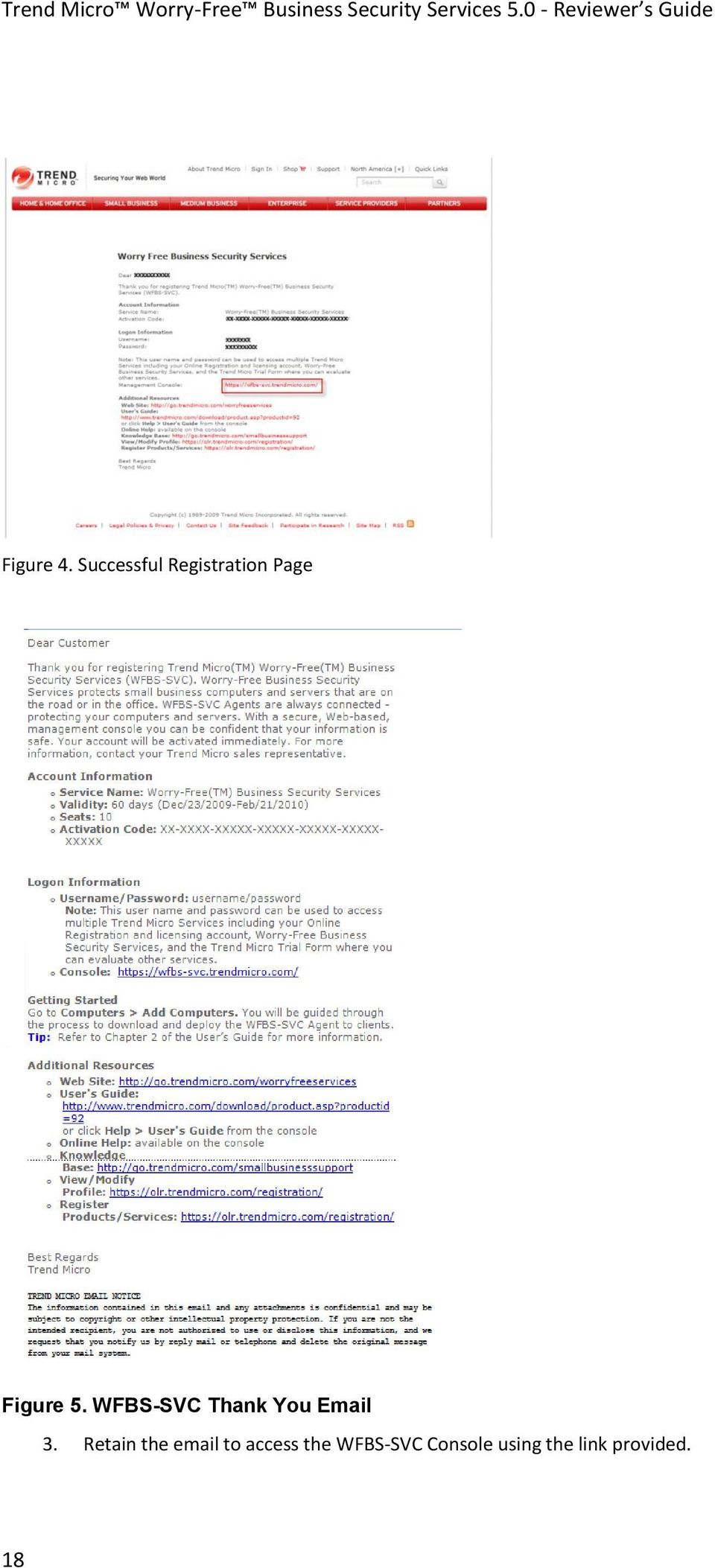
17 Figure 3. Register Your Trend Micro Account 2. Enter the requisite Contact Information, including your Single Sign-On Information for Trend Micro SaaS services, and click Submit. The Worry-Free Business Security Services successful registration page appears and a Thank You is sent to the account you designated in the registration form. Both contain a link to the WFBS-SVC Console, list your Username and Password, as well as your Activation Code (AC), and provide supplementary material and links to help you get started. 17

18 Figure 4. Successful Registration Page Figure 5. WFBS-SVC Thank You 3. Retain the to access the WFBS-SVC Console using the link provided. 18
19 Downloading and Installing the Client/Server Security Agent Once you ve activated your trial WFBS-SVC account, you need to log onto the WFBS-SVC Web Console to download and install the Client/Server Security Agent (CSA) to all computers you ll be managing with WFBS- SVC. You have a number of options for installation: Option 1: Installation Link to Others: From the WFBS-SVC Web console dashboard s Add Devices link, the text (which includes the URL of the Installer.exe) to your users. From there, they will receive instructions to download the Installer to install and register the Agent. This method can be used for Windows, MAC, and Android devices. Option 2: Install to this Device: Access the WFBS-SVC Web console dashboard and the Add Devices link from the computer you wish to install the agent on, then download and run the Agent Installer.exe using the Client/Server Security Agent Download URL. This method can be used for Windows, MAC, and Android devices. Option 3: Download the Installer Package (Advanced Options): Access the WFBS-SVC Web console dashboard s Add Devices link, download the Downloader.msi file, then copy it either to each computer you wish to install the Agent on, or to a shared directory on the company's local network. Double-click the Downloader.msi file to start it. Instructions are available to assist in creating a deployment script. This method can be used for Windows computers only. For this reviewer s guide, we ll provide both the Installation Link (Option 1) and the Install to this Device (Option 2) to initiate the agent distribution and download process. Once the download and installation begins, both processes are identical. 19
20 Option 1: To a link to users so they can download and install the CSA themselves: 1. Access the WFBS-SVC Login page. The login page available to you will depend on the method used to sign up for WFBS-SVC. It can be a link from the Trend Micro Online Service portal ( or it could have been set up by a Trend Micro partner with the License Management platform. Your link to the Licensing Management Portal will be provided by your Trend Micro partner. Figure 6. Trend Micro Online Services Login Page Figure 7. Trend Micro Licensing Management Platform Login 2. Login by typing in the User Name and Password your account. 3. You will see a listing of your registered Trend Micro services. Click on the link to Worry Free Business Security Services. Figure 8. Trend Micro Registered Services 4. From the WFBS-SVC Dashboard, click on the link on the right that says Add Devices. The Add Devices screen appears. 20


21 Figure 9. Add Devices Link Figure 10. Add Devices Page 5. Click Send from the first option, Installation Link to Others. A Windows Security Warning will appear, asking how you want to view the webpage content. Figure 11. Windows Security Warning: Delivering Secure Content 6. Click Yes to view only the webpage content that was delivered securely. A second Internet Explorer Security warning will appear. 21

22 Figure 12. Internet Explorer Security Warning 7. Click Allow. Your default program will load a window and WFBS-SVC will paste the Download URL into it. Figure 13. Default Window with CSA URL Link and Authentication Code 8. Address the to the proper recipient and click Send. An with the download link will be sent to the recipient. This method can be used for Windows, MAC, and Android devices. 9. As the recipient of the , click the to open it, then click the Download URL to download the installer. The Download webpage appears. 10. Proceed to the section after Option 2 to begin the download and installation process. 22
23 Option 2: To Use the Web Installation option in the WFBS-SVC Console to Initiate the Client/Server Security Agent Download: 1. Access the WFBS-SVC Login page. The login page available to you will depend on the method used to sign up for WFBS-SVC. It can be a link from the Trend Micro Online Service portal ( or it could have been set up by a Trend Micro partner with the License Management platform. Your link to the Licensing Management Portal will be provided by your Trend Micro partner. Figure 14. Trend Micro Online Services Login Page Figure 15. Trend Micro Licensing Management Platform Login Page 2. Login by typing in the Username and Password to your account. Figure 16. Worry-Free Business Security Services Login 3. You will see a listing of your registered Trend Micro services. Click on the link to Worry Free Business Security Services. 23
24 Figure 17. Trend Micro Registered Services 4. From the WFBS-SVC Dashboard, click on the link on the right that says Add Devices. The Add Devices screen appears. Figure 18. Add Devices Link Figure 19. Add Devices Page 24

25 5. Click the Install button from the second option, Install to this Device. A popup window will provide the download link to download the installation files for the device or computer being installed. This option can be used for Windows, MAC, or Android devices. Figure 20. Download Webpage 6. Proceed to the following section to begin the download process. To Download and install the Trend Micro Client/Server Security Agent: 1. Both Option 1 and Option 2 described above for initiating the CSA download and installation result in the display of the following Download webpage. Figure 21. Download Webpage 2. Click the Download button. The File Download dialog appears. Figure 22. File Download Dialog 3. Click Run in the dialog to download the installer. Do not click Save. Internet Explorer may display a security warning. 25

26 Figure 23. Internet Explorer Security Warning 4. If it does, click Run again. The WFBS-SVC CSA Installer appears. Figure 24. WFBS-SVC CSA Installer 5. Click Next to begin the installation process. If your Windows Firewall is turn on, a dialog will appear, indicating it is blocking the Downloader. Figure 25. Windows Security Alert 6. To allow Downloader to communicate on the private network, check Private networks, such as my home or work network, then click Allow Access. 26

27 7. The installer downloads and installs the Agent. Progress bars indicate the progress of the installation in the Installation Status dialog. Figure 26. Agent Installer Progress Dialog 8. During the installation process, If Windows User Account Control is enabled, the User Account Control dialog will appear, asking Do you want to allow the following program to make changes to this computer? Figure 27. User Account Control 9. Click Yes to proceed with the installation. 10. When the installation is finished and if it s successful, the installer will display an Installation Successful! dialog. Figure 28. Agent Installer Finish Dialog 11. Click Finish to finish the installation. 27

28 12. Depending on your computer s state, a balloon may appear, asking you to Turn on Trend Micro Client/Server Security Agent Antivirus. Simply click the balloon to turn on the agent. Figure 29. Turn On Agent 13. To verify the installation and agent status, look for the Client/Server Security Agent icon in the System tray. A green light on the icon indicates the Agent is active. Figure 30. CSA Icon in System Tray 14. You can also check for the CSA shortcut in the Windows Start menu or in the Add/Remove Programs list of the client s Control Panel. 15. This completes the Agent installation. TECHNICAL NOTES: Three typical problems can stop the agent from properly installing. These are listed below, along with the solutions to solve them. 1. Most installation problems are related to permission usually because the user logged onto the computer has limited privileges. The solution is as follows: a. Download the MSI Installer package (Option 3 listed at the beginning of this section). b. Right-click Select Properties on the MSI package and make sure it is not blocked. c. Use the Run as Administrator option to start the installation. 2. Another problem caused by a previously installed agent (e.g., a Trend Micro Internet Security agent) that is still loaded and the current installation can t install the new agent. The solution is as follows: a. Check and remove the Registry entries for any Trend Micro installations. (Typically, you can use the Microsoft Autoruns tool to see the registry entries for the Trend Micro drivers.) b. Check and remove the drivers found in Device Manager that related to Trend Micro. Autoruns can also list these Device Manager drivers. 3. On Windows 7 or Vista the User Account Control (UAC) or Windows Firewall can prevent the proper changes in the Registry. The solution is as follows: a. Temporarily disable UAC. b. Disable Windows Firewall or Windows Defender. c. Reboot the PC d. Login as Administrator to start the installation again. 28
29 Section 3: Exploring the Worry-Free Business Security Services Web Console Worry-Free Business Security Services provides a central Web-based Console for managing all of its features and functions. Topics discussed in this chapter include: Logging On to WFBS-SVC The WFBS-SVC Web Console Live Status Computers Scans Reports Administration Help Logging On to WFBS-SVC To log onto the Web Console: 1. On any computer with internet access, open a Web browser and access the WFBS-SVC login page. 2. After logging in, the WFBS-SVC Live Status page, or the Dashboard appears. Figure 31. Live Status Before we explore Live Status we ll do a quick overview of the Web Console itself. The WFBS-SVC Web Console There are six major groups of functions in Worry-Free Business Security Services, all accessible through the main menu of the WFBS-SVC Web Console. In this Reviewer s Guide, we ll proceed menu by menu through the console, exploring its functions and settings. 29

30 Note: When you installed the CSA, many of the settings were given default assignments, providing Worry-Free protection right out of the box. As administrators or resellers become more familiar with WFBS-SVC, they can customize these settings to better suite their purposes. They can also give users privileges to configure their own settings. Table 6. WFBS-SVC Web Console Menus Menu Description Threat Status System Status License Status Network Tree Menu Bar Manual Scan Scheduled Scan Reports Logs The Live Status menu and screen provides a Dashboard where the status of each of the security components is displayed in real time. The View Mode dropdown menu provides a filter onto types of incidents. You can also Customize Notifications. Hotlinks provide access to computer groups, manual updates, Outbreak Defense, vulnerable computers, computers to clean, Smart Scan, customize notifications, etc. The Devices menu and screen provides the tools to configure your security settings. The Network Tree provides a hierarchical view, organized by groups, of all servers, desktops, and portables under management. The Menu Bar lets you configure policy settings for computers by groups. Policy settings are divided into tabs for Windows, MAC, and Android devices. Other columns displayed in the Menu Bar can perform other functions such as start and stop a scan, update now, replicate settings, reset counters, or rename groups or computers. The Scans menu lets you start and stop Manual scans, or Schedule scans by group Daily, Weekly, or Monthly. You can designate what time the scan begins. The Reports menu lets you generate One-time, Weekly, or Monthly reports in PDF format, setting the date range for the reports. Reports can be ed as PDF attachments to designated recipients, or stored in a Report History table for later viewing. Log Queries can also be displayed by Time Range, Type, and Content. The Administration menu provides a variety of functions: Configure Notifications by Alert Thresholds and to them to designated recipients. Set Global Settings for Outbreak Defense, Scans, Approved URLs, Behavior Monitoring, IM Content Filtering, and Alert and Watchdog settings. Utilize Administrative and Client Tools Manage your license Enable Smart Protection Feedback 30
31 Delegate a Reseller to manage WFBS-SVC for you using Worry- Free Remote Manager Table 7. WFBS-SVC Web Console Menus (Continued) The Help menu provides the following: An Online Help manual, searchable by key words, contents, and index A link to download the User s Guide (Acrobat Reader 8 or 9 is required) Links to Trend Micro s Knowledge Base and Support Website An About menu item, describing the functions of WFBS-SVC A What s New menu item, providing the latest details on the current version of WFBS-SVC Live Status The Live Status screen displays a dashboard showing the Threat Status, System Status, and License Status of your managed computers. You can expand each section to view more specific events. Position your mouse over the various headings to show details. The context-sensitive screen automatically displays the relevant panel. 31

32 Figure 32. Live Status The Notification Icons in the Summary screen indicate the status of the Worry-Free Business Security Services on your computer and alert you when a virus or spyware is detected or an action must be taken. Table 8. Notification Icons Icon Status Description Normal. No action required. Warning. Typically, a warning icon means that you have many vulnerable computers that are reporting too many virus/malware or spyware incidents. Action Required. Take action to prevent further risk to your network. Typically, a warning icon means that you have a number of vulnerable computers that are reporting too many virus/malware or spyware incidents. The View Mode dropdown menu lets you filter by different criteria, include Action required, Warning condition, Action required + Warning condition, and Normal condition. Figure 33. View Mode Threat Status Threat Status indicates the total number of incidents found on your network, the number of threats resolved, and the number of threats that require action. It displays the status for the following: Outbreak Defense Antivirus Anti-spyware Web Reputation URL Filtering Behavior Monitoring Network Virus 32
33 Note: In the example below, Antivirus is in an active state because viruses have been detected. Counters numbers registering 0 incidents are not clickable. To view Threat Status details: 1. To view details of the Threat Status for Antivirus, for example, position your mouse over Antivirus to display summary information in the right-hand information panel, then move laterally to click the respective counter number for Virus threat incidents for more details. The Virus threat incidents screen displays. Figure 34. Live Status > Antivirus: Virus threat incidents 2. Incidents are displayed by Computer Name, Virus/Malware Found, and Number of Detections. 3. Page between long lists by clicking the right and left arrows in the upper right-hand corner of the table, or extend a page listing by increasing the number of incidents displayed per page in the Per Page dropdown list. 4. Click Export to export the summary of virus/malware detected on your network. WFBS-SVC exports the summary information in CSV (Comma Separated Value) format. 5. Click Reset to reset the counter of the virus/malware to zero after you see the log of the virus/malware detected on your network. After resetting the log counter to zero, WFBS-SVC generates the log again. 6. Click the Back button to return to the main Live Status page. System Status System Status provides information for the following items: Update Smart Scan Figure 35. System Status 33

34 To Manage Updates for Outdated computers: 1. In the Update panel, click Update Now to update computers. A dialog appears, asking if you re sure you want to update the latest components to all computers on your network. Figure 36. Update Dialog 2. Click OK to update all computers with the latest components. A Successful! notification appears at the top of the page notifying you of the successful update. Figure 37. Update Successful 3. Back in the Update panel, click the Component Status link to display information about the current components. The Live Status > Component Status screen displays. 4. Click the Back button to return to the main screen. 5. In the main screen, click the Outdated computers counter number to display details about outdated computers. The Live Status > Update: Outdated Computers screen displays. All Outdated Computers are displayed by Computer Name, Group Name, and Scan Method. 6. As before, page between long lists by clicking the right and left arrows in the upper right-hand corner of the table, or extend a page listing by increasing the number of computers displayed per page in the Per Page dropdown list. 7. Click Export to export the list of Outdated Computers on your network. WFBS-SVC exports the list in CSV (Comma Separated Value) format. 8. Click the Back button to return to the main screen. 34

35 To Manage Smart Scan Agents: 1. Move your mouse or the Smart Scan panel. System Status displays the status of all computers using Smart Scan on your network, letting you know how many Agents are disconnected. Figure 38. System Status > Smart Scan License Status The License Status panel displays the status of your License, both for Seats Purchased and Seats in Use. Figure 39. License Status > License To view License Status: 1. To view License Status > Seats Purchased, click the counter number. The Administration > License screen displays. Figure 40. Administration > License 35
36 The License Information panel shows Product/Service Name, Version, Activation Code, Seats Purchased, Registration Status, and Expiration date. 2. For Seats in Use, click the counter number. The Devices screen appears, giving a listing of all security agents installed using the account. Figure 311. Seats in Use > Network Tree Devices The Devices menu and screen allow you to manage the computers for which you have installed Agents. The Devices screen is divided into three main sections: Command Menu Bar. When you select a group in the Network Tree, options to manage the devices will be available such as Add Devices, Configure Policy, Remove, Export, and More. The Customize Columns tools provide other settings, as shown below. Figure 42. Menu Items Figure 44. Customize Columns Figure 43. Other Settings Network Tree. The Network Tree provides a view by group onto all the computers on which you have installed Agents. Two groups are provided by default in the Network Tree: Server and Device. You can add additional groups to suit your purposes. Use the Collapse Bar on the righthand side of the Network Tree to collapse the tree. Click it again to expand the tree. Group Information Table. When you select a group in the Network Tree, the Group Information Table displays details about the computers in that group, including Name, IP Address, Online/Offline status, the number of Viruses Detected, and whether a scan has been scheduled. You can customize what gets displayed in the table by clicking Customize Columns and selecting 36


37 items to display in the client table. Agent Status Indicators indicate the status of a particular agent. Configure Groups Computers are managed in groups for easy administration purposes. To configure computers by Group: 1. Select a group from the Network Tree. Figure 32. Configure Policy 2. Click Configure Policy in the Command Menu Bar. The Configure Policy screen displays, letting you apply settings for that group. 3. Select each menu in turn to configure the settings. The following sections and tables describe details of the Configuration settings for Servers and Desktops. Scan Method When you click Configure in the Command Menu Bar, the Scan Method screen appears by default. Figure 46. Scan Method The Scan Method screen lets you choose between Smart Scan or Conventional Scan for scanning Desktops or Servers. Clients using Smart Scan should be online when scanning. 37

38 Trend Micro Worry-Free Business Security Services Reviewer s Guide v1.0 WFBS-SVC has two methods of scanning: Smart Scan: the client uses its own scan engine, but instead of using only a local pattern file to identify threats, it primarily relies on the pattern file held on the Scan Server. Conventional Scan: the client uses its own scan engine and local pattern file to identify threats. Note: Clients configured for Smart Scan must be online when scanning to connect with the Scan Server service. Antivirus/Anti-spyware Antivirus/Anti-spyware scanning is a central part of Worry-Free Business Security Services. In this screen and its Server twin you enable and configure the Antivirus/Antispyware Real-Time Scan options for Desktop and Server groups. Figure 47. Antivirus/Anti-spyware Table 9. Antivirus/Anti-spyware Settings Menu Tab Functions Description Antivirus / Antispyware Target Enable Select a method or condition Enable real-time Antivirus/Anti-spyware scan Method: Scan all files, use IntelliScan, or use file extension Conditions: Scan files being created, modified, or retrieved (in various combinations) 38
39 Action Exclusions Advanced Settings For Virus Detections For Spyware / Grayware Detections Advanced Settings Exclude directories, files, or extensions For Antivirus Only: Enable IntelliTrap; scan drives and shared folders, floppy drives, or up to x layers of compression For Anti-Spyware Only: Modify Spyware/Grayware Approved List ActiveAction performs the recommended action. OR perform the same action for all detected Internet threats (Pass, Delete, Rename, Quarantine, Clean) OR customize action for specific threats, uncleanable threats. Backup detected files before cleaning. Clean or Deny access Display an alert message on the desktop or server when a virus/spyware is detected 39

40 Trend Micro Worry-Free Business Security Services Reviewer s Guide v1.0 Firewall In this screen, you Enable the Firewall and configure it for Simple or Advanced settings. In these screens, you Enable the Firewall and configure it for Simple or Advanced settings. Figure 48. Firewall Table 10. Firewall Settings Menu Function Description Firewall Enable Firewall Toggles Firewall On or Off Simple Mode Advanced Mode Enables the firewall with Trend Micro default settings. Security Level: High, Medium, or Low Settings: Enable Intrusion Detection System (IDS), Alert Message Exceptions: Add or Edit Exception Rules by Action, Direction, Protocol, Ports, and Clients 40

41 Web Reputation Web Reputation evaluates the potential security risk of all requested URLs by querying the Trend Micro Security database at the time of each HTTP request, using High, Medium, or Low Security Levels. In this screen you Enable and Configure Web Reputation Settings. You can modify Global Approved URLs as well. Figure 49. Web Reputation Table 11. Web Reputation Menu Function Description Web Reputation Enable Web Reputation Security Level Toggles Web Reputation On and Off High - Blocks pages that are Verified to be fraudulent or known sources of threats Suspected to be fraudulent or possible sources of threats Associated with spam or possibly compromised Medium - Blocks pages that are Verified to be fraudulent or known sources of threats Suspected to be fraudulent or possible sources of 41

42 Trend Micro Worry-Free Business Security Services Reviewer s Guide v1.0 threats Low - Blocks pages that are Verified to be fraudulent or known sources of threats Modify Global Approved URLs This link takes you the Administration > Global Settings > Approved URLs panel to set URLs to approve. An approved URL will bypass both Web Reputation checks and URL Filtering. URL Filtering URL filtering screens Web pages using content categories on Trend Micro servers. Specific types of Web sites can be blocked during different times of the day. URL Filtering can be applied by Filter Strength, URL Categories and Sub-categories, as well as by Business and Leisure Hours Figure 50. URL Filtering Table 12. URL Filtering Settings Menu Function Description URL Filtering Enable URL Filtering Filter Strength Toggles URL Filtering On and Off High - Blocks known or potential security threats, inappropriate or possibly offensive content, content that can affect productivity or 42

43 bandwidth, and unrated pages Medium - Blocks known security threats and inappropriate content Low (default) - Blocks known security threats Custom - Select specific page categories to block Filter Rules Business Hours URL Categories and Subcategories can be blocked during Business and Leisure Hours Business Hours can be defined by Days and Time of Day Behavior Monitoring Behavior Monitoring protects computers from unauthorized changes to the operating system, registry entries, other software, or files and folders. Note the Intuit QuickBooks Protection feature that provides lockdown for QuickBooks on desktops. Figure 51. Behavior Monitoring Table 13. Behavior Monitoring Settings Menu Function Description Behavior Monitoring Enable Behavior Monitoring Software Protection Possible Changes Monitored Toggles Behavior Monitoring On or Off Enable Intuit QuickBooks Protection Checkboxes: Select Type of System Change to be Monitored 43
44 Trend Micro Worry-Free Business Security Services Reviewer s Guide v1.0 Action: Always Allow, Ask When Necessary, Always Block Details: Context-sensitive text defines the type of change involved Exceptions Specify whether the program(s) that you have decided to block cannot launch, while those approved can. Approved/Blocked Program Lists: Add Program(s) and Program Full Path to either list 44
45 Table 14. Behavior Monitoring - Possible Changes Blocked Possible Changes Blocked Description Duplicated System File Hosts File Modification Suspicious Behavior New Internet Explorer Plugin Internet Explorer Setting Modification Security Policy Modification Program Library Injection Shell Modification New Service System File Modification Firewall Policy Many malicious programs create copies of themselves or other malicious programs using file names used by Windows system files. This is typically done to override or replace system files, avoid detection, or discourage users from deleting the malicious files. The Hosts file matches domain names with IP Addresses. Many malicious programs modify the Hosts file so that the Web browser is redirected to infected, non-existent, or fake Web sites. Suspicous behavior can be a specific action or a series of actions that is rarely carried out by legitimate programs. Programs exhibiting suspicious behavior should be used with caution. Spyware programs often install unwanted Internet Explorer plugins, including toolbar and Browser Helper Objects. Many viruses and spyware programs change Internet Explorer settings, including the home page, trusted Web sites, proxy server settings, and menu extensions. Modifications in Windows Security Policy can allow unwanted applications to run and change system settings. Many malicious programs configure Windows so that all applications automatically load a program library (DLL). This allows the malicious routines in the DLL to run every time an application starts. Many malicious programs modify Windows shell settings to associate themselves to certain file types. This routine allows malicious programs to launch automatically if users open the associated files in Windows Explorer. Changes to Windows shell settings can also allow malicious programs to track the programs used and start alongside legitimate applications. Windows services are processes that have special functions and typically run continuously in the background with full administrative access. Malicious programs sometimes install themselves as services to stay hidden. Many malicious programs create copies of themselves or other malicious programs using file names used by Windows system files. This is typically done to override or replace system files, avoid detection, or discourage users from deleting the malicious files. The Windows Firewall Policy determines the applications that have access to the network, the ports that are open for communication, 45
46 Trend Micro Worry-Free Business Security Services Reviewer s Guide v1.0 Modification System Process Modification New Startup Program and the IP addresses that can communicate with the computer. Many malicious programs modify the policy to allow themselves access to the network and the Internet. Many Malicious programs perform various actions and built-in Windows processes. These actions can include terminating or modifying running processes. Malicious applications usually add or modify autostart entries in the Windows registry to automatically launch every time the computer starts. 46

47 Mail Scan Use the Mail Scan menu to enable Real-time Scan for POP3 mail and the Trend Micro Anti-Spam Toolbar (for Desktops only). Mail Scan enables the Real-time Scan for POP3 and the Anti- Spam Toolbar Figure 52. Mail Scan Table 15. Mail Scan Settings Menu Function Description Mail Scan Enable Real-time Scan for POP3 mail Toggles Real-Time Scan for POP3 Mail On or Off Once you enable the real-time scan for POP3, you ll need to activate the toolbar on the client computer(s) and use it. This option is only available on Windows computers and can be accessed CSA icon at the endpoint. 47

48 Trend Micro Worry-Free Business Security Services Reviewer s Guide v1.0 Client Privileges Use the Client Privileges screen to modify privileges for all clients in a group. Client Privileges grants clients the privilege to modify the designated settings for a wide variety of functions. Figure 53. Client Privileges Table 16. Client Privileges Settings Menu Function Description Security Settings Agent Control Settings Antivirus / Anti-spyware Firewall Web Reputation Behavior Monitoring Mail Scan Update Privileges Allow clients the privilege to modifying these settings: Manual Scan, Scheduled Scan, Real-time Scan, Stop Scheduled Scan Allow clients the privilege to modifying these settings: Display Firewall tab, Allow clients to Enable/Disable Firewall Allow clients to Edit approved URL List Allow clients the privilege to Display Behavior Monitoring tab and allow users to customize the lists Allow users to configure real-time scan for POP3 mail Disable Agent upgrade and hotfix deployment. This will prevent the agent from getting any new program upgrades or hotfixes. Signature updates will still be 48

49 updated. Client Security High: Restrict access privileges to Client/Server Security Agents files and registries Normal: Retain normal access privileges to Client/Server Security Agents files and registries Scans WFBS provides three types of scans to protect your clients from virus threats and other types of malicious code: Manual Scan, Scheduled Scan, and Real-time Scan. Each allows you to scan Desktops and Servers for malicious applications. The Scans menu lets you manipulate Manual and Scheduled scans. Scheduled Scan For purposes of this Reviewer s Guide, we focus on scheduling a scan, since Manual Scans are a simple start/stop procedure for selected clients. Scans can be scheduled on a Daily, Weekly, or Monthly basis, and at specific times. To schedule a scan: 1. Select Scans from the main menu. The Scans screen displays. 2. Select the Schedule Scan tab. The Scheduled Scan screen displays. 49

50 Trend Micro Worry-Free Business Security Services Reviewer s Guide v1.0 Figure 54. Scheduled Scan 3. Check the All Groups checkbox to apply the schedule to all groups, or select the specific group. 4. Choose the Timeframe for the scan: Daily Choose the Start Time (hh/mm) from the dropdown menus Weekly Choose the Weekday and Start Time (hh/mm) from the dropdown menus Monthly Choose the Day and Start Time (hh/mm) from the dropdown menus 5. Click the group hotlink to further define the Target and Actions for the scan. For example, click Desktops (default). The Desktops (default) Target screen displays. Figure 55. Scheduled Scan > Target 6. Select a scan method: All scannable files IntelliScan Scan files with the following extensions Scan mapped drives and shared folders on the network Scan layer(s) of compressed file up to (x) layers 50
51 7. Specify Exclusions, by typing the required information into the field and using the Add/Delete buttons Figure 56. Exclusions Do not scan the following directories Do not scan the following files Do not scan files with the following extensions 8. Specify Advanced Settings by checking the requisite checkboxes Figure 57. Advanced Settings Enable IntelliTrap Scan boot area 9. Click the Modify Spyware/Grayware Approved List link to add or remove items in the spyware/grayware list. The Approved List displays. 51
52 Trend Micro Worry-Free Business Security Services Reviewer s Guide v1.0 Figure 58. Approved List 10. Use the Add/Remove buttons to add or remove items to the Approved List, then click Save. This closes the Approved List window. 11. Click the Action tab to modify the action to take on the file. The Action screen displays. 12. Specify the actions to take for scheduled scans. For example, set CPU Usage (to increase waits between scans): High: Scan files one after another without pausing. Medium: Pause between file scans if CPU consumption is higher than 50%, and do not pause if 50% or lower. Low: Pause between file scans if CPU consumption is higher than 20%, and do not pause if 20% or lower. 13. Specify Virus Detections (ActiveAction, the same Action for all threats, a Customized Action), and Backup detected file before cleaning. 14. Specify whether you ll Clean the detected spyware, or Pass (record the detected spyware in log files for assessment). 15. Specify in Advanced Settings if you ll display an alert message on the desktop or server when a virus/spyware is detected. 16. Click Save to save your settings. The new settings for the Scheduled Scan will be deployed to all clients in the group. 52

53 Reports From the Reports screen, Worry-Free Business Security Services allows you to generate and view reports that contain detailed information about detected threats. Reports also include ranking to identify the most vulnerable computers. WFBS-SVC generates reports in PDF. You can also delete reports. Figure 59. Reports You can also generate a Log Query from the Reports screen. A Log Query displays information about the virus/malware, spyware/grayware, or malicious URLs detected on your network for the specified time. It provides detailed information about the names of the affected computers, threats, and affected files. It also lists the scan type and action taken on that particular threat. Generate a Report You can create reports for a specific time period or time zone depending on your needs. The reports contain the following information: Time and Date the report is generated. This information is indicated in the Reports table, as well as in the report itself. Report Content: o o o o o o o o o o o o o To create a New Report: Virus Summary Top 5 Devices (excluding Servers) with Virus Detections Top 5 Servers with Virus Detections Spyware/Grayware Summary Top 5 Devices (excluding Servers) with Spyware/Grayware Detections Top 5 Servers with Spyware/Grayware Detections Top 10 Devices Violating Web Threat Protection Policies Top 5 URL Category Policies Violated Top 10 Devices Violating URL Category Policies Top 5 Programs Violating Behavior Monitoring Policies Top 10 Devices Violating Behavior Monitoring Policies Top 10 Network Viruses Detected Top 10 Devices Attacked by Network Devices 1. From the Web console, click the Reports menu. The Reports screen appears. 2. In the table title section, click the New button. The New Report screen appears. 53

54 Trend Micro Worry-Free Business Security Services Reviewer s Guide v1.0 Figure 60. New Report 3. In the Report Name field, type the name of the new report. 4. In the Report Schedule panel, select the type of report you want: One-time Specify the date range Weekly Specify the Weekday and Time to generate report Monthly Specify the Day and Time to generate report 5. In the Send Report field, type the recipient(s) you want to the report to. 6. Click Generate to generate the report. Once the report is successfully generated, click the PDF link in the Report History column to view it. Note: WFBS-SVC requires Adobe Acrobat Reader to view reports. 54
55 Deleting a Report To delete an existing report: 1. From the Web console, click Reports. The Reports screen appears. Figure 61. Delete Report 2. On the Reports screen, select the report you want to delete (or multiple reports) by checking the checkbox for that report. 3. Click Delete. The report is deleted. WARNING! Deleted reports cannot be recovered. Trend Micro recommends downloading reports before deleting them. Generating a Log Query A log query displays information about the virus/malware, spyware/grayware, or malicious URLs detected on your network at the specific time. It also provides detailed information about the names of computers, threats, files, scan type and action taken on that particular threat. WFBS-SVC can query the logs for the following types: Virus/Malware Spyware/Grayware Malicious URLs To generate a Log Query: 1. From the Web console, click Reports. The Reports screen appears. 55

56 Trend Micro Worry-Free Business Security Services Reviewer s Guide v1.0 Figure 62. Log Query 2. On the Reports screen, click Log Query. The Log Query screen appears. Figure 63. Reports > Log Query 3. In Time Range, select dates from the dropdown menu. You can select All dates, Today, Last 7 days, and Last 30 days. Last 7 days is presented by default. 4. Alternatively, select the range from the Specified range option, by From and To date and time. You can use the Calendar tool to choose by calendar. 56
57 5. Type, select one of the following: Management console events Desktop/Server, then by Type of Incident (Virus Logs, Spyware/Grayware logs, Web Reputation Logs, etc.) 6. Click Display Logs. A log for the selected type and time range is displayed. The log that s generated contains information according to Date/Time, Computer Name, type of malware, File Name, Path, Scan Type, and Action Taken. 7. Click on the Virus/Malware Name link for more information and solutions. The Trend Micro Threat Encyclopedia displays information about the threat. 8. Back in the Logs table, click the Export button to export the data in the CSV format. Note: WFBS-SVC does not save logs in the system. You must export the log to retain it. 57

58 Trend Micro Worry-Free Business Security Services Reviewer s Guide v1.0 Administration Worry-Free Business Security Services needs minimal administration. From the Administration screen you can: Set Notifications for specific Events and the Recipients who receive them. Administer the Global Settings for WFBS-SVC. Deploy Administrative or Client Tools for management purposes. View the License and account related information. You can view when your license is expiring and renew your service agreement to protect your computers from the latest threats. Enable Smart Protection Network Smart Feedback, including feedback of suspicious files. Using an Authorization Key, delegate a reseller to utilize Worry-Free Remote Manager to manage the WFBS-SVC account Notifications Administrators can manage settings for Notifications when particular events occur. Designated recipients can receive these notifications. From the Administration > Notification screen you can send notifications to yourself or other administrators in your organization whenever WFBS- SVC detects that particular security events have taken place. Figure 64. Notifications 58
59 Threat Events Outbreak Defense An alert activated, or highly critical vulnerabilities detected. Antivirus Viruses detected on clients, servers, or Exchange server exceeds a certain number, actions taken against viruses are unsuccessful, Real-time scan disabled on clients, servers, or Exchange server. Anti-Spyware Spyware detected on computers requires a computer restart or exceeds a certain number Web Reputation URL violations exceeds a certain number of incidents in a certain number of hours. URL Filtering URL Filtering violations exceeds a certain number of incidents in a certain number of hours Behavior Monitoring Policy violation exceeds a certain number of incidents in a certain number of hours Network Virus Network viruses detected exceeds a certain number. System Events Smart Scan Smart Scan Service is not available Component update Last time components updated exceeds a certain number of hours (Smart Scan) or days, last console update time is less than 7 or 14 days, or updated components rate less than 70% or 90% per hour, or there s at least one outdated Exchange Server after deploying components more than an hour. License Events Recipients License Product license expires in less than 60 days or has expired, or seat license usage exceeds 100% or 110%. Click the Recipients tab to add or remove recipients for notifications. 59

60 Trend Micro Worry-Free Business Security Services Reviewer s Guide v1.0 Global Settings In the Global Settings screen, you can administer global settings for a variety of functions within WFBS- WVC. Use Administratio n > Global Settings to set settings for all function that should be applied globally to all clients Figure 65. Global Settings Table 17. Global Settings Global Settings Outbreak Defense Prevention Description Enable Red Alerts issued by Trend Micro Enable Yellow Alerts issued by Trend Micro General Scan Settings Exclude Microsoft Exchange server folders when installed on Microsoft Exchange server Exclude Microsoft Domain Controller folders (Not applicable to Manual and Scheduled spyware/grayware scans) Exclude Shadow Copy sections Virus Scan Settings Configure Scan Settings for large compressed files - Do not scan if extracted size is over [x] MB - Scan the first [x] files in the compressed file Clean compressed files Scan up to [x] OLE layer(s) Add Manual Scan to the Windows shortcut menu on 60
61 clients 61
62 Trend Micro Worry-Free Business Security Services Reviewer s Guide v1.0 Table 18. Global Settings (Continued) Global Settings Spyware/Grayware Scan Settings Approved URLs Behavior Monitoring IM Content Filtering Alert Settings Watchdog Settings Agent Uninstallation Agent Shut Down (Unload) Description Scan for cookies - Add cookie detections to the Spyware log Add the URLs that you want all clients to be able to access. Approved URLs override Web Reputation settings. Enable Client/Server Security Agent usage logs Enable warning messages for low-risk changes or other monitored actions Disable autorun on USB devices Add restricted words or phrases Show the alert icon on the Windows taskbar if the virus pattern file is not updated after [x] day(s) Enable the Client/Server Security Agent Watchdog service: - Check Agent status every [x] minute(s) - If the Agent cannot be started, retry[x] time(s) Allow the client user to uninstall the Security Agent without a password Require the client user to enter a password to uninstall the Security Agent Enter password and confirm Allow the client user to exit the Security Agent without a password Require the client user to enter a password to exit the Security Agent Enter password and confirm 62

63 Tools Administrators can utilize the Tools provided to manage specific tasks. Figure 66. Tools Administrative Tools: Example Deployment Script (WFBS-SVC Example Deployment Script.vbs) You can use the Example Deployment Script to deploy the Client/Server Security Agent with external tools such as Windows Active Directory. You can also download a tool that will uninstall the CSA from Mac computers. Client Tools: Restore Encrypted Virus (VSEncode.exe) You can use Restore Encrypted Virus to decrypt infected files that you want to open. To launch the application, use the command line: go to the folder where the tool is located (for example: c:\vsencrypt) and enter VSEncode.exe /u Add-in Tools: Install this tool to access Worry-Free Business Security Services directly from your Windows SBS 2011 Essentials dashboard. License Customers can manage their license using the License menu. 63

64 Trend Micro Worry-Free Business Security Services Reviewer s Guide v1.0 Figure 67. License The License Information window provides details on the License, including Product/Service Name Version Activation Code Seats Purchased Registration Status Service Plan Auto-Renewal To View detailed license online, you simply click the hotlink which will take you back to the landing page of the Licensing Management Platform. 64

65 Smart Protection Network User can enable Smart Protection Network (SPN) Feedback to enhance the intelligence-gathering ability of the SPN. Trend Micro recommends and encourages all customers to enable Smart Feedback, since the more feedback points that are enabled the higher the level of protection for all customers. No personally identifiable information is transmitted. Figure 68. Smart Protection Network To enable Smart Protection Network Feedback: 1. Check Enable Trend Micro Smart Feedback (recommended). 2. You can optionally specify your industry in the dropdown menu. 3. Check Enable feedback of suspicious program files to send malware files to the SPN. 4. Click Save to save your changes. 5. Click Learn more to learn more about the Trend Micro Smart Protection Network. The SPN page displays. Worry-Free Remote Manager Administrators can delegate a Reseller to remotely manage the WFBS-SVC account for them via the Worry- Free Remote Manager (WFRM) Console. 65

66 Trend Micro Worry-Free Business Security Services Reviewer s Guide v1.0 Figure 69. Worry-Free Remote Manager To delegate a Reseller to remotely manage WFBS-SVC using WFRM: Help 1. The Reseller registers with Trend Micro to obtain a Provider Account. 2. The Reseller creates a Customer Account for the customer, then adds WFBS-SVC as a managed service / domain for that customer. This generates an Authorization Key (AK). 3. The AK is ed to the customer and entered into the Authorization Key field within WFBS-SVC Console to delegate management to the Reseller. The customer then connects to WFRM using the Connect button. 4. The Reseller can now manage WFBS-SVC for that customer using the Worry-Free Remote Manager Console. Resellers can do this for multiple customers. The Help menu provides a variety of ways administrators can get assistance using WFBS-SVC. 66
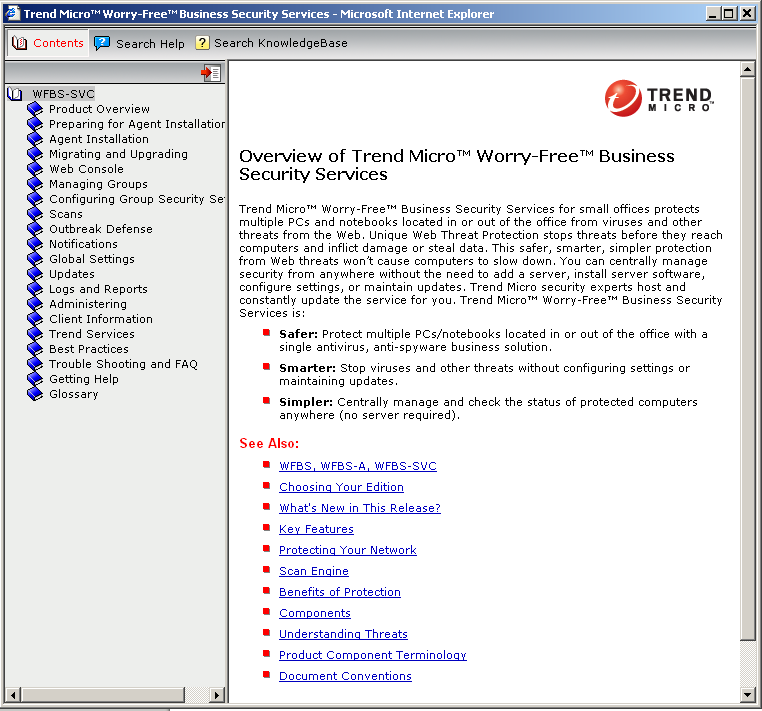
67 Figure 70. Help Menu Contents and Index Figure 71. Help > Contents and Index Contents and Index Select this menu item to access the Online Help, which is searchable by header and keywords. 67

68 Trend Micro Worry-Free Business Security Services Reviewer s Guide v1.0 Figure 72. Contents and Index - Online Help Knowledge Base Figure 73. Help > Knowledge Base Knowledge Base Select this menu item to take you to Trend Micro s Knowledge Base, where you can get answers to Frequently Asked Questions, submit a virus sample, go to the Download Center, or do a topical search to find out answers to your technical questions. Figure 74. SMB Knowledge Base 68


69 Technical Support Figure 75. Help > Technical Support Technical Support Select this menu item to take you to Trend Micro s Support Page, where you can select the Small & Medium Business panel for SMB support. Figure 76. Support > Small & Medium Business 69
70 Trend Micro Worry-Free Business Security Services Reviewer s Guide v1.0 Section 4: Exploring the Client/Server Security Agent Console Worry-Free Business Security Services provides a Client/Server Security Agent (CSA) Console for end-user management. Topics discussed in this chapter include: The Client/Server Security Agent Console Manual Scan Scan Settings Security Protection for Web Reputation, Firewall, Mail Scan, and Behavior Monitoring Log Report Help The Client/Server Security Agent Console When administrators give permission to user groups to configure their security settings, users can do so using the CSA Console. To use the CSA Console: 1. In the System Tray, double-click the Client-Server Security Agent icon. OR 2. In the Start menu, select Programs > Trend Micro Client-Server Security Agent > Client- Server Security Agent. The CSA Console displays, with the Status tab selected by default. 70

71 Figure 77. CSA Console 3. Users can use the CSA tabs, menus, and buttons to perform a range of tasks including the following: Status. View the security status of the client computer for all security settings and updates, as well as get the latest update. Scan. Specify settings for Manual Scan, Real-Time Scan, and Scheduled Scan; execute a Manual Scan on specified Directories/Folders; view scan results; and set CPU usage allowed to Low, Medium, or High. Security Protection. Add URLs to Approve (Web Reputation); enable the Firewall, the Intrusion Detection System, and be notified when a Firewall violation occurs; Enable Real-time scan of POP3 Mail Scan and determine the Action to take on infected or uncleanable files; and enable Behavior Monitoring, add programs to the Exception list, and specify folders under protection for Intuit Protection (QuickBooks). Log Report. View logs for Viruses/Malware, the Firewall, Spyware/Grayware, and Web Reputation, Behavior Monitoring, and URL Filtering for a specified date range; automatically delete logs older than a specified number of days. Help. Obtain various forms of help and information including product details, technical support, and virus information. Manual Scan To execute a Manual Scan: 1. Launch the CSA Console by double-clicking the CSA icon in the System Tray. The console appears, with the Status tab preselected. 2. Click the Scan tab. The Scan screen appears. 71

72 Trend Micro Worry-Free Business Security Services Reviewer s Guide v1.0 Figure 78. Scan 3. In the Scan window, check the disk(s) you want to scan and click Scan. While the scan executes, the Scanning window displays, with a progress indicator in the Security Protection Status panel. The Current target read-out shows you the current target of the scan and the Elapsed time read-out shows you the time elapsed since the beginning of the scan. You can Pause or Stop the scan by clicking the respective button. 72

73 Figure 79. Scanning 4. When the Scan completes, the Scan Summary and Scan Results panels show the results of the scan. Figure 80. Manual Scan Summary / Results 5. In the Scan Summary area, view the results of the scan, including Infected files/registry logs, Files/registry logs scanned, Last threat found, and Threats cleaned. 6. In the Scan Results area, view the list of the File/registry keys found, the type of threat it is, the name of the Threat, and the Result of the scan (e.g., Quarantined). Adjust the size of the table columns by clicking and dragging the separators. 73

74 Trend Micro Worry-Free Business Security Services Reviewer s Guide v Depending on the type of threat found and the results of the scan, you can use the various buttons to perform certain tasks: Clear List. Clear the list of results. More Info. Get more information on the selected Security Risk. The button takes you to the Trend Micro Virus Encyclopedia. Clean. Clean the infected file. Delete. Delete the infected file. Rename. Rename the infected file. Help. Get help on using the Scan Screen. 8. Click Close to close the Scan Screen. Scan Settings You can set scan settings for Manual, Real-Time, and Scheduled Scans. To set Manual Scan settings: 1. In the Scan window, click the Scan Settings button. The Manual Scan settings screen appears by default. Figure 81. Manual Scan Settings 2. In the central dropdown menu, Virus/Malware Scan is selected by default; you can also select Spyware/Grayware Scan. 3. For Files to Scan, check the respective checkbox among the following options: 74
75 All scannable files File type scanned by IntelliScan Files with certain extensions. Click the Edit button to edit the Extensions to scan. Enable scan exclusion. Click the Edit button to edit the Exclusions list. 4. For Scan Settings, check the respective checkbox among the following options: Scan hidden folders Scan network drive Scan compressed files. Specify the maximum layers to scan. 5. For CPU Usage, check High, Medium, or Low to set the threshold. The High setting, chosen by default, takes the shortest time to scan, but uses the most CPU. Medium (~50%) and Low (~20%) determine the amount of CPU usage above which the scan is paused. 6. For other Scan Settings, check the respective checkbox among the following options: Scan boot area Enable IntelliTrap 7. For Scan Action, check the respective checkbox among the following options: ActiveAction Custom Action. Click the Edit button to edit the Custom Action Backup files before cleaning. 8. Click OK to save your changes. To set Real-time Scan settings: 1. In the Scan Settings window, select the Real-time Scan tab. The Real-time Scan settings screen appears. 75

76 Trend Micro Worry-Free Business Security Services Reviewer s Guide v1.0 Figure Real-time Scan Settings 2. In the central dropdown menu, choose Virus/Malware Scan or Spyware/Grayware Scan. 3. For Files to Scan, check the respective checkbox among the following options: All scannable files File type scanned by IntelliScan Files with certain extensions. Click the Edit button to edit the Extensions to scan. Enable scan exclusion. Click the Edit button to edit the Exclusions list. 4. For Scan Condition, check the respective checkbox among the following options: Scan files being created, modified, or retrieved Scan files being retrieved Scan files being created or modified 5. For Scan Setting, check Scan compressed files if you wish, then designate the maximum layers to scan for using the pull-down menu 6. For Scan Action, check the respective checkbox among the following options: ActiveAction Custom Action. Click the Edit button to edit the Custom Action. Backup files before cleaning. 76

77 7. For Scan Settings, check the respective checkbox among the following options: Scan floppy disk at shutdown Scan network drive Enable IntelliTrap 8. If you want a notification, check Display a notification message when virus/malware is detected. 9. Click OK to save your settings. To set Scheduled Scan settings: 1. In the Scan Settings window, click the Scheduled Scan tab. The Scheduled Scan settings screen appears. Figure Scheduled Scan Settings 2. In the central dropdown menu, choose Virus/Malware Scan or Spyware/Grayware Scan. 3. For Schedule Frequency, choose among the following options from the dropdown menu: None Daily Weekly Monthly 77
78 Trend Micro Worry-Free Business Security Services Reviewer s Guide v Specify the Time for the scan by hour and time of day (am or pm) 5. Specify the day of the month 6. For File to Scan, check the respective checkbox among the following options: All scannable files File type scanned by IntelliScan Files with certain extensions. Click the Edit button to edit the Extensions to scan. Enable scan exclusion. Click the Edit button to edit the Exclusions list. 10. For Scan Setting, check Scan Compressed Files and designate the maximum number of layers to scan for by using the dropdown menu 11. Designate the CPU Usage to be used for the scan by High, Medium, or Low. 12. For Scan Action, specify among the following options: ActiveAction: CSA will utilize the default Trend Micro-recommended actions Custom Action: Click the Edit button to edit the actions to be taken Backup files before cleaning Display a notification message when virus/malware is detected 13. For Scan Settings, check the respective checkbox among the following options: Scan boot area Enable IntelliTrap 14. Click OK to save your changes. Security Protection In the main CSA Console, you click the Security Protection tab to set various options for Web Reputation, the Firewall, the POP3 Mail Scan, and Behavior Monitoring. Web Reputation To add or delete URLs to approve: 1. To access the Web Reputation window, click the Security Protection tab. The Web Reputation option is chosen by default from the pull-down menu. 78

79 Figure 84. Web Reputation 2. To add an approved URL, type in the address of the URL you wish to approve in the URLs to Approve window, then click Add. 3. To delete an approved URL, select the address of the URL you wish to delete in the Approved URLs window, then click Delete. 4. Click Apply to apply your changes. Firewall To change the Settings for the Firewall: 1. Select the Firewall item in the pull-down menu. The Firewall settings display. 79

80 Trend Micro Worry-Free Business Security Services Reviewer s Guide v1.0 Figure 85. Firewall 2. Choose among the following options by checking the appropriate checkbox. Enable the Firewall Enable Intrusion Detection System (IDS)* (IDS will be enabled on all network cards.) Notify me when a firewall violation occurs 3. Select Network cards from the list, then click Details to get details on the settings for that card. Figure Security Level and Exception Rule List Edit 4. Back in the main screen, click Apply to apply any changes to your settings. 80

81 Mail Scan To edit settings for Mail Scan: 1. Select Mail Scan from the drop-down menu. The Mail Scan screen displays. Figure 87. Mail Scan 2. Check Enable real-time scan for POP3 messages checkbox to enable the POP3 Mail Scan. 3. Check Enable Trend Micro Anti-Spam toolbar to enable the toolbar in your default POP3 program. 4. Change the Scan Action for the following options by selecting it from the dropdown menus: Action on Infected files. Pass, Clean, or Delete. Action on Uncleanable files. Pass or Delete. 5. Check the Clean infected compressed files checkbox to clean infected compressed files. 6. Click Apply to apply your changes. A dialog will appear, asking Are you sure you want to apply this setting? 7. Click Yes. The setting changes are applied. 81
82 Trend Micro Worry-Free Business Security Services Reviewer s Guide v1.0 82

83 Behavior Monitoring To edit settings for Behavior Monitoring: 1. Select Behavior Monitoring from the drop-down menu. The Behavior Monitoring screen displays. Figure 88. Behavior Monitoring 2. Check the Enable Behavior Monitoring checkbox to turn on the function. 3. Click the Edit List button for Behavior Monitoring Exception List to edit the list. The Behavior Monitoring Edit List screen displays. 83

84 Trend Micro Worry-Free Business Security Services Reviewer s Guide v1.0 Figure 89. Behavior Monitoring - Edit List 4. Type in the program you want to add to the Exception List in the Program location field, or click Browse to find the program. 5. Click Add to add the program to the list. (Click Remove to remove programs already in the list.) 6. Click Save to save your changes. 7. Click the Edit List button for the Software Protection List to edit the list. The Folder Protection Edit List displays. Figure Behavior Monitoring - Folder Protection Edit List 8. Type in the program you want to add to the Folder Protection List. (Or click Remove to remove folders already in the list.) 9. Click Save to save your changes. Log Report To view Logs: 1. Click the Logs tab in the OfficeScan Client Console. The Logs screen displays. 84

85 Figure 91. Log Report 2. In the dropdown Select menu, select among the following options: Virus/Malware Logs Firewall Logs Spyware/Grayware Logs Web Reputation Logs Behavior Monitoring Logs URL Filtering Logs 3. In the View Logs section, specify the date range From and To. 4. Click View Logs. The View screen for the relevant Logs displays. For example, Virus/Malware Logs. 85

86 Trend Micro Worry-Free Business Security Services Reviewer s Guide v1.0 Figure 92. Virus/Malware Logs To edit Logs: Help To conserve space, you can configure the CSA to automatically delete old logs. 1. In the Log Maintenance section, enter the number of days after which you ll automatically delete logs. You can keep logs for a maximum of 15 days. 2. Click Apply to save your changes. The CSA provides a variety of tools to help you use the service. 1. To get help, click the Help tab in the CSA console. The Help screen displays. 86
87 Figure 93. Help 2. Click the links in the About, Product Help, Technical Support, and Virus Information sections to get help on that topic. 3. Click Close to close the CSA Console. 87
88 Trend Micro Worry-Free Business Security Services Reviewer s Guide v1.0 Appendix: Regional Trial Registration Forms To register for a Trial version of Worry-Free Business Security Services in specific regions, click the appropriate link below: NABU: APAC: AU: DE: UK: FR: IT: ES: EMEA: 88
89 About Trend Micro Trend Micro Incorporated, a global leader in Internet content security, focuses on securing the exchange of digital information for businesses and consumers. A pioneer and industry vanguard, Trend Micro is advancing integrated threat management technology to protect operational continuity, personal information, and property from malware, spam, data leaks and the newest Web threats. Visit TrendWatch at to learn more about the threats. Trend Micro s flexible solutions, available in multiple form factors, are supported 24/7 by threat intelligence experts around the globe. A transnational company, with headquarters in Tokyo, Trend Micro s trusted security solutions are sold through its business partners worldwide. Please visit Copyright 2012 by Trend Micro Incorporated. All rights reserved. No part of this publication may be reproduced, photocopied, stored on a retrieval system, or transmitted without the prior written consent of Trend Micro Incorporated. Trend Micro, the t-ball logo, and Worry-Free are trademarks or registered trademarks of Trend Micro Incorporated. All other company and/or product names may be trademarks or registered trademarks of their owners. Information contained in this document is subject to change without notice. Legal Notice: Trend Micro licenses this service in accordance with terms and conditions set forth in the License Agreement provided at the time of service registration. If you wish to review the License Agreement prior to purchase, visit: 89
Volume Technical Product Marketing TREND MICRO. Worry-Free Business Security Services v3.5 Best Practices Guide
 TREND MICRO Worry-Free Business Security Services v3.5 Best Practices Guide Trend Micro, Inc. 10101 N. De Anza Blvd. Cupertino, CA 95014 T 800.228.5651 / 408.257.1500 F 408.257.2003 www.trendmicro.com
SMB Technical Product Marketing. TREND MICRO Worry-Free Business Security Services v5.0 Best Practices Guide
 TREND MICRO Worry-Free Business Security Services v5.0 Best Practices Guide Trend Micro, Inc. 10101 N. De Anza Blvd. Cupertino, CA 95014 T 800.228.5651 / 408.257.1500 F 408.257.2003 www.trendmicro.com
Core Protection for Virtual Machines 1
 Core Protection for Virtual Machines 1 Comprehensive Threat Protection for Virtual Environments. Installation Guide e Endpoint Security Trend Micro Incorporated reserves the right to make changes to this
Worry-Free TM Remote Manager TM 1
 Worry-Free TM Remote Manager TM 1 for Small and Medium Business Getting Started Guide for Resellers Trend Micro Incorporated reserves the right to make changes to this document and to the products described
Charter Business Desktop Security Administrator's Guide
 Charter Business Desktop Security Administrator's Guide Table of Contents Chapter 1: Introduction... 4 Chapter 2: Getting Started... 5 Creating a new user... 6 Recovering and changing your password...
Trend Micro OfficeScan 11.0. Best Practice Guide for Malware
 Trend Micro OfficeScan 11.0 Best Practice Guide for Malware Information in this document is subject to change without notice. The names of companies, products, people, characters, and/or data mentioned
for Small and Medium Business Quick Start Guide
 for Small and Medium Business Quick Start Guide Trend Micro Incorporated reserves the right to make changes to this document and to the products/services described herein without notice. Before using
http://docs.trendmicro.com
 Trend Micro Incorporated reserves the right to make changes to this document and to the products described herein without notice. Before installing and using the product, please review the readme files,
Client Server Messaging Security3
 Client Server Messaging Security3 for Small and Medium Business Getting Started Guide Trend Micro Incorporated reserves the right to make changes to this document and to the products described herein without
http://docs.trendmicro.com
 Trend Micro Incorporated reserves the right to make changes to this document and to the products described herein without notice. Before installing and using the product, please review the readme files,
Copyright 2012 Trend Micro Incorporated. All rights reserved.
 Trend Micro Incorporated reserves the right to make changes to this document and to the products described herein without notice. Before installing and using the software, please review the readme files,
Worry-FreeTM. Business Security Standard and Advanced Editions. System Requirements. Administrator s Guide. Securing Your Journey to the Cloud8
 Worry-FreeTM Business Security Standard and Advanced Editions Securing Your Journey to the Cloud8 Administrator s Guide System Requirements Trend Micro Incorporated reserves the right to make changes to
Best Practice Configurations for OfficeScan (OSCE) 10.6
 Best Practice Configurations for OfficeScan (OSCE) 10.6 Applying Latest Patch(es) for OSCE 10.6 To find out the latest patches for OfficeScan, click here. Enable Smart Clients 1. Ensure that Officescan
Worry-FreeTM. Business Security Standard and Advanced Editions. Installation and Upgrade Guide. Administrator s Guide
 8 Worry-FreeTM Business Security Standard and Advanced Editions Securing Your Journey to the Cloud Administrator s Guide Installation and Upgrade Guide Trend Micro Incorporated reserves the right to make
http://docs.trendmicro.com/en-us/smb/worry-free-business-security.aspx
 Trend Micro Incorporated reserves the right to make changes to this document and to the product described herein without notice. Before installing and using the product, review the readme files, release
Sharp Remote Device Manager (SRDM) Server Software Setup Guide
 Sharp Remote Device Manager (SRDM) Server Software Setup Guide This Guide explains how to install the software which is required in order to use Sharp Remote Device Manager (SRDM). SRDM is a web-based
http://docs.trendmicro.com/en-us/smb/worry-free-business-security.aspx
 Trend Micro Incorporated reserves the right to make changes to this document and to the products described herein without notice. Before installing and using the software, please review the readme files,
http://docs.trendmicro.com/en-us/smb/worry-free-business-security.aspx
 Trend Micro Incorporated reserves the right to make changes to this document and to the product described herein without notice. Before installing and using the product, review the readme files, release
Trend Micro Incorporated reserves the right to make changes to this document and to the products described herein without notice.
 Trend Micro Incorporated reserves the right to make changes to this document and to the products described herein without notice. Before installing and using the software, please review the readme files,
SysPatrol - Server Security Monitor
 SysPatrol Server Security Monitor User Manual Version 2.2 Sep 2013 www.flexense.com www.syspatrol.com 1 Product Overview SysPatrol is a server security monitoring solution allowing one to monitor one or
Trend Micro Incorporated reserves the right to make changes to this document and to the products described herein without notice.
 Trend Micro Incorporated reserves the right to make changes to this document and to the products described herein without notice. Before using this service, please review the latest version of the applicable
Getting Started with Vision 6
 Getting Started with Vision 6 Version 6.9 Notice Copyright 1981-2009 Netop Business Solutions A/S. All Rights Reserved. Portions used under license from third parties. Please send any comments to: Netop
Pearl Echo Installation Checklist
 Pearl Echo Installation Checklist Use this checklist to enter critical installation and setup information that will be required to install Pearl Echo in your network. For detailed deployment instructions
Trend Micro KASEYA INTEGRATION GUIDE
 Trend Micro KASEYA INTEGRATION GUIDE INTRODUCTION Trend Micro Worry-Free Business Security Services is a server-free security solution that provides protection anytime and anywhere for your business data.
http://downloadcenter.trendmicro.com/
 Trend Micro Incorporated reserves the right to make changes to this document and to the product described herein without notice. Before installing and using the product, review the readme files, release
Get Started Guide - PC Tools Internet Security
 Get Started Guide - PC Tools Internet Security Table of Contents PC Tools Internet Security... 1 Getting Started with PC Tools Internet Security... 1 Installing... 1 Getting Started... 2 iii PC Tools
OfficeScan. Client/Server Edition 8 for Enterprise and Medium Business
 OfficeScan TM Client/Server Edition 8 for Enterprise and Medium Business TM TM for Windows Vista Installation and Deployment Guide es Endpoint Security Trend Micro Incorporated reserves the right to make
Worry-Free TM Business Security Services
 Worry-Free TM Business Security Services For Small Business Security User s Guide Trend Micro Incorporated reserves the right to make changes to this document and to the products described herein without
http://docs.trendmicro.com/en-us/smb/hosted-email-security.aspx
 Trend Micro Incorporated reserves the right to make changes to this document and to the product described herein without notice. Before installing and using the product, review the readme files, release
SMB Technical Product Marketing
 TREND MICRO Worry Free Business Security 6.0 Best Practices Guide Trend Micro, Inc. 10101 N. De Anza Blvd. Cupertino, CA 95014 T 800.228.5651 / 408.257.1500 F 408.257.2003 www.trendmicro.com SMB Technical
Trend Micro Incorporated reserves the right to make changes to this document and to the products described herein without notice.
 Trend Micro Incorporated reserves the right to make changes to this document and to the products described herein without notice. Before installing and using the software, please review the readme files,
F-Secure Anti-Virus for Windows Servers. Administrator's Guide
 F-Secure Anti-Virus for Windows Servers Administrator's Guide F-Secure Anti-Virus for Windows Servers TOC 3 Contents Chapter 1: Introduction...5 Product license...6 Disclaimer...6 Installation...7 System
Administrators Help Manual
 Administrators Help Manual Lepide Active Directory Self Service Lepide Software Private Limited Page 1 Administrators Help Manual for Active Directory Self-Service Lepide Active Directory Self Service
Symantec Mail Security for Domino
 Getting Started Symantec Mail Security for Domino About Symantec Mail Security for Domino Symantec Mail Security for Domino is a complete, customizable, and scalable solution that scans Lotus Notes database
Best Practices for Deploying Behavior Monitoring and Device Control
 Best Practices for Deploying Behavior Monitoring and Device Control 1 Contents Overview... 3 Behavior Monitoring Overview... 3 Malware Behavior Blocking... 3 Event Monitoring... 4 Enabling Behavior Monitoring...
Configuration Information
 This chapter describes some basic Email Security Gateway configuration settings, some of which can be set in the first-time Configuration Wizard. Other topics covered include Email Security interface navigation,
Contents. McAfee Internet Security 3
 User Guide i Contents McAfee Internet Security 3 McAfee SecurityCenter... 5 SecurityCenter features... 6 Using SecurityCenter... 7 Fixing or ignoring protection problems... 16 Working with alerts... 21
Worry-Free TM Business Security Services
 Worry-Free TM Business Security Services For Small Business Security User s Guide Trend Micro Incorporated reserves the right to make changes to this document and to the products described herein without
Copyright 2013 Trend Micro Incorporated. All rights reserved.
 Trend Micro Incorporated reserves the right to make changes to this document and to the products described herein without notice. Before installing and using the software, please review the readme files,
Outpost Network Security
 Administrator Guide Reference Outpost Network Security Office Firewall Software from Agnitum Abstract This document provides information on deploying Outpost Network Security in a corporate network. It
escan Corporate Edition User Guide
 Anti-Virus & Content Security escan Corporate Edition (with Hybrid Network Support) User Guide www.escanav.com [email protected] The software described in this guide is furnished under a license agreement
Getting started. Symantec AntiVirus Corporate Edition. About Symantec AntiVirus. How to get started
 Getting started Corporate Edition Copyright 2005 Corporation. All rights reserved. Printed in the U.S.A. 03/05 PN: 10362873 and the logo are U.S. registered trademarks of Corporation. is a trademark of
Sophos for Microsoft SharePoint startup guide
 Sophos for Microsoft SharePoint startup guide Product version: 2.0 Document date: March 2011 Contents 1 About this guide...3 2 About Sophos for Microsoft SharePoint...3 3 System requirements...3 4 Planning
Quick Start. Installing the software. for Webroot Internet Security Complete, Version 7.0
 Quick Start for Webroot Internet Security Complete, Version 7.0 This Quick Start describes how to install and begin using the Webroot Internet Security Complete 2011 software. This integrated suite delivers
Best Practice Configurations for OfficeScan 10.0
 Best Practice Configurations for OfficeScan 10.0 Applying Latest Patch(es) for OSCE 10.0 To find out the latest patches, refer to http://www.trendmicro.com/download/product.asp?productid=5 NOTE : There
Password Manager for PC and Android
 H Trend Micro Password Manager for PC and Android Product Guide Trend Micro Inc. 225 E. John Carpenter Freeway, Suite 1500 Irving, Texas 75062 U.S.A. Phone: +1 (817) 569-8900 Toll-free: (888) 762-8763
FortKnox Personal Firewall
 FortKnox Personal Firewall User Manual Document version 1.4 EN ( 15. 9. 2009 ) Copyright (c) 2007-2009 NETGATE Technologies s.r.o. All rights reserved. This product uses compression library zlib Copyright
FileMaker Server 7. Administrator s Guide. For Windows and Mac OS
 FileMaker Server 7 Administrator s Guide For Windows and Mac OS 1994-2004, FileMaker, Inc. All Rights Reserved. FileMaker, Inc. 5201 Patrick Henry Drive Santa Clara, California 95054 FileMaker is a trademark
Worry-Free TM Remote Manager
 Worry-Free TM Remote Manager for Small and Medium Business Agent Installation Guide Trend Micro Incorporated reserves the right to make changes to this document and to the products/services described
OfficeScan. Client/Server Edition 8 for Enterprise and Medium Business
 OfficeScan TM Client/Server Edition 8 for Enterprise and Medium Business TM TM for Windows Vista Installation and Deployment Guide es Endpoint Security Trend Micro Incorporated reserves the right to make
Table of Contents. Introduction...9. Installation...17. Program Tour...31. The Program Components...10 Main Program Features...11
 2011 AdRem Software, Inc. This document is written by AdRem Software and represents the views and opinions of AdRem Software regarding its content, as of the date the document was issued. The information
Sophos Anti-Virus for Windows, version 7 user manual. For Windows 2000 and later
 Sophos Anti-Virus for Windows, version 7 user manual For Windows 2000 and later Document date: August 2008 Contents 1 About Sophos Anti-Virus...3 2 Introduction to Sophos Anti-Virus...5 3 Checking the
Worry-FreeTM. Business Security Standard and Advanced Editions #1 at stopping threats before they reach your business. Installation Guide
 7 Worry-FreeTM Business Security Standard and Advanced Editions #1 at stopping threats before they reach your business Administrator s Guide Installation Guide Trend Micro Incorporated reserves the right
System Administrator Guide
 System Administrator Guide Webroot Software, Inc. PO Box 19816 Boulder, CO 80308 www.webroot.com Version 3.5 Webroot AntiSpyware Corporate Edition System Administrator Guide Version 3.5 2007 Webroot Software,
http://docs.trendmicro.com
 Trend Micro Incorporated reserves the right to make changes to this document and to the product/service described herein without notice. Before installing and using the product/service, review the readme
Web Filter. SurfControl Web Filter 5.0 Installation Guide. www.surfcontrol.com. The World s #1 Web & E-mail Filtering Company
 Web Filter SurfControl Web Filter 5.0 Installation Guide www.surfcontrol.com The World s #1 Web & E-mail Filtering Company NOTICES NOTICES Copyright 2005 SurfControl plc. All rights reserved. No part
Bitdefender Internet Security 2015 User's Guide
 USER'S GUIDE Bitdefender Internet Security 2015 User's Guide Publication date 10/16/2014 Copyright 2014 Bitdefender Legal Notice All rights reserved. No part of this book may be reproduced or transmitted
Citrix Access Gateway Plug-in for Windows User Guide
 Citrix Access Gateway Plug-in for Windows User Guide Access Gateway 9.2, Enterprise Edition Copyright and Trademark Notice Use of the product documented in this guide is subject to your prior acceptance
Ajera 7 Installation Guide
 Ajera 7 Installation Guide Ajera 7 Installation Guide NOTICE This documentation and the Axium software programs may only be used in accordance with the accompanying Axium Software License and Services
KASPERSKY LAB. Kaspersky Administration Kit version 6.0. Administrator s manual
 KASPERSKY LAB Kaspersky Administration Kit version 6.0 Administrator s manual KASPERSKY ADMINISTRATION KIT VERSION 6.0 Administrator s manual Kaspersky Lab Visit our website: http://www.kaspersky.com/
Sophos Anti-Virus for Mac OS X Help
 Sophos Anti-Virus for Mac OS X Help For networked and standalone Macs running Mac OS X Product version: 9 Document date: June 2013 Sophos TOC 3 Contents About Sophos Anti-Virus...5 About the Scans window...5
TANDBERG MANAGEMENT SUITE 10.0
 TANDBERG MANAGEMENT SUITE 10.0 Installation Manual Getting Started D12786 Rev.16 This document is not to be reproduced in whole or in part without permission in writing from: Contents INTRODUCTION 3 REQUIREMENTS
NETWRIX FILE SERVER CHANGE REPORTER
 NETWRIX FILE SERVER CHANGE REPORTER ADMINISTRATOR S GUIDE Product Version: 3.3 April/2012. Legal Notice The information in this publication is furnished for information use only, and does not constitute
McAfee Endpoint Security 10.0.0 Software
 Installation Guide McAfee Endpoint Security 10.0.0 Software For use with epolicy Orchestrator 5.1.1 5.2.0 software and the McAfee SecurityCenter COPYRIGHT Copyright 2014 McAfee, Inc. Do not copy without
Airtel PC Secure Trouble Shooting Guide
 Airtel PC Secure Trouble Shooting Guide Table of Contents Questions before installing the software Q: What is required from my PC to be able to use the Airtel PC Secure? Q: Which operating systems does
System Administration Training Guide. S100 Installation and Site Management
 System Administration Training Guide S100 Installation and Site Management Table of contents System Requirements for Acumatica ERP 4.2... 5 Learning Objects:... 5 Web Browser... 5 Server Software... 5
Worry-Free TM Business Security Standard6
 Worry-Free TM Business Security Standard6 #1 for Small Business Security Installation Guide Trend Micro Incorporated reserves the right to make changes to this document and to the products described herein
User Manual. Onsight Management Suite Version 5.1. Another Innovation by Librestream
 User Manual Onsight Management Suite Version 5.1 Another Innovation by Librestream Doc #: 400075-06 May 2012 Information in this document is subject to change without notice. Reproduction in any manner
FileMaker Server 8. Administrator s Guide
 FileMaker Server 8 Administrator s Guide 1994-2005 FileMaker, Inc. All Rights Reserved. FileMaker, Inc. 5201 Patrick Henry Drive Santa Clara, California 95054 FileMaker is a trademark of FileMaker, Inc.,
Kaspersky Security Center Web-Console
 Kaspersky Security Center Web-Console User Guide CONTENTS ABOUT THIS GUIDE... 5 In this document... 5 Document conventions... 7 KASPERSKY SECURITY CENTER WEB-CONSOLE... 8 SOFTWARE REQUIREMENTS... 10 APPLICATION
Release Notes for Websense Email Security v7.2
 Release Notes for Websense Email Security v7.2 Websense Email Security version 7.2 is a feature release that includes support for Windows Server 2008 as well as support for Microsoft SQL Server 2008. Version
CLOUD SECURITY FOR ENDPOINTS POWERED BY GRAVITYZONE
 CLOUD SECURITY FOR ENDPOINTS POWERED BY GRAVITYZONE Quick Start Guide for Partners Cloud Security for Endpoints powered by GravityZone Quick Start Guide for Partners Publication date 2013.10.28 Copyright
AVG 8.5 Anti-Virus Network Edition
 AVG 8.5 Anti-Virus Network Edition User Manual Document revision 85.2 (23. 4. 2009) Copyright AVG Technologies CZ, s.r.o. All rights reserved. All other trademarks are the property of their respective
Installing GFI MailSecurity
 Installing GFI MailSecurity Introduction This chapter explains how to install and configure GFI MailSecurity. You can install GFI MailSecurity directly on your mail server or you can choose to install
GREEN HOUSE DATA. E-Mail Services Guide. Built right. Just for you. greenhousedata.com. Green House Data 340 Progress Circle Cheyenne, WY 82007
 GREEN HOUSE DATA Built right. Just for you. E-Mail Services Guide greenhousedata.com 1 Green House Data 340 Progress Circle Cheyenne, WY 82007 Table of Contents Getting Started on Business Class Email
Legal Notes. Regarding Trademarks. 2012 KYOCERA Document Solutions Inc.
 Legal Notes Unauthorized reproduction of all or part of this guide is prohibited. The information in this guide is subject to change without notice. We cannot be held liable for any problems arising from
Configuration Information
 Configuration Information Email Security Gateway Version 7.7 This chapter describes some basic Email Security Gateway configuration settings, some of which can be set in the first-time Configuration Wizard.
How to Use Windows Firewall With User Account Control (UAC)
 Keeping Windows 8.1 safe and secure 14 IN THIS CHAPTER, YOU WILL LEARN HOW TO Work with the User Account Control. Use Windows Firewall. Use Windows Defender. Enhance the security of your passwords. Security
Installation Guide for Pulse on Windows Server 2012
 MadCap Software Installation Guide for Pulse on Windows Server 2012 Pulse Copyright 2014 MadCap Software. All rights reserved. Information in this document is subject to change without notice. The software
Sophos Anti-Virus for NetApp Storage Systems startup guide
 Sophos Anti-Virus for NetApp Storage Systems startup guide Runs on Windows 2000 and later Product version: 1 Document date: April 2012 Contents 1 About this guide...3 2 About Sophos Anti-Virus for NetApp
Getting Started. Symantec Client Security. About Symantec Client Security. How to get started
 Getting Started Symantec Client Security About Security Security provides scalable, cross-platform firewall, intrusion prevention, and antivirus protection for workstations and antivirus protection for
Installation Guide for Pulse on Windows Server 2008R2
 MadCap Software Installation Guide for Pulse on Windows Server 2008R2 Pulse Copyright 2014 MadCap Software. All rights reserved. Information in this document is subject to change without notice. The software
LifeSize Control Installation Guide
 LifeSize Control Installation Guide April 2005 Part Number 132-00001-001, Version 1.0 Copyright Notice Copyright 2005 LifeSize Communications. All rights reserved. LifeSize Communications has made every
Sophos Anti-Virus for Mac OS X: Home Edition Help
 Sophos Anti-Virus for Mac OS X: Home Edition Help For standalone Macs running Mac OS X Product version: 9C Document date: June 2013 Sophos TOC 3 Contents About Sophos Anti-Virus...5 About the Scans window...5
Acronis AntiVirus 2010 User's Guide
 User's Guide Acronis AntiVirus 2010 User's Guide Published 2010.02.02 Copyright 2010 Acronis Legal Notice All rights reserved. No part of this book may be reproduced or transmitted in any form or by any
FileMaker Server 14. FileMaker Server Help
 FileMaker Server 14 FileMaker Server Help 2007 2015 FileMaker, Inc. All Rights Reserved. FileMaker, Inc. 5201 Patrick Henry Drive Santa Clara, California 95054 FileMaker and FileMaker Go are trademarks
User Guide for PCs. SecureAnywhere AntiVirus SecureAnywhere Internet Security Plus SecureAnywhere Complete Endpoint Protection
 User Guide for PCs SecureAnywhere AntiVirus SecureAnywhere Internet Security Plus SecureAnywhere Complete Endpoint Protection Copyright Webroot SecureAnywhere User Guide for PCs July, 2013 2013 Webroot
F-Secure Client Security. Administrator's Guide
 F-Secure Client Security Administrator's Guide F-Secure Client Security TOC 3 Contents Chapter 1: Introduction...9 System requirements...10 Policy Manager Server...10 Policy Manager Console...10 Main
LEVEL PLATFORMS INTEGRATION GUIDE
 LEVEL PLATFORMS INTEGRATION GUIDE Trend Micro LEVEL PLATFORMS INTEGRATION GUIDE Introduction Trend Micro Worry-Free Business Security Services is a server-free security solution that provides protection
ESET Mobile Security Business Edition for Windows Mobile
 ESET Mobile Security Business Edition for Windows Mobile Installation Manual and User Guide Click here to download the most recent version of this document Contents 1. Installation...3 of ESET Mobile Security
USER GUIDE: MaaS360 Services
 USER GUIDE: MaaS360 Services 05.2010 Copyright 2010 Fiberlink Corporation. All rights reserved. Information in this document is subject to change without notice. The software described in this document
Sophos Enterprise Console Help. Product version: 5.1 Document date: June 2012
 Sophos Enterprise Console Help Product version: 5.1 Document date: June 2012 Contents 1 About Enterprise Console...3 2 Guide to the Enterprise Console interface...4 3 Getting started with Sophos Enterprise
Lepide Event Log Manager. Users Help Manual. Lepide Event Log Manager. Lepide Software Private Limited. Page 1
 Users Help Manual Lepide Event Log Manager Lepide Software Private Limited. Page 1 Users Help Manual for Lepide Event Log Manager Lepide Software Private Limited, All Rights Reserved This User Guide and
Kaseya Server Instal ation User Guide June 6, 2008
 Kaseya Server Installation User Guide June 6, 2008 About Kaseya Kaseya is a global provider of IT automation software for IT Solution Providers and Public and Private Sector IT organizations. Kaseya's
http://www.trendmicro.com/download
 Trend Micro Incorporated reserves the right to make changes to this document and to the products described herein without notice. Before installing and using the software, please review the readme files,