
Powerline 500 WiFi Access Point (XWN5001)
|
|
|
- Kerry McDonald
- 10 years ago
- Views:
Transcription
1 Powerline 500 WiFi Access Point (XWN5001) User Manual 350 East Plumeria Drive San Jose, CA USA October v1.0
2 Support Thank you for choosing NETGEAR. After installing your device, locate the serial number on the label of your product and use it to register your product at You must register your product before you can use NETGEAR telephone support. NETGEAR recommends registering your product through the NETGEAR website. For product updates and web support, visit Phone (US & Canada only): NETGEAR. Phone (Other Countries): Check the list of phone numbers at NETGEAR recommends that you use only the official NETGEAR support resources. Trademarks NETGEAR, the NETGEAR logo, and Connect with Innovation are trademarks and/or registered trademarks of NETGEAR, Inc. and/or its subsidiaries in the United States and/or other countries. Information is subject to change without notice. NETGEAR, Inc. All rights reserved. Revision History Publication Part Number Version Publish Date Comments v1.0 October 2012 First publication 2
3 Contents Chapter 1 Getting Started Hardware Features LED and Feature Descriptions How the Powerline AV 500 Access Point Fits in Your Network Set Up the Powerline Network Set Up a New Powerline Network Add the Access Point to an Existing Powerline Network Set Up the Access Point Wireless Network Method A: Use NETGEAR genie for Wireless Setup Method B: Use the WPS Button for Wireless Setup Join the Access Point Wireless Network Powerline Network Security Use the Security Button to Set the Encryption Key Chapter 2 Using NETGEAR genie Install NETGEAR genie Powerline Utility Screen Security Icon View the Link Rate between Powerline Devices Change the Name of a Powerline Device Turn LEDs Off or On Set the Powerline Encryption Key Reset a Device to Factory Settings Add a Device to the Powerline Network Wireless Settings Access NETGEAR Web genie Advanced Wireless Settings Upgrade the Firmware Chapter 3 Troubleshooting This chapter includes: Basic Functioning Troubleshooting Tips LEDs If You Do Not See All Your Devices with the NETGEAR genie If You Do Not See the Powerline Icon on Your Network Map Symantec Endpoint Protection Appendix A Supplemental Information Technical Specifications Safety Information

4 Appendix B Notification of Compliance Index 4

5 1. Getting Started 1 This chapter describes your Powerline 500 WiFi Access Point (XWN5001) and how your access point can fit into a home network. It also explains the security features and how to customize the encryption key for added security. This chapter includes: Hardware Features How the Powerline AV 500 Access Point Fits in Your Network Set Up the Powerline Network Set Up the Access Point Wireless Network Join the Access Point Wireless Network Powerline Network Security Use the Security Button to Set the Encryption Key For more information about the topics covered in this manual, visit the support website at 5


6 Hardware Features The package includes a Powerline 500 WiFi Access Point (XWN5001) and an Ethernet cable. Powerline 500 WiFi Access Point Ethernet cable Figure 1. Package contents Power LED Powerline LED Wireless LED Security button Ethernet port Factory Reset button On/Off switch Ethernet LED Figure 2. Powerline 500 WiFi Access Point (XWN5001) Getting Started 6
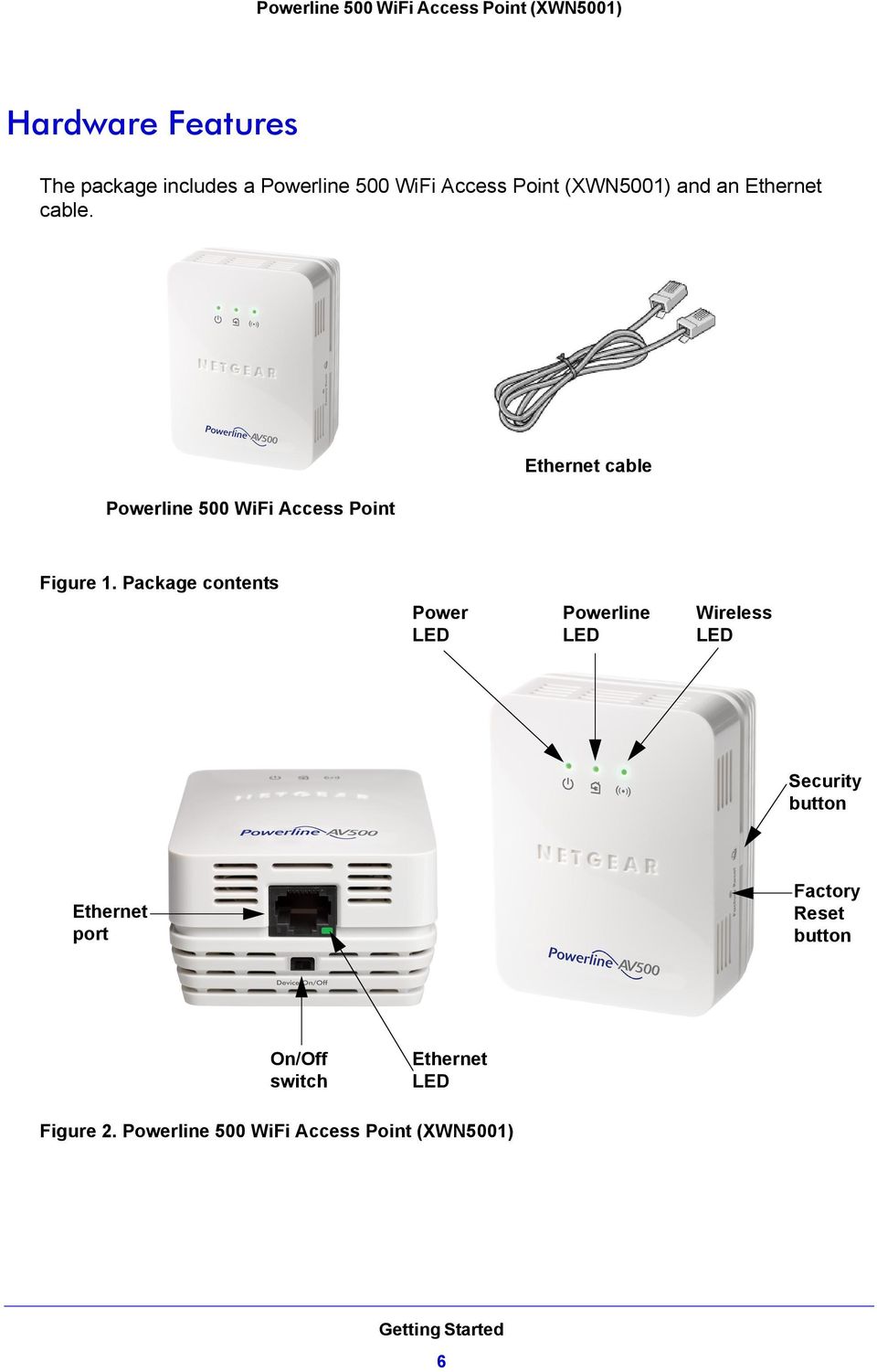
7 LED and Feature Descriptions Table 1. LED descriptions Item Power LED Powerline LED Description Solid green. The electrical power is on. Blinking green. The device is in the process of restarting or setting up security. Amber. Power saving mode. The unit enters power saving mode if the Ethernet port is not linked for more than 10 minutes. Off. There is no electrical power, or power has been turned off through the NETGEAR genie. Solid. The device is connected to a Powerline network. Off. The device has not found any other compatible Powerline devices using the same encryption key or has been turned off through the NETGEAR genie. The Pick A Plug feature lets you pick the electrical outlet with the fastest link rate, indicated by the color displayed by the LED: Green. Link rate > 80 Mbps (Best) Good for HD video Amber. Link rate > 50 < 80 Mbps (Better) Good for SD video Red. Link rate < 50 Mbps (Good) Good for data Wireless LED Solid green. The wireless radio is on. Off. The wireless radio is off. Ethernet LED Solid green. The device has an active Ethernet connection. Off. There is no Ethernet connection. Buttons Factory Reset. Use the Factory Reset button to return your Powerline device to its default factory settings. Press the Factory Reset button for 2 seconds, and then release it. Security. The Security button has the following three functions: - Once the Powerline devices are active, you can use the Security button to add encryption to your Powerline network. See Use the Security Button to Set the Encryption Key on page You can use the Security button to clone the WiFi network of your wireless router or gateway without typing the network name (SSID) and password. See Method B: Use the WPS Button for Wireless Setup on page The Security button provides an easy way (WPS) for your wireless client to join the WiFi network access point. See Join the Access Point Wireless Network on page 16. On/Off. Use the On/Off switch to turn the device on and off. Getting Started 7

8 Ethernet Port Plug one end of the Ethernet cable that comes with the Powerline 500 WiFi Access Point (XWN5001) into this port and the other end either into your router, or into the computer or another peripheral device. Product Label The product label shows unique details specific to your device. The product label is on the back of the device. The label contains the following information. Model number Powerline MAC address Ethernet/wireless MAC address Serial number Device password WPS security PIN Default wireless network name (SSID) Default network key How the Powerline AV 500 Access Point Fits in Your Network You can use one or more Powerline 500 WiFi Access Points to extend your home network anywhere in your house using your electrical power lines. A Powerline network consists of two or more compatible Powerline devices that communicate with each other. One of the Powerline devices is connected with an Ethernet cable to your router so that the Powerline network is linked to your local area network (LAN). That way each Powerline device can communicate with the router and use its Internet connection. Getting Started 8

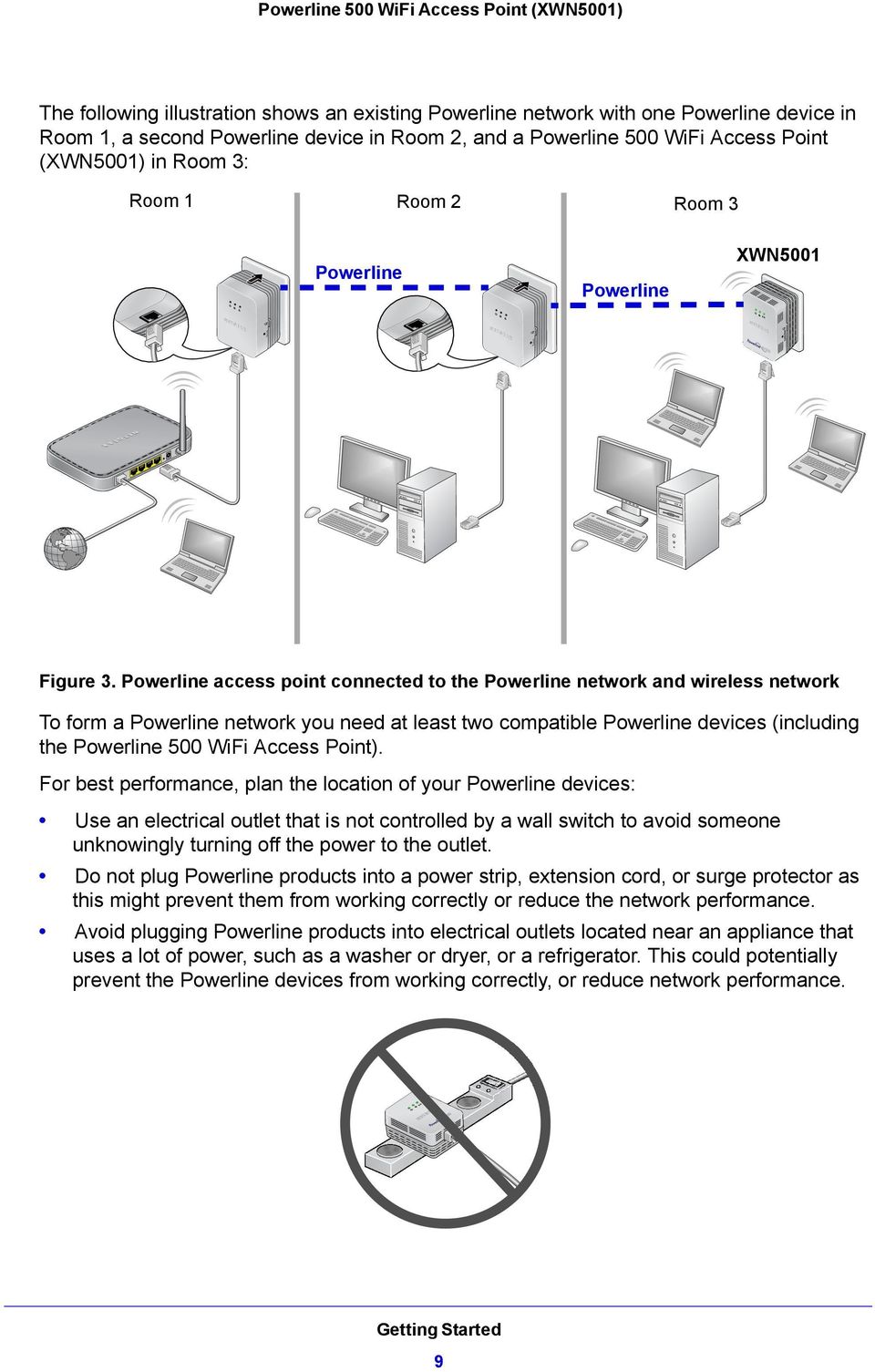
9 The following illustration shows an existing Powerline network with one Powerline device in Room 1, a second Powerline device in Room 2, and a Powerline 500 WiFi Access Point (XWN5001) in Room 3: Room 1 Room 2 Room 3 Powerline Powerline XWN5001 Reset Reset Figure 3. Powerline access point connected to the Powerline network and wireless network To form a Powerline network you need at least two compatible Powerline devices (including the Powerline 500 WiFi Access Point). For best performance, plan the location of your Powerline devices: Use an electrical outlet that is not controlled by a wall switch to avoid someone unknowingly turning off the power to the outlet. Do not plug Powerline products into a power strip, extension cord, or surge protector as this might prevent them from working correctly or reduce the network performance. Avoid plugging Powerline products into electrical outlets located near an appliance that uses a lot of power, such as a washer or dryer, or a refrigerator. This could potentially prevent the Powerline devices from working correctly, or reduce network performance. Getting Started 9
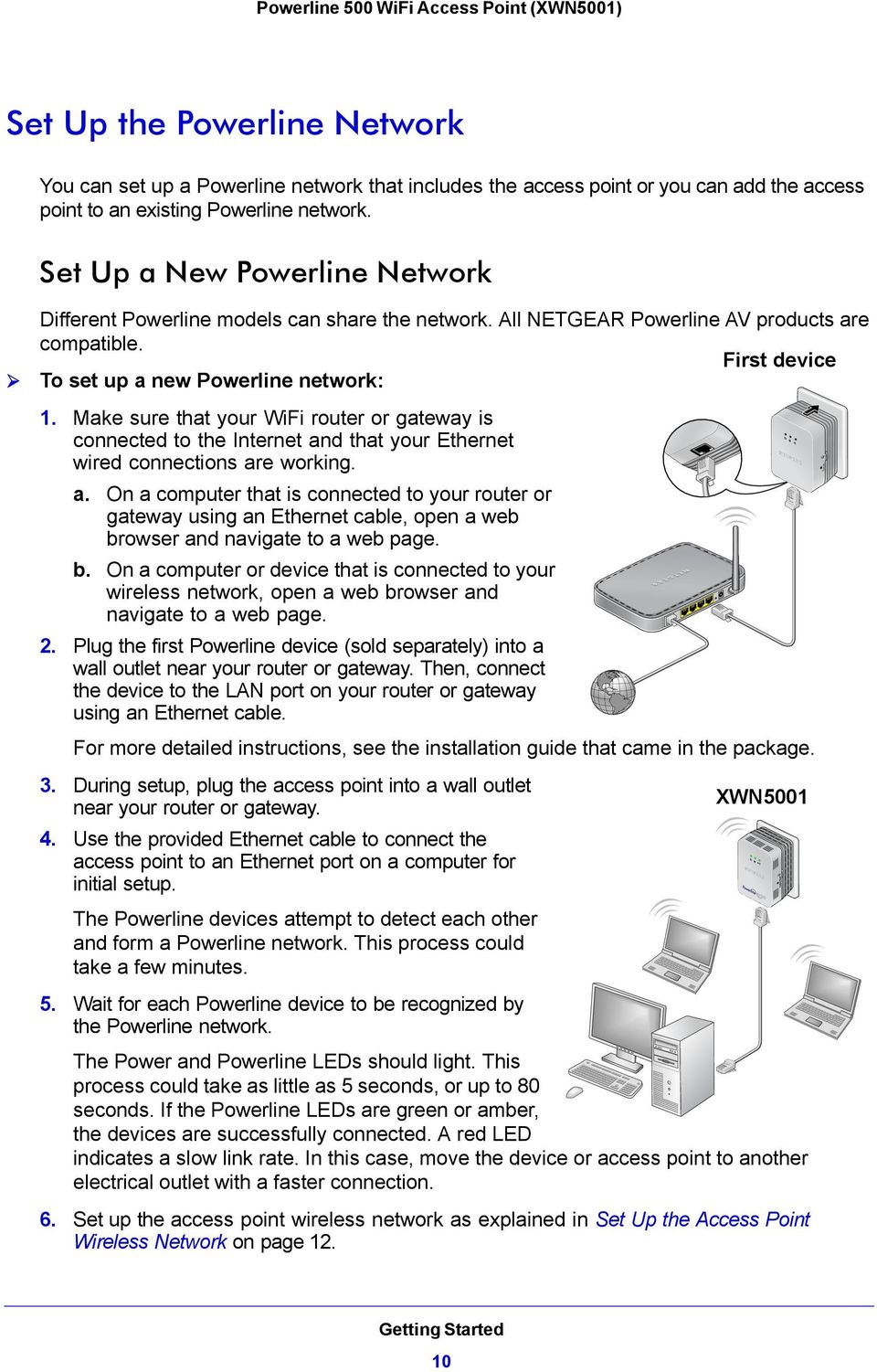
10 Set Up the Powerline Network You can set up a Powerline network that includes the access point or you can add the access point to an existing Powerline network. Set Up a New Powerline Network Different Powerline models can share the network. All NETGEAR Powerline AV products are compatible. First device To set up a new Powerline network: 1. Make sure that your WiFi router or gateway is connected to the Internet and that your Ethernet wired connections are working. a. On a computer that is connected to your router or gateway using an Ethernet cable, open a web browser and navigate to a web page. b. On a computer or device that is connected to your wireless network, open a web browser and navigate to a web page. 2. Plug the first Powerline device (sold separately) into a wall outlet near your router or gateway. Then, connect the device to the LAN port on your router or gateway using an Ethernet cable. For more detailed instructions, see the installation guide that came in the package. 3. During setup, plug the access point into a wall outlet near your router or gateway. 4. Use the provided Ethernet cable to connect the access point to an Ethernet port on a computer for initial setup. The Powerline devices attempt to detect each other and form a Powerline network. This process could take a few minutes. 5. Wait for each Powerline device to be recognized by the Powerline network. XWN5001 The Power and Powerline LEDs should light. This process could take as little as 5 seconds, or up to 80 seconds. If the Powerline LEDs are green or amber, the devices are successfully connected. A red LED indicates a slow link rate. In this case, move the device or access point to another electrical outlet with a faster connection. 6. Set up the access point wireless network as explained in Set Up the Access Point Wireless Network on page 12. Reset Getting Started 10
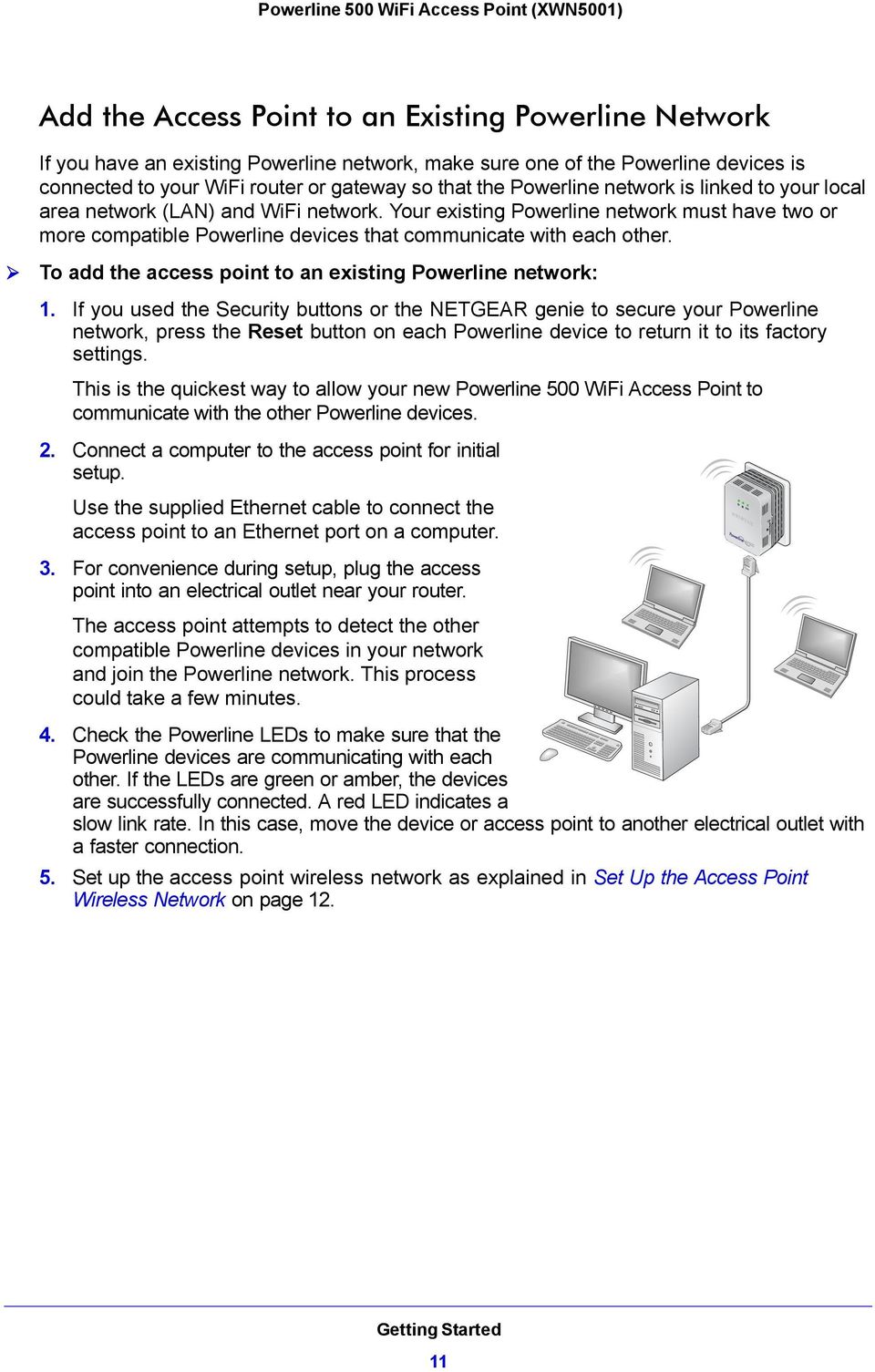
11 Add the Access Point to an Existing Powerline Network If you have an existing Powerline network, make sure one of the Powerline devices is connected to your WiFi router or gateway so that the Powerline network is linked to your local area network (LAN) and WiFi network. Your existing Powerline network must have two or more compatible Powerline devices that communicate with each other. To add the access point to an existing Powerline network: 1. If you used the Security buttons or the NETGEAR genie to secure your Powerline network, press the Reset button on each Powerline device to return it to its factory settings. This is the quickest way to allow your new Powerline 500 WiFi Access Point to communicate with the other Powerline devices. 2. Connect a computer to the access point for initial setup. Use the supplied Ethernet cable to connect the access point to an Ethernet port on a computer. 3. For convenience during setup, plug the access point into an electrical outlet near your router. The access point attempts to detect the other compatible Powerline devices in your network and join the Powerline network. This process could take a few minutes. 4. Check the Powerline LEDs to make sure that the Powerline devices are communicating with each other. If the LEDs are green or amber, the devices are successfully connected. A red LED indicates a slow link rate. In this case, move the device or access point to another electrical outlet with a faster connection. 5. Set up the access point wireless network as explained in Set Up the Access Point Wireless Network on page 12. Getting Started 11
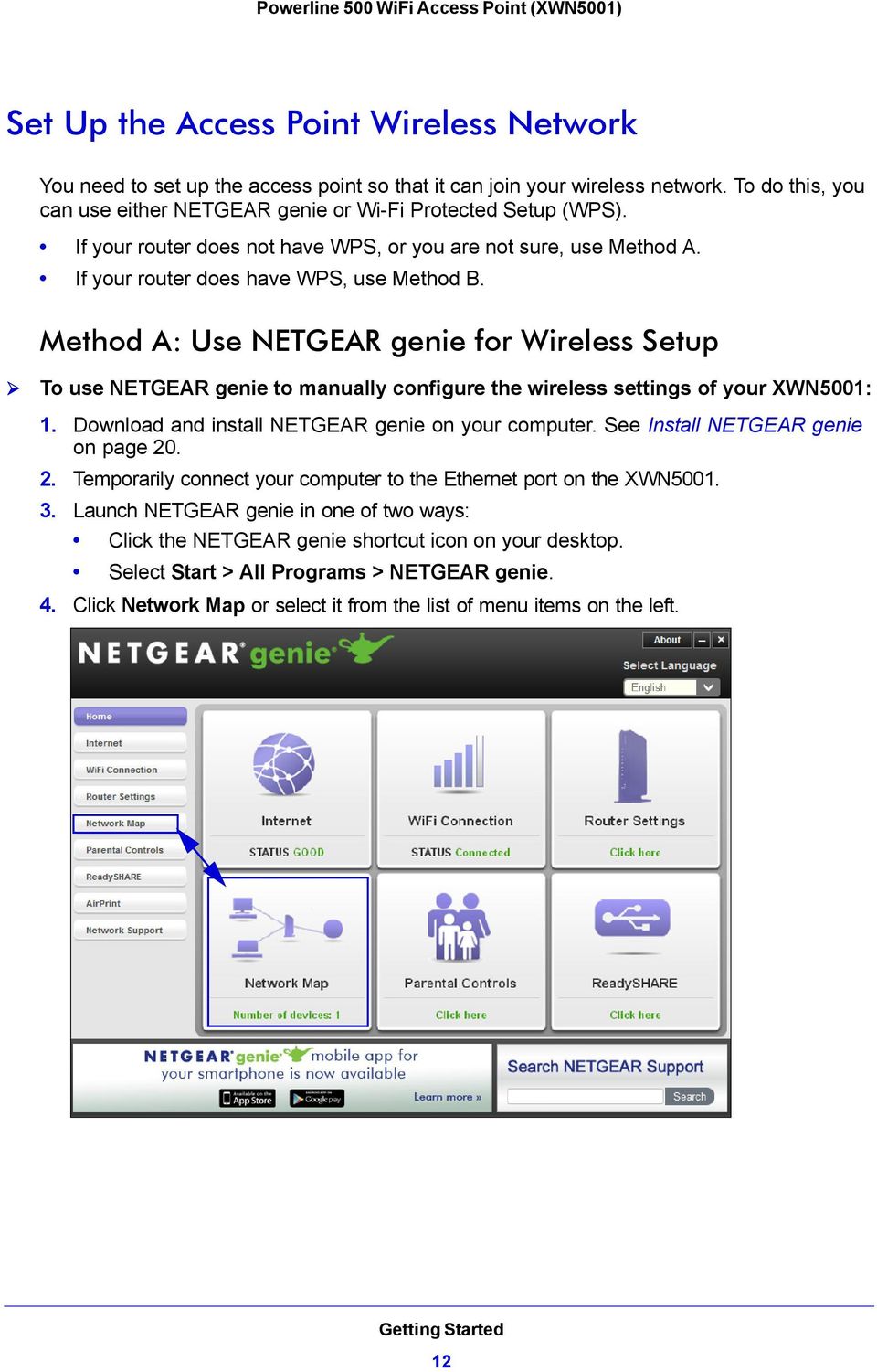
12 Set Up the Access Point Wireless Network You need to set up the access point so that it can join your wireless network. To do this, you can use either NETGEAR genie or Wi-Fi Protected Setup (WPS). If your router does not have WPS, or you are not sure, use Method A. If your router does have WPS, use Method B. Method A: Use NETGEAR genie for Wireless Setup To use NETGEAR genie to manually configure the wireless settings of your XWN5001: 1. Download and install NETGEAR genie on your computer. See Install NETGEAR genie on page Temporarily connect your computer to the Ethernet port on the XWN Launch NETGEAR genie in one of two ways: Click the NETGEAR genie shortcut icon on your desktop. Select Start > All Programs > NETGEAR genie. 4. Click Network Map or select it from the list of menu items on the left. Getting Started 12
13 5. Click the Powerline icon on the Network Map screen. The Powerline Utility screen displays. 6. On the Powerline Utility screen, right-click the XWN5001 icon. 7. From the pop-up menu that displays, select Wireless configuration. Getting Started 13

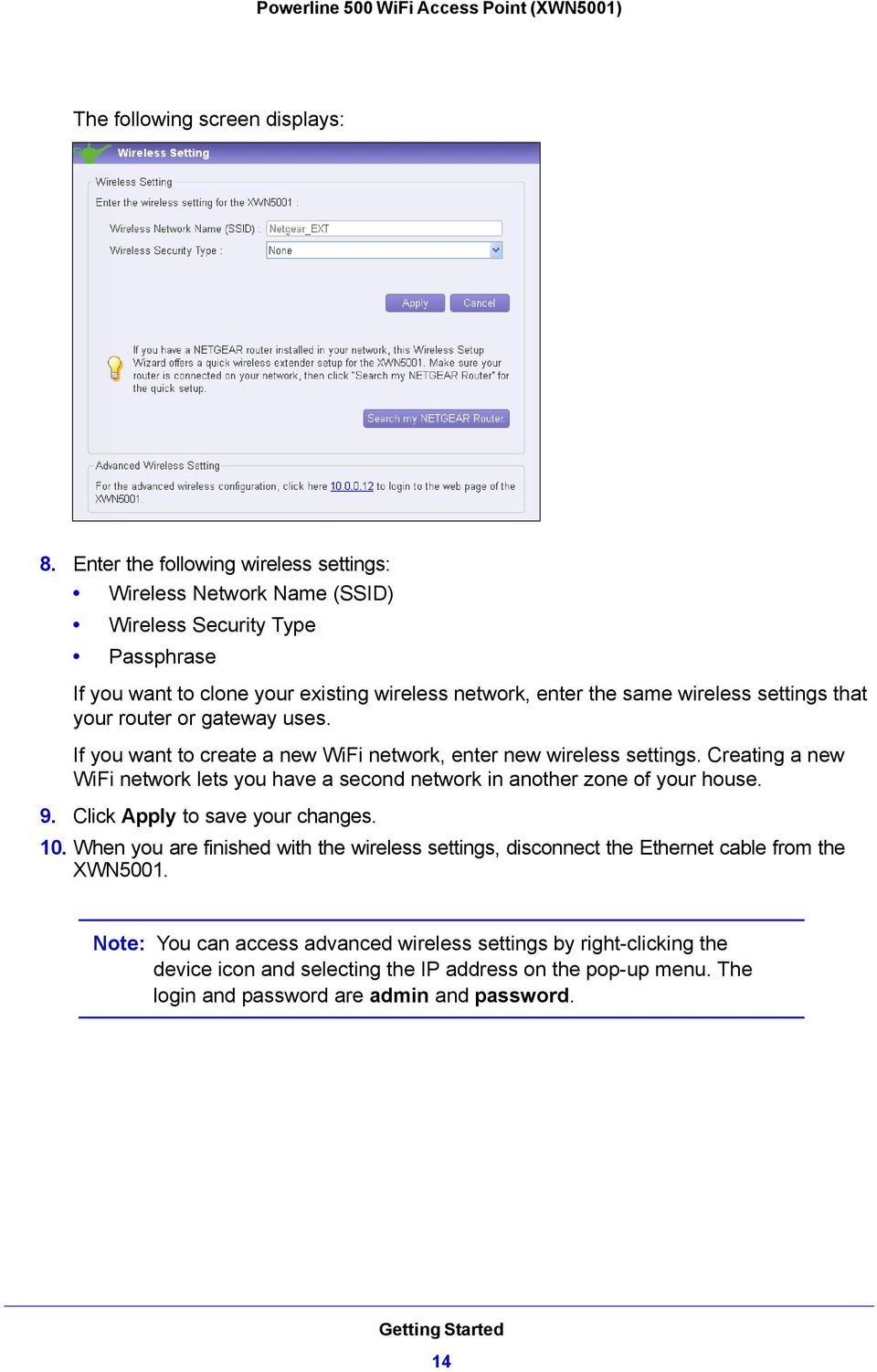
14 The following screen displays: 8. Enter the following wireless settings: Wireless Network Name (SSID) Wireless Security Type Passphrase If you want to clone your existing wireless network, enter the same wireless settings that your router or gateway uses. If you want to create a new WiFi network, enter new wireless settings. Creating a new WiFi network lets you have a second network in another zone of your house. 9. Click Apply to save your changes. 10. When you are finished with the wireless settings, disconnect the Ethernet cable from the XWN5001. Note: You can access advanced wireless settings by right-clicking the device icon and selecting the IP address on the pop-up menu. The login and password are admin and password. Getting Started 14
15 Method B: Use the WPS Button for Wireless Setup You can use this method if you have a wireless router, or a modem router with a WPS (Wi-Fi Protected Setup) button. The WPS button might be labeled WPS, or it could look similar to or. To use the WPS button on your router or gateway to clone your existing wireless network: 1. Press and hold the Security button on the XWN5001 (about 10 seconds) and release it. The Wireless LED starts to blink. 2. Press the WPS button on the wireless router or gateway. When the Wireless LED stops blinking, the cloning is finalized and the XWN5001 recreates a WiFi access point with the same SSID and password as your router or gateway. You now have two WiFi networks with the same parameters (SSID and password). When you are roaming in your house, your wireless client (laptop, tablet, or smartphone) switches from one network (router or gateway) to the other (XWN5001), depending on the signal quality. Note: This method clones your wireless client and, at the same time, secures the connection with a random password. Getting Started 15

16 Join the Access Point Wireless Network Use one of these methods to connect other wireless devices (such as a laptop or game console) to your network through the access point. You can use the WPS button method if you have a wireless device with a WPS (Wi-Fi Protected Setup) button. The WPS button might be labeled WPS, or it could look similar to or. To join the wireless network using a WPS button: 1. Press the WPS button on your wireless computer or device. 2. Press and hold the Security button for about 2 seconds and release it. The Wireless LED starts blinking. When the Wireless LED stops blinking, the wireless device is securely connected to the XWN5001 access point. If your wireless device does not have a WPS button, you need to use the software that manages your wireless connections for your wireless device and manually enter the wireless settings to connect to the access point. To join the wireless network without a WPS button: 1. Launch the wireless network application on your wireless client. 2. Look at the displayed WiFi networks. 3. Connect to the WiFi router or gateway with the network SSID. When you are roaming in your house, you are switched from one network (router or gateway) to the other (XWN5001), depending on the signal quality. Powerline Network Security A Powerline network consists of two or more Powerline devices using the same network encryption key. Securing your network is crucial. By encrypting the information you send over the Powerline network, you help to keep it secure from hackers. If you do not set up security on your network, anyone nearby with a Powerline network can potentially use his or her connection to gain access to your network and information you send over the Internet. This is especially relevant in settings such as apartment buildings, office buildings, dorm rooms, and other more populated areas. You can secure your Powerline network in two ways. Use the Security button on the Powerline device to automatically generate a random encryption key. See Use the Security Button to Set the Encryption Key on page 17. Use the NETGEAR genie to configure your Powerline network with an encryption key that you specify. See Install NETGEAR genie on page 20. Getting Started 16
17 Use the Security Button to Set the Encryption Key Note: A Powerline device can generate a private key only once. If you want to replace a private key, first reset the Powerline devices to their factory settings. To do this either press the Factory Reset button for 1 second, then release it, or use the NETGEAR genie factory defaults feature (see Reset a Device to Factory Settings on page 27). You can use the Security button to change the default encryption key and set a private encryption key instead. The default encryption key is HomePlugAV. To set the encryption key: 1. Make sure that all of the Powerline devices that you want to configure are plugged in. Verify that the Power and Powerline LEDs on each device are lit solid green. CAUTION: Do not press the Security button on the Powerline device until the Power and Powerline LEDs on each Powerline device in your network are lit solid green. Pressing the Security button too soon can temporarily disable Powerline communication. If this should occur, reset the Powerline device to its factory default settings (press the Factory Reset button for 1 second, then release it). 2. Press the Security button on the first Powerline device for 2 seconds. The Power LED starts blinking after you release the button. The Powerline device automatically creates a new, randomly generated network encryption key that all other Powerline devices on the network will use. At this point, the other Powerline devices in your network cannot communicate with each other. 3. Within 2 minutes of pressing the Security button on the first Powerline device, press the Security button on the second Powerline device for 2 seconds. You need to press both Security buttons within 2 minutes. The Power LED starts blinking after you release the button. This process allows the second Powerline device to use the same network encryption key as the first device, so that they can communicate. When the Power LEDs stop blinking and the Powerline LEDs are lit solid green, the two devices should be able to communicate. Getting Started 17
18 Note: This process works for only one pair of Powerline devices at a time. If you have more than two Powerline devices, repeat this process for each additional Powerline device to be configured. The devices retain security settings even if they are unplugged. Getting Started 18

19 2. Using NETGEAR genie 2 This chapter explains how to install and use NETGEAR genie to manage your Powerline network. NETGEAR genie works with all Powerline products. You can use NETGEAR genie to access a local Powerline device that is connected to your computer with an Ethernet cable and also to access other Powerline devices on the same network. You can use NETGEAR genie to: Change the name of a Powerline device. Turn LEDs on or off. Set encryption keys. Restore a device to default configuration settings. Add a device to the Powerline network. Change the wireless settings. Access the web genie. This chapter includes: Install NETGEAR genie Powerline Utility Screen View the Link Rate between Powerline Devices Change the Name of a Powerline Device Turn LEDs Off or On Set the Powerline Encryption Key Reset a Device to Factory Settings Add a Device to the Powerline Network Wireless Settings Access NETGEAR Web genie Advanced Wireless Settings Upgrade the Firmware 19

20 Install NETGEAR genie NETGEAR genie allows you to set your own unique Powerline network encryption key and manage devices on your Powerline network. All devices on a Powerline network can be managed from one computer. If you add another Powerline device to a Powerline network, you can install NETGEAR genie on the computer connected locally to the new device, or open the genie on the computer originally used to set up the Powerline network encryption key. You can use any computer to manage the network, but this procedure assumes that you are working from the computer that is connected to a Powerline device. Note: If you already have NETGEAR genie installed on your computer, you must reinstall the latest version to get support for Powerline products. NETGEAR genie is a free download available from the NETGEAR website. To install NETGEAR genie: 1. Launch an Internet browser, and visit 2. Click the For Home tab. 3. In the search box, type xau2511 and press Enter. 4. Select NETGEAR genie from the downloads list. 5. Click the Download button to download NETGEAR genie to your computer. 6. Run the file that you downloaded, and follow the NETGEAR genie setup prompts to install NETGEAR genie. Click Finish to complete the setup. Using NETGEAR genie 20

21 The NETGEAR genie shortcut icon displays on your desktop. 7. Launch NETGEAR genie in one of two ways: Click the NETGEAR genie shortcut icon on your desktop. Select Start > All Programs > NETGEAR genie. Powerline Utility Screen The Powerline Utility screen is where you view and manage your Powerline network. To navigate to the Powerline Utility screen: 1. Launch NETGEAR genie. 2. From the NETGEAR genie Home screen, click Network Map on the dashboard or select it from the list of menu items on the left. Using NETGEAR genie 21
22 3. On the Network Map screen, click the Powerline icon to view all the devices in your Powerline network. The Powerline Utility screen displays. Click the image of the device that you want to manage. If all devices are not shown, click the Refresh icon to update the screen. Move your mouse over the image of a device to view more information about it. Powerline icon Refresh icon Security icon Device image Device information Security Icon You can click the Security icon on the Powerline Utility screen to go to the Security screen. If the Powerline devices are secured using the default encryption key, the unlocked Security icon displays. If the Powerline devices are secured using a private encryption key, the locked Security icon displays. See Set the Powerline Encryption Key on page 25 for more information about how to set the encryption key on your Powerline devices. Using NETGEAR genie 22
23 View the Link Rate between Powerline Devices To view the link rate between your Powerline devices: On the Powerline Utility screen, click the device whose link rate you want to view. A pop-up screen displays. Tx. The rate at which the device is transmitting data. Rx. The rate at which the device is receiving data. Using NETGEAR genie 23
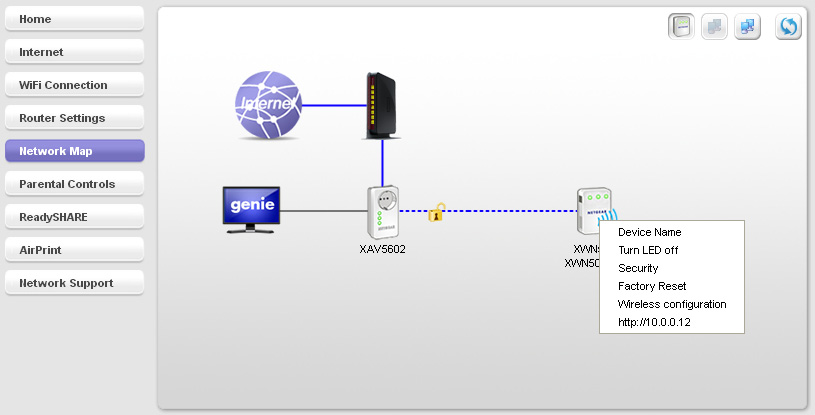
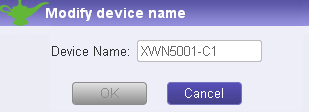
24 Change the Name of a Powerline Device Powerline devices are identified by their model number and name. NETGEAR genie detects any Powerline devices that are connected to the network and displays them on the Powerline Utility screen. If you did not name the device, no name appears below the model number on the Powerline Utility screen. To name a Powerline device in your Powerline network: 1. On the Powerline Utility screen, right-click the device you want to name. A pop-up menu displays: 2. Select Device Name. A pop-up screen displays advising you that connectivity will be temporarily lost while the device is being renamed. 3. Click OK. The following screen displays: 4. Enter a new name for the Powerline device, and click OK. Using NETGEAR genie 24
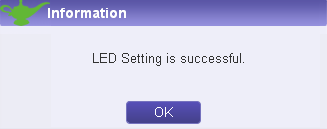
25 Turn LEDs Off or On For each device in your Powerline network, you can turn the LEDs off or on. To turn the LEDs off or on: 1. On the Powerline Utility screen, right-click the Powerline device icon. 2. On the pop-up menu, select either Turn LED off or Turn LED on. A pop-up screen displays advising you that connectivity will be temporarily lost while the LEDs are being reset. 3. Click OK. The genie displays a message indicating that the operation was successful. Click OK. Set the Powerline Encryption Key Powerline devices on the same Powerline network must use the same encryption key. The factory default encryption key is HomePlugAV. In locations such as apartment buildings or office buildings, others might use the same electrical power lines that you use for your Powerline network. To protect your Powerline network from unwanted access, you can customize the encryption key for your Powerline devices. Make sure that you set up the same encryption key for all of your Powerline devices so that they can communicate with each other. You use the Security screen in the NETGEAR genie Powerline Utility to set encryption keys. If you customize the encryption key and then forget what it is, you can return your Powerline devices to their factory default Powerline encryption key of HomePlugAV. Using NETGEAR genie 25
26 To set the encryption key: 1. On the Powerline Utility screen, right-click the Powerline device icon or click the Security icon. The Security screen displays. The top section of the Security screen shows information about each device that NETGEAR genie detects. Device Name. This lists the Powerline devices that are detected on the network after the genie completes a scan for devices. The device name is shown as un-named by default, but you can change it to a descriptive name such as Office or Master Bedroom (see Change the Name of a Powerline Device on page 24). Model. This identifies the model number of the Powerline device. MAC Address. The MAC address for the Powerline device. This information is on the product label, which might not be visible when the device is plugged in. Device Password. To change settings for a remote Powerline device, you have to enter its password. The device password is on the product label. 2. Select the check box next to each device for which you want to set the encryption key. 3. In Step 2 on your screen, select the option that you want: Create a new Encryption Key. To set your own (private) network encryption key, type your network encryption key in the field. Use default Encryption Key. When you select this option, the factory default encryption key automatically displays in the field. The default network encryption key is HomePlugAV. Using NETGEAR genie 26
27 Note: Before you can reset the encryption key for a remote device, you have to enter its password. The password is printed on the product label on the back of the device. 4. Click the Apply Security to Selected Devices button. When you are finished setting the encryption key, the genie displays a message indicating that the operation was successful. 5. Click OK. Reset a Device to Factory Settings This option returns the network encryption key to its factory default of HomePlugAV. Note: If you customized your network encryption key, the local Powerline device is disconnected from the network when you reset it to the factory defaults. To avoid this problem, reset all remote devices before you reset the local device. To reset a device to its factory settings: 1. On the Powerline Utility screen, right-click the Powerline device icon. The pop-up menu displays: 2. Select Factory Reset. A pop-up screen displays advising you that connectivity will be temporarily lost while the LEDs are being reset. 3. Click OK. A message displays asking you to confirm the reset. 4. Click OK to reset the device. A message indicates whether the operation succeeded. Using NETGEAR genie 27
28 Add a Device to the Powerline Network If you are adding a device to a Powerline network, and the network encryption key has been left at its default setting, all you need to do is plug the new device into a power outlet. If the network encryption key has been customized, there are two ways to set the security: You can use the Security button to add the new device to your network. See Use the Security Button to Set the Encryption Key on page 17. You can use the NETGEAR genie Powerline Utility to add the new device to the network, as described in the following procedure. To add a Powerline device to the Powerline network using NETGEAR genie: 1. Plug the Powerline device into an available AC power outlet. 2. Use the provided Ethernet cable to connect the Powerline device to an Ethernet port on the computer. 3. On the Powerline Utility screen, click the Refresh icon. Wait for NETGEAR genie to detect the new device. 4. Right-click the device, and select Security from the menu. 5. Set the encryption key for the device (see Set the Powerline Encryption Key on page 25). Make sure that you enter the same encryption key that your other Powerline devices are using. 6. Verify that the devices in the Powerline network are in the device list by clicking the Refresh icon. It might take a minute or two to detect all devices in the network. Using NETGEAR genie 28
29 Wireless Settings You can use NETGEAR genie to view the current wireless settings, or to change them. To change the wireless settings for your XWN5001 access point: 1. On the Powerline Utility screen, right-click the XWN5001 icon. 2. From the pop-up menu that displays, select Wireless configuration. The Wireless Setting screen displays: 3. In the Wireless Network Name (SSID) field, enter the network name that you want to use for the access point network (the network broadcast from the XWN5001 access point). 4. Select a setting from the Wireless Security Type drop-down list. 5. Enter a password (network key). 6. Click Apply to save your changes. Using NETGEAR genie 29
30 To search for your NETGEAR router: 1. On the Wireless Setting screen, click the Search my NETGEAR Router button. The access point detects and displays the wireless settings that your router or gateway uses. 2. If you want your access point to use the same wireless settings as your router or gateway, scroll down and click Apply. Access NETGEAR Web genie From the NETGEAR genie Powerline Utility screen, you can manage basic settings on your Powerline devices. To configure more advanced settings on individual Powerline devices, use NETGEAR web genie. To access the web genie for an individual Powerline device: 1. Launch NETGEAR genie from the computer that is connected to your Powerline network. 2. On the Powerline Utility screen, and right-click the device. 3. Select the IP address of the device from the menu. Note: You can also access the web genie by clicking the IP address at the bottom of the Wireless Settings screen. Your Internet browser launches, and a login window displays: 4. Enter admin for the user name and password for the password, both in lowercase letters. Using NETGEAR genie 30
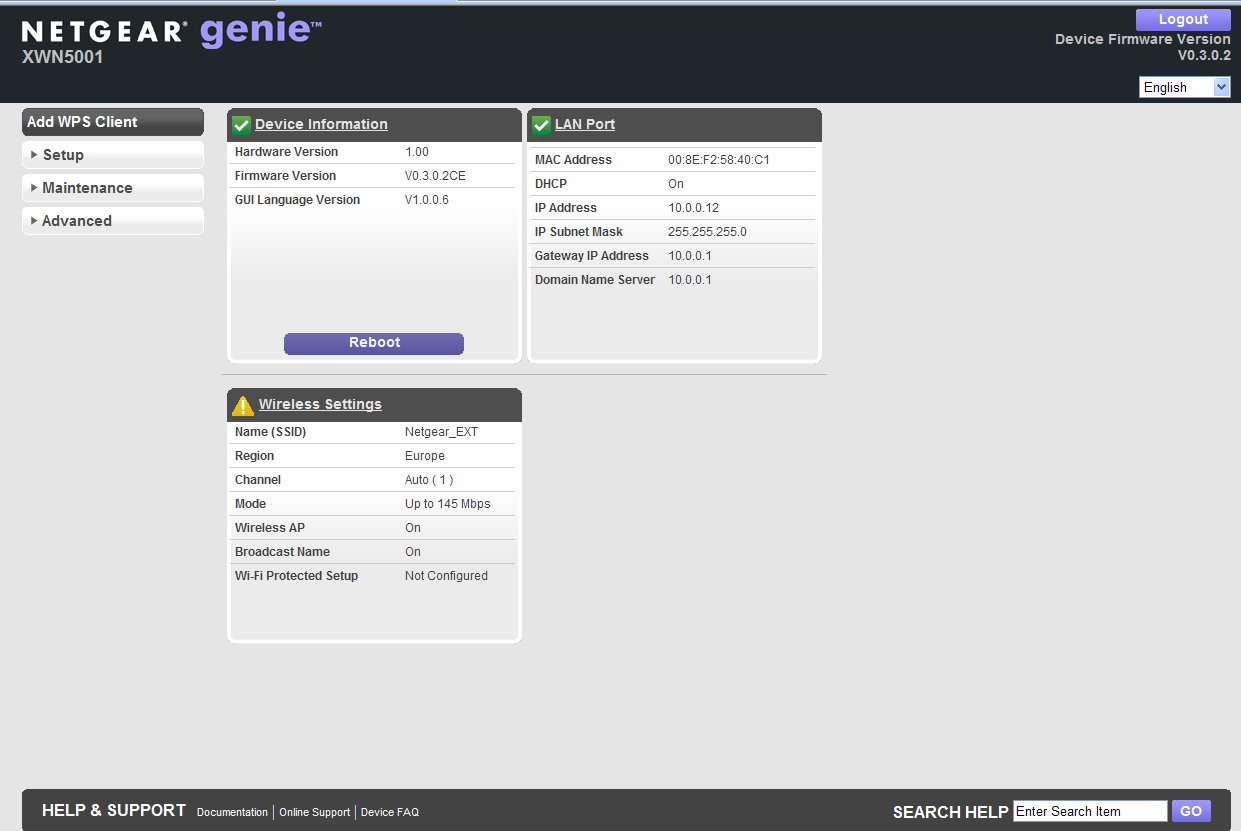
31 Note: The web genie password is different from the device password printed on the product label. The default web genie user name and password are admin and password. You can change the default password using the web genie. The NETGEAR web genie for the device displays in your browser window. You can use the web genie to reboot the device, configure advanced wireless settings, upgrade your device firmware, and more. Using NETGEAR genie 31
32 Advanced Wireless Settings You can use the Wireless Settings screen to change wireless settings including the wireless mode and channel. To change the advanced settings for the access point wireless network: 1. Log in to the NETGEAR web genie for your XWN5001 access point. See Access NETGEAR Web genie on page From the menu on the left, select Setup > Wireless Settings. The following screen displays: 3. Change the wireless settings for the network broadcast by the access point: Name (SSID). The wireless network name. You can type in a new name to customize your access point network. Region. The country or region where the access point is located. Channel. The wireless channel for the network. Mode. The wireless mode. 4. In the Security Options section of the screen, select the type of wireless security that you want to use on your network. None. This is an open wireless network. Any wireless computer or device is allowed to join this network. WEP. WEP is an older standard, and is less secure than WPA or WPA2. WEP uses encryption keys and data encryption for data security. You can select 64-bit or 128-bit encryption. WPA2-PSK [AES]. WPA2 is even more secure, but some older computers do not support this standard. When using wireless computers or devices that support WPA2, you can enter the passphrase to join the access point s wireless network. WPA-PSK [TKIP] + WPA2-PSK [AES]. When using wireless computers or devices that support either WPA or WPA2, you can enter the passphrase to join the access point s wireless network. 5. Click Apply to save your changes. Using NETGEAR genie 32
33 Upgrade the Firmware You can use NETGEAR web genie to upgrade the firmware on your access point. To check for new firmware and update your XWN5001 access point: 1. Log in to the NETGEAR web genie for your XWN5001 access point. See Access NETGEAR Web genie on page From the menu on the left, select Maintenance > Firmware Upgrade. The following screen displays: Click Check 3. Click the Check button. If new firmware is available, the access point finds it. 4. Click Yes to update and locate the firmware you downloaded (the file ends in.img). WARNING! When uploading firmware to the access point, do not interrupt the web browser by closing the window, clicking a link, or loading a new page. If the browser is interrupted, it could corrupt the firmware. When the upload is complete, your access point restarts. The upgrade process typically takes about 1 minute. Read the firmware release notes to determine whether you need to reconfigure the access point after upgrading. Using NETGEAR genie 33
34 3. Troubleshooting 3 This chapter provides information to help you diagnose and solve problems you might encounter. If you do not find the solution here, check the NETGEAR support site at for product and contact information. This chapter includes: Basic Functioning Troubleshooting Tips If You Do Not See All Your Devices with the NETGEAR genie If You Do Not See the Powerline Icon on Your Network Map 34
35 Basic Functioning After you plug in the Powerline device, the following sequence of events should occur: 1. The Power LED lights. 2. After approximately 10 seconds, verify the following: The Power LED is solid green. The device is powered on. If the device is connected to a Powerline network, the Powerline LED is lit. If an Ethernet cable is plugged into the device, the Ethernet LED is lit. Troubleshooting Tips The Factory Reset and Security buttons are on the side panel of the Powerline device. Pressing the Factory Reset button longer than 2 seconds does not reset the device. Pressing the Security button longer than 2 seconds does not activate security. LEDs The LEDs indicate activity and can be used for troubleshooting. LEDs Are Off When the Powerline Device Is Plugged In First check to make sure that the electrical outlet has power. If power is supplied and the LEDs stay off, someone might have used NETGEAR genie to turn off the LEDs. Use NETGEAR genie to see if the LEDs are turned off. If they are, then use the genie to turn them back on. Power LED Off. There is no electrical power. - Make sure that power is supplied to the electrical outlet, and the Powerline device is not plugged into an extension cord, power strip, or surge protector. - Press the Factory Reset button on each Powerline device for 1 second to return the devices to their factory default settings. Amber. Power saving mode occurs when the Ethernet LED is off. The Ethernet LED turns off when: - The Ethernet cable is unplugged. - The device connected through the Ethernet cable is turned off. - The device is idle for 10 minutes. The Powerline device returns to normal mode within 2 seconds once the Ethernet link is active. Troubleshooting 35
36 Powerline LED Off. The Powerline devices cannot find each other. Make sure that the Powerline devices are plugged into outlets with power, and that they use the same network encryption key. - Move the Powerline device to a location closer to the computer or devices. - If you have set up network security, make sure that all Powerline devices are using the same encryption key. - If the problem occurred after you changed the network encryption key, reset each device to its factory default settings. Then you can customize the encryption key. Amber or red. Move the Powerline device to another electrical outlet with a faster connection. Wireless LED Is Off If the Wireless LED stays off, use NETGEAR web genie to turn on the wireless radio. See Advanced Wireless Settings on page 32. The Wireless LED is lit when the wireless radio is turned on. Ethernet LED Is Off There is no Ethernet connection. Make sure that: - Your router and modem are turned on. - The Powerline device s cable is securely connected to a router LAN port. - The computer connected directly to the router can access the Internet. Press the Factory Reset button on each Powerline device for 1 second to return the device to its factory default settings. If You Do Not See All Your Devices with the NETGEAR genie If you click the Refresh icon on the NETGEAR genie Powerline Utility screen and do not see all the devices you expect, some Powerline devices might be using a different encryption key. If the encryption keys are different, do one of the following: Reset your Powerline devices to their factory settings and default encryption key. Then set the encryption for all of your Powerline devices. Connect your computer to each Powerline device, and set up the network encryption key for one device at a time. Troubleshooting 36
37 If You Do Not See the Powerline Icon on Your Network Map If you navigate to the Network Map on NETGEAR genie and do not see the Powerline icon, it could be that your computer s antivirus software is blocking the Powerline communication protocol. Temporarily disable your antivirus software and relaunch NETGEAR genie. Symantec Endpoint Protection The antivirus software Symantec Endpoint Protection v filters the NETGEAR Powerline Utility network traffic and prevents Powerline devices from appearing on the Network Map. To allow Powerline Utility network traffic to pass through the Symantec Endpoint Protection filter, you must add a firewall rule to the filter. Note: Symantec Endpoint Protection v does not have this issue. To add a firewall rule for your Powerline devices: 1. Open the Symantec Control Center, and click the Options button under Network Threat Protection. 2. Select Configure Firewall Rules from the menu. Troubleshooting 37


38 The following screen displays: 3. Click Add to add a firewall rule. The following screen displays: 4. In the General tab, do the following: a. Type a name for the firewall rule in the Rule name field. b. Select the Allow this traffic radio button. c. Configure the firewall settings as shown or as you prefer. Troubleshooting 38


39 5. Click the Ports and Protocols tab. The following screen displays: a. From the Protocol drop-down menu, select Ethernet. b. In the Ethernet type field, type 0x88E1. c. Click OK to create the firewall rule for your Powerline devices. The rule appears in the firewall rule list. 6. Make sure that the check box next to the rule is selected, and click OK. 7. Restart the computer and launch NETGEAR genie. The Powerline icon should now display on the Network Map screen. Troubleshooting 39
40 A. Supplemental Information A This appendix provides technical specifications and safety information for the Powerline 500 WiFi Access Point (XWN5001). This appendix includes the following sections: Technical Specifications Safety Information 40
41 Technical Specifications Feature Data and routing protocols AC input Power consumption Dimensions Weight Socket ratings Specification IEEE (10BASE-T), IEEE 802.3u (100BASE-Tx) V, 0.2A (max.) Normal: 4W, Power saving mode: 3W 112 x 74 x 45 mm (4.41 x 2.91 x 1.77 in.) kg (0.54 lb) EU: 15A 250V NA: 14A 125V UK: 12A 250V Operating temperature 0 to 40 C (32º to 104ºF) Operating humidity Storage humidity Security encryption type MAC addresses Bandwidth Compatibility Data transfer rate Frequency band Modulation type Electromagnetic emissions Safety agency approvals 10 90% maximum relative humidity, noncondensing 5 95% maximum relative humidity, noncondensing 128-bit AES 64: number of nodes that can be added to a single network 200 Mbps Not HomePlug v1.0 or HomePlug v1.0 Turbo compatible Up to 200 Mbps with real throughput greater than 80 Mbps 2 30 Mbps OFDM symbol modulation FCC Part 15 Class B; CE-EMC Class B; 3-home FCC Certificate UL Listed (UL 1950) /cul IEC950; CE LVD; TUV CB, TUV CG Wireless Wireless communication Enabled Wireless Network Name (SSID) Security Transmission speed Country/Region Auto a United States (varies by region) Operating mode n, g, b Data rate Up to 300 Mbps a. Maximum wireless signal rate (IEEE Standard ). Actual throughput will vary. Network conditions and environmental factors, including volume of network traffic, building materials and construction, and network overhead, lower actual data throughput rate. Supplemental Information 41
42 Safety Information Follow these safety guidelines to ensure your own personal safety and to help protect your system from potential damage. AC input: V, 0.2A (max.) Operating temperature: 0C 40 degrees C. Maximum wireless signal rate derived from IEEE Standard specifications. Actual data throughput will vary. Network conditions and environmental factors, including volume of network traffic, building materials and construction, and network overhead, lower actual data throughput rate. Do not service any product except as explained in your system documentation. Opening or removing covers that are marked with the triangular symbol with a lightning bolt can expose you to electrical shock. Only a trained service technician should service components inside these compartments. Use the product only with approved equipment. Allow the product to cool before removing covers or touching internal components. To help avoid damaging your system, be sure that the voltage selection switch (if provided) on the power supply is set to match the power available at your location: volts (V), 60 hertz (Hz) in most of North and South America and some Far Eastern countries such as South Korea and Taiwan V, 50 Hz in eastern Japan and 100V, 60 Hz in western Japan V, 50 Hz in most of Europe, the Middle East, and the Far East. The peripheral power cables are equipped with three-prong plugs to help ensure proper grounding. Do not use adapter plugs or remove the grounding prong from a cable. Observe extension cable and power strip ratings. Make sure that the total ampere rating of all products plugged into the extension cable or power strip does not exceed 80 percent of the ampere ratings limit for the extension cable or power strip. To help protect your system from sudden, transient increases and decreases in electrical power, use a surge suppressor, line conditioner, or uninterruptible power supply (UPS). For additional safety instructions, see Appendix B, Notification of Compliance. Supplemental Information 42
43 B. Notification of Compliance NETGEAR Powerline Products B Safety Instructions and Precautions WARNING! Use the following safety guidelines to ensure your own personal safety and to help protect your product from potential damage. To reduce the risk of bodily injury, electrical shock, fire, and damage to the equipment, observe the following precautions. The socket-outlet shall be installed near the equipment and shall be easily accessible Observe and follow service markings. If any of the following conditions occur, unplug the product from the electrical outlet and replace the part or contact your service provider/retailer: - The power cable, extension cable, or plug is damaged. - An object has fallen into the product. - The product has been exposed to water. - The product has been dropped or damaged. - The product does not operate correctly when you follow the operating instructions. Keep your system away from radiators and heat sources. Also, do not block cooling vents. Do not spill food or liquids on your system components, and never operate the product in a wet environment Do not push any objects into the openings of your system. Doing so can cause fire or electric shock by shorting out interior components. Operate the product only from the type of external power source indicated on the electrical ratings label. Also, be sure that attached devices are electrically rated to operate with the power available in your location. Use only approved power cables. If you have not been provided with a power cable for your system or for any AC powered option intended for your system, purchase a power cable that is approved for use in your country. The power cable must be rated for the product and for the voltage and current marked on the product's electrical ratings label. 43
44 The voltage and current rating of the cable should be greater than the ratings marked on the product. To help prevent electric shock, plug the system and peripheral power cables into properly grounded electrical outlets. Do not use adapter plugs. If you must use an extension cable, use a three-wire cable with properly grounded plugs. Observe extension cable and power strip ratings. Make sure that the total ampere rating f all products plugged into the extension cable or power strip does not exceed 80 percent of the ampere ratings limit for the extension cable or power strip. To help protect your system from sudden, transient increases and decreases in electrical power, use a surge suppressor, line conditioner, or uninterruptible power supply (UPS). Position system cables and power cables carefully; route cables so that they cannot be stepped on or tripped over. Be sure that nothing rests on any cables. Do not modify power cables or plugs. Always follow your local and national wiring rules. Regulatory Compliance Information FCC Requirements for Operation in the United States This device complies with Part 15 of the FCC Rules. Operation is subject to the following two conditions: (1) This device may not cause harmful interference, and (2) this device must accept any interference received, including interference that may cause undesired operation. FCC Declaration Of Conformity We, NETGEAR, Inc., 350 East Plumeria Drive, San Jose, CA 95134, declare under our sole responsibility that the Powerline 500 Access Point (XWN5001) complies with Part 15 of FCC Rules. Operation is subject to the following two conditions: This device may not cause harmful interference, and This device must accept any interference received, including interference that may cause undesired operation. FCC Radio Frequency Interference Warnings & Instructions This equipment has been tested and found to comply with the limits for a Class B digital device, pursuant to Part 15 of the FCC Rules. These limits are designed to provide reasonable protection against harmful interference in a residential installation. This equipment uses and can radiate radio frequency energy and, if not installed and used in accordance with the instructions, may cause harmful interference to radio communications. However, there is no guarantee that interference will not occur in a particular installation. If this equipment does cause harmful interference to radio or television reception, which can be determined by turning the equipment off and on, the user is encouraged to try to correct the interference by one or more of the following methods: Reorient or relocate the receiving antenna. Increase the separation between the equipment and the receiver. Notification of Compliance 44
45 Connect the equipment into an electrical outlet on a circuit different from that which the radio receiver is connected. Consult the dealer or an experienced radio/tv technician for help. Modifications made to the product, unless expressly approved by NETGEAR, Inc., could void the user's right to operate the equipment. European Union The Powerline 500 WiFi Access Point (XWN5001) complies with essential requirements of EU EMC Directive 2004/108/EC and Low Voltage Directive 2006/95/EC as supported by applying the following test methods and standards: EN55022: 2006 / A1: 2007 EN55024: 1998 / A1: 2001 / A2 : 2003 EN : nd Edition EN :2006 EN :1995 w/a1: 2001+A2: 2005 Canadian Department of Communications Radio Interference Regulations This digital apparatus (Powerline 500 WiFi Access Point (XWN5001)) does not exceed the Class B limits for radio-noise emissions from digital apparatus as set out in the Radio Interference Regulations of the Canadian Department of Communications. This Class [B] digital apparatus complies with Canadian ICES-003. Cet appareil numérique de la classe [B] est conforme à la norme NMB-003 du Canada Industry Canada This device complies with RSS-210 of the Industry Canada Rules. Operation is subject to the following two conditions: (1) This device may not cause harmful interference, and (2) this device must accept any interference received, including interference that may cause undesired operation. IMPORTANT NOTE: Radiation Exposure Statement: This equipment complies with IC radiation exposure limits set forth for an uncontrolled environment. This equipment should be installed and operated with minimum distance 20cm between the radiator & your body. Caution: Ce dispositif est conforme à la norme CNR-210 d'industrie Canada applicable aux appareils radio exempts de licence. Son fonctionnement est sujet aux deux conditions suivantes: (1) le dispositif ne doit pas produire de brouillage préjudiciable, et (2) ce dispositif doit accepter tout brouillage reçu, y compris un brouillage susceptible de provoquer un fonctionnement indésirable. NOTE IMPORTANTE: Déclaration d'exposition aux radiations: Cet équipement est conforme aux limites d'exposition aux rayonnements IC établies pour un environnement non contrôlé. Cet équipement doit être installé et utilisé avec un minimum de 20 cm de distance entre la source de rayonnement et votre corps. Notification of Compliance 45
46 GPL License Agreement GPL may be included in this product; to view the GPL license agreement, go to ftp://downloads.netgear.com/files/gplnotice.pdf. For GNU General Public License (GPL) related information, please visit Notification of Compliance 46
47 Index A AC Input 41 adding firewall rule 37 Powerline device to network 11, 28 advanced wireless settings 32 B bandwidth 41 basic functioning 35 buttons described 7 troubleshooting 35 C changing names of Powerline devices 24 compatibility 41 compliance 43 configuring wireless settings 29, 32 D data transfer rate 41 default encryption key 17 default factory settings 27 dimensions 41 E electromagnetic emissions 41 encryption keys default and private 17 setting 25 Ethernet LED described 7 troubleshooting 36 Ethernet port 8 F Factory Reset button described 7 troubleshooting 35 firewall rule, adding 37 firmware, upgrading 33 frequency band 41 G genie, NETGEAR 20 genie, web 30 H hardware 6 humidity, operating and storage 41 I icons Powerline utility 22 WPS 15 L label 8 LEDs descriptions 7 troubleshooting 35 turning on and off 25 link rate 23 M MAC addresses product label 8 specification 41 mode, wireless 32 model number 8 modulation type 41 N name, changing for Powerline devices 24 NETGEAR genie 20 NETGEAR web genie 30 47
48 network key, default 8 networks Powerline 8 wireless 12 O On/Off switch 7 P package contents 6 password device 8 NETGEAR web genie 30 Pick A Plug feature 7 power consumption 41 Power LED described 7 troubleshooting 35 Powerline LED described 7 troubleshooting 36 Powerline networks 8 described 8 setting up 10 Powerline Utility 21 private encryption key 17 product label 8 R reset button 7 resetting to factory settings 27 router, search for using NETGEAR genie 30 T technical specifications 40, 41 technical support 2 temperature, operating 41 trademarks 2 troubleshooting 34 LEDs 35 NETGEAR genie 36 Powerline icon 37 Symantec firewall 37 U upgrading firmware 33 W web genie 30 weight 41 Wi-Fi Protected Setup (WPS) 15 Wireless LED described 7 troubleshooting 36 wireless mode 32 wireless network name (SSID) 8, 32 wireless networks joining 16 setting up 12 wireless security 32 wireless settings 29, 32 wireless specifications 41 WPS security PIN 8 S safety agency approvals 41 safety information 42 security Powerline encryption 16 wireless 32 Security button 17 described 7 troubleshooting 35 security encryption types 41 security PIN, WPS 8 serial number 8 socket ratings 41 SSID 8, 32 48
Powerline AV 200 Nano Adapter XAV2101
 Powerline AV 200 Nano Adapter XAV2101 User Manual 350 East Plumeria Drive San Jose, CA 95134 USA March 2011 202-10816-01 v1.0 2011 NETGEAR, Inc. All rights reserved. No part of this publication may be
Powerline 1200 User Manual
 User Manual Models PL1200 PLP1200 January 2016 202-11566-01 350 E. Plumeria Drive San Jose, CA 95134 USA Support Thank you for purchasing this NETGEAR product.you can visit www.netgear.com/support to register
Powerline PL500 Series Adapter
 Easy, Reliable & Secure Powerline PL500 Series Adapter User Manual Models: PL500 PL500P July 2013 202-11313-01 Support Thank you for selecting On Networks products. On Networks recommends that you use
Powerline AV 200 Mini Adapter XAV1301
 Powerline AV 200 Mini Adapter XAV1301 User Manual 350 East Plumeria Drive San Jose, CA 95134 USA September 2011 202-10850-01 v1.0 2011 NETGEAR, Inc. All rights reserved No part of this publication may
XAV5001 Powerline AV 500 Adapter
 XAV5001 Powerline AV 500 Adapter User Manual 350 East Plumeria Drive San Jose, CA 95134 USA January 2011 202-10708-01 v1.0 2011 NETGEAR, Inc. All rights reserved. No part of this publication may be reproduced,
Powerline PassThru Adapters
 s User Manual Models: XAV2602 XAV5401 XAV5602 XAV6501 XAV6504 September 2013 202-11314-02 350 East Plumeria Drive San Jose, CA 95134 USA Support Thank you for purchasing this NETGEAR product. After installing
XAV2001 Powerline AV Ethernet Adapter
 XAV2001 Powerline AV Ethernet Adapter User Manual 350 East Plumeria Drive San Jose, CA 95134 USA March 2011 202-10531-02 v1.0 2011 NETGEAR, Inc. All rights reserved. No part of this publication may be
XAV1601 Powerline AV+ 200 Nano
 XAV1601 Powerline AV+ 200 Nano User Manual 350 East Plumeria Drive San Jose, CA 95134 USA August 2011 202-10867-02 v1.0 2011 NETGEAR, Inc. All rights reserved. No part of this publication may be reproduced,
N300 WiFi Range Extender
 Model EX2700 User Manual July 2014 202-11395-01 350 East Plumeria Drive San Jose, CA 95134 USA Support Thank you for selecting NETGEAR products. After installing your device, locate the serial number on
XAV101 Powerline AV Ethernet Adapter User Guide. NETGEAR, Inc. 350 East Plumeria Drive San Jose, CA 95134 USA
 XAV101 Powerline AV Ethernet Adapter User Guide NETGEAR, Inc. 350 East Plumeria Drive San Jose, CA 95134 USA 202-10339-02 January 2009 2009 by NETGEAR, Inc. All rights reserved. Technical Support See the
Powerline Music Extender XAU2511
 Powerline Music Extender XAU2511 User Manual 350 East Plumeria Drive San Jose, CA 95134 USA October 2012 202-10955-01 v1.0 Support Thank you for choosing NETGEAR. After installing your device, locate the
XAV5004 Powerline AV 500 Adapter
 XAV5004 Powerline AV 500 Adapter User Manual 350 East Plumeria Drive San Jose, CA 95134 USA February 2011 202-10705-02 v1.0 2011 NETGEAR, Inc. All rights reserved. No part of this publication may be reproduced,
AC750 WiFi Range Extender
 Model EX6100 User Manual April 2014 202-11307-03 350 East Plumeria Drive San Jose, CA 95134 USA Support Thank you for selecting NETGEAR products. After installing your device, locate the serial number
Powerline 500 WiFi Access Point (XWN5001) Installation Guide
 Powerline 500 WiFi Access Point (XWN5001) Installation Guide Support Thank you for selecting NETGEAR products. After installing your device, locate the serial number on the label of your product and use
Powerline 500 WiFi Access Point (XWNB5201) Installation Guide
 Powerline 500 WiFi Access Point (XWNB5201) Installation Guide Support Thank you for selecting NETGEAR products. After installing your device, locate the serial number on the label of your product and use
N600 WiFi USB Adapter
 Model WNDA3100v3 User Manual December 2014 202-11470-01 350 East Plumeria Drive San Jose, CA 95134 USA Support Thank you for selecting NETGEAR products. After installing your device, locate the serial
Universal Pass Through WiFi Range Extender WN3100RP
 Universal Pass Through WiFi Range Extender WN3100RP User Manual August 2013 202-11242-01 350 East Plumeria Drive San Jose, CA 95134 USA Support Thank you for selecting NETGEAR products. After installing
Powerline 500 WiFi Access Point XWN5001 Installation Guide
 Powerline 500 WiFi Access Point XWN5001 Installation Guide Technical Support Thank you for selecting NETGEAR products. After installing your device, locate the serial number on the label of your product
A6210 WiFi USB Adapter 802.11ac USB 3.0 Dual Band User Manual
 802.11ac USB 3.0 Dual Band User Manual August 2014 202-11373-01 350 East Plumeria Drive San Jose, CA 95134 USA Support Thank you for selecting NETGEAR products. After installing your device, locate the
Quick Start. PowerLINE WiFi 1000 Models PL1000 and PLW1000
 Quick Start PowerLINE WiFi 1000 Models PL1000 and PLW1000 Package Contents In some regions, a resource CD is included with your product. 2 Get Started PowerLINE adapters give you an alternative way to
Quick Start. Nighthawk X8 AC5300 Tri-Band WiFi Router Model R8500. Package Contents. NETGEAR, Inc. 350 East Plumeria Drive San Jose, CA 95134 USA
 Support Thank you for purchasing this NETGEAR product. You can visit www.netgear.com/support to register your product, get help, access the latest downloads and user manuals, and join our community. We
N300 WiFi Range Extender WN2000RPT User Manual
 N300 WiFi Range Extender WN2000RPT User Manual December 2013 202-11333-01 350 East Plumeria Drive San Jose, CA 95134 USA Support Thank you for selecting NETGEAR products. After installing your device,
CM500 High Speed Cable Modem User Manual
 User Manual February 2015 202-11472-04 350 East Plumeria Drive San Jose, CA 95134 USA Support Thank you for selecting NETGEAR products. After installing your device, locate the serial number on the label
Table of Contents. Hardware Installation...7 Push Button Security... 8. Using the Setup Wizard...10. Configuration...11 Main... 12 Security...
 Table of Contents Table of Contents Product Overview...3 Package Contents...3 System Requirements... 3 Introduction...4 Features... 4 Hardware Overview...5 LEDs... 5 Connection... 6 Hardware Installation...7
Regulatory Compliance Statement
 Regulatory Compliance Statement 0560 EU Declaration of Conformity The declaration of conformity may be consulted at www.kobo.com/userguides SAR Limits The exposure standard for wireless devices employs
N300 WiFi Range Extender
 Model WN3000RP User Manual September 2014 202-11409-01 350 East Plumeria Drive San Jose, CA 95134 USA Support Thank you for selecting NETGEAR products. After installing your device, locate the serial number
HP-1000E v2. User s Manual. Powerline Ethernet Adapter. HP1000E v2 User s Manual
 HP-1000E v2 Powerline Ethernet Adapter User s Manual HP1000E v2 User s Manual Table of Contents Chapter 1: Introduction...1 Chapter 2: Planning your Powerline Network...1 Network Topology...1 Chapter 3:
Wireless Router Setup Manual
 Wireless Router Setup Manual NETGEAR, Inc. 4500 Great America Parkway Santa Clara, CA 95054 USA 208-10082-02 2006-04 2006 by NETGEAR, Inc. All rights reserved. Trademarks NETGEAR is a trademark of Netgear,
Installation. N300 WiFi Range Extender Model WN3100RP
 Installation N300 WiFi Range Extender Model WN3100RP Getting Started The NETGEAR WiFi Range Extender increases the distance of a WiFi network by boosting the existing WiFi signal and enhancing the overall
SPL 2-00/-01 OPERATION INSTRUCTIONS
 SPL 2-00/-01 OPERATION INSTRUCTIONS Powerline Ethernet Adapter 500 Mbps EN Read and keep Operation Instructions SPL 2-00/-01 Safety Notes Do NOT use this product near water, for example, in a wet basement
Energy Smart Electric Water Heater Controller
 Installation, Operation and Troubleshooting Instructions Energy Smart Electric Water Heater Controller Table of Contents Installation and Setup, 2 Operation, 5 Troubleshooting, 7 Regulatory Notices, 11
MoCA Adapter MC1001 v2 Installation Guide
 Technical Support Thank you for selecting NETGEAR products. After installing your device, locate the serial number on the label of your product and use it to register your product at www.netgear.com/register.
Preface. Manual Revisions
 Preface D-Link reserves the right to revise this publication and to make changes in the content hereof without obligation to notify any person or organization of such revisions or changes. Manual Revisions
Installation. Powerline 500 Model XAVB5221
 Installation Powerline 500 Model XAVB5221 Package Contents In some regions, a resource CD is included with your product. 2 Getting Started Powerline networking solutions give you an alternative to Ethernet-only
AC1900, N900, and N450 WiFi Cable Data Gateways
 AC1900, N900, and N450 WiFi Cable Data Gateways Models C6300BD, CG4500BD, and CG3000Dv2 User Manual March 2015 202-11434-03 350 East Plumeria Drive San Jose, CA 95134 USA Support Thank you for selecting
Linksys WAP300N. User Guide
 User Guide Contents Contents Overview Package contents 1 Back view 1 Bottom view 2 How to expand your home network 3 What is a network? 3 How to expand your home network 3 Where to find more help 3 Operating
Open Networking Adapter 1101GT Quick Install Guide
 Open Networking Adapter 1101GT Quick Install Guide 2016 Avaya Inc. 1 NN48800-300 01-07 2016 Avaya Inc. All Rights Reserved. Notice While reasonable efforts have been made to ensure that the information
CM400 High Speed Cable Modem User Manual
 User Manual July 2015 202-11412-02 350 East Plumeria Drive San Jose, CA 95134 USA Support Thank you for selecting NETGEAR products. After installing your device, locate the serial number on the label of
AC750 WiF Range Extender
 Model EX3700 User Manual May 2015 202-11487-01 350 East Plumeria Drive San Jose, CA 95134 USA Support Thank you for selecting NETGEAR products. After installing your device, locate the serial number on
N600 WiFi Range Extender
 Installation Guide N600 WiFi Range Extender Model WN2500RP Contents Getting Started......................................... 3 Meet Your Extender..................................... 4 Front Panel........................................
Nighthawk AC1900 WiF Range Extender
 Nighthawk AC1900 WiF Range Extender Model EX7000 User Manual December 2014 202-11469-01 350 East Plumeria Drive San Jose, CA 95134 USA Nighthawk AC1900 WiF Range Extender Support Thank you for selecting
USER GUIDE AC2400. DUAL BAND GIGABIT Wi Fi ROUTER. Model# E8350
 USER GUIDE AC2400 DUAL BAND GIGABIT Wi Fi ROUTER Model# E8350 Table of Contents Product overview E8350..................................... 1 Setting Up Your E-Series Router Where to find more help.........................
AC1200 WiFi Range Extender
 Model EX6200 User Manual February 2014 202-11298-01 350 East Plumeria Drive San Jose, CA 95134 USA Support Thank you for selecting NETGEAR products. After installing your device, locate the serial number
IEEE 802.11b WLAN PC Card
 IEEE 802.11b WLAN PC Card User s Guide Version: 1.3 August 2001 Please install the Utility/Driver first before inserting the PCMCIA Card. FCC Class B Radio Frequency Interference Statement The manufacturer
NETGEAR Trek N300 Travel Router and Range Extender
 NETGEAR Trek N300 Travel Router and Range Extender PR2000 Installation Guide NETGEAR Reset /LAN LAN Contents Get Started........................................... 3 Connect on the Go..................................
User Manual. PePWave Surf / Surf AP Indoor Series: Surf 200, E200, AP 200, AP 400. PePWave Mesh Connector Indoor Series: MC 200, E200, 400
 User Manual PePWave Surf / Surf AP Indoor Series: Surf 200, E200, AP 200, AP 400 PePWave Mesh Connector Indoor Series: MC 200, E200, 400 PePWave Surf AP Series: Surf AP 200-X, E200-X, 400-X PePWave Surf
HLWLAN 802.11b/g/n Transceiver Kit
 092524 RevB HLWLAN 802.11b/g/n Transceiver Kit Wireless Communications for OmniLogic Owner s Manual Contents Introduction...1 Installation...2 Configuration...6 Operation...8 Troubleshooting...9 HLWLAN
Link Link sys E3000 sys RE1000
 User Guide High Performance Extender Wireless-N Router Linksys Linksys RE1000 E3000Wireless-N Table of Contents Contents Chapter 1: Product Overview 1 Front 1 Top 1 Bottom 1 Back 2 Chapter 2: Advanced
User Guide. Linksys PLWK400. Powerline AV Wireless Network Extender Kit
 User Guide Linksys PLWK400 Powerline AV Wireless Network Extender Kit Contents Contents Overview............... 3 Features..................... 3 PLE400 3 PLW400 4 How Powerline networking works...........
Home Wi-Fi Gateway Instructions
 Home Wi-Fi Gateway Instructions 1. Connect the gateway. Use the coaxial cable provided by BendBroadband to connect the cable port (A) to your cable outlet. 2. Connect your computer to the cable modem gateway
USER GUIDE AC2600 MU-MIMO GIGABIT ROUTER. Model# EA8500
 USER GUIDE AC2600 MU-MIMO GIGABIT ROUTER Model# EA8500 Table of Contents Product overview EA8500.....................................1 Setting Up Your Router Where to find more help.........................
TL-PS310U Single USB 2.0 Port MFP and Storage Server
 TL-PS310U Single USB 2.0 Port MFP and Storage Server Rev: 2.0.0 1910010313 Contents Chapter 1 Introduction... 1 1.1 Product Overview...1 1.2 Network Management...1 1.3 Components and Features...1 1.4 Hardware
Ethernet Radio Configuration Guide
 Ethernet Radio Configuration Guide for Gateway, Endpoint, and Repeater Radio Units April 20, 2015 Customer Service 1-866-294-5847 Baseline Inc. www.baselinesystems.com Phone 208-323-1634 FAX 208-323-1834
WiFi Booster for Mobile WN1000RP Installation Guide. Extended Wireless Range Router Range
 WiFi Booster for Mobile WN1000RP Installation Guide Extended Wireless Range Router Range Contents Hardware Features..................................... 3 Getting Started.........................................
Introduction. Overview. Contents. Linksys AC1200 Max Wi-Fi Range Extender. Front
 User Guide RE6500 Linksys AC1200 Max Wi-Fi Range Extender Introduction This User Guide can help you connect the extender to your network and solve common setup issues. You can find more help from our award-winning,
EX6100 WiFi Range Extender Installation Guide
 EX6100 WiFi Range Extender Installation Guide Getting Started The NETGEAR WiFi Range Extender increases the distance of a WiFi network by boosting the existing WiFi signal and enhancing the overall signal
User Guide. E-Series Routers
 User Guide E-Series Routers Table of Contents Table of Contents Product overview E900/E1200/E1500/E2500/E3200 1 Back view 1 Bottom view 1 E4200 2 Top view 2 Back view 2 Setting Up Your E-Series Router
WUA-0605 300Mbps Wireless USB Network Adapter
 WUA-0605 300Mbps Wireless USB Network Adapter User Manual V1.0 Certification FCC CE FCC Statement This equipment has been tested and found to comply with the limits for a Class B digital device, pursuant
Universal WiFi Range Extender WN2000RPT Installation Guide
 Universal WiFi Range Extender WN2000RPT Installation Guide CONNECT WIRED DEVICES WIRELESSLY WIRELESS EXTENSION Extended Wireless Range Existing Router Range EXISTING ROUTER 2011 NETGEAR, Inc. All rights
LevelOne User Manual WPC-0600 N_One Wireless CardBus Adapter
 LevelOne User Manual WPC-0600 N_One Wireless CardBus Adapter V2.0.0-0712 Safety FCC WARNING This equipment has been tested and found to comply with the limits for a Class B digital device, pursuant to
Networking. General networking. Networking overview. Common home network configurations. Wired network example. Wireless network examples
 Networking General networking Networking overview A network is a collection of devices such as computers, printers, Ethernet hubs, wireless access points, and routers connected together for communication
What is Bitdefender BOX?
 Quick Setup Guide What is Bitdefender BOX? Think about Bitdefender BOX like an antivirus for your network. It s a hardware device that sits next to your Wi-Fi router and protects all Internet connected
PLA4231. User s Guide. Quick Start Guide. 500 Mbps Powerline Wireless N Extender. Default Login Details. Version 1.00 Edition 1, 12/2012
 PLA4231 500 Mbps Powerline Wireless N Extender Version 1.00 Edition 1, 12/2012 Quick Start Guide User s Guide Default Login Details LAN IP Address http://192.168.1.2 Password 1234 www.zyxel.com Copyright
Technical Support. Package Contents. CENTRIA WNDR4700/WNDR4720 Installation Guide
 Technical Support After installing your device, locate the serial number on the label of your product and use it to register your product at https://my.netgear.com. You must register your product before
WiFi Booster for Mobile WN1000RP Installation Guide
 WiFi Booster for Mobile WN1000RP Installation Guide 2012 NETGEAR, Inc. All rights reserved. No part of this publication may be reproduced, transmitted, transcribed, stored in a retrieval system, or translated
Gateway Port Replicator User Guide
 Gateway Port Replicator User Guide Using the Port Replicator Identifying features Connecting and disconnecting the port replicator 1 Using the Port Replicator Top Power button Component Icon Description
Dual-Band Wireless Network Extender. Model #: WCB3000N. User Manual. Ver 1.0
 Dual-Band Wireless Network Extender Model #: WCB3000N User Manual Ver 1.0 Table of Contents Table of Contents 1 Introduction 3 Features 4 Getting to Know the WCB3000N 5 Front Panel 5 Back Panel 5 Accessing
User Guide. Guide d utilisation Guida dell'utente Benutzerhandbuch Guía del usuario Guia do Usuário WNA-100. Wireless Network Adapter
 WNA-100 Wireless Network Adapter User Guide Guide d utilisation Guida dell'utente Benutzerhandbuch Guía del usuario Guia do Usuário www.xerox.com/office/wna Copyright 2007 Xerox Corporation. All Rights
ALL0237R. Wireless N 300Mbit Access Point/Repeater. User s Manual
 ALL0237R Wireless N 300Mbit Access Point/Repeater User s Manual ALLNET ALL0237R User Manual Table of Contents About the Device... 3 Minimum System Requirements... 5 Package Contents... 5 Device Overview...
WiFi DSL Modem Router
 Support Thank you for purchasing this NETGEAR product. After installing your device, locate the serial number on the label of your product and use it to register your product at https://my.netgear.com.
Congratulations on your HomePortal purchase. To install your HomePortal and configure your home network, follow these steps.
 Notice to Users 2003 2Wire, Inc. All rights reserved. This manual in whole or in part, may not be reproduced, translated, or reduced to any machine-readable form without prior written approval. 2WIRE PROVIDES
ZigBee Extender 3. Features. Supported Models and Requirements. Important Safety Instructions. What Is Included: Specifications
 ZigBee Extender 3 Features The Card Access ZigBee Extender 3 operates as a ZigBee (IEEE 802.15.4) router and mesh extender. The Extender is designed to improve ZigBee signal latency that can occur when
Technical Support. Package Contents. D6300 WiFi ADSL Modem Router Installation Guide
 Technical Support Thank you for selecting NETGEAR products. After installing your device, locate the serial number on the label of your product and use it to register your product at NETGEAR.com/register.
User guide. Stereo Bluetooth Headset SBH70
 User guide Stereo Bluetooth Headset SBH70 Contents Introduction...3 Function overview...3 Hardware overview...3 Basics...5 Charging the battery...5 Battery and power management...5 Turning the headset
MN-700 Base Station Configuration Guide
 MN-700 Base Station Configuration Guide Contents pen the Base Station Management Tool...3 Log ff the Base Station Management Tool...3 Navigate the Base Station Management Tool...4 Current Base Station
Chapter 3 Safeguarding Your Network
 Chapter 3 Safeguarding Your Network The RangeMax NEXT Wireless Router WNR834B provides highly effective security features which are covered in detail in this chapter. This chapter includes: Choosing Appropriate
Experience Next-Generation WiFi
 Do More Experience Next-Generation WiFi Your new WiFi extender supports the 802.11ac networking standard. This new standard offers better speed, improved reliability, and more range than older WiFi networking
WF720 Wireless Home Phone User Manual
 WF720 Wireless Home Phone User Manual Content Getting to Know Your Device... 3 Appearance...3 LED Indicator...4 Device Installation... 5 Before You Begin...5 Installing the SIM Card and the Battery...5
Net USER GUIDE MEDIA SHARING DEVICE
 FCC DECLARATION OF CONFORMANCE This device complies with Part 15 of the FCC Rules. Operation is subject to the following two conditions: (1) this device may not cause harmful interference, and (2) this
N750 Wireless Dual Band Gigabit Access Point WNDR4300-TN
 N750 Wireless Dual Band Gigabit Access Point WNDR4300-TN User Manual September 2013 202-11267-01 350 East Plumeria Drive San Jose, CA 95134 USA Support Contact your Internet service provider for technical
Quick Start Guide. WRV210 Wireless-G VPN Router with RangeBooster. Cisco Small Business
 Quick Start Guide Cisco Small Business WRV210 Wireless-G VPN Router with RangeBooster Package Contents WRV210 Router Ethernet Cable Power Adapter Product CD-ROM Quick Start Guide Welcome Thank you for
Wireless 802.11g CF Card User Manual
 Wireless 802.11g CF Card User Manual Version 1.0 Copyright statement No part of this publication may be reproduced, stored in a retrieval system, or transmitted in any form or by any means, whether electronic,
NeoTV Prime with Google TV GTV100
 NeoTV Prime with Google TV GTV100 User Manual 350 East Plumeria Drive San Jose, CA 95134 USA January 2013 202-11067-01 v1 Support Thank you for choosing NETGEAR. After installing your device, locate the
PLA Series. User s Guide. Quick Start Guide. Powerline Ethernet Adapters. PLA4101, PLA4111, PLA4201, PLA4201 v2, PLA5205, PLA5215, PLA5206, PLA5405
 PLA Series Powerline Ethernet Adapters PLA4101, PLA4111, PLA4201, PLA4201 v2, PLA5205, PLA5215, PLA5206, PLA5405 Utility Version 7.0.1 Edition 1, 05/2014 Default Network Name: HomePlugAV Quick Start Guide
Router Setup Manual. NETGEAR, Inc. 4500 Great America Parkway Santa Clara, CA 95054 USA 208-10060-01 2006-03-17
 NETGEAR, Inc. 4500 Great America Parkway Santa Clara, CA 95054 USA 208-10060-01 2006-03-17 2006 by NETGEAR, Inc. All rights reserved. Trademarks NETGEAR is a trademark of Netgear, Inc. Microsoft, Windows,
WLAN600 Wireless IP Phone Administrator s Guide
 WLAN600 Wireless IP Phone Administrator s Guide Trademark Acknowledgement All brand names are trademarks or registered trademarks of their respective companies. Disclaimer This document is supplied by
WN1000RP WiFi Booster for Mobile Installation Guide
 WN1000RP WiFi Booster for Mobile Installation Guide Contents Getting Started......................................... 3 Meet Your WiFi Booster.................................. 4 Front Panel and Side Panel...........................
AC1200 Smart WiFi Router
 Trademarks NETGEAR, the NETGEAR logo, and Connect with Innovation are trademarks and/or registered trademarks of NETGEAR, Inc. and/or its subsidiaries in the United States and/or other countries. Information
Gigabit Ethernet Switch 10/100/1000 Mbps GS605 / GS608. Installation Guide
 Gigabit Ethernet Switch 10/100/1000 Mbps GS605 / GS608 Installation Guide Introduction The NETGEAR 5/8-Port Gigabit Ethernet Switch Model GS605 / GS608 provides you with a high-speed, reliable, easy-to-use
NETGEAR genie Apps. User Manual. 350 East Plumeria Drive San Jose, CA 95134 USA. August 2012 202-10933-04 v1.0
 User Manual 350 East Plumeria Drive San Jose, CA 95134 USA August 2012 202-10933-04 v1.0 Support Thank you for choosing NETGEAR. To register your product, get the latest product updates, get support online,
NeoTV Streaming Player
 NTV300 User Manual 350 East Plumeria Drive San Jose, CA 95134 USA November 2012 202-11048-01 v1.0 Support Thank you for choosing NETGEAR. After installing your device, locate the serial number on the label
Notification of Compliance
 Notification of Compliance Regulatory Compliance Information This document includes user requirements for operating this product in accordance with national laws including usage of radio spectrum and operation
1. IMPORTANT INFORMATION
 0 Table of Content 1. IMPORTANT INFORMATION... 2 1.1 Important Safety Notes... 2 1.2 Federal Communications Commission Interference Statement... 3 2. INTRODUCTION... 5 2.1 Package Content... 5 2.2 Product
Frequently Asked Questions: Home Networking, Wireless Adapters, and Powerline Adapters for the BRAVIA Internet Video Link
 Frequently Asked Questions: Home Networking, Wireless Adapters, and Powerline Adapters for the BRAVIA Internet Video Link What is a home network? A home network is a way of connecting your BRAVIA Internet
PLA4201 v2. User s Guide. Quick Start Guide. 500 Mbps Mini Powerline Ethernet Adapter. Version 1.00 Edition 1, 01/2013
 PLA4201 v2 500 Mbps Mini Powerline Ethernet Adapter Version 1.00 Edition 1, 01/2013 Quick Start Guide User s Guide www.zyxel.com Copyright 2013 ZyXEL Communications Corporation IMPORTANT! READ CAREFULLY
AIRAVE 2.5 User Guide
 AIRAVE 2.5 User Guide 2012 Sprint. Sprint and the logo are trademarks of Sprint. Other marks are trademarks of their respective owners. 911702 Rev. 51.13 Important Messages IMPORTANT: Sprint s policies
TL-PA201 200Mbps Powerline Ethernet Adapter
 TL-PA201 200Mbps Powerline Ethernet Adapter Rev: 1.0.1 1910010156 COPYRIGHT & TRADEMARKS Specifications are subject to change without notice. is a registered trademark of TP-LINK TECHNOLOGIES CO., LTD.
C24-CAMANL Video Server/Encoder
 C24-CAMANL Video Server/Encoder User s Guide Table of Contents CHAPTER 1 INTRODUCTION... 1 Overview... 1 Physical Details - Video Server... 2 Package Contents... 3 CHAPTER 2 BASIC SETUP... 4 System Requirements...
PCMCIA Wireless LAN Card User s Manual
 PCMCIA Wireless LAN Card User s Manual Rev 1.0 Regulatory compliance FCC Warning This equipment has been tested and found to comply with the limits for a Class B digital device, pursuant to part 15 of