
Allworx 6x Installation Guide
|
|
|
- Anna Harrington
- 9 years ago
- Views:
Transcription
1 Allworx 6x Installation Guide
2 -PAGE INTENTIALLY LEFT BLANK-
3 Table of Contents 1 Installation Overview Unpacking Chassis Views Mechanical Tabletop or Shelf Placement Wall Mount Electrical Chassis Ground Power-Up Sequence Safe Mode Sequence Accessories (Optional) Music-On-Hold Overhead Paging USB External Hard Drive Compact Flash Cards Door Relay/Paging Amplifier Set up the Telephony Analog SIP Server Configuration Data Network Configuration Example Physical and Environmental Specifications Regulatory Notices Lithium Battery FCC Part Industry Canada Radio and Television Interference Wall Mount Template...18 Page i
4 1 Installation Overview 6x Installation Guide Installation of the Allworx 6x involves the following steps: 1. Unpacking 2. Mechanical Installation 3. Electrical Installation 4. Accessories Installation 5. Telephony Installation 6. Server Configuration 7. Network Installation Each of these steps will be described in the following sections. Page 1
5 2 Unpacking Open the box and carefully unpack it. Save all shipping and packaging materials. Verify all items against the parts list shown in Table 1. If any items are missing, contact your dealer or Allworx Customer Support at Quantity Item 1 Allworx 6x Server 1 Power Adapter (12 1A) 1 6x Installation Instructions 1 Software CD 1 Sheet of 4 Rubber Feet Compact Flash Card (installed in 1 server) Table 1: Parts List Page 1
6 3 Chassis Views 6x Installation Guide Figure 1: Front Chassis View Power switch Press & Release Normal shutdown within a few seconds Press & Hold Forced shutdown 2 Power LED Indicates system start up activity 3 Outside Analog Phone Line LEDs Indicates status of a particular FXO port 4 Inside Analog Extension LEDs Indicates status of a particular FXS port 5 Network LEDs Indicates Ethernet link status; flashes off for activity 6 Drive Activity LEDs Green indicates mounted drive; flashes off for activity 7 Compact Flash Slot Accepts Type I or Type II Compact Flash Card Page 2
7 Figure 2: Rear Chassis View Door and paging relay port 9 USB Host Port 10 RJ-45 10BaseT/100BaseTX Auto-Sensing Auto-MDI/MDIX Local Area Network Ethernet port. 11 RJ-45 10BaseT/100BaseTX Auto-Sensing Auto-MDI/MDIX Wide Area Network Ethernet port. 12 RJ-11 FXS ports for inside extensions (Ports 7-8) 13 RJ-11 loop-start FXO for central office connection (Ports 1-6) 14 RJ-11 Power Fail analog phone connector mm stereo audio mini jack for music-on-hold (input) and overhead paging (output) 16 Permanent ground connecting screw x 2.1 mm power jack. Input 12 1A, center positive Page 3
8 4 Mechanical 4.1 Tabletop or Shelf Placement To install the Allworx 6x on a tabletop or shelf: 1. Remove the four rubber feet from the packaging. 2. Turn over the chassis and notice the triangle on each corner (2 large triangles in front, 2 smaller in back). 3. Remove the paper backing from each rubber foot and place one foot in each triangle. 4.2 Wall Mount To mount the Allworx 6x on ½ drywall: 1. Verify that there is sufficient clearance around the server s front and rear panels to allow power, network, and telephony connections. 2. Use self-drilling drywall anchors rated for at least 20 lbs with screws that are either #6 or #8. Locate two anchors that will support the upper end of the unit using the wall mount template included in Section 13. Install the anchors per the anchor manufacturer s recommendation. Install the mounting screws into the anchors leaving approximately 1/8 between the bottom of the screw head and the wall. 3. Slide unit onto mounting screws. Adjust screw height if necessary to insure a snug fit against the wall. Caution: The Allworx server must be securely mounted to the wall to avoid equipment damage or personal injury. Note: The unit must be mounted with the front facing forward, not up or down (see Figure 3). Figure 3: Wall Mount Orientation Page 4
9 Correct Orientation Wrong Orientation 5 Electrical 5.1 Chassis Ground Warning: Failure to follow these steps may result in equipment damage, personal injury, and void the product warranty. To help prevent electrical shock, the separate protective earthing terminal located next to the power jack on the rear panel must be permanently connected to earth using 18 AWG wire or larger. (See Figure 2 item 16) 5.2 Power-Up Sequence Connect the unit to the power source with the AC power adapter. The server will automatically begin to power up. As it progresses through the power up sequence, the front panel lights will respond as shown in Table 2. Front Panel Light Power Drive Activity CF Power-Up Sequence Description Flashes green as the power up sequence progresses; lights steady green when the unit is ready. Flashes green when drive mounted; flashes off for activity. Table 2: Front Panel Lights During Power-Up Sequence Page 5
10 5.3 Safe Mode Sequence When the unit is off, if the power button is held greater than 1 second when turning the unit on, the power light will change from Green to Amber indicating that the unit will start in Safe Mode. Once the power button is released the, the power button will change to Red very briefly indicating that the reset sequence has begun. Once the 6x is in Safe Mode, the front panel lights will be displayed as shown in Table 3. Front Panel Light Power Drive Activity CF Line Interface Indicators Safe Mode Light Description Solid Amber Off Solid Amber Table 3: Front Panel Lights in Safe Mode Page 6
11 6 Accessories (Optional) Note: A stereo splitter (not included) is required to use both Music-On-Hold and Overhead Paging together. 6.1 Music-On-Hold Connect the output from your music system to the server using a 3.5mm stereo plug line-in audio adapter cable. Insert the male cable end into the audio connector labeled Audio on the rear panel (See Figure 2 item 15). Note: Only the white audio channel is used for music input. Red channel is for paging output (see Figure 4). Figure 4: Audio Plug Diagram GND Line Out Line In 6.2 Overhead Paging Connect the server to the input of your paging system using a 3.5mm stereo plug audio cable. Insert the male cable end into the audio connector labeled Audio on the rear panel (See Figure 2 item 15). Only the red audio channel is used. Note: Only the red audio channel is used for paging output. White channel is for hold input (see Figure 4). 6.3 USB External Hard Drive To install a USB External Hard Drive: 1. Plug the USB data cable from the external hard drive into the USB port on the server and power on the USB drive. (See Figure 2 item 9). 2. Restart the server into Safe Mode. 3. In Safe Mode select Convert under Disk Operations. 4. Once the conversion is complete, power down the server. 5. Remove the Compact Flash. 6. Power on the system. Your hard drive should now be ready to use. Note: Must use USB 2.0 based IDE hard drive directly plugged into unit (do not use with hub). 6.4 Compact Flash Cards Unit comes pre-installed with a 256MB flash card. This card provides for approximately 425 minutes of voic storage. If more space is desired, use the USB External Hard Drive option (see section 6.3) or Page 7
12 substitute the 256MB flash card provided with a larger capacity compact flash card prior to initial configuration. The unit is compatible with SanDisk Ultra II CompactFlash cards that support DMA capability. To install a new Compact Flash card: 1. With the power off, insert the new CompactFlash card into the compact flash slot on the server (See Figure 1 item 7). Make sure that the CompactFlash card is inserted securely to prevent spurious interrupt messages that can occur when the CompactFlash card is just touching the connectors. 2. Power on the server (note it will boot into Safe Mode). 3. Set up the PC s network interface to obtain an IP address automatically (using DHCP). 4. You may need to release and renew the PC s IP address to get an address from the server. 5. Verify that the PC has an IP address on the xxx network. 6. Open your browser and enter the URL of or current IP address. 7. In Safe Mode select Format under Disk Operations. 8. Click OK to format. 9. Enter the word yes format when prompted. 10. Once the formatting is complete, perform a software update. 11. Once the software update is complete reboot normal mode. 12. Your new Compact Flash card should now be ready to use. To remove a Compact Flash card: 1. Grasp the center of the card with thumb and index finger. 2. Tug forward gently. 6.5 Door Relay/Paging Amplifier Unit comes with a single set of C-form relay contacts for connecting to external devices such as remote door releases and amplifiers. The contacts are rated 30 1A. Warning: Do not exceed the contact rating. Page 8
13 The connector is shared with the serial port (See Figure 2 item 8). The pinout is shown in Table 4 below. Pin Signal Direction 2 (do not connect) RX Input 3 (do not connect) TX Output 5 (do not connect) GND -- 9 Relay COM -- 6 Relay NC -- 1 Relay NO -- Table 4: Door Relay Pinout To configure the door relay/paging amplifier: 1. Open your browser and enter the URL of or current IP address. 2. In the Phone System group select Paging. 3. Click Modify in the Page Amplifier area. 4. Select DB9 is connected to a Door Entry System to enable door relay or Paging Amplifier to enable amplifier. 5. Click Update. To activate the door relay: 1. From any handset connected to the system dial extension 403. Page 9
14 7 Set up the Telephony 6x Installation Guide 7.1 Analog Caution: To reduce the risk of fire, use only 26 AWG (or larger) UL listed or CSA certified telecommunications line cord. The server s analog phone connections can be used to connect Central Office (CO) lines or telephone handsets. Table 5 describes the ports. RJ-11 Ports Type Description 1-6 FXO (loop-start) Used to connect to Central Office (CO) lines 7-8 FXS Telephone handsets Table 5: Analog Telephony Ports It is recommended that the ports be connected as follows: CO Lines: Begin with port 1 and move up. Telephone Handsets: Begin with port 8 and move down. The Power Fail Phone port may be used to connect an analog phone device that is operational in the event that the server loses power or fails. During power failure, it automatically connects to the first outside phone line port (port 1). Surge protection is provided internally on all telephony interfaces. Under normal operation of the unit the port LEDs will appear as shown in Table 6. Port (1-8) State Normal Idle Off Hook Ringing No loop current detected on last off hook attempt (FXO only) LED Indicator Off Green Solid Green Fast Blink Alternating Red/Amber Table 6: Analog Port LED Definitions 7.2 SIP SIP phones connect to the server just as any other data network device. The phones and the server need to be properly configured. See the Server Configuration and Data Network sections for more information. Page 10
15 8 Server Configuration The Allworx 6x provides an administrative interface to configure and administer the server. The administrative interface is accessed using a web browser. Assuming the network settings are set to their factory defaults, the steps to connect to this interface are: 1. Plug your PC directly into the LAN port. 2. Set up the PC s network interface to obtain an IP address automatically (using DHCP). 3. You may need to release and renew the PC s IP address to get an address from the server. 4. Verify that the PC has an IP address on the xxx network. 5. Open your browser and enter the URL of or current IP address. 6. When the Welcome to Allworx page appears, login using the default password of admin. When the Home page appears, click on the Install Checklist link (on the left hand side) to bring up a new window containing steps necessary to set up a new system. Each brief step description is followed by a link to get to the appropriate administrative web page to execute the step. These steps are ordered to aid in a successful configuration. Most of the web pages to execute each step contain all the descriptions and help necessary to carry out the step. Use the Allworx System Administration Guide to supplement the information on the web pages when necessary. If the server has been previously configured for another installation, you should restore it to its factory default configuration. This can be done by: 1. Rebooting the server to Safe Mode. 2. Format the disk and perform a Software Update (see Allworx System Administration Guide for instructions). Page 11
16 9 Data Network The Local Area Network (LAN) and Wide Area Network (WAN) data network ports are 10BaseT/100BaseTX auto-sensing and auto-mdi/mdix ports. The Allworx 6x is a sophisticated network appliance that must be properly configured before being connected to the LAN and WAN. Note: Do not plug any network or ISP service into the server without first properly configuring the server. Failure to heed this warning may result in a disruption of network connectivity with other equipment on the network. After the unit is properly configured, the LAN and WAN network infrastructure cables can be plugged in. Standard RJ-45 category 5 network cables must be used. The LED s on the LAN and WAN ports are defined in Table 7. LED Identification State Description Off No link: the network is not connected Green On Link: the network is successfully connected Blinking Activity: data is being transmitted or received Table 7: Network Port LED Definitions Page 12
17 10 Configuration Example 6x Installation Guide Figure 5: Configuration Example Page 13
18 11 Physical and Environmental Specifications Dimensions (W x H x D) Weight (Base Model) Power Temperature Humidity 12.1 x 1.9 x 7.6 inches (30.8 x 4.8 x 19.3 cm) 3 lbs DC 12V, 1 Amp. 0 ~ 40 C 15% ~ 90% RH, Non-condensing Page 14
19 12 Regulatory Notices 6x Installation Guide 12.1 Lithium Battery Caution: Risk of explosion if the battery is replaced by an incorrect type. Disposal of lithium batteries should be done in accordance with applicable federal, state, and local regulations. Batteries should not be incinerated, unless suitable procedures are followed and qualified handlers have taken appropriate precautions. Exposure of these cells to high temperatures or fire can cause the cells to vent and/or rupture. Handling of used batteries should be done according to the safety instructions of fresh batteries. Recycling of batteries should be done in authorized facilities, through licensed waste carriers FCC Part 68 This equipment complies with Part 68 of FCC rules and the requirements adopted by ACTA. On the backside of this equipment is a label that contains, among other information, a product identifier in the format US: AAAEQ##TXXXX. If requested, provide this number to the telephone company. A plug and jack used to connect this equipment to the premises wiring and telephone network must comply with the applicable FCC Part 68 rules and requirements adopted by the ACTA. See installation instructions for details. The REN is used to determine the number of devices that may be connected to a telephone line. Excessive RENs on a telephone line may result in the devices not ringing in response to an incoming call. In most but not all areas, the sum of RENs should not exceed five (5.0). To be certain of the number of devices that may be connected to a line, as determined by the total RENs, contact the local telephone company. For products approved after July 23, 2001, the REN for this product is part of the product identifier that has the format US:AAAEQ##TXXXX. The digits represented by ## are the REN without a decimal point (e.g., 03 is a REN of 0.3). For earlier products, the REN is separately shown on the label. If this equipment causes harm to the telephone network, the telephone company will notify you in advance that temporary discontinuance of service may be required. But if advance notice isn't practical, the telephone company will notify the customer as soon as possible. Also, you will be advised of your right to file a complaint with the FCC if you believe it is necessary. The telephone company may make changes in its facilities, equipment, operations or procedures that could affect the operation of the equipment. If this happens, the telephone company will provide advance notice in order for you to make necessary modifications to maintain uninterrupted service. If trouble is experienced with this equipment, for repair or warranty information, please contact our company. If the equipment is causing harm to the telephone network, the telephone company may request that you disconnect the equipment until the problem is resolved. Page 15
20 12.3 Industry Canada The Industry Canada label identifies certified equipment. This certification means that the equipment meets telecommunications network protective, operation and safety requirements as prescribed in the appropriate Terminal Equipment Technical Requirements document(s). The Department does not guarantee the equipment will operate to the user's satisfaction. Before installing this equipment, users should ensure that it is permissible to be connected to the facilities of the local telecommunications company. The equipment must also be installed using and acceptable method of connection. The customer should be aware that compliance with the above conditions might not prevent degradation of service in some situations. Repairs to certified equipment should be coordinated by a representative designated by the supplier. Any repairs or alterations made by the user to this equipment, or equipment malfunctions, may give the telecommunications company cause to request the user to disconnect the equipment. Users should ensure for their own protection that the electrical ground connections of the power utility, telephone lines and internal metallic water pipe system, if present, are connected together. This precaution may be particularly important in rural areas. Caution: Users should not attempt to make such connections themselves, but should contact the appropriate electric inspection authority, or electrician, as appropriate. NOTICE: This equipment meets the applicable Industry Canada Terminal Equipment Technical Specifications. This is confirmed by the registration number. The abbreviation, IC, before the registration number signifies that registration was performed based on a Declaration of Conformity indicating that Industry Canada technical specifications were met. It does not imply that Industry Canada approved the equipment. AVIS: Le présent matériel est conforme aux spécifications techniques d Industrie Canada applicables au matériel terminal. Cette conformité est confirmée par le numéro d'enregistrement. Le sigle IC, placé devant le numéro d'enregistrement, signifie que l enregistrement s est effectué conformément à une déclaration de conformité et indique que les spécifications techniques d'industrie Canada ont été respectées. Il n implique pas qu Industrie Canada a approuvé le matériel. NOTICE: The Ringer Equivalence Number (REN) for this terminal equipment is 0.1. The REN assigned to each terminal device provides an indication of the maximum number of terminals allowed to be connected to a telephone interface. The termination on an interface may consist of any combination of devices subject only to the requirement that the sum of the Ringer Equivalence Numbers of all the devices does not exceed 5. AVIS : L'indice d'équivalence de la sonnerie (IES) du présent matériel est de 0.1. L'IES assigné à chaque dispositif terminal indique le nombre maximal de terminaux qui peuvent être raccordés à une interface téléphonique. La terminaison d'une interface peut consister en une combinaison quelconque de dispositifs, à la seule condition que la somme d'indices d'équivalence de la sonnerie de tous les dispositifs n'excède pas Radio and Television Interference This equipment has been tested and found to comply with the limits for a Class A digital device, pursuant to Part 15 of the FCC rules. These limits are designed to provide reasonable protection against harmful interference in a residential installation. This equipment generates uses and can radiate radio frequency energy and, if not installed and used in accordance with the instructions, may cause harmful interference to radio communications. There is no guarantee, however, that interference will not occur in a particular installation. If this equipment does cause harmful interference to radio or television reception, which can be Page 16
21 determined by turning the equipment off and on, the user is encouraged to try to correct the interference by one or more of the following measures: Reorient or relocate the receiving antenna. Increase the separation between the equipment and the receiver. Connect the equipment into an outlet on a circuit different from that to which the receiver is connected. Consult the dealer or an experienced radio/tv technician for help. You may also find helpful the following booklet, prepared by the FCC: "How to Identify and Resolve Radio-TV Interference Problems. This booklet is available from the U.S. Government Printing Office, Washington D.C Changes and Modifications not expressly approved by the manufacturer or registrant of this equipment can void your authority to operate this equipment under Federal Communications Commissions rules. This digital apparatus does not exceed the Class A limits for radio noise emissions from digital apparatus set out in the Radio Interference Regulations of the Canadian Department of Communications. Le présent appareil numérique n'emet pas de bruits radioélectriques depassant les limites applicables aux appareils numérique de la class A préscrites dans le Règlement sur le brouillage radioélectrique édicte par le Ministere des Communications du Canada. Page 17
22 13 Wall Mount Template 6x Installation Guide Page 18
FD200 Ti Terminal. quick Set-Up Guide
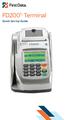 FD200 Ti Terminal quick Set-Up Guide Thanks for choosing a First Data FD200 Ti Terminal. First Data Terminals are some of the fastest, most secure point-of-sale terminals available. Installation is quick
First Data FD130 Terminal. Quick Set-up Guide
 First Data FD130 Terminal Quick Set-up Guide Thanks for choosing a First Data Terminal. First Data Terminals are some of the fastest, most secure point-of-sale terminals available. Installation is quick
ADSL Modem Installation Guide. Model # 36R515 Part # 030-300108 Rev. D Revision Date 12/2000. ADSL Modem Installation Guide
 ADSL Modem Installation Guide Model # 36R515 Part # 030-300108 Rev. D Revision Date 12/2000 ADSL Modem Installation Guide Installation Instructions Westell ADSL Modem 1. Package Inspection and Contents...2
USB Mini Print Server PS121. Installation Guide
 USB Mini Print Server PS121 Installation Guide Introduction Thank you for purchasing a NETGEAR PS121 USB Mini Print Server. With this print server you can share your printer with all the computers in your
Power Over Ethernet Adapters POE101
 Power Over Ethernet Adapters POE101 Installation Guide Introduction NETGEAR POE101 Power over Ethernet adapters are designed to supply operational power to devices through an Ethernet cable. These adapters
InnoMedia ESBC 9380-4B. Quick Install Guide. www.innomedia.com 1
 InnoMedia ESBC 9380-4B Quick Install Guide www.innomedia.com 1 Table of Contents Introduction 2 Package Contents 2 CAUTION 2 Installation 3 Wall-Mounting Instructions 5 Troubleshooting 6 Appendix A. LED
BLACK BOX. T1/E1 Link Extenders OCTOBER 2007 MT195A-T1 MT196A-E1
 BLACK BOX NETWORK SERVICES OCTOBER 2007 MT195A-T1 MT196A-E1 T1/E1 Link Extenders Important This is a Class A device and is intended for use in a light industrial environment. It is not intended nor approved
USER GUIDE. BLUETOOTH HEADSET system
 USER GUIDE Plantronics VOYAGER 510-USB BLUETOOTH HEADSET system 0 0 0 TABLE OF CONTENTS PACKAGE CONTENTS Package Contents 3 Features 4 Charging 5 Powering 6 Pairing 7 Installing PerSono Suite Software
Model 70A00-1. GSM Cellular Communications Center
 Home Automation, Inc. Model 70A00-1 GSM Cellular Communications Center Operation Manual Document Number 70I00-1 Rev A August, 2009 Contents Description... 1 Use with security systems...1 Everyday use...2
Dialog Telephone Interface Module Installation Sheet
 Dialog Telephone Interface Module Installation Sheet Description The Dialog Telephone Module (DTIM), model number 60-879- 95R, is a battery operated communication link between the security system control
QUICK INSTALLATION. 8-Port Telephony Gateway. Model: SPA8000
 QUICK INSTALLATION 8-Port Telephony Gateway Model: SPA8000 Table of Contents Connect................................................. 4 Regulatory Information....................................12 WEEE
C24-CAMANL Video Server/Encoder
 C24-CAMANL Video Server/Encoder User s Guide Table of Contents CHAPTER 1 INTRODUCTION... 1 Overview... 1 Physical Details - Video Server... 2 Package Contents... 3 CHAPTER 2 BASIC SETUP... 4 System Requirements...
4-Port Switch. 10/100/1000 Mbps Gigabit Ethernet GS104. Installation Guide
 4-Port Switch 10/100/1000 Mbps Gigabit Ethernet GS104 Installation Guide 4500 Great America Parkway Santa Clara, CA 95054 USA Phone: 1-888-NETGEAR E-mail: [email protected] www.netgear.com Technical
Installation & Operation Instructions
 Tel-A-Greeter 204 Installation & Operation Instructions Please leave these instructions with the unit at all times Tel-A-Greeter 204 Rev. 04/19/2000 Table of Contents Limited Warranty and Limitation of
TNE1500-P and TNE1500-S Single Line T1 Network Extender Provider and Subscriber
 Installation Instructions TNE1500-P and TNE1500-S Single Line T1 Network Extender Provider and Subscriber CAUTION Net to Net Techlogies strongly recommends the use of proper electrostatic discharge (ESD)
Installation Guide. Wyse VX0L and VX0LE Thin Clients 1-GB RAM Upgrade Option Kit. Issue: 022808 PN: 883884-07L Rev. A
 Installation Guide Wyse VX0L and VX0LE Thin Clients 1-GB RAM Upgrade Option Kit Issue: 022808 PN: 883884-07L Rev. A ii Copyright Notice 2008, Wyse Technology Inc. All rights reserved. This manual and the
InnoMedia ESBC 9580-4B. Quick Install Guide. www.innomedia.com 1
 InnoMedia ESBC 9580-4B Quick Install Guide www.innomedia.com 1 Table of Contents Introduction 2 Package Contents 2 CAUTION 2 Installation 3 Wall-Mounting Instructions 5 Troubleshooting 6 Appendix A. LED
FortiFone QuickStart Guide for FON-370i
 FortiFone QuickStart Guide for FON-370i FortiFone QuickStart Guide for FON-370i Revision 2 August 17, 2015 Copyright 2015 Fortinet, Inc. All rights reserved. Fortinet, FortiGate, FortiCare and FortiGuard,
5-Port Switch 10/100/1000 Mbps Gigabit Ethernet GS105
 5-Port Switch 10/100/1000 Mbps Gigabit Ethernet GS105 Installation Guide Introduction The NETGEAR 5-Port Gigabit Ethernet Switch Model GS105 provides you with a low-cost, reliable, high-performance switch
Pan Dacom. Nets work together. SPEED-DSL 2.3 Ethernet connection over 2-wires up to 2.3 Mbit/s (9900-003-001-A, 9900-002-001-A) Manual
 SPEED-DSL 2.3 Ethernet connection over 2-wires up to 2.3 Mbit/s (9900-003-001-A, 9900-002-001-A) Manual Notes Before installing and putting the device into operation, please read the security guidelines
MoCA Adapter MC1001 v2 Installation Guide
 Technical Support Thank you for selecting NETGEAR products. After installing your device, locate the serial number on the label of your product and use it to register your product at www.netgear.com/register.
User guide. Stereo Bluetooth Headset SBH80
 User guide Stereo Bluetooth Headset SBH80 Contents Introduction...3 Function overview...3 Hardware overview...3 Basics...5 Charging the battery...5 Battery status...5 Turning the headset on and off...5
HP-1000E v2. User s Manual. Powerline Ethernet Adapter. HP1000E v2 User s Manual
 HP-1000E v2 Powerline Ethernet Adapter User s Manual HP1000E v2 User s Manual Table of Contents Chapter 1: Introduction...1 Chapter 2: Planning your Powerline Network...1 Network Topology...1 Chapter 3:
PCI Express V.92 56K Internal Data/Fax Modem
 PCI Express V.92 56K Internal Data/Fax Modem PEX56KIM *actual product may vary from photos DE: Bedienungsanleitung - de.startech.com FR: Guide de l'utilisateur - fr.startech.com ES: Guía del usuario -
ReadyNet Easy Jack 2 Voice/Data and Data Only Owner s Manual PX-211d and PX-211v
 ReadyNet Easy Jack 2 Voice/Data and Data Only Owner s Manual PX-211d and PX-211v Phonex Broadband Corporation dba ReadyNet 6952 High Tech Drive Midvale, Utah 84047 801.566.0100 Phone 801.566.0880 Fax www.readynetsolutions.com
ATA User Manual. iinet ATA Telephone Adapter. Setting up for ADSL and VoIP. For model F1PG200ENau
 ATA User Manual Please insert your installation CD now and then follow the on screen instructions iinet ATA Telephone Adapter Setting up for ADSL and VoIP. For model F1PG200ENau F1PG200ENau Table of Contents
Owner s Manual. Not suitable for mobile applications. Important Safety Instructions 2. Quick Installation 3. Basic Operation 4. Storage & Service 7
 Register online today for a chance to win a FREE Tripp Lite product! www.tripplite.com/warranty Owner s Manual Internet Office & BC Personal UPS Systems Not suitable for mobile applications. Important
FortiFone QuickStart Guide for FON-670i and FON-675i
 FortiFone QuickStart Guide for FON-670i and FON-675i FortiFone QuickStart Guide for FON-670i and FON-675i Revision 2 September 25, 2015 Copyright 2015 Fortinet, Inc. All rights reserved. Fortinet, FortiGate,
2013 VTech Printed in China 91-009656-000 US
 Rechargeable Power Pack User s Manual 2013 VTech Printed in China 91-009656-000 US INTRODUCTION The Rechargeable Power Pack makes it easier than ever to keep the InnoTab 3 or InnoTab 3S charged and ready
Quick Start Guide. Cisco SPA232D Mobility Enhanced ATA
 Quick Start Guide Cisco SPA232D Mobility Enhanced ATA Package Contents Analog Telephone Adapter Ethernet Cable Phone Cable Power Adapter Quick Start Guide Product CD-ROM Welcome Thank you for choosing
LevelOne IFE-0500 4-Port PoE + 1-Port TP Industrial Fast Ethernet Switch User Manual
 LevelOne IFE-0500 4-Port PoE + 1-Port TP Industrial Fast Ethernet Switch User Manual Ver. 1.0.0-0711 1 FCC Warning This Equipment has been tested and found to comply with the limits for a Class-A digital
Chapter 1 Installing the Gateway
 Chapter 1 Installing the Gateway This chapter describes how to set up the wireless voice gateway on your Local Area Network (LAN), connect to the Internet, and perform basic configuration. For information
RC8021 Indoor Camera Installation Guide
 RC8021 Indoor Camera Installation Guide P/N: 957YL502GJ Document Version: 1.0 Copyright 2011. All Rights Reserved. All trademarks and trade names are the properties of their respective owners i Package
USB 2.0 USB 2.0 ETHERNET AUDIO JACK AND RCA VIDEO HDMI MICRO SD CARD MICRO USB POWER
 3 USB 2.0 USB 2.0 ETHERNET 4 1 MICRO SD CARD HDMI MICRO USB POWER AUDIO JACK AND RCA VIDEO 2 TO SET UP YOUR RASPBERRY PI YOU WILL NEED: ITEM MINIMUM RECOMMENDED SPECIFICATION & NOTES 1 microsd card Minimum
About the HotWire 7900 10-Slot Standalone Shelf
 TM HotWire Model 7900 10-Slot Standalone Shelf Installation Instructions Document Number 7900-A2-GN10-10 About the HotWire 7900 10-Slot Standalone Shelf The HotWire 7900 10-Slot Standalone Shelf is designed
Gateway Port Replicator User Guide
 Gateway Port Replicator User Guide Using the Port Replicator Identifying features Connecting and disconnecting the port replicator 1 Using the Port Replicator Top Power button Component Icon Description
16-port Gigabit Switch 10/100/1000 Mbps GS116. Installation Guide
 16-port Gigabit Switch 10/100/1000 Mbps GS116 Installation Guide Introduction The NETGEAR 16-port Gigabit Switch Model GS116 provides you with a low-cost, reliable, high-performance switch to connect up
Wireless Router Setup Manual
 Wireless Router Setup Manual NETGEAR, Inc. 4500 Great America Parkway Santa Clara, CA 95054 USA 208-10082-02 2006-04 2006 by NETGEAR, Inc. All rights reserved. Trademarks NETGEAR is a trademark of Netgear,
Congratulations on your HomePortal purchase. To install your HomePortal and configure your home network, follow these steps.
 Notice to Users 2003 2Wire, Inc. All rights reserved. This manual in whole or in part, may not be reproduced, translated, or reduced to any machine-readable form without prior written approval. 2WIRE PROVIDES
Installation & User Manual
 Messager USB Installation & User Manual Note: All units support MP3 playback of up to 128Kbps @ 48KHz. Units with serial numbers starting with 15 or above will support the addition of WAV playback done
NeoGate TA Series Installation Guide
 NeoGate TA Series Installation Guide Version 1.2 Date: April 1, 2015 Yeastar Information Technology Co. Ltd Contents 1. Preparation before Installation... 3 2. Hardware Specifications... 5 2.1 Overview...
UIM-2T1 T1 Loop Bonding Uplink Interface Module
 Installation Instructions UIM-2T1 T1 Loop Bonding Uplink Interface Module CAUTION Net to Net Technologies strongly recommends the use of proper electrostatic discharge (ESD) precautions when handling this
Caller-ID on your TV!
 TM Caller-ID on your TV! User s Manual and Installation Guide Copyright 1998 NetMedia Inc., All rights reserved. Rev. 061898 Thank you for your purchase of Caller-TV! You are now ready to enjoy the convenience
Technical Support. Support Information
 Technical Support Please refer to the Support Information card that shipped with your product. By registering your product at www.netgear.com/register, we can provide you with faster expert technical support
B100. single-line business telephone
 users guide B100 single-line business telephone B100 TELEPHONE DIAGRAM TABLE OF CONTENTS 1) FEATURES......2 1.1 FLASH 1.2 LAST NUMBER REDIAL 1.3 MUTE 1.4 HANDSET VOLUME CONTROL 1.5 DATA PORT 1.6 HEARING
3.5 mm Audio Jack. Manual innoxplore ix B24 A2DP Stereo Bluetooth Audio Adapter Dongle 3.5mm Audio Jack [ix B24] Contents
![3.5 mm Audio Jack. Manual innoxplore ix B24 A2DP Stereo Bluetooth Audio Adapter Dongle 3.5mm Audio Jack [ix B24] Contents](/thumbs/40/20932712.jpg "3.5 mm Audio Jack. Manual innoxplore ix B24 A2DP Stereo Bluetooth Audio Adapter Dongle 3.5mm Audio Jack [ix B24] Contents") 3.5 mm Audio Jack Manual innoxplore ix B24 A2DP Stereo Bluetooth Audio Adapter Dongle 3.5mm Audio Jack [ix B24] Contents 1 Safety Information.. 2 1.1. Electronic Devices 2 1.2 Aircraft..2 1.3 Medical Instruments..2
3.5 mm Audio Jack Manual innoxplore ix B24 A2DP Stereo Bluetooth Audio Adapter Dongle 3.5mm Audio Jack [ix B24] Contents 1 Safety Information.. 2 1.1. Electronic Devices 2 1.2 Aircraft..2 1.3 Medical Instruments..2
Chapter 1 Connecting the Router to the Internet
 Chapter 1 Connecting the Router to the Internet This chapter describes how to set up the router on your Local Area Network (LAN) and connect to the Internet. It describes how to set up your wireless ADSL
Regulatory Compliance Statement
 Regulatory Compliance Statement 0560 EU Declaration of Conformity The declaration of conformity may be consulted at www.kobo.com/userguides SAR Limits The exposure standard for wireless devices employs
Business Audio System: Music & Messaging MP3 Player. by Grace Digital Audio. User Guide. Model No. GDI-USBM10
 Business Audio System: Music & Messaging MP3 Player by Grace Digital Audio User Guide Model No. GDI-USBM10 User Guide Contents Introduction 2 Safety & General Use Information 2 Features 3 Set Up & Operation
Ethernet Radio Configuration Guide
 Ethernet Radio Configuration Guide for Gateway, Endpoint, and Repeater Radio Units April 20, 2015 Customer Service 1-866-294-5847 Baseline Inc. www.baselinesystems.com Phone 208-323-1634 FAX 208-323-1834
Conference Phone UserÕs Manual. Part No. 54-2070-01R1 Printed in Korea. 2002 Bogen Communications, Inc.
 Part No. 54-2070-01R1 Printed in Korea. 2002 Bogen Communications, Inc. UserÕs Manual Notice Every effort was made to ensure that the information in this guide was complete and accurate at the time of
Plantronics Inc 345 Encinal Street Santa Cruz, CA 95060 USA Tel: (800) 544-4660. www.plantronics.com
 Plantronics Inc 345 Encinal Street Santa Cruz, CA 95060 USA Tel: (800) 544-4660 www.plantronics.com 2005 Plantronics, Inc. All rights reserved. Plantronics, the logo design, Plantronics and the logo design
User guide. Miracast Wireless Display IM10
 User guide Miracast Wireless Display IM10 Contents Miracast Wireless Display User guide...3 Setting up the Miracast Wireless Display...4 Hardware overview...4 Turning on and connecting the Miracast Wireless
ZigBee Extender 3. Features. Supported Models and Requirements. Important Safety Instructions. What Is Included: Specifications
 ZigBee Extender 3 Features The Card Access ZigBee Extender 3 operates as a ZigBee (IEEE 802.15.4) router and mesh extender. The Extender is designed to improve ZigBee signal latency that can occur when
INSTALLATION GUIDE ConnectLine TV Adapter Getting started
 INSTALLATION GUIDE ConnectLine TV Adapter Getting started PURPOSE OF THIS GUIDE READ THIS FIRST Before your hearing instruments can receive sound from the TV, the adapter must be connected to the TV and
47611-GB4. Quick-Start Guide 10/100/1000 Mbps 4-Port Gigabit Router IMPORTANT INSTRUCTIONS SAFETY INFORMATION PRE-INSTALLATION CHECKLIST
 IMPORTANT INSTRUCTIONS 1. Read and understand all instructions. Follow all warnings and instructions marked on the product. 2. Do not use this product near water e.g., near a tub, wash basin, kitchen sink
FB-500A User s Manual
 Megapixel Day & Night Fixed Box Network Camera FB-500A User s Manual Quality Service Group Product name: Network Camera (FB-500A Series) Release Date: 2011/7 Manual Revision: V1.0 Web site: Email: www.brickcom.com
SCREENLOGIC INTERFACE WIRELESS CONNECTION KIT
 SCREENLOGIC INTERFACE WIRELESS CONNECTION KIT FOR INTELLITOUCH AND EASYTOUCH CONTROL SYSTEMS INSTALLATION GUIDE IMPORTANT SAFETY INSTRUCTIONS READ AND FOLLOW ALL INSTRUCTIONS SAVE THESE INSTRUCTIONS Technical
NeoGate TA Series Quick Installation Guide
 NeoGate TA Series Quick Installation Guide Version: V1.1 Yeastar Technology Co., Ltd. Date: November 18, 2014 http://www.yeastar.com 1/15 Contents NeoGate TA Series Quick Installation Guide 1. Preparation
Operating Guide Manuel de l utilisateur
 Operating Guide Manuel de l utilisateur Model RF-110 Modèle RF-110 English Thank you for purchasing this Ringmaster; please read this operating guide carefully before use and keep it for future reference.
Wireless Access Point AT-WA7400. Installation Guide. PN 613-000487 RevA
 Wireless Access Point AT-WA7400 Installation Guide PN 613-000487 RevA Copyright 2006 Allied Telesyn, Inc. All rights reserved. No part of this publication may be reproduced without prior written permission
Router Setup Manual. NETGEAR, Inc. 4500 Great America Parkway Santa Clara, CA 95054 USA 208-10060-01 2006-03-17
 NETGEAR, Inc. 4500 Great America Parkway Santa Clara, CA 95054 USA 208-10060-01 2006-03-17 2006 by NETGEAR, Inc. All rights reserved. Trademarks NETGEAR is a trademark of Netgear, Inc. Microsoft, Windows,
How To Use A U.S. Cell Phone At Home
 U.S. Cellular Home Phone 1 Contents Getting to Know Your Device...5 Appearance... 5 LED Indicators... 6 Device Installation...7 Before You Begin... 7 Installing the Battery... 7 Installing the Power Adapter...
CM500 High Speed Cable Modem User Manual
 User Manual February 2015 202-11472-04 350 East Plumeria Drive San Jose, CA 95134 USA Support Thank you for selecting NETGEAR products. After installing your device, locate the serial number on the label
P-660HN-51. 802.11n Wireless ADSL2+ 4-port Gateway DEFAULT LOGIN DETAILS. Firmware Version 1.10 Edition 1, 9/2010. IP Address: http://192.168.1.
 P-660HN-51 802.11n Wireless ADSL2+ 4-port Gateway Firmware Version 1.10 Edition 1, 9/2010 DEFAULT LOGIN DETAILS IP Address: http://192.168.1.1 User Name: admin Password: 1234 www.zyxel.com Copyright 2010
WF720 Wireless Home Phone User Manual
 WF720 Wireless Home Phone User Manual Content Getting to Know Your Device... 3 Appearance...3 LED Indicator...4 Device Installation... 5 Before You Begin...5 Installing the SIM Card and the Battery...5
Digital Satellite Receiver
 USER GUIDE Digital Satellite Receiver Models DSR207, DSR317, DSR505, and DSR530 CONTENTS IMPORTANT SAFETY INSTRUCTIONS...1 DSR BASICS SYMBOLS/ICONS...6 Front Panel...6 Back Panel...7 CONNECTING YOUR DSR...10
HLWLAN 802.11b/g/n Transceiver Kit
 092524 RevB HLWLAN 802.11b/g/n Transceiver Kit Wireless Communications for OmniLogic Owner s Manual Contents Introduction...1 Installation...2 Configuration...6 Operation...8 Troubleshooting...9 HLWLAN
Mini Speaker. Printed in China Part No. 480-919-P Version D. CWA BT300 Product Information Guide
 Mini Speaker Printed in China Part No. 480-919-P Version D CWA BT300 Product Information Guide IMPORTANT To get the full capability of your new Cobra Airwave Mini, please read this manual. It's more than
1. Installation Requirements
 1. Installation Requirements 1.1. Package Contents Analog Telephone Adapter (CRA-210) Standard Telephone Cable (RJ11) Ethernet Cable (RJ45) Power Adapter 1.2. You will also need the following: 1.2.1. A
Universal Host. Desktop Digital Hybrid. User Guide. JK Audio
 Universal Host Desktop Digital Hybrid User Guide JK Audio Introduction Universal Host will allow you to send and receive audio through your multi-line PBX, ISDN, VoIP or analog telephone. While this may
innkeeper PBX Desktop Digital Hybrid User Guide JK Audio
 innkeeper PBX Desktop Digital Hybrid User Guide JK Audio Introduction Innkeeper PBX will allow you to send and receive audio through your multi-line PBX, ISDN or analog telephone. While this may seem like
innkeeper PBX Desktop Digital Hybrid User Guide JK Audio Warranty
 Warranty Innkeeper PBX is covered by a 2-year warranty to be free from defective workmanship and materials. In the event that the innkeeper PBX needs repair, you must call us to get an authorization, and
Energy Smart Electric Water Heater Controller
 Installation, Operation and Troubleshooting Instructions Energy Smart Electric Water Heater Controller Table of Contents Installation and Setup, 2 Operation, 5 Troubleshooting, 7 Regulatory Notices, 11
CS55H HOME EDITION... WIRELESS HEADSET SYSTEM
 CS55_HO_606.qxd /6/06 : PM Page ii WARRANTY Limited Warranty This warranty covers defects in materials and workmanship of products manufactured, sold or certified by Plantronics which were purchased and
mysensors mysensors Wireless Sensors and Ethernet Gateway Quick Start Guide Information to Users Inside the Box mysensors Ethernet Gateway Quick Start
 mysensors Information to Users mysensors Wireless Sensors and Ethernet Gateway Quick Start Guide This equipment has been tested and found to comply with the limits for a Class B digital devices, pursuant
Bank. Wireless Portable Hard Drive. User s Manual
 Bank Wireless Portable Hard Drive User s Manual REGULATORY AND SAFETY INFORMATION FCC Compliance and Advisory Statement This device complies with Part 15 of the FCC rules. Operation is subject to the following
INSTALLATION INSTRUCTIONS
 INSTALLATION INSTRUCTIONS DPC100 Doorbell / Paging Controller DESCRIPTION The DPC100 is a Doorbell / Paging Controller that can be combined with a MRC88CTL to provide whole-house paging and doorbell capability.
FCC COMPLIANCE STATEMENT
 MEDIA CONVERTER Fiber to UTP Ethernet Media Converter ET90110SC ET90110ST Instruction Guide * Actual product may vary from photo Revised: December 6, 2002 The Professionals Source For Hard-to-Find Computer
RC930 Manual 6/10/99 1:23 PM Page 1. Wireless Modem Jack
 RC930 Manual 6/10/99 1:23 PM Page 1 Wireless Modem Jack Table of Contents Safety Precautions...1 Important Notes...4 Getting Started...5 System Installation...5 Connecting to Computer...6 Trouble Shooting...7
AXIS T81B22 DC 30W Midspan
 INSTALLATION GUIDE AXIS T81B22 DC 30W Midspan ENGLISH About this Document This document includes instructions for installing AXIS T81B22 on your network. Previous experience of networking will be beneficial
Gigabit Ethernet Switch 10/100/1000 Mbps GS605 / GS608. Installation Guide
 Gigabit Ethernet Switch 10/100/1000 Mbps GS605 / GS608 Installation Guide Introduction The NETGEAR 5/8-Port Gigabit Ethernet Switch Model GS605 / GS608 provides you with a high-speed, reliable, easy-to-use
466-1936 Rev E October 2004 ZZZ*(6HFXULW\FRP. Part No: 60-883-95R. CareGard. User Guide
 ) *(6HFXULW\ 466-1936 Rev E October 2004 ZZZ*(6HFXULW\FRP Part No: 60-883-95R CareGard User Guide FCC Notices FCC Part 15 Information to the User Changes or modifications not expressly approved by GE Security
CM400 High Speed Cable Modem User Manual
 User Manual July 2015 202-11412-02 350 East Plumeria Drive San Jose, CA 95134 USA Support Thank you for selecting NETGEAR products. After installing your device, locate the serial number on the label of
MultiVOIP FX FXS-Only SIP Gateways
 MultiVOIP FX FXS-Only SIP Gateways MVPFXS-8 MVPFXS-16 MVPFXS-24 Cabling Guide MultiVOIP MVPFXS-8/16/24 Cabling Guide Cabling Guide MultiVOIP FX SIP FXS-Only Gateways Models MVPFXS-8, MVPFXS-16, MVPFXS-24
RouteFinder SOHO. Quick Start Guide. SOHO Security Appliance. EDGE Models RF825-E, RF825-E-AP CDMA Models RF825-C-Nx, RF825-C-Nx-AP
 RouteFinder SOHO SOHO Security Appliance EDGE Models RF825-E, RF825-E-AP CDMA Models RF825-C-Nx, RF825-C-Nx-AP Quick Start Guide RouteFinder RF825 Series Quick Start Guide RouteFinder SOHO Security Appliance
User Manual 821121-ATA-PAK
 User Manual 821121-ATA-PAK IMPORTANT SAFETY INSTRUCTIONS When using your telephone equipment, basic safety precautions should always be followed to reduce the risk of fire, electric shock and injury to
Secure Ethernet Gateway SEG-1 and SEG-M for IEI Access Systems Installation Manual
 Secure Ethernet Gateway SEG-1 and SEG-M for IEI Access Systems Installation Manual Section 1: Introduction SECURITY WARNING: New SEG's shipped after April 2008 will have Telnet setup option enabled by
Jarv Joggerz BT-301 Bluetooth Stereo Headphones Users Guide
 Jarv Joggerz BT-301 Bluetooth Stereo Headphones Users Guide Features: Bluetooth Wireless technology Compact design fits in the palm of your hand and weighs less than 2 oz. Comfortable Behind the Neck design
ES-3305P V2 / ES-3308P V2. Quick Installation Guide. 09-2013 / v1.0
 ES-3305P V2 / ES-3308P V2 Quick Installation Guide 09-2013 / v1.0 1 COPYRIGHT Copyright Edimax Technology Co., Ltd. all rights reserved. No part of this publication may be reproduced, transmitted, transcribed,
WLAN600 Wireless IP Phone Administrator s Guide
 WLAN600 Wireless IP Phone Administrator s Guide Trademark Acknowledgement All brand names are trademarks or registered trademarks of their respective companies. Disclaimer This document is supplied by
VS-0202 VS-0204. User Manual
 User Manual VS-0202 VS-0204 Read this guide thoroughly and follow the installation and operation procedures carefully in order to prevent any damage to the units and/or any devices that connect to them.
BOSE. Link AL8 HOMEWIDE WIRELESS AUDIO LINK
 BOSE Link AL8 HOMEWIDE WIRELESS AUDIO LINK Français English SAFETY INFORMATION Please read this owner s guide Please take the time to follow the instructions in this owner s guide carefully. It will help
ScreenLogic Wireless Connection Kit. Installation Guide. pool/spa control system
 pool/spa control system ScreenLogic Wireless Connection Kit Installation Guide P/N 520663 - Rev B 8 Technical Support Contact Technical Support at: Sanford, North Carolina (8 A.M. to 5 P.M.) Phone: (800)
WPR400 Wireless Portable Reader
 P516-098 WPR400 Wireless Portable Reader User guide Para el idioma español, navegue hacia www.schlage.com/support. Pour la portion française, veuillez consulter le site www.schlage.com/support. Contents
110244-003. PrintPAD CN3/4/3e/4e. User Guide
 110244-003 PrintPAD CN3/4/3e/4e User Guide TABLE OF CONTENTS PrintPAD CN3/4 & PrintPAD CN3e/4e Printer Views...1 Open View...1 Closed View...1 Using Batteries: General Guidelines...1 Installing and/or