
User Manual for the NETGEAR 54 Mbps Wireless PC Card WG511v2
|
|
|
- Griselda Kelly
- 9 years ago
- Views:
Transcription
1 User Manual for the NETGEAR 54 Mbps Wireless PC Card WG511v2 NETGEAR, Inc Great America Parkway Santa Clara, CA USA v2.2 December

2 Technical Support Please refer to the support information card that shipped with your product. By registering your product at we can provide you with faster expert technical support and timely notices of product and software upgrades. NETGEAR, INC. Support Information Phone: NETGEAR, for US & Canada only. For other countries, see your Support information card. Web site: Statement of Conditions In the interest of improving internal design, operational function, and/or reliability, NETGEAR reserves the right to make changes to the products described in this document without notice. NETGEAR does not assume any liability that may occur due to the use or application of the product(s) or circuit layout(s) described herein NETGEAR, Inc. NETGEAR, the NETGEAR logo, The Gear Guy and Everybody's Connecting are trademarks or registered trademarks of NETGEAR, Inc. in the United States and/or other countries. Microsoft and Windows are registered trademarks of Microsoft Corporation in the United States and/or other countries. Other brand and product names are trademarks or registered trademarks of their respective holders. Information is subject to change without notice. All rights reserved. Maximum Wireless Signal Rate Derived from IEEE Standard Specifications Actual data throughput will vary. Network conditions and environmental factors, including volume of network traffic, building materials and construction, and network overhead, lower actual data throughput rate. Safety and Regulatory Notices FCC Statement The WG511v2 has been tested and complies with the specifications for a Class B digital device, pursuant to Part 15 of the FCC Rules. Operation is subject to the following two conditions: (1) This device may not cause harmful interference, and (2) This device must accept any interference received, including interference that may cause undesired operation. These limits are designed to provide reasonable protection against harmful interference in a residential installation. This equipment generates, uses, and can radiate radio frequency energy and, if not installed and used according to the instructions, may cause harmful interference to radio communications. However, there is no guarantee that interference will not occur in a particular installation. If this equipment does cause harmful interference to radio or television reception, which is found by turning the equipment off and on, the user is encouraged to try to correct the interference by one or more of the following measures: Reorient or relocate the receiving antenna ii

3 Increase the separation between the equipment or devices Connect the equipment to an outlet other than the receiver s Consult a dealer or an experienced radio/tv technician for assistance FCC Caution: Any change or modification to the product not expressly approved by Netgear could void the user s authority to operate the device. FCC RF Radiation Exposure Statement To comply with the FCC and ANSI C95.1 RF exposure limits, the antenna(s) for this device must comply with the following: Products with 2.4 GHz or 5 GHz integrated antenna must operate with a separation distance of at least 20 cm from all persons using the cable provided and must not be co-located or operating in conjunction with any other antenna or transmitter. End-users must be provided with specific operations for satisfying RF exposure compliance. Note: Dual antennas used for diversity operation are not considered co-located. Canadian Department of Communications Industry Canada (IC) Notice This Class B digital apparatus complies with Canadian ICES-003 and RSS-210. Cet appareil numérique de la classe B est conforme à la norme NMB-003 et CNR-210 du Canada. To prevent radio interference to the licensed service, this device is intended to be operated indoors and away from windows to provide maximum shielding. Equipment (or its transmit antenna) that is installed outdoors is subject to licensing. Pour empêcher que cet appareil cause du brouillage au service faisant l objet d une licence, il doit être utilisé à l intérieur et devrait être placé loin des fenêtres afin de fournir un écran de blindage maximal. Si le matériel (ou son antenne d émission) est installé à l extérieur, il doit faire l objet d une licence. Europe - EU Declaration of Conformity A printed copy of the EU Declaration of Conformity certificate for this product is provided in the WG511v2 product package. Èesky [Czech] Dansk [Danish] Deutsch [German] Eesti [Estonian] English NETGEAR, Inc. tímto prohlašuje, že tento NETGEAR 54 Mbps Wireless PC Card WG511v2 je ve shodì se základními požadavky a dalšími pøíslušnými ustanoveními smìrnice 1999/5/ES. Undertegnede NETGEAR, Inc. erklærer herved, at følgende udstyr NETGEAR 54 Mbps Wireless PC Card WG511v2 overholder de væsentlige krav og øvrige relevante krav i direktiv 1999/5/EF. Hiermit erklärt NETGEAR, Inc., dass sich das Gerät NETGEAR 54 Mbps Wireless PC Card WG511v2 in Übereinstimmung mit den grundlegenden Anforderungen und den übrigen einschlägigen Bestimmungen der Richtlinie 1999/5/EG befindet. Käesolevaga kinnitab NETGEAR, Inc. seadme NETGEAR 54 Mbps Wireless PC Card WG511v2 vastavust direktiivi 1999/5/EÜ põhinõuetele ja nimetatud direktiivist tulenevatele teistele asjakohastele sätetele. Hereby, NETGEAR, Inc., declares that this NETGEAR 54 Mbps Wireless PC Card WG511v2 is in compliance with the essential requirements and other relevant provisions of Directive 1999/5/EC. iii

4 Español [Spanish] Ελληνική [Greek] Français [French] Italiano [Italian] Latviski [Latvian] Lietuviø [Lithuanian] Nederlands [Dutch] Malti [Maltese] Magyar [Hungarian] Polski [Polish] Português [Portuguese] Slovensko [Slovenian] Slovensky [Slovak] Suomi [Finnish] Svenska [Swedish] Por medio de la presente NETGEAR, Inc. declara que el NETGEAR 54 Mbps Wireless PC Card WG511v2 cumple con los requisitos esenciales y cualesquiera otras disposiciones aplicables o exigibles de la Directiva 1999/5/CE. ΜΕ ΤΗΝ ΠΑΡΟΥΣΑ NETGEAR, Inc. ΗΛΩΝΕΙ ΟΤΙ NETGEAR 54 Mbps Wireless PC Card WG511v2 ΣΥΜΜΟΡΦΩΝΕΤΑΙ ΠΡΟΣ ΤΙΣ ΟΥΣΙΩ ΕΙΣ ΑΠΑΙΤΗΣΕΙΣ ΚΑΙ ΤΙΣ ΛΟΙΠΕΣ ΣΧΕΤΙΚΕΣ ΙΑΤΑΞΕΙΣ ΤΗΣ Ο ΗΓΙΑΣ 1999/5/ΕΚ. Par la présente NETGEAR, Inc. déclare que l'appareil NETGEAR 54 Mbps Wireless PC Card WG511v2 est conforme aux exigences essentielles et aux autres dispositions pertinentes de la directive 1999/5/CE. Con la presente NETGEAR, Inc. dichiara che questo NETGEAR 54 Mbps Wireless PC Card WG511v2 è conforme ai requisiti essenziali ed alle altre disposizioni pertinenti stabilite dalla direttiva 1999/5/CE. Ar šo NETGEAR, Inc. deklarç, ka NETGEAR 54 Mbps Wireless PC Card WG511v2 atbilst Direktîvas 1999/5/EK bûtiskajâm prasîbâm un citiem ar to saistîtajiem noteikumiem. Šiuo NETGEAR, Inc. deklaruoja, kad šis NETGEAR 54 Mbps Wireless PC Card WG511v2 atitinka esminius reikalavimus ir kitas 1999/5/EB Direktyvos nuostatas. Hierbij verklaart NETGEAR, Inc. dat het toestel NETGEAR 54 Mbps Wireless PC Card WG511v2 in overeenstemming is met de essentiële eisen en de andere relevante bepalingen van richtlijn 1999/5/EG. Hawnhekk, NETGEAR, Inc., jiddikjara li dan NETGEAR 54 Mbps Wireless PC Card WG511v2 jikkonforma mal-tiijiet essenzjali u ma provvedimenti orajn relevanti li hemm fid- Dirrettiva 1999/5/EC. Alulírott, NETGEAR, Inc. nyilatkozom, hogy a NETGEAR 54 Mbps Wireless PC Card WG511v2 megfelel a vonatkozó alapvetõ követelményeknek és az 1999/5/EC irányelv egyéb elõírásainak. Niniejszym NETGEAR, Inc. oœwiadcza, e NETGEAR 54 Mbps Wireless PC Card WG511v2 jest zgodny z zasadniczymi wymogami oraz pozosta³ymi stosownymi postanowieniami Dyrektywy 1999/5/EC. NETGEAR, Inc. declara que este NETGEAR 54 Mbps Wireless PC Card WG511v2 está conforme com os requisitos essenciais e outras disposições da Directiva 1999/5/CE. NETGEAR, Inc. izjavlja, da je ta NETGEAR 54 Mbps Wireless PC Card WG511v2 v skladu z bistvenimi zahtevami in ostalimi relevantnimi doloèili direktive 1999/5/ES. NETGEAR, Inc. týmto vyhlasuje, že NETGEAR 54 Mbps Wireless PC Card WG511v2 spåòa základné požiadavky a všetky príslušné ustanovenia Smernice 1999/5/ES. NETGEAR, Inc. vakuuttaa täten että NETGEAR 54 Mbps Wireless PC Card WG511v2 tyyppinen laite on direktiivin 1999/5/EY oleellisten vaatimusten ja sitä koskevien direktiivin muiden ehtojen mukainen. Härmed intygar NETGEAR, Inc. att denna [utrustningstyp] står I överensstämmelse med de väsentliga egenskapskrav och övriga relevanta bestämmelser som framgår av direktiv 1999/5/EG. iv v

5 Product and Publication Details Model Number: WG511v2 Publication Date: December 2005 Product Family: Product Family Product Name: NETGEAR 54 Mbps Wireless PC Card WG511v2 Home or Business Product: Home Language: English Publication Part Number: v

6 vi v

7 Contents Chapter 1 About This Manual Audience, Scope, Conventions Chapter 2 Introduction About the NETGEAR 54 Mbps Wireless PC Card WG511v Key Features and Compatible Products What s in the Box? A Road Map for How to Get There From Here Chapter 3 Basic Setup What You Need Before You Begin Verify System Requirements Observe Wireless Location and Range Guidelines Infrastructure and Ad Hoc Modes WG511v2 Default Wireless Settings Basic Installation Instructions For Windows XP Users Installing a WG511v For Windows 2000 & 98SE/Me Users Installing a WG511v Connecting to Wireless Networks and the Internet The Smart Wizard Status Bar The WG511v2 Icon Colors WG511v2 LEDs Removing the WG511v2 Software Upgrading the WG511v2 Software Chapter 4 Network Connections and Wireless Security Understanding the WG511v2 Smart Wizard Finding a Network vii

8 Profiles Adding Profiles Setting up a Profile to Connect to an Access Point or Router Setting up a Computer-to-Computer (Ad Hoc) Profile Starting a Computer-to-Computer (Ad Hoc) Network Connection Wireless Security Using Wireless Security Features Wireless Network Name (SSID) and Security Settings Setting up WEP Encryption Security Setting up WPA2-PSK Security Setting up WPA-PSK Security Advanced Settings Networks Page Statistics Page About Page Chapter 5 Troubleshooting Troubleshooting Tips Frequently Asked Questions XP Professional and XP Home occasional connection problems Appendix A Technical Specifications Appendix B Related Documents viii

9 Chapter 1 About This Manual Audience, Scope, Conventions This manual assumes that the reader has basic to intermediate computer and Internet skills. However, tutorial information is provided in the Appendices, on the NETGEAR 54 Mbps Wireless PC Card WG511v2 Resource CD, and on the NETGEAR Web site. This manual uses the following typographical conventions: Table 1-1. Typographical conventions italics bold Emphasis. User input. This manual uses the following formats to highlight special messages: Note: This format is used to highlight information of importance or special interest. This manual is written according to these specifications: Table 1-2. Manual Specifications Product Version NETGEAR 54 Mbps Wireless PC Card WG511v2 Manual Part Number Tech Pubs Part # Manual Publication Date December 2005 Note: Product updates are available on the NETGEAR Web site at About This Manual 1-1

10 1-2 About This Manual

11 Chapter 2 Introduction This chapter introduces the features, package contents, and appearance of the NETGEAR 54 Mbps Wireless PC Card WG511v2. About the NETGEAR 54 Mbps Wireless PC Card WG511v2 The NETGEAR 54 Mbps Wireless PC Card WG511v2 gives you ultimate mobility in your office or while you are traveling. It frees you from traditional Ethernet wiring and helps you create a wireless network for sharing your broadband cable or DSL Internet access among multiple PCs in and around your home. It is designed for notebook computers running Microsoft Windows. It is both 16-bit PCMCIA and 32-bit CardBus compatible and works in any available PCMCIA or CardBus slot. Its auto-sensing capability allows high packet transfer at up to 54 Mbps for maximum throughput or dynamic range shifting to lower speeds due to distance or operating limitations in an environment with a lot of electromagnetic interference. The WG511v2 Wireless PC Card provides reliable, standards-based b 11 Mbps WLAN connectivity that is protected with industry-standard security. In addition, it offers the faster speeds of the g standard. It works with Windows 98SE, Me, 2000, and XP operating systems. Key Features and Compatible Products The WG511v2 Wireless PC Card provides the following features: Reliable IEEE g and b standards-based wireless technology. Supports roaming between access points when configured in Infrastructure mode. 54 Mbps high speed data transfer. Wireless nodes negotiate to operate in the optimal data transfer rate. In a noisy environment or when the distance between the wireless nodes is far, the wireless nodes automatically fall back to operate at lower transfer rates. Introduction Chapter 2-1

12 High level of data encryption using128-bit Shared Key WEP data encryption method. A lower level of data encryption or no data encryption is available to simplify your network setup or to improve data transfer rate. WPA-PSK (Wi-Fi Protected Access Pre-Shared Key) support. Products that support the IEEE g and IEEE b wireless standards are compatible with the WG511v2 Wireless PC Card. What s in the Box? The product package should contain the following items: NETGEAR 54 Mbps Wireless PC Card WG511v2 Installation Guide for the NETGEAR 54 Mbps Wireless PC Card WG511v2NETGEAR 54 Mbps Wireless PC Card WG511v2 Resource CD, including: Driver and Smart Wizard Software User Manual for the NETGEAR 54 Mbps Wireless PC Card WG511v2 Warranty card Support information card If any of the parts are incorrect, missing, or damaged, contact your NETGEAR dealer. Keep the carton, including the original packing materials, in case you need to return the product for repair. The NETGEAR 54 Mbps Wireless PC Card WG511v2 has two interfaces: The PCMCIA Type II connector connects to any notebook PC with an available PCMCIA or CardBus slot. The wireless interface of the NETGEAR 54 Mbps Wireless PC Card WG511v2 remains outside of the notebook PC chassis when the wireless PC card is inserted into a notebook. The LED indicates the wireless link condition and signal quality of the NETGEAR 54 Mbps Wireless PC Card WG511v2 with another wireless node or the associated access point. Chapter 2-2 Introduction

13 A Road Map for How to Get There From Here The introduction and adoption of any new technology can be a difficult process. Wireless technology has removed one of the barriers to networking running wires. It allows more people to try networking while at the same time exposes them to the inherent complexity of networking. General networking concepts, setup, and maintenance can be difficult to understand. In addition, wireless technology adds issues, such as range, interference, signal quality, and security to the picture. To help overcome potential barriers to successfully using wireless networks, the table below identifies how to accomplish such things as connecting to a wireless network, assuring appropriate security measures are taken, browsing the Internet through your wireless connection, exchanging files with other computers and using printers in the combined wireless and wired network. Table 2-1. A Road Map for How to Get There From Here... If I Want To...? What Do I Do? What s Needed? How Do I? Connect to a wireless network Protect my wireless connection from snooping, hacking, or information theft. 1. Get the wireless network name (SSID) and, if used, the wireless security settings. 2. Set up the WG511v2 with the settings from step Enable wireless security for the wireless network. 2. Set up wireless security for your WG511v2 to match the network. 3. Use Windows security features. 1. A wireless network 2. A computer within the operating range of the wireless network. 1. A wireless network with authentication and WEP, WPA, WPA-PSK, or WPA2-PSK encryption enabled. 2. Wireless networking equipment such as the WG511v2 that supports these security features. To set up the WG511v2, see Chapter 3, Basic Setup and follow the instructions. For wireless network range, see Observe Wireless Location and Range Guidelines on page 3-2. To learn about wireless networking technology, see the Web link to Wireless Communications: on page B-1. To use wireless security features, see Using Wireless Security Features on page 4-9 and set up your WG511v2 accordingly. Introduction Chapter 2-3

14 Table 2-1. A Road Map for How to Get There From Here... If I Want To...? What Do I Do? What s Needed? How Do I? Note: Secure Internet sites such as banks and online merchants use encryption security built into browsers like Internet Explorer and Netscape. Any wireless networking security features you implement are in addition to those already in place on secure Internet sites. Connect to the Internet over my wireless network. Exchange files between a wirelessly connected computer and other computers in a my combined wireless and wired network. 1. Activate my wireless link and verify my network connection. 2. Open an Internet browser such as Internet Explorer or Netscape Navigator. 1. Use the Windows Network Neighborhood feature to browse for computers in the combined wireless and wired network. 2. Browse the hard drive of the target computer in the network in order to locate the directory or files you want to work with. 3. Use the Windows Explorer copy and paste functions to exchange files between the computers. 1. An Internet service such as cable modem or DSL. 2. A network with a wireless router or access point connected to the cable/dsl modem. 3. TCP/IP Internet networking software installed and configured on your PC based on the requirements of the Internet service provider 4. An Internet browser. 1. The computer that you are using to connect to the wireless network needs to be configured with: Windows Client and File and Print Sharing The same Windows Workgroup or Domain settings as the other Windows computers in the combined wireless and wired network. 2. Any Windows networking security access rights such as login user name/ password that have been assigned in the Windows network or to files must be provided when Windows prompts for such information. 3. If so-called Windows peer Workgroup networking is being used, the drive, file system directory, or file need to be enabled for sharing. To use your WG511v2 in Infrastructure Mode, see Basic Setup on page 3-1, and locate the section for your version of Windows. To set up a Profile, see. Profiles on page 4-3. For TCP/IP See the Web link to Internet Networking and TCP/IP Addressing: on page B-1. For help with Windows networking software, see the Learn More About TCP/IP Internet reference at the end of this table. Windows Domain settings are usually managed by corporate computer support groups. Windows Workgroup settings are commonly managed by individuals who want to set up small networks in their homes, or small offices. For TCP/IP See the Web link to Internet Networking and TCP/IP Addressing: on page B-1. For assistance with setting up Windows networking, refer to the PC Networking Tutorial on the NETGEAR 54 Mbps Wireless PC Card WG511v2 Resource CD and the Help information provided in the Windows system you are using. Chapter 2-4 Introduction

15 Table 2-1. A Road Map for How to Get There From Here... If I Want To...? What Do I Do? What s Needed? How Do I? Use printers in a combined wireless and wired network. 1. Use the Windows Printers and Fax features to locate available printers in the combined wireless and wired network. 2. Use the Windows Add a Printer wizard to add access to a network printer from the PC you are using to wirelessly connect to the network. 3. From the File menu of an application such as Microsoft Word, use the Print Setup feature to direct your print output to the printer in the network. 1. The computer that you are using to connect to the wireless network needs to be configured with: Windows Client and File and Print Sharing The same Windows Workgroup or Domain settings as the other Windows computers in the combined wireless and wired network. 2. Any Windows networking security access rights such as login user name/ password that have been assigned in the Windows network must be provided when Windows prompts for such information. 3. If so-called Windows peer networking is being used, the printer needs to be enabled for sharing. Windows Domain settings are usually managed by corporate computer support groups. Windows Workgroup settings are commonly managed by individuals who want to set up small networks in their homes, or small offices. For assistance with setting up Windows networking, refer to the PC Networking Tutorial on the NETGEAR 54 Mbps Wireless PC Card WG511v2 Resource CD and the Help information provided in the Windows system you are using. For help with setting up printers in Windows, refer to the Help and Support information that comes with the version of the Windows operating systems you are using. Introduction Chapter 2-5

16 Chapter 2-6 Introduction

17 Chapter 3 Basic Setup This chapter describes how to install your NETGEAR 54 Mbps Wireless PC Card WG511v2 and set up basic wireless connectivity on your Wireless Local Area Network (WLAN). Advanced wireless network set up is covered in Chapter 4, Network Connections and Wireless Security in this manual. Note: Indoors, computers can easily connect to wireless networks at distances of several hundred feet. Because walls do not always block wireless signals, others outside your immediate area could access your network. It is important to take appropriate steps to secure your network from unauthorized access. The NETGEAR 54 Mbps Wireless PC Card WG511v2 provides highly effective security features which are covered in Using Wireless Security Features on page 4-9 in this manual. Deploy the security features appropriate to your needs. What You Need Before You Begin You need to verify that your computer meets the minimum system requirements and identify the wireless network settings of the WLAN where you will connect before you can set up your wireless PC card and connect. Verify System Requirements Before installing the NETGEAR 54 Mbps Wireless PC Card WG511v2, please make sure that these minimum requirements have been met: You must have a Pentium Class notebook computer with an available CardBus slot. A CD drive. 5 MB of free hard disk space. Windows XP Home, Windows XP Professional, 2000, Me, or 98SE. Some versions of Windows may ask for the original Windows operating system installation files to complete the installation of the WG511v2 driver software. 3-1

18 Observe Wireless Location and Range Guidelines Computers can connect over wireless networks indoors at a range which vary significantly based on the physical location of the computer with the NETGEAR 54 Mbps Wireless PC Card WG511v2. For best results, avoid potential sources of interference, such as: Large metal surfaces Microwaves 2.4 GHz Cordless phones In general, wireless devices can communicate through walls. However, if the walls are constructed with concrete, or have metal, or metal mesh, the effective range will decrease if such materials are between the devices. Infrastructure and Ad Hoc Modes The WG511v2 Wireless PC Card, like all b/g adapters, can operate in the following two modes: Access Point (Infrastructure): An networking framework in which devices and computers communicate with each other by first going through an access point (AP). For example, this mode is used when computers in a house connect to an AP that is attached to a router which lets multiple computers share a single Cable or DSL broadband Internet connection. Computer-to-Computer (Ad Hoc): An networking framework in which devices or computers communicate directly with each other, without the use of an access point. For example, Ad Hoc mode is used when two Windows computers are configured with file and print sharing enabled and you want to exchange files directly between them. The instructions in this chapter are for an Access Point (Infrastructure) installation. Wireless security, advanced settings, and Computer-to-Computer (Ad Hoc) instructions are covered in Chapter 4, Network Connections and Wireless Security of this manual. WG511v2 Default Wireless Settings If this is a new wireless network installation, use the factory default settings to set up the network and verify wireless connectivity. If this is an addition to an existing wireless network, you will need to identify the wireless network and wireless security settings that are already defined. 3-2 Basic Setup

19 Your NETGEAR 54 Mbps Wireless PC Card WG511v2 factory default basic settings are: Network Name Service Set Identification (SSID): Any (First available network) Note: In order for the WG511v2 Wireless PC Card to communicate with a wireless access point or wireless adapter, all devices must be set up to use the same wireless network name (SSID). Network Mode (Infrastructure or Ad-hoc): Infrastructure Data security WEP or WPA-PSK encryption: Disabled The section below provides instructions for setting up the NETGEAR 54 Mbps Wireless PC Card WG511v2 for basic wireless connectivity to an access point. The procedures below provide stepby-step installation instructions for Windows PCs. Use the procedure that corresponds to the version of Windows that you are using. Basic Installation Instructions Use the procedure below that corresponds to the version of Windows you are using. For Windows XP Users Installing a WG511v2 1. First, install the WG511v2 software. a. Insert the NETGEAR CD. If the CD main page does not appear, double click autorun.exe on the CD. b. Click the Install Software link and the Smart Wizard starts. c. Follow the Wizard steps, and click Next to continue. d. When the Installation Complete message appears, click Next. Figure 3-1 Basic Setup 3-3

20 2. Now, insert the wireless PC card. a. When prompted, insert your wireless PC card. You will be prompted to select the country where you are located. b. Select the country and click Agree. 3. Use the Smart Wizard to set up your wireless PC card. a. Choose to set up your wireless adapter either with the NETGEAR Smart Wizard (recommended) or the Windows configuration utility If you choose the Windows Zero Configuration option, then you must read the Windows XP documentation for instructions. Figure 3-2 Figure Basic Setup

21 b. Click Next to accept the NETGEAR Smart Wizard. You will be prompted to let the wizard help you connect to a network (recommended). c. Click Next to accept. Figure 3-4 d. Select the wireless network from the drop-down list, and the wizard records your choice. Hidden networks do not broadcast the Network Name (SSID). These networks are included in the drop-down list, but the Network Name (SSID) is blank. If the network uses security, then the Smart Wizard detects it. Hidden Figure 3-5 e. Follow the Wizard steps for Security (if used) and for saving a Profile. f. After you have reviewed the settings, click Finish. The WG511v2 icon appears in the system tray and on the desktop. The wizard initiates your wireless connection. It could take up to a minute for your wireless connection to be established. Basic Setup 3-5
22 The Smart Wizard Settings page opens. Figure Use the status bar to verify your wireless connectivity. For more details about connecting, see Connecting to Wireless Networks and the Internet on page 3-9. For Windows 2000 & 98SE/Me Users Installing a WG511v2 1. First, install the WG511v2 software. a. Insert the NETGEAR CD. If the CD main page does not appear, double click autorun.exe on the CD. b. Click the Install Software link and the Smart Wizard starts. c. Follow the Wizard steps, and click Next to continue. d. When the Installation Complete message appears, click Next. Figure Basic Setup
23 2. Now, insert the wireless PC card. a. When prompted, insert your wireless PC card. You will be prompted to select the country where you are located. b. Select the country and click Agree. c. You will be prompted to let the wizard help you connect to a network (recommended). d. Click Next to accept. Figure 3-8 Basic Setup 3-7
24 e. Select the wireless network from the drop-down list, and the wizard records your choice. Hidden networks do not broadcast the Network Name (SSID). These networks are included in the drop-down list, but the Network Name (SSID) is blank. If the network uses security, then the Smart Wizard detects it. Hidden Figure 3-9 f. Follow the Wizard steps for Security (if used) and for saving a Profile. g. After you have reviewed the settings, click Finish. The WG511v2 icon appears in the system tray and on the desktop. The wizard initiates your wireless connection. It could take up to a minute for your wireless connection to be established. The Smart Wizard Settings page opens. Figure Use the status bar to verify your wireless connectivity. For more information about connecting, see Connecting to Wireless Networks and the Internet on page Basic Setup
25 Connecting to Wireless Networks and the Internet The WG511v2 has indicators in three locations that show the status of your connection to a wireless network and to the Internet: WG511v2 Icon: After you install the WG511v2 software, the icon appears on the desktop and in the lower right of the Windows task bar. It is color coded to show the status of the connection. See The Smart Wizard Status Bar on page 3-9. Smart Wizard Status Bar: Clicking on the system tray icon opens the Smart Wizard. The status bar at the bottom of the page shows details about your wireless and Internet connection. WG511v2 Wireless PC Card LEDs: The two LEDs on the wireless card show the speed of the network connection. The Smart Wizard Status Bar Click the swg511v2 icon to open the Smart Wizard so you can view the status bar. The Smart Wizard Settings page opens. signal strength connection status Figure 3-11 Router/Internet connection indicator Unlocked: Network does not use security Locked: Network uses security Connection Status: The color shows the connection status. Signal Strength: Shows the signal strength of the wireless network. If the signal is poor, then try moving closer to the wireless access point. Lock icon: Shows if security is used on the network. Basic Setup 3-9
26 Router/Internet Connection Indicator: This shows the progress of your connection. By default, this feature is on.: Figure 3-12 This connection indicator is useful in isolating a problem. For example, if you are connected to a router, but not to the Internet, then check the router s Internet connection. Connection Indicator Connected to Internet or IP Address Connected to Router... or x.x Description Wireless Internet connection OK. Wireless connection to router OK but no Internet connection at router. Wireless connection to a router OK but problem with the router. See Chapter 5, Troubleshooting. If you right-click in the system tray icon, you can disable the Internet notification feature by clearing check mark on this line. If you do so, then only the IP address is shown. Figure Basic Setup
27 The WG511v2 Icon Colors The WG511v2 icon is on the desktop and in the Windows System Tray (SysTray). The System Tray resides on one end of the taskbar in the Microsoft Windows desktop. Color Condition Description Red Yellow Green The wireless PC Card has no connection to any other wireless node. The wireless PC Card has a connection with another wireless node. The wireless PC Card has a connection with another wireless node. The wireless PC Card is not able to link to any other wireless node or the link is lost. Check your configuration or try moving to a location where the wireless signal quality is better. The wireless link is weak. You may deed to move to a better spot, such as closer to the wireless access point. Also, look for possible interference such as a 2.4 GHz cordless phone or large metal surface. The wireless PC Card has established good communication with an access point and the signal quality is strong. WG511v2 LEDs The two LEDs on the NETGEAR 54 Mbps Wireless PC Card WG511v2 indicate the condition of wireless link. Link LED Figure 3-14 LED Activity Description Activity LED Link - Green Activity - Amber On Blinking On/Blinking Off The card is plugged in to the notebook PC. Blinking indicates the WG511 is trying to establish a connection but is unable to do so. The WG511 has a connection and is transmitting or receiving data. There is no data transmission on the wireless network. Basic Setup 3-11
28 Removing the WG511v2 Software You can remove the wireless adapter software in these two ways: Navigate the Windows Start menu to the WG511v2 Wireless PC Card program group, select the uninstall option, and follow the screen prompts. Navigate the Windows Start menu to the Control Panel Add or Remove Program item, select the WG511v2 Wireless PC Card option, and follow the screen prompts. Upgrading the WG511v2 Software Upgrades may be available at the NETGEAR Web site. To install an upgrade, follow these steps. 1. Write down the settings for any profiles that you want to save. They will not be retained. 2. Download the upgrade from the NETGEAR Web site Support page. 3. Remove the WG511v2 software from your laptop computer. 4. Remove the WG511v2 adapter from your laptop computer, and if prompted restart your laptop computer. 5. Run the installer that you downloaded (the file ends in.exe). 6. Follow the installer instructions, and if prompted, then restart your laptop computer Basic Setup
29 Chapter 4 Network Connections and Wireless Security This chapter explains how to use your NETGEAR 54 Mbps Wireless PC Card WG511v2 to connect to your Wireless Local Area Network (WLAN) and how to set up wireless security for the WG511v2 so that it matches the wireless security settings for your network. Understanding the WG511v2 Smart Wizard Note: These instructions explain how to use the NETGEAR WG511v2 Smart Wizard to change the WG511v2 wireless settings. If you use Windows XP, and chose the Windows XP configuration utility during installation, then you must disable it now. Open the network connections from the system tray icon, click the Properties button, click the Wireless Networks tab and then clear the Use Windows to configure my wireless network settings check box. When you have installed the WG511v2 software from the NETGEAR CD, the icon appears on your desktop and in the Windows system tray. The Windows system tray is located on the Windows taskbar. You can either double click this icon on the desktop, or click it in the system tray at any time, to use the Smart Wizard. This software automatically restarts when you reboot your computer. The Smart Wizard provides a complete and easy to use set of tools to: Choose the network that you want to use Configure wireless settings for your wireless PC card Monitor wireless network connections Save your settings in profiles Remove or reinstall the wireless adapter software The following sections in this chapter explain how to use the Smart Wizard. 4-1
30 Finding a Network During the WG511v2 software installation, the Smart Wizard lists the available networks. After installation you can use the Find a Network button on the Network tab at any time to view the available networks and select the one that you want to use. Note: Make sure that you know the security settings for the network that you want to use. For example, if WEP is used then you need to know the WEP key. If you use secure networks frequently, set up profiles for each network with the wireless network and security settings. Follow the steps below to Find a Network. 1. Use the icon to open the Smart Wizard. The Settings tab page opens. 2. On the Networks tab page, click Find a Network. 3. Select a network from the drop down list. If you select a hidden network then you must enter the SSID. Click Next. 4. Follow the steps of the wizard to specify the wireless security if used, and to create a profile. 5. Review you settings, and click Finish. Hidden Network Figure 4-1 The Smart Wizard initiates your wireless connection. You can use the Status Bar to verify your network connection. For more information, see The Smart Wizard Status Bar on page Network Connections and Wireless Security
31 Profiles The WG511v2 Smart Wizard uses profiles to store all the settings for a particular wireless network. There are two special profile names: Default and Profile. Default: The Profile named Default automatically scans for any available network. You cannot change this profile name. Profile: If you do not enter a name in the Profile Name box, then the name Profile is used to save your settings. If you do this more than once then you will be asked if you want to replace the previous settings stored in Profile. Adding Profiles You can store multiple profiles and recall the one which matches the network you want to join. If you use your computer to connect to different wireless networks, you can create a profile for each wireless network. Then, you can easily load the profile that has all the settings that you need to join the network you are using at the time. There are two types of wireless network profiles that you can set up: Access Point (Infrastructure) connect to an access point or router with the infrastructure mode. Computer-to-Computer (Ad Hoc) connect directly to another computer with the ad hoc mode. For more information on wireless network modes, see the wireless reference document at: Network Connections and Wireless Security 4-3
32 Setting up a Profile to Connect to an Access Point or Router Follow these instructions to set up the NETGEAR 54 Mbps Wireless PC Card WG511v2 to connect to a wireless access point or router. 1. Use the icon to open the Smart Wizard. The Settings page opens. Figure Enter the network settings. a. In the Network Type section, be sure that Access Point (Infrastructure) is selected. b. In the Profile box, type the name of the profile. c. In the Network Name (SSID) field select a network or enter the SSID. Note: You will not get a wireless network connection unless the network SSID matches exactly the SSID used by the access point. 3. Save your settings in a Profile. a. Click the Save Profile button. All the configuration settings are saved in this profile. b. Click Apply. 4-4 Network Connections and Wireless Security
33 c. Click Close to exit the wizard, or Cancel to return to the previous settings. 4. Verify wireless connectivity to your network. Verify connectivity by using a browser such as Netscape or Internet Explorer to connect to the Internet, or check for file and printer access on your network. You can check the status bar in the Smart Wizard for the current connection status. Note: If you cannot connect, see Chapter 5, Troubleshooting. Also, for problems with accessing network resources, the Windows Client and File and Print Sharing software might not be installed and configured properly on your computers. Please refer to Internet Networking and TCP/IP Addressing: on page -1. Setting up a Computer-to-Computer (Ad Hoc) Profile The computer-to-computer setting of the WG511v2 uses Ad Hoc mode. Ad Hoc mode is an networking framework in which devices or computers communicate directly with each other, without the use of an access point. For example, this mode is used when two Windows computers are configured with file and print sharing enabled and you want to exchange files directly between them. Computer with wireless adapter card Computer with WG511v2 Wireless PC Card Figure 4-3 Network Connections and Wireless Security 4-5
34 Note: Ad Hoc mode will not work using DHCP settings. Ad Hoc mode requires either static IP addresses (such as ) or the IPX protocol. For instructions on setting up static IP addresses on a Windows PC, refer to the PC Networking Tutorial included on the NETGEAR 54 Mbps Wireless PC Card WG511v2 Resource CD. Follow the instructions below to create an Ad Hoc mode profile. 1. Run the WG511v2 Smart Wizard. a. Make sure the WG511v2 software is installed and the WG511v2 is fully inserted in an available CardBus slot in your PC. b. Use the icon to open the Smart Wizard. The Settings page opens. Figure 4-4 c. Select Computer-to-Computer (Ad Hoc) for the Network Type. d. Select or enter the Network Name (SSID) for the Ad Hoc network. e. In the Profile box, type the name of the profile. f. Click Apply. 2. Save your settings in a Profile. a. Click the Save Profile button. All the configuration settings are saved in this profile. 4-6 Network Connections and Wireless Security
35 b. Click Apply. c. Click Close to exit the Smart Wizard, or Cancel to return to the previous settings. 3. Configure the PC network settings. a. Configure each PC with either a static IP address or with the IPX protocol. Note: For instructions on configuring static IP addresses, refer to the networking tutorial on your NETGEAR 54 Mbps Wireless PC Card WG511v2 Resource CD. b. Restart the PCs. 4. Verify wireless connectivity between your peer devices. Verify connectivity by using the Ping program: a. On the Windows taskbar click the Start button, and then click Run. b. Assuming the target PC is configured with as its IP address, type ping -t and then click OK. Figure 4-5 c. This will cause a continuous ping to be sent to the device with the static IP address. The ping response should change to reply. Figure 4-6 At this point the connection is established. Network Connections and Wireless Security 4-7
36 You may need to reboot in certain Windows operating systems such as Windows 98SE. Note: If you cannot connect, see Removing the WG511v2 Software on page -12. Also, for problems with accessing network resources, the Windows Client and File and Print Sharing software might not be installed and configured properly on your computers. Please see the link to Internet Networking and TCP/IP Addressing: on page B-1. Starting a Computer-to-Computer (Ad Hoc) Network Connection 1. On the Settings tab page of the Smart Wizard, select or type the Network Name (SSID). 2. Select the Computer-to-Computer (Ad Hoc) network type. 3. Click Initiate Ad Hoc. The Ad Hoc Setting dialog box opens: Figure In the Start Ad Hoc field, choose the wireless standard (802.11a, b, or g) for your Ad Hoc computer-to-computer network. 5. In the Channel field, Automatic should work. If you notice interference problems with another nearby wireless device, select a channel that is not being used by any other wireless networks near your wireless adapter. Use the Networks tab page to identify the channels in use in your area. 6. Click OK. Note: The channel number differs depending on the country. The connection speed automatically defaults to the highest speed. 4-8 Network Connections and Wireless Security
37 Wireless Security Many networks use wireless security to encrypt wireless data communications. If you try to connect to a network with wireless security the Smart Wizard detects it. Before you can use that network you must set up the WG511v2 with exactly the same kind of wireless security settings. The main types of wireless security used for home networks are: Wi-Fi Protected Access 2 Pre-Shared Key (WPA2-PSK) Wi-Fi Protected Access Pre-Shared Key (WPA-PSK) Wi-Fi Protected Access (WPA) Wired Equivalent Privacy (WEP) For more information about wireless security, see the wireless reference document at: In addition to the wireless security features, networks should use LAN network security features such as requiring a user name and password to access the shared resources in the network. The procedures below explain how to configure the wireless encryption settings of your NETGEAR 54 Mbps Wireless PC Card WG511v2. Using Wireless Security Features You can strengthen the security of your wireless connection by enabling Wired Equivalent Privacy (WEP) encryption of the wireless data communications. Or, you can use WPA-PSK (Wi-Fi Protected Access Pre-Shared Key) encryption. For more information about wireless security, see the Web link to Wireless Communications: on page B-1. In addition to the WG511v2 wireless security features, you should also configure appropriate LAN network security features such as requiring a user name and password to access the shared resources in your network. The procedures below show how to set up the WEP encryption settings of your NETGEAR 54 Mbps Wireless PC Card WG511v2. Network Connections and Wireless Security 4-9
38 Wireless Network Name (SSID) and Security Settings Print this form, fill in the configuration parameters and put it in a safe place for possible future reference. For an existing wireless network, the person who set up the network will be able to provide this information. Network Name (SSID): The Service Set Identification (SSID) identifies the wireless local area network. Any (First available network) is the default WG511v2 wireless network name (SSID). You may customize it using up to 32 alphanumeric characters. Write your customized wireless network name (SSID) on the line below. Note: The SSID in the wireless access point is the SSID you configure in the wireless PC card. For the access point and wireless nodes to communicate with each other, all must be configured with the same SSID. Wireless network name (SSID): If WEP Authentication is Used. WEP Encryption key size. Identify one: 64-bit or 128-bit. The encryption key size must the wireless network settings. Data Encryption (WEP) Keys. There are two methods for creating WEP data encryption keys. Whichever method you use, record the key values in the spaces below. Passphrase method. These characters are case sensitive. Enter a word or group of printable characters and click the Generate Keys button. Not all wireless devices support the passphrase method. Manual method. These values are not case sensitive. For 64-bit WEP, enter 10 hex digits (any combination of 0-9 or a-f). For 128-bit WEP, enter 26 hex digits. Key 1: Key 2: Key 3: Key 4: If WPA2-PSK or WPA-PSK Authentication is Used. Passphrase: These characters are case sensitive. Enter a word or group of printable characters. When you use WPA-PSK, the other devices in the network will not connect unless they are set to WPA-PSK as well and are configured with the correct Passphrase. Use the procedures below to set up basic security settings in the WG511v Network Connections and Wireless Security
39 Setting up WEP Encryption Security Follow the steps below to configure WEP Encryption Security. 1. Run the WG511v2 Smart Wizard. a. Make sure the WG511v2 software is installed and the WG511v2 is fully inserted in an available CardBus slot in your laptop computer. b. Use the icon to open the Smart Wizard. The Settings tab page opens. Figure Configure the Security settings. a. In the Profile box, select the profile or type in a profile name. b. In the Network Name (SSID) field select the network, or enter the SSID. Note: You will not get a wireless network connection unless the network SSID matches exactly what is configured in the access point. c. In the Security section, select WEP. Network Connections and Wireless Security 4-11
40 3. Select the WEP encryption strength you will use. The choices are: 64-bit WEP data encryption 128-bit WEP data encryption Note: Larger encryption keys require more processing and may slow the communications response times. 4. Select Create with Passphrase and enter the passphrase. The configuration utility will automatically generate the WEP keys. Note: The characters are case sensitive. Be sure to use the same passphrase for all the wireless devices in the network. If the passphrase method is not available in the other devices, you must manually enter the keys to match exactly what is in the access point and other b wireless devices. 5. Save your settings in a Profile. a. Click the Save Profile button. All the configuration settings are saved in this profile. b. Click Apply. c. Click Close to exit the configuration utility. Setting up WPA2-PSK Security Follow the steps below to configure WPA2-PSK Security. 1. Run the WG511v2 Smart Wizard. a. Make sure the WG511v2 software is installed and the WG511v2 is fully inserted in an available CardBus slot in your laptop computer Network Connections and Wireless Security
41 b. Use the icon to open the Smart Wizard. The Settings tab page opens. Figure Configure the Security settings. a. In the Profile box, select the profile or type in a profile name. b. In the Network Name (SSID) field select the network, or enter the SSID. Note: You will not get a wireless network connection unless the network SSID matches exactly what is configured in the access point. c. In the Security section, select WPA2-PSK [AES]. For more information about WPA2-PSK security, see the Web link to Wireless Communications: on page B Save your settings in a Profile. a. Click the Save Profile button. All the configuration settings are saved in this profile. b. Click Apply. c. Click Close to exit the Smart Wizard. Network Connections and Wireless Security 4-13
42 Setting up WPA-PSK Security Follow the steps below to configure WPA-PSK Security. 1. Run the WG511v2 Smart Wizard. a. Make sure the WG511v2 software is installed and the WG511v2 is fully inserted in an available CardBus slot in your laptop computer. b. Use the icon to open the Smart Wizard. The Settings tab page opens. Figure Configure the Security settings. a. In the Profile box, select the profile or type in a profile name. b. In the Network Name (SSID) field select the network, or enter the SSID. Note: You will not get a wireless network connection unless the network SSID matches exactly what is configured in the access point. c. In the Security section, select WPA-PSK [TKIP]. For more information on WPA security, see the Web link to Wireless Communications: on page B Network Connections and Wireless Security
43 3. Save your settings in a Profile. a. Click the Save Profile button. All the configuration settings are saved in this profile. b. Click Apply. c. Click Close to exit the Smart Wizard. Advanced Settings The Advanced Settings should normally work in their default settings. On the Settings tab click the Advanced Settings button to display the dialog box shown to the right. Figure 4-11 Networks Page The Networks Page scans and displays all available wireless networks in your area. 1. Use the icon to open the Smart Wizard. The Settings tab page opens. Network Connections and Wireless Security 4-15
44 2. Click the Networks tab. Figure 4-12 Buttons At the bottom of the screen are the following buttons: Help: Display online help. Find a Network: Use the wizard to help you connect to a network. See Finding a Network on page 4-2. Connect: Connect to the network that you selected. Scan: Check for wireless networks in your area. Close: Close the window for the Wizard. The screen also shows the following information for each network scanned: Network Name (SSID): The name assigned to a wireless network. This is the same as the SSID or ESSID configuration parameter. Note that as a security measure, some wireless access points do not broadcast their SSID. In such cases, the SSID field will be blank even though the rest of the information will still be displayed. Channel: The channel determines which operating frequency will be used. Security: Identifies whether the wireless network uses WEP or WPA-PSK security settings. Signal: Identifies the signal strength of the communications Network Connections and Wireless Security
45 MAC Address: Identifies the hardware address (MAC Address) of the wireless device broadcasting this information. Mode: Identifies the type of wireless network Access Point (Infrastructure) or Computerto-Computer (Ad Hoc). Note: You can click the Scan button to scan for networks and refresh the page. Statistics Page The Statistics page provides real time and historical trend information on the data traffic and performance of your wireless adapter. Figure 4-13 Transmit/Receive Performance (%): A real time graph identifying the total, receive, and transmit utilization as a percentage the total possible. Transmit, Receive, and Total (TxRx): Radio buttons let you select whether to display the transmit performance, the receive performance, or both in the same graph. Transmit Statistics: Identifies transmit megabits per second (Mbps), transmit packets per second (Tx Packets/s), total transmitted packets, and transmit errors. Network Connections and Wireless Security 4-17
46 Receive Statistics: Identifies receive megabits per second (Mbps), receive packets per second (Rx Packets/s), total received packets, and reception errors. About Page The About page displays the current software version information. Figure 4-14 The following information is displayed in the About page: Regional Domain: This is the region setting for the wireless adapter. The approved channels for the region are automatically scanned. Governments regulate the channels used for wireless transmission. Operating the wireless adapter in a different region may violate local laws. Driver Version: The wireless adapter driver version. Firmware Version: The wireless adapter firmware version. Driver Date: The wireless adapter driver release date. MAC Address: The MAC address of the adapter. The Media Access Control address is a unique 48-bit hardware address assigned to every network interface card. Some wireless networks will restrict access based on a list of known MAC addresses. If you are communicating with such a network, you would have to provide the address shown here to the network administrator before you would be allowed to connect. Restricting access by MAC address adds an obstacle against unwanted access to your network. However, unless you use data encryption security, the data broadcast over the wireless link is fully exposed Network Connections and Wireless Security
47 IP Address: The IP address assigned to this adapter. Smart Wizard Wireless Utility: The version and release date of the Smart Wizard. Network Connections and Wireless Security 4-19
48 4-20 Network Connections and Wireless Security
49 Chapter 5 Troubleshooting This chapter provides information about troubleshooting your NETGEAR 54 Mbps Wireless PC Card WG511v2. After each problem description, instructions are given to help you diagnose and solve the problem. For information about connecting to wireless networks and the Internet, see Connecting to Wireless Networks and the Internet on page 3-9. Also, for problems with accessing network resources, the Windows software might not be installed and configured properly on your computers. Please refer to the link to Internet Networking and TCP/IP Addressing: on page B-1. Troubleshooting Tips Symptom Cause Solution The PC Card LEDs are not lit. The LEDs blink alternately and cannot connect to an access point. I can connect to an access point, but I cannot connect to other computers on the network or the Internet. The WG511v2 is not inserted into the slot properly or the WG511v2 software is not loaded. The WG511v2 is attempting to connect to an access point, but cannot connect. This could be a physical layer problem or a network configuration problem. Remove and reinsert the WG511v2. Check the Windows device manager to see if the PC Card is recognized and enabled. Reload the WG511v2 software, if necessary. The access point may not be powered on. Or, the access point and the PC card are not configured with the same wireless parameters. Check the SSID and WEP settings. Check to make sure that the access point is physically connected to the Ethernet network. Make sure that the IP addresses and the Windows networking parameters are all configured correctly. Restart the cable or DSL modem, router, access point, and notebook PC. Frequently Asked Questions Use the information below to solve common problems you may encounter. Also, please refer to the knowledge base on the NETGEAR Web site at v 5-1
50 The WG511v2 Smart Wizard keeps asking me to save my settings This is because you have made changes to the settings and the Smart Wizard is offering you the chance to save the changes. If you want to avoid these Profile setting prompts, simply click Apply before you close the Smart Wizard. Ad Hoc mode is not working correctly You need to click the Initiate Ad Hoc button before you click Apply. Here is how you start an Ad Hoc network: 1. Fill in the Network Name (SSID). 2. Select the Computer-to-Computer (Ad Hoc) Network Type. 3. Click Initiate Ad Hoc. 4. Accept the default settings or make your changes and click OK 5. Click Apply. Note: Be sure all computers in your Ad Hoc network are configured with static IP addresses in the same subnet. How to use the wireless configuration utility that comes with Windows XP During the WG511v2 software installation the wizard prompts you to choose either the NETGEAR Smart Wizard or the Windows configuration utility. Be sure the WG511v2 is in the CardBus slot in the laptop computer and follow these instructions to change your selection. 1. Go to Control Panel and select Network Connections. 2. Right click on the connection and select Properties. 3. Click the Wireless Networks tab. 4. Select or clear the WG511v2 Use Windows to configure my wireless network settings check box. Did the WG511v2 card receive a valid IP address from the Wireless Router/AP? The easiest way is to click the system tray icon to open the WG511v2 Smart Wizard. Then check the IP address in the About page. 5-2 Troubleshooting v
51 I cannot connect to the AP that I want from the Networks browser list. The access point is available and there is good signal strength. There are a few possibilities: If the access point (AP) is WPA-PSK protected, you will need the correct WPA-PSK passphrase. Otherwise, the WG511v2 will still be connected to the previous access point and you will not be able to change to the WPA-PSK access point. If the access point is WEP protected (either 64 or 128 bit encryption), you will be prompted to enter the WEP encryption security information. The WG511v2 is not getting an IP address You probably upgraded your WG511v2 software and did not reboot your system. To get an IP address assigned, you can either restart your computer or choose another access point to connect to. If there are no additional access points for you to choose from, restart your system and connect to your desired access point again. Note: It does not usually help to shut down the Smart Wizard or disable/enable the card. Why do I see two WG511v2 icons in the System Tray? If you see two WG511 icons in the System Tray at the bottom right corner of the screen, you have an older software version installed on your system and it needs to be removed. See Removing the WG511v2 Software on page 3-12 or Upgrading the WG511v2 Software on page XP Professional and XP Home occasional connection problems Some WG511T XP users will experience inability to connect to the Internet, dropped wireless connections, or both after applying the Windows HotFix #Q from the Windows XP Update Service. You can delete the Q from the Add or Remove Program utility in the Control Panel. (The Official name is Windows XP Hotfix (SP2) Q815485). Follow this removal procedure: 1. Click Start, point to Control Panel, and then double-click Add/Remove Programs. Troubleshooting 5-3 v
52 2. Click Windows XP Hotfix (SP2) Q815485, and then click Remove. 3. You may receive an error message that states that some program on the computer may not work correctly if the update is removed. 4. You can ignore this error message, and then click Yes to remove the update. 5. Restart your computer and rerun the Smart Display Setup Wizard. This should solve your connection issue. You can restore this hotfix by following the link below: URL: DC9E91&displaylang=en 5-4 Troubleshooting v
53 Appendix A Technical Specifications This appendix provides technical specifications for the NETGEAR 54 Mbps Wireless PC Card WG511v2. Antennae Radio Data Rate Frequency Power Consumption Regulatory Compliance Bus interface Provided drivers Dimensions Weight Operating Environment Encryption 2 Integrated internal diversity antennae 1, 2, 5.5, 6, 9, 12, 18, 24, 36, 48, and 54 Mbps (Auto Rate Sensing) 2.4GHz to 2.5GHz CCK and OFDM Modulation) 3.3V DC, typically 450mA in full Transmit (TX), 300mA in full Receive (RX), and 70mA in power save mode FCC, CE, TELEC Cardbus Microsoft Windows 98SE, 2000, ME, XP L: 120mm W: 54 mm H: 7 mm 40 g Operating temperature: 0 to 55 degrees C WPA2-PSK, WPA-PSK, and 40-bit (also called 64-bit) and 128-bit WEP data encryption A-1 v
54 A-2 Technical Specifications v
55 Appendix B Related Documents This appendix provides links to reference documents you can use to gain a more complete understanding of the technologies used in your NETGEAR product. Document Internet Networking and TCP/IP Addressing: Wireless Communications: Preparing a Computer for Network Access: Virtual Private Networking (VPN): Glossary: Link Appendix B-1 v
56 Appendix B-2 v Related Documents
NETGEAR RangeMax 240 Wireless USB 2.0 Adapter WPNT121 User Manual. NETGEAR, Inc. 4500 Great America Parkway Santa Clara, CA 95054 USA
 NETGEAR RangeMax 240 Wireless USB 2.0 Adapter WPNT121 User Manual NETGEAR, Inc. 4500 Great America Parkway Santa Clara, CA 95054 USA 202-10175-01 March 2006 Technical Support For customer support see http://kbserver.netgear.com/kb_web_files/n10005.asp
NETGEAR 108 Mbps Wireless PCI Adapter WG311T User Manual. NETGEAR, Inc. 4500 Great America Parkway Santa Clara, CA 95054 USA
 NETGEAR 108 Mbps Wireless PCI Adapter WG311T User Manual NETGEAR, Inc. 4500 Great America Parkway Santa Clara, CA 95054 USA 202-10070-03 January 2007 Technical Support Please refer to the support information
NETGEAR 54 Mbps Wireless PCI Adapter WG311v3 User Manual. NETGEAR, Inc. 4500 Great America Parkway Santa Clara, CA 95054 USA
 NETGEAR 54 Mbps Wireless PCI Adapter WG311v3 User Manual NETGEAR, Inc. 4500 Great America Parkway Santa Clara, CA 95054 USA 202-10091-03 February 2007 Technical Support Please refer to the support information
NETGEAR 54 Mbps Wireless USB 2.0 Adapter WG111v3 User Manual. NETGEAR, Inc. 4500 Great America Parkway Santa Clara, CA 95054 USA
 NETGEAR 54 Mbps Wireless USB 2.0 Adapter WG111v3 User Manual NETGEAR, Inc. 4500 Great America Parkway Santa Clara, CA 95054 USA 202-10240-02 March 2008 2008 by NETGEAR, Inc. All rights reserved. Technical
NETGEAR RangeMax Wireless PCI Adapter WPN311 User Manual. NETGEAR, Inc. 4500 Great America Parkway Santa Clara, CA 95054 USA
 NETGEAR RangeMax Wireless PCI Adapter WPN311 User Manual NETGEAR, Inc. 4500 Great America Parkway Santa Clara, CA 95054 USA 202-10075-03 January 2007 Technical Support See the support information card
User Manual for the NETGEAR 11 Mbps Wireless USB Adapter MA111. NETGEAR, Inc. 4500 Great America Parkway Santa Clara, CA 95054 USA
 User Manual for the NETGEAR 11 Mbps Wireless USB Adapter MA111 NETGEAR, Inc. 4500 Great America Parkway Santa Clara, CA 95054 USA Version v1.0 June 2004 Technical Support Please refer to the support information
FIREWIRE PCI IEEE1394 PCI CARD
 FIREWIRE PCI IEEE1394 PCI CARD User Manual F4U900 Features VIA VT6306 chipset FIREWIRE PCI IEEE1394 PCI CARD Compliant IEEE 1394-1995, 1394a (rev. 1.1) and OHCI Interface Specification 1.0 Supports data
NETGEAR Wireless-N 150 USB Adapter WNA1000 User Manual. NETGEAR, Inc. 350 E. Plumeria Drive San Jose, CA 95134 USA
 NETGEAR Wireless-N 150 USB Adapter WNA1000 User Manual NETGEAR, Inc. 350 E. Plumeria Drive San Jose, CA 95134 USA 202-10575-01 August 2009 Technical Support Please refer to the support information card
AirRouter Power Adapter Ethernet Cable Quick Start Guide
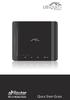 Package Contents Package Contents AirRouter Power Adapter Ethernet Cable Quick Start Guide System Requirements Microsoft Windows XP, Windows Vista, Windows 7, Linux, or Mac OS X Java Runtime Environment
NETGEAR RangeMax Dual Band Wireless-N USB Adapter WNDA3100v2 User Manual. NETGEAR, Inc. 350 E. Plumeria Drive San Jose, CA 95134 USA
 NETGEAR RangeMax Dual Band Wireless-N USB Adapter WNDA3100v2 User Manual NETGEAR, Inc. 350 E. Plumeria Drive San Jose, CA 95134 USA 202-10426-02 June 2009 2009 by NETGEAR, Inc. All rights reserved. Technical
User Manual for the NETGEAR 54 Mbps Wireless USB 2.0 Adapter WG111
 User Manual for the NETGEAR 54 Mbps Wireless USB 2.0 Adapter WG111 NETGEAR, Inc. 4500 Great America Parkway Santa Clara, CA 95054 USA Version v1.0 February 2004 Technical Support Please refer to the support
Meraki Outdoor Hardware Installation Guide
 Meraki Outdoor Hardware Installation Guide Trademarks Meraki, Meraki Outdoor, Meraki Cloud Controller, and Meraki Mesh are trademarks of Meraki, Inc. Other brand and product names are registered trademarks
Enterprise WiFi System
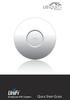 Enterprise WiFi System Enterprise WiFi System Package Contents Package Contents Wall Mount UniFi Enterprise AP Wall-Mount Bracket Ceiling-Mount Plate UniFi Controller CD with User Guide Quick Start Guide
Universal Dual Band WiFi Internet Adapter (WNCE3001)
 Universal Dual Band WiFi Internet Adapter (WNCE3001) User Manual 350 East Plumeria Drive San Jose, CA 95134 USA November 2011 202-10876-01 v1.0 2011 NETGEAR, Inc. All rights reserved No part of this publication
WUA-0605 300Mbps Wireless USB Network Adapter
 WUA-0605 300Mbps Wireless USB Network Adapter User Manual V1.0 Certification FCC CE FCC Statement This equipment has been tested and found to comply with the limits for a Class B digital device, pursuant
Meraki MR12/16. Hardware Installation Guide
 Meraki MR12/16 Hardware Installation Guide Trademarks Meraki, Meraki MR12, Meraki MR16, Meraki Cloud Controller, and Meraki Mesh are trademarks of Meraki, Inc. Other brand and product names are registered
Universal WiFi Range Extender WN3000RP
 Universal WiFi Range Extender WN3000RP User Manual 350 East Plumeria Drive San Jose, CA 95134 USA February 2013 202-10789-02 v1.0 2011 NETGEAR, Inc. All rights reserved. No part of this publication may
N900 Wireless Dual Band USB Adapter (WNDA4100)
 N900 Wireless Dual Band USB Adapter (WNDA4100) User Manual 350 East Plumeria Drive San Jose, CA 95134 USA April 2012 202-10938-02 v1.0 2011 NETGEAR, Inc. All rights reserved No part of this publication
IEEE 802.11b WLAN PC Card
 IEEE 802.11b WLAN PC Card User s Guide Version: 1.3 August 2001 Please install the Utility/Driver first before inserting the PCMCIA Card. FCC Class B Radio Frequency Interference Statement The manufacturer
Installation Guide for the NETGEAR 54 Mbps Wireless PCI Adapter WG311 v2. NETGEAR, Inc. 4500 Great America Parkway Santa Clara, CA 95054 USA
 Installation Guide for the NETGEAR 54 Mbps Wireless PCI Adapter WG311 v2 NETGEAR, Inc. 4500 Great America Parkway Santa Clara, CA 95054 USA Version v1.1 December 2003 Technical Support Please refer to
Creatix 802.11g Adapter CTX405 V.1/V.2 User Manual
 Creatix 802.11g Adapter CTX405 V.1/V.2 User Manual 1 Safety instructions for Creatix 802.11g Adapter This equipment has been designed and tested in accordance with the requirements of Standard EN60950.
A6210 WiFi USB Adapter 802.11ac USB 3.0 Dual Band User Manual
 802.11ac USB 3.0 Dual Band User Manual August 2014 202-11373-01 350 East Plumeria Drive San Jose, CA 95134 USA Support Thank you for selecting NETGEAR products. After installing your device, locate the
The Wireless LAN (Local Area Network) USB adapter can be operated in one of the two following networking configurations :
 SAGEM Wi-Fi 11g USB ADAPTER Quick Start Guide About this guide This Quick Start Guide describes how to install and operate your SAGEM Wi-Fi 11g USB ADAPTER. Please read this manual before you install the
N600 WiFi USB Adapter
 Model WNDA3100v3 User Manual December 2014 202-11470-01 350 East Plumeria Drive San Jose, CA 95134 USA Support Thank you for selecting NETGEAR products. After installing your device, locate the serial
NETGEAR RangeMax NEXT Wireless Router WNR834B Reference Manual. NETGEAR, Inc. 4500 Great America Parkway Santa Clara, CA 95054 USA
 NETGEAR RangeMax NEXT Wireless Router WNR834B Reference Manual NETGEAR, Inc. 4500 Great America Parkway Santa Clara, CA 95054 USA 202-10171-01 May 2006 2006 by NETGEAR, Inc. All rights reserved. May 2006.
3G Broadband Wireless Router MBR624GU User Manual. NETGEAR, Inc. 350 E. Plumeria Drive San Jose, CA 95134 USA
 3G Broadband Wireless Router MBR624GU User Manual NETGEAR, Inc. 350 E. Plumeria Drive San Jose, CA 95134 USA 202-10437-02 March 2009 2009 by NETGEAR, Inc. All rights reserved. Trademarks NETGEAR and the
M511W Wireless Day/Night Pan/Tilt IP Camera. Hardware User Manual
 0 M511W User Manual M511W Wireless Day/Night Pan/Tilt IP Camera M511W User Manual Hardware User Manual -Contents- Statement and Declaration..2 CHAPTER 1. SAFETY INSTRUCTION...6 CHAPTER 2. INTRODUCTION...8
LevelOne User Manual WPC-0600 N_One Wireless CardBus Adapter
 LevelOne User Manual WPC-0600 N_One Wireless CardBus Adapter V2.0.0-0712 Safety FCC WARNING This equipment has been tested and found to comply with the limits for a Class B digital device, pursuant to
User Manual for the NETGEAR 54 Mbps Wireless USB 2.0 Adapter WG121. NETGEAR, Inc. 4500 Great America Parkway Santa Clara, CA 95054 USA
 User Manual for the NETGEAR 54 Mbps Wireless USB 2.0 Adapter WG121 NETGEAR, Inc. 4500 Great America Parkway Santa Clara, CA 95054 USA Version v1.0 September 2003 Technical Support Please refer to the support
WIRELESS 150N USB 2.0 ADAPTER. User Manual
 WIRELESS 150N USB 2.0 ADAPTER User Manual Federal Communication Commission Interference Statement This equipment has been tested and found to comply with the limits for a Class B digital device, pursuant
NETGEAR N150 Wireless USB Adapter WNA1100
 NETGEAR N150 Wireless USB Adapter WNA1100 User Manual 350 East Plumeria Drive San Jose, CA 95134 USA August 2011 202-10947-01 v1.0 2011 NETGEAR, Inc. All rights reserved No part of this publication may
Seagate Wireless User Manual
 Seagate Wireless User Manual Model: 1AYBA5 Click here to access an up-to-date online version of this document. You will also find the most recent content as well as expandable illustrations, easier navigation,
USB Mini Print Server PS121. Installation Guide
 USB Mini Print Server PS121 Installation Guide Introduction Thank you for purchasing a NETGEAR PS121 USB Mini Print Server. With this print server you can share your printer with all the computers in your
PCMCIA Wireless LAN Card User s Manual
 PCMCIA Wireless LAN Card User s Manual Rev 1.0 Regulatory compliance FCC Warning This equipment has been tested and found to comply with the limits for a Class B digital device, pursuant to part 15 of
Preparing the Computers for TCP/IP Networking
 Configuration Preparing the Computers for TCP/IP Networking Configuring Windows 98, and ME for TCP/IP Networking Verifying TCP/IP Properties Configuring Windows 2000 or XP for IP Networking Install or
Gateway Port Replicator User Guide
 Gateway Port Replicator User Guide Using the Port Replicator Identifying features Connecting and disconnecting the port replicator 1 Using the Port Replicator Top Power button Component Icon Description
Networking. General networking. Networking overview. Common home network configurations. Wired network example. Wireless network examples
 Networking General networking Networking overview A network is a collection of devices such as computers, printers, Ethernet hubs, wireless access points, and routers connected together for communication
Congratulations on your HomePortal purchase. To install your HomePortal and configure your home network, follow these steps.
 Notice to Users 2003 2Wire, Inc. All rights reserved. This manual in whole or in part, may not be reproduced, translated, or reduced to any machine-readable form without prior written approval. 2WIRE PROVIDES
Wireless 802.11g CF Card User Manual
 Wireless 802.11g CF Card User Manual Version 1.0 Copyright statement No part of this publication may be reproduced, stored in a retrieval system, or transmitted in any form or by any means, whether electronic,
Overview. Installation Requirements. TOUGHCable Ethernet Connectors
 Overview Overview Thank you for purchasing Ubiquiti Networks TOUGHCable CARRIER cabling. This Quick Start Guide is designed to provide wiring instructions and includes the warranty terms. Ubiquiti offers
Wireless Router Setup Manual
 Wireless Router Setup Manual NETGEAR, Inc. 4500 Great America Parkway Santa Clara, CA 95054 USA 208-10082-02 2006-04 2006 by NETGEAR, Inc. All rights reserved. Trademarks NETGEAR is a trademark of Netgear,
Router Setup Manual. NETGEAR, Inc. 4500 Great America Parkway Santa Clara, CA 95054 USA 208-10060-01 2006-03-17
 NETGEAR, Inc. 4500 Great America Parkway Santa Clara, CA 95054 USA 208-10060-01 2006-03-17 2006 by NETGEAR, Inc. All rights reserved. Trademarks NETGEAR is a trademark of Netgear, Inc. Microsoft, Windows,
Universal Dual Band WiFi Range Extender WN2500RP
 Universal Dual Band WiFi Range Extender WN2500RP User Manual 350 East Plumeria Drive San Jose, CA 95134 USA November 2012 202-10932-02 v1.0 2012 NETGEAR, Inc. All rights reserved. No part of this publication
User Manual. PePWave Surf / Surf AP Indoor Series: Surf 200, E200, AP 200, AP 400. PePWave Mesh Connector Indoor Series: MC 200, E200, 400
 User Manual PePWave Surf / Surf AP Indoor Series: Surf 200, E200, AP 200, AP 400 PePWave Mesh Connector Indoor Series: MC 200, E200, 400 PePWave Surf AP Series: Surf AP 200-X, E200-X, 400-X PePWave Surf
Wireless LAN 802.11g USB Adapter
 Wireless LAN 802.11g USB Adapter User s Guide Version 1.0 User s Guide 0 Copyright statement No part of this publication may be reproduced, stored in a retrieval system, or transmitted in any form or by
ADSL2+ Modem Router User Manual
 ADSL2+ Modem Router User Manual NETGEAR, Inc. 350 East Plumeria Drive San Jose, CA 95134 USA 202-10392-01 October 2008 v1.0 2008 by NETGEAR, Inc. All rights reserved. Trademarks NETGEAR is a trademark
Broadband ADSL2+ Modem Model DM111Pv2 User Manual
 Broadband ADSL2+ Modem Model DM111Pv2 User Manual NETGEAR, Inc. 350 East Plumeria Drive San Jose, CA 95134 USA 202-10392-02 October 2014 v1.0 Support Thank you for selecting NETGEAR products. After installing
Preface. FCC Statement. Warranty
 1 Preface FCC Statement Warranty This equipment has been tested and complies with the limits for a Class B digital device, pursuant to Part 15 of the FCC Rules. These limits are designed to provide reasonable
HP-1000E v2. User s Manual. Powerline Ethernet Adapter. HP1000E v2 User s Manual
 HP-1000E v2 Powerline Ethernet Adapter User s Manual HP1000E v2 User s Manual Table of Contents Chapter 1: Introduction...1 Chapter 2: Planning your Powerline Network...1 Network Topology...1 Chapter 3:
WiFi Booster for Mobile WN1000RP
 WiFi Booster for Mobile WN1000RP User Manual 350 East Plumeria Drive San Jose, CA 95134 USA November 2012 202-10990-02 v1.0 NETGEAR, Inc. All rights reserved. No part of this publication may be reproduced,
Chapter 2 Wireless Settings and Security
 Chapter 2 Wireless Settings and Security This chapter describes how to set up the wireless features of your WGT624 v4 wireless router. In planning your wireless network, select a location for the wireless
NETGEAR RangeMax NEXT Wireless Router WNR854T User Manual. NETGEAR, Inc. 4500 Great America Parkway Santa Clara, CA 95054 USA
 NETGEAR RangeMax NEXT Wireless Router WNR854T User Manual NETGEAR, Inc. 4500 Great America Parkway Santa Clara, CA 95054 USA 202-10187-02 January 2007 2007 by NETGEAR, Inc. All rights reserved.. Product
Wireless-N. User Guide. PCI Adapter WMP300N (EU) WIRELESS. Model No.
 2,4 GHz WIRELESS Wireless-N PCI Adapter User Guide Model No. WMP300N (EU) Copyright and Trademarks Specifications are subject to change without notice. Linksys is a registered trademark or trademark of
NETGEAR ProSafe 802.11g Wireless Access Point WG102 Reference Manual. NETGEAR, Inc. 4500 Great America Parkway Santa Clara, CA 95054 USA
 NETGEAR ProSafe 802.11g Wireless Access Point WG102 Reference Manual NETGEAR, Inc. 4500 Great America Parkway Santa Clara, CA 95054 USA 202-10144-02 July 2008 2008 by NETGEAR, Inc. All rights reserved..
Universal Dual Band WiFi Extender Wallplug Edition
 Universal Dual Band WiFi Extender Wallplug Edition User Manual 350 East Plumeria Drive San Jose, CA 95134 USA October 2011 202-11049-01 v1.0 Universal Dual Band WiFi Extender Wallplug Edition Support Thank
Wireless ADSL2+ Modem Router DG834Gv5 User Manual
 Wireless ADSL2+ Modem Router DG834Gv5 User Manual NETGEAR, Inc. 350 East Plumeria Drive San Jose, CA 95134 USA 202-10363-02 March 2010 v1.0 2010 by NETGEAR, Inc. All rights reserved. Trademarks NETGEAR
Wireless Optical Mouse
 Wireless Optical Mouse User s Manual Model PD950P FCC STATEMENT PD950P This device complies with part 15 of FCC Rules. Operation is subject to the following two conditions: (1) this device may not cause
WebSTAR Model DPW700 PCMCIA Wireless LAN Card and WebSTAR Model DPW730 USB Wireless Adapter User s Guide
 WebSTAR Model DPW700 PCMCIA Wireless LAN Card and WebSTAR Model DPW730 USB Wireless Adapter User s Guide Introduction Are you tired of tripping over or fumbling with countless computer wires? The solution
WL-5460USB Wireless LAN Card Adapter
 WL-5460USB Wireless LAN Card Adapter User s Manual Regulatory notes and statements Wireless LAN, Health and Authorization for use Radio frequency electromagnetic energy is emitted from Wireless LAN devices.
Wireless-N 150 Router WNR1000v2 User Manual
 Wireless-N 150 Router WNR1000v2 User Manual NETGEAR, Inc. 350 E. Plumeria Drive San Jose, CA 95134 USA 202-10546-01 November 2009 v1.0 2009 by NETGEAR, Inc. All rights reserved. Product Registration, Support,
2 Setting Up the Hardware for a Wired Ethernet Network... 13. 3 Setting Up the Software for an Ethernet Network... 21
 Contents 1 Networking Basics............................................... 1 Selecting a network connection........................................ 2 Wired Ethernet network...........................................
Plug n Play Wireless 10/100 Ethernet Cable
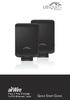 Plug n Play Wireless 10/100 Ethernet Cable Plug n Play Wireless 10/100 Ethernet Cable Package Contents Package Contents AirWire (Qty. 2) Power Adapter (Qty. 2) Ethernet Cable (Qty. 2) Quick Start Guide
ADSL2+ Modem Router DM111PSPv2 User Manual
 ADSL2+ Modem Router DM111PSPv2 User Manual NETGEAR, Inc. 350 East Plumeria Drive San Jose, CA 95134 USA 202-10449-01 December 2008 v1.0 2008 by NETGEAR, Inc. All rights reserved. Trademarks NETGEAR, the
A Division of Cisco Systems, Inc. GHz 2.4 802.11g. Wireless-G. PCI Adapter with RangeBooster. User Guide WIRELESS WMP54GR. Model No.
 A Division of Cisco Systems, Inc. GHz 2.4 802.11g WIRELESS Wireless-G PCI Adapter with RangeBooster User Guide Model No. WMP54GR Copyright and Trademarks Specifications are subject to change without notice.
Network Installation Guide. Artisan 810 Series
 Network Installation Guide Artisan 810 Series Before You Begin Make sure you installed ink cartridges and loaded paper as described on the Start Here sheet. Then follow the instructions in this guide to
Chapter 2 Configuring Your Wireless Network and Security Settings
 Chapter 2 Configuring Your Wireless Network and Security Settings This chapter describes how to configure the wireless features of your DG834N RangeMax TM NEXT Wireless ADSL2+ Modem Router. For a wireless
802.11ac USB WiFi Adapter (A6200)
 802.11ac USB WiFi Adapter (A6200) User Manual 350 East Plumeria Drive San Jose, CA 95134 USA November 2012 202-11093-01 v1.0 Support Thank you for choosing NETGEAR. After installing your device, locate
A Division of Cisco Systems, Inc. GHz 2.4 802.11g. Wireless-G. USB Network Adapter with RangeBooster. User Guide WIRELESS WUSB54GR. Model No.
 A Division of Cisco Systems, Inc. GHz 2.4 802.11g WIRELESS Wireless-G USB Network Adapter with RangeBooster User Guide Model No. WUSB54GR Copyright and Trademarks Specifications are subject to change without
EPSON USB/Parallel Adapter User s Guide
 EPSON USB/Parallel Adapter User s Guide EPSON Stylus COLOR 440 EPSON Stylus COLOR 800 EPSON Stylus COLOR 600 EPSON Stylus COLOR 850 EPSON Stylus COLOR 640 EPSON Stylus COLOR 1520 EPSON Stylus Photo EX
Quick Start Guide. WRV210 Wireless-G VPN Router with RangeBooster. Cisco Small Business
 Quick Start Guide Cisco Small Business WRV210 Wireless-G VPN Router with RangeBooster Package Contents WRV210 Router Ethernet Cable Power Adapter Product CD-ROM Quick Start Guide Welcome Thank you for
A Division of Cisco Systems, Inc. GHz 2.4 802.11g. Wireless-G. PCI Adapter. User Guide WIRELESS WMP54G. Model No.
 A Division of Cisco Systems, Inc. GHz 2.4 802.11g WIRELESS Wireless-G PCI Adapter User Guide Model No. WMP54G Copyright and Trademarks Specifications are subject to change without notice. Linksys is a
Chapter 1 Connecting the Router to the Internet
 Chapter 1 Connecting the Router to the Internet This chapter describes how to set up the router on your Local Area Network (LAN) and connect to the Internet. It describes how to set up your wireless ADSL
N300 WiFi Range Extender WN2000RPT User Manual
 N300 WiFi Range Extender WN2000RPT User Manual December 2013 202-11333-01 350 East Plumeria Drive San Jose, CA 95134 USA Support Thank you for selecting NETGEAR products. After installing your device,
Installation Guide 1-port USB 2.0 Print Server 1 GPSU21
 Installation Guide 1-port USB 2.0 Print Server 1 GPSU21 2 Welcome Thank you for purchasing this 1-port USB 2.0 Print Server that allows any networked computer to share a USB printer. It complies with USB
USER GUIDE AC2400. DUAL BAND GIGABIT Wi Fi ROUTER. Model# E8350
 USER GUIDE AC2400 DUAL BAND GIGABIT Wi Fi ROUTER Model# E8350 Table of Contents Product overview E8350..................................... 1 Setting Up Your E-Series Router Where to find more help.........................
1.3 MEGAPIXEL WIRELESS NETWORK CAMERA SERIES
 1.3 MEGAPIXEL WIRELESS NETWORK CAMERA SERIES ADVANCED NETWORK SETUP Please read instructions thoroughly before operation and retain it for future reference. n812_813_network_v1.3 IMPORTANT SAFEGUARD All
TRENDnet User s Guide. Cover Page
 Cover Page Contents Product Overview... 2 Package Contents... 2 Overview... 2 Interface... 3 Setting up... 4 WPS Setup... 4 Web Browser Setup... 4 ios Setup... 4 Android Setup... 7 Managing the App...
2Wire Gateway Installation Guide. For 1000 Series
 2Wire Gateway Installation Guide For 1000 Series Notice to Users 2005 2Wire, Inc. All rights reserved. This manual in whole or in part, may not be reproduced, translated, or reduced to any machinereadable
Network Installation Guide. WorkForce 610 Series Artisan 710 Series
 Network Installation Guide WorkForce 610 Series Artisan 710 Series Contents Before You Begin.......................................... 3 Choose Your Connection Type................................ 4 Wireless.............................................
User Guide. Guide d utilisation Guida dell'utente Benutzerhandbuch Guía del usuario Guia do Usuário WNA-100. Wireless Network Adapter
 WNA-100 Wireless Network Adapter User Guide Guide d utilisation Guida dell'utente Benutzerhandbuch Guía del usuario Guia do Usuário www.xerox.com/office/wna Copyright 2007 Xerox Corporation. All Rights
IEEE 802.11g CardBus Adapter. User s Guide
 IEEE 802.11g CardBus Adapter User s Guide Regulatory notes and statements Wireless LAN, Health and Authorization for use Radio frequency electromagnetic energy is emitted from Wireless LAN devices. The
Power Over Ethernet Adapters POE101
 Power Over Ethernet Adapters POE101 Installation Guide Introduction NETGEAR POE101 Power over Ethernet adapters are designed to supply operational power to devices through an Ethernet cable. These adapters
Wireless-N 300 USB Adapter WNA3100 User Manual. NETGEAR, Inc. 350 E. Plumeria Drive San Jose, CA 95134 USA
 Wireless-N 300 USB Adapter WNA3100 User Manual NETGEAR, Inc. 350 E. Plumeria Drive San Jose, CA 95134 USA 202-10539-01 December 2009 2009 by NETGEAR, Inc. All rights reserved. Technical Support When you
ZigBee Extender 3. Features. Supported Models and Requirements. Important Safety Instructions. What Is Included: Specifications
 ZigBee Extender 3 Features The Card Access ZigBee Extender 3 operates as a ZigBee (IEEE 802.15.4) router and mesh extender. The Extender is designed to improve ZigBee signal latency that can occur when
c. Securely insert the Ethernet cable from your cable or DSL modem into the Internet port (B) on the WGT634U. Broadband modem
 Start Here Follow these instructions to set up your router. Verify That Basic Requirements Are Met Assure that the following requirements are met: You have your broadband Internet service settings handy.
Wireless (Select Models Only) User Guide
 Wireless (Select Models Only) User Guide Copyright 2007, 2008 Hewlett-Packard Development Company, L.P. Windows is a U.S. registered trademark of Microsoft Corporation. Bluetooth is a trademark owned by
C54RU Conceptronic Wireless 54Mbps USB Adapter Manual
 C54RU Conceptronic Wireless 54Mbps USB Adapter Manual Rev. 04072901 Contents PACKAGE CONTENTS... 1 INTRODUCTION... 2 PRODUCT FEATURES... 2 FIRST TIME SETUP WINDOWS 2000, 98, NT, AND ME... 4 INSTALLING
C24-CAMANL Video Server/Encoder
 C24-CAMANL Video Server/Encoder User s Guide Table of Contents CHAPTER 1 INTRODUCTION... 1 Overview... 1 Physical Details - Video Server... 2 Package Contents... 3 CHAPTER 2 BASIC SETUP... 4 System Requirements...
54Mbps Wireless LAN Card. User s Manual
 54Mbps Wireless LAN Card User s Manual Information in this document is subject to change without notice. No part of this document may be reproduced or transmitted in any form or by any means, electronic
N600 Wireless Dual Band Router WNDR3400 Setup Manual
 N600 Wireless Dual Band Router WNDR3400 Setup Manual NETGEAR, Inc. 350 E. Plumeria Drive San Jose, CA 95134 USA March 2010 208-10532-03 v1.0 Trademarks NETGEAR and the NETGEAR logo are registered trademarks,
Go Wireless. Open up new possibilities for work and play
 Go Wireless Open up new possibilities for work and play Start with 3 pieces A typical home or small-office wireless LAN requires only 3 pieces of hardware. With these 3 pieces, you re ready to get started!
NETGEAR. IEEE 802.11b Wireless PCI Adapter 11 Mbps Model MA311. User s Guide
 NETGEAR IEEE 802.11b Wireless PCI Adapter 11 Mbps Model MA311 User s Guide i 2002 by NETGEAR, Inc. All rights reserved. Trademarks 2002 NETGEAR, Inc. NETGEAR, the Netgear Logo, the Gear Guy, and Everybody's