
MPLAB REAL ICE In-Circuit Emulator User s Guide For MPLAB X IDE
|
|
|
- Chester Jefferson
- 9 years ago
- Views:
Transcription
1 MPLAB REAL ICE In-Circuit Emulator User s Guide For MPLAB X IDE Microchip Technology Inc. DS D

2 Note the following details of the code protection feature on Microchip devices: Microchip products meet the specification contained in their particular Microchip Data Sheet. Microchip believes that its family of products is one of the most secure families of its kind on the market today, when used in the intended manner and under normal conditions. There are dishonest and possibly illegal methods used to breach the code protection feature. All of these methods, to our knowledge, require using the Microchip products in a manner outside the operating specifications contained in Microchip s Data Sheets. Most likely, the person doing so is engaged in theft of intellectual property. Microchip is willing to work with the customer who is concerned about the integrity of their code. Neither Microchip nor any other semiconductor manufacturer can guarantee the security of their code. Code protection does not mean that we are guaranteeing the product as unbreakable. Code protection is constantly evolving. We at Microchip are committed to continuously improving the code protection features of our products. Attempts to break Microchip s code protection feature may be a violation of the Digital Millennium Copyright Act. If such acts allow unauthorized access to your software or other copyrighted work, you may have a right to sue for relief under that Act. Information contained in this publication regarding device applications and the like is provided only for your convenience and may be superseded by updates. It is your responsibility to ensure that your application meets with your specifications. MICROCHIP MAKES NO REPRESENTATIONS OR WARRANTIES OF ANY KIND WHETHER EXPRESS OR IMPLIED, WRITTEN OR ORAL, STATUTORY OR OTHERWISE, RELATED TO THE INFORMATION, INCLUDING BUT NOT LIMITED TO ITS CONDITION, QUALITY, PERFORMANCE, MERCHANTABILITY OR FITNESS FOR PURPOSE. Microchip disclaims all liability arising from this information and its use. Use of Microchip devices in life support and/or safety applications is entirely at the buyer s risk, and the buyer agrees to defend, indemnify and hold harmless Microchip from any and all damages, claims, suits, or expenses resulting from such use. No licenses are conveyed, implicitly or otherwise, under any Microchip intellectual property rights unless otherwise stated. QUALITY MANAGEMENT SYSTEM CERTIFIED BY DNV == ISO/TS == Trademarks The Microchip name and logo, the Microchip logo, dspic, FlashFlex, flexpwr, JukeBlox, KEELOQ, KEELOQ logo, Kleer, LANCheck, MediaLB, MOST, MOST logo, MPLAB, OptoLyzer, PIC, PICSTART, PIC 32 logo, RightTouch, SpyNIC, SST, SST Logo, SuperFlash and UNI/O are registered trademarks of Microchip Technology Incorporated in the U.S.A. and other countries. The Embedded Control Solutions Company and mtouch are registered trademarks of Microchip Technology Incorporated in the U.S.A. Analog-for-the-Digital Age, BodyCom, chipkit, chipkit logo, CodeGuard, dspicdem, dspicdem.net, ECAN, In-Circuit Serial Programming, ICSP, Inter-Chip Connectivity, KleerNet, KleerNet logo, MiWi, MPASM, MPF, MPLAB Certified logo, MPLIB, MPLINK, MultiTRAK, NetDetach, Omniscient Code Generation, PICDEM, PICDEM.net, PICkit, PICtail, RightTouch logo, REAL ICE, SQI, Serial Quad I/O, Total Endurance, TSHARC, USBCheck, VariSense, ViewSpan, WiperLock, Wireless DNA, and ZENA are trademarks of Microchip Technology Incorporated in the U.S.A. and other countries. SQTP is a service mark of Microchip Technology Incorporated in the U.S.A. Silicon Storage Technology is a registered trademark of Microchip Technology Inc. in other countries. GestIC is a registered trademark of Microchip Technology Germany II GmbH & Co. KG, a subsidiary of Microchip Technology Inc., in other countries. All other trademarks mentioned herein are property of their respective companies , Microchip Technology Incorporated, Printed in the U.S.A., All Rights Reserved. ISBN: Microchip received ISO/TS-16949:2009 certification for its worldwide headquarters, design and wafer fabrication facilities in Chandler and Tempe, Arizona; Gresham, Oregon and design centers in California and India. The Company s quality system processes and procedures are for its PIC MCUs and dspic DSCs, KEELOQ code hopping devices, Serial EEPROMs, microperipherals, nonvolatile memory and analog products. In addition, Microchip s quality system for the design and manufacture of development systems is ISO 9001:2000 certified. DS D-page Microchip Technology Inc.

3 Object of Declaration: MPLAB REAL ICE In-Circuit Emulator Microchip Technology Inc. DS D-page 3

4 Emulator User s Guide for MPLAB X IDE NOTES: DS D-page Microchip Technology Inc.
5 MPLAB REAL ICE IN-CIRCUIT EMULATOR USER S GUIDE FOR MPLAB X IDE Table of Contents Preface... 9 Part 1 Overview & Operation Chapter 1. About the Emulator 1.1 Introduction Emulator Features How the Emulator Helps You Emulator System Emulator Kit Components Chapter 2. Device and Feature Support Chapter 3. Operation 3.1 Introduction Tools Comparison Operational Overview Emulator Communications with the PC and Target Target Communication Connections Trace Connections Debugging with the Emulator Requirements For Debugging Programming with the Emulator Resources Used by the Emulator Part 2 Features Chapter 4. Working with the Emulator 4.1 Introduction Installation and Setup Firmware Upgrades Emulator Functions Quick Debug/Program Reference Debugger/Programmer Limitations Chapter 5. Basic Debug Functions 5.1 Introduction Starting and Stopping Emulation Viewing Processor Memory and Files Breakpoints and Stopwatch Microchip Technology Inc. DS D-page 5

6 Emulator User s Guide for MPLAB X IDE 5.5 Device Debug Functions Chapter 6. Specific Debug Functions 6.1 Introduction Data Capture and Runtime Watches Instrumented Trace PIC32 Instruction Trace PIC32 MCUs Only Jump Trace EP Devices Only PC Sampling 8- and 16-Bit MCUs Only PC Profiling 32-Bit MCUs Only Function Level Profiling Application In/Out External Triggers Additional Debug Features Part 3 Troubleshooting Chapter 7. Troubleshooting First Steps 7.1 Introduction The 5 Questions to Answer First Top Reasons Why You Can t Debug Other Things to Consider Chapter 8. Frequently Asked Questions (FAQ) 8.1 Introduction Emulator Operation Instrumented Trace Operation General Issues Chapter 9. Messages 9.1 Introduction Error, Warning and Informational Messages General Corrective Actions Chapter 10. Engineering Technical Notes (ETNs) Part 4 Software & Hardware Reference Chapter 11. Emulator Function Summary 11.1 Introduction Emulator Selection and Switching Emulator Options Selection Emulator Windows & Dialogs Chapter 12. Hardware Specification 12.1 Introduction Highlights USB Port/Power Emulator Pod DS D-page Microchip Technology Inc.

7 Table of Contents 12.5 Standard Communication Hardware LoopBack Test Board Target Board Considerations Part 5 Emulator Accessories Chapter 13. High-Speed/LVDS Communication Hardware 13.1 Introduction High-Speed Driver Board High-Speed Receiver Board LVDS Cables and Target Pinout Chapter 14. Extension Paks and Headers 14.1 Introduction Processor Extension Paks and Debug Headers Emulation Extension Paks and Emulation Headers Transition Sockets Chapter 15. PIC32 PIMs with Trace 15.1 Introduction Chapter 16. MPLAB REAL ICE Trace Interface Kit 16.1 Introduction Chapter 17. MPLAB REAL ICE Isolator Unit 17.1 Introduction Device Support Hardware Setup Software Setup Operational Issues Isolator Unit Design Third Party Isolator Support Chapter 18. MPLAB REAL ICE JTAG Adapter (PIC32) 18.1 Introduction JTAG Support Switch from Non-JTAG to JTAG Hardware Switch from JTAG to Non-JTAG Hardware JTAG Adapter Schematics Chapter 19. MPLAB REAL ICE Power Monitor 19.1 Introduction Monitor and Debug Features Power Monitor Support Power Monitor Board Layout Hardware Setup Software Plugin Installation Software Setup Power Monitor Usage Alternative Target Power (CHA) Hardware and Software Setup Microchip Technology Inc. DS D-page 7

8 Emulator User s Guide for MPLAB X IDE Device Power (CHB) Hardware and Software Setup Power Monitor Window Controls Hardware Specifications Appendix A. Revision History Support Glossary Index Worldwide Sales and Service DS D-page Microchip Technology Inc.

9 MPLAB REAL ICE IN-CIRCUIT EMULATOR USER S GUIDE FOR MPLAB X IDE Preface NOTICE TO CUSTOMERS All documentation becomes dated, and this manual is no exception. Microchip tools and documentation are constantly evolving to meet customer needs, so some actual dialogs and/or tool descriptions may differ from those in this document. Please refer to our web site ( to obtain the latest documentation available. Documents are identified with a DS number. This number is located on the bottom of each page, in front of the page number. The numbering convention for the DS number is DSXXXXXXXXA, where XXXXXXXX is the document number and A is the revision level of the document. For the most up-to-date information on development tools, see the MPLAB X IDE help. Select the Help menu, and then Topics to open a list of available help files. INTRODUCTION This chapter contains general information that will be helpful to know before using the MPLAB REAL ICE in-circuit emulator. Items discussed here include: Document Layout Conventions Used in this Guide Recommended Reading Microchip Technology Inc. DS D-page 9
10 Emulator User s Guide for MPLAB X IDE DOCUMENT LAYOUT This document describes how to use the MPLAB REAL ICE in-circuit emulator as a development tool to emulate and debug firmware on a target board, as well as how to program devices. The document is organized as follows: Part 1 Overview & Operation Chapter 1: About the Emulator What the MPLAB REAL ICE in-circuit emulator is, and how it can help you develop your application. Chapter 2: Device and Feature Support Tables of supported features by device families. Chapter 3: Operation The theory of MPLAB REAL ICE in-circuit emulator operation and descriptions of configuration options. Part 2 Features Chapter 4: General Setup How to set up MPLAB X IDE to use the emulator. Chapter 5: Common Debug Functions A description of basic emulator features available in MPLAB X IDE when the MPLAB REAL ICE in-circuit emulator is chosen as the debug tool. This includes debug features such as breakpoints, stopwatch, and external triggering. Chapter 6: Specific Debug Functions: 8- and 16-Bit Devices A description of data capture, runtime watches, trace for 8- and 16-bit (data memory) devices, PC sampling, Application in/out and other debug features. Chapter 7: Specific Debug Functions: 32-Bit Devices A description of data capture, runtime watches, trace for 32-bit (data memory) devices, PC sampling, Application in/out and other debug features. Part 3 Troubleshooting Chapter 8: Troubleshooting First Steps The first things you should try if you are having issues with emulator operation. Chapter 9: Frequently Asked Questions (FAQ) A list of frequently asked questions about emulator operation and issues. Chapter 10: Messages A list of error messages and suggested resolutions. Chapter 11: Engineering Technical Notes (ETNs) Any resolvable hardware issues are listed. Part 4 Software & Hardware Reference Chapter 12: Emulator Function Summary A summary of emulator functions available in MPLAB IDE when the MPLAB REAL ICE emulator is chosen as the debug or program tool. Chapter 13: Hardware Specification The hardware and electrical specifications of the emulator system. Includes a description of how to use the loopback test board. Part 5 Emulator Accessories Describes additional items for sale that do not come with the basic emulator system, such as the Performance Pak for High-Speed/LVDS Communications. DS D-page Microchip Technology Inc.

11 Preface CONVENTIONS USED IN THIS GUIDE The following conventions may appear in this documentation: TABLE 1: DOCUMENTATION CONVENTIONS Description Represents Examples Arial font: Italic Referenced books MPLAB X IDE User s Guide Emphasized text...is the only compiler... Initial caps A window the Output window A dialog the Settings dialog A menu selection select Enable Programmer Quotes A field name in a window or Save project before build dialog Underlined, italic text with right angle bracket A menu path File>Save Bold A dialog button Click OK A tab Click the Power tab Text in angle brackets < > A key on the keyboard Press <Enter>, <F1> Courier font: Plain Sample source code #define START Filenames autoexec.bat File paths c:\mcc18\h Keywords _asm, _endasm, static Command-line options -Opa+, -Opa- Bit values 0, 1 Constants 0xFF, A Italic A variable argument file.o, where file can be any valid filename Square brackets [ ] Optional arguments mpasmwin [options] file [options] Curly brackets and pipe character: { } Choice of mutually exclusive arguments; an OR selection errorlevel {0 1} Ellipses... Replaces repeated text var_name [, var_name...] Represents code supplied by user void main (void) {... } Microchip Technology Inc. DS D-page 11

12 Emulator User s Guide for MPLAB X IDE RECOMMENDED READING Emulator Recommended Reading This document describes how to use the MPLAB REAL ICE in-circuit emulator. Other useful documents are listed below. The following Microchip documents are available and recommended as supplemental reference resources. Multi-Tool Design Advisory (DS51764) A small document on guidelines and implementation considerations to ensure proper interfacing to the various development tools. Release Notes for MPLAB REAL ICE In-Circuit Emulator For the latest information on using the MPLAB REAL ICE in-circuit emulator, read the Readme for MPLAB REAL ICE Emulator.htm file (an HTML file) by clicking on Release Notes and Support Documentation on the Start Page. The release notes (Readme) contain update information and known issues that may not be included in this document. Using the MPLAB REAL ICE In-Circuit Emulator (DS51997) This poster shows you how to hook up the hardware and install the software for the MPLAB REAL ICE in-circuit emulator. MPLAB REAL ICE In-Circuit Emulator Help An on-line version of the comprehensive emulator user s guide in MPLAB X IDE. Usage, troubleshooting and hardware specifications are included. Processor Extension Pak and Header Specification (DS51292) These booklets describe how to install and use MPLAB REAL ICE in-circuit emulator headers. Headers are used to better debug selected devices using special -ME2/-ICE/-ICD device versions, without the loss of pins or resources. Extension Paks contain headers. See also the help files. Transition Socket Specification (DS51194) Consult this document for information on transition sockets available for use with headers. Accessories Recommended Reading Accessories for the emulator as discussed in detail in this document. However, instruction sheets exist to help you quickly set up these additional tools. MPLAB REAL ICE Isolation Unit Instruction Sheet (DS51858) This poster shows you how to hook up the opto-isolation unit hardware for high-power applications. MPLAB REAL ICE JTAG Adapter Instruction Sheet (DS52094) This poster shows you how to hook up the JTAG adapter board for JTAG functionality. Be aware you will not have the full suite of debug features when using this board. MPLAB REAL ICE In-Circuit Emulator Power Monitor Instruction Sheet (DS ) This poster shows you how to hook up the power monitor board for viewing power usage on your target board. DS D-page Microchip Technology Inc.

13 MPLAB REAL ICE IN-CIRCUIT EMULATOR USER S GUIDE FOR MPLAB X IDE Part 1 Overview & Operation Chapter 1. About the Emulator Chapter 2. Device and Feature Support Chapter 3. Operation Microchip Technology Inc. DS D-page 13

14 Emulator User s Guide for MPLAB X IDE NOTES: DS D-page Microchip Technology Inc.
15 MPLAB REAL ICE IN-CIRCUIT EMULATOR USER S GUIDE FOR MPLAB X IDE Chapter 1. About the Emulator 1.1 INTRODUCTION 1.2 EMULATOR FEATURES The MPLAB REAL ICE in-circuit emulator is a modern emulator that supports hardware and software development for selected Microchip PIC microcontrollers (MCUs) and dspic Digital Signal Controllers (DSCs). An overview of the emulator is provided in this chapter: Emulator Features How the Emulator Helps You Emulator System Emulator Kit Components The MPLAB REAL ICE emulation concept provides these features: Processors run at maximum speeds Debugging can be done with the device in-circuit No emulation load on the processor bus Simple interconnection Capability to incorporate I/O data Instrumented Trace (MPLAB IDE and Compiler Assisted) PIC32 Instruction Trace (Hardware trace) In addition to emulator functions, the MPLAB REAL ICE in-circuit emulator system can also be used as a production programmer. 1.3 HOW THE EMULATOR HELPS YOU The MPLAB REAL ICE in-circuit emulator is an integral part of the development engineer s toolsuite. Application usage can vary from software development to hardware integration, manufacturing test, or field service. The MPLAB REAL ICE in-circuit emulator system enables you to: Debug an application on hardware in real time Debug with hardware breakpoints Debug with software breakpoints (device-dependent) Halt, based on internal events and/or external signals Monitor internal file registers Emulate full speed Program devices as a production programmer Trace lines of code or log variable/expression values Microchip Technology Inc. DS D-page 15

16 Emulator User s Guide for MPLAB X IDE 1.4 EMULATOR SYSTEM The MPLAB REAL ICE in-circuit emulator is an in-circuit emulator that is controlled by a PC running the MPLAB X IDE integrated development environment. The emulator communicates with a device or debug header that has on-board debug/emulation circuitry. A device is usually connected directly to a target board, whereas a header may be connected directly to or through a transition socket. An example emulator system configuration is shown in Figure 1-1. For other possible configurations, see Section Standard Communication and Section High-Speed/LVDS Communication (Performance Pak). FIGURE 1-1: To PC EXAMPLE EMULATOR SYSTEM SETUP Emulator Pod SIDE VIEW Extension Pak Header Standard Communications Adapter Transition Socket Target Board 1.5 EMULATOR KIT COMPONENTS The components of the MPLAB REAL ICE in-circuit emulator system kit are listed below. 1. Emulator pod main unit. 2. USB cable provides communications between the emulator and a PC, and provides power to the emulator. 3. Standard driver board and cable connects the emulator pod to a header module or target board. 4. Logic probes used for external triggers and I/O port trace. 5. Loopback test board verifies emulator operation. Additional hardware may be ordered separately. Some popular items are: Processor/Emulation Extension Pak provides a debug/emulation header for standard communications. See Chapter 14. Extension Paks and Headers. Transition socket connects the debug header to the target. See Chapter 14. Extension Paks and Headers. Performance Pak provides high-speed/lvds communications. See Chapter 13. High-Speed/LVDS Communication Hardware. MPLAB REAL ICE Isolator unit optically isolates the emulator from the target. It is useful for high-power applications. See Chapter 17. MPLAB REAL ICE Isolator Unit. For more on other hardware, see Part 5 Emulator Accessories. DS D-page Microchip Technology Inc.

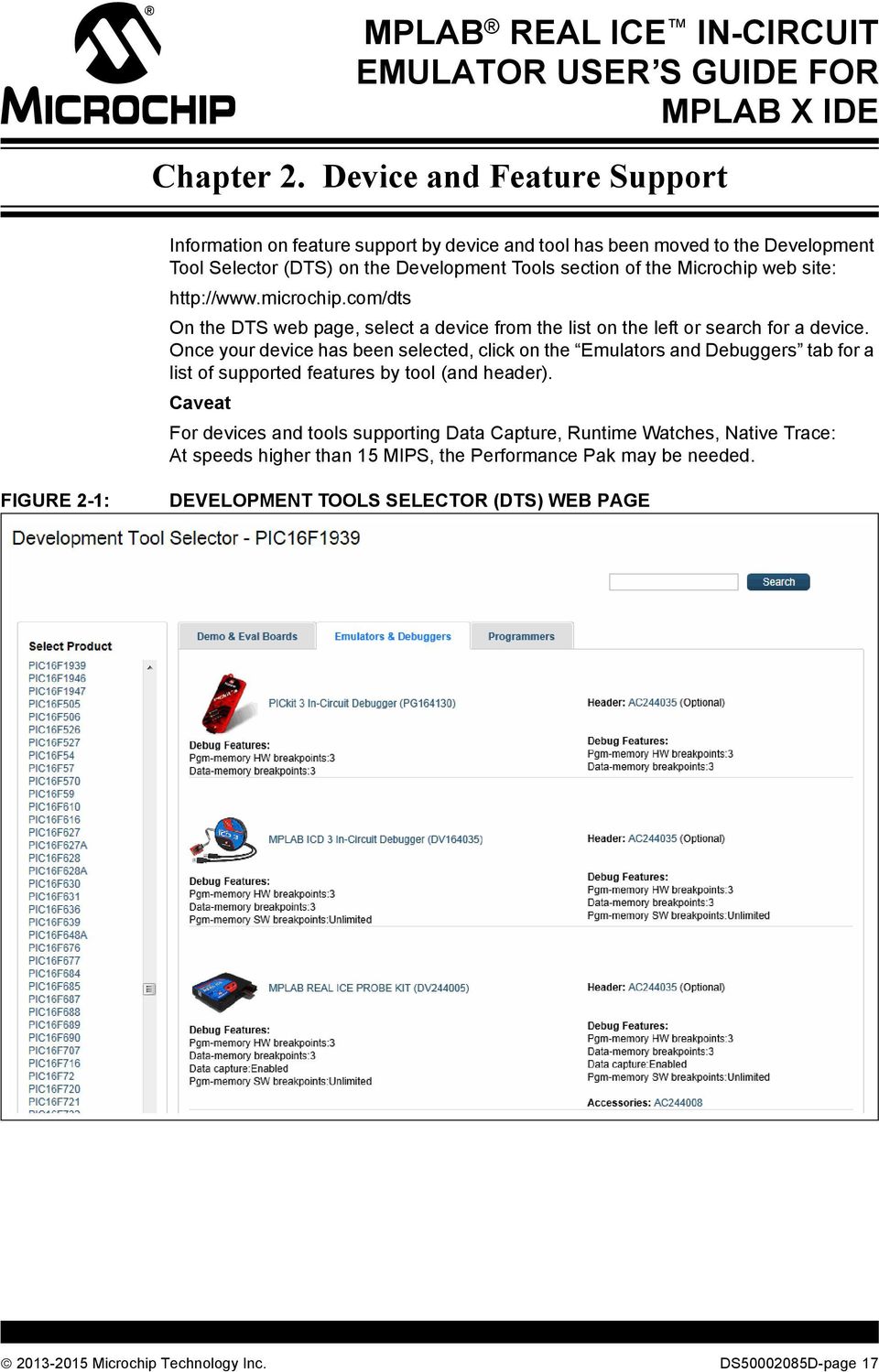
17 MPLAB REAL ICE IN-CIRCUIT EMULATOR USER S GUIDE FOR MPLAB X IDE Chapter 2. Device and Feature Support Information on feature support by device and tool has been moved to the Development Tool Selector (DTS) on the Development Tools section of the Microchip web site: On the DTS web page, select a device from the list on the left or search for a device. Once your device has been selected, click on the Emulators and Debuggers tab for a list of supported features by tool (and header). Caveat For devices and tools supporting Data Capture, Runtime Watches, Native Trace: At speeds higher than 15 MIPS, the Performance Pak may be needed. FIGURE 2-1: DEVELOPMENT TOOLS SELECTOR (DTS) WEB PAGE Microchip Technology Inc. DS D-page 17
18 Emulator User s Guide for MPLAB X IDE NOTES: DS D-page Microchip Technology Inc.

19 3.1 INTRODUCTION MPLAB REAL ICE IN-CIRCUIT EMULATOR USER S GUIDE FOR MPLAB X IDE Chapter 3. Operation A simplified description of how the MPLAB REAL ICE in-circuit emulator system works is provided here. It is intended to provide enough information so that a target board can be designed that is compatible with the emulator for both emulation and programming operations. The basic theory of in-circuit emulation and programming is described so that problems, if encountered, are quickly resolved. Tools Comparison Operational Overview Emulator Communications with the PC and Target Target Communication Connections Trace Connections Debugging with the Emulator Requirements For Debugging Programming with the Emulator Resources Used by the Emulator Microchip Technology Inc. DS D-page 19

20 Emulator User s Guide for MPLAB X IDE 3.2 TOOLS COMPARISON The MPLAB REAL ICE in-circuit emulator system differs physically and operationally from the other Microchip debug tools shown below. Specific features may vary by device (see the online help file for Device and Feature Support.) TABLE 3-1: DEBUG TOOLS COMPARISON Features MPLAB REAL ICE In-Circuit Emulator MPLAB ICD 3 In-Circuit Debugger PICkit 3 In-Circuit Debugger USB Speed High and Full High and Full Full Only USB Driver Microchip Microchip HID USB Powered Power to Target (1) Programmable VPP and VDD VDD Drain from Target < 50 ua < 50 ua 20 ma Max current to Target None (1) 100 ma 30 ma Overvoltage/Overcurrent Protection (Hardware) (Hardware) (Software) HW Breakpoints Complex Complex Simple Stopwatch SW Breakpoints Non-Volatile Program Image (512K bytes) Serialized USB Trace Data Capture Logic Probe Triggers High Speed/LVDS Connection Production Programmer Note 1: Target can be powered if Power Monitor accessory used. DS D-page Microchip Technology Inc.

21 Operation 3.3 OPERATIONAL OVERVIEW The emulator has two basic types of connections: Emulator to PC: Connection via a USB port for communication and emulator power (but not target power). Emulator to Target: Connection for communication and data collection, such as trace. Below is a summary of possible emulator-to-target connection configurations. TABLE 3-2: CONNECTIONS FOR EMULATING Connection Debug Support (1 Trace Support (1) Support Speed Standard Communications Data Capture, Runtime Watch (2) Native Trace (3) 15 MIPS or less Device Dependent (PIC32 MCUs) High-Speed Data Capture, Native Trace, Greater than 15 MIPS Communications Runtime Watch (2) SPI Trace (3) Device Dependent (Performance Pak) (PIC32 MCUs) Logic Port Probes N/A I/O Port Trace (3,4) Device Dependent MPLAB REAL ICE N/A PIC32 Instruction Device Dependent Trace Interface Kit (Logic Port) Trace (5) Note 1: Support is device dependent. See the Development Tools Selector on the Microchip web site, Development Tools web page. 2: For details, see Section 6.2 Data Capture and Runtime Watches. 3: For details, see.section Types of Trace 4: For details, see Section I/O Port Trace Connections. 5: For details, see Section 6.4 PIC32 Instruction Trace PIC32 MCUs Only Microchip Technology Inc. DS D-page 21
22 Emulator User s Guide for MPLAB X IDE 3.4 EMULATOR COMMUNICATIONS WITH THE PC AND TARGET The MPLAB REAL ICE in-circuit emulator system consists of these items: 1. Emulator pod with indicator lights, push buttons and a logic probe connector 2. USB cable to connect a PC to the emulator pod and power the pod 3. Driver board and modular cable(s) to connect the emulator pod to a header or target board FIGURE 3-1: USB/Power BASIC EMULATOR POD Indicator Lights Push Buttons In-Circuit Emulator ACTIVE STATUS M FUNCTION RESET Emulator Pod (Top) Logic Probes Port Driver Board Slot Emulator Pod (Side) The emulator communicates with the PC and is powered through the USB cable. CAUTION Communication Failure. Do not connect the hardware before installing the software and USB drivers. The emulator communicates with the target via configurations in the following sections. CAUTION In-Circuit Emulator ACTIVE STATUS M FUNCTION RESET Emulator or Target Damage. Do not change hardware connections while the pod or target is powered. DANGER Potential Electrical Hazard. If your application uses AC line or high voltage power not referenced to ground, you should use an isolation circuit. See Chapter 17. MPLAB REAL ICE Isolator Unit. DS D-page Microchip Technology Inc.
23 Operation Standard Communication The emulator system can be configured to use the standard connection for communicating debug and programming instructions to the target. This 6-pin connection is the same one used by other Microchip in-circuit debuggers. The standard driver board is plugged into the emulator pod to configure the system for communication with the target. The modular cable can be either (1) inserted into a matching socket at the target, where the target device is on the target board, as shown in Figure 3-2, or (2) inserted into a standard adapter/debug header combo available as an Extension Pak which is then plugged into the target board, as shown in Figure 3-3. A debug header is a small circuit board with an -ME2/-ICE/-ICD device mounted onto it. These devices provide debug functionality for production devices that (1) do not have on-board debug circuitry or (2) cannot afford to lose I/O pins for debugging. For more on debug headers, see the Processor Extension Pak and Debug Header Specification (in Recommended Reading ). Note: Older debug headers used a 6-pin (RJ-11) connector instead of an 8-pin connector, so these headers may be connected directly to the emulator. To see the debug features of a device versus those of a debug header, see the Development Tools Selector on the Development Tools home page on the Microchip website ( For more on the hardware, see Section 12.5 Standard Communication Hardware. FIGURE 3-2: STANDARD CONNECTION DEVICE WITH ON-BOARD ICE CIRCUITRY Emulator Pod ACTIVE STATUS Target Device or PIM FUNCTION RESET Target Board Standard Driver Board Modular Cable Microchip Technology Inc. DS D-page 23
24 Emulator User s Guide for MPLAB X IDE FIGURE 3-3: STANDARD CONNECTION ICE DEVICE Extension Pak Emulator Pod Standard Adapter Header ACTIVE STATUS Device-ICE FUNCTION RESET Standard Driver Board Modular Cable Transition Socket Target Board High-Speed/LVDS Communication (Performance Pak) The emulator system can be configured to use the high-speed/lvds connection for communicating debug and programming instructions to the target. Compared to standard communication, this form of communication provides the following features. Noise cancellation from the low-voltage differential signal (LVDS) technology, which allows: - Communication speeds greater than 15 MIPS for data capture, runtime watches, and Native trace - Longer distances between the emulator and the target - Operation in noisy environments Two additional pins used for SPI trace The high-speed driver board (from the Performance Pak) is plugged into the emulator pod to configure the system for this type of communication with the target. The modular cables can be inserted into matching connectors at the high-speed receiver board. The high-speed receiver board is attached via an 8-pin connector into either (1) the target board, with an on-board target device as shown in Figure 3-4, or (2) the debug header (from the Extension Pak), which is then plugged into the target board (Figure 3-5). If your application is high-voltage, you will also need to replace the high-speed receiver board with an AC isolator unit to isolate the target. See Chapter 17. MPLAB REAL ICE Isolator Unit. For more on the hardware, see Chapter 13. High-Speed/LVDS Communication Hardware. DS D-page Microchip Technology Inc.
25 Operation FIGURE 3-4: Emulator Pod HIGH-SPEED/LVDS CONNECTION DEVICE WITH ON-BOARD ICE CIRCUITRY Performance Pak High-Speed Receiver Board* J3 ACTIVE STATUS J2 Target Device or PIM FUNCTION RESET J2 J3 Target Board * Replace with isolator unit for high voltage. High-Speed Driver Board LVDS Cables FIGURE 3-5: HIGH-SPEED/LVDS CONNECTION ICE DEVICE Emulator Pod Performance Pak High-Speed Receiver Board* Header from Extension Pak ACTIVE STATUS J3 J2 Device-ICE FUNCTION RESET J2 J3 * Replace with isolator unit for high voltage. Transition Socket Target Board Microchip Technology Inc. DS D-page 25
26 Emulator User s Guide for MPLAB X IDE 3.5 TARGET COMMUNICATION CONNECTIONS There are two driver boards available that closely match most application requirements. The standard driver board can be used to connect to the myriad of demo boards and applications that contain the RJ-11 connector. The high-speed driver/receiver board combination can be used for high-speed communications, for additional trace features, for large (over a distance of several feet) emulator-to-target distances, and for noisy environments Standard Connector To use the standard driver board, the MPLAB REAL ICE in-circuit emulator is connected to the target device with the modular interface (six-conductor) cable. The pin numbering for the connector is shown from the perspective of the bottom of the target PC board in Figure 3-6. Note: Cable connections at the emulator and the target are mirror images of each other; i.e., pin 1 on one end of the cable is connected to pin 6 on the other end of the cable. See Section Modular Cable Specification. FIGURE 3-6: STANDARD CONNECTION AT TARGET VDD VPP/MCLR PGD No Connection PGC VSS Bottom of Target Board High-Speed/LVDS Connector To use the high-speed driver/receiver board combination, the MPLAB REAL ICE in-circuit emulator is connected to the target device with an 8-pin interface. The pin numbering for the connector is shown from the perspective of the top of the target PC board in Figure 3-7. Note: Connections from the emulator to the target are shown in Chapter 13. High-Speed/LVDS Communication Hardware. FIGURE 3-7: HIGH-SPEED CONNECTION AT TARGET Top of Target Board J VPP/MCLR VDD VSS PGD PGC No Connection DAT* CLK* Used * for optional SPI trace capability. See Section SPI Trace Connections (High-Speed/LVDS Connection). DS D-page Microchip Technology Inc.
27 Operation Target Connection Circuitry Figure 3-8 shows the interconnections of the MPLAB REAL ICE in-circuit emulator to the connector on the target board. The diagram also shows the wiring from the connector to a device on the target PC board. A pull-up resistor (minimum 50k ) should be connected from the VPP/MCLR line to VDD so that the line may be strobed low to reset the device. FIGURE 3-8: STANDARD CONNECTION TO TARGET CIRCUITRY Emulator Pod ACTIVE STATUS FUNCTION RESET Target VDD 2 50K 1 (Minimum) Application PC Board VDD XTAL* VPP/MCLR PGC PGD VSS AVDD** AVSS** Device * Target device must be running with an oscillator for the emulator to function as a debugger. ** If the device has AVDD and AVSS lines, they must be connected for the emulator to operate. In the following descriptions, only three lines are active and relevant to core emulator operation: pins 1 (VPP/MCLR), 5 (PGC) and 4 (PGD). Pins 2 (VDD) and 3 (VSS) are shown on the above diagram for completeness, but are only sensed, not provided or controlled, by the emulator. Be aware that the target VDD is sensed by the emulator to allow level translation for target low-voltage operation and to detect a device. If the emulator does not sense voltage on its VDD line (pin 2 of the interface connector), it will not connect with the device. Not all devices have the AVDD and AVSS lines, but if they are present on the target device, all must be connected to the appropriate levels in order for the emulator to operate. This also applies to voltage regulator pins (e.g., ENVREG/DISVREG on PIC24FJ MCUs). In general, it is recommended per device data sheet that all VDD/AVDD and VSS/AVSS lines be connected to the appropriate levels. For devices with a VCAP pin (e.g., PIC18FXXJ devices), the appropriately-valued capacitor should be placed as close to the VCAP pin as possible. Note: The interconnection is very simple. Any problems experienced are often caused by other connections or components on these critical lines that interfere with the operation of the MPLAB REAL ICE in-circuit emulator system, as discussed in the next section Microchip Technology Inc. DS D-page 27
28 Emulator User s Guide for MPLAB X IDE Circuits That Will Prevent the Emulator From Functioning Figure 3-9 shows the active emulator lines with some example components that will prevent the MPLAB REAL ICE in-circuit emulator system from functioning. FIGURE 3-9: IMPROPER CIRCUIT COMPONENTS Emulator Pod 1 No! VPP/MCLR ACTIVE STATUS RESET FUNCTION No! 5 4 No! No! No! PGC PGD VPP/MCLR pin: do not use capacitors on MCLR they will prevent fast transitions of VPP. A simple pull-up resistor is generally sufficient. PGC/PGD pins: no components should be connected. Specifically, do not use these components on the programming pins: Do not use pull-ups or pull-downs on PGC/PGD they will affect the voltage levels, since these lines already have 4.7 k pull-down resistors in the emulator. Do not use capacitors on PGC/PGD they will prevent fast transitions on data and clock lines during programming and debug communications, and may cause debugging or programming failures Do not use diodes on PGC/PGD they will prevent bidirectional communication between the emulator and the target device. Additional design information is available in the Development Tools Design Advisory (DS51764). For other operational issues, see these locations in this document: Chapter 9. Messages Chapter 8. Frequently Asked Questions (FAQ) Section Debug Failure Actions (Top Reasons Why You Can t Debug) Section 12.6 LoopBack Test Board DS D-page Microchip Technology Inc.
29 Operation 3.6 TRACE CONNECTIONS Depending on your selected device, one or more trace capabilities may be available when the emulator is selected as the debug tool Native Trace Connections No additional connections are necessary to use Native trace. The communications connection will carry the trace information using the PGD/PGC/EMUC/EMUD pins. However, the selected device must have this feature. If it does not, one of the other trace methods may be used. For more on this type of trace, see Section Native Trace SPI Trace Connections (High-Speed/LVDS Connection) Serial trace is an optional trace that is available through using the device SPI and pins 7 (DAT) and 8 (CLK). The device is connected to the target using high-speed/lvds communication hardware (Performance Pak) which provides the extra lines for clock and data. The device does not have to be operating at high speeds to use this feature. Figure 3-10 shows the proper connections. As with pins 4 (PGD) and 5 (PGC), do not use pull-up or pull-down resistors, capacitors or diodes (Section Circuits That Will Prevent the Emulator From Functioning ). FIGURE 3-10: SERIAL TRACE CONNECTIONS Emulator Pod Application PC Board 1-6 Device ACTIVE STATUS RESET FUNCTION High-Speed/ LVDS Connection 7 DAT 8 CLK SPI SDO (serial data output) SCK (serial clock) The DAT and CLK lines are intended for use with devices that do not have built-in debug logic that allows tracing (Native trace) to use the PGD/PGC/EMUC/EMUD pins. The DAT line connects to either the target device SPI port SDO1 or SDO2. The CLK line connects to SCK1 or SCK2. When you dedicate these pins to tracing, then any multiplexed function on these pins cannot be used by the application. For more on this type of trace, see Section SPI Trace Microchip Technology Inc. DS D-page 29
30 Emulator User s Guide for MPLAB X IDE I/O Port Trace Connections Parallel trace is possible using a device 8-pin I/O port and the emulator logic probes. This provides greater trace speed and data quantity, but limits emulator-to-target distance by the length of the logic probes. Figure 3-11 shows these additional connections. FIGURE 3-11: PARALLEL TRACE CONNECTIONS Emulator Pod 5 Device ACTIVE STATUS RESET FUNCTION Logic Probes (Use EXT0:7) 7 10K 7 6:0 Application PC Board PORTx For this trace configuration, seven (7) lines of data and one (1) line for clock are transmitted. PORTx must be a port with eight pins that has all eight pins available for trace. The port does not have to be one physical port but can be made up of pins from more than one port. The port pins must not be multiplexed with the currently-used PGC and PGD pins. For allowable PORTx configurations: 1. Right click on your project in the Projects window and select Properties. 2. In the Project Properties window, click on the REAL ICE category 3. Select the Trace and Profiling option category from the drop down list. 4. Under Data Collection Selection, select the trace that is supported for your device, e.g., User Instrumented Trace. 5. Under Communications Medium, select I/O Port. 6. Under I/O Port Selection, select your port configuration from the list. A basic configuration is shown in the following table. TABLE 3-3: I/O PORT TRACE CONNECTION EXAMPLE PORTx pin Logic Probe pin (1) Content 0 EXT0 Data 1 EXT1 Data 2 EXT2 Data 3 EXT3 Data 4 EXT4 Data 5 EXT5 Data 6 EXT6 Data 7 EXT7 (2) Clock Note 1: For pin descriptions, see Section Logic Probe/External Trigger Interface. 2: Use a 10K pull-down resistor for noise reduction. DS D-page Microchip Technology Inc.
31 Operation As in Section Circuits That Will Prevent the Emulator From Functioning, do not use pull-up or pull-down resistors, capacitors or diodes on port pins, except as specified. For more on this type of trace, see Section I/O Port Trace PIC32 Instruction Trace Connections PIC32 Instruction Trace is only available for PIC32 MCU devices. Also, only some PIC32 MCU devices have the trace feature. Consult your device data sheet for details. To use this trace, you will need the following hardware: PIC32 Plug-In Module (PIM) that contains a device that supports trace and has a trace port PIC32 Trace Interface Kit that contains a 12-inch trace cable and a trace adapter board If you do not have a trace cable, you can use the logic probes. Connect them as indicated below. TABLE 3-4: LOGIC PROBE CONNECTIONS Logic Probe Port Pins(1) PIM Trace Pins(2) No. Name No. Name 4 TCLK 1 TRCLK 12 EXT0 (TRIG1) 3 TRD0 11 EXT1 (TRIG2) 5 TRD1 10 EXT2 (TRIG3) 7 TRD2 9 EXT3 (TRIG4) 9 TRD3 Note 1: For more information, see Section Logic Probe/External Trigger Interface. 2: For more information, see Section Trace Hardware Specifications. To use the PIC32 Instruction Trace feature, see Section 6.4 PIC32 Instruction Trace PIC32 MCUs Only. FIGURE 3-12: PIC32 TRACE CONNECTION WITH PIM Application PC Board Emulator Pod 5 PIM Device ACTIVE STATUS RESET FUNCTION Trace Adapter Trace Cable 5 TRD3:0 TRCLK Microchip Technology Inc. DS D-page 31
32 Emulator User s Guide for MPLAB X IDE 3.7 DEBUGGING WITH THE EMULATOR There are two steps to using the MPLAB REAL ICE in-circuit emulator system as a debugger. 1. The first requires that an application be programmed into the target device. 2. The second uses the internal in-circuit debug hardware of the target Flash device to run and test the application program. Those two steps are directly related to the following MPLAB IDE operations: Programming the code into the target and activating special debug functions (see the next section for details). Debugging the code using features such as breakpoints. If the target device cannot be programmed correctly, the MPLAB REAL ICE in-circuit emulator will not be able to debug. Figure 3-13 shows the basic interconnections required for programming and debugging. Note that this is the same as Figure 3-8, but for the sake of clarity, the VDD and VSS lines from the emulator are not shown. FIGURE 3-13: PROPER CONNECTIONS FOR PROGRAMMING +5V Programming Voltage Internal Circuits 1 VDD VPP/MCLR 4.7 k 5 PGC 4.7 k 4 PGD VSS A simplified diagram of some of the internal interface circuitry of the MPLAB REAL ICE in-circuit emulator pod is shown. For programming, no clock is needed on the target device, but power must be supplied. When programming, the emulator puts programming levels on VPP, sends clock pulses on PGC and serial data via PGD. To verify that the part has been programmed correctly, clocks are sent to PGC and data is read back from PGD. This conforms to the ICSP protocol of the device under development. See the device programming specification for details. DS D-page Microchip Technology Inc.
33 Operation 3.8 REQUIREMENTS FOR DEBUGGING To debug (set breakpoints, see registers, etc.) with the MPLAB REAL ICE in-circuit emulator system, there are critical elements that must be working correctly: The emulator must be connected to a PC. It must be powered by the PC via the USB cable, and it must be communicating with MPLAB IDE software via the USB cable. See Chapter 5. Basic Debug Functions for details. The emulator must be connected (as shown) to the VPP, PGC and PGD pins of the target device with the modular interface cable (or equivalent). VSS and VDD are also required to be connected between the emulator and target device. The target device must have power and a functional, running oscillator either internal or external. If the target device will not run (for whatever reason), the MPLAB REAL ICE in-circuit emulator cannot debug. The target device must have its Configuration Words programmed correctly: - The oscillator Configuration bits should correspond to RC, XT, etc., depending on the target design. - On some devices, the Watchdog Timer is enabled by default and needs to be disabled. - The target device must not have code protection enabled. - The target device must not have table read protection enabled. - For some devices with more than one PGC/PGD pair, the correct pair needs to be configured. This is only needed for debugging since programming will work over any PGC/PGD pair Sequence of Operations Leading to Debugging Given that the Requirements For Debugging (from the section above) are met, the following actions can be performed when the MPLAB REAL ICE in-circuit emulator is set as the current tool (File>Project Properties, Hardware Tool category): When Debug>Debug Project is selected, the application code is programmed into the device s memory via the ICSP protocol, as described earlier. A small debug executive program is loaded into high program memory of the target device. Because the debug executive must reside in program memory, the application program must not use this reserved space. Some devices have special memory areas dedicated to the debug executive. Check your device data sheet for details. Special in-circuit debug registers in the target device are enabled by MPLAB IDE. These allow the debug executive to be activated by the emulator. For more on device reserved resources, see the online help file. The target device is run in Debug mode Microchip Technology Inc. DS D-page 33
34 Emulator User s Guide for MPLAB X IDE Debugging Details Figure 3-14 illustrates the MPLAB REAL ICE in-circuit emulator system when it is ready for debugging. FIGURE 3-14: MPLAB REAL ICE IN-CIRCUIT EMULATOR +5V +12V Internal Circuits 4.7 k 4.7 k VDD VPP/MCLR PGC Internal Debug Registers Debug Executive Program Memory Target must be Running for Debug Executive to Function Area Reserved for Debug Executive PGD Hardware Stack Shared by Debug Exec Area Used by Debug Exec File Registers Typically, in order to find out if an application program will run correctly, a breakpoint is set early in the program code. When a breakpoint is set from the user interface of MPLAB IDE, the address of the breakpoint is stored in the special internal debug registers of the target device. Commands on PGC and PGD communicate directly to these registers to set the breakpoint address. Next, the Debug>Debug Project function is usually selected in MPLAB IDE. The emulator then tells the debug executive to run. The target starts from the Reset vector and executes until the Program Counter reaches the breakpoint address that was stored previously in the internal debug registers. After the instruction at the breakpoint address is executed, the in-circuit debug mechanism of the target device fires and transfers control to the debug executive (much like an interrupt) and the user s application is effectively halted. The emulator communicates with the debug executive via PGC and PGD, gets the breakpoint status information and sends it back to MPLAB IDE. MPLAB IDE then sends a series of queries to the emulator to get information about the target device, such as file register contents and the state of the CPU. These queries are ultimately performed by the debug executive. The debug executive runs just like an application in program memory. It uses some locations on the stack for its temporary variables. If the device does not run, for whatever reason, such as no oscillator, a faulty power supply connection, shorts on the target board, etc., then the debug executive cannot communicate to the MPLAB REAL ICE in-circuit emulator and MPLAB IDE will issue an error message. Another way to stop execution is to select Debug>Pause. This toggles the PGC and PGD lines so that the in-circuit debug mechanism of the target device switches execution from the user s code in program memory to the debug executive. Again, the target application program is effectively halted, and MPLAB IDE uses the emulator communications with the debug executive to interrogate the state of the target device. DS D-page Microchip Technology Inc.
35 Operation 3.9 PROGRAMMING WITH THE EMULATOR Use the MPLAB REAL ICE in-circuit emulator as a programmer to program a production device, i.e., a device that is not on a debug header. Set the MPLAB REAL ICE in-circuit emulator as the current tool (File>Project Properties, Hardware Tool) to perform these actions: When Run>Run Project is selected, the application code is programmed into the device s memory via the ICSP protocol as described above. No target oscillator clock is required while programming, and all modes of the processor can be programmed, including code protect, Watchdog Timer enabled and table read protect. A small program executive program may be loaded into the high area of program memory for some target device. This increases programming speeds for devices with large memories. Special in-circuit debug registers in the target device are disabled by MPLAB IDE, along with all debug features. This means that a breakpoint cannot be set, and register contents cannot be seen or altered. The target device is run in Release mode. As a programmer, the emulator can only toggle the MCLR line to reset and start the target RESOURCES USED BY THE EMULATOR For a complete list of resources used by the emulator for your device, please see the online help file in MPLAB IDE for the MPLAB REAL ICE in-circuit emulator Microchip Technology Inc. DS D-page 35
36 Emulator User s Guide for MPLAB X IDE NOTES: DS D-page Microchip Technology Inc.
37 MPLAB REAL ICE IN-CIRCUIT EMULATOR USER S GUIDE FOR MPLAB X IDE Part 2 Features Chapter 4. Working with the Emulator Chapter 5. Basic Debug Functions Chapter 6. Specific Debug Functions Microchip Technology Inc. DS D-page 37
38 Emulator User s Guide for MPLAB X IDE NOTES: DS D-page Microchip Technology Inc.
39 MPLAB REAL ICE IN-CIRCUIT EMULATOR USER S GUIDE FOR MPLAB X IDE Chapter 4. Working with the Emulator 4.1 INTRODUCTION How to get started using the MPLAB REAL ICE in-circuit emulator is discussed. Installation and Setup Firmware Upgrades Emulator Functions Quick Debug/Program Reference Debugger/Programmer Limitations 4.2 INSTALLATION AND SETUP Refer to the Help file Getting Started with MPLAB X IDE for details on installing the IDE and setting up the emulator to work with it. In summary: 1. Install MPLAB X IDE. 2. Install the USB drivers as specified. 3. Connect to the PC. For information on target and trace connections, see Chapter 3. Operation. Note: The emulator CANNOT power a target board. However, you can use the Power Monitor accessory with the emulator to power your target. See Chapter 19. MPLAB REAL ICE Power Monitor. 4. Install the language toolsuite/compiler you want to use for development. 5. Launch MPLAB X IDE. 6. Use the New Project wizard (File>New Project) to add your Real ICE emulator to your project. 7. Use the project Properties dialog (File>Project Properties) to set up emulator options. 8. Run the project (build and run) from Run>Run Project. Items of note are: 1. Specific instructions apply for installing USB drivers on a Windows system. See MPLAB X IDE documentation for details. 2. Each emulator contains a unique identifier which, when first installed, will be recognized by the OS, regardless of which computer USB port is used. 3. MPLAB X IDE operation connects to the hardware tool at runtime (Run or Debug Run). To always be connected to the hardware tool (like MPLAB IDE v8), click in the Tools>Options, Embedded button, Generic Settings tab, Keep hardware tool connected checkbox. 4. Configuration bits must now be set in code. You can set up Configuration bits in the Configuration window (Window>PIC Memory Views>Configuration Bits) and then click Generate Code Microchip Technology Inc. DS D-page 39
40 Emulator User s Guide for MPLAB X IDE 4.3 FIRMWARE UPGRADES IN GENERAL, YOU DO NOT NEED TO PERFORM MANUAL FIRMWARE UPDATES When you install a version of MPLAB X IDE, the associated version of the MPLAB REAL ICE in-circuit emulator firmware (operating system) will be installed on your system. The next time you use the emulator, MPLAB X IDE will automatically upgrade the firmware on the emulator. You can see the progress in the Output window. If you want to use a version of MPLAB X IDE with a firmware version other than the one MPLAB X IDE uses by default, you will have to manually install the firmware as described in the following sections Default Firmware File Location The default firmware file with the.jam extension for the initial of the developers is stored in a Java archive (JAR) file for the debug tool (i.e., REALICE.jar). The default location of the firmware is: <install path>mplabx/vx.xx/mplab_ide/mlablibs/modules/ext/realice.jar Manual Firmware Installation For an active project that uses the emulator: 1. Select File>Project Properties to open the Properties window. 2. Click on the Real ICE category and select Firmware from the drop-down Option Categories. 3. Uncheck Use Latest Firmware. 4. Click in the Firmware File field that says, Press to browse for a specific firmware file. A long button will appear. Click it. 5. In the dialog under Directories, browse to the location of the file containing the firmware file you want (REALICE.jar). Select this file. 6. In the dialog under Firmware Files, select the firmware file (.jam) and click OK. 7. In the Project Properties window, click Reset Communication Interruption when Installing Firmware If the emulator becomes disconnected from the PC when firmware is being installed, reconnect the emulator. It will begin to erase what had been written so it can restart. This erasing will take about 75 seconds (1:15 min.). Please be patient. You will see: the orange busy light turn on for approximately 25 seconds the light turn red for another 25 seconds the light turn orange again for another 25 seconds, or so When it turns back to red again, MPLAB X IDE will recognize the device and start the recovery process, i.e., begin the firmware download. DS D-page Microchip Technology Inc.
41 Working with the Emulator 4.4 EMULATOR FUNCTIONS Information about using those emulator functions that are common to all devices is provided in Chapter 5. Basic Debug Functions. Information about using emulator functions that are specific to particular device families is provided in Chapter 6. Specific Debug Functions. 4.5 QUICK DEBUG/PROGRAM REFERENCE TABLE 4-1: The following table is a quick reference for using the MPLAB REAL ICE in-circuit emulator as a debug or as a program tool. See previous chapters for information about proper emulator setup and configuration. DEBUG VS. PROGRAM OPERATION Item Debug Program Needed Hardware A PC and target application (Microchip demo board or your own design.) Emulator pod, USB cable, communication driver board(s) and cable(s). MPLAB X IDE selection Program operation Debug features available Command-line operation Serial Quick-Time Programming (SQTP) Device with on-board debug circuitry or debug header with special -ME2/-ICE/-ICD device. Project Properties, REAL ICE as Hardware Tool Debug>Debug Run Programs application code into the device. Depending on the selections on the Project Properties dialog, this can be any range of program memory. In addition, other debug resources are reserved. On the MPLAB X IDE Start Page, click Release Notes and Support Documentation to find the reserved resources for the emulator. All debug features available for the target device breakpoints, trace, etc. N/A N/A Device (with or without on-board debug circuitry.) Program Target Project toolbar button Programs application code into the device. Depending on the selections on the Project Properties dialog, this can be any range of program memory. N/A. Use REALICECMD, found by default in: <install path>\mplabx\vx.xx\mplab_ipe Right click on a debugged project and select Export Hex. Import the hex file into MPLAB IPE and use MPLAB PM3 to SQTP the device. 4.6 DEBUGGER/PROGRAMMER LIMITATIONS For a complete list of emulator limitations for your device, see the online help file in MPLAB X IDE for the MPLAB REAL ICE in-circuit emulator Microchip Technology Inc. DS D-page 41
42 Emulator User s Guide for MPLAB X IDE NOTES: DS D-page Microchip Technology Inc.
43 MPLAB REAL ICE IN-CIRCUIT EMULATOR USER S GUIDE FOR MPLAB X IDE Chapter 5. Basic Debug Functions 5.1 INTRODUCTION Basic debug functions are discussed below. Starting and Stopping Emulation Viewing Processor Memory and Files Breakpoints and Stopwatch Device Debug Functions Debug functions that are only available specifically for the emulator are discussed later, in Chapter 6. "Specific Debug Functions. 5.2 STARTING AND STOPPING EMULATION To debug an application in MPLAB X IDE, you must create a project containing your source code so that the code may be built, programmed into your device, and executed as specified below: To run your code, select either Debug>Debug Project or Debug Project from the Run toolbar. To halt your code, select either Debug>Pause or Pause from the Debug toolbar. To run your code again, select either Debug>Continue or Continue from the Debug toolbar. To step through your code, select either Debug>Step Into or Step Into from the Debug toolbar. Be careful not to step into a Sleep instruction or you will have to perform a processor Reset to resume emulation. To step over a line of code, select either Debug>Step Over or Step Over from the Debug toolbar. To end code execution, select either Debug>Finish Debugger Session or Finish Debugger Session from the Debug toolbar. To perform a processor Reset on your code, select either Debug>Reset or Reset from the Debug toolbar. Additional Resets, such as POR/BOR, MCLR and System, may be available, depending on device Microchip Technology Inc. DS D-page 43
44 Emulator User s Guide for MPLAB X IDE 5.3 VIEWING PROCESSOR MEMORY AND FILES MPLAB X IDE provides several windows for viewing debug and various processor memory information. These are selectable from the Window menu. See MPLAB X IDE online help for assistance on using these windows. Window>PIC Memory Views view the different types of device memory Depending on the selected device, memory types include Program Memory, SFRs, Configuration Memory, etc. Window>Debugging view debug information Select from variables, watches, call stack, breakpoints, stopwatch, and trace. (Trace is discussed more thoroughly in upcoming chapters.) To view your source code, find the source-code file you wish to view in the Projects window and double click it to open it in a Files window. Code in this window is color-coded according to the processor and build tool selected. To change the style of color-coding, select Tools>Options, Fonts & Colors, Syntax tab. For more on the Editor, see MPLAB X IDE online help, Editor section. 5.4 BREAKPOINTS AND STOPWATCH Use breakpoints to halt code execution at specified lines in your code. Use the stopwatch with breakpoints to time code execution. Breakpoint Resources Hardware or Software Breakpoint Selection Breakpoint and Stopwatch Usage Breakpoint Resources For 16-bit devices, breakpoints, data captures, and runtime watches use the same resources. So, the available number of breakpoints is actually the available number of combined breakpoints/triggers. For 32-bit devices, breakpoints use different resources than data captures and runtime watches. So, the available number of breakpoints is independent of the available number of triggers. The number of hardware and software breakpoints available and/or used is displayed in the Dashboard window (Window>Dashboard). See the MPLAB IDE documentation for more on this feature. Not all devices have software breakpoints. For limitations on breakpoint operation, including the general number of hardware breakpoints per device and hardware breakpoint skidding amounts, see Limitations in the online help file. DS D-page Microchip Technology Inc.
45 Basic Debug Functions Hardware or Software Breakpoint Selection To select hardware or software breakpoints: 1. Select your project in the Projects window. Then, select either File>Project Properties or right click and select Properties. 2. In the Project Properties dialog, select REAL ICE under Categories. 3. Under Option Categories select Debug Options. 4. Check Use software breakpoints to use software breakpoints. Uncheck to use hardware breakpoints. Note: To help you decide which type of breakpoints to use (hardware or software) the following table compares the features of each. TABLE 5-1: HARDWARE VS. SOFTWARE BREAKPOINTS Feature Hardware Breakpoints Software Breakpoints Number of breakpoints Limited Unlimited Breakpoints written to* Internal debug registers Flash Program Memory Breakpoints applied to** Program Memory/Data Memory Program Memory only Time to set breakpoints Minimal Dependent on oscillator speed, time to program Flash Memory and page size Breakpoint skidding Most devices. See the online help, No Limitations section, for details. * Where information about the breakpoint is written in the device. ** What kind of device feature applies to the breakpoint. This is where the breakpoint is set Breakpoint and Stopwatch Usage Breakpoints halt execution of code. To determine the time between the breakpoints, use the stopwatch. Refer to the MPLAB X IDE Help for how to set up and use breakpoints and the stopwatch. 5.5 DEVICE DEBUG FUNCTIONS Using software breakpoints for debug impacts device endurance. Therefore, it is recommended that devices used in this manner not be used as production parts. In addition to the debug features covered previously, devices have the other debug features, such as Freeze on Halt, which allows you to freeze selected peripherals on a halt. For more on these functions, see MPLAB X IDE documentation Microchip Technology Inc. DS D-page 45
46 Emulator User s Guide for MPLAB X IDE NOTES: DS D-page Microchip Technology Inc.
47 MPLAB REAL ICE IN-CIRCUIT EMULATOR USER S GUIDE FOR MPLAB X IDE Chapter 6. Specific Debug Functions 6.1 INTRODUCTION The following debug functions or the implementations of the debug functions are specific to the emulator. Some debug functions are dependent on other debug functions. For information on basic debug functions, see Chapter 5. Basic Debug Functions. Data Capture and Runtime Watches Instrumented Trace PIC32 Instruction Trace PIC32 MCUs Only Jump Trace EP Devices Only PC Sampling 8- and 16-Bit MCUs Only PC Profiling 32-Bit MCUs Only Function Level Profiling Application In/Out External Triggers Additional Debug Features 6.2 DATA CAPTURE AND RUNTIME WATCHES Data capture is an on-board debug feature of the device. When a value in the Capture Data Address register matches an SFR register address, a trigger and data capture occurs. You cannot access data capture directly; you must select an application that uses data capture, such as the DMCI plug-in. Runtime Watches are selected symbols in a Watches window that change as the program runs. You can select a symbol to be runtime in a Watches window. See MPLAB X IDE documentation for details. 8- and 16-Bit Devices Not all 8- and 16-bit devices support data capture and/or runtime watches. A list of supported features by device is available in online help or the Development Tools Selector (DTS) at When watching symbols, an 8-bit PIC device can only watch 8-bit variables and a 16-bit PIC device can only watch 16-bit variable. For 8- and 16-bit devices, data captures, runtime watches and hardware breakpoints use the same registers/resources. For example, if you use a data capture resource for a symbol, you will not be able to use a hardware breakpoint or runtime watch resource for that symbol. For data captures and runtime watches at speeds higher than 15 MIPS, the Performance Pak may be needed. The actual speed may vary depending on layout, noise, and similar considerations Microchip Technology Inc. DS D-page 47
48 Emulator User s Guide for MPLAB X IDE 32-Bit Devices Not all 32-bit devices support data capture and/or runtime watches. A list of supported features by device is available in online help. For PIC32 devices, hardware breakpoints do not use data capture or runtime watch resources. However data captures and runtime watches do use the same resources. Therefore, if you use a data capture resource for a symbol, you will not be able to use a runtime watch resource for that symbol, and vice versa. Note: The Performance Pak is not required for debugging at maximum speeds as the capture clock speed is independent of the target system clock. Data Capture and DMCI Runtime Watches and DMCI PIC32 MCUs Only Runtime Watches and the Watches Window Data Capture and DMCI Data capture provides streaming data from a device to the following: Data Monitoring and Control Interface (DMCI) Plug-in To install the DMCI plug-in: 1. Select Tools>Plugins. The Plugins window will open. 2. Click on the Available Plugins tab. 3. Find DMCI and check the checkbox next to it. 4. Click Install and follow the screens. See also the Add Plug-in Tools in the Additional Tasks section of the MPLAB X IDE help file. To set up data capture: 1. Build the project (In the Projects window, right click on the project name and select Build ). The project must be built to see the available symbols. 2. Select Window>Debugging>Watches to open the Watches window. 3. Right click in the window and select New Watch. Select the symbol or SFR wish to watch in the New Watch window. Click OK. 4. Select Tools>Embedded>DMCI>DMCI Window to open the DMCI dialog. 5. Set up the DMCI for this data capture. See the DMCI help file for details (Help>Help Contents, Plug-In Tools section). 6. Begin a debug session (Debug>Debug Project). Input data using DMCI controls or view data in a DMCI graphical window Runtime Watches and DMCI PIC32 MCUs Only For devices without data capture, the runtime watch can provide data polling to the following: Data Monitoring and Control Interface (DMCI) Plug-in To install the DMCI plug-in: 1. Select Tools>Plugins. The Plugins window will open. 2. Click on the Available Plugins tab. 3. Find DMCI and check the checkbox next to it. 4. Click Install and follow the screens. See also the Add Plug-in Tools in the Additional Tasks section of the MPLAB X IDE help file. DS D-page Microchip Technology Inc.
49 Specific Debug Functions To set up runtime watches: 1. Build the project (In the Projects window, right click on the project name and select Build ). The project must be built to see the available symbols. 2. Select Window>Debugging>Watches to open the Watches window. 3. Right click in the window and select New Runtime Watch. Select the symbol or SFR wish to watch in the New Run Time Watches window. Click OK. 4. Select Tools>Embedded>DMCI>DMCI Window to open the DMCI dialog. 5. Set up the DMCI for this runtime watch. See the DMCI help file for details (Help>Help Contents, Plug-In Tools section). 6. Begin a debug session (Debug>Debug Project). Input data using DMCI controls or view data in a DMCI graphical window Runtime Watches and the Watches Window A runtime watch provides updating of a variable in the following windows during program execution instead of on halt: Watches Window > Debugging menu Memory Window > PIC Memory Views menu To set up runtime watches: 1. Build the project (In the Projects window, right click on the project name and select Build ). The project must be built to see the available symbols. 2. Select Window>Debugging>Watches to open the Watches window. 3. Right click in the window and select New Runtime Watch. Select the symbol or SFR you wish to watch in the New Run Time Watches window. Click OK. 4. Begin a debug session (Debug>Debug Project). Watch variable values change in the Watches window. 5. To see the watched variable change in a Memory window, Pause (halt) and open a Memory window containing the watched variable. Continue the program and watch the values change in this window Microchip Technology Inc. DS D-page 49
50 Emulator User s Guide for MPLAB X IDE 6.3 INSTRUMENTED TRACE This section discusses the available types of instrumented trace and how to use them Requirements for Trace The following is required to use trace: Devices that support trace see the Development Tool Selector (DTS) on the Development Tools section of the Microchip web site. The following are limitations of trace: For 8- and 16-bit devices, in-line assembly code (assembly code within C code) cannot be traced. For additional limitations, see the Limitations section of MPLAB REAL ICE In-Circuit Emulator Help in MPLAB X IDE How Trace Works Trace for the MPLAB REAL ICE in-circuit emulator (Instrumented Trace) is a solution for providing basic trace information. Through the use of TRACE() and LOG() macros, you can report program locations or variable values to MPLAB IDE while the application is running and examine them via the Trace window once the application halts. You may type these macro names in manually or right click in the editor and select the macro to be inserted from the context menu. To log a variable value, the variable should be highlighted before selecting from the context menu. FIGURE 6-1: EXAMPLE OF INSERTED LOG MACRO There are three trace methods available at this time (see Section Types of Trace ). The methods are located on the Project Properties dialog, REAL ICE Category, Trace and Profiling Options Category page. The choices found under Communications Medium include Native Trace (utilizes PGC/PGD communication lines), SPI Trace, and I/O Port Trace. Not every method is available on every part; i.e., the options are device specific. The Instrumented Trace library supports C and assembly projects on PIC18F MCU devices; but, only C projects on 16-bit devices. DS D-page Microchip Technology Inc.
51 Specific Debug Functions FIGURE 6-2: PROJECT PROPERTIES NATIVE TRACE SELECTION The trace and log information transmitted is identical regardless of the trace method used. For TRACE(), a single value in the range of is sent. A label generated using this number is automatically inserted into the code, so MPLAB IDE can identify in the trace buffer the location that sent the value. For LOG(), a two-byte header is sent, followed by the value of the variable being logged. The first byte indicates the variable type, and is a value between 0 and 63. The second byte indicates the location that sent the variable. Here, the location is represented by a value between 0 and 127. (See Section More on Trace/Log ID Numbers.) Interrupts are disabled during every TRACE() and LOG() call. This is to ensure that trace or log statements at an interrupt level do not interfere with a trace or log statement that may already be in progress at the application level. A similar argument holds for protecting statements within a low priority interrupt from being corrupted by those from a high priority interrupt Microchip Technology Inc. DS D-page 51
52 Emulator User s Guide for MPLAB X IDE Types of Trace Currently there are three types of trace. All types are language-tool-version dependent, and stream data in real time to MPLAB IDE. The pluses and minuses of using each trace type, as well as the type of communication available (standard and/or high-speed), are summarized below. Type of Trace Speed Code Size Impact Real Time Op Pin Usage Device Feature Needed Native Trace Fast (1) Large Close None Built-in debug SPI Trace Faster (1) Medium Closer SPI pins I/O Port Trace Fastest Small Closest 8-pin port Communication NATIVE TRACE Native trace can be used with either standard or high-speed communications, with no additional connections the information is conveyed via the PGD/PGC/EMUC/EMUD pins. This two-wire interface uses the trace macro format (see Section Setting Up Trace in MPLAB X IDE ). For 8-bit and 16-bit devices, Native trace requires that you enter the clock speed (Project Properties dialog, REAL ICE category, Clock options category.) If Native trace is used, then data captures cannot be used as these features use the same device resource. Breakpoints are still available; but, be aware that Native trace will use one breakpoint for tracing. This will NOT be reflected on the Device Debug Resource toolbar. To use data capture triggers, you must disable Native trace (see Section Disabling Trace ) SPI TRACE SPI trace can be used only with high-speed communication hardware (LVDS cables). Trace clock and data are provided through pins 7 (DAT) and 8 (CLK) on the receiver board of the LVDS connection. The device does not have to be operating at high speeds to use this feature. For devices with remappable peripheral pins, be aware that the SPI trace macro does not touch any PPS register and does not need to know how the peripheral is mapped to a certain pin it will write to the SPI1 or SPI2 selected in MPLAB IDE. SPI trace does require that you enter the clock speed (on the Properties dialog, REAL ICE category, and the Clock options category.) For hardware connections, see Section SPI Trace Connections (High-Speed/LVDS Connection). The SPI interface uses the trace macro format (see Section Setting Up Trace in MPLAB X IDE ). Std 15 MIPS or less SPI No Yes None Yes (2) Yes (2) HS Greater than 15 MIPS Note 1: For Native trace running at speeds higher than 15 MIPS and for SPI Trace capability, the Performance Pak may be needed. The actual cutoff speed may vary depending on layout, noise, and similar considerations. 2: Also requires connection from device port to emulator logic probe port. DS D-page Microchip Technology Inc.
53 Specific Debug Functions I/O PORT TRACE I/O Port trace can be used with either standard or high-speed communications. Trace clock and data are provided from a device 8-pin I/O port through the MPLAB REAL ICE in-circuit emulator logic probe connector. The I/O port must have all 8 pins available for trace. The port must not be multiplexed with the currently-used PGC and PGD pins. Therefore, review the data sheet of the selected device to determine the uninitialized/default port pin states and change them as necessary. For hardware connections, see Section I/O Port Trace Connections. The port interface uses the trace macro format (see Section Setting Up Trace in MPLAB X IDE ) Setting Up Trace in MPLAB X IDE To set up MPLAB X IDE to use trace for the MPLAB REAL ICE in-circuit emulator: 1. Right click on the project name and select Properties. In the Project Properties dialog click on Real ICE under Categories. 2. Under Option categories, select Clock. For data capture and trace, the emulator needs to know the instruction cycle speed. 3. Under Option categories, select Trace and Profiling. 4. Under Data Collection Selection, choose User Instrumented Trace. 5. Under Communications Medium choose either Native, I/O PORT or SPI trace. 6. Set up any other trace-related options. (See Section Trace and Profiling.) 7. Click OK. Next, enter trace macros into your application code. To record a PC location, click on or highlight a line of code and then right click to select Insert Language Line Trace from the pop-up menu, where Language can be either C or ASM. This causes the following macro line to be inserted above the selected line: TRACE(id); where id is a line trace number auto-generated during the build. For more information, see Section More on Trace/Log ID Numbers. Note: Inserting a macro into code may modify the logic flow of the program. Check that braces are present wherever they are necessary. The recording of a variable value is performed similarly. First, highlight the variable name, or expression. Then, right click to select Log Selected Language Value from the pop-up menu, where Language can be either C or ASM. This causes the following macro line to be inserted above the line containing the variable: LOG(id,selected variable); where id is a log number that was auto-generated during build and selected variable is the highlighted variable. For more information, see Section More on Trace/Log ID Numbers. To remove a trace point, simply highlight and then delete the Trace/Log macro Microchip Technology Inc. DS D-page 53
54 Emulator User s Guide for MPLAB X IDE Running Trace 1. Debug Run (Debug>Debug Project) your application. 2. Pause the application. 3. View the trace data in the Trace window (Window>Debugging>Trace). For each TRACE macro, the line of code following the macro will appear in the trace window each time it is passed. For each LOG macro, the selected variable in the line of code following the macro will appear in the trace window each time it is passed. Note: To trace multiple lines of code or variables, you must place a macro before each line/variable that you wish to trace. Repeat these steps each time you change a trace point Tracing Tips When using TRACE and LOG macros in your code, consider the following: Focus on one area of an application and place TRACE and LOG macros so that they form a flow in the Trace window. That way, you can follow the execution flow and debug the application based on missing/incorrect trace points or an abrupt end to the trace flow. Use TRACE and LOG macros with conditional statements in your code to aid in debugging. Example: When a variable reaches a certain value, start logging it. If(var > 5) { LOG(ID, var) } Leave TRACE and LOG macros in your code for future debugging, if this is allowable. (For Project Properties dialog, REAL ICE Category, Trace Options Category page, select Disable Trace Macros.) Disabling Trace To temporarily turn off trace data collection: 1. Select File>Project Properties dialog, Categories: REAL ICE, Options categories: Trace and Profiling. 2. Check Disable Trace Macros. 3. Click OK. To disable the full trace capability: 1. Remove all trace and log macros from code. 2. Select File>Project Properties dialog, Categories: REAL ICE, Options categories: Trace and Profiling. 3. Under Data Collection Selection, choose Off. 4. Click OK. DS D-page Microchip Technology Inc.
55 Specific Debug Functions Resource Usage Examples The following examples are for illustration only. Your results may vary based upon compiler/assembler version, command line options, MPLAB IDE version, size of data variable being logged, interrupt state, and device in use. All examples include argument setup, function call, and return time in their cycle counts. The PIC18FXXJ MCU examples are compiled/assembled for non-priority interrupt usage (30 instructions). For priority interrupt usage, the value is 57; and for no interrupt usage, the value is 15. The dspic33f DSC examples show nine instructions specified in the 16-bit library size for memcpy(). EXAMPLE 6-1: EXAMPLE 6-2: EXAMPLE 6-3: EXAMPLE 6-4: EXAMPLE 6-5: PIC18FXXJ DEVICE RUNNING AT 4MHZ (1 MIPS) WITH ASSEMBLY PROJECT Native SPI I/O Port Library Size (in instructions) GPRs Used (in bytes) TRACE(id) instruction cycles LOG(id, BYTE) instruction cycles PIC18FXXJ DEVICE RUNNING AT 40MHZ (10 MIPS) WITH C PROJECT Native SPI I/O Port Library Size (in instructions) GPRs Used (in bytes) TRACE(id) instruction cycles LOG(id, INT) instruction cycles dspic33f DEVICE RUNNING AT 10 MIPS WITH C PROJECT Native SPI I/O Port Library Size (in instructions) GPRs Used (in bytes) TRACE(id) instruction cycles LOG(id, INT) instruction cycles dspic33f DEVICE RUNNING AT 16 MIPS WITH C PROJECT Native SPI I/O Port TRACE(id) instruction cycles LOG(id, INT) instruction cycles dspic33f DEVICE RUNNING AT 34 MIPS WITH C PROJECT Native SPI I/O Port TRACE(id) instruction cycles LOG(id, INT) instruction cycles Microchip Technology Inc. DS D-page 55
56 Emulator User s Guide for MPLAB X IDE More on Trace/Log ID Numbers MPLAB IDE will automatically generate the ID numbers required for a trace or log macro. However, to understand the method behind the numbering, read further. You can have 64 trace points and 64 log points. These limits are determined by port trace (8 bits). Bit 7 is used as a clock and Bit 6 is used as a flag which indicates either a trace record (1) or a log record (0). For a trace record, the low order bits represent the trace number (nnnnnn). You could say 0-63 are the legal trace numbers and require the trace flag be set, but it was just easier to combine the flag with the number and say the valid numbers are clock 1 n n n n n n bit 7 bit 6 bit 0 For a log record, the low order bits represent the log number (nnnnnnn). clock 0 n n n n n n bit 7 bit 6 bit Quick Trace Reference If you are new to using the MPLAB REAL ICE in-circuit emulator trace feature, it is recommended that you read through the entire trace section for a full understanding. Use this section as a quick reference for trace. 1. Select File>Project Properties dialog, Categories: REAL ICE, Options categories: Trace. Enable trace, choose the type of trace and set other trace options. 2. Select Window>Debugging>Trace to open the trace window in which to view trace data. 3. Right click in your code to enter trace macros ( TRACE, LOG) as desired. 4. Debug Run your project. DS D-page Microchip Technology Inc.
57 Specific Debug Functions 6.4 PIC32 INSTRUCTION TRACE PIC32 MCUs ONLY This section will discuss trace for 32-bit devices and how to use it. Not all PIC32 devices have instruction trace so refer to your device data sheet. Requirements for Trace How Instruction Trace Works Setting Up and Using Trace Trace Hardware Specifications Requirements for Trace The following is required to use trace for 32-bit (PIC32) devices: MPLAB X IDE and a compatible 32-bit toolchain PIC32MX Plug-In Module (PIM) containing a device that supports trace and a trace port MPLAB REAL ICE Trace Interface Kit containing a 12-inch trace cable and a trace adapter board How Instruction Trace Works PIC32 instruction trace uses a MIPS32 iflowtrace mechanism, which is a non-intrusive hardware instruction trace. You can use this trace to capture every instruction executed by the device. The trace data is sent from the device using the pins TRCLK and TRD3:0 to the emulator. The emulator streams this data to a trace buffer on the PC that acts like a rolling FIFO. The amount of trace data is limited only by the size of the trace buffer. This buffer can fill quickly even when set to the maximum size, so it is wise to determine exactly what you need to capture. Enable and set trace options in the Project Properties dialog, Categories: REAL ICE, Option categories: Trace and Profiling. Here you may set: Data selection enable/disable trace and select the type of trace. Data file path and name the location of trace file Data file maximum size the size of trace file Data Buffer maximum size the size of the trace buffer The maximum off-chip (PC) trace buffer size is 22MB. Execution will not halt when this external buffer is full. See also Section Trace and Profiling Microchip Technology Inc. DS D-page 57
58 Emulator User s Guide for MPLAB X IDE FIGURE 6-3: PIC32 INSTRUCTION TRACE OPTIONS DS D-page Microchip Technology Inc.
59 Specific Debug Functions Setting Up and Using Trace PIC32 Instruction Trace requires hardware and software setup before you can trace HARDWARE SETUP PIC32 MCU ON PIM To use the PIC32 Instruction Trace feature with the PIM do the following: 1. Plug the PIM into an unpowered target board. 2. Install communication cable(s) between the emulator and your target board. See Section 3.5 Target Communication Connections. 3. Connect the trace cable from the trace port on the PIM to the trace adapter board. Orient the cable as show in Figure 5. For hardware details, see Chapter 16. MPLAB REAL ICE Trace Interface Kit. 4. Plug the trace adapter board into the MPLAB REAL ICE in-circuit emulator logic probe port. The top of the adapter board contains the connectors and should be oriented upwards when plugging the board into the logic probe port (Figure 5). 5. Power the target. Note: When using trace, pins TRCLK and TRD3:0 are used. Therefore, you cannot use the other functions multiplexed on these pins. For PIC32MX360F512L, multiplexed functions are RG14:12 and RA7:6. Check your device data sheet for details. FIGURE 6-4: Emulator Pod ACTIVE STATUS RESET FUNCTION TRACE CONNECTION WITH PIM Communication Cable(s) Trace Adapter Trace Cable 5 PIC 32 PIM Trace Port Microchip Technology Inc. DS D-page 59
60 Emulator User s Guide for MPLAB X IDE HARDWARE SETUP PIC32 MCU ON TARGET When designing instruction trace capability onto your own board, the following provisions will need to be made. Termination series resistors will need to be added as depicted in Chapter 15. PIC32 PIMs with Trace. Depending on your board routing and loading of the signals used for trace; it is a good idea to place 0 ohm resistors that can be unpopulated to isolate the trace signals TRCLK and TRD3:0. To use the PIC32 Instruction Trace feature with your own board do the following: 1. The target board should initially be unpowered. 2. Install communication cable(s) between the emulator and your target board. See Section 3.5 Target Communication Connections. 3. Connect the trace cable from the target board to the trace adapter board. Make sure the PIC32 MCU on your target board is connected to accommodate trace, as per Figure 6-5. For hardware details, see Chapter 16. MPLAB REAL ICE Trace Interface Kit. 4. Plug the trace adapter board into the MPLAB REAL ICE in-circuit emulator logic probe port. The top of the adapter board contains the connectors and should be oriented upwards when plugging the board into the logic probe port (Figure 6-5). 5. Power the target. Note: When using trace, pins TRCLK and TRD3:0 are used. So, you cannot use the other functions multiplexed on these pins. For PIC32MX360F512L, multiplexed functions are RG14:12 and RA7:6. FIGURE 6-5: Emulator Pod TRACE CONNECTION WITH DEVICE ON TARGET Communication Cable(s) 5 ACTIVE STATUS RESET FUNCTION Trace Adapter Trace Cable 5 PIC 32 DS D-page Microchip Technology Inc.
61 Specific Debug Functions MPLAB X IDE SETUP To set up MPLAB X IDE to use trace for the MPLAB REAL ICE in-circuit emulator: 1. Right click on the project name and select Properties. In the Project Properties dialog, click on Real ICE (under Categories ). 2. Under Option categories, select Trace and Profiling. 3. Under Data Collection Selection, choose Instruction Trace/Profiling. 4. Set up any other trace-related options. (See Section Trace and Profiling.) 5. Click OK. On a Debug Run, trace will continue to fill the trace buffer with data, rolling over when the buffer is full, until a program Halt VIEWING TRACE DATA When trace is enabled and code is run, trace data will be collected by the emulator. Once the device is halted, trace data will be decoded and displayed in the Trace window (Window>Debugging>Trace) Trace Hardware Specifications Specifications for hardware that supports PIC32 Instruction Trace may be found under Chapter 15. PIC32 PIMs with Trace Microchip Technology Inc. DS D-page 61
62 Emulator User s Guide for MPLAB X IDE 6.5 JUMP TRACE EP DEVICES ONLY Jump trace is a feature on some (EP) devices that records up to the last four instruction flow changes in the code, allowing you to navigate back up a call chain. Branch/jump addresses are displayed in the Trace window (up to four entries). This feature is selected in the Project Properties window, Real ICE category, Trace and Profiling option category, under Data Collection Selection. FIGURE 6-6: JUMP TRACE IN TRACE WINDOW DS D-page Microchip Technology Inc.
63 Specific Debug Functions 6.6 PC SAMPLING 8- AND 16-BIT MCUs ONLY PC sampling is a method of examining C code to determine the percentage of time that is spent in each function. This information can show you where your program time is being spent so you can work to optimize your code. For PC sampling, a device timer is set up to take samples of program execution and display the results in the PC profiling window. PC profiling is similar to PC sampling. For details see Section 6.7 PC Profiling 32-Bit MCUs Only Requirements Currently, to use PC sampling your project must be set up for: a supported device: - PIC18F with data capture To find out if your device has data capture, please see the online Development Tool Selector: - PIC24F, PIC24EP - dspic33fj, dspic33e - Note: PIC16F1 devices are NOT supported an MPLAB XC8 or MPLAB XC16 C Compiler version 1.10 or above Clock Setup To set up the clock: 1. Open the Project properties window (File>Project Properties). 2. Click on REAL ICE under Categories and select Clock from the Options categories drop-down box. Ensure this value matches the actual target speed, i.e., as set by the Configuration bits in code. 3. Click Apply Sampling Setup To set up sampling: 1. Click on REAL ICE under Categories and select Trace and Profiling from the Options categories drop-down box. 2. Under Data Collection Selection, select PC Sampling. 3. Set up your data file and timer in this window. For reference, see Section Trace and Profiling. Note: 4. Click OK. Ensure the timer you select is not used in your program Microchip Technology Inc. DS D-page 63
64 Emulator User s Guide for MPLAB X IDE FIGURE 6-7: PC SAMPLING SELECTION AND SETUP Operation To generate data: 1. Select Window>Debugging>PC Profiling. This will open the PC Profiling window. 2. Run your code and then halt. 3. View the sampling data in the window. Data is only displayed on halt. 4. Right click in the window to pop up a menu to either clear the data or reload the data. You may also display this data in the Code Profiling plugin, available for purchase at DS D-page Microchip Technology Inc.
65 Specific Debug Functions FIGURE 6-8: PC SAMPLING PC PROFILING WINDOW Microchip Technology Inc. DS D-page 65
66 Emulator User s Guide for MPLAB X IDE 6.7 PC PROFILING 32-BIT MCUs ONLY PC profiling is a method for examining C code to determine the percentage of time that is spent in each function. This information can show you where your program time is being spent so you can work to optimize your code. For PC profiling, every program counter (PC) trace sample is taken from the trace (data) buffer and profiled. This data is displayed in the PC Profiling window, as shown in Figure 6.9. In this example, the trace buffer contains 21,000 PC sample data points. Of these, 7859 (or 37.42%) were associated with the main() function, 6023 (or 28.68%) with the subra() function, etc. PC profiling is similar to PC sampling. For details see Section 6.6 PC Sampling 8- and 16-Bit MCUs Only Requirements Currently, to use PC profiling your project must be set up for: a supported device: - PIC32MX with data capture To find out if your device has data capture, please see the online Development Tool Selector: - Note: PIC32MZ devices are NOT supported Profiling Setup To set up profiling: 1. Set up your hardware for PIC32 Instruction trace (see Section 6.4 PIC32 Instruction Trace PIC32 MCUs Only.) 1. Open the Project properties window (File>Project Properties). 2. Click on REAL ICE under Categories and select Trace and Profiling from the Options categories drop-down box. 3. Under Data Collection Selection, select Instruction Trace/Profiling. 4. Set up your data file in this window. For reference, see Section Trace and Profiling. Then click OK. DS D-page Microchip Technology Inc.
67 Specific Debug Functions FIGURE 6-9: PC PROFILING SELECTION AND SETUP Operation To generate data: 1. Select Window>Debugging>PC Profiling. This will open the PC Profiling window. 2. Run your code and then pause/halt. 3. View the profiling data in the window. Data is only displayed on halt. 4. Right click in the window to pop up a menu to either clear the data or reload the data. You may also display this data in the Code Profiling plugin, available for purchase at FIGURE 6-10: PC PROFILING WINDOW Microchip Technology Inc. DS D-page 67
68 Emulator User s Guide for MPLAB X IDE 6.8 FUNCTION LEVEL PROFILING Function Level Profiling (FLP) is a method for examining C code to determine the percentage of time (summary on halt of streaming data) that is being spent in each function. This information can show you where your program time is being spent so you may work to optimize your code Requirements Currently, to use FLP your project must be set up for: a device that supports data capture: - PIC18F with data capture To find out if your device has data capture, please see the online Development Tool Selector: - PIC24F, PIC24EP - dspic33fj, dspic33e - PIC32MX with data capture To find out if your device has data capture, please see the online Development Tool Selector: - Note: PIC16F1 devices are NOT supported - Note: PIC32MZ devices are NOT supported an MPLAB XC C Compiler version 1.20 or above the Code Profiling Plugin (optional purchase) - the plug-in may be purchased at: - Install the plug-in (called CodeProfiling) by following the instructions in MPLAB X IDE Help, Additional Tasks, Add Plug-In Tools. - Once the plugin is installed, the Code Profiling window then may be accessed under Tools>Embedded>CodeProfiling Clock Setup (8- and 16-Bit MCUs Only) To set up the clock: 1. Open the Project properties window (File>Project Properties). 2. Click on REAL ICE under Categories and select Clock from the Options categories drop-down box. Ensure this value matches the actual target speed, i.e., as set by the Configuration bits in code. 3. Click Apply Sampling Setup To set up sampling (Figure 6-11): 1. Click on REAL ICE under Categories and select Trace and Profiling from the Options categories drop-down box. 2. Under Data Collection Selection, select Function Level Profiling. 3. Set up your data file information, i.e., Data File Path and Name and Data File Maximum Size. For details see Section Trace and Profiling. 4. Select the type of Function Level Profiling: a) Include Time Stamp: Time stamp data used b) Summary Profile Data Only: Summary data used 5. Click OK. DS D-page Microchip Technology Inc.
69 Specific Debug Functions FIGURE 6-11: FUNCTION LEVEL PROFILING SELECTION AND SETUP Operation To generate data: 1. Debug Run and then Pause your program to collect data into a file. 2. Depending on whether or not you have the Code Profiling Plugin: a) No plugin: No IDE display of data available. b) Plugin available: Time Stamped (Figure 6-12) or Summary data will be displayed in the Plugin window. A graph is also available. See plugin help file for details. FIGURE 6-12: CODE PROFILING PLUGIN WINDOW Microchip Technology Inc. DS D-page 69
70 Emulator User s Guide for MPLAB X IDE 6.9 APPLICATION IN/OUT Note: This window is only available for devices that support the application in/out function used with the MPLAB ICD 3 or MPLAB REAL ICE in-circuit emulator. For details, see online help, Device and Feature Support. The Application In/Out function cannot be used with PIC32 instruction trace. The Application In/Out window allows you to interact with a running application using the Application Input/Output (App I/O) feature supported on some devices. Using this feature, data may be sent serially to and from the target application and, during runtime, over the same PGC/PGD lines used for debugging. Data written to the APPOUT register will be displayed to the window, while user input will be sent to the target application and available in the APPIN register Using App I/O with 8- and 16-Bit MCUs To use the Application In/Out window: To directly write to App I/O, use the device-specific header file when building your application (per Example 6-6.) In the future, the 16-bit device library will have printf() and scanf() functions for use with the Application In/Out feature. EXAMPLE 6-6: APPLICATION IN/OUT REGISTER USAGE The following application code reads the application input register and writes out a padded value of the input to the application output register. // include file #include <p33exxxx.h> // set up config bits _FWDT( FWDTEN_OFF ) // initialize variables unsigned int val; int i; unsigned int oval; int main(void) { while(1) { if(appsbits.apiful) // APPI is full? { val = _APPIN; // Read User Input for(i=0; i<4; i++) { while(appsbits.aroful); // APPO is full? oval = val&0xff; if(oval < 0x20) oval = 0x20; oval = 0x ; _APPO = oval; // Send to MPLAB X IDE val >>= 8; } } } } DS D-page Microchip Technology Inc.
71 Specific Debug Functions Using App I/O with 32-Bit MCUs To use the Application In/Out window: Use the device-specific header file when building your application to use the macros assigned in the header (per Example 6-6.) Alternatively, the PIC32 MCU library has printf() and scanf() functions for use with the Application In/Out feature. Refer to the PIC32 Debug-Support Library chapter in 32-Bit Language Tools Libraries (DS51685). EXAMPLE 6-7: APPLICATION IN/OUT MACRO USAGE The following application code reads the application input register and writes out a padded value of the input to the application output register. // include file #include <p32xxxx.h> // set up config bits #pragma config FWDTEN = OFF // initialize variables unsigned int val; int i; unsigned int oval; int main(void) { while(1) { if(_ddpstatbits.apiful) // APPI is full? { val = _APPI; // Read User Input for(i=0; i<4; i++) { while(_ddpstatbits.apoful); // APPO is full? oval = val&0xff; if(oval < 0x20) oval = 0x20; oval = 0x ; _APPO = oval; // Send to MPLAB X IDE val >>= 8; } } } } Microchip Technology Inc. DS D-page 71
72 Emulator User s Guide for MPLAB X IDE Running the Application To run the example application: 1. Create a project using the Project wizard: a) Select a supported device. b) Select REAL ICE or ICD 3 as the hardware tool. c) Use the MPLAB XCxx C Compiler as the language toolsuite. 2. Select File>New File to create and name a new C Source File. In the Editor window that opens, add the previous code and save. 3. Right click on the project name in the Projects window and select Properties. In the Project Properties window, click on picxx-gcc under Categories. Under Option Categories, select General and check the Enable App IO checkbox. 4. Build the project (Right click on the project name and select Build ). 5. Select Window>Debugging>PIC App IO to open the Application In/Out window. 6. Click on the Properties button (on the left of the window) to launch the Set App IO Properties dialog. Under Capture click On. 7. Debug Run or Run the project. 8. Enter a text value in the Input text box. Press Enter. 9. View the output in the Output text box. FIGURE 6-13: SET APP I/O PROPERTIES FIGURE 6-14: APP IN/OUT WINDOW DS D-page Microchip Technology Inc.
73 Specific Debug Functions 6.10 EXTERNAL TRIGGERS Change Input and Output Formats by opening Set App IO Properties dialog and running the program again to see what outputs result for different inputs. For more on options available in this window, see Section Application In/Out Window and Related Dialogs. Use external triggers to set up hardware triggers using the logic probe cables. External triggers can be used as input to halt program execution when an external event occurs. They can also be used as output to control external devices. You will not be able to use external triggers if you are using the emulator logic probe port for another debug feature such as: I/O Port trace (see Section I/O Port Trace.) PIC32 Instruction trace (see Section 6.4 PIC32 Instruction Trace PIC32 MCUs Only.) Hardware Connections To connect the logic probe cables: 1. Plug the connector on the logic probes bundle into the logic probes port on the emulator (Figure 6-15). If you do not have the logic probes that came with your emulator, you can order them at Microchip Direct (ACICE0104). 2. Connect probes to your target. All pins, used or unused, should be pulled up or be grounded. Floating pins may produce false triggers. To use probe pins as inputs, you must provide the circuitry to drive them (see Table 12-3: Logic Probe Electrical Specifications for drive levels.) For more on external trigger hardware, see Section Logic Probe/External Trigger Interface. FIGURE 6-15: LOGIC PROBE CONNECTOR Logic Probes Port Driver Board Slot Emulator Pod (Side) Software Setup To select functions on logic probe port pins: 1. Right click on your MPLAB X IDE project and select Properties. 2. Click on the Real ICE under Categories and select the External Triggers option category. 3. Use the drop down list next to a Trigger to set up the function. See also Section External Triggers Microchip Technology Inc. DS D-page 73
74 Emulator User s Guide for MPLAB X IDE 6.11 ADDITIONAL DEBUG FEATURES For a complete list of debug functions, windows and dialogs, see Chapter 11. Emulator Function Summary. DS D-page Microchip Technology Inc.
75 MPLAB REAL ICE IN-CIRCUIT EMULATOR USER S GUIDE FOR MPLAB X IDE Part 3 Troubleshooting Chapter 7. Troubleshooting First Steps Chapter 8. Frequently Asked Questions (FAQ) Chapter 9. Messages Chapter 10. Engineering Technical Notes (ETNs) Microchip Technology Inc. DS D-page 75
76 Emulator User s Guide for MPLAB X IDE NOTES: DS D-page Microchip Technology Inc.
77 MPLAB REAL ICE IN-CIRCUIT EMULATOR USER S GUIDE FOR MPLAB X IDE Chapter 7. Troubleshooting First Steps 7.1 INTRODUCTION If you are having problems with MPLAB REAL ICE in-circuit emulator operation, start here. The 5 Questions to Answer First Top Reasons Why You Can t Debug Other Things to Consider 7.2 THE 5 QUESTIONS TO ANSWER FIRST 1. What device are you working with? Often an upgrade to a newer version of MPLAB X IDE is required to support newer devices. 2. Are you using a Microchip demo board or one of your own design? Have you followed the guidelines for resistors/capacitors for communications connections? See Chapter 3. Operation. 3. Have you powered the target? The emulator cannot power the target. 4. Are you using a USB hub in your set up? Is it powered? If you continue to have problems, try using the emulator without the hub (plugged directly into the PC.) 5. Are you using the standard communication cable (RJ-11) shipped with emulator? If you have made a longer cable, it may have communications errors. If longer cables are required, you should consider using high-speed communications. See Section High-Speed/LVDS Communication (Performance Pak). 7.3 TOP REASONS WHY YOU CAN T DEBUG 1. Oscillator not working. Check your Configuration bits setting for the oscillator. If you are using an external oscillator, try using an internal oscillator. If you are using an internal a PLL, make sure your PLL settings are correct. 2. No power to the target board. Check the power cable connection. 3. Incorrect VDD voltage. The VDD voltage is outside the specifications for this device. See the device programming specification for details. 4. Physical disconnect. The emulator has somehow become physically disconnected from the PC and/or the target board. Check the communications cables connections. 5. Communications lost. Emulator to PC communications has somehow been interrupted. Reconnect to the emulator in MPLAB IDE. 6. Device not seated. The device is not properly seated on the target board. If the emulator is properly connected and the target board is powered, but the device is absent or not plugged in completely, you may get the message: Target Device ID (0x0) does not match expected Device ID (0x%x) where %x is the expected device ID Microchip Technology Inc. DS D-page 77
78 Emulator User s Guide for MPLAB X IDE 7. Device is code-protected. Check your Configuration bits setting for code protection. 8. No device debug circuitry. You are trying to debug a production device that does not have debugging capabilities. Use a debug header instead. (See the Processor Extension Pak and Debug Header Specification (DS51292) in Recommended Reading.) 9. Application code corrupted. The target application has somehow become corrupted or contains errors. Try rebuilding and reprogramming the target application. Then initiate a Power-On-Reset of the target. 10. Incorrect programming pins. You do not have the correct PGC/PGD pin pairs programmed in your Configuration bits (for devices with multiple PGC/PGD pin pairs). 11. Additional setup required. Other configuration settings are interfering with debugging. Any configuration setting that would prevent the target from executing code will also prevent the emulator from putting the code into Debug mode. 12. Incorrect brown-out voltage. Brown-out Detect voltage is greater than the operating voltage VDD. This means the device is in Reset and cannot be debugged. 13. Incorrect connections. You have not followed the guidelines in Section 3.5 Target Communication Connections. 7.4 OTHER THINGS TO CONSIDER 1. Use the Loopback Test board to verify that the emulator itself is functioning correctly (Section 12.6 LoopBack Test Board.) 2. There may be a problem programming in general. As a test, switch to Run mode (Run>Run Project) and program the target with the simplest application possible (e.g., a program to blink an LED). If the program will not run, then you know that something is wrong with the target setup. 3. It is possible that the target device has been damaged in some way (e.g., over current). Development environments are notoriously hostile to components. Consider trying another target device. 4. Review emulator debug operation to ensure proper application setup (see Chapter 3. Operation.) 5. If the problem persists contact Microchip. DS D-page Microchip Technology Inc.
79 MPLAB REAL ICE IN-CIRCUIT EMULATOR USER S GUIDE FOR MPLAB X IDE Chapter 8. Frequently Asked Questions (FAQ) 8.1 INTRODUCTION Look here for answers to frequently asked questions about the MPLAB REAL ICE in-circuit emulator system. Emulator Operation Instrumented Trace Operation General Issues 8.2 EMULATOR OPERATION The questions below concern emulator operation What s in the silicon that allows it to communicate with the MPLAB REAL ICE in-circuit emulator? Most silicon contains a debug module that can communicate with the emulator. A small debug executive program also needs to be programmed in the high area of memory (sometimes in a separate area of memory called test memory). On some small devices without on-chip debugging capability, a Processor Extension Pak or an Emulation Extension Pak may be purchased to allow debugging How is the throughput of the processor affected by having to run the debug executive? The debug executive doesn t run while code is running, so there is no throughput reduction, i.e., the emulator doesn t steal any cycles from the target device How does the MPLAB REAL ICE in-circuit emulator compare with other in-circuit emulators/debuggers? Please refer to Section 3.2 Tools Comparison How does MPLAB X IDE interface with the MPLAB REAL ICE in-circuit emulator to allow more features than in-circuit debuggers? For some devices, the MPLAB REAL ICE in-circuit emulator communicates using the debug executive located in a special area of memory that does not use application program memory. Also, the debug exec is streamlined for more efficient communication. The emulator contains an FPGA, large SRAM Buffers (1Mx8), and a high speed USB interface. The program memory image is downloaded and is contained in the SRAM to allow faster programming. The FPGA in the emulator serves as an accelerator for interfacing with the device in-circuit debugger modules Microchip Technology Inc. DS D-page 79
80 Emulator User s Guide for MPLAB X IDE Does the MPLAB REAL ICE in-circuit emulator have complex breakpoints? Yes. You can break based on pass counts, program memory execution at a specific address or data memory reads/writes at a specific address. You can also do event breakpoints (break on an event) sequenced breakpoints (break after events occur in a specific order), or ANDed breakpoint (break when events occur all together) One of the probe pins is labeled 5V. How much drive capability does this probe have? This pin provides a monitoring function (allows you to see what VDD is actually being applied and used on the driver buffers). Attaching any circuitry to this pin can affect emulator operation. The MPLAB REAL ICE in-circuit emulator cannot provide power to the target, unless you are using the Power Monitor (see Chapter 19. MPLAB REAL ICE Power Monitor ) Are any of the driver boards opto-isolated or electrically isolated? They are DC opto-isolated. To isolate against AC voltage (120V), see Chapter 17. MPLAB REAL ICE Isolator Unit What precautions are there with the programming clock (PGC) or programming data (PGD) pins? The following are precautions for programming: The standard modular (ICSP) RJ-11 cable does not allow for communications clock speeds greater than about 15 Mb/sec. For these high-speed applications, the Performance Pak (high-speed/lvds) cable interface is required. Some circuitry should not be used on these pins. See Section Circuits That Will Prevent the Emulator From Functioning. Also refer to Development Tools Design Advisory (DS51764) How do I connect the Performance Pak pins CLK and DAT? These connections are optional and used for SPI trace. For more information, see Section SPI Trace Connections (High-Speed/LVDS Connection) What is meant by, The data rate is limited to 15 MIPS, when using the Standard Board? Is this caused by the core processor or transfer rate? The Standard Board uses the RJ-11 cable and that cable has a limitation on how fast data can reliably be transmitted when using trace, runtime watches, and data capture. The top end is when the processor has an operational speed of 15 MIPS. The trace clock is derived from the main system clock of the device. The 15 MIPS limit is a worst-case limit. For well designed boards with less signal integrity problems, the limit may be higher Does the 15 MIPS limit apply to PIC32 devices? No. The PIC32 MCU uses a fixed rate clock that doesn t derive from the target system clock. It also uses a more robust communication protocol. DS D-page Microchip Technology Inc.
81 Frequently Asked Questions (FAQ) To debug a dspic DSC running at 30 MIPS, is high-speed communications necessary to do even basic debugging? Basic debugging at any device frequency can be accomplished with either standard or high-speed (Performance Pak) communications My target board connector is for standard communications but I want to use high-speed communications. Can I use the high-speed/lvds communications (Performance Pak) cables, high-speed-to-standard converter board, and standard communication (ICSP) cable? No. You cannot use the standard/icsp cable for high-speed communications, i.e., high device operational frequencies. This introduces signal integrity issues, due to the lower quality of cable transmission, when using the RJ-11 converter board If high-speed/lvds communications is used, do pins 7-8 on the receiver board have to be connected, or can they just be left open? They can be left open. The high-speed receiver board weakly pulls them down What is the function of pin 6, the auxiliary pin, on the high-speed receiver board? This pin is reserved for use by the emulator. Do not use pin Microchip Technology Inc. DS D-page 81
82 Emulator User s Guide for MPLAB X IDE 8.3 INSTRUMENTED TRACE OPERATION Instrumented trace has three types: Native trace, SPI trace and I/O Port trace. For details, see Section Types of Trace. Not all devices support each type of instrumented trace. The following questions relate to these trace types When using instrumented trace, is the connection electrically isolated in any way? If you are using Native trace, you can use the opto-isolator (Chapter 17. MPLAB REAL ICE Isolator Unit ) to isolate from high-voltage AC. There is no equivalent for SPI trace or I/O Port trace Can we do trace by using the 5 or 6 ICSP pins only? Native trace is possible using the standard ICSP interface. SPI trace and I/O Port trace require additional hardware. See Section 3.6 Trace Connections Does inputting execution speed in the Project Properties dialog (File>Project Properties, REAL ICE category, Clock option category) actually set communication clock? No. The input box in this tab merely reports the speed to the emulator so that it can accurately control timing. Reporting the clock is needed only for Native trace, data capture, and runtime watches. If you are using clock switching, this can cause issues these features When would SPI trace be used? What extra advantage does this have? SPI trace can be used on devices that do not have Native trace. Also, SPI trace is faster than Native trace and impacts code size less. See Section Types of Trace for comparison details In order to use the SPI trace, what is the hardware connection? For serial SPI port trace, the device SPI SDO (serial data output) and SCK (serial clock) are required. These pins must be connected, respectively, to the DAT and CLK pin interface on the Performance Pak receiver board. See Section SPI Trace Connections (High-Speed/LVDS Connection) for more information For SPI trace, which two pins are used? The pins are: SDO (Serial Data Output) DAT (pin 7) SCK (Serial Clock Output) CLK (pin 8) See Section SPI Trace Connections (High-Speed/LVDS Connection) for more information What are the correct port settings to use SPI trace, i.e., mode, sync/async, etc.? The setup is taken care of by MPLAB X IDE, so you will not need to be concerned about the code required for setting this. Trace will support 64 trace points and 64 log points. For details, see Section More on Trace/Log ID Numbers. SPI Comm Protocol MODE1, clock high, sampled falling edge. DS D-page Microchip Technology Inc.
83 Frequently Asked Questions (FAQ) What is the correct connection for using I/O Port trace? The connection varies depending on the PORT used. There are port assignments in MPLAB X IDE that are displayed when the PORT is selected in the property sheet. See Section I/O Port Trace Connections for more information Can I use any port? The port must be available on the device and not multiplexed with the currently used PGC and PGD pins Of the eight (8) port pins, which one is the clock? For details, see Section More on Trace/Log ID Numbers Are these I/O ports used for trace available as general I/O during debugging? For 8-bit devices, once the ports are defined to be used for trace, you should not access them in your code. For 16-bit devices, you may write to the opposing 8-bit part of the port provided byte write operations are used. The following example will write to the high side of the port only. #define high(num) (((BYTE *)&num)[1]) #define low(num) (((BYTE *)&num)[0]) high(porta) = 0x12; I cannot get trace to work. What s wrong? Consider the following: Certain tool versions are required to use trace. Refer to Chapter 6. Specific Debug Functions. Only C code can be used with trace, not assembly. In-line assembly code (assembly code within C code) cannot be traced. Code must be rebuilt and reprogrammed when trace macros are added. Ensure you do not have trace disabled, i.e., Project Properties window, REAL ICE category, Trace and Profiling options category, Data Collection Selection should not be Off. Native trace, data captures and runtime watches cannot be used together. The target clock frequency must be reported for Native and SPI trace in the Project Properties window, REAL ICE category, Clock options category. For Port I/O Trace: - All 8 pins must be dedicated to trace (i.e., not multiplexed with the currently used PGC and PGD pins.) - Ensure that the chosen port is able to output 0x00 and 0xFF. As a test, set the port TRIS to 0 (all outputs) and set the LAT to a value in the Watches window. The value written to LAT should appear on the port pins. Ensure pins are set as digital I/O and not analog Microchip Technology Inc. DS D-page 83
84 Emulator User s Guide for MPLAB X IDE 8.4 GENERAL ISSUES The following questions cover general emulator functions My device keeps failing to program. What is wrong? If you have code that changes Flash memory, using Run (Run>Run Project) will run your code immediately after programming and the verify operation could fail. To prevent the code from running after programming: 1. Keep the debug tool connected Tools>Options, Embedded button, Generic Settings tab, check Maintain active connection to hardware tool. 2. Select Hold in Reset I have set a breakpoint, but my program doesn t stop there. Why? Consider the following: 1. Are you executing code in Run mode, i.e., selecting Run>Run Project? Breakpoints are ineffective in this mode. 2. Are these breakpoints part of a sequence? Remember, sequence breakpoints will only halt execution if they are followed in the exact sequence. 3. Are you seeing breakpoint skid? See the MPLAB X IDE Help file for the emulator, Limitations section. 4. Are you using compiler optimizations? If so, your program may not have executed the instruction at which you wish to break. Try setting a breakpoint earlier in your code and single step from there to see the actual code flow executed by the device I can t set a breakpoint on a particular line of code. Why? There may be many reasons why you cannot set a breakpoint: 1. The line you are trying to break on is not executable code. MPLAB X IDE will allow setting breakpoints only on executable code. 2. The line you are trying to break on may have been optimized out by the compiler. In that case, try turning optimizations off. 3. The line you are trying to break on may be a compiler directive, and not actual code. 4. You may have used up all resources available for breakpoints. 5. You may be in the wrong file. If you have multiple projects open that contain files with similar names, ensure you used the file you were expecting. 6. If you are using ifdef code, ensure the code was preprocessed to appear in executable code. You can use the Breakpoints window to help determine the state of all your breakpoints I didn t set a breakpoint, yet I have one in my code. What s going on? What you are seeing is a phantom breakpoint. Occasionally, a breakpoint can become enabled when it shouldn t be. Simply disable or delete the breakpoint. You may need to go to the disassembly window to do so, or simply right click and choose delete all breakpoints. If this does not work, try closing and reopening the disassembly window. DS D-page Microchip Technology Inc.
85 Frequently Asked Questions (FAQ) Can I use the debugger with optimized code? It is strongly recommended that C compiler optimization is turned off during debugging (see the Project Properties window). Optimization will greatly alter how the executable code corresponds to the source files and hence the debugger may appear to behave strangely with some code Data capture is not working correctly. What is going on? The speed of data capture may be too high for USB communications or target environment (noise). There are several things you can do: 1. Reduce the clock speed. Refer to Section Clock. 2. Reduce the number of runtime watches in the Watches window. 3. Check for device errata to ensure that there are not issues with data capture I cannot get PIC32 Instruction trace to work. What s wrong? Consider the following: Certain tool versions are required to use trace. Please refer to Chapter 6. Specific Debug Functions. Ensure you do not have trace disabled, i.e., Project Properties window, REAL ICE category, Trace and Profiling options category, Data Collection Selection should not be Off. Ensure pins are set as digital I/O and not analog My program halts while I am tracing, corrupting my trace data. What s happening? The Watchdog timer can cause this behavior. Ensure it is disabled by properly setting the Configuration bits My PC went into power-down/hibernate mode, and now my emulator won t work. What happened? When using the emulator for prolonged periods of time, and especially as a debugger, be sure to disable the Hibernate mode in the Power Options Dialog window of your PC s operating system. Go to the Hibernate tab and clear or uncheck the Enable hibernation check box. This will ensure that all communication is maintained across all the USB subsystem components I set my peripheral to NOT freeze on halt, but it is suddenly freezing. What s going on? For 16- and 32-bit devices, a reserved bit in the peripheral control register (usually either bit 14 or 5) is used as a Freeze bit by the debugger. If you have performed a write to the entire register, you may have overwritten this bit. (The bit is user accessible in Debug mode.) To avoid this problem, write only to the bits you wish to change for your application (BTS, BTC) instead of to the entire register (MOV) Microchip Technology Inc. DS D-page 85
86 Emulator User s Guide for MPLAB X IDE An unexpected Reset occurred. How do I determine what caused it? Consider the following actions: Ensure the Watchdog Timer is disabled in the Configuration bits. To determine a Reset source, check the RCON register. Handle traps/interrupts in an interrupt service routine (ISR). See below. 16-Bit Devices: You should include trap.c style code: void attribute (( interrupt )) _OscillatorFail(void); : void attribute (( interrupt )) _AltOscillatorFail(void); : void attribute (( interrupt )) _OscillatorFail(void) { INTCON1bits.OSCFAIL = 0; //Clear the trap flag while (1); } : void attribute (( interrupt )) _AltOscillatorFail(void) { INTCON1bits.OSCFAIL = 0; while (1); } : How can I manually download the firmware? In general, you do not need to manually download the firmware; MPLAB X IDE will do this automatically. For details, see Section 4.3 Firmware Upgrades I accidentally disconnected my emulator while firmware was downloading. What do I do now? See Section Communication Interruption when Installing Firmware My code updates Flash memory; why I don t I see changes in the memory window? In order to see these changes, you must do a read of the memory I don t see my problem here. Now what? Try the following resources: Section 3.10 Resources Used by the Emulator Section 9.2 Error, Warning and Informational Messages Section 9.3 General Corrective Actions DS D-page Microchip Technology Inc.
87 MPLAB REAL ICE IN-CIRCUIT EMULATOR USER S GUIDE FOR MPLAB X IDE Chapter 9. Messages 9.1 INTRODUCTION The MPLAB REAL ICE in-circuit emulator produces many different output messages. Many of the error messages can be resolved with general corrective actions. Error, Warning and Informational Messages General Corrective Actions 9.2 ERROR, WARNING AND INFORMATIONAL MESSAGES The MPLAB REAL ICE in-circuit emulator produces the following types of output messages: Error Message Your application will not continue to build/execute until the specified error is corrected. Warning Message Your application will build/execute, but may not operate properly until the specified warning is addressed. Informational Message Information about a build, execution or test is displayed. Many error or warning messages contain instructions about how you might resolve the issue raised by the message. If you have additional problems, you should consult Section 9.3 General Corrective Actions. A few error or warning messages may require specific corrective actions, as specified below. The Debug Executive is found but can t be communicated with. Please ensure your oscillator settings are correct. If the device supports internal RC try to connect via that mode first. See also Section Emulator-to-Target Communication Error Actions. Failed to program device See Section My device keeps failing to program. What is wrong?. Failed to send database If you receive this error, perform the following steps: 1. Try downloading again. It may be a one-time error. 2. Try manually downloading the highest-number.jam file. Failed to download firmware. If the Hex file does exist: - Reconnect and try again. - If this does not work, the file may be corrupted. Reinstall MPLAB X IDE. If the Hex file does not exist, reinstall MPLAB X IDE. Invalid streaming data was been detected. Run time watch or trace data may no longer be valid. Is recommended that you restart your debug session. See the FAQ, Data capture is not working correctly. What is going on? Microchip Technology Inc. DS D-page 87
88 Emulator User s Guide for MPLAB X IDE Loopback test completed successfully. Your REAL ICE is functioning properly. If you are still having problems with your target circuit please check the Target Board Considerations section of the online help. See Section 12.7 Target Board Considerations. REAL ICE is busy. Please wait for the current operation to finish. If you receive this error when attempting to deselect the emulator as a debugger or programmer: 1. Wait give the emulator time to finish any application tasks. Then try to deselect the emulator again. 2. Select Halt to stop any running applications. Then try to deselect the emulator again. 3. Unplug the emulator from the PC. Then try to deselect the emulator again. 4. Shut down MPLAB X IDE. Target Device ID (0x%x) does not match expected Device ID (0x%x). If the Target Device ID is 0x0, your device may not be properly connected to, or may be absent from, the target board. The target device is not ready for debugging. Please check your Configuration bit settings and program the device before proceeding. The most common causes for this failure are oscillator and/or PGC/PGD settings. You will receive this message when you have not programmed your device for the first time and try to Run. If you receive this message after this, or immediately after programming your device, please refer to Section Debug Failure Actions. Target device was not found (could not detect target voltage VDD). You must connect to a target device to use MPLAB REAL ICE. See also Section Emulator-to-Target Communication Error Actions. Unable to download debug/program executive. If you receive this error while attempting to debug, perform the following steps: 1. Deselect the emulator as the debug tool. 2. Close your project, and then close MPLAB X IDE. 3. Restart MPLAB X IDE, and re-open your project. 4. Reselect the emulator as your debug tool, and attempt to program your target device again. DS D-page Microchip Technology Inc.
89 Messages 9.3 GENERAL CORRECTIVE ACTIONS These general corrective actions may solve your problem: Read/Write Error Actions Emulator-to-Target Communication Error Actions Emulator-to-PC Communication Error Actions Corrupted Installation Actions USB Port Communication Error Actions Debug Failure Actions Internal Error Actions Read/Write Error Actions If you receive a read or write error: 1. Did you hit Abort? This may produce read/write errors. 2. Try the action again. It may be a one-time error. 3. Ensure that the target is powered and at the correct voltage levels for the device. See the device data sheet for required device voltage levels. 4. Ensure that the emulator-to-target connection is correct (PGC and PGD are connected.) 5. For write failures, ensure that Erase all before Program is checked on the Program Memory tab of the Settings dialog. 6. Ensure that the cable(s) used are of the correct length - maximum 6 for standard communications and 10 for high-speed communications Emulator-to-Target Communication Error Actions The MPLAB REAL ICE in-circuit emulator and the target device are out-of-sync with each other. 1. Select Reset and then try the action again. 2. Ensure that the cable(s) used are of the correct length maximum 6" for standard communications and 10' for high-speed communications Emulator-to-PC Communication Error Actions The MPLAB REAL ICE in-circuit emulator and MPLAB X IDE are out of sync with each other. 1. Unplug and then plug in the emulator. 2. Reconnect to the emulator. 3. Try the operation again. It is possible that the error was a one time glitch. 4. The version of MPLAB X IDE installed may be incorrect for the version of firmware loaded on the MPLAB REAL ICE in-circuit emulator. Follow the steps outlined in Section Corrupted Installation Actions. 5. There may be an issue with the PC USB port. See Section USB Port Communication Error Actions Corrupted Installation Actions The problem is most likely caused by a incomplete or corrupted installation of MPLAB X IDE. 1. Uninstall all versions of MPLAB X IDE from the PC. 2. Reinstall the desired MPLAB X IDE version. 3. If the problem persists, contact Microchip Microchip Technology Inc. DS D-page 89
90 Emulator User s Guide for MPLAB X IDE USB Port Communication Error Actions The problem is most likely caused by a faulty or non-existent communications port. 1. Reconnect to the MPLAB REAL ICE in-circuit emulator 2. Make sure the emulator is physically connected to the PC on the appropriate USB port. 3. Make sure the appropriate USB port has been selected in the emulator Settings. 4. Make sure the USB port is not in use by another device. 5. If using a USB hub, make sure it is powered. 6. Make sure the USB drivers are loaded Debug Failure Actions The MPLAB REAL ICE in-circuit emulator was unable to perform a debugging operation. There are numerous reasons why this could occur. See Chapter 7. Troubleshooting First Steps Internal Error Actions Internal errors are unexpected and should not happen. They are primarily used for internal Microchip development. The most likely cause is a corrupted installation (Section Corrupted Installation Actions ). Another likely cause is exhausted system resources. 1. Try rebooting your system to free up memory. 2. Make sure you have a reasonable amount of free space on your hard drive (and that it is not overly fragmented). If the problem persists, contact Microchip. DS D-page Microchip Technology Inc.
91 MPLAB REAL ICE IN-CIRCUIT EMULATOR USER S GUIDE FOR MPLAB X IDE Chapter 10. Engineering Technical Notes (ETNs) The following ETNs are related to the MPLAB REAL ICE in-circuit emulator. Please see the product web page for details. ETN-30: Applies to Assembly # R1 or below Microchip Technology Inc. DS D-page 91
92 Emulator User s Guide for MPLAB X IDE NOTES: DS D-page Microchip Technology Inc.
93 MPLAB REAL ICE IN-CIRCUIT EMULATOR USER S GUIDE FOR MPLAB X IDE Part 4 Software & Hardware Reference Chapter 11. Emulator Function Summary Chapter 12. Hardware Specification Microchip Technology Inc. DS D-page 93
94 Emulator User s Guide for MPLAB X IDE NOTES: DS D-page Microchip Technology Inc.
95 MPLAB REAL ICE IN-CIRCUIT EMULATOR USER S GUIDE FOR MPLAB X IDE Chapter 11. Emulator Function Summary 11.1 INTRODUCTION A summary of the MPLAB REAL ICE in-circuit emulator functions is listed here. Emulator Selection and Switching Emulator Options Selection Emulator Windows & Dialogs 11.2 EMULATOR SELECTION AND SWITCHING Use the Project Properties dialog to select or switch emulators for a project. To switch you must have more than one MPLAB REAL ICE in-circuit emulator connected to your computer. MPLAB X IDE will differentiate between the two by displaying two different serial numbers. To select or change the emulator used for a project: 1. Open the Project Properties dialog by doing one of the following: a) Click on the project name in the Projects window and select File>Project Properties. b) Right click on the project name in the Projects window and select Properties. 2. Under Categories, click on Conf: [default] 3. Under Hardware Tools, find REAL ICE and click on a serial number (SN) to select an emulator for use in the project EMULATOR OPTIONS SELECTION Set up emulator options on the emulator property pages of the Project Properties dialog. 1. Open the Project Properties dialog by doing one of the following: a) Click the project name in the Projects window, select File>Project Properties. b) Right click the project name in the Projects window, select Properties. 2. Under Categories, click on REAL ICE 3. Select property pages from Options categories. Click on an option to see its description in the text box below it. Click to the right of an option to change it. Available option categories are: Memories to Program Debug Options Program Options Freeze Peripherals Trace and Profiling Clock Firmware External Triggers Microchip Technology Inc. DS D-page 95
96 Emulator User s Guide for MPLAB X IDE Memories to Program Select the memories to be programmed into the target. If Erase All Before Program is selected under Section Program Options, then all device memory will be erased before programming. To select only certain memories to program after erase, check the specific memory type. To preserve the value of memory of different types, check to preserve that memory type and check the specific memory type; checking Preserve Memory writes the current contents to a buffer before erase, and checking Memory writes the contents back into that memory after erase, where Memory is the type of memory, such as EEPROM. TABLE 11-1: MEMORIES TO PROGRAM OPTION CATEGORY Auto select memories and ranges Allow REAL ICE to Select Memories The emulator uses your selected device and default settings to determine what to program. Manually select memories and ranges You select the type and range of memory to program (see below.) Memory Check to program Memory, where Memory is the type of memory. Types include: EEPROM, ID, Boot Flash, Auxiliary. Program Memory Check to program the target program memory range specified below. Program Memory Start (hex) Program Memory End (hex) Preserve Program Memory Preserve Program Memory Start (hex) Preserve Program Memory End (hex) Preserve Memory The starting and ending hex address range in program memory for programming, reading, or verification. If you receive a programming error due to an incorrect end address, correct the end address and program again. Note: The address range does not apply to the Erase function. The Erase function will erase all data on the device. Check to not program the target program memory range specified below. Ensure code is NOT code protected. The starting and ending hex address range in target program memory to preserve when programming, reading, or verifying. This memory is read from the target and overlayed with existing MPLAB X IDE memory. Check to preserve Memory for reprogramming, where Memory is the type of memory. Types include: EEPROM, ID, Boot Flash, Auxiliary. Ensure code is NOT code protected. DS D-page Microchip Technology Inc.
97 Emulator Function Summary Debug Options Use software breakpoints, if available for the project device. TABLE 11-2: Use Software Breakpoints Program Options DEBUG OPTIONS OPTION CATEGORY Check to use software breakpoints. Uncheck to use hardware breakpoints. See the discussion below to determine which type is best for your application. TABLE 11-3: SOFTWARE VS HARDWARE BREAKPOINTS Features Software Breakpoints Hardware Breakpoints Number of breakpoints unlimited limited Breakpoints are written to program memory debug registers Time to set breakpoints oscillator speed dependent, it minimal can take minutes Skidding no yes Note: Using software breakpoints for debug impacts device endurance. So, it is recommended that devices used in this manner should not be used as production parts. Choose to erase all memory before programming, or to merge code. TABLE 11-4: PROGRAM OPTIONS OPTION CATEGORY Erase All Before Program Check to erase all memory before programming begins. Unless programming new or already erased devices, it is important to have this box checked. If it is not checked, the device is not erased and program code will be merged with the code already in the device. Enable Low Voltage Programming For Programmer Settings only, PIC12F/16F1xxx devices: For the LVP Configuration bit set to Low-voltage programming enabled, you may program in either high-voltage (default) or low-voltage (enabled here.) For the LVP Configuration bit set to High-voltage on MCLR/VPP must be used for programming, you may only program in high-voltage. Do not erase auxiliary memory For devices that support auxiliary memory: Check to not erase aux memory when programming. Uncheck to erase aux memory when programming Microchip Technology Inc. DS D-page 97
98 Emulator User s Guide for MPLAB X IDE Freeze Peripherals Select peripherals to freeze, or not freeze, on program halt. Options available depend on device or header chosen. TABLE 11-5: Freeze Peripherals Peripheral Freeze Enable Peripheral List Peripheral List PIC12/16/18 MCU Devices FREEZE PERIPHERALS OPTION CATEGORY To freeze/unfreeze all device peripherals on halt, check/uncheck the Freeze Peripherals checkbox. If your desired peripheral does not halt, be aware that some peripherals have no freeze on halt capability and cannot be controlled by the emulator. AC Emulation Extension Pak (PIC16F1619-ME2) Check the Peripheral Freeze Enable checkbox to select which peripherals to freeze. All are selected by default. Uncheck this checkbox unfreeze all peripherals. If your desired peripheral does not halt, be aware that some peripherals have no freeze on halt capability and cannot be controlled by the emulator. dspic, PIC24 and PIC32 Devices Check to freeze all peripherals on halt. Uncheck to unfreeze all peripherals. This options applies to PIC12/16/18 MCUs. Check to select which peripheral(s) to freeze. Uncheck to unfreeze all peripherals. This option applies to AC Check to freeze the peripheral Peripheral on halt. Uncheck to unfreeze the peripheral Peripheral. This options applies to 16- and 32-bit MCUs. To freeze/unfreeze a peripherals on halt, check/uncheck the peripheral from the list. If you do not see a peripheral on the list, check/uncheck Freeze All Other Peripherals. If your desired peripheral does not halt, be aware that some peripherals have no freeze on halt capability and cannot be controlled by the emulator. DS D-page Microchip Technology Inc.
99 Emulator Function Summary 8-Bit and 16-Bit Devices Trace and Profiling Depending on the device you have selected for your project, you may be able to use trace, PC sampling/profiling or other data collection features when debugging. Enable and set up these features as specified in the following sections. Options available on this page depend on the trace/profiling features of the project device. For more on trace and profiling, see Chapter 6. Specific Debug Functions. TABLE 11-6: TRACE/PROFILING OPTION CATEGORY Data Collection Selection Enable/Disable data collection. Off - Do not collect target data. User Instrumented Trace - see Section 6.3 Instrumented Trace. PC Sampling - see Section 6.6 PC Sampling 8- and 16-Bit MCUs Only. Function Level Profiling - see Section 6.8 Function Level Profiling. Jump Trace - see Section 6.5 Jump Trace EP Devices Only. Power Monitor (Target Power Sampling) - see Chapter 19. MPLAB REAL ICE Power Monitor Data File Path and Name Enter or change the path and/or name of the file used to store data. Enter file name (path will be relative to project) Recommended Enter a path and file name (path will be absolute) Browse (...) to a file, select Absolute, select the file, and click Save (path will be absolute) Note: Do not select Relative when browsing to a file or MPLAB X IDE will not be able to find the file. When you run, you will receive a warning message that the path does not exist. Data File Maximum Size (bytes) Data Buffer Maximum Size (bytes) Stall CPU When Trace Buffer is Full Set the maximum size of the data file. Target power sampling will take 12 bytes or 18 bytes (with PC data) per sample. The file size may be adjusted down to be a multiple of one of those byte sizes depending upon the trace type selected. Other trace data types may use record byte sizes that are different from those described above. Set the size of the data buffer, up to bytes (on board the emulator unit.) For trace/sampling data that is buffered in memory while the target is running, individual trace or sample entry sizes vary depending upon the trace/sample type and the device and tool being used. It is normally good to make this buffer as large as possible. For example, the enhanced PIC16 with instruction trace uses 1 to 3 bytes for each in-memory entry. Each of those will generate a 13-byte REAL ICE instruction trace entry as well. Each such in-memory record will normally be converted to a trace data file entry line, as detailed in the data file size description (refer to the data file size description for trace/sampling file entry sizes). Stop execution when the trace buffer is full. Set the buffer size in the option described above. User Instrumented Trace Items Disable Trace Macros Check to temporarily disable trace macros or uncheck to enable trace macros. To disable trace, remove all macros and select Off under Data Collection Selection. Communications Medium Select the trace medium, if available, from the following (device-dependent): Native, I/O Port, SPI. I/O Port Selection Specify the device port to be used for I/O port trace. The available combinations for the selected device will be listed. SPI Selection Specify the device SPI pins to be used for SPI trace. The available pins for the selected device will be listed. PC Sampling Items Microchip Technology Inc. DS D-page 99
100 Emulator User s Guide for MPLAB X IDE TABLE 11-6: Timer Selection (Not Used by Application Code) Timer Interrupt Priority Timer Interval Timer Interval Units Select a device timer to use to count PC samples. Note: You will no longer be able to use this timer in your application, it will be dedicated to PC sampling. Note: You may select only one timer; you cannot combine two timers to get a 32-bit timer. Using one timer of a 32-bit-timer pair will prohibit that pair from operating as a 32-bit timer. Select an interrupt priority for the timer. Note: Select a priority that is higher than other priorities you have set in your application. If you do not, the other priorities will preempt the sampling priority and you will not capture these samples. Enter a sampling interval. This must be integer values (1, 2, 3, and so forth). If you are not capturing data, you may be missing samples (given your current interval). Try adjusting the unit selection and interval, for example, if you had 1 millisecond, try 990 microseconds. Select a sampling interval unit: microseconds milliseconds seconds instruction cycles Function Level Profiling Works with Code Profiling Plugin Time Stamp or Summary Profile Data TRACE/PROFILING OPTION CATEGORY (CONTINUED) Select to generate either time stamped data or summary profile data. Summary profile data is selected by default. Note: If Power Monitor is the Data Collection Selection, this item will default to Include Time Stamp as timestamped power data is collected. DS D-page Microchip Technology Inc.
101 Emulator Function Summary 32-Bit Devices Options available on this page depend on the trace/profiling features of the project device. For more on trace and profiling, see Chapter 6. Specific Debug Functions. TABLE 11-7: TRACE/PROFILING OPTION CATEGORY Data Collection Selection Enable/Disable data collection. Off Do not collect target data. Instruction Trace/Profiling - see Section 6.4 PIC32 Instruction Trace PIC32 MCUs Only and Section 6.7 PC Profiling 32-Bit MCUs Only. User Instrumented Trace - see Section 6.3 Instrumented Trace. Power Monitor (Target Power Sampling) - see Chapter 19. MPLAB REAL ICE Power Monitor Data File Path and Name Enter or change the path and/or name of the file used to store data. Enter file name (path will be relative to project) Recommended Enter a path and file name (path will be absolute) Browse (...) to a file, select Absolute, select the file, and click Save (path will be absolute) Note: Do not select Relative when browsing to a file or MPLAB X IDE will not be able to find the file. When you run, you will receive a warning message that the path does not exist. Data File Maximum Size (bytes) Set the maximum size of the data file. Each line of instruction trace data in a trace data file requires 13 bytes when using the emulator. Target power sampling will take 12 bytes or 18 bytes (with PC data) per sample. The file size may be adjusted down to be a multiple of one of those byte sizes depending upon the trace type selected. Other trace data types may use record byte sizes different from those described above. Data Buffer Maximum Size (bytes) Set the size of the data buffer, up to bytes (on board the emulator unit.) For trace/sampling data that is buffered in memory while the target is running, individual trace or sample entry sizes vary depending on the trace/sample type and the device and tool being used. It is normally good to make this buffer as large as possible. For example, PIC32 instruction trace takes 8 bytes per frame which can produce over byte REAL ICE instruction trace entries in a trace file. User Instrumented Trace Items Disable Trace Macros Check to temporarily disable trace macros or uncheck to enable trace macros. To disable trace, remove all macros and select Off under Data Collection Selection. Communications Medium Select the trace medium, if available (device dependent): Native. Function Level Profiling Works with Code Profiling Plugin Time Stamp or Summary Profile Data Select to generate either time stamped data or summary profile data. Summary profile data is selected by default. Note: If Power Monitor is the Data Collection Selection, this item will default to Include Time Stamp as timestamped power data is collected Microchip Technology Inc. DS D-page 101
102 Emulator User s Guide for MPLAB X IDE Clock Enter the runtime clock (instruction) speed under this option category. This does not set the speed, but informs the emulator of its value for runtime watch, data capture and trace. Note: Clock switching is available for data capture and trace, but you must set the clock correctly or you may see issues. Enter the fastest instruction speed you will be using. TABLE 11-8: CLOCK OPTION CATEGORY Use FRC in Debug mode When debugging, use the device fast internal RC (dspic33e/f and PIC24E/F/H devices (FRC) for clocking instead of the oscillator specified only) for the application. This is useful when the application clock is slow. Checking this checkbox will let the application run at the slow speed but debug at the faster FRC speed. Reprogram after changing this setting. Note: Peripherals that are not frozen will operate at the FRC speed while debugging. Target run-time instruction speed Enter a value for the Speed unit selected. Example 1: For a PIC24 MCU and a target clock oscillator at 32 MHz (HS), instruction speed = 32 MHz/2 = 16 MIPS. Example 2: For a PIC18F8722 MCU and a target clock oscillator at 10 MHz (HS) making use of the PLL (x4 = 40 MHz), instruction speed = 40 MHz/4 = 10 MIPS. Instruction speed units Select either: KIPS Thousands (10 3 ) of instructions per second MIPS Millions (10 6 ) of instructions per second Firmware Select and load emulator firmware. MPLAB X IDE automatically downloads the correct firmware for your project. Only change this setting if you are having issues. TABLE 11-9: FIRMWARE OPTION CATEGORY Use Latest Firmware Check to use the latest firmware. Uncheck to select the firmware version below. Firmware File Click in the right-hand text box to search for a firmware file to associate with the emulator. For details, see Section 4.3 Firmware Upgrades. DS D-page Microchip Technology Inc.
103 Emulator Function Summary External Triggers Select external triggers functions. For more on triggers, see Section 6.10 External Triggers. TABLE 11-10: Trigger 0 : Trigger 7 EXTERNAL TRIGGERS OPTION CATEGORY Select trigger function: - Off - Input Positive Edge Triggered Halt On Trigger - Input Positive Edge Triggered Reset On Trigger - Input Negative Edge Triggered Halt On Trigger - Input Negative Edge Triggered Reset On Trigger - Output High-to-Low Pulse Assert on Halt - Output High-to-Low Pulse Assert on Run - Output Low-to-High Pulse Assert on Halt - Output Low-to-High Pulse Assert on Run Microchip Technology Inc. DS D-page 103
104 Emulator User s Guide for MPLAB X IDE 11.4 EMULATOR WINDOWS & DIALOGS The following windows and dialogs are used specifically for the emulator and/or other debug tools. Trace Window and Related Dialogs Application In/Out Window and Related Dialogs PC Sampling Window and Related Dialogs Trace Window and Related Dialogs The trace window displays the results of a trace. This window is available for the emulator and the simulator. FIGURE 11-1: TRACE WINDOW Right clicking in a column of the window shown above will pop up a menu with a list of functions. For more on these functions, see the MPLAB X IDE User s Guide (DS52027), MPLAB X IDE Windows and Dialogs, Trace Window. For more on using trace, see: Section 6.3 Instrumented Trace Section 6.4 PIC32 Instruction Trace PIC32 MCUs Only DS D-page Microchip Technology Inc.
105 Emulator Function Summary Application In/Out Window and Related Dialogs The Application In/Out window supports the App IO function in which runtime control information can be sent to an application through MPLAB IDE (APPIN) and status information can be sent by the application to MPLAB IDE (APPOUT). FIGURE 11-2: APP IN/OUT WINDOW Other actions are available from the buttons. Right clicking in the Output text box will pop-up a menu with the same functions. TABLE 11-11: Properties Button Clear App IO Output Copy App IO Output to Output View APP IN/OUT WINDOW BUTTONS Description Open the Set App IO Properties dialog. Set the format of the input and output: Text, 8-bit Hex, 16-bit Hex, or 32-bit Hex. Enable/disable data capture. Browse to a location to save the output to a file. Clear the output content from the Output text box. Copy the Output text box content to the Output window. For more on using this window and its related dialogs, see Section 6.9 Application In/Out PC Sampling Window and Related Dialogs Program Counter (PC) sampling is a method of determining the amount of time spent in each application function for use in code optimization. The PC Sampling window will show the function name, sample count for that function, percentage sample count is of the total samples, and a bar graph of the count. For more on PC Sampling and Profiling, see: Section 6.6 PC Sampling 8- and 16-Bit MCUs Only Section 6.7 PC Profiling 32-Bit MCUs Only Microchip Technology Inc. DS D-page 105
106 Emulator User s Guide for MPLAB X IDE NOTES: DS D-page Microchip Technology Inc.
107 MPLAB REAL ICE IN-CIRCUIT EMULATOR USER S GUIDE FOR MPLAB X IDE Chapter 12. Hardware Specification 12.1 INTRODUCTION 12.2 HIGHLIGHTS 12.3 USB PORT/POWER The hardware and electrical specifications of the basic MPLAB REAL ICE in-circuit emulator system are detailed. This chapter discusses: USB Port/Power Emulator Pod Standard Communication Hardware LoopBack Test Board Target Board Considerations The MPLAB REAL ICE in-circuit emulator is connected to the host PC via a Universal Serial Bus (USB) port, version 2.0 compliant. The USB connector is located on the back of the pod. The system is capable of reloading the firmware via the USB interface. System power is derived from the USB interface. The emulator is classified as a high power system per the USB specification, and requires 300 ma of power from the USB to function in all operational modes (emulator/programmer). Note: The MPLAB REAL ICE in-circuit emulator is powered through its USB connection. The target board is powered from its own supply. The emulator cannot provide power to the target board. Cable Length The PC-to-emulator cable length for proper operation has been tested for each driver board and is shipped in the emulator kit. Powered Hubs If you are going to use a USB hub, make sure it is powered. Also, USB ports on PC keyboards do not have enough power for the emulator to operate Microchip Technology Inc. DS D-page 107
108 Emulator User s Guide for MPLAB X IDE 12.4 EMULATOR POD The emulator pod (DV244005) consists of a main board enclosed in the casing with a port for either of two driver boards (for standard or high-speed communication with a target). On the emulator enclosure are push buttons, indicator lights (LEDs) and a logic probe connector interface Main Board This component has an interface processor (dspic DSC), a USB 2.0 interface capable of USB speeds of 480 Mb/sec, a Field Programmable Gate Array (FPGA) for general system control and increased communication throughput, an SRAM for holding the program code image for programming into the emulation device on-board Flash, the external trigger logic, user interface push buttons and LED indicators. The MPLAB REAL ICE in-circuit emulator system supports two types of interfaces to the target processor. They consist of the standard driver board and an optional high-speed driver board. These boards are inserted into the emulator pod via a card guide. Durability/insertion life cycle of the card guide: 10,000 cycles Push Buttons The push buttons have the following significance. Push Button Related LED Description Reset Status Push to Reset the device. Function Status Halt When running, push to put the emulator in the Break or halted condition Indicator Lights (LEDs) The indicator lights have the following significance. TABLE 12-1: LED INDICATORS Type Color Condition Description Active Blue Lit Power has been applied or target has been connected. Status Green Lit The emulator is operating normally standby. Red Lit An operation has failed. Blinking USB Comm error or driver not installed. Orange Lit The emulator is busy Logic Probe/External Trigger Interface Probes can be connected to the 14-pin header on the side of the unit for processing external signals that are used for triggering external equipment. This header contains 8 input/output connections that are user selectable as inputs or outputs with logic levels that are proportional to the target operating voltage. The outputs can be used for triggering an external logic analyzer or oscilloscope to allow the developer to capture events of interest based on trigger criteria set within MPLAB X IDE. The external trigger is a pulse of approximately 1.5 s. This value is not deterministic and the external tool should be triggered on a pulse edge. The inputs are part of a trigger bus. Inputs can have a latency up to 700 s and will vary in length depending on architecture emulated (8-bit, 16-bit, 32-bit) and whether trace or streaming data is active DS D-page Microchip Technology Inc.
109 Hardware Specification FIGURE 12-1: LOGIC PROBE PINOUT ON EMULATOR * 2 Logic probes may be attached to this connector to give the functionality described in Table The probes are color coded and labeled for easy identification. TABLE 12-2: LOGIC PROBE PINOUT DESCRIPTION Pin I/O Name Function Color 1 O (1) VDD VDD reference Red 2 O NC No connection Gray 3 O NC No connection Gray 4 I TCLK External synchronous clock Gray 5 I/O EXT7 (2) External input/output bit 7 White 6 I/O EXT6 External input/output bit 6 White 7 I/O EXT5 External input/output bit 5 White 8 I/O EXT4 External input/output bit 4 White 9 I/O EXT3 External input/output bit 3 White 10 I/O EXT2 External input/output bit 2 White 11 I/O EXT1 External input/output bit 1 White 12 I/O EXT0 (2) External input/output bit 0 White 13 Gnd GND System Ground Black 14 Gnd GND System Ground Black Note 1: Do not connect VDD to the target. 2: EXT0 and EXT7 are temporarily used during loopback test. Ensure that they are not connected together. The electrical specifications for logic probes are listed in Table TABLE 12-3: LOGIC PROBE ELECTRICAL SPECIFICATIONS Logic Inputs VIH = VDD x 0.7V (min) VIL = VDD x 0.3V (max) Logic Outputs VDD = 5V VDD = 3V VDD = 2.3V VDD = 1.65V VOH = 3.8V min VOH = 2.4V min VOH = 1.9V min VOH = 1.2V min VOL = 0.55V max VOL = 0.55V max VOL = 0.3V max VOL = 0.45V max Microchip Technology Inc. DS D-page 109
110 Emulator User s Guide for MPLAB X IDE 12.5 STANDARD COMMUNICATION HARDWARE For standard emulator communication with a target (Section Standard Communication ), use the standard driver board. To use this type of communication with a debug header, you may need a device-specific Extension Pak, which includes an 8-pin connector debug header that contains the desired -ICE/-ICD device and a standard adapter board (8-pin to 6-pin connection). Note: Older debug headers used a 6-pin (RJ-11) connector instead of an 8-pin connector, so these headers may be connected directly to the emulator. For more on available debug headers, see the Processor Extension Pak and Debug Header Specification in Recommended Reading Standard Driver Board The standard driver board is the main interface to the target processor. It contains the connections to the high voltage (VPP), VDD sense lines, and clock and data connections required for programming and connecting with the target devices. The VPP high-voltage lines can produce a variable voltage that can swing from 14 to 0 volts to satisfy the voltage requirements for the specific emulation processor. The VDD sense connection draws very little current from the target processor. The actual power comes from the MPLAB REAL ICE in-circuit emulation system as the VDD sense line is used as a reference only to track the target voltage. The VDD connection is isolated with an optical switch. The clock and data connections are interfaces with the following characteristics: Clock and data signals are in High-Impedance mode (even when no power is applied to the MPLAB REAL ICE in-circuit emulator system) Clock and data signals are protected from high voltages caused by faulty targets systems, or improper connections Clock and data signals are protected from high current caused from electrical shorts in faulty target systems Note: When using the standard driver board, the rate for real-time streaming data and tracing is limited to 15 MIPS. FIGURE 12-2: MODULAR CONNECTOR PINOUT OF STANDARD DRIVER BOARD 1 6 Front view of Modular Connector on Std Driver Board Modular Connector Pin Microcontroller Pin 1 Not Used 2 RB6 3 RB Bottom view of Modular Connector Pinout on Std Driver Board 4 Ground 5 VDD Target 6 VPP DS D-page Microchip Technology Inc.
111 Hardware Specification Modular Cable and Connector For standard communications, a modular (ICSP ) cable connects the emulator and the target application. The specifications for this cable and its connectors are listed below MODULAR CABLE SPECIFICATION Manufacturer, Part Number Microchip Technology, The length for this cable (L) is 6 inches. It is not recommended that you use a modular cable longer than 6 inches or you may experience communication problems. If you require a longer cable, consider purchasing the Performance Pak. For details see Chapter 13. High-Speed/LVDS Communication Hardware. FIGURE 12-3: MODULAR CABLE L Pin 1 Pin MODULAR PLUG SPECIFICATION Manufacturer, Part Number AMP Incorporated, Distributor, Part Number Digi-Key, A9117ND MODULAR CONNECTOR SPECIFICATION Manufacturer, Part Number AMP Incorporated, Distributor, Part Number Digi-Key, A9031ND The following table shows how the modular connector pins on an application correspond to the microcontroller pins. This configuration provides full ICD functionality. FIGURE 12-4: MODULAR CONNECTOR PINOUT OF TARGET BOARD 1 6 Modular Connector Pin Microcontroller Pin 6 Not Used 5 RB6 4 RB7 3 Ground 2 VDD Target Front view of Modular Connector on Target Board VPP 1 35 Bottom view of Modular Connector Pinout on Target Board Microchip Technology Inc. DS D-page 111
112 Emulator User s Guide for MPLAB X IDE 12.6 LOOPBACK TEST BOARD This board (included with DV244005) can be used to verify that the emulator is functioning properly. To use this board: 1. Disconnect the emulator from the target and the PC. 2. Insert the standard driver board if it is not already installed. 3. Plug the loopback test board into the pod s logic probe connector. 4. Connect the loopback test board to the standard driver board using the modular cable. 5. Reconnect the emulator to the computer. 6. Launch MPLAB X IDE. Ensure that all existing projects are closed. 7. Select Debug>Run Debugger/Programmer Self Test, then, select the specific REAL ICE you want to test and click OK. 8. Ensure the loopback test board and cable are connected and click Yes to continue. 9. View the self test results in the emulator s Output window. 10. After the emulator passes the self test, disconnect the loopback test board from the emulator. MPLAB IDE will detect and run the complete loopback test and give you a status (PASS/FAIL). The loopback test board detection works by applying a short pulse on EXT0 and detecting it on EXT7 on the logic probe connector (Section Logic Probe/External Trigger Interface ). Once the board is detected, the emulator applies stimulus to the clock/data and VPP lines and reads the sequence back from the logic probe connector interface, thus confirming proper signals levels and connectivity down to the connector interfaces. FIGURE 12-5: LOOPBACK TEST BOARD CONNECTIONS Driver Board Slot Emulator Pod Standard Driver Board Modular Cable Logic Probe Connector Loopback Test Board 12.7 TARGET BOARD CONSIDERATIONS The target board should be powered according to the requirements of the selected device (1.6V-5.5V) and the application. Note: The emulator cannot power the target. The emulator does sense target power. There is a 10 k load on VDD_TGT. Depending on the type of emulator-to-target communications used, there will be some considerations for target board circuitry: Section Target Connection Circuitry Section Circuits That Will Prevent the Emulator From Functioning Additional design considerations may be found in Development Tools Design Advisory (DS51764). DS D-page Microchip Technology Inc.
113 MPLAB REAL ICE IN-CIRCUIT EMULATOR USER S GUIDE FOR MPLAB X IDE Part 5 Emulator Accessories Chapter 13. High-Speed/LVDS Communication Hardware Chapter 14. Extension Paks and Headers Chapter 15. PIC32 PIMs with Trace Chapter 16. MPLAB REAL ICE Trace Interface Kit Chapter 17. MPLAB REAL ICE Isolator Unit Chapter 18. MPLAB REAL ICE JTAG Adapter (PIC32) Chapter 19. MPLAB REAL ICE Power Monitor Microchip Technology Inc. DS D-page 113
114 Emulator User s Guide for MPLAB X IDE NOTES: DS D-page Microchip Technology Inc.
115 MPLAB REAL ICE IN-CIRCUIT EMULATOR USER S GUIDE FOR MPLAB X IDE Chapter 13. High-Speed/LVDS Communication Hardware 13.1 INTRODUCTION For high-speed/lvds communication with a target (Section High-Speed/LVDS Communication (Performance Pak) ), use the Performance Pak (AC244002). High-Speed Driver Board High-Speed Receiver Board LVDS Cables and Target Pinout To use this type of communication with a debug header, you will need a device-specific Extension Pak, which includes an 8-pin connector debug header containing the desired ICE/ICD device and a standard adapter board (8-pin to 6-pin connection.) Note: You will not need the standard adapter board for high-speed communications. Instead, you will plug the 8-pin connector end of the high-speed receiver board directly into the 8-pin connector of the debug header. For more on available debug headers, see the Processor Extension Pak and Header Specification (DS51292) in Recommended Reading Microchip Technology Inc. DS D-page 115
116 Emulator User s Guide for MPLAB X IDE 13.2 HIGH-SPEED DRIVER BOARD The high-speed driver board consists of two separate multi-point LVDS (Low Voltage Differential Signaling) transmitters and receivers for clock and data. Multi-point LVDS requires 100 ohm terminations at each driver output and receiver input, per the standard, and multi-point configuration Type-2 receivers are used, as these are intended for control signals or where fail-safe provisions are needed. Even though the standard allows for any combination of drivers, receivers and/or transceivers of up to 32 on the line, only two will be used. The driver board has a port expansion which is controlled by an I 2 C interface for sending/receiving status information to/from the emulator. The high-speed driver board assembly is inserted into the emulator pod via the card guide. Note: The driver board can support data rates up to 100 Mbps. However, due to device speeds, the actual rate is up to 20 Mbps. FIGURE 13-1: 1 8 MODULAR CONNECTORS PINOUT OF HIGH-SPEED DRIVER BOARD 1 8 J2 J Front view of Modular Connectors on HS Driver Board Bottom view of Modular Connectors Pinout on HS Driver Board J2 Pinout Pin Name Function Pin Name Function 1 LVD+ LV Std Data + 5 GND Ground 2 LVD LV Std Data 6 LVC LV Std Clock 3 LVC+ LV Std Clock + 7 VDD_TGT VDD on target 4 LV_VDD Power 8 VPP_TGT VPP on target J3 Pinout Pin Name Function Pin Name Function 1 DATAEN+ Std Data Enable + 5 USPID *Serial Data 2 DATAEN Std Data Enable 6 CLKEN Std Clock Enable 3 CLKEN+ Std Clock Enable + 7 USPIC+ *Serial Clock + 4 USPID+ *Serial Data + 8 USPIC *Serial Clock * Optional - see Section SPI Trace Connections (High-Speed/LVDS Connection). DS D-page Microchip Technology Inc.
117 High-Speed/LVDS Communication Hardware 13.3 HIGH-SPEED RECEIVER BOARD A high-speed receiver board assembly is also required when using LVDS connectivity. This board is a counterpart to the high-speed driver board assembly in the pod. When the driver is active on the pod, the receiver is active in the receiver board. Alternatively, when the driver is active on the receiver board, the corresponding receiver is active in the driver board, providing transmitting and receiving capability at both ends. The receiver board contains an 8-pin, inch centers header, and is used to connect to the target board or a debug header. The receiver board circuitry may be implemented on the target system to avoid using the receiver board. FIGURE 13-2: 1 8 MODULAR CONNECTORS PINOUT OF HIGH-SPEED RECEIVER BOARD 1 8 J3 J Front view of Modular Connectors on HS Receiver Board Bottom view of Modular Connectors Pinout on HS Receiver Board J3 Pinout Pin Name Function Pin Name Function 1 DATAEN+ Std Data Enable + 5 USPID *Serial Data 2 DATAEN Std Data Enable 6 CLKEN Std Clock Enable 3 CLKEN+ Std Clock Enable + 7 USPIC+ *Serial Clock + 4 USPID+ *Serial Data + 8 USPIC *Serial Clock * Optional - see Section SPI Trace Connections (High-Speed/LVDS Connection). J2 Pinout Pin Name Function Pin Name Function 1 LVD+ LV Std Data + 5 GND Ground 2 LVD LV Std Data 6 LVC LV Std Clock 3 LVC+ LV Std Clock + 7 VDD_TGT VDD on target 4 LV_VDD Power 8 VPP_TGT VPP on target FIGURE 13-3: 8-PIN HEADER PINOUT OF HIGH-SPEED RECEIVER BOARD Top of HS Rcvr Board J1 Pin Name Function Pin Name Function 1 VPP Power 5 ICSPCLK Standard Com Clock 2 VDD_TGT Power on target 6 AUX Auxiliary 3 GND Ground 7 DAT *Trace Data 4 ICSPDAT Standard Com Data 8 CLK *Trace Clock * Optional see Section SPI Trace Connections (High-Speed/LVDS Connection) Microchip Technology Inc. DS D-page 117
118 Emulator User s Guide for MPLAB X IDE FIGURE 13-4: RECEIVER BOARD SCHEMATIC ICSPDAT LVD+ LVD- 100 NDATA_EN SN65MLVD206 AHC1G04-SOT5 4 2 DATA +3.3V DATA_EN VDD_TAR DATA_EN 1 6 VCCA VCCB 5 DIR 3 A B 4 GND 4.7K ICSPDAT 74LVC1T45_SOT-6P 3 DATAEN+ 4 DATAEN SN65MLVD206 DATA_EN FIGURE 13-5: RECEIVER BOARD SCHEMATIC ICSPCLK LVC+ LVC- 100 NCLK_EN SN65MLVD206 AHC1G04-SOT5 4 2 CLK CLK_EN VDD_TAR CLK_EN +3.3V 1 6 VCCA VCCB 5 DIR 3 A B 4 GND 4.7K ICSPCLK 74LVC1T45_SOT-6P 3 CLKEN+ 4 CLKEN SN65MLVD206 CLK_EN DS D-page Microchip Technology Inc.
119 High-Speed/LVDS Communication Hardware FIGURE 13-6: RECEIVER BOARD SCHEMATIC DAT & CLK V USPID+ 4 DAT USPID SN65MLVD206 10K 10K V USPIC+ USPIC SN65MLVD206 10K 10K CLK POWER 0.1uF 13.4 LVDS CABLES AND TARGET PINOUT The emulator-to-target cable length for proper operation has been tested for this driver/receiver board combination and is shipped in the Performance Pak. The recommended length is 3 feet, while the maximum is 10 feet. FIGURE 13-7: LVDS CABLE Pin 1 Pin 8 The target board should have the following 8-pin connection pinout to plug into the receiver board. FIGURE 13-8: 8-PIN HEADER PINOUT AT TARGET J Top of Target Board Pin Name Function Pin Name Function 1 VPP Power 5 ICSPCLK Standard Com Clock 2 VDD_TGT Power on target 6 AUX Auxiliary 3 GND Ground 7 DAT *Trace Data 4 ICSPDAT Standard Com Data 8 CLK *Trace Clock * Optional see Section SPI Trace Connections (High-Speed/LVDS Connection) Microchip Technology Inc. DS D-page 119
120 Emulator User s Guide for MPLAB X IDE NOTES: DS D-page Microchip Technology Inc.
121 MPLAB REAL ICE IN-CIRCUIT EMULATOR USER S GUIDE FOR MPLAB X IDE Chapter 14. Extension Paks and Headers 14.1 INTRODUCTION Although some devices have on-board debug circuitry to allow you to debug your code, you often lose device resources to debugging, i.e., debugging requires the use of two I/O lines, plus VDD, VSS and VPP, to communicate with the device. Using a debug header can free up these resources for your application. Using an emulation header gives you the benefits of a debug header plus new and powerful debugging features. In addition, to connect a header to a target socket, you may need a transition socket PROCESSOR EXTENSION PAKS AND DEBUG HEADERS A debug header is a circuit board that allows an emulator or debugger to debug code for a specific device. A special version of the device (-ICE/-ICD) with on-board debug circuitry is located on the header. Connectors on the side of the header allow it to connect directly or through an adapter to the debug tool. Connectors on the bottom of the header allow it to connect directly or through a transition socket to a target board. A processor extension pak contains a debug header, adapter board, and stand-offs. For more on PEPs and Debug Headers, see the Processor Extension Pak and Debug Header Specification (DS51292) or the MPLAB X IDE Help Contents EMULATION EXTENSION PAKS AND EMULATION HEADERS 14.4 TRANSITION SOCKETS An emulation header is a circuit board that allows an emulator to debug code for a specific device. A special version of the device (-ME2) with on-board emulation circuitry is located on the header. Connectors on the side of the header allow it to connect directly or through an adapter to the emulator. Connectors on the bottom of the header allow it to connect directly or through a transition socket to a target board. An Emulation Extension Pak (EEP) contains an emulation header, gold single in-line pins, and a trace cable and trace adapter board. For more on EEPs and Emulation Headers, see the Emulation Extension Pak and Emulation Header Specification (DS ) or the MPLAB X IDE Help Contents. Transition sockets are products that allow debug or emulation headers to interface to sockets on target applications. A transition socket is specifically designed to provide compatibility between two differing types of IC package formats. For more on transition sockets, see the Transition Socket Specification (DS51194) Microchip Technology Inc. DS D-page 121
122 Emulator User s Guide for MPLAB X IDE NOTES: DS D-page Microchip Technology Inc.
123 MPLAB REAL ICE IN-CIRCUIT EMULATOR USER S GUIDE FOR MPLAB X IDE Chapter 15. PIC32 PIMs with Trace 15.1 INTRODUCTION PIC32 Plug-In Modules (PIMs) are small circuit boards that may be used with the various Microchip development boards to evaluate PIC32 MCU devices. Some PIC32 PIMs support PIC32 Instruction Trace and have a trace port connector (Table 15-1). For up-to-date information, search An example PIM with a trace port connector is shown in Figure A pin connection diagram is shown in Figure TABLE 15-1: PIM # MA PIM DIMENSIONS IN INCHES PIM Name PIC32MX 100P QFP to 100P PIM Trace Connector MA PIC32MX USB PIM MA PIC32MX450/ pin to 100-pin USB PIM MA PIC32 CAN-USB PIM MA PIC32MX 1xx/2xx PIM MA PIC32MZ2048EC P PIM MA PIC32MX270F256 PIM for Bluetooth Audio Development Kit MA PIC32MX270F256 PIM MA PIC32MX570F512L USB/CAN Explorer 16 PIM MA MA PIC32MZ Audio 144P PIM for Bluetooth Audio Development Kit PIC32MX270F512L PIM for Bluetooth Audio Development Kit Microchip Technology Inc. DS D-page 123
124 Emulator User s Guide for MPLAB X IDE FIGURE 15-1: PIC32 PIM DIAGRAM TOP SIDE TRCLK TDR0 TDR1 TDR2 TDR3 pin1 J1 PIC 32 Trace Port J1 PIC32 MCU TRACE PORT U1 PIC32 MCU Trace Port J1 Dimensions are in inches pin 10 = polarization key FIGURE 15-2: Remove resistors to isolate trace pins from target board VDD PIC32 PIM PIN CONNECTION DIAGRAM TRD0 TRD1 TRD2 TRD3 TRCLK PIC32MX VDD Max = 3.6V 22 ohm resistors are used for impedance matching VSS J PIM Trace Port From Trace Cable/ Adapter Board Port J2 To PIM Ground All processor pins connected directly to their respective PIM pins unless otherwise specified. To PIM Ground DS D-page Microchip Technology Inc.
125 MPLAB REAL ICE IN-CIRCUIT EMULATOR USER S GUIDE FOR MPLAB X IDE Chapter 16. MPLAB REAL ICE Trace Interface Kit 16.1 INTRODUCTION The MPLAB REAL ICE Trace Interface Kit (AC244006) may be used with selected PIC32 PIMs. The kit consists of an adapter board and trace cable. Kit component dimensions and a pin connection diagram for the adapter board are shown below. TABLE 16-1: KIT COMPONENT DIMENSIONS IN INCHES Component Length Width Height Adapter Board Cable FIGURE 16-1: ADAPTER BOARD DIAGRAM TOP From Emulator Logic Probe Port To Trace Cable And PIM Trace Port J1 FIGURE 16-2: ADAPTER BOARD PIN CONNECTION DIAGRAM From Emulator Logic Probe Port Reserved TCLK Reserved Reserved TRIG3 TRIG J Reserved Reserved Reserved Reserved TRIG4 TRIG2 Signal Map J1 J2 TCLK TRCLK TRIG1 TRD0 TRIG2 TRD1 TRIG3 TRD2 To Trace Cable/PIM Trace Port J1 TRCLK TRD0 TRD1 TRD2 TRD J TRIG4 TRD3 GND: Blue, TRCLK: Yellow, TRDAT: Green Microchip Technology Inc. DS D-page 125
126 Emulator User s Guide for MPLAB X IDE FIGURE 16-3: TRACE CABLE DIAGRAM From Adapter Board Port J2 BOTTOM To PIM Trace Port J1 Pin 1 Pin 1 SIDE FIGURE 16-4: TRACE INTERFACE CONNECTIONS WITH A PIM Emulator Pod RESET FUNCTION Adapter Board J1 J2 Trace Cable J1 PIC 32 PIM ACTIVE STATUS Trace Port Adapter Board Port J2 & PIM Trace Port J Dimensions are in inches pin 10 = polarization key To use the logic probes instead of the trace cable, see Section PIC32 Instruction Trace Connections. DS D-page Microchip Technology Inc.
127 MPLAB REAL ICE IN-CIRCUIT EMULATOR USER S GUIDE FOR MPLAB X IDE Chapter 17. MPLAB REAL ICE Isolator Unit 17.1 INTRODUCTION The MPLAB REAL ICE Isolator Unit (AC244005), also known as an opto-isolator, is a useful accessory to the MPLAB REAL ICE in-circuit emulator system. The isolator enables connectivity for AC line and high voltage applications not referenced to ground. Typically, these are consumer applications such as light dimmers, vacuum cleaners, washing machines, and other types of motor-based systems where the MCU uses a non-isolated power supply. DANGER Potential Electrical Hazard. Do not remove the board enclosure. Depending on your application, you could be exposing yourself to dangerous voltage levels DEVICE SUPPORT 17.3 HARDWARE SETUP Because of the complexity and high dynamic voltage range, the isolator currently provides MCU technology support only for the devices listed below: PIC16F1XXX devices (8-bit) Only supported in low-voltage programming (LVP) mode PIC18FXXJ devices (8-bit) dspic33 and PIC24 devices (16-bit) PIC32 devices (32-bit) To use this unit: 1. Obtain a Performance Pak (AC244002). This unit can only be used with the Performance Pak. 2. Use this unit instead of the high-speed receiver board. See Chapter 13. High-Speed/LVDS Communication Hardware for pinouts. The isolator connects on one end to the Performance Pak high-speed cables. The isolator connects on the other end to the target using an 8-pin, single-line ICSP connector. See Figure Microchip Technology Inc. DS D-page 127
128 Emulator User s Guide for MPLAB X IDE FIGURE 17-1: HIGH-SPEED EMULATOR SYSTEM USING ISOLATOR UNIT Emulator Pod ACTIVE STATUS FUNCTION RESET J2 J3 High-Speed Driver Board Performance Pak Isolator J2 Target Device or PIM Target Board pin 1 Microchip J3 Isolator Unit - Replaces High-Speed Receiver Board 17.4 SOFTWARE SETUP 17.5 OPERATIONAL ISSUES For PIC16F1XXX devices, you will need to enable low-voltage programming (LVP): 1. Select your project in the Projects window and right click to view the context menu. Select Properties. 2. In the Project Properties window, select the REAL ICE category and then select the Program Options option category. 3. Check Enable Low Voltage Programming. For more information, see Section Program Options. 4. Click Apply or OK ISOLATOR UNIT DESIGN When using the isolator, trace not supported. The isolator is a bridge where electrically hot signals are passed through transparently to the emulator. The ICSP interface signals are magnetically or optically isolated providing up to 2.5KV equivalent isolation protection. The isolator is housed in its own enclosure providing an additional measure of safety. This unit contains the same circuitry as the high-speed receiver board (see Chapter 13. High-Speed/LVDS Communication Hardware ) plus isolation circuitry (see the following schematics). DS D-page Microchip Technology Inc.
129 MPLAB REAL ICE Isolator Unit FIGURE 17-2: ISOLATOR UNIT SCHEMATIC ICSPDAT +3.3V 1 U7 16 VDD1 VDD2 HOT_VDD LVD+ LVD- R U SN65MLVD206 DATA ISO GND1 GND2 GND1 GND ADUM3401_SO16_300 HOT_ICSPDAT HOT_DEN 74AHC1G04_SOT-23_5L DATA_EN 2 4 U9 NDATA_EN FIGURE 17-3: ISOLATOR UNIT SCHEMATIC ICSPCLK +3.3V 1 U13 16 VDD1 VDD2 HOT_VDD LVC+ LVC- R U SN65MLVD206 CLK ISO GND1 GND2 GND1 GND ADUM3401_SO16_300 HOT_ICSPCLK HOT_CEN 74AHC1G04_SOT-23_5L CLK_EN 2 4 U11 NCLK_EN Microchip Technology Inc. DS D-page 129
130 Emulator User s Guide for MPLAB X IDE FIGURE 17-4: ISOLATOR UNIT SCHEMATIC DAT & CLK DATAEN+ DATAEN- R3 100 U SN65MLVD206 DATA_EN CLKEN+ CLKEN- R4 100 U SN65MLVD206 CLK_EN USPID+ USPID- USPIC+ USPIC- R5 100 R6 100 U R7 SN65MLVD206 U V +3.3V R36 SN65MLVD206 USDO 10K USCK 10K +3.3V U8 HOT_VDD 1 16 VDD1 VDD HOT_DEN 4 13 HOT_CEN 10 HOT_VDD V 2 GND1GND2 9 R9 8 GND1GND K ADUM3402_SO16_300 ISO HOT_USDO HOT_USCK R8 10K DS D-page Microchip Technology Inc.
131 MPLAB REAL ICE Isolator Unit FIGURE 17-5: ISOLATOR UNIT SCHEMATIC POWER +3.3V R23 L1 D1 +5V C18 10uF 6.3V C21 0.1uF.05 10uH CRS08 C V +3.3V R17 100K +3.3V R20 100K 8 VIN 7 PG 6 MC 5 SHDN U18 EXT GND CS FB MCP1652_MSOP8 1,2,5,6 Q1 R K 1% 3 IRLMS2002_MICRO6 4 R K 1% R HOT_VDD R38 L4 D4 HOT_+5V C32 10uF 6.3V C30 0.1uF.05 10uH CRS08 C V HOT_VDD HOT_VDD R37 100K R42 100K VIN PG MC SHDN U22 1 EXT 2 GND 3 CS 4 FB MCP1652_MSOP8 1,2,5,6 Q1 3 IRLMS2002_MICRO6 4 R K 1% R K 1% R V +3.3V HOT_VDD VDD_TAR C17-C C1-C9, C12-C13, C C10-C11, C C14, C Microchip Technology Inc. DS D-page 131
132 Emulator User s Guide for MPLAB X IDE FIGURE 17-6: ISOLATOR UNIT SCHEMATIC VDD, VPP, MCLR VDD DETECT VDD_TAR R V +5V U15 8 NC 7 NC 6 5 LOC110_8PFLATPK R K, 5% HOT_VDD R R K, 5% U IN+ 1 IN- 4 2 MCP601_SOT-23_5L HOT_+5V MCP601_SOT-23_5L U17 5 HOT_VDD 3 IN+ 1 IN- 4 2 R14 C24 10K 100pF VPP/NMCLR +3.3V J4 1 +5V 2 3 VPP_TAR VDD1 VI VDD1 GND1 U10 ENC DEC VDD2 8 GND2 7 VO 6 5 GND2 HOT_VDD HOT_VPP ADUM THIRD PARTY ISOLATOR SUPPORT If the MPLAB REAL ICE Isolator Unit does not fit your needs, there are several third parties which provide isolators that work with Microchip devices, such as Keterex. See the Microchip web site ( for more details. DS D-page Microchip Technology Inc.
133 MPLAB REAL ICE IN-CIRCUIT EMULATOR USER S GUIDE FOR MPLAB X IDE Chapter 18. MPLAB REAL ICE JTAG Adapter (PIC32) 18.1 INTRODUCTION The MPLAB REAL ICE JTAG Adapter (AC244007) may be used to provide JTAG communication between the MPLAB REAL ICE in-circuit emulator and a target PIC32 device. The kit contains a JTAG adapter board, a ribbon cable and an installation sheet (DS ). A possible JTAG connector for a target board could be the Samtec CONN, HDR, 2x7 Shrouded For Cable Strip, 130" RA Tail Length (TST G-D-RA). FIGURE 18-1: JTAG ADAPTER BOARD CONNECTIONS Emulator Pod ACTIVE STATUS FUNCTION RESET JTAG Adapter Board Ribbon Cable PIC32 Target Board JTAG Target Board with JTAG connector 18.2 JTAG SUPPORT The JTAG adapter board is supported on MPLAB X IDE 1.60 and above. The JTAG adapter board supports all PIC32 devices. Only basic debug features are available when using JTAG: Run, Halt, and Single Step. No advanced features are available, i.e., data capture, runtime watches, application in/out, DMA reads/writer, RTDM, and instrumented trace Microchip Technology Inc. DS D-page 133
134 Emulator User s Guide for MPLAB X IDE 18.3 SWITCH FROM NON-JTAG TO JTAG HARDWARE Non-JTAG communication hardware includes: Standard/ICSP communication hardware High-Speed/LVDS communication hardware (Performance Pak) The Performance Pak plus the Isolator Unit To switch the hardware: 1. While connected to the target using Standard Communications, erase the target device. You may need to add Erase Device Memory Main Project to a toolbar using View>Toolbars>Customize. Note: If the target device has been programmed for debug (during a Debug Run) using non-jtag hardware, the target MUST BE ERASED before switching from non-jtag to JTAG. 2. Power down the target board. 3. Disconnect the Standard Communications cable from the target, disconnect the USB cable from the emulator, and unplug the Standard Driver Board from the emulator. 4. Connect one end of the ribbon cable to the connector on the JTAG adapter board (it should plug in only one way) and insert the JTAG adapter board into the emulator driver board slot. 5. Connect the other end of the ribbon cable to the connector on a target board, such as the Microchip Explorer 16 development board. The plug is keyed to fit only one way. 6. Connect the USB cable to the emulator and power the target board. To set up MPLAB X IDE for JTAG operation: 1. Select File>Project Properties. In the Project Properties dialog, click on your desired configuration, e.g., Conf: [default]. 2. Click on the down arrow on the Supported Plugin Board drop down box and select JTAG Driver Board. Click OK to accept the setup. FIGURE 18-2: SELECT JTAG OPERATION IN MPLAB X IDE MPLAB X IDE Project Properties DS D-page Microchip Technology Inc.
135 MPLAB REAL ICE JTAG Adapter (PIC32) 18.4 SWITCH FROM JTAG TO NON-JTAG HARDWARE Non-JTAG communication hardware includes: Standard/ICSP communication hardware High-Speed/LVDS communication hardware (Performance Pak) The Performance Pak plus the Isolator Unit To switch the hardware: 1. Device memory does not need to be erased in this case. Note: The target device DOES NOT NEED TO BE ERASED before switching from JTAG to non-jtag. 2. Power down the target board. 3. Disconnect the JTAG ribbon cable from the target, disconnect the USB cable from the emulator, and unplug the JTAG adapter board from the emulator. 4. Connect one end of the Standard Communications cable to the connector on the Standard driver board and insert the board into the emulator driver board slot. 5. Connect the other end of the modular cable to the connector on a target board, such as the Microchip Explorer 16 development board. 6. Connect the USB cable to the emulator and power the target board. To set up MPLAB X IDE for non-jtag operation: 1. Select File>Project Properties. In the Project Properties dialog, click on your desired configuration, e.g., Conf: [default]. 2. Click on the down arrow on the Supported Plugin Board drop down box and select None. Click OK to accept the setup Microchip Technology Inc. DS D-page 135
136 Emulator User s Guide for MPLAB X IDE 18.5 JTAG ADAPTER SCHEMATICS The JTAG adapter board schematics are broken into three parts as follows. FIGURE 18-3: JTAG ADAPTER BOARD SCHEMATICS PART 1 SDO TP6 TP7 SDI TP4 SCK PVPP PVDD BTMS TP3 TP1 DATA_EN CLK_EN AUX1 (DRVR_INS) AUX1_EN AUX2_EN J MB1-130_PCBMATE AUX2 +3.3V +5V TP5 DRVR_IRQ NSYS_RST UTIL_SDA UTIL_SCL VDD_SENSE TMS_EN TP2 +5V C V NSYS_RST +5V U5 5 VCC GND C UTIL_SCL UTIL_SDA 2 74CBTD1G384 +5V VDD SCL SDA A0 A1 A2 RST NC NC U4 GPA0 GPA1 GPA2 GPA3 GPA4 GPA5 GPA6 GPA GPB0 1 2 GPB1 GPB2 3 GPB3 4 GPB4 5 GPB5 6 GPB6 7 8 GPB7 PCB Type. = 0x04 1 ID0 1 ID1 0 ID2 0 ID3 OV_RST R22 R21 R20 R19 VDD_ON VPP_ON VDD_EMSRC ICSP_OC EN_SCR LVP_EN LVP TDO_EN TDI_EN TCK_EN 10k 10k 10k 10k +5V 10 VSS INTA 20 INTB 19 DRVR_IRQ MCP23017_SSOP28 OPTIONAL TDI TDO TMS TCK MCLR_N No Connect No Connect EJTAG IFC J VIO_VREF VIO_VREF TDI TMS TCK TDO MCLR_N JTAG IFC J HDR_2X10_JTAG DS D-page Microchip Technology Inc.
137 MPLAB REAL ICE JTAG Adapter (PIC32) FIGURE 18-4: JTAG ADAPTER BOARD SCHEMATICS PART 2 SDO +5V PVDD TDI_EN R2 22 U1 1 VCCA 6 VCCB 5 DIR 3 A 2 GND B 4 +5V C1 0.1 PVDD C2 0.1 PTC1 PTC-MICROSMD 50mA R23 33 TDI 74LVC1T45 TDO_EN SDI PVDD R V U2 1 VCCA 6 VCCB 5 DIR 3 A 2 GND B 4 +5V C3 0.1 PVDD C4 0.1 PTC4 PTC-MICROSMD 50mA R29 33 TDO 74LVC1T45 SCK +5V PVDD TCK_EN R12 22 U3 1 VCCA 6 VCCB 5 DIR 3 A 2 GND B 4 +5V C5 0.1 PVDD C6 0.1 PTC2 PTC-MICROSMD 50mA R18 33 TCK 74LVC1T45 TMS_EN +3.3V PVDD R27 10k BTMS R V U7 1 VCCA 6 VCCB 5 DIR 3 A 2 GND B 4 +5V C9 0.1 PTC3 PTC-MICROSMD 50mA PVDD C R26 33 TMS 74LVC1T Microchip Technology Inc. DS D-page 137
138 Emulator User s Guide for MPLAB X IDE FIGURE 18-5: JTAG ADAPTER BOARD SCHEMATICS PART 3 R8 10k VDD_EMSRC +5V PVDD IN IN EN U8 OUT OUT OUT GND 5 OC TPS2049 R28 10k +5V VDD_SENSE ICSP_OC 4 3 K1 TR1 5.0V C VIO_VREF PVDD AQY212GS_SO4 C C R VDD_ON PVPP MCLR_N K2 1 2 AQY212GS_SO4 VPP_ON R V C8 REVISION INFO V U6 +5V 8 VCC SDA UTIL_SCL SCL A0 7 2 WP A1 4 3 GND A2 24LC024_SO8N ADDRESS=A2 UTIL_SDA DS D-page Microchip Technology Inc.
139 MPLAB REAL ICE IN-CIRCUIT EMULATOR USER S GUIDE FOR MPLAB X IDE Chapter 19. MPLAB REAL ICE Power Monitor 19.1 INTRODUCTION The MPLAB REAL ICE Power Monitor (AC244008) allows the MPLAB REAL ICE In-Circuit Emulator to monitor current and voltage of the target board or device MONITOR AND DEBUG FEATURES Monitor current (approximately 1uA-1A with selectable ranges) and voltage (1.25V-5.0V) Power the target (up to 1A) Graph current, voltage and time vs. code execution (PC) Additional features planned 19.3 POWER MONITOR SUPPORT A list of feature support is shown in the following table: TABLE 19-1: POWER MONITOR FEATURE SUPPORT Feature(s)* Required Tool Support Device Support Power Data Only MPLAB X IDE v1.80 (Firmware) All devices Power Breakpoints Power Data with Program MPLAB X IDE v1.90 (Firmware) Counter (PC) MPLAB XC16 C Compiler v1.20 * See Section 19.8 Power Monitor Usage, for feature details. 16-bit devices that support data capture Only basic debugging features are available when using the Power Monitor, e.g., Run, Halt, and Single Step. No advanced features are available, e.g., Data Capture, Runtime Watches, Application In/Out, or Instrumented Trace Microchip Technology Inc. DS D-page 139
140 Emulator User s Guide for MPLAB X IDE 19.4 POWER MONITOR BOARD LAYOUT The Power Monitor board is laid out as specified below. For details, see Section Hardware Specifications. FIGURE 19-1: POWER MONITOR BOARD CONNECTIONS To Emulator Card Slot To Logic Probe Connector on Emulator D6 Modular (RJ-11) Connector To Power Supply D3 D4 CHA CHB Logic Probe Pass-Through CHA = Channel A CHB = Channel B VI = Voltage In VO = Voltage Out VI VO VI VO To Target Board or Device DS D-page Microchip Technology Inc.
141 MPLAB REAL ICE Power Monitor 19.5 HARDWARE SETUP The Power Monitor kit (AC244008) consists of the power module and an external power supply. 1. Power down the target board and disconnect the USB cable from the emulator. 2. Unplug any plugged in driver board from the driver board slot and remove any logic probes in the logic probe connector. 3. Plug the Power Monitor board into the emulator driver board slot and logic probe connector simultaneously. 4. Plug the Power Monitor power adapter into a wall AC source and then plug the barrel end into the Power Monitor board. 5. Reconnect the USB cable to the emulator. 6. Connect to the target board in one of three ways: a) Modular (ICSP) cable Measure target board current. This connection is shown in Figure 20. b) Channel A (CHA) wire connection Measure target board current and/or voltage. For details, see Section 19.9 Alternative Target Power (CHA) Hardware and Software Setup. c) Channel B (CHB) wire connection Measure target device current and/or voltage. For details, see Section Device Power (CHB) Hardware and Software Setup. FIGURE 20: POWER MONITOR BOARD CONNECTIONS USB Power ACTIVE STATUS Emulator Pod FUNCTION RESET External Power Supply Power Monitor Modular Cable Target Board Target Device FIGURE 21: INTERNAL CONNECTIONS Power Monitor VDD Sense Resistor (Rs) Modular Cable Target Load Microchip Technology Inc. DS D-page 141
142 Emulator User s Guide for MPLAB X IDE 19.6 SOFTWARE PLUGIN INSTALLATION To use the Power Monitor, you must install the Power Monitor plugin. To install the plugin, perform steps 1-4 on this page and step 5 on the next. 1. In MPLAB X IDE, select Tools>Plugins and click on the Settings tab. 2. If Microchip Plugins is listed and checked under Active, proceed to step 5. Otherwise, continue to step Click on the Add button. In the Update Center Customizer dialog, under Name enter Microchip Plugins and under URL enter: 4. Click OK. You should now see the Microchip Plugins listed under Configuration of Update Centers. FIGURE 22: PLUGIN SETTINGS DS D-page Microchip Technology Inc.
143 MPLAB REAL ICE Power Monitor 5. Click on the Available Plugins tab, check Power Monitor and click Install. Follow the wizard dialogs to install the Power Monitor plugin. FIGURE 23: AVAILABLE PLUGINS Microchip Technology Inc. DS D-page 143
144 Emulator User s Guide for MPLAB X IDE 19.7 SOFTWARE SETUP Set up basic functions in MPLAB X IDE for using the Power Monitor. Specific mode set up will be discussed in Section 19.8 Power Monitor Usage Power Monitor Selection as Plugin Board To select the Power Monitor, perform the following actions: 1. Open an MPLAB X IDE project. 2. Select File>Project Properties. 3. Click the down arrow on the Supported Plugin Board drop down box and select Power Monitor Board. Click Apply. Note: If you receive a message stating that the Power Monitor cannot be detected, review your hardware connections. FIGURE 24: PROJECT PROPERTIES SUPPORTED PLUGIN BOARD DS D-page Microchip Technology Inc.
145 MPLAB REAL ICE Power Monitor Target Board Power Selection To power the target from Power Monitor, complete the following steps: 1. Click the Real ICE category and select the Power option category. 2. Check Power target circuit from REAL ICE. 3. Specify the target voltage under Voltage Level. The levels available are based on the project device operating range. The voltage is selectable in 125mV increments. 4. Click Apply. During a Debug Run, this configuration (System Power) provides power to the target using the standard modular connection. There is a sense resistor in the path that feeds the VDD connection to the modular (RJ-11) plug and this is where voltage and current is measured. This configuration provides the widest range of current from ma to A to be monitored. Another configuration is discussed under Section Device Power (CHB) Hardware and Software Setup. FIGURE 25: PROJECT PROPERTIES REAL ICE POWER Microchip Technology Inc. DS D-page 145
146 Emulator User s Guide for MPLAB X IDE Power Monitor Selection for Data Collection To set up the Power Monitor, complete the following steps: 1. Click the Real ICE category and select the Trace and Profiling option category. 2. Under Data Collection Selection, select Power Module (Target Power Sampling). Note: When the Power Module is selected, other types of data collection will not be available. See Section 19.3 Power Monitor Support. 3. Set up the data file to capture data collection information using Data File Path and Name. Click on the file size option to see more under the Option Description. Note: You can increase the file size to collect data for a longer graph; but after halting, the display will take longer to render. Depending on how you will use the Power Monitor, you will need to select other options. See Section 19.8 Power Monitor Usage. FIGURE 26: PROJECT PROPERTIES REAL ICE TRACE AND PROFILING DS D-page Microchip Technology Inc.
147 MPLAB REAL ICE Power Monitor 19.8 POWER MONITOR USAGE The Power Monitor may be used in more than one Power Sampling mode Power Data Only The Power Data Only mode provides power samples consisting of a time stamp, voltage, and current. To select Power Data Only mode, perform the following actions: 1. Click the Real ICE category and select the Trace and Profiling option category. 2. Under Target Power Sampling Selection, Power Data Only will be selected. 3. Under Power Measurement, select Target Board (1mA - 1A). To measure the power consumption of only the microcontroller, see Section Device Power (CHB) Hardware and Software Setup. 4. Under Target Power Sampling Interval (in microseconds), enter a value. 5. Click OK. FIGURE 19-1: POWER DATA ONLY Microchip Technology Inc. DS D-page 147
148 Emulator User s Guide for MPLAB X IDE Power Data with Program Counter (PC) The Power Data with PC mode provides power samples on an update of the project s functions, consisting of a time stamp, voltage, and current. To select Power Data with PC mode: 1. Click the Real ICE category and select the Trace and Profiling option category. 2. Under Target Power Sampling Selection, select Power Data on PC Update Only from the list. 3. Under Power Measurement, select Target Board (1mA - 1A). To measure the power consumption of only the microcontroller, see Section Device Power (CHB) Hardware and Software Setup. 4. Under Target Power Sampling Interval (in microseconds), enter a value. 5. Under How/When PC is to be Provided, select At Function Entry and Exit. 6. Click OK. FIGURE 19-2: POWER DATA WITH PC DS D-page Microchip Technology Inc.
149 MPLAB REAL ICE Power Monitor Power Breakpoints Independent of the Power Data mode, you can set power breakpoints. To set power breakpoints, complete the following steps: 1. Click the Real ICE category and select the Trace and Profiling option category. 2. Check Break At or Above Specified Power Level. Note: This item will look grayed out until you click the checkbox. 3. Enter a power level under Break Power Level (in milliamps). FIGURE 19-3: POWER BREAKPOINTS Power Data Collection To observe Power Data, perform the following actions: 1. Select Tools>Embedded>Power Monitor to open the Power Monitor window. Note: The Power Monitor window must be open before a debug session. You cannot begin debug and then open the Power Monitor window. 2. Debug Run your project (Debug>Debug Project). 3. Halt the project by either using Pause, a breakpoint or a power breakpoint (see Section Power Breakpoints.) 4. View Power Data in the Power Monitor window. See Section Power Monitor Views Troubleshooting Data Collection If you encounter problems while using the power monitor, consider the following: The power monitor must be plugged into two ports of the MPLAB REAL ICE in-circuit emulator: the driver board slot and the logic probe connector. Ensure that the power monitor is securely plugged into both these ports, even if the power light is on Microchip Technology Inc. DS D-page 149
150 Emulator User s Guide for MPLAB X IDE Power Monitor Views Depending on the type of power data you wish to capture, you will see different views. FIGURE 19-4: POWER MONITOR WINDOW POWER DATA ONLY FIGURE 20: POWER MONITOR WINDOW POWER DATA WITH PC DS D-page Microchip Technology Inc.
151 MPLAB REAL ICE Power Monitor 19.9 ALTERNATIVE TARGET POWER (CHA) HARDWARE AND SOFTWARE SETUP This Target Power configuration may be used to measure voltage as well as current on the target board Hardware Setup Connecting the Channel A (CHA), Voltage Out (VO) terminal, to the target board provides the same current information as the modular connection. The modular cable still needs to be connected to provide communication to the emulator. The VO connection is simply the VDD connection after the sense resistor. It must connect to the device VDD connection to complete the circuit and allow measurements to be made. In this configuration, the modular cable VDD connection must not be connected on the target, i.e., the device or target section must be isolated from rest of the target board. Connecting the Channel A (CHA), Voltage In (VI) terminal, to the target power supply section allows voltage measurements to be made. FIGURE 21: POWER MONITOR BOARD CHA CONNECTIONS USB Power ACTIVE STATUS Emulator Pod FUNCTION RESET External Power Supply External Power Supply Battery Power Power Monitor CHA VI VO Target Device Target Board Modular Cable FIGURE 22: CHA INTERNAL CONNECTIONS Power Monitor VDD On/Off Switch Sense Resistor (Rs) Modular Cable x Remove VDD Connection Target Load CHA Vin CHA Vout Load Microchip Technology Inc. DS D-page 151
152 Emulator User s Guide for MPLAB X IDE Software Setup Power In this configuration, you can continue powering the target from the emulator or you can power the target board independently. To set the target power source: 1. Click on the Real ICE category and select the Power option category. 2. Locate the checkbox Power target circuit from REAL ICE. Check to power the target from the emulator. Uncheck to power the target with its own power supply. 3. Click Apply DEVICE POWER (CHB) HARDWARE AND SOFTWARE SETUP The Device Power configuration is used in cases where only the microcontroller or a section of the target application is desired to be monitored Hardware Setup Connecting the Channel B (CHB), Voltage Out (VO) terminal, to the device or target section allows small current measurements can be made, typically in the ua to a few ma range. The modular cable still needs to be connected to provide communication to the emulator. Connecting the Channel B (CHB), Voltage In (VI) terminal, to the target power supply section allows voltage measurements to be made. FIGURE 23: POWER MONITOR BOARD CHB CONNECTIONS USB Power ACTIVE STATUS Emulator Pod FUNCTION RESET External Power Supply External Power Supply Battery Power Power Monitor CHB VI VO Target Device Target Board Modular Cable DS D-page Microchip Technology Inc.
153 MPLAB REAL ICE Power Monitor FIGURE 24: CHB INTERNAL CONNECTIONS Sense Resistor (Rs) Modular Cable Target Load CHB Vin CHB Vout Load Software Setup Power In this configuration, you can continue powering the target from the emulator or you can power the target board independently. To set the target power source: 1. Click on the Real ICE category and select the Power option category. 2. Locate the checkbox Power target circuit from REAL ICE. Check to power the target from the emulator. Uncheck to power the target with its own power supply. 3. Click Apply Power Monitor Usage Independent of what power data mode you are using, you will need to change the type of power measurement: 1. Click on the Real ICE category and select the Trace and Profiling option category. 2. Under Power Measurement, select Processor Only (1uA - 9mA). 3. Click OK. FIGURE 19-1: PROCESSOR ONLY Microchip Technology Inc. DS D-page 153
154 Emulator User s Guide for MPLAB X IDE POWER MONITOR WINDOW CONTROLS The graphical data can be viewed in the Power Monitor window and is tabulated based on the open project. Select Tools>Embedded>Power Monitor to open the Power Monitor window Window Usage To use the Power Monitor window: Control whether current and/or voltage is displayed by using the A and V buttons to the left of the graph. Display the data in logarithmic form by using the log button. Enable zoom by clicking the magnifying glass button or selecting Turn on Zoom Mode from the context menu. Zoom in on a section of graph by clicking-and-dragging from the top left to the bottom right of a region. Alternately, you can zoom by placing the mouse pointer over a point on the graph and using the mouse wheel to zoom into this location. (You do not need to have zoom enabled to do this.) Double click on a point in the graph to see the vertical green cursor and move to the row in the table below that corresponds to that point on the graph. For zoom-disabled (toggle the magnifying glass button or Turn off Zoom Mode from the context menu). You may select a range of values by clicking-and-dragging from the top left to the bottom right of a region on the graph. Move to either maximum or minimum current values by selecting these under Go to in the context menu. See the next two sections for additional controls Window Controls Control the contents of the tab by using the buttons to the left of the graph or controls on the bottom of the window. To view data, you will at least need the display on ( on button recessed) and voltage ( V button recessed) and/or current ( A button recessed) selected. TABLE 19-2: POWER MONITOR WINDOW BUTTONS Button Description Click to display the Project Properties window for the active project tab in the window. Click to turn power monitoring capture on ( on button recessed). Click again to turn power monitoring capture off ( off button flat). Click to display current values in the graph ( A button recessed). Click again to hide current values ( A button flat). Click to display voltage values in the graph ( V button recessed). Click again to hide voltage values ( V button flat). Click to view the current on a logarithmic scale ( log button recessed). Click again to view current on a standard scale ( log button flat ). Click to clear the display of data. Click to reset the time stamp on the next run (button is recessed). After a Pause or Halt, the button will pop up (button is flat). Click to enable Zoom mode ( zoom button is recessed). Click again to disabled Zoom mode ( zoom button is flat). DS D-page Microchip Technology Inc.
155 MPLAB REAL ICE Power Monitor TABLE 19-3: Control Pan Graph Reset Zoom Window Menu POWER MONITOR WINDOW OTHER CONTROLS Description If all the data is not displayed on the visible graph, you can pan through the data using this slider. You may need to zoom to pan. Click to reset the zoom to the default. From the graph, right click to see the context menu for further options. TABLE 19-4: Item Turn On Zoom Mode Export CSV File Save Graph Image Print Zoom In Zoom Out Reset Zoom Go to POWER MONITOR WINDOW MENU Click to enable Zoom mode. Click again to disabled Zoom mode. Description Save data as comma-delimited (comma separated values). Save as an image file the current view of the graph. Print the current view of the graph. Zoom in on the X axis, the Y axis or both axis. To zoom in a region of the graph, drag the mouse from top left corner to the bottom right corner and release the mouse. Any other directions will have no effect. Zoom out on the X axis, the Y axis or both axis. Reset zoom level to the default. Select to go to the maximum current value or minimum current value Microchip Technology Inc. DS D-page 155
156 Emulator User s Guide for MPLAB X IDE HARDWARE SPECIFICATIONS External Power Supply The Power Monitor external supply (AC002014) is 9V nominal DC, Universal wall mount. The external power supply provides power to the power monitor internal logic and other functional blocks. The power monitor includes two fixed regulators 5V and 3.3V for its internal logic. The power delivered to the target application comes directly from the external supply. The voltage gets regulated and set to a programmable range from about 1.25V to 5V with the MPLAB X IDE Tool Options for configuration the REAL ICE emulator. The voltage is selectable in 125mv increments Terminal Blocks There are two terminal blocks that can be used for either the Alternate Target Power or Device Power configuration: CHA and CHB. One side of the block is for Voltage In (VI) and other side is for Voltage Out (VO) Power Monitor Indicators The Power Monitor board has three indicator lights TABLE 19-5: POWER MONITOR INDICATOR LIGHTS Light Color Description Active (D6) Blue Power monitor system ready/active Idle (D3) Yellow System on standby no power applied to target Ready (D4) Green Path to target enabled (regardless of voltage) Logic Probe/External Trigger Interface The logic port on the Power Monitor is a pass-through of the logic port on the emulator. Probes can be connected to the 14-pin header on the side of the unit for processing external signals that are used for triggering external equipment. This header contains 8 input/output connections that are user selectable as inputs or outputs with logic levels that are proportional to the target operating voltage. The outputs can be used for triggering an external logic analyzer or oscilloscope to allow the developer to capture events of interest based on trigger criteria set within MPLAB IDE. The external trigger is a pulse of approximately 1.5 s. This value is not deterministic and the external tool should be triggered on a pulse edge. The inputs are part of a trigger bus. FIGURE 20: LOGIC PROBE PINOUT ON EMULATOR * 2 DS D-page Microchip Technology Inc.
157 MPLAB REAL ICE Power Monitor Logic probes may be attached to this connector to give the functionality described in Table The probes are color coded and labeled for easy identification. TABLE 19-6: LOGIC PROBE PINOUT DESCRIPTION Pin I/O Name Function Color 1 O (1) VDD VDD reference Red 2 O NC No connection Gray 3 O NC No connection Gray 4 I TCLK External synchronous clock Gray 5 I/O EXT7 (2) External input/output bit 7 White 6 I/O EXT6 External input/output bit 6 White 7 I/O EXT5 External input/output bit 5 White 8 I/O EXT4 External input/output bit 4 White 9 I/O EXT3 External input/output bit 3 White 10 I/O EXT2 External input/output bit 2 White 11 I/O EXT1 External input/output bit 1 White 12 I/O EXT0 (2) External input/output bit 0 White 13 Gnd GND System Ground Black 14 Gnd GND System Ground Black Note 1: Do not connect VDD to the target. 2: EXT0 and EXT7 are temporarily used during loopback test. Ensure that they are not connected together. The electrical specifications for logic probes are listed in Table TABLE 19-7: LOGIC PROBE ELECTRICAL SPECIFICATIONS Logic Inputs VIH = VDD x 0.7V (min) VIL = VDD x 0.3V (max) Logic Outputs VDD = 5V VDD = 3V VDD = 2.3V VDD = 1.65V VOH = 3.8V min VOH = 2.4V min VOH = 1.9V min VOH = 1.2V min VOL = 0.55V max VOL = 0.55V max VOL = 0.3V max VOL = 0.45V max Microchip Technology Inc. DS D-page 157
158 Emulator User s Guide for MPLAB X IDE Communication with the Target The Power Monitor board contains the connections to the high voltage (VPP), VDD sense lines, and clock and data connections required for programming and connecting with the target devices. The VPP high-voltage lines from MPLAB REAL ICE in-circuit emulator can produce a variable voltage that can swing from 14 to 0 volts to satisfy the voltage requirements for the specific emulation processor. The VDD sense line on MPLAB REAL ICE in-circuit emulator is used as a reference only to track the target or external voltage. The VDD connection on the emulator is isolated with an optical switch. The clock and data connections are interfaces with the following characteristics: Clock and data signals are in High-Impedance mode (even when no power is applied to the emulator system). Clock and data signals are protected from high voltages caused by faulty targets systems or improper connections. Clock and data signals are protected from high current caused from electrical shorts in faulty target systems. The Power Monitor uses the streaming capabilities of emulator; therefore no other data streaming is possible when the power monitor is configured. FIGURE 21: MODULAR CONNECTOR PINOUT ON BOARD 1 6 Front view of Modular Connector on Power Monitor Board Bottom view of Modular Connector Pinout on Power Monitor Board Modular Connector Pin Microcontroller Pin 1 Not Used 2 RB6 3 RB7 4 Ground 5 VDD Target 6 VPP FIGURE 22: MODULAR CONNECTOR PINOUT OF TARGET BOARD 1 6 Modular Connector Pin Microcontroller Pin 6 Not Used 5 RB6 4 RB7 3 Ground 2 VDD Target 1 VPP Front view of Modular Connector on Target Board Bottom view of Modular Connector Pinout on Target Board 6 DS D-page Microchip Technology Inc.
159 MPLAB REAL ICE IN-CIRCUIT EMULATOR USER S GUIDE FOR MPLAB X IDE Appendix A. Revision History Revision A (January 2013) Initial release of this document. Revision B (May 2014) Any MPLAB IDE v8 links or references fixed or removed. Warning boxes updated throughout to match updated standards. Preface Recommended Reading split into two parts, Emulator and Accessory, and updated for new documents. Chapter 2. Device and Feature Support Table data can be ported to DTS. Section 3.2 Tools Comparison Comparison table updated. Section 3.3 Operational Overview Tables updated to clarify speed. Section Target Connection Circuitry Pull-up value changed. Section I/O Port Trace Connections Added allowable PORTx configurations. Section 4.3 Firmware Upgrades Section added. Section 4.4 Emulator Functions Replaces previous sections 4.3 and 4.4. Section Hardware or Software Breakpoint Selection Table updated. Section 5.5 Instrumented Trace Instrumented trace supported for all families for many devices. Place holders still left in Specific Debug Functions chapters. Section 6.2 Data Capture and Runtime Watches and Section 8.2 Data Capture and Runtime Watches Data capture and runtime watches defined. Watch variables need to be native sized. Remove clock requirement from runtime watches: Section Runtime Watches and the Watches Window and Section 8.2 Data Capture and Runtime Watches. Section 6.5 Jump Trace EP Devices Only and Section 6.8 Function Level Profiling added. Chapter 8. Specific Debug Functions: 32-Bit Devices Updated PIC32MX to PIC32 to include all 32-bit devices. Section Setting Up and Using Trace Diagrams added. Chapter 7. Troubleshooting First Steps and Chapter 8. Frequently Asked Questions (FAQ) updated. Part 4 Software & Hardware Reference Reference section name changed to Software & Hardware Reference. Part 5 Emulator Accessories Emulator Accessories chapter removed from Reference section to create chapter in this part. Accessory chapters added for available emulator accessories Microchip Technology Inc. DS D-page 159
160 Emulator User s Guide for MPLAB X IDE Revision C (May 2015) Substituted references to PIC32MX with PIC32 (to include PIC32MZ parts). Updated screen captures as needed. Section 1.5 Emulator Kit Components Added information on additional hardware. Section 3.2 Tools Comparison Updated VDD Drain from Target. Section Target Connection Circuitry Updated pull-up resistor value. Chapter 6. Specific Debug Functions Merged Chapter 6. Specific Debug Functions: 8- and 16-Bit Devices and Chapter 7. Specific Debug Functions: 32-Bit Devices into one chapter. Many features now available for all devices. Section 6.6 PC Sampling 8- and 16-Bit MCUs Only, Section 6.7 PC Profiling 32-Bit MCUs Only, and Section 6.8 Function Level Profiling Updated for use with Code Profiling plugin. Section Memories to Program Added effect of selecting Erase All Before Program on memory. Section Trace and Profiling Updated for use with Code Profiling plugin. Section External Triggers Added triggers detail. Section Logic Probe/External Trigger Interface Added information on trigger inputs. Section Modular Cable Specification Fixed cable length description. Chapter 15. PIC32 PIMs with Trace Updated PIMs with trace list. Chapter 17. MPLAB REAL ICE Isolator Unit Rearranged sections and text for better understanding of content. Chapter 18. MPLAB REAL ICE JTAG Adapter (PIC32) Added suggested JTAG adapter board and specified part of schematic as Optional. Revision D (May 2015) Section 3.3 Operational Overview Updated text and table as instrumented trace now available on some PIC32 MCUs. Section 4.3 Firmware Upgrades Firmware upgrade process changed; firmware version now synced to MPLAB X IDE version. Section 6.8 Function Level Profiling Figure 6-11 updated to show Time Stamp checked. DS D-page Microchip Technology Inc.
161 MPLAB REAL ICE IN-CIRCUIT EMULATOR USER S GUIDE FOR MPLAB X IDE Support INTRODUCTION WARRANTY REGISTRATION Please refer to the items discussed here for support issues. Warranty Registration mymicrochip Personalized Notification Service The Microchip Web Site Microchip Forums Customer Support About Microchip Technology Registering your development tool entitles you to receive new product updates. Interim software releases are available at the Microchip web site: mymicrochip PERSONALIZED NOTIFICATION SERVICE Microchip s personal notification service helps keep customers current on their Microchip products of interest. Subscribers will receive notification whenever there are changes, updates, revisions or errata related to a specified product family or development tool. Please visit to begin the registration process and select your preferences to receive personalized notifications. A FAQ and registration details are available on the page, which can be opened by selecting the link above. When you are selecting your preferences, choosing Development Systems will populate the list with available development tools. The main categories of tools are listed below: Compilers The latest information on Microchip C compilers, assemblers, linkers and other language tools. These include all MPLAB C compilers; all MPLAB assemblers (including MPASM assembler); all MPLAB linkers (including MPLINK object linker); and all MPLAB librarians (including MPLIB object librarian). Emulators The latest information on Microchip in-circuit emulators.this includes the MPLAB REAL ICE in-circuit emulator. In-Circuit Debuggers The latest information on Microchip in-circuit debuggers. These include the PICkit 2, PICkit 3 and MPLAB ICD 3 in-circuit debuggers. MPLAB IDE The latest information on Microchip MPLAB IDE, the Windows Integrated Development Environment for development systems tools. This list is focused on the MPLAB IDE, MPLAB IDE Project Manager, MPLAB Editor and MPLAB SIM simulator, as well as general editing and debugging features Microchip Technology Inc. DS D-page 161
162 Emulator User s Guide for MPLAB X IDE THE MICROCHIP WEB SITE MICROCHIP FORUMS CUSTOMER SUPPORT Programmers The latest information on Microchip programmers. These include the device (production) programmers MPLAB REAL ICE In-Circuit Emulator, MPLAB ICD 3 In-Circuit Debugger, MPLAB PM3 and development (non-production) programmers PICkit 2 and 3. Starter/Demo Boards These include MPLAB Starter Kit boards, PICDEM demo boards, and various other evaluation boards. Microchip provides online support via our web site at This web site is used as a means to make files and information easily available to customers. Accessible by using your favorite Internet browser, the web site contains the following information: Product Support Data sheets and errata, application notes and sample programs, design resources, user s guides and hardware support documents, latest software releases and archived software General Technical Support Frequently Asked Questions (FAQs), technical support requests, online discussion groups, Microchip consultant program member listing Business of Microchip Product selector and ordering guides, latest Microchip press releases, listing of seminars and events, listings of Microchip sales offices, distributors and factory representatives Microchip provides additional online support by way of our web forums at Forums that are currently available include the following subjects: Development Tools 8-bit PIC MCUs 16-bit PIC MCUs 32-bit PIC MCUs Users of Microchip products can receive assistance through several channels: Distributor or Representative Local Sales Office Field Application Engineer (FAE) Technical Support Customers should contact their distributor, representative or field application engineer (FAE) for support. Local sales offices are also available to help customers. A listing of sales offices and locations is included in the back of this document. See our web site for a complete, up-to-date listing of sales offices. Technical support is available through the web site at Documentation errors or comments may be ed to [email protected]. DS D-page Microchip Technology Inc.
163 Support ABOUT MICROCHIP TECHNOLOGY Microchip Technology Inc. is a leading provider of microcontroller and analog semiconductors, providing low-risk product development, lower total system cost and faster time to market for thousands of diverse customer applications worldwide. Headquartered in Chandler, Arizona, Microchip offers outstanding technical support along with dependable delivery and quality. Voice: (480) Fax: (480) mymicrochip: Web site: Forums: Support: Microchip Technology Inc. DS D-page 163
164 Emulator User s Guide for MPLAB X IDE NOTES: DS D-page Microchip Technology Inc.
165 MPLAB REAL ICE IN-CIRCUIT EMULATOR USER S GUIDE FOR MPLAB X IDE Glossary A Absolute Section A GCC compiler section with a fixed (absolute) address that cannot be changed by the linker. Absolute Variable/Function A variable or function placed at an absolute address using the OCG compiler address syntax. Access Memory PIC18 Only Special registers on PIC18 devices that allow access regardless of the setting of the Bank Select Register (BSR). Access Entry Points Access entry points provide a way to transfer control across segments to a function which may not be defined at link time. They support the separate linking of boot and secure application segments. Address Value that identifies a location in memory. Alphabetic Character Alphabetic characters are those characters that are letters of the Roman alphabet (a,b,,z,a,b,,z). Alphanumeric Alphanumeric characters are comprised of alphabetic characters and decimal digits (0,1,, 9). ANDed Breakpoints Set up an ANDed condition for breaking, i.e., breakpoint 1 AND breakpoint 2 must occur at the same time before a program halt. This can only be accomplished if a data breakpoint and a program memory breakpoint occur at the same time. Anonymous Structure 16-bit C Compiler An unnamed structure. PIC18 C Compiler An unnamed structure that is a member of a C union. The members of an anonymous structure may be accessed as if they were members of the enclosing union. For example, in the following code, hi and lo are members of an anonymous structure inside the union caster. union castaway int intval; struct { char lo; //accessible as caster.lo char hi; //accessible as caster.hi }; } caster; Microchip Technology Inc. DS D-page 165
166 MPLAB REAL ICE In-Circuit Emulator User s Guide ANSI American National Standards Institute is an organization responsible for formulating and approving standards in the United States. Application A set of software and hardware that may be controlled by a PIC microcontroller. Archive/Archiver An archive/library is a collection of relocatable object modules. It is created by assembling multiple source files to object files, and then using the archiver/librarian to combine the object files into one archive/library file. An archive/library can be linked with object modules and other archives/libraries to create executable code. ASCII American Standard Code for Information Interchange is a character set encoding that uses 7 binary digits to represent each character. It includes upper and lowercase letters, digits, symbols and control characters. Assembly/Assembler Assembly is a programming language that describes binary machine code in a symbolic form. An assembler is a language tool that translates assembly language source code into machine code. Assigned Section A GCC compiler section which has been assigned to a target memory block in the linker command file. Asynchronously Multiple events that do not occur at the same time. This is generally used to refer to interrupts that may occur at any time during processor execution. Asynchronous Stimulus Data generated to simulate external inputs to a simulator device. Attribute GCC Characteristics of variables or functions in a C program which are used to describe machine-specific properties. Attribute, Section GCC Characteristics of sections, such as executable, readonly, or data that can be specified as flags in the assembler.section directive. B Binary The base two numbering system that uses the digits 0-1. The rightmost digit counts ones, the next counts multiples of 2, then 2 2 = 4, etc. Bookmarks Use bookmarks to easily locate specific lines in a file. Select Toggle Bookmarks on the Editor toolbar to add/remove bookmarks. Click other icons on this toolbar to move to the next or previous bookmark. Breakpoint Hardware Breakpoint: An event whose execution will cause a halt. Software Breakpoint: An address where execution of the firmware will halt. Usually achieved by a special break instruction. DS D-page Microchip Technology Inc.
167 Glossary Build Compile and link all the source files for an application. C C\C++ C is a general purpose programming language which features economy of expression, modern control flow and data structures, and a rich set of operators. C++ is the object-oriented version of C. Calibration Memory A special function register or registers used to hold values for calibration of a PIC microcontroller on-board RC oscillator or other device peripherals. Central Processing Unit The part of a device that is responsible for fetching the correct instruction for execution, decoding that instruction, and then executing that instruction. When necessary, it works in conjunction with the arithmetic logic unit (ALU) to complete the execution of the instruction. It controls the program memory address bus, the data memory address bus, and accesses to the stack. Clean Clean removes all intermediary project files, such as object, hex and debug files, for the active project. These files are recreated from other files when a project is built. COFF Common Object File Format. An object file of this format contains machine code, debugging and other information. Command Line Interface A means of communication between a program and its user based solely on textual input and output. Compiled Stack A region of memory managed by the compiler in which variables are statically allocated space. It replaces a software or hardware stack when such mechanisms cannot be efficiently implemented on the target device. Compiler A program that translates a source file written in a high-level language into machine code. Conditional Assembly Assembly language code that is included or omitted based on the assembly-time value of a specified expression. Conditional Compilation The act of compiling a program fragment only if a certain constant expression, specified by a preprocessor directive, is true. Configuration Bits Special-purpose bits programmed to set PIC MCU and dspic DSC modes of operation. A Configuration bit may or may not be preprogrammed. Control Directives Directives in assembly language code that cause code to be included or omitted based on the assembly-time value of a specified expression. CPU See Central Processing Unit Microchip Technology Inc. DS D-page 167
168 MPLAB REAL ICE In-Circuit Emulator User s Guide Cross Reference File A file that references a table of symbols and a list of files that references the symbol. If the symbol is defined, the first file listed is the location of the definition. The remaining files contain references to the symbol. D Data Directives Data directives are those that control the assembler s allocation of program or data memory and provide a way to refer to data items symbolically; that is, by meaningful names. Data Memory On Microchip MCU and DSC devices, data memory (RAM) is comprised of General Purpose Registers (GPRs) and Special Function Registers (SFRs). Some devices also have EEPROM data memory. Data Monitor and Control Interface (DMCI) The Data Monitor and Control Interface, or DMCI, is a tool in MPLAB X IDE. The interface provides dynamic input control of application variables in projects. Application-generated data can be viewed graphically using any of four dynamically-assignable graph windows. Debug/Debugger See ICE/ICD. Debugging Information Compiler and assembler options that, when selected, provide varying degrees of information used to debug application code. See compiler or assembler documentation for details on selecting debug options. Deprecated Features Features that are still supported for legacy reasons, but will eventually be phased out and no longer used. Device Programmer A tool used to program electrically programmable semiconductor devices such as microcontrollers. Digital Signal Controller A A digital signal controller (DSC) is a microcontroller device with digital signal processing capability, i.e., Microchip dspic DSC devices. Digital Signal Processing\Digital Signal Processor Digital signal processing (DSP) is the computer manipulation of digital signals, commonly analog signals (sound or image) which have been converted to digital form (sampled). A digital signal processor is a microprocessor that is designed for use in digital signal processing. Directives Statements in source code that provide control of the language tool s operation. Download Download is the process of sending data from a host to another device, such as an emulator, programmer or target board. DWARF Debug With Arbitrary Record Format. DWARF is a debug information format for ELF files. DS D-page Microchip Technology Inc.
169 Glossary E EEPROM Electrically Erasable Programmable Read Only Memory. A special type of PROM that can be erased electrically. Data is written or erased one byte at a time. EEPROM retains its contents even when power is turned off. ELF Executable and Linking Format. An object file of this format contains machine code. Debugging and other information is specified in with DWARF. ELF/DWARF provide better debugging of optimized code than COFF. Emulation/Emulator See ICE/ICD. Endianness The ordering of bytes in a multi-byte object. Environment MPLAB PM3 A folder containing files on how to program a device. This folder can be transferred to a SD/MMC card. Epilogue A portion of compiler-generated code that is responsible for deallocating stack space, restoring registers and performing any other machine-specific requirement specified in the runtime model. This code executes after any user code for a given function, immediately prior to the function return. EPROM Erasable Programmable Read Only Memory. A programmable read-only memory that can be erased usually by exposure to ultraviolet radiation. Error/Error File An error reports a problem that makes it impossible to continue processing your program. When possible, an error identifies the source file name and line number where the problem is apparent. An error file contains error messages and diagnostics generated by a language tool. Event A description of a bus cycle which may include address, data, pass count, external input, cycle type (fetch, R/W), and time stamp. Events are used to describe triggers, breakpoints and interrupts. Executable Code Software that is ready to be loaded for execution. Export Send data out of the MPLAB IDE/MPLAB X IDE in a standardized format. Expressions Combinations of constants and/or symbols separated by arithmetic or logical operators. Extended Microcontroller Mode In Extended Microcontroller mode, on-chip program memory as well as external memory is available. Execution automatically switches to external if the program memory address is greater than the internal memory space of the PIC18 device Microchip Technology Inc. DS D-page 169
170 MPLAB REAL ICE In-Circuit Emulator User s Guide Extended Mode (PIC18 MCUs) In Extended mode, the compiler will utilize the extended instructions (i.e., ADDFSR, ADDULNK, CALLW, MOVSF, MOVSS, PUSHL, SUBFSR and SUBULNK) and the indexed with literal offset addressing. External Label A label that has external linkage. External Linkage A function or variable has external linkage if it can be referenced from outside the module in which it is defined. External Symbol A symbol for an identifier which has external linkage. This may be a reference or a definition. External Symbol Resolution A process performed by the linker in which external symbol definitions from all input modules are collected in an attempt to resolve all external symbol references. Any external symbol references which do not have a corresponding definition cause a linker error to be reported. External Input Line An external input signal logic probe line (TRIGIN) for setting an event based upon external signals. External RAM Off-chip Read/Write memory. F Fatal Error An error that will halt compilation immediately. No further messages will be produced. File Registers On-chip data memory, including General Purpose Registers (GPRs) and Special Function Registers (SFRs). Filter Determine by selection what data is included/excluded in a trace display or data file. Fixup The process of replacing object file symbolic references with absolute addresses after relocation by the linker. Flash A type of EEPROM where data is written or erased in blocks instead of bytes. FNOP Forced No Operation. A forced NOP cycle is the second cycle of a two-cycle instruction. Since the PIC microcontroller architecture is pipelined, it prefetches the next instruction in the physical address space while it is executing the current instruction. However, if the current instruction changes the program counter, this prefetched instruction is explicitly ignored, causing a forced NOP cycle. Frame Pointer A pointer that references the location on the stack that separates the stack-based arguments from the stack-based local variables. Provides a convenient base from which to access local variables and other values for the current function. DS D-page Microchip Technology Inc.
171 Glossary Free-Standing An implementation that accepts any strictly conforming program that does not use complex types and in which the use of the features specified in the library clause (ANSI 89 standard clause 7) is confined to the contents of the standard headers <float.h>, <iso646.h>, <limits.h>, <stdarg.h>, <stdbool.h>, <stddef.h> and <stdint.h>. G GPR General Purpose Register. The portion of device data memory (RAM) available for general use. H Halt A stop of program execution. Executing Halt is the same as stopping at a breakpoint. Heap An area of memory used for dynamic memory allocation where blocks of memory are allocated and freed in an arbitrary order determined at runtime. Hex Code\Hex File Hex code is executable instructions stored in a hexadecimal format code. Hex code is contained in a hex file. Hexadecimal The base 16 numbering system that uses the digits 0-9 plus the letters A-F (or a-f). The digits A-F represent hexadecimal digits with values of (decimal) 10 to 15. The rightmost digit counts ones, the next counts multiples of 16, then 16 2 = 256, etc. High Level Language A language for writing programs that is further removed from the processor than assembly. I ICE/ICD In-Circuit Emulator/In-Circuit Debugger: A hardware tool that debugs and programs a target device. An emulator has more features than an debugger, such as trace. In-Circuit Emulation/In-Circuit Debug: The act of emulating or debugging with an in-circuit emulator or debugger. -ICE/-ICD: A device (MCU or DSC) with on-board in-circuit emulation or debug circuitry. This device is always mounted on a header board and used to debug with an in-circuit emulator or debugger. ICSP In-Circuit Serial Programming. A method of programming Microchip embedded devices using serial communication and a minimum number of device pins. IDE Integrated Development Environment, as in MPLAB IDE/MPLAB X IDE. Identifier A function or variable name. IEEE Institute of Electrical and Electronics Engineers Microchip Technology Inc. DS D-page 171
172 MPLAB REAL ICE In-Circuit Emulator User s Guide Import Bring data into the MPLAB IDE/MPLAB X IDE from an outside source, such as from a hex file. Initialized Data Data which is defined with an initial value. In C, int myvar=5; defines a variable which will reside in an initialized data section. Instruction Set The collection of machine language instructions that a particular processor understands. Instructions A sequence of bits that tells a central processing unit to perform a particular operation and can contain data to be used in the operation. Internal Linkage A function or variable has internal linkage if it can not be accessed from outside the module in which it is defined. International Organization for Standardization An organization that sets standards in many businesses and technologies, including computing and communications. Also known as ISO. Interrupt A signal to the CPU that suspends the execution of a running application and transfers control to an Interrupt Service Routine (ISR) so that the event may be processed. Upon completion of the ISR, normal execution of the application resumes. Interrupt Handler A routine that processes special code when an interrupt occurs. Interrupt Service Request (IRQ) An event which causes the processor to temporarily suspend normal instruction execution and to start executing an interrupt handler routine. Some processors have several interrupt request events allowing different priority interrupts. Interrupt Service Routine (ISR) Language tools A function that handles an interrupt. MPLAB IDE/MPLAB X IDE User-generated code that is entered when an interrupt occurs. The location of the code in program memory will usually depend on the type of interrupt that has occurred. Interrupt Vector Address of an Interrupt Service Routine or interrupt handler. L L-value An expression that refers to an object that can be examined and/or modified. An l-value expression is used on the left-hand side of an assignment. Latency The time between an event and its response. Library/Librarian See Archive/Archiver. DS D-page Microchip Technology Inc.
173 Glossary Linker A language tool that combines object files and libraries to create executable code, resolving references from one module to another. Linker Script Files Linker script files are the command files of a linker. They define linker options and describe available memory on the target platform. Listing Directives Listing directives are those directives that control the assembler listing file format. They allow the specification of titles, pagination and other listing control. Listing File A listing file is an ASCII text file that shows the machine code generated for each C source statement, assembly instruction, assembler directive, or macro encountered in a source file. Little Endian A data ordering scheme for multibyte data whereby the Least Significant Byte is stored at the lower addresses. Local Label A local label is one that is defined inside a macro with the LOCAL directive. These labels are particular to a given instance of a macro s instantiation. In other words, the symbols and labels that are declared as local are no longer accessible after the ENDM macro is encountered. Logic Probes Up to 14 logic probes can be connected to some Microchip emulators. The logic probes provide external trace inputs, trigger output signal, +5V, and a common ground. Loopback Test Board Used to test the functionality of the MPLAB REAL ICE in-circuit emulator. LVDS Low Voltage Differential Signaling. A low noise, low-power, low amplitude method for high-speed (gigabits per second) data transmission over copper wire. With standard I/O signaling, data storage is contingent upon the actual voltage level. Voltage level can be affected by wire length (longer wires increase resistance, which lowers voltage). But with LVDS, data storage is distinguished only by positive and negative voltage values, not the voltage level. Therefore, data can travel over greater lengths of wire while maintaining a clear and consistent data stream. Source: M Machine Code The representation of a computer program that is actually read and interpreted by the processor. A program in binary machine code consists of a sequence of machine instructions (possibly interspersed with data). The collection of all possible instructions for a particular processor is known as its instruction set. Machine Language A set of instructions for a specific central processing unit, designed to be usable by a processor without being translated Microchip Technology Inc. DS D-page 173
174 MPLAB REAL ICE In-Circuit Emulator User s Guide Macro Macro instruction. An instruction that represents a sequence of instructions in abbreviated form. Macro Directives Directives that control the execution and data allocation within macro body definitions. Makefile Export to a file the instructions to Make the project. Use this file to Make your project outside of MPLAB IDE/MPLAB X IDE, i.e., with a make. Make Project A command that rebuilds an application, recompiling only those source files that have changed since the last complete compilation. MCU Microcontroller Unit. An abbreviation for microcontroller. Also uc. Memory Model For C compilers, a representation of the memory available to the application. For the PIC18 C compiler, a description that specifies the size of pointers that point to program memory. Message Text displayed to alert you to potential problems in language tool operation. A message will not stop operation. Microcontroller A highly integrated chip that contains a CPU, RAM, program memory, I/O ports and timers. Microcontroller Mode One of the possible program memory configurations of PIC18 microcontrollers. In Microcontroller mode, only internal execution is allowed. Thus, only the on-chip program memory is available in Microcontroller mode. Microprocessor Mode One of the possible program memory configurations of PIC18 microcontrollers. In Microprocessor mode, the on-chip program memory is not used. The entire program memory is mapped externally. Mnemonics Text instructions that can be translated directly into machine code. Also referred to as opcodes. Module The preprocessed output of a source file after preprocessor directives have been executed. Also known as a translation unit. MPASM Assembler Microchip Technology s relocatable macro assembler for PIC microcontroller devices, KeeLoq devices and Microchip memory devices. MPLAB Language Tool for Device Microchip s C compilers, assemblers and linkers for specified devices. Select the type of language tool based on the device you will be using for your application, e.g., if you will be creating C code on a PIC18 MCU, select the MPLAB C Compiler for PIC18 MCUs. DS D-page Microchip Technology Inc.
175 Glossary MPLAB ICD Microchip in-circuit debugger that works with MPLAB IDE/MPLAB X IDE. See ICE/ICD. MPLAB IDE/MPLAB X IDE Microchip s Integrated Development Environment. MPLAB IDE/MPLAB X IDE comes with an editor, project manager and simulator. MPLAB PM3 A device programmer from Microchip. Programs PIC18 microcontrollers and dspic digital signal controllers. Can be used with MPLAB IDE/MPLAB X IDE or stand-alone. Replaces PRO MATE II. MPLAB REAL ICE In-Circuit Emulator Microchip s next-generation in-circuit emulator that works with MPLAB IDE/MPLAB X IDE. See ICE/ICD. MPLAB SIM Microchip s simulator that works with MPLAB IDE/MPLAB X IDE in support of PIC MCU and dspic DSC devices. MPLIB Object Librarian Microchip s librarian that can work with MPLAB IDE/MPLAB X IDE. MPLIB librarian is an object librarian for use with COFF object modules created using either MPASM assembler (mpasm or mpasmwin v2.0) or MPLAB C18 C Compiler. MPLINK Object Linker MPLINK linker is an object linker for the Microchip MPASM assembler and the Microchip C18 C compiler. MPLINK linker also may be used with the Microchip MPLIB librarian. MPLINK linker is designed to be used with MPLAB IDE/MPLAB X IDE, though it does not have to be. MRU Most Recently Used. Refers to files and windows available to be selected from MPLAB IDE/MPLAB X IDE main pull down menus. N Native Data Size For Native trace, the size of the variable used in a Watches window must be of the same size as the selected device s data memory: bytes for PIC18 devices and words for 16-bit devices. Nesting Depth The maximum level to which macros can include other macros. Node MPLAB IDE/MPLAB X IDE project component. Non-Extended Mode (PIC18 MCUs) In Non-Extended mode, the compiler will not utilize the extended instructions nor the indexed with literal offset addressing. Non Real Time Refers to the processor at a breakpoint or executing single-step instructions or MPLAB IDE/MPLAB X IDE being run in Simulator mode. Non-Volatile Storage A storage device whose contents are preserved when its power is off Microchip Technology Inc. DS D-page 175
176 MPLAB REAL ICE In-Circuit Emulator User s Guide NOP No Operation. An instruction that has no effect when executed except to advance the program counter. O Object Code/Object File Object code is the machine code generated by an assembler or compiler. An object file is a file containing machine code and possibly debug information. It may be immediately executable or it may be relocatable, requiring linking with other object files, e.g., libraries, to produce a complete executable program. Object File Directives Directives that are used only when creating an object file. Octal The base 8 number system that only uses the digits 0-7. The rightmost digit counts ones, the next digit counts multiples of 8, then 8 2 = 64, etc. Off-Chip Memory Off-chip memory refers to the memory selection option for the PIC18 device where memory may reside on the target board, or where all program memory may be supplied by the emulator. The Memory tab accessed from Options>Development Mode provides the Off-Chip Memory selection dialog box. Opcodes Operational Codes. See Mnemonics. Operators Symbols, like the plus sign + and the minus sign -, that are used when forming well-defined expressions. Each operator has an assigned precedence that is used to determine order of evaluation. OTP One Time Programmable. EPROM devices that are not in windowed packages. Since EPROM needs ultraviolet light to erase its memory, only windowed devices are erasable. P Pass Counter A counter that decrements each time an event (such as the execution of an instruction at a particular address) occurs. When the pass count value reaches zero, the event is satisfied. You can assign the Pass Counter to break and trace logic, and to any sequential event in the complex trigger dialog. PC Personal Computer or Program Counter. PC Host Any PC running a supported Windows operating system. Persistent Data Data that is never cleared or initialized. Its intended use is so that an application can preserve data across a device Reset. Phantom Byte An unimplemented byte in the dspic architecture that is used when treating the 24-bit instruction word as if it were a 32-bit instruction word. Phantom bytes appear in dspic hex files. DS D-page Microchip Technology Inc.
177 Glossary PIC MCUs PIC microcontrollers (MCUs) refers to all Microchip microcontroller families. PICkit 2 and 3 Microchip s developmental device programmers with debug capability through Debug Express. See the Readme files for each tool to see which devices are supported. Plug-ins The MPLAB IDE/MPLAB X IDE has both built-in components and plug-in modules to configure the system for a variety of software and hardware tools. Several plug-in tools may be found under the Tools menu. Pod The enclosure for an in-circuit emulator or debugger. Other names are Puck, if the enclosure is round, and Probe, not be confused with logic probes. Power-on-Reset Emulation A software randomization process that writes random values in data RAM areas to simulate uninitialized values in RAM upon initial power application. Pragma A directive that has meaning to a specific compiler. Often a pragma is used to convey implementation-defined information to the compiler. Precedence Rules that define the order of evaluation in expressions. Production Programmer A production programmer is a programming tool that has resources designed in to program devices rapidly. It has the capability to program at various voltage levels and completely adheres to the programming specification. Programming a device as fast as possible is of prime importance in a production environment where time is of the essence as the application circuit moves through the assembly line. Profile For MPLAB SIM simulator, a summary listing of executed stimulus by register. Program Counter The location that contains the address of the instruction that is currently executing. Program Counter Unit 16-bit assembler A conceptual representation of the layout of program memory. The program counter increments by 2 for each instruction word. In an executable section, 2 program counter units are equivalent to 3 bytes. In a read-only section, 2 program counter units are equivalent to 2 bytes. Program Memory MPLAB IDE/MPLAB X IDE The memory area in a device where instructions are stored. Also, the memory in the emulator or simulator containing the downloaded target application firmware. 16-bit assembler/compiler The memory area in a device where instructions are stored. Project A project contains the files needed to build an application (source code, linker script files, etc.) along with their associations to various build tools and build options Microchip Technology Inc. DS D-page 177
178 MPLAB REAL ICE In-Circuit Emulator User s Guide Prologue A portion of compiler-generated code that is responsible for allocating stack space, preserving registers and performing any other machine-specific requirement specified in the runtime model. This code executes before any user code for a given function. Prototype System A term referring to a user s target application, or target board. Psect The OCG equivalent of a GCC section, short for program section. A block of code or data which is treated as a whole by the linker. PWM Signals Pulse Width Modulation Signals. Certain PIC MCU devices have a PWM peripheral. Q Qualifier An address or an address range used by the Pass Counter or as an event before another operation in a complex trigger. R Radix The number base, hex, or decimal, used in specifying an address. RAM Random Access Memory (Data Memory). Memory in which information can be accessed in any order. Raw Data The binary representation of code or data associated with a section. Read Only Memory Memory hardware that allows fast access to permanently stored data but prevents addition to or modification of the data. Real Time When an in-circuit emulator or debugger is released from the Halt state, the processor runs in Real Time mode and behaves exactly as the normal chip would behave. In Real Time mode, the real time trace buffer of an emulator is enabled and constantly captures all selected cycles, and all break logic is enabled. In an in-circuit emulator or debugger, the processor executes in real time until a valid breakpoint causes a halt, or until the user halts the execution. In the simulator, real time simply means execution of the microcontroller instructions as fast as they can be simulated by the host CPU. Recursive Calls A function that calls itself, either directly or indirectly. Recursion The concept that a function or macro, having been defined, can call itself. Great care should be taken when writing recursive macros; it is easy to get caught in an infinite loop where there will be no exit from the recursion. Reentrant A function that may have multiple, simultaneously active instances. This may happen due to either direct or indirect recursion or through execution during interrupt processing. DS D-page Microchip Technology Inc.
179 Glossary Relaxation The process of converting an instruction to an identical, but smaller instruction. This is useful for saving on code size. MPLAB XC16 currently knows how to relax a CALL instruction into an RCALL instruction. This is done when the symbol that is being called is within +/- 32k instruction words from the current instruction. Relocatable An object whose address has not been assigned to a fixed location in memory. Relocatable Section 16-bit assembler A section whose address is not fixed (absolute). The linker assigns addresses to relocatable sections through a process called relocation. Relocation A process performed by the linker in which absolute addresses are assigned to relocatable sections and all symbols in the relocatable sections are updated to their new addresses. ROM Read Only Memory (Program Memory). Memory that cannot be modified. Run The command that releases the emulator from halt, allowing it to run the application code and change or respond to I/O in real time. Run-time Model Describes the use of target architecture resources. Runtime Watch A Watch window where the variables change in as the application is run. See individual tool documentation to determine how to set up a runtime watch. Not all tools support runtime watches. S Scenario For MPLAB SIM simulator, a particular setup for stimulus control. Section The GCC equivalent of an OCG psect. A block of code or data which is treated as a whole by the linker. Section Attribute A GCC characteristic ascribed to a section (e.g., an access section). Sequenced Breakpoints Breakpoints that occur in a sequence. Sequence execution of breakpoints is bottom-up; the last breakpoint in the sequence occurs first. Serialized Quick Turn Programming Serialization allows you to program a serial number into each microcontroller device that the Device Programmer programs. This number can be used as an entry code, password or ID number. Shell The MPASM assembler shell is a prompted input interface to the macro assembler. There are two MPASM assembler shells: one for the DOS version and one for the Windows operating system version Microchip Technology Inc. DS D-page 179
180 MPLAB REAL ICE In-Circuit Emulator User s Guide Simulator A software program that models the operation of devices. Single Step This command steps though code, one instruction at a time. After each instruction, MPLAB IDE/MPLAB X IDE updates register windows, watch variables, and status displays so you can analyze and debug instruction execution. You can also single step C compiler source code, but instead of executing single instructions, MPLAB IDE/MPLAB X IDE will execute all assembly level instructions generated by the line of the high level C statement. Skew The information associated with the execution of an instruction appears on the processor bus at different times. For example, the executed opcodes appears on the bus as a fetch during the execution of the previous instruction, the source data address and value and the destination data address appear when the opcodes is actually executed, and the destination data value appears when the next instruction is executed. The trace buffer captures the information that is on the bus at one instance. Therefore, one trace buffer entry will contain execution information for three instructions. The number of captured cycles from one piece of information to another for a single instruction execution is referred to as the skew. Skid When a hardware breakpoint is used to halt the processor, one or more additional instructions may be executed before the processor halts. The number of extra instructions executed after the intended breakpoint is referred to as the skid. Source Code The form in which a computer program is written by the programmer. Source code is written in a formal programming language which can be translated into machine code or executed by an interpreter. Source File An ASCII text file containing source code. Special Function Registers (SFRs) The portion of data memory (RAM) dedicated to registers that control I/O processor functions, I/O status, timers or other modes or peripherals. SQTP See Serialized Quick Turn Programming. Stack, Hardware Locations in PIC microcontroller where the return address is stored when a function call is made. Stack, Software Memory used by an application for storing return addresses, function parameters, and local variables. This memory is dynamically allocated at runtime by instructions in the program. It allows for reentrant function calls. Stack, Compiled A region of memory managed and allocated by the compiler in which variables are statically assigned space. It replaces a software stack when such mechanisms cannot be efficiently implemented on the target device. It precludes reentrancy. MPLAB Starter Kit for Device Microchip s starter kits contains everything needed to begin exploring the specified device. View a working application and then debug and program you own changes. DS D-page Microchip Technology Inc.
181 Glossary Static RAM or SRAM Static Random Access Memory. Program memory you can read/write on the target board that does not need refreshing frequently. Status Bar The Status Bar is located on the bottom of the MPLAB IDE/MPLAB X IDE window and indicates such current information as cursor position, development mode and device, and active tool bar. Step Into This command is the same as Single Step. Step Into (as opposed to Step Over) follows a CALL instruction into a subroutine. Step Over Step Over allows you to debug code without stepping into subroutines. When stepping over a CALL instruction, the next breakpoint will be set at the instruction after the CALL. If for some reason the subroutine gets into an endless loop or does not return properly, the next breakpoint will never be reached. The Step Over command is the same as Single Step except for its handling of CALL instructions. Step Out Step Out allows you to step out of a subroutine which you are currently stepping through. This command executes the rest of the code in the subroutine and then stops execution at the return address to the subroutine. Stimulus Input to the simulator, i.e., data generated to exercise the response of simulation to external signals. Often the data is put into the form of a list of actions in a text file. Stimulus may be asynchronous, synchronous (pin), clocked and register. Stopwatch A counter for measuring execution cycles. Storage Class Determines the lifetime of the memory associated with the identified object. Storage Qualifier Indicates special properties of the objects being declared (e.g., const). Symbol A symbol is a general purpose mechanism for describing the various pieces which comprise a program. These pieces include function names, variable names, section names, file names, struct/enum/union tag names, etc. Symbols in MPLAB IDE/MPLAB X IDE refer mainly to variable names, function names and assembly labels. The value of a symbol after linking is its value in memory. Symbol, Absolute Represents an immediate value such as a definition through the assembly.equ directive. System Window Control The system window control is located in the upper left corner of windows and some dialogs. Clicking on this control usually pops up a menu that has the items Minimize, Maximize, and Close Microchip Technology Inc. DS D-page 181
182 MPLAB REAL ICE In-Circuit Emulator User s Guide T Target Refers to user hardware. Target Application Software residing on the target board. Target Board The circuitry and programmable device that makes up the target application. Target Processor The microcontroller device on the target application board. Template Lines of text that you build for inserting into your files at a later time. The MPLAB Editor stores templates in template files. Tool Bar A row or column of icons that you can click on to execute MPLAB IDE/MPLAB X IDE functions. Trace An emulator or simulator function that logs program execution. The emulator logs program execution into its trace buffer which is uploaded to the MPLAB IDE/MPLAB X IDE trace window. Trace Memory Trace memory contained within the emulator. Trace memory is sometimes called the trace buffer. Trace Macro A macro that will provide trace information from emulator data. Since this is a software trace, the macro must be added to code, the code must be recompiled or reassembled, and the target device must be programmed with this code before trace will work. Trigger Output Trigger output refers to an emulator output signal that can be generated at any address or address range, and is independent of the trace and breakpoint settings. Any number of trigger output points can be set. Trigraphs Three-character sequences, all starting with??, that are defined by ISO C as replacements for single characters. U Unassigned Section A section which has not been assigned to a specific target memory block in the linker command file. The linker must find a target memory block in which to allocate an unassigned section. Uninitialized Data Data which is defined without an initial value. In C, int myvar; defines a variable which will reside in an uninitialized data section. Upload The Upload function transfers data from a tool, such as an emulator or programmer, to the host PC or from the target board to the emulator. DS D-page Microchip Technology Inc.
183 Glossary USB Universal Serial Bus. An external peripheral interface standard for communication between a computer and external peripherals over a cable using bi-serial transmission. USB 1.0/1.1 supports data transfer rates of 12 Mbps. Also referred to as high-speed USB, USB 2.0 supports data rates up to 480 Mbps. V Vector The memory locations that an application will jump to when either a Reset or interrupt occurs. Volatile A variable qualifier which prevents the compiler applying optimizations that affect how the variable is accessed in memory. W Warning MPLAB IDE/MPLAB X IDE An alert that is provided to warn you of a situation that would cause physical damage to a device, software file, or equipment. 16-bit assembler/compiler Warnings report conditions that may indicate a problem, but do not halt processing. Watch Variable A variable that you may monitor during a debugging session in a Watches window. Watch Window Watch windows contain a list of watch variables that are updated at each breakpoint. Watchdog Timer (WDT) A timer on a PIC microcontroller that resets the processor after a selectable length of time. The WDT is enabled or disabled and set up using Configuration bits. Workbook For MPLAB SIM stimulator, a setup for generation of SCL stimulus Microchip Technology Inc. DS D-page 183
184 MPLAB REAL ICE In-Circuit Emulator User s Guide NOTES: DS D-page Microchip Technology Inc.
185 MPLAB REAL ICE IN-CIRCUIT EMULATOR USER S GUIDE FOR MPLAB X IDE Index Symbols LOG() TRACE() Numerics 32-Bit Devices Data Capture Instruction Trace PC Profiling and 16-Bit Devices Data Capture PC Sampling A About Microchip Technology AC Line Isolation AC AC AC AC AC App IO Application In/Out Auxiliary Memory AVDD, AVSS B Boot Flash Memory Breakpoints Hardware Power Setup Software C Cables Length...107, 111, 119 USB Capacitors Capacitors, not on PGC,PGD or MCLR Capture, Data CHA, CHB - Power Monitor Circuits That Will Prevent the Emulator From Functioning CLK...26, 29 Clock Speed...52, 53, 102 Clock Switching Code Profiling Code Protect Command-line Programming Configuration Bits Configuration bits set in code Current Graph Customer Support D DAT... 26, 29 Data Capture Data Rate Debug Executive Sequence of Operations Top Reasons Why You Can t Debug Header Specification Debug/Program Quick Reference Device and Feature Support Diodes, not on PGC,PGD DMCI Documentation Conventions Layout Driver Board High-Speed...16, 22, 116 Standard...16, 22, 110 Durability, Card Guide DV E EEPROM Memory EMUC, EMUD Emulator Firmware, Manual Download Emulator Options Selection Engineering Technical Notes Erase All Before Program ETNs External Triggers External Triggers Setup EXTn...30, 109, 157 F Feature Support Firmware Disconnected while Downloading Firmware Downloads Flash Memory window does not reflect changes Freeze on Halt Freeze Peripherals Setup Function Level Profiling G General Corrective Actions H Header Specification Hibernate mode High Voltage Isolation Microchip Technology Inc. DS D-page 185
186 Emulator User s Guide for MPLAB X IDE High-Speed Communication... 24, 115 Connections Driver Board Receiver Board Hubs, USB I I/O Port Trace ICSP...32, 33, 35 ID Memory Indicator Lights Instruction Trace, PIC , 59 Instrumented Trace I/O Port... 30, 53 Native... 29, 52 SPI...29, 52, 117, 119 Interface Kit, Trace Internet Address, Microchip Isolator Unit... 16, 127 J JTAG Jump Trace K Keep hardware tool connected Kit Components L LEDs Logic Probe Connector External Triggers I/O Electrical Specifications , 157 I/O Port Trace Pinout , 156 Logic Probes Loop-Back Test Board... 16, 112 Low Voltage Programming, Enable LVDS...115, 116, 117 LVP configuration bit M MA MA MA MA MA MA MA MA MA MA MA Measure Device Power Measure Target Power , 151 Memories to Program Memory Ranges Modular Interface Cable MPLAB REAL ICE Defined mymicrochip Personalized Notification Service N Native Trace... 29, 52 O Opto-isolator P Parallel Trace PC Profiling PC Sampling PC, Power Down Performance Pak Benefits Hardware PGC, PGD... 26, 27, 28, 29, 32, 33, 34 PIC32 Instruction Trace... 31, 59 PIM... 23, 25, 59 PIM with Trace Pod... 16, 22 Port Trace PORTx Power Monitor Board Plugin Power Breakpoints Power Data Power Data with PC Selection Power-Down mode Preserve Memory Programming Command-line Production Pull-up or Pull-down resisters, not on PGC,PGD Pull-up resistor on MCLR Push Buttons Q Quick Reference Debug/Program Trace R Reading, Recommended Readme REALICECMD Receiver Board, High-Speed Reserved Resources by Device Runtime Watch S Schematics, 100-Pin PIM Serial Trace Skidding, Breakpoint Software Breakpoints Selection SPI Trace...29, 52, 117, 119 SQTP Standard Communication Connections Driver Board Stopwatch DS D-page Microchip Technology Inc.
187 Index T Table Read Protect Target Connection Circuitry High-Speed I/O Port Improper Circuits SPI Standard Target Device Target Device ID (0x0) Test Board...16, 112 Trace Instruction Instrumented Trace Connections Trace Interface Kit Trace Quick Reference Trace Setup Transition Socket Specification TRCLK...59, 60 TRDn...59, 60 Triggers External...73, 108 Triggers, Setup U USB...107, 183 Cables...16, 22 Hubs USB drivers User ID Memory V Vcap VDD, VSS... 26, 27, 32, 33, 109, 157 VI,VO - Power Monitor Voltage Graph VPP... 26, 27, 28, 33 W Watch Runtime Watchdog Timer...33, 183 Web Site, Microchip Microchip Technology Inc. DS D-page 187
188 Emulator User s Guide for MPLAB X IDE NOTES: DS D-page Microchip Technology Inc.
189 Worldwide Sales and Service AMERICAS ASIA/PACIFIC ASIA/PACIFIC EUROPE Corporate Office 2355 West Chandler Blvd. Chandler, AZ Tel: Fax: Technical Support: support Web Address: Atlanta Duluth, GA Tel: Fax: Austin, TX Tel: Boston Westborough, MA Tel: Fax: Chicago Itasca, IL Tel: Fax: Cleveland Independence, OH Tel: Fax: Dallas Addison, TX Tel: Fax: Detroit Novi, MI Tel: Houston, TX Tel: Indianapolis Noblesville, IN Tel: Fax: Los Angeles Mission Viejo, CA Tel: Fax: New York, NY Tel: San Jose, CA Tel: Canada - Toronto Tel: Fax: Asia Pacific Office Suites , 37th Floor Tower 6, The Gateway Harbour City, Kowloon Hong Kong Tel: Fax: Australia - Sydney Tel: Fax: China - Beijing Tel: Fax: China - Chengdu Tel: Fax: China - Chongqing Tel: Fax: China - Dongguan Tel: China - Hangzhou Tel: Fax: China - Hong Kong SAR Tel: Fax: China - Nanjing Tel: Fax: China - Qingdao Tel: Fax: China - Shanghai Tel: Fax: China - Shenyang Tel: Fax: China - Shenzhen Tel: Fax: China - Wuhan Tel: Fax: China - Xian Tel: Fax: China - Xiamen Tel: Fax: China - Zhuhai Tel: Fax: India - Bangalore Tel: Fax: India - New Delhi Tel: Fax: India - Pune Tel: Japan - Osaka Tel: Fax: Japan - Tokyo Tel: Fax: Korea - Daegu Tel: Fax: Korea - Seoul Tel: Fax: or Malaysia - Kuala Lumpur Tel: Fax: Malaysia - Penang Tel: Fax: Philippines - Manila Tel: Fax: Singapore Tel: Fax: Taiwan - Hsin Chu Tel: Fax: Taiwan - Kaohsiung Tel: Taiwan - Taipei Tel: Fax: Thailand - Bangkok Tel: Fax: Austria - Wels Tel: Fax: Denmark - Copenhagen Tel: Fax: France - Paris Tel: Fax: Germany - Dusseldorf Tel: Germany - Munich Tel: Fax: Germany - Pforzheim Tel: Italy - Milan Tel: Fax: Italy - Venice Tel: Netherlands - Drunen Tel: Fax: Poland - Warsaw Tel: Spain - Madrid Tel: Fax: Sweden - Stockholm Tel: UK - Wokingham Tel: Fax: /27/ Microchip Technology Inc. DS D-page 189
MPLAB ICD 3 In-Circuit Debugger User s Guide
 MPLAB ICD 3 In-Circuit Debugger User s Guide For MPLAB X IDE DS50002081B Note the following details of the code protection feature on Microchip devices: Microchip products meet the specification contained
MPLAB ICD 3 In-Circuit Debugger User s Guide For MPLAB X IDE
 MPLAB ICD 3 In-Circuit Debugger User s Guide For MPLAB X IDE DS52081A Note the following details of the code protection feature on Microchip devices: Microchip products meet the specification contained
PICkit 3 In-Circuit Debugger/Programmer User s Guide
 PICkit 3 In-Circuit Debugger/Programmer User s Guide For MPLAB X IDE DS52116A Note the following details of the code protection feature on Microchip devices: Microchip products meet the specification contained
PICkit 3 Programmer/Debugger User s Guide
 PICkit 3 Programmer/Debugger User s Guide 2009 Microchip Technology Inc. DS51795A Note the following details of the code protection feature on Microchip devices: Microchip products meet the specification
Processor Extension Pak (PEP) and Debug Header Specification
 Processor Extension Pak (PEP) and Debug Header Specification 2006-2015 Microchip Technology Inc. DS50001292W Note the following details of the code protection feature on Microchip devices: Microchip products
Fondamenti su strumenti di sviluppo per microcontrollori PIC
 Fondamenti su strumenti di sviluppo per microcontrollori PIC MPSIM ICE 2000 ICD 2 REAL ICE PICSTART Ad uso interno del corso Elettronica e Telecomunicazioni 1 2 MPLAB SIM /1 MPLAB SIM is a discrete-event
PICkit 3 Programmer/Debugger User s Guide
 PICkit 3 Programmer/Debugger User s Guide DS51795B Note the following details of the code protection feature on Microchip devices: Microchip products meet the specification contained in their particular
28-PIN DEMO BOARD USER S GUIDE
 28-PIN DEMO BOARD USER S GUIDE 2006-2015 Microchip Technology Inc. DS40001301B Note the following details of the code protection feature on Microchip devices: Microchip products meet the specification
Installing and Licensing MPLAB XC C Compilers
 Installing and Licensing MPLAB XC C Compilers DS50002059G Note the following details of the code protection feature on Microchip devices: Microchip products meet the specification contained in their particular
How To Use Microchip.Com
 PICkit 2 Programmer/Debugger User s Guide 2008 Microchip Technology Inc. DS51553E Note the following details of the code protection feature on Microchip devices: Microchip products meet the specification
PICkit 2 Microcontroller Programmer USER S GUIDE
 PICkit 2 Microcontroller Programmer USER S GUIDE 2007 Microchip Technology Inc. DS51553D Note the following details of the code protection feature on Microchip devices: Microchip products meet the specification
Processor Extension Pak and Header Specification
 Processor Extension Pak and Header Specification NOTICE TO CUSTOMERS All documentation becomes dated, and this manual is no exception. Microchip tools and documentation are constantly evolving to meet
AN1857. RGBW Color Mixing DALI Control Gear. COLOR MIXING USING RED, GREEN, BLUE AND WHITE LEDs INTRODUCTION HARDWARE
 RGBW Color Mixing DALI Control Gear AN1857 Author: INTRODUCTION Mihai Cuciuc Microchip Technology Inc. This application note provides an example of obtaining custom colors by combining the spectra of the
Recommended Usage of Microchip 23X256/23X640 SPI Serial SRAM Devices RECOMMENDED CONNECTIONS FOR 23X256,23X640 SERIES DEVICES VCC 23X256/ HOLD.
 Recommended Usage of Microchip 23X256/23X640 SPI Serial SRAM Devices Author: INTRODUCTION Martin Bowman Microchip Technology Inc. This document details recommended usage of the Microchip 23X256 and 23X640
PICkit TM 2 Microcontroller Programmer USER S GUIDE
 PICkit TM 2 Microcontroller Programmer USER S GUIDE 2006 Microchip Technology Inc. DS51553B Note the following details of the code protection feature on Microchip devices: Microchip products meet the specification
Universal Programming Module 2
 Universal Programming Module OVERVIEW The Universal Programming Module (UPM) is a handy, low-cost board that supports the programming of Microchip devices using MPLAB in-circuit emulators and debuggers.
Explorer 8 Development Board User s Guide
 Explorer 8 Development Board User s Guide 2015 Microchip Technology Inc. DS40001812A Note the following details of the code protection feature on Microchip devices: Microchip products meet the specification
MX PIC24F Educational Module User Manual
 MX PIC24F Educational Module User Manual Revision History Date Description Initial release. Table of Contents 1. Introduction... 3 1.1. Package Contents... 3 1.2. Key Hardware Features... 4 2. Hardware
M CORE 14-PIN ENHANCED BACKGROUND DEBUG INTERFACE (14EBDI) USER S MANUAL
 MMC14EBDIUM/D February 2000 M CORE 14-PIN ENHANCED BACKGROUND DEBUG INTERFACE (14EBDI) USER S MANUAL While every effort has been made to ensure the accuracy of all information in this document, Motorola
How To Program A Microcontroller Board (Eb064) With A Psp Microcontroller (B064-74) With An Ios 2.5V (Power) And A Ppt (Power Control) (Power Supply) (
 dspic / PIC24 Multiprogrammer datasheet EB064-00 00-1 Contents 1. About this document... 2 2. General information... 3 3. Board layout... 4 4. Testing this product... 5 5. Circuit description... 6 Appendix
PICNet 1. PICNet 1 PIC18 Network & SD/MMC Development Board. Features. Applications. Description
 Features PICNet 1 PIC18 Network & SD/MMC Development Board IC Sockets for 28 or 40-pin Microchip PIC18F Microcontrollers IC Socket for 8-pin serial EEPROM Multiple MCU Oscillator sources Full 10BaseT IEEE
USBSPYDER08 Discovery Kit for Freescale MC9RS08KA, MC9S08QD and MC9S08QG Microcontrollers User s Manual
 USBSPYDER08 Discovery Kit for Freescale MC9RS08KA, MC9S08QD and MC9S08QG Microcontrollers User s Manual Copyright 2007 SofTec Microsystems DC01197 We want your feedback! SofTec Microsystems is always on
DsPIC HOW-TO GUIDE Creating & Debugging a Project in MPLAB
 DsPIC HOW-TO GUIDE Creating & Debugging a Project in MPLAB Contents at a Glance 1. Introduction of MPLAB... 4 2. Development Tools... 5 3. Getting Started... 6 3.1. Create a Project... 8 3.2. Start MPLAB...
Getting Started with PIC24F/PIC24H Programming and Interfacing in C
 Getting Started with PIC24F/PIC24H Programming and Interfacing in C This series of short articles covers the basics of programming a PIC24FJ32GA002/PIC24H 16-bit microcontroller, using Microchip s free
18060 IVN Interfacing with Vehicle Networks: Best Practices
 18060 IVN Interfacing with Vehicle Networks: Best Practices 2014 Microchip Technology Incorporated. All Rights Reserved. Interfacing with Vehicle Networks: Best Practices Slide 1 Agenda Introduction to
MPLAB Code Configurator User s Guide
 MPLAB Code Configurator User s Guide 2013-2014 Microchip Technology Inc. DS40001725B MPLAB CODE CONFIGURATOR USER S GUIDE Note the following details of the code protection feature on Microchip devices:
An Introduction to MPLAB Integrated Development Environment
 An Introduction to MPLAB Integrated Development Environment 2004 Microchip Technology Incorporated An introduction to MPLAB Integrated Development Environment Slide 1 This seminar is an introduction to
ZENA Wireless Network Analyzer User s Guide
 ZENA Wireless Network Analyzer User s Guide 2008 Microchip Technology Inc. DS51606C Note the following details of the code protection feature on Microchip devices: Microchip products meet the specification
Quick Start Guide. MRB-KW01 Development Platform Radio Utility Application Demo MODULAR REFERENCE BOARD
 Quick Start Guide MRB-KW01 Development Platform Radio Utility Application Demo MODULAR REFERENCE BOARD Quick Start Guide Get to Know the MRB-KW01x Module UART Selector ANT 1 RFIO (TX/RX) USB 2.0 Serial
MPLAB XC32 C/C++ Compiler User s Guide
 MPLAB XC32 C/C++ Compiler User s Guide DS50001686H Note the following details of the code protection feature on Microchip devices: Microchip products meet the specification contained in their particular
MPLAB Starter Kit for dspic Digital Signal Controllers User s Guide
 MPLAB Starter Kit for dspic Digital Signal Controllers User s Guide 2010 Microchip Technology Inc. DS51700B Note the following details of the code protection feature on Microchip devices: Microchip products
Digital Signal Controller (DSC) Development Tools
 Page 1 Microchip Technology Inc. Digital Signal Controller (C) Development Tools 2004 Microchip Technology Inc Development Tools Slide 1 Welcome to the dspic Development Tools web seminar. My name is Darrel
Tutorial for MPLAB Starter Kit for PIC18F
 Tutorial for MPLAB Starter Kit for PIC18F 2006 Microchip Technology Incorporated. All Rights Reserved. WebSeminar Title Slide 1 Welcome to the tutorial for the MPLAB Starter Kit for PIC18F. My name is
Section 28. In-Circuit Serial Programming (ICSP )
 M Section 28. In-Circuit Serial Programming (ICSP ) HIGHLIGHTS This section of the manual contains the following major topics: 28. Introduction...28-2 28.2 Entering In-Circuit Serial Programming Mode...28-3
FlowKit in-circuit debug system
 FlowKit in-circuit debug system www.matrixmultimedia.com HP299 Contents About this document 3 Board layout 3 General information 4 Detailed operation 4 Circuit diagram 7 2 Copyright About this document
TB3016. Using the PIC MCU CTMU for Temperature Measurement IMPLEMENTATION BASIC PRINCIPLE MEASUREMENT CIRCUIT
 Using the PIC MCU CTMU for Temperature Measurement Author: Padmaraja Yedamale Microchip Technology Inc. The Charge Time Measurement Unit (CTMU), introduced on the latest generation of PIC24F and PIC18F
MasterBlaster Serial/USB Communications Cable User Guide
 MasterBlaster Serial/USB Communications Cable User Guide 101 Innovation Drive San Jose, CA 95134 www.altera.com Software Version: 80 Document Version: 1.1 Document Date: July 2008 Copyright 2008 Altera
SKP16C62P Tutorial 1 Software Development Process using HEW. Renesas Technology America Inc.
 SKP16C62P Tutorial 1 Software Development Process using HEW Renesas Technology America Inc. 1 Overview The following tutorial is a brief introduction on how to develop and debug programs using HEW (Highperformance
AN1861. Bluetooth Smart Communication Using Microchip RN4020 Module and 16-bit PIC Microcontroller BLUETOOTH SMART COMMUNICATION INTRODUCTION
 Bluetooth Smart Communication Using Microchip RN4020 Module and 16-bit PIC Microcontroller Author: Venkatesh Bengeri and Pradeep Shamanna INTRODUCTION Most of the embedded applications require real-time
USER GUIDE EDBG. Description
 USER GUIDE EDBG Description The Atmel Embedded Debugger (EDBG) is an onboard debugger for integration into development kits with Atmel MCUs. In addition to programming and debugging support through Atmel
BE635 User Manual. Rev. V1.0. 2013-2014 Bolymin, Inc. All Rights Reserved.
 BE635 User Manual Rev. V1.0 2013-2014 Bolymin, Inc. All Rights Reserved. Copyright Copyright 2013-2014 BOLYMIN, INC. All rights reserved. No part of the materials may be reproduced, copied or translated
CodeWarrior Development Studio for Freescale S12(X) Microcontrollers Quick Start
 CodeWarrior Development Studio for Freescale S12(X) Microcontrollers Quick Start SYSTEM REQUIREMENTS Hardware Operating System Disk Space PC with 1 GHz Intel Pentum -compatible processor 512 MB of RAM
ZENA Wireless Network Analyzer User s Guide
 ZENA Wireless Network Analyzer User s Guide 2007 Microchip Technology Inc. DS51606B Note the following details of the code protection feature on Microchip devices: Microchip products meet the specification
MCP2515 CAN Bus Monitor Demo Board User s Guide
 MCP255 CAN Bus Monitor Demo Board User s Guide 2008-204 Microchip Technology Inc. DS5000757B Note the following details of the code protection feature on Microchip devices: Microchip products meet the
M68EVB908QL4 Development Board for Motorola MC68HC908QL4
 M68EVB908QL4 Development Board for Motorola MC68HC908QL4! Axiom Manufacturing 2813 Industrial Lane Garland, TX 75041 Email: [email protected] Web: http://www.axman.com! CONTENTS CAUTIONARY NOTES...3 TERMINOLOGY...3
DKWF121 WF121-A 802.11 B/G/N MODULE EVALUATION BOARD
 DKWF121 WF121-A 802.11 B/G/N MODULE EVALUATION BOARD PRELIMINARY DATA SHEET Wednesday, 16 May 2012 Version 0.5 Copyright 2000-2012 Bluegiga Technologies All rights reserved. Bluegiga Technologies assumes
RN-131-PICTAIL & RN-171-PICTAIL Web-Server Demo Application
 RN-131-PICTAIL & RN-171-PICTAIL Web-Server Demo Application 2012 Roving Networks. All rights reserved. RN-131/171-PICTAIL-UM Version 1.0 1/8/2013 OVERVIEW The RN-131 and RN-171 WiFly radio modules are
Develop a Dallas 1-Wire Master Using the Z8F1680 Series of MCUs
 Develop a Dallas 1-Wire Master Using the Z8F1680 Series of MCUs AN033101-0412 Abstract This describes how to interface the Dallas 1-Wire bus with Zilog s Z8F1680 Series of MCUs as master devices. The Z8F0880,
User Manual. AS-Interface Programmer
 AS-Interface Programmer Notice: RESTRICTIONS THE ZMD AS-INTERFACE PROGRAMMER HARDWARE AND ZMD AS-INTERFACE PROGRAMMER SOFTWARE IS DESIGNED FOR IC EVALUATION, LABORATORY SETUP AND MODULE DEVELOPMENT ONLY.
Quick Start Guide. TWR-MECH Mechatronics Board TOWER SYSTEM
 TWR-MECH Mechatronics Board TOWER SYSTEM Get to Know the Tower Mechatronics Board Primary Connector / Switch MCF52259 Connectors for Up to Eight Servos SW4 (Reset) USB OTG 5V Supply Touch Panel Socket
PSoC Programmer Release Notes
 PSoC Programmer Release Notes Version 3.16.1 Release Date: November 1, 2012 Thank you for your interest in the PSoC Programmer. The release notes lists all the new features, installation requirements,
A+ Guide to Managing and Maintaining Your PC, 7e. Chapter 1 Introducing Hardware
 A+ Guide to Managing and Maintaining Your PC, 7e Chapter 1 Introducing Hardware Objectives Learn that a computer requires both hardware and software to work Learn about the many different hardware components
RN-131-PICTAIL & RN-171-PICTAIL Evaluation Boards
 RN-131-PICTAIL & RN-171-PICTAIL Evaluation Boards 2012 Roving Networks. All rights reserved. Version 1.0 9/7/2012 USER MANUAL OVERVIEW The RN-131 and RN-171 WiFly radio modules are complete, standalone
How To Use A Watt Saver On A Microcontroller (Watt Saver) On A Cell Phone Or Mp3 Player
 Watt Saver for a Cell Phone AC Adapter Reference Design Document Number: DRM130 Rev 1, 10/2013 2 Freescale Semiconductor, Inc. Contents Section number Title Page Chapter 1 Introduction 1.1 Overview...5
Thermostat Application Module Kit
 Thermostat Application Module Kit PUG0040-00 Product User Guide Kit Contents Overview Thermostat Application Module CD-ROM: Software Examples and Documentation The Thermostat Application Module provides
PC Base Adapter Daughter Card UART GPIO. Figure 1. ToolStick Development Platform Block Diagram
 TOOLSTICK VIRTUAL TOOLS USER S GUIDE RELEVANT DEVICES 1. Introduction The ToolStick development platform consists of a ToolStick Base Adapter and a ToolStick Daughter card. The ToolStick Virtual Tools
Z8 Encore! XP F64xx Series Flash Microcontrollers. In-Circuit Emulator. User Manual UM016804-0208
 Z8 Encore! XP F64xx Series Flash Microcontrollers In-Circuit Emulator Copyright 2008 by Zilog, Inc. All rights reserved. www.zilog.com ii Revision History Each instance in the Revision History table reflects
AN1286. Water-Resistant Capacitive Sensing INTRODUCTION THEORY OF OPERATION. Sensing Steps. Sensing Steps Description DESIGN
 Water-Resistant Capacitive Sensing AN1286 Author: INTRODUCTION Thomas Perme Steven Lin Microchip Technology Inc. This application note describes a new hardware sensing method which is resilient to water
EasyPIC4 User s Manual
 SOFTWARE AND HARDWARE SOLUTIONS FOR THE EMBEDDED WORLD MikroElektronika - Books - Compilers User s Manual PIC MICROCHIP DEVELOPMENT BOARD 3in1 mikro IN-CIRCUIT DEBUGGER USB 2.0 IN-CIRCUIT PROGRAMMER With
Analog-to-Digital Converters
 Analog-to-Digital Converters In this presentation we will look at the Analog-to-Digital Converter Peripherals with Microchip s midrange PICmicro Microcontrollers series. 1 Analog-to-Digital Converters
TC1047/TC1047A. Precision Temperature-to-Voltage Converter. General Description. Applications. Block Diagram. Features.
 Precision Temperature-to-Voltage Converter Features Supply Voltage Range: - TC147: 2.7V to 4.4V - TC147A: 2.V to.v Wide Temperature Measurement Range: - -4 o C to +12 o C High Temperature Converter Accuracy:
MPLAB XC8 GETTING STARTED GUIDE. MPLAB XC8 Getting Started Guide
 MPLAB XC8 GETTING STARTED GUIDE MPLAB XC8 Getting Started Guide This document provides a starting point for programmers who are just starting out with the MPLAB XC8 C Compiler, particularly those who are
Figure 1. 8-Bit USB Debug Adapter
 8-BIT USB DEBUG ADAPTER USER S GUIDE 1. Introduction The 8-bit USB Debug Adapter (UDA) provides the interface between the PC s USB port and the Silicon Labs 8-bit target device s in-system debug/programming
Switch board datasheet EB007-00-1
 Switch board datasheet EB007-00-1 Contents 1. About this document... 2 2. General information... 3 3. Board layout... 4 4. Testing this product... 5 5. Circuit description... 6 Appendix 1 Circuit diagram
MPLAB IDE USER S GUIDE
 MPLAB IDE USER S GUIDE 2005 Microchip Technology Inc. DS51519A Note the following details of the code protection feature on Microchip devices: Microchip products meet the specification contained in their
Web Site: www.parallax.com Forums: forums.parallax.com Sales: [email protected] Technical: [email protected]
 Web Site: www.parallax.com Forums: forums.parallax.com Sales: [email protected] Technical: [email protected] Office: (916) 624-8333 Fax: (916) 624-8003 Sales: (888) 512-1024 Tech Support: (888) 997-8267
Designing VM2 Application Boards
 Designing VM2 Application Boards This document lists some things to consider when designing a custom application board for the VM2 embedded controller. It is intended to complement the VM2 Datasheet. A
Uninstalling Incorrect USB Device Drivers
 DEVELOPMENT SYSTEMS Uninstalling Incorrect USB Device Drivers RECOMMENDED UNINSTALL METHODS When using the Microchip development tools listed below, trouble may be experienced as a result of incorrect
Touch Through Metal. mtouch Metal Over Capacitive Technology Part 1
 Touch Through Metal mtouch Metal Over Capacitive Technology Part 1 2010 Microchip Technology Incorporated. All Rights Reserved. Touch Through Metal Slide 1 Hello and welcome to Microchip s Touch Through
MCP73X23 Lithium Iron Phosphate (LiFePO 4 ) Battery Charger Evaluation Board User s Guide
 MCP73X23 Lithium Iron Phosphate (LiFePO 4 ) Battery Charger Evaluation Board User s Guide 2009 Microchip Technology Inc. DS51850A Note the following details of the code protection feature on Microchip
MFRD52x. Mifare Contactless Smart Card Reader Reference Design. Document information
 Rev. 2.1 17. April 2007 Preliminary Data Sheet Document information Info Keywords Content MFRC522, MFRC523, MFRC52x, MFRD522, MFRD523, Mifare Contactless Smart Card Reader Reference Design, Mifare Reader
AN1470. Manchester Decoder Using the CLC and NCO ABSTRACT INTRODUCTION MANCHESTER ENCODED DATA (AS PER G.E. THOMAS)
 Manchester Decoder Using the CLC and NCO Authors: ABSTRACT A Manchester decoder can be built using Microchip s award winning CLC (Configurable Logic Cell) blocks and NCO (Numerically Controlled Oscillator)
MCP2200 USB to RS-232 Demo Board User s Guide
 MCP2200 USB to RS-232 Demo Board User s Guide DS51901A Note the following details of the code protection feature on Microchip devices: Microchip products meet the specification contained in their particular
AVR Butterfly Training. Atmel Norway, AVR Applications Group
 AVR Butterfly Training Atmel Norway, AVR Applications Group 1 Table of Contents INTRODUCTION...3 GETTING STARTED...4 REQUIRED SOFTWARE AND HARDWARE...4 SETTING UP THE HARDWARE...4 SETTING UP THE SOFTWARE...5
RC2200DK Demonstration Kit User Manual
 Demonstration Kit User Manual Table of contents TABLE OF CONTENTS... 1 QUICK INTRODUCTION... 2 INTRODUCTION... 3 DEMONSTRATION BOARD... 4 POWER SUPPLY SECTION... 5 RS-232 INTERFACE... 6 CONNECTORS... 7
Allen-Bradley/Rockwell
 MANUFACTURER DATA SHEET High Speed Counter Manufacturer: Allen-radley/Rockwell Model Number: 1746-HSCE See www.geomartin.com for additional PDF datasheets Martin Part Number: E-014901-03 VendorPartNumber:
MPLAB IDE 64-Bit USB Device Drivers Installation
 1 sur 6 24.08.2010 22:18 MPLAB IDE USB Device Driver First Time Installation For Windows 7 64 OS To use the development tools below with USB communications, the following steps MUST be taken in order to
AN1303. Software Real-Time Clock and Calendar Using PIC16F1827 DATA INTERFACE INTRODUCTION IMPLEMENTATION INTERNAL REGISTER MAP
 Software Real-Time Clock and Calendar Using PIC16F1827 Author: INTRODUCTION Cristian Toma Microchip Technology Inc. This application note describes the implementation of software Real-Time Clock and Calendar
TURBO PROGRAMMER USB, MMC, SIM DEVELOPMENT KIT
 TURBO PROGRAMMER USB, MMC, SIM DEVELOPMENT KIT HARDWARE GUIDE This document is part of Turbo Programmer documentation. For Developer Documentation, Applications and Examples, see http:/// PRELIMINARY (C)
MPLAB X IDE User s Guide
 MPLAB X IDE User s Guide DS50002027D Note the following details of the code protection feature on Microchip devices: Microchip products meet the specification contained in their particular Microchip Data
SMARTCARD XPRO. Preface. SMART ARM-based Microcontrollers USER GUIDE
 SMART ARM-based Microcontrollers SMARTCARD XPRO USER GUIDE Preface Atmel SMARTCARD Xplained Pro is an extension board to the Atmel Xplained Pro evaluation platform. Atmel SMARTCARD Xplained Pro is designed
TCP/IP Networking: Web-Based Status Monitoring
 TCP/IP Networking: Web-Based Status Monitoring Microchip TCP/IP Stack HTTP2 Module 2007 Microchip Technology Incorporated. All Rights Reserved. Web-Based Status Monitoring Slide 1 Welcome to the first
MPLAB Starter Kit for PIC18F User s Guide
 MPLAB Starter Kit for PIC18F User s Guide 2009 Microchip Technology Inc. DS51852A Note the following details of the code protection feature on Microchip devices: Microchip products meet the specification
AN588 ENERGY HARVESTING REFERENCE DESIGN USER S GUIDE. 1. Kit Contents. 2. Introduction. Figure 1. Energy Harvesting Sensor Node
 ENERGY HARVESTING REFERENCE DESIGN USER S GUIDE 1. Kit Contents The RF to USB Reference Design contains the following items: Si1012 Energy Harvesting Wireless Sensor Node EZRadioPRO USB Dongle ToolStick
MCP14A0151/2. 1.5A MOSFET Driver with Low Threshold Input And Enable. Features. General Description. Applications. Package Types
 1.5A MOSFET Driver with Low Threshold Input And Enable Features High Peak Output Current: 1.5A (typical) Wide Input Supply Voltage Operating Range: - 4.5V to 18V Low Shoot-Through/Cross-Conduction Current
K8048 PIC PROGRAMMER BOARD
 K8048 PIC PROGRAMMER BOARD Velleman Kits Welcome to the exciting world of Velleman Kits. Velleman Kit is known all over the world for our High Quality electronic kits. Our range goes from easy to build
GIE PIC K150 Programmer. User Manual
 GIE PIC K150 Programmer User Manual www.gie.com.my Page 1 of 10 Content Overview...3 Supported IC...3 Installation...5 Install PL-2303 Driver (USB to Serial port)...5 Setup For Programming Software...6
ABB Drives. User s Manual. Pulse Encoder Interface Module RTAC-01
 ABB Drives User s Manual Pulse Encoder Interface Module RTAC-0 Pulse Encoder Interface Module RTAC-0 User s Manual 3AFE 64486853 REV A EN EFFECTIVE:.5.00 00 ABB Oy. All Rights Reserved. Safety instructions
How To Use An Atmel Atmel Avr32848 Demo For Android (32Bit) With A Microcontroller (32B) And An Android Accessory (32D) On A Microcontroller (32Gb) On An Android Phone Or
 APPLICATION NOTE Atmel AVR32848: Android Accessory Demo 32-bit Atmel Microcontrollers Features Control an accessory from an Android device Send data to and from an Android device to an accessory Supported
Evo Laser Firmware Developer s Manual
 Evo Laser Firmware Developer s Manual Table of Content Chapter 1 Introduction Chapter 2 Hardware Overview and Subsystems 2.1 Overview 2.2 Evo Laser Hardware Core System 2.3 Evo Laser Smartport TM Chapter
AN1199. 1-Wire Communication with PIC Microcontroller INTRODUCTION. OVERVIEW OF THE 1-Wire BUS. 1-Wire Protocol. Prerequisites
 1-Wire Communication with PIC Microcontroller Author: INTRODUCTION This application note introduces the user to the 1-Wire communication protocol and describes how a 1-Wire device can be interfaced to
Intel RAID Controller Troubleshooting Guide
 Intel RAID Controller Troubleshooting Guide A Guide for Technically Qualified Assemblers of Intel Identified Subassemblies/Products Intel order number C18781-001 September 2, 2002 Revision History Troubleshooting
DATASHEET. ADAM Arduino Display Adaptor Module. Arduino Compatible Shield P/N: 4Display-Shield-FT843 For the 4D Systems 4DLCD-FT843 Display
 DATASHEET ADAM Arduino Display Adaptor Module Arduino Compatible Shield P/N: 4Display-Shield-FT843 For the 4D Systems 4DLCD-FT843 Display Document Date: 8 th January 2014 Document Revision: 1.0 Uncontrolled
Pmod peripheral modules are powered by the host via the interface s power and ground pins.
 Digilent Pmod Interface Specification Revision: November 20, 2011 1300 NE Henley Court, Suite 3 Pullman, WA 99163 (509) 334 6306 Voice (509) 334 6300 Fax Introduction The Digilent Pmod interface is used
CHAPTER 11: Flip Flops
 CHAPTER 11: Flip Flops In this chapter, you will be building the part of the circuit that controls the command sequencing. The required circuit must operate the counter and the memory chip. When the teach
PT500 500Mbps Powerline Adapter. User Guide
 PT500 500Mbps Powerline Adapter User Guide PT500 500Mbps Powerline Adapter V100R001 User Guide 202593_04 Huawei Technologies Co., Ltd. provides customers with comprehensive technical support and service.
PSoC Programmer Release Notes
 PSoC Programmer Release Notes Version 3.13.4 Release Date: November 16, 2011 Thank you for your interest in the PSoC Programmer. The release notes lists all the new features, installation requirements,
AN4128 Application note
 Application note Demonstration board for Bluetooth module class 1 SBT2632C1A.AT2 Introduction This document describes the STEVAL-SPBT4ATV3 demonstration board (dongle) for the Bluetooth class 1 SPBT2632C1A.AT2
RIGtalk. Revision 5. Owner s Manual 2012.
 RIGtalk Revision 5 Owner s Manual 2012 www.westmountainradio.com 1020 Spring City Drive Waukesha, WI 53186 262-522-6503 [email protected] 2012 West Mountain Radio, All rights reserved. All trademarks
AN-812 APPLICATION NOTE
 AN- APPLICATION NOTE One Technology Way P.O. Box 90 Norwood, MA 00-90, U.S.A. Tel: 7.9.700 Fax: 7.. www.analog.com Microcontroller-Based Serial Port Interface (SPI ) Boot Circuit by Alfredo Barriga INTRODUCTION